

Nokia G60 5G is confirmed to launch in India soon, pre-orders to open soon
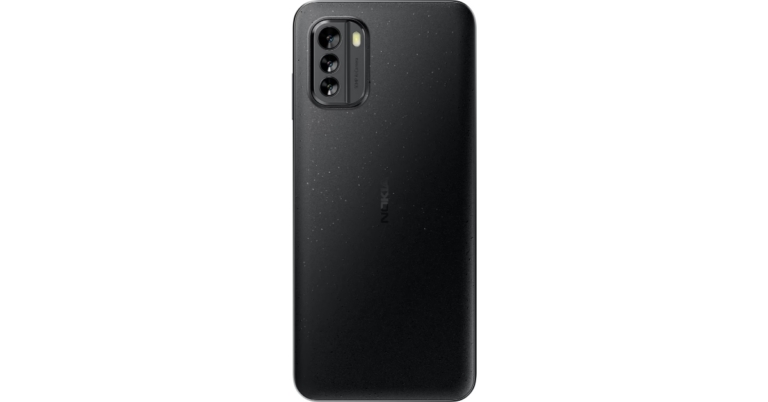
The upcoming launch of the Nokia G60 5G in India has been confirmed by the company. The phone is said to be available for pre-orders in the nation soon. The device has also been listed on the company’s website ahead of the upcoming launch. The 5G phone was first introduced in September at the IFA 2022 in Berlin. It comes with a 120Hz refresh rate display and a triple rear camera arrangement. The handset is powered by Snapdragon 695 5G SoC and packs a 4,500mAh battery.
Nokia revealed via a tweet that it would shortly begin accepting pre-orders for the Nokia G60 5G. The pre-orders will also include exclusive deals for the buyers. Before the launch, the company has also revealed the specifications of the Nokia G60 5G on its India website. The Nokia G60 5G smartphone’s listing suggests the colour options in Black and Ice.
However, the pricing and the actual launch date, and the timing have not been disclosed yet. It was previously released with a starting price of EUR 349, or about Rs. 28,000, in a few select countries.
Samsung Galaxy M23 5G, Galaxy A04, and Galaxy A04e India launch imminent as support pages go live in the country
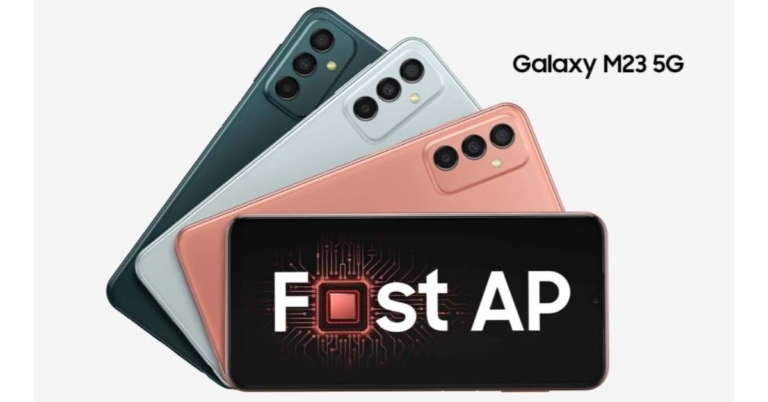
A number of Galaxy A-series and Galaxy M-series phones from Samsung will shortly be unveiled in the nation. The debut of the Samsung Galaxy M23 5G, Galaxy A04, and Galaxy A04e in India could be imminent as the devices have been discovered on the Samsung India website. All these phones are currently available in a few other regions except for India but now the company is getting ready to bring the smartphones to the Indian market as well.
Tipster Sudhanshu Ambhore (@Sudhanshu1414) discovered the support page. On the company’s India website, the support page lists a Samsung device with the model number SM-M236B/DS that is thought to be the Galaxy M23 5G. Both Galaxy A04 and Galaxy A04e models with the model numbers SM-A045F/DS and SM-A042F/DS, respectively, are also available on the company’s support page. For each of the three smartphones, the model number denotes compatibility for dual SIM.
The listing doesn’t provide much information other than the model numbers.
Batteries of 5,000mAh power the Galaxy M23 5G, Galaxy A04, and Galaxy A04e. The Galaxy M23 5G has a triple rear camera configuration, including a 50-megapixel main sensor, as opposed to the two back cameras found on the Galaxy A-series phones.
As we previously noted, Samsung released the Galaxy M23 5G earlier this year in various parts of Europe. Later, the company also released the Galaxy A04e in select regions of Europe.
Samsung Galaxy M23 5G specifications
The Samsung Galaxy M23 boasts a 6.6-inch FHD+ display. The Snapdragon 750G SoC along with 4GB RAM powers the phone. The device has 128GB of internal storage that can be expanded by up to 1TB with a microSD card. OneUI 4.1, which is based on Android 12, comes preinstalled. The Samsung Galaxy M23 5G features a triple rear camera setup consisting of a 50MP primary sensor with OIS, an 8MP ultra-wide sensor and a 2MP depth sensor. For selfies, the device has an 8MP camera. The handset also comes with a 5,000mAh battery.Samsung Galaxy A04e specifications
The 6.5-inch HD+ IPS LCD screen of the Samsung Galaxy A04e has a 60Hz refresh rate. The smartphone comes equipped with an unidentified octa-core CPU with 4GB of RAM. There is a 128GB internal storage space that can be expanded to 1TB using a microSD card. The phone uses One UI Core 4.1, which is based on Android 12. The Galaxy A04e sports two cameras on the back: a primary 13MP main camera and a depth camera with a 2MP resolution. A 5MP camera is available for selfies and video calls. For the latest gadget and tech news, and gadget reviews, follow us on Twitter, Facebook and Instagram. For newest tech & gadget videos subscribe to our YouTube Channel. You can also stay up to date using the Gadget Bridge Android App. You can find the latest car and bike news here.Garena Free Fire Redeem Codes Today 29 October 2022: Here is how to claim them

Garena Free Fire is a battle royale game with regular awards and tournaments to keep players interested. If you play Garena Free Fire, you should be aware of the redeem codes that are released on a daily basis. However, because the battle royale game is banned in India, players from other countries can use the Free Fire Redeem codes daily. If you’re unfamiliar with the Garena Free Fire redeem codes or don’t know how to get them, we’ve put together a step-by-step guide to help you redeem them. Check out Garena Free Fire Redeem Codes for October 29.
The Free Fire redeem codes are a great way to get free stuff. These are 12-digit codes that contain alphabets and numbers, as well as an expiration date and time. Because the Garena FF redeem codes cannot be used more than once, you should hurry to the redemption page to claim your free reward before someone else does. To get a free reward, all you have to do is go to reward.ff.garena.com/en, which is the official redemption page. Also, keep an eye on this space for daily updates on Garena Free Fire redemption codes and rewards.
Garena Free Fire Redeem Codes Today 29 October 2022
SA56 VQU7 625R F345 TYOH 9V8C 7YTS GEB4 N56M 7UOJ BVCD 9EUR 4H5N 67MU LJP0 BV9C 87S6 A5Q4 RED1 C2VB 345T OYH9 B87V YCXG HDRT L678 U0JN 9B8V C7X6 S5A4 Q41F RDQM JGSU YI21 UOW1 LI98 U0HY VRB5 MMYL 76P5 4329 1QDA DSZX CVBV X1XS Q123 4U56 YGVY 7CTG XYBH DNRT 67YG FDSA EQSX D12G 3456 MJK8How to Get Free Fire Redeem Codes for Garena on October 29?
- Visit the Garena Free Fire game’s official website at reward.ff.garena.com.
- Use your Facebook, Google, VK, Apple ID, Huawei ID, or Twitter account to log in.
- You’ll be taken to a valid redemption code (s)
- Copy and paste the 12-digit redemption code into the text box.
- On the screen, a dialogue box will appear.
- ‘Ok’ should be selected.
Amazon Quiz Answers Today 29 October 2022: Participate to win Rs 5,000

The popular Amazon Quiz is now live on the Amazon app. The 29 October 2022 Amazon Quiz gives you a chance to win Rs 5,000 Amazon Pay Balance by answering all the questions correctly. The quiz can be played every day from 12 AM to 11:59. Only app users are eligible to participate in the Quiz as it is not accessible on the web platform.
The Amazon Quiz brings a fresh set of questions for its customers that contains five easy questions. The questionnaire consists of five questions related to general knowledge and current affairs. The participants need to answer all the questions correctly and their names will be selected for a lucky draw. The daily quiz brings an opportunity for the customers to win exciting prizes. They can win Amazon Pay Balance ranging from Rs 1,000 to Rs 50,000. The participants need to answer all the questions correctly and their names will be selected for a lucky draw. The winner will be announced at the end of the month. Check Out 29 October 2022 Amazon Quiz Answers.
Amazon Quiz Today Prize – Rs 5,000 Amazon Pay Balance
Quiz Date – 29 October 2022
Daily Timing – 12 AM to 11:59 PM
Winner Announcement – Today 12 PM
Amazon Quiz Answers Today 29 October 2022
Question 1: Recently 21 Indian wrestlers were denied visas by which country ahead of the U23 World Championship? Answer: Spain Question 2: The upcoming movie ‘Bhediya’ stars which of these actors in the lead role? Answer: Varun Dhawan Question 3: The World Health Organization recently said that it will shift to a one dose strategy for which of these diseases, amid vaccine shortage? Answer: Cholera Question 4: This is a statue of which famous political leader? Answer: Winston Churchill Question 5: This is the famous Trump international hotel in which city known as the ‘Sin City’? Answer: Las VegasHow To Play Amazon Quiz
Only app users are eligible to play the Amazon quiz every morning from 12 AM to 11:59 PM. The quiz is not available on the desktop. For those who are unaware of how to play the Amazon quiz below are the steps, you can follow to take the quiz.- Firstly download the Amazon app from Google Play Store or App Store
- Now fill in the required information through the Sign Up option.
- You need to log in to the Amazon app and scroll down on the home screen to find the Amazon Quiz banner.
- Tap on the Amazon Quiz banner and tap on the Start button to start the Quiz.
- Now you will get 5 questions and you need to answer them correctly. One wrong answer will eliminate you from the Quiz.
- After answering all the questions correctly you are now eligible for a Lucky Draw.
- The winner’s name will be announced today at 12 PM.
How to Recover Data on Android after Factory Reset
In some instances, it may be necessary to execute a factory reset of an Android device, even if this procedure may result in complete loss of personal data. The best solution to this issue is to back up all important files ahead of the reset so they are simple to restore, but if this wasn’t done on time it still may be possible to salvage the data if you use appropriate tools.
 Step 2 – Select the option Quick recovery from device, and specify which categories of data you would like to recover
Step 3 – Plug your Android phone into a USB slot on the computer, and scan the existing and deleted data on the device
Step 4 – Preview the scanned data and choose which documents you want to get back, then click on the Start button when you are ready
Step 5 – Choose whether to save the files to PC or to Device, and wait a little while for the recovery process to be completed without unplugging the phone.
Step 2 – Select the option Quick recovery from device, and specify which categories of data you would like to recover
Step 3 – Plug your Android phone into a USB slot on the computer, and scan the existing and deleted data on the device
Step 4 – Preview the scanned data and choose which documents you want to get back, then click on the Start button when you are ready
Step 5 – Choose whether to save the files to PC or to Device, and wait a little while for the recovery process to be completed without unplugging the phone.
When Is Factory Reset Necessary and What Happens to Data During This Procedure?
Every Android smartphone has the option for Factory Reset, which serves to immediately return the device to its default settings and remove any software that’s been added after the initial setup. This option can be executed directly from the phone or remotely with a cloud software tool, so it’s very easy to fall back on whenever all other options fail. The main downside of this procedure is that all data on the device is erased, so this feature should never be used without full awareness of the consequences. A typical situation where users need to perform a hard reset on the device is when the phone is lost or stolen and erasing the data is necessary to protect privacy. Another possibility is that a phone is sold and new owner wants to start from a clean slate. A device that can’t be accessed due to a lock screen is also a prime candidate for a Factory reset. Some users use this option whenever their phone slows down because of too many installed apps and/or clogged memory, but this might be a bit extreme. Factory reset can also be an effective solution for eliminating malware from the device.How to Recover Data After Factory Rest with Backup?
An Android device will be completely functional after a hard reset and any security locks that were preventing access to its content will be removed, albeit at a price. Any personal contacts, documents, notes, ringtones, images, videos, installed apps and other content will be entirely wiped from the device. That doesn’t mean the data is necessarily lost forever, especially if the device owner had the presence of mind to create backup before resetting. Depending on the location where the backup files are kept, there are two methods that users could rely on for data recovery.Method #1 – Restore data from local backup
The most straightforward way to get your data back on the Android device is to load it from a local backup. Of course, this can only be done if the backup was made on a computer or another digital device that is physically in the possession of the owner. This method is very convenient for recovering documents, photos, and videos, but it doesn’t help you move personalized settings, ringtones, or installed apps back to the device. Here is the procedure you need to follow to recover data from a local backup and return it to the Android device you are currently using: Step 1 – Connect the Android phone to the PC where the backup files are saved via USB cable Step 2 – Go to Settings menu on the Android, and select the Backup & Restore option Step 3 – Find the latest backup file on the computer and click on Restore from backupMethod #2 – Restore from Google backup in the cloud
Another possibility for the retrieval of backed up data is to use personal cloud storage provided by Google. This method has the advantage of allowing remote access to the data, as well as increased security of the saved content. If data was regularly backed up on the Google account and the synchronization feature has been turned on, recovering everything to the device after a factory reset won’t be hard at all. Here is what you need to do to get the latest backup to the phone and easily access all of your files: Step 1 – After you factory reset the device, start your Android phone Step 2 – Set up the same Google account on the device that you previously used Step 3 – During the setup process, you will be offered the possibility to restore backup files Step 4 – Click on the Automatic restore option and finish the processHow to Recover Data without Backup?
Since factory reset option is sometimes invoked during an emergency, it’s not rare to perform it without a proper backup in place. Without a recent backup, none of the two default methods presented above can be used, and the data is seemingly lost forever. The only option left for the Android user is to download a specialized software solution that can return the lost data to the device. Fortunately, there is a very reliable app of this kind available on the web.Using DroidKit to recover lost data
DroidKit by iMobie was designed specifically to support Android users in difficult situations and allow them to perform actions they otherwise wouldn’t be able to. One of the most valuable features of this software is its data recovery tool which can solve the problem of lost data after a factory reset. This tool is very user-friendly and doesn’t require expert knowledge of technology, so literally, anyone can use it to quickly recover personal data without the need for a backup. Here is the sequence of steps you need to take in order to get all your files, apps, and preferences back to your phone where they belong: Step 1 – Install DroidKit to your computer, run it, and select the Data Recovery tool from the main menu Step 2 – Select the option Quick recovery from device, and specify which categories of data you would like to recover
 Step 3 – Plug your Android phone into a USB slot on the computer, and scan the existing and deleted data on the device
 Step 4 – Preview the scanned data and choose which documents you want to get back, then click on the Start button when you are ready
 Step 5 – Choose whether to save the files to PC or to Device, and wait a little while for the recovery process to be completed without unplugging the phone.
Final Words
It goes without saying that backing up your personal data on a regular basis is a smart practice, regardless of whether you intend to factory reset your Android device. With a backup stored locally on in the cloud, restoring all data back to the phone is a routine task. Things are more complicated if you failed to create a backup, but even in this case, you could perform a successful recovery if you download DroidKit by iMobie. This software lets you preview and retrieve several categories of deleted content, so it represents a valuable resource that every Android owner should be aware of and prepared to use. For the latest gadget and tech news, and gadget reviews, follow us on Twitter, Facebook and Instagram. For newest tech & gadget videos subscribe to our YouTube Channel. You can also stay up to date using the Gadget Bridge Android App. You can find the latest car and bike news here.5 Fixes: iPhone Stuck on Apple Logo for Storage Full/Update
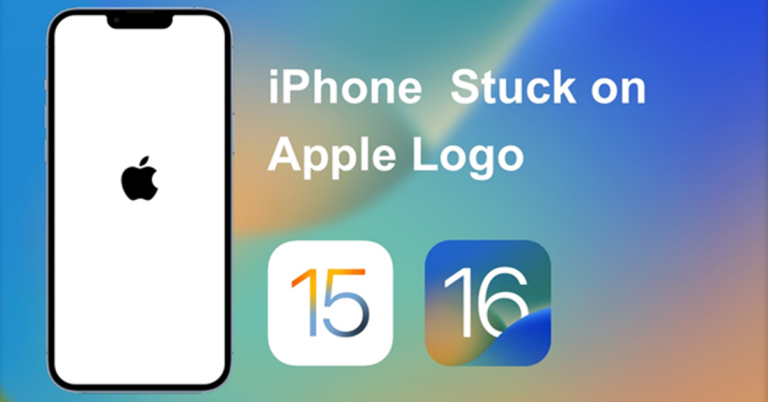
Despite being the biggest name in innovative solutions, Apple has not practically solved some issues for the users. Apple users know the frustration caused by iPhone being stuck on Apple logo. You cannot get past this phase, and nothing seems to be working. Are you currently experiencing the same issue and cannot get past the Apple logo? These five fixes can make your troubles go away without having to visit the Apple centre.
Read Also: Apple announces free repairs for these ‘defective’ iPhones and
Why is my iPhone stuck on Apple Logo?
The issue mainly arises due to software glitches, and once you know the root cause, you can stop it from happening again and again. From software update bugs to hardware damage, here are the possible reasons that might cause iPhone XR stuck on the Apple logo:- The recent iOS update is not complete yet, and there are bugs in the updated version
- You tried to alter the default settings or tried to jailbreak your iPhone
- Issues were triggered after restoring the iPhone from iTunes
- An incomplete restore attempt caused the issue
- You accidentally damaged the phone, or some hardware is malfunctioning
How Do You Fix iPhone Stuck on Apple Logo?
Instead of wasting time with useless DIY hacks and tricks, let’s jump to the methods that are tried and approved by professionals. These solutions don’t require any technical expertise.Step 1: Enter Recovery Mode
Recovery mode offers additional control over the device, and restoring the iPhone in recovery mode usually gets the “iPhone 11 stuck on Apple logo” issue fixed. This method will erase your entire data, so make sure you have the latest backup of your data. Follow these simple steps to restore iPhone 8 and later models in recovery mode:- Use the cable to connect your stuck iPhone to a computer and open Finder or iTunes on the computer
- Press and release the volume up button and repeat the same for the volume down button
- Press and hold the side button for a moment until you are displayed connect to iTunes message

Step 2: Put iPhone into DFU Mode
If simple recovery mode does not get the logo moving, the next step is to try the more powerful form of recovery mode restores, DFU mode. Here is how to do it:- Plug your iPhone 8 or later model into your computer with iTunes running
- Press and swiftly release the volume up button, and do the same for the volume down button
- Hold the power button for a few seconds and wait for the screen to go black
- Press and hold the volume down, and don’t release the side/power button yet
- Wait for five seconds and let go of the side button but keep holding the volume down button, and you will receive a message which means iPhone is in DFU mode.
- Now, you can perform simple restore operations from the iTunes
Step 3: Use iOS System Repair Tool
When it comes to iOS repair tools, iToolab FixGo is a smart choice, as it can fix simple software and hardware glitches without deleting data. You can even enjoy the additional features, including:- Enter or exit recovery mode with one click
- Resolve common software and hardware issues within a few clicks
- Downgrade to the last supported iOS version without risking the device with jailbreak
- Simply reset your iPhone without a password
- Works perfectly for all old and latest models, including iPhone 14
Install iToolab FixGo and Connect your stuck iPhone to your laptop
The installation of the tool will take a moment, and upon launching, the home screen of the tool will show you different options where you need to pick Standard Mode to fix issues. Upon connecting your iPhone to the computer, FixGo-iOS System Repair will automatically detect the tool, but it does not do so; you can manually put the iPhone in DFU mode.
Download Additional Firmware Files
Depending upon the model of your device, some additional firmware files are needed that will be downloaded by the tool. You can upload the already available file too.
Fix the Apple Logo Stuck Issue
Now, let FixGo-iOS System Repair run the process, and you will have to be patient for a few moments. Once the process is done, you can disconnect the device and check if the problem is resolved. Read Also: Apple announces free repairs for these ‘defective’ iPhones and
Step 4: Free up Space on iPhone
Sometimes full storage also prevents the normal startup of the device. If you have too many photos and media files, freeing up some space may resolve the issue. Here are a few ways to free space on your iPhone that is stuck on the Apple logo:- Delete unnecessary images and photos
- Clear browser history and cache
- Clear the data or different apps
- Erase attachments and bigger files from the inbox
- Delete content that is no longer needed

Step 5: Go Back to the Previous iOS Version
Some users have experienced issues with iPhones after the iOS 16 update. If you have also experienced iPhone stuck on the Apple logo issue after any specific update, you can always go back to the previous iOS version that worked just fine.1. Put iPhone in DFU Mode
The first step is to enter DFU mode, and the process is different for iPhone 8 and later models, so make sure to follow the right steps to enter DFU mode.2. Download the required IPSW
You can download the relevant version of iOS from IPSW.me by making some simple selections.3. Install IPSW on your iPhone
After downloading IPSW files, go to Finder or iTunes and click on restore while pressing the ALT button and choose the IPSW file that you downloaded earlier. After the process, you will be able to use the last version of iOS on your iPhone without iPhone stuck on the Apple logo issue.
Final Words
Most of the methods have lower success rates or don’t guarantee the safety of your data. On the other hand, FixGo-iOS System Repair not only offers the highest success rate but also keeps your data 100% safe. There is no need to spend hundreds on Apple repair services when you can fix common iPhone issues with FixGo-iOS System Repair at home. For the latest gadget and tech news, and gadget reviews, follow us on Twitter, Facebook and Instagram. For newest tech & gadget videos subscribe to our YouTube Channel. You can also stay up to date using the Gadget Bridge Android App. You can find the latest car and bike news here.So You’ve Installed The Rummy App From Play Store, Now What?

With the beginning of Google play store’s pilot program to allow cash rummy apps on its android market, play store, rummy lovers from India can install the cash rummy game and enjoy playing it. Online rummy has expanded significantly in the past few years by imitating one of India’s oldest and most well-liked card games. Rummy is a fun way to relieve stress, combat boredom, and employ your cognitive skills to win real money rewards. It combines skill-based gameplay with real money payouts.
How does one play rummy?
Rummy is a well-liked game that has several variations, including rummy 500, 13-card, and 21-card rummy. When it comes to online Rummy, 13 Card Rummy is the most well-liked variation of them all. Simple rules make playing this game easy. Your goal in 13 Card Rummy is to make two sequences, one of which must be pure and the other of which could be any, pure or impure. A Joker or more Jokers could be part of an impure sequence, whereas a pure sequence is made up of cards of the same rank from the same suit. After achieving this objective, you may declare, and a successful show will proclaim you the online rummy game’s winner. Make sure the base of anything you do is solid. When you play a rummy game, the same is true. So, whether you’re playing offline or online, there are certain fundamental strategies you should be aware of to succeed. Now that you’re familiar with how to play the rummy game let’s look at some of the strategies that can give you an edge over your competitors and help you win itRummy Game Strategies & Techniques
The melding of cards: Make sure your cards are correctly arranged before you start the game. This will help you focus better and help you recall all the movements you did when the action was intense. The usage of this technique helps prevent players from becoming lost in the process of choosing and discarding cards. Alternating the colours is one efficient technique to organise the cards.Make Pure Sequence On Priority
Rummy may be played on a variety of online rummy sites. No matter whatever online rummy site you are using, your main goal should always be to create a pure sequence initially since that is what matters the most. In doing so, you will increase your possibilities of prevailing in the game, so get started as soon as you can. Additionally, if your opponent chooses to declare at any time, it will ensure that you don’t wind up with the sum of all the points on your hand’s cards. A player in online rummy will have ample time, if they create a pure sequence quickly, to make proper moves if they wish to adjust their strategy. Read Also: There’s a way to find out the location of your WhatsApp contacts without themKeep A Check On Your Rivals
You can be playing rummy against opponents who are more skilled than you. Pay close attention to their play. Keep in mind the cards they throw away as well as the ones they choose from the open deck. This will give you a good picture of how they play and serve as a guide for which cards you might keep and throw away in order to increase your possibility of winning.Learn How To Fish The Opponent
The art of tricking opponents into throwing away the cards you need is something every player should understand. If you now have a 7 of hearts, a 7 of clubs, and an 8 of spades and you wish to make a set of triple 7s, for example, throw away the 8 of spades. The 7 of spades might be seen by your opponent as a harmless card to discard, assisting you in completing your set. This is referred to as fishing the opponent. Try to outwit your opponent whenever you take or toss cards from the open deck to finish your sequence. You must use these strategies to play rummy on the cash rummy app in order to succeed; just reading and understanding them will not help you win any rummy games. Install the real money rummy game, then use your talents to compete for massive cash prizes. For the latest gadget and tech news, and gadget reviews, follow us on Twitter, Facebook and Instagram. For newest tech & gadget videos subscribe to our YouTube Channel. You can also stay up to date using the Gadget Bridge Android App. You can find the latest car and bike news here.Disney+ Hotstar introduces “Follow On,” a dedicated feed featuring ICC Men’s T20 World Cup in-game updates

With the introduction of Follow On, Disney+ Hotstar enhances the cricketainment experience during the ICC Men’s T20 World Cup. This is a unique video stream that provides a real-time account of the cricket match together with facts, expert comments, and insights into the game.
Commenting on the launch of Follow On, Disney+ Hotstar spokesperson said, “Disney+ Hotstar has always delivered the best-in-class live sports experience in India. With Follow On, we’re raising the bar by democratising access to premium cricket entertainment with a real-time account of the cricket action to all users – including our freemium viewers.”
“Every Disney+ Hotstar user is valuable to us, and we constantly strive to deliver innovation that helps users engage deeper with our platform. We look forward to rolling out Follow On to users that will further bolster Disney+ Hotstar’s position as the one-stop-shop for cricketainment,” they further added.
All users, including freemium users and subscribers, have access to Follow On through Disney+ Hotstar. Following the expiration of the free live cricket timer (a free trial of live cricket available to freemium customers), freemium users of Disney+ Hotstar will be switched to Follow On so they can continue to follow the game without interruption.
Cricket analysts like Sunil Vaidya, Sanjay Banerjee, Raman Bhanot, Vineet Garg, Naveen Srivastava, Reema Malhotra, Ajay Mehra, Padmajeet Sehrawat, and Manoj Sharma provide informative analysis with graphics and visuals for Follow On’s audience.
How to use Hotstar for free to watch the T20 Cricket World Cup
Hotstar allows you to watch the T20 Cricket World Cup without having to pay a subscription fee. First off, Disney+ Hotstar offers 5 minutes of free coverage before requiring a subscription. There is a way to get the Disney+ Hotstar subscription for free if you don’t want to pay for it. Specific mobile data plans from some network providers include a complimentary Disney+ Hotstar subscription package. Here you can find a few of the most well-liked current plans. For the latest gadget and tech news, and gadget reviews, follow us on Twitter, Facebook and Instagram. For newest tech & gadget videos subscribe to our YouTube Channel. You can also stay up to date using the Gadget Bridge Android App. You can find the latest car and bike news here.Redmi Note 12, Redmi Note 12 Pro, and Redmi Note 12 Pro+ announced
The Redmi Note 12 Series has officially debuted in China. The newest version of the Redmi Note series includes Redmi Note 12, Redmi Note 12 Pro, and Redmi Note 12 Pro+. In addition to the three models, the Redmi Note 12 Pro+ is available in two customized versions called the Redmi Note 12 Trend Edition and the Redmi Note 12 Discovery Edition/Redmi Note 12 Explorer Edition.
Redmi Note 12 Series price details
The 4GB RAM with 128GB storage edition of the Redmi Note 12 is priced at CNY 1,199, which is equal to Rs 13,600. The cost of the 6GB RAM with 128GB storage variant is CNY 1299, or roughly Rs 14,600, while the cost of the 8GB RAM with 128GB storage model is CNY 1,499, or roughly Rs 17,000. The most expensive model, which has 8GB of RAM and 256GB of storage, costs CNY 1699, which is equivalent to Rs 19,300. Redmi Note 12 Pro costs CNY 1699, or roughly Rs 19,300, for the base 6GB RAM with 128GB storage model, and CNY 1,799, or roughly Rs 20,400, for the 8GB RAM with 128GB storage model. The price of the 8GB RAM with 256GB storage is CNY 1,999, or approximately Rs 22,700, and the price of the 12GB RAM with 256GB storage is CNY 2,199, or approximately Rs 24,900. The Redmi Note 12 Pro+, costs CNY 2,099, which converts to around Rs 23,000 for the 8GB RAM with 256GB storage option, and CNY 2,299, which equals approximately Rs 26,000 for the 12GB RAM with 256GB storage variant.Redmi Note 12 5G specifications
MIUI 13, which is based on Android 12, powers the Redmi Note 12 5G. The smartphone is equipped with an octa-core Qualcomm Snapdragon 4 Gen 1 SoC and up to 8GB of RAM. It has inbuilt storage that can be expanded up to 256GB UFS 2.2 and accepts microSD cards with up to 512GB. The phone has a Samsung full-HD display of 6.67 inches with a resolution of 1,080×2,400 pixels. The screen’s refresh rate can reach 120 Hz, while its touch sampling rate can reach 240 Hz. Peak brightness on the panel is up to 1200 nits. The dual rear camera system of the Redmi Note 12 5G consists of a 48-megapixel primary sensor and a 2-megapixel depth sensor. The phone has an 8-megapixel front camera for selfies.Redmi Note 12 Pro specifications
A 6,67-inch full-HD+ OLED screen with a resolution of 1,080×2,400 pixels is featured on the Redmi Note 12 Pro. The display can support refresh rates of up to 120Hz, 240Hz touch sampling rates, and HDR10+. An octa-core MediaTek Dimensity 1080 SoC, up to 12GB LPDDR4x RAM, and a Mali-G68 GPU power it. The smartphone has 256GB of UFS 2.2 storage capacity. The 50-megapixel Sony IMX766 sensor in the triple rear camera set of the Redmi Note 12 Pro supports optical image stabilisation. A 2-megapixel macro sensor and an 8-megapixel ultra wide-angle sensor are also part of the camera package. Additionally, the front of the device has a 16-megapixel selfie sensor. The Redmi Note 12 Pro has a 5,000mAh battery and 67W fast charging capabilities.Redmi Note 12 Pro+ specifications
The 6.67-inch full-HD OLED display on the Redmi Note 12 Pro+ features a refresh rate of up to 120Hz. The screen can support a touch sampling rate of 240Hz and a maximum brightness of 900 nits. Both Dolby Vision and HDR10+ are supported by the display. Under the hood of the Redmi Note 12 Pro+ is an octa-core 6nm MediaTek Dimensity 1080 SoC, up to 12GB LPDDR4X RAM, and a Mali-G68 GPU. The Redmi Note 12 Pro+ boasts a triple rear camera arrangement with a 200-megapixel primary sensor with OIS capabilities. Moreover the setup includes an 8-megapixel ultra wide-angle camera and a 2-megapixel macro lens. Upfront the phone has a 16-megapixel front camera sensor for selfies. A 5,000mAh battery that supports 120W rapid charging powers the brand-new Redmi Pro+ smartphone. For the latest gadget and tech news, and gadget reviews, follow us on Twitter, Facebook and Instagram. For newest tech & gadget videos subscribe to our YouTube Channel. You can also stay up to date using the Gadget Bridge Android App. You can find the latest car and bike news here.How to watch the ICC Men’s T20 Cricket World Cup online? Free and paid

The ICC Men’s T20 Cricket World Cup is underway and has already seen some thrilling matches and gigantic upsets. In India, the broadcasting rights for the T20 World Cup have been awarded to Star Sports, and you can catch the live action on any of their multiple dedicated channels. For those who have gotten rid of their cable service and set-top boxes and switched entirely to streaming, there are a couple of ways you can watch the World Cup on your PC, laptop, or Smart TV. In this article, we bring you free and paid ways to watch the ICC Men’s T20 Cricket World Cup online.
Read Also: How to apply and get Airtel 5G? Things to know
Disney+ Hotstar is the official online broadcaster of the ICC Men’s T20 Cricket World Cup in India. If you’re trying to stream the WC matches online, using Hotstar is the only legitimate way of going about it. Disney+ Hotstar’s subscription is very moderately priced in India, in comparison to other countries. There are currently two subscription plans offered by Disney+ Hotstar in India, Super and Premium. The differences between the two plans are the number of screens (2 for Super, 4 for Premium), video quality (1080p for Super, 4k for Premium), and a completely adless experience offered by Premium.
Use the Disney+ Hotstar app
 Disney+ Hotstar is the official online broadcaster of the ICC Men’s T20 Cricket World Cup in India. If you’re trying to stream the WC matches online, using Hotstar is the only legitimate way of going about it. Disney+ Hotstar’s subscription is very moderately priced in India, in comparison to other countries. There are currently two subscription plans offered by Disney+ Hotstar in India, Super and Premium. The differences between the two plans are the number of screens (2 for Super, 4 for Premium), video quality (1080p for Super, 4k for Premium), and a completely adless experience offered by Premium.
- Annual Disney+ Hotstar Super package: Rs 899
- Annual Disney+ Hotstar Premium package: Rs 1,499
- Monthly Disney+ Hotstar Premium package: Rs 299
How to watch the T20 Cricket World Cup on Hotstar for free
If you do not wish to pay a subscription fee for Hotstar, you can still watch the T20 Cricket World Cup on it for free. Firstly, Disney+ Hotstar lets you watch 5 minutes of free coverage before putting the content behind the paywall. While this isn’t certainly ideal, it can come in handy if you want to watch the last five minutes of a match. If you do not want to pay for the Disney+ Hotstar subscription, there is a way you can get it for free. Certain network providers have special mobile data plans that come with a free Disney+ Hotstar subscription package. Here are some of the popular plans available right now.Airtel
Airtel has some of the most affordable data plans that come with a free Disney+ Hotstar subscription. Here is the detailed list.- Rs 181: Disney+ Hotstar Subscription for 3 months + 1GB/day for 30 days.
- Rs 399: Disney+ Hotstar Subscription for 3 months + 2.5GB/day for 28 days.
- Rs 499: Disney+ Hotstar Subscription for 1 year + 2GB/day for 28 days.
- Rs 599: Disney+ Hotstar Subscription for 1 year + 3GB/day for 28 days.
- Rs 839: Disney+ Hotstar Subscription for 3 months + 2GB/day for 84 days.
- Rs 2,999: Disney+ Hotstar Subscription for 1 year + 2GB/day for 365 days.
- Rs 3,359: Disney+ Hotstar Subscription for 1 year + 2.5GB/day for 365 days.
Jio
Jio’s pricing isn’t as competitive as Airtel‘s, but it offer’s an entire year’s Disney+ Hotstar subscription.- Rs 1,499: Disney+ Hotstar Subscription for 1 year + 2GB/day for 84 days.
- Rs 4,199: Disney+ Hotstar Subscription for 1 year + 3GB/day for 365 days.
Conclusion
This is how you can watch the ICC Men’s T20 Cricket World Cup online for free. Some data plans also offer free subscriptions to other OTT apps like Amazon Prime and Voot as well. You can also use free apps like Cricbuzz and CricHeroes to keep up with the live scorecards of any ongoing matches.
For the latest gadget and tech news, and gadget reviews, follow us on Twitter, Facebook and Instagram. For newest tech & gadget videos subscribe to our YouTube Channel. You can also stay up to date using the Gadget Bridge Android App. You can find the latest car and bike news here.