In This Article
What is my Apple ID?
When you set up an Apple device for the first time, you are asked to create an Apple ID. You can do it by registering your email address with Apple. Your unique Apple ID is your gateway to Apple’s services like iCloud, FaceTime, iMessage, Apple Music, and more. If you use more than one Apple product, having one Apple ID for all of them brings a seamlessness and continuity to the entire experience. Perhaps the most important aspect of having an Apple ID is the ability to track your lost iPhone. As soon as you notice your iPhone is missing, log into iCloud on another device using your Apple ID and track the whereabouts of your lost phone. This is why you should always know what your Apple ID is.Find your Apple ID on your iPhone or iPad
Step 1: Open Settings on your iPhone. Step 2: Tap your name. You can find it at the top of the screen. Step 3: Look for your Apple ID right below your name and profile picture.Find your Apple ID on a Mac or PC
Mac
Step 1: Hit the Apple logo at the top left corner of the screen. Step 2: Select System Preferences. Step 3: Click on Apple ID. Step 4: You will find your Apple ID under your name and profile picture. In macOS Ventura or later, go to Apple menu>System settings, click on your name, and then click on Sign-in and Security. You will find your Apple ID under ‘Emails & Phone Numbers’.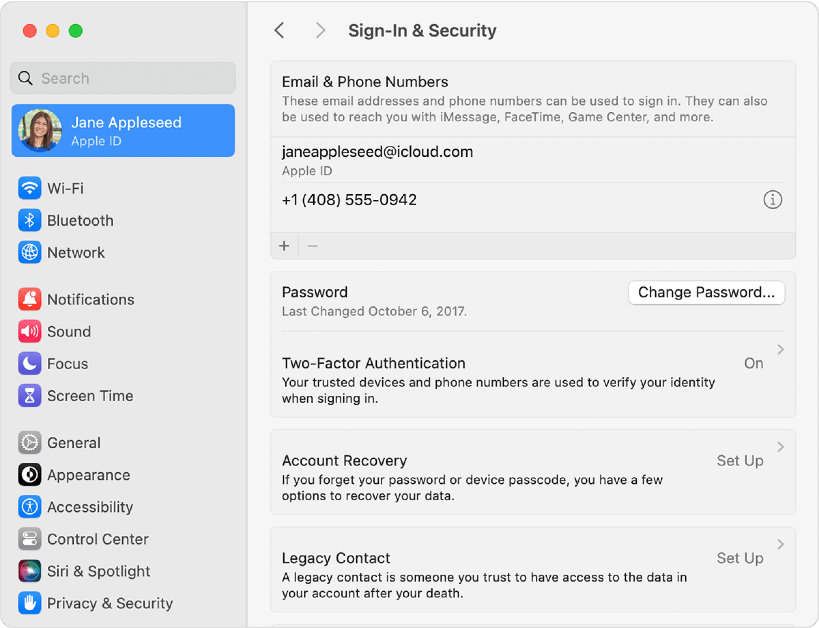
PC
Open the iCloud app for Windows. You will find your Apple ID under your name in the left section of the page.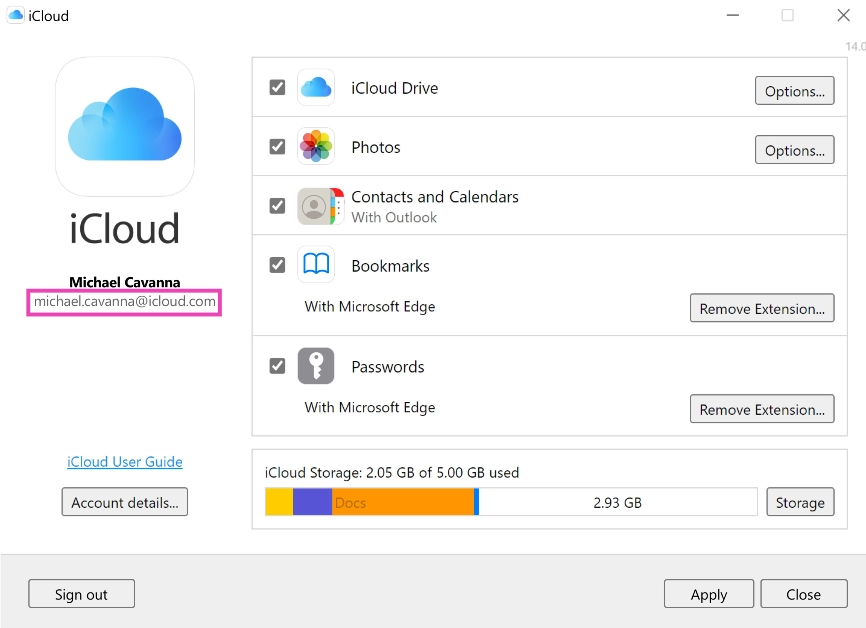
How to find your Apple ID if you’ve forgotten it?
If you have access to your iPhone or Apple device, finding the registered Apple ID is not a big deal. However, if you lose your device or perform a factory reset on it, you will need your Apple ID to restore your data. But what happens if you forget it? Well, there is still some hope. Go to iforgot.apple.com and enter your first name, last name, and your registered email address. Now, the last part may require a fair bit of hit and trial. If you don’t remember which email address you used for your Apple ID, go through all of them until you find a match. To regain access to your account you will be asked a few security questions and an authentication code may be sent to your recovery email address (if you had provided it at the time of creating your Apple ID).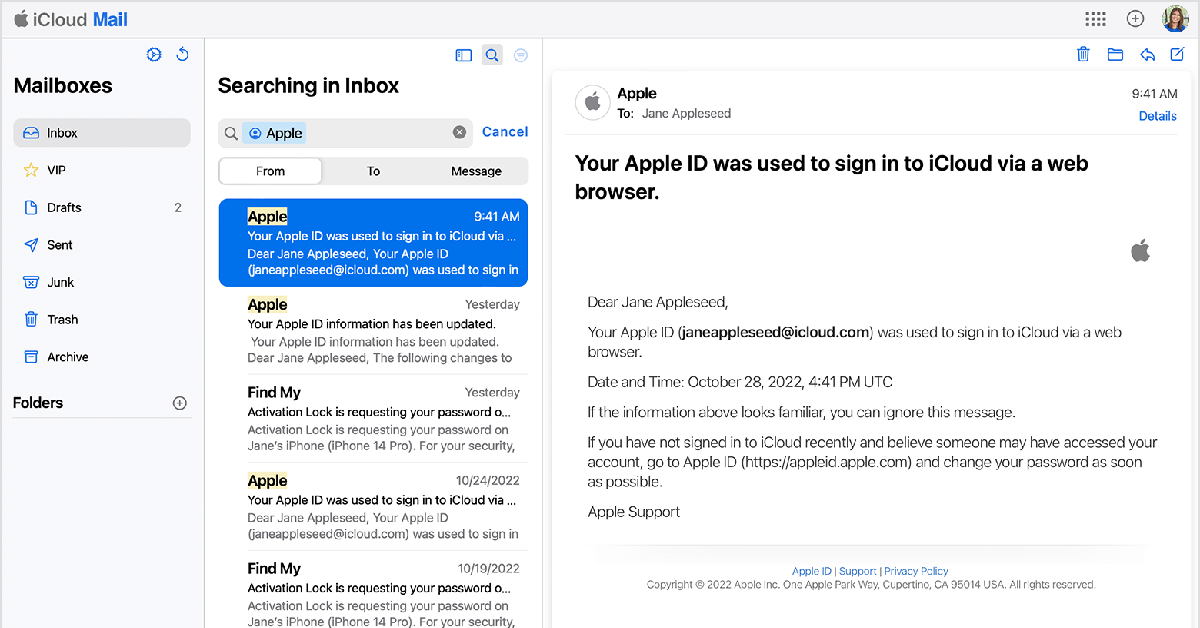 If you can’t access the iForgot page, simply go through all your email accounts and search for any emails sent from Apple. You get an email from Apple every time you create an Apple ID. Once you find this email, you will know which email address is associated with your Apple ID. This will make the task of restoring your account much easier.
If you have forgotten your password, go to the Apple password recovery page, enter your registered Apple ID or phone number, and the captcha provided on the screen. The link to reset your password will be sent to your email.
If you can’t access the iForgot page, simply go through all your email accounts and search for any emails sent from Apple. You get an email from Apple every time you create an Apple ID. Once you find this email, you will know which email address is associated with your Apple ID. This will make the task of restoring your account much easier.
If you have forgotten your password, go to the Apple password recovery page, enter your registered Apple ID or phone number, and the captcha provided on the screen. The link to reset your password will be sent to your email.

 Step 3:
 Step 4:
 Step 5: Confirm
 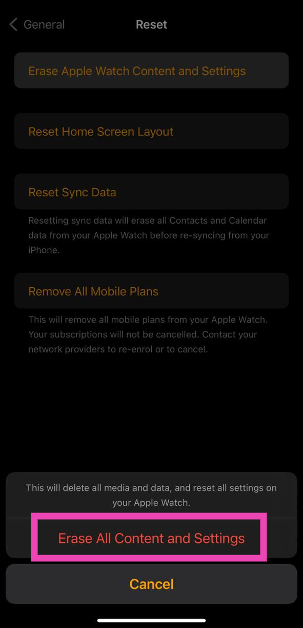 Step 6:
 Step 3:
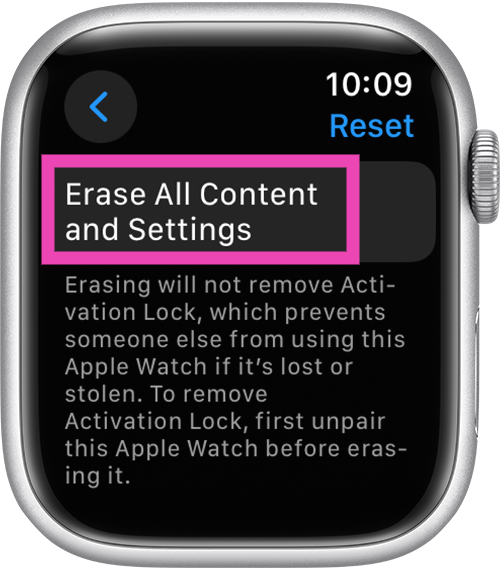 Step 4:

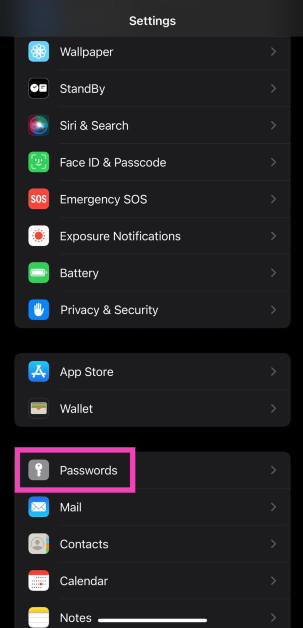 Step 2:
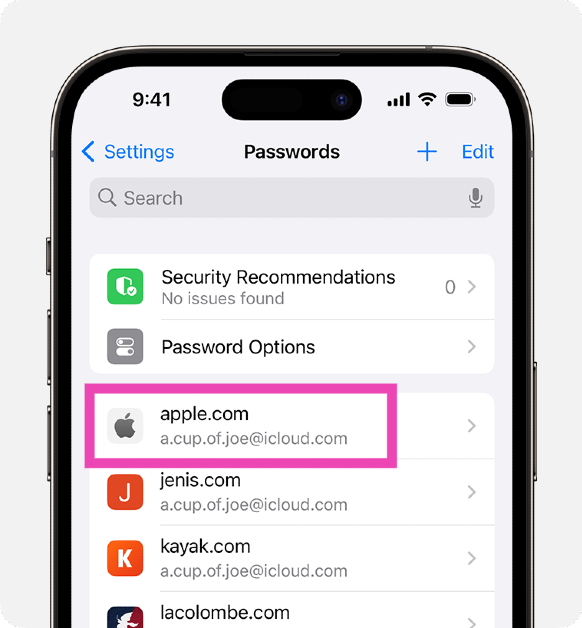 Step 4: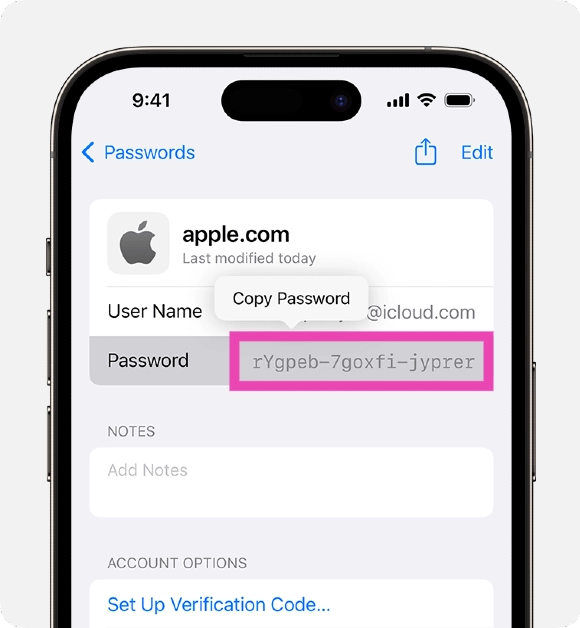
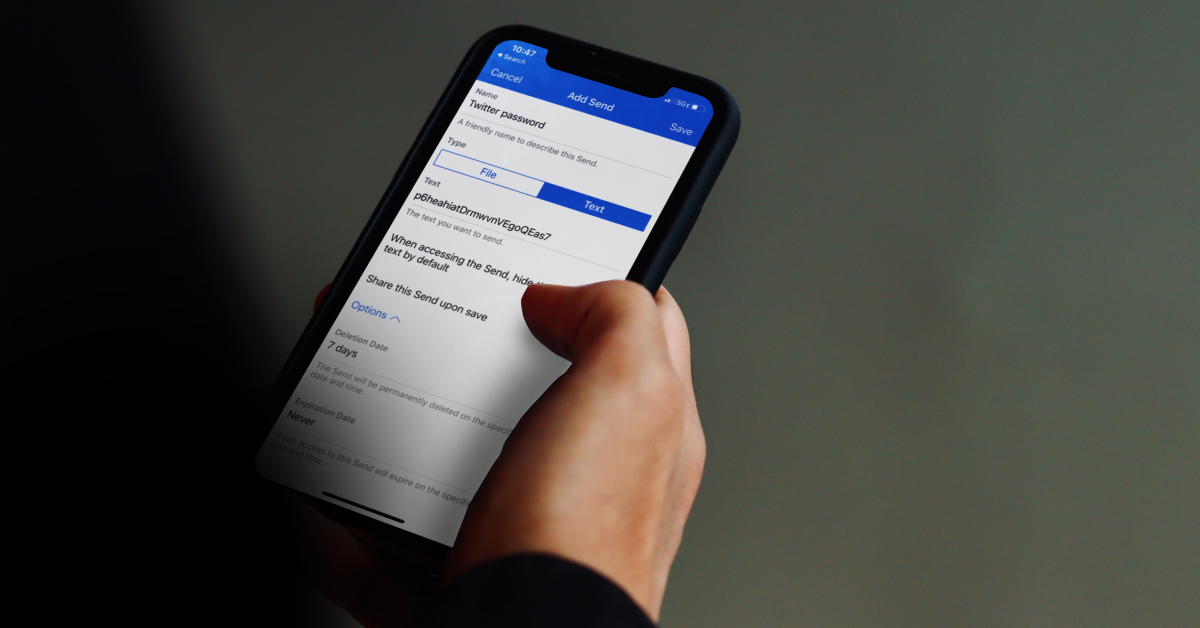
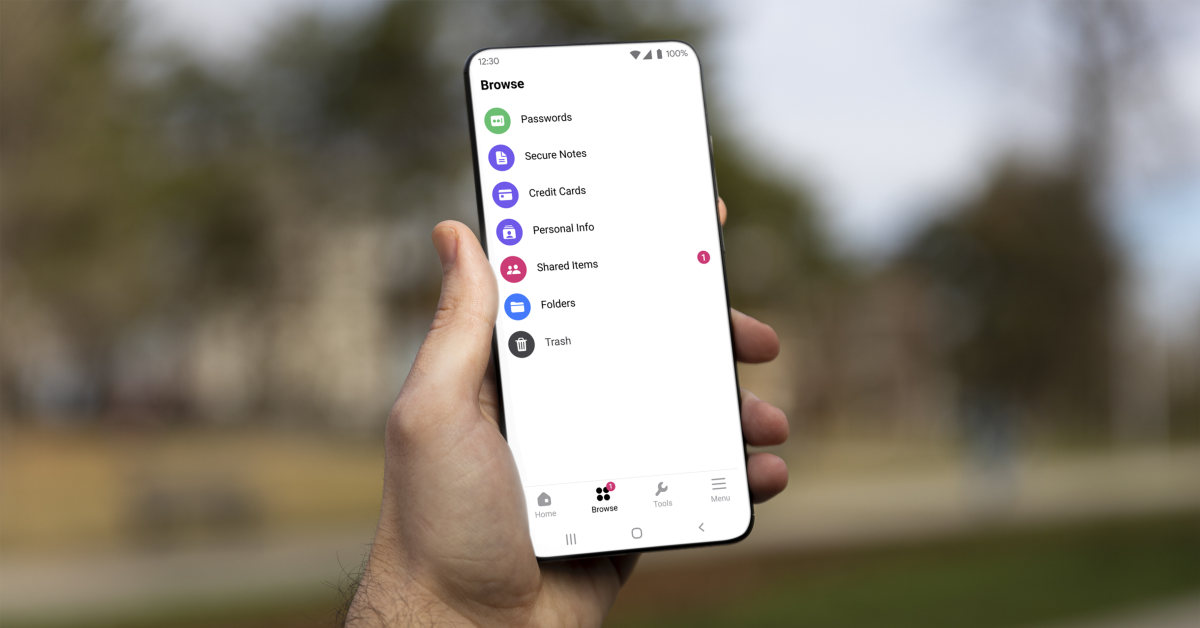
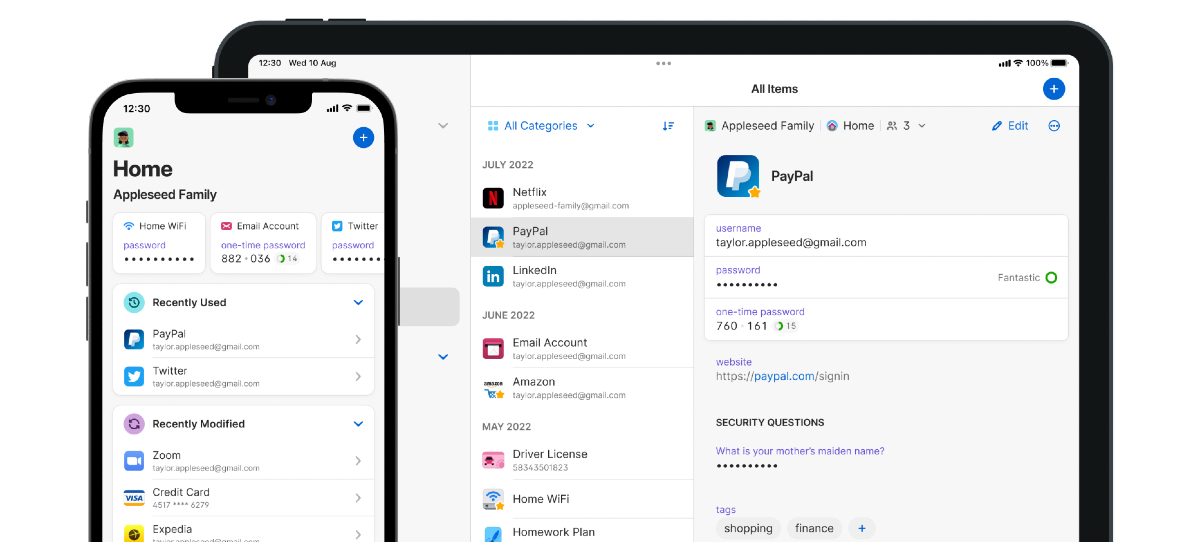


 Step 1:
 Step 1: Launch the
 Step 2: Navigate
 Step 2: Navigate



















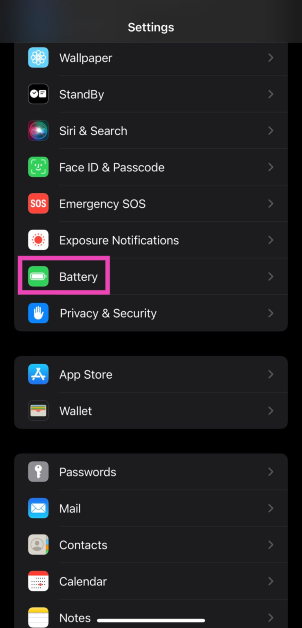 Step 2: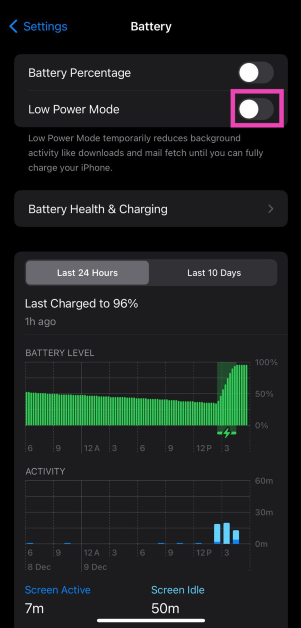
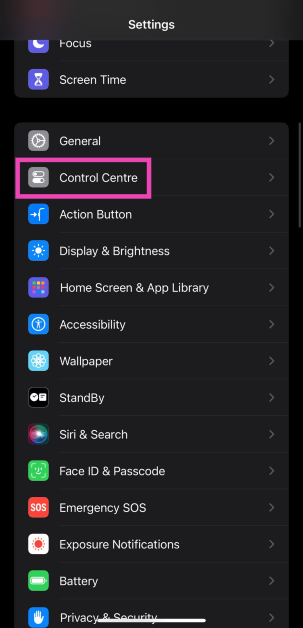 Step 2:
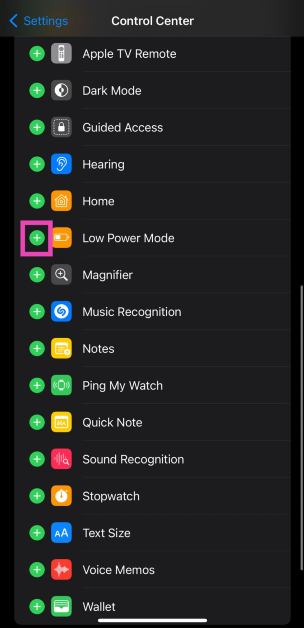 Step 3: Swipe down from the status bar and tap the Low Power Mode tile to turn it off.
 If you don’t want to add the Low Power Mode tile to the Control Center or turn it from device settings, you can get Siri to do it. Simply say ‘Hey Siri, turn off Low Power Mode’ and the voice assistant will switch your phone’s battery usage to its normal settings.


 Step 4:
 Step 5:
 Step 8:
 Step 4:
 Step 5:
 Step 6:
 Step 8:
 Step 10:



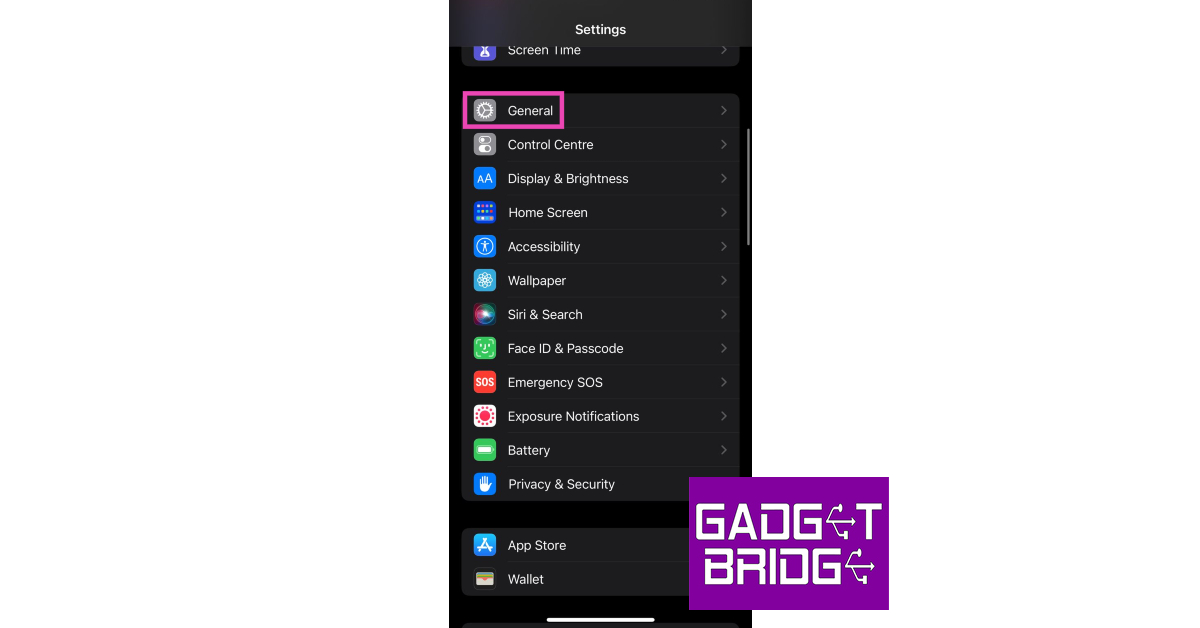 Step 3:
 Step 4:
 Step 2:
  Step 3:
 Step 5: Register
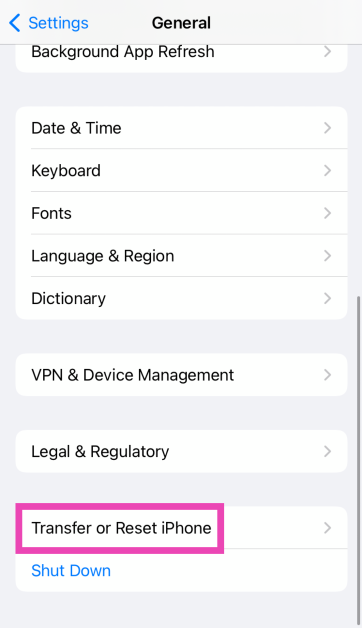
 Step 2: Tap on Transfer or Reset iPhone.
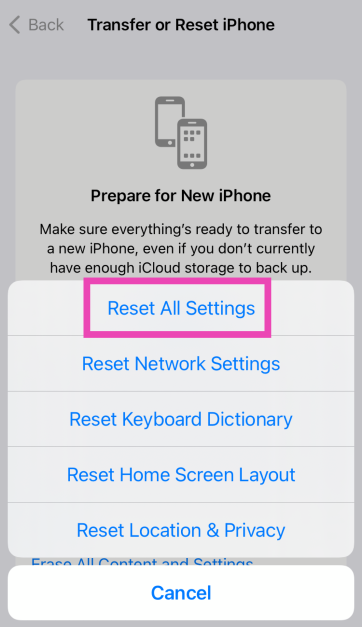
 Step 3: Hit Reset.
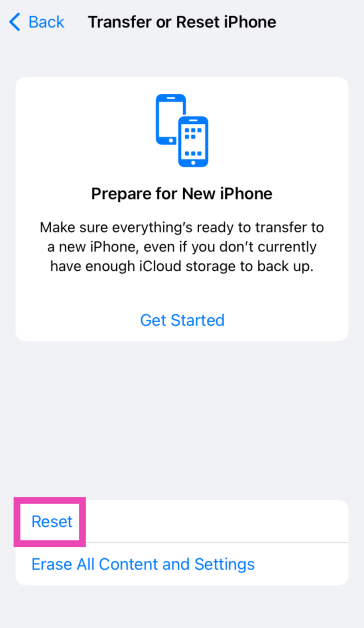 Step 4: Select Reset All Settings. Enter the passcode to confirm your decision.
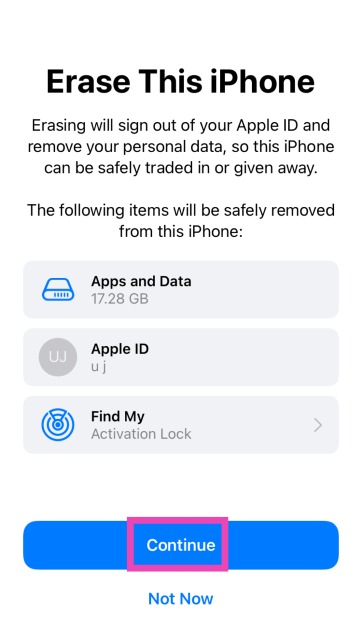
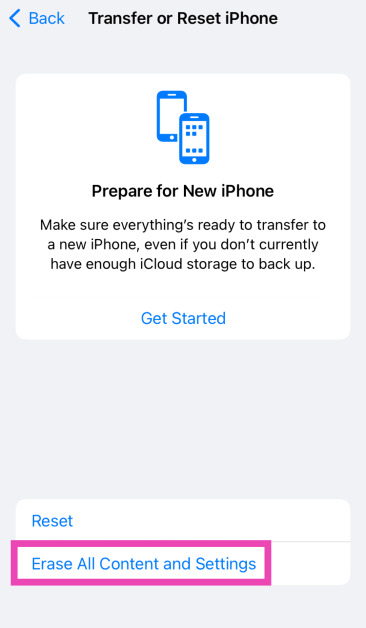 Step 4: Tap on Continue and enter the passcode to reset your iPhone to its factory settings.

 Step 1: Plug in

 Step 1: Restart