Top 10 ways to fix a broken Amazon Firestick remote

0
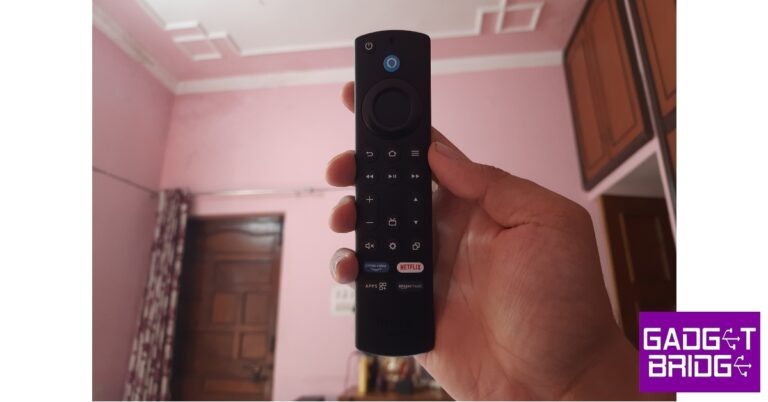
The Amazon Firestick offers a standard streaming and Smart TV experience, much like its competitors in Xiaomi and Hulu. But one of the more underrated features of the Firestick that puts it ahead of the competition is its versatile remote. With customisable action keys and a dedicated Alexa voice search button, this remote is one of the most comprehensive TV remotes out there. But, it is known to spring issues from time to time. In this article, we bring you the top 10 ways to fix a broken Amazon Firestick remote. Read Also: Top 10+ Tech-Savvy Gadgets for Students on a Budget Under $50

Reasons why your Firestick remote isn’t working

Figuring out why your Firestick remote isn’t working is quite easy. Here are the usual suspects: Drained batteries: The most common reason behind non-functional remotes is a drained set of batteries. Typically, you can see this coming due to a fall in accuracy and inconsistent performance. Functional range: It goes without saying that the remote needs to be in the functional range to work with your Firestick device. If you’re in a large hall, you need to move closer to the device to use the remote. Obstructions in the path: Moved new furniture into the room recently? Maybe a couch or a lamp is blocking the path of the signal. Electrical interference: Other electronic gadgets and electrical devices can mess with the signal emitted from the remote. Compatibility issues: New remote refuses to work with the Firestick? Perhaps it isn’t compatible with your model of the streaming hardware. Hardware issues: Physical damage to the remote can keep it from working properly.

Troubleshoot the remote

Step 1: Press the Rewind and Right buttons simultaneously for three seconds. Step 2: Press the Menu button. If the notification light turns green, it means you are in troubleshooting mode. Step 3: Press any button on the remote. Observe the colour of the notification light.
  • Red (slow blink): The batteries inside the remote are running out of charge.
  • Red (fast blink): Reset the remote.
  • Orange: Remote isn’t paired with Fire TV.
  • White: Fire TV is either turned off or unresponsive. Restart it.
  • Blue: The remote is working fine, the issue lies with Fire TV.

Replace the batteries

What Are the Different Buttons on the Amazon Fire TV Remote? The most likely reason that your Amazon Firestick remote isn’t working is the lack of charge in its batteries. The Firestick ships with a pair of Amazon AAA batteries that are meant to be inserted into the remote. These are non-rechargeable batteries, meaning, you will need to replace them with another pair once they run out of charge. Get a pair of AAA batteries and make sure they are inserted correctly. If the remote still doesn’t function, move on to the other fixes.

Unpair and re-pair the remote to the Firestick

Amazon Fire TV Remote buttons explained One of the best ways of fixing any accidental glitches on your Amazon Firestick remote is by unpairing and re-pairing it to the Fire TV. To unpair the remote, simply press the Home and Back buttons simultaneously for 10 seconds. To re-pair the remote, press the Home button for 10 seconds. Try using the remote on the Fire TV after the re-pairing process has finished. It will most likely start working again.

Restart the Firestick
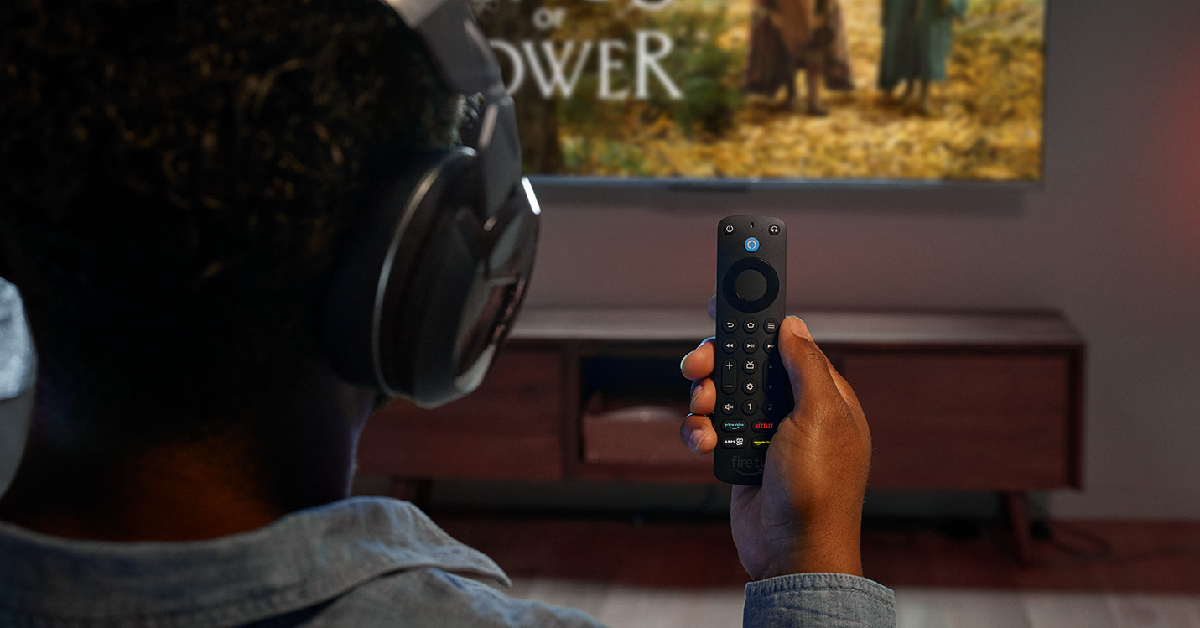
Restart the Firestick Maybe the problem does not lie with the remote but the Firestick itself. To fix this problem, simply restart the Firestick. Switch off the power to the TV and unplug the Firestick from the display. After a few seconds, plug it back in and turn on the power to the TV. Any background issues with the Firestick will be resolved.

Make sure you’re in the functional distance
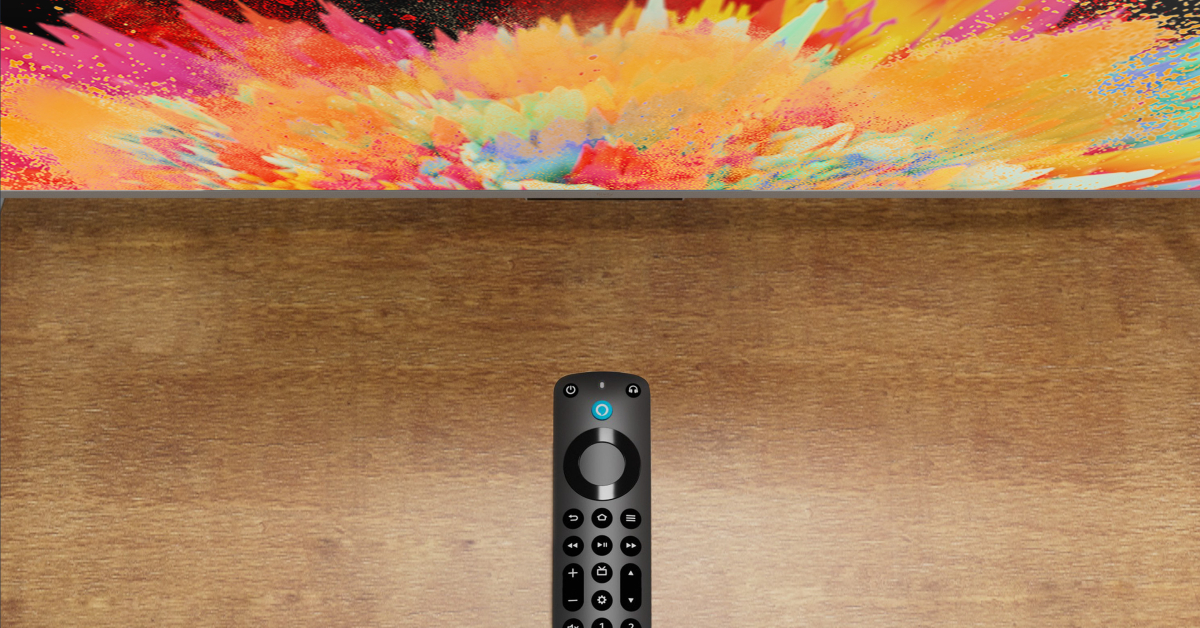
Make sure you’re in the functional distance Unlike a traditional remote, the Fire TV remote uses a Bluetooth connection to relay the controls over to the TV. The Firestick acts as a buffer that receives the signal and forwards it to the TV. A Bluetooth connection means a larger functional range for the remote. It also means you don’t need to point it directly to the TV to use the controls. Even with a few obstructions in its path, the remote works just fine. However, one thing you need to consider here is the functional range offered by the Bluetooth remote. Even though the range is supposed to be 30 feet on paper, it is actually much lower than that in practice. Move closer to the Firestick and check whether the range is an issue.

Remove electronic devices near the Firestick

Remove electronic devices near the Firestick Sometimes, electronic devices and gadgets placed near the Firestick can cause interference, which leads to the remote not working. If there are multiple devices near the Firestick, turn them off one by one to figure out which one is causing the interference. The devices you need to look out for are Bluetooth/smart speakers, microwaves, phones, laptops, and more.

Check if the remote is compatible with the Firestick
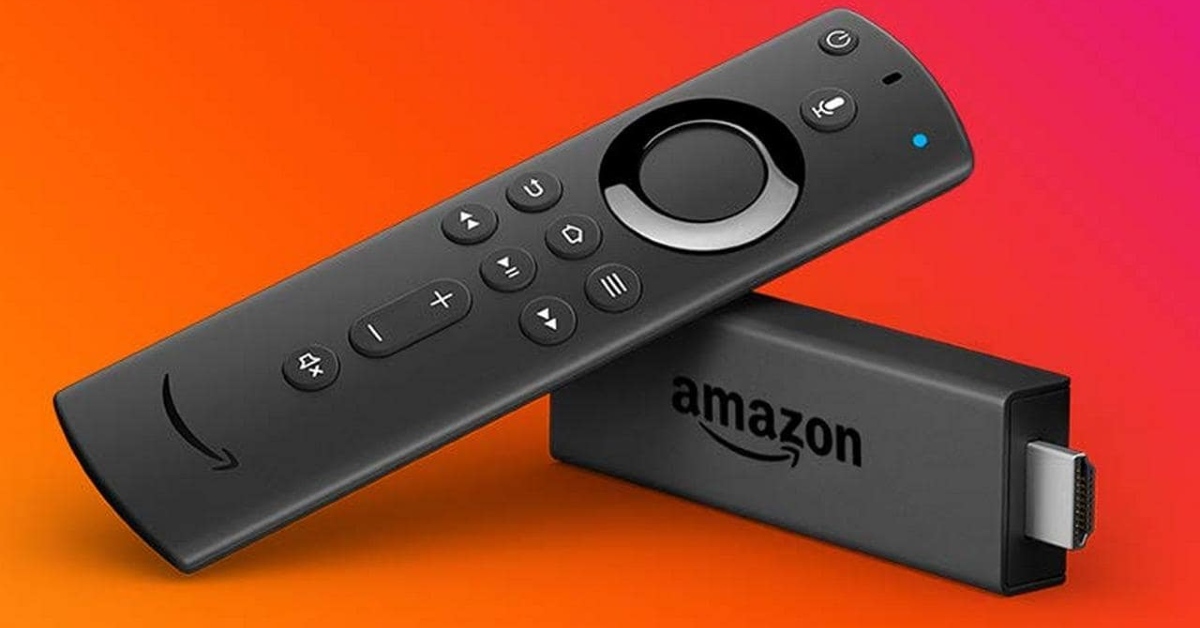
How to mirror your Android or iPhone screen to Firestick_ If you recently bought a new remote for your Amazon Firestick, you need to make sure it is compatible with the streaming device. Yes, even official remotes can be incompatible with some models. Go to the listing page of the remote and read the fine print to figure out if it is compatible with your Amazon Firestick.

Reset the Firestick remote
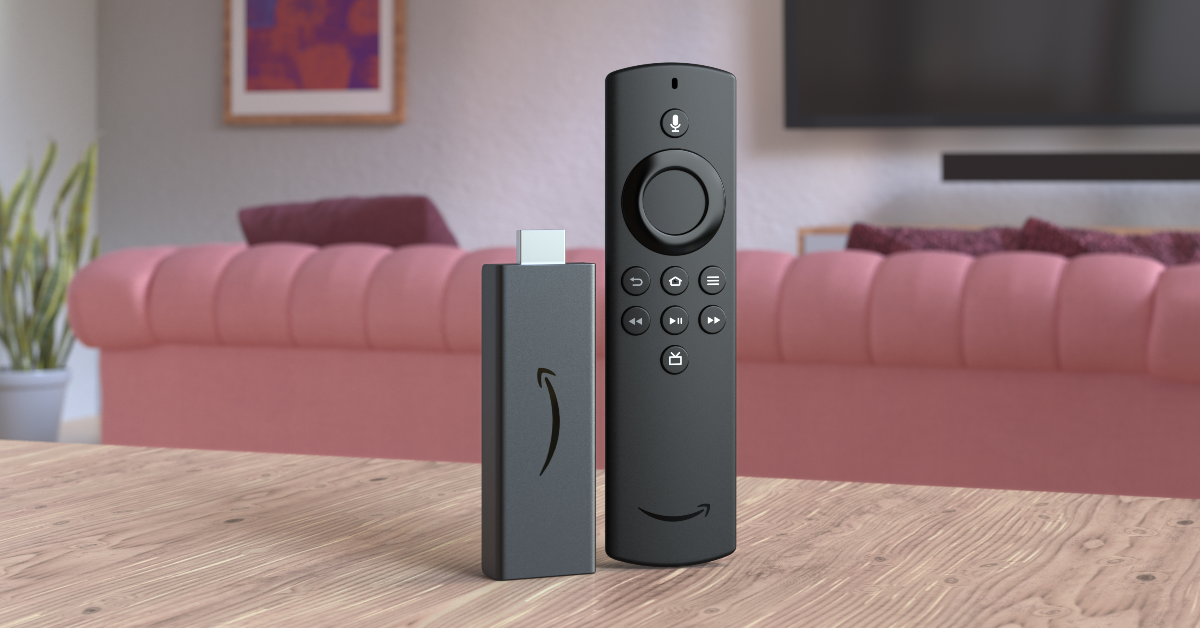
Reset the Firestick remote Step 1: Unplug your Amazon Firestick from your TV. Wait for 60 seconds. Step 2: Press and hold the left navigation button + menu button + back button for 12 seconds. Step 3: Release the buttons after 12 seconds and wait for 5 seconds. Step 4: Remove the batteries from the remote. Step 5: Plug the Firestick into your TV and turn it on. The screen will say ‘Remote not detected‘. Step 6: Place the batteries in the remote. Step 7: Press the Home button on the remote. If you see the blue light, it means that the remote is paired with the Firestick. Step 8: If the remote can’t pair with the streaming hardware, press and hold the Home button for 10 seconds.

Reset the Firestick
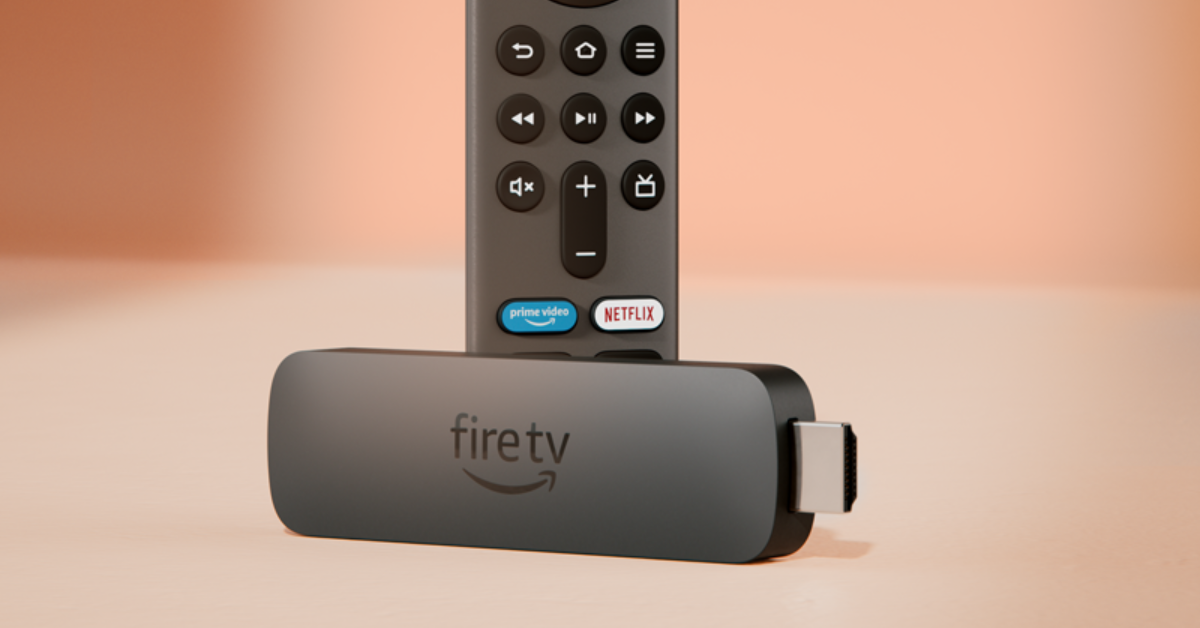
Reset the Firestick If everything fails, reset the Firestick to factory settings. This will log you out of all your accounts and clear all your personal data and settings on the device. Step 1: Remove the expandable storage from the Firestick. Step 2: Press and hold the back button and right navigation button together for 10 seconds. Step 3: Select Factory Reset on the TV screen. If you keep pressing the two buttons, the device will reset automatically.

Use the Firestick remote app

Amazon Fire TV Remote app If your Fire TV remote refuses to work, you can control the TV using your smartphone until you get a replacement control. Check out this article for the top 6 Firestick remote apps for Android. Our pick of the lot is the official Amazon Fire TV Remote app. This app offers all the essential controls for your Fire TV along with voice search and a QWERTY keyboard for input. For the Fire TV remote app to work, your smartphone and Firestick should be connected to the same WiFi network.
Frequently Asked Questions (FAQs)

How much does a new Fire TV remote cost?

The official 2nd Generation Amazon Fire TV remote costs Rs 1,310. Meanwhile, the flagship Alexa Voice Remote Pro costs Rs 2,499.

Why is my Amazon Firestick remote not working?

If your Amazon Firestick remote isn’t working, it is likely because the batteries have discharged. Make sure you install new AAA batteries on the device and give it a quick restart if the issue persists.

How to fix my Amazon Firestick remote?

If your Amazon Firestick remote isn’t working, you can fix it by swapping the batteries for new ones, removing interference near the TV, re-pairing the remote, or factory resetting the remote.

How to reset my Amazon Firestick?

To reset your Amazon Firestick, press and hold the back button and right navigation button together for 10 seconds. Select ‘Reset’ on the TV screen.

How do I restart my Amazon Fire TV remote?

To restart your Amazon Fire TV remote, press and hold the Back and Home buttons for 10 seconds to unpair it. To re-pair it, press and hold the Home button for 10 seconds. Read Also: How to customise the Action button on iPhone 15 Pro and Pro Max?

Conclusion

These are the top 10 ways to fix a broken Amazon Firestick or Fire TV remote. Let us know in the comments if these fixes worked out for you. If you’re thinking of buying a new streaming device, check out our review of the Xiaomi TV Stick 4K here and the Amazon Fire TV Cube (3rd Gen) here!

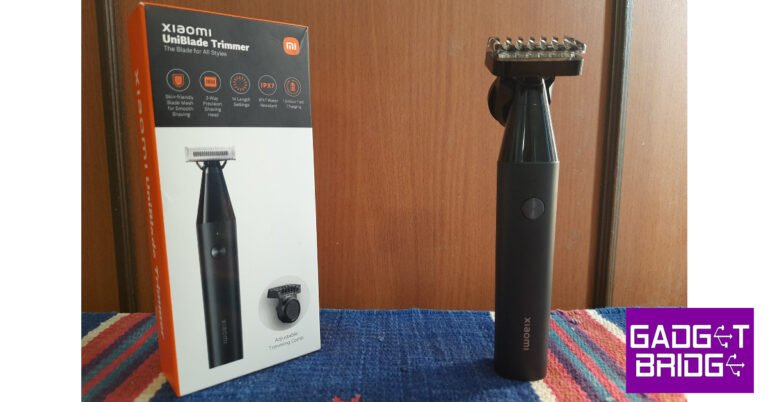
Xiaomi UniBlade Trimmer Review: Perfect match of precision and portability

Xiaomi’s presence in India is not just limited to smartphones and tablets. Over the years, the Chinese brand has expanded to different segments, including smart wearables, kitchen appliances, health & grooming, and even apparel! Be it an air fryer or a robot vacuum cleaner, Xiaomi does not shy away from a solid value-for-money product. When it comes to personal grooming, Xiaomi has its own series of beard trimmers, with each product catering to a particular niche. The new Xiaomi UniBlade Trimmer is designed for users who seek a no-nonsense grooming tool that also makes for a good travel accessory. We got our hands on the trimmer and have been using it for the last ten days. Here is our in-depth Xiaomi UniBlade Trimmer review. Read Also: How to customise the Action button on iPhone 15 Pro and Pro Max?

Xiaomi UniBlade Trimmer review: Design

This is what you get inside the Xiaomi UniBlade Trimmer’s retail box.
  • Trimmer
  • Adjustable Trimming Comb
  • Protective cover for the blade
  • USB Type-C charging cable
  • User Manual
  • Quick Start Guide
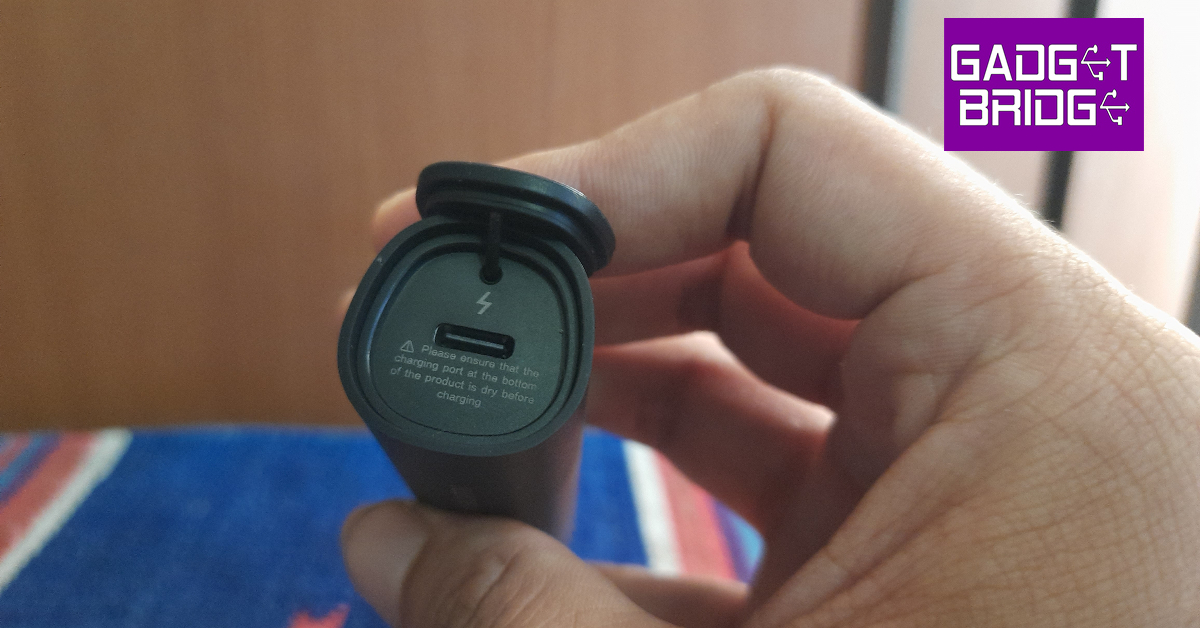
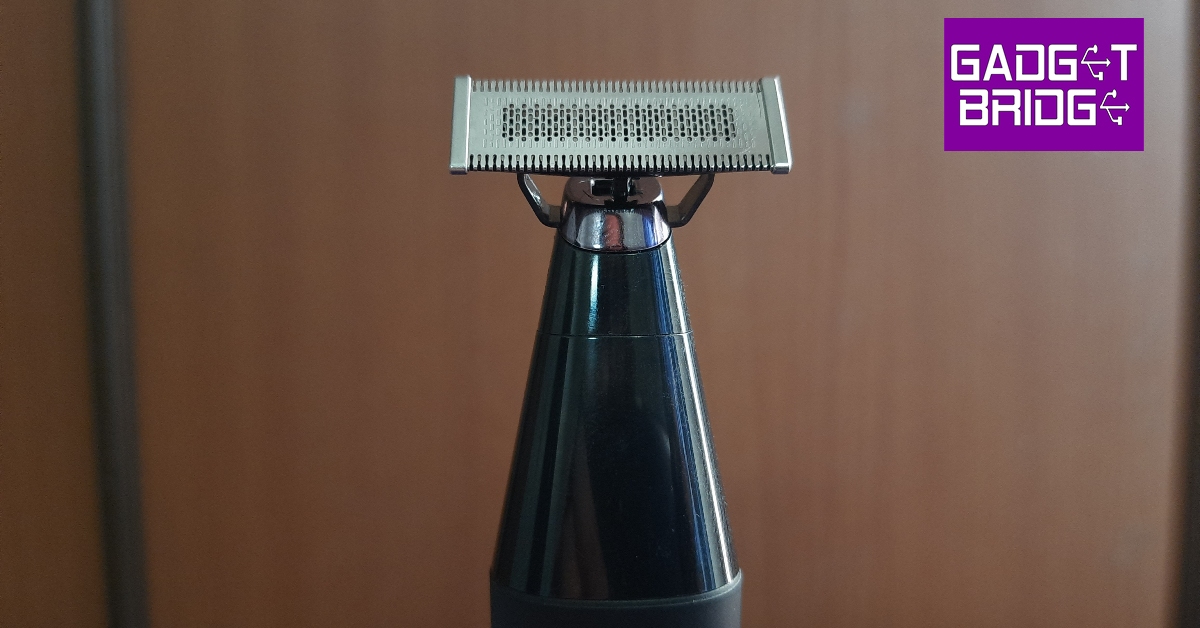
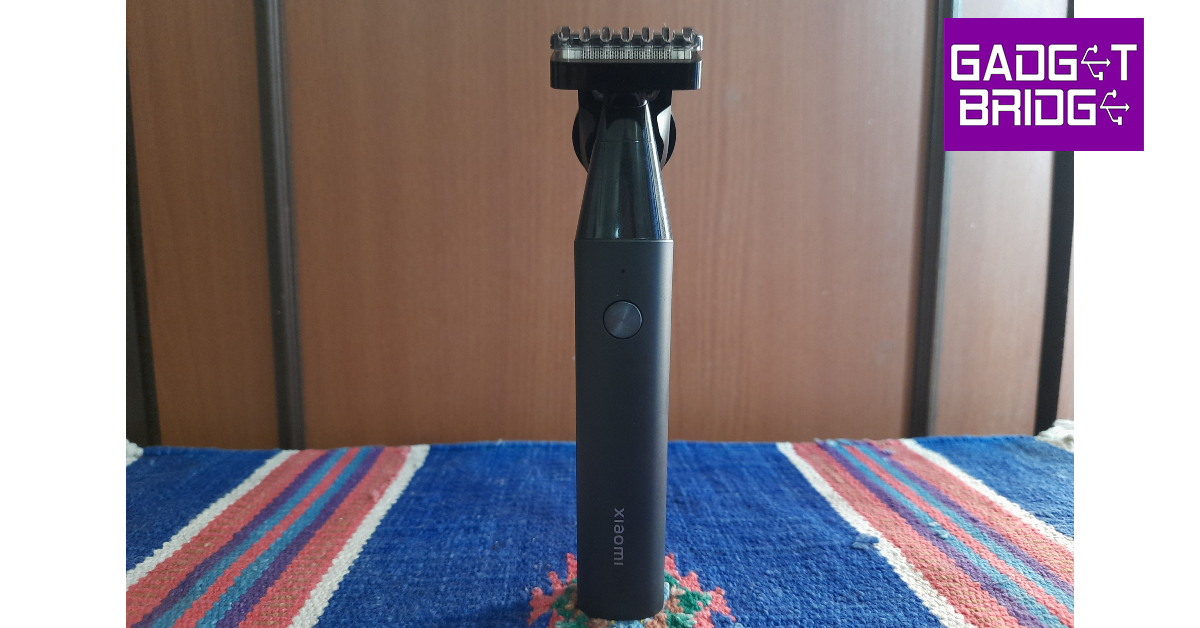
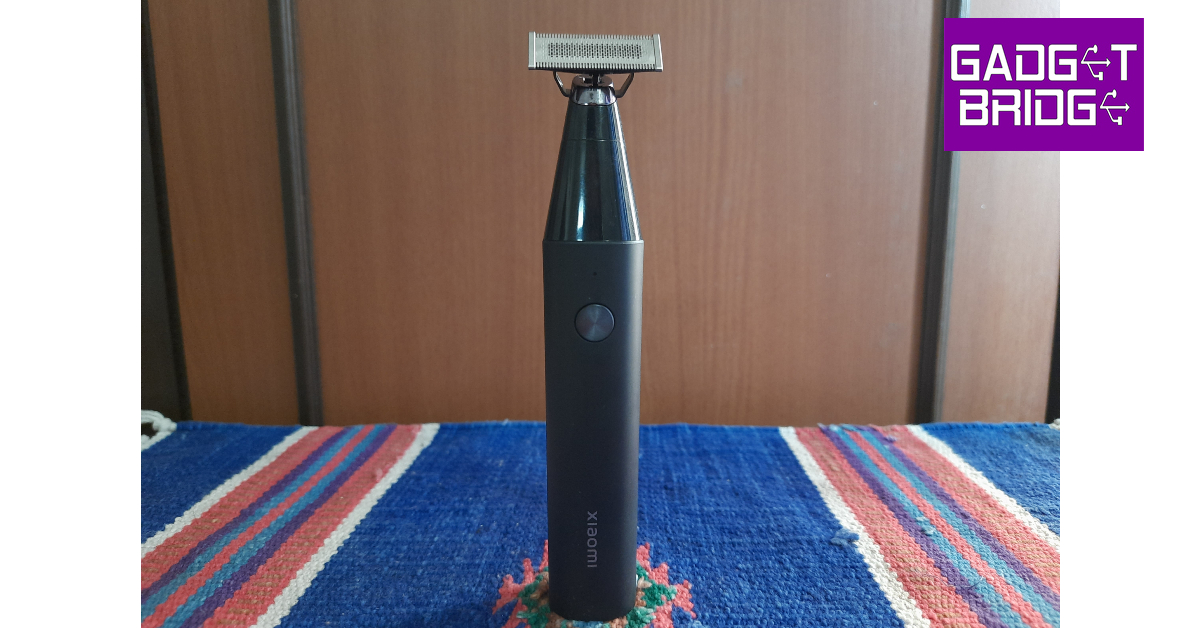
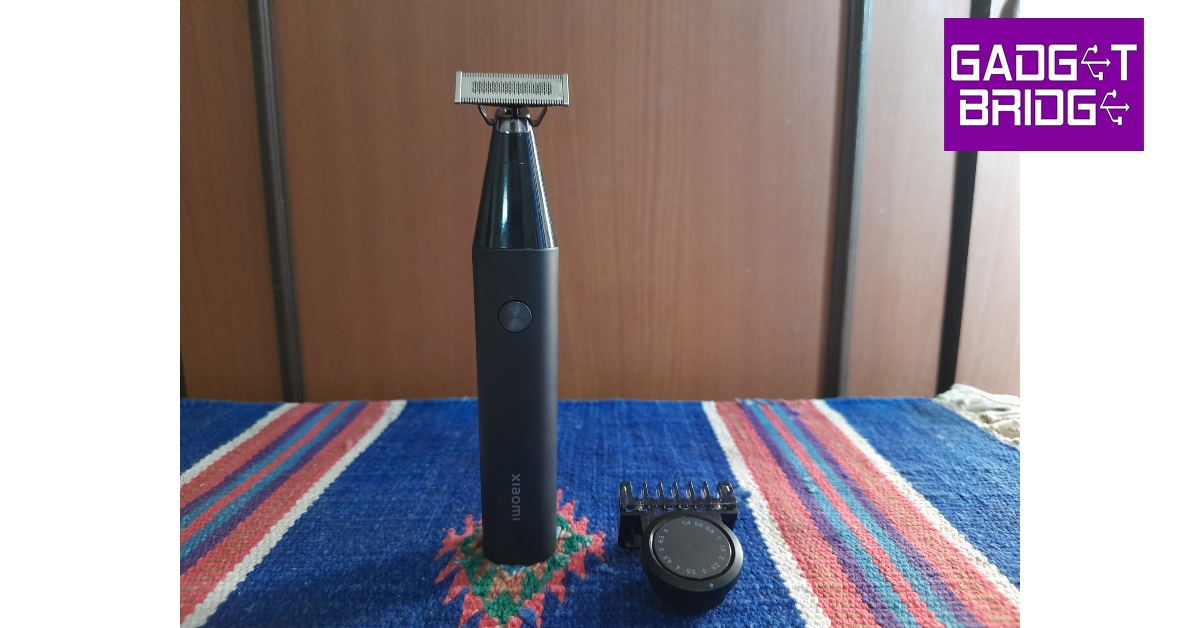
The UniBlade Trimmer does not come with a travel pouch or a cleaning brush. Xiaomi UniBlade Trimmer review: Design On the design front, Xiaomi has kept things simple, clean, and minimal. The body of the trimmer gets a matte finish which feels very premium. While it is made out of plastic, the quality of materials used is pretty high-end. The tapering panel that accommodates the blade attachment gets a contrasting glossy finish. The bottom panel of the trimmer’s body is flat, which means it can sit upright on any surface. You don’t need a specific holder next to the bathroom sink to place the UniBlade trimmer. This flat panel can also be pulled out to reveal the Type-C port for charging the device. There’s only one button on the plastic chassis. This button can be used to start or stop the trimmer and activate the travel lock (more on that later). There is a single notification light above the power button. This light turns orange when the battery is low. There is no way to tell the trimmer’s battery level as it lacks a display or even multiple notification lights. Moving on to the most important attachment, the UniBlade on this device is made out of stainless steel. It features two-way blades along the edges and advanced mesh blades at the centre. The latter is super helpful in cleaning the leftover stubble. This uniblade can move up to 40 degrees along the horizontal axis, which allows it to adjust to your face and body’s contour. The adjustable trimming comb clips onto this blade. The rotating control knob on this attachment offers 14 length adjustments. Like the rest of the body, this attachment is also made out of plastic, but it does not feel flimsy at all. Xiaomi UniBlade Trimmer review: Design The Xiaomi UniBlade Trimmer is rated IPX7 for water resistance. This means you can rinse it with water without worrying about any damage to the internal circuit. Every time we used the device, we washed it clean under running tap water and let it air dry. During our 10-day testing period, we did not notice any water-related damage.

Xiaomi UniBlade Trimmer review: Performance

There are two ways you can use the Xiaomi UniBlade Trimmer. The first method is using the shaving head directly, without attaching the trimming comb to it. You can get a pretty close shave this way, even though it isn’t on the same level as using a manual shaving blade. The mesh pattern on the shaving head does a phenomenal job of shaving off the stubble and delivering a clean look. The two-way blades along the edges take care of the longer hair and have no trouble making their way through a thick beard. Xiaomi UniBlade Trimmer review: Performance These two-way blades can also be used to style your bear a certain way. The level of precision is very close to ideal here. Since the shaving head is movable, it easily adapts to the shape of your jawline. It can even reach the area under the lower lip and easily shave off the stubble there. You can also use it to trim your body hair. The adjustable trimming comb easily latches onto the shaving head and offers 14 length settings – 0.4mm to 8mm. For the first few length settings, this adjustable trimming comb works like a charm. From 0.4mm to 3mm, the results are ideal. However, people with longer beards who are looking to maintain it rather than trim it down would be better off using a regular comb along with the trimmer. This isn’t particularly Xiaomi’s fault and all the clip-on attachments we’ve used have struggled with styling long beards. One of our favourite features on this trimmer is its travel lock mode. If you’ve ever been pulled by airport security for a vibrating device in your luggage, you know what we’re talking about. By simply pressing the power button for three seconds, the travel mode comes into effect. In this mode, the trimmer cannot be turned on with a single press of the button. This greatly reduces the chances of accidental clicks when the device is packed in with your luggage. Pressing the power button for three seconds again turns off the travel mode. The Xiaomi UniBlade Trimmer is equipped with a 600mAh battery pack. On a full charge, the trimmer can last for up to 60 minutes. This means if you plan on using it every day, you will have to charge the device once a week. It takes the trimmer 90 minutes to fully charge and it cannot be used while charging. A battery level indicator would have been very handy to let you know when you need to plug in to charge. Read Also: How to delete all of your Instagram posts at once?

Verdict

The Xiaomi UniBlade Trimmer sticks to a basic formula and gets the essentials right. Xiaomi gets extra points for the matte finish and minimal design on this product. We would have preferred a cleaning comb and a travel pouch to come along with the trimmer, but at the price of Rs 1,499, it is still a bargain. The quality of the shave is ideal and the precision of the blade does wonders for styling the beard. The super helpful travel mode is also a nice touch by Xiaomi.

Xiaomi UniBlade Trimmer: Pros

  • Precise shaving
  • Advanced mesh design takes care of the stubble
  • Minimal design
  • Super helpful travel mode

Xiaomi UniBlade Trimmer: Cons

  • Does not come with a travel pouch
  • Does not indicate the battery level
For the latest gadget and tech news, and gadget reviews, follow us on Twitter, Facebook and Instagram. For newest tech & gadget videos subscribe to our YouTube Channel. You can also stay up to date using the Gadget Bridge Android App. You can find the latest car and bike news here.

The price of the Google Pixel 8 Series will increase in the US

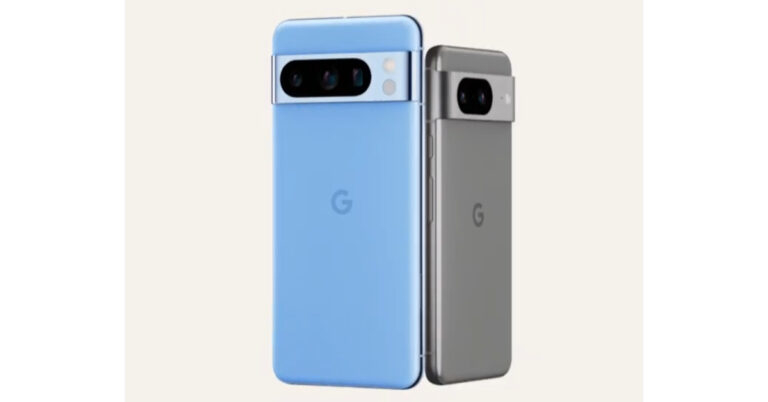
Google is all set to launch its new Pixel 8 Series globally on October 4. The new Pixel series will include two models Pixel 8 and Pixel 8 Pro. Both smartphones have similar designs but better some different specs. Recently a leaked promo video revealed the camera specs of the devices. Also, the devices are likely to come in three colour options. Now according to a new leak, the price of Pixel 8 and Pixel 8 Pro is expected to rise. 9to5Google has reported that this year the pricing of Pixel 8 and Pixel 8 Pro is likely to go up. According to a retail source, the Pixel 8 will be priced at $699, on the other hand, the Pixel 8 Pro will cost $999. Hence there will be a $100 price increase for all models. To recall Pixel 7 and Pixel 8 were launched with a starting price of $599 and $899. Whereas in India the pixel series price started at Rs 59,999 and Rs 84,999 respectively. Previously leaked renders suggested that Pixel 8 will be available in grey, obsidian black, and peony rose colour options. Whereas the Pro variant is expected to be available in black obsidian, porcelain, and sky Blue colours. Also Read: Google Pixel 8, Pixel 8 Pro camera specs leaked ahead of the October 4 launch According to a recent leaked promo video Pixel 8 phones will come with a similar camera sensor on the front as well as on the rear (primary). On the rear, it is likely to provide a primary 50MP Octa PD sensor. The rear camera will have a 1.2 μm pixel width, f/1.68 aperture, 82-degree field of view, 1/1.31″ image sensor size and Super Res Zoom up to 8x (exclusive to vanilla variant). The second camera on the standard variant will feature a 12 MP ultrawide camera with auto-focus, 1.25 μm pixel width, f/2.2 aperture, 125.8-degree field of view as well as a Lens correction feature. On the other hand, the pro variant will have a 48 MP Quad PD ultrawide camera with autofocus, 0.8 μm pixel width, f/1.95 aperture, 125.5-degree field of view and a Lens correction feature. The Pixel 8 Pro camera is expected to include a third 48 MP Quad PD telephoto camera, 0.7 μm pixel width, f/2.8 aperture, 21.8-degree field of view, 5x optical zoom and Super Res Zoom up to 30x. On the front of the Google Pixel 8, Pixel 8 Pro will have a similar 10.5 MP Dual PD selfie camera, 1.22 μm pixel width, f/2.2 aperture and 95-degree field of view. The selfie camera on the vanilla variant will have a fixed focus while the Pro version will have an auto focus. For the latest gadget and tech news, and gadget reviews, follow us on TwitterFacebook and Instagram. For newest tech & gadget videos subscribe to our YouTube Channel. You can also stay up to date using the Gadget Bridge Android App. You can find the latest car and bike news here.

When will Counter-Strike 2 be released in India? It is coming sooner than you think

One of the greatest FPS games of all time, Counter-Strike, is finally getting a sequel this year. Counter-Strike 2 will succeed CS:GO, a game that has established a tremendous reputation for itself in the gaming community, as the next major title in the series. The game was announced by Valve on March 22, 2023. Initially tipped to be released in the summer of 2023, Valve only opened limited testing for Counter-Strike 2 earlier this month. However, we may be closer to the launch of the game, according to a post by the official Counter-Strike handle on X. Read Also: How to customise the Action button on iPhone 15 Pro and Pro Max?

Counter-Strike 2 release date

According to Counter-Strike’s post on X, the sequel to the gaming title may finally be launched on September 27, 2023. While this is not the official release date, the post from CS could only mean one thing. Valve has been testing the game in a limited capacity for a while now, and an official launch is most likely what’s next on the cards. Counter-Strike 2 is the ‘largest technical leap forward in Counter-Strike’s history’, in Valve’s own words. The sequel will feature a new CS Rating that will decide your rank in the global and regional leaderboards. Valve has also changed how in-game elements like smoke interact with the gameplay. Bullets and HE grenades can now pierce the smoke cover to create flashes of visibility. The smoke can also find its way out of windows and pathways and even fuse with other kinds of smoke. Counter-Strike 2 release date The developer has also increased the number of maximum rounds to 24. This means you need to win 13 rounds to be crowned the winner. Gamers will also be able to utilise a new loadout method for guns and ammunition. Your Counter-Strike: Global Offensive inventory can be carried forward to CS2. Changes have also been made to the design of the loadout and gun menu. Regarding the actual gameplay, the maps are now cleaner, brighter, and better. There updated maps pack a lot of detail that was previously missing in CS:GO. Read Also: Top 4 Methods to Turn Off Google Discover on Android and iOS

Conclusion

So now that Valve has possibly hinted at the release date for Counter-Strike 2, let us know what you are expecting from the game! CS2 will replace CS:GO once it has been officially launched. Like CS:GO, CS2 will be a free-to-play title as well. The full version of the game will sport a lot more features than the limited version, so there is a lot to be excited about! For the latest gadget and tech news, and gadget reviews, follow us on Twitter, Facebook and Instagram. For newest tech & gadget videos subscribe to our YouTube Channel. You can also stay up to date using the Gadget Bridge Android App. You can find the latest car and bike news here.

How to get Apple Watch 9’s Double Tap feature on your Samsung Galaxy Watch 6?

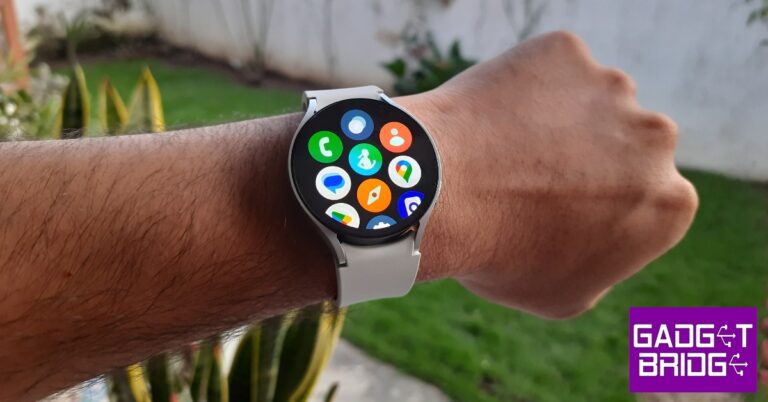
This year’s Apple Watch 9 Series grabbed the headlines for its new intuitive ‘Double Tap’ feature that brings a whole new level of accessibility to users. By simply tapping their thumb and index finger together, users can answer or hang up a call, pause or play media, snooze and alarm, and more. While Apple wants you to think that this is a completely new way of interacting with your smartwatch, the Samsung Galaxy Watch 6 has already had this feature for quite some time now. In this article, we show you how to get the Apple Watch 9’s Double Tap feature on your Samsung Galaxy Watch 6. Read Also: How to delete all of your Instagram posts at once?

Get Double Tap on your Samsung Galaxy Watch 6

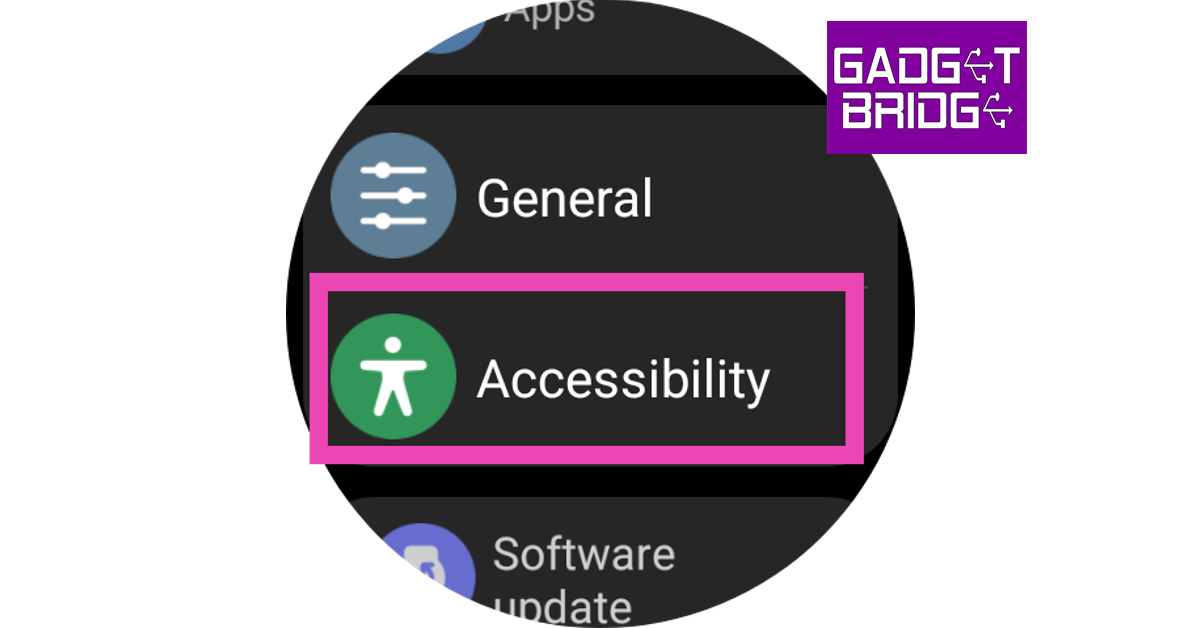
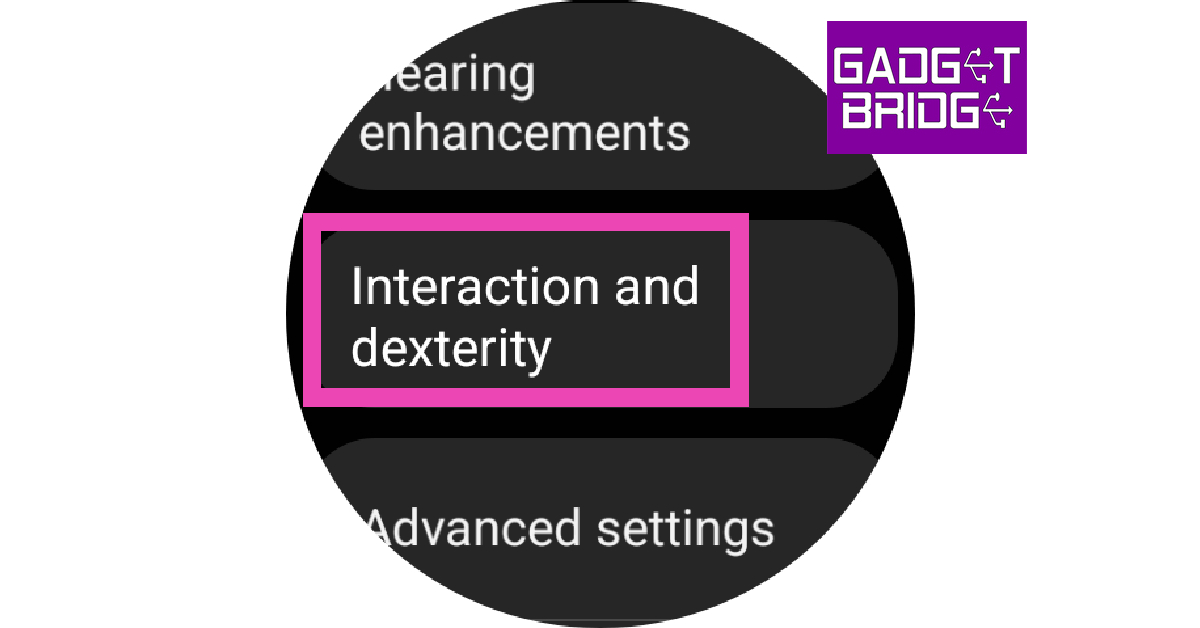
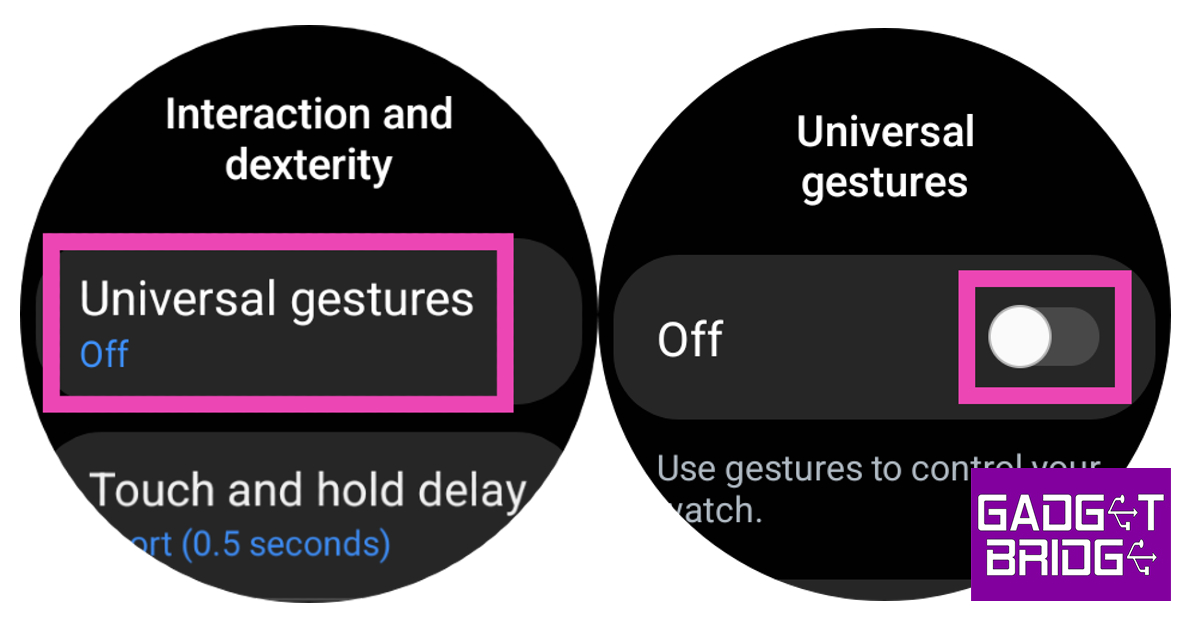
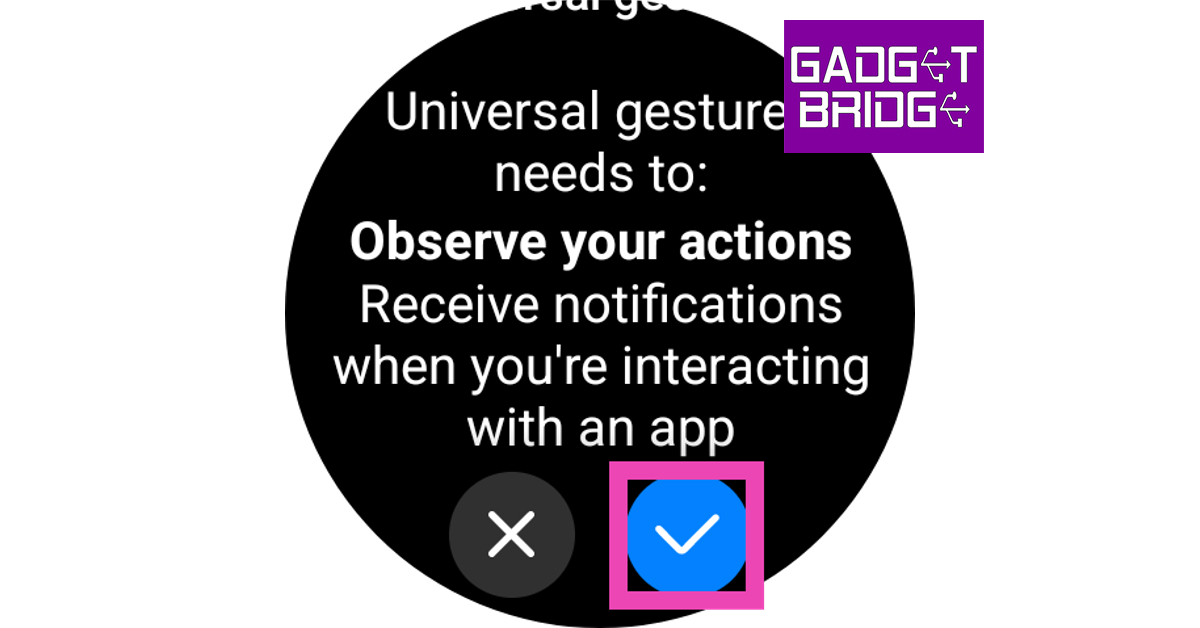
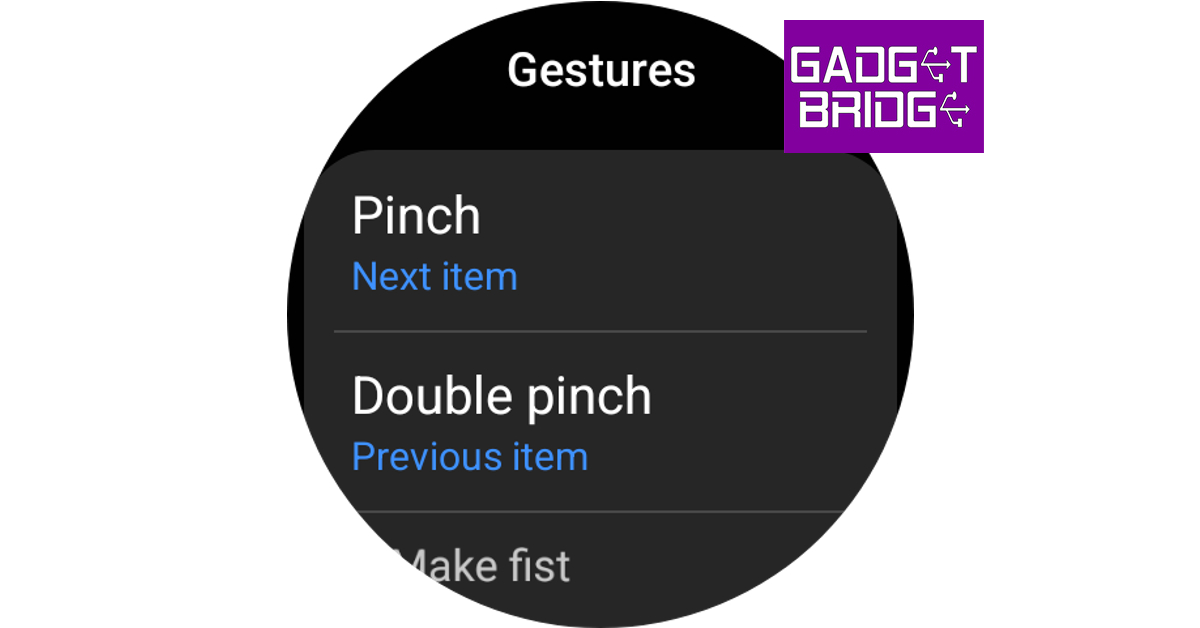
Step 1: Swipe up from your Samsung Galaxy Watch 6’s home page to access the app drawer. Step 2: Tap the Settings icon. Step 3: Select Accessibility. Step 3: Select Accessibility. Step 4: Scroll down and tap on Interaction and dexterity. Step 4: Scroll down and tap on Interaction and dexterity. Step 5: Tap on Universal Gestures and switch the toggle bar from off to on. Step 5: Tap on Universal Gestures and switch the toggle bar from off to on. How to get Apple Watch 9’s Double Tap feature on your Samsung Galaxy Watch 6? Step 6: Hit the tick icon. Step 6: Hit the tick icon. How to get Apple Watch 9’s Double Tap feature on your Samsung Galaxy Watch 6? Step 7: Tap on Start to go through the tutorial. Step 8: Shake your wrist to activate the gesture controls Step 9: You can use these gestures to navigate through your watch. The Pinch and Double Pinch gestures can be used to move back and forth while the Make a Fist gesture can be used to select an item. You can also use these gestures to open Bixby, app drawer, and more. You can use these gestures to navigate through your watch. How to get Apple Watch 9’s Double Tap feature on your Samsung Galaxy Watch 6?

Frequently Asked Questions (FAQs)

Does the Samsung Galaxy Watch have Apple Watch’s Double Tap feature?

Yes, the Samsung Galaxy Watch already has the Double Tap feature from the new Apple Watch. You can use the pinch and fist gestures to navigate your Galaxy smartwatch but its implementation isn’t as intuitive as the Apple Watch.

How do I activate the Double Tap feature on my Samsung Galaxy Watch 6?

Go to Settings>Accessibility>Interaction and dexterity>Universal Gestures and turn on its toggle switch.

What does the Double Tap feature on the Samsung Galaxy Watch do?

On your Galaxy smartwatch, you can use the Double Tap feature to navigate through the interface. You cannot assign a particular function to the gesture. Read Also: Top 4 Methods to Turn Off Google Discover on Android and iOS

Conclusion

This is how you can use the Apple Watch’s Double Tap feature on your Samsung Galaxy Watch 6. While your Galaxy Watch recognises more gestures than just double tap, they can only be used to navigate the watch. If you want to assign a particular action to the gesture, you can’t do it just yet. If you found this article helpful, let us know in the comments! For the latest gadget and tech news, and gadget reviews, follow us on Twitter, Facebook and Instagram. For newest tech & gadget videos subscribe to our YouTube Channel. You can also stay up to date using the Gadget Bridge Android App. You can find the latest car and bike news here.

Google Pixel 8, Pixel 8 Pro camera specs leaked ahead of the October 4 launch

After Apple’s iPhone 15 series the next biggest launch of this year is Google Pixel 8 Series. Some of the key specifications and design details have been leaked before. But now the Google Pixel 8, Pixel 8 Pro camera specifications and features have surfaced online. The camera features of both the devices revealed through a leaked promo video indicate that the company is obviously betting heavily on cameras with the Pixel 8 series. Also Read: How to customise the Action button on iPhone 15 Pro and Pro Max? 91Mobiles has published a report in association with renowned tipper Kamila Wojciechowska. In the report, a leaked promo video provides information on the features and camera specs for Google Pixel 8 and Pixel 8 Pro which Google is likely intending to unveil very soon. Reportedly the video draws attention to the camera features of the upcoming Google Pixel 8 Series. The devices will likely include Pro controls (exclusive to the Pro model), Real Tone, Night Sight, Astrophotography, Super Res Zoom, and the capability of switching faces in an image likely by Magic Editor. The company may make the Pixel 8 series camera more powerful by including tools like Video Boost, Night Sight for low-light videos, and Audio Eraser to reduce ambient background sounds and improve skin tones. It has also been revealed that both the Pixel 8 phones will use the same camera sensor on the front as well as on the rear (primary). On the rear, it is likely to provide a primary 50MP Octa PD sensor. The rear camera will have a 1.2 μm pixel width, f/1.68 aperture, 82-degree field of view, 1/1.31″ image sensor size and Super Res Zoom up to 8x (exclusive to vanilla variant). The secondary camera on the standard variant will feature a 12 MP ultrawide camera with auto-focus, 1.25 μm pixel width, f/2.2 aperture, 125.8-degree field of view as well as a Lens correction feature. On the other hand, the pro variant will have a 48 MP Quad PD ultrawide camera with autofocus, 0.8 μm pixel width, f/1.95 aperture, 125.5-degree field of view and a Lens correction feature. The Pro camera is said to have a third 48 MP Quad PD telephoto camera, 0.7 μm pixel width, f/2.8 aperture, 21.8-degree field of view, 5x optical zoom and Super Res Zoom up to 30x. On the front of the Google Pixel 8, Pixel 8 Pro will have a similar 10.5 MP Dual PD selfie camera, 1.22 μm pixel width, f/2.2 aperture and 95-degree field of view. The selfie camera on the vanilla variant will have a fixed focus while the Pro version will have an auto focus. For the latest gadget and tech news, and gadget reviews, follow us on TwitterFacebook and Instagram. For newest tech & gadget videos subscribe to our YouTube Channel. You can also stay up to date using the Gadget Bridge Android App. You can find the latest car and bike news here.

BGMI redeem codes for 25 September 2023, claim and receive rewards and benefits

After being banned for nearly ten months, Battleground Mobile India, aka BGMI, is officially available again in India. BGMI fans are looking for ways to improve their game experience and one such method is the usage of redemption codes, which offers a variety of rewards and advantages using BGMI redeem codes players can gain access to new skins, outfits, loot crates, weapons and free UC and diamonds. As mentioned earlier, these codes give users the chance to earn unique rewards and gain extra benefits while playing the game. This includes GUN SKINS (M4, AKM, M416, AWM, M24, UZI, KAR98K), free character voucher, Andy, Carlo, Sara, Victor character for free, free Anna Character on completing the mission and UC or Royal Pass Discount. So here we have gathered a list of the most recent BGMI redeem codes as of 25 September 2023. Also, redeem these codes asap as these are only valid for a limited duration.

BGMI Redeem Codes for 25 September 2023

JJCZCDZJ9U – Golden Pan UKUZBZGWF – Free Fireworks TIFZBHZK4A – Free Outfit RNUZBZ9QQ – AKM Glacier Skin PGHZDBTFZ95U – M416 Skin BTOQZHZ8CQ – New! TQIZBZ76F – Vehicle Skin TQIZBz76F – 3 Free Motorcycle BMTFZBZQNC – Free Drifter Set SD14G84FCC – Free Skin for KAR98 Sniper Gun RNUZBZ9QQ – AKM Glacier Skin 5FG10D33 – Falcon and Free Emotes GPHZDBTFZM24U – UMP9 Skin KARZBZYTR – Free Outfit R89FPLM9S – Companion BMTCZBZMFS – Pretty in Pink set and Pretty in Pink Headpiece 5FG10D33 – Outfit for Free

How to get free Redeem Codes for BGMI on 25 September 2023?

  • Launch BGMI on your device.
  • Then select the Redeem Code option from the main menu.
  • Next, click on the Redeem code tab.
  • A new window will open, requesting the redemption code.
  • Now enter your BGMI code.
  • Confirm and click on the “Redeem” tab.
  • If your redeem code is valid then you will get a message confirming that your rewards were successfully redeemed.
(Note that these codes are case-sensitive, so be sure to type them correctly to prevent any errors.) For the latest gadget and tech news, and gadget reviews, follow us on TwitterFacebook and Instagram. For newest tech & gadget videos subscribe to our YouTube Channel. You can also stay up to date using the Gadget Bridge Android App. You can find the latest car and bike news here.

Garena Free Fire Redeem Codes Today 25 September 2023: Here is how to claim them

Garena Free Fire is a battle royale game with regular awards and tournaments to keep players interested. If you play Garena Free Fire, you should be aware of the redeem codes that are released on a daily basis. However, because the battle royale game is banned in India, players from other countries can use the Free Fire Redeem codes daily. If you’re unfamiliar with the Garena Free Fire redeem codes or don’t know how to get them, we’ve put together a step-by-step guide to help you redeem them. Check out Garena Free Fire Redeem Codes for 25 September 2023. The Free Fire redeem codes are a great way to get free stuff. These are 12-digit codes that contain alphabets and numbers, as well as an expiration date and time. Because the Garena FF redeem codes cannot be used more than once, you should hurry to the redemption page to claim your free reward before someone else does. To get a free reward, all you have to do is go to reward.ff.garena.com/en, which is the official redemption page. Also, keep an eye on this space for daily updates on Garena Free Fire redemption codes and rewards.

Garena Free Fire Redeem Codes Today 25 September 2023

FEICJGW9NKYT KEYVGQC3CT8Q FVRTNJ45IT8U F4BHK6LYOU9I F767T1BE456Y FFCMCPSJ99S3 BR43FMAPYEZZ FF7MJ31CXKRG FFPO8BS5JW2D PJNF5CQBAJLK F7AC2YXE6RF2 FHLOYFDHE34G XGW4FNK7ATON 67IBBMSL7AK8G XZJZE25WEFJJ V427K98RUCHZ MCPW2D1U3XA3 FFCMCPSEN5MX HNC95435FAGJ 6KWMFJVMQQYG FFCMCPSUYUY7E MCPW3D28VZD6 EYH2W3XK8UPG FFAC2YXE6RF2 FAGTFQRDE1XCF FFCMCPSBN9CU NPYFATT3HGSQ FFCMCPSGC9XZ MCPW2D2WKWF2 ZZZ76NT3PDSH

How to Get Free Fire Redeem Codes for Garena on 25 September 2023?

  • Visit the Garena Free Fire game’s official website at reward.ff.garena.com.
  • Use your Facebook, Google, VK, Apple ID, Huawei ID, or Twitter account to log in.
  • You’ll be taken to a valid redemption code (s)
  • Copy and paste the 12-digit redemption code into the text box.
  • On the screen, a dialogue box will appear.
  • ‘Ok’ should be selected.
For the latest gadget and tech news, and gadget reviews, follow us on TwitterFacebook and Instagram. For newest tech & gadget videos subscribe to our YouTube Channel. You can also stay up to date using the Gadget Bridge Android App. You can find the latest car and bike news here.

Top 10+ Tech-Savvy Gadgets for Students on a Budget Under $50

Most students often break the bank to keep up with the latest technology. As a tech enthusiast, there are hundreds of gadgets in the market under $50 that specifically tend to student needs. Small items such as an alarm clock, earplugs, or a Netflix subscription can mean the world to a student. Not every dollar must go to purchasing books for your education. Creating a conducive environment for learning is pivotal for academic success. Our guides provide a basic breakdown of over 10+ tech-savvy gadgets under $50 that students can use. Moreover, we urge students to take advantage of Black Fridays and regular seasons, where these items fetch way less.

What We Look for in Student’s Gadgets

Finding a reliable and durable gadget for peak performance for students can be challenging. Many devices online promise durable output but don’t deliver. Also, we consider student’s limitations with their budget. Hence, our list contains affordable gadgets within the $1-$50 bracket. Here are the factors we considered in our selection:
  • Affordability

Given the high cost of education, we don’t want to put pressure on a student’s budget when purchasing these devices. Our list of gadgets is affordable, and all fetch under $50. Despite the affordable nature of these devices, we ensured it was value for money.
  • Purpose

The second factor we consider is the gadget’s purpose in student life. We analyzed the functionality requirements of the device depending on the student’s needs. Whether for note-taking, research, presentations, graphic design, or online research, we choose gadgets that align with a student’s needs.
  • Durability

Durability is another essential factor to consider, given the hectic and mobile nature of student’s lifestyles. A gadget must withstand the test of time, given its regular use. We choose gadgets that can withstand environmental factors and prevent tear and wear. The last thing a student wants is a device that breaks down after a few months of use.
  • Quality

Quality is a vital determinant when selecting gadgets for students. We looked into quality brands that guarantee quality and offer optimal performance. We ensured that these gadgets are from quality brands that ensure reliability, efficiency, and consistency.
  • Deals and Discounts

Many tech dealers and retailers offer special deals and promotions for these devices. Hence, we took some top devices with several discounts on select retailers to get better value for the investment. It takes off a few dollars off the stated price.
  • Multiple Functionality

Another notable consideration for our list includes gadgets that offer multiple functionality. A gadget must offer multiple functions to benefit a student while performing multiple tasks.

Top Gadgets Under $50

Here is a look at some affordable options for gadgets for scholars to explore: Roku Streaming Stick 4K – $47 Starting our list is the portable streaming stick 4k that is sturdy and reliable, like essay writers for hire. The Roku streaming stick easily converts your old dorm room TV into a smart TV with many apps to install. It has a fast setup process and accommodates various apps like Netflix, Amazon Prime Video, and Apple TV+. Also, students can easily browse their favorite shows on a 4K display. Browse the massive collection of free, premium, and live TV channels. Enjoy the voice assistant controls with Siri, Hey Google, and Alexa. Moreover, it is flexible and only needs to stick at the back of your T.V. Add more apps to your device to get more immersive experiences with your viewership. Apple AirTags – $29 College hustle and bustle makes it hard to keep track of all your belongings. Apple AirTags are useful for keeping track of all your possessions. Attach one to your key and the other to your backpack. You can easily track your stuff on Find My App through your iPhone. It is essential, especially if you keep losing your keys and other small items while on campus. Due to the power of the Find My App, you can track any of your items with the AirTag anywhere in the world. You will receive a notification on your device if your item is out of range. Anozer Tablet Stand – $15 Sometimes, bad posture often leads to back pain and neck strain. This is especially true after watching a movie or reading on your tablet. Position your tablet at a viewing angle to avoid bad posture. The Anozer Tablet Stand is a useful tool with a sturdy material that accommodates heavy tablets or devices. You can easily fold it into a small pack that fits perfectly into your travel bag. Lention 4-in-1 USB -C Hub – $16 Sometimes, you need an extra hub for your laptop to accommodate multiple devices simultaneously. Finding an extra charging hub or USB port for an extra device can be stressful. Avoid all this by investing in the USB-C hub. The compact nature makes it a useful tool for students to take advantage of. You can connect a wireless keyboard, mouse, and cable simultaneously. In addition, the device can charge your laptop while simultaneously transferring files. It can support MacBook 12, Windows laptops, and devices with USB-PD functions. It features a plug-and-play function that suits wired keyboards, a 2.5mm external hard drive, and USB flash drives. Logitech K480 Wireless Keyboard – $34 Writing long notes in a notebook is physically exhausting. Also, typing on a screen for long hours is uncomfortable and hectic. It would help if you had a wireless keyboard to give you freedom when typing for long hours for your academic assignments. The K480 is an ergonomic wireless keyboard that multi-functions with your smartphone and tablet. Also, it can connect with any Bluetooth-enabled device for external keyboard support. It features a cradle that holds in place your phone or tablet at the right angle to read and type without a fuss. The keyboard’s water-resistant design can survive small incidents like water spills while working. It is a reliable and sturdy option for students looking for a durable typing partner at school. Joby GorillaPod – $41 Picture lovers and digital artists love spending on their gadgets, whether for a simple selfie or a professional photo shoot during graduation or school trips. Hence, it would help to have a sturdy and reliable tripod to keep your camera or phone in place. The Joby GorillaPod is one of the most reliable devices within a student’s budget. It comes with a flexible and tight grip that allows users to secure their professional camera equipment to any surface. For precise angles, the device features a 360-degree rotation bed with a 90-degree title and bubble to level your device. It is versatile and allows students to mount lights, mics, or monitors. Anker 313 Power Bank – $29 Running out of charge while on campus is a terrible experience. It would help to have a reliable and durable power bank to keep your phone or tablet on. Moreover, this device is highly useful during long school trips or holidays. The Anker 313 10,000MAH power bank is a reliable portable charger on the market. It features two input ports that can handle both USB-A and USB-C functions. It hosts a Voltage Boost technology that detects and delivers a tailored charge up to 12W. Moreover, you can use the trickle-down charging feature to charge all your low-power devices. Blue Light Blocking Glasses – $15 Blue light is known to have damaging effects on the eye. Overexposure to blue light causes eye problems. Digital eye strain continues to cause dry eyes and blurred vision. This is a common problem for students after facing screens for hours. Blue light-blocking glasses are a good gadget in your toolbox to protect your eyes from the effects of harsh light. These glasses remove any visual discomfort or fatigue from long hours of exposure. It reduces eye strain to give you a comfortable time when browsing your screen. Moreover, the devices are lightweight with a nylon frame for comfortability and durability. Plus, it gives a sleek, stylish, and professional look while studying or playing video games. BXCLCK Digital Alarm Clock – $15 The olden days saw a standard alarm clock on the nightstand. The BXCLCK is more than your normal alarm clock. It is a digital alarm clock that hosts a range of features for student’s use. It has a charging station for wireless phone charging with its 15W fast wireless charger. Now, you can power your devices easily while sleeping. In addition, the digital alarm clock also features a nighttime mode that reduces the display light for a soothing sleep experience. It has a snooze function to get that extra minutes of sleep before waking up.
Final Takeaway

You don’t need to spend much to find the best gadget that suits your student’s needs. There are numerous affordable tech gadget items for students at affordable rates. There is something for you, whether for entertainment, learning, or convenience. Please review our list and find your perfect choice, all under $50. Note prices are subject to change with market conditions. Take advantage of deals and discounts. For the latest gadget and tech news, and gadget reviews, follow us on TwitterFacebook and Instagram. For newest tech & gadget videos subscribe to our YouTube Channel. You can also stay up to date using the Gadget Bridge Android App. You can find the latest car and bike news here.

How to customise the Action button on iPhone 15 Pro and Pro Max?

0
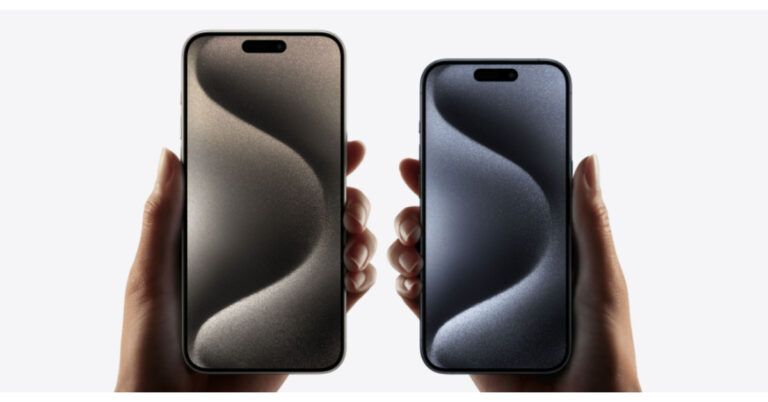
One of the new features that is creating a lot of buzz on this year’s iPhone 15 series is the Action button. This button is only available on the Pro models this year and will likely be extended to the non-Pro models in the iPhone 16 series. By default, this button toggles between the silent and ringing profiles just like the mute switch that it replaces. But the best part about this button is that you can assign a lot of other tasks to it. In this article, we show you how to customise the Action button on iPhone 15 Pro and Pro Max. Read Also: NoiseFit Metallix smartwatch with metallic finish launched in India

Customise the Action button on iPhone 15 Pro and Pro Max

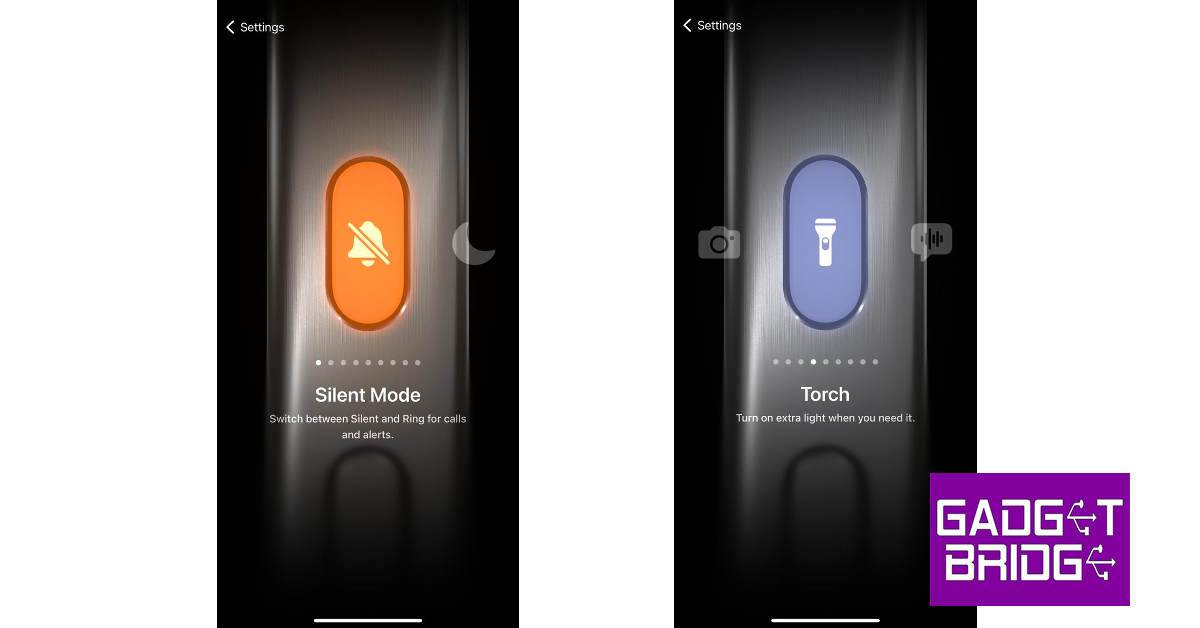
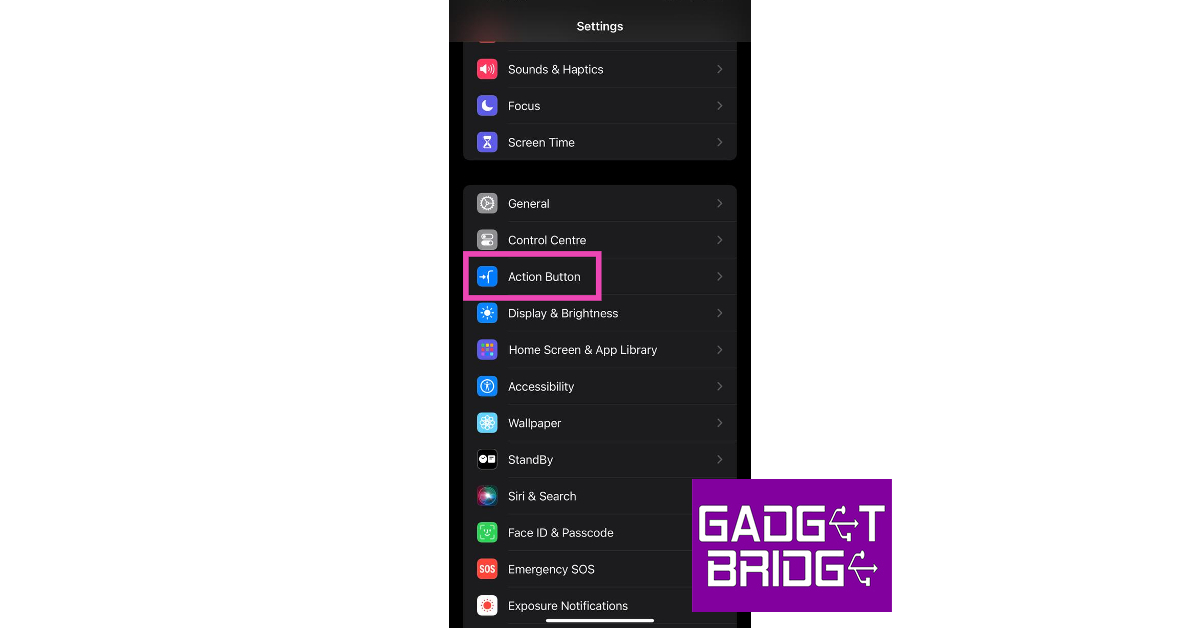
Step 1: Launch the Settings app on your iPhone 15 Pro or Pro Max. Step 2: Scroll down and select Action Button. Step 2: Scroll down and select Action Button. Step 3: Swipe left and right to scroll through the list of options the buttons can carry out. Step 4: Scroll to your desired option. You don’t need to save your choice. Simply go back to the home page. Step 4: Scroll to your desired option. You don’t need to save your choice. Simply go back to the home page. Your selected action will be assigned to the Action button.

What can the Action button do?

The Action button on your iPhone 15 Pro and Pro Max can carry out the following tasks.
  • Toggle between mute and loud sound profiles (default option).
  • Launch the camera app. You can further decide whether you the Action button to open the Camera app on Photo, Selfie, Video, Portrait, or Portrait Selfie mode.
  • Turn on and disable the Focus Mode.
  • Toggle the Flashlight on and off.
  • Launch the Voice memo and start or stop recording a memo.
  • Launch the Magnifier app.
  • Access an Accessibility setting – vision, motor, hearing, and general.
  • Launch a custom shortcut. You can program a shortcut to launch a specific app every time the Action button is pressed.
  • No action.

Frequently Asked Questions (FAQs)

Is the Action button available on iPhone 15 and iPhone 15 Plus?

The Action button only features on the Pro models of the iPhone 15 series. This means that only iPhone 15 Pro and Pro Max get the Action button. It is not present on the iPhone 15 and iPhone 15 Plus.

How much does the iPhone 15 cost in India?

Here are the prices of the iPhone 15 Series in India.
  • iPhone 15 – Rs 79,900
  • iPhone 15 Plus – Rs 89,900
  • iPhone 15 Pro – Rs 1,34,900
  • iPhone 15 Pro Max – Rs 1,59,900

How do I customise the Action button on my iPhone 15 Pro?

To customise the Action button on your iPhone 15 Pro and Pro Max, go to Settings>Action button and assign it an action or a task. By default, the Action button toggles between the loud and mute sound profiles. Read Also: OnePlus Bullet Wireless Z2 ANC Review: Still better than the average TWS?

Conclusion

This is how you can customise the Action button on your new iPhone 15 Pro and Pro Max. If you want the Action button to launch a particular app every time it is pressed, you can design a Shortcut to do so. Once you’ve set it up, simply go to Settings>Action button and select it from the Shortcut panel. For the latest gadget and tech news, and gadget reviews, follow us on Twitter, Facebook and Instagram. For newest tech & gadget videos subscribe to our YouTube Channel. You can also stay up to date using the Gadget Bridge Android App. You can find the latest car and bike news here

How to delete all of your Instagram posts at once?

0
One of our favourite aspects of using Instagram is that you have complete control over the aesthetic of your profile. You can apply a particular colour-coded theme to your profile by changing the profile picture, highlights, and the most recent posts on your profile. While the first two changes are easy to make, switching your posts to a colour-coded theme requires deleting your recent (or in some cases, entire) post history first. Luckily, there is an easy way of doing that. In this article, we show you how to delete all of your Instagram posts at once and then restore them. Read Also: NoiseFit Metallix smartwatch with metallic finish launched in India

Delete all your Instagram posts

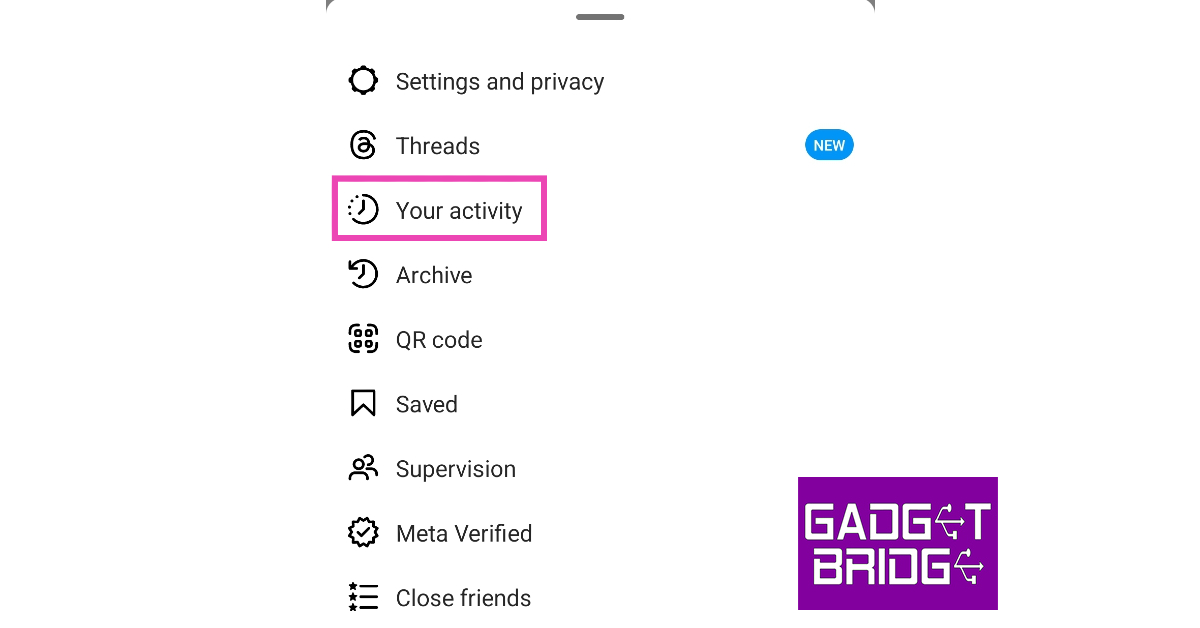
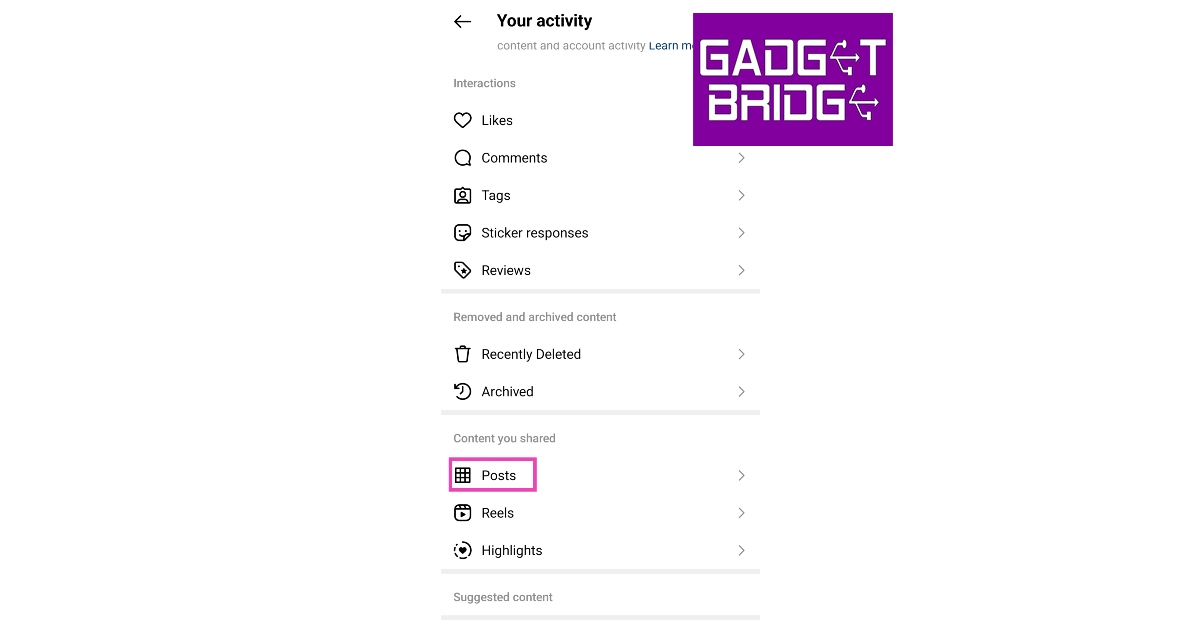
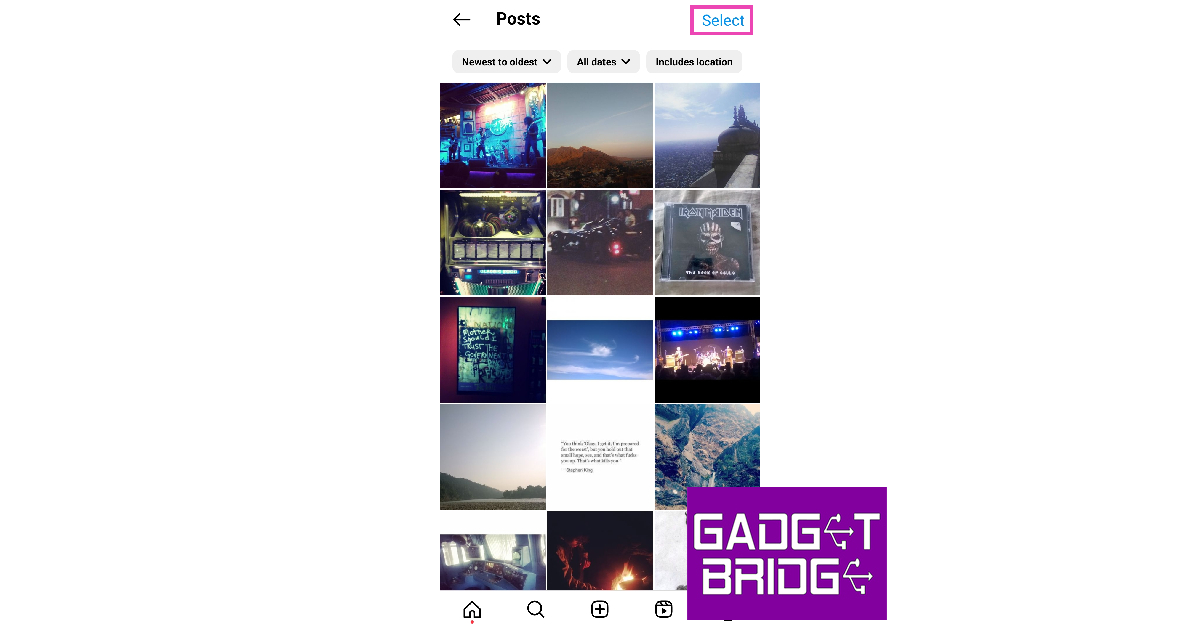
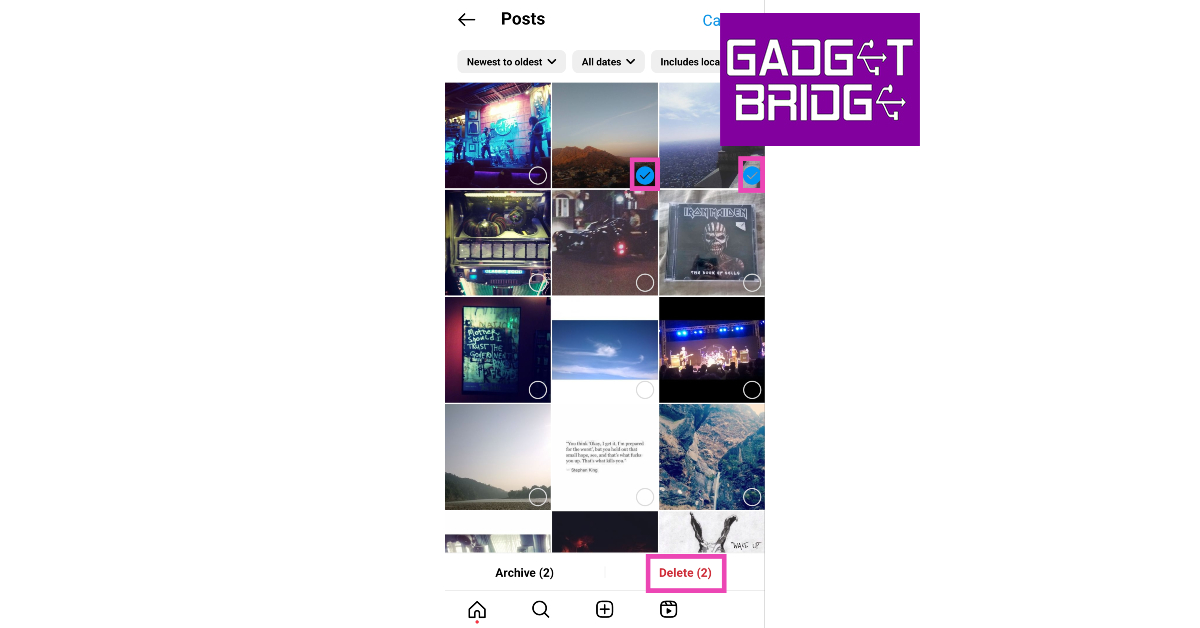
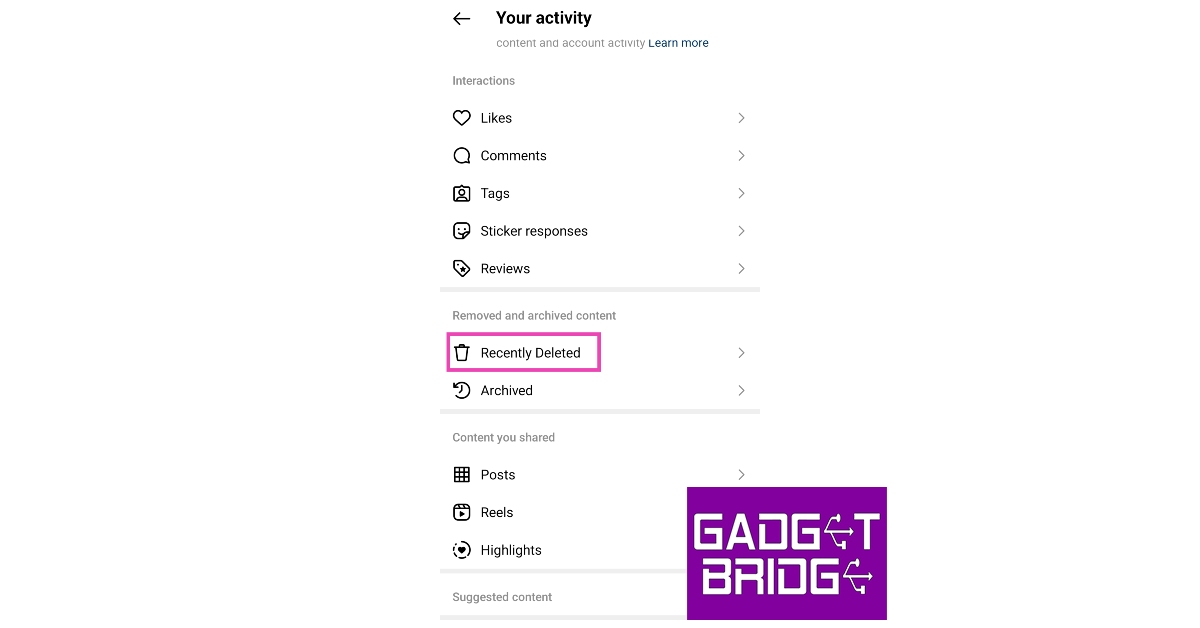
Step 1: Launch the Instagram app and tap your profile picture at the bottom right corner of the screen. Step 1: Launch the Instagram app and tap the profile icon at the bottom right corner of the screen. Step 2: Hit the hamburger menu icon at the top right corner of the screen. Step 2: Now, tap the hamburger menu at the top right corner of the screen. How to join Threads without linking your Instagram account? Step 3: Tap on Your Activity. Step 3: Tap on Your Activity. Step 4: Select Posts. Step 4: Select Posts. Step 5: Tap the Select option at the top right corner of the screen.   Step 5: Tap the Select option at the top right corner of the screen. Step 6: Manually tap on all your Instagram posts to select them. You can also sort them chronologically or filter them by date. Step 6: Manually tap on all your Instagram posts to select them. You can also sort them chronologically or filter them by date. Step 7: Tap on Delete. You can also choose to Archive the posts instead. Step 8: Confirm your selection in the popup box.

Restore your deleted Instagram posts

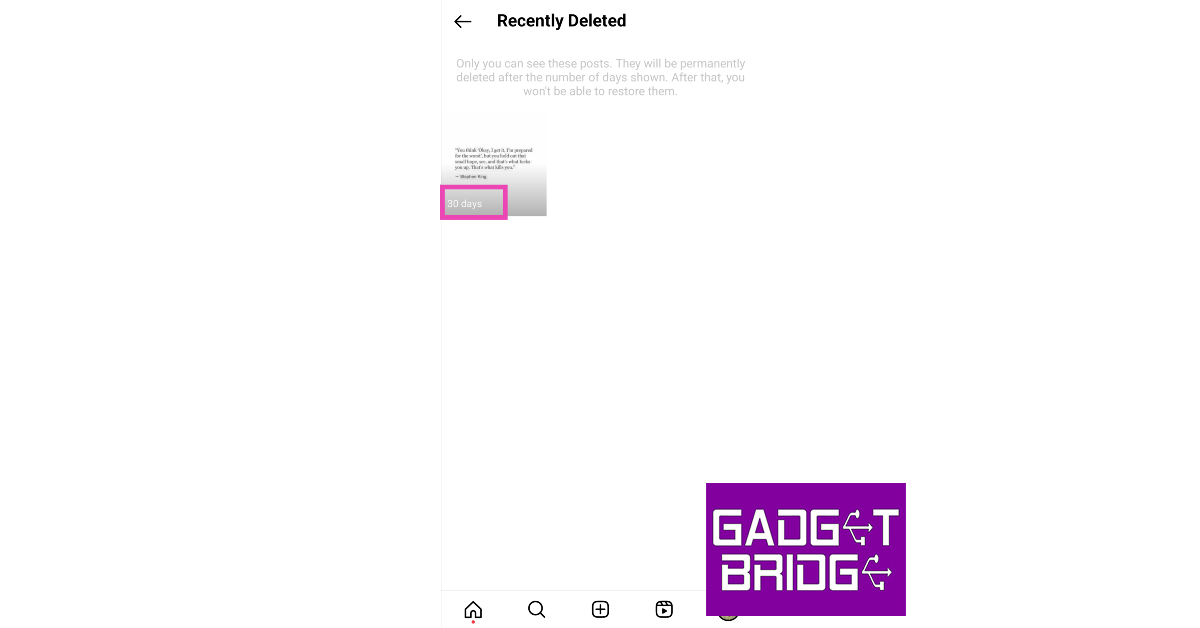
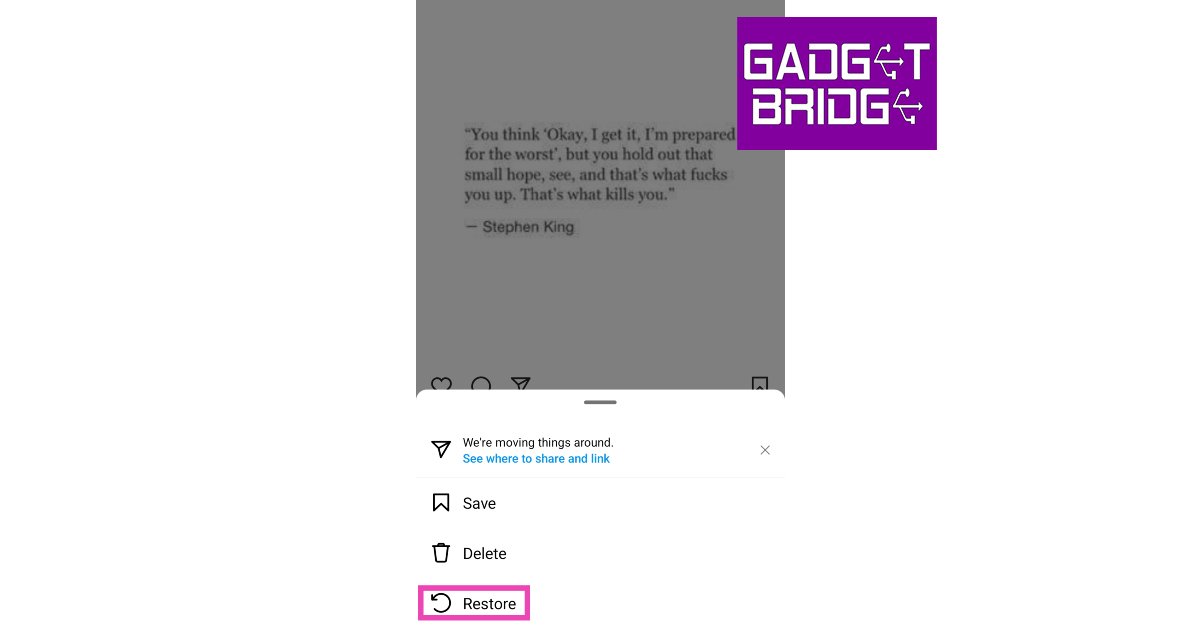
Step 1: Launch the Instagram app and tap your profile picture at the bottom right corner of the screen. Step 1: Launch the Instagram app and tap the profile icon at the bottom right corner of the screen. Step 2: Hit the hamburger menu icon at the top right corner of the screen. Step 2: Now, tap the hamburger menu at the top right corner of the screen. How to join Threads without linking your Instagram account? Step 3: Tap on Your Activity. Step 3: Tap on Your Activity. Step 4: Tap on Recently Deleted. Step 5: Tap the Select option at the top right corner of the screen. In this article, we show you how to delete all of your Instagram posts at once and then restore them. Read more to find out. Step 5: Select the post you want to restore. Step 5: Select the post you want to restore. In this article, we show you how to delete all of your Instagram posts at once and then restore them. Read more to find out. Step 6: Tap the ellipses at the top right corner of the post. Step 6: Tap the ellipses at the top right corner of the post. In this article, we show you how to delete all of your Instagram posts at once and then restore them. Read more to find out. Step 7: Hit Restore. Step 7: Hit Restore. In this article, we show you how to delete all of your Instagram posts at once and then restore them. Read more to find out. Step 8: Confirm your selection in the pop-up box.

Frequently Asked Questions (FAQs)

How do I mass delete my Instagram posts?

To mass delete your Instagram posts, go to Menu>Your Activity>Posts>Select and manually select all of them. Hit the Delete option at the bottom of the screen to remove them from your profile.

How long does Instagram take to permanently delete a post?

Once you delete a post on Instagram, it stays in the Recently Deleted folder for 30 days. Once the 30-day period is over it is permanently deleted from your account.

How do I restore a deleted post on Instagram?

To restore a deleted post on Instagram, go to Menu>Your Activity>Recently Deleted. Select the post you want to bring back, hit the ellipses at the top right corner, and select Restore. Read Also: OnePlus Bullet Wireless Z2 ANC Review: Still better than the average TWS?

Conclusion 

This is how you can delete all your Instagram posts at once. If you want to hide a post on your profile, deleting it may seem like a harsh measure. You can always archive the post instead. Once you archive a post, it is hidden from your profile. You can always choose to bring it back. If you found this article helpful, let us know in the comments! For the latest gadget and tech news, and gadget reviews, follow us on Twitter, Facebook and Instagram. For newest tech & gadget videos subscribe to our YouTube Channel. You can also stay up to date using the Gadget Bridge Android App. You can find the latest car and bike news here.

Top 4 Methods to Turn Off Google Discover on Android and iOS

0
If you swipe to the leftmost panel of your Android phone’s home screen, you will see the Google Discover feed. This feed consists of articles, news, and videos, based solely on your likes and interests. However, some users prefer a clean home screen devoid of any ‘bloatware’ even if it is Google’s very own creation. In this article, we bring you the top 4 methods to turn off Google Discover on Android and iOS. Read Also: OnePlus Bullet Wireless Z2 ANC Review: Still better than the average TWS?

Turn off Google Discover on Android

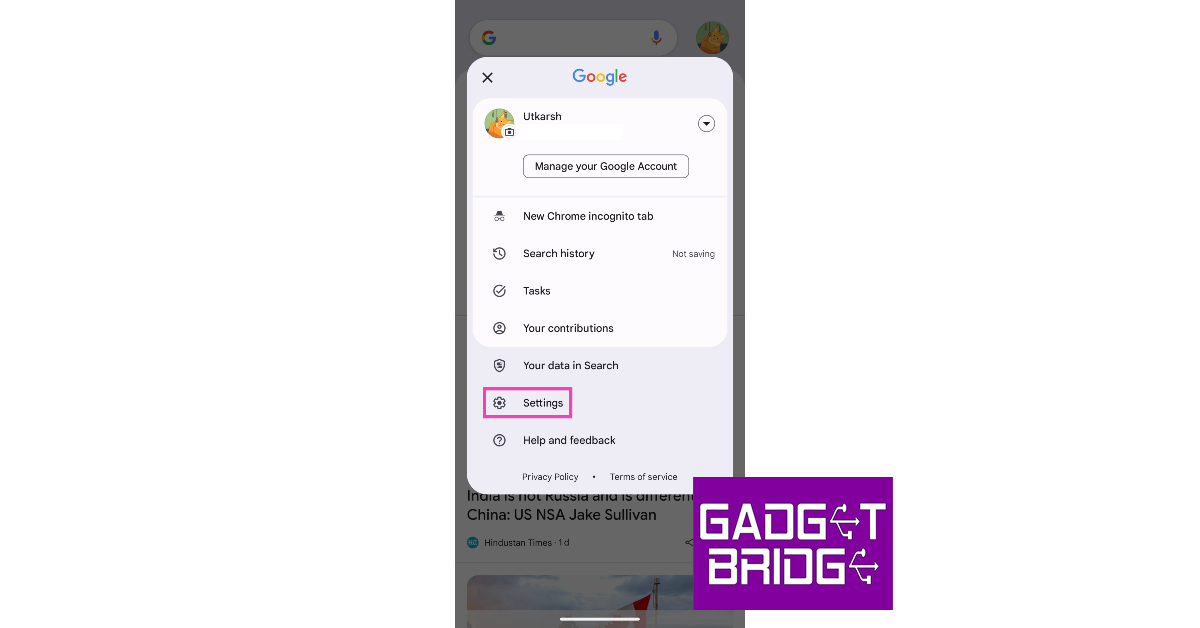
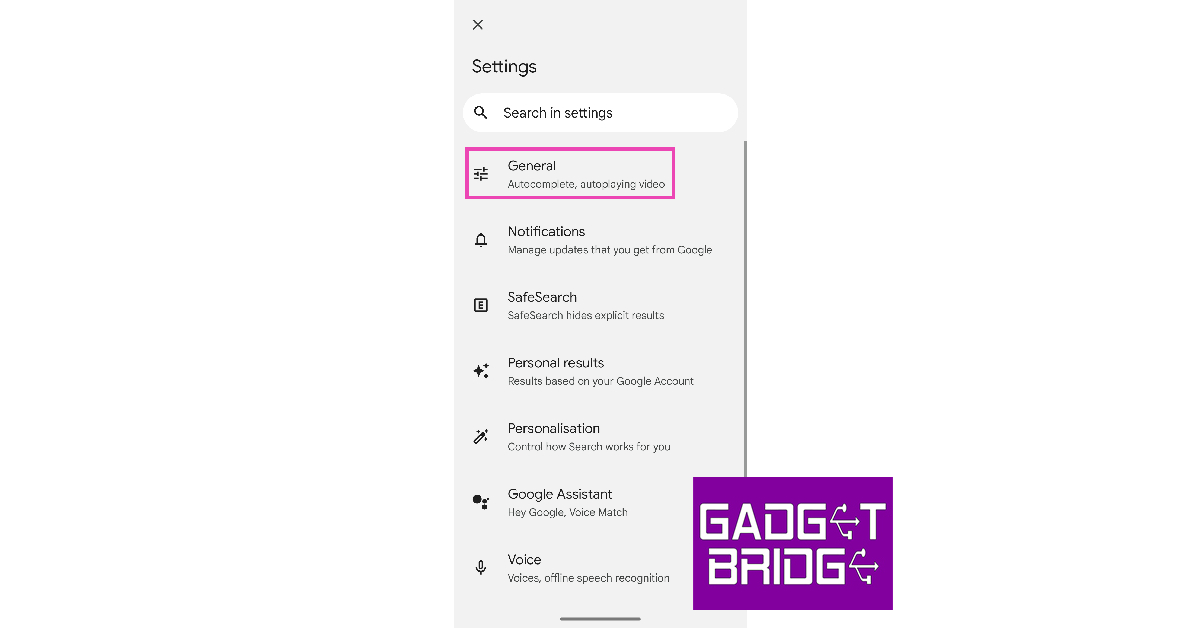
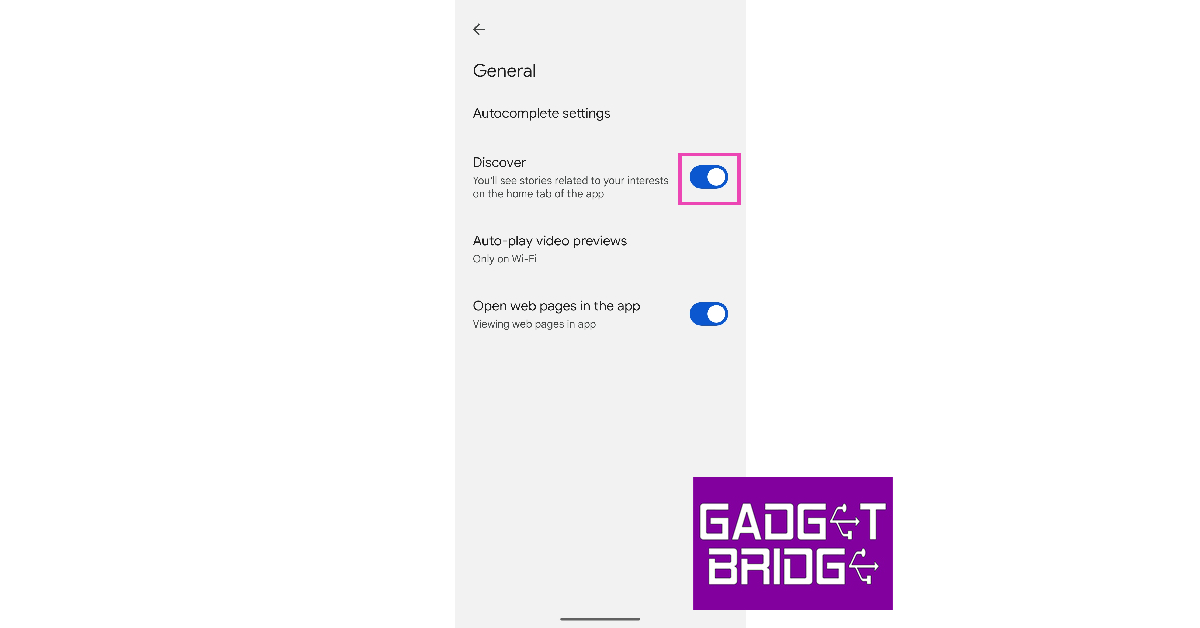
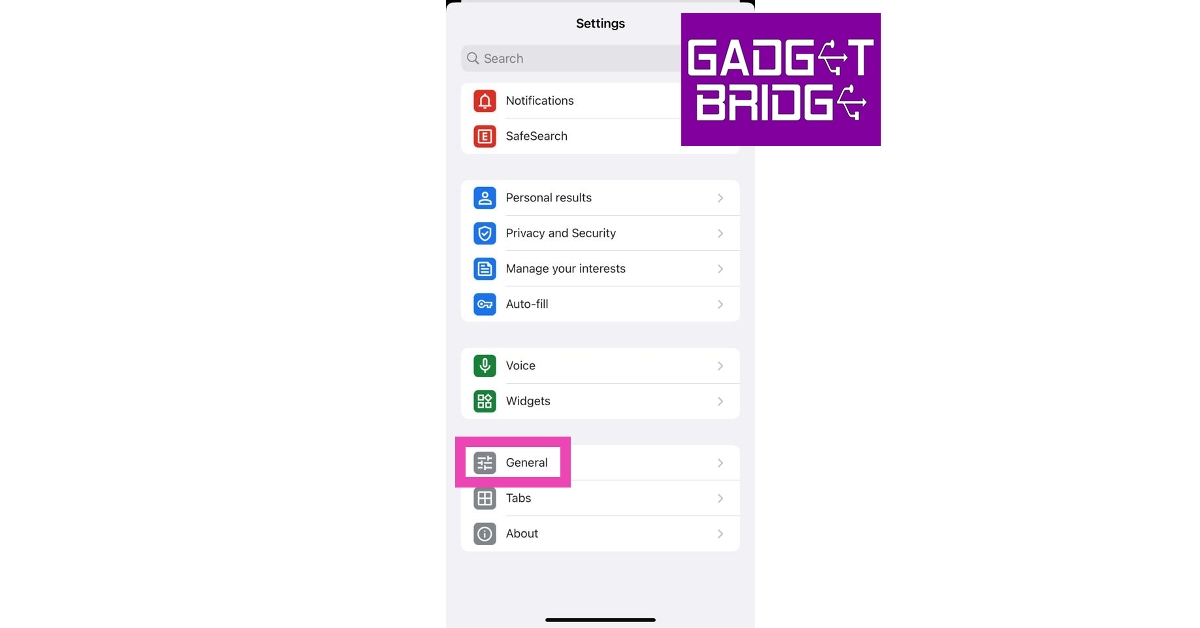
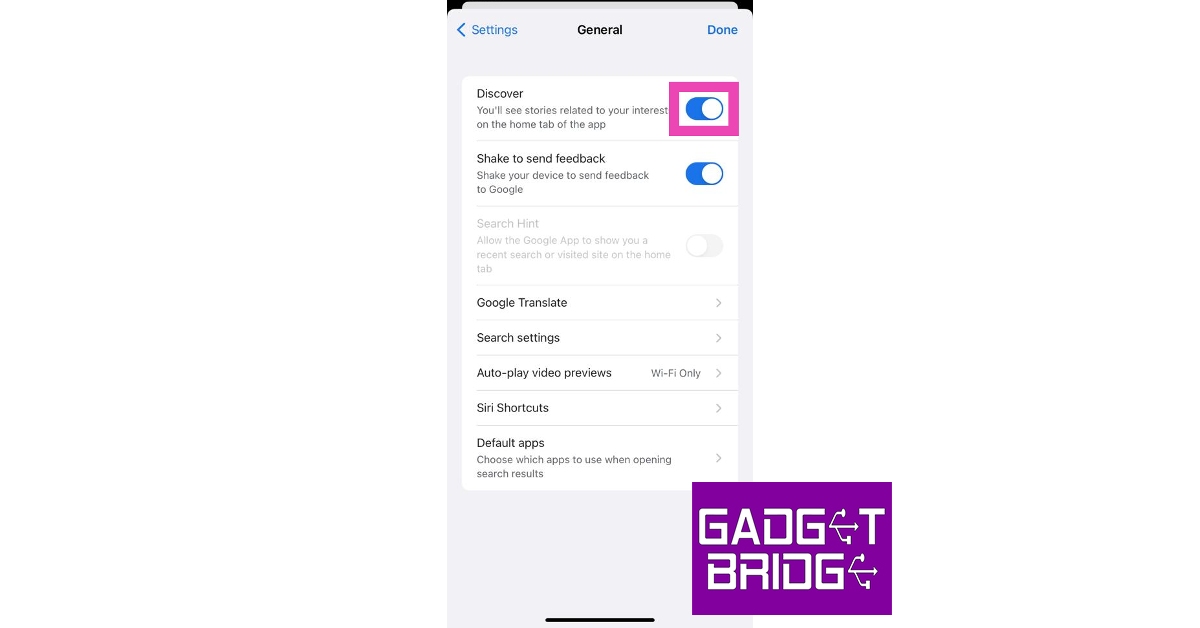
Step 1: Swipe right from the home screen until you reach the Discover page or launch the Google app. Step 2: Tap your profile picture at the top right corner of the screen. Step 2: Tap your profile picture at the top right corner of the screen. Step 3: Select Settings. Step 3: Select Settings. Step 4: Tap on General. Step 4: Tap on General. Top 4 Methods to Turn Off Google Discover on Android and iOS Step 5: Turn off the toggle switch for Discover. Step 5: Turn off the toggle switch for Discover. Top 4 Methods to Turn Off Google Discover on Android and iOS

Disable Google Discover from home page settings on Android

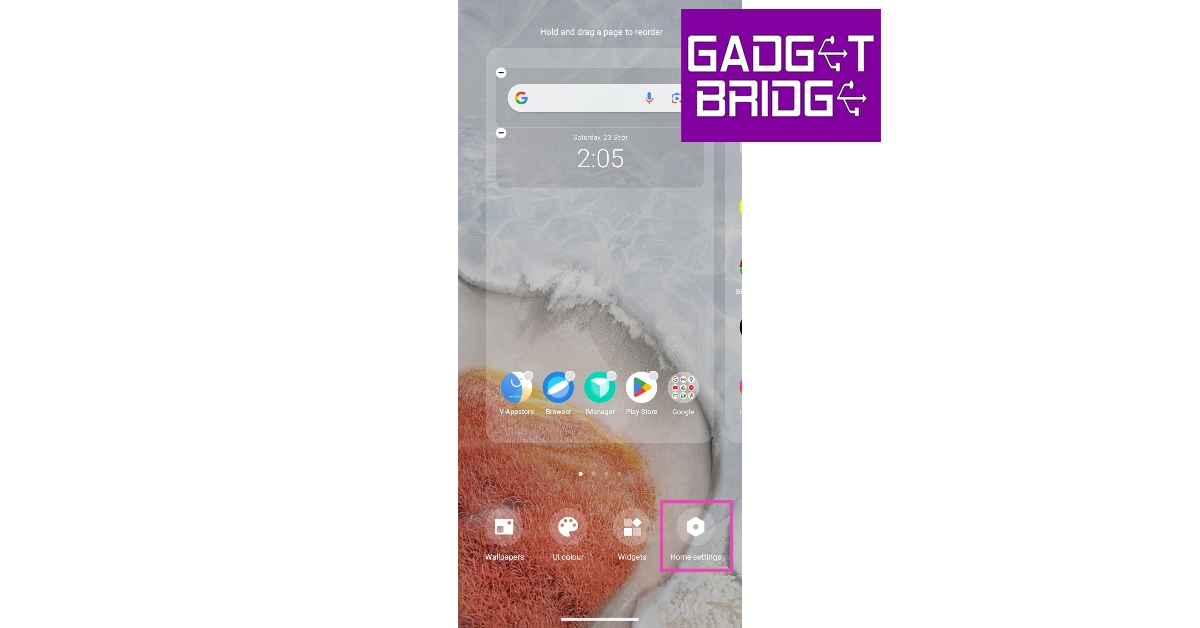
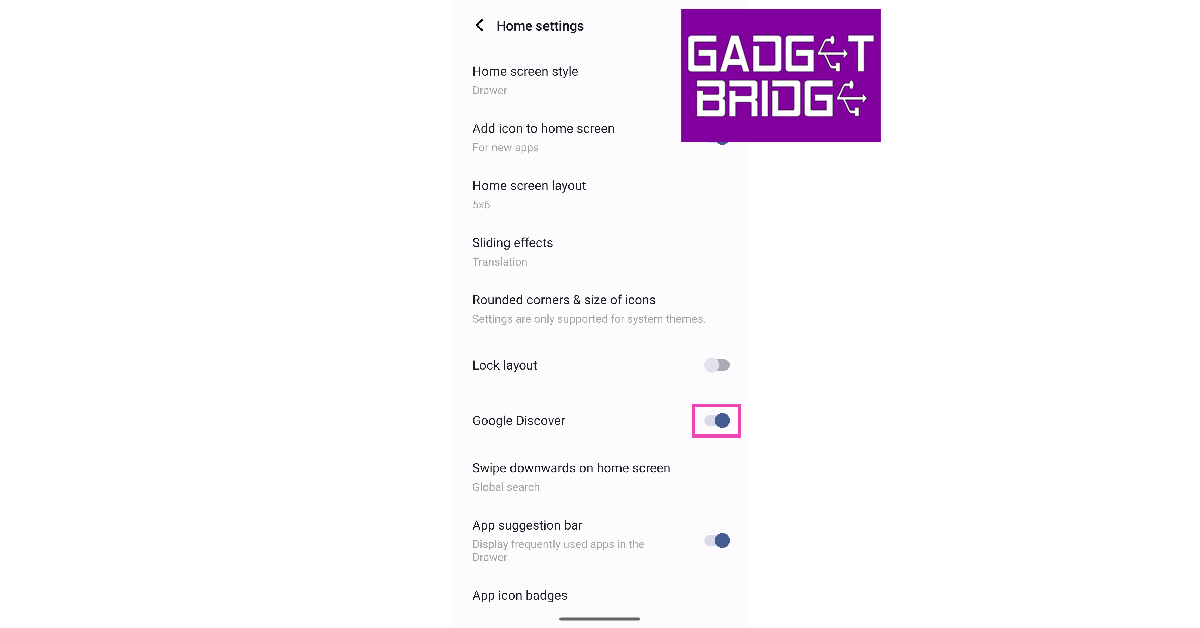
Step 1: Unlock your Android smartphone and long-press any empty spot on the home screen. Step 2: Tap on Home settings. Step 2: Tap on Home settings. Top 4 Methods to Turn Off Google Discover on Android and iOS Step 3: Turn off the toggle switch for Google Discover. Step 3: Turn off the toggle switch for Google Discover. Top 4 Methods to Turn Off Google Discover on Android and iOS

Turn off Google Discover on iOS

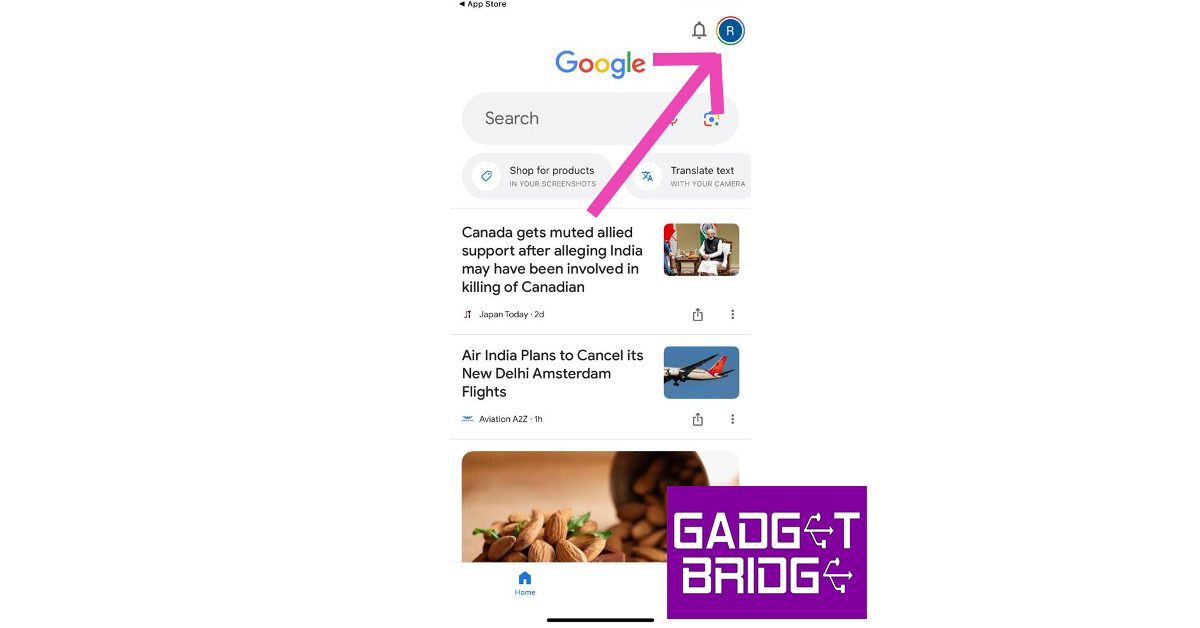
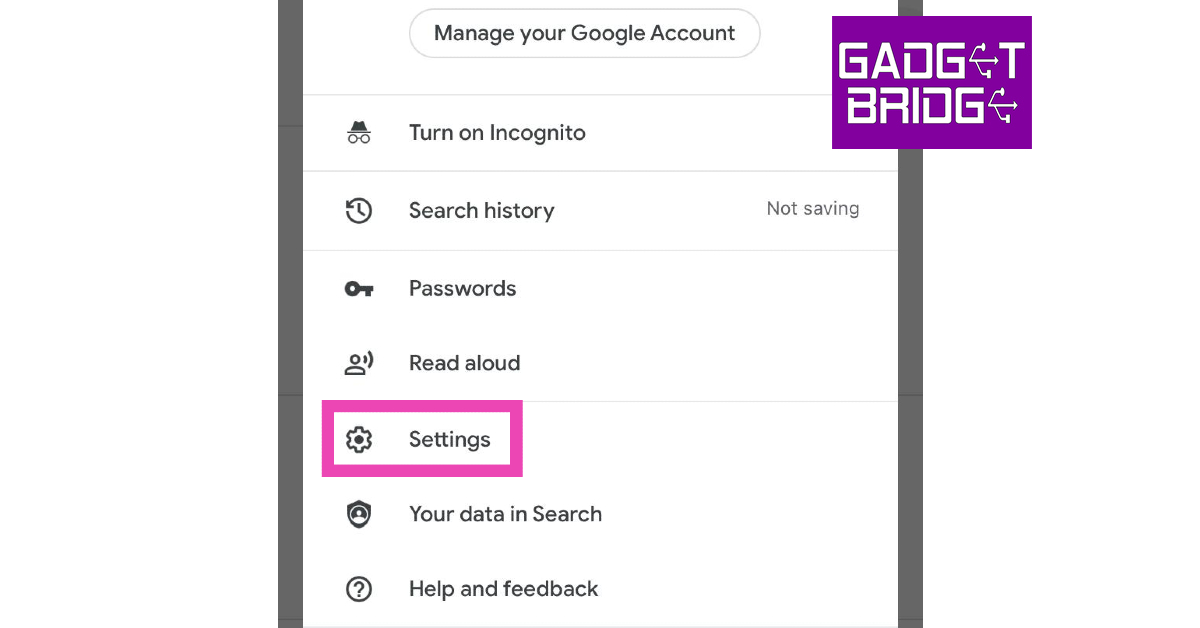
Step 1: Launch the Google app on your iPhone. Step 2: Tap on your profile picture at the top right corner of the screen. Step 2: Tap on your profile picture at the top right corner of the screen. Step 3: Tap on Settings. Step 3: Tap on Settings. Step 4: Select General. Step 4: Select General. Step 5: Turn off the toggle switch for Discover. Step 5: Turn off the toggle switch for Discover.

Turn off Google Discover on Google Chrome (Android and iOS) 

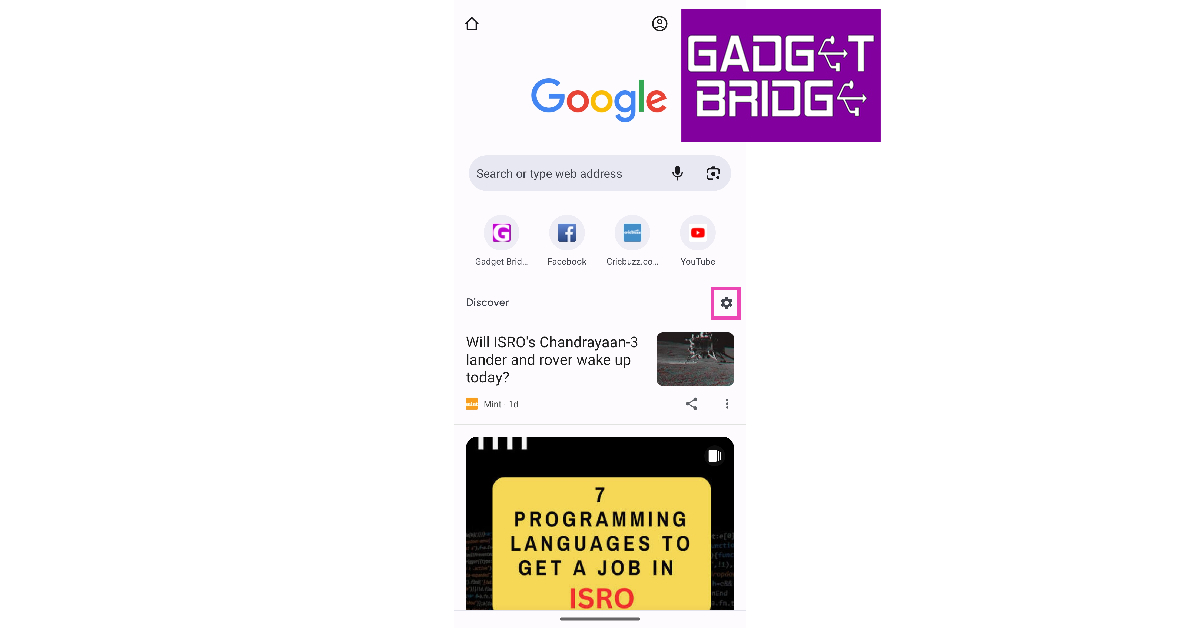
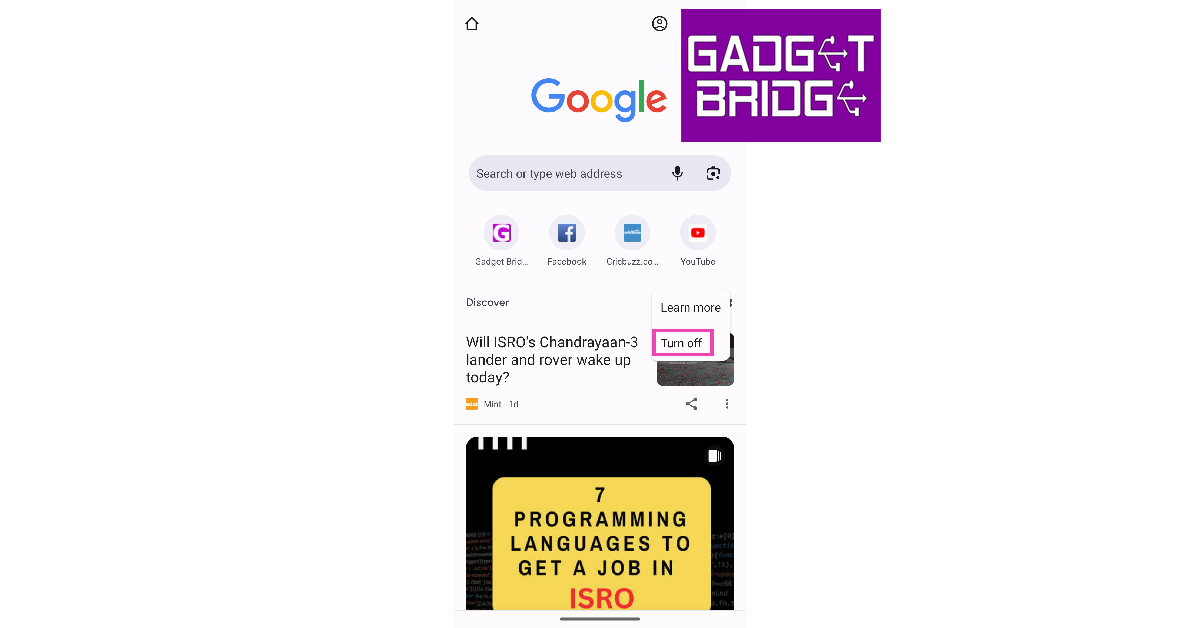
Step 1: Launch the Google Chrome app on your smartphone. Step 2: Tap the gear icon next to Discover. Step 2: Tap the gear icon next to Discover. Top 4 Methods to Turn Off Google Discover on Android and iOS Step 3: Select Turn off. Step 3: Select Turn off. Top 4 Methods to Turn Off Google Discover on Android and iOS

Frequently Asked Questions (FAQs)

What is Google Discover?

Google Discover is the leftmost page on your phone’s home screen. This page consists of news, articles, and videos that are specially curated for you by Google. You can also find the Discover feed on the Chrome app.

How do I disable the Discover page on my phone?

Go to the Google Discover page and tap on your profile picture at the top right corner of the screen. Hit Settings>General and turn off the toggle switch for Discover. iPhone users can carry out the same process on the Google app.

How do I disable Discover on Chrome?

Launch the Google Chrome app on your phone, tap the gear icon next to Discover, and select Turn off. Read Also: YouTube to be powered by generative AI, bringing helpful tools for creators

Conclusion

These are the top 4 ways to turn off Google Discover on Android and iOS. Instead of disabling it for good, you can always help Google to recommend you better stuff. Every time you come across a Discover entry that you don’t like, simply tap the ellipses next to it and select Hide this. Google will use your feedback to curate a better feed. For the latest gadget and tech news, and gadget reviews, follow us on Twitter, Facebook and Instagram. For newest tech & gadget videos subscribe to our YouTube Channel. You can also stay up to date using the Gadget Bridge Android App. You can find the latest car and bike news here.

Top 11 ways to extend your Samsung Galaxy Watch’s battery life (2024)

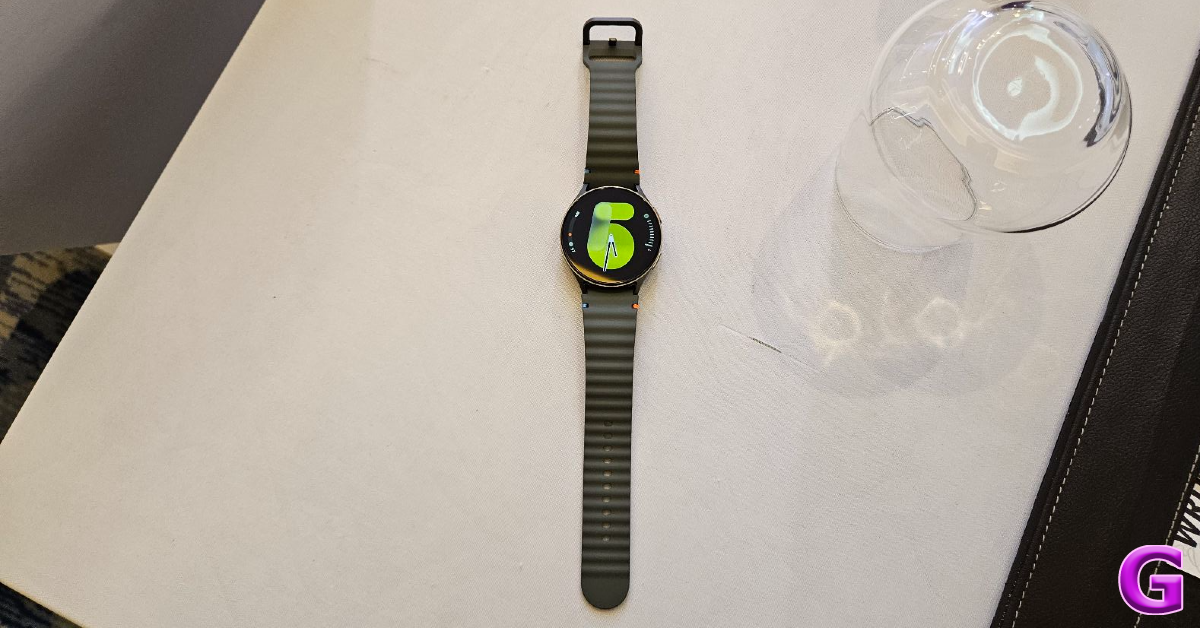
Samsung’s Galaxy smartwatch is one of the better Android health and fitness trackers around. LTE variants of the Galaxy Watch allow you to set up a mobile network plan for the device, you don’t want to rely on your smartphone all the time. Integrated GPS, Bluetooth calling, and incredible app support make the Galaxy Watch one of the most premium wearables you can get right now. The only downside to having such high-end features is a less-than-average battery life. For most users, their Galaxy Watch barely lasts a day. But there may be something you can do about it. In this article, we bring you the top 11 ways to extend the battery life of your Samsung Galaxy Watch. Read Also: OnePlus Bullet Wireless Z2 ANC Review: Still better than the average TWS?

What causes battery drainage on your smartwatch?

Modern Android smartwatches are engineered to offer at least a day’s worth of battery life. Some smartwatches use dual processors to handle different kinds of tasks in order to conserve the battery. The new OnePlus Watch 2 is one good example. However, batteries don’t last forever. After years of use, they wear out and get worse at retaining charge. You can extend the battery life by cutting down on some functions and running the watch on its bare bones. But before you begin, you need to know which components of your watch consume the most battery. The biggest culprit when it comes to battery drainage is your smartwatch’s display. AMOLED displays on the Galaxy Watches consume a lot of battery, especially when Always On Display is turned on. Turning off AOD can immediately create a difference. Reducing the intensity of brightness and disabling features like tilt-to-wake can also yield desirable results. Apart from the display, background apps and location services can also consume a huge chunk of the charge. Limiting the background tasks helps in extending your watch’s battery life.

Update the Samsung Galaxy Watch OS to extend battery life

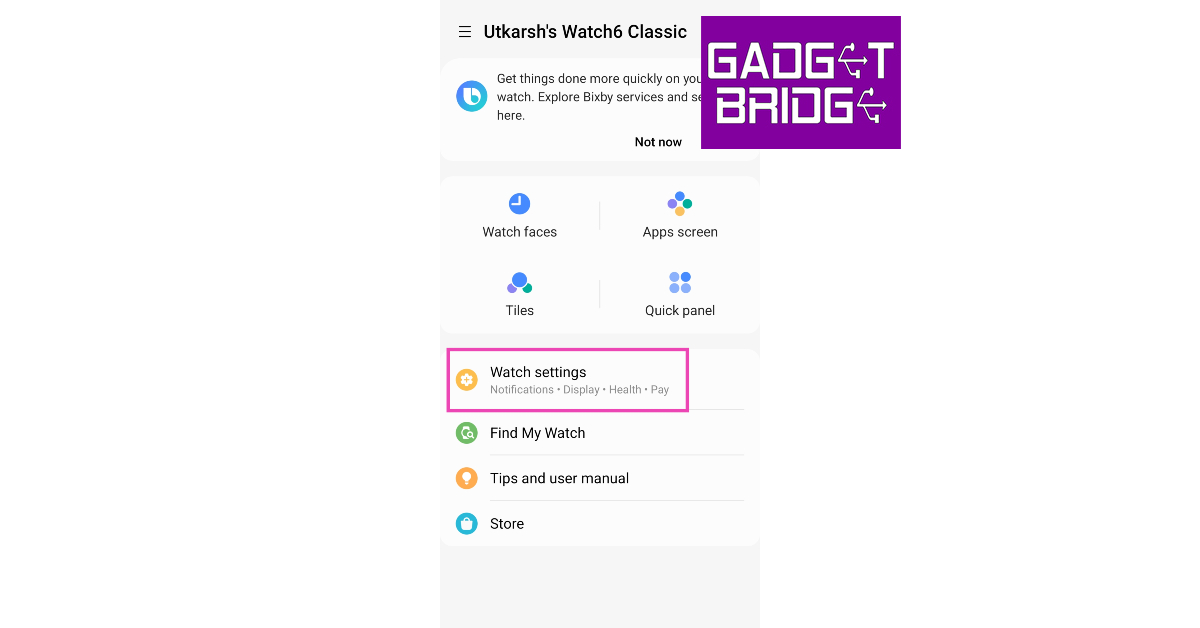
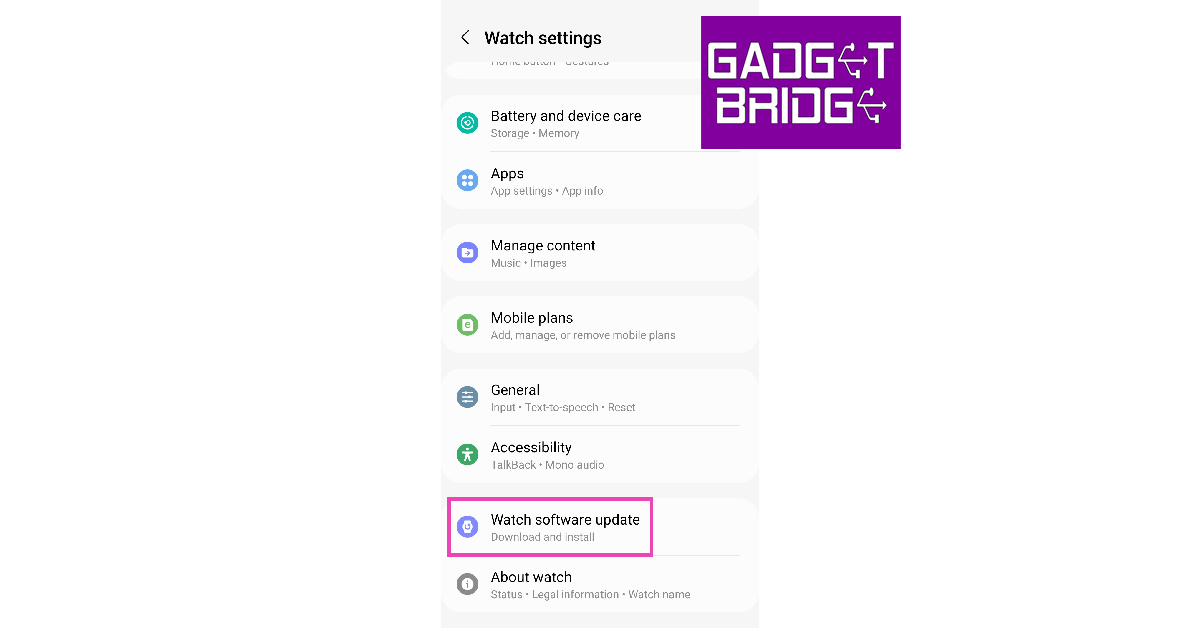
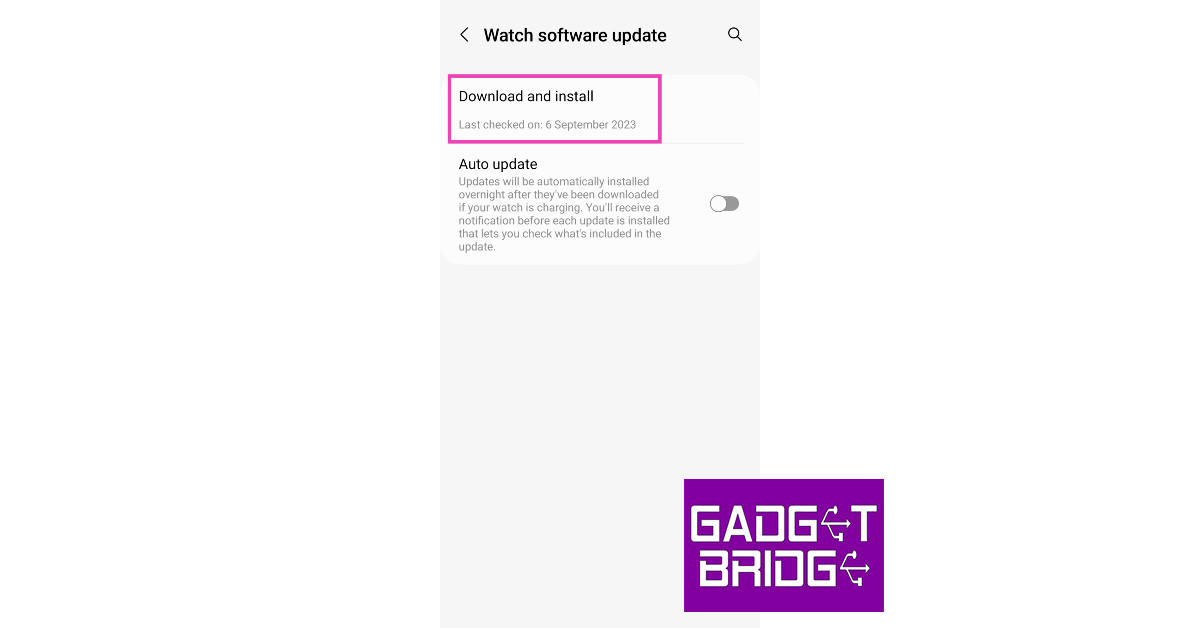
Step 1: Launch the Galaxy Wearable app on your smartphone. Step 2: Tap on Watch Settings. Step 2: Tap on Watch Settings. Step 3: Scroll down and select Watch Software Update. Step 3: Scroll down and select Watch Software Update. Step 4: Tap on Download and Install. Step 4: Tap on Download and Install. Step 5: If there is any pending OS update, download and install it on your watch.

Update the apps on your Galaxy Watch

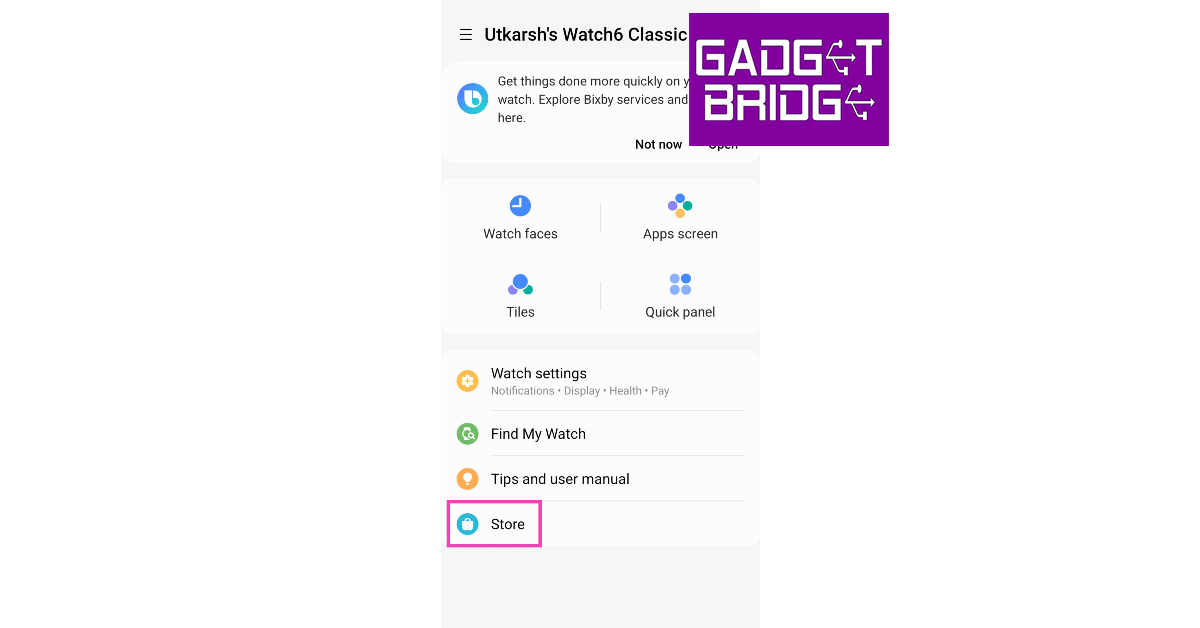
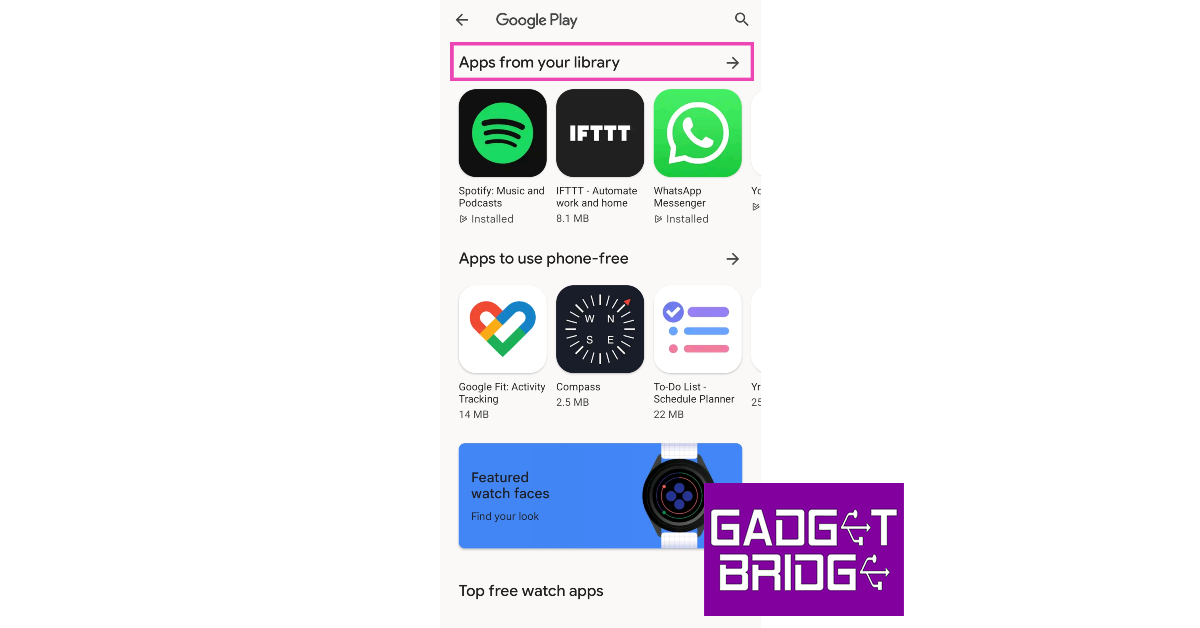
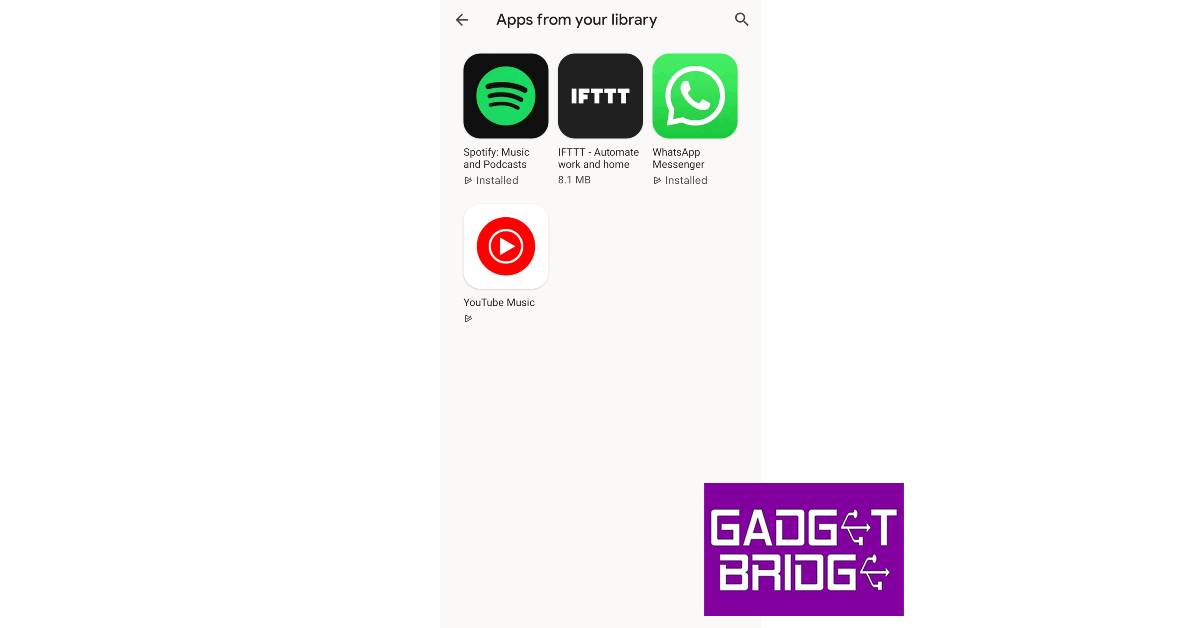
Step 1: Launch the Galaxy Wearable app on your smartphone. Step 2: Scroll down and select Store. Step 2: Scroll down and select Store. Step 3: Tap on Apps from your library. Step 3: Tap on Apps from your library. Step 4: Check if any of the apps have any pending updates. Step 4: Check if any of the apps have any pending updates. Step 5: Update the apps.

Turn off unused trackers to extend Samsung Galaxy Watch’s battery life

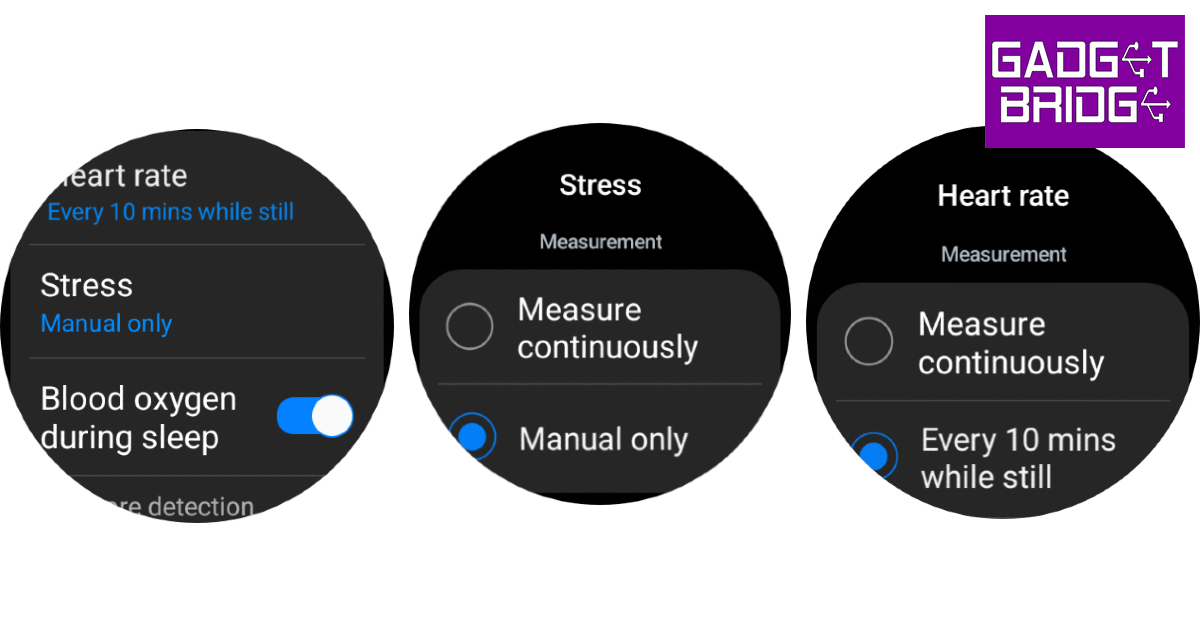
Turn off unused trackers If you aren’t using any of the health trackers to actively measure your blood SpO2 level, sleep, stress, and heart rate, it is a good idea to turn them off while they’re not in use. While background monitoring produces comprehensive data, it can severely reduce the battery life of your Samsung Galaxy Watch. Here’s how you can turn it off. Step 1: Swipe up from your Samsung Galaxy Watch’s home page and select Settings. Step 2: Scroll down and select Health. Step 3: Tap on Heart rate and set it to Every 10 minutes while still or Manual only. Step 4: Go back and select Stress. Step 5: Set it to Manual only.

Turn off Always On Display to improve Samsung Galaxy Watch’s battery life

One of the biggest battery drainers on your Galaxy Watch is its Super AMOLED display. With Always On Display in effect, the battery life of the watch takes a hit. If you want to make your Galaxy Watch last longer, turn off the Always On Display from the Quick Settings Menu.

Turn off network connections

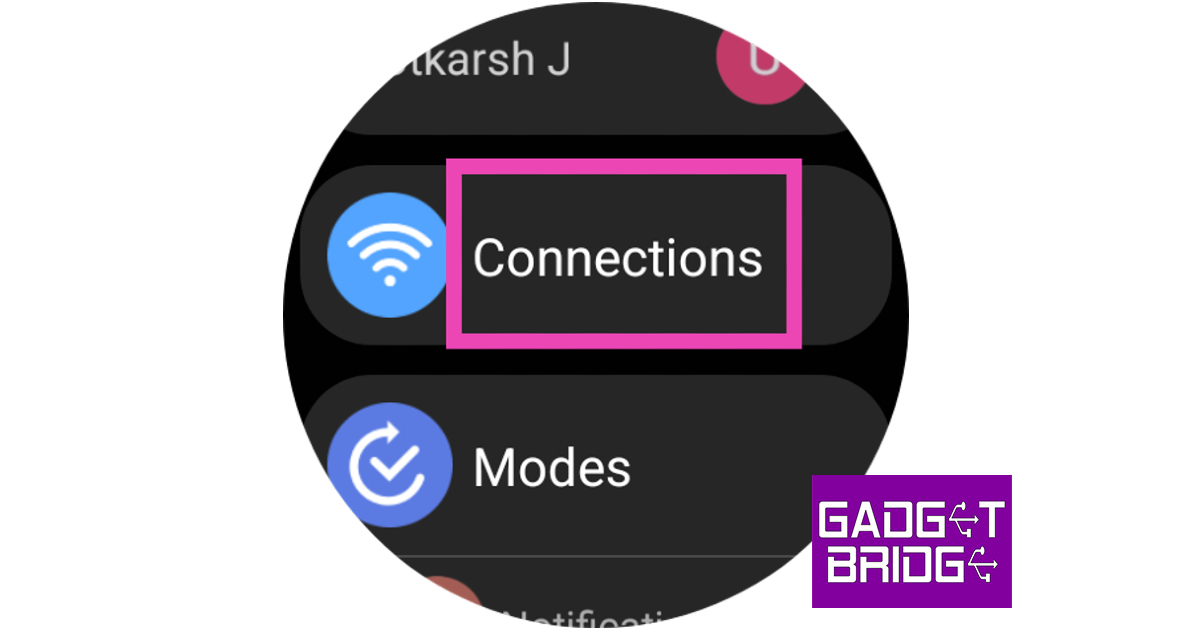
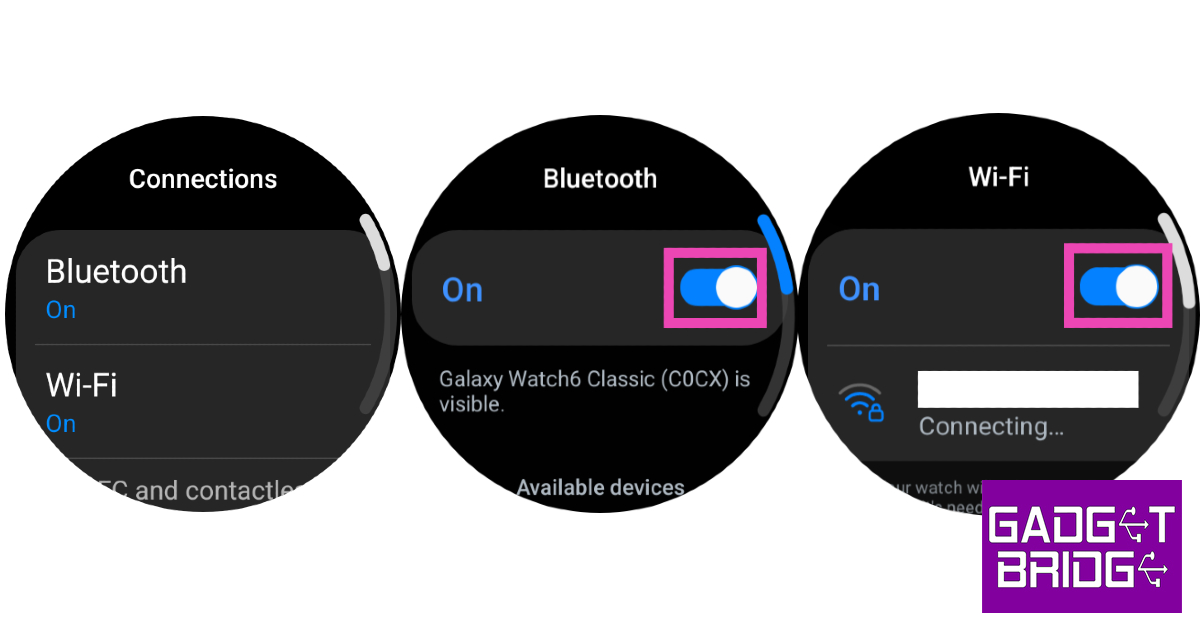
Step 1: Swipe up from your Galaxy Watch’s home screen and select Settings. Step 2: Tap on Connections. Step 2: Tap on Connections. Top 7 ways to extend your Samsung Galaxy Watch’s battery life Step 3: Turn off Bluetooth, WiFi, mobile network, and LTE. Top 7 ways to extend your Samsung Galaxy Watch’s battery life Turning off Bluetooth will disconnect your watch from your phone.

Turn off Tilt-to-Wake

Samsung to bring more health monitoring features based on Skin Temperature Sensor Step 1: Unlock your Galaxy Watch and swipe down to access the Quick Settings Menu. Step 2: Hit the Settings tile. Step 3: Tap on Display. Step 4: Turn off the toggle switch next to Raise wrist to wake.
Reduce the screen timeout duration

Samsung Galaxy Watch7 Step 1: Unlock your Galaxy Watch and swipe down to access the Quick Settings Menu. Step 2: Hit the Settings tile. Step 3: Tap on Display. Step 4: Select Screen timeout. Step 5: Set the duration to 15 seconds.
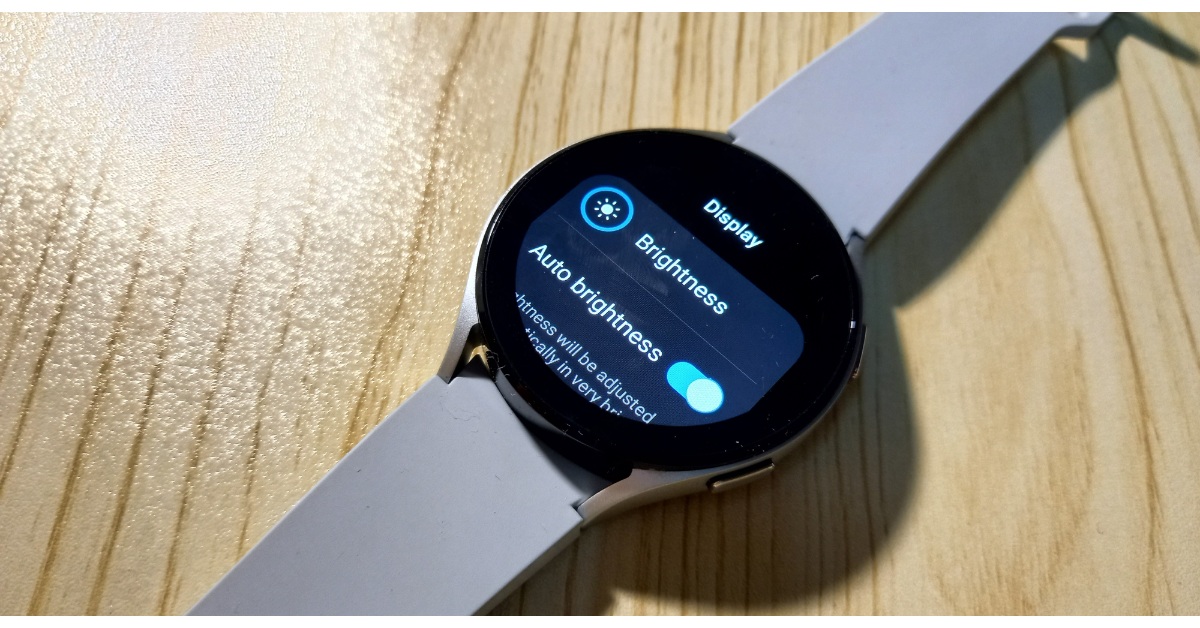
Decrease the brightness

Samsung Galaxy Watch 4 Review: Design and Display  Step 1: Unlock your Galaxy Watch and swipe down to access the Quick Settings Menu. Step 2: Hit the Brightness tile. Step 3: Use the slider to reduce the brightness.
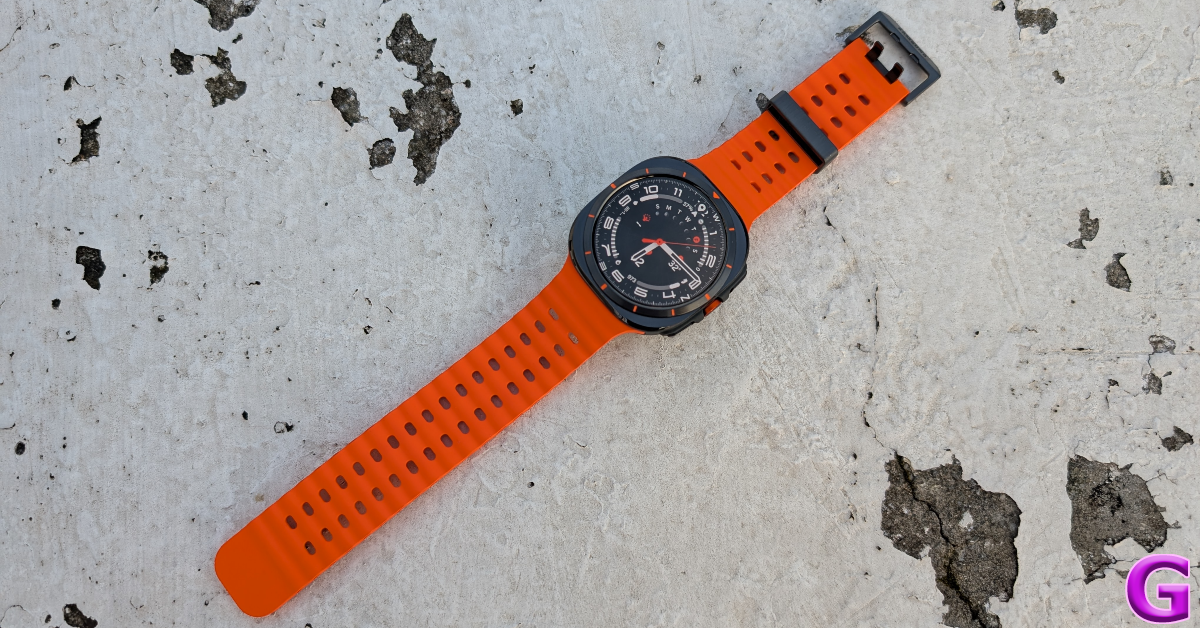
Lower the intensity of the haptic motor

Samsung Galaxy Watch Ultra Review: The ‘everything’ Android smartwatch Step 1: Unlock your Galaxy Watch and swipe down to access the Quick Settings Menu. Step 2: Hit the Settings tile. Step 3: Tap on Sounds and vibration. Step 4: Tap on Vibration. Step 5: Select Short under Vibration duration. Step 6: Select Light under Vibration intensity.
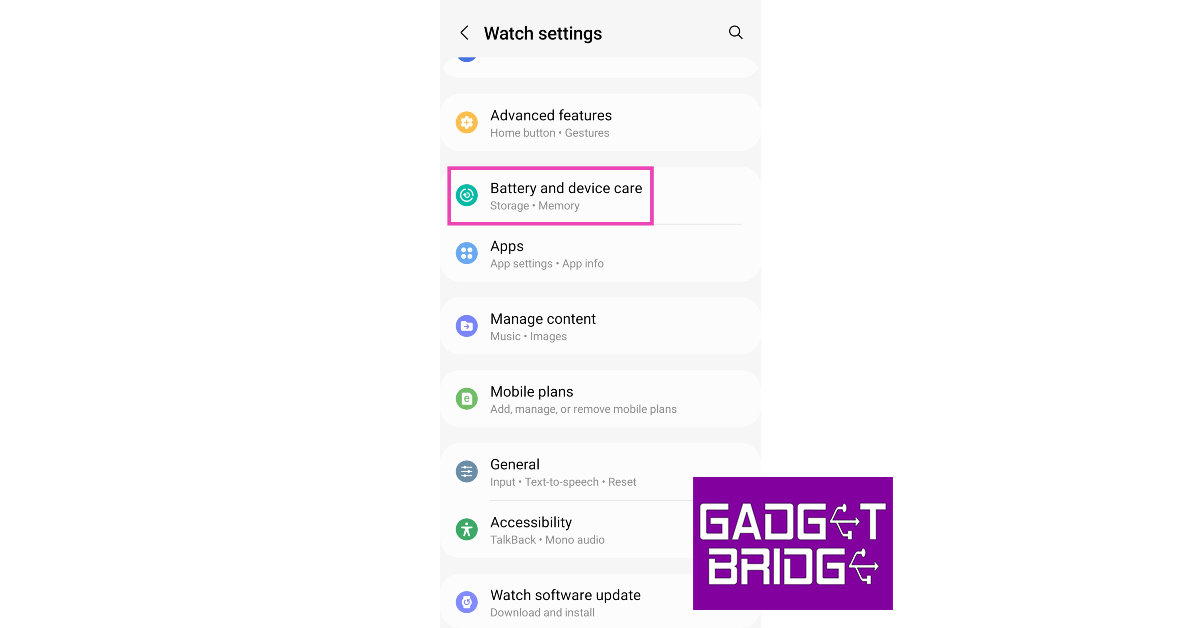
Close background apps

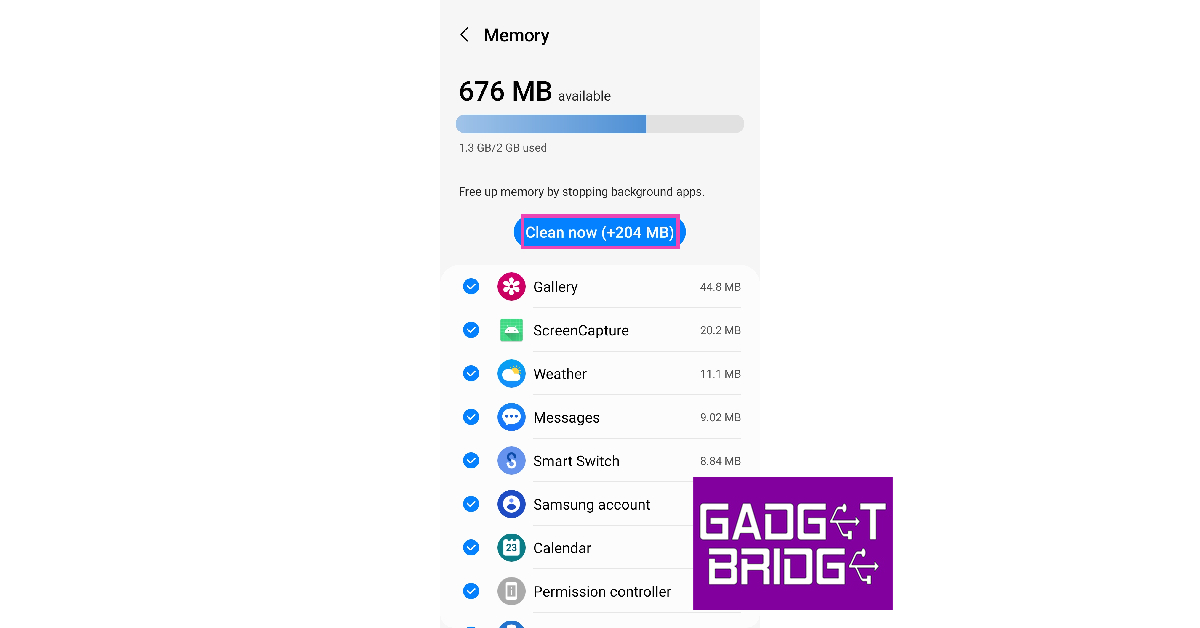
Step 1: Launch the Galaxy Wearable app on your smartphone. Step 2: Tap on Watch Settings. Step 2: Tap on Watch Settings. Top 7 ways to extend your Samsung Galaxy Watch’s battery life Step 3: Select Battery and device care. Top 7 ways to extend your Samsung Galaxy Watch’s battery life Step 4: Tap on Memory. Top 7 ways to extend your Samsung Galaxy Watch’s battery life Step 5: Select Clean now. Step 5: Select Clean now. Top 7 ways to extend your Samsung Galaxy Watch’s battery life

Turn on Power Saving Mode

The Power Saving Mode on your Samsung Galaxy Watch is an excellent way to extend its battery life. This mode keeps the most essential functions on the device running while turning off the rest. To turn on Power Saving Mode tap the battery tile on the Quick Settings Menu.

Frequently Asked Questions (FAQs)

What is the average battery life of the Samsung Galaxy Watch 6?

The Samsung Galaxy Watch 6 has a 410mAh battery which lasts a day on average use.

Why is my Samsung Galaxy Watch draining so quickly?

If your Samsung Galaxy Watch’s battery is draining faster than usual, it can be because the background health functions are turned on to collect health metrics continuously.

How do I make my Samsung Galaxy Watch last longer?

To extend the battery life of your Galaxy smartwatch, turn off background health monitoring, update the OS and apps, and switch off the network connections and Always on Display. Read Also: YouTube to be powered by generative AI, bringing helpful tools for creators

Conclusion

These are the top 11 ways to extend the battery life of your Samsung Galaxy Watch. Apart from these general measures, the temperatures that you expose your watch to also play a part in determining its battery health. Extreme cold and hot conditions can also permanently damage your smartwatch.

BGMI redeem codes for 23 September 2023, claim and receive rewards and benefits

After being banned for nearly ten months, Battleground Mobile India, aka BGMI, is officially available again in India. BGMI fans are looking for ways to improve their game experience and one such method is the usage of redemption codes, which offer a variety of rewards and advantages using BGMI redeem codes players can gain access to new skins, outfits, loot crates, weapons and free UC and diamonds. As mentioned earlier, these codes give users the chance to earn unique rewards and gain extra benefits while playing the game. This includes GUN SKINS (M4, AKM, M416, AWM, M24, UZI, KAR98K), free character voucher, Andy, Carlo, Sara, Victor character for free, free Anna Character on completing the mission and UC or Royal Pass Discount. So here we have gathered a list of the most recent BGMI redeem codes as of 23 September 2023. Also, redeem these codes ASAP as these are only valid for a limited duration.

BGMI Redeem Codes for 23 September 2023

JJCZCDZJ9U – Golden Pan UKUZBZGWF – Free Fireworks TIFZBHZK4A – Free Outfit RNUZBZ9QQ – AKM Glacier Skin BTOQZHZ8CQ – New! TQIZBZ76F – Vehicle Skin 5FG10D33 – Outfit for Free TQIZBz76F – 3 Free Motorcycle BMTFZBZQNC – Free Drifter Set SD14G84FCC – Free Skin for KAR98 Sniper Gun RNUZBZ9QQ – AKM Glacier Skin 5FG10D33 – Falcon and Free Emotes GPHZDBTFZM24U – UMP9 Skin KARZBZYTR – Free Outfit PGHZDBTFZ95U – M416 Skin R89FPLM9S – Companion BMTCZBZMFS – Pretty in Pink set and Pretty in Pink Headpiece

How to get free Redeem Codes for BGMI on 23 September 2023?

  • Launch BGMI on your device.
  • Then select the Redeem Code option from the main menu.
  • Next, click on the Redeem code tab.
  • A new window will open, requesting the redemption code.
  • Now enter your BGMI code.
  • Confirm and click on the “Redeem” tab.
  • If your redeem code is valid then you will get a message confirming that your rewards were successfully redeemed.
(Note that these codes are case-sensitive, so be sure to type them correctly to prevent any errors.) For the latest gadget and tech news, and gadget reviews, follow us on TwitterFacebook and Instagram. For newest tech & gadget videos subscribe to our YouTube Channel. You can also stay up to date using the Gadget Bridge Android App. You can find the latest car and bike news here.

Garena Free Fire Redeem Codes Today 23 September 2023: Here is how to claim them

Garena Free Fire is a battle royale game with regular awards and tournaments to keep players interested. If you play Garena Free Fire, you should be aware of the redeem codes that are released on a daily basis. However, because the battle royale game is banned in India, players from other countries can use the Free Fire Redeem codes daily. If you’re unfamiliar with the Garena Free Fire redeem codes or don’t know how to get them, we’ve put together a step-by-step guide to help you redeem them. Check out Garena Free Fire Redeem Codes for 23 September 2023. The Free Fire redeem codes are a great way to get free stuff. These are 12-digit codes that contain alphabets and numbers, as well as an expiration date and time. Because the Garena FF redeem codes cannot be used more than once, you should hurry to the redemption page to claim your free reward before someone else does. To get a free reward, all you have to do is go to reward.ff.garena.com/en, which is the official redemption page. Also, keep an eye on this space for daily updates on Garena Free Fire redemption codes and rewards.

Garena Free Fire Redeem Codes Today 23 September 2023

TJ57OSSDN5AP FF11NJN5YS3E XFW4Z6Q882WY FF11WFNPP956 MQJWNBVHYAQM 8F3QZKNTLWBZ J3ZKQ57Z2P2P W4GPFVK2MR2C MCPTFNXZF4TA FF11HHGCGK3B B6IYCTNH4PV3 K3B6R8Y2T7M X6N4P7A2F8C1 XUW3FNK7AV3N FFBCLQ6S7W25 TJ57OSSDN5AP FFPLUED93XRT R9UVPEYJOXZX TFF9VNU6UD9J HAYATOAVU76V RRQ3SSJTN9UK L9D1V0W5Q8Z2 WCMERVCMUSZ9 MSJX8VM25B95 RRQ3SSJTN9UK FF7MUY4ME6S SARG886AV5GR FF1164XNJZ2V FFICDCTSL5FT PACJJTUA29UU SARG-886A-V5GR FF11-HHGC-GK3B Y6AC-LK7K-UD1N ZRJA-PH29-4KV5 FF11-64XN–JZ2V FF11-DAKX-4WH YXY3-EGTL-HGJX ZYPP-XWRW-IAHD FF10-617K-GUF9 GCNVA2PDRGRZ 4ST1ZTBE2RP9 X99TK56XDJ4X B3G7A22TWDR7X FF7MUY4ME6SC WEYVGQC3CT8Q 8F3QZKNTLWBZ FF11-9MB3-PFA5 WLSG-JXS5-KFYR FF11-WFNP-P956 B6IYCTNH4PV3 FF11NJN5YS3E MCPTFNXZF4TA 8F3QZKNTLWBZ FF9MJ31CXKRG FFICJGW9NKYT PCNF5CQBAJLK J3ZKQ57Z2P2P 76TR GDBH DHDU UEUY T5WR QEE1 3325 3678 5969 7070 87IY JHHG BVBF XFAD SAXB BHJK JTJY YMNM UJDE I939 91U3 7763 6HGS BVSF RQTW HEJK EKEK 5764 7YUH FADQ 1DE2 T375 6879 80I0 GJYG DGFY TERF 3263 7RH3 48NJ T5C5 MJU7 O1I2 8272 7YNZ BSVW FFAD AHYD JKKD LKOR IEU3 JGFD DSAS QWEW ERRT TYTU YUIU OIOP POPJ KMNB NBVB CVR3 3442 FFCO8BS5JW2D ZZATXB24QES8 FFIC33NTEUKA VNY3MQWNKEGU FFCO8BS5JW2D FFAC2YXE6RF2 FFICJGW9NKYT FFICJGW9NKYT FFAC2YXE6RF2 FF9MJ31CXKRG FF9MJ31CXKRG FF7MUY4ME6SC X99TK56XDJ4X WEYVGQC3CT8Q 3IBBMSL7AK8G J3ZKQ57Z2P2P B3G7A22TWDR7X 4ST1ZTBE2RP9 GCNVA2PDRGRZ 8F3QZKNTLWBZ SARG886AV5GR 6KWMFJVMQQYG BR43FMAPYEZZ XZJZE25WEFJJ HNC95435FAGJ FFCMCPSEN5MX MCPW3D28VZD6 NPYFATT3HGSQ MCPW2D2WKWF2 V427K98RUCHZ MCPW2D1U3XA3 FFCMCPSGC9XZ UVX9PYZV54AC FFCMCPSUYUY7E FFCMCPSJ99S3 ZZZ76NT3PDSH EYH2W3XK8UPG FFDBGQWPNHJX TDK4JWN6RD6 4TPQRDQJHVP4 GCNVA2PDRGRZ XFW4Z6Q882WY HFNSJ6W74Z48 HHNAT6VKQ9R7 X99TK56XDJ4X FF7MUY4ME6SC WEYVGQC3CT8Q 3IBBMSL7AK8G J3ZKQ57Z2P2P 2FG94YCW9VMV 4ST1ZTBE2RP9 8F3QZKNTLWBZ V44ZZ5YY7CBS WD2ATK3ZEA55 E2F86ZREMK49 B3G7A22TWDR7X MCPW2D2WKWF2 V427K98RUCHZ MCPW2D1U3XA3 FFCMCPSJ99S3 6KWMFJVMQQYG BR43FMAPYEZZ UVX9PYZV54AC XZJZE25WEFJJ HNC95435FAGJ MCPW3D28VZD6 FFCMCPSGC9XZ FFCMCPSEN5MX ZZZ76NT3PDSH EYH2W3XK8UPG FFCMCPSUYUY7E NPYFATT3HGSQ ZZATXB24QES8 FFIC33NTEUKA MHM5D8ZQZP22 U8S47JGJH5MG VNY3MQWNKEGU W4GPFVK2MR2C MQJWNBVHYAQM RRQ3SSJTN9UK FF1164XNJZ2V WCMERVCMUSZ9 8F3QZKNTLWBZ FF7MUY4ME6S FF11NJN5YS3E MSJX8VM25B95 SARG886AV5GR J3ZKQ57Z2P2P X99TK56XDJ4X FF11WFNPP956

How to Get Free Fire Redeem Codes for Garena on 23 September 2023?

  • Visit the Garena Free Fire game’s official website at reward.ff.garena.com.
  • Use your Facebook, Google, VK, Apple ID, Huawei ID, or Twitter account to log in.
  • You’ll be taken to a valid redemption code (s)
  • Copy and paste the 12-digit redemption code into the text box.
  • On the screen, a dialogue box will appear.
  • ‘Ok’ should be selected.
For the latest gadget and tech news, and gadget reviews, follow us on TwitterFacebook and Instagram. For newest tech & gadget videos subscribe to our YouTube Channel. You can also stay up to date using the Gadget Bridge Android App. You can find the latest car and bike news here.

NoiseFit Metallix smartwatch with metallic finish launched in India

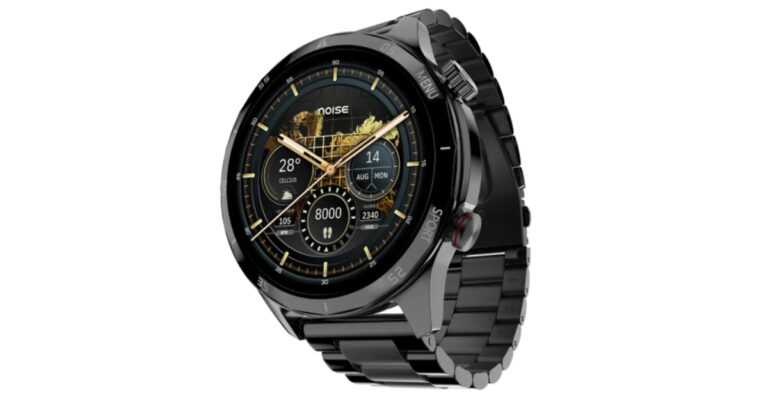
Indian lifestyle brand Noise today announced the launch of a new smartwatch- NoiseFit Metallix in the Indian market. The latest wearable comes with a round dial with a metallic finish. It features a 1.4-inch HD screen alongside a metallic functional crown. Moreover, the device comes with a BT calling facility and IP68 water and dust resistance. There are over 100 sports and more than 150 watch faces on the watch.

NoiseFit Metallix price in India, sale details

NoiseFit Metallix has been launched in India with a price tag of Rs 2,499. The device is now available for purchase via Amazon and gonoise.com in the country. The smartwatch comes in three colour options of Elite Black, Elite Nickel, and Elite Silver. NoiseFit Metallix price in India, sale details

NoiseFit Metallix specs, features

NoiseFit Metallix has a round dial and comes with a stainless steel finish with elegant metal straps as well as a metallic functional crown. There is a 1.4-inch HD screen on the watch offering 240×240 pixels of resolution and 550 nits of brightness ensuring excellent visibility whether indoor or outdoor. There are over 150 watch faces on the device and the IP68 water and dust resistance ensures durability in any environment.  Also Read: Vivo T2 Pro 5G with 4,600mAh battery and 66W fast charging support launched in India The device can be paired easily with the NoiseFit App. In addition to this, there is TruSync-empowered calling and BT v5.3. NoiseFit Metallix includes a single-chip Bluetooth that helps in trouble-free device pairing. The Noise Buzz provides access to recent call logs and saves up to 10 contacts. There are a number of health and fitness features on the smartwatch. It allows users to monitor health metrics such as heart rate, SpO2, sleep patterns, and stress levels, among others. On the other hand, there is over 100 sports mode in addition to daily reminders and weather forecasts which are easily accessible. As per the company, NoiseFit Metallix offers a battery life of up to 7 days. For the latest gadget and tech news, and gadget reviews, follow us on TwitterFacebook and Instagram. For newest tech & gadget videos subscribe to our YouTube Channel. You can also stay up to date using the Gadget Bridge Android App. You can find the latest car and bike news here.

Vivo T2 Pro 5G with 4,600mAh battery and 66W fast charging support launched in India

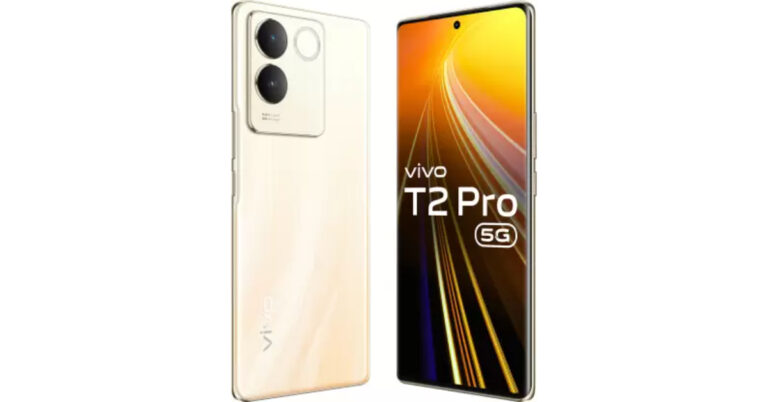
Vivo T2 Pro 5G has officially debuted in India today. The new 5G smartphone is powered by MediaTek Dimensity 7200 SoC. It packs a 4,600mAh battery with 66W fast charging support. The mobile phone comes with a curved AMOLED display. Also, there is a dual rear camera setup consisting of a 64-megapixel sensor.

Vivo T2 Pro 5G price in India, sale details

Vivo T2 Pro 5G price in India has been set at Rs 23,999 for the 8GB RAM with 128GB storage option. There is another 8GB RAM with 256GB storage model which comes with a price tag of Rs 24,999. The device is being offered in two colours Dune Gold and New Moon Black. Vivo T2 Pro 5G price in India, sale details In terms of availability, the 5G smartphone will go on sale on September 29 via the company’s official website, Flipkart and select retail stores in the country. In addition to this, the company will offer an immediate discount of Rs 2,000 to buyers making transactions through ICICI and Axis Bank cards. There will be an additional exchange bonus of Rs 1,000 as well.

Vivo T2 Pro 5G specifications

Coming to the specifications, the Vivo T2 Pro 5G is powered by Funtouch OS 13 based on Android 13. It comes equipped with a 4nm MediaTek Dimensity 7200 SoC paired with 8GB of LPDDR4X RAM and up to 256GB of UFS2.2 storage. The device also has an 8GB of extended RAM feature. Vivo T2 Pro 5G features a 6.78-inch full-HD+ AMOLED display with 2400 x 1080 pixels of resolution. The screen has a refresh rate of 120Hz. In addition to this, the panel is curved and offers 388 ppi of pixel density and a peak brightness level of 1300 nits. For the optics, there is a dual rear camera setup with optical image stabilisation (OIS). The sensors are arranged in circles with a ring-shaped LED flash. It includes a 64-megapixel primary sensor with an f/1.79 aperture and a 2-megapixel bokeh camera. Upfront there is a 16-megapixel selfie camera with f/2.45 aperture. The 5G phone has a 3000mm square vapour chamber liquid cooling system to keep thermals in check. For connectivity, there is 5G, Wi-Fi, Bluetooth 5.3, GPS, Beidou, Glonass, Galileo, QZSS, and USB 2.0. In addition to an in-display fingerprint scanner, there is an accelerometer, ambient light sensor, proximity sensor, e-compass, and gyroscope. A 4,600mAh battery fuels the device which has 66W fast charging support. For the latest gadget and tech news, and gadget reviews, follow us on TwitterFacebook and Instagram. For newest tech & gadget videos subscribe to our YouTube Channel. You can also stay up to date using the Gadget Bridge Android App. You can find the latest car and bike news here.

OnePlus Bullet Wireless Z2 ANC Review: Still better than the average TWS?

Wireless neckbands ushered in the age of Bluetooth-powered headsets around the time the headphone jacks started disappearing from most flagship smartphones. Over the last couple of years, TWS headsets have enjoyed a good deal of popularity, largely due to the more affordable options getting a bump in audio quality. Wireless neckbands are a rare sight these days, so it is rather interesting to see OnePlus put out its latest ANC-driven Bullet Wireless Z2 headset at a price of Rs 2,299. If you don’t care much about noise cancellation, the regular version of this neckband costs Rs 1,999. After using it for a week, we can understand why OnePlus is still betting on its neckband series to do well. If you’re a neckband loyalist who is still not convinced with the soundstage presented by most entry-level TWS products, this may be the product for you. So, without further ado, here is our OnePlus Bullet Wireless Z2 ANC headset review. Read Also: Acer Nitro V with RTX 4050 launched in India

OnePlus Bullet Wireless Z2 ANC review: Design

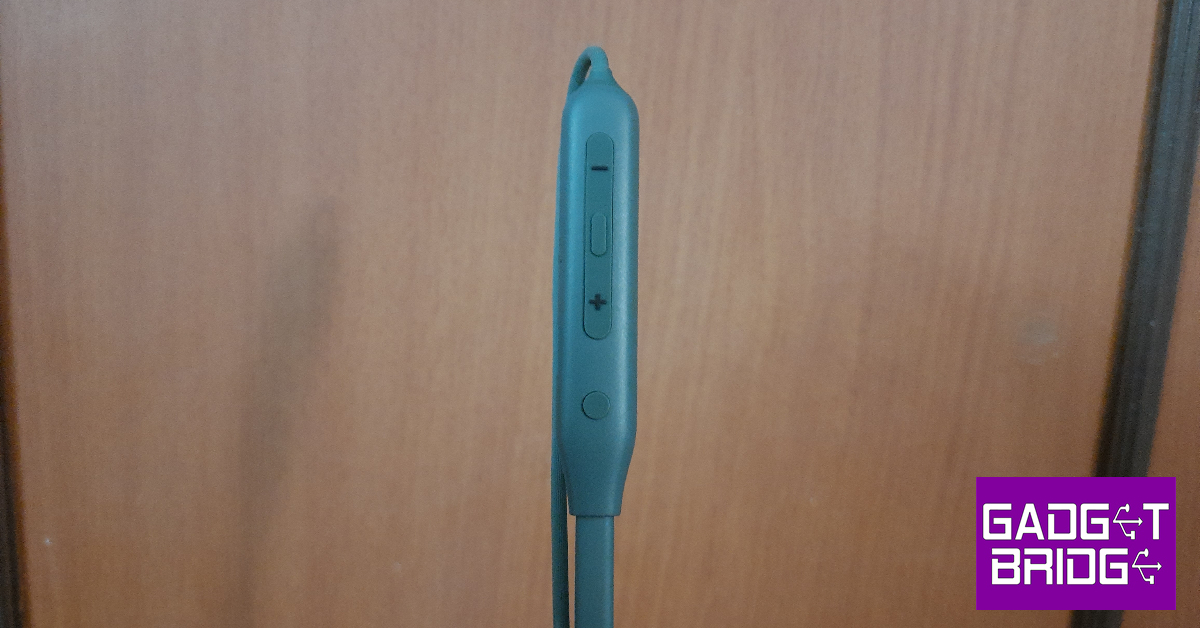
Inside the OnePlus Bullet Wireless Z2 ANC retail box you get the neckband, two extra pairs of ear tips, a mini USB Type-C charging cable, a Red Cable Club card, and a quick start guide. The neckband is nestled in an expansive cutout on the pullout plastic tray. Pulling the lid of this tray reveals the accessories. The headset is available in two colours – Boomin Black and Grand Green. OnePlus Bullet Wireless Z2 ANC review: Design If you’re familiar with the average neckband design then you know what to expect on the Bullet Wireless Z2 ANC. There isn’t much room for experimentation on the standard neckband design to begin with, and OnePlus has stuck to getting the basics right. What the Bullet Wireless Z2 gets right is the flexibility and the rubberized finish. You can pretty much bend the neckband in any direction and it does not present any brittleness whatsoever. The headset is comfortable to wear and does not cause any irritation to the skin. The left band gets all the control keys along with the charging port. There are four buttons on this panel – an action button to put the headphones in pairing mode and toggle between the connections, the volume up and volume down keys, and the playback and ANC toggle button situated between the volume rocker. The left panel is buttonless but gets the OnePlus branding. The earbuds get the standard in-ear design and offer a snug fit. There a two extra pairs of ear tips inside the retail box in case the default size does not work for you. There are two microphones on either earbuds for ANC and ENC. These earbuds can magnetically lock together. Once the earbuds are locked, the headset automatically shuts down. The OnePlus Bullet Wireless Z2 ANC headset is rated IP55 for dust and water resistance. We wore the neckband during intense workouts and long hikes, and it was completely unaffected by sweat.

OnePlus Bullet Wireless Z2 ANC review: Performance

The OnePlus Bullet Wireless Z2 ANC headset uses 12.4mm dynamic drivers to deliver the audio output. It gets Bluetooth 5.2 connectivity and supports SBC and AAC audio codecs. Once paired to a device, the headset offers a functional range of 10 metres which is pretty standard for Bluetooth-powered audio devices. The audio output produced by the headset is certainly bass-heavy, but it doesn’t have a muddling effect on other frequencies. We found the vocals to be lucid as ever, even though the midrange frequencies could have ‘popped’ better. When it comes to audio clarity and the comprehensive nature of the soundstage, the OnePlus Bullet Wireless Z2 ANC headset blows most of the TWS products in this price range out of the water. We were also very pleased with the minimal distortion to the output on higher volumes. You can crank this headset up to 100% and still have an enjoyable time listening to your favourite tunes. We would have preferred if the audio tuning was more favourable to the mid frequencies, but if you’re a serious bass head, you will like these headphones.  For those who like a more balanced sound, OnePlus’ HeyMelody app offers preset equalisers for the Bullet Wireless Z2 ANC headset. The ‘Balanced’ mode was still bass-heavy, but the Serenade mode was closer to the ideal tuning. If you’re an audiophile, you can set up your own custom equaliser from this app. Apart from different sound profiles, the HeyMelody app also allows you to toggle between transparency and ANC modes. There’s also a handy Find My Earbuds option in the app that blasts ringing music through the headset for you to locate it. Other than that, the HeyMelody app also offers an Earbud fit test. Any firmware updates can be installed from this app as well. OnePlus Bullet Wireless Z2 ANC review: Performance Moving on, the ANC offered by this headset is pretty good and well worth the premium you pay over the regular variant. OnePlus claims that the Bullet Wireless Z2 ANC can nullify up to 45dB of surrounding noise. While we can’t confirm those numbers, the headset does a great job of cancelling the ambient noises in an indoor setting. The noise from the air conditioner, fan, and general humdrum were suppressed expertly, with only the higher frequencies seeping through. The playback control button between the volume can be long-pressed to toggle between the ANC and transparency modes. However, if you want to simply turn off the ANC mode without activating the transparency mode, you will need to use the HeyMelody app. The calling experience provided by the OnePlus Bullet Wireless Z2 ANC headset was also a cut above every other TWS in this price bracket. Over cellular and VoIP calls, the headset does a tremendous job of relaying noise-free audio to the receiver. This is where the ENC kicks in and takes the duty of craftfully extracting the voice of the speaker from the background noise. Even in an outdoor environment, the calling experience was very pleasant, something we cannot say for most TWS products in this price range. If you’re a seasoned TWS user, you will find a couple of features missing from this headset. Firstly, there is no low latency mode for gaming, and the headset unsurprisingly struggles to keep up with the pace of the gameplay on its default latency. Secondly, the neckband does not offer a multi-point connection feature, which means it cannot connect to multiple devices at once. However, you get the second best thing to a multi-point connection in the form of a dedicated action button that quickly connects the headset to the previously paired device. Equipped with a 220mAh battery pack, the OnePlus Bullet Wireless Z2 ANC promises a playback of 28 hours with ANC turned off and 20 hours with noise cancellation in effect. After using the headset for a week, these were pretty much the numbers we got out of it. Our average day comprised of listening to music for a couple of hours and using ANC while travelling. We got almost 24 hours of playtime out of the headset. Quick charging the neckband for 10 minutes provides enough juice for it to last 20 hours (without ANC). Read Also: OnePlus Open confirmed to launch soon, October 19 launch date tipped

Verdict

In our opinion, the OnePlus Bullet Wireless Z2 ANC headset is still a better product at Rs 2,299 than the entry-level TWS options available in this price range. The audio output, while bass-heavy, is very enjoyable to experience and does not distort upon cranking up the volume. The HeyMelody app offers all the essential features you expect from a headset companion app. We would have preferred a gaming mode and multi-point connection support on the headset, but their absence is not a dealbreaker at all.

OnePlus Bullet Wireless Z2 ANC: Pros

  • Good audio output
  • Excellent calling experience
  • ANC performs well
  • App support

OnePlus Bullet Wireless Z2 ANC: Cons

  • No low latency mode for gaming
  • Does not offer a multi-point connection
For the latest gadget and tech news, and gadget reviews, follow us on Twitter, Facebook and Instagram. For newest tech & gadget videos subscribe to our YouTube Channel. You can also stay up to date using the Gadget Bridge Android App. You can find the latest car and bike news here.

YouTube to be powered by generative AI, bringing helpful tools for creators

Soon YouTube will integrate generative AI technology into its platform for creators. The video-sharing platform will bring some new AI-powered features like AI insights, dubbing, dream screen and more. According to the company, this technology will empower anyone to create on YouTube. YouTube via Blog Post said, “We are constantly amazed by how they take every new feature, technology or trend and turn it into something we could never have imagined. And today at Made On YouTube, we’re unveiling a suite of products and features that will enable people to push the bounds of creative expression yet again — by making the difficult things simple, and the impossible dreams possible.” . YouTube will begin to test a new experimental feature called Dream Screen. YouTube has announced new tools on its platform making it simpler than ever for anyone to express any idea and bring it to life on Shorts. YouTube will begin to test a new experimental feature called Dream Screen. This tool will let users create AI-generated video or image backgrounds for their Shorts simply by typing an idea into a prompt. As per the company, the company Dream Screen will let creators make fresh fantastic settings for their Shorts that are only limited by what they can imagine. This tool will be accessible to select creators before it is released broadly next year. Also Read: Apple to start shipping iPhone 15 series today, sale in India begins The company says that these new features will enable anyone to quickly rethink their videos by simply entering in a suggestion for how to edit their content or remix existing YouTube videos and create them into something entirely new. To streamline the process of editing YouTube is also launching a new mobile app called YouTube Create. To streamline the process of editing YouTube is also launching a new mobile app called YouTube Create. This will allow anyone to create and share videos right on YouTube. However, this app is under beta on Android in select markets right now. Also, it will be free of charge and designed to make video production for Shorts or longer videos simpler and easier. YouTube Create app will provide video editing tools including precision editing and trimming, automatic captioning, voiceover capabilities and access to a library of filters, effects and transitions. In addition to this royalty-free music with beat-matching technology will also be accessible. As we mentioned in the beginning YouTube is bringing AI technology to its platform providing more efficient tools to creators and helping them generate new ideas. YouTube will offer tools like AI-powered insights to users next year. The insights are said to be personalized for each channel and based on what audiences are already watching on YouTube. With Assistive Search in Creator Music, users will be able to search for a soundtrack for their videos. Simply type in a description of your content and AI will suggest the right music at the right price. Whereas Automatic dubbing with Aloud will allow dubbing professionally as the name suggests.  For the latest gadget and tech news, and gadget reviews, follow us on TwitterFacebook and Instagram. For newest tech & gadget videos subscribe to our YouTube Channel. You can also stay up to date using the Gadget Bridge Android App. You can find the latest car and bike news here.

How to Use the Hindi Keyboard on an iPhone?

0
The default iPhone keyboard on the iPhone has come a long way from the earlier iOS version and now accommodates almost all the major languages in the world. Apart from different languages, the iPhone keyboard also has an exhaustive set of scripts you can use to type the text you want. In this article, we show you how to use the Hindi keyboard on an iPhone. Read Also: Acer Nitro V with RTX 4050 launched in India

Use the Hindi Keyboard on an iPhone

Step 1: Go to Settings and select General. Step 1: Go to Settings and select General. How to Use the Hindi Keyboard on an iPhone? Step 2: Tap on Keyboard and select Keyboards. Step 2: Select ‘Keyboard’ and tap on ‘Keyboards’. How to Use the Hindi Keyboard on an iPhone? Step 3: Tap on Add New Keyboard. Step 3: Tap on ‘Add new Keyboard’. How to Use the Hindi Keyboard on an iPhone? Step 4: Select Hindi from the list. Step 4: Select Hindi from the list. Step 5: Choose the Devanagari script if you want to type Hindi characters on your iPhone. If you want to transliterate your texts from English to the Devanagari script, hit Transliteration. Choose the Devanagari script Step 6: Tap on a text box to trigger the keyboard. Step 7: Press and hold the globe key on the keyboard. Step 8: Select Hindi from the list. You will now be able to type in Hindi on your iPhone.

Bonus Tip: How to type in Hindi on an Android phone?

Step 1: Go to Settings and select General Management. Step 1: Go to Settings and select General Management. Top 3 Ways to Type Japanese Characters on Your iPhone or Android Step 2: Tap on Keyboard list and default. Select Gboard as your default keyboard. Step 2: Tap on ‘Keyboard list and default’ and select Gboard as the default keyboard. Step 3: Go back and tap on Gboard settings. Step 3: Go back and tap on ‘Gboard settings’. Step 4: Tap on Languages. Step 4: Tap on ‘Languages’. Step 5: Select Add Keyboard. Step 5: Select ‘Add Keyboard’. Step 6: Scroll down and tap on Hindi. Step 6: Scroll down and tap on Hindi. Step 7: Select whether you want to translate the text or type in the Devanagari script. You can also choose both. Step 7: Select whether you want to translate the text or type in the Devanagari script. You can also choose both. Step 8: Hit Done at the bottom of the screen. Step 9: Tap a text box to trigger the keyboard. Step 10: Tap and hold the globe icon. Step 10: Tap and hold the globe icon. Step 11: Select Hindi from the list of languages. Step 11: Select Hindi from the list of languages. You will now be able to type in Hindi on your Android smartphone.

Frequently Asked Questions (FAQs)

How do I use the Hindi keyboard on an iPhone?

Go to Settings>General>Keyboard>Keyboards>Add New Keyboard and select Hindi. Now, press and hold the globe key on the keyboard and select Hindi from the list.

How do I type in Hindi on my Android phone?

Go to Settings>General Management>Gboard Settings>Languages>Add Keyboard and select Hindi. Tap and hold the globe key on the Gboard and select the Hindi keyboard from the list.

How do I transliterate text from English to Hindi on my phone?

If you want the Hindi text you type in English to be transliterated to the Devanagari script, simply select the transliteration option from Settings>General>Keyboard>Keyboards>Add New Keyboard. Read Also: OnePlus Open confirmed to launch soon, October 19 launch date tipped

Conclusion

This is how you can use the Hindi keyboard on an iPhone. Check out this article if you want to type in Japanese on your iPhone. Is there a particular dedicated keyboard for Hindi that you prefer using on your smartphone? Let us know in the comments! For the latest gadget and tech news, and gadget reviews, follow us on Twitter, Facebook and Instagram. For newest tech & gadget videos subscribe to our YouTube Channel. You can also stay up to date using the Gadget Bridge Android App. You can find the latest car and bike news here.

How to change the background of a picture? Try these 4 ways (2024)

If you’re always seeking the help of a Photoshop-savvy friend to carry out the basic editing tasks, you will be pleased to know that there are several apps and online tools that make the photo editing process more accessible to the average user. With just a few taps and clicks you can get the desired results. These apps are designed to be easy to use and they are able to replicate the performance of a fancy photo editing software. In this article, we show you how to quickly change the background of a picture on an image on your PC and smartphone. Read Also: OnePlus Open confirmed to launch soon, October 19 launch date tipped

Change the background of a picture using Fotor

Step 1: Launch the web browser on your PC/smartphone and go to Fotor.com. Step 2: Hover the cursor over Photo Editing Tools and select Change Background. Step 2: Hover the cursor over Photo Editing Tools and select Change Background. Step 3: Click on Change Background Now. Step 3: Click on Change Background Now. Step 4: Upload the image for which you want to change the background. Step 4: Upload the image for which you want to change the background. Step 5: Fotor will automatically remove the background of the image as soon as it is uploaded. Step 6: If you want a monochromatic background, choose one of the colours from the toolbar on the left. Step 6: If you want a monochromatic background, choose one of the colours from the toolbar on the left. Step 7: Scroll through the toolbar for more background templates. Step 7: Scroll through the toolbar for more background templates. Step 8: If you want your own custom image as the background, hit Upload. Step 8: If you want your own custom image as the background, hit Upload. Step 9: Upload a picture from your device. Step 10: The background will be changed to your image. Hit Download at the top right corner of the editing window to save the image to your device. Step 10: The background will be changed to your image.

Change the image background using Remove.bg

Step 1: Launch your device’s web browser and go to remove.bg. Step 2: Hit Upload image and select an image from your device. Step 1: Go to your smartphone’s web browser and open https://www.remove.bg/. Step 3: The tool will automatically remove the background of the image. Step 4: Tap on Edit at the top right corner of the image. Tap on ‘Edit’ and choose from the list of pre-set backgrounds Step 5: Choose a background from the list of templates. You can also upload an image from your device to set it as the background. Tap on ‘Edit’ and choose from the list of pre-set backgrounds Step 6: Once you’re happy with the result, hit the Download icon at the top right corner of the screen and save it on your device. You can also directly share the image from this page. save the image to your phone

Use the native photo editor on your Android smartphone

Step 1: Launch the native Photos app on your Android smartphone. Step 2: Open the image you wish to edit. Step 3: Long press the subject until you see the splash effect. Step 3: Long press the subject until you see the splash effect. Step 4: Tap Add Sticker in the pop-up menu. Step 4: Tap Add Sticker in the pop-up menu. Step 5: Open the image that you wish to set as the background. Step 6: Hit Edit at the bottom of the screen. Step 6: Hit Edit at the bottom of the screen. Step 7: Scroll through the tools and select Stickers. Step 7: Scroll through the tools and select Stickers. Step 8: Select the sticker you just created. Step 8: Select the sticker you just created. Step 9: Adjust its size and place it in the ideal spot. Step 9: Adjust its size and place it in the ideal spot. Step 10: Hit Save.
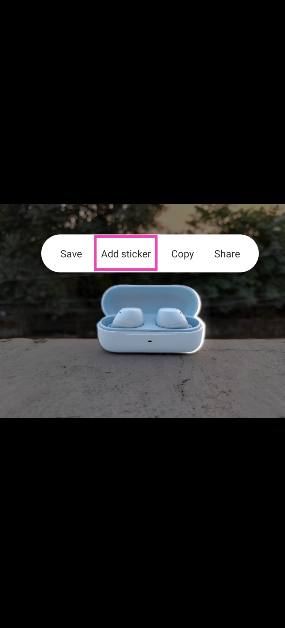


Use AI to change the background of your Instagram Story

Instagram announced new content creation tools and improved Reels insights for users Step 1: Launch the Instagram app and tap on Create Story in the top left corner of the screen. Step 2: Take a picture or upload an image from your phone’s gallery. Step 3: Tap the Stickers icon and select Backdrop. Step 4: Hit Next. Step 5: Enter a prompt for the background. Step 6: Instagram will generate a new background based on your prompt. If you like it, hit Next. Step 7: Follow the remaining steps to upload the image as your story.

Frequently Asked Questions (FAQs)

How do I change the background of a picture?

You can easily change the background of a picture, but uploading it to Fotor’s background removal tool and then selecting a template background or uploading one from your device.

Which is the best app to change the background of an image?

Apps like Fotor, Canva, Remove.bg, and PhotoRoom are some of the best tools you can use to remove and change the background of an image.

How to change the background of a picture?

Once you remove the background of a picture using Fotor or Remove.bg, you will be presented with templates and colours to fill the background of the picture. Read Also: New Echo devices announced at Amazon Fall 2023 event

Conclusion

These are the 4 quick ways you can use to change the background of any picture or image on your smartphone or PC. Instead of using Fotor and Remove.bg’s online tools, you can also use their respective apps. Looking for a good photo editor for your phone? Here is our list of the top 5 photo editing apps for Android.

Apple to start shipping iPhone 15 series today, sale in India begins

iPhone 15 Series was launched in India and across the globe last week. The company was open for iPhone 15 reservations till now in the country along with along with 40 other countries, but today the new iPhone lineup will go on sale in India for the first time. The devices will be up for grabs at the online and offline Apple stores.

iPhone 15, iPhone 15 Plus, iPhone 15 Pro and iPhone 15 Pro Max price in India and offer details

Today Apple will begin shipping iPhone 15 series preorders, also the phones will now be available for purchase via the Apple Store in India both offline and online. On September 15, the Apple iPhone 15 series became available for pre-order in more than 40 nations including India. However, it will be shipped in Macao, Malaysia, Turkey, Vietnam, and other nations beginning September 29. The devices will be made available in India at Apple’s official retail outlets in Mumbai (BKC) and Delhi (Saket), and also at its Online Store. The price of the iPhone 15 and iPhone 15 Plus starts at Rs 79,900 and Rs 89,000 respectively. These two models will come in 128GB, 256GB, and 512GB variants and will be offered in Black, Blue, Green, Pink, and Yellow colour options. Also Read: Here are the best offers on the iPhone 15 series: Details Whereas, the iPhone 15 Pro and iPhone 15 Pro Max will start selling at Rs 1,39,900 and Rs 1,59,000 respectively. 256GB, 512GB, and 1TB storage options will be there for both the Pro models and will be available in Blue Titanium, White Titanium, Natural Titanium, and Black Titanium. The customers using HDFC credit cards and EMI transactions to purchase the new iPhones will be able to avail of an instant discount of up to Rs 6,000. As per the company, HDFC card users can receive a Rs 5,000 discount if they buy the iPhone 15 and the Plus variant. After the instant discount the price of iPhone 15 and Plus will come down to Rs 74,900 for its initial price of Rs 79,900 and Rs 84,900 as opposed to the device’s actual price of Rs 89,900. While the Pro model buyers will get an immediate discount of Rs 6,000. After this discount both iPhone 15 Pro and iPhone 15 Pro Max will be available at Rs 1,28,900 and Rs 1,53,900 down from their launch price of Rs 1,34,900 and Rs 1,59,900. Notably this discount is only accessible to HDFC Bank card customers making their purchases through the Apple India website, Apple Saket in Delhi and Apple BKC in Mumbai. For the latest gadget and tech news, and gadget reviews, follow us on TwitterFacebook and Instagram. For newest tech & gadget videos subscribe to our YouTube Channel. You can also stay up to date using the Gadget Bridge Android App. You can find the latest car and bike news here.

BGMI redeem codes for 22 September 2023, claim and receive rewards and benefits

0
After being banned for nearly ten months, Battleground Mobile India, aka BGMI, is officially available again in India. BGMI fans are looking for ways to improve their game experience and one such method is the usage of redemption codes, which offers a variety of rewards and advantages using BGMI redeem codes players can gain access to new skins, outfits, loot crates, weapons and free UC and diamonds. As mentioned earlier, these codes give users the chance to earn unique rewards and gain extra benefits while playing the game. This includes GUN SKINS (M4, AKM, M416, AWM, M24, UZI, KAR98K), free character voucher, Andy, Carlo, Sara, Victor character for free, free Anna Character on completing the mission and UC or Royal Pass Discount. So here we have gathered a list of the most recent BGMI redeem codes as of 22 September 2023. Also, redeem these codes asap as these are only valid for a limited duration.

BGMI Redeem Codes for 22 September 2023

UKUZBZGWF – Free Fireworks TIFZBHZK4A – Free Outfit RNUZBZ9QQ – AKM Glacier Skin PGHZDBTFZ95U – M416 Skin BTOQZHZ8CQ – New! TQIZBZ76F – Vehicle Skin TQIZBz76F – 3 Free Motorcycle BMTFZBZQNC – Free Drifter Set SD14G84FCC – Free Skin for KAR98 Sniper Gun RNUZBZ9QQ – AKM Glacier Skin 5FG10D33 – Falcon and Free Emotes GPHZDBTFZM24U – UMP9 Skin KARZBZYTR – Free Outfit JJCZCDZJ9U – Golden Pan R89FPLM9S – Companion BMTCZBZMFS – Pretty in Pink set and Pretty in Pink Headpiece 5FG10D33 – Outfit for Free

How to get free Redeem Codes for BGMI on 22 September 2023?

  • Launch BGMI on your device.
  • Then select the Redeem Code option from the main menu.
  • Next, click on the Redeem code tab.
  • A new window will open, requesting the redemption code.
  • Now enter your BGMI code.
  • Confirm and click on the “Redeem” tab.
  • If your redeem code is valid then you will get a message confirming that your rewards were successfully redeemed.
(Note that these codes are case-sensitive, so be sure to type them correctly to prevent any errors.) For the latest gadget and tech news, and gadget reviews, follow us on TwitterFacebook and Instagram. For newest tech & gadget videos subscribe to our YouTube Channel. You can also stay up to date using the Gadget Bridge Android App. You can find the latest car and bike news here.

Garena Free Fire Redeem Codes Today 22 September 2023: Here is how to claim them

Garena Free Fire is a battle royale game with regular awards and tournaments to keep players interested. If you play Garena Free Fire, you should be aware of the redeem codes that are released on a daily basis. However, because the battle royale game is banned in India, players from other countries can use the Free Fire Redeem codes daily. If you’re unfamiliar with the Garena Free Fire redeem codes or don’t know how to get them, we’ve put together a step-by-step guide to help you redeem them. Check out Garena Free Fire Redeem Codes for 22 September 2023. The Free Fire redeem codes are a great way to get free stuff. These are 12-digit codes that contain alphabets and numbers, as well as an expiration date and time. Because the Garena FF redeem codes cannot be used more than once, you should hurry to the redemption page to claim your free reward before someone else does. To get a free reward, all you have to do is go to reward.ff.garena.com/en, which is the official redemption page. Also, keep an eye on this space for daily updates on Garena Free Fire redemption codes and rewards.

Garena Free Fire Redeem Codes Today 22 September 2023

KEYVGQC3CT8Q FVRTNJ45IT8U F4BHK6LYOU9I F767T1BE456Y FFCMCPSJ99S3 BR43FMAPYEZZ FF7MJ31CXKRG FFPO8BS5JW2D PJNF5CQBAJLK F7AC2YXE6RF2 FHLOYFDHE34G XGW4FNK7ATON 67IBBMSL7AK8G FEICJGW9NKYT ZZZ76NT3PDSH FFCMCPSEN5MX HNC95435FAGJ 6KWMFJVMQQYG FFCMCPSUYUY7E MCPW3D28VZD6 EYH2W3XK8UPG FFPL72XC2SWE XZJZE25WEFJJ V427K98RUCHZ MCPW2D1U3XA3 FFAC2YXE6RF2 FAGTFQRDE1XCF FFCMCPSBN9CU NPYFATT3HGSQ FFCMCPSGC9XZ MCPW2D2WKWF2

How to Get Free Fire Redeem Codes for Garena on 22 September 2023?

  • Visit the Garena Free Fire game’s official website at reward.ff.garena.com.
  • Use your Facebook, Google, VK, Apple ID, Huawei ID, or Twitter account to log in.
  • You’ll be taken to a valid redemption code (s)
  • Copy and paste the 12-digit redemption code into the text box.
  • On the screen, a dialogue box will appear.
  • ‘Ok’ should be selected.
For the latest gadget and tech news, and gadget reviews, follow us on TwitterFacebook and Instagram. For newest tech & gadget videos subscribe to our YouTube Channel. You can also stay up to date using the Gadget Bridge Android App. You can find the latest car and bike news here.

Acer Nitro V with RTX 4050 launched in India

The Taiwanese computer manufacturing giant, Acer, expanded its gaming laptops line in India with the launch of a brand new model of Acer Nitro V. The gaming laptop is powered by the latest 13th Gen Intel Core i5 processor. The latest laptop comes with NVIDIA GeForce RTX 4050 graphics with a dedicated 6GB GDDR6 VRAM. The device features a 15-inch display with a refresh rate of 144Hz.

Acer Nitro V price in India and availability

The Acer Nitro V has been launched in India with a starting price of Rs 76,990 for the 8GB RAM with 512GB of storage. On the other hand, the price of the 16GB RAM with 512GB is set at Rs 79,990. The affordable gaming laptop will be available for purchase via Acer’s online and offline stores in the country. In addition to this, it will be available at Amazon, Flipkart and at Multi-brand outlets. Also Read: OnePlus Open confirmed to launch soon, October 19 launch date tipped

Acer Nitro V specifications, features

Acer Nitro V features a 15.6-inch Full HD+ IPS (In-Plane Switching) display. The screen of the gaming laptop supports a 144Hz refresh rate and has a quick response time of 3 milliseconds which increases the sense of immersion during gaming sessions. The V logo on the laptop glows. The Nitro V is powered by the latest 13th Gen Intel Core i5 processor paired with an NVIDIA GeForce RTX4050 GPU with 6GB dedicated VRAM. The gaming laptop is offered with up to 16GB DDR5 RAM expandable up to 32GB and 512GB SSD storage. Acer Nitro V specifications, features Furthermore, it includes dual-fan, dual-intake cooling technology that maximises its cooling capacities to prevent throttling and ensure maximum CPU and GPU utilisation, ensuring top performance while gaming. There is Acer Purified View and Purified Voice noise reduction technology powered by AI. As per the company, this technology allows gamers to immerse themselves in the virtual world with exceptional sound precision, creating an experience akin to being at the helm of a spaceship command centre. Also Read: Acer Nitro 15 for gaming with up to NVIDIA 4060 graphics card launched in India The Acer Nitro V also has support for Wi-Fi 6, HDMI 2.1, and Thunderbolt 4 for connectivity. Additionally, the laptop’s memory slots and DDR5 storage slots improve its speed by allowing for quicker data access and transfer rates. Sudhir Goel, Chief Business Officer at Acer India, shared his excitement about the Nitro V Series: “The Nitro gaming series has garnered immense popularity within the gaming community, standing as a testament to its exceptional blend of power, performance, and aesthetic appeal. With the introduction of Nitro V, Acer continues to push the boundaries of what mainstream gamers can expect from their laptops. This latest addition is a perfect synergy of enhanced capabilities, additional features, and an unparalleled immersive experience, all bundled within an affordable price range. We are delighted to give gamers the resources they need to succeed by reimagining the potential of gaming laptops with the Nitro V Series.” For the latest gadget and tech news, and gadget reviews, follow us on TwitterFacebook and Instagram. For newest tech & gadget videos subscribe to our YouTube Channel. You can also stay up to date using the Gadget Bridge Android App. You can find the latest car and bike news here.