Non-Inverter AC vs Inverter AC: Differences and Which One to Buy

Buying an air conditioner (AC) is not as easy a task as it is assumed to be. While comfort and cost are significant aspects, it is also important to consider energy efficiency and environmental effect. Keeping in mind the cooling and heating requirements, home layout, and AC types, the choice between inverter and non-inverter air conditioners becomes imperative. Today we will provide you with the best insights to help you understand the differences between these air conditioner units and to help you make an informed choice. Read Also: Panasonic unveils new ACs in India, price starts at Rs 39,900

Key Differences between the Non-Inverter and Inverter Air Conditioners

A non-inverter air conditioner, often known as a fixed-speed air conditioner, uses a constant-speed compressor motor. The compressor motor turns off when the required temperature is reached and restarts when the temperature rises. This entails that non-inverter air conditioners have a fixed cooling capacity and adjust the compressor dependent on the surrounding temperature.  An inverter air conditioner on the other hand uses a variable-speed compressor motor to regulate the cooling output depending on the temperature required. In contrast to non-inverter ACs, the compressor in an inverter AC runs continuously but can be regulated by adjusting the frequency of the power supply. When the target temperature is attained, the compressor slows down instead of entirely shutting down, resulting in efficient cooling with lower power usage and lesser noise. Non-inverter air conditioners often use refrigerants that generate toxic emissions and harm the environment. Modern inverter air conditioners, on the other hand, use efficient refrigerants like R32, which not only give improved cooling capability but also produce fewer hazardous emissions. Inverter ACs surpass non-inverter models in terms of energy efficiency, saving up to 30% on electricity use. Inverter air conditioners have lower energy expenses and faster cooling capabilities. They are capable of dehumidifying the air and providing improved temperature control as compared to non-inverter types since they can vary the compressor speed to adapt to changing conditions. Read Also: Samsung Launched a new series of Convertible Inverter Air Conditioners

Factors to Keep in Mind While Choosing Between the Two

Energy Savings: Inverter air conditioners often have higher energy efficiency than non-inverter versions, resulting in long-term utility savings.  Temperature Control: Inverter AC units thrive at maintaining a constant temperature with little variations, however, non-inverter systems can cause temperature fluctuations due to their “all or nothing” approach. Consider the Space Size: When selecting an air conditioner, think about the size of the room or area to be cooled. In very large settings, a non-inverter air conditioner will be more suited. Environmental Impact: As stated earlier, inverter ACs are more environmentally friendly compared to their non-inverter counterparts as they consume less energy and have lower greenhouse emissions. Quieter operation: Inverter air conditioners typically generate less noise than non-inverter versions. Upfront Cost: While non-inverter air conditioners have a lower upfront cost, inverter air conditioners are a smarter investment in the long term due to their energy efficiency, resulting in potential cost savings over time. Lifespan: Inverter air conditioners often have a longer lifespan than non-inverter versions, ensuring durability and longevity. Maintenance Requirements: Inverter air conditioners require less maintenance and repairs than non-inverter units. Read Also: Panasonic unveils new ACs in India, price starts at Rs 39,900

Conclusion

Individual tastes and unique requirements ultimately determine whether one should buy an inverter or a non-inverter AC unit. Choosing an inverter AC is a sensible decision for individuals that prioritize long-term energy savings and are willing to invest upfront. If cooling large rooms on a budget is the primary concern, a non-inverter AC might be a good option. For the latest gadget and tech news, and gadget reviews, follow us on Twitter, Facebook, and Instagram. For the newest tech & gadget videos subscribe to our YouTube Channel. You can also stay up to date using the Gadget Bridge Android App. You can find the latest car and bike news here.

Apple’s first-generation iPhone sold for over $190,000

Many of us enjoy collecting items, but who would believe that an iPhone can also be purchased as a collectible? Yes, the first generation of Apple iPhone was up for auction and someone bought the 16-year-old device for more that Over $190,000. A 2007 Apple iPhone fetched $190,372.80 at auction. Someone paid 300 times the item’s original sale price to purchase it. After a $10,000 opening offer, the auction received a total of 28 bids. This is not the first time an iPhone has been offered for sale as a collectible. Another first-generation iPhone was auctioned by The LCG Auctions for $63,356 in February. In March, a different company, Wright Auctions, sold a first-generation iPhone for $40,320. According to the item description on LCG Auctions, the vintage Apple phone is the “Holy Grail” of phone collecting. Also Read: Sony signs deal with Microsoft, Call of Duty to remain on PlayStation For those who are unaware the first-ever iPhone debuted all the way back in January 2007. At the time, Apple released two versions of what would become its most successful product ever: a 4GB storage model that cost $499 and an 8GB model that cost $599. According to the auction description, the 4GB model, which cost $599 at the time of purchase, was still wrapped in its factory packaging and in great condition. The object was referred to as “exceedingly rare” and a “popular high-end collectible” by the auctioneer LCG Auctions. Due to slow overall sales and the introduction of an 8GB variant, the 4GB model was dropped soon after launch. And this is how the 4GB model is the one that has started to get some collector’s value. Apple discontinued the 4GB version because the majority of customers just paid the extra $100 to double the phone’s storage. This is why the unsold devices still remained sealed in their boxes. According to LCG Auctions, the 2007 Apple iPhone was being auctioned off in its original box, still factory sealed, and was reportedly in “exceptional condition.” For the latest gadget and tech news, and gadget reviews, follow us on TwitterFacebook and Instagram. For newest tech & gadget videos subscribe to our YouTube Channel. You can also stay up to date using the Gadget Bridge Android App. You can find the latest car and bike news here.
8 Best Emoji Keyboards for iPhone (2023)

Emojis are an integral aspect of the texting experience. If you’re serious about your emoji game then you must know that there are tons of unique emojis out there that can’t be found on the default iPhone keyboard. These emojis can be used on any messenger or social media platform. If you’re looking to make your conversations more fun, here are the 8 best emoji keyboards for your iPhone. Read Also: Top 3 Ways to View Saved WiFi Passwords on a Windows 10/11 PC

Emoji>

Download from App Store Emoji Emoji> is one of the best emoji apps for iPhones around. The app is constantly updated with new emojis, fonts, stickers, fonts, and more. The app is compatible with all the major instant messengers like iMessage, WhatsApp, Messenger, and more. Apart from sending new and fun emojis to your friends, you can also use the Emoji> app to play different emoji games. To add the Emoji> keyboard on your iPhone, launch the app and go to Add Keyboard>Add Now>Let’s Go>Keyboards>Emoji+>Allow full access.

Gboard

Download from App Store Gboard Google’s very own Gboard is one of the most popular keyboards on the Android platform. It is not surprising that it is just as good on iOS. While it may seem like a regular onscreen keyboard, the emoji-related features on this app are quite underrated. One of our favourite features is the emoji fusion tool, which two or more emojis together to create a new one. Gboard also lets you search for GIFs using emojis and has tons of emoticons for old-school users.

Symbol

Download from App Store Symbol Emojis are fun, but sometimes nothing gets the message across like a good old unicode symbol. If you’re looking for a niche symbol that can’t be found in the emoji section of your default keyboard, Symbol might be worth giving a shot. In this app, you’ll find dozens of different kinds of arrows, crosses, fonts, and characters. If you’re searching for a symbol that doesn’t belong in the English language, this app will not disappoint you.

AA Emoji Keyboard

Download from App Store AA Emoji Keyboard AA Emoji Keyboard has a unique set of emojis that will definitely breathe life into any dull conversation. You can choose between static and animated emojis and easily search for the relevant feeling you’re trying to get across by going through the different categories. The classification of the emojis in this app makes them easier to access and also ensures that you don’t keep reusing the same set of emojis in your conversations.

Kika

Download from App Store Kika. 8 Best Emoji Keyboards for iPhone (2023) A 4.6 rating from 184K ratings is a sign of a rock-solid app. If you’re serious about your emoji game, Kika is the way to go. This emoji app not only offers an extensive collection of emojis, but you also get to choose from different themes, fonts, textarts, stickers, and more. Kika is compatible with all major social media platforms along with instant messaging apps like Telegram, WhatsApp, Snapchat, iMessage, and more.

SMS Rage Faces

Download from App Store SMS Rage Faces. 8 Best Emoji Keyboards for iPhone (2023) Remember the Rage Faces from the early 2010s? You can still send them as emojis using this app. If you’re looking for a dose of nostalgia, this app is a perfect trip down memory lane. You will find almost every famous rage face in this app along with some of the lesser-known ones that you may not have come across earlier. You can search for rage faces by category and even import your own pictures from the camera roll!

Emoji Free

Download from App Store Emoji Free. 8 Best Emoji Keyboards for iPhone (2023) Emoji Free has a diverse set of emojis that can be used wherever there is a text field. Be it an instant messaging app or your website, this app will pull through. You can choose from static and animated emojis, and if you’re feeling a bit creative, you can use this app to send unique patterns composed of emojis. Apart from that, Emoji Free also offers a bunch of fonts to make your social media captions stand out.

Big Emoji

Download from App Store Big Emoji. One of the more unique features of the Big Emoji Keyboard is that it lets you create emoji stickers from your photos. You can upload an image from your iPhone’s gallery on this app and turn it into a sticker. You can download different emoji packs or play the slot machine to win unique emojis based on themes like pets, weddings, food, animals, festivals, and more. Big Emoji is compatible with all major messaging and social media apps. Read Also: Lenovo Tab M10 5G With 10.61-inch LCD display and 7,700mAh battery launched in India

Conclusion

These are the 8 best emoji keyboards you can download on your iPhone right now. While all the apps mentioned in this list are free to use, some may come with paid ‘Pro’ versions or have premium emoji packs locked behind a paywall. Already use an emoji keyboard on your phone? Let us know which one it is in the comments! For the latest gadget and tech news, and gadget reviews, follow us on Twitter, Facebook and Instagram. For newest tech & gadget videos subscribe to our YouTube Channel. You can also stay up to date using the Gadget Bridge Android App. You can find the latest car and bike news here.

Best 5 Drones Under $100 In The USA

Drones have grown in popularity in recent years, exciting both hobbyists and experts. However, the impression that owning a drone involves a large investment is rapidly fading. With technological breakthroughs and a growing market, you may now go on your flying adventures without breaking the bank. In this article, we’ll take you through a list of the Best 5 drones under $100 in the USA that offer great features and exceptional performance at a low price.  Read also: DJI Mini 2 drone weighs less than 249 grams

DJ Tello

The DJ Tello is an excellent drone for both beginner and experienced pilots, providing a pleasant flying experience thanks to its easy-to-use layout and amazing features. The Tello provides dependable suspended adventures with its robust flight performance and battery life of roughly 13 minutes. What distinguishes it is its capacity to independently capture 720p photographs and films, which is often found in more expensive photography drones. Although it is not the best choice when it comes to racing due to its lower top speed, it is a good option for those who enjoy aerial photography. Buy it from here.

Holy Stone HS110D FPV RC Drone with 1080p HD Camera

The Holy Stone budget drone has a plethora of features that make it a great mid-sized model for drone enthusiasts. It gives value for money, offering a 1080p FPV camera and a variety of simple in-app controls.  One notable feature is its pre-set button, which allows for flips in any direction, while a landing mechanism helps beginners prevent crashes. In addition, the Holy Stone provides altitude hold, ensuring stable and clear shots during flights. The accompanying mobile app improves the user experience by offering control options like voice control and gravity sensor control. The Holy Stone drone comes with two batteries, each having a flying time of up to 20 minutes. Buy it from here. 

Cheerwing Syma X5SW-V3

Cheerwing USA’s best-selling drone is an excellent pick, offering agility, affordability, and an abundance of features. Its six-axis gyro guarantees extremely stable flight while also allowing for spectacular in-flight manoeuvres. With adequate practice, you’ll be able to perform  360-degree rolls while simultaneously streaming a first-person view to your iOS or Android device. Buy it from here.  Read Also: You can now legally fly drones in India

UDI U818A FPV Drone

The Force1 U818A sticks out due to its integrated rotor blade protectors. These circular shields provide a considerable benefit to beginner pilots by protecting the blades from potential harm caused by things like sticks or fingers. However, the lightweight plastic case feels weak and may not resist moderate-speed impacts. It is outfitted with a camera that hangs below the centre of the drone and permits manual adjustment to shoot footage from a straight-ahead or tilted downwards up to 30 degrees.  The camera can capture video at 720p resolution and store the footage on a microSD card. The accompanying software, compatible with both iOS and Android, includes drone control features as well as a 480p video preview. Switching to 720p resolution may cause some issues if the drone is at a distance of more than 20 feet. This drone has a flight time of about 8 to 10 minutes. Buy it from here. 

Propel Star Wars TIE X1 Advanced

The Propel TIE X1 Advanced is a Star Wars-themed drone that was initially priced at $200 but is currently available for less than $50. This drone comes with a controller that lets you perform acrobatics such as flips, as well as sound and audio effects from the original Star Wars trilogy. The TIE X1 drone has excellent attention to detail, with a battered exterior that resembles a battle-worn starship. It boasts incredible flight speed, capable of completing the Kessel Run in less than 12 parsecs. These drones include infrared lights and sensors that allow them to participate in epic battles with other Propel Star Wars drones.  Buy it from here.  Read Also: IMC 2018: Airtel showcases connected homes to self-driving drones

Conclusion

So, there you go these were our Best 5 drones under $100 in the USA recommendations if you are looking to buy a drone within a budget. Tell us in the comments which all did we miss and you are using or rather flying. For the latest gadget and tech news, and gadget reviews, follow us on TwitterFacebook and Instagram. For newest tech & gadget videos subscribe to our YouTube Channel. You can also stay up to date using the Gadget Bridge Android App. You can find the latest car and bike news here.

Sony signs deal with Microsoft, Call of Duty to remain on PlayStation

Sony and Microsoft have reached an agreement to preserve the Call of Duty series on PlayStation for a 10-year period. This decision comes after Sony reportedly realised that Microsoft’s acquisition of Activision Blizzard was inevitable. Microsoft has confirmed that Call of Duty will continue to be available on PlayStation. In the future, users will have more options for where and how to play their favourite games. Sony and Microsoft have reportedly reached a “binding agreement” to maintain Call of Duty on PlayStation, according to Microsoft Gaming CEO Phil Spencer. He said, “We are pleased to announce that Microsoft and @PlayStation had signed a binding agreement to keep Call of Duty on PlayStation following the acquisition of Activision Blizzard. We look forward to a future where players globally have more choice to play their favorite games.” Also Read: Samsung Galaxy Unpacked Event confirmed for July 26, hints a foldable phone After Microsoft initially presented Sony with a 10-year contract in December 2022, Sony resisted agreeing to a Call of Duty agreement with the corporation. Rather, Sony has consistently stated in submissions to regulators that it is concerned Microsoft may make Call of Duty Xbox exclusive or even destroy the PlayStation versions of the game. Although the 10-year commitment for Call of Duty on PlayStation is not included in Microsoft’s first statement, Xbox’s head of worldwide communications, Kari Perez, confirmed it to The Verge. Perez further revealed that the deal is exclusive to COD. As a result, the pact is comparable to a 10-year contract between Microsoft and Nintendo but differs from the many agreements Microsoft has made with Nvidia and other cloud gaming platforms to bring Call of Duty and other Xbox / Activision games to competing services. Also Read: Nothing Drops debuts in India, customers may now experience and preorder the Nothing Phone 2 According to Verge, Microsoft’s initial agreement proposal to Sony in January 2022 included retaining “all existing Activision console titles on Sony, including future versions in the Call of Duty franchise or any other current Activision franchise on Sony through December 31st, 2027.” The conditions of the agreement have obviously altered since the initial offer, and the 10-year extension is only applicable to COD. For the latest gadget and tech news, and gadget reviews, follow us on TwitterFacebook and Instagram. For newest tech & gadget videos subscribe to our YouTube Channel. You can also stay up to date using the Gadget Bridge Android App. You can find the latest car and bike news here.

BGMI redeem codes for 18 July 2023, claim and receive rewards and benefits

After being banned for nearly ten months, Battleground Mobile India, aka BGMI, is officially available again in India. BGMI fans are looking for ways to improve their game experience and one such method is the usage of redemption codes, which offers a variety of rewards and advantages using BGMI redeem codes players can gain access to new skins, outfits, loot crates, weapons and free UC and diamonds. As mentioned earlier, these codes give users the chance to earn unique rewards and gain extra benefits while playing the game. This includes GUN SKINS (M4, AKM, M416, AWM, M24, UZI, KAR98K), free character voucher, Andy, Carlo, Sara, Victor character for free, free Anna Character on completing the mission and UC or Royal Pass Discount. So here we have gathered a list of the most recent BGMI redeem codes as of 18 July 2023. Also, redeem these codes asap as these are only valid for a limited duration.

BGMI Redeem Codes for 18 July 2023

BR43FMAPYEZZ 8F3QZKNTLWBZ J3ZKQ57Z2P2P FFCMCPSUYUY7E EYH2W3XK8UPG UVX9PYZV54AC GCNVA2PDRGRZ XZJZE25WEFJJ V427K98RUCHZ MCPW3D28VZD6 ZZZ76NT3PDSH

How to get free Redeem Codes for BGMI on 18 July 2023?

  • Launch BGMI on your device.
  • Then select the Redeem Code option from the main menu.
  • Next, click on the Redeem code tab.
  • A new window will open, requesting the redemption code.
  • Now enter your BGMI code.
  • Confirm and click on the “Redeem” tab.
  • If your redeem code is valid then you will get a message confirming that your rewards were successfully redeemed.
(Note that these codes are case-sensitive, so be sure to type them correctly to prevent any errors.) For the latest gadget and tech news, and gadget reviews, follow us on TwitterFacebook and Instagram. For newest tech & gadget videos subscribe to our YouTube Channel. You can also stay up to date using the Gadget Bridge Android App. You can find the latest car and bike news here.

Garena Free Fire Redeem Codes Today 18 July 2023: Here is how to claim them

Garena Free Fire is a battle royale game with regular awards and tournaments to keep players interested. If you play Garena Free Fire, you should be aware of the redeem codes that are released on a daily basis. However, because the battle royale game is banned in India, players from other countries can use the Free Fire Redeem codes daily. If you’re unfamiliar with the Garena Free Fire redeem codes or don’t know how to get them, we’ve put together a step-by-step guide to help you redeem them. Check out Garena Free Fire Redeem Codes for 18 July 2023. The Free Fire redeem codes are a great way to get free stuff. These are 12-digit codes that contain alphabets and numbers, as well as an expiration date and time. Because the Garena FF redeem codes cannot be used more than once, you should hurry to the redemption page to claim your free reward before someone else does. To get a free reward, all you have to do is go to reward.ff.garena.com/en, which is the official redemption page. Also, keep an eye on this space for daily updates on Garena Free Fire redemption codes and rewards.

Garena Free Fire Redeem Codes Today 18 July 2023

  • FF11NJN5YS3E
  • FF11WFNPP956
  • MQJWNBVHYAQM
  • 8F3QZKNTLWBZ
  • FF9MJ31CXKRG
  • FFICJGW9NKYT
  • FFCO8BS5JW2D
  • FFAC2YXE6RF2
  • FFICJGW9NKYT
  • J3ZKQ57Z2P2P
  • W4GPFVK2MR2C
  • WCMERVCMUSZ9
  • MSJX8VM25B95
  • RRQ3SSJTN9UK
  • FFPLUED93XRT
  • R9UVPEYJOXZX
  • TFF9VNU6UD9J
  • HAYATOAVU76V
  • RRQ3SSJTN9UK
  • FF7MUY4ME6S
  • SARG886AV5GR
  • FF1164XNJZ2V
  • FFICDCTSL5FT
  • PACJJTUA29UU
  • FFBCLQ6S7W25
  • TJ57OSSDN5AP

How to Get Free Fire Redeem Codes for Garena on 18 July 2023?

  • Visit the Garena Free Fire game’s official website at reward.ff.garena.com.
  • Use your Facebook, Google, VK, Apple ID, Huawei ID, or Twitter account to log in.
  • You’ll be taken to a valid redemption code (s)
  • Copy and paste the 12-digit redemption code into the text box.
  • On the screen, a dialogue box will appear.
  • ‘Ok’ should be selected.
For the latest gadget and tech news, and gadget reviews, follow us on TwitterFacebook and Instagram. For newest tech & gadget videos subscribe to our YouTube Channel. You can also stay up to date using the Gadget Bridge Android App. You can find the latest car and bike news here.

Xiaomi Pad 6 Review: Is this the best midrange Android tablet around?

Last year’s Xiaomi Pad 5 was one of the most talked about Android tablets in quite some time. Since then, Android tablets have seen a bit of a resurgence in the market. Even OnePlus came out with its debut tablet release this year (read our review here), going up against the juggernaut in Apple’s iPad. However, if we’re talking about value-for-money products on a strict budget, no one does it better than Xiaomi. We got our hands on the latest Xiaomi Pad 6 and used it for over a week, here is our review. Read Also: How to Record Facebook Video Calls on Android, iPhone, and PC?

Xiaomi Pad 6 review: Design and Display

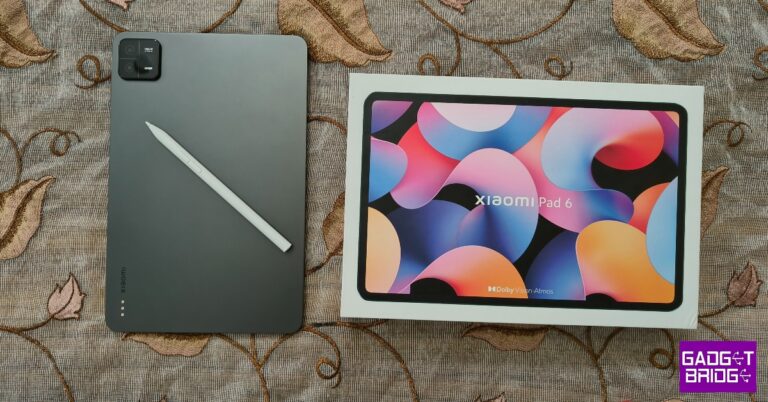
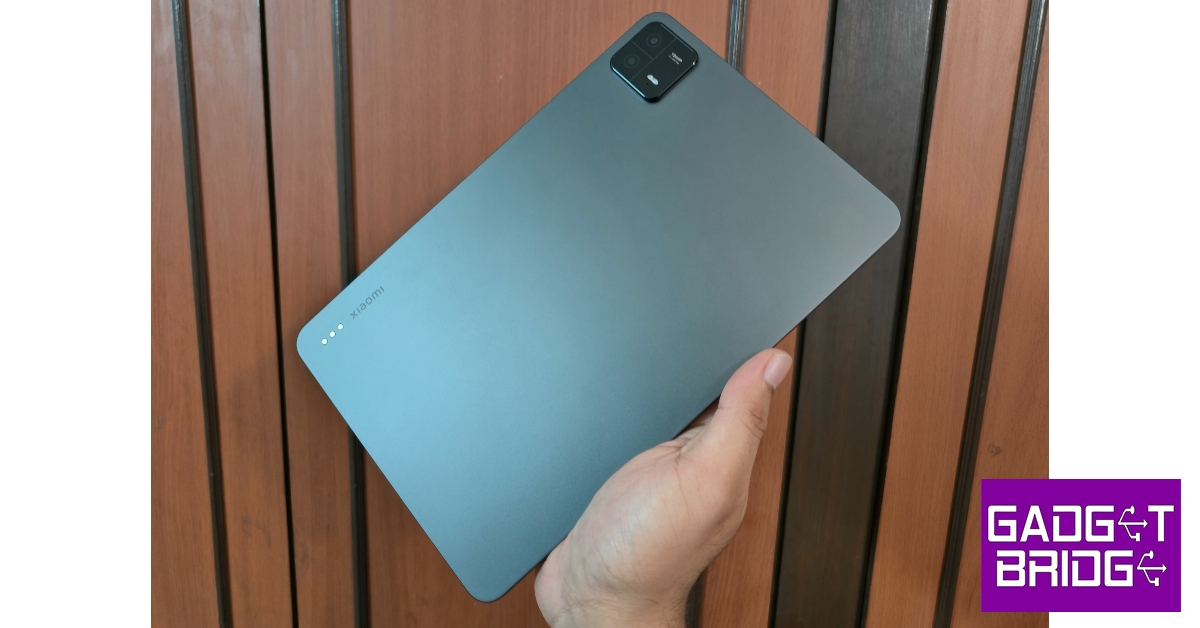
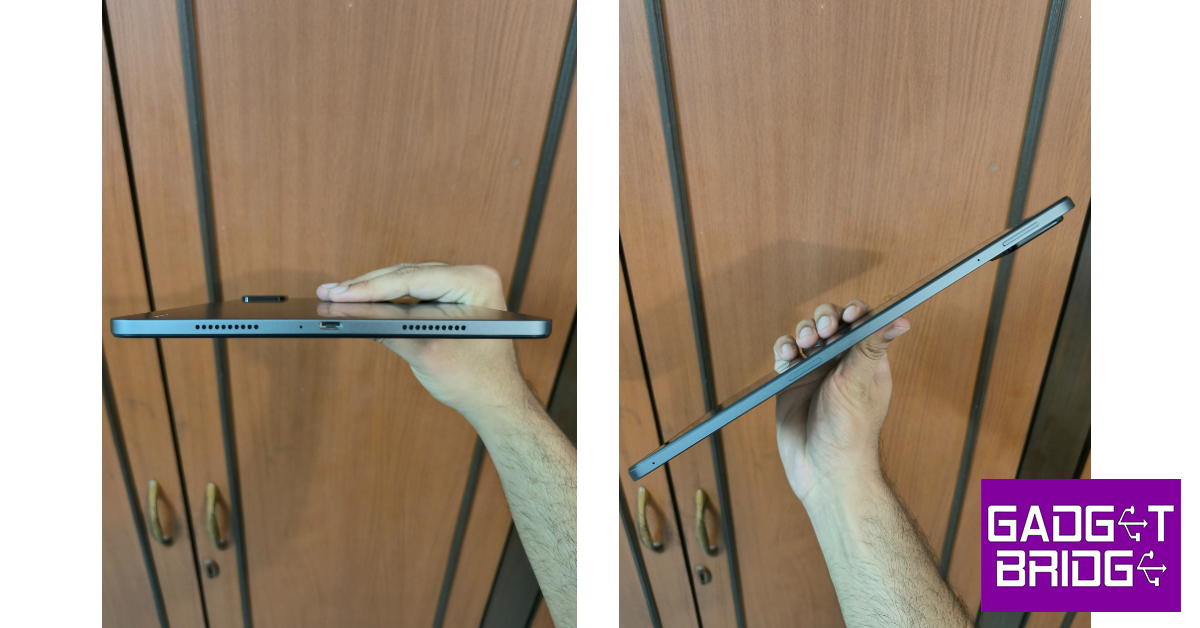
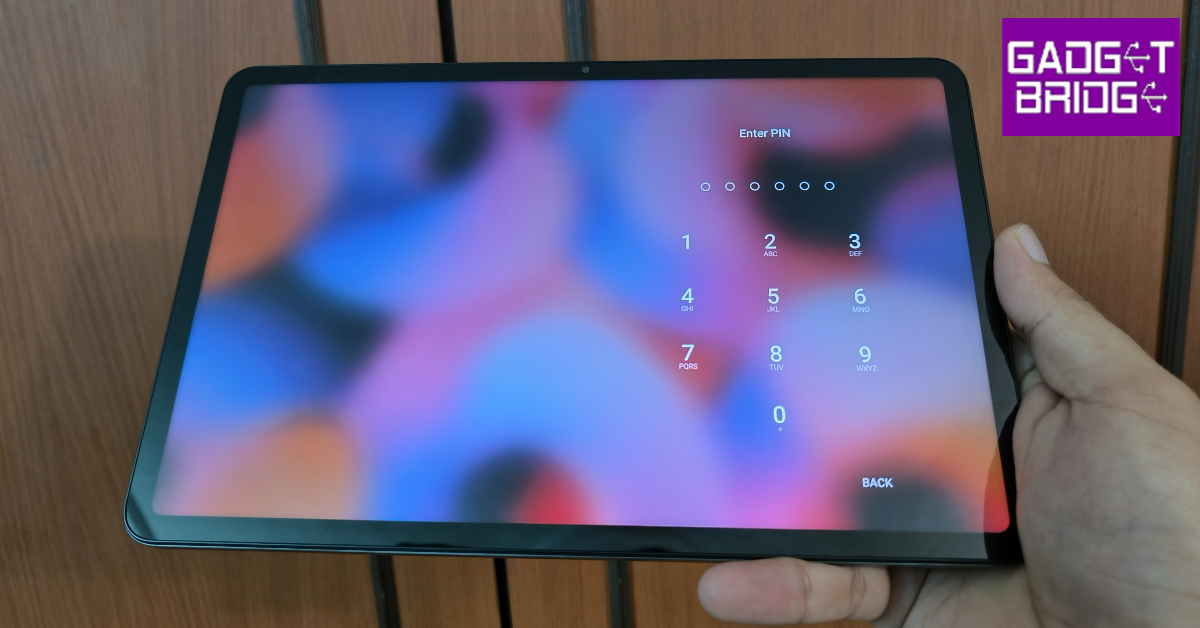
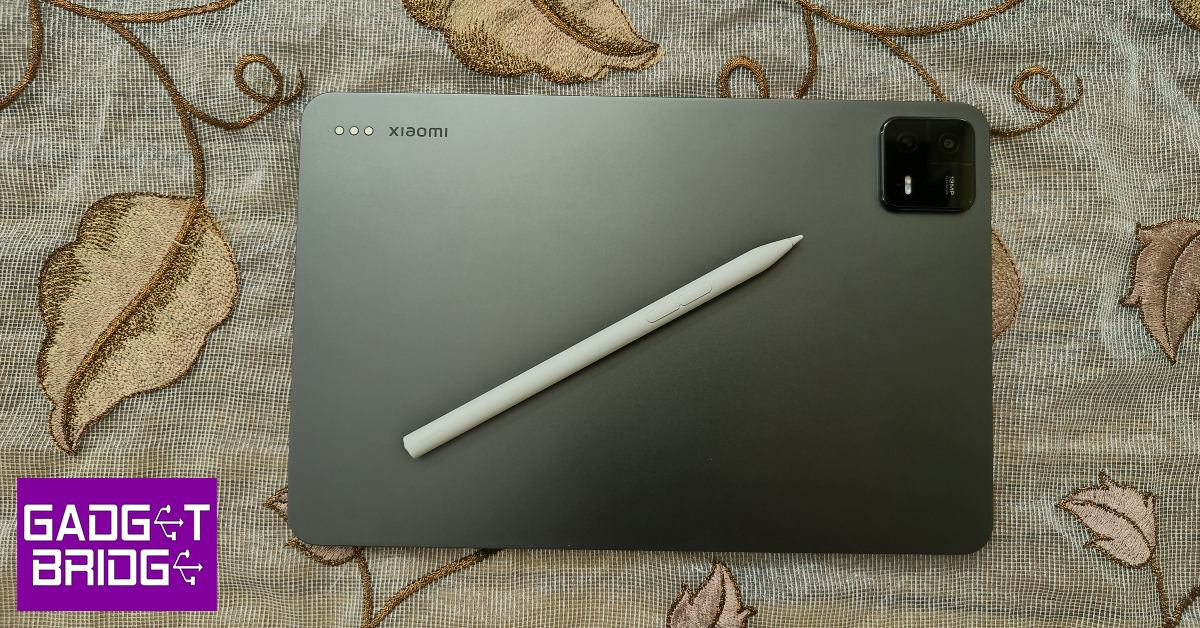
Right off the bat, the Xiaomi Pad 6 has a very premium feel to it. This is because Xiaomi has ditched the plastic back panel on the Pad 5 for a metal back on this device. The camera panel design on this tablet is the same as the one on Xiaomi 13 Pro (our review here). The flat frame is made out of aluminium. Since there are no rounded edges on this device, you may not be able to get the grip you’re looking for. But if you plan on using it with a folio case, you won’t mind it too much. Personally, we enjoyed the in-hand feel of the metal back and flat frame. Xiaomi Pad 6 review: Design and Display The Pad 6 has an aspect ratio of 16:10. The front camera is positioned on the longer edge, making it easier to put the tablet down while getting on a video call. There are 4 speakers on this device, two on either vertical edge of the frame. These speakers do the job well but aren’t powerful enough to fill up the entire room. Unsurprisingly, there is no 3.5mm headphone jack on this thing. Xiaomi Pad 6 review: Design and Display The power key is housed on the left edge of the frame, near the camera unit. The volume rocker makes its way to the adjacent frame, also near the camera. This frame also has a magnetic strip to place the stylus. If you’re wondering where the magnetic accessories go, there’s another magnetic strip on the back panel. Lastly, there’s a USB Type-C port positioned between the speakers on the right side of the frame. Like most Android tablets, you won’t find a side-mounted or an under-display fingerprint scanner on the Xiaomi Pad 6. But, it finds some intelligent software solutions to get around this hardware limitation. Typing the PIN or drawing the pattern on a locked tablet can be a chore due to the large size of the display. On the Pad 6, all you need to do is swipe up the lock screen from the left or the right side and the unlock screen will pop on that side, making it easier to reach for the digits or the pattern with one hand. You can also set up your smartwatch to unlock the tablet. Moving on to the display, Xiaomi Pad 6 gets one important upgrade over its predecessor. The refresh rate of the 11-inch IPS LCD display is now capped at 144Hz. While a high refresh rate is certainly welcome, it also depletes the battery faster. You can easily adjust it from settings. The display also supports HDR10 and has a resolution of 1800 x 2880p (a small bump from its predecessor).  We streamed HD content on this tablet across different OTT platforms. If entertainment and media playback is your biggest demand from a tablet, we’d easily suggest the Pad 6 over any flagship device. We thoroughly enjoyed the rich palette of colours on offer. The viewing angles leave no room for complaints either. While the image quality is pleasant, you won’t find the deep blacks and popping colours on this LCD panel. This isn’t a dealbreaker for us, but if you’ve gotten used to the OLED displays on your phone and laptop, this LCD panel may seem like a downgrade.

Xiaomi Pad 6 Review: Performance and Cameras

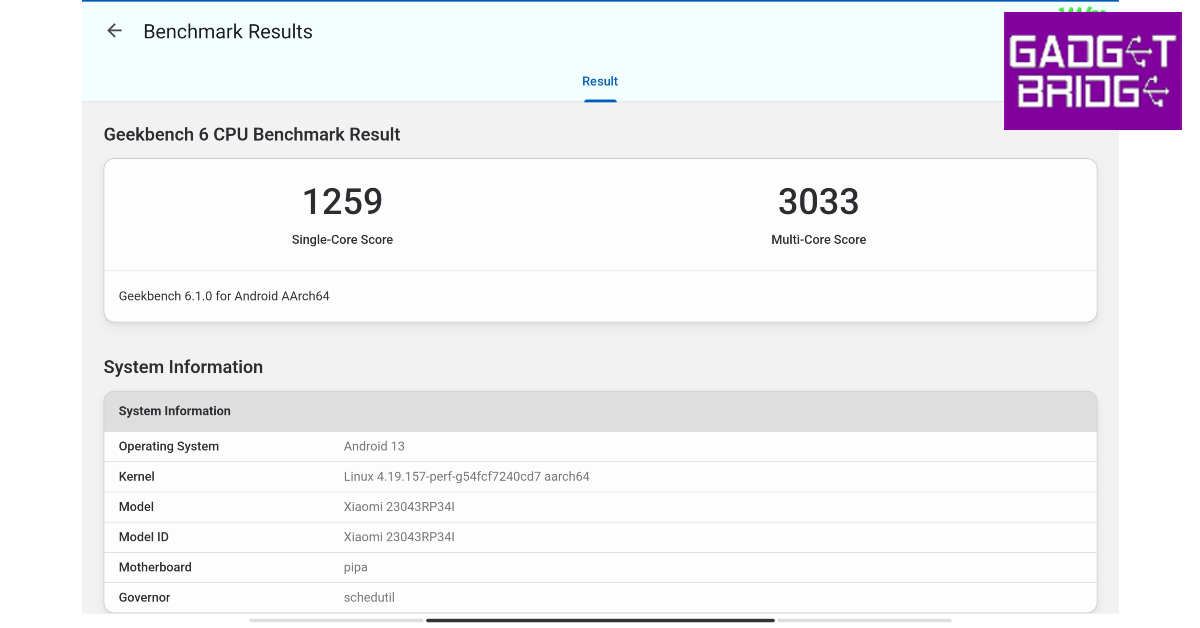
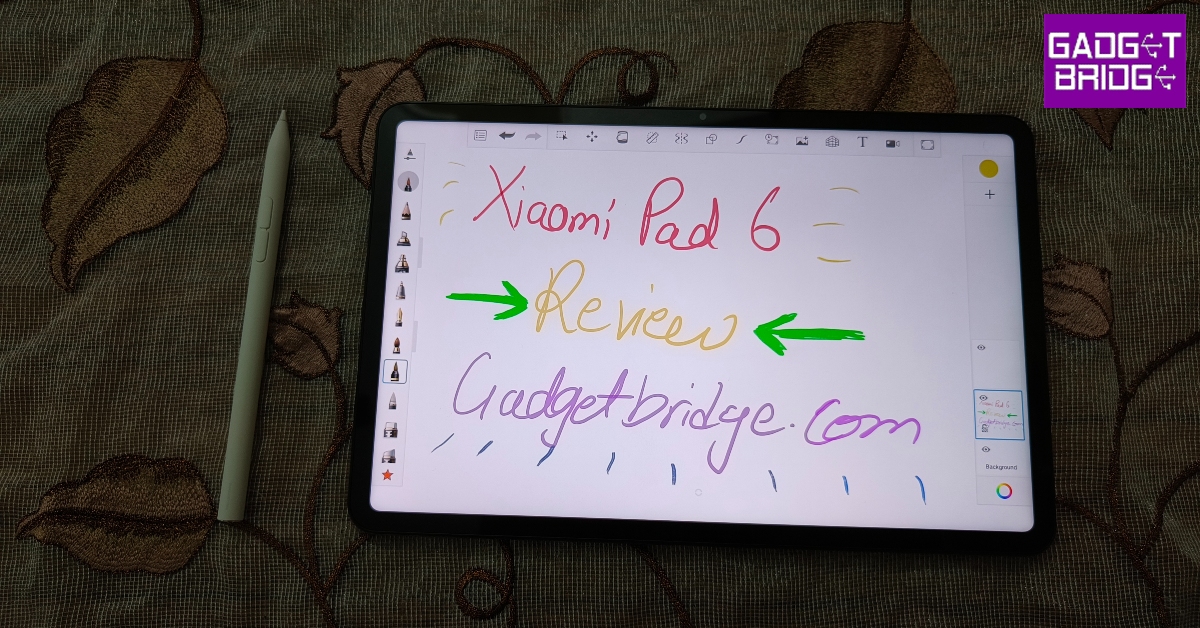
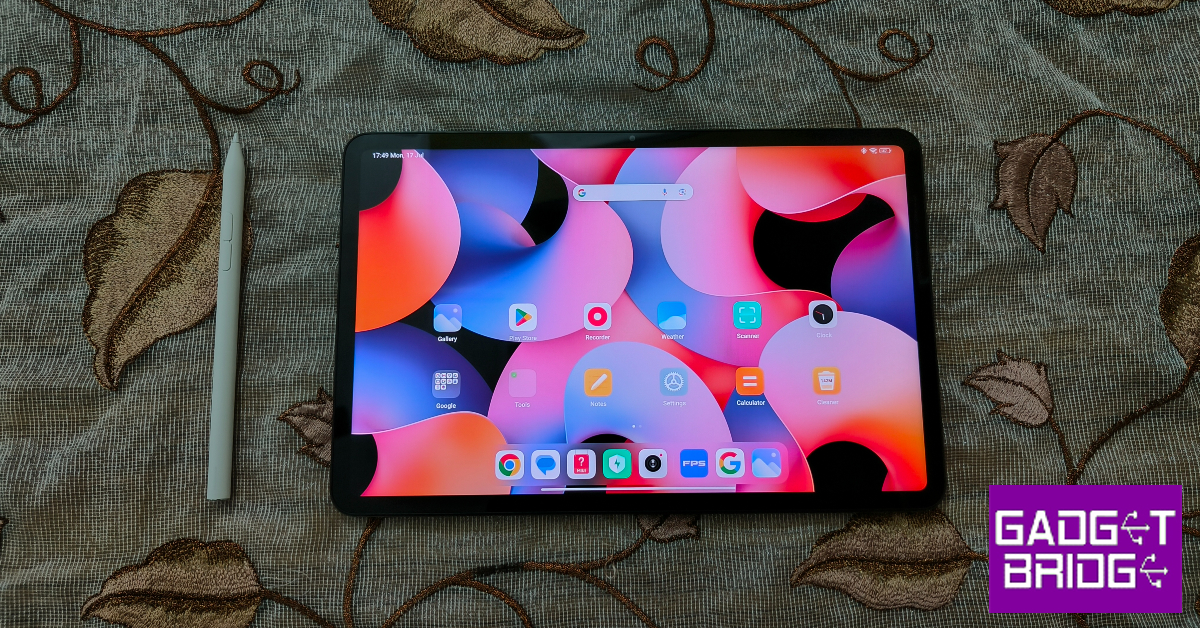
Xiaomi Pad 6 gets an upgrade under the hood as well. The tablet is now powered by the Snapdragon 870 SoC, which produced a single-core score of 1259 points and a multi-core score of 3033  points on the Geekbench 6 test. There are two RAM and storage options on offer: 6GB + 128GB and 8GB + 256GB. There are a couple of accessories you can buy to get the most out of the Pad 6. The official Keyboard Folio Case is priced at Rs 5,000 and the Smart Pen at Rs 6,000. If you buy these accessories along with the tablet, you can get them at a reduced effective price. If you don’t want a keyboard with the case, you can buy a regular flip case or a magnetic cover from Xiaomi’s official website. Xiaomi Pad 6 Review: Performance and Cameras The Snapdragon 870 SoC manages everyday tasks pretty well. Shooting the odd mail, browsing the web, taking video calls, and multitasking between different apps is a breeze on this tablet. We didn’t get the opportunity to use the magnetic keyboard case with this tablet, but pairing it with a wireless keyboard allowed us to easily get through a day of work without missing the laptop too much. Xiaomi Pad 6 Review: Performance and Cameras We did get to use the Smart Pen, and it is easily one of the best styluses we’ve used in this price range. The tablet does a good job of palm rejection. The low latency of the pen allows you to jot down quick notes seamlessly. We even tried doodling on the Sketchbook app. While only an artist could push the pen to its productive limit, we didn’t notice any flaws in the accessory. The biggest issue that Android tablets face is app optimisation for the larger screen. Those issues still persist on the Pad 6, through no fault of Xiaomi. Instagram still feels like a stretched-out version of the mobile app in Portrait orientation. In Landscape mode, the app aligns in the middle of the screen with empty spaces on either side. Android needs to work with app developers to resolve this issue. There are some things to like about MIUI 14 on this device. Firstly, there is minimal bloatware on this tablet. The overall experience is very clean and ad-free, something you don’t hear that often about Xiaomi devices. The taskbar at the bottom reveals itself after one quick swipe. You can place your frequently used apps on this taskbar for easier access. When you’re on a video call, you can slide out MIUI’s ‘Conference tools’ which consist of features like beautify, subtitle transcription, and more. Xiaomi smartphone users also get a few continuity features that can be used between the two devices. The 8,840mAh battery unit can easily last for two days under normal usage. We primarily used the tablet for watching content and taking video calls. If you’re looking to take this tablet on a weekend trip, you don’t have to worry about it running out of charge. The 33W wired charger that comes in the box can juice up this tablet in almost 2 hours. Xiaomi Pad 6 Review: Performance and Cameras Tablet cameras don’t usually gain much headlines, since smartphones are the go-to devices for clicking pictures. But the 13MP primary sensor on the Xiaomi Tab 6 pleasantly surprised us with the level of detail captured in its shots. The images were sharp and saturated to the perfected degree. The range of colours captured under natural light was impressive as well. The selfies taken from the front-facing 8MP camera are on the softer side, but it is decent for taking video calls. Read Also: Logitech M240 Silent Bluetooth Mouse Review: Replace your trackpad with this mouse

Verdict

At Rs 26,999, the Xiaomi Pad 6 is an easy shoo-in for the best Android tablet in its category. The device impresses on all fronts, be it the form factor or software optimisation. Even the rear camera pulls a great performance by tablet standards. If you’re looking for a midrange tablet primarily for the purpose of watching content on a bigger screen, the Xiaomi Pad 6 is a very easy device to recommend.

Xiaomi Pad 6: Pros

  • Great build
  • Clean OS
  • Great value for the price

Xiaomi Pad 6: Cons

  • No fingerprint sensor
  • Some Android apps need to be optimised for tablets
For the latest gadget and tech news, and gadget reviews, follow us on Twitter, Facebook and Instagram. For newest tech & gadget videos subscribe to our YouTube Channel. You can also stay up to date using the Gadget Bridge Android App. You can find the latest car and bike news here.

How to Deactivate/Delete your Threads Account?

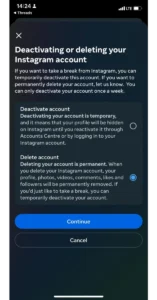
The Meta-owned networking platform, Threads, witnessed record-breaking registrations passing 30 million within the first 24 hours of its launch. However, it is highly likely that a significant number of people signed up without going through the terms and conditions (honestly, neither did we). Once you sign up for the Threads using your Instagram account, there is little you can do to permanently leave the platform without harming your Instagram account. Today we are going to tell you how to deactivate or delete Threads account. Before you rush to the deletion or deactivation process, here are the key differences between the two: Deactivating your Threads account will prevent the permanent loss of data. Your username, posts, comments, and likes will be hidden, meaning no one will be able to look you up. This is a temporary process, signing back into your account will let you resume from where you left. Deleting your Threads account on the other hand is an irreversible process after you pass the 30 days window to reversal. Once the period passes, you lose all the data permanently. Also deleting your Threads account will require you to delete your linked Instagram account permanently, which is not going down well with the masses.

How to Deactivate your Threads account?

Here is a step-wise guide to deactivating your Threads account:

Step 1: To deactivate your Threads account, go to your profile page and tap on the double-lined menu. account delete threads  1 account delete threads             Step 2: Go to Account and select Deactivate Profile. account delete threads 2 Step 3: Tap on the Deactivate Threads Profile. account delete threads  1 Step 4: Choose Deactivate. Your Threads account is now deactivated until you decide to come back. Read Also: How to delete your Twitter account

How to Delete Your Threads Account?

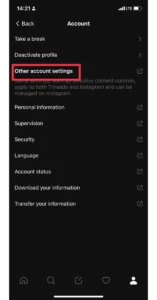
If deactivating the account does not meet your concerns, here is how you can delete it permanently: Step 1: In your Threads app, tap on the profile icon and then on the double-lined menu. account delete threads  1             Step 2: Go to the Accounts Section and select Other Account Settings. This action will take you to the Instagram Account.       Step 3: From here go to Account Settings. Step 4: Select the Personal Details Option. account delete threads  1 Step 5: Choose Account Ownership and Control and select Deactivation or Deletion. Step 6: Select the Threads account linked with the Instagram account and choose the Delete Account option. Step 7: Select your reason for deleting your Threads and Instagram account and hit Continue. Step 8: Select Continue and re-enter your account password. Step 9: Hit Continue and then choose Delete Account. The deletion process is now in motion. Read Also: How to change the username of your Threads account?

Conclusion

Again remember, once you do this action, your Threads as well Instagram account will be deleted. There is no way to bring them back. Hence, we suggest deactivating the Threads account till the time Meta/Facebook brings an option to delete the Threads account without deleting your Instagram account. For the latest gadget and tech news, and gadget reviews, follow us on Twitter, Facebook, and Instagram. For the newest tech & gadget videos subscribe to our YouTube Channel. You can also stay up to date using the Gadget Bridge Android App. You can find the latest car and bike news here.

Galaxy Watch 6 and Watch 6 Classic sizes and variants leaked, a celebrity wearing the Watch 6 also spotted

Samsung’s upcoming Galaxy Unpacked event will take place on 26 July and will be hosted in South Korea. The Galaxy Z Fold 5 and Galaxy Z Flip 5—the latest foldable gadgets from the company—may be unveiled. The Galaxy Watch 6 series and the Galaxy Buds 3 TWS earbuds are two new accessories that the firm is anticipated to introduce same day. Moreover, Son Heung-min was also spotted wearing the Samsung Galaxy Watch 6 Classic. The Exynos W930 chip from the manufacturer is anticipated to power the Galaxy Watch 6 series, which will also provide notifications for irregular heart rates. Recently, additional information about the upcoming watches, including their sizes and variations, has come to light. The Galaxy Watch 6 and Galaxy Watch 6 Classic, which are expected to have larger displays than their previous generations, are also expected to be released by Samsung at its upcoming Unpacked event. The design of both wearables was made public before its formal debut through 3D CAD renders and even actual product photos. The sizes and variations of the future smartwatches have now been revealed in further detail. The sizes and connectivity options for the Galaxy Watch 6 and Galaxy Watch 6 Classic are revealed in a new poster that was leaked by Samsung’s official partner. Reportedly the regular Galaxy Watch 6 is speculated to come in 40mm and 44mm sizes. On the other hand, the Galaxy Watch 6 Classic will be available in 43mm and 47mm sizes. There will be Wi-Fi only and Wi-Fi + Cellular (LTE) versions of both smartwatches.
Galaxy Watch 6 and Watch 6 Classic sizes and variants leaked, a celebrity wearing the Watch 6 also spotted
Image Courtesy: onleaks/mysmartprice
According to reports, the Galaxy Watch 6 will resemble the Galaxy Watch 4 series in terms of appearance. Similar to the Galaxy Watch 4 Classic, the Galaxy Watch 6 Classic will sport a tactile rotating bezel. It is also suggested that the circular OLED panels on both future smartwatches will be 20% larger than those on the Galaxy Watch 5. Also Read: Compare: iQoo Neo 7 Pro Vs OnePlus Nord 3 The 40mm and 43mm Galaxy Watch 6 models are rumoured to have a 300mAh battery, while the 44mm and 47mm Galaxy Watch 6 Classic are rumoured to have a 425mAh battery. Moreover, the devices will also make use of the slightly upgraded Exynos W930 chipset. According to reports, the Galaxy Watch 6 and Galaxy Watch 6 Classic will both include 16GB of internal storage and 2GB of RAM.
Galaxy Watch 6 and Watch 6 Classic sizes and variants leaked, a celebrity wearing the Watch 6 also spotted
Image Courtesy: yonhapnews
In related news, English Premier League football player Son Heung-min has been seen wearing the upcoming Samsung Galaxy Watch 6. Son was reportedly returning to London club Tottenham Hotspur for preseason practice on the morning of July 14 while travelling through South Korea’s Incheon International Airport. The device in the photograph does resemble the next Samsung Galaxy Watch 6 Classic in the leaked images that have recently surfaced. Given that Son is from the country where Samsung is based, it makes it likely that he would also have early access to the watch. Samsung has a history of doing this; in the past, the volleyball player Kim Yeon-koung received a Galaxy Watch 4 from Samsung in advance. For the latest gadget and tech news, and gadget reviews, follow us on TwitterFacebook and Instagram. For newest tech & gadget videos subscribe to our YouTube Channel. You can also stay up to date using the Gadget Bridge Android App. You can find the latest car and bike news here.

Top 3 Ways to View Saved WiFi Passwords on a Windows 10/11 PC

0
Your Windows PC makes it easy to view the saved WiFi password of a connected network. Unlike your smartphone, you don’t have to jump through any hoops or install any third-party apps. In fact, there are a bunch of ways you can go about this task. In this article, we bring you the top 3 ways to view saved WiFi passwords on a Windows 10 or 11 PC. Read Also: Compare: iQoo Neo 7 Pro Vs OnePlus Nord 3

View the WiFi password on a Windows 10/11 PC from the Control Panel

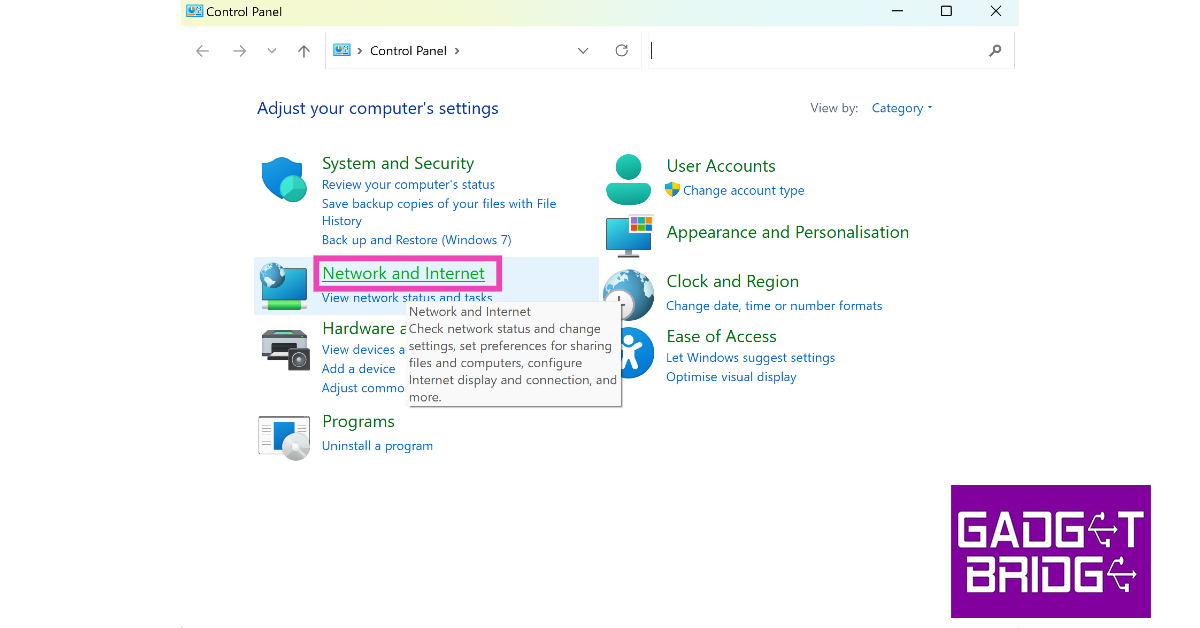
Step 1: Go to the Control Panel and select Network and Internet. Step 1: Go to the Control Panel and select Network and Internet. Step 2: On a Windows 11 PC, click on Network and Sharing Centre. Windows 10 users need to click on Status>Network and Sharing Centre. Step 2: On a Windows 11 PC, click on Network and Sharing Centre. Windows 10 users need to click on Status>Network and Sharing Centre. Step 3: Click on your WiFi network’s name. You will find it next to ‘Connections’. Step 3: Click on your WiFi network’s name. You will find it next to ‘Connections’. Step 4: Click on Wireless Properties. Step 4: Click on Wireless Properties. Step 5: Switch to the Security tab. Step 5: Switch to the Security tab. Step 6: Click the check box for Show Characters under the Network Security Key field. Step 6: Click the check box for Show Characters under the Network Security Key field.

View the WiFi password from Settings

Step 1: Go to Settings and select Network and Internet. Step 1: Go to Settings and select Network and Internet. Step 2: Click on Advanced Network Settings. Step 2: Click on Advanced Network Settings. Step 3: Select More network adapter options. Step 3: Select More network adapter options. Step 4: Click on your WiFi network. Step 5: Hit the two small arrows on the toolbar at the top. Step 6: Select the View status of this connection option. Step 6: Select the View status of this connection option. Top 3 Ways to View Saved WiFi Passwords on a Windows 10/11 PC Step 7: Click on Wireless Properties. Step 4: Click on Wireless Properties. Top 3 Ways to View Saved WiFi Passwords on a Windows 10/11 PC Step 8: Switch to the Security tab. Step 5: Switch to the Security tab. Top 3 Ways to View Saved WiFi Passwords on a Windows 10/11 PC Step 9: Click the check box for Show Characters under the Network Security Key field. Step 6: Click the check box for Show Characters under the Network Security Key field. Top 3 Ways to View Saved WiFi Passwords on a Windows 10/11 PC

Use Command Prompt to find the WiFi password

This method will work even if you don’t have admin access on the PC. Step 1: Launch Command Prompt on your PC. Step 2: Enter the following command: netsh wlan show profile name=”enter the wifi network’s name here” key=clear Make sure you enter the WiFi network’s name within the quotes. Step 2: Enter the following command: Top 3 Ways to View Saved WiFi Passwords on a Windows 10/11 PC Step 3: Look next to ‘Key Content’ to view the WiFi password. Step 3: Look next to ‘Key Content’ to view the WiFi password. Top 3 Ways to View Saved WiFi Passwords on a Windows 10/11 PC

Frequently Asked Questions

How do I find the WiFi password of the network I am connected to on my Windows PC?

To find the saved WiFi password, go to Control Panel>Network and Internet>Network and Sharing Centre>WiFi name>Wireless Properties>Security and click on Show Characters.

How do I find the WiFi password on a Windows PC without admin access?

To view the WiFi password on a Windows PC without obtaining admin access, simply go to Command Prompt and enter the following line. netsh wlan show profile name=”enter the wifi network’s name here” key=clear. The WiFi password will be listed next to ‘Key Content’.

How do I view the WiFi password on a Windows 10 PC?

On a Windows 10 PC, go to Control Panel>Network and Internet>Status>Network and Sharing Status and view the WiFi password from network properties. Read Also: Top 9 Ways To Fix ‘Android Apps Crashing and Closing Suddenly’

Conclusion

These are the three best ways to view the saved WiFi password on a Windows 10 or 11 PC. You can also use a third-party app to view the passwords of all the saved networks on your PC. However, since there are multiple native ways of going about this task, we wouldn’t suggest sharing your network information with a third-party app. For the latest gadget and tech news, and gadget reviews, follow us on Twitter, Facebook and Instagram. For newest tech & gadget videos subscribe to our YouTube Channel. You can also stay up to date using the Gadget Bridge Android App. You can find the latest car and bike news here.

Lenovo Tab M10 5G With 10.61-inch LCD display and 7,700mAh battery launched in India

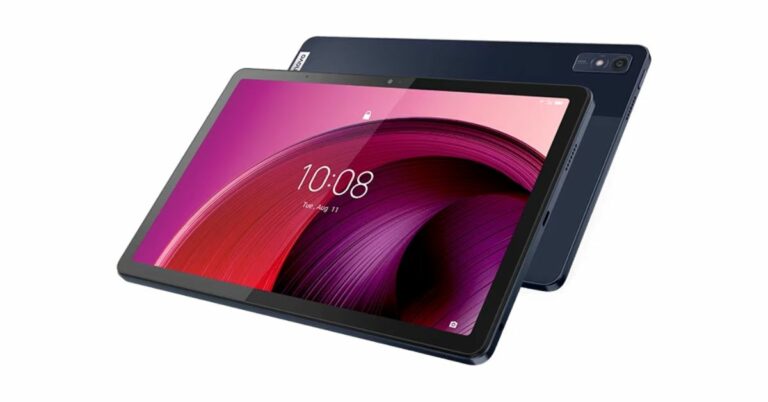
The Chinese electronics brand Lenovo has announced the launch of the Lenovo Tab M19 5G in India. The new Android Tablet features and 10.61-inch LCD display and packs a 7,700mAh battery. It comes with dual stereo speakers that support Dolby Atmos. Under the hood, there is Snapdragon 695 5G SoC. Lenovo Tab M10 5G price in India and availability details

Lenovo Tab M10 5G price in India and availability details

Lenovo Tab M10 5G has been launched in India at Rs 24,999 for the 4GB RAM with 128GB storage option. There is another 6GB RAM with a 128GB storage option priced at Rs 26,999. With this pricing, the device will compete with Xiaomi and OnePlus devices. The device will be available in a single Abyss Blue colour option. The device is currently available for purchase via Flipkart, Lenovo’s official website and at the nearest Lenovo Exclusive Stores. Also Read: Google Play Games beta launched in India, making Android games accessible on PCs

Lenovo Tab M10 5G specifications

The 10.61-inch LCD screen of the Lenovo Tab M10 5G has a resolution of 1200 x 2000 pixels. The screen may be as bright as 400 nits. The tablet comes pre-installed with Android 13. The Snapdragon 695 5G SoC, which has eight cores, powers the Android tablet. The company offers it in two different configurations of 4GB RAM with 128GB storage and 6GB RAM with 128GB storage options. Lenovo Tab M10 5G specifications The Lenovo Tab M10 5G is equipped with a 13-megapixel back camera as well as an 8-megapixel front camera. Additionally, it has two stereo speakers that are boosted by Dolby Atmos. A 7,700mAh battery within the tablet is said to provide up to 12 hours of video playback and up to 55 hours of music playback. The Lenovo Tab M10 5G has Bluetooth 5.1, USB Type-C, and a 3.5 mm audio jack as its connectivity options. The latest Android tablet weighs 490g and has dimensions of 252.74×8.30 mm. For the latest gadget and tech news, and gadget reviews, follow us on TwitterFacebook and Instagram. For newest tech & gadget videos subscribe to our YouTube Channel. You can also stay up to date using the Gadget Bridge Android App. You can find the latest car and bike news here.

How to Record Facebook Video Calls on Android, iPhone, and PC?

0
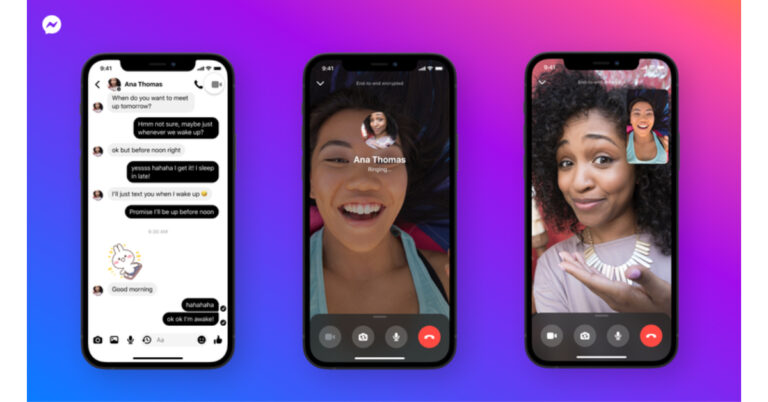
Facebook Messenger does not offer a native way to record your calls. In order to record the calls you make on the platform, you will need to use external recording tools. Luckily, most devices have a native screen recording feature that makes this task super easy. In this article, we show you how to record Facebook video calls on an Android phone, iPhone, and a PC. Read Also: Top 9 Ways To Fix ‘Android Apps Crashing and Closing Suddenly’

How to record a Facebook video call on Android

Step 1: Swipe down from the status bar to access the quick settings menu. Step 2: Tap the screen recording tile. Step 2: Tap the screen recording tile. Step 3: Hit the record icon. Make sure your microphone’s input is being recorded as well. Step 3: Hit the record icon. Make sure your microphone’s input is being recorded as well. Step 4: Launch the Facebook Messenger app. Step 5: Select the contact you want to call. Step 6: Hit the video call icon to initiate the call. Step 7: Hit the stop recording icon once the call has ended. Step 7: Hit the stop recording icon once the call has ended. The recording will be saved in your phone’s gallery.

How to record a Facebook video call on an iPhone

Step 1: Go to Settings and select Control Center. Step 1: Go to Settings and select Control Center. Step 2: Go to More Controls. Step 3: Hit the green plus icon next to Screen Recording. Step 3: Hit the green plus icon next to Screen Recording. Step 4: Go to the home page. Swipe down from the top edge to reveal the Control Center. Step 5: Hit the screen recording tile Step 5: Hit the screen recording tile.  How to Record Facebook Video Calls on Android, iPhone, and PC? Step 6: Launch the Facebook Messenger app and select the contact you want to call. Step 7: Hit the video call icon. Step 8: Once the video call has ended hit the screen recording icon from the Control Center again. Step 8: Once the video call has ended hit the screen recording icon from the quick settings menu again. The recorded video call will be saved in your phone’s gallery.

How to record a Facebook video call on a PC

Step 1: Launch the Messenger desktop app and initiate a video call. Step 2: Launch the Snipping Tool app on your PC. Step 3: Select the video recording icon from the toolbar. Step 4: Click on New. Step 4: Click on New. How to Record Facebook Video Calls on Android, iPhone, and PC? Step 5: Select the portion of the screen that you want to record. In this case, that should be the call window. Step 6: Hit Start. Step 6: Hit Start. How to Record Facebook Video Calls on Android, iPhone, and PC? Step 7: Hit the stop recording icon when the call has ended. The recording will be saved on your PC. You can access it instantly from the Snipping Tool app.

Frequently Asked Questions (FAQs)

Is there a native way to record video calls on Facebook Messenger?

There is no native way to record calls on Messenger. You will have to rely on screen recording tools and third-party apps for this task.

How do I record a Facebook video call on Android?

Use the screen recording tile from the quick settings menu to capture your phone’s screen while you’re on a video call.

How do I record a Facebook video call on a PC?

The Snipping Tool on your PC lets you record the screen on top of taking screenshots. Simply hit the recording icon followed by ‘New’ to record the screen while you’re on call. Read Also: Google Play Games beta launched in India, making Android games accessible on PCs

Conclusion

This is how you can record a Facebook video call on an Android phone, iPhone, and a PC. Once the recording has been saved on your device, you may want to edit it to trim out the extra bits at the start and end. The recording will occupy significantly less storage space on your device if you edit out the unnecessary bits. For the latest gadget and tech news, and gadget reviews, follow us on Twitter, Facebook and Instagram. For newest tech & gadget videos subscribe to our YouTube Channel. You can also stay up to date using the Gadget Bridge Android App. You can find the latest car and bike news here.

Logitech M240 Silent Bluetooth Mouse Review: Replace your trackpad with this mouse

The Logitech M240 Silent Bluetooth Mouse made its debut in India recently. The Swiss company’s mouse has ultra-quiet clicks with 90% less click noise, as the name would imply. Wireless technology also frees up desk space for better, more productive work. Most significantly, it quickly establishes a secure pair-and-play Bluetooth connection without the need for a dongle or port. In this Logitech M240 Silent Bluetooth Mouse review, we’ll talk about that. Also Read: Asus TUF gaming F15 laptop review: 11 Gen Intel CPU with RTX 2050 under 60K, worth buying?

Logitech M240 Silent Bluetooth Mouse Review: Design

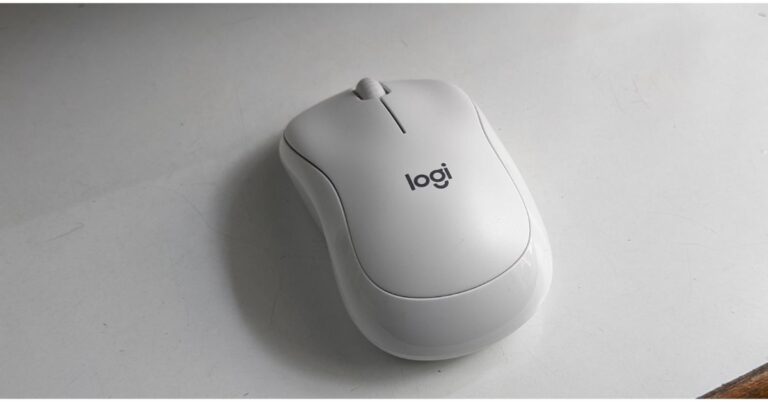
We received the Logitech M240 Silent Bluetooth Mouse in white colour. There are two additional colour choices for the device: graphite and rose. The design is cute and has the Logitech logo on it and a scroll wheel is located between the left and right-click buttons. This is a 2D optical scroll wheel.  Logitech M240 Silent Bluetooth Mouse Review: Replace your trackpad with this mouse The battery compartment is also provided at the bottom, and there is a slider to turn it on or off. The Bluetooth functioning is indicated by the LED indication. The Mouse is made up of plastic material. As per the company, Post-consumer recycled (PCR) plastic makes up 37% of the off-white and rose portions and 48% of the graphite parts. Logitech M240 Silent Bluetooth Mouse Review: Replace your trackpad with this mouse The design resembles a typical mouse, in which the bottom boundaries of the side sides are somewhat curved. This provides us with a solid grip while using it, and it is also comfortable to use. The wireless, portable mouse weighs just 73.8 grammes, and you can carry it wherever you go to work because it is compact and easily fits in a backpack with your laptop.

Logitech M240 Silent Bluetooth Mouse Review: Performance

Well, your laptop, desktop, and tablet may all be connected to the Logitech M240 Silent using Bluetooth. Its wireless range reaches a maximum of 10 metres (33 ft). You don’t need a dongle or physical connection to connect it. It works with Windows, macOS, ChromeOS, Linux, and Android. It is supported by Logi Options+ on macOS 11 or later and Windows 10, 11 or later. Logitech M240 Silent Review The palm rests nicely when using it thanks to the nice curvature. The scroll wheel is also quite good, and the mouse can be used for hours without experiencing any form of problems. Logitech M240 Silent is designed to be as comfortable for right-handed as it is for left-handed ones. Additionally, it has a smooth optical tracking system with a nominal value of DPI range is 400 to 4,000 in steps of 100 DPI. Controlled line-by-line scrolling makes it simpler to navigate. It offers smooth and precise cursor control on practically any surface.  The Logitech M240 Silent Bluetooth Mouse’s noise reduction is its key feature. The mouse has SilentTouch Technology, which reduces clicking noises by 90% (as said) compared to a regular mouse while keeping the familiar, satisfying clicking sensation. You therefore barely hear anything but can feel every little click. Logitech M240 Silent Review The Logitech M240 Silent is a great alternative if you want a very quiet mouse that won’t disturb you as you click because a mouse click can be annoying occasionally, especially if you use a mouse a lot. A single AA battery, which is used to power this mouse, is said to last for 18 months. We have been using it for almost a month, we are really happy with its performance. The 18-month battery life of the Logitech wireless mouse with auto sleep enables you to go longer between battery changes,

Verdict

At Gadget Bridge, we use our laptops a lot, and typing for hours on end can be incredibly taxing on the hands so we are always looking for such devices that make our life easier and The Logitech M240 Silent Bluetooth mouse is unquestionably one of those gadgets to have around for professionals. It is much more ergonomic than a trackpad, and pairing and playing are both simple. It also clicks quietly. You should definitely check it out.

Logitech M240 Silent Bluetooth Mouse Pros

  • Small
  • Portable
  • Lightweight
  • Clicks silently

Logitech M240 Silent Bluetooth Mouse Cons

  • There are hardly any
For the latest gadget and tech news, and gadget reviews, follow us on TwitterFacebook and Instagram. For newest tech & gadget videos subscribe to our YouTube Channel. You can also stay up to date using the Gadget Bridge Android App. You can find the latest car and bike news here.

BGMI redeem codes for 17 July 2023, claim and receive rewards and benefits

After being banned for nearly ten months, Battleground Mobile India, aka BGMI, is officially available again in India. BGMI fans are looking for ways to improve their game experience and one such method is the usage of redemption codes, which offers a variety of rewards and advantages using BGMI redeem codes players can gain access to new skins, outfits, loot crates, weapons and free UC and diamonds. As mentioned earlier, these codes give users the chance to earn unique rewards and gain extra benefits while playing the game. This includes GUN SKINS (M4, AKM, M416, AWM, M24, UZI, KAR98K), free character voucher, Andy, Carlo, Sara, Victor character for free, free Anna Character on completing the mission and UC or Royal Pass Discount. So here we have gathered a list of the most recent BGMI redeem codes as of 17 July 2023. Also, redeem these codes asap as these are only valid for a limited duration.

BGMI Redeem Codes for 17 July 2023

  • updating…

How to get free Redeem Codes for BGMI on 17 July 2023?

  • Launch BGMI on your device.
  • Then select the Redeem Code option from the main menu.
  • Next, click on the Redeem code tab.
  • A new window will open, requesting the redemption code.
  • Now enter your BGMI code.
  • Confirm and click on the “Redeem” tab.
  • If your redeem code is valid then you will get a message confirming that your rewards were successfully redeemed.
(Note that these codes are case-sensitive, so be sure to type them correctly to prevent any errors.) For the latest gadget and tech news, and gadget reviews, follow us on TwitterFacebook and Instagram. For newest tech & gadget videos subscribe to our YouTube Channel. You can also stay up to date using the Gadget Bridge Android App. You can find the latest car and bike news here.

Garena Free Fire Redeem Codes Today 17 July 2023: Here is how to claim them

Garena Free Fire is a battle royale game with regular awards and tournaments to keep players interested. If you play Garena Free Fire, you should be aware of the redeem codes that are released on a daily basis. However, because the battle royale game is banned in India, players from other countries can use the Free Fire Redeem codes daily. If you’re unfamiliar with the Garena Free Fire redeem codes or don’t know how to get them, we’ve put together a step-by-step guide to help you redeem them. Check out Garena Free Fire Redeem Codes for 17 July 2023. The Free Fire redeem codes are a great way to get free stuff. These are 12-digit codes that contain alphabets and numbers, as well as an expiration date and time. Because the Garena FF redeem codes cannot be used more than once, you should hurry to the redemption page to claim your free reward before someone else does. To get a free reward, all you have to do is go to reward.ff.garena.com/en, which is the official redemption page. Also, keep an eye on this space for daily updates on Garena Free Fire redemption codes and rewards.

Garena Free Fire Redeem Codes Today 17 July 2023

FFAC2YXE6RF2 FAGTFQRDE1XCF FFCMCPSBN9CU BR43FMAPYEZZ NPYFATT3HGSQ FFCMCPSJ99S3 XZJZE25WEFJJ V427K98RUCHZ MCPW2D1U3XA3 FFCMCPSGC9XZ 6KWMFJVMQQYG FFCMCPSUYUY7E MCPW3D28VZD6 EYH2W3XK8UPG MCPW2D2WKWF2 ZZZ76NT3PDSH FFCMCPSEN5MX HNC95435FAGJ

How to Get Free Fire Redeem Codes for Garena on 17 July 2023?

  • Visit the Garena Free Fire game’s official website at reward.ff.garena.com.
  • Use your Facebook, Google, VK, Apple ID, Huawei ID, or Twitter account to log in.
  • You’ll be taken to a valid redemption code (s)
  • Copy and paste the 12-digit redemption code into the text box.
  • On the screen, a dialogue box will appear.
  • ‘Ok’ should be selected.
For the latest gadget and tech news, and gadget reviews, follow us on TwitterFacebook and Instagram. For newest tech & gadget videos subscribe to our YouTube Channel. You can also stay up to date using the Gadget Bridge Android App. You can find the latest car and bike news here.

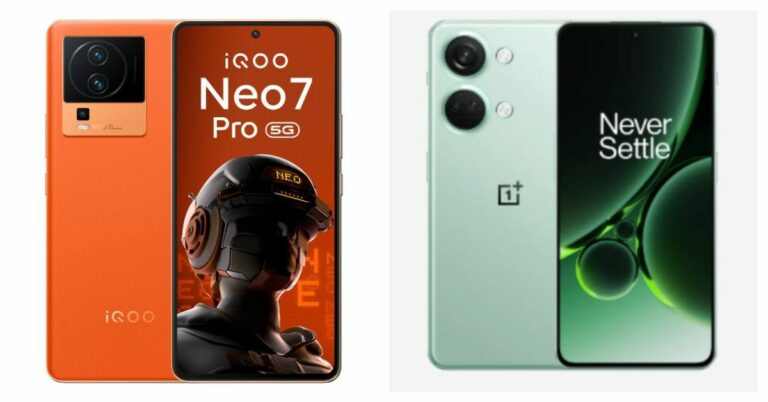
Compare: iQoo Neo 7 Pro Vs OnePlus Nord 3

Earlier this month, the iQoo Neo 7 Pro was introduced in India. Amazon began selling the smartphone. The OnePlus Nord 3 first sale started and is competing with the Neo 7 Pro by being priced at around Rs 40,000 while providing nearly the same specifications. So, in order to decide which is the better option, we compared their specifications and differences. Here is our comparison between the iQoo Neo 7 Pro and OnePlus Nord 3. Also Read: Compare: OnePlus Nord 3 Vs OnePlus 11R

Display

iQoo Neo 7 Pro: 6.78-inch full-HD+ AMOLED screen OnePlus Nord 3: 6.74-inch AMOLED screen

Processor

iQoo Neo 7 Pro: Snapdragon 8+ Gen 1 chip OnePlus Nord 3: MediaTek Dimensity 9000 SoC

Rear camera(s)

iQoo Neo 7 Pro: A triple rear camera setup that includes a 50-megapixel primary Samsung GN5 sensor, an 8-megapixel ultra-wide-angle camera and a 2-megapixel macro camera. OnePlus Nord 3: Triple rear camera setup includes a 50-megapixel Sony IMX890 sensor with OIS support, an 8-megapixel ultra-wide angle Sony IMX355 sensor with a 112-degree FoV, and a 2-megapixel macro lens.

Selfie camera

iQoo Neo 7 Pro: 16-megapixel front-facing camera OnePlus Nord 3: 16-megapixel front-facing camera

RAM and storage

iQoo Neo 7 Pro: 8GB RAM with 128GB of storage/ 12GB RAM with 256GB internal storage OnePlus Nord 3: 8GB RAM with 128GB of storage/ 16GB RAM with 256GB internal storage

Battery

iQoo Neo 7 Pro: 5,000mAh battery with 120W Flash Charge support OnePlus Nord 3: 5,000mAh battery with 80W SuperVOOC charging

Operating system

iQoo Neo 7 Pro: Funtouch OS 13 on top of Android 13 OnePlus Nord 3: OxygenOS 13.1 with Android 13

Price

iQoo Neo 7 Pro: Rs 34,999 OnePlus Nord 3: Rs 33,999

Our Take

Although the iQoo Neo 7 Pro’s display is significantly larger than the Nord’s, both phones feature a 120Hz refresh rate. However, the Nord 3 grabs a lead by cramming more resolution into that screen; the Nord 3’s resolution is 2,772 x 1240 as opposed to the Neo 7 Pro’s 2,400 x 1,080. The OnePlus Nord 3 features a noticeable alert slider on the side, which is not present on the iQoo. Additionally, Nord looks more expensive due to its minimalist design. But the orange colour of the Fearless Flame in vegan leather on the iQoo Neo 7 Pro will undoubtedly grab your attention. On the other hand, the Nord 3 does have an IP54 rating, whilst the iQOO Neo 7 Pro does not. Both of the devices’ chipsets are flagship-level, but when it comes to overall performance, the Snapdragon 8+ Gen 1 slightly outperforms the MediaTek Dimensity 9000. On both devices, the cameras are identical. Both devices run Android 13, but OnePlus earns bonus marks for providing a nearly stock Android experience. The iQoo Neo 7 Pro‘s Snapdragon 8+ Gen 1 chip dominates since it provides more dependable performance, despite the fact that the OnePlus Nord 3 is undoubtedly a fantastic value for the money. For the latest gadget and tech news, and gadget reviews, follow us on TwitterFacebook and Instagram. For newest tech & gadget videos subscribe to our YouTube Channel. You can also stay up to date using the Gadget Bridge Android App. You can find the latest car and bike news here.

10 Ways To Fix ‘Android Apps Crashing and Closing Suddenly’ (2024)

0
App crashes and malfunctions are common on old Android phones. This is something that every smartphone faces after a few years of use. Luckily, you can minimise these crashes and run your device quite efficiently. This task may require some time and effort as you will need to figure out the reason behind the crashes. If you want to save yourself some time, here are 10 quick fixes for the ‘Android apps keep crashing and closing suddenly’ issue on your device. Read Also: Viewsonic OMNI VX28 Series 180 Hz gaming monitors launched in India

Restart your device

Restart your phone Sometimes a background glitch in the software can keep apps from loading properly. If you notice multiple apps shutting down immediately after being launched, you need to restart your smartphone. Press and hold the side key and select Restart from the power menu. If your phone triggers the voice assistant upon pressing the side key, press hold the volume up key + side key simultaneously and select Restart.

Force Stop the app that is crashing

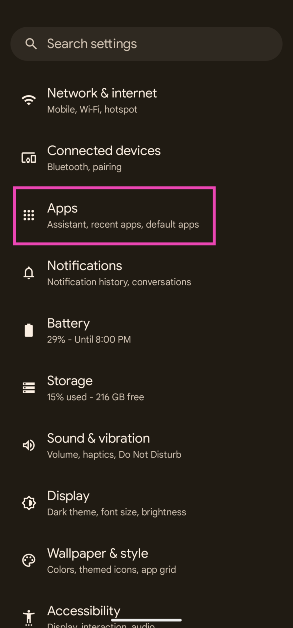
Step 1: Go to Settings. Step 2: Scroll down and select Apps. Step 2: Scroll down and select ‘Apps’. how to fix instagram crashing on android Step 3: Scroll down and select the app that’s crashing. Step 3: Scroll down and tap on ‘Instagram’. how to fix instagram crashing on android Step 4: Select Force Stop from the bottom menu. Step 4: Select ‘Force Stop’ from the bottom menu. how to fix instagram crashing on android

Clear app data and cache

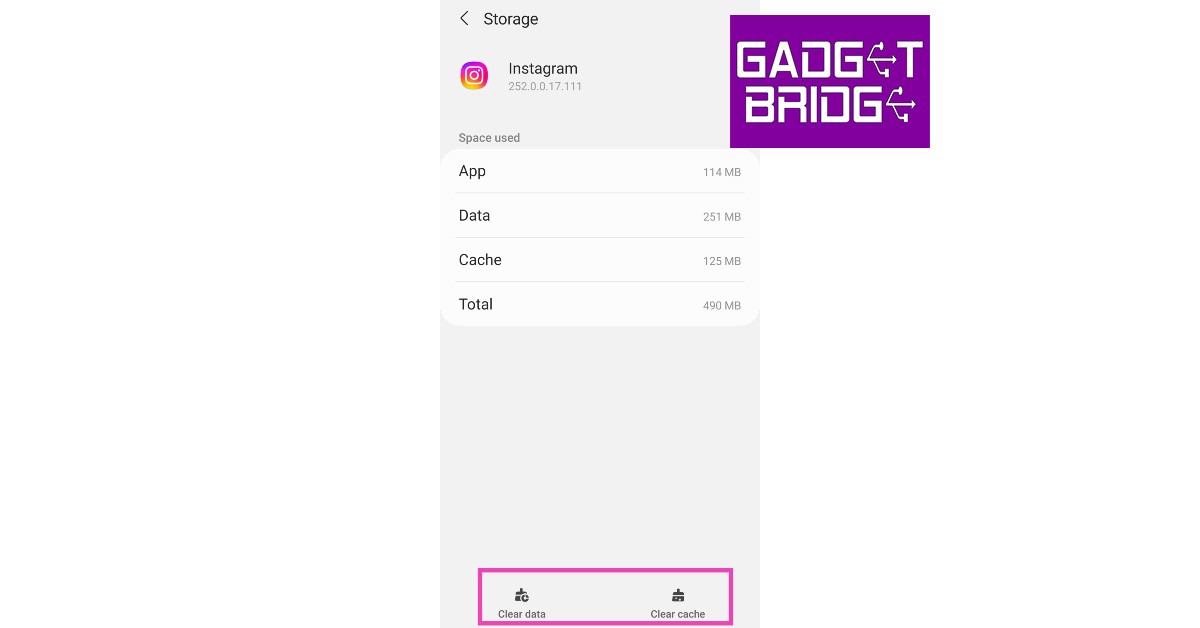
Step 1: Go to Settings. Step 2: Scroll down and select Apps. Step 2: Scroll down and select ‘Apps’. Step 3: Scroll down and select the app that keeps crashing. Step 3: Scroll down and tap on ‘Instagram’. Step 4: Select Storage. Step 4: Select ‘Storage’. Step 5: Select Clear Data and Clear Cache. Step 5: Select ‘Clear Data’ and ‘Clear Cache’.

Check the app’s permissions

Every app needs a certain set of permissions to function properly. If an keeps crashing upon startup, check if it has been granted the permissions that are essential to its functioning. Step 1: Go to Settings and select Apps. Step 1: Go to Settings and select Apps. Step 2: Scroll down and select the app that is malfunctioning. Step 2: Scroll down and select Microsoft Teams. Step 3: Tap on Permissions. Step 3: Tap ‘Permissions’. Step 4: Allow the app access to the necessary permissions. Step 4: Allow access to the necessary permissions.

Check your phone’s storage

Android apps may fail to load if your phone is running low on storage space. To free up some space, delete duplicate files and images, unused apps, and other clutter from your phone. Go to Settings>Battery and Device Care>Storage to manage your phone’s storage. If your phone supports external storage, insert a memory card to expand the storage capacity.

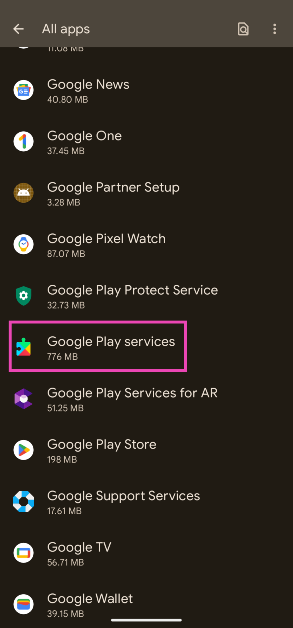
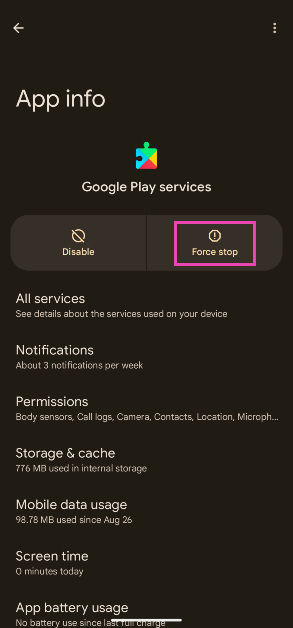
Force Stop Google Play Services

Step 1: Go to Settings and select Apps. Step 1: Go to Settings and select Apps. Step 2: Tap on Google Play Services. Step 2: Tap on Google Play Services. Step 3: Tap on Force Stop. Step 3: Tap on Force Stop.
Update your phone’s OS

Step 1: Go to Settings and select Software Updates. Step 2: Scroll down and select Software Update. Step 2: Tap on Download and Install. Your smartphone will check for any new updates. Step 3: Tap on ‘Download and Install’. Top 9 ways To Fix ‘Android Apps Crashing and Closing Suddenly’ Step 3: If an update is available, tap on Install Now. You can also schedule the update for later. Step 4: Select ‘Install now’. Top 9 ways To Fix ‘Android Apps Crashing and Closing Suddenly’

Keep the apps updated

Older versions of apps are more prone to crashes and malfunctions. In order to minimise the chances of coming across a bug, make sure all the apps on your phone are updated at all times. You can turn on Auto Updates from Play Store settings. Make sure you select the ‘Over WiFi Only’ option to keep your mobile data from depleting.

Check the Internet connection

It is possible that app crashes may not have anything to do with your device. Sometimes a faulty internet connection can keep an app from launching properly. Connect to a different network to verify if this is the case. You can also check the strength of the connection using an online tool.

Perform a Factory Reset

Before you perform a factory reset on your smartphone, make sure you back up all your data either on an external storage device or on an online data backup service. Step 1: Go to Settings, scroll down and select General Management. Step 1: Go to Settings, scroll down and select General management. Top 9 ways To Fix ‘Android Apps Crashing and Closing Suddenly’ Step 2: Tap on Reset. Step 2: Tap on ‘Reset.’ Top 9 ways To Fix ‘Android Apps Crashing and Closing Suddenly’ Step 3: Select Factory data reset. Step 3: Select ‘Factory data reset.’ Top 9 ways To Fix ‘Android Apps Crashing and Closing Suddenly’ Step 4: Scroll down and tap on Reset. Step 4: Scroll down and tap on ‘Reset.’ Top 9 ways To Fix ‘Android Apps Crashing and Closing Suddenly’

Frequently Asked Questions (FAQs)

Why do apps keep crashing on my Android phone?

If your phone is running out of storage space, it can cause the apps to unexpectedly crash. A faulty internet connection can also be responsible for this.

How do I fix the apps that keep crashing on my Android phone?

Delete the cache and app data of the apps that keep crashing on your phone. Make sure you restart your device as well.

What should I do if my phone doesn’t have enough storage?

If your phone is running low on storage, you can create a backup of the bulky files and delete them from your device. If your phone supports expandable storage, insert a memory card to boost the storage capacity. Read Also: Top 3 Ways to Get a Refund for App Store and iTunes Purchases

Conclusion

This is how you can fix the ‘Android apps keep crashing and closing suddenly’ issue on your device. If you decide on performing a factory reset of the device, make sure you back up all the data on a cloud service or an external hard drive first. A factory reset will clear your phone’s data. This includes all the apps, media, documents, contacts, and more.

Garena Free Fire Redeem Codes Today 16 July 2023: Here is how to claim them

Garena Free Fire is a battle royale game with regular awards and tournaments to keep players interested. If you play Garena Free Fire, you should be aware of the redeem codes that are released on a daily basis. However, because the battle royale game is banned in India, players from other countries can use the Free Fire Redeem codes daily. If you’re unfamiliar with the Garena Free Fire redeem codes or don’t know how to get them, we’ve put together a step-by-step guide to help you redeem them. Check out Garena Free Fire Redeem Codes for 16 July 2023. The Free Fire redeem codes are a great way to get free stuff. These are 12-digit codes that contain alphabets and numbers, as well as an expiration date and time. Because the Garena FF redeem codes cannot be used more than once, you should hurry to the redemption page to claim your free reward before someone else does. To get a free reward, all you have to do is go to reward.ff.garena.com/en, which is the official redemption page. Also, keep an eye on this space for daily updates on Garena Free Fire redemption codes and rewards.

Garena Free Fire Redeem Codes Today 16 July 2023

GTYHB8VUSYHQU27 G63R4FR5GTHV87Y GTCGDSWH8E4RUYT GGHJCIXSWTG8E4B GRTHGDRTGDR6TAR GTDYUR67YHAYQTR G2F3EGHDFUC7TGD GUQYTTH5R6Y5ESG GVI98YTCGFSVWGB GH3E4J5TYJGDYET GGBTHNGIUVYG9B7 GFE4JTGNBVEH45R GRH5JTGI8BYVGCB GDSTHDRTGDRTGRG

How to Get Free Fire Redeem Codes for Garena on 16 July 2023?

  • Visit the Garena Free Fire game’s official website at reward.ff.garena.com.
  • Use your Facebook, Google, VK, Apple ID, Huawei ID, or Twitter account to log in.
  • You’ll be taken to a valid redemption code (s)
  • Copy and paste the 12-digit redemption code into the text box.
  • On the screen, a dialogue box will appear.
  • ‘Ok’ should be selected.
For the latest gadget and tech news, and gadget reviews, follow us on TwitterFacebook and Instagram. For newest tech & gadget videos subscribe to our YouTube Channel. You can also stay up to date using the Gadget Bridge Android App. You can find the latest car and bike news here.

Google Play Games beta launched in India, making Android games accessible on PCs

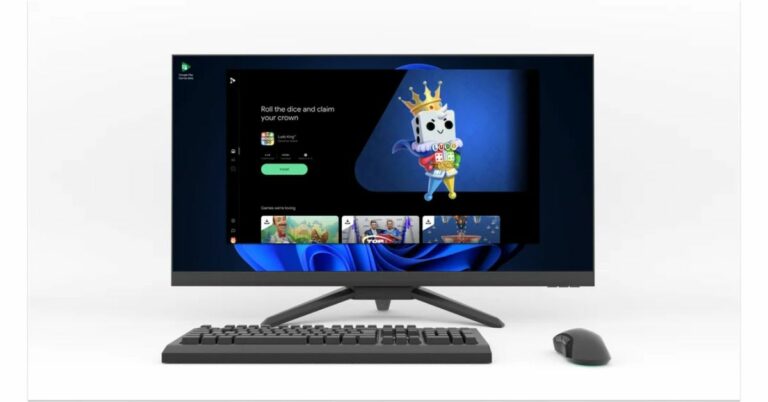
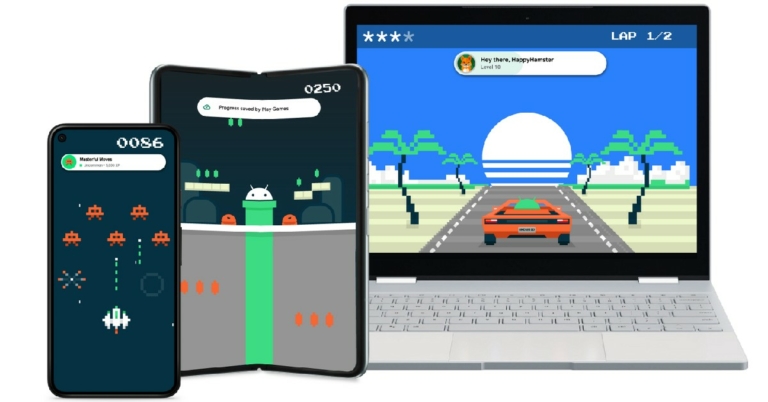
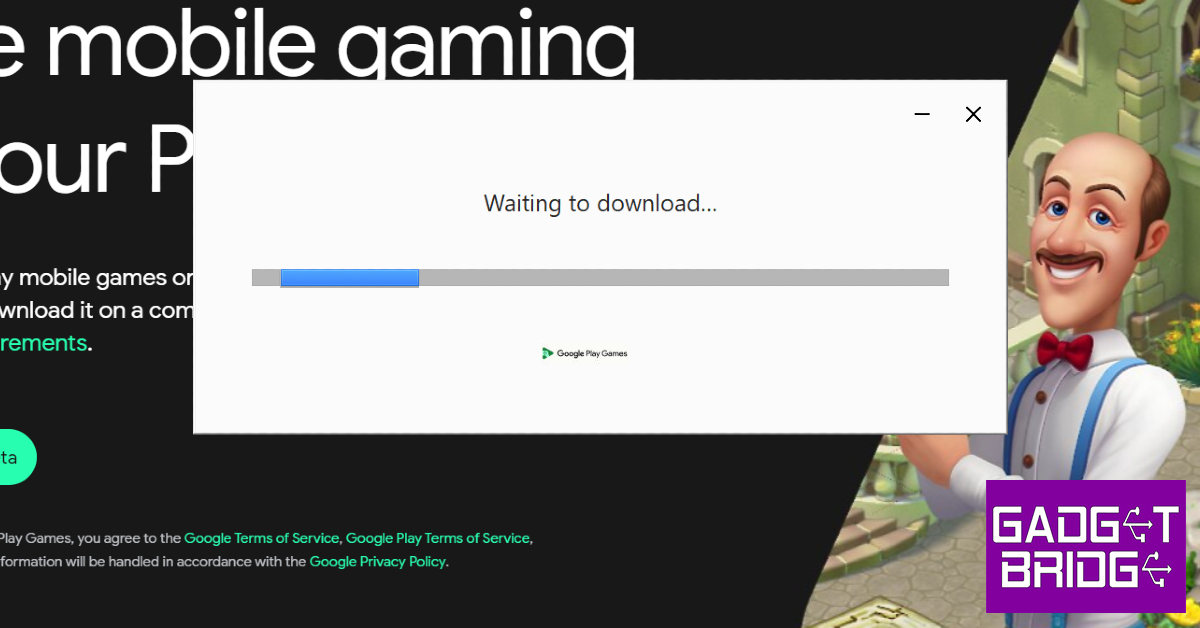
Google Play Games for PC beta has been officially announced in India allowing Windows users to play Android games. The open beta test for Android games on Windows is already accessible in 50 nations and has been expanded to more than 60 regions across the world. With this addition, there would be 120 altogether. Google Play Games beta is now accessible to users in India, according to the internet search behemoth. Mobile games are playable on PCs, Chromebooks, tablets, phones, and other mobile devices for beta testers. Both English and Hindi users in India have access to this. Also Read: Nothing Drops debuts in India, customers may now experience and preorder the Nothing Phone 2 Players can browse, download, and play mobile games on their PCs using Google Play Games for PC, which enables users to take advantage of larger screens and greater controls with mouse and keyboard inputs. Due to the fact that game libraries and progress are synced between devices, players can also take up where they left off. In addition to India, Google is introducing Play Games beta in over 60 additional areas. With this, gamers in more than 120 regions can now access the Google Play Games beta on PCs. According to Arjun Dayal, Director of Product for Google Play Games, the business has collaborated with developers from around the world to bring their amazing games to bigger displays for players everywhere. Note that the Google Play Games for PCs was released to beta testers as part of a limited beta earlier last year. Since its debut last year, Google has added hundreds of new games to the Google Play Games library, all of which have been enhanced for larger displays and have better controls. In addition to internationally famous games like Eversoul, Lords Mobile, and Evony: The King’s Return, players may access well-known titles from Indian creators like Ludo King and Hitwicket Games. Google has also included multiple new features like keyboard remapping and lowered the minimum PC spec requirements to make Google Play Games more widely available and customizable for our users For the latest gadget and tech news, and gadget reviews, follow us on TwitterFacebook and Instagram. For newest tech & gadget videos subscribe to our YouTube Channel. You can also stay up to date using the Gadget Bridge Android App. You can find the latest car and bike news here.

Nothing Drops debuts in India, customers may now experience and preorder the Nothing Phone 2

Nothing recently announced the Nothing Phone 2 will be sold in India through Flipkart. In addition to being available online, Nothing is now letting customers purchase the Nothing Phone 2 in person at temporary shops called Nothing Drops. Through a pop-up shop in Bengaluru, customers in India can buy the most recent phone and the Nothing Ear 2 black colour option. Beginning on Friday, July 21 at 12 PM, the Nothing Phone (2) will be available for purchase in India. Before then, individuals who are keen to try Phone (2) can pre-order it at the Bengaluru Nothing Drop store LULU Mall through Sunday, July 16. Also Read: Nothing Phone 2 launched in India, equipped with Snapdragon 8+ Gen 1 SoC and tweaked design For the first time ever, the London-based tech company Nothing organised a Nothing Drops event in India where attendees got away with the much-anticipated Phone (2), Ear (2) black, and related accessories. Hundreds of people lined up outside their SOHO stores in London and New York for the first incredibly successful drops, which were followed by an exhilarating drop today in Bengaluru, India. While announcing Nothing Drops in India the company said, “The Phone (2) has generated a remarkable buzz, starting from sold out pre-order passes on Flipkart, to an incredible turnout of over 500 customers who patiently queued for hours, waiting to experience and own its latest offering. The overwhelming response speaks volumes about the anticipation surrounding Phone (2) and the unparalleled excitement it has generated among tech enthusiasts and smartphone aficionados alike.” Nothing Drops debuts in India, customers may now experience and preorder the Nothing Phone 2 Also Read: Compare: OnePlus Nord 3 Vs OnePlus 11R Flipkart will be the only place in the country where customers can buy it. The Nothing Phone 2 will also be sold directly from Nothing Drops pop-up shops in Bengaluru, India. The business’s first Nothing Drops location in the nation is here. According to the company, customers who make in-person purchases are also qualified for rewards and have the opportunity to speak with the staff. The Nothing Phone 2, Nothing Power 45W charger, and Nothing Phone 2 accessories will be available for purchase on July 21 beginning at 12 PM IST at the Nothing Drop store in Bengaluru located at Lulu Mall, Gopalapura, Binnipete. First come, first served would be the only restriction. The opportunity to own a Phone (2) arrives with an exclusive launch offer price of Rs 39,999 on Flipkart (inclusive of bank, exchange, and EMI offers). The Nothing Phone 2 was launched in three different configurations of 8GB RAM with 256GB storage, 12GB RAM with 256GB and 12GB RAM with 512GB storage model. The price of the device is set at Rs 44,999 and Rs 49,999 and Rs 54,999 respectively. For the latest gadget and tech news, and gadget reviews, follow us on TwitterFacebook and Instagram. For newest tech & gadget videos subscribe to our YouTube Channel. You can also stay up to date using the Gadget Bridge Android App. You can find the latest car and bike news here.

Compare: OnePlus Nord 3 Vs OnePlus 11R

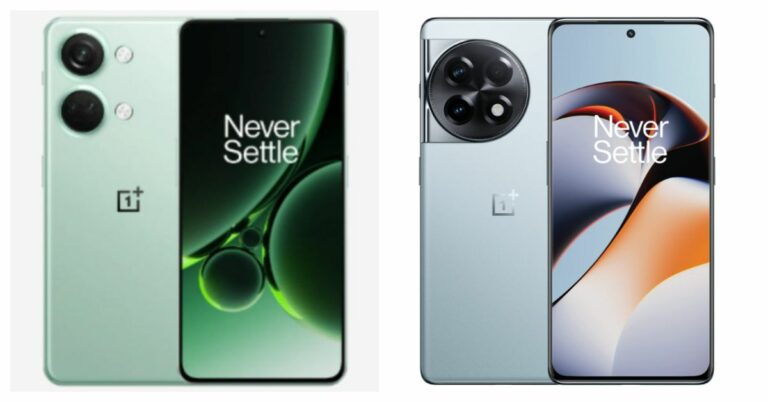
OnePlus Nord 3 which was recently launched in India has today gone on sale for the public. The device is a strong rival to the OnePlus 11 5G. The cost of the two phones differs significantly, though. Would you like to learn more about how the OnePlus 11R and OnePlus Nord 3 compare? We have analysed the technical details of both smartphones, which will undoubtedly help you choose wisely if you decide to buy one of them.

Display

OnePlus Nord 3: 6.74-inch AMOLED screen OnePlus 11R: 6.74-inch Full-HD+ curved AMOLED display

Processor

OnePlus Nord 3: MediaTek Dimensity 9000 SoC OnePlus 11R: Snapdragon 8+ Gen 1 5G Also Read: OnePlus 11R pre-orders open in India: Details inside

Rear camera(s)

OnePlus Nord 3: Triple rear camera setup includes a 50-megapixel Sony IMX890 sensor with OIS support, an 8-megapixel ultra-wide angle Sony IMX355 sensor with a 112-degree FoV, and a 2-megapixel macro lens. OnePlus 11R: Triple rear camera setup includes a 50MP Sony IMX890 main sensor, 2MP macro camera with a 120-degree ultra-wide lens, an 8 MP ultra wide-angle sensor

Selfie camera

OnePlus Nord 3: 16-megapixel front-facing camera OnePlus 11R: 16MP front camera

RAM and storage

OnePlus Nord 3: 8GB RAM with 128GB of storage/ 16GB RAM with 256GB internal storage OnePlus 11R: 8GB RAM with 128GB storage/16GB RAM with 256GB storage

Battery

OnePlus Nord 3: 5,000mAh battery with 80W SuperVOOC charging OnePlus 11R: 5,000mAh battery with 100W SuperVOOC charging

Operating system

OnePlus Nord 3: OxygenOS 13.1 with Android 13 OnePlus 11R: OxygenOS 13 with Android 13 Also read: OnePlus Nord 3 with tri-state alert slider debuts in India

Price

OnePlus Nord 3: Rs 33,999 OnePlus 11R: Rs 39,999

Our Take

Both smartphones have AMOLED displays, although the one on the 11R is curved when compared to the Nord 3’s flat display. The OnePlus 11R has a Qualcomm Snapdragon 8+ Gen 1 5G SoC, whilst the Nord has a MediaTek Dimensity 9000 SoC. On the software front, both come pre-installed with Android 13; however, the Nord 3 runs OxygenOS 13.1 as opposed to the OxygenOS 13 of the 11R. On these phones, the battery capacities and cameras are identical. In contrast to Nord’s 80W SuperVOOC charging, the 11R offers 100W SuperVOOC charging. For the pricing, there is a nearly Rs 6,000 price difference between both devices. If your budget is tight, you should consider the Nord 3, but if you want a better flagship processor with a curved screen that looks expensive, you should consider the OnePlus 11R. For the latest gadget and tech news, and gadget reviews, follow us on TwitterFacebook and Instagram. For newest tech & gadget videos subscribe to our YouTube Channel. You can also stay up to date using the Gadget Bridge Android App. You can find the latest car and bike news here.

BGMI redeem codes for 15 July 2023, claim and receive rewards and benefits

After being banned for nearly ten months, Battleground Mobile India, aka BGMI, is officially available again in India. BGMI fans are looking for ways to improve their game experience and one such method is the usage of redemption codes, which offers a variety of rewards and advantages using BGMI redeem codes players can gain access to new skins, outfits, loot crates, weapons and free UC and diamonds. As mentioned earlier, these codes give users the chance to earn unique rewards and gain extra benefits while playing the game. This includes GUN SKINS (M4, AKM, M416, AWM, M24, UZI, KAR98K), free character voucher, Andy, Carlo, Sara, Victor character for free, free Anna Character on completing the mission and UC or Royal Pass Discount. So here we have gathered a list of the most recent BGMI redeem codes as of 15 July 2023. Also, redeem these codes asap as these are only valid for a limited duration.

BGMI Redeem Codes for 15 July 2023

  • Updating…

How to get free Redeem Codes for BGMI on 15 July 2023?

  • Launch BGMI on your device.
  • Then select the Redeem Code option from the main menu.
  • Next, click on the Redeem code tab.
  • A new window will open, requesting the redemption code.
  • Now enter your BGMI code.
  • Confirm and click on the “Redeem” tab.
  • If your redeem code is valid then you will get a message confirming that your rewards were successfully redeemed.
(Note that these codes are case-sensitive, so be sure to type them correctly to prevent any errors.) For the latest gadget and tech news, and gadget reviews, follow us on TwitterFacebook and Instagram. For newest tech & gadget videos subscribe to our YouTube Channel. You can also stay up to date using the Gadget Bridge Android App. You can find the latest car and bike news here.

Garena Free Fire Redeem Codes Today 15 July 2023: Here is how to claim them

Garena Free Fire is a battle royale game with regular awards and tournaments to keep players interested. If you play Garena Free Fire, you should be aware of the redeem codes that are released on a daily basis. However, because the battle royale game is banned in India, players from other countries can use the Free Fire Redeem codes daily. If you’re unfamiliar with the Garena Free Fire redeem codes or don’t know how to get them, we’ve put together a step-by-step guide to help you redeem them. Check out Garena Free Fire Redeem Codes for 15 July 2023. The Free Fire redeem codes are a great way to get free stuff. These are 12-digit codes that contain alphabets and numbers, as well as an expiration date and time. Because the Garena FF redeem codes cannot be used more than once, you should hurry to the redemption page to claim your free reward before someone else does. To get a free reward, all you have to do is go to reward.ff.garena.com/en, which is the official redemption page. Also, keep an eye on this space for daily updates on Garena Free Fire redemption codes and rewards.

Garena Free Fire Redeem Codes Today 15 July 2023

  • V427K98RUCHZ 6KWMFJVMQQYG FFCMCPSUYUY7E MCPW3D28VZD6 BR43FMAPYEZZ NPYFATT3HGSQ FFCMCPSGC9XZ XZJZE25WEFJJ EYH2W3XK8UPG FFCMCPSJ99S3 MCPW2D2WKWF2 ZZZ76NT3PDSH FFCMCPSEN5MX HNC95435FAGJ FAGTFQRDE1XCF FFCMCPSBN9CU MCPW2D1U3XA3 FFAC2YXE6RF2

How to Get Free Fire Redeem Codes for Garena on 15 July 2023?

  • Visit the Garena Free Fire game’s official website at reward.ff.garena.com.
  • Use your Facebook, Google, VK, Apple ID, Huawei ID, or Twitter account to log in.
  • You’ll be taken to a valid redemption code (s)
  • Copy and paste the 12-digit redemption code into the text box.
  • On the screen, a dialogue box will appear.
  • ‘Ok’ should be selected.
For the latest gadget and tech news, and gadget reviews, follow us on TwitterFacebook and Instagram. For newest tech & gadget videos subscribe to our YouTube Channel. You can also stay up to date using the Gadget Bridge Android App. You can find the latest car and bike news here.

How to install Google Play Games Beta on your PC?

For the longest time, Windows users had to rely on using Android emulators to play their favourite mobile games on a PC. That changed when Google Play Games (Beta) was launched for PC last year. Initially launched in only a few countries, the gaming platform is now being introduced to other locations as well. Users in India can now download and play Android games on their PC using Google Play Games. If you’re wondering how to install Google Play Games Beta on your PC, here is a quick guide. Read Also: Viewsonic OMNI VX28 Series 180 Hz gaming monitors launched in India

Minimum PC Requirements

  • OS: Windows 10 (v2004) or higher
  • Storage: SSD with at least 10GB of available space
  • Memory: 8GB of RAM
  • Graphics: Intel UHD Graphics GPU or comparable ( Gaming-class GPU like Nvidia GeForce MX450 for better performance)
  • Processor: 4 CPU physical cores (8 logical cores for better gameplay)

Enable Virtualization on your PC

Some Android games may require Windows Hypervisor Program to be enabled on your PC. Here’s how you can turn it on. Step 1: Click the search icon on the taskbar. Step 2: Type ‘Turn Windows features on or off’. Step 3: Select Open. Step 4: Tick the boxes for Virtual Machine Platform and Windows Hypervisor Program. Step 4: Tick the boxes for Virtual Machine Platform and Windows Hypervisor Program. Step 5: Click OK. Step 6: Restart your PC.

Here’s how you can install Google Play Games Beta on your Windows PC

Step 1: Launch the web browser on your PC and go to https://play.google.com/googleplaygames. Step 2: Click on Download beta. Step 2: Click on Download beta. Step 3: Run the installation suite as administrator. Step 3: Run the installation suite as administrator. Step 4: Once Google Play Games has been installed on your PC, sign in using your Google account. Step 5: Search for the Android game you want to play on your PC.

Frequently Asked Questions (FAQs)

What games are available on Google Play Games Beta?

There are over 100 gaming titles currently available on Google Play Games Beta for Windows. Users can download games like Eversoul, Evony: The Kings Return, and Ludo King on their PC using Google Play Games.

Is Google Play Games Beta available in India?

Launched in 2022, Google Play Games Beta was first available only in Australia, Brazil, Canada, Hong Kong, Indonesia, South Korea, Malaysia, Taiwan, Thailand, Mexico, the Philippines, and the USA. Google has now launched its Android gaming platform for PC in several other countries including India.

Can I sync Google Play Games for PC with my Android phone?

If you don’t want to lose any in-game progress, log in to Google Play Games on your PC using the same account as your Android smartphone. This will sync the in-game progress between the two platforms. Read Also: iOS 17 public beta version now available for download

Conclusion

This is how you can install Google Play Games Beta on your Windows PC. Since this is a Beta version, you may encounter frequent bugs on the platform. If you aren’t impressed by the gaming titles on offer, you can always go back to using an Android emulator for your PC and wait until Google releases the full desktop version of its Gaming platform. For the latest gadget and tech news, and gadget reviews, follow us on Twitter, Facebook and Instagram. For newest tech & gadget videos subscribe to our YouTube Channel. You can also stay up to date using the Gadget Bridge Android App. You can find the latest car and bike news here.