
In This Article
Get to the bottom of the issue before moving to the fixes
If you notice something wrong with your Android phone’s mic, don’t jump to fixing it right away. First, you need to figure out what’s causing it to malfunction. It can take some time to determine the root cause of the issue when it is as general and open-ended as this one. If you’re experiencing microphone issues only on call, it could likely be due to a network-related issue. However, if other apps are replicating this behaviour, the network isn’t to blame. If your phone’s hardware is at fault, these fixes will be of no help. In this scenario, you will need to take your phone to an authorised service centre. But how does one verify that this is the case? The answer is simple. Launch the native voice recorder app on your phone and record a sample. If the microphone isn’t able to pick up any sound at all, the issue likely lies with the hardware. You can also download a diagnostic app from the Play Store to know if it is a hardware-related issue for sure.Restart your phone
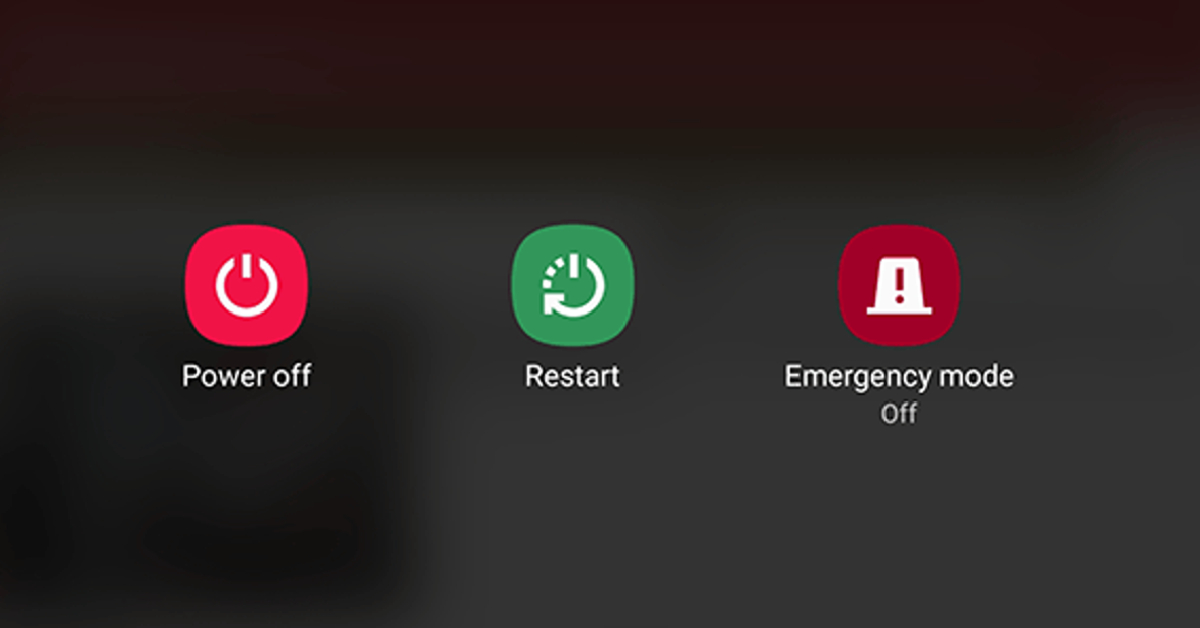 The first thing you should do upon encountering a problem with your microphone is restart the device. This will resolve any background glitches that may be causing the microphone to act up. To restart your smartphone, long-press the side key and select Restart from the power menu. You can also access this menu by tapping the power icon from the Quick Settings Menu. If long-pressing the side key triggers the voice assistant on your phone, press it along with the volume-up key to go to the power menu.
Clean the microphone
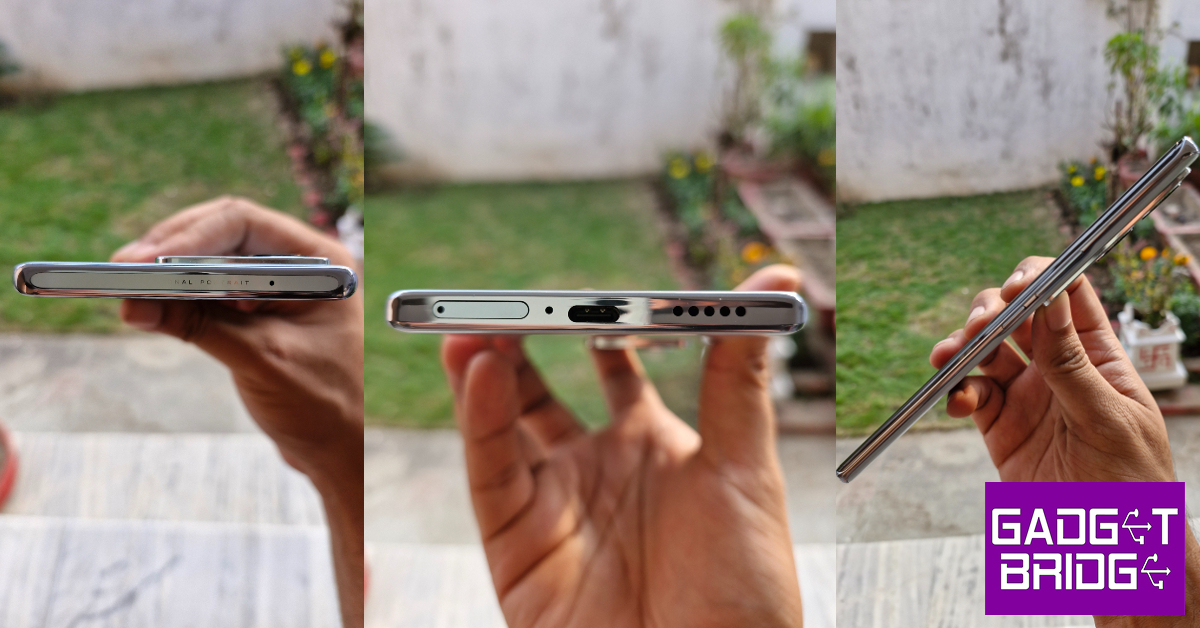 Accumulation of dirt and dust particles on your phone’s microphone can cause it to diminish the quality of recorded voice. This is more likely to happen if you haven’t cleaned your device in a while. Grab a microfibre cloth and wipe the area around the microphone. Blow some air into the tiny aperture and use a small needed to pry out the settled dirt particles. Be careful to not push the needle too far as this may end up damaging the microphone.
Remove the phone case
Poorly designed cases and cheap knock-offs of popular covers can cover the microphone in a manner that renders it unusable. If your voice on calls and recorded audio is muffled, this may be the case. Take off the phone cover and try again. If the quality doesn’t improve, the cover is not at fault and you should proceed to other fixes in this list.Check if your phone is connected to any Bluetooth TWS or microphone
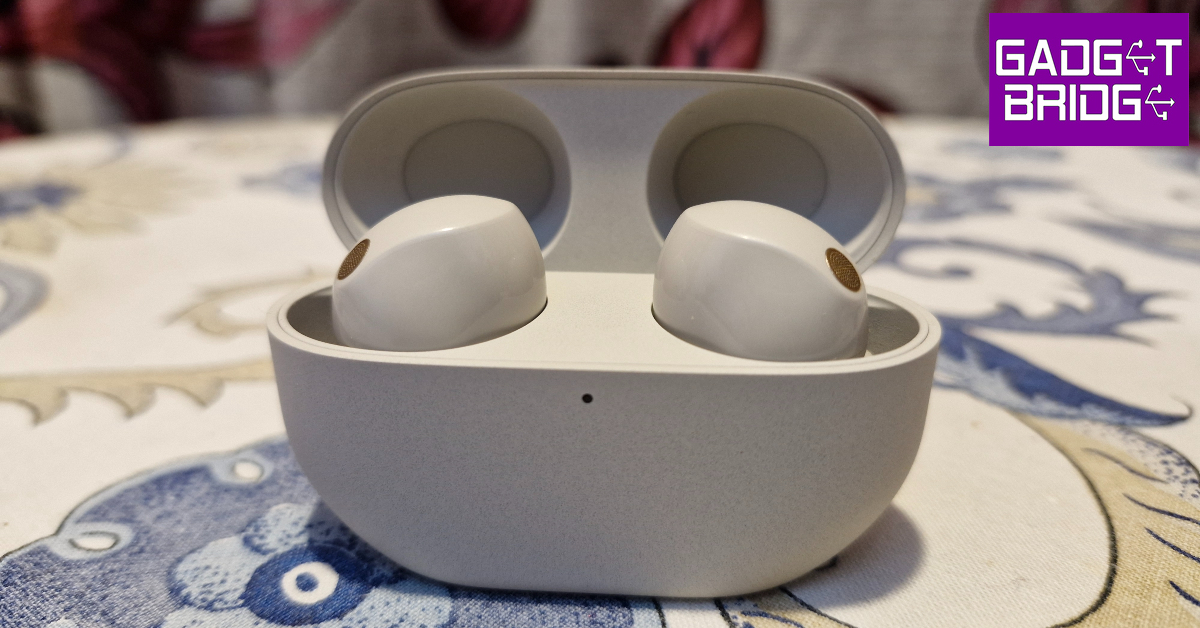 If your phone is connected to a TWS, it will use the integrated microphone on the earbuds. If your earbuds aren’t near the phone, the quality of the audio recording will take a massive hit. It is quite common to connect your phone to a TWS device and then forget about it. If the microphone stops working out of the blue, check your phone for any paired devices. You can do this by swiping down from the status bar and long-pressing the Bluetooth tile in the Quick Settings Menu.
Allow microphone access
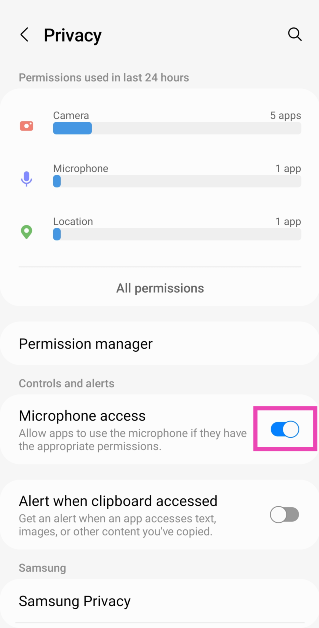
If access to your microphone is turned off, you won’t be able to use it on any app. Here’s how you can allow microphone access. Step 1: Go to Settings and select Privacy.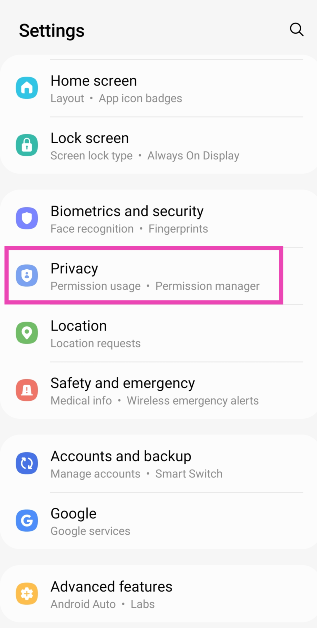 Step 2: Scroll down and turn on the toggle switch for Microphone access.
Allow microphone access to a particular app
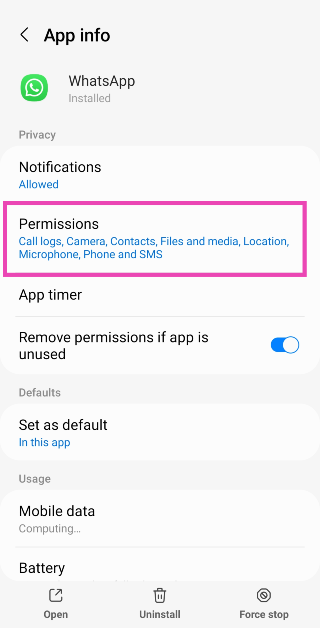
If your Android phone’s mic isn’t working for a particular app, make sure it has the necessary permission. Here’s how you can allow an app microphone access. Step 1: Go to Settings and select Apps. Step 2: Select the app in question.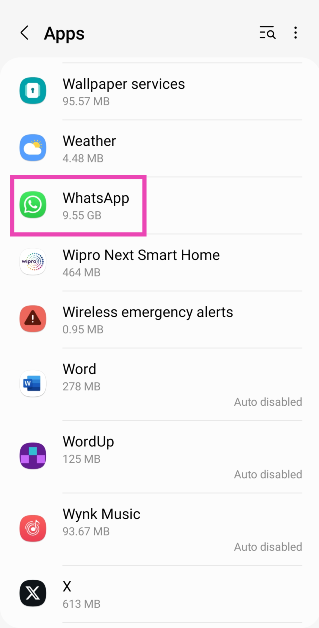 Step 3: Tap on Permissions.
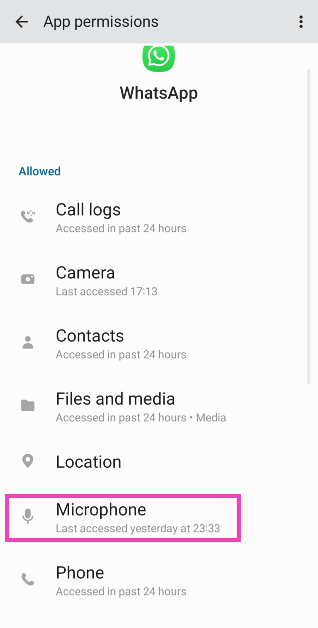
 Step 4: Select Microphone and tap on Allow only while using the app.
Test your phone’s mic on the voice recording app
 If you’re facing microphone trouble on cellular calls, try recording a sample voice note on the voice recorder app to confirm that the mic is at fault. If the voice note has no aberrations and is recorded in perfect quality, there is nothing wrong with your phone’s microphone. The fault may lie with the cellular network.
Disable Noise Reduction
Some apps have a ‘Noise Reduction’ feature that helps suppress the background noise while you’re on a call. This may sometimes affect the call quality as well. Here’s how you can turn it off if your Android phone’s mic isn’t working. Step 1: Go to Settings and select Sound/Call. Step 2: Scroll down and turn off the toggle switch for Noise Reduction.Restart your phone in Safe Mode
 If you suspect that a third-party app is causing the app to malfunction, restart your phone in Safe Mode to confirm that this is the case. When Safe Mode is turned on, your phone is stripped to its bare bones. All third-party apps on the device are disabled and you can only use its native features. If you still experience any problems with the microphone, the third-party apps are not to blame. To restart your phone in Safe Mode, press and hold the Power Off option. Once ‘Safe Mode’ pops up on the screen, tap on it.
Update your phone’s OS
Step 1: Go to Settings and select Software update. Step 2: Tap on Download and install.
 Step 3: Select Install now.

Perform a Factory Reset
If nothing works, you can perform a factory reset on your phone. This will wipe all data from the device, so make sure you create a backup before proceeding. Here’s how you can restore your device to its factory settings. Step 1: Go to Settings, scroll down and select General management.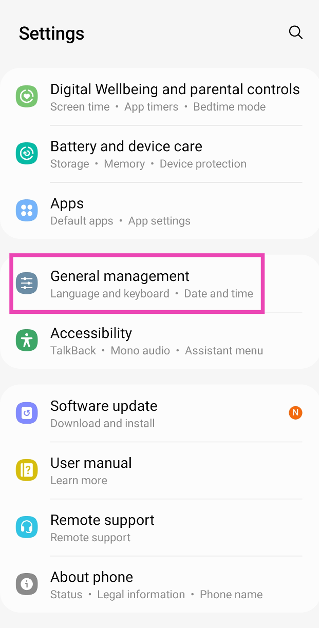 Step 2: Tap on Reset.
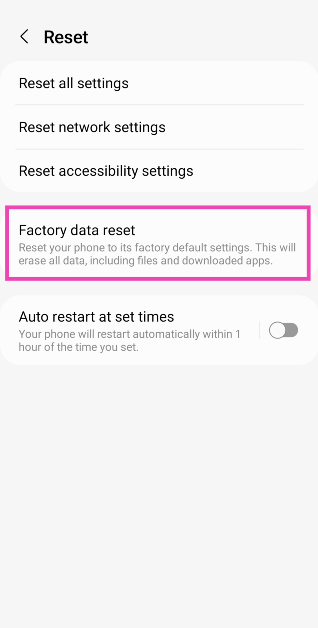
 Step 3: Select Factory data reset.
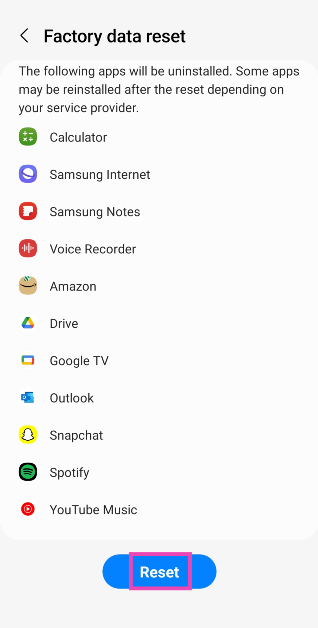
 Step 4: Scroll down and tap on Reset.

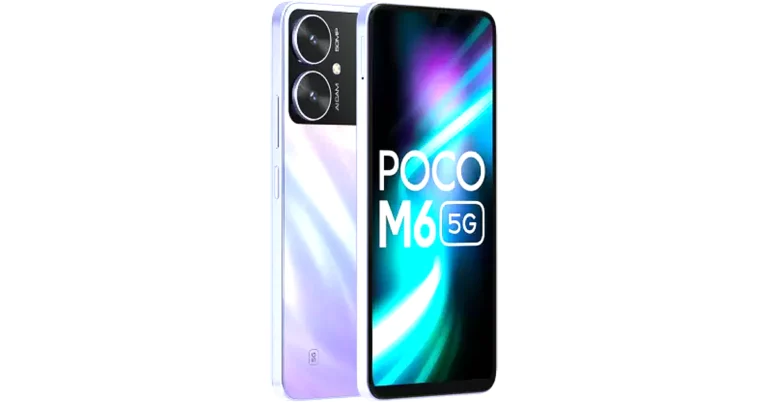
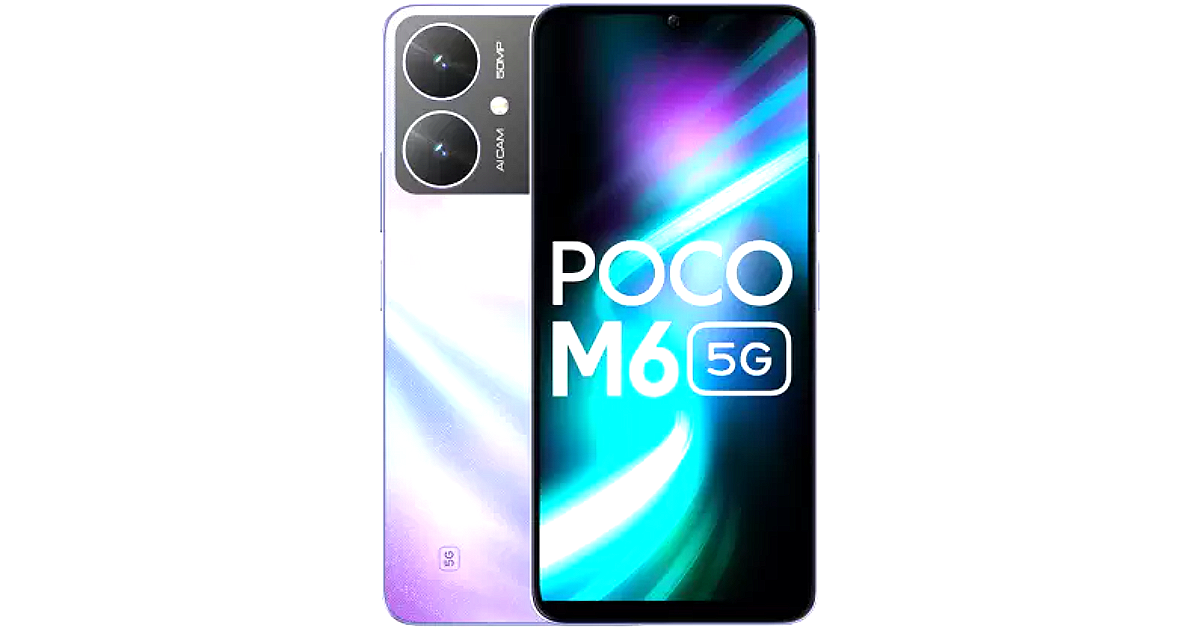 Customers can get the device at an exciting price of INR 9,499, INR 10,499 and INR 12,499 for the 4+128GB, 6+128GB and 8+256GB variants, respectively, after an INR 1,000 offer with ICICI Debit/ Credit cards/ EMI transactions or an equivalent product exchange offer.
Also Read:
Customers can get the device at an exciting price of INR 9,499, INR 10,499 and INR 12,499 for the 4+128GB, 6+128GB and 8+256GB variants, respectively, after an INR 1,000 offer with ICICI Debit/ Credit cards/ EMI transactions or an equivalent product exchange offer.
Also Read: 


 Realme 11X 5G
 Lava Agni 2
 Tecno Pova 5





 Qualcomm Snapdragon 7+ Gen 2
MediaTek 8050
Google Tensor G3
Samsung Exynos 1330
Qualcomm Snapdragon 7+ Gen 2
MediaTek 8050
Google Tensor G3
Samsung Exynos 1330
 Qualcomm Snapdragon 8 Gen 2
Apple A17 Pro
MediaTek Dimensity 9200+
Qualcomm Snapdragon 8 Gen 2
Apple A17 Pro
MediaTek Dimensity 9200+




 Asus ROG Ally

 Acer Aspire Lite AMD
HP Chromebook 15.6 (2023)
Asus Vivobook Go 14
Lenovo IdeaPad Slim 3i
Acer Aspire Lite AMD
HP Chromebook 15.6 (2023)
Asus Vivobook Go 14
Lenovo IdeaPad Slim 3i



 Acer Predator Helios 16
HP Omen 16
Lenovo Legion Pro 7 (2023)
Asus Strix Scar 17
Acer Predator Helios 16
HP Omen 16
Lenovo Legion Pro 7 (2023)
Asus Strix Scar 17
 Samsung Galaxy Tab S9 FE
Samsung Galaxy Tab S9 Ultra
Samsung Galaxy Tab S9 FE
Samsung Galaxy Tab S9 Ultra
 Redmi Smart Fire TV 43
Kodak CA Pro Series 55-inch
Blaupunkt QLED TV 55
Westinghouse 55-inch 4K TV
Redmi Smart Fire TV 43
Kodak CA Pro Series 55-inch
Blaupunkt QLED TV 55
Westinghouse 55-inch 4K TV
 Acer I Series Google TV
Samsung Crystal Vision 4K
TCL P635 Pro
Thomson OPMAX 9033 4K TV
Acer I Series Google TV
Samsung Crystal Vision 4K
TCL P635 Pro
Thomson OPMAX 9033 4K TV
 LG OLED G3
Xiaomi X Series 65
OnePlus Q2 Pro
Hisense Mini LED TV
LG OLED G3
Xiaomi X Series 65
OnePlus Q2 Pro
Hisense Mini LED TV
 Optoma UHZ50+
Optoma L1+
Viewsonic M1 Pro
BenQ V500i
Optoma UHZ50+
Optoma L1+
Viewsonic M1 Pro
BenQ V500i
 Qubo Smart Door Lock Elite
Xiaomi Robot Vacuum Mop 2i
Mivi Fort S300
Amazon Echo Pop
Dyson V12s Detect Slim Submarine
Qubo Smart Door Lock Elite
Xiaomi Robot Vacuum Mop 2i
Mivi Fort S300
Amazon Echo Pop
Dyson V12s Detect Slim Submarine







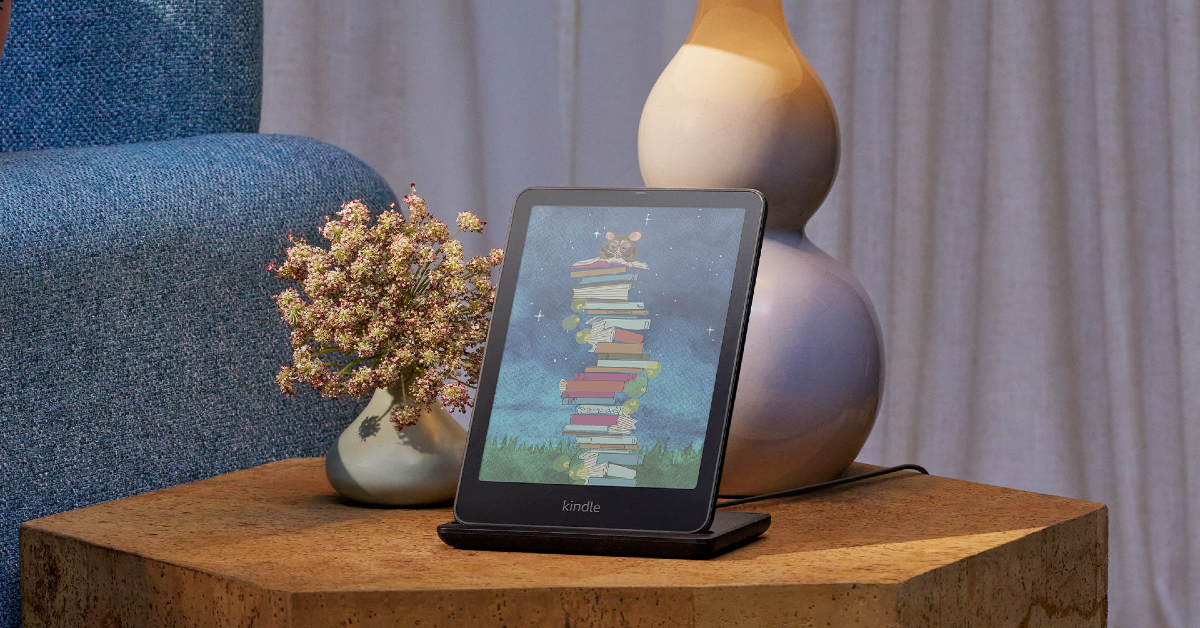 If your Kindle keeps shutting down even though there’s enough charge on it, you may need to update its firmware to fix it. Go to










 Step 1:
 Step 3: Tap and hold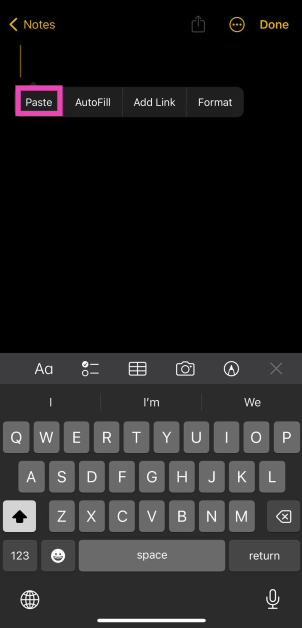
 Step 2:
 Step 4:
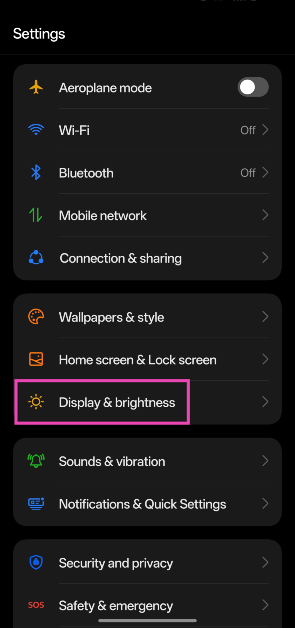 Step 2: Tap on Light mode.
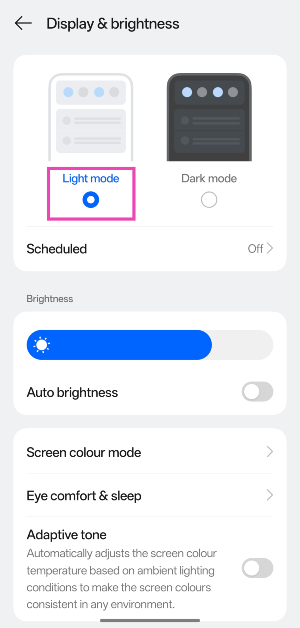
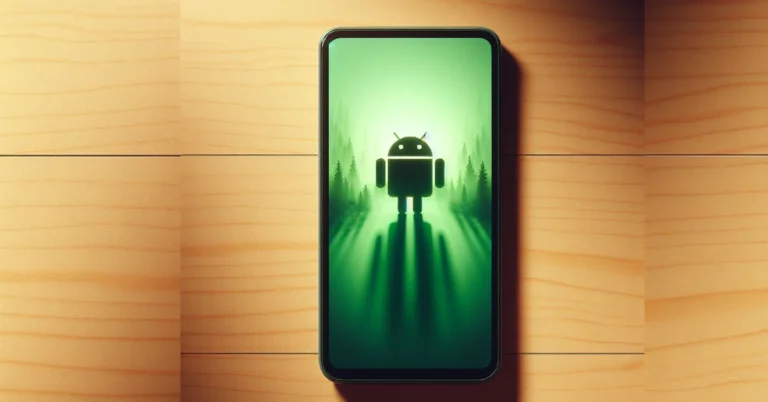
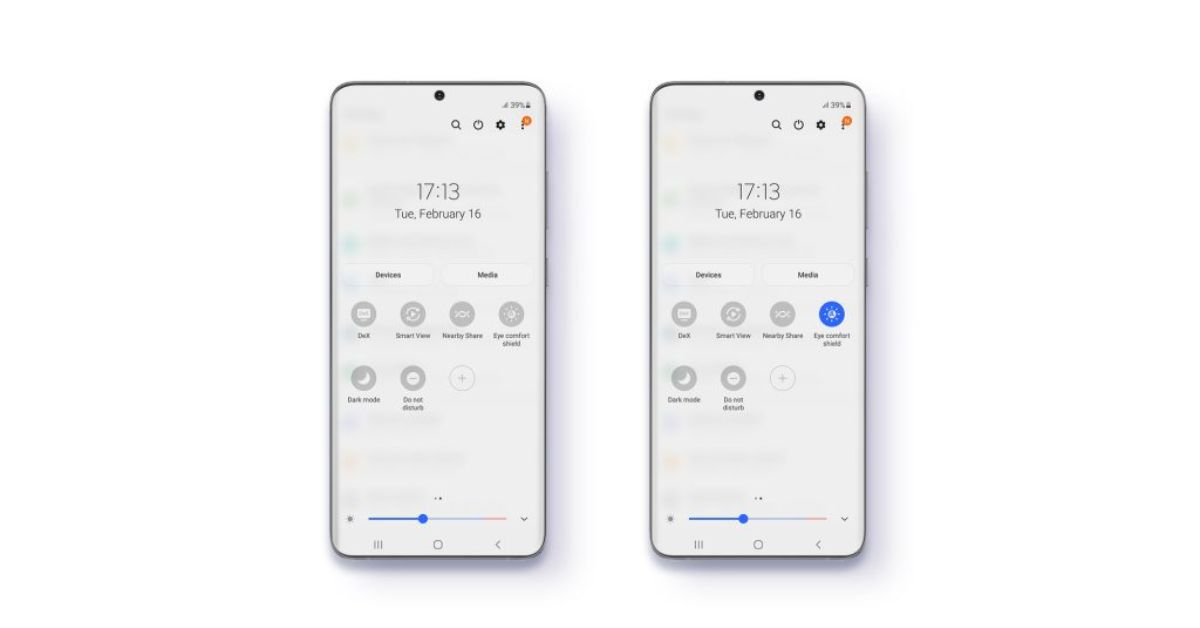 Android phones have a blue light filter which adds a warmer shade to the display and reduces the stress it exerts on the eyes. Sometimes, this filter can malfunction and create a green tint on the screen. Turn off the blue light filter from the Quick Settings Menu by tapping the ‘Eye Comfort’ tile.
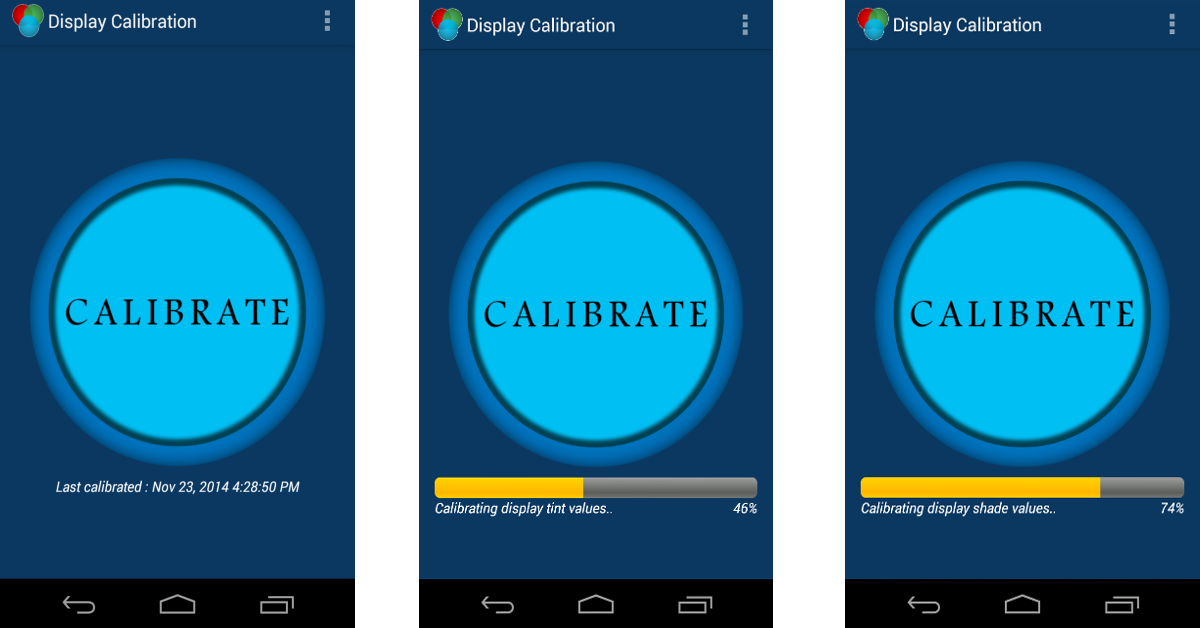
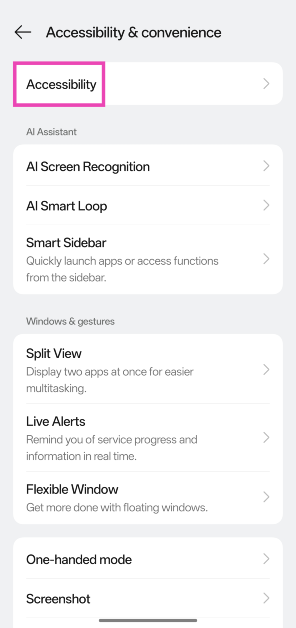
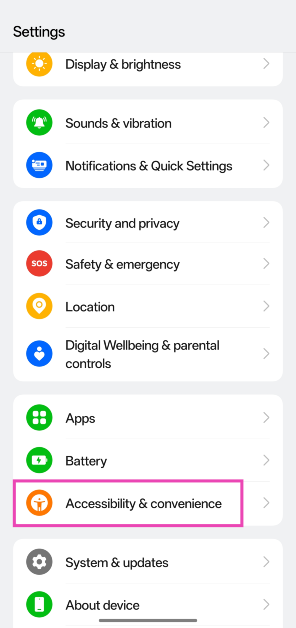 Step 2: Select Accessibility.
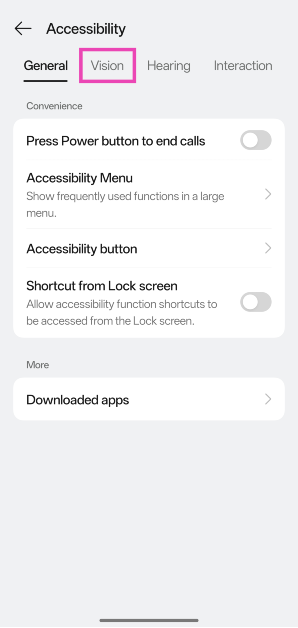
 Step 3: Switch to the Vision tab.
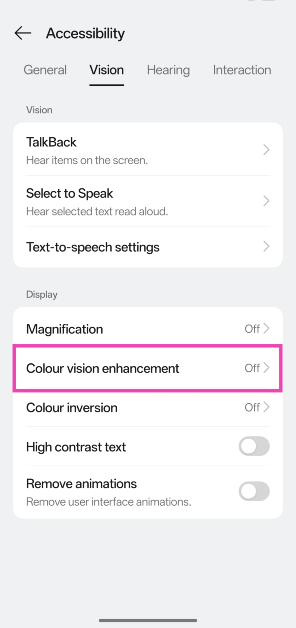
 Step 4: Tap on Colour vision enhancement.
 Step 5: Turn on the toggle switch.
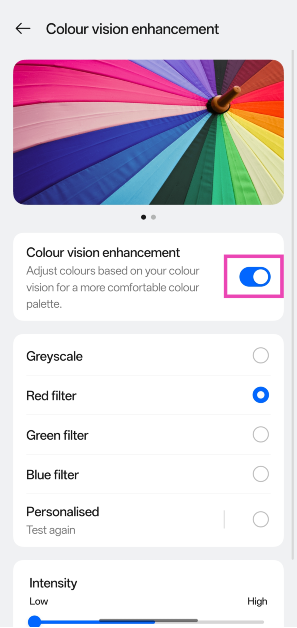 Step 6: Choose your preferred colour filter.










 Step 1: Launch Microsoft Edge