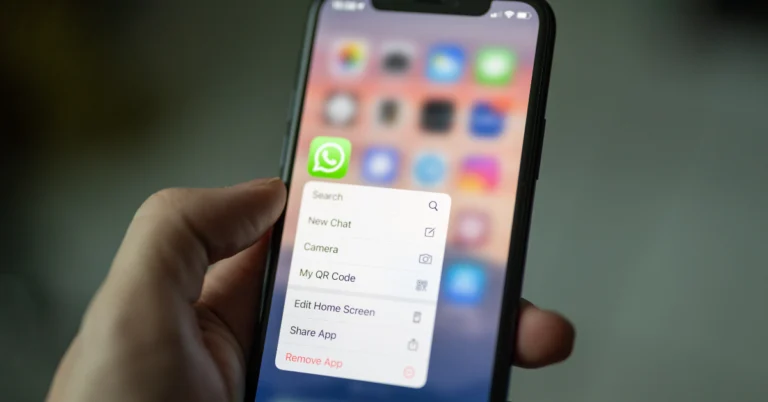
The customisation options on the iPhone’s home screen are very limited, but it has all the essential features. If you don’t want an app to appear on the home screen, you can either hide the entire page or remove the app with ease. Once the app has been removed it can always be restored with ease. Today, we bring you the top 5 ways to add an app back to the home screen on an iPhone.
Why can’t I find an app on my iPhone’s home screen?
If you can’t find an app on your iPhone’s home screen, it could be due to one of the following reasons.
You accidentally dropped the app into a folder on the home screen
The app was removed from the home screen
The app was accidentally deleted
The home screen page containing the app is hidden
The app has been restricted, and as a result, isn’t visible on the screen
The app was not installed correctly
Move an app from a folder to the home screen
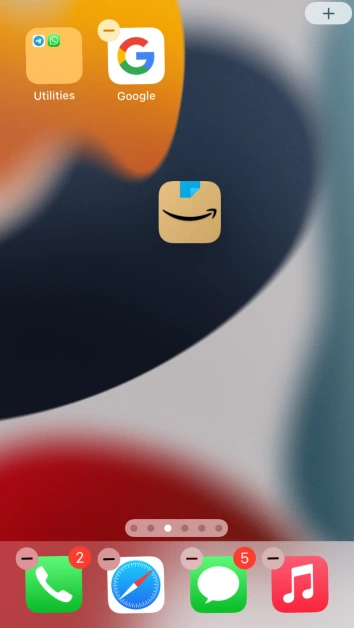
Step 1: Go to the folder’s home screen page and long-press any empty spot.
Step 2: Once your phone goes into screen editing mode, tap on the folder to view the apps within it.
Step 3:Drag the app you want to add to the home screen out of the folder.
Step 4:Drop the app on the screen.
Add an app to the home screen from the App Library
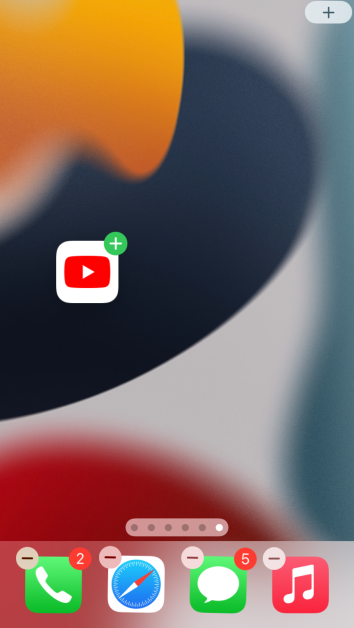
Step 1: Go to the App Library by swiping left on the last home screen page.
Step 2:Long-press and drag the app you want to add to the screen.
Step 3:Drop the app on the home screen page of your choice.
Unrestrict the app
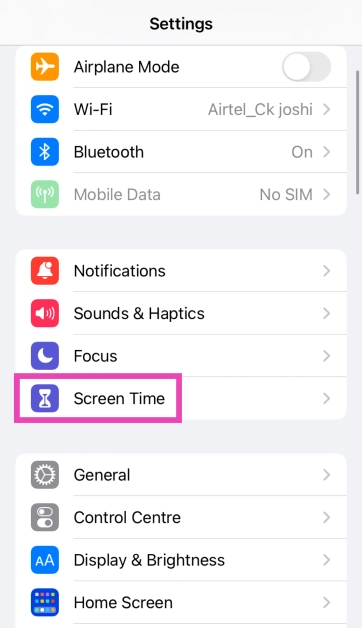
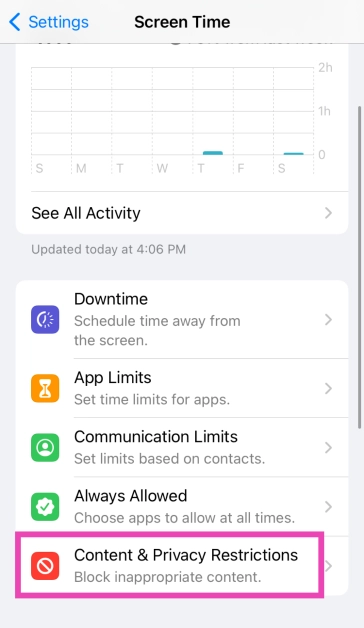
Step 1: Go to Settings and select Screen Time.
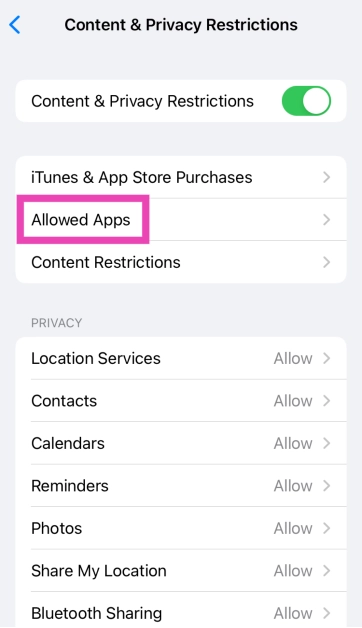
Step 2: Tap on Content & Privacy Restrictions.
Step 3: Enter the Screen Timecode.
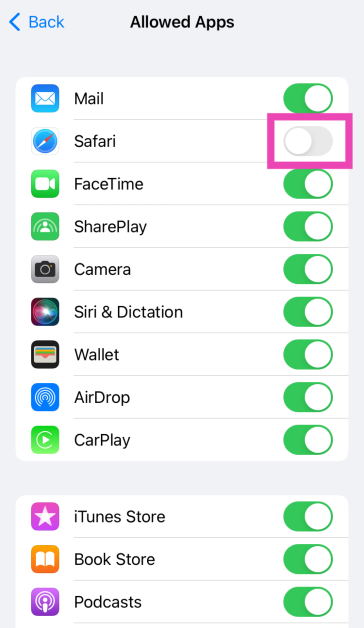
Step 4: Tap on Allowed Apps.
Step 5: Turn on the toggle switch for the restricted app.
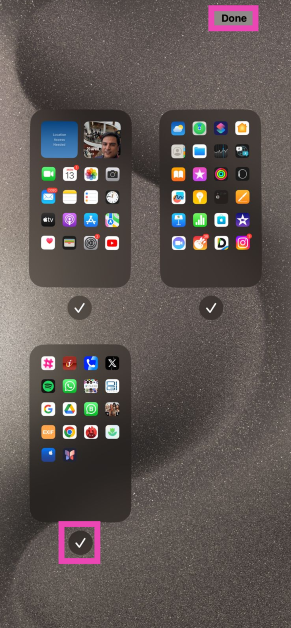
Unhide a home screen page
If you hid a home screen page but can’t figure out how to unhide it, simply follow these steps.
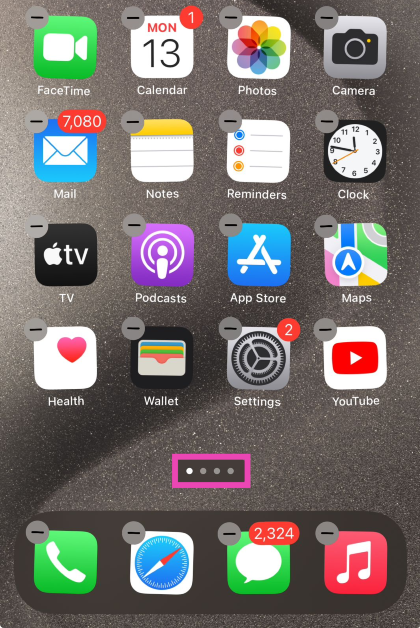
Step 1: Go to any home screen page and long-press an empty spot to access the editor.
Step 2: Tap the dots near the bottom of the page.
Step 3:Check the circle under the page you want to unhide.
Step 4: Hit Done at the top right corner of the screen.
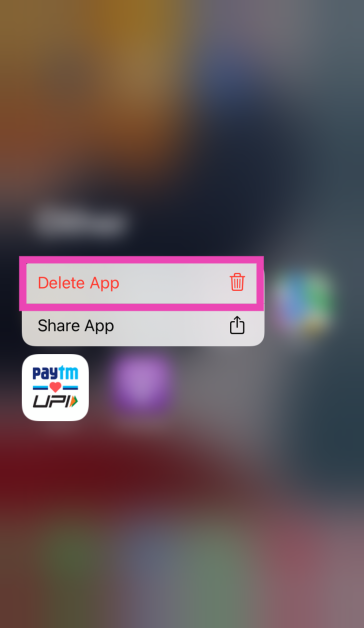
Uninstall and reinstall the app
Step 1: Go to the App Library and long-press the app you want to add to the screen.
Step 2: In the popup menu, tap on Delete App.
Step 3: Go to the App Store and reinstall the app. Once installed, it will appear on the home screen.
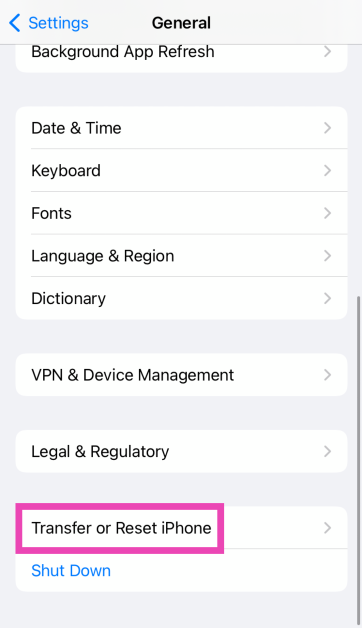
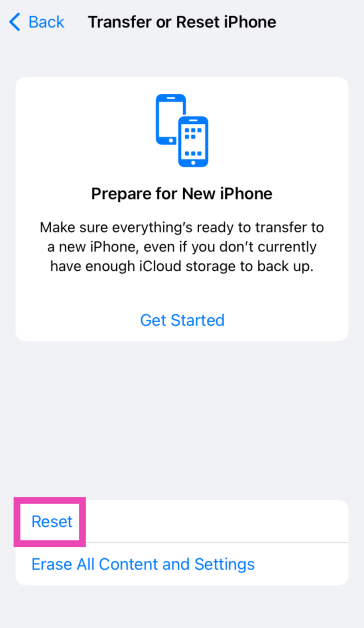
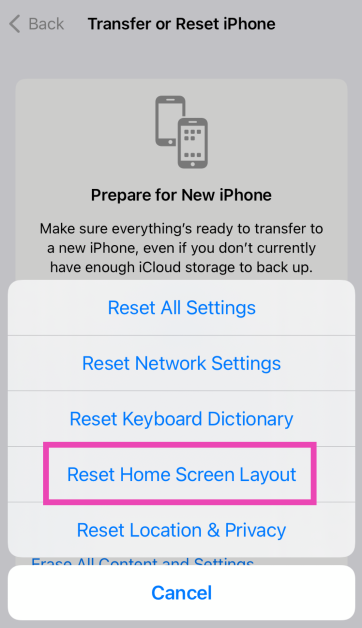
Restore the home screen
Step 1: Go to Settings and select General.
Step 2: Scroll down and select Transfer or Reset iPhone.
Step 3: Tap on Reset.
Step 4: Select Restore Home Screen Layout.
Step 5: Tap on Reset Home Screen.
The home screen will be restored to the layout it had out of the box.
Frequently Asked Questions (FAQs)
How do I unhide a home screen page on an iPhone?
Long-press an empty spot in the home screen, tap the dots at the bottom of the page, uncheck the circle under the home screen you wish to unhide, and hit ‘Done’.
How do I create a folder on my iPhone’s home screen?
Simply drag an app and drop it on another app to create a folder. You can add other apps to the folder by dropping them in it.
How do I restore my iPhone’s home screen to its default layout?
Go to Settings>General>Transfer or Reset iPhone>Reset>Restore Home Screen Layout and select ‘Reset Home Screen’.
These are the top 5 ways to add an app back to the home screen of an iPhone. If an app mysteriously goes missing from the home screen, you can use these steps to restore it. Can’t find the App Store on your iPhone? Read this article to learn how to get it back.
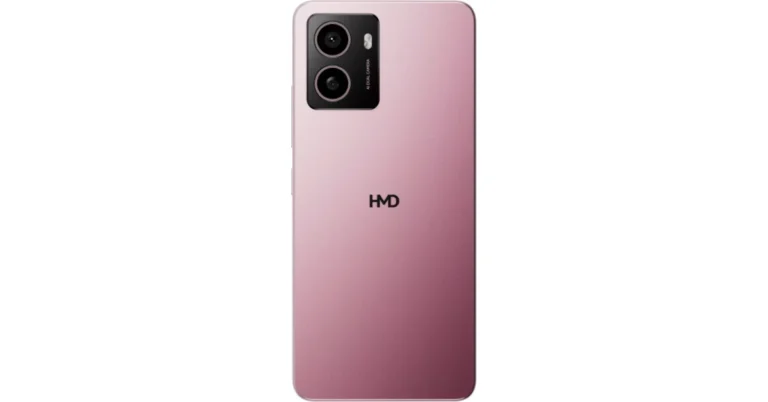
The HMD-branded smartphone was previously teased to launch in India. The company is expected to release the HMD Arrow soon, a phone that is just a rebranded HMD Pulse. The exact launch date is yet to be revealed. Apart from the name of its upcoming phone, no additional information has been shared so far.
A few weeks ago HMD India stated that it would disclose the name of the first HMD-branded smartphone to be launched in the nation. The first smartphone to carry the branding of the Finnish company will be called HMD Arrow in India.
India, thank you for naming HMD's first smartphone — the all-new HMD Arrow. 🏹📱
— Rajasthan Royals (@rajasthanroyals) May 11, 2024
According to HMD India, its followers submitted this name during a contest #HMDNameOurSmartphone it ran on X previously known as Twitter. Note that the company is planning to release the phone in other markets under different names. According to reports, the company will release the Pulse as the HMD Vibe in the US.
HMD Pulse is available in the European market at a starting price of EUR 140 (Rs 12,460). There it is offered in Atmos Blue, Dreamy Pink, and Meteor Black colourways.
HMD Arrow Specifications Expected
HMD Arrow is likely to feature a 6.65-inch HD+ LCD screen with 720×1,612 pixels of resolution. The display is expected to come with a refresh rate of 90Hz and has a 600-nit peak brightness. The upcoming smartphone by HMD may also equip a 12nm Unisoc T606 SoC with up to 6GB of RAM and up to 128GB of storage that can be further expanded up to 256GB via microSD card. The phone is expected to operate on Android 14 out of the box.
For the photos and videos, the HMD Arrow could feature a dual rear camera setup that may include a 50-megapixel primary camera and a 13-megapixel camera. The device is said to have an 8-megapixel front-facing camera for taking selfies and video calling.
HMD Arrow may also pack a 5,000mAh battery with 10W charging support. The handset is stated to come with a side-mounted fingerprint scanner, including an e-compass, proximity, ambient light, and accelerometer. Additionally, there will be a 3.5mm headphone socket, a USB Type-C port, support for 4G LTE, Wi-Fi AC, Bluetooth 5.0, NFC, and GPS for connectivity.
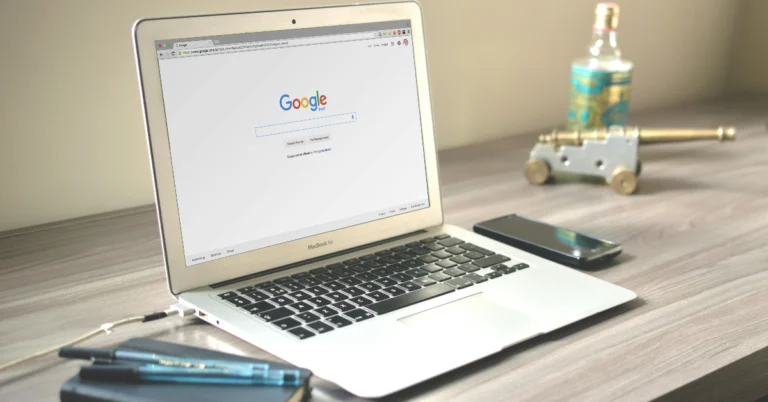
Google Chrome has addressed a zero-day security flaw affecting a Chrome component that renders web content on a user’s screen, ensuring safety for Chrome users on all desktop platforms. Users must update their browsers to stay secure.
As per Google’s latest blog post, a security patch for desktop versions of Google Chrome has been released. The latest updates have been rolled out to fix a high-severity security bug in the recent stable version of Chrome.
According to the search engine behemoth, an attacker can use this vulnerability to gain control of a user’s computer when they visit a maliciously constructed website. By doing so, they would be able to access and manage the system remotely or retrieve data. It is said to impact a component of Chrome that produces web content on the user’s screen.
The Stable channel has been updated to 124.0.6367.201/.202 for Mac and Windows and 124.0.6367.201 for Linux which will roll out over the coming days/weeks. A full list of changes in this build is available in the Log.
The Extended Stable channel has been updated to 124.0.6367.201 for Mac and Windows which will roll out over the coming days/weeks.
The company reports that it has fixed a previously unreported free vulnerability (CVE-2024-4671) that affects Chrome’s Visuals component and was discovered by an unnamed outside researcher.
In India, Nothing Ear was introduced alongside the less expensive Nothing Ear (a). The latter has already been put to the test; if you haven’t read the review yet, do read the Nothing Ear (a) review here to know how the two TWS differ. With a slightly higher price point, the Nothing Ear is more akin to a premium category TWS. The gadget has a transparent design that has become a trademark for the company. Good Bluetooth connectivity and active noise cancellation (ANC) are supported by Nothing’s new true wireless earphones. With that, up to 40.5 hours of battery life are promised for the Nothing Ear. Additionally, it supports in-ear detection features and dual connectivity, and unlike the Ear (a), these have wireless charging support.
In This Article
Nothing Ear Review: Design
The Nothing Ear 1’s distinctive and original style still looks great on the Nothing Ear, even though it isn’t as untried as it was on the Nothing Ear 2 (Review).
It appears that Nothing is also aware of how easily plastic may scratch, therefore it’s a nice thing that they provide a protective film on top of the case. However, the plastic will eventually turn yellow and dull, and the one we used has already developed numerous scratches. A similar film is provided on the Nothing Ear (a) as well. Thus, to prevent scratches, it will be ideal if you leave this clear film on.
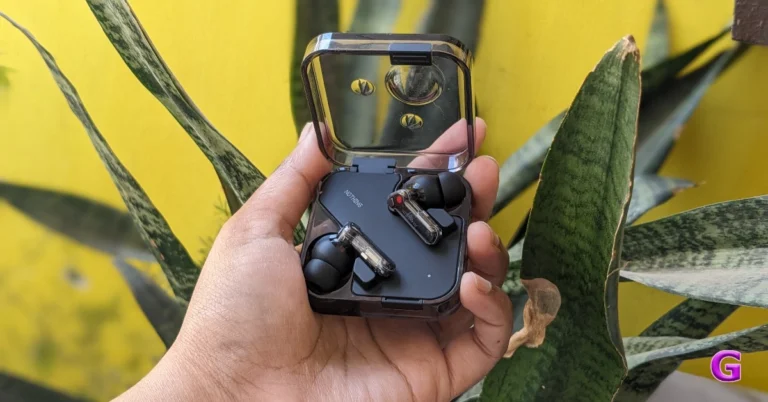
Also, we got the black colour variant for the review, though the device is available in white as well. The black one is slightly darker and more translucent, complementing the tone of the black earphones, than the clear, transparent case of the white ones. Though entirely made of polycarbonate, the construction seems quite high-end. With a black tone, the top plate is also darker. It takes some getting used to, but you can open the lid with just one hand.
On the side are a pairing/reset button and a USB Type-C port.
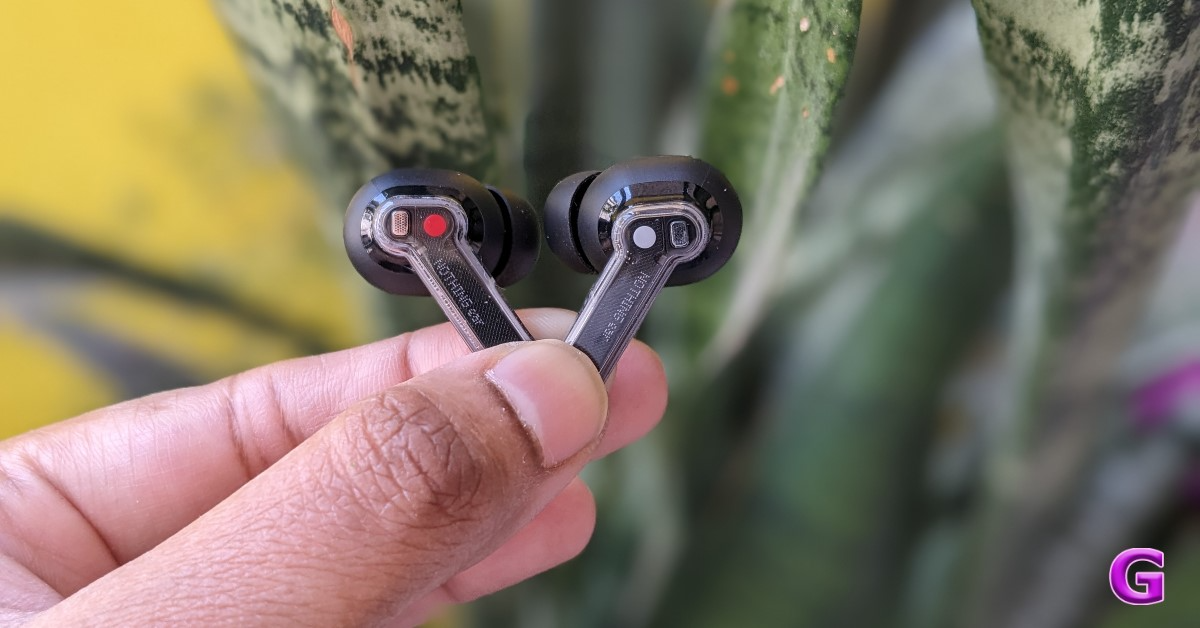
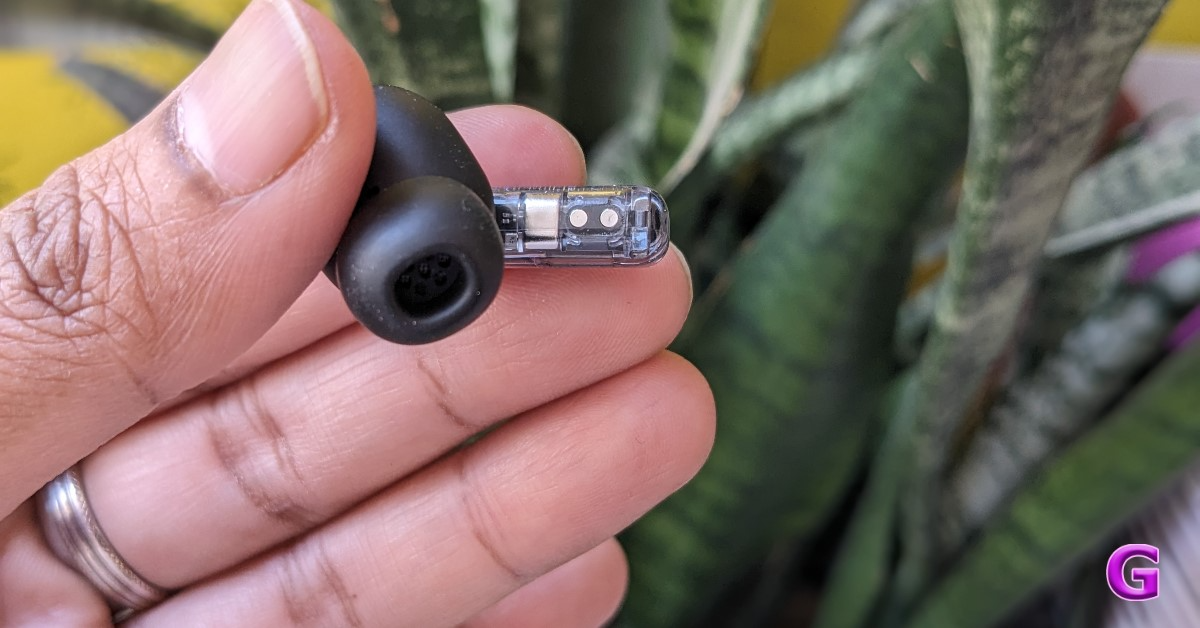
This new TWS looks a lot like the previous one at first sight, with the name “NOTHING ear” inscribed on each earpiece stem being the sole feature that sets them apart. Indeed, this year the corporation decided to adopt the new naming scheme and embrace the moniker Ear rather than Ear 3. The earphones feature a bud design with a short, translucent stem that makes a big impression. The microphones for phone calls and noise cancellation are also visible inside.
The charging case has an IP55 rating, while the Nothing Ear earbuds have an IP54 rating for dust and splash resistance. Therefore, a few splashes and sweat should be okay; saying that, avoid immersing them entirely in water.
Most of the passive sound is blocked by the Nothing Ear buds. Additionally, it is quite light and comfy, and wearing it for extended periods won’t cause any issues. We tried to shake our heads, and we assure you they won’t come off either. Just be sure you have the appropriate silicone tip size, as it can drastically impact fit and sound quality.
Nothing Ear Review: Performance
Nothing Ear has Bluetooth 5.3, which offers more reliable connectivity. These can pair with two devices simultaneously because they have multipoint connectivity. Additionally, these earbuds support Microsoft Swift Pair and Google Fast Pair and have an in-ear detection feature.
All you have to do is lift the lid, and your device will initiate pairing. To begin using it right away, click to pair. The pairing procedure, which takes only a few seconds to complete, requires you to download the Nothing X app.
There are 11 mm dynamic drivers on Nothing Ear. To compare, the Ear (a) has PMI and TPU diaphragms, whilst the Nothing Ear uses ceramic ones. The Ear earphones are also compatible with LDHC 5.0, AAC, SBC, and LDAC codecs.
They too support up to 45 dB ANC and include a transparency mode. With the Nothing X application users can personalise the sound, see how much battery life each bud and case has left, and select equalisers to tweak the sounds. There are four presets available on the equaliser: Voice, More Bass, More Treble, and Balanced are available. Now there are two more options added: Simple and Advanced.
Using the Advanced option, you can adjust the sound frequency et al by moving the band sliders up and down. Moreover, you can also tap to manually enter a specific value to adjust the sound.
Unlike Nothing Ear (a), there is also an option for sound personalisation to fine-tune your hearing pattern to achieve the ideal sound quality. Wear these earphones to set it up. It will then perform a few sound checks to adjust the audio to your liking. At first, this might not seem like a big deal, but when a personal sound profile is enabled, the audio quality is significantly improved. It’s truly next level.
The earphones come with ANC, which helps eliminate background noise. We haven’t noticed much difference between the Nothing Ear and Ear (a) ANC. The ANC turns on automatically when you wear these earbuds. You also have a noise control option with ANC, which allows you to disable the feature. To ensure that you don’t miss any important announcements or conversations, there is also a Transparency Mode that lets background sound seep in. It’s really easy to hear the background noise when this mode is turned on. Using it while in flight is not advised at all since it will just amplify engine noise and buzz. It is, however, ideal for usage when you are outside and want to be aware of the traffic around you or at a busy airport. For example, if you are out for a run or a walk, this is the ideal time to utilise it.
The Noise Cancellation option provides you with presets: Adaptive, High, Mid or Low. The Adaptive option modifies itself automatically according to the surroundings. Depending on the noise levels outside, this changes the amount of noise cancellation. It significantly increases battery life.
Additionally, these earbuds have in-ear detection which means that when you get them out, the music stops, and when you put them back in, it resumes again. You can also turn off the feature in the Nothing app settings.
Dual pairing is another useful function; having this capability is indeed a blessing. The ability to pair two devices simultaneously is incredibly useful, especially when you are viewing a movie on your laptop and your phone rings. It works so effectively that you can resume watching your movie on the laptop once the call ends and the connection switches back to the laptop.
With that, for gaming or watching movies, there is a Low Lag mode that can be toggled from the app. There are no delays at all, and the audio synchronises well.
Regarding the earbuds’ sound quality, they are incredibly loud and distortion-free, even when played at maximum volume. You receive a richer, more expansive sound with 11mm dynamic drivers that use ceramic diaphragms. You receive excellent clarity when it comes to vocals and instrument separation. The bass is tuned pretty well. All in all, the audio experience was quite well-balanced. Something you can spend hours wearing and listening to.
We also made calls with them, and there was no lag or echo in the audio, which was crisp and clear. It completely blocks out a lot of background noise and is incredibly clear both indoors and outside.
In addition, these earbuds provide pinch control for playing and pausing music, switching between tracks, accepting and rejecting calls, toggling noise cancellation, and transparency mode. Double-pinch and hold to adjust the volume. We think the swipe gesture was a much better way to adjust the volume, and it doesn’t feel very cumbersome.
The charging case has 500mAh battery, while the Nothing Ear earbuds have 46mAh batteries each. When ANC is turned off, the device is said to have a maximum battery life of 40.5 hours when used with the charging case and 8.5 hours while using the buds alone. When activated, ANC has a maximum delivery time of 24 hours with the case and 5.2 hours for just buds. What’s more, it has wireless charging capabilities.
Verdict
The Nothing Ear casing and buds remain mostly unchanged compared to the Nothing Ear 2. The Nothing Ear is packed with all the premium features that you can think of. There is ANC onboard, app compatibility, dual device connectivity, equaliser control, low latency mode, wireless charging, and much more. Everything you’re looking for in premium wireless earphones is included in Nothing Ear. With superb audio accuracy, these are one of the best earbuds to recommend for less than Rs 12,000.
Garena Free Fire is a battle royale game with regular awards and tournaments to keep players interested. If you play Garena Free Fire, you should be aware of the redeem codes that are released on a daily basis. However, because the battle royale game is banned in India, players from other countries can use the Free Fire Redeem codes daily. If you’re unfamiliar with the Garena Free Fire redeem codes or don’t know how to get them, we’ve put together a step-by-step guide to help you redeem them. Check out Garena Free Fire Redeem Codes for 13 May 2024.
The Free Fire redeem codes are a great way to get free stuff. These are 12-digit codes that contain alphabets and numbers, as well as an expiration date and time. Because the Garena FF redeem codes cannot be used more than once, you should hurry to the redemption page to claim your free reward before someone else does. To get a free reward, all you have to do is go to reward.ff.garena.com/en, which is the official redemption page. Also, keep an eye on this space for daily updates on Garena Free Fire redemption codes and rewards.
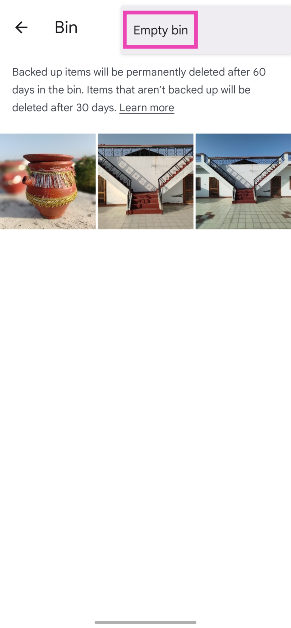
Removing a picture you like while mass deleting images from your phone’s gallery is a mistake that we’ve committed before. Luckily, your Android smartphone does not permanently delete images and files right away. Once you hit the delete button, the files are moved to the Recycle bin, where they stay for a certain duration before being permanently removed. Today, we bring you the best 6 ways to find the Recycle bin or the trash folder on an Android device.
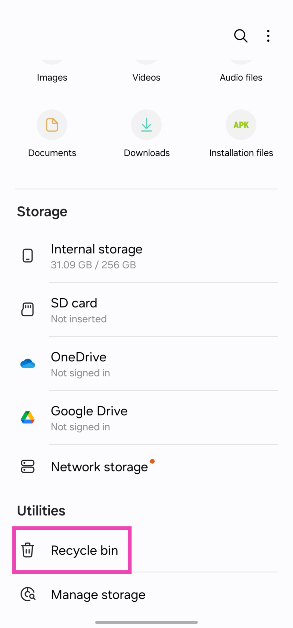
Android smartphones do not have a central Recycle bin for all files. The destination of the deleted files depends on their format and the app they are stored. For example, deleted pictures and videos get transferred to the trash folder in the gallery app, while deleted PDFs and voice notes can be accessed from the bin in the native file explorer.
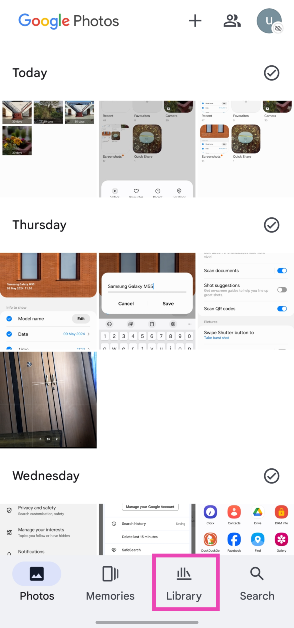
If you delete an image using Google Photos, it can only be accessed in that app’s bin. You won’t find it in your native gallery app’s trash folder. This also applies in the opposite scenario. Files transferred to the Recycle bin stay there for 30 days before they are permanently deleted.
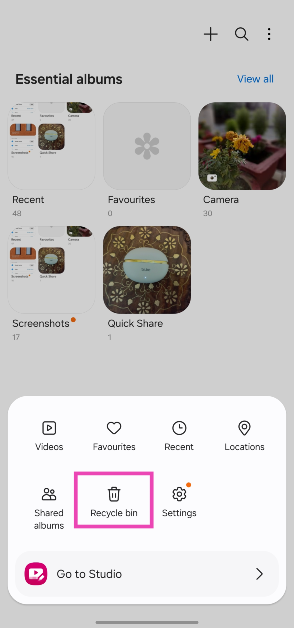
Find the Recycle Bin or Trash folder on the native gallery app
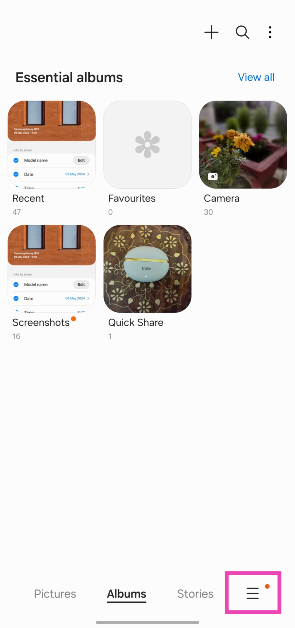
Step 2: Tap on the hamburger menu at the bottom right corner of the screen.
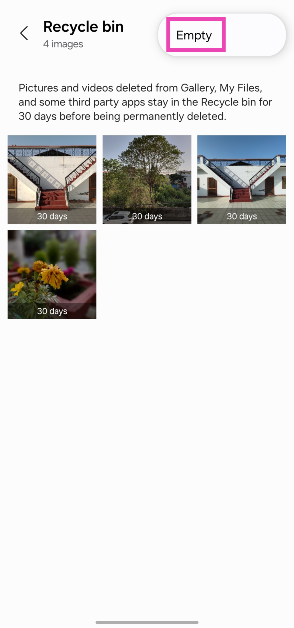
Step 3: Tap on Recycle Bin.
Step 4: This is where you will find your recently deleted images. Tap on the ellipses and select Empty to clear the folder.
Note: These steps apply to Samsung smartphones (OneUI). If you own a smartphone from a different OEM, launch its native gallery app and search its settings or options menu for the trash folder
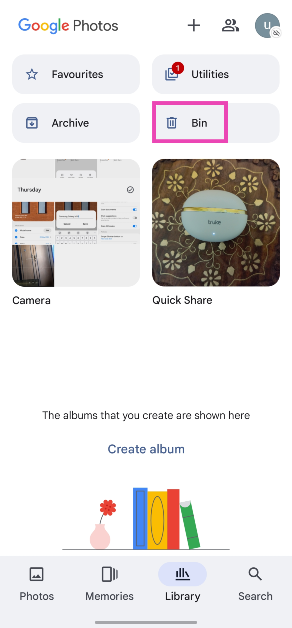
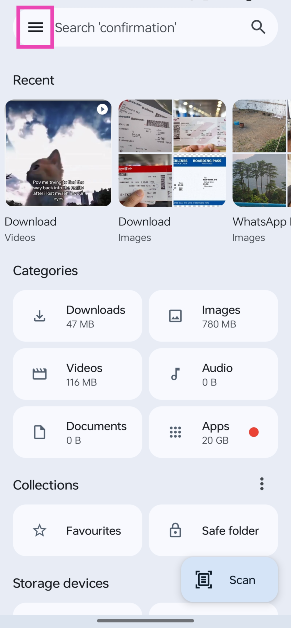
Step 2: Tap on the hamburger menu at the top right corner of the screen.
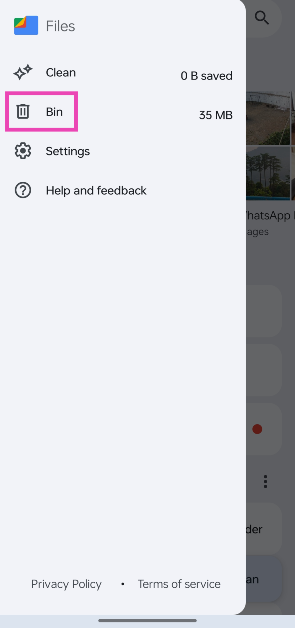
Step 3: Select Bin.
Find the Recycle bin or Trash folder in Settings
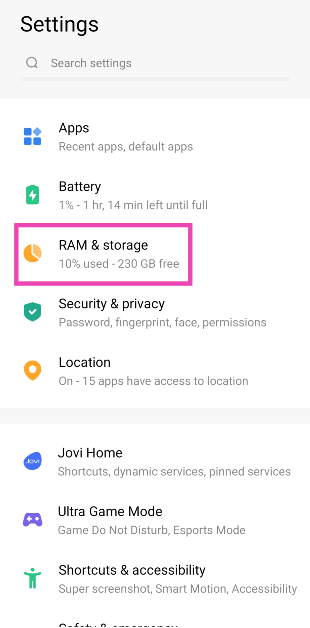
Step 1: Go to Settings and tap on RAM & storage.
Step 2: Tap on Trash.
Find the Recycle bin or Trash folder in Phone Manager
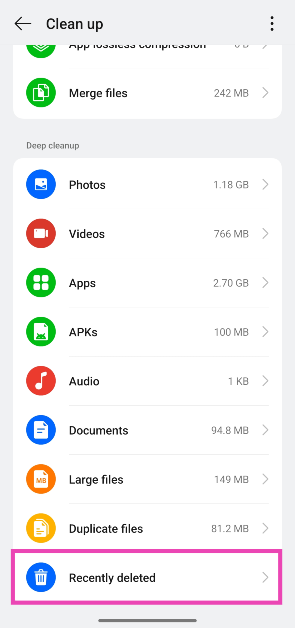
Step 1:Launch the Phone Manager app on your phone.
Step 2: Tap on Clean up Storage.
Step 3: Scroll down and tap on Recently deleted.
Frequently Asked Questions (FAQs)
Where do deleted files go in Android?
Recently deleted files can be recovered from the Recycle bin in your Android phone’s native file explorer app.
How long do images last in the Recycle bin?
When you delete an image, it gets moved to the Recycle bin where it is stored for 30 days before being permanently deleted.
Where is the Recycle bin on Google Files?
Hit the hamburger menu icon at the top right corner of the screen to access the Recycle bin on Google Files.
How do I clean up my phone’s storage?
Go to the Phone Manager app on your phone and tap on ‘Clean up Storage’ to get rid of bulky items like cache junk, installation packages, duplicate files, and more.
Can I clear my Android phone’s Recycle bin in one place?
Go to Settings>RAM & storage>Trash to find all your deleted items in one place. You can empty this folder to clear the deleted items at once.
These are the top 6 ways to find the Recycle bin or trash folder on an Android smartphone. While you’re here, read this article to learn how to recover permanently deleted files, images, and videos from your Android phone.
Even though WhatsApp is the largest instant messaging platform in the world, iMessage still remains the primary communication medium for iPhone users. Apple’s in-house messaging service can do it all – from sending pictures to sharing locations. However, it is not immune to errors. If you are unable to download pictures using iMessage on your iPhone, check out these 12 fixes.
If you are unable to download pictures and videos from iMessage, it could be due to one of the following reasons.
Your internet connection is faulty
The iPhone is running out of storage space
Your Apple ID is malfunctioning
iMessage servers are down
Background software issues
You are using an outdated iOS version
Disable and re-enable iMessage
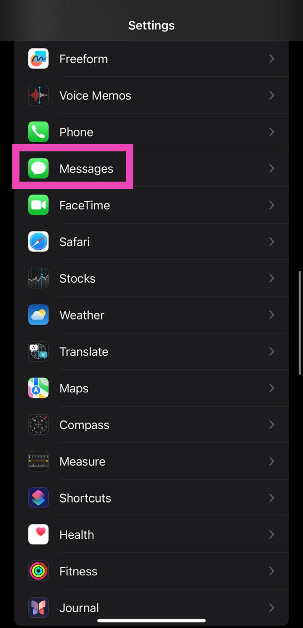
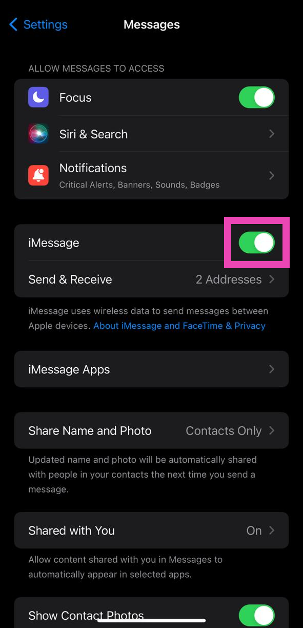
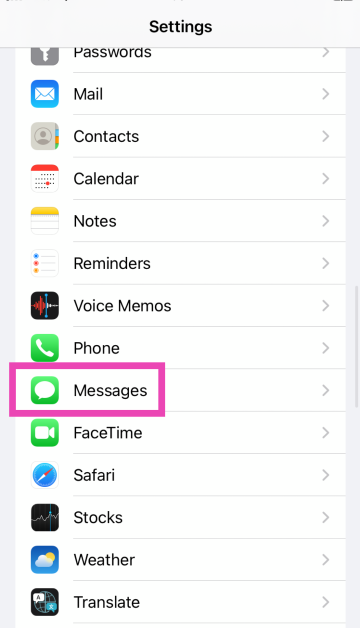
Step 1: Go to Settings and select Messages.
Step 2: Turn off the toggle switch next to iMessage.
Step 3: Turn the toggle switch back on.
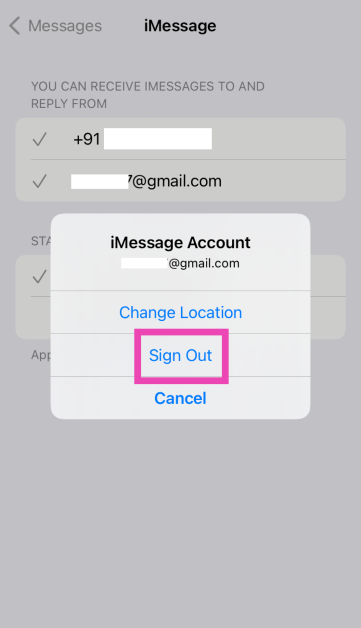
Sign out of iMessage and then sign in
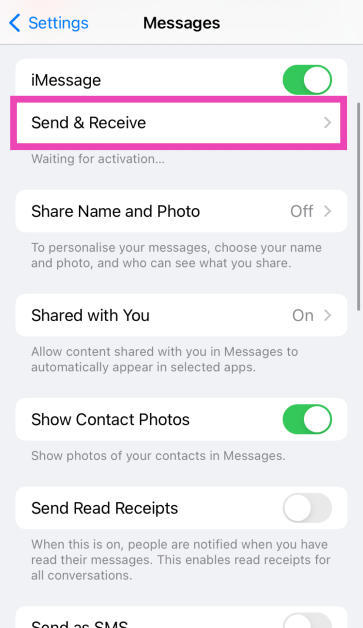
Step 1: Go to Settings and select Messages.
Step 2: Tap on Send & Receive.
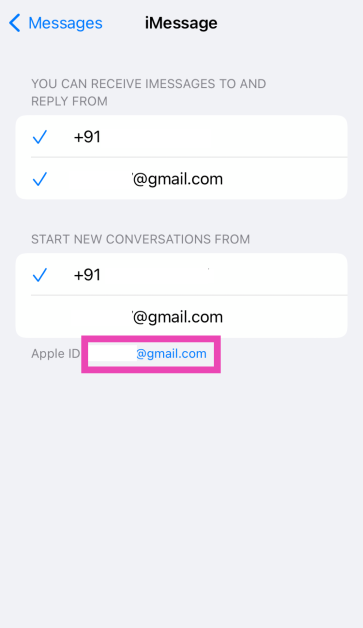
Step 3: Tap on your Apple ID.
Step 4: Hit Sign Out.
Now, sign in to iMessage again using your Apple ID.
Check your internet connection
If you’re on a weak WiFi network, the images and videos will take a lot of time to download on iMessage. If the WiFi isn’t working, the media won’t download at all. Switch to mobile data or a different WiFi connection to download the images. Perform an internet speed test to check if the network you are connected to is facing any issues.
Check your iPhone’s internal storage
If your iPhone is running out of storage space, it may not download new media from any app, including iMessage. To fix this, go to Settings>General>iPhone Storage and delete the apps you don’t use. You can also remove large files from your phone to free up storage space.
Enable Low Quality Image Mode
It is possible that iMessage isn’t able to download large images due to a data cap imposed by your network operator. Enable the Low Quality Image Mode to get around this issue.
Step 1: Go to Settings and tap on Messages.
Step 2: Scroll down and turn on the toggle switch next to Low Quality Image Mode.
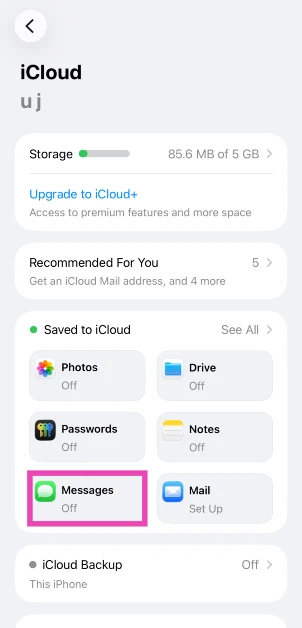
Enable iMessage in iCloud
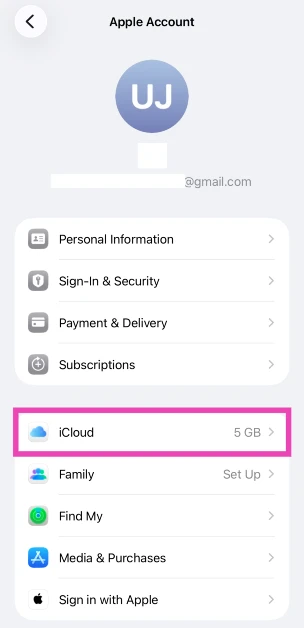
Step 1: Go to Settings and tap your name at the top of the screen.
Step 2: Scroll down and tap on iCloud.
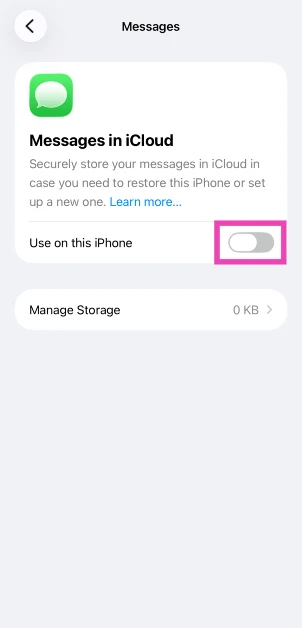
Step 3: Tap on Messages.
Step 4: Turn on the toggle switch next to Use on this iPhone.
Check if iMessage is down
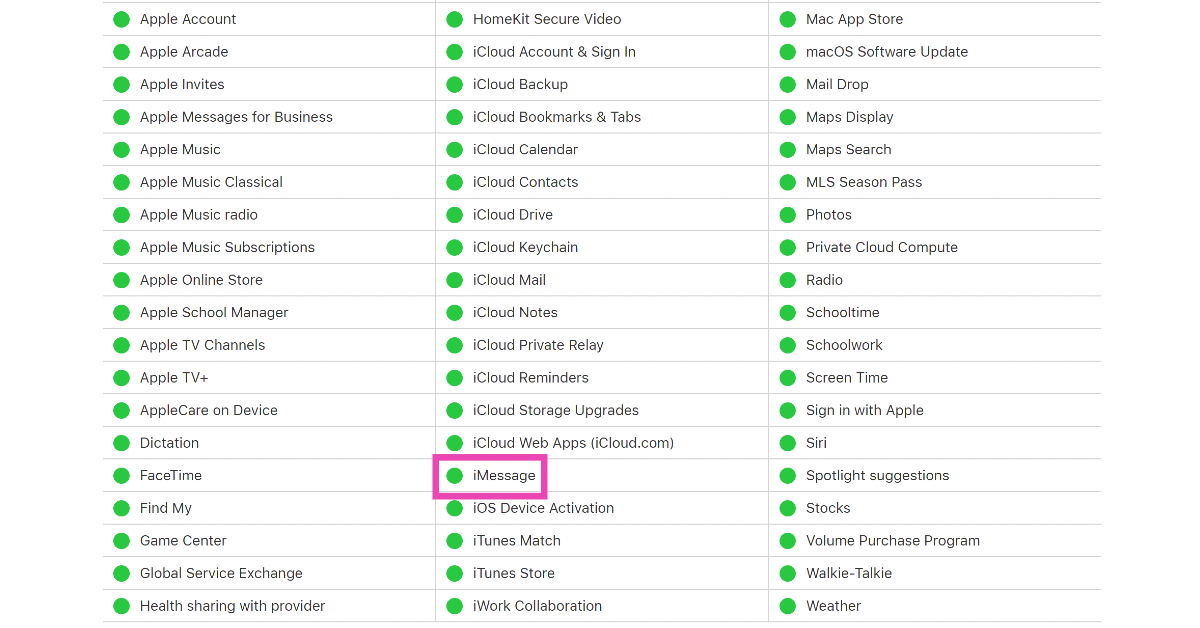
It is possible that the problem lies with Apple’s servers and not your iPhone or internet connection. Apple’s iMessage service is not a stranger to server outages. To check if iMessages’ servers are down, go to Apple’s System Status page. If there is a red dot next to iMessage, it means that its servers are not functional at the moment.
Update the Messages app
If you’re using an old version of the Messages app, chances are that a bug may be causing the problem with sending images. Most likely, this bug has been resolved in the latest version of the app. Go to the App Store, tap your profile picture, scroll down to Messages, and hit ‘Update’ next to it.
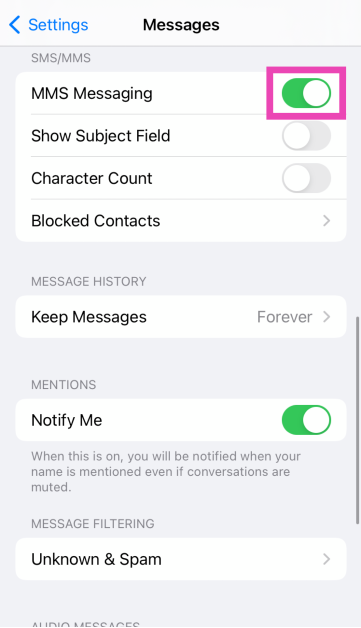
Toggle MMS on your iPhone
Media files are sent as an MMS. Turn off and turn on MMS on your iPhone to refresh it.
Step 1: Go to Settings and select Messages.
Step 2: Scroll down and turn off the toggle switch for MMS Messaging. Wait for a few seconds and then turn it back on.
Restart your iPhone
If a background software issue is preventing iMessage from downloading pictures, a quick restart will fix it. To restart your iPhone, press and hold the side button along with any volume key. Drag the power slider across the screen. After a few seconds, press and hold the side button to restart the device.
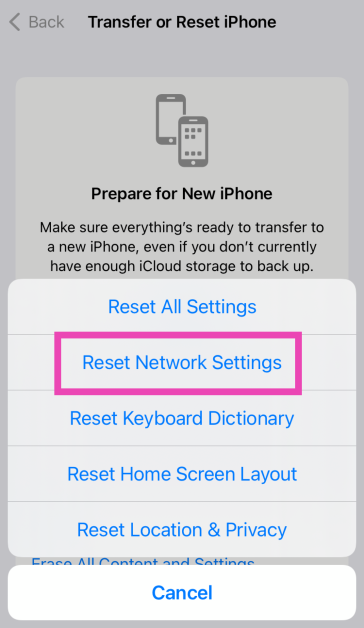
Reset Network Settings
Step 1: Go to Settings and select General.
Step 2: Tap on Transfer or Reset Device.
Step 3: Hit Reset.
Step 4: Select Reset Network Settings.
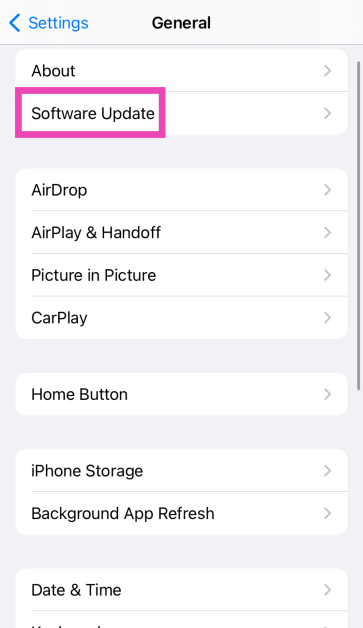
Update iOS
Step 1: Make sure your iPhone is connected to a WiFi network and plug in its charger.
Step 2: Go to Settings and select General.
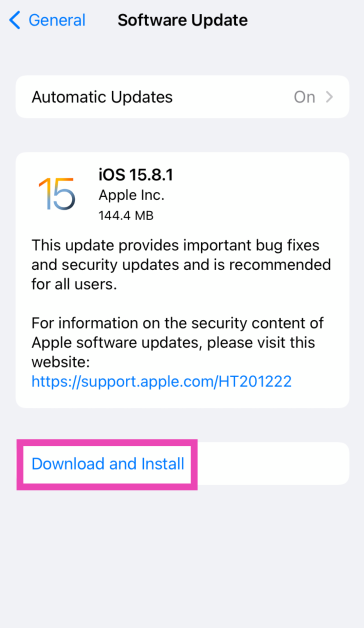
Step 3: Select Software Update.
Step 4: Tap on Download and Install.
Frequently Asked Questions (FAQs)
How do I disable iMessage on my iPhone?
Go to Settings>Messages and turn off the toggle switch next to iMessage to disable it.
How do I sign out of iMessage on my iPhone?
Go to Settings>Messages>Send and Receive, tap on your Apple ID and hit Sign Out.
How do I filter unknown senders on my iPhone?
If you don’t want to receive texts from unknown numbers, go to Settings>Messages>Unknown and Spam and turn on the toggle switch for ‘Filter Unknown Senders’.
How do I check if iMessage is down?
Go to the Apple System Status page and scroll down to iMessage. If there’s a red dot next to it, it means that its servers are down.
How do I update the Messages app on my iPhone?
Launch the App Store on your iPhone, tap your profile picture in the top-right corner of the screen, scroll down to Messages, and hit ‘Update’.
These are the top 12 ways to fix the ‘iMessage not downloading pictures’ issue on your iPhone. If these methods don’t work out, try performing a factory reset on your iPhone. While you’re here, check out this article to learn how to leave group chats on an iPhone.
Group texts are fun to engage with but no one likes to deal with incessant notifications when they’re away from the phone. You can always mute a text thread, but if you are no longer an active participant then leaving it might be the better option. But here’s the catch – you may not find the option to leave in some groups. So, let’s take a close look at how you can leave a group text chat on your iPhone.
Unable to leave a particular group on your iPhone? Here’s why
When you’re in a group chat with other iPhone users, the text bubbles have a blue background. Apple uses its iMessage service to connect all iPhone users in a text group. Leaving this group is pretty easy as it follows the same process as any other instant messaging app.
However, if there is a single Android user in the group, the blue bubbles will turn to green and your messages will be sent as SMSs via the network provider. Since there is no option to leave an SMS group, you won’t find one here. Instead, you can mute the group or delete and block it instead.
Leave a group text chat on your iPhone
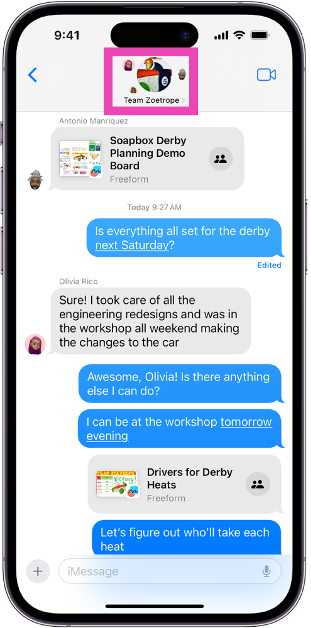
Step 1:Launch the Messages app and open the group chat you wish to leave.
Step 2: Tap the group icon at the top of the screen.
Step 3: If you’re on iOS 14 or earlier, tap the ‘i’ icon.
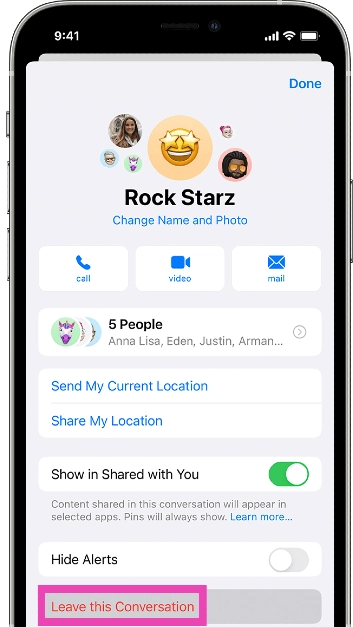
Step 4: Scroll down and select Leave this Conversation.
How to mute a group text chat on your iPhone
If you’re not able to leave a group chat with Android users in it, the next best thing you can do is mute it. Here’s how.
Step 1:Launch the Messages app and open the group chat you wish to leave.
Step 2: Tap the group icon at the top of the screen.
Step 3: If you’re on iOS 14 or earlier, tap the ‘i’ icon.
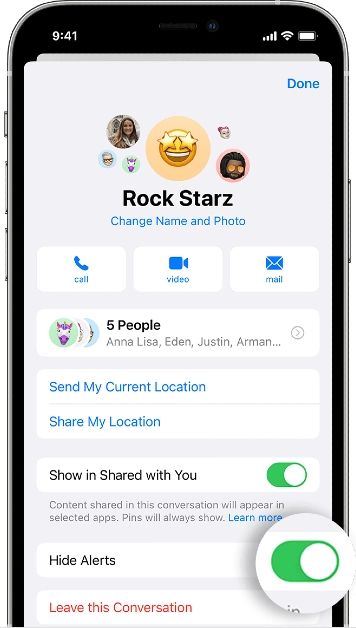
Step 4: Scroll down and turn on the toggle switch for Hide Alerts.
You can also mute a group by swiping left on it in the message library and tapping the alerts icon.
Delete and block a group text chat on iPhone
Deleting and blocking a group chat is one of the measures you can take to get out of a group if it doesn’t allow you to leave. Here’s how you can do it.
Step 1:Launch the Messages app and open the group chat you wish to leave.
Step 2: Tap the group icon at the top of the screen.
Step 3: If you’re on iOS 14 or earlier, tap the ‘i’ icon.
Step 4: Scroll down and select Delete and Block this Conversation.
Step 5: Confirm your selection in the popup box.
Frequently Asked Questions (FAQs)
How do I leave a group text chat on my iPhone?
Open the Messages app, select the chat, tap on the header, scroll down and select ‘Leave this Conversation’.
Why can’t I leave a group chat on my iPhone?
If you’re unable to leave a group chat on your iPhone, it is likely because there are one or more Android members in the group.
How do I mute a group on iPhone?
Swipe left on the conversation thread and hit the alerts icon to mute the thread.
This is how you can leave a group text chat on your iPhone. When you delete and block a text thread, it gets moved to the ‘Recently Deleted’ folder in the Messages app. It gets permanently deleted after 30 days of inactivity. Any incoming messages in the group are automatically deleted and you won’t be notified about them.
If someone doesn’t know the directions to your place, your Android phone makes it easy to share them without any hassle. You don’t need to be on the phone with them and guide them through the landmarks in order to reach you – your smartphone will take care of everything. Today, we bring you the top 8 ways to give directions or share your location on Android.
While giving directions to someone using your Android phone, you will come across two options: Current location and Live location. Both options serve different purposes and are meant to be used in different scenarios. While the current location is static, the live location is more dynamic.
Sharing your current location with someone lets them know where you are right now. They can open the location in a navigation app and find their way to you. If you move your position after sharing the location, it will not be reflected on the map. You can use ‘current location’ when you want to share the location of your house, or someplace you will be for the foreseeable future.
On the other hand, when you share your live location with someone, they can track your movement on the map. You can choose to decide how long you want to share your live location. This can be used when you’re travelling to someone’s place, and you want them to track your ETA.
Share your location on WhatsApp
Step 1: Launch WhatsApp and open the conversation with the receiver.
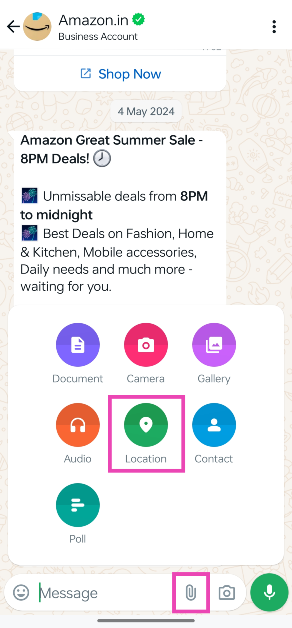
Step 2: Hit the attachment icon in the message box and select Location.
Step 3: Make sure WhatsApp has access to your location.
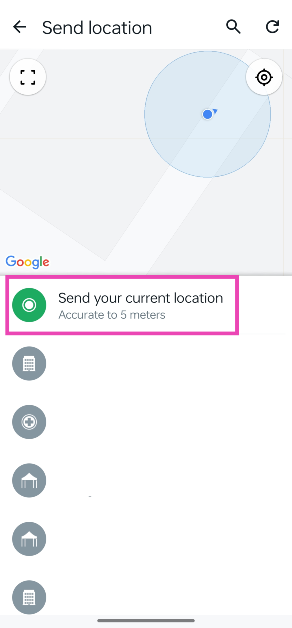
Step 4: Tap on Send your current location. If you’re moving, tap on Share live location.
Step 5: The recipient will be able to track you using your location.
Share your location using Google Maps
Step 1: Launch the Google Maps app on your Android smartphone.
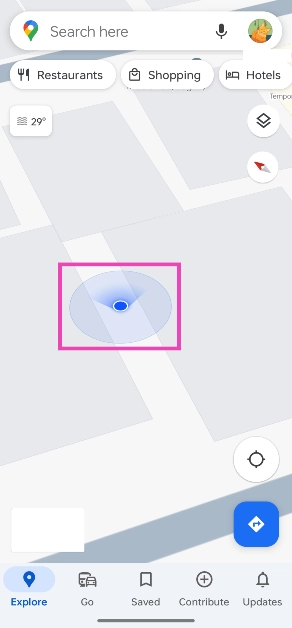
Step 2: Hit the Recenter icon and make sure the blue circle is placed on your location.
Step 3: Tap on the blue circle.
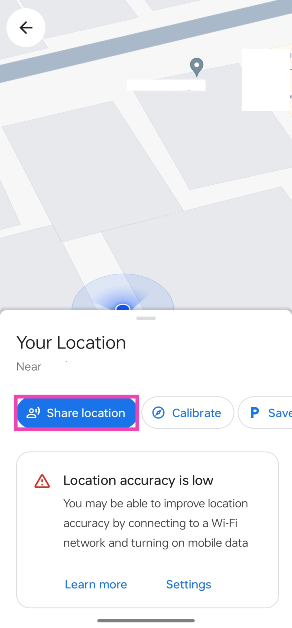
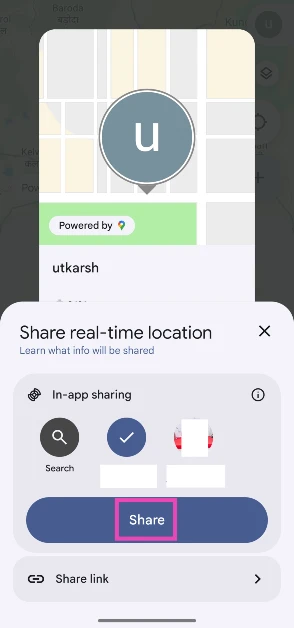
Step 4: Tap on Share location.
Step 5: Select a contact or an app on which you want to share your location.
Step 6: If you’re sharing your location on another app, select a recipient and hit Send.
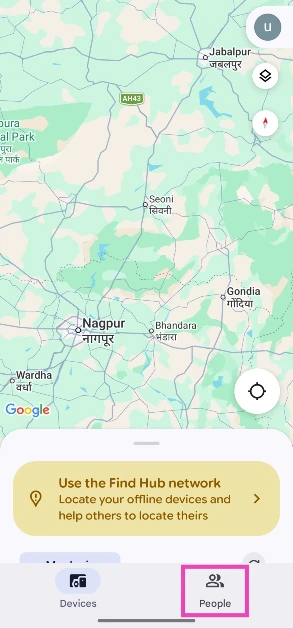
Share your location using Find Hub
Step 1:Download the Find Hub app from the Google Play Store.
Step 2:Launch the app and sign in using your Google account.
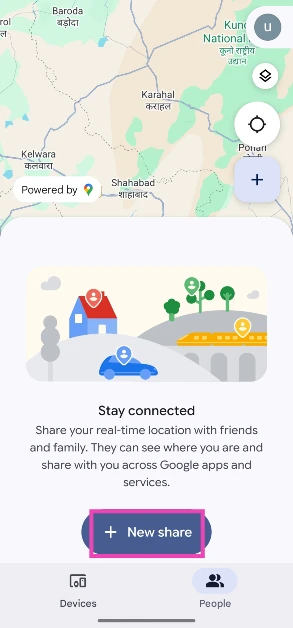
Step 3: Switch to the People tab.
Step 4: Tap on New share.
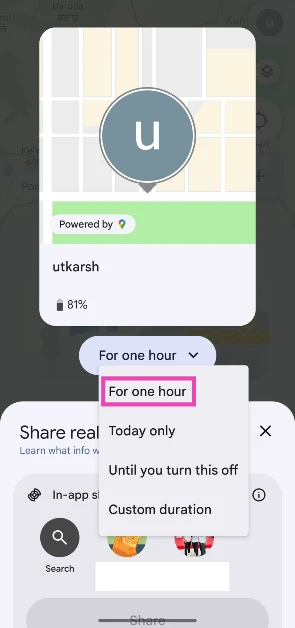
Step 5: Choose the duration for which you want to share your location.
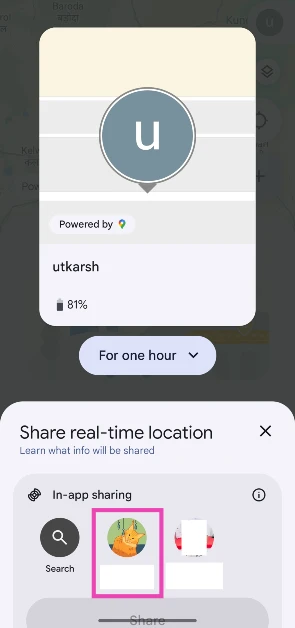
Step 6: Select the contact with whom you want to share your location. If the contact isn’t on Find Hub, tap on Share link.
Step 7: Hit Share.
Share your location on Google Messages
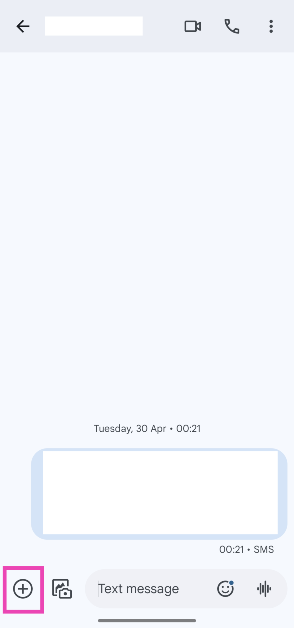
Step 1: Launch the Google Messages app on your smartphone and select the person with whom you want to share your location.
Step 2: Hit the plus icon at the bottom left corner of the screen.
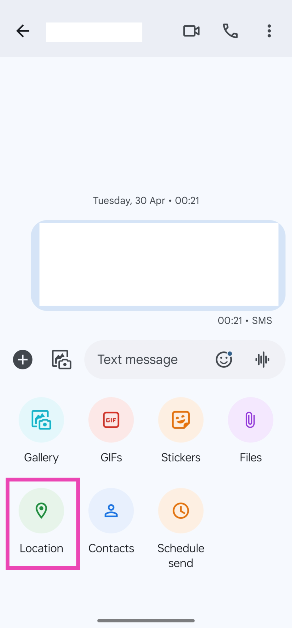
Step 3: Tap on Location.
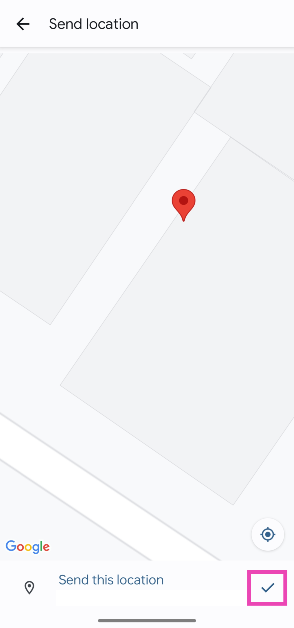
Step 4: Hit the Recenter icon and make sure the pointer is displaying the accurate location.
Step 5: Hit the tick icon at the bottom right corner of the screen.
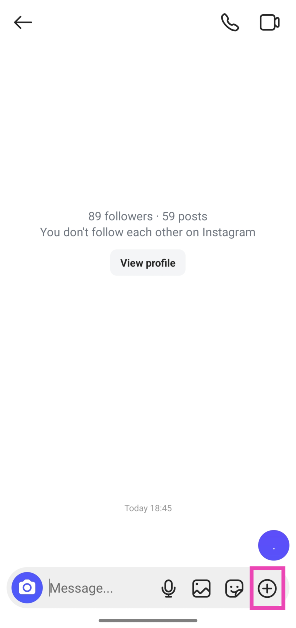
Step 2:Swipe left to go to the DMs section and open a conversation.
Step 3: Hit the plus icon in the bottom right corner of the screen.
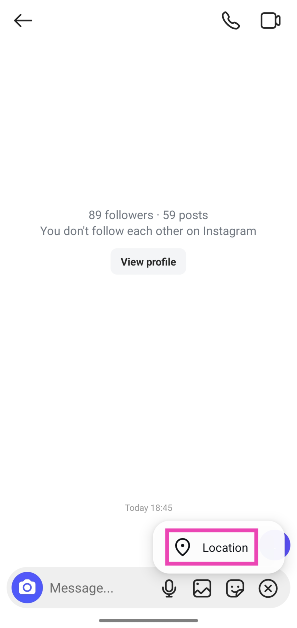
Step 4: Select Location.
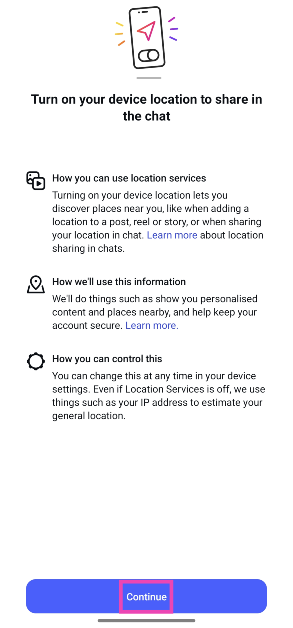
Step 5: Tap on Continue.
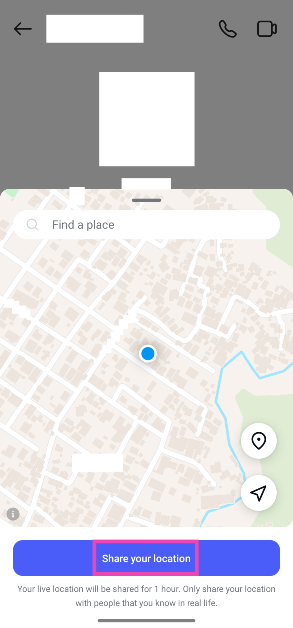
Step 6: Select Share your location.
Share your location on Android using Facebook Messenger
Step 1:Launch the Messenger app and select the conversation with the person you want to share your location with.
Step 2: Hit the plus icon at the bottom left corner of the screen.
Step 3: Select Location.
Step 4: Tap on Start sharing live location for 60 minutes.
Share your location on Snapchat
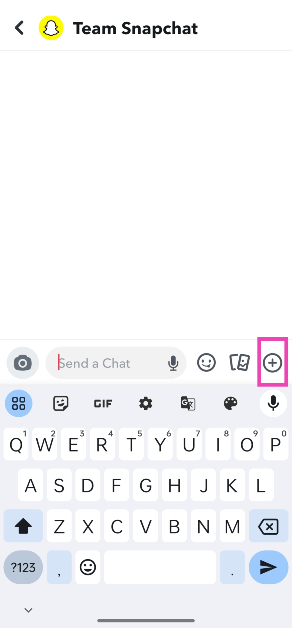
Step 1: Launch Snapchat and open the conversation with the person you want to share your location with.
Step 2: Hit the plus icon at the bottom right corner of the screen.
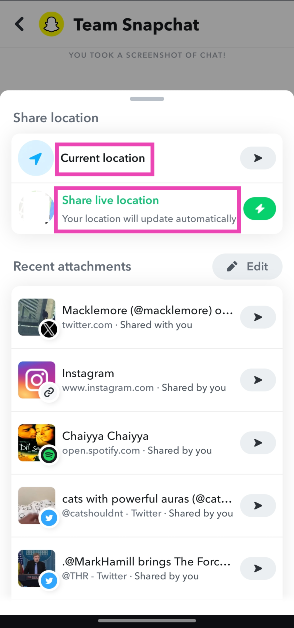
Step 3: Tap on Current location or Share live location.
Your location will be shared with the recipient.
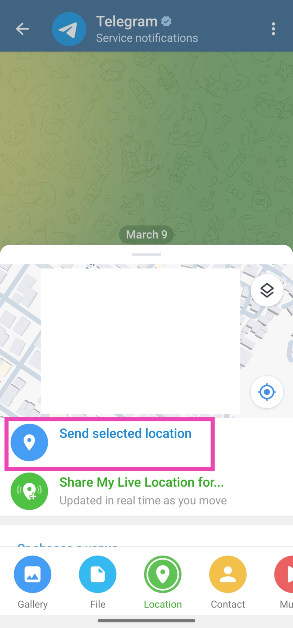
Share your location on Telegram
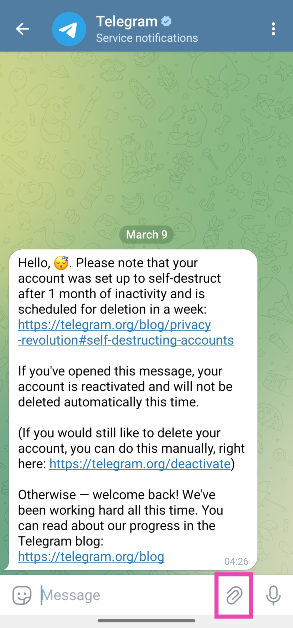
Step 1:Launch the Telegram app on your phone and open a conversation.
Step 2: Hit the attachment icon.
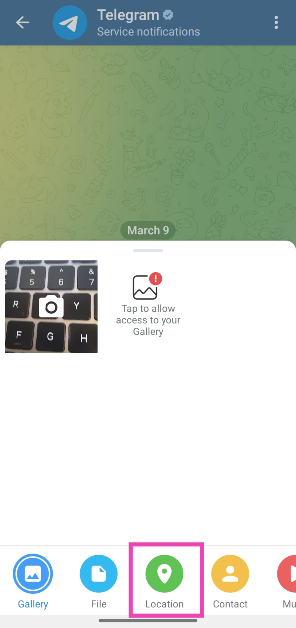
Step 3: Tap on Location.
Step 4: Tap on Send selected location.
Frequently Asked Questions (FAQs)
How do I share my location using my Android phone?
You can use apps like WhatsApp, Snapchat, Facebook Messenger, Google Maps, and Google Messages.
How do I turn on location services on Android?
Swipe down from the Status bar to reveal the Quick Settings Menu and tap on the Location tile. Long-press the tile to view the apps that recently requested your location.
How do I revoke location access from an app on Android?
Go to Settings>Apps, select the app, tap on Permissions>Location and select ‘Don’t Allow’.
Can I share my live location on Instagram?
Instagram now allows you to send your live location via DMs. Open a conversation, hit the plus icon, select ‘Location’, and tap on ‘Share your location’.
Can I share a fake live location on WhatsApp?
Enable Developer Options on your Android phone and install the Fake GPS Location app. Launch the app and go to Open settings>Select mock location app>Fake GPS. Go back to the app and select a fake location. Open WhatsApp and share your live/current location to send the fake location.
These are the top 8 ways to give directions or share your location using your Android phone. While you’re here, check out these location-sharing and parental control apps as well. If you have any other apps to add to the list, let us know in the comments!
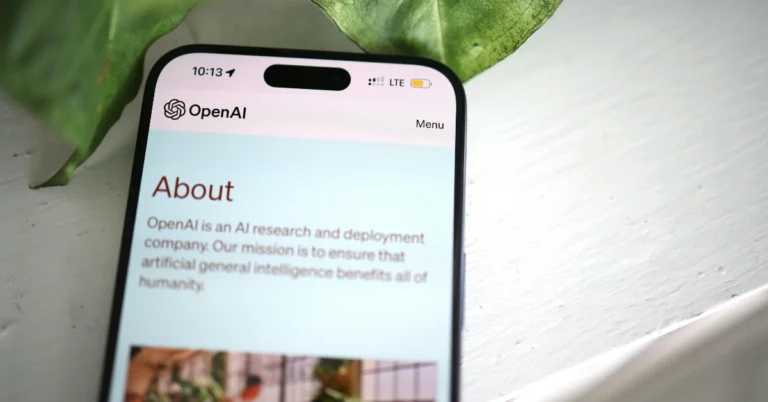
OpenAI, the developer of ChatGPT, is gearing up to launch its AI-powered search product on Monday. Although these are speculations coming from a source, their arrival can pose a potential challenge to Google and Perplexity. There could be a change in the announcement date.
According to a report by Bloomberg by two people familiar with the situation, OpenAI intends to unveil its AI-powered search tool on Monday, upping the ante in its rivalry with Google, the search engine juggernaut.
Reportedly, the firm has not yet revealed the date of the announcement but is said to be working on a search engine to take on Alphabet’s Google as well as the budding AI search firm Perplexity.
Reportedly, the announcement might have been timed to coincide with the opening of Google’s annual I/O conference on Tuesday, when the tech giant is anticipated to reveal a number of items connected to artificial intelligence.
However, OpenAI opted not to respond, according to Reuters.
The new project by OpenAI is expected to improve ChatGPT by allowing for real-time web information retrieval and response citation incorporation.
ChatGPT, an alternative for online information gathering, faces challenges in providing accurate, real-time data. Previously, OpenAI integrated it with Microsoft Bing for subscribers who paid for access. Google, meanwhile, has shown generative AI capabilities for its own engine bearing the same name.
On the other hand, Perplexity, which was founded by a former OpenAI researcher, offers an AI-native search interface with 10 million monthly active users, generating $1 billion in valuation. As per a blog post the startup published in January, it has 10 million active users per month.
As per the report, OpenAI’s ChatGPT is experiencing a slowdown in global traffic, putting pressure on the AI company to expand its user base. The firm was once the fastest application to reach 100 million monthly active users.
ChatGPT plugins, OpenAI’s previous attempt to bring updated and real-world information into ChatGPT, were abandoned in April, as per a help centre article on OpenAI’s website.
Earlier this week, Google launched its digital wallet app in India. Dubbed ‘Google Wallet’, this application is different from Google’s UPI payment app, Google Pay. While the latter is used to make online payments, Wallet can be used to store and access your boarding passes, movie tickets, and more. Outside of India, Google Wallet is also used to make contactless payments.
Can you make transactions using Google Wallet in India?
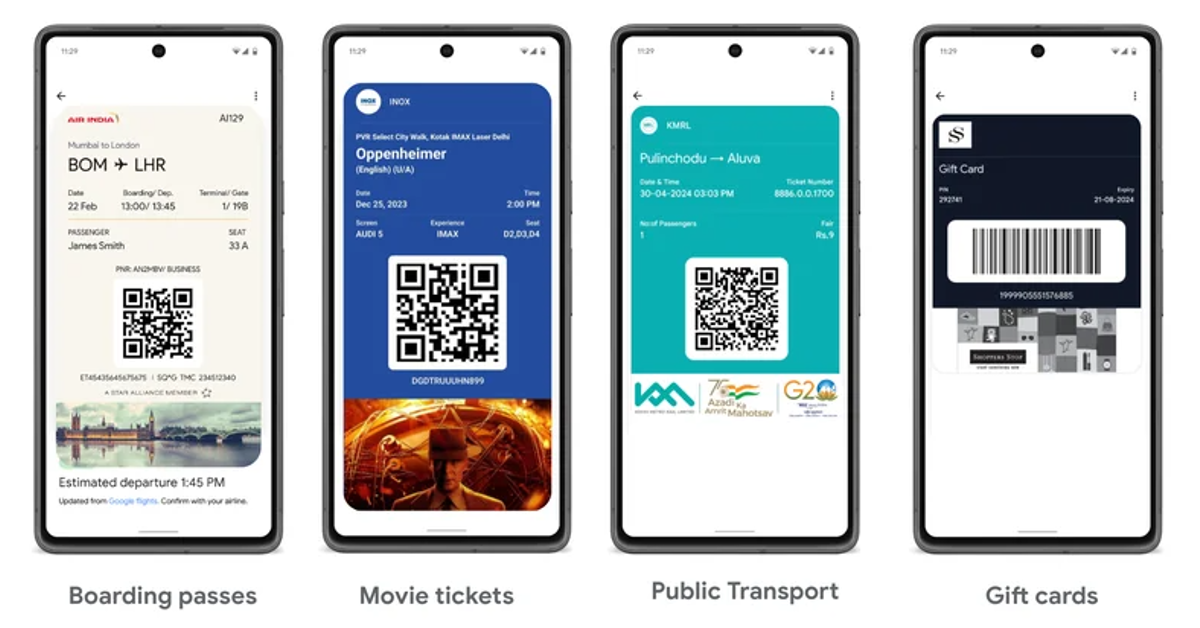
Google Wallet and Google Pay work as two discrete apps in India. While Google Pay is primarily used for digital transactions, the Wallet is a secure app for storing your tickets and passes. Here is a quick list of what either app does.
Google Pay
Send and receive money via UPI
Transfer money through your bank account
Mobile recharge
Electricity & other utility bills
FASTag recharge, and more.
Google Wallet
Store and access boarding pass
Store and access movie tickets
Shop and pay with gift cards
Store and access your transport pass
As of now, Google has partnered with Hyderabad and Kochi Metro to store and access their transport tickets within the app. Other travel partners include Air India, MakeMyTrip, Ixigo, Easemytrip, and others. The tech giant is also working with system integrators like Wavelynx and Alert Enterprise to support corporate badges within the Wallet.
How to add a pass or ticket to Google Wallet
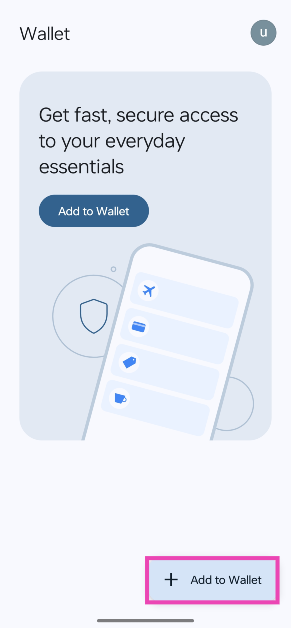
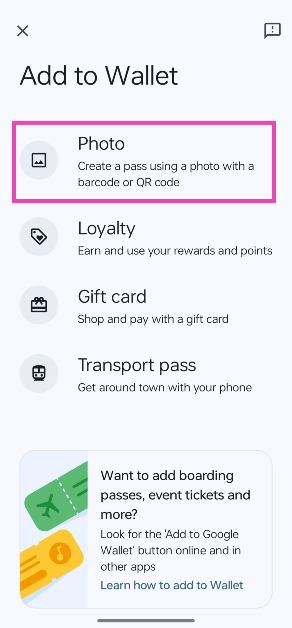
If your ticket or pass has a QR code, you can add it to your Wallet. Pixel users can simply take a screenshot of the boarding pass and tap on the ‘Add to Wallet’ option in the screenshot preview toolbar. Other Android users can follow the steps mentioned below.
Step 3: Select the screenshot of your boarding pass.
The boarding pass will be added to your Wallet. This works for movie tickets, luggage tags, and parking receipts too, as long as they have a QR code on them. If you are using the same account on the Gmail and Wallet apps on your phone, your movie tickets and boarding passes from authorised partners will automatically be added to the Wallet. As of now, you cannot access the tickets on the Wallet app for WearOS.
Frequently Asked Questions (FAQs)
Can I use Google Wallet for UPI payments?
No, Wallet cannot be used for UPI payments but you can use it for shopping for gift cards and paying with them.
How is Google Wallet different from Google Pay?
Google Pay is an app for UPI payments, bank transfers, and bills, while the other is an app to store and access your tickets, travel passes, and more.
Is Google Wallet available in India?
Google launched its Google Wallet app in India on May 8, 2024. It can be downloaded using the Google Play Store.
Now that you know how Google Pay and Wallet are different from each other, you can use either app for its exclusive set of features. Google is working with local partners to increase support for movie tickets and public transport passes. As of now, only Hyderabad Metro, Kochi Metro, PVR, and INOX tickets can be accessed on the app.
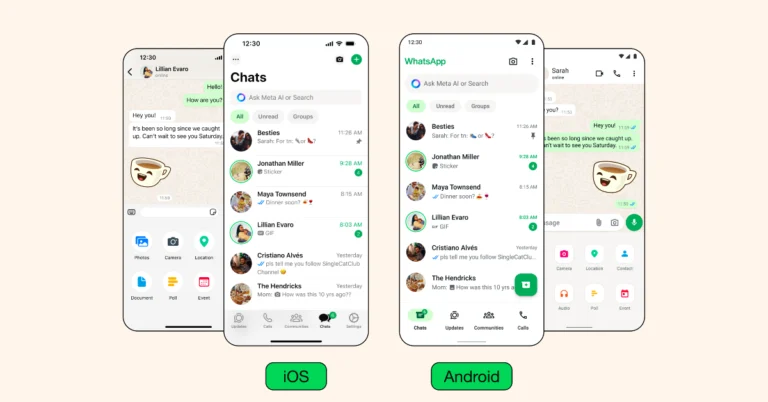
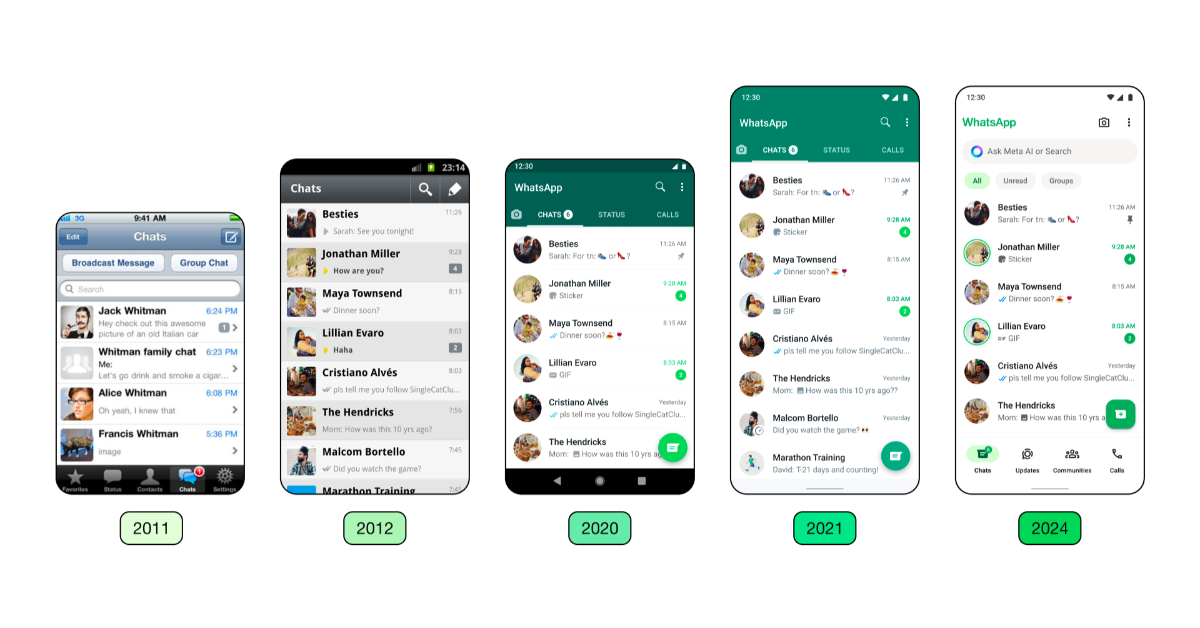
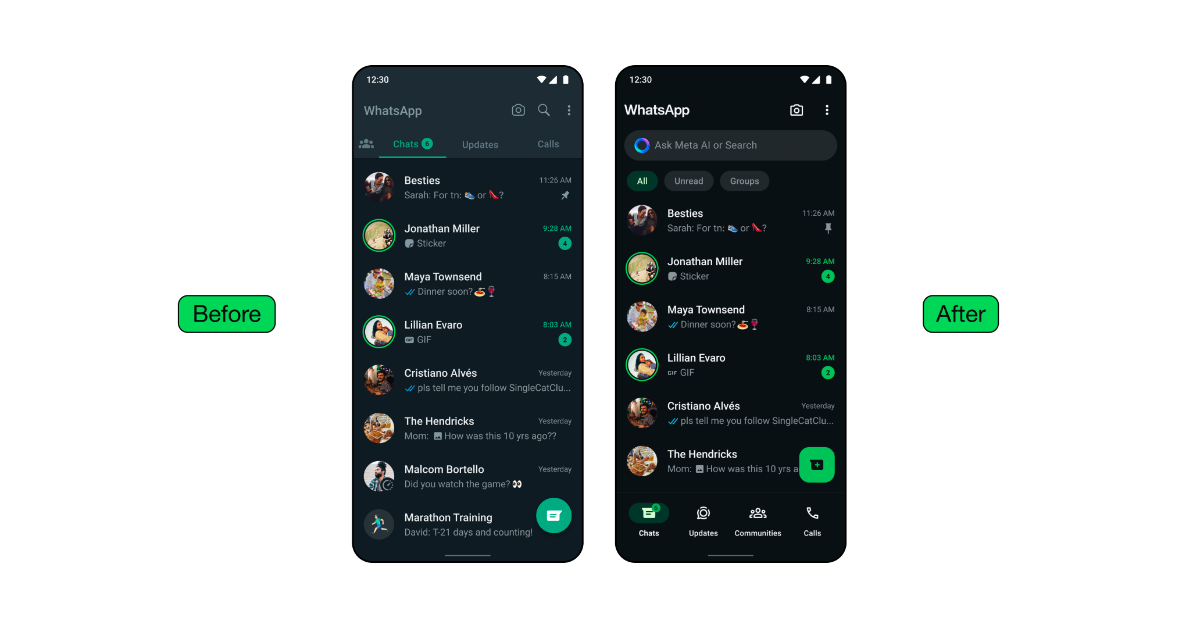
WhatsApp is revamping its user interface for iOS and Android, featuring a new colour palette, updated icons, navigation, layout improvements, chat filters, illustrations, and darker options.
WhatsApp is introducing new design updates to enhance its usability and appearance for iOS and Android users, featuring animations, a redesigned layout, and new icons.
“Over the years, we have primarily focused on adding utility to the app. As the product continued to grow in functionality, the design needed to evolve as well. We wanted the product to feel more fresh and modern without disrupting its core functionality,” the blog post said.
WhatsApp has implemented a new, unified green colour palette to create a more cohesive experience, incorporating over 35 colour iterations and increasing neutral colour usage for harmonious colour pairings. The company has utilised more neutral hues, which allowed it to employ green more sparingly in the right contexts.
As a part of its new design updates, WhatsApp has added a darker dark option to the Android app, emphasising deeper tones and stronger contrast to lessen eye strain in low light conditions for improved visual appeal and legibility.
WhatsApp has updated icons to a rounded, outlined style and, to match the new iconography. In addition, for refreshed illustrations, the company has also added animation.
WhatsApp is also refreshing the default chat background, enhancing its uniqueness and relevance to everyday conversations by exploring simple, diverse options.
WhatsApp has introduced a modern, native bottom navigation bar on Android, enhancing user experience by placing tabs closer to their thumbs for faster navigation.
With the new update WhatsApp for iOS is now offering an expandable tray for easier attachment of photos, videos, media, polls, and documents, replacing the full-screen menu. Moreover, WhatsApp has introduced chat filters on Android, allowing users to quickly find important conversations by moving the navigation bar to the bottom and allowing users to select between unread and group filters.
Last month, Logitech launched the ‘Signature Slim’ keyboard and mouse combo in India. Currently, the MK950 combo is available for Rs 12,995 on Amazon, Rs 1,000 lower than its launch price. Designed in the mould of the MX Series, the Signature Slim Combo is a great pairing for office and home users alike. It ditches the bells and whistles, taking a performance-oriented approach. Here is our review of the Logitech Signature Slim Combo MK950 after having used it for a couple of weeks.
Here’s what you get inside the Signature Slim Combo retail box:
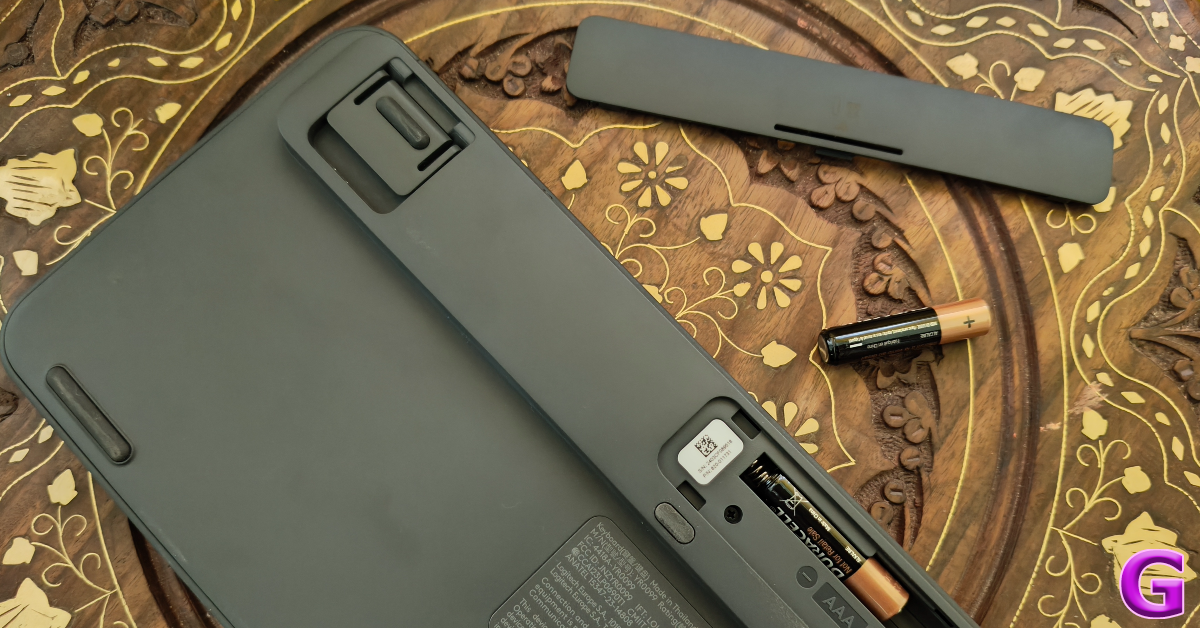
Logitech K950 keyboard (2 AAA batteries inside)
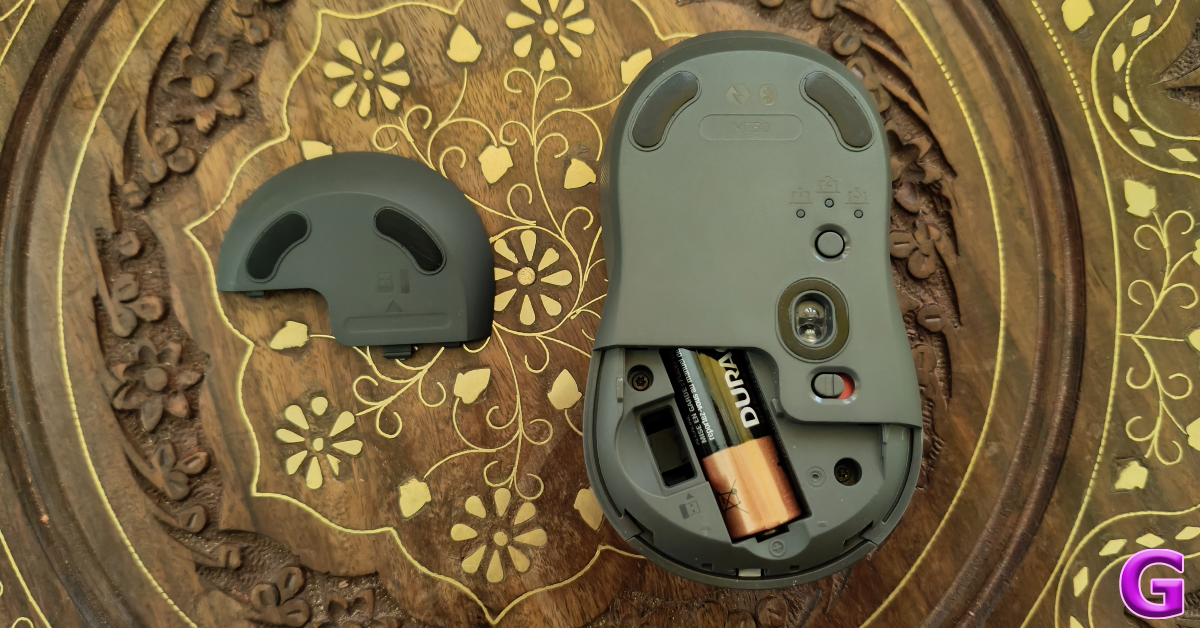
Logitech M750 mouse (1 AA battery inside)
USB Bolt receiver
User Documentation
The combo is available in two colour variants – Graphite and Off-white.
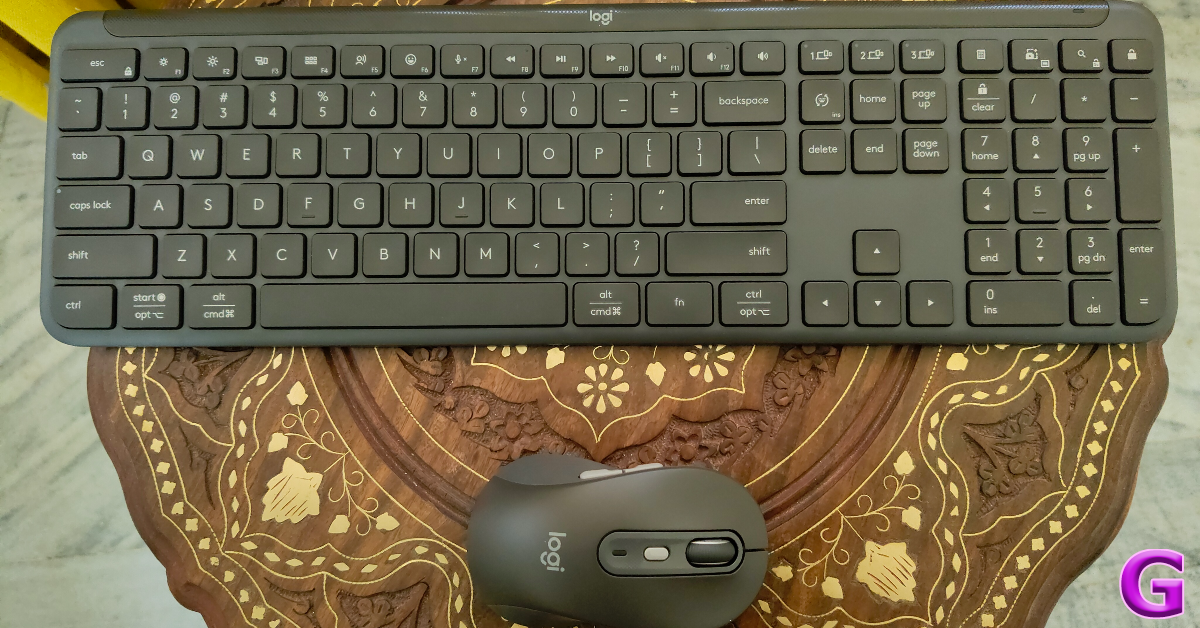
The K950 keyboard has a plastic shell but it is very robust. Weighing 685g, it makes its presence felt. As the name suggests, it rocks a slim form factor, which is something we like in membrane keyboards. The strength of its chassis is undoubtedly its biggest asset.
As mentioned earlier, the Slim Combo takes design inspiration from Logitech’s MX Series. The heavy top bar has a lot of weight to it, which keeps the keyboard firmly in place along with the help of the rubber feet. There are adjustable legs on the bar, which can elevate the keyboard at an 8-degree typing angle. The power switch is positioned at the top edge of the device.
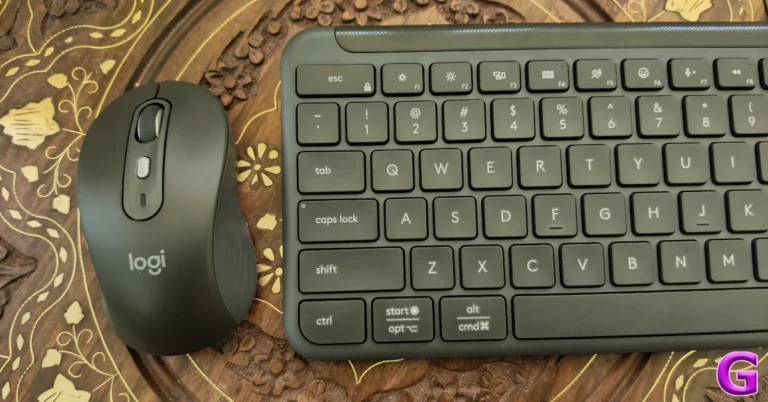
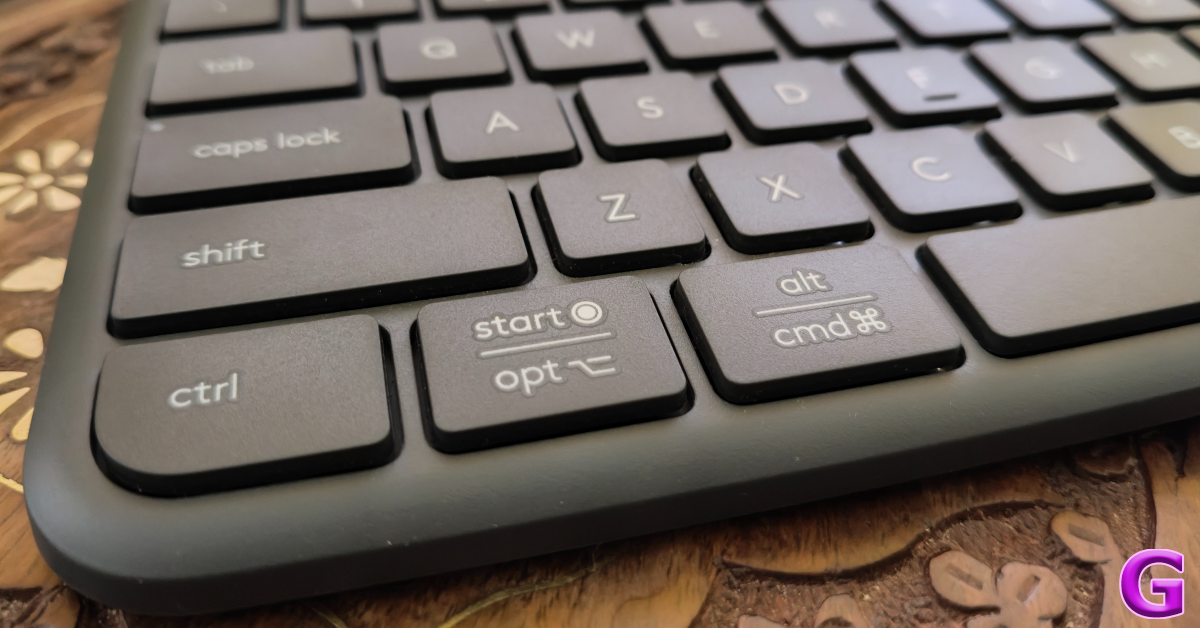
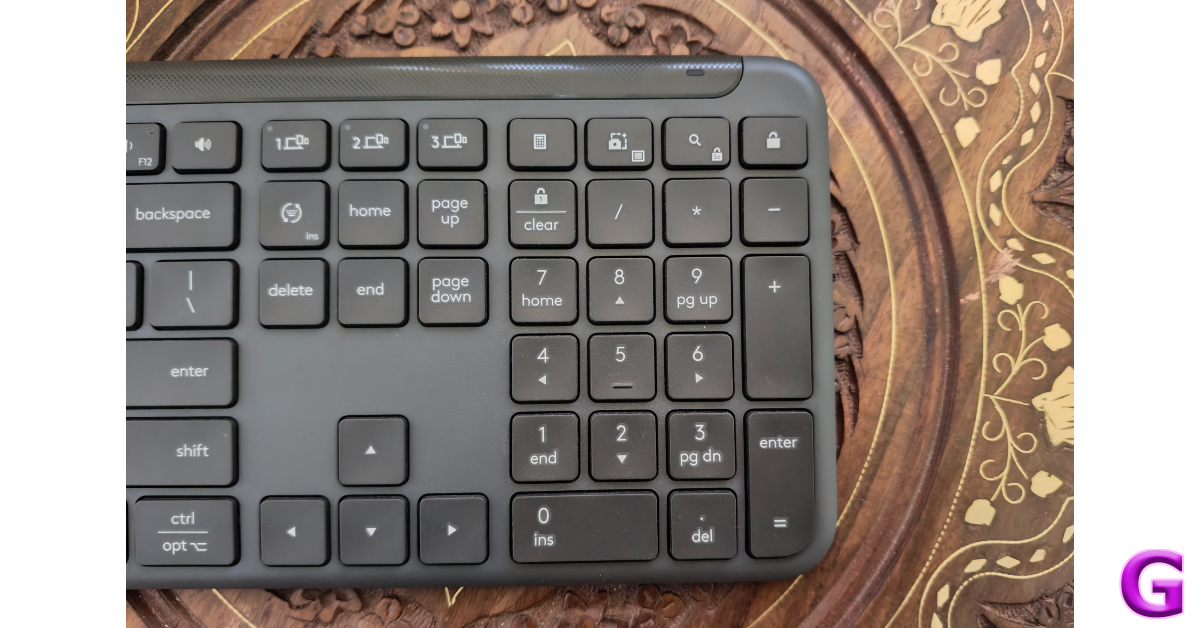
The K950 keyboard has a full set of keys, including dedicated media keys and the vertical numpad. Like the MX Keys S, the K950 has a single-line Enter key and two long Shift keys. The Start and Alt keys serve as the Opt and Cmd keys for Mac users and are labelled accordingly. The keycaps are finished in a matte texture, which feels nice to use. What we like about the keycaps is that they do not have deep indentations like the MX Keys S.
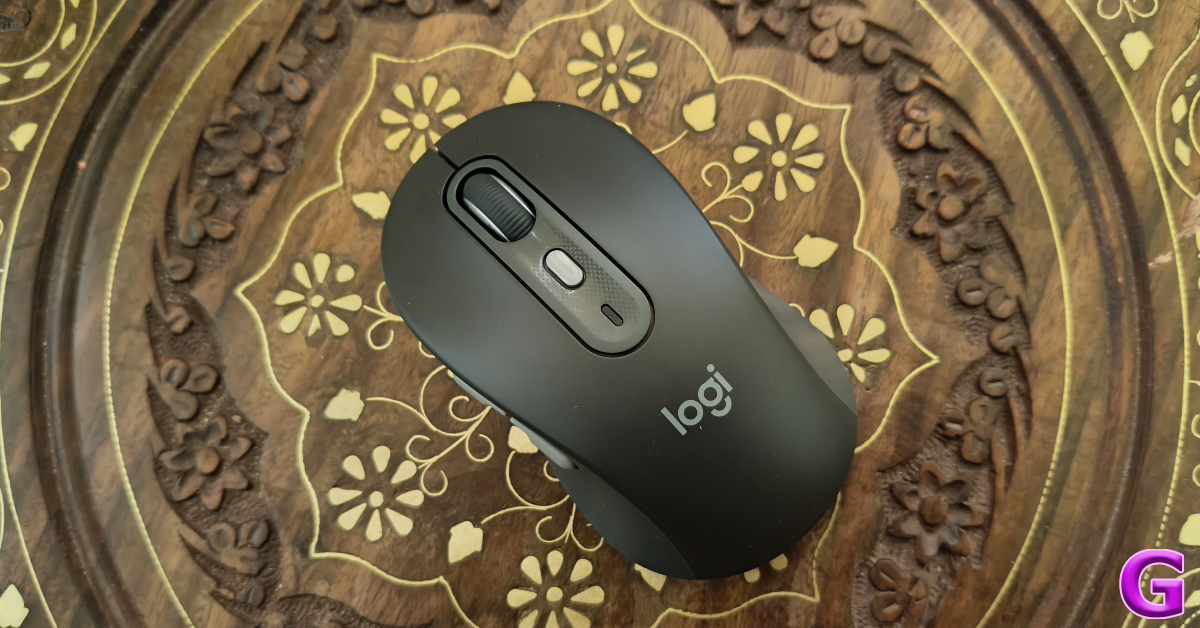
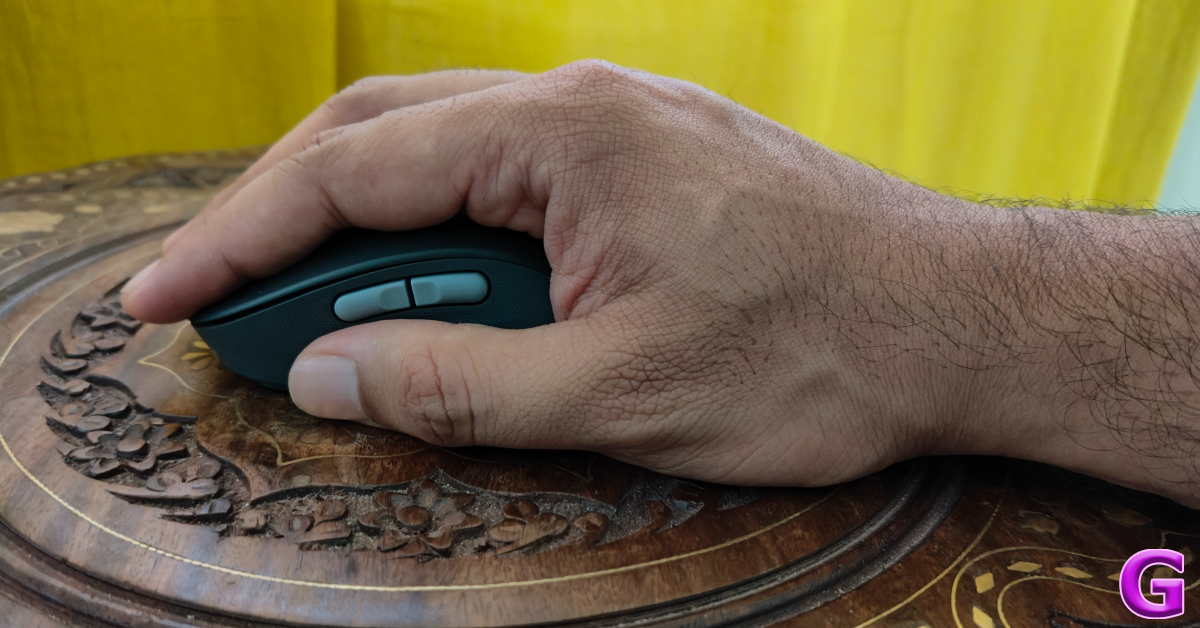
Moving on, the M750 wireless mouse on the Logitech Signature Slim combo weighs 101.3g with the AA battery and receiver inside. Its build quality is sturdy and premium, something you expect from a Logitech product. The bottom panel has four rubber feet, an optical sensor, a device pairing button, and a power switch. The rubber texture along the sides of the mouse offers a nice grip. However, people with large hands may find the M750 a little too compact.
The left side of the mouse houses the ‘back’ and ‘forward’ buttons. This makes the mouse more suited for right-handed users. Up top lie the rubber scroll wheel and a customisable button. This button changes the DPI setting by default. The glossy finish on this button offers a nice contrast to the rubber scroll wheel. Unlike the MX Anywhere 3S mouse, there is no ‘Magspeed’ option for the scroll wheel.
Connecting the two devices to your PC is as easy as it gets. Once you turn on the wireless mouse and keyboard, you will see a prompt on your PC to pair them via Bluetooth. You can also use the Logi Bolt receiver provided in the box to connect the two devices to your PC. The K950 and M750 can pair with a maximum of 3 devices at one time. The keyboard has three dedicated keys for switching the connection. Each key has a small LED notification light that lets you know which device you’re connected to. To switch the connection on the mouse, you need to turn it around and press the pairing key.
Designed for office use, the wireless keyboard and mouse in the Logitech Signature Slim Combo have a very muted response. The keys on the membrane keyboard have a little travel and do not create a distraction to other people in a shared working space. The keys are not backlit, so you will need to rely on external lighting while using it at night. What the K950 gets right is the flow of typing. Its design, tilt, and keycaps are carefully crafted to ensure a seamless typing experience.
The clicks on the M750 wireless mouse are entirely muted. We had to focus very hard to hear the clicks even in pin-drop silence. As mentioned earlier, this mouse is ideal for people with small or medium-sized hands. As someone with large hands, the M750 felt too small for a palm grip. Fingertip and claw grip yielded much better results.
The mouse tracks well on different kinds of surfaces including, wood, glass, and fabric. The lack of Magspeed scrolling is a bit of a letdown, but not a dealbreaker. The M750 uses the Logitech Advanced Optical Sensor with a nominal value of 1,000 DPI. You can set its sensitivity anywhere between 400 – 4,000 DPI at increments of 100 DPI.
Logitech claims a battery life of 36 months on the K950 and 24 months on the M750. We only had the Signature Slim Combo for a couple of weeks so we cannot verify these claims. Both devices use non-rechargeable batteries. Since AA and AAA batteries are easy to find, power backup is not an issue on either device.
The Logitech Signature Slim Combo can be customised using the Logi+ Options app. This app is the heart and soul of Logitech’s computer peripherals and one of the reasons why we rate the brand so highly. On the K950 keyboard, you can use Logi+ Options to customise the F-keys to carry out tasks like launching the browser, opening a particular app, streaming music, and much more.
The Smart Actions are intelligently designed to carry out a set of tasks for a particular scenario. You can use a pre-set template or create your own. For example, if you’re taking a break at work, you can use Smart Actions to minimise Google Chrome and launch Spotify with an assigned button. You can customise the DPI switcher key on the M750 mouse to carry out a Smart Action as well. If AI is your thing, this button can also trigger ChatGPT whenever you want.
The Logitech Signature Slim Combo is a no-nonsense package that cuts through the frills and enhances office productivity. The graphite variant that we used for this review has a rock-solid build despite using 62% post-consumer recycled material for the keyboard and 61% for the mouse. The muted response on the keys and clicks makes the two devices perfect for use in shared working spaces. The Logi+ Options app ensures that the premium hardware is backed by intelligent software. The only downside of the combo is the lack of backlights on the keyboard.
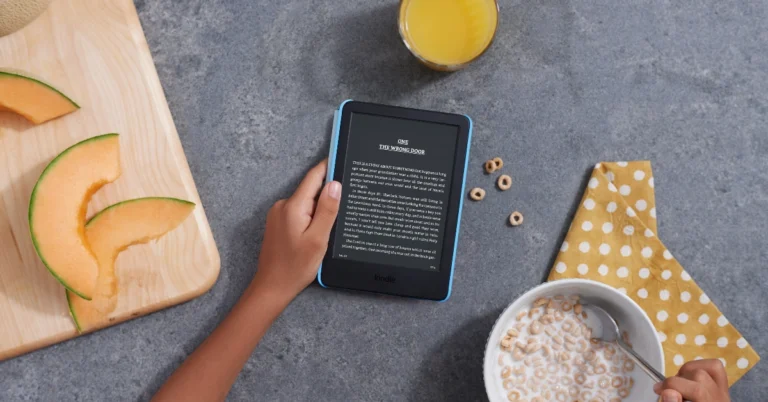
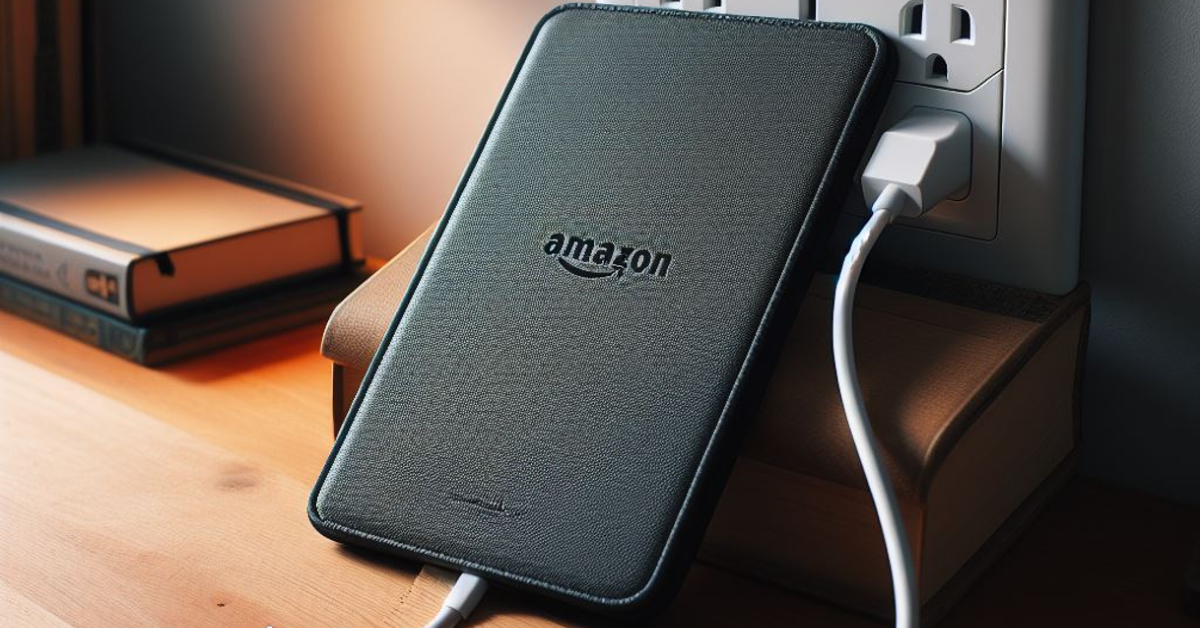
Kindles are known for their versatile battery life. Even with consistent usage, your Kindle demands charging only once a week. If you’re moderate with your usage, you can push its battery life to a couple of weeks with ease. Since Kindles don’t require frequent charging, it can be puzzling when they refuse to charge at all. If you’re looking for a solution to a similar problem, you have landed on the right page. Here are the top 11 ways to fix the ‘Amazon Kindle not charging’ issue.
If your Kindle refuses to charge, it could be due to one of the following reasons.
The power adapter or charging cable is damaged.
Your Kindle’s charging port is dysfunctional due to the collection of dust and grime.
The Kindle isn’t receiving enough wattage to charge properly.
Background software issues are preventing the Kindle from charging.
The Kindle’s battery is bricked and needs to be replaced.
Inspect the power adapter and cable
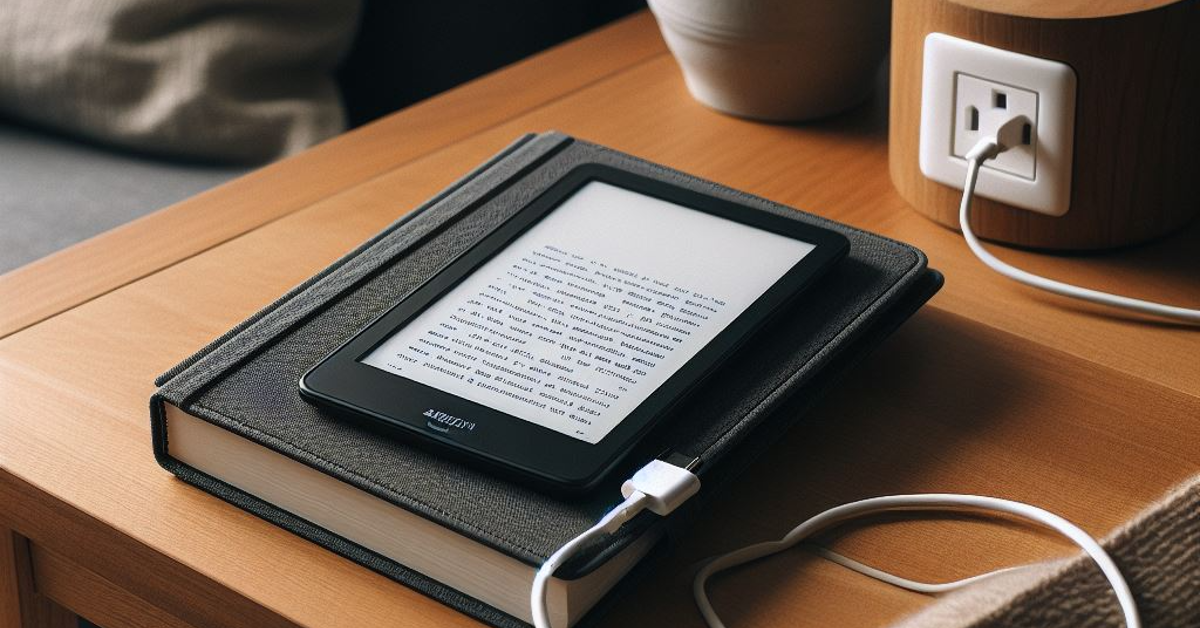
If your Kindle is not charging, the most likely culprit behind it is the charging cable. Make sure you are using the correct cable and inspect it for any damage. Use it to charge your smartphone. If it works on your phone, the fault does not lie with it. Additionally, make sure the power adapter is functional as well.
Use a power outlet instead of a PC
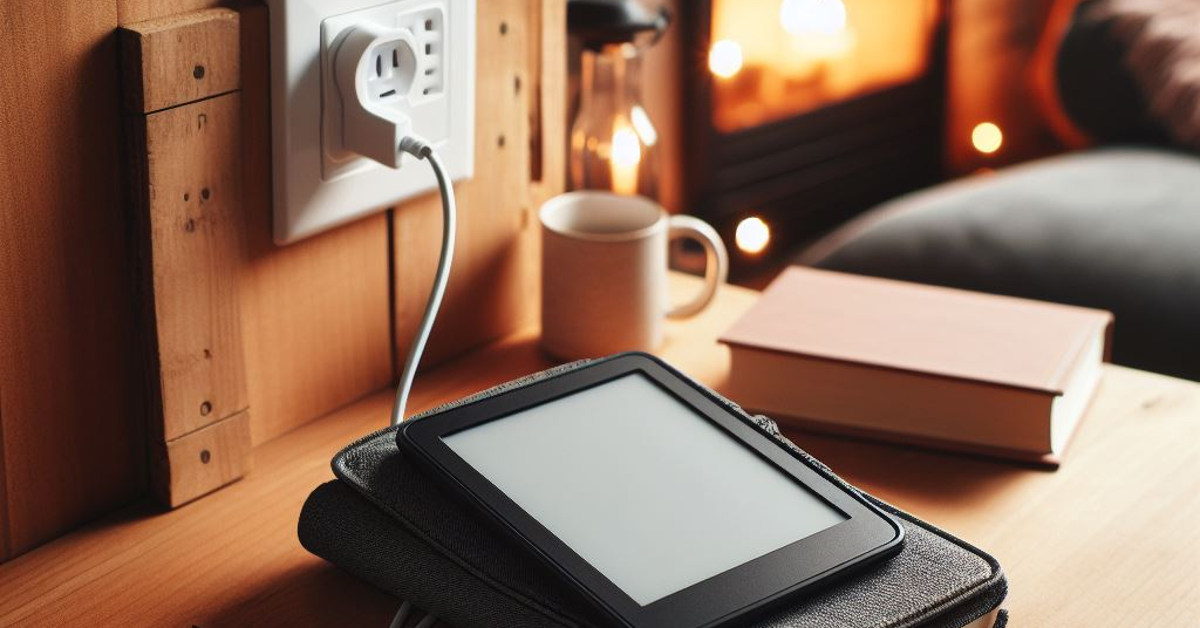
If you’re using your PC or laptop to charge your Kindle, move to a power outlet instead. While PCs don’t cause any issues, the charging speed takes a hit. If your Kindle is drained of battery, it may appear like it is not charging if it is connected to a PC. Use a wall outlet to charge it at a quicker pace.
Check the power outlet
If you don’t find any fault in the charger, check the power outlet. It is possible that the charger isn’t able to draw enough power from the wall outlet. Connect it to another socket and see if your Kindle starts charging. If it doesn’t, move on to other fixes in this list.
Clean the charging port
Dust, grime, and lint can collect inside the charging port of the Kindle over time, causing malfunctions with charging. This can also lead to the connector not fitting into the port. Gently scrape the visible grime from the port using a small brush. Use a pair of tweezers to pull out the larger pieces of lint. Blow some air into the port and gently knock your Kindle against the desk to let out the dust.
Remove the case
Counterfeit cases can partially cover the charging port or exert pressure on the charger when it is connected to the device. If you suspect that is the case with your Kindle, remove its case and try charging it again.
Check the temperature
If your Kindle has been lying under the sun or next to a window for too long, its internal temperature may rise rapidly. When the internal temperature crosses a certain threshold, certain essential tasks are suspended until the device cools down. To aid the cooling of the device, the charging duties are suspended too. Make sure your Kindle has reached normal temperature before plugging in its charger.
Restart your Kindle
If a background software issue is the reason why your Kindle isn’t charging, restart the device. Here’s how.
Step 1: Tap the screen to reveal the toolbar.
Step 2: Tap on the downward arrow at the top of the screen.
Step 3: Tap on All Settings.
Step 4: Select Device Options.
Step 5: Hit Restart and confirm your selection.
Force restart your Kindle
If the LED indicator shows that your Kindle is charging, but it won’t wake up, it is time to perform a force restart. You can do this by long-pressing the power button for 40 seconds. Make sure your Kindle has been charging for an optimum period of time before you force restart it.
Update the OS
Step 1: Tap the screen to reveal the toolbar.
Step 2: Tap on the downward arrow at the top of the screen.
Step 3: Tap on All Settings.
Step 4: Select Device Options.
Step 5: Tap on Advanced Options.
Step 6: Select Update your Kindle. If this option is unselectable, it means your Kindle is already updated to the latest software version.
Reset your Kindle
If nothing works, it is time to give your Kindle a factory reset. This will erase all the data from the device, so make sure you back up all your books on another device or cloud storage.
Step 1:Tap the screen to reveal the toolbar.
Step 2: Tap on the downward arrow at the top of the screen.
Step 3: Tap on All Settings.
Step 4: Select Device Options.
Step 5: Tap on Reset.
Step 6:Confirm your selection in the pop-up box.
Visit an authorised service centre
If the charging issue persists even after performing a factory reset on your Kindle, you need to contact Amazon Customer Support or visit an authorised service centre. If your Kindle is still under warranty, you can get it repaired for free as long as the damage is not caused by water or physical impact.
Frequently Asked Questions (FAQs)
How do I fix my Kindle if it isn’t charging?
Make sure the charger and cable are not damaged, and clean the charging port of the device. Use a wall outlet instead of a PC to charge your Kindle.
How do I restart my Kindle?
Touch the screen, hit the downward arrow, go to All Settings>Device Options>Restart and confirm your selection.
How do I perform a factory reset on my Kindle?
Hit the downward arrow in the toolbar, go to All Settings>Device Options>Reset, and hit ‘Confirm’.
These are the top 11 ways to fix your Amazon Kindle if it isn’t charging. If your Kindle refuses to turn on, read this article for possible fixes. If you found this article helpful, let us know in the comments!
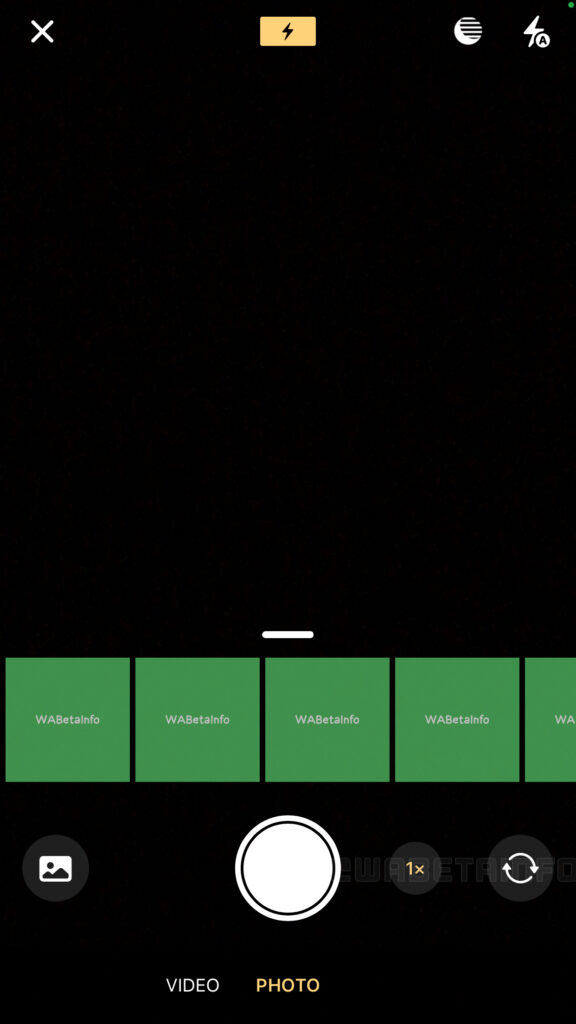
WhatsApp has started to roll out an iOS 24.9.10.75 version update. Under the update, a camera zoom control feature is being rolled out by WhatsApp, and select beta testers can test it out now.
It seems like WhatsApp is working to enhance the camera experience by introducing new features aimed at enhancing user convenience and providing users with easier methods to share and record video. WhatsApp is working on the development of zooming in and out when using the iOS in-app camera to take pictures and record videos.
According to a report by WABetaInfo, WhatsApp is currently rolling out a zoom control function for the camera after installing the most recent WhatsApp beta for iOS 24.9.10.75 update, which is accessible on the TestFlight app.
As shown in the shared screenshot some of the beta testers are able to play with a new button that allows iPhone users to smoothly adjust the zoom level. Prior to the changes, WhatsApp users for iOS were able to swipe up or down while holding their finger on the camera button in order to adjust the zoom level while recording, which could have produced inaccurate results.
Image Courtesy: WABetaInfo
With the new iOS camera zoom control feature users now have more control over creating photo and video content, therefore making it simpler to adjust the zoom without stopping the recording. Also, it eliminates the need for users to struggle with the camera button to adjust the zoom—just a simple touch. This will give users more control over the zoom level, improving precision by enabling them to get the exact shot they want.
As per the report, the zoom control feature for the camera is only accessible to some beta testers who install the latest update of WhatsApp beta for iOS from the TestFlight app, and it’s rolling out to more people over the coming days.
Garena Free Fire is a battle royale game with regular awards and tournaments to keep players interested. If you play Garena Free Fire, you should be aware of the redeem codes that are released on a daily basis. However, because the battle royale game is banned in India, players from other countries can use the Free Fire Redeem codes daily. If you’re unfamiliar with the Garena Free Fire redeem codes or don’t know how to get them, we’ve put together a step-by-step guide to help you redeem them. Check out Garena Free Fire Redeem Codes for 10 May 2024.
The Free Fire redeem codes are a great way to get free stuff. These are 12-digit codes that contain alphabets and numbers, as well as an expiration date and time. Because the Garena FF redeem codes cannot be used more than once, you should hurry to the redemption page to claim your free reward before someone else does. To get a free reward, all you have to do is go to reward.ff.garena.com/en, which is the official redemption page. Also, keep an eye on this space for daily updates on Garena Free Fire redemption codes and rewards.
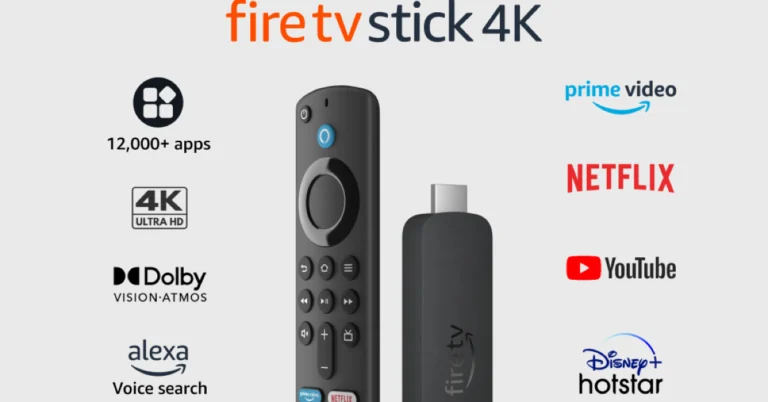
The newest member of the Fire TV family Amazon Fire TV Stick 4K has made its debut in India. The latest streaming device comes with several noteworthy enhancements like Ultra HD picture quality, Dolby Vision, HDR10+, and Dolby Atmos audio for cinematic 4K entertainment. It is said to have nearly 30% more power than its previous generations which allows for speedy app launches, and smooth navigation. 12,000+ entertainment, news, sports, and other apps are available through the Appstore for the Fire TV Stick 4K
In This Article
Amazon Fire TV Stick 4K price in India, sale details
Amazon Fire TV Stick 4K price in India is set at Rs 5,999. The streaming device is only available in matte black and is currently up for pre-orders on the e-commerce platform. The streaming device will be available for purchase on May 13.
When it goes on sale, the Fire TV Stick 4K will also be available for purchase through Croma, Reliance Digital, and Vijay Sales, in addition to Amazon.
Amazon Fire TV Stick 4K specs, features
The new Amazon Fire TV Stick 4K is powered by its 1.7 GHz quad-core processor and supports Wi-Fi 6 compatible router, 5GHz and 2.4GHz Wi-Fi bands to allow customers to stream content at varying internet frequencies.
The content streaming device by Amazon streams 4K Ultra HD content and supports HDR10+. In addition, Dolby Vision and Dolby Atmos audio are included. The all-new Fire TV Stick 4K also includes a low-power mode that saves energy when a device enters standby or sleep mode when it is not in use.
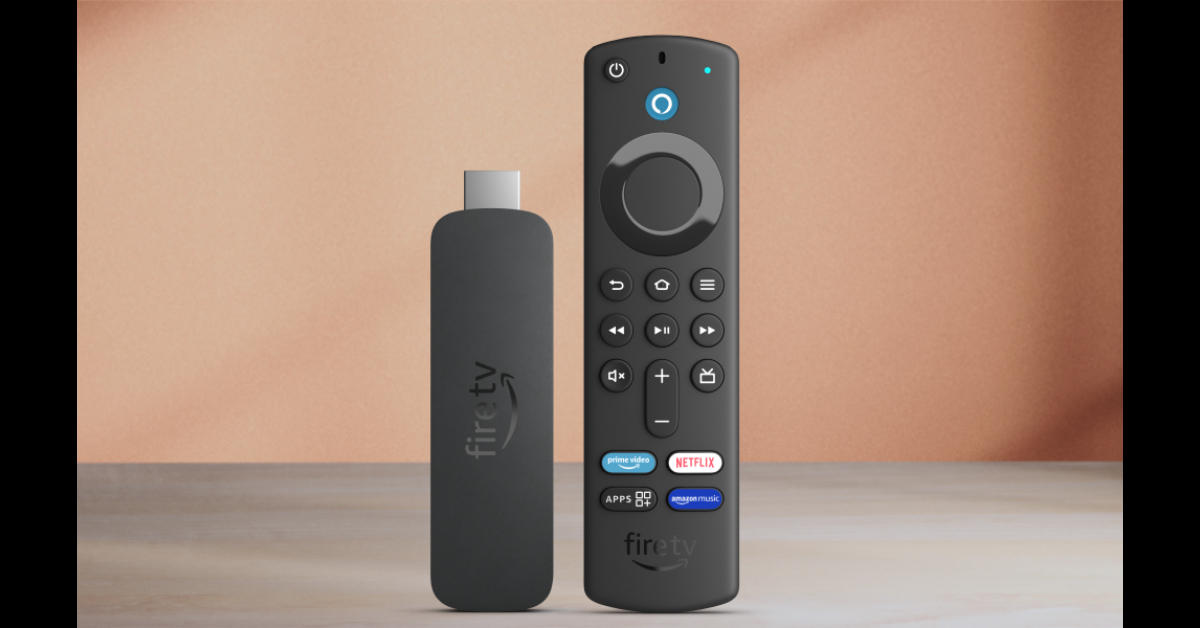
A variety of TVs that are compatible with the Fire TV Stick 4K can be operated by using the bundled Alexa Voice Remote to control specific features like volume and power. There are now buttons specifically for apps on the updated Alexa Voice Remote. Consumers may easily locate, access, and control content by voice. Additionally, users may create an “Alexa Home Theatre” by using the Alexa app to wirelessly link their Fire TV Stick 4K to their Echo smart speakers.
Access to more than a million films and TV series episodes can be had with the most recent Fire TV 4K Stick thanks to the App Store’s 12,000+ apps, which include well-known titles like Netflix, Prime Video, Disney+ Hotstar, Zee5, and Jio Cinema. Additionally, there is a vast selection of content available for streaming on Disney+ Hotstar and Netflix, as well as Prime Video Amazon Originals including Made in Heaven, Mirzapur, Panchayat, Aspirants, and Family Man.
Users will also be able to access free or paid content on websites like MX Player, YouTube, and MiniTV. Additionally, they can use the DTH set-top box on their home screen to access live channels including Colours, Zed, Sony, Star, Discovery, News18, DD National, and more.
Slot machines have been a beloved fixture in casinos around the world for decades, captivating players with their flashing lights, enticing themes and the promise of instant riches. However, what many casual gamblers may not realize is that there’s more to spinning those reels than mere chance. In this article we delve into the fascinating world of slot machine betting systems, strategies designed to maximize your chances of winning and enhance your gaming experience.
But before we dive into the specifics of particular betting systems, let’s take a moment to understand the concept. Betting systems are structured approaches to wagering that aim to provide players with a methodical way of betting, ultimately influencing the outcomes of their bets. Discover the secrets of slot machine betting systems in the Twin Win Demo. While slot machines are often seen as games of pure luck, these systems introduce an element of strategy into the mix, offering players a sense of control over their gambling:
Betting System
Description
The Martingale System
A progressive betting strategy where you double your bet after each loss to recoup previous losses and make a profit
The Fibonacci System
Based on the Fibonacci sequence, this system involves adjusting your bets according to a mathematical pattern
The Paroli System
A positive progression system where you increase your bets after winning, aiming to ride winning streaks
The Labouchere System
A complex strategy involving a predetermined sequence of bets to reach a target profit
The Kelly Criterion
A method to determine the optimal size of bets based on perceived edge and bankroll size
As we explore each of these intriguing systems in detail, you’ll gain insights into how they work and their potential advantages and disadvantages. Whether you’re a seasoned slot player or a curious newcomer, understanding them can add a new dimension to your casino experience, making each spin of the reels more exciting and strategic.
In This Article
The Martingale Betting System
The Martingale betting system, a time-honored strategy originally developed for casino games like roulette, can be adapted for use with slot machines, albeit with some unique considerations. In this system players begin by placing an initial wager, and if they experience a loss, they double their bet on the subsequent spin. This doubling of bets continues after each loss until a win is achieved, at which point the player reverts to their initial bet size and restarts the process.
When applying the Martingale system to slot machines, players are drawn to its simplicity and the structured approach it offers to their betting strategy. The allure lies in the potential to recover previous losses with a single win, which can be exhilarating. However, it’s essential to weigh the pros and cons before embracing this system in slot machine play:
Advantages
Disadvantages
Provides a straightforward and easy-to-understand strategy for players
Doesn’t alter the fundamental odds of winning on a slot machine, making long-term profitability uncertain
Offers a sense of control and discipline in managing bets
Demands a substantial bankroll to endure potential extended losing streaks, posing financial risks
Can result in significant short-term gains if a winning spin occurs
Many casinos impose betting limits, impacting system’s effectiveness in the face of reaching those limits
While the Martingale system can provide an adrenaline rush and the allure of quick winnings, it should be embraced cautiously. Players should be aware of the potential for significant losses if luck does not favor them, and they must exercise responsible bankroll management when using this strategy in the world of slot machine gambling.
The Fibonacci Betting System
Bringing a touch of mathematical elegance to the world of slot gaming, the Fibonacci betting system introduces players to a distinctive approach rooted in the renowned Fibonacci sequence. As slot enthusiasts explore this intriguing strategy, it’s crucial to weigh the unique advantages and accompanying disadvantages that come with its application in slot gaming:
Pros
Cons
Implements a structured and systematic betting method, promoting discipline and control
Does not alter the inherent odds of winning on a slot machine, making long-term profitability uncertain
Offers a relatively conservative betting strategy, reducing the risk of rapid and significant losses
Progress in recovering losses may be slower compared to more aggressive betting systems
Encourages responsible bankroll management, contributing to a sustainable and enjoyable gaming
Depends heavily on a sequence of wins to offset losses, which may not always align with expectations
The allure of the Fibonacci system in slot gaming lies in its methodical approach and risk management. By incrementally adjusting bets following losses and decreasing them after wins, guided by the Fibonacci sequence, players can extend their gaming sessions while maintaining a sense of control and strategy. However, it is vital to approach this system with a realistic perspective. The Fibonacci system does not alter the fundamental odds of winning on a slot machine, and its success hinges on a sequence of wins to offset losses, an outcome that remains uncertain. Players should embrace this unique system thoughtfully, always exercising responsible bankroll management to maximize its potential and enhance their gaming experience.
The Paroli Betting System
When embracing the Paroli system in slot machine betting, players embark on a distinct journey. They initiate their gameplay with an initial bet, and the strategy dictates that they only increase their wager after a victorious spin. Unlike some other systems that aggressively chase losses, the Paroli system aims to ride the waves of success by allowing profits to accumulate. When the player decides to take their winnings or faces a setback, they revert to their initial bet size.
The merits of the Paroli system in slot gaming lie in its ability to maximize profits during winning streaks and its inherent discipline in managing bets. This structured approach not only fosters responsible gaming habits but also encourages effective bankroll management. Nevertheless, it’s imperative to acknowledge the system’s limitations, including its inability to alter the underlying odds of winning on a slot machine and the potential for abrupt ends to winning streaks.
The Labouchere Betting System
The Labouchere system is a structured betting strategy that centers around the creation of a numerical sequence, where each number represents a specific bet size. Players craft their unique sequences, guided by their profit objectives. The primary objective of this strategy is to eliminate all numbers in the sequence through winning bets, ultimately reaching the desired profit target. Bets are placed equal to the sum of the first and last numbers in the sequence. When a bet is successful, these numbers are crossed off, and in the event of a loss the sum of the lost bet is appended to the end of the sequence. The process continues until the entire sequence is cleared, culminating in the achievement of the profit goal.
When applied to the world of slot machine gambling, the Labouchere system requires players to adapt their numerical sequence to match the bets placed on each spin. The sequence is meticulously designed based on the player’s bankroll and profit aspirations. In practice, players adhere to the strategy’s rules by wagering sums equivalent to the first and last numbers in their sequence. The Labouchere system not only encourages prudent bankroll management but also steers players toward their profit objectives.
While the Labouchere system offers a structured and methodical approach to slot machine betting, its effectiveness and potential caveats deserve thoughtful consideration. This strategy empowers players to set clear profit targets and manage their bankrolls sensibly. However, it does not alter the fundamental odds of winning on a slot machine, and strict adherence to the sequence can prove challenging amidst the unpredictability of slot gaming.
The Kelly Criterion Betting System
The Kelly Criterion is a mathematical formula designed to optimize the size of a series of bets, ultimately maximizing expected wealth over time. It hinges on two critical components: the player’s advantage or edge and the odds presented by the casino. The outcome is expressed as a percentage, indicating the portion of the player’s bankroll to wager on a specific bet. When applied to the world of slot machines, the Kelly Criterion involves evaluating the player’s perceived edge, which may encompass factors such as payout rates, game volatility and bonus features. Once the edge is assessed, the formula can be effectively employed to calculate the ideal bet size for each spin.
Utilizing the Kelly Criterion in slot machine betting offers a host of advantages. It presents a systematic and mathematically sound approach to betting, enhancing the potential for sustained profitability. By optimizing bet sizes based on the player’s edge, it encourages responsible bankroll management and strategic decision-making. However, it’s crucial to be mindful of potential considerations, including the challenge of accurately gauging one’s edge within the inherently unpredictable landscape of slot gaming. Overestimating the edge can lead to overly aggressive betting, while underestimating it may result in missed opportunities for maximizing returns.
Final Thoughts
While different betting systems can infuse excitement and strategy into your gameplay, it’s paramount to maintain a commitment to responsible gambling. Slot machines are fundamentally games of chance, and no strategy can alter the chance of winning. Understanding the mechanics and odds of the games you engage with is vital for making informed decisions.
We encourage you to explore and experiment with various betting strategies as you enjoy slot machines. Each system brings its own flavor to your gaming sessions, and the choice of which to employ depends on your tastes and targets. Whether you seek a methodical approach, mathematical precision or a flexible strategy, these systems provide intriguing avenues for exploration.
In the grand scheme of things, slot machine gambling should serve as a source of entertainment and enjoyment. While betting systems can enhance your experience, remember to gamble responsibly, set limits and never wager more than you can comfortably afford to lose. Armed with a solid grasp of the odds and a willingness to delve into different strategies, you can maximize your slot machine adventures while savoring the thrill of the game.
Samsung is expanding its F-series in India and today it officially announced the launch date of its upcoming smartphone Galaxy F55 5G. Not only this the South Korean firm has also revealed the price range and colour options of the device. Keep on reading to learn more about the smartphone.
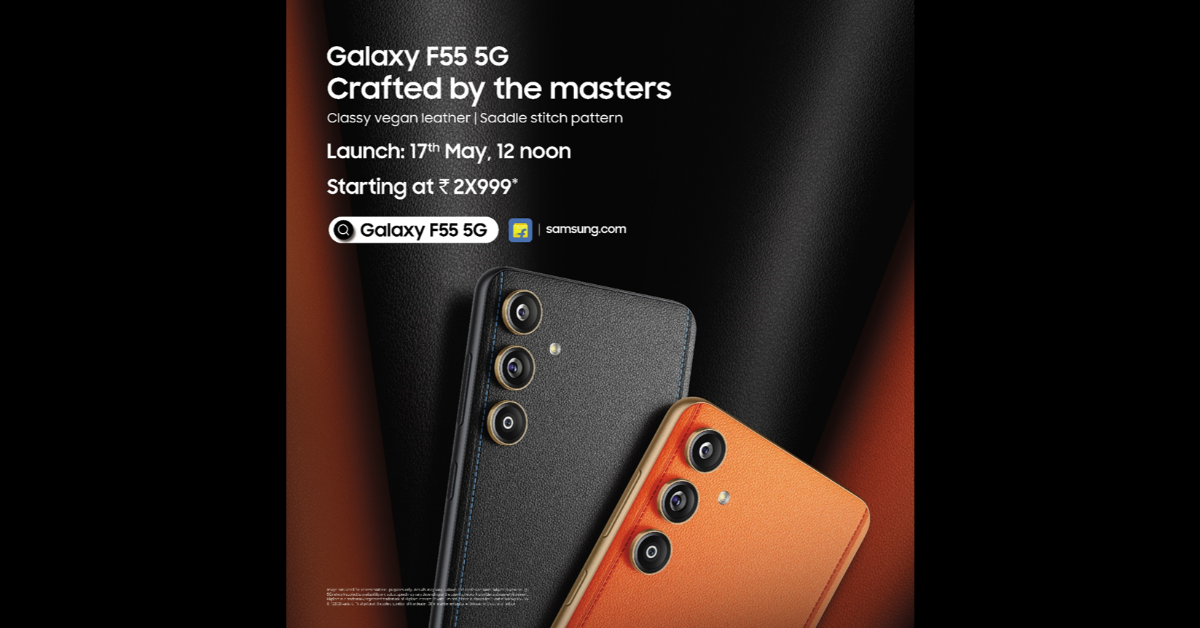
Samsung Galaxy F55 5G India launch is set to take place on May 17. The upcoming phone is rumoured to be a rebranded variant of the Samsung Galaxy C55 5G which launched in China last month. In addition to revealing the launch, the firm has also hinted at the price of the smartphone. As per the poster image, the price of Galaxy F55 5G will start at Rs 30,000 in India. The company has not revealed the exact pricing instead the poster image included “starting at Rs 2X999”
The firm has also confirmed the Flipkart availability for F55 5G. In addition, the smartphone will be sold through Flipkart, Samsung.com, and a few other retail locations as soon as it launches in India. There will be two colour variants available: Apricot Crush and Raisin Black.
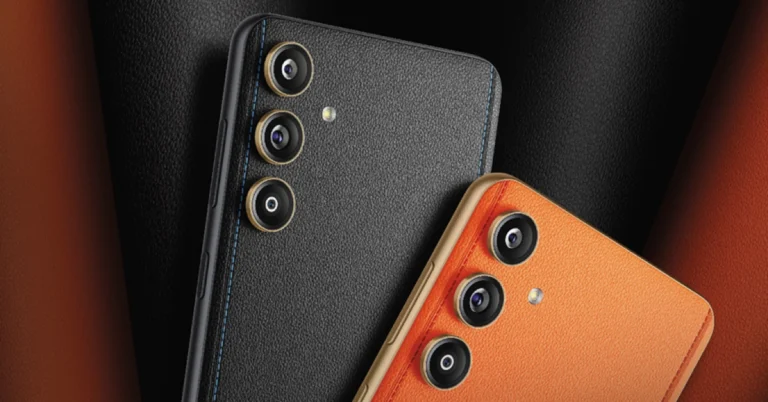
The teaser indicates that the upcoming smartphone will have three vertically arranged cameras on the back panel. The phone will have a stitched design and an orange vegan leather finish.
It is anticipated that the Samsung Galaxy F55 5G, a redesigned Galaxy C55 5G, will debut in India. According to the company’s teaser, the Samsung Galaxy F55 5G and the Galaxy C55 5G have a similar design. The Orange phone model that was released in China is even similar in terms of colour options.
The Samsung Galaxy F55 5G is expected to come with a 6.7-inch full-HD+ sAMOLED Plus screen. The display is speculated to have a refresh rate of 120Hz and a maximum brightness level of 1,000 nits.
An anticipated Snapdragon 7 Gen 1 SoC will power the smartphone with 8GB of RAM, and up to 256GB of storage. It may run on One UI 6.0, which is based on Android 14.
Moreover, the Galaxy F55 5G will support 25W wired fast charging and will pack a 5,000mAh battery. Moreover, the triple rear camera setup is said to include a 50-megapixel main camera sensor with optical image stabilisation (OIS) support. The system may also include an 8-megapixel ultra-wide angle lens and a 2-megapixel macro lens. A 50-megapixel sensor on the front for selfies and video calls is also expected.
CMF’s new smartphone is likely to be called CMF Phone 1.
Anticipated to be an economical entry-level phone, the CMF Phone 1 may be less expensive than the Nothing Phone 2a.
It may come in three different colour variants and is rumoured to have a plastic body. Nothing’s sub-brand CMF is planning to expand and is speculated to enter the smartphone market soon. The firm is now preparing to release its first smartphone although there is no official information about the alleged CMF phone. A report has surfaced that discloses the CMF smartphone’s price and a few of its specs. Check out the details below.
Although the name, cost, and specifications of the CMF smartphone are being leaked, no official information about the device has been released as of yet. As per a report, the upcoming phone from CMF by Nothing is apparently going to be named the CMF Phone 1.
The CMF Phone 1 may cost approximately Rs 12,000 in India. That means the rumoured phone would be significantly less expensive than Nothing’s most affordable smartphone Nothing Phone 2a.
It is rumoured that the CMF Phone 1 will have a plastic body and Gorilla Glass protection on the display. The device is likely to be offered in three colour options: orange, white, and black.
In terms of specifications, the alleged CMF smartphone is anticipated to feature a 6.5-inch display. It may come equipped with a MediaTek Dimensity 5G chipset. The Phone 1 by CMF is likely to be a stripped-down version of Nothing OS and will offer four years of security updates and three years of OS updates. It is probably going to have a single back camera. It is supposed to have a 33W charging-capable 5,000mAh battery.
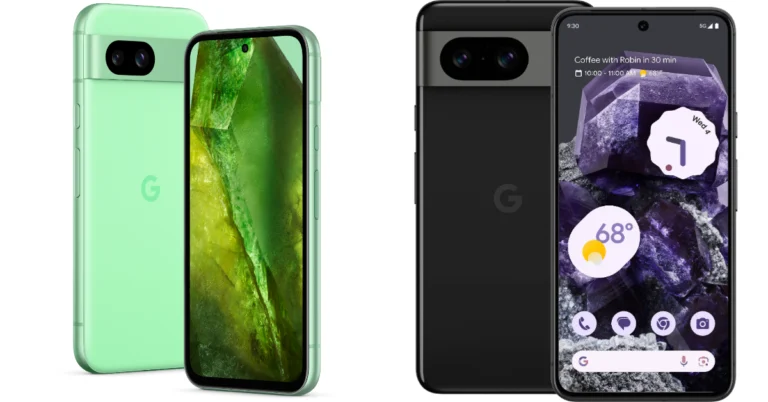
Recently Google introduced its new A-Series phone, Pixel 8a in India. The smartphone and Pixel 8 have a lot in common, which is why they seem so similar. If you are confused, we have done a detailed comparison below between the Pixel 8a and its more expensive sibling Pixel 8 to help you understand which one is the better buy.
In This Article
Display
Pixel 8a: 6.1-inch Super Actua display (120Hz refresh rate)
Pixel 8: 6.2-inch FHD+ Actua display (Adaptive refresh rate ranging between 60Hz and 120Hz)
Processor
Pixel 8a: Google Tensor G3 chip
Pixel 8: Google Tensor G3 SoC
Rear camera(s)
Pixel 8a: Dual rear camera system with a 64-megapixel main lens and a 13-megapixel ultrawide lens
Pixel 8: 50MP Octa PD sensor with f/1.68 and 12 MP ultrawide camera with an auto-focus
Pixel 8a: 8GB RAM with 128GB storage/8GB RAM with 256GB storage
Pixel 8: 8GB RAM with 128GB storage/8GB RAM with 128GB storage
Battery
Pixel 8a: 4,492mAh battery
Pixel 8: 4,485mAh battery
Operating system
Pixel 8a: Android 14
Pixel 8: Android 14
Price
Pixel 8a: Rs 52,999
Pixel 8: Rs 75,999
Our Take
Both the Pixel phones are shipped with Android 14 out of the box and are promised to offer 7 years of software and security support. Though there is a slight size difference, the Super Actua displays on both devices support a 120Hz refresh rate. However, the display on the flagship Pixel 8 has an adaptive refresh rate that switches between 60Hz and 120Hz based on the content being played.
In addition, the display appears premium with thinner bezels than the 8a. The Pixel 8a boasts a display made of Corning Gorilla Glass 3. In contrast, the Corning Gorilla Glass Victus display of the Pixel 8 is stronger and less prone to scratches.
Whereas the Pixel 8a is rated IP67, the Pixel 8 boasts IP68 dust and water resistance. The Google Tensor G3 chip and Titan M2 security co-processor are the same processors found in the Pixel 8 and Pixel 8a. Both Google phones contain Pixel-only AI functions, although the 8a lacks some of the flagship phone’s capabilities. Over that, Magic Eraser, Photo Unblur, Real Tone, Face Unblur, Panorama, Manual White Balancing, Locked Folder, Night Sight, Top Shot, Portrait Mode, Portrait Light, Motion Auto Focus, Frequent Faces, Dual exposure controls, Live HDR+, and Ultra HDR are among the camera AI tools shared by both devices. Macro Focus, Best Take, and Magic Editor are absent on 8a.
In terms of cameras, the Pixel 8a’s front and back cameras have higher resolution sensors than the Pixel 8 PD sensor, but the latter’s larger sensor size allows it to capture more light, producing images that are clearer, crisper, and more detailed.
There isn’t much difference in the batteries, although the Pixel 8 has a slightly larger battery and features the Battery Share feature.
Apart from the cameras, build quality, and the absence of a few Pixel-only features, the Pixel 8a and Pixel 8 are nearly identical. However, the two have a significant price difference. If you’re on a limited budget, we advise you to choose the less costly Pixel 8a.
Garena Free Fire is a battle royale game with regular awards and tournaments to keep players interested. If you play Garena Free Fire, you should be aware of the redeem codes that are released on a daily basis. However, because the battle royale game is banned in India, players from other countries can use the Free Fire Redeem codes daily. If you’re unfamiliar with the Garena Free Fire redeem codes or don’t know how to get them, we’ve put together a step-by-step guide to help you redeem them. Check out Garena Free Fire Redeem Codes for 9 May 2024.
The Free Fire redeem codes are a great way to get free stuff. These are 12-digit codes that contain alphabets and numbers, as well as an expiration date and time. Because the Garena FF redeem codes cannot be used more than once, you should hurry to the redemption page to claim your free reward before someone else does. To get a free reward, all you have to do is go to reward.ff.garena.com/en, which is the official redemption page. Also, keep an eye on this space for daily updates on Garena Free Fire redemption codes and rewards.
For advertisers looking to assist with comprehensive image and text development, Meta has launched enhanced generative AI tools. Additionally, the company has introduced new tools and services that help businesses improve the efficacy of their ads. These services include developing creative variations, automating certain parts of the ad creation process, or increasing credibility and engagement through Meta Verified.
Meta is launching a new suite of artificial intelligence (AI) tools to assist businesses and enhance the ad creation process. The second and third generations of Meta’s Llama (Large Language Model Meta AI) AI models fuel its new AI features. Meta’s AI will let users create images and text for advertisements.
In This Article
Generative AI: Image Generation
For the first time, you can use text overlay to generate full image variations based on your original ad creative. This expands on the ability to create different backgrounds for product shots and magnify images to fit larger surfaces. This feature has already begun to roll out and in the coming months, users will also be able to provide text prompts to help us better tailor the creative variations we offer to you.
Furthermore, users will also be able to add text overlay to photos, and advertisers can select from a dozen of the most well-liked font typeface alternatives. There will also be an image expansion feature that will allow you to easily modify creative assets to match various aspect ratios across various surfaces. This will be functional with text overlays on your advertisements and is accessible on Reels and Feed on Facebook and Instagram.
Generative AI: Text Generation
The Text Generation tool allows you to make variations for both the ad headline and the core content. Meta is also testing the ability for the generated text to reflect your brand’s voice and tone, by highlighting key selling points based on your previous campaigns and text input. As per the company, these upgrades are driven by advertiser requests for a more broadened selection of text selection that better reflects their brand and key selling elements.
This feature will soon be built with Meta Llama 3, the next generation of our large language models, which will enable new capabilities and enhance ad performance. The company has released these updated generative AI features and global availability is expected by the end of the year.
Smartphones have completely eliminated the need for torchlights, at least in everyday use. If you’re embarking on a hike, you should think about purchasing a powerful flashlight, but if you need to navigate your way around a dark room, you don’t need a torch on you at all times, as long as you have a phone on you. Android smartphones even let you adjust the intensity of the light by long-pressing its tile. However, what’s more important than intensity is the accessibility of the torch function on your phone. Today, we bring you the top 6 ways to turn on your Android phone’s flashlight without waking up the screen.
There are multiple ways you can go about toggling the flashlight on your smartphone. All Android devices have a handy tile for the torch in the Quick Settings Menu. If you want easier access, you can add a flashlight widget to your home screen. In scenarios where you need to use the torch urgently and don’t have the time to unlock the phone, you can use the lock screen icon for the flash.
However, this still requires you to wake the screen of your device. Turning on the flashlight without disturbing the screen is a very niche demand, but your Android smartphone is natively equipped to handle that. The side button on Samsung devices can be customised to turn on the torch. The Quick Tap option on Pixel smartphones lets you turn it on by double or triple-tapping the back of the phone. If you own some other smartphone, you can always use Google Assistant or a third-party app for this task.
Customise the side button on Samsung
Step 1: Go to Settings and select Advanced features.
Step 2: Tap on Side button.
Step 3: Turn on the toggle switch for Double press and select Open app.
Step 4: Hit the settings icon next to Open app and select Torch.
Use Quick Tap on Google Pixel smartphones
Step 1: Go to Settings and select System.
Step 2: Tap on Gestures.
Step 3: Select Quick Tapto start actions.
Step 4: Turn on the toggle switch for Quick Tap.
Step 5: Select Toggle torch.
Step 6:Double-tap your phone’s back to check if it works.
Enable the shake gesture
Go to Settings.
Scroll down and select Shortcuts & accessibility.
Tap on Smart Motion.
Turn on the toggle switch next to Shake for flashlight.
Use Google Assistant
Step 1: Open the Google app, tap your profile picture, and select Settings.
Step 2: Tap on Google Assistant.
Step 3: Select Lock screen.
Step 4: Turn on the toggle switch for Assistant responses on lock screen.
Step 5: When your phone is locked, say ‘Hey Google, turn on the flashlight’.
Customise the Shortcut button
Some midrange and premium smartphones come with an additional key to toggle the sound profile, click a picture, and do a whole bunch of other tasks. You can customise to trigger the flashlight as well. Here’s how.
Go to Settings.
Tap on Shortcuts & accessibility.
Select Shortcutbutton.
Choose an action.
Swipe through the functions on the screen until you land on Flashlight.
Launch the app and make sure the box next to Stop shake detection says On.
Use the slider at the bottom of the screen to set your preferred shake intensity.
Shake your phone in a chopping motion to turn on the flashlight. Some phones may not register this motion when they’re locked. Press the side button and carry out the gesture again to bring the flashlight to life.
Shake your phone again to turn off the flashlight.
Frequently Asked Questions (FAQs)
How do I use back tap on my Samsung phone?
Install the Good Lock app on your Samsung smartphone and download the RegiStar module. Now, tap on ‘Back tap’ and turn on its toggle switch. Use the customisation settings to assign your desired actions.
How do I use back tap on a Google Pixel smartphone?
Go to Settings>System>Gestures>Quick Tap, turn on its toggle switch, and select your desired action.
How do I turn on the flashlight on my Android smartphone without waking up its screen?
Samsung users can customise the side button to trigger the flashlight when pressed twice. Pixel users can do the same with the back panel of their phone using ‘Quick Tap’. For other OEMs, you can use a third-party app like Shake Flashlight.
These are the top 6 ways to turn on the flashlight on your Android smartphone without waking up its screen. The Google Assistant method will work on every Android device, regardless of the OEM. If you’re aware of any other methods that can carry out this task, let us know in the comments!
You may remember WatchOut as the smart wearable brand that made an appearance in Season 2 of Shark Tank India. The brand is known for wearables that cater to different age demographics. Its smartwatch for kids is focused on parental control and two-way communication. The ‘Guardian’ smartwatch for senior citizens offers GPS live tracking as well as round-the-clock health tracking. For Gen Z, WatchOut offers an exciting fusion device called ‘WearPods’ which converges wireless earbuds and a smartwatch into one device. If you remember Huawei’s Watch Buds from last year you will know exactly what we’re talking about. What works for WearPods is its pricing. You can get your hands on this piece of tech for just Rs 5,000. We’ve been using the WatchOut WearPods for the last week and here is our comprehensive review of the device.
Here’s what you get inside the WatchOut WearPods retail box:
Smartwatch with earbuds
Charging/data transfer cable
Screen protector
User manual and warranty card booklet
For a tech outfit that’s new to the market and putting out its first fusion product, WatchOut has nailed the design of the WearPods. Given the nature of the product, it wasn’t going to be sleek and compact. WatchOut has used this to its advantage and given the smartwatch a ‘rugged’ look. The squarish dial is undeniably thick, housing the earbuds on the right edge of the frame. Since it is made out of plastic, the smartwatch is not as heavy as it looks. There are two textured buttons on the left corners of the dial. The Military Green colour variant of the WatchOut WearPods we used for this review adds to its ‘rugged’ aesthetic. The wearable is also available in Orange Army and Black Commando shades.
The earbuds are firmly locked in their cutouts with powerful magnets. Even after shaking and yanking the smartwatch with immense force, the earbuds remained in place. Surprisingly, they are easy to pull out, which speaks to the ingenious design of the device. The ‘bullet’ earbuds are compact and fit nicely in the ear. The earbuds have no ear-specific design, meaning you can insert either earbud on any side.
The 1.93-inch HD display has a resolution of 240 x 296p. This display is bright enough for outdoor use. However, when it comes to the touch response, it leaves a little more to be desired. While using the touch gestures, it felt like the watch always needed to catch up. Perhaps an AMOLED panel would have been the better choice. There is also a 0.75W speaker on this smartwatch, located on the bottom frame of the dial. It is optimum for audio calls, but not the best for listening to music.
The silicone straps of the smartwatch are comfortable and do not cause any annoying itches. Wearing the smartwatch while working out did not present any issues whatsoever. The strap remained secure and the smartwatch and earbuds were unfazed by excessive sweat.
WatchOut WearPods review: Performance
The WatchOut WearPods are equipped with an array of features, some more reliable than others. The smartwatch can track your heart rate, blood oxygen, blood sugar, and blood pressure. While the heart rate and blood oxygen measurements were on point, we wouldn’t recommend relying on anything but medical-grade equipment for blood pressure and sugar readings.
The smartwatch also supports over 100 exercises and workout routines. You can use it to track everything from hikes and runs to bench presses and push-ups. Before starting an exercise you can set a time or calorie target on the watch. As is the case with every smartwatch, the calorie-burning of this device should also be taken with a grain of salt.
Moving on, the wireless earbuds that come along with the device offer a decent listening experience and a passable audio output, but they lack the clarity offered by other TWS devices in this price range. We were expecting this as the WearPods are limited by their compact form factor and the nature of the device. The overall output seems a little tinny and lacks details. This is largely due to the small audio drivers inside the earbuds.
If we take the functionality aspect into account, we’d say the WearPods get the job done in style. If minimalism and tech convergence are your biggest priority, then this is the ideal device for you. The smartwatch has a built-in GPS and an internal memory of 4GB. If you’re going on a run and don’t want to take your smartphone along with you, this smartwatch will take care of all the essential things. Its inbuilt GPS will track your run and you will be able to enjoy your local library of music using the WearPods.
The WatchOut WearPods also support Bluetooth calling. You can make and accept calls using the smartwatch and channel the audio output through the earbuds or the built-in speakers. The call quality was fine in an indoor setting, but we switched to our smartphone in noisy surroundings.
You can access the health and fitness data on your smartwatch using the V Band companion app for WearPods. This app has a good collection of dial faces and wallpapers for the watch. The downside is that you can’t store multiple watch faces on the watch itself. Another underrated feature of this app is the ‘Receipt code’, which binds your UPI QR Code to the watch so you don’t have to open the payment app to access it.
While the app handles the basics very well, WatchOut needs to work on its UI. If we hadn’t used the QR code on the watch to download this app, we would be very sceptical of its legitimacy. Upper case and lower case letters are used seemingly at random throughout the app’s interface and the text does not align with the layout in some pages. We also spotted a few typos on the app. We hope the company patches these errors with a swift update.
Ending things on a good note, the battery life of the WatchOut WearPods is very versatile. The smartwatch is equipped with a 400mAh battery pack and the earbuds have additional 35mAh batteries inside them. We were able to get more than 5 hours of playtime out of the earbuds in one go. The smartwatch lasted us an entire week with frequent TWS use, Bluetooth calling, and regular fitness tracking.
As a sum of its parts, the WatchOut WearPods is a wonderful product. For Rs 5,000, it is a bargain. Sure, the audio quality of the WearPods may not match up to its standalone TWS rivals, but we highly rate its functionality and ease of access. The option to store music on the smartwatch and listen to it using the WearPods is a nice touch. Paired with the built-in GPS, it reduces your dependence on your smartphone while running or working out.