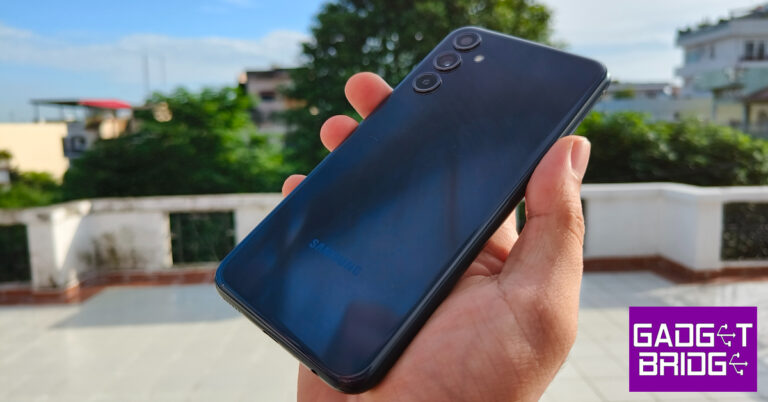
8 Ways to Fix ‘Can’t Pause Instagram Videos or Reels’? (2024)

0
Instagram may have started as an image-sharing platform but right now its biggest attraction is bite-sized content in the form of Reels. To enter the world of Reels, all you have to do is tap the play icon at the bottom menu. Unlike YouTube Shorts, you cannot pause a Reel by simply tapping on it once. A single tap mutes the Reel instead of pausing it. The latter can be achieved by tapping and holding the screen. If you’re still not able to pause Instagram Reels and videos, here are some common fixes for the issue. Read Also: Find and Follow Your Instagram Friends on Threads: Top 4 Ways

Clear app cache

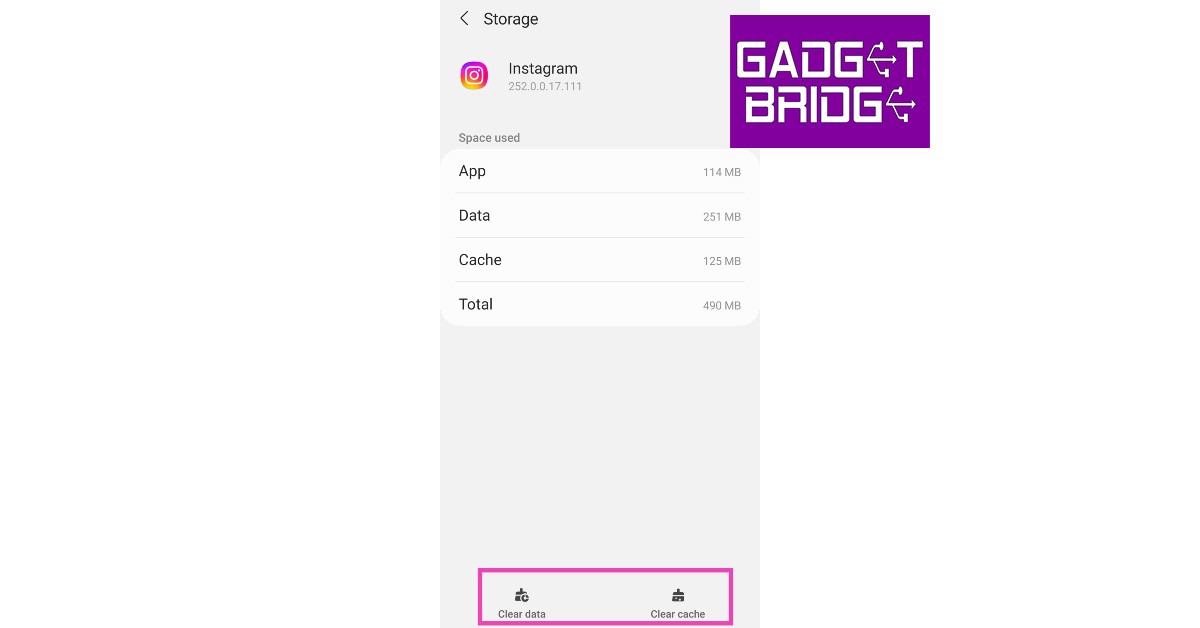
Step 1: Go to Settings and select Apps. Step 2: Scroll down and select ‘Apps’. how to fix can't accept instagram collab invite. how to fix instagram direct messages not working Step 2: Scroll down and select Instagram. Step 3: Scroll down and tap on ‘Instagram’. Top 4 Easy Methods to Fix Can't Accept Instagram Collab Invite Step 3: Tap on Storage. Top 4 Easy Methods to Fix Can't Accept Instagram Collab invite. how to fix instagram direct messages not working Step 4: Select Clear Cache from the bottom of the screen. Top 4 Easy Methods to Fix Can't Accept Instagram Collab invite. how to fix instagram direct messages not working

Force Stop Instagram

Step 1: Go to Settings. Step 2: Scroll down and select Apps. Step 2: Scroll down and select ‘Apps’. how to fix instagram crashing on android. what happens when you force stop an app on android How to Fix ‘Can’t Pause Instagram Videos or Reels’? Step 3: Scroll down and select Instagram. Step 3: Scroll down and tap on ‘Instagram’. how to fix instagram crashing on android. what happens when you force stop an app on android How to Fix ‘Can’t Pause Instagram Videos or Reels’? Step 4: Select Force Stop from the bottom menu. Step 4: Select ‘Force Stop’ from the bottom menu. how to fix instagram crashing on android. what happens when you force stop an app on android How to Fix ‘Can’t Pause Instagram Videos or Reels’?

Clean your phone’s screen

In order to pause an Instagram Video or Reel, you need to tap and hold it. This gesture won’t register if there’s something wrong with your phone’s touchscreen. It is common for the touchscreen to malfunction when there’s some moisture or dirt on it. Wipe it clean using a micro fibre cloth and try again. Additionally, make sure your hands aren’t wet as well.

Remove the screen protector

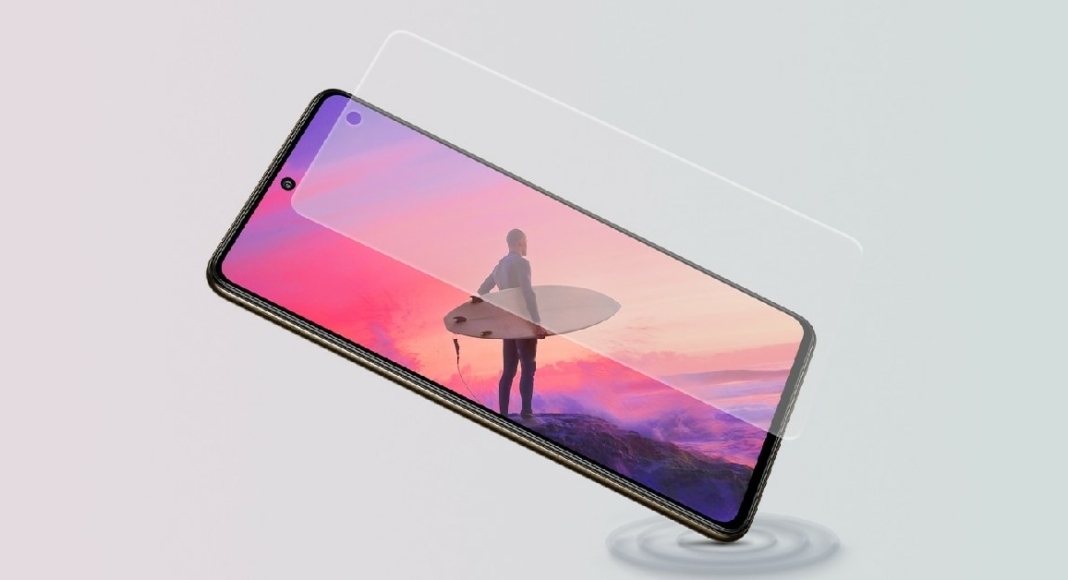
How to easily fix Samsung Galaxy M series ‘Touchscreen Not Working’?. Best 7 Ways To Fix An Unresponsive Touchscreen On Android How to Fix ‘Can’t Pause Instagram Videos or Reels’? A faulty screen protector can create problems on the touchscreen. Some parts of the screen may become unresponsive. This may lead to Instagram Reels and videos not pausing when you press and hold the touchscreen. Remove the screen protector from your phone and try again.

Increase touch sensitivity

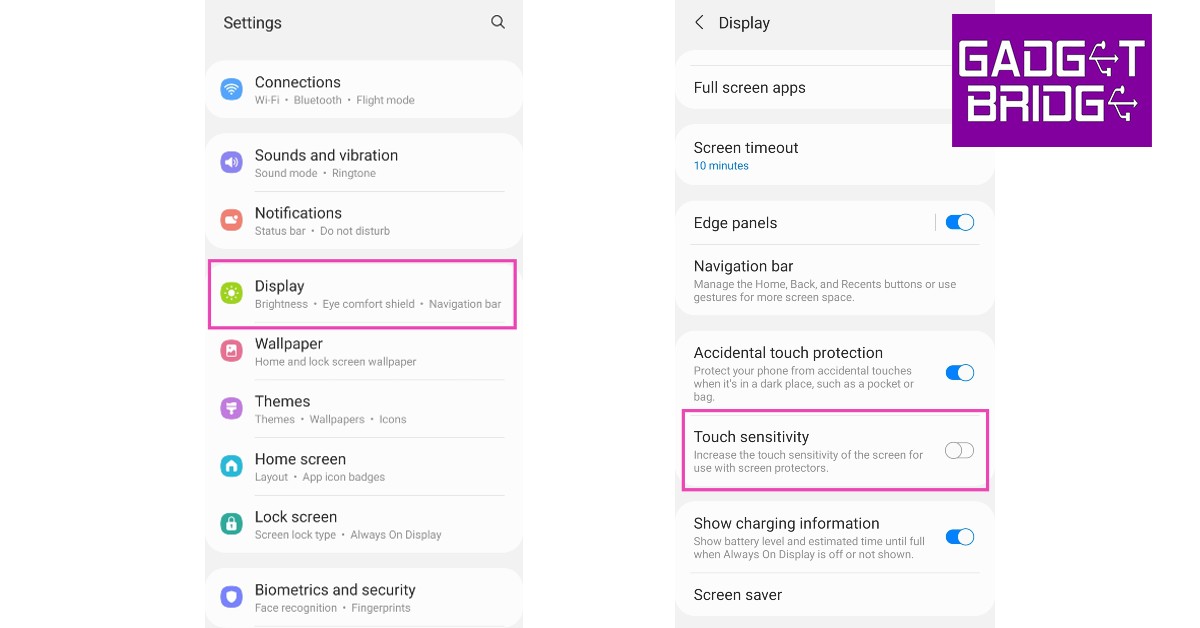
Fix touch sensitivity. Best 7 Ways To Fix An Unresponsive Touchscreen On Android How to Fix ‘Can’t Pause Instagram Videos or Reels’? If you don’t want to remove the screen protector, you can simply increase your screen’s touch sensitivity in order to make it work. With heightened sensitivity, your phone’s touchscreen can pick up the faint touches that would otherwise go unnoticed because of the screen protector getting in the way. Go to Settings>Display and switch on the toggle bar for Touch sensitivity.

Restart your phone

Restart your phone Restarting your phone can fix any minor background issues on the OS or any one of the apps. Simply press and hold the side key and volume down key and select ‘Restart’ from the power options. Once your phone has rebooted, launch the Instagram app and check if you are able to pause Reels and videos again.

Update the Instagram app

If you are using an older version of the Instagram app, chances are that the issue you are facing has already been fixed with an update. Simply go to the Google Play Store, search for Instagram, and hit the ‘Update’ option. Once the app has been updated, you will be able to pause the Reels and videos again.

Use Instagram Lite

Instagram Lite is the stripped-down version of the Instagram app that uses considerably less data. If you’re facing issues on the main app, use the Lite app until the developers patch the problem. The browsing experience on Instagram Lite is identical to the main app side from one key difference.  The Lite app doesn’t pre-load the Reels. This means every Reel will take a couple of seconds to buffer before loading on the screen.

Frequently Asked Questions (FAQs)

How do I pause a video or Reel on Instagram?

To pause a video or Reel on Instagram, simply press and hold your phone’s screen.

Why are Instagram Reels and videos not pausing on my phone?

A faulty touchscreen and an older version of the app may be the reason why you are not able to pause the Reels and videos on Instagram.

How do I fix the ‘Reels won’t pause’ issue on Instagram?

Force stop the Instagram app and clear its cache. Additionally, make sure the screen protector isn’t impeding the performance of the touchscreen. Give the touchscreen a good wipe as well. Read Also: Samsung Galaxy M34 Review: Ticks all the essential boxes

Conclusion 

This is how you can fix the ‘Reels and videos not pausing’ issue on Instagram. These methods should fix the issue you’re facing. You should also know that some ads that you come across while browsing Reels cannot be paused. If you found this article helpful, let us know in the comments!

Acer Nitro 15 for gaming with up to NVIDIA 4060 graphics card launched in India

Acer has unveiled the Nitro 16, its latest gaming laptop in India. The machine comes with a 16-inch display paired with customizable 4-Zone RGB backlight keyboards. The device features the most recent AMD Ryzen 7 7840HS octa-core processor and is available in two configurations: one with the NVIDIA GeForce RTX 4060, which offers 8 GB of dedicated GDDR6 VRAM, and the other with the 4050, which offers 6 GB.

Acer Nitro 16 price in India and sale details

As mentioned earlier the Acer Nitro 16 is available in two models, the price of the Acer Nitro 16 with an AMD Ryzen 7 7840HS processor with an Nvidia GeForce RTX 4050 6GB GPU is set at Rs 1,14,990. Whereas Nitro 16 with AMD GeForce RTX 4050 8GB GPU will be available with a price tag of Rs 1,43,550. The laptop can be purchased from any Acer exclusive shop nationwide, as well as from the Acer E-store, Amazon, and Flipkart. It will be offered in a single Obsidian Black colour variant. Acer Nitro 16 price in India and sale details

Acer Nitro 16 specifications

The 16-inch WUXGA LED-backlit TFT IPS LCD screen of the Acer Nitro 16 has a resolution of 1920 x 1200 pixels. The display can support a refresh rate of up to 165Hz and has a quick Overdrive Grey to Grey reaction time of 3ms. Additionally, it has a 400-nit peak brightness. Gamers may customise their gaming environment and enhance their gameplay with the keyboard’s 4-Zone RGB lighting with Nitro Sense. Also Read: Comments on YouTube Shorts may now be converted to a separate YouTube Shorts The gaming laptop is available in two different configurations- GeForce RTX 4060 and 8 GB of dedicated GDDR6 VRAM or Nvidia GeForce RTX 4050 graphics and 6 GB of GDDR6 VRAM. It has a 512GB PCIe Gen4 NVMe storage drive and an octa-core AMD Ryzen 7 7840HS processor with up to 32GB of DDR5 RAM. The Gen 4 memory slots on the laptop can be used to boost system performance for gamers, while the DDR5 storage slots allow for faster data access and transfer rates. Windows 11 64-bit is already installed on the laptop. To minimise overheating during prolonged gaming sessions Acer Nitro 16 includes Dual fans, dual intake, quad exhaust, and liquid metal grease to effectively dissipate heat and keep the laptop cool even during strenuous gaming sessions. The Nitro 16 provides a variety of connectivity choices, including HDMI 2.1, a MicroSD card reader, USB 4, Killer Ethernet E2600, and Wi-Fi 6E. For the latest gadget and tech news, and gadget reviews, follow us on TwitterFacebook and Instagram. For newest tech & gadget videos subscribe to our YouTube Channel. You can also stay up to date using the Gadget Bridge Android App. You can find the latest car and bike news here.

Xbox Live Gold to Become Xbox Game Pass Core: Everything You Need to Know

Microsoft offers subscription-based services known as Xbox Live Gold on its Xbox Gaming platform. However, on September 14, 2023, Xbox Live Gold is going to become Xbox Game Pass Core. This subscription offers several benefits to users such as:
  1. Online Multiplayer: With Xbox Live Gold players can access various features. They can play games with their friends and other people over the Internet. 
  2. Free Games: Xbox Live Gold subscribers get enrolled in the “Games with Gold” program. Under this program, they get free games every month. These games can be downloaded and played until the subscription lasts.
  3. Deals & Discounts: Xbox Live Gold members get additional discounts on add-ons, digital games and other content available in the store. 
  4. Messaging: Xbox Live Gold members can use the party chat feature to interact with their friends while gaming. They can also send and receive text messages. 
Read Also: Best 3 Ways to Change Your Name in Fortnite 

What is Xbox Game Pass Core?

As on September 14, 2023, Xbox Live Gold will become Xbox Game Pass Core. It will be launched for gaming consoles like Xbox One, Xbox Series S and Xbox Series X. As per reports, Xbox Live Gold will shut down on September 1 and existing members will automatically become Xbox Game Pass Core members.  Xbox Game Pass Core is priced the same as Xbox Live Gold. Users get the option of paying $9.99 per month or $59.99 for an entire year. According to the announcement, Games with Gold will be removed along with Xbox Live Gold. However, any games you played while using the service will not be gone anywhere.  Xbox Game Pass Core will bring along with it 25 new free games for its subscribers. There isn’t going to be any substantial change for the gaming community at the moment. Although over time there is speculation that the price of the Xbox Game Pass Core could be increased. Original Xbox and Xbox 360 games will be thee till perpetuity. However just like Xbox Live Gold gave access to a couple of games every month this will not be the case for Xbox Game Pass Core.  Read Also: Comments on YouTube Shorts may now be converted to a separate YouTube Shorts Xbox Game Pass Core The list of games included in the Xbox Game Pass Core is as follows:
  • Among Us
  • Descenders
  • Dishonored 2
  • DOOM Eternal
  • Fable Anniversary
  • Fallout 4
  • Fallout 76
  • Forza Horizon 4
  • Gears 5
  • Grounded
  • Halo 5: Guardian
  • Halo Wars 2
  • Hellblade: Senua’s Sacrifice
  • Human Fall Flat
  • INSIDE
  • Ori & the Will of the Wisps
  • Psychonauts 2
  • State of Decay 2
  • The Elder Scrolls Online: Tamriel Unlimited

Conclusion

It is obvious to feel a little doubtful regarding any new introduction. However, the introduction of Game Pass Core will be beneficial to gamers as it would mean access to more games. Microsoft has also announced that two to three games will be added every year. Stay tuned to Gadget Bridge as we will bring you more developments happening in the field within the next few weeks For the latest gadget and tech news, and gadget reviews, follow us on TwitterFacebook and Instagram. For newest tech & gadget videos subscribe to our YouTube Channel. You can also stay up to date using the Gadget Bridge Android App. You can find the latest car and bike news here.

Best 3 Ways to Change Your Name in Fortnite

If you didn’t put much thought into your Fortnite username and are now regretting your choice, you can easily change it in just a few simple steps. The process to change your Fortnite username varies between different platforms and consoles. For example, on Xbox and PlayStation, your Fortnite username is linked to your Gamertag and PSN Name. In this article, we bring you the best 3 ways to change your Fortnite name on a smartphone, Xbox, and PlayStation. Read Also: Samsung Galaxy M34 Review: Ticks all the essential boxes

Change your Fortnite username using your smartphone

How to Play Fortnite on Android? Can you play Fortnite on Android using a controller? Step 1: Go to Fortnite’s official website on your phone’s web browser. Step 2: Tap the hamburger menu at the top right corner of the screen and select Sign In. Step 3: Sign in using your chosen method. Step 4: Enter your login credentials. Step 5: Tap the hamburger menu at the top right corner of the screen and select your username. Step 6: Select Account and scroll down to Account Settings. Step 7: Tap the pencil icon next to your display name. Step 8: Type the new display name and then type it again to confirm your choice. Step 9: Hit Confirm. Your Fortnite display name will be changed.

Change your Fortnite username on Xbox

how to sync xbox one controller Your Fortnite username is the same as your Xbox Gamertag. To change your name on Fortnite you will need to change your Gamertag. This change will apply to other games as well. Step 1: Press and hold the Xbox button on your controller. Step 2: Go to Profile & System and select your Gamertag. Step 3: Hit My Profile. Step 4: Select Customise Profile. Step 5: Scroll down to Choose New Gamertag and type in your new Gamertag. Step 6: Confirm your new Gamertag. Your Xbox Gamertag and Fortnite name will be changed.

Change your Fortnite username on PlayStation

How to connect the PlayStation 5 DualSense controller to an Android or iOS device? In this article, we bring you the best 3 ways to change your Fortnite username on a smartphone, Xbox, and PlayStation. On PlayStation, your Fortnite username is the same as your PSN Name. Changing your PSN Name will change the Fortnite username. This change will be made across all the games in your library. Step 1: Go to Settings and select Account Management. Step 2: Select Account Information, then scroll down and select Profile. Step 3: Select an Online ID. Hit I Accept and Continue. Step 4: Enter the new Online ID. Step 5: Hit Confirm. Your PSN Name and Fortnite name will be changed.

Frequently Asked Questions (FAQs)

How do I change my Fortnite username on my phone?

Go to the official Fortnite website and select Username>Account>Account Settings and hit the pencil icon next to the display name. Enter your new username and confirm your selection.

How do I change my Fortnite name on Xbox?

Press and hold the Xbox button on the controller and go to Profile & System>Gamertag>My Profile>Customise Profile>Choose new Gamertag and enter your new Gamertag.

How do I change my Fortnite username on PlayStation?

Go to Settings>Account Management>Account Information>Profile>Online ID and enter the new username. Read Also: How to Transfer Your Netflix Profile to Another Account?

Conclusion

This is how you can change your Fortnite name on your smartphone, Xbox, and PlayStation. Your Fortnite username is linked to your Epic Games account for PC and mobile versions and your Gamertag and PSN Name on Xbox and PlayStation. While you can change your Epic Games username as many times as you like for free, you are only allowed one free change for your Gamertag and PSN Name. Any further changes will cost $10. For the latest gadget and tech news, and gadget reviews, follow us on Twitter, Facebook and Instagram. For newest tech & gadget videos subscribe to our YouTube Channel. You can also stay up to date using the Gadget Bridge Android App. You can find the latest car and bike news here.

Comments on YouTube Shorts may now be converted to a separate YouTube Shorts

Google often tests new features in an effort to increase user engagement on its video streaming platform YouTube. In order to rival Instagram and TikTok the company is currently testing a new feature where the YouTube Shorts comments can be converted into a separate new Shorts video. This feature is currently in the development phase and is available to a select number of Android and iOS users. Soon, YouTube will be allowing users to take a comment from a video they’re watching and turn it into a Shorts video. This new feature is covered in more detail on the support page for the YouTube team. Also Read: Mivi DuoPods A650 Review: Should you buy them? “We’re running an experiment that enables mobile viewers to create Shorts featuring comments posted on videos they’re watching. While creators are already able to reply to comments (posted on their own content) with a Short, we want to explore offering viewers the opportunity to create content from comments as well. ” while explaining the feature the company said. According to the company, the created short video will show up in the Shorts feed and on the viewer’s channel page. Viewer-created Shorts won’t notify either the comment’s author or the creator whose video it is. Creators can’t prohibit their comments from being featured in a Short unless comments on their video(s) are disabled. As mentioned earlier the feature is under the developmental phase and the test feature (sometimes also called “betas” or “experiments”) is usually available for a short period of time and only for a small group of people. As per Google, the new YouTube Shorts feature is currently available to a small percentage of viewers on Android and iOS mobile devices across the globe. Earlier this month YouTube also announced that it is testing AI-generated quizzes on its mobile platform. A select group of users will be able to observe the emergence of these AI-generated tests on your app’s home page. The quizzes will evaluate how well you comprehend a topic that was addressed in a recent video that you viewed. If you decide to take a quiz, a link to the most recent video you viewed will show up underneath it so you can quickly go back and watch it again to learn more. For the latest gadget and tech news, and gadget reviews, follow us on TwitterFacebook and Instagram. For newest tech & gadget videos subscribe to our YouTube Channel. You can also stay up to date using the Gadget Bridge Android App. You can find the latest car and bike news here.

BGMI redeem codes for 24 July 2023, claim and receive rewards and benefits

After being banned for nearly ten months, Battleground Mobile India, aka BGMI, is officially available again in India. BGMI fans are looking for ways to improve their game experience and one such method is the usage of redemption codes, which offers a variety of rewards and advantages using BGMI redeem codes players can gain access to new skins, outfits, loot crates, weapons and free UC and diamonds. As mentioned earlier, these codes give users the chance to earn unique rewards and gain extra benefits while playing the game. This includes GUN SKINS (M4, AKM, M416, AWM, M24, UZI, KAR98K), free character voucher, Andy, Carlo, Sara, Victor character for free, free Anna Character on completing the mission and UC or Royal Pass Discount. So here we have gathered a list of the most recent BGMI redeem codes as of 24 July 2023. Also, redeem these codes asap as these are only valid for a limited duration.

BGMI Redeem Codes for 24 July 2023

GPHZDBTFZM24U PGHZDBTFZ95U BMTFZBZQNC JM0GY87U5F0VE9JK 8KW0L536HEK6ZAJK 0HNY3C5HZU4AGJ66 8XEC2KJ1KSMHJLUM CUJF3N28F9WK97HG VETREL2IMHX G1MU0RDFX1A5GDAK

How to get free Redeem Codes for BGMI on 24 July 2023?

  • Launch BGMI on your device.
  • Then select the Redeem Code option from the main menu.
  • Next, click on the Redeem code tab.
  • A new window will open, requesting the redemption code.
  • Now enter your BGMI code.
  • Confirm and click on the “Redeem” tab.
  • If your redeem code is valid then you will get a message confirming that your rewards were successfully redeemed.
(Note that these codes are case-sensitive, so be sure to type them correctly to prevent any errors.) For the latest gadget and tech news, and gadget reviews, follow us on TwitterFacebook and Instagram. For newest tech & gadget videos subscribe to our YouTube Channel. You can also stay up to date using the Gadget Bridge Android App. You can find the latest car and bike news here.

Garena Free Fire Redeem Codes Today 24 July 2023: Here is how to claim them

Garena Free Fire is a battle royale game with regular awards and tournaments to keep players interested. If you play Garena Free Fire, you should be aware of the redeem codes that are released on a daily basis. However, because the battle royale game is banned in India, players from other countries can use the Free Fire Redeem codes daily. If you’re unfamiliar with the Garena Free Fire redeem codes or don’t know how to get them, we’ve put together a step-by-step guide to help you redeem them. Check out Garena Free Fire Redeem Codes for 24 July 2023. The Free Fire redeem codes are a great way to get free stuff. These are 12-digit codes that contain alphabets and numbers, as well as an expiration date and time. Because the Garena FF redeem codes cannot be used more than once, you should hurry to the redemption page to claim your free reward before someone else does. To get a free reward, all you have to do is go to reward.ff.garena.com/en, which is the official redemption page. Also, keep an eye on this space for daily updates on Garena Free Fire redemption codes and rewards.

Garena Free Fire Redeem Codes Today 24 July 2023

ZZATXB24QES8 U8S47JGJH5MG ST1ZTBE2RP9 3IBBMSL7AK8G FFICJGW9NKYT XUW3FNK7AV8N VNY3MQWNKEGU FFIC33NTEUKA X99TK56XDJ4X MCPW2D1U3XA3 FFCMCPSEN5MX B3G7A22TWDR7X 6KWMFJVMQQYG FFCMCPSUYUY7E

How to Get Free Fire Redeem Codes for Garena on 24 July 2023?

  • Visit the Garena Free Fire game’s official website at reward.ff.garena.com.
  • Use your Facebook, Google, VK, Apple ID, Huawei ID, or Twitter account to log in.
  • You’ll be taken to a valid redemption code (s)
  • Copy and paste the 12-digit redemption code into the text box.
  • On the screen, a dialogue box will appear.
  • ‘Ok’ should be selected.
For the latest gadget and tech news, and gadget reviews, follow us on TwitterFacebook and Instagram. For newest tech & gadget videos subscribe to our YouTube Channel. You can also stay up to date using the Gadget Bridge Android App. You can find the latest car and bike news here.

Find and Follow Your Instagram Friends on Threads: Top 4 Ways

0
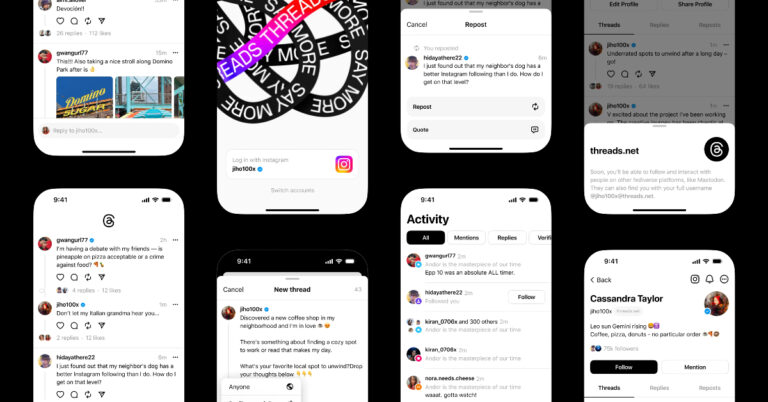
Threads has been the biggest thing on the Internet this month. The text-based social media platform owned by Meta is one of the better alternatives to Twitter. To sign up for Threads, all you need is an Instagram account. But what should you do once you’ve made a Threads profile? Look for your friends, of course! In this article, we bring you the top 4 ways to find and follow your Instagram friends on Threads. Read Also: How to install the Google Photos app on Android TV?

Find Instagram friends while setting up Threads

While setting up your Threads profile, the app gives you the option to follow all the people that you are currently following on your Instagram account. This list only consists of the people who have made a Threads profile. You can scroll through the list and follow any account you want. This list does not display your followers on Instagram but the people that you follow on there. You can also choose to follow all the accounts at once.

Find Instagram friends on Threads from Settings

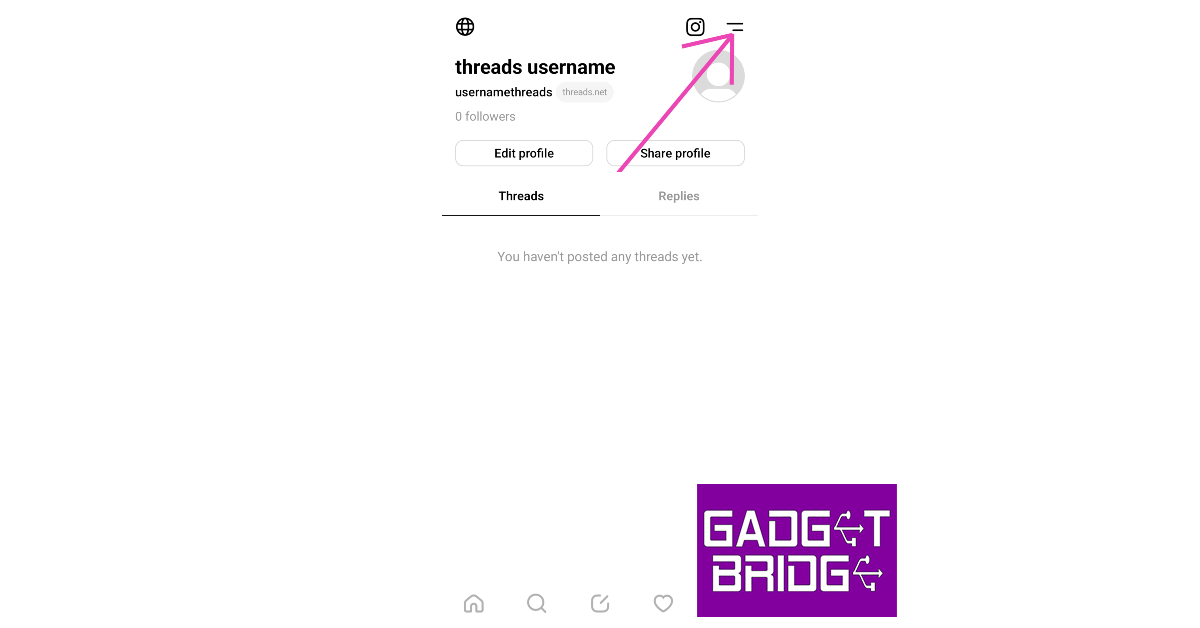
If you forgot to follow your Instagram contacts while setting up your Threads profile, you can always do it later from your profile settings. Here’s how. Step 1: Launch the Threads app and hit the profile icon at the bottom right corner of the screen. Step 1: Launch the Threads app and hit the profile icon at the bottom right corner of the screen. Step 2: Tap the hamburger menu icon at the top right corner of the screen. Step 2: Tap the hamburger menu icon at the top right corner of the screen. Step 3: Select Follow and invite friends. Step 3: Select Follow and invite friends. Step 4: Select Follow accounts from Instagram. Step 4: Select Follow accounts from Instagram. Step 5: You will be presented with a list of people you follow on Instagram that also have a Threads account. Scroll through this list and follow the people you want. Step 5: You will be presented with a list of people you follow on Instagram that also have a Threads account. Scroll through this list and follow the people you want.

Find Instagram friends on Threads from your following tab

Step 1: Launch the Threads app and hit the profile icon at the bottom right corner of the screen. Step 1: Launch the Threads app and hit the profile icon at the bottom right corner of the screen. find instagram followers on threads Step 2: Tap on followers and switch to the following tab. Step 2: Tap on followers and switch to the following tab. Step 3: Tap on See all. Step 3: Tap on See all. Step 4: You will be able to see the people you follow on Instagram that also have a Threads account. Step 5: You will be presented with a list of people you follow on Instagram that also have a Threads account. Scroll through this list and follow the people you want. find instagram followers on threads Step 5: Hit the follow icon next to the profile you want to follow on Threads. Or simply select Follow all to follow all of the profiles at once.

Search a contact’s Instagram handle on Threads

Since you need an Instagram account to make a Threads profile, your Threads username is the same as your Instagram username. If you know someone from Instagram that you want to connect with on Threads, simply hit the search icon in the bottom menu and look up their Instagram username. If the user has a Threads profile, it will show up in search results.

Frequently Asked Questions

How do I find my Instagram contacts on Threads?

To find your Instagram contacts on Threads, go to Profile>Menu>Follow and invite friends>Follow accounts from Instagram or Profile>Followers>Following>See all.

How do I search for a profile on Threads?

To search for a profile on Threads, hit the search icon at the bottom menu and type the username of the profile you are looking for.

What is my Threads username?

Your Threads username is the same as your Instagram handle.  Read Also: What is the difference between the Home Screen and Lock Screen on iPhone?

Conclusion

This is how you can find and follow your Instagram friends on Threads. If you don’t want to use your Instagram account to make a Threads profile, check out this article for a quick workaround. Once you make a Threads profile without linking your main Instagram account, the only way to find your contacts is by manually searching for them using their Instagram username. For the latest gadget and tech news, and gadget reviews, follow us on Twitter, Facebook and Instagram. For newest tech & gadget videos subscribe to our YouTube Channel. You can also stay up to date using the Gadget Bridge Android App. You can find the latest car and bike news here.

Samsung Galaxy M34 Review: Ticks all the essential boxes

Samsung’s M-series is known for its big battery smartphones that can easily last you more than a day. Back in May, we reviewed the Galaxy M14, which proved to be a solid smartphone under Rs 15,000. Now Samsung is back with another addition to the M-series lineup. The Galaxy M34 is slightly pricier than its younger sibling, M14. With a 6,000 mAh battery, this smartphone promises to last for 2 days. But how does it perform in other aspects? Read our Samsung Galaxy M34 review to find out. Read Also: 5 Superhero movies you should not miss releasing in the next few months

Samsung Galaxy M34 review: Design and Display

Samsung has brought uniformity to their smartphone releases this year. This isn’t just restricted to the design language of the phones, but also their retail boxes. The Samsung Galaxy M34 ships inside a sleek rectangular box, as opposed to the bulky M Series boxes of the past. While sleek is almost always good, this is certainly one of the exceptions. Upon unboxing the package you will realise that it doesn’t ship with a power adapter. A sad trend which has now found its way to affordable smartphones as well. Nevertheless, inside the box, you get the smartphone, some reading material, a SIM ejector tool, and a USB Type-C charging cable. Samsung Galaxy M34 review: Design and Display The Samsung Galaxy M34 retains the all-too-familiar design of the flagship S Series. The plastic back panel horses the vertically arranged triple camera setup. While we like that an affordable smartphone gets the same design as the company’s flagship release, we do miss every smartphone having its own unique personality. The plastic back of this smartphone attracts fingerprints and smudges very easily. Using this smartphone in the thick of the monsoons when humidity levels are at their highest meant constantly wiping the back to get rid of any unwanted smudges. You can also bypass this problem by slapping a case on the phone. The right edge of the curved frame houses the volume rocker and the side button. The side button also doubles as a fingerprint scanner. The hybrid SIM slot has been positioned on the left side of the frame. At the bottom, you get the 3.5mm headphone jack, a USB Type-C port, a primary microphone, and the speaker grille. The secondary microphone has been placed at the top edge of the frame. The highlight of this smartphone is its 6.5-inch Super AMOLED display that has a maximum refresh rate of 120Hz. With a peak brightness of 1,000 nits, this display is perfectly legible under direct sunlight. The touch response is phenomenal, something that we’ve come to expect from Samsung smartphones. We’d suggest splurging some extra cash and going for the M34 over the M14 for this display alone. Samsung Galaxy M34 review: Design and Display We played HD content on the M14 across different OTT services. The quality of images relayed on the screen left no room for complaint. If you’re upgrading from a smartphone with an LCD display, you’ll immediately notice the richness in colour that this display produces along with those deep deep blacks. While this smartphone is great for media consumption, the only thing that keeps it from being ideal is the single-speaker grille. If there’s a loud fan running in the background, you will need to plug in a pair of headphones. The single speaker unit simply isn’t powerful enough to overcome the noisy environment.

Samsung Galaxy M34 review: Performance and Cameras

Samsung Galaxy M34 is available in a storage capacity of 128GB with two RAM variants – 6GB and 8GB. Powering this smartphone is Samsung’s in-house Exynos 1280 SoC. OS duties are handled by Android 13 with One UI 5.1 on top. The 6GB RAM variant is priced at Rs 18,000 while the 8GB variant costs Rs 19,000. Samsung Galaxy M34 review: Performance and Cameras We used the M34 for a range of tasks and it didn’t display any gaping flaws in its performance. The smartphone managed to handle basic tasks like media playback, instant messaging, social media browsing, and more with absolute ease. We ran a dozen apps in the background, and the smartphone did a good job of optimising their usage without affecting the overall performance. We did not experience any lags or jitters in everyday use. However, the smartphone did get warm and presented a few hiccups while carrying out heavy tasks like video recording and editing, navigation, and rigorous gaming. We played Call of Duty Mobile on this smartphone and were left a bit underwhelmed. Simply put, the Exynos SoC is just not good enough to carry seamless gameplay. Framedrops were a little too common and the experience lacked the ideal level of fluidity. On the Geekbench 6 test, this smartphone got a single-core score of 943 points and a multi-core score of 2,033 points. This isn’t too far from Galaxy M14’s score of 921 and 2,056 points. Samsung Galaxy M34 review: Performance and Cameras While the M34’s performance may have left a little more to be desired, it did not let us down on the OS front. You get the full One UI experience on this smartphone, while its younger sibling, M14, has to settle for the Core version of the OS. Another reason to go for the M34 over the M14. You get special features like Secure folder, Knox security, Bixby routine, Link to Windows, Samsung Health, Samsung Pay, and more on the Galaxy M34. The 6,000 mAh battery on this device is one of its major selling points. We were easily able to push the battery backup on this smartphone to two days on moderate usage. This even included watching a couple of hour-long episodes on Netflix and twenty-minute gaming sessions. At the end of the second day, we had about 10% charge left. If you cut down on gaming and media consumption, you can easily push this smartphone to the third day. With 25W charging, the M34 takes a little over 90 minutes to charge. Samsung Galaxy M34 review: Performance and Cameras We did not have high hopes for the Galaxy M34 when it came to the camera performance. After all, this smartphone is known for its battery. But the results from the 50MP primary camera left us pleasantly surprised. The images taken in outdoor conditions had the perfect balance of colour richness and saturation. In some cases, we felt the sky was left underexposed when it formed the background of the image, but overall, we were quite happy with the results. The colours truly ‘popped’ in the images and the level of detail was quite impressive. Images taken from the 8MP ultrawide lens are on the softer side, but they still retain the richness in colour. Most smartphones in this price range don’t offer an ultrawide lens at all, so its inclusion in the camera array is good to see. You certainly won’t be ignoring this lens while taking images from the M34.
Samsung Galaxy M34 review: Performance and Cameras
Ultrawide Lens
Ultrawide lens
The camera app on this smartphone also has a Portrait Mode. The M34 does a good job of edge detection and subject separation. Again, the colours in this mode were tuned to near perfection. We also took some shots in Night Mode, but it failed to leave a mark. The phone relies on a good amount of artificial lighting to take passable shots.
Samsung Galaxy M34 review: Performance and Cameras
Portrait Mode
Night Mode vs Without Night Mode
The 13MP selfie camera produces decent results. We like that there’s no overt skin tone correction. The selfies we took managed to capture a good amount of detail. The Portrait Mode produced good results for the front camera as well. The ‘Fun’ mode built into the camera lets you play around with different Snapchat filters. Read Also: What is the difference between the Home Screen and Lock Screen on iPhone?

Verdict

If you’re looking for an affordable smartphone for everyday use, the Samsung Galaxy M34 fits the bill nicely. It offers a tremendous display, a monstrous battery unit, and a remarkable camera setup. Sure, the Exynos 1280 SoC is not the most powerful processor out there, but if your smartphone usage does not exceed routine tasks, you won’t notice its limitations. At Rs 18,000 the Samsung Galaxy M34 ticks all the essential boxes.

Samsung Galaxy M34: Pros

  • Great Display
  • Good camera performance
  • 2-day battery backup

Samsung Galaxy M34: Cons

  • Underwhelming processor
  • Does not come with the charger in the box
For the latest gadget and tech news, and gadget reviews, follow us on Twitter, Facebook and Instagram. For newest tech & gadget videos subscribe to our YouTube Channel. You can also stay up to date using the Gadget Bridge Android App. You can find the latest car and bike news here.