Top 4 Ways to Use Your Android Smartphone as a TV Remote (2024)

0
Anyone who has tried searching for a movie title on a Smart TV must be familiar with the struggle of using the onscreen TV keyboard. Simply put, your regular TV remote simply isn’t cut out for the task of entering text. One of the best things you can do to elevate your TV experience is pairing your smartphone with the TV. This will allow you to enter text using your smartphone’s keyboard. In this article, we bring you the top 4 ways to use your Android smartphone as a TV remote. Read Also: BGMI redeem codes for 4 July 2023, claim and receive rewards and benefits

Use the Google TV app

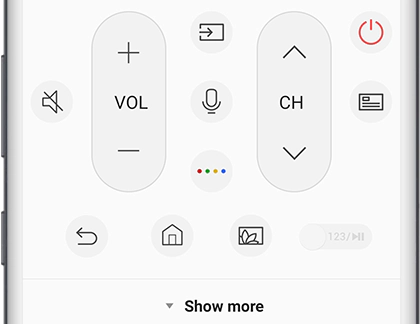
Use the Google TV app All Android TV users can use the Google TV app to turn their Android phone into a remote control. Here’s how. Step 1: Before you proceed, make sure your phone and TV are connected to the same WiFi network or paired together via Bluetooth. Step 2: Launch the Google TV app on your Android smartphone. Step 3: Tap the Connect TV button at the bottom right corner of the screen. Step 4: Your phone will scan for nearby TVs. Select your TV from the list. Step 5: Your TV will display a pairing code. Enter this code in the Google TV app on your phone. Step 6: Once your TV and phone are paired, the Connect TV icon will be replaced by the remote control icon. Tap it to control your TV with your phone.

Use a third-party app

For non-Android Smart TVs, there are tons of third-party apps that can turn your Android phone into a TV remote control. You may also want to look into the TV manufacturer’s proprietary app to access this feature. Here’s how you can use your Android smartphone as a TV remote with Universal TV Remote app. Step 1: Install the Universal TV Remote app on your Android smartphone. Step 2: Tap on Smart TV Remotes. Make sure your phone and TV are connected to the same WiFi network. click on the WiFi option in the app. Step 3: Select your TV model from the list. Select your TV model from the following list. Step 4: Once your TV is paired with the app, you will be able to use the onscreen remote. Once the TV and the smartphone are paired, you will be able to use the controls from your smartphone app.

Use your Android smartphone as an Amazon Fire TV remote

Amazon Fire TV Remote app Amazon Fire TV Stick and Fire TV Cube owners can use the official Fire TV app to control their TV with their smartphones. This app covers all the essential features you want from a remote. You can input text into your TV using your smartphone’s QWERTY keyboard, perform a voice search using Alexa, and access all the TV functions with the help of the Amazon Fire TV app. Pairing the Fire TV app with your TV is not a hassle either. You need to ensure that your TV and phone are on the same WiFi network. The Fire TV app will take care of the rest.

Use the SmartThings app for your Samsung phone and TV

Use the SmartThings app for your Samsung phone and TV 4 Ways to Use Your Android Smartphone as a TV Remote (2024) If you own a Samsung Smart TV, you can control it using the SmartThings app on your Samsung smartphone. Here’s how. Step 1: Connect your Samsung smartphone to the same WiFi network as the TV. Step 2: Launch the SmartThings app on your Samsung phone. Step 3: Hit the Menu icon and tap on All devices. Step 4: Select your Smart TV. Step 5: Use the onscreen remote on your phone to control the TV.

Frequently Asked Questions (FAQs)

Can I use my smartphone as a TV Remote?

You use the Google TV app on your phone to control any Android TV.

Is there a free Smart TV remote app?

Apps like Anymote, Harmony Remote, and Universal TV Remote are available for free on the Google Play Store and can be used to control your TV from your phone.

Are TV Remote apps safe to use?

Google TV and other proprietary apps by TV manufacturers are safe to use. However, you should observe caution while installing third-party TV remote apps as they may contain malware. To avoid any risky downloads, always use the Google Play Store. Read Also: Samsung Galaxy Z Fold 5 images leak showing no gap in the hinge

Conclusion

These are the 4 quick ways to use your Android smartphone as a TV remote. While most third-party TV remote apps are free to use, some of the premium features may be locked behind a paywall or a subscription. If you are an Android TV user, we’d suggest sticking with the Google TV app.

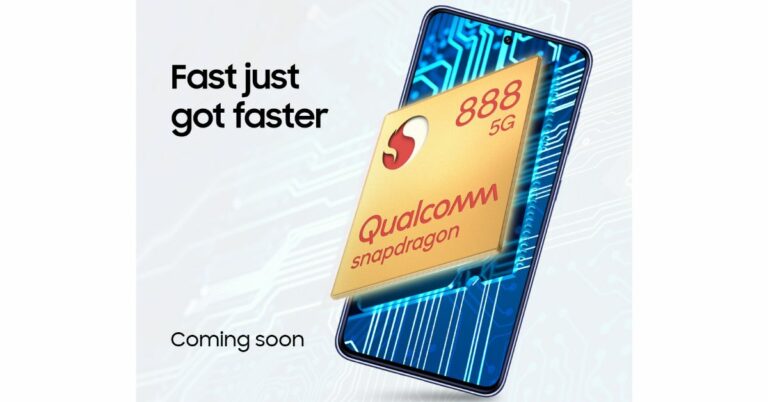
Samsung Galaxy S21 FE with Snapdragon 888 SoC confirmed to launch in India soon

It has been announced that the Samsung Galaxy S21 FE will debut in India with an outdated Snapdragon flagship SoC. According to the firm, the device will now be powered by a Snapdragon 888 SoC. An in-house 5nm Exynos 2100 chipset powers the Galaxy S21 FE variant from 2022. The business is rumoured to soon introduce the Galaxy S23 Fan Edition. Samsung will introduce a new Galaxy S21 FE 5G model in India. The Samsung Galaxy S21 Fan Edition will once again be available in the nation but this time it will use a Snapdragon 888 SoC manufactured in 5nm. The precise launch date hasn’t been made public by Samsung, though. The company said, “Samsung will be launching a new variant of Galaxy S21 FE 5G smartphone in India this month. Designed to deliver the best of Samsung’s flagship experience to young Galaxy Fans, the S21 FE 5G is power-packed with premium “S” series features. Galaxy S21 FE comes with an eye-catching design, powerful performance, a flagship pro-grade camera, and seamless ecosystem connectivity.” The Exynos 2100 SoC-powered Galaxy S21 FE 5G was first introduced in India at the beginning of the year 2022. Adreno 660 GPU and 256GB of inbuilt storage are confirmed for the latest model. The expanded storage capacity will ensure that users can effortlessly store their favourite photos, videos, apps, and files without worrying about running out of space. Also Read: iQoo Neo 7 Pro 5G powered by Snapdragon 8+ Gen 1 SoC launched in India On its website, the company has set up a dedicated microsite to preview the release of the new Galaxy S21 FE 5G model. The Notify Me Button is also live so to receive the most recent information on the introduction and accessibility of the new phone, interested people should register their contact information with Samsung. Although the new Galaxy S21 FE’s price has not yet been officially announced, a recent report said the model would cost Rs 49,999. Note that the device with the Exynos chipset was launched with a starting price of Rs 54,999. The phone was made available in four colour options of Graphite, Lavender, Olive, and White.

Samsung Galaxy S21 FE 5G specifications

The Samsung Galaxy S21 FE 5G boasts a 6.4-inch full-HD+ Dynamic AMOLED 2X display with a 120Hz refresh rate and up to 240Hz touch sampling rate along with Corning Gorilla Glass Victus protection. It is powered by a 5nm Exynos 2100 chipset. The device has an in-display fingerprint sensor. It’s also designed to IP68 specifications, meaning it can survive dust and water to some extent. The triple rear camera on the phone includes a 12-megapixel primary sensor with an f/1.8 wide-angle lens, a 12-megapixel ultra-wide sensor, and an 8-megapixel telephoto sensor. For selfies and video calls, the gadget also includes a 32-megapixel front camera with an f/2.2 aperture. In addition to this, there is a 4,500mAh battery with 25W cable charging and 15W wireless charging capabilities. For the latest gadget and tech news, and gadget reviews, follow us on TwitterFacebook and Instagram. For newest tech & gadget videos subscribe to our YouTube Channel. You can also stay up to date using the Gadget Bridge Android App. You can find the latest car and bike news here.

Best Ways to Add, Remove, and Manage Apps on Samsung Smart TV

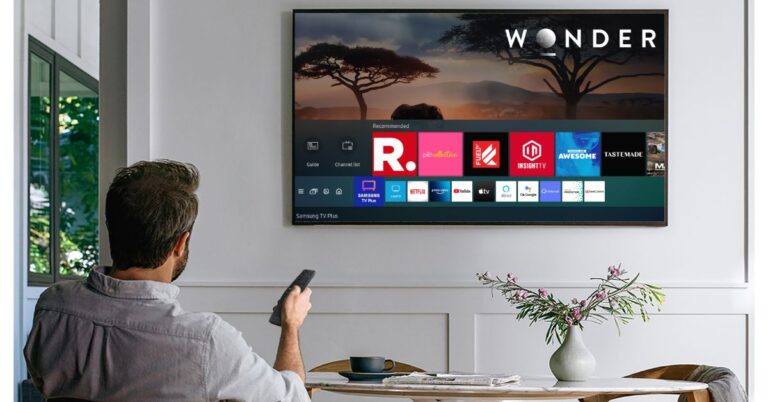
If you just got your first Smart TV, there are a bunch of cool things you can do on it. Just like your smartphone, your Smart TV can also run apps. The best part is that most of the major apps are perfectly optimised for the big screen. Not only can you watch movies on Netflix, but you can also carry out a Yoga workout using an app that’s specially designed for your TV. In this article, we bring you the best ways to add, remove, and manage apps on your Samsung Smart TV. Read Also: Samsung Galaxy Z Fold 5 images leak showing no gap in the hinge

Add/Install an app on your Samsung Smart TV

Step 1: Press the home button on your Samsung Smart TV remote. Step 1: Press the home button on your Samsung Smart TV remote. Step 2: Navigate to the ‘Apps’ icon on your TV’s interface and hit the Select button. Step 2: Navigate to the ‘Apps’ icon on your TV’s interface and hit the Select button. Step 3: Now, navigate to the search icon at the top right corner of the screen and select it. Step 4: Enter the name of the app you want to install. You can also select any app from the app store’s home page. Step 4: Enter the name of the app you want to install. You can also select any app from the App Store’s home page. Step 5: Select the app and hit ‘Install’. Step 5: Select the app and hit ‘Install’. The app will be installed on your Samsung Smart TV.

How to move an app on your Samsung Smart TV

Follow these steps to change the positioning of an app on your TV’s home screen. Step 1: Press the home button on the remote control. Step 1: Press the home button on your Samsung Smart TV remote. Step 2: Navigate to the app you want to move. Step 3: Long press the select key. Step 4: Select ‘Move’ from the list of options. Step 4: Select ‘Move’ from the list of options. Step 5: Use the navigation buttons on the remote to reposition the app. Step 6: Hit the Select button when you’re done.

How to lock or delete an app

If you don’t want to give other people access to an app on your TV, you can simply lock it. Here’s how. Step 1: Press the home button on your Samsung Smart TV remote. Step 1: Press the home button on your Samsung Smart TV remote. Step 2: Select Apps. Step 3: Navigate to the gear icon at the top right corner of the screen and select it. Step 4: Select the app you want to Delete. Step 5: Hit Delete. Step 6: To lock an app, select Lock from the list of options. Step 6: To lock an app, select Lock from the list of options. Step 7: Enter your TV’s PIN. The app will be locked. In order to use the app, you will need to enter your TV’s PIN.

Auto update an app

If you don’t want to manually update every app on your TV, you can turn on auto-updates. Here’s how. Step 1: Press the home button on your Samsung Smart TV remote. Step 2: Go to Apps and select Settings. Step 3: Scroll down to Auto Update and select On.

Frequently Asked Questions (FAQs)

How do I remove unwanted apps on my Samsung Smart TV?

To remove an app from your Samsung Smart TV, long-press its icon and select ‘Delete’ from the list of options. While this works for third-party apps downloaded from the App Store, you may not be able to delete the preinstalled and native apps on your TV.

How do I add apps to Samsung Smart TV’s home screen?

You can add an app to your TV’s home screen by installing it from the App Store and selecting the ‘Add to Home’ option.

Is it possible to lock an app on my Samsung Smart TV?

To lock an app on your Smart TV, simply long press its icon on the home screen and select ‘Lock’ from the list of options. Enter your TV’s PIN to confirm the action. Read Also: Best 4 Methods to Put Two Pictures Side by Side on Android

Conclusion

This is how you can add, remove, and manage apps on your Samsung Smart TV. If you’re unable to install apps on your TV, make sure it is connected to the WiFi. Instead of downloading apps from the official app store, you can also sideload certain apps on your Smart TV. This trick comes in handy when you can’t find your desired app in the native app marketplace. For the latest gadget and tech news, and gadget reviews, follow us on Twitter, Facebook and Instagram. For newest tech & gadget videos subscribe to our YouTube Channel. You can also stay up to date using the Gadget Bridge Android App. You can find the latest car and bike news here.

iQoo Neo 7 Pro 5G powered by Snapdragon 8+ Gen 1 SoC launched in India

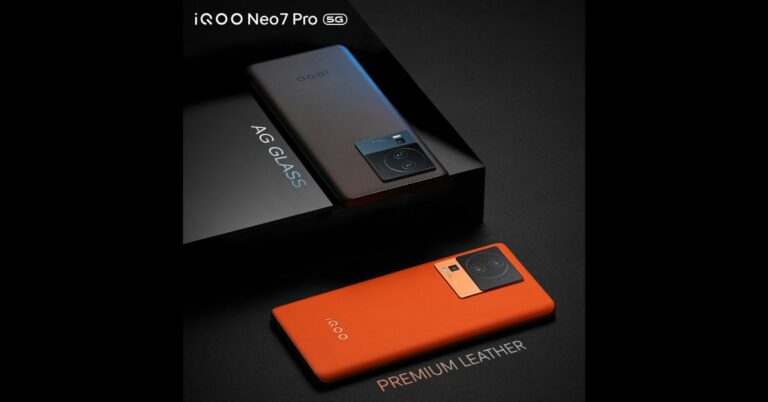
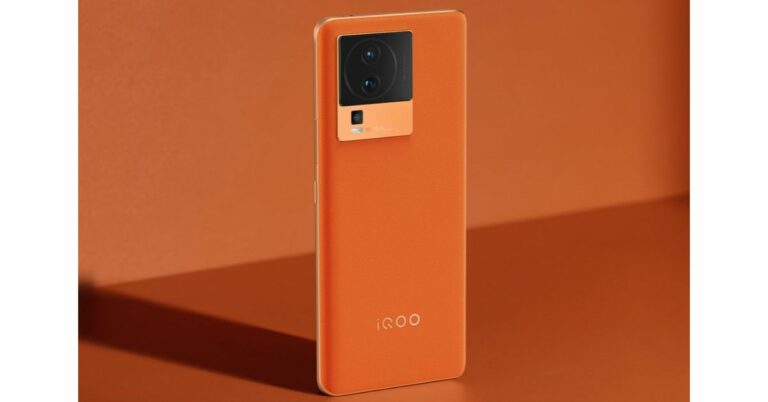
iQoo Neo 7 Pro 5G has launched in India today. The gaming smartphone by Vivo’s sub-brand is powered by Qualcomm’s Snapdragon 8+ Gen 1 SoC. It features a 120Hz AMOLED display. In addition to this, there is a 5,000mAH battery with supports 120W fast charging.

iQoo Neo 7 Pro 5G price in India, sale details and offers

iQoo Neo 7 Pro 5G debuted in India with a price tag of Rs 34,999 for the 8GB RAM with 128GB storage variant. The price of the 12GB RAM with 256GB storage option comes at Rs 37,999. The phone is offered in two colour options of Dark Storm and Fearless Flame. iQoo Neo 7 Pro 5G price in India, sale details and offers In terms of availability, the newly launched gaming smartphone is scheduled to go on sale on July 15 via Amazon. Customers who buy the handset by July 18 will receive a Rs 1,000 discount. In addition to this SBI and ICICI Bank debit and credit cardholders can get an immediate discount of Rs 2,000. The device is currently up for pre-booking and those who pre-book are eligible to receive an additional year of warranty protection.

iQoo Neo 7 Pro 5G specifications

iQoo Neo 7 Pro 5G is powered by a Snapdragon 8+ Gen 1 chip paired with up to 12GB of LPDDR5 RAM and up to 256GB of UFS 3.1 storage. The phone operated on Funtouch OS 13 on top of Android 13. The gaming phone is highlighted with a 6.78-inch full-HD+ AMOLED screen with 1,080×2,400 pixels of resolution. The display supports a 120Hz refresh rate and a 300Hz touch sampling rate. iQoo Neo 7 Pro 5G price in India, sale details and offers For the optics, there is a triple rear camera setup that includes a 50-megapixel primary Samsung GN5 sensor with an f/1.88 aperture. In addition to this, there is an 8-megapixel ultra-wide-angle camera with an f/2.2 aperture and a 2-megapixel macro camera with an f/2.2 aperture. The device further includes a 16-megapixel front-facing camera with an f/2.45 aperture for taking selfies and video calling. The iQoo Neo 7 Pro boasts a 5,000mAh battery with 120W Flash Charge support. In terms of connectivity, there is 5G, 4G LTE, Wi-Fi 6, Bluetooth 5.2, GPS, GNSS, NavIC, and a USB Type-C port. The device includes an in-display fingerprint scanner, an IR blaster, an accelerometer, an ambient light sensor, a proximity Sensor, an e-compass, a gyroscope, and a colour temperature sensor. For the latest gadget and tech news, and gadget reviews, follow us on TwitterFacebook and Instagram. For newest tech & gadget videos subscribe to our YouTube Channel. You can also stay up to date using the Gadget Bridge Android App. You can find the latest car and bike news here.
How to Check WiFi Router History on Android?

0
Your WiFi router records the browsing history of the devices that are connected to it. Any page requests made on the network are registered on the router and can be accessed by the device admin. If you ever feel suspicious of excessive data usage on your network, you can easily check the collective browsing history using the router and get an idea of who is the culprit. In this article, we show you how to check the WiFi router history on an Android smartphone. Read Also: Samsung Galaxy Z Fold 5 images leak showing no gap in the hinge

Here’s how you can check WiFi router history on Android

Step 1: Go to Settings and select Connections. Step 1: Go to Settings and select Connections. Step 2: Tap on WiFi. Step 3: Tap the gear icon next to the connected network. Step 2: Tap on WiFi, then tap on the gear icon next to your WiFi network. Step 4: Select ‘Manage Router’. Step 4: Select ‘Manage Router’. wifi router history android app Step 5: This will lead you to the router’s management portal. Log in using the appropriate credentials. If you don’t remember the password, look for it at the bottom of the router. This will lead you to the router’s management portal. wifi router history android app Step 6: Go to the log page to view the WiFi router history. Step 6: Go to the log page to view the WiFi router history. wifi router history android app

Can’t find the Manager Router options? Try this method

Older Android phones may not have the ‘Manage Router’ option in WiFi settings. If you can’t find the option on your phone, there’s nothing to fret about. All you need to do is enter your WiFi router’s IP address in your phone’s web browser and you will be able to access its management portal. You can find your router’s IP address by going to Settings>Connections>WiFi and tapping the gear icon next to the network you’re connected to. Tap ‘View More’ and scroll down to the bottom to view the IP address of the router. Once you’re on the router management portal, all you need to do is log in and access the log page.

Use a third-party app

Use a third-party app. wifi router history android app Third-party router management apps like Fing and All Router Admin can help you check the router history on your Android smartphone. Apart from checking the logs, you can also manage the devices on your network using these apps. They also offer features like hidden camera detection, speed test, and network analysis.

Frequently Asked Questions

Can my WiFi router record my browsing history?

Your WiFi router can record the browsing history of the devices connected to it. To check the recorded history, go to your router’s management portal and check the logs.

How do I view router history on Android?

To check your WiFi router’s history on your Android phone, simply enter the router’s IP address in the web browser and enter the appropriate credentials. Go to the log section in the side menu to check the browsing history.

How can I hide my browsing history from my router?

To hide your browsing history from your router, use a VPN or browse in Incognito Mode. Read Also: Top 7 ways To Boost The WiFi Signal For Faster Internet

Conclusion

This is how you can check the WiFi router history on your Android smartphone. Once you access the logs, you will need to reverse-check the listed IP addresses to find out which websites were requested from your WiFi network. You can also block certain websites on your WiFi router using parental controls from the management portal. For the latest gadget and tech news, and gadget reviews, follow us on Twitter, Facebook and Instagram. For newest tech & gadget videos subscribe to our YouTube Channel. You can also stay up to date using the Gadget Bridge Android App. You can find the latest car and bike news here.

iQoo Neo 7 Pro 5G India launch today: How to watch the event live

iQoo today will be launching a new gaming smartphone iQoo Neo 7 Pro 5G in India. The smartphone will be under the mid-range price segment and will succeed iQoo Neo 7 5G. The device will be sold exclusively through Amazon. The upcoming phone is confirmed to have a Snapdragon 8+ Gen 1 SoC. Moreover, the device will include a 50-megapixel primary rear camera.

iQoo Neo 7 Pro 5G India launch and expected pricing details

Live streaming of the iQoo Neo 7 Pro 5 India launch will begin at 12:00 today. To view the event live, go to the company’s official YouTube and social media channels including Twitter. It can also be watched on our website as we have embedded the link below.
A leak brings us a new piece of information about the price of the forthcoming Neo series smartphone from the Vivo sub-brand. The price of the phone has been disclosed by Amazon India to be Rs 33,999. The pricing of the device was previously predicted by a tipster to be under Rs 40,000. Also Read: Motorola Razr 40, Motorola Razr 40 Ultra launched in India, price starts at Rs 59,999

iQoo Neo 7 Pro 5G specifications

The iQoo Neo 7 Pro 5G is thought to be a rebranded version of the iQoo Neo 7 Racing Edition, which was unveiled in China in December of last year. Amazon and iQoo have teased the features and appearance of the smartphone in advance of its release. The Neo 7 Pro will be available in the colours Dark Storm and Fearless Flame. It is confirmed to be powered by the Qualcomm Snapdragon 8+ Gen 1 SoC. Along with support for 120W fast charging support, it is known that the main rear camera has 50 megapixels. Also Read: Samsung Galaxy Z Fold 5 images leak showing no gap in the hinge Leaks indicate that the 6.78-inch full-HD+ OLED display on the iQoo Neo 7 Pro 5G will have a refresh rate of 120 Hz. A 50-megapixel primary sensor with OIS is claimed to be included, along with an 8-megapixel sensor and a 2-megapixel shooter, in its triple back camera arrangement. The forthcoming device from iQoo is anticipated to include stereo speakers in addition to a 5,000mAh battery for the gaming smartphone. As expected, the OS duties on iQOO Neo 7 Pro will be handled by Android 13 with Funtouch 13 skinned on top of it. For the latest gadget and tech news, and gadget reviews, follow us on TwitterFacebook and Instagram. For newest tech & gadget videos subscribe to our YouTube Channel. You can also stay up to date using the Gadget Bridge Android App. You can find the latest car and bike news here.

BGMI redeem codes for 4 July 2023, claim and receive rewards and benefits

After being banned for nearly ten months, Battleground Mobile India, aka BGMI, is officially available again in India. BGMI fans are looking for ways to improve their game experience and one such method is the usage of redemption codes, which offers a variety of rewards and advantages using BGMI redeem codes players can gain access to new skins, outfits, loot crates, weapons and free UC and diamonds. As mentioned earlier, these codes give users the chance to earn unique rewards and gain extra benefits while playing the game. This includes GUN SKINS (M4, AKM, M416, AWM, M24, UZI, KAR98K), free character voucher, Andy, Carlo, Sara, Victor character for free, free Anna Character on completing the mission and UC or Royal Pass Discount. So here we have gathered a list of the most recent BGMI redeem codes as of 4 July 2023. Also, redeem these codes asap as these are only valid for a limited duration.

BGMI Redeem Codes for 4 July 2023

  • updating…

How to get free Redeem Codes for BGMI on 4 July 2023?

  • Launch BGMI on your device.
  • Then select the Redeem Code option from the main menu.
  • Next, click on the Redeem code tab.
  • A new window will open, requesting the redemption code.
  • Now enter your BGMI code.
  • Confirm and click on the “Redeem” tab.
  • If your redeem code is valid then you will get a message confirming that your rewards were successfully redeemed.
(Note that these codes are case-sensitive, so be sure to type them correctly to prevent any errors.) For the latest gadget and tech news, and gadget reviews, follow us on TwitterFacebook and Instagram. For newest tech & gadget videos subscribe to our YouTube Channel. You can also stay up to date using the Gadget Bridge Android App. You can find the latest car and bike news here.

Garena Free Fire Redeem Codes Today 4 July 2023: Here is how to claim them

Garena Free Fire is a battle royale game with regular awards and tournaments to keep players interested. If you play Garena Free Fire, you should be aware of the redeem codes that are released on a daily basis. However, because the battle royale game is banned in India, players from other countries can use the Free Fire Redeem codes daily. If you’re unfamiliar with the Garena Free Fire redeem codes or don’t know how to get them, we’ve put together a step-by-step guide to help you redeem them. Check out Garena Free Fire Redeem Codes for 4 July 2023. The Free Fire redeem codes are a great way to get free stuff. These are 12-digit codes that contain alphabets and numbers, as well as an expiration date and time. Because the Garena FF redeem codes cannot be used more than once, you should hurry to the redemption page to claim your free reward before someone else does. To get a free reward, all you have to do is go to reward.ff.garena.com/en, which is the official redemption page. Also, keep an eye on this space for daily updates on Garena Free Fire redemption codes and rewards.

Garena Free Fire Redeem Codes Today 4 July 2023

FAGTFQRDE1XCF FFCMCPSBN9CU BR43FMAPYEZZ FFCMCPSJ99S3 XZJZE25WEFJJ V427K98RUCHZ MCPW2D1U3XA3 FFAC2YXE6RF2 NPYFATT3HGSQ FFCMCPSGC9XZ HNC95435FAGJ 6KWMFJVMQQYG FFCMCPSUYUY7E MCPW3D28VZD6 EYH2W3XK8UPG MCPW2D2WKWF2 ZZZ76NT3PDSH FFCMCPSEN5MX

How to Get Free Fire Redeem Codes for Garena on 4 July 2023?

  • Visit the Garena Free Fire game’s official website at reward.ff.garena.com.
  • Use your Facebook, Google, VK, Apple ID, Huawei ID, or Twitter account to log in.
  • You’ll be taken to a valid redemption code (s)
  • Copy and paste the 12-digit redemption code into the text box.
  • On the screen, a dialogue box will appear.
  • ‘Ok’ should be selected.
For the latest gadget and tech news, and gadget reviews, follow us on TwitterFacebook and Instagram. For newest tech & gadget videos subscribe to our YouTube Channel. You can also stay up to date using the Gadget Bridge Android App. You can find the latest car and bike news here.

I survived an entire day with just apps

With our lives getting so dependent on technology, it doesn’t sound as bizarre today to say that I could survive an entire day with just apps as it would have five years back. But what made it a little challenging (at least in my head) was my editor’s suggestion to not carry my wallet or books that day. I REALLY don’t know how to survive without either considering that I’m from a generation which at least likes to carry physical currency with them even if they pay digitally most of the time, and whenever I have nothing to do you would almost always find my head buried in a book. But anything for a story, so here we are! It’ll sound surprising, but the first app that I need on any given day is Spotify because I am one of those people who would definitely snooze the alarm multiple times and then get late to work. And the answer to this problem is music. Every morning, I would open my eyes when my alarm goes off and instantly play some music. It’s a great way to start the morning, and who knows? It might as well motivate me enough to go to the gym in the morning instead of the evening some day. Read Also: How to Run Windows Apps on Android with Wine? I like to keep the music on as I get ready for work and do my daily chores. As fate would have had it, I fell short of sesame seeds as I got my breakfast ready. While on most days I would have just driven down to a store close by to get it, I opted for Blinkit to keep my word on surviving solely on apps. I usually get to work via a Blusmart cab. Since my commute to work is a recurring ride, I don’t have to book it ever since I set up the ride-along by putting in the place of pick-up, drop location and timings. This along with the fact that Blusmart claims to never cancel rides is a big plus because the last thing one wants is to be late to work because their cab cancelled at the last minute. I usually read on my way to work, but that obviously couldn’t happen on a day when I was relying entirely on apps. So I put my earphones on and listened to ‘Sweet Bean Paste’, a novel by Tetsuya Akikawa on an unusual yet beautiful friendship, on the Audible app. I had started listening to it a while back but then started reading something else. This challenge proved to be a good reason to come back to it. Since the book has short chapters, I did manage to listen to a few before I got to work. Now, if you ever try doing this, I would really suggest you stick to your office coffee machine rather than going overboard and using a food delivery app for it. Firstly, it’ll be more expensive, and secondly, it’ll take more time to reach you. It’s simply not practical. You might choose to order breakfast, but I wanted my first meal of the day to be home-cooked. Since I am a writer, I usually use the Dictionary app a lot on my phone and swear by the Grammarly Chrome extension on my laptop. The former helps me tremendously because of its Thesaurus feature and the latter is like a necessity for writers. Zomato took care of my lunch and Simpl took care of the payment I made for it. I usually take a small walk after lunch and rely on Apple‘s Health app to keep track of my steps all through the day, so that bit was sorted. In the evening, I called an Uber to head back home and on this ride, I watched a podcast on YouTube. Can there be a better to kill your time in traffic? Well, probably books, but this wasn’t bad either. Anyway, I paid for the cab ride via Google Pay UPI. Read Also: How to Export a WhatsApp Chat: Complete guide for Android After getting home, I like to unwind a bit with meditation and my preferred app for it is Headspace, although there are plenty of others available on the Play Store and App Store. If you are into mindfulness as well, you pick the app that suits you since when it comes to this, it’s never one size fits all. I ordered a salad via Swiggy because I didn’t want to eat two heavy meals in a day and an episode of ‘Touch Your Heart’ on Netflix saved me from getting bored as I ate. At the end of the day, I realized how easy it is in today’s world to survive solely with my phone. Almost any daily task can be managed with it provided you are in an area with the proper network. My younger self in college would have never trusted her phone to take care of everything throughout the day, but the fact that I can do this today shows how dynamically things have changed because of technology. P.S. I think I forgot to mention apps like WhatsApp, Instagram and Gmail because I use them so often that my brain didn’t even register them. For the latest gadget and tech news, and gadget reviews, follow us on Twitter, Facebook and Instagram. For newest tech & gadget videos subscribe to our YouTube Channel. You can also stay up to date using the Gadget Bridge Android App. You can find the latest car and bike news here.

Samsung Galaxy Z Fold 5 images leak showing no gap in the hinge

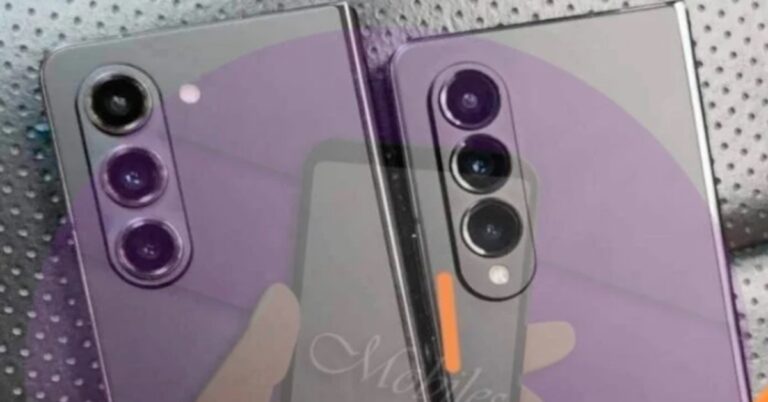
South Korean technology company Samsung is scheduled to unveil its Galaxy Z Flip 5 and Galaxy Z Fold 5 smartphones at the Galaxy Unpacked event later this month. Just weeks before the unveiling, the first set of Samsung Galaxy Z Fold 5 hands-on images have been leaked and they clearly show the camera layout and the hinge of the device. Samsung Galaxy Z Fold 5 images were posted by tipster Ahmed Qwaider and going by them, there seems to be no gap between the two folding halves of the smartphone. This is in contrast to the previous generation devices of the same family. The smartphone sports a loudspeaker, a microphone and a USB Type C port at its bottom edge, while on the top, there are three microphones and a loudspeaker. This makes a total of four microphones and a stereo loudspeaker setup.
Samsung Galaxy Z Fold 5
Image courtesy: Ahmed Qwaider’s Twitter
Previous reports have suggested that Samsung might add a waterdrop-shaped hinge in the Galaxy Z Flip 5 and the Galaxy Z Fold 5 smartphones that could be similar to new foldable devices from the likes of Huawei, Vivo, Oppo and Xioami. For the uninitiated, a waterdrop-shaped hinge can remove the gap between two halves of the smartphone and minimize the crease on the internal screen. Read Also: Samsung Galaxy Z Fold 3 review: Love at third sight Furthermore, Samsung Galaxy Z Fold 5 images also show its rear camera setup that comprises three rear facing lenses and an LED flash placed on their right. According to reports, the device would come with a 50MP primary sensor, a 12MP ultrawide lens and a 10MP telephoto camera with 3x optical zoom.

Samsung Galaxy Z Fold 5 specifications (leaked)

Previous leaks about Samsung Galaxy Z Fold 5 suggest that the smartphone will come with a 6.2-inch 120Hz Super AMOLED cover screen and a 7.6-inch 120Hz internal foldable Super AMOLED screen. The smartphone will reportedly be powered by a Snapdragon 8 Gen 2 processor clubbed with 12GB of RAM and up to 512GB of internal storage. The device is said to come with water resistance (varied reports talk about various ratings) and its connectivity features would include GPS, 5G, Wi-Fi 6E, Bluetooth 5.3, NFC and a USB 3.2 Type-C port. Reports suggest the presence of a 4,400mAh battery, 25W fast charging capabilities, Samsung DeX, and Samsung Pay.
Samsung Galaxy Z Fold 5 images leak
Image courtesy: Ahmed Qwaider’s Twitter
However, it should be noted that Samsung Galaxy Z Fold 5 and Galaxy Flip 5 smartphones might not be dust resistant, according to tipster @UniverseIce. If this is true, the devices would not come with an IP58 rating. But then, we can also not rule out the possibility that the tech giant has, in fact, upgraded the IP rating on its upcoming phones but hasn’t talked about it yet. Read Also: Pete Lau Makes a Hint to a Future OnePlus Foldable Phone Other than this, the new foldable smartphones are said to have the ability to withstand 200,000 folds for basic use whereas 300,000 folds and unfolds is the upper limit. For the latest gadget and tech news, and gadget reviews, follow us on Twitter, Facebook and Instagram. For newest tech & gadget videos subscribe to our YouTube Channel. You can also stay up to date using the Gadget Bridge Android App. You can find the latest car and bike news here.