How to Use iMessage on Windows 11 using Microsoft Phone Link?

0
Most cross-platform messaging apps like WhatsApp and Telegram have dedicated web portals and desktop apps that allow users to remotely chat from their PC or laptops, without needing to pick up their phones. This comes in handy when you need to stay connected with your friends and family while you’re at work or occupied with a project on your PC. iPhone users haven’t had this option for iMessage yet. That may change soon as Microsoft is looking to extend its Phone Link services to iOS. Right now, you can use Phone Link for your iPhone if you are signed up for the Windows Insider Program. This will allow you to access iMessage on your Windows 11 PC or laptop. Here is a brief explainer on how to use iMessage on Windows 11 using Microsoft Phone Link. Read Also: OnePlus Nord Buds 2 launched in India at Rs 2,999

Here’s how you can use Phone Link to access iMessage on Windows 11

Here’s how you can use Phone Link to access iMessage on Windows 11 Before you begin, you will need to sign up for Windows Insider Program to use Phone Link for your iPhone. You can do so by going to Settings>Windows Update>Windows Insider Program and selecting Get Started. Step 1: Download and Install the Microsoft Phone Link app on your Windows PC or laptop. Step 2: Install the Link to Windows iOS app on your iPhone from the App Store. Step 3: Launch the Phone Link app on your PC and select iPhone. Step 4: Sign in to Phone Link using your Microsoft Account.  Step 5: Launch the Link to Windows app on your iPhone and scan the QR displayed on the Windows app. Step 6: Give the app the necessary permissions to connect to your Windows PC or laptop. Once connected, you will be able to send and receive iMessages from your PC.

Limitations of using Phone Link for iOS

Although it is a pretty handy app, there are some limitations that come with using Phone Link for iOS. To begin with, Phone Link cannot access the messaging history from your iPhone. This means you will only be able to view the messages you send and receive while your iPhone is connected to your PC. As of now, there is no way to send images on iMessage using Phone Link for Windows. Microsoft may introduce this feature in future, but right now, basic texting is as good as it gets. The green and blue chat bubbles are also unavailable on Windows as Phone Link uses its own messaging interface for iMessage. Lastly, Phone Link for iOS is only available for Windows 11 users who have signed up for beta testing. It will be rolled out to the general audience in the coming months. 

Frequently Asked Questions

Does Phone Link work with iOS?

If you are a part of the Windows Insider Program, you use the Beta version of Phone Link for iOS.

Can I use iMessage on Windows?

Yes, using the Phone Link beta app, you can use iMessage on your Windows 11 PC or laptop. Read Also: How to Play Roblox Online Without Downloading the App?

Conclusion 

This is how you can use iMessage on Windows 11 using Microsoft Phone Link. While its functionality is extremely limited, we can only hope Microsoft fleshes it out with further updates. Right now, you can only see the messages that are sent to your while your iPhone is linked to your desktop. The green and blue chat bubbles from iMessage do not show up on the Phone Link app either. For the latest gadget and tech news, and gadget reviews, follow us on Twitter, Facebook and Instagram. For newest tech & gadget videos subscribe to our YouTube Channel. You can also stay up to date using the Gadget Bridge Android App. You can find the latest car and bike news here.

Truke Buds Vibe with 13mm drivers launched in India

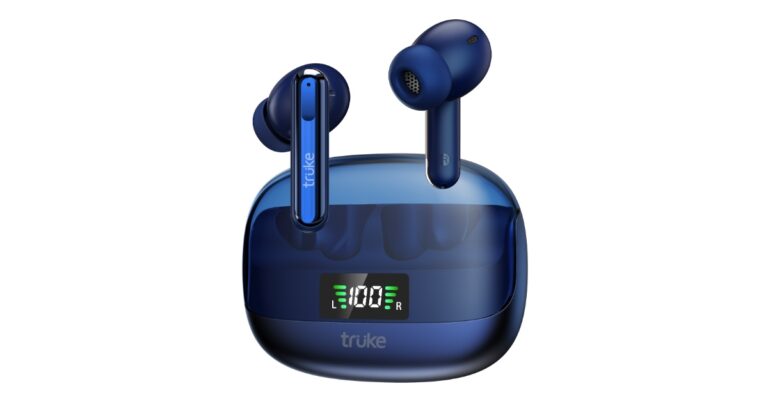
The German-origin brand, Truke has expanded its product portfolio with the launch of Buds Vibe true wireless earphones in India. The Truke Buds Vibe comes with dual noise cancellation with up to 35db active noise cancellation (ANC) and quad-mic environmental noise cancellation (ENC). The audio device has 13mm Titanium speaker drivers. It comes with 4 Preset EQ modes, fast charging and fast paring tech. Moreover, the TWS earphones are claimed to operate up to 48 hours on a single charge.

Truke Buds Vibe specs and features

Truke Buds Vibe comes integrated with 13mm Titanium Speaker drivers that is claimed to offer high-quality audio with deep bass, clear treble, and crystal-clear sound. For personalised music experience, the device comes with 4 preset EQ modes- Dynamic Audio, Bass Boost Mode, Movie Mode, and Default Balanced mode. Truke Buds Vibe with 13mm drivers launched in India There is a transparent case design with a digital battery indicator allowing users to keep track of the battery life. The Buds Vibe also includes dual noise cancellation with a range of premium features, including Dual Noise Cancellation with up to 35dB Active Noise Cancellation (ANC) and Quad-Mic Environmental Noise Cancellation (ENC). The earphones also include Bluetooth 5.3 for connectivity. While the Instant Paring Technology with Open-to-Pair Technology for fast pairing. The Truke Buds Vibe has up to 48 hours of playtime with the case and up to 10 hours of playtime on a single charge. The company also provides 12 months of warranty on the purchase of the device.

Truke Buds Vibe price in India and availability

Truke Buds Vibe has been launched in India with a price tag of Rs 1,699. However, the company will be offering it at a special launch price offer of Rs 1499 valid till April 6. The device will be available for purchase via Amazon.in, Flipkart as well as Truke.in in the country. Truke Buds Vibe price in India and availability Mr. Pankaj Upadhyay, CEO, Truke India, said, “At Truke, we believe that everyone deserves the best technology and in the same pursuit, we launched our ANC Buds series this year. After receiving an overwhelming response from our customers on Buds A1, we realized the huge supply gap of affordable ANC audio products in the market, while the customers are actively looking for such premium features at budget prices. We are thrilled to launch our latest offering, the Buds Vibe, which comes with premium features like ANC, a stylish transparent case design, a battery indicator and four preset EQ modes for different user preferences. We are confident that customers across India will appreciate our efforts and committed to providing high-quality audio products at affordable prices.” For the latest gadget and tech news, and gadget reviews, follow us on TwitterFacebook and Instagram. For newest tech & gadget videos subscribe to our YouTube Channel. You can also stay up to date using the Gadget Bridge Android App. You can find the latest car and bike news here.

How to measure Blood Pressure on your Samsung Galaxy Smartwatch?

0
While smartwatches are not a substitute for medical-grade equipment, it still doesn’t stop manufacturers from packing a whole bunch of health monitoring functions in them. Your smartwatch is well-equipped to track your runs, workouts, and other exercises, but ECG and BP data should generally be taken with a grain of salt. Samsung’s Galaxy Watch is one of the few smartwatches that are somewhat reliable when it comes to BP monitoring, as they require calibration after every 4 weeks. If you’re keen on using your Samsung Galaxy smartwatch to measure blood pressure, here’s how you can go about it. Read Also: Use these Netflix Secret Codes to View Hidden Categories and Movies

Calibrate your Samsung Galaxy Smartwatch

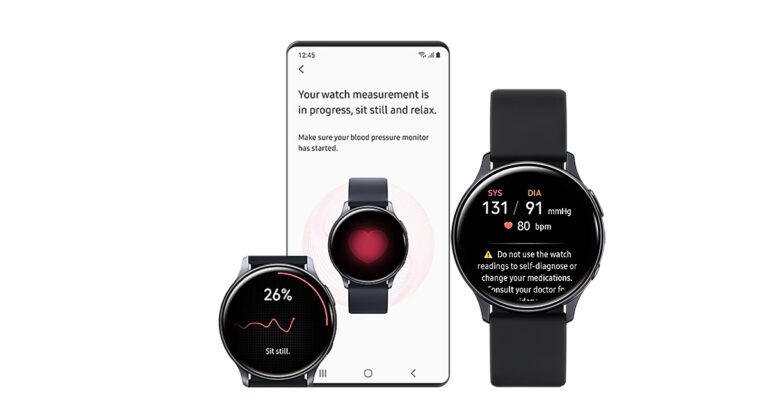
Samsung Galaxy Watch 5 Review: A near-perfect Android smartwatch Your Samsung Galaxy smartwatch needs to be calibrated to provide accurate blood pressure readings. For this, you will need a traditional blood pressure monitoring device. A regular home BP monitor is sufficient for this task. You can use a manual BP monitor as well. Here’s how. Step 1: Wrap your Samsung Galaxy smartwatch around your wrist and make sure it is a snug, comfortable fit. Strap the home BP monitor on the opposite arm. Step 2: Launch the Samsung Health Monitor app on your smartwatch and select Blood Pressure. Step 3: The calibration process will require you to launch the Samsung Health Monitor app on your phone as well. Follow the on-screen instructions on the watch and open your phone when prompted. Step 4: Continue the calibration process on your smartphone. Step 5: Turn on your home BP monitor. At the same time, turn on BP monitoring on your smartwatch as well. Step 6: Once the process is over. Record the Systolic and Diastolic readings taken by your home BP monitor and manually feed them into the Samsung Health app on your smartphone. Step 7: Repeat this process three times. Once the calibration is complete, your Samsung Galaxy smartwatch will be able to monitor your blood pressure on its own and will provide accurate readings for up to 4 weeks. After that, you will need to calibrate it again.

Here’s how you can measure your Blood Pressure using a calibrated Samsung Galaxy smartwatch

Once the calibration is complete, follow these steps to monitor your BP using your Samsung smartwatch. Step 1: Wrap your watch around your wrist. Make sure it is not too tight, Step 2: One the app drawer on your Galaxy watch and launch the Samsung Health Monitor app. Samsung Galaxy Watch 4 Review   Step 3: Select Blood Pressure and tap on ‘Measure’. Your watch will take some time to measure your BP and display the readings on the screen once it’s done. You can view the results on your smartphone as well.

Frequently Asked Questions

Does Samsung Galaxy Watch have a blood pressure monitoring function?

Yes, the Samsung Galaxy Watch comes with a blood pressure monitoring function, but only for certain markets. Check Samsung’s website to see if your region is on the list.

Can I use Galaxy Watch to measure blood pressure in India?

Unfortunately, Samsung hasn’t rolled out this feature in India yet. The only alternative you have is to use the modded Samsung Health app on your Galaxy Watch and smartphone to measure your BP. Read Also: Acer Aspire 3 with latest Intel Core i3-N305 CPU launched in India

Conclusion

This is how you can measure your blood pressure using a Samsung Galaxy smartwatch. As of now, Samsung has not rolled out the ECG and BP monitoring features for Galaxy Watch in India. You will need a modded Samsung Health app for your smartphone and Galaxy Watch to gain access to these functions. Lastly, you should note that the BP readings taken using smartwatches should not be considered a substitute for those taken using medical-grade equipment. For the latest gadget and tech news, and gadget reviews, follow us on Twitter, Facebook and Instagram. For newest tech & gadget videos subscribe to our YouTube Channel. You can also stay up to date using the Gadget Bridge Android App. You can find the latest car and bike news here.
Apple reveals its first retail store in India, the Apple BKC Store opening in Mumbai

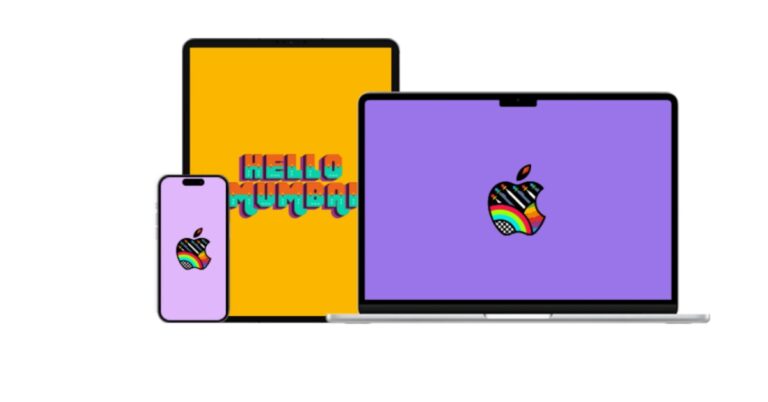
Tech giant Apple is soon going to establish its first-ever retail store in India. The Apple retail store in India will be located in Mumbai and will be called Apple BKC Store. While announcing its upcoming retail outlet in the country the firm revealed the barricade of the BKC store. The first picture of the store barricade in advance of the opening reveals the iconic Kaali Peeli taxi art. Apple reveals its first retail store in India, the Apple BKC Store opening in Mumbai The Apple BKC store in India is scheduled to open in the Jio World Drive Mall in Mumbai. Apple has released the first picture of the store’s barricade along with a special wallpaper and playlist just ahead of the opening which can be downloaded here. The Apple BKC creative includes colourful interpretations of the decals combined with many Apple products and services that will be available is inspired by the iconic Kaali Peeli taxi art unique to Mumbai. In addition to this, the upcoming store displays Apples’ traditional salutation “Hey Mumbai” to onlookers. Apple reveals its first retail store in India, the Apple BKC Store opening in Mumbai The company in its announcement said, “This morning, Apple revealed the barricade of its first retail store in India at Jio World Drive Mall, Mumbai officially marking the upcoming opening of Apple BKC. Apple’s CEO Tim Cook announced earlier this year that Apple Retail would soon arrive in India. Inspired by the iconic Kaali Peeli taxi art unique to Mumbai, the Apple BKC creative includes colourful interpretations of the decals combined with many Apple products and services that will be available for our customers to discover. The creative for the store features a bright welcome to people passing by with the classic Apple greeting “Hello Mumbai”. Also Read: OnePlus announced the all-new Nord CE 3 Lite 5G with a 108-megapixel camera in India   To celebrate the opening of the new store, visitors can download the new Apple BKC wallpaper and move to the sounds of Mumbai with a specially curated playlist on Apple Music.” The company is anticipated to inaugurate the store later this month however the official date for the opening is yet to be announced. Moreover, rumours suggest that the next Apple retail store is likely to open in New Delhi. But this is going to be considerably smaller than the Apple BKC Store in Mumbai.  For the latest gadget and tech news, and gadget reviews, follow us on TwitterFacebook and Instagram. For newest tech & gadget videos subscribe to our YouTube Channel. You can also stay up to date using the Gadget Bridge Android App. You can find the latest car and bike news here.

How to send and receive files between your PC and Android using Nearby Share?

0
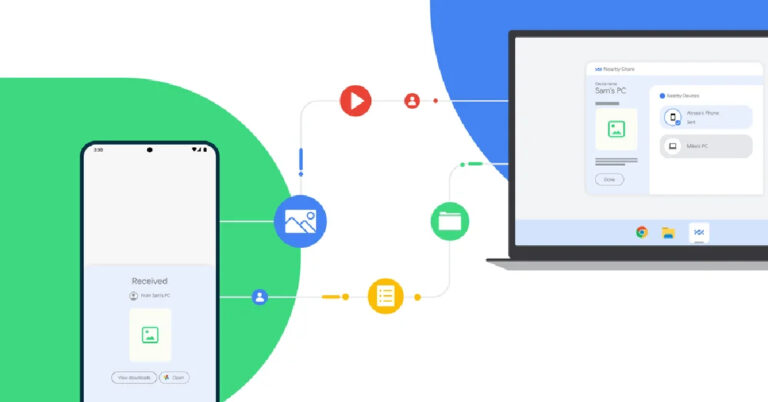
Wireless sharing between smartphones and PCs has always been a struggle for Android users. While there are several tools that make it possible to share files wirelessly, none of them is as seamless as Apple’s AirDrop. As a result, most Android users stick to emailing files to themselves to access them on their PC. Well, that may change soon. Google recently announced its plans to bring Nearby Share to Windows and has already rolled out a beta version of the app for PC. In this article, we show you how to send and receive files between your PC and Android smartphone using the Nearby Share app. Read Also: Use these Netflix Secret Codes to View Hidden Categories and Movies

How to receive files on your PC from Android using Nearby Share

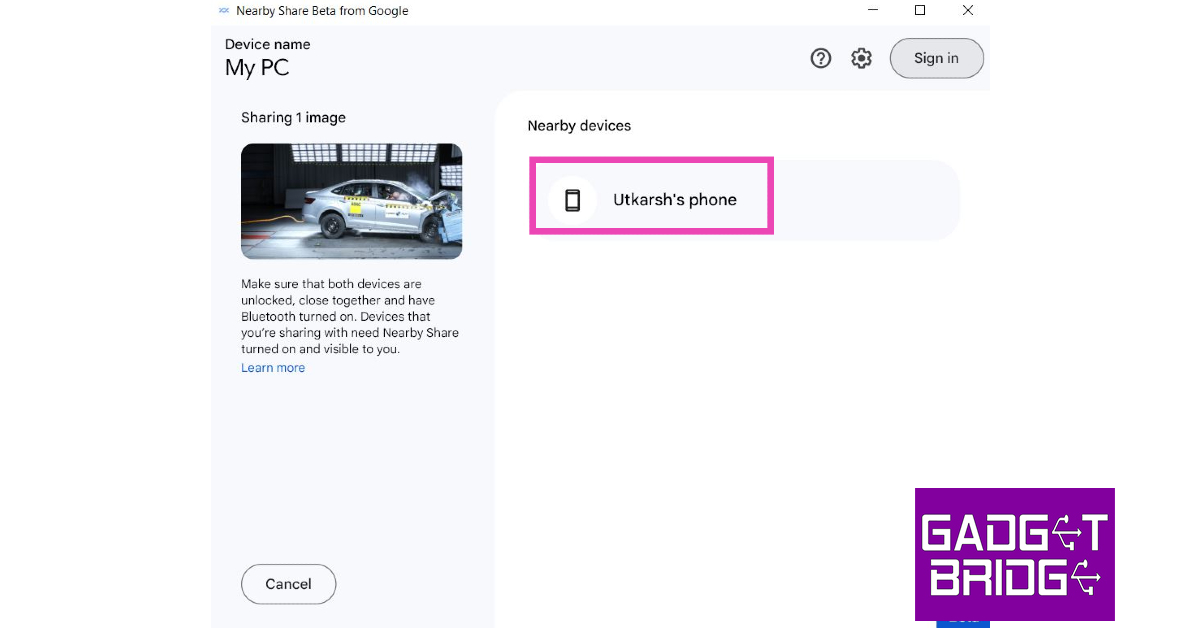
Step 1: Download the beta version of Nearby Share for PC using this link. Step 2: Follow the onscreen instructions to install the app on your PC. Step 3: Sign in with your Google Account or click on ‘Use without an account’ if you don’t wish to sign in. Step 3: Sign in with your Google Account or click on ‘Use without an account’ if you don’t wish to sign in. Step 4: If chose to use Nearby Share without an account, set up a name for your PC and select ‘Done’. Step 4: If chose to use Nearby Share without an account, set up a name for your PC and select ‘Done’. Step 5: In order to receive files on your PC, tap on ‘Device is Hidden’ and select ‘Receive from everyone’. Step 5: In order to receive files on your PC, tap on ‘Device is Hidden’ and select ‘Receive from everyone’. Step 6: Now, select the file you want to transfer on your Android smartphone. Step 7: Tap the Share icon and select ‘Nearby Share’ from the list of options. Step 7: Tap the Share icon and select ‘Nearby Share’ from the list of options. Step 8: Your smartphone will search for your PC. Once it pops up on the radar, select the icon for your PC. Step 8: Your smartphone will search for your PC. Once it pops up on the radar, select the icon for your PC. Step 9: Accept the transfer on your PC. Step 9: Accept the transfer on your PC. Step 10: Once the file is received on your PC, click on ‘Open’ to view it. You can also access the file from the Downloads folder on your PC.

How to send files from your PC to Android using Nearby Share

Step 1: Launch the Nearby Share app on your PC. Step 2: Drag the file you want to share and drop it in the transfer box in the app. You can also select the file from within the app. Simply click on ‘Select Files’ or Select Folders’. Drag the file you want to share and drop it in the transfer box in the app. Step 3: Once you’ve selected a file, your PC will look for nearby devices. Step 3: Once you’ve selected a file, your PC will look for nearby devices.  Step 4: Make sure Nearby Share is enabled on your Android smartphone. You can do so by selecting ‘Nearby Share’ from the Quick Settings panel. Turn on the device’s visibility and make sure it is visible to everyone. Make sure Nearby Share is enabled on your Android smartphone. Step 5: Click on your Android smartphone’s name on your PC. Step 5: Click on your Android smartphone’s name on the Nearby Share app on your PC. Step 6: Accept the transfer on your Android smartphone. Step 6: Accept the transfer on your Android smartphone. The file will be sent successfully to your phone.

Frequently Asked Questions

Does Nearby Share work with Windows PC?

Android recently rolled out the beta version of Nearby Share for PC. You can download it from the official Android website. A full version will be released as soon as the beta testing ends.

Can you use Nearby Share between Android and PC?

Yes, you can use the Nearby Share Beta app for PC to share files with your Android phone and vice versa.

How do I use Nearby Share on PC?

Install the beta version of the Nearby Share app on your PC and simply drag and drop files to share them with your Android phone. You can also share files from your Android phone by selecting ‘Nearby Share’ from the sharing options. Read Also: What are the benefits of using GPS? What are the alternatives to it?

Conclusion

This is how you can send and receive files between your PC and Android smartphone wirelessly. As of now, you can only use the Beta version of Nearby Share on your PC. This means you may encounter some bugs and glitches while using it. These issues will be ironed out in the full version of the app. The availability of the beta app depends on your location. Check the official Android website to know more. For the latest gadget and tech news, and gadget reviews, follow us on Twitter, Facebook and Instagram. For newest tech & gadget videos subscribe to our YouTube Channel. You can also stay up to date using the Gadget Bridge Android App. You can find the latest car and bike news here.

OnePlus Nord Buds 2 launched in India at Rs 2,999

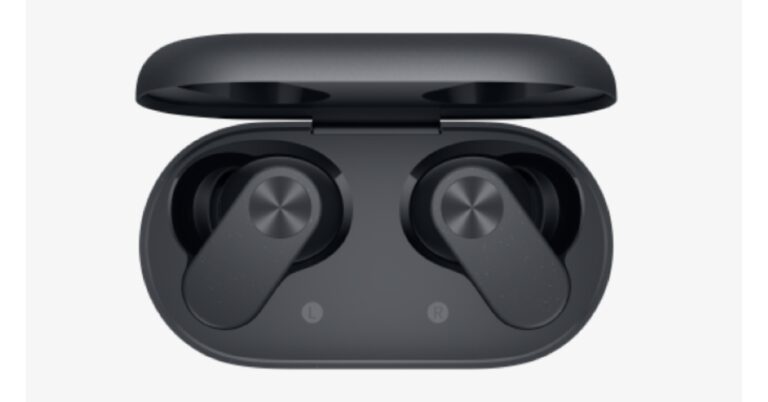
On Tuesday evening OnePlus launched its most affordable Nord CE 3 Lite 5G smartphone in India. Alongside the company also introduced the OnePlus Nord Buds 2 true wireless earphones in the country. The audio device is a successor to the last year’s OnePlus Nord Buds. It has active noise-cancellation features. There is a capsule-shaped charging case and in-ear design earbuds. The device is touch sensitive and offers customisation controls. Moreover, there is a 12.4mm driver with 25dB depth and a dual-core processor.

OnePlus Nord Buds 2 specifications and features

As said earlier, the OnePlus Nord Buds 2 has a capsule-shaped charging case and the design and shape of the earbuds are just like we have seen on its predecessor. It has e in-ear design earbuds that are touch sensitive and offers customisable controls and shortcuts that can be controlled via the HeyMelody app. The earphones are IP55 rated for dust and water resistance. OnePlus Nord Buds 2 launched in India at Rs 2,999 The device comes with 12mm drivers that have been improved with an extra layer of titanium in the vibrating diaphragm for better audio. According to the company, a high-tension wire copper coil has been used for improved tension and longevity. Moreover, the true wireless earphones by OnePlus offer a master equalizer with choices for balanced, serenade, bold, and bass modes to deliver user-specific audio output. The OnePlus Nord Buds 2 also offers Active Noise Cancellation with 25dB depth and a dual-core processor that cancels out unwanted environmental noises. The dual mic system and the Enhanced Clear Call function on these TWS work together to amplify speech sounds during an audio or video call. OnePlus Nord Buds 2 price in India, sale details The OnePlus Nord Buds 2 comes with Bluetooth 5.3 which supports both SBC and AAC codecs. The battery life has also been improved on this earphone. According to the company the TWS earphones can operate for up to five hours and up to 27 hours with AAC and ANC enabled. With ANC off, it can run for five hours after only ten minutes of charging.

OnePlus Nord Buds 2 price in India, sale details

The OnePlus Nord Buds 2 has been launched in India with a price tag of Rs 2,999. It comes in two colour options of Lightning White and Thunder Gray. The device will be available for purchase via both the OnePlus store and Amazon in the country. For the latest gadget and tech news, and gadget reviews, follow us on TwitterFacebook and Instagram. For newest tech & gadget videos subscribe to our YouTube Channel. You can also stay up to date using the Gadget Bridge Android App. You can find the latest car and bike news here.

How to Play Roblox Online For Free Without Downloading the App?

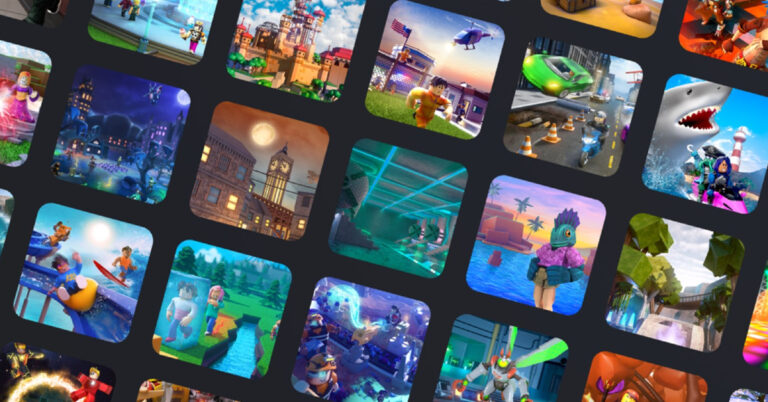
Roblox is one of the biggest online game platforms that rose to massive popularity in recent years. Using Roblox Studio, you can create your own game or play games created by other users. The Roblox app can be downloaded for free on Android, iOS, Windows and other platforms. However, if you’re not interested in downloading the app, there is another way you can access it. In this article, we show you how to play Roblox online for free without downloading the app. Read Also: iQoo Neo 6 gets more affordable, price dropped by Rs 5,000: Deets inside

Play Roblox on the official website

Step 1: Go to the official Roblox website and log in using your official Roblox account. Step 2: Use the search bar at the top to look for a specific title. Step 2: Use the search bar at the top to look for a specific title. Step 3: Select the game you want to play. Click on the green Play button to start playing it. If the game has a price tag, you will need to purchase it using Robux. Click on the green Play button to start playing it.

Play Roblox online on Now.gg

Step 1: Go to www.now.gg and search for Roblox. Step 2: Select ‘Play in Browser’. Step 2: Select ‘Play in Browser’. Step 3: Log in with your Roblox account and start playing.  While Now.gg supports most parts of the gameplay, you won’t be able to purchase Robux while playing the game in your browser. In-game purchases can only be made through the Roblox app.

Frequently Asked Questions

Is Roblox appropriate for kids?

Common Sense Media rates Roblox safe for kids ages 13 and above.

How much is $1 in Robux?

1 USD is equivalent to 1 Robux.

Where can I play Roblox online?

You can play Roblox using the official website or mobile cloud gaming sites like Now.gg.

Does Roblox cost money?

Roblox is free to download. In-app purchases can be carried out using the platform’s currency, Robux. Read Also: Acer Aspire 3 with latest Intel Core i3-N305 CPU launched in India

Conclusion 

These are the two ways you can play Roblox online for free without downloading the app. If you’re playing the game on Windows, your PC will have to meet some basic requirements like 8GB RAM or higher, Windows 10 OS or higher, Intel Core i5 processor or higher, and NVIDIA GeForce GTX 660 or AMD Radeon HD 7870 graphics or higher. For the latest gadget and tech news, and gadget reviews, follow us on Twitter, Facebook and Instagram. For newest tech & gadget videos subscribe to our YouTube Channel. You can also stay up to date using the Gadget Bridge Android App. You can find the latest car and bike news here.

OnePlus announced the all-new Nord CE 3 Lite 5G with a 108-megapixel camera in India

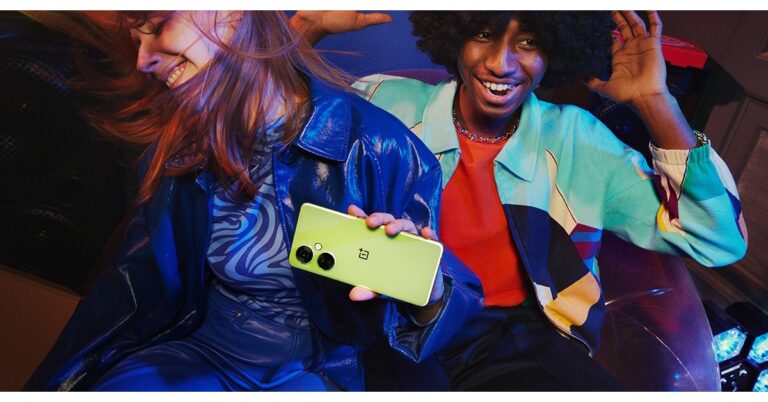
Looks like OnePlus is on a launching spree this year. The Chinese smartphone company has officially unveiled the much-speculated OnePlus Nord CE 3 Lite 5G in India. As the name suggests the device belongs to the OnePlus Nord family which will succeed last year’s Nord CE 2 Lite. The phone is being offered in the company’s budget mid-range category. Instead of an AMOLED display this year again OnePlus has delivered the handset with an LCD screen to cut down the cost. The display supports a 120Hz refresh rate. Additionally, the Nord CE 3 Lite has a triple rear camera setup featuring a 108-megapixel primary sensor. While the 5,000mAH battery on the phone also supports 67W SuperVOOC fast charging.

OnePlus Nord CE 3 Lite 5G price and sale details

OnePlus Nord CE 3 Lite 5G price in India for the 8GB RAM with 128GB storage option starts at Rs 19,999. There is another 8GB RAM with 256GB storage option that costs Rs 21,999. Additionally, the newly launched phone will be available in two colour options of Pastel Lime and Chromatic Gray. The handset can be purchased via the company’s official website, Amazon and other retail stores in the country beginning April 11. OnePlus Nord CE 3 Lite 5G price and sale details Also Read: iQoo Neo 6 gets more affordable, price dropped by Rs 5,000: Deets inside

OnePlus Nord CE 3 Lite 5G specifications

In terms of specs, the OnePlus Nord CE 3 Lite 5G is powered by an octa-core Snapdragon 695 SoC with Adreno 619 GPU for graphics. The phone comes with 8GB of LPDDR4X RAM with a RAM expansion feature (expands by 8GB). Moreover, the phone is shipped with OxygenOS 13.1 on top of Android 13 out of the box. The gadget also comes with up to 256GB UFS 2.2 storage which can be further expanded using a microSD card (up to 1TB). On the gaming front, the Nord CE 3 Lite has a Game Focus Mode that prevents ghost touches by disabling notifications. OnePlus Nord CE 3 Lite 5G specifications It also features a 6.72-inch full-HD+ LCD display with 1,080×2,400 pixels of resolution. The screen comes with a dynamic refresh rate of 120Hz and 240Hz touch sample rate. It has a peak brightness of 680 nits, a 91.4 percent screen-to-body ratio, a 20:9 aspect ratio, and a 391ppi pixel density. Moreover, the screen is protected with Corning Gorilla Glass Victus. The OnePlus Nord CE 3 Lite 5G is highlighted with a triple rear camera setup that includes a 108-megapixel Samsung HM6 sensor with an f/1.75 aperture and EIS support. It also consists of a 2-megapixel macro lens and another 2-megapixel depth sensor. There is a 16-megapixel front-facing camera for selfies. The OnePlus phone has dual stereo speakers with noise cancellation support. This smartphone comes with a 5,000mAh battery that supports 67W SuperVOOC fast charging. The sensors on the phone include a side-mounted fingerprint sensor, accelerometer, e-compass, ambient light, gyroscope, and proximity sensor. In terms of connectivity, there is 5G, 4G LTE, Wi-Fi, a 3.5mm audio jack, Bluetooth 5.1, GPS/ A-GPS, and a USB Type-C port. For the latest gadget and tech news, and gadget reviews, follow us on TwitterFacebook and Instagram. For newest tech & gadget videos subscribe to our YouTube Channel. You can also stay up to date using the Gadget Bridge Android App. You can find the latest car and bike news here

Garena Free Fire Redeem Codes Today 5 April 2023: Here is how to claim them

Garena Free Fire is a battle royale game with regular awards and tournaments to keep players interested. If you play Garena Free Fire, you should be aware of the redeem codes that are released on a daily basis. However, because the battle royale game is banned in India, players from other countries can use the Free Fire Redeem codes daily. If you’re unfamiliar with the Garena Free Fire redeem codes or don’t know how to get them, we’ve put together a step-by-step guide to help you redeem them. Check out Garena Free Fire Redeem Codes for 5 April 2023. The Free Fire redeem codes are a great way to get free stuff. These are 12-digit codes that contain alphabets and numbers, as well as an expiration date and time. Because the Garena FF redeem codes cannot be used more than once, you should hurry to the redemption page to claim your free reward before someone else does. To get a free reward, all you have to do is go to reward.ff.garena.com/en, which is the official redemption page. Also, keep an eye on this space for daily updates on Garena Free Fire redemption codes and rewards.

Garena Free Fire Redeem Codes Today 5 April 2023

  • XZJZE25WEFJJ
  • V427K98RUCHZ
  • FFCMCPSUYUY7E
  • FFICJGW9NKYT
  • FFCO8BS5JW2D
  • FFAC2YXE6RF2
  • MCPW3D28VZD6
  • ZZZ76NT3PDSH
  • EYH2W3XK8UPG
  • UVX9PYZV54AC
  • FF9MJ31CXKRG

How to Get Free Fire Redeem Codes for Garena on 5 April 2023?

  • Visit the Garena Free Fire game’s official website at reward.ff.garena.com.
  • Use your Facebook, Google, VK, Apple ID, Huawei ID, or Twitter account to log in.
  • You’ll be taken to a valid redemption code (s)
  • Copy and paste the 12-digit redemption code into the text box.
  • On the screen, a dialogue box will appear.
  • ‘Ok’ should be selected.
For the latest gadget and tech news, and gadget reviews, follow us on TwitterFacebook and Instagram. For newest tech & gadget videos subscribe to our YouTube Channel. You can also stay up to date using the Gadget Bridge Android App. You can find the latest car and bike news here.

Amazon Quiz Answers Today 5 April 2023: Participate to win Rs 5,000

Amazon hosts a Quiz session for its customers daily. Its app platform brings a quiz on a daily basis, which begins at 12 AM and ends at 11:59 PM daily. The participants stand a chance to win cash prizes on a daily basis. Today’s 5 April 2023 Amazon Quiz will let you win Rs 5,000 Amazon Pay Balance. By participating in the Amazon Quiz the participants can win Amazon Pay Balance ranging from Rs 1,000 to Rs 50,000 every day while sitting at home. To win the participants must answer five questions correctly that are based on current events and general knowledge. One wrong answer can eliminate you from the quiz. The results will be announced at the end of the month. Today’s question will let you win Rs 5,000 Amazon Pay Balance. Check below for today’s Amazon quiz answers. Amazon Quiz Today Prize – Rs 5,000 Amazon Pay Balance Quiz Date – 5 April 2023 Daily Timing – 12 AM to 11:59 PM Winner Announcement – Today 12 PM

Amazon Quiz Answers Today 5 April 2023

Question 1: Surrender: 40 Songs, One Story’ is a new book released by which singer? Answer: Bono Question 2: Which car company has recently declared that it will enter the Formula 1 arena from the 2026 season with its own cars? Answer: Audi Question 3: Thai business tycoon and transgender rights advocate Anne Jakapong Jakrajutatip bought which organization for $20 million? Answer: Miss Universe Question 4:Where was the first of these locations built? Answer: Clermont-Ferrand Question 5: What is the other name for the sport? Answer: pugilism

How To Play Amazon Quiz

Only app users are eligible to play the Amazon quiz every morning from 12 AM to 11:59 PM. The quiz is not available on the desktop. For those who are unaware of how to play the Amazon quiz below are the steps, you can follow to take the quiz.
  • Firstly download the Amazon app from Google Play Store or App Store
  • Now fill in the required information through the Sign Up option.
  • You need to log in to the Amazon app and scroll down on the home screen to find the Amazon Quiz banner.
  • Tap on the Amazon Quiz banner and tap on the Start button to start the Quiz.
  • Now you will get 5 questions and you need to answer them correctly. One wrong answer will eliminate you from the Quiz.
  • After answering all the questions correctly you are now eligible for a Lucky Draw.
  • The winner’s name will be announced today at 12 PM.
For the latest gadget and tech news, and gadget reviews, follow us on TwitterFacebook and Instagram. For newest tech & gadget videos subscribe to our YouTube Channel. You can also stay up to date using the Gadget Bridge Android App. You can find the latest car and bike news here.