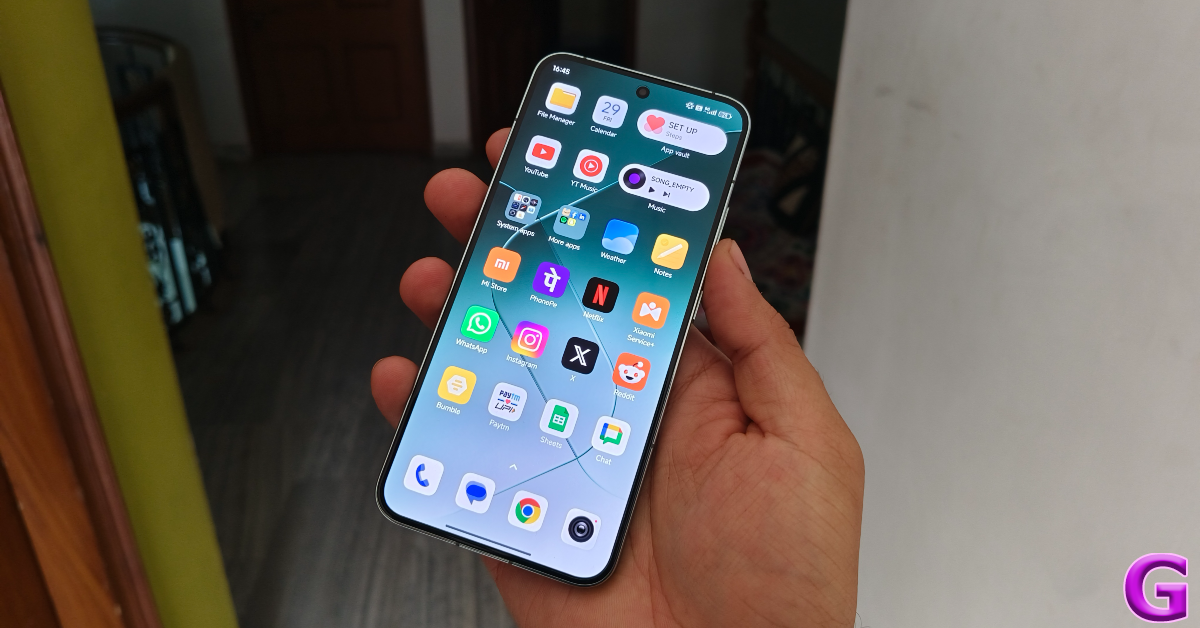
Here is when Xiaomi’s HyperOS rolls out to Poco smartphones and others

Key Highlights
  • Poco has revealed its HyperOS rollout plan for Q2 2024 for its smartphones in India.
  • HyperOS is the company’s latest operating system with a human-centred design intended for linked personal devices like tablets and smartphones currently in use.
  • HyperOS, according to the business Xiaomi, was created for users who are increasingly requesting seamless connectivity and interoperability between their many personal devices.
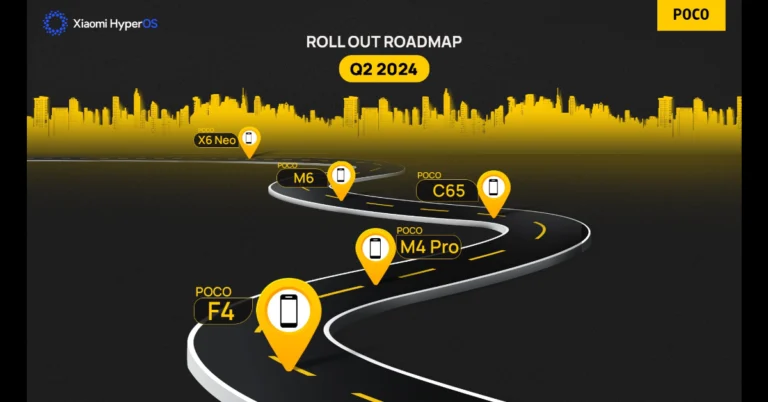
In January, Xiaomi launched the HyperOS for the initial set of compatible devices. Now its spin-off Poco has released the schedule for the second quarter of this year for India. However, most of the Poco phones have already been upgraded with the latest software. Here is the list of Poco phones that will receive HyperOS. Poco India has officially unveiled its HyperOS rollout plan for Q2 2024 for its smartphones in India. The company has confirmed that the HyperOS update has already been released in India for the Poco C55, Poco M5, Poco X5, Poco X5 Pro, Poco X6 Pro, and Poco F5. In March the software update was pushed for more devices including Poco X6, Poco M4 5G, and Poco M6 Pro in the nation. As per the company’s rollout roadmap for Q2 2024, the next batch including Poco F4, Poco M4 Pro, Poco C65, Poco M6, and Poco X6 Neo will be eligible to receive the new HyperOS update. Also Read: Nothing Phone 3 price range in India leaked, the first teaser released Besides this Redmi Note 11 series, Xiaomi Pad 5, Xiaomi 11 series, Redmi 13C series, and more are among the list of smartphones that can get the Xiaomi HyperOS upgrade. Checkout the full list of Xiaomi devices that qualify for the Q2 system update:
  • Xiaomi 11 Ultra
  • Xiaomi 11T Pro
  • Mi 11X
  • Xiaomi 11i HyperCharge
  • Xiaomi 11 Lite
  • Xiaomi 11i
  • Mi 10
  • Xiaomi Pad 5
  • Redmi K501
  • Redmi 13C Series
  • Redmi 12
  • Redmi 11 Prime 5G
  • Redmi Note 11 Series
Also Read: Here is a list of Xiaomi devices that will soon receive the HyperOS upgrade in India It is confirmed that Redmi Note 12 Series, Redmi Note 13 Series, and Xiaomi 12 Pro have already received the HyperOS update in March. Checkout the list below:
  • Redmi Note 12 Pro+ 5G
  • Redmi Note 13 5G
  • Redmi Note 13 Pro 5G
  • Redmi Note 13 Pro+ 5G
  • Xiaomi 12 Pro
  • Redmi Note 12 5G
  • Redmi Note 12 Pro 5G
  • Xiaomi 13 Pro
  • Xiaomi Pad 6
  • Redmi 12 5G
  • Redmi 12C
  • Redmi 11 Prime
  • Redmi Pad

Top 10 secret dial codes for iPhone (2024)

The device settings on your iPhone typically take care of all the major functions like call forwarding and DND, while also containing all the regulatory information about the device. However, there is an easier way to access these settings. By using a secret code, you can enable these functions using the dial pad in the Phone app. Not only that, there are a bunch of tests you can carry out on your device using these codes. So, let’s take a look at the top 10 secret dial codes for iPhones. Read Also: Nothing Phone 3 price range in India leaked, the first teaser released

Field Mode

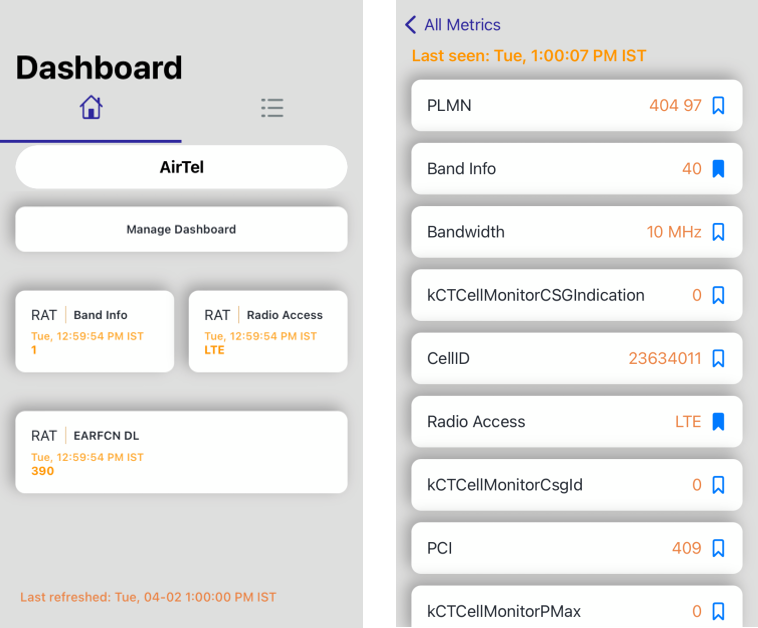
USSD Code: *3001#12345#* Field Mode If you want to know detailed specifications about the network strength in your area, put your phone in ‘Field Mode’ by typing *3001#12345#* in the phone app and hitting the green call icon. Once you are in Field Mode you can conduct a ‘Field Test’ for things like Neighbour Measurements, Serving Cell Info, Serving Cell Measurements, and more.

View the IMEI Number

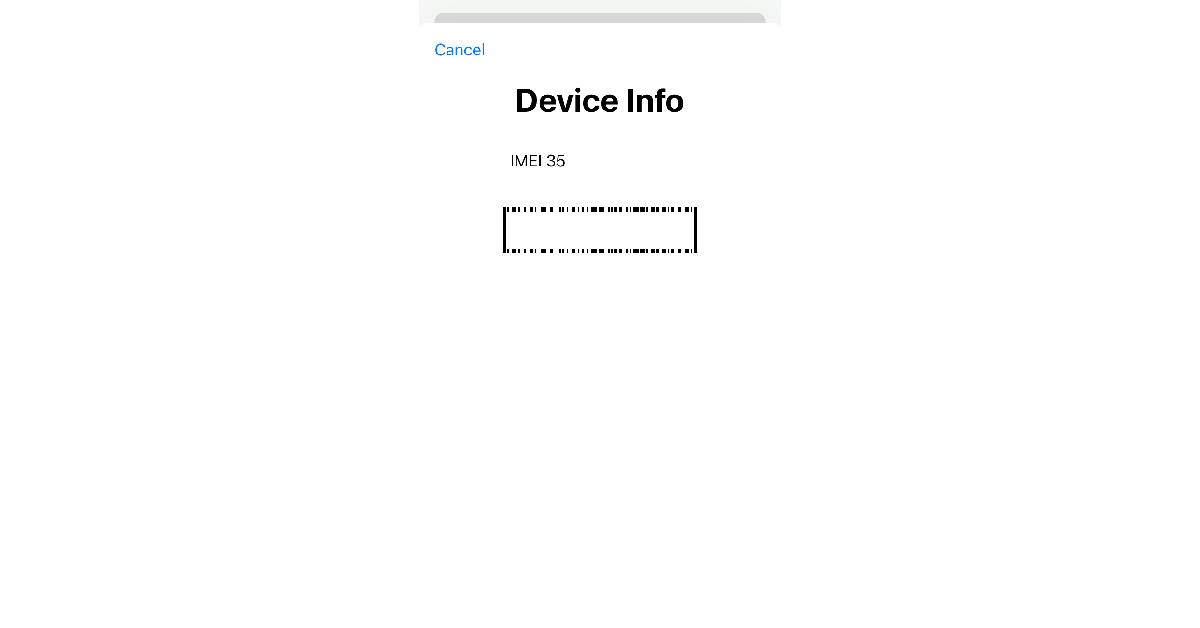
USSD Code: *#06# View the IMEI Number The IMEI Number is a unique 15-digit number that is assigned to your smartphone and helps it connect to the nearby cell tower. There are several ways to find your iPhone’s IMEI number, the easiest of them all being typing the *#06# code in the dialer app. If your iPhone ever gets lost or stolen you can get the police authorities to track it using its IMEI number.

Hide your Caller ID

USSD Code: #313# Want to maintain your anonymity and don’t want to give away your name or phone number while calling someone? Your iPhone allows you to hide your Caller ID. Simply prefix the number you’re calling with #31# and hit the green call button. Even if the call recipient has your number saved in their contacts list, they will not be able to view it on their phone when you call them using this dial code. If you’re in the US, you can use the *67 dial code for this purpose as well.

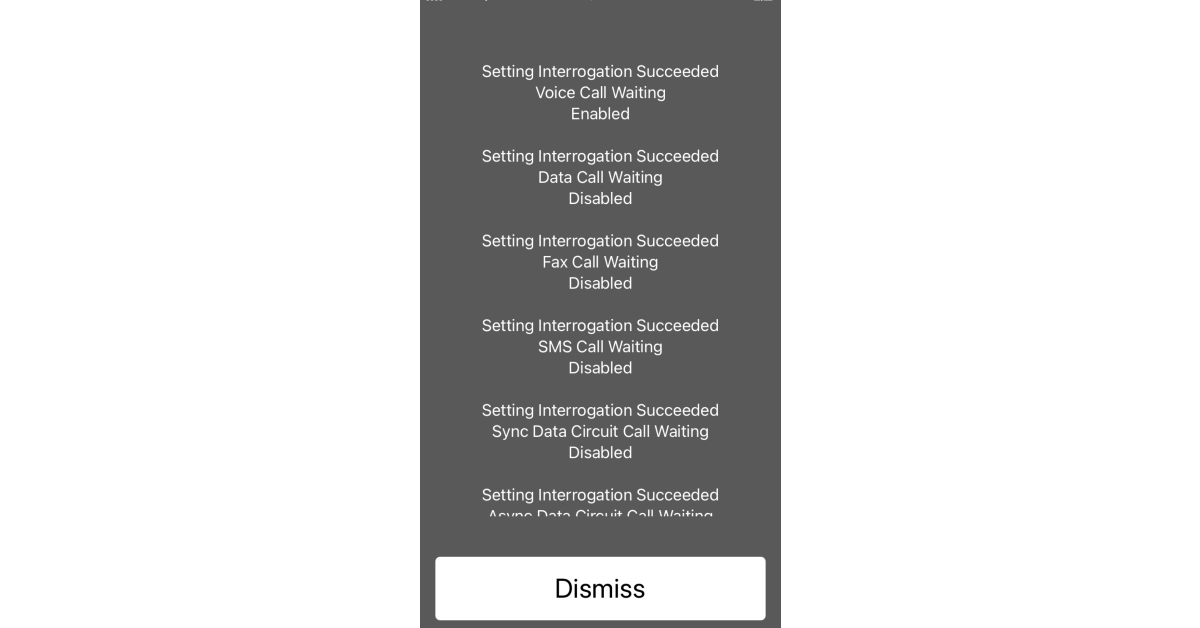
Call Waiting Status

USSD Code: *#43# Call Waiting Status Top 10 secret dial codes for iPhone (2024) This is one of our favourite secret dialer codes for iPhone. If you’re on a call and don’t want any other incoming calls to immediately get cancelled, turn on this feature. Once call waiting is turned on, the caller will be notified that you’re on another call and they will be put on hold. Check if Call Waiting Status is enabled: *#43# Enable Call Waiting Status: *43# Disable Call Waiting Status: #43#

Check Missed Calls

USSD Code: #61# Ordinarily, your iPhone does a good job of reminding you of the calls you missed while you were away or occupied with other tasks. But what about the calls you missed while your iPhone was switched off? Dial #61# for the complete list.

Enhance Call Quality

USSD Code: *3370# If the network coverage in your area is subpar, you can use this dialer code to give the call quality a little boost. Simply go to the Phone app and dial *3370#. When you’re in a low network area, even a slight improvement in call quality can make all the difference.

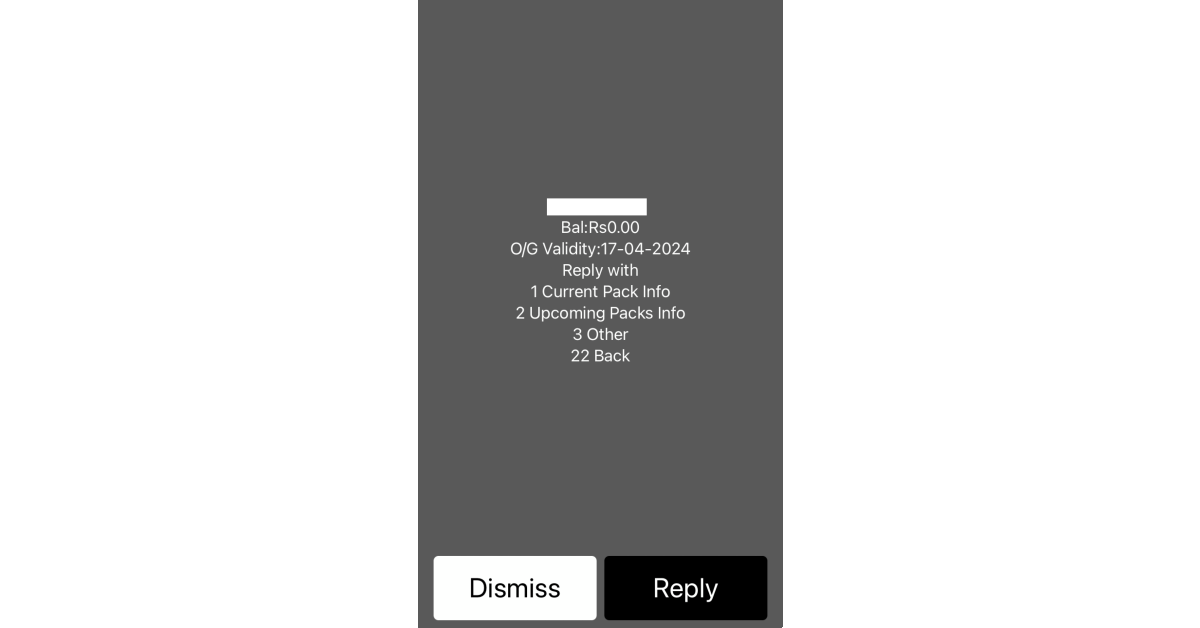
Check phone balance

Check phone balance Top 10 secret dial codes for iPhone (2024) If you don’t have the data to use your network provider’s companion app, use these dialer codes to check your phone balance. Jio Check Talktime: *333# Check Data Balance: *333*1# Airtel Check Talktime: *121*2# Check Data Balance: *123*10# Vi Check Talktime: *199*2*1# Check Data Balance: *199*2*2#

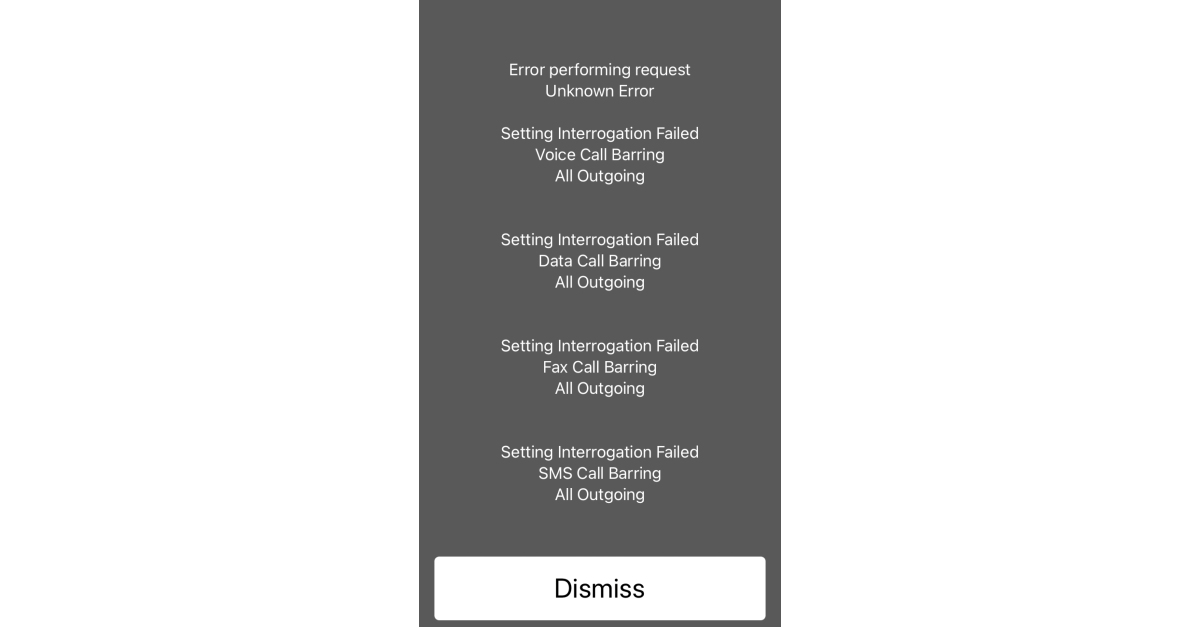
Call Barring

Call Barring Top 10 secret dial codes for iPhone (2024) Turning on Call Barring on your iPhone disables all incoming and outgoing calls on your number. It can only be reversed when you enter the dial code to turn it off. To use this dial code, you will require your 4-digit SIM PIN. The default SIM PIN is 1111. Check your SIM documentation to know more. Check Call Barring status: *#33# Enable Call Barring: *33SIM PIN# Disable Call Barring: #33SIM PIN#

Call Forwarding

USSD Code: *21(Phone number)# Going somewhere you suspect you won’t get ideal network coverage? Just turn on call forwarding using this simple dial code. Once enabled, all your phone calls will be forwarded to your chosen phone number. You can forward your calls to your answering machine as well.

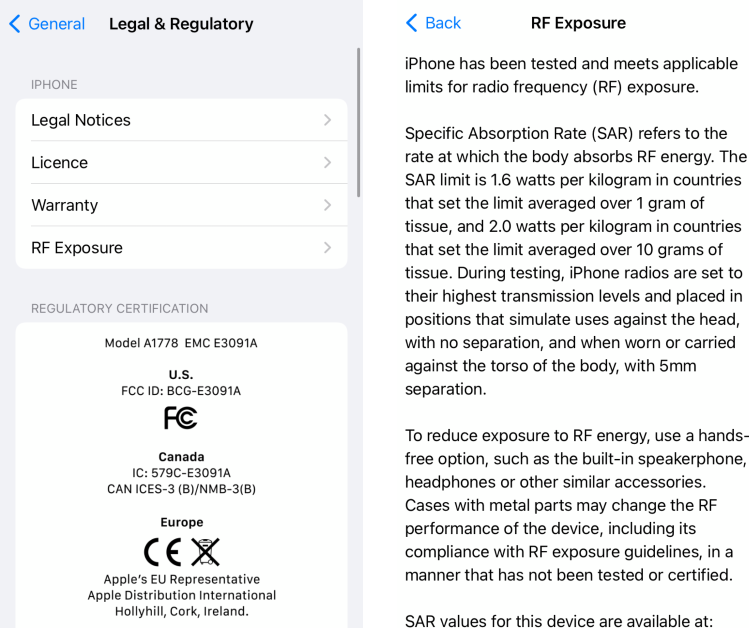
Check Radiation Level

USSD Code: *#07# Check Radiation Level Top 10 secret dial codes for iPhone (2024) Before a new iPhone makes it to production, it is checked for radio frequency (RF) exposure. SAR (Specific Absorption Rate) is the rate at which the human body absorbs RF energy. In India, the SAR 1g limit is set at 1.6W/kg. To check your iPhone’s SAR value, simply dial the *#07# dial code. Read Also: How to type ©, ™, and ® symbols on iPhone, iPad, and Mac (2024)

Conclusion

These are the top 10 secret dial codes for your iPhone that you must take advantage of. If there’s a dial code that you use frequently and think deserves to be on this list, give it a shoutout in the comments! If you own a Samsung smartphone, check out this article for all the major secret codes you can use on your device.

Nothing Phone 3 price range in India leaked, the first teaser released

Key Highlights
  • Nothing Phone 3 India price range and chipset detail tipped ahead of the launch.
  • The device is expected to launch in July.
  • The company has also teased a leaping frog teaser to indicate an upcoming phone.
The debut of the Nothing Phone 3 could happen soon. The phone is expected to be released in July 2023 as a replacement for the Nothing Phone 2. Although the company has said nothing about its upcoming phone, details related to the Nothing Phone 3 price range in India and processor have surfaced on the web. Recently the company also shared a teaser which sparked discussions about Phone 3. The Nothing Phone 3 features and design details are unknown to us, but a recent report has revealed some information regarding its CPU and price range in India. According to a report that cites industry sources Qualcomm’s latest Snapdragon 8s Gen 3 SoC is expected to power the Nothing Phone 3. Apart from the details regarding CPU, the report further indicates that the Nothing Phone 3 will probably cost between Rs 40,000 and Rs 45,000 in India. As per the report, the firm intends to build its user base within the price range of Rs 20,000 to Rs 40,000 and does not currently have any intentions to join the premium segment which is said to be one of the reasons behind Nothing’s decision to forego using a more advanced chipset. Nothing Phone 3 price range in India leaked, the first teaser released Although the Nothing Phone 3 launch date has not yet been formally announced, it is most likely planned for July given the company’s launch schedule. Recently, Nothing shared a teaser on its social media account, X which triggered talks on the release of the upcoming phone. A leaping frog is seen in the short video which is believed to be the face of its mascot for Nothing Phone 3. Note that Nothing has used an octopus, a parrot and a bug as their mascots to tease their products like Nothing Phone 1, Nothing Phone 2 and audio devices. Also Read: OnePlus Nord CE 4 with Aqua Touch technology launched in India

Nothing Phone 2 specifications

Nothing Phone 2 features a 6.7-inch Full-HD+ resolution of 2412 x 1080 pixels, a 120Hz adaptive refresh rate, and a 240Hz touch sampling rate are all features of its LTPO OLED display. The screen comes with SGS Low Blue Light and HDR10+ certifications. The device runs on Nothing OS 2.0, based on Android 13. The company would offer 4 years of security upgrades in addition to 3 years of Android updates. It is powered by a Qualcomm Snapdragon 8+ Gen 1 SoC. Also Read: Motorola Edge 50 Pro price leaked in Europe ahead of India launch For taking photos and videos Phone 2 features a dual rear camera setup consisting of a 1/1.56-inch 50-megapixel primary Sony IMX890 sensor ( f/1.88 aperture) with optical image stabilisation (OIS) and EIS support and a 1/2.76-inch 50-megapixel Samsung ISOCELL JN1 sensor with an ultra-wide lens (114-degree FoV and f/2.2 aperture). Upfront there is a 1/2.74-inch Sony IMX615 32-megapixel sensor (f/2.45 aperture) for taking selfies and video calling. The device boasts a 4,700mAh battery with support for both 15W Qi wireless charging and 45W PPS wired fast charging.

Garena Free Fire Redeem Codes Today 2 April 2024: Here is how to claim them

Garena Free Fire is a battle royale game with regular awards and tournaments to keep players interested. If you play Garena Free Fire, you should be aware of the redeem codes that are released on a daily basis. However, because the battle royale game is banned in India, players from other countries can use the Free Fire Redeem codes daily. If you’re unfamiliar with the Garena Free Fire redeem codes or don’t know how to get them, we’ve put together a step-by-step guide to help you redeem them. Check out Garena Free Fire Redeem Codes for 2 April 2024. The Free Fire redeem codes are a great way to get free stuff. These are 12-digit codes that contain alphabets and numbers, as well as an expiration date and time. Because the Garena FF redeem codes cannot be used more than once, you should hurry to the redemption page to claim your free reward before someone else does. To get a free reward, all you have to do is go to reward.ff.garena.com/en, which is the official redemption page. Also, keep an eye on this space for daily updates on Garena Free Fire redemption codes and rewards. Also Read: Sennheiser Accentum Plus wireless headphones with Hybrid Adaptive Noise Cancellation launched

Garena Free Fire Redeem Codes Today 2 April 2024

A1N6Z44L8R2G7XKH 3Q7B52W2P9R4Y8JF E2H7N4C8X5RF1KZM M9W3J5RD7G1K6ZFD B1C8G5J9K3W4Q6XF T2G7Q4R8X5J9K1C3 9H4D7R2J5Y6QB8ZK N1R8J3F6Z5W74Y2L C9Q4W2D8X7F5JY3P Q9B3X6F8Y44Z1CLP Q2Z8X4N7R1K5HCJW G5P2J7R4F8C3Q76K

How to Get Free Fire Redeem Codes for Garena on 2 April 2024?

  • Visit the Garena Free Fire game’s official website at reward.ff.garena.com.
  • Use your Facebook, Google, VK, Apple ID, Huawei ID, or Twitter account to log in.
  • You’ll be taken to a valid redemption code (s)
  • Copy and paste the 12-digit redemption code into the text box.
  • On the screen, a dialogue box will appear.
  • ‘Ok’ should be selected.
For the latest gadget and tech news, and gadget reviews, follow us on TwitterFacebook and Instagram. For newest tech & gadget videos subscribe to our YouTube Channel. You can also stay up to date using the Gadget Bridge Android App. You can find the latest car and bike news here.

How to type ©, ™, and ® symbols on iPhone, iPad, and Mac (2024)

0
Typing special characters and symbols on your iPhone, iPad, or Mac isn’t as tricky as it seems. Most keyboards, onscreen or otherwise, are equipped with dedicated keys or shortcuts for major symbols and characters. If they’re not, you can always copy and paste those symbols from the Internet. Today, we show you how to type the ©, ™, and ® symbols on iPhone, iPad, and Mac. Read Also: How to change your Safari Homepage on Mac, iPhone and iPad (2024)

Does the iPhone keyboard support all special characters?

To access the special character library on your iPhone and iPad, you need to hit the ‘123’ on the onscreen keyboard. This will display the numbers on the top row, followed by the most used characters like the question mark, period, forward slash, colon, and more. To access more signs, you need to hit the ‘#+=’ key on the left. This reveals symbols like the asterisk, dollar sign, exponential sign, and more. Strangely enough, the ©, ™, and ® symbols are missing from this list. You can either use a third-party keyboard app to access those symbols or use the trick we have mentioned later in this article. If you are a Mac user, you will have no trouble typing these characters on the screen.

How to type ©, ™, and ® symbols on Mac

Where is the Alt key in a Mac keyboard and what is it called? Use these keyboard shortcuts to type the ©, ™, and ® on your Mac.
  • Option + G: Copyright symbol
  • Option + 2: Trademark symbol
  • Option + R: Registered symbol

How to find shortcuts on your Mac keyboard

MacBook Air If you want to type a particular symbol but don’t know its keyboard shortcut for Mac, follow these steps. Step 1: On your Mac, go to System Preferences and select Keyboard. Step 2: Hit Input Sources. Step 3: Select the input source from the sidebar. Step 4: Press the Option key. This will reveal the symbols mapped as shortcuts on the keyboard. Find the symbol you want to type and observe the key that it is mapped on. Pressing that key along with the Option button will produce that symbol on the screen. Step 5: Similarly, press Option + Shift to view the keyboard shortcuts associated with them.

How to type ©, ™, and ® symbols on iPhone and iPad

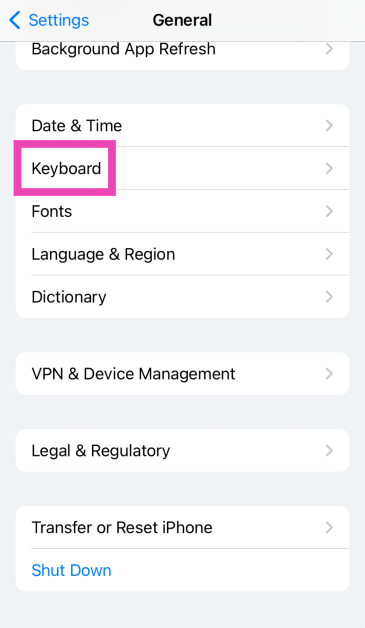
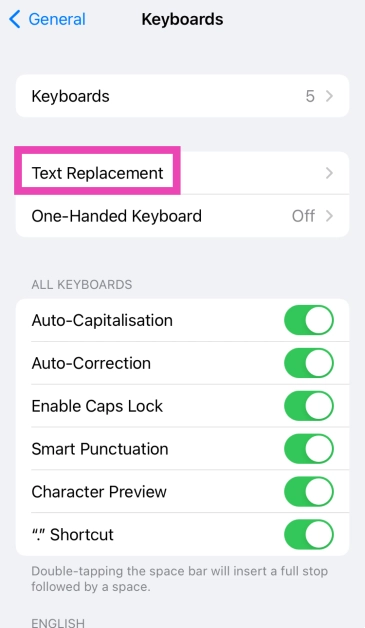
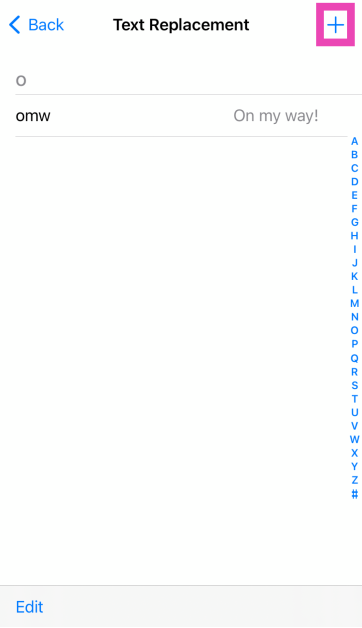
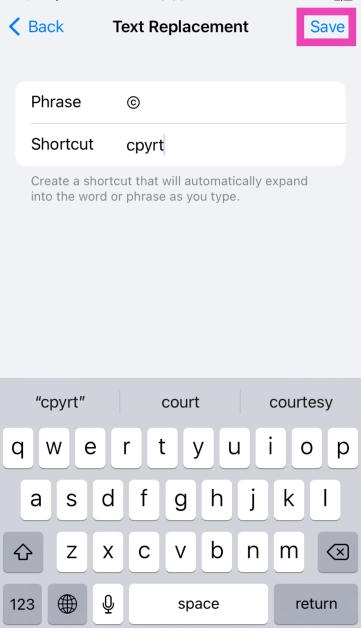
The copyright, trademark, and registered symbols are missing from the iPhone and iPad. However, you can use text replacement to use them on the onscreen keyboard. Step 1: Go to Settings and select General. Step 1: Go to Settings and select General. Step 2: Tap on Keyboard. How to type ©, ™, and ® symbols on iPhone, iPad, and Mac (2024) Step 3: Select Text Replacement. How to type ©, ™, and ® symbols on iPhone, iPad, and Mac (2024) Step 4: Hit the plus sign at the top right corner of the screen. How to type ©, ™, and ® symbols on iPhone, iPad, and Mac (2024) Step 5: Copy the © from a Google search and paste it into the Phrase field. How to type ©, ™, and ® symbols on iPhone, iPad, and Mac (2024) Step 6: In the Shortcut tab, enter the trigger word for the symbol. Make sure this is not a commonly used word. For example, to trigger © you can use the word ‘cpyrt’. Step 7: Repeat this process for trademark and registered symbols.

Frequently Asked Questions (FAQs)

How do I type the copyright symbol on an iPhone?

The native iPhone keyboard does not have the copyright symbol. You can use text replacement to insert that symbol upon typing a specific word of your choice. You can also use a third-party app like Gboard or Swiftkey.

What is the keyboard shortcut for the copyright symbol on Mac?

Press the Option key along with ‘G’ to type the copyright symbol on your Mac.

How do I find the list of keyboard shortcuts for special symbols on my Mac?

Go to System Preferences>Keyboard>Input Sources and hit the Option key to view the symbols you can trigger using it. Similarly, press Option + Shift for the relevant combinations. Read Also: Top 10 Free Image Hosting Websites (2024)

Conclusion

This is how you can type the ©, ™, and ® symbols on iPhone, iPad, and Mac. Since the native keyboard app on iOS does not have any dedicated shortcuts for these symbols, you can use third-party keyboard apps like Swiftkey and Gboard for this task. If you know any other way, do tell us in the comments!

How to change your Safari Homepage on Mac, iPhone and iPad (2024)

0
The ‘homepage’ on your web browser is the page it loads whenever you launch it on your device. You can set your homepage to your favourite website or something more functional like a search engine or a news website. The possibilities are endless. If you want to save your internet data, you can choose not to have a homepage at all. Here’s how you can change your Safari homepage on Mac, iPhone, and iPad. Read Also: OnePlus Nord CE 4 with Aqua Touch technology launched in India

Can you change the homepage on Safari?

Like all web browsers, Safari also lets you set any website as your homepage. But there’s one catch. You can only do this on your Mac. Safari for iOS and iPadOS has no option to set a preferred homepage. However, to make your most visited websites more accessible, you can add them to your iPhone’s home screen. Once you do that, they will appear as app icons on the home screen. Tapping on them will redirect you to their respective web pages in Safari. Mac users can not only set a homepage, but they can also choose whether the homepage loads by default every time they open a new tab or window. Like the iPhone, your Mac also allows you to make a desktop for any website. You can do this simply by dragging the URL and dropping it on the desktop. This is a great trick for creating app-like icons for apps that are not available on Mac (like Netflix and Google Calendar).

Change Safari homepage on Mac

How to use your iPad as a second monitor or display? Top 3 Ways Step 1: Open Safari on your Mac. Step 2: On the top menu, click on Safari and select Preferences. Step 3: Switch to the General tab. Step 4: In the ‘Homepage’ field, enter the URL of the website you want to set as Safari’s homepage. Step 5: You can also set the new tabs and windows to open with the homepage. Step 6: Relaunch the browser to view the homepage.

Change the Safari homepage on an iPhone or iPad

Since Safari for iOS does not allow setting a default homepage, you can do the next best thing and add a web shortcut to your iPhone/iPad’s home screen. Here’s how. Step 1: Launch the Safari web browser on your iPhone. Step 2: Open the website you want to set as the home page. Step 3: Hit the Share icon at the bottom of the screen. Step 3: Hit the Share icon at the bottom of the screen. How to change your Safari Homepage on Mac, iPhone and iPad (2024) Step 4: Tap on Add to Home Screen. Step 4: Tap on Add to Home Screen. How to change your Safari Homepage on Mac, iPhone and iPad (2024) Step 5: Give it a name and hit Add at the top right corner of the screen. Step 5: Give it a name and hit Add at the top right corner of the screen. How to change your Safari Homepage on Mac, iPhone and iPad (2024) Whenever you wish to open Safari to that page, hit its icon on your iPhone home screen.

Frequently Asked Questions (FAQs)

Can the Safari browser on my iPhone have a home page?

No, you cannot set up a default homepage for Safari on your iPhone or iPad. Instead, you can add a web shortcut to your iPhone’s home screen.

How do I add a web shortcut to my iPhone’s home screen?

To add a web shortcut to your iPhone’s home screen, open the website in Safari, hit the share icon at the bottom, select ‘Add to Home Screen’, and hit ‘Add’.

How do I set up a Safari homepage on my Mac?

Open Safari, then go to Safari>Preferences and enter the URL of the website next to ‘Homepage’. Read Also: Motorola Edge 50 Pro price leaked in Europe ahead of India launch

Conclusion

This is how you can change your Safari homepage on a Mac, iPhone, or iPad. If you know any other way to go about this task, let us know in the comments! While you’re here, check out these 4 ways to update Safari on your iPhone and Mac.

OnePlus Nord CE 4 with Aqua Touch technology launched in India

Key Highlights
  • OnePlus Nord CE 4 today officially launched in India.
  • The smartphone is powered by Snapdragon 7 Gen 3 SOC.
  • It comes with a massive battery and fast charging.
  • Customers who pre-book will also receive a pair of OnePlus Nord Buds 2r at no additional cost.
OnePlus Nord CE 4 officially launched in India today as a successor to the Nord CE 3. The newly launched device has received some notable upgrades as it comes with Android 14 out of the box. It also promises faster charging as its huge 5,500mAh battery supports 100W fast charging. Under the hood, there is a Snapdragon 7 Gen 3 engine. Also, there is a dual camera setup that includes a 50-megapixel primary sensor.

OnePlus Nord CE 4 price in India and sale details

OnePlus Nord CE 4 has launched in India in two variants:
  • 8GB RAM with 128GB storage at Rs 24,999
  • 8GB RAM with 256GB storage at Rs 26,999
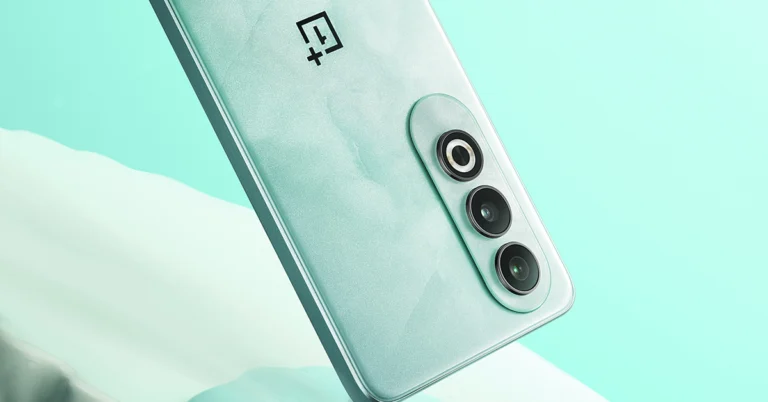
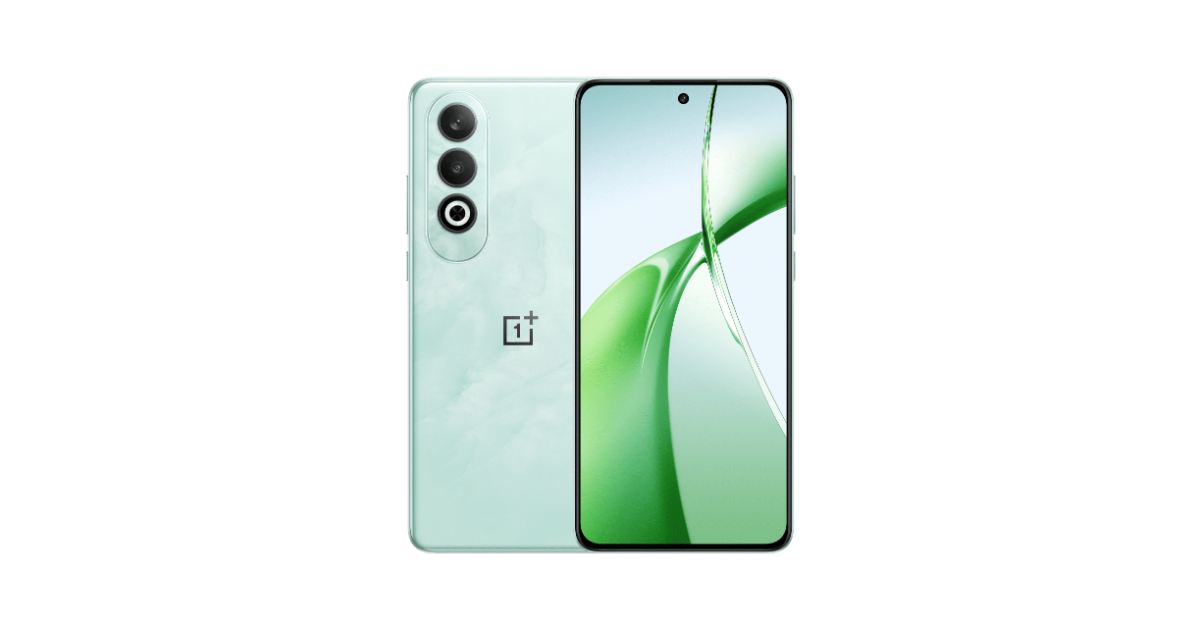
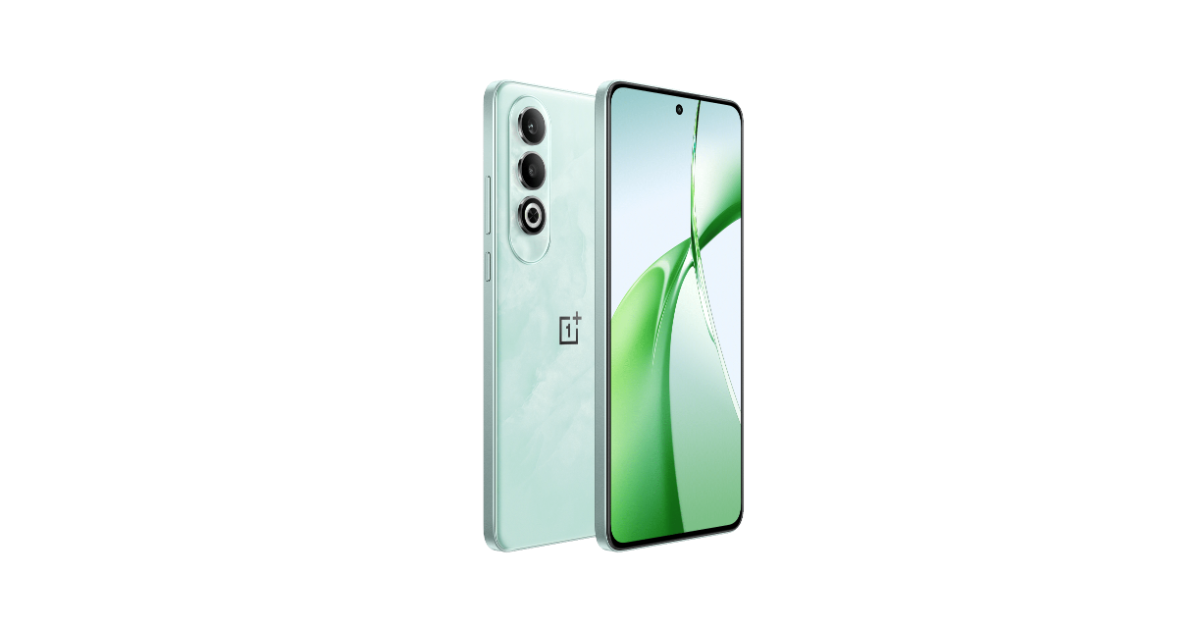
The phone will be available in two colour options: Dark Chrome and Celadon Marble. OnePlus Nord CE 4 price in India and sale details In terms of availability, the smartphone will go on sale on April 4 at noon via oneplus.in, OnePlus Store App, OnePlus offline stores, OnePlus Store App, Amazon.in, Reliance Digital, Croma & other offline partner brands. Customers can pre-book the OnePlus Nord CE 4 at INR 999 from 1st April to 3rd April at the OnePlus Experience stores. Customers who pre-book will also receive a pair of OnePlus Nord Buds 2R at no additional cost. Also Read: Samsung Galaxy S23 Ultra now available for as low as Rs 89,999 in India

OnePlus Nord CE 4 design and specifications

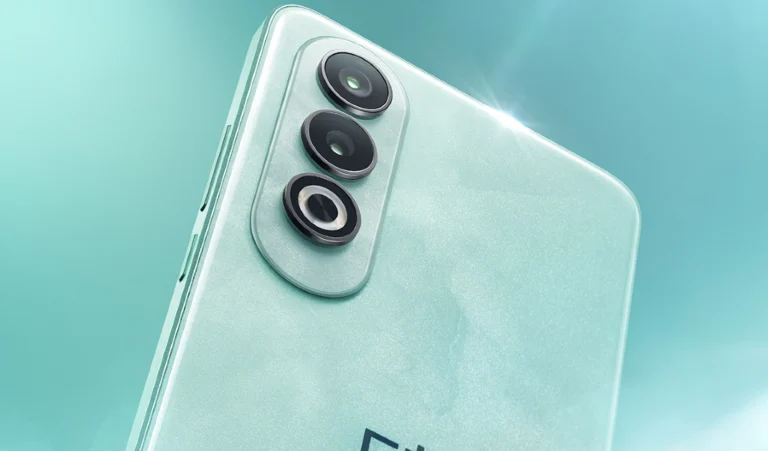
The OnePlus Nord CE 4 flaunts a marble-like finish making the Celadon Marble shade stand out. The Dark Chrome colour option has a glossy finish. It has a dual rear camera setup positioned vertically and an LED flash on the left side of the back panel. Upfront the display features a selfie camera cutout at the top centre. The display has smaller bezels. The device has flat edges and boasts a boxy design with rounded edges. The handset is IP54-rated. It comes with dual stereo speakers, and hi-res audio certification for both wired and wireless headphones. OnePlus Nord CE 4 design and specifications Coming to the specifications, the OnePlus Nord CE 4 sports a 6.7-inch FHD+ AMOLED display with 2412 × 1080 pixels of resolution. The screen comes with 2160Hz PWM dimming technology that includes Aqua Touch technology that better detects touches in wet conditions just like the OnePlus 12, and ProXDR technology to make images pop. The panel supports a 120Hz refresh rate and a 240Hz touch sampling rate. The handset is powered by the Qualcomm Snapdragon 7 Gen 3 chipset with 8GB of LPDDR4x RAM (supports 8GB of virtual RAM)and up to 256GB of UFS3.1 storage. There is a dedicated slot for a microSD card to expand the storage up to 1TB. The OnePlus phone operates on Android 14-based OxygenOS 14 out of the box.
For photography and videography, there is a dual rear camera setup on the OnePlus Nord CE 4 that contains a 50-megapixel Sony LYT600 primary sensor with Optical Image Stabilisation and an 8-megapixel Sony IMX355 ultra-wide camera. In addition to this, there is a 16-megapixel front-facing camera for taking selfies. Also Read: Motorola Edge 50 Pro price leaked in Europe ahead of India launch The 5,500mAh battery on the smartphone supports 100W SUPERVOOC charging and can go from 1-100% in 29 minutes. Plus, thanks to Battery Health Engine the battery stays strong after four years of battery charging cycles. It also keeps its battery healthy, including slowing down its charging speed overnight to ensure it’ll only hit 100% when you need it to.

Motorola Edge 50 Pro price leaked in Europe ahead of India launch

Key Highlights
  • The Motorola Edge 50 Pro European price has leaked on the web.
  • The device has been spotted on an Italian website.
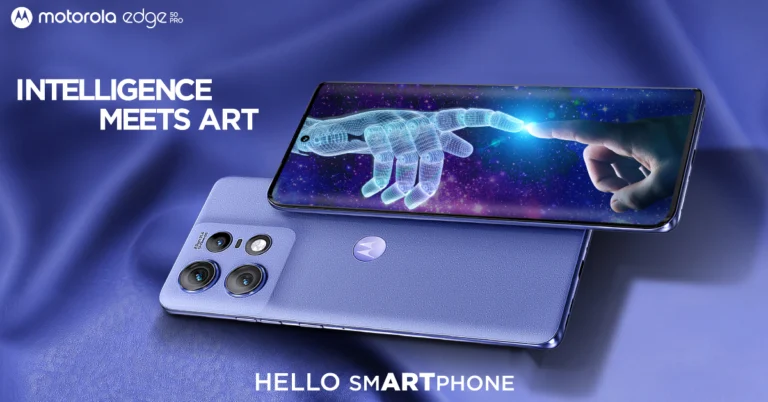
Motorola Edge 50 Pro is all set to make its debut in the Indian market on April 3. Just ahead of the official launch, the European price of the upcoming phone has surfaced on the web. The company has been hinting at the key features of the next phone before the formal reveal. To provide clues to its availability, the device has also been posted on the domestic e-commerce platform Flipkart. The Motorola Edge 50 Pro got noticed by tipster Paras Guglani on an Italian retail site. He took to Twitter now known as X to share some screenshots suggesting the price of Motorola Edge 50 Pro. As per the snapshots, the device with 12GB RAM and 512GB storage will cost EUR 864, or around Rs 77,000. Before this, the tipster stated that the identical RAM and storage model would cost Rs 44,999 for the Indian version.

Motorola Edge 50 Pro specification and availability details

It is known that the Edge 50 Pro is powered by the Snapdragon 7 Gen 3 SoC. The device will feature a 6.67-inch 1.5K curved pOLED display that can support a peak brightness of 2,000 and a refresh rate of 144 Hz. The panel has a 100% DCI-P3 colour gamut, HDR10+, and blue light protection verified by SGS. An in-display fingerprint sensor will be included on the phone for authentication. Also Read: Samsung Galaxy S23 Ultra now available for as low as Rs 89,999 in India There are rumours that the smartphone has 12GB of RAM. It is said to be powered by a 4,500mAh battery that allows for both 50W wireless and 125W wired quick charging. Additionally, Motorola says that the camera and display of the Edge 50 Pro have received Pantone validation. It is confirmed to contain an AI-supported 50-megapixel 2μm primary sensor, an ultra-wide camera with 50x hybrid zoom, and a 10-megapixel telephoto sensor with an LED flash unit. Also Read: WhatsApp new bottom navigation bar is now available for Android users, Lock chats are to be extended to linked devices as well As we mentioned earlier the Moto phone has been listed on Flipkart to tease the availability. The Flipkart listing and Motorola teasers have revealed some of the features that the Edge 50 Pro would offer. At least three colour options—black, purple, and a third with a cream and grey pattern—will be available for the Edge 50 Pro.

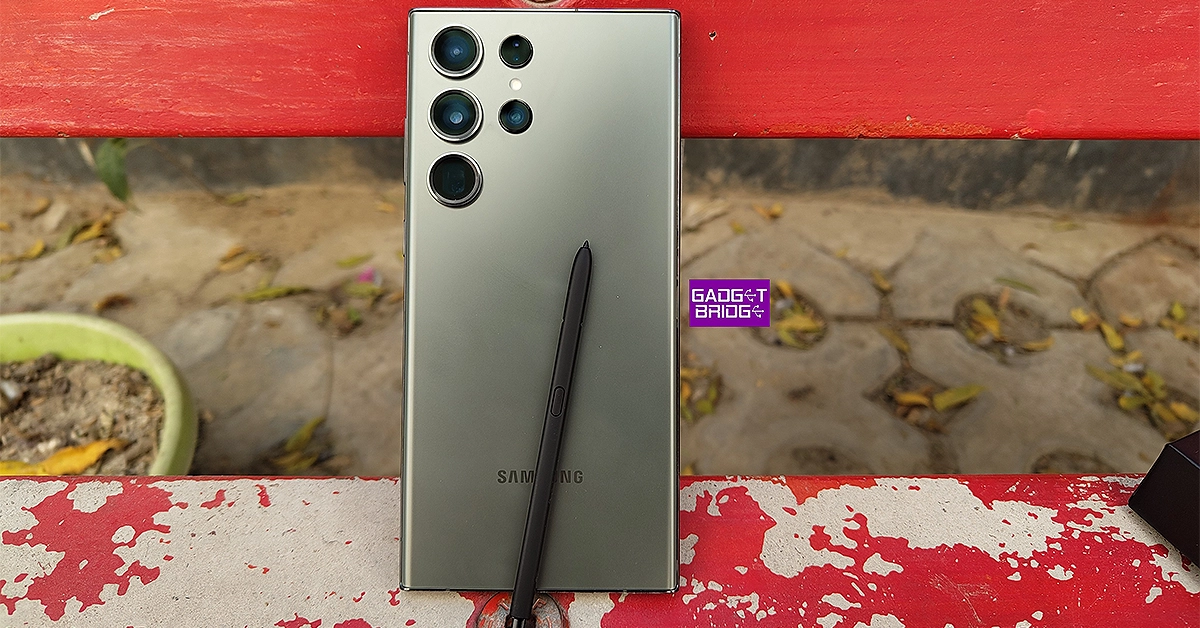
Samsung Galaxy S23 Ultra now available for as low as Rs 89,999 in India

Samsung Galaxy S23 Ultra is now seeing a significant price drop thanks to Flipkart. The e-commerce is offering massive discounts and offers on the king of Android smartphones. Check out the best deals on the smartphone.

Samsung Galaxy S23 Ultra price and bank offers on Flipkart

Samsung Galaxy S23 Ultra was launched in India at a price tag of Rs 1,24,999 for the 12GB RAM with 256GB model. After a major price reduction, the handset is now selling at Rs 89,999 on Flipkart. The platform is offering an amazing Rs 35,000 reduction.  Besides this, additional bank discounts are being offered that may further bring down the cost. There will be savings of between Rs 1,500 and Rs 5,000 by using specific credit cards from Axis Bank, HSBC, or ICICI.  Samsung Galaxy S24 Series to come with AI features, trademark applications filed for ‘AI Phone' and ‘AI Smartphone'

Samsung Galaxy S23 Ultra price and bank offers on the Samsung India website

On the other hand, if you prefer to purchase the Samsung Galaxy S23 Ultra through the Samsung online store then the company is offering the device at an effective price of just Rs 99999, which includes a HDFC Bank cashback of Rs 5000 and an additional upgrade bonus of Rs 5000. Galaxy S23 is available at an effective price of Rs 55999 with Rs 5000 HDFC Bank cashback and an additional upgrade bonus of Rs 4000. In the same way, Galaxy S23 FE is now available at only Rs 44999 after an HDFC Bank cashback of Rs 5000 and an additional upgrade bonus of Rs 5000. Also Read: WhatsApp new bottom navigation bar is now available for Android users, Lock chats are to be extended to linked devices as well The Galaxy Z Fold5 is offered at an effective price of Rs 138999, which also includes an extra Rs 9000 in upgrade bonus and Rs 7000 in cashback from HDFC Bank. With an upgrade bonus of Rs 7000 and an HDFC bank cashback of Rs 7000, the Galaxy Flip5 can now be owned at an effective price of Rs 85999. Whereas, the Galaxy Tab S9 series can be purchased at an effective starting price of Rs 60999, which includes an HDFC Bank Cashback of Rs 9000 and an additional upgrade bonus of Rs 3000. Also Read: Flipkart offering up to Rs 10,000 discount on iPhone 15 Pro Samsung is also providing no-cost EMIs for up to 24 months for as little as Rs 2292 a month with Samsung Finance+ and all of the top NBFC partners.

Top 10 Free Image Hosting Websites (2024)

If you frequent online forums and message boards a lot, you may have noticed that not all of them let users upload images from their devices. To get around this issue, most users seek the help of image-hosting websites. You may have encountered websites like Imgur, ImageShack, and others that serve this purpose. Apart from sharing images online, these websites can also be used to send images to people who don’t typically use instant messengers like WhatsApp. So, without further ado, here are the top 10 free image-hosting websites on the Internet right now. Read Also: WhatsApp new bottom navigation bar is now available for Android users, Lock chats are to be extended to linked devices as well

Imgur

Imgur Pronounced ‘Imager’, Imgur is one of the most popular image-hosting websites on the Internet. If you frequently browse Reddit, you will be aware of how crucial Imgur is for sharing images and gifs. But that’s not all. Over the years, the image-hosting platform has evolved to foster a community of its own, which people frequent to view and discuss new topics. To make things easier, you don’t need an Imgur account to upload or view a picture. However, if you want to leave a comment, you will need one. Currently, Imgur boasts more than 250 million monthly users and billions of post views every month.

500px

500px If you’re looking for an image-hosting website to showcase your work, 500px should rank highly in your list of options. Designed for photographers, 500px lets you build an online portfolio of photographs and socialise with other photography enthusiasts. You can also participate in photo challenges on 500px to win exciting prizes. If you want to earn royalties on your pictures, you can choose to license them exclusively with 500px. Paid members earn 100% royalties but the number is limited to 60% for free members.

ImgBox

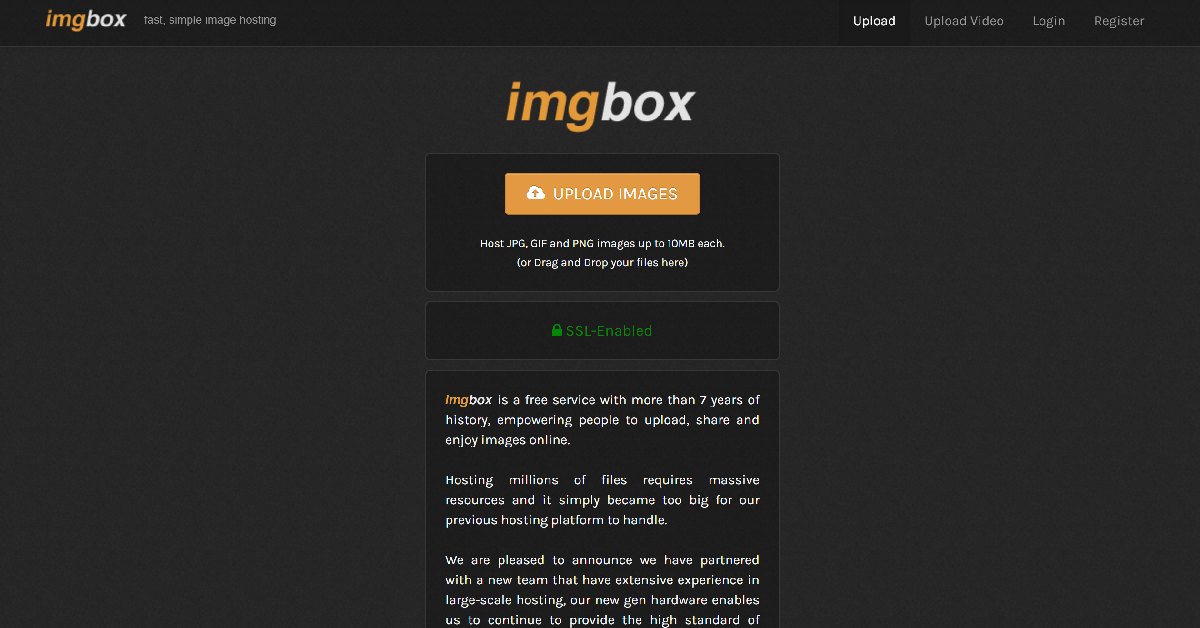
ImgBox Simple, fast, and easy to use, ImgBox is the perfect image-hosting and sharing website. Its basic interface makes it easy for every user to upload an image and share it with their friends. ImgBox supports three image formats (JPG, GIF, and PNG) and has a size limit of 10MB per image. Once an image has been uploaded, you can share its link with anyone you like. Unlike Imgur, ImgBox does not have a comments section for images nor does it curate content for its community.

ImageBam

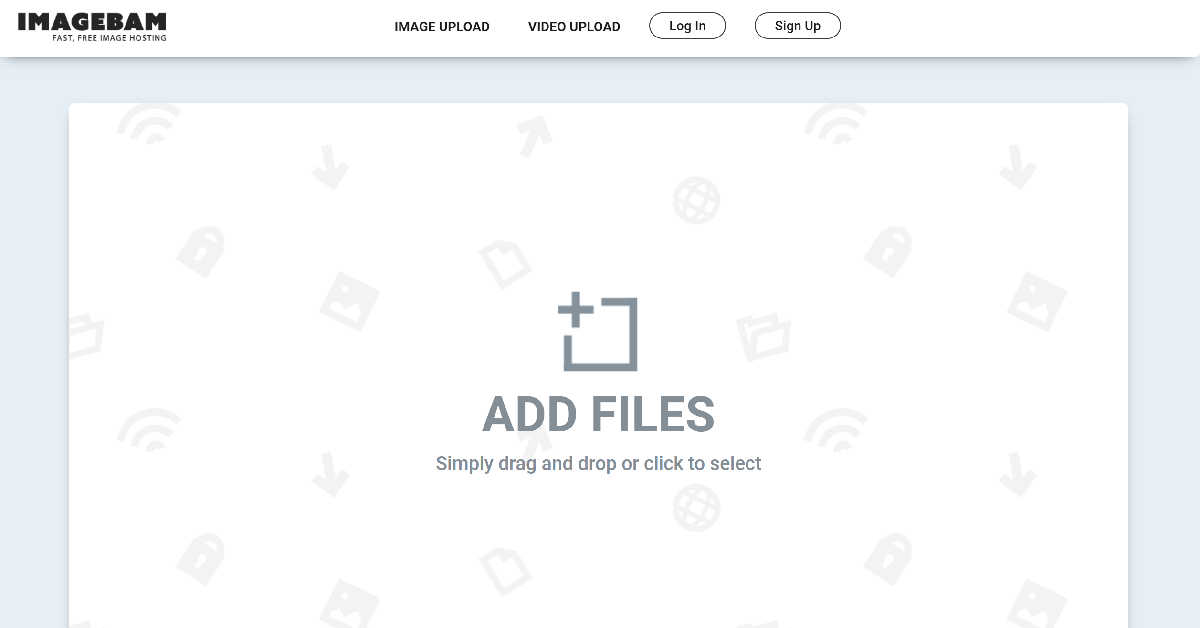
ImageBam Like ImgBox, ImageBam has a very simple interface that focuses on the functional aspect of the website and cuts out the bells and whistles. You can drag and drop your images in the upload box or browse your PC’s storage from the website to look for the images you want to host. The size limit per image is 10MB and you can upload multiple images at once. You don’t need to create an account on ImageBam to upload or view images.

Google Photos

Google Photos Every Android user must be familiar with Google Photos. It is the default gallery app on stock Android devices and comes bundled with every smartphone. If you don’t use a stock Android device, you can find it inside the Google folder on your phone. Google Photos is not just a gallery app. It lets you sync images across all your devices and even lets you share pictures and albums with other users. Of course, they will need a Google Account to view the images.

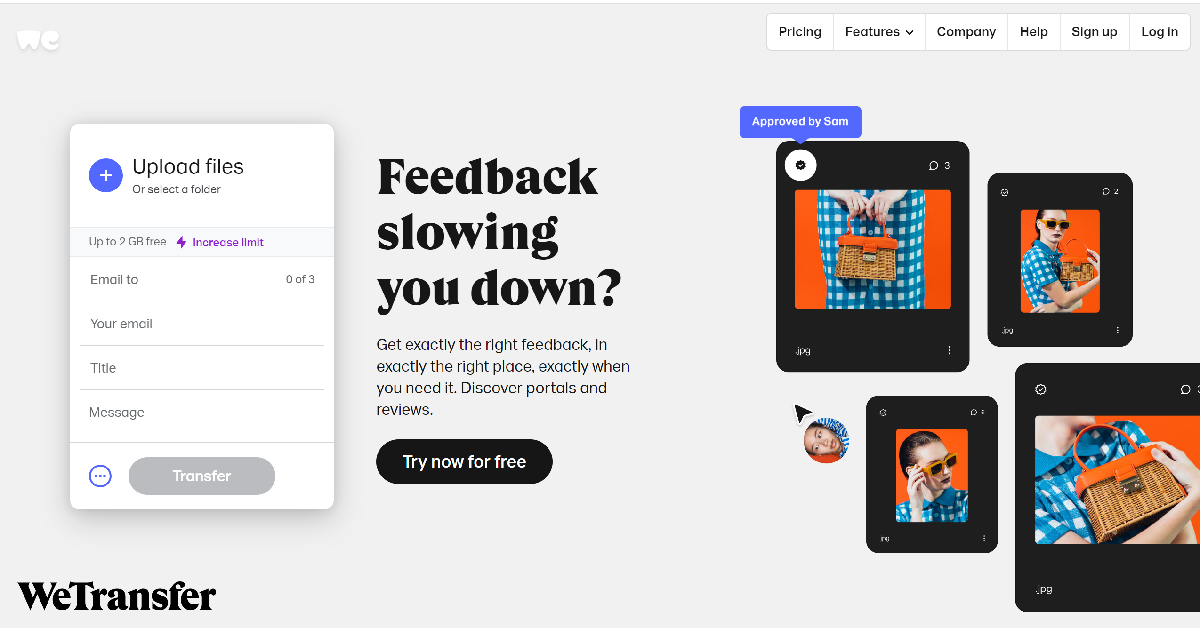
WeTransfer

WeTransfer Top 10 Best Free Image Hosting Websites (2024) If you want to share a bunch of HD images and the 10MB size limit is not cutting it for you, you should try WeTransfer. This file-sharing service has a 2GB storage limit, which is more than enough for sharing a batch of HD images. You can also use WeTransfer to share videos with your friends. Upgrading to a Premium subscription removes the storage limit, allowing you to share files without any restrictions. To enhance your privacy you can password-protect the files you share on WeTransfer.

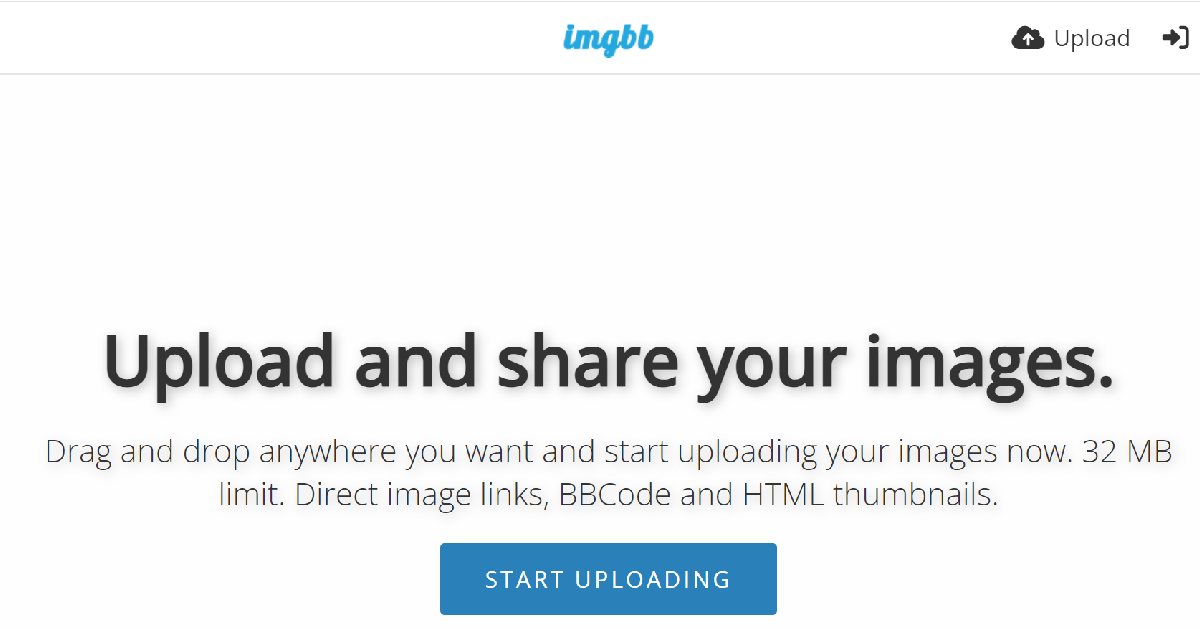
ImgBB

ImgBB Top 10 Best Free Image Hosting Websites (2024) ImgBB is a free image-hosting website in the mould of ImgBox and ImageBam but with one crucial difference. Instead of 10MB, you can share images up to 32MB in size on ImgBB. This little extra storage can come in extremely handy while sharing HD images. To make things easier, you don’t need an account to upload or share images using ImgBB. The premium subscription to this service costs $12.99 per month if you want to extend the storage limit to 64MB and get rid of all the ads.

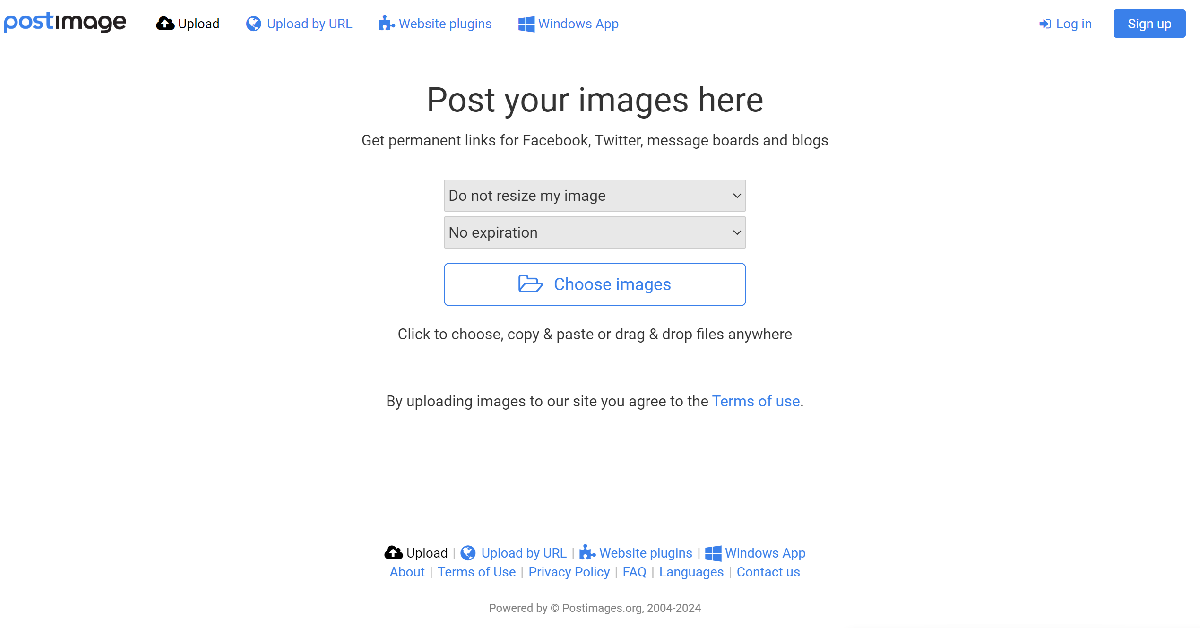
Postimages

Postimages Top 10 Best Free Image Hosting Websites (2024) Postimages gives you the option to resize your image for different purposes while uploading it. You can also set an expiration date for the image, after which it will self-destruct. It also has a website plugin tool that quickly attaches images to your posts, making it ideal for message boards and online forums. The website’s layout is very easy to follow. You can generate a shareable link for your image within seconds.

FreeImage.host

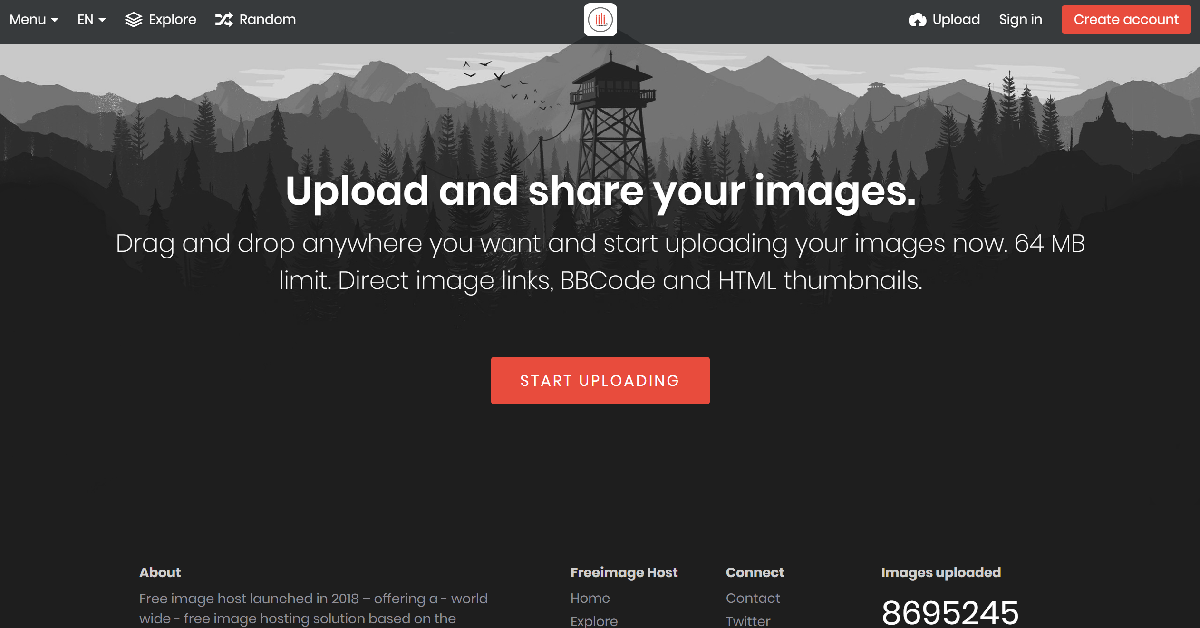
FreeImage.host Top 10 Best Free Image Hosting Websites (2024) Using FreeImage.host, you can upload images up to 64MB in size. This size limit is higher than ImgBB, ImgBox, and ImageBam. While this website does not have a community page or a curated news feed, you can go to the ‘Random’ section to view the images that other users have hosted on this platform. You don’t need to create an account to use FreeImage.host. However, saving the stuff you have uploaded to the website requires an account.

ImageVenue

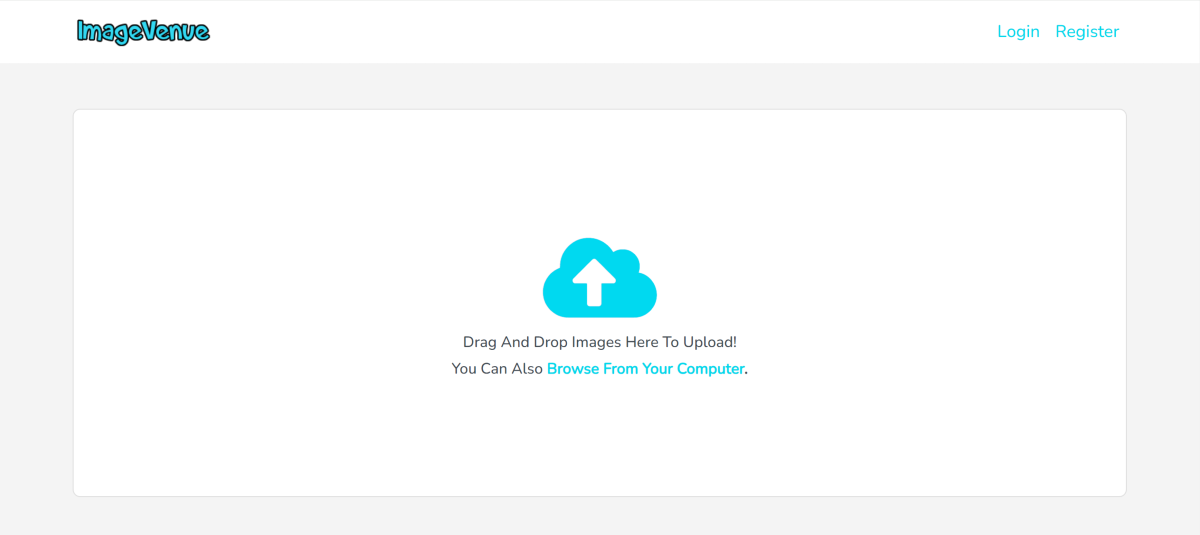
ImageVenue Top 10 Best Free Image Hosting Websites (2024) Ending this list is ImageVenue, a free image-hosting website with a minimal design and super-fast speeds. Unlike most websites on this list, ImageVenue accepts comments on your pictures as well. You can create a gallery of images, set a thumbnail, and share its link with anyone you want. Once uploaded, the images can be embedded into your blog or website as well. Read Also: boAt Nirvana Eutopia Launched With Head-Tracking Technology

Conclusion

These are the top 10 free image-hosting websites you can use right now. If you’re strictly looking for a service that lets you share the links of the hosted images with your friends, ImgBB, ImageVenue, ImageBam and ImgBox would do the trick. However, if you’re interested in an online community centred around image sharing, Imgur and 500px would be more up your alley.

WhatsApp new bottom navigation bar is now available for Android users, Lock chats are to be extended to linked devices as well

Key Highlights
  • WhatsApp shifted the main navigation tabs in the app from top to bottom of the screen.
  • The new navigation bar now has four tabs.
  • In addition, the new navigation bar is white, whereas the previous one was green.
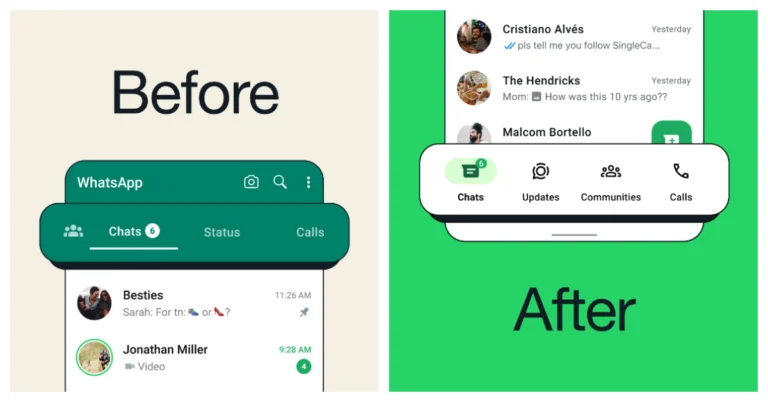
Meta, the parent company of WhatsApp has started rolling out a new bottom navigation bar for Android users. According to the announcement, the older navigation bar situated at the top has been shifted to the bottom for easier access. WhatsApp is now introducing a significant update to its Android app’s user interface. The previous navigation bar that had three tabs Chats, Status and Calls have been moved to the bottom, according to an announcement made by the messaging service owned by Meta. Although the company has now officially announced the rollout, we at Gadget Bridge can confirm that this feature has been reaching a lot of users over the past several weeks. Update the WhatsApp app on your Android smartphone to the most recent version from the Google Play Store if you haven’t already. Users who upgrade their software will notice that those tabs and their icons have been shifted to the bottom, and the arrangement may have changed. Also Read: OnePlus Nord CE 4 5G India launch today: Expected pricing, specifications Note that the iOS version of WhatsApp displays tabs at the bottom of the screen as well; the settings menu is located on the fifth tab. The redesigned navigations bar features four new tabs: Communities, Chats, Status, and Calls. Also now they are set in a different order. Also, icons have been added to all sections. Notably, the Status tab is now named “Updates.” With the new design overhaul which is now accessible to all users, WhatsApp users will find it easier to switch between tabs on their phones with one hand without having to extend their thumb to the top of the screen. You will still need to reach up to the top of the screen to search for anything, though. Also Read: Flipkart offering up to Rs 10,000 discount on iPhone 15 Pro Besides this WhatsApp is also working on protecting its customers’ privacy by developing a feature that will let users lock/ password-protect their chats on linked devices in addition to their primary devices. The locked chats will be invisible from the list of chats and accessible only with the code. As of now this feature is currently limited to primary devices and will likely eventually be extended to linked devices.

boAt Nirvana Eutopia Launched With Head-Tracking Technology

Key Highlights
  • First Indian headphone with immersive 3D audio that moves with your head movements.
  • 20-hour long-lasting playtime with quick charge, ensuring uninterrupted listening.
  • Equipped with Bluetooth v5.2 for stable, clear connections and integrated voice assistant support.
boAt (Imagine Marketing), one of India’s leading audio and wearables brand has introduced the Nirvana Eutopia with new audio technology innovation. This product promises to transform your listening experience by placing you at the epicenter of sound, thanks to its advanced Head Tracking 3D Audio and Spatial Sound technology. Available for Rs 3,999, this offering not only sets a new standard in immersive audio but also makes it accessible to a wider audience.

Unmatched Immersive Experience

The Nirvana Eutopia, a jewel in the crown of boAt’s Nirvana Series, is meticulously designed to offer a unique listening experience that puts you virtually in the heart of your music. Equipped with state-of-the-art 3D accelerometers and gyroscopes, it is the first Indian headphone brand to deliver head-tracking 3D spatial audio. This feature allows listeners to orient themselves towards the sound they desire to focus on, creating a lifelike audio environment where the source of every sound is pinpointed with astonishing precision. Read Also: boAt Nirvana Ion wireless earbuds launched at an introductory price

Tailored for Your Entertainment

Boasting Ceva’s expertise in 3D Audio and Virtual 3D, the headphones offer flexibility through Head Tracked Spatial mode and Fixed Spatial mode, catered to your preferred entertainment. With 40mm dynamic drivers, the Nirvana Eutopia delivers immersive 3D Spatial Sound, elevating your audio journey beyond traditional stereo sound.

Designed for Uninterrupted Enjoyment

One of the standout features of the Nirvana Eutopia is its impressive 20-hour battery life, ensuring you can enjoy your music or games without interruption. The inclusion of ASAP Charge technology means a mere 10-minute charge can yield 90 minutes of playback, perfect for those on the go. Additionally, its dual microphones with ENx Technology guarantee crystal-clear calls by filtering out background noise, enhancing your communication clarity.

State-of-the-Art Connectivity and Customization

Leveraging Bluetooth v5.2 technology, the Nirvana Eutopia ensures fast pairing times and stable connections, delivering your audio with unmatched clarity. The headphones also integrate seamlessly with Google and Siri voice assistants, enhancing your daily interactions with technology. Furthermore, through the dedicated boAt Hearables app, users can customize their experience, troubleshoot connectivity issues, and even receive live firmware updates. Read Also: OnePlus Buds Pro 2 with Spatial Audio technology launched in India

boAt Nirvana Price And Availability

Priced at Rs 3,999 it is available in sleek black and white options, the boAt Nirvana Eutopia is a testament to boAt’s commitment to delivering cutting-edge technology at an affordable price. Don’t miss the chance to elevate your audio experience. It can be purchased at  boAt-lifestyle.com as well as other online marketplaces.

OnePlus Nord CE 4 5G India launch today: Expected pricing, specifications

0
Key Highlights
  • OnePlus Nord CE 4 India launch will take place today in the evening.
  • The company confirmed that the device will be powered by a Snapdragon 7 Gen 3 SoC with up to 256GB of storage and 8GB of RAM.
  • The device will go on sale via Amazon in the country.
Today OnePlus is going to launch a brand new Nord smartphone in the Indian market. The OnePlus Nord CE 4 5G will debut as a successor to the Nord CE 3 5G with Snapdragon 782G SoC that was launched last year. The upcoming phone will be powered by a Snapdragon 7 Gen 3 chipset. The device will be made available in two colour options and features a dual-rear camera setup. It could also include a 16-megapixel selfie camera. The India launch of the OnePlus Nord CE 4 5G is scheduled for today April 1 at 6:30 p.m. IST. The launch event will be streamed live via the OnePlus India YouTube channel. Additionally, the event will be broadcast online via all of its social media platforms. For your convenience, we put a watch link below so you won’t miss the event.

OnePlus Nord CE 4 5G price in India expected

According to the tipster, the base 8GB RAM with 128GB storage variant of the OnePlus Nord CE 4 will retail for Rs 24,999 in India. Moreover, 8GB RAM and 256GB of storage are anticipated to cost Rs 26,999. It’s official that Amazon will be selling the product.

OnePlus Nord CE 4 5G specifications confirmed and speculated

The Nord CE 4 5G is confirmed to include Snapdragon 7 Gen 3 SoC with up to 256GB of storage and 8GB of RAM. It is said to have a 6.7-inch Fluid AMOLED display The screen is said to have a refresh rate of 120Hz and a screen-to-body ratio of 93.4%. The device will come with 8GB of LPDDR4x RAM, with virtual RAM allowing for an additional 8GB of RAM to be added. Also Read: Flipkart offering up to Rs 10,000 discount on iPhone 15 Pro As per the company, the upcoming phone will enable SuperVOOC fast charging. It will offer 100W SUPERVOOC fast charging, which charges the device from 1% to 100% in 29 minutes. Compared to the 80W SuperVOOC charging of the OnePlus Nord CE 3 5G, this would be an improvement. On the other hand, the OnePlus Nord CE 4 5G is expected to be backed by a 5,500mAh battery. The dual rear camera set-up is slated to feature a 50-megapixel Sony LYT-600 main rear sensor with optical image stabilisation (OIS). A Sony IMX355 ultrawide camera with 8 megapixels is expected to come with it. The handset is also speculated to include a 16-megapixel selfie. Also Read: Samsung Galaxy M55 5G and Galaxy M15 5G India launch confirmed Before the official announcement, Nord CE 4 5G was stopped listed on Geekbench bearing a model number CPH2613. As per the benchmarking listing, the phone will operate on the Android 14 operating system out of the box. Additionally, the octa-core Snapdragon 7 Gen 3 SoC was disclosed in the Geekbench listing as the device’s power source. The chipset features four cores at 1.80GHz, three cores capped at 2.40GHz, and a prime CPU score of 2.63GHz. In single-core testing, it received 1,135 points, and in multi-core testing, 3,037 points.

Garena Free Fire Redeem Codes Today 1 April 2024: Here is how to claim them

Garena Free Fire is a battle royale game with regular awards and tournaments to keep players interested. If you play Garena Free Fire, you should be aware of the redeem codes that are released on a daily basis. However, because the battle royale game is banned in India, players from other countries can use the Free Fire Redeem codes daily. If you’re unfamiliar with the Garena Free Fire redeem codes or don’t know how to get them, we’ve put together a step-by-step guide to help you redeem them. Check out Garena Free Fire Redeem Codes for 1 April 2024. The Free Fire redeem codes are a great way to get free stuff. These are 12-digit codes that contain alphabets and numbers, as well as an expiration date and time. Because the Garena FF redeem codes cannot be used more than once, you should hurry to the redemption page to claim your free reward before someone else does. To get a free reward, all you have to do is go to reward.ff.garena.com/en, which is the official redemption page. Also, keep an eye on this space for daily updates on Garena Free Fire redemption codes and rewards. Also Read: Sennheiser Accentum Plus wireless headphones with Hybrid Adaptive Noise Cancellation launched

Garena Free Fire Redeem Codes Today 1 April 2024

S0T6U2V8W4X9Y5 Z1A7B3C9D5E0F6 G2H8I4J0K6L1M7 N3O9P5Q1R7S2T8 X7Y3Z9A5B1C6D2 E8F4G0H6I2J7K3 L9M5N1O7P3Q8R4 P3Q9R5S1T7U2V8 W4X0Y6Z2A8B3C9 D5E1F7G3H9I4J0 K6L2M8N4O0P5Q1 U4V0W6X2Y8Z3A9 B1C7D3E9F5G0H6 I2J8K4L0M6N1O7

How to Get Free Fire Redeem Codes for Garena on 1 April 2024?

  • Visit the Garena Free Fire game’s official website at reward.ff.garena.com.
  • Use your Facebook, Google, VK, Apple ID, Huawei ID, or Twitter account to log in.
  • You’ll be taken to a valid redemption code (s)
  • Copy and paste the 12-digit redemption code into the text box.
  • On the screen, a dialogue box will appear.
  • ‘Ok’ should be selected.
For the latest gadget and tech news, and gadget reviews, follow us on TwitterFacebook and Instagram. For newest tech & gadget videos subscribe to our YouTube Channel. You can also stay up to date using the Gadget Bridge Android App. You can find the latest car and bike news here.

5 Things to Know About Investing in Bitcoin

Over time, Bitcoin has gained a great deal of popularity among today’s investors. This digital currency only exists online and operates using blockchain technology. While Bitcoin doesn’t have a paper version, you can use it just like any other currency as an investment or method of payment. Bitcoin investing can be lucrative, but learning more about it before investing is important. Discussed below are four things to know about investing in Bitcoin.

Ways to Invest in Bitcoin

There are various ways to invest in Bitcoin, including:
  • Buying Bitcoin directly: Bitcoins are easily accessible through crypto exchanges. When buying the crypto, you don’t have to purchase an entire coin. You can buy a fraction of it, which makes it a flexible alternative for large and small investors. Once you buy Bitcoin directly via a cryptocurrency exchange, you gain complete ownership of the investment, giving you complete control over the digital asset. Owning Bitcoin requires careful digital wallet management to safeguard your investment against security threats.
  • Investing via ETFs: ETFs (exchange-traded funds) are a convenient, regulated way for investors looking to join the Bitcoin market in an investment structure they’re familiar with. These ETFs come in different forms categorized into:
  • Spot ETFs: They aim to track Bitcoin’s current market price, providing direct exposure to the crypto’s price shifts by holding it directly. Spot ETFs provide a close alignment with Bitcoin’s actual performance, which makes them a preferred option to investors looking for an investment that reflects the crypto’s real-time worth
  • Futures ETFs: This involves investing in futures contracts instead of holding the crypto directly. The contracts speculate on Bitcoin’s future price, offering an investment method attached to future market expectations
  • Buying Bitcoin stocks
Purchasing Bitcoin stocks gives you indirect exposure to the Bitcoin market. Investing in stocks implies purchasing shares from organizations whose business is related to crypto adoption and performance.

What You Need to Buy Bitcoin

For an investor to buy Bitcoin, they require:
  • A crypto exchange account
  • A secure internet connection
  • Personal identification documents for those using KYC (Know Your Client) platforms
  • A payment method, such as a debit card, credit card, or bank account
  •  A digital wallet

Bitcoin Investing Tips

For successful Bitcoin investing, consider following these tips:
  • Diversify your portfolio: Bitcoin investing is a high-risk venture. As such, putting all your money in it isn’t advisable. Diversify your portfolio to safeguard against losses. Ensure your primary investments are primarily low-risk and medium-risk. High-risk investments like Bitcoin should take the least portion of your portfolio
  • Know your risk tolerance: Since Bitcoin investing has some risk like any other investment, it’s essential to understand the risk level you’re ready to take owing to the crypto market’s volatility
  • Start small: If you aren’t sure if Bitcoin investing will work for you, consider starting small and increasing the amount gradually as your confidence rises

Bitcoin Investing Strategies

Successful Bitcoin investing should be done strategically. Here are a few strategies you can implement to make the most of your investment:
  • Dollar-cost averaging: It involves investing small, consistent amounts of cash in crypto, reducing investment risk
  • Day trading: It’s a short-term investment technique where you buy and sell Bitcoin in one trading session. It’s a good way to trade without volatility affecting your crypto
  • Buy and hold: It involves buying Bitcoin from a crypto exchange and keeping it in a crypto wallet as you wait for prices to rise so you can sell it

Benefits of Bitcoin investing

Here are three key benefits of investing in bitcoin: 
  • Inflation protection: Thanks to its limited supply, Bitcoin is often considered a means of safeguarding against inflation
  • Store of value: Cryptos, like Bitcoin, act as a store of value, implying that you can hold it long-term without its worth declining
  • High liquidity: Unlike many other cryptos, Bitcoin prides itself on its high market liquidity. This means buying and selling the cryptocurrency is easy, which comes in handy for any investor who wants to exit and enter positions with ease

Endnote

Understanding Bitcoin investing beforehand is key to ensuring successful investing. Familiarize yourself with the things to know about investing in Bitcoin. 

Top 6 ways to get App Store back on iPhone and iPad

0
While third-party app marketplaces may arrive on iOS in future, as of now the only way to legitimately download apps on your iPhone (without jailbreaking it) is by using the App Store. Its strict regulations and moderation policy make the App Store one of the most secure app marketplaces out there. But what if you can’t find it on your device? Here are the top 6 ways to get the App Store back on your iPhone and iPad. Read Also: Top 2 Ways to Hard Reset or Restart iPad (All Models)

What happened to the App Store on my iPhone/iPad?

If you’re worried that you may have deleted the App Store from your device, there is no need to fret. The App Store is a system app and can therefore not be deleted on iOS/iPadOS devices. If you can’t find it on the home screen, it could be because of one of the following reasons:
  • You accidentally removed the app from the home screen.
  • The app is hidden.
  • It is disabled under Content & Privacy Restrictions.
The good news is that restoring the App Store is a very easy process. If you know what to do, it won’t take more than a few seconds. We suggest looking for it in Spotlight Search and App Library first.

Unrestrict the App Store to get it back on iPhone/iPad

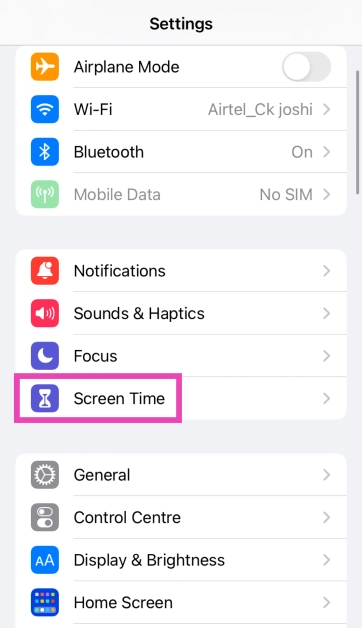
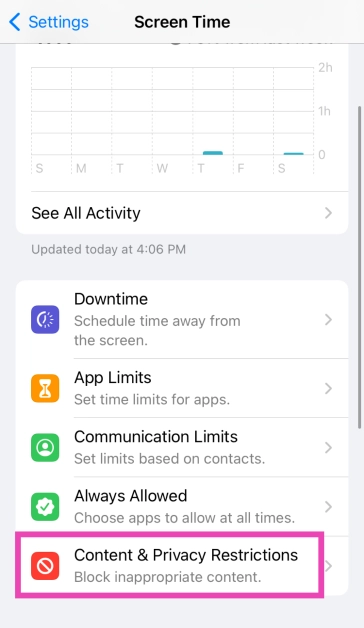
Step 1: Go to Settings and select Screen Time. Step 1: Go to Settings and select Screen Time. Step 2: Tap on Content & Privacy Restrictions. Step 2: Tap on Content & Privacy Restrictions. Step 3: Tap on iTunes & App Store Purchases. Step 3: Tap on iTunes & App Store Purchases. Step 4: Tap on Installing Apps and select Allow. Step 4: Tap on Installing Apps and select Allow. The App Store will be restored on your iPhone/iPad’s home screen.

Search for the App Store in Spotlight

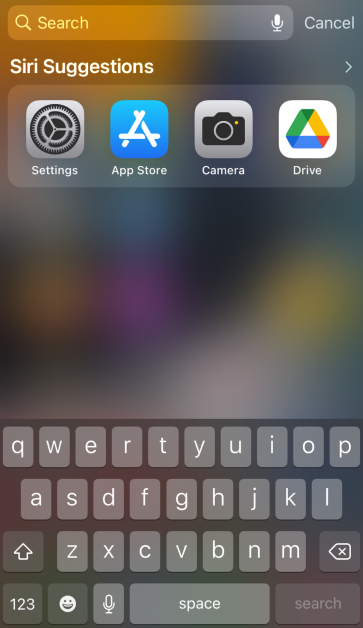
If you can’t find the App Store icon on your iPad or iPhone’s home screen, you can always add it using Spotlight Search. Step 1: Swipe down from the home screen to access Spotlight Search. Step 2: Tap the Search bar and search for App Store. Step 2: Tap the Search bar and search for App Store. Step 3: Press and hold the App Store icon in search results and move it to the home screen.

Search the App Drawer

You can remove the App Store icon from your iPhone/iPad’s home page, but it will always remain in the App Library. If you can’t locate the App Store on your iPhone, you can always get it back from the library. To access the App Library, swipe left on the last home screen panel. Tap the search bar or locate the Utilities folder to find the App Store.

Unhide the App Store

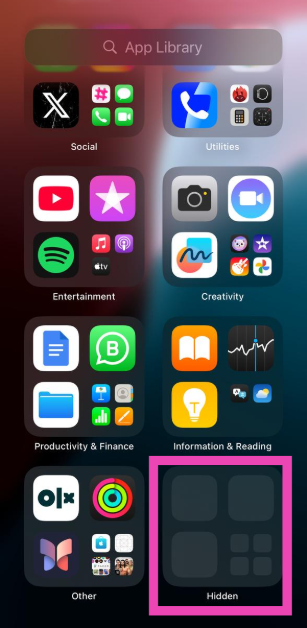
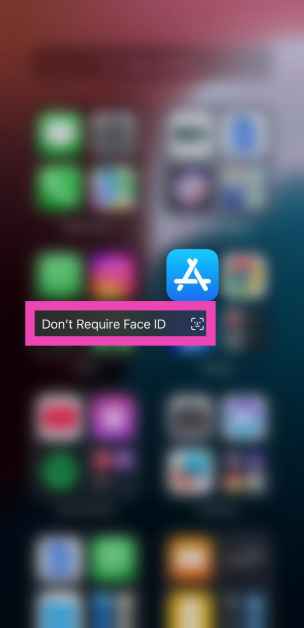
Step 1: Swipe left past all the pages on the home screen until you reach the App Drawer. Step 2: Scroll down to the bottom of the App Drawer and tap on Hidden Folder. Authenticate your access using Face ID. Step 2: Scroll down to the bottom of the App Drawer and tap on Hidden Folder. Authenticate your access using Face ID. Step 3: Locate the App Store and long-press its icon. Step 4: Tap on Don’t Require Face ID. Authenticate your decision using Face ID. Step 4: Tap on Don't Require Face ID. Authenticate your decision using Face ID.
Restore the home screen

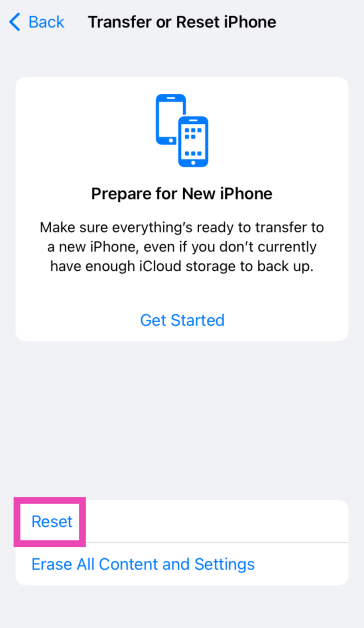
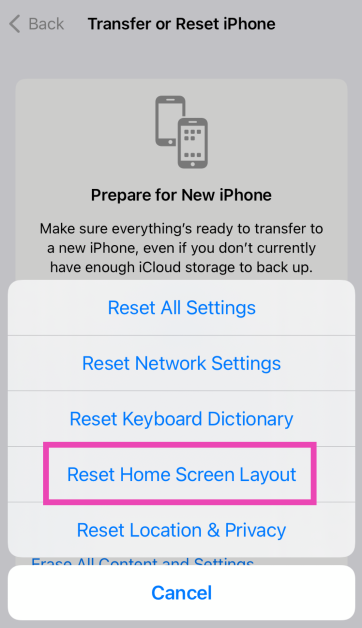
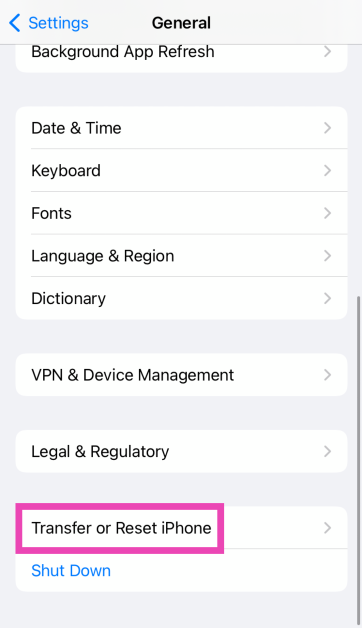
Step 1: Go to Settings and select General. Step 1: Go to Settings and select General. Step 2: Scroll down and select Transfer or Reset iPhone. Step 3: A popup box will appear, asking you to update the carrier settings. Hit Update. Step 3: Tap on Reset. Step 3: Hit Reset. Top 11 Ways to Fix 'Message Blocking is Active' on iPhone Top 8 Ways to Fix Low Call Volume on iPhone (2024) Top 4 ways to get App Store back on iPhone and iPad Step 4: Select Restore Home Screen Layout. Step 4: Select Restore Home Screen Layout. Top 4 ways to get App Store back on iPhone and iPad Step 5: Tap on Reset Home Screen. Step 5: Tap on Reset Home Screen. Top 4 ways to get App Store back on iPhone and iPad The home screen will be restored to the layout it had out of the box.

Factory Reset your iPhone

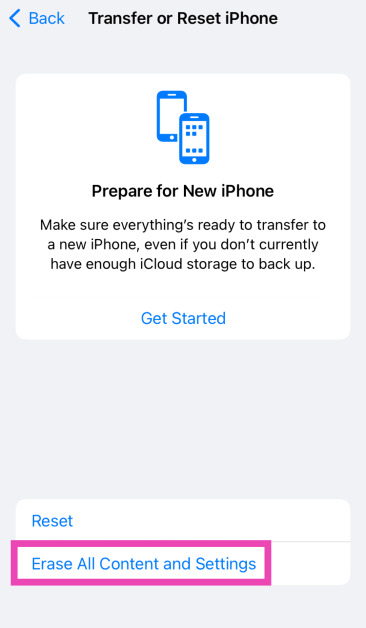
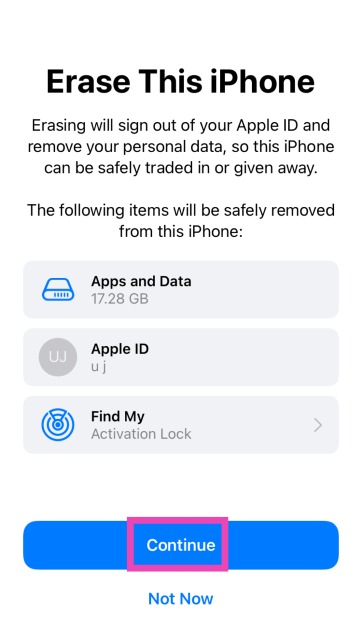
If the methods mentioned above didn’t work for you, try resetting your iPhone to its factory settings. A factory reset restores your device to its out-of-the-box condition. However, you will lose all your personal data in the process. Here’s how you can go about it. Step 1: Go to Settings and select General. Step 1: Go to Settings and select General. Step 2: Scroll down and select Transfer or Reset iPhone. Step 3: A popup box will appear, asking you to update the carrier settings. Hit Update. Step 3: Tap on Erase All Content and Settings. Step 3: Hit Erase All Content And Settings. 14 ways to fix the ‘apps not updating’ issue on iPhone   Step 4: Tap on Continue and enter the passcode to reset your iPhone to its factory settings. Step 4: Tap on Continue and enter the passcode to reset your iPhone to its factory settings. 14 ways to fix the ‘apps not updating’ issue on iPhone
Frequently Asked Questions (FAQs)

Can I delete the App Store from my iPhone or iPad?

The App Store is a system app and cannot be deleted from your iPhone or iPad. At best, you can remove it from the home screen.

What do I do if I can’t find the App Store on my iPhone?

Swipe down from the home screen and use Spotlight Search to find the App Store. You can also find it by searching for it in the App Library.

How do I restore my iPhone’s home screen layout?

Go to Settings>General>Trasnfer or Reset iPhone>Reset>Restore Home Screen Layout>Reset Home Screen and confirm your selection. How do I unrestrict the App Store on my iPhone? Go to Settings>Screen Time>Content & Privacy Restrictions>iTunes & App Store Purchases. Tap on Installing Apps and select ‘Allowed’. How do I hide the App Store on my iPhone? Long-press the App Store’s icon on the home screen, go to Require Face ID>Hide and Require Face ID. Read Also: How to Flush DNS Cache on a Mac? (2024)

Conclusion

These are the top 6 ways to get back the App Store on your iPhone and iPad. You can also try restarting your iPhone to fix any background glitches that may be causing this error. Android users can check out this article to learn how to restore the missing Play Store app.

Garena Free Fire Redeem Codes Today 31 March 2024: Here is how to claim them

Garena Free Fire is a battle royale game with regular awards and tournaments to keep players interested. If you play Garena Free Fire, you should be aware of the redeem codes that are released on a daily basis. However, because the battle royale game is banned in India, players from other countries can use the Free Fire Redeem codes daily. If you’re unfamiliar with the Garena Free Fire redeem codes or don’t know how to get them, we’ve put together a step-by-step guide to help you redeem them. Check out Garena Free Fire Redeem Codes for 31 March 2024. The Free Fire redeem codes are a great way to get free stuff. These are 12-digit codes that contain alphabets and numbers, as well as an expiration date and time. Because the Garena FF redeem codes cannot be used more than once, you should hurry to the redemption page to claim your free reward before someone else does. To get a free reward, all you have to do is go to reward.ff.garena.com/en, which is the official redemption page. Also, keep an eye on this space for daily updates on Garena Free Fire redemption codes and rewards. Also Read: Sennheiser Accentum Plus wireless headphones with Hybrid Adaptive Noise Cancellation launched

Garena Free Fire Redeem Codes Today 31 March 2024

FQ5R9S2TCC8U3V7 FH6ISS9J2K8L3M7 FX6Y9Z2SSA8B4C7 FI5J9K2L8M3N7O1 FV6W9X2Y8ZSC4A7 FN5O9P2CCQ8R3S7 FE6F9SSG2H8I4J7 F7YTGE45NTJKIGUJ FY4TGBRNF39KIUYD FTEG4F5BTGKI8UKT FYOH98U75YTR7FGG FHNSJUA11RQ2FDCV FY6STWRFG4585AR4 FF2BN8VJNCDRK5OT FI8GUYHGBNKI8U73

How to Get Free Fire Redeem Codes for Garena on 31 March 2024?

  • Visit the Garena Free Fire game’s official website at reward.ff.garena.com.
  • Use your Facebook, Google, VK, Apple ID, Huawei ID, or Twitter account to log in.
  • You’ll be taken to a valid redemption code (s)
  • Copy and paste the 12-digit redemption code into the text box.
  • On the screen, a dialogue box will appear.
  • ‘Ok’ should be selected.
For the latest gadget and tech news, and gadget reviews, follow us on TwitterFacebook and Instagram. For newest tech & gadget videos subscribe to our YouTube Channel. You can also stay up to date using the Gadget Bridge Android App. You can find the latest car and bike news here.

Top 2 Ways to Hard Reset or Restart iPad (All Models)

0
How you go about dealing with the power functions on an iPad depends on whether or not it has a home button. While flagship iPhones got rid of the home button in favour of a larger screen size a long time ago, iPads do not have to worry about that issue. While the 10th Gen iPad may have gotten rid of the home button, its previous iteration still has it on the bottom edge. So, how do you go about performing a hard reset (or force restart) on the two kinds of iPads? This article will answer your question.  Read Also: Flipkart offering up to Rs 10,000 discount on iPhone 15 Pro

What is a hard reset and when should you do it?

When you use the physical buttons of your device to restart it, it is called a ‘hard reset’. It is commonly used to force restart a device when it is frozen. Simply pressing the power key and choosing ‘restart’ from the power menu does not constitute a ‘hard reset’. The latter typically requires long-pressing the power button for an extended period of time. Some people often make the mistake of thinking that a hard reset is like factory resetting the device. This is not true. A factory reset clears all your personal data on the device and restores its settings to their factory defaults. A hard reset simply forces your device to restart. So, when should you hard reset your iPad? The answer is simple. Whenever the device freezes or remains unresponsive for a long period of time, it warrants a hard reset. It should not be the first thing on your list of fixes, but if everything else fails, it is worth giving a shot.

Hard Reset or Force Restart an iPad

Models without a home button

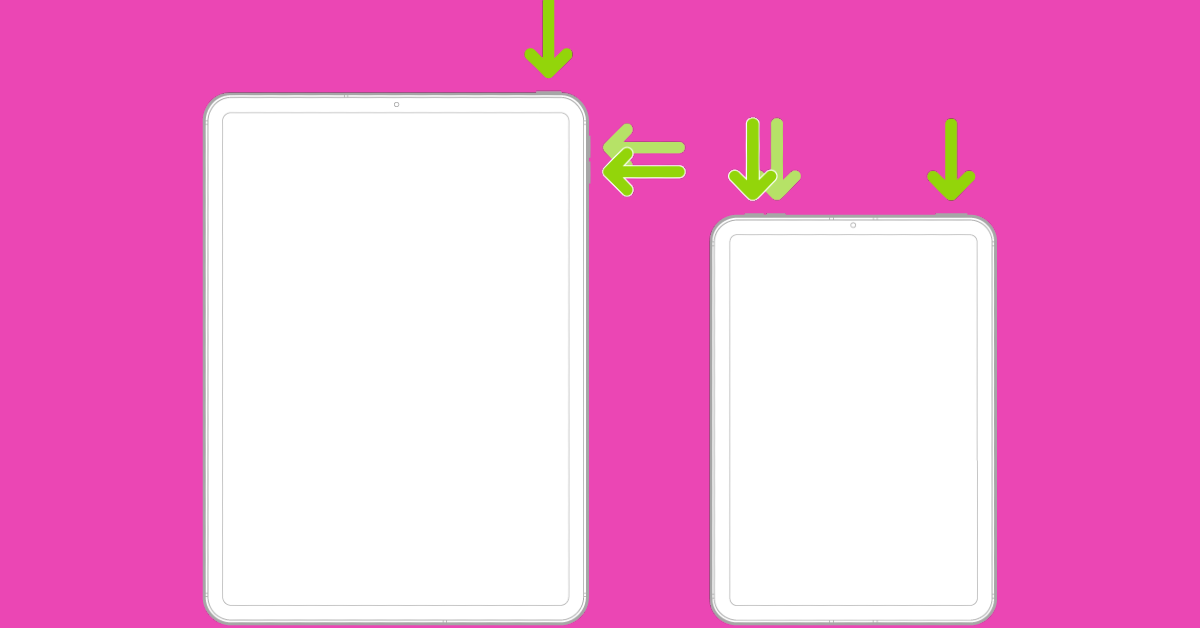
Models without a home button Top 2 Ways to Hard Reset or Restart iPad (All Models) Step 1: Press and release the volume button closer to the top button. Step 2: Press and release the volume button farther from the top button. Step 3: Long-press the top button until the Apple logo appears on the screen. Step 4: Release the top button.

Models with a home button

Models with a home button iPad models with a home button on the bottom edge are easier to restart. All you need to do is press and hold the top button along with the home button until the Apple logo appears on the screen. Do not release the buttons if the power slider appears on the screen. When you see the Apple logo, release both buttons. Your iPad will restart.

Factory Reset an iPad

Top 3 Ways to Right-Click on an iPad (2024) Top 2 Ways to Hard Reset or Restart iPad (All Models) Performing a factory reset wipes the iPad of all the data and restores its settings to factory default. Make sure you have created a backup of all the data on the device before performing a factory reset. Step 1: Go to Settings and switch to the General tab on the left. Step 2: Hit Reset at the bottom of the screen. Step 3: Tap on Erase all Content and Settings. Step 4: Confirm your selection.

Frequently Asked Questions (FAQs)

Does performing a hard reset on an iPad delete all its data?

No, a hard reset only forces your iPad into restarting, it does not perform a factory reset. You will not lose your personal data. However, any unsaved work or progress will be cleared once the iPad restarts.

How do I force restart an iPad which doesn’t have a home button?

Press the volume key closer to the top button and release it, then do the same with the other volume key. Then, press and hold the top button until the Apple logo appears on the screen.

How do I factory reset an iPad?

Go to Settings>General>Reset>Erase all Content and Settings and enter the passcode to the device to perform a factory reset. Read Also: How to Flush DNS Cache on a Mac? (2024)

Conclusion

These are the top 2 ways to hard reset or force restart an iPad with or without the home button. If you know any other way to do this task, let us know in the comments! Connected your iPad to a trackpad? Read this article to learn how you can turn on the right-click functionality.

Flipkart offering up to Rs 10,000 discount on iPhone 15 Pro

Key Highlights
  • Flipkart is now offering the iPhone 15 Pro, one of Apple’s best iPhones but also one of the priciest, for a cheaper price.
  • The platform is offering a Rs 9,901 discount, which is made up of a flat Rs 7,000 discount and an extra Rs 3,000 off on a bank card.
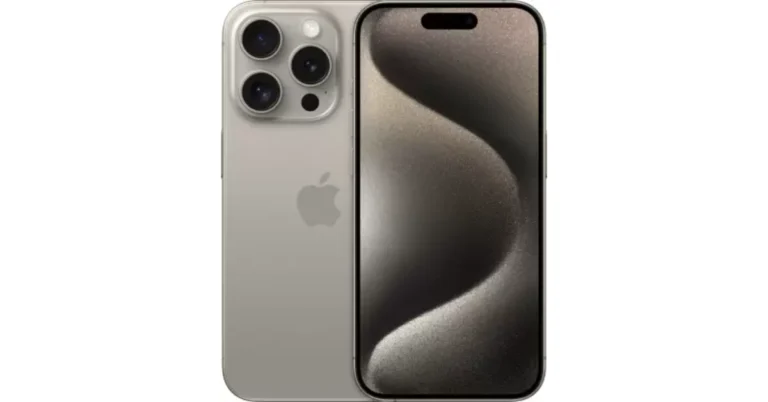
Despite Apple’s strong fan base, not everyone can afford to purchase the iPhone because of its expensive price. That is why customers wait for sales and discounts to make purchases. The basic iPhone 15 models have frequently been on sale, while the nearly double-priced iPhone 15 Pro variants have not seen any notable price reductions. But now Flipkart is selling the device at a much lower price. Flipkart is having a Month-End Mobiles Fest that runs through March 31. Here is everything you ought to know regarding the most recent iPhone 15 Pro offer. iPhone 15 Pro, which was released in 2023. nonetheless, the device’s expensive pricing prevented many fans from purchasing it. The base model of the iPhone 15 Pro with 128GB of storage was priced at Rs 1,34,900. The device is now available on Flipkart at a discounted price of Rs 1,27,900. The homegrown e-commerce platform is offering a flat discount of Rs 7,000. Customers using HDFC bank credit cards and EMI transactions can now receive an additional Rs 3,000 reduction, bringing the total cost down to Rs 1,24,900. Also Read: iPhone 14, iPhone 14 Plus price drops on Flipkart, best time to buy the devices In addition to this one can also get an extra Rs 3,000 to Rs 53,000 off on the exchange of select models. Note that you only get the best discount deal depending on the condition of your phone.

iPhone 15 Pro specifications

The iPhone 15 Pro features a 6.1-inch Super Retina XDR OLED screen with 2,000 nits of peak brightness. The display on the devices uses Apple’s Ceramic Shield material for protection. In addition, they provide a new Action button that takes the place of the Mute switch and can be used for a variety of activities. Under the hood, there is Apple’s brand-new 3nm A17 Pro processor. The iPhone 15 Pro has a 48-megapixel wide-angle camera with an f/1.78 aperture, a 12-megapixel, ultra-wide-angle camera with f/2.2-aperture and a 12-megapixel 3x telephoto camera. The device has a 12-megapixel TrueDepth camera with an aperture of f/1.9 for selfies. The iPhone 15 Pro has a USB Type-C port with USB 3.0 speeds, just as the standard models. It allows data transfer rates of up to 10 Gbps

Garena Free Fire Redeem Codes Today 30 March 2024: Here is how to claim them

Garena Free Fire is a battle royale game with regular awards and tournaments to keep players interested. If you play Garena Free Fire, you should be aware of the redeem codes that are released on a daily basis. However, because the battle royale game is banned in India, players from other countries can use the Free Fire Redeem codes daily. If you’re unfamiliar with the Garena Free Fire redeem codes or don’t know how to get them, we’ve put together a step-by-step guide to help you redeem them. Check out Garena Free Fire Redeem Codes for 30 March 2024. The Free Fire redeem codes are a great way to get free stuff. These are 12-digit codes that contain alphabets and numbers, as well as an expiration date and time. Because the Garena FF redeem codes cannot be used more than once, you should hurry to the redemption page to claim your free reward before someone else does. To get a free reward, all you have to do is go to reward.ff.garena.com/en, which is the official redemption page. Also, keep an eye on this space for daily updates on Garena Free Fire redemption codes and rewards. Also Read: Sennheiser Accentum Plus wireless headphones with Hybrid Adaptive Noise Cancellation launched

Garena Free Fire Redeem Codes Today 30 March 2024

E5B9M3P7W1A6KG4V J6H2C8O4Q9Y67I3S N4F8G2R69X1V3T7P D9O5W1U4M73Q8H6N O7Y3K6R28M4Z1I9G U2P4E7B3A9C68O5T G3V7R1N6W8K4J25M K6R2V8N4B1MF3X9L G7Q3Z1K5X9U62H4N I8Y2Z6C3F7A9EB4R X4L9K3J7P1T5S26W C7N3Y62V8R4B9D1F Q9T3L71D6Z8X4F2C T8F2S6P19M3Q7C5U Z5O9X7G31W4E6R8V L4H8U2N6C39Y5K7T P1D7E9W5I3S2B4G8

How to Get Free Fire Redeem Codes for Garena on 30 March 2024?

  • Visit the Garena Free Fire game’s official website at reward.ff.garena.com.
  • Use your Facebook, Google, VK, Apple ID, Huawei ID, or Twitter account to log in.
  • You’ll be taken to a valid redemption code (s)
  • Copy and paste the 12-digit redemption code into the text box.
  • On the screen, a dialogue box will appear.
  • ‘Ok’ should be selected.
For the latest gadget and tech news, and gadget reviews, follow us on TwitterFacebook and Instagram. For newest tech & gadget videos subscribe to our YouTube Channel. You can also stay up to date using the Gadget Bridge Android App. You can find the latest car and bike news here.

How to Flush DNS Cache on a Mac? (2024)

0
If you’re having trouble loading a website on your web browser, clearing the DNS cache can help. Since the DNS cache keeps a record of the websites you have visited, you may want to clear it to keep your browsing history private. Additionally, the need to perform this task may also arise when you suspect you have been a victim of DNS spoofing/poisoning. So, here is how you can flush or reset the DNS cache on your Mac. Read Also: Xiaomi 14 Review: The complete package

What happens when you flush the DNS cache on your Mac?

First, you should understand what a DNS server does. Once you enter the address of a website on your web browser, it contacts the DNS server for the website’s IP address. When the IP address is provided to the web browser, it loads the website. To make this process faster and more streamlined, your device stores the IP addresses of the websites you visit in the DNS cache. When you enter the web address the second time, your browser does not need to contact the DNS server again. It can simply use the IP address stored in the DNS cache. You can probably guess where the potential issues arise. Like every other cached memory, the DNS cache is prone to get outdated and corrupted. When this happens, your browser is unable to load the website linked to the corrupted IP address. This is when flushing the DNS cache comes in handy. Once that’s done, your browser will contact the DNS server again for the appropriate IP address.

Flush or Reset DNS Cache on a Mac

Best Methods to Reduce Photo File Size on Mac How to Flush DNS Cache on a Mac? (2024) Step 1: Click on Finder and select Applications. Step 2: Go to the Utilities folder and select Terminal. Step 3: Depending on your macOS version, type the following commands: Ventura and Monterey: sudo dscacheutil -flushcache; sudo killall -HUP mDNSResponder El Capitan, Lion, Mountain Lion, Mavericks, Sierra, High Sierra, Mojave: sudo kilall -HUP mDNSResponder Tiger and Snow Leopard: lookupd -flushcache Yosemite: sudo discoveryutil mdnsflushcache Step 4: Type your password and hit Enter.

Frequently Asked Questions (FAQs)

How do I flush DNS cache on Windows?

Go to Command Prompt (Windows + R followed by Enter) and ipconfig /flushDNS.

When should I flush the DNS cache?

If you can’t connect to a website even after typing the right address, flushing the DNS cache may resolve the issue.

What happens when you flush the DNS cache?

The DNS cache contains the IP addresses of the websites you have visited recently. Flushing it clears those saved addresses. Read also: Samsung Galaxy M55 5G and Galaxy M15 5G India launch confirmed

Conclusion

This is how you can flush or reset DNS on your Mac. Read this article to learn how you can set up a private DNS on your Android smartphone. If you know any other methods to go about this task, let us know in the comments!

Samsung Galaxy M55 5G and Galaxy M15 5G India launch confirmed

Key Highlights
  • Samsung Galaxy M55 5G and Galaxy M15 5G are set to launch in India soon.
  • The company has also listed the phones on Amazon ahead of the official announcement.
  • The devices were launched in Brazil on March 28.
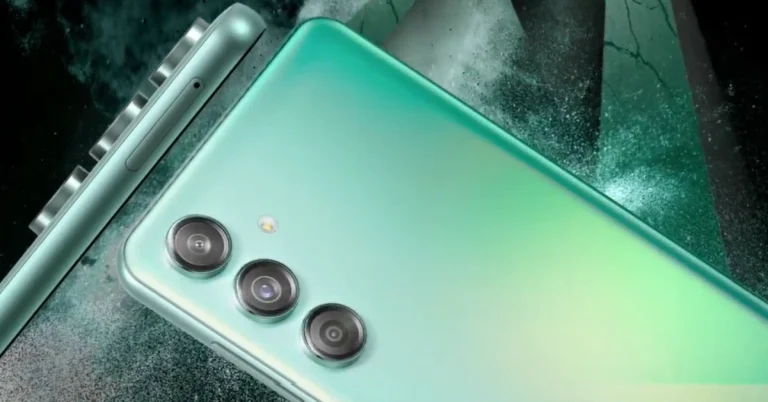
Samsung is getting ready to launch two new smartphones in India under its M-Series. The company has officially confirmed the Samsung Galaxy M55 5G and Galaxy M15 5G India launch. Before arriving in India the handsets made their debut in Brazil recently. Samsung Galaxy M55 5G and Galaxy M15 5G have been listed on Amazon India’s website confirming the upcoming launch. The company has not yet revealed the exact date and time of the launch. However, the Amazon listing highlights the details of both phones. The smartphones were launched in Brazil so the Indian versions most likely resemble the ones that exist. The Galaxy M55 5G is powered by Qualcomm’s Snapdragon 7 Gen 1 SoC whereas Galaxy M15 5G is equipped with an octa-core MediaTek Dimensity 6100+. According to one of the posters, the Snapdragon 7 Gen 1 SoC will be included in the Galaxy M55 5G. On the other hand, another teaser suggests that the Galaxy M15 5G would have a 6,000mAh battery. The device is also confirmed to come with an sAMOLED display with a water drop notch. These specs are comparable to those of the phone’s international variants. Also Read: Moto G04 Review: The most affordable Android 14 smartphone Prices of the phones have been leaked ahead of their introduction in India. According to a tipster, the price of the 8GB RAM with 128GB storage model of the Galaxy M55 5G would start at Rs 26,999 in India. Whereas the 8GB RAM with 256GB storage could be priced at Rs 29,999 and 12GB RAM with 256GB storage options is anticipated to cost Rs 32,999. On the contrary, Galaxy M15 5G is claimed to retail at a starting price of Rs 13,999 for the 4GB RAM with 128GB storage and the 6GB RAM with 128GB storage option is expected to be priced at Rs 14,999. The Galaxy M55 5G is available in Dark Blue and Green colourways in Brazil. The is priced at BRL 3,199 about Rs 53,000 for the 8GB RAM with 256GB storage configuration. The Galaxy M15 5G, which is available in Dark Blue, Grey, and Light Blue colour options comes with a price tag of BRL 1,499 about Rs 25,000 for the 4GB RAM with 128GB storage variant.

Moto G04 Review: The most affordable Android 14 smartphone

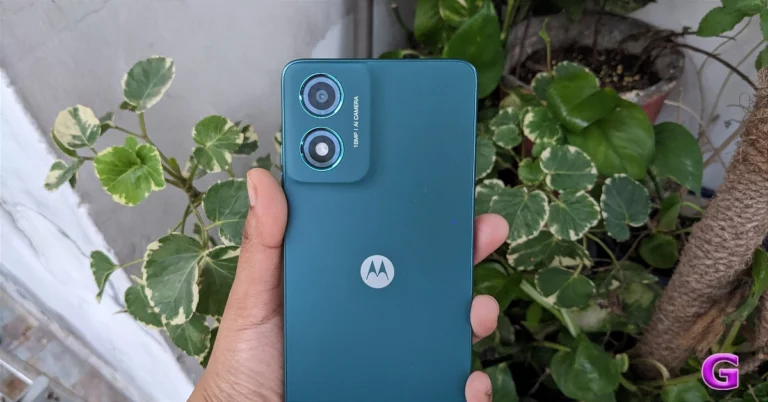
Motorola has introduced its third low-cost smartphone of 2024. Moto G04 is an entry-level smartphone which came to us for the review. It has a 90 Hz display, which is standard these days and is available in fascinating colour options. It has a 16-megapixel AI-powered camera with AI. The starting price is set at Rs 6,999. Does the Moto G04 represent the best value-for-money smartphone available right now? Let’s check it out in this review.

Moto G04 Review: Design and Display

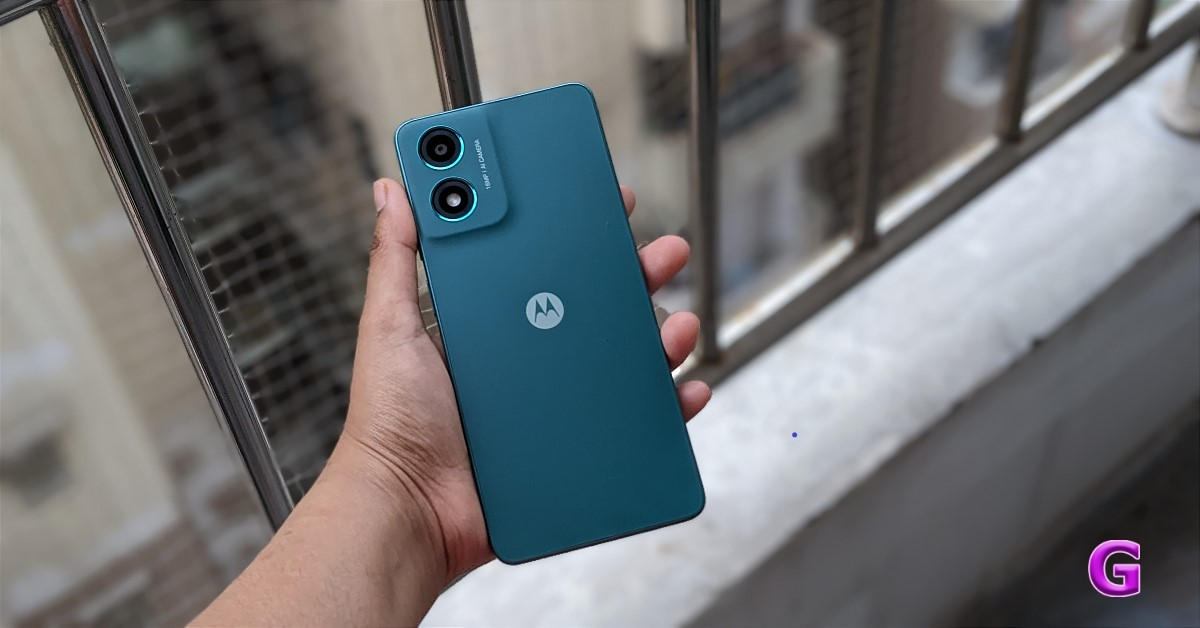
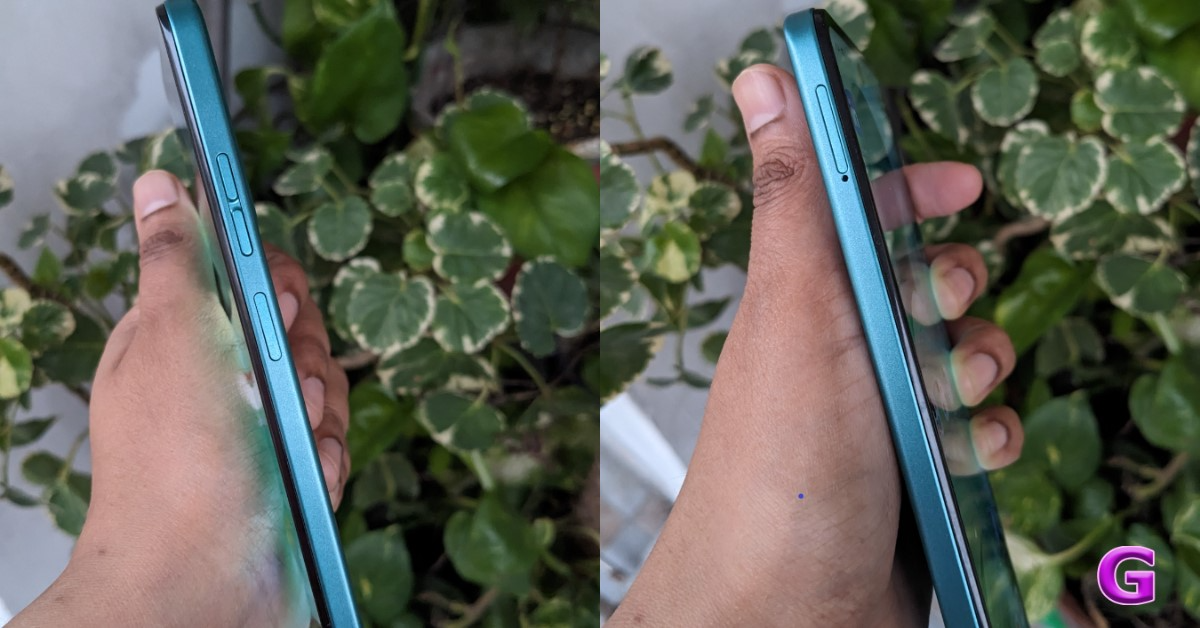
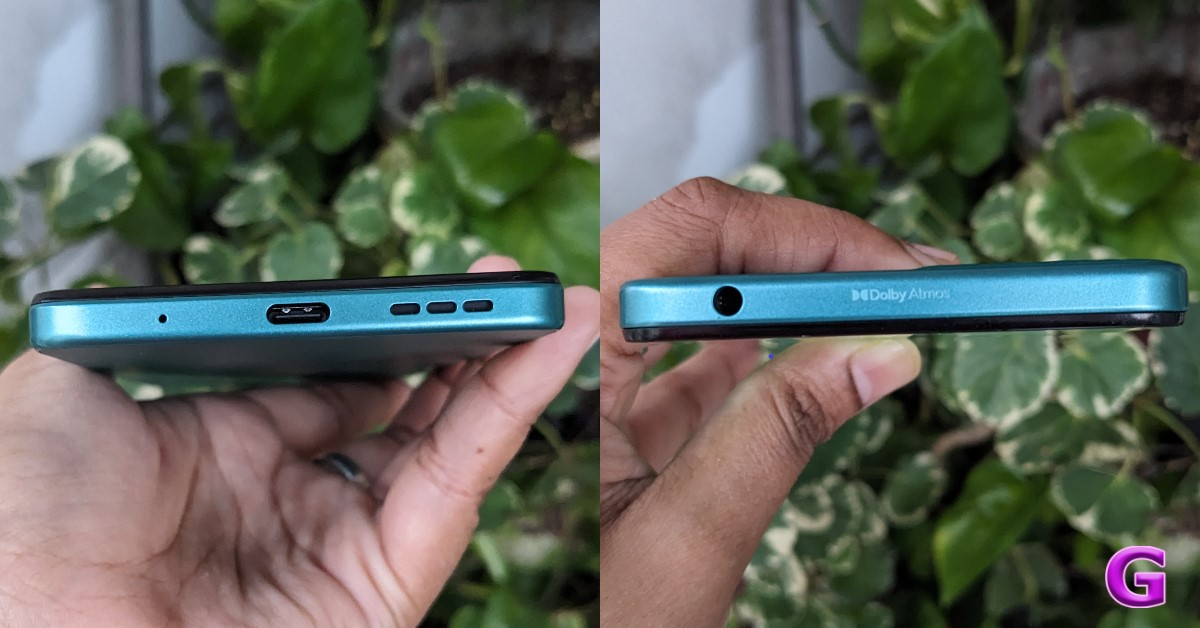
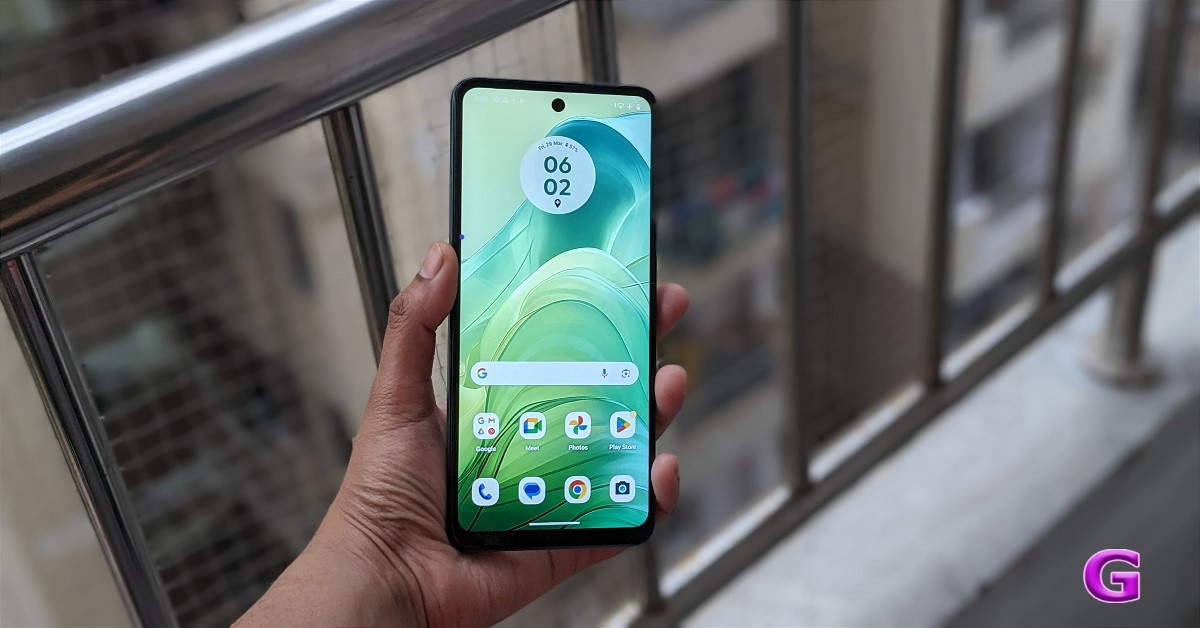
You’ll be amazed by how nice this phone looks. The phone appears to be incredibly powerful. We loved the handset’s colour. This is a sea green colour variant, which we are reviewing. Users get a premium-level feel and look for the price it comes in.  Moto G04 Review: Design and Display Moto G04 comes in four different colour variations and has a punch-hole rear panel style. The Motorola smartphone has AG glass or 3D PMMA material used on it. The device has a single-layered, streamlined back camera arrangement, which has a highly upscale appearance because of the colour-coordinating side frames. Due to its lightweight design, which weighs only 178 grams and is 7.89 mm thin, it feels good in the hand. Over that, the phone has an IP52 rating, which means it is water resistant, which is useful in specific situations. The good thing is that this phone has a silicon case in the box. The majority of Motorola devices already have a case coming with them. The case supplied here is of excellent quality and offers good protection. Moto G04 Review: Design and Display As you go to the side, the design appears flat. A triple-slot SIM card tray with sufficient space for two nano SIM cards and a microSD card is located on the left side of the frame, suggesting that storage can be increased. Given the pricing, 5G support is not available, hence this smartphone only supports 4G which might be a letdown for a few. Also Read: Oppo F25 Pro 5G Review: Impressive across the board In addition, the right side of the frame has a volume button and a side-mounted fingerprint sensor. On the top part of the frame, users will see a 3.5mm audio port with Dolby Atmos written. The primary microphone, Type-C port, and speaker vent are located at the bottom of the structure. Review of Moto G04 The side-mounted fingerprint sensor is integrated into the power button. The built-in sensor performed well. It is highly accessible and unlocks precisely. The display seems to be good for the price point. The phone’s bezels are very thin, especially on the top and edges. You do have a small chin at the bottom, but it’s mainly acceptable given the price. The Moto G04 sports a 6.6-inch HD+ IPS LCD screen with a resolution of 720×1,600 pixels. The display features a 20:9 aspect ratio and a pixel density of 269 ppi. 90 Hz refresh rate is supported. Additionally, Panda display protection is included.  Review of Moto G04 Because of its maximum brightness of 537 nits, the content on it can be seen fine under direct sunlight. Everything on the screen is fairly crisp and offers pleasing colour arrangements. Along with the Night Light setting, there is also an Ambient display option, which is a useful feature for reading at night. Also Read: iQOO Neo 9 Pro Review: Absolutely Rocking You only get an HD screen here, but it has excellent display quality that makes it suitable for watching videos and regular day-to-day use. It also offers some intriguing features, such as video display enhancements. Video colour becomes brighter and more vibrant as a result. You can watch HD-quality Netflix videos with support for Spatial Audio as well as Prime Video content. We’ve also watched a couple of web series, and we’ve been quite happy with the visual quality. Although the phone just has a single speaker, it supports Dolby Atmos, which is uncommon in this price range. The audio quality is good and the voices are clear. Overall, the sound quality is incredibly well-balanced. Additionally, there is no distortion and the speaker has a respectable volume.

Moto G04 Review: Performance and Cameras

Performance wise Moto G04 includes a UniSoC T606 SoC paired with Mali G57 GPU and up to 8GB of LPDDR4X RAM. The device also supports virtual RAM expansion of up to 16GB, which can improve the system’s performance to some extent. The device comes with up to 128GB of UFS 2.2 storage that can also be further expanded up to 1TB using a microSD card. Also Read: Vivo V30 Pro Review: A no-brainer purchase for photography enthusiasts Android 14 runs My UX on the phone as a factory default. Motorola provides you with a near-stock Android experience. Hand in hand, you will also receive security updates for two years. This implies that consumers can use this phone for at least two years or longer. Nevertheless, there were still a few pre-installed apps that weren’t supposed to be there. The hubs for games and shopping are in different folders. However, you have the option to disable or fully uninstall them if you want to save storage space. Review of Moto G04 Moto G04 also supports Moto Gestures, and the haptics are good. You can save up to six of the apps that you use frequently in the sidebar designated for shortcuts. We also played Call of Duty Mobile and BGMI on this mobile. This phone is not intended for gaming, by the way. It can be used to play games to some extent. Although there were latency issues during the game, it was still playable on low to medium settings. There is an FM radio on the smartphone, tool. Do remember that the wired earphones need to be connected for the radio to work. Moving on to the cameras. The Moto G04 has a 5-megapixel front-facing shooter for selfies and a 16-megapixel back camera sensor driven by AI. With the help of features like HDR and Portrait mode, the rear camera system can automatically produce images that seem professional. On the other hand, the selfie camera features Night Vision, Portrait Mode, Timelapse, and Leveller. Videos can be recorded at up to 1080p at 30 frames per second. Moto G04 performance   Its camera quality is outstanding for the low low price it comes in. The camera quality is fairly good when compared to other low-cost smartphones. Moto G04 performance In bright sunshine, the camera gave excellent outdoor performance. The primary back camera aims to capture respectable images in both optimal and bad lighting conditions. However, there’s a lot of noise evident in very low light.
Moto G04 performance
Portrait
In portrait mode, the edge detection is likewise amazing. The background blurring is superb, and the skin tones and colours are quite genuine. Selfies, though, could have been superior. Even though the 5-megapixel camera sensor is quite outdated and the device is affordable, we still anticipate a better selfie camera in 2024. A large 5,000mAh battery with support for 15W charging comes with the Moto G04. On the other hand, the phone requires approximately two hours to fully charge using the 10W charging brick that the firm has given in the box. Overall, its battery life is rather good; you may use it for an entire day or a day and a half after a full charge. Also Read: Xiaomi 14 Review: The complete package

Verdict

The Moto G04 has an outstanding design. Equipped with Android 14, this gadget is an absolute treat for individuals seeking to savour cutting-edge technology without going over budget. Motorola’s user interface is quite simple because it provides an almost entirely stock Android experience.  Moto G04 performance Furthermore, considering the price range, the display quality is respectable and at par with comparable inexpensive screens. In the end, it’s the ideal phone for those who wish to stay in touch with the elderly, and even your teen kids. An ultra-wide camera would have been a boon, but no complaints considering it’s an ultra-budget segment phone. All in all, this phone offers great value, so if you’re looking for an affordable phone, you should definitely consider purchasing it. Pros
  • FM radio
  • Dolby Atmos support
  • IP52 certification
Cons
  • No notification light
  • There is no noise-cancellation microphone

Three new features are coming to Google Maps, that will let you discover and customise lists

Google Maps is getting upgrades that will facilitate finding inspiration, sharing travel recommendations and getting a true sense of a location before you visit. Intending to help people while they travel, the company has incorporated lists of hand-picked recommendations from popular websites and the Google Maps community on Maps to offer consumers customised recommendations. The Maps will also allow users to make lists of destinations they’ve gone to and destinations they plan to visit. Additionally, Google is also integrating AI into Maps. The users will be able to easily discover helpful lists from top sites and the Google Maps community, starting in select cities in the U.S. and Canada. If you are planning to travel to a new city you can now simply search for the city on Maps and swipe up to view well-selected lists of suggestions from locals. You’ll also see lists from sites you love like Lonely Planet and OpenTable. Once you have a list you like, share it with friends or save it to your map. Three different kinds of curated lists are being offered by Google Maps. ‘The Trending List’ is ideal for helping you discover the latest hot spots. The Top list will help you find an area’s tried and true, longstanding favourites in the Maps community. Lastly, the Gems list will help uncover the neighbourhood’s great eateries that are still hidden from view. More than 40 cities across the U.S. and Canada will start receiving these lists. Google will be showcasing some of the top lists created by the Maps community in the upcoming months, so if you’ve made a list you think others will love, send it to listnominations@google.com to nominate it! Google Maps will also let users create and share lists with new customization tools to keep track of the locations you’ve been to and the places you wish to visit. This way, you’ll always have recommendations to offer, whether you share them on social media after your trip or in the group chat while you’re making travel plans. In the Saved tab, select the “New list” button to begin creating a new list. From there, you can add a place to your list whenever you’re seeing it on Maps, just add it to your list so you can save it for later and always see it pinned on your map. Also Read: Google to expand its Circle to Search feature to more Android devices  To help you provide the best recommendations, rank the locations you’ve visited after you’ve been there by moving them up or down on your list. You can also link to content from your social channels. These updates roll out globally on Android and iOS later this month. Lastly, the company has now incorporated AI into Google Maps to identify key insights from the Maps community. It will make use of photos and reviews that summarise what people love about it. Also Read: X/Twitter to provide free Premium, Premium+ features, Elon Musk said “When you’re checking out a restaurant and scrolling through photos of the food, we’ll use AI to help you identify what a dish is called (perfect if you’re in a new city and not familiar with the cuisine), and show you helpful information based on the menu — like what it costs, if it’s popular, and even if it’s vegetarian or vegan — so you know if you want to make a reservation.”

Xiaomi 14 Review: The complete package

Compact Android flagships are hard to come by. The Zenfone making the switch to a larger form factor leaves only two major smartphones battling it out to be the compact king. The word ‘compact’ does a lot of heavy lifting here as both smartphones are over 6 inches in size. The Samsung Galaxy S24 (our review here) is the smaller of the two, measuring 6.2-inches. The Xiaomi 14, which we have been using as our primary smartphone for the last week, spans 6.36 inches across its corners.  For comparison, their ‘Ultra’ counterparts measure 6.8 inches and 6.73 inches respectively. Needless to say, when it comes to smartphones, ‘compact’ is a relative term rather than an empirical one. If you’re thinking of grabbing the new Xiaomi 14, you may want to read this review first. Read Also: Google to expand its Circle to Search feature to more Android devices

Xiaomi 14 review: Design and Display

Xiaomi 14 ships inside the manufacturer’s signature black box for its flagships. Here’s what you get inside the retail package.
  • Smartphone
  • 120W power adapter
  • USB Type-A to Type-C cable
  • Soft phone cover (opaque)
  • SIM ejector tool
  • Quick Start Guide
The smartphone is available in three colour variants – Black, Jade Green, and White. Our Xiaomi 14 review unit was Jade Green which, like the White variant, is characterised by its ceramic glass back. While we do enjoy the feel of this back panel, it is a fingerprint magnet. If you want to steer away from eyesore smudges, the Black variant with its matte finish would be more up your alley. Xiaomi 14 review: Design and Display The back panel is curved around the edges as it fits into the aluminium frame. Xiaomi has retained the square cutout for the camera setup. It gives the smartphone a significant wobble on flat surfaces, but we like its clean design language. This camera cutout also houses the IR blaster apart from the three lenses (more on those later). The Leica branding is also present right in the middle of the cutout. design The aluminium frame has flat edges and rounded corners, offering a nice grip. The right edge houses the volume rocker and the side button. The SIM tray, primary microphone, USB Type-C port, and speaker grille are positioned at the bottom. The earpiece doubles up as the secondary speaker on this device. design One of the important displays on this year’s Xiaomi 14 is the LPTO OLED display. Being an LTPO panel, it can adapt the refresh rate according to the task being carried out on the screen. This display can hit a maximum refresh rate of 120Hz when needed and dial down to 1Hz on standby to save the battery. The screen resolution also gets a small bump and is now 1,200 x 2,670 pixels. Thin, uniform bezels surround the display. The selfie camera is housed in a punch-hole cutout. The in-display fingerprint scanner is fast and responsive but we’d have preferred if it was placed slightly highly to accommodate the natural position of the thumb while unlocking the screen. The display itself is snappy and offers an exceptional touch response. No complaints there. display Watching content on this screen is a splendid experience. The Widevine L1 certification allows you to stream HD content from major OTT apps like Netflix, Prime Video, and Disney+ Hotstar. Dolby Vision and HDR10+ support is also present on this device, which is something you expect from a flagship. We streamed content from a range of apps throughout the review period and were pleased with the way the Xiaomi 14 reproduced the colours on the display. The LTPO OLED panel can reach a peak brightness of 3,000 nits which makes it all the more ideal for viewing HDR content. If you want to customise your viewing experience on the Xiaomi 14, the smartphone offers a bunch of colour profiles in display settings. There is also an ‘Anti-flicker’ mode which does exactly what its name implies. While browsing through Twitter in dark mode at night, we did notice that the smartphone kept the distracting flickers to a minimum. There are a couple of AI features that enhance the HDR while viewing media in the Gallery app. Xiaomi 14 review: Design and Display Moving on to the protective features, the smartphone flaunts an IP68 rating for dust and water resistance. The device can withstand being submerged up to 1.5m in water for 30 minutes. The display receives Gorilla Glass Victus protection which safeguards it against scratches. We used the Xiaomi 14 without a cover throughout the review period and it did not register any scuffs or scratches on the display or along the body. While we did not push its limits, it did spend a lot of time inside pockets with keys and loose change.

Xiaomi 14 review: Performance and Cameras

One of the things that gives the Xiaomi 14 a significant edge over its direct rival, the Samsung Galaxy S24, is the processor. In India, the entry-level Galaxy S24 and its Plus variant (our review here) are powered by Samsung’s in-house Exynos 2400 chipset. Meanwhile, the Xiaomi 14 packs the flagship Snapdragon 8 Gen 3 SoC under its hood. On the Geekbench 6 app, the smartphone attained a score of 2,203 points in the single-core test and 6,548 points in the multi-core test. geekbench While performing routine tasks like web browsing, emailing, video calling, media streaming, and app multitasking, we did not hit any snags on the Xiaomi 14. The breezy performance was flagship-grade and ‘bang for the buck’ worthy. Watching a live stream on YouTube while browsing Twitter in a separate window presented no issues either. The smartphone does run a little warm when you shoot videos in outdoor conditions under direct sunlight. However, we did not encounter any camera warnings or unexpected crashes. The Snapdragon 8 Gen 3 chipset is key when it comes to delivering a high-end gaming performance. This is where Xiaomi 14 inches ahead of Galaxy S24. We played titles like Asphalt 9 and Call of Duty Mobile at the highest settings and were treated with a smooth gameplay experience. Xiaomi’s IceLoop Cooling tech does a decent job of keeping the internal temperature in check. Even after an hour-long gaming session, we did not experience throttling while gaming. Xiaomi’s new HyperOS handles the software duties on its newest compact flagship. We got a taste of this OS earlier this year on the Poco X6 Pro (our review here). While the HyperOS does not mark a radical shift in design and aesthetics from the MIUI skin, we do enjoy its superior optimisation. Browsing the phone and going through its interface feels much more snappy on HyperOS.
control centre
Control Centre on HyperOS
As far as design changes are concerned, the biggest of the bunch is the new look for the Control Centre (surprisingly, this is what Xiaomi is officially calling it now) which does its best iPhone impression. A downward swipe on the right side of the screen pulls down the Quick Settings all at once, where the tiles are arranged as individual icons. By default, the tiles do not have labels underneath them, but you can make them appear from device settings. We prefer the cleaner look of the lable-less tiles but it can make things a little confusing. Another thing we like about HyperOS is the customisation support for the lock screen. Apart from the classic themes, there are a bunch of ‘Rhombus’ and ‘Magazine’ style layouts, the latter letting you turn your portraits into eye-catching covers. The app drawer on the new OS is identical to its MIUI counterpart. As is the majority of the interface. Xiaomi 14 review: Performance and Cameras While HyperOS may not seem groundbreaking right now, it is a bold attempt at bringing a universal language to Xiaomi’s range of consumer products, be it smartphones, home appliances, or even their newly launched electric car. This is something that will be fleshed out in its future iterations but Xiaomi’s ecosystem holds a lot of promise due to the diverse nature of devices the company has to offer. Xiaomi has promised 4 years of major OS upgrades and 5 years of security patches on the newest 14 Series. The battery situation on compact smartphones is always a cause of concern, but the 4,610 mAh unit on this smartphone easily takes it through a day of heavy use. During the review period, we got 5-6 hours of Screen on Time on the Xiaomi 14. The smartphone supports 90W fast charging, even though it comes with a 120W power brick inside the box. We were able to fully charge the smartphone in just under 35 minutes. Xiaomi banks upon the photography reputation of its flagship phones, something that is very obvious from the brand’s mainstream messaging. While the Ultra variant may grab all the headlines, the entry-level Xiaomi 14 also deserves a lot of praise for its cutting-edge camera performance. The rear camera cutout houses three 50MP sensors for the wide, ultrawide, and telephoto lenses – an upgrade from the 50 + 12 + 10 MP setup on its predecessor. The native Camera app offers two style profiles – Leica Vibrant and Leica Authentic. We used the colour-rich Vibrant profile for most of the review period. Xiaomi 14 review: Performance and Cameras The 50MP primary shooter displays a very versatile range. No matter the lighting condition, this camera captures detailed pictures with lush colours and a wide dynamic range. In bright outdoor conditions, we were particularly pleased with how this camera exposed the sky and processed the colour tones. The Leica tuning makes a ton of difference on this camera setup. primary shooter At nighttime, the main sensor does an incredible job of letting in a lot of light and exposing the subject correctly. In the photoprocessing phase, the smartphone does well to brighten up the subject and tune the colours accurately. We like that it doesn’t oversharpen the images as most flagship cameras tend to do.
low light photos
Auto Mode vs Night Mode
Xiaomi 14 review: Performance and Cameras
Ultrawide: Without Night Mode vs With Night Mode
Pictures taken with the 50MP ultrawide camera are a little soft, with the camera unable to reproduce the sharpness of the main sensor. The colour-richness of the images remains impeccable. The dynamic range and contrast are also decent. In limited lighting, this camera relies heavily upon the Night Mode. While we were happy with the brightness of the images, the images remained on the softer side. Having said that, the ultrawide lens can easily hang with its peers in this price bracket.
Xiaomi 14 review: Performance and Cameras
Ultrawide Shot
Xiaomi 14 review: Performance and Cameras
Wide vs Ultrawide
wide vs ultrawide
Wide vs Ultrawide
The 3.2x 50MP floating telephoto lens is the dark horse of this camera setup. It renders punchy colours on pictures taken with 3.2x zoom and captures a good amount of detail. Its 75mm focal length allows you to take close-up portrait shots from a distance. This lens is also used for the Macro mode as it can focus as close as 10cm. Pushing the Xiaomi 14 to its zooming limit (60x), we noticed that its ability to resolve the images was still a step behind Samsung’s Galaxy S24 Series.
Xiaomi 14 review: Performance and Cameras
Telephoto Lens: 1x vs 3.2x
photography
Telephoto Lens: 30x vs 60x
When it comes to taking portrait shots, the Xiaomi 14 does an incredible job. It effortlessly recognises the boundaries of the subject, separates it from the background, and applies an appropriate amount of blur. You can choose from 35mm, 50mm, 75mm, and 90mm focal lengths in the camera app.
Xiaomi 14 review: Performance and Cameras
Portrait Shots
The 32MP front-facing camera takes good selfies without obfuscating the skin tone and texture. It can now record 4K videos at 30 and 60 fps, something which was missing in its previous iteration. The main camera can record 8K videos at 24fps. However, if you want to record videos in Log format, you will need to stick to 4K resolution (which isn’t bad at all). We cannot miss mentioning how Xiaomi’s camera app is one of the best around. It has a very handy ‘Teleprompter’ feature which overlays the fleeting text on the viewfinder while you are recording a video. You can change the speed and size of the text as well. The ‘Director mode’ is one feature we’d love to see on other smartphones as well. This mode allows you to arrange a multicamera setup by linking your Xiaomi devices together. Read Also: 6,000mAh Battery with 70W Charging Phone: Tecno POVA 6 Pro Launched

Verdict

After spending a week with the Xiaomi 14, we can safely say that it is one of the best smartphones that Android has to offer. Its (relatively) compact form factor, clean design, smooth display, powerful processor, and versatile cameras link together to produce an exemplary experience for the user. The new HyperOS holds a lot of promise for the future and has us invested in its development arc. If you’re looking for a reliable flagship device that can deliver a consistent performance on every front, then Xiaomi 14 is a great deal at Rs 70,000.

Xiaomi 14: Pros

  • Clean design
  • Good camera performance
  • Snapdragon 8 Gen 3 chipset
  • Fast charging

Xiaomi 14: Cons

  • Glossy back on Jade Green and White variants attracts fingerprints