YouTube brings new policies regarding AI content, will remove AI-generated content: More on this

Key Highlights
  • YouTube will begin informing viewers when the content they’re seeing is synthetic.
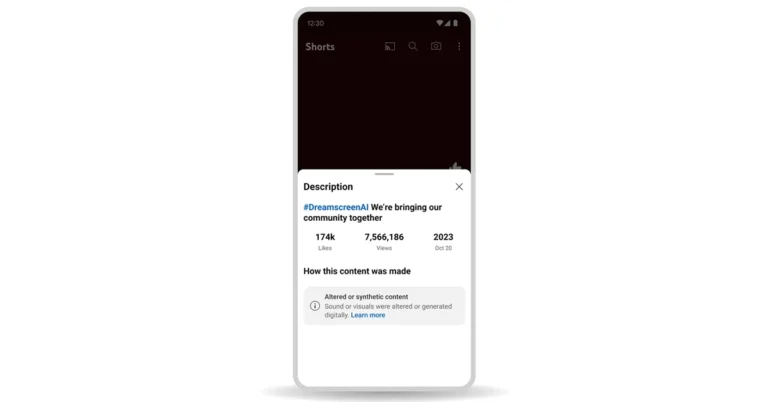
  • A new label will be added that will indicate that some of the content was altered or synthetic.
In order to ensure the ethical use of AI, YouTube has brought new policies. It will remove all the AI-generated Deepfake Videos and content that is likely to spread misinformation, content imitating others and more. By setting these standards on the platform the company will tackle difficulties that AI brings on the platform and will inform users on the platform that the content they are viewing is synthetic. YouTube will roll out updates over the coming months and into the new year to protect viewers from AI-generating content uploaded on the platform introducing new risks. The video-sharing platform via its blog post says, “Generative AI has the potential to unlock creativity on YouTube and transform the experience for viewers and creators on our platform. But just as important, these opportunities must be balanced with our responsibility to protect the YouTube community. All content uploaded to YouTube is subject to our Community Guidelines—regardless of how it’s generated—but we also know that AI will introduce new risks and will require new approaches. YouTube brings new policies regarding AI content, will remove AI-generated content: More on this We’re in the early stages of our work and will continue to evolve our approach as we learn more. Here’s a look at what YouTube will roll out over the coming months and into the new year.” The technically manipulated content generated by AI could endanger viewers or mislead them if they don’t know that the video has been edited or is artificially produced. To address this concern, over the coming months, YouTube will begin informing viewers when the content they’re seeing is synthetic. YouTube will as the content creators notify users when they have used artificial intelligence (AI) tools to produce altered or synthetic content. The company will add new options for creators to select when uploading content, allowing them to flag content that includes realistic altered or synthetic material. Note that content creators who choose not to disclose this information may be subject to content removal, suspension from the YouTube Partner Program, or other penalties. YouTube will inform viewers that the content may be altered or synthetic in two ways:
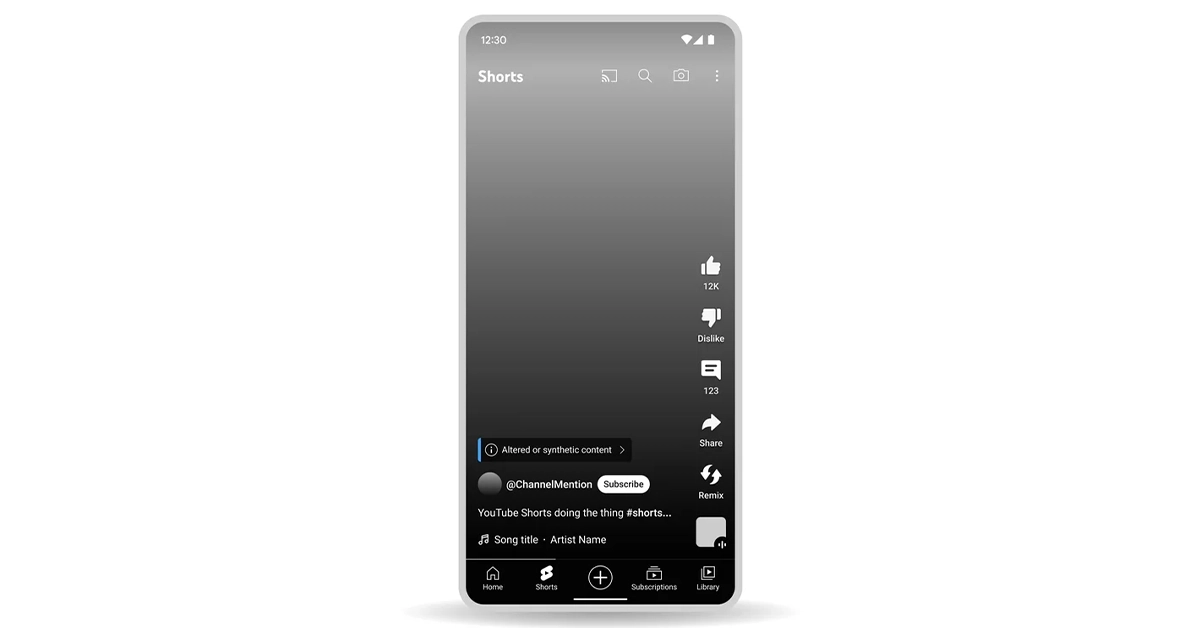
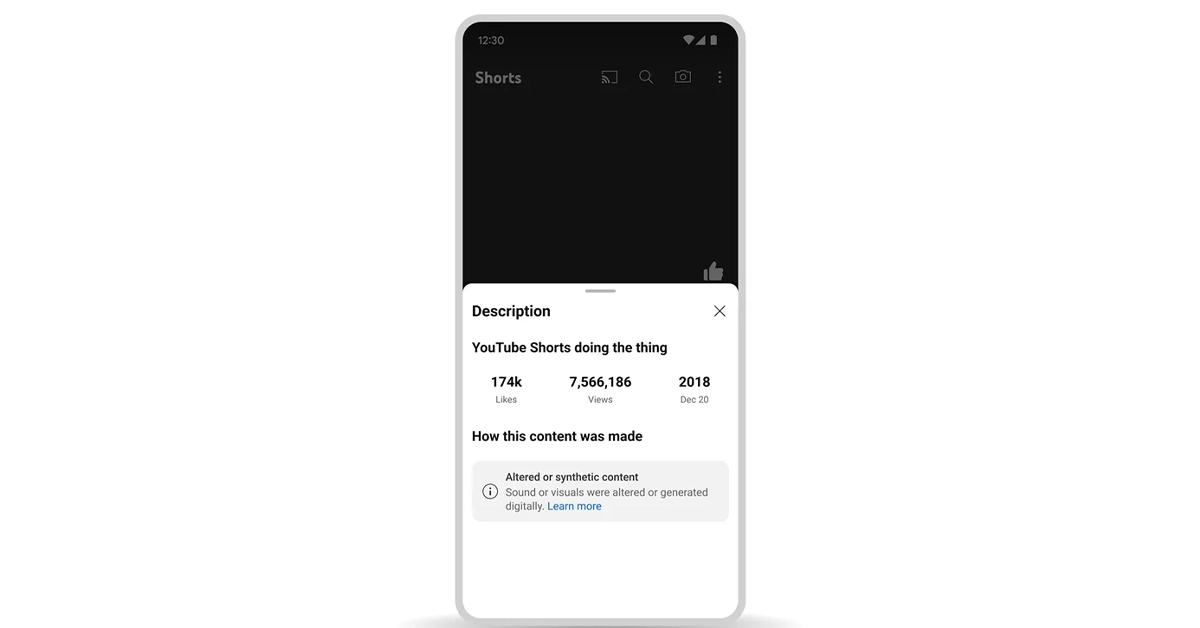
  • A new label will be added that will indicate that some of the content was altered or synthetic.
  • YouTube will apply a more prominent label to the video player for select content about sensitive topics.
YouTube brings new policies regarding AI content, will remove AI-generated content: More on this “We’ve heard continuous feedback from our community, including creators, viewers, and artists, about the ways in which emerging technologies could impact them. This is especially true in cases where someone’s face or voice could be digitally generated without their permission or to misrepresent their points of view,” YouTube said. Soon it would be possible to request the removal of AI-generated or other synthetic or altered content that simulates an identifiable individual, including their face or voice, using our privacy request process. As per YouTube not all content will be removed from YouTube it considers a variety of factors when evaluating these requests. In addition to this music partners can also request the removal of AI-generated music content that mimics an artist’s unique singing or rapping voice. Labels or distributors representing artists participating in YouTube’s early AI music experiments will be able to request these removals. 
WhatsApp’s new feature allows one-on-one voice chats in large groups

Key Highlights
  • This feature is widely available on WhatsApp for Android and iOS
  • Users can start one-on-one communication without ringing the other users in the group chat.
  • Other members of the group will receive a silent push notification.
WhatsApp has released voice chats for large groups to everyone. The feature is compatible with iOS and Android users. The functionality allows users to start calls in private without disturbing others in a large group, therefore conversations between individuals are made easier. WhatsApp took to X to announce that it has started rolling out a voice chat feature for large groups. Also, the feature was revealed by Will Cathcart through his official WhatsApp channel followed by WhatsApp. It is currently available to everyone with the latest versions of WhatsApp for iOS and Android. By introducing this new function WhatsApp is letting users initiate voice chats in group chats without bothering other members of the group. WhatsApp is widely rolling out this functionality to everyone. After updating to the latest versions of WhatsApp for iOS and Android one can join voice chats at any moment. Users can start one-on-one communication without ringing the other users in the group chat. Also Read: Now Threads profiles can be deleted separately from the Instagram account The voice chat will automatically finish after 60 minutes if no one joins. Nevertheless, a new voice chat can be started at any time. As mentioned earlier this feature is accessible for large groups with 33 to 128 members. However, Voice Chats was also tested for smaller groups during the beta testing stage. Note that linked devices do not have access to it. The major benefit of this feature is one can start individual voice chats without ringing all member’s phones in a group. However, another member of the group will receive a silent push notification and those not participating will know who has joined the call directly from the Calls tab and the chat header. But they may also additionally join and exit the call at any moment. As mentioned other members would know about the active call through push notification but they cannot listen to voice chats. Also to protect the privacy of users voice chats in large groups in WhatsApp are end-to-end encrypted.

Garena Free Fire Redeem Codes Today 16 November 2023: Here is how to claim them

Garena Free Fire is a battle royale game with regular awards and tournaments to keep players interested. If you play Garena Free Fire, you should be aware of the redeem codes that are released on a daily basis. However, because the battle royale game is banned in India, players from other countries can use the Free Fire Redeem codes daily. If you’re unfamiliar with the Garena Free Fire redeem codes or don’t know how to get them, we’ve put together a step-by-step guide to help you redeem them. Check out Garena Free Fire Redeem Codes for 16 November 2023. The Free Fire redeem codes are a great way to get free stuff. These are 12-digit codes that contain alphabets and numbers, as well as an expiration date and time. Because the Garena FF redeem codes cannot be used more than once, you should hurry to the redemption page to claim your free reward before someone else does. To get a free reward, all you have to do is go to reward.ff.garena.com/en, which is the official redemption page. Also, keep an eye on this space for daily updates on Garena Free Fire redemption codes and rewards.

Garena Free Fire Redeem Codes Today 16 November 2023

FU5YHGBTNYG9MBK FLOVI8C7DYETG4B FN6MY7LJPNO9BIU FV7YFHDN4M56LYP FU0HLKBVCPYO987 FFYUFJU78SU7YTG FBRNHMKIUYSTGF2 F3BG4N5MTKYLHOI FBVYHDNEK46O5IT FUGYHVBCXMSOUE4 FV7CYTGDBWNMJEK FL5O9YHD87BYVTC FGDEN4M5KVLYHI7 FDYHR6Y7UR674U3 FSY6TGF3BNRMFCI FU7Y6T5SRFRWVB4 FN5TKYLHROVMKLS FOE497MURKNLOBI

How to Get Free Fire Redeem Codes for Garena on 16 November 2023?

  • Visit the Garena Free Fire game’s official website at reward.ff.garena.com.
  • Use your Facebook, Google, VK, Apple ID, Huawei ID, or Twitter account to log in.
  • You’ll be taken to a valid redemption code (s)
  • Copy and paste the 12-digit redemption code into the text box.
  • On the screen, a dialogue box will appear.
  • ‘Ok’ should be selected.
For the latest gadget and tech news, and gadget reviews, follow us on TwitterFacebook and Instagram. For newest tech & gadget videos subscribe to our YouTube Channel. You can also stay up to date using the Gadget Bridge Android App. You can find the latest car and bike news here.

3 Easy Ways to View Your Google Search History

0
With constant connectivity to the internet and the incredible volume of data flowing through our devices, it can get tricky to locate a search query you made months ago. Most people rely on Google to autofill the prompt, but it can prove to be futile if you recently erased your browser’s history. Luckily, your Google Account still maintains a record of past queries. In this article, we bring you the 3 easy ways to view your Google Search History on a PC, iPhone, and Android phone. Read Also: Now Threads profiles can be deleted separately from the Instagram account

View your Google Search History on a PC

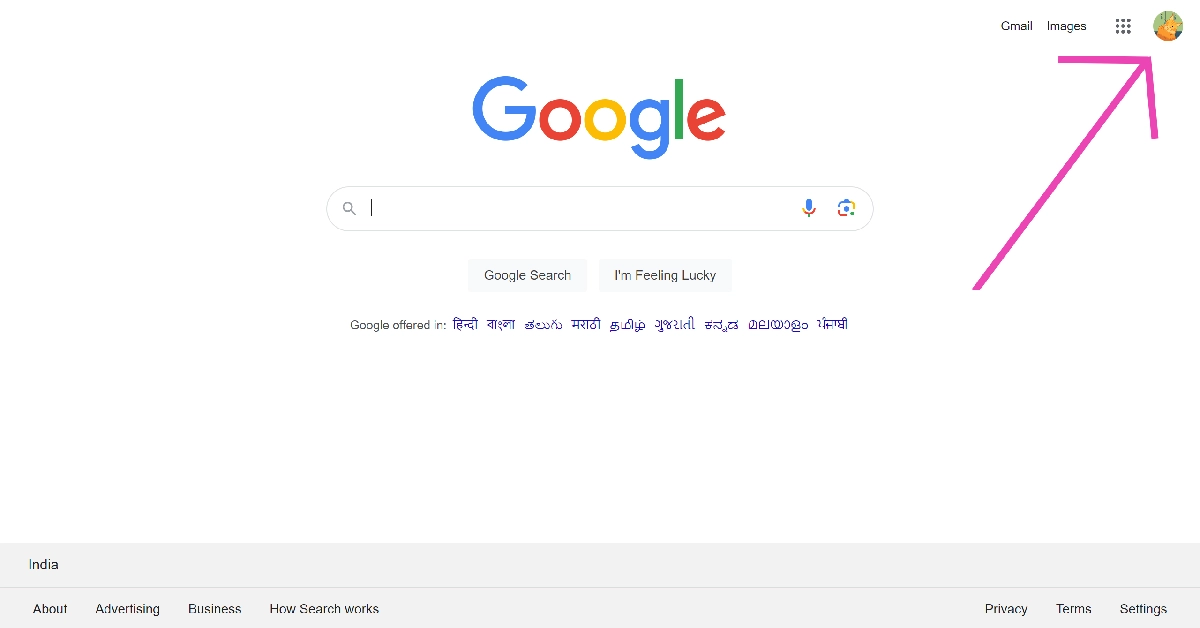
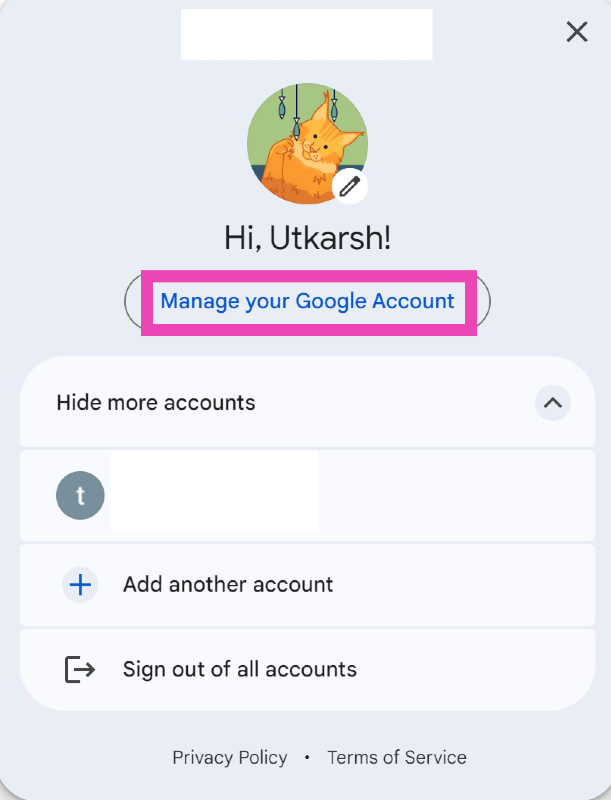
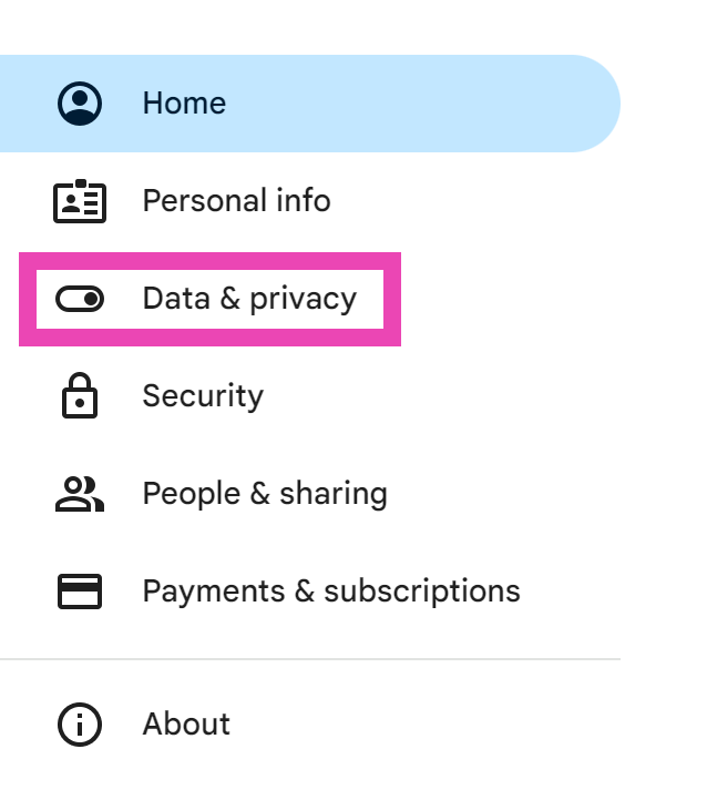
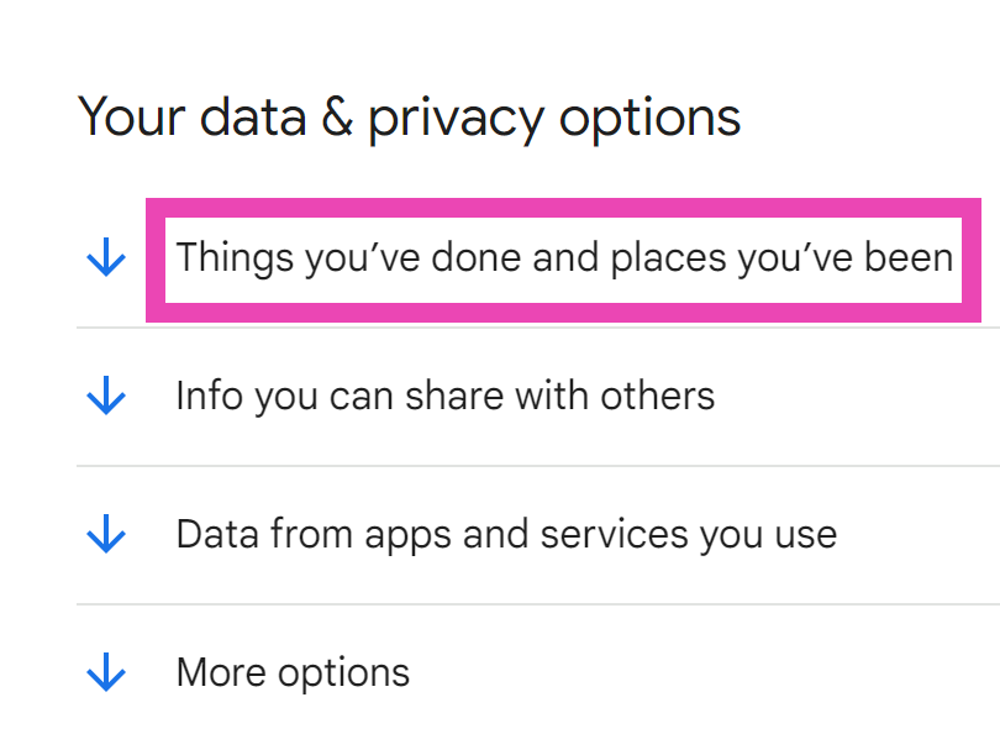
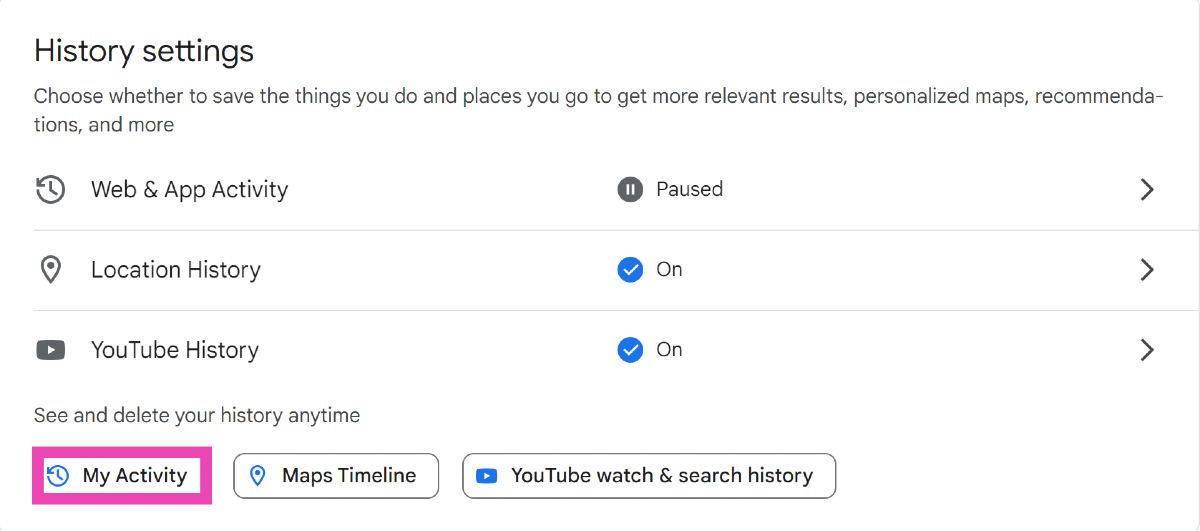
Step 1: Launch your preferred web browser and go to the Google homepage. Step 1: Launch your preferred web browser and go to the Google homepage. Step 2: Click on your profile icon at the top right corner of the screen and select Manage your Google Account. Step 2: Click on your profile icon at the top right corner of the screen and select Manage your Google Account. Step 3: Switch to the Data and privacy tab. Step 3: Switch to the Data and privacy tab. Step 4: Click on ‘Things you’ve done and places you’ve been’. Step 4: Click on ‘Things you’ve done and places you’ve been’. Step 5: Select My Activity. Step 5: Select My Activity. This is where you’ll find your search and watch history.

View your Google Search History on Android

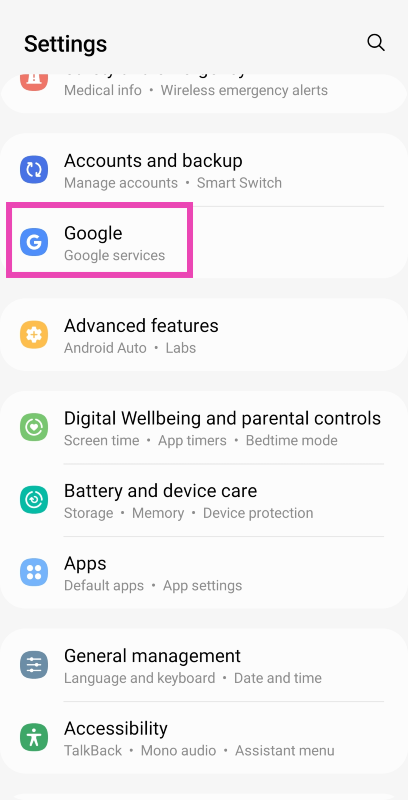
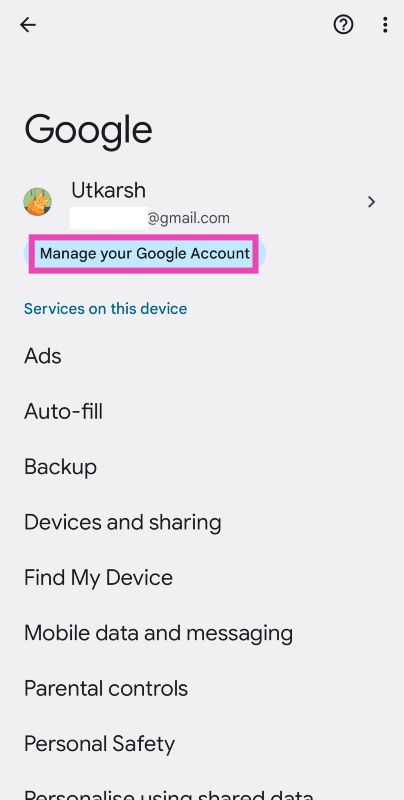
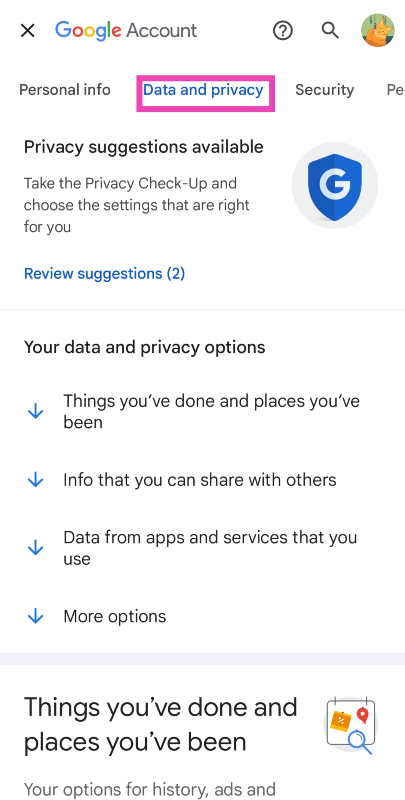
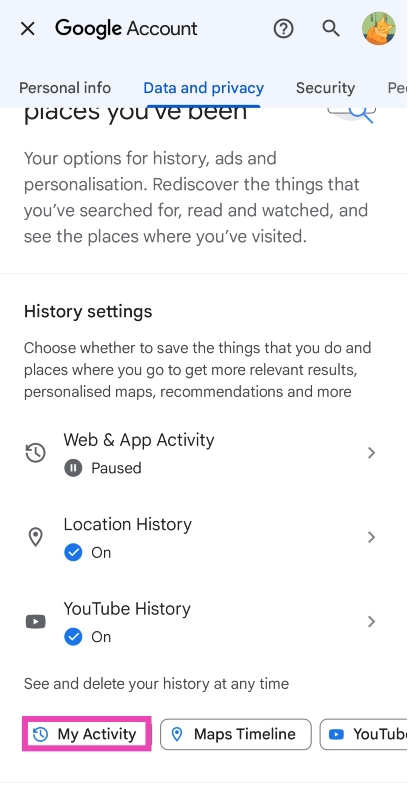
Step 1: Go to Settings and select Google. Step 1: Go to Settings and select Google. 3 Easy Ways to View Your Google Search History Step 2: Tap on Manage your Google Account. Step 2: Tap on Manage your Google Account. 3 Easy Ways to View Your Google Search History Step 3: Switch to the Data and privacy tab. Step 3: Switch to the Data and privacy tab. 3 Easy Ways to View Your Google Search History Step 4: Scroll down and tap on My Activity. Step 4: Scroll down and tap on My Activity. 3 Easy Ways to View Your Google Search History

View your Google Search History on an iPhone

Excessive data usage Step 1: Launch the Google Chrome app and hit the gear icon at the bottom of the screen. Step 2: Select Manage Activity. This is where you’ll find your Google Search History.

Frequently Asked Questions (FAQs)

What activity does my Google Account record other than my search history?

Your Google Account records your web & app history, location history, and YouTube history. You can delete them from the ‘My Activity’ page on your Google Account.

How do I view my Search History on an Android phone?

Go to Settings>Google>Manage your Google Account and tap My Activity.

How do I view my Google Search History on my iPhone?

Launch the Chrome app on your iPhone, hit the gear icon at the bottom of the screen, and select Manage Activity to view your  Search History. Read Also: iQoo 12 listed on Amazon ahead of December 12 India launch

Conclusion 

This is how you can view your Google Search History on a PC, Android phone, and an iPhone. You can also filter the history by date and mass delete the search results from that time period. If you don’t want your Google Account to record your location and search results, simply turn them off from the My Activity page.

Nothing chats launched, allows Phone 2 users to send iMessage via blue bubbles

Key Highlights
  • Nothing Chats can be downloaded from the Google Play Store.
  • Nothing Phone 2 will allow users to send messages from Android to iOS.
  • Messages will be shown in blue bubbles.
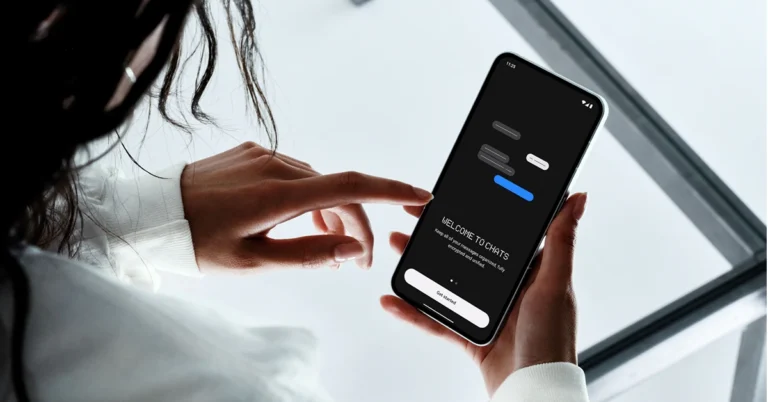
Nothing introduced a new app called Nothing Chats with a blue bubble for text messages to make it compatible with iMessage. The newly arrived feature will let Nothing Phone 2 users send out messages that will appear as blue bubbles just like those in iMessage. The tech firm via its blog post revealed that the newly announced Nothing Chats app is under beta testing. It is said to be made available for Nothing Phone 2 users in select regions at this time. Nothing chats are powered by Sunbird, which allows you to directly message other phone users from your Nothing phone via blue bubbles. While making this announcement Nothing said, “Nothing is the first mobile company to offer a solution to one of the biggest frustrations between Android and iOS users.” Nothing chats launched, allows Phone 2 users to send iMessage via blue bubbles Now that you already know Nothing Chats comes with Blue Bubbles so when you text from Nothing Phone 2 to an iOS device your text will appear in Blue Bubble much like they do with iMessage. Otherwise, when you text from another Android Phone to an iPhone it is shown in a green bubble. Also Read: Now Threads profiles can be deleted separately from the Instagram account According to the company Nothing Chat with blue bubbles will be available to a limited number of Nothing Phone 2 users in the US, Canada, UK, and EU from November 17. Nevertheless, the feature will reach to more regions in the coming weeks or months. The blog post said, “We believe in windows, not walls. If messaging services are dividing phone users, then we want to break those barriers down. Nothing Chats is an app developed in partnership with Sunbird, which allows you to message other users via blue bubbles. We are currently in a Beta phase, which means more features and improvements are coming down the line. Stay in the loop by signing up for updates.” Nothing Phone 2 users will be able to the messaging app from the Google Play Store. Log in with your existing Apple ID username or create a new account to start sending and receiving blue bubbles. Also, all Chat messages are end-to-end encrypted, which means neither we nor Sunbird can access the messages you’re sending and receiving. As per the company Messages are not stored on Sunbird’s servers and are only live on your device – once a message is delivered, it can only be recovered locally from your personal device.

Top 3 Ways to Open Facebook Desktop Website on any Phone

0
Over the years foldable smartphones have slowly carved out a niche for themselves. If you are currently using a folding phone, you probably want to browse Facebook in its desktop avatar, given the enormous screen real estate offered by your device. If you’re connected to a WiFi network, you don’t even have to care about data usage. In this article, we bring you the top 3 ways to open Facebook’s desktop website on any phone. Read Also: Vivo X100 Pro and Vivo X100 powered by MediaTek Dimensity 9300 SoC launched

Open the Facebook Desktop Website on your native Android browser

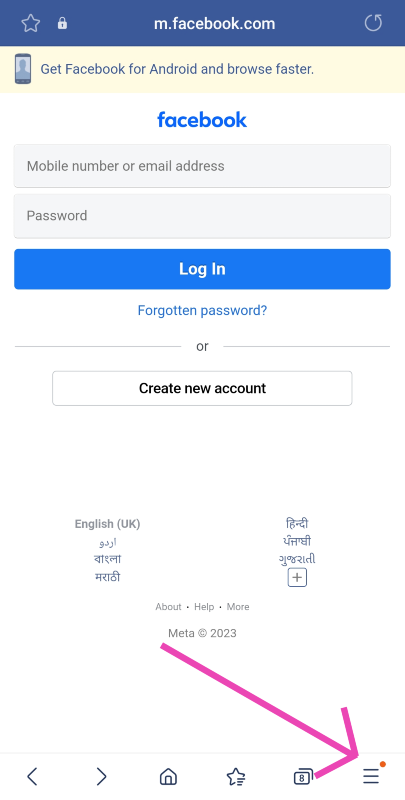
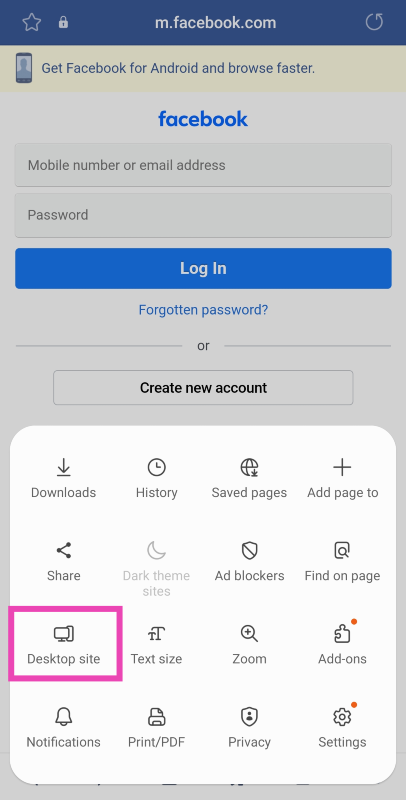
Step 1: Launch the native web browser on your Android phone. Step 2: Go to Facebook’s official website. Step 3: Hit the hamburger menu at the bottom right corner of the screen. Step 3: Hit the hamburger menu at the bottom right corner of the screen. Step 4: Select Desktop site. Step 4: Select Desktop site.

Open the Facebook Desktop Website on Google Chrome

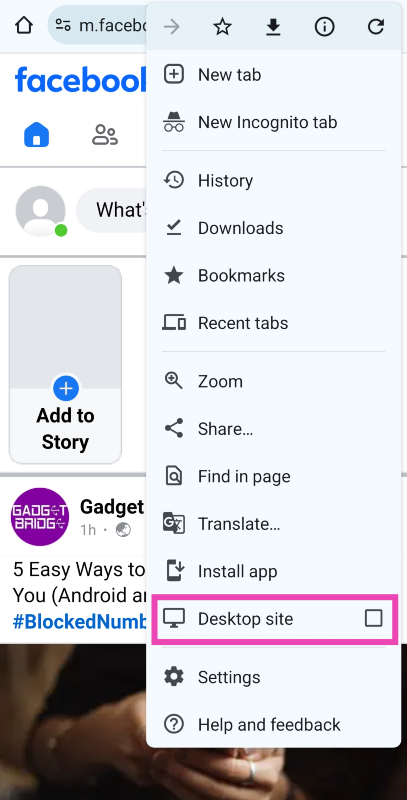
Step 1: Launch Google Chrome on your smartphone. Step 2: Go to Facebook’s official website. Step 3: Hit the ellipses at the top right corner of the screen. Step 3: Hit the ellipses at the top right corner of the screen. Top 3 Ways to Open Facebook Desktop Website on any Phone Step 4: Select the check box for Desktop site. Step 4: Select the check box for Desktop site. Top 3 Ways to Open Facebook Desktop Website on any Phone

Open the Facebook Desktop Website on Safari

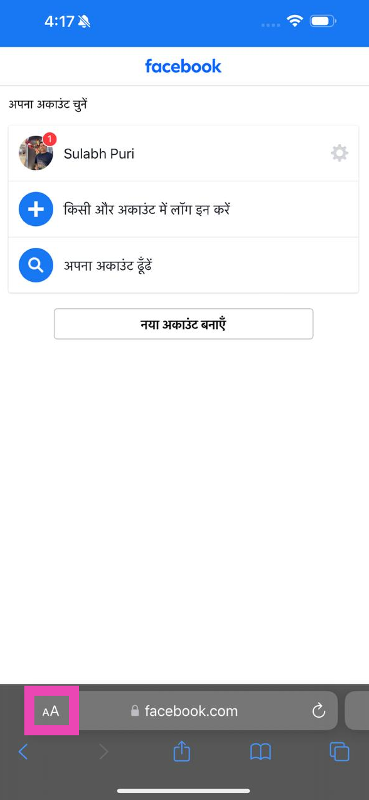
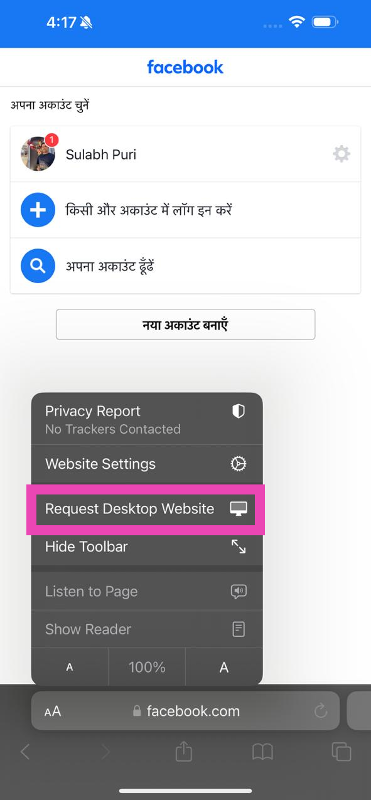
Step 1: Launch the Safari browser on your iPhone. Step 2: Go to Facebook’s official website. Step 3: Tap the aA icon next to the address bar. Step 3: Tap the aA icon next to the address bar. Top 3 Ways to Open Facebook Desktop Website on any Phone Step 4: Hit Request Desktop Website. Step 4: Hit Request Desktop Website. Top 3 Ways to Open Facebook Desktop Website on any Phone

Frequently Asked Questions (FAQs)

How do I open the Facebook desktop website on my iPhone?

Go to the Safari web browser on your iPhone, navigate to Facebook, hit the aA icon at the bottom of the screen, and select ‘Request Desktop Website’. You can use this option for any website.

Does the desktop version of Facebook consume more mobile data?

Since Facebook’s desktop version does not compromise the website layout and other features for your smartphone, it ends up consuming more mobile data.

Is Facebook’s mobile site faster than the desktop version?

Yes, Facebook’s mobile site is significantly faster than the desktop version because it is optimised for smartphones and features a more favourable layout for mobile devices. Read Also: Samsung to push out One UI 6 update to 30 more devices, here is the timeline

Conclusion

These are the top 3 ways to open Facebook’s desktop website on any phone. If you’re facing issues with hitting certain icons or tabs on the mobile version of Facebook, switching to the desktop site will help. The process to request the desktop website on the native browser app may vary among different smartphone manufacturers, but the feature is typically found in browser options.

5 Easy Ways to Call Someone Who Blocked You (Android and iOS)

0
Once someone blocks your phone number, you can’t contact them via phone calls or text messages. If you feel like the user accidentally blocked your number instead of someone else’s, you can contact them on social media platforms like Instagram and Facebook and ask them to fix the error. However, if you don’t use social media, here are the top 5 easy ways to call someone who blocked you (Android and iOS). Read Also: Vivo X100 Pro and Vivo X100 powered by MediaTek Dimensity 9300 SoC launched

Hide your Caller ID

On Android

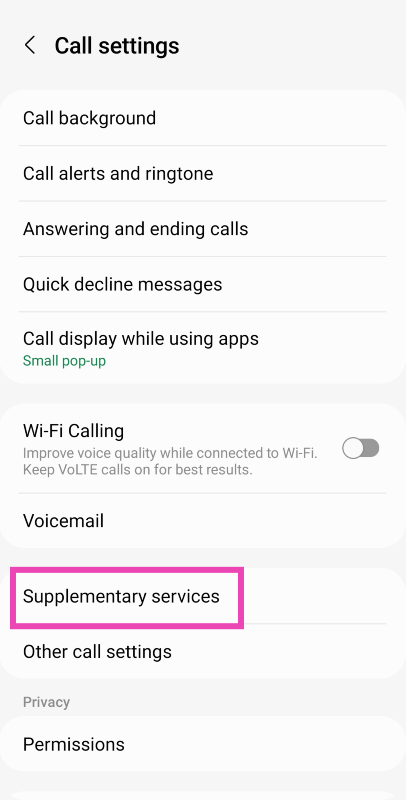
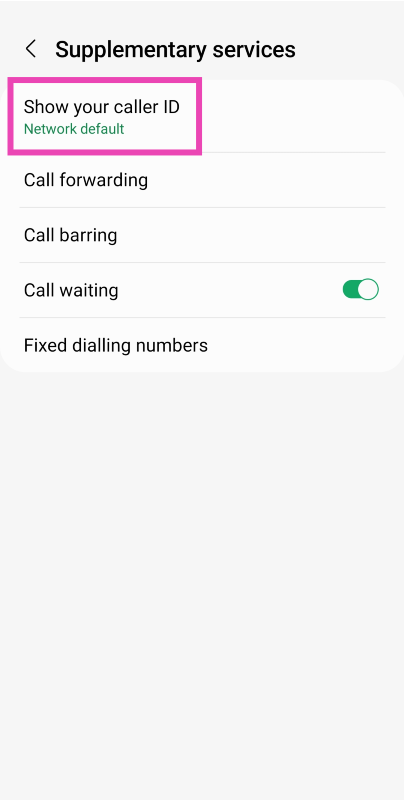
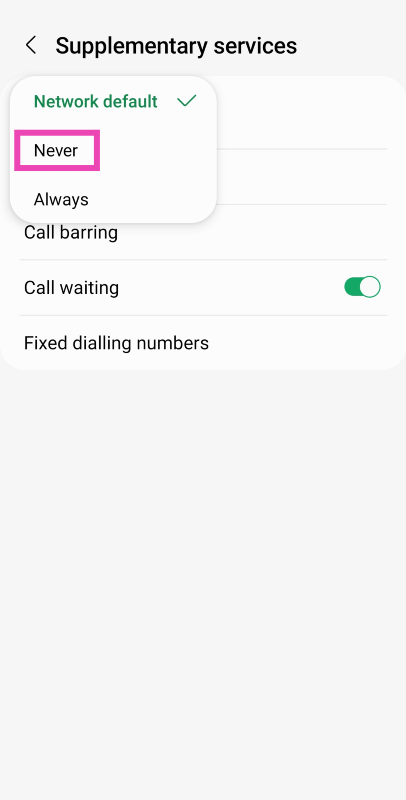
Step 1: Launch the dialer app and tap the ellipses at the top right corner of the screen. Step 1: Launch the dialer app and tap the ellipses at the top right corner of the screen. Step 2: Select Settings. Step 2: Select Settings. Step 3: Scroll down and select Supplementary Services. Step 3: Scroll down and select Supplementary Services. Step 4: Tap on Show your Caller ID. Step 4: Tap on Show your Caller ID. Step 5: Select Never. Step 5: Select Never.

On iOS

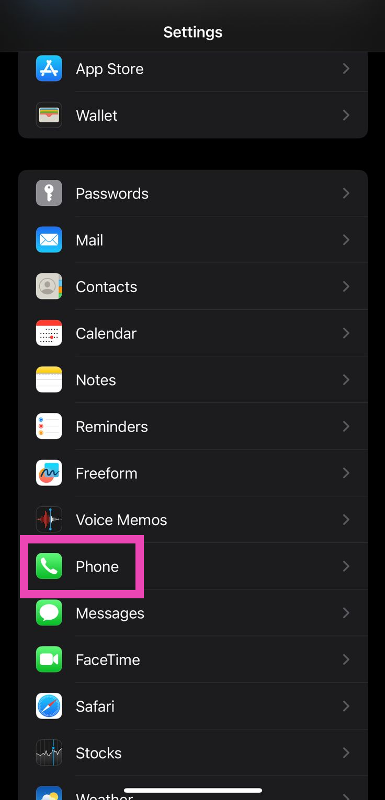
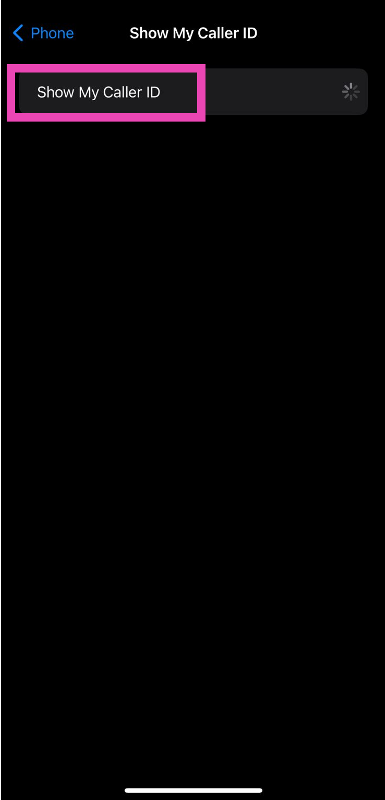
Step 1: Go to Settings and select Phone. Step 1: Go to Settings and select Phone. Step 2: Tap on Show my Caller ID. Step 2: Tap on Show my Caller ID. Step 3: Turn off the toggle switch for Show my Caller ID. Step 3: Turn off the toggle switch for Show my Caller ID.

Use *67 code to hide your Caller ID on iPhone (US Only)

iPhone users in the US can use a quick dial code to hide their Caller ID on a cellular call. Simply add *67 before the number you want to call if you don’t want the recipient to be able to see your name or phone number. Instead, their phone will display ‘Private Number’. Since your Caller ID is hidden, you will be able to get around the ban.

Use a different phone number

Use a different phone number 5 Easy Ways to Call Someone Who Blocked You (Android and iOS) One of the simplest and most common ways to bypass a ‘block’ situation is using a secondary SIM card on your phone. Most modern smartphones can accommodate two SIM cards quite easily. Instead of using the primary phone number that has been blocked, hit ‘SIM 2’ while dialling the receiver.

Use a virtual number

Use a virtual number 5 Easy Ways to Call Someone Who Blocked You (Android and iOS) If your secondary phone number has been blocked by the user as well, you can always get a burner number to contact them. Virtual phone numbers are often used to sign up for online services and apps where you don’t prefer using your primary number. This helps in cutting down a lot of spam. Once you get a virtual number you can also use it for calling, texting, and registering for instant messaging apps like WhatsApp. Check out our list of the top 10 apps for a temporary burner phone number.

Call them on WhatsApp or Messenger

Call them on WhatsApp or Messenger 5 Easy Ways to Call Someone Who Blocked You (Android and iOS) If the user has only blocked you from calling on a cellular network, you can still contact them on instant messaging apps like WhatsApp and Facebook Messenger. Simply search for the user on WhatsApp, open the conversation thread, and hit the call icon at the top right corner of the screen to initiate a voice call.

Frequently Asked Questions (FAQs)

How do I find out if someone has blocked my phone number?

If your number goes straight to voicemail after dialling the user, it is a strong sign that they have blocked your phone number. You may also receive notifications like ‘User is busy’ or ‘Number is out of service’ when you have been blocked.

How do I hide my Caller ID on my iPhone?

iPhone users from the USA can hide their Caller ID by adding *67 before dialling a particular number. Other users can go to Settings>Phone and turn off the toggle switch for Show my Caller ID to achieve the same result.

What are some good apps to get a virtual number?

Hushed, Dingtone, and Doosra are some of the best apps that provide a temporary virtual number. Read Also: Samsung to push out One UI 6 update to 30 more devices, here is the timeline

Conclusion

These are the top 5 ways to call someone who has blocked you (Android and iOS). Before you proceed with these methods, you should know that constantly contacting someone against their consent constitutes as harassment. If you have been blocked by someone, it is probably for a reason and bypassing that boundary will probably not help your case.

10 ways to fix ‘iMessage Signed Out Error’ on iPhone

0
Message is the go-to texting and instant messaging service among Apple users. Once you sign into iMessage using your Apple ID, you don’t need to pay carrier charges for texts. You can even send media files without any hassle. However, users often report randomly getting signed out of the messaging service. In this article, we bring you the top 10 ways to fix the ‘iMessage signed out’ error on your iPhone. Read Also: Google Pixel 8 Pro Review: AI Features, Hit or Miss?

Why does iMessage keep signing me out?

Before we get into the fixes, let’s take a look at why you may be getting the ‘iMessage signed out’ error on your iPhone. This error could be caused by a plethora of reasons. Here are some of them.
  • Weak internet connection
  • Incorrect Apple ID
  • VPN-related issues
  • iMessage server outage
  • Incorrect date and time
  • Software glitches

Turn off and restart iMessage

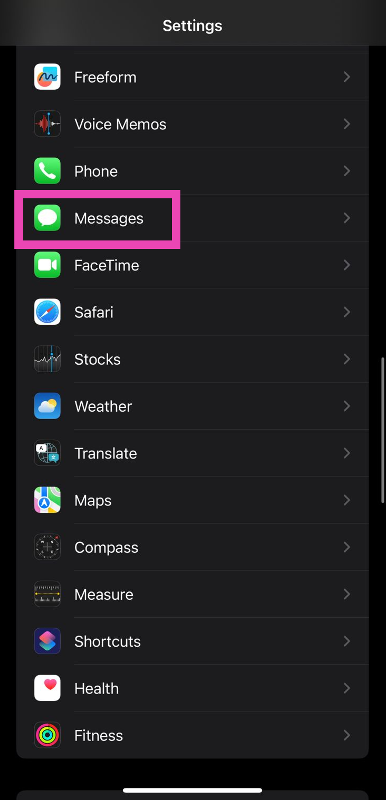
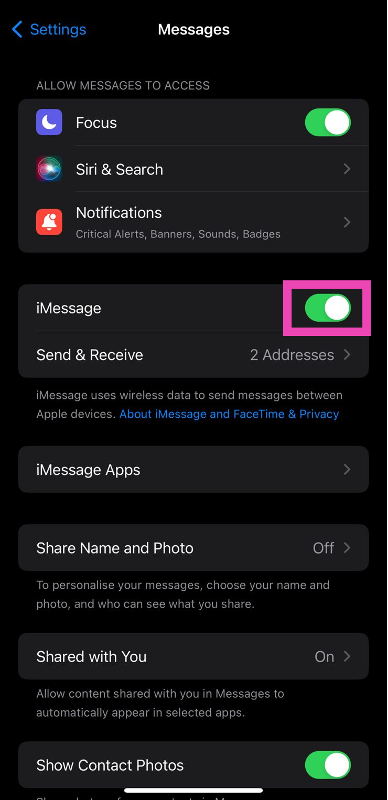
Step 1: Go to Settings and select Messages. Step 1: Go to Settings and select Messages. Step 2: Turn off the toggle switch next to iMessage. Step 2: Turn off the toggle switch next to iMessage. Step 3: Turn the toggle switch back on.

Restart your iPhone

Restarting your iPhone can fix any background issues and software glitches that may be causing iMessage to malfunction. To restart your device, press and hold the side button along with either of the volume buttons. Once the power menu appears on the screen, drag the power slider to the right to turn off your iPhone. Press and hold the power key to turn it back on.

Check if you’re using the correct Apple ID for iMessage

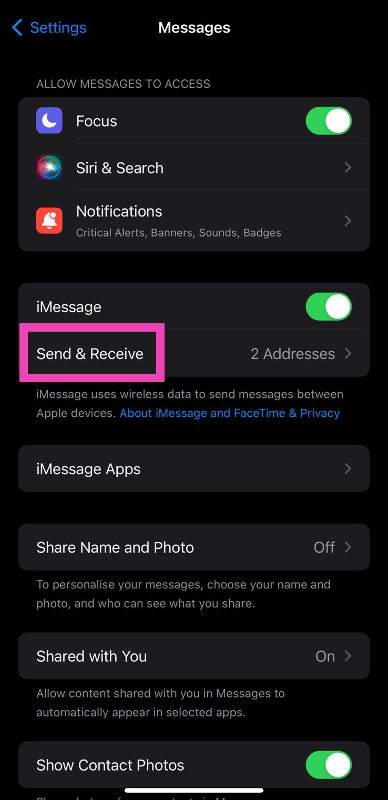
Step 1: Go to Settings and select Messages. Step 1: Go to Settings and select Messages. Step 2: Tap on Send & Receive. Step 2: Tap on Send & Receive. Step 3: Select ‘Use your Apple ID for iMessage’. Step 4: Select your Apple ID from the list. You can also sign out and sign back in to resolve any account-related issues.

Check your internet connection

How to share the WiFi password as a QR code on iOS 18 The lack of a strong internet connection may prompt iMessage to display that you are not signed into your account. This typically happens when your iPhone has not had access to the internet for a long time. Refresh your phone’s mobile data or connect to a WiFi network to resolve this issue.
Reset iMessage Region

Step 1: Go to Settings and select Messages. Step 1: Go to Settings and select Messages. Step 2: Tap on Send & Receive. Step 2: Tap on Send & Receive. Step 3: Tap on your Apple ID and select Change Location. Step 4: Tap on Region and set your current location.

Check iMessage servers

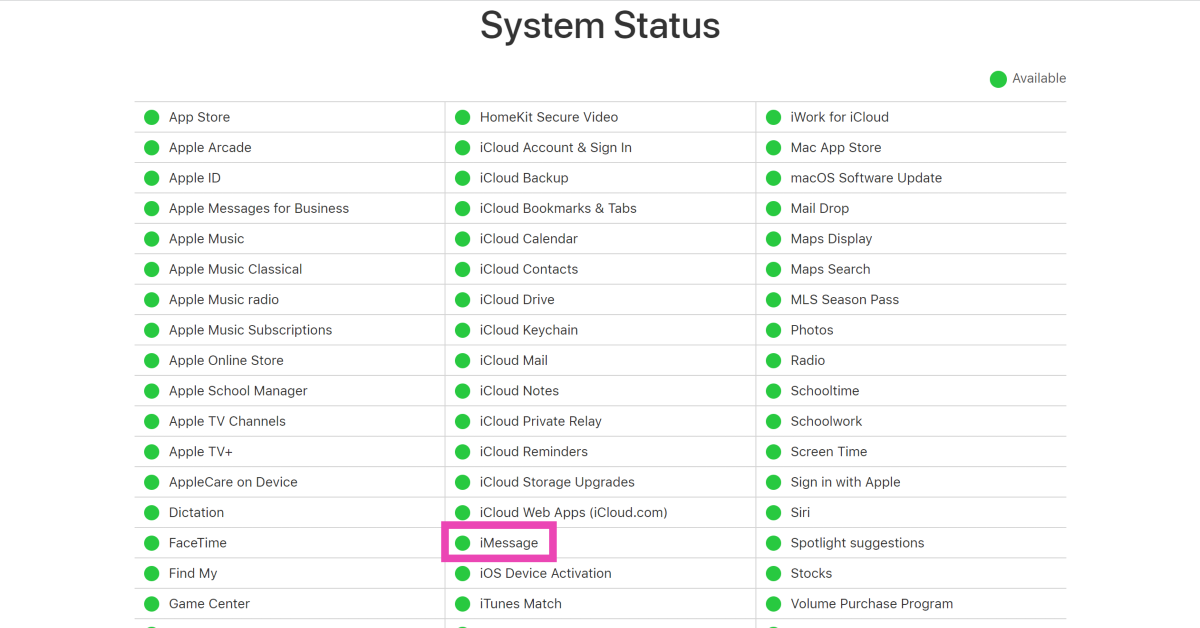
Check iMessage servers If you got signed out of iMessage and are unable to sign back in, it is likely because the iMessage servers are down. Luckily, Apple makes it very easy to track the server status of all its services. Simply go to the Apple System Status page and look for iMessage. If it does not have a green dot next to its name, it means it is experiencing a server outage. The only thing you can do in this situation is wait for the restoration of servers.

Check your iPhone’s data and time

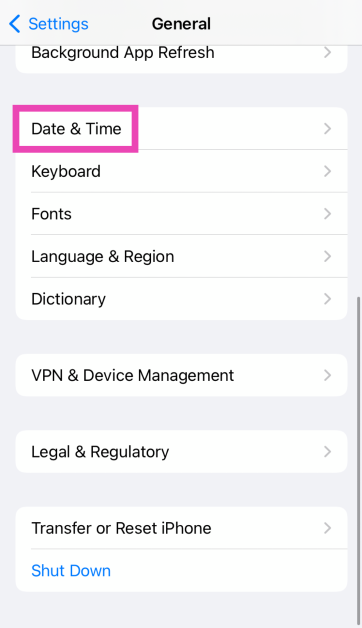
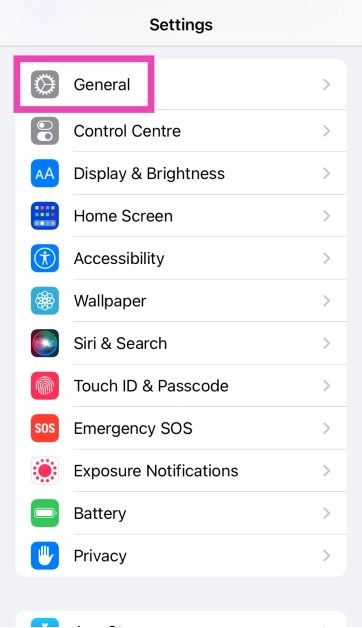
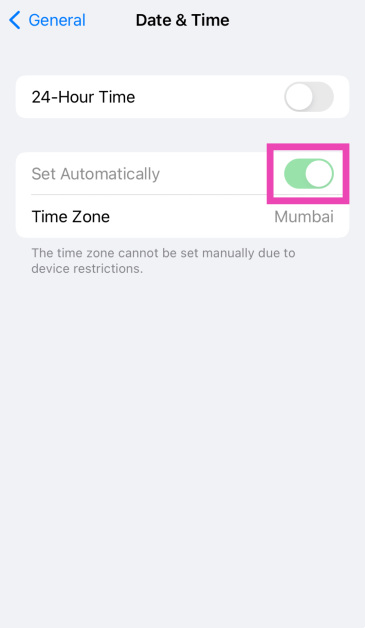
Step 1: Go to Settings and select General. 10 ways to fix 'iMessage Signed Out Error' on iPhone Step 2: Tap on Date & Time. 10 ways to fix 'iMessage Signed Out Error' on iPhone Step 3: Turn on the toggle switch next to Set Automatically. 10 ways to fix 'iMessage Signed Out Error' on iPhone
Disconnect VPN

How To Turn Off VPN On Android (2022)? 10 ways to fix 'iMessage Signed Out Error' on iPhone VPN apps and services are known to cause issues with iMessage. iMessage requires certain network ports to function properly on your iPhone. A VPN can block these ports, rendering iMessage useless. If you’re connected to a VPN server, disconnect right away and refresh the iMessage app.
Update iOS

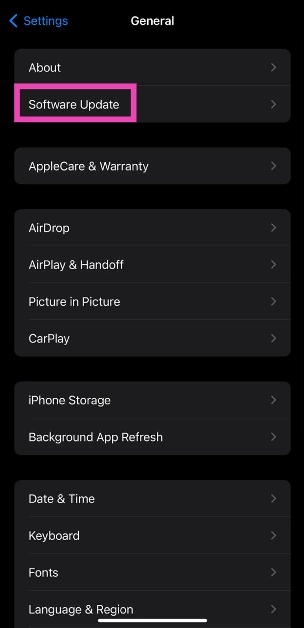
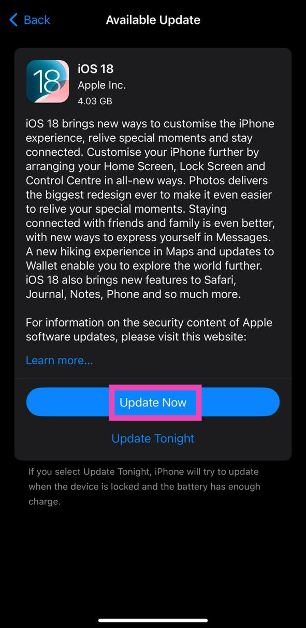
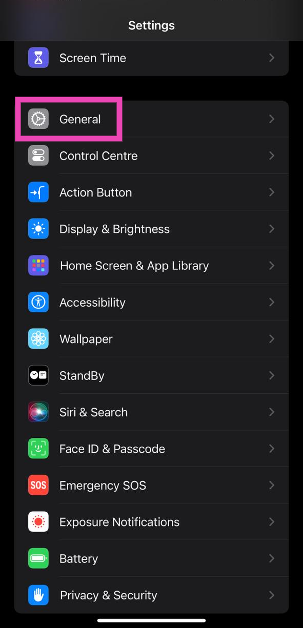
Step 1: Go to Settings and tap on General. Step 2: Go to Settings and tap on General. 10 ways to fix 'iMessage Signed Out Error' on iPhone Step 2: Tap on Software Update. Step 3: Tap on Software Update. Step 3: Hit Update Now. Step 4: Hit Update Now.

Reset Network Settings

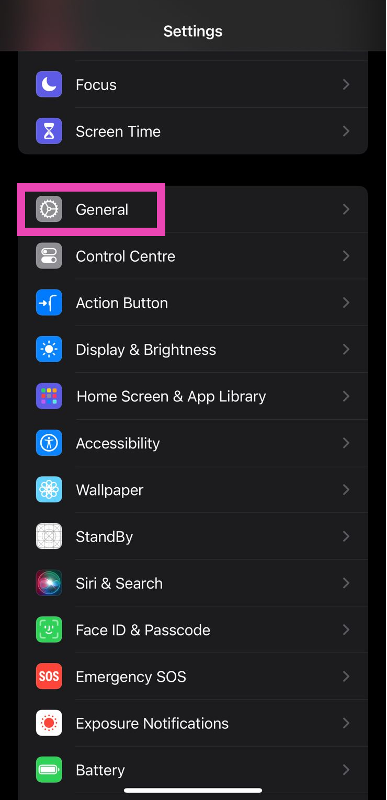
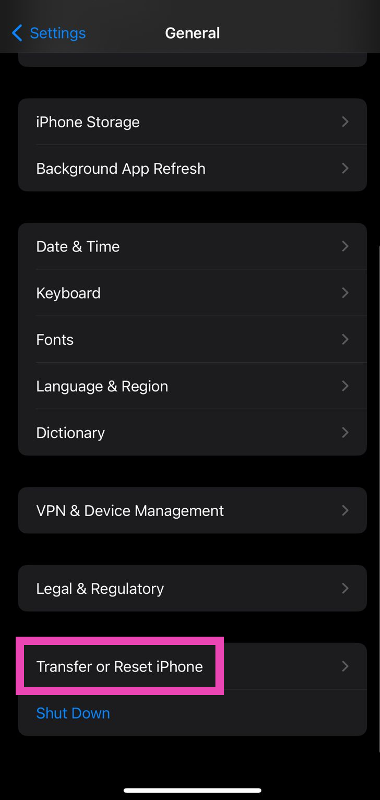
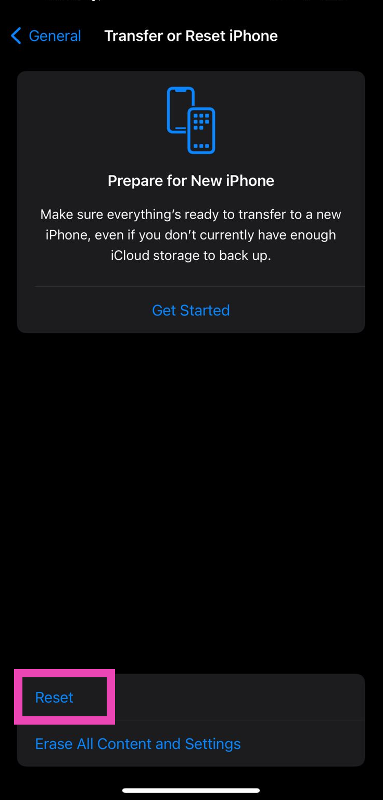
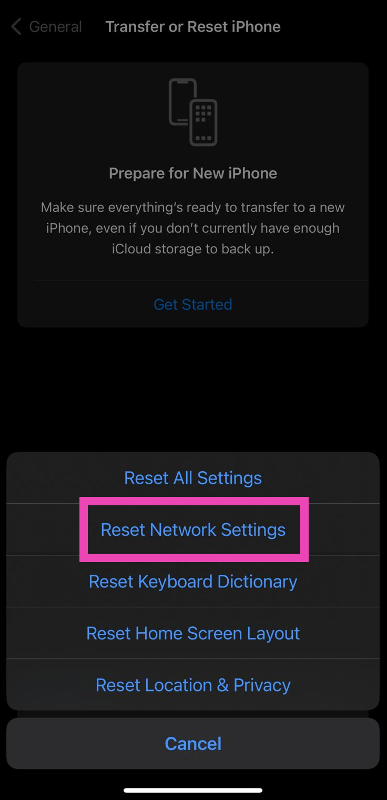
Step 1: Go to Settings and select General. Step 1: Go to Settings and select General. Easy 6 ways to fix iMessage Signed Out Error on iPhone Step 2: Scroll down and select Transfer or Reset iPhone. Step 2: Scroll down and select Transfer or Reset iPhone. Easy 6 ways to fix iMessage Signed Out Error on iPhone Step 3: Hit Reset. Step 3: Hit Reset. Easy 6 ways to fix iMessage Signed Out Error on iPhone Step 4: Select Reset Network Settings. Step 4: Select Reset Network Settings. Easy 6 ways to fix iMessage Signed Out Error on iPhone Step 5: Enter your password.

Frequently Asked Questions (FAQs)

Why is my iPhone saying iMessage is signed out?

When iMessage cannot make contact with your Apple ID, it displays the ‘Signed out’ error. This could happen due to a plethora of reasons including bad connection, server issues, and more.

Why does my iPhone keep logging me out on iMessage?

You may be getting signed out of iMessage due to several reasons. Some of these include server outages, incorrect region, incorrect Apple ID, and other background issues.

How do I sign into iMessage using my Apple ID?

Go to Settings>Messages>Send & Receive>Use your Apple ID for iMessage and sign in using the proper credentials.

How do I fix iMessage on my iPhone?

Restarting your iPhone is a quick way to fix iMessage. You may also want to check your Apple ID and reboot iMessage to fix the service.

What is the difference between iMessage and text?

iMessage is exclusive to Apple users, meanwhile, any text sent from Apple to Android is sent as an SMS. Read Also: 4 best ways to find someone on Instagram

Conclusion

These are the top 10 ways to fix the ‘iMessage signed out’ error on your iPhone. If these fixes didn’t work for you, try contacting Apple support for more assistance. The problem is likely related to your Apple account. If you suspect someone is trying to sign into iMessage using your Apple ID, changing your password will help.

Now Threads profiles can be deleted separately from the Instagram account

Key highlights
  • Meta has introduced the feature to delete your Threads profile without removing your Insta account.
  • Earlier users were able to disable their Threads profile temporarily.
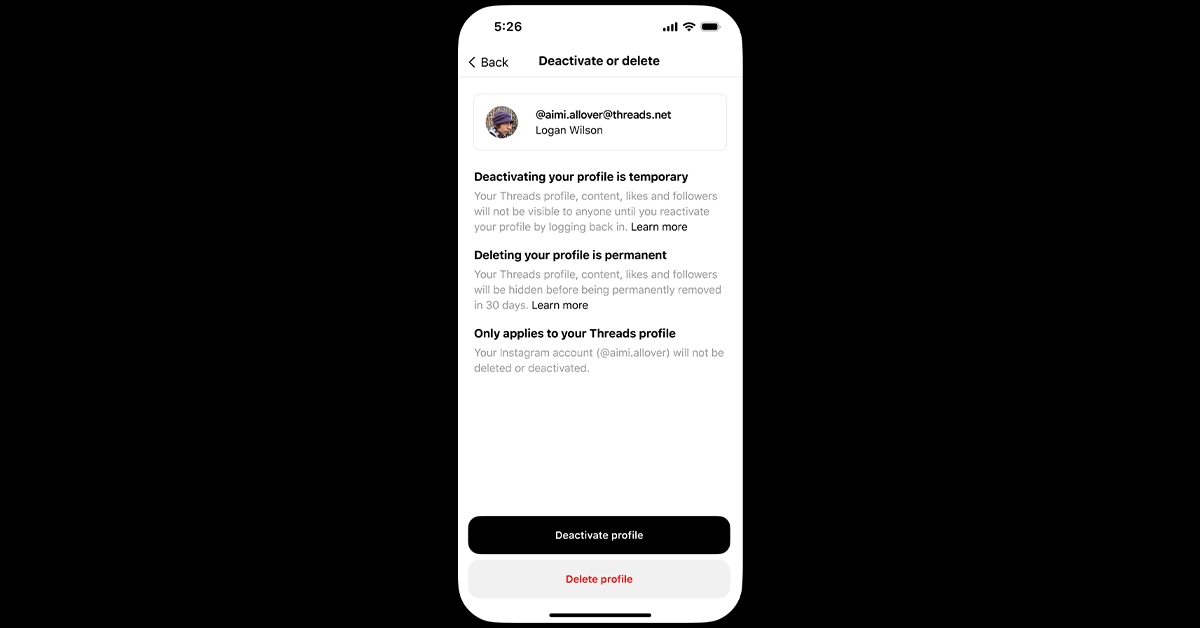
Last month Meta rolled out edit features for Threads. Along with this it also brought Voice Threads functionality to the users. Just a few days back the company introduced the function to stop their Threads post being suggested to users on Instagram and Facebook. Now after receiving some backlash from users, it has now brought the ability to delete their Threads profile without deleting their Instagram account at the same time. Until now there was no other way to delete your profile on Threads without removing your Instagram account because Threads profiles are connected to individual Instagram accounts. Instead, users were only given the option to disable their Threads profile temporarily. Now you are allowed to delete your Threads Profile without risking your Instagram account. Yes, Meta has finally brought the ability to delete Threads profile without deleting your Instagram as both the profiles are linked together. Meta launched Threads in July this year to take on the microblogging platform Twitter. From the very beginning users have been asking for the ability to delete Threads profiles without also removing the associated Instagram account. Now Threads profiles can be deleted separately from the Instagram account The information was shared by Adam Mosseri, Instagram chief. To delete your Threads profile, visit Settings → Account → Delete or Deactivate Profile, then select delete. In addition to this, the social media’s head has also announced another feature allowing users to see Threads posts directly on Facebook and Instagram, to help expand your audience and grow your reach. He said, “We heard feedback that you want more control over the experience, so we’re rolling out a way to opt out of being featured outside Threads in Settings → Privacy.” The latest update lets users select whether or not they want to be shown on platforms other than Threads. The Privacy section of the Settings menu is where you may find this ability to opt-out. Recently Meta also rolled out a free-to-use Edit button on the platform. Threads users can edit their posts as many times as they like during the minute barrier. After the allotted timeframe one cannot edit their Thread post. The Voice Threads option is another tool that has also been added. The feature allows users to add a recorded audio message as a Threads post.

iQoo 12 listed on Amazon ahead of December 12 India launch

Key Highlights
  • The iQoo 12 was launched in China last week alongside iQoo 12 Pro.
  • The smartphone comes with a 144Hz 6.78-inch 2K AMOLED E7 display.
  • It features a triple rear camera setup.
  • The device in India will be available via Amazon.
iQoo 12 is all set to make its debut in India next month after being released in China on November 7. According to the company it has scheduled the launch for December 12. The iQoo 12 Series launched in China include two models a Pro and a base model but as of now, the company has only set a vanilla model for release in the country. Ahead of the official launch, the company has created a dedicated microsite for the smartphone on Amazon. As soon as iQoo 12 is launched in India, it will be available for purchase via Amazon. The company has confirmed this by listing the phone on the e-commerce platform. To tease the availability and key specs of the handset a dedicated microsite has been created.
iQoo 12 specifications and price
iQoo 12

Price of iQoo 12

In China, iQoo 12 was made available in three colour options and a BMW Motorsport edition. The price of the smartphone there is set at:
  • 12GB RAM with 256GB storage: CNY 3,999 (Rs 45,000)
  • 16GB RAM with 512GB storage: CNY 4,299 (Rs 50,000)
  • 16GB RAM with 1TB storage: CNY 4,699 (Rs 53,000)
Also Read: Vivo X100 Pro and Vivo X100 powered by MediaTek Dimensity 9300 SoC launched

iQoo 12 Specifications

The iQoo 12 Pro comes with a 6.78-inch 2K AMOLED E7 display with 1,440×3,200 pixels of resolution. The screen supports up to 144Hz refresh rate, HDR`0+ and 20:9 aspect ratio. The phone runs on OriginOS 4 on top of Android 14. It is powered by a 4nm Snapdragon 8 Gen 3 SoC processor. The triple rear camera setup includes a 1/1.3-inch 50-megapixel primary sensor (f/1.68 aperture), 64-megapixel periscope telephoto (f/2.57 aperture and 100X digital zoom) and 50-megapixel ultra wide-angle sensor (f/2.0 aperture). For selfies, the device features a 16-megapixel front-facing camera with f/2.45 aperture. iQoo 12 boasts a 5,000mAh battery, with 120W fast charging support. Also, there is an in-display fingerprint sensor for biometrics.

Garena Free Fire Redeem Codes Today 15 November 2023: Here is how to claim them

Garena Free Fire is a battle royale game with regular awards and tournaments to keep players interested. If you play Garena Free Fire, you should be aware of the redeem codes that are released on a daily basis. However, because the battle royale game is banned in India, players from other countries can use the Free Fire Redeem codes daily. If you’re unfamiliar with the Garena Free Fire redeem codes or don’t know how to get them, we’ve put together a step-by-step guide to help you redeem them. Check out Garena Free Fire Redeem Codes for 15 November 2023. The Free Fire redeem codes are a great way to get free stuff. These are 12-digit codes that contain alphabets and numbers, as well as an expiration date and time. Because the Garena FF redeem codes cannot be used more than once, you should hurry to the redemption page to claim your free reward before someone else does. To get a free reward, all you have to do is go to reward.ff.garena.com/en, which is the official redemption page. Also, keep an eye on this space for daily updates on Garena Free Fire redemption codes and rewards.

Garena Free Fire Redeem Codes Today 15 November 2023

4ST1ZTBE2RP9 X99TK56XDJ4X B3G7A22TWDR7X FF7MUY4ME6SC FF9MJ31CXKRG FFICJGW9NKYT PCNF5CQBAJLK J3ZKQ57Z2P2P 3IBBMSL7AK8G FFCO8BS5JW2D FFAC2YXE6RF2 GCNVA2PDRGRZ WEYVGQC3CT8Q 8F3QZKNTLWBZ SARG886AV5GR

How to Get Free Fire Redeem Codes for Garena on 15 November 2023?

  • Visit the Garena Free Fire game’s official website at reward.ff.garena.com.
  • Use your Facebook, Google, VK, Apple ID, Huawei ID, or Twitter account to log in.
  • You’ll be taken to a valid redemption code (s)
  • Copy and paste the 12-digit redemption code into the text box.
  • On the screen, a dialogue box will appear.
  • ‘Ok’ should be selected.
For the latest gadget and tech news, and gadget reviews, follow us on TwitterFacebook and Instagram. For newest tech & gadget videos subscribe to our YouTube Channel. You can also stay up to date using the Gadget Bridge Android App. You can find the latest car and bike news here.

Vivo X100 Pro and Vivo X100 powered by MediaTek Dimensity 9300 SoC launched

Key Highlights
  • The Vivo X100 Pro and Vivo X100 features Zeiss optics.
  • The Pro model includes 120W fast charging support.
  • The X100 has 100W fast charging support.
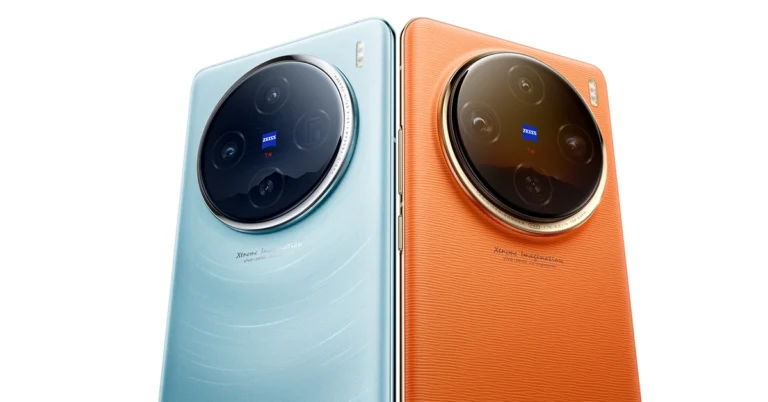
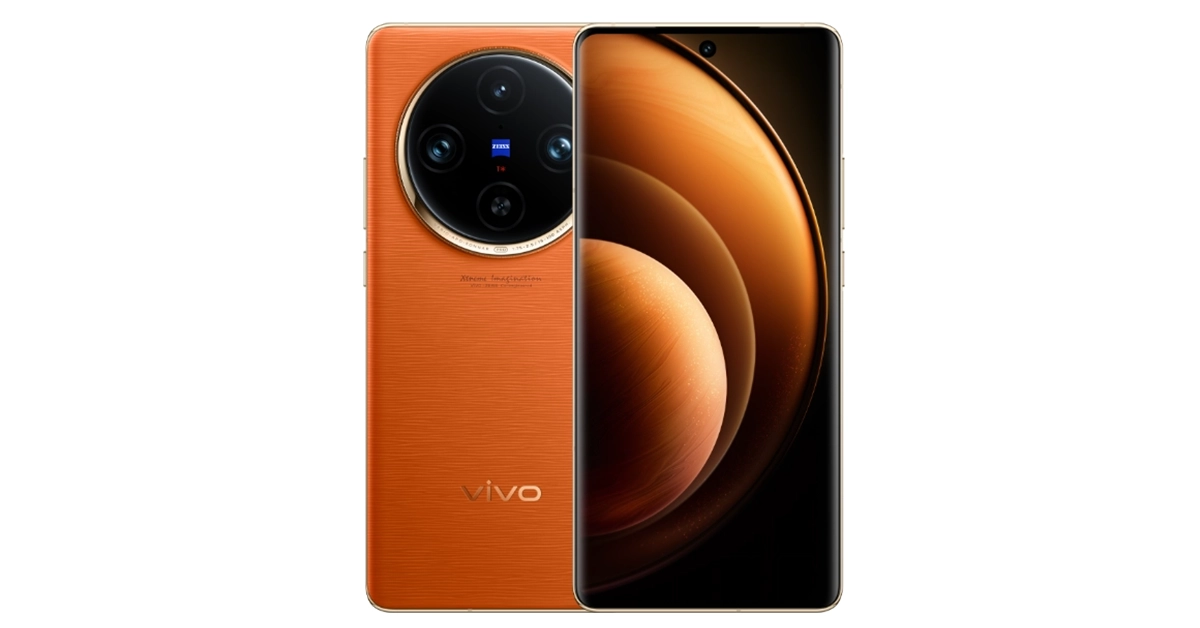
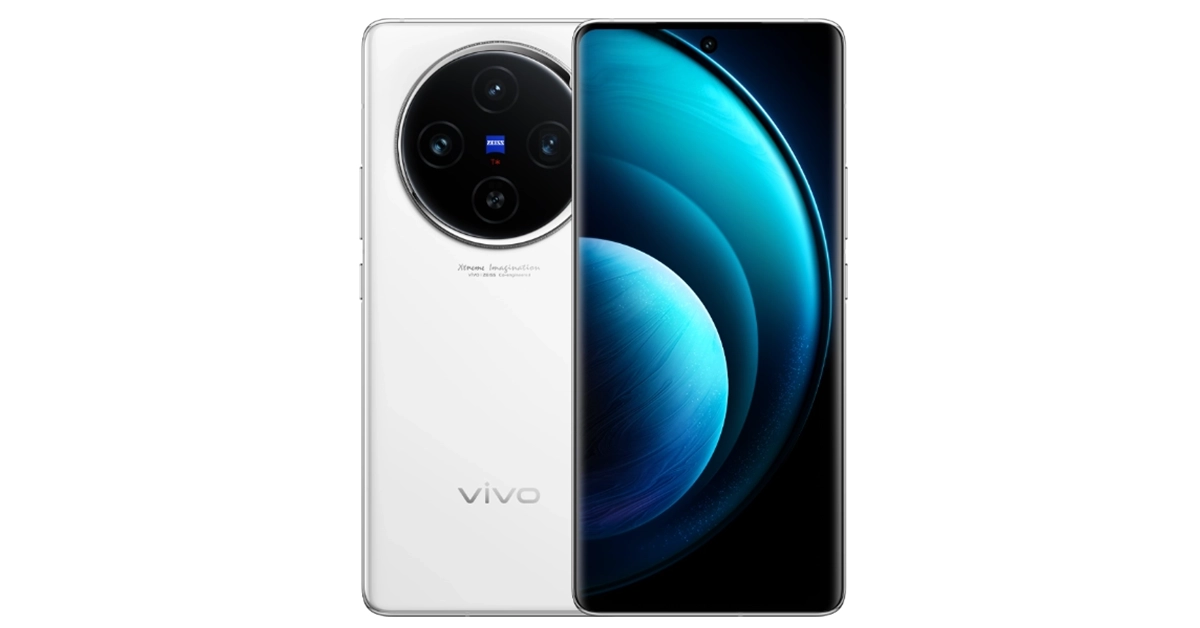
Vivo has officially unveiled its flagship series Vivo X100 in China. The new line-up includes two smartphones- Vivo X100 Pro and Vivo X100. The devices are powered by MediaTek Dimensity 9300 SoC and run on OriginOS 4 with Android 14 out of the box. The device comes with a triple rear camera powered by Zeiss Optics. In addition to this, the phones come with up to 120W fast charging support.

Vivo X100 Pro, Vivo X100 pricing and availability

Vivo X100 Pro price: 12GB RAM + 256GB storage: CNY 4,999 (Rs 56,500) 16GB RAM + 256GB storage: CNY 5,299 (Rs 60,000) 16GB RAM + 512GB storage: CNY 5,499 (Rs 62,000) 16GB RAM + 1TB storage: CNY 5,999 (Rs 68,000) Vivo X100 price: 12GB RAM + 256GB storage: CNY 3,999 (Rs 50,000) 16GB RAM + 256GB storage: CNY 4,299 (Rs 48,000) 16GB RAM + 512GB storage: CNY 4,599 (Rs 52,000) 16GB RAM + 1TB storage: CNY 4,999 (Rs 56,000) 16GB LPDDR5T RAM + 1TB storage: CNY 5,099 (Rs 58,000) Both smartphones are up for pre-orders and will shipped from November 21.
Vivo X100 Pro specifications
Vivo X100 Pro

Vivo X100 Pro specifications

Vivo X100 Pro features a 6.78-inch AMOLED 8T LTPO curved display with 1,260 x 2,800 pixels of resolution. The screen supports a 120Hz refresh rate, 3000 nits of peak brightness, and 100 percent DCI-P3 colour gamut. The phone runs on OriginOS 4 with Android 14 out of the box. It comes equipped with MediaTek Dimensity 9300 SoC with Vivo V3 chip. The device comes with an IP68 rating for dust and water resistance. The triple rear camera setup with Zeiss optics includes:
  • 50-megapixel Sony IMX989 1-inch type sensor with OIS (100x digital zoom)
  • 50-megapixel ultra wide-angle sensor
  • 50-megapixel Zeiss APO super-telephoto lens with OIS (4.3x optical zoom and 100x digital zoom)
The smartphone is highlighted with a 32-megapixel selfie camera. Vivo X100 Pro packs a 5,400mAh battery with 100W wired and 50W wireless charging support. For connectivity, there is: 5G, Wi-Fi 7, Bluetooth, NFC, GPS, NavIC, OTG, and a USB Type-C port Sensors: in-display fingerprint sensor, IR sensor, accelerometer, ambient light sensor, proximity sensor, e-compass, gyroscope, flicker sensor and multispectral sensor.
Vivo X100 specifications
Vivo X100

Vivo X100 specifications

The Vivo X100 shares a lot of similarities with the Pro variant. The display and processors are the same. The triple-camera setup includes:
  • Sony IMX920 VCS bionic 50-megapixel primary sensor with OIS
  • 50-megapixel ultra-wide-angle lens
  • 64-megapixel Zeiss super-telephoto lens (100x clear zoom)
The handset features the same selfie camera. The phone has a 5,000mAh battery with 120W fast charging support.

Samsung to push out One UI 6 update to 30 more devices, here is the timeline

Key Highlights
  • The rollout timeline for One UI 6 will be rolled out to more devices.
  • The Android 14 update has already been released to the S23 series.
  • The rollout timeline has been released through the official community manager at Samsung Community forums.
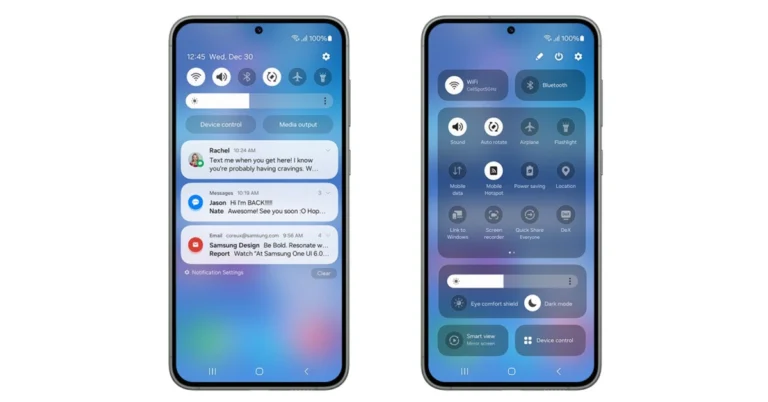
Samsung rolled out One UI 6 update to Galaxy S23, Galaxy S23+ and Galaxy S23 Ultra. Now its flagship mobile phones have already received the Android 14 update the company is planning to release the software update to more devices in the coming days. The update brings features like new icons, labels, widgets, animations, the ability to create a lock screen and a new default font. The Quick panel now includes a new button layout that makes it easier to access the features frequently used. After rolling out stable One UI 6 with Android 14 to Samsung Galaxy S23 series smartphones. Samsung has revealed the schedule for the update’s rollout for devices that are compatible to receive the update. According to the official community manager at Samsung Community forums 30 Galaxy phones will receive the update in the next five weeks. Also Read: Meta collaborates with Amazon to allow shopping on Facebook and Instagram Here is the release timeline for the One UI 6.0 update: November

Google Pixel 8 Pro Review: AI Features, Hit or Miss?

The Google Pixel 8 Pro has finally launched in India, and it has been our primary mobile phone for the past few weeks. The design of the phone looks similar to the previous iteration but has evolved. However, the internals of the smartphone have been improved. It is now being powered by the latest generation of the Tensor G3. Moreover, this time the Titan M2 security co-processor has been designed specifically to bring forth Google’s AI features. Regarding the camera, only the primary and selfie sensors have received an upgrade. With it, the rest of the Pixel phones this year are all about AI. So, here is our in-depth review of Google Pixel 8 Pro. 

Google Pixel 8 Pro Review: Design and Display

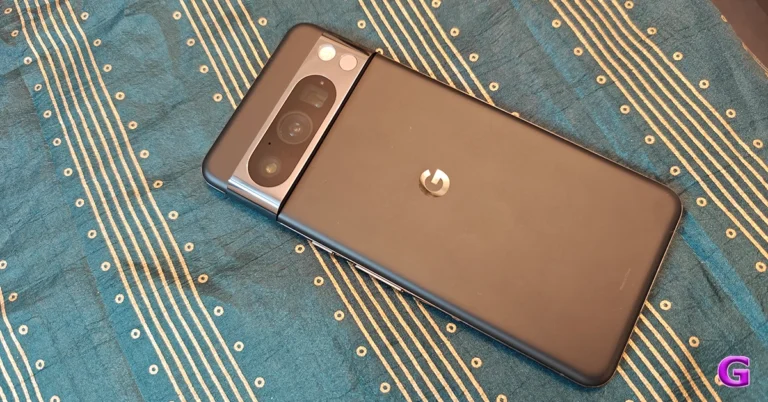
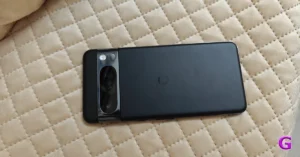
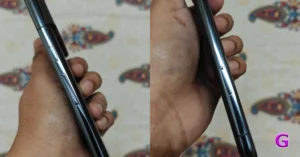
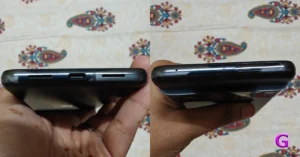
As we mentioned above, it may not look like the Google Pixel 8 Pro has received any design changes, but the look and feel of the phone are different from last year’s Pixel 7 Pro. On good thing we need to point out is that the Pixel 8 Pro has been made out of recycled material. With its softer shapes and exquisite metal finishes, it now has a more refined appearance.    Google Pixel 8 Pro Review: AI Features, Hit or Miss? The edges of the device are curved and rounded, unlike the flat corners of its predecessor. The curved edges make it incredibly comfortable to grasp. We have the Obsidian colour option for the review, but there is another colour variant that consumers can buy. The Pixel 8 Pro features a matte glass back and a temperature sensor that lets you quickly scan an object to get its temperature. The shiny texture on the Pixel from last year attracted fingerprints, so we had to constantly wipe it down with a cloth to keep it clean. But this is not the case this time. The Pixel 8 Pro has a matte glass finish. It appears to be amazing. A glossy, distinctive camera bar combined with a matte rear makes for the ideal combination.  Also Read: OnePlus Open Review: It can really open up to you The matte surface makes the camera module stand out. But when the dust accumulates around the camera module, it makes it look dirty. Because of the camera bump, the upper portion of the phone slants when placed on a level surface. But the good thing is that it is stable and does not wobble. For protection, Gorilla Glass Victus 2 is layered on both the front and the back. Google Pixel 8 Pro Review: Design and Display The right side of the frame has a power button and a volume rocker. The SIM tray is located on the opposite side (a single nano SIM card tray supports an e-sim and a physical SIM). There are two grilles: one is a speaker, and the other is a microphone. In between them, there is a USB Type-C port at the bottom. An antenna and a noise-cancelling microphone are given on top. Google Pixel 8 Pro Review: Design and Display The back of the phone is integrated with a new temperature sensor. It allows you to get the temperature of an object by scanning it. Coming to the display, the Google Pixel 8 Pro is highlighted with a 6.7-inch Super Actua display with 1,344 x 2,992 resolution. Additionally, it offers a 20:9 aspect ratio and an adaptive refresh rate between 1Hz and 120Hz. The maximum brightness of the LTPO OLED is 2,400 nits. Glass Victus 2 from Corning Gorilla Glass protects the front panel. Google Pixel 8 Pro Review: Design and Display The display on the phone supports 2K resolution. Note that the Pixel 8 Pro boasts the brightest smartphone screen at 2,400 nits. The screen is quite bright outside in the sun, too. The display looks stunning, and the bezels around the display are super slim and uniform. There is no noticeable chin at the bottom. The colour reproduction of the display is accurate, and the contrast and white balance are superb. The Pixel phone responds to touch inputs quickly. The 120 Hz refresh rate feature provides the display with smoothness and fluidity. Depending on the media being played, the phone’s adaptive refresh rate enables it to automatically switch between 30Hz and 120Hz. Furthermore, there were neither jitters nor stutters during our testing. We enjoyed watching content on OTT services like Netflix, Amazon Prime Video, and Big Boss on Jio Cinema with extreme excellence. The speakers are loud, and the sound quality is good. It is good enough for watching videos and listening to your favourite audio playlists. The fingerprint sensor is also placed perfectly on the flat display. Although it unlocks the iPhone quickly, the fingerprint sensor is not ultrasonic.

Google Pixel 8 Pro Review: Performance and Cameras

Moving on to the performance. Under the hood, there is a Tensor G3 SoC with a Titan M2 security coprocessor inside, as said. Surprisingly, this India variant is available with 12GB of RAM and 128GB of storage. At this price, one would hope for at least 256GB or 512GB storage, which other premium smartphones are sporting. Overall, the gaming experience was very decent. On it, we played everything from normal games to high-end titles. It can play the majority of demanding games, including Call of Duty: Mobile, BGMI, and Asphalt 9. Keep in mind that the phone slowed down a bit, and we encountered a temperature issue. Even though November has arrived and it’s currently pretty cold in Delhi, the device is still having a bit of a heating problem when used for a prolonged time. It is highly likely that the device will overheat if you reside in a warmer climate, such as Mumbai or Chennai.  So people who do a lot of gaming, note that overheating will prevent you from getting a steady frame rate at the moment. Hopefully, the company will address this issue in its future software updates.  Also Read: Apple iPhone 15 Pro Max Review: Max Performance The Pixel 8 Pro excelled at doing daily tasks like listening to music, browsing social media, casual work, and binge-watching. review of Google Pixel 8 Pro Here you get a clean Android experience, so no additional or annoying apps except for Google services you will see on this device.  The Pixel 8 Pro runs on Android 14 out of the box. The company has promised to provide seven years of OS upgrades and security updates. This phone also has the best software and a very user-friendly interface. In contrast to other customisation choices offered by other brands, the company provides Pixel-only features. Some are already here, and some might arrive later in the year.  OK, now we will get to the camera details.  So, to test the Pixel 8 Pro cameras, we clicked a lot of pictures in every scenario. Talking about the ultra-wide-angle lens. The ultra-wide images seem slightly dull, and the sharpness level is also not what we were expecting; this needs to be improved in the next updates. review of Google Pixel 8 Pro
review of Google Pixel 8 Pro
normal vs ultrawide
Now Google has provided a 5x dedicated zoom lens that takes good images. But you begin to see a haziness in your photos as you go from a 5x zoom to a 10x or even a 30x (which is the case in some others too). So at 5x is what we recommend to shoot at. On to the pictures taken in low light. The images have less noise, and most of the time the camera was able to take good images. However, the pics taken indoors or where there is artificial lights are even better. However, we would have preferred a little bit more brightness in the low-light photographs. We are highlighting this because the low-light images lacked a few key details when you zoom in.
review of Google Pixel 8 Pro
portrait
In terms of videos, the Pixel 8 Pro has two modes: portrait and cinematic, both of which maximise the resolution to full HD. During the day, we observed that the video quality in various modes was okay, but in low light, there was a lot of noise.
review of Google Pixel 8 Pro
portraits
We loved the selfies taken from the Pixel 8 Pro’s front-facing camera. The images are so close to natural, and if you follow all of our reviews, you already know how much we favour selfies that look natural. The photos have excellent HDR but aren’t very boosted. We were blown away by the quality of the selfie video as well as how well the microphone captured our voice, even when we were outdoors. review of Google Pixel 8 Pro Gadget Bridge Trick: Just take a normal image and then go to the edit option to apply the portrait filter. This works better than taking a dedicated portrait shot. review of Google Pixel 8 Pro Over that, the macro photographs are detailed and crisp. review of Google Pixel 8 Pro Ok, this time Google has focused on artificial intelligence (AI). The majority of the company’s services and apps are now AI-compatible. For example, generative AI is the foundation of Google Photos’ Magic Editor. The editing tool makes use of generative AI to make or create new images better. But this feature is time-consuming. Yes, editing a single image does take a very long time, but over time you will get used to it and the process will be faster.  It did, however, make complex editing easier, even though it doesn’t always look realistic. So you might need to try a few times. With a few taps, you can now resize or rearrange your subject. With this, one can also change the sky’s hue and improve the background’s brightness and quality. Nevertheless, we believe that this is just the start, and we anticipate further developments for Magic Editor from Google. Other editing tools like Best Take, Audio Magic Editor, Magic Eraser, and Photo Unblur are some more of the Pixel-exclusive features built on AI technology from Google Research. The company did improve Magic Eraser on the Pixel 8 Pro, and thanks to generative AI, one can now remove larger distractions. Keep in mind that in order to use the editing tools, you must be online and have uploaded the image to Drive beforehand. The Pixel 8 Pro packs a 4,950mAh battery along with 27W wired fast and 12W wireless charging support. Please share your thoughts about the charging speed in the comments section, because we do feel super fast charging speed is expected at this price. You will need to buy the charger separately, as it is not included with the gadget box. Therefore, it took more than 1.5 hours for the battery to be fully charged using our old 25W charger. But if we talk about the battery backup, however, it was over 8 hours of continuous screen time, which is not bad at all. It could provide between six and seven hours of screen time, which included regular activities like gaming, videography using social media accounts, and viewing videos on YouTube and OTT services. Keep in mind that usage determines screen time, so depending on usage, your screen time may vary. Overall, with moderate daily use the smartphone can stay alive for a full workday.

Verdict

We were really surprised with Pixel’s camera performance this time. While major smartphone brands like Samsung and Apple are upping their game in photography, there were no major changes seen here. The colour reproduction is same as before, and the pictures could have been better. While the AI implementation gave us a mixed bag of feelings, the smartphone throttles a lot, so the performance drops after a few minutes of gaming is seen right now. But as said it should be taken care of in the next software update. Magic editing tools on this device allow you to remove or fix the position of your subject. You can also remove unwanted things from the background, or even the shadows and highlights, to give it a more realistic look. We would really like all these functions to be quicker and less time-consuming, as that is what we would expect from a flagship phone at Rs 1,06,999. Another change that is welcomed is the support for seven years of OS upgrades and security updates can be one big reason to switch to this new Pixel phone. 

Garena Free Fire Redeem Codes Today 14 November 2023: Here is how to claim them

Garena Free Fire is a battle royale game with regular awards and tournaments to keep players interested. If you play Garena Free Fire, you should be aware of the redeem codes that are released on a daily basis. However, because the battle royale game is banned in India, players from other countries can use the Free Fire Redeem codes daily. If you’re unfamiliar with the Garena Free Fire redeem codes or don’t know how to get them, we’ve put together a step-by-step guide to help you redeem them. Check out Garena Free Fire Redeem Codes for 14 November 2023. The Free Fire redeem codes are a great way to get free stuff. These are 12-digit codes that contain alphabets and numbers, as well as an expiration date and time. Because the Garena FF redeem codes cannot be used more than once, you should hurry to the redemption page to claim your free reward before someone else does. To get a free reward, all you have to do is go to reward.ff.garena.com/en, which is the official redemption page. Also, keep an eye on this space for daily updates on Garena Free Fire redemption codes and rewards.

Garena Free Fire Redeem Codes Today 14 November 2023

XZJZE25WEFJJ 6KWMFJVMQQYG MCPW2D2WKWF2 UVX9PYZV54AC FFCMCPSJ99S3 EYH2W3XK8UPG FF11NJN5YS3E ZZZ76NT3PDSH NPYFATT3HGSQ HNC95435FAGJ MCPW2D1U3XA3 BR43FMAPYEZZ FF10617KGUF9 FFICJGW9NKYT FFCO8BS5JW2D FFAC2YXE6RF2 FF9MJ31CXKRG FFCMCPSGC9XZ MCPW3D28VZD6 V427K98RUCHZ FFCMCPSUYUY7E FFCMCPSEN5MX

How to Get Free Fire Redeem Codes for Garena on 14 November 2023?

  • Visit the Garena Free Fire game’s official website at reward.ff.garena.com.
  • Use your Facebook, Google, VK, Apple ID, Huawei ID, or Twitter account to log in.
  • You’ll be taken to a valid redemption code (s)
  • Copy and paste the 12-digit redemption code into the text box.
  • On the screen, a dialogue box will appear.
  • ‘Ok’ should be selected.
For the latest gadget and tech news, and gadget reviews, follow us on TwitterFacebook and Instagram. For newest tech & gadget videos subscribe to our YouTube Channel. You can also stay up to date using the Gadget Bridge Android App. You can find the latest car and bike news here.

5 best ways to find someone on Instagram

0
Instagram is the biggest photo-sharing social media platform on the Internet. If you’re new to Instagram, connecting with your friends can be tricky if you aren’t familiar with the app’s interface. Although Instagram does a good job of suggesting people you know, you can’t rely on this method alone to find everyone in your circle. In this article, we bring you the 5 best ways to find someone on Instagram even if you don’t know their username. Read Also: Top 10 smartphones under Rs 25,000 with large batteries

Can’t find someone on Instagram? Try these alternative methods

Before we get to the methods of finding someone on Instagram by using the tools provided by the platform, let’s take a look at what you can do outside the platform to find their profile. Google search: A cursory Google search of the person’s name can yield great results. You can obtain the person’s Facebook, Instagram, LinkedIn, and other socials simply by feeding their name into Google. Google image search: If there are multiple profiles by the same name, head over to Google Images and perform the same search. It is much easier to recognise someone’s face than browsing individual profiles. Reverse image search: If you have the user’s image but can’t find them on Instagram, perform a reverse image search. You can use Google Images or tools like TinEye for this task. The search engine will scan the image and look for its duplicates across the web. The search results will let you know where else the image is posted on the Internet. This can lead you to the user’s Instagram profile.

Enter their full name as a search query

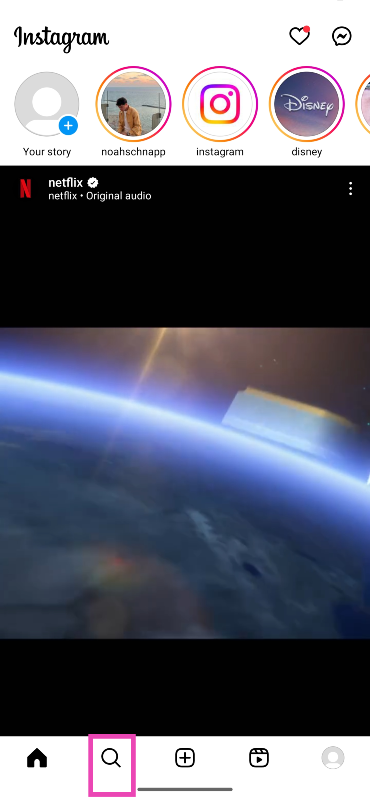
If you don’t know the person’s username on Instagram, you can find them using their full name. Follow these steps. Step 1: Launch the Instagram app on your phone. Step 2: Switch to the Explore tab by tapping the magnifying glass icon at the bottom of the screen. Step 2: Switch to the Explore tab by tapping the magnifying glass icon at the bottom of the screen. Step 3: Tap the search bar. Step 3: Tap the search bar. Step 4: Enter the full name of the person you are trying to find. Step 4: Enter the full name of the person you are trying to find. Step 5: Switch to the Accounts tab and go through the search results. If the person doesn’t go by their full name on Instagram, move on to the next method.

Look up your common friends’ following/following list

If you have common friends with the person, finding them on Instagram will not take much time. Go through your contacts on Instagram and visit the profile of any mutual friend you may have with the person you are trying to find. Now, browse their follower and following list to find the person’s Instagram account. To make your search easier, use the search bar at the top of the screen. If they do not use their full name on Instagram, type their first name instead. To be thorough, manually go through the lists.

Find someone on Instagram using your phone contacts

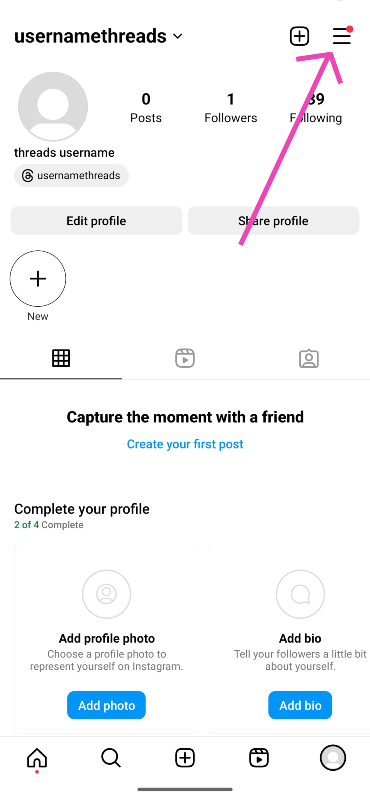
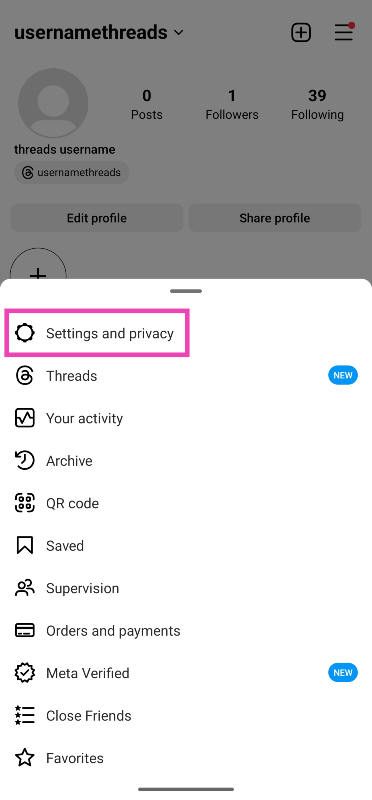
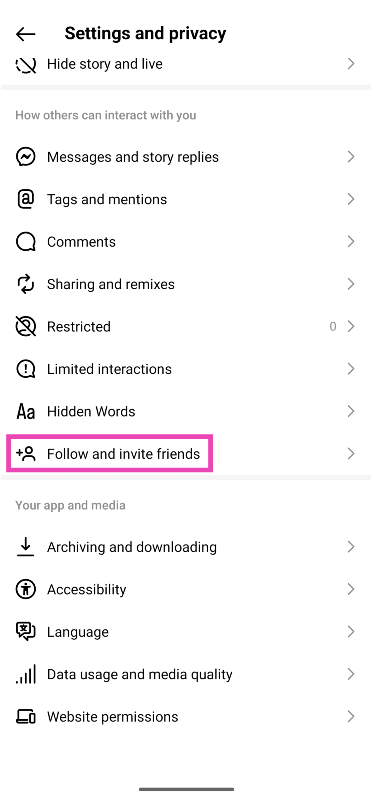
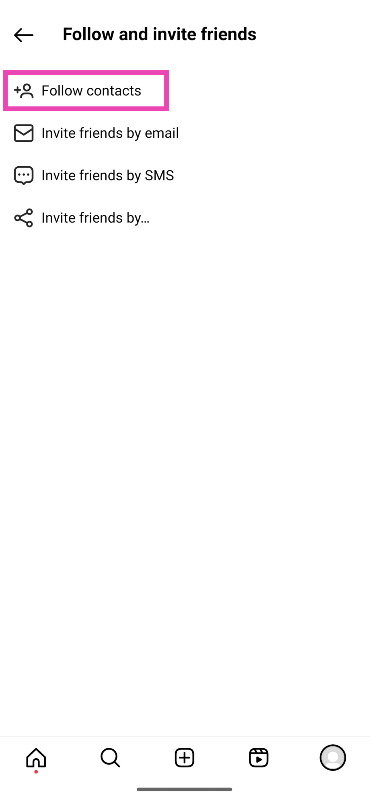
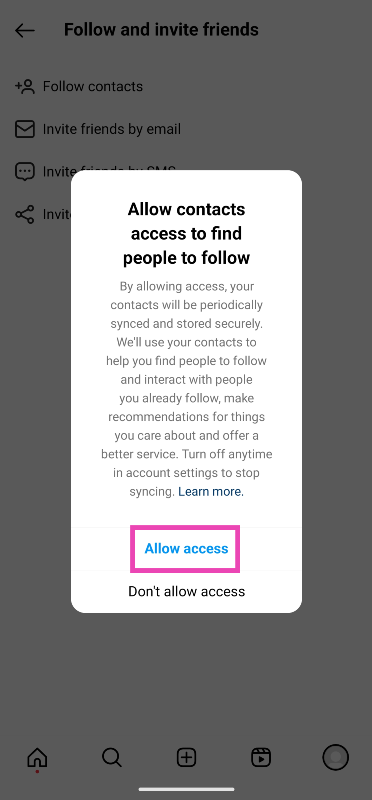
If you have the person’s number in your phone’s contacts, it can help you in finding them on Instagram. For this method to work, you will need to sync all your contacts with Instagram, here’s how. Step 1: Launch the Instagram app on your phone. Step 2: Tap the profile icon at the bottom of the screen. Step 3: Tap the hamburger menu at the top right corner of the screen. Step 3: Tap the hamburger menu at the top right corner of the screen. Step 4: Select Settings and privacy. Step 4: Select Settings and privacy. find someone on instagram without username Step 5: Tap on Follow and invite friends. Step 5: Tap on Follow and invite friends. find someone on instagram without username Step 6: Select Follow contacts. Step 6: Select Follow contacts. find someone on instagram without username Step 7: Allow Instagram access to your phone’s contacts. Step 7: Allow Instagram access to your phone’s contacts. find someone on instagram without username Step 8: Tap on Follow contacts again. Step 9: Go through the ‘Discover People’ list and check if the person you are searching for shows up there. Step 9: Go through the ‘Discover People’ list and check if the person you are searching for shows up there. find someone on instagram without username Note: For this method to work, the person should have their phone number linked to their Instagram profile.

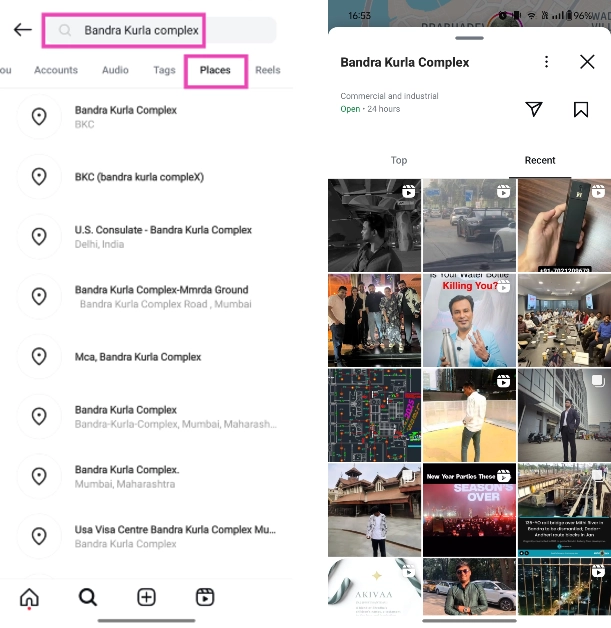
Search by places

Search by places If the person you’re trying to find visited a town, cafe, restaurant, or bar recently, you can look up the place on Instagram and sort through the posts. The user tagged the place, their post will show up in the feed. Go to the search tab and enter the place’s name in the text bar at the top of the screen. Switch to the places tab and select the exact location from the list. Go through the posts to find the person you’re looking for.


Find a Threads contact on Instagram

Step 1: Go to the person’s Threads profile. Step 2: Hit the Instagram icon at the top right section of the screen. Step 2: Hit the Instagram icon at the top right section of the screen. You will be redirected to their Instagram page.

Frequently Asked Questions (FAQs)

How do I find someone on Instagram if I don’t know their username?

You can search for a person on Instagram using their full name. Switch to the ‘Accounts’ tab to get better results. However, if the person does not go by their full name on Instagram, you will need to resort to other methods. 

Can I find someone on Instagram using their phone number?

You can sync your phone’s contacts with Instagram to refine your search further and get better suggestions. However, if the person you are looking for does not have their phone number linked to their Instagram profile, their effort will be futile.

How do I visit someone’s Instagram profile from their Threads profile?

Hit the Instagram icon at the top right section of the Threads profile to view the corresponding Instagram account. Read Also: Starting December, Google will begin deleting your Google Account: Here is how to avoid this

Conclusion

These are the top 5 ways to find someone on Instagram even if you don’t know their username. If you can’t find the person using these methods, chances are they aren’t on Instagram. Try searching for them on Facebook instead. If you found this article helpful, let us know in the comments!

Meta collaborates with Amazon to allow shopping on Facebook and Instagram

Key highlights
  • Facebook and Instagram users will be able to shop through Amazon.
  • They need to link their social media account to the Amazon account.
Meta is adding Amazon support for Facebook and Instagram allowing users to shop products on the platform without having to leave social media apps. So one can now easily make their Amazon purchases through Facebook and Instagram. Reportedly this feature is the result of a new collaboration with the online retailer. But for this one now need to link their social media and shopping app. According to the latest report by Tech Crunch, Meta will allow Facebook and Instagram user to link their accounts to their Amazon accounts, where they can make purchases using their saved payment details and have their orders shipped to their saved Amazon postal address. Also Read: Samsung Galaxy S23 FE now available in new exclusive colour options On this, Amazon spokesperson, Callie Jernigan, confirmed by stating, “For the first time, customers will be able to shop Amazon’s Facebook and Instagram ads and check out with Amazon without leaving the social media apps. Customers in the U.S. will see real-time pricing, Prime eligibility, delivery estimates, and product details on select Amazon product ads on Facebook and Instagram as part of the new experience. Currently, US consumers of Amazon can use this feature. In addition to this, select products sold by Amazon or by independent sellers on Amazon’s storefront and promoted on Facebook or Instagram will be able to use the new in-app shopping feature. Customers are required to do a fast one-time setup to link their Amazon account to their Meta account (either Facebook or Instagram) as per the report. Once done user can check out directly from the product ad on Amazon without leaving the Facebook or Instagram app. Moreover, their Amazon payment details and default mailing address will be used to complete the sale. The news about the merger was first revealed by a Meta and Google Ads partner, and co-CEO of Disruptive Digital, Maurice Rahmey. According to him, Meta is going to get more ad signals and more attributable conversions, while Amazon will get more transactions from large discovery platforms. “While additional details are still scarce, this partnership could be a massive revenue opportunity for Meta, Amazon, and most importantly, advertisers.”

2 Best Ways to Find Archived Emails in Gmail

0
If you like your email inbox to be clean and free of all clutter, archiving older emails is one technique that you should add to your routine. If you don’t want to delete every email after you’re done going through it, you can simply archive it instead. It will be removed from your primary inbox but can be easily accessed whenever you want. But here’s the tricky part, Gmail does not have an archived folder. In this article, we show you the 2 best ways to find archived emails in Gmail. Read Also: Starting December, Google will begin deleting your Google Account: Here is how to avoid this

Find archived emails in Gmail on your PC

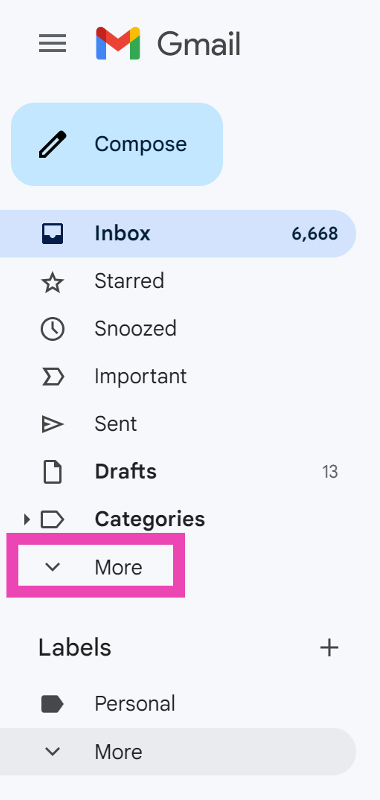
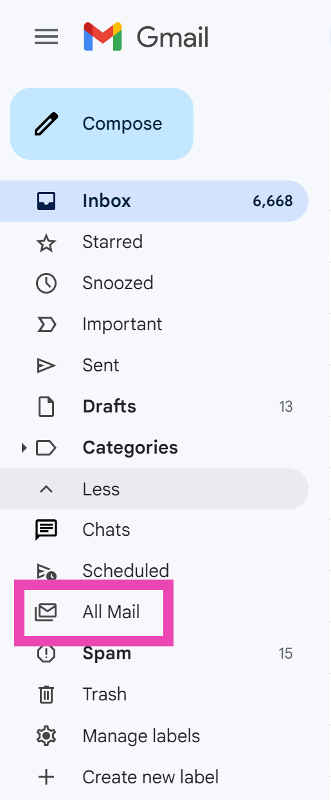
Step 1: Launch your preferred web browser and go to Gmail. Step 2: On the menu to the left of the screen, click on More. Step 2: On the menu to the left of the screen, click on More. Step 3: Select All Mail. Step 3: Select All Mail. This is where you will find all your emails, including the ones you have archived.

Find archived emails in the Gmail app

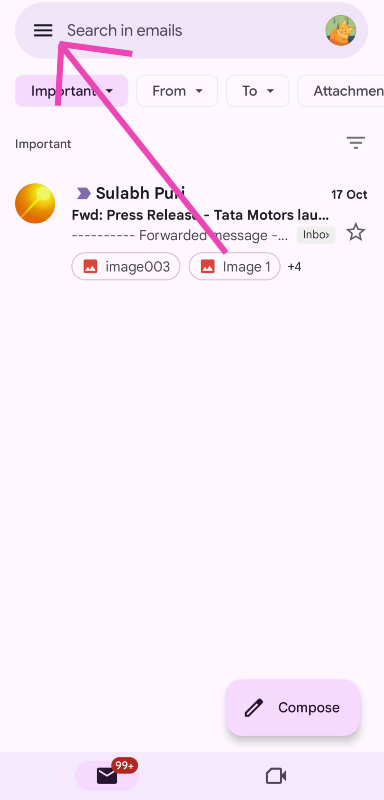
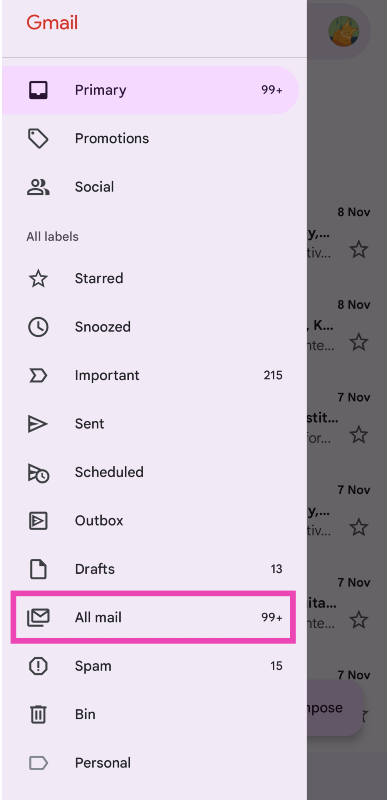
Step 1: Launch the Gmail app on your smartphone. Step 2: Tap the hamburger menu icon at the top right corner of the screen. Step 2: Tap the hamburger menu icon at the top right corner of the screen. Step 3: Scroll down and select All Mail. Step 3: Select All Mail.

Bonus Tip: How do I archive an email on Gmail?

On PC

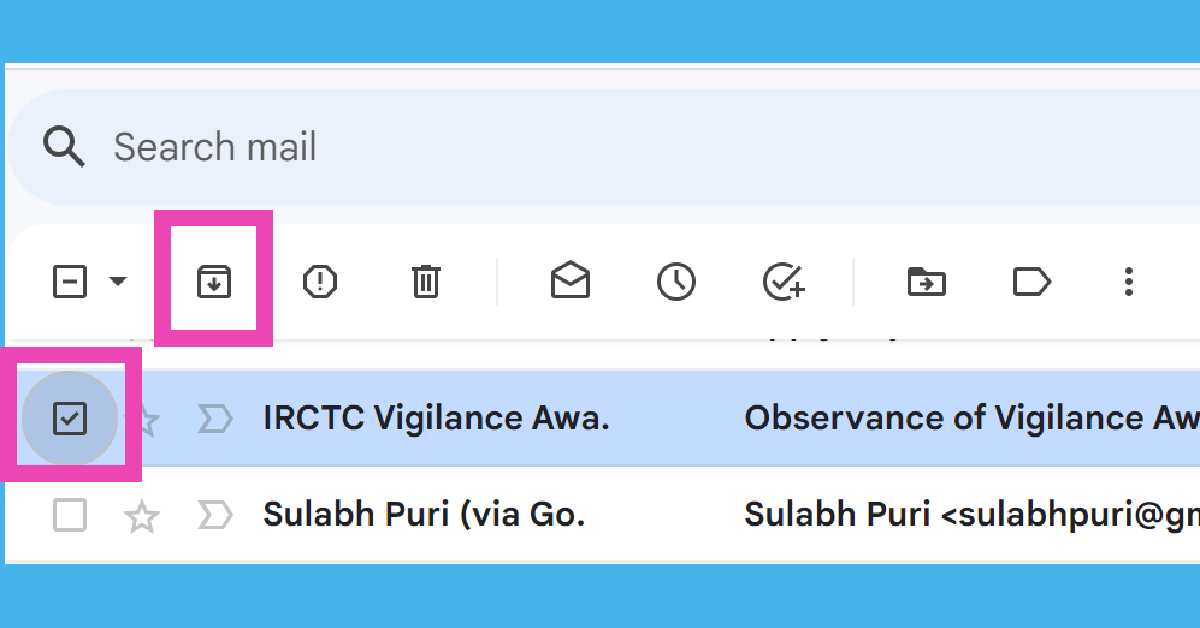
Step 1: Launch your preferred web browser and go to Gmail. Step 2: Click on the check box next to the email you want to archive. Step 3: Alternatively, long-press the email and hit the archive icon (downward arrow inside a box) at the top of the screen. Step 3: Hit the archive icon (downward arrow inside a box) in the toolbar right below the search box.

On mobile

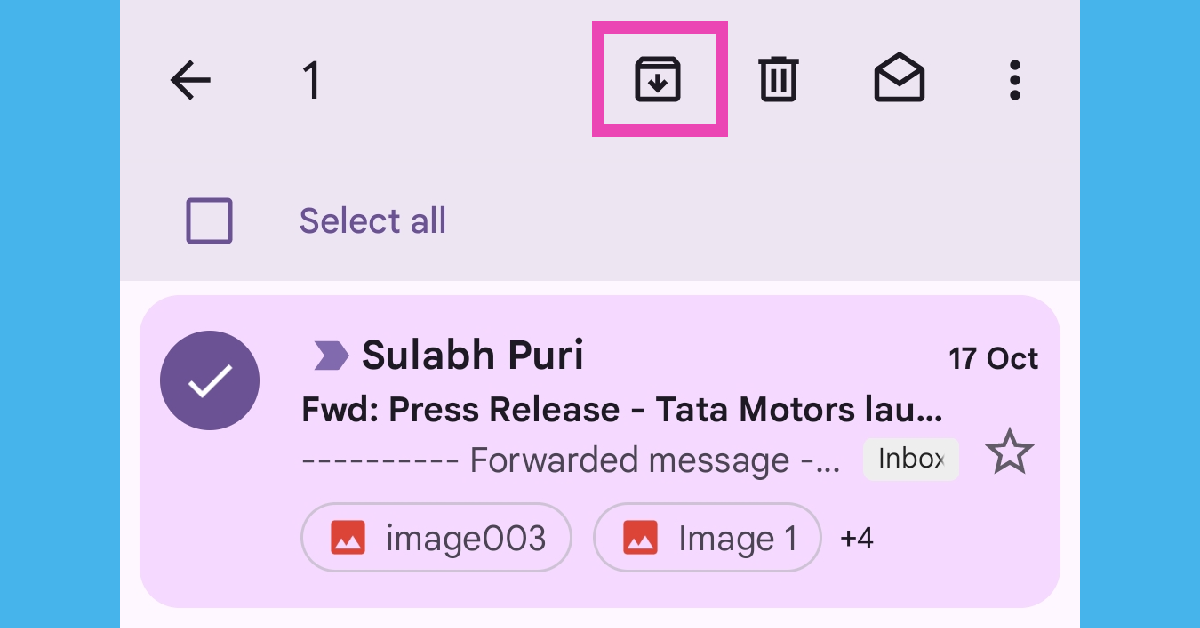
Step 1: Launch the Gmail app on your smartphone.  Step 2: Swipe right on the email you want to archive. Step 2: Click on the check box next to the email you want to archive. Step 3: Alternatively, long-press the email and hit the archive icon (downward arrow inside a box) at the top of the screen.

Frequently Asked Questions (FAQs)

What is the purpose of archiving an email?

Archiving an email hides it from your primary inbox. If you want the landing page of your Gmail account to be clutter-free, you can archive the emails that are not as important anymore.

How do I archive an email?

To archive an email on Gmail, simply click the check box next to it and hit the archive icon in the toolbar at the top. On your smartphone, simply swipe right on an email to archive it.

How do I find archived emails in Gmail?

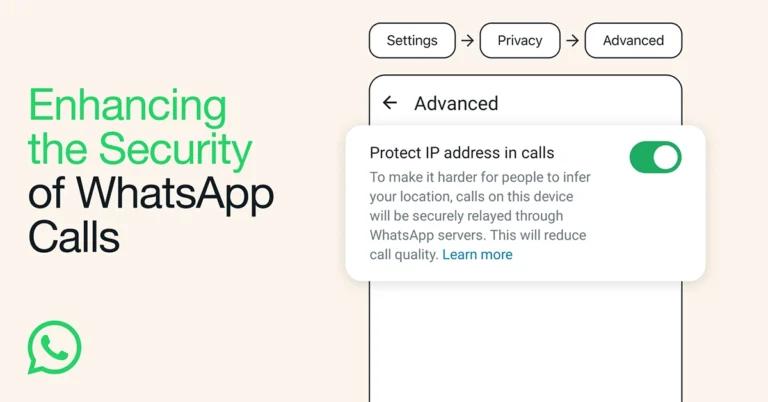
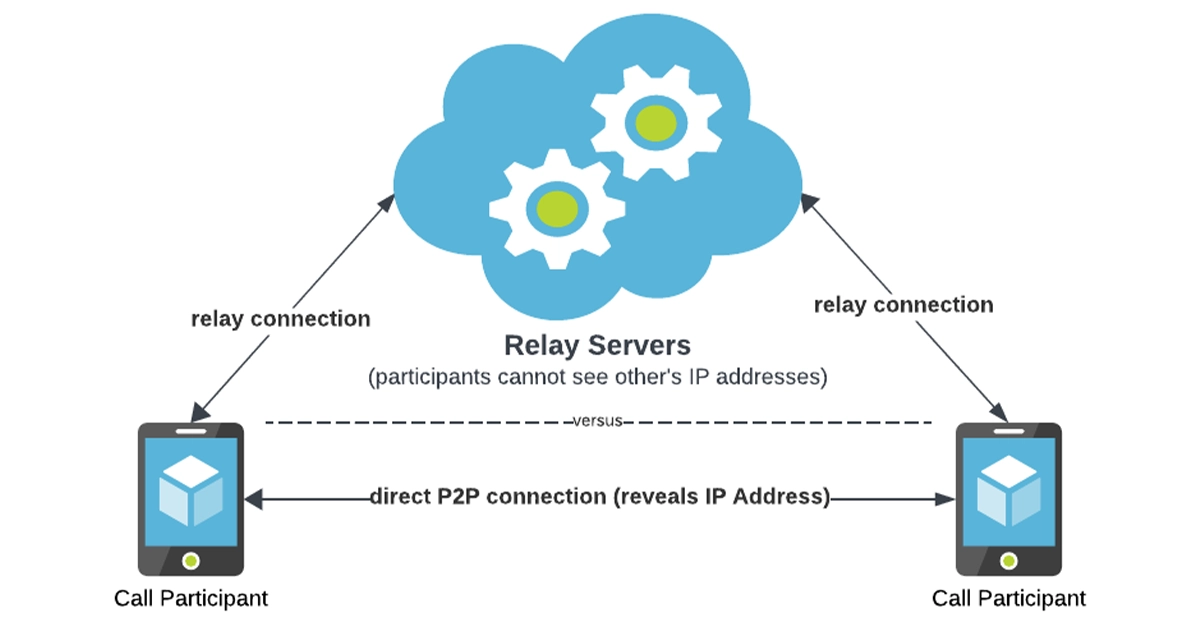
Gmail does not have a dedicated archived folder. To view archived emails, you will need to access the ‘All Mail’ folder from the side menu. Read Also: WhatsApp introduced Protect IP Address for calls: Here is how it works

Conclusion

This is how you can find archived emails in Gmail. If you want all your archived emails in one place, simply label them as ‘Archives’. You will be able to filter all the archived emails from the label section at the bottom of the side menu. Tired of spam emails? Archiving them won’t fix the issue. Check out this article to learn how to deal with spam emails.

Top 4 Ways to Check the Word Count in Microsoft Word

0
Whether you’re writing a college assignment or composing a quick report, you should always check the word count of the document before turning it in. Brief, concise documents always stand a higher chance of impressing the reader rather than bloated and drawn-out passages. While you’re editing your work, keeping a constant check on the word count helps a lot. Here are the top 4 ways to check the word count in Microsoft Word. Read Also: WhatsApp introduced Protect IP Address for calls: Here is how it works

Word count not working? Try these quick fixes

If you know how to view the word count on MS Word but can’t get it to work, try the following quick fixes.
  • Reboot your PC
  • Close and re-open Microsoft Word
  • Run Microsoft Word as administrator
  • Enable word count in status bar customisations
  • Launch Microsoft Word in Safe Mode
  • Disable corrupt Add-Ins
  • Update Microsoft Word to its latest version

Check the Word Count section in Microsoft Word

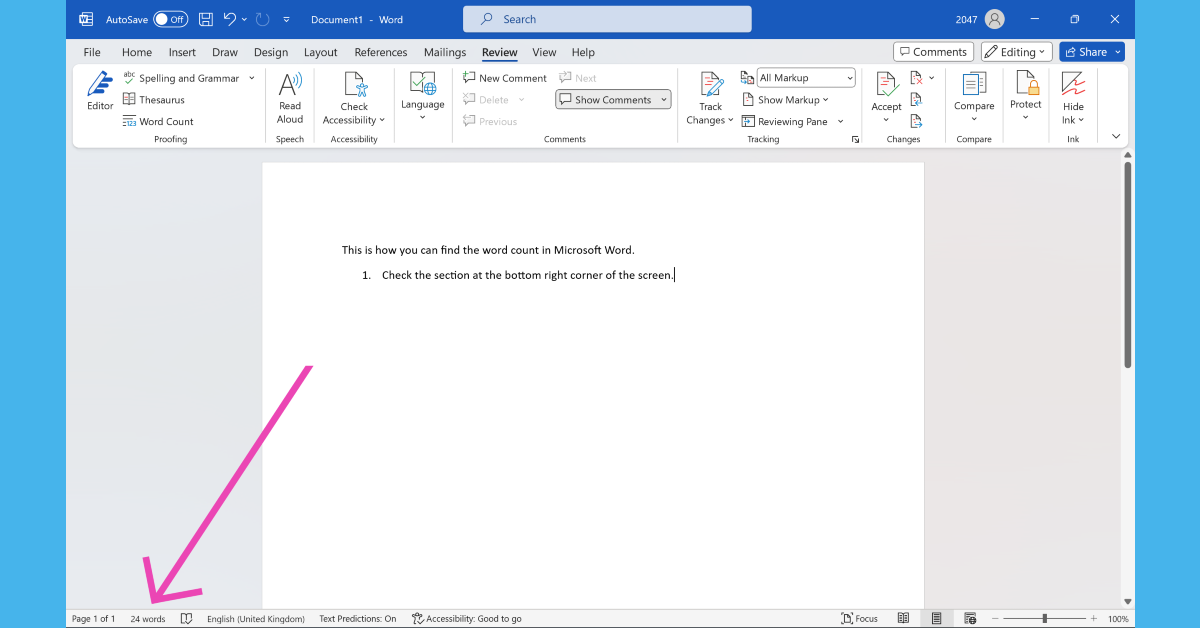
Check the Word Count section in Microsoft Word Microsoft Word lets you view the live word count while you’re typing on the page. Simply check the bottom left section of the screen to view how many words you have typed so far. This section also lets you know the page you’re currently on out of all the pages in the document. Clicking on the word count will give you detailed specs like the number of pages in the document, the total number of characters (with and without spaces), and the number of lines and paragraphs.

Check word count for selected text

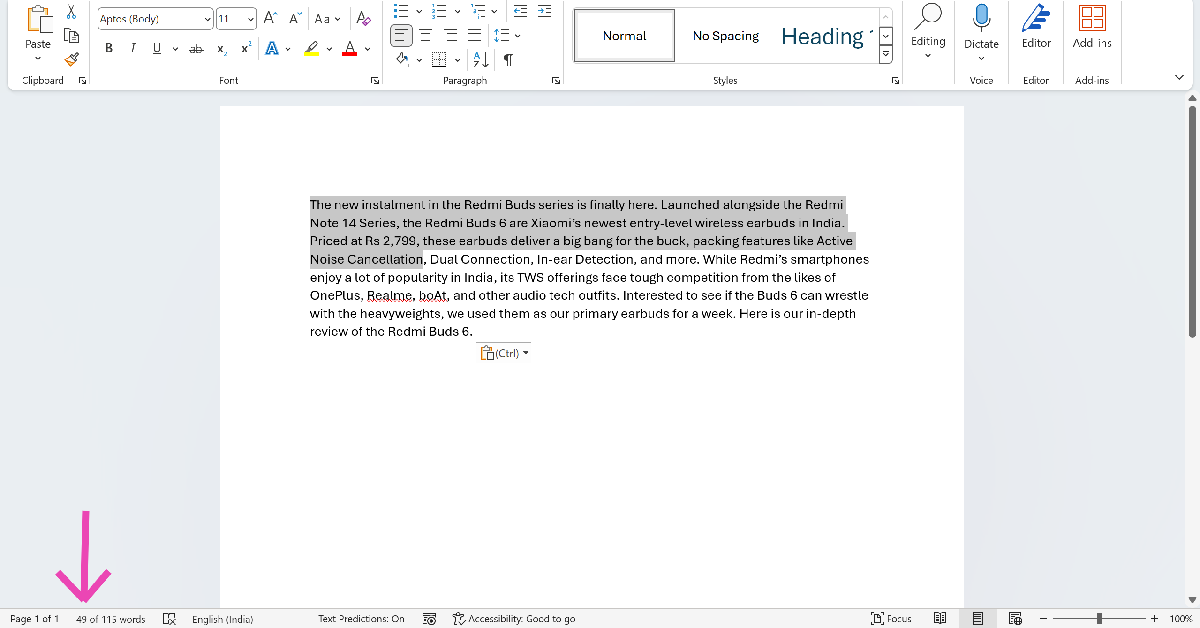
Check word count for selected text If you wish to know the word count of a particular line or paragraph, simply highlight it using your keyboard or mouse and check the counter at the bottom of the screen. The word counter will display the number of selected words and the total number of words. This trick helps when you want to trim only a certain section of the text.
Use the Review tab

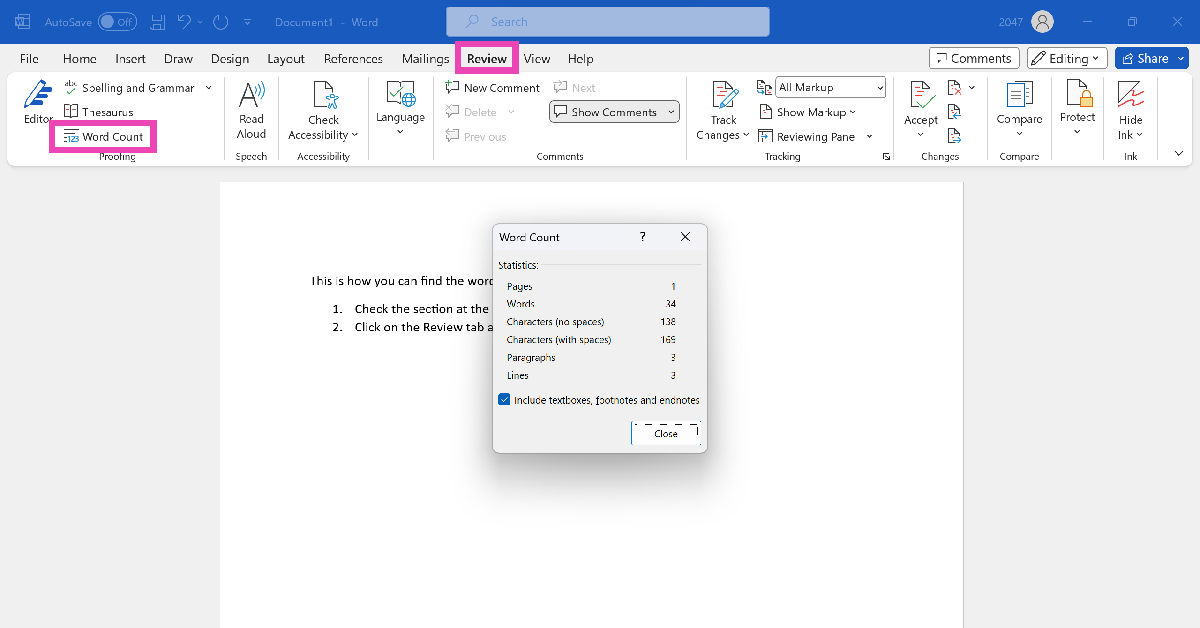
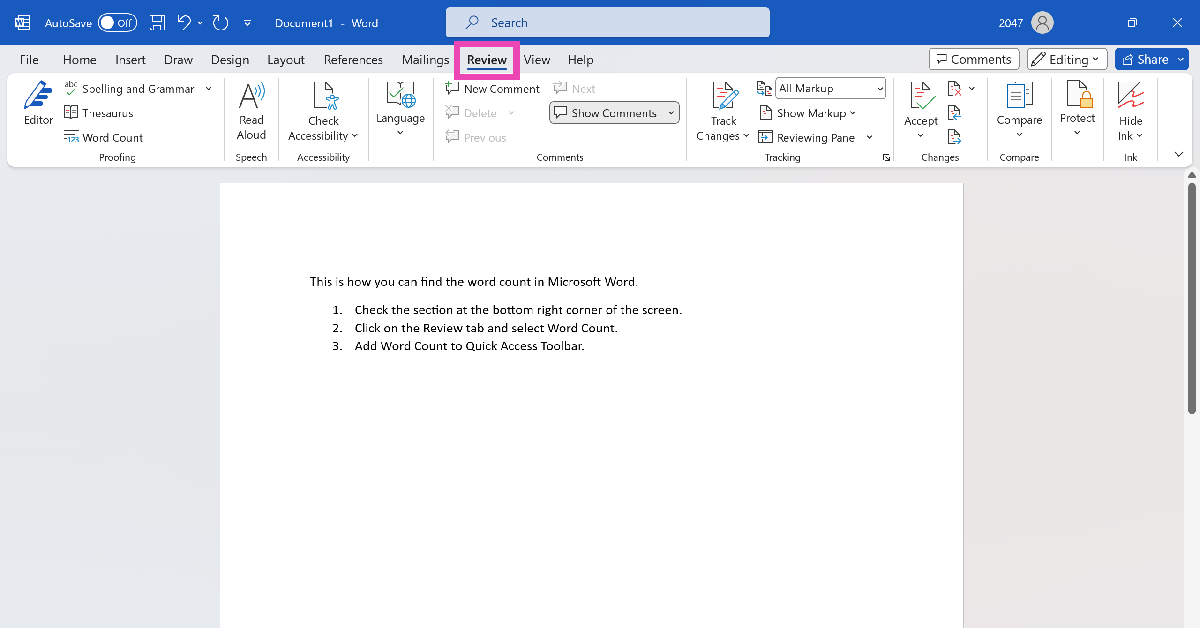
Use the Review tab You can also view the word count in any Microsoft Word document from the Review tab on top of the editing section. Hit the Review tab and click on ‘Word Count’. You’ll find this option on the left side of the drop-down menu. Clicking on this option will give you detailed specs like the ones mentioned in the previous method.

Add the Word Count option to the Quick Access Toolbar

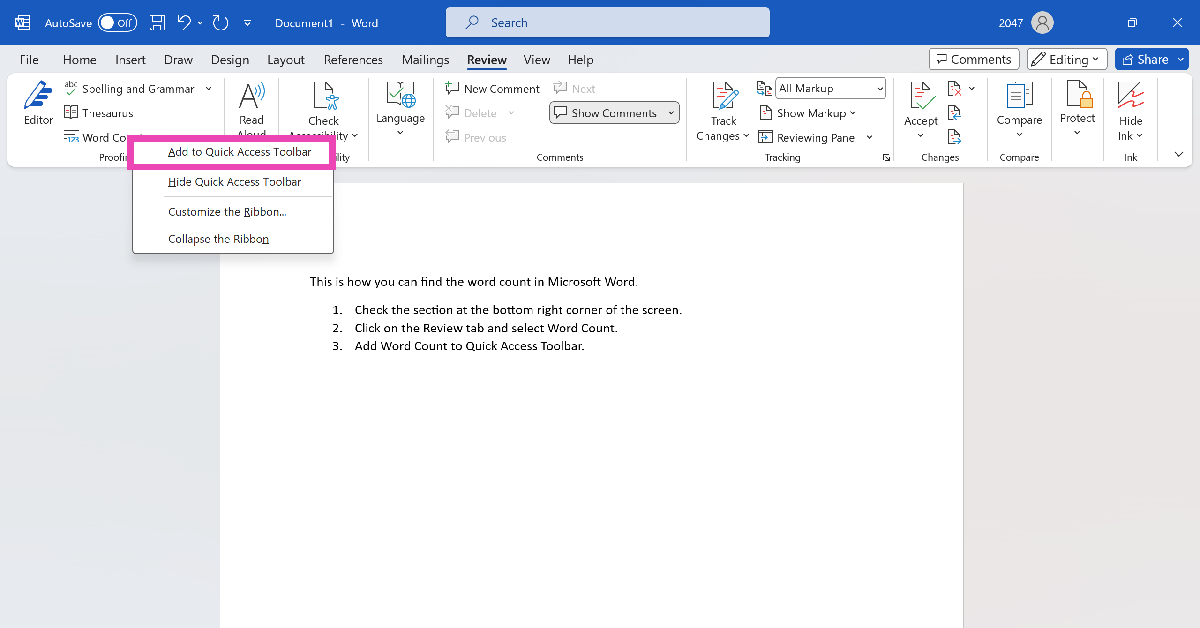
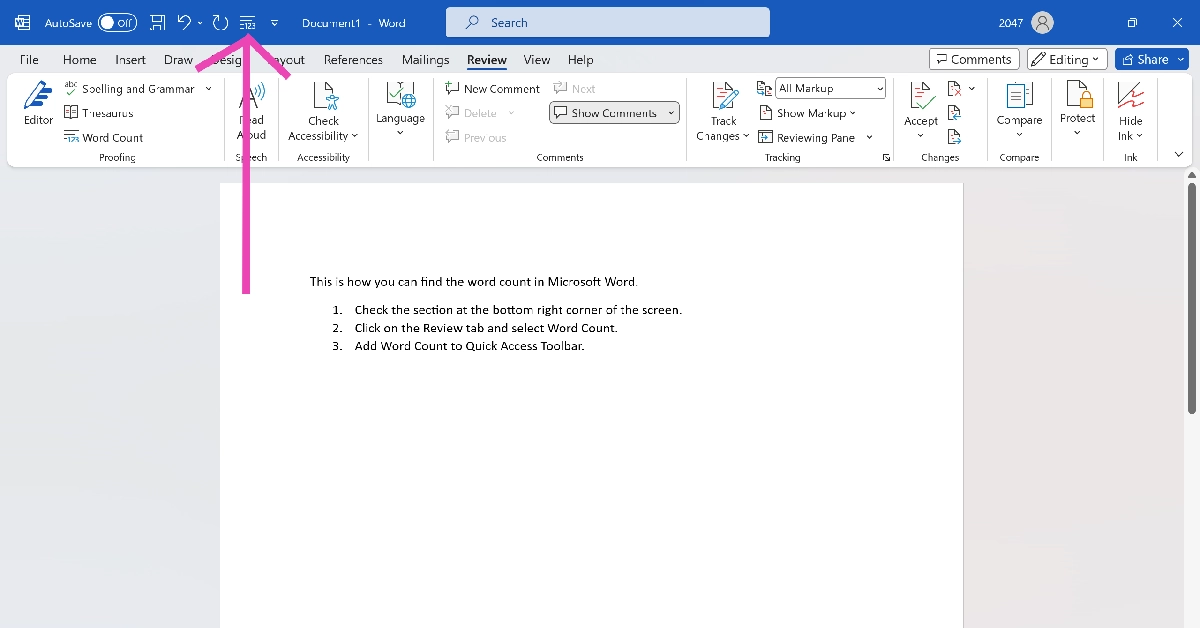
Another quick way to know the word count on MS Word is by adding its tile to the Quick Access Toolbar. Here’s how you can go about it. Step 1: Click on the Review tab at the top of the screen. Step 1: Click on the Review tab at the top of the screen. Step 2: Right-click on Word Count. Step 3: Select Add to Quick Access Toolbar. Step 2: Right-click on Word Count. Step 4: Click the 123 tile on the Quick Access Toolbar to view the word count of the document at any given point. Step 4: Click on the 123 tile on the Quick Access Toolbar to view the word count of the document at any given point.

Bonus Tip: Use the keyboard shortcut

If you don’t like relying on your mouse, you can use the keyboard shortcut for word count on MS Word. Simply press Ctrl + Shift + G to find out how many words you have typed so far in the document. If you want to find the number of words in a particular passage, simply highlight it and use this keyboard shortcut. The other methods mentioned in this article also work with this technique.

Frequently Asked Questions (FAQs)

How do I find the number of words in a selected passage on Microsoft Word?

Highlight the passage and press Ctrl + Shift + G to find the number of words in it. The word count is also displayed at the bottom right section of the screen. You can also view it from the Review tab.

How do I view the word count on a Google Doc?

To find the number of words in a Google Doc, go to Tools>Word Count or simply press Ctrl + Shift + C.

How do I add the word count option to the Quick Access Toolbar on MS Word?

Go to the Review tab, right-click on Word Count, and select Add to Quick Access Toolbar.

What is the shortcut for word count?

The keyboard shortcut for word count is Ctrl + Shift + C on Windows and Command + Shift + C on Mac.

How do I check my word count online?

Go to https://wordcounter.net/ and paste the text in the box to find out the word and character count. Read Also: iQoo 12 Series with Snapdragon 8 Gen 3 SoC launched

Conclusion

These are the top 4 ways to find the word count of any Microsoft Word document. While you’re here, also check out these 15 advanced keyboard shortcuts for Microsoft Word. Got any other methods for us? We’d love to know in the comments.

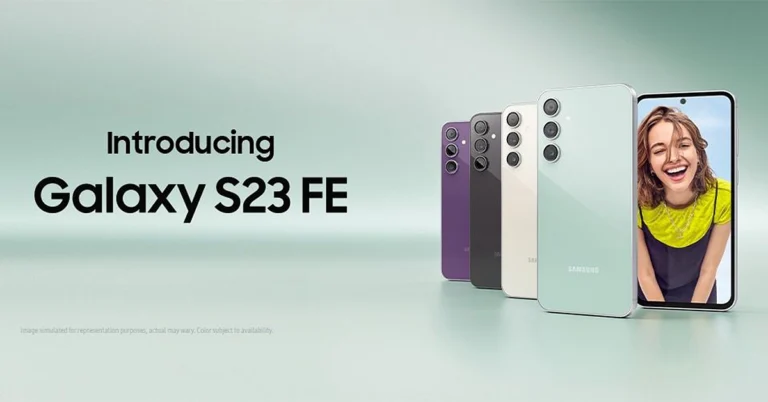
Samsung Galaxy S23 FE now available in new exclusive colour options

Key Highlights
  • The special edition colours for Galaxy S23 FE will be available online.
  • There are more colour options for the phone.
  • The device was launched in India in October.
Samsung Galaxy S23 FE was recently launched in India. The South Korean Electronics brand has now introduced new colour options for the smartphone. The company has launched two new exclusive shades, joining the other three colour variants. The device is a toned-down variant of Galaxy S23 powered by Exynos and Snapdragon processors. However, in India, it is powered by Exynos 2200 chipset. Samsung Galaxy S23 FE now available in new exclusive colour options Samsung Galaxy S23 FE is now available in two more colour options Indigo and Tangerine. The Samsung Galaxy S23 FE’s new exclusive colours can only be bought through the company’s official website in India. In October when S23 FE was launched the firm introduced it in Cream, Graphite, Mint, and Purple colour options. The price of the special edition colours will remain the same. Also Read: Samsung Galaxy S23 FE Review: The flagship killer of the year? The Samsung Galaxy S23 FE was launched in India at Rs 59,999 for the 8GB RAM with 128GB storage option. The 12GB RAM with 256GB storage option comes with a price tag of Rs 64,999.

Samsung Galaxy S23 FE specifications

Samsung Galaxy S23 FE features a 6.4-inch FHD+ Dynamic AMOLED display with 2340 x 1080 pixels resolution. The display comes with a variable refresh rate of 60 to 120Hz. The screen is protected with Corning Gorilla Glass 5. The phone is powered by a Samsung Exynos 2200 4nm processor with Samsung Xclipse 920 GPU in India. It comes with up to 12GB RAM and 256GB storage. The phone runs on Android 13 with One UI 5 out of the box. For photos and videos, the Samsung Galaxy S23 FE has a triple rear camera set-up that includes a 50-megapixel main camera with f/1.8 aperture and OIS, a 12-megapixel ultra-wide-angle sensor, and an 8-megapixel telephoto lens with OIS and 3X Optical Zoom. For selfies, there will be a 10-megapixel front-facing camera. The device is IP68 rated for water resistance. The stereo speakers on the phone include Dolby Atmos support. There is 5G SA/NSA, 4G VoLTE, Wi-Fi 6E, Bluetooth 5.3, GPS + GLONASS, NFC, and a USB 3.1 port for connectivity. The S23 FE also includes an in-display fingerprint sensor for biometrics. The handset packs a 4500mAh battery with 25W wired fast charging and support for wireless charging, and wireless power share.

Garena Free Fire Redeem Codes Today 10 November 2023: Here is how to claim them

Garena Free Fire is a battle royale game with regular awards and tournaments to keep players interested. If you play Garena Free Fire, you should be aware of the redeem codes that are released on a daily basis. However, because the battle royale game is banned in India, players from other countries can use the Free Fire Redeem codes daily. If you’re unfamiliar with the Garena Free Fire redeem codes or don’t know how to get them, we’ve put together a step-by-step guide to help you redeem them. Check out Garena Free Fire Redeem Codes for 10 November 2023. The Free Fire redeem codes are a great way to get free stuff. These are 12-digit codes that contain alphabets and numbers, as well as an expiration date and time. Because the Garena FF redeem codes cannot be used more than once, you should hurry to the redemption page to claim your free reward before someone else does. To get a free reward, all you have to do is go to reward.ff.garena.com/en, which is the official redemption page. Also, keep an eye on this space for daily updates on Garena Free Fire redemption codes and rewards.

Garena Free Fire Redeem Codes Today 10 November 2023

J3ZKQ57Z2P2P 3IBBMSL7AK8G B3G7A22TWDR7X 8F3QZKNTLWBZ B61YCTNH4PV3 X99TK56XDJ4X WEYVGQC3CT8Q FFCMCPSBN9CU SARG886AV5GR 4ST1ZTBE2RP9 WLSGJXS5KFYR FFPLFMSJDKEL FFTILM659NZB ESX24ADSM4K 3IBBMSL7AK8G FF7MUY4ME6SC GCNVA2PDRGRZ 4ST1ZTBE2RP9 FFBCAC836MAC FFBCLY4LNC4B WOJJAFV3TU5E FFBCLLP5S98AW  

How to Get Free Fire Redeem Codes for Garena on 10 November 2023?

  • Visit the Garena Free Fire game’s official website at reward.ff.garena.com.
  • Use your Facebook, Google, VK, Apple ID, Huawei ID, or Twitter account to log in.
  • You’ll be taken to a valid redemption code (s)
  • Copy and paste the 12-digit redemption code into the text box.
  • On the screen, a dialogue box will appear.
  • ‘Ok’ should be selected.
For the latest gadget and tech news, and gadget reviews, follow us on TwitterFacebook and Instagram. For newest tech & gadget videos subscribe to our YouTube Channel. You can also stay up to date using the Gadget Bridge Android App. You can find the latest car and bike news here.

Top 10 smartphones under Rs 25,000 with large batteries

Budget and midrange smartphones are often very surprising when it comes to battery size and performance. One of the better aspects of having a smaller chipset is that the device is able to accommodate a bigger battery. If you think that 5,000 mAh is the ceiling for battery capacity, there are several smartphones that will prove you wrong. In this article, we bring you the top 10 smartphones under Rs 25,000 with large batteries. Read Also: Will Bitcoin experience a new drop or will it start gaining?

Samsung Galaxy M34

Price: Rs 16,499 on Samsung.in Samsung Galaxy M34 Review: Ticks all the essential boxes Key Specs
Display 6.5-inch Super AMOLED
Chipset Exynos 1280
RAM 6GB, 8GB
Storage 128GB
Battery 6,000 mAh
Samsung’s M series smartphones are known for their big battery packs and high performance. When we tested the Galaxy M34, it easily lasted 2 days on moderate usage. The smartphone supports 25W wired charging, which takes 2 hours to fully charge the 6,000 battery pack. Apart from amazing battery specs, the M34 also features a great 50MP primary lens that takes vibrant and punchy images in well-lit conditions. An 8MP ultrawide lens and a 2MP macro sensor complete the three-lens vertical camera array.

Samsung Galaxy F54

Price: Rs 24,999 on Samsung.in Samsung Galaxy F54 Review: A rock-solid smartphone with impressive cameras Key Specs
Display 6.7-inch Super AMOLED
Chipset Exynos 1380
RAM 8GB
Storage 256GB
Battery 6,000 mAh
Like the Galaxy M series, Samsung’s F series also gets a large 6,000 mAh battery pack. This year, the Samsung Galaxy F54 stands ahead of the pack with its crisp display, amazing cameras, versatile processor, and of course, a long-lasting battery. The smartphone lasted an entire day for us on heavy usage. Our daily usage included multiple gaming sessions, watching content across different platforms for a couple of hours, and social media browsing. Users who are more conservative with their smartphone usage will be able to push the F54’s battery to two days. To see how the smartphone performed in other aspects, read our Samsung Galaxy F54 review.

Samsung Galaxy M14

Price: Rs 11,990 on Samsung.in   Samsung Galaxy M14 5G review: Design and display Key Specs
Display 6.6-inch PLS LCD
Chipset Exynos 1330
RAM 4GB, 6GB
Storage 64GB, 128GB
Battery 6,000 mAh
Samsung’s budget M series offering has got a lot going on for it. Firstly, it does not compromise on the battery pack, retaining the 6,000 mAh unit from the higher-placed M series models. This battery pack can easily last for 2 days on the M14. The smartphone also supports 25W charging. The 50MP primary camera on this smartphone takes detailed, rich, and vibrant pictures with very punchy colours. At this price point, there aren’t many devices that can beat the Galaxy M14. Read our full review of the smartphone here.

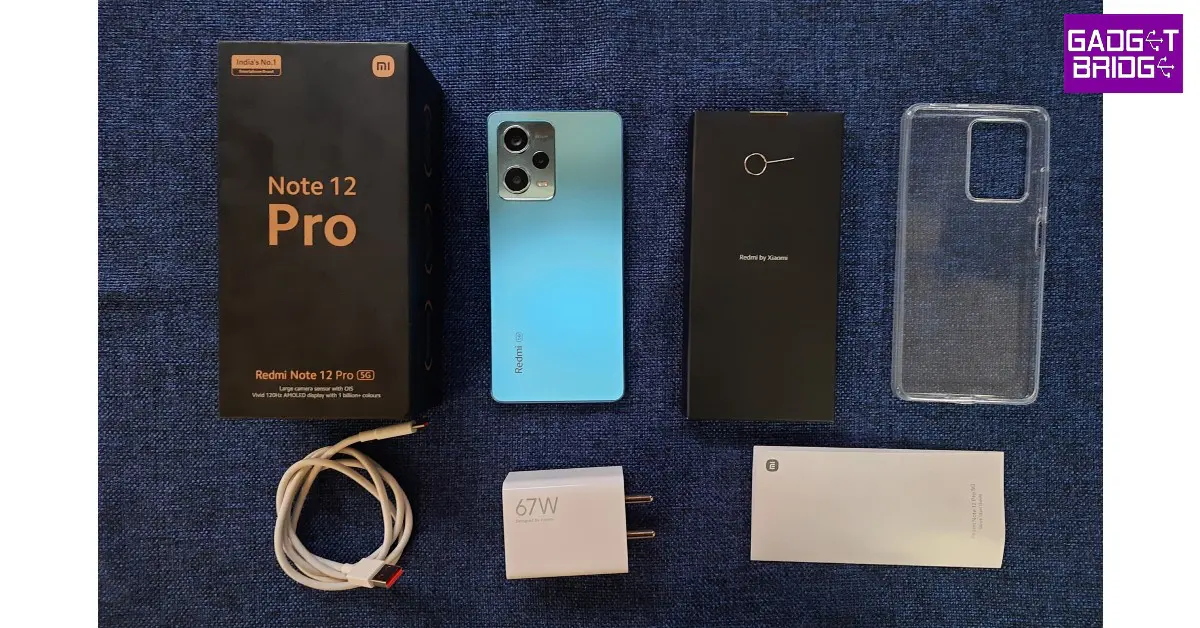
Redmi Note 12 Pro

Price: Rs 25,999 on Mi.com Redmi Note 12 Pro review: Design and Display Key Specs
Display 6.67-inch OLED
Chipset MediaTek Dimensity 1080
RAM 6GB, 8GB, 12GB
Storage 128GB, 256GB
Battery 5,000 mAh
The Redmi Note 12 Pro was one of the first smartphones to come out this year. We reviewed the device as soon as it was released and were thoroughly impressed by its performance across the board. The Note 12 Pro gets a massive 5,000 mAh that can easily last an entire day. The 67W power adapter that comes inside the box, can charge the smartphone from 10-50% in under 20 minutes. It takes just under 50 minutes to fully charge the device. The Note 12 Pro+ variant comes with a 200MP primary camera and support for 120W charging. It retains the 5,000 mAh battery pack. 

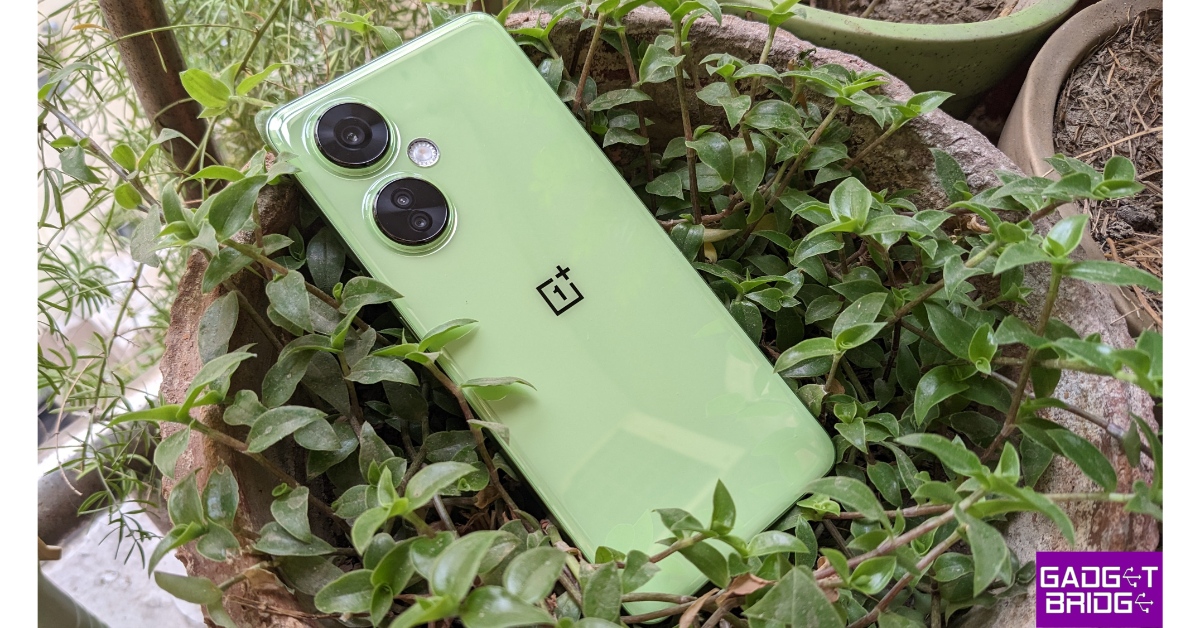
OnePlus Nord CE3 Lite

Price: Rs 19,999 on OnePlus.in OnePlus Nord CE 3 Lite review: Design and Display Key Specs
Display 6.72-inch IPS LCD
Chipset Snapdragon 695
RAM 8GB
Storage 128GB, 256GB
Battery 5,000 mAh
OnePlus’ most affordable phone in India, the Nord CE3 Lite follows the design language of the rest of the series. It has a pastel-coloured plastic back and two individual cutouts for the rear cameras. The CE3 Lite is powered by the Snapdragon 695 under the hood, which is a decent chipset in this price range. The 5,000 mAh battery pack on this device lasts an entire day with absolute ease. Also included in the box is an 80W SuperVOOC charger. The smartphone, however, only supports wired charging up to 67W. Read our review of the OnePlus Nord CE3 Lite here.

Infinix GT 10 Pro

Price: Rs 21,999 on Flipkart Infinix GT 10 Pro review: Design and Display Top 10 smartphones under Rs 25,000 with large batteries Key Specs
Display 6.67-inch AMOLED
Chipset MediaTek Dimensity 8050
RAM 8GB
Storage 256GB
Battery 5,000 mAh
The Infinix GT 10 Pro was one of the better gaming smartphones to come out this year. There aren’t many smartphones in its price range that can match the GT 10 Pro’s gaming performance. The smartphone’s 5,000 mAh battery pack can easily last an entire day even after multiple gaming sessions. Infinix GT 10 Pro also has a ‘Bypass Charging’ feature that directly charges the motherboard while gaming, leading to less heat generation. Read our full review here.

Tecno Pova 5 Pro

Price: Rs 14,999 on Amazon Tecno Pova 5 Pro 5G Review: Design and Display Top 10 smartphones under Rs 25,000 with large batteries Key Specs
Display 6.78-inch IPS LCD
Chipset MediaTek Dimensity 6080
RAM 8GB
Storage 128GB, 256GB
Battery 5,000 mAh
The new Tecno Pova 5 Pro gets an experimental back design, with RGB lighting around the camera module and a see-through back panel. The ‘Nothing’ influence is palpable here. The MediaTek Dimensity 6080 SoC can expertly handle everyday tasks and even puts an admirable gaming performance. While testing the Pova 5 Pro, the 5,000 mAh battery pack lasted a full day for us.

Nokia C32

Price: Rs 8,999 on Nokia.com Nokia C32 review: Design and Display Top 10 smartphones under Rs 25,000 with large batteries Key Specs
Display 6.5-inch IPS LCD
Chipset Unisoc SC9863A1
RAM 3GB, 4GB
Storage 64GB, 128GB
Battery 5,000 mAh
Moving on to the budget offerings, the Nokia C32 is one of the standout phones of its segment. While we truly believe that Nokia needs to move on from the Unisoc chip, the C32 has some surprises that play the balancing act to its processor. The first is an extraordinary glass back, which is a very rare sight in this price range. The 50MP primary camera on the smartphone delivers a great performance under optimum lighting. Lastly, the 5,000 mAh battery is a total stunner, easily lasting more than a day even after heavy usage. Read our Nokia C32 review here.

Poco M6 Pro

Price: Rs 9,999 on Flipkart Poco M6 Pro 5G review: Design and Display Top 10 smartphones under Rs 25,000 with large batteries Key Specs
Display 6.79-inch IPS LCD
Chipset Snapdragon 4 Gen 2
RAM 4GB, 6GB
Storage 64GB, 128GB
Battery 5,000 mAh
The Poco M6 Pro is one of the best budget smartphones you can buy right now. It gets a 6.79-inch IPS LCD display with a Snapdragon 4 Gen 2 SoC under the hood. The 90Hz refresh rate of the LCD display is an attractive selling point as well. The rear camera unit of the M6 Pro comprises a 50MP primary shooter and a 2MP depth sensor. The 5,000 mAh battery puts up a good performance as well. You can stretch the battery life on this device to 2 days on minimal usage. To know more about the M6 Pro, read our review of the smartphone.

Redmi A2+

Price: Rs 7,499 on Amazon Redmi A2+ review: Design and Display Top 10 smartphones under Rs 25,000 with large batteries Key Specs
Display 6.52-inch IPS LCD
Chipset MediaTek Helio G36
RAM 2GB, 3GB, 4GB
Storage 32GB, 64GB, 128GB
Battery 5,000 mAh
Ending this list is the ultra-affordable Redmi A2+. The smartphone gets a pastel-coloured plastic back with a rear-mounted fingerprint scanner. The two-step camera cutout houses an 8MP primary shooter and a 0.08MP depth sensor. The MediaTek Helio G36 chipset handles all the basic tasks without breaking a sweat. You can easily push the battery life on this smartphone to 2 days. If your tasks only involve texting and calling, the 5,000 mAh battery pack on the Redmi A2+ can last up to 3 days. Read our full review here. Read Also: How to measure the distance between two points on Google Maps?

Conclusion

These are our picks for the top 10 smartphones under Rs 25,000 with large batteries. While buying a smartphone, you should also take into account the charging speed specs of the device. While Samsung phones aren’t known for their fast charging, you can get pretty good speeds out of Xiaomi devices. Think there’s a smartphone that deserves a spot on this list? Let us know in the comments!

WhatsApp introduced Protect IP Address for calls: Here is how it works

Key Highlights
  • The feature is said to improve users’ privacy during calls, as the name suggests.
  • The functionality will protect both outgoing and incoming calls by routing calls through the company rather than establishing a direct connection.
  • This is slated to protect your IP address by not disclosing it to another person.
WhatsApp launched Silence Unknown Callers in June of this year. When the feature is turned on, all calls from unknown numbers do not ring your phone. Now it has introduced Protect IP Address in Calls, which hides your IP from the other party by relaying calls through WhatsApp servers. Meta, through its Engineering at Meta blog post, revealed that it keeps working on improving and protecting the privacy of WhatsApp calls. WhatsApp chats come with end-to-end encryption protection for private communications. But for calls, it introduced Protect IP Address in Calls, which is optional in settings. Also Read: iQoo 12 Series with Snapdragon 8 Gen 3 SoC launched As per the Meta engineers calling products an attractive vector for cyber attacks, PJSIP and WebRTC, have a long history of vulnerabilities. But on WhatsApp, they facilitate peer-to-peer connections between participants, allowing both callers to view each other’s IP addresses. WhatsApp introduced Protect IP Address for calls: Here is how it works “This direct connection allows for faster data transfers and better call quality, but it also means that participants need to know each other’s IP addresses so that call data packets can be delivered to the correct device, meaning that the IP addresses are visible to both callers on a 1:1 call. IP addresses may contain information that some of our most privacy-conscious users are mindful of, such as broad geographical location or internet provider.” In order to allay this worry, WhatsApp introduced Protect IP Address in Calls, which lets you protect your IP address while on calls. When the feature is turned on, all of your calls will be routed through WhatsApp’s servers, protecting your IP address. So the other caller cannot see your IP address. But WhatsApp cannot hear your calls, even if a call is relayed through WhatsApp servers, because your calls are end-to-end encrypted like chats.