In This Article
Why isn’t your phone able to load voicemails?
If you’re unable to load voicemails on your Android phone, it could be due to the following reasons.- Insufficient coverage
- Lack of storage space
- Corrupt dialer cache
- Call forwarding meddling with voicemail
- AI services running on the phone app
- Background software issues
Restart your Phone
Restarting your phone can help get rid of some bugs and glitches that you may be facing. Once you’ve restarted your phone, dial the voicemail number and check if you can access your inbox.Check Voicemail Settings
 It is always a good idea to make sure your Voicemail settings are set correctly whenever you come across an issue with your voicemail. Go to Phone>Settings>Voicemail and make sure all details are legitimate. Check the voicemail number and service provider. If you find any incorrect settings, revert them to the original settings and save them.
Request new Voicemail Settings
If there is nothing wrong with your voicemail settings yet you still can’t access your voicemails, it is quite possible that your voicemail settings have become outdated. You can always request new voicemail settings from your network carrier, which will be sent to you via text message. Apply and save these new settings to your phone.Update your Voicemail app
If your network carrier has a specialised app for voicemail, make sure it’s updated. New updates roll out regularly, and sometimes your voicemail won’t work if you’re stuck with the older version of the app. You can check for new app updates by looking up the app in Google Play Store.Disable Call Forwarding
Call forwarding redirects incoming calls to another number when you are busy or unreachable. When call forwarding is enabled, the caller may not get the chance to leave a voicemail on your number. If the voicemail is not working on your Android smartphone, it is a good idea to disable call forwarding on your number. Here’s how you can do that. Step 1: Launch the Dialer app on your phone and tap on the ellipses (three dots) at the top right corner of the screen. Step 2: Tap on Settings.
 Step 3: Tap on Supplementary Services.
 Step 4: Select Call Forwarding.
 Step 5: Tap on every category and select Disable.

Manually check your voicemail
To make sure your voicemail number is working correctly, you can try dialling it manually. If you are able to access your voicemail, it means that the issue lies with your phone and not the voicemail service. To dial your voicemail, simply launch the Phone app and long-press 1.Use a third-party voicemail app
 Using a third-party voicemail app can help evade any issues you might be facing with your network carrier’s voicemail app. There are a bunch of third-party voicemail apps available on the Google Play Store. Browse through the list and pick the one which suits you the best.
Toggle the Airplane Mode
 If you’re unable to reach your voicemail inbox on your Android phone, try performing a quick network refresh. Simply swipe down from the status bar and tap the Airplane Mode tile in the Quick Settings Menu. Wait for a few seconds, then tap it again to turn it off. Once your phone starts receiving a network signal, check your voicemail again.
Check your phone’s storage space
 If your phone is running out of storage space, it won’t be able to receive or store voicemails. As a result, you won’t be able to listen to new voicemails on your device. You will be able to receive them once there’s optimum storage space on your phone. Go to Settings>Battery and device care>Storage and delete any duplicate or large files from your phone’s internal storage. If you use a third-party app for voicemail, check if it has any storage limit.
Disable AI Call Screening
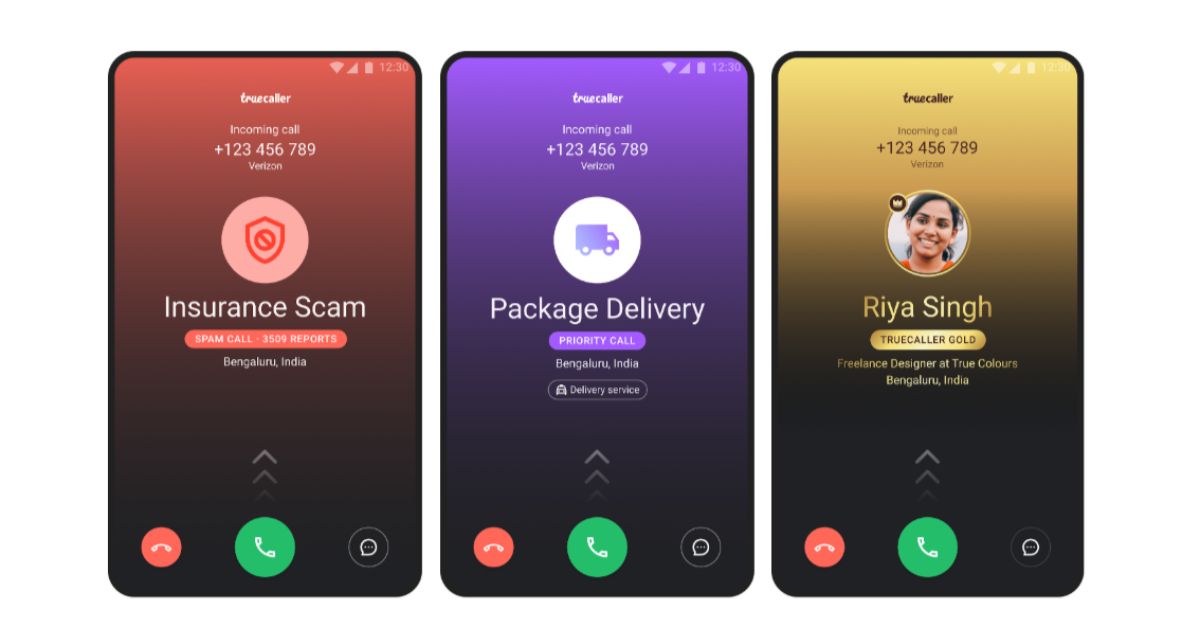 Newer Android smartphones have a useful AI feature that screens all of your incoming calls. You can program your phone to ask the caller certain questions before their call is relayed to you. While this is a helpful tool, it can mess with your voicemail settings. Users often report that callers aren’t redirected to voicemail in case you don’t pick up the call. Go to your phone’s AI settings and disable this feature.
Reset Network Settings
If the issue is network-related, you can try resetting the network settings on your phone as a last-ditch effort. Doing this will erase all established connections to your WiFi and Bluetooth, and you will have to pair with them again. It will also restore your network configuration to factory default. Here’s how you can reset the network settings on your device. Step 1: Go to Settings and select General Management. Step 2: Scroll down and select Reset.
 Step 3: Tap on Reset Network Settings.
 Step 4: Select Reset Settings.
 Step 5: Enter your PIN to confirm your selection.
Update the OS
Step 1: Go to Settings and select Software update. Step 2: Tap on Download and Install. Your smartphone will check for any new updates.
 Step 3: If an update is available, tap on Install Now. You can also schedule the update for a later time.

 Step 2:
 Step 3:
 Step 5:
 Step 6: