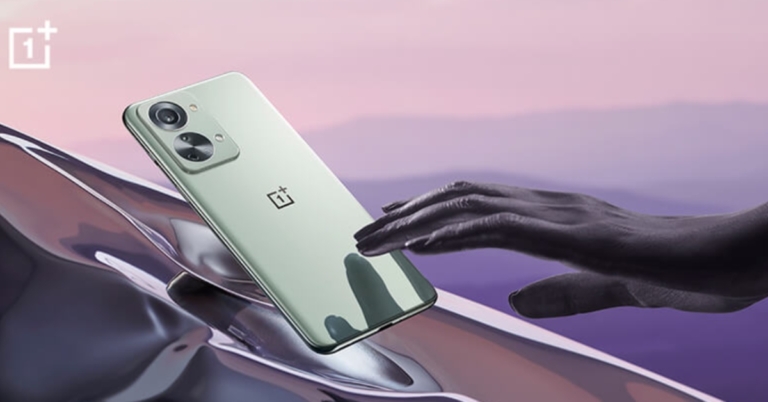
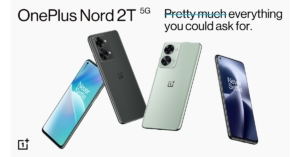
Today the OnePlus Nord 2T 5G was introduced in India. The handset is a modest improvement over Nord 2 which was announced last year featuring an octa-core MediaTek Dimensity 1300 SoC. Another improvement is that the new phone supports 80W fast charging. However, the phone retains the same AMOLED screen with 90HZ refresh rate support and triple cameras.
OnePlus Nord 2T 5G price in India, availability details
The entry-level 8GB RAM with 128GB storage OnePlus Nord 2T 5G model costs Rs 28,999 in India. The phone is also offered in a 12GB RAM with 256GB storage option, which costs Rs 33,999. The phone will be available in two colour choices Gray Shadow and Jade Fog.On July 5 at noon, OnePlus.in, OnePlus Store App, Amazon.in, OnePlus Experience shops, and authorised partner retailers in India will begin selling the OnePlus Nord 2T 5G.The offers that will be available to users when they buy the OnePlus Nord 2T 5G are as follows:Users of ICICI credit and debit cards will be entitled to an immediate bank discount of INR 1500 on Amazon.in, OnePlus.in, the OnePlus Store App, OnePlus experience stores, and other significant offline partner retailers* from July 5 through July 11. Users of ICICI credit and debit cards may also take advantage of free EMI for up to three months through the end of July.In addition to the promotions offered to owners of ICICI credit and debit cards, there are a few exclusive promotions accessible just on oneplus.in and the OnePlus shop app. These are what they are:Old OnePlus smartphone owners can save an additional Rs. 3000 with an exchange bonus on oneplus.in and the OnePlus Store App from July 5 to July 14. The OnePlus Nord Handy Fanny Pack will be given away to the first 1000 users of the OnePlus Store App.Customers of the OnePlus Nord 2T 5G can additionally purchase the Red Cable Care plan for Rs. 749 when making a bundle purchase on oneplus.in and the OnePlus Store App, as well as for Rs. 999 at Amazon.in and some select OnePlus Experience Stores. Get advantages like a specialised customer helpline, a 12-month extended warranty, 120 GB of cloud storage, and many other exclusive advantages! Offer only good for a short timeRedCoins may be used to save up to 1000 on the purchase of the OnePlus Nord 2T 5G on oneplus.in and the OnePlus Store App for current Red Cable Club members. Offer good through July 11th, 2022.
OnePlus Nord 2T 5G specifications
The OnePlus Nord 2T 5G is equipped with a hole-punch design 6.43-inch full-HD+ AMOLED display having 1,080×2,400 pixels of resolution. It has a screen refresh rate of 90Hz, comes with an aspect ratio of 20:9 HDR10+ certification and is covered by Corning Gorilla Glass 5.The MediaTek Dimensity 1300 SoC, combined with up to 12GB of LPDDR4X RAM, powers the OnePlus Nord 2T 5G. Storage on the Nord 2T 5G may be expanded up to 256GB using UFS 3.1. The phone has a triple back camera array with a 50-megapixel Sony IMX766 main sensor and an optical image stabilisation (OIS)-enabled f/1.8 lens. A 2-megapixel monochrome sensor with an f/2.2 lens and an 8-megapixel ultra-wide camera with a 120-degree field of view is also included in the camera arrangement. The front of the OnePlus Nord 2T 5G has a 32-megapixel Sony IMX615 camera with an f/2.4 lens for selfies and video calls. The electronic image stabilisation (EIS) and AI-deblurring algorithms that are supported by the selfie camera enhance the sharpness and clarity of both still images and moving pictures.The phone has a 4,500mAh dual-cell battery that can be charged quickly at 80W with the included charger. The OnePlus Nord 2T 5G is TÜV Rheinland certified for safe rapid charging and usage. Additionally, it has nine internal temperature sensors that track the charging temperature in real-time to ensure that the phone is kept secure and cool. The phone also features a separate integrated circuit (IC) that can control the charging mechanism to guarantee charging stability and safety.The OnePlus Nord 2T 5G has 5G, 4G LTE, Wi-Fi 6, Bluetooth v5.2, GPS/ A-GPS/ NavIC, NFC, and a USB Type-C connector as connectivity options. An accelerometer, ambient light sensor, gyroscope, magnetometer, proximity sensor, and SAR sensor are among the sensors on board. Additionally, the phone has an in-display fingerprint sensor. Dual stereo speakers and noise cancellation are included too.
For the latest gadget and tech news, and gadget reviews, follow us on Twitter, Facebook and Instagram. For newest tech & gadget videos subscribe to our YouTube Channel. You can also stay up to date using the Gadget Bridge Android App. You can find the latest car and bike news here.
Samsung Electronics has announced exciting offers and special discounts that are available just to students in India under its Student Advantage Program. Samsung Galaxy smartphones, tablets, and smart monitors will be discounted by 5%. Along with an upgrade bonus of up to Rs 8,000, students who purchase the Samsung Galaxy S22 Ultra can also purchase the Samsung Galaxy Watch 4 for Rs 2,999. Student Advantage Program 2022 offers discounts of 10% on Galaxy Books and wearables to students. The student discounts will be accessible through its official website, Samsung Shop, and in its Samsung Exclusive Stores. The campaign offers a 5 percent discount on Samsung’s flagship smartphones, including the Galaxy S20 FE and Galaxy S21 FE, Galaxy A Series smartphones above Rs 10,000, and Galaxy Tab A and Galaxy Tab S series. Samsung laptops and wearables are available at a discount of 10% for students, while Samsung monitors are discounted by 5%. Students who purchase the Samsung Galaxy S22 Ultra can additionally receive the Samsung Galaxy Watch 4 for Rs 2,999, an upgrade incentive of up to Rs 8,000, or Rs 5,000 in cashback (on HDFC Bank cards or Samsung Finance+) in addition to the 5 percent discount.In addition to the 5 percent off, students who purchase the Samsung Galaxy S22 or Galaxy S22+ will also receive the Samsung Galaxy Buds 2 for Rs 2,999, as well as an upgrade bonus of up to Rs 8,000, Rs 5,000 in cashback (on HDFC Bank cards or Samsung Finance+), or a 24-month no-interest EMI with no down payment. On the Samsung Galaxy A53 5G and Galaxy A33 5G, students will also receive an immediate discount of Rs 3,000.Students can take advantage of the promotions by visiting a nearby Samsung Exclusive Shop, which can be found via the store locator here, or by visiting the Samsung Student Advantage microsite. Students will have direct access to authentic Samsung products and the choice of paying with simple, cost-free EMIs and an easy exchange advantage.
For the latest gadget and tech news, and gadget reviews, follow us on Twitter, Facebook and Instagram. For newest tech & gadget videos subscribe to our YouTube Channel. You can also stay up to date using the Gadget Bridge Android App. You can find the latest car and bike news here.
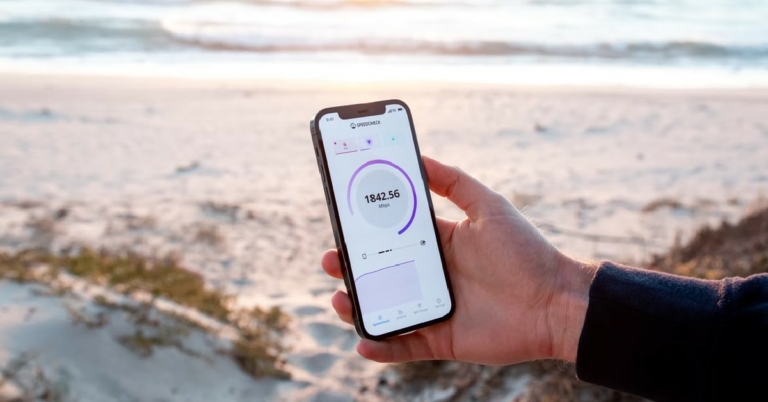
Creating a personal hotspot on your iPhone is an easy way to access the web on another device, especially if you’re outside and don’t have access to a public Wifi. However, sometimes your hotspot may show some unexpecting glitches, hindering your web usage. Today, we show you the best 9 fixes to keep the iPhone hotspot from disconnecting or stopping working.Read Also:How to Pay Someone With Apple Pay on Your iPhone?
Turn your hotspot back on
Sometimes your iPhone disables the hotspot by itself after an extended period of inactivity. While it may be annoying to some, this feature actually helps in saving your iPhone battery and keeps your data safe from being used by other foreign devices that may connect to your iPhone.Simply go to Settings>Personal Hotspot to turn it back on.
Check Data Usage
Your iPhone hotspot may stop using once you’ve used up all your mobile data. In order to check if you’ve exceeded the data limit, go to Settings>Mobile data and check under ‘Personal hotspot’.
Disable Low Power Mode
If your iPhone is running on a low battery, it may have automatically the Low Power Mode. Low Power Mode shuts off any secondary functions and keeps only the essential tasks running on your phone in order to save battery. This means background tasks like app updates, downloads, and the personal hotspot may shut down.Go to Settings>Battery and disable Low Power Mode.
Disable Low Data Mode
Quite like the Low Power Mode, Low Data Mode can be turned on to cut off any excessive mobile data usage. Once you enable it, all your background tasks that use mobile data will be turned off. This includes your personal hotspot.To turn Low Data Mode off, go to Settings>Mobile Data>Mobile Data Options and select your primary SIM card. Disable Low Data Mode in the following window.
Keep the Hotspot screen turned on
If you are using an iOS Beta version, try keeping the hotspot screen turned on at all times to keep it from disconnecting randomly. This will drain your phone’s battery quicker since displays are pretty power-hungry but the hotspot connection will remain intact. To reduce battery drainage you can turn down the battery of your phone or plug in the charger.
Change Hotspot Password
Changing the personal hotspot’s name and password refreshes the connection and resolves any existing issues. Simply go to Settings>Personal Hotspot and Tap on ‘WiFi Password’ to change it.
Reset Network Settings
Resetting the Network Settings on your iPhone will unpair it from all connected networks and devices. Your network settings will be restored to the factory default. The data on your phone will remain untouched. If the hotspot issue is related to any customised network settings on your iPhone, this reset will fix it. Here’s how you can go about it.
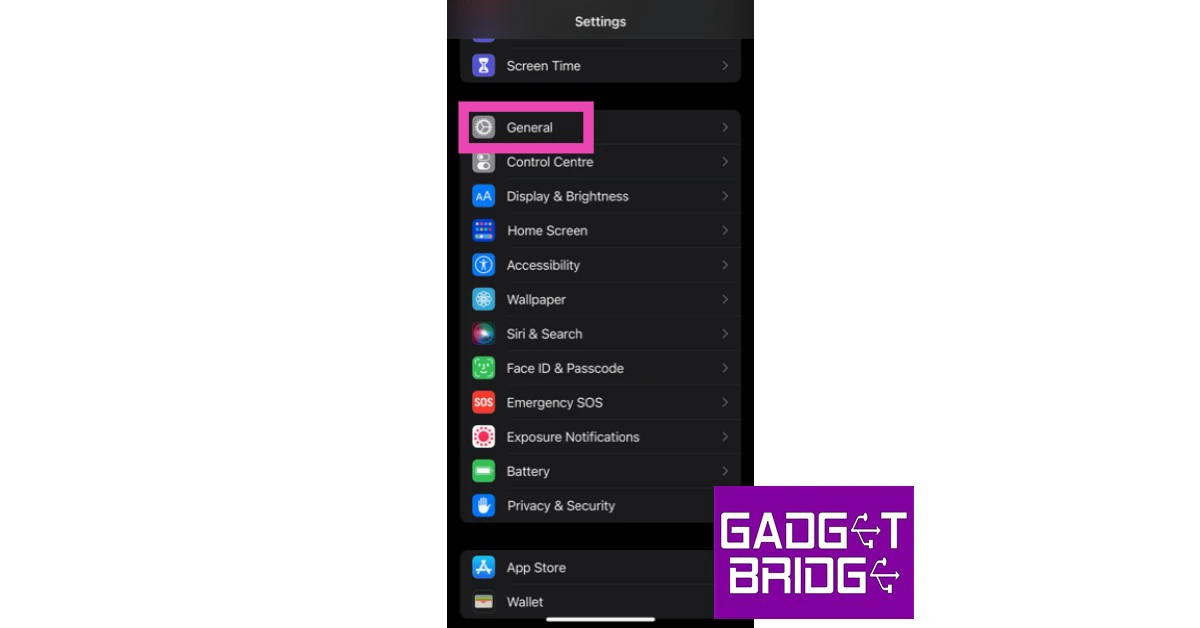
Step 1: Go to Settings and select General.
Step 2: Scroll down and select ‘Transfer or reset iPhone’.
Step 3: Select ‘Reset’ followed by ‘Reset Network Settings’.
Update Carrier Settings
The software on your iPhone isn’t the only thing that receives constant updates. Your network provider also rolls out routine updates to improve the network connection. Typically, these updates are installed automatically on your iPhone. But in the rare case that they didn’t, you can always manually install them. To update the carrier settings on your iPhone, go to Settings>General>About>SIM Details and tap the ‘Network Provider’ option to receive the latest settings. If your hotspot is malfunctioning due to outdated carrier settings, this will fix it.
Update iOS
If you’re using one of the previous iOS versions, you might want to update to the latest one. Some bugs are known to notoriously pop-up on the older iOS versions once a new one becomes available. To install the latest version of iOS to your device, go to Settings>General>Software update.Read Also:How to Change Your Apple ID Email Address?
Frequently Asked Questions
Why does my iPhone hotspot keep disconnecting?
The most likely reason behind your iPhone disconnecting the personal hotspot is the data limit being breached. Disable Low Data Mode from Settings to get around this issue.
How do I stop my iPhone hotspot from disconnecting?
To stop your iPhone hotspot from turning off, keep the screen unlocked at all times. If that doesn’t work, disable low power mode and low data mode. You can also try changing the hotspot password and refreshing the carrier settings.
Is there a connection limit on iPhone hotspots?
There is no connection limit on an iPhone personal hotspot. You can connect as many devices as you want.
Popular fitness tracker maker brand Amazfit is launching a new sports smartwatch in India on July 2. The smartwatch Amazfit T-Rex 2 is currently available for pre-order in the country. To recall it made its global debut on last month featuring a GPS technology. The upcoming smartwatch is 10ATM water resistance and houses a 500mAh battery too.
Amazfit T-Rex 2 price in India and availability
Amazfit T-Rex 2 smartwatch will be retailing in India for Rs 15,999 when it is launched tomorrow July 2 at 12 noon. In India, the Amazfit T-Rex 2 is available in the colours Astro Black and Gold, Amber Black, and Wild Green.Pre-orders for the smartwatch are presently being accepted on the official Amazfit website. The smartwatch’s Amazon landing page recently went online, hinting that customers would soon be able to buy it there as well. According to the company customers who pre-order, the wearable will also receive a limited launch offer workout bag worth Rs. 1,999 from the firm.
Amazfit T-Rex 2 specifications
Amazfit T-Rex 2 is an affordable Military Certified Rugged Outdoor Smartwatch. Having passed 15 military-grade standards (MIL-STD-810G). According to the company, it can withstand extreme temperature and environmental conditions from 70C heat to -40 cold along with 240 Hrs of humidity, 96 Hrs of Salt spray and many more. The smartwatch features a 1.39-inch AMOLED screen with a resolution of 454×454 pixels and always-on-functionality. It has an advanced 6PD (six photodiodes) BioTracker 3.0 PPG biometric sensor that can track multiple metrics along with Spo2, Heart rate and stress, and sleep quality all 24/7.Every time it notices that you experience significant altitude fluctuations, the Amazfit T-Rex 2 will notify you and prompt you to perform the blood oxygen saturation test. The smartwatch has 150+ sports modes, including the Triathlon mode that will test your endurance, the lap data recording mode for professionals, and the more leisurely Golf swing mode.It supports five satellite location systems, has dual-band positioning, and lets you channel your inner explorer by importing route files from the Zepp app. The watch with real-time navigation can even display your particular movement and evolving routes in real-time.The T-Rex 2 can also survive the equivalent of 100 metres of water pressure thanks to its water-resistance grade of 10 ATM. With regular use, the fitness tracker’s 500mAh battery provides up to 24 days of battery life on a single charge.
For the latest gadget and tech news, and gadget reviews, follow us on Twitter, Facebook and Instagram. For newest tech & gadget videos subscribe to our YouTube Channel. You can also stay up to date using the Gadget Bridge Android App. You can find the latest car and bike news here.
Step 1: Open your Messages app.Step 2: Click on the ‘Create Message’ icon at the bottom right corner of your screen.Step 3: In the recipient box, type the name of the recipients you want to add to the group, or press on the ‘+’ icon to add them from your contact list.Step 4: Type a message and hit send. The text group will be created and your message will be delivered.
How to send group texts from iPhone
Step 1: Open the Messages app on your iPhone.Step 2: Tap on the ‘Compose message’ icon at the top right corner of your screen.Step 3: In the recipient box, type the name of the recipients you want to add to the group, or press the adjoining ‘+’ icon and add them from your contact list.Step 4: Type the message and hit send. The text group will be created and your message will be delivered.Read Also:Top 7 Game Boy Emulators for iPhoneFollowing these easy steps, you can send a group text on Android and iPhone. While using iPhone for group texts you may notice green and blue chat bubbles for different people. This is because the messages that are sent through an iPhone use iMessage and show up in blue. The messages sent from non-Apple devices show up in green and are sent using your network carrier.
For the latest gadget and tech news, and gadget reviews, follow us on Twitter, Facebook and Instagram. For newest tech & gadget videos subscribe to our YouTube Channel. You can also stay up to date using the Gadget Bridge Android App. You can find the latest car and bike news here.
Known for its dynamic photo-sharing approach, Instagram is one of the most popular social media platforms present today. While sharing pictures on your Instagram feed is a pretty straightforward process, you may encounter some issues with sharing the Instagram post to your Story. Today, we take a look at how you can share Instagram posts to your story and the known issues and their fixes.Read Also:Instagram’s new feature will let you post images to other accounts
Here’s how you can share Instagram posts to your story
Step 1: Select the Instagram post you want to share.Step 2: Tap the Share button.Step 3: Select ‘Add Post to your Story’.Step 4: You can choose the background and add any text on top of the post. You can even restrict the visibility to your close friends. Once you’re done select the arrow button at the bottom left corner of your screen to share the post on your story.
Cant share a post to your Story? This could be why
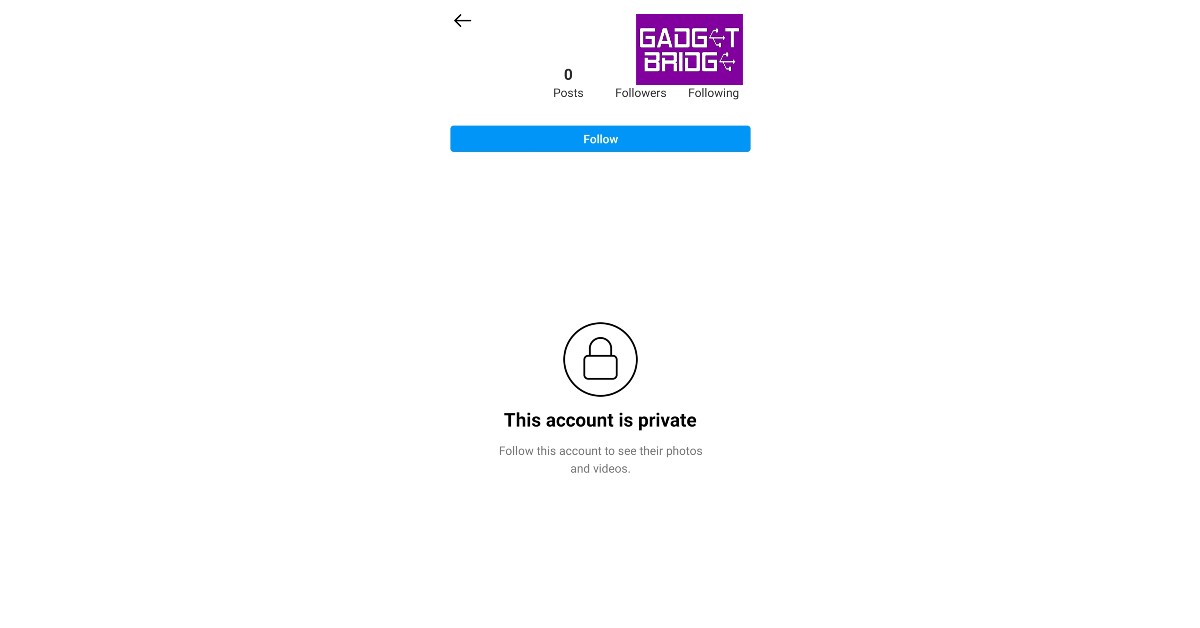
The account could be private: You cannot share an Instagram post to your Story from an account that is set to private. Making an account ‘private’ makes your posts visible to only your followers. You can get around this by taking a screenshot of the post if it’s an image, or downloading it if it’s an IGTV video. But, it is better to respect the privacy of the user if they do not want their posts to be seen by anyone other than their followers.
You may not have permission to share: Instagram users can disable the options to let others share their posts on their Stories. If you want to do the same, go to Profile>Settings>Privacy>Stories and disable ‘Allow sharing to Story’.
Instagram app issues: There may be an issue with the Instagram app on your phone or you may not have the updated version of the app. You can check the Play Store for any updates and try clearing the app cache if the problem persists. Uninstalling and reinstalling may also fix some unknown bugs. Lastly, if you’re still experiencing issues, try rebooting your phone.
Garena Free Fire is a battle royale game with regular awards and tournaments to keep players interested. If you play Garena Free Fire, you should be aware of the redeem codes that are released on a daily basis. However, because the battle royale game is banned in India, players from other countries can use the Free Fire Redeem codes daily. If you’re unfamiliar with the Garena Free Fire redeem codes or don’t know how to get them, we’ve put together a step-by-step guide to help you redeem them. Check out Garena Free Fire Redeem Codes for July 1.The Free Fire redeem codes are a great way to get free stuff. These are 12-digit codes that contain alphabets and numbers, as well as an expiration date and time. Because the Garena FF redeem codes cannot be used more than once, you should hurry to the redemption page to claim your free reward before someone else does. To get a free reward, all you have to do is go to reward.ff.garena.com/en, which is the official redemption page. Also, keep an eye on this space for daily updates on Garena Free Fire redemption codes and rewards.
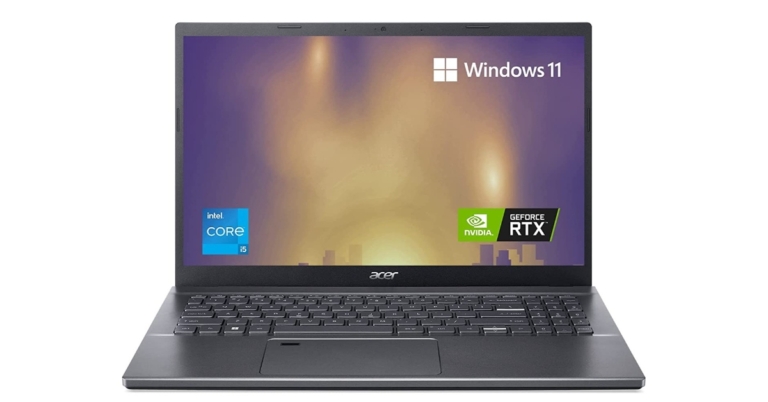
With the most recent 12th Gen Intel Core i5 processor and Nvidia GeForce RTX 2050 GPU, Acer has introduced the new Aspire 5 gaming laptop in India. The laptop has two extendable dual SSDs that hold up to 2TB of storage. It features an FHD 15.6-inch IPS display with thin bezels on the sides. Moreover, there is Wi-Fi technology with Wi-Fi 6E supporting the new 6GHz band that includes 1200MHz for connectivity.
Acer Aspire 5 gaming laptop price in India and availability
The Aspire 5 (A515-57G) from Acer has been made available in India for an introductory price of Rs. 62,990. The laptop is currently for sale on Amazon and the Acer online store. The laptop is also available for offline purchase from Croma and Acer-exclusive retailers. Metal Top Cover with ergonomic features is available in multiple colours to match one’s style.
Acer Aspire 5 specifications
The Acer Aspire 5 (A515-57G) comes with an FHD 15.6-inch IPS display having 1,920×1,080 pixels of resolution along with slim bezels on the sides. The display has Acer Color Intelligence, Acer BlueLightShield, and an 81.18 percent screen-to-body ratio. Experience intelligent image noise reduction in low-light situations with Acer TNR Solution. With its ability to actively muffle background noise for both users and compatibility with external headphones and mics, Acer PurifiedVoice with AI noise reduction is ideal for taking online classes or staying in touch with loved ones. For easy security, the Aspire 5 also has a fingerprint reader and a 720P HD webcam.Windows 11 is the operating system for the laptop. The new laptop is refreshed with the Nvidia GeForce RTX 2050 GPU and the 12th Gen Intel Core i5-1240P processor. The gaming laptop comes equipped with 8GB DDR RAM and offers the option to increase it to 32GB. It also features a 512GB SSD that can be upgraded to dual SSDs that can store up to 2TB of data.Featuring Wi-Fi 6E, ideal for quick file sharing and fluid 4K streaming, and Bluetooth 5.2, the newest level of connectivity. Additionally, for multitasking, connect two 4K displays to a Thunderbolt 4 connector. containing one HDMI 2.0 connector and three USB Type-A connections. The gaming laptop has two fans that support cooling in a variety of modes as well as two copper thermal pipes that can remove up to 10% more heat through the air inlet keyboard.
For the latest gadget and tech news, and gadget reviews, follow us on Twitter, Facebook and Instagram. For newest tech & gadget videos subscribe to our YouTube Channel. You can also stay up to date using the Gadget Bridge Android App. You can find the latest car and bike news here.
Amazon is back with another quiz on its mobile platform. The Amazon Quiz is conducted every day for its customers. Customers from different parts of the country are participating in the daily quiz. Today’s Amazon quiz is now live on the Amazon App. The customers who participate in the 1 July 2022 Amazon Quiz will get a chance to win Rs 5,000 Amazon pay Balance.The Amazon Quiz can be played from 12 AM to 11:59 PM. For those who are unaware of the quiz, the e-commerce platform brings a fresh quiz on a daily basis which consists of five questions related to general knowledge and current affairs. The participants need to answer all the questions correctly and their names will be selected for a lucky draw. The winner will be announced at the end of the month. One wrong answer could eliminate you from the quiz. Only app users are eligible to participate in the Quiz. Check Out 1 July 2022 Amazon Quiz Answers.Amazon Quiz Today Prize – Rs 5,000 Amazon Pay BalanceQuiz Date – 1 July 2022Daily Timing – 12 AM to 11:59 PMWinner Announcement – Today 12 PM
Amazon Quiz Answers Today 1 July 2022
Question 1: The Indian men’s cricket team kicked off its tour to England with a match against which county?Answer: LeicestershireQuestion 2: Which of these is the title of the second instalment of the Avatar movie franchise directed by James Cameron?Answer: The Way of WaterQuestion 3: India’s oil imports from which country have jumped 50 times since April and now account for 10% of oil bought from overseas?Answer: RussiaQuestion 4: What is a group of these animals known as?Answer: PasselQuestion 5: Who was the first Indian woman to win a medal in Olympics for this sport?Answer: Karnam Malleshwari
How To Play Amazon Quiz
Only app users are eligible to play the Amazon quiz every morning from 12 AM to 11:59 PM. The quiz is not available on the desktop. For those who are unaware of how to play the Amazon quiz below are the steps, you can follow to take the quiz.
Firstly download the Amazon app from Google Play Store or App Store
Now fill in the required information through the Sign Up option.
You need to log in to the Amazon app and scroll down on the home screen to find the Amazon Quiz banner.
Tap on the Amazon Quiz banner and tap on the Start button to start the Quiz.
Now you will get 5 questions and you need to answer them correctly. One wrong answer will eliminate you from the Quiz.
After answering all the questions correctly you are now eligible for a Lucky Draw.
The winner’s name will be announced today at 12 PM.
If you have trouble remembering your passwords every time you sign in, you can save them to your Google account. Google Smart Lock allows you to keep all your passwords in one place, synced to your Google account, so you can access them across devices. While it may be a convenient feature, you are always at risk of your passwords being accessed by someone else if they break into your phone. In this article, we show you how to disable Google Smart Lock on Android and Chrome.Read Also: How to sign out of all your Google accounts at once on all devices?
How to disable Google Smart Lock on Android
Step 1: Open the Google Chrome browser on your Android device.Step 2: Tap on the three dots on the top right corner, then tap on ‘Settings’.Step 3: Tap on ‘Passwords’.Step 4: Disable ‘Saved passwords’ and ‘Auto Sign-in’. You can also delete individual passwords from the list below.


 The offers that will be available to users when they buy the OnePlus Nord 2T 5G are as follows:
Users of ICICI credit and debit cards will be entitled to an immediate bank discount of INR 1500 on Amazon.in, OnePlus.in, the OnePlus Store App, OnePlus experience stores, and other significant offline partner retailers* from July 5 through July 11. Users of ICICI credit and debit cards may also take advantage of free EMI for up to three months through the end of July.
In addition to the promotions offered to owners of ICICI credit and debit cards, there are a few exclusive promotions accessible just on oneplus.in and the OnePlus shop app. These are what they are:
Old OnePlus smartphone owners can save an additional Rs. 3000 with an exchange bonus on oneplus.in and the OnePlus Store App from July 5 to July 14. The OnePlus Nord Handy Fanny Pack will be given away to the first 1000 users of the OnePlus Store App.
Customers of the OnePlus Nord 2T 5G can additionally purchase the Red Cable Care plan for Rs. 749 when making a bundle purchase on oneplus.in and the OnePlus Store App, as well as for Rs. 999 at Amazon.in and some select OnePlus Experience Stores. Get advantages like a specialised customer helpline, a 12-month extended warranty, 120 GB of cloud storage, and many other exclusive advantages! Offer only good for a short time
RedCoins may be used to save up to 1000 on the purchase of the OnePlus Nord 2T 5G on oneplus.in and the OnePlus Store App for current Red Cable Club members. Offer good through July 11th, 2022.
The offers that will be available to users when they buy the OnePlus Nord 2T 5G are as follows:
Users of ICICI credit and debit cards will be entitled to an immediate bank discount of INR 1500 on Amazon.in, OnePlus.in, the OnePlus Store App, OnePlus experience stores, and other significant offline partner retailers* from July 5 through July 11. Users of ICICI credit and debit cards may also take advantage of free EMI for up to three months through the end of July.
In addition to the promotions offered to owners of ICICI credit and debit cards, there are a few exclusive promotions accessible just on oneplus.in and the OnePlus shop app. These are what they are:
Old OnePlus smartphone owners can save an additional Rs. 3000 with an exchange bonus on oneplus.in and the OnePlus Store App from July 5 to July 14. The OnePlus Nord Handy Fanny Pack will be given away to the first 1000 users of the OnePlus Store App.
Customers of the OnePlus Nord 2T 5G can additionally purchase the Red Cable Care plan for Rs. 749 when making a bundle purchase on oneplus.in and the OnePlus Store App, as well as for Rs. 999 at Amazon.in and some select OnePlus Experience Stores. Get advantages like a specialised customer helpline, a 12-month extended warranty, 120 GB of cloud storage, and many other exclusive advantages! Offer only good for a short time
RedCoins may be used to save up to 1000 on the purchase of the OnePlus Nord 2T 5G on oneplus.in and the OnePlus Store App for current Red Cable Club members. Offer good through July 11th, 2022.



 Changing the personal hotspot’s name and password refreshes the connection and resolves any existing issues. Simply go to Settings>Personal Hotspot and Tap on ‘WiFi Password’ to change it.
 Step 2: Scroll down and select ‘Transfer or reset iPhone’.
 Step 3: Select ‘Reset’ followed by ‘Reset Network Settings’.

 The software on your iPhone isn’t the only thing that receives constant updates. Your network provider also rolls out routine updates to improve the network connection. Typically, these updates are installed automatically on your iPhone. But in the rare case that they didn’t, you can always manually install them. To update the carrier settings on your iPhone, go to Settings>General>About>SIM Details and tap the ‘Network Provider’ option to receive the latest settings. If your hotspot is malfunctioning due to outdated carrier settings, this will fix it.




 Step 3:
 Step 4:
 Step 2:
 Step 3:
 Step 4: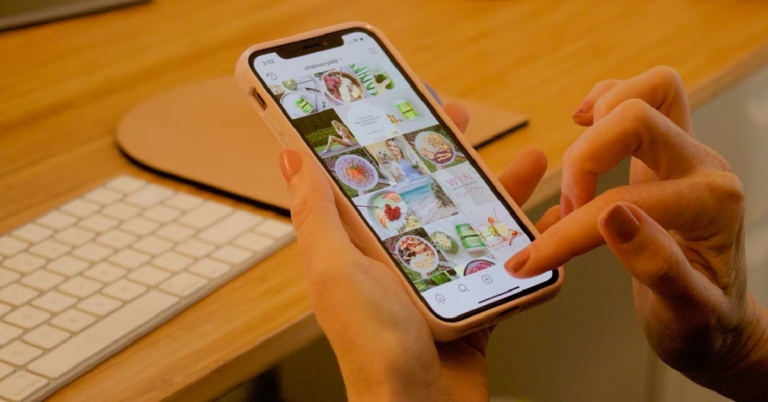
 Step 3:
  Step 4:




 Step 3:
 Step 4:
 Step 3:
  Step 4: