Xiaomi TV Stick 4K Review: Xiaomi is back in the streaming game!

When Xiaomi came out with its first generation TV Stick back in 2020, the main gripe that consumers had with it was the lack of 4K streaming support. With industry giant Amazon dominating the streaming device segment with Fire TV Stick, Xiaomi did not have much of a chance at capturing any significant market share with a product that capped video quality at 1080p.  But now, the story may take a turn. Last month Xiaomi came out with its next-generation TV Stick 4K which, as you can guess from the name, offers 4K streaming support. Apart from video quality, Xiaomi has made some minor but noticeable changes that make the TV Stick 4K a complete streaming product. So does this device finally have what it takes to go against the Fire TV Stick? Read our review of the Xiaomi TV Stick 4K to find out. Read Also: Top 10 Ways to Fix ‘Samsung Smart TV Not Connecting to WiFi’

Xiaomi TV Stick 4K review: Design

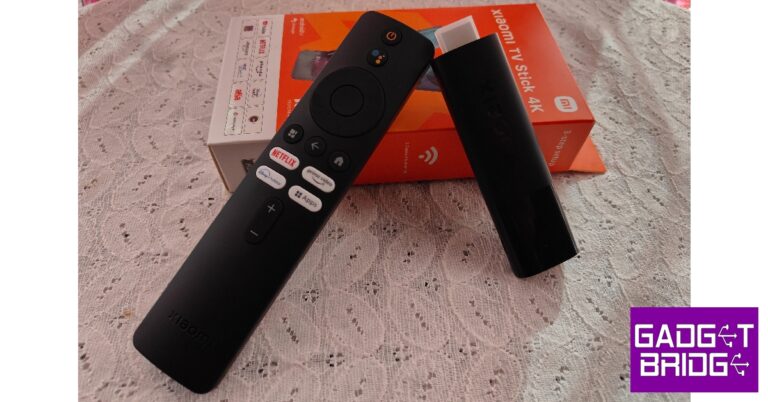
The Xiaomi TV Stick 4K ships in a compact rectangular box. Inside, you will find the TV Stick, remote, power adapter, USB cable, HDMI extender cable, and a booklet that serves as an installation and product information guide. The remote requires two AAA batteries to function which are not included in the box. Xiaomi TV Stick 4K review: Design The design of the Xiaomi TV Stick remains unchanged from its previous generation, although it is slightly larger in size. The top two-thirds portion of the stick gets a matte finish while the bottom third has a glossy texture. The Xiaomi branding has been embossed on the matte finish and the small notification light has been housed in the glossy section. The micro USB port has been placed on the side. It is a little weird that Xiaomi hasn’t gone for the USB-C port on their new device, but they have provided a USB cable with the product. Xiaomi TV Stick 4K review: Design You also get an HDMI extender cable along with the Xiaomi TV Stick 4K. This came in extremely useful since the TV we were using had only 2 HDMI ports next to each other, which didn’t allow two bulky devices to be connected side by side. If your TV is wall mounted, the HDMI extender cable may dangle from the side. The TV Stick remote carries the same minimal design as its predecessor. It’s good to see Xiaomi has not tried anything new with the remote as its clean, easy-to-use layout was one of the highlights of the previous-generation product. The remote is easy to pair with your TV and there is an option to use the remote control functionality on the Google TV app.  The power button has been placed at the top of the remote followed by a dedicated button for Google Assistant. There are dedicated buttons for Netflix, Prime Video, Disney+ Hostar, and system apps as well.

Xiaomi TV Stick 4K review: Performance 

The Xiaomi TV Stick 4K is powered by a Quad-core Cortex-A35 processor and runs Android TV 11. The device features 2GB of RAM along with 8GB of storage space. Throughout our use, we did not experience any annoying lags or stutters. Pairing the stick to your TV is an easy process as well. All you need to do is plug in the stick to the HDMI port in your TV and connect the power adapter to the wall socket. Plug in the micro USB cable to the TV stick and you’re good to go. Connect the TV stick to your home WiFi network and sign in using your Google Account to download the streaming apps from the Play Store. Xiaomi TV Stick 4K review: Performance  What we liked the most about the Xiaomi TV Stick 4K was the bloatware-free Android TV 11 OS experience. It comes with some pre-installed apps like Netflix, Prime Video, and YouTube, but we wouldn’t exactly call it bloatware. You also get Xiaomi’s MiTV+ app on the device, which lets you watch a bunch of TV channels at no additional cost. Switching between the apps is an absolute breeze and the browsing experience is seamless. Xiaomi’s Patchwall interface curates content from different streaming platforms on your homepage. The look and aesthetic of the Patchwall are quite pleasing to the eye, and it comes in handy when you don’t want to jump between different apps to find what you want to watch. The built-in support for Chromecast and Google Assistant also brings a whole lot of smartness to your TV. Xiaomi TV Stick 4K review: Performance  As we mentioned earlier, the biggest upgrade on the Xiaomi TV Stick is 4K media support. Paired with Dolby Atmos and Dolby Vision support, the Xiaomi TV Stick 4K provides an exemplary viewing experience that is in line with the best streaming on the market right now. We streamed HBO’s latest hit The Last Of Us and were not disappointed with the seamless streamless and vivid images we were treated to. Xiaomi TV Stick 4K review: Performance  The remote is extremely accessible to use, even for people that aren’t tech-savvy. The minimal design and dedicated keys for major streaming services make the device very easy to use. If you’re thinking about gifting a smart TV stick to your elderly parents or relatives, the simplicity of Xiaomi’s product should make it the pick of the lot. The only problem with the remote is that it lacks a mute button. You will need to use your old remote controller or the Google TV app to mute the system. We would also have liked an extra customisable hotkey on the remote.  Read Also: Vivo V27 Pro and Vivo V27 with 120Hz 3D curved display launched in India

Verdict

Priced at Rs 4,999, the Xiaomi TV Stick 4K is a great device to pick up to bring Android functionalities to your TV. There’s no skipping this one as Xiaomi has delivered the entire package – from 4K streaming support to built-in Chromecast and Google Assistant. The minimal design and easy accessibility of the remote is also a big point in its favour. However, we feel like Xiaomi could have been more moderate with the pricing, as their products have a reputation for undercutting their competition by a decent price margin.

Pros

4K streaming Minimal design for the remote Ease of access

Cons

Price could have been lower No mute button on the remote For the latest gadget and tech news, and gadget reviews, follow us on Twitter, Facebook and Instagram. For newest tech & gadget videos subscribe to our YouTube Channel. You can also stay up to date using the Gadget Bridge Android App. You can find the latest car and bike news here.

How to use Street View on Google Maps?

0
After being stuck in limbo for years, Google Street View finally arrived in India last year. Since then, Google Maps has already covered a major part of the country and is rapidly adding new locations every day. With Street View, you can get an immersive 360-degree look at any location on the map and traverse through entire cities as you would while driving. In this article, we show you how to use Street View on the Google Maps app and website. Read Also: Vivo V27 Pro and Vivo V27 with 120Hz 3D curved display launched in India

Use Street View in the Google Maps app

Step 1: Launch the Google Maps app and search for the location you want to see in Street View. Step 2: Tap on the layers icon. You will find it right above the compass icon. Step 2: Tap on the layers icon. You will find it right above the compass icon. Step 3: Select ‘Street View’ in the Map Details section. Step 3: Select ‘Street View’ in the Map Details section. All areas available in Street View will be marked in blue. If the road or area you’re looking up isn’t marked blue, it means that it has not been covered by Street View yet. Step 4: Simply tap on the area you want to see in Street View. Step 4: Simply tap on the area you want to see in Street View. Step 5: Tap on the enlarge icon to hide the map and enter Street View in fullscreen. Step 5: Tap on the enlarge icon to hide the map and enter Street View in fullscreen. Step 6: Scroll on the screen to move in a particular direction. Use the arrows to move forward and backwards.  Step 6: Scroll on the screen to move in a particular direction. Use the arrows to move forward and backwards. 

Use Street View on the Google Maps website

Step 1: Go to maps.google.com. Step 2: Search the location you want to see in Street View. Step 3: Drag the yellow Street View icon at the bottom right corner of the screen to your desired place. Step 3: Drag the yellow person icon at the bottom right corner of the screen to your desired place. Step 4: Drop the yellow Street View icon on the area marked in blue. If there are no blue markings around the place, it means it hasn’t been covered by Street View yet. Drop the yellow person icon How to use Street View on Google Maps? Read Also: How to enable Google Play Store on a Chromebook?

Conclusion

This is how you can use Street View on Google Maps. Can’t find a nearby location on Street View? Be the first one to publish it. With the Google Street View app, you can create and publish your own Street View photos. Even if you don’t have access to a 360-degree camera, you can upload panoramic pictures of places that aren’t yet covered by Street View. For the latest gadget and tech news, and gadget reviews, follow us on Twitter, Facebook and Instagram. For newest tech & gadget videos subscribe to our YouTube Channel. You can also stay up to date using the Gadget Bridge Android App. You can find the latest car and bike news here.

Vivo TWS Air with 14.2mm speaker driver launched in India

Alongside Vivo V27 Series the company has also introduced its new earbuds-Vivo TWS Air in India. The wireless earphones come with 14.2mm speaker drivers and dual-mic call noise cancellation and Bluetooth 5.2. The device is IP54 rated for dust and water assistance. The Bluetooth earbuds case has a 430mAh battery that is said to offer 25 hours of endurance on a single charge.

Vivo TWS Air price in India and sale details

Vivo TWS Air’s price in India has been set at Rs 3,999. The device comes in two colour options of Pebble Blue and Bubble White. If the customer buys any smartphone from the Vivo V27 series and the new earphones together they are entitled to receive a discount of Rs 1,000 bringing the effective price to Rs 2,999. One can purchase the TWS earphones via the company’s official website and Flipkart in the country. On the other hand, Vivo V27 Pro has been launched with a price tag of Rs 37,999 for the base 8GB RAM with a 128GB storage option. The pricing for the 8GB RAM with 256GB storage option is Rs 39,999, and the price for the 12GB RAM with 256GB storage option is set at Rs 42,999. Whereas the Vivo V27 costs Rs 32,999 for the base 8GB RAM and 128GB storage configuration. The price of the 12GB RAM with 256GB storage option is priced at Rs 36,999. Both smartphones will be available in two colour options Magic Blue and Noble Black. Also Read: Vivo V27 Pro and Vivo V27 with 120Hz 3D curved display launched in India

Vivo TWS Air specifications

The Vivo TWS Air has a big 14.2mm speaker driver and is tuned by Vivo Golden Ears Acoustics Lab. According to the company they have been made after researching various needs of the consumers. The device is lightweight and weighs only 3.5 grams. They come with DeepX 2.0 stereo sound effects that provide mega bass, clear voice, and clear high pitch. For a stable connection, it includes Google Fast Pair and Bluetooth 5.2. In addition to this, the Vivo TWS earphones support Google Assistant for hands-free control. The Vivo TWS Air also comes with Find My TWS that helps locate your device. Moreover, the audio device includes dual-mic call noise cancellation. In addition to this, the earphone includes an IP54 rating for protection against dust and water. A 27mAh battery powers each of the Vivo TWS Air earbuds. They are claimed to provide 4.5 hours of playback time on a single charge. Whereas the 430mAh battery within the charging case offers 25 hours of playtime. For the latest gadget and tech news, and gadget reviews, follow us on TwitterFacebook and Instagram. For newest tech & gadget videos subscribe to our YouTube Channel. You can also stay up to date using the Gadget Bridge Android App. You can find the latest car and bike news here.
Garena Free Fire Redeem Codes Today 2 March 2023: Here is how to claim them

Garena Free Fire is a battle royale game with regular awards and tournaments to keep players interested. If you play Garena Free Fire, you should be aware of the redeem codes that are released on a daily basis. However, because the battle royale game is banned in India, players from other countries can use the Free Fire Redeem codes daily. If you’re unfamiliar with the Garena Free Fire redeem codes or don’t know how to get them, we’ve put together a step-by-step guide to help you redeem them. Check out Garena Free Fire Redeem Codes for 2 March 2023. The Free Fire redeem codes are a great way to get free stuff. These are 12-digit codes that contain alphabets and numbers, as well as an expiration date and time. Because the Garena FF redeem codes cannot be used more than once, you should hurry to the redemption page to claim your free reward before someone else does. To get a free reward, all you have to do is go to reward.ff.garena.com/en, which is the official redemption page. Also, keep an eye on this space for daily updates on Garena Free Fire redemption codes and rewards.

Garena Free Fire Redeem Codes Today 2 March 2023

  • Updating soon

How to Get Free Fire Redeem Codes for Garena on 2 March 2023?

  • Visit the Garena Free Fire game’s official website at reward.ff.garena.com.
  • Use your Facebook, Google, VK, Apple ID, Huawei ID, or Twitter account to log in.
  • You’ll be taken to a valid redemption code (s)
  • Copy and paste the 12-digit redemption code into the text box.
  • On the screen, a dialogue box will appear.
  • ‘Ok’ should be selected.
For the latest gadget and tech news, and gadget reviews, follow us on TwitterFacebook and Instagram. For newest tech & gadget videos subscribe to our YouTube Channel. You can also stay up to date using the Gadget Bridge Android App. You can find the latest car and bike news here.

Amazon Quiz Answers Today 2 March 2023: Participate to win Rs 500

Amazon is back with another quiz on its mobile platform. The 2 March 2023 Amazon Quiz is now live on its platform and today’s Amazon Quiz will give you a chance to win Rs 500 Amazon pay Balance. Every day Amazon brings a fresh questionnaire that comprises 5 questions. These questions are based on current affairs and general knowledge. The quiz can be played from 8 AM to 11:59 PM and the contestants need to answer correctly to enter into a lucky draw. In today’s Amazon Quiz the participants will get a chance to win Rs 500 Amazon Pay Balance. Today’s Amazon Quiz Prize – Rs 500 Amazon Pay Balance Quiz Date – 2 March 2023 Daily Timing – 12 AM to 11:59 PM Winner Announcement – Today at 12 PM

Amazon Quiz Answers Today 2 March 2023

Question 1: Which team recently beat Liverpool 5-2 in a UEFA Champions League match after being down 0-2? Answer: Real Madrid Question 2: Who plays the lead character of ‘Sunny’ in the Amazon Prime series ‘Farzi’? Answer: Shahid Kapoor Question 3: The ________ river dolphin is the national aquatic animal of India. Fill in the blanks Answer: Gangetic Question 4: This platform number is associated with which book series? Answer: Harry Potter Question 5: This is a statue of which famous queen? Answer: Queen Victoria

How To Play Amazon Quiz

Only app users are eligible to play the Amazon quiz every morning from 12 AM to 11:59 PM. The quiz is not available on the desktop. For those who are unaware of how to play the Amazon quiz below are the steps, you can follow to take the quiz.
  • Firstly download the Amazon app from Google Play Store or App Store
  • Now fill in the required information through the Sign Up option.
  • You need to log in to the Amazon app and scroll down on the home screen to find the Amazon Quiz banner.
  • Tap on the Amazon Quiz banner and tap on the Start button to start the Quiz.
  • Now you will get 5 questions and you need to answer them correctly. One wrong answer will eliminate you from the Quiz.
  • After answering all the questions correctly you are now eligible for a Lucky Draw.
  • The winner’s name will be announced today at 12 PM.
For the latest gadget and tech news, and gadget reviews, follow us on TwitterFacebook and Instagram. For newest tech & gadget videos subscribe to our YouTube Channel. You can also stay up to date using the Gadget Bridge Android App. You can find the latest car and bike news here.

The Rising Popularity of UPI Payments for Gaming Transactions

Indian Casinos Started to Prioritize the UPI Payment     

Online casinos in India do whatever it takes to satisfy their customers. They are trying to attract people to their website by offering a wide range of games, amazing bonuses, and adequate protection of data. Unfortunately, for a long time, people had to wait for days to deposit/withdraw their money/winning. With the improvement of technology, something like that is no longer a problem. It is noticeable that UPI casinos in India are becoming more and more popular. People love to use that payment method because of its wonderful benefits. In this article, we would like to discuss the UPI payment method and highlight the reasons why people should use it for gambling. Also, we would like to provide tips on how people can find the best Indian UPI casinos. Let’s go!

Do All Casinos Accept UPI Payments?

It would be unfair to say the answer is YES. Some online casinos still do not accept UPI payments. However, that’s actually a good thing for you. You will easily determine whether some gambling site deserves your attention or not. Based on our research, UPI payment method is accepted in most of the best Indian online casinos. These sites understand that UPI is becoming more and more popular among the locals. That is the reason why they want to ensure a pleasant gambling experience. Of course, finding the best UPI casinos in India isn’t easy. Despite their willingness to accept that payment method, you must check other features to confirm quality. The casino site you choose must have a license. After that, you should check the diversity and quality of the games, bonuses, conditions you have to meet to unlock rewards, etc. We invite you to analyze each feature carefully. Even the average gambling sites try to represent themselves as top Indian UPI casinos. As we said, check all the details about casinos or read reviews written by experts online to get some answers.

Before Everything – What Is UPI?

For those that do not know, UPI stands for Unified Payments Interface. It is a modern and properly protected payment tool that allows customers to connect one app to their smartphone with different bank accounts. However, with the UPI tool, they no longer have to provide the account number of the IFSC code to approve the transactions. Every money transfer made by UPI is instant, which is great for gamblers who want to start gambling as soon as possible.

How Does UPI Work?

It doesn’t matter if you have already used something similar for gambling transfers. UPI is an extremely simple tool for people of all ages. As we said, you do not have to provide the account number every time you plan to make a transaction on some of the best UPI casinos. Instead of that, the only thing you will have to use is a virtual address. This virtual address is known under the name Virtual Payment Address or VPA. Why are things so simple? The reason for that is probably the creator of this powerful tool as well as the regulatory body that controls and maintains it. The developer of this tool is the National Payments Corporation of India. But the Reserve Bank of India controls everything that happens around UPI. That ensures a high level of safety for every person that makes deposits at the best UPI casinos in India with this tool. All gamblers need to have four basic things to use UPI for their money transfers. Despite a decent smartphone, they also need at least 1 active bank account, a valid mobile number connected to one or more bank accounts, and a stable Wi-Fi connection. We can agree the requirements are not high, can’t we?

Benefits of UPI for Casino Money Transfers

You understand now why you need to find top UPI casinos in India. Despite the high level of safety, you will ensure yourself a lot of entertainment. But another thing we would like to discuss is the benefits you can get from using UPI for deposits and withdrawals. There are a couple of reasons why the United Payments Interface has become too popular in only 6 years, and we would like to share them with you!

All Transactions Are Safe

As we said, the creator of UPI is the National Payments Corporation of India, while the regulator of all the transactions and security of payment method is the Reserve Bank of India. These two institutions have a very strong reputation in India. They have managed to offer an extremely safe tool for every Indian citizen, including those that plan to use UPI for gambling. As we said, people only need to enter their VPA and approve the transaction made. There is nothing else you will have to share, which automatically reduces the chances that someone will steal or hack your data. More precisely, there is nothing hackers could steal from you. Of course, to ensure complete safety, we once again invite you to register only at the best UPI casinos!

All Transactions Are Extremely Quick

Are you tired of waiting for a couple of days to deposit money or get your winnings? Well, be sure you are not the only one. Both deposits and withdrawals are extremely quick with this payment method. You can use it 24 hours a day, 7 days a week. In case you get stuck for some reason, there is a very responsive, polite, and professional customer service that will solve all your doubts in minutes.

Compatible with Other Payment Apps 

Best of all, you can connect your UPI account with other payment apps. Believe it or not, you can connect your account with apps such as Google Pay or PayTM. Based on our research, more than 80% of people in India have installed these apps on their smartphone devices. That means a huge number of Indian gamblers will be satisfied with this opportunity!

Compatible with Different Operating Systems

All the people from India can use UPI on almost any smartphone device. This payment method is compatible with both iOS and Android. iPhone users had to wait a bit longer for this opportunity, but things changed a year and a half ago.

Conclusion

As you see, using UPI for gambling transactions is extremely easy. It does not come with any specific requirement. You just need to have a bank account, a stable Wi-Fi connection, and a smartphone. We are sure you already have all those things. In return, you will get quick and safe transactions that will make your gambling even comfier. Your only task is to find top Indian UPI casinos and ensure yourself a high level of entertainment. For the latest gadget and tech news, and gadget reviews, follow us on TwitterFacebook and Instagram. For newest tech & gadget videos subscribe to our YouTube Channel. You can also stay up to date using the Gadget Bridge Android App. You can find the latest car and bike news here.

How to Unlock a Disabled iPhone without iTunes

How to unlock a disabled iPhone without iTunes. Here are the best methods for unlocking a disabled iPhone without using iTunes: With the use of Passfab iPhone Unlocker, you may easily unlock your disabled iPhone without the need for iTunes or iCloud. Choose the one that is most useful for you.

Best Method on How to Unlock a Disabled iPhone without iTunes or WiFi [2023]

Don’t worry if you can’t access iTunes but still want to unlock your smartphone; we’ve got you covered. There are undoubtedly some options. You presumably tried to connect your phone to a computer in this bad condition so that iTunes could reset the phone. With only a few tricks, you can unlock a disabled iPhone even if you’ve lost your password. “How to bypass iTunes and unlock a disabled iPhone If you want to know how to unlock a disabled iPhone without iTunes or Wi-Fi, go to this page, where we’ve covered several methods.

Part 1: Can you unlock a locked iPhone without iTunes or WiFi

The proper method for unlocking an iPhone is through iTunes or iCloud, utilizing the device’s Apple ID and password. The iPhone may be reset to its factory settings using iTunes or iCloud if you’ve lost your passcode, but doing so will delete all the data on the device. As a result, you may choose to unlock a disabled iPhone without using WiFi or iTunes. But don’t worry if you don’t want to lose your data and want to unlock your disabled iPhone without using iTunes.

Part 2: Unlock a Disabled iPhone without iTunes Or WiFi Using PassFab iPhone Unlocker [HOT]

A disabled iPhone may be unlocked with PassFab iPhone Unlocker without the need for iTunes or Wi-Fi. If you’re looking for a different approach to using iTunes to unlock a disabled iPhone, you may always choose PassFab iPhone Unlock. This incredible program is a wonderful substitute for iTunes because it allows you to unlock your iPhone without a passcode. The program merely disables the device’s password security and grants you full access. You can do a factory reset without the Apple ID or screen passcode with this expert iPhone unlocker. The key features of PassFab iPhone Unlocker
  • Unlock an iPhone, iPad, or iPod Touch with a locked, disabled, or damaged screen.
  • Your iDevices can be factory reset without a password or Apple ID.
  • Delete your Apple ID without any verification or password.
  • Without a passcode, turn off screen time after a few minutes.
  • Bypass remote management to get rid of others’ supervision.
  • Completely compatible with the most recent iOS (iPadOS 16), iPhone 13, and other devices.
Steps on how to unlock a disabled iPhone without iTunes or wifi Step 1: Visit the Passfab iPhone Unlocker website and download the program. Install it first, then run it again. Now select “Start” from the menu on the main screen. Step 2: You’ll then be taken to a new screen where you must connect your iPhone to the computer and click “Next.” Step 3: When the device has been discovered and recognized by the program, you must download the firmware package that is the most compatible with your device. You only need to click the “Download” button on the program interface to do this. Step 4: The final step is to simply click the “Start Remove” button next to the program after the firmware package has been downloaded. After you do, the procedure to unlock your disabled iPhone will start. As soon as the procedure is finished, you will be informed that your iPhone has been successfully unlocked.

Part 3: Unlock a Disabled iPhone without iTunes Or WiFi Using Erase iPhone Option

The “Erase iPhone” option is the easy method to unlock your iPhone if it is disabled and you don’t have access to WiFi or iTunes. But, before choosing this option, make sure you have a backup of all your iPhone’s data and settings. Hold down the iPhone’s Power button while doing so. To switch off your iPhone, slide it. Hold down the home button while connecting your iPhone with a USB cord to your PC. Release the Home button, then launch iTunes on your computer. To continue, click “Restore.”

Part 4: Unlock a Disabled iPhone without iTunes Or WiFi Via Find My iCloud

If you’ve entered your passcode incorrectly too many times and your iPhone has been deactivated, you may still use the Find My app on iCloud to unlock it without needing iTunes or Wi-Fi. Then, visit the iCloud website on a computer and sign in with your Apple ID and password. then pick your disabled iPhone from the “Find My” menu. Using the “Erase iPhone” option will erase all of the data on your iPhone and unlock the passcode.

Extra Tips: How to Unlock iPhone without Passcode using Calculator

Although forgetting your iPhone passcode might be annoying, there are various ways to unlock your phone without a password. One of these techniques is accessing the settings of the device and disabling the passcode using the built-in calculator app on the iPhone. Nevertheless, this approach is efficient. It’s important to pay great attention because the calculator approach might be time-consuming and challenging.

Final Thoughts

The software PassFab iPhone Unlock was used to unlock a disabled iPhone without the use of iTunes or Wi-Fi in this article’s conclusion. We looked at the many circumstances in which an iPhone might become disabled and how to unlock a disabled iPhone without iTunes. We can quickly remove the passcode and recover access to our iPhone with the support of PassFab iPhone Unlock in just a few easy steps. To prevent the annoyance of having our device locked out, we must have a trustworthy program like PassFab iPhone Unlock. Don’t be afraid to give PassFab iPhone Unlock a try so that you can quickly start using your iPhone. For the latest gadget and tech news, and gadget reviews, follow us on TwitterFacebook and Instagram. For newest tech & gadget videos subscribe to our YouTube Channel. You can also stay up to date using the Gadget Bridge Android App. You can find the latest car and bike news here.

Top 10 Ways to Fix ‘Samsung Smart TV Not Connecting to WiFi’

0
Smart TVs are essentially worthless if they aren’t able to connect to the Internet. A Smart TV costs more than a regular one because it allows you to run different apps on it alongside linking up with other smart devices in your house. Without a WiFi connection, there’s not much you can do on your Smart TV other than watch cable. In this article, we bring you the top 10 ways to fix the ‘Samsung Smart TV not connecting to WiFi network’ issue. Read Also: MWC 2023: Google announced to release 9 new features for Android and WearOS

Restart your Samsung Smart TV

Restart your Samsung Smart TV A quick restart will fix any background glitches on your TV and refresh the network. You can restart your Samsung Smart TV by pressing the power button on the TV remote or unplugging the TV from the power outlet. Make sure your TV is turned off for a minute or two before your turn it back on. Once it is turned back on, check if it is able to connect to the WiFi network. If it is still not able to detect or connect to your WiFi, proceed to the fixes in this list.

Restart your Modem and WiFi router

5 reasons you are not getting best speed from your Wi-Fi router and how to fix it Leader: top 10 ways to fix samsung smart tv not connecting to wifi If restarting your Smart TV doesn’t work, it is possible the issue may lie with your Internet connection or WiFi network. Simply turn off the Modem and WiFi router and turn them on after a couple of minutes. This will refresh the wireless network. Scan the network using your TV and check if it is able to pair successfully.

Make sure the WiFi router is close to your TV

If your Samsung Smart TV is not able to scan your WiFi network at all, it is possible that it may be placed too far away from the router. This would put the TV out of the network range. Since you probably don’t want to reposition your TV, try bringing the router closer to the TV and scan the network again. The TV and the router should be within a distance of 15.2m from each other. If you don’t want to move the router either, you can look into buying a WiFi range extender to improve the network coverage.

Forget the WiFi network and add it again

Forget the WiFi network and add it again. top 10 ways to fix samsung smart tv not connecting to wifi Step 1: Go to Samsung Smart TV’s settings. Some TV remotes may have a dedicated button for Settings, while others have the option to access it from the home screen. Step 2: Select ‘General’ settings from the side menu and click on ‘Network’. Step 3: Select ‘Open Network Settings’. Step 4: Click on ‘Wireless’. Step 5: Scroll down and select ‘Manage Saved Networks’. Step 6: Now, select your WiFi network and hit ‘Delete’. Step 7: Go back to the Wireless window and add your WiFi network again.

Update the WiFi password on your Smart TV

Update the WiFi password on your Smart TV If you recently changed your WiFi password, you will need to enter the new password on your Smart TV in order to connect to the WiFi. You can do this by following the steps mentioned in the previous method. If you do not update the password, your TV will not connect to the WiFi network.

Try Self Diagnosis

Your Samsung Smart TV has a bunch of troubleshooting options that can figure out why a particular function isn’t working as intended. Run a self-diagnosis check on the Smart TV to figure out why it won’t connect to the WiFi network. Go to Settings>Support>Self Diagnosis and run the Smart Hub Connection Test. 

Check the IP Settings

If you are still unable to access the Internet on your Smart TV, it is a good idea to check the IP and DNS settings. Go to Settings>Network>Network Settings>IP Settings and check if the IP and DNS settings are correct. Select ‘Get Automatically’ if you notice the settings aren’t correct. Once the IP and DNS settings have been updated, restart your TV and check if it is able to connect to the Internet.

Update System Software

Like every other smart device, your Smart TV receives periodic OTA updates as well. Newer updates get rid of any software-related bugs that may be inhibiting certain functions of the device. To update your Samsung Smart TV, go to Settings>Support>Software update and select ‘Update Now’.

Reset Network Settings

Performing a network setting reset unpairs your TV from all wireless networks. Any devices paired to your TV through WiFi or Bluetooth will be unpaired after the reset. In a nutshell, a ‘Network Settings Reset’ restores all the network-related settings to factory default. Go to Settings>General>Network and select ‘Reset Network’.

Perform a factory reset

If you’ve come so far and your Smart TV is still not able to connect to your WiFi network, you can try performing a factory reset as a last-ditch effort. A factory reset will erase all apps and user accounts from the TV and reset it to the factory settings. Go to Settings>General>Reset and enter the pin to confirm the reset. Read Also: Top 7 Online Calendar and Appointment Scheduling Apps for Android

Conclusion

These are the top 10 ways to fix the ‘Samsung Smart TV not connecting to WiFi network’ issue. If the issue still persists after trying all the fixes mentioned above, you may have to get your TV fixed by a trained professional. But first, try connecting other devices to the WiFi to make sure the issue does not lie with the router and the modem. For the latest gadget and tech news, and gadget reviews, follow us on Twitter, Facebook and Instagram. For newest tech & gadget videos subscribe to our YouTube Channel. You can also stay up to date using the Gadget Bridge Android App. You can find the latest car and bike news here.

MWC 2023: OnePlus to launch its first foldable smartphone in the second half of 2023

At the ongoing Mobile World Congress 2023 in Barcelona OnePlus revealed that it will officially introduce its first foldable smartphone in the second half of 2023. Earlier this week the company also introduced the OnePlus 11 Concept phone at MWC. Also, the company recently introduced the OnePlus 11 5G and 11R in India at the Cloud 11 event earlier this month. At the same event, the company gave the first glimpse of both the Concept and the foldable phone. Kinder Liu, President, and COO of OnePlus said, “Our first foldable phone will have the signature OnePlus fast and smooth experience. It must be a flagship phone that doesn’t settle because of its folding form, in terms of industrial design, mechanical technology, and other aspects. We want to launch a device that aims to be at the pinnacle experience of today’s foldable market.” OnePlus’s first foldable smartphone is confirmed to be launched in the second half of 2023. More official information about the upcoming device will be shared in the coming months. The announcement was made during its “From Fast & Smooth to Beyond” panel discussion at Mobile World Congress. The OnePlus foldable phone will take on its competitors like Samsung, Motorola, Xiaomi, Oppo and Vivo who already have their foldable phones in the market. The company has not shared much about the phone but leaks and speculation are making rounds on the web. Reportedly the OnePlus foldable phone will be having a 2K display just like the Samsung Galaxy Z Fold 4 has. Besides this earlier this week, the company also introduced the OnePlus 11 Concept phone. It comes with an innovative active cooling technology called Active CryoFlux that integrates into a creative design. It is said to lower the temperature by up to 2.1°C while increasing gameplay framerate by 3–4 fps. In addition to this, the active cooling technology can also reduce the temperature by 1.6°C during charging, cutting the charging time by 30–45 seconds. The OnePlus Concept phone also has a magnetron-spluttering coating which provides a stunning view of the micro liquid flowing through the pipelines. Moreover, the Active CryoFlux liquid also flows through the camera in a halo. For the latest gadget and tech news, and gadget reviews, follow us on TwitterFacebook and Instagram. For newest tech & gadget videos subscribe to our YouTube Channel. You can also stay up to date using the Gadget Bridge Android App. You can find the latest car and bike news here.

Vivo V27 Pro and Vivo V27 with 120Hz 3D curved display launched in India

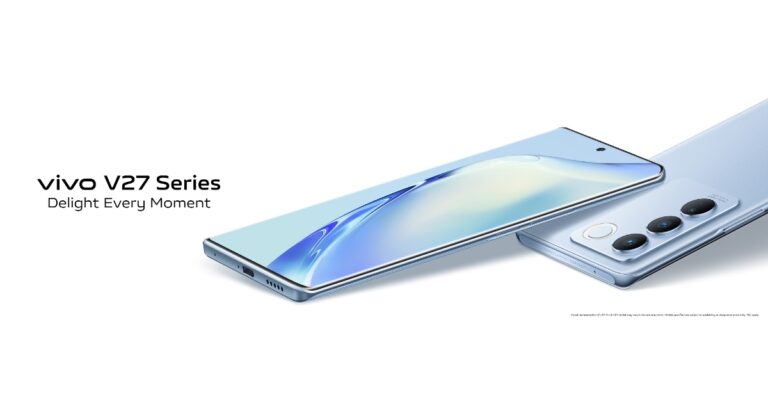
Vivo V27 Series has officially debuted in India today. The new lineup includes two smartphones- Vivo V27 Pro and Vivo V27. They have a colour-changing rear design while the front has a 3D curved display with 120Hz refresh rate support. Both phones come with a triple rear camera setup and are shipped with Funtouch OS 13 based Android 13 out of the box. Smartphones are driven by MediaTek processors.

Vivo V27 Series price and sale details

In India, the Vivo V27 Pro is priced at Rs 37,999 for the base 8GB RAM with 128GB storage option. Whereas the 8GB RAM with 256GB storage option and the 12Gb RAM with 256GB storage variant are priced at Rs 39,999 and Rs 42,999 respectively. While the vanilla variant comes with a starting price of Rs 32,999 for the base 8GB RAM with 128GB storage mode. The price of the 12GB RAM with 256GB storage option is priced at Rs 36,999. Both phones will be available in two colour options Magic Blue and Noble Black. Vivo V27 Series price and sale details The Vivo V27 Pro is now up for pre-booking through the company’s official online and offline platforms as well as via Flipkart in the country. The sale is scheduled to begin from March 6. Whereas the Vivo V27 will be available for purchase from March 23 in the country.

Vivo V27 Series specifications

Both Vivo V27 Pro and Vivo V27 are almost the same in terms of specifications and design. The only difference between them is the chipset. The Pro variant is powered by MediaTek Dimensity 8200 SoC whereas the vanilla V27 comes with a MediaTek Dimensity 7200 5G SoC. The phone runs on FunTouch OS 13 on top of Android 13 out of the box. The device features a 6.78-inch full-HD+ 3D curved AMOLED display with 1,080×2,400 pixels of resolution. The screen has a high refresh rate of 120Hz, peak brightness of up to 1300 nits and 1.07 billion colours. They have a colour-changing AG Glass on the rear which is said to change colour when exposed to UV light. In terms of optics both the phones feature a triple rear camera setup that includes a 50MP Sony IMX766V custom primary rear sensor with OIS stabilisation along with an 8MP wide-angle, and a 2MP macro sensor. According to the company, there is a new Night Portrait with Aura Light feature for clicking natural, high-quality studio-like Night Portraits. In addition to this, there is a natural, high-quality studio-like Night Portraits. This feature is exclusively made for Indian weddings, and consists of three different LUTs ((Look up Tables)- Prosecco, Neo-Retro and Pastels that work with both rear and front cameras. Upfront there is a 50-megapixel selfie camera with advanced eye autofocus. Vivo V27 Pro and Vivo V27 come with a Game Boost Mode and an All-Round Audio Enhancement feature for a better gaming experience. There is an Ultra Large Vapour Chamber Bionic Cooling System for better thermals. In addition to this, there is an Extended RAM 3.0 technology that increases virtual RAM by up to 8GB. Both devices house a 4600mAh battery paired with fast 66W FlashCharge tech. Additionally, there is the fingerprint sensor, ambient light sensor, e-compass, gyroscope, accelerometer and proximity sensor. In terms of connectivity, they include 5G, Wi-Fi, Bluetooth v5.3, a USB Type-C port, GPS, Beidu, Glonass, Galileo and Navic. For the latest gadget and tech news, and gadget reviews, follow us on TwitterFacebook and Instagram. For newest tech & gadget videos subscribe to our YouTube Channel. You can also stay up to date using the Gadget Bridge Android App. You can find the latest car and bike news here.