A working Bluetooth connection is one of the most essential parts of your iPhone these days. All the major accessories – from AirPods to Apple Watch – rely on a stable Bluetooth connection for their intended use. Any minor problem with your iPhone’s Bluetooth can render those accessories useless. In this article, we bring you the top 10 ways to fix Bluetooth issues on iPhone 13 and iPhone 14.Read Also: Poco C55 powered by MediaTek Helio G85 SoC launched in India
Restart Bluetooth
If the Bluetooth on your iPhone 13 or iPhone 14 crashed all of a sudden or unexpectedly started malfunctioning, try restarting it first before jumping into major fixes. You can toggle the Bluetooth on and off from the Control Centre or restart it from Settings. Here’s how.Step 1: Go to Settings and select Bluetooth.Step 2: Turn the toggle bar next to Bluetooth off and then on.
Unpair the device and pair it again
If you’re experiencing any functional issues with the Bluetooth accessory, simply unpair it with your iPhone and then re-pair it. Go to Settings>Bluetooth, choose the device, and hit disconnect. Now, scan for nearby devices and connect to the Bluetooth accessory again.
Restart your iPhone
A quick restart takes care of all the background issues and software glitches that may be keeping your iPhone from functioning properly. If restarting your phone’s Bluetooth doesn’t work, try restarting your phone instead. This should be the first step in resolving any functional issue on your phone. To restart your iPhone, simply press one of the volume buttons along with the side key until the power slider appears on the screen. Drag the power slider to the right to turn off your iPhone. Power the phone back on by pressing and holding the side key.
Reset the Bluetooth accessory
If the issue still persists after restarting your iPhone, try resetting the Bluetooth accessory. Most TWS products have a pairing button that can also be used to reset the device. On AirPods, this button lies right below the hinge. Press and hold this button for around 15 seconds or until the notification light blinks multiple times. Once the device has been reset, you will need to pair it with your iPhone again.
Forget the Device
If you’re having trouble with a previously connected device, forget the device and pair it again. In order to do this, go to the Bluetooth menu in Settings and select the device that’s giving you issues. Tap on ‘Forget this device’ and try pairing it again with your iPhone. You will be asked to match the pin like the first time you paired the device.
Pair the Bluetooth device with another iPhone
If you want to make sure whether the issue lies with your iPhone or the Bluetooth accessory, pair the device with another iPhone. If the device connects without any hassle, your iPhone is the one at fault. if you face the same issues connecting the device, you don’t need to focus on your iPhone but the device itself.
Reset Network Settings
Resetting the network settings on your iPhone restores all connections to their default settings. Any devices paired to your Bluetooth and WiFi will be deleted and you will need to pair them again. Any customised settings will also be set to default. Here’s how you can reset network settings on your iPhone.Step 1: Go to Settings and select General.Step 2: Scroll down and select Transfer or reset iPhone.Step 3: Select Reset followed by Reset Network Settings.
Update your Bluetooth device’s firmware
Like your smartphone’s OS, the firmware of your Bluetooth headphones also receives periodic updates from the manufacturer. Apple AirPods automatically install any pending firmware updates as soon as they connect to your iPhone. This is not the case with other TWS products. To update the firmware of your TWS go to its support app (the one you use to customise the controls) and look for the update in the settings.
Update iOS Version
If the Bluetooth on your iPhone isn’t working due to a software bug, it will quickly be fixed in the next software update. It is highly likely that the update has already been published and is waiting to be downloaded to your phone. To update iOS to its latest version, go to Settings>General>Software Update and download the update.
Reset your iPhone to Factory Settings
You can try performing a factory settings reset on your iPhone to fix the Bluetooth issue. Before you proceed, make sure you back up all your personal data on the device as you will lose it in the process. Here’s how you can restore your iPhone 13 or 14 to its factory settings.Step 1: Go to Settings and select General.Step 2: Scroll down and select Transfer or Reset iPhone.Step 3: Tap on Reset.Step 4: In the following window, select Reset All Settings.Step 5: Enter the PIN and confirm your selection.
Frequently Asked Questions (FAQs)
How do I fix the functional issues with my AirPods?
If you’re facing functional issues like lags, stuttering, and inconsistent volume levels, simply disconnect your AirPods and pair them with your iPhone again.
Why won’t my iPhone scan my Bluetooth accessory?
If your iPhone does not recognise your TWS, simply reset the device by pressing and holding the pairing button.
These are the top 10 ways to fix any Bluetooth issues on your iPhone 13 or iPhone 14. If the problem still persists after trying these methods, it is likely a hardware-related issue. Take your iPhone to an Apple-authorised service centre for further diagnosis.
At a time when smartphone prices keep soaring to new heights every year, many users prefer buying a refurbished phone over a new one. If bought from a reputable seller, refurbished phones can be just as good as new ones. Some even come with a warranty period. A lot of users may even find it hard to differentiate between a new phone and a refurbished unit. While this may be good news if you purchased the latter, it can be slightly disconcerting for new phone buyers. After all, there are a lot of shady sellers out there. Luckily, there are several ways you can check if your iPhone or Android smartphone is refurbished or brand new. Here are the 8 best ways to go about it.Read Also: Poco C55 powered by MediaTek Helio G85 SoC launched in India
How to check if your iPhone is refurbished
Refurbished iPhones are far too common these days. Apple retails refurbished iPhones in its own online store. If you find the regular iPhone to be too pricey, you can get a pretty good deal on a refurbished one. Apple even changes the battery and the outer shell and makes sure all broken parts are either fixed or replaced before retailing a refurbished iPhone. On top of that, you even get a warranty of 1 year. Other sellers may not offer a warranty on the iPhone, but usually ask for a lower price than the official Apple Store. Here is our list of the best places to buy a refurbished iPhone.
Check the Model Number of the iPhone
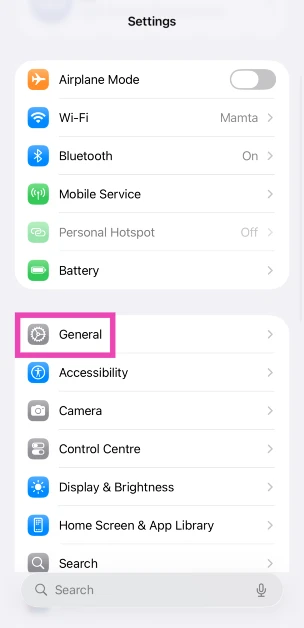
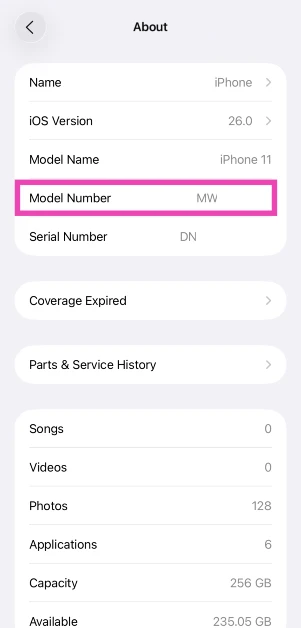
Wondering whether your iPhone is refurbished or not? It is actually quite easy to find that out. All you need to do is look at the model number of your iPhone. Here’s how you can do that.Step 1: Go to Settings.Step 2: Select General.Step 3: Select About.Step 4: Check the first letter of the Model Number.If it starts with M, your iPhone is brand new.If it starts with F, your iPhone is a refurbished unit provided by Apple or a third-party seller.If it starts with P, your iPhone is a personalised unit with an engraving.If it starts with N, your iPhone was issued as a replacement unit by Apple for a faulty iPhone.
Check Parts & Service History
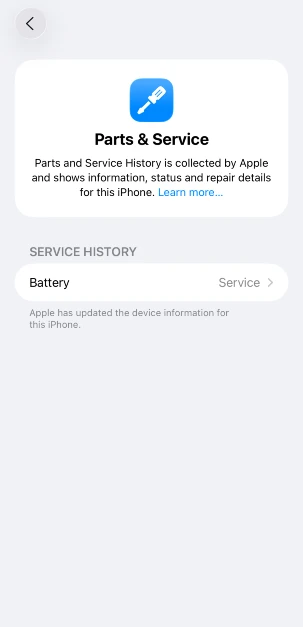
Your iPhone keeps a record of refurbished, repaired, and serviced parts. If you want to confirm that your iPhone is refurbished, simply check this record. Here’s how.
Step 1: Go to Settings and select General.
Step 2: Tap on About.
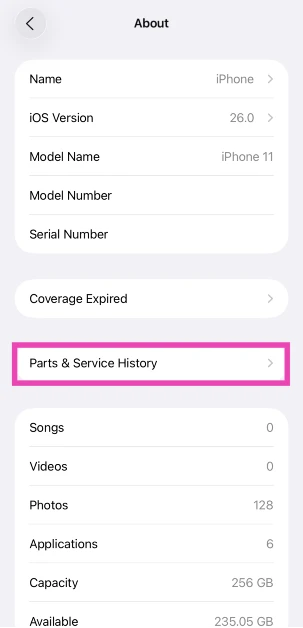
Step 3: Select Parts & Service History.
Step 4: The refurbished and serviced items will be listed on the following page.
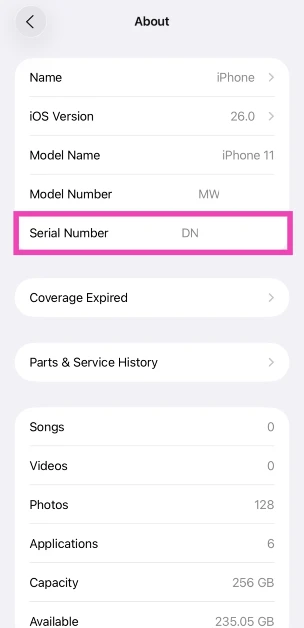
Check your iPhone’s Serial Number
Step 1: Go to Settings and select General.
Step 2: Tap on About and navigate to the Serial Number.
Step 3: Note down the serial number of your device.
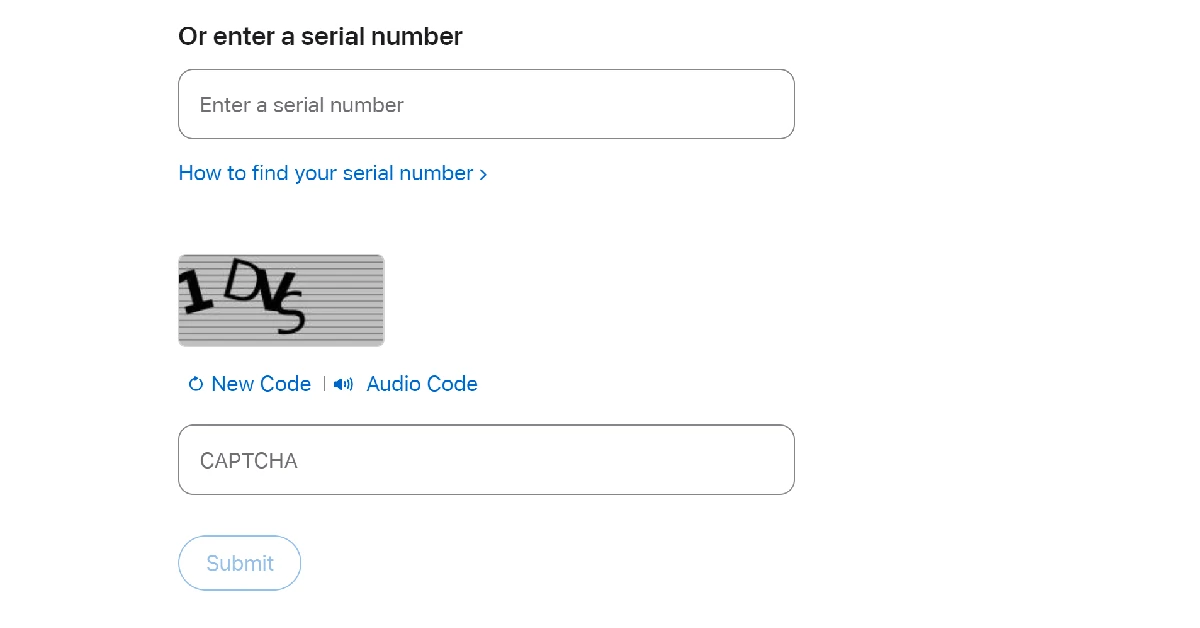
Step 4: Go to the device coverage page on Apple’s website.
Step 5: Enter your iPhone’s serial number and the on-screen CAPTCHA.
Step 6: Hit Submit.
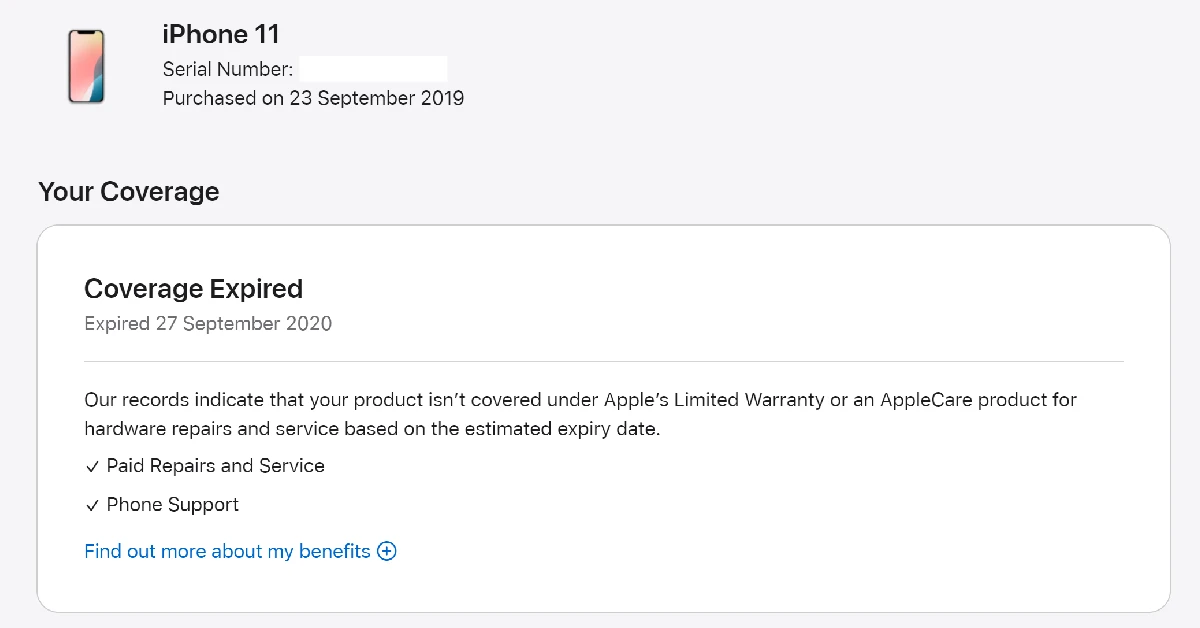
Step 7: If the website says your iPhone has not yet been activated, your device is brand new.
Check the Battery Health
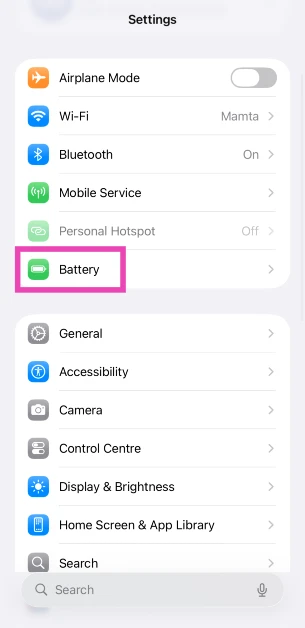
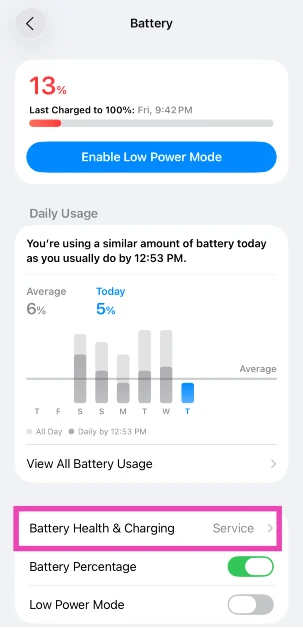
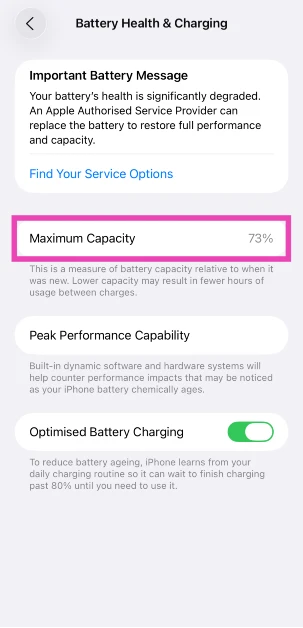
Most retailers, including official Apple retail outlets, change the battery packs of refurbished iPhones before selling them. However, in some cases, that might not be the case. To confirm whether your iPhone is a new model or a refurbished unit, check its battery health. A new iPhone or a refurbished unit with a new battery pack will always have a 100% battery capacity. However, refurbished units with old battery packs will have a significantly lower battery capacity.
Step 1: Go to Settings and select Battery.
Step 2: Tap on BatteryHealth & Charging.
Step 3: Check the Maximum Capacity field.
How to check if your Android phone is refurbished
There are a couple of ways to find out if your Android smartphone is refurbished or brand new. Older smartphones display their RTN information upon dialling a code. Newer smartphones typically do not have this feature. Here are some methods that will cover every Android phone.
Use a dial code
This is one of the best methods to check if your Android smartphone is refurbished or not.
Step 1: Open the dialer app on your phone.Step 2: Dial ##786# (##RTN#) on the keypad. If this code doesn’t work, dial ##786#*#.Step 3: Scroll down and check the Reconditioned Status. If it says Yes, your phone is a refurbished unit. If it says no, your phone is brand new.
Use a third-party app
Newer Android smartphones make it harder to check if they are refurbished or not. However, there are certain third-party apps that will do it for you. Samsung users can download the Phone INFO+ app to check the refurbishment status of their device. This is a paid app, which isn’t ideal, but it gets the job done. Launch the app and tap the hamburger menu on the left. Select ‘Refurbishment Check’ and the app will let you know if your device is refurbished or brand new.
Check the IMEI number
If you purchased your phone from a shady seller and are now afraid they may have slipped you a stolen phone under the guise of a new one, you can easily find out its status by checking the IMEI number. Go to the About Phone section in the Settings app to find the IMEI number of your phone. Here are some easy ways to find the IMEI number of your smartphone. Now, go to imei.info and check if your device has any history of being stolen. If nothing shows up, your phone is likely brand new.
Make sure the IMEI number is consistent
There are several ways to go about checking the IMEI number of your Android phone. When a phone gets refurbished, the seller may flash its IMEI, leading to inconsistencies in the numbers listed on the device packaging and the device itself. Use the method mentioned above to find out the IMEI number of your phone from the device settings. Next, dial *#06# to check the IMEI number. Finally, check if these two numbers match the number listed on the retail package.
Should you buy a refurbished phone?
If you don’t want to splurge a lot of money on a flagship smartphone, buying a refurbished unit is the right move. Premium smartphones offer anywhere between 5 to 7 major OS upgrades, depending on the manufacturer. If you’re buying a refurbished model that’s only a couple of years old, you can still get a lot of mileage out of it. The dropoff in performance isn’t super big.
Apart from the year of production and remaining software coverage, you should also do a basic hardware check while buying a refurbished smartphone. This means running an app like TestM or Phone Doctor to get an assessment of the core hardware of the device. You should also manually check the cameras, display, and speakers of the phone. This is why we recommend buying refurbished smartphones from physical retailers rather than online outlets.
Frequently Asked Questions (FAQs)
How do I find out if my iPhone is brand new or refurbished?
Go to Settings>About and find out your device’s model number. If it begins with an F, it means your iPhone is refurbished.
How do I check if my Android smartphone is refurbished?
Dial ##786# on your phone’s dialer to check its reconditioned status.
How do I check my iPhone’s parts and service history?
Go to Settings>General>About, and tap on ‘Parts & Service history’.
How do I check my iPhone’s battery capacity?
Go to Settings>Battery>Battery Health & Charging, and check the ‘Maximum Capacity’ field.
Which is the best place to buy a refurbished iPhone?
Apple’s official refurbished outlet is the best place to buy a refurbished iPhone since it will be equipped with a new battery and body casing. Apple also offers a 1-year warranty on refurbished iPhones.
Read Also: OnePlus 11R pre-orders open in India: Details inside
Conclusion
This is how you can check if your iPhone or Android smartphone is refurbished or brand new. While buying a smartphone, make sure you check the date of manufacturing of the device. If a long time has elapsed since the date of manufacture, it is possible that the phone may be refurbished. To avoid this, always buy electronic goods from reputable sellers only.
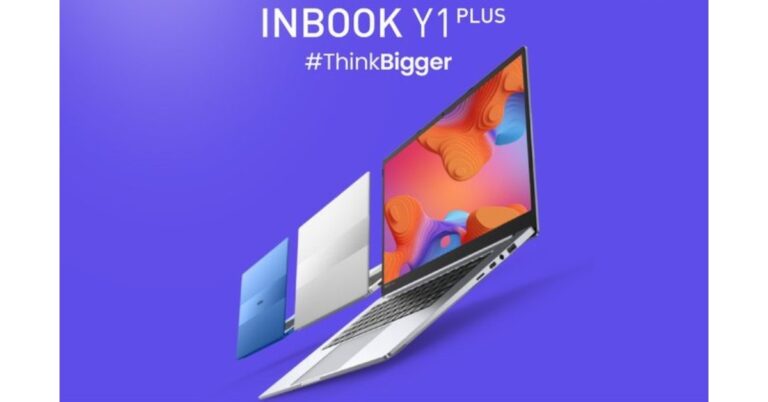
Infinix has announced the launch of a brand-new laptop in the affordable category- Infinix Y1 Plus. The laptop is aimed at college students and budding professionals. The device features a 15.6-inch Color Rich Anti-Glare FHD Display and it comes with a 50Whr capacity. The Infinix laptop has Windows 11 Home pre-installed.
Infinix InBook Y1 Plus price and sale details
Infinix Y1 Plus has been launched in India with a price tag of Rs 29,990 for the base 8GB RAM with a 256GB storage option. While the 8GB RAM with 512GB storage option is priced at Rs 32,990. The device will be available in three colour options of Blue, Silver and Green. You can purchase it via the e-commerce website Flipkart from February 24 in the country.
Infinix InBook Y1 Plus specifications
The 15.6-inch Infinix InBook Y1 Plus has thin side bezels and a full-HD resolution display. The screen of the laptop also supports 86 percent of the sRGB colour gamut and has a brightness of 250 nits. The 2-megapixel web camera of the Infinix InBook Y1 Plus has dual LED fill lighting. Moreover, the Infinix InBook Y1 Plus has an AG glass touchpad with multi-touch gesture capabilities. The laptop has two stereo speakers that can emit 2W of sound.Also Read:Compare: Samsung Galaxy S23 Ultra Vs iPhone 14 Pro MaxWindows 11 Home is pre-installed. An Intel Core i3 processor, 8 GB of RAM, and up to 512 GB of storage power the laptop. Around 1.76 kilograms is what Infinix claims it weighs.The laptop comes with two USB-C ports, dual USB 3.0 ports, an HDMI 1.4 port, a specific SD Card slot, and a 3.5mm audio port for connectivity. It has a 50Whr battery unit and supports 65W fast charging over USB Type-C, which can, according to the manufacturer, recharge the battery by 75% in an hour. According to the battery’s specifications, it can play videos for up to 9–10 hours.
For the latest gadget and tech news, and gadget reviews, follow us on Twitter, Facebook and Instagram. For newest tech & gadget videos subscribe to our YouTube Channel. You can also stay up to date using the Gadget Bridge Android App. You can find the latest car and bike news here.
Garena Free Fire is a battle royale game with regular awards and tournaments to keep players interested. If you play Garena Free Fire, you should be aware of the redeem codes that are released on a daily basis. However, because the battle royale game is banned in India, players from other countries can use the Free Fire Redeem codes daily. If you’re unfamiliar with the Garena Free Fire redeem codes or don’t know how to get them, we’ve put together a step-by-step guide to help you redeem them. Check out Garena Free Fire Redeem Codes for 22 February 2023.The Free Fire redeem codes are a great way to get free stuff. These are 12-digit codes that contain alphabets and numbers, as well as an expiration date and time. Because the Garena FF redeem codes cannot be used more than once, you should hurry to the redemption page to claim your free reward before someone else does. To get a free reward, all you have to do is go to reward.ff.garena.com/en, which is the official redemption page. Also, keep an eye on this space for daily updates on Garena Free Fire redemption codes and rewards.
Garena Free Fire Redeem Codes Today 22 February 2023
Updating soon
How to Get Free Fire Redeem Codes for Garena on 22 February 2023?
Amazon hosts a Quiz session for its customers daily. Its app platform brings a quiz on a daily basis, which begins at 12 AM and ends at 11:59 PM daily. The participants stand a chance to win cash prizes on a daily basis. Today’s 22 February 2023 Amazon Quiz will let you win Rs 500 Amazon Pay Balance.By participating in the Amazon Quiz the participants can win Amazon Pay Balance ranging from Rs 1,000 to Rs 50,000 every day while sitting at home. To win the participants must answer five questions correctly that are based on current events and general knowledge. One wrong answer can eliminate you from the quiz. The results will be announced at the end of the month. Today’s question will let you win Rs 500 Amazon Pay Balance. Check below for today’s Amazon quiz answers.Amazon Quiz Today Prize – Rs 500 Amazon Pay BalanceQuiz Date – 22 February 2023Daily Timing – 12 AM to 11:59 PMWinner Announcement – Today 12 PM
Amazon Quiz Answers Today 22 February 2023
Question 1: The UN has recognized which Indian govt. initiative as one of the top 10 World Restoration Flagships to revive the natural world?
Answer: Namami GangeQuestion 2: Who is the first footballer to win two world cup golden balls?
Answer: Lionel MessiQuestion 3: In the upcoming movie ‘Ant-Man and the Wasp: Quantumania’ , Jonathan Majors plays the role of which supervillain?Answer: Kang the Conqueror
Question 4: Which continent does this owl not visit?
Answer: AustraliaQuestion 5: The chariot of which Norse goddess was pulled by this animal?
Answer: Freya
How To Play Amazon Quiz
Only app users are eligible to play the Amazon quiz every morning from 12 AM to 11:59 PM. The quiz is not available on the desktop. For those who are unaware of how to play the Amazon quiz below are the steps, you can follow to take the quiz.
Firstly download the Amazon app from Google Play Store or App Store
Now fill in the required information through the Sign Up option.
You need to log in to the Amazon app and scroll down on the home screen to find the Amazon Quiz banner.
Tap on the Amazon Quiz banner and tap on the Start button to start the Quiz.
Now you will get 5 questions and you need to answer them correctly. One wrong answer will eliminate you from the Quiz.
After answering all the questions correctly you are now eligible for a Lucky Draw.
The winner’s name will be announced today at 12 PM.
If you forgot your iPhone passcode, don’t get frustrated. You can remove the passcode and reset your device if you know the right methods. You can do everything on your own without any expertise. We are going to share the top 4 methods on how to unlock iPhone if you forgot password/passcode. Follow the simple steps and unlock your device without any hassle.
Bonus Tips If You Forgot iPhone Passcode
If you are using iOS 15.2 or later, you can reset your device from the built-in function. After entering the wrong passcode multiple times, you will see the option on the screen.
If you do not have a computer, you can use the iCloud method. It can also work from a smartphone.
If you can create a backup of your device, you must do it. iTunes can do it if the device has been synced before.
Try to reset the device using iTunes or iCloud. But if these methods do not work or you want a simple solution, try Tenorshare 4uKey.
Forgot Your iPhone Passcode? Solved!
People use passcodes to ensure the privacy of their data on their iPhones. But these can be problematic if you forget them. You cannot reopen the device without a passcode or change the passcode through any method. The only solution is resetting the device, and in this case, you lose all your data.
How to reset iPhone passcode? We are going to introduce a few methods you can try to unlock your device and reset it. But all these methods have some conditions, such as Apple ID/password, syncing of the device, etc. If you want a quick solution, you can use Tenorshare 4uKey. It can remove the passcode without any prerequisites.
Option 1: How to Unlock iPhone via iCloud When You Forgot Your Password
iCloud is the quickest option to unlock your device if you don’t remember the passcode. It does the job without any hassle, but it removes all your data. Your device is reset from iCloud, and all your data is erased. However, if you have a backup in iTunes or any other storage, you can restore it back. The best thing about this method is that you can reset your device remotely, which means it can also work if your device is not nearby; there is no need to connect it.
Note: To use this method, you should know the Apple ID and password.
Step 1: Go to the iCloud website. Enter your credentials to log into your account.Step 2: Click on Find iPhone application. It will show you all the devices connected to the Apple ID. Click All Devices and select your device. You will see three options. Click Erase iPhone. Confirm by entering the password.
Option 2: Unlock iPhone without Passcode or Face ID via iPhone Unlocker
How to unlock iPhone when you forgot password? The best way to unlock an iPhone without passcode or Face ID is by using a reliable iPhone unlocker. You can use Tenorshare 4uKey. It is an all-in-one iPhone unlocker that can unlock the passcode, Touch ID, Face ID, screen time passcode, MDM profile, and activation screen. The best part is that it works in every case and does not require anything. Just plug in your device and follow a few simple steps to get rid of the lock.
Step 1: Download the software from the official site and install it on your computer.
Step 2: Launch the software. On the main screen, you will have multiple options. Click Start to unlock the passcode.Step 3: Connect your device to the computer and click Next. If your device is not recognized, you can follow the on-screen instructions to put the device in DFU or Recovery mode.Step 4: 4uKey will find suitable firmware for the device. Select the location and click Download.Step 5: After downloading, click Start the Remove. 4uKey will start removing the passcode. Within a few minutes, your passcode will be removed.
Option 3: Unlock iPhone without Passcode or Face ID Using iTunes
What to do if you forgot your iPhone password?iTunes can be used to unlock the device without a passcode. It can help you reset your device, so the data will be erased. But if there is any backup you made in iTunes, you can restore it without any problem.
But keep in mind that iTunes will not recognize your device when it is unlocked, but if you have synced the device to the computer before, then it can work.
Step 1: Connect your device to the computer and open iTunes.
Step 2: If iTunes recognizes your device and doesn’t ask for a passcode, you can proceed. You can also create a recent backup if you want to save all your data.
Step 3: Click on Restore iPhone. You will see a popup. Click Restore to confirm. The process will take a few minutes to restore your device.
Option 4: How to Reset Your iPhone Using Recovery Mode When You Forgot Your Password
If you have not synced your device to the computer, iTunes or Finder will not recognize it. It will ask you to enter the passcode on the device and trust the computer. It is not possible in your case because you don’t remember the passcode.
The only solution is to put the device in recovery mode and then use iTunes or Finder to reset it. It will also erase all your data from the device.
Step 1: Make sure your device is not connected to the computer. Turn off the device.
Step 2: Now, put the device in recovery mode by pressing the following buttons. Press the button according to the model of your device and hold it.
iPhone 8 and later: Side Button
iPhone 7: Volume Down Button
Others: Home Button
Step 3: While holding the button, connect the device to the computer. When you see the recovery mode on the screen, leave the button.
Step 4: Open Finder or iTunes and click on your device. You will see a popup. Click on the Restore button. Wait for a few minutes, and the passcode of your device will be removed.
Final Words
You can unlock or reset your iPhone if you forgot iPhone passcode. We have shared some of the easy solutions you can try. You can choose the best one according to your situation. All these solutions have some prerequisites, but if you want to quickly reset your device and get 100% results, use Tenorshare 4uKey. It does the job with perfection and removes all kinds of locks from iPhones.
For the latest gadget and tech news, and gadget reviews, follow us on Twitter, Facebook and Instagram. For newest tech & gadget videos subscribe to our YouTube Channel. You can also stay up to date using the Gadget Bridge Android App. You can find the latest car and bike news here.
Over the years, smartphone manufacturers have made some decisions that haven’t gone down too well with consumers. The removal of the LED notification light from the front display is one of them. While the LED light was helpful in letting us know about any pending messages or charge status, it didn’t fit into the scheme of things when smartphones started ditching the extra bezels for a larger display. And to be fair, the Always On Display does a good job of displaying all the important notifications without needing to unlock your phone. For the nostalgia-ridden folks, there is a workaround that will restore the notification light on your phone. In this article, we show you how to enable and use the LED notification light on Samsung Galaxy S22, S22+, and S22 Ultra.Read Also: Google Chrome now offers memory and energy modes for desktop users
Use aodNotify
Your Samsung Galaxy S22 may not have an LED notification light, but the aodNotify app turns the border of the punch-hole camera at the front into a notification indicator. This notification light will serve as an indicator for low battery, charging status, and other app notifications. You can also use this app to simulate an LED notification dot on the status bar of your phone or light up the edges as a notification alert. This app not only works for Samsung Galaxy S22 but also for other Android smartphones. Here’s how you can set it up.Step 1: Download and install the aodNotify app on your Samsung Galaxy S22 or any other Android smartphone.Step 2: Select the apps you want to be notified about.Step 3: Give aodNotify notification access on your phone.Step 4: Choose whether you want the notification light to be always on or only pop up when there’s a pending notification on your phone.Step 5: Finally, allow aodNotify to draw over other apps.Once you’ve set up the app, you can choose the position of the notification indicator along with the thickness, colour, and animation. If you choose to keep the indicator running at all times, it may drain the battery slightly faster.Read Also:
Final Words
This is how you can enable and use an LED notification light on Samsung Galaxy S22, S22+, and S22 Ultra. While your Samsung Galaxy S22 may not come with a dedicated LED notification light, you can program the rear flash and front display edges to light up every time you receive a notification. Go to Settings>Notifications>Notification pop-up style> Edge Lighting Style to make the edges of the display light up upon receiving a notification. Go to Settings>Notification>Flash Notifications to program the flash to blink every time a notification pops up on your phone.For the latest gadget and tech news, and gadget reviews, follow us on Twitter, Facebook and Instagram. For newest tech & gadget videos subscribe to our YouTube Channel. You can also stay up to date using the Gadget Bridge Android App. You can find the latest car and bike news here.
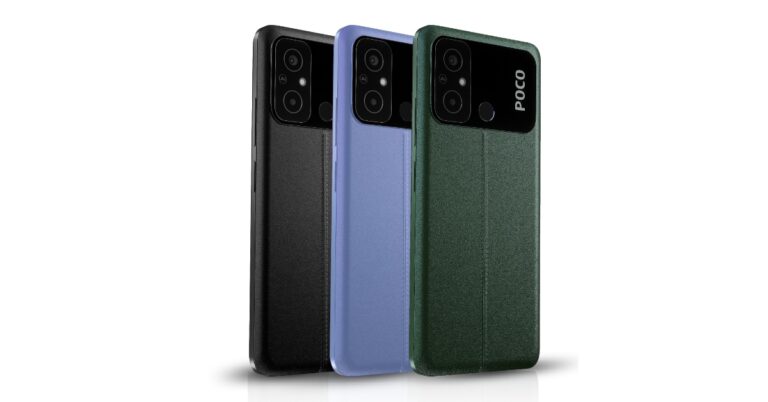
Poco has officially announced a new budget smartphone Poco C55 in the Indian market today. The device comes with a 6.71-inch HD+ screen with a waterdrop design notch and a fingerprint reader located on the back. The phone has a 50-megapixel dual back camera arrangement and a 5-megapixel front-facing camera. In addition to this, the phone is powered by a MediaTek Helio G85 Processor and has a 5,000mAh battery.
Poco C55 price in India and sale details
The 4GB RAM with 64GB storage Poco C55 price in India is set at Rs 9,499. Whereas the price of the 6GB RAM with 128GB storage model costs Rs. 10,999. Starting on February 28, customers may purchase the smartphone through Flipkart and the company’s website. The device will come in three colour options of Cool Blue, Forest Green, and Power Black.Also, the firm has stated that the Poco C55 would be offered for a special “first day” price of Rs 8,499 and Rs 9,9999 for the 4GB and 6GB RAM options. These costs include promotions for HDFC Bank, SBI Bank, and ICICI Bank users.Also Read:OnePlus 11R pre-orders open in India: Details inside
Poco C55 specifications
A 6.71-inch HD+ LCD screen with a resolution of 720×1,650 pixels is featured on the Poco C55. The screen has a maximum brightness of 534 nits, a refresh rate of 60 hertz, and a touch sampling rate of 120 hertz. A MediaTek Helio G85 CPU with up to 6GB of Memory powers the device. The phone is powered by MIUI 13. It features an internal storage capacity of up to 64GB, which can be increased to up to 1TB using a MicroSD card slot.The Poco C55 has a 50-megapixel primary camera with an f/1.8 aperture lens as well as an unidentified secondary camera. Moreover, the phone has a 5-megapixel front-facing camera for selfies and video calls.Also Read:Comparison: OnePlus 11 vs Samsung Galaxy S23Wi-Fi, 4G, Bluetooth 5.1, GPS, and a Micro-USB port are available as connectivity choices. It has a rear-mounted fingerprint scanner, a virtual proximity sensor, and an accelerometer. A 5,000mAh battery within the device supports 10W charging. Moreover, the smartphone has an IP52 grade for water and dust protection.
For the latest gadget and tech news, and gadget reviews, follow us on Twitter, Facebook and Instagram. For newest tech & gadget videos subscribe to our YouTube Channel. You can also stay up to date using the Gadget Bridge Android App. You can find the latest car and bike news here.
Early this month, the OnePlus 11R was unveiled in India. Pre-orders were not opened right away, nor were sales. At the time of the launch, the company announced that the phone’s pre-orders will begin on February 21 while the sale will begin later this month on February 28. In the nation, pre-orders for smartphone are currently open.
OnePlus 11R price in India, availability details
OnePlus 11R pre-orders have gone live in India. The company has set the price of the OnePlus 11R at Rs 39,999 for the 8GB RAM with 128GB storage option. Whereas the 16GB RAM with 256GB storage option can be bought for Rs 44,999. The handset is being offered in Sonic Black, and Galatic Silver colour options. Moreover, it can be purchased from February 28 onwards via the company’s official website, Amazon and other retail outlets in the country.Also Read:OnePlus 11R with 100W SUPERVOOC flash fast charging announced in IndiaAn instant discount of INR 1000 is available on the OnePlus 11R when purchased using ICICI Bank credit cards, debit cards, and EMI transactions on OnePlus.in, the OnePlus Store app, OnePlus Experience Stores, and Amazon.in Citibank customers can also take advantage of an instant discount of INR 1000 on the OnePlus 11R when purchasing using Citibank credit cards and EMI transactions on OnePlus.in, the OnePlus Store app, OnePlus Experience Stores, and Amazon.in.RCC members can get up to INR 2000 off solely on Red Cable Club linked devices, on OnePlus.in, and the OnePlus Store App. This offer is only valid for purchases made with major credit cards on OnePlus.in and the OnePlus Store App.
OnePlus 11R specifications
The OnePlus 11R’s 6.74-inch Full-HD+ curved AMOLED display has 2772 x 1240 pixel resolution. The dynamic adaptive refresh rate of the screen goes from 40Hz to 120Hz. It also has 450 ppi and a 1,450-nit maximum brightness. The display’s touch response rate can reach 1000Hz. The OnePlus 11R is powered by the Snapdragon 8+ Gen 1 5G CPU, up to 16GB of RAM, and up to 256GB of internal storage.Also Read:Comparison: OnePlus 11 vs Samsung Galaxy S23The OnePlus 11R has three back cameras, one of which has a 50MP Sony IMX890 primary sensor. Together with other capabilities, it contains a 4 cm macro camera with a 120-degree ultra-wide lens and an 8 Megapixel ultra wide-angle sensor. The device lacks optical zooming capabilities but has a 10x digital zoom. The OnePlus 11R’s rear camera is shake-free and supports both electronic and optical image stabilisation, allowing it to record videos in 4K quality at 30 frames per second. The 16MP front camera is located in a notch at the top of the display.The device has 5G, 4G, Wi-Fi, Bluetooth 5.3, NFC, GPS, and other connectivity options. The OnePlus 11R’s 5,000mAh battery supports 100W SUPERVOOC flash fast charging.
For the latest gadget and tech news, and gadget reviews, follow us on Twitter, Facebook and Instagram. For newest tech & gadget videos subscribe to our YouTube Channel. You can also stay up to date using the Gadget Bridge Android App. You can find the latest car and bike news here.
Samsung’s S22 series offered some of the best Android smartphones last year, only to be surpassed by its successor, S23. Samsung’s flagship series boasts one of the fastest under-display fingerprint scanners you can find on a smartphone. Oftentimes, user report that the sensor isn’t working as intended or is entirely dysfunctional. In this article, we bring you the top 7 ways to fix the Samsung Galaxy S22, S22+, and S22 Ultra fingerprint sensor issue.Read Also: Poco C55 to launch in India today: Launch details inside
Test the sensor
Your Samsung Galaxy S22 is well equipped to diagnose any faults in its hardware. This includes the fingerprint sensor as well. To run a check on the under-display fingerprint sensor, simply go to the dialer app and type *#0*#. Tap on ‘Sensor’ and select ‘Normal Scan’ under Fingerprint Test. Additionally, check the display for any hardware issues as well. If the tests do not return any hardware faults, proceed to the other fixes in this list. If there is an issue with the hardware, you will need to take your phone to a professional repair centre.
Restart your smartphone
Restarting your smartphone is the first thing you can do in order to fix any software-related issues. A quick restart resolves any background glitches and resumes normal functioning. To restart your Samsung Galaxy S22 series smartphone, simply long press the power button on the side and select ‘Restart’. If the touchscreen is totally dysfunctional, press the Volume Down key and Power key together until your phone shuts down. Restart your phone by long pressing the power key again.
Clean your finger and the phone display
The most likely reason behind the fingerprint sensor not working on your smartphone is a dirty display. While using your phone under humid conditions, it is quite common for sweat to stick to the phone’s screen and create some trouble. Simply wipe your phone down with a microfibre cloth and try again. If your S22’s display is fine, it may not be registering your fingerprint because your finger is too dry or chapped. Try using the fingerprint scanner with moisturized hands and see if it works.
Increase touchscreen sensitivity
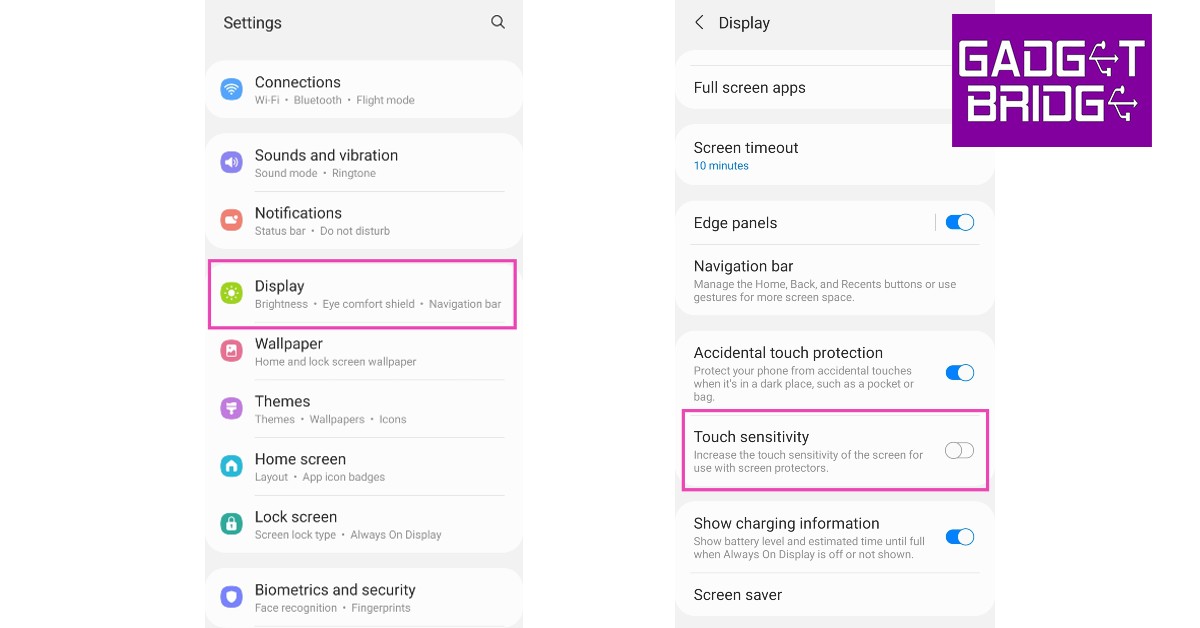
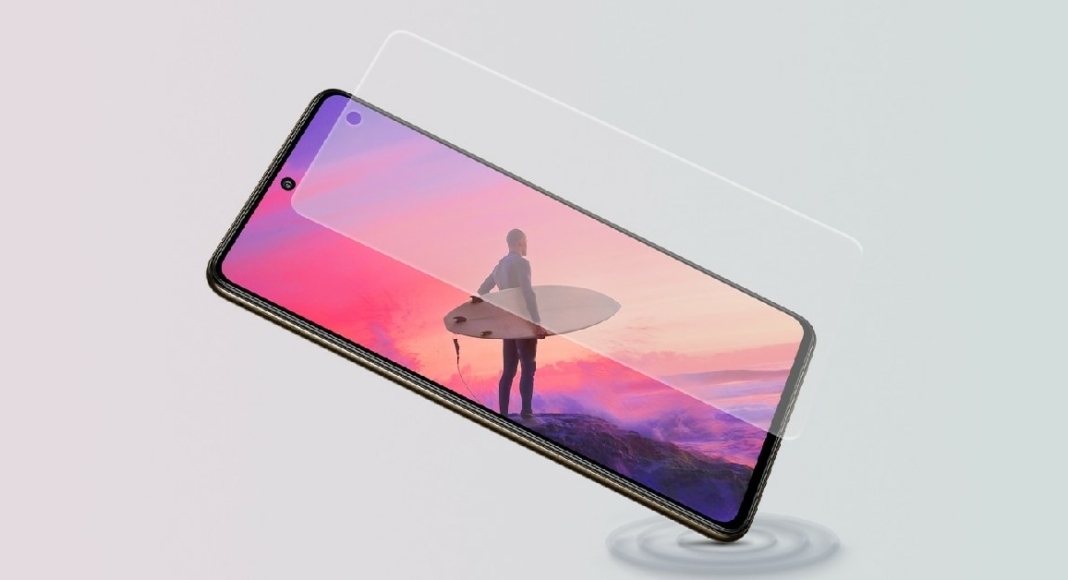
If you recently installed a screen protector over your phone’s display, you need to increase the touchscreen sensitivity along with it to make sure everything works as intended. Since there is an additional layer between your fingers and the touch display, increased touch sensitivity is essential to ensure a lag-free experience. Go to Settings>Display and tap the toggle bar next to touch sensitivity to turn it on.
Remove the screen protector
If the under-display fingerprint sensor doesn’t work even after increasing the touchscreen sensitivity, take off the screen protector and try again. Sometimes, air bubbles get between the screen protector and the phone’s display and prevent an ideal connection between the two. To minimise any issues with the screen protector always look up whether it is compatible with your phone’s manufacturer before buying it.
Register two fingerprints for the same finger
While Samsung Galaxy S22’s fingerprint scanner thoroughly maps out your fingerprint in different positions, there may still be certain positions where it takes time to register the print or doesn’t register it all. To get rid of this issue, register the same fingerprint twice and make sure you cover every possible position while scanning it. Your Samsung Galaxy S22 allows you to register prints for multiple fingers, making it easy to unlock your device using either hand. If all fingerprint profiles are occupied, delete one and register an extra set of prints for the finger your use the most to unlock your smartphone.
Update System Software
If you’re using an old version of the system software, chances are that developers fixed the fingerprint scanner bug in a later update. Here’s how you can update the software version of your Samsung Galaxy S22.Step 1: Go to Settings.Step 2: Scroll down and select ‘Software Update’.Step 3: Click on ‘Download and update’ to install the latest OS version on your smartphone.Read Also: How to Restore Deleted WhatsApp Messages without Backup? [Both Android and iOS]


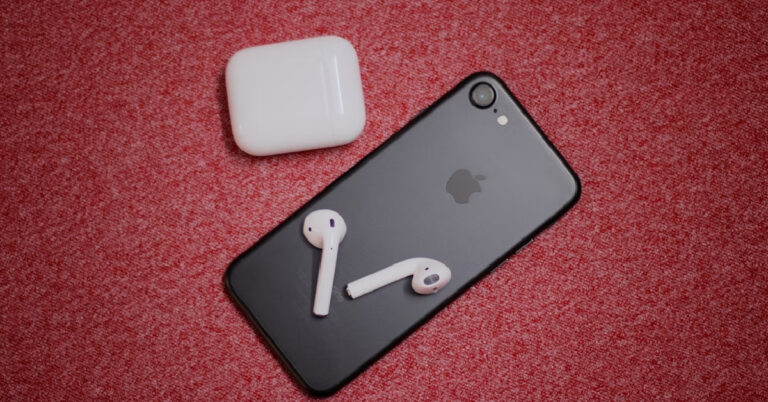
 Step 2: Turn the toggle bar next to Bluetooth off and then on.

 A quick restart takes care of all the background issues and software glitches that may be keeping your iPhone from functioning properly. If restarting your phone’s Bluetooth doesn’t work, try restarting your phone instead. This should be the first step in resolving any functional issue on your phone. To restart your iPhone, simply press one of the volume buttons along with the side key until the power slider appears on the screen. Drag the power slider to the right to turn off your iPhone. Power the phone back on by pressing and holding the side key.
 If the issue still persists after restarting your iPhone, try resetting the Bluetooth accessory. Most TWS products have a pairing button that can also be used to reset the device. On AirPods, this button lies right below the hinge. Press and hold this button for around 15 seconds or until the notification light blinks multiple times. Once the device has been reset, you will need to pair it with your iPhone again.
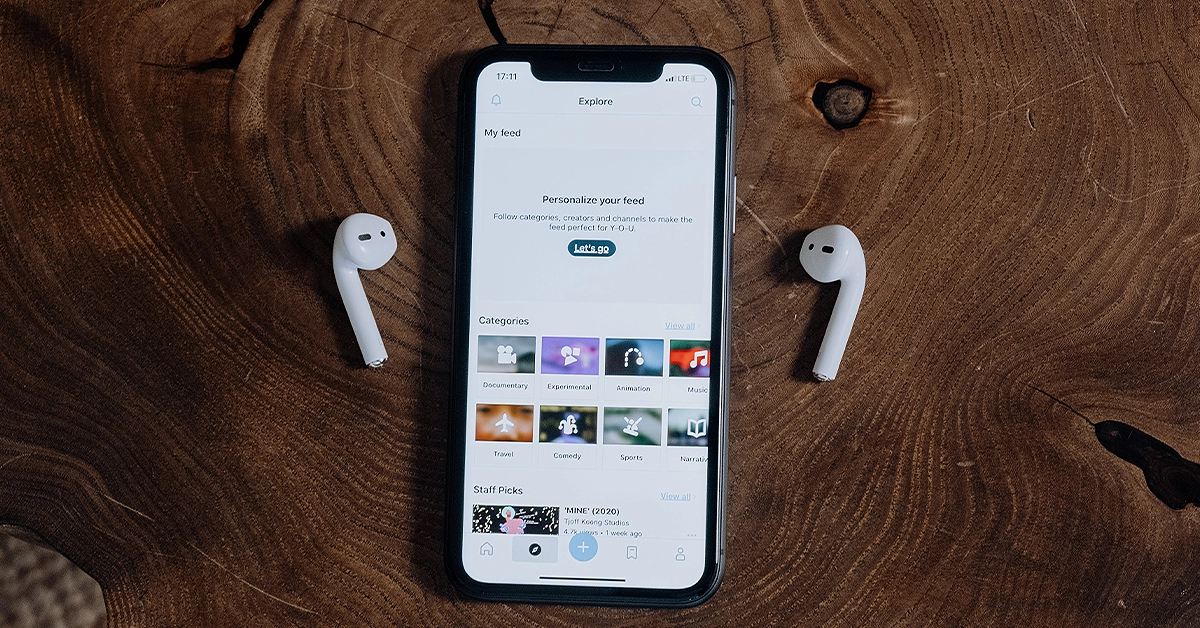 If you want to make sure whether the issue lies with your iPhone or the Bluetooth accessory, pair the device with another iPhone. If the device connects without any hassle, your iPhone is the one at fault. if you face the same issues connecting the device, you don’t need to focus on your iPhone but the device itself.
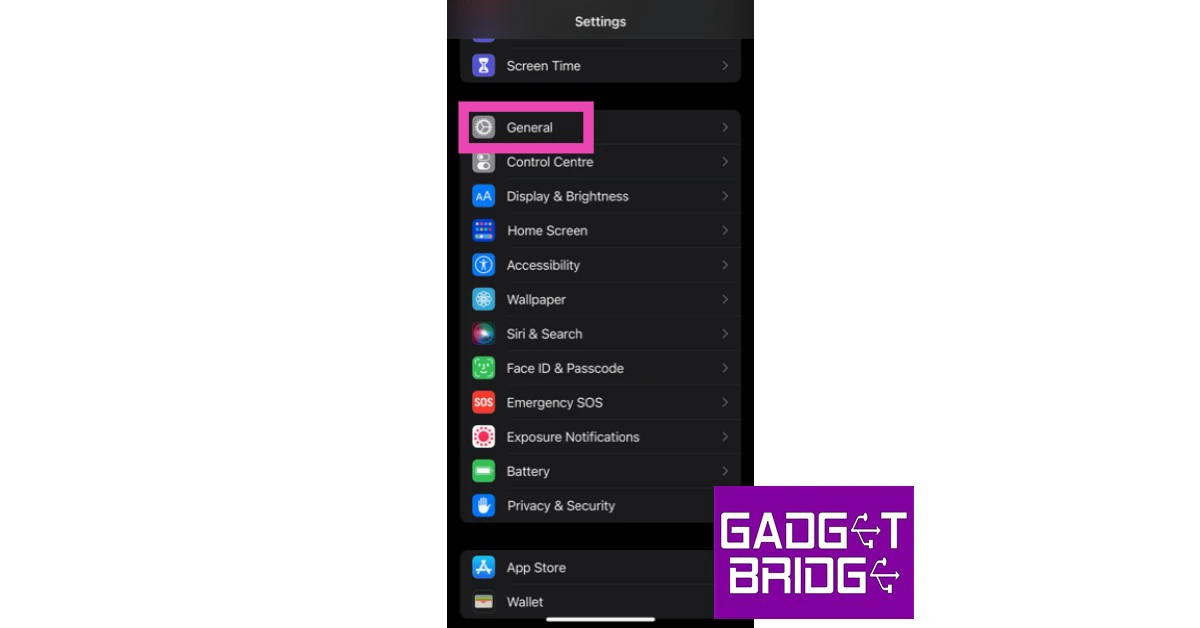 Step 2: Scroll down and select Transfer or reset iPhone.
 Step 3: Select Reset followed by Reset Network Settings.

 If the Bluetooth on your iPhone isn’t working due to a software bug, it will quickly be fixed in the next software update. It is highly likely that the update has already been published and is waiting to be downloaded to your phone. To update iOS to its latest version, go to Settings>General>Software Update and download the update.
 Step 4: In the following window, select Reset All Settings.
 Step 5: Enter the PIN and confirm your selection.
 Step 3: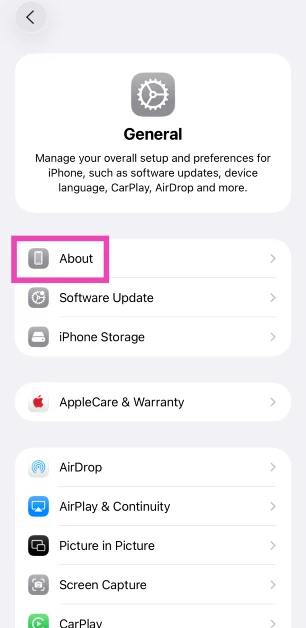
 Step 4: The refurbished and serviced items will be listed on the following page.
 Step 4: Go to the
  Step 6: Hit Submit.
Step 7: If the website says your iPhone has not yet been activated, your device is brand new.
Step 6: Hit Submit.
Step 7: If the website says your iPhone has not yet been activated, your device is brand new.
 Step 2: Tap on Battery Health & Charging.
 Step 3: Check the Maximum Capacity field.





 Step 2: Click on Find iPhone application. It will show you all the devices connected to the Apple ID. Click All Devices and select your device. You will see three options. Click Erase iPhone. Confirm by entering the password.
 Step 3: Connect your device to the computer and click Next. If your device is not recognized, you can follow the on-screen instructions to put the device in DFU or Recovery mode.
 Step 4: 4uKey will find suitable firmware for the device. Select the location and click Download.
 Step 5: After downloading, click Start the Remove. 4uKey will start removing the passcode. Within a few minutes, your passcode will be removed.


 Step 3:
 Step 4:
 Step 5: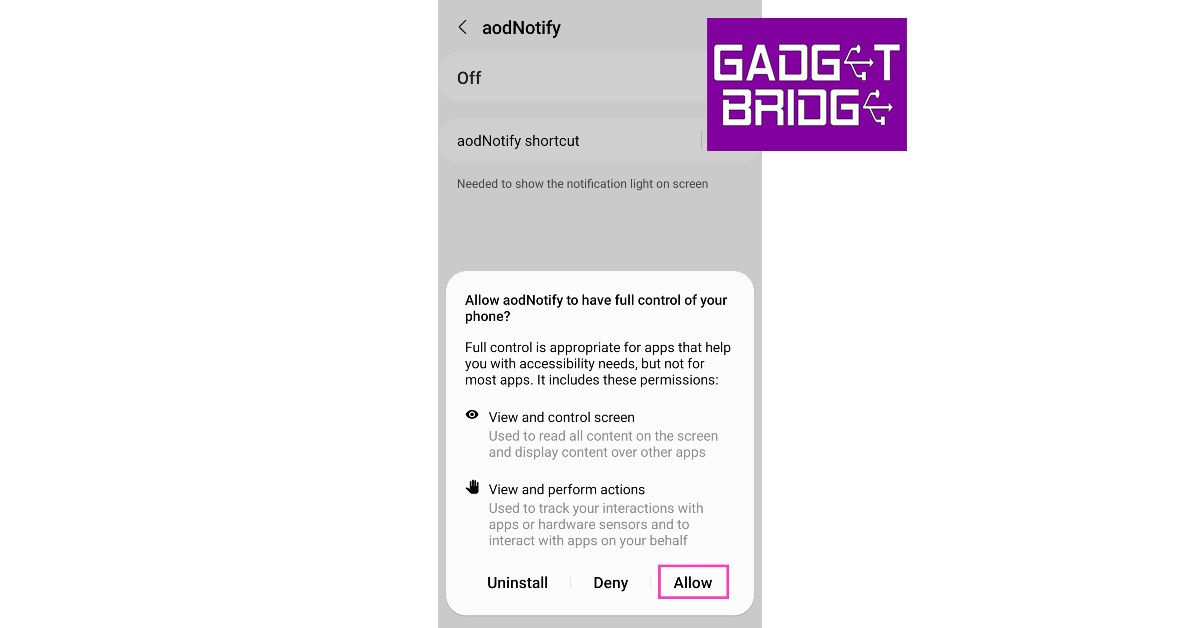



 Step 3:
 Read Also: