

Google feature drop fix for June 2023 has arrived, here is what it brings for Pixel devices
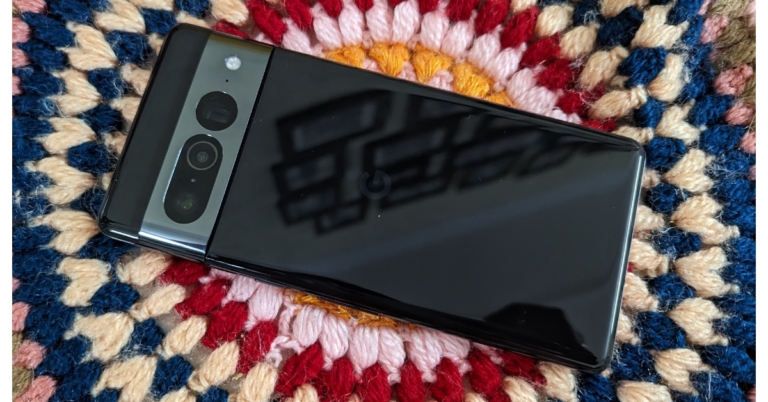
Google has finally rolled out a feature drop fix for June 2023. Google was supposed to release the software update for Pixel phones, Pixel Watch and Fitbit devices last week. These will roll out to devices starting today and will continue for a few weeks. The most recent Feature Drop fix contains a tonne of new features, including Emoji Wallpapers, speaker labels for Pixel Recorder, improved safety measures, and more.
Father’s Day 2023: Best Tech Toys to Gift Your Dad (across price categories)

Father’s Day is just around the corner, and if you haven’t settled on a gift yet, we’ve got you covered. We’ve been keeping an eye on all the tech releases across the spectrum. Be it wireless earbuds or Bluetooth trackers, we have tons of gifting options for you. So, without further ado, let’s take a look at the best Father’s Day tech gifts!
Read Also: 6 Best Ways to Find and Remove Stalkerware Apps
 Nothing’s newest TWS, the Ear 2, retains the signature see-through design while bumping up the specs. The 11.6mm on the Ear 2 (review) delivers a powerful output and the dual chamber architecture brings the best out of the soundstage. One of the biggest upgrades on the Ear 2 is the inclusion of LHDC 5.0 support. Users can now create a personal sound profile using the Nothing X app, and even change the level of ANC. Ear 2 can nullify up to 40dB of surrounding sounds. You get a total battery backup of 36 hours (buds + case) with the Ear 2 along with 2.5W Qi-certified wireless charging.
 If you’re thinking of going big this Father’s Day, then why not get the best of what’s out there? Samsung Galaxy Z Fold 4 is in a league of its own when it comes to folding phones. When unfolded, the Dynamic AMOLED display spans 7.6 inches. Samsung’s One UI is perfectly optimised for this display, allowing you to manage multiple tasks at once. The handy taskbar at the bottom is a nice addition too. If you don’t want to be working on a tablet-like display all the time, you can take care of routine tasks on the 6.2-inch Dynamic AMOLED cover display. Samsung Galaxy Z Fold is powered by Snapdragon 8+ Gen 1. Read our full review of the foldable here.
The Apple Watch Series 8 is one of the best smartwatches you can buy right now. If your father has an iPhone, this would be the perfect accessory to go along with it. The Apple Watch Series 8 sports the sleek design we’ve come to associate with Apple smartwatches. It gets helpful features like crash detection, cellular roaming, 36-hour battery life, along with fitness and health tracking. The Apple Watch can monitor temperature fluctuations as small as 0.1 degrees Celsius.
The newest entry-level Kindle is the lightest and the most compact one in the entire lineup. We reviewed the e-reader earlier this year and were really impressed by how close it was to the flagship Paperwhite in terms of specifications. The 300 ppi screen resolution on this device is on par with Kindle Paperwhite and Oasis. The 6-inch display offers a great reading experience and can be packed into any travel bag with ease. Illuminating the display are 4 LEDs compared to Paperwhite’s 17. While illumination is not an issue on this device, you miss out on colour temperature options.
Apple’s iPad may be the obvious choice for many when it comes to tablets, but it finally has a worthy Android rival in the OnePlus Pad. The 11.6-inch IPS LCD display on the OnePlus pad is fast and ultra-responsive, with HDR10+ support making it perfect to binge video content. The quad speakers on this device fill out an entire room with ease. Powered by the MediaTek Dimensity 9000 SoC, the OnePlus Pad crushes multitasking with absolute ease. If you’re looking to gift your dad a device that perfectly blends work and fun, the OnePlus Pad should be high on your list. Read our full review here.
For those with dads that love to grill, the Cason Digital Kitchen Thermometer will make the perfect Father’s Day tech gift! This thermometer takes the temperature within 2-3 seconds and is accurate up to 1 degree. It comes with an LCD display for the readings and has a super convenient hole that allows you to hang it anywhere in the kitchen. Rated IP67 for dust and water resistance, you can dip this thermometer into any kind of food or liquid without having to worry about any damage. Being completely waterproof, you can wash it under running water without any second thought.
This 2TB portable hard drive from Western Digital will make a brilliant Father’s Day tech gift for dads that always seem to be running out of space to store their data. The WD My Passport External Hard Drive is available in five colour options – Black, Blue, Red, White, and Navy Blue. The USB Type-C port on this device facilitates fast transfers. During our testing, the WD My Passport offered a read speed of 243 Mbps and a write speed of 216 Mbps. A 2GB file transfer from our PC took less than 8 seconds via a USB 3.1 port. The WD Discovery software offers password protection and backup services.
The newest iPhone 14 Pro is equipped with the powerful A16 Bionic chipset that many believe is the best SoC around. It also gets a design and camera upgrade. The notch on the display has been replaced by a pill-shaped cutout that Apple calls the ‘Dynamic Island’. The Dynamic Island allows easier access to notifications and tasks like navigation, music control, and more. The rear camera unit now gets a 48MP primary shooter along with a 12MP ultrawide and another 12MP telephoto lens. Read our full review here.
If you’re thinking of going big this Father’s Day, then why not get the best of what’s out there? Samsung Galaxy Z Fold 4 is in a league of its own when it comes to folding phones. When unfolded, the Dynamic AMOLED display spans 7.6 inches. Samsung’s One UI is perfectly optimised for this display, allowing you to manage multiple tasks at once. The handy taskbar at the bottom is a nice addition too. If you don’t want to be working on a tablet-like display all the time, you can take care of routine tasks on the 6.2-inch Dynamic AMOLED cover display. Samsung Galaxy Z Fold is powered by Snapdragon 8+ Gen 1. Read our full review of the foldable here.
The Apple Watch Series 8 is one of the best smartwatches you can buy right now. If your father has an iPhone, this would be the perfect accessory to go along with it. The Apple Watch Series 8 sports the sleek design we’ve come to associate with Apple smartwatches. It gets helpful features like crash detection, cellular roaming, 36-hour battery life, along with fitness and health tracking. The Apple Watch can monitor temperature fluctuations as small as 0.1 degrees Celsius.
The newest entry-level Kindle is the lightest and the most compact one in the entire lineup. We reviewed the e-reader earlier this year and were really impressed by how close it was to the flagship Paperwhite in terms of specifications. The 300 ppi screen resolution on this device is on par with Kindle Paperwhite and Oasis. The 6-inch display offers a great reading experience and can be packed into any travel bag with ease. Illuminating the display are 4 LEDs compared to Paperwhite’s 17. While illumination is not an issue on this device, you miss out on colour temperature options.
Apple’s iPad may be the obvious choice for many when it comes to tablets, but it finally has a worthy Android rival in the OnePlus Pad. The 11.6-inch IPS LCD display on the OnePlus pad is fast and ultra-responsive, with HDR10+ support making it perfect to binge video content. The quad speakers on this device fill out an entire room with ease. Powered by the MediaTek Dimensity 9000 SoC, the OnePlus Pad crushes multitasking with absolute ease. If you’re looking to gift your dad a device that perfectly blends work and fun, the OnePlus Pad should be high on your list. Read our full review here.
For those with dads that love to grill, the Cason Digital Kitchen Thermometer will make the perfect Father’s Day tech gift! This thermometer takes the temperature within 2-3 seconds and is accurate up to 1 degree. It comes with an LCD display for the readings and has a super convenient hole that allows you to hang it anywhere in the kitchen. Rated IP67 for dust and water resistance, you can dip this thermometer into any kind of food or liquid without having to worry about any damage. Being completely waterproof, you can wash it under running water without any second thought.
This 2TB portable hard drive from Western Digital will make a brilliant Father’s Day tech gift for dads that always seem to be running out of space to store their data. The WD My Passport External Hard Drive is available in five colour options – Black, Blue, Red, White, and Navy Blue. The USB Type-C port on this device facilitates fast transfers. During our testing, the WD My Passport offered a read speed of 243 Mbps and a write speed of 216 Mbps. A 2GB file transfer from our PC took less than 8 seconds via a USB 3.1 port. The WD Discovery software offers password protection and backup services.
The newest iPhone 14 Pro is equipped with the powerful A16 Bionic chipset that many believe is the best SoC around. It also gets a design and camera upgrade. The notch on the display has been replaced by a pill-shaped cutout that Apple calls the ‘Dynamic Island’. The Dynamic Island allows easier access to notifications and tasks like navigation, music control, and more. The rear camera unit now gets a 48MP primary shooter along with a 12MP ultrawide and another 12MP telephoto lens. Read our full review here.
 The newly launched Jiotag is an affordable alternative to the Apple AirTag and Amazon Tile. This portable Bluetooth tracker can do everything an AirTag can. You can attach it to your keys or throw it in your luggage or wallet. You can track your missing items easily with the help of Jiotag. It will also ping your phone with notifications in case you leave a tagged item behind. Jiotag offers up to 1 year of battery life and comes with an additional battery and lanyard cable.
The 3rd generation Amazon Fire TV Cube is the perfect fusion of the Echo Dot and Fire TV Stick. This device can turn any slow and sluggish TV into a fast machine with smart TV capabilities. The Fire TV Cube offers 4K streaming. If you don’t own a 4K TV, this device will upscale the quality of 720p and 1080p content. Amazon’s interface is very easy to navigate. You can install almost every streaming app under the sun on your TV using this device. What we really like about the Fire TV Cube is the seamless Alexa integration which allows you to control everything with simple voice commands. Read our full review here.
Read Also: Xiaomi Pad 6 with Snapdragon 870 SoC launched in India
The newly launched Jiotag is an affordable alternative to the Apple AirTag and Amazon Tile. This portable Bluetooth tracker can do everything an AirTag can. You can attach it to your keys or throw it in your luggage or wallet. You can track your missing items easily with the help of Jiotag. It will also ping your phone with notifications in case you leave a tagged item behind. Jiotag offers up to 1 year of battery life and comes with an additional battery and lanyard cable.
The 3rd generation Amazon Fire TV Cube is the perfect fusion of the Echo Dot and Fire TV Stick. This device can turn any slow and sluggish TV into a fast machine with smart TV capabilities. The Fire TV Cube offers 4K streaming. If you don’t own a 4K TV, this device will upscale the quality of 720p and 1080p content. Amazon’s interface is very easy to navigate. You can install almost every streaming app under the sun on your TV using this device. What we really like about the Fire TV Cube is the seamless Alexa integration which allows you to control everything with simple voice commands. Read our full review here.
Read Also: Xiaomi Pad 6 with Snapdragon 870 SoC launched in India
Nothing Ear 2
Price: Rs 9,999 (Flipkart) Nothing’s newest TWS, the Ear 2, retains the signature see-through design while bumping up the specs. The 11.6mm on the Ear 2 (review) delivers a powerful output and the dual chamber architecture brings the best out of the soundstage. One of the biggest upgrades on the Ear 2 is the inclusion of LHDC 5.0 support. Users can now create a personal sound profile using the Nothing X app, and even change the level of ANC. Ear 2 can nullify up to 40dB of surrounding sounds. You get a total battery backup of 36 hours (buds + case) with the Ear 2 along with 2.5W Qi-certified wireless charging.
Samsung Galaxy Z Fold 4
Price: Rs 1,54,999 (Samsung.com) If you’re thinking of going big this Father’s Day, then why not get the best of what’s out there? Samsung Galaxy Z Fold 4 is in a league of its own when it comes to folding phones. When unfolded, the Dynamic AMOLED display spans 7.6 inches. Samsung’s One UI is perfectly optimised for this display, allowing you to manage multiple tasks at once. The handy taskbar at the bottom is a nice addition too. If you don’t want to be working on a tablet-like display all the time, you can take care of routine tasks on the 6.2-inch Dynamic AMOLED cover display. Samsung Galaxy Z Fold is powered by Snapdragon 8+ Gen 1. Read our full review of the foldable here.
Apple Watch Series 8
Price: Rs 45,900 (Apple.com) The Apple Watch Series 8 is one of the best smartwatches you can buy right now. If your father has an iPhone, this would be the perfect accessory to go along with it. The Apple Watch Series 8 sports the sleek design we’ve come to associate with Apple smartwatches. It gets helpful features like crash detection, cellular roaming, 36-hour battery life, along with fitness and health tracking. The Apple Watch can monitor temperature fluctuations as small as 0.1 degrees Celsius.
Amazon Kindle (2022)
Price: Rs 9,999 (Amazon) The newest entry-level Kindle is the lightest and the most compact one in the entire lineup. We reviewed the e-reader earlier this year and were really impressed by how close it was to the flagship Paperwhite in terms of specifications. The 300 ppi screen resolution on this device is on par with Kindle Paperwhite and Oasis. The 6-inch display offers a great reading experience and can be packed into any travel bag with ease. Illuminating the display are 4 LEDs compared to Paperwhite’s 17. While illumination is not an issue on this device, you miss out on colour temperature options.
OnePlus Pad
Price: Rs 37,999 (OnePlus.in) Apple’s iPad may be the obvious choice for many when it comes to tablets, but it finally has a worthy Android rival in the OnePlus Pad. The 11.6-inch IPS LCD display on the OnePlus pad is fast and ultra-responsive, with HDR10+ support making it perfect to binge video content. The quad speakers on this device fill out an entire room with ease. Powered by the MediaTek Dimensity 9000 SoC, the OnePlus Pad crushes multitasking with absolute ease. If you’re looking to gift your dad a device that perfectly blends work and fun, the OnePlus Pad should be high on your list. Read our full review here.
Cason Digital Kitchen Thermometer
Price: Rs 845 (Amazon) For those with dads that love to grill, the Cason Digital Kitchen Thermometer will make the perfect Father’s Day tech gift! This thermometer takes the temperature within 2-3 seconds and is accurate up to 1 degree. It comes with an LCD display for the readings and has a super convenient hole that allows you to hang it anywhere in the kitchen. Rated IP67 for dust and water resistance, you can dip this thermometer into any kind of food or liquid without having to worry about any damage. Being completely waterproof, you can wash it under running water without any second thought.
Western Digital My Passport 2TB External Hard Drive
Price: Rs 5,799 (Amazon) This 2TB portable hard drive from Western Digital will make a brilliant Father’s Day tech gift for dads that always seem to be running out of space to store their data. The WD My Passport External Hard Drive is available in five colour options – Black, Blue, Red, White, and Navy Blue. The USB Type-C port on this device facilitates fast transfers. During our testing, the WD My Passport offered a read speed of 243 Mbps and a write speed of 216 Mbps. A 2GB file transfer from our PC took less than 8 seconds via a USB 3.1 port. The WD Discovery software offers password protection and backup services.
iPhone 14 Pro
Price: Rs 1,29,900 (Apple.in) The newest iPhone 14 Pro is equipped with the powerful A16 Bionic chipset that many believe is the best SoC around. It also gets a design and camera upgrade. The notch on the display has been replaced by a pill-shaped cutout that Apple calls the ‘Dynamic Island’. The Dynamic Island allows easier access to notifications and tasks like navigation, music control, and more. The rear camera unit now gets a 48MP primary shooter along with a 12MP ultrawide and another 12MP telephoto lens. Read our full review here.
Jiotag
Price: Rs 749 (Jio.com) The newly launched Jiotag is an affordable alternative to the Apple AirTag and Amazon Tile. This portable Bluetooth tracker can do everything an AirTag can. You can attach it to your keys or throw it in your luggage or wallet. You can track your missing items easily with the help of Jiotag. It will also ping your phone with notifications in case you leave a tagged item behind. Jiotag offers up to 1 year of battery life and comes with an additional battery and lanyard cable.
Amazon Fire TV Cube (3rd Gen)
Price: Rs 12,999 (Amazon) The 3rd generation Amazon Fire TV Cube is the perfect fusion of the Echo Dot and Fire TV Stick. This device can turn any slow and sluggish TV into a fast machine with smart TV capabilities. The Fire TV Cube offers 4K streaming. If you don’t own a 4K TV, this device will upscale the quality of 720p and 1080p content. Amazon’s interface is very easy to navigate. You can install almost every streaming app under the sun on your TV using this device. What we really like about the Fire TV Cube is the seamless Alexa integration which allows you to control everything with simple voice commands. Read our full review here.
Read Also: Xiaomi Pad 6 with Snapdragon 870 SoC launched in India
The 3rd generation Amazon Fire TV Cube is the perfect fusion of the Echo Dot and Fire TV Stick. This device can turn any slow and sluggish TV into a fast machine with smart TV capabilities. The Fire TV Cube offers 4K streaming. If you don’t own a 4K TV, this device will upscale the quality of 720p and 1080p content. Amazon’s interface is very easy to navigate. You can install almost every streaming app under the sun on your TV using this device. What we really like about the Fire TV Cube is the seamless Alexa integration which allows you to control everything with simple voice commands. Read our full review here.
Read Also: Xiaomi Pad 6 with Snapdragon 870 SoC launched in India
Conclusion
These are our picks for the best tech gifts you can give your dad this Father’s Day! We’ve covered the best tech products across different price points. Let us know your favourite tech gifts in the comments! For the latest gadget and tech news, and gadget reviews, follow us on Twitter, Facebook and Instagram. For newest tech & gadget videos subscribe to our YouTube Channel. You can also stay up to date using the Gadget Bridge Android App. You can find the latest car and bike news here.Acer Gaming Mania Sale goes live in India, brings exclusive discounts and giveaways

Acer has today kicked off a mega gaming sale event for gamers across India. The Acer Gaming Mania Sale will be accessible from June 14 through June 18. The sale ensures a large selection of exclusive deals, thrilling giveaways, and the chance to win the much-desired Predator Helios Neo i7 gaming laptop. Buyers can get discounts on gaming laptops and extra benefits like a mouse, headset, and Acer bag packages. Additionally, buyers can win game tickets for AAA titles. In addition to this during the Acer Gaming Mania Sale.
Acer has given tempting discounts on a wide range of gaming laptops to heighten the allure of the gaming event. Along with giveaways and a fortunate draw, Acer is offering special deals to customers during the sale. Acer monitors are up for grabs in a daily drawing for lucky consumers, which will improve their gaming experience. The Acer’s Gaming Mania Sale can be accessed via the local Acer store. On the Acer website, you can find the location of the closest store.
The event includes walk-in giveaways where lucky visitors can win a fantastic bundle of a mouse, headset, and stylish gaming bag. There will be ten giveaways each day, creating an exciting atmosphere. The Predator Helios Neo i7 gaming laptop, which ensures an immersive gaming experience, is also up for a large lucky draw.
 On the purchase of gaming laptops, five lucky draw winners will receive Acer gaming monitors. The company will be giving out game vouchers to the first 50 buyers of gaming laptops during Acer’s Gaming Mania Sale. Every day during the Gaming Mania Sale, the sale will also give away 10 pairs of Acer mice, headsets, and backpacks.
In addition to this, all the purchased will get freebies including two years of accidental damage insurance and three years of warranty starting at Rs 499. Two years of accidental damage protection are among the additional offers. A complimentary Nitro mouse and a 2-year extended warranty are included with every purchase of an Aspire 5 or Nitro 5 series laptop. On the other hand, the purchaser of Aspire 7 gaming laptop will also get a 1-year accidental damage warranty as well as a 2-year extended warranty.
For the latest gadget and tech news, and gadget reviews, follow us on Twitter, Facebook and Instagram. For newest tech & gadget videos subscribe to our YouTube Channel. You can also stay up to date using the Gadget Bridge Android App. You can find the latest car and bike news here.
On the purchase of gaming laptops, five lucky draw winners will receive Acer gaming monitors. The company will be giving out game vouchers to the first 50 buyers of gaming laptops during Acer’s Gaming Mania Sale. Every day during the Gaming Mania Sale, the sale will also give away 10 pairs of Acer mice, headsets, and backpacks.
In addition to this, all the purchased will get freebies including two years of accidental damage insurance and three years of warranty starting at Rs 499. Two years of accidental damage protection are among the additional offers. A complimentary Nitro mouse and a 2-year extended warranty are included with every purchase of an Aspire 5 or Nitro 5 series laptop. On the other hand, the purchaser of Aspire 7 gaming laptop will also get a 1-year accidental damage warranty as well as a 2-year extended warranty.
For the latest gadget and tech news, and gadget reviews, follow us on Twitter, Facebook and Instagram. For newest tech & gadget videos subscribe to our YouTube Channel. You can also stay up to date using the Gadget Bridge Android App. You can find the latest car and bike news here.
 On the purchase of gaming laptops, five lucky draw winners will receive Acer gaming monitors. The company will be giving out game vouchers to the first 50 buyers of gaming laptops during Acer’s Gaming Mania Sale. Every day during the Gaming Mania Sale, the sale will also give away 10 pairs of Acer mice, headsets, and backpacks.
In addition to this, all the purchased will get freebies including two years of accidental damage insurance and three years of warranty starting at Rs 499. Two years of accidental damage protection are among the additional offers. A complimentary Nitro mouse and a 2-year extended warranty are included with every purchase of an Aspire 5 or Nitro 5 series laptop. On the other hand, the purchaser of Aspire 7 gaming laptop will also get a 1-year accidental damage warranty as well as a 2-year extended warranty.
For the latest gadget and tech news, and gadget reviews, follow us on Twitter, Facebook and Instagram. For newest tech & gadget videos subscribe to our YouTube Channel. You can also stay up to date using the Gadget Bridge Android App. You can find the latest car and bike news here.
On the purchase of gaming laptops, five lucky draw winners will receive Acer gaming monitors. The company will be giving out game vouchers to the first 50 buyers of gaming laptops during Acer’s Gaming Mania Sale. Every day during the Gaming Mania Sale, the sale will also give away 10 pairs of Acer mice, headsets, and backpacks.
In addition to this, all the purchased will get freebies including two years of accidental damage insurance and three years of warranty starting at Rs 499. Two years of accidental damage protection are among the additional offers. A complimentary Nitro mouse and a 2-year extended warranty are included with every purchase of an Aspire 5 or Nitro 5 series laptop. On the other hand, the purchaser of Aspire 7 gaming laptop will also get a 1-year accidental damage warranty as well as a 2-year extended warranty.
For the latest gadget and tech news, and gadget reviews, follow us on Twitter, Facebook and Instagram. For newest tech & gadget videos subscribe to our YouTube Channel. You can also stay up to date using the Gadget Bridge Android App. You can find the latest car and bike news here. BGMI redeem codes for 14 June 2023, claim and receive rewards and benefits

After being banned for nearly ten months, Battleground Mobile India, aka BGMI, is officially available again in India. BGMI fans are looking for ways to improve their game experience and one such method is the usage of redemption codes, which offers a variety of rewards and advantages using BGMI redeem codes players can gain access to new skins, outfits, loot crates, weapons and free UC and diamonds.
As mentioned earlier, these codes give users the chance to earn unique rewards and gain extra benefits while playing the game. This includes GUN SKINS (M4, AKM, M416, AWM, M24, UZI, KAR98K), free character voucher, Andy, Carlo, Sara, Victor character for free, free Anna Character on completing the mission and UC or Royal Pass Discount. So here we have gathered a list of the most recent BGMI redeem codes as of 14 June 2023. Also, redeem these codes asap as these are only valid for a limited duration.
BGMI Redeem Codes for 14 June 2023
- KARZBZYTR – Free Outfit
- RNUZBZ9QQ – AKM Glacier Skin
- PGHZDBTFZ95U – M416 Skin
- R89FPLM9S – Companion
- BMTFZBZQNC – Free Drifter Set
- JJCZCDZJ9U – Golden Pan
- UKUZBZGWF – Free Fireworks
- TIFZBHZK4A – Free Outfit
- RNUZBZ9QQ – AKM Glacier Skin
- BMTCZBZMFS – Pretty in Pink set and Pretty in Pink Headpiece
- 5FG10D33 – Outfit for Free
- TQIZBz76F – 3 Free Motorcycle
- TQIZBZ76F – Vehicle Skin
- 5FG10D33 – Falcon and Free Emotes
- GPHZDBTFZM24U – UMP9 Skin
- SD14G84FCC – Free Skin for KAR98 Sniper Gun
How to get free Redeem Codes for BGMI on 14 June 2023?
- Launch BGMI on your device.
- Then select the Redeem Code option from the main menu.
- Next, click on the Redeem code tab.
- A new window will open, requesting the redemption code.
- Now enter your BGMI code.
- Confirm and click on the “Redeem” tab.
- If your redeem code is valid then you will get a message confirming that your rewards were successfully redeemed.
Garena Free Fire Redeem Codes Today 14 June 2023: Here is how to claim them

Garena Free Fire is a battle royale game with regular awards and tournaments to keep players interested. If you play Garena Free Fire, you should be aware of the redeem codes that are released on a daily basis. However, because the battle royale game is banned in India, players from other countries can use the Free Fire Redeem codes daily. If you’re unfamiliar with the Garena Free Fire redeem codes or don’t know how to get them, we’ve put together a step-by-step guide to help you redeem them. Check out Garena Free Fire Redeem Codes for 14 June 2023.
The Free Fire redeem codes are a great way to get free stuff. These are 12-digit codes that contain alphabets and numbers, as well as an expiration date and time. Because the Garena FF redeem codes cannot be used more than once, you should hurry to the redemption page to claim your free reward before someone else does. To get a free reward, all you have to do is go to reward.ff.garena.com/en, which is the official redemption page. Also, keep an eye on this space for daily updates on Garena Free Fire redemption codes and rewards.
Garena Free Fire Redeem Codes Today 14 June 2023
HNC95435FAGJ NPYFATT3HGSQ UVX9PYZV54AC BR43FMAPYEZZ 8F3QZKNTLWBZ WEYVGQC3CT8Q 6KWMFJVMQQYG FF7MUY4ME6SC FFCMCPSGC9XZ 4ST1ZTBE2RP9 B3G7A22TWDR7XHow to Get Free Fire Redeem Codes for Garena on 14 June 2023?
- Visit the Garena Free Fire game’s official website at reward.ff.garena.com.
- Use your Facebook, Google, VK, Apple ID, Huawei ID, or Twitter account to log in.
- You’ll be taken to a valid redemption code (s)
- Copy and paste the 12-digit redemption code into the text box.
- On the screen, a dialogue box will appear.
- ‘Ok’ should be selected.
Amazon Quiz Answers Today 14 June 2023: Participate to win Rs 2,500

Amazon Quiz for 14 June 2023 has gone live on the company’s mobile platform. The daily quiz contest brings an opportunity for Amazon users to win exciting prizes. In today’s Amazon Quiz the participants have the chance to win Rs 2,500 Amazon Pay Balance. All they have to do is answer all the questions correctly.
A fresh question is posted on the Amazon app daily which consists of five simple questions based on general knowledge and current events. The quiz can be played on the Amazon App from 12 AM to 11:59 PM. You have to answer all the questions correctly. Then the participants will be shortlisted for a lucky draw. The result of the lucky draw will be announced at the end of the month. The participants can win Amazon Pay Balance to up to Rs 50,000. Check out the 14 June 2023 Amazon Quiz question and their answers to win Rs 2,500 Amazon Pay Balance.
Amazon Quiz Today Prize – Rs 2,500 Amazon Pay Balance
Quiz Date – 14 June 2023
Daily Timing – 12 AM to 11:59 PM
Winner Announcement – Today 12 PM
Amazon Quiz Answers Today 14 June 2023
Question 1: India provided a one billion dollar credit line to which of these countries for one year for essential imports? Answer- Sri Lanka Question 2: D’YAVOL X is a clothing line launched by which celebrity child? Answer- Aryan Khan Question 3: Who represented India at the Coronation of King Charles and Queen Camilla at Westminster Abbey? Answer- Jagdeep Dhankhar Question 4: This clothing company is originally from which country? Answer- Sweden Question 5: From which ancient culture did this bird get the name ‘Halcyon’ from? Answer- GreeceHow To Play Amazon Quiz
Only app users are eligible to play the Amazon quiz every morning from 12 AM to 11:59 PM. The quiz is not available on the desktop. For those who are unaware of how to play the Amazon quiz below are the steps, you can follow to take the quiz.- Firstly download the Amazon app from Google Play Store or App Store
- Now fill in the required information through the Sign Up option.
- You need to log in to the Amazon app and scroll down on the home screen to find the Amazon Quiz banner.
- Tap on the Amazon Quiz banner and tap on the Start button to start the Quiz.
- Now you will get 5 questions and you need to answer them correctly. One wrong answer will eliminate you from the Quiz.
- After answering all the questions correctly you are now eligible for a Lucky Draw.
- The winner’s name will be announced today at 12 PM.
3 Best Ways to set your iPhone or Android Phone to Black and White
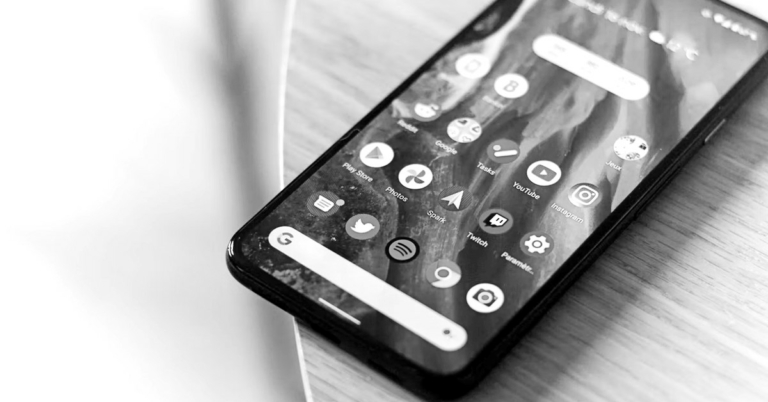
Not many people know this but you can turn down the colour saturation of your smartphone’s display and turn it completely black-and-white. Ever since Android introduced ‘Digital Wellbeing’ in its ecosystem, it has been pushing towards better digital habits. With your phone set on Grayscale Mode, you are less likely to use it. This greatly helps people who can’t help but constantly check their phones. In this article, we bring you the 3 best ways to set your iPhone or Android phone’s display to black and white (grayscale mode).
Read Also: 6 best ways to clear your browsing history on your iPhone or Android mobile
Step 2: Select ‘Display and Text Size’.
Step 3: Tap on Colour Filters.
Step 4: Turn on the toggle switch and select ‘Greyscale’.
Step 2: Select ‘Software Information’ and tap on Build Number seven times to enter Developer Mode.
Step 3: Go to the previous page, scroll down to the bottom, and select ‘Developer Options’.
Step 4: Tap on ‘Simulate Colour Space’ and select ‘Monochromacy’.
Android smartphones come with a ‘Digital Wellbeing’ feature that seeks to reduce your screen time and break the habit of checking your phone all the time. The ‘Bedtime Mode’ offered by Digital Wellbeing sets your device to grayscale mode and mutes all sound alerts except the alarm. You can turn it on by going to Settings>Digital Wellbeing and Parental Controls>Bedtime Mode.
Set your iPhone to Black and White (Grayscale)
Step 1: Go to Settings and select Accessibility. Step 2: Select ‘Display and Text Size’.
 Step 3: Tap on Colour Filters.
 Step 4: Turn on the toggle switch and select ‘Greyscale’.

Set your Android phone to Black and White (Grayscale) from developer settings
Step 1: Launch Settings and select About Phone.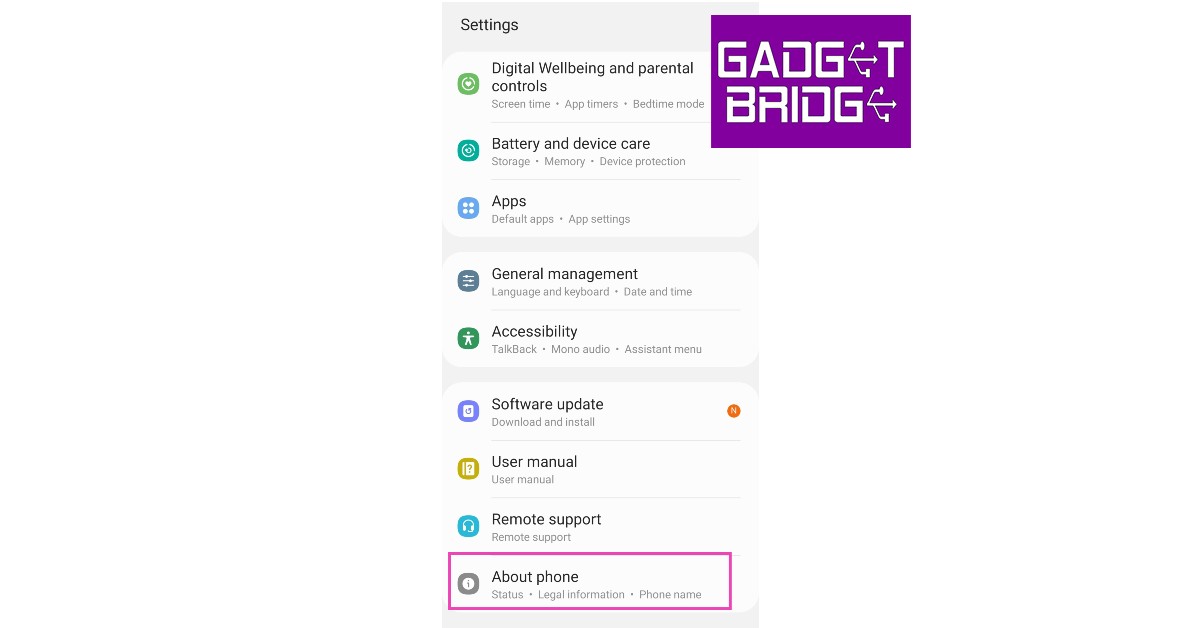 Step 2: Select ‘Software Information’ and tap on Build Number seven times to enter Developer Mode.
 Step 3: Go to the previous page, scroll down to the bottom, and select ‘Developer Options’.
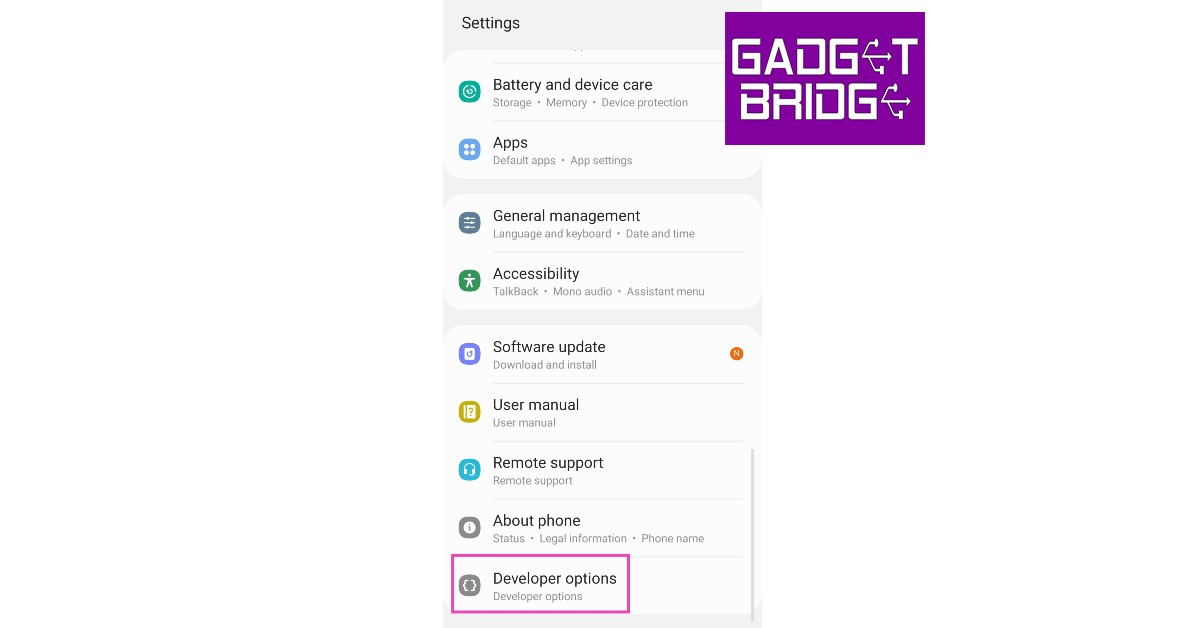 Step 4: Tap on ‘Simulate Colour Space’ and select ‘Monochromacy’.

Turn on Grayscale Mode on Android using Digital Wellbeing
 Android smartphones come with a ‘Digital Wellbeing’ feature that seeks to reduce your screen time and break the habit of checking your phone all the time. The ‘Bedtime Mode’ offered by Digital Wellbeing sets your device to grayscale mode and mutes all sound alerts except the alarm. You can turn it on by going to Settings>Digital Wellbeing and Parental Controls>Bedtime Mode.
Frequently Asked Questions
What is the benefit of Grayscale Mode?
Setting your phone on Grayscale Mode reduces the stress on your eyes and limits your screen time. If you spend too much time on your phone, having a black-and-white screen will limit your usage.How do I set my iPhone to Grayscale?
To turn your iPhone’s display black-and-white, go to Settings>Accessibility>Display and Text Size>Colour Filters and select Greyscale.Is Grayscale good for the night?
Setting your phone on Grayscale mode before going to bed is a good idea as it will reduce the stress on your eyes, leading to better sleep. Read Also: Xiaomi Pad 6 with Snapdragon 870 SoC launched in IndiaConclusion
These are the 3 best ways to set your iPhone or Android phone’s display to black and white (grayscale mode). If your phone keeps you up till late hours of the night, enabling greyscale mode can help a lot. You’re less likely to check your phone constantly when the screen is undersaturated. The lack of colours means less eye and brain stimulation, which leads to a better quality of sleep. For the latest gadget and tech news, and gadget reviews, follow us on Twitter, Facebook and Instagram. For newest tech & gadget videos subscribe to our YouTube Channel. You can also stay up to date using the Gadget Bridge Android App. You can find the latest car and bike news here.6 Best Ways to Find and Remove Stalkerware Apps
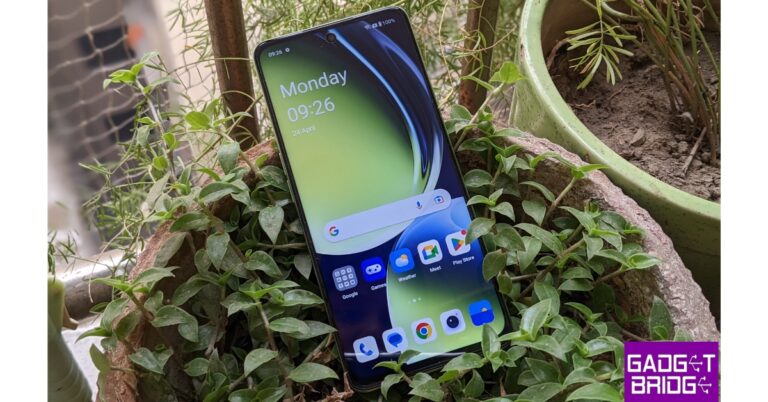
Impenetrable security should be a non-negotiable attribute on every modern smartphone, but unfortunately, it is a luxury that comes with splurging extra on a premium device. While Apple and Samsung’s flagships may be built like digital forts, the more affordable smartphones are fairly easy to break into. If you’re worried your device may be compromised, there are some tell-tale signs to look for, in order to confirm your suspicion. You can read more about them here. Once you’re sure of the presence of stalkerware apps on your device, you have your task cut out for you. In this article, we bring you the 6 best ways to find and remove stalkerware and spyware apps from your smartphone.
Read Also: Top 7 ways to fix a corrupted Android SD card
If an app installed on your device is spying on you, it will require location, camera, and microphone access at the very least. Go to Settings>Apps>Permission Manager and go through all the permissions individually. If you notice an app with more permissions than it requires, uninstall it from your device. It is possible that the app might be infected with stalkerware.
Spyware and stalkerware apps need admin access on your device to carry out their intended purpose. The third-party apps you download from Play Store or App Store very rarely ask for this access. Go to Settings>Apps>Options>Special Access>Device Admin Apps and see which apps have access to admin settings. If you notice an unusual app that shouldn’t be there, remove it from your device. Stalkerware apps may also be disguised as something innocuous as ‘Clock’ or ‘Calculator’. These kinds of apps have no business seeking admin access and must be removed immediately.
Since stalkerware apps are constantly running in the background, they utilise a significant portion of your smartphone’s battery. An average stalkerware app gets access to your location data, files, messaging, & other personal information and relays it to the entity that installed it on your phone. In doing so, the app takes up a noticeable portion of storage on your device and relies upon your mobile data/WiFi connection to transmit the data from your phone.
Go through your phone’s battery and storage status and look for any unusual activity. At the same time, check the data usage for any bump in numbers. If you find an app with increased battery, storage, and data usage, uninstall it from your device.
A factory reset wipes all the data from your device and restores it to the condition it was in when you took it out of the box. If you are sure that your smartphone contains spyware or stalkerware apps, a complete factory reset will remove them from the device. This method comes in handy when you can’t locate the spy apps on your phone. To factory reset your smartphone, go to Settings>General Management>Reset.
Stalkerware apps exploit the vulnerabilities in your phone’s software to carry out unsanctioned tasks and spy on your activity. Most manufacturers offer multiple years of security patches for their devices to fix this issue. Always make sure that your phone is updated at all times. Not only does it make it harder for spyware to do its job, but it also keeps harmful malware out of your phone. Once you install a new security update, it will patch any known issues, thereby disabling the functioning of any stalkerware apps.
Find Stalkerware apps on your device
Check permission access for individual apps
 If an app installed on your device is spying on you, it will require location, camera, and microphone access at the very least. Go to Settings>Apps>Permission Manager and go through all the permissions individually. If you notice an app with more permissions than it requires, uninstall it from your device. It is possible that the app might be infected with stalkerware.
Check device admin access
 Spyware and stalkerware apps need admin access on your device to carry out their intended purpose. The third-party apps you download from Play Store or App Store very rarely ask for this access. Go to Settings>Apps>Options>Special Access>Device Admin Apps and see which apps have access to admin settings. If you notice an unusual app that shouldn’t be there, remove it from your device. Stalkerware apps may also be disguised as something innocuous as ‘Clock’ or ‘Calculator’. These kinds of apps have no business seeking admin access and must be removed immediately.
Check battery, storage, and internet data
 Since stalkerware apps are constantly running in the background, they utilise a significant portion of your smartphone’s battery. An average stalkerware app gets access to your location data, files, messaging, & other personal information and relays it to the entity that installed it on your phone. In doing so, the app takes up a noticeable portion of storage on your device and relies upon your mobile data/WiFi connection to transmit the data from your phone.
 Go through your phone’s battery and storage status and look for any unusual activity. At the same time, check the data usage for any bump in numbers. If you find an app with increased battery, storage, and data usage, uninstall it from your device.
Remove Stalkerware apps from your device
Perform a factory reset
 A factory reset wipes all the data from your device and restores it to the condition it was in when you took it out of the box. If you are sure that your smartphone contains spyware or stalkerware apps, a complete factory reset will remove them from the device. This method comes in handy when you can’t locate the spy apps on your phone. To factory reset your smartphone, go to Settings>General Management>Reset.
Update your phone’s OS
 Stalkerware apps exploit the vulnerabilities in your phone’s software to carry out unsanctioned tasks and spy on your activity. Most manufacturers offer multiple years of security patches for their devices to fix this issue. Always make sure that your phone is updated at all times. Not only does it make it harder for spyware to do its job, but it also keeps harmful malware out of your phone. Once you install a new security update, it will patch any known issues, thereby disabling the functioning of any stalkerware apps.
Scan your phone using an anti-Spyware tool
There are several third-party tools and anti-spyware apps that specialise in scanning your phone for malicious apps that pose a risk to your privacy. Kaspersky, McAfee, Avira, and many other anti-virus apps are equipped with tools to detect and remove spyware from your device. Make sure you run regular checks to find and remove stalkerware on your smartphone.Frequently Asked Questions
Which app detects stalkerware?
Most antivirus apps like Avast, Avira, Kaspersky etc. are equipped to detect stalkerware apps as well.How do I know if I have stalkerware?
If you notice your battery and internet data draining faster than usual, it is possible you may have a stalkerware app on your phone.What is the most common stalkerware?
Reptilicus, Cerberus and Pegasus are some of the most common stalkerware around. Read Also: 3 Easy Ways To Upload Music On AudiomackConclusion
These are the 6 best ways to find and remove stalkerware and spyware apps from your smartphone. Most parental control apps also serve a similar function as stalkerware and can be used by malicious entities to spy on you. It is advised that you keep your phone updated at all times and perform regular checks to stay on top of things. For the latest gadget and tech news, and gadget reviews, follow us on Twitter, Facebook and Instagram. For newest tech & gadget videos subscribe to our YouTube Channel. You can also stay up to date using the Gadget Bridge Android App. You can find the latest car and bike news here.Nothing Phone 2 will officially launch in India on this date: Checkout the details

Mark your Calendars, Nothing Phone 2 will be debuting in India and globally on July 11. After months of tease, the company has only finally revealed the exact time of the launch. The business made a social media announcement about its planned launch event. The product will be only offered on Flipkart across the nation. Phone 2 will be powered by Qualcomm’s Snapdragon SoC and run on the Nothing OS, and like its predecessor, it will include a transparent back.
Nothing Phone 2 launch details
According to the London-based tech company owned by Carl Pei, the debut of the Nothing Phone 2 is scheduled for July 11. After the company’s triumphant introduction of the Nothing Phone 1 last year, it will now release its second smartphone. Flipkart will also serve as an official retail partner for sales in India. At 4 pm BST, which is 8:30 PM IST, the device will be introduced in London via a virtual event that will be streamed live on the company’s official social media platforms, the event page, and YouTube. Note that in addition to other markets where the Phone 1 was offered, the phone will also make its debut in the US.Nothing Phone 2 details
As of now, the business has disclosed that the Phone 2 would have a carbon footprint that is 53.45 kg, nearly 5 kg less than the Phone (1), according to SGS_SA certification. The battery capacity of the Phone 2 has also been verified to be 4,700mAh, 200mAh larger than the 4,500mAh capacity of the Phone 1. A notable improvement over the Qualcomm Snapdragon 778G+ in the Phone 1 is the octa-core Qualcomm Snapdragon 8+ Gen 1 SoC that will power the upcoming phone. The company previously revealed that the screen size of the Nothing Phone 2 will be 0.15 inches larger than that of its predecessor. The gadget most likely has a 6.7-inch display. Note that the 6.55-inch FHD+ display on the Nothing Phone 1 was a feature. The company also confirmed that it will offer 3 years of Android upgrades and 4 years of security patches for the Nothing Phone 2. For the latest gadget and tech news, and gadget reviews, follow us on Twitter, Facebook and Instagram. For the newest tech & gadget videos subscribe to our YouTube Channel. You can also stay up to date using the Gadget Bridge Android App. You can find the latest car and bike news here.4 best ways to restart and reset an Android TV or Google TV

When it comes to fixing a malfunction on your Android or Google TV, your choices are very limited. Most of the time, a simple restart is all it takes to fix the issue you’re facing. Other times, you may have to take extreme measures and perform a complete factory reset. You should reserve the latter for times when you’ve tried every other possible solution. If you don’t know how to go about the process, we’ve got you covered. In this article, we bring you the 4 best ways to restart and reset an Android TV or Google TV.
Read Also: JioTag launched, a less expensive alternative to Apple’s Airtag
Step 1: Use the remote to click the gear icon on your TV’s home screen. On some TVs, you may have to press the home icon.
Step 2: Scroll down and select ‘Device Preferences’.
Step 3: Click on ‘About’.
Step 4: Select ‘Restart’.
Some TVs have the Restart option in the ‘Quick Settings’ panel for easier access.
If restarting your TV does not fix the issue you’re facing, you can try performing a factory reset. A factory reset restores your TV’s settings to the factory default. In other words, your TV’s software will return to how it was out of the box. This means you will lose all your customised settings, apps, data, login information, wireless network settings, and more.
Step 1: Use the remote to click the gear icon on your TV’s home screen.
Step 2: Scroll down and select ‘Device Preferences’.
Step 3: Scroll down all the way to the bottom and select ‘Reset’.
Step 4: Click on ‘Factory Data Reset’.
Step 5: Select ‘Erase Everything’ and confirm your selection.
Sometimes, your Android TV can get stuck on a particular screen and refuse to function. You can try switching off the power and turning the TV back on, but if the issue still persists after that, it’s time to hard reset your TV. A hard reset is the same as a factory reset. The only difference is that you’re using physical buttons to force your device into resetting, instead of using the software. Here’s how you can go about it. This process will require two people.
Step 1: Unplug your TV’s power cord from the wall socket.
Step 2: Press and hold the power button on the TV (not the remote).
Step 3: Keep holding the power button and plug the power cord into the wall socket. This step will require another person.
Step 4: Turn on the switch and keep holding the power button until the TV’s LED light turns white. If this doesn’t happen within 30 seconds, repeat the process.
Step 5: Release the button when the LED turns white. Your TV will perform a factory reset and will reboot after some time.
For TV’s with 3 buttons, follow this process but hold the Power + Volume Down button (on the TV, not the remote) instead of just the power button. Refer to your TV’s user manual for the appropriate key combination before trying this step. You can also perform a Google search for your TV’s model to find out the key combination for a hard reset.
You can enter the Recovery Mode to perform a hard reset of your TV. Here’s how.
Step 1: Unplug the TV’s power cord from the wall socket.
Step 2: Press the ‘OK’ and ‘Back’ buttons on the remote and the power button on your TV simultaneously. This key combination may vary depending on the model. Refer to your TV’s user manual or perform a Google search to know the combination for your TV.
Step 3: Keep pressing the buttons and plug the power cord back into the wall socket. You will need another person for this step.
Step 4: Keep pressing the buttons for another 30 seconds. Once you enter the Recovery Mode on your TV, release the buttons.
Step 5: Use the navigation buttons on your remote to select ‘Wipe data/factory reset’.
Restart using the TV menu
 Step 1: Use the remote to click the gear icon on your TV’s home screen. On some TVs, you may have to press the home icon.
Step 2: Scroll down and select ‘Device Preferences’.
Step 3: Click on ‘About’.
Step 4: Select ‘Restart’.
Some TVs have the Restart option in the ‘Quick Settings’ panel for easier access.
Step 1: Use the remote to click the gear icon on your TV’s home screen. On some TVs, you may have to press the home icon.
Step 2: Scroll down and select ‘Device Preferences’.
Step 3: Click on ‘About’.
Step 4: Select ‘Restart’.
Some TVs have the Restart option in the ‘Quick Settings’ panel for easier access.
Factory Reset your Android TV or Google TV
 If restarting your TV does not fix the issue you’re facing, you can try performing a factory reset. A factory reset restores your TV’s settings to the factory default. In other words, your TV’s software will return to how it was out of the box. This means you will lose all your customised settings, apps, data, login information, wireless network settings, and more.
Step 1: Use the remote to click the gear icon on your TV’s home screen.
Step 2: Scroll down and select ‘Device Preferences’.
Step 3: Scroll down all the way to the bottom and select ‘Reset’.
Step 4: Click on ‘Factory Data Reset’.
Step 5: Select ‘Erase Everything’ and confirm your selection.
If restarting your TV does not fix the issue you’re facing, you can try performing a factory reset. A factory reset restores your TV’s settings to the factory default. In other words, your TV’s software will return to how it was out of the box. This means you will lose all your customised settings, apps, data, login information, wireless network settings, and more.
Step 1: Use the remote to click the gear icon on your TV’s home screen.
Step 2: Scroll down and select ‘Device Preferences’.
Step 3: Scroll down all the way to the bottom and select ‘Reset’.
Step 4: Click on ‘Factory Data Reset’.
Step 5: Select ‘Erase Everything’ and confirm your selection.
Perform a hard reset on your Android TV or Google TV
 Sometimes, your Android TV can get stuck on a particular screen and refuse to function. You can try switching off the power and turning the TV back on, but if the issue still persists after that, it’s time to hard reset your TV. A hard reset is the same as a factory reset. The only difference is that you’re using physical buttons to force your device into resetting, instead of using the software. Here’s how you can go about it. This process will require two people.
Step 1: Unplug your TV’s power cord from the wall socket.
Step 2: Press and hold the power button on the TV (not the remote).
Step 3: Keep holding the power button and plug the power cord into the wall socket. This step will require another person.
Step 4: Turn on the switch and keep holding the power button until the TV’s LED light turns white. If this doesn’t happen within 30 seconds, repeat the process.
Step 5: Release the button when the LED turns white. Your TV will perform a factory reset and will reboot after some time.
For TV’s with 3 buttons, follow this process but hold the Power + Volume Down button (on the TV, not the remote) instead of just the power button. Refer to your TV’s user manual for the appropriate key combination before trying this step. You can also perform a Google search for your TV’s model to find out the key combination for a hard reset.
Sometimes, your Android TV can get stuck on a particular screen and refuse to function. You can try switching off the power and turning the TV back on, but if the issue still persists after that, it’s time to hard reset your TV. A hard reset is the same as a factory reset. The only difference is that you’re using physical buttons to force your device into resetting, instead of using the software. Here’s how you can go about it. This process will require two people.
Step 1: Unplug your TV’s power cord from the wall socket.
Step 2: Press and hold the power button on the TV (not the remote).
Step 3: Keep holding the power button and plug the power cord into the wall socket. This step will require another person.
Step 4: Turn on the switch and keep holding the power button until the TV’s LED light turns white. If this doesn’t happen within 30 seconds, repeat the process.
Step 5: Release the button when the LED turns white. Your TV will perform a factory reset and will reboot after some time.
For TV’s with 3 buttons, follow this process but hold the Power + Volume Down button (on the TV, not the remote) instead of just the power button. Refer to your TV’s user manual for the appropriate key combination before trying this step. You can also perform a Google search for your TV’s model to find out the key combination for a hard reset.
Perform a hard reset from Recovery Mode
 You can enter the Recovery Mode to perform a hard reset of your TV. Here’s how.
Step 1: Unplug the TV’s power cord from the wall socket.
Step 2: Press the ‘OK’ and ‘Back’ buttons on the remote and the power button on your TV simultaneously. This key combination may vary depending on the model. Refer to your TV’s user manual or perform a Google search to know the combination for your TV.
Step 3: Keep pressing the buttons and plug the power cord back into the wall socket. You will need another person for this step.
Step 4: Keep pressing the buttons for another 30 seconds. Once you enter the Recovery Mode on your TV, release the buttons.
Step 5: Use the navigation buttons on your remote to select ‘Wipe data/factory reset’.
You can enter the Recovery Mode to perform a hard reset of your TV. Here’s how.
Step 1: Unplug the TV’s power cord from the wall socket.
Step 2: Press the ‘OK’ and ‘Back’ buttons on the remote and the power button on your TV simultaneously. This key combination may vary depending on the model. Refer to your TV’s user manual or perform a Google search to know the combination for your TV.
Step 3: Keep pressing the buttons and plug the power cord back into the wall socket. You will need another person for this step.
Step 4: Keep pressing the buttons for another 30 seconds. Once you enter the Recovery Mode on your TV, release the buttons.
Step 5: Use the navigation buttons on your remote to select ‘Wipe data/factory reset’.
Frequently Asked Questions
How do I factory reset my TV?
To factory reset your TV, simply click on the Quick Settings Menu and select ‘Reset’ from Device Preferences.How long does an Android TV factory reset take?
A complete factory reset of an Android TV can take a few minutes, depending on the data stored on the device.Do Smart TVs have factory reset?
Like your smartphone, you can perform a factory reset on your Smart TV as well. All you need to do is access the Quick Settings Menu and select ‘Reset’ from Device Preferences. Read Also: How to transfer data from an Android to an iPhone using Apple Move?Conclusion
These are the 4 best ways to restart and reset your Android TV or Google TV. Before you perform a factory reset on your TV, make sure your data is either backed up or synced with other devices. You will have to login into all the services again after a complete reset. You will also lose the saved WiFi password of your home network. For the latest gadget and tech news, and gadget reviews, follow us on Twitter, Facebook and Instagram. For newest tech & gadget videos subscribe to our YouTube Channel. You can also stay up to date using the Gadget Bridge Android App. You can find the latest car and bike news here.Redmi Buds 4 Active with 30 hours of battery life launched in India

Redmi Buds 4 Active has officially debuted in India today. The truly wireless stereo (TWS) earbuds have been launched alongside Xiaomi Tab 6. The audio device comes with Google Fast Pair functionality. In addition to this, there are Bass Pro drivers along with support for environmental noise cancellation.

Redmi Buds 4 Active price in India, sale details
Redmi Buds 4 Active price in India has been set at Rs 1,399. The TWS will be offered at an introductory price of Rs 1,199. The device will come in two colour options of Air White and Bass Black. It is scheduled to go on sale from June 23 via mi.com, Amazon, and Xiaomi retail stores.
Redmi Buds 4 Active TWS Earbuds specifications
12mm Bass Pro drivers are used in the Redmi Buds 4 Active TWS Earbuds to produce dynamic audio and strong bass. The touch-control capability on the earbuds also enables users to effortlessly connect to and disconnect from calls and manage music playback. The earbuds have an IPX4 grade for sweat and water resistance, making them excellent gym and outdoor companions. The Buds 4 Active also allow apps, giving customers a more customised earbud experience. Additionally, it includes Environmental Noise Cancellation (ENC) technology and powerful microphones for distortion-free hearing even in noisy surroundings. The newest Bluetooth 5.3 technology, which offers improved connectivity, increased range, and quicker transmission speeds, is also included in the Redmi Buds 4 Active TWS Earbuds. Additionally, it supports Google Fast Pair, which enables quick connections to all of its devices, including computers, tablets, and smartphones. As per the company, customers may easily pair their earbuds and enter the mesmerising world of sound with a one-tap setup. Additionally, the TWS has a Low Latency Mode for incredibly precise and immersive gaming. The Buds 4 Active, according to the manufacturer, have a 30-hour battery life and fast charging capabilities that enable up to a 90-minute runtime after just a 10-minute charge. For the latest gadget and tech news, and gadget reviews, follow us on Twitter, Facebook and Instagram. For newest tech & gadget videos subscribe to our YouTube Channel. You can also stay up to date using the Gadget Bridge Android App. You can find the latest car and bike news here.6 best ways to clear your browsing history on your iPhone or Android mobile
Regularly clearing the browsing history on your smartphone is the first step towards maintaining your online privacy. Almost every browser maintains a log of the websites you have visited on it. There is no centralised way of clearing your history, you will have to visit each browser individually to delete it. In this article, we bring you the 6 best ways to clear your browsing history on iPhone or Android mobile.
Read Also: Best ways to type the Peso sign ₱ on iPhone, Android, and Word
Step 3: Select Settings.
Step 4: Tap on ‘Personal browsing data’.
Step 5: Select ‘Delete browsing data’.
Step 6: Tap on ‘Delete data’.
Step 3: Select ‘History’.
Step 4: Tap the cross icon next to a website entry to delete it from your browsing history.
Step 5: To delete all of your browsing history, tap on ‘Clear browsing data’.
Step 6: Set the time range to ‘All time’ and select ‘Clear data’.
Step 2: Select ‘Samsung app settings’.
Step 3: Select ‘Samsung Internet’.
Step 4: Tap on ‘Personal browsing data’.
Step 5: Select ‘Delete browsing data’.
Step 6: Tap on ‘Delete data’.
Step 3: Select ‘Clear all tabs and data’.
Step 3: Tap on ‘Clear History and Data’.
Step 2: Tap the history icon.
Step 3: Tap on ‘Clear’.
Step 4: Select ‘All time’.
Clear browsing history on Android
Step 1: Launch your smartphone’s default web browser. Step 2: Tap the ellipses or hamburger menu. Step 3: Select Settings.
 Step 4: Tap on ‘Personal browsing data’.
 Step 5: Select ‘Delete browsing data’.
 Step 6: Tap on ‘Delete data’.

Clear browsing history on Chrome
Step 1: Launch Google Chrome on your smartphone. Step 2: Tap the ellipses on the top right corner of the screen. Step 3: Select ‘History’.
 Step 4: Tap the cross icon next to a website entry to delete it from your browsing history.
Step 5: To delete all of your browsing history, tap on ‘Clear browsing data’.
Step 4: Tap the cross icon next to a website entry to delete it from your browsing history.
Step 5: To delete all of your browsing history, tap on ‘Clear browsing data’.
 Step 6: Set the time range to ‘All time’ and select ‘Clear data’.

Clear browsing history on a Samsung device
Step 1: Go to Settings and select Apps. Step 2: Select ‘Samsung app settings’.
 Step 3: Select ‘Samsung Internet’.
 Step 4: Tap on ‘Personal browsing data’.
Step 5: Select ‘Delete browsing data’.
Step 6: Tap on ‘Delete data’.
Step 4: Tap on ‘Personal browsing data’.
Step 5: Select ‘Delete browsing data’.
Step 6: Tap on ‘Delete data’.
Clear browsing history on DuckDuckGo
Being a privacy-centric browser, DuckDuckGo does not store your browsing history in one place. However, you can delete your data and all open tabs in one go. Here’s how. Step 1: Launch DuckDuckGo on your smartphone. Step 2: Tap the fire icon next to the address bar. Step 3: Select ‘Clear all tabs and data’.

Clear browsing history on iPhone
Step 1: Go to Settings and select Safari. Step 2: Select ‘Clear History and Website data’. Step 3: Tap on ‘Clear History and Data’.
Clear browsing history on Safari
Step 1: Launch the Safari app and tap the Bookmarks icon. Step 2: Tap the history icon.
 Step 3: Tap on ‘Clear’.
 Step 4: Select ‘All time’.

Frequently Asked Questions
How do I clear all browsing history?
To clear all browsing history go to Chrome>Options>History>Clear browsing data>Clear data. On Safari go to Bookmarks>History>Clear>All time.Who can see my browsing history?
Tracking cookies can access your browsing history to suggest products based on your web activity.What does clearing browsing data on Chrome do?
Clearing your browsing history on Chrome removes the web addresses from the history page, shortcuts from the new tab page, and predictions from the address bar. Read Also: Vivo Y35 price in India slashed: Here is how much it costs nowConclusion
These are the 6 best ways to clear browsing history on your iPhone or Android mobile. Apart from clearing browsing history, it is also a good idea to regularly clear cookies and web cache as well. While some cookies may be important, most of them monitor your web activity to suggest you relevant ads. Read this article to learn how to clear cookies on your Android smartphone. iPhone users can read this article to find out how to clear all cookies on their devices. For the latest gadget and tech news, and gadget reviews, follow us on Twitter, Facebook and Instagram. For newest tech & gadget videos subscribe to our YouTube Channel. You can also stay up to date using the Gadget Bridge Android App. You can find the latest car and bike news here.Xiaomi Pad 6 with Snapdragon 870 SoC launched in India
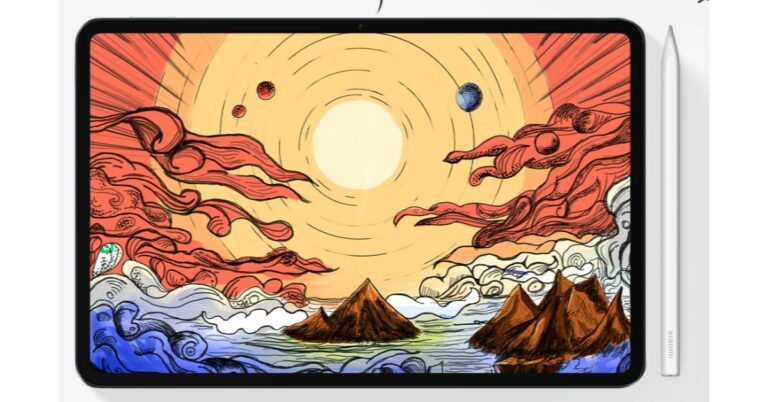
Xiaomi today announced the launch of its new tablet in the Indian market. The company has introduced Xiaomi Pad 6 in the country. The Xiaomi Tablet is Snapdragon 870 SoC. It also features Dolby Vision-certified display. In addition to this, the device includes 4 speakers with Dolby Atmos support and comes with Xiaomi Smart Pen second generation.
Xiaomi Pad 6 price in India, sale details
Xiaomi Pad 6 sale starts on June 21 in India. There will be two variants available in the country 6GB RAM with 128GB storage and 8GB RAM with 256GB storage options priced at Rs 26,999 and Rs 28,999. However, the company will be offering the tablet at an introductory price of Rs 23,999 and Rs 25,999. It can be purchased via mi.com, Amazon and Xiaomi retail outlets in the nation. Xiaomi Smart Pen, Keyboard and Case will be sold separately. The S Pen is priced at Rs 5,999 whereas the keyboard and case will come with a price tag of Rs 4,999 and Rs 1,499.Xiaomi Pad 6 specifications
A Dolby Vision-certified 11-inch 2.8K IPS LCD screen with a resolution of 1,800×2,880 pixels is available on the Xiaomi Pad 6. The screen supports refresh rates of up to 144Hz (30Hz, 48Hz, 50Hz, 60Hz, 90Hz, 120Hz, and 144Hz depending on the playing content). Additionally, it features a peak brightness of up to 550 nits and a pixel density of 309ppi. A Snapdragon 870 SoC drives the gadget, which also has up to 256GB of UFS 3.1 storage and 8GB of LPDDR5 RAM. Additionally, a Keyboard and a second-generation Xiaomi Smart Pen are supported by the tablet. The Xiaomi tablet has two cameras: a front-facing 8-megapixel camera with a 105-degree field of view and a 13-megapixel back camera. Additionally, the tablet has an 8,840mAh battery that supports 33W cable charging and takes 100 minutes to fully recharge. Wi-Fi 6, Bluetooth 5.3, and a USB Type-C connection are also included for connectivity. The gadget has a gyroscope, accelerometer, ambient light sensor, and hall sensor among its sensors. For the latest gadget and tech news, and gadget reviews, follow us on Twitter, Facebook and Instagram. For newest tech & gadget videos subscribe to our YouTube Channel. You can also stay up to date using the Gadget Bridge Android App. You can find the latest car and bike news here.Xiaomi Pad 6 and Redmi Buds 4 Active launching in India today: Livestream details
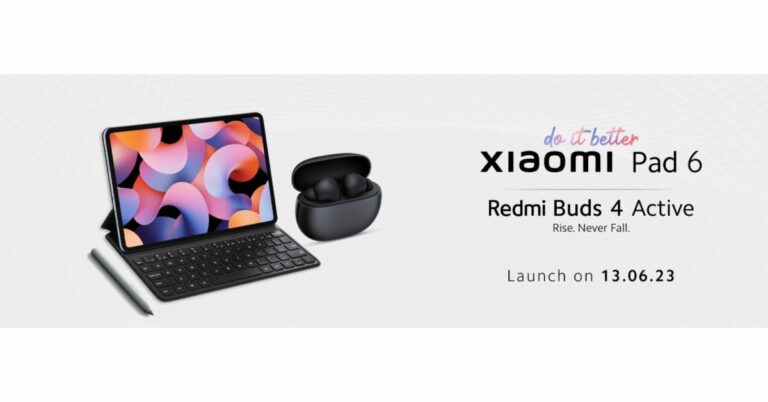
Xiaomi is all set to host a new launch event today in India to introduce two new products under its sub-brand Redmi. Today Xiaomi Pad 6 and Redmi Buds 4 Active will be officially announced. The new Tablet will be powered by a Snapdragon 870 SoC with support for Xiaomi Smart Pen second generation. In addition to this, the device will run Android 13 with MIUI 14 out of the box. On the other hand, Redmi Buds 4 Active will come with Google Fast Pair support and ENC.
Xiaomi will be introducing its highly anticipated new products in India. Xiaomi Pad 6 and Redmi Buds 4 Active are set to launch today at 12 PM. You can catch the launch live from your home along with the rest of the country on Xiaomi India’s official YouTube channel, social media platforms, and Mi.com.
Xiaomi Pad 6 specifications, price expected
Xiaomi Pad 6’s specifications are expected to be similar to that of the model launched in China in April this year. The device here is teased to come in two colour variants. The company has confirmed that the Tablet will be powered by a Snapdragon 870 SoC with support for Xiaomi Smart Pen second generation. In addition to this, it will also feature Dolby Vision-certified display. Moreover, the Xiaomi Tab 6 will come with Dolby Atmos-supported speakers. The gadget is said to be 6.55mm thin and weighs 490 grams. The pricing of the Xiaomi Tab 6 has not been revealed but it was introduced in China in April this year with a starting price of CNY which translates to Rs 22,000. There the tab is available in three colour options of Black, Gold, and Far Mountain Blue.Redmi Buds 4 Active specifications, price expected
As per the listing, the Redmi Buds 4 Active will feature a stem design with a pebble-shaped charging case. It will come in a Black colour variant. The truly wireless stereo (TWS) earbud is said to include Google Fast Pair functionality. In addition to this, there will be Bass Pro drivers along with support for environmental noise cancellation. For the latest gadget and tech news, and gadget reviews, follow us on Twitter, Facebook and Instagram. For newest tech & gadget videos subscribe to our YouTube Channel. You can also stay up to date using the Gadget Bridge Android App. You can find the latest car and bike news here.BGMI redeem codes for 13 June 2023, claim and receive rewards and benefits

After being banned for nearly ten months, Battleground Mobile India, aka BGMI, is officially available again in India. BGMI fans are looking for ways to improve their game experience and one such method is the usage of redemption codes, which offers a variety of rewards and advantages using BGMI redeem codes players can gain access to new skins, outfits, loot crates, weapons and free UC and diamonds.
As mentioned earlier, these codes give users the chance to earn unique rewards and gain extra benefits while playing the game. This includes GUN SKINS (M4, AKM, M416, AWM, M24, UZI, KAR98K), free character voucher, Andy, Carlo, Sara, Victor character for free, free Anna Character on completing the mission and UC or Royal Pass Discount. So here we have gathered a list of the most recent BGMI redeem codes as of 13 June 2023. Also, redeem these codes asap as these are only valid for a limited duration.
BGMI Redeem Codes for 13 June 2023
- PGHZDBTFZ95U – M416 Skin
- R89FPLM9S – Companion
- BMTCZBZMFS – Pretty in Pink set and Pretty in Pink Headpiece
- 5FG10D33 – Outfit for Free
- BTOQZHZ8CQ – New
- TQIZBZ76F – Vehicle Skin
- 5FG10D33 – Falcon and Free Emotes
- TIFZBHZK4A – Free OutfitRNUZBZ9QQ – AKM Glacier Skin – 3 Free Motorcycle
- BMTFZBZQNC – Free Drifter Set
- SD14G84FCC – Free Skin for KAR98 Sniper Gun– AKM Glacier Skin
- GPHZDBTFZM24U – UMP9 Skin
- KARZBZYTR – Free Outfit
- JJCZCDZJ9U – Golden Pan
- UKUZBZGWF – Free Fireworks
How to get free Redeem Codes for BGMI on 13 June 2023?
- Launch BGMI on your device.
- Then select the Redeem Code option from the main menu.
- Next, click on the Redeem code tab.
- A new window will open, requesting the redemption code.
- Now enter your BGMI code.
- Confirm and click on the “Redeem” tab.
- If your redeem code is valid then you will get a message confirming that your rewards were successfully redeemed.
Garena Free Fire Redeem Codes Today 13 June 2023: Here is how to claim them

Garena Free Fire is a battle royale game with regular awards and tournaments to keep players interested. If you play Garena Free Fire, you should be aware of the redeem codes that are released on a daily basis. However, because the battle royale game is banned in India, players from other countries can use the Free Fire Redeem codes daily. If you’re unfamiliar with the Garena Free Fire redeem codes or don’t know how to get them, we’ve put together a step-by-step guide to help you redeem them. Check out Garena Free Fire Redeem Codes for 13 June 2023.
The Free Fire redeem codes are a great way to get free stuff. These are 12-digit codes that contain alphabets and numbers, as well as an expiration date and time. Because the Garena FF redeem codes cannot be used more than once, you should hurry to the redemption page to claim your free reward before someone else does. To get a free reward, all you have to do is go to reward.ff.garena.com/en, which is the official redemption page. Also, keep an eye on this space for daily updates on Garena Free Fire redemption codes and rewards.
Garena Free Fire Redeem Codes Today 13 June 2023
FDJRI5UTHGNKI8S FU7YEH45JKTOYH9 F87Y6T5A4EWSQE2 FFHTFY6JEH56XYT5 FRAEDQCVGHY23Y4 FTGRBFJUCYGTRB5 FCUX987CF65TRVT FYAUIQUYH2GF3D F4C5VTBYNHI8V7U FCYTGSRTTJYG7JUT FNJKITGUYVHGCBN FRED3DEFRT5RDTF FVCGYU7FRT56J7Y FKUIJONM87N6YBVHow to Get Free Fire Redeem Codes for Garena on 13 June 2023?
- Visit the Garena Free Fire game’s official website at reward.ff.garena.com.
- Use your Facebook, Google, VK, Apple ID, Huawei ID, or Twitter account to log in.
- You’ll be taken to a valid redemption code (s)
- Copy and paste the 12-digit redemption code into the text box.
- On the screen, a dialogue box will appear.
- ‘Ok’ should be selected.
Amazon Quiz Answers Today 13 June 2023: Participate to win Rs 2,500

13 June 2023 Amazon Quiz has gone live on its mobile app platform. The quiz can be played from 12 AM to 11:59. All you need to do is just answer five easy questions that the e-commerce website puts before you. Today you can stand a chance to win Rs 2,500 Amazon Pay Balance.
Every day Amazon posts a new questionnaire that consists of five simple questions about general knowledge and current events. To enter a lucky draw, participants must correctly answer the questions. One incorrect answer will result in your elimination from the quiz. Each month, only one person will be declared the winner and the results will be announced at the end of the month. Amazon customers who submit correct answers can win an Amazon Pay Balance worth up to Rs 50,000. To ensure that you answer all five questions correctly, Gadget Bridge updates all of the correct answers on a daily basis. Take a look at today’s answers:
Amazon Quiz Today Prize – Rs 2,500 Amazon Pay Balance
Quiz Date – 13 June 2023
Daily Timing – 12 AM to 11:59 PM
Winner Announcement – Today 12 PM
Amazon Quiz Answers Today 13 June 2023
Question 1: India provided a one billion dollar credit line to which of these countries for one year for essential imports?
Answer: Sri LankaQuestion 2: D’YAVOL X is clothing line launched by which celebrity child?
Answer: Aryan KhanQuestion 3: Who represented India at the Coronation of King Charles and Queen Camilla at Westminster Abbey?
Answer: Jagdeep DhankharQuestion 4: This clothing company is originally from which country?
Answer: SwedenQuestion 5: From which ancient culture did this bird get the name ‘Halcyon’ from?
Answer: GreeceHow To Play Amazon Quiz
Only app users are eligible to play the Amazon quiz every morning from 12 AM to 11:59 PM. The quiz is not available on the desktop. For those who are unaware of how to play the Amazon quiz below are the steps, you can follow to take the quiz.- Firstly download the Amazon app from Google Play Store or App Store
- Now fill in the required information through the Sign Up option.
- You need to log in to the Amazon app and scroll down on the home screen to find the Amazon Quiz banner.
- Tap on the Amazon Quiz banner and tap on the Start button to start the Quiz.
- Now you will get 5 questions and you need to answer them correctly. One wrong answer will eliminate you from the Quiz.
- After answering all the questions correctly you are now eligible for a Lucky Draw.
- The winner’s name will be announced today at 12 PM.
Best ways to type the Peso sign ₱ on iPhone, Android, and Word

If you use the English keyboard on your smartphone, you don’t get access to a lot of foreign currency signs on your device. Generally, the default currency sign that appears on your keyboard is representative of the region you set on your device while setting it up for the first time. You can access other currency signs by changing the region on your smartphone, but it can be quite an arduous task for something that needs to be accessible within a couple of taps. Luckily, there are a couple of ways you can get around it. In this article, we show you how to type the Peso sign ₱ on iPhone, Android, and Microsoft Word.
Read Also: 3 Easy Ways To Upload Music On Audiomack
Step 3: Long press the Pound/Dollar key to reveal other currencies.
Step 4: Glide your finger towards the Peso sign, then release it.
Step 5: The Peso sign will appear on the text box.
Step 2: Tap on Keyboard and select Keyboards.
Step 3: Tap on ‘Add new keyboard’ and select ‘Filipino’.
How to type the Peso sign on Android
Step 1: Launch the default keyboard on your Android phone. Step 2: Tap the num key to access the number pad and symbol list. Step 3: Long press the Pound/Dollar key to reveal other currencies.
 Step 4: Glide your finger towards the Peso sign, then release it.
 Step 5: The Peso sign will appear on the text box.
How to type the Peso sign on iPhone
The Peso sign does not appear in the list of currencies when you long-press the Dollar sign on the iPhone keyboard. To fix this, you need to add Filipino as a language on your keyboard. Here’s how you can do that. Step 1: Go to Settings and select General. Step 2: Tap on Keyboard and select Keyboards.
 Step 3: Tap on ‘Add new keyboard’ and select ‘Filipino’.

How to type the Peso sign on Microsoft Word
Since the Peso sign is incorporated into Unicode, you can easily type it on Microsoft Word. All you need to do is type 20b1 and then press Alt + X. The Peso sign will appear on the screen. You can also press Alt + 8369 to type the Peso sign on Word.Frequently Asked Questions
How do I get the Peso sign on my keyboard?
To type the Peso sign on Android, simply long-press the Dollar sign on the keyboard, glide your finger towards the Peso sign and then release it. The Peso sign will appear on the screen.How do you type the Peso sign in Word?
To type the Peso sign in Word, simply type 20b1 and press Alt + X.How do I type the Peso sign on an iPhone?
To type the Peso sign on an iPhone, you need to add Filipino to the list of languages on your keyboard from General Settings. Once that is done, the Peso sign will appear as soon as you long-press the dollar sign on your keyboard. Read Also: Top 7 ways to fix a corrupted Android SD cardConclusion
These are the best ways to type the Peso sign ₱ on Android, iPhone, and Microsoft Word. If you want to add other currency signs to your keyboard, simply add the relevant languages spoken in those nations to the keyboard from your device’s settings. If you found this article helpful, let us know in the comments! For the latest gadget and tech news, and gadget reviews, follow us on Twitter, Facebook and Instagram. For newest tech & gadget videos subscribe to our YouTube Channel. You can also stay up to date using the Gadget Bridge Android App. You can find the latest car and bike news here.Xiaomi lowered the price of the Pad 5 in India before the release of the Pad 6
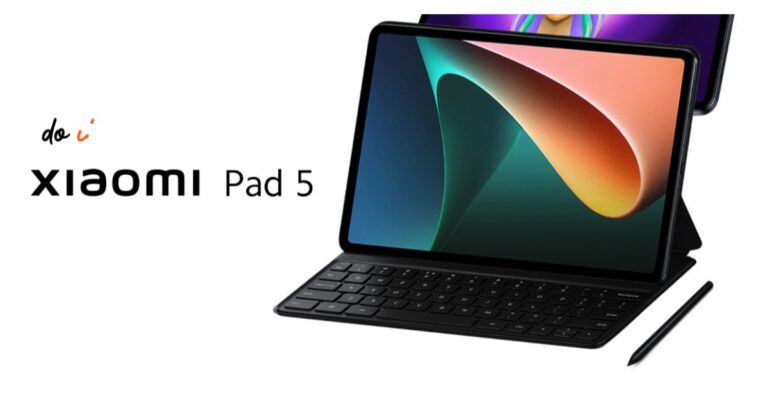
Xiaomi Pad 6 is all set to launch in India tomorrow. Ahead of the official release, the company has reduced the price of the Xiaomi Pad 5 in the country. The company has dropped the price of the tablet by Rs 1,000. In addition to this Xiaomi is offering discounts on its online store in the country. The Xiaomi tablet comes with a 2.5K+ display. It has a screen size of 10.95 which also supports a refresh rate of 120Hz. In addition to this, the device is powered by an octa-core Qualcomm Snapdragon 860 SoC. To recall, the tablet was released in India in the month of April last year.
Xiaomi Pad 5 new price and offer details
Prior to the June 13 launch of the Xiaomi Pad 6, the price of the Xiaomi Pad 5 in India has been reduced by Rs 1000. As per the listing, the 6Gb RAM with 128GB storage option is priced at Rs 25,999. Whereas the price of the 256 storage model is reduced to Rs 28,499. Additionally, Xiaomi is offering discounts on its online store. Buyers will be able to benefit from smartphone exchange discounts on certain models. The specific exchange discounts are only based on the phone’s model and functional state. Additionally, ICICI credit card transactions qualify for a Rs 2,000 instant bank discount.Xiaomi Pad 5 specifications
The tablet is powered by MIUI 13 on top of Android 12. Featuring a 10.95-inch 2.5K+ display is the Xiaomi Pad 5. The screen offers a refresh rate of 120Hz and has a 16:10 aspect ratio. The display also supports Dolby Vision, the DCI-P3 colour gamut, and a maximum brightness of 650 nits. The Qualcomm Snapdragon 860 SoC, along with 6GB of LPDDR4X RAM and up to 256GB of UFS 3.1 storage, powers the Xiaomi tablet. The Xiaomi Pad 5 also features dual microphones and noise cancellation. It boasts quad speakers with Dolby Atmos and Hi-Res Audio support. The gadget has an 8-megapixel front camera and a 13-megapixel rear camera sensor. An 8,720mAh battery with 33W fast charging capabilities is included with the Xiaomi Pad 5. For the latest gadget and tech news, and gadget reviews, follow us on Twitter, Facebook and Instagram. For newest tech & gadget videos subscribe to our YouTube Channel. You can also stay up to date using the Gadget Bridge Android App. You can find the latest car and bike news here.Vivo Y35 price in India slashed: Here is how much it costs now
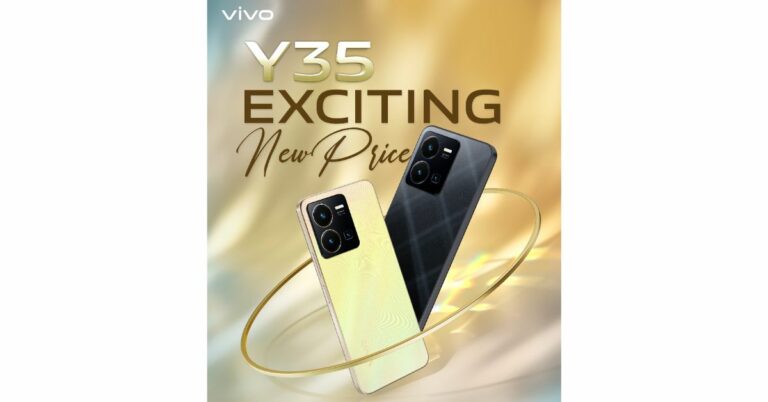
Vivo has slashed the price of Vivo Y35 in India by Rs 500. The smartphone was launched in India last year. The smartphone is powered by Snapdragon 680 processor along with an extended RAM feature. It includes a 5000mAh battery and 44W flash charge support. In addition to this, there is a 50MP primary camera with Electronic Image Stabilization (EIS).
Vivo Y35 New price and offers
Vivo Y35 was launched in India last year with a price tag of Rs 18,499 for a single 8GB RAM with 128GB of internal storage. The smartphone comes in two colour options of Agate Black and Dawn Gold. The phone was earlier available at Rs 17,499 but now it is being made available at Rs 16,999. The phone is seeing a price drop of Rs 500. The new effective price will be applicable starting today on the vivo India e-store and across all partner retail stores. Consumers can also receive an additional cashback of up to Rs 1,000 using ICICI, SBI, Yes Bank, Federal Bank, AU Small Finance, and IDFC First Bank. Buyers are also eligible to receive other benefits such as V-Shield Protection Plans.Vivo Y35 specifications
Vivo Y35 features a 6.58-inch full-HD+ LCD screen with 1,080×2,408 pixels of resolution. The screen has a 90Hz refresh rate. The phone operates on Funtouch OS 12-based Android 12. Under the hood, there is a Qualcomm Snapdragon 680 SoC with 8GB of RAM and 128GB of internal storage. The device also has an Extended RAM function that allows up to 8GB of RAM to be borrowed from storage for a total of 16GB of RAM. While the internal storage can be expanded up to 1TB using a microSD card. The Vivo Y35 comes with a triple-back camera configuration that includes a 50-megapixel primary sensor with f/1.8 aperture. Both the 2-megapixel macro and 2-megapixel bokeh sensors have f/2.4 aperture. The handset includes a 16-megapixel front-facing camera with an f/2.0 aperture for taking selfies and video calling. The smartphone also includes a variety of functions to improve the camera, including Super Night Camera mode, Multi Style Portrait mode, Rear Camera Bokeh Flare Portrait, and others for a smooth photographic experience. The Y35 has Wi-Fi, Bluetooth v5, GPS, Glonass, OTG, FM radio, and a USB Type-C connector as connectivity options. An accelerometer, ambient light sensor, e-compass, gyroscope, and proximity sensor are among the sensors on board. For phone unlock the device has a fingerprint sensor and Face Wake functionality. The device boasts a 5000mAh battery combined with 44W flash charging. Additionally, the Y35 includes Multi Turbo and Ultra Game Mode, which guarantee a luxurious sensory experience for immersive gaming. For the latest gadget and tech news, and gadget reviews, follow us on Twitter, Facebook and Instagram. For newest tech & gadget videos subscribe to our YouTube Channel. You can also stay up to date using the Gadget Bridge Android App. You can find the latest car and bike news here.How to transfer data from an Android to an iPhone using Apple Move?
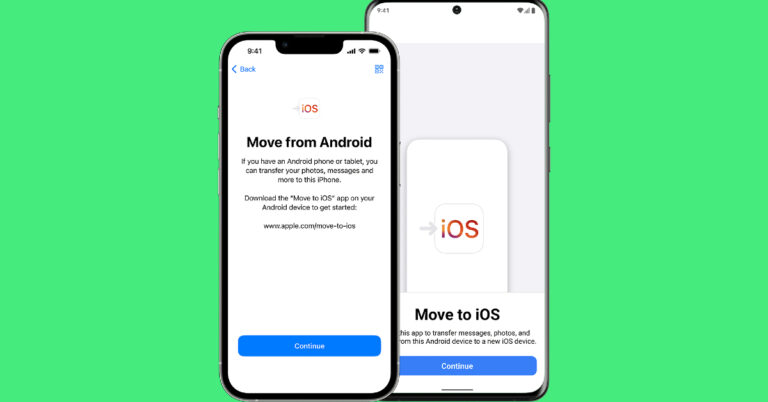
Android and Apple ecosystems very rarely work together seamlessly. Even transferring WhatsApp messages between the two platforms used to be a chore until very recently. If you’re a long-time Android user that just made the switch to an iPhone, you’re probably looking for the best way to transfer your data to your new Apple device. Luckily, the native method using the Move to iOS app makes this process pretty easy. In this article, we show you how to transfer data from an Android phone to an iPhone using Apple Move.
Read Also: High Tech Surveillance Gadgets That Protect the Gaming Operators
Step 2: Select ‘Move Data from Android’.
Step 3: Launch the ‘Move to iOS’ app on your Android smartphone.
Step 4: Tap ‘Continue’ on your iPhone. After a few seconds, your iPhone will display a code.
Step 5: Enter the code on your Android smartphone.
Step 6: Your iPhone will now create a temporary WiFi network using its hotspot. Join this network on your Android device.
Step 7: Choose the content you want to transfer. This includes your contacts, messages, photos and videos, files, settings, WhatsApp messages, calendar entries, bookmarks, and more. Do not disturb the transfer process until it finishes on your iPhone.
Step 8: After the content has been transferred, tap ‘Finish’ on your Android smartphone and ‘Continue’ on your iPhone.
Step 9: Follow the on-screen instructions to finish the process on your iPhone.
Things to remember before you begin
- Make sure the WiFi on both devices is turned on.
- Both smartphones must be plugged into a charger.
- Your iPhone must have enough storage to copy all the data.
- To move your Chrome bookmarks, make sure you are using the latest version of the web browser on your Android device.
Here’s how you can transfer your data using Move to iOS
Step 1: Turn on your iPhone and go through the setup process until your reach the ‘Apps & Data’ page.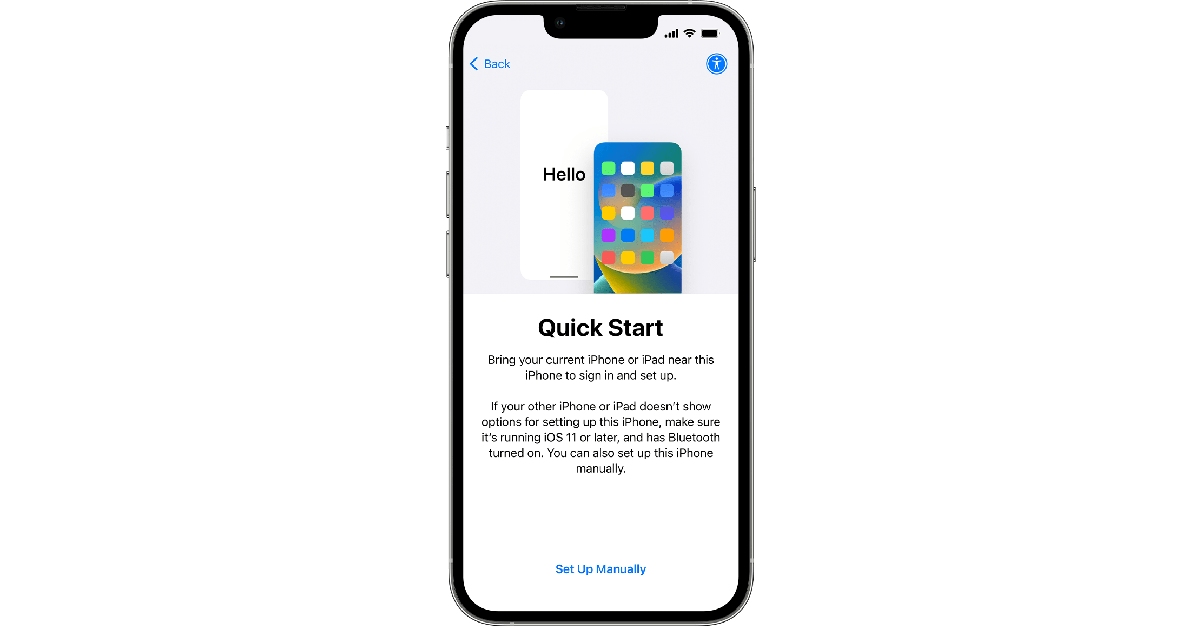 Step 2: Select ‘Move Data from Android’.
 Step 3: Launch the ‘Move to iOS’ app on your Android smartphone.
Step 4: Tap ‘Continue’ on your iPhone. After a few seconds, your iPhone will display a code.
Step 5: Enter the code on your Android smartphone.
Step 3: Launch the ‘Move to iOS’ app on your Android smartphone.
Step 4: Tap ‘Continue’ on your iPhone. After a few seconds, your iPhone will display a code.
Step 5: Enter the code on your Android smartphone.
 Step 6: Your iPhone will now create a temporary WiFi network using its hotspot. Join this network on your Android device.
Step 7: Choose the content you want to transfer. This includes your contacts, messages, photos and videos, files, settings, WhatsApp messages, calendar entries, bookmarks, and more. Do not disturb the transfer process until it finishes on your iPhone.
Step 8: After the content has been transferred, tap ‘Finish’ on your Android smartphone and ‘Continue’ on your iPhone.
Step 9: Follow the on-screen instructions to finish the process on your iPhone.
Step 6: Your iPhone will now create a temporary WiFi network using its hotspot. Join this network on your Android device.
Step 7: Choose the content you want to transfer. This includes your contacts, messages, photos and videos, files, settings, WhatsApp messages, calendar entries, bookmarks, and more. Do not disturb the transfer process until it finishes on your iPhone.
Step 8: After the content has been transferred, tap ‘Finish’ on your Android smartphone and ‘Continue’ on your iPhone.
Step 9: Follow the on-screen instructions to finish the process on your iPhone.
Frequently Asked Questions
Can I use the Move to iOS app after setup?
The Move to iOS app only works while you’re setting up your iPhone for the first time. If you skipped the process at the time of setting up your iPhone, you will have to transfer the content manually. You can also factory reset your phone to set it up again using Move to iOS, but that will erase all your existing data.Does Move to iOS transfer all my apps?
Move to iOS transfers all the free apps from your Android phone that are also available for free on the App Store.Does Move to iOS transfer all my data?
Move to iOS transfers the majority of your personal data from your Android phone to an iPhone. However, certain data like books, music, and PDF files will need to be transferred manually. Read Also: How to download and install Chrome OS Flex?Conclusion
This is how you can move data from your Android smartphone to an iPhone using Apple Move. Move to iOS can only be used at the time of setting up your iPhone for the first time. If you skipped it the first around, you will need to factory reset your iPhone to use Apple’s native transfer process again. For the latest gadget and tech news, and gadget reviews, follow us on Twitter, Facebook and Instagram. For newest tech & gadget videos subscribe to our YouTube Channel. You can also stay up to date using the Gadget Bridge Android App. You can find the latest car and bike news here.JioTag launched, a less expensive alternative to Apple’s Airtag
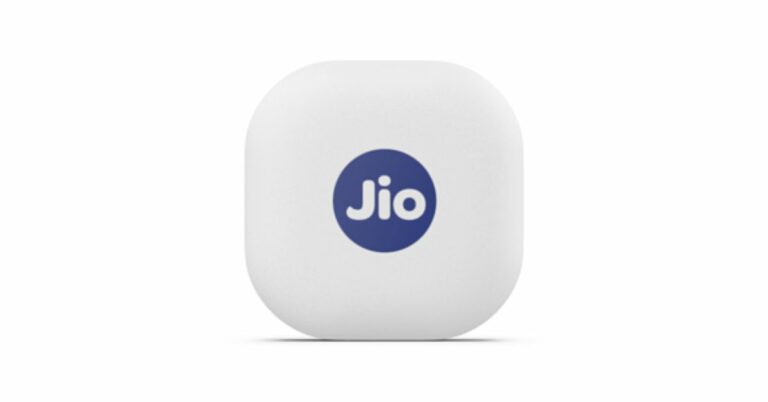
Jio has announced the launch of a new Bluetooth tracker in India. Similar to Apple’s Airtag the JioTag also lets you locate and find your lost items. However, the device is a lot cheaper than Apple’s Bluetooth tracker and offers similar features as that of Apple AirTag. In addition to this, it comes with a Community Find feature. It can be used to find a phone and locate lost items.
 The device is powered by a replaceable CR2032 and features Bluetooth 5.1. The Jio tag measures 3.82×3.82×0.72 cm and weighs 9.5 grams. If offers up to 1 year of battery life and has a range of up to 20 meters indoors and up to 50 meters outdoors (Direct line of sight)
For the latest gadget and tech news, and gadget reviews, follow us on Twitter, Facebook and Instagram. For newest tech & gadget videos subscribe to our YouTube Channel. You can also stay up to date using the Gadget Bridge Android App. You can find the latest car and bike news here.
The device is powered by a replaceable CR2032 and features Bluetooth 5.1. The Jio tag measures 3.82×3.82×0.72 cm and weighs 9.5 grams. If offers up to 1 year of battery life and has a range of up to 20 meters indoors and up to 50 meters outdoors (Direct line of sight)
For the latest gadget and tech news, and gadget reviews, follow us on Twitter, Facebook and Instagram. For newest tech & gadget videos subscribe to our YouTube Channel. You can also stay up to date using the Gadget Bridge Android App. You can find the latest car and bike news here.
JioTag price in India, sale details
JioTag costs Rs 2199, however, the current launch deal price is Rs 749. The device comes in a single white colour variant. As per the listing, the Bluetooth tracker by Jio will be available via the company’s official website in the country. It is available with both cash on delivery and prepaid payments. In addition to this, the company offers an additional battery and a lanyard cable with the JioTag which is sold separately with the Apple AirTag.
JioTag specifications
You can use JioTag to locate your smartphone. Double tapping your connected JioTag will ring your phone, even if it is on silent. In addition to your phone, it may be attached to your wallet, baggage, keys, and other items so that your phone will warn you when you leave something behind or are lost. The Bluetooth tracker also provides the precise position of your item’s most recent disconnect. Even at the site of the last disconnect, if you are still unable to locate your JioTagged possession the Jio Community locate network will hunt for and report back the location of your missing JioTagged item after users mark their JioTag as lost on the JioThings app. The device is powered by a replaceable CR2032 and features Bluetooth 5.1. The Jio tag measures 3.82×3.82×0.72 cm and weighs 9.5 grams. If offers up to 1 year of battery life and has a range of up to 20 meters indoors and up to 50 meters outdoors (Direct line of sight)
For the latest gadget and tech news, and gadget reviews, follow us on Twitter, Facebook and Instagram. For newest tech & gadget videos subscribe to our YouTube Channel. You can also stay up to date using the Gadget Bridge Android App. You can find the latest car and bike news here.
The device is powered by a replaceable CR2032 and features Bluetooth 5.1. The Jio tag measures 3.82×3.82×0.72 cm and weighs 9.5 grams. If offers up to 1 year of battery life and has a range of up to 20 meters indoors and up to 50 meters outdoors (Direct line of sight)
For the latest gadget and tech news, and gadget reviews, follow us on Twitter, Facebook and Instagram. For newest tech & gadget videos subscribe to our YouTube Channel. You can also stay up to date using the Gadget Bridge Android App. You can find the latest car and bike news here. 3 Easy Ways To Upload Music On Audiomack
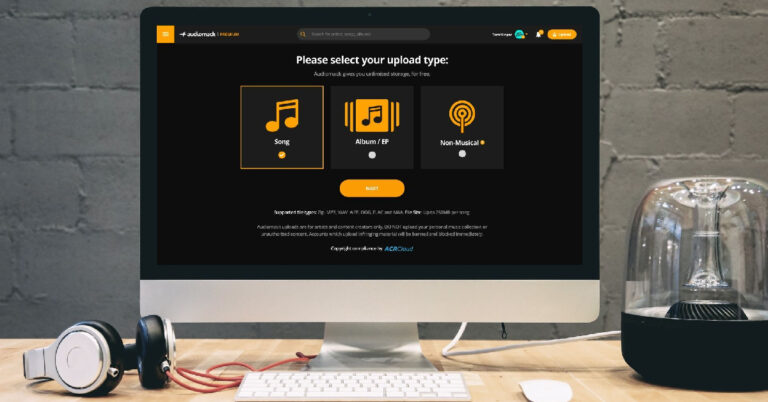
Audiomack is one of the more popular music streaming platforms on the Internet. Its influence is comparable to Soundcloud, which makes it a very attractive platform for new and amateur musicians. Audiomack is one of the best platforms to attract more ears to your music and create a dedicated audience. Apart from music, creators use Audiomack to post their podcast episodes as well. If you’re new to the whole music streaming scene, figuring out how to upload your content can be a confusing task. Don’t worry because we’ve got you covered. In this article, we bring you the 3 easy ways to upload music on Audiomack.
Read Also: Best Redmi 5G smartphones under Rs 25,000
Step 4: Tap the plus icon to upload an audio file. Audiomack supports uploads in the following formats: MP3, WAV, AIFF, OGG, FLAC, and M4A. The size limit for one audio file is 250MB.
Step 5: Fill out all the track details once the song is uploaded. You can also select an artwork for the song/album/EP.
Step 6: You can choose to release the song immediately or schedule it for later. If you want to go for the latter option, select Schedule/Premiere Access and set the release date and time.
Step 7: Hit ‘Finish’.
Step 2: Select the upload type and hit ‘Next’.
Step 3: Select the song file from your desktop. You can also drag and drop the file on the upload screen.
Step 4: Enter the metadata for the song. This includes the song title, artist name, feature list, genre, producers, and more.
Step 5: Choose the release date or publish the song immediately. Hit ‘Finish’ once you’re done.
Step 3: Tap on the gear icon.
Step 4: Select ‘Upload’.
Step 5: Select an upload type and hit ‘Next’.
Step 6: Select the song you want to upload from your device’s internal storage.
Step 7: Enter the metadata for the song.
Step 8: Set a release date or select ‘publish immediately’.
Step 9: Hit ‘Finish’.
How to upload music on Audiomack using the Android Creator app
Step 1: Install the Audiomack Creator app on your smartphone. Step 2: Tap the upload icon at the bottom of the dashboard. Step 3: Select the upload type. If you want to upload a single track, tap on ‘Song’. If you want to upload songs, select ‘Album/EP’. If you want to upload a podcast, select ‘Non-Musical’. Step 4: Tap the plus icon to upload an audio file. Audiomack supports uploads in the following formats: MP3, WAV, AIFF, OGG, FLAC, and M4A. The size limit for one audio file is 250MB.
 Step 5: Fill out all the track details once the song is uploaded. You can also select an artwork for the song/album/EP.
 Step 6: You can choose to release the song immediately or schedule it for later. If you want to go for the latter option, select Schedule/Premiere Access and set the release date and time.
 Step 7: Hit ‘Finish’.
How to upload a song on Audiomack from your desktop
Step 1: Launch the official Audiomack website on your desktop’s web browser and click the upload icon at the top-right corner of the screen. Step 2: Select the upload type and hit ‘Next’.
 Step 3: Select the song file from your desktop. You can also drag and drop the file on the upload screen.
 Step 4: Enter the metadata for the song. This includes the song title, artist name, feature list, genre, producers, and more.
 Step 5: Choose the release date or publish the song immediately. Hit ‘Finish’ once you’re done.

How to upload a song on Audiomack using a mobile browser
Audiomack’s mobile website is well-optimised to carry out basic tasks. The process to upload a song on mobile is almost the same as the one on a desktop. Here’s how can go about it. Step 1: Launch the official Audiomack website on your smartphone’s web browser. Step 2: Tap on the ‘My Library’ icon at the bottom right corner of the screen. Step 3: Tap on the gear icon.
 Step 4: Select ‘Upload’.
 Step 5: Select an upload type and hit ‘Next’.
 Step 6: Select the song you want to upload from your device’s internal storage.
 Step 7: Enter the metadata for the song.
 Step 8: Set a release date or select ‘publish immediately’.
Step 9: Hit ‘Finish’.
Step 8: Set a release date or select ‘publish immediately’.
Step 9: Hit ‘Finish’.
Frequently Asked Questions
How do I upload music on Audiomack?
To upload your music on Audiomack, launch the Audiomack creator app or website and select ‘Upload’. Choose the file you want to upload from your device’s storage, fill in the metadata, and publish the song.Is Audiomack free to upload?
Yes. Audiomack is a free service.How much do 1k streams pay on Audiomack?
It is estimated that Audiomack pays out $0.004 per stream. Read Also: Xiaomi India announces extended warranty for Redmi Note 10 Pro and Pro MaxConclusion
These are the 3 easiest ways to upload music on Audiomack. Instead of uploading individual files, you can upload an entire album at once. Make sure that the individual file size does not exceed 250MB. To maximise your reach and increase the odds of the audience listening to your music, fill in all the track details and post artwork for the song/album. For the latest gadget and tech news, and gadget reviews, follow us on Twitter, Facebook and Instagram. For newest tech & gadget videos subscribe to our YouTube Channel. You can also stay up to date using the Gadget Bridge Android App. You can find the latest car and bike news here.Top 8 ways to fix a corrupted Android SD card (2024)
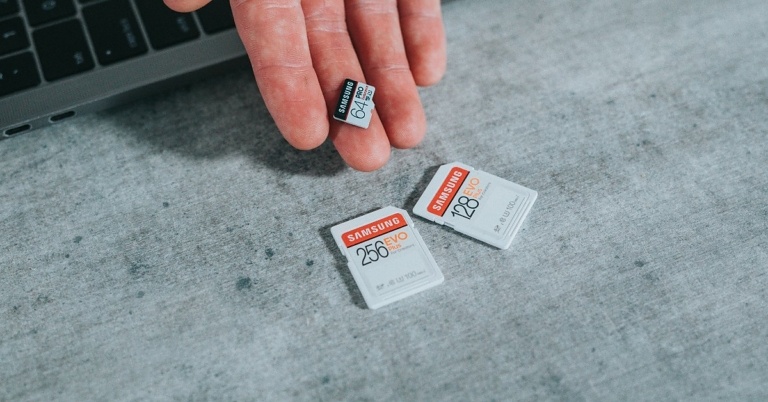
While expandable storage may be missing from some premium devices, most budget and midrange smartphones still come with a slot for an external micro SD card. If you don’t want to splurge extra cash for a higher storage variant, you can easily use a memory card with your device. However, memory cards are known to malfunction from time to time. Then what do you do? Fret not, we are here to help. Today, we bring you the top 8 ways to fix a corrupted Android SD card or memory card.
Read Also: How to use a Passkey for your Google Account?
Earlier, smartphones used to have a dedicated slot for micro SD cards. Hybrid SIM card slots were introduced more recently, allowing users to place their SIM cards and micro SD card on a single tray. This may be a neat idea, but it may leave some people confused. If your Android smartphone cannot recognise the SD card, pull out the hybrid SIM tray and inspect the positioning of the SIM and SD card. Look for the appropriate sign on the tray before inserting the SD card.
If the memory card has been lying around on a shelf or in a drawer, make sure you give it a quick wipe before inserting it into your phone. Dust and dirt particles can keep the SD card from functioning properly. Your smartphone may not be able to detect the card. On the flip side, make sure the SD card tray is clean as well. Pull the tray out and blow some air on it to release the dust particles. Give it a quick wipe and you’re good to go.
Maybe the problem lies with your phone’s SD card slot and not the card itself. The only way of knowing for sure is by using an external card reader. Plug the card reader into the USB Type-C port of your device. Push the card into the external reader and see if you can access its contents on your phone. When you use the card reader, your micro SD card will show up as drive storage on your phone.
If your phone’s OS cannot detect the micro SD due to some bug or other issue, it will be resolved with a quick update. Go to Settings>Software Update to look for pending updates. If there is an available update, download and install it on your device.
Make sure the SD card is in the right slot
 Earlier, smartphones used to have a dedicated slot for micro SD cards. Hybrid SIM card slots were introduced more recently, allowing users to place their SIM cards and micro SD card on a single tray. This may be a neat idea, but it may leave some people confused. If your Android smartphone cannot recognise the SD card, pull out the hybrid SIM tray and inspect the positioning of the SIM and SD card. Look for the appropriate sign on the tray before inserting the SD card.
Clean the micro SD card
 If the memory card has been lying around on a shelf or in a drawer, make sure you give it a quick wipe before inserting it into your phone. Dust and dirt particles can keep the SD card from functioning properly. Your smartphone may not be able to detect the card. On the flip side, make sure the SD card tray is clean as well. Pull the tray out and blow some air on it to release the dust particles. Give it a quick wipe and you’re good to go.
Inspect the SD card for physical damage
SD cards are prone to wear out after prolonged usage. This issue is more common when you use the same card on multiple devices. If your SD card is damaged, your device will not be able to read or detect it. Pull out the card and closely inspect it for damage. Use it on another device to check if it works.Use a card reader
 Maybe the problem lies with your phone’s SD card slot and not the card itself. The only way of knowing for sure is by using an external card reader. Plug the card reader into the USB Type-C port of your device. Push the card into the external reader and see if you can access its contents on your phone. When you use the card reader, your micro SD card will show up as drive storage on your phone.
Unlock the card
Some SD cards come with a physical lock switch. Once a card is locked, you cannot write or delete any data from it. If you’re having an issue with copying or erasing files from your Android phone’s extended storage, pull out the card and unlock it using the physical switch located on the side of the SD card.Format the memory card
The most common reason why memory cards stop functioning is data corruption. If your memory card is corrupted, you may experience several kinds of issues with it – ranging from detection issues to slow performance. Data corruption is caused when a file isn’t completely transferred to the card. This may happen because you pulled out the card before the transfer was completed. The only way to fix a corrupted memory card is by formatting it. To format the SD card go to Settings>Battery and device care>Storage and tap on the ellipses at the top right corner of the screen to access Advanced Settings. Tap on the SD card and select ‘Format’.Use the chkdsk command
You will need to connect your SD card to your laptop or PC for this method. Pull out the card from your phone and use a card reader or your PC’s dedicated memory card slot to insert the SD card. Once that’s done, follow these steps. Step 1: Right-click the Windows icon on the taskbar and select Terminal (Admin). Step 2: Enter the following command:chkdsk [disk name assigned to SD card]: /x /r
Step 3: Once the process has finished, safely remove the SD card from your PC and insert it into your phone.Update your smartphone’s OS
 If your phone’s OS cannot detect the micro SD due to some bug or other issue, it will be resolved with a quick update. Go to Settings>Software Update to look for pending updates. If there is an available update, download and install it on your device.
Frequently Asked Questions
How do I fix a corrupted SD card?
To fix a corrupted SD card, you need to format it. Go to Settings>Battery and device care>Storage>Advanced Settings and select Format.Why is my SD card not working on my Android phone?
If your Android phone is not detecting the SD card, give the card and the hybrid slot a quick wipe and make sure there aren’t any dust particles on them. Inspect the SD card closely for any physical damage.How do I fix an undetected SD card on Android?
If your Android phone cannot detect the SD card, use an external card reader. Plug the card reader into the USB Type-C port on your device. If your SD card works fine with the card reader, it means that your phone’s card slot is faulty. Read Also: 5 Best Ways to Sign Out of Google Play Store on an Android DeviceConclusion
These are the top 8 ways to fix a corrupted Android SD card or memory card. If these fixes don’t work for you, you will need to figure out whether the fault lies with the SD card or its slot in your phone. If the phone’s slot is at fault, you will need to take it to the authorised service centre for repair. If you have any questions, let us know in the comments!Samsung Galaxy S22 price in India has been reduced by up to Rs 8,000
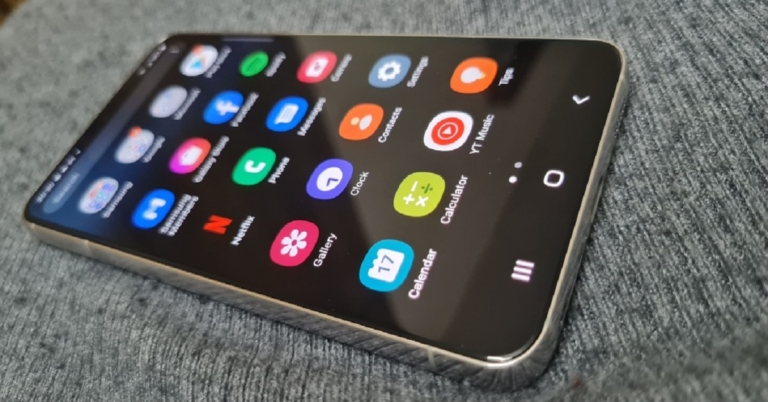
Samsung Galaxy S22 was launched in India last year. The price of the smartphone has now been lowered by up to Rs 8,000. The device was introduced in India at a starting price of Rs 72,999 which has now come down to Rs 64,999 for the base variant. The smartphone features a 120Hz Dynamic AMOLED 2X display. Under the hood, there is an octa-core Snapdragon 8 Gen 1 SoC that runs on Android 12 with One UI 4.1 on top out of the box.
Samsung Galaxy S22 new price and details
The Samsung Galaxy S22 was made available in two configurations with 8GB RAM and 128GB/512GB storage for Rs 72,999 and Rs 76,999, respectively. But now the phone’s price has fallen by Rs 8,000 in India. The 128GB RAM variant will be accessible at Rs 64,999 whereas the 512GB option is now available at Rs 72,999. Samsung mobile users on their exchange can receive a bonus of Rs 7,000. As a result, the model now costs Rs 57,999. The company will also be offering a bank cashback offer of Rs 3,000 which brings the cost of the base variant down to Rs 54,999.