In This Article
Logitech MX Master 3S review: Design
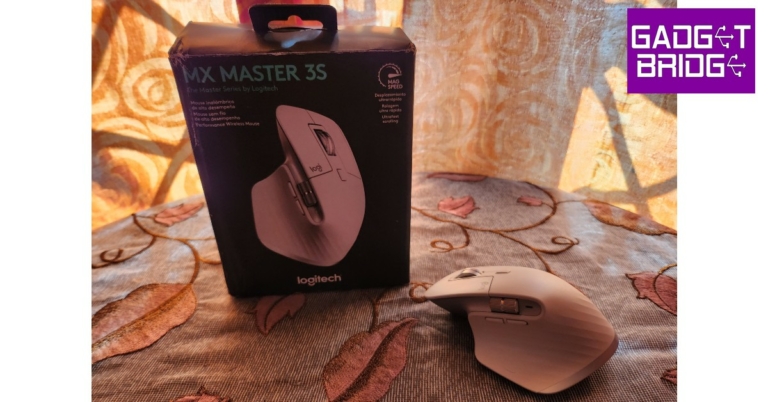
 The design of the Logitech MX Master 3S remains unchanged from its previous avatar. It sports a clean, minimal look, and an ergonomic design that is carved out for maximum comfort. The bulky size of the mouse may make it challenging to use for people with smaller hands, but for people who often find regular mice too small to work with, this device will prove to be the perfect fit.
 The ridge at the left side of the mouse acts as a cushion for the thumb and comes with a gesture control button. Along this side, you’ll also find the horizontal scroll wheel and back/forward buttons housed with an LED light. On top, you get your regular click buttons, the vertical scroll wheel, and a mode switch button. The power button, DPI sensor, and pairing/switch key are located at the bottom of the mouse.
 All buttons are seamlessly integrated into the body of the mouse. There are no loose fittings on this mouse, which isn’t the case with other devices on the market. The rubber finish across the body provides a decent grip, and the curvy design allows for greater comfort and minimal weariness upon extended use.
A lot of attention has been paid to accessibility, with every button on the mouse easily reachable and serving a specified purpose. Our only minor issue is with the motion gesture button hidden under the thumb rest. While it comes in handy, we had to move our thumb in an unnatural position every time we wanted to use it.
All buttons are seamlessly integrated into the body of the mouse. There are no loose fittings on this mouse, which isn’t the case with other devices on the market. The rubber finish across the body provides a decent grip, and the curvy design allows for greater comfort and minimal weariness upon extended use.
A lot of attention has been paid to accessibility, with every button on the mouse easily reachable and serving a specified purpose. Our only minor issue is with the motion gesture button hidden under the thumb rest. While it comes in handy, we had to move our thumb in an unnatural position every time we wanted to use it.
 One of the more notable upgrades in the Logitech MX Master 3S is its ‘quiet click’ experience which may gather mixed responses from its users. The clicks on the MX Master 3S are 90% quieter than the previous version, making it more suitable for the workplace, but mechanical enthusiasts will certainly miss the satisfactory audible sound that came with every click. The tactile feedback on every button is still excellent.
 There is, however, bad news for left-handed people. This device is in no way meant for ambidextrous use, and there are no left-handed options in the lineup. You will either have to switch to your right hand or look out for other left-handed products. Portability is also an issue, with the MX Master 3S, as the device weighs 141g and there is no section to store the USB receiver. If you often find yourself working on the go, you may want to consider some more portable options.
Logitech MX Master 3S review: Performance
When you’re following a device like MX Master 3, which is already regarded as the best in its class, you have your work cut out for you. We’re happy to report that the MX Master 3S puts up a performance that not only matches but exceeds its predecessor’s. A big chunk of credit for that goes to the updated 8,000 DPI sensor, which is double the one found on the previous version. You can adjust the DPI level from Logitech’s Options Plus software, as the mouse runs on 1000 DPI by default. A higher DPI setting comes in handy for multi-monitor setups and high-resolution displays. The idea is to cover the maximum area on the screen without moving the mouse too much.
One of the better parts about having a high DPI sensor is that the mouse can effectively track on any surface without a mousepad. We used it on wooden desks, glass table tops, plastic patio furniture, and even on beds. There was no drop in performance on any surface and the motions were smooth as silk.
Connectivity was no issue for this device, as all you need to do is plug in the USB receiver to your PC, switch on the mouse and you’re good to go. With Bluetooth connectivity, you can use the Logitech MX Master 3S on 3 devices at once. Once you’ve connected to multiple devices, you can switch between them using the pairing key at the bottom or by enabling the Flow feature on the Logitech Options Plus software.
We preferred the latter option as it seamlessly switched the control from one device to another as soon as the pointer reached the edge of the display. Manually clicking the switch key at the bottom of the mouse can hinder the smooth experience. It would’ve been a lot better if the switch key was placed in a more accessible position.
You can adjust the DPI level from Logitech’s Options Plus software, as the mouse runs on 1000 DPI by default. A higher DPI setting comes in handy for multi-monitor setups and high-resolution displays. The idea is to cover the maximum area on the screen without moving the mouse too much.
One of the better parts about having a high DPI sensor is that the mouse can effectively track on any surface without a mousepad. We used it on wooden desks, glass table tops, plastic patio furniture, and even on beds. There was no drop in performance on any surface and the motions were smooth as silk.
Connectivity was no issue for this device, as all you need to do is plug in the USB receiver to your PC, switch on the mouse and you’re good to go. With Bluetooth connectivity, you can use the Logitech MX Master 3S on 3 devices at once. Once you’ve connected to multiple devices, you can switch between them using the pairing key at the bottom or by enabling the Flow feature on the Logitech Options Plus software.
We preferred the latter option as it seamlessly switched the control from one device to another as soon as the pointer reached the edge of the display. Manually clicking the switch key at the bottom of the mouse can hinder the smooth experience. It would’ve been a lot better if the switch key was placed in a more accessible position.
 Moving on, the scrolling experience on the Logitech MX Master 3S is an absolute delight. There are 2 scrolling modes that can be switched using the button on the top panel of the mouse. The standard Ratchet mode provides nice feedback with every line scroll. The Free Spin mode is something Excel users will use a lot. It can be activated using the switch button at the centre and turns the scroller into a frictionless wheel that you can flick effortlessly. Need to scroll down to the very bottom of your Spreadsheet? Now you can do it with just one flick of the scroll. It is that easy.
Another helpful feature of the MX Master 3S is the side scroll wheel. It allows you to navigate sideways on your screen, something that Spreadsheet users will enjoy too. The two additional buttons on the left panel can switch back and forwards between windows and web pages.
The horizontal scroll and navigation buttons were particularly helpful while using the mouse on a tablet. Going through images and scrolling the app drawer became incredibly easy with the horizontal scroll, while the navigation buttons were helpful in going back and forward within an app without needing to use the pointer to hit the back button.
The external buttons can also be customised to assign different functions for different apps using the Logitech Options Plus software. For instance, you can use the horizontal scroller to switch between tabs in a web browser and increase the brush size in Adobe Photoshop. The back/forward buttons can be used as undo/redo keys or customised to adjust the volume.
The Logitech MX Master 3S is designed while keeping your workstation in mind. Its functionality benefits people who need a device that can keep up with their creative needs, be it photo editing on PhotoShop or making a PowerPoint presentation. Even relatively boring tasks like managing a Spreadsheet become super easy and fun with the Master 3S.
However, it is not a device you want to use during your gaming sessions. Its polling rate and click latency won’t cut it for serious gamers who are willing to spend on an expensive mouse. The Logitech MX Master 3S does not pretend to be a gaming mouse at all and caters to a different demographic altogether.
Moving to the battery life, Logitech has equipped the MX Master 3S with a 500mAh battery that can last up to 70 days on a full charge. Since we only used it for just over a week, we can’t back up the claim, but the previous version comes with the same battery and lasts around that range under moderate use. Users can expect the MX Master 3S to achieve a similar result. Three minutes of charge powers the mouse for a full day of use, which is quite impressive. You can even use the mouse while charging.
Read Also: Apple iPhone 14 Pro review: The Game Changer
Moving on, the scrolling experience on the Logitech MX Master 3S is an absolute delight. There are 2 scrolling modes that can be switched using the button on the top panel of the mouse. The standard Ratchet mode provides nice feedback with every line scroll. The Free Spin mode is something Excel users will use a lot. It can be activated using the switch button at the centre and turns the scroller into a frictionless wheel that you can flick effortlessly. Need to scroll down to the very bottom of your Spreadsheet? Now you can do it with just one flick of the scroll. It is that easy.
Another helpful feature of the MX Master 3S is the side scroll wheel. It allows you to navigate sideways on your screen, something that Spreadsheet users will enjoy too. The two additional buttons on the left panel can switch back and forwards between windows and web pages.
The horizontal scroll and navigation buttons were particularly helpful while using the mouse on a tablet. Going through images and scrolling the app drawer became incredibly easy with the horizontal scroll, while the navigation buttons were helpful in going back and forward within an app without needing to use the pointer to hit the back button.
The external buttons can also be customised to assign different functions for different apps using the Logitech Options Plus software. For instance, you can use the horizontal scroller to switch between tabs in a web browser and increase the brush size in Adobe Photoshop. The back/forward buttons can be used as undo/redo keys or customised to adjust the volume.
The Logitech MX Master 3S is designed while keeping your workstation in mind. Its functionality benefits people who need a device that can keep up with their creative needs, be it photo editing on PhotoShop or making a PowerPoint presentation. Even relatively boring tasks like managing a Spreadsheet become super easy and fun with the Master 3S.
However, it is not a device you want to use during your gaming sessions. Its polling rate and click latency won’t cut it for serious gamers who are willing to spend on an expensive mouse. The Logitech MX Master 3S does not pretend to be a gaming mouse at all and caters to a different demographic altogether.
Moving to the battery life, Logitech has equipped the MX Master 3S with a 500mAh battery that can last up to 70 days on a full charge. Since we only used it for just over a week, we can’t back up the claim, but the previous version comes with the same battery and lasts around that range under moderate use. Users can expect the MX Master 3S to achieve a similar result. Three minutes of charge powers the mouse for a full day of use, which is quite impressive. You can even use the mouse while charging.
Read Also: Apple iPhone 14 Pro review: The Game Changer
Verdict
While we have only good things to say about the Logitech MX Master 3S, at Rs 10,995 is it a worthy buy? The answer is a resounding yes. The Master 3S will raise your benchmark for a typical mouse. The range of functionality offered by the Master 3S is unparalleled and it doesn’t come at the cost of practicality. However, if you are already using the Logitech MX Master 3, Rs 10,995 may be a bit steep for an upgrade.Pros
Can connect to three devices Superior scrolling experience Accessible buttons and enhanced functionality Comfortable design that is easy on the palmCons
Not meant for left-handers Portability is an issue
For the latest gadget and tech news, and gadget reviews, follow us on Twitter, Facebook and Instagram. For newest tech & gadget videos subscribe to our YouTube Channel. You can also stay up to date using the Gadget Bridge Android App. You can find the latest car and bike news here.

 Right under that are the IR input, power button and a MIC on/off slider key. Since the TV has far-field microphone tech, you can use that to control the TV with your voice. More about it in the next section.
 Spin it around and you will find within a depth of just 12.5 mm the company has put in three HDMI, two USB, Ethernet and RF ports, all side mounted. The remote has a lot of functionality as well and in no terms is it minimalistic. It has all the required buttons a TV should have including shortcuts for Netflix, Amazon Prime Video etc. A special function key is also there, which you can customize to an app of your choosing.
 Read Also:
  Talking about which, the settings menu is very elaborate and you can customise just about everything from picture colours to the sound of this smart TV. The sound is tuned by Dolby Atmos and you do get a sense of virtual surround sound thanks to the extreme audio output. This TV is great for medium to large rooms and the sound or the video will not disappoint.
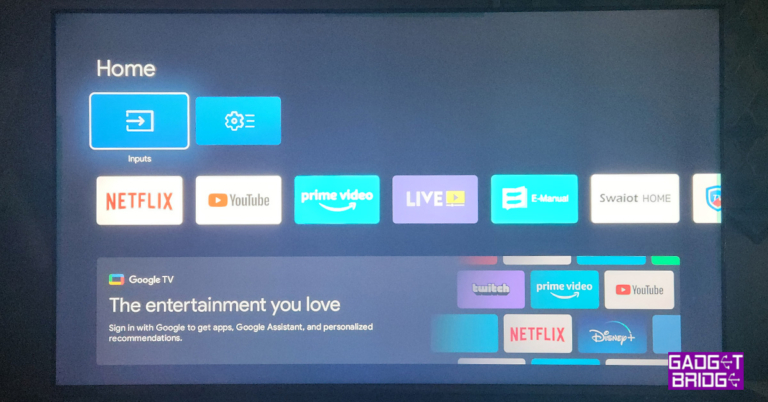
The TV can be accessed with voice commands, but on our test, those worked only 7 out of 10 times, making us go back to the full-function handy smart remote you get with the Blaupunkt 55-inch Smart Google TV. The OS does perfect justice to this TV. Android 11 with Blaupunkt’s own skin on top is a dynamite duo.
You get everything at your fingertips and browsing or opening multiple apps at once does not make it slow down too much. In case you find it slowing down, just reduce the number of opened apps or restart the TV, that will solve the problem (which is there with most Android TVs, these days with less than 2.5GB RAM) in a jiffy.
Read Also:
Talking about which, the settings menu is very elaborate and you can customise just about everything from picture colours to the sound of this smart TV. The sound is tuned by Dolby Atmos and you do get a sense of virtual surround sound thanks to the extreme audio output. This TV is great for medium to large rooms and the sound or the video will not disappoint.
The TV can be accessed with voice commands, but on our test, those worked only 7 out of 10 times, making us go back to the full-function handy smart remote you get with the Blaupunkt 55-inch Smart Google TV. The OS does perfect justice to this TV. Android 11 with Blaupunkt’s own skin on top is a dynamite duo.
You get everything at your fingertips and browsing or opening multiple apps at once does not make it slow down too much. In case you find it slowing down, just reduce the number of opened apps or restart the TV, that will solve the problem (which is there with most Android TVs, these days with less than 2.5GB RAM) in a jiffy.
Read Also: 






 Step 2:
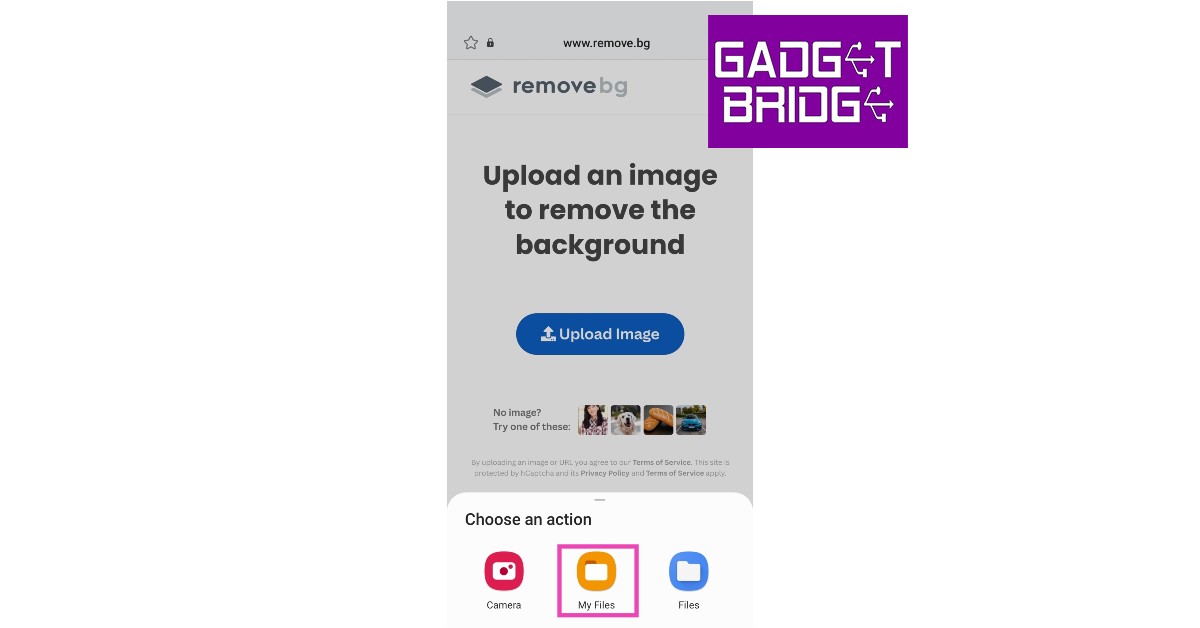 Step 3:

 Step 4:
 Step 3:
 Step 5:
 Step 2:
 Step 3:
 Read Also:


 Step 2:
 Step 5:
 Step 2:
 Step 5:
  Step 6:
 Step 2:
 Step 4:
  Step 7:
 Step 2:
  Step 3:
 Read Also:




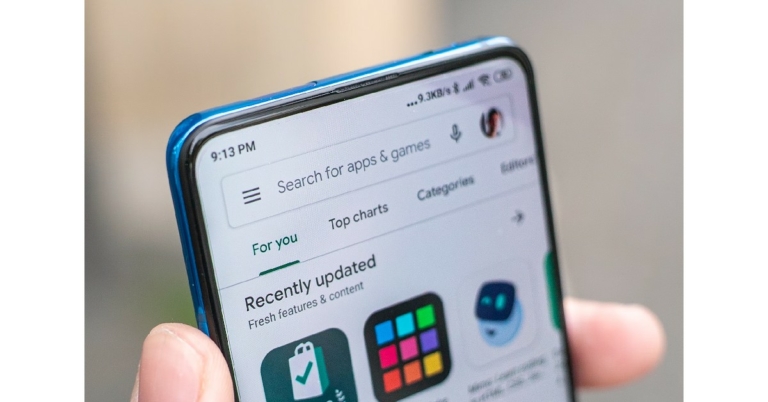
 For Google Play Store to work on your phone, the date and time need to be accurate. Usually, your phone auto-updates the time when it is connected to the internet. However, if your phone has been switched off for a long time, the date and time may be off once it is turned on again. To fix this, go to Settings>General Mangement>Date and Time and manually set the date and time. You can also turn on auto updates from this page.


 If you’re not connected to a WiFi network, Google Play Store may not download new apps in order to save mobile data. This option is not turned on by default, so you may have enabled it earlier and forgotten about it. If the data saver is turned on, your phone may not download new apps after hitting the stipulated data usage limit. To fix this, go to Settings>Apps>Google Play Store>Mobile Data and switch on the toggle bar for ‘Allow background data’ and ‘Allow data usage while Data saver is on’.



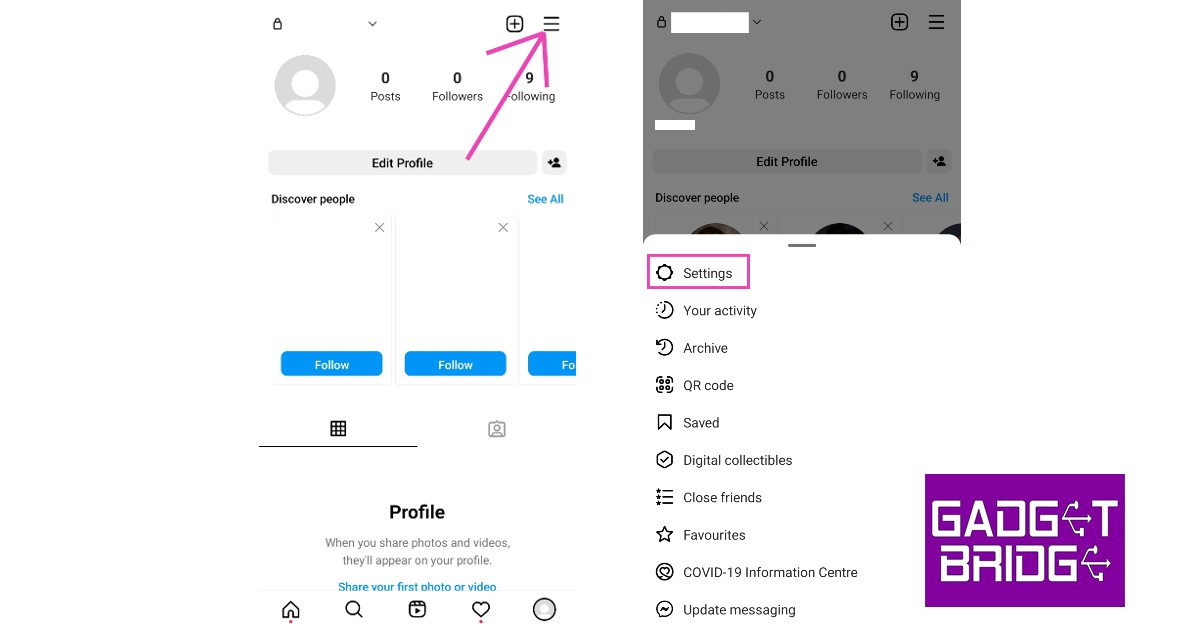 Step 2:
 Step 3:
 Step 4:

 Step 2:
  Step 3:
 Read Also:

 Step 2:
 Step 3:


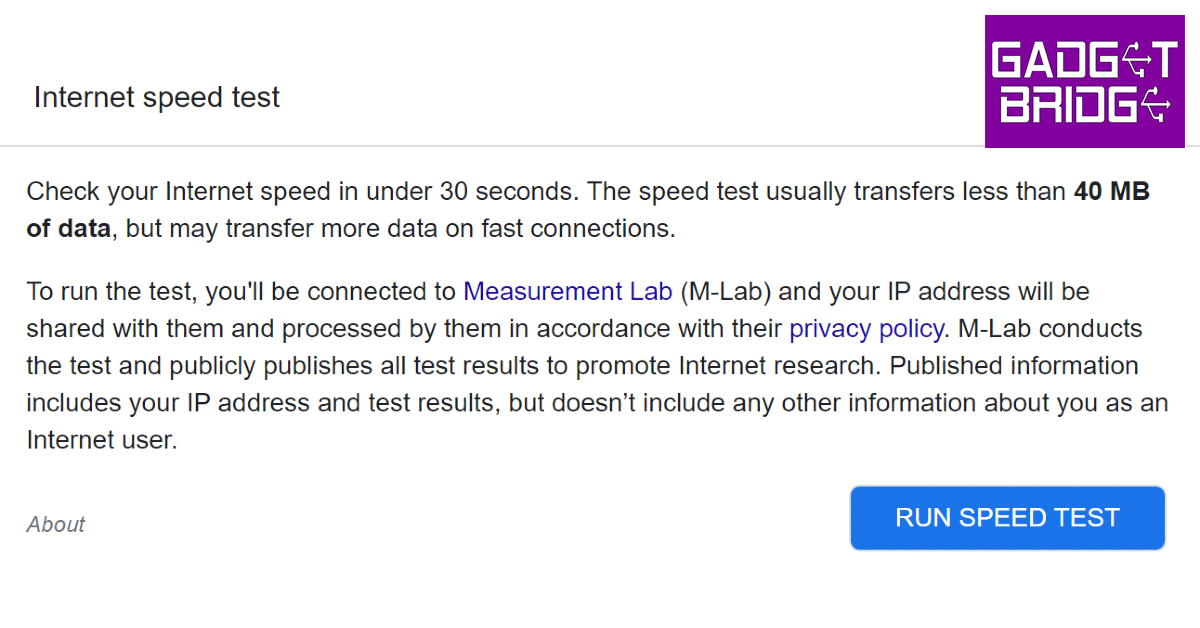 The internet speed test by Google can be accessed directly from the search engine. All you need to do is search for ‘internet speed test’ and hit ‘Run Speed Test’. Google partners with Measurement Lab (M-Lab) to perform the speed test. The advantage of using Google’s speed test is that it doesn’t use more than 40MB of your data and does not pester you with annoying ads. The interface is clean and easy to use.
 Powered by Netflix,
  Cloudflare offers a very comprehensive