Garena Free Fire is a battle royale game with regular awards and tournaments to keep players interested. If you play Garena Free Fire, you should be aware of the redeem codes that are released on a daily basis. However, because the battle royale game is banned in India, players from other countries can use the Free Fire Redeem codes daily. If you’re unfamiliar with the Garena Free Fire redeem codes or don’t know how to get them, we’ve put together a step-by-step guide to help you redeem them. Check out Garena Free Fire Redeem Codes for 17 December 2023.The Free Fire redeem codes are a great way to get free stuff. These are 12-digit codes that contain alphabets and numbers, as well as an expiration date and time. Because the Garena FF redeem codes cannot be used more than once, you should hurry to the redemption page to claim your free reward before someone else does. To get a free reward, all you have to do is go to reward.ff.garena.com/en, which is the official redemption page. Also, keep an eye on this space for daily updates on Garena Free Fire redemption codes and rewards.
Garena Free Fire Redeem Codes Today 17 December 2023
The Vivo X100 and Vivo X100 Pro will launch in India next month.
Both smartphones include a V3 imaging chip.
They are powered by the MediaTek Dimensity 9300 SoC.
The Vivo X100 and Vivo X100 Pro have been launched globally. The series is being made available across the world after it was initially launched in China. The devices are currently available in Europe and Southeast Asian countries. It will soon hit Indian shores. The lineup comes with Zeiss optics, as it is a camera-focused smartphone series. Additionally, both phones are powered by the MediaTek Dimensity 9300 SoC and run on OriginOS 4 with Android 14.
Vivo X100 and X100 Pro pricing and availability details
The company has not yet revealed the pricing of both the Vivo X100 and X100 Pro smartphones. Though the price of the Hong Kong has been revealed, the price of the X100 starts at HK$5,998, which converts to Rs 63,917 for the 12GB RAM with 256GB storage. On the other hand, the price of the X100 Pro with 16GB of RAM and 512GB of storage is set at HK$7,998, which is around Rs 85,224.
Note that the Vivo X100 Series will launch in India in January 2024.
The Vivo X100 Series debuted in China in November, and the pricing at which it arrived starts at CNY 3,999 (Rs 50,000) and goes up to CNY 5,999 (Rs 68,000). There are four models for the Vivo 100 Pro, whereas the X100 is made available in five variants with up to 16GB of LPDDR5T RAM and 1TB of storage.
Vivo X100 Series specifications
Both the Vivo X100 and the Vivo X100 Pro share a lot of similarities. The display software and processors are the same. They feature a 6.78-inch AMOLED 8T LTPO curved display with a 120Hz refresh rate and 3000 nits of peak brightness. The devices run on OriginOS 4 with Android 14 out of the box. They are powered by a MediaTek Dimensity 9300 SoC with a Vivo V3 chip.
Both handsets are highlighted with a triple-camera setup powered by Zeiss optics.
The Vivo X100 Pro includes a 50-megapixel Sony IMX989 1-inch type sensor with OIS (100x digital zoom), a 50-megapixel ultra-wide-angle sensor, and a 50-megapixel Zeiss APO super-telephoto lens with OIS (4.3x optical zoom and 100x digital zoom).
On the other hand, the vanilla model includes a Sony IMX920 VCS bionic 50-megapixel primary sensor with OIS, a 50-megapixel ultra-wide-angle lens, and a 64-megapixel Zeiss super-telephoto lens (100x clear zoom).
Both smartphones come with a 32-megapixel selfie camera.
Android and iOS are not radically different from each other, but there are certain aspects where one has an added advantage over the other. When it comes to adding watermarks to your pictures, Android devices are ahead of the curve compared to their iOS counterparts. Perhaps, in future iOS versions, Apple will add the feature to the iPhone as well. But as of now, here are 4 ways you can go about this task.Read Also:How to add a short video to Instagram Notes?
Add a watermark to your pictures to make sure you are always credited
If you post your art or photography on the Internet, it is bound to get reposted somewhere. While common Internet etiquette dictates that one must credit the person behind the artwork, it rarely ever gets followed. The best thing you can do before uploading your work on the Internet is add a watermark to it. This ensures that you get the proper credit if the picture ever attains virality.Your smartphone is well-equipped to automatically add a basic watermark to every picture you take using its camera. However, if you’re looking for more extravagant designs or already have a logo for your work, you will need a third-party app to stitch it to your pictures. While designing a watermark, make sure you add your social media handles so people know where to reach you.
Add a watermark to your pictures on Android
Step 1: Launch the Camera app on your Android smartphone.Step 2: Hit the gear icon at the top left corner of the screen.Step 3: Scroll down and select Watermark.Step 4: Turn on the toggle switch at the top of the page.Step 5: Add the text that you want to watermark on your pictures.Step 6: Go back to the Camera app and start taking pictures.
Add a watermark to your pictures on iOS
The native camera app on iPhone does not have the feature to add a watermark to your photos automatically. You can get around this roadblock by uploading your watermark as a signature on Markup and using it wherever necessary. Here’s how you can go about it.Step 1: Launch the Photos app and open the picture to which you want to add a watermark.Step 2: Hit Edit.Step 3: Select the Markup icon at the top right corner of the screen.Step 4: Tap the plus icon at the bottom right corner of the screen.Step 5: Tap on Signature and select Add or Remove Signature.Step 6: Scribble your name, logo, or sign that you want as the watermark.Step 7: Hit Done.Step 8: Place the watermark on the picture and hit Done.The watermark will also be saved in Markup’s ‘Signature’ section. Whenever you want to add it to a picture, just open Markup and select signature.
Use eZy Watermark Photos Lite by Whizpool
Download on App Store and Google Play StoreYour smartphone may be able to add a watermark to your pictures natively, but a dedicated third-party app pays more attention to the design, layout, and appeal of your logo. If you’re looking for something more than just plain text as the watermark, you will need to download an app for it. The eZy Watermark Photos Lite app by Whizpool is one of the best ones around and is available on both platforms. This app has over 150 text fonts to choose from. You can also import your logo from your device’s storage and use eZy to place it on an entire batch of images.Step 1:Download and install the eZy Watermark Photos Lite app by Whizpool on your phone.
Step 2:Launch the app and select whether you want to watermark a single photo or a bunch of images.
Step 3: Tap on Library to import an image from your phone’s gallery. You can also import pictures from Instagram, Facebook, Google Drive, and more.
Step 4: Hit the arrow icon in the bottom right corner of the screen.
Step 5: Select the kind of watermark you want to add to the image. For this example, we’ve chosen Text.
Step 6: Hit the Tticon in the sidebar and type the word(s) you want on the watermark. Use the sidebar options to change its font, size, opacity, colour, and more. Drag the watermark on the image to change to change its position. Hit the tick icon when you’re done.
Step 7: Hit Export and select Gallery. Give eZy Watermark Photos Lite permission to access your phone’s gallery.
Use the Open Camera app
Third-party camera apps offer a diverse range of watermarking options. Let’s take a look at how you can add one using Open Camera.
Step 1:Download and install the Open Camera app on your phone.
Step 2: Launch the Open Camera app and hit the cog wheel icon in the top right corner of the screen.
Step 3: Tap on Photo settings.
Step 4: Scroll down and tap on Custom text.
Step 5: Enter the text for the watermark. You can also change the font size, colour, and style.
Frequently Asked Questions (FAQs)
Is there a way to automatically add a watermark to the pictures I take using the iPhone’s camera?
iOS does not allow users to automatically add watermarks to their images. What you can do is use Markup to add your watermark as a signature.
How do I add a watermark to my pictures on Android?
Go to Camera>Settings>Watermark, turn on the toggle switch, and enter the text you want for the watermark.
How do I view the metadata of an image on Android?
To view the metadata of an image on Android, open it using your phone’s native gallery app, hit the ellipses, and select Details.
How do I add a watermark to a picture I’ve already taken on Android?
Use the eZy Watermark Photos Lite app to watermark images in your phone’s gallery. You can also import pictures from Instagram, Facebook, Google Drive, and more.
These are the top 4 ways to add a watermark to your pictures on Android and iOS. Check out this article to view our list of the best watermark apps around. If you don’t want to use a third-party app, you can simply add your logo to any picture using your phone’s native photo editor. You can access it by tapping the ‘edit’ option after opening the image in your phone’s photo gallery.
The OnePlus 12 is powered by Qualcomm’s 4nm Snapdragon 8 Gen 3 SoC.
Along with the OnePlus 12, the company will also announce the OnePlus 12R.
The OnePlus 12R will be a gaming smartphone that will succeed the OnePlus 11R.
The Chinese tech company OnePlus has officially announced the global launch date for the OnePlus 12 Series. Though the OnePlus 12 has already made its debut in China, the global launch will bring not one but another smartphone, the OnePlus 12R. Yes, both smartphones will be included in the series.
OnePlus has confirmed that the OnePlus 12 Series will make its global debut on January 23. The launch event will begin at 7:30 p.m. IST. Along with the OnePlus 12, the company will also present the OnePlus 12R. The India launch is expected on the same day. Availability details and pricing are likely to be announced on January 23. We are already aware of the specs of the OnePlus 12, but details regarding the OnePlus 12R have yet to be officially revealed. Though the OnePlus R-Series is aimed at gamers, the upcoming smartphone will get some add-ons that will enhance the gaming performance of the smartphone.
Also Read:Redmi Note 13 5G Series availability details for India announced
OnePlus 12, OnePlus 12R specifications
The OnePlus 12 was launched in China earlier this month. It is highlighted with a 6.82-inch quad-HD+ LTPO OLED screen. The display has an adaptive refresh rate ranging between 1Hz and 120Hz. The screen supports 4,500 nits of screen brightness. The device is IP65-rated for dust and water resistance.
At its heart, there is Qualcomm’s 4nm Snapdragon 8 Gen 3 SoC. The device is offered with up to 24GB of LPDDR5X RAM and up to 1TB of UFS 4 inbuilt storage. The phone is endowed with a Hasselblad-branded triple rear camera with a Sony LYT-808 sensor, a 50-megapixel primary camera (OIS and f/1.6 aperture), a 64-megapixel telephoto secondary lens (OIS, 3X optical zoom, and f/2.6 aperture), and a 48-megapixel ultra-wide-angle lens (114-degree field-of-view). Lastly, there is a 32-megapixel front-facing camera (f/2.4 aperture) for taking selfies and video calling.
The handset houses a 5,400mAh battery with 100W SuperVOOC wired, 50W wireless, and 10W reverse wireless charging support.
On the other hand, the OnePlus 12R will launch for the first time. It was not launched along with the OnePlus 12 last week. Reports suggest that the OnePlus 12 will be a rebranded variant of the OnePlus Ace 3. Details about the smartphone are scarce, but as the launch gets closer, more details are expected to be revealed, so stay tuned to Gadget Bridge.
If you ever need to call someone but don’t want them to know your number, you don’t have to look for another phone. Your smartphone lets you hide your caller ID while contacting someone else. Of course, the availability of this feature also depends on regional laws and whether your network provided offers that feature. If both those things are not an issue, you can hide your caller ID with ease. So, here is the complete process detailing how to hide your phone number while calling or texting someone on an Android or iOS device.Read Also:Poco C65 makes its India debut today, price starts at Rs 8,499
Why should I hide my Caller ID?
As we mentioned earlier, you can hide your caller ID if you don’t want the recipient to have access to your phone number. This also works when you want to call a business or the offices of an e-store but don’t want your number to be recorded in their database. This can help you avoid a lot of spam texts and calls in the future.On the flip side, your calls and texts are more likely to get ignored if your number is hidden. People tend to assume that hidden numbers are likely operated by scammers and malicious entities. If you want to get around this issue, using a temporary phone number is something you should look into. An added benefit of using a temporary number is that you can use it to register to instant messaging apps like WhatsApp and Telegram.
Hide your phone number while calling or texting someone on Android
Step 1:Launch the Phone app on your smartphone.Step 2: Hit the ellipses at the top right corner of the screen and select Settings.Step 3: Scroll down and select Supplementary Services.Step 4: Tap on Show your caller ID.Step 5: Select Never.
Hide your phone number while calling or texting someone on iOS
Step 1: Go to Settings and select Phone.Step 2: Tap on Show My Caller ID.Step 3: Turn off the toggle switch.
Use an anonymous text message service
Several websites let you send anonymous text messages to any number across the world. Anonymous Text is one of the best services that exist for this job. However, the only catch is that it isn’t free. The website charges you $1.49 to send an anonymous text to a number. You can make the payment using your credit card, PayPal, or Google Pay. Unlike other anonymous text message services, AT delivers your messages instantly and even lets you know when the message has reached the recipient. You don’t need an account to send a message and the interface of the website is very easy to navigate.
Frequently Asked Questions (FAQs)
Is it possible to hide my number while calling someone on Android and iOS devices?
Yes, you can hide your phone number while calling or texting someone. Simply launch the Phone app on your Android device, go to Settings>Supplementary Services and select ‘Never’ under ‘Show your caller ID’. iPhone users can go to Settings>Phone>Show My Caller ID to hide their phone number. In the US, you can add *67 before any number to prevent your caller ID from being displayed on the recipient’s device when you call them.
Which app should I use to get a temporary phone number?
Doosra, Google Voice, Burner, and Dingtone are some of the best temporary phone number apps that you can use to call, text, or sign up for any service.
This is how you can hide your phone number while calling or texting someone on your Android or iOS device. The option to hide your caller ID is dependent on your location and network provider. It may not be available in certain countries. If that is the case in your location, you may want to try a temporary phone number. Check out our list of the top 10 temporary phone number apps.
The app marketplace for Smart TVs has more to offer than just OTT and streaming apps. You can use apps like Kodi to catalogue your digital library of movies, songs, and TV shows, or something like AirScreen to cast your smartphone or laptop’s display on the large screen. But what if your Smart TV is not able to download apps? You can rest easy and let us take over from here. Today, we bring you the top 11 fixes for the ‘Smart TV not downloading apps’ problem.Read Also:Asus Zenbook 14 OLED (UX3405) laptop with Intel Core Ultra 9 CPU launched
Before you begin, try to figure out what’s causing the issue
A problem as general as your Smart TV not being able to download any new apps can be caused due to a plethora of reasons. Before you dive into fixing the issue, take a step back and try to figure out what’s causing it to occur.There are three likely culprits behind this situation – your WiFi connection, the Play Store app, or your Smart TV’s OS. Luckily, all three issues can be fixed easily without requiring professional help. With a bit of hit and trial, you can confirm the reason behind the malfunction. The easiest thing to cross off the list is the WiFi connection. If the WiFi is working on other connected devices, then it isn’t at fault. The Play Store app and Smart TV OS have their own troubleshooting methods which we will explain later in this article.
Is your home WiFi working?
Your Smart TV relies on home WiFi to download apps, stream content, and install other updates. If there’s something wrong with the Internet connection, these tasks will come to a halt. To confirm that the problem lies with the WiFi, try streaming content from an OTT app on your TV. If you’re unable to play it, the WiFi is at fault. To double-check, you can also try loading a webpage on your smartphone after connecting it to your home WiFi. To fix this issue, give your WiFi router a quick restart.
Restart your TV
Sometimes, an odd background glitch on your Smart TV can prevent it from downloading new apps. Luckily, it can be fixed by simply restarting your TV. You can use the remote or turn off the power outlet. Make sure the TV stays turned off for a few seconds before turning it back on. If you own an Android TV, you will find the restart option in the side menu.
Update your TV’s OS
It may not seem like the most obvious reason, but an outdated firmware or operating system can cause your TV to malfunction while downloading apps. Here’s how you can update it.Step 1: Choose the Settings icon from the side menu or hit the settings button on the remote.Step 2: Scroll down and select Support.Step 3: Click on Software Update.Step 4: Select Update Now.
Check your TV’s storage
If your TV is running out of storage space, it will fail to download any new apps. The only way you can fix this is by deleting some of the previously installed apps that you no longer use. Here’s how you can view the storage breakdown on your Smart TV.Step 1: Select Settings from the side menu or hit the settings button on the remote.Step 2: Scroll down and select Device Preferences.Step 3: Hit Storage.Step 4: Select Internal Shared Storage.On the following screen, you will be able to view a complete breakdown of the storage allocation on your TV. Check the available storage to determine if it is causing the issue.
Install apps on your Smart TV using your Android phone
If the Play Store app on your Smart TV can’t download new apps, simply use your Android phone for the task. You need to be signed into both devices using the same Google account.Step 1:Launch the Google Play Store app on your Android phone.Step 2: Search for the app you want to download on your TV and open its page.Step 3: Hit the arrow next to the install button.Step 4: Select your Smart TV. Hit Install.
Clear Google Play Store’s Cache
Step 1: Go to TV Settings and select Apps.Step 2: Select Google Play Store.Step 3: Scroll down and select Clear Cache.
Disable the Google Play Store and then enable it
Since you can’t uninstall the Google Play Store on your TV, try disabling and then enabling it again.Step 1: Go to TV Settings and select Apps.Step 2: Select Google Play Store.Step 3: Scroll down and select Disable.Step 4:Enable the Play Store from the same screen after a couple of minutes.
Uninstall updates for the Google Play Store
If a recent Play Store update caused this issue, you can easily uninstall it from the app settings. Here’s how.Step 1: Go to TV Settings and select Apps.Step 2: Select Google Play Store.Step 3: Select Uninstall Updates.
Sideload the app on your TV
If the Google Play Store on your TV fails to work even after trying the fixes mentioned above, try sideloading the app on your device. ‘Sideloading’ refers to the process of downloading an app from third-party sources. Here’s how you can go about it.Step 1: Go to Settings and enable Unkown sources for app installation.Step 2: On your smartphone, install the app APK from a trusted third-party source.Step 3: Use a wireless transfer app to send the APK to your TV.Step 4: Open the APK from your TV’s internal storage and follow the onscreen instructions to install the app on the device.
Reset your TV to its factory settings
If nothing else works, you can perform a factory settings reset on your TV. This will delete all your apps and data from the device.Step 1: Go to TV Settings and select General.Step 2: Scroll to the bottom and hit Reset.Step 3: Enter the PIN to confirm the selection.
Reset the Smart Hub (Samsung Smart TV)
Step 1: Go to Settings and select All Settings.
Step 2: Click on Device Care.
Step 3: Switch to the Self Diagnosis tab.
Step 4: Click on Reset Smart Hub.
Step 5: Enter your TV’s PIN.
Frequently Asked Questions (FAQs)
Why isn’t my Smart TV downloading new apps?
If your Smart TV is unable to download an app, it could be due to a faulty internet connection, lack of optimum storage space, or a background glitch.
Can I download an app on my Smart TV using my smartphone?
If you’re logged into both devices with the same Google Account, go to the app’s page on Google Play Store, tap the arrow icon next to the install button and select your TV.
Can I clear the cache for any app on my TV?
Yes, you can clear the cache for any app on your Smart TV by going to Settings>Apps. Select the app and hit ‘Clear Cache’
How do I reset my Samsung Smart TV’s Smart Hub?
Go to Settings>All Settings>Device Care>Self Diagnosis, click on Reset Smart Hub, and enter the PIN.
These are the top 11 ways to fix the ‘Smart TV not downloading apps issue’. While sideloading an app, always make sure you download the Smart TV version of its APK. A smartphone app will not work on your Android TV. Even if the TV can install it, the app will not be stable enough to function properly. If you found this article helpful, let us know in the comments!
The Redmi Note 13 5G Series was released in China in September.
The upcoming lineup is scheduled to launch in India on January 4.
It is likely to include three models: the Redmi Note 13, the Redmi Note 13 Pro, and Redmi Note 13 Pro+.
Redmi Note 13 5G Series is all set to launch in India next month. The launch event is scheduled to take place on January 4 in the country. Just a few days after confirming the launch date, the company has now revealed the availability details of the upcoming smartphone series. Note that the lineup was first introduced in China in September of this year. The company has not yet confirmed, but the upcoming lineup may include three models: the Redmi Note 13, Redmi Note 13 Pro, and Redmi Note 13 Pro+.
The Redmi Note 13 5G Series is scheduled to launch in India on January 4. The Redmi Note 13 5G series availability in India has been revealed now. As soon as the upcoming smartphone series gets launched in India, it will be available via all the leading online platforms—Amazon and Flipkart—in India. The company has also created a dedicated event page to tease the upcoming product. In addition to this, both Amazon and Flipkart also highlight the key details of the smartphone series.
Redmi Note 13 5G Series Specifications
The Redmi Note 13 comes with a 6.67-inch AMOLED display with a refresh rate of 120 Hz. The phone comes integrated with Android 13-based MIUI 14 and is powered by MediaTek Dimensity 6080 SoC.
It has a dual rear camera setup that includes a 100MP main sensor and a 2MP macro sensor. Note that all three phones feature a 16MP selfie camera. The smartphone houses a 5,000mAh battery and comes with 33W wired fast charging support.
The Note 13 Pro is highlighted with a 6.67-inch 1.5K full-HD+ AMOLED screen with a 120Hz refresh rate. The phone is powered by a Qualcomm Snapdragon 7s Gen 2 and runs the MIUI 14 OS. There is a triple rear camera setup on the phone that includes a 200MP main sensor, an 8MP ultra-wide angle lens, and a 2MP macro lens. The device is backed by a 5,100mAh battery with 67W fast charging support.
The Redmi Note 13 Pro+ has the same display as the Pro model, and it is powered by the MediaTek Dimensity 7200 Ultra SoC. The device has a 5,000mAh battery that supports 120W fast charging.
After introducing ‘Notes’ to its platform last year, Instagram has gradually been adding more features to it. Instagram Notes are a quick way to communicate with your mutual followers and close friends. Much like a status update, you can let your friends know what you’re up to via Notes. Apart from text notes, you can even post a portion of a song on Notes. More recently, Instagram added the option to post a short 2-second video on Notes. Here’s how you can do it.Read Also:Grand Theft Auto: The Trilogy – The Definitive Edition now available on Netflix
How are Instagram Notes intended to be used?
Ever since their introduction in December 2022, Instagram Notes have routinely puzzled the app’s users. Some question the feature’s existence altogether, since Instagram already has several popular avenues for users to post their media.Instagram Notes are meant for sharing light and spontaneous posts that don’t necessarily deserve a Story of their own. The text limit for a note is just 60 characters, which means it’s good for posting a status update at best. Using notes, you can let your mutual followers and close friends know where you are, which activity you are currently engaged in, and ask them their thoughts about something. People who see your note can reply to them via DMs.Apart from text notes, you can also add a short segment of a song on notes. If there’s a particular tune or hook stuck in your head, you can share it with your followers instantly. And now, you can add a short video using your phone’s front-facing camera too.
Add a short video to Instagram Notes
Step 1:Launch the Instagram app on your phone.Step 2:Swipe left on the home screen to access the DMs page.Step 3: Tap on Your Note at the top of the screen.Step 4: To add a text note tap on the text bubble on top of your avatar. Hit the music icon at add a song as a note. To record and add a short video, tap on your profile picture.Step 5: Make sure your subject is within the circle that appears on the screen. You can only use your phone’s front camera to record the video.Step 6: Hit the blue button to record a video.Step 7: Once the video has been recorded, you can preview it on the screen. If it’s acceptable, hit the blue tick icon. If not, hit the bin icon and try again.Step 8: Select whether you want to share the video note with close friends or mutual followers.Step 9: Hit the Share button at the top right corner of the screen.
Frequently Asked Questions (FAQs)
How long do the Instagram Notes stay up on my profile?
An Instagram Note automatically gets deleted after 24 hours.
Can I upload a video from my phone as an Instagram Note?
As of now, you are only allowed to put up 2-second videos recorded within the app as your Instagram Note. You cannot upload a video from your phone’s gallery.
Can I put up a Video Note and Text Note at the same time?
This is how you can add a short video to Instagram Notes. The time limit for video notes is 2 seconds for now. The app doesn’t let you upload snippets shorter than 2 seconds either. The video is played on a loop once someone taps on your note. Your mutual followers and close friends can reply to your notes in DMs. If you can’t find this feature on Instagram, update the app and try again.
Garena Free Fire is a battle royale game with regular awards and tournaments to keep players interested. If you play Garena Free Fire, you should be aware of the redeem codes that are released on a daily basis. However, because the battle royale game is banned in India, players from other countries can use the Free Fire Redeem codes daily. If you’re unfamiliar with the Garena Free Fire redeem codes or don’t know how to get them, we’ve put together a step-by-step guide to help you redeem them. Check out Garena Free Fire Redeem Codes for 16 December 2023.The Free Fire redeem codes are a great way to get free stuff. These are 12-digit codes that contain alphabets and numbers, as well as an expiration date and time. Because the Garena FF redeem codes cannot be used more than once, you should hurry to the redemption page to claim your free reward before someone else does. To get a free reward, all you have to do is go to reward.ff.garena.com/en, which is the official redemption page. Also, keep an eye on this space for daily updates on Garena Free Fire redemption codes and rewards.
Garena Free Fire Redeem Codes Today 16 December 2023
It comes with a 50-megapixel dual rear camera setup.
Poco C65 today officially launched in India. The device is a successor to Poco C55 which was launched a year ago. MediaTek Helio G85 SoC powers the handset. It features an HD+ display with a 90Hz refresh rate. The phone also includes a dual rear camera setup with a 50-megapixel primary sensor. In addition to this, it packs a 5,000mAh battery.
Poco C65 price in India and sale details
Poco C65 made its debut in India today. The company has introduced three models with price starting at Rs 8,499 for the base 4GB RAM with 128GB storage. The 6GB RAM with 128GB storage variant comes with a price tag of Rs 9,499 while the 8GB RAM with 256GB internal storage model costs Rs 10,999.The phone is made available in two colour options of Blue and Black. The handset can be purchased via Flipkart in the country.
Poco C65 specifications, features
Poco C65 features a 6.74-inch HD+ display, with 1,600 x 720 pixels of resolution. The device supports a refresh rate of 90Hz. The display gets Corning Gorilla Glass protection. The smartphone operates on MIUI 14 for Poco on top of Android 13. Under its hood, there is a MediaTek Helio G85 SoC paired with an ARM Mali-G52 2EEMC2 GPU.The Poco C65 sports a dual rear camera setup for photos and videos that includes a 50-megapixel primary sensor with an aperture of f/1.8. Additionally, it includes a 2-megapixel macro sensor with an aperture of f/2.4. The water drop notch at the centre of the display plays house to an 8-megapixel sensor with an aperture of f/2.0.For connectivity, Poco C65 includes 4G VoLTE, Wi-Fi, Bluetooth 5.1, GPS, GLONASS, a 3.5mm audio jack and support for FM radio. The Poco smartphone is equipped with a 5,000mAh battery that supports 18W wired fast charging via a micro USB port. A side-mounted fingerprint sensor is given to unlock the device.
Cross-platform data transfer comes with its hurdles and limitations. The risk of losing their WhatsApp messages and media keeps a lot of people from switching to an iPhone. Thankfully, over the years, the two ecosystems have made it easier to transfer data between each other. If you’re an Android user, you can restore your contacts, messages, files, and media on an iPhone with ease. Here are the top 6 easy ways to transfer data from Android to iPhone.Read Also:Instagram now allows users to add short videos to Notes
Which method is best for you?
Transferring your data between two devices shouldn’t be tricky if you have a clear plan laid out in front of you. Apple’s Move to iOS app makes things very easy for the average user, letting them choose the data they want to transfer to their new device. Since WhatsApp is a big part of the Android experience, it should be your major priority. You wouldn’t want to lose your precious chat history, after all. WhatsApp’s app data transfer is only possible through Move to iOS or other third-party cross-platform transfer tools.Once WhatsApp is taken care of, there are a bunch of ways you can go about transferring data like photos, videos, files, documents, and more. The rise of cloud storage services has made this task very easy for the average user. We’d suggest using Google Drive for this task as it offers up to 15GB of free storage and is easily available in the app marketplace of either platform. If you’re transferring stuff from your PC, you can even use iCloud for Windows.
Move to iOS to transfer data from Android to iPhone
Apple’s Move to iOS app for Android provides a native way to transfer all your data to your new iPhone. On your iPhone, you can access the transfer interface on the Quick Start screen while setting up the device for the first time. This option won’t be available later.Step 1: On the Quick Start page, select Set Up Manually.Step 2: Tap on Move Data from Android.Step 3:Install the Move to iOS app on your Android phone and launch it.Step 4: Hit Continue on your iPhone.Step 5: Enter the code displayed on your iPhone into the Move to iOS app on your Android device.Step 6: Connect your Android phone to the WiFi hotspot created by your iPhone.Step 7: Select the stuff you want to transfer from the Android phone to your iPhone. Using Move to iOS you can transfer your pictures, videos, contacts, messages, files, settings, WhatsApp messages, calendar entries, bookmarks, and more. The data transfer may take some time so wait patiently.Step 8: Once the transfer is complete, tap on Finish on your Android phone and Continue on your iPhone.Step 9: Follow the rest of the instructions on the iPhone to finish setting it up.
Use iTunes to transfer your data from Android to iPhone
One of the biggest limitations of the Move to iOS app is that it cannot be used after you’ve set up your iPhone. If there are still more things you need to transfer to your iPhone, use iTunes. You will need a PC for this method. Here’s how you can go about it.Step 1:Connect your Android smartphone to your PC using a USB cable.Step 2: Import all the data on your phone to your PC using Windows’ default Autoplay tool. This method may not apply to apps and app data, but you can still transfer your images, videos, documents, files, and more.Step 3: Once the data transfer to your PC is complete, disconnect your Android phone from the computer.Step 4:Connect your iPhone to your PC and launch iTunes.Step 5: Hit File and select Add folder to library. Add the data from your Android phone to this folder.Step 6: Now, click on your iPhone’s icon in the sidebar.Step 7: If you want to transfer the pictures to your iPhone, click on Photos. Similarly, choose Music for songs.Step 8: Click on Sync and select Apply.
Use iCloud to transfer data from Android to iPhone
Another way to transfer your images, videos, documents and more to your iPhone is via iCloud.Step 1: Import your data from your Android phone to your PC.Step 2:Launch the iCloud app on your PC or log into the iCloud website using your Apple ID.Step 3:Upload the imported data to iCloud. Make sure you upload the appropriate files to their respective categories.Step 4: On your iPhone, go to Settings and tap on your name at the top of the screen.Step 5: Select iCloud and turn on syncing for media, documents, and other data you uploaded from your PC.
Use Google Drive
If your iCloud storage isn’t enough to support the data transfer, use Google Drive instead. You get up to 15GB of free storage on Google Drive. You don’t need a PC to complete the transfer of data when you’re using Google Drive. Simply launch the app on your Android smartphone and begin uploading the files, media, and other data you wish to transfer. When that’s done, install the Google Drive app on your iPhone and log in using the same Google Account as your Android phone. Now, download the data you uploaded from your Android device.
O+ Connect (Oppo and OnePlus smartphones)
If you have an Oppo/OnePlus smartphone, transferring files to an iPhone is a piece of cake with the O+ Connect app. Here’s how you can go about it.
Step 1: Open the file on your OnePlus/Oppo smartphone.
Step 2: Hit the Share button at the bottom of the screen.
Step 3: Tap on Share with iPhone.
Step 4: Your smartphone will search for iPhones near you.
Step 5:Launch the O+ Connect app on your iPhone.
Step 6: Tap the name of the recipient on your OnePlus/Oppo smartphone.
Step 7: Accept the transfer request on your iPhone.
Step 8: Your iPhone will connect to your OnePlus/Oppo smartphone’s WiFi hotspot. Once that’s done, the transfer will be completed.
Feem
Feem is a wireless file-sharing interface that bridges the divide between the Android and Apple ecosystems. For Feem to work, both devices must be connected to a common WiFi network. If that’s not possible, you can simply use a mobile hotspot to link the two devices. Feem can transfer data up to 50 times faster than Bluetooth. The best part about using this app is that you save a lot of Internet data that would otherwise be lost on cloud storage services like Google Drive.
Frequently Asked Questions (FAQs)
How do I access Move to iOS after I’ve set up my iPhone?
You cannot transfer data to your iPhone using the Move to iOS app after you have set up the device. This option is only made available to you while setting up your iPhone. The only way to go back to that page is by performing a factory reset of your device.
How do I transfer my WhatsApp chats and data from my Android phone to an iPhone?
Your WhatsApp chats and data can be transferred to your new iPhone using the Move to iOS app. You can also use third-party transfer tools like Wondershare and Tenorshare.
How much data can I store on iCloud for free?
iCloud offers a free storage limit of 5GB. You can purchase 50GB of additional storage for Rs 75 per month.
How do I share files from my OnePlus phone to an iPhone?
OnePlus has a special ‘Share with iPhone’ option for transferring files to an iOS device. You will need to install the O+ Connect app on your iPhone to complete the transfer.
These are the 6 best ways to transfer data from Android to iPhone. Only Move to iOS and third-party tools like Tenorshare and Wondershare can transfer your WhatsApp chats and data between two devices. Apple backs up your WhatsApp data to iCloud and Android uses Google Drive for the same task. Since these are two different platforms, there is no way to natively transfer WhatsApp data between them.
The Asus Zenbook 14 OLED (UX3405) includes Intel Evo Edition with up to flagship AI-powered Intel Core Ultra 9 processors.
The 3K ASUS Lumina OLED display supports up to 120Hz refresh rate.
The 75 Wh battery is said to deliver up to 15 hours of battery life.
Asus announced the launch of the new Zenbook 14 OLED (UX3405) laptop under its Zenbook Classic series. The device is powered by an Intel Core Ultra 9 processor. It comes with Intel Arc graphics and a 75 Wh battery. In addition to this, the laptop features a 3K ASUS Lumina OLED that supports a 120Hz refresh rate. Moreover, the machine has an FHD IR camera with a physical shutter.
Asus Zenbook 14 OLED (UX3405) features a 14-inch 3K Asus Lumina OLED nanoedge display with 2,880 x 1,800 pixels of resolution. The screen is DisplayHDR True Black 600 certified. It comes with up to 120Hz refresh rate support, adaptive sync automatically adjusts the refresh rate for always-smooth visuals and an aspect ratio of 16:10. Moreover the screen has 600 nits of peak brightness. Under the chassis, there is an Intel Core Ultra 9 185H, Intel Core Ultra 7 155H and Intel Core Ultra 5 125H processors. The laptop comes with up to 1 TB SSD storage and 32 GB RAM. The device is pre-installed with Windows 11. The AI-powered Intel Core Ultra processors are paired with Intel Arc graphics.For connectivity, there is WiFi 6E (802.11ax), two Thunderbolt 4, USB 3.2 Gen 1 Type-A, HDMI 2.1 (TMDS) and a 3.5 mm audio jack. As per the company, the USB-C Easy Charge makes it simple to recharge from any suitable USB-C adapter, power outlet or power bank. The laptop’s battery supports up to 20% more charging cycles than its predecessor. It is claimed to offer up to 15 hours of battery life.In addition to this, the new Asus Zenbook 14 OLED has new super-linear speakers, a smart amplifier and an ASUS Audio Booster in the Harman Kardon-certified audio system with Dolby Atmos sound support.The PC also includes an FHD IR camera offering a superlative video conferencing experience, enhanced by AI noise cancellation and built-in video enhancements for crystal-clear audio and crisp video. For privacy, the FHD IR camera has a physical shutter.
If you haven’t customised your Apple Watch yet, you are missing out on a lot. By creating your own wallpapers for the watch, you can add a splash of personality to it. The best part is that it doesn’t require a lot of time. If you know your way around the Watch app, this task won’t take more than a few minutes. If you’re new to the whole, you don’t need to worry. Today, we will walk you through the entire process. Here are the top 3 ways to find, download, and set the latest wallpapers on your Apple Watch.Read Also:Nothing to host an event at MWC 2024, February 27 event scheduled
Turn your Apple Watch face into a carousel of pictures
One of our favourite things about the Apple Watch is the diversity in its Face Gallery. You can access these Watch Faces from the Watch app on your iPhone. Apple’s default gallery has something in it for everyone, whether you’re a fitness enthusiast or a fan of minimalist design. Every Watch Face has its own set of customisation options. You can select the colour of the clock, dial shape, numerals on the watch, and more. To make the Watch Face more informative, you can add a bunch of features or ‘Complications’ to it. There are complications for activity, alarms, stopwatch, maps, blood oxygen level, and more.But what if you don’t want to limit yourself to Apple’s collection of Watch Faces? Well, your watch also lets you set any picture from your iPhone’s gallery as the wallpaper as well. You can even change the position of the time on the screen and add a few complications to it. Want more? By creating a dedicated folder of pictures, you can turn your Apple Watch’s display into a carousel of photos. Every time you raise your wrist, you will be greeted with a new picture on the screen. Read along to learn how you can do that.
Set your photos as the wallpaper on your Apple Watch
Step 1: Launch the Photos app on your iPhone and switch to the Albums tab.Step 2: Hit the plus icon at the top of the screen and select New Album. Give this album any name you like.Step 3: Now, select the images in your iPhone’s gallery that you want to set as your Apple Watch wallpaper and send them to the folder you just created.Step 4: Open the Watch app on your iPhone and switch to the ‘Face Gallery’ tab.Step 5: Scroll down and select Photos.Step 6: In the Content category, select Album and choose the one you just created.Step 7: In the Time Position category, choose whether you want the time to appear at the top or the bottom of the screen.Step 8: Select the position of the Complications relative to the position of the time.Step 9: Scroll up and hit the Add option under Photos.Step 10: Switch to the My Watch tab and hit Edit next to My Faces.Step 11: Long press the three lines icon next to Photos and drag that entry to the top of the list.Step 12: Hit Done at the top right corner of the screen.Your Apple Watch will display a different photo every time you raise your wrist.
Create your own Watch Face
Step 1: Launch the Photos app on your iPhone and select the photo you want to use as the Watch Face.Step 2: Hit the Share icon at the bottom left corner of the screen.Step 3: Select Create Watch Face.Step 4: Choose the effect you want for the Watch Face.Step 5: On the page, add the Complications of your choice.Step 6: Hit Add once you’re done.
Use Facer
If you don’t want to put in the effort of creating your own Watch Face, you can simply find tons of them on Facer.Step 1:Install the Watch Faces by Facer app on your iPhone.Step 2:Launch the app and select Apple Watch.Step 3:Browse Facer’s gallery and select the Watch Face you want.Step 4: Hit the blue Watch icon to load the face on the official Watch app.Step 5: Now, select the Watch Face from My Faces.Step 6: Customise the Face by adding the Complications of your choice.Step 7: Hit Save once you’re done.
Frequently Asked Questions (FAQs)
How do I create a Watch Face for my Apple Watch?
Select a picture from the Photos app, hit ‘Create Watch Face’, select an effect, add Complications to it, and hit ‘Add’ to save it.
How do I set a photo as a wallpaper on my Apple Watch?
Create a new album with all the photos you want to set as your Apple Watch background. Go to the Watch app, select Face Gallery>Photos>Album and select the album you just created. Select a position for the clock and add Complications to it. Hit ‘Add’ once you’re done.
Where do I find and set new Watch Faces or wallpapers for my Apple Watch?
These are the top 3 ways to find, download, and set the latest wallpapers on your Apple Watch. Setting your pictures as wallpaper is a fairly easy task, but you can make the result even better by applying effects, colour overlays, and different complications to the watch face. Which is your go-to app to find and download the latest Watch Faces for your Apple Watch? Let us know in the comments!
Grand Theft Auto: The Trilogy – The Definitive Edition has been made available on Netflix for iOS and Android platforms.
There will be a total of three games.
These games will be available for free to the Netflix subscribers.
Gamers, Rockstar Games has good news for you. Grand Theft Auto: The Trilogy – The Definitive Edition is currently playable on Netflix. The game developer has officially revealed that a total of three great games are included in this bundle. They can be easily played on both iOS and Android mobile platforms. The games are available to all Netflix subscribers without charge.Rockstar Games has officially announced that Grand Theft Auto: The Trilogy – The Definitive Edition is now available for Netflix Members to enjoy as part of their subscription, and also now available on iOS and Android devices.The mobile version of GTA will include three classic games Grand Theft Auto III, Grand Theft Auto: Vice City, and Grand Theft Auto: San Andreas.As per the company, all the three classic games are accessible to all the Netflix subscribers. In addition to this users who do not have a Netflix subscription can also play games on their devices. However, they have to purchase the games through the App Store or Play Store.Also Read: Instagram now allows users to add short videos to NotesRockstar Games says, “These mobile versions of the genre-defining classics Grand Theft Auto III, Grand Theft Auto: Vice City, and Grand Theft Auto: San Andreas are all available to be purchased individually and feature additional improvements, including a new Classic Lighting mode that restores the look and feel of the sky in the original games.”Note that Grand Theft Auto: The Trilogy – The Definitive Edition is also playable on other platforms like PlayStation 5, PlayStation 4, Xbox Series X|S, Xbox One, Nintendo Switch, and PC via the Rockstar Games Launcher, Steam, and Epic Games store.Besides this Rockstar Games also released the first trailer of GTA 6. Grand Auto Theft 6 will be officially released in 2025. It will come to PlayStation 5 computer entertainment systems and Xbox Series X|S games and entertainment systems in 2025. Note that Grand Auto Theft 6 aka GTA 6 is a successor of GTA 5 which was introduced in the year 2013. It’s been a decade since GTA 5 was released.
Any smart device is no good without apps. This includes your Smart TV. Over the years, the app marketplace for Smart TVs has grown tremendously. Not only can you download every streaming and OTT app under the sun, but you can also enjoy apps related to fitness, gaming, and lifestyle on your large-screen TV. The process for installing apps on your Smart TV is exactly the same as your smartphone. Simply launch the Play Store and browse your way through the sea of apps. But what if your TV does not have the app marketplace? You don’t need to worry, because in this article we show you how to install the Google Play Store on your Smart TV.Read Also:Top 2 ways to track a Samsung phone when it is switched off
Why can’t I find the Google Play Store on my Smart TV?
So, you just purchased a Smart TV but can’t find the Google Play Store on it? You might want to check the operating system running inside it. It is very rare for an Android TV to not come pre-installed with the Play Store. Some Smart TV and streaming box manufacturers have their own operating systems. For example, Samsung has Tizen OS, LG has WebOS, and Amazon has Fire TV. These operating systems have their own app marketplaces.Google Play Store is one of the largest app marketplaces, not just for smartphones but for Smart TVs as well. Even though it isn’t pre-installed on non-Android TVs, some devices may still be able to run it, albeit in a limited capacity. This can be done via a process called ‘sideloading’. Read along to learn how you can go about it.
Install Google Play Store on your Smart TV
Step 1: Hit the menu button on your TV remote and go to Settings.Step 2: Go to Security and Restrictions.Step 3: Enable Unknown sources for app installation.Step 4: On your PC, download the APK for the Google Play Store (Smart TV). Make sure you download this APK from a trusted source.Step 5:Transfer the APK to a USB drive and plug it into your TV.Step 6: On your TV, switch to the external storage tab.Step 7:Open the APK file and follow the installation process.The Google Play Store app will be installed on your Smart TV.
Frequently Asked Questions (FAQs)
Can I install the Google Play Store on non-Android TVs?
No, you can install the Google Play Store only on TVs that run Android OS. For example, Samsung Smart TVs that run Tizen OS will not be able to use the Play Store.
Why is my Smart TV not downloading any apps?
If your Smart TV is unable to download any apps, check the WiFi connection and restart the device. Also, make sure that your TV has enough storage to download new apps.
How do I install the Google Play Store on my Android TV?
This is how you can install the Google Play Store on your Smart TV. Once it has been installed on your device, you can use it to browse and download a diverse range of apps on your TV. If your Smart TV does not run Android OS, we’d suggest getting an Android-enabled set-top box or streaming device.
Only videos recorded from the front camera are allowed to be posted.
The video notes are 2 seconds long.
Meta-owned photo and reels sharing platform Instagram is upgrading. Its parent company has brought a slew of new features for improved user experience on its platform. The company is now enabling its users to share Video Notes. The social media platform brought Notes to Instagram last year which allowed you to post text or emojis as your status. But from now onwards you would be able to post a two-second looping video Notes. The feature works similar to how you share status on WhatsApp.Previously Instagram only allowed its users to add music, text or emoticons to Notes. But now the social media platform has brought Video Notes to its platform as an extension of its Status updates feature akin to WhatsApp. The Instagram users will be able to share a two-second looping video notes with their Close Friends list or with other users who follow them in common.Also Read:Nothing to host an event at MWC 2024, February 27 event scheduledNow you all might be wondering what was the need to add a video feature in Notes when we can already do it on the Stories. Of course, you can share video stories on Instagram, But in Video Notes you are allowed to share a video of 2 seconds duration which is a very short duration. For text Notes, one is also allowed to enter a note of up to 60 characters. In addition to this, you are only allowed to post Video Notes taken from your front/selfie camera. Also, it is necessary the selfies video should have been recorded from the app’s camera app.
Note: You cannot upload a video from the phone’s camera gallery.
To add a Video Notes one must first open their DM. Then at the top of your Chats list, tap your profile picture. After that tap Note… and enter a note, music or add a video with the front-facing camera.To add a video tap your profile picture and then tap the blue button at the bottom to begin recording your video. Videos can only be 2 seconds long. After that select to share your note with followers that you follow back or your close friends. Lastly, tap Share in the top right to share your note. One can also delete their Notes by tapping on it, then tapping Delete note.Just like any other Notes, the status will be visible to you and others at the top of the inbox for up to 24 hours. After this time, your note will no longer be visible on Instagram. Moreover others can also reply to your Note just like Instagram Stories and WhatsApp Status. This will initiate a chat between you and them only. Others cannot see who’s viewed or replied to your note.Besides this Instagram is also said to be working on a new privacy tool that will allow users to control who can see the Likes they have on posts and reels.
Garena Free Fire is a battle royale game with regular awards and tournaments to keep players interested. If you play Garena Free Fire, you should be aware of the redeem codes that are released on a daily basis. However, because the battle royale game is banned in India, players from other countries can use the Free Fire Redeem codes daily. If you’re unfamiliar with the Garena Free Fire redeem codes or don’t know how to get them, we’ve put together a step-by-step guide to help you redeem them. Check out Garena Free Fire Redeem Codes for 15 December 2023.The Free Fire redeem codes are a great way to get free stuff. These are 12-digit codes that contain alphabets and numbers, as well as an expiration date and time. Because the Garena FF redeem codes cannot be used more than once, you should hurry to the redemption page to claim your free reward before someone else does. To get a free reward, all you have to do is go to reward.ff.garena.com/en, which is the official redemption page. Also, keep an eye on this space for daily updates on Garena Free Fire redemption codes and rewards.
Garena Free Fire Redeem Codes Today 15 December 2023
MWC 2024 will be held between February 27 and February 29.
Nothing is rumoured to launch Nothing Phone (2a) or the Nothing Phone (3).
Well, the London-based tech company Nothing will surely launch a new smartphone in the market soon. And what better place than MWC to showcase your new products? MWC 2024 is just a few months away and Nothing has already been announced that its next event will be hosted there. If speculations are to be believed, this time Nothing Phone 3 will arrive in the market before its scheduled time.Nothing has started sending out Media Invites for its upcoming tech event. Viaa community post Rapid Zapper revealed that the Carl Pei-owned tech firm has confirmed that it will host its next event at MWC 2024. According to the community post the ‘Nothing to See’ event will be hosted on February 27 at the Mobile World Congress (MWC).For those who are unaware, the MWC 2024 will take place in Barcelona from February 26 to February 29. What it will showcase is a secret but rumours suggest Nothing Phone (2a) or Nothing Phone (3). Previously in 2022, Carl Pei showcased the Nothing Phone (1) prototype during the MWC 2022 tech event.Also Read:WhatsApp Feature: Pinned Messages for individual and group chats introducedRecently Nothing Phone (2a) has been spotted on the BIS website indicating an imminent launch. It will be a toned-down variant of Nothing Phone (2) priced affordably. Thus the company has not yet confirmed, but a recent leak indicated a new phone is coming. However, it is speculated that the rumoured Nothing smartphone would be the affordable Nothing Phone (2a). The alleged phone has been spotted on the Bureau of Indian Standards (BIS) website. The device went on the Indian regulatory list with the model number A142. The report further shared that the listing also mentions a battery that may be different in size from the one found in the existing and previous models and goes by the model number NT03.Speculations further suggest that the upcoming smartphone could use a mid-range MediaTek Dimensity or a Qualcomm processor. Moreover, it could feature a 6.7-inch AMOLED display.
Pinned Messages allow users to pin a particular message to the top of the chat.
The feature works for both individual and group chats.
Also one can pin any type of message (including text, emojis and polls).
Additionally, users are permitted to pin one chat at a time though.
Popular instant messenger WhatsApp keeps on rolling out new WhatsApp features in order to make sure that it stays useful for its users. WhatsApp has added a new feature called Pinned Messages for individual chats and group conversations. The latest update arrives on the mobile versions of the app. The feature will allow users to pin a particular message to the top of individual or group chats by highlighting it. But one cannot keep a chat pinned forever, for a maximum of 30 days, a message can be pinned in the chat.The Pinned Messages feature was announced through a post on X. The new feature will allow users to pin messages in chats, as a result, it will be easier to track down very important messages during the conversation giving fast access to old or important text in the chats. As of now, users are allowed to pin anything including files, videos, polls, photos, emojis, and text messages in individual or group chats. Also, the Pinned Messages can be unpinned at any moment. To pin a message one needs to long press ca chat and select Pin from the drop-down list.Also Read:WhatsApp’s new Secret Code feature now lets you hide your private chats from snooping eyes
introducing Pinned Messages 📌 now everyone can stay on top of a chat by keeping the important messages up top 🙌 pic.twitter.com/nDcsgoJyga
As we mentioned text messages can be pinned for a limited duration. WhatsApp right now allows users to pin a chat for 24 hours, 7 days and 30 days. Note that in group chats only Admins have the authority whether to allow other participants to Pin messages or keep it limited to admins only.WhatsApp is also making efforts to make its platform more safe for its users. Recently it rolled out the Secret Code feature to add another level of security to chats. The WhatsApp feature allows users to set a unique password that is different from a phone lock code. So when you set a password your chats will be hidden and inside a Locked Chats folder from the chat list. It can easily be done by a long press and one does not need to go through the chat settings to enable the secret code feature.
Garena Free Fire is a battle royale game with regular awards and tournaments to keep players interested. If you play Garena Free Fire, you should be aware of the redeem codes that are released on a daily basis. However, because the battle royale game is banned in India, players from other countries can use the Free Fire Redeem codes daily. If you’re unfamiliar with the Garena Free Fire redeem codes or don’t know how to get them, we’ve put together a step-by-step guide to help you redeem them. Check out Garena Free Fire Redeem Codes for 14 December 2023.The Free Fire redeem codes are a great way to get free stuff. These are 12-digit codes that contain alphabets and numbers, as well as an expiration date and time. Because the Garena FF redeem codes cannot be used more than once, you should hurry to the redemption page to claim your free reward before someone else does. To get a free reward, all you have to do is go to reward.ff.garena.com/en, which is the official redemption page. Also, keep an eye on this space for daily updates on Garena Free Fire redemption codes and rewards.
Garena Free Fire Redeem Codes Today 14 December 2023
VNY3MQWNKEGU
FFIC33NTEUKA
FFCMCPSBN9CU
FFBBCVQZ4MWA
ZZATXB24QES8
U8S47JGJH5MG
FFAC2YXE6RF2
How to Get Free Fire Redeem Codes for Garena on 14 December 2023?
Losing your smartphone is not only a financial setback but it also increases the risk of your personal data falling into malicious hands. If someone finds your phone and is successful in unlocking it, they can easily access your banking and financial apps. To reduce the chances of someone finding your phone, it is better to act quickly and get there before them. Luckily, modern smartphones are very easy to find. Today, we bring you the top 2 ways to track a Samsung phone when it is switched off.Read Also:iPhone 14 now available for as low as Rs 18,600? Let us know how
Lost your phone? Here are all the possible ways to track it down
If you lost your Android phone, there are a couple of ways to track down its location and retrieve it. These methods work best when your phone is switched on and has Internet access. However, if it is turned off, you can still view the location it was in just before it died. Given your phone hasn’t moved since then, you can easily go to its last recorded location and retrieve it. As you can imagine, things get tricky if your phone is stolen and then turned off.Samsung has its own ‘SmartThings Find’ service to locate lost smartphones, tablets, earbuds, and other Samsung devices. You need to use your registered email address to log into your Samsung account for it to work. Similarly, Google’s Find My Device works for all Android phones, including Samsung devices. Both of these services are very accurate and can display the exact location of the lost device on the map.You can also use your phone’s IMEI number to track it. This requires submitting a police report for the lost phone and requesting the authorities to track it. Your phone’s network provider relies on the IMEI number to make contact with the device. When it finally makes contact, the authorities can triangulate its position using the nearest cell tower. It may seem obvious by now, but this method will not work when your phone is switched off.
Use SmartThings Find to track your lost Samsung phone when it is switched off
Samsung’s ‘Find My Mobile’ service is now ‘SmartThings Find’. In order to use this feature, it must be enabled on your phone beforehand. Here’s how you can use it to find your lost Samsung phone.On your Samsung smartphoneStep 1: Go to Settings and select Biometrics and Security.Step 2: Scroll down and turn on the toggle switch for Find My Mobile.On your PCStep 1: Go to the SmartThings Find page and log in using your phone number or the registered email.Step 2: Once you’re logged in, you will be able to see your device’s current location on the map. The box on the top right corner of the screen displays the remaining battery life on your device. If your phone is switched off, you will be able to see its last recorded location.
Use Google’s Find My Device
Google also has its own ‘Find My Device’ feature that can help you track your lost phone. Similar to SmartThings Find, Find My Device also displays the last recorded location of your phone in case it is turned off.Step 1: Go to the Find My Device page and log in using your Google Account.Step 2: Select your Samsung phone from the side menu.Step 3: Find My Device will establish contact with your phone and show its current location on the map.
Frequently Asked Questions (FAQs)
Can I still track my phone if it is switched off?
You can track your Android phone even if it is switched off. Using Google’s Find My Device service, you can view its last recorded location before it died.
How do I track my Samsung phone if it is switched off?
You can use Google’s Find My Device to find your lost Samsung phone or even Samsung’s very own SmartThings Find. The latter even gives you the option to extend your lost phone’s battery life by remotely putting it in power-saving mode.
Can I track a phone that is turned off using its IMEI number?
These are the top 2 ways to track your Samsung phone if it is switched off. If you’re unable to track down your phone, Google’s Find My Device and Samsung’s SmartThings Find allow you to wipe all your personal data on it. Check out this article to learn how you can remotely log out of your Google Account on any Android device.
WhatsApp Messenger is the top free iPhone app on the App Store.
DSLR is the top paid iPhone app for iPhones.
Apple has announced this year’s most popular apps and games on Apple App Store in India. As per the tech giant, the best apps and games of 2023 have been selected by the App Store Editorial team for their ability to provide users with meaningful experiences and inspire cultural change.Apple today revealed the winners of 2023 best apps and games in India, with year-end charts localised for users in more than 35 countries and regions. The 2023 charts are currently listed with year-end charts localised for users in more than 35 countries and regions. App Store’s Today tab includes the top free and paid apps and games, as well as the top Apple Arcade games. Furthermore, users can also discover the 2023 App Store Award winners.Also Read: Redmi Note 13 5G Series India launch date announced“The App Store is the world’s safest and most vibrant app marketplace, recommending the best apps and games to its more than 650 million weekly visitors. With helpfully curated content from the App Store’s team of global editors, the Today, Apps, and Games tabs remain a daily destination for users to discover in-app events, original stories, in-depth interviews, tips and collections through easy-to-browse sections, and personalised content based on their interests,” while announcing the winners Apple said.
The gaming landscape for smartphones right now is better than ever before. Most gaming titles that do well on PC and consoles eventually find their way to the mobile platform. This is especially true for FPS and battle royale games like Fortnite, PUBG, COD, and more. As much as people enjoy the cutting-edge gameplay and detailed graphics on these titles, those who grew up in the 90s have a special place in their hearts for Super Nintendo games. If you’re wondering if there’s any way to play those games on your iPhone, you have come to the right place. So get ready to scratch the itch of nostalgia as we walk you through the process of installing and playing SNES Emulator on your iPhone.Read Also:Vivo X100 Series likely launch in India in January 2024
How is it possible to play SNES games on an iPhone?
If you’ve ever browsed the App Store for retro games, you may have come across some cheap knock-offs or complete remakes of the titles for a new mobile platform. Either option isn’t able to recreate the feeling of the SNES console. But, there is one other option that may take some time but eventually delivers – an SNES emulator.You may be wondering what an emulator even is. To put it in a nutshell, an emulator is an app or software that renders the environment of another device or hardware. For example, if you want to run an Android app on your PC, you need to download the Bluestacks emulator which creates an Android simulation on your PC. Similarly, to play SNES games on your iPhone, you need an SNES emulator. These emulators aren’t available on the App Store, so you will need to sideload them.
Install AltStore
Since the App Store does not allow emulators in its app market, you will need to download them using a different method. Luckily, you can do that without jailbreaking your device. All you need to do is install AltStore. This will require using a PC or a Mac.Step 1: Connect your iPhone to your Mac using a USB cable.Step 2:Launch your preferred web browser on your Mac and go to the official AltStore website.Step 3: Click on Get AltStore and download the macOS version of the AltServer.Step 4: Unlock your iPhone and hit the Finder option in the top menu on your Mac.Step 5: Select your iPhone in the side menu.Step 6: Select Show this iPhone when on WiFi.Step 7: Click the AltServer icon in the menu.Step 8: Go to Install AltStore and select your iPhone.Step 9:Sign in using your Apple ID and hit Install.Step 10: Go to Settings on your iPhone and select General.Step 11: Tap on Profiles & Device Management and select Trust [Your Apple ID].
Install Delta using AltStore
Now that AltStore is installed on your iPhone, use it to download the Delta emulator. Here’s how.Step 1: Before you begin, turn on the Developer Mode on your iPhone. Go to Settings>Privacy & Security>Developer Mode and turn on its toggle switch.Step 2: Launch AltStore and select Delta.Step 3: Hit Install.
Download a ROM to play an SNES game on your iPhone
Once the Delta emulator is installed on your iPhone, the hard part is over. Now, all you need to do is download the ROM for the game you want to play. Think of ROM as the equivalent of the physical disk you used to insert on your SNES to play a game. You can easily find the ROM for any SNES game on the Internet, but you should know that this clearly falls under piracy. Once you have downloaded the ROM file, here is how you can load it on Delta.Step 1: Launch the Delta emulator on your iPhone and hit the plus icon at the top right corner of the screen.Step 2: Select Files.Step 3: Browse to the downloads folder containing the ROM file.Step 4: Tap on the ROM to load it on the emulator.Step 5: Wait for a few seconds for the game to load.
Frequently Asked Questions (FAQs)
Can I play SNES games on my iPhone?
Yes, your iPhone is capable of running SNES games, but only with the help of an emulator. Delta emulator is the best one for this task and can be sideloaded on your iPhone using the AltStore.
Is it illegal to install an emulator on my iPhone?
While the App Store does not allow any emulator apps on its platform, it is still not illegal to install one on your iPhone. However, downloading a ROM file for a game is certainly illegal as it falls under piracy.
Does installing an SNES Emulator on my iPhone require jailbreaking the device?
No, you don’t need to jailbreak your iPhone to install an SNES Emulator. You can sideload it on your device using AltStore. You will need a Mac or PC for this.Read Also:How to adjust the volume of an alarm on iPhone (2024)
Conclusion
This is how can install and play the SNES emulator on your iPhone. You can also change the skin of the controller and remap the keys once the emulator has been installed on your phone. Check out this list for our list of the top 7 Game Boy Emulators for iPhone. What is your favourite emulator to use on your iPhone? Let us know in the comments!
Xiaomi will host its next tech event in January 2024.
The company has announced to bring the Redmi Note 13 5G series.
The latest Redmi Note Series includes three devices- Redmi Note 13, Redmi Note 13 Pro, and Redmi Note 13 Pro+.
Xiaomi today officially announced the India launch date for the Redmi Note 13 5G Series. The company recently announced that its latest series will be introduced in the country in January. The upcoming lineup may include all three devices- Redmi Note 13, Redmi Note 13 Pro, and Redmi Note 13 Pro+. Snapdragon 7s Gen 2 SoC powers the Redmi Note 13. The Redmi Note 13 and Redmi Note 13 Pro+ are powered by MediaTek Dimensity SoC.Redmi Note 13 5G series launched in India in its home country China in September. NowXiaomi has scheduled the launch of its latest smartphone series Redmi Note 13 5G in India on January 4, 2024. The company has not yet revealed how many smartphones will be released but it is likely to launch all three phones- Redmi Note 13, Redmi Note 13 Pro, and Redmi Note 13 Pro+. The company has also created a dedicated launch event page ahead of the launch. Additionally, the Notify Me button is also live on the dedicated page. Redmi Note 13 Series specificationsRedmi Note 13 comes with a 6.67-inch AMOLED display with a refresh rate of 120Hz. The phone comes integrated with Android 13-based MIUI 14 and is powered by MediaTek Dimensity 6080 SoC.It has a dual rear camera setup that includes a 100MP main sensor and a 2MP macro sensor. Note that all three phones feature a 16MP selfie camera. The smartphone houses a 5,000mAh battery and comes with 33W wired fast charging support.Also Read:iPhone 14 now available for as low as Rs 18,600? Let us know howThe Note 13 Pro is highlighted with a 6.67-inch 1.5K full-HD+ AMOLED screen with 120Hz refresh rate. The phone is powered by Qualcomm Snapdragon 7s Gen 2 and runs MIUI 14 OS. There is a triple rear camera setup on the phone that includes a 200MP main sensor, an 8MP ultra-wide angle lens, and a 2MP macro lens. The device is backed by a 5,100mAh battery with 67W fast charging support.Redmi Note 13 Pro+ has the same display as the Pro model and it is powered by MediaTek Dimensity 7200 Ultra SoC. The device has a 5,000mAh battery that supports 120W fast charging.
It is no secret that everyone enjoys additional screen real estate. It is also no secret that an additional monitor for your Mac or PC can cost a lot. But here’s the good news – if you have an iPad lying around, you may not need to purchase an additional display. Sure, the iPad isn’t as massive as a separate monitor but it can make a significant contribution to your primary display. So, here are the top 3 ways to use your iPad as a second monitor or display for your Mac or Windows PC.Read Also:How to adjust the volume of an alarm on iPhone (2024)
Which method is the best for you?
There are three major native ways of linking your iPad to your Mac – Sidecar, Universal Control, and Stage Manager. Each method carries its own purpose and advantages. Let’s take a brief look at all of them.Sidecar: If you want to extend your Mac’s display to your iPad, Sidecar is the function you are looking for. This will allow you to move a window from your Mac to your iPad by simply dragging it with your cursor. There are a bunch of accessibility options you can use on the sidebar of your iPad as well. Need to sign a quick document? Simply drag the window to your iPad and use your Apple Pencil for the task. You can drag the document back to your Mac if you want to continue using it on a bigger screen.Universal Control: This feature allows you to use your Mac’s mouse, trackpad, and keyboard on your iPad as well. If you simply wanna transfer files back and forth between the two devices, this is the function that you should be using. Once Universal Control is turned on, you drag a picture or file from your Mac and simply drop it on any open conversation on your iPad to transfer it. It’s that easy.Stage Manager: What if you want to use your iPad on a bigger screen? Stage Manager not only allows you multitasking options, but it also supports adding another display to your iPad. You can resize the windows however you want and move any app to an external display. The only catch is that your iPad is still the primary device.
Use Sidecar to use your iPad as a second monitor or display for your Mac
Before you begin, make sure you are logged into both devices with the same Apple ID and that WiFi, Bluetooth, and Handoff are turned on. You can also choose to connect the two devices with a USB cable for a wired connection.Step 1: On your Mac, hit the Apple menu at the top right corner of the screen and select System Settings/Preferences.Step 2: Select Displays from the sidebar.Step 3: Hit the plus icon on the right and select your iPad.Step 4: Once your Mac is connected to your iPad, you will notice the Sidecar menu appear on the top menu.Step 5: Click on the Sidecar option and select ‘Use as a separate display’. You can also choose to mirror your Mac’s display on the iPad.Step 6: Now go to Displays in System Settings on your Mac to choose where you want the sidebar on your iPad to appear. This depends on whether your iPad is placed on the left or right side of the Mac. You can also choose to enable Apple Pencil controls for your iPad in this window.
Use Universal Control
Step 1: On your Mac, click on the Apple menu at the top right corner of the screen and select System Settings/Preferences.Step 2: Click on Displays.Step 3: Click the Advanced button at the bottom of the screen.Step 4: Turn on ‘Allow your pointer and keyboard to move between any nearby Mac or iPad’.Step 5: On your iPad, open the Settings app.Step 6: Select General.Step 7: Tap on Airplay & Handoff.Step 8: Enable Cursor and Keyboard.Step 9:Place your Mac and iPad next to each other. Move your mouse or trackpad towards the edge of the screen that is next to the iPad.Step 10: Once the cursor moves past your Mac, it will start to appear on your iPad. Move the cursor all the way through to enable Universal Control.If you can’t move the cursor to your iPad, go to Apple menu>System Preferences>Displays>Arrange on your Mac to sort it out.
Use a third-party app to use your iPad as a second display or monitor for your Windows PC
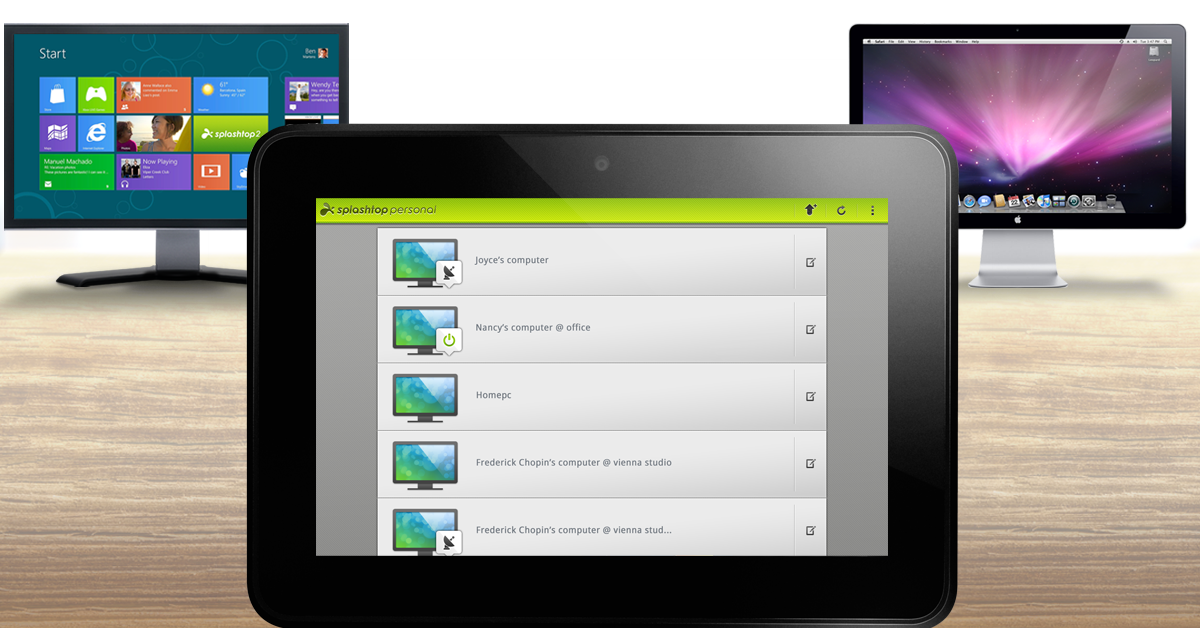
Sidecar and Universal Control are excellent features to use your iPad as a second screen for your computer, but the only catch is that they only work on Apple devices. If you own a Windows PC or laptop, you will have to rely on third-party apps for the same task. Duet Display, Splashtop, and iDisplay are some of our favourite apps to bridge the Apple and Windows divide. These apps cut down the latency issues to a minimum, offering seamless connectivity between the two devices.Once you have installed the iPad app and desktop agent, you need to connect the two devices to a common WiFi network. You can also choose to connect the iPad and your Windows PC/laptop using a USB cable. Your PC will automatically pop up in the display app installed on your iPad. Tap on it to connect the two devices.
Frequently Asked Questions (FAQs)
Can I wirelessly use my iPad as a second monitor or display for my Mac?
Yes, Apple’s ‘Sidecar’ feature allows you to extend your Mac’s display to your iPad. On your Mac, go to System Preferences>Display>Plus icon and select your iPad. From the Sidecar options, select that you want to use your iPad as a second display.
How do I control my iPad with my MacBook’s keyboard and trackpad?
To drag and drop files between your Mac and iPad, you will need to turn on Universal Control. Once that’s done, you can freely control both devices with a common mouse, trackpad, and keyboard and even transfer files by simply dragging and dropping them.
How do I use my iPad as a second display for my Windows PC?
This is how you can use your iPad as a second monitor or display for your Mac or Windows PC. Sidecar and Universal Control are great options for digital artists and graphic designers who prefer using an Apple Pencil for their drawings but also want a bigger display. By connecting your iPad and Mac, you can have the best of both worlds. Read this article to find out how you can use your Android tablet as a second display.



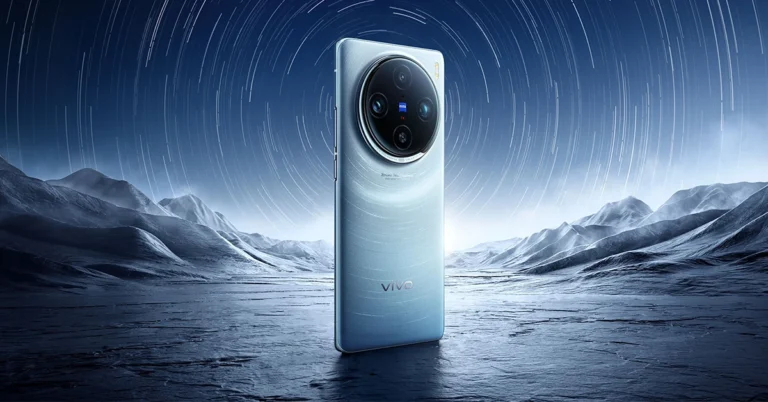
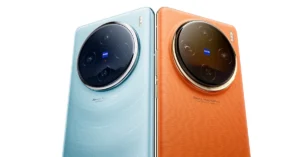
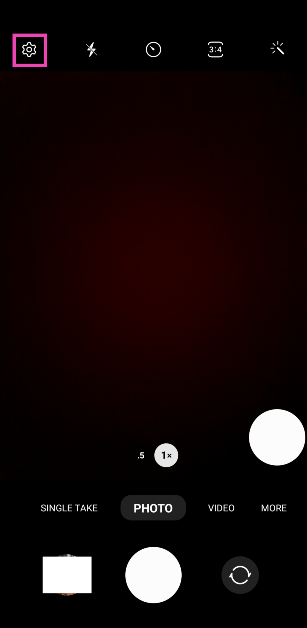 Step 3:
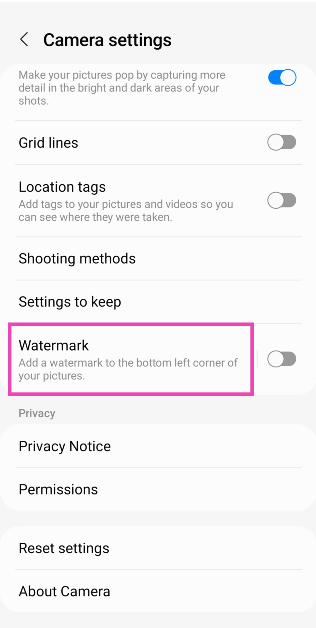 Step 4:
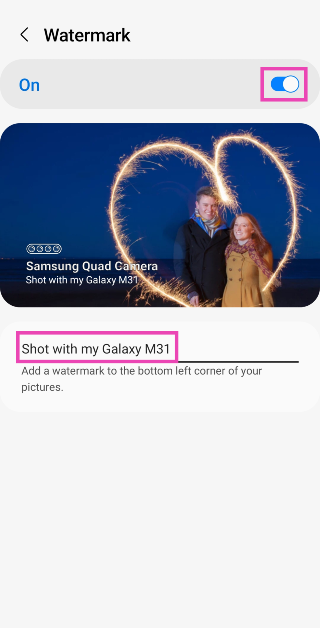 Step 5:
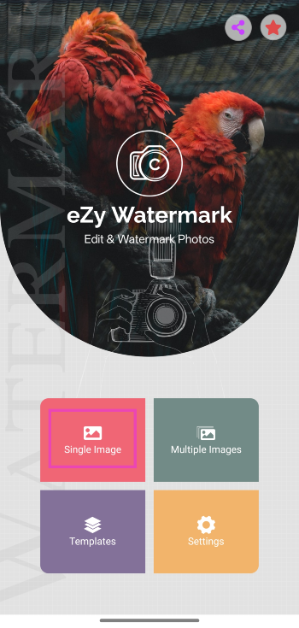 Step 3: Tap on Library to import an image from your phone’s gallery. You can also import pictures from Instagram, Facebook, Google Drive, and more.
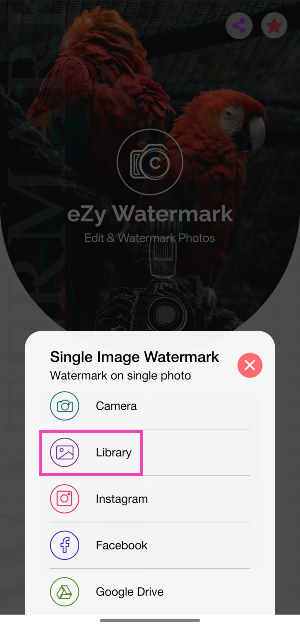 Step 4: Hit the arrow icon in the bottom right corner of the screen.
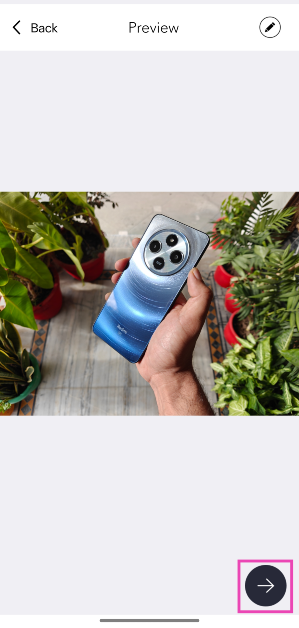 Step 5: Select the kind of watermark you want to add to the image. For this example, we’ve chosen Text.
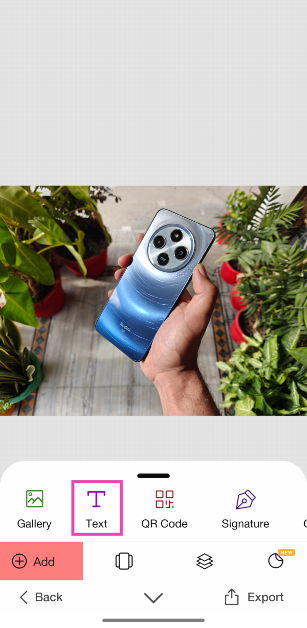 Step 6: Hit the Tt icon in the sidebar and type the word(s) you want on the watermark. Use the sidebar options to change its font, size, opacity, colour, and more. Drag the watermark on the image to change to change its position. Hit the tick icon when you’re done.
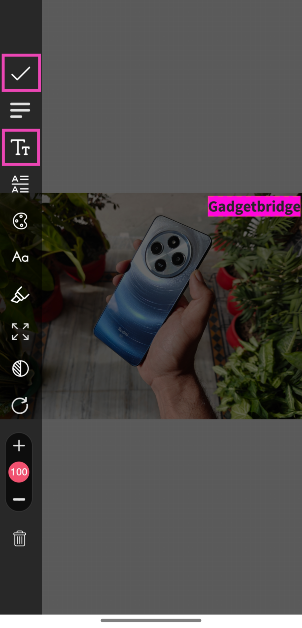 Step 7: Hit Export and select Gallery. Give eZy Watermark Photos Lite permission to access your phone’s gallery.
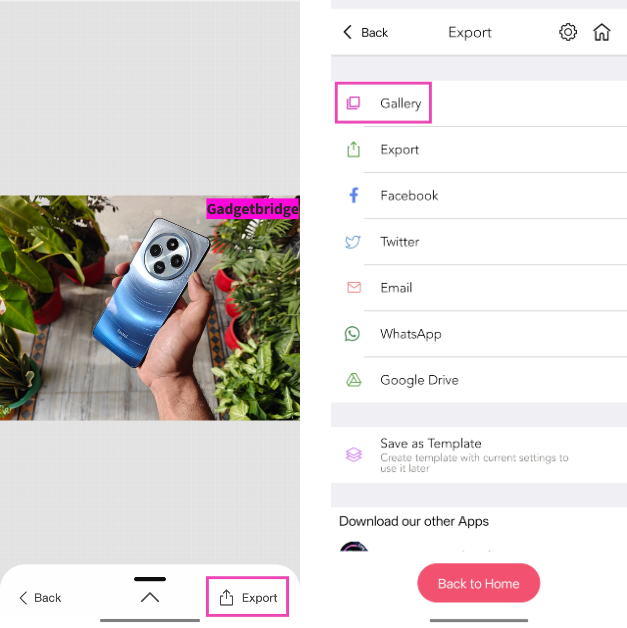
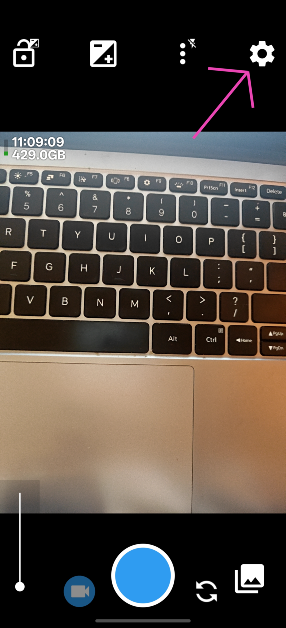 Step 3: Tap on Photo settings.
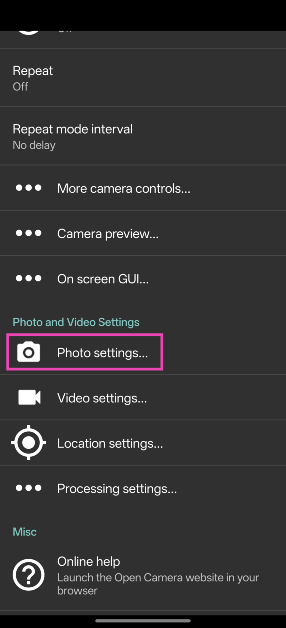 Step 4: Scroll down and tap on Custom text.
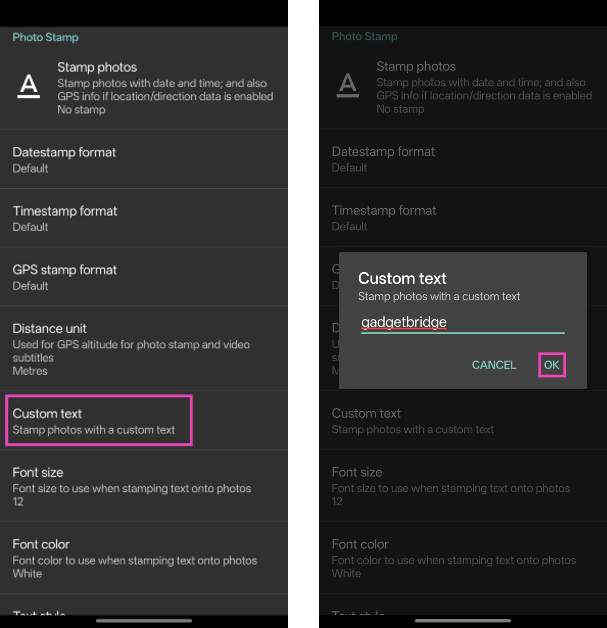 Step 5: Enter the text for the watermark. You can also change the font size, colour, and style.
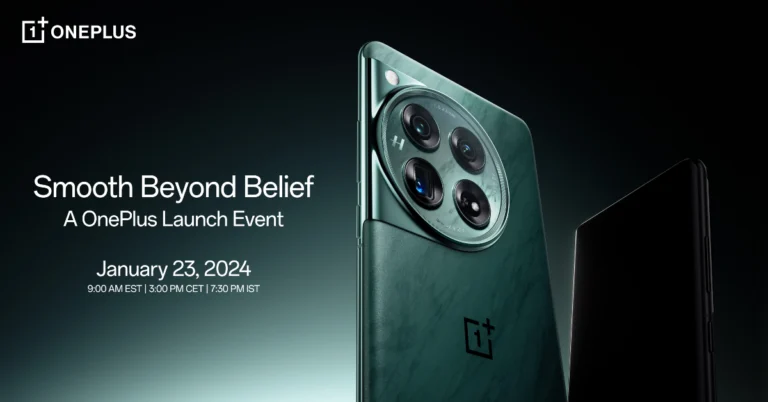

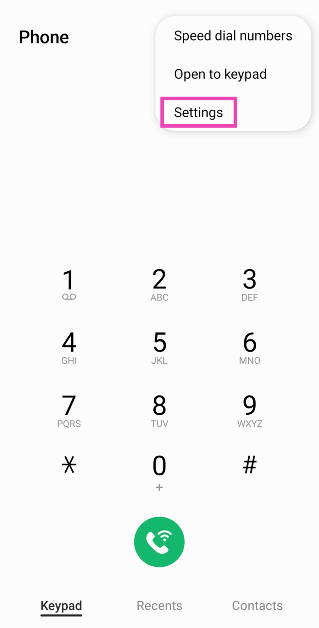 Step 3:
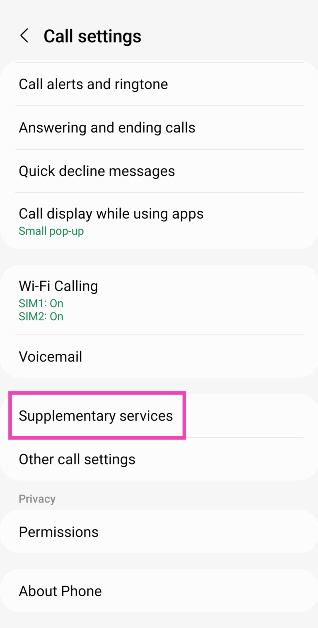 Step 4:
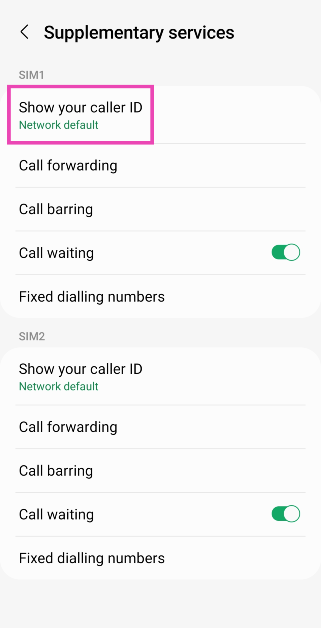 Step 5:
 Step 1: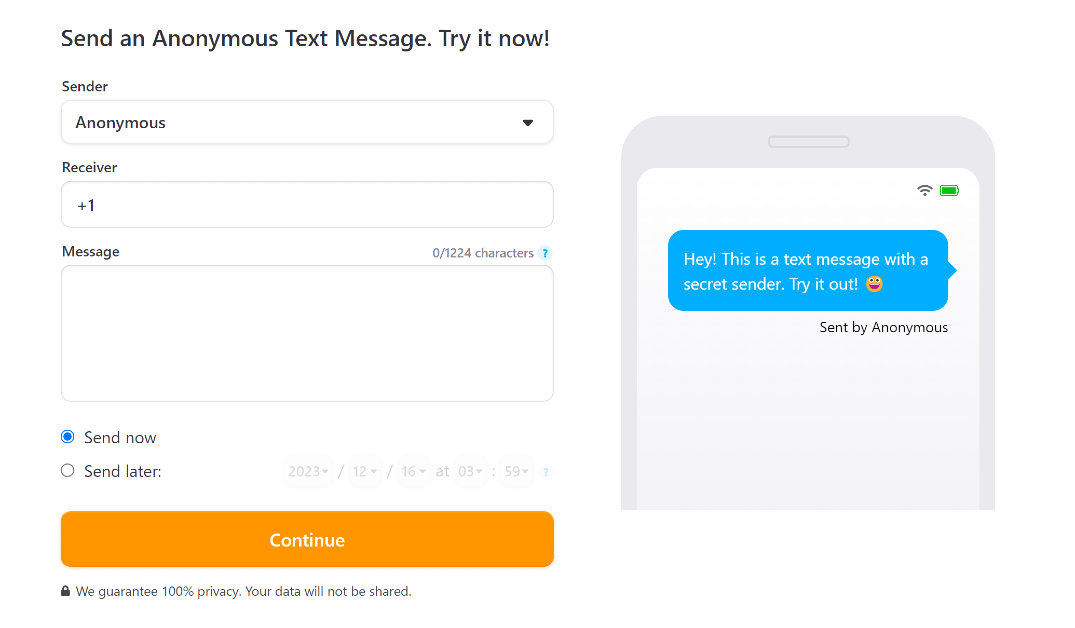
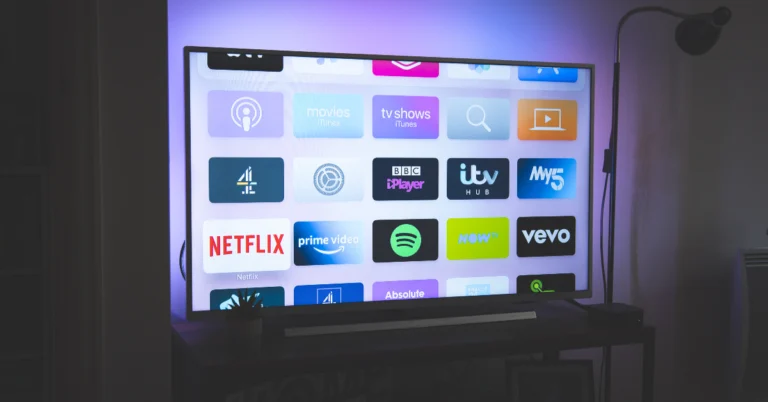



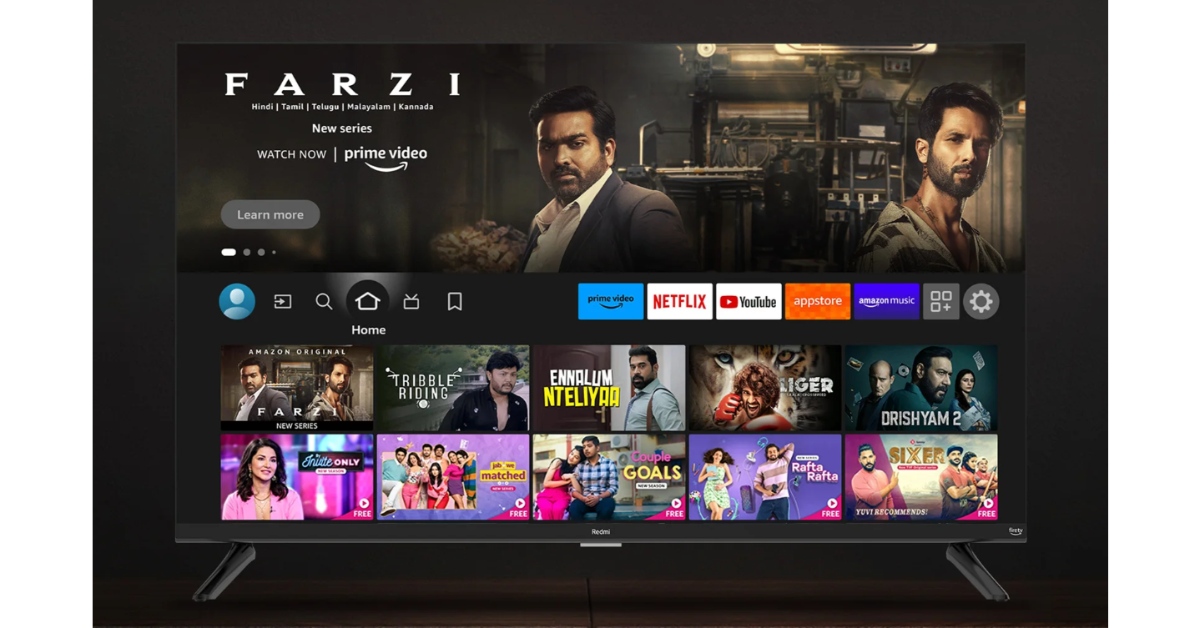
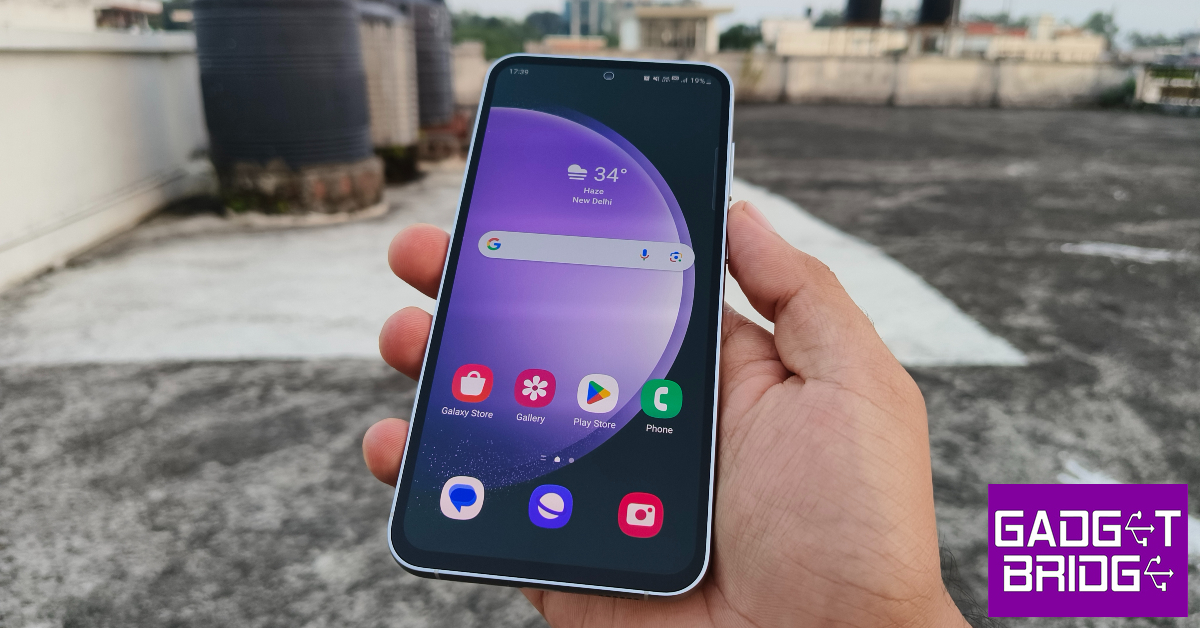

 Step 1: Go to Settings and select All Settings.
Step 2: Click on Device Care.
Step 3: Switch to the Self Diagnosis tab.
Step 4: Click on Reset Smart Hub.
Step 5: Enter your TV’s PIN.
Step 1: Go to Settings and select All Settings.
Step 2: Click on Device Care.
Step 3: Switch to the Self Diagnosis tab.
Step 4: Click on Reset Smart Hub.
Step 5: Enter your TV’s PIN.
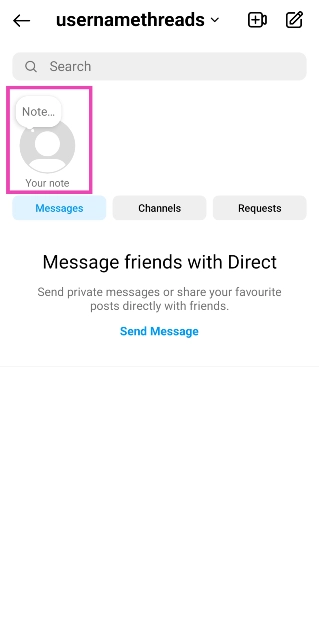 Step 4:
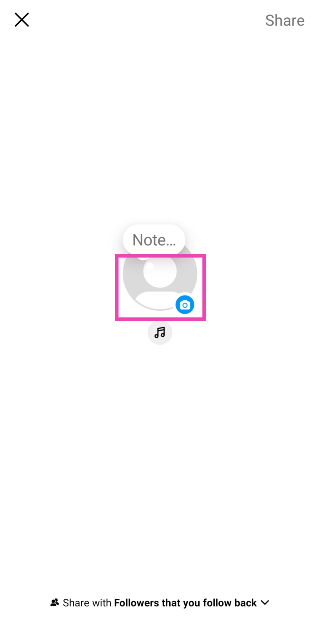 Step 5:
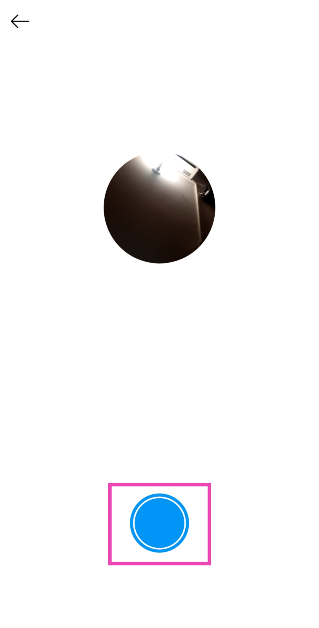 Step 7:
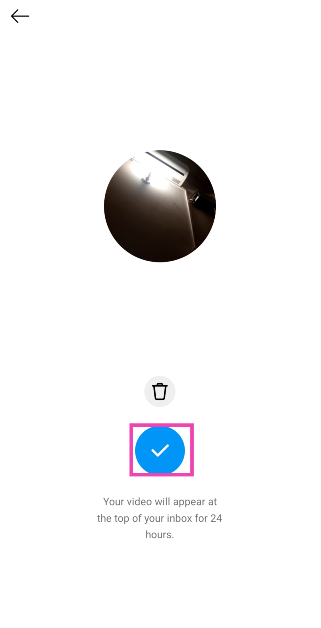 Step 8:
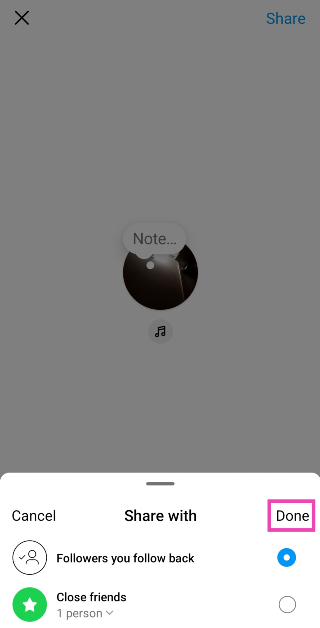 Step 9: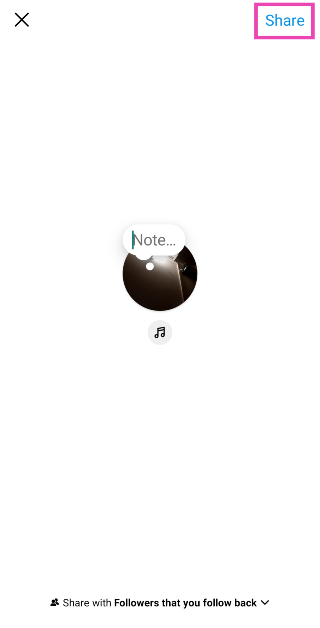

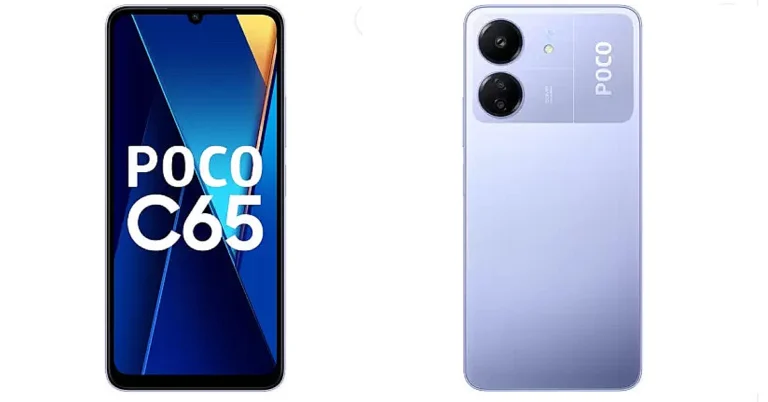
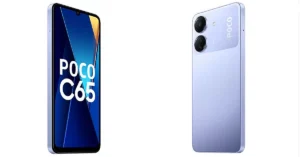
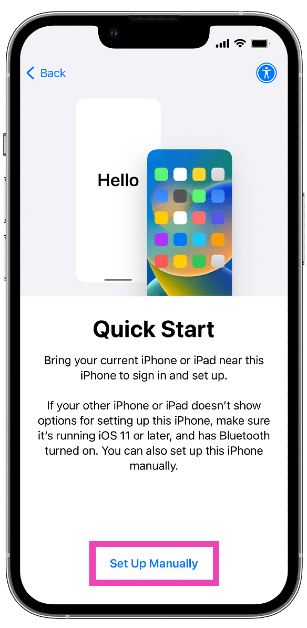 Step 2:
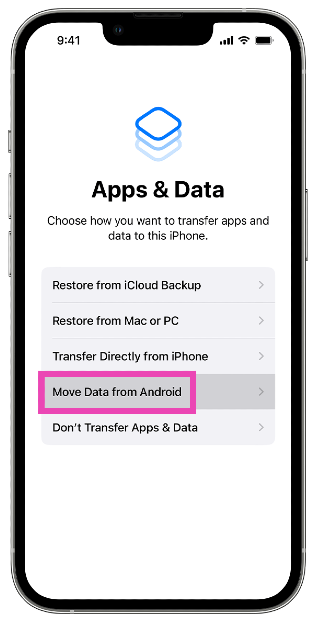 Step 3: Install
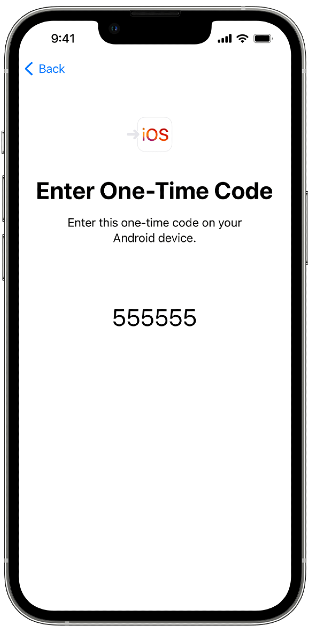 Step 6: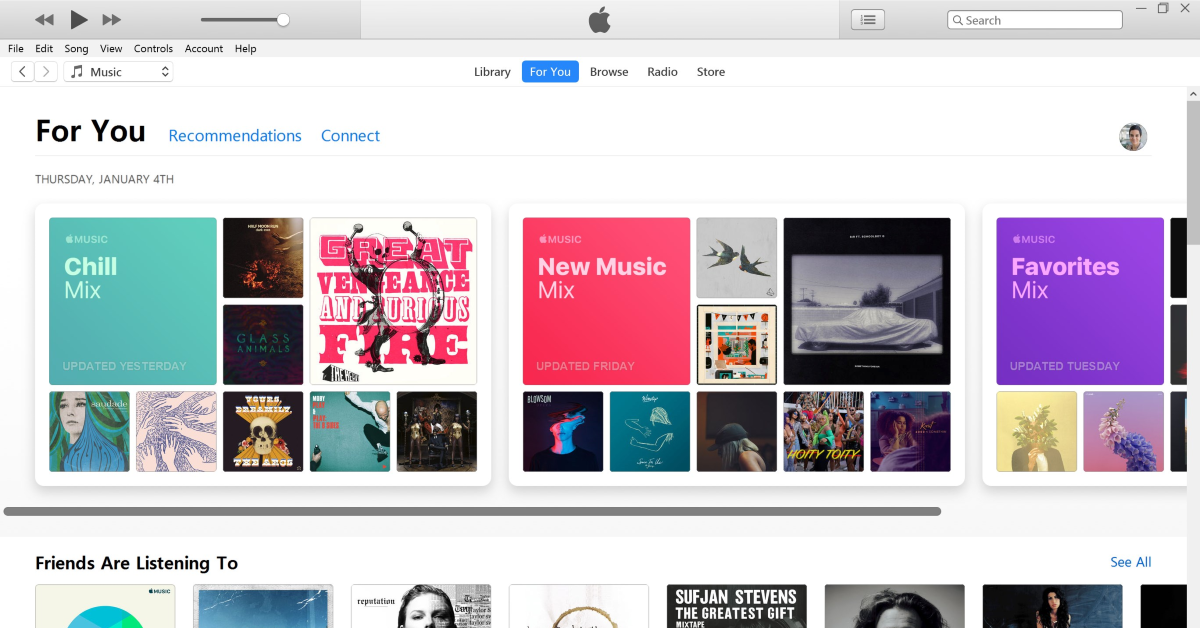

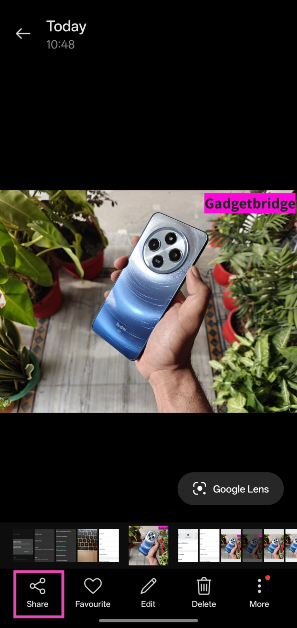 Step 3: Tap on Share with iPhone.
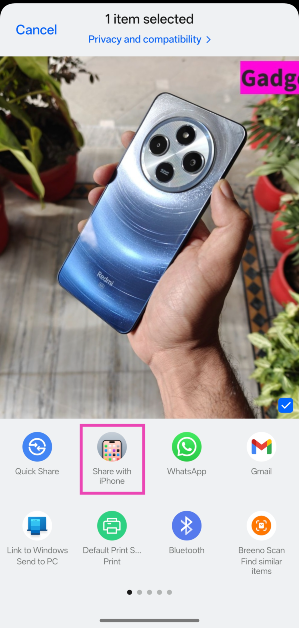 Step 4: Your smartphone will search for iPhones near you.
Step 5: Launch the
Step 4: Your smartphone will search for iPhones near you.
Step 5: Launch the 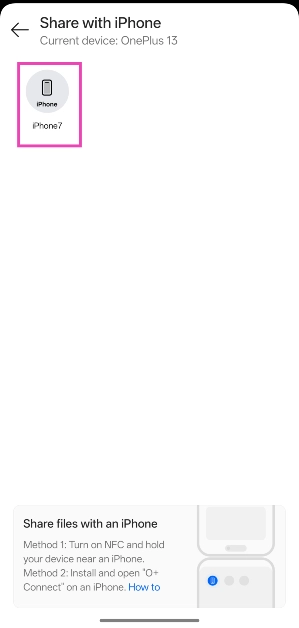 Step 7: Accept the transfer request on your iPhone.
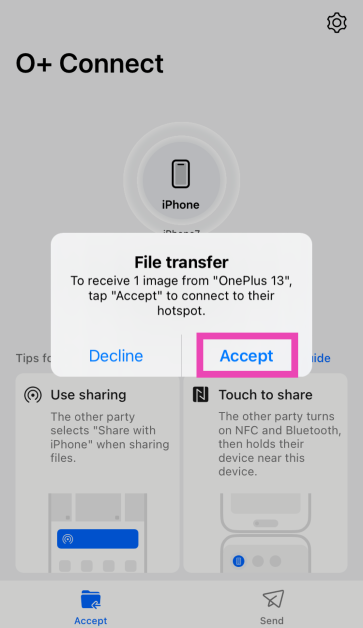 Step 8: Your iPhone will connect to your OnePlus/Oppo smartphone’s WiFi hotspot. Once that’s done, the transfer will be completed.
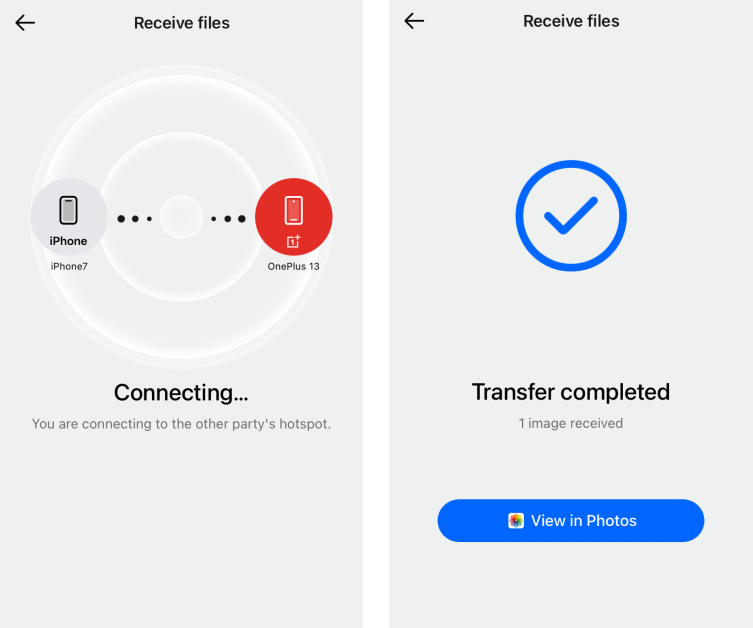

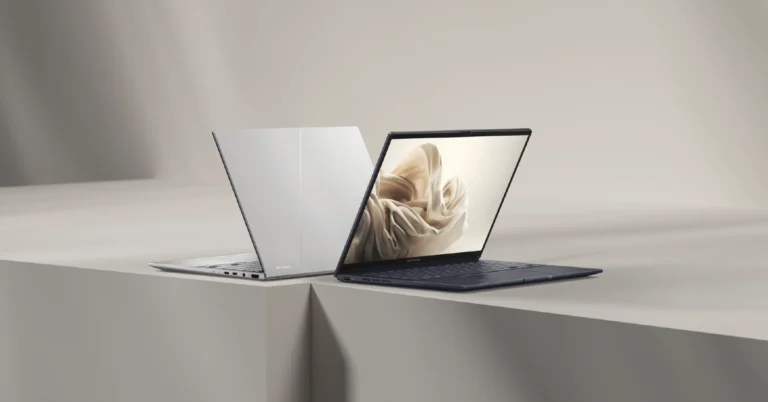
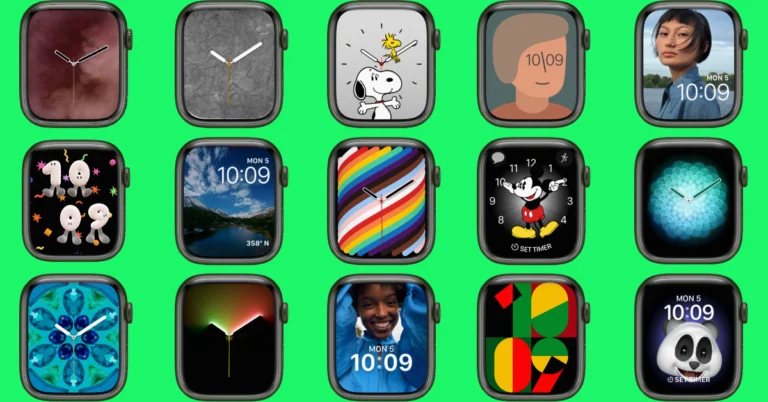
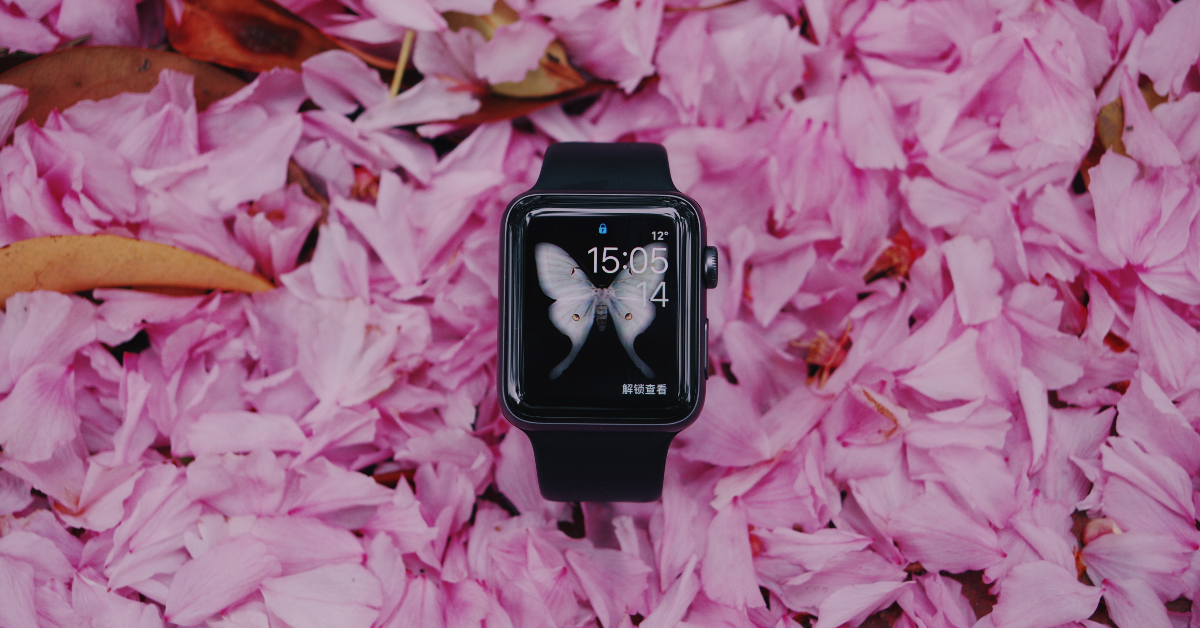 Step 1:
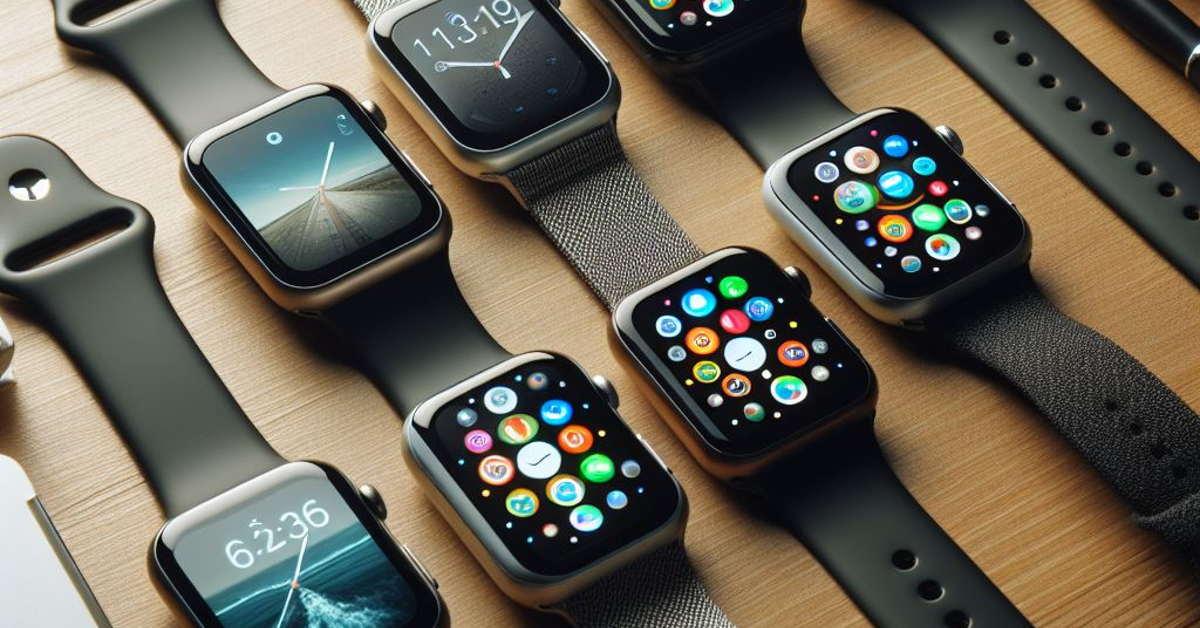 Step 1: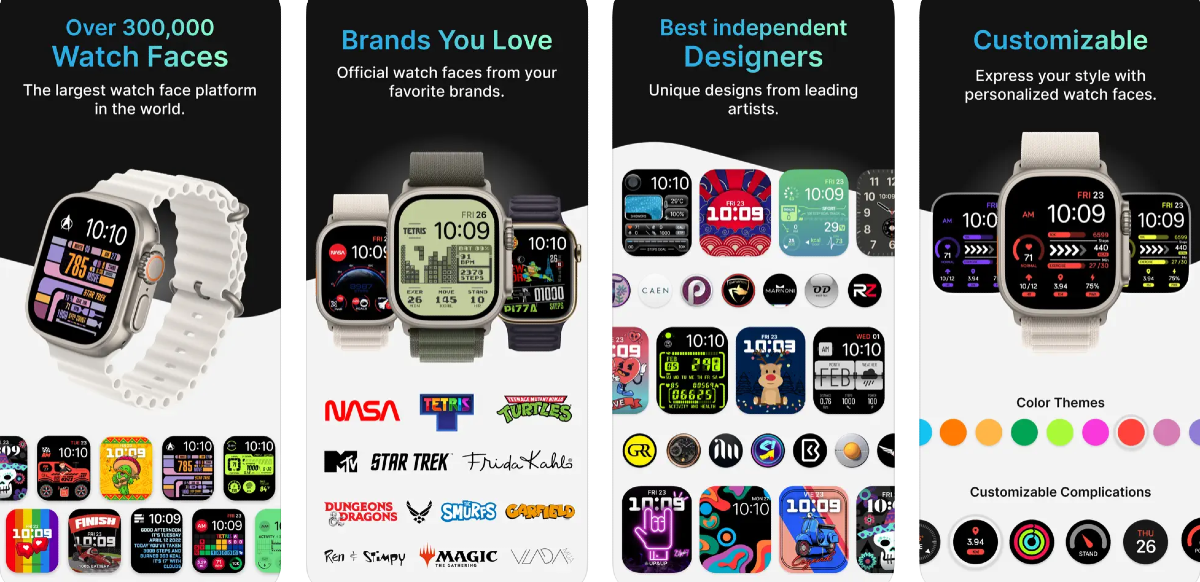

 Step 1: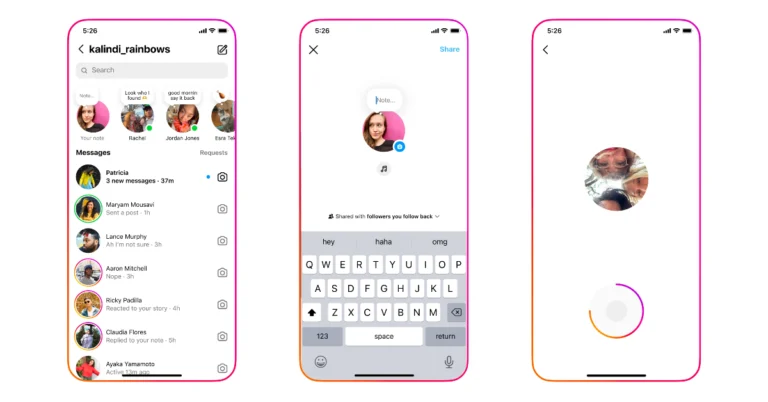




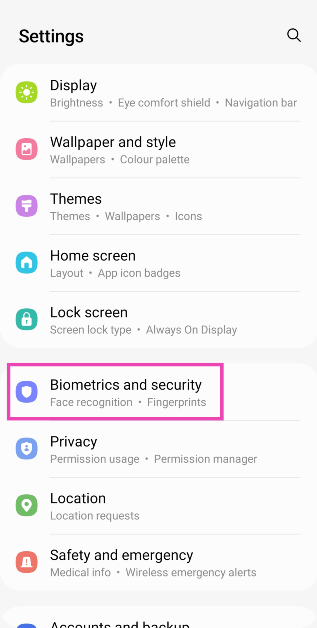 Step 2:
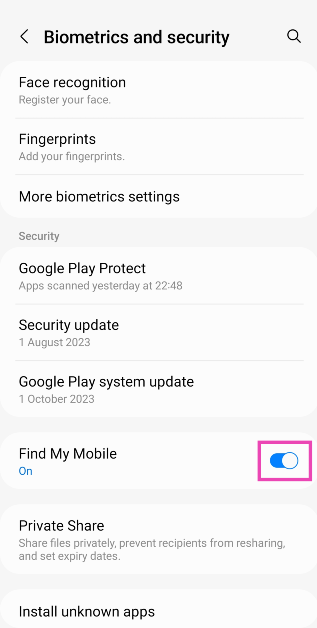 On your PC
Step 1:
On your PC
Step 1: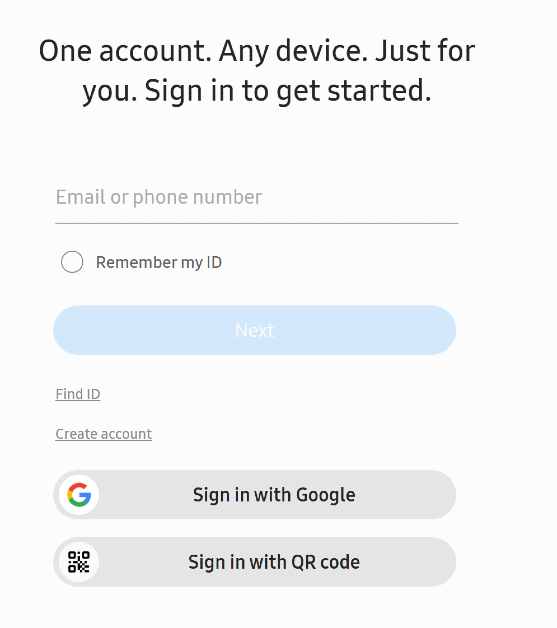 Step 2: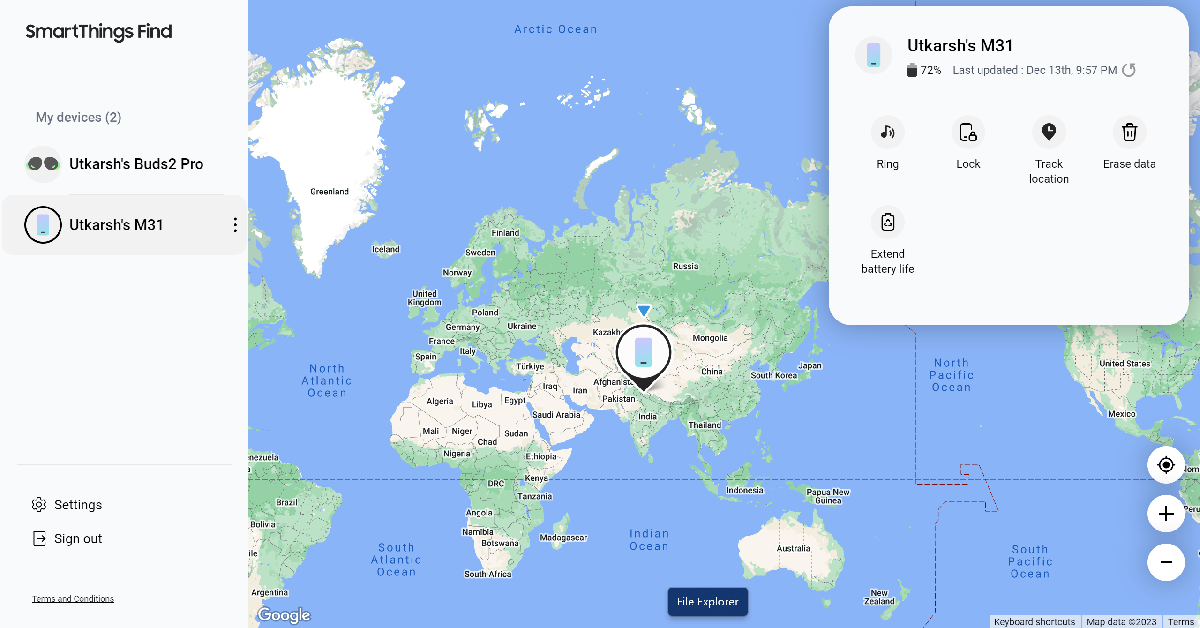
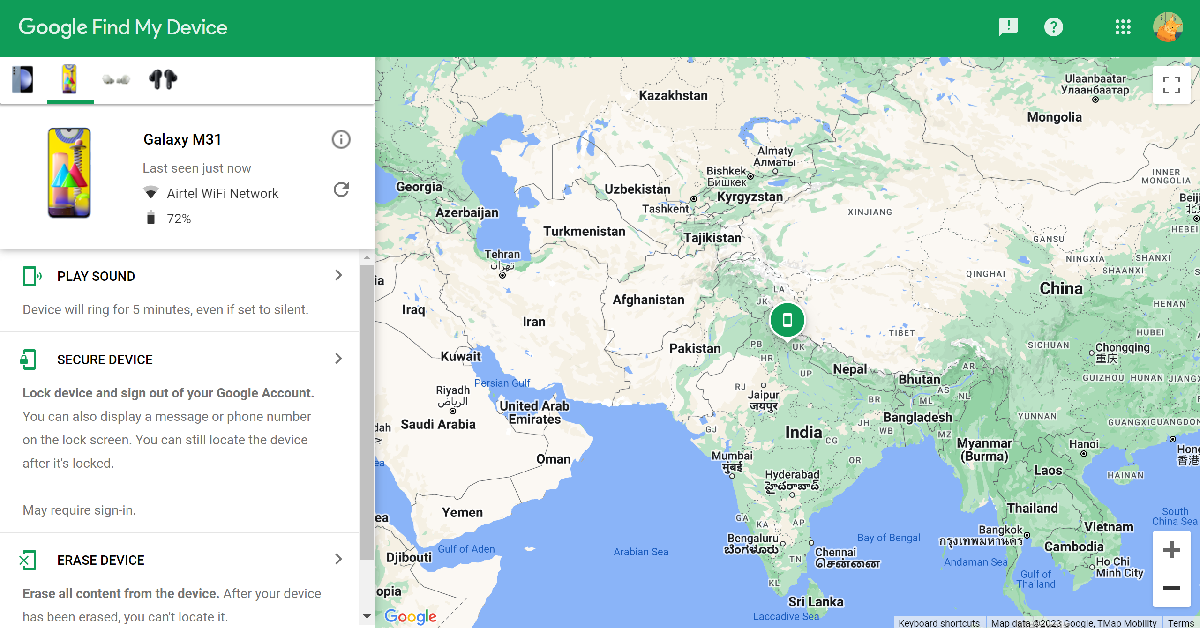
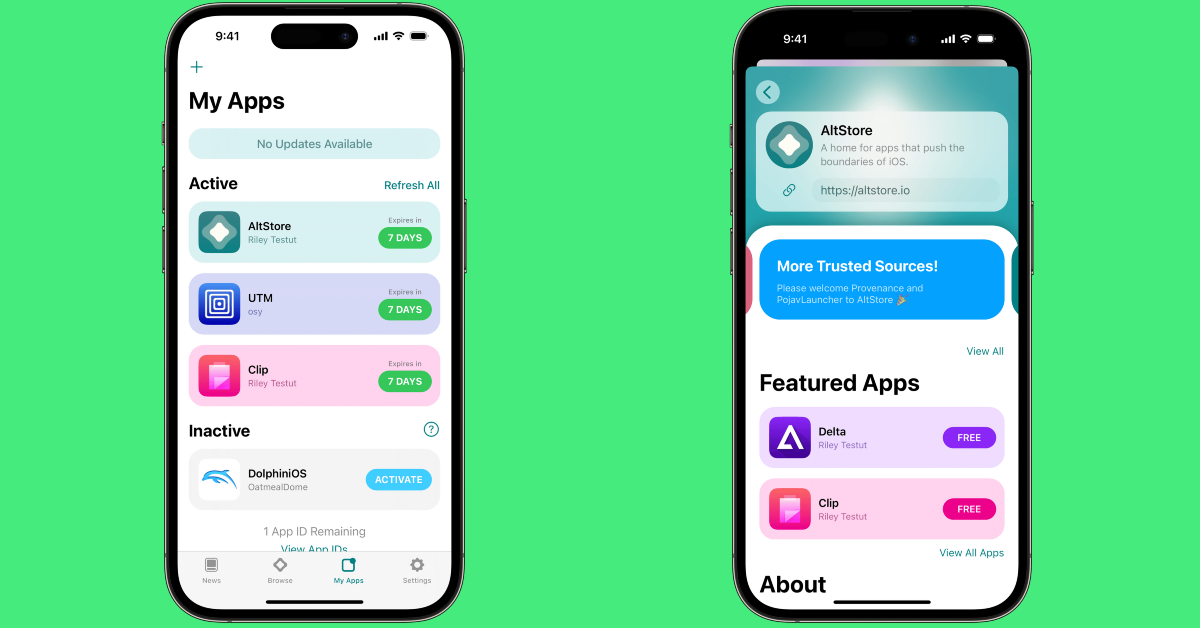
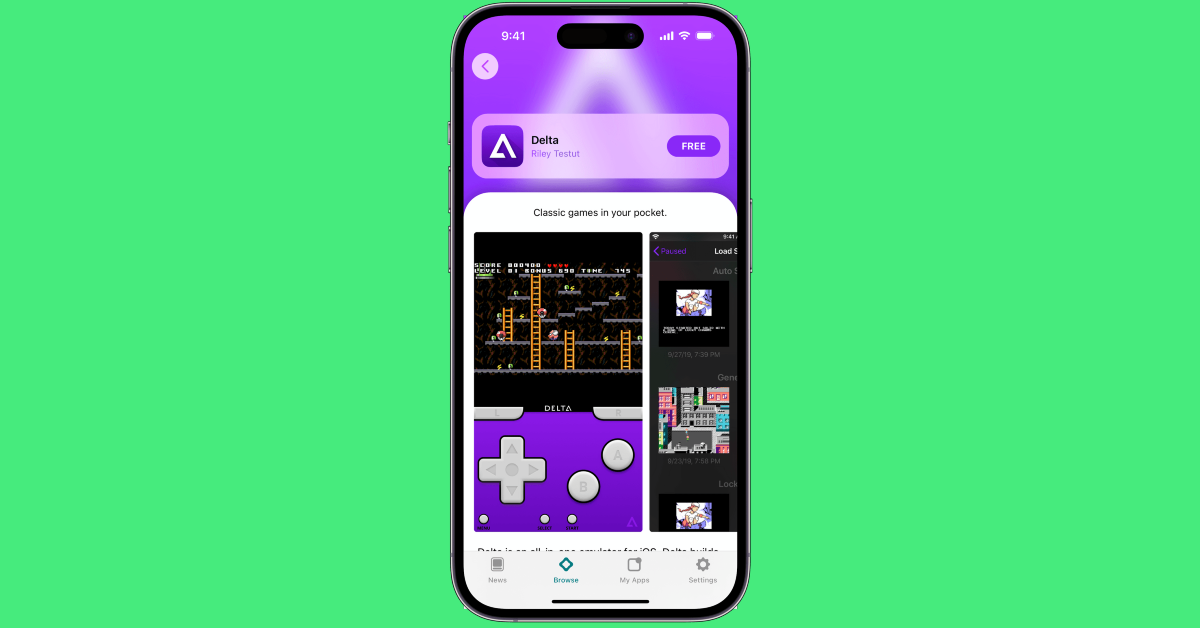

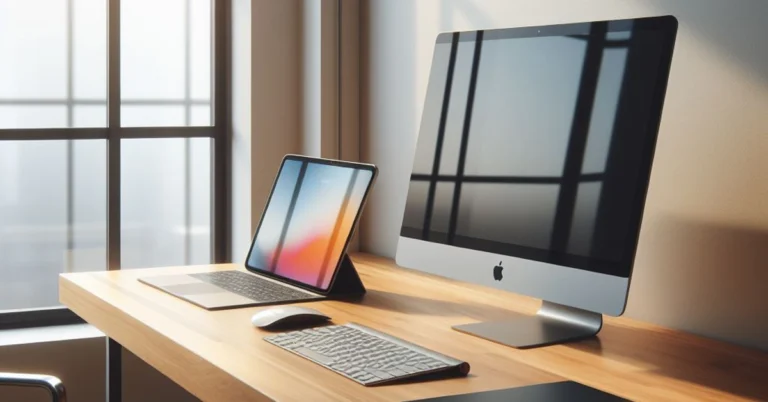
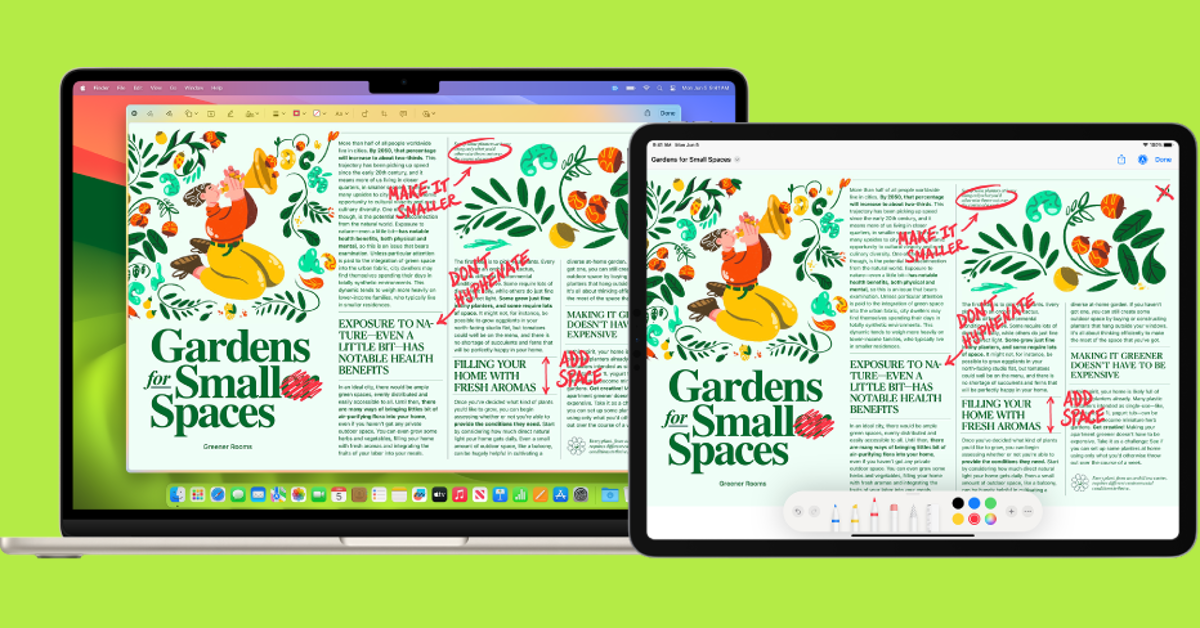
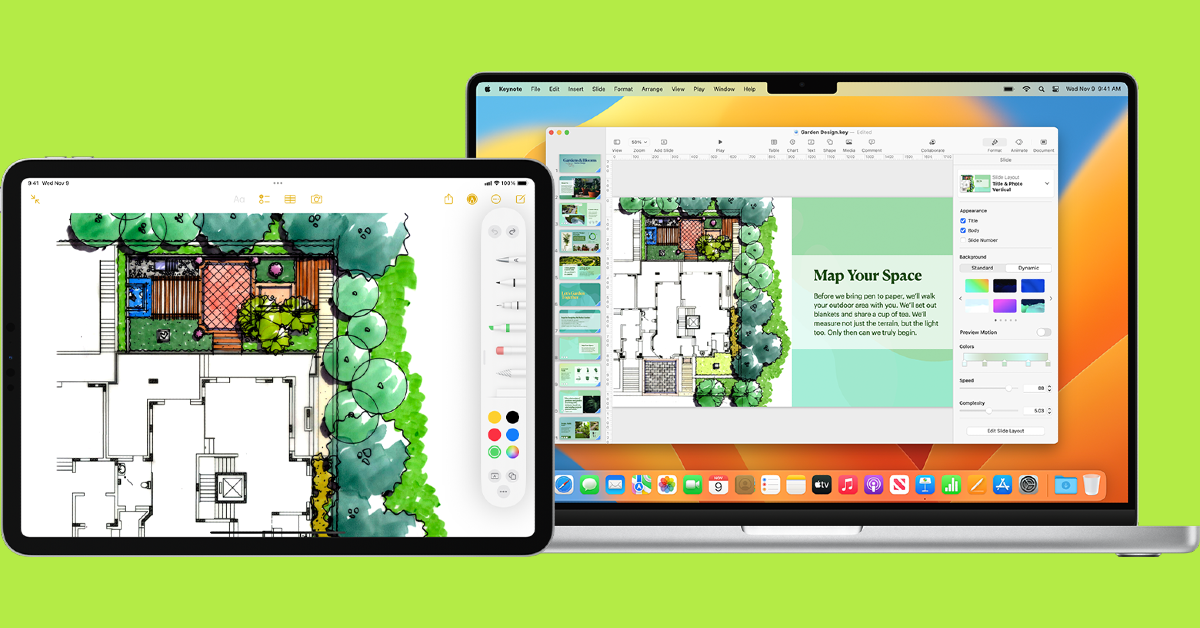 Step 1: