Your Google Account is the key that unlocks all the services and features on your smartphone. If you need to download an app, you will need a Google Account to sign into the Play Store. Want to create a backup on Google Drive? Your Google Account will come in handy again. Since your account is linked to so many services, it becomes vital to safeguard it with security measures like passkeys and two-factor authentication. But what happens when your device gets lost or stolen? Singing out of the account is your only option. So, here are the top 3 ways to remotely log out of your Google Account on an Android phone.Read Also:Itel A05s with 4,000mAh battery launched in India
Remotely log out of your Google Account on your Android phone using Google’s Security Page
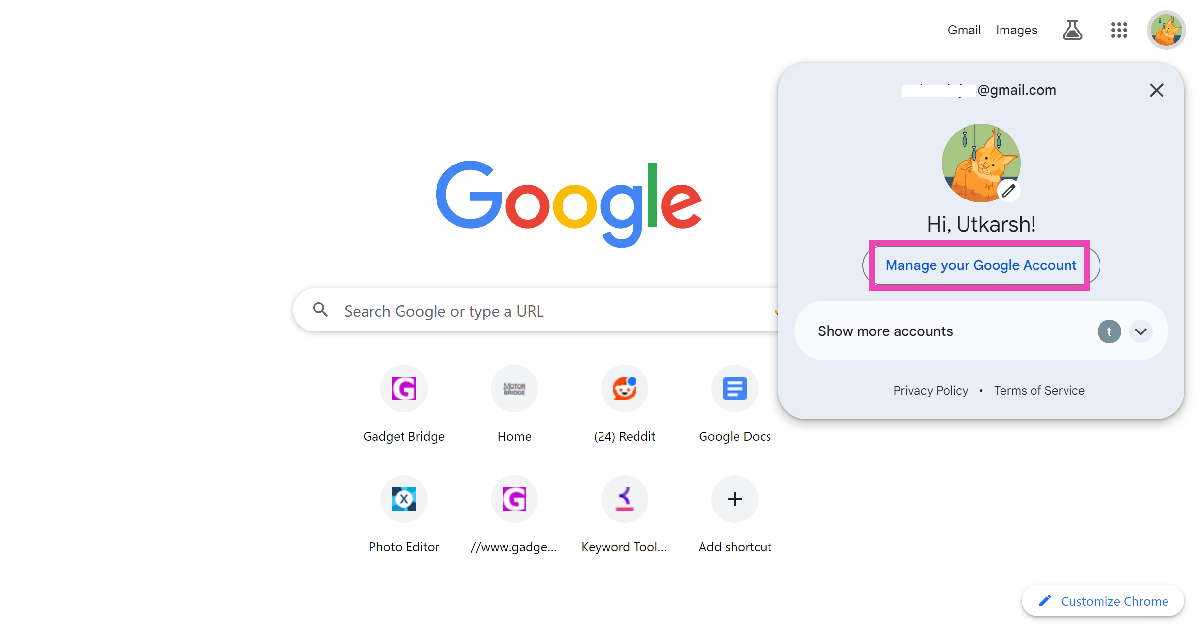
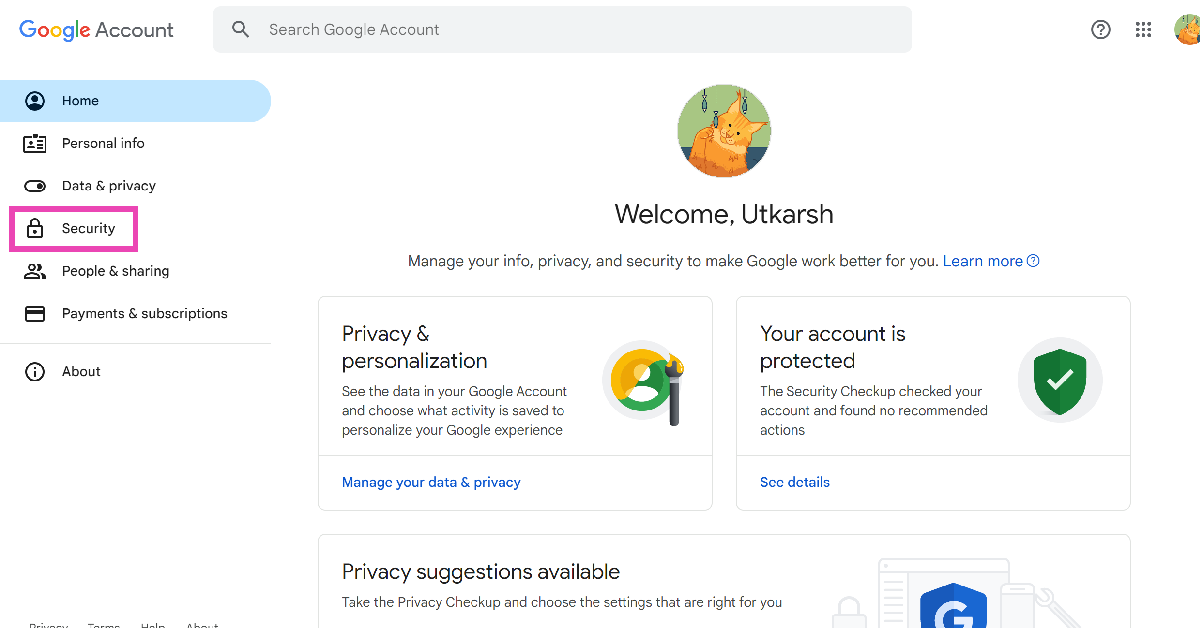
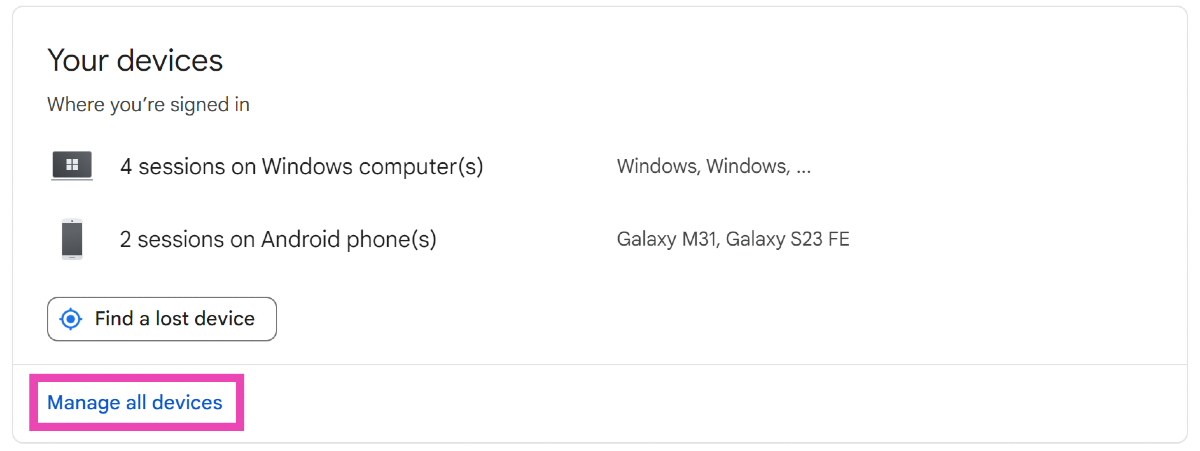
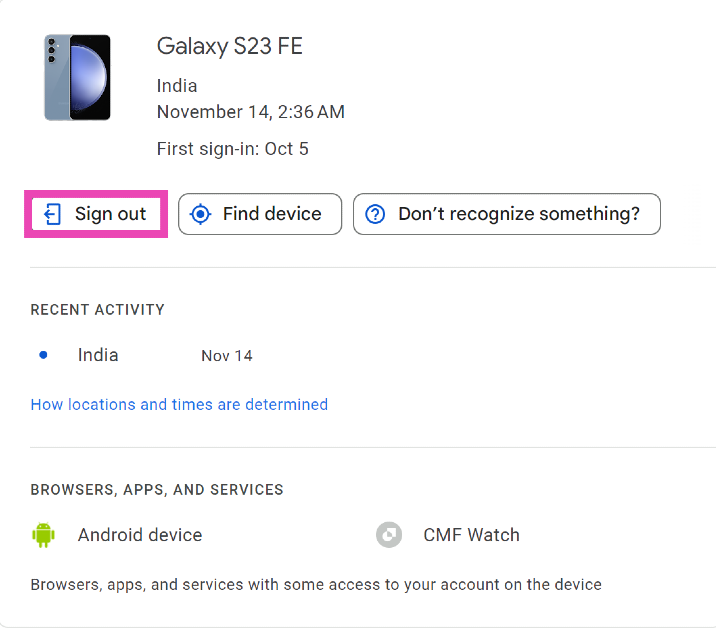
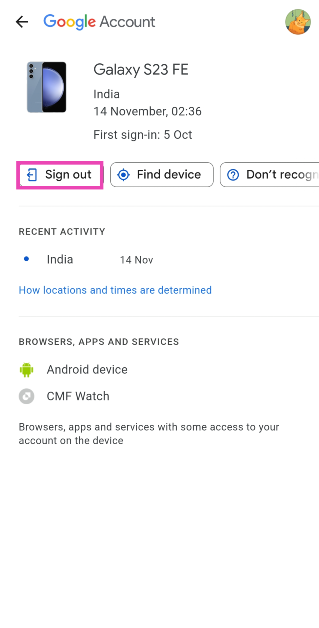
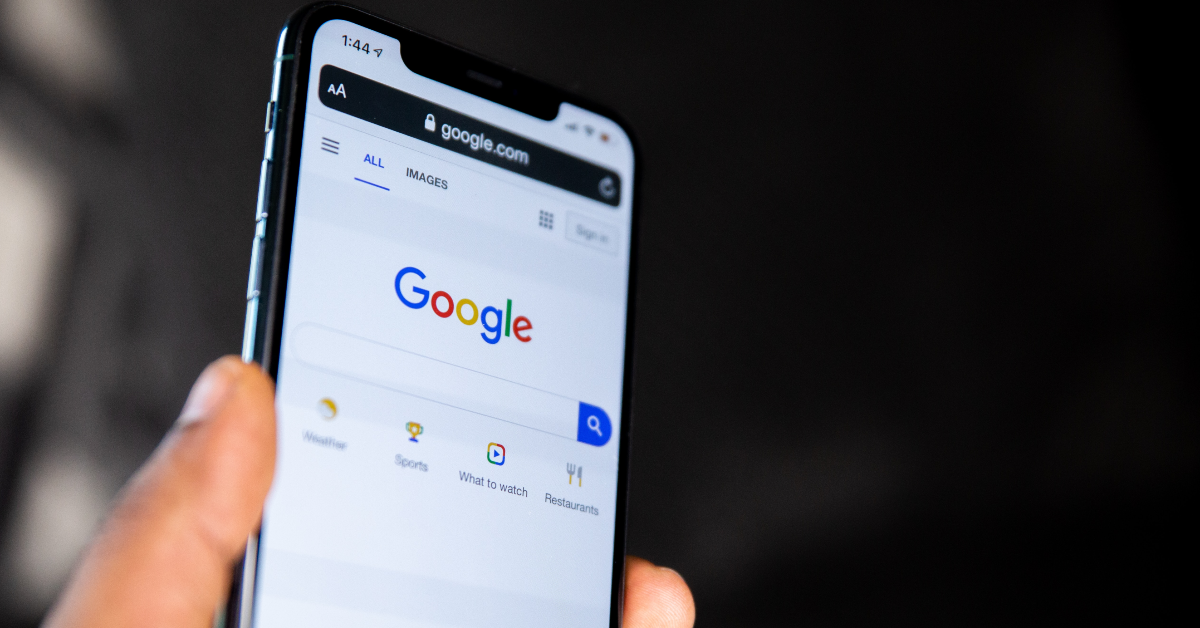
Step 1: On your PC, go to Google’s home page and click your profile picture at the top right corner of the screen.Step 2: Select Manage Your Google Account.Step 3: Switch to the Security tab.Step 4: Scroll down and select Manage all devices under Your devices.Step 5: Scroll down and select the Android phone.Step 6: Click on Sign Out.
Use Find My Device
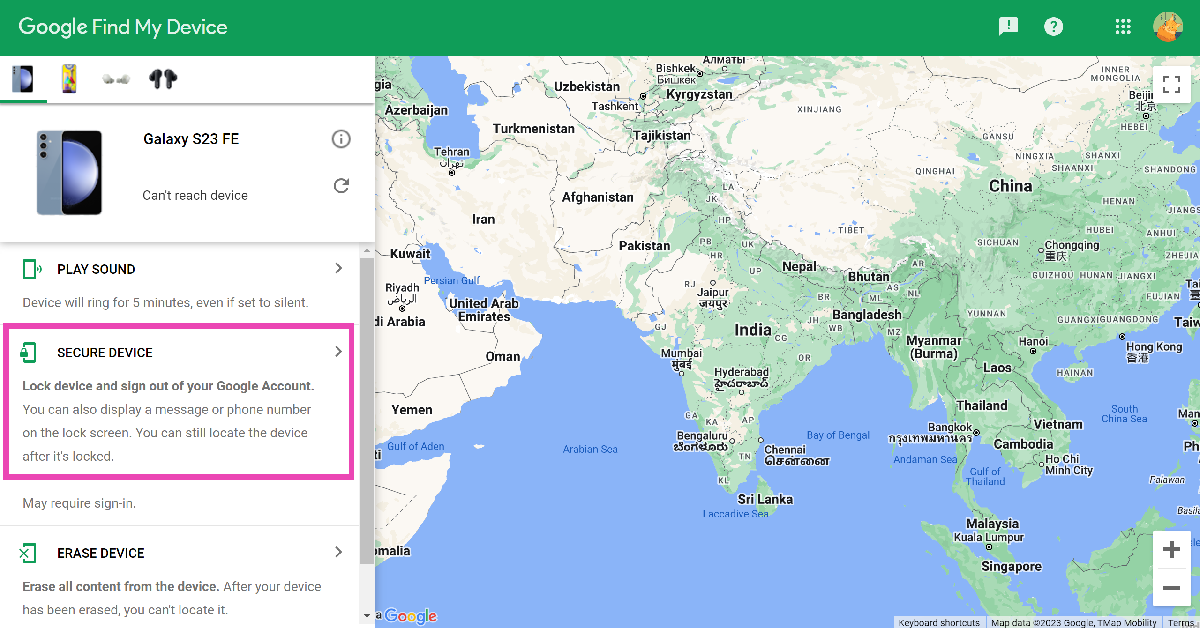
Find My Device is Google’s service for tracking down lost or stolen smartphones. You can also use it to log out of your phone and clear all the data on it. Here’s how.Step 1: Go to the Find My Device page and log in using your Google account.Step 2: Select the Android phone from the side menu.Step 3: Hit Secure Device to log out of your Google Account on the Android phone.
Remotely log out of your Google Account on your Android phone using another phone
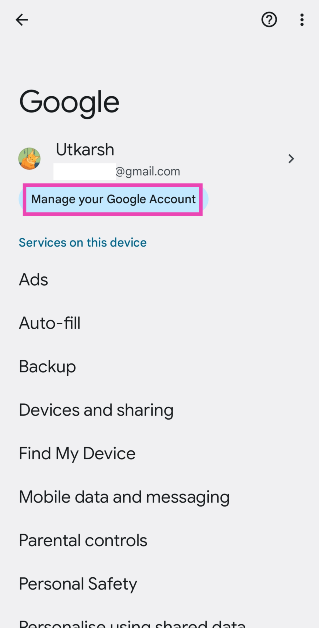
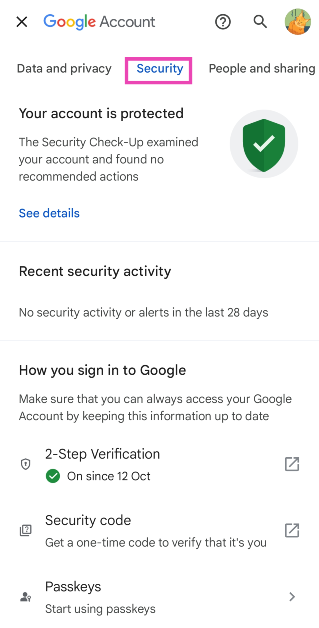
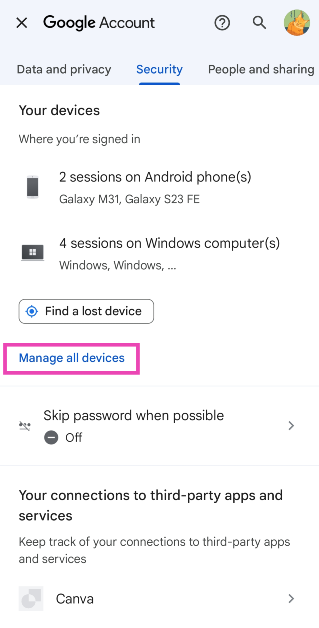
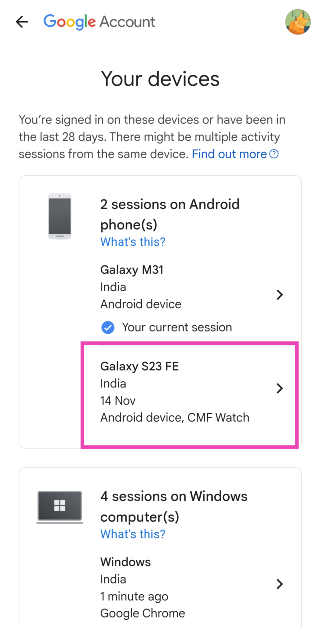
If you are signed into two Android phones with the same Google account, you can use one device to sign out of your account on the other. Here’s how.Step 1: Go to Settings and select Google.Step 2: Tap on Manage your Google Account.Step 3: Switch to the Security tab.Step 4: Scroll down and select Manage all devices.Step 5: Tap on the Android phone from which you want to log out.Step 6: Hit Sign Out.
Lost your smartphone? Here’s what you should do after remotely logging out of your Google Account
Now that you have signed out of your Google Account on your Android phone, there are a couple more things you should do to secure your device. Apart from offering a remote sign-out option, Google’s Find My Device service also lets you erase all the data from your phone. If you regularly back up the data on your device, you should certainly use this option. If you don’t expect to retrieve your device, erasing your data on it is the perfect way to ensure it doesn’t fall into malicious hands.If your banking info is saved in your phone, there are a bunch of things you can do to ensure no malicious activity takes place on your account. First, call your bank and request them to disable all your cards. Next, call your network provider and ask them to put a hold on communications to your number. Your bank OTPs will not be able to reach your number once the network reception has been shut down.Lastly, go to your local police station and file a report for your missing phone. You can also request them to track your phone using its IMEI number. In some cases, you may have to file a police report first, because some network providers may require it in order to shut down the services to your phone.
Frequently Asked Questions (FAQs)
How do I sign out of my Android phone if it gets stolen?
If your phone gets stolen, log into your Google account on your PC, click your profile picture and select Manage your Google Account. Then, go to Security>Manage all devices and sign out of your Android phone.
How do I track my Android phone if it gets stolen?
If your Android phone gets lost or stolen, go to Google’s Find My Device page and sign into your account to track your device. You will be able to see its live location as long as it is turned on and has access to the Internet. In case it shuts down or loses Internet access, you will be able to see its last recorded location.
How do I remotely log out of my Google Account on my Android phone?
If you want to sign out of your Google Account on your Android phone, go to Settings>Accounts and backup>Manage accounts, select your Google account, and hit Remove.Read Also:Best ways to find your Apple ID on iPhone, iPad or Mac
Conclusion
These are the top 3 ways to remotely log out of your Google Account on your Android phone. To bump up the security of your Android device, use passkeys and two-factor authentication for all your personal and financial apps. If you know any other way to remotely log out of your Google account, let us know in the comments!
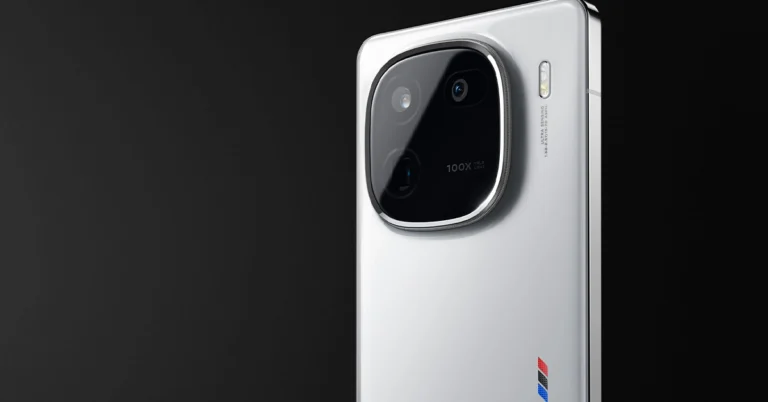
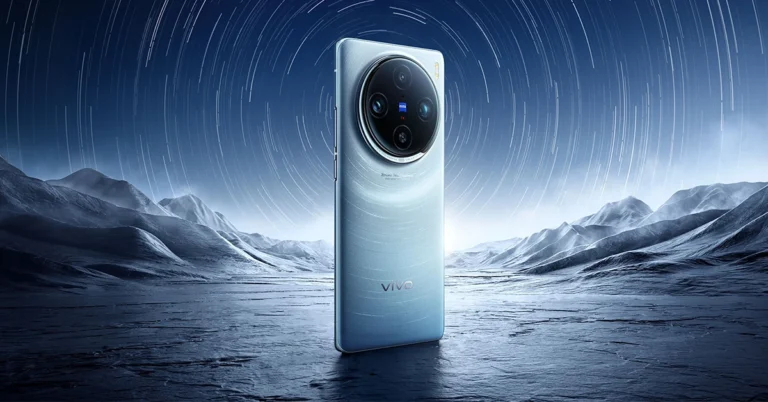
The Vivo X-series models Vivo X100 and Vivo X100 Pro.
The devices are powered by MediaTek Dimensity 9300 SoC.
Additionally, the devices support up to 120W fast charging.
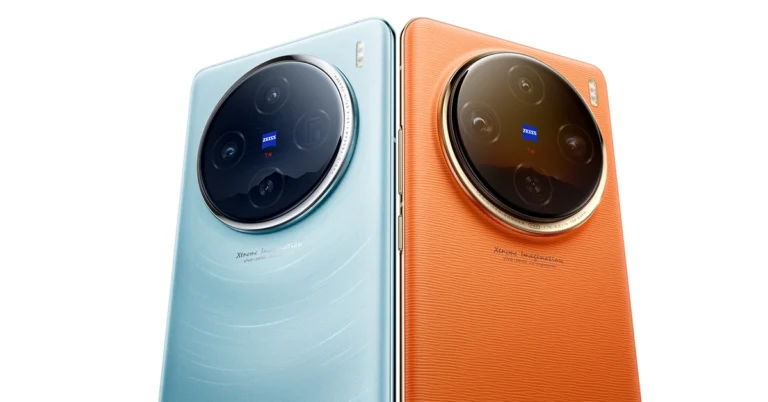
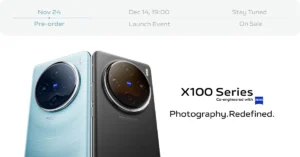
Vivo has already confirmed the global launch of the Vivo 100X series for this month. But according to reports the upcoming smartphone series is likely to launch in India a little late. The lineup will bring two devices Vivo X100 and Vivo X100 Pro both featuring Zeiss optics. The devices are powered by MediaTek Dimensity 9300 SoC and run on OriginOS 4 with Android 14.Most of the smartphone brands have scheduled their flagship launches for the new year. Similarly, Vivo is also expected to launch its next flagship series in India next month. As per a report, the company will release Vivo X100 Series in India in January 2024. Note that both Vivo X100 and X100 Pro were spotted listed on the Bluetooth SIG website. The global debut of the handsets is set for December 14.The reason for the delay in launch is that the upcoming series will be India exclusive in which special photography features will be given keeping in mind the Indian market. Both Vivo phones are said to include a feature that captures the radiance of sunlight during sunset and rise. The phones are expected to use an algorithm that helps in capturing the depth and colour accuracy of the sunrise and sunset, instead of AI.Also Read:Samsung Galaxy S22 is now available for as low as Rs 39,999Vivo X100 Series launched in China in November and the pricing at which it arrived starts at CNY 3,999 (Rs 50,000) and goes up to CNY 5,999 (Rs 68,000). There are four models for Vivo 100 Pro whereas the X100 is made available in five variants with up to 16GB LPDDR5T RAM + 1TB storage.
Vivo X100 Series specifications
Both the display, software and processors are the same on the Vivo X100 and Vivo X100 Pro. They feature a 6.78-inch AMOLED 8T LTPO curved display with a 120Hz refresh rate and 3000 nits of peak brightness. The devices run on OriginOS 4 with Android 14 out of the box. They are powered by MediaTek Dimensity 9300 SoC with Vivo V3 chip.Both the handsets are highlighted with a triple-camera setup powered by Zeiss optics.Vivo X100 Pro includes a 50-megapixel Sony IMX989 1-inch type sensor with OIS (100x digital zoom), a 50-megapixel ultra wide-angle sensor and a 50-megapixel Zeiss APO super-telephoto lens with OIS (4.3x optical zoom and 100x digital zoom).On the other hand, the vanilla model includes a Sony IMX920 VCS bionic 50-megapixel primary sensor with OIS, a 50-megapixel ultra-wide-angle lens and a 64-megapixel Zeiss super-telephoto lens (100x clear zoom).
Garena Free Fire is a battle royale game with regular awards and tournaments to keep players interested. If you play Garena Free Fire, you should be aware of the redeem codes that are released on a daily basis. However, because the battle royale game is banned in India, players from other countries can use the Free Fire Redeem codes daily. If you’re unfamiliar with the Garena Free Fire redeem codes or don’t know how to get them, we’ve put together a step-by-step guide to help you redeem them. Check out Garena Free Fire Redeem Codes for 13 December 2023.The Free Fire redeem codes are a great way to get free stuff. These are 12-digit codes that contain alphabets and numbers, as well as an expiration date and time. Because the Garena FF redeem codes cannot be used more than once, you should hurry to the redemption page to claim your free reward before someone else does. To get a free reward, all you have to do is go to reward.ff.garena.com/en, which is the official redemption page. Also, keep an eye on this space for daily updates on Garena Free Fire redemption codes and rewards.
Garena Free Fire Redeem Codes Today 13 December 2023
You would think that changing the volume of an alarm on your iPhone is an easy task, but that isn’t the case. The option to alter the alarm volume is missing from the ‘Alarm’ tab in the Clock app. This may throw some users for a loop. If you are a heavy sleeper, setting the alarm volume at the highest possible setting must be crucial for you. So, how do you go about this task? Let’s take a look at how you can adjust the volume of an alarm on an iPhone.Read Also:Top 2 Ways to Reset Your Forgotten Apple Watch Passcode
Before you begin, here’s how you can set an alarm on your iPhone
Step 1: Launch the Clock app on your iPhone.Step 2: Hit the plus icon at the top right corner of the screen.Step 3: Swipe up and down on the hour and minutes dials to set the time for the alarm to ring.Step 4: Use the Repeat option to set the days on which you want the alarm to ring.Step 5: Hit Label to name your alarm.Step 6: Tap on Sounds to set an alarm tone.Step 7: Use the toggle switch for Snooze to turn it on for this particular alarm.Step 8: Once you’re done, hit Save at the top right corner of the screen.
Adjust the volume of an alarm on your iPhone
Step 1: Go to Settings.Step 2: Select Sound and Haptics.Step 3: Drag the slider under Ringtone and Alert Volume to change the intensity of the alarm sound. Dragging the slider to the left will decrease the volume while dragging it to the right will increase it. Your iPhone will play a sample tone to give you an idea of the volume at every level.Step 4: Turn on the toggle switch for Change with Buttons to alter the alarm volume using the volume rocker keys.
Can’t hear your alarm sound? Make sure you’ve set the right tone
Step 1: Launch the Clock app on your iPhone.Step 2: Switch to the Alarm tab.Step 3: Tap the Edit option at the top left corner of the screen.Step 4: Select the alarm in question.Step 5: Tap on Sound and select a tone from the list. If you do not have any tone for the alarm, it will vibrate without making any sound.
Frequently Asked Questions (FAQs)
How do I set an alarm on my iPhone?
Open the Clock app on your iPhone, switch to the Alarm tab, and hit the plus icon at the top right corner of the screen to set an alarm.
Where is the option to adjust the volume of an alarm on an iPhone?
If you want to adjust the volume of an alarm on your iPhone, you will need to go to Settings>Sound and Haptics and drag the slider under Ringtone and Alert Volume. If you want to change the volume using the volume rocker keys, turn on the toggle switch for Change with Buttons.
If my iPhone is connected to my AirPods will the alarm ring through my phone?
This is how you can adjust the alarm volume on your iPhone. For ease of access, turn on the ‘Change with Buttons’ option in the Sound and Haptics settings to control the ringer volume with the volume rocker keys. You can also use a third-party alarm app on your iPhone. Do you have a favourite? Let us know in the comments!
Samsung Galaxy S22 was launched in India last year.
The device originally cost Rs 64,999.
Flipkart is providing additional bank discounts on the smartphone.
Flipkart Year End Sale for 2023 is currently on and will run till December 16. During the sale, lots of Android smartphones including iPhones are getting massive discounts. As a part of the sale, the Samsung Galaxy S22 which was introduced in India last year is also seeing a price drop. The e-commerce platform is offering fabulous deals on the purchase of the device.Samsung Galaxy S22 was launched last year with a starting price of Rs 72,999. A few months ago the handset received a massive price cut of Rs 8,000. The price came down to Rs 64,999 for the base variant. But now its price has been lowered again thanks to the Flipkart Year End Sale. The price of the Android phone has been lowered by Rs 33,000. It is now selling for Rs 39,999.The e-commerce platform is also offering an additional Rs 2,000 off of Credit and Debit Card Transactions.
Samsung Galaxy S22 specifications
The Samsung Galaxy S22 (Review) is highlighted with a 6.1-inch full-HD+ Dynamic AMOLED 2X display with an adaptive refresh rate 120Hz refresh rate that can be lowered to 10Hz. The display has been protected with Gorilla Glass Victus+ and an Armor Aluminium chassis. The smartphone runs on Android 12 and One UI 4.1. Under its hoof, there is an octa-core Snapdragon 8 Gen 1 SoC and 8GB of RAM, with up to 256GB of internal storage.The Galaxy S22 features a triple rear camera system for optics. The camera module is equipped with a 50MP main Dual Pixel wide-angle sensor, an f/1.8 aperture, and autofocus. There is also a 12MP ultra-wide-angle camera with an f/2.2 aperture and a 120-degree field of view, as well as a 10MP telephoto lens with an f/2.4 aperture (3x optical zoom and OIS). There is also a 10MP selfie camera with an f/2.2 aperture (80 degrees of FoV).The Galaxy S22 is backed by a 3,700mAh, and it supports 25W fast charging, 15W wireless charging, and Wireless PowerShare for reverse wireless charging.
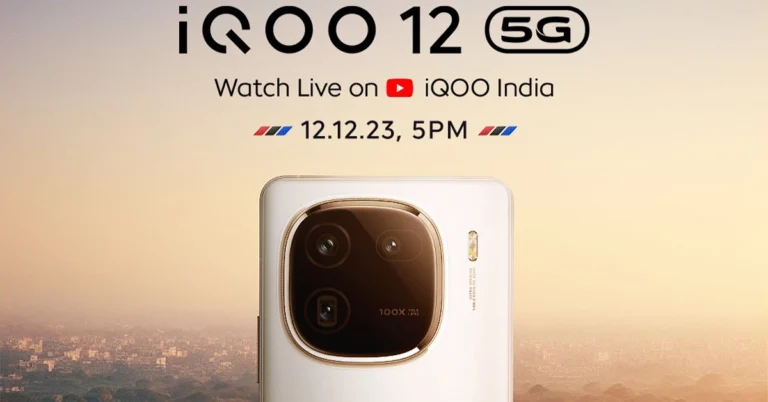
The iQoo 12 5G runs on OriginOS 4 on top of Android 14.
The company is promising to provide years of OS updates and 4 years of security updates.
iQoo 12 5G houses a 5,000mAh battery that supports 120W fast charging.
Finally, iQoo 12 5G has debuted in India today. The device is the first smartphone to come to India featuring Qualcomm’s latest flagship chipset- Snapdragon 8 Gen 3. The device operates on Android 14 OS. It further includes a 144Hz AMOLED display.
iQoo 12 5G specifications
A 6.78-inch 1.5K AMOLED display with 1,260×2,800 pixels of resolution is the main highlight of the phone. The screen comes with an adaptive refresh rate of 144Hz and a 20:9 aspect ratio. Moreover, the screen has 2160Hz PWM dimming and a peak brightness of up to 3000 nits support. In addition to this, the display comes with HDR10+ support. The device runs on OriginOS 4 on top of Android 14. The company is promising 3 years of OS updates and 4 years of security updates. At its heart, there is Qualcomm’s 4nmSnapdragon 8 Gen 3 SoC processor.iQoo 12iQoo 12 5G features a triple rear camera setup that includes a 1/1.3-inch 50-megapixel primary sensor (f/1.68 aperture). Thecamera system further includes a 64-megapixel periscope telephoto (f/2.57 aperture and 100X digital zoom) and a 50-megapixel ultra wide-angle sensor (f/2.0 aperture). For selfies, the device features a 16-megapixel front-facing camera with f/2.45 aperture.iQoo 12 5G houses a 5,000mAh battery, with120W fast charging support. Also, there is an in-display fingerprint sensor for biometrics. The smartphone also includes an accelerometer, ambient light sensor, e-compass, gyroscope, and proximity sensor. In terms of connectivity, there is 5G, Wi-Fi 7, Bluetooth 5.4, USB OTG, NFC, Beidou, USB Type-C port, GPS, GLONASS and GALILEO.For gaming, there is a 6010 mm² ultra-large VC vapor chamber to keep thermals in check. Also, it includes 11 temperature sensors and is equipped with a Q1 Self-developed chip.
iQoo 12 5G price in India and availability details
iQoo 12 5G has been launched in India in two colour variants Legend and Alpha. The price of the gaming phone starts at Rs 52,999 for the 12GB RAM with 256GB storage option and the 16GB RAM with 512GB internal storage options comes with a price tag of Rs 57,999.In terms of availability, priority pass holders can get their hands on iQoo’s latest smartphone from December 13 a day before the actual sale begins that is December 14. The phone can be available via the company’s officialwebsite as well as viaAmazon in the country.
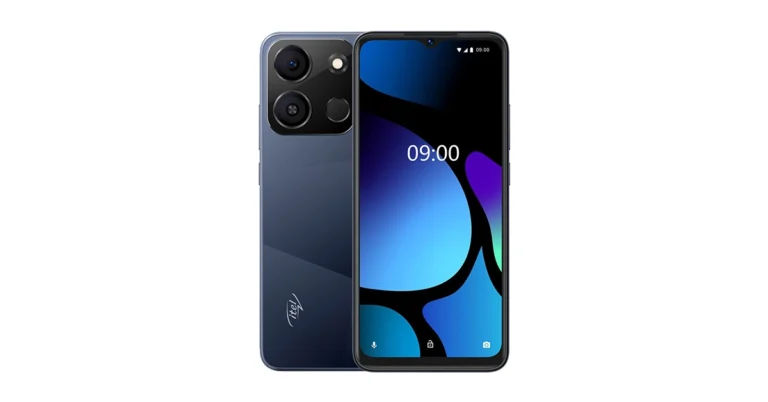
The new variant of Itel A05s comes with changed internals.
Itel A05s was launched in India in October this year. At the time of the launch, the company introduced the 2GB RAM with 32GB storage. Now the company has launched another 4GB RAM with 64GB variety. The latest model comes with modifications. The handset packs a 4,000mAh battery and is powered by a 1.6GHz UNISOC Octa-Core processor. Note that the smartphone now includes a single 8-megapixel rear camera. The phone features a 6.6-inch HD+ display.
Itel A05s price in India, availability
The price of Itel A05s 4GB RAM with 64GB storage variant is priced at Rs 6,099. The phone will come in several colour options of Crystal Blue, Glorious Orange, Meadow Green and Nebula Black.The device will be sold via leading retail stores in the country.In October the company introduced the 4GB RAM with 64GB storage variant priced at Rs 6,499.
Itel A05s specifications
Itel A05s features a 6.6-inch HD+ display with 1600 x 720 pixels of resolution. The screen supports a refresh rate of 60Hz and 120Hz touch sampling rate. In addition to this, the display has 270PPI. Under its hood, there is a 1.6GHz Octa-Core Unisoc processor with 4GB RAM (comes with 4GB RAM expansion feature) and 64GB storage. The internal storage can be expanded up to 1TB using a microSD card. In addition to this, the handset runs on Android 13 Go Edition.For the photos and videos, Itel A05s feature an 8-megapixel rear camera set up with an LED flash. For selfies and video calling the phone has a 5-megapixel front-facing camera with f/2.0 aperture.Itel A05s is backed by a 4000mAh battery with a 5W charger. For connectivity, there is Dual 4G, VoLTE, Wi-Fi 802.11 b/g/n, Bluetooth, GPS + GLONASS, and a 3.5mm jack. The mobile phone includes a fingerprint sensor and face unlock for authentication.
If you haven’t used your iPhone or Mac in a long time, it is pretty easy to forget your Apple ID. Maybe you used to own an iPhone and then switched to Android for a while. If you’re planning on using an iPhone again, having access to your old Apple ID will save you a lot of time. If you are an active iPhone user and want to use your Apple ID on another device, finding it on your phone is pretty easy. So, let’s take a quick look at the best ways to find your Apple ID on an iPhone, iPad, Mac, or PC.Read Also:Top 2 Ways to Change the Default Web Browser on iPhone and iPad
What is my Apple ID?
When you set up an Apple device for the first time, you are asked to create an Apple ID. You can do it by registering your email address with Apple. Your unique Apple ID is your gateway to Apple’s services like iCloud, FaceTime, iMessage, Apple Music, and more. If you use more than one Apple product, having one Apple ID for all of them brings a seamlessness and continuity to the entire experience.Perhaps the most important aspect of having an Apple ID is the ability to track your lost iPhone. As soon as you notice your iPhone is missing, log into iCloud on another device using your Apple ID and track the whereabouts of your lost phone. This is why you should always know what your Apple ID is.
Find your Apple ID on your iPhone or iPad
Step 1: Open Settings on your iPhone.Step 2: Tap your name. You can find it at the top of the screen.Step 3: Look for your Apple ID right below your name and profile picture.
Find your Apple ID on a Mac or PC
Mac
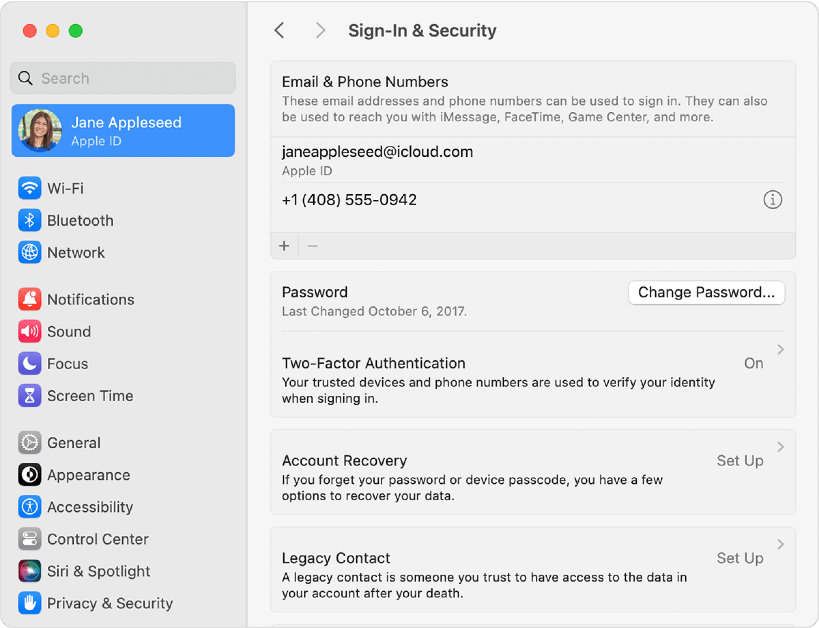
Step 1: Hit the Apple logo at the top left corner of the screen.Step 2: Select System Preferences.Step 3: Click on Apple ID.Step 4: You will find your Apple ID under your name and profile picture.In macOS Ventura or later, go to Apple menu>System settings, click on your name, and then click on Sign-in and Security. You will find your Apple ID under ‘Emails & Phone Numbers’.
PC
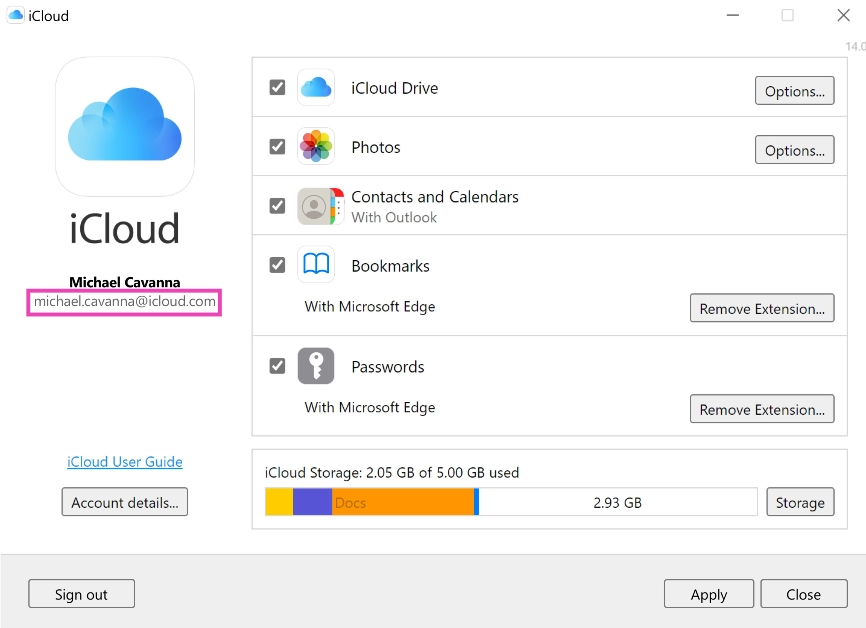
Open the iCloud app for Windows. You will find your Apple ID under your name in the left section of the page.
How to find your Apple ID if you’ve forgotten it?
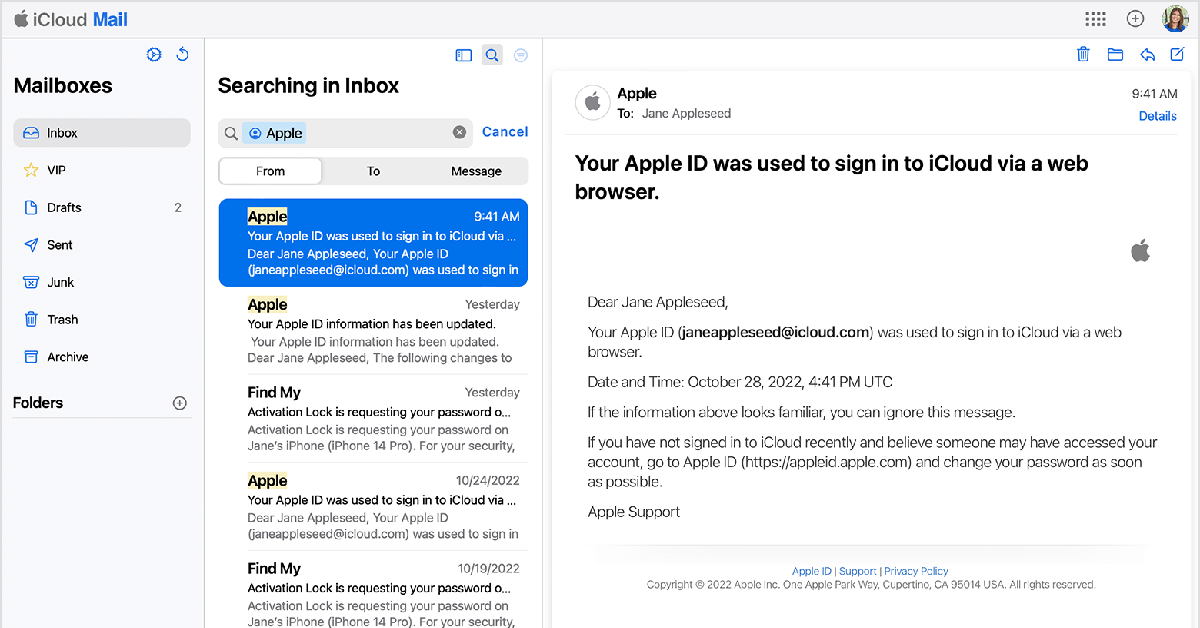
If you have access to your iPhone or Apple device, finding the registered Apple ID is not a big deal. However, if you lose your device or perform a factory reset on it, you will need your Apple ID to restore your data. But what happens if you forget it? Well, there is still some hope. Go to iforgot.apple.com and enter your first name, last name, and your registered email address. Now, the last part may require a fair bit of hit and trial. If you don’t remember which email address you used for your Apple ID, go through all of them until you find a match. To regain access to your account you will be asked a few security questions and an authentication code may be sent to your recovery email address (if you had provided it at the time of creating your Apple ID).If you can’t access the iForgot page, simply go through all your email accounts and search for any emails sent from Apple. You get an email from Apple every time you create an Apple ID. Once you find this email, you will know which email address is associated with your Apple ID. This will make the task of restoring your account much easier.If you have forgotten your password, go to the Apple password recovery page, enter your registered Apple ID or phone number, and the captcha provided on the screen. The link to reset your password will be sent to your email.
Frequently Asked Questions (FAQs)
How do I find my Apple ID on my iPhone?
Go to Settings, tap on your name at the top, and look below your profile picture for your Apple ID.
How do I find my Apple ID if I don’t remember it?
If you don’t remember your Apple ID, go through all your email inboxes and look for official emails from Apple. The one that contains the email notifying you about the creation of your Apple ID is your registered email.
How do I reset my Apple ID password?
Go to the Apple Password Recovery page, enter your email address and the provided captcha. You will get a link to reset the password in your email inbox.Read Also:Best ways to force quit apps on iPhone and iPad
Conclusion
This is how you can find your Apple ID on your iPhone, iPad, Mac, and PC. To maintain total control over your Apple ID, make sure to provide a recovery email address. This will come in quite handy in case you forget your registered email or password and want to gain access to your account. If you found this article helpful, let us know in the comments!
Passcodes are easy to forget, especially when you use a different one for every device you have. Your Apple Watch makes the unlocking process easy by offering features like Simple Passcode, Wrist Detection, and Unlock with iPhone. Even with all these neat features, it is not uncommon to forget your Apple Watch passcode, more so when it’s different to the one on your iPhone. So, what happens next? Check out these two ways to reset your forgotten Apple Watch passcode.Read Also:Best ways to force quit apps on iPhone and iPad
Before you reset your Apple Watch passcode
Your Apple Watch passcode can be changed from the device itself. Simply go to Settings>Passcode on the Apple Watch to change it. The same process can be carried out on the Watch app on your iPhone. However, if you forgot the passcode and want to reset it, the process may be a bit complicated.For starters, your Apple Watch does not give you the option to reset its passcode. You can either change the passcode or disable it. Both options require entering your current passcode. If you’ve forgotten your password, the only choice you are left with is resetting your Apple Watch, restoring the most recent backup, and setting up a new passcode.
Reset your Apple Watch Passcode using your iPhone
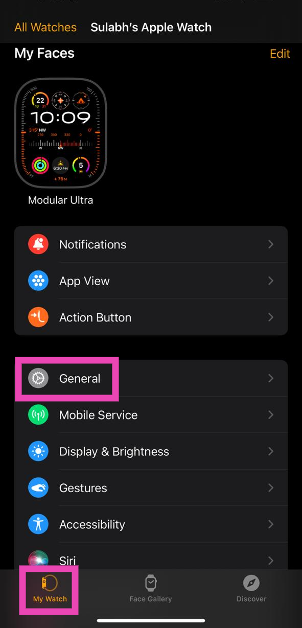
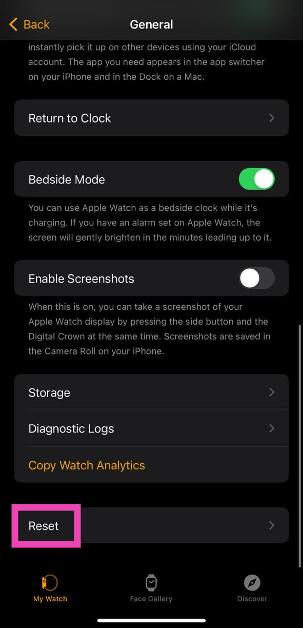
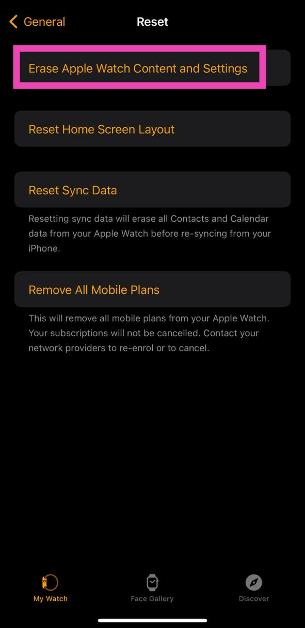
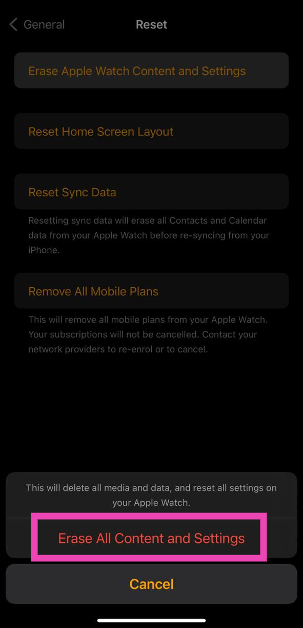
Before you begin, make sure your Apple Watch is near your iPhone.Step 1: Launch the Apple Watch app on your iPhone and switch to the My Watch tab.Step 2: Tap on General.Step 3: Select Reset.Step 4: Select Erase Apple Watch Content and Settings.Step 5:Confirm your selection in the popup box.Step 6: Enter your Apple ID password to verify your identity.Once the reset process is over, set up the Apple Watch again and restore your content using a backup. When asked, set up a new passcode.
Reset your Apple Watch Passcode without an iPhone
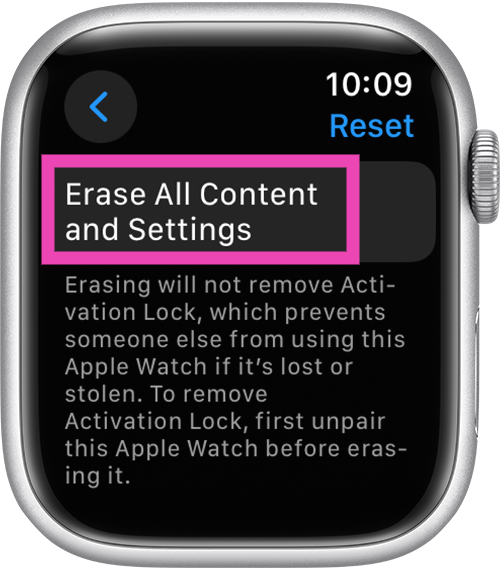
Step 1:Connect your Apple Watch to its charger.Step 2: Press and hold the side button until you see the power icon at the top right corner of the screen.Step 3: Press and hold the Digital Crown until you see Erase all content and settings.Step 4: Hit Reset and confirm your selection.Your Apple Watch will reset itself in a few minutes. To set it up again, you will need to enter your Apple ID and password. When asked, enter a new passcode for the Watch.
Bonus Tip: Turn off your Apple Watch Passcode
Use your Apple Watch
Step 1: On your Apple Watch go to Settings.Step 2: Select Passcode.Step 3: Hit Turn Passcode Off.Step 4: Select Turn Off.
Use your iPhone
Step 1:Launch the Watch app on your iPhone.Step 2: Switch to the My Watch tab.Step 3: Scroll down and hit Passcode.Step 4: Select Turn Passcode Off.Step 5: Hit Turn Off.
Frequently Asked Questions (FAQs)
How do I reset my Apple Watch passcode if I don’t have my iPhone?
Press and hold the side button on your Apple Watch until you see the power icon at the top right corner of the screen. Then, press and hold the Digital Crown until you see ‘Erase all content and settings’. Hit Reset to reset your Apple Watch. Now set up your Watch again and restore your backup.
How do I reset my Apple Watch passcode using the Watch app on my iPhone?
Launch the Watch app on your iPhone, go to My Watch>General>Reset>Erase Apple Watch Content and Settings and confirm your selection in the popup box. Enter your Apple ID to authenticate the action. Set up the Watch again and restore your backup. You will be able to enter a new passcode.
These are the best ways to reset your Apple Watch passcode. Make sure you create a complete backup of all your personal data on the Watch before performing a complete reset of it. You can also use ‘Simple Passcode’ to unlock your Apple Watch with a 4-digit PIN. If you know of any other method, let us know in the comments!
The Infinix INBOOK Y2 Plus laptop has already been launched in Bangladesh.
It features a sleek design.
The device comes with a Metal body.
Chinese tech company Infinix is all set to launch a new budget laptop in India soon. The company has announced to introduce the Infinix INBOOK Y2 Plus laptop in the country but the company is yet to reveal the launch date. According to the firm, the upcoming laptop will feature a sleek design with premium features. For those who are unaware, the Infinix INBOOK Y2 Plus is headed to India after landing in Bangladesh.Infinix is gearing up to launch its next budget laptop Infinix INBOOK Y2 Plus in India. The company has revealed that the device is expected to be priced under 30K. It will carry a sleek and lightweight design. Infinix has further revealed that the machine has a thin and light metal body with a “rugged brush metal design that adds a touch of sophistication.”Not just that Infinix INBOOK Y2 Plus is stated to come with an ultra-narrow bezel providing an immersive viewing experience with maximised screen space. There will be a backlit Keyboard, making it convenient for users to work in low-light environments. Moreover, the forthcoming budget laptop from Infinix will be made available in three colour options: Silver, Grey, and Blue.Also Read:iQoo 12 5G launching in India today: Here is how to watch the event liveAs we mentioned before Infinix INBOOK Y2 Plus has already launched in Bangladesh so we are quite aware of its specification. As far as pricing is concerned, it will be revealed at the time of launch only.However, in Bangladesh, the laptop is priced for 56,990 BDT which translates to Rs 43,000 for the 8GB RAM, and 512GB SSD variant.The Infinix INBOOK Y2 Plus is powered by Intel Core i5 11th Gen processor and runs on Windows 12 Home edition. The laptop features a 5.6-inch IPS display with a resolution of 1920×1080 pixels.In addition to this, there is a backlit keybeast with a multi-touch trackpad. Besides this, an FHD camera with Dual-Star light has been provided for making video calls.Apart from this INBOOK Y2 Plus comes with dual speakers with 2W sound output.In terms of connectivity, there is Wi-Fi – IEEE 802.11a/b/g/n/ac, Bluetooth v5.1, one USB-C port, USB 3.0 ports, HDMI 1.4, an SD card slot, a 13.5mm jack.
To stay on top of online security, it is recommended that you use a different password for every account you use. Given how many apps and services an average person uses these days, remembering every unique password is a hard ask. Luckily, your iPhone’s password manager remembers them for you. If you don’t fancy the native password manager on your iPhone, you can always use a third-party app to do the job. Typically, the password manager auto-fills it wherever necessary, but if you’re curious, you can always look up your saved passwords in just a few simple steps. So, here are the top 2 ways to find saved passwords on your iPhone and our top 5 password managers for your iPhone in 2023.Read Also:Endefo Enfit NEO and Enfit NEO PRO smartwatches with BT calling launched in India
Find saved passwords and passkeys on your iPhone
Step 1: Go to Settings and select Passwords.Step 2: Verify your identity using Face ID or device passcode.Step 3: Select the website or app for which you want to view the password or passkey.Step 4: On the following page, you can change the password or delete it entirely.
Use Siri to find saved passwords on your iPhone
If you don’t want to navigate your way through settings, ask Siri for a particular password. For example, if you want to know your Facebook password, simply say “Hey Siri, what is my Facebook password?” After verifying your identity, Siri will display your password on the screen. You can try this for all the saved passwords on your iPhone.
Best Password Managers for iPhone in 2023
The native password manager on your iPhone gets the basics right, but if you want your password-managing app to go the extra mile, check out our recommendations below.
Bitwarden
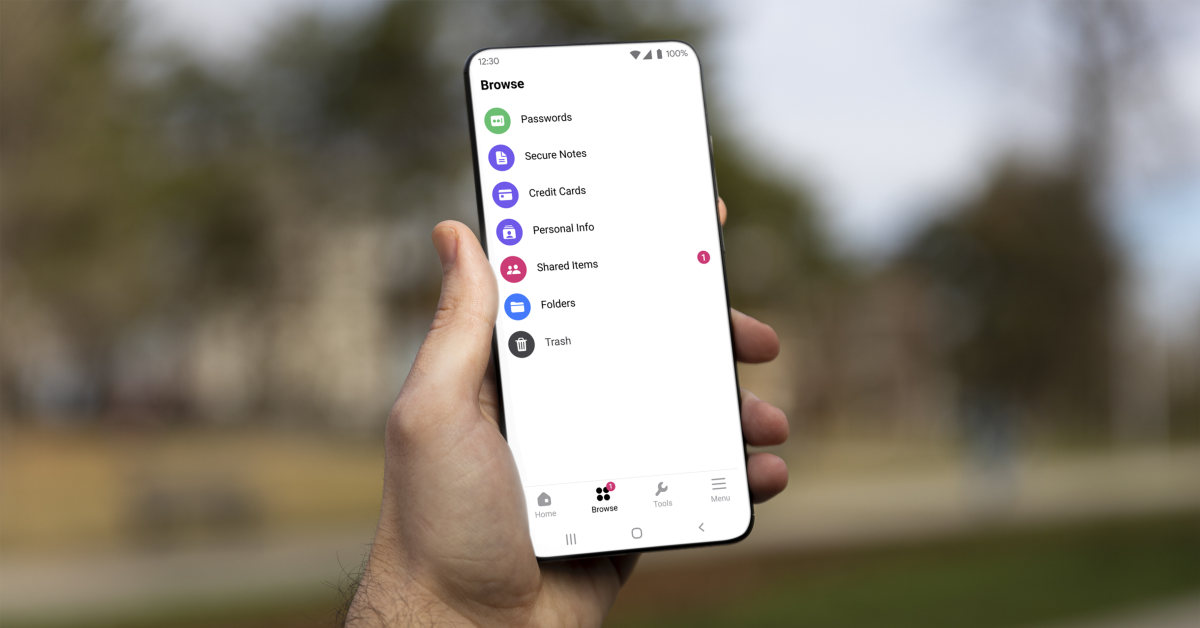
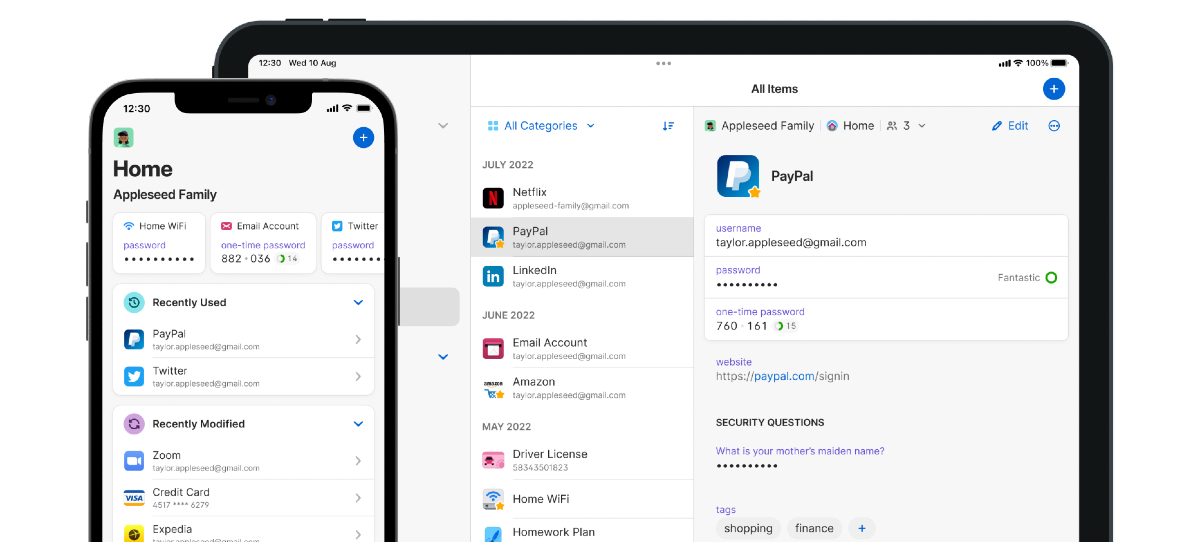
Download from the App StoreBitwarden lets you store unlimited passwords on your iPhone and syncs them across all your devices. If you forgot your iPhone at home, you can use Bitwarden to access all your passwords on your work PC. Not only does it store your passwords, but it also helps you create new ones. You can generate a strong string for your password using Bitwarden and never have to remember it again. The app will autofill the password in the appropriate spots. All your passwords on this app are secured by end-to-end encryption (AES-256 bit, salted hashtag, and PBKDF2 SHA-256).
NordPass
Download from the App StoreNordPass saves your passwords, credit card info, WiFi passwords, alarm codes, and more. You can add a password to NordPass with just one tap right when you’re logging into your account. You can even save your card details on the app and autofill them in the relevant places while checking out your e-cart. One of our favourite features of NordPass is password sharing with other users. If you want to share your Netflix password with your friends and family, you can allow them access to it using NordPass. This access can be revoked at any time. Another thing that we like about this password manager is that it assesses your existing passwords and lets you know how strong they are. If you are using the same password for multiple accounts, NordPass will prompt you to generate new ones.
1Password
Download from the App Store1Password is one of the most comprehensive password-managing apps for iPhone. Not only does it save your passwords, but it also secures your Notes, WiFi connection, Social Security Number, Passport, Driver’s License, and more. Once you save a password on 1Password, you can access it across all your devices. Access to this app is guarded by Face ID and biometrics. If you want to share a password with your friends and family, 1Password creates a special vault that can be shared with anyone.
Dashlane
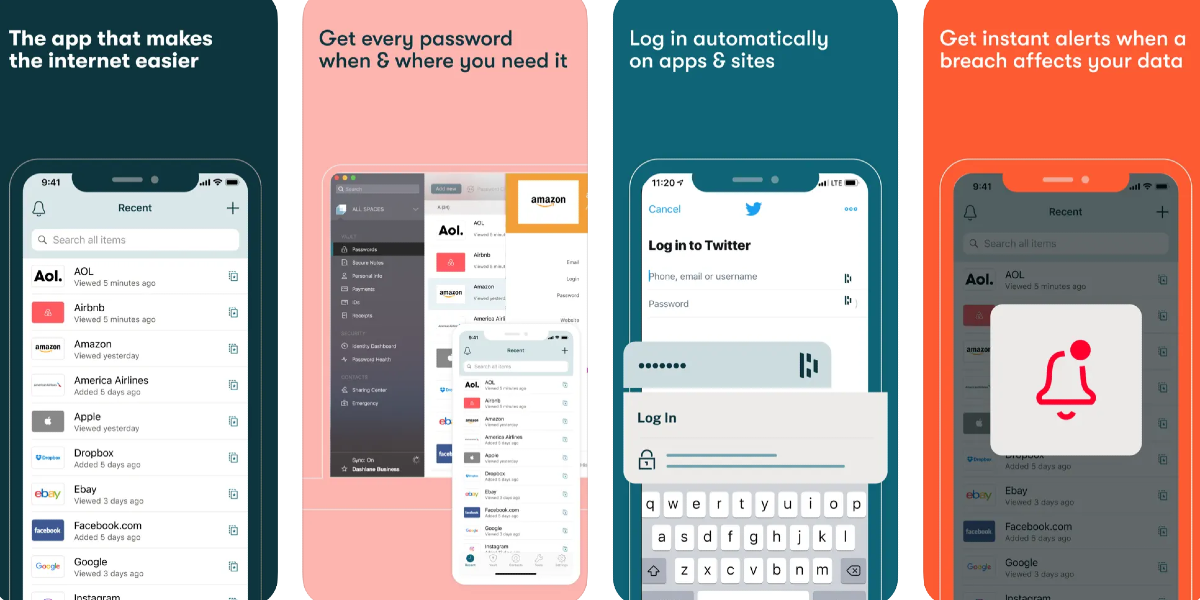
Download from the App StoreDashlane is one of the most popular password managers around, used by over 15 million users and 20,000+ businesses. Apart from regular storing and autofill functions, Dashlane also notifies you when your password is affected by a data breach or a hack. Its Dark Web Monitoring feature lets you know if your data is on the dark web. Dashlane employs state-of-the-art encryption to protect your passwords and autofill data. Certainly, one of the best password managers for your iPhone that you can download right now.
Keeper
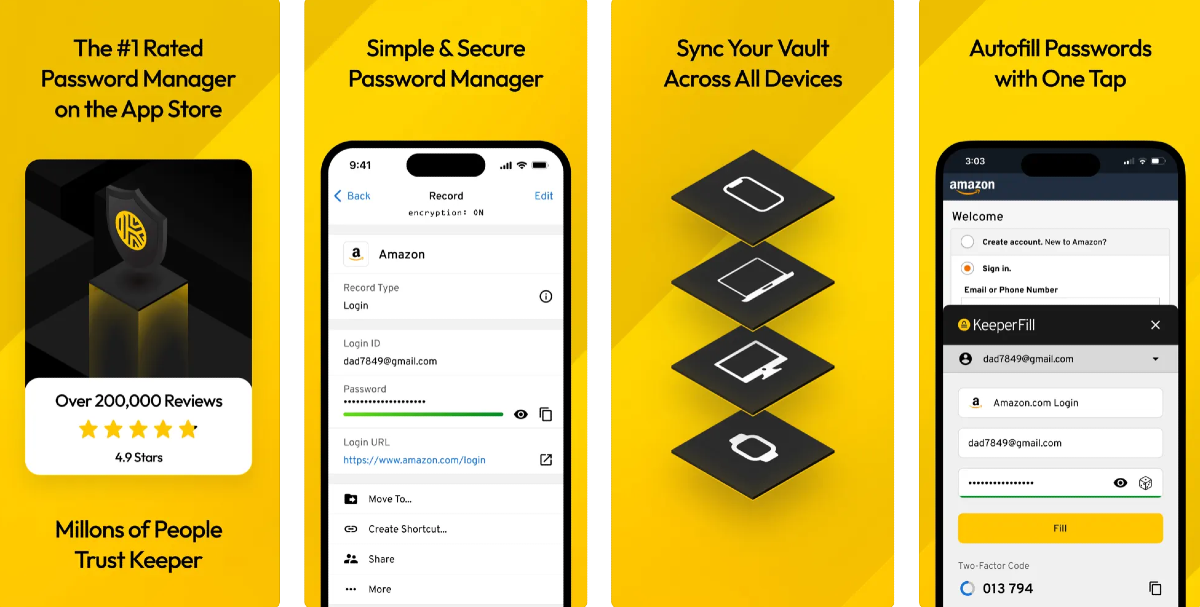
Download from the App StoreGenerate strong passwords, save preexisting passwords, and secure them with world-class encryption on Keeper. Used by millions of people across the world, Keeper is a very simple password manager that offers a few additional vital features that separate it from the competition. ‘One-Time Share’ is one of them. Using this feature you can share any password with family or friends that don’t have a Keeper account. Other than saving passwords, Keeper can also generate Two-Factor Authentication codes for all your accounts. The ‘BreachWatch’ function monitors the Dark Web and alerts you if your data is ever found on it.
Frequently Asked Questions (FAQs)
How do I find a saved password on my iPhone?
Go to Settings>Passwords and verify your identity using Face ID. Now, tap the website or app for which you want to see the password.
What are some good password managers for iPhones?
Keeper, Bitwarden, 1Password, Dashlane, and NordPass are some of the best password managers for iPhones in 2023.
How do I change a password in my iPhone’s password manager?
This is how you can find your saved passwords on your iPhone. Once you change a password in your iPhone’s password manager, it doesn’t change it for the account itself. Once you autofill the password while logging in, you will be denied access to your account. To change the login credentials, you will need to access your account settings within the website or app. If you found this article, useful, let us know in the comments!
iQoo 12 5G will launch in India today in the evening.
It will feature a 144Hz AMOLED display.
It also will come preinstalled with OriginOS 4 on top of Android 14.
iQoo 12 5G is all set to make its India debut today. Before launching in India the device was introduced in China last month. There the company introduced two models iQoo 12 and iQoo 12 Pro. But today the company has announced to introduced the former one. It comes with some notable features like Qualcomm’s latest flagship chipset Snapdragon 8 Gen 3 and an OLED screen that supports a 144Hz refresh rate for smooth high-end gaming performance. However, we know the specs of the upcoming smartphone but India price details will be revealed at the time of the launch event. But the price of the smartphone has already leaked ahead of the launch. To know about it keep on reading.
How to watch the iQoo 12 5G launch Livestream?
iQoo 12 5G will launch in India today. The livestream will begin at 5 PM IST via the company’s official YouTube Channel. The launch event will also be webcast through the company’s social media channels including X. Interested ones can also catch the event live on our website, as we have embedded a link below.
iQoo 12 5G price in India expected and specifications
iQoo 12 5G is tipped to be made available in two variants 12GB and 16GB RAM. The 12GB RAM with 256GB storage is said to come at Rs 52,999 whereas the price of 16GB RAM with 512GB storage will be set at Rs 57,999. The device will be available for purchase via Amazon in the country.The iQoo 12 5G comes with a 6.78-inch 1.5K AMOLED display with 1,260×2,800 pixels of resolution. The screen supports a 144Hz refresh rate, HDR10+ and a 20:9 aspect ratio. The device runs on OriginOS 4 on Android 14 and is powered by a 4nm Snapdragon 8 Gen 3 SoC processor.iQoo 12The smartphone has a triple rear camera setup that includes a 1/1.3-inch 50-megapixel primary sensor (f/1.68 aperture), 64-megapixel periscope telephoto (f/2.57 aperture and 100X digital zoom) and 50-megapixel ultra wide-angle sensor (f/2.0 aperture). For selfies, the device features a 16-megapixel front-facing camera with f/2.45 aperture.iQoo 12 5G is backed by a 5,000mAh battery, with 120W fast charging support. Also, there is an in-display fingerprint sensor for biometrics.
Garena Free Fire is a battle royale game with regular awards and tournaments to keep players interested. If you play Garena Free Fire, you should be aware of the redeem codes that are released on a daily basis. However, because the battle royale game is banned in India, players from other countries can use the Free Fire Redeem codes daily. If you’re unfamiliar with the Garena Free Fire redeem codes or don’t know how to get them, we’ve put together a step-by-step guide to help you redeem them. Check out Garena Free Fire Redeem Codes for 12 December 2023.The Free Fire redeem codes are a great way to get free stuff. These are 12-digit codes that contain alphabets and numbers, as well as an expiration date and time. Because the Garena FF redeem codes cannot be used more than once, you should hurry to the redemption page to claim your free reward before someone else does. To get a free reward, all you have to do is go to reward.ff.garena.com/en, which is the official redemption page. Also, keep an eye on this space for daily updates on Garena Free Fire redemption codes and rewards.
Garena Free Fire Redeem Codes Today 12 December 2023
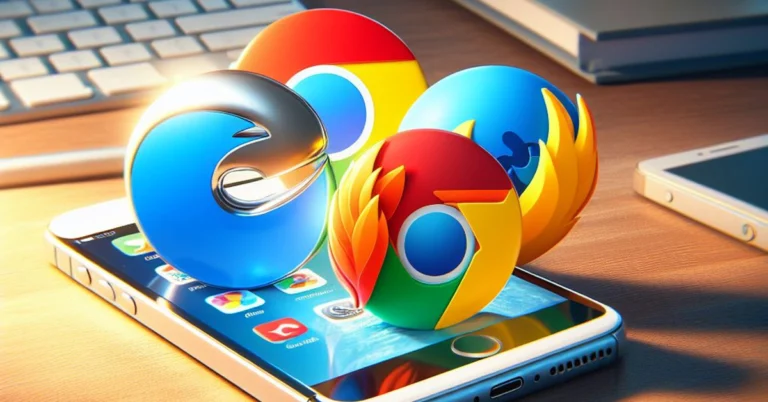
Apple’s Safari browser is the default app to access the web across all its devices. Until iOS 14, you could not change the default browser on your iPhone. Thankfully, that is no longer the case. If you’re a Chrome loyalist or want to preserve your privacy with DuckDuckGo, you can now set either of them as the default choice. Want to know how? Let us walk you through the top 2 ways to change the default web browser on your iPhone or iPad.Read Also:Top 4 Ways to Send Pictures from Android to iPhone
Why you should change the default web browser on your iPhone
Safari is a perfectly good web browser that offers super quick access to the Internet and well-rounded privacy features. Being Apple’s proprietary web browser, Safari pays special attention to your privacy and security while you’re browsing the web. However, if you use a Windows PC or laptop, Google Chrome may be the better choice for you.This is because of Chrome’s remarkable syncing features. Once you log into Chrome on your iPhone, you will be able to access your bookmarks, history, saved passwords, autofill data, and more. If you’re reading an article on your laptop and need to leave your desk, you can simply send the webpage to the Chrome app on your iPhone and continue reading it on the go. Apart from that, you can save a lot of time with immediate access to autofill data and all your saved passwords on Chrome.
Change the default web browser app on your iPhone or iPad
Step 1: Go to Settings.Step 2: Scroll down and select the web browser that you want to set as the default browser on your iPhone.Step 3: Tap on Default Browser App.Step 4: Select your preferred browser from the list.
Set Google Chrome as the default web browser on your iPhone or iPad
Step 1:Launch the Google Chrome app on your iPhone or iPad.Step 2: Hit the ellipses and select Settings.Step 3: Tap on Open Chrome Settings.Step 4: Hit Default Browser App.Step 5: Select Google Chrome.
Frequently Asked Questions (FAQs)
What is the default browser on an iPhone?
Safari is the default web browser on an iPhone and all other Apple products. This is because Apple owns Safari and therefore it is the default browser across all its devices.
Can I change Safari as the default browser on my iPhone and iPad?
Yes, you can change Safari as the default browser on your iPhone/iPad by going to Settings>Safari>Default Browser App and selecting the browser app you want as the default choice.
Which web browser should I use for maximum privacy?
This is how you can change the default web browser on your iPhone and iPad. Apple’s MacOS also allows you to change the default web browser on your device. Simply hit the Apple logo at the top left corner of the screen, select System Preferences and go to General>Default web browser to make your selection. Which web browser do you prefer using on your iPhone? Let us know in the comments!
Android users must be familiar with the process of ‘force quitting’ an app when it starts malfunctioning. Interestingly, iPhones do not have a dedicated ‘force quit’ option, but you can still shut down an app and restart it later. This process works a bit differently on iPhones with Face ID and the ones with a home button. So, let’s take a quick look at the best ways to force quit apps on your iPhone and iPad.Read Also:iPhone Battery Icon Yellow? Top 3 ways to fix it
When should you force quit an app on your iPhone?
While Android devices have a dedicated ‘force quit’ option for every app on the device settings, on an iPhone, you can do the same by simply closing the app from the app switcher. But how often should you do it? A lot of people believe that closing the apps that you aren’t actively using preserves the battery on your iPhone and makes it faster. But this couldn’t be further from the truth.Your iPhone does a good job of optimising the apps running in the background in order to reduce the time required to load them. This process doesn’t utilise a lot of RAM either. Apps that haven’t been opened in a long time get allotted significantly less RAM space compared to the apps you use regularly. So, when should you force quit an app on your iPhone?Shutting down an app should be your go-to response when it starts malfunctioning. If you can’t get the app to work as intended, quickly restarting it will fix the problem most of the time. If it keeps hanging, shutting it down is the only way you can fix the problem. Even though leaving apps open in the background does no harm, it is suggested that you close the apps that you don’t intend to use regularly. Apps like Doordash and Ola still have location access when they are running in the background. If you aren’t actively using them, it is better to shut them down.
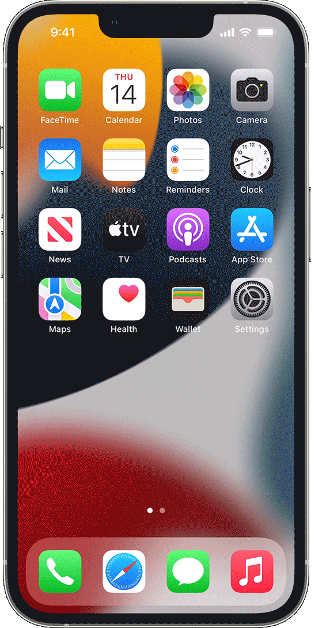
Force quit apps on an iPhone or iPad with Face ID
Step 1:Swipe up from the bottom of the screen and hold the gesture. The app switcher on your iPhone will pop up immediately.Step 2:Navigate to the thumbnail of the app that you want to close.Step 3:Swipe up on the thumbnail to close the app.
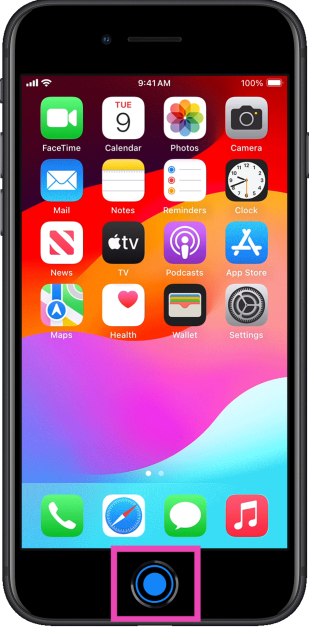
Force quit apps on an iPhone or iPad with a home button
Step 1:Press the home button twice to access the app switcher.Step 2:Navigate to the thumbnail of the app that you want to close.Step 3:Swipe up on the preview card to close the app.
Frequently Asked Questions (FAQs)
How do I close multiple apps at once on my iPhone?
Swipe up from the bottom of the screen and hold the gesture to access the app switcher. To close multiple apps at once, simply swipe up on the apps using different fingers. You can close up to 5 apps at once.
This is how you can force quit apps on an iPhone. To do the same on an Android device, go to Settings>Apps, select the app in question, and hit ‘Force Quit’ from the bottom of the screen. This will pause any background activity for the app until you reopen it from the app drawer. If you know any other method to force quit apps on an iPhone, let us know in the comments!
Endefo Enfit NEO and Enfit NEO PRO come with an Always On Display.
They also feature a rotating crown.
The device supports Bluetooth calling.
Dubai-based lifestyle brand Endefo has announced the launch of two new smartwatches in India. The company has introduced Enfit NEO and Enfit NEO PRO. Both the smartwatches feature a FHD display with 600 nits of screen brightness. The smart wearable also comes with a rotating crown and supports the Always on Display feature. The device includes more than 135 sports modes and over 200 watch faces.
Endefo Enfit NEO and Enfit NEO PRO price in India and sale details
Endefo Enfit NEO Smartwatch is priced at Rs 6999 however the device will be available at a discounted price of Rs 1999. On the other hand, Enfit NEO PRO Smart Watch is launched at Rs 7999 and will be available at a discounted price of Rs 2499. As per the company, the smartwatches will be available for customers at 2000+ retail stores including Sangeetha Mobiles, Supreme Paradise, Lot Mo, Nandilath Digital, Ideal Home Appliances, Easy Store, Gulf Own Digital, Image Mobiles, and Computers.
Endefo Enfit NEO and Enfit NEO PRO specifications
Endefo Enfit NEO features a 1.9-inch FHD screen with 600 nits of screen brightness. It has a wide selection of over 200 watch faces giving a personal touch.It comes with a Bluetooth Calling feature that allows users to make and receive calls from their wrist. It allows users to easily track and analyse their workouts with the over 135 sports modes. Besides this, the smartwatch offers health-related features like blood pressure, blood oxygen monitoring, and a live heart rate monitor. Additional features include camera control, multiple language support, dual-screen functionality, voice assistant, and multiple UI modes.Endefo Enfit NEO PRO is highlighted with a 2.01-inch FHD screen and a rotating crown. Besides this, the smartwatch features are similar to that of its sibling Enfit NEO.Mr. Aneef Tas, CEO of Endefo said “We’re excited to present the latest additions to our smartwatch collection, the ‘Enfit NEO’ and Enfit NEO Pro. These watches reflect our commitment to offering affordable and modern fitness and lifestyle devices for our youthful customers who appreciate both style and technology. We believe customers will find the features of the Enfit NEO enjoyable, all while being budget-friendly. As the year ends, we will plan more launches and sales for our customers, as we continue to focus on providing top-notch technology through Endefo”.
The smartphone is powered by MediaTek Helio G85 SoC.
Poco C65 launched globally earlier in November. The smartphone which is a successor to Poco C55 is all set to hit India shores soon, the company has confirmed. The device will come with a 50-megapixel dual camera setup. it will also feature an HD+ display with a 90Hz refresh rate. The phone is powered by MediaTek Helio G85 SoC. In addition to this, it packs a 5,000mAh battery.Poco took to microblogging platform X to confirm about the India availability of Poco C65. As per the post on X, the smartphone’s launch will take place in India on December 15 at 12 noon. In addition to revealing the launch date the company also showcased the lilac colour option of the mobile phone.In terms of availability, the handset will be sold through Flipkart in the country.
Poco C65 specifications, features
Poco C65 was launched globally last month. It features a 6.74-inch HD+ display, with 1,600 x 720 pixels of resolution. It has an aspect ratio. Also, the phone supports a refresh rate of 90Hz. The display gets Corning Gorilla Glass protection. The budget smartphone is shipped with MIUI 14 for Poco on top of Android 13. It is powered by MediaTek Helio G85 SoC paired with an ARM Mali-G52 2EEMC2 GPU.Also Read:iPhone 14 Plus getting a massive discount of Rs 35,250For photos and videos, the Poco C65 sports a dual rear camera setup that includes a 50-megapixel primary sensor with an aperture of f/1.8. Additionally, it includes a 2-megapixel macro sensor with an aperture of f/2.4. The waterdrop notch at the centre of the display plays house to an 8-megapixel sensor with an aperture of f/2.0.In terms of connectivity, there is 4G VoLTE, Wi-Fi, Bluetooth 5.1, GPS, GLONASS, a 3.5mm audio jack and support for FM radio. The Poco phone comes equipped with a 5,000mAh battery that supports 18W wired fast charging via a micro USB port. A side-mounted fingerprint sensor is given to unlock the device.
iPhone 14 Plus was launched at a starting price of Rs 89,990.
The device is getting a massive temporary price cut during the ongoing Flipkart Big year-end sale.
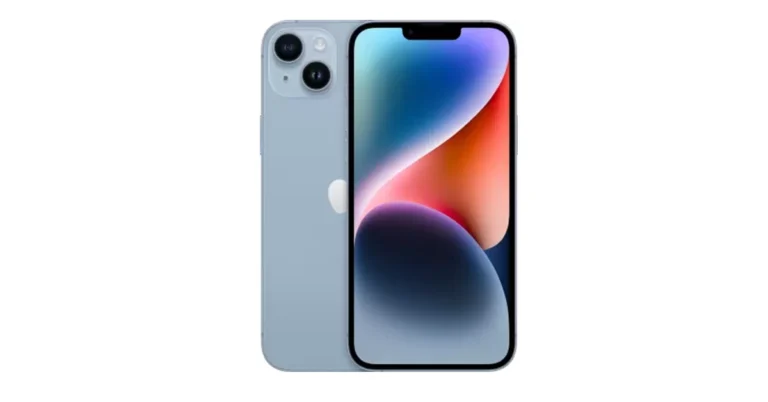
iPhone 14 Plus pricing has been cut down massively on Flipkart. Currently, the device is available at an exciting price of Rs 31,749. So this is the right time if you are looking to buy an iPhone and Flipkart is the place to find the best offer on the iPhone 14 Plus.Flipkart’s Big year-end sale is on and will be live till December 16. During the sale period, the home-grown e-commerce platform is offering the greatest deals on smartphones. iPhone 14 Plus originally sold for Rs 79,990. The iPhone 14 Plus is listed at a reduced price of Rs 64,999 during the sale. The price of the handset has now been reduced to as low as Rs 31,749. Flipkart is offering a massive discount of Rs 35,250.The buyers can also take advantage of an additional exchange discount in addition to this. Customers can save up to Rs 50,299 on an iPhone or their previous smartphone. Additionally, customers of Kotak, RBL, or SBI credit cards will receive 10% off.The iPhone 14 Plus was launched in India in three different configurations. The 128GB of storage costs Rs 79,900 in India. The price of 256GB and 512GB storage capacities are available for Rs 89,900 and Rs 1,09,900. It comes in five different colour options – Red, Midnight, Starlight, Blue and Purple.Also Read:OnePlus 12 global launch date is no longer a secret
Apple iPhone 14 Plus specifications
Apple iPhone 14 Plus is endowed with a 6.7-inch Super Retina XDR OLED screen which offers a wide colour gamut, HDR, and 1200 nits of brightness. The device’s display has a pixel density of 460 ppi and supports a 60Hz refresh rate. The screen is protected by a tough Ceramic Shield front cover that is water and dust-resistant.For optics, the dual rear camera setup includes the iPhone 14 Plus: a primary 12MP wide-angle sensor with a bigger f/1.5 aperture, sensor-shift OIS, and a secondary 12MP ultra-wide-angle sensor. The Ultra Wide camera provides a distinctive viewpoint for broader views and enhances low-light images using a Photonic Engine. For selfies and video calls, the front camera has a 12MP sensor with autofocus.The iPhone 14 Plus has Face ID and is built to IP68 standards for water and dust protection. Under the hood, there is an Apple A15 Bionic SoC and up to 512GB of internal storage. The device runs on iOS 16.
The rigidity of Apple’s ecosystem does not allow for fluid and seamless file sharing with Android devices. iPhones have AirDrop and Android devices have Nearby Share, but cross-platform sharing still requires jumping through some hoops. Hoping for any resolution in the near future would be wishful thinking. But, for the time being, here are the top 4 ways to send pictures from Android to iPhone.Read Also:iPhone Battery Icon Yellow? Top 3 ways to fix it
Sending pictures from Android to iPhone: Which method is the best for you?
There are numerous ways to share images across different platforms. Your choice of method should depend upon the volume of images you are sending, the quality of images sent to the other device, the speed of transfer, and ease of access. Here’s how you can decide which method is best for you.For high-quality image transfer: For a majority of users, restoring the image quality is the biggest priority while transferring them between two devices. This rules out using third-party messengers. While you can still use online cloud storage for the task, it can take a fair bit of time if you are transferring an entire batch of images. Not to mention, it will take time to download all the images on the iPhone as well. To cut down on time, use a WiFi transfer interface like Xender, Send Anywhere, or Feem to send pictures from your Android phone to an iPhone. You will be able to send dozens of images without any compression within seconds.For social media uploads: If you only need to send a couple of images to your friend, primarily for posting on social media, using a third-party messenger is the best option you have. Since social media platforms compress images anyway, a slight loss in quality while transferring them won’t hurt. Luckily, most instant messaging apps allow HD image sharing. No other method can match the accessibility provided by IM apps.For transferring all the images on your device: If you’re permanently switching to an iPhone, it is best you use the ‘Move to iOS’ app on your Android phone to transfer all your images. Apart from images, this app can also transfer your WhatsApp chats, apps, files, and other data. The only catch is that it can only be used while setting up your iPhone.
Use WhatsApp (Or any other instant messenger)
The easiest, most accessible way to send pictures from an Android phone to an iPhone is via WhatsApp or any other instant messaging app. The Meta-owned instant messaging app recently incorporated HD image sharing in its platform. However, this feature is not turned on by default. You will need to tap the HD icon at the top of the image preview page. Even though HD images on WhatsApp demand a higher storage space, they still go through some compression in the process. This isn’t a significant issue if your main purpose is to upload the images on social media platforms.
Use Google Drive
One of the glaring problems of sharing images via IM apps is image compression. To bypass this issue use a cloud storage service instead. Google Drive is the most accessible online storage service to use if you’re an Android user. Since you already have a Google account, simply launch the Drive app from the Google folder in your device and start uploading the images you want to transfer. Once you’re done, share the folder with the iPhone user. If the iPhone belongs to you, simply install the Google Drive app from the App Store and log in using your Google account. All your shared images will be there, without any loss in quality.
Use Feem
Feem is a great file-sharing interface that works 50 times faster than Bluetooth-sharing. The best part of using Feem is that you don’t have to rely on an active internet connection to send pictures from an Android phone to an iPhone. Once both devices are connected to a common WiFi network, Feem will send images and files at a blazing speed. Don’t have access to WiFi? Feem also works on a mobile hotspot!
Use the Move to iOS app
The methods mentioned above work great for sending a batch of pictures from an Android phone to an iPhone. But what if you are switching to an iPhone permanently and want to restore all your images on the new device? Well, the iPhone gives you a native option when you’re setting it up. However, the catch is that it only works when you’re setting up the device. Meaning, that once you skip this option and start using your iPhone, you won’t be able to access it again unless you factory reset your device.The process is pretty simple. In the Apps & Data page, select Move Data from Android. Enter the code in the Move to iOS app on your Android phone. Select photos from the list of content that you want to transfer. The images will be transferred from your Android phone to your iPhone over a WiFi hotspot.
Frequently Asked Questions (FAQs)
How do I send a picture from an Android phone to an iPhone?
You can send pictures from Android to iPhone through a messaging app, online cloud service, or a WiFi transfer interface.
How do I send an image over 16MP on WhatsApp?
Since WhatsApp uses native compression to send images, the image size will be reduced to an acceptable level. However, if you don’t want this, you can send the image as a document. WhatsApp lets you send files up to 2GB in size.
How do I transfer all my images from an Android phone to my new iPhone?
If you’re switching to an iPhone, you can transfer all your apps, data, and images from the ‘Apps & Data’ page. This will require downloading the Move to iOS app on your Android phone.Read Also:How to set an alarm on a Samsung smartphone? Top 2 Ways
Conclusion
These are the top 4 ways to send pictures from an Android phone to an iPhone. This process isn’t as tiresome and convoluted as it used to be, now that cloud-sharing services are super accessible to the average smartphone user. Even if you don’t want to use Google Drive, platforms like Dropbox, OneDrive, and Koofr can facilitate seamless sharing across platforms.
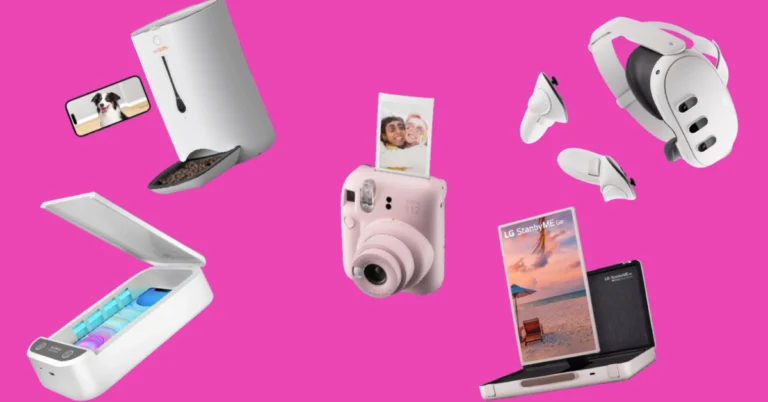
Many believe that tech products have stagnated over the last few years, looking more alike with every passing iteration. While this may be true for smartphones and wearables, there is a wide range of whacky devices out there that bring a whole lot of personality to the table. If you’re looking for a fun device that can be incorporated into your daily routine, you’ve landed on the right page. So, without further ado, here are the top 9 funky gadgets you can buy right now.Read Also:How to set an alarm on a Samsung smartphone? Top 2 Ways
Meta Quest 3
Price: Rs 61,930 on AmazonThe super-immersive Meta Quest 3 VR headset is one the best in its genre right now. Its incredible application support revolutionises the way you interact with real-world objects. You can play a video game on your coffee table or overlay a screen wherever you want to watch videos or play video games. The virtual and physical worlds align and blend seamlessly with the Meta Quest 3, a real testament to how far virtual reality headsets have progressed over the years. The Touch Plus controllers included with the Quest 3 offer intuitive controls for gaming along with haptic feedback.
LG StanByMe Go Suitcase TV
Price: Rs 99,980 on LG.comIf we’re talking about devices that go over the board to be excessive, nothing comes close to LG’s newest StanByMe Go Suitcase TV. Nestled inside a hard-sided briefcase, the StanByMe Go is a completely wireless TV that you can carry along wherever you go. The touchscreen display can also be controlled by a remote control or voice commands. A 3-hour battery life makes it ideal to watch movies or catch that unmissable game no matter where you are. You can also orient the 27-inch screen vertically in portrait mode. This is as funky as a gadget can get in 2023.
Fujifilm Instax Mini 12
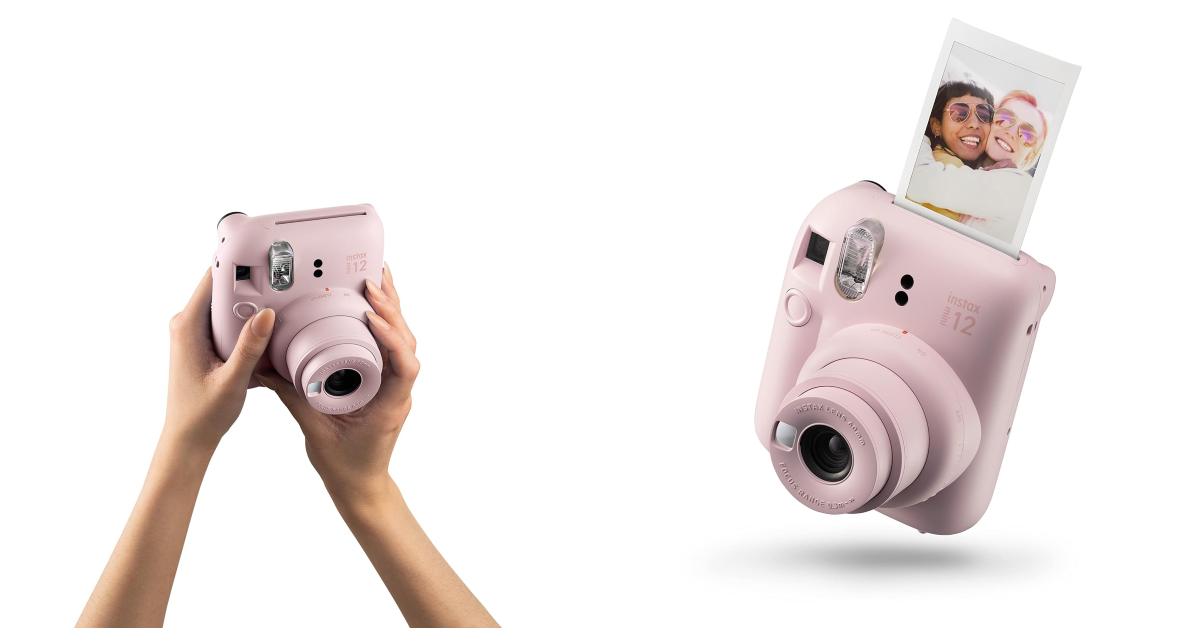
Price: Rs 7,459 on AmazonThe Fujifilm Instax Mini 12 polaroid camera is available in 5 colour variants – Mint Green, Blossom Pink, Clay White, Lilac Purple, and Pastel Blue. This funky gadget is ultra-portable, with dimensions of 6.7 x 10.4 x 12.2 cm. It comes with an integrated flash which helps in taking bright images in limited lighting and a selfie mirror next to the lens. The shutter speed and flash brightness on the Instax Mini 12 are automatically adjustable. Taking closeups with this camera is super easy, all you need to do is twist the lens twice to activate the Close-up mode.
Samsung Galaxy Z Flip 5
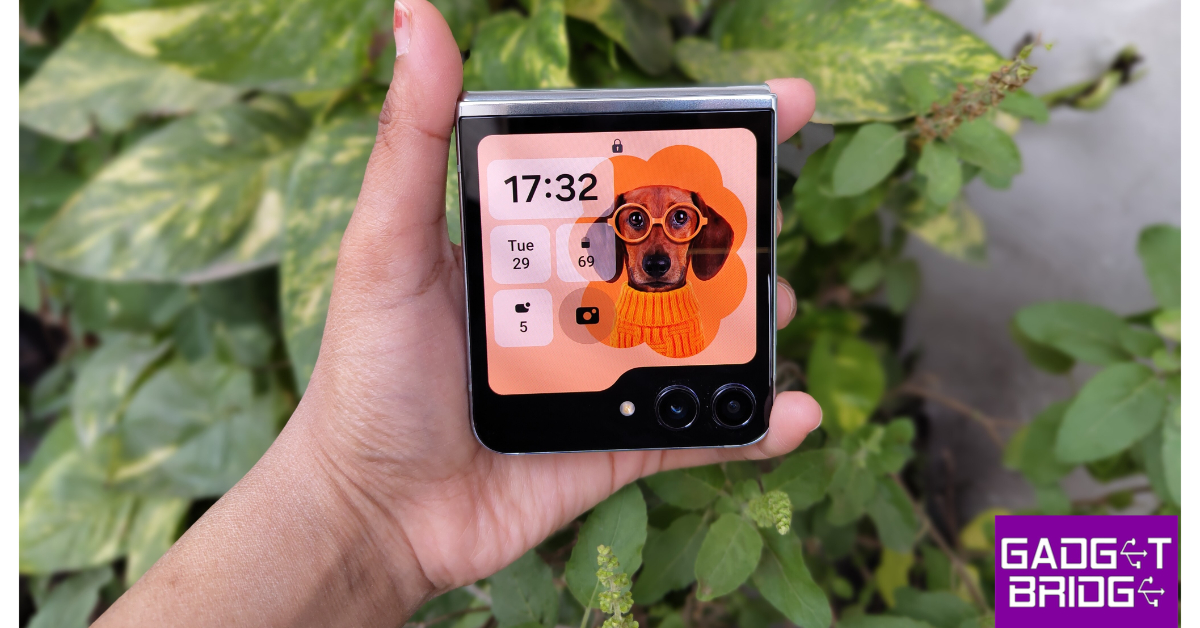
Price: Rs 99,999 on Samsung.comOn its latest iteration, Samsung’s flagship flip phone rocks a sizeable 3.4-inch Super AMOLED cover display. In its unfolded form, the Flip 5 sports a 6.7-inch Dynamic AMOLED display with HDR10+ support and a refresh rate of 120Hz. The smartphone is powered by the latest Snapdragon 8 Gen 2 SoC that delivers a top-shelf performance as usual on the device. Talking about the cameras, the Flip 5 gets 12MP wide and ultrawide sensors along with a 10MP selfie camera. If you’re looking for a funky gadget, the Flip 5 is as good as it gets for smartphones. Read our full review here.
WOpet SmartFeeder
Price: Rs 28,193 on AmazonThe WOpet Automatic SmartFeeder is certainly a pricey buy, but it can accomplish a range of tasks that make it easier to leave your pet alone at home. With a 7-litre storage capacity, this smart feeder can hold up to 10 days’ worth of meals for dogs (28 days for cats). You can set up and change the feeding scheduling remotely using the dedicated app. The feeder can also play up to 10 customised voice commands, which can be used to call your pet when it’s mealtime. The integrated camera on the device has a 120-degree wide angle view which allows you to communicate with your pet in real time.
Belkin Magnetic Wireless Power Bank
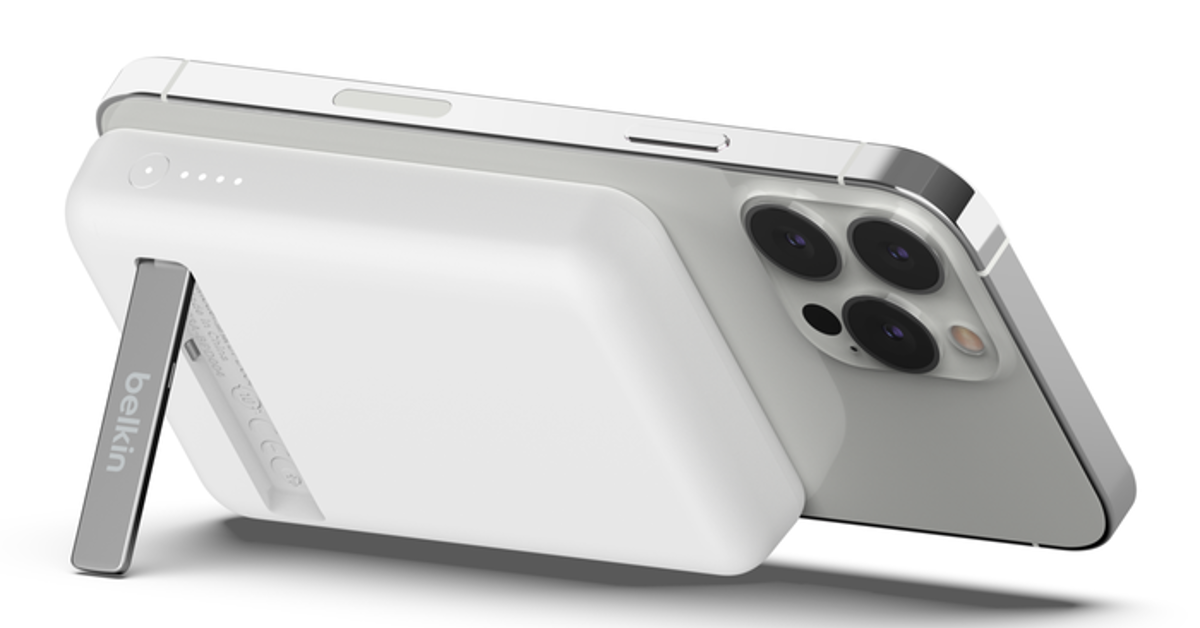
Price: Rs 6,273 on CromaThe Belkin Boostcharge Magnetic Wireless Power Bank is one of our favourite smartphone accessories around. It can hold up to 5,000 mAh of charge and magnetically attaches itself to the back of your iPhone. Its compact design ensures that the rear cameras are never blocked. The Boostcharge power bank can wirelessly charge your iPhone at a maximum speed of 7.5W. With wired charging, this speed gets bumped up to 10W. The power bank also has a foldable stand attachment which allows you to place your iPhone on any flat surface while streaming or taking video calls. One of the underrated features of this accessory is pass-through charging, which means you can charge your phone while the power bank is getting charged.
boAt Smart Ring
Price: Rs 9,999 on boAt.comSmart wearable and fitness enthusiasts will like the new boAt Smart Ring. This ring is made of premium ceramic and metal and offers a range of health monitoring and activity tracking functions. The smart touch controls on this ring can be used to control music playback, change tracks, click pictures, and navigate apps. For those who don’t like wearing a smartwatch all the time, this smart ring is an ideal replacement. You can use it to track your sleeping pattern, monitor your heart rate, check your body temperature and SpO2 level, and track a diverse range of physical activities.
Smart Hybrid Pillow
Price: Rs 1,199 on TheSleepCompany.inThe Smart Hybrid Pillow from The Sleep Company utilises the ‘smartGRID’ technology with a unique honeycomb structure to provide a super breathable and cool cushion for your head while you sleep. The high-quality TPE material keeps allergies at bay, providing a comfortable, deep sleep. The pillow has a size of 61cm x 41cm. With over a thousand air channels, you will never find ourself flipping the pillow over to access its ‘cool’ side.
LED UV Sterilizer Box
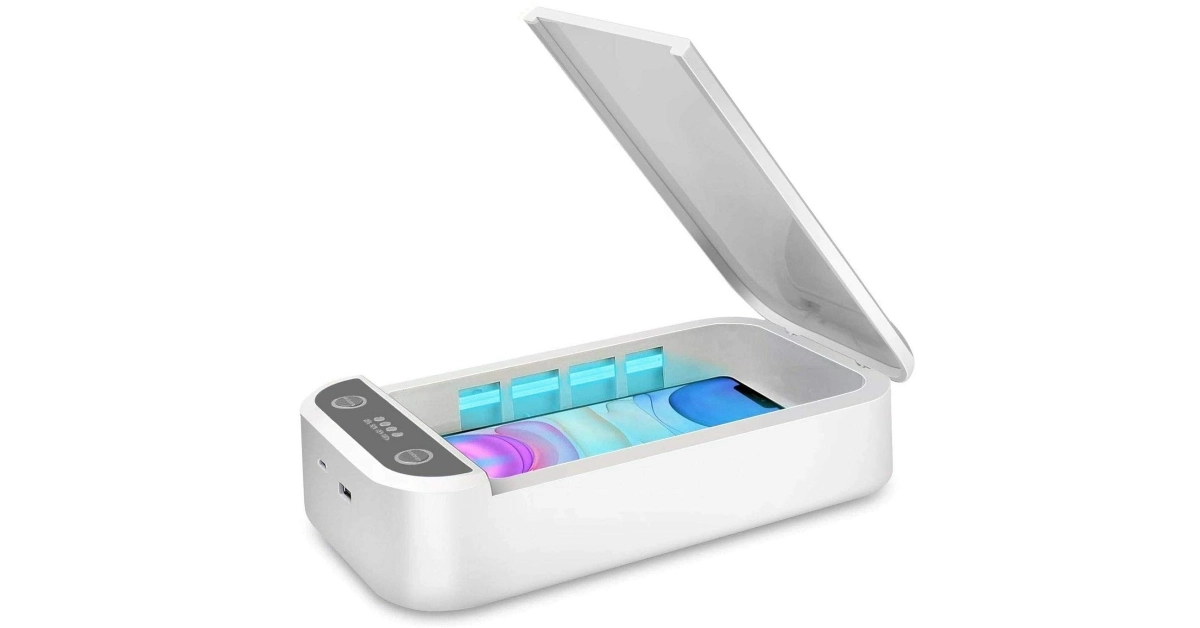
Price: Rs 3,490 on AmazonThis UV Sterilizer Box can be used to sanitize objects that get used on a daily basis and accumulate a lot of germs in the process. You can pop in your smartphone, jewellery, watch, or keys, and clean them in just 3 minutes. The box blasts powerful UV light at the object placed within it, effectively killing 99.9% of the germs and bacteria. It also has built-in aromatherapy chambers that release relaxing smells, wiping out any unwanted odour from the device.Read Also:5 ways to fix ‘A Problem Was Detected With the TrueDepth Camera’ on iPhone
Conclusion
These are the top 9 funky gadgets you can buy online right now. All of these devices can be bought online from their respective e-retail outlets. This list covers a range of genres and price points. If there is a device that’s way ‘out there’ and deserves a spot on the list, let us know in the comments!
OnePlus 12 will launch globally alongside OnePlus 12R.
OnePlus 12R is a gaming smartphone.
It will succeed the OnePlus 11R.
Earlier, we were just speculating based on leaks and reports as to when the OnePlus 12 will finally be launched globally. Last week the company confirmed that it could launch its latest flagship in January 2024 but a company’s executive has revealed the official launch date. More than that a new smartphone is also likely to be tagged along. Keep reading for more details.OnePlus 12 launched in China last week. It is now all set to be presented globally. OnePlus Benelux’s Country Manager, Alexander Vanderhaeghe at the Never Settle community event in Antwerp has revealed that the OnePlus 12 global launch will officially launch in Europe and the rest of the world on January 23. He further disclosed that OnePlus 12R will also make its debut alongside the flagship smartphone. For those who are unaware, the OnePlus R-Series phone is aimed at gamers. It will succeed the OnePlus 11R that was launched last year.
OnePlus 12 specifications
The OnePlus 12 was launched in China last week on Tuesday. It is highlighted with a 6.82-inch quad-HD+ LTPO OLED screen. The display has an adaptive refresh rate ranging between 1Hz and 120Hz. The screen supports 4,500 nits of screen brightness. The device is IP65 rated for dust and water resistance.Also Read:Vivo X100 Series global launch is on this dayAt its heart, there is Qualcomm’s 4nm Snapdragon 8 Gen 3 SoC. The device is offered with up to 24GB of LPDDR5X RAM and up to 1TB of UFS 4 inbuilt storage. The phone is endowed with a Hasselblad branded triple rear camera with a Sony LYT-808 sensor with a 50-megapixel primary camera (OIS, and f/1.6 aperture), a 64-megapixel telephoto secondary lens (OIS, 3X optical zoom and f/2.6 aperture) and a 48-megapixel ultra-wide-angle lens (114-degree field-of-view). Lastly, there is a 32-megapixel front-facing camera (f/2.4 aperture) for taking selfies and video calling.The handset houses a 5,400mAh battery with 100W SuperVOOC wired, 50W wireless and 10W reverse wireless charging support.
The series includes two models- Vivo X100 and Vivo X100 Pro.
Both the devices are powered by MediaTek Dimensity 9300 SoC.
The smartphones runs on OriginOS 4 with Android 14.
Vivo is now ready to present its latest flagship Vivo X100 Series to the world. The company has announced the global launch date of its camera-focused smartphone series. To recall, the lineup was first introduced in China last month. The series included two models Vivo X100 and Vivo X100 Pro. Both smartphones come with Zeiss optics and are powered by MediaTek Dimensity 9300 SoC. In addition to this, they operate on OriginOS 4 with Android 14. Additionally, the devices support up to 120W fast charging.Vivo does not want to keep its fans waiting, which is why it is going to bring its latest premium smartphone series to the global market soon. The company has officially set the Vivo x100 Series global launch date for December 14. The lineup will bring two devices Vivo X100 and Vivo X100 Pro. Global debut also indicates that the India launch is also expected. However, the company has not yet specifically named or hinted at the India launch.Vivo X100 Series debuted in China in November and the pricing at which it arrived starts at CNY 3,999 (Rs 50,000) and goes up to CNY 5,999 (Rs 68,000). There are four models for Vivo 100 Pro whereas the X100 is made available in five variants with up to 16GB LPDDR5T RAM + 1TB storage.All the models with their respective pricing are listed here.Also Read:OnePlus 12 could launch in January 2024, company confirms
Vivo X100 Series specifications
Both Vivo X100 and Vivo X100 Pro share a lot of similarities. The display software and processors are the same. They feature a 6.78-inch AMOLED 8T LTPO curved display with a 120Hz refresh rate and 3000 nits of peak brightness. The devices run on OriginOS 4 with Android 14 out of the box. They are powered by MediaTek Dimensity 9300 SoC with Vivo V3 chip.Both the handsets are highlighted with a triple-camera setup powered by Zeiss optics.Vivo X100 Pro includes a 50-megapixel Sony IMX989 1-inch type sensor with OIS (100x digital zoom), a 50-megapixel ultra wide-angle sensor and a 50-megapixel Zeiss APO super-telephoto lens with OIS (4.3x optical zoom and 100x digital zoom).On the other hand, the vanilla model includes a Sony IMX920 VCS bionic 50-megapixel primary sensor with OIS, a 50-megapixel ultra-wide-angle lens and a 64-megapixel Zeiss super-telephoto lens (100x clear zoom).Both smartphones come with a 32-megapixel selfie camera.
Garena Free Fire is a battle royale game with regular awards and tournaments to keep players interested. If you play Garena Free Fire, you should be aware of the redeem codes that are released on a daily basis. However, because the battle royale game is banned in India, players from other countries can use the Free Fire Redeem codes daily. If you’re unfamiliar with the Garena Free Fire redeem codes or don’t know how to get them, we’ve put together a step-by-step guide to help you redeem them. Check out Garena Free Fire Redeem Codes for 11 December 2023.The Free Fire redeem codes are a great way to get free stuff. These are 12-digit codes that contain alphabets and numbers, as well as an expiration date and time. Because the Garena FF redeem codes cannot be used more than once, you should hurry to the redemption page to claim your free reward before someone else does. To get a free reward, all you have to do is go to reward.ff.garena.com/en, which is the official redemption page. Also, keep an eye on this space for daily updates on Garena Free Fire redemption codes and rewards.
Garena Free Fire Redeem Codes Today 11 December 2023
The default colour for the battery indicator on iPhones is green. The colour green signifies that the battery level on your device is optimum and everything is working as intended. A yellow icon means that the Low Power Mode is currently active on your device. This mode typically kicks in when the battery level drops to 20%. But, it stays on until the battery reaches 80%. If the battery icon on your iPhone turns yellow out of the blue, you must have turned it on by accident. So, let’s take a quick look at how you can turn it off.Read Also:Top 5 Ways To Tell if Someone Blocked You on Facebook
What does the Yellow Battery Icon mean on an iPhone?
When your iPhone’s battery level drops down to 20%, you may have noticed its battery icon turn yellow. This doesn’t just signify that your phone is running out of charge, it also means that the device’s system has activated Low Power Mode.When Low Power Mode is activated, your iPhone makes a decision to prioritise the most important tasks to preserve the battery life. If you don’t have access to a charger, the Low Mode Mode can keep your iPhone alive for a significant amount of time. It does this by cutting down on some tasks and drawing back the power from some functions. Here are all the features that get affected in this mode.
5G disabled (except when you’re streaming videos) on iPhone 12 and 13.
Auto-lock gets reduced to 30 seconds.
Display brightness gets reduced.
The display refresh rate drops down to 60Hz.
Some visual effects are dialled down.
iCloud syncing for photos is paused.
Automatic downloads are paused.
Your emails are fetched at a slower rate.
Background apps are refreshed at a slower rate.
If you don’t want your iPhone to reduce its performance when its battery dips to 20%, you can always turn off low power mode. Here’s how.
Turn off Low Power Mode from Settings to ‘fix’ the yellow battery icon on your iPhone
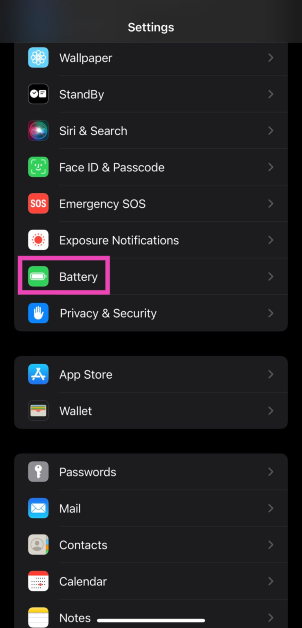
Step 1: Go to Settings and select Battery.Step 2: Turn off the toggle switch for Low Power Mode.
Charge your iPhone
As we mentioned earlier, the Low Power Mode on your iPhone shuts off when the device reaches an 80% charge. If you’re running low on battery, it is a good idea to not have all the functions of your iPhone running at full blast, as it would deplete the leftover very quickly. If you have access to a charger, plug it into your device and wait for it to reach an 80% charge level.
Add the Low Power Mode to tile to the Control Center
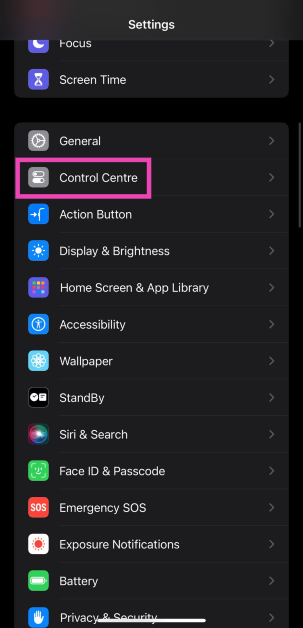
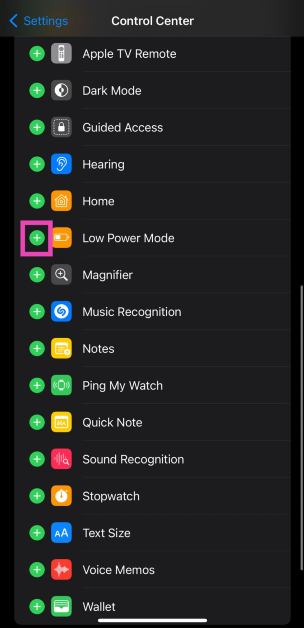
If you don’t want to visit the device settings every time you want to toggle the Low Power Mode, you can simply add its tile to the Control Center. Here’s how.Step 1: Go to Settings and select Control Center.Step 2: Hit the green plus sign next to Low Power Mode. The tile will be added to the Control Center.Step 3:Swipe down from the status bar and tap the Low Power Mode tile to turn it off.
Use Siri to turn off Low Power Mode
If you don’t want to add the Low Power Mode tile to the Control Center or turn it from device settings, you can get Siri to do it. Simply say ‘Hey Siri, turn off Low Power Mode’ and the voice assistant will switch your phone’s battery usage to its normal settings.
Frequently Asked Questions (FAQs)
Why is my iPhone’s battery icon yellow?
Your iPhone’s battery icon turns yellow when it is set to Low Power Mode. This mode kicks in automatically when your iPhone’s battery goes down to 20%. Once your iPhone is in Low Power Mode, its performance will be reduced to increase the battery life.
When does the Low Power Mode go away?
The Low Power Mode on your iPhone is automatically disabled when the device is charged to 80%. You can also disable it from Battery settings.
How do I check my iPhone’s battery health?
To check your iPhone’s battery health, go to Settings>Battery and tap on Battery Health & Charging.
Can I use my iPhone in Low Power Mode?
You can carry out routine tasks on your iPhone when it is in Low Power Mode. However, certain functions like 5G reception, high brightness, background app refresh, and more will be curtailed.
Does the iPhone receive phone calls in Low Power Mode?
This is how you can fix the yellow battery icon on your iPhone. The Low Power Mode only preserves your iPhone’s battery life in the short term, but if you want it to last longer, you should take a look at your general usage. Practices like overcharging the battery, subjecting the device to extreme temperatures, and using counterfeit chargers aren’t good for the battery. Read this article to learn how you can improve your iPhone’s battery life.
Garena Free Fire is a battle royale game with regular awards and tournaments to keep players interested. If you play Garena Free Fire, you should be aware of the redeem codes that are released daily. However, because the battle royale game is banned in India, players from other countries can use the Free Fire Redeem codes daily. If you’re unfamiliar with the Garena Free Fire redeem codes or don’t know how to get them, we’ve put together a step-by-step guide to help you redeem them. Check out Garena Free Fire Redeem Codes for 10 December 2023.The Free Fire redeem codes are a great way to get free stuff. These are 12-digit codes that contain alphabets and numbers, as well as an expiration date and time. Because the Garena FF redeem codes cannot be used more than once, you should hurry to the redemption page to claim your free reward before someone else does. To get a free reward, all you have to do is go to reward.ff.garena.com/en, which is the official redemption page. Also, keep an eye on this space for daily updates on Garena Free Fire redemption codes and rewards.
Garena Free Fire Redeem Codes Today 10 December 2023


 Step 3: Switch to the Security tab.
 Step 4: Scroll down and select Manage all devices under Your devices.
 Step 5: Scroll down and select the Android phone.
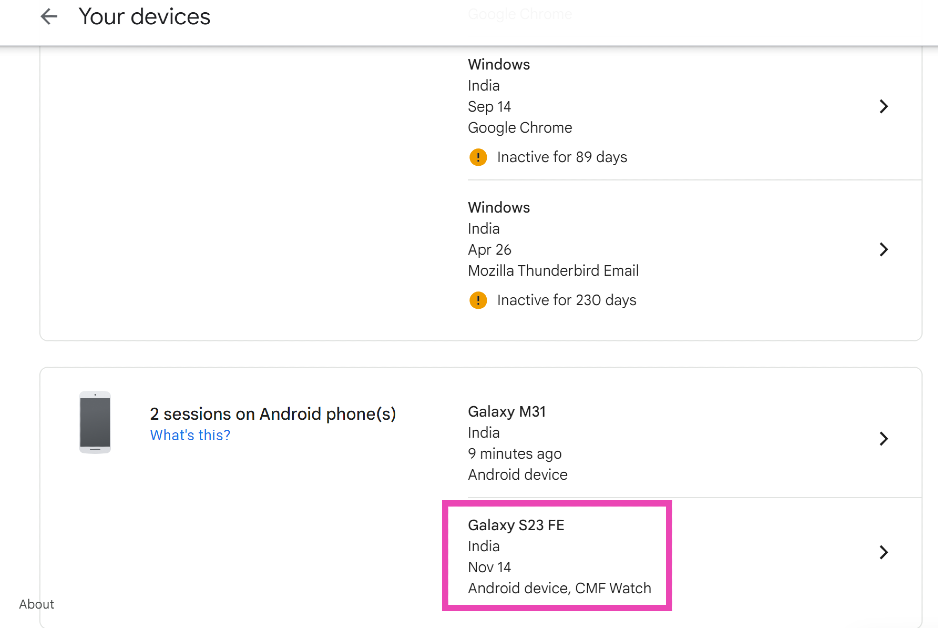 Step 6: Click on Sign Out.
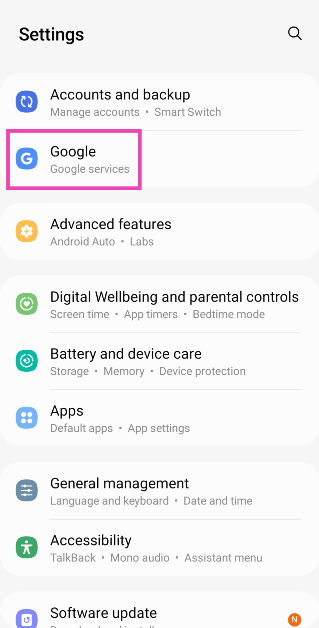 Step 2: Tap on Manage your Google Account.
 Step 3: Switch to the Security tab.
 Step 4: Scroll down and select Manage all devices.
 Step 5: Tap on the Android phone from which you want to log out.
 Step 6: Hit Sign Out.

 Step 1:
 Step 1: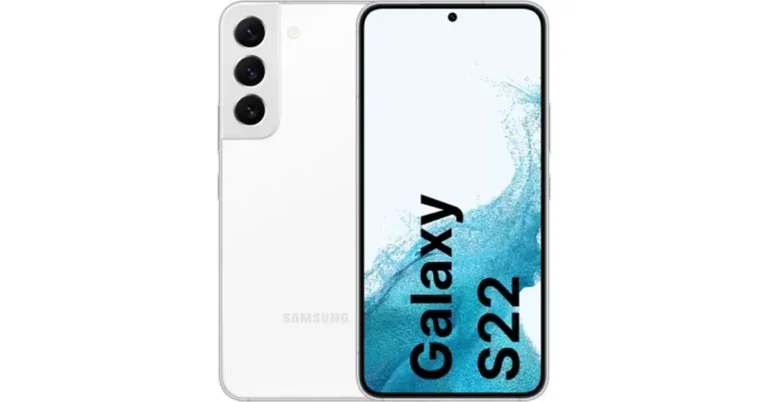

 Step 3:
 Step 4:
 Step 5: Confirm
  Step 6:
 Step 3:
 Step 4: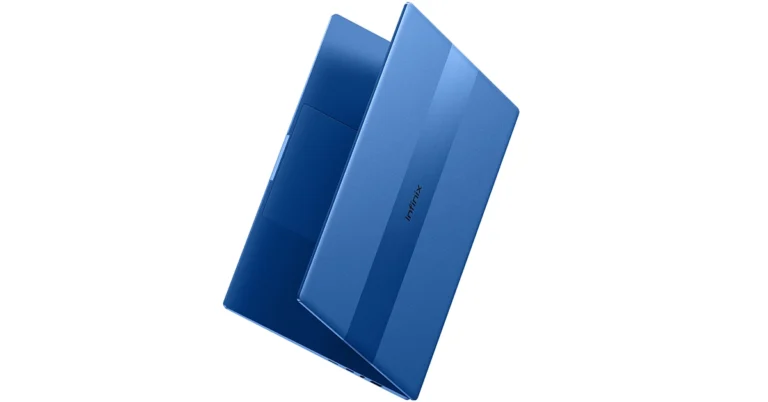
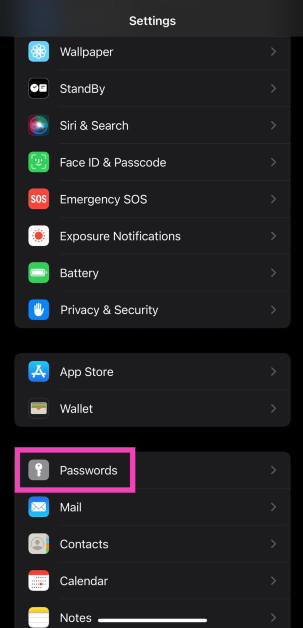 Step 2:
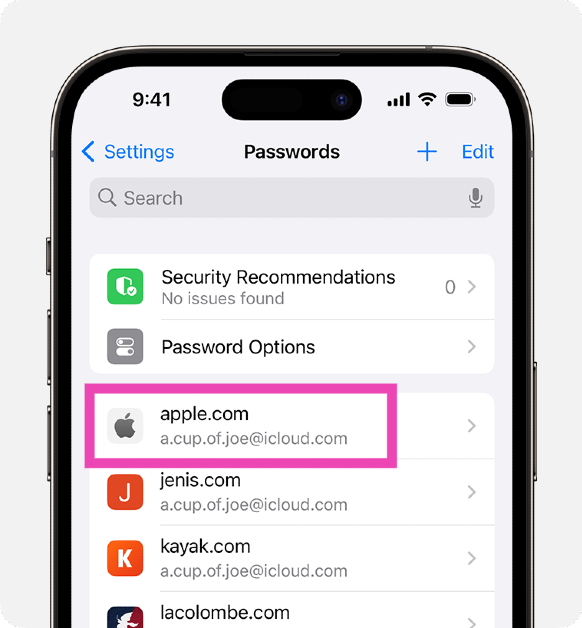 Step 4: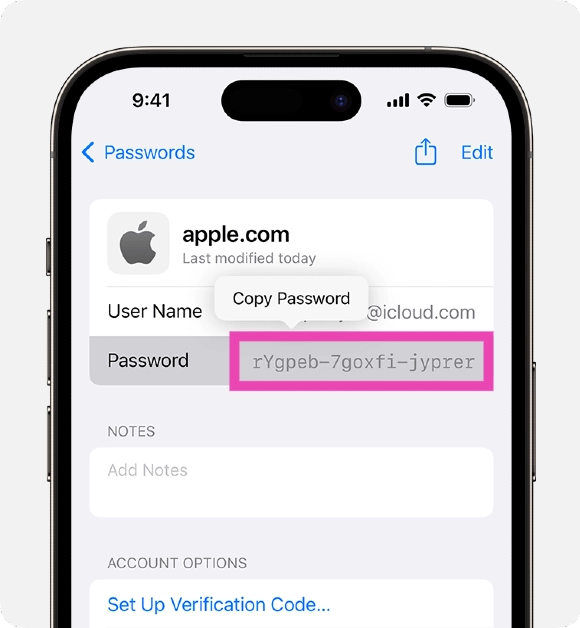
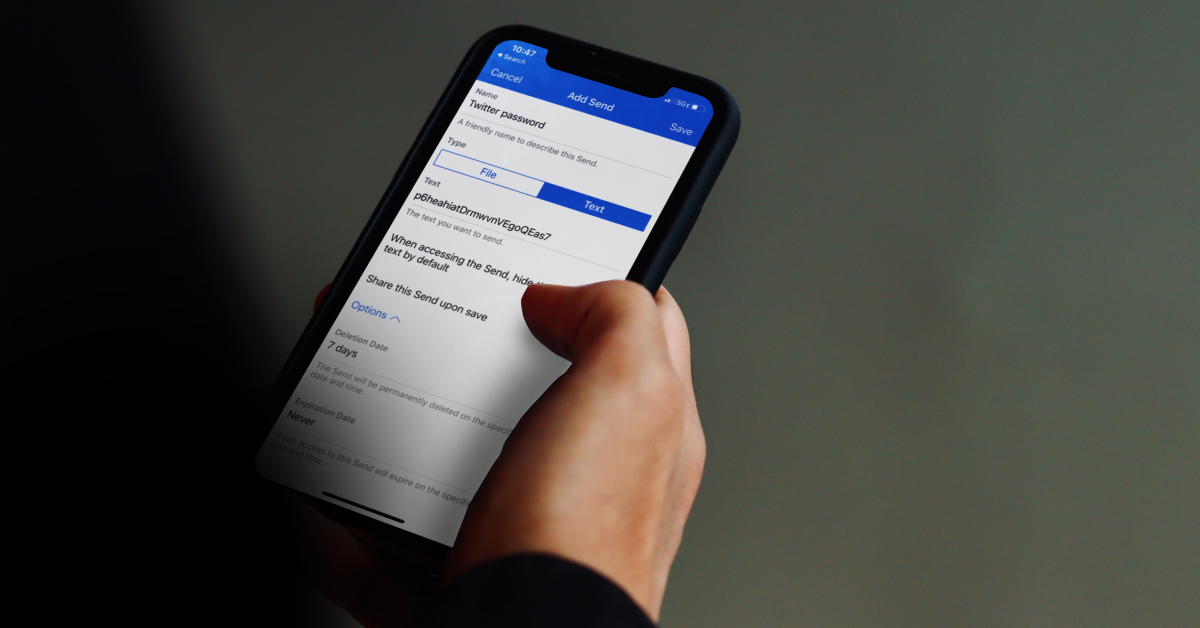

 Step 1:
 Step 1: Launch the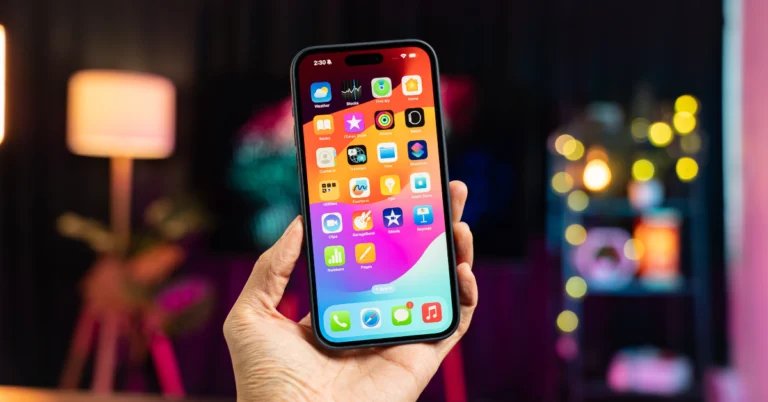
 Step 2: Navigate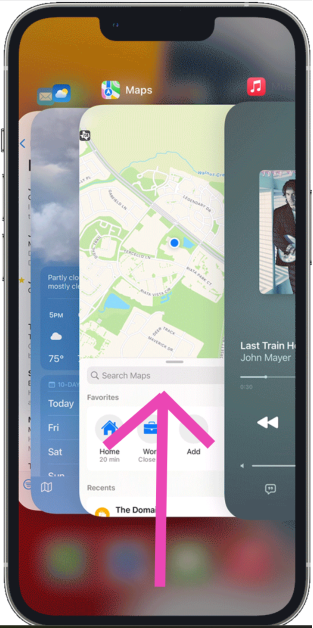
 Step 2: Navigate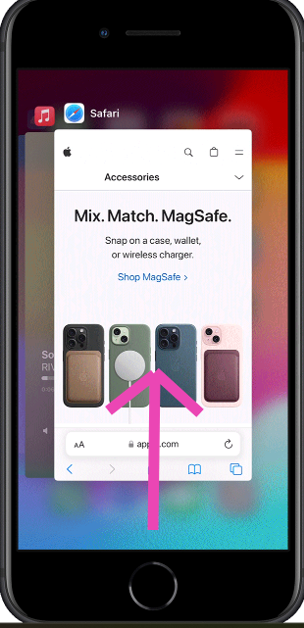










 Step 2: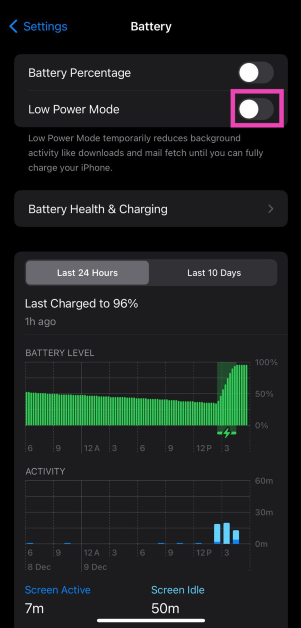
 Step 2:
 Step 3: Swipe down from the status bar and tap the Low Power Mode tile to turn it off.
 If you don’t want to add the Low Power Mode tile to the Control Center or turn it from device settings, you can get Siri to do it. Simply say ‘Hey Siri, turn off Low Power Mode’ and the voice assistant will switch your phone’s battery usage to its normal settings.