6 Best Ways to Sync an Android Device to Your PC

0
If you want to remotely use your smartphone using your PC, your options are very limited. There is no native Android interface that lets you send/receive messages or make calls using your PC. However, Microsoft’s Phone Link is able to bridge this gap in functionality. Some Android smartphone manufacturers like Samsung have their own connectivity apps for PC. In this article, we bring you the 6 best ways to sync an Android device to your Windows PC. Read Also: Samsung Galaxy M14 5G review: Brilliant in the budget segment

Use Microsoft Phone Link

While there are a lot of third-party tools to manage your smartphone from your PC, the closest thing you’ve got to a native interface is Microsoft’s Phone Link. Using Phone Link you can sync your phone’s messages and notifications with your PC. The interface allows you to respond to texts, make & receive calls, browse the gallery, and a lot of other stuff. Here’s how you can sync your Android device with a PC using Microsoft Phone Link. Step 1: Download and install the ‘Link to Windows’ app on your Android smartphone. Step 2: Go to your PC settings and select ‘Phone’. Step 3: Click on ‘Add a phone’ and choose whether you want to pair your phone manually or with a QR code. Step 3: Choose whether you want to pair your smartphone manually or by using a QR code. Connecting via a QR code will be quicker. Step 4: Launch the Link to Windows app on your smartphone and select ‘Link your Phone and PC’. Step 4: On your smartphone, launch the Link to Windows app and select ‘Link phone and PC’. Step 5: Select ‘Continue’ and scan the QR Code on your PC. Step 5: Select ‘Continue’ and scan the QR code on your PC from your smartphone.  Step 6: Select ‘Try another way’ to link your phone manually. Step 6: To pair manually, tap on ‘Link manually’ on your PC and tap on ‘Try another way’ on your smartphone. Step 7: Sign in using your Microsoft account. Step 8: Click on ‘Create PIN code’ on your PC to generate a PIN for manual linking. Step 8: On your PC, click on Create PIN code. Step 9: Enter the PIN on your smartphone. Step 9: Enter the PIN code in the Link to Windows app on your smartphone. Step 10: Give the app the necessary permissions to function. Step 10: Give the necessary permission to the Link to Windows app on your smartphone and hit ‘Done’ once you’re finished. 6 Best Ways to Sync an Android Device to Your PC Step 11: Use the sidebar on the Phone Link on your PC to connect your phone and computer via Bluetooth. Step 12: Use the sidebar on the Phone Link app to connect your smartphone and PC via Bluetooth. Once connected, you will be able to make and receive calls from your PC. 6 Best Ways to Sync an Android Device to Your PC You will now be able to send and receive calls and messages while accessing your phone’s personal data on your PC.

Use Samsung Flow 

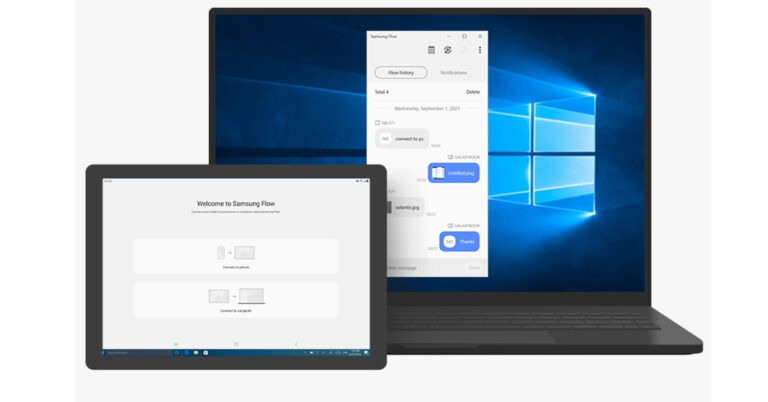
Samsung users can use the Samsung Flow app to sync their devices to a PC. You can find the Flow app on Microsoft Store. Here’s how you can link your Samsung device to your PC using Flow. Step 1: Install Samsung Flow on your smartphone and PC and hit ‘Start’. Step 1: Install Samsung Flow on your smartphone and PC and hit ‘Start’. 6 Best Ways to Sync an Android Device to Your PC Step 2: Select your Samsung device. Step 2: Select your Samsung device. 6 Best Ways to Sync an Android Device to Your PC Step 3: Launch the Flow app on your Samsung device. Step 4: Confirm the pass key to sync your phone with your PC. Step 4: Confirm the pass key to sync your phone with your PC. 6 Best Ways to Sync an Android Device to Your PC Step 5: Pair your PC and smartphone via Bluetooth or WiFi to complete the syncing process. Once the two devices are linked you can view your phone’s notifications on your PC, send and respond to messages, share mobile internet, sync the clipboard, and do a lot of other stuff.

Use a third-party tool

PushBullet There are plenty of third-party tools like Pushbullet, Coolmuster, and AirDroid that let you sync your phone with your PC. These apps are generally reliable and do a good job of syncing messages and notifications. The process to set up these tools is mostly similar. First, you need to install the PC and Android clients on the respective devices. Make sure your PC and smartphone are on the same network. Once that is done, you will need to create a profile on the application and then link your device via a QR code.

Use OneDrive or Google Drive to sync files

Google Drive offline mode is now available to access files without internet If you want to sync the personal data on your smartphone to your PC, there is no better way of going about it that using a cloud storage service. Upon signing up for Google Drive, you get up to 15GB of free storage, which is optimum to create a backup of all the essential files on your device. You can sign into Google Drive using your PC to access those files. You can also use Google Drive to create an online backup of your WhatsApp conversations and media.

Use Google Calendar to sync calendar entries

google calendar Most Android smartphones have Google’s app suite preinstalled in them. Google Calendar is one of those apps. You can use Google Calendar to sync your calendar entries across multiple devices. All you need to do to access the entries on your PC is sign into Google Calendar using the same Google Account that you use on your smartphone.

Use Sync for Chrome

Google TV update released: Improves GTV UI loading time at startup, Live tab loading speed and more For a lot of people, syncing the passwords to different web services is more important than syncing media and calendar entries. Luckily, Google Chrome is able to achieve this with ease. The only prerequisite is that you must be using the same Google Account for Chrome on all devices. To begin syncing, launch Chrome on your smartphone, go to Settings, and turn on Sync. Once that is done, you will be able to access your saved passwords, browsing history, bookmarks, and more across multiple devices.
Frequently Asked Questions

How do I sync files between Android and Windows?

You can use Microsoft Phone Link to sync files, messages, calls, and more between Android and Windows. To access the media on your device across multiple devices, back up your data on Google Drive or OneDrive.

How do I sync photos from Android to PC automatically?

To sync your photos from Android to PC use the Microsoft Photos app to import all the images from your phone to your PC. You can also use Microsoft Phone Link on your PC to view the contents of your phone’s gallery at any given time.

How do I sync my passwords from Android to PC?

To sync passwords, bookmarks, and web history from your phone to your Windows PC and access them across multiple devices, launch the Chrome app and go to Settings>Sync. Read Also: Samsung Galaxy F54 5G confirmed to launch in India on June 6

Conclusion 

These are the 6 best ways you can sync your Android device to your Windows PC. Out of all these methods, we would suggest using Microsoft Phone Link as it is as close to a native method as it gets. You can also use Phone Link to sync your iPhone messages to your PC. For the latest gadget and tech news, and gadget reviews, follow us on Twitter, Facebook and Instagram. For newest tech & gadget videos subscribe to our YouTube Channel. You can also stay up to date using the Gadget Bridge Android App. You can find the latest car and bike news here.

Thomson announced a new lineup of television and washing machines in India

Thomson has introduced an all-new FA series TVs with Realtek processor, Google TVs with 4k display and the latest series of semi-automatic washing machines in India. Additionally, SPPL, the official brand licensee of THOMSON in India, announces a new investment of Rs 200 crore for its cutting-edge wash plant. Avneet Singh Marwah, CEO, Super Plastronics Pvt. Ltd. Exclusive Brand Licensee of Thomson in India, said, “We are extremely grateful to our loyal customers for making THOMSON a great success yet again in the Indian market. With our new investment of INR 200 cr towards the wash plant and our collaboration with Flipkart, we are confident to strengthen our presence in the category further. We are always very enthused to offer new products with the best of technology to our customers and THOMSON has a huge lineup of 25 models that we plan to launch in the rest of the year.”

Thomson FA series TVs

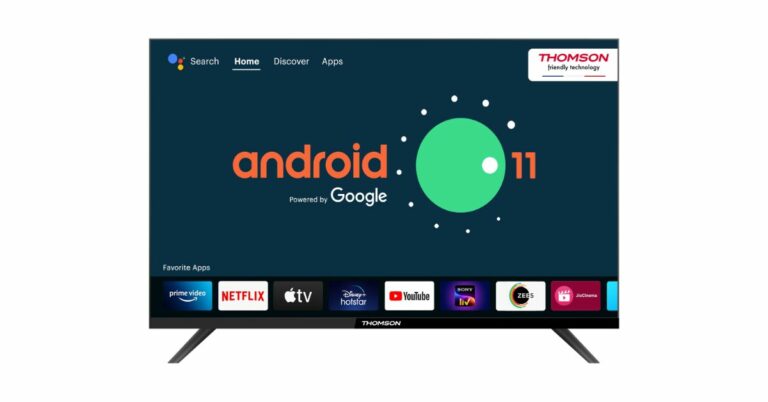
The new FA series TVs runs on Android 11 and is powered by a Realtek processor. The television series features a bezel-less design and comes in three different screen sizes 32, 40 and 42 inches. The Thomson TVs have 30W speakers and Dolby Digital. In addition, there is built-in Netflix, more than 6,000 apps and games Like Netflix, Prime Video, Disney+ Hotstar, Apple TV, Voot, Zee5, Sony LIV, and Google Play Store with 500,000 TV shows. Thomson FA series TVs The price of the FA series TV starts at Rs 10,499 for the 32-inch model. The price of the 40 and 42-inch variants is set at Rs 15,999 and Rs 16,999 respectively. Thomson Thomson Google TVs  

Thomson Google TVs

Whereas the Thomson Google TVs with 4k displays are available in 43-inch and 50-inch screen sizes. The devices also have a bezel-less design and come with Dolby Vision HDR 10+, Dolby Atmos, and Dolby Digital Plus support. In addition, there are 40W Dolby Audio Stereo Box Speakers supported by DTS TrueSurround. Moreover, they include 2GB RAM, 16GB ROM, and Dual Band (2.4 + 5 )GHz. These TVs are priced at Rs 22,999 for the 43-inch model and at Rs 27,999 for the 50-inch variant. Thomson semi-automatic top-load washing machines

Thomson semi-automatic top-load washing machines

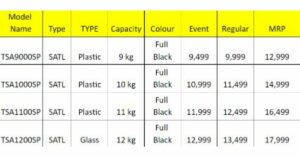
Besides this Thomson has also introduced a new range of semi-automatic top load washing machines series available in 9 Kg, 10 kg, 11 kg and 12 kg respectively. These machines are affordably priced. Prices are listed below: Thomson semi-automatic top-load washing machines   For the latest gadget and tech news, and gadget reviews, follow us on TwitterFacebook and Instagram. For newest tech & gadget videos subscribe to our YouTube Channel. You can also stay up to date using the Gadget Bridge Android App. You can find the latest car and bike news here.

Best Ways to Turn Facebook Chat On or Off on Android

0
Messaging on Facebook started out as a section of the social media website and has now become one of the biggest standalone messenger apps in the world. Unline WhatsApp, you don’t need to share your phone number with someone to add them on Messenger. If you’re overwhelmed by the messages your receive on the Messenger app, you can choose to turn it off and disable the notifications. In this article, we bring you the best ways to turn Facebook chat on or off on Android. Read Also: Samsung Galaxy F54 5G confirmed to launch in India on June 6

Use Facebook Messenger

Step 1: Launch the Messenger app on your Android smartphone. Step 2: Tap the hamburger menu at the top left corner of the screen. Step 2: Tap the hamburger menu at the top left corner of the screen. Step 3: Tap the gear icon for settings. Step 3: Tap the gear icon for settings. Step 4: Select ‘Active Status’. Step 4: Select ‘Active Status’. Step 5: Turn off the toggle bars for ‘Show when you’re active’ and ‘Show when you’re active together’. Step 5: Turn off the toggle bars for ‘Show when you’re active’ and ‘Show when you’re active together’.

Use the Facebook app

Instagram and Facebook Step 1: Launch the Facebook app on your Android smartphone. Step 2: Tap the hamburger menu icon at the top right corner of the screen. Step 3: Go to the apps section and select ‘Messenger’. Step 4: Tap the gear icon to access settings. Step 5: Select ‘’On’ or ‘Off’ to enable or disable Facebook Chat.

Turn off notifications for Messenger

Step 1: Launch the Messenger app on your device. Step 2: Tap the hamburger icon on the top left corner of the screen. Step 2: Tap the hamburger menu at the top left corner of the screen. Best Ways to Turn Facebook Chat On or Off on Android Step 3: Tap the gear icon. Step 3: Tap the gear icon for settings. Best Ways to Turn Facebook Chat On or Off on Android Step 4: Select ‘Notification and Sounds’. Step 4: Select ‘Notification and Sounds’. Best Ways to Turn Facebook Chat On or Off on Android Step 5: Turn off the toggle bar for ‘On’. Step 5: Turn off the toggle bar for ‘On’. Best Ways to Turn Facebook Chat On or Off on Android

Frequently Asked Questions

What does ‘Turn off chat’ mean on Facebook?

When you turn off chat on Facebook, it means that your friends and contacts won’t be able to see whether you are online or not. You can still send and receive messages when the chat is turned off.

Can I disable Facebook chat?

Facebook chat can be disabled from the Facebook or Messenger app. The easiest way to go about it is by launching the Messenger app, going to Settings, and turning off the toggle bar for ‘Active Status’.

How do you know if someone has turned off chat for Facebook?

If someone is actively posting on Facebook but their Messenger profile says they are offline, it means they have turned off chat for Facebook. Read Also: Nokia C22 Review: Should you buy this budget smartphone for Rs 7,999?

Conclusion

These are the best ways you can turn Facebook chat On or Off on your Android smartphone. There is another way you can turn off notifications for the Messenger app. Simply go to app settings on your Android smartphone, select Messenger, and turn off notifications. For the latest gadget and tech news, and gadget reviews, follow us on Twitter, Facebook and Instagram. For newest tech & gadget videos subscribe to our YouTube Channel. You can also stay up to date using the Gadget Bridge Android App. You can find the latest car and bike news here.

5 best camera smartphones under Rs 50,000

The cameras on smartphones have significantly improved, upping the ante in the photography world. Check out the following best camera smartphones under Rs 50,000 price category in India if you’re looking for a compact phone with outstanding camera capabilities.

Samsung Galaxy S21 FE 5G

5 best camera smartphones under Rs 50,000 (May 2023) Samsung Galaxy S21 FE 5G is one of our favourite camera smartphones we would definitely recommend it. Not only its rear camera, but the selfies taken on it are also even better, sharp and more detailed than any other flagship smartphone. It comes with a 12-megapixel primary sensor with an f/1.8 wide-angle lens, a 12-megapixel ultra-wide sensor, and an 8-megapixel telephoto sensor making up the triple rear camera setup on the Galaxy S21 FE 5G. For selfies and video calls, the gadget also includes a 32-megapixel front camera with an f/2.2 aperture. Price starts at Rs 35,999 Buy via Amazon Also Read: 5 Best premium smartphones to buy in India in 2023

OnePlus 11R 5G

5 best camera smartphones under Rs 50,000 (May 2023) This is another recommendation by us, OnePlus 11R 5G. The OnePlus 11R has three back cameras, one of which has a 50MP Sony IMX890 primary sensor. Together with other capabilities, it contains a 4 cm macro camera with a 120-degree ultra-wide lens and an 8 Megapixel ultra wide-angle sensor. The device lacks optical zooming capabilities but has a 10x digital zoom. The OnePlus 11R’s rear camera is shake-free and supports both electronic and optical image stabilisation, allowing it to record videos in 4K quality at 30 frames per second. The 16MP front camera is located in a notch at the top of the display. Price starts at Rs 39,999 Buy via Amazon

Vivo V27 Pro 5G

5 best camera smartphones under Rs 50,000 (May 2023) Vivo V27 Pro 5G is more than just a camera focussed phone. The device not only impressed us in the camera department but in terms of performance and design. The phones feature a triple rear camera setup that includes a 50MP Sony IMX766V custom primary rear sensor with OIS stabilisation along with an 8MP wide-angle, and a 2MP macro sensor. According to the company, there is a new Night Portrait with Aura Light feature for clicking natural, high-quality studio-like Night Portraits. In addition to this, there is a natural, high-quality studio-like Night Portraits. This feature is exclusively made for Indian weddings and consists of three different LUTs ((Look up Tables)- Prosecco, Neo-Retro and Pastels that work with both rear and front cameras. Upfront there is a 50-megapixel selfie camera with advanced eye autofocus. Price starts at Rs 37,999 Buy via Flipkart Also Read: 5 Best Photography smartphones in India: Ditch the DSLR

Oppo Reno 8 Pro

5 best camera smartphones under Rs 50,000 (May 2023) Oppo’s Reno series is quite popular for its camera performance. The Reno 8 Pro has three rear cameras, each with a 50-megapixel Sony IMX766 sensor with an f/1.8 aperture. There is a 2-megapixel macro camera with an f/2.4 lens, an 8-megapixel sensor paired with an f/2.2 ultra-wide aperture with a 112-degree field of view. Oppo has additionally integrated the MariSilicon X NPU with the camera to enhance overall performance in both bright and dim light. Price starts at Rs 45,999 Buy via Flipkart

Samsung Galaxy Z Flip 3

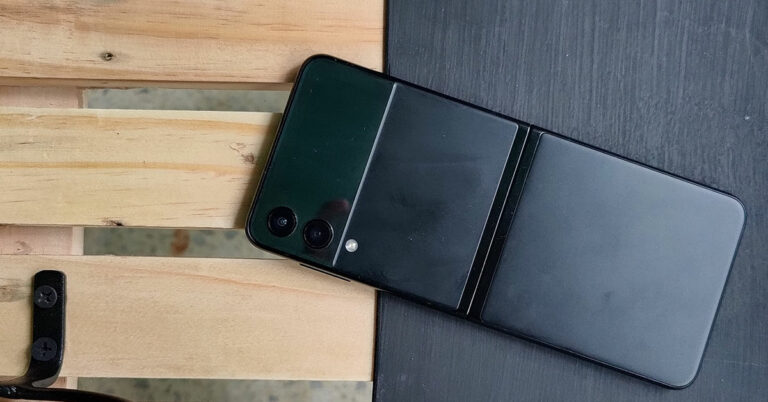
5 best camera smartphones under Rs 50,000 (May 2023) Samsung Galaxy Z Flip 3 is a clamshell-like foldable phone which is an ideal choice for vloggers looking for a compact phone with better optics. Samsung Galaxy Z Flip 3 is highlighted with a dual rear camera setup that includes a 12-megapixel primary sensor with an f/1.8 aperture and a 12-megapixel wide-angle lens. In terms of selfies, there is a 10-megapixel sensor on the front having an f/2.4 aperture. Price starts at 45,999 Buy via Flipkart For the latest gadget and tech news, and gadget reviews, follow us on TwitterFacebook and Instagram. For newest tech & gadget videos subscribe to our YouTube Channel. You can also stay up to date using the Gadget Bridge Android App. You can find the latest car and bike news here.

Best 7 Ways to Unlock Your Android Device (2024)

1
If you keep your old Android devices with you, it is suggested that you power them up from time to time and charge them whenever necessary. If you haven’t used the device in a long time, it is possible that you may have forgotten its password. Luckily, there are still some ways you can gain access to the device. In this article, we bring you the best 7 ways to unlock your Android device without a password. Read Also: Nokia C22 Review: Should you buy this budget smartphone for Rs 7,999?

Unlock your Android phone using your Google Account

Older Android versions used to have a ‘Forgot Pattern/Password’ option that lets you sign in using your Google Account in case you forgot your phone’s password. Newer Android versions no longer have this feature, but if your device runs on Android 4.4 or older, you can use your Google Account to get access to your smartphone. All you have to do is enter the wrong PIN/password/pattern multiple times and then tap on ‘Forgot Password’. You will be given multiple options to log in. Choose ‘Google Account’.

Unlock your Android phone using Google’s Find My Device

To use Find My Device to unlock your smartphone, you’ll need to activate the service and make it a device admin app. Go to Settings>Google to turn on Find My Device. Then, go to Settings>Biometrics and Security>Other security settings>Device admin apps and enable FMS. When that’s done, follow these steps to unlock your Android device. Step 1: Go to https://www.google.com/android/find and select your Android phone from the left panel. Step 2: Select Secure Device. Step 2: Select Secure Device from the left panel. You can also set up a recovery message if you want. Step 3: Find my device will lock your smartphone’s screen. Step 3: Find my device will lock your smartphone’s screen. how to unlock samsung phone without password Step 4: Follow the on-screen instructions to set up a new temporary password to unlock your device.  Step 5: Once your phone is unlocked, disable the temporary password from settings.

Unlock your Samsung device using Find My Mobile

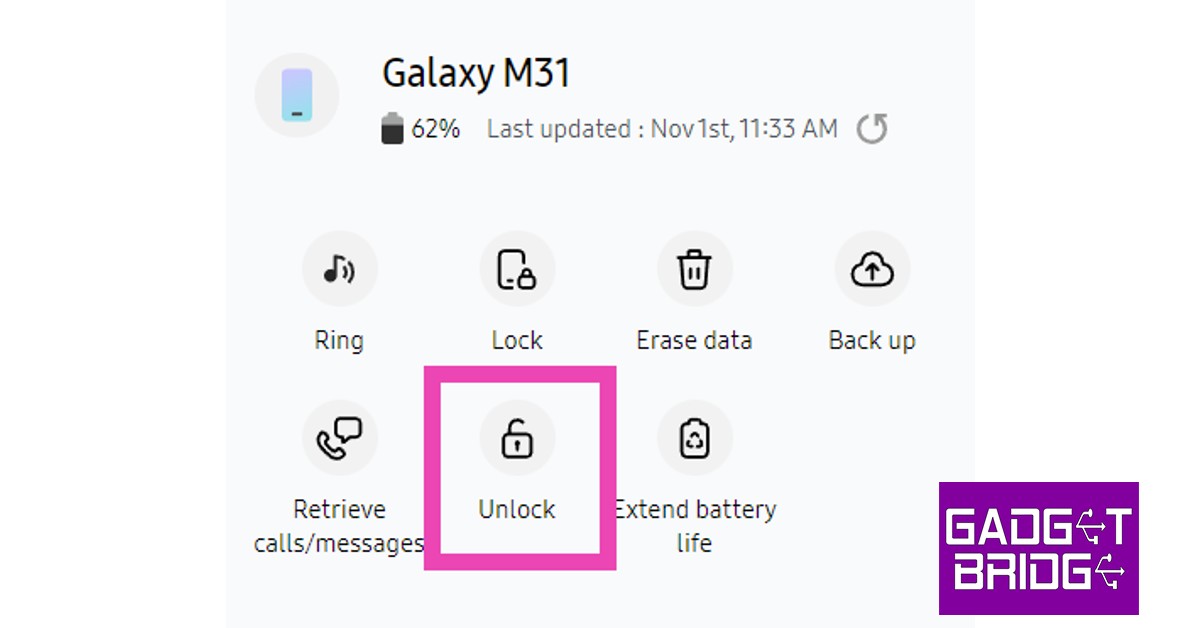
Samsung devices have their own tracking feature called ‘Find My Mobile’. Like Google’s Find My Device, you can use Find My Mobile to unlock your phone without entering your password. Before you begin, you will need to activate this feature from Settings>Samsung Account>Find My Mobile. Turn on the toggle bar for Remote Unlock. Once that’s done, follow these steps. Step 1: Go to https://findmymobile.samsung.com/ and sign in using your Samsung Account. Step 2: Select your Samsung device from the left panel. Step 2: Select your Samsung smartphone from the left panel. Step 3: Click on the Unlock icon on the right panel. Re-enter your Samsung Account password to unlock your device. Click on the ‘Unlock’ icon on the right panel. Once you unlock your Samsung device using this method, all the lock screen info will be deleted from it. This includes passwords, PIN, and biometric data.

Factory reset your smartphone in recovery mode

Another way to unlock your Android phone without a password is by performing a factory reset in recovery mode. Along with clearing the data on your device, a factory reset also deletes lock screen information. Here’s how you can go about it. Step 1: Turn off your phone using the side key. Step 2: Long press the Power Key and Volume Up button until the recovery screen appears. Step 3: Select wipe data/factory reset. Use the Volume Up and Down keys to navigate and the power button to make a selection. Step 4: Confirm your selection. Your smartphone will reboot after performing a factory reset. Once it restarts, you will not need a password to unlock it.

Unlock your phone using ADB commands

You can also unlock your phone using Android Debug Bridge (ADB). Before you proceed, you will need to install the SDK toolkit on your PC. Download it from the official Android website here. Once that is done, enable USB debugging from the developer options on your phone. This article will help. Now, follow these steps. Step 1: Connect your smartphone to your PC using a USB cable. Step 2: Launch Command Prompt in the ADB installation path. Step 3: Type this command: adb shell rm /data/system/gesture.key  Step 4: Hit Enter. Step 5: Wait for the process to finish and restart your phone.

Use a third-party tool

Phone management tools like Droidkit can also be used to unlock your Android device without needing a password. The only downside is that you will lose all your data on the device. Here’s how you can go about it. Step 1: Install DroidKit on your computer. Step 2: Connect your phone to your computer using a USB cable and launch DroidKit. Step 3: Click on Screen Unlocker. Start DroidKit on Your Device. how to unlock a locked android phone without losing data Step 4: Select Start. Connect Your Phone. how to unlock a locked android phone without losing data Step 5: Follow the onscreen instructions for password removal. Start Unlocking the Phone. how to unlock a locked android phone without losing data Step 6: Hit Complete when the process is over. Phone Unlock Process Completed

Use Extend Unlock

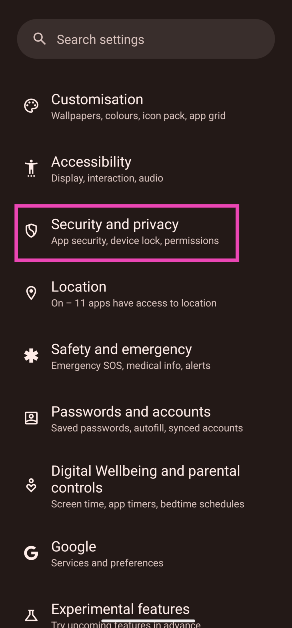
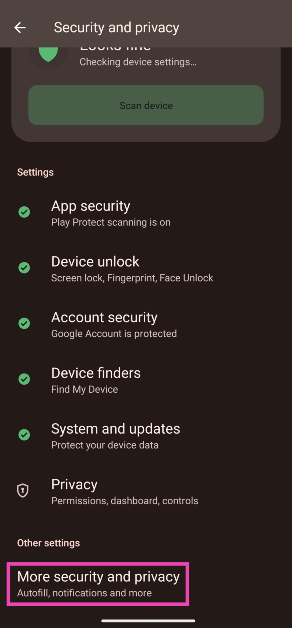
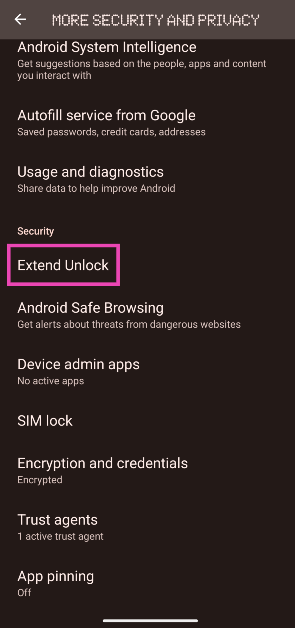
Extend Unlock keeps your device unlocked when it’s in your pocket, in the vicinity of trusted devices, or in locations specified by you beforehand. Here’s how you can turn it on. Step 1: Go to Settings and select Security and privacy. Step 1: Go to Settings and select Security and privacy. Step 2: Tap on More security and privacy. Step 2: Tap on More security and privacy. Step 3: Select Extend unlock. Step 3: Select Extend unlock. Step 4: Enter your phone’s PIN. Step 5: Read the terms and tap on Got it. Step 5: Read the terms and tap on Got it. Best 7 Ways to Unlock Your Android Device (2024) Step 6: Tap on On-body detection and turn on its toggle switch. Step 6: Tap on On-body detection and turn on its toggle switch. Best 7 Ways to Unlock Your Android Device (2024) Step 7: Tap on Trusted places and enter your home or work location. Step 7: Tap on Trusted places and enter your home or work location. Best 7 Ways to Unlock Your Android Device (2024) Step 8: Tap on Trusted devices and add your smartwatch or car system. Step 8: Tap on Trusted devices and add your smartwatch or car system.  Best 7 Ways to Unlock Your Android Device (2024)
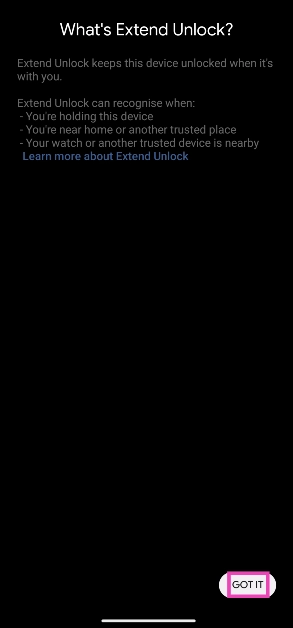
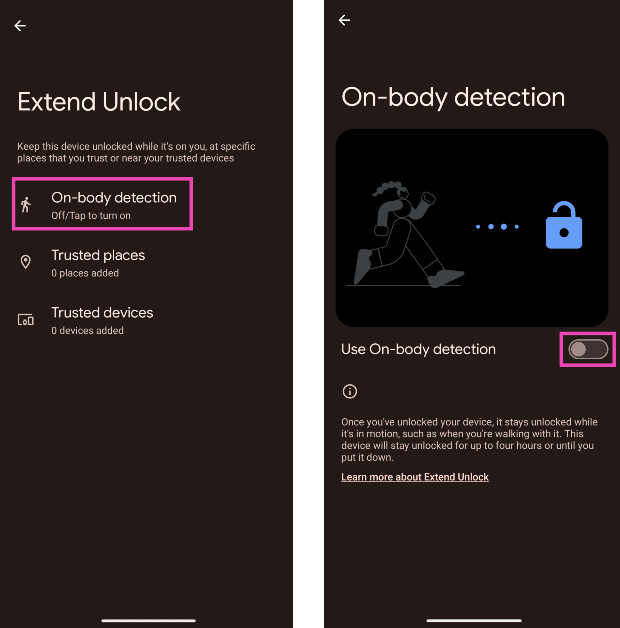
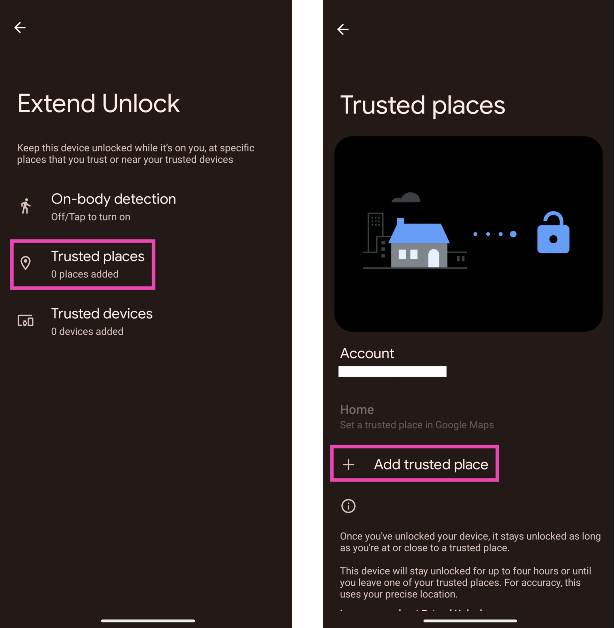
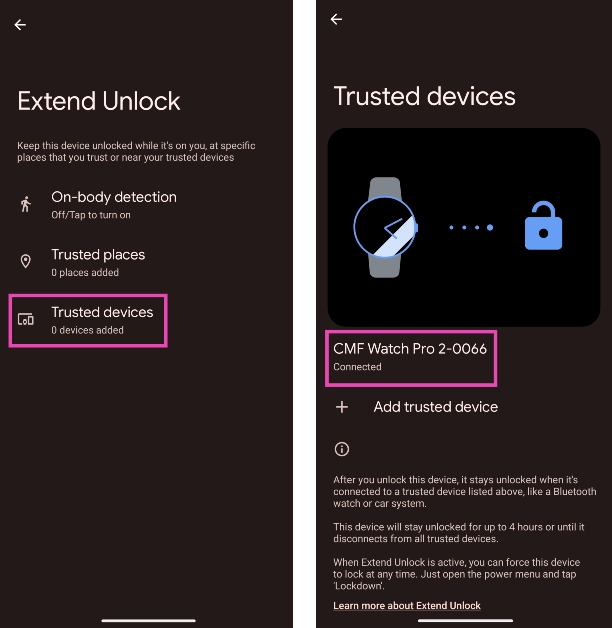
Frequently Asked Questions (FAQs)

Is it possible to unlock a locked Android phone without a password?

You can use Google’s Find My Device service to unlock your phone without a password. Resetting a device to its factory settings using recovery mode can also give you access to it without a password.

How do I unlock my phone without the power button? 

If the power button on your phone isn’t working, you can unlock it using Face ID or by scanning your fingerprint.

How do I unlock a smartphone without losing data?

To unlock a smartphone without losing data, use Google’s Find My Device or bypass the lock screen using ADB commands. Read Also: MediaTek Dimensity Auto: MediaTek partners with NVIDIA, to bring its tech to cars

Conclusion 

These are the best 7 ways to unlock your Android device without a password. To change your lock screen password go to Settings>Lock Screen>Screen Lock Type. If you have any other questions, let us know in the comments!

Samsung Galaxy M14 5G review: Brilliant in the budget segment

In India, Samsung recently upgraded its M-Series with the release of the Galaxy M14 5G. It was given to us for review and has since served as our everyday driver. The smartphone is a replacement for the M13 5G and is under the inexpensive category. The Exynos 1330 SoC powers the phone. Additionally, it has a triple camera configuration on the back and a huge 6,000mAh battery. Furthermore, it supports 13 5G bands. Let’s see how the device performs in this Samsung Galaxy M14 5G review.

Samsung Galaxy M14 5G review: Design and display

The M-Series lineup from Samsung is quite popular. The Galaxy M14 5G from Samsung is a thin, light handset that weighs just 202g and is 9.4mm thick. It feels light despite having a sizable 6,000mAh battery. This device has a good design and finish. The structure doesn’t feel flimsy, since the body is constructed of polycarbonate. It comes in a variety of colours and has a glossy finish. The Galaxy M14 5G’s icy silver shade is the colour option we got over for this review. Samsung Galaxy M14 5G review: Design and display Samsung Galaxy M14 5G boasts a curved shape and the same camera positioning as the company’s smartphones in the mid-range and premium price categories. One can immediately see how strikingly similar the camera module is to the Samsung Galaxy S23 5G by simply looking at it. Although the rear panel has a glossy finish, as we previously mentioned, it nevertheless does a fantastic job at concealing smudges and fingerprints. Samsung Galaxy M14 5G review: Design and display The right side of the device sports a side-mounted fingerprint sensor that also functions as a power button and a volume rocker with good tactile feedback. The side frames are softly curved. The fingerprint sensor works quickly and effectively. It has a Type C port, a speaker vent, a microphone, and an audio jack at the bottom. On the left frame, a dedicated microSD card slot and two nano SIM slots are provided. Samsung Galaxy M14 5G review: Design and display Corning Gorilla Glass 5 is used to protect the front, which has a flat profile. The 6.6-inch Full HD+ PLS LCD screen of the Galaxy M14 5G has a resolution of 2,408 x 1,080 pixels. It has a refresh rate of 90Hz. However, this is a well-designed LCD screen for its budget. Of course, the display isn’t as fantastic as what you might expect from an AMOLED display. We had no trouble using the phone indoors in terms of brightness. Samsung Galaxy M14 5G review: Design and display Although Samsung Galaxy M14 5G is not the brightest outside, you should be able to get by with full brightness. Even though it’s an LCD panel, the colours look vivid. The viewing angles are likewise rather good. The majority of your scrolling will feel responsive and fluid thanks to the 90Hz refresh rate. The mobile supports HD video playback and Widevine L1 for watching videos. The viewing experience is decent; the pictures are clear and the single bottom-firing speaker on the Samsung Galaxy M14 5G works adequately to let you enjoy your favourite shows or films.

Samsung Galaxy M14 5G review: Performance and Cameras

When it comes to performance, the Galaxy M14 5G is driven by the Samsung Exynos 1330 manufactured using 5nm technology and comes integrated with Mali G68 GPU for graphics. The phone is available with either 4GB RAM and 128GB of storage, or 6GB RAM and 128GB of storage. It comes pre-installed with One UI 5, which is built on top of Android 13. Due to the inclusion of two generations of OS updates and four years of security patches, the Samsung Galaxy M14 5G is a solid purchase for the future. The processor in the chipset is now incredibly energy-efficient. Additionally, even with heavy loads, this phone does not overheat. It can more readily manage daily chores including messaging, web browsing, and social networking. In our opinion app opening isn’t the fastest but still effective. Geekbench 6 CPU Benchmark Result:
  • Single-Core Score: 921
  • Multi-Core Score: 2056
Even casual gamers ought to be able to use the Galaxy M14 5G to play a variety of games. In our opinion, Asphalt 9 Legends performed admirably. It worked wonderfully, and that too for extended periods of time without heating much. In spite of the fact that the bloatware issue is not ideal at all, software performance is now good. Since the majority of programmes can be deleted, this is somewhat acceptable. The software is in line with higher-end smartphones.
review of Samsung Galaxy M14 5G
primary/portrait
A 50-megapixel primary sensor with an f/1.8 aperture is part of the triple rear camera system found on the Samsung Galaxy M14 5G. Additionally, it has a 2-megapixel depth sensor and a 2-megapixel macro sensor. The phone has a 13-megapixel front-facing camera for selfies and video calls.
review of Samsung Galaxy M14 5G
Portraits
The Galaxy M14 5G’s photography performance is excellent. The primary sensor’s images are detailed and rich. The photos and colours come out with accurate calibration. Even while taking pictures of people, the dynamic range is accurate. However, for the most part, the Galaxy M14 5G does not fall short when it comes to HDR photography. ccasionally in challenging settings, the phone does suffer while taking pictures against the light.
review of Samsung Galaxy M14 5G
primary/macro
Skin tones are handled quite well by the Galaxy M14 5G, which also provides a detailed output. The images are sharp enough but not overly so. Selfies are also good. However, there are some edge detection concerns with portrait selfies, but overall, the results are quite good. Even with a good amount of ambient artificial light, images taken at night have less noise and better quality. In terms of videography, the video output is likewise quite satisfactory. The inclusion of video stabilisation in the Samsung Galaxy M14 5G at this price is, in our opinion, quite good.   The smartphone’s 6,000mAh battery supports 25W rapid charging, and this level of endurance has not recently been seen on any other phone. The phone may still last up to two days on a single charge when used heavily, including when playing a lot of games and utilising the camera in addition to usual tasks. We are confident that this phone can easily last three days on a charge when used lightly to moderately.

Verdict

Samsung Galaxy M14 5G keeps users connected everywhere they go with amazing battery life and dependable 5G support. The Exynos processor guarantees fluid gameplay when streaming movies or playing games! Additionally, the camera quality is above average and it won’t let you down in dimly illuminated conditions. For shoppers on a tight budget, its effective price of less than Rs 14,000 makes it an outstanding deal. Look no further than the Samsung Galaxy M14 5G if you want a phone that won’t break your bank and still has all the capabilities of recent higher versions.

Samsung Galaxy M14 5G Pros

  • Above-average camera performance
  • Stable videos
  • Budget-friendly
  • Long-lasting battery life

Samsung Galaxy M14 5G Cons

  • LCD display
  • Bloatware
For the latest gadget and tech news, and gadget reviews, follow us on TwitterFacebook and Instagram. For newest tech & gadget videos subscribe to our YouTube Channel. You can also stay up to date using the Gadget Bridge Android App. You can find the latest car and bike news here.

Garena Free Fire Redeem Codes Today 31 May 2023: Here is how to claim them

Garena Free Fire is a battle royale game with regular awards and tournaments to keep players interested. If you play Garena Free Fire, you should be aware of the redeem codes that are released on a daily basis. However, because the battle royale game is banned in India, players from other countries can use the Free Fire Redeem codes daily. If you’re unfamiliar with the Garena Free Fire redeem codes or don’t know how to get them, we’ve put together a step-by-step guide to help you redeem them. Check out Garena Free Fire Redeem Codes for 31 May 2023. The Free Fire redeem codes are a great way to get free stuff. These are 12-digit codes that contain alphabets and numbers, as well as an expiration date and time. Because the Garena FF redeem codes cannot be used more than once, you should hurry to the redemption page to claim your free reward before someone else does. To get a free reward, all you have to do is go to reward.ff.garena.com/en, which is the official redemption page. Also, keep an eye on this space for daily updates on Garena Free Fire redemption codes and rewards.

Garena Free Fire Redeem Codes Today 31 May 2023

  • FUJTKYLUPJO09HI
  • FKFDSIU7Y6Q5RE
  • FD12CV34BRM8G
  • FJBUYVTCFRXVZB
  • FDRTGF67JY89LO
  • F09IPOLNHSFA34
  • FJY7GUJMGYI4KTU
  • FYTGCFXCVDBNRJ
  • FMK5T6M7YUJHOI
  • FYJHDRG5RQ23ED
  • FS45ZEFRTJH0Y78
  • FK98OK0I9OLKHG
  • FRFVXZAQRE2DS3
  • FBKLOVICUYDTGF
  • FERB5NMT6Y0H8T7
  • FXC4VRBTNHGJUV
  • FSHJIERTJ67NHM

How to Get Free Fire Redeem Codes for Garena on 31 May 2023?

  • Visit the Garena Free Fire game’s official website at reward.ff.garena.com.
  • Use your Facebook, Google, VK, Apple ID, Huawei ID, or Twitter account to log in.
  • You’ll be taken to a valid redemption code (s)
  • Copy and paste the 12-digit redemption code into the text box.
  • On the screen, a dialogue box will appear.
  • ‘Ok’ should be selected.
For the latest gadget and tech news, and gadget reviews, follow us on TwitterFacebook and Instagram. For newest tech & gadget videos subscribe to our YouTube Channel. You can also stay up to date using the Gadget Bridge Android App. You can find the latest car and bike news here.

Amazon Quiz Answers Today 31 May 2023: Participate to win Rs 5,000

31 May 2023 Amazon Quiz has gone live. Customers from different parts of the country are participating in the daily quiz. The quiz begins from 12 AM to 11:59 PM. Those participating in the quiz can win exciting prizes by answering all the questions correctly. Today participants have a chance to win a Rs 5,000 Amazon Pay Balance. Amazon quiz brings an opportunity for its customers to win Amazon Pay Balance ranging from Rs 1,000 to Rs 50,000. The Quiz can be played from 12 AM to 11:59 PM. The e-commerce platform brings a fresh quiz on a daily basis which consists of five questions related to general knowledge and current affairs. The participants need to answer all the questions correctly and their names will be selected for a lucky draw. The winner will be announced at the end of the month. One wrong answer could eliminate you from the quiz. If you manage to answer all the questions correctly you can stand a chance to win a Rs 5,000 Amazon Pay Balance today. Only app users are eligible to participate in the Quiz. Check Out 31 May 2023 Amazon Quiz Answers. Amazon Quiz Today Prize – Rs 5,000 Amazon Pay Balance Quiz Date – 31 May 2023 Daily Timing – 12 AM to 11:59 PM Winner Announcement – Today 12 PM

Amazon Quiz Answers Today 31 May 2023

Question 1: Which country has shut down its last three nuclear power plants in April 2023? Answer: Germany Question 2: In 2023, which Delhi Capitals player became the fastest batsman to score 6000 runs in IPL? Answer: David Warner Question 3: Nandini Gupta, who has been crowned as Femina Miss India 2023, belongs to which state? Answer: Rajasthan Question 4: Where is the oldest tree of this fruit found in India? Answer: East Khandesh Question 5: This animal represents which direction in China? Answer: West

How To Play Amazon Quiz

Only app users are eligible to play the Amazon quiz every morning from 12 AM to 11:59 PM. The quiz is not available on the desktop. For those who are unaware of how to play the Amazon quiz below are the steps, you can follow to take the quiz.
  • Firstly download the Amazon app from Google Play Store or App Store
  • Now fill in the required information through the Sign Up option.
  • You need to log in to the Amazon app and scroll down on the home screen to find the Amazon Quiz banner.
  • Tap on the Amazon Quiz banner and tap on the Start button to start the Quiz.
  • Now you will get 5 questions and you need to answer them correctly. One wrong answer will eliminate you from the Quiz.
  • After answering all the questions correctly you are now eligible for a Lucky Draw.
  • The winner’s name will be announced today at 12 PM.
For the latest gadget and tech news, and gadget reviews, follow us on Twitter, Facebook and Instagram. For newest tech & gadget videos subscribe to our YouTube Channel. You can also stay up to date using the Gadget Bridge Android App. You can find the latest car and bike news here.

Exploring the Advantages of Cloud-based Product Lifecycle Management (PLM)

In today’s rapidly evolving business landscape, organizations across industries are embracing digital transformation to gain a competitive edge. One crucial aspect of this transformation is the adoption of cloud-based solutions, including Product Lifecycle Management (PLM) systems. Traditional PLM systems have often been limited by on-premises infrastructure, resulting in scalability challenges, high costs, and restricted accessibility. However, migrating PLM to the cloud offers numerous benefits that can revolutionize the way businesses manage their product lifecycles. Among these, 3DEXPERIENCE cloud plm has gained significant recognition for its comprehensive set of tools and capabilities. Built on the foundation of the 3DEXPERIENCE platform, this cloud-based PLM solution offers numerous advantages that empower organizations to streamline their product development workflows, enhance collaboration, and drive innovation. In this article, we will delve into the reasons why having your PLM in the cloud can be a game-changer.

Enhanced Collaboration and Accessibility:

Cloud-based PLM solutions provide a centralized platform accessible to teams and stakeholders worldwide, breaking down geographical barriers. With real-time collaboration features, team members can work on projects simultaneously, improving productivity and reducing time-to-market. Additionally, the cloud enables secure access to PLM data from anywhere, anytime, using various devices, ensuring seamless collaboration across dispersed teams and remote workers.

Scalability and Flexibility:

Cloud-based PLM eliminates the need for costly hardware investments and infrastructure maintenance. Organizations can scale their PLM capabilities up or down according to their specific needs, without worrying about provisioning new servers or hardware upgrades. The cloud offers virtually unlimited storage and computing power, empowering businesses to handle growing product data volumes, accommodate new users, and quickly adapt to changing market demands.

Cost Reduction and Operational Efficiency:

By migrating PLM to the cloud, businesses can significantly reduce upfront expenses associated with hardware, infrastructure, and IT support. Cloud-based PLM solutions typically follow a subscription-based pricing model, allowing organizations to pay for what they use. Moreover, cloud providers handle system maintenance, updates, and backups, minimizing the burden on internal IT teams. This results in improved operational efficiency and cost savings that can be redirected towards other strategic initiatives.

Improved Data Security and Compliance:

Cloud-based PLM systems offer advanced security measures to protect valuable intellectual property and sensitive product data. Reputable cloud providers implement robust encryption protocols, multi-factor authentication, and rigorous access controls, ensuring data confidentiality and integrity. Additionally, cloud platforms often comply with stringent industry standards and regulations, relieving organizations of compliance burdens and reducing the risk of data breaches.

Streamlined Integration and Interoperability:

Cloud-based PLM solutions offer seamless integration capabilities with other enterprise systems, such as ERP (Enterprise Resource Planning), CRM (Customer Relationship Management), and CAD (Computer-Aided Design). This integration enables streamlined data exchange, automated workflows, and synchronized processes across different departments. By eliminating data silos and enhancing interoperability, businesses can achieve end-to-end visibility, reduce errors, and accelerate product development cycles.

Continuous Innovation and Upgrades:

Cloud-based PLM systems benefit from regular updates and enhancements delivered by cloud providers. These upgrades often include new features, improved functionalities, and performance optimizations. Unlike traditional on-premises PLM, where upgrades may require significant downtime and effort, cloud-based solutions ensure seamless and non-disruptive updates, enabling organizations to leverage the latest innovations without interrupting their operations.

Disaster Recovery and Business Continuity:

One of the critical advantages of cloud-based PLM is the built-in disaster recovery capabilities offered by reputable cloud providers. By replicating data across multiple data centres in geographically diverse locations, organizations can safeguard their PLM data against potential disasters, hardware failures, or human errors. In case of any disruption, businesses can quickly recover their data and resume operations, minimizing downtime and ensuring business continuity.

Upgrades and System Maintenance

Seamless Upgrades: Cloud PLM providers handle system upgrades and updates, ensuring that organizations have access to the latest features and functionalities without any disruptions. These upgrades are typically performed in the background, eliminating the need for manual updates and minimizing downtime. Reduced Maintenance Burden: With cloud-based PLM, organizations can offload the burden of system maintenance and support to the service provider. This allows internal IT teams to focus on more strategic initiatives rather than spending time on routine maintenance tasks.

Integration and Collaboration Ecosystem

Integration with Existing Systems: Cloud PLM platforms offer robust integration capabilities, enabling seamless connections with other enterprise systems such as ERP (Enterprise Resource Planning), CRM (Customer Relationship Management), and CAD (Computer-Aided Design) tools. This integration streamlines workflows, eliminates data silos, and provides a holistic view of the product lifecycle. Third-Party Collaboration: Cloud PLM solutions often provide integration with external partners, suppliers, and customers, enabling a collaborative ecosystem. This allows for seamless sharing of product data, specifications, and requirements, fostering stronger relationships and faster time-to-market.

Conclusion:

As businesses strive to stay ahead in today’s competitive landscape, migrating Product Lifecycle Management (PLM) to the cloud has become a necessity rather than a luxury. For the latest gadget and tech news, and gadget reviews, follow us on TwitterFacebook and Instagram. For the newest tech & gadget videos subscribe to our YouTube Channel. You can also stay up to date using the Gadget Bridge Android App. You can find the latest car and bike news here.

Samsung Galaxy F54 5G confirmed to launch in India on June 6

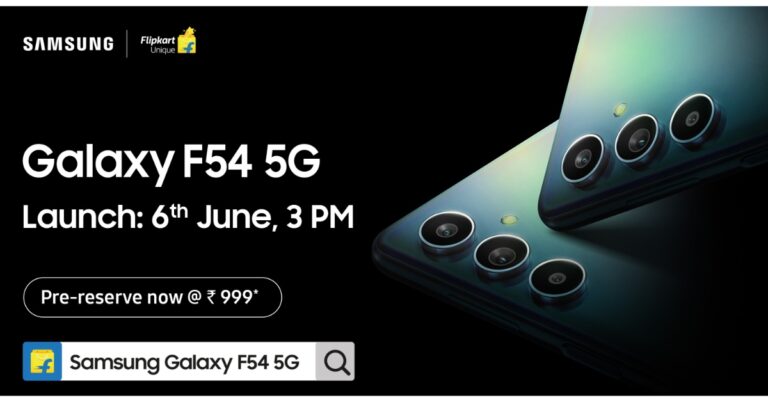
After revising its A-Series in India, Samsung is all set to bring another new smartphone under its F-Series. The company recently launched Samsung Galaxy A14 and today it has confirmed that the Samsung Galaxy F54 5G is coming to India. The upcoming phone is set for a release on June 6 with pre-reservations starting from today. An octa-core Exynos chipset is anticipated to power the phone. It is most likely powered by a 6,000mAh battery with 25W fast charging. Samsung has today announced to launch Galaxy F54 5G in India on June 6. According to the company, the device will be the most premium F series smartphone launched by Samsung in India and is expected to revolutionise the photography experience. Pre-reserve for Galaxy F54 5G has commenced today on Flipkart and Samsung.com, allowing customers to secure their device ahead of the official launch. Consumers can pre-reserve the device by paying a token amount of Rs 999 and enjoy benefits of Rs 2000 during Pre-order.

Samsung Galaxy F54 5G features

Teasers suggest a greenish-blue colour variant for the F54. Additionally, the phone will be featuring a triple rear camera setup with each sensor aligned vertically and separately at the top left corner of the back panel. There is an LED flash as well. The Samsung Galaxy F54 5G is said to feature ‘Nightography’ from the flagship series which is claimed to help consumers shoot brighter and sharper photos and videos in low-light conditions with exceptional clarity. The company has revealed that the camera setup will include a 108-megapixel primary rear camera sensor with optical image stabilisation (OIS) support. In addition to this the Astrolapse feature, which was recently introduced with the Flagship Galaxy S23 Series, will be available on Galaxy F54 5G. This feature enables users to shoot the star trails and the mesmerizing beauty of the night sky. The selfie camera on the upcoming smartphone will ensure well-lit selfies in low-light conditions. “Galaxy F54 5G comes with groundbreaking camera capabilities, which allow consumers to capture selfies and videos in any lighting condition.” Additionally, there will be a Single Take (Monster Shot 2.0) feature that powers the AI Engines behind the camera & allows consumers to capture up to 4 videos & 4 photos in a single shot. It will also include Fun Mode, which has 16 different inbuilt lens effects. For the latest gadget and tech news, and gadget reviews, follow us on TwitterFacebook and Instagram. For newest tech & gadget videos subscribe to our YouTube Channel. You can also stay up to date using the Gadget Bridge Android App. You can find the latest car and bike news here.

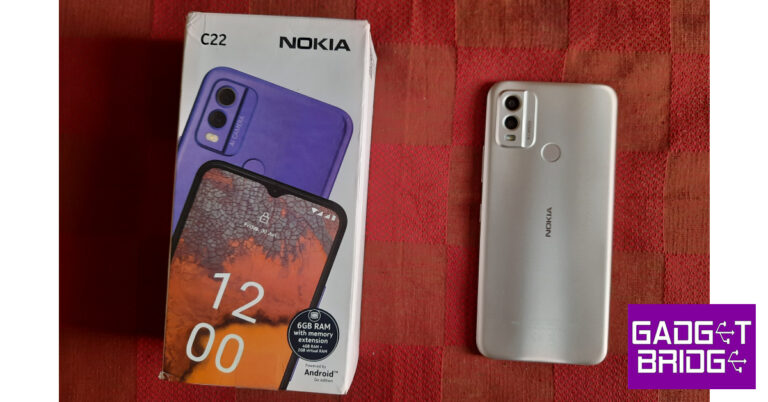
Nokia C22 Review: Should you buy this budget smartphone for Rs 7,999?

Nokia strengthened its entry-level smartphone portfolio in India by launching the C22 earlier this month. At the price of Rs 7,999, Nokia C22 may be considered ‘entry-level’ but the smartphone manufacturer has more affordable options as well. Nokia C12 was launched back in March at a very affordable price of Rs 5,999. You can read our review here. While the C22 may still be an affordable smartphone, we expected it to put up a better performance than the C12. We got our hands on the smartphone earlier this month and used it as our primary driver for two weeks. Here is our Nokia C22 review. Read Also: 5 Best budget smartphones to buy under Rs 8,000

Nokia C22 review: Design and Display

Inside the Nokia C22 retail box, you get the smartphone, a clear plastic case, a 10W charger, a USB Type-C cable, a SIM ejector tool, a quick start guide, and a product & safety info booklet. The clear plastic case is a nice addition, as the more affordable Nokia C12 did not come with one. Nokia C22 review: Design and Display Nokia C22 does not bring any radical changes to the design. If you’re familiar with Nokia smartphones under Rs 10,000, you wouldn’t find anything new here. Nokia’s C series sticks to the tried and tested formula without trying anything flashy. The plastic back has a textured finish, similar to the C21. The rectangular camera island on the back panel has a two-step design. A fingerprint scanner is housed right below the camera unit, at the centre of the panel. The Nokia branding can be found right in the middle. What we like here is the quality of the materials used. While the back panel and frame are made entirely out of plastic, the smartphone itself has a decent in-hand feel. The volume rocker keys and power button are placed on the right edge of the frame. The hybrid SIM card slot makes is positioned on the left edge. You can use this slot to fix a memory card as well. The top part of the frame houses the 3.5mm headphone jack. At the bottom, you will find the microphone, USB Type-C port, and the speaker. It’s nice to see Nokia finally make the switch to Type-C charging in this segment. The more affordable C12 still retains the Type-B charging port. Moving on, the Nokia C22 has a massive 6.5-inch IPS LCD display. It is a good display for content consumption but does not make a mark in other aspects. The bezels around the display get thicker along the chin but this is the kind of layout you’re going to get in a Rs 15,000 smartphone as well. The selfie camera is housed in a waterdrop notch up top. We played YouTube videos on this device and it performed really well. The images produced on the screen were bright and legible. We were also pleased with the level of detail this 720 x 1600p panel was able to relay. If your biggest priority on a smartphone is watching content across different platforms, you won’t be disappointed with this smartphone. Nokia C22 review: Design and Display However, the touch response provided by Nokia C22 leaves a lot to be desired. We realise that there’s not a lot to expect at this price point, but the C22 feels like it’s always a step behind when you’re scrolling on it. The poor haptic feedback further accentuates this problem. There’s a constant lag when you’re switching between apps, but the processor is mostly to blame for that (more on that later).

Nokia C22 review: Performance and Cameras

Nokia C22 is available in two RAM variants. The base variant priced at Rs 7,999 gets 2GB RAM with 64GB storage while the 4GB RAM variant fetches Rs 8,499. The C22 is powered by the Unisoc SC9863A SoC, which is the same chipset found on last year’s C21. Handling the OS duties is Android 12 Go Edition. Nokia C22 review: Performance and Cameras The choice to put Unisoc SC9863A as the processor on this smartphone really surprises us. There are more affordable Nokia phones out there that use the exact same chipset. To put it simply, this processor does not stand up to the task. Especially for a smartphone that is priced at Rs 8,000. Even in general use, the performance was not up to par. It shouldn’t come as a surprise but the apps take longer to load here than your average budget smartphone. But what we didn’t expect was that minimising and switching between apps would present lags and stutters as well. While it doesn’t struggle to manage the active tasks, a smoother browsing experience would have been nice.  We used the C22 to watch videos, send and receive messages on WhatsApp, and browse social media. The smartphone handled it pretty after taking some time to load the apps. We also played COD Mobile on this device, and while it wasn’t entirely unplayable, we did experience frequent frame drops. On Geekbench 6, Nokia C22 scored 193 points in the single-core test and 796 points in the multi-core test. Nokia C22 review: Performance and Cameras Nokia C22 comes with Android 13 Go Edition. For those that aren’t familiar, the ‘Go Edition’ is a lite version on Android and is meant for entry-level devices. The idea is to strip the OS down to its essential features to improve the speed of smartphones that don’t have powerful processors. Even though the OS is supposed to be minimal, there are a lot of bloatware apps to be found here. Nokia C22 review: Performance and Cameras There’s a massive 5,000 mAh battery unit on this smartphone. Nokia claims a 3-day battery life on the C22. While you can certainly extend the battery life to three days with minimal usage, the C22 lasted a day and a half for us. We used the smartphone primarily for watching video content, browsing social media, and communicating on WhatsApp. It takes over two hours to fully charge the battery using the 10W charger. Nokia C22 features a dual camera unit consisting of a 13MP primary shooter and a 2MP macro lens. Up front, you get an 8MP selfie camera. The camera performance is pretty standard for an entry-level smartphone. The 13MP camera performs decently in outdoor conditions when there’s plenty of natural light. The colours are a little undersaturated and but the level of detail the sensor can capture is satisfactory. The 2MP macro camera fails to impress at all. We didn’t get the detailed close-ups we were looking for. Nokia C22 review: Performance and Cameras
Macro lens
The camera app comes with a portrait mode as well. This is one of the highlights of this camera. Shots taken in portrait mode put a good amount of focus on the subject. The smartphone struggles a bit with edge separation, but you’re not gonna get any better portrait shots in this price range. The 8MP selfie camera performs decently as well. While it is not capable of capturing finer details like hair strands or skin texture, it does not mess with the skin tone.
Nokia C22 review: Performance and Cameras
Portrait Mode
Read Also: Best 6 Ways to Take Screenshots and Share Them on Android

Verdict

Nokia C22 is a decent smartphone to watch video content on. The size and brightness of the display are impressive, and you don’t have to worry about reaching for the charger every couple of hours. However, the smartphone could have used a better chip to boost its performance. The C22 fails to load apps quickly and multitasking on this smartphone can prove to be an uphill battle at times. If you’re upgrading from a feature phone and want a device with a big display, the C22 is a decent purchase. But if you’re looking for a performance-oriented smartphone, you should explore other options.

Nokia C22 review: Pros

  • Fingerprint scanner
  • Type-C charging
  • Battery life
  • Good display

Nokia C22 review: Cons

  • Slow performance
For the latest gadget and tech news, and gadget reviews, follow us on Twitter, Facebook and Instagram. For newest tech & gadget videos subscribe to our YouTube Channel. You can also stay up to date using the Gadget Bridge Android App. You can find the latest car and bike news here.

MediaTek Dimensity Auto: MediaTek partners with NVIDIA, to bring its tech to cars

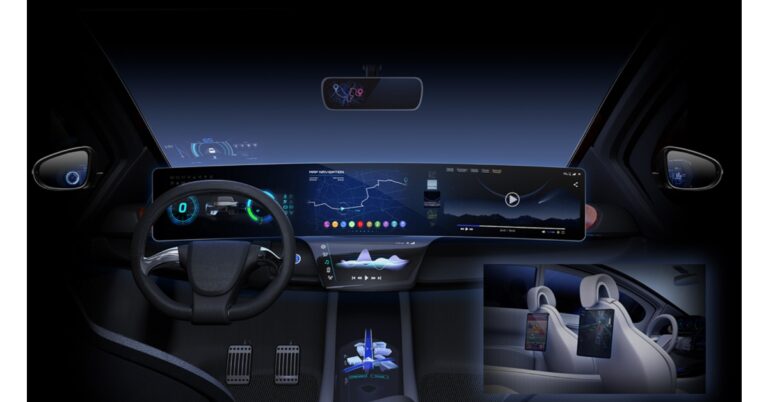
Taiwanese fabless semiconductor company MediaTek has announced to foray into Automotive Industry. The company has partnered with Nvidia in order to supply a full range of in-vehicle AI cabin solutions for the upcoming generation of software-defined vehicles. With this alliance, the company is said to create and deliver the most compelling solutions for state-of-the-art connected cars by making use of the strengths of each company’s automotive product portfolio. By working together, MediaTek will develop automotive SoCs integrating a new NVIDIA GPU chiplet with NVIDIA AI and graphics IP. Chiplets are connected by an ultra-fast and coherent chiplet interconnect technology. A whole range of AI cabin and cockpit operations with cutting-edge graphics, AI, safety, and security features will be delivered by MediaTek’s smart cabin solutions running NVIDIA DRIVE OS, DRIVE IX, CUDA, and TensorRT software technologies. In addition to this MediaTek will work with NVIDIA to provide automotive solutions that is said to surpass the sector’s expanding needs and demands, opening up a sizable market for both businesses. According to Gartner, the total addressable market for infotainment and instrument cluster SoCs used within vehicles will reach $12 billion in 2023. Making use of NVIDIA’s core expertise in AI, cloud, graphics technology and software, and pairing with NVIDIA ADAS solutions, MediaTek can enhance the capabilities of its comprehensive Dimensity Auto platform, which leverages the company’s expertise in mobile computing, high-speed connectivity, entertainment and extensive Android ecosystem, to deliver an all-around smarter in-vehicle experience. Rick Tsai, Vice Chairman and CEO of MediaTek said, “NVIDIA is a world-renowned pioneer and industry leader in AI and computing. With this partnership, our collaborative vision is to provide a global one-stop shop for the automotive industry, designing the next generation of intelligent, always-connected vehicles. Through this special collaboration with NVIDIA, we will together be able to offer a truly unique platform for the compute-intensive, software-defined vehicle of the future.” Jensen Huang, founder and CEO of NVIDIA stated, “AI and accelerated computing are fueling the transformation of the entire auto industry. The combination of MediaTek’s industry-leading SoC and NVIDIA’s GPU and AI software technologies will enable new user experiences, enhanced safety and new connected services for all vehicle segments, from luxury to mainstream.” For the latest gadget and tech news, and gadget reviews, follow us on TwitterFacebook and Instagram. For newest tech & gadget videos subscribe to our YouTube Channel. You can also stay up to date using the Gadget Bridge Android App. You can find the latest car and bike news here.

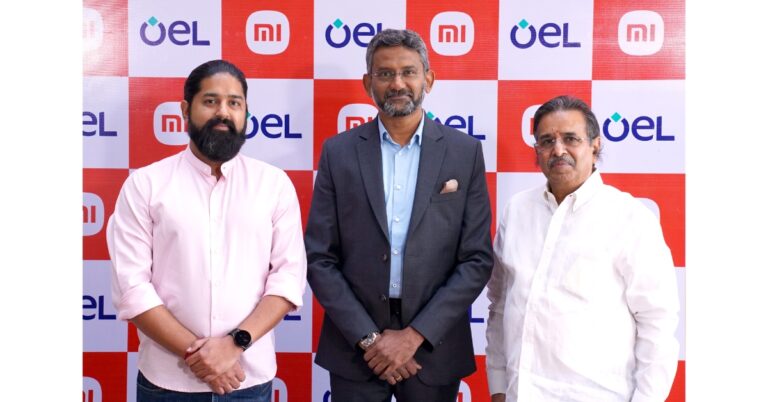
Xiaomi has partnered with Optiemus Electronics Limited (OEL) to produce audio products in India

Xiaomi India will now manufacture audio devices in India for that it has partnered with Optiemus Electronics Limited (OEL) to strengthen its ‘Make in India’ journey. The company claims that this partnership is the first step in a bigger AIoT strategy that will start with the localization of wireless audio products. Muralikrishnan B, President, of Xiaomi India said, “This partnership with Optiemus Electronics Limited marks a major milestone in our efforts to accelerate our localization of products and components to bring out high-quality devices that will be ‘Made in India,’ at honest pricing. We are committed to forging more such collaborations for a wider range of categories, across our product line-up.” As a result of this collaboration, Xiaomi has started producing its first audio product in Noida at the OEL facility. Additionally, Xiaomi has strengthened its commitment to India by growing operations and forming manufacturing alliances with domestic leaders in the sector, all while promoting economic growth and creating job opportunities. Over the next two years, the company wants to bring 50% more domestic value to the smartphone market. Also Read: Acer Aspire 5 (2023) with 13th Gen Intel Core CPU launched in India The collaboration highlights Xiaomi’s commitment to creating top-notch goods, aiding in the expansion of domestic manufacturing in India and supporting its initiatives to democratise technology for the masses. With a focus on bringing innovation to life for everyone, Xiaomi India hopes to further strengthen its position as a major player in the Indian electronics market by bringing the latest technology at fair prices to the Indian market. Commenting on the association, Nitesh Gupta, Director, Optiemus Electronics Limited said, “We are happy to partner with Xiaomi India and contribute to their vision of localisation. Xiaomi is one of the leading players in the Indian electronics ecosystem and is known for its path-breaking technology, so this partnership is a significant testimony to Optiemus Electronics’ expertise and growing capabilities. We look forward to delivering great value through state-of-the-art infrastructure to manufacture Xiaomi products.” For the latest gadget and tech news, and gadget reviews, follow us on TwitterFacebook and Instagram. For newest tech & gadget videos subscribe to our YouTube Channel. You can also stay up to date using the Gadget Bridge Android App. You can find the latest car and bike news here.

Best 7 Ways to Fix ‘App Not Installed’ Error on Android? (2024)

Using your smartphone without the apps is not a fun experience at all. There are multiple ways you can go about installing apps on your Android device. While a majority of Android users stick to Google Play Store, some resort to third-party marketplaces. Sometimes, your smartphone may refuse to install an app without providing any valid reason. In this article, we bring you the best 7 ways to fix the ‘app not installed’ error on your Android device. Read Also: Best 6 Ways to Take Screenshots and Share Them on Android

Check your phone’s storage capacity

Check your phone’s storage space. app not installed apkWhile you may not have encountered any issues while downloading an APK, additional disk space may be required when the app is being installed. If you are unable to properly install an app on your phone, go to Settings>Battery and device care>Storage and check if there’s enough space left. Delete some unused apps and other clutter to make space if the memory is full.

Check storage location

While most apps work perfectly fine when they are installed on the memory card inside your device, some may require installation on your phone’s internal storage for proper functioning. Move the APK to internal storage and change the storage location of the installed app before proceeding.

Clear Package Installer cache

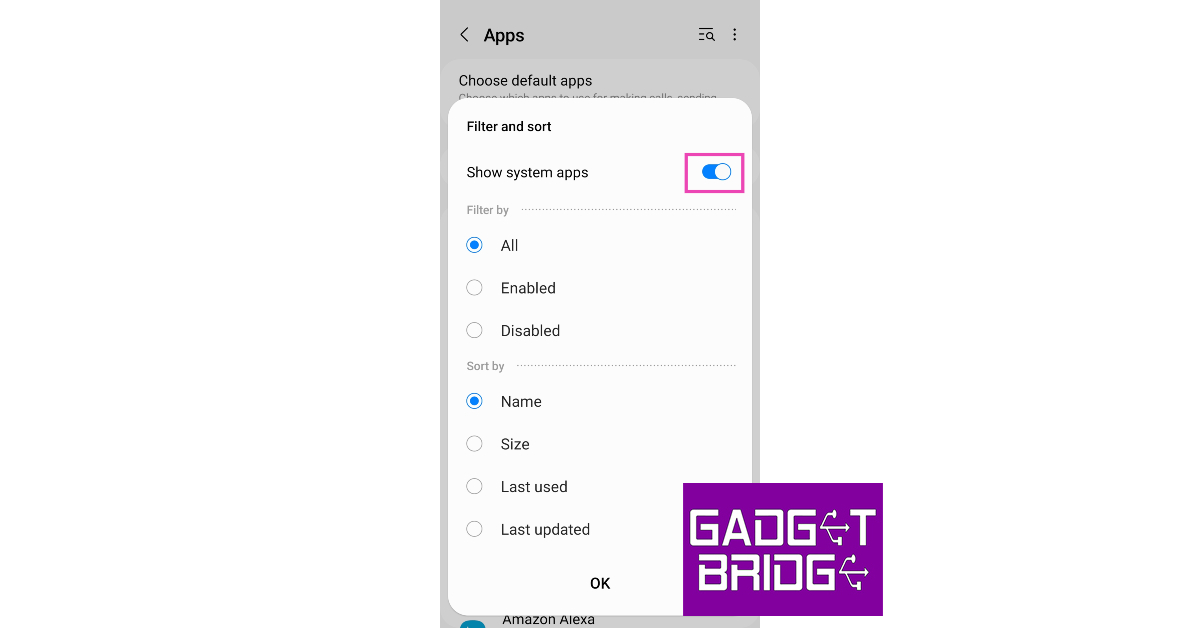
‘Package Installer’ is a system app on your device that helps install third-party apps. While it works fine for the most part, it is not uncommon for its cache to get corrupted. Here’s how you can clear it.  Step 1: Go to Settings and select Apps. Step 2: Tap on the filter icon and select Show system apps. Step 2: Tap on the filter icon and select ‘Show system apps’. Best 6 ways to Fix 'App Not Installed' Error on Android? (2023) Step 3: Scroll down and select Package Installer. Step 3: Scroll down and select Package Installer. Best 6 ways to Fix 'App Not Installed' Error on Android? (2023) Step 4: Tap on Storage. Step 4: Tap on Storage. Best 6 ways to Fix 'App Not Installed' Error on Android? (2023) Step 5: Select Clear Cache. Step 5: Select ‘Clear Cache’. Best 6 ways to Fix 'App Not Installed' Error on Android? (2023)

Clear Google Play Store’s cache

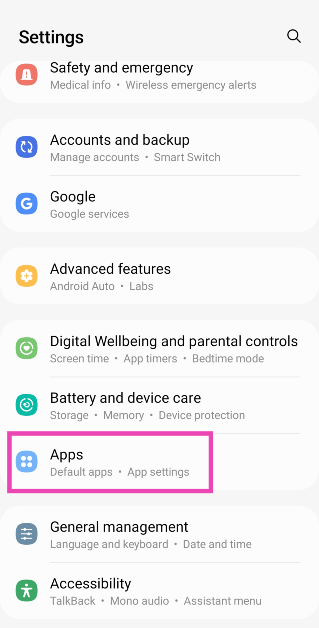
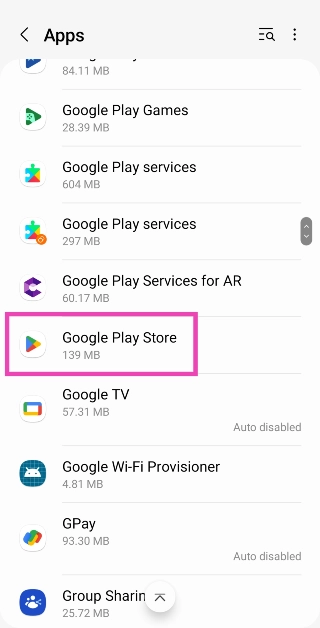
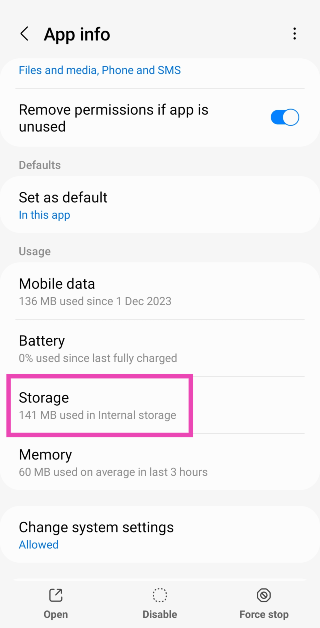
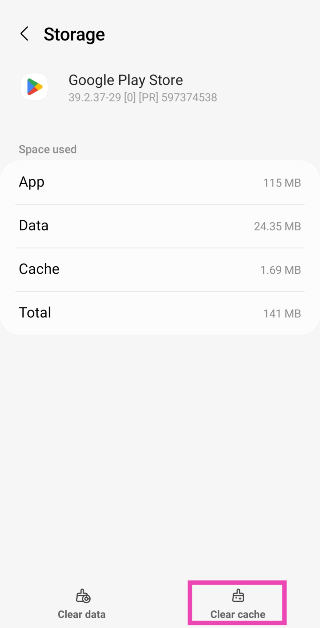
Step 1: Go to Settings and select Apps. Step 1: Go to Settings and select Apps. Step 2: Select Google Play Store. Step 2: Tap on Google Play Store. Step 3: Tap on Storage.Step 3: Select Storage. Step 4: Select Clear Cache. Step 4: Hit Clear Cache.

Allow browser to install apps from third-party sources

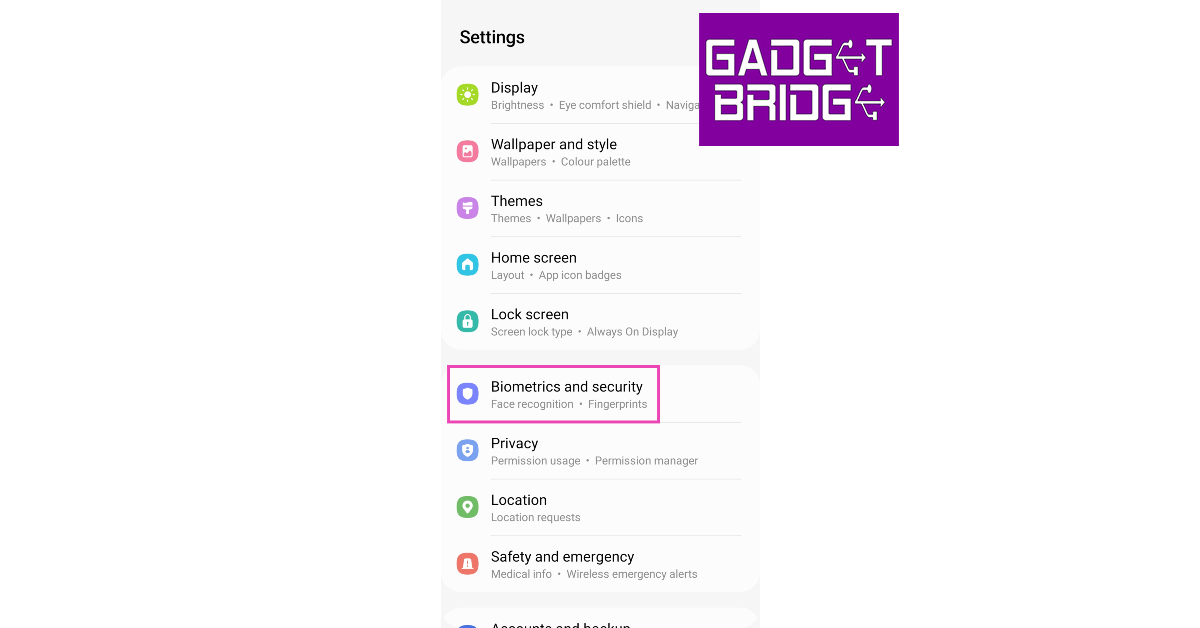
Your Android device encourages you to install apps from the Google Play Store. While the Play Store is the safest platform to download apps, sometimes you have to resort to third-party platforms. By default, your phone is not allowed to install apps from unknown sources. Here’s how you can change that. Step 1: Go to Settings and select Biometrics and Security. Step 1: Go to Settings and select ‘Biometrics and Security’. Best 6 ways to Fix 'App Not Installed' Error on Android? (2023). app not installed apk Step 2: Tap on Install unknown apps. Step 2: Tap on 'Install unknown apps'. Best 6 ways to Fix 'App Not Installed' Error on Android? (2023). app not installed apk Step 3: Scroll to the web browser you used to download the APK. Step 4: Turn on the toggle switch next to the relevant app. Step 3: Turn on the toggle switch next to the relevant app. Best 6 ways to Fix 'App Not Installed' Error on Android? (2023). app not installed apk

Look out for corrupted APKs

apk If you frequently download apps from third-party sources, it is possible to download a corrupted APK from time to time. You will encounter the ‘App not installed’ error on your Android device any time you try to make a corrupted APK work. Your best course of action is to either download the app from the Google Play Store or another verified and secured third-party marketplace.

Check your memory card

Make sure the SD card is in the right slot If the external storage on your Android phone is corrupted, you will not be able to install apps on it. Try opening other files on the card to check if it’s corrupted. If your device fails to read these files, you may have a problem on your hands. Connect your phone to your PC to confirm this issue. Once it’s clear that the memory card is corrupt, try formatting it to fix the issue. Try inserting it in another slot to see if it works.

Frequently Asked Questions

How do I fix the ‘apps not installed’ problem on Android?

If you are unable to install apps on your Android smartphone, check the internal storage and clear the cache for the Package installer. Make sure you are installing the app on internal storage and not the memory card. 

How do I download an app from unknown sources?

Go to Settings>Biometrics and Security>Install Unknown Apps and switch on the toggle bar next to the web browser you are using to install the app.

How to update Google Play Store?

To update the Google Play Store to the latest version, open it and tap on your profile icon at the top right corner of the screen. Go to Settings>About>Play Store Version to update it. Read Also: 5 Best 55-Inch TVs under your budget in India

Conclusion

These are the best 7 ways to fix the ‘App not installed’ error on Android. After trying these methods, make sure you restart your device before installing an app. A quick restart refreshes all the background processes and resolves any glitches on your device. Also, ensure that your smartphone’s OS is updated to its latest version.

Acer Aspire 5 (2023) with 13th Gen Intel Core CPU launched in India

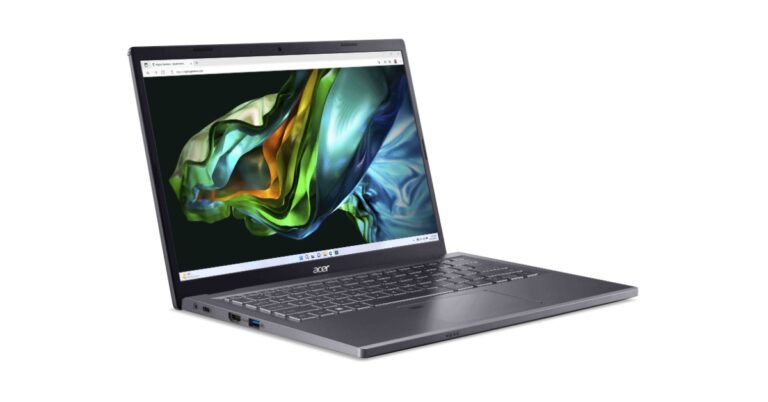
The new Aspire 5 (2023) gaming laptop from Acer has been released in India with the most recent 13th Gen Intel Core processor and Nvidia GeForce RTX 2050 GPU. The brand-new gaming laptop has a full-HD IPS display with thin bezels. The Aspire 5 laptop is perfect for power PC users, mobile producers, and gamers. While producers benefit from faster cores, multitasking capabilities, and configuration options, gamers enjoy excellent performance and fluid gameplay in a portable and lightweight body.

Acer Aspire 5 (2023) price in India and sale details

The price of the Acer Aspire 5 starts at Rs 70990. The gaming laptop can b purchased via all Acer Exclusive Stores, Acer E-store, Croma, Vijay Sales and Amazon in the country. Acer Aspire 5 (2023) price in India and sale details

Acer Aspire 5 (2023) specifications

The all-new Acer Aspire 5 features a 14-inch IPS WUXGA display with 1920 x 1200 pixels of resolution. The screen has a wider viewing angle of up to 170 degrees with a 16:10 aspect ratio. According to the company the Aspire 5 gaming laptop is also environmentally friendly, featuring a mercury-free display and an elegant, sleek metal chassis. Also Read: ASUS Zenbook 14 (OLED) 2023 Review: Premium and works like a charm Under the chassis there is the latest 13th Gen Intel Core processor, this laptop features advanced performance hybrid architecture with up to two Performance-cores (P-cores) and up to eight Efficient-cores (E-cores), intelligently managed by Intel Thread Director. Graphics has been taken care of by NVIDIA GeForce RTX 2050 offering the latest AI features and ray tracing capabilities. The DLSS (Deep Learning Super Sampling) and AI-specialized Tensor Cores on GeForce RTX GPUs provide gamers with a speed boost with uncompromised image quality. While the NVIDIA Optimus technology balanced the battery life. In terms of connectivity, there is the latest Wi-Fi 6E and Bluetooth 5.2 technologies, a USB Type-C port that supports full-function capabilities and Thunderbolt 4, transferring large files and connecting to external displays. Professionals and students who need to stay connected and productive can connect many devices at once thanks to MU-MIMO technology. Speaking on the launch Sudhir Goel, Chief Business Officer, Acer India, said, “As the demand for casual gaming continues to rise, customers are looking for bigger screens and immersive experiences that deliver top-notch performance. With Aspire 5, we have encapsulated high-performance components within a thin and sleek chassis, providing our customers with an optimal gaming experience that can be easily carried anywhere. At Acer, we are committed to providing innovative and technologically advanced products that exceed our customers’ expectations, and the Aspire 5 is just one example of our dedication to this mission.” For the latest gadget and tech news, and gadget reviews, follow us on TwitterFacebook and Instagram. For newest tech & gadget videos subscribe to our YouTube Channel. You can also stay up to date using the Gadget Bridge Android App. You can find the latest car and bike news here.

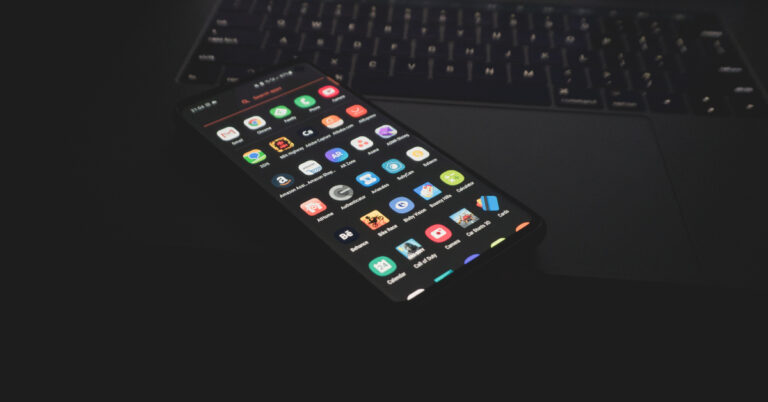
Best 6 Ways to Find Hidden Apps on Android Devices

In order to keep your privacy intact, Android devices give you the option to hide any installed device. You can also choose to password-protect the hidden apps. While this is a nifty feature, it can prove to be a hurdle for parents who don’t want their kids accessing certain apps. In this article, we bring you the best 6 ways to find hidden apps on Android devices. Read Also: 5 Best 55-Inch TVs under your budget in India

Find Hidden apps from Settings

The easiest way to find all hidden apps on your device is by going through the home screen settings. Here’s how. Step 1: Go to Settings and select Home Screen. Step 1: Go to Settings and select Home screen. how to hide and unhide apps on samsung mobile Step 2: Scroll down and select ‘Hide apps’. Step 2: Scroll down and tap on ‘Hide apps’. how to hide and unhide apps on samsung mobile Step 3: You’ll be able to see the list of hidden apps. You can choose to hide more apps or unhide the hidden apps in this window. Step 3: Select the apps you want to hide. Tap on Done once you’ve selected the app. how to hide and unhide apps on samsung mobile

Find Hidden apps using the app list

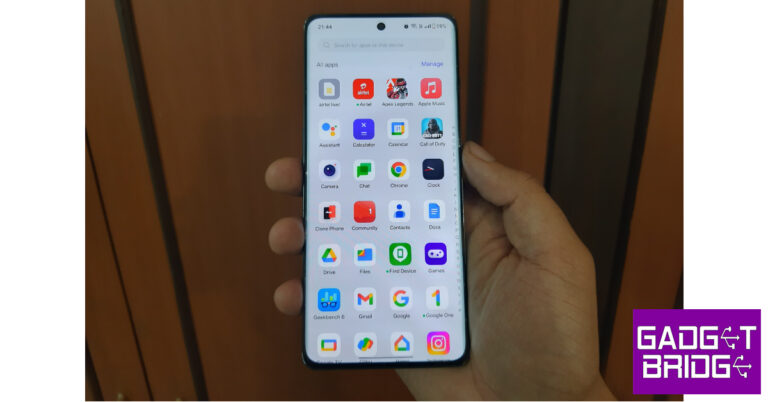
Your Android smartphone lets you view all the installed apps on your device in one place. You can find the hidden apps on this list too. Here’s how. Step 1: Go to Settings. Step 2: Select Apps. Step 1: Go to Settings and select Apps. disable facebook using adb. how to remove an app that wont uninstall. how to delete pre-installed apps on android Step 3: Go through the list of apps and look for the ones that aren’t present in the app drawer.

Look for a trick app

The problem with using the default Android method to hide apps is that any other Android user can easily figure out how to unhide them. This is why Google Play Store is full of privacy apps that have their own way of hiding apps on your device. Certain apps pose like system apps (like a Calculator or Photo Gallery) on your device and do not give you access to the hidden contents until you enter a code. A privacy app disguised as a calculator will function like a calculator until you punch in a particular code. To find hidden apps on an Android device, closely inspect the system apps and go through their app info in Settings to see if they were published by a third-party developer.

Go through the downloaded APKs

Go through the downloaded APKs Another way to look for hidden apps is by going through the list of downloaded APKs on an Android device. Of course, this only works for apps downloaded from a third-party marketplace. This method won’t lead you to the installed app, but it will give you an idea about the apps that may be hidden on a device. To go through the list of APKs on an Android phone, go to the file manager and select the ‘Apps’ or ‘APK’ folder.

Use a third-party app launcher

Nova Launcher If you can’t figure out the mechanism used to hide an app on an Android device, you can use a third-party app launcher like Nova Launcher or Apex Launcher. Upon downloading an app launcher, run it on your device and access the ‘hidden apps’ section. Any previously hidden apps will be visible here.

Check app permissions

Check app permissions If you’re worried that there’s a hidden spy app installed on your device, you can go through the permission list on your device and see which apps have the clearance to use your phone’s camera, media, microphone, location, and more. Apps which are usually hidden from the home screen or app drawer will be visible here. To go through the list of permissions go to Settings>Apps>Options (three dots)>Permissions.

Frequently Asked Questions

How do I find all the hidden apps?

To find the hidden files on your device, go to Settings>Home Screen and select ‘Hide Apps’. You can also browse through the app list to see every installed app on a device.

How do I unhide an app?

Go to Settings>Home Screen>Hide Apps and tap on the app you want to unhide.

What happens when an app is hidden?

When you hide an app it disappears from your phone’s app drawer and cannot be searched on your device. You can also choose to hide the notifications for any app on your phone. Read Also: [Working] Fix Qualcomm Crash Dump Mode on Android phones: Best 3 ways

Conclusion

These are the best ways to find hidden apps on Android devices. Different Android skins have different features to hide and secure sensitive apps. Most devices allow users to password-protect an app while hiding it. Go through settings and find the special privacy features to get an idea of the level of security employed to keep the apps secure. For the latest gadget and tech news, and gadget reviews, follow us on Twitter, Facebook and Instagram. For newest tech & gadget videos subscribe to our YouTube Channel. You can also stay up to date using the Gadget Bridge Android App. You can find the latest car and bike news here.

5 Best budget smartphones to buy under Rs 8,000

In India, the affordable smartphone market saw a lot of new additions this year. Numerous low-cost smartphones have been released in the nation by Chinese smartphone manufacturers like Xiaomi, Redmi, Poco, Nokia, and others. Home-grown firm Lava too came up with interesting additions to this category. So if you want to purchase a device with all the features you want without breaking the bank here are some options. These are the 5 best budget smartphones under Rs 8,000 that we found for you after doing some research. 5 Best budget smartphones to buy under Rs 8,000

Poco C50

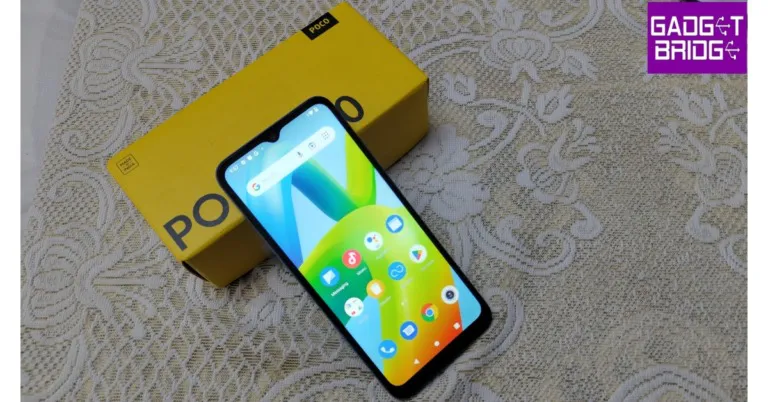
Poco C50 features a 6.52-inch HD+ display with a 1,600×700 pixel resolution. It runs on Android 12(Go Edition) and is powered by an octa-core MediaTek Helio A22 SoC. The device comes with a waterproof and dust-resistant finish and has a dedicated microSD slot for memory expansion. The Poco C50 (Review) has a dual rear camera system with AI support that includes an 8-megapixel primary sensor. A 5-megapixel sensor is located at the front of the device for selfies and video calls. In addition to this, it packs a 5,000mAh battery.
  • Price starts at Rs 6,231
  • Buy via Amazon
5 Best budget smartphones to buy under Rs 8,000
Redmi A2

Redmi A2

The Redmi A2 comes with a 6.52-inch HD+ LCD display with 1600 x 720 pixels. The device run on Android 13 out of the box. Under the hood, there is MediaTek Helio G36 SoC. The phone includes 5,000mAh with 10W fast charging support. For the optics, there is a dual rear camera setup, including an 8-megapixel primary sensor along with a QVGA camera. The smartphone also features a 5-megapixel selfie sensor.
  • Price starts at Rs 6,299
  • Buy via Amazon
5 Best budget smartphones to buy under Rs 8,000
Redmi 10A

Redmi 10A

Redmi 10A comes with a 6.53-inch HD+ display with a resolution of 720×1,600 pixels. it runs on MIUI 12.5 on top. Under the hood, there is an octa-core MediaTek Helio G25 processor. This phone also supports memory expansion. The device comes with a single 13-megapixel camera sensor with an LED flash. The budget smartphone has a 5-megapixel selfie camera sensor on the front for selfies and video chats. The Redmi 10A is powered by a 5,000mAh battery that can be charged at a standard 10W.
  • Price starts at Rs 7,999
  • Buy via website
5 Best budget smartphones to buy under Rs 8,000
Nokia C12

Nokia C12

Nokia C12 features a 6.3-inch HD+ display. It operates on Android 12 Go Edition and comes with two years of quarterly security updates. The phone comes with an octa-core Unisoc 9863A1 SoC. The internal storage can be expanded via microSD up to 256GB. In addition to this, it includes a single 8-megapixel camera sensor with autofocus and an LED flash on the back. For selfies and video calls the Nokia C12 (Review)has a 5-megapixel front-facing camera. The smartphone houses a removable 3,000mAh battery that comes with 5W rapid charging.
  • Priced at Rs 6,299
  • Buy via Amazon
5 Best budget smartphones to buy under Rs 8,000
Lava Blaze 2

Lava Blaze 2

The Lava Blaze 2 is also a wise pick if you can increase your budget a little by Rs 1,000. It highlights a 6.5-inch IPS LCD display with 720×1600 pixels of resolution and 90Hz refresh rate support. The phone runs on Android 12 and is driven by an octa-core Unisoc T616 processor SoC. In addition to this, the internal storage can also be expanded via a microSD card. The Lava Blaze 2 comes with a dual rear camera setup that includes a 13-megapixel primary sensor and a secondary 2-megapixel lens. There is an 8-megapixel front-facing camera for taking selfies and video calling. The device also includes a 5,000mAh battery that supports 18W charging.
  • Price starts at Rs 8,999
  • Buy via Amazon
For the latest gadget and tech news, and gadget reviews, follow us on TwitterFacebook and Instagram. For newest tech & gadget videos subscribe to our YouTube Channel. You can also stay up to date using the Gadget Bridge Android App. You can find the latest car and bike news here.

Garena Free Fire Redeem Codes Today 30 May 2023: Here is how to claim them

Garena Free Fire is a battle royale game with regular awards and tournaments to keep players interested. If you play Garena Free Fire, you should be aware of the redeem codes that are released on a daily basis. However, because the battle royale game is banned in India, players from other countries can use the Free Fire Redeem codes daily. If you’re unfamiliar with the Garena Free Fire redeem codes or don’t know how to get them, we’ve put together a step-by-step guide to help you redeem them. Check out Garena Free Fire Redeem Codes for 30 May 2023. The Free Fire redeem codes are a great way to get free stuff. These are 12-digit codes that contain alphabets and numbers, as well as an expiration date and time. Because the Garena FF redeem codes cannot be used more than once, you should hurry to the redemption page to claim your free reward before someone else does. To get a free reward, all you have to do is go to reward.ff.garena.com/en, which is the official redemption page. Also, keep an eye on this space for daily updates on Garena Free Fire redemption codes and rewards.

Garena Free Fire Redeem Codes Today 30 May 2023

  • FU9O89OHG9FAQT
  • FCAVBQNJMKI345
  • FUTYHBIUCYHXBD
  • FNMER5LTYPOKMK
  • FO9I8DURH56KYL
  • F5KJMYKO9IKMKI
  • FO9IJNAJUQ6YT2
  • FGFVFGTR3F45BN
  • F6JMK789NBV765
  • FFDSFR6UHTJYU8
  • FB4N3KOI8UY6TV
  • FGCHNJXIUYZRFD
  • FUOUYX543QED2C
  • F2RFD3C4RVBGHV
  • FUYCTXRFCSDEBJ

How to Get Free Fire Redeem Codes for Garena on 30 May 2023?

  • Visit the Garena Free Fire game’s official website at reward.ff.garena.com.
  • Use your Facebook, Google, VK, Apple ID, Huawei ID, or Twitter account to log in.
  • You’ll be taken to a valid redemption code (s)
  • Copy and paste the 12-digit redemption code into the text box.
  • On the screen, a dialogue box will appear.
  • ‘Ok’ should be selected.
For the latest gadget and tech news, and gadget reviews, follow us on TwitterFacebook and Instagram. For newest tech & gadget videos subscribe to our YouTube Channel. You can also stay up to date using the Gadget Bridge Android App. You can find the latest car and bike news here.

Amazon Quiz Answers Today 30 May 2023: Participate to win Rs 1,250

Amazon is back with another quiz on its mobile platform. The Amazon Quiz is conducted every day for its customers. Customers from different parts of the country are participating in the daily quiz. Today’s Amazon quiz is now live on the Amazon App. The customers who participate in the 30 May 2023 Amazon Quiz will get a chance to win Rs 1,250 Amazon pay Balance. The Amazon Quiz can be played from 12 AM to 11:59 PM. For those who are unaware of the quiz, the e-commerce platform brings a fresh quiz on a daily basis which consists of five questions related to general knowledge and current affairs. The participants need to answer all the questions correctly and their names will be selected for a lucky draw. The winner will be announced at the end of the month. One wrong answer could eliminate you from the quiz. Only app users are eligible to participate in the Quiz. Check Out 30 May 2023 Amazon Quiz Answers. Amazon Quiz Today Prize – Rs 1,250 Amazon Pay Balance Quiz Date – 30 May 2023 Daily Timing – 12 AM to 11:59 PM Winner Announcement – Today 12 PM

Amazon Quiz Answers Today 30 May 2023

Question 1: India will host the Asian Champions Trophy ______ tournament for the first time in 2023. Answer: Hockey Question 2: Which fast bowler, who plays for Royal Challengers Bangalore, became the fastest Indian to take 100 wickets in IPL? Answer: Harshal Patel Question 3: In 2023, which African country launched its first operational Earth observation satellite named ‘Taifa-1’? Answer: Kenya Question 4: What enables this species of frog to protect itself? Answer: Poisonous Question 5: This exhibit is located at which palace in Italy? Answer: Palazzo Strozzi

How To Play Amazon Quiz

Only app users are eligible to play the Amazon quiz every morning from 12 AM to 11:59 PM. The quiz is not available on the desktop. For those who are unaware of how to play the Amazon quiz below are the steps, you can follow to take the quiz.
  • Firstly download the Amazon app from Google Play Store or App Store
  • Now fill in the required information through the Sign Up option.
  • You need to log in to the Amazon app and scroll down on the home screen to find the Amazon Quiz banner.
  • Tap on the Amazon Quiz banner and tap on the Start button to start the Quiz.
  • Now you will get 5 questions and you need to answer them correctly. One wrong answer will eliminate you from the Quiz.
  • After answering all the questions correctly you are now eligible for a Lucky Draw.
  • The winner’s name will be announced today at 12 PM.
For the latest gadget and tech news, and gadget reviews, follow us on Twitter, Facebook and Instagram. For newest tech & gadget videos subscribe to our YouTube Channel. You can also stay up to date using the Gadget Bridge Android App. You can find the latest car and bike news here.

Best 7 Ways to Take Screenshots and Share Them on Android (2024)

0
Taking a screenshot is one of the easiest things you can do on your Android smartphone. It is the quickest and easiest way to share information with a contact. While you may be familiar with the traditional way of taking a screenshot, you would be surprised to know just how many ways there are to go about this task. In this article, we bring you the best 7 ways to take screenshots and share them on an Android smartphone. Read Also: Best 5G Smartphones under $800 in USA

Use key shortcuts

iQOO Z7 5G review: Design and Display . screenshot gesture android The standard way to take a screenshot on an Android smartphone is by pressing the Power + Volume Down buttons. This works for most Android devices. However, if you’re using an old Android device with a dedicated home button, press Power Key + Home Button to take a screenshot. Make sure you press both buttons at the same time to take a screenshot. Pressing either button even a tiny bit earlier will not capture the screenshot. Once the screenshot has been taken, you can tap the downward arrow on the toolbar to scroll down and capture more of the screen. Tap the share icon to share the screenshot directly from the preview window. Some smartphones automatically delete the screenshot after it has been shared. Explore your phone’s settings to see if it offers this feature.

Use Gestures

Depending on your smartphone manufacturer, there are certain special gestures you can use to take a screenshot. Samsung users can swipe their palm across the screen to take a quick screenshot, while OnePlus users can capture the screen by dragging three fingers from the top of the display. To enable the gesture on your Samsung smartphone, go to Settings>Advanced Features>Motions and Gestures and enable ‘Palm swipe to capture’. On your OnePlus smartphone, go to Settings>Additional Settings>Screenshot and enable ‘3-finger swipe down’.

Take a screenshot using the Quick Settings Menu

Take a screenshot using the Quick Settings Menu. screenshot gesture android The Quick Settings Menu on your Android smartphone has a dedicated tile for taking a screenshot. Simply swipe down from the status bar and tap on ‘Screenshot’. Once you press on the tile, your smartphone will capture the screen you are on after rolling up the quick settings menu. You can also choose to take a partial screenshot or a rolling screenshot.

Take a screenshot from the app preview screen

Take a screenshot from the app preview screen Android smartphones allow you to take a screenshot of an app without opening it. You can carry out this task from the app preview screen itself. Use the gesture control or dedicated navigation icon to go to the app carousel/preview screen. Hit the ‘Screenshot’ option below an app’s card to take a screenshot of its current page.


Take a screenshot using Google Assistant

If Google Assistant is enabled on your device, you can simply ask it to take a screenshot. Using this method does not even require you to touch your smartphone. Simply say ‘Hey Google, take a screenshot’ and the Assistant will capture your device’s screen. This method is super helpful when you are driving and cannot handle your smartphone.

Take a screenshot using Quick Tap

Google Pixel users can take a screenshot by tapping the back panel of the smartphone twice. To enable this feature go to Settings>System>Gestures>Quick Tap and select ‘Take screenshot’.

Use a third-party app

Use a third-party app. screenshot gesture android There are plenty of third-party apps that let you take a screenshot on your device. These apps overlay an assistive ball on your smartphone’s display, letting you capture the screen whenever you want. This method comes in handy when there’s something wrong with the physical buttons on your smartphone. Screenshot Touch and Screen Master are some of the best apps you can use for this task.

Frequently Asked Questions

Can Google Assistant take a screenshot?

If you want to capture your phone’s screen in hands-free mode simply say ‘Hey Google, take a screenshot’ and Google Assistant will do the job for you.

How do I take a screenshot on my phone?

There are several ways to take a screenshot on your phone. The simplest method is by pressing the power key and the volume down button.

Why won’t my phone take any screenshots?

If your smartphone isn’t able to take a screenshot, check the available storage on your device. You should also know that your phone won’t take screenshots on apps like Netflix, where the content is copyrighted. Taking screenshots on the incognito tab or certain payment apps is also not allowed. Read Also: ChatGPT iOS app is now available in India, expanded to more countries

Conclusion 

These are the top 7 ways to take a screenshot on your Android smartphone. As mentioned earlier, you can easily share the screenshot straight from its preview window. You can also edit the screenshot to adjust its size, crop it, or draw on it before sharing it with your friends. Which method do you use to take a screenshot on your phone? Let us know in the comments!

5 Best 55-Inch TVs under your budget in India

Because of major competition, many different brands in India have been selling Smart Television for less than Rs 50,000. These televisions provide top-of-the-line technology and software in affordable televisions. Here is our list of the 5 Best 55-inch TVs available in India you can buy under your budget in India. 5 Best 55-Inch TVs under your budget in India

Westinghouse 55 inches Quantum Series 4K Ultra HD Smart Certified Android LED TV

The first on our list is this Westinghouse 55 inches Quantum Series 4K Ultra HD Smart Certified Android LED TV that comes with HDR 10+ and 1 billion colours. It has a 60 Hz refresh rate ensuring smooth and buttery motion. In terms of connectivity, there are 3 HDMI and 2 USB ports. The speakers on the Television offer 40 watts sound output, Dolby Digital Plus, Dolby MS 12 and DTS Trusurround. The device runs on the Android TV platform, to access your favourite streaming services like Netflix, Prime Video, and more. Price: Rs 28,999 Buy via Amazon 5 Best 55-Inch TVs under your budget in India

Vu 139 cm Premium Series 4K Ultra HD Smart LED Google TV 55CA

Next comes this Vu 139 cm (55 inches) Premium Series 4K Ultra HD Smart LED Google TV 55CA. As the name suggests the Television supports 4K resolution, 60Hz refresh rate, 400 Nits Brightness, HDR10 I HLG and AI Picture Booster. The television has 50 watts of powerful sound, featuring pure sound, surround sound, and more. There is support for Google TV, Chromecast, and a range of smart features. In terms of connectivity, there is HDMI ports, USB ports, Wi-Fi, and Bluetooth. Price: Rs 33,990 Buy via Amazon 5 Best 55-Inch TVs under your budget in India

Redmi 55 inches 4K Ultra HD Android Smart LED TV X55

The Redmi 55 inches 4K Ultra HD Android Smart LED TV X55 has 3840 x 2160 pixels of resolution. It refreshes at 60Hz and offers 178 degrees of viewing angle. The 4K LED panel, Dolby Vision, HDR10+, HLG, and Vivid Picture Engine. The 55-inch TV offers 30 watts output and supports Dolby Audio, DTS Virtual: X, Dolby Atmos pass-through eARC and DTS-HD. For connectivity, there is dual-band Wi-Fi, Bluetooth 5.0, 3 HDMI ports, and 2 USB ports. It runs on Android TV 10 and includes PatchWall, Kids Mode, Universal Search, and support for popular apps like Netflix and Prime Video. Price: Rs 36,999 Buy via Amazon 5 Best 55-Inch TVs under your budget in India

Sansui 55 inches 4K Ultra HD Certified Android LED TV

The Sansui 55 inches 4K Ultra HD Certified Android LED TV has 3840×2160 pixels of resolution and refreshes at 60Hz. This smart TV is powered by Android 10.0 and comes with Google Assistant and Alexa support and is powered by a quad-core processor. For connectivity, there are multiple HDMI and USB ports, along with Bluetooth, Wi-Fi, and more. In terms of audio, the Sansui TV supports Dolby Audio, DTS technology and offers 20 Watts Audio Output. Price: Rs 32,970 Buy via Amazon 5 Best 55-Inch TVs under your budget in India

Acer 55 inches I Series 4K Ultra HD Android Smart LED TV

The Acer 139 cm (55 inches) I Series 4K Ultra HD Android Smart LED TV has 3840×2160 pixels of resolution and it comes with a refresh rate of 60Hz with Dolby Vision support. Connect all your devices effortlessly with multiple HDMI and USB ports, along with Bluetooth and Ethernet. There are 60-watt HiFi speakers with Dolby Atmos support. The 55-inch Android TV further includes Google Assistant, Chromecast built-in, and a voice-controlled smart remote. Price: Rs 35,999 Buy via Amazon For the latest gadget and tech news, and gadget reviews, follow us on TwitterFacebook and Instagram. For newest tech & gadget videos subscribe to our YouTube Channel. You can also stay up to date using the Gadget Bridge Android App. You can find the latest car and bike news here.

[Working] Fix Qualcomm Crash Dump Mode on Android phones: Best 3 ways

If your Android phone refuses to function at all and displays the ‘Qualcomm Crash Dump Mode’ message on the screen, it means that its partition is corrupted. This may happen while installing a custom ROM or a software update on your device. In this article, we bring you the best 3 ways to fix the ‘Qualcomm Crash Dump Mode’ on Android phones. Read Also: Best 5G smartphones under $500 in USA (2023)

Fix Qualcomm Crash Dump Mode by rebooting your Android phone

A simple reboot can be enough to exit Crash Dump Mode on your Android smartphone. If you are a OnePlus user, press and hold the side key and volume up button for 15 seconds to shut down your phone. Once your phone has shut down, long-press the side key to power it on again. Your phone should reboot normally. If it doesn’t move on to the next method.

Exit Crash Dump Mode through FastBoot Mode

If a normal reboot didn’t fix the Crash Dump Mode on your Android device, try booting it in FastBoot Mode instead. Press and hold the side key + volume down + volume up buttons at once to initiate FastBoot mode in OnePlus devices. This key combination may vary between different smartphones. Simply Google the combination for your smartphone to proceed further. Here are the key combinations for major smartphone manufacturers. Samsung: Power Button + Volume Down + Home/Volume Up Xiaomi: Power Button + Volume Down key Google: Power Button + Volume Down key Once the FastBoot Mode is initiated, use the volume keys to navigate up and down. Select ‘Start’ and hit the power key to enter your selection. Your phone will boot after some time.

Use MSM Tool to flash your phone’s firmware

Use MSM Tool to flash your phone’s firmware Step 1: Launch Command Prompt on your PC or laptop. Step 2: Enter the following command and hit Enter: bcdedit /set testsigning on Step 3: Restart your laptop/PC. Step 4: Download and install Qualcomm USB Drivers for your PC/laptop. Step 5: Download the MSM flash file for your smartphone model. You will have to Google your phone’s model number to find its MSM flash file. Step 6: Extract the file and launch the MSMDownloadTool. Step 7: Click on ‘Target’ and select your region.  Step 8: Turn off your smartphone. Connect it to your PC/laptop. Step 9: Press and hold the Volume Up + Volume Down buttons. Do not let them go. Step 10: Click on Enum and check whether your phone is connected to your PC/laptop. Step 11: Click on ‘Start’. Step 12: Once the progress bar appears on the screen, let go of the buttons. Step 13: It will take a few minutes for the MSM Tool to flash your phone’s firmware. Once that is done, the Qualcomm Crash Dump Mode will be fixed on your Android device.

Frequently Asked Questions

Why is my phone showing Qualcomm crash dump mode?

If your phone is displaying the ‘Qualcomm crash dump mode’ message on the screen, it means that the partition of the device is corrupted and it is unable to boot the OS.

How do I fix Qualcomm Crash Dump Mode on Android?

To get your phone out of crash dump mode, try booting it on FastBoot mode. If that doesn’t work, you will need to flash its firmware.

Does flashing a smartphone’s ROM clear all the data?

If you flash your smartphone’s ROM you will lose all your personal data on the device. Read Also: OnePlus Pad review: The Android tablet we’ve all been waiting for!

Conclusion

These are the three best ways to fix Qualcomm Crash Dump mode on Android phones. If you are unable to exit the crash dump mode even after trying all the methods mentioned above, take your phone to a professional care centre for further assistance. For the latest gadget and tech news, and gadget reviews, follow us on Twitter, Facebook and Instagram. For newest tech & gadget videos subscribe to our YouTube Channel. You can also stay up to date using the Gadget Bridge Android App. You can find the latest car and bike news here.

Full Guide: How to Install Complete Android OS on a PC?

0
Android is the biggest mobile operating system in the world, but its usage is limited to ARM-architecture devices (mostly smartphones). This is why Android OS is largely absent from laptops or PCs, which use the x86 architecture. If you want to play an Android game on your PC, you have to rely on an Android emulator like Bluestacks, MeMU, or Android Studio. If you want the full Android experience on your PC, you will have to download Android-x86. Android-x86 is an open-source project that ports Android OS to devices that utilise x86 architecture. In this article, we show you how to install the complete Android OS on a PC. Read Also: Best 5G smartphones under $500 in USA (2023)

Here’s how you can install Android-x86 on your PC

Step 1: Download the Android-x86 ISO file from here and burn it to a CD. You can also create a bootable USB drive for the OS. Step 2: Use the USB/CD to boot your PC and select ‘Install Android-x86 to hard disk’.
Step 2: Use the USB/CD to boot your PC and select ‘Install Android-x86 to hard disk’.
Image Source: Android-x86.org
Step 3: Choose a partition to install Android-x86. You can also create a new partition.
Image Source: Android-x86.org
Step 4: If you want to keep the existing data on your PC, select ‘Do not re-format’. Your PC can run Android OS along with Windows. If you wish to erase the data on the system, choose a format type from the list.
select ‘Do not re-format’.
Image Source: Android-x86.org
Step 5: Confirm your selection.
Image Source: Android-x86.org
Step 6: Select ‘Yes’ to install boot loader Grub.
Image Source: Android-x86.org
Step 7: Hit ‘Yes’ for a read-write system directory. This is necessary for debugging, rooting, and getting rid of bloatware packages.
Hit ‘Yes’ for a read-write system directory.
Image Source: Android-x86.org
Step 8: Wait for the installation to end.
Image Source: Android-x86.org
Step 9: Select ‘Run Android-x86’. The Android OS will load on your PC.
Image Source: Android-x86.org

Frequently Asked Questions

How can I run Android on my PC without an emulator?

If you do not want to use a third-party Android emulator on your PC, you can install Android-x86 OS in just a few simple steps.

Can Android be installed on a PC?

You can run Android apps on your PC by using an emulator like Bluestacks or installing the Android-x86 OS.

Is Bluestacks safe for PC?

Bluestacks is one of the best Android emulators out there and is completely safe to run on your PC. However, its performance may differ depending on the processor you are using. Read Also: How to hide your Snapscore from other people on Snapchat?

Conclusion

This is how you can install the complete Android OS on a PC. If you are a Windows 11 user, you can use the official Windows Subsystem for Android software to run Android apps on your PC. If you want to install Android-x86 on your PC, make sure your device has at least 8GB of free disk space. For the latest gadget and tech news, and gadget reviews, follow us on Twitter, Facebook and Instagram. For newest tech & gadget videos subscribe to our YouTube Channel. You can also stay up to date using the Gadget Bridge Android App. You can find the latest car and bike news here.

WhatsApp spotted testing screen sharing feature similar to Zoom and Google Meet for video calls

To provide a better user experience WhatsApp recently rolled out new features on its platform. Recently the Meta-owned instant chatting app was spotted testing screen-sharing feature similar to Zoom and Google Meet. As the name suggests users will be able to share their screen’s contents with callers. Currently, this functionality is available on the beta version of the Android app. According to a report by WABetaInfo, few beta testers have access to WhatsApp’s upcoming screen-sharing feature during a video call, which also includes a new location for tabs in the bottom navigation bar. Reportedly this feature is available to some beta testers that install the latest WhatsApp beta for Android 2.23.11.19 update from the Google Play Store. Also Read: WhatsApp Editing feature is now rolling out to users Users will be asked to share their screen if they tap the new icon in the call control pane, as shown in the shared screenshot. According to the WaBetaInfo report whatever is on the screen will be recorded and shared with the recipient when you choose to share it. Notably, this feature might not be available on older Android versions, screen-sharing might not function in lengthy group calls, and the recipient might not be able to see what is on your screen if an old version of WhatsApp is being used. Additionally, even if the screen content is continuously transmitted throughout the video call, you can pause it anytime. Additionally, this function is only activated if you agree to share the information on your screen. Not just that the WhatsApp beta for Android 2.23.11.19 update also brings a few small modifications to the new bottom navigation bar may be apparent for certain users after installation. The bottom navigation bar’s tabs, in particular, have been organised in a certain way that chats, Calls, Communities, and Statuses may now appear in this sequence in the bottom navigation bar for some users. “The ability to share the content of your screen, along with the new placement for tabs within the bottom navigation bar, is available to some beta testers after installing the latest WhatsApp beta for Android update from the Google Play Store, and it is rolling out to more users over the coming weeks,” as per WABetaInfo. For the latest gadget and tech news, and gadget reviews, follow us on TwitterFacebook and Instagram. For newest tech & gadget videos subscribe to our YouTube Channel. You can also stay up to date using the Gadget Bridge Android App. You can find the latest car and bike news here.

Best 5G Smartphones under $800 in USA (September 2023)

Flagship smartphones are priced ludicrously high these days. If you’re looking for a high-end phone, it’ll cost you anywhere between $1,000 to $1,200. However, if you’re willing to compromise on a couple of premium features without sacrificing the performance, there are plenty of options under $800 that you may fancy. This price category consists of entry-level flagships as well as ‘flagship killers’. So, without further ado, let’s take a look at the best 5G smartphones you can buy for under $800 in the USA. Read Also: Best 5G smartphones under $500 in USA (2023)

iPhone 15

Price: $799 Key Specs
Display 6.1-inch Super Retina XDR OLED
Chipset Apple A16 Bionic
RAM 6GB
Storage 128GB, 256GB, 512GB
Battery 3,279 mAh
The entry-level model in Apple’s latest iPhone 15 series is priced at $799. The new iPhone 15 gets an improved A16 Bionic chipset that was found in last year’s Pro models. If you want to harness the power of the latest A17 Pro chipset, you will need to shell out extra money for the Pro variants. One of the biggest changes on the new iPhone 15 is the USB Type-C port replacing Apple’s lightning port for charging and data transfer. Since the entry-level model employs USB Type-C 2.0, don’t expect super high charging and data transfer speeds. The camera module on the iPhone 15 finally gets the update that first featured on last year’s Pro variants. The primary shooter is now a 48MP sensor, while the ultrawide camera retains the 12MP sensor. The notch on the display has now been replaced with the Dynamic Island.

iPhone 14

Price: $699 iPhone 14 is now selling for as low as Rs 72,999 Key Specs
Display 6.1-inch OLED
Chipset A15 Bionic
RAM 6GB
Storage 128GB, 256GB, 512GB
Battery 3,279 mAh
The iPhone 14 lineup starts at $699 for the entry-level model. The smartphone retains the A15 Bionic chipset from the previous series. The superior A16 Bionic processor is only available on the Pro models. It also carries forward the notch on display. While it may look very similar to the iPhone 13, the iPhone 14 is still one of the best smartphones you can buy for under $800 in the USA. One of the biggest highlights of the 14 series is the Emergency SOS which allows users to connect to the nearest satellite in case of an emergency. The smartphone sports a 6.1-inch Super Retina XDR OLED display that can reach a peak brightness of 1,200 nits. Talking about the camera specs, the new iPhone 14 gets the all-familiar 12 MP wide and ultrawide lens at the back and a 12MP selfie camera up front. 

Samsung Galaxy S23

Price: $799 Samsung Galaxy S23 specifications. best 5g smartphones under $800 Key Specs
Display 6.1-inch Dynamic AMOLED
Chipset Snapdragon 8 Gen 2
RAM 8GB
Storage 128GB, 256GB, 512GB
Battery 3,900 mAh
Samsung Galaxy S23 is without a doubt the best compact Android smartphone you can buy right now. The smartphone gets a stunning 6.1-inch Dynamic AMOLED display that can reach up to 1,750 nits of peak brightness. Powering the Galaxy S23 is this year’s Qualcomm flagship SoC, Snapdragon 8 Gen 2. The triple camera unit at the back features a 50MP primary shooter, a 10MP telephoto lens, and a 12MP ultrawide lens. With 25W wired charging, the 3,900 mAh battery on this smartphone can be boosted to 50% in 30 minutes. 

Motorola Edge+ (2023)

Price: $799 best 5g smartphones under $800 Key Specs
Display 6,67-inch OLED
Chipset Snapdragon 8 Gen 2
RAM 8GB
Storage 512GB
Battery 5,100 mAh
Motorola Edge+ gets a 6.67-inch curved OLED display with a maximum refresh rate of 165Hz and peak brightness of 1,300 nits. The smartphone is available in a single storage variant of 512GB and 8GB RAM. There are three rear cameras on this device – a 50MP primary shooter, a 12MP telephoto lens, and a 50MP ultrawide lens. At the front, you get a 60MP selfie camera. Motorola offers an almost stock Android experience on this device, with three years of OS upgrades. Powering the Motorola Edge+ is the flagship Snapdragon 8 Gen 2 SoC.

Google Pixel 7 Pro

Price: $749 Pixel 7 Pro Review: Design and Display. best 5g smartphones under $800 Key Specs
Display 6.7-inch LTPO AMOLED
Chipset Tensor G2
RAM 8GB, 12GB
Storage 128GB, 256GB, 512GB
Battery 5,000 mAh
Google’s flagship Pixel 7 Pro is powered by the company’s in-house Tensor G2 processor and carries forward the signature design that first made an appearance on Pixel 6. The rear camera band on the Pixel 7 Pro houses a 50MP primary shooter, a 12MP ultrawide lens, and a 48MP telephoto lens. Computational photography still continues to be the biggest highlight of the Pixel. We reviewed the smartphone last year and were thoroughly impressed with its camera performance. Other than that, the stock Android OS experience is also one of the reasons why you should get this phone.

Motorola Edge 30 Ultra

Price: $759 Motorola Edge 30 Ultra 12GB variant is now available in India Key Specs
Display 6.67-inch P-OLED
Chipset Snapdragon 8+ Gen 1
RAM 8GB, 12GB
Storage 128GB, 256GB, 256GB
Battery 4,610 mAh
Motorola Edge 30 Ultra was one of the best smartphones to come out last year. It features the Snapdragon 8+ Gen 1 SoC, a 6.67-inch curled P-OLED display, Corning Gorilla Glass 5 front and back, and a whopping 200MP primary camera. The rear camera unit also features a 12MP telephoto and 50MP ultrawide lens. The smartphone can charge at an amazing 125W using a wired charger. There is also 50W support for wireless charging.

OnePlus 11

Price: $700 OnePlus 11 review: Design and Display Key Specs
Display 6.7-inch LTPO3 fluid AMOLED
Chipset Snapdragon 8 Gen 2
RAM 8GB, 12GB, 16GB
Storage 128GB, 256GB, 512GB
Battery 5,000 mAh
After the mild response that the OnePlus 10T received last year, the smartphone manufacturer delivered a solid product in the form of their flagship OnePlus 11. Launched in February 2023, the OnePlus 11 is one of the better Android smartphones to come out this year. On paper, the OnePlus 11 features great specs. It gets the flagship Snapdragon 8 Gen 2 SoC, a 6.7-inch LTPO3 fluid AMOLED display, UFS 4.0 storage, 100W wired charging, and more. The camera unit on the OnePlus 11 tuned by Hasselblad consists of a 50MP primary shooter, a 48MP ultrawide lens, and a 32MP telephoto lens. Up front, you get a 16MP selfie camera. Read our full review of OnePlus 11 here

Lenovo ThinkPhone by Motorola

Price: $699 best 5g smartphones under $800 Key Specs
Display 6.6-inch P-OLED
Chipset Snapdragon 8+ Gen 1
RAM 8GB, 12GB
Storage 128GB, 256GB, 512GB
Battery 5,000 mAh
If you like the Lenovo ThinkPad notebook a little too much, you’ll be pleased to know about this collaboration between Lenovo and Motorola. The ThinkPhone is a $700 smartphone that carries the aesthetics of a Lenovo ThinkPad with the functionality of a Motorola smartphone. And yes, it does have a customisable red side key. The ThinkPhone is a rock-solid smartphone, it is rated IP68 for dust and water resistance and has an amarid fibre back along with an aluminium frame. It is MIL-STD-810H compliant as well. Since it is made in collaboration with Lenovo, it comes with some ‘Ready for PC’ features like a shared clipboard, seamless drag and drop transfer, phone mirroring, and using the smartphone camera as your PC’s webcam. If you’re an Android and Lenovo enthusiast, the Thinkphone is one of the best smartphones you can buy for under $800 in the USA. Read Also: How to hide your Snapscore from other people on Snapchat?

Conclusion

These are the best smartphones you can buy for under $800 in USA. While the ‘Pro’ variants of Samsung and Apple flagships may cost over $1,000, you can grab the previous iterations at a lower price. The same goes for foldable smartphones. Which smartphone do you think offers the greatest value at this price point? Let us know in the comments! For the latest gadget and tech news, and gadget reviews, follow us on Twitter, Facebook and Instagram. For newest tech & gadget videos subscribe to our YouTube Channel. You can also stay up to date using the Gadget Bridge Android App. You can find the latest car and bike news here.