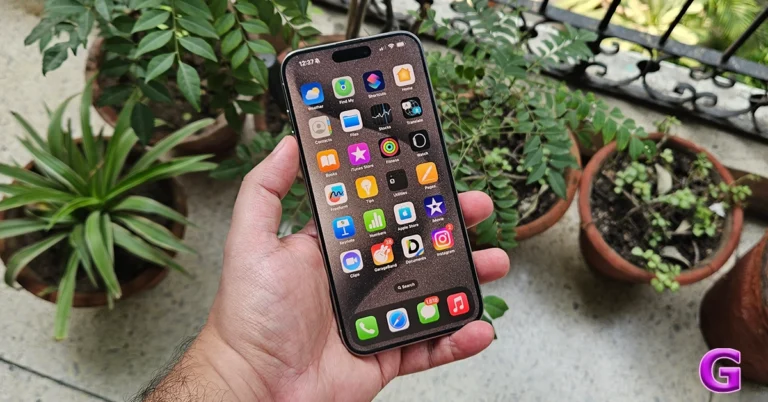
Top 4 Ways to Lock Apps in iPhone

0

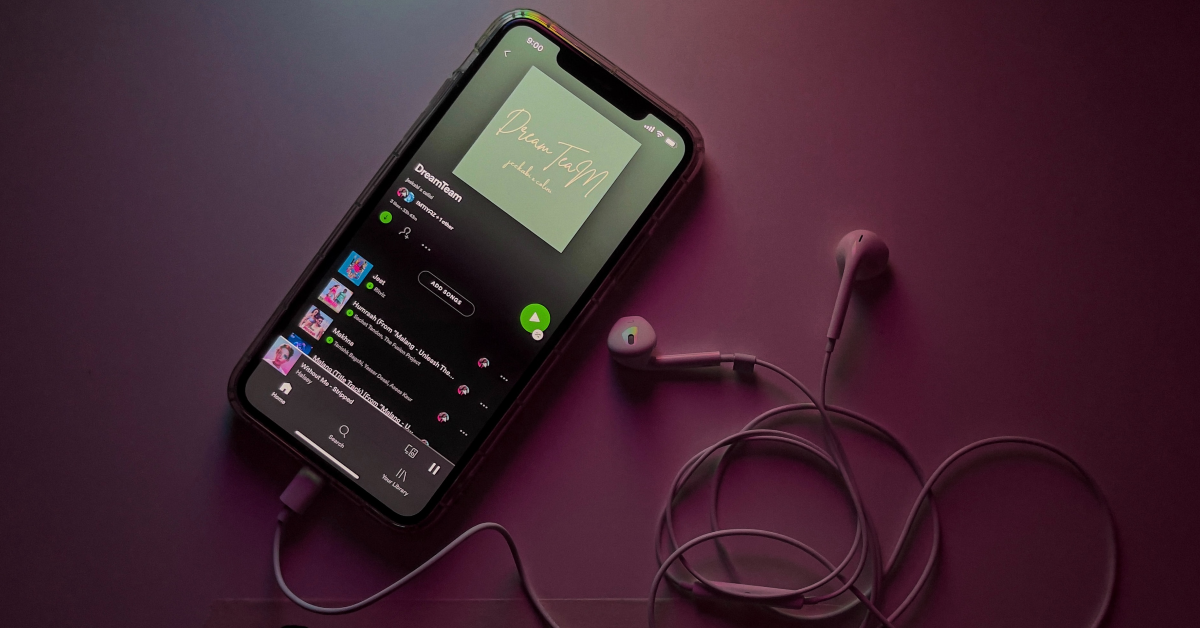
Every iPhone user should know how to lock apps on their device. Not only does it preserve your personal data while handing over your device to someone else, but it also makes sure your financial and private apps remain secure in case you lose your iPhone. Apps like WhatsApp have this feature baked into them. For those who don’t, use these 4 methods.

Read Also: Xiaomi Smarter Living 2024: New vacuum cleaner, earphones and tablet arriving

Which method should you use?

There are a few ways you can go about locking apps on your iPhone, but not every method is suited to your needs. There is only one native way to protect your apps using Face ID, but it only works for selected apps. You can use it to lock WhatsApp, but other messengers may not be covered by it. If you’re handing your iPhone to someone else and don’t want them accessing the contents of your device, you can use Guided Access. Guided Access pins one app to the screen and requires a Passcode/Face ID/Touch ID to go back to the home screen.

There are a few third-party app lockers available for iOS, but we do not recommend using them. Some of these tools only work after the iPhone has been jailbroken. Not only is this a security risk, but it also voids your device’s warranty. Other apps may push malware and invasive ads on your device, which is not a good tradeoff to make.

How to lock apps using Face ID

Step 1: Tap and hold the app you want to lock.

Step 2: Select Require Face ID from the pop-up menu.
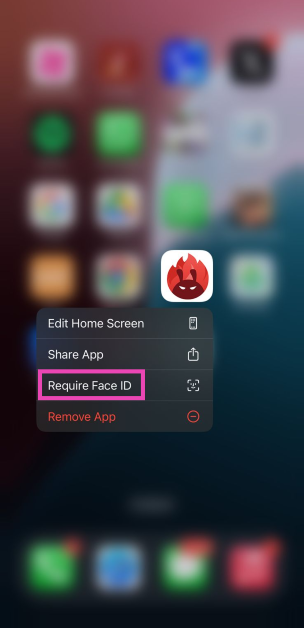
Step 2: Select Require Face ID from the popup menu.

Step 3: Confirm your selection in the pop-up box.

How to lock apps in iPhone using your Passcode

Step 1: Go to Settings and select Screen Time.
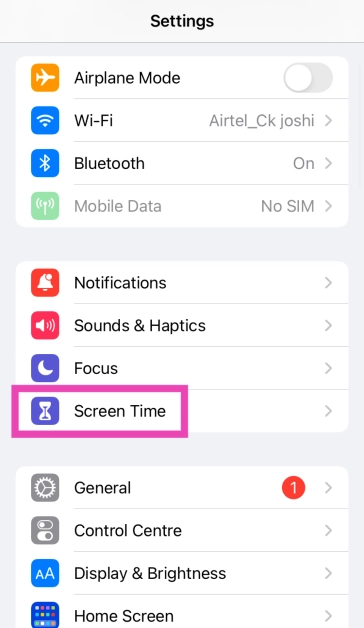
Step 1: Go to Settings and select Screen Time.

Step 2: Tap on Use Screen Time Passcode and set up a unique passcode to lock your apps.

Step 3: Tap on App Limits.
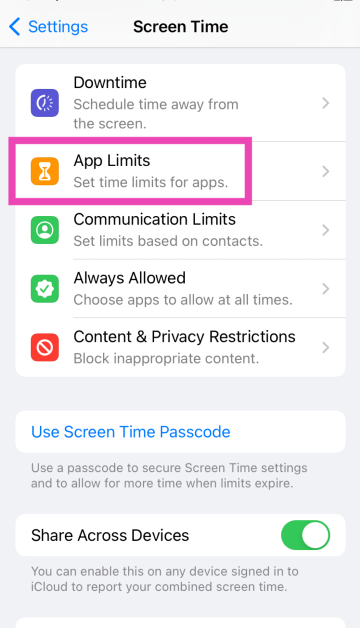
Step 3: Tap on App Limits.

Step 4: Select Add Limit.
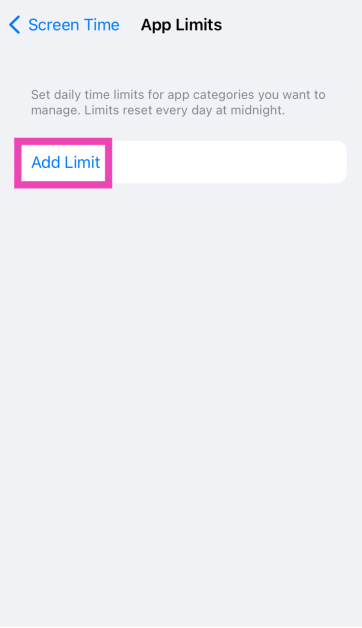
Step 4: Select Add Limit.

Step 5: Select the apps you wish to lock. Go through the categories to view the apps.
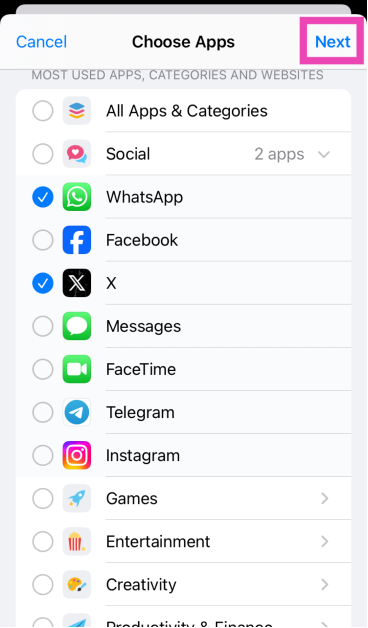
Step 5: Select the apps you wish to lock. Go through the categories to view the apps.

Step 6: Hit Next.

Step 7: Set the timer to 1 minute and tap on Add at the top right corner of the screen.
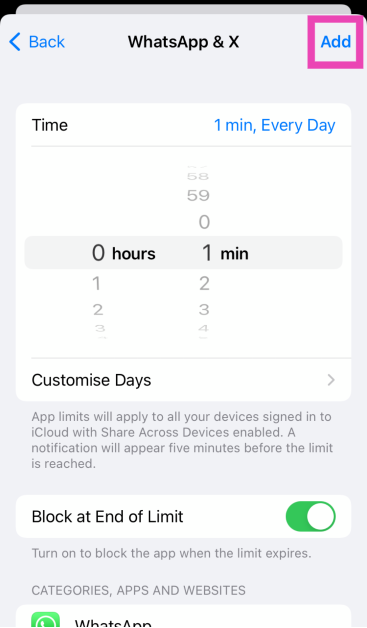
Step 7: Set the timer to 1 minute and tap on Add at the top right corner of the screen. Top 3 Ways to Lock Apps in iPhone and ios (2024)

Your selected apps will be locked after 1 minute of activity. Once the activity limit is breached, you can unlock the app for periods of 15 minutes, an hour, or an entire day. The app will not ask you for the passcode within the selected usage window.

How to lock apps from settings

A better way to lock apps on your iPhone is by using Face ID. This method is available for selected apps only. Here’s how you can use it.

Step 1: Go to Settings and select Face ID & Passcode.
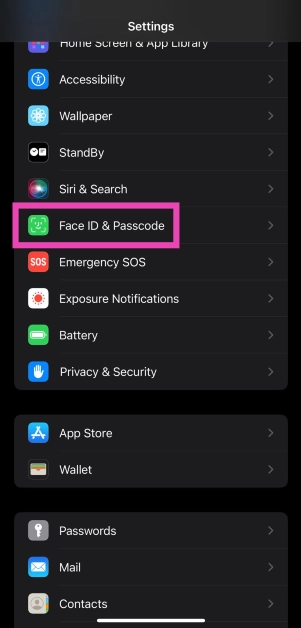
Step 1: Go to Settings and select Face ID & Passcode. Top 3 Ways to Lock Apps in iPhone and ios (2024)

Step 2: In the ‘Use Face ID for’ section, select Other Apps.
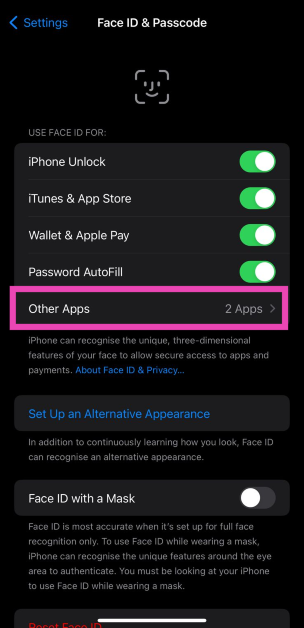
Step 2: In the ‘Use Face ID for’ section, select Other Apps. Top 3 Ways to Lock Apps in iPhone and ios (2024)

Step 3: Turn on the toggle switch for the app you want to lock using Face ID.
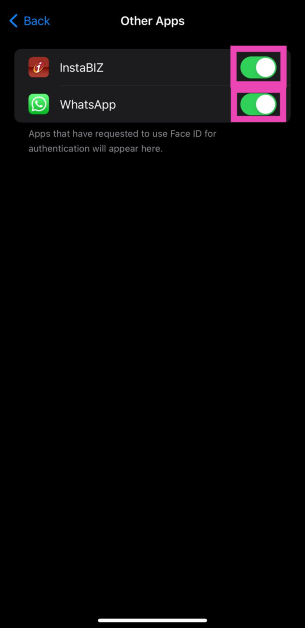
Step 3: Turn on the toggle switch for the app you want to lock using Face ID. Top 3 Ways to Lock Apps in iPhone and ios (2024)

How to lock apps using Guided Access

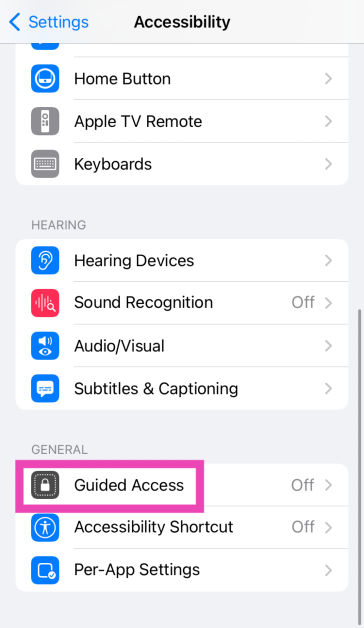
Step 1: Go to Settings and select Accessibility.
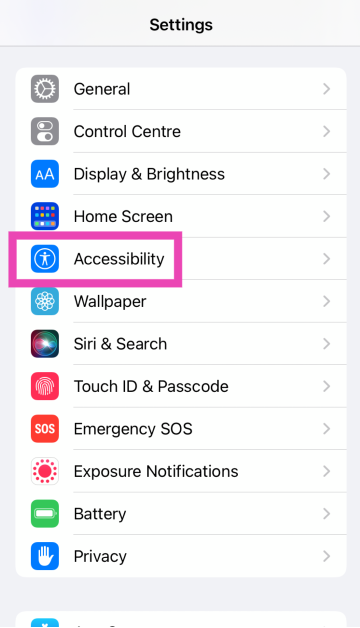
Step 2: Tap on Accessibility. 6 simple ways to disable touch screen on Android and iPhone stop accidental touch

Step 2: Tap on Guided Access.

Step 3: Scroll down and select Guided Access. 6 simple ways to disable touch screen on Android and iPhone stop accidental touch

Step 3: Turn on its toggle switch. Tap on Passcode Settings.
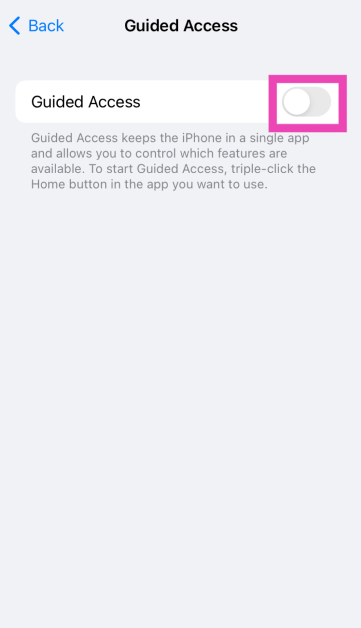
Step 4: Turn on the toggle switch for Guided Access. 6 simple ways to disable touch screen on Android and iPhone stop accidental touch

Step 4: Tap on Set Guided Access Passcode and set up a passcode. You can also choose to use Face ID/Touch ID.

Step 5: Launch an app and triple-press the home button/side key to enable Guided Access.

To leave the current app, you will need to enter the Passcode/Touch ID/Face ID.

Frequently Asked Questions (FAQs)

How do I lock an app on my iPhone?

Long-press the app on the home screen and select ‘Require Face ID’ to lock it. Confirm your selection in the pop-up box.

How do I hide an app on my iPhone?

Long-press the app’s icon on the home page, tap on ‘Require Face ID’, and select ‘Hide and Require Face ID’.

How do I lock my iPhone apps using Face ID?

Go to Settings>Face ID and passcode>Other Apps and turn on the toggle switch for the app you want to lock.

How do I lock a note on my iPhone?

Go to Settings>Notes>Password and set up a password or use Touch ID/Face ID/Passcode. Launch the Notes app on your iPhone and select the note you wish to lock. Hit the ellipses and select ‘Lock’.

How do I pin an app to the iPhone’s screen?

You can use Guided Access to pin an app to the screen of your iPhone. Once enabled, you will need to provide your Passcode/Face ID/Touch ID to go back to the home screen.

Read Also: Top 3 Ways to Lock Apps on Android (2024)

Final Thoughts

These are the top 4 ways to lock or password-protect apps on an iPhone. To add an extra layer of security, turn on two-factor authentication for your social media and messaging apps. If you know any other way to lock apps on your device, let us know in the comments!


Xiaomi Smarter Living 2024: New vacuum cleaner, earphones and tablet arriving

The Xiaomi Smarter Living 2024 event is almost here; it will happen in India on April 23. The products haven’t been confirmed yet, though. The firm has teased the release of four new items expected to be home appliances and personal technology products. According to a previous report, Xiaomi is preparing to introduce a self-cleaning vacuum cleaner, new TWS earphones with active noise cancellation (ANC), and a new Redmi Pad model in India. Nevertheless, no information regarding the anticipated devices was disclosed by the source.

Xiaomi will host the Smarter Living 2024 event soon in India. The upcoming tech event will be held on April 23 during which it will be launching four new items, but there was also mystery around the announcement. The company has also created a dedicated microsite that previews its upcoming products.

Rumour has it that the upcoming releases will consist of a tablet, a robot vacuum cleaner/mop, true wireless (TWS) earbuds, and a hairdryer. But detailed information is still hard to come by, which makes fans more eager.

Also Read: Nothing Ear and Nothing Ear A images leaked online, pricing tipped

Xiaomi Smarter Living 2024: What to expect?

The Redmi Pad Pro which was released in China recently is likely to be part of Xiaomi’s upcoming product portfolio. It features a 12.1-inch 2.5K LCD. The tablet runs on HyperOS and is powered by Snapdragon 7s Gen 2 SoC. The device features an 8-megapixel front and rear cameras.

The price of 6GB RAM with 128GB storage option costs CNY 1,499, or approximately Rs 17,300.

The Redmi Pad SE, which debuted in Europe in August 2023 is speculated to be coming to India. The device features an 11-inch full-HD+ LCD screen with 1900 x 1200 pixels of resolution. The tab runs on MIUI Pad 14, an Android 13-based OS. Under the hood, there is a Qualcomm Snapdragon 680 SoC, along with up to 8GB of LPDDR4X RAM and 128GB of eMMC 5.1 storage. It has an 8,000mAh battery that supports 10W wired USB Type-C charging.

The tablet’s price there starts at EUR 199 about Rs 18,000 for the 4GB RAM with 128GB variant.

Also Read: Samsung Moves Back into the Top Position Beating Apple: IDC Report

Redmi Buds 5 Pro are thought to be the most likely TWS earbuds. The TWS is expected to come with 12.4mm dynamic drivers. The earbuds are likely to have up to 46dB of ANC assistance. Additionally, these are said to provide 38 hours of total battery life on a single charge.

Garena Free Fire Redeem Codes Today 16 April 2024: Here is how to claim them

Garena Free Fire is a battle royale game with regular awards and tournaments to keep players interested. If you play Garena Free Fire, you should be aware of the redeem codes that are released on a daily basis. However, because the battle royale game is banned in India, players from other countries can use the Free Fire Redeem codes daily. If you’re unfamiliar with the Garena Free Fire redeem codes or don’t know how to get them, we’ve put together a step-by-step guide to help you redeem them. Check out Garena Free Fire Redeem Codes for 16 April 2024.

The Free Fire redeem codes are a great way to get free stuff. These are 12-digit codes that contain alphabets and numbers, as well as an expiration date and time. Because the Garena FF redeem codes cannot be used more than once, you should hurry to the redemption page to claim your free reward before someone else does. To get a free reward, all you have to do is go to reward.ff.garena.com/en, which is the official redemption page. Also, keep an eye on this space for daily updates on Garena Free Fire redemption codes and rewards.

Also Read: Sennheiser Accentum Plus wireless headphones with Hybrid Adaptive Noise Cancellation launched

Garena Free Fire Redeem Codes Today 16 April 2024

S0T6U2V8W4X9Y5

Z1A7B3C9D5E0F6

G2H8I4J0K6L1M7

N3O9P5Q1R7S2T8

X7Y3Z9A5B1C6D2

E8F4G0H6I2J7K3

L9M5N1O7P3Q8R4

P3Q9R5S1T7U2V8

W4X0Y6Z2A8B3C9

D5E1F7G3H9I4J0

K6L2M8N4O0P5Q1

U4V0W6X2Y8Z3A9

B1C7D3E9F5G0H6

I2J8K4L0M6N1O7

How to Get Free Fire Redeem Codes for Garena on 16 April 2024?

  • Visit the Garena Free Fire game’s official website at reward.ff.garena.com.
  • Use your Facebook, Google, VK, Apple ID, Huawei ID, or Twitter account to log in.
  • You’ll be taken to a valid redemption code (s)
  • Copy and paste the 12-digit redemption code into the text box.
  • On the screen, a dialogue box will appear.
  • ‘Ok’ should be selected.

For the latest gadget and tech news, and gadget reviews, follow us on TwitterFacebook and Instagram. For newest tech & gadget videos subscribe to our YouTube Channel. You can also stay up to date using the Gadget Bridge Android App. You can find the latest car and bike news here.

Top 3 Ways to Lock Apps on Android (2024)

0

While buying a new smartphone, it is very important to consider its privacy features. Over the years, almost every major Android OEM has incorporated an app locker into its OS. You no longer need a third-party app locker to keep your personal documents and financial apps safe. If you want to password-protect the personal apps on your Android smartphone, it is a good idea to keep them locked. Here are three ways to go about it.

Read Also: Nothing Ear and Nothing Ear A images leaked online, pricing tipped

Does the stock Android OS have an app locker?

Even though an app locker is a basic feature in every major Android smartphone, it is not present in stock Android OS. This means Google Pixel users do not have a native way of password-protecting their apps. However, if you’re a Samsung, OnePlus, Xiaomi, or Oppo user, you don’t need to worry about this problem. Even manufacturers like Nothing and Motorola that rely mostly on stock Android OS for their smartphones have a custom app locker baked into their devices.

So, where does this leave Pixel users? While there is always an option to download a third-party app locker, the truth is that they aren’t very good. Most app lockers deplete the battery quickly and push intrusive ads on the device. A better workaround is using a ‘guest profile’ on your Pixel and limiting the apps that the guest can access on it. While handing your phone to someone else, quickly make the switch to the guest profile to protect your personal apps.

Lock apps on a Samsung smartphone (One UI)

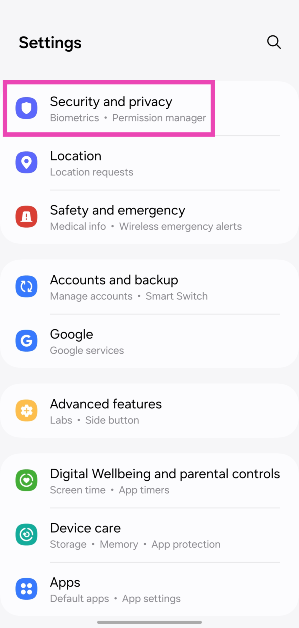
Step 1: Go to Settings and select Security and privacy.

Step 1: Go to Settings and select Security and privacy.

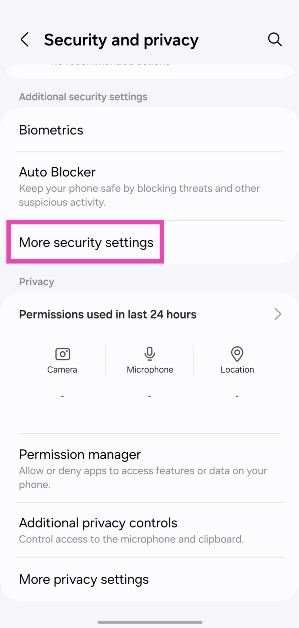
Step 2: Tap on More security settings.

Step 2: Tap on More security settings.

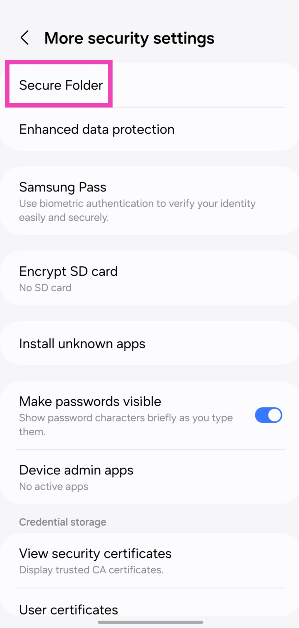
Step 3: Select Secure Folder.

Step 3: Select Secure Folder.

Step 4: Tap on Continue and sign in using your Samsung account.

Step 5: Grant Secure Folder the necessary permissions.

Step 6: Set up a locking mechanism – fingerprint, PIN, or password. Hit Next.

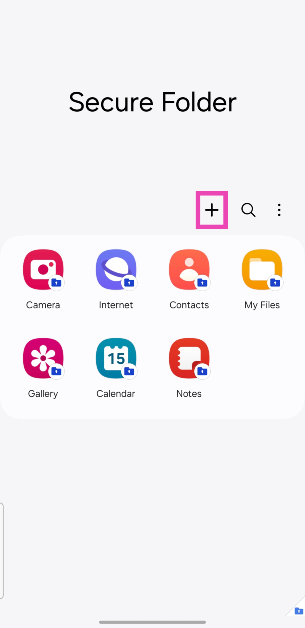
Step 7: Hit the plus icon to add an app.

Step 7: Hit the plus icon to add an app.

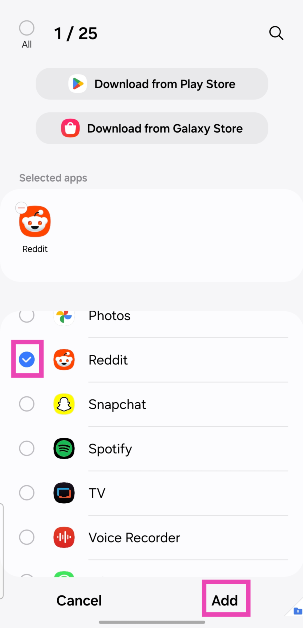
Step 8: Once an app has been selected, hit Add.

Step 8: Once an app has been selected, hit Add.

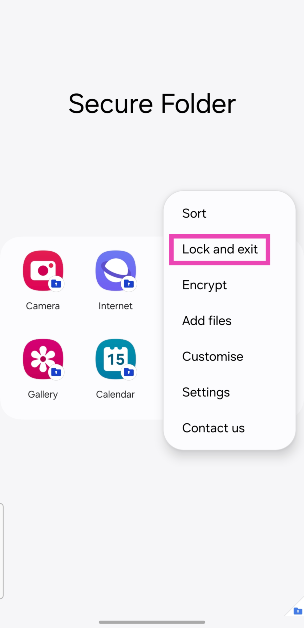
Step 9: Tap the ellipses again and select Lock and exit.

Step 9: Tap the ellipses again and select Lock and exit.

Lock apps on a Xiaomi smartphone (MIUI/HyperOS)

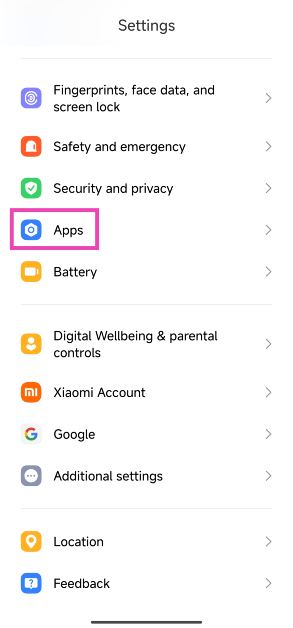
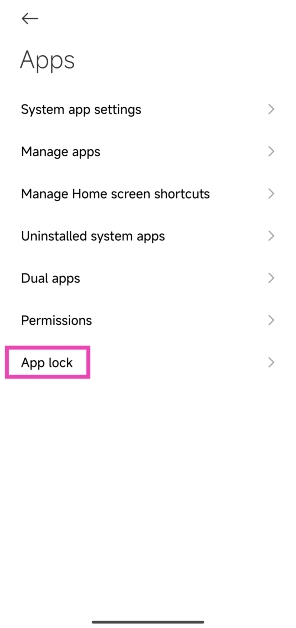
Step 1: Go to Settings and select Apps.

Step 1: Go to Settings and select Apps.

Step 2: Tap on App lock.

Step 2: Tap on App lock.

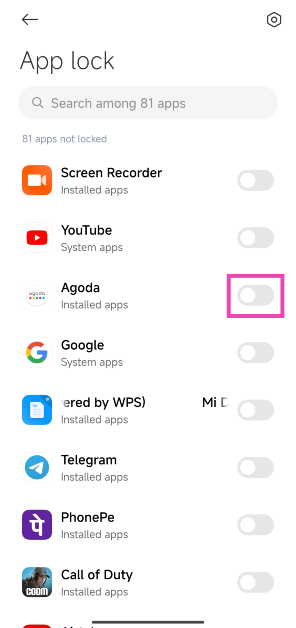
Step 3: Set up a PIN, fingerprint, or password.

Step 4: Turn on the toggle switch for the app you want to lock.

Step 4: Turn on the toggle switch for the app you want to lock.

Lock apps on a OnePlus/Oppo smartphone (OxygenOS/ColorOS)

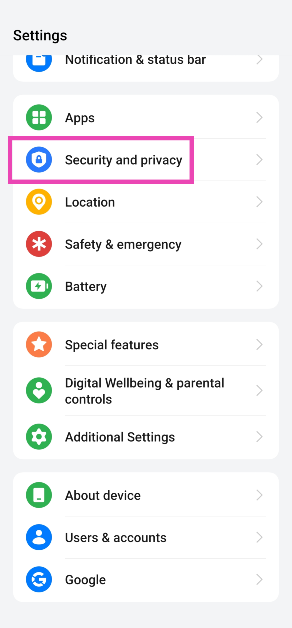
Step 1: Go to Settings and select Security and privacy.

Step 1: Go to Settings and select Security and privacy.

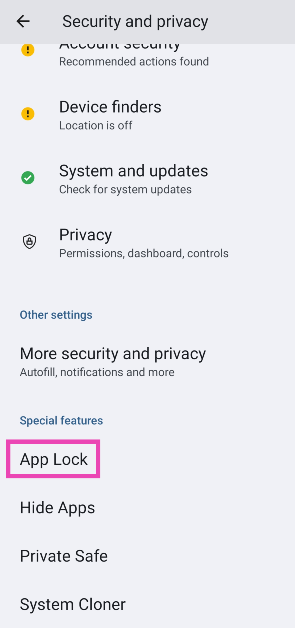
Step 2: Scroll down and tap on App Lock.

Step 2: Scroll down and tap on App Lock.

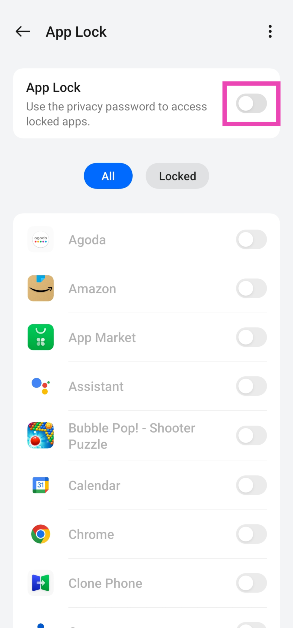
Step 3: Turn on the toggle switch for App Lock and set up a password.

Step 3: Turn on the toggle switch for App Lock and set up a password.

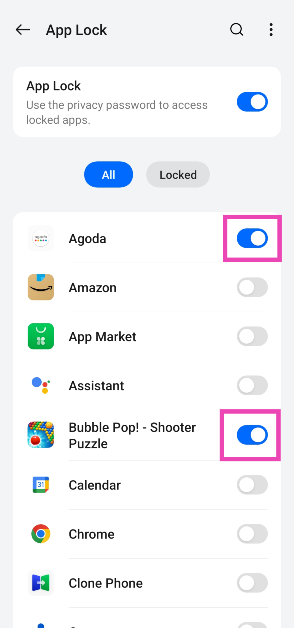
Step 4: Turn on the toggle switch for the app you want to lock.

Step 4: Turn on the toggle switch for the app you want to lock.

Frequently Asked Questions (FAQs)

How do I password-protect my apps on Android?

Every Android OEM has a different method of locking apps with a password. You will typically find this option in the ‘Security and privacy’ section in device settings.

How do I lock apps on a Xiaomi smartphone?

Go to Settings>Apps>App Lock, set up a password, and turn on the toggle switch for the app you want to lock.

Can I use the Secure Folder without a Samsung account?

Currently, there is no way to use the Secure Folder without a Samsung account.

Read Also: How to Download a Video On WhatsApp for PC? (2024)

Conclusion

This is how you can lock apps on any Android smartphone. You can also use third-party apps for this task, but that requires giving the home launcher permission to the app. If you know any other ways to password-protect your apps on Android, let us know in the comments!

Nothing Ear and Nothing Ear A images leaked online, pricing tipped

The OnePlus co-founder Carl Pei’s UK-based tech venture has officially confirmed the introduction of its next iteration of Nothing Earbuds- Nothing Ear and Nothing Ear A. A few days before their formal release, purported images of Nothing Earbuds together with their costs and features made their way online. According to leaks, the devices will come with active noise cancellation (ANC) of up to 45 dB. In terms of design, the audio device will have a semi-transparent structure along with IP54 certification.

Also Read: Samsung Moves Back into the Top Position Beating Apple: IDC Report

It is confirmed that Nothing Ear and Nothing Ear A will debut on April 18. Ahead of the official launch images, specifics, and costs for Nothing Ear and Ear A have been tipped by Ishan Agarwal. The Nothing Ear A is expected to cost EUR 99, or about Rs 8,000. On the contrary, it is anticipated that the Nothing Ear will cost EUR 149, or around Rs 13,000, at launch. “Hopefully it won’t go above ₹9,999,” the tipster said in its X post.

Nothing Ear (2) was launched in India at a price tag of Rs 9,999. The truly wireless stereo earphones come in two colours- White and Black. 

Nothing Ear and Nothing Ear A images leaked online, pricing tipped
Image Courtesy: Ishan Agarwal/X

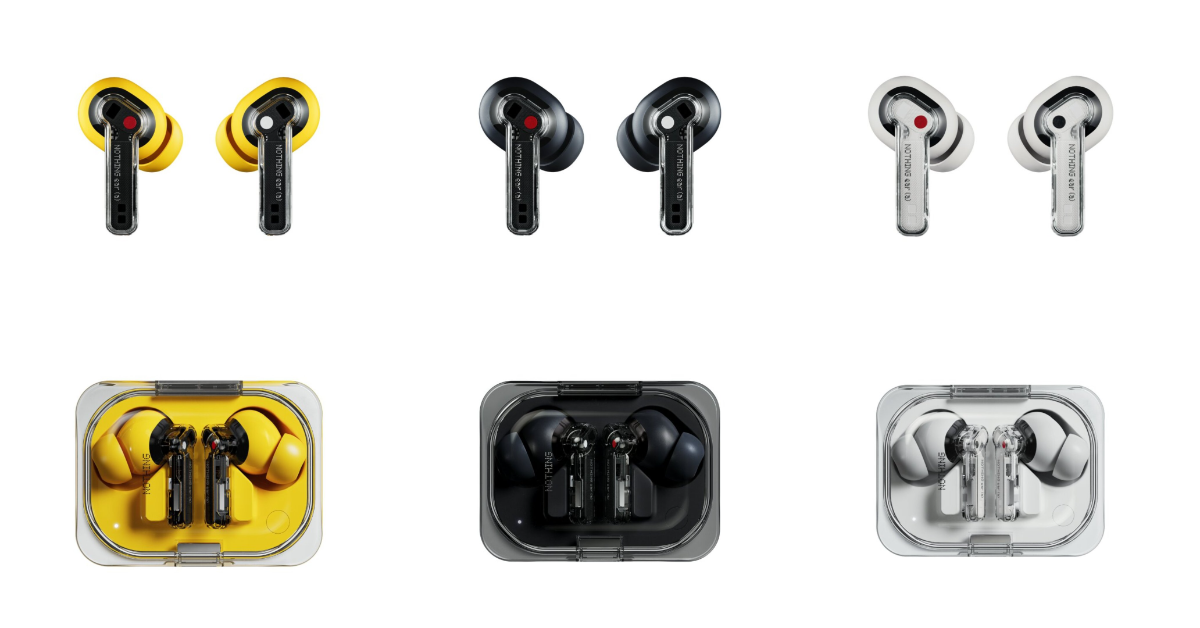
Based on the images, it appears that the new earphones will have a semi-transparent design, just like their predecessors. Both the casing as well the stem will be semi-transparent. 

The Nothing Ear is displayed in black and white colourways. Whereas Nothing Ear A is featured in black, white, and yellow hues.

The renderings display shows the company’s logo Nothing etched on the stem. Additionally, they appear to use identical red and white dots to denote the left and right sides.

The Nothing Ear A is claimed to provide dual connections and up to 45dB ANC. They are tipped to come with up to eight hours of battery life with ANC turned off. The earbuds are said to have dual connections and up to 45dB ANC.

Also Read: Google Pixel 8a renders leaked, 4 colour options expected

Before the announcement, Nothing shared a teaser on its social media account, X which triggered talks on the release of the Nothing phone 3 or more accurately, Nothing Ear. A leaping frog is seen in the short video which is going to be the face of its mascot for Nothing TWS. Note that Nothing has used a Ladybug for Ear (1) and an Atlas Beetle for the Ear (2) as their mascots.

Samsung Moves Back into the Top Position Beating Apple: IDC Report

Reportedly, smartphone shipments worldwide rose 7.8% year over year to 289.4 million units. Apple’s smartphone shipments decreased by almost 10% in the first quarter of 2024 whereas Samsung overtook Apple with a 20.8% market share.

As per International Data Corporation (IDC) Worldwide Quarterly Mobile Phone Tracker preliminary data, global smartphone shipments rose 7.8% year over year to 289.4 million units in the first quarter of 2024 (1Q24).

According to Ryan Reith, group vice president of IDC’s Worldwide Mobility and Consumer Device Trackers smartphone recovery continues to move forward with market optimism slowly building among the top brands.

Also Read: Samsung Galaxy A34 5G price in India dropped by Rs 6,000

In the first quarter of 2023, Samsung successfully reclaimed its position as the top smartphone provider, even though Apple was able to take the top rank by the end of the year. The resurgence of Huawei in China, along with significant gains from Xiaomi, Transsion, OPPO/OnePlus, and Vivo, will probably have both OEMs looking for areas to expand and diversify, even if IDC still expects these two firms to hold their position at the top of the market.

Samsung Moves Back into the Top Position Beating Apple: IDC Report

He said, “As the recovery progresses, we’re likely to see the top companies gain share as the smaller brands struggle for positioning.”

Following a stellar quarter in which it surpassed Samsung to become the world’s top phone manufacturer, Apple saw a sharp decrease in sales with a 17.3% market share. Whereas, Xiaomi came in third place in the first quarter with a 14.1% market share.

Also Read: Google Pixel 8a renders leaked, 4 colour options expected

“The smartphone market is emerging from the turbulence of the last two years both stronger and changed,” said Nabila Popal, research director with IDC’s Worldwide Tracker team. “Firstly, we continue to see growth in value and average selling prices (ASPs) as consumers opt for more expensive devices knowing they will hold onto their devices longer. Secondly, there is a shift in power among the Top 5 companies, which will likely continue as market players adjust their strategies in a post-recovery world. Xiaomi is coming back strong from the large declines experienced over the past two years and Transsion is becoming a stable presence in the Top 5 with aggressive growth in international markets. In contrast, while the Top 2 players both saw negative growth in the first quarter, it seems Samsung is in a stronger position overall than they were in recent quarters.”

How to Download a Video On WhatsApp for PC? (2024)

0

Not only is WhatsApp the biggest instant messaging app in the world, but it is also one of the most versatile ones around. Its desktop app and web portal allow users to stay connected with their friends and family even if they don’t have their phones near them. All the essential functions of the messengers are preserved in its desktop avatar. However, sometimes users complain that they are unable to download videos on WhatsApp while using the app on their PCs. Let’s take a closer look at how you can go about this task.

Read Also: Top 6 Ways to Increase Monitor’s Brightness Beyond the Maximum Limit (2024)

Before you begin

Downloading videos on WhatsApp doesn’t have to be difficult. The messenger gives you the option to auto-download videos and save them on your device’s internal storage. You can even choose whether you want to download videos automatically only on a WiFi connection or while you’re using mobile data as well. Once that’s done, you can visit individual chats and choose whether you want the media from that conversation to appear in your device’s gallery.

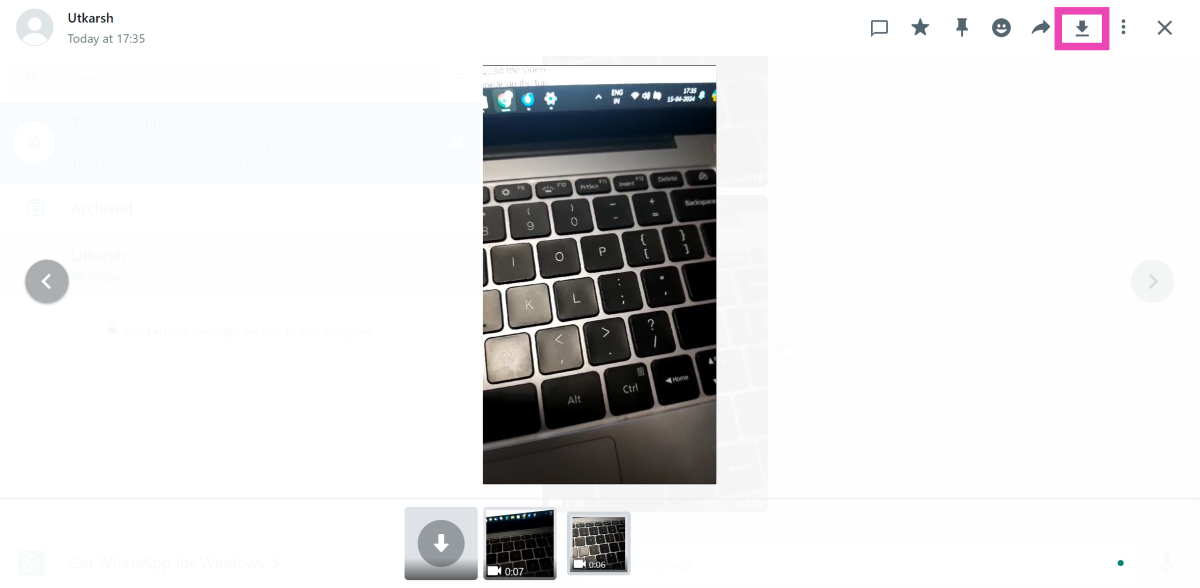
If you’ve turned off auto-downloads within the app, you can always save each video manually. PC users often complain that the messenger’s desktop app and web portal do not have a download button. While WhatsApp for PC does have a download button, it only shows up when the video has been played all the way through.

Download a video on WhatsApp for PC

Step 1: Go to WhatsApp’s web portal.

Step 2: Use the QR code to link your account.

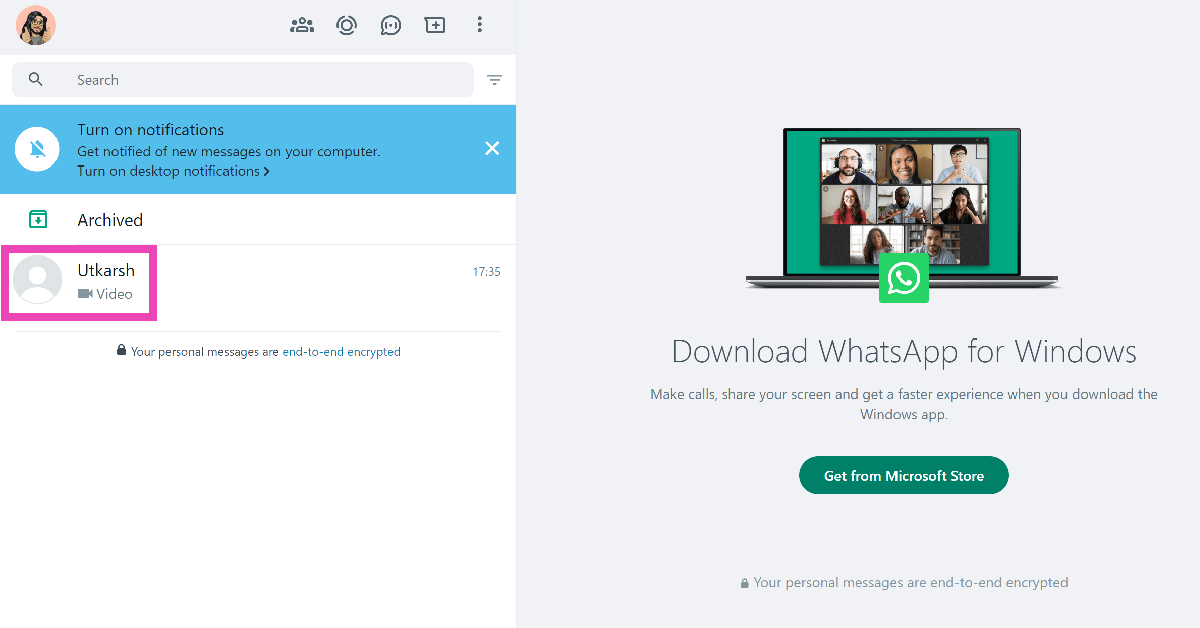
Step 3: Open the conversation with the video you want to download.

Step 3: Open the conversation with the video you want to download.

Step 4: Click on the video to download it.

Step 5: Let the video play till the end.

Step 6: Hit the download button at the top right section of the screen.

Step 6: Hit the download button at the top right section of the screen.

Download a video on WhatsApp for Android/iOS

Step 1: Launch WhatsApp on your smartphone.

Step 2: Open the conversation with the video you wish to download.

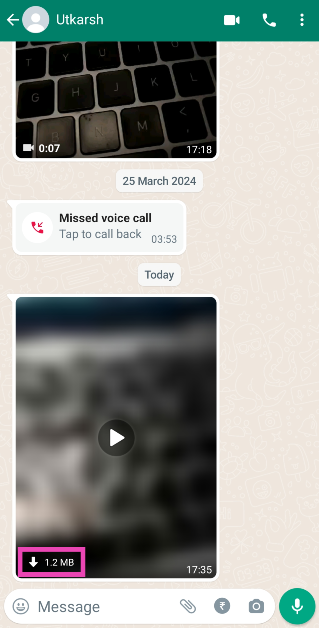
Step 3: Hit the download button on the video.

Step 3: Hit the download button on the video.

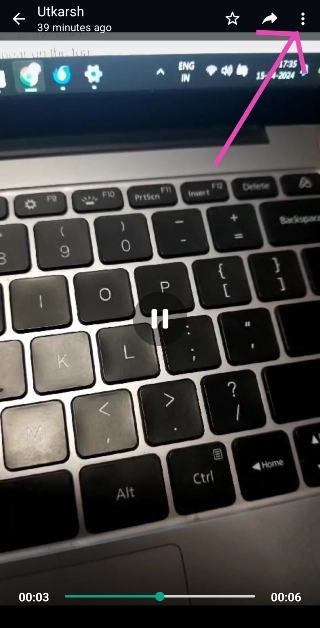
Step 4: Open the video and hit the ellipses at the top right corner of the screen.

Step 4: Open the video and hit the ellipses at the top right corner of the screen.

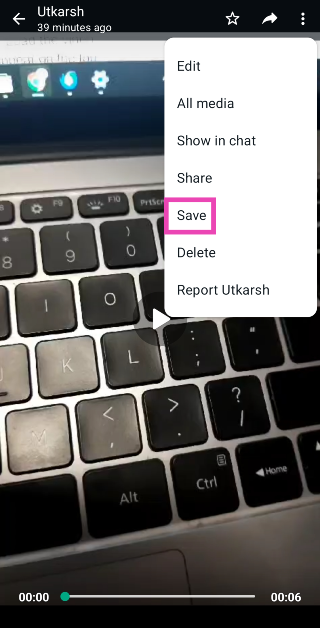
Step 5: Tap on Save.

Step 5: Tap on Save.

Frequently Asked Questions (FAQs)

Why can’t I download videos on WhatsApp for PC?

WhatsApp’s desktop app and web portal only give you the option to download a video after it has been played all the way through at least once. Load the video and play it. Once the video is finished, the download icon will appear on the top right section of the screen.

Where can I find downloaded WhatsApp videos on my PC?

All the media downloaded from WhatsApp’s desktop app and web portal is saved in the Downloads folder on your PC. On your smartphone, the media is saved in the WhatsApp folder in the gallery.

How do I disable auto-download for videos in WhatsApp?

Launch WhatsApp on your smartphone, go to Settings>Storage and data, and deselect ‘Videos’ in all three categories (When using mobile data, When connected on WiFi, and When roaming).

Read Also: Top 3 Ways to Remove a Gmail Account From Your Android Device (2024)

Conclusion

This is how you can download videos on WhatsApp for desktop or PC. Once the video has been saved, you can find it in the Downloads folder on your PC. If you know any other way to download videos using the instant messenger, let us know in the comments!

Top 6 Ways to Increase Monitor’s Brightness Beyond the Maximum Limit (2024)

0

Dim displays are a hassle to use. If your PC is positioned near a window, the natural light falling on the monitor makes it less legible. Enabling auto-brightness gives the display that extra push, but sometimes it may fall short. This is why while buying a monitor, you must consider its brightness capacity. If you’re struggling with a dim monitor, here are the top 6 ways you can increase its brightness beyond the maximum limit.

Read Also: Top 7 Methods to Remove the Android Setup Notification (2024)

Is it possible to increase the monitor’s brightness beyond its maximum limit?

Screen brightness is dependent on the hardware you’re using. Some bright screen displays are designed to be kept in well-lit areas, which means they are bright enough to overcome the luminosity of their surroundings. Others may struggle to be legible. At the end of the day, brightness is a hardware attribute and you cannot use a software trick to push it more than the preset limit.

However, there are certain things you can do to make your display appear brighter than usual. Limiting the natural light in your room is one such trick. You can also enable the HDR on your display. Vivid images are brighter than normal ones. Even when the screen brightness level remains the same, HDR images will appear brighter. You can also turn off auto-brightness on your PC or laptop, so the monitor doesn’t go dim when the surrounding light is reduced.

Keeping your monitor at the highest brightness setting has its disadvantages. On OLED panels, it can cause ‘image retention’, which means the images on the screen tend to ‘burn in’ and stay there for a while. Higher brightness settings are also taxing on the battery and cause the monitor to warm up easily.

Increase Monitor’s Brightness from Settings

You must be familiar with the dedicated keys for adjusting the brightness of your PC monitor. Windows PCs also have a dedicated brightness bar that can be accessed from the taskbar. However, if you go to the device settings, you will be able to control a couple of other aspects as well. If your monitor keeps dimming down, you can turn off auto-brightness from settings. You can also keep your PC from changing the screen brightness based on the content. This will ensure that the monitor stays at the highest brightness level at all times.

Step 1: Press Windows Key + I to open settings.

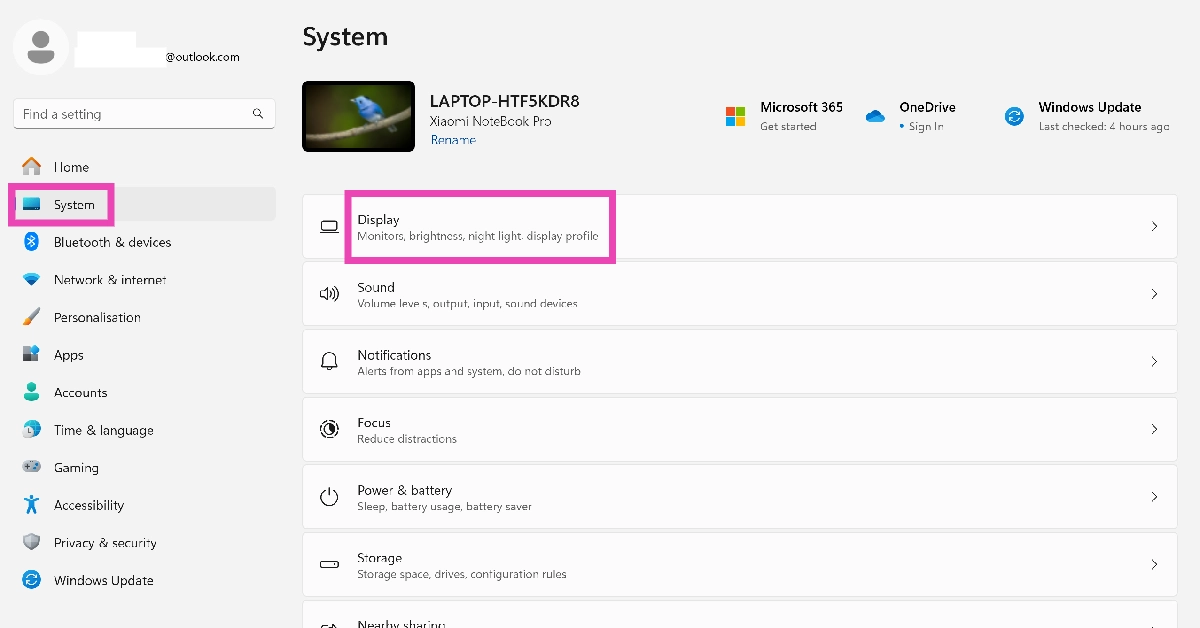
Step 2: Switch to the System tab and click on Display.

Step 2: Switch to the System tab and click on Display.

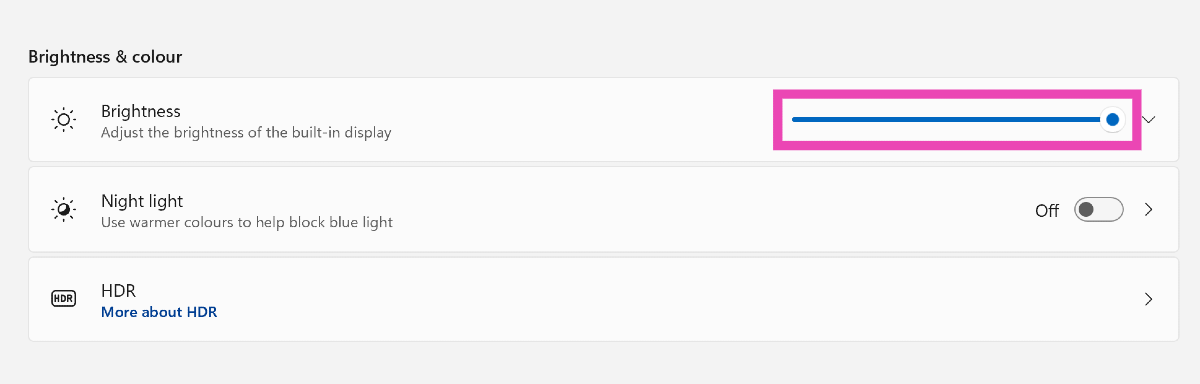
Step 3: Drag the brightness bar to its maximum limit.

Step 3: Drag the brightness bar to its maximum limit.

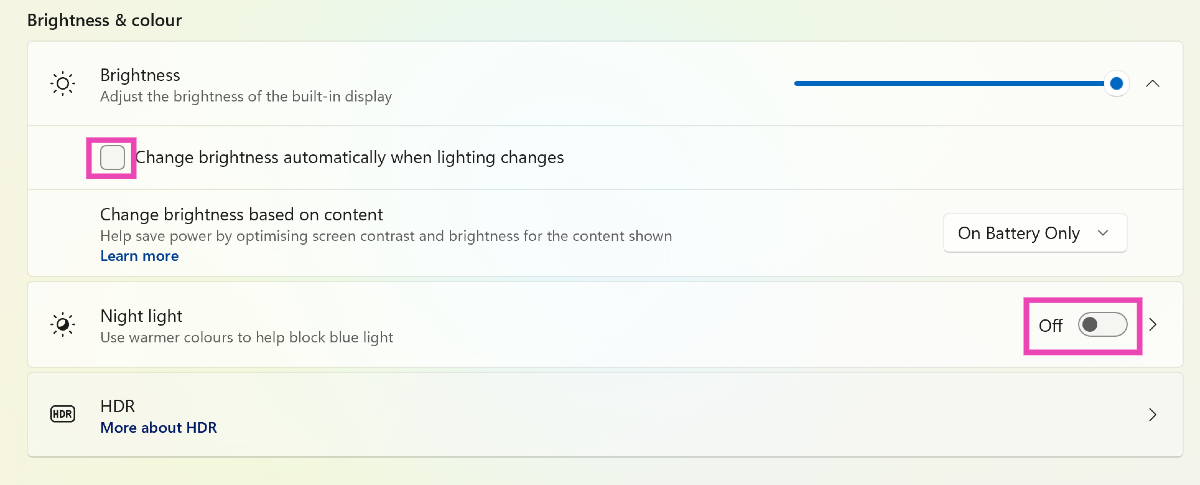
Step 4: Hit the downward arrow icon next to the bar and uncheck the box for Change brightness automatically when lighting changes.

Step 4: Hit the downward arrow icon next to the bar and uncheck the box for Change brightness automatically when lighting changes.

Step 5: Turn off the toggle switch for Night Light.

Turn on HDR

Enabling on your monitor will make the images on the screen appear brighter and more vibrant. This method will only work on displays with HDR 10 support.

Step 1: Press Windows Key + I to open settings.

Step 2: Switch to the System tab and click on Display.

Step 2: Switch to the System tab and click on Display.

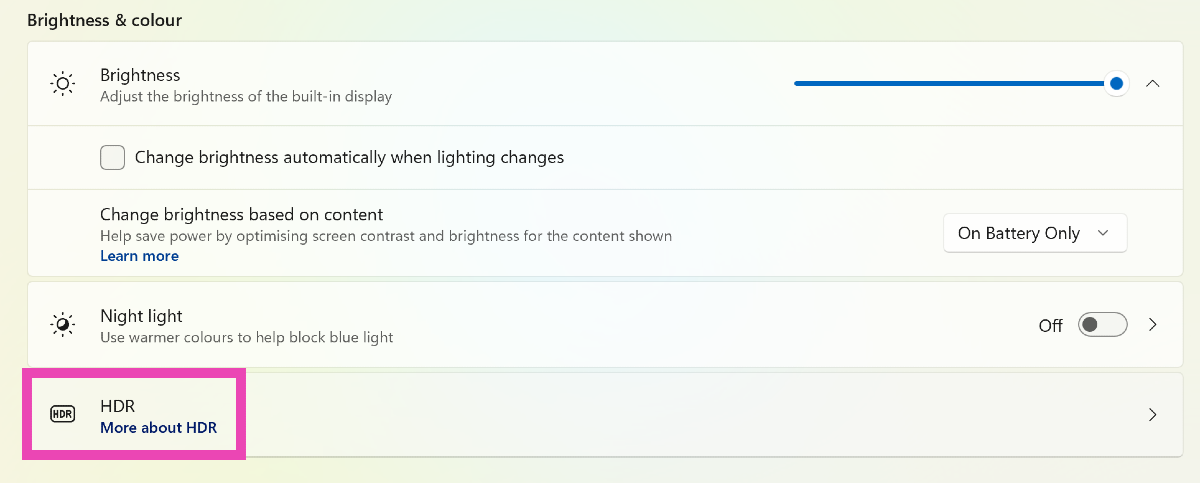
Step 3: Click on HDR.

Step 3: Click on HDR. Top 6 Ways to Increase Monitor's Brightness Beyond the Maximum Limit (2024)

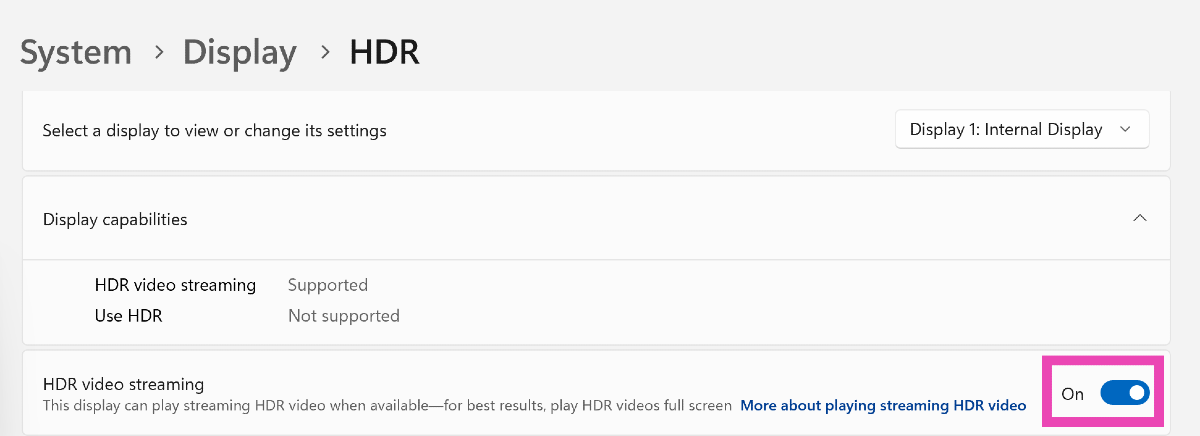
Step 4: Turn on the toggle switch for HDR video streaming and Use HDR.

Step 4: Turn on the toggle switch for HDR video streaming and Use HDR. Top 6 Ways to Increase Monitor's Brightness Beyond the Maximum Limit (2024)

Adjust the brightness of an additional display

If you have two or more monitors connected to your PC, you can use their physical buttons to increase the brightness. Look for these buttons on the frame of the monitor. If you can’t find the dedicated buttons, press the menu button and go to brightness. This is where you’ll be able to push the display to its maximum brightness.

Calibrate your display’s colours

Calibrating the colours of your monitor can improve the vividness of the images, making them look brighter. Here’s how you can do it.

Step 1: Click on the search bar in the taskbar and search for Calibrate display color.

Step 2: Select the topmost search result.

Step 3: Hit Next.

Step 4: Follow the onscreen instructions to calibrate the display colours.

Disable Battery Saver

Once your PC or laptop’s battery goes below a certain level, it automatically turns on the Battery Saver to conserve the battery. This reduces the brightness of the display as well as cuts down other power-intensive functions. To bump up the brightness, turn off the Battery Saver. You can do this by clicking on the battery icon in the taskbar and deselecting the Battery Saver tile.

Use a third-party app: F.lux

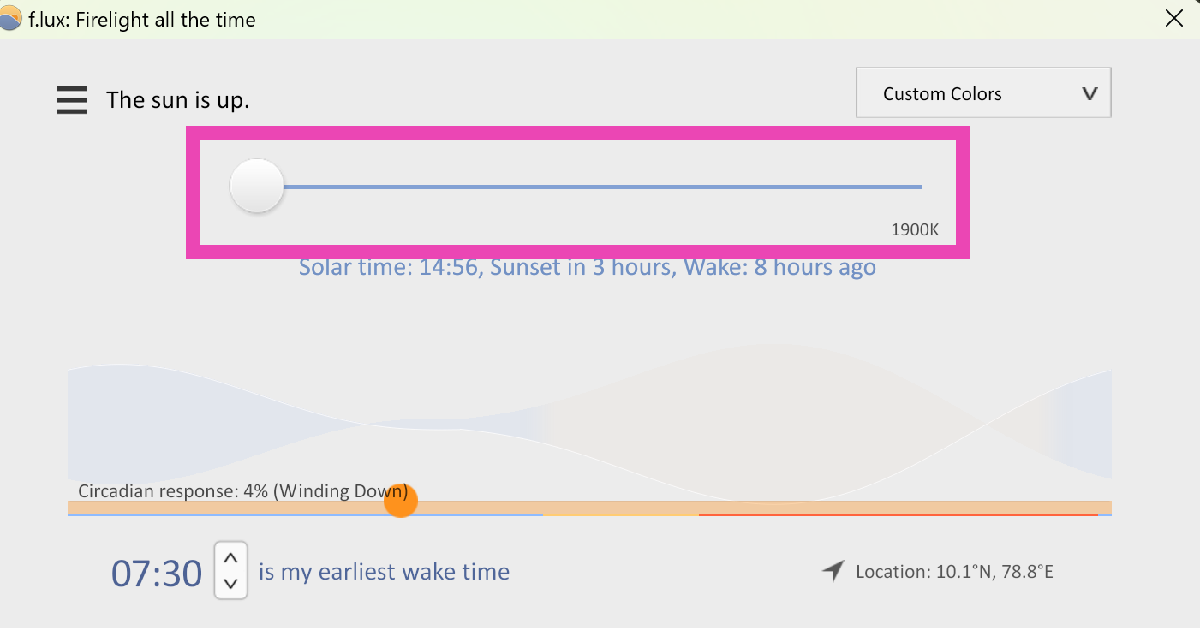
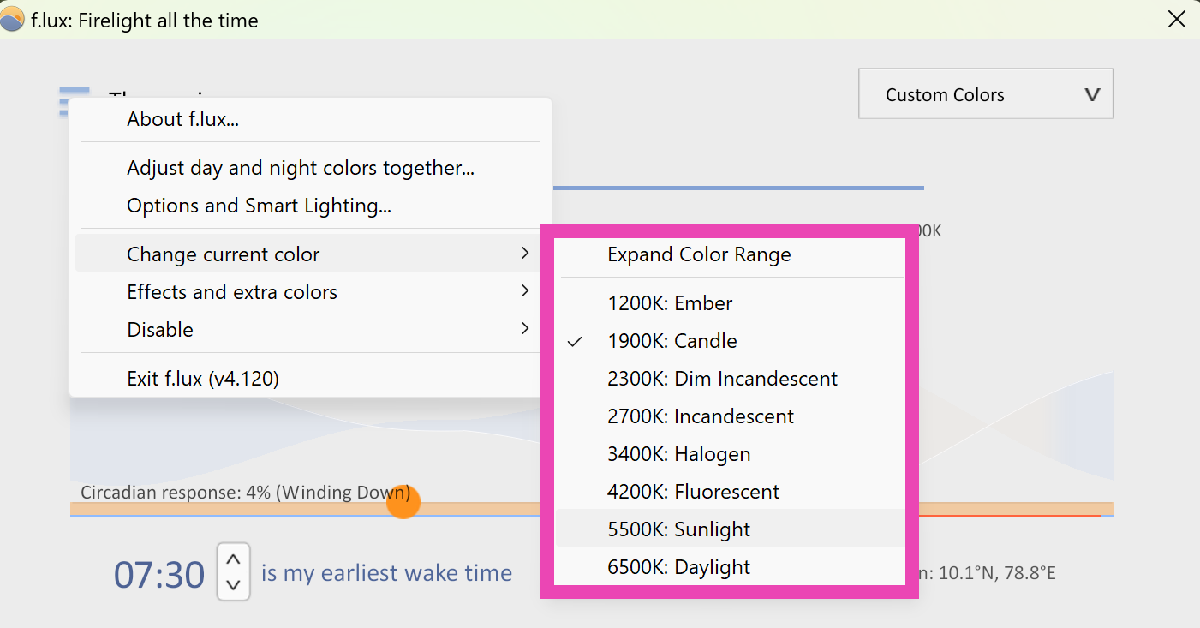
F.lux is a great app that adjusts your display’s colour gradient to exert the least strain on your eyes. You can use this app to push your display to its maximum brightness limit and even use a colour profile that makes the display appear brighter. 

Step 1: Install the F.lux app on your PC or laptop from the Microsoft Store.

Step 2: Use the brightness slider to push the display brightness to its maximum setting.

Step 2: Use the brightness slider to push the display brightness to its maximum setting. Top 6 Ways to Increase Monitor's Brightness Beyond the Maximum Limit (2024)

Step 3: You can also click the hamburger menu to change the colour setting.

Step 3: You can also click the hamburger menu to change the colour setting. Top 6 Ways to Increase Monitor's Brightness Beyond the Maximum Limit (2024)

Frequently Asked Questions (FAQs)

How do I set my monitor’s display to the maximum setting?

Go to Settings>Display and drag the brightness bar to its maximum limit. Turn off auto-brightness to make sure it stays at the highest level.

How do I turn on HDR on my monitor?

Go to Settings>Display>HDR and turn on the toggle switch for ‘Use HDR’.

How do I optimise my monitor’s colours?

Go to the Control Panel, select ‘Calibrate display colour’ and follow the onscreen instructions for colour calibration.

Read Also: BOULT Astra Neo Review: Best budget gaming TWS with 40ms low-latency under 1.5K

Conclusion

These are the top 6 ways to increase your monitor’s brightness beyond the maximum limit. For best results, limit the amount of natural light in the room for a brighter, more legible display. If you know any other ways to push your monitor’s brightness, let us know in the comments!

Top 7 Methods to Remove the Android Setup Notification (2024)

0

When you get a new Android phone, the setup wizard guides you through the initial setup process. Over the years, this process includes services that the users don’t typically want. Some smartphones also prompt users to download a bunch of bloatware apps while setting up the device. If you skip these steps, your phone displays the ‘Finish setting up your device’ notification. This notification is pretty stubborn and cannot be swiped from the screen. So, let’s look at the top 7 methods to remove or disable the Android Setup notification on your phone.

Read Also: Google Pixel 8a renders leaked, 4 colour options expected

Here are your options 

The process to remove the Android setup notification differs among different devices. The standard way to tackle this issue is by disabling the Android Setup app or turning off its notifications. However, some notifications may not let you do that. On certain OneUI, ColorOS, and stock Android smartphones, we were unable to find the option to disable the notifications for Android setup. However, these smartphones allowed us to disable the wizard.

On the other hand, MIUI/HyperOS smartphones did not offer the option to disable the setup wizard but did have the option to turn off its notifications. Either method is suitable to get rid of the stubborn setup notification on your device. If you can’t find the Setup app in your phone settings, you can simply go through the setup process and skip everything it prompts you to do. This will remove the notification as well.

Disable the Android Setup app

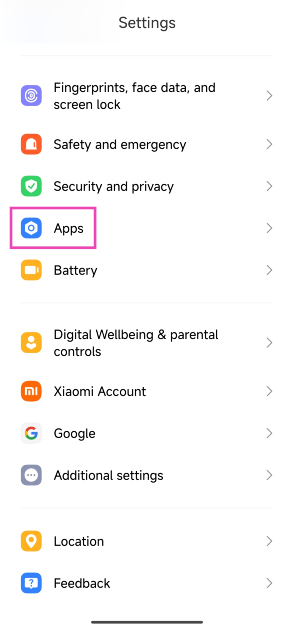
Step 1: Go to Settings and select Apps.

Step 1: Go to Settings and tap on Apps.

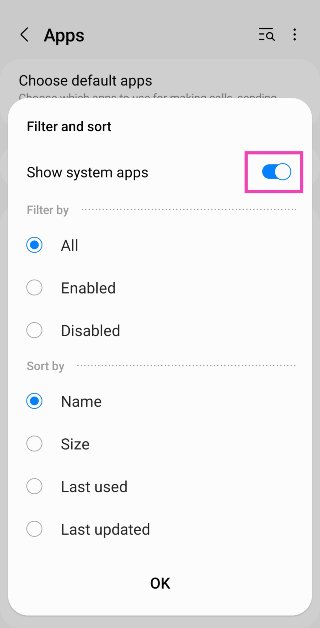
Step 2: Tap the options menu and select Show system apps.

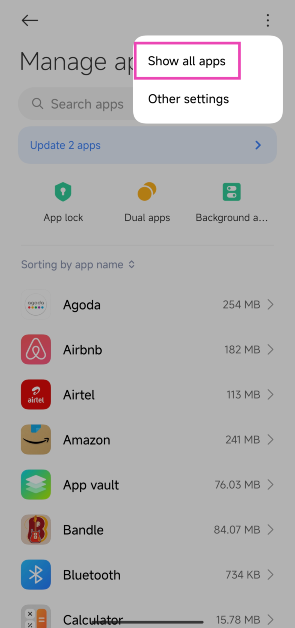
Step 2: Tap the options menu and select Show all apps.

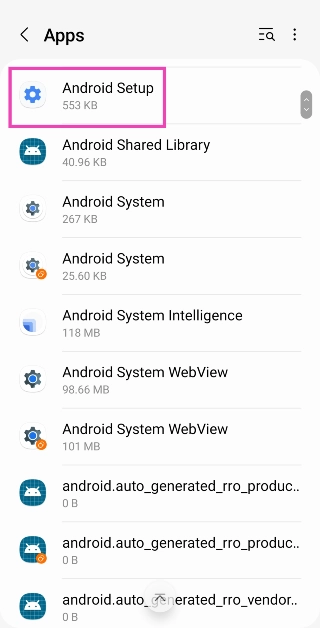
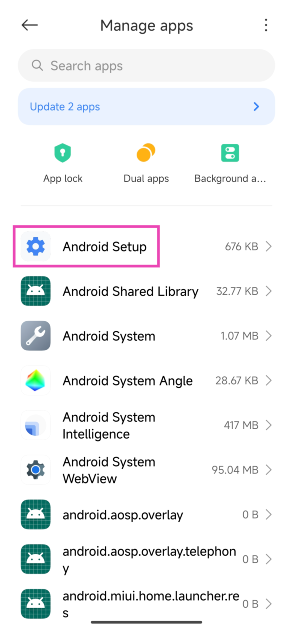
Step 3: Select Android Setup from the list of apps.

Step 3: Select Android Setup from the list of apps.

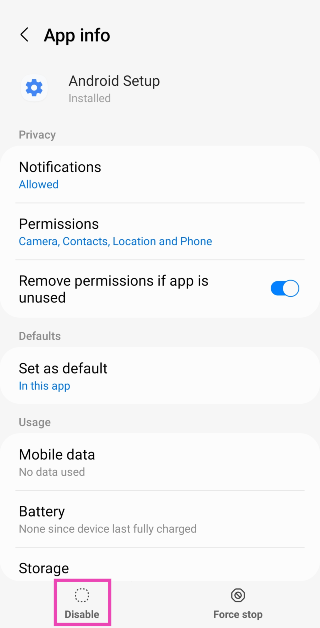
Step 4: Hit Disable.

Step 4: Hit Disable.

Force Stop the Android Setup app

Step 1: Go to Settings and select Apps.

Step 1: Go to Settings and tap on Apps.

Step 2: Tap the options menu and select Show system apps.

Step 2: Tap the options menu and select Show all apps.

Step 3: Select Android Setup from the list of apps.

Step 3: Select Android Setup from the list of apps.

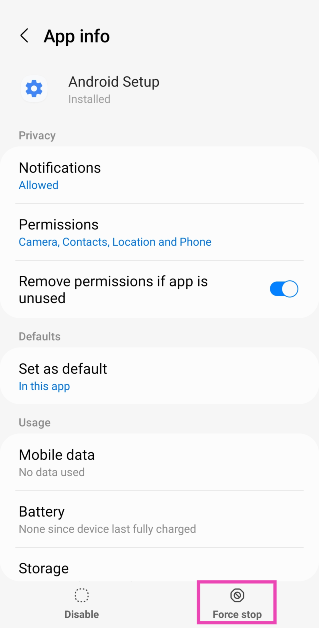
Step 4: Tap on Force Stop.

Step 4: Tap on Force Stop.

Turn off notifications for the Android Setup app

Step 1: Go to Settings and select Apps.

Step 1: Go to Settings and select Apps.

Step 2: Tap the ellipses at the top right corner of the screen and select Show all apps.

Step 2: Tap the ellipses at the top right corner of the screen and select Show system.

Step 3: Select Android Setup from the list of apps.

Step 3: Select Android Setup from the list of apps.

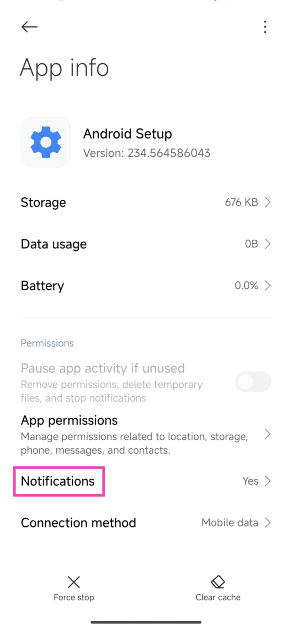
Step 4: Tap on Notifications.

Step 4: Tap on Notifications.

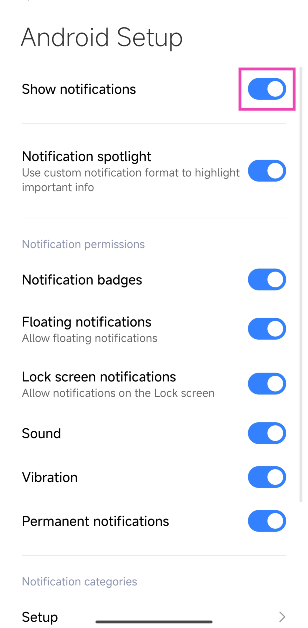
Step 5: Turn off the toggle switch for Show notifications.

Step 5: Turn off the toggle switch for Show notifications.

Finish the setup

Don’t want the Android setup notification on your phone? Simply finish the setup. The good thing is that you can skip the different steps in the process.

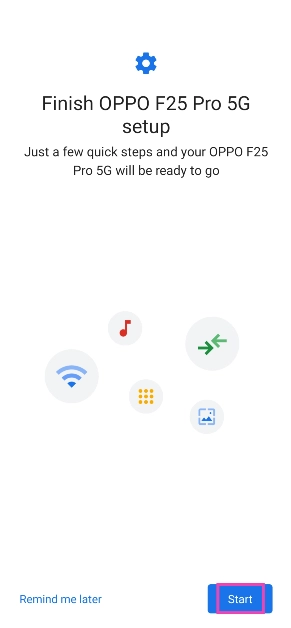
Step 1: Swipe down from the status bar and tap on the Android setup notification.

Step 1: Swipe down from the status bar and tap on the Android setup notification.

Step 2: Tap on Start.

Step 2: Tap on Start. Here are the top 7 ways to remove or disable the Android setup notification on your phone.

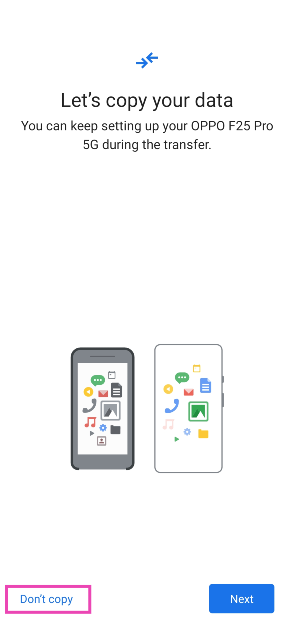
Step 3: In the Transfer Data page, tap on Don’t copy.

Step 3: In the Transfer Data page, tap on Don’t copy. Here are the top 7 ways to remove or disable the Android setup notification on your phone.

Step 4: Tap on Skip at the top right corner of the screen on the Unlock method page.

Step 4: Tap on Skip at the top right corner of the screen on the Unlock method page. Here are the top 7 ways to remove or disable the Android setup notification on your phone.

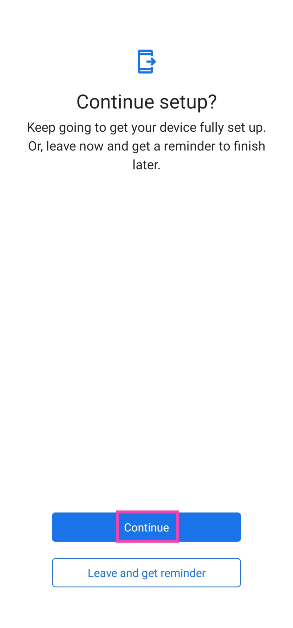
Step 5: Tap on Continue setup.

Step 5: Tap on Continue setup. Here are the top 7 ways to remove or disable the Android setup notification on your phone.

Step 6: In the Google Assistant setup page, scroll down and hit Skip.

Step 6: In the Google Assistant setup page, scroll down and hit Skip. Here are the top 7 ways to remove or disable the Android setup notification on your phone.

Step 7: Tap on Skip on the following page.

Step 8: Skip the option to add Google Wallet.

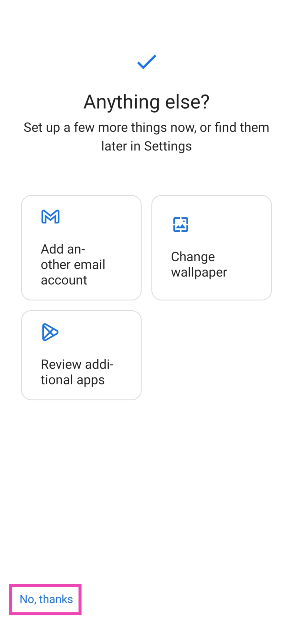
Step 9: On the final page, tap on No thanks.

Step 9: On the final page, tap on No thanks.

Use ADB to remove the Android Setup notification

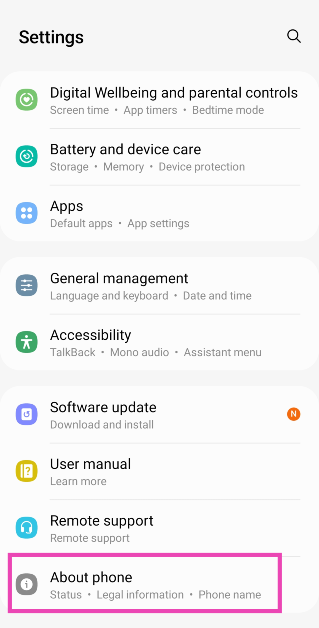
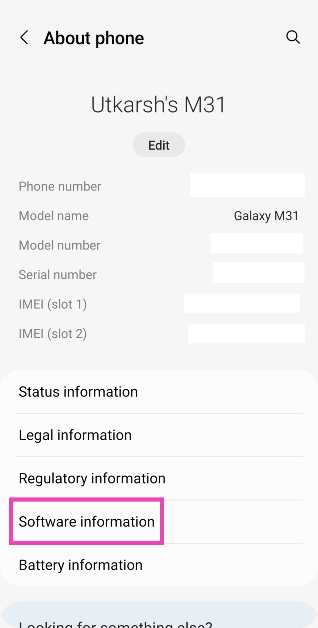
Step 1: Go to Settings and select About Phone.

Step 1: Go to Settings and select About Phone. Top 5 Ways To Remove Apps That Android Won't Let You Uninstall (2024)

Step 2: Tap on Software Information.

Step 2: Tap on Software Information. Top 5 Ways To Remove Apps That Android Won't Let You Uninstall (2024)

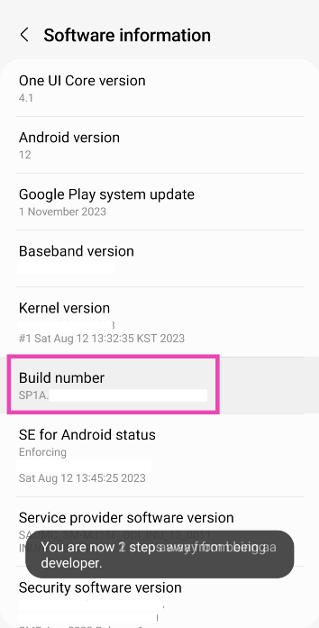
Step 3: Find the Build Number and tap on it 7 times. You will then enter Developer Mode.

Step 3: Find the Build Number and tap on it 7 times. You will then enter Developer Mode. Top 5 Ways To Remove Apps That Android Won't Let You Uninstall (2024)

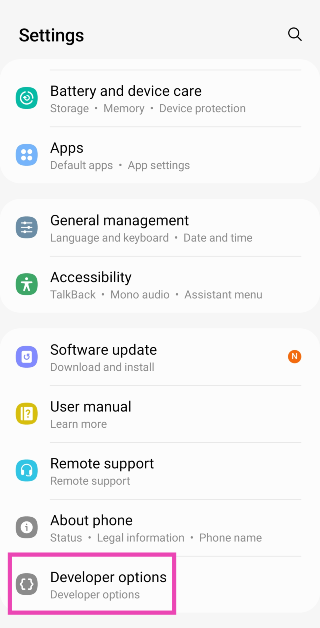
Step 4: Go back to Settings and select Developer Options.

Step 4: Go back to Settings and select Developer Options. Top 5 Ways To Remove Apps That Android Won't Let You Uninstall (2024) Here are the top 7 ways to remove or disable the Android setup notification on your phone.

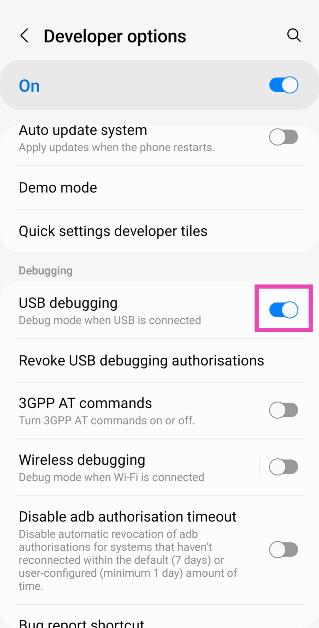
Step 5: In the Debugging section, turn on the toggle switch for USB Debugging.

Step 5: In the Debugging section, turn on the toggle switch for USB Debugging. Here are the top 7 ways to remove or disable the Android setup notification on your phone.

Step 6: Connect your smartphone to your PC via a USB cable. A popup box will appear on your phone. Confirm that you want to allow USB Debugging.

Step 7: Download the official ADB driver package for your PC from this page.

Step 8: Extract the package to your preferred location. Press Shift + right-click and select Open PowerShell window here.

Shift + right-click anywhere. how to fix can't delete apps on android Here are the top 7 ways to remove or disable the Android setup notification on your phone.

Step 9: In the PowerShell window, type adb shell pm disable-user –user0 com.google.android.setupwizard.

Step 11: Hit Enter.

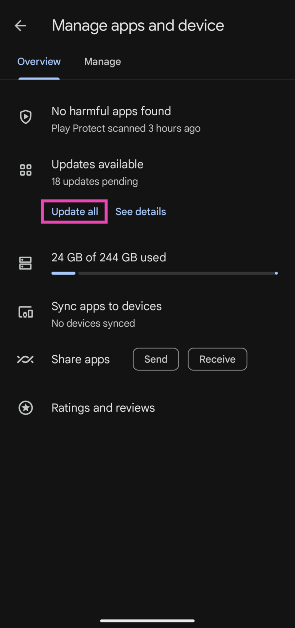
Update all the apps on your phone

The Android Setup notification also pops up when there are pending updates for the apps on your phone. To fix this, simply update all the apps using the Google Play Store.

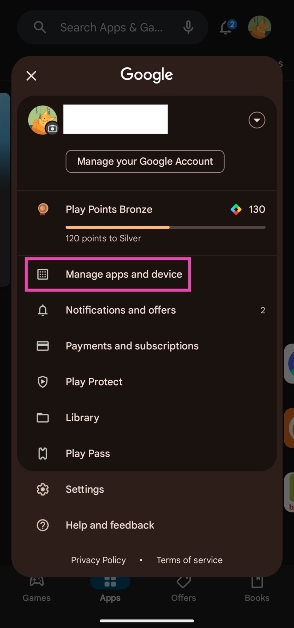
Step 1: Launch the Google Play Store on your phone.

Step 2: Hit your profile picture in the top right corner of the screen.

Step 2: Hit your profile picture in the top right corner of the screen. Here are the top 7 ways to remove or disable the Android setup notification on your phone.

Step 3: Tap on Manage apps and device.

Step 3: Tap on Manage apps and device. Here are the top 7 ways to remove or disable the Android setup notification on your phone.

Step 4: In the ‘Updates available’ section, select Update all.

Step 4: In the ‘Updates available’ section, select Update all. Here are the top 7 ways to remove or disable the Android setup notification on your phone.

Frequently Asked Questions (FAQs)

How do I remove the ‘Finish setting up your phone’ notification on my Android phone?

Go to Settings>Apps, select Android setup, and disable the app to remove its notification.

How do I remove notifications on my phone that won’t go away?

If a notification doesn’t go away, long press it, hit the settings icon, and disable the notifications for the app.

Do I need to log into my Google Account to use my Android phone?

While you can carry out the essential functions on your phone without a Google account, you will need it to download new apps from the Google Play Store and use Google’s suite of apps.

Read Also: Top 2 Ways to Turn Off Safe Mode on Samsung Phone (2024)

Conclusion

These are the top 7 ways to remove or disable the Android Setup notification that refuses to go away on your phone. If you know of any other ways to carry out this task, let us know in the comments! Check out this article to learn how to delete stubborn apps on your phone.

Google Pixel 8a renders leaked, 4 colour options expected

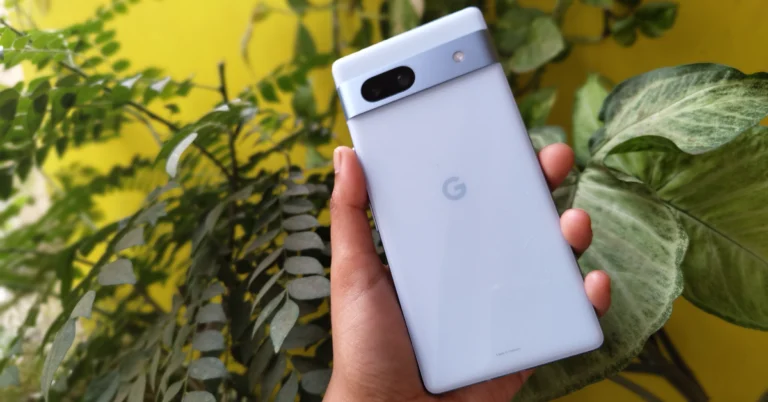
The Google Pixel 8a has yet to be officially announced by Google, however, it was seen on the Bluetooth Special Interest Group (SIG) certification page. Now more leaks regarding the Pixel phone surfaced on the web. Pixel 8a photos from all angles have leaked suggesting four colour options. Previous leaks suggest the phone may include improvements like a 120Hz display and Tensor G3 SoC. Additionally, compatibility with DisplayPort output might be included.

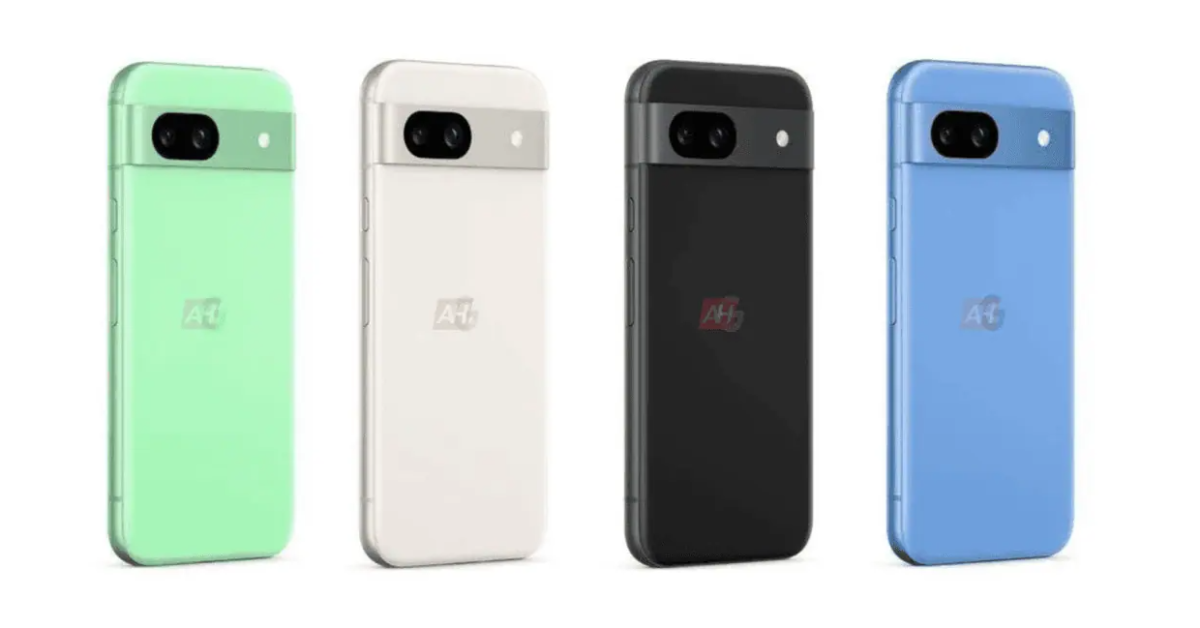
The Google Pixel 8a, which is the next generation of the Pixel 7a, is expected to make its debut at Google I/O 2024. Ahead of the official release renders of the upcoming handset have been released by Android Headlines suggesting all four colour options. As per the report, the phone may arrive in Bay, Mint, Obsidian and Porcelain colourways.

The Google Pixel 8a has yet to be officially announced by Google, however, it was seen on the Bluetooth Special Interest Group (SIG) certification page. Now more leaks regarding the Pixel phone surfaced on the web. Pixel 8a photos from all angles have leaked suggesting four colour options. Previous leaks suggest the phone may include improvements like a 120Hz display and Tensor G3 SoC. Additionally, compatibility with DisplayPort output might be included.
Image Courtesy: Android Headlines

In terms of design, rumour claims that the Pixel 8a will resemble the Pixel 8. The back panel is expected to feature a matte texture finish. The Google Pixel 8a is anticipated to include a 6.1-inch FHD+ 90Hz display. It will likely use the same Tensor G3 processor that debuted in the Pixel 8. Additionally, it may come equipped with a 4,500mAh battery. A 64-megapixel primary camera and a 13-megapixel ultrawide sensor should be included in terms of cameras.

Also Read: Samsung introduces newly supported AI languages and dialects to Galaxy AI

Earlier, four model numbers G8HNN, GKV4X, G6GPR, and G576D believed to be Piel 8A were spotted listed on the Bluetooth SIG website. According to the listing, the phone will support Bluetooth 5.4 connectivity. The device was also seen on the US Federal Communications Commission (FCC) website.

Previous rumours suggested According to rumours, the Tensor G3 processor, which powers the Pixel 8 and Pixel 8 Pro, will also power the Pixel 8a. It is anticipated to include a 6.1-inch full-HD+ OLED display with 1,080×2,400 pixels of resolution. The screen may get 120Hz refresh rate support along with a peak HDR brightness of 1,400 nits.

Also Read: Samsung Galaxy A34 5G price in India dropped by Rs 6,000

It is likely to feature a dual rear camera setup that includes a 64-megapixel primary camera with optical image stabilisation (OIS) and a 13-megapixel ultra-wide angle lens. There are rumours that it has a 13-megapixel front-facing camera for taking selfies and video calling.

Samsung Galaxy A34 5G price in India dropped by Rs 6,000

Key Highlights

  • Buyers can now get the Samsung Galaxy A34 at a reduced price as the company has dropped its pricing by over Rs 6,000.
  • It comes with a 120Hz AMOLED display.

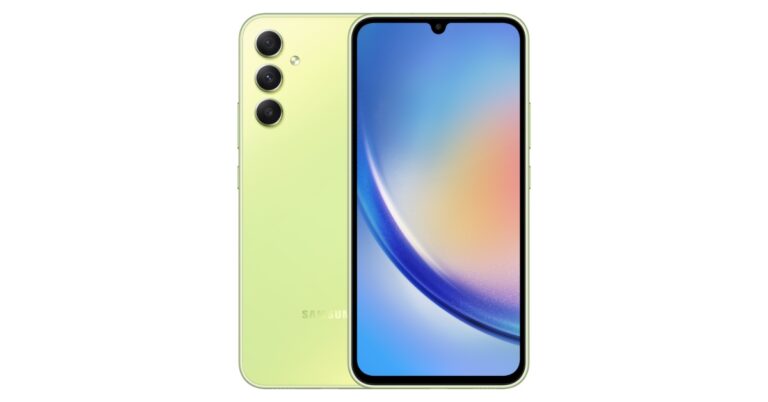
Samsung Galaxy A35 5G was released in India last month. A month after its release the company has slashed the price of Samsung Galaxy A34 5G, its predecessor. The device was launched in India last year. The company has reduced the price of the A34 by over Rs 6,000. The company is also offering additional bank discounts and other options. The handset comes with Android 13 pre-installed. It has an AMOLED screen that supports a 120Hz refresh rate, a 5,000mAh battery, and a triple rear camera configuration. Check out the details below.

Samsung Galaxy A34 5G comes in two variations: 8GB RAM with 128GB and 256GB storage. After the price drop the 128GB storage will be available at Rs 34,999 whereas the 256GB model now comes at a reduced price of Rs 26,499.

At the time of launch, the price of the 128GB storage was set at Rs 30,999 whereas the 256GB model came at Rs 32,999.

The smartphone can be purchased via Samsung online store and Flipkart.

Also Read: Samsung introduces newly supported AI languages and dialects to Galaxy AI

Discounts are also available from Samsung for large purchases and payments made with Samsung Axis bank credit cards. To further reduce the price, buyers can take advantage of exchange and other payment options. Additionally, the no-cost EMI options will be available starting at Rs 4,073 per month whereas the monthly cost of the standard EMI options is Rs 1,187.

Samsung Galaxy A34 5G specs and features

The Samsung Galaxy A34 5G features a 6.6-inch AMOLED Full HD+ display with a refresh rate of 120Hz. The device comes pre-installed with Android 13 and One UI 5.1. Software upgrades for four years and security updates for five years are promised by the company. An octa-core MediaTek Dimensity 1080 SoC with a 2.4GHz clock speed powers the phone.

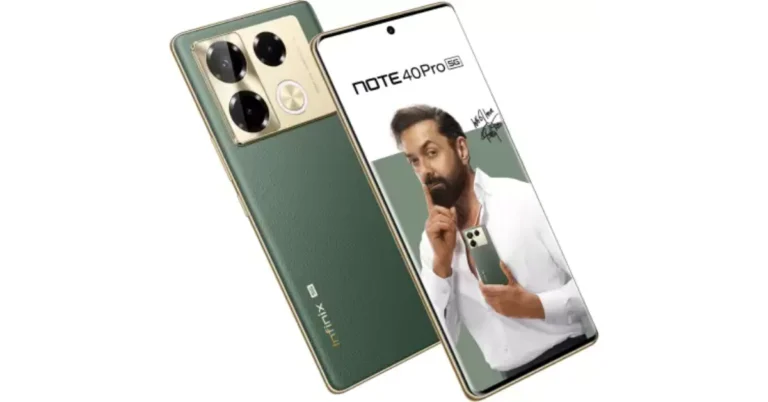
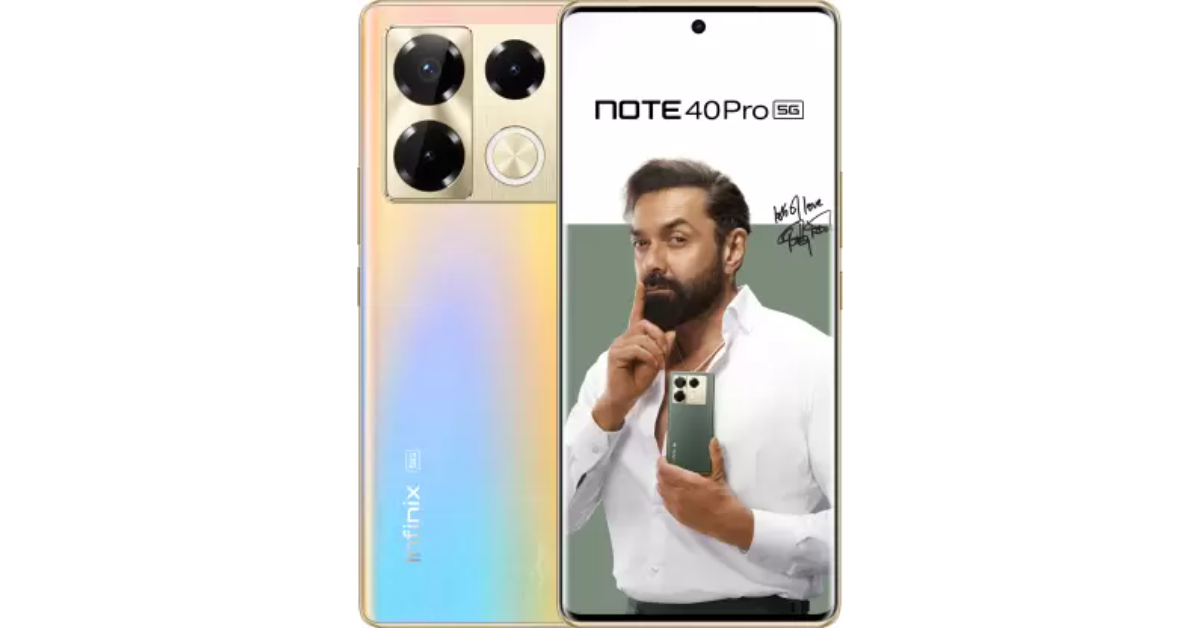
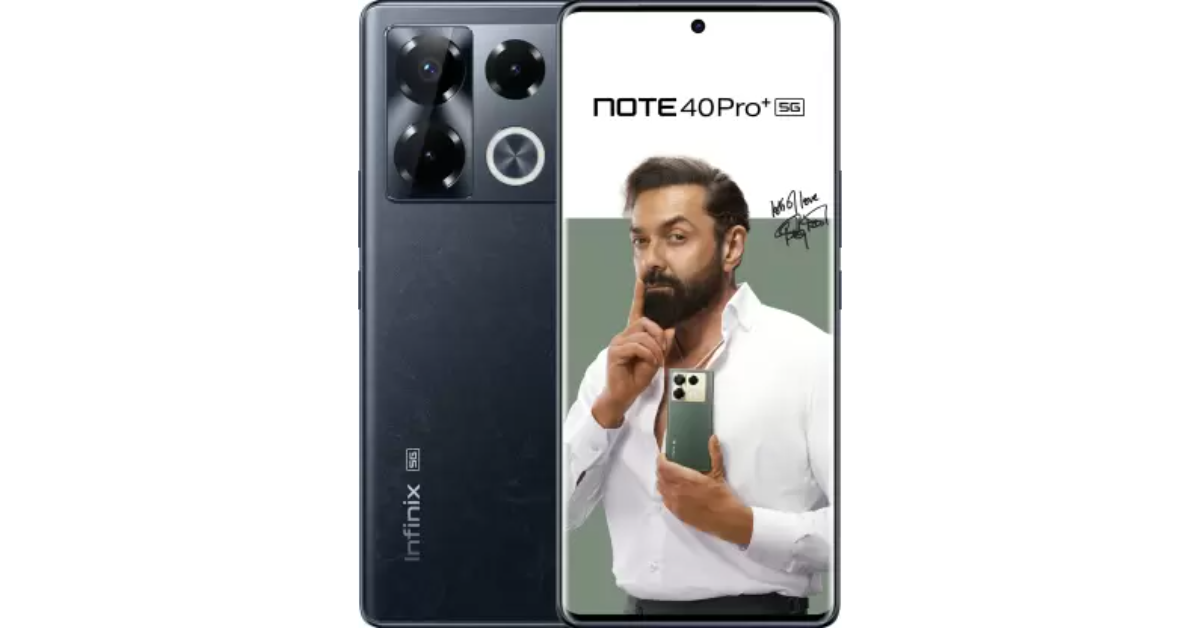
Also Read: Infinix Note 40 Pro+ 5G, Infinix Note 40 Pro 5G with debuts in India

The handset includes a triple-rear camera setup that includes a 48MP primary lens, an 8MP ultra-wide lens, and a 5MP macro sensor. A 13MP selfie camera is available on the gadget.

The smartphone features an IP67 certification for dust and water resistance and a 5,000mAh battery to power them.

BOULT Astra Neo Review: Best budget gaming TWS with 40ms low-latency under 1.5K

Indian audio innovator BOULT recently launched their latest product, the Astra Neo TWS earbuds, designed specifically for gamers. These true wireless stereo earbuds are engineered to enhance the gaming experience by offering an impressive 70 hours of playback and an ultra-low latency of just 40 ms, tackling common gaming issues such as frequent charging and audio delays. We played with them for over 2 weeks and this is our in-depth BOULT Astra Neo Review. 

BOULT Astra Neo Review: Design

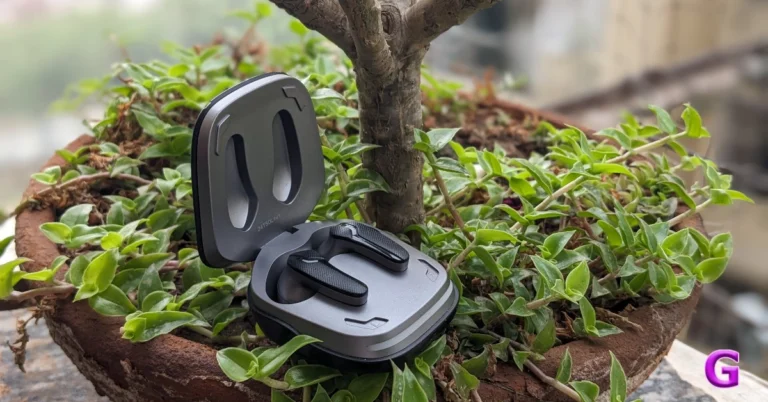
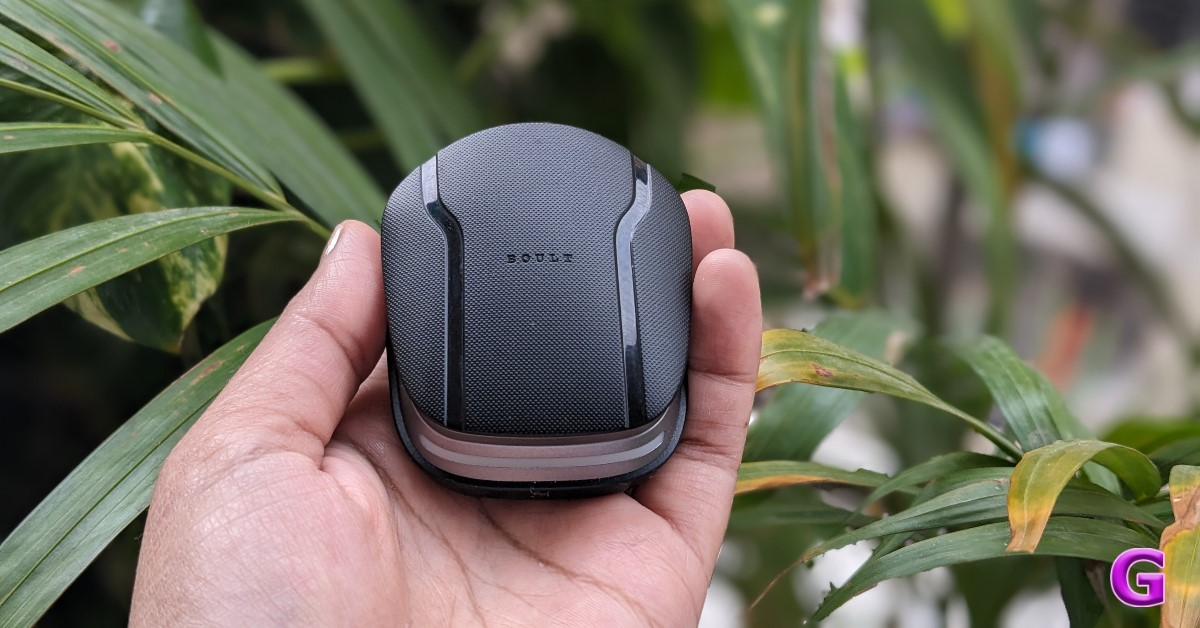
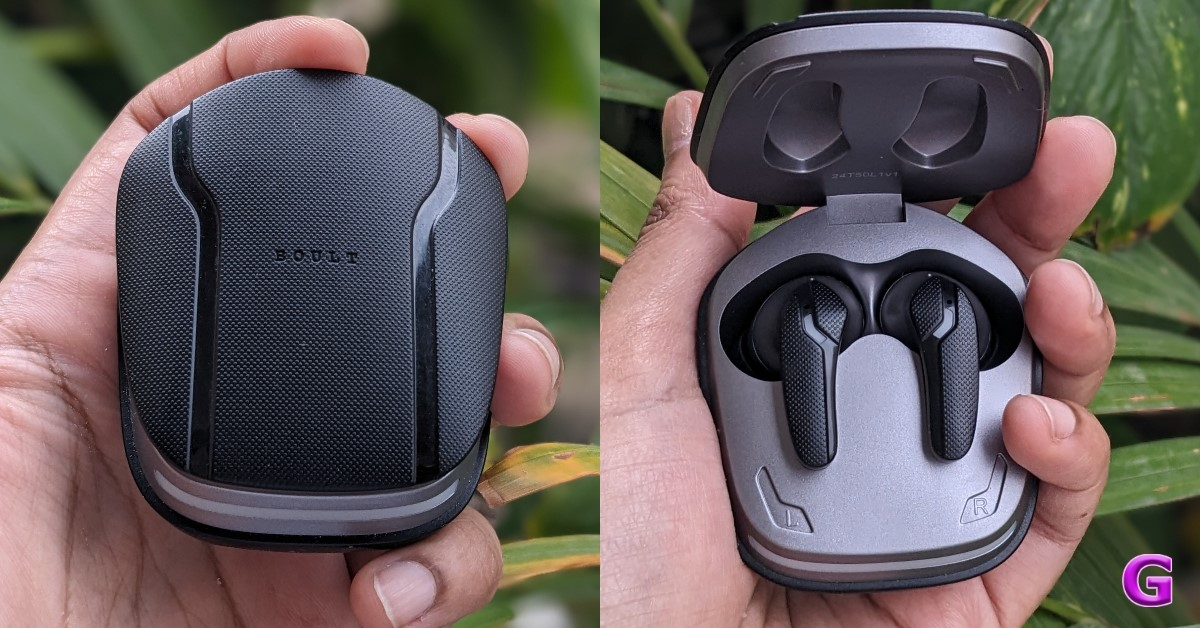
The BOULT Astra Neo has a distinct appearance compared to other standard earphones on the market. The company’s logo is engraved on the top lid. It has a unique look thanks to cutouts and a comfortable grip design. The case’s patterns provide a nice, secure grip that prevents slipping from your hand. A large LED indicator is on the front, and a USB charging connector is provided on the rear. For the price point, the quality of the plastic you will receive is excellent. In the dark, its visual components were breathtaking.

BOULT Astra Neo Review: Design

You will notice the earbuds tugged into their respective compartments as soon as you open the case. The earphones have also adopted the same textured comfort grip. These earphones come with an in-ear design that is good. Additionally, the earbuds’ LED lights will produce a breathing effect. The case LED indicator blinks for three seconds, then steadies and turns off. The stem is kept relatively short to keep the weight low.

BOULT Astra Neo Review: Design

We’re not particularly impressed by its magnetic grip, though. Although it is easy to open with one hand, this feature makes the whole thing feel a bit flimsy. The magnets are not as powerful as we had anticipated, particularly around the case. The casing opens up when you pick it up, and in the unlikely event, the earphones might slip out, which is extremely risky in our opinion. Although the hinges are well-made, the lid must be forced closed due to the weak magnets.

Also Read: OnePlus Buds 3 Review: All of this in under Rs 6,000 is actually pretty fantastic

We would have appreciated softer ear tips, too. After about an hour of use, the slightly thick ear tips provided may begin to cause discomfort.

BOULT Astra Neo Review: Design 

BOULT Astra Neo Review: Performance

The highly dependable Bluetooth Version 5.4, with a range of up to 10 metres, is accessible here. Here, you experience a solid connection without any distortion or frequency-related problems. 13mm dynamic drivers, and support for MSBC, SBC, and AAC codecs are also some of the top features of the Astra Neo.

BOULT Astra Neo sound quality

At volumes above 70%, the earbuds exhibit noticeable distortion and audio leakage. However, bass enthusiasts will likely appreciate their sound profile. Despite these issues, the overall sound quality remains excellent, ensuring a satisfying listening experience.

Because these are meant for gamers, you get to see an exclusive gaming mode here. Tapping on the earbuds four times will quickly activate combat gaming mode. Furthermore, the gadget can synchronise audio and visuals if you’re watching films or sports.

Also Read: Itel S9 Pro Earbuds Review: A steal at Rs 799 

The 40 ms low latency of the BOULT Astra Neo is helpful for gaming. While gaming, we had no audio lag. For incredibly clear calls, a quad mic configuration, environment noise cancellation, and AEC are available. We tested them outside, and even with a lot of background noise, they produced high-quality resonance.

Talking about touch controls, these earphones are very sensitive, for sure. The touch area (Multi-Functional Touch Panel) is located in the upper part of the earbuds handle. Control has been kept super easy here.

BOULT Astra Neo sound quality

You can tap the MFB once to start or stop playing. Double-tap the right MFB to get to the Next Track; double-tap the left MFB to go to the Previous Track. Triple-tap the right MFB to turn up the volume, and triple-touch the left MFB to turn down the volume. Hold down the MFB button for three seconds to activate the voice assistant. By hitting the MFB twice, you can reject or end the call. hitting the MFB once will answer the call. Tap the MFB four times to enter the Game/Music Mode.

In addition to an ambient breathing light for gaming aesthetics, the casing features an LED indication that illuminates when it is attached to a charger. After the charging process is finished, the front LEDs breathe frequently until becoming steady. LEDs will blink three times to signal low battery life. Take a gap of 1 second and repeat this three times.

Also Read: Itel Roar 75 Review: Are they worth buying?

Regarding battery life, you can expect an astounding 70 hours of playback. On the other hand, it can operate for 100 minutes after just 10 minutes of quick charging. The duration needed to charge from 0% to 100% is about 60 minutes.

Review of BOULT Astra Neo

Verdict

As music enthusiasts, we’re always tuned in during our free time. The BOULT Astra Neo delivers exceptional sound quality. Switching to combat mode noticeably reduces latency, making these earbuds a perfect choice. For less than Rs 1,100, you get an aesthetically pleasing design combined with seamless gaming and a superb audio experience.

BOULT Astra Neo Pros

  • Unique design
  • Textured non-slippery finish
  • No lags during gaming
  • Boosted Bass

BOULT Astra Neo-Cons

  • Weak magnets
  • Audio leaks at full volume

Garena Free Fire Redeem Codes Today 15 April 2024: Here is how to claim them

Garena Free Fire is a battle royale game with regular awards and tournaments to keep players interested. If you play Garena Free Fire, you should be aware of the redeem codes that are released on a daily basis. However, because the battle royale game is banned in India, players from other countries can use the Free Fire Redeem codes daily. If you’re unfamiliar with the Garena Free Fire redeem codes or don’t know how to get them, we’ve put together a step-by-step guide to help you redeem them. Check out Garena Free Fire Redeem Codes for 15 April 2024.

The Free Fire redeem codes are a great way to get free stuff. These are 12-digit codes that contain alphabets and numbers, as well as an expiration date and time. Because the Garena FF redeem codes cannot be used more than once, you should hurry to the redemption page to claim your free reward before someone else does. To get a free reward, all you have to do is go to reward.ff.garena.com/en, which is the official redemption page. Also, keep an eye on this space for daily updates on Garena Free Fire redemption codes and rewards.

Also Read: Sennheiser Accentum Plus wireless headphones with Hybrid Adaptive Noise Cancellation launched

Garena Free Fire Redeem Codes Today 15 April 2024

FT6X7K3L8OS1F9ZN

FL2U8C5V9Q3M4NRD

FN7R4W1O6Z8D2Y5X

FV1P9C4J7H5F3SBM

FQ8K2M3G7L4X1Y6E

FB1Z6U8N9A7O5TRS

FM3N7A9V1X5C8JKL

FZ8HR6YH56YG1U7Q

FIFJ0S4D6C9L8Y2K

FP7M4Q9YG2F1L8Z6

FE9V0C5B1R4S3N6A

FU6L2D8I7J9R4E0Y

FX2G5P9F3H6T1L4V

FK9Z3LFTY6FR4C0B

FG5Q2R3X4Z1E6TBF

FC1Y7N3T6R4P9AVE

FS9W3V7X1L5J6FOQ

FJ0I5H2X4E9G7CPV

FD4B1Z8T2Q95C7LH

FR3E0N6F9V2D7Z5K

FA3B8R5XD2JF0K9W

How to Get Free Fire Redeem Codes for Garena on 15 April 2024?

  • Visit the Garena Free Fire game’s official website at reward.ff.garena.com.
  • Use your Facebook, Google, VK, Apple ID, Huawei ID, or Twitter account to log in.
  • You’ll be taken to a valid redemption code (s)
  • Copy and paste the 12-digit redemption code into the text box.
  • On the screen, a dialogue box will appear.
  • ‘Ok’ should be selected.

For the latest gadget and tech news, and gadget reviews, follow us on TwitterFacebook and Instagram. For newest tech & gadget videos subscribe to our YouTube Channel. You can also stay up to date using the Gadget Bridge Android App. You can find the latest car and bike news here.

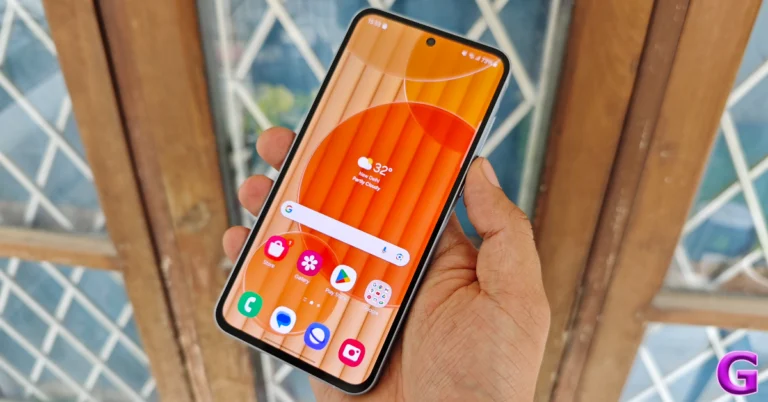
Top 2 Ways to Turn Off Safe Mode on Samsung Phone (2024)

1

While troubleshooting a problem on your smartphone, you may have seen the suggestion to restart your device in Safe Mode pop up. If you suspect that a problematic third-party app is the reason behind your phone’s glitchy behaviour, restarting the device in Safe Mode is a good way to put your doubts to rest. If the issue persists in Safe Mode, it means that the third-party app is not to blame. Once you’ve put your doubts to rest, you can reboot your phone normally and go back to looking for other fixes. In this article, we bring you the top 2 ways to exit or turn off Safe Mode on your Samsung phone.

Read Also: Top 3 Ways to Remove a Gmail Account From Your Android Device (2024)

What does the Safe Mode do?

Once you reboot your phone in Safe Mode, all the third-party apps on the device get disabled. You can still view their icons on the home screen and app drawer, but they will be greyed out. Tapping on the icon of a third-party app brings up the ‘App disabled’ message. Some OEM apps may also be temporarily disabled in this mode. In Samsung’s case, the Browser, SmartThings, Wallet, Notes, Calculator, Calendar, and other apps are disabled in this mode.

On the flip side, some third-party parts may not get disabled in Safe Mode. We tested out this mode on a Samsung Galaxy A55 (our review here) and observed that the Microsoft OneDrive app was still functional in Safe Mode. You can choose to download new apps while you’re in Safe Mode, but they won’t show up in the app library until you’ve rebooted your phone normally.

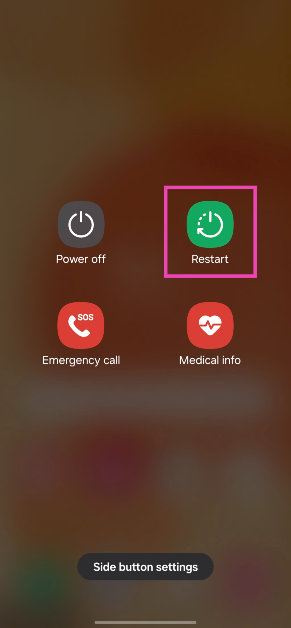
Turn off Safe Mode using the side button

Step 1: Press and hold the side button on your Samsung phone. If this triggers Bixby, press and hold the side button and volume-down key simultaneously to access the power menu.

Step 2: In the power menu, tap on Restart.

Step 2: In the power menu, tap on Restart.

Step 3: Tap on Restart again.

Your Samsung phone will reboot normally.

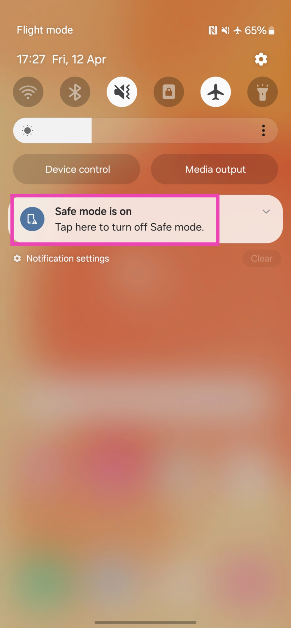
Turn off Safe Mode from the notification panel

Step 1: Swipe down from the status bar to reveal the notification shade.

Step 2: Tap on the ‘Safe Mode is on’ notification.

Step 2: Tap on the ‘Safe Mode is on’ notification.

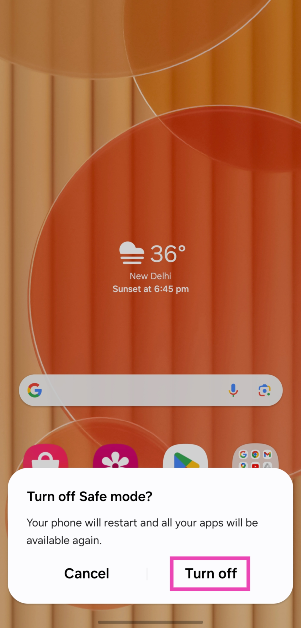
Step 3: In the following popup box, tap on Turn off.

Step 3: In the following popup box, tap on Turn off.

Your Samsung phone will exit the Safe Mode and reboot normally.

Bonus Tip: How to enter Safe Mode on a Samsung Phone?

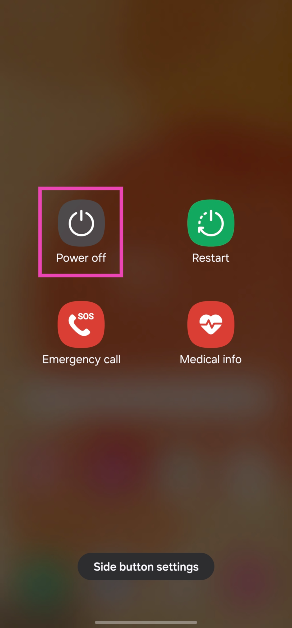
Step 1: Long press the side button. If the side button is programmed to wake up Bixby, press and hold it along with the volume-down key to trigger the power menu.

Step 2: Tap and hold the Power off icon.

Step 2: Tap and hold the Power off icon.

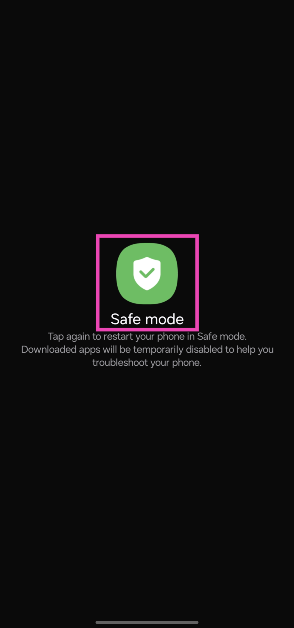
Step 3: Tap on Safe Mode.

Step 3: Tap on Safe Mode.

Frequently Asked Questions (FAQs)

How do I turn off or exit Safe Mode on a Samsung phone?

To turn off Safe Mode on a Samsung phone, simply long-press the side button and hit ‘Restart’. You can also tap the Safe Mode notification and hit ‘Turn off’ to go back to normal usage.

What does Safe Mode do?

When you reboot your smartphone in Safe Mode, it disables all the third-party apps on the device. If you suspect a third-party app is causing your phone to malfunction, you can restart the device in Safe Mode to make sure that’s the case.

How do I enter Safe Mode?

To reboot your phone in Safe Mode, long-press the power button, then tap and hold the ‘Turn off’ icon and select Safe Mode.

Read Also: Top 4 Ways to Use Snapchat on PC (2024)

Conclusion

These are the top two ways to exit or turn off Safe Mode in Samsung phones. By default, your phone is put on airplane mode when you restart it in Safe Mode. You can choose to turn off airplane mode to make calls and send texts while you’re in Safe Mode. On Samsung devices, some third-party apps like Microsoft OneDrive may be functional in Safe Mode as well.

Garena Free Fire Redeem Codes Today 14 April 2024: Here is how to claim them

Garena Free Fire is a battle royale game with regular awards and tournaments to keep players interested. If you play Garena Free Fire, you should be aware of the redeem codes that are released on a daily basis. However, because the battle royale game is banned in India, players from other countries can use the Free Fire Redeem codes daily. If you’re unfamiliar with the Garena Free Fire redeem codes or don’t know how to get them, we’ve put together a step-by-step guide to help you redeem them. Check out Garena Free Fire Redeem Codes for 14 April 2024.

The Free Fire redeem codes are a great way to get free stuff. These are 12-digit codes that contain alphabets and numbers, as well as an expiration date and time. Because the Garena FF redeem codes cannot be used more than once, you should hurry to the redemption page to claim your free reward before someone else does. To get a free reward, all you have to do is go to reward.ff.garena.com/en, which is the official redemption page. Also, keep an eye on this space for daily updates on Garena Free Fire redemption codes and rewards.

Also Read: Sennheiser Accentum Plus wireless headphones with Hybrid Adaptive Noise Cancellation launched

Garena Free Fire Redeem Codes Today 14 April 2024

T6R8E1W3Q5Z7X9V2

F4G6H8J1K3L5S7D9

Y8T1R3W5Q7Z9X2V4

N2M4V6C8X1Z3Q5P7

G9B1V3C5X7Z2Q4W6

Y8U1I3O5P7A9S2D4

B9V1C3X5Z7Q2W4E6

W4X0Y6Z2A8B3C9

D5E1F7G3H9I4J0

K6L2M8N4O0P5Q1

U4V0W6X2Y8Z3A9

B1C7D3E9F5G0H6

I2J8K4L0M6N1O7

How to Get Free Fire Redeem Codes for Garena on 14 April 2024?

  • Visit the Garena Free Fire game’s official website at reward.ff.garena.com.
  • Use your Facebook, Google, VK, Apple ID, Huawei ID, or Twitter account to log in.
  • You’ll be taken to a valid redemption code (s)
  • Copy and paste the 12-digit redemption code into the text box.
  • On the screen, a dialogue box will appear.
  • ‘Ok’ should be selected.

For the latest gadget and tech news, and gadget reviews, follow us on TwitterFacebook and Instagram. For newest tech & gadget videos subscribe to our YouTube Channel. You can also stay up to date using the Gadget Bridge Android App. You can find the latest car and bike news here.

Top 3 Ways to Mute Calls From One Person on Android and iOS (2024)

0

Android and iOS devices let you mute message notifications from specific contacts with ease. Strangely enough, the same cannot be done for incoming calls. You can either set your phone to Do Not Disturb which blocks all notifications apart from the ones you’ve whitelisted or block a contact to stop receiving calls from them. If you simply want to mute the incoming calls from one person on your Android and iOS device, check out the methods we’ve mentioned below.

Read Also: Top 3 Ways to Edit WhatsApp Messages on Android, iOS and Desktop (2024)

Can you mute calls from a particular contact on Android and iOS?

There is no direct way to mute calls from just one person on your phone, but there are a few workarounds that can make this possible. The easiest of them all is to set up a silent ringtone for the contact. This will ensure that your phone does not make a sound when the person calls. For this to work, you will need to record a blank audio. This is harder than you think because some background sounds always manage to creep in. For better results, download a silent ringtone from apps like Zedge.

iPhone can mute calls from specific contacts using the Focus Mode as well. Once you’ve set up a customised focus mode, you can choose which notifications you want to filter out. You can add contacts you want to mute to the list. If you want to quickly mute any incoming call, simply press the volume down button.

Set a silent ringtone for the contact on Android

Since there’s no official way to mute calls from one person on Android, the best thing you can do is assign them a silent ringtone. When they call you, you won’t hear a thing. You can either download a silent ringtone from a third-party website/app or simply record a blank audio note and set it as the contact’s custom ringtone.

Step 1: Launch the Contacts app on your phone and select the person you wish to mute.

Step 1: Launch the Contacts app on your phone and select the person you wish to mute.

Step 2: Select the contact and hit Edit.

Step 2: Select the contact and hit Edit.

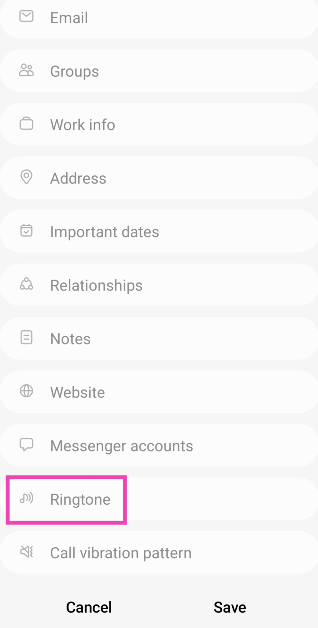
Step 3: Scroll down and select Ringtone.

Step 3: Scroll down and select Ringtone.

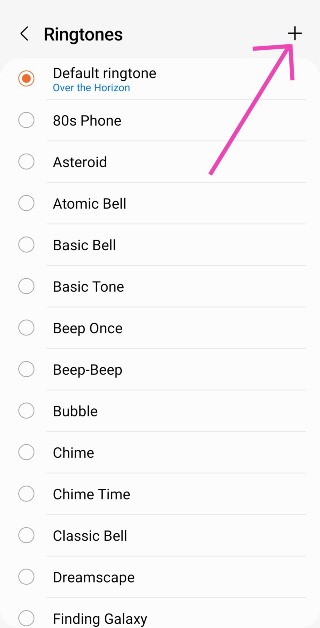
Step 4: Tap on the plus icon at the top right corner of the screen.

Step 4: Tap on the plus icon at the top right corner of the screen.

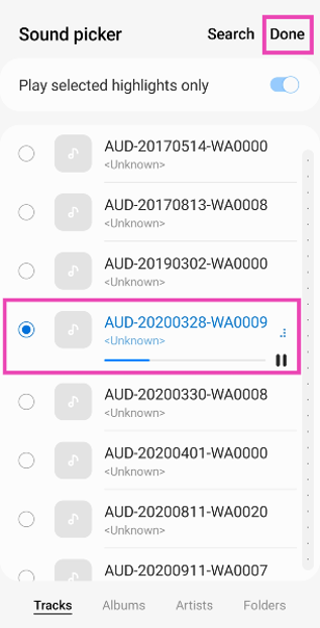
Step 5: Select the silent ringtone and hit Done.

Step 5: Select the silent ringtone and hit Done.

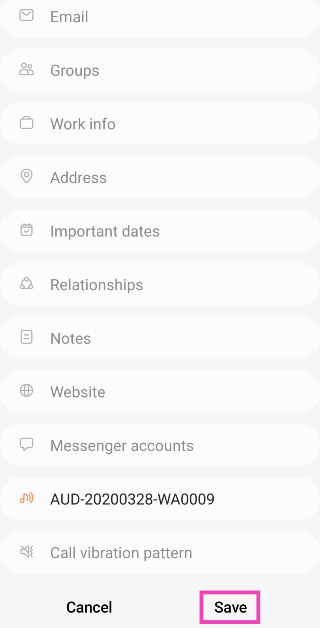
Step 6: Go back and hit Save.

Step 6: Go back and hit Save.

Set a silent ringtone for the contact on iOS

Set a silent ringtone for the contact on iOS

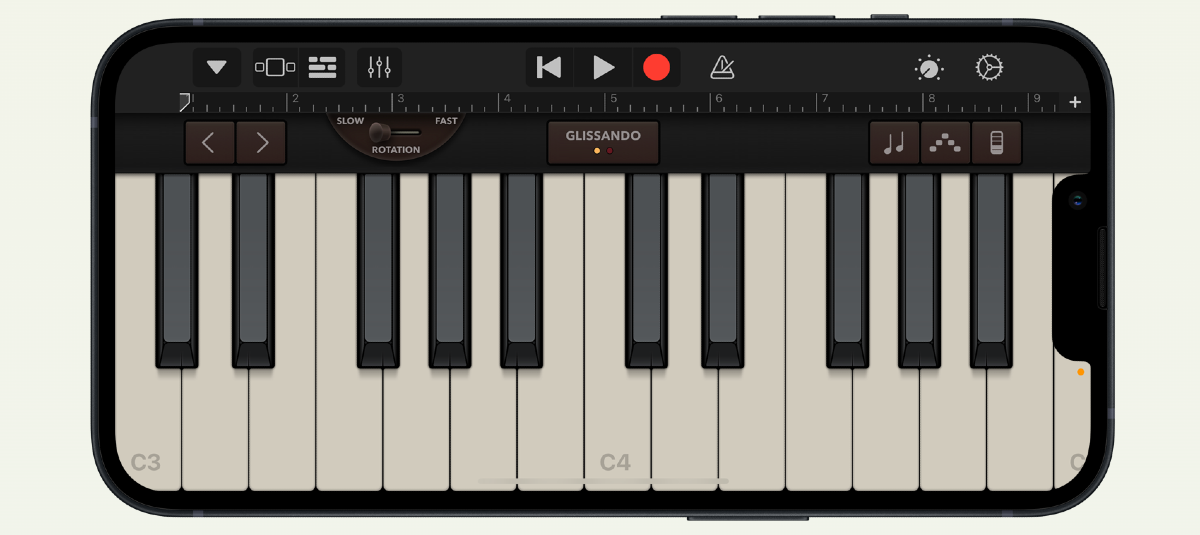
Step 1: Launch the GarageBand app and hit the plus icon.

Step 2: Tap on Voice.

Step 3: Hit the Record button.

Step 4: Record a blank audio for 30 seconds.

Step 5: Hit Stop.

Step 6: Tap the arrow on the top left corner of the screen and select My Songs.

Step 7: Long-press the audio you have just recorded and hit Share.

Step 8: Tap on Ringtone.

Step 9: Give the ringtone a name and hit Export. Tap on OK in the popup box.

Step 10: Now, go to Contacts and select the person you want to mute.

Step 11: Hit Edit.

Step 12: Tap Default next to Ringtone.

Step 13: Select the ringtone you just created and hit Done.

Use Focus Mode on iOS

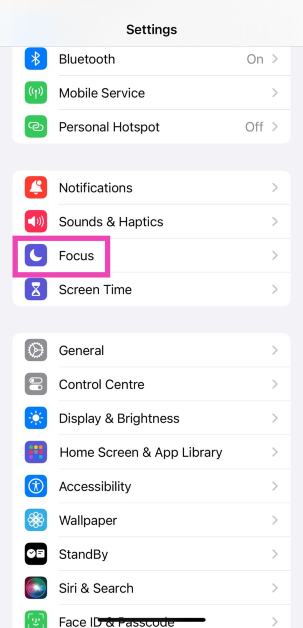
Step 1: Go to Settings and select Focus.

Step 1: Go to Settings and select Focus.

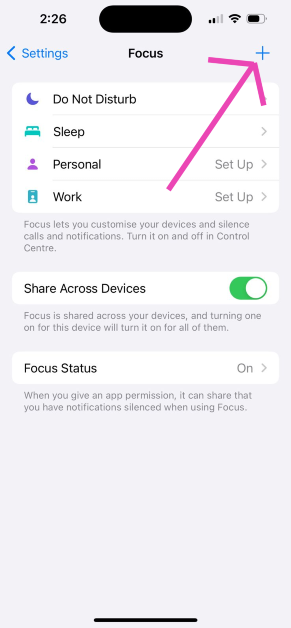
Step 2: Tap the Plus icon at the top right corner of the screen.

Step 2: Tap the Plus icon at the top right corner of the screen. Top 3 Ways to Mute Calls From One Person on Android and iOS (2024)

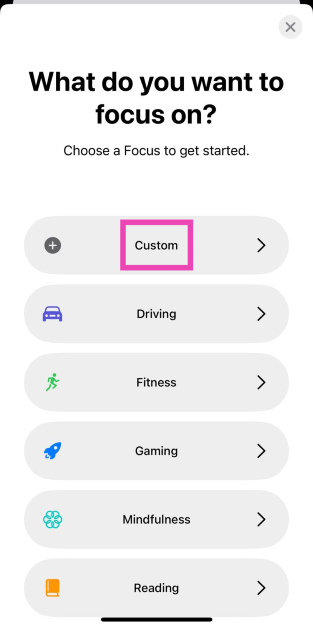
Step 3: Select Custom from the list.

Step 3: Select Custom from the list. Top 3 Ways to Mute Calls From One Person on Android and iOS (2024)

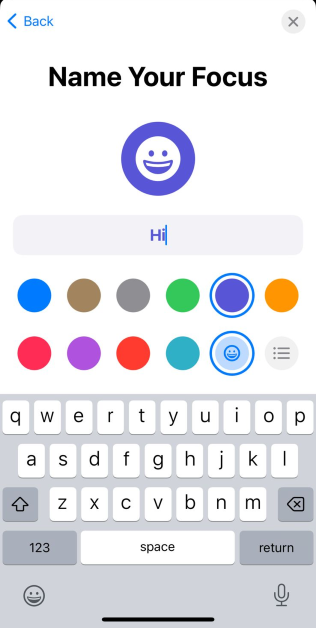
Step 4: Give it a name and hit Next.

Step 4: Give it a name and hit Next. Top 3 Ways to Mute Calls From One Person on Android and iOS (2024)

Step 5: Tap on Customise Focus.

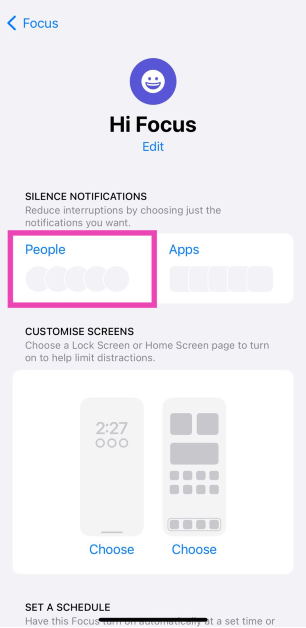
Step 6: Select People.

Step 6: Select People. Top 3 Ways to Mute Calls From One Person on Android and iOS (2024)

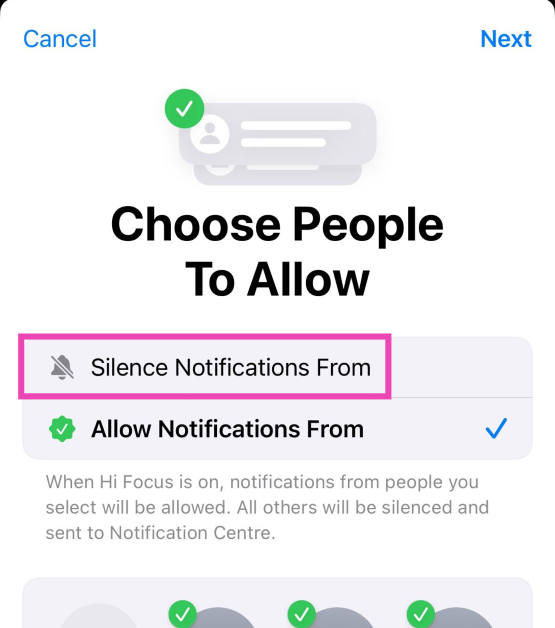
Step 7: Select Silence Notifications From.

Step 7: Select Silence Notifications From. Top 3 Ways to Mute Calls From One Person on Android and iOS (2024)

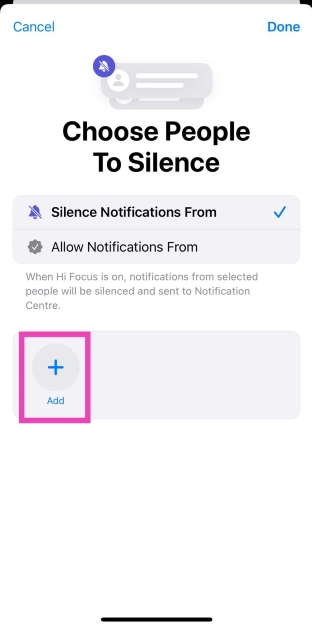
Step 8: Hit the Add icon and select the contact you wish to mute.

Step 8: Hit the Add icon and select the contact you wish to mute. Top 3 Ways to Mute Calls From One Person on Android and iOS (2024)

Step 9: Hit Done.

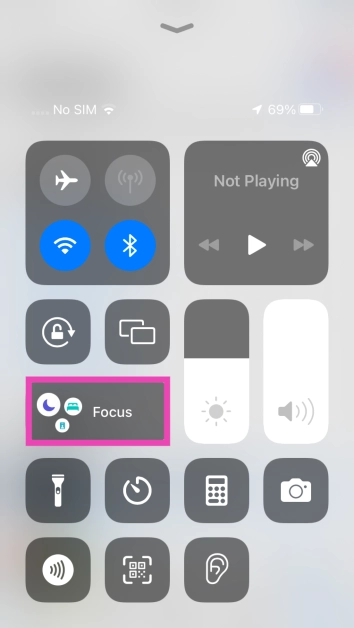
Step 10: Go to the Control Centre and long-press the Focus tile.

Step 10: Go to the Control Centre and long-press the Focus tile. Top 3 Ways to Mute Calls From One Person on Android and iOS (2024)

Step 11: Select the Focus Mode you have just created.

Frequently Asked Questions (FAQs)

How do I mute phone calls from a contact on an Android phone?

The only way you can mute incoming calls from a contact on Android is by assigning them a silent ringtone. You can either record a blank audio file and set it as their custom ringtone or download a silent ringtone from a third-party app like Zedge.

How do I mute phone calls from a contact on iOS?

You can either set a silent ringtone for the contact or create a customised Focus Mode to mute all notifications from the contact.

How do I create a silent ringtone on an iPhone?

Launch the GarageBand app, hit the plus icon, select voice, hit the Record button, make sure no voice gets picked up by the mic, then hit the Stop button. Save the recording and export it as a ringtone.

Read Also: Infinix Note 40 Pro+ 5G, Infinix Note 40 Pro 5G with debuts in India

Conclusion

These are the top 3 ways to mute calls from one person on Android or iOS. Interestingly, there are no third-party apps to mute specific contacts on either platform. If you come across one, make sure it does not push harmful malware on your device. If know any other ways to mute specific callers on your phone, let us know in the comments!
Top 3 Ways to Edit WhatsApp Messages on Android, iOS and Desktop (2024)

0

Making typos and grammatical errors is a common part of the texting experience. Once you’ve made an error, you can either choose to delete the entire message or simply make a correction by editing it. The latter is always a better option because it maintains the flow of the conversation and doesn’t confuse the recipient with the ‘this message is deleted’ chat bubble. So, here are three quick ways to edit WhatsApp messages in iOS, Android, and Desktop.

Read Also: Samsung introduced newly supported AI languages and dialects to Galaxy AI

Before you begin

There are a few things you need to keep in mind while editing a message. If these conditions aren’t met, you may not be able to edit your messages on WhatsApp.

  • You must be using the latest version of WhatsApp on your phone. Outdated versions of the app will not have this feature. Make sure the app is updated on the recipient’s phone as well.
  • WhatsApp messages can only be edited within 15 minutes of being sent. After this time limit, the ‘Edit’ option is no longer available.
  • If you’re using your WhatsApp account on multiple devices, you can only edit the message using the device from which it was sent.
  • You can only edit one message at a time. Pictures and videos cannot be edited once they have been sent.

Edit WhatsApp Messages on Android

Step 1: Launch WhatsApp on your Android phone and open a conversation.

Step 2: Long-press the message you want to edit.

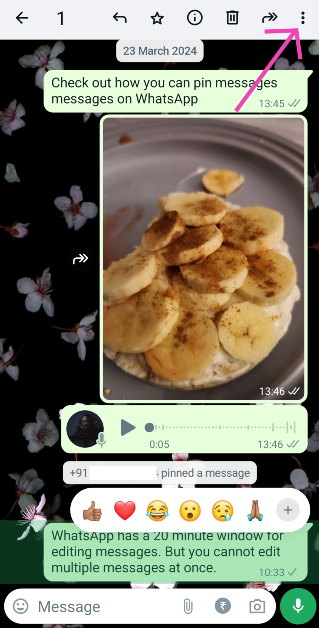
Step 3: Hit the ellipses at the top right corner of the screen.

Step 3: Hit the ellipses at the top right corner of the screen.

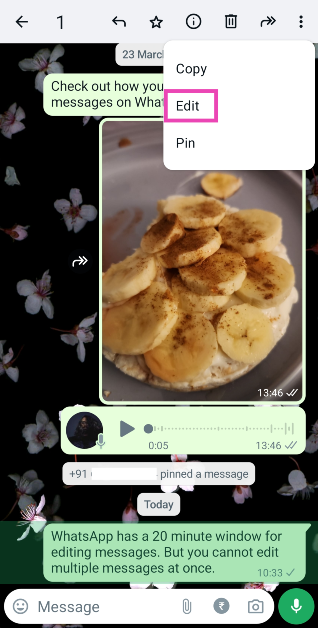
Step 4: Tap on Edit.

Step 4: Tap on Edit.

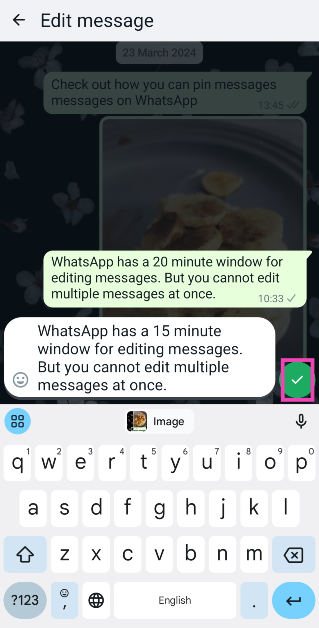
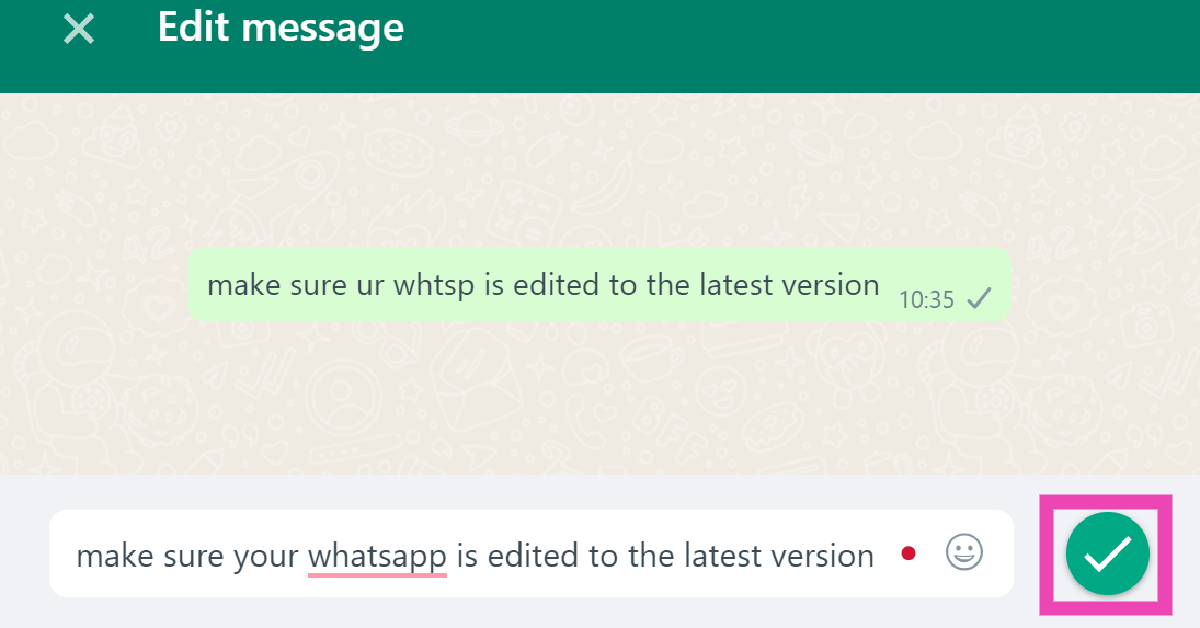
Step 5: Make changes to the message.

Step 5: Make changes to the message.

Step 6: Tap the tick icon to update the message.

Edit WhatsApp Messages on iOS

Step 1: Launch WhatsApp on your iPhone and select a conversation.

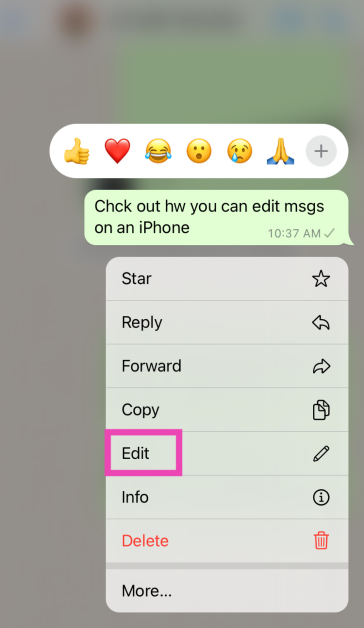
Step 2: Long-press the message you wish to edit and select Edit from the popup menu.

Step 2: Long-press the message you wish to edit and select Edit from the popup menu.

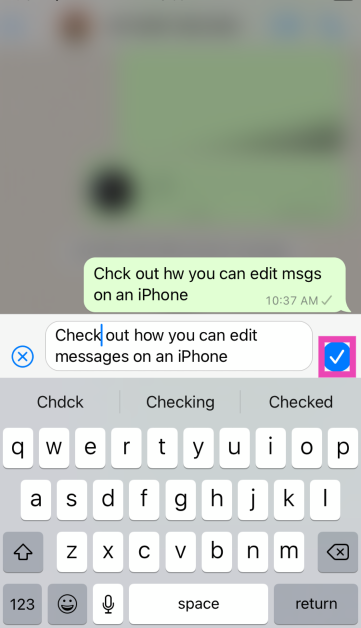
Step 3: Make changes to the message.

Step 3: Make changes to the message.

Step 4: Hit the tick icon to update the message.

Edit WhatsApp Messages on a Desktop or PC

Step 1: Log into your account on WhatsApp for Web.

Step 2: Open a conversation.

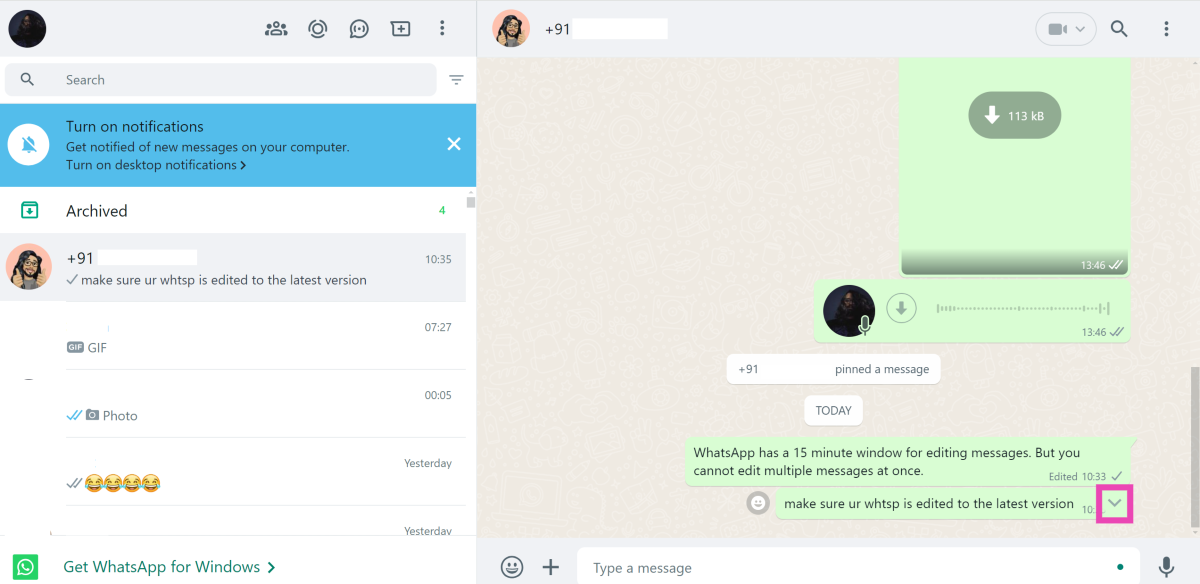
Step 3: Click the downward arrow next to the message you want to edit.

Step 3: Click the downward arrow next to the message you want to edit.

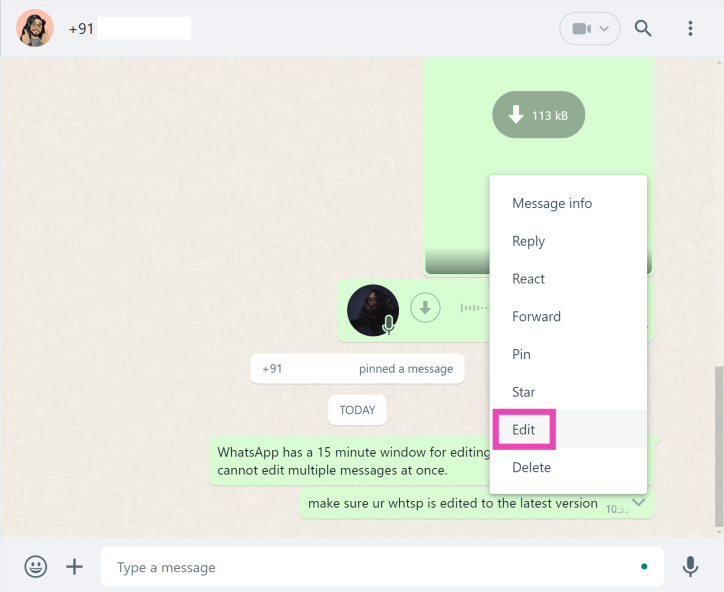
Step 4: Select Edit from the list of options.

Step 4: Select Edit from the list of options.

Step 5: Make changes to the message.

Step 5: Make changes to the message.

Step 6: Click the tick icon to update the message.

Frequently Asked Questions (FAQs)

What is the time limit for editing messages on WhatsApp?

WhatsApp allows you to edit messages within 15 minutes of sending them.

Does WhatsApp send notifications for edited messages?

No, the recipients won’t get notified when you edit a message and make changes to it.

Can I edit a picture after sending it on WhatsApp?

Media sent on WhatsApp cannot be edited. However, you can delete it from the conversation after it has been sent.

Read Also: Top 6 Methods to Remove a Place on Google Maps (2024)

Conclusion

These are the top 3 ways to edit WhatsApp messages on Android, iOS, and Desktop. If you can’t find the edit option for a message, it means that the 15-minute editing window has expired. If you can’t edit a new message, make sure your app is updated. If you’re still not able to edit messages, let us know in the comments and we’ll help you out!
Garena Free Fire Redeem Codes Today 13 April 2024: Here is how to claim them

Garena Free Fire is a battle royale game with regular awards and tournaments to keep players interested. If you play Garena Free Fire, you should be aware of the redeem codes that are released on a daily basis. However, because the battle royale game is banned in India, players from other countries can use the Free Fire Redeem codes daily. If you’re unfamiliar with the Garena Free Fire redeem codes or don’t know how to get them, we’ve put together a step-by-step guide to help you redeem them. Check out Garena Free Fire Redeem Codes for 13 April 2024.

The Free Fire redeem codes are a great way to get free stuff. These are 12-digit codes that contain alphabets and numbers, as well as an expiration date and time. Because the Garena FF redeem codes cannot be used more than once, you should hurry to the redemption page to claim your free reward before someone else does. To get a free reward, all you have to do is go to reward.ff.garena.com/en, which is the official redemption page. Also, keep an eye on this space for daily updates on Garena Free Fire redemption codes and rewards.

Also Read: Sennheiser Accentum Plus wireless headphones with Hybrid Adaptive Noise Cancellation launched

Garena Free Fire Redeem Codes Today 13 April 2024

FK9Z3LFTY6FR4C0B

FW6H8K3Y5N2R7X4M

FOTRYH5R6YE56IZJ

FF4W2Q7D1E6Y8BNX

FE9V0C5B1R4S3N6A

FU6L2D8I7J9R4E0Y

FG5Q2R3X4Z1E6TBF

FC1Y7N3T6R4P9AVE

FS9W3V7X1L5J6FOQ

FX2G5P9F3H6T1L4V

FM3N7A9V1X5C8JKL

FZ8HR6YH56YG1U7Q

FIFJ0S4D6C9L8Y2K

How to Get Free Fire Redeem Codes for Garena on 13 April 2024?

  • Visit the Garena Free Fire game’s official website at reward.ff.garena.com.
  • Use your Facebook, Google, VK, Apple ID, Huawei ID, or Twitter account to log in.
  • You’ll be taken to a valid redemption code (s)
  • Copy and paste the 12-digit redemption code into the text box.
  • On the screen, a dialogue box will appear.
  • ‘Ok’ should be selected.

For the latest gadget and tech news, and gadget reviews, follow us on TwitterFacebook and Instagram. For newest tech & gadget videos subscribe to our YouTube Channel. You can also stay up to date using the Gadget Bridge Android App. You can find the latest car and bike news here.

Samsung introduces newly supported AI languages and dialects to Galaxy AI

Samsung added support for additional languages and dialects to its Galaxy AI portfolio. Apart from the existing 13 languages, Samsung enables a wider variety of Galaxy customers globally to utilise mobile artificial intelligence. Samsung intends to introduce four additional languages later this year in addition to these new languages and dialects.

The Galaxy AI tool now supports three additional languages and three dialects thanks to the upgrade. Three new languages, Arabic, Indonesian, and Russian, together with three new dialects, Australian English, Cantonese, and Canadian French, will be available on the Galaxy AI.

TM Roh, President and Head of Mobile eXperience Business at Samsung Electronics said, “Committed to democratising mobile AI for all, Galaxy AI’s language expansion this year will allow even more Galaxy users to communicate beyond language barriers on a scale that is completely unique to Samsung. We will continue to innovate our technology and pioneer premium mobile AI experiences so that even more users are equipped with the right tools to unleash their unlimited potential.”

Additionally, the company has disclosed that later this year, it expects to add two more dialects and four more languages. The addition of those languages will raise the total number of supported languages to twenty.

Also Read: Samsung rolled out Impulse app powered by AI to help those with speech difficulties

All smartphones that enable Galaxy AI will have the option to download the newly supported languages and dialects as a language pack through the Settings app. With more to come, those include the Galaxy Tab S9 series, Galaxy S24 series, Galaxy S23 series, Galaxy S23 FE, and Galaxy Z Flip5.

The Circle to Search, allows users to simply circle, highlight or tap any image on their display and conduct a visual search on Google, while still within the app.

Live Translate facilitates real-time voice and text translations of phone calls, making it easier than ever to book reservations while travelling or chat with your grandparents in their native language during phone calls.

Also Read: Infinix Note 40 Pro+ 5G, Infinix Note 40 Pro 5G with debuts in India

Generative Edit enables users to resize positions and align objects even after the photo is taken. Edit Suggestion gives you your photo editor that uses AI to suggest perfectly suitable tweaks for each photo.

Transcript Assist summarises, translates, and even transcribes voice recordings using AI and Speech-to-Text technology. Browsing Assist saves your time and keeps you informed by generating concise summaries of news articles or web pages.

Top 6 Methods to Remove a Place on Google Maps (2024)

0

Google Maps is the most comprehensive resource for looking up businesses, residential areas, public institutions, and more on the map. With just a few taps you can look up any location on the planet and even find out how to get there. If you want to see the location up close before visiting it, you can view it in Street View. Google does a good job of removing businesses that no longer exist from its catalogue. However, if you come across a place or location that is now defunct, here are the 6 ways you can remove it from Google Maps.

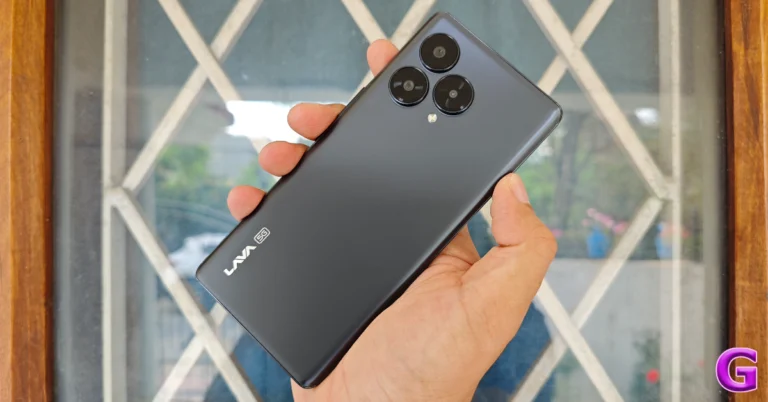
Read Also: Lava Blaze Curve 5G Review: Does the performance match the aesthetics?

Is it possible to remove a place in Google Maps?

Google Maps allows you to edit your business address or completely remove it from the map. Only the person who owns the business listing can carry out this action. If you come across a business that is listed on the map but is no longer functional, you can report it to Google. The same can be done for businesses that are listed at incorrect locations. While making the edit, Google will ask you to supplement your report with images. Once the information has been verified, the business location will be changed or removed from the map.

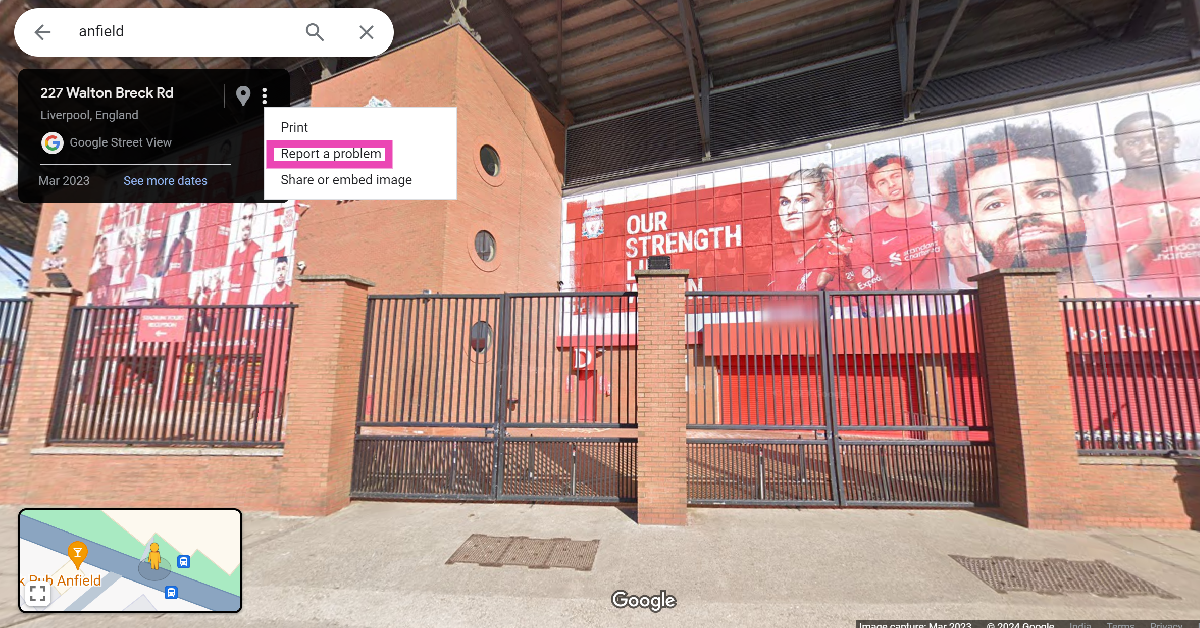
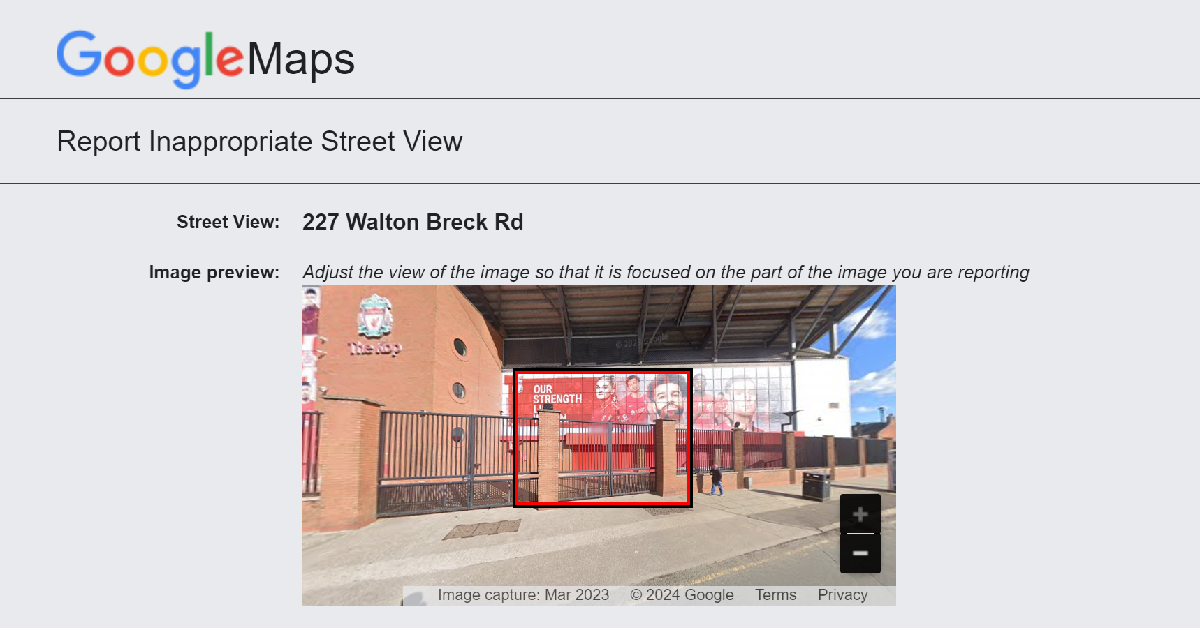
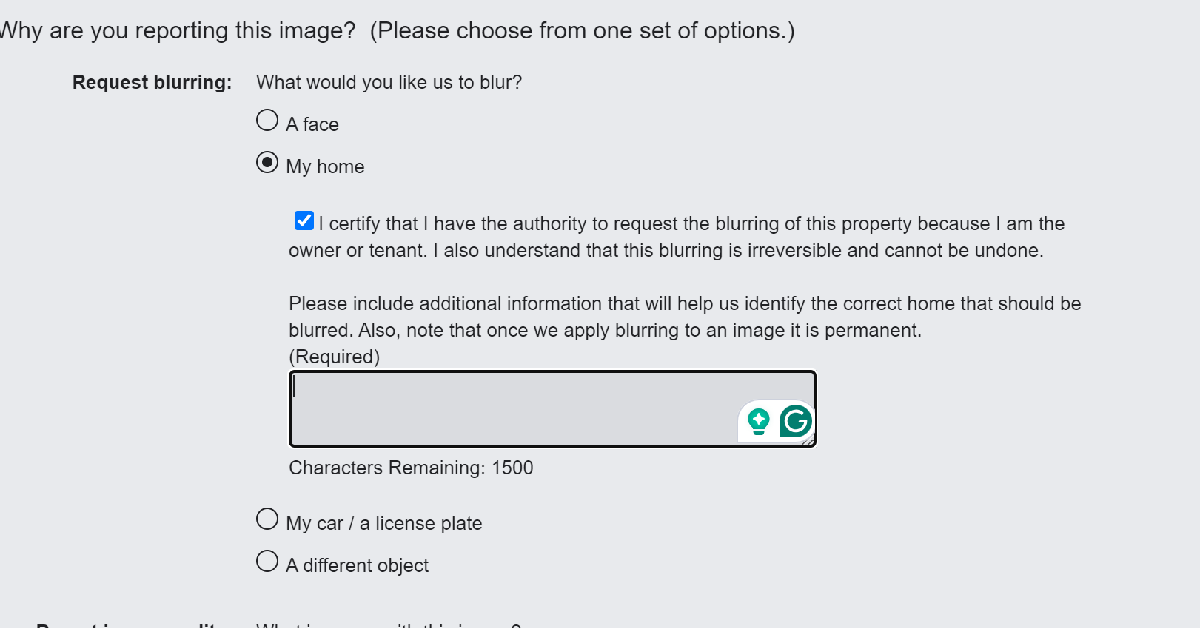
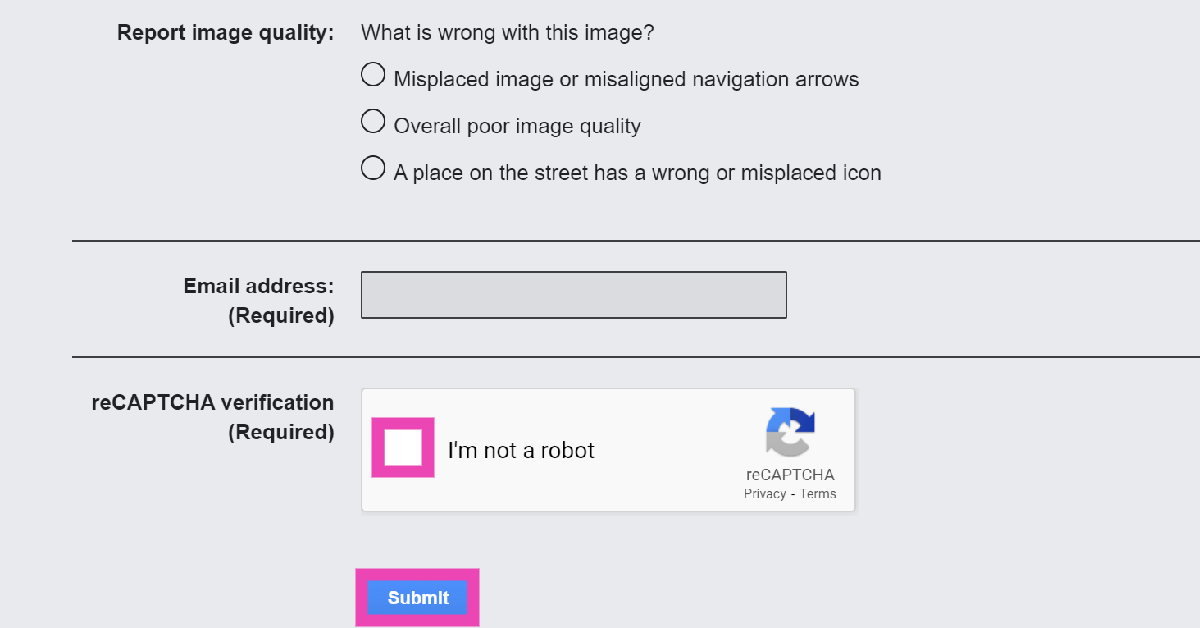
There is no way to remove your home or residential building from the map. The best you can do is blur it on Google Street View. While filing a report, Google will ask you for your email address. Upon confirming that you reside in the location you have selected on the map, Google will blur it on Street View. Other than that, you can remove places you have saved on the app, but this will have no effect on their map listing.

Remove your business listing on Google Maps

Here are the steps you need to follow in order to take your business location off Google Maps.

Step 1: Log into your Google Business profile.

Step 2: Go to the menu and select Info.

Step 3: Go to the ‘Close or remove this listing’ category and select Mark as permanently closed.

Step 4: Confirm your selection in the popup box.

Remove a defunct business listing on Google Maps

While you cannot remove a business listing that doesn’t belong to you, Google Maps lets people report incorrect locations and closed businesses. Here’s how you can do that.

Step 1: Open the location in Google Maps.

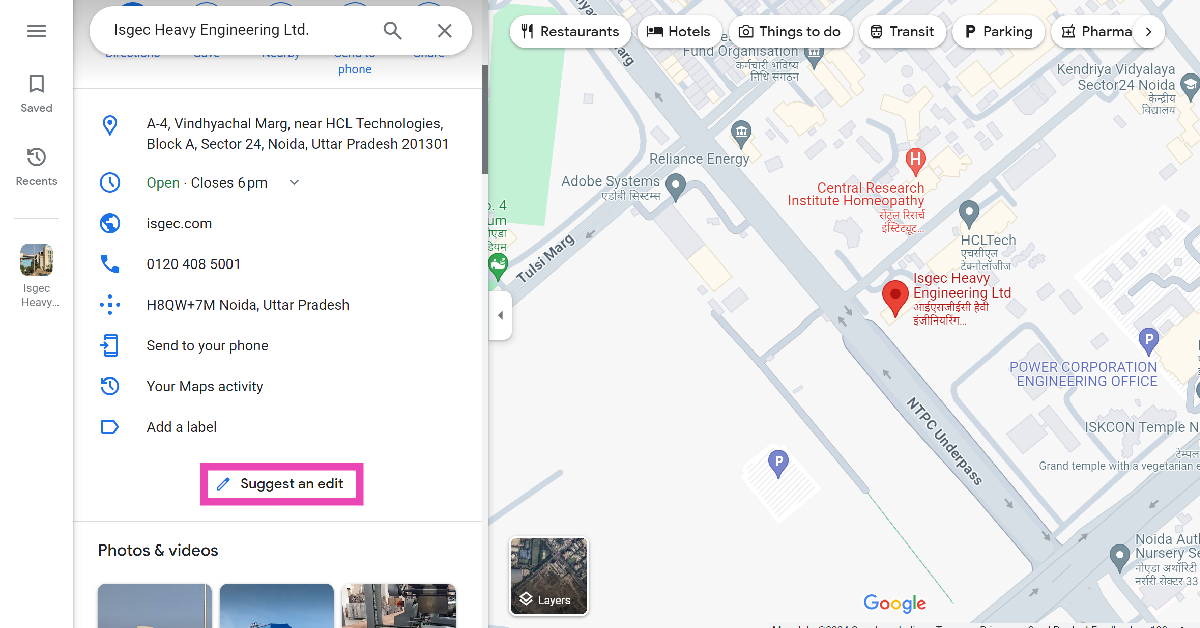
Step 2: Click on Suggest an edit.

Step 2: Click on Suggest an edit.

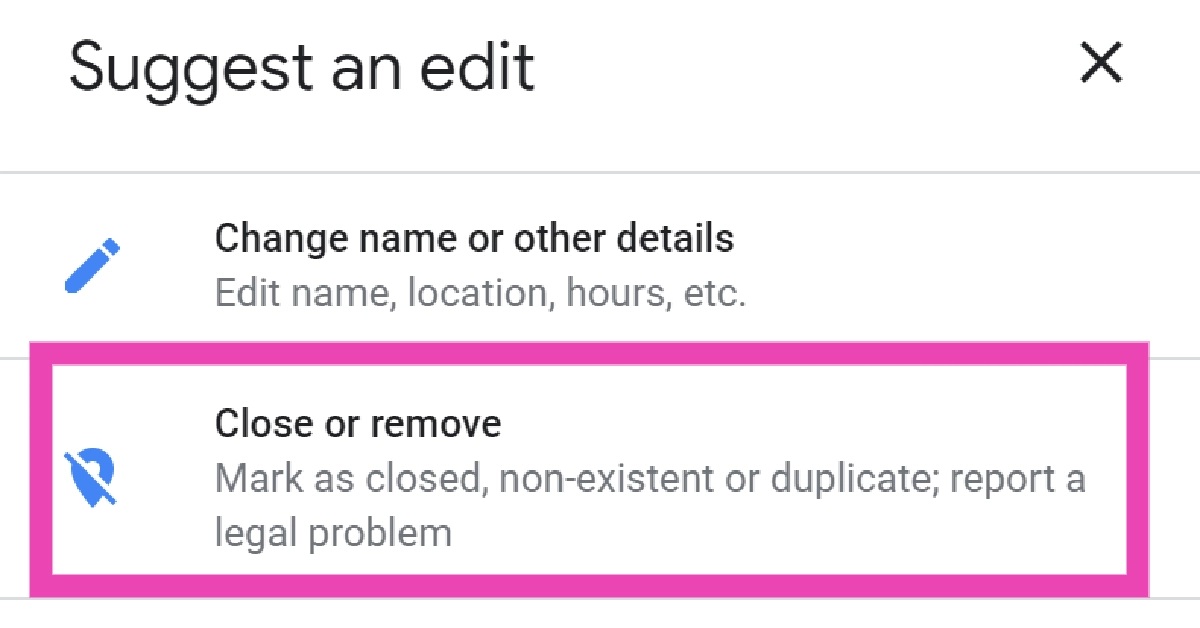
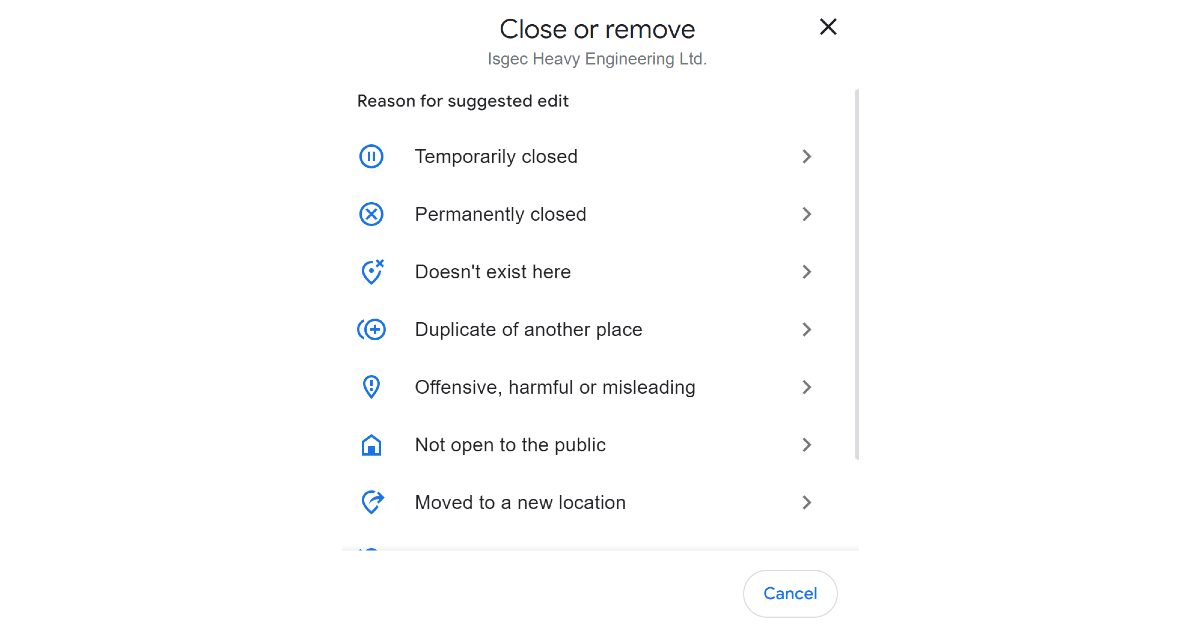
Step 3: Click on Close or remove.

Step 3: Scroll down and select Suggest an edit.

Step 4: Select a reason for your report.

Step 5: Select a reason for your report.

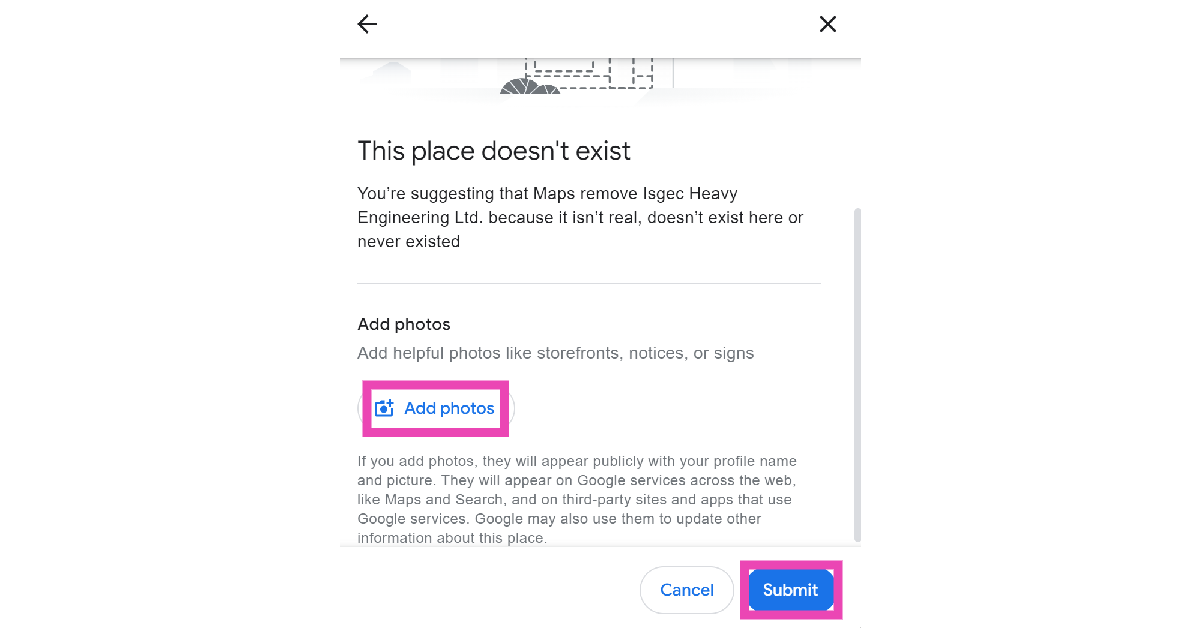
Step 5: Add any relevant photos and hit Submit.

Step 6: Add any relevant photos and hit Submit.

Once Google Maps has verified your report, the location will be removed. Similarly, you can edit the name and location of the listing as well.

Remove a saved place on Google Maps

Here’s how you can remove a place you have saved in your Google Maps list.

Step 1: Open Google Maps in your web browser.

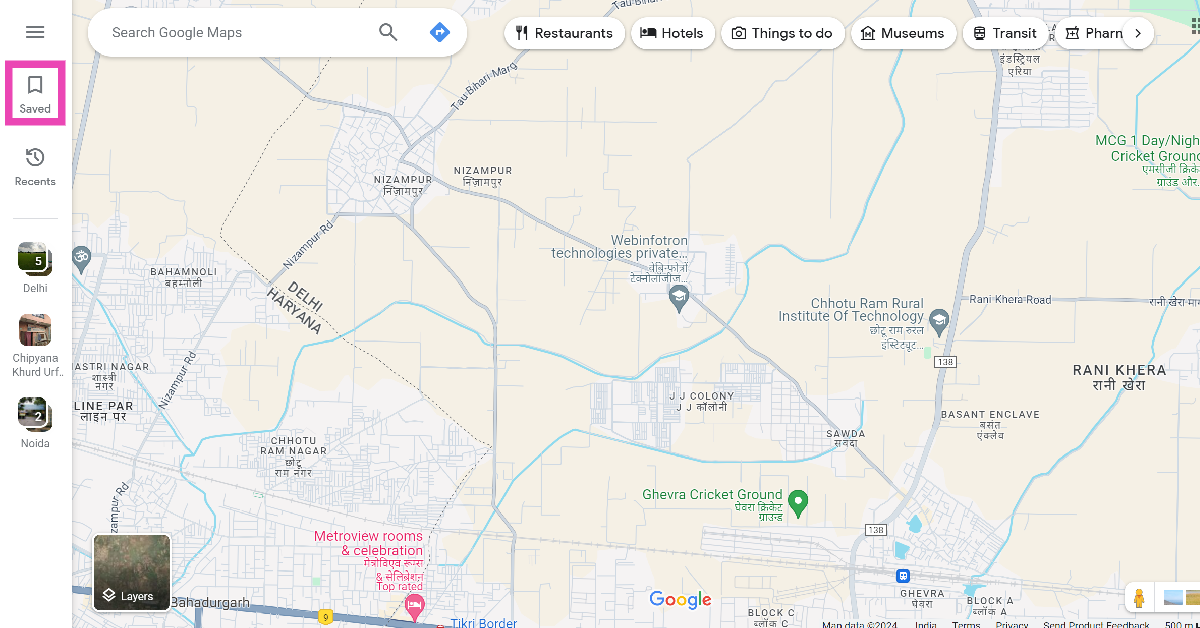
Step 2: Select Saved from the sidebar.

Step 2: Select Saved from the sidebar.

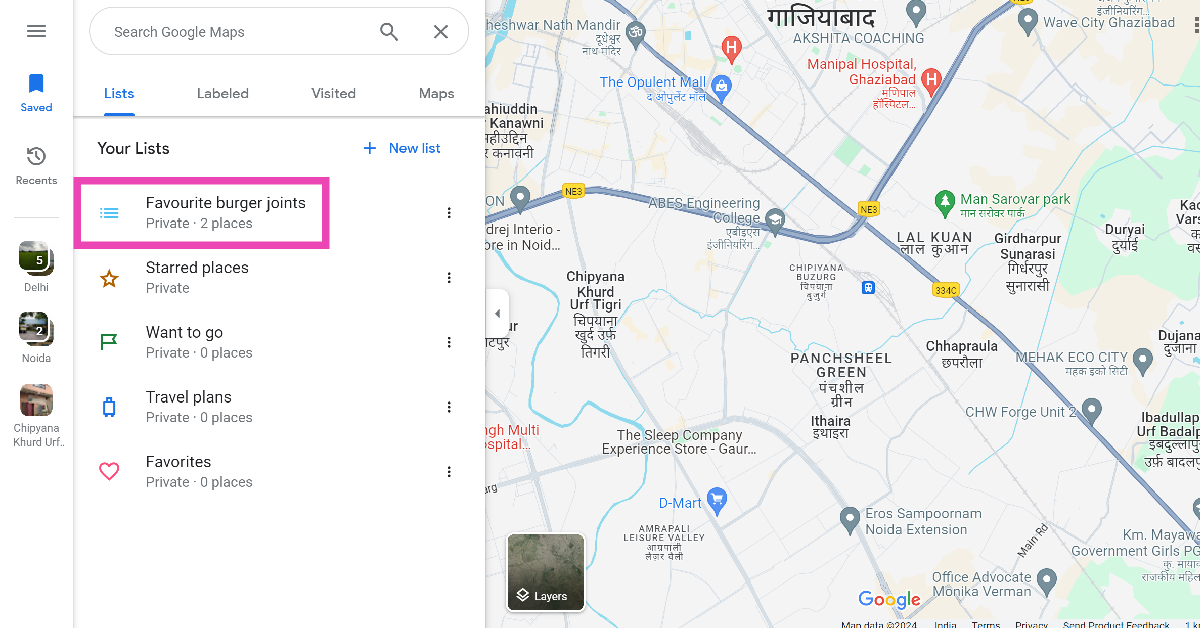
Step 3: Select the list containing the location.

Step 3: Select the list containing the location.

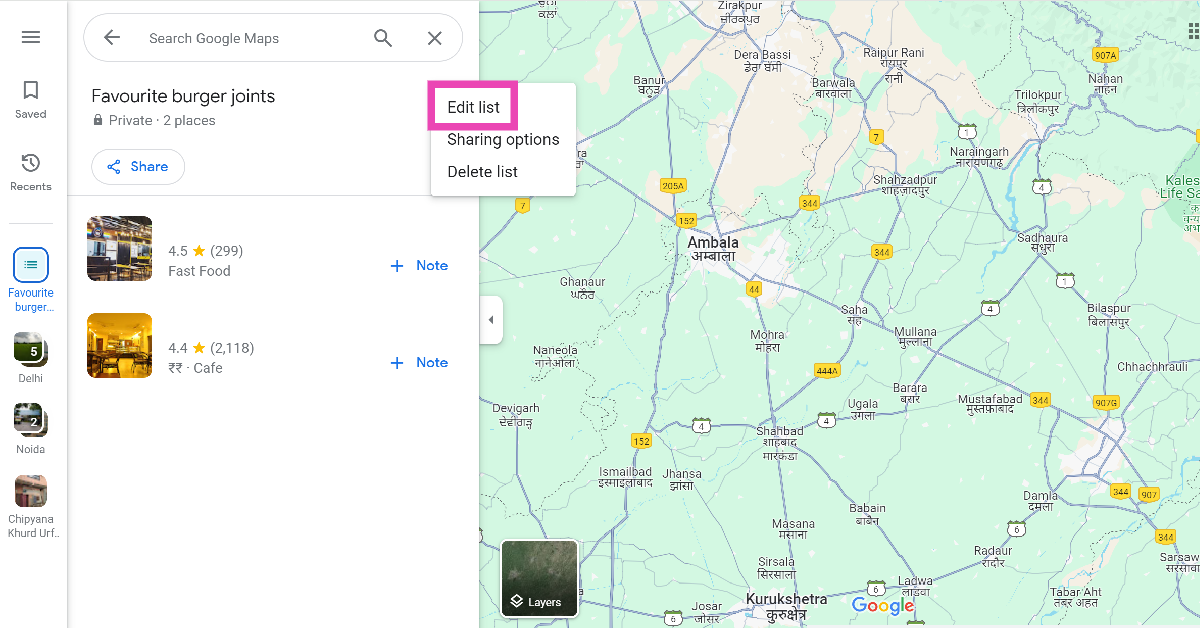
Step 4: Click on the ellipses and select Edit list.

Step 4: Click on the ellipses and select Edit list.

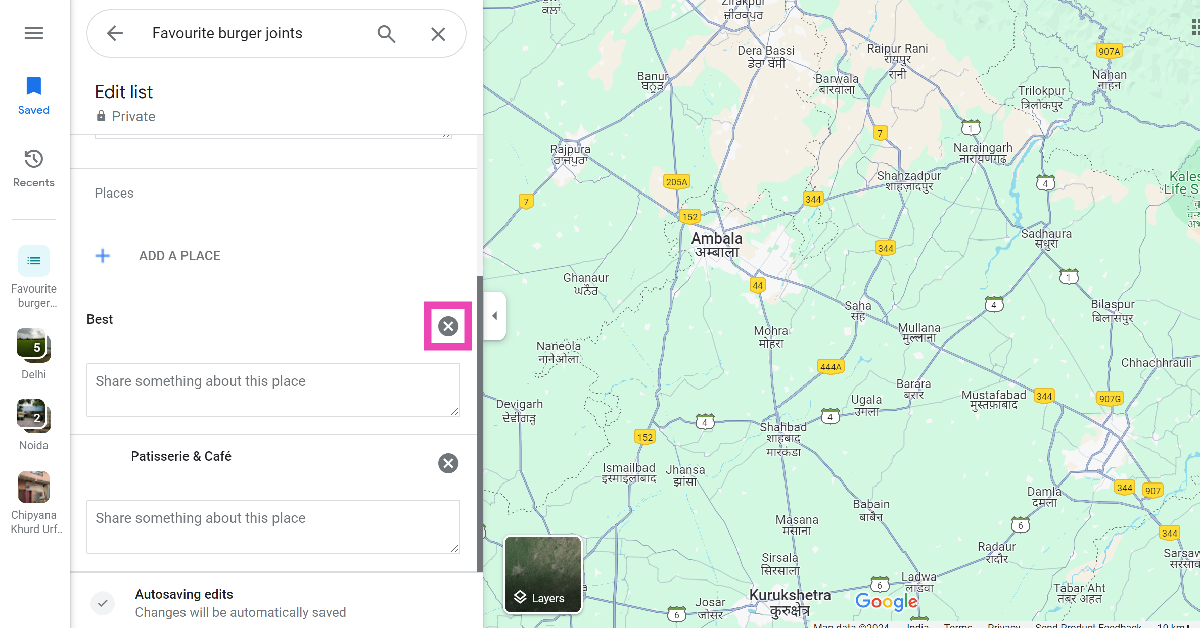
Step 5: Click on the cross icon next to a place to remove it from the list.

Step 5: Click on the cross icon next to a place to remove it from the list.

Step 6: Close the window.

Remove a saved place in the Google Maps app

Step 1: Launch the Google Maps app on your smartphone.

Step 2: Switch to the Saved tab.

Step 3: Select the list.

Step 4: Hit Edit.

Step 5: Hit the cross icon next to the place you want to remove.

Step 6: Tap on Save.

Remove a place from Google Maps history

Google Maps keeps a record of the locations you have viewed using its app or website. Here’s how you can delete them.

Step 1: Open Google Maps in your web browser.

Step 2: Hit the hamburger menu at the top left corner of the screen.

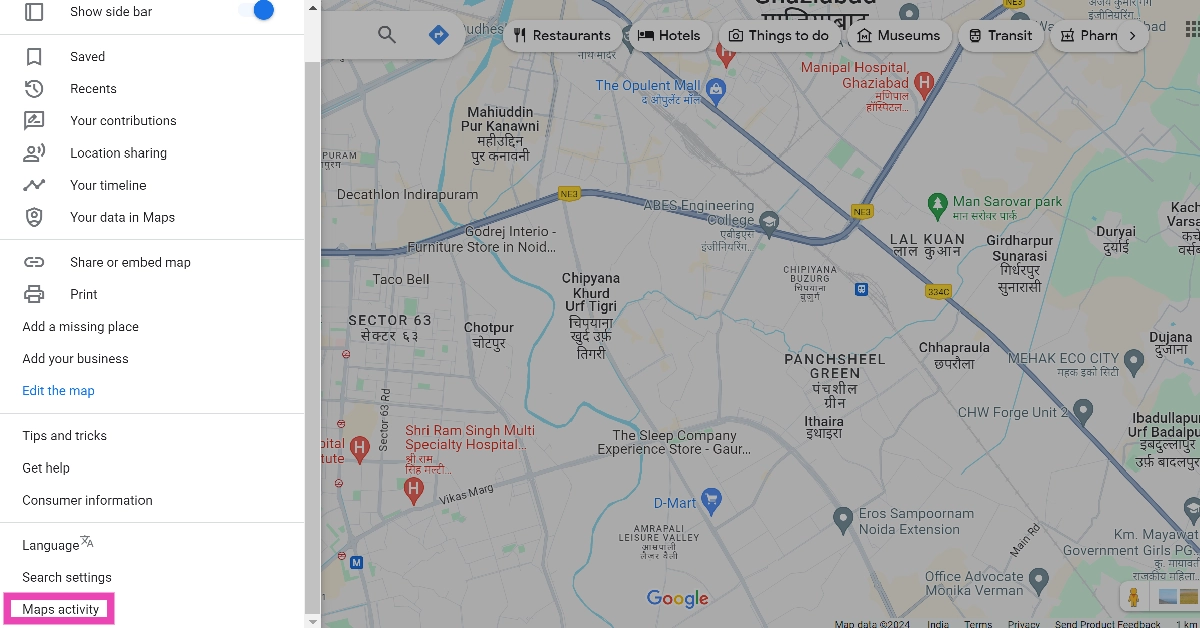
Step 3: Scroll down and select Maps activity.

Step 3: Scroll down and select Maps activity.

Step 4: On the next page, scroll down to view your location history in Google Maps.

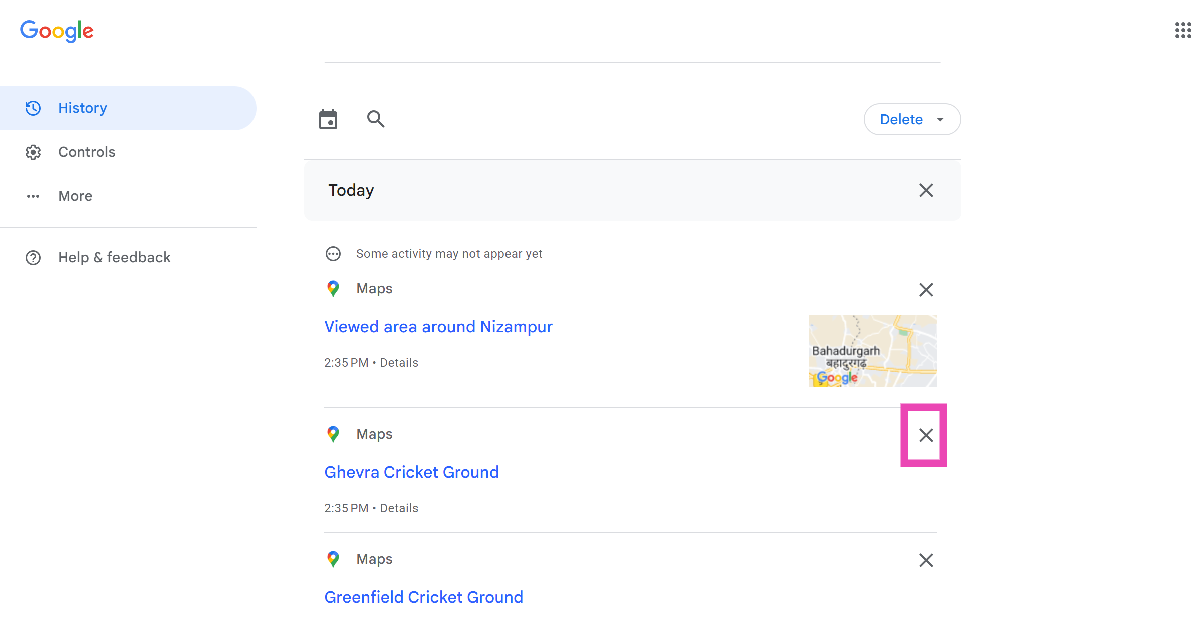
Step 5: Hit the cross icon next to a location to remove it from Google Maps history.

Step 5: Hit the cross icon next to a location to remove it from Google Maps history.

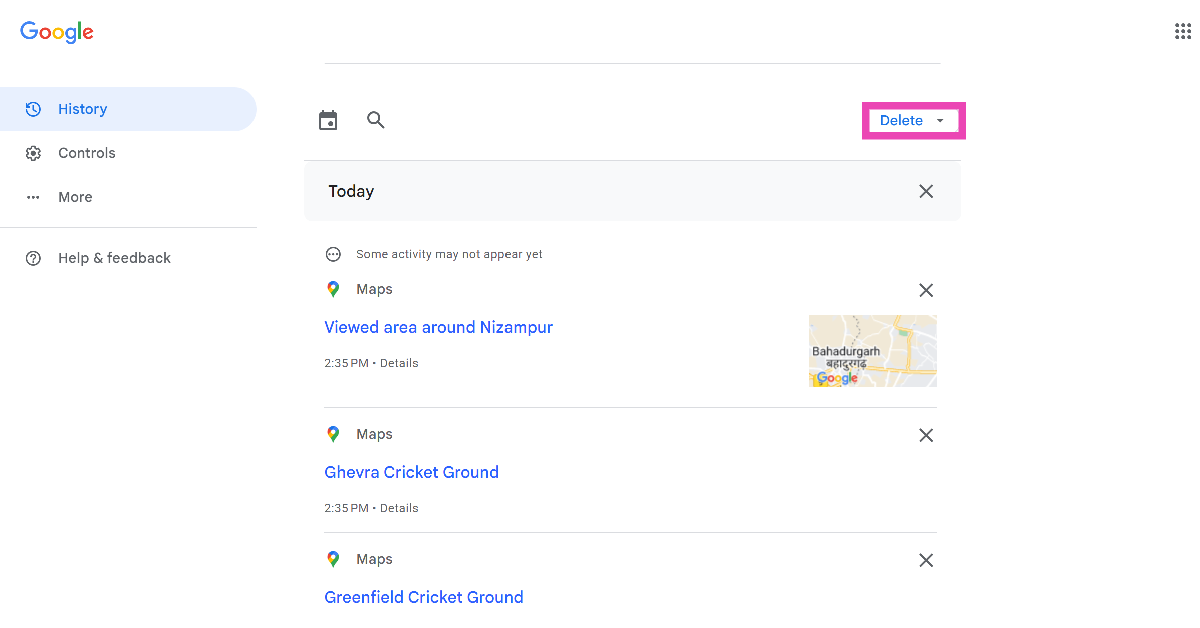
Step 6: To delete the entire history, scroll back up and click on the drop-down menu that says Delete.

Step 6: To delete the entire history, scroll back up and click on the drop-down menu that says Delete. Top 6 Methods to Remove a Place on Google Maps (2024)

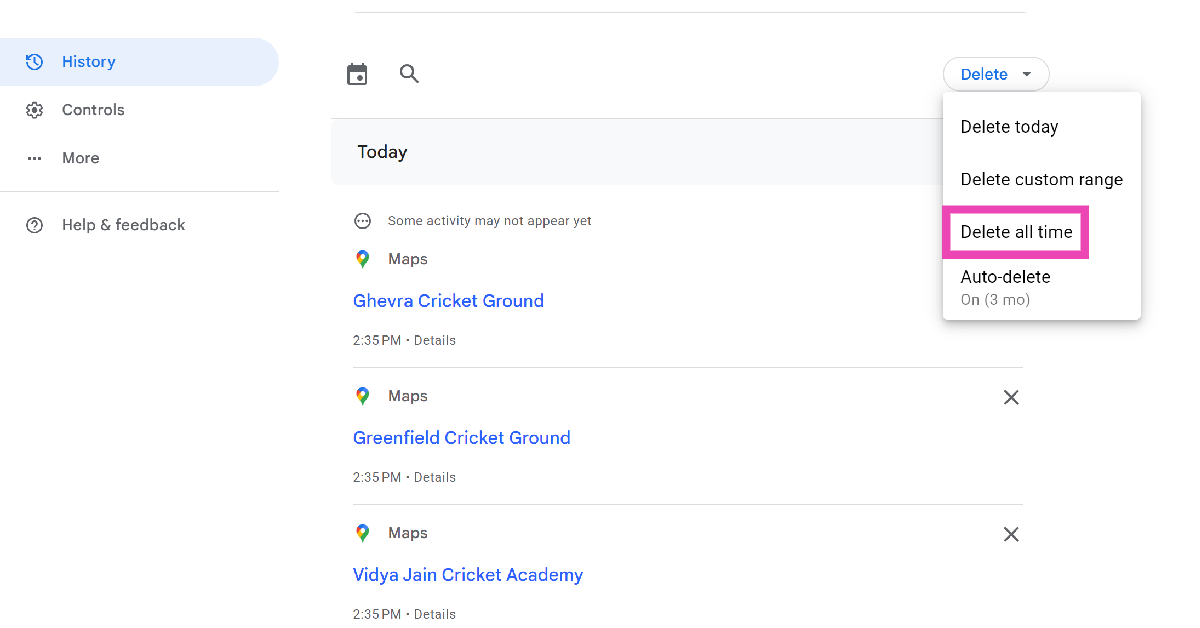
Step 7: Select Delete all time.

Step 6: To delete the entire history, scroll back up and click on the drop-down menu that says Delete.

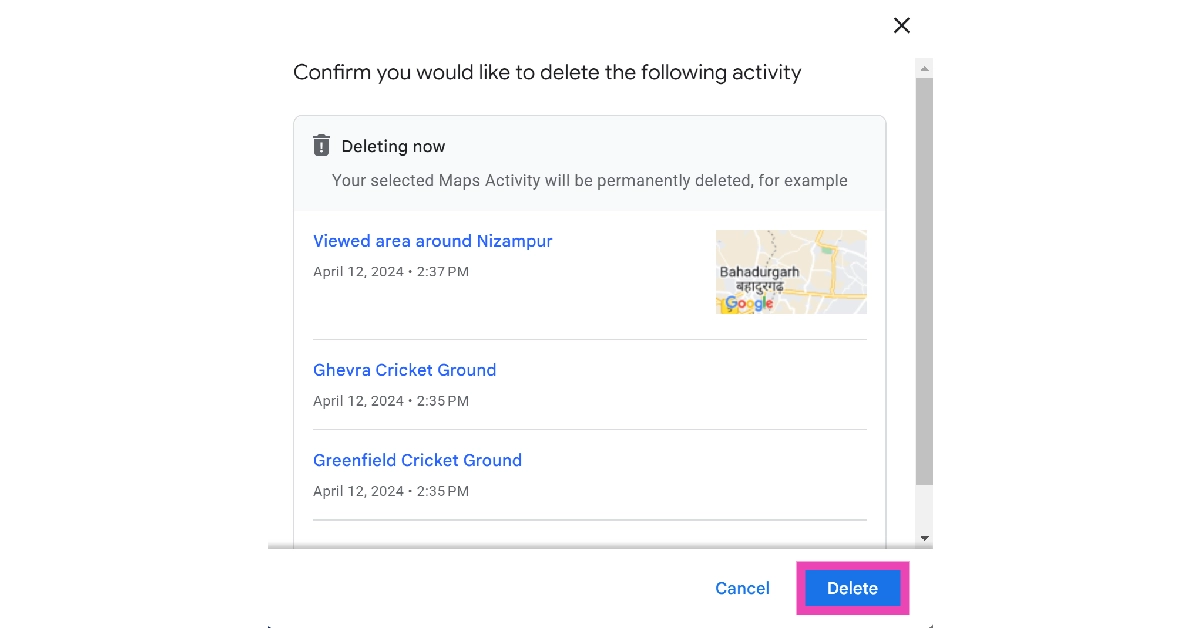
Step 8: Confirm your selection.

Step 8: Confirm your selection. Top 6 Methods to Remove a Place on Google Maps (2024)

Remove a place from Google Street View

While you cannot entirely remove a place from Google Street View, if you don’t want your house showing up there, you can always send a request to blur it. Once the request has been sent, Google will contact you and verify that you reside in the location that you have selected.

Step 1: Open Google Maps on your web browser.

Step 2: Enter your address in the search bar and select your location.

Step 3: Drag the yellow person icon and drop it on your location to enter Street View. You will now be able to view your house in Google Maps.

Step 3: Drag the yellow person icon and drop it on your location to enter Street View. You will now be able to view your house in Google Maps. Top 6 Methods to Remove a Place on Google Maps (2024)

Step 4: Click the ellipses on the address box at the top right corner of the screen.

Step 5: Select ‘Report a problem’. This will open a new window on your browser.

Step 4: Click the ellipses on the address box at the top right corner of the screen. Top 6 Methods to Remove a Place on Google Maps (2024)

Step 6: Drag the image so that the part you want blurred out is inside the red square.

Step 6: Drag the image so that the part you want blurred out is inside the red square. Top 6 Methods to Remove a Place on Google Maps (2024)

Step 7: Select a reason for your blurring request. In this case, click on ‘My home’.

Step 7: Select a reason for your blurring request. In this case, click on ‘My home’. Top 6 Methods to Remove a Place on Google Maps (2024)

Step 8: Enter your email address and click on the captcha.

Step 8: Enter your email address and click on the captcha. Top 6 Methods to Remove a Place on Google Maps (2024)

Step 9: Hit Submit.

Frequently Asked Questions (FAQs)

How do I remove a place on Google Maps?

You cannot remove a place that you have not listed on Google Maps. However, if notice an incorrect or defunct listing on the map, you can always report it to Google by selecting ‘Select an edit’ on its page.

How do I delete or remove a saved location in Google Maps?

To remove a saved location, open the Google Maps app, go to Saved, select the list, hit ‘Edit’, and tap the cross icon next to the entry you want to remove.

How do I delete my entire location history in Google Maps?

Go to Google Maps using the web browser on your PC, hit the hamburger menu, select ‘Maps activity’, hit the drop-down menu that says ‘Delete’, and select ‘Delete all’.

Read Also: Samsung Unveils The 2024 Crystal 4K TV Series Starting At Rs 32,990

Conclusion

These are the top 5 ways to remove a place on Google Maps. If you want to change your saved ‘Home address’ in Google Maps, go to the ‘Saved’ tab in the app and select the ‘Labelled’ list. This is where you can find, edit, or delete your home and work locations.

Infinix Note 40 Pro+ 5G, Infinix Note 40 Pro 5G with debuts in India

Key Highlights

  • Infinix Note 40 Pro Series has launched in India.
  • The series is now up for sale via Flipkart in the country.

Infinix has officially announced the launch of its new smartphone lineup Infinix Note 40 Pro Series in India today. The new range includes two phones- Infinix Note 40 Pro and Infinix Note 40 Pro+. The new series features three back cameras, the most prominent of which is a 108-megapixel primary sensor. They include the company’s own Cheetah X1 power management processor.

Infinix Note 40 Pro+ 5G and Infinix Note 40 Pro 5G price in India

Infinix Note 40 Pro+ 5G launched in India at Rs 24,999 for the 12GB RAM with 256GB storage. The price of The Note 40 Pro is set at Rs 21,999 for the 8GB RAM with 256GB storage option. The Pro+ model comes in Obsidian Black and Vintage Green colour options whereas the Pro variant will be available in Vintage Green and Titan Golden colourways.

Starting from Rs 19,999, the Note 40 Pro 5G is available for pre-order today offering consumers a Magkit worth 5000. The kit includes a Magcase and Magpower power bank. For payments made with HDFC and SBI credit cards, Infinix is offering an instant discount of Rs 2,000.

Infinix Note 40 Pro+ 5G and Infinix Note 40 Pro 5G price in India

Infinix Note 40 Pro+ 5G, Note 40 Pro 5G specifications

Both Infinix Note 40 Pro+ 5G, and Note 40 Pro 5G feature a 6.78-inch full-HD+ curved 3D AMOLED display with 1,080×2,436 pixels of resolution. The screen supports a 120Hz refresh rate, 1500Hz instant touch sampling rate along with 2160Hz PWM dimming. The panel comes with TUV Rheinland certification, 1,300 nits peak brightness and is protected with Corning Gorilla Glass 5.

Also Read: Samsung rolled out Impulse app powered by AI to help those with speech difficulties

The series runs on Android 14-based XOS 14 out of the box. Infinix promises a 3-year security patch update and two Android upgrades. Both phones are powered by MediaTek Dimensity 7020 SoC along with memory fusion technology of up to 24GB RAM for Pro+ and up to 16GB of virtual RAM for Pro model.

Infinix Note 40 Pro+ 5G and Infinix Note 40 Pro 5G price in India

Both the handsets feature a triple rear camera setup that includes a 108-megapixel primary sensor that supports 3x zoom and optical image stabilisation (OIS). They include a 32-megapixel camera on the front for taking selfies. The camera comes up with 15+ camera modes like super night mode, dual video mode etc.

Also Read: Krafton to release new Dark and Darker Mobile game, first teaser released

For thermal management, both models come with VC Cooling Technology 2.0, which has 11 layers of heat-dissipating material. The Note 40 Pro+ is equipped with a 4,600mAh battery that can be charged at 100W via wired fast charging. There is a 5,000mAh battery with 45W fast charging included with the Note 40 Pro 5G. The 20W magnetic wireless charging is supported by both versions. The series also includes Infinix’s own Cheetah X1 power management processor. Three charging modes are available: Hyper, Smart, and Low-temp. The devices boast Dual Speakers by JBL Professional Tuning Certification for 360° Symmetrical Sound. It also comes with an IP53 rating and NFC support.

Lava Blaze Curve 5G Review: Does the performance match the aesthetics?

Indian tech outfit Lava kicked off the proceedings in 2024 with the launch of the Blaze Curve 5G. Priced at Rs 18,000, this smartphone brings a premium build and design to a segment that is dominated by uninspired, shoddy devices. Its clean design is replicated in the software department as the smartphone rocks stock Android OS without any bloatware. Understandably, Lava has also made a few tradeoffs to keep the cost of the device down. Let’s take a closer look at the Lava Blaze Curve 5G in our review of the smartphone.

Read Also: OnePlus Buds 3 Review: All of this in under Rs 6,000 is actually pretty fantastic

Lava Curve 5G Review: Design and Display

One thing we like about Lava is that it doesn’t skimp on the accessories provided inside the box. Here’s what you get inside the Blaze Curve’s retail package.

  • Smartphone
  • Power adapter
  • USB Type-C to Type-C cable
  • USB Type-C to 3.5mm headphone jack adapter
  • Clear plastic case

We really like the approach towards clean design that Lava has taken on the Blaze Curve 5G. The glass back panel curves towards the edges and has a matte finish which keeps the smudges and fingerprints away. This glass panel massively elevates the in-hand feel of the smartphone. The device weighs 189g but the weight is evenly distributed.

Lava Curve 5G Review: Design and Display

The triple camera layout at the back is inspired by the iPhone. This design feels quite contrived and garish on this smartphone. A simpler, more original camera layout would not only have added a unique flair to the device but also done justice to the premium back panel. The plastic rings around the camera cutouts are in stark contrast to the matte textured glass back.

design

The thin plastic frame on the Blaze Curve houses the volume rocker keys and the side button on its right edge. The SIM tray, primary microphone, and speaker grille are placed on the bottom grille. Up top lie the secondary speaker grille and the secondary microphone.

design

The 6.67-inch curved AMOLED display is another big highlight of the Lava Blaze Curve. This panel has a refresh rate of 120Hz and supports HDR10+. A peak brightness of 800 nits on the smartphone ensures that the video content displayed on the screen in an indoor setting is bright and lucid. However, the AMOLED panel struggles with legibility under direct sunlight.

Lava Curve 5G Review: Design and Display

We streamed a range of video content on the Lava Blaze Curve during the review period. Its AMOLED display replicated vivid colours and those deep blacks that we love on a smartphone. There is a slight tint along the edges which becomes even more prevalent at certain viewing angles. But this isn’t something that comes with most curved panels. The stereo speaker setup is an added bonus, something that certainly isn’t the norm in this segment. These speakers can produce a loud audio output. This audio output has a balanced range of frequencies and feels quite full.

display

The touch response and haptic feedback offered by the smartphone are decent, but nothing out of the ordinary. After a few days of use, we dialled down the vibration settings as they felt a little blunt. The smartphone also has an in-display fingerprint scanner which is quite responsive but is placed quite lower on the display.

Lava Blaze Curve 5G Review: Performance and Cameras

Under the hood, the Lava Blaze Curve 5G retains the MediaTek Dimensity 7050 chipset from the Agni 2. You also get 8G LPDDR5 RAM along with an option of 128GB or 256GB UFS 3.1 storage. On the Geekbench 6 app, the smartphone scored 1,097 points on the single-core test and 2,630 points on the multicore test.

geekbench

The smartphone did well when put through everyday tasks. We did come across the odd glitch, but its overall performance was quite satisfactory. Tasks like emailing, video calling, media streaming, and social media browsing were handled expertly. Running a bunch of different apps at once did not present any performance issues either.

However, the smartphone does fall short when it comes to gaming. We played titles like Call of Duty Mobile and BGMI in high settings and were not super impressed with the smartphone’s performance. The touch response was not up to the mark and the device started heating up after 15 minutes of gaming. The frame drops became frequent after 30-40 minutes of intense gaming. Lowering the graphics resulted in a much better performance. If you’re looking for a dedicated gaming smartphone, there are better options for you in this price bracket.

Lava Blaze Curve 5G Review: Performance and Cameras

Moving on, the software experience offered by the Blaze Curve is splendid. There is no trace of bloatware on this device and neither do the native apps push spam masked as notifications. Stock Android enthusiasts will enjoy using this smartphone. However, there is one small catch. The smartphone runs on Android 13 out of the box, which isn’t something you want from your device in 2024. This means that the two assured OS upgrades on this smartphone will be Android 14 and Android 15. By the time the Blaze Curves gets its Android 14 update, we might see devices launching with Android 15 out of the box.

The 5,000 mAh battery pack inside this smartphone can get you through the day with ease. During the review period, our daily tasks on the Lava Blaze Curve included instant messaging, video calling, browsing social media apps, navigation, emailing, and even a bit of gaming. We consistently got 6 hours of screen time on a full charge. With more conservative usage, you can push its battery life to almost 2 days. The smartphone supports 33W fast charging. It took us 90 minutes to fully charge the device.

Lava Blaze Curve 5G Review: Performance and Cameras

Photography is not the Blaze Curve’s strongest suit. Its triple camera module at the back consists of a 64MP primary shooter, an 8MP ultrawide lens, and a 2MP macro sensor. In outdoor daylight, the primary camera takes good shots, but the images have a pinking tinge to them. It also has a tendency to overexpose the sky, which ends up throwing off the colour balance in the images. Other than that, the images pack rich colours and showcase a good level of detail.

camera

camera

The shift in colour profile from the primary lens to the ultrawide lens is very significant. Images taken with this camera do not have a pinkish tinge but the colours seem a bit washed. The image sharpness is also not up to the standard and they inadvertently feel a bit soft. Other than that, we were pleased with the field of view offered by this camera.

ultrawide
Ultrawide Shot
Lava Blaze Curve 5G Review: Performance and Cameras
Ultrawide Shot
Lava Blaze Curve 5G Review: Performance and Cameras
Wide vs Ultrawide

In limited lighting, the primary camera struggled a lot. The images taken at night were super grainy and full of noise. Turning on the Night Mode helps in smoothening the images but a fair bit of noise still manages to creep in the final results. The Portrait Mode does a good job of focusing on the subject but has the tendency to overexpose the background. On the bright side, the 32MP selfie camera produces good results and does not mess with skin tones.

Lava Blaze Curve 5G Review: Performance and Cameras
Without Night Mode vs With Night Mode
portait
Portrait Shots

Working with the camera app can also be a challenge. The images take a few seconds to process, but the real issue here is the jittery app experience. While taking pictures in landscape orientation it was not too uncommon for the shutter icon to turn unresponsive. The same happened with the sensor toggle too. Hopefully, Lava can fix these issues with a swift update.

Read Also: Top 10 Free Music Streaming Apps for Android (2024)

Verdict

If you’re the kind of smartphone user who prioritises a clean design and form factor over everything else, the Lava Blaze Curve should be a no-brainer purchase for you. In this price range, you will be hard-pressed to find a smartphone that offers a curved display along with a glass back panel. The clean OS experience is also a big plus, but the device running Android 13 instead of Android 14 out of the box is a bit of a letdown. The camera performance is also a mixed bag as the Blaze Curve captures rather mediocre images in limited lighting. Having said that, if you’re looking for a fun device with a premium build and looks under Rs 20,000, the Lava Blaze Curve is worth giving a shot.

Lava Blaze Curve: Pros

  • Excellent design
  • Glass back panel
  • Curved display
  • Stock Android experience with no bloatware
  • Affordable

Lava Blaze Curve: Cons

  • Runs Android 13 out of the box
  • Average cameras

OnePlus Buds 3 Review: All of this in under Rs 6,000 is actually pretty fantastic

We reviewed the OnePlus Buds 3 recently. This is their flagship TWS in its third iteration, but this time there’s a huge difference: it costs just Rs 5,499. Comparatively speaking, last year’s buds were Rs 10,000 and upwards; this year, they are half that amount, and they are surprisingly amazing. So let’s quickly talk about these earbuds and determine whether or not they will be worthwhile purchasing.

OnePlus Buds 3 Review: Design

OnePlus Buds 3 Review: Design

OnePlus is among the firms that are developing new technologies for audio devices in addition to smartphones. We found that the OnePlus Open, which retails for a reasonable price, outperforms the majority of folding smartphones. They also just unveiled the OnePlus 12, their flagship model, which is an amazing high-end phone that we can personally attest to. In a similar vein, their most recent OnePlus Buds 3 are excellent TWS at a very reasonable price. It might be the greatest value for earbuds under Rs 5,499, with some truly amazing features and sound quality.

So let’s talk about the actual appearance and design of the OnePlus Buds 3 before we get into the features. The OnePlus Buds Pro 2, which debuted last year and retailed for about Rs 12,000, have the same design and feel as these earbuds as well as a case. These are among the best TWS available. In fact, those earbuds were also reviewed by us. 

The case that comes with it is quite thin. The case weighs about 40 grams without the earbuds, while the earbuds weigh 4.8 grams. In the box, there are more ear tips as well. These are pre-installed with medium size by default, but you can choose small or large depending on which size best fits your ears.

OnePlus Buds 3 Review: Design

The earbuds themselves have a design that is quite comparable to both the OnePlus Buds 2 and the Pro variant. Thus, this metallic finish gives you a comparable design. Additionally, the rubberized tip provides an extremely comfortable fit. The USB Type C charging connector is located on the back of the case, while an LED indicator is located on the front.

Review of OnePlus Buds 3

The TWS are nestled inside their allotted compartments when you open them up. A button to pair the earphones is also included. As previously said, the earbuds feature a metallic glossy finish that gives them a very upscale appearance, which we found appealing. It does, however, draw a lot of fingerprints, though this is not a huge problem.

If you look at the stem carefully, you will notice a matte-finished area where touch gestures can be used to operate the earphones. Additionally, the earphones have microphones for noise cancellation.

Review of OnePlus Buds 3

It’s impressive that these earphones are sweat-resistant and have an IP55 rating.
Let’s talk about the fit and comfort next. They are incredibly well-built and packed with features. These fit nicely into the ear canal and are fairly comfy. These earbuds are comfortable and do not slip out of our ears even after we wear them for daily tasks, walks, and work. Thus, even after wearing them for an extended amount of time, you don’t feel like you’re wearing them and the comfort level is excellent.

Also Read: OnePlus 12 Review: A True Flagship Smartphone

OnePlus Buds 3 Review: Performance

Within each earbud, there is a 10.4mm woofer and a 6mm tweeter. They also have microphones that cancel out noise. If your device supports Bluetooth 5.3, the earphones will connect easily. It does support Google Fast Pair, and when paired with a OnePlus handset, it will automatically show earbud settings and allow you to upgrade the firmware right from the Bluetooth menu.

Several options are available to you for controlling this, including what occurs when you touch the stem.

Review of OnePlus Buds 3

You now have extensive flexibility over the equalisation settings thanks to OnePlus. allowing you to have a personalised EQ setting. However, they also contain a feature called Golden Sound that enables the earphones to send and receive audio waves in your ears to better understand the shape of your ears. 

The music is then automatically adjusted based on this information. These will eliminate any issues you may be having with hearing at the lower or higher ends and adjust the frequencies to provide you with the greatest sound possible.

Review of OnePlus Buds 3

Noise cancelling has an on/off switch. Standard latency is set at 94 milliseconds, however, you can optionally have a low latency game mode that lowers it to 50 milliseconds during gameplay.

At this price range, the noise suppression is about 50 dB, which is quite impressive. It can filter out a lot of the background noise and does it fairly well. However, louder sounds won’t be greatly filtered.

Also Read: OnePlus Open Review: It can really open up to you

But how do they sound?

When we put them in our ears and activated the basic equalisation, we were shocked when we noticed that the sound quality was excellent. We at first thought that the mids were low, but after making some adjustments, we found that you had complete control over the mid-range in addition to being able to fully tune the bass. Additionally, excellent higher ends are available.

Review of OnePlus Buds 3
Thus, you may tweak the Equaliser to suit your taste in music. You may not get a whole Dynamic EQ layout, but you have plenty of exquisite control, so you can hear it coming through in your headphones as you adjust. But many users will find that the default earphones sound excellent right out of the box when they have a balanced EQ.

In case you enjoy listening to songs with a lot of bass, you may also use the built-in bass booster in the EQ to get extra bass.

These have a somewhat stronger bass response already, much like the OnePlus Buds Pro. Both the vocal quality and sound clarity are excellent. Bass enthusiasts will undoubtedly adore these earphones because of how well the sound separation works.

A few more unique features have also been added by OnePlus, such as the ability to double press the stem to capture images and use the earbuds as a remote shutter button when in camera mode. Although you could take shots with your headphones in, this can be helpful. Though we are unsure, if that is what you are searching for, then it is an option.
The settings panel menu allows you to adjust the noise cancelling and make customisations.

Thanks to its interactive design, the earbuds allow you to answer and end calls in addition to controlling music.

iOS devices can also be used with OnePlus Buds 3. To get started, simply download the Hey Melody app. Additionally, you have the ability to connect two devices at once; again, your linked device must have an LHDC 5.0 codec for you to get high-resolution audio. The battery life will undoubtedly suffer if you switch to high-resolution audio, but the sound quality is still excellent.

Depending on the music app you’re using, you can obtain high-resolution audio on an Android device, especially if you’re using the OnePlus 12 phone we reviewed, which has the ldhc 5.0 codec.

Also Read: OnePlus Nord CE3 5G Review: A no-nonsense smartphone under Rs 30,000

Another type of spatial audio that is built in is called 3D audio; while it does slightly enhance the audio listening experience. The inclusion of a version means that future updates will only be made to it, and it’s a welcome step back at a price point of less than Rs 6,000.

Regarding battery life, each earbud contains a 58mAh battery, while the case has a 520mAh battery. The earbuds have a 6.5-hour noise cancellation rating with the case, and a 28-hour rating when without it. Another noteworthy feature of the earbuds’ excellent audio quality is their roughly 10-hour battery life when the noise cancellation is turned off. You may therefore enjoy up to 30 hours of music playback with only approximately three charges, which is fantastic.

With a 10-minute charge time, these earbuds can provide almost seven hours of music playback. They also charge quickly in the case.

Verdict

The price of the OnePlus Buds 3 is less than Rs 6,000 (Buy), and there are currently several sales and promotions going on. For that price range, they are therefore quite impressive. Overall, these earphones have left us impressed. Although the OnePlus Buds Pro were already really good, these are even better considering how many functions they include at a low cost. They are incredibly well constructed, with a tonne of excellent features and specs, and sound fantastic.

Keep in mind that not all smartphones support LHDC, however, OnePlus devices do, so you can enjoy high-res audio support.

Buy on Amazon

Pros

Premium Design

Affordable pricing

Fast Charging

Boosted Bass

Cons

Average noise cancellation

Top 10 Free Music Streaming Apps for Android (2024)

Online music streaming has come a long way since the days of Napster. Now you can easily listen to your favourite artists and genres online without having to resort to piracy. However, if you want to support your favourite artists, you should consider buying their CDs as the revenue from online streaming is still not up to the mark. If you just want to explore what’s out there and find new artists, online streaming can open up a whole new world for you. Here are our top 10 free music streaming apps for Android.

Read Also: Top 4 Ways to Use Snapchat on PC (2024)

Spotify

How to move your Spotify Playlists to Amazon Music or Apple Music?

Arguably the biggest music streaming platform in the world, Spotify lets users enjoy its services without paying for a subscription. Of course, the features are limited for non-subscribers, but Spotify’s vast song library and accessible UI make it one of the best free music streaming apps around. Free users get six skips per hour on Spotify. After a few minutes of uninterrupted listening, the app starts pushing ads. The good news is that Spotify has a great algorithm for discovering new music. The playlists that the platform curates exclusively for you are a great way to come across new artists and expand your musical horizon.

YouTube Music

YouTube Music

YouTube Music boasts a vast library, a wide spectrum of artists, video playback, and rich playlists created by users on YouTube. But there is one catch that we find to be a deal breaker as non-subscribers – the inability to stream music on the app with the screen off. If you can get past that, you will enjoy the diverse library of music on offer. YouTube Music is our streaming app of choice if we want to watch live performances and discover new music via user-created playlists

TuneIn Radio

TuneIn Radio

Founded in 2002, TuneIn Radio predates most music streaming apps. It has thousands of music radio stations that cover all the important genres. These radio stations are a great place to discover new music. You can even find music stations centred around your favourite artists on TuneIn. Other than music, TuneIn is also known for hosting a wide range of talk radio programmes and podcasts. Its free version contains ads but they aren’t as intrusive or annoying as other platforms.

Tidal

Tidal

Tidal is quite popular among audio enthusiasts for a HiRes sonic experience and its ‘CD-quality’ streams. The streaming platform also allows users to listen to music for free, without paying for a subscription. However, you are limited to a bitrate of 160kbps and get limited skips as a non-subscriber. Tidal has a good collection of songs and the personalised recommendations, while not as good as Spotify, do help in discovering new artists.

Pandora

Pandora

On Pandora, you can find stations dedicated to your favourite artists. The music streaming app then suggests music based on your favourite artists. You don’t need a subscription to stream music on Pandora. As a free listener, you get limited skips and an ad-ridden listening experience. However, what makes Pandora great is its recommendation algorithm which is based on your ratings of different artists.

SoundCloud

SoundCloud

If you’re interested in discovering underground music and independent artists, SoundCloud is a must-have app on your phone. This streaming platform breaks down the barrier of entry for artists, allowing everyone to showcase their talents. You can save your favourite artists, create unique playlists, and fast-forward through songs without needing a Premium subscription. The latter unlocks HiRes audio, gets rid of ads, and allows users to save music for offline listening.

iHeartRadio

iHeartRadio Top 10 Free Music Streaming Apps for Android (2024)

Like TuneIn, iHeartRadio boasts a diverse range of radio stations that cover all the major artists and genres. You can tune into any station for an endless stream of music. The great thing about iHeartRadio is that it offers an ad-free listening experience. The not-so-great thing is that your skips are still limited as a free user. Not only that, but you also cannot replay songs or create playlists as a free subscriber. However, if you just want to listen to some good tunes without being interrupted by ads, this is the app for you. 

Deezer

Deezer Top 10 Free Music Streaming Apps for Android (2024)

Apart from music streaming, Deezer offers a bunch of interesting fringe features like song finder, instantly translated lyrics, music quizzes, and more. The platform has a diverse range of music and its algorithms use your music-listening activity to come up with recommendations that you’ll like. On top of that, you can use the ‘Explore’ tab to find music that is trending worldwide along with ‘Editor picks’, concerts, and more. If you don’t know what you’re looking for, you can simply play music based on a certain mood.

Jango Radio

Jango Radio Top 10 Free Music Streaming Apps for Android (2024)

Jango Radio has a good mix of ‘big’ artists and independent musicians who are on their way to becoming big. The app offers an ad-free listening experience. This is because it charges new artists to play their music on the platform. A lot of people consider this an unethical practice and it does dampen the listening experience since the music discovery process is no longer organic.

LiveOne

LiveOne Top 10 Free Music Streaming Apps for Android (2024)

Previously known as LiveXLive and Slacker Radio, LiveOne gives you free access to music, podcasts, and even music videos on its platform. You can find radio stations based on your favourite genres and discover new artists with ease. Once you tune into a station, you can filter the music it plays. If you’re feeling adventurous, just let the platform’s algorithm take control. The music discovery process on LiveOne is very rewarding.

Read Also: Samsung rolled out Impulse app powered by AI to help those with speech difficulties

Conclusion

These are the top 10 free music streaming apps for Android that you should check out right now. While you don’t need to be a subscriber to listen to music on these platforms, some apps may ask you to create an account before you use their services. Which is the music streaming platform of your choice? Let us know in the comments!