Top 3 ways to create and save a tab group on Google Chrome

0

Google Chrome is one of the most popular web browsers in the world, not just for its quick speeds but also for the state-of-the-art productivity tools that are often unmatched by other browsers. One of these tools is ‘tab groups’. For those who struggle with managing dozens of tabs at once, this feature will be a lifesaver. It streamlines the way you go about browsing the web and brings a nice, colourful aesthetic to the entire experience. So, without further ado, here are the top 2 ways to create and save a tab group on Google Chrome.

Read Also: Adobe unveils Project Music GenAI Control, allows creators to generate music from text prompts

Why you should use tab groups on Chrome

Google Chrome has a bunch of productivity features that go under the radar because not many people talk about them. Tab grouping is one of them. This is a very simple feature to use and can be easily incorporated into your daily routine. Once you start using it, it will give a massive boost to your productivity.

The idea is simple – tab groups let you bunch multiple tabs together. You can collapse the tabs with a single click to create more space on the browser, assign them a particular colour to identify them easily, and even save them for later. You can access your tab groups when you log into your Chrome account on another device. This feature can be used to streamline your work tasks. You can group all the research tabs together and leave some free space for other tabs in the Chrome bar. If you like to go through the daily news while going about your work day, you can access all your favourite media outlets with just one click.

Create and save a tab group on Google Chrome (PC)

Step 1: Right-click on a tab you want to club in a group.

Step 2: Select Add tab to new group.
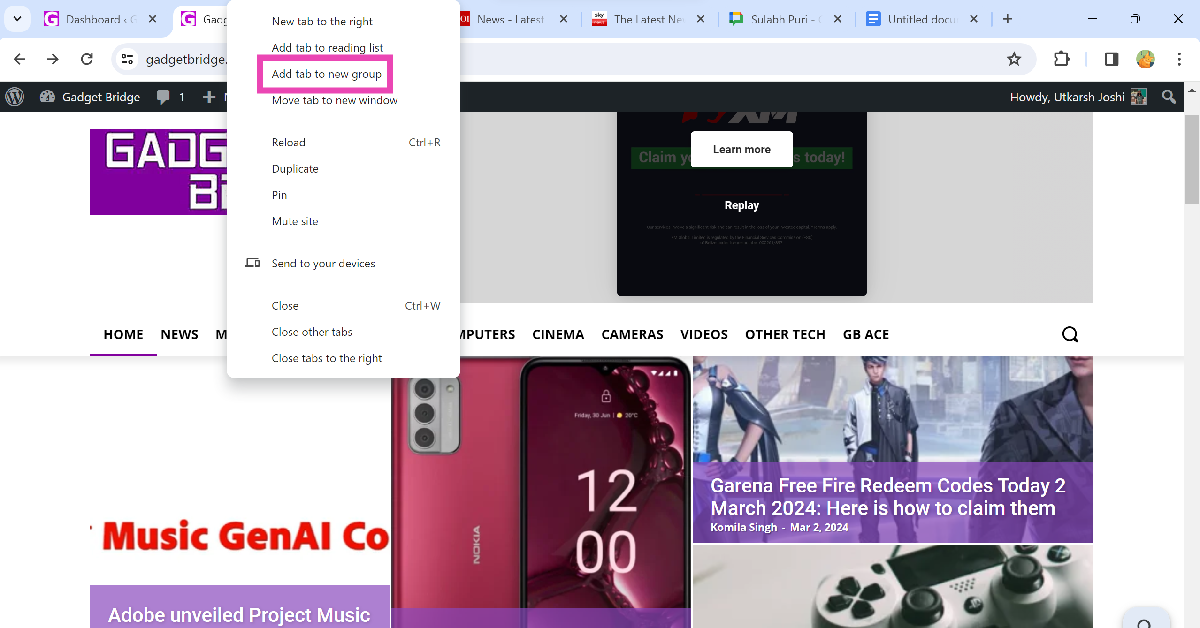
Step 2: Select Add tab to new group.

Step 3: Give the group a name and assign its tabs a colour.
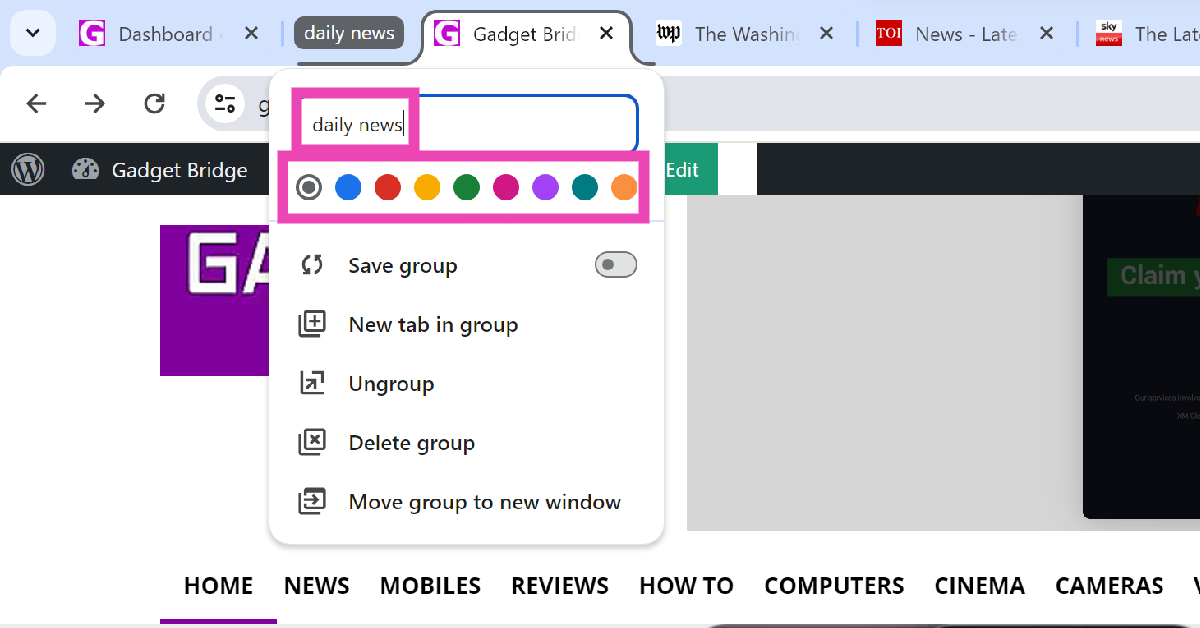
Step 3: Give the group a name and assign its tabs a colour.

Step 4: Turn on the toggle switch for Save group. When you save a tab group, it appears in the bookmarks bar.
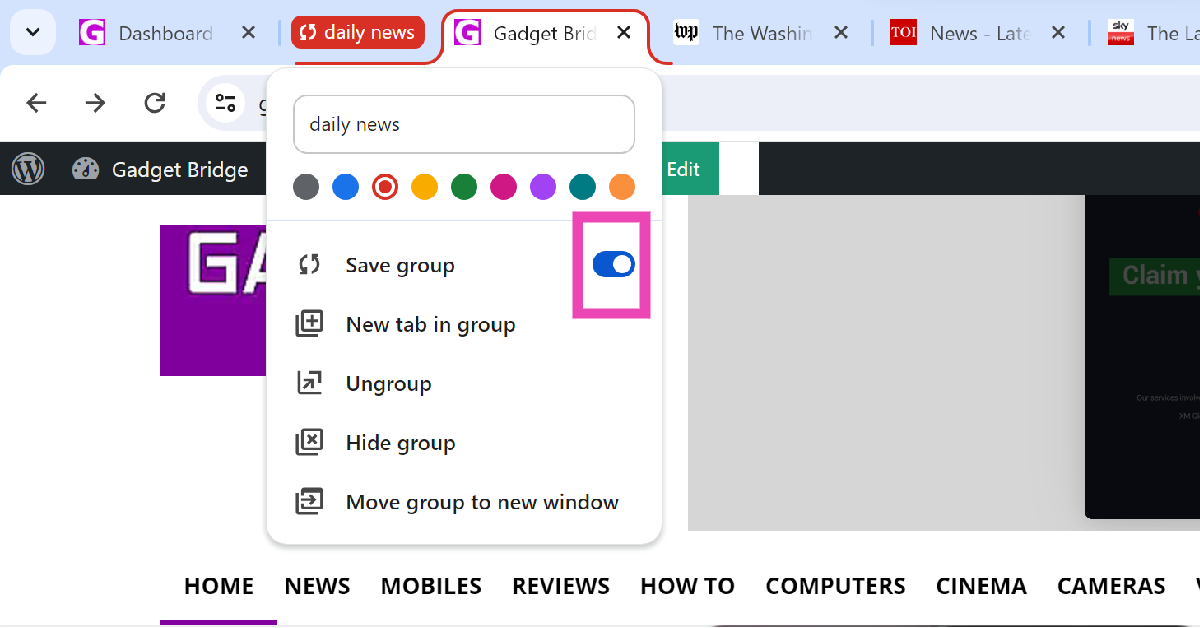
Step 4: Turn on the toggle switch for Save group. When you save a tab group, it appears in the bookmarks bar.

Step 5: Right-click on a tab and go to Add tab to a group>Group name to add it to your selected group.
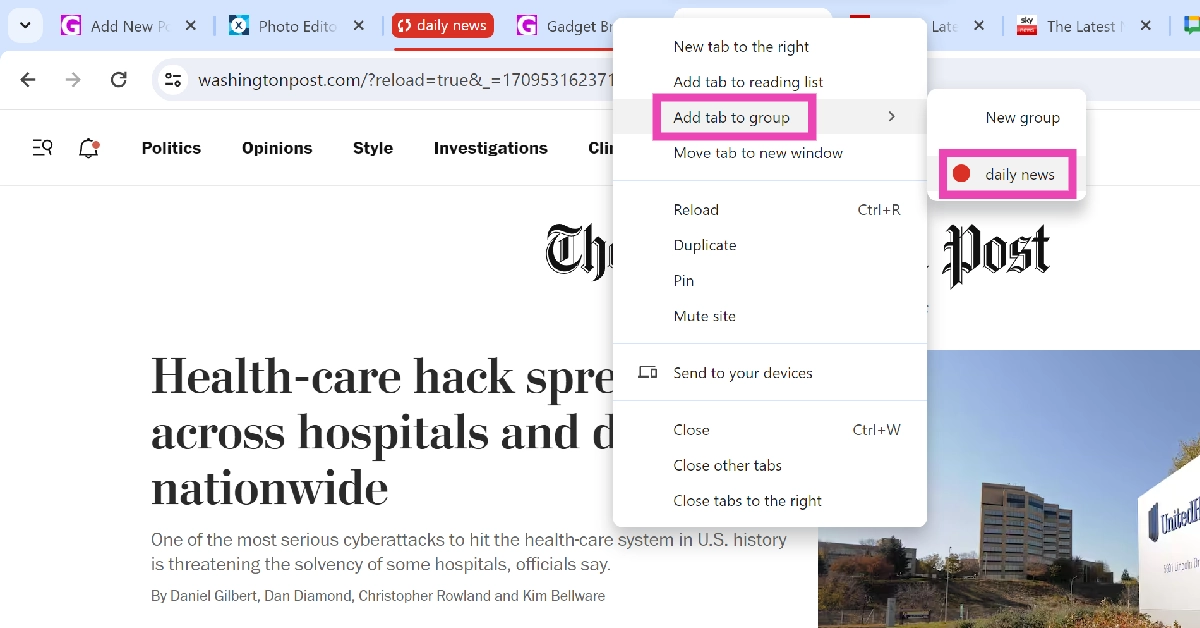
Step 5: Right-click on a tab and go to Add tab to a group>Group name to add it to your selected group.

Step 6: Click on a tab group to collapse its tabs and click on it again to bring them back.

Step 7: To delete the tab group, right-click on it and select Delete group.

Use the tab group tool (PC)

Step 1: Launch Google Chrome on your PC and click the four squares icon in the bookmarks bar.
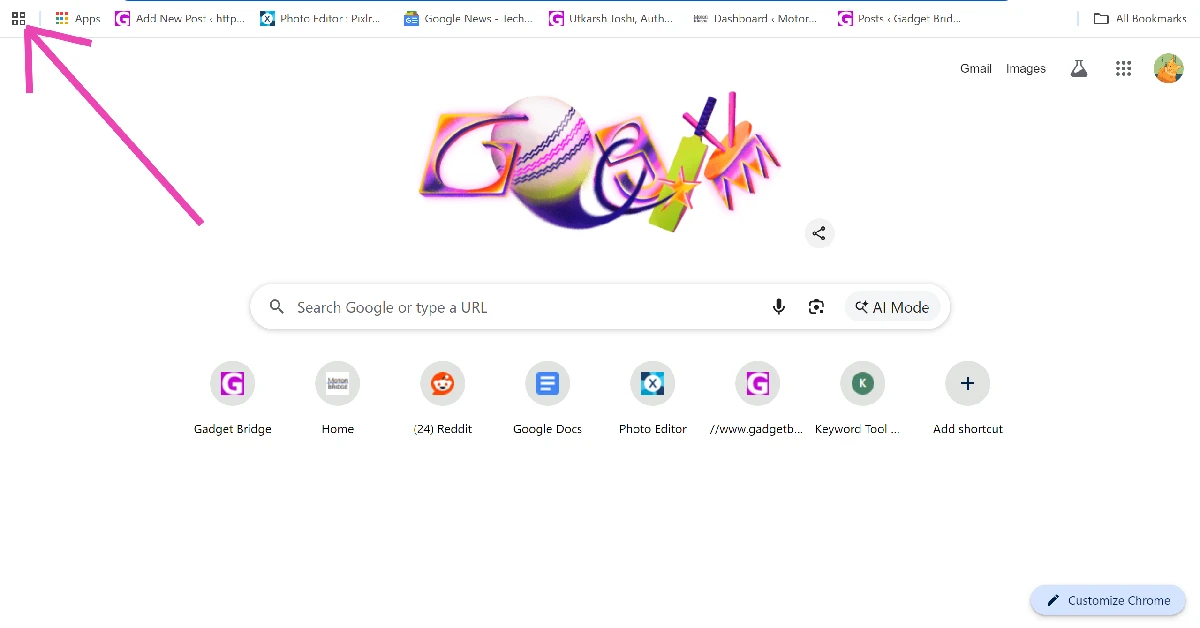
Step 1: Launch Google Chrome on your PC and click the four squares icon in the bookmarks bar.

Step 2: Click on Create new tab group.
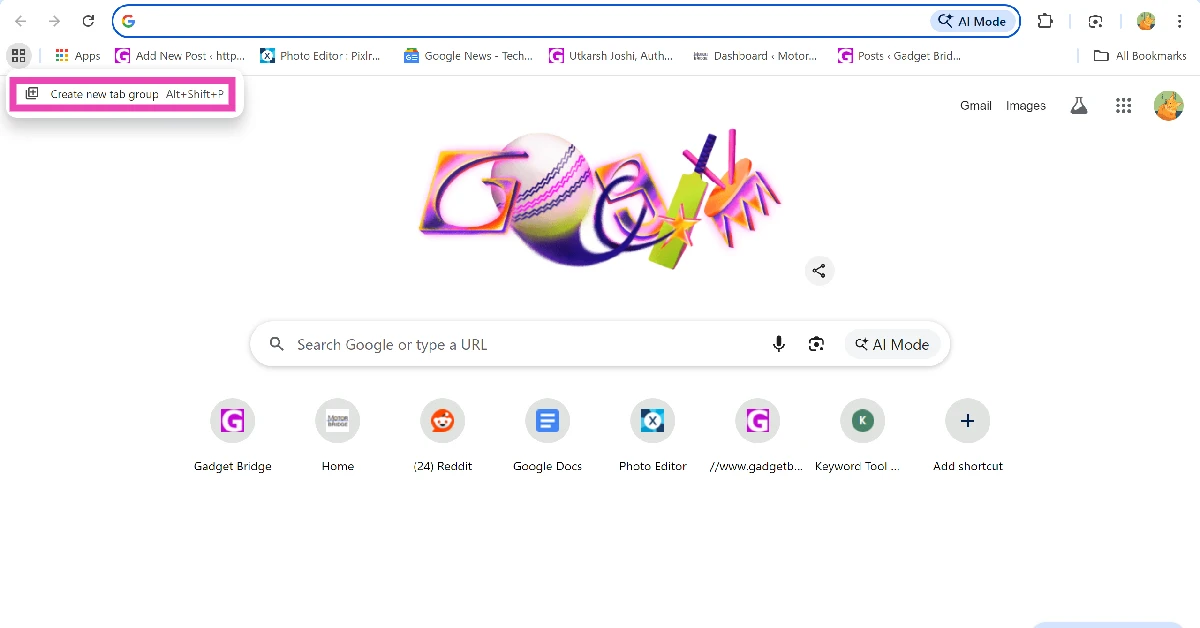
Step 2: Click on Create new tab group.

Step 3: Name the group and assign it a colour.
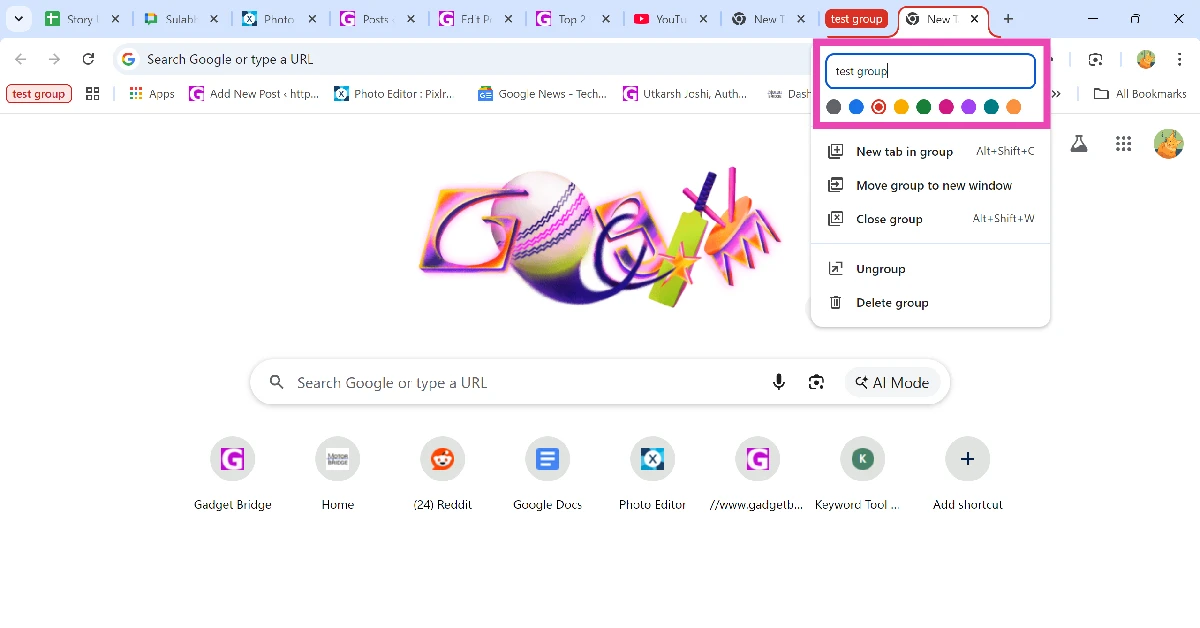
Step 3: Name the group and assign it a colour.

Step 4: Right-click the tab you want to add to the group and go to Add tab to group>[Group name].

Step 4: Right-click the tab you want to add to the group and go to Add tab to group>[Group name].

Create a tab group on Google Chrome (Android)

Step 1: Launch Google Chrome on your Android smartphone.

Step 2: Hit the switch tabs icon.

Step 2: Hit the switch tabs icon.

Step 3: Long-press a tab and move it on top of the tab you want to pair it with. Drop the tab to group them together.
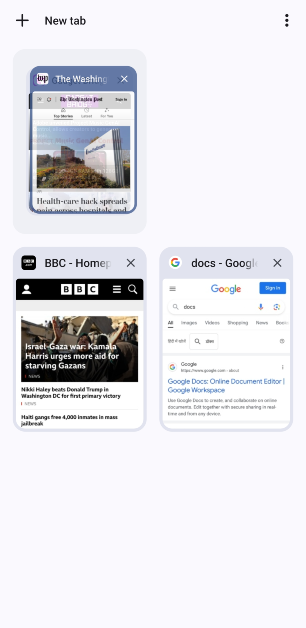
Step 3: Long-press a tab and move it on top of the tab you want to pair it with. Drop the tab to group them together.

Step 4: Once a new group has been formed, you can drop more tabs in it.
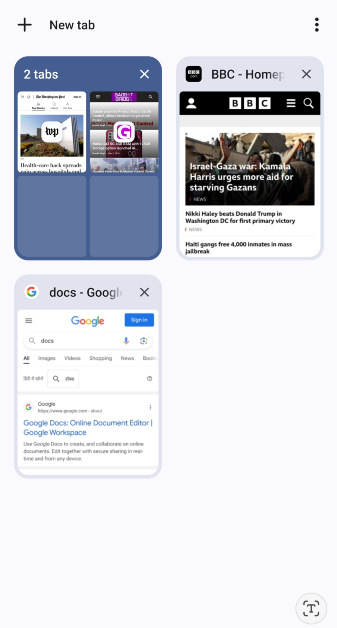
Step 4: Once it has been formed, you can drop more tabs in it.

Frequently Asked Questions (FAQs)

How do I create a tab group on Google Chrome?

Right-click on a tab and select ‘Add tab to a new group’. Give the group a name. Right-click on other tabs and add them to the group.

What is the shortcut for creating a tab group in Google Chrome?

Press Alt + Shift + P on your keyboard to create a new tab group.

How do I add new tabs to a tab group?

Right-click a tab and go to Add tab to group>[Group name] to add it to the group.

What happens when I save a tab group?

Saving a tab group makes it appear in the bookmarks bar. When you log into your Chrome account on another PC, you will be able to access this group.

Can I assign a colour to a tab group on Chrome for Android?

As of right now, you can only colour-code tab groups on Chrome for PC. This feature is not available for Android yet.

Read Also: Nokia G42 5G 4GB RAM with 128GB storage option launched in India

Conclusion

This is how you can create and save a tab group on Google Chrome for PC and Android. If you have any other Chrome-related productivity tips to share with us, let us know in the comments! While you’re here, check out these 2 ways to hide your tabs in Chrome.

Adobe unveiled Project Music GenAI Control, allows creators to generate music from text prompts

Key Highlights

  • Adobe recently announced the launch of Project Music GenAI Control.
  • The new tool allows users to edit, extend, remix and loop a music video.

Adobe unveiled an AI-powered tool that can create music in response to text commands. The AI tool known as Project Music GenAI Control not only generates music from text prompts but also allows fine-grained control to edit that audio for their precise needs.

According to Adobe, Project Music GenAI Control is being developed in collaboration with colleagues at the University of California, San Diego, including Zachary Novack, Julian McAuley, and Taylor Berg-Kirkpatrick, and colleagues at the School of Computer Science, Carnegie Mellon University, including Shih-Lun Wu, Chris Donahue, and Shinji Watanabe.

As of now, Adobe’s Project Music GenAI is in its early state allowing users to edit, shorten, lengthen, remix, and create loops in addition to producing music. Nicholas Bryan, Senior Research Scientist at Adobe Research and one of the creators of the technologies said, “With Project Music GenAI Control, generative AI becomes your co-creator. It helps people craft music for their projects, whether they’re broadcasters, podcasters, or anyone else who needs audio that’s just the right mood, tone, and length.”

As per the company, the new tools in Project Music GenAI begin with a text prompt fed into a generative AI model, a method that Adobe already uses in Firefly.

In order to generate music, a user inputs a text prompt such as “powerful rock,” “happy dance,” or “sad jazz” to generate music using the new Project Music GenAI tools.

Users could modify the tempo, structure, and repeating patterns of a piece of music, choose when to increase and decrease the intensity of the audio, lengthen a clip, re-mix a section, or create a smoothly repeatable loop. With Project Music GenAI Control, users may create exactly the pieces they need to compose intros, outros, and background audio without having to manually chop existing music.

“One of the exciting things about these new tools is that they aren’t just about generating audio—they’re taking it to the level of Photoshop by giving creatives the same kind of deep control to shape, tweak, and edit their audio. It’s a kind of pixel-level control for music,” explains Bryan.

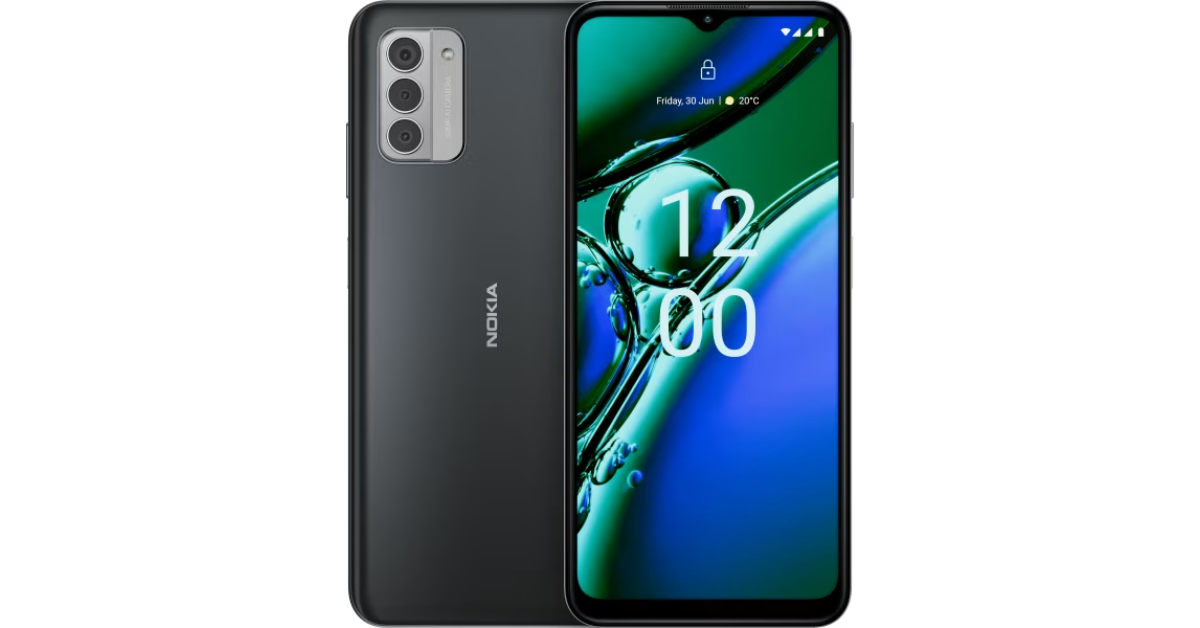
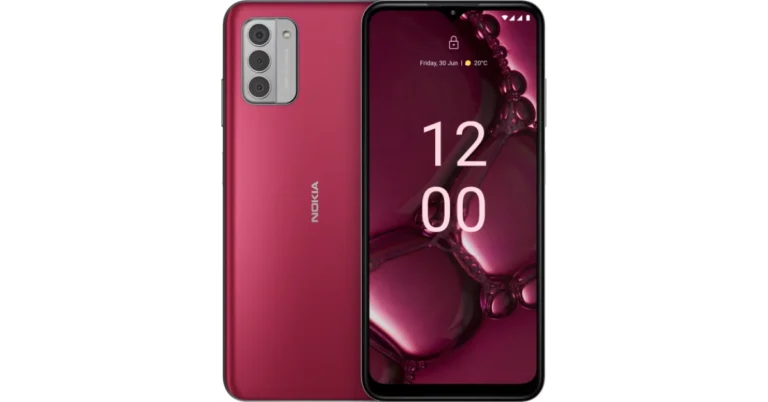
Nokia G42 5G 4GB RAM with 128GB storage option launched in India

Key Highlights

HMD Global launched the Nokia G42 5G in India last year.

The phone has become cheaper as the company is now offering a new RAM and storage option.

Nokia G42 5G is now available in a new configuration. The device was launched in India in September last year. The company then introduced a new RAM and storage option in October and now this is the third time another variant has been introduced for the handset. Qualcomm Snapdragon 480+ SoC powers the phone. The Nokia phone features a 6.56-inch HD+ LCD screen. It has a 50-megapixel triple rear camera setup.

In September 2023, the Nokia G42 5G was introduced with a single RAM and storage option along with two colour variants. The company unveiled a third colourway and an additional RAM and storage option for the phone in October of last year. Nokia G42 5G is now available in a new 4GB RAM with 128GB storage option priced at Rs 9,999. The phone already comes with 6GB RAM with 128GB storage and 8GB RAM with 256GB storage at Rs 12,999 and Rs 16,999 respectively. Three colour variants are available for the phone: So Grey, So Pink, and So Purple. The new storage and RAM model will go on sale on March 8 via Amazon and the company’s official website in the country.

Nokia G42 5G is now available in a new configuration.

Nokia G42 5G specifications

Nokia G42 5G features a 6.56-inch HD+ LCD screen with a resolution of 720 x 1,612 pixels. The display can offer a peak brightness of 560 nits at a refresh rate of 90Hz. Corning Gorilla Glass 3 is also used to protect the front panel.

Also Read: HP announced the Loot Drop Sale, offering special discounts on Gaming laptops and accessories

The Nokia G42 5G runs Android 13 and the company is promising to offer two years of Android OS upgrades and three years of monthly security patches. The phone is powered by an octa-core Snapdragon 480+ SoC, along with up to 8GB of RAM and 256GB of internal storage.

For the photos and videos the device comes with a triple back camera system of the Nokia G42 5G includes a 50-megapixel primary sensor and two 2-megapixel sensors. The front of the device has an 8-megapixel sensor for selfies and video calls.

Also Read: Infinix Smart 8 Plus with Magic Ring feature launched in India

A 5,000mAh battery with 20W wired fast charging capabilities is also included in the Nokia G42 5G. The phone’s construction is IP52-rated for resistance to water and dust. The Nokia G42 5G has Wi-Fi 802.11 a/b/g/n/ac/ax, Bluetooth 5.1, GPS, a USB Type-C port, and 5G connectivity options. It has an e-compass, proximity sensor, ambient light sensor, and accelerometer. Lastly, a side-mounted fingerprint sensor is also present for authentication.

Garena Free Fire Redeem Codes Today 2 March 2024: Here is how to claim them

Garena Free Fire is a battle royale game with regular awards and tournaments to keep players interested. If you play Garena Free Fire, you should be aware of the redeem codes that are released on a daily basis. However, because the battle royale game is banned in India, players from other countries can use the Free Fire Redeem codes daily. If you’re unfamiliar with the Garena Free Fire redeem codes or don’t know how to get them, we’ve put together a step-by-step guide to help you redeem them. Check out Garena Free Fire Redeem Codes for 2 March 2024.

The Free Fire redeem codes are a great way to get free stuff. These are 12-digit codes that contain alphabets and numbers, as well as an expiration date and time. Because the Garena FF redeem codes cannot be used more than once, you should hurry to the redemption page to claim your free reward before someone else does. To get a free reward, all you have to do is go to reward.ff.garena.com/en, which is the official redemption page. Also, keep an eye on this space for daily updates on Garena Free Fire redemption codes and rewards.

Also Read: Sennheiser Accentum Plus wireless headphones with Hybrid Adaptive Noise Cancellation launched

Garena Free Fire Redeem Codes Today 2 March 2024

F5DCV3B4N5JIG8U7

FYTGDSB4E4576JYH

FUHRN31YRHYNM9KI

FY6STWRFG4585AR4

F80JEU5YFH6GBDNE

FJI4U5HYTNFJKC8U

FY4TGBRNF39KIUYD

FTEG4F5BTGKI8UKT

FYOH98U75YTR7FGG

F7YTGE45NTJKIGUJ

FHNSJUA11RQ2FDCV

F3BERNFJUCYTSRAF

FF2BN8VJNCDRK5OT

FI8GUYHGBNKI8U73

How to Get Free Fire Redeem Codes for Garena on 2 March 2024?

  • Visit the Garena Free Fire game’s official website at reward.ff.garena.com.
  • Use your Facebook, Google, VK, Apple ID, Huawei ID, or Twitter account to log in.
  • You’ll be taken to a valid redemption code (s)
  • Copy and paste the 12-digit redemption code into the text box.
  • On the screen, a dialogue box will appear.
  • ‘Ok’ should be selected.

For the latest gadget and tech news, and gadget reviews, follow us on TwitterFacebook and Instagram. For newest tech & gadget videos subscribe to our YouTube Channel. You can also stay up to date using the Gadget Bridge Android App. You can find the latest car and bike news here.

Top 4 Ways to Fix Corrupted Data on PS4 (2024)

0

If you ever see the ‘corrupted data’ error message on your PS4, don’t fret. It is a good thing that the console has recognised the corrupted file, now all you need to do is locate and delete it. The files on your PS4 can get corrupted due to several reasons. The most common one is improper installation. Sometimes, failure to save a file correctly can also corrupt it. So, here are the top 4 ways to fix corrupted data on a PS4.

Read Also: HP announced the Loot Drop Sale, offering special discounts on Gaming laptops and accessories

How do I check for corrupted data on PS4?

Your PS4 may be acting strangely, but how do you know for sure that it is because of a corrupted file? Typically, your PS4 sends you a notification if it encounters a corrupted file. If you try to open the file, you will get an error message box.

If your PS4 did not display any such message, there are other signs you can look out for. One of the most common ones is the PS4 failing to read a disk. Usually, this happens when the disk is not in good condition. But if there’s nothing wrong with a disk, it could mean that corrupted data on your PS4 is keeping it from reading the disk. Other signs you should look out for are increased lag in gameplay, slow navigation speed, and unprompted shutdowns.

Remove the corrupted file

ps4

The corrupted files on your PS4 are isolated in a separate folder. Here is how you can find and delete them.

Step 1: Go to Settings and select System Storage Management.

Step 2: Go to Saved Data and select Media Player.

Step 3: Locate the ‘Corrupted data’ file.

Step 4: Hit Options.

Step 5: Select Delete.

Delete a corrupt file from the Downloads folder

Top 4 Ways to Fix Corrupted Data on PS4 (2024)

If something unprecedented happens while downloading a file, it can get corrupted. Here’s how you can delete those files.

Step 1: Go to Notifications.

Step 2: Hit Options and select Downloads.

Step 3: Locate the corrupted file.

Step 4: Hit Options and select Delete.

Rebuild the PS4 Database

ps4

If you can’t find the corrupted file, you may want to rebuild the database to look out for any bugs, glitches, or signs of corruption.

Step 1: Connect the controller to the PS4 using a USB cable.

Step 2: Press the power button on your PS4 until you hear two beeps.

Step 3: Once the PS4 reboots in Safe Mode, use the controller to select Rebuild Database.

Step 4: Once the rebuild is complete, reboot your PS4 normally to check if the corrupted data has been removed.

Reinstall the OS to fix corrupted data on PS4

If nothing else works, you can try giving this method a shot. However, you should know that reinstalling the OS will clear all user data from the device.

Step 1: Insert a USB drive into your PC. Open it and create a folder called PS4. Within this folder, create another folder called Update.

Step 2: Go to the official Playstation website and download the OS file.

Step 3: Connect the USB drive and your controller to the console.

Step 4: Reboot the PS4 in Safe Mode.

Step 5: Scroll down and select Initialise PS4 (Reinstall System Software).

Frequently Asked Questions (FAQs)

How do I reboot my PS4 in Safe Mode?

Press and hold the power button on your PS4 until you hear two beeps to reboot it in Safe Mode. You need to connect your controller via a USB cable to navigate the safe mode.

How do I rebuild my PS4 database?

Reboot your PS4 in safe mode by pressing and holding the power button until you hear two beeps. Scroll down and select ‘Rebuild Database’.

How do I delete a corrupt downloaded file on my PS4?

Go to Notifications>Options>Downloads, locate the corrupt file, and hit Options>Delete.

Read Also: Infinix Smart 8 Plus with Magic Ring feature launched in India

Conclusion

These are the top 4 ways to fix a PS4 with corrupted data. If an unsuccessful download leads to corruption in the file, you can try again after removing the previous download. If you know any other way to tackle this issue, let us know in the comments!

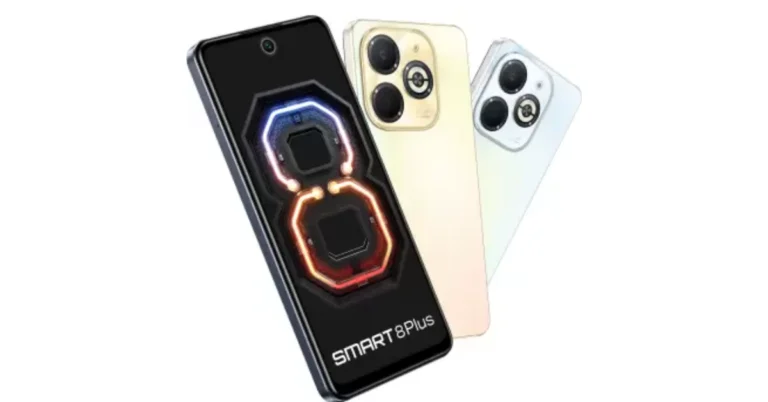
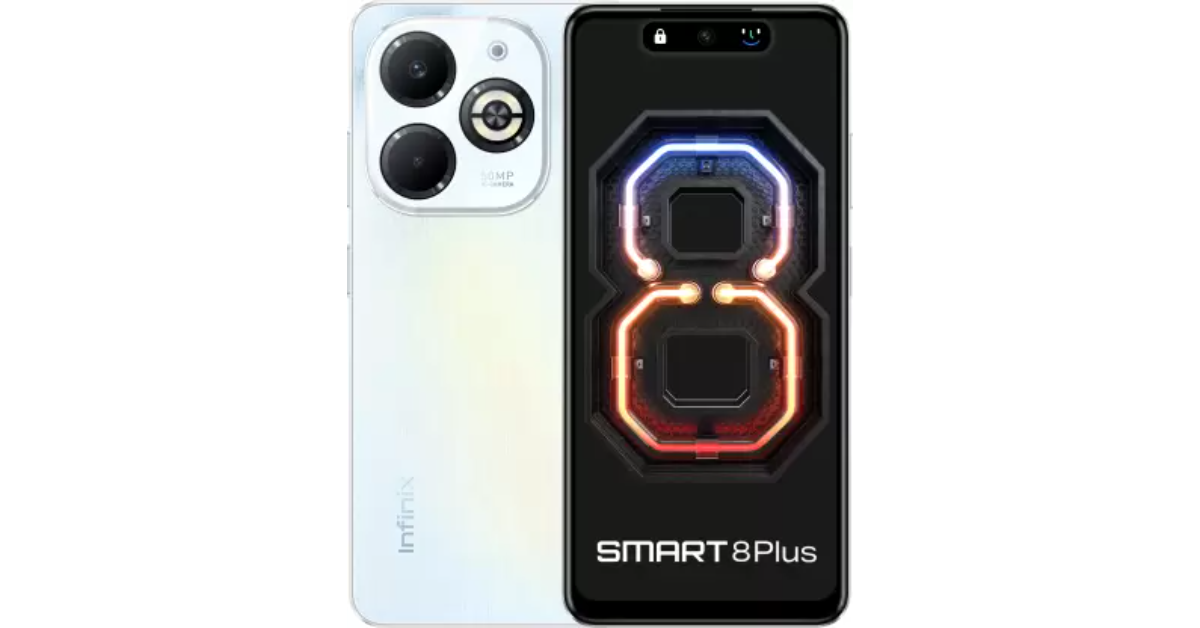
Infinix Smart 8 Plus with Magic Ring feature launched in India

Key Highlights

  • Infinix has launched a brand new smartphone- Infinix Smart 8 Plus in India
  • The smartphone comes with a MediaTek Helio G36 SoC.
  • It features a 90Hz display and a dual rear camera setup.

Infinix Smart 8 Plus officially launched in India today. The smartphone joins the other two siblings Infinix Smart 8 and Infinix Smart 8 HD in the series. The entry-level smartphone is powered by MediaTek Helio G36 processor. It comes with an HD+ display with a Magic Ring feature. The handset features an AI-powered dual rear camera setup that includes a 50-megapixel primary sensor along with an LED Ring Flash. The device is backed by a 6,000mAh battery with 18W wired fast charging support.

Infinix Smart 8 Plus specifications

Infinix Smart 8 Plus features a 6.6-inch HD+ Punch-Hole display with 1,612 x 720 pixels of resolution. The screen supports a refresh rate of 90Hz and a 180Hz touch sampling rate. In addition to this, the panel has 500 nits of peak brightness. The Magic Ring atop the screen adds a touch of magic, displaying essential information like battery percentage, charging status, and in-call time, ensuring you stay connected and informed at all times.

Infinix Smart 8 Plus specifications

The phone runs on XOS 13 skinned on top of Android 13 out of the box. Under the hood, there is a 12nm octa-core MediaTek Helio G36 SoC paired with 4GB of LPDDR4x RAM and 128GB of storage. Up to 4GB of additional RAM can be added virtually, and up to 2TB of external storage can be added via a microSD card.

Also Read: Here is a list of Xiaomi devices that will soon receive the HyperOS upgrade in India

A 50-megapixel primary sensor, an unidentified AI-backed sensor, and a quad-LED Ring Flash unit make up the dual rear camera configuration for photography and videography. There is an 8-megapixel front-facing camera with LED flash for taking selfies and video calling.

The Infinix Smart 8 Plus sports a 6,000mAh battery that supports 18WHP announced the Loot Drop Sale, offering special discounts on Gaming laptops and accessories wired fast charging. It has a side-mounted fingerprint sensor for authentication and USB Type-C, GPS, Wi-Fi, Bluetooth 5.0, 4G VoLTE, and GLONASS for connectivity.

Also Read:

Infinix Smart 8 Plus price in India, sale details

Infinix Smart 8 Plus price in India is set at Rs 7,999 for the 4GB RAM with 128GB storage. With bank incentives, the phone may be purchased for an effective price of Rs 6,999. Flipkart will begin selling it in the nation on March 9. It will be available in Timber Black, Shiny Gold, and Galaxy White colour options.

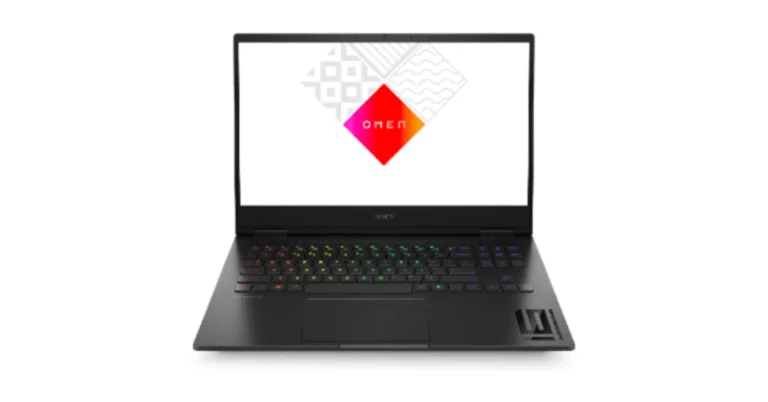
HP announced the Loot Drop Sale, offering special discounts on Gaming laptops and accessories

Key Highlights

  • Soon HP will kick off the Loot Drop Sale on its website and other e-commerce platforms.
  • The sale will begin on March 3 and will end on March 15.
  • The buyers can get up to 15% off on the latest Omen 16 laptops.
  • Also, there will be up to 61% off on gaming accessories and more.

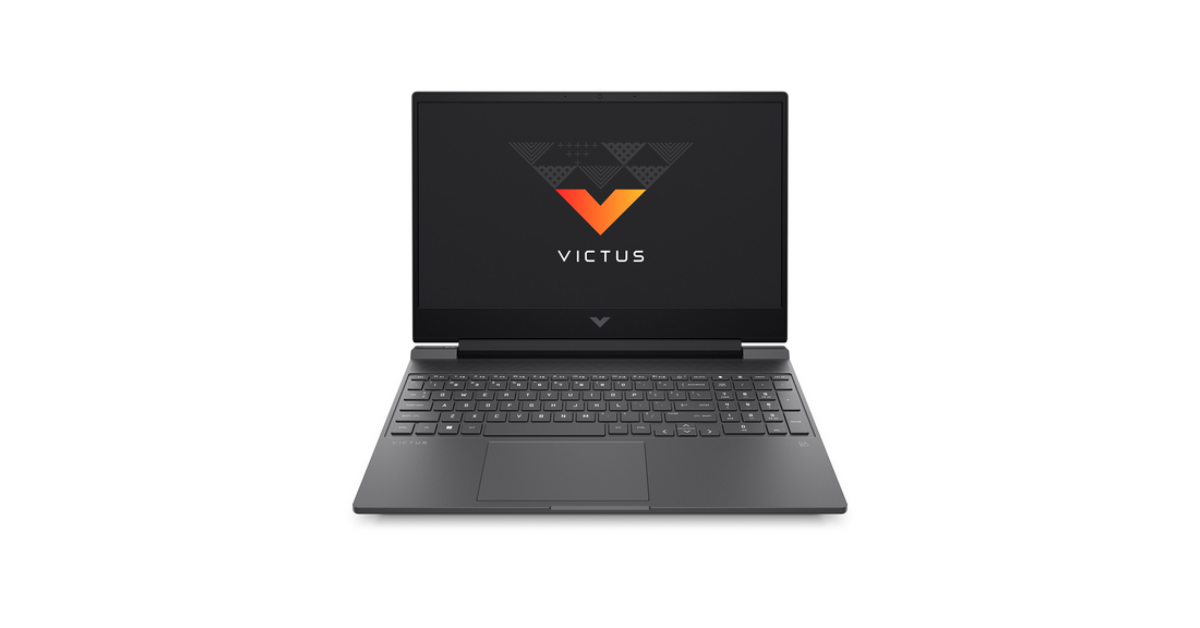
As part of its yearly “Loot Drop Sale,” HP has officially announced discount offers on its latest lineup of gaming laptops and accessories. The laptops Omen and Victus, as well as HyperX gaming accessories including headphones, microphones, keyboards, and mouse pad, will all be discounted.

The HP Loot Drop Sale will begin on March 3 and ends on March 15. These special discounts are available at all HP World Stores, HP Online Store, and Amazon. The “Loot Drop Sale” ensures that players have access to the greatest equipment for their gaming experience by offering a variety of thrilling deals and discounts.

HP will be offering 15% off on the latest Omen 16 laptops during the Loot Drop Sale. The Omen 16 laptop with Intel 14 Gen processor worth Rs 1,75,930 can be purchased at Rs 1,49,999 during the sale. On the other hand, the Omen 16 laptop with 13 13-generation process will be available at Rs 1,12,999 down from its original cost of Rs 1,32,645. In addition to this buyers will receive up to Rs. 10,000 in cashback from leading banks when they buy Omen 16. The customers can also take advantage of the HyperX bundle offer, which includes a mouse, mouse pad, and headset valued at Rs. 14,001, for just Rs. 2,999.
With the purchase of Omen 16, receive a HyperX Clutch game controller valued at Rs. 4,277 for just Rs. 999.

Also Read: Oppo F25 Pro 5G with 5,000mAh battery and 67W SuperVOOC charging support launched in India

When buying Omen 16 laptops, you can get a HyperX Solocast USB Microphone worth Rs. 7,527 for just Rs. 1,999. Additionally, you can get Adobe Creative Cloud, worth Rs. 20,100, for just Rs. 2,999. Upgrade to the latest Omen laptop and receive benefits up to Rs. 10,000 by exchanging any older HP laptop through HP Switch.

HP announced the Loot Drop Sale, offering special discounts on Gaming laptops and accessories

There will be up to 25% off on Victus 15 laptops. Purchase the newest Victus 15 laptop for just Rs 72,999, down from Rs 93,923. When you buy a Victus 15, you can receive up to Rs. 3,500 in cashback from popular banks. Additionally, you can purchase a HyperX bundle worth Rs. 14,001, which includes a mouse, mouse pad, and headset, for just Rs. 1,999. Finally, you can purchase a HyperX Clutch game controller for just Rs. 1,999 when you buy a Victus 15.

There will be benefits up to Rs. 10,000 by exchanging any previous HP laptop through HP Switch for the newest Victus 15 laptop.

HP announced the Loot Drop Sale, offering special discounts on Gaming laptops and accessories

HP will also offer up to 61% off on console and PC headsets, keyboards, mouse, microphones & mouse pads. For console gaming, the HyperX Cloud Earbuds II Red/Black, originally priced at Rs. 5,187, are currently on sale for Rs. 2,790. Priced at Rs. 11,427, the HyperX Cloud Stinger 2 wireless headset for PC gaming is currently available for Rs. 5,590.

Also Read: Here is a list of Xiaomi devices that will soon receive the HyperOS upgrade in India

The previously priced HyperX Solocast for streaming, which was Rs. 7,527, is now only Rs. 3,990. Now available for Rs. 5,490, the HyperX Alloy MKW100 Red keyboard was previously priced at Rs. 10,297.

Priced at Rs. 5,057, the HyperX Pulsefire Haste Black-Red gaming mouse is currently available for Rs. 2,490.

The HyperX Pulsefire Mat mouse pad cloth (L), which was previously priced at Rs. 2,197, is being offered for Rs. 990.

Top 4 Ways to Burn an ISO File to a USB Drive

0

If you want to create a bootable USB drive, you need to burn an ISO file to it. You may be wondering if you can simply copy the ISO file and paste it to the USB drive as you do with other kinds of data. The answer is no. While you may be successful in copying the ISO file, it won’t make the drive bootable. You will need to burn the file to the storage device in order to do so. So, here are the top 4 ways to burn an ISO file to a USB drive.

Read Also: How to Disable the new ‘Calling’ feature on X (Twitter)? Top 2 Ways

Before you begin

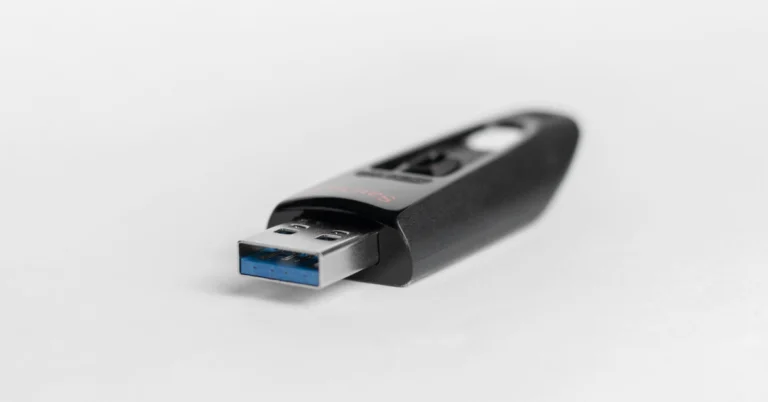
If you have an extra pen drive lying around, burning it with an ISO file is not a bad idea. However, you should know that doing so will get rid of any data stored on it. Back up the data currently on the drive before you begin any other process. For good measure, format the USB drive to the FAT32 file system. You can learn how to do that in this article.

To burn an ISO file to the pen drive, you will need a third-party tool. Rufus is one of the best tools around, although you can use other tools like EaseUS and iSumsoft ShapeISO as well. If you’re on a Windows 10 PC you can also use the Windows ToGo tool. This tool is not available on Windows 11. You can also use Windows Media Creation tool, but it may be too complicated for beginners.

Burn an ISO file to a USB Drive using Windows ToGo

how to download windows 10 iso legally for free

Step 1: Plug in the USB drive.

Step 2: Go to the Control Panel and select Windows ToGo.

Step 3: Select your USB drive from the list.

Step 4: Click on Add search location.

Step 5: Select the ISO file you want to burn to the USB drive.

Step 6: You can choose a password for the file.

Step 7: Hit Next.

Windows ToGo will burn the ISO file to your USB drive.

Use Rufus

Use Rufus

Step 1: Plug the USB drive into your PC.

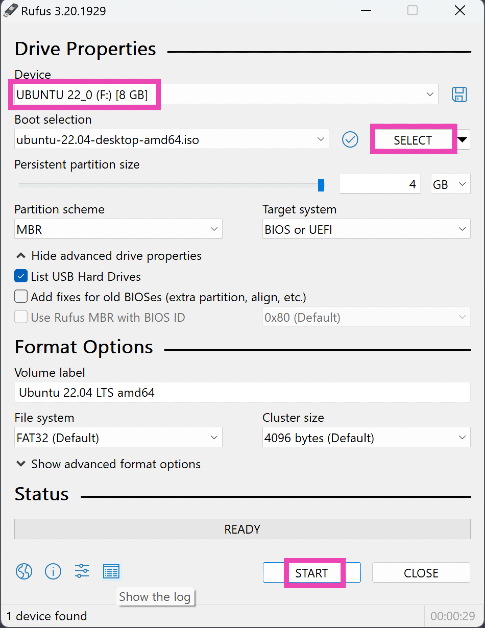
Step 2: Launch the Rufus tool. Select your USB drive in the Device category.

Step 3: Click the dropdown menu under Boot selection and select Disk or ISO image.

Step 4: Hit Select and choose your ISO file.

Step 5: Click on Start.

Rufus will burn the ISO file to your USB drive.

Burn an ISO file to a USB Drive on a Mac

Create a password-protected zip file or folder on Mac using Terminal

Step 1: Plug the USB drive into the Mac.

Step 2: Open the Applications folder on the dock.

Step 3: Go to Utilities>Terminal.

Step 4: Enter the following command to list the names of all the drives:

diskutil list

Step 5: Identify the name of the USB drive. It should be called something like /dev/disk0, /dev/disk1, /dev/disk2, etc.

Step 6: Use the following command to unmount it:

diskutil unmountDisk /dev/disk2

Step 7: Use the following command to burn the ISO file to the USB drive:

sudo dd if=/path/to/win-iso-file of=/dev/disk2 bs=1m

Step 8: Once the ISO file has been burned to the USB drive, use this command to eject it:

diskutil eject /dev/disk2

Burn an ISO file to a USB drive on Linux

Burn an ISO file to a USB drive on Linux

Step 1: Launch the UNetbootin app.

Step 2: Check the circle for Diskimage.

Step 3: Hit the ellipses in the bottom-right section.

Step 4: Locate the ISO file and hit Open.

Step 5: In the Type section, choose USB drive.

Step 6: In the Drive section, select your USB drive.

Step 7: Hit OK.

Frequently Asked Questions (FAQs)

Is the Windows ToGo tool available on Windows 11?

Microsoft discontinued the Windows ToGo tool on Windows 11. You can find it on some editions of Windows 10.

Which tool should I use to burn a bootable ISO file to a USB drive?

For Windows, use the Rufus tool to burn a bootable ISO file to a USB. You can also use tools like EaseUS and iSumsoft ShapeISO for this task.

What is an ISO file?

An ISO file or ISO image is a file that consists of an image or copy of the contents or data of an external disk. You can burn an ISO file on any disk.

Read Also: Top 8 Routers under $200 in the USA (2024)

Conclusion

These are the top 4 ways to burn an ISO file on a USB. Make sure you back up the data in the pen drive before trying to make it bootable. If you know any other way to carry out this task, let us know in the comments!

How to Disable the new ‘Calling’ feature on X (Twitter)? Top 2 Ways

1

In a bid to make its messenger more comprehensive, X has introduced the new ‘calling’ feature for non-premium users. This feature has been available for premium subscribers for several months. If you already use IM apps like WhatsApp, Telegram, and Facebook Messenger for audio and video calling, there is nothing X has to offer that may sway you its way. Instead, you may not want strangers to contact you on X/Twitter in the first place. If you don’t want anything to do with the ‘calling’ feature on X/Twitter, here are the 2 ways to disable it on Android and iOS.

Read Also: Top 8 Routers under $200 in the USA (2024)

X/Twitter calls are enabled on your device by default

X has been testing its calling feature for several months now. Initially introduced to premium users on iOS, the feature was tested for several weeks before being launched on the Android platform earlier this year. Now, it is being rolled out for regular, non-premium users as well. X/Twitter calls are only available on mobile devices, where they are also turned on by default. If you found this out the hard way, read along to learn how you can disable them.

You can limit who gets to contact you via an audio or video call on X. Letting anyone call you on X would be a naive choice, given how the platform has a tendency to attract a large volume of trolls. You can choose to limit your call interactions with people you follow, your phone contacts, or verified users. If you want nothing to do with this feature, you can also choose to deny X access to your phone contacts, microphone, and dialer.

Disable Calling on X (Android)

Step 1: Launch the X (Twitter) app on your Android phone.

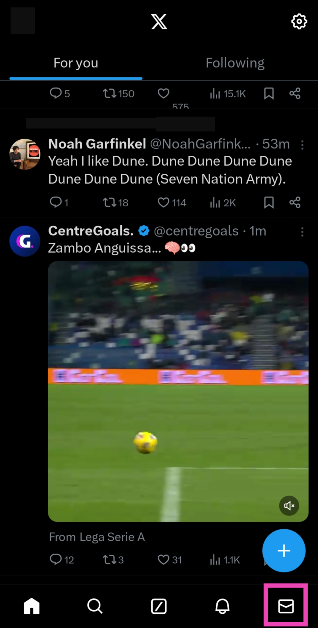
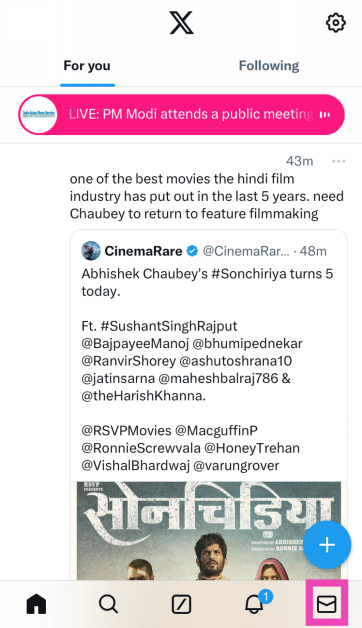
Step 2: Hit the messages icon at the bottom right corner of the screen.

Step 2: Hit the messages icon at the bottom right corner of the screen.

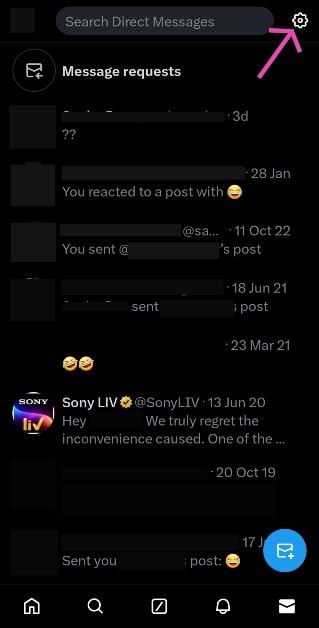
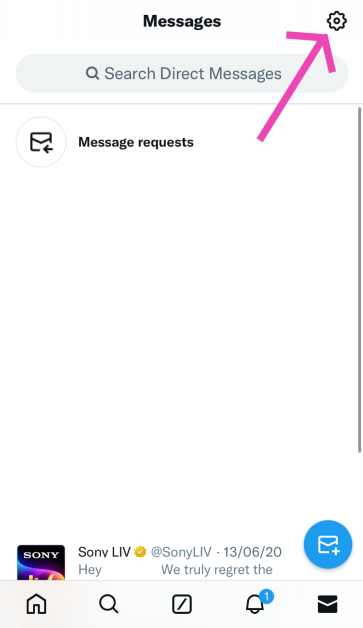
Step 3: Hit the settings icon at the top right corner of the screen.

Step 3: Hit the settings icon at the top right corner of the screen.

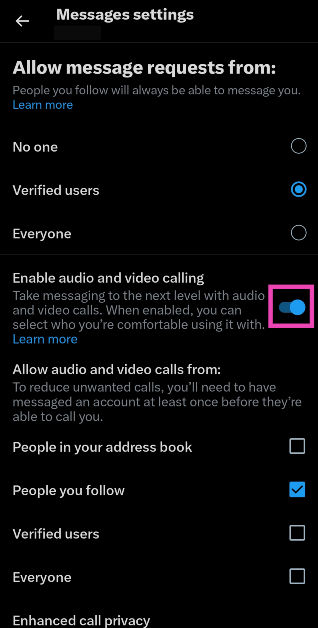
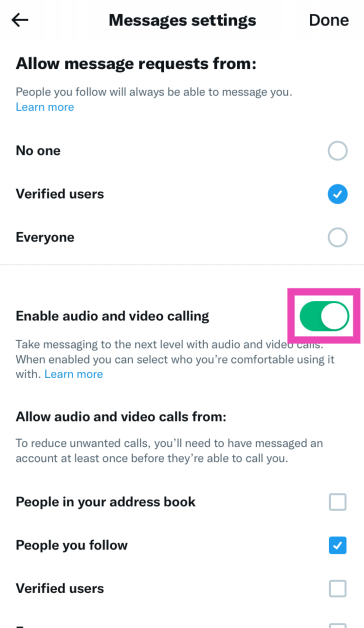
Step 4: Turn off the toggle switch for Enable audio and video calling.

Step 4: Turn off the toggle switch for Enable audio and video calling.

Disable Calling on X (iOS)

Step 1: Launch the X (Twitter) app on your iPhone.

Step 2: Tap the messages icon at the bottom right corner of the screen to access your inbox.

Step 2: Tap the messages icon at the bottom right corner of the screen to access your inbox.

Step 3: Hit the cog wheel icon at the top right corner of the screen to access settings.

Step 3: Hit the cog wheel icon at the top right corner of the screen to access settings. How to Disable the new ‘Calling’ feature on X (Twitter)? Top 2 Ways

Step 4: Turn off the toggle switch for Enable audio and video calling.

Step 4: Turn off the toggle switch for Enable audio and video calling. How to Disable the new ‘Calling’ feature on X (Twitter)? Top 2 Ways

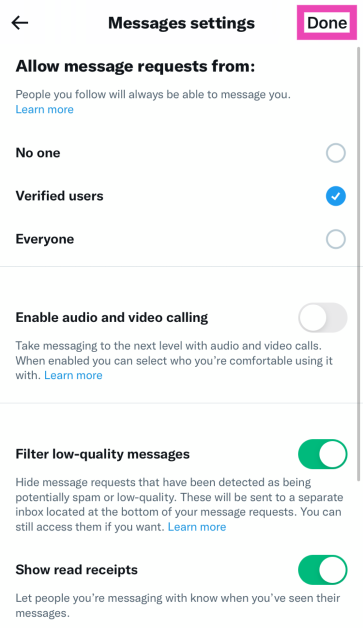
Step 5: Hit Done at the top right corner of the screen.

Step 5: Hit Done at the top right corner of the screen. How to Disable the new ‘Calling’ feature on X (Twitter)? Top 2 Ways

Frequently Asked Questions (FAQs)

How do I turn off or disable the calling feature on X/Twitter?

Go to Messages>Settings and turn off the toggle switch for Enable audio and video calling.

Who can call me on X/Twitter?

You can choose to allow anyone on X/Twitter to call you on the platform or limit it to people you follow, people in your address book (phone contacts), or verified users.

Can non-premium subscribers make calls on X?

X/Twitter has now started rolling out the calling feature for non-premium subscribers as well. You don’t need to subscribe to a premium plan to make a call on the platform.

Read Also: Viewsonic PX749-4K projector designed for Xbox launched in India

Conclusion

This is how you can turn off or disable the calling feature on X/Twitter. If you want to go the extra mile, you can take away microphone, contacts, and phone permissions from X/Twitter using app settings on your phone. What do you think of this new feature on X? Let us know in the comments!

Garena Free Fire Redeem Codes Today 1 March 2024: Here is how to claim them

Garena Free Fire is a battle royale game with regular awards and tournaments to keep players interested. If you play Garena Free Fire, you should be aware of the redeem codes that are released on a daily basis. However, because the battle royale game is banned in India, players from other countries can use the Free Fire Redeem codes daily. If you’re unfamiliar with the Garena Free Fire redeem codes or don’t know how to get them, we’ve put together a step-by-step guide to help you redeem them. Check out Garena Free Fire Redeem Codes for 1 March 2024.

The Free Fire redeem codes are a great way to get free stuff. These are 12-digit codes that contain alphabets and numbers, as well as an expiration date and time. Because the Garena FF redeem codes cannot be used more than once, you should hurry to the redemption page to claim your free reward before someone else does. To get a free reward, all you have to do is go to reward.ff.garena.com/en, which is the official redemption page. Also, keep an eye on this space for daily updates on Garena Free Fire redemption codes and rewards.

Also Read: Sennheiser Accentum Plus wireless headphones with Hybrid Adaptive Noise Cancellation launched

Garena Free Fire Redeem Codes Today 1 March 2024

F3BERNFJUCYTSRAF

F5DCV3B4N5JIG8U7

FYTGDSB4E4576JYH

FUHRN31YRHYNM9KI

F80JEURYFH6GBDNE

FJI4U5HYTNFJKC8U

F7YTGE45NTJKIGUJ

FY4TGBRNF39KIUYD

FTEG4F5BTGKI8UKT

FYOH98U75YTR7FGG

FHNSJUA11RQ2FDCV

FY6STWRFG4585AR4

FF2BN8VJNCDRK5OT

FI8GUYHGBNKI8U73

How to Get Free Fire Redeem Codes for Garena on 1 March 2024?

  • Visit the Garena Free Fire game’s official website at reward.ff.garena.com.
  • Use your Facebook, Google, VK, Apple ID, Huawei ID, or Twitter account to log in.
  • You’ll be taken to a valid redemption code (s)
  • Copy and paste the 12-digit redemption code into the text box.
  • On the screen, a dialogue box will appear.
  • ‘Ok’ should be selected.

For the latest gadget and tech news, and gadget reviews, follow us on TwitterFacebook and Instagram. For newest tech & gadget videos subscribe to our YouTube Channel. You can also stay up to date using the Gadget Bridge Android App. You can find the latest car and bike news here.

Top 8 Routers under $200 in the USA (2024)

An ordinary entry-level router is not enough to cover a large house with WiFi connectivity. What you’re looking for is a mesh router or any other premium router that has a greater functional range. If you enjoy online gaming or live streaming, investing in a powerful WiFi router is one of the best things you can do. Today, we bring you our picks for the top 8 routers priced under $200 in the USA.

Read Also: Here is a list of Xiaomi devices that will soon receive the HyperOS upgrade in India

TP-Link Deco X20 (3 Pack)

Price: $159.99 on Amazon

TP-Link Deco X20 (3 Pack)

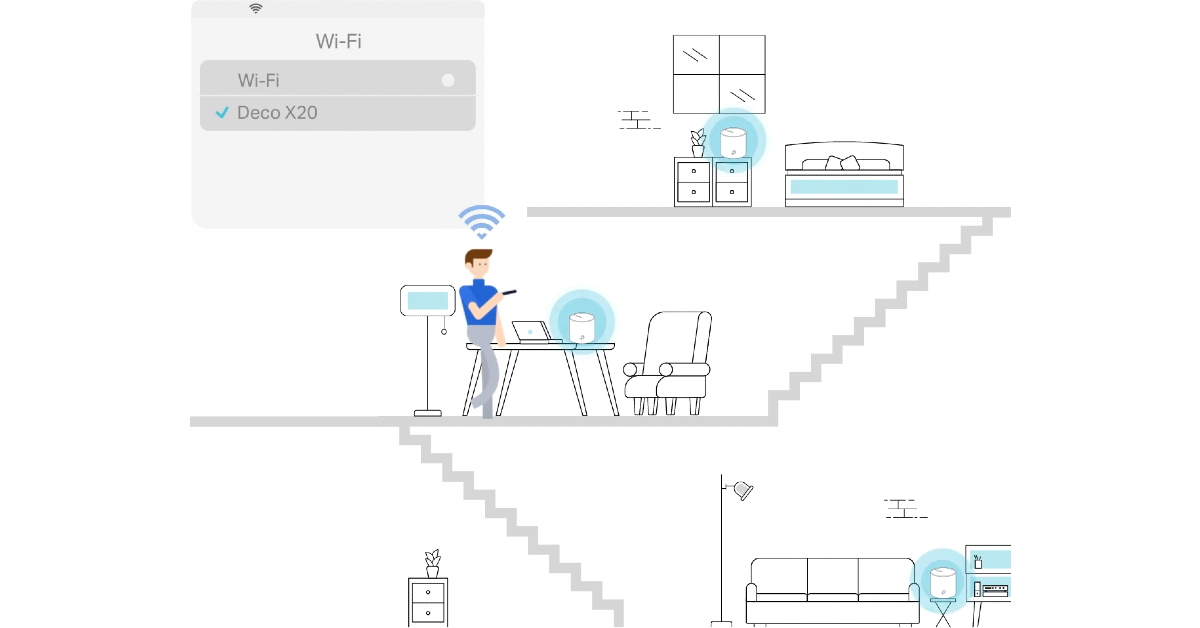
The 3-pack TP-Link Deco X20 mesh router system is powered by WiFi 6 and covers up to 5,800 sqft with its signal range. The Deco X20 V3 supports speeds of up to 1,200 Mbps on a 5GHz band and 574 Mbps on a 2.4GHz band. The three router units can be placed in different parts of your house, which would ordinarily be outside the reach of a traditional router. They offer seamless connectivity as you walk around the house, without needing to reconnect every time you wander into the range of a different router unit. 

Netgear Nighthawk RAX54S

Price: $209 on Amazon

Netgear Nighthawk RAX54S

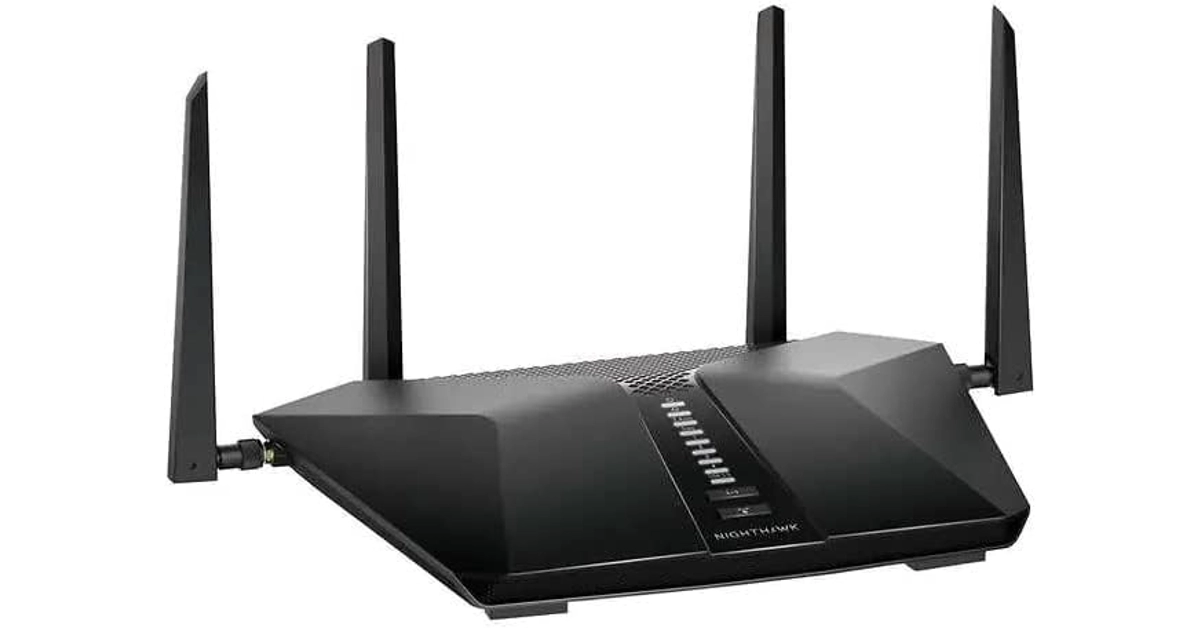
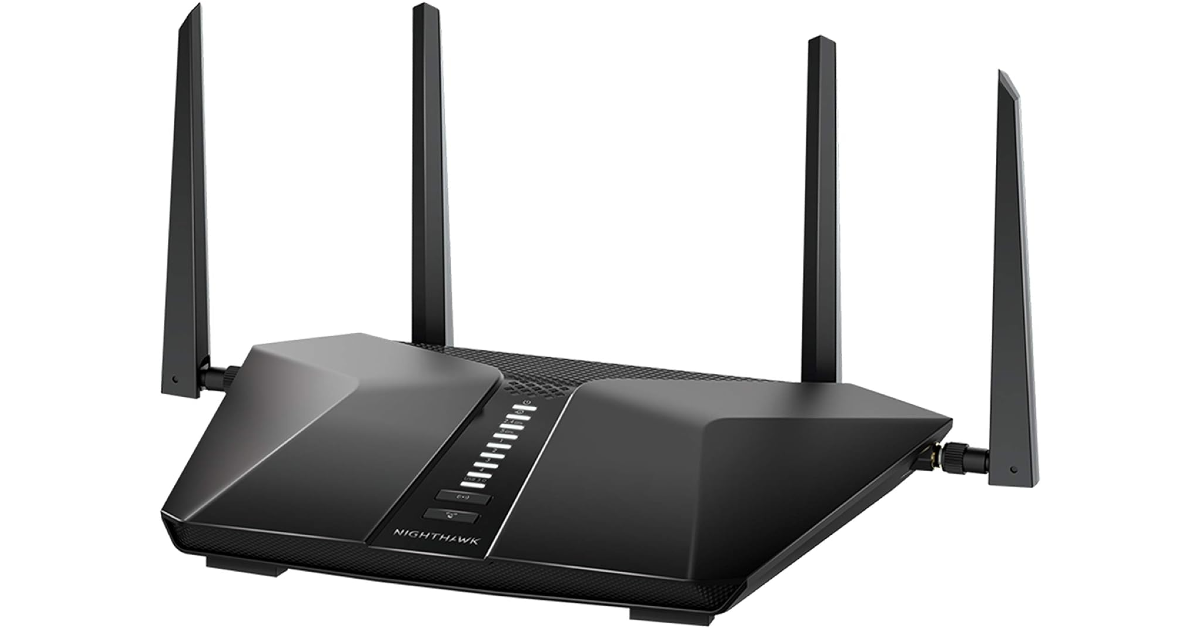
The Netgear Nighthawk RAX54S router costs just over $200 on Amazon, but it is often available at discounted prices. This router is powered by a triple-core 1.5GHz processor and supports WiFi6. Offering 6-speed connectivity, the Netgear Nighthawk RAX54S provides speeds of up to 574 Mbps + 4,800 Mbps. The router also has 5 Gigabit ports that let you connect other wired devices for smooth file transfer. It can connect with over 20 devices at once and has a functional range that’s enough to cover big homes.

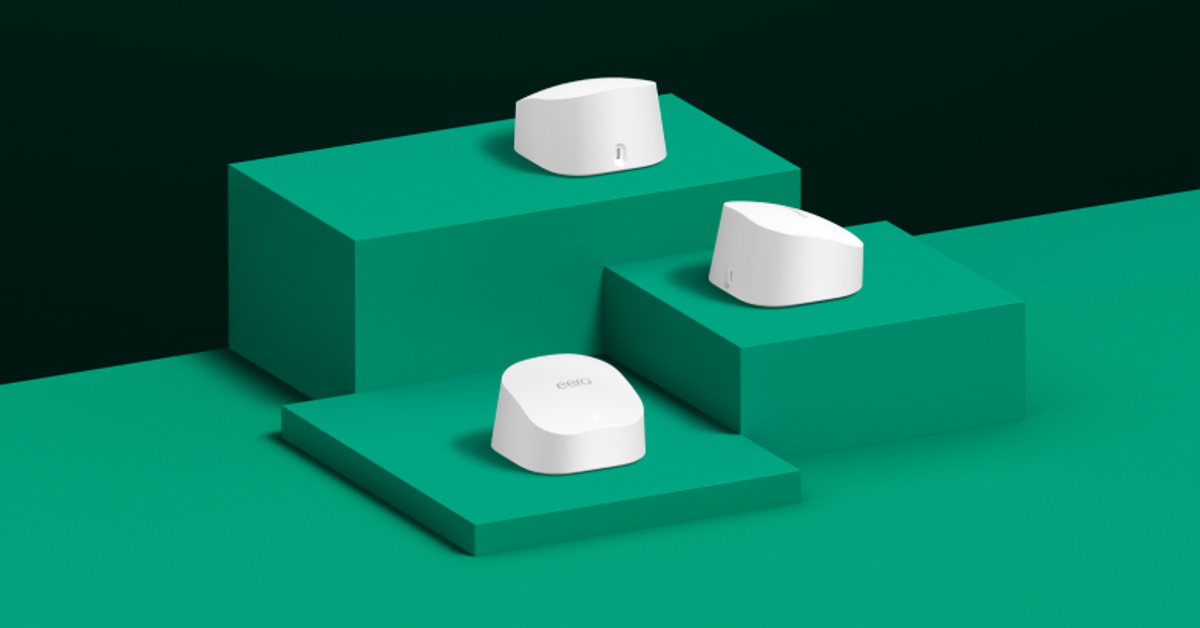
Eero 6 (3 Pack)

Price: $199.99 on Eero.com

Eero 6 (3 Pack)

The 3-pack Eero 6 mesh WiFi router consists of 1 router and 2 extender units. It has a functional range of 4,500 sqft and can connect more than 75 devices. With WiFi6 support, the Eero 6 offers speeds of up to 500 Mbps. Its built-in ‘Zigbee’ smart home hub connects your smart home devices with Alexa. The mesh WiFi tech and vast functional range ensure that there are no dead spots in your house. If you don’t want to buy the mesh network, a single unit of the Eero 6 costs $89.99.

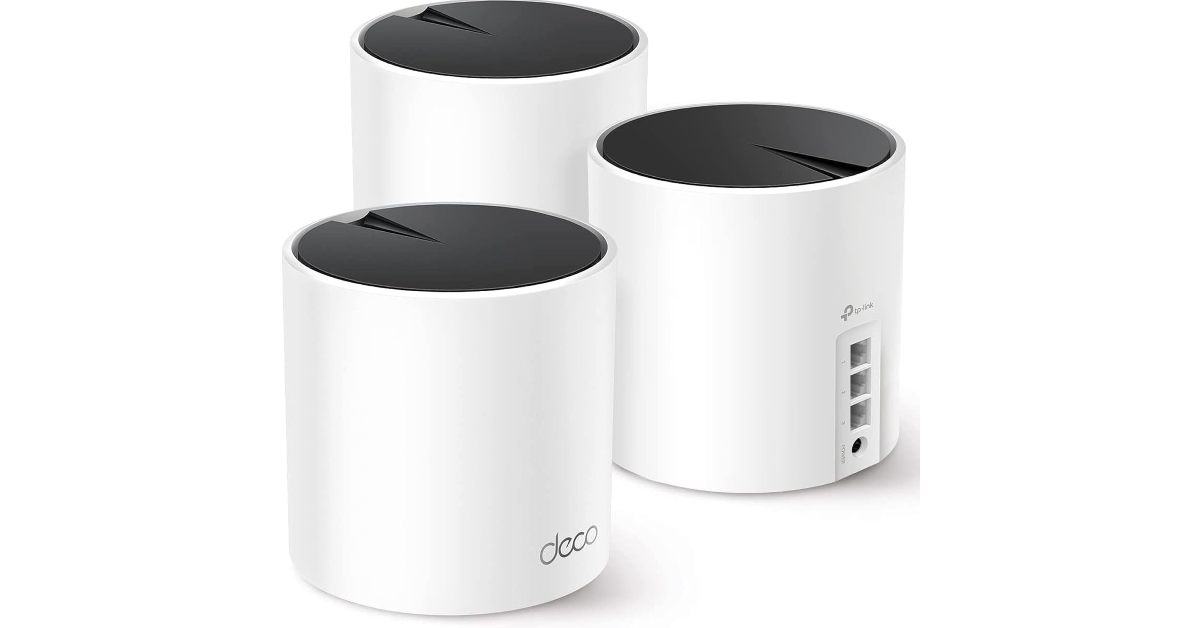
TP-Link Deco X55

Price: $169.99 on Amazon

TP-Link Deco X55

The 3-pack TP-Link Deco X55 has a functional range of up to 6,500 sqft. The AI-driven mesh ensures that the WiFi connectivity on your device is uninterrupted no matter where you go within your house. All three units work together to form one network, which means the transition as you leave the range of one unit is seamless. WiFi6 connectivity allows Deco X55 speeds of up to 3.0 Gbps. There are 3 Gigabit ports on the device for enhanced connectivity. To make things more accessible, the router can also be controlled via Alexa.

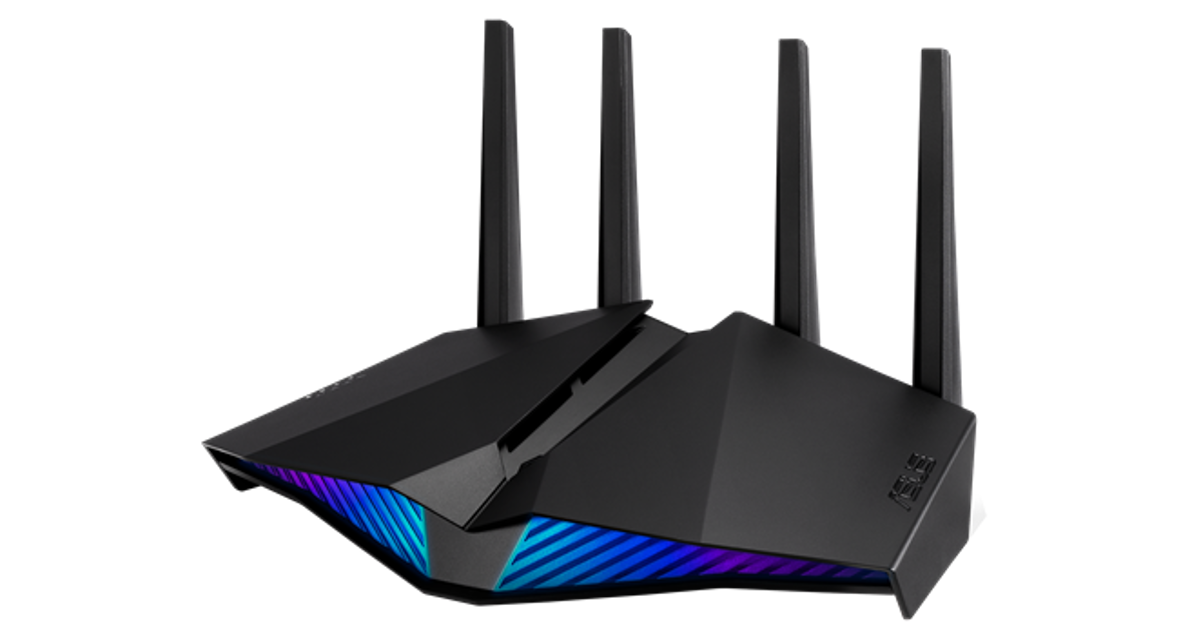
ASUS RT-AX82U (AX5400)

Price: $176.99 on Amazon

ASUS RT-AX82U (AX5400)

The RT-AX82U dual band WiFi6 gaming router by Asus provides speeds of up to 5,400 Mbps. The router’s companion app has a helpful Mobile Game Mode which reduces the latency and lag by a considerable factor. Since it is a gaming router, the RT-AX82U features a cutting-edge design along with flashy RGB lighting. The RGB lighting can be customised from the router’s companion app. The dedicated gaming port on the router prioritises the wired device connected to it. You can plug in your gaming PC and enjoy ultra-fast speeds using this port.

Wyze Mesh Router (2 Pack)

Price: $179.98 on Wyze.com

Wyze Mesh Router (2 Pack) Top 8 Routers under $200 in the USA (2024)

The Wyze WiFi6 mesh router is one of the best in the business. It offers speeds of up to 1 Gbps with a functional range of 1,500 sq ft per router. Buying a 2-pack mesh router means you can double this range and keep the dead spots at bay. This mesh router can support over 50 connected devices. Its metal bottom chassis makes sure that the router effectively dissipates the heat and remains cool in high-pressure situations. Powering this router is the Qualcomm ARM Cortex A53 Dual-Core 1GHz CPU.

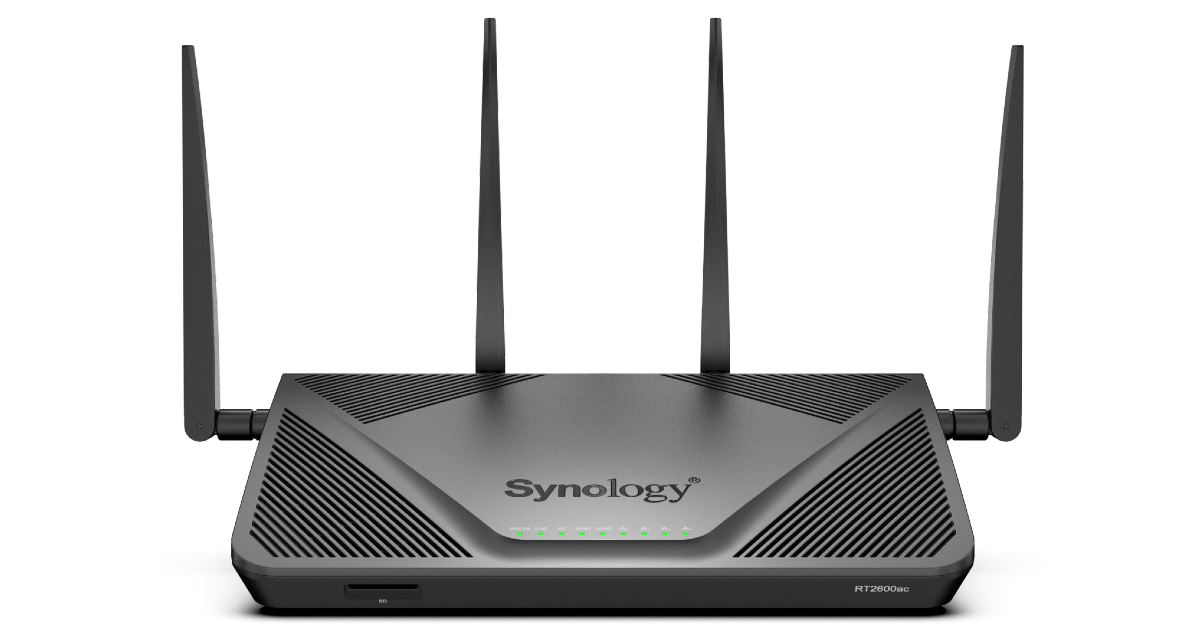
Synology RT2600AC

Price: $149.99 on Amazon

Synology RT2600AC Top 8 Routers under $200 in the USA (2024)

The Synology RT2600AC is one of the best routers you can buy in the USA for under $200. This router can create up to 5 networks and 15 WiFi SSIDs to distribute and prioritise different devices. It also allows you to create a guest network which you can share with your friends and neighbours. Using this network, you can give them access to your Chromecast or AirPlay device. On top of that, the Synology RT2600AC has a number of filters to block malicious, inappropriate, and offensive content. It is powered by a 1.7GHz dual-core processor and supports speeds of up to 2.53 Gbps.

Netgear Nighthawk RAX43

Price: $199.99 on Amazon

Netgear Nighthawk RAX43 Top 8 Routers under $200 in the USA (2024)

Ending this list is the Netgear Nighthawk RAX43 – one of the best routers under $200 in the USA. This WiFi6 router supports speeds of up to 574 Mbps + 3,603 Mbps. It has a functional range of up to 2,000 sq ft and can pair with 25 devices. The RAX43 is equipped with four 1 Gigabit ports for computers, gaming consoles, streaming players, and more. Upon purchasing this router, you get a 30-day free trial of Netgear Armour Cybersecurity and Netgear Parental Controls. To top it all off, Netgear offers a 1-year limited hardware warranty on this router.

Read Also: Oppo F25 Pro 5G with 5,000mAh battery and 67W SuperVOOC charging support launched in India

Conclusion

These are the top 8 WiFi routers under $200 in the USA right now. If you think we missed out on a product that deserves to be on this list, give it a shout-out in the comments! We’d love to hear from you. Use an online price tracking tool to check if the product is likely to be available at a discounted price later.

Here is a list of Xiaomi devices that will soon receive the HyperOS upgrade in India

Key Highlights

  • Xiaomi has announced the list of its devices that are eligible to receive the HyperOS update in the coming months.
  • Xiaomi 13 Pro and Xiaomi Pad 6 are among the first ones on the list that are ready to get the latest operating system.

Xiaomi on Thursday announced the release schedule for Xiaomi HyperOS in India. HyperOS is the company’s latest operating system with a human-centred design intended for linked personal devices like tablets and smartphones currently in use. In addition to this, the Chinese tech brand has also disclosed the list of devices that are eligible to receive the HyperOS update globally in H1 2024.

Xiaomi has officially unveiled the HyperOS interface in India. The firm has also disclosed the schedule for the nation’s rollout of the new operating system for its existing devices. Note that the upcoming Xiaomi devices will be running the latest operating system straight out of the box. A list of devices that will receive the HyperOS update internationally in H1 2024 has been confirmed by Xiaomi as well.

Recently Xiaomi revealed that the HyperOS upgrade will be available for the Xiaomi 13, Xiaomi 13T, Xiaomi 12, and the Xiaomi 12T series globally in the first half of 2024.

As of now, Xiaomi 13 Pro, Xiaomi Pad 6, Redmi 12 5G, Redmi 12C, Redmi 11 Prime, and Redmi Pad are the first ones on the list to receive the HyperOS upgrade in India.

The second batch includes the Xiaomi 12 Pro, Redmi Note 13 Pro+, Redmi Note 13 Pro, Redmi Note 13, Redmi Note 12 Pro+, Redmi Note 12 Pro, and Redmi Note 12 that are scheduled to receive the update in March.

The Xiaomi 11 Ultra, Xiaomi 11T Pro, Mi 11X, Xiaomi 11i HyperCharge, Xiaomi 11 Lite, Xiaomi 11i, Mi 10, Xiaomi Pad 5, Redmi 13C series, Redmi 12, Redmi Note 11 series, Redmi 11 Prime 5G, and Redmi K50i are the next on the list that are slated to get the HyperOS update in Q2 2024.

Also Read: Oppo F25 Pro 5G with 5,000mAh battery and 67W SuperVOOC charging support launched in India

HyperOS, according to the business Xiaomi, was created for users who are increasingly requesting seamless connectivity and interoperability between their many personal devices.
Its goals are to enable seamless connectivity across all devices by bringing all ecosystem devices together into a single, integrated system architecture, delivering optimal device performance, and guaranteeing a consistent user experience.

Also Read: Viewsonic PX749-4K projector designed for Xbox launched in India

The independently created Xiaomi Vela system is also a part of Xiaomi HyperOS’s core. All devices can operate at optimal efficiency because of their accurate system resource management skills and outstanding interoperability.

Oppo F25 Pro 5G with 5,000mAh battery and 67W SuperVOOC charging support launched in India

Key Highlights

  • The Oppo F25 Pro 5G has made its debut in India.
  • The smartphone comes with an AI-powered triple rear camera setup.
  • The handset supports three years of OS updates with four years of security updates.

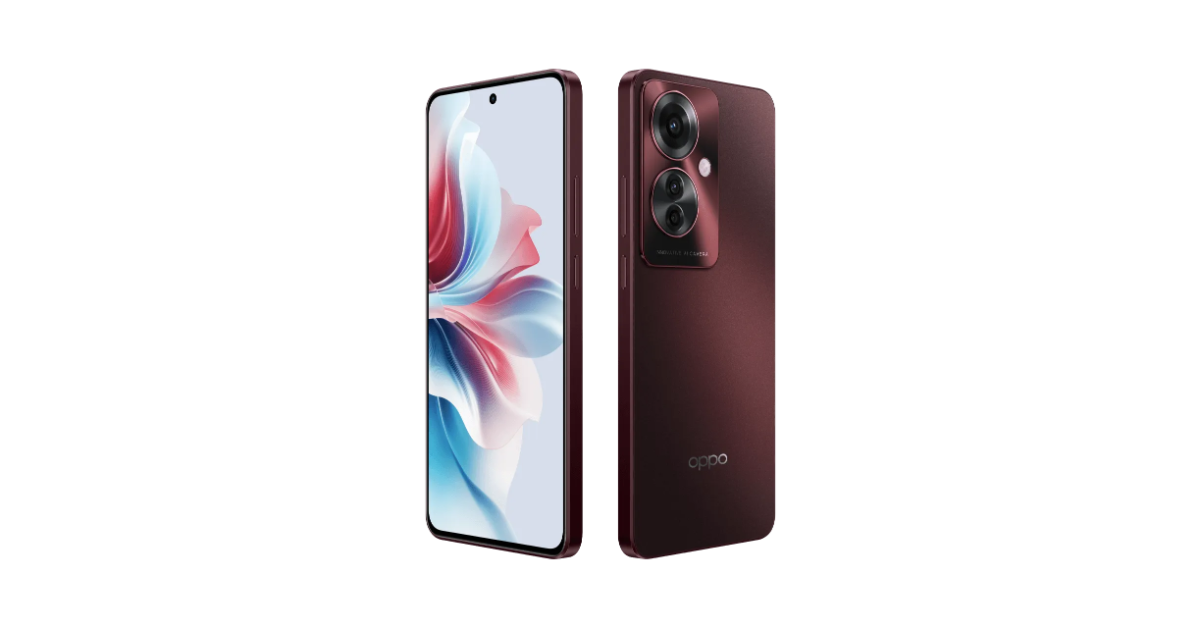
Oppo has launched a brand new mid-range smartphone- Oppo F25 Pro 5G in the Indian market. The device features a 120Hz FHD+ Display. It comes with ColorOS 14.0 out of the box. The handset has a triple rear camera setup that includes a 64-megapixel primary sensor. Additionally, there is a 32-megapixel selfie camera. The phone packs a 5,000mAh battery with support for 67W SuperVOOC fast charging.

Oppo F25 Pro 5G specifications

Oppo F25 Pro 5G is powered by an octa-core MediaTek Dimensity 7050 SoC paired with Mali-G68 MC4 GPU. It comes with 8GB of LPDDR4x RAM expandable up to 16GB through RAM Expansion to handle multiple apps and games without closing background processes prematurely. For the software it comes preinstalled with ColorOS 14.0 based on Android 14 which will get three years of OS updates with four years of security updates.

Oppo F25 Pro 5G specifications

The device features a 6.7-inch full-HD+ display with 1,080×2,412 pixels of resolution. The screen supports 10-bit colour technology allows for over 1 billion hues and tones for natural gradients in visuals, while its peak brightness of 1100 nits ensures HDR content with vivid details. It comes with a 93.4% screen-to-body ratio and supports a 120Hz refresh rate. The Panda Glass protects the screen and is doubly reinforced to increase its scratch resistance and longevity. PC-GF, a polycarbonate resin blended with glass fibre as a reinforcing material, is used to construct the device’s body. It is dustproof and resistant to water jets coming from all directions, with an IP65 classification.

In order to guarantee long-term reliability, the F25 Pro 5G has reportedly passed extensive testing and quality checks. These tests included 1,00,000 volume key hits, 2,00,000 power button presses, and 20,000 occurrences of plugging and disconnecting the USB-C cable.

For photos and videos, Oppo F15 Pro 5G is highlighted with a triple rear camera setup that includes a 64MP OV64B 1/2” sensor, an 8MP Sony IMX355 112° ultra-wide camera and a 2MP OV02B10 macro camera. For selfies, it includes a 32MP IMX615 camera sensor with a 21mm focal length.

Also Read: Viewsonic PX749-4K projector designed for Xbox launched in India

The cameras on the phone support 4K video recording to both front and rear cameras. In addition to this, it includes AI Smart Image Matting that enables one-tap extraction of subjects from photos and turns them into a transparent PNG that can be inserted into other images for effortless recreation and sharing as memes and photos. The AI can also handle multi-subject recognition within a single photo with precision and efficiency. Photography AI also removes facial imperfections in portraits by the front camera.

Poco F25 Pro is backed by a 5000mAh battery with 67W SUPERVOOC Flash Charge that juices the smartphone to 30% with a 10-minute charge, while it reaches 100% in just 48 minutes.

Also Read: OnePlus 12R Genshin Impact Edition officially launched in India

Oppo F25 Pro 5G price in India and sale details

The Oppo F25 Pro 5G price in India is set at:

  • 8GB RAM + 128GB storage- Rs 23,999
  • 8GB RAM + 256GB storage- Rs 28,999

The device will go on sale on March 5 through Oppo’s website, Amazon, Flipkart and other retail stores in the country.

Oppo F25 Pro 5G price in India and sale details

Launch offers

Enjoy up to 10% instant cashback with leading bank cards, including SBI Cards and ICICI Bank.
– Avail of no-cost EMI for up to 9 months.
– Customers have the flexibility to choose their EMI instalment and tenure at their convenience.
– Benefit from zero down payment schemes.
– Access low down payment options from top financiers like Bajaj Finserv, TVS Credit, Home Credit, HDB Financial Services, and IDFC First Bank
– Receive 180 days of screen damage protection for added peace of mind.


Viewsonic PX749-4K projector designed for Xbox launched in India

Key Highlights

  • Viewsonic has announced the launch of a new PX749-4K projector in India today.
  • The projector comes with a 240Hz refresh rate.
  • It has 4000 ANSI Lumens and is compatible with Xbox.

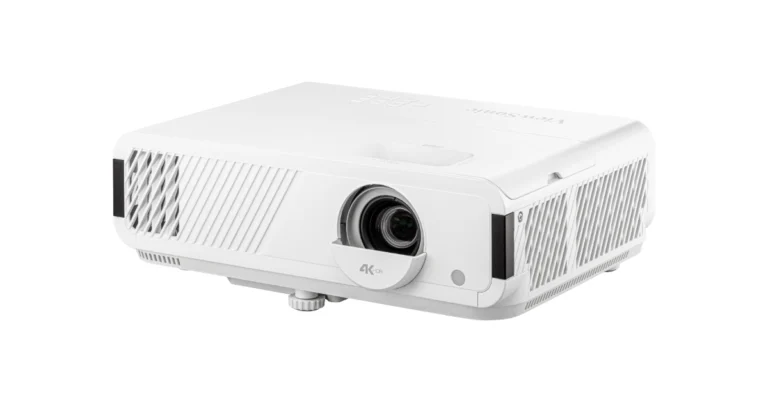
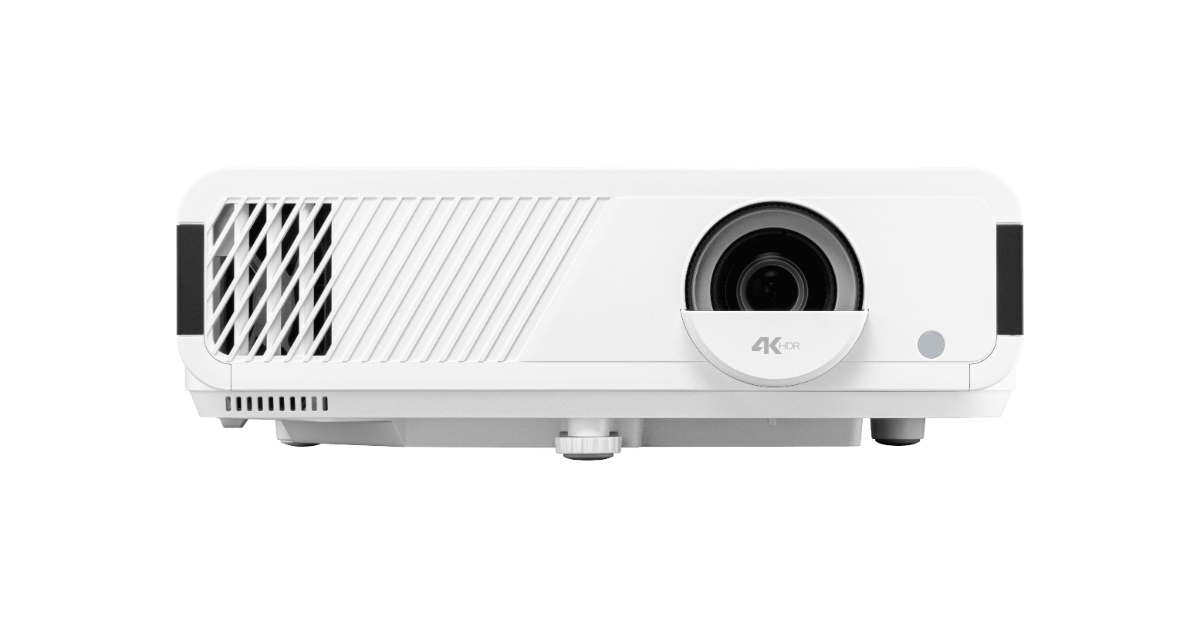
Viewsonic, a company known for making visual products like monitors, displays and projectors has launched a complete Home entertainment projector-PX749-4K in India. For a more engaging gaming experience, the device can be used with Xbox consoles. It is capable of a 240Hz refresh rate and 4.2 ms ultra-fast input.

Viewsonic PX749-4K projector designed for Xbox launched in India

Muneer Ahmad, Vice President of Sales and Marketing, ViewSonic India, said, “We are committed to providing comprehensive visual solutions that enhance the viewing experience meeting the needs of our consumers. Adding the PX749-4K projector to our PX series we are setting a new standard for immersive home theatre entertainment as this is more advanced than its predecessor. With this addition, we are also giving our users an add-on experience of gaming. With the PX749-4K, we are pushing the boundaries of innovation, empowering gaming and home entertainment enthusiasts to immerse themselves.”

Also Read: OnePlus 12R Genshin Impact Edition officially launched in India

The Viewsonic PX749-4K projector has a refresh rate of 240Hz and an ultra-fast input of 4.2ms. It is certified exclusively as “Designed for Xbox.” Therefore it is compatible with Xbox CEC in addition to Xbox content resolution. The projector comes equipped with a premium Harman Kardon speaker. The PX748-4K projector has been improved to generate 4,000 ANSI Lumens, ensuring vivid and clear cinematic experiences even in bright settings. With its 1.3x optical zoom, side projection capabilities, and warping adjustability, allowing it to turn into a 300-inch screen. The PX749-4K ensures an engaging gaming experience or a cinematic experience that will enthral your audience whether you’re watching in your home theatre.

Also Read: Moto G24 Power Review: Should you buy it?

Because it can be controlled over LAN and has a 12V trigger output, it can be easily integrated into any current ecosystem and is a perfect addition to any smart home setup. In addition to offering exceptional colour accuracy and brightness, the projector supports HDR and HLG content, guaranteeing that every image has a vibrant, detailed quality.
This projector includes dual HDMI 2.0 connectors, USB-A, 3.5mm audio output, RJ34, and RS232 interfaces for connectivity.

The Viewsonic PX749-4K projector has been launched in India with a price tag of Rs 2,99,000.

OnePlus 12R Genshin Impact Edition officially launched in India

Key Highlights

  • OnePlus 12R Genshin Impact Edition was introduced in India.
  • The latest edition of OnePlus 12R comes in a lovely purple colour option
  • The phone is shipped with a a collectible gift box that includes merchandise and accessories.

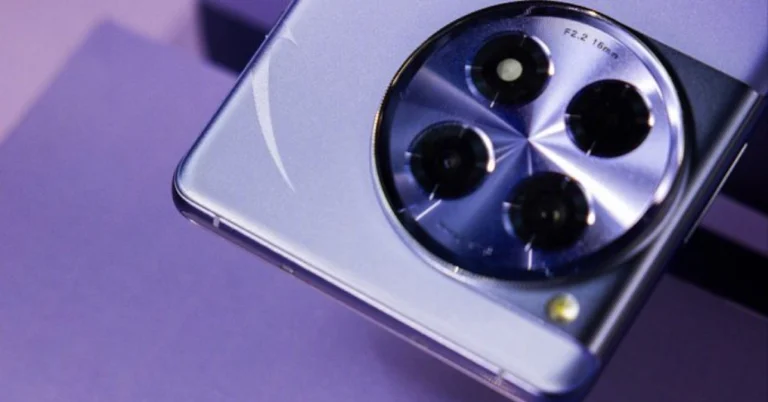
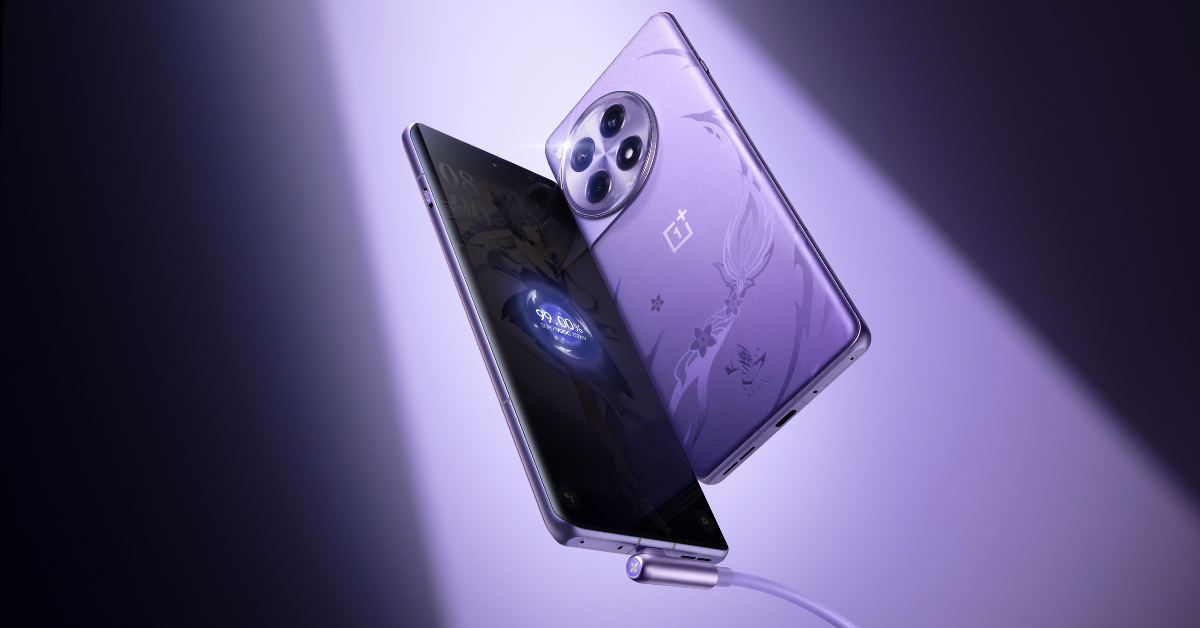
The Chinese smartphone brand has announced the Genshin Impact Edition of the OnePlus 12R smartphone in India. The device made its global debut during the Mobile World Congress 2024. It is inspired by the character Keqing, it is available in the shade “Electro Violet.” It comes with a customised operating system and the game has been optimised for the new smartphone.

OnePlus 12R Genshin Impact Edition price in India, sale details

OnePlus 12R Genshin Impact Edition price in India has been set at Rs 49,999 for the single 16GB RAM with 256GB storage variant. The latest edition of OnePlus 12R comes in a lovely purple colour option which is inspired by the character Keqing.

OnePlus 12R Genshin Impact Edition price in India, sale details

On March 19, OnePlus India, Amazon India, and a few OnePlus Experience Stores will begin selling the smartphone.

Customers can get the latest updates on this limited special edition OnePlus 12R by opting to ‘Notify Me’ on oneplus.in starting 28th February and on Amazon.in starting 5th March.
Buyers purchasing the Genshin Impact Edition can avail an instant bank discount of ₹1,000 with OneCard and an exchange bonus of up to ₹4,000.

Also Read: OnePlus 12 Review: A True Flagship Smartphone

Consumers purchasing the OnePlus 12R Genshin Impact Edition can also avail of No-Cost EMI for up to 9 months and Bajaj Finance schemes.

In addition to this, they can also buy the Genshin Impact Edition of OnePlus 12R with OnePlus Easy Upgrades and get 35% assured value at the end of the 24 months.

OnePlus 12R Genshin Impact Edition Specifications

The OnePlus 12R Genshin Impact Edition is a special collaboration between OnePlus and HoYoverse. It features Keqing from Genshin Impact. The phone has a violet back panel and an Electro Violet colourway inspired by Keqing’s appearance in the game. In addition to this, silvery white feather designs grace the AG matte glass cover, while the text “KEQING” and Keqing’s trademark lightning stiletto design are displayed at the base of the back cover in an Electro Element.

The device comes with a 6.78-inch 1.5K LTPO 4.0 AMOLED screen with 1,264×2,780 pixels of resolution. The display supports up to 120Hz refresh rate and up to 4500 nits peak brightness. The screen has Gorilla Glass Victus 2 protection. Under the hood, there is a Qualcomm Snapdragon 8 Gen 2 SoC.

The phone’s operating system has been modified, and the Genshin Impact game’s elements are included. It includes customised system app icons, an Electro Element charging animation, and an exclusive Always-On Display. The phone also features personalised power-on and fingerprint unlock animations.

Additionally, users are greeted with an exclusive Keqing visual and live wallpaper every time the phone is unlocked, featuring Keqing’s characteristic grace, confidence, and determined gaze.

Also Read: OnePlus 12R Review: Flagship-grade performance at a mid-range price

The phone is packaged in an exclusive gift box with highly collectable merchandise and accessories for fans of Genshin Impact. The accessories include a violet USB Type-C charging cable with a violet LED light and a 90° design for convenience, a violet charging adapter with Electro Element and Lightning Stiletto logos, and a Lightning Stiletto-shaped SIM tray ejector.

It has a 50MP Sony IMX890 primary sensor, an 8MP ultra-wide camera and a 2MP macro camera. It features a 16MP front camera for selfies.

The OnePlus 12R is backed by a 5,500mAh battery with 100W SUPERVOOC charging technology.

Top 4 Ways to Format a USB Drive to FAT32 on Windows 10 and 11 (2024)

0

If you have an old USB drive lying around, you may want to consider recycling it. To bring it back to regular functionality, you need to clear out the junk that it is holding. The easiest way to do this is by formatting the drive. While formatting the drive, you also get to decide its file system. If FAT32 is your preferred file system, here are the top 4 ways you can format your Windows USB drive to it on Windows 10 and 11.

Read Also: Moto G24 Power Review: Should you buy it?

What is the difference between FAT32 and NTFS?

FAT32 and NTFS are two different kinds of file systems for your USB drive. These systems determine how the data is stored on the device. How additional file information like permissions and filenames is attached to the data is also dictated by the file system. Out of FAT32 and NTFS, the latter is a newer file system. However, FAT32 has a higher compatibility with other devices across different ecosystems.

Most Windows PCs choose to format your USB drive to FAT32 by default. You can change the file system to NTFS in the format window. While FAT32 is a very reliable file system that works on almost every device, it doesn’t offer encryption support and is considered outdated by many users.

Format a USB Drive to FAT32 on Windows 10/11

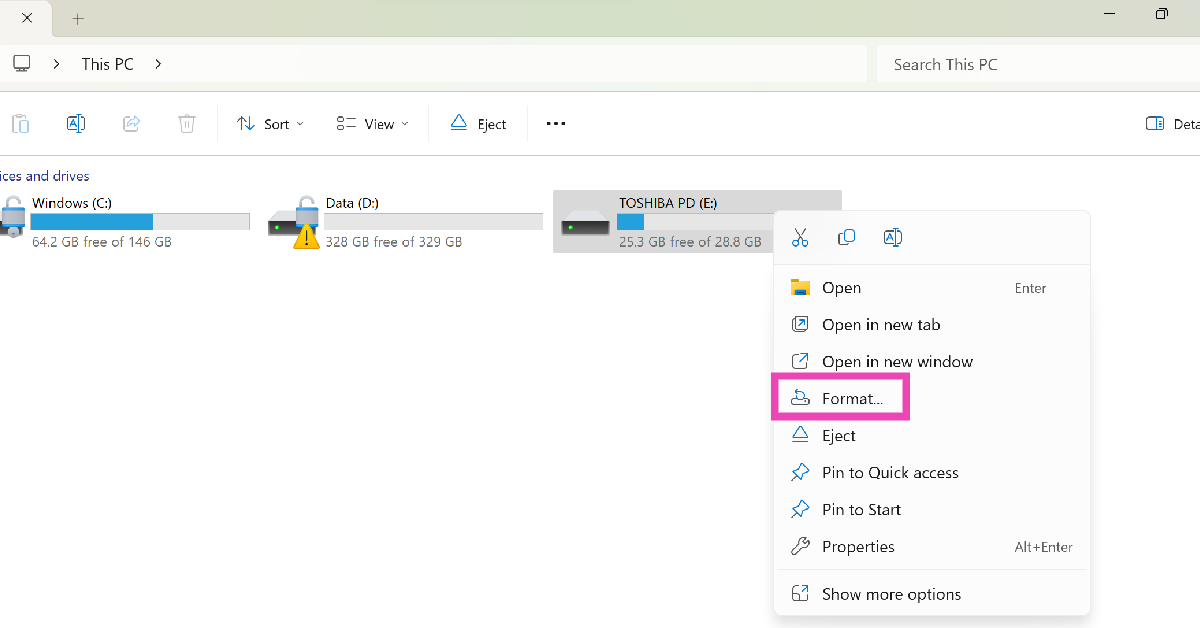
Step 1: Go to This PC and right-click on the USB drive.

Step 2: Click on Format.

Step 2: Click on Format.

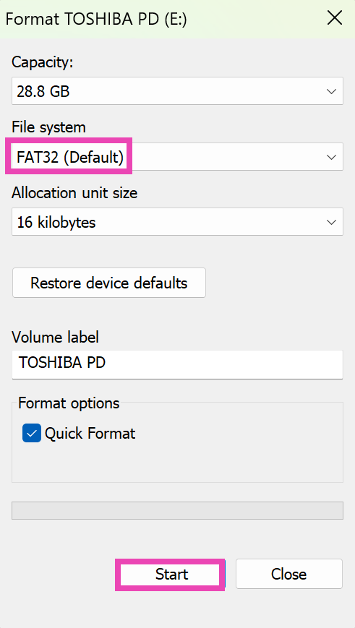
Step 3: In the Format window, FAT32 will be listed as the default file system. If it isn’t click on the drop-down menu under File System and select it.

Step 4: Hit Start.

Step 4: Hit Start.

The USB drive will be formatted in FAT32 format.

Use Disk Management to format a USB drive to FAT32

Step 1: Right-click on the Start button on the taskbar and select Disk Management.

Step 2: Right-click on the USB drive and select Format.

Step 3: Select FAT32 as the File system and hit OK.

Use Command Prompt

You will require administrator privileges on your PC for this method.

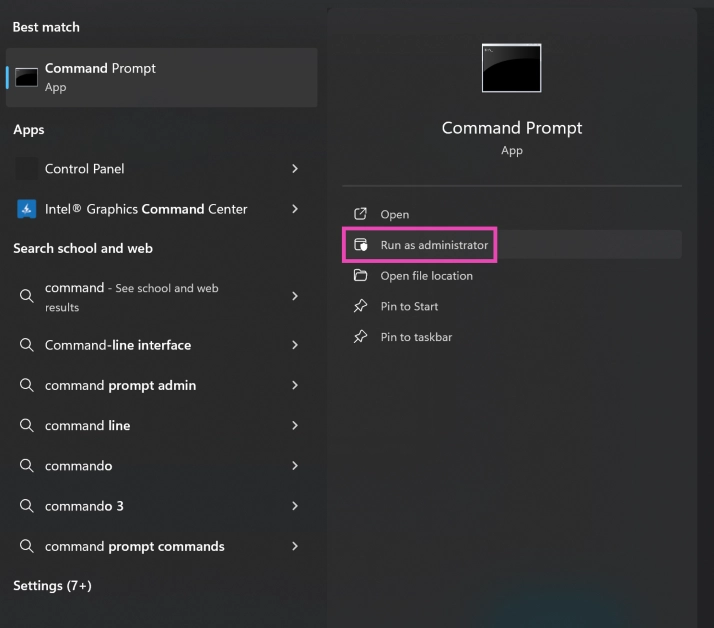
Step 1: Search for Command Prompt in the taskbar and select Run as Administrator from the results.

Step 1: Search for Command Prompt in the taskbar and select Run as Administrator from the results.

Step 2: Check the letter of the USB drive on your PC.

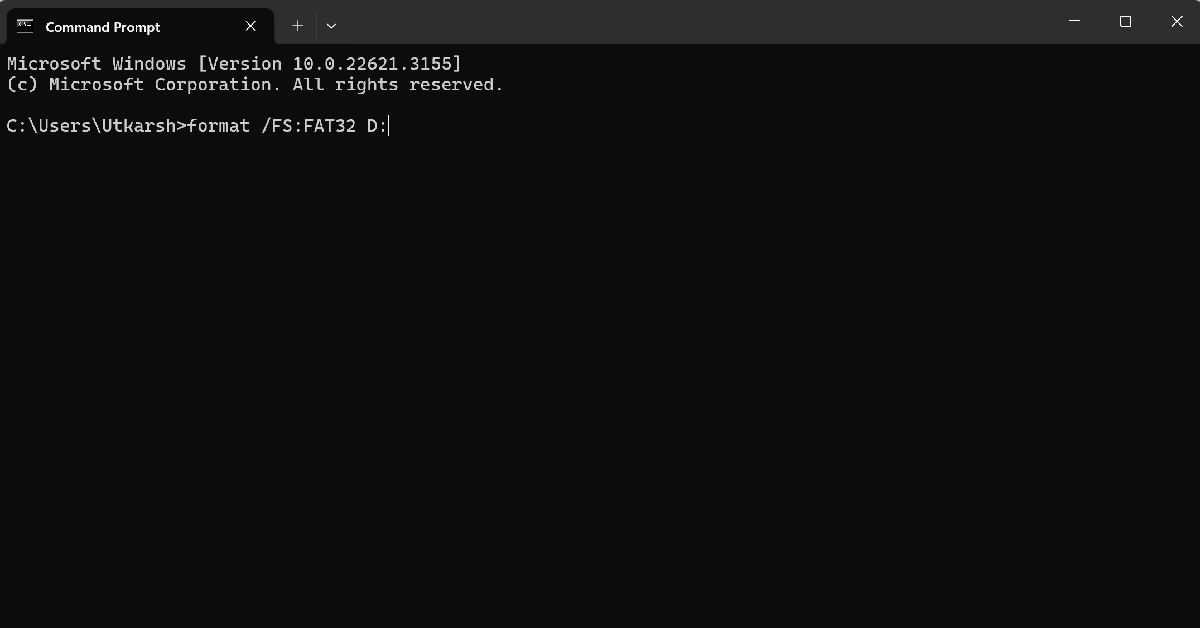
Step 3: Type the following command in Command Prompt:

format /FS:FAT32 (letter of the USB drive):

Step 3: Type the following command in Command Prompt: format /FS:FAT32 (letter of the USB drive):

Use Windows Powershell

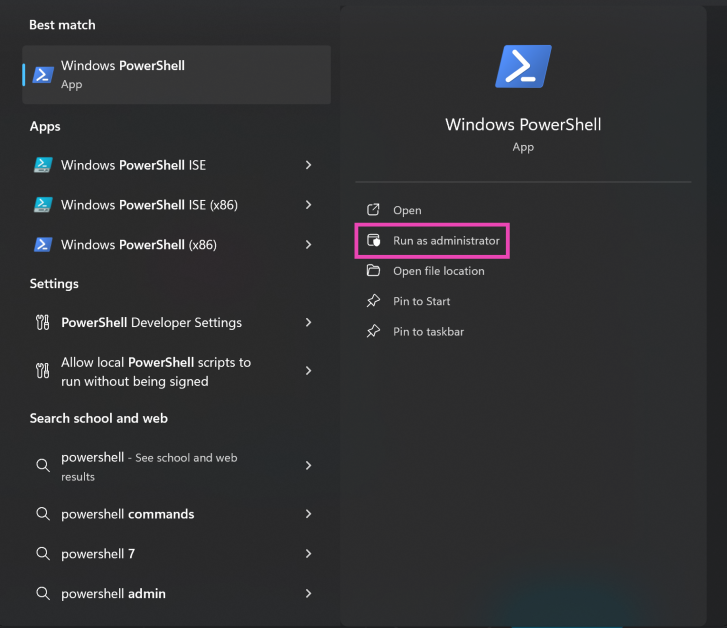
Step 1: Type Powershell into the search field in the taskbar and run it as administrator.

Step 1: Type Powershell into the search field in the taskbar and run it as administrator.

Step 2: Enter the following command to format your USB drive in FAT32:

format /FS:FAT32 (letter of the USB drive):

Step 2: Enter the following command to format your USB drive in FAT32: format /FS:FAT32 (letter of the USB drive):

Frequently Asked Questions (FAQs)

How do I format a USB drive to FAT32 in Windows 10/11?

Go to ‘This PC’ and right-click on the USB drive. Select Format and make sure you choose FAT32 in the ‘File system’ section. Once that’s done, hit ‘Start’.

How do I format a USB drive to FAT32 in Command Prompt?

Run Command Prompt as administrator, and type the following command – “format /FS:FAT32 (letter of the USB drive):”. Make sure you enter the right letter for the USB drive or you’ll end up formatting some other drive on your PC.

What happens when you format a USB drive?

When you format a USB drive, all data from it gets deleted and it is restored to full capacity.

Read Also: Best Ways to Download All Your Photos From Facebook

Conclusion

These are the top 4 ways to format a USB drive to FAT32 in Windows 10 or 11. If you know any other way to carry out this task, let us know in the comments! If you want to recover your data from a formatted USB drive, use tools like Drill Disk and Recoverit.

Moto G24 Power Review: Should you buy it?

0

Motorola has come a long way and month on month they are launching good to great smartphones.  The Moto G24 Power is the new device that the firm has introduced in India. The MediaTek Helio G85 SoC powers the smartphone. With a 50-megapixel primary sensor at the centre of its dual rear camera setup, it has a 6,000mAh battery that supports 33W TurboPower fast charging. The phone also features a 90Hz dynamic refresh rate hole-punch display. It is constructed of acrylic glass and features an IP52 water-repellent design. In the nation, it comes with a starting price of Rs 8,999. We’ve been testing the Moto G24 Power for over a week now, so let’s see how it held up in our review.

Moto G24 Power Review: Design and Display

Moto G24 Power Review: Design and Display

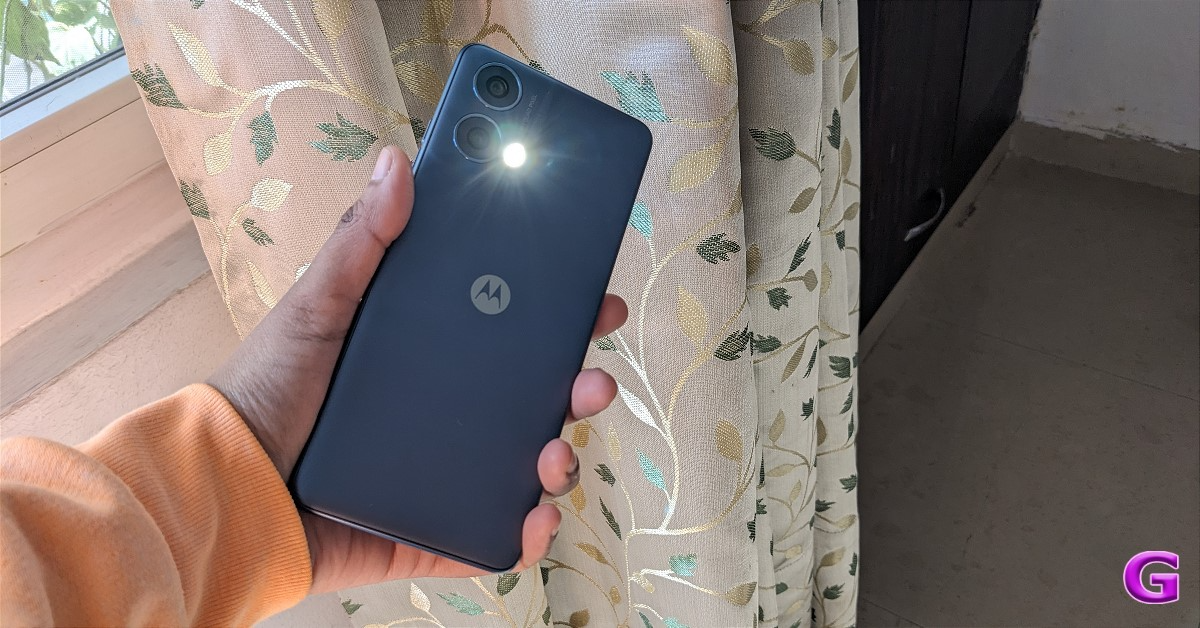
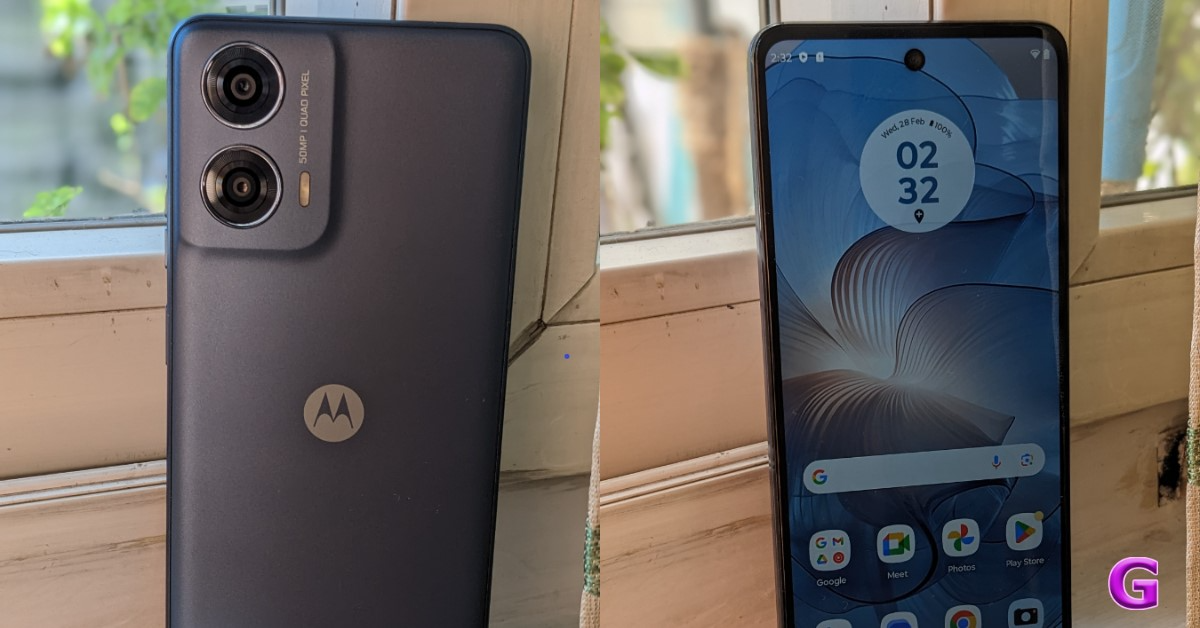
First, let’s discuss the form factor. The Moto G24 Power boasts a well-made design and is lightweight and compact. In terms of appearance, the business is dominating. Although it has a plastic back that resembles glass, the material is PMMA with a shimmering appearance. Unlike a glossy surface in general, fingerprints and smudges are more difficult to remove from the back panel. 

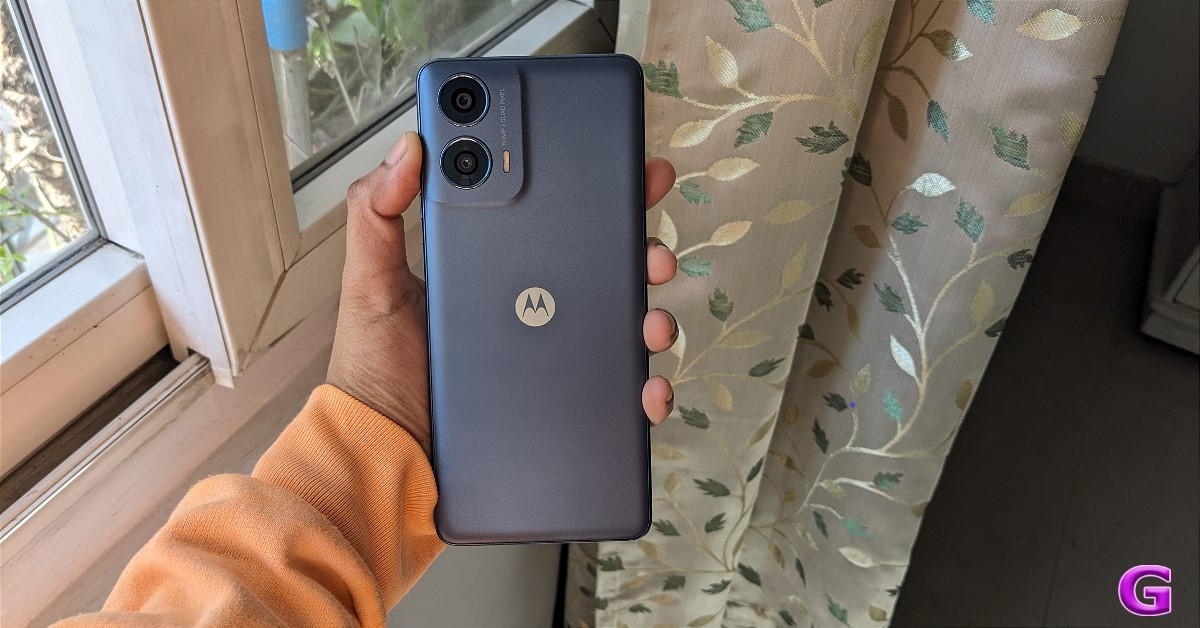
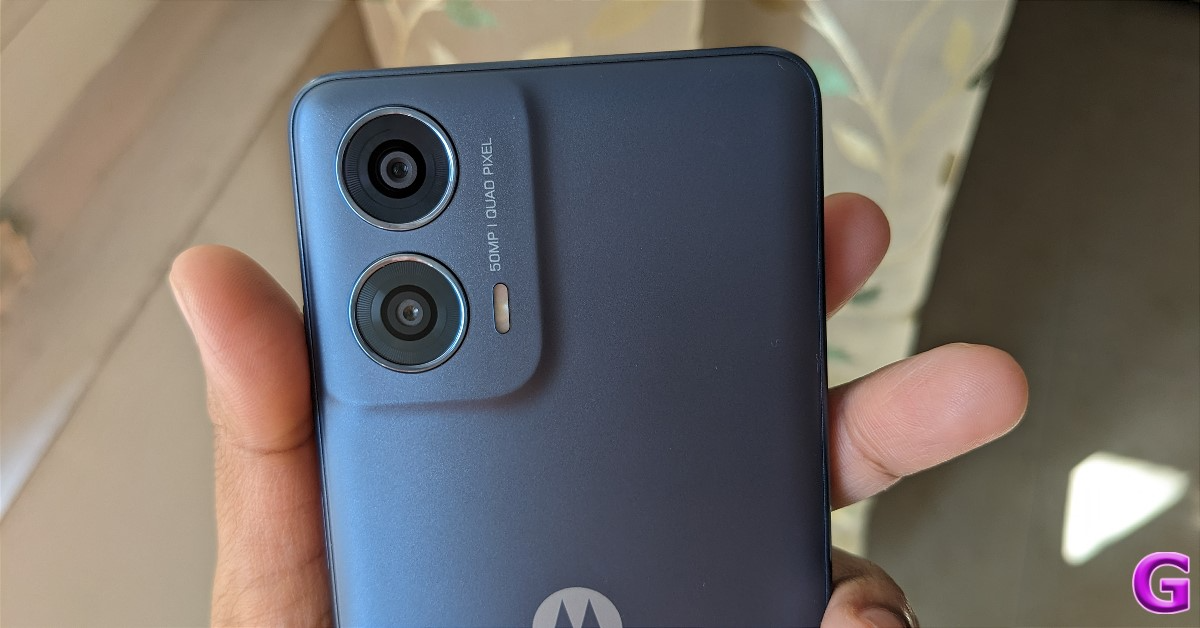
The famous Moto Batwing logo and a dual camera module are also located on the phone’s back. This phone’s softly curved back makes it quite pleasant to grasp in the hand. It has flat sides, which have rounded corners, made up of polycarbonate, yet is very premium.

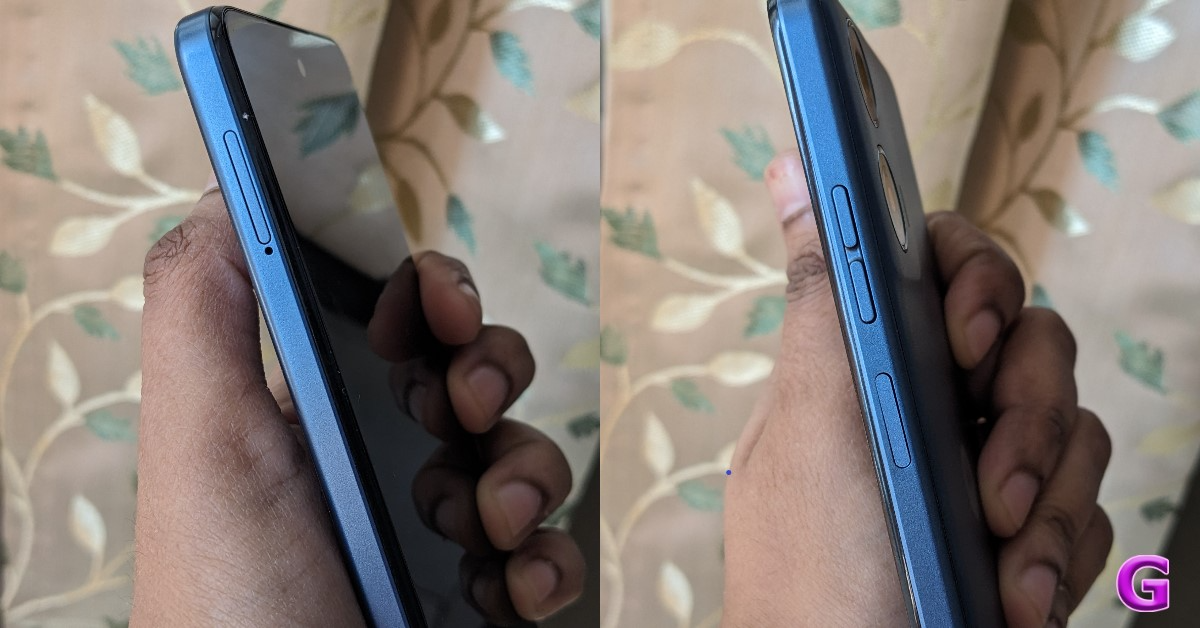
Because of the phone’s ergonomic dimensions and well-distributed weight, even those with little hands won’t experience any problems using it. Moreover, the power and volume buttons on the right side of the frame have a nice tactile feel, which contributes to the device’s easy accessibility and pleasurable use. 

review of Moto G24 Power

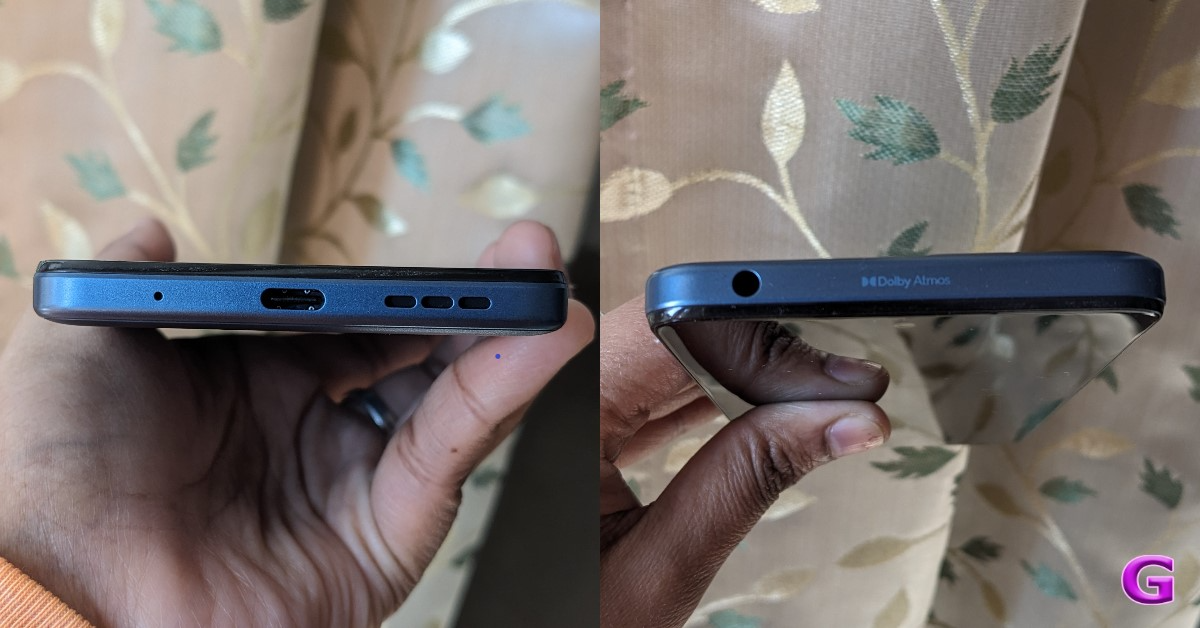
The fingerprint scanner doubles as the power button. A SIM slot on the left side accommodates two nano SIM cards and a USB card for up to 1TB of additional storage. On the top frame is a 3.5mm audio jack, while on the bottom border are the speaker grille, USB Type-C port, and microphone.

review of Moto G24 Power

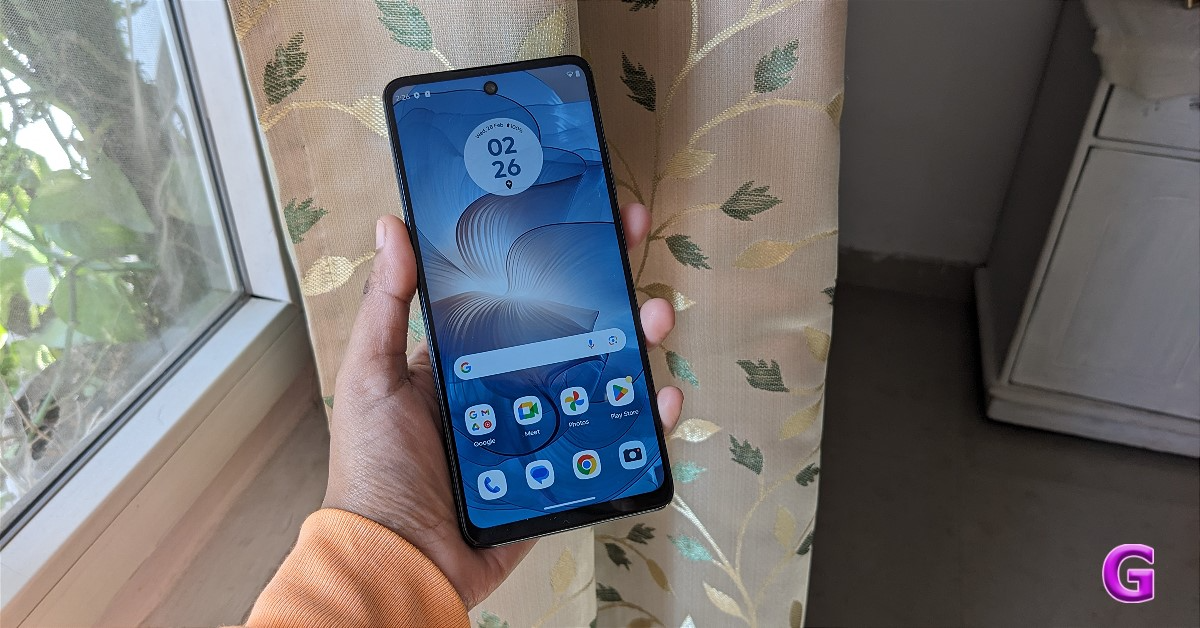
On the top centre is a somewhat larger punch-hole selfie camera. It also has a significant chin and narrow bezels. Motorola has added Panda Glass to the smartphone’s front panel to boost durability.

Moto G24 Power Review: Design and Display

The screen of the Moto G24 Power is a 6.56-inch HD+ IPS LCD. The display features a 120Hz touch sampling rate, 90Hz refresh rate, and a peak brightness of 537 nits.
The screen appears beautiful, and the colour is lively with a decent contrast ratio and overall saturation levels that are pretty excellent. The fonts and icons are also crisp and clear. Although the screen brightness is adequate for usage indoors, it is insufficiently bright for use outdoors in direct sunlight. For casual media viewing, the display is fine. It is certified Widevine L1 in fact. Despite having an HD screen, full HD streaming is possible.

Nonetheless, support for 90Hz refresh rates is available, which has significant implications, particularly while using social media. The capability for a 90Hz refresh rate improves the viewing experience by making the display fluid.

The downward-firing stereo speaker is sufficiently powerful and clear. But if it had had two speakers, that would have been awesome. However, the business has offered stereo speakers with Dolby Atmos at this price range.
Moto G24 Power Review: Performance and Cameras

The Moto G24 Power’s octa-core MediaTek Helio G85 SoC and up to 8GB of LPDR4x RAM provide powerful performance. Up to 16GB of additional RAM can be added to the onboard memory using RAM Boost technology. It also has a 128GB eMMC 5.1 storage capacity, which can be increased to 1TB with a microSD card.

Well, it’s fun to multitask, and launching and closing apps is speedy. The 90Hz refresh rate contributes to the smooth scrolling of the user interface.

Also Read: itel A70 Review: A decent budget smartphone 

If you love playing Call of Duty or BGMI, you can play games on a low setting. Keep in mind that this is still not a smartphone that can play demanding video games. Other lightweight games like Candy Crush, Subway Surfers, and others can run smoothly on it with ease.

review of Moto G24 Power


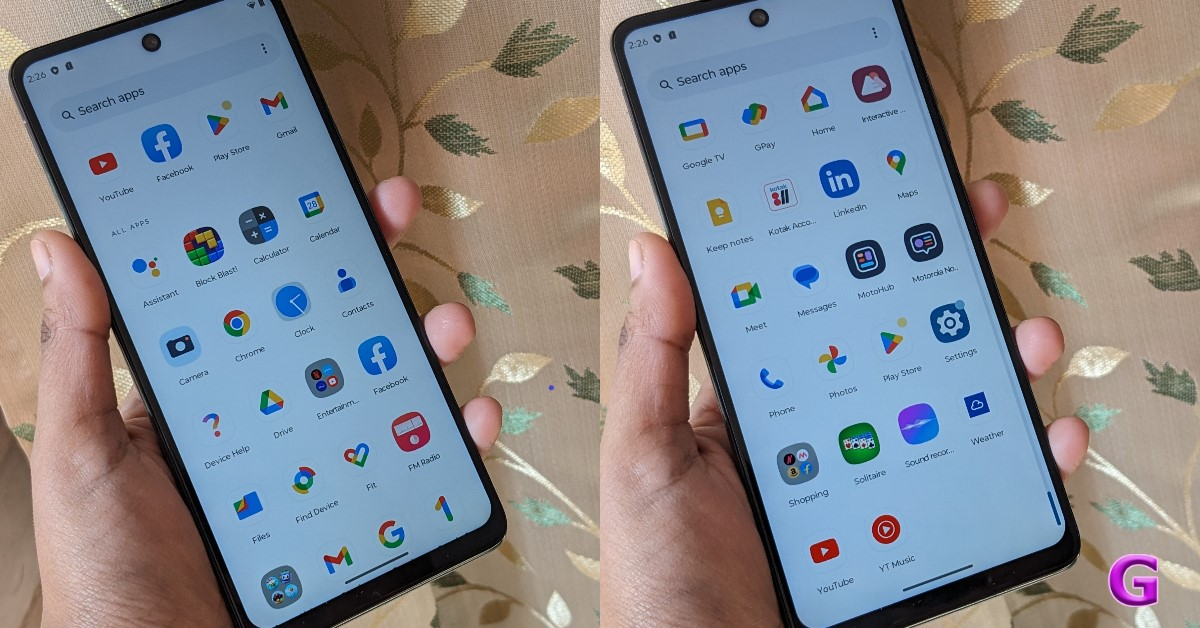
Regarding the software, it is advantageous that Android 14 with My UX on top is included. Security updates for three years will be provided by the company. Bloatware apps and incredibly intrusive games exist, but fortunately, you can delete anything that is not required.

Yes, how could we forget that you get access to all the Moto-exclusive features, such as the gesture controls for the flashlight and camera?

review of Moto G24 Power

Regarding the cameras, the Moto G24 Power has a dual rear camera arrangement with an f/1.8 aperture and a 50-megapixel primary sensor using Quad Pixel technology. There is also a 2-megapixel macro lens with an f/2.4 aperture. A 16-megapixel front camera with an f/2.45 aperture has been handling selfies.

review of Moto G24 Power

The main sensors produce really good images. When the lighting is favourable, the 50-megapixel camera captures pictures with decent quality. It generates images that are crisp, bright, and clear with natural colours and a good dynamic range. The 2-megapixel macro should function properly if you use it in areas with adequate illumination.

The skin tone of the selfies is decent, and they only have good dynamic range when taken in well-lit areas.

When zoomed in, we saw that details are retained nicely; aside from that, we like how the phone generally handles human skin tone, especially in portrait mode photos. Our skin tone is a little more natural, but even in terms of edge detection and the background blur, we say superb stuff. Videos can be recorded in 1080p. The good news is that, for this price, video stabilisation is supported and functions well.

These are some samples of the photos we took using this smartphone.

Moto G24 Power performance
shot from primary camera
Moto G24 Power performance
closeup shot
Moto G24 Power performance
Portrait shot

Notable features include a 33W TurboPower fast charging system and a 6,000mAh battery. That should last you at least two days with normal usage. The phone’s battery life fluctuated during our tests, lasting anywhere from two days with light use to over a day with intensive use.

Also Read: Infinix Smart 8 Review: Incredible value for money

Verdict

Despite being less than Rs 10,000, the Moto G24 Power has a good design and build. Even with its 6,000mAh battery, the phone doesn’t feel heavy. It has an IP52 rating and a water-repellent construction as well. Out of the box, this is running Android 14. Although it is generally clean, the user interface is laden with several undesirable programmes. You get good camera functionality and output for the price. Although not flawless, the games can be played. There were frequent lags when we were gaming. It has an FM radio, which is a plus.

Moto G24 Power performance

The massive 6,000mah battery that comes with it may run the device for 1.5–2 days, or longer, depending on usage. It also includes a 33W rapid charger. Generally, smartphones priced under Rs 10,000 lack support for fast charging. For a starting price of Rs 8,999, the smartphone distinguishes itself from the competition with these features.

Garena Free Fire Redeem Codes Today 29 February 2024: Here is how to claim them

Garena Free Fire is a battle royale game with regular awards and tournaments to keep players interested. If you play Garena Free Fire, you should be aware of the redeem codes that are released on a daily basis. However, because the battle royale game is banned in India, players from other countries can use the Free Fire Redeem codes daily. If you’re unfamiliar with the Garena Free Fire redeem codes or don’t know how to get them, we’ve put together a step-by-step guide to help you redeem them. Check out Garena Free Fire Redeem Codes for 29 February 2024.

The Free Fire redeem codes are a great way to get free stuff. These are 12-digit codes that contain alphabets and numbers, as well as an expiration date and time. Because the Garena FF redeem codes cannot be used more than once, you should hurry to the redemption page to claim your free reward before someone else does. To get a free reward, all you have to do is go to reward.ff.garena.com/en, which is the official redemption page. Also, keep an eye on this space for daily updates on Garena Free Fire redemption codes and rewards.
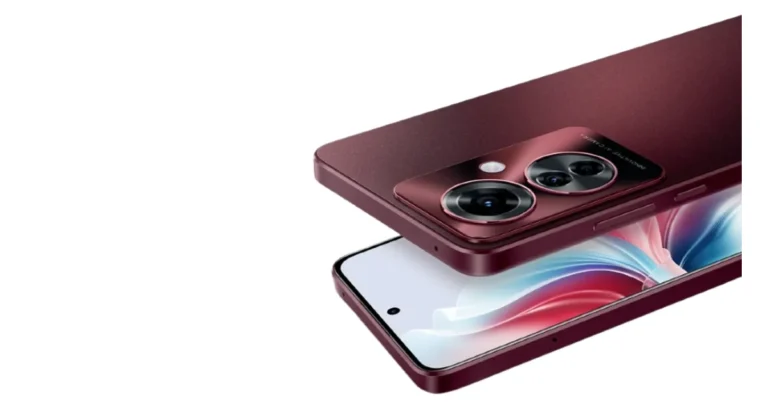
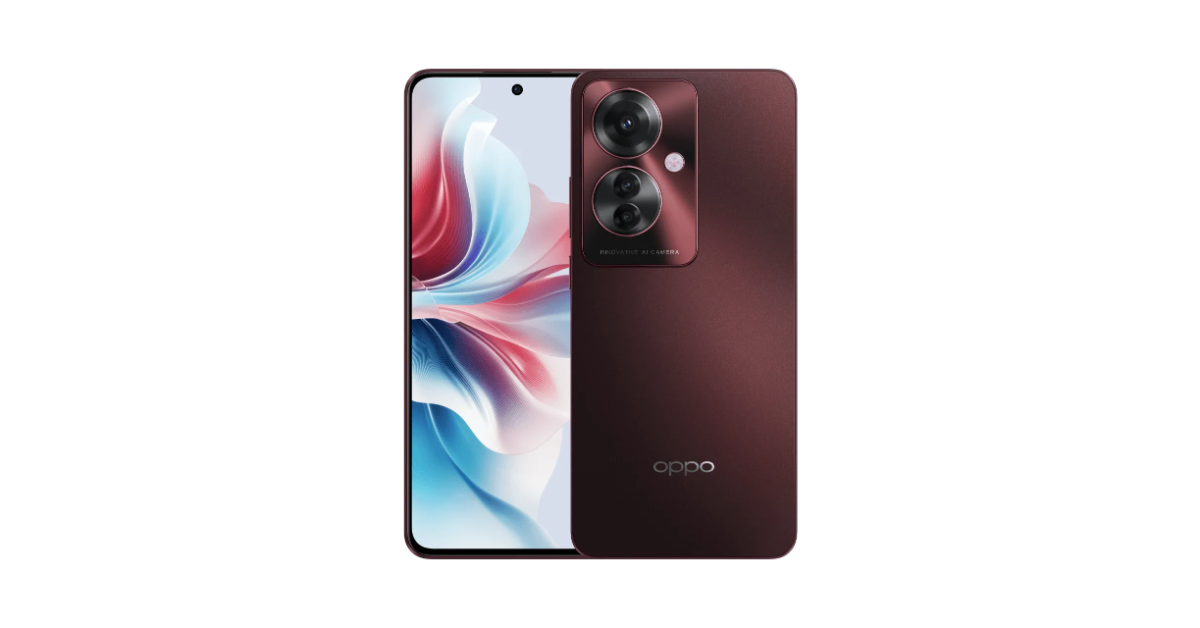
Also Read: Sennheiser Accentum Plus wireless headphones with Hybrid Adaptive Noise Cancellation launched

Garena Free Fire Redeem Codes Today 29 February 2024

FFHYTGJY7KJRY79

FFTYUH8I853UJLB

FOYHNJFT67UYT66

FFYHNJFY7UJ65TE

FG456LYOH98YGDR

FF6UYT67U5Y7UT6

FFUYEK4I7YHDN87

F48UYH6NYM9KGLO

FJ7K89KJHDG5GGY

FYHTYJU7R67U5FS

FDRFEDRHYFFGGUS

FY6TEF4B5KI6876

F5GDRTGHRDTGHJ3

F4ER87UYGHXJSDE

FBEJ456IUYHGNMC

FK247DRET5HR569

FHR5EG5E4GFFD4T

FRFVBANZJK3E457

FA6YTQF4RKTLO98

FUYHF2NDGYH9758

FUYTHFDSIA87263

How to Get Free Fire Redeem Codes for Garena on 29 February 2024?

  • Visit the Garena Free Fire game’s official website at reward.ff.garena.com.
  • Use your Facebook, Google, VK, Apple ID, Huawei ID, or Twitter account to log in.
  • You’ll be taken to a valid redemption code (s)
  • Copy and paste the 12-digit redemption code into the text box.
  • On the screen, a dialogue box will appear.
  • ‘Ok’ should be selected.

For the latest gadget and tech news, and gadget reviews, follow us on TwitterFacebook and Instagram. For newest tech & gadget videos subscribe to our YouTube Channel. You can also stay up to date using the Gadget Bridge Android App. You can find the latest car and bike news here.

Best Ways to Download All Your Photos From Facebook

0

For users who have been on Facebook for several years, the platform also serves as an archive of their pictures and media. If you’re looking for a specific older picture, it is a good idea to check if you uploaded it on Facebook. If you ever end up losing your old pictures, you can always download them from Facebook. The platform makes it easy to download your profile data, including the media you uploaded to your posts, stories, reels, and more. So, let’s take a look at how you can download all your Facebook photos on PC and Android.

Read Also: Top 4 Ways to Access Archived Emails in Outlook (2024)

What are your options?

Luckily, Facebook offers a native way to download all of your profile information either locally or to a different destination. You don’t need to rely on third-party apps and websites to do the same. The option to download your profile info is tucked away in the Accounts Centre and can be accessed by going to Settings and privacy>Settings>See more in Accounts Centre.

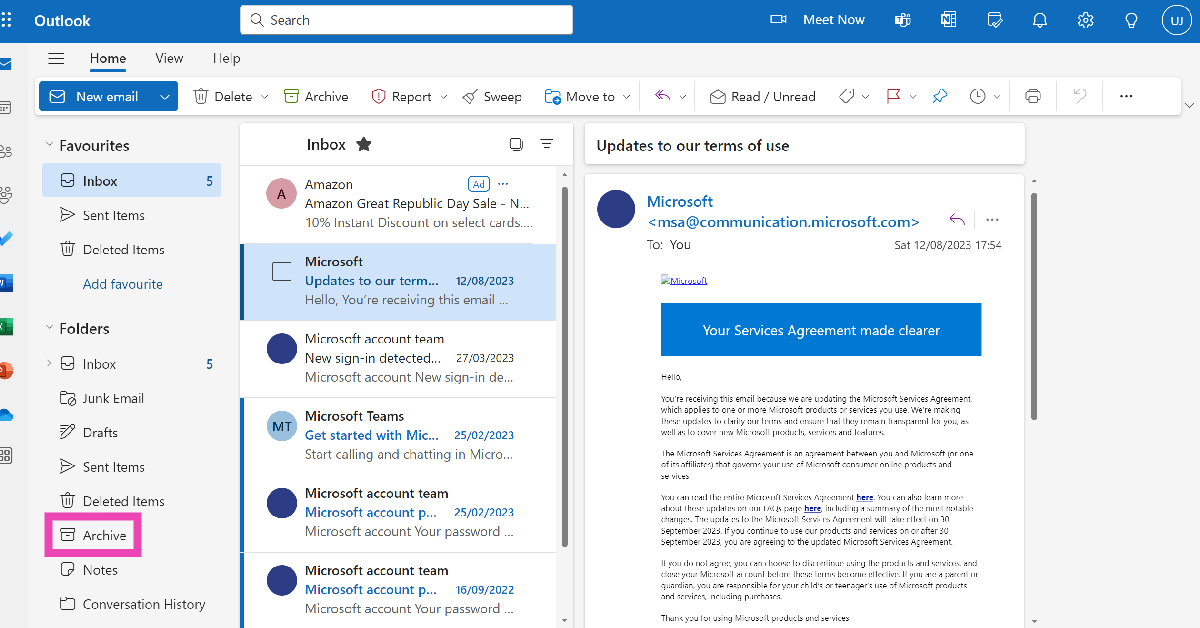
You can also download an individual picture on Facebook without accessing your entire profile info. However, if you want to download an individual Facebook video, you will need to seek the help of a third-party service. Photos on Facebook may offer a native download option but videos do not. Websites like Fdown.net, Snapsave, and Savefrom let you download any video from the platform to your device.
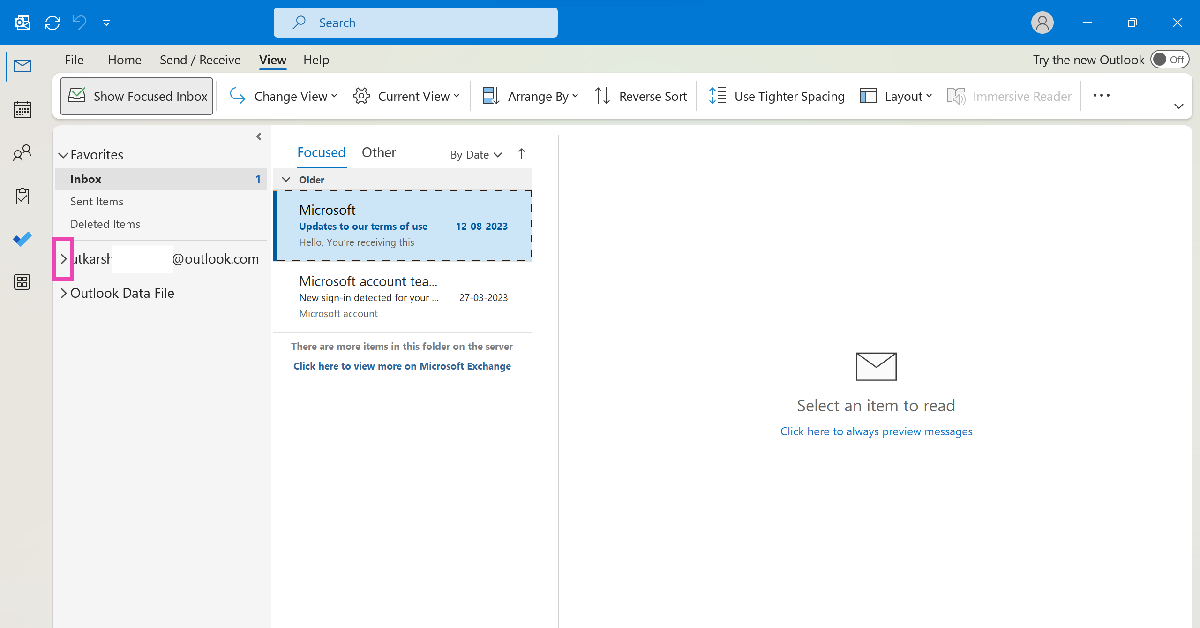
Download All Photos from your Facebook Profile (PC)

Step 1: Open Facebook on your PC’s web browser and log into your profile.

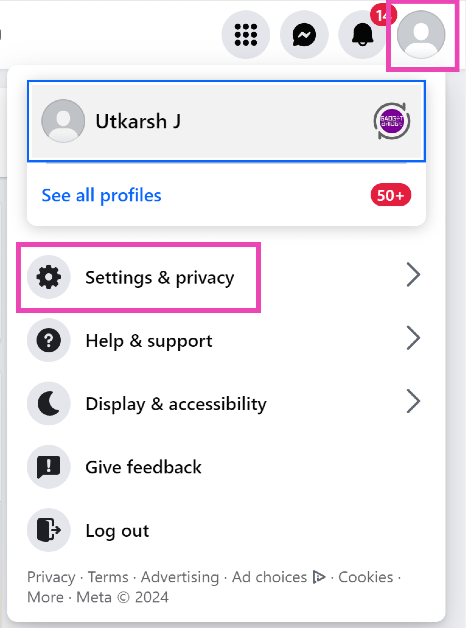
Step 2: Hit the Profile icon at the top right corner of the screen and select Settings and privacy.

Step 2: Hit the Profile icon at the top right corner of the screen and select Settings and privacy.

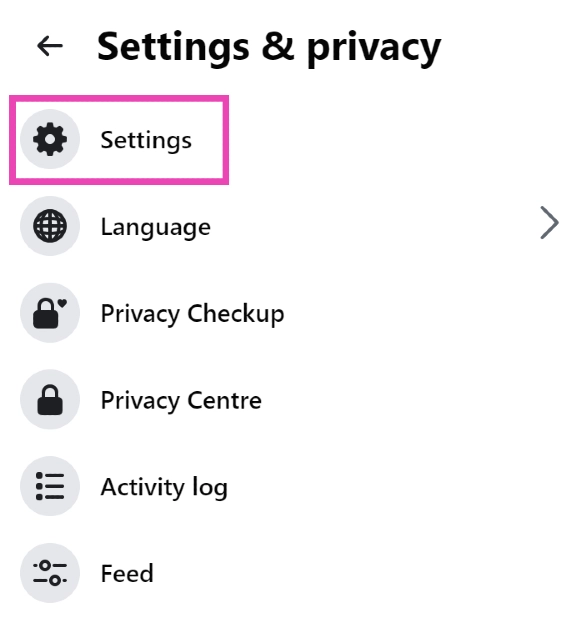
Step 3: Click on Settings.

Step 3: Click on Settings.

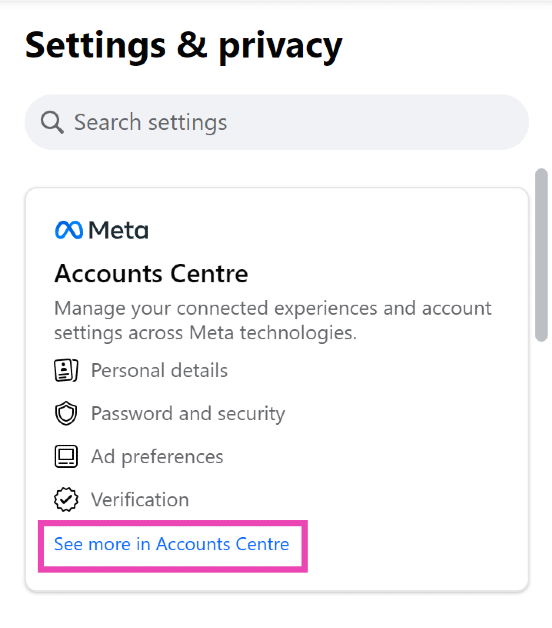
Step 4: Open the Accounts Centre by clicking See more in its sidebar section.

Step 4: Open the Accounts Centre by clicking See more in its sidebar section.

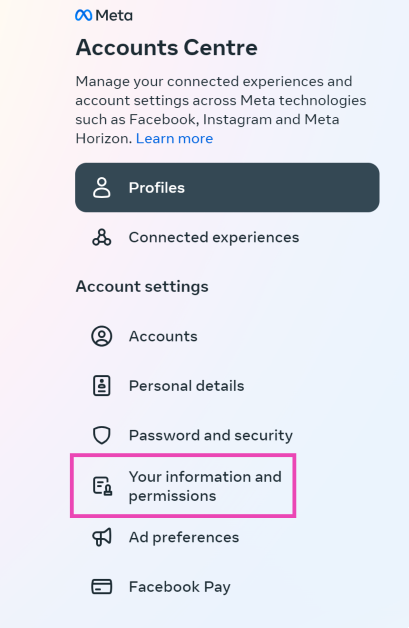
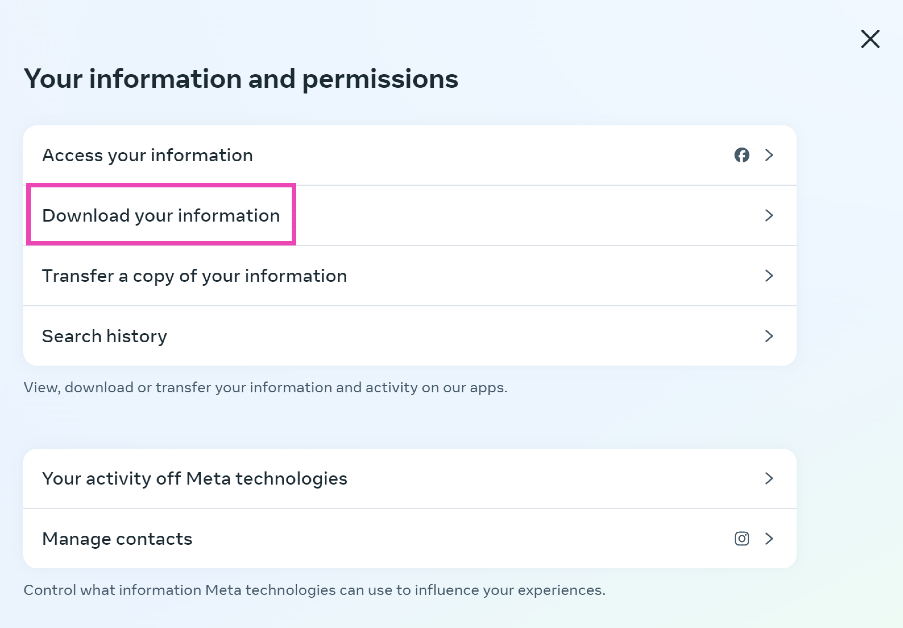
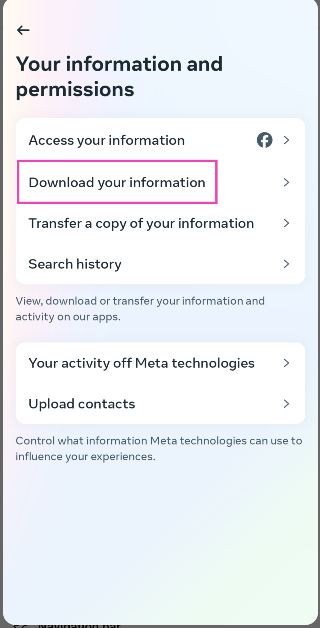
Step 5: Click on Your information and permissions.

Step 5: Click on Your information and permissions.

Step 6: Select Download your information.

Step 6: Select Download your information.

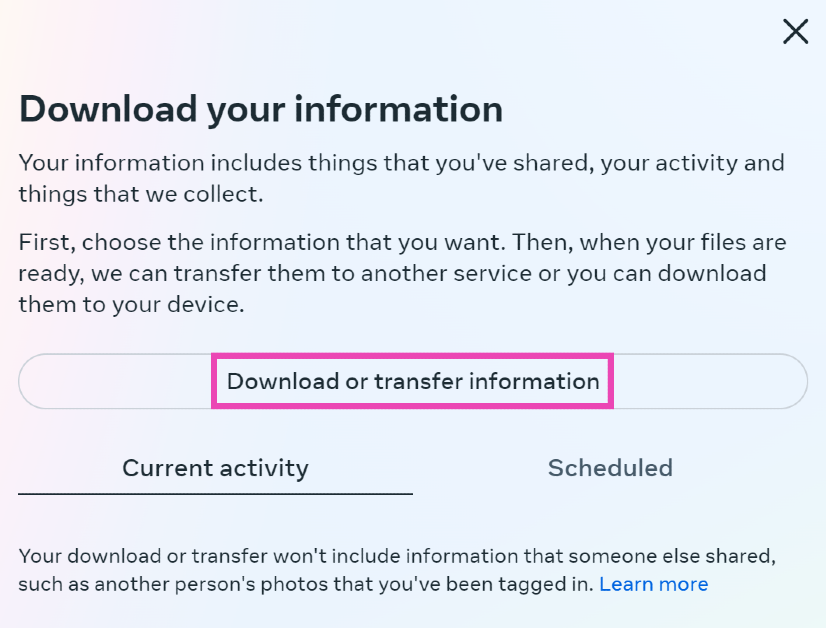
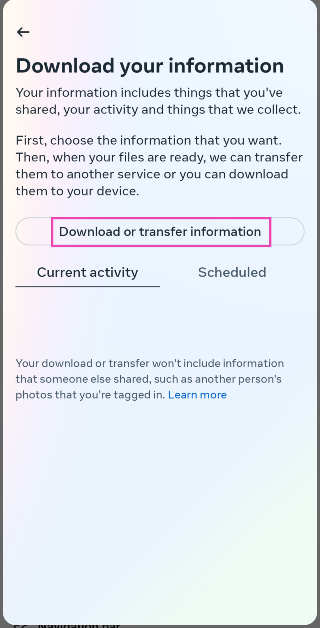
Step 7: Click on Download or transfer information.

Step 7: Click on Download or transfer information.

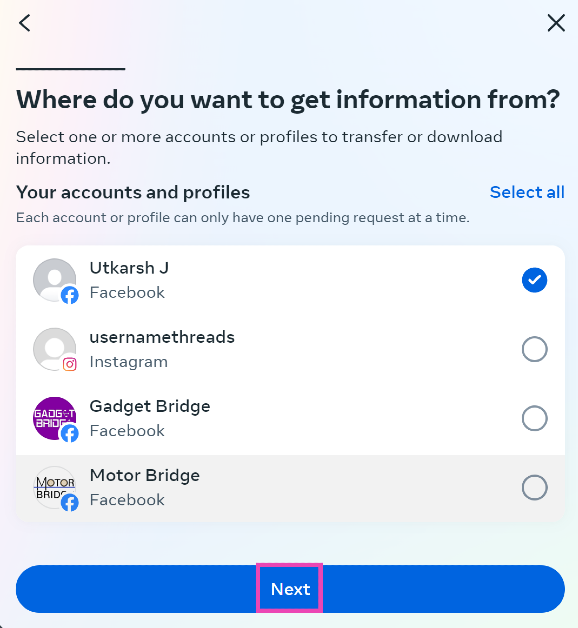
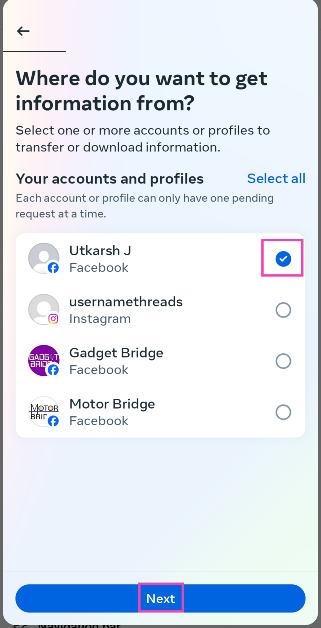
Step 8: Select the account or profile from which you want to download the images.

Step 8: Select the account or profile from which you want to download the images.

Step 9: Hit Next.

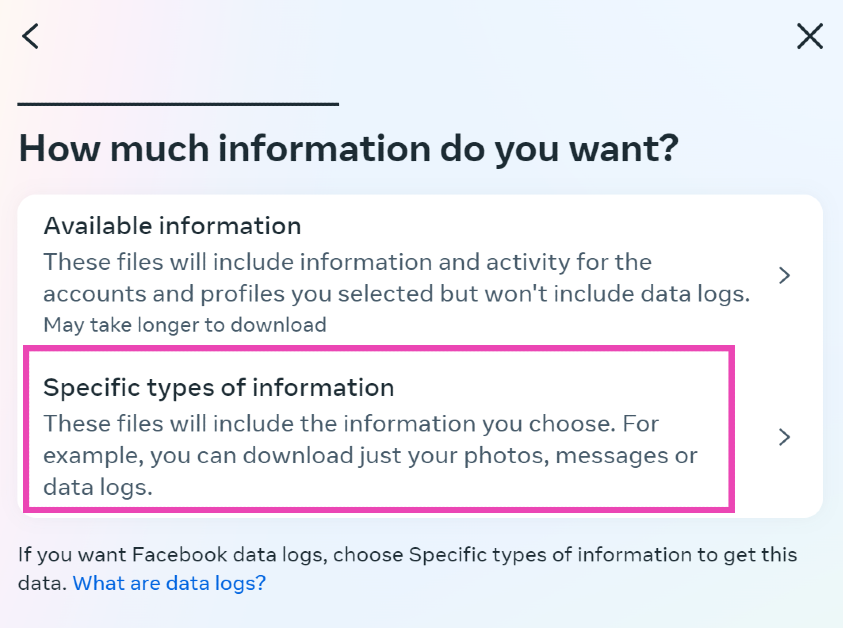
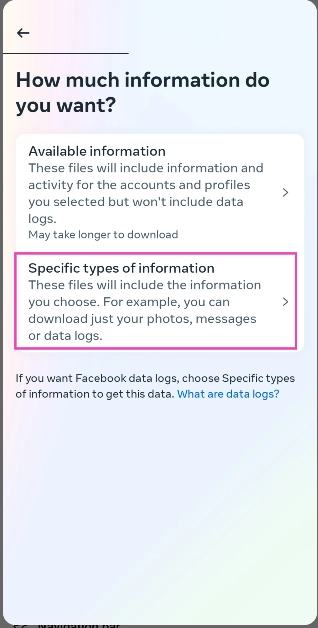
Step 10: In the following window, click on Specific types of information.

Step 10: In the following window, click on Specific types of information.

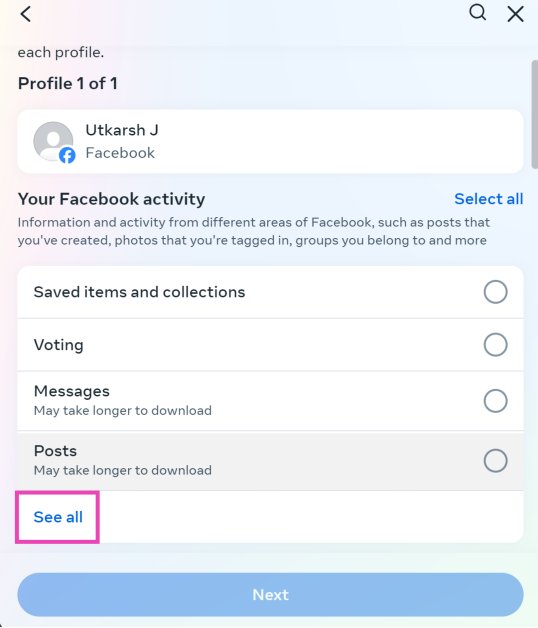
Step 11: Click on See All under Your Facebook activity.

Step 11: Click on See All under Your Facebook activity.

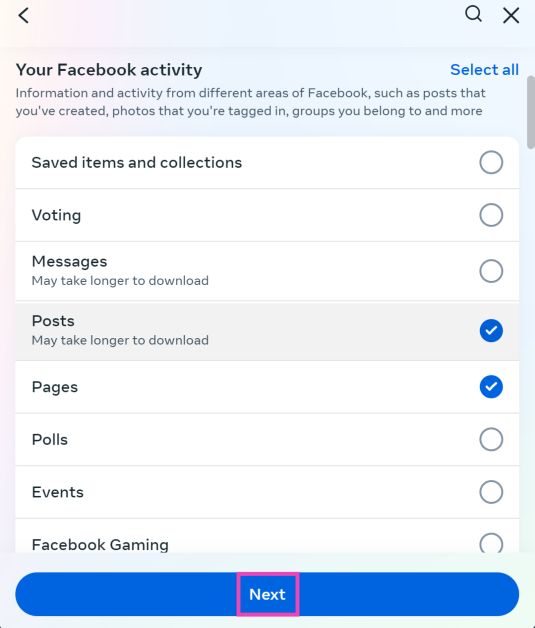
Step 12: Select Posts, Pages, Stories, and Reels. This should cover all of the media you’ve uploaded on your profile.

Step 12: Select Posts, Pages, Stories, and Reels. This should cover all of the media you’ve uploaded on your profile.

Step 13: Hit Next.

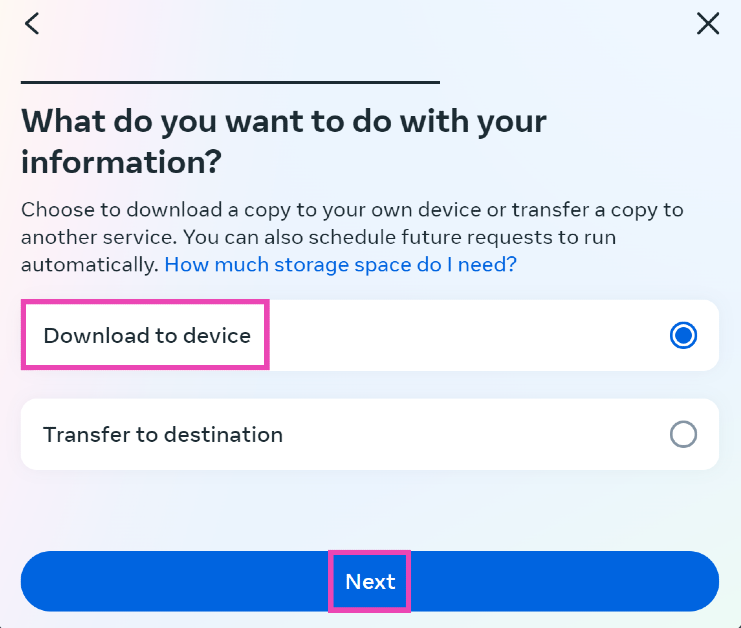
Step 14: If you want to download the photos locally to your device, select Download to device and hit Next.

Step 14: If you want to download the photos locally to your device, select Download to device and hit Next.

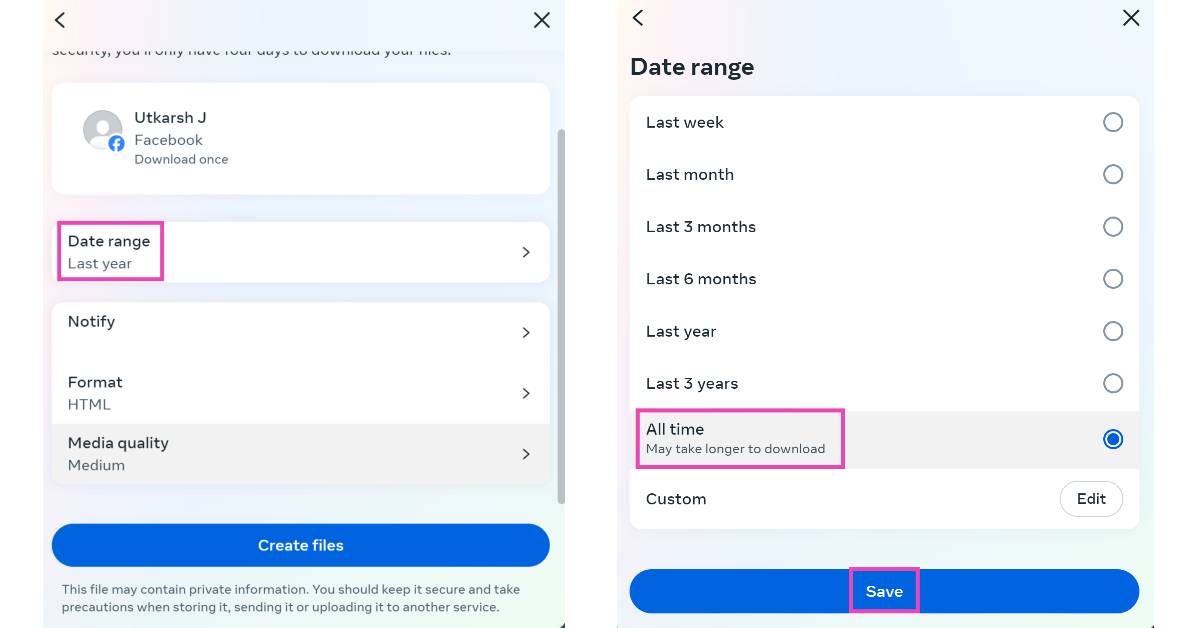
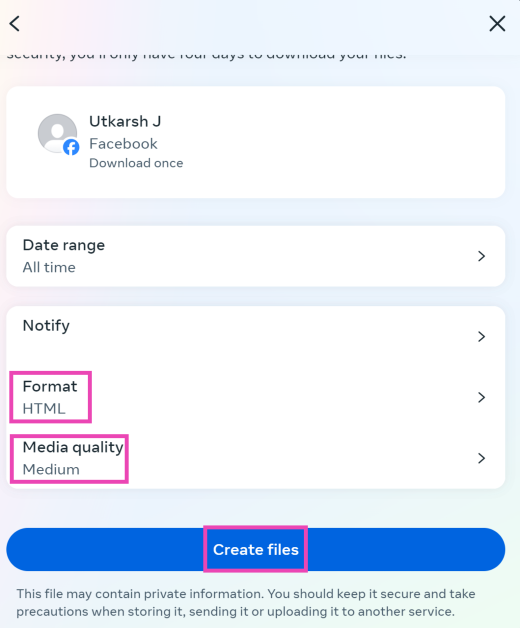
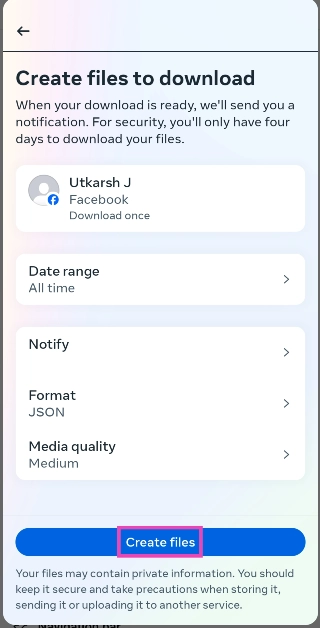
Step 15: Click on Date range and select All time. Select your preferred media quality as well.

Step 15: Click on Date range and select All time. Select your preferred media quality as well.

Step 16: Click on Format and select JSON if you want to browse the files on your PC instead of a web browser.

Step 17: Hit Create files.

Step 17: Hit Create files.

The download request will be sent to Facebook. The download activity can be tracked from the Accounts Centre.

Download All Photos from your Facebook Profile (Android)

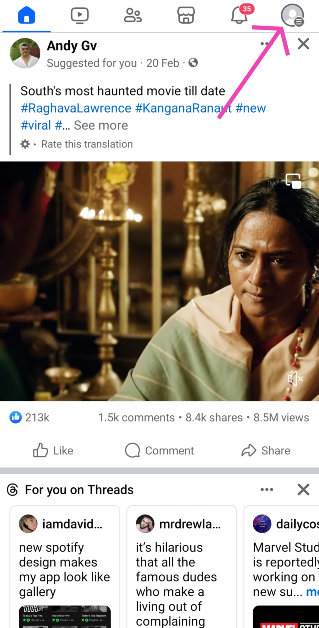
Step 1: Launch the Facebook app on your Android smartphone and hit your profile icon at the top right corner of the screen.

Step 1: Launch the Facebook app on your Android smartphone and hit your profile icon at the top right corner of the screen.

Step 2: Tap on Settings and privacy and go to Settings.

Step 2: Tap on Settings and privacy and go to Settings.

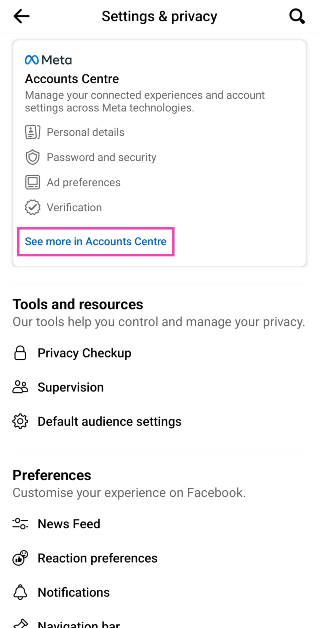
Step 3: Tap on See more in Accounts Centre.

Step 3: Tap on See more in Accounts Centre. Best Ways to Download All Your Photos From Facebook

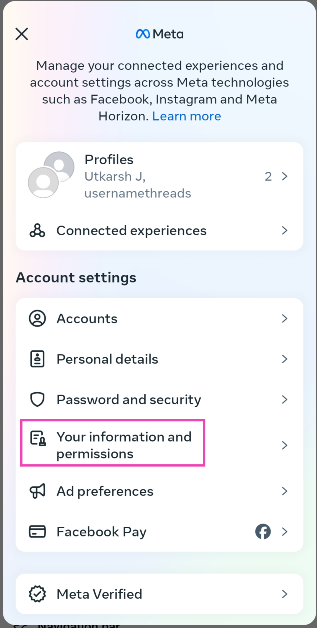
Step 4: Select Your information and permissions.

Step 4: Select Your information and permissions. Best Ways to Download All Your Photos From Facebook

Step 6: Tap on Download your information.

Step 6: Tap on Download your information. Best Ways to Download All Your Photos From Facebook

Step 7: Tap on Download or transfer information.

Step 7: Tap on Download or transfer information. Best Ways to Download All Your Photos From Facebook

Step 8: Select the account or profile from which you want to download the images.

Step 8: Select the account or profile from which you want to download the images. Best Ways to Download All Your Photos From Facebook

Step 9: Hit Next.

Step 10: On the following page, click on Specific types of information.

Step 10: On the following page, click on Specific types of information. Best Ways to Download All Your Photos From Facebook

Step 11: Click on See more under Your Facebook activity.

Step 11: Click on See more under Your Facebook activity. Best Ways to Download All Your Photos From Facebook

Step 12: Select Posts, Pages, Stories, and Reels. This should cover all of the media you’ve uploaded on your profile.

Step 12: Select Posts, Pages, Stories, and Reels. This should cover all of the media you’ve uploaded on your profile. Best Ways to Download All Your Photos From Facebook

Step 13: Tap Next.

Step 14: If you want to download the photos locally to your device, select Download to device and tap Next.

Step 14: If you want to download the photos locally to your device, select Download to device and tap Next. Best Ways to Download All Your Photos From Facebook

Step 15: Tap on Date range and select All time. Select your preferred media quality as well.

Step 15: Tap on Date range and select All time. Select your preferred media quality as well. Best Ways to Download All Your Photos From Facebook

Step 16: Tap on Format and select JSON if you want to browse the files on your phone instead of a web browser.

Step 17: Tap on Create files.

Step 17: Tap on Create files. download all photos from facebook

Frequently Asked Questions (FAQs)

How do I download a picture from Facebook?

Open the picture, select the ellipses at the top-right corner of the screen and hit Save Photo/Download.

How do I download a photo album from Facebook?

Go to your profile, select Photos, open the album, hit the ellipses, and select Download album.

How do I download all of my pictures on Facebook?

You will need to go to the Accounts Centre and select Your information and permissions>Download your information to get started on downloading your Facebook data.

Read Also: Nothing Phone 2a will look like this: Design revealed

Conclusion

This is how you can download all your Facebook photos on your PC and Android smartphone. The iPhone app for Facebook follows the same process as its Android counterpart. Instead of creating a local backup of your images, you can also choose to transfer them to another destination. If you found this article helpful, let us know in the comments!

Samsung Galaxy A15 5G new memory variant launched in India

Key highlights

  • Today Samsung announced the availability of a new 6GB RAM, 128GB storage variant for Galaxy A15 5G in India.
  • The smartphone was already available in two RAM and storage options.

Samsung released the Galaxy A15 5G in India in December of last year. The company today introduced a new memory variant for the smartphone. The device will now be available in three varieties since it was initially offered in two different configurations. The handset features an AMOLED screen which supports a refresh rate of Hz. The phone comes with a 50-megapixel triple rear camera setup. It packs a 5,000mAh battery as well.

Samsung Galaxy A15 5G will now be available in a new 6GB RAM with 128GB storage option priced at Rs 17,999. The device already comes with 8GB RAM with 128GB storage priced at Rs 19,499. There is another 8GB RAM with 256GB storage model which comes with a price tag of Rs 22,499.

Samsung Galaxy A15 5G new memory variant launched in India

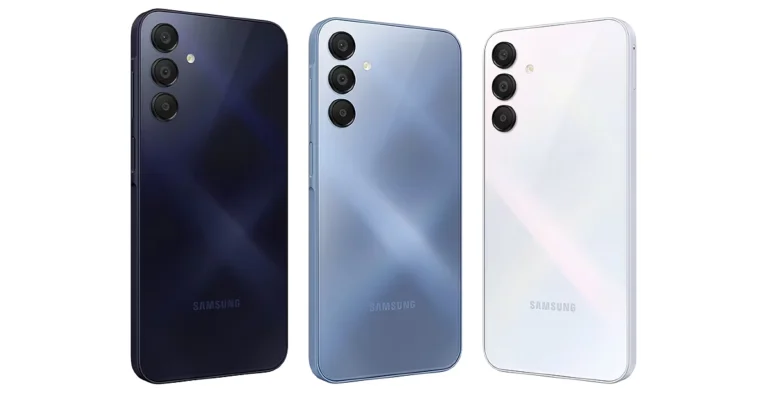
Consumers can avail bank cashback worth Rs 1500 on Galaxy A15 5G 6GB RAM with 128GB storage variant bringing the price down to Rs 16,499. Galaxy A15 5G is available across retail stores, Samsung.com, and other online players. The phone comes in Blue Black, Blue and Light Blue colour options.

Also Read: Meta rolls out Save on Threads features, allowing bookmark favourite posts

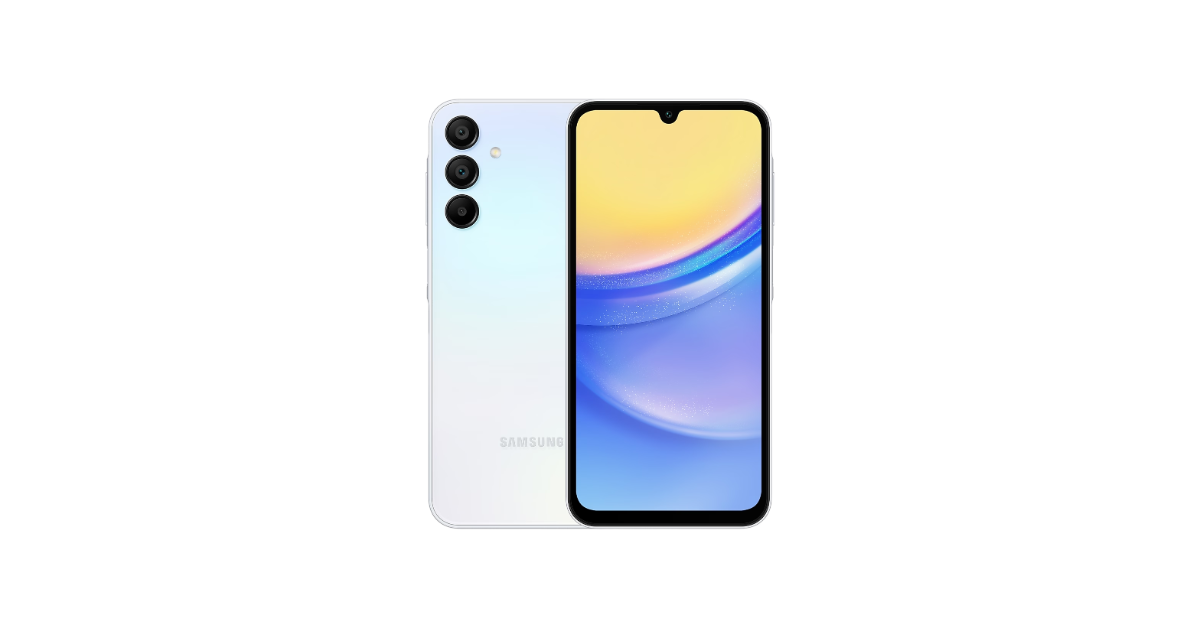
The Samsung Galaxy A15 5G is highlighted with a 6.5-inch full-HD+ Super AMOLED screen with 1,080×2,408 pixels of resolution. The display comes with a 90Hz refresh rate and 800 nits of peak brightness. The phones run on One UI 5 on top of Android 13. The company is said to provide up to 4 years of software upgrades and five years of security fixes. The device is powered by an unnamed octa-core chipset with up to 8GB of RAM and up to 256GB of internal storage.

Galaxy A15 5G features a triple rear camera setup led by a 50-megapixel primary camera with optical image stabilisation (OIS), a 5-megapixel secondary sensor and a 2-megapixel lens. In addition to this, it includes a 13-megapixel front-facing camera for selfies and video calling.

Also Read: Nothing Phone 2a will look like this: Design revealed

The Samsung phone is backed by a 5,000mAh battery with 25W fast charging support. In terms of connectivity, there is 5G, Wi-Fi, Bluetooth, GPS, a 3.5mm headphone jack, and a USB Type-C port for charging. The sensors on both phones include accelerometers, a gyro sensor, a geomagnetic sensor, a light sensor, a virtual proximity sensor and a side-mounted fingerprint scanner.

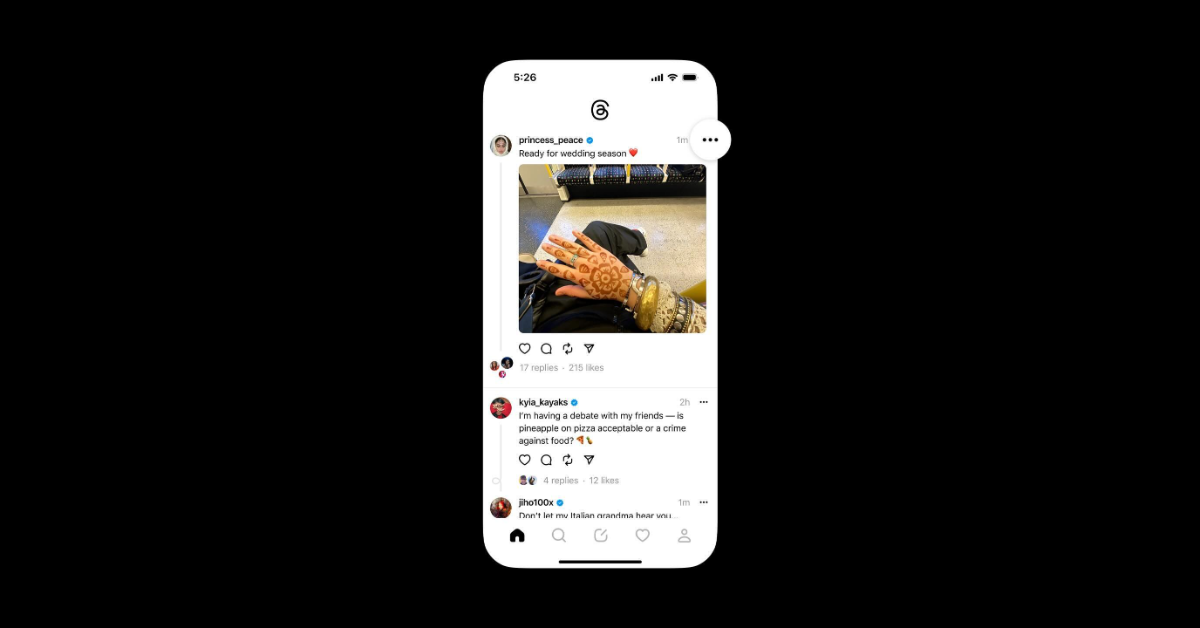
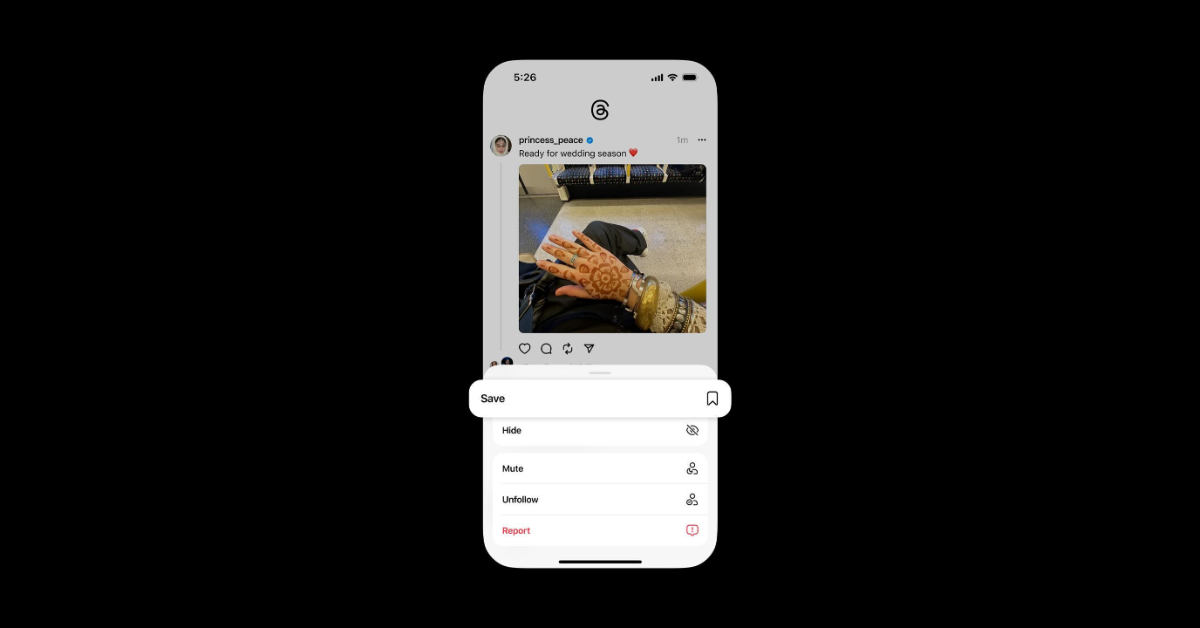
Meta rolls out Save on Threads features, allowing bookmark favourite posts

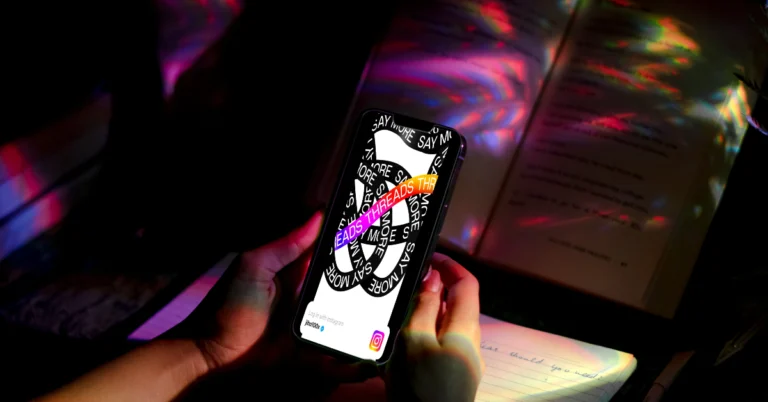
Text-based conversation app linked to Instagram Threads has released saved post features to all the users. The users will be able to use Save on Threads to bookmark their favourite posts for later. The feature was undergoing user testing and will be widely available to all the users on the platform

Users of Threads will soon be able to favourite their favourite posts thanks to a new feature Save on Threads. With the current widespread rollout, more users should soon be able to access the feature on their app.

Instagram Head Adam Mosseri posted on Threads to announce the rollout. He said, “We’re rolling out Save on Threads more broadly starting today, so you can bookmark your favourite posts for later.” 


Adam Mosseri has also confirmed that saving posts on Threads could affect the algorithm and feed on the social media platform. Also, bookmarking helps you stay organised with the posts you’re viewing on the platform.

Meta rolls out Save on Threads features, allowing bookmark favourite posts.

To save a post on Threads, select Save from the list of options by clicking on the three-dot menu that is located in the upper-right corner of each post. As soon as you save a post on Threads a message verifying that the post has been saved will show up at the top of the page. 


Meta rolls out Save on Threads features, allowing bookmark favourite posts.

In order to access your Saved Threads post all you have to do is go to the settings menu, navigate to your profile, tap the double horizontal line icon, and then select Saved. The process of saving Threads posts is easy and convenient just like how we save posts and access posts on Instagram.

Apart from this Threads was also recently spotted testing a new feature that would display trending postings to some users in a manner akin to X’s trending page. Reportedly the company is working on a new Today’s Topics section that will show real-time trending posts. But on Threads, the trending topics don’t need to have a hashtag or a tag attached to them.

The topics with a heading are displayed as plain text, along with what seems to be a top post that covers the subject matter. Mosseri claims that AI decides on both the heading and the subjects.

Head Adam Mosseri also shared a post announcing the testing of this feature. He said, “Today’s topics on Threads will be on the search page and in the For You feed. The topics are determined by our AI systems based on what people are engaging with right now on Threads.” 

Top 4 Ways to Access Archived Emails in Outlook (2024)

0

Archiving emails is easy, but looking for the Archived folder can be a tricky task. If you’re used to Gmail’s layout and are new to Outlook, it may take some time getting used to things. Or maybe you’re used to the Outlook app for Windows and are out of your element on Android. Today, we bring you the top 4 ways to find and access archived emails in Microsoft Outlook.

Read Also: Nothing Phone 2a will look like this: Design revealed

Why you should archive your emails

No one likes a messy email inbox. With the barrage of newsletters, junk, and spam that users receive in their inboxes every day, keeping track of important emails can be quite a challenge. Unsubscribing from promotional mail and mass deleting spam are good techniques to manage your inbox, but even when you’re left with important emails, the inbox can seem daunting to look at.

This is where the ‘Archived’ folder comes in. You can use this folder to stash older emails that are important but not urgently required. This keeps your inbox from having a cluttered look and makes sure the necessary emails are still around. This is a much better option than deleting the emails to bring a cleaner look to your inbox.

Archiving an email on Outlook is easy. All you need to do is right-click the email and select ‘Archive’ from the list of options. If you’re an Android user, you need to long-press the email, tap the ellipses (three dots) at the top-right corner of the screen, select ‘Move to folder’, and tap on ‘Archive’.

Access Archived Emails on the Outlook Website

Step 1: Go to www.outlook.live.com and sign in using your Outlook/Microsoft Account.

Step 2: Click on Archive in the left sidebar to view all your archived emails.

Step 2: Click on Archive in the left sidebar to view all your archived emails.

Access Archived Emails in the Outlook app

Step 1: Launch the Outlook app on your Windows PC.

Step 2: Click the arrow icon next to your email account.

Step 2: Click the arrow icon next to your email account.

Step 3: Select Archive.

Step 3: Select Archive.

Use Windows Mail to access Archived Outlook Emails

The native ‘Mail’ app on your Windows PC lets you access your Outlook emails. Here’s how you can view your archived emails on it.

Step 1: Hit the Start button on the taskbar and select Mail.

Step 2: Sign into the Mail app using your Outlook account.

Step 3: Click the folder icon in the left sidebar.

Step 4: Select Archive.

Access Archived Outlook Emails in the Android app

Step 1: Launch the Outlook app on your Android phone.

Step 2: Hit the profile icon at the top left corner of the screen.

Step 2: Hit the profile icon at the top left corner of the screen.

Step 3: Select Archive from the list.

Step 3: Select Archive from the list.

Frequently Asked Questions (FAQs)

How do I archive an email on Outlook?

To archive an email, simply right-click on it and select ‘Archive’. Android users need to long press the email, tap the ellipses at the top right corner of the screen, and select Move to folder>Archive.

How do I view the ‘Archive’ folder on Outlook?

The ‘Archive’ folder can generally be found in the left sidebar. On the Windows Outlook app, you need to click the arrow icon next to your email to view the folder. Android users simply need to tap the profile icon at the top left corner of the screen to access it.

What is the attachment size limit on Outlook?

Outlook allows you to send attachments up to 20MB in size. You can upload larger attachments to OneDrive and share their links on Outlook.

Read Also: Top 8 Ways to Fix an Android Phone That Can’t Make or Receive Calls

Conclusion

These are the top 4 ways to find and access archived emails on Outlook. If you can’t find the folder in the Outlook app for Windows and Android, try updating the app to its latest version. Once that’s done, follow the steps mentioned above to view your archived emails.

Nothing Phone 2a will look like this: Design revealed

Key Highlights

  • Nothing Phone 2a design has been revealed by the company before the March 5 launch.
  • The company has released a teaser unveiling the design of the upcoming smartphone.
  • The device is also being showcased at MWC 2024.

Before the March 5 launch event for the Nothing Phone 2a in India, the device was on display worldwide at MWC 2024. In addition to this, the company has also revealed the device through an official teaser posted on its social media channel. Currently, this is one of the most anticipated smartphones and there has been a lot of buzz about it as the upcoming Nothing smartphone will be a more affordable, more subdued version of the Nothing Phone 2 which was released last year. Here is everything that we know about it.

On March 5, Nothing Phone (2a) will launch internationally and in India. Ahead of the official release, the company has not only officially unveiled its design but has also been put on display at the ongoing mega tech event Mobile World Congress which is being held in Barcelona, Spain. The official renderings corroborate the prior, leaked images and include several notable design changes.

The Nothing Phone 2a is teased in its White colour option, although a Black version is also anticipated. Its transparent body reminded us of the Nothing Phone 2. But this one has fewer glyphs compared to their older siblings. The glyph interface is limited to the device’s upper portion.

And, the biggest design change it received is the dual-camera arrangement, now positioned in the centre and surrounded by three LED lights. One of these units is positioned vertically on the right side of the rear panel, while the other two are arranged in circular patterns.

Although it lacks a full-fledged Glyph interface it has a transparent back panel with patterns. It also has flat corners.

The Nothing Phone 2a is confirmed to run on a MediaTek Dimensity 7200 Pro SoC reportedly combined with 12GB of RAM and an extra 8GB of virtual RAM.
Recently, Nothing CEO Carl Pei verified that Phone 2a handsets supplied in India will be produced here only.

Also Read: New generative AI-based features coming to Android devices, including smartwatches

Additionally, the Nothing Phone 2a’s key specifications were leaked earlier. It’s anticipated that the phone will ship with NothingOS 2.5 and run Android 14. Finally, a 6.7-inch full-HD+ OLED display with a refresh rate of 120Hz is anticipated to be included with the device.

Also Read: Krafton’s latest Indian-themed game Garuda Saga launched 

A 50-megapixel primary and a 50-megapixel ultra-wide angle lens are expected to be included in the dual rear camera configuration of the Nothing Phone 2a. It may also have a 32-megapixel front-facing camera for taking selfies. The battery’s capacity is unclear, but it may charge at 45W wired fast charging.

11 Ways to Fix an Android Phone That Can’t Make or Receive Calls

0

The most common problems are often the trickiest to fix. This is because it is hard to figure out what’s causing the malfunction to occur. While something as general as not being able to make a phone call may seem easy to fix, trying to find the root cause of the problem requires delving into different aspects of your phone. In this article, we bring you the top 11 ways to fix an Android phone that can’t make or receive phone calls.

Read Also: Krafton’s latest Indian-themed game Garuda Saga launched

Why won’t my Android phone make or receive calls?

Whenever you face a network and connectivity issue on your smartphone, it is a good idea to check if it is because of one of the usual suspects. The lack of optimum balance and talk time can render all calling services on your phone moot. The incoming calls to your phone number are also suspended when it hasn’t been recharged in a long time.

Software issues rarely affect your phone’s network connectivity, but it is possible you may have turned on the Airplane or Flight Mode on your phone and forgotten about it. The same goes for DND and Call Barring. You need to check all the supplementary services for your number to make sure they aren’t causing this issue.

Lastly, it is also possible that your SIM card has been phased out by the network provider. This only happens with really old SIM cards that are more than a decade old. Luckily, the process of replacing a SIM card is very easy and doesn’t require more than a few minutes to get reactivated. All you need to do is visit your network provider’s service centre with the proper documentation and request a new SIM card.

Restart your phone

Restart Your Phone

The first thing you should do when you hit a network-related problem is to give your phone a quick restart. Not only does this refresh the network, but it also resolves any background glitches that may be causing your phone to malfunction. Press and hold the side key to access the power menu and hit ‘Restart’. If pressing the Side key triggers the voice assistant, long-press the Volume Up key and Side key simultaneously. You can also access the power menu by tapping the power icon in the Quick Settings Menu.

Make sure the SIM card is inserted properly

Here is a step by step guide on how to check how many sims are registered on your Aadhar card.

Use the SIM ejector tool to pop out the SIM tray and re-insert the SIM card after wiping it clean. Give the tray a thorough wipe, too. Make sure the SIM card is positioned correctly on the tray. If you’re using a very old card, you may need to get a replacement.

Turn off Airplane Mode

airplane mode

Your phone disables the cellular network connection once Airplane Mode is turned on. In this mode, you cannot make or receive any calls on your Android phone. To turn it off, swipe down from the status bar and tap the tile with an airplane on it. On some phones, it may be called ‘Flight Mode’.

Turn off Do Not Disturb

If your phone is in Do Not Disturb mode, it won’t notify you about incoming calls. DND mode only allows calls from whitelisted callers. Other calls only get through when the caller rings you multiple times. To disable DND, swipe down from the status bar and hit the Do Not Disturb tile. You can also disable it by going to Settings>Notifications>Do Not Disturb and turning off the toggle switch.

Make sure you’re in an area with optimal network reception

If you’re in an area with poor signal strength, the call services on your phone will fail to function. Elevators, basements, and high elevation areas are some of the places where you may face this issue. Move to an open area with better network reception to make or accept a call.

Restart your phone in Safe Mode

Restart your phone in Safe Mode

The third-party apps on your phone can often disrupt its regular functioning. Sometimes, the apps downloaded from sketchy sources push malware on your device, causing erratic behaviour. To confirm if this is the case, restart your phone in safe mode. Go to the power menu, long-press the power off icon, and hit ‘Safe Mode’. This will restart your phone and disable all the third-party apps. If you’re still unable to make or receive calls, it means the third-party apps on your phone are not causing the issue.

Disable and re-enable SIM

Step 1: Go to Settings and select Connections.

Step 1: Go to Settings and select Connections.

Step 2: Tap on SIM manager.

Step 2: Tap on SIM manager.

Step 3: Turn off the toggle switch for your SIM card.

Step 3: Turn off the toggle switch for your SIM card.

Step 4: Wait for a few seconds and then turn the switch back on.

Step 4: Wait for a few seconds and then turn the switch back on.

Turn off WiFi calling

If the WiFi connection is experiencing issues, WiFi calling can impede your cellular phone calls. You can either turn it off by tapping its tile in the Quick Settings Menu or disable it from settings. Here’s how.

Step 1: Go to Settings and select Connections.

Step 1: Go to Settings and select Connections.

Step 2: Turn off the toggle switch for WiFi Calling.

Step 2: Turn off the toggle switch for WiFi Calling.

Clear Dialer’s cache

Step 1: Go to Settings and select Apps.

Step 1: Go to Settings and select Apps.

Step 2: Select the dialer app.

Step 2: Select the dialer app.

Step 3: Tap on Storage.

Step 3: Tap on Storage.

Step 4: Hit Clear Cache.

Step 4: Hit Clear Cache.

Reset network settings

Step 1: Go to Settings and General Management.

Step 1: Go to Settings and General Management. Top 8 Ways to Fix an Android Phone That Can't Make or Receive Calls

Step 2: Tap on Reset.

Step 2: Tap on Reset. Top 8 Ways to Fix an Android Phone That Can't Make or Receive Calls

Step 3: Select Reset mobile network settings.

Step 3: Select Reset mobile network settings. Top 8 Ways to Fix an Android Phone That Can't Make or Receive Calls

Step 4: Hit Reset settings.

Step 4: Hit Reset settings. Top 8 Ways to Fix an Android Phone That Can't Make or Receive Calls

Update your phone’s OS

Step 1: Go to Settings and select Software update.

Go to Settings and select Software update. 10 top ways to fix unable to answer calls on Android phone

Step 2: Tap on Download and install.

tap on download and install 10 top ways to fix unable to answer calls on Android phone

Step 3: Select Install now.

Select Install now. 10 top ways to fix unable to answer calls on Android phone

Frequently Asked Questions (FAQs)

Why won’t my Android phone make any calls?

A SIM malfunction can cause your Android phone to stop making or receiving calls. Apart from that, all cellular network-related services are paused when Airplane Mode is turned on.

Why is my Android phone automatically rejecting calls?

Enabling Do Not Disturb can lead to incoming calls getting rejected automatically on your Android phone. Swipe down from the status bar and hit the DND tile to disable it.

Why is SIM not receiving calls?

Your phone stops receiving calls when the validity of the calling pack/talk time expires. Recharge your phone to restore incoming call service.

What does resetting the network settings do on Android?

Performing a network settings reset unpairs all your connected Bluetooth devices and WiFi networks. It restores all network settings to factory default. The personal data on your phone remains untouched.

What is Call Barring?

With Call Barring, you can stop incoming and outgoing calls on your phone. This feature is perfect for when you are on vacation and don’t want to be disturbed.

Read Also: New generative AI-based features coming to Android devices, including smartwatches

Conclusion

These are the top 11 ways to fix an Android phone that can’t make or receive calls. To maintain connectivity, make sure your phone number has the optimum balance and talk time validity. If you know of any other way to fix this issue, let us know in the comments!

New generative AI-based features coming to Android devices, including smartwatches

0

Key Highlights

  • Google has rolled out 9 new Android features that rely on generative AI.
  • Users will get new casting controls for Spotify and AI-generated captions for images.

Tech Giant Google has rolled out nine new generative artificial intelligence (AI)-based features for Android devices. The upcoming features will be accessible for tablets, smartphones, smartwatches, and automobiles intended for use with other products, including the Messages app, Android Auto, and Wear OS.

Google has pushed out additional features for smartphones, Android Auto, and Wear OS, albeit they are still under beta testing. The majority of the new capabilities are AI-based and intended for use with different devices. The company via blog post made the announcement which said, “Today, we’re rolling out Android updates to help you simplify your day and get more done — whether on your phone, tablet or Wear OS smartwatch or in your Android Auto-compatible car.”

Android Auto may automatically summarise lengthy texts or active group discussions with the help of generative artificial intelligence (AI). Users will be able to send messages, share ETA or start a call by tapping once. In addition to this, it will also recommend pertinent responses and actions.

Users will be able to listen to auto-generated AI descriptions of photos, online images and pictures included in messages with image captions in Lookout on Android. This feature is being rolled out globally in English and has been designed with blind and low-vision communities.

Also Read: Nubia Flip 5G foldable phone introduced at MWC 2024

Google’s latest update will now also bring enhanced screen reader support for Lens in Maps. This functionality will aid in exploring nearby and identifying places like ATMs, restaurants and transit stations. One can also point their camera at the surroundings and TalkBack will read out the details about the location, including its business hours, rating, and driving directions.

On the other hand, users can now use their finger or stylus to add handwritten annotations to Google Docs from their Android phone or tablet thanks to Google Docs markups. With a selection of markup tools to choose from, like different pen colours and highlighters, reviewing documents and providing feedback is fast, flexible and easy.

Spotify now provides more screen-casting settings thanks to Google. The output switcher on Android’s home screen lets you move effortlessly between your devices when playing YouTube music on Android’s home screen: your phone’s speaker, headphones, smart speakers, or TV. You may now use Spotify in the same way. Thus, Spotify Connect devices will now be displayed on the output switcher when you are playing media on Spotify.

Also Read: Krafton’s latest Indian-themed game Garuda Saga launched

Through Health Connect, users are now able to see a more complete picture of their health right in the redesigned Fitbit app through Health Connect– with data from their favourite wearables and apps like AllTrails, Oura Ring and MyFitnessPal. To see data from connected apps next to your Fitbit data, go to the You tab in the Fitbit app on your Android phone. In the Today tab, you can see data like exercise, steps, calories burned, floors climbed and distance travelled from Health Connect-compatible apps.

One can now also access boarding passes, event tickets, gym memberships, loyalty cards and more from their wrist with Google Wallet passes now available on Wear OS watches. Choose which passes to hide or display so they’re ready to use right when you need them.

Users may leave their phones in their pockets and check their wrists to make sure they catch their bus, train or ferry using public transit directions on Google Maps for Wear OS. Get compass-guided navigation directions to your destination after checking out the departure times directly from your smartwatch. If you prefer your phone, you can also mirror directions to your watch and navigate hands-free.

You may access Gemini directly in Google Messages on your Android phone starting this week in English beta. Chat with Gemini to draft messages, brainstorm ideas, plan events or simply have a fun conversation without leaving the Messages app.