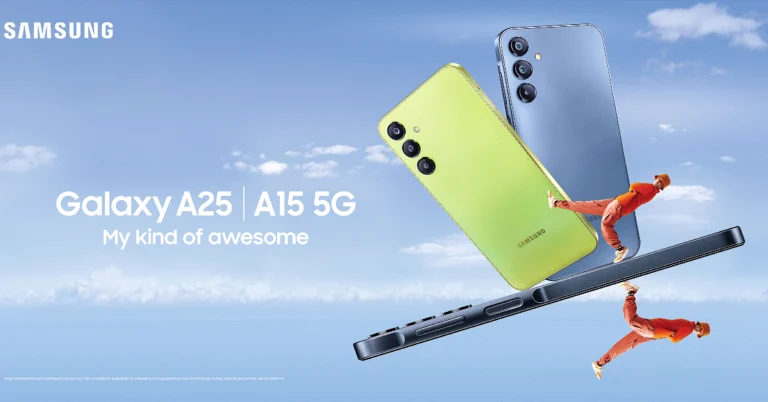
The device features a 6.5-inch full-HD+ Super AMOLED screen.
The phone includes a triple rear camera setup and a 13-megapixel front-facing camera.
Samsung Galaxy A25 5G and Galaxy A15 5G smartphones launched in India last week. Both the devices are now up for sale in the country. There is a lot in common between both phones. The smartphone features a 13-megapixel selfie camera. They also pack a 5,000mAh battery and an AMOLED screen. Additionally, they run on Android 13 out of the box.
In This Article
Samsung Galaxy A25 5G, Galaxy A15 5G price in India, availability
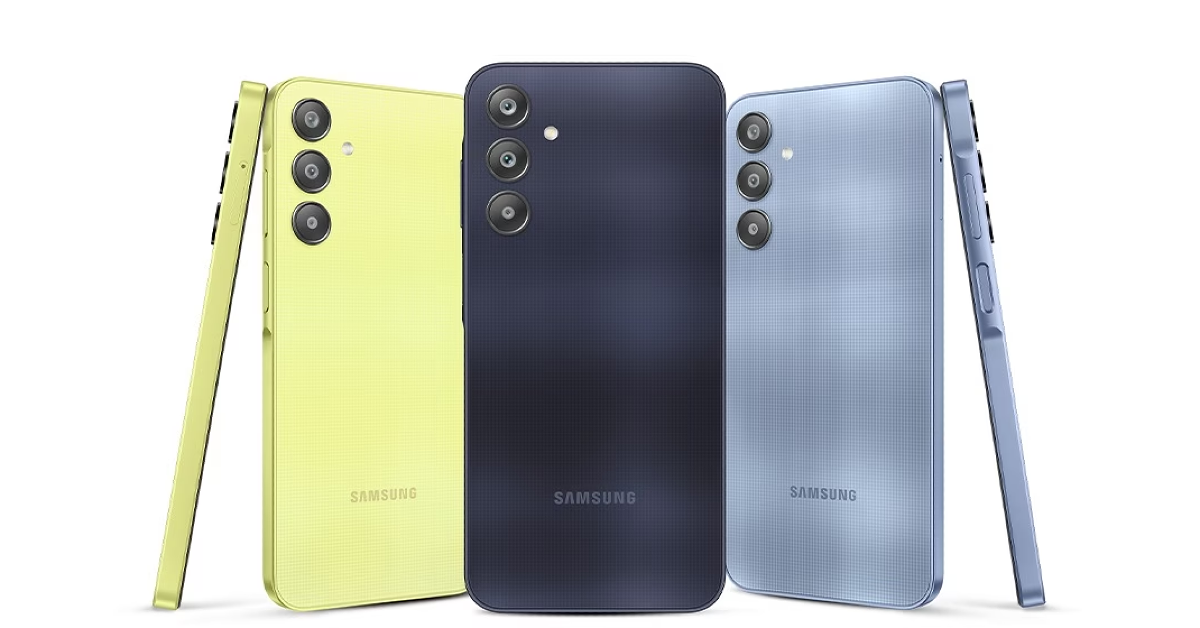
The Samsung Galaxy A25 5G launched in India starts at Rs 26,999 for the 8GB+128GB model. The price of the 8GB+256GB storage comes with a price tag of Rs 29,999. It is available in Blue, Blue Black, and Yellow colour options.
Samsung Galaxy A25 5G
The introductory offer includes a Rs 3,000 discount for customers using SBI cards to purchase A25.
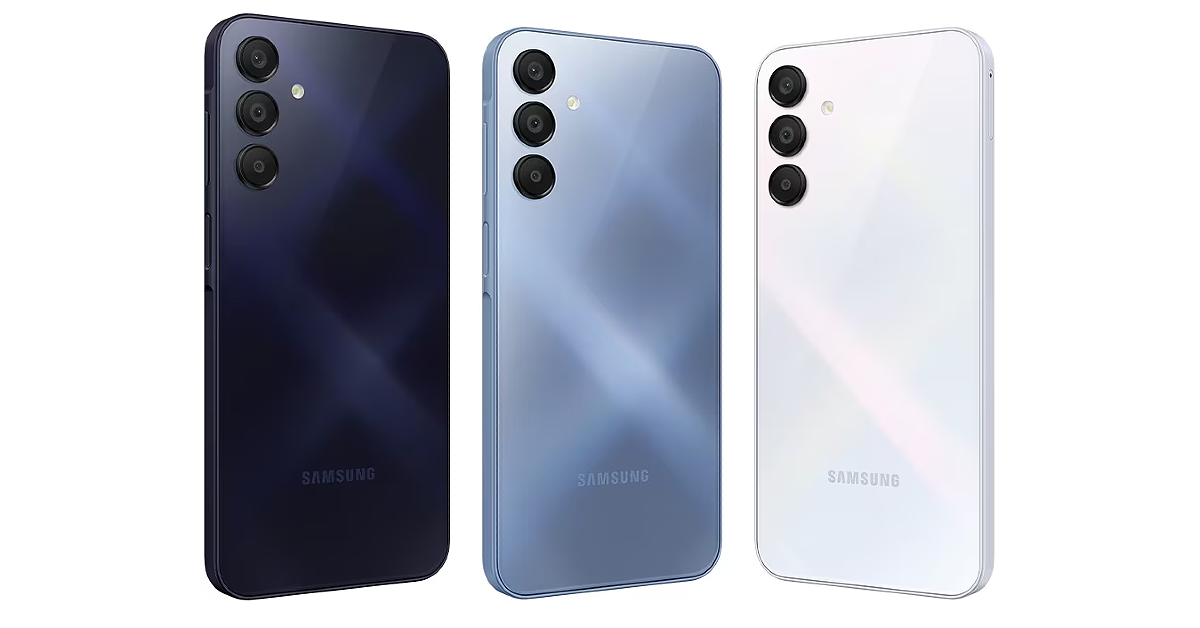
Whereas, the Samsung Galaxy A15 5G price in India begins at Rs 19,499 for the 8GB+128GB variant and Rs 22,499 for the 8GB+256GB storage option. The phone comes in Blue Black, Blue and Light Blue colour options.
The company is offering a Rs 1,500 discount for customers using SBI cards to purchase the A15.
As we mentioned earlier both smartphones share a lot of similarities. The Samsung Galaxy A25 5G and Galaxy A15 5G feature a 6.5-inch full-HD+ Super AMOLED screen with 1,080×2,408 pixels of resolution. The display on the A25 comes with a refresh rate of 120Hz and 1,00 nits of peak brightness. Whereas, the screen of the A15 5G supports 90Hz refresh rate and 800 nits of peak brightness. The phones run on One UI 5 on top of Android 13. The company is said to provide up to 4 years of software upgrades and five years of security fixes.
Galaxy A15 5G
The Samsung Galaxy A25 5G comes equipped with an octa-core Exynos 1280 SoC with up to 8GB of RAM and up to 256GB of storage. Whereas the Galaxy A15 5G is powered by an unnamed octa-core chipset with up to 8GB of RAM and up to 256GB of internal storage.
As mentioned earlier, the new A-series smartphone features a triple rear camera setup led by a 50-megapixel primary camera with optical image stabilisation (OIS). Other sensors on the A25 include an 8-megapixel ultra-wide-angle lens and a 2-megapixel sensor. On the other hand, the A15 5G includes a 5-megapixel secondary sensor and a 2-megapixel lens. Also, the handsets are highlighted with a 13-megapixel front-facing camera for selfies and video calling.
Both Galaxy A25 5G and Galaxy A15 5G are fuelled by a 5,000mAh battery with 25W fast charging support. In terms of connectivity, there is 5G, Wi-Fi, Bluetooth, GPS, a 3.5mm headphone jack, and a USB Type-C port for charging. The sensors on both phones include accelerometers, a gyro sensor, a geomagnetic sensor, a light sensor, a virtual proximity sensor and a side-mounted fingerprint scanner.
Nothing Phone 2a is likely to launch at the Mobile World Congress next month.
The smartphone will be a toned-down variant of Nothing Phone 2.
The device will be available in two different configurations and colour options.
Recently the colour options and the RAM and storage options of the alleged Nothing Phone 2a surfaced on the web. But today Carl Pei, CEO of Nothing, teased the upcoming release of a new smartphone. The X post hints at the imminent launch of the rumoured Nothing Phone 2a. Previously it was tipped that the device would be presented at the Mobile World Congress next month.
Carl Pei, CEO of Nothing took to Twitter aka X lately where he revealed that the firm is planning to release a new smartphone. The post features an image of a dragon which indicates the Chinese New Year on February 10, which is the beginning of the year of the Wood Dragon. The X’s post did not reveal the device’s name or the exact date of its launch. But last month it announced Nothing to See, an event that will take place on February 27 at Mobile World Congress. According to a tipster the Nothing Phone 2a will be launched at Mobile World Congress (MWC 2024) on February 27.
Several key features, design and other information related to Nothing Phone 2a were tipped earlier recently; the price, colour options, and RAM and storage configurations were leaked.
As per a tipster, Nothing Phone 2a is expected to come in two colour options Black and White, similar to its siblings. The device is likely to be made available in two different configurations: 8GB of RAM with 128GB storage and 12GB RAM with 256GB of storage. The price of the phone is speculated below EUR 400 (approx Rs 36,800).
Just weeks ago the Phone 2a was also listed on the Bureau of Indian Standards(BIS) site indicating an upcoming launch.
Citing information from Kamila (@Za_Raczke), Nothing Phone 2a’s dual rear camera sensor is most likely to include a 0-megapixel Samsung S5KNG9 1/1.5-inch main sensor and the 50-megapixel Samsung S5KJN1 1/2.76-inch ultrawide lens. It is further revealed that the phone is anticipated to feature a 32-megapixel Sony IMX615 sensor on the front. According to her, the phone will be available in two colour options of Black and White. Seven wallpapers from the alleged Nothing Phone 2a were leaked namely “Ruxe,” “Nexul,” “Azunim White,” “Orbique,” “Rubrane Black,” “Ambra,” and “Virmar.”
Reportedly, the default wallpaper for the Black variant is likely to be Rubrane Black, while the White variant’s wallpaper will probably be Azunim White.
Smartphone brands like Samsung, Xiaomi, Vivo and OnePlus will officially launch their flagship devices in the country this month.
Samsung has not yet officially disclosed the exact date for the launch of the Galaxy S24 Series.
New year, new beginnings, and there will be a lot of interesting releases. The new smartphones that will be available this month Janaury 2024 are listed below. In case you were considering buying or gifting a new smartphone you are just at the right place because here you will learn about the upcoming smartphones before their release.
In the coming days, smartphone brands like Xiaomi, Vivo, OnePlus, Samsung and more have set their major launches planned this month. These brands have either acknowledged the existence of their devices or there are rumours that they are developing.
In This Article
Redmi Note 13 series
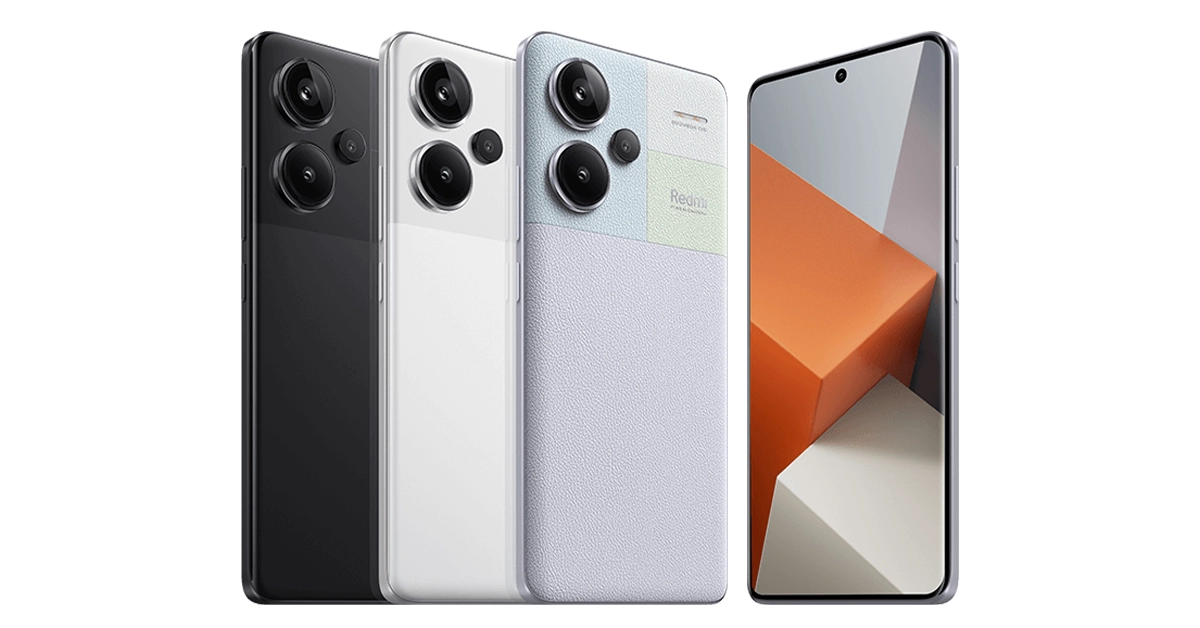
Redmi Note 13 series is scheduled to launch in India on January 4. The smartphone series may include all three devices- Redmi Note 13, Redmi Note 13 Pro, and Redmi Note 13 Pro+. Redmi Note 13 comes with a 6.67-inch AMOLED display with a refresh rate of 120Hz. The phone comes integrated with Android 13-based MIUI 14 and is powered by MediaTek Dimensity 6080 SoC. It has a dual rear camera setup that includes a 100MP main sensor and a 2MP macro sensor. Note that all three phones feature a 16MP selfie camera. The smartphone houses a 5,000mAh battery and comes with 33W wired fast charging support.
The Note 13 Pro is highlighted with a 6.67-inch 1.5K full-HD+ AMOLED screen with 120Hz refresh rate. The phone is powered by Qualcomm Snapdragon 7s Gen 2 and runs MIUI 14 OS. There is a triple rear camera setup on the phone that includes a 200MP main sensor, an 8MP ultra-wide angle lens, and a 2MP macro lens. The device is backed by a 5,100mAh battery with 67W fast charging support.
Redmi Note 13 Pro+ has the same display as the Pro model and it is powered by MediaTek Dimensity 7200 Ultra SoC. The device has a 5,000mAh battery that supports 120W fast charging.
Vivo X100 series
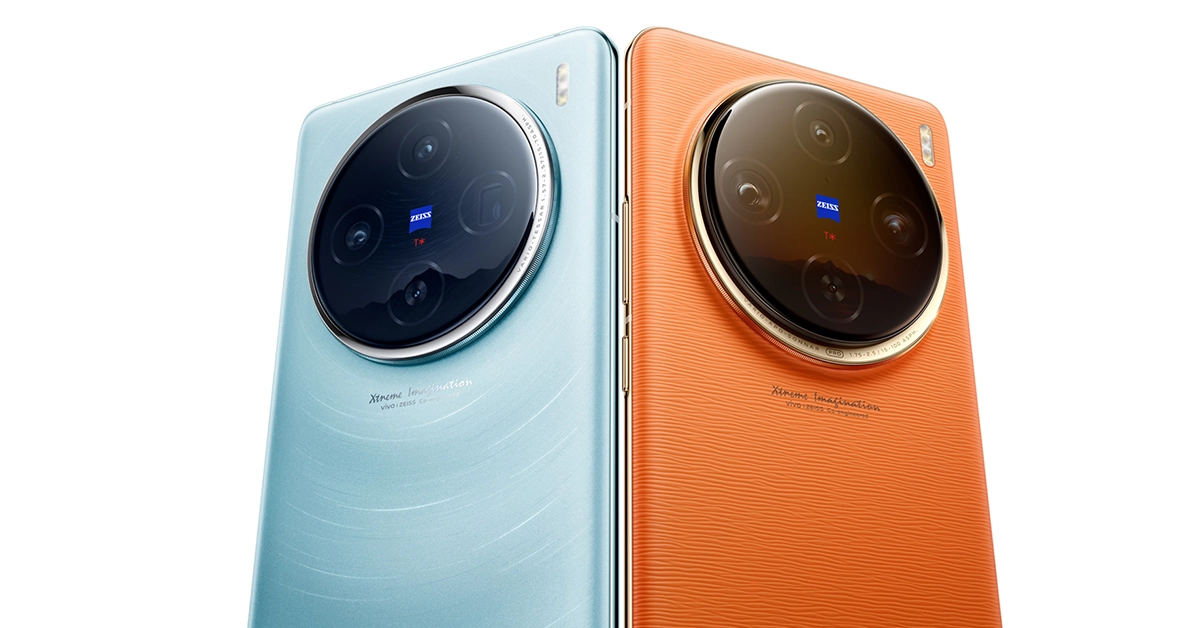
The Vivo X100 series is also going to debut in India on January 4. The upcoming series is confirmed to include Vivo X100 and X100 Pro. Both the Vivo X100 and the Vivo X100 Pro feature a 6.78-inch AMOLED 8T LTPO curved display with a 120Hz refresh rate and 3000 nits of peak brightness. The devices run on OriginOS 4 with Android 14 and are powered by a MediaTek Dimensity 9300 SoC with a Vivo V3 chip.
Both come with a triple-camera setup powered by Zeiss optics. The Vivo X100 Pro includes a 50-megapixel Sony IMX989 1-inch type sensor with OIS (100x digital zoom), a 50-megapixel ultra-wide-angle sensor, and a 50-megapixel Zeiss APO super-telephoto lens with OIS (4.3x optical zoom and 100x digital zoom).
On the other hand, the vanilla model includes a Sony IMX920 VCS bionic 50-megapixel primary sensor with OIS, a 50-megapixel ultra-wide-angle lens, and a 64-megapixel Zeiss super-telephoto lens (100x clear zoom). Both smartphones come with a 32-megapixel selfie camera. The pro model comes with the latest V3 imaging chip while the vanilla model settles for the previous-gen V3 chip.
Samsung Galaxy S24 series
Speculations suggest that the Samsung Galaxy S24 Series is likely to launch on January 17. It may include a Galaxy S24, S24 Plus, and S24 Ultra. The smartphones will come equipped with Qualcomm Snapdragon 8 Gen 3. The company is also planning to bring AI capabilities to the Samsung Galaxy S24 Series. Besides the Galaxy S24 Ultra is rumoured to come with a flat display with a little curve on the bezel sides measuring approximately around 0.3-0.4mm.
OnePlus 12 Series
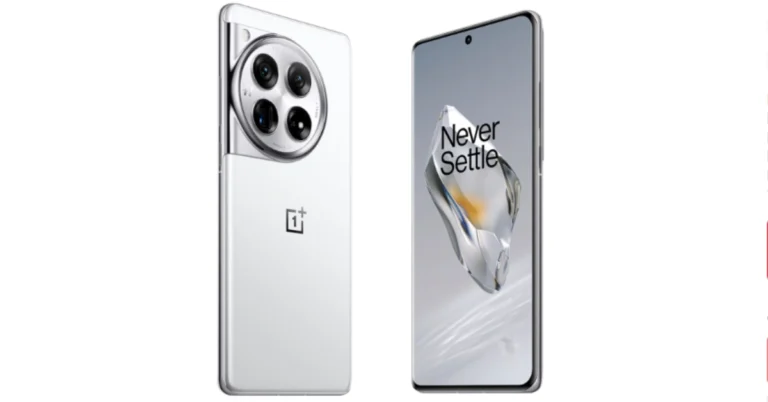
The OnePlus 12 Series will be released in India on January 23. The smartphone series will include OnePlus 12, and OnePlus 12R.
The OnePlus 12 comes with a 6.82-inch quad-HD+ LTPO OLED screen. The display has an adaptive refresh rate ranging between 1Hz and 120Hz. The screen supports 4,500 nits of screen brightness. The device is IP65-rated for dust and water resistance.
Under its hood, there is Qualcomm’s 4nm Snapdragon 8 Gen 3 SoC. The device is offered with up to 24GB of LPDDR5X RAM and up to 1TB of UFS 4 inbuilt storage. The phone is endowed with a Hasselblad-branded triple rear camera with a Sony LYT-808 sensor, a 50-megapixel primary camera (OIS and f/1.6 aperture), a 64-megapixel telephoto secondary lens (OIS, 3X optical zoom, and f/2.6 aperture), and a 48-megapixel ultra-wide-angle lens (114-degree field-of-view). Lastly, there is a 32-megapixel front-facing camera (f/2.4 aperture) for taking selfies and video calling. The handset houses a 5,400mAh battery with 100W SuperVOOC wired, 50W wireless, and 10W reverse wireless charging support.
Oppo Reno 11 Series
Oppo Reno 11 Series is tipped to launch in India and globally on January 11. The series will include Oppo Reno 11 Pro and Oppo Reno 11. The standard model comes equipped with MediaTek Dimensity 8200 SoC whereas the Pro model is powered by Snapdragon 8+ Gen 1 SoC. Both the phone runs on ColorOS 14 on top of Android 14 out of the box. Oppo Reno 11 features a 6.70-inch OLED curved display on the other hand the Pro model includes a 6.74-inch 1.5K OLED curved display. Both phones feature a triple rear camera setup.
Asus ROG Phone 8 series
The Asus ROG Phone 8 series will officially release in China on January 16. It may come with a flat display and thin bezels featuring a 6.78-inch, full-HD+ AMOLED screen. The series is expected to be powered by a Qualcomm Snapdragon 8 Gen 3 SoC. It may also pack a 5,500mAh battery and offer Quick Charge 5.0 support.
If you have recently made the switch from Android to iOS, getting used to the swipe gesture controls for navigation can take some time. Unlike Android devices, iPhones do not offer the option to use the three-button navigation bar at the bottom of the screen. If you’re not a fan of the swipe gestures, there is a way you can add the home button on your iPhone 14 or 15’s screen. This button can also be used to trigger the app switcher and perform a whole range of other quick tasks. Apple calls it the ‘Assistive Touch’. Let’s take a quick look at how it works.
Assistive Touch is perhaps the most used accessibility feature on an iPhone. On older iPhones with Touch ID, it was used as an alternative to navigate back to the home screen if the physical home button stopped working. On newer iPhones with Face ID, this option still exists. Apart from using it as a home button, you can assign it several other actions. If the volume rocker keys on your iPhone go haywire, you can use the Assistive Touch to control your smartphone’s volume.
Apart from mimicking the physical buttons on your iPhone, Assistive Touch can be used to set up a pointer device like a trackpad, joystick, or mouse. Once the device is connected to your iPhone, you can set up its pointer style, track speed, and opacity, and assign it some special actions. To further boost accessibility, you can choose to set up ‘Dwell Control’, which, as the name suggests, carries out an action when you hold the cursor on a particular element on the screen. Assistive Touch lets you decide the time needed for the action assigned to dwell control to take place.
Add a home button to your iPhone’s screen using Assistive Touch
Step 1: Go to Settings.
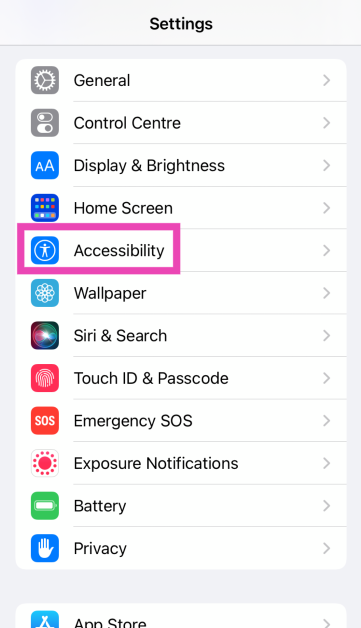
Step 2: Select Accessibility.
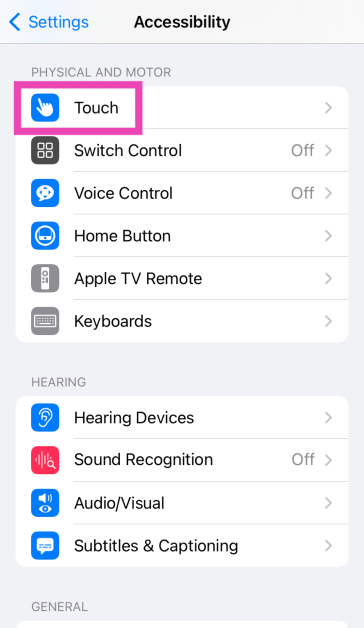
Step 3: Tap on Touch.
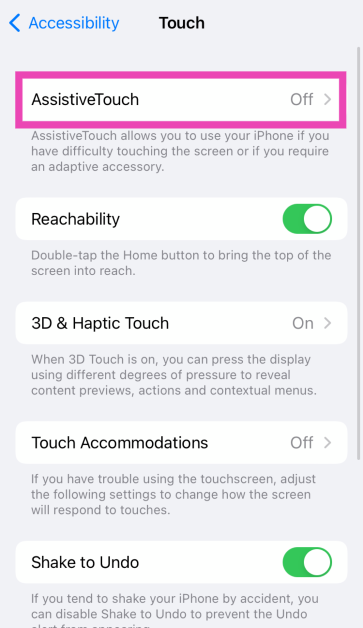
Step 4: Select AssistiveTouch.
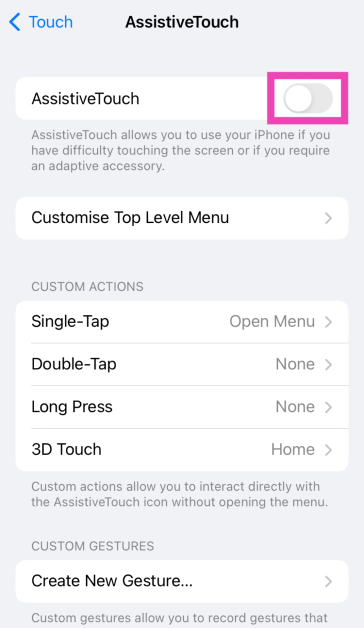
Step 5: Turn on the toggle switch for AssistiveTouch.
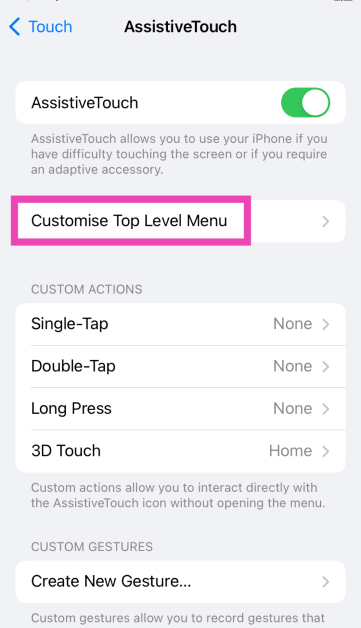
Step 6: Tap on Customise Top Level Menu.
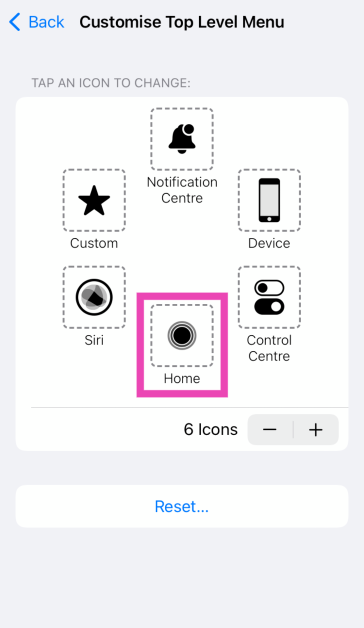
Step 7: Make sure ‘Home’ is an option in the menu. If not, add an icon and assign ‘Home’ as its action.
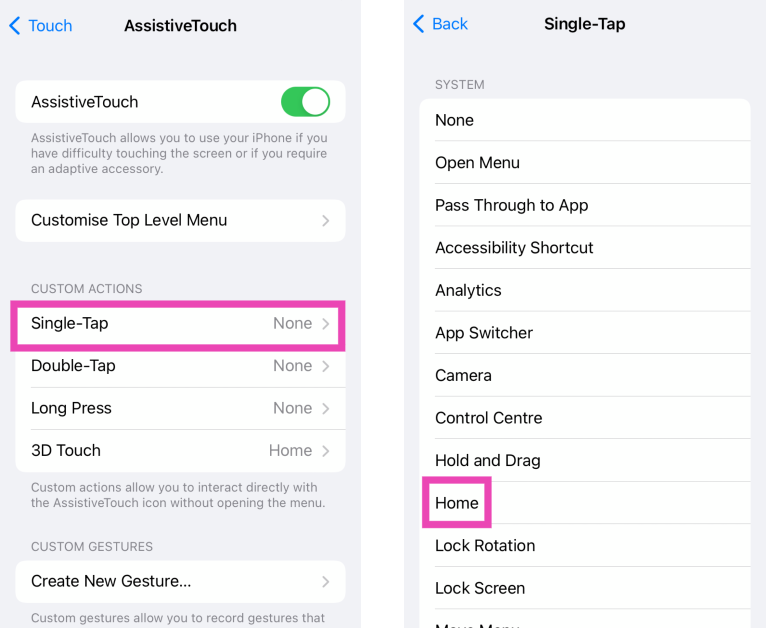
Step 8: If you want the Assistive Touch to function exclusively as the home button, hit Single-Tap under Custom Actions and select Home.
If you want access to other menu options, you can choose to trigger them with a long press or double tap on the Assistive Touch.
If you wanna skip past the process of navigating through the Accessibility Settings, use Siri. Simply say ‘Hey Siri, turn on Assistive Touch’ and the voice assistant will do it for you. The ball icon will appear on your iPhone’s screen. By default, a single tap on the Assistive Touch opens its menu, which contains the Home option. If you want to program the Assistive Touch to take you to the home screen with a single tap, you will need to go to its page in Accessibility Settings.
Set up a Shortcut for Assistive Touch on your iPhone Home Page
Sometimes, you may want to use Assistive Touch sparingly, only at certain times of the day. Instead of navigating through Accessibility Settings or using Siri, you can create a simple toggle switch for it on your iPhone’s home page. Here’s how.
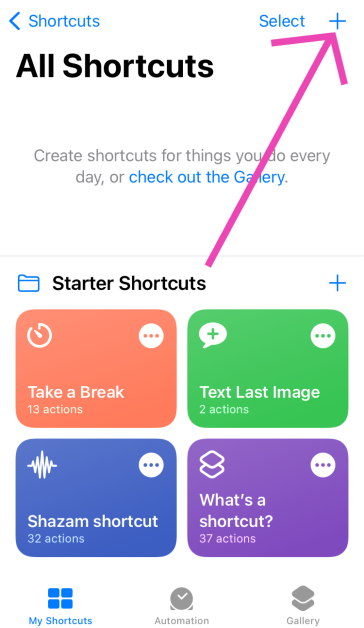
Step 2: Hit the plus icon at the top right corner of the screen and give the Shortcut an appropriate name.
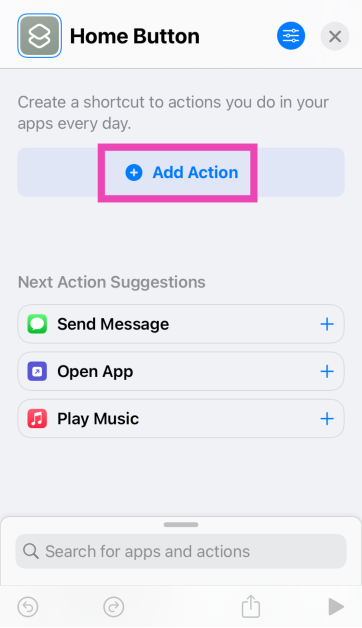
Step 3: Tap on Add Action.
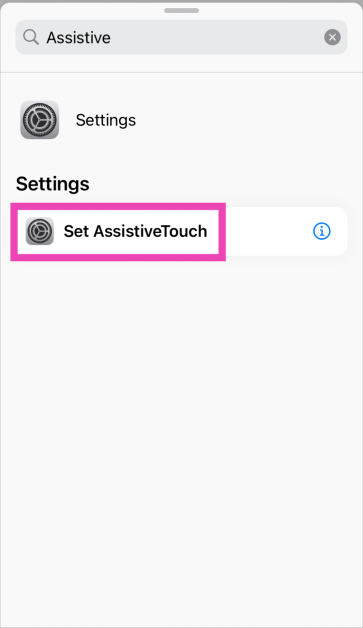
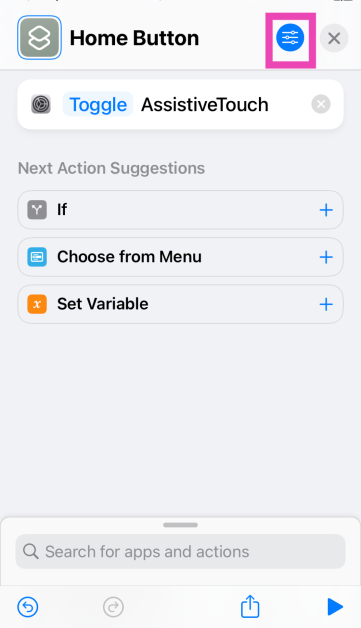
Step 4: Search for Assistive Touch and select Set Assistive Touch.
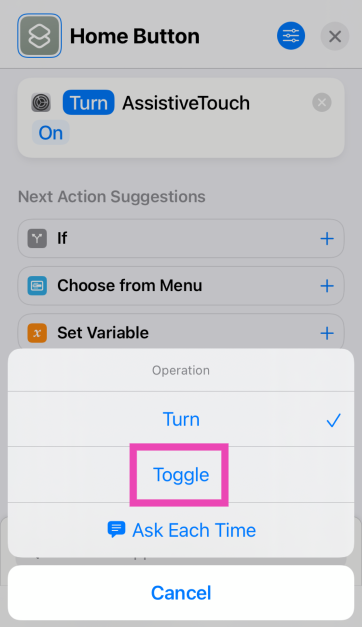
Step 5: Tap on Turn and select Toggle.
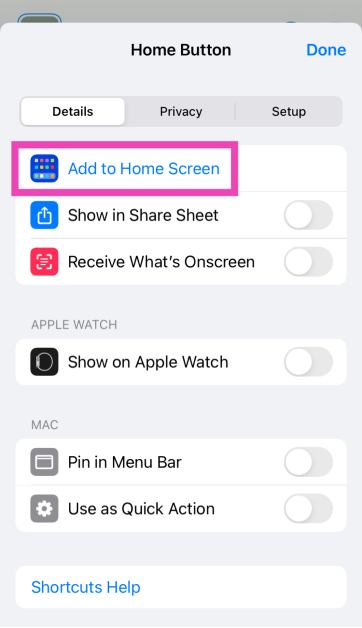
Step 6: Hit the blue menu icon.
Step 7: Select Add to Home Screen.
Frequently Asked Questions (FAQs)
How do I go to my iPhone’s screen if the swipe gestures aren’t working?
You can set up Assistive Touch on your iPhone to go to the home screen simply by tapping the ball icon on the screen. This ball icon serves as the home button for your iPhone. Go to Settings>Accessibility>Touch>AssistiveTouch to turn it on.
Does the Assistive Touch icon show up in screenshots?
When you take a screenshot on your iPhone, the ball icon for Assistive Touch does not show up in the result.
How do I go to my iPhone’s home screen by touching the Assistive Touch one?
If you want the ball icon for Assistive Touch to function exclusively as the home button on your iPhone, go to its page in Accessibility Settings and select Single-Tap>Home.
These are the top 3 ways to add the home button to your iPhone 15 or 14’s screen. You can also use these methods on older iPhones with Touch IDs. Apart from using it as a home button, you can program the Assistive Touch icon to trigger Siri, take a screenshot, scroll up or down, trigger the app switcher, and a whole lot more.
Your iPhone supports LED flash notifications for important alerts like incoming calls and messages. This is a pretty standard feature that has been around for a long time, but many people may not be aware of it. If you don’t like a loud sound profile on your iPhone, these flash notifications may just be what you’re looking for. So, let’s a quick look at the top 2 ways to enable them on your device.
Why do you need LED Flash Notifications on your iPhone?
LED flash alerts for important notifications are primarily designed for people with hearing disabilities. Every time you receive a call or an important text, the camera flash on the iPhone’s back panel goes off to alert the user of the incoming notification. As you can already tell, this only works as intended if your iPhone is lying face down. Unlike its Android counterparts, iOS does not support edge notifications on the display yet.
Apart from people with hearing disabilities, flash alerts can also come in quite handy for people who keep their devices in Silent Mode at all times. If your iPhone is in your peripheral vision, you will never miss an important alert when the flash notifications are turned on. If you’re about to attend an important meeting, even the vibrational alerts can be quite distracting. In this scenario, a flash of light from your iPhone is enough to remind you of an incoming call.
Turn on LED Flash Notifications from Settings
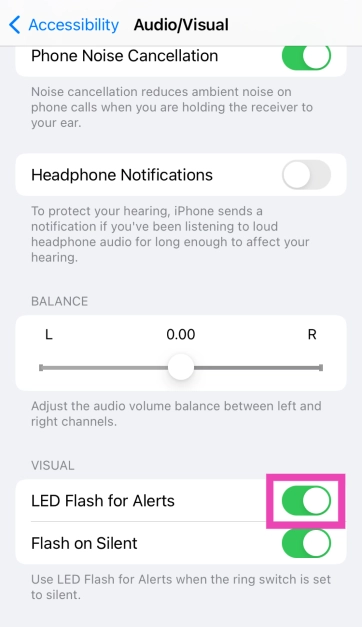
Step 1: Go to Settings.
Step 2: Tap on Accessibility.
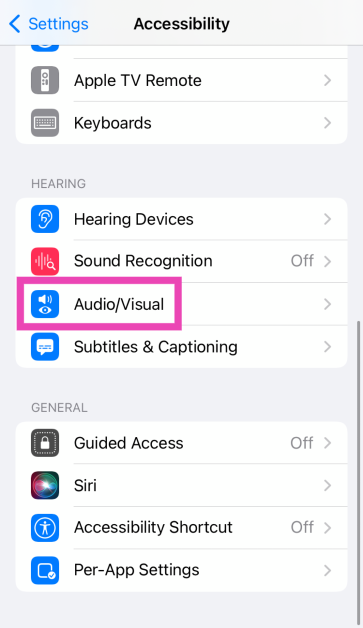
Step 3: Select Audio/Visual.
Step 4: Scroll down and tap on LED Flash for Alerts.
Step 5: Turn on the toggle switch for LED Flash for Alerts. If you don’t want to receive LED notifications when your iPhone is in Silent Mode, turn off the toggle switch for Flash in Silent Mode.
Some users may not want the LED flash notifications switched on at all times. To make the process more convenient, you can add a custom toggle button to the home screen using Shortcuts. Here’s how.
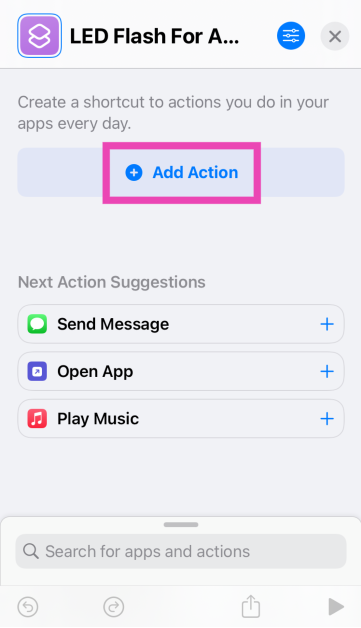
Step 1: Launch the Shortcuts app on your iPhone and hit the plus icon at the top right corner of the screen to create a new shortcut. Give it an appropriate name.
Step 2: Tap on Add Actions and search for Set LED Flash. Add it.
Step 3: Tap on Turn and select Toggle.
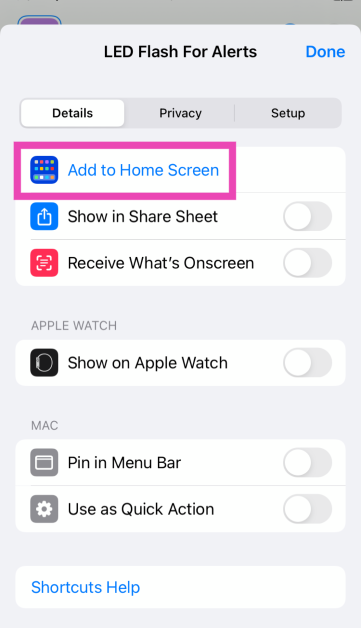
Step 4: Hit the Menu icon at the top right corner of the screen and select Add to Home Screen.
Frequently Asked Questions (FAQs)
Do the LED flash notifications on the iPhone work when it is on Silent Mode?
You can turn on LED flash notifications when your iPhone is in Silent Mode by going to Settings>Accessibilty>Audio/Visual>LED Flash for Alerts and turning on the toggle switch for Flash in Silent Mode.
Can I set up a toggle switch for LED flash notifications on my iPhone’s home screen?
You can use the Shortcuts app to create a toggle button for LED flash notifications on your iPhone’s home screen. Add the action to ‘Set LED Flash’ and change the ‘Turn’ setting to ‘Toggle’. Now, hit the menu icon and add it to the home screen.
Does iOS support edge notifications?
No, the current iteration of iOS does not support edge light notifications, unlike its Android counterparts.
These are the 2 quick ways to turn on LED flash notifications on an iPhone 15, 14, or 13. Android users have the added advantage of using a third-party app for LED flash alerts. These apps offer a range of customisation options, including different patterns for different kinds of notifications. iOS does not support any third-party apps for flash alerts yet. If you found this article helpful, let us know in the comments!
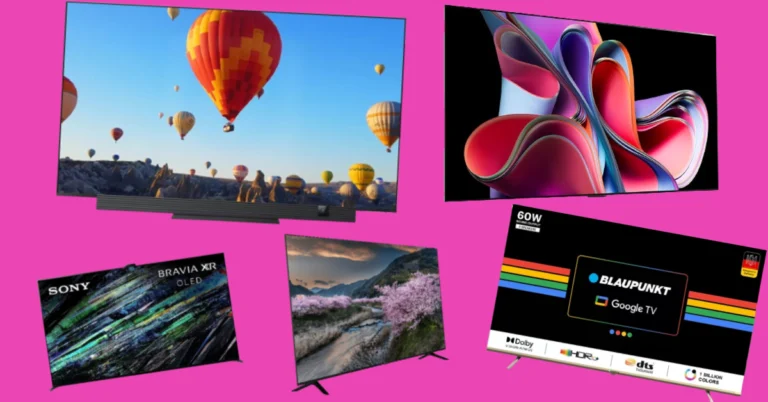
2023 was a great year for Smart TVs. CES kicked off the proceedings in style with the biggest players in the Smart TV market showcasing their finest displays. Throughout the year, there was a lot of activity across different segments, but only a handful of products were able to distinguish themselves from the pack. We’ve been keeping a close watch on the biggest releases of the year. So, without further ado, here are our top 7 picks for the best Smart TVs launched in 2023.
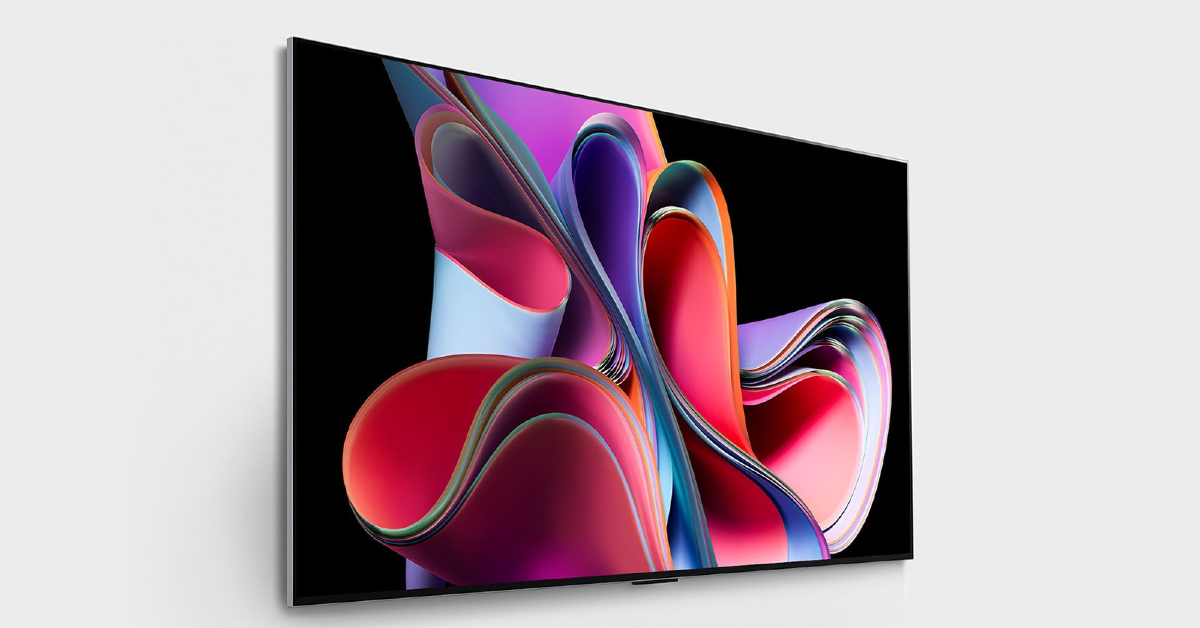
The LG OLED evo G3 is available in three size variants – 55-inch (139cm), 65-inch (164 cm), and 77-inch (195 cm). Prices for this wall TV start at Rs 2,02,391 for the 55-inch variant and go up to Rs 8,99,990 for the 77-inch unit. The 65-inch middle variant fetches Rs 3,99,990. At the heart of the G3 lies the α9 AI Processor 4K Gen6 chip which achieves high-end results. The 4K OLED panel has a refresh rate of 120Hz. There are 10 picture modes on this TV for different tasks and content viewing experiences like gaming, sports, cinema, and more. You will also find picture modes for different kinds of lighting. In terms of audio output, the LG OLED G3 gets a 60W, 4.2-channel speaker system with Clear Voice Pro and Dolby Atmos support.
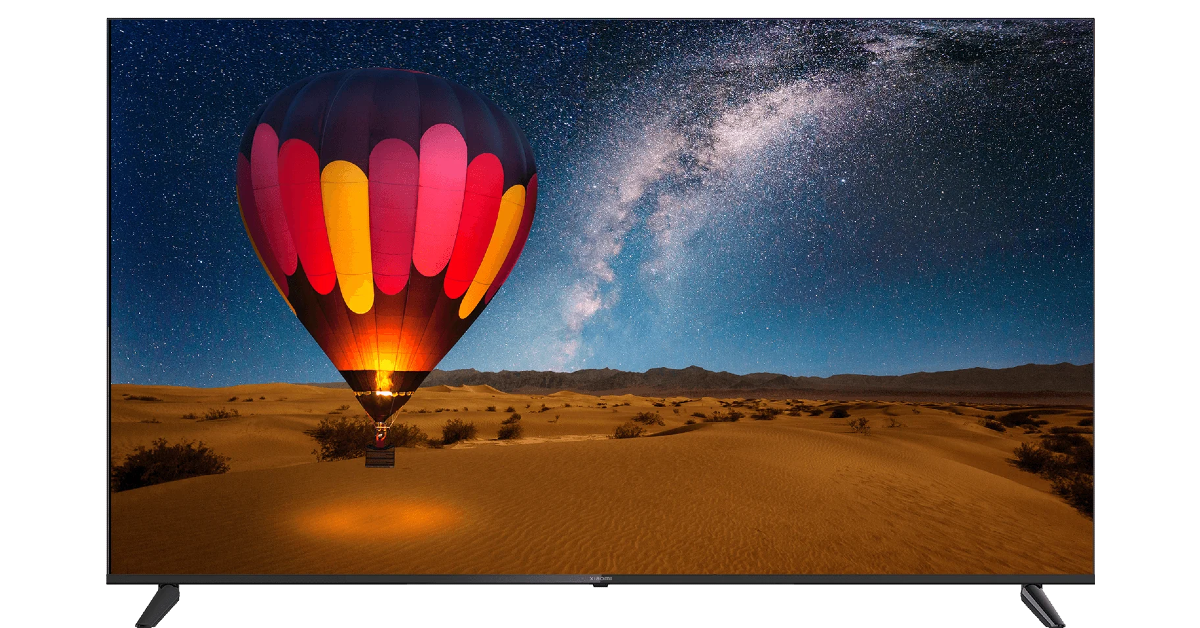
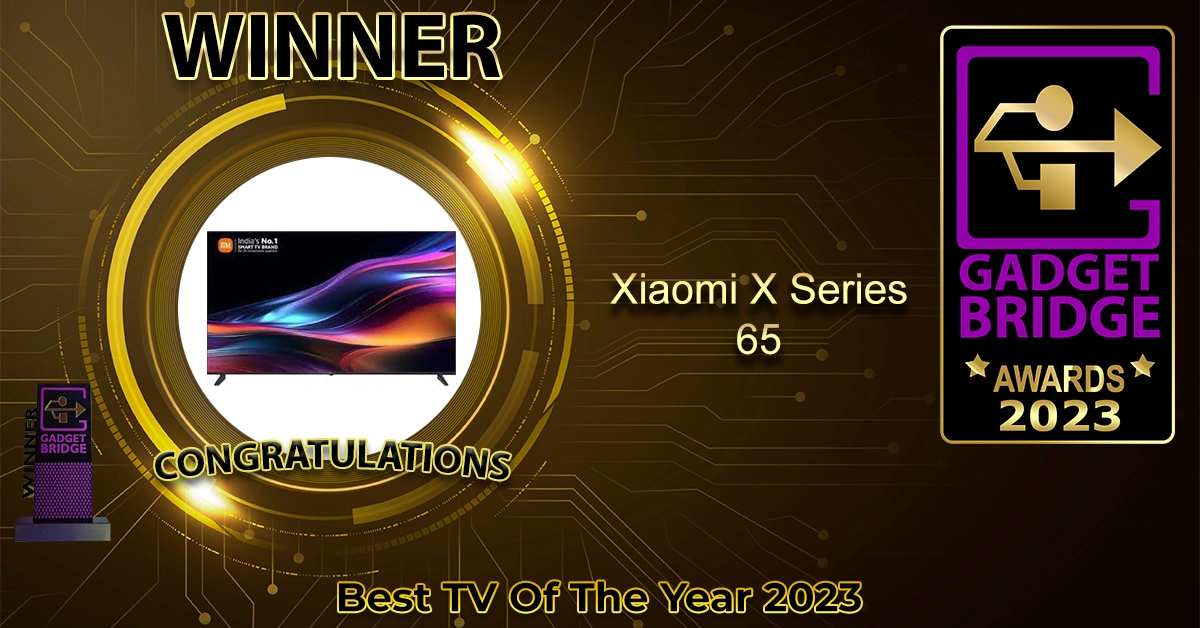
Xiaomi’s X Series of Smart TVs offers a versatile lineup of size variants – 43, 50, 55, and 65 inches. The 65-inch variant won our end-of-the-year award for the best Smart TV to launch in 2023. Priced at Rs 59,999, the Xiaomi X Series 65 offers all the desirable specs at a price that doesn’t require you to break the bank. The metal bezel-less design of the TV adds to the immersiveness of the 4K display. The crystal clear picture quality and the richness of colours relayed on the screen are downright stunning. Xiaomi X Series also supports Dolby Atmos, HDR 10, and HLG. With OS duties handled by Google TV, this TV can take care of all your entertainment, lifestyle, and gaming demands.
Prices for the Sony A95L start at Rs 3,99,990 for the 55-inch variant and go up to Rs 4,79,990 for the 65-inch display. The QD-OLED panel on the Sony A95L is one of the best displays we have seen on a Smart TV in 2023. The pure, deep blacks produced by this display are simply unparalleled. The TV also supports automatic content upscaling to 4K, so you don’t have to worry about the quality of the source. If you own a PS5, buying a Sony Smart TV comes with its benefits. Once you connect your gaming console, the A95L automatic switches to ‘Game Mode’. When you navigate back to the TV’s OS, it switches back to the Standard Mode. With ‘Multi View’ you can play your game on one panel while watching YouTube on the other.
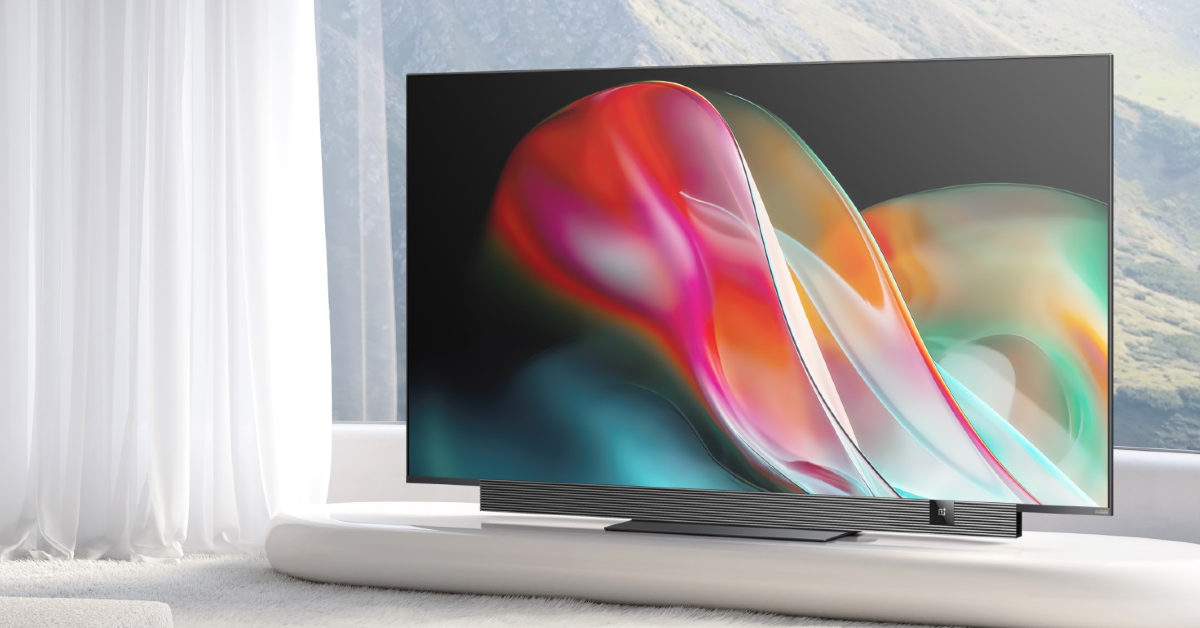
The OnePlus Q2 Pro features a stunning 4K QLED display with a 120Hz refresh rate and a peak brightness of 1,200 nits. The DCI-P3 97% colour gamut produces lifelike images with remarkable depth and richness of colour. The Advanced MEMC Technology syncs up the frame rate of the visuals with the refresh rate of the TV, leading to a smooth motion. OnePlus Q2 Pro supports Dolby Vision, HDR10+. HDR10, and HLG, further improving the viewing experience. The 120Hz refresh rate of the TV is also ideal for gaming. The sound bar at the bottom of the Q2 Pro delivers an audio output of 40W while the subwoofer adds another 30W to it.
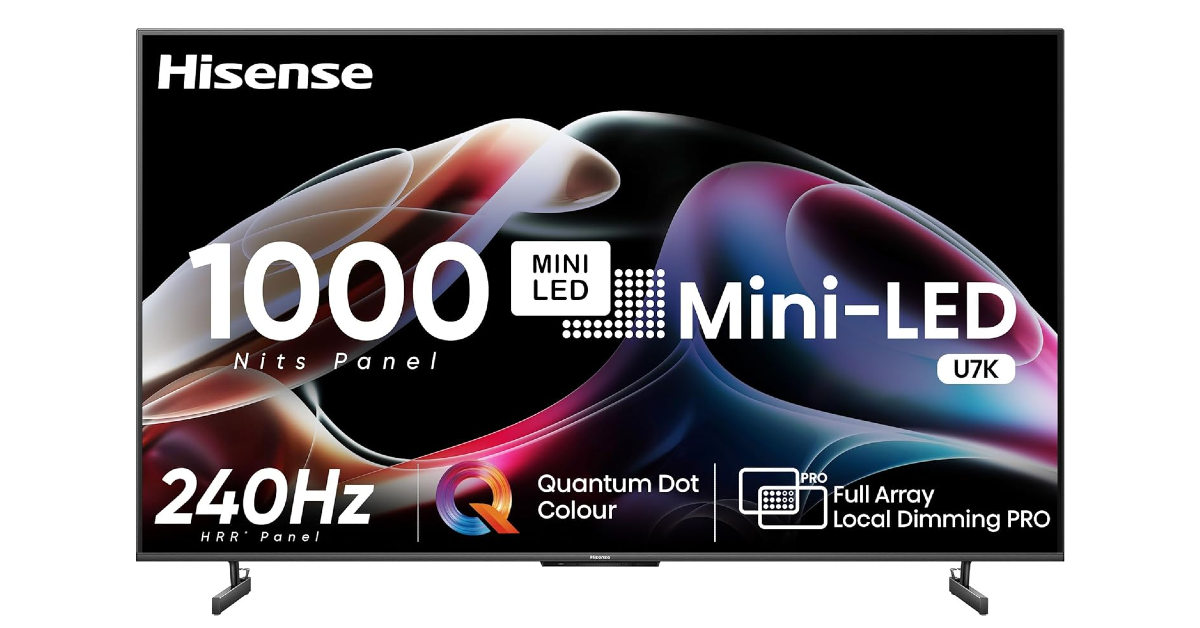
The Hisense Mini LED TV is available in four display sizes – 55, 65, 75, and 85 inches. Prices for the TV start at Rs 59,999 for the 55-inch variant and go up to Rs 2,59,999 for the 85-inch unit. The Hisense Mini LED TV features an 8K display, pushing the boundaries of detail and realism. The TV can upscale ordinary content to 8K. A peak brightness of 2,000 nits means you don’t have to worry about the lighting situation in your room to enjoy watching content. The 10,000 LED backlights on this TV are divided into 1,280 local dimming zones. This ensures that the contrast in brightness can be maintained effortlessly. The MEMC tech makes the most out of the 120Hz display, bringing a smooth motion to the visuals. This is best utilised while watching sports.
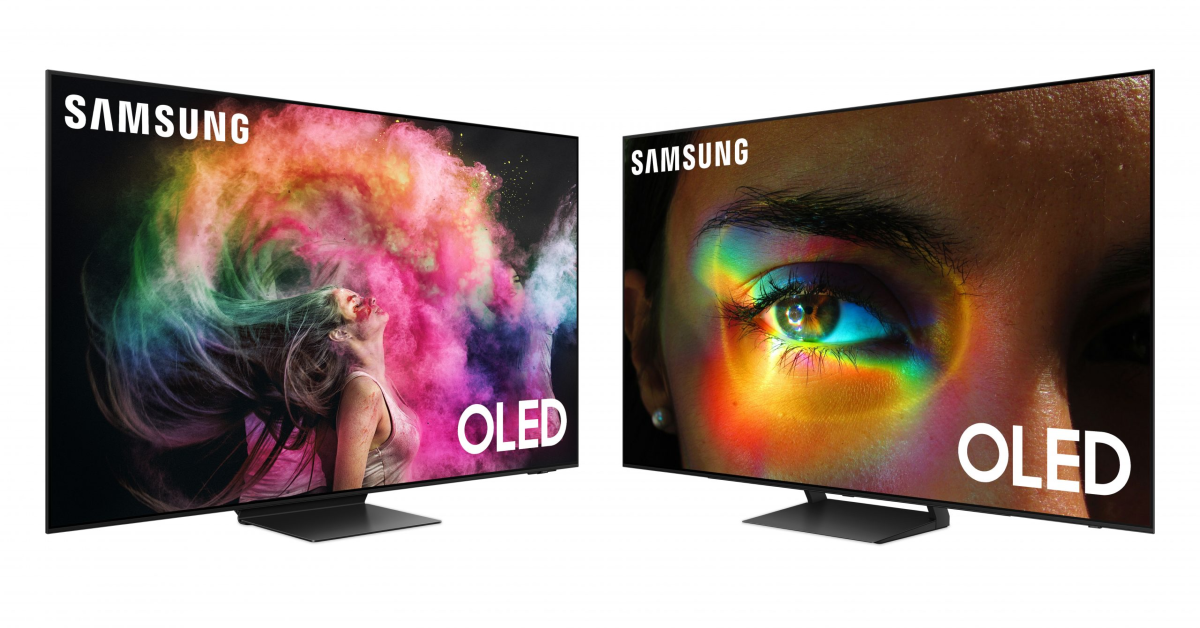
Samsung is always in contention for the ‘Best Smart TV of the Year’ title and 2023 was no different. The Samsung S95C may be on the pricier end, but the stunning, colour-rich and detailed images it produces make it worth the price. The 55-inch size variant of the S95C is priced at Rs 1,99,990 while the 65-inch and 75-inch variants fetch Rs 2,62,490 and Rs 4,89,990 respectively. Powering this Smart TV is the Neural Quantum Processor 4K which employs 20 different neural networks to produce cutting-edge 4K images on the screen. The ‘Infinity One’ design of the S95C is something to behold. It is one of the slimmest TVs on the market right now. The ‘Attachable One Connect’ takes care of all the wires and device inputs, providing a clutter-free look.
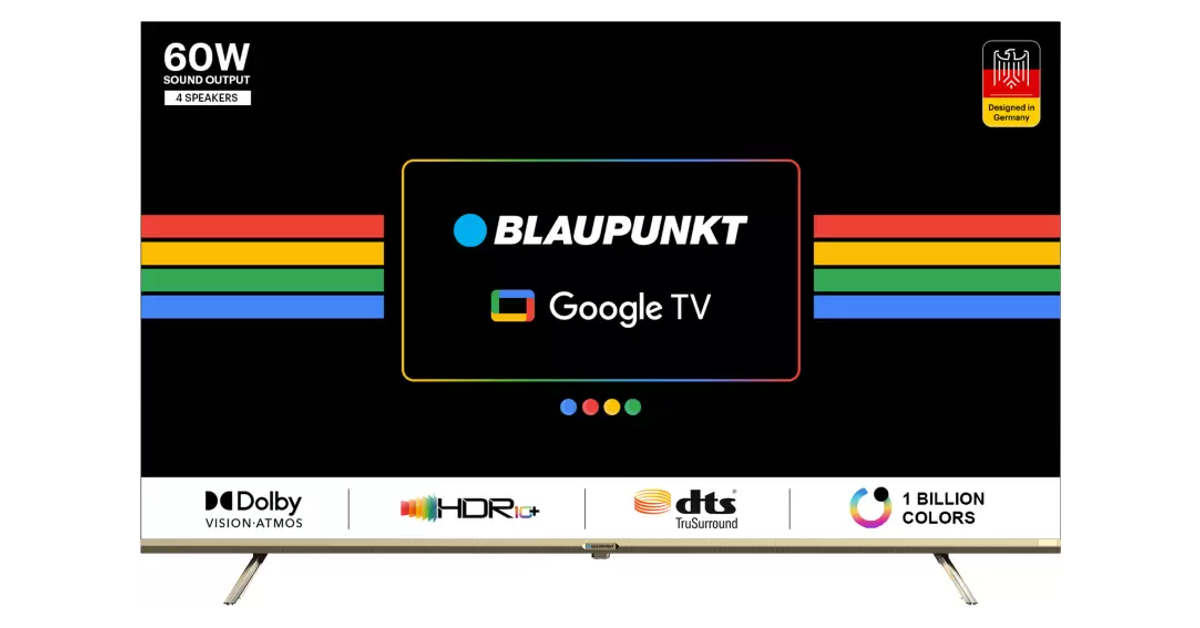
The 65-inch Blaupunkt CyberSound G2 is a brilliant Smart TV for those on a budget. This QLED TV features a bezel-less design and comes with a metal stand. The 4K display supports HDR10+ and 1.1 billion colours. There are three HDMI ports on this TV along with two USB ports. It is compatible with DVB-C, DVB-T, and T2. Powering the CyberSound G2 is an MT9062 processor with Mali-G52 GPU paired with 2GB of RAM and 16GB of ROM. The 60W stereo box speaker system on this TV sports DTS TruSurround tech, which produces an enveloping sound that feels very cinematic.
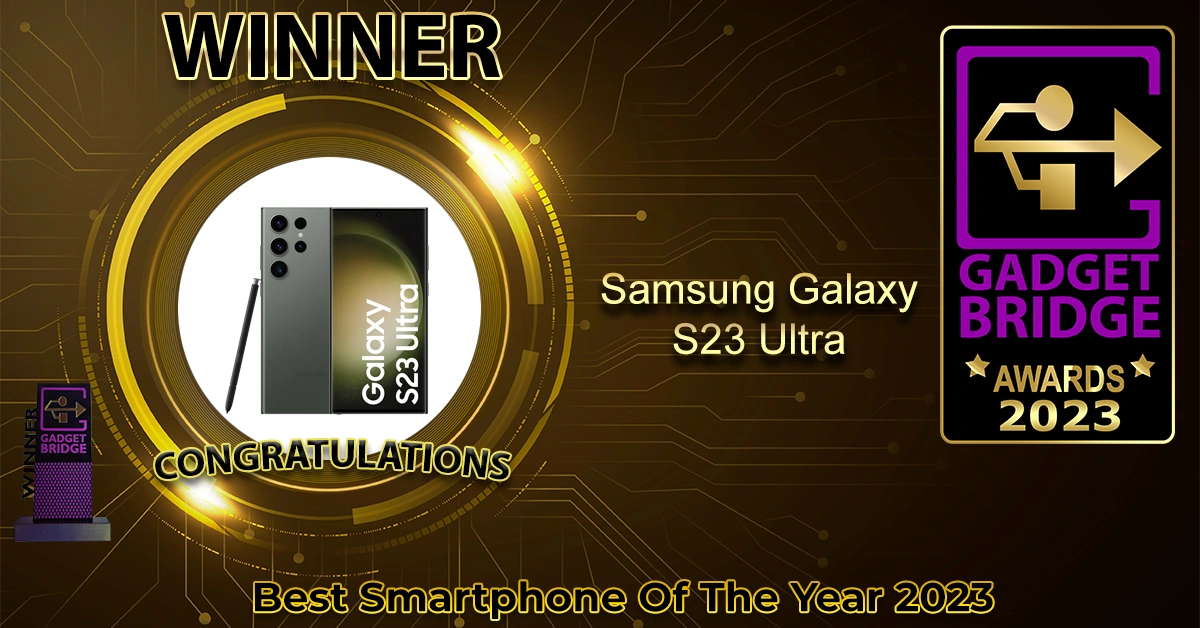
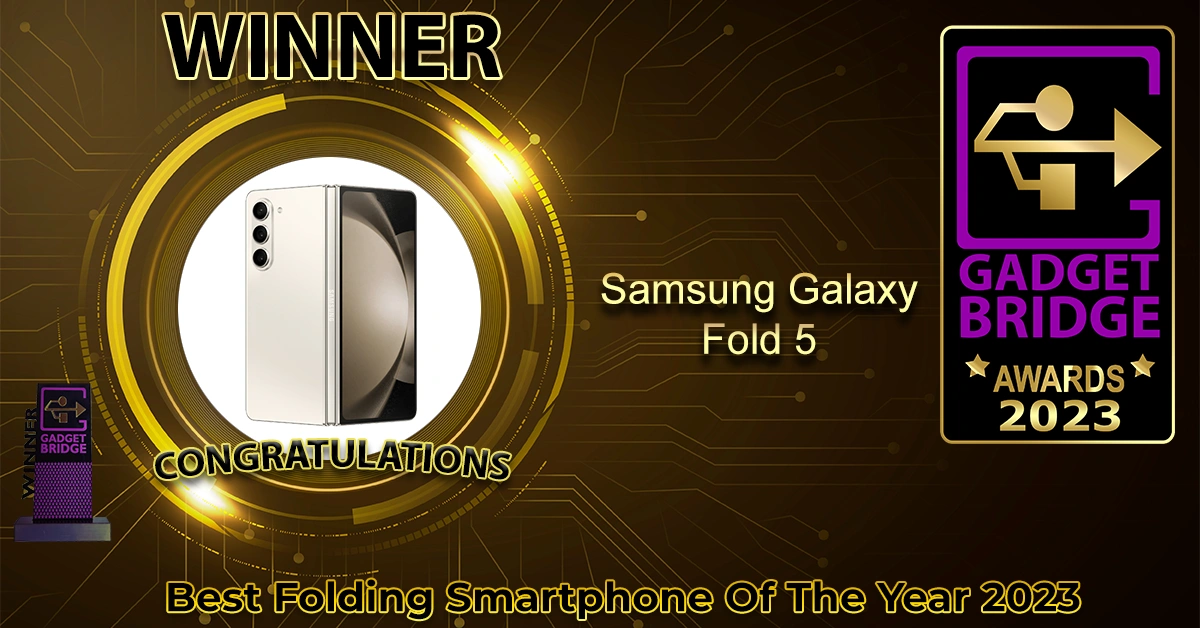
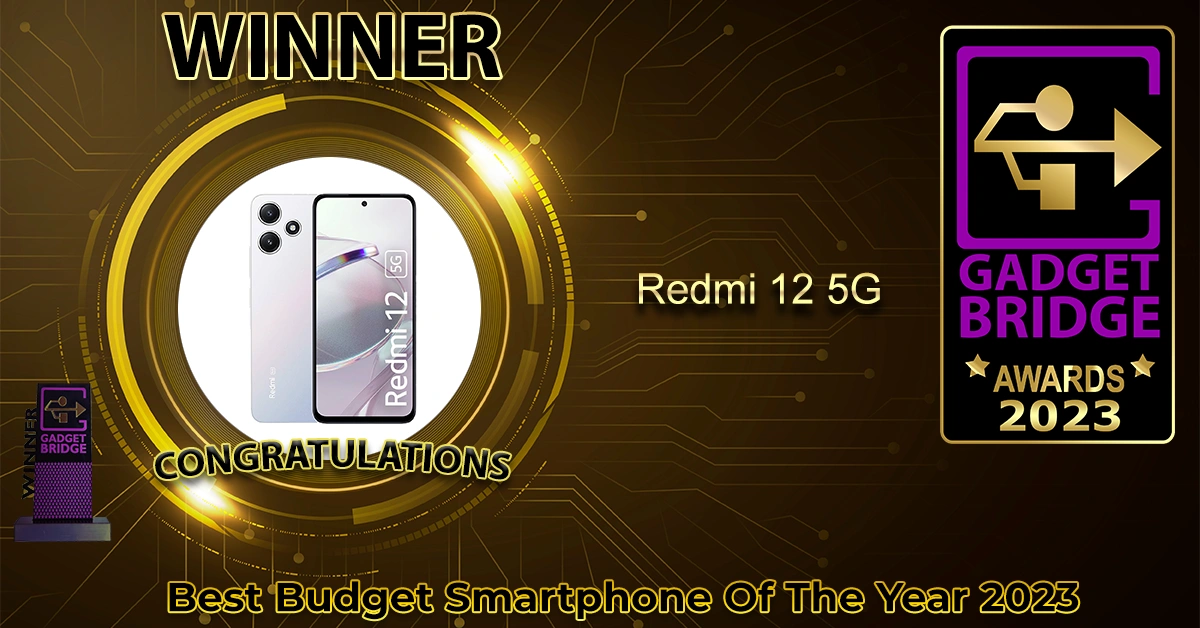
These are our top 7 picks for the best Smart TVs launched in 2023. If you think we missed a TV that deserves its spot on this list, let us know in the comments section. If you’re looking for a more affordable TV, check out this list for the best offerings under Rs 45,000. You can also check out the complete list of Gadget Bridge Award 2023 winners here.
Vijay Sales Apple Days Sale will run till January 7 on the platform.
The retailer is offering bank offers on iPhone 15 series, iPads, MacBook models, and AirPods.
On the occasion of New Year are you looking to buy a new iPhone? Vijay Sales has kicked off the Apple Days Sale on its e-commerce platform and retail stores. The sale is now live providing the lowest-priced offers on Apple devices including the iPhone 15 Series. In addition to this, discounts are available on other products like iPads, MacBooks and Apple Watches.
The Apple Days Sale is live on Vijay Sale and will run till January 7 on all its outlets and its website. There will be discounts on Apple iPhone 15 series phones, iPads and MacBook models, and AirPods
Starting with the iPhone 15 Series which debuted last year in September includes four models iPhone 15, iPhone 15 Plus, iPhone 15 Pro and iPhone 15 Pro Max. The price of the iPhone 15 starts at Rs 79,900 but during the Apple Days Sale at Vijay Sales, the device is available at a discounted price of Rs 70,990.
To sweeten the deal the platform is also offering an instant discount of Rs 4,000 on HDFC Bank Credit Card & Credit/Debit Card No-Cost EMI. There will also be a 10% Instant Discount of up to Rs 3000 on HDFC Bank Credit & Debit Card EMI and a 7.5% Instant Discount of up to Rs 5000 on HSBC Credit Card EMI and more offers listed on the website.
Similarly, the 256GB variant is available at Rs 79,320 while the 512GB model comes at Rs 97,990.
On the other hand, the iPhone 15 Plus which is also available in 128GB, 256GB, and 512GB variants is currently up for sale at 79,820, 89,160 and 1,07,820 respectively.
The iPhone 15 Pro which comes in 128GB, 256GB, 512GB and 1TB variants is currently listed at 1,25,900, 1,35,240, 1,51,900 and 1,62,990 respectively.
As of now, the top-of-the-line iPhone 15 Pro Max is available at Rs 1,49,240, 1,64,900 and Rs 1,73,570 for the 256GB, 512GB and 1TB storage variants respectively.
Apart from this, the iPhone 13 is selling at Vijay Sales at Rs 51,820. The device is getting a Rs 1,000 bank discount which when applied will bring down the cost of the phone to Rs 50,820.
Apple iPad models are also currently up for sale in the country. The iPad 10th Gen can be purchased for Rs 33,430. Whereas, the iPad 9th Gen will be available at Rs 27,900.
The price of the iPad Air 5th Gen and iPad Pro will begin at Rs 50,680 and Rs 79,900 respectively. During the Apple Days Sale, Vijay Sales also offers a Rs 4,000 instant discount on HDFC Bank cards.
The MacBook Pro model with M3 chips is now selling at a starting price of Rs 1,47,910. The device with M3 Pro Chip will come at Rs 1,74,910.
Other models like MacBook Pro with M3 Max chip can be purchased for Rs 2,82,910. The model with an M2 chipset will come at Rs 1,10,270.
AirPods Pro 2nd Gen is currently up for sale at Rs 18,990 on Vijay Sales.
Besides this, the Apple Watch Series 9 will be available at Rs 36,310. Buyers can also purchase Watch Series 8 and Watch SE (2nd Gen) at Rs 32,620 and Rs 25,690, respectively.
Garena Free Fire is a battle royale game with regular awards and tournaments to keep players interested. If you play Garena Free Fire, you should be aware of the redeem codes that are released on a daily basis. However, because the battle royale game is banned in India, players from other countries can use the Free Fire Redeem codes daily. If you’re unfamiliar with the Garena Free Fire redeem codes or don’t know how to get them, we’ve put together a step-by-step guide to help you redeem them. Check out Garena Free Fire Redeem Codes for 2 January 2024.
The Free Fire redeem codes are a great way to get free stuff. These are 12-digit codes that contain alphabets and numbers, as well as an expiration date and time. Because the Garena FF redeem codes cannot be used more than once, you should hurry to the redemption page to claim your free reward before someone else does. To get a free reward, all you have to do is go to reward.ff.garena.com/en, which is the official redemption page. Also, keep an eye on this space for daily updates on Garena Free Fire redemption codes and rewards.
OnePlus 12, OnePlus 12R launch in India will take place on January 23.
Both the upcoming smartphones’ RAM and storage options were leaked before the official release.
OnePlus 12 Series is set to launch in India on January 23 at the Pragati Maidan, Delhi. The upcoming smartphone series will include two devices OnePlus 12, OnePlus 12R. Ahead of the official announcement the details regarding colour, RAM and Storage options have surfaced on the web. The leaks suggest that both the phones will come in two colour options and support up to 16GB of RAM and up to 256GB of internal storage options.
According to a tipster, OnePlus 12 will be available in two RAM and storage options. The company is likely to offer 12GB RAM with 256GB storage and 16GB RAM and 512GB storage options. The device is said to be offered in two colour options Flowy Emerald and Silky Black.
On the other hand, OnePlus 12R could come with 8GB of RAM with 128GB of storage and 16GB of storage with 256GB of internal storage option. The handset will be available in Cool Blue and Iron Gray colourways. Note that both the shades have already been confirmed by the company.
According to OnePlus, the Cool Blue has a glossy finish with a light, fresh appearance, while Iron Gray has a matte feel to give a sophisticated and strong feeling. The device will also have a matte metal frame and the Alert Slider has been shifted to the left side frame.
Recently the pricing of OnePlus 12R and OnePlus 12 was also leaked. According to a tipster the OnePlus 12R is likely to be priced between 40,000 and Rs 42,000. Whereas the flagship OnePlus 12 is likely to be priced between Rs 58,000 and Rs 60,000. OnePlus 12 Specs
The OnePlus 12 comes with a 6.82-inch quad-HD+ LTPO OLED screen. The display has an adaptive refresh rate ranging between 1Hz and 120Hz. The screen supports 4,500 nits of screen brightness. The device is IP65-rated for dust and water resistance.
At its heart, there is Qualcomm’s 4nm Snapdragon 8 Gen 3 SoC. The device is offered with up to 24GB of LPDDR5X RAM and up to 1TB of UFS 4 inbuilt storage. The phone is endowed with a Hasselblad-branded triple rear camera with a Sony LYT-808 sensor, a 50-megapixel primary camera (OIS and f/1.6 aperture), a 64-megapixel telephoto secondary lens (OIS, 3X optical zoom, and f/2.6 aperture), and a 48-megapixel ultra-wide-angle lens (114-degree field-of-view). Lastly, there is a 32-megapixel front-facing camera (f/2.4 aperture) for taking selfies and video calling.
The handset houses a 5,400mAh battery with 100W SuperVOOC wired, 50W wireless, and 10W reverse wireless charging support.
Once one of the primary modes of communication, voicemails have now been partially replaced by voice notes. This is mostly due to the popularity of instant messaging apps like Facebook Messenger and WhatsApp. However, if you’re unable to reach someone and you’re certain they don’t have to the Internet, sending a voicemail is still your best bet. Like any typical inbox, you should routinely clear voicemails to make space for new ones. Smartphones offer an easy and intuitive way to manage your voicemail inbox. Today, we bring you the top 4 easy ways to delete voicemails on an iPhone.
Let’s be honest, the only time you think about deleting voicemails is when they clog the inbox and start occupying too much space. When your inbox hits peak capacity, any incoming voicemails will be put on hold. To receive new messages, you will need to create space by deleting the old ones.
Here arises the main problem. Quite surprisingly, your iPhone does not give you the option to delete all your voicemails at once. At best, you can select multiple messages for deletion, but the ‘Select All’ option is weirdly missing from the page. If you want to mass delete voicemails to create space for new ones, you will have to manually select them one by one before putting them up for deletion.
If you want to permanently save a voicemail on your iPhone, you can always email it to yourself. If you use WhatsApp, select the app from the sharing options and send the voicemail to yourself. The message will be sent as an audio file.
Delete a voicemail on your iPhone
Step 1:Launch the Phone app.
Step 2: Tap on the Voicemail tab at the bottom right corner of the screen.
Step 3:Swipe left on a voicemail to delete it.
Another way to delete a voicemail on your iPhone
Step 1:Launch the Phone app.
Step 2: Tap on the Voicemail tab at the bottom right corner of the screen.
There is no way to delete all the voicemails on your iPhone at once. You can, however, select multiple voicemails and delete them. Here’s how.
Step 1:Launch the Phone app.
Step 2: Tap on the Voicemail tab at the bottom right corner of the screen.
Step 3: Tap on the Edit button at the top right corner of the screen.
Step 4:Select the voicemails that you want to remove.
Step 5: Hit the Delete button at the bottom right corner of the screen.
Delete voicemails from the recycle bin
Once you delete a voicemail on your iPhone, it goes to the ‘Deleted’ folder. To permanently remove the deleted voicemails from your device, clear this folder as well. Here’s how.
Step 1:Launch the Phone app.
Step 2: Tap on the Voicemail tab at the bottom right corner of the screen.
Step 3: Scroll to the bottom of the page and select Deleted Messages.
Step 4: Hit the Clear All option at the top right corner of the screen.
Step 5:Confirm your selection in the popup box.
Frequently Asked Questions (FAQs)
How do I save a voicemail on my iPhone before deleting it from my inbox?
To save a voicemail, select it and hit the ‘Share’ icon. Send it to yourself as a text or WhatsApp message or simply store it in your email drafts.
How do I recover a deleted voicemail on my iPhone?
To recover a deleted voicemail on your iPhone, go to the Voicemail tab in the Phone app, scroll down, and select Deleted Messages. Select the voicemail you want to restore and hit the undelete icon.
Why am I not able to receive new voicemails on my iPhone?
If your voicemail inbox is full, you won’t be able to receive any new messages. Delete some voicemails to make space for new ones.
These are the top 4 ways to delete voicemails on your iPhone. When you delete a voicemail from your inbox, your phone won’t ask you to confirm your selection. The message will be deleted right away. Luckily, you can always find them in the ‘deleted’ folder in case you deleted the wrong message and want to retrieve it. If you’re an Android user, check out these methods to fix any voicemail-related issues on your device. If you know of any other ways to delete voicemails on your iPhone, let us know in the comments!
Garena Free Fire is a battle royale game with regular awards and tournaments to keep players interested. If you play Garena Free Fire, you should be aware of the redeem codes that are released on a daily basis. However, because the battle royale game is banned in India, players from other countries can use the Free Fire Redeem codes daily. If you’re unfamiliar with the Garena Free Fire redeem codes or don’t know how to get them, we’ve put together a step-by-step guide to help you redeem them. Check out Garena Free Fire Redeem Codes for 1 January 2024.
The Free Fire redeem codes are a great way to get free stuff. These are 12-digit codes that contain alphabets and numbers, as well as an expiration date and time. Because the Garena FF redeem codes cannot be used more than once, you should hurry to the redemption page to claim your free reward before someone else does. To get a free reward, all you have to do is go to reward.ff.garena.com/en, which is the official redemption page. Also, keep an eye on this space for daily updates on Garena Free Fire redemption codes and rewards.
In This Article
Garena Free Fire Redeem Codes Today 1 January 2024
FF7MUY4ME6SC
8F3QZKNTLWBZ
WEYVGQC3CT8Q
GCNVA2PDRGRZ
FFAC2YXE6RF2
4ST1ZTBE2RP9
J3ZKQ57Z2P2P
FFCMCPSBN9CU
FFBBCVQZ4MWA
3IBBMSL7AK8G
X99TK56XDJ4X
B3G7A22TWDR7X
How to Get Free Fire Redeem Codes for Garena on 1 January 2024?
The e-commerce is offering up to Rs 22,350 off on the purchase of the iPhone.
Flipkart has great offers for anyone who has been considering purchasing an iPhone but has been put off by its high price. The e-commerce giant is currently slashing the price of the iPhone 14 128GB variant to Rs 57,999, a significant Rs 11,991 discount from the original cost. Aside from this, there are currently some exciting deals on the device which can significantly bring the effective price down to Rs 35,649. Check out the details below.
On Flipkart, the iPhone 14 is currently listed at Rs 57,999. The original price of the phone starts at Rs 69,990 in India. Besides Rs 11,991 discount the e-commerce platform is also offering bank discounts and EMI options on the handset. There will be a 10% discount on HDFC Bank credit cards.
Customers can trade their old smartphones for discounts of up to Rs 22,350 to further reduce the cost. This will further reduce its cost to just Rs 35,649.
However, the additional exchange discount depends on the model and condition of your old device.
Thus, act quickly as this offer is only valid for a short time.
Apple iPhone 14 features a 6.1-inch Super Retina XDR OLED screen which offers a wide colour gamut, HDR, and 1200 nits of brightness. The display has a pixel density of 460 ppi and supports a 60Hz refresh rate. The screen has a tough Ceramic Shield front cover that is water and dust-resistant.
The iPhone 14 also includes Face ID and is built to IP68 water and dust protection standards. Under the hood, there is an Apple A15 Bionic SoC and up to 512GB of internal storage. The device runs on iOS 16.
The iPhone 14 is highlighted with a dual rear camera setup with a primary 12MP wide-angle sensor with a bigger f/1.5 aperture, sensor-shift OIS, and a secondary 12MP ultra-wide-angle sensor. The Ultra Wide camera provides a distinctive viewpoint for broader views and enhances low-light images using a Photonic Engine. For selfies and video calls, the front camera has a 12MP sensor with autofocus.
Garena Free Fire is a battle royale game with regular awards and tournaments to keep players interested. If you play Garena Free Fire, you should be aware of the redeem codes that are released on a daily basis. However, because the battle royale game is banned in India, players from other countries can use the Free Fire Redeem codes daily. If you’re unfamiliar with the Garena Free Fire redeem codes or don’t know how to get them, we’ve put together a step-by-step guide to help you redeem them. Check out Garena Free Fire Redeem Codes for 31 December 2023.
The Free Fire redeem codes are a great way to get free stuff. These are 12-digit codes that contain alphabets and numbers, as well as an expiration date and time. Because the Garena FF redeem codes cannot be used more than once, you should hurry to the redemption page to claim your free reward before someone else does. To get a free reward, all you have to do is go to reward.ff.garena.com/en, which is the official redemption page. Also, keep an eye on this space for daily updates on Garena Free Fire redemption codes and rewards.
In This Article
Garena Free Fire Redeem Codes Today 31 December 2023
iPhones and iPads are very easy to work with. Their intuitive OS makes it easy for the user to find what they are looking for within seconds. If you need to update an app, you know exactly where to go. But, you’d be surprised at just how many options you have to go about this task. In case the regular process does not work, it is always nice to have other options. So, here are the top 5 ways to update an app on your iPhone or iPad.
Here’s why you should keep the apps on your iPhone updated
Keeping the apps on your phone updated is crucial to the device’s functioning. If an app starts malfunctioning out of the blue, it is likely because you’re using an older version that is riddled with bugs. Developers are quick to publish updates that resolve these bugs.
Other than functional issues, app updates also take care of any security flaws. This is particularly true for web browsers and financial apps. If you’re running the latest version of the app, you can be assured that its security modules are up to date. This is also the reason why it is recommended that you keep your phone updated to its latest OS version. Older devices are more prone to malware attacks because there are gaping security loopholes in their OS.
Developers also push updates to roll out new features for the app. If you can’t find a recently announced feature on an app, simply download its latest version and you will be able to use it right away. As an app gets new updates, it is also slowly phased out for older devices.
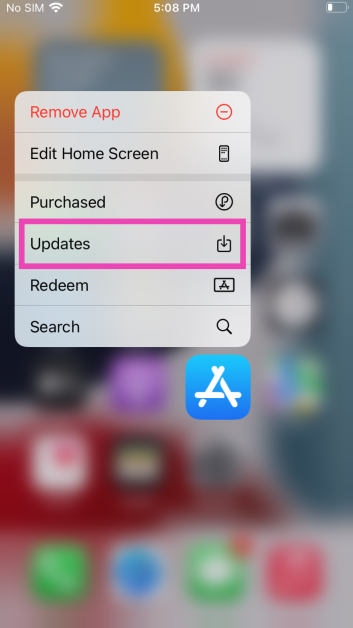
Update an app on your iPhone or iPad from the App Store
Step 1:Launch the App Store on your iPhone or iPad.
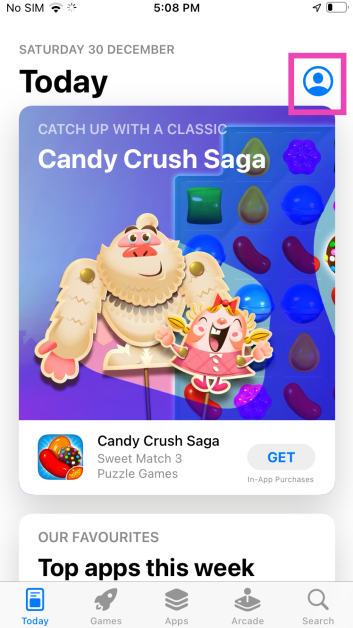
Step 2: Tap the profile icon at the top right corner of the screen.
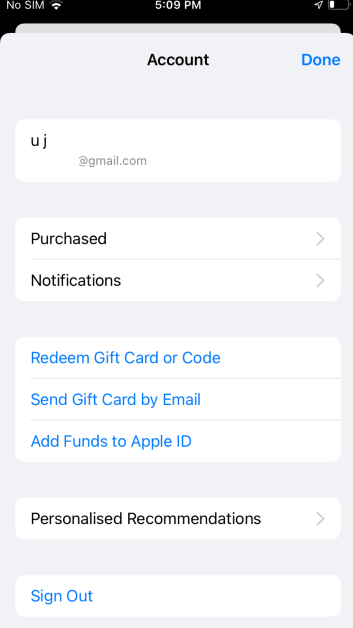
Step 3: Scroll down to the Available Updates section.
Step 4: Hit the Update button next to an app to update it.
Step 1:Launch the App Store on your iPhone or iPad.
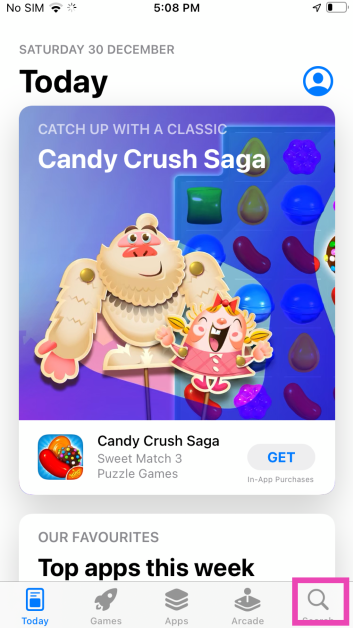
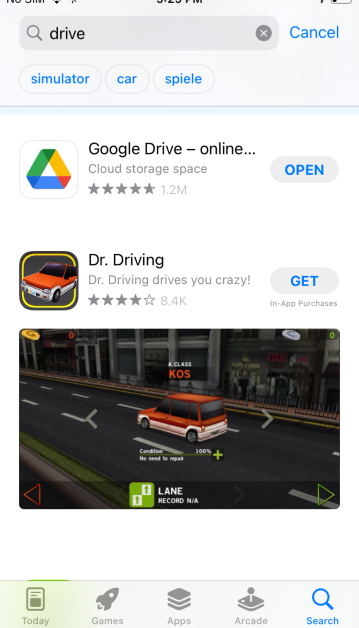
Step 2: Tap the Search tab at the bottom right corner of the screen.
Step 3:Search for the app you want to update.
Step 4: If there are any new updates available for the app, you will see ‘Update’ next to it instead of ‘Open’. Hit the Update button.
Ask Siri to check for updates
If you want to go hands-free, simply ask Siri to do it. While Siri can’t manually update the app, it can take you to the app’s page on the App Store. After that, all you need to do is hit the Update button. Simply say “Hey Siri, check the update for (app name)” or “Hey Siri, open the (app name) on App Store”.
Turn on automatic app updates on your iPhone or iPad
Step 1: Go to Settings.
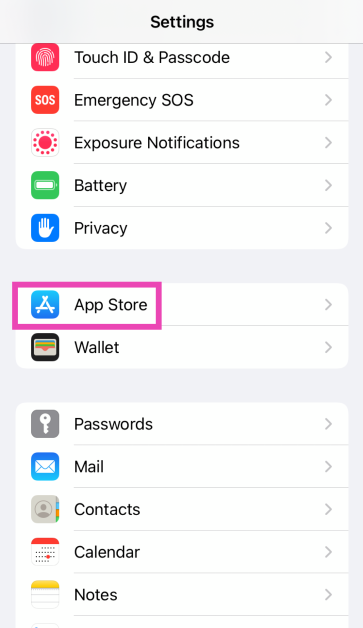
Step 2: Select App Store.
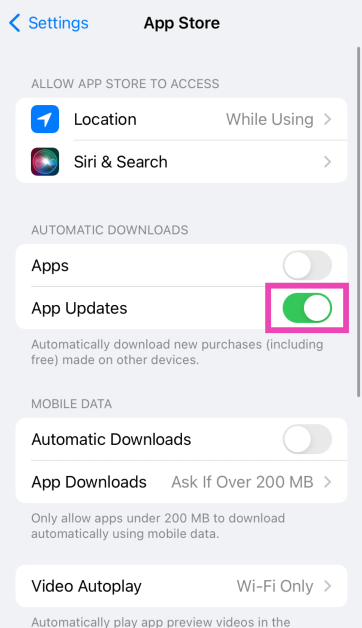
Step 3: Turn on the toggle switch for App Updates under Automatic Downloads.
Bonus Tip: Update apps on your Mac
Step 1: Open the App Store.
Step 2: Click Updates in the sidebar.
Step 3: Click Update next to the app you want to update. If you want to update all apps, click on Update All.
Bonus Tip: Update apps on your Apple Watch
Step 1:Launch the App Store on your Apple Watch and scroll down to the bottom.
Step 2: Tap on Account.
Step 3: Hit Updates.
Step 4: Tap Update next to an app to update it manually or Update All to update all apps.
Frequently Asked Questions (FAQs)
Where can I find the pending updates for the apps on my iPhone?
Go to App Store>Profile and scroll down to ‘Available Updates’ to view the pending updates.
How do I get a refund for an app I purchased on the App Store?
Go to App Store>Profile>Purchased>App>Report a Problem and select ‘I would like to request a refund’ on the following page.
How long does it take for the App Store to issue a refund?
It takes around 48 hours for Apple to process your refund request. The time required to refund the amount back to your account varies depending on your location.
How do I automatically update apps on my iPhone?
Go to Settings>App Store and turn on the toggle switch next to App Updates under Automatic Downloads.
Why are apps not updating on my iPhone?
If you’re unable to update apps on your iPhone, it could be due to internet connection issues with the network or lack of storage on your device. Sometimes, background software issues can also keep the apps from updating on your iPhone.
These are the top 5 ways to update an app on your iPhone or iPad. Once an app is updated, you cannot switch back to its older version. Make sure you are connected to a WiFi network while updating a bunch of apps at once. If you found this article helpful, let us know in the comments section!
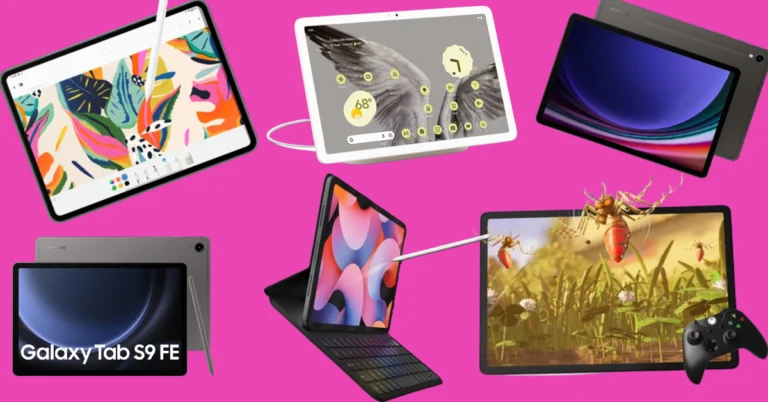
Even though Apple did not release any iPads this year, the Android tablet market saw a lot of activity. As is tradition, Samsung’s Galaxy S series offerings were the most powerful tablets this year. OnePlus also stepped into the tablet market with its debut Pad along with the affordable alternative, Pad Go. Xiaomi’s Pad 6 continued to be a gritty device in the midrange category. So, let’s take a quick look at our favourite releases this year. Here are our top 5 picks for the best tablets of 2023.
The Samsung Galaxy S9 Ultra is the most specced out tablet on the market right now. It features a massive 14.6-inch Dynamic AMOLED display with a refresh rate of 120Hz. Powering the tablet is this year’s flagship Snapdragon 8 Gen 2 SoC. With an aspect ratio of 16:10, the tablet is ideally meant to be used in landscape orientation. There are two selfie cameras on this powerful device, a 12MP wide sensor and another 12MP ultrawide lens. The rear camera module comprises a 13MP wide lens and an 8MP ultrawide lens. Easily one of the best tablets launched in 2023.
OnePlus’ debut pad created waves in the Android tablet sphere this year. In true OnePlus fashion, the tablet offers great specs for its price tag. We reviewed the OnePlus Pad when it came out and were pleased by its build quality and the large display. Its design closely mimics the OnePlus 11 and the unique 7:5 aspect ratio is suitable for both portrait and landscape use. The single 13MP wide camera at the rear takes good quality shots while the 8MP selfie camera up front is ideal for video calls. Another great thing about buying the OnePlus Pad is that you don’t have to break the bank for its accessories. If you’re looking for a more affordable alternative, check out the OnePlus Pad Go.
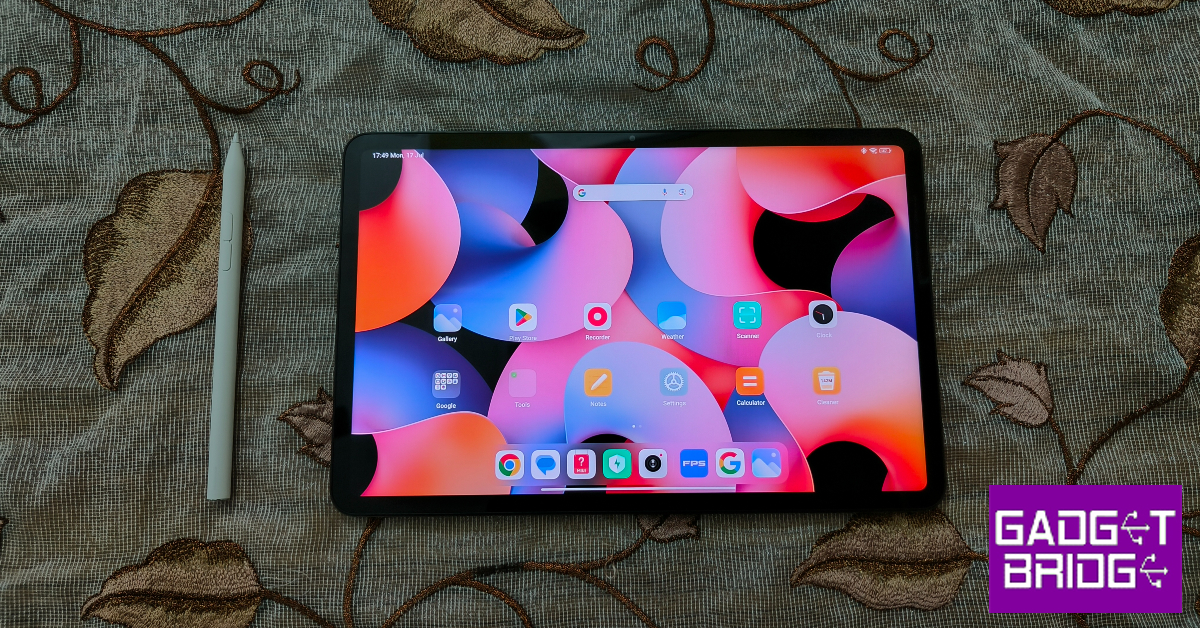
The Xiaomi Pad 6 offers incredible value for its price. The new metal back panel on this tablet feels very premium and elevates its in-hand feel. The rear camera panel follows the design language of the one on the Xiaomi 13 Pro. The 11-inch IPS LCD display has a refresh rate of 144Hz and supports HDR10. The tablet’s accessories aren’t expensive either. The keyboard folio case costs Rs 5,000 and the smart pen fetches Rs 6,000. With an 8,840mAh battery pack on board, the Xiaomi Pad 6 can last for 2 days on normal use. Check out our Xiaomi Pad 6 review to know more.
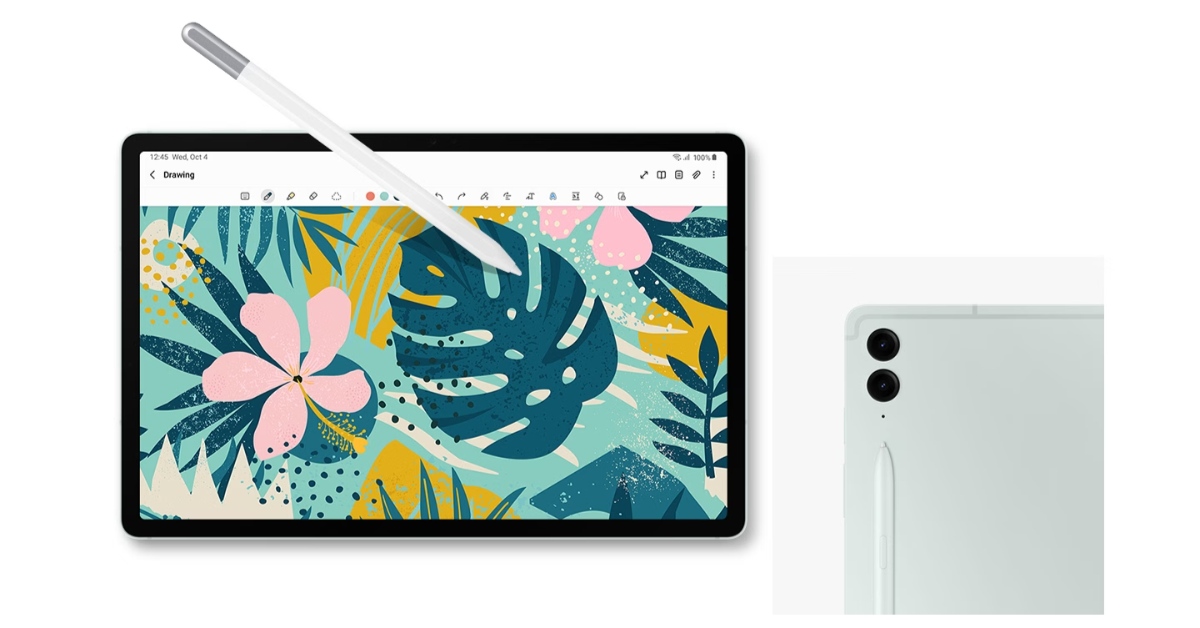
Samsung’s affordable alternative to its flagship S9 range of tablets, the S9 FE packs some interesting specs. It gets a 10.9-inch IPS LCD display with a 90Hz refresh rate and 1440 x 2304p resolution. The tablet’s 16:10 aspect ratio mimics that of the S9 Ultra. Powering the S9 ‘Fan Edition’ is Samsung’s in-house Exynos 1380 SoC. This chipset is also found on Samsung’s 2023 midrange smartphone offering, Galaxy A54. In terms of camera specs, the Galaxy Tab S9 FE gets a 12MP ultrawide selfie camera and an 8MP wide sensor for the rear camera. Unlike its primary rivals, the Galaxy Tab S9 FE gets a side-mounted fingerprint scanner. Without a doubt, one of the best tablets of 2023.
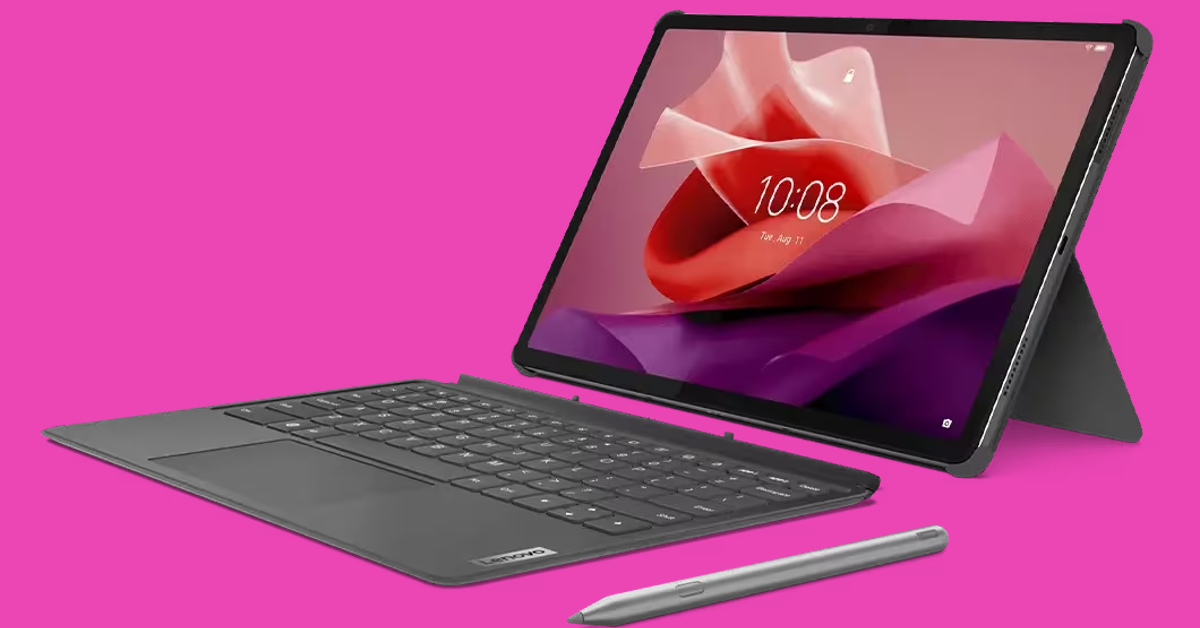
The Lenovo Tab P12 has a 12.7-inch IPS LCD display with an 1840 x 2944p resolution and 16:10 aspect ratio. The octa-core MediaTek Dimensity 7050 is a decent chipset for a tablet in this price bracket. The 8MP main camera can record 4K videos at 30fps. The tablet also gets a 13MP ultrawide selfie camera up front. The quad speakers on the P12 tab have been tuned by JBL. It also gets a side-mounted fingerprint scanner, 10,200mAh battery, and 30W charging support.
These are our top 5 picks for the best tablets launched in 2023. Let us know what you think of our picks. If you think we missed out on a tablet, give it a shout-out in the comments! Make sure you check out the winners of Gadget Bridge Awards 2023 as well!
OnePlus Nord 3 is now getting a discount of Rs 4,000.
The discount is available on Flipkart and Amazon.
The smartphone was launched in India in July this year.
Soon new smartphones will arrive in India but before their launches, many smartphones are on sale in the country. The price of the OnePlus Nord 3 has dropped significantly on Flipkart and Amazon. The device has received a price reduction of Rs 4,000 on the e-commerce platforms. The Nord 3 comes with a 6.74-inch AMOLED display. The device also includes a 50-megapixel Sony IMX890 triple back camera and a 5,000mAh battery.
The OnePlus Nord 3 was previously selling at an initial price of Rs 33,999. The device is currently listed at a starting price of Rs 29,999 on Amazon for 8GB RAM with 128GB of storage. Whereas the phone is available on Flipkart at a starting price of Rs 29,858 Note that this offer could be available for a limited duration so we suggest you grab the deal as soon as possible if you are planning to buy a new phone as it may expire soon.
The smartphone comes in Misty Green and Tempest Grey colour options.
OnePlus Nord 3 features a 6.74-inch AMOLED screen with a dynamic refresh rate that may vary between 40Hz and 120Hz and has a 450ppi pixel density. It runs on OxygenOS 13 with Android 13. Under its hood is an octa-core MediaTek Dimensity 9000 SoC with up to 16GB of LPDDR5X RAM and up to 256GB of internal UFS 3.1 storage.
The device comes with a triple rear camera setup for photos and videos, including a 50-megapixel Sony IMX890 sensor with OIS support. Additionally, there is an 8-megapixel ultra-wide angle Sony IMX355 sensor with a 112-degree FoV and a 2-megapixel macro lens. The phone has a 16-megapixel front-facing camera for selfies and video chats. Also, there is a 5,000mAh battery that supports 80W SuperVOOC charging.
The iPhone was launched at a starting price of Rs 79,990 in India.
iPhone 15 was launched in India just some months ago. The device is getting a massive price drop after the September release. The iPhone was launched at a starting price of Rs 79,990. If you have been planning to buy the new iPhone this is the right time as it is being offered at a massive price of Rs 5,000 on Amazon.
iPhone 15 was launched at the Wonderlust event on September 12. Previously it was available at a starting price of Rs 79,990 on Amazon. However, after a significant discount of Rs 5,000, the device is currently listed at Rs 74,990 on the e-commerce platform. Note that this is the effective price which the e-commerce store is offering. You can also apply for an available bank offer to further bring down its cost. Amazon Pay ICICI bank card holders are eligible to get a 5% cashback of Rs 3,745 on the device. This will bring the price down to Rs 71,155. So overall Amazon is offering you a net discount of Rs 8,745.
iPhone 15 specifications
The iPhone 15 comes with a 6.1-inch Super Retina XDR OLED display. The display is protected with a Ceramic Shield for protection. The handset features an IP68 classification for dust and water protection. The A16 Bionic chip which powered Apple’s iPhone 14 Pro models last year, is found in the new iPhone 15.
The main camera of the iPhone 15 is a 48-megapixel wide-angle camera with a 2um quad-pixel sensor and an f/1.6 aperture. Additionally, the device has a 12-megapixel ultra-wide camera with sensor-shift stabilisation and an f/1.6 aperture.
On the front, there is a 12-megapixel TrueDepth camera for selfies and video calls. The device features a USB Type-C port instead of the company’s exclusive Lightning connector.
Garena Free Fire is a battle royale game with regular awards and tournaments to keep players interested. If you play Garena Free Fire, you should be aware of the redeem codes that are released on a daily basis. However, because the battle royale game is banned in India, players from other countries can use the Free Fire Redeem codes daily. If you’re unfamiliar with the Garena Free Fire redeem codes or don’t know how to get them, we’ve put together a step-by-step guide to help you redeem them. Check out Garena Free Fire Redeem Codes for 30 December 2023.
The Free Fire redeem codes are a great way to get free stuff. These are 12-digit codes that contain alphabets and numbers, as well as an expiration date and time. Because the Garena FF redeem codes cannot be used more than once, you should hurry to the redemption page to claim your free reward before someone else does. To get a free reward, all you have to do is go to reward.ff.garena.com/en, which is the official redemption page. Also, keep an eye on this space for daily updates on Garena Free Fire redemption codes and rewards.
In This Article
Garena Free Fire Redeem Codes Today 30 December 2023
X99TK56XDJ4X
FF10GCGXRNHY
8F3QZKNTLWBZ
FF10617KGUF9
FF119MB3PFA5
ZYPPXWRWIAHD
MCPTFNXZF4TA
FF11HHGCGK3B
FF11WFNPP956
ZRJAPH294KV5
Y6ACLK7KUD1N
W0JJAFV3TU5E
PCNF5CQBAJLK
SARG886AV5GR
FF1164XNJZ2V
B6IYCTNH4PV3
YXY3EGTLHGJX
FF11DAKX4WHV
WLSGJXS5KFYR
FF11NJN5YS3E
How to Get Free Fire Redeem Codes for Garena on 30 December 2023?
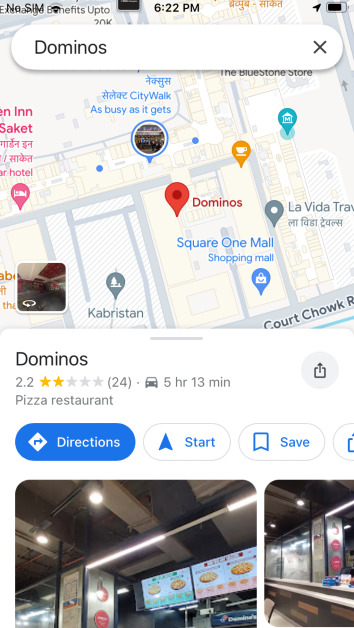
Not only can Google Maos get you to a location with its unmatched navigation, but it can also tell you everything you need to know before getting there. From hotel rates to restaurant menus, Google Maps has it all. Google relies on its users to update a location with relevant data. You can review a place on Google Maps and even add a picture or a short video to go with it. Wondering how it’s done? Here are the top 4 ways to add videos or photos to any location on Google Maps.
Adding images and videos makes your review more thorough
If you’re a seasoned Google reviewer, you would know that adding pictures and videos along with your review will give it more views and also add much-needed information about the location. Google now allows users to add an image or video to a location on the map without needing to write a review. As a result, you can find more images for locations on the map.
There are a few limitations, though. You can only add images to a publicly listed location on the map. This means private images like the inside of someone’s house are not permitted on the platform. You cannot assign images to random coordinates on the map either. Once you upload an image, it will take some time to be processed and deemed useful before being uploaded to the location’s page.
It goes without saying, but the reviews and media you post for locations on Google Maps are visible to everyone. The submissions aren’t anonymous, your profile name will appear next to the post. Users can go to your profile and look at the other reviews and images you have posted. You can find your profile in the ‘Contributor’ section of the Google Maps app.
Add Videos or Photos to Any Location on Google Maps (Android)
Step 1:Launch the Google Maps app on your Android smartphone.
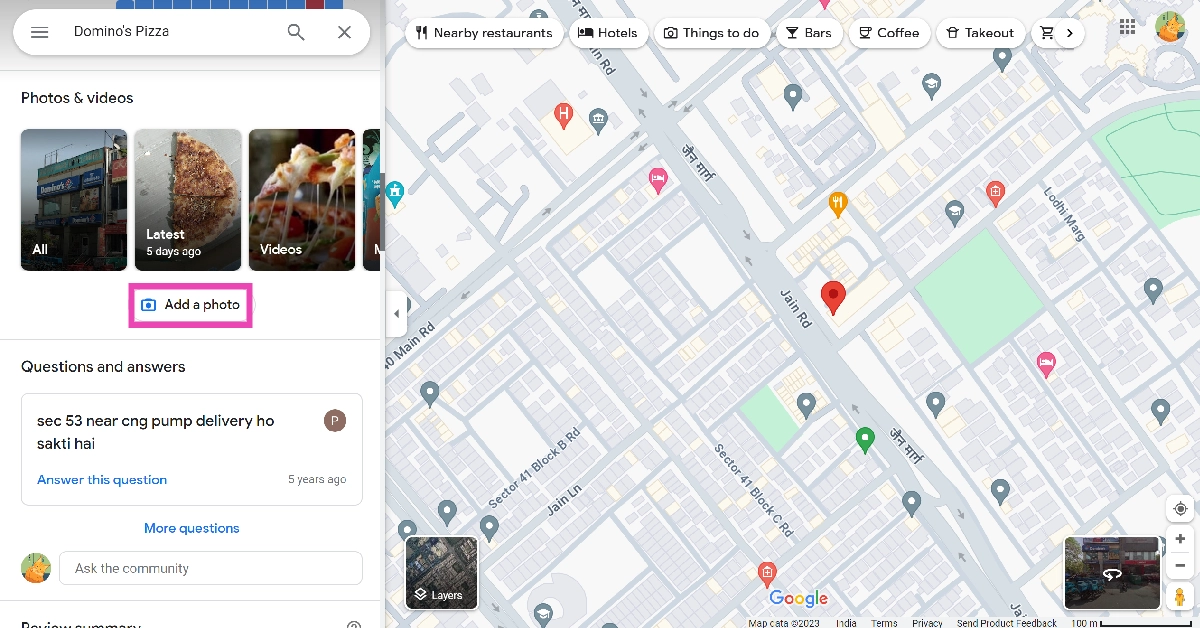
Step 2:Search the location for which you want to add a photo/video
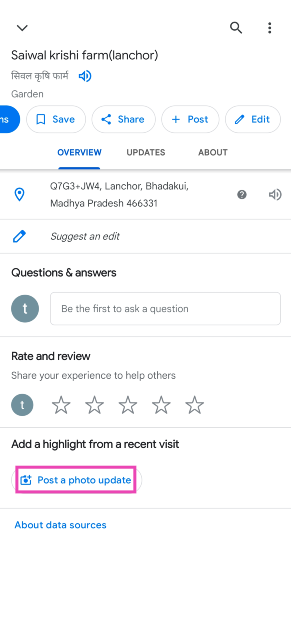
Step 3: Tap on the location and pull up the slider.
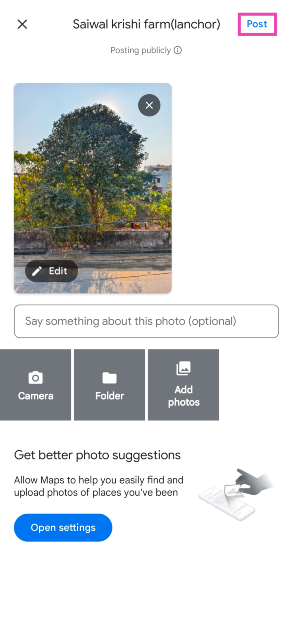
Step 4: Tap on Post a photo update.
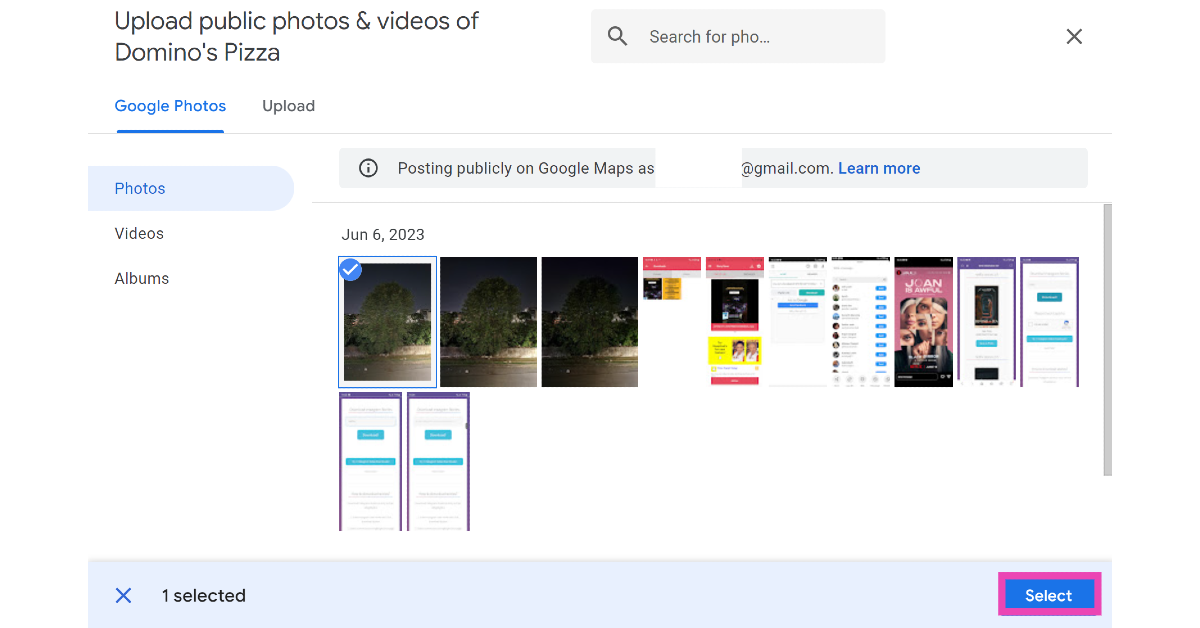
Step 5: Select the pictures or videos you want to add to the location.
Step 6: Hit the Post option at the top right corner of the screen.
Add Videos or Photos to Any Location on Google Maps (PC)
Add Videos or Photos to Any Location on Google Maps using the Google Photos app
Step 1:Launch the Photos app on your Android smartphone.
Step 2: Open the picture that you want to add to a location.
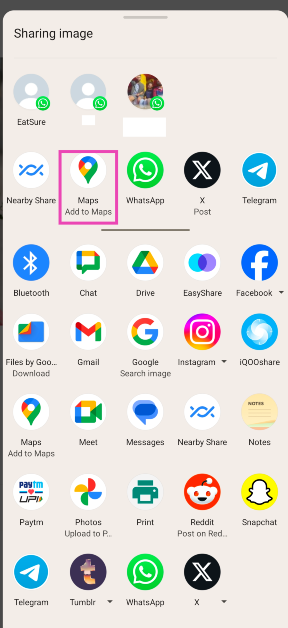
Step 3: Hit Share.
Step 4: Select Add to Maps.
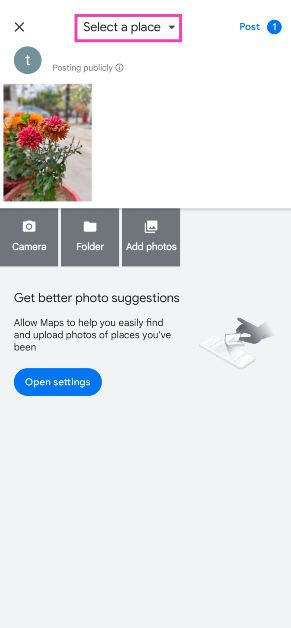
Step 5: Tap on Select a place at the top of the screen.
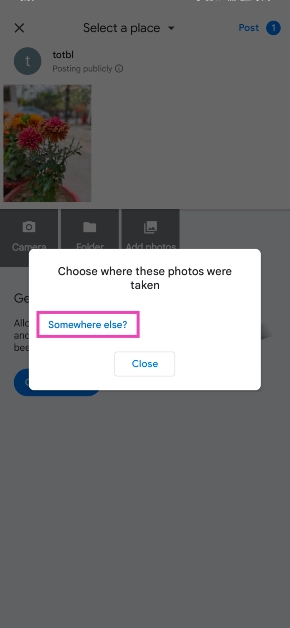
Step 6: Tap on ‘Somewhere else?’
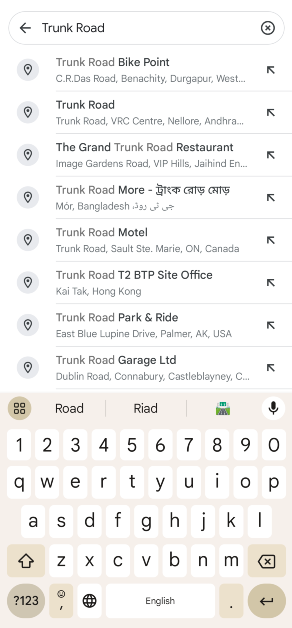
Step 7: Enter the name of the location.
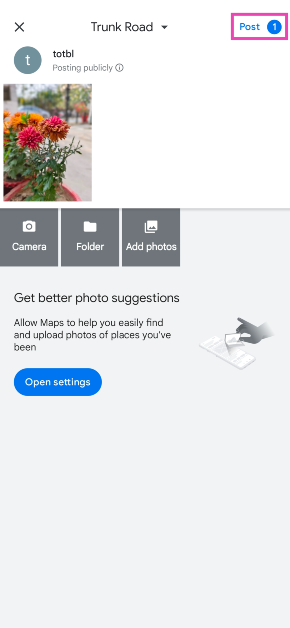
Step 8: Hit Post.
Add Videos or Photos to Any Location on Google Maps (iPhone)
Step 1: Launch the Google Maps app on your iPhone.
Step 2: Search the location for which you want to add a photo/video.
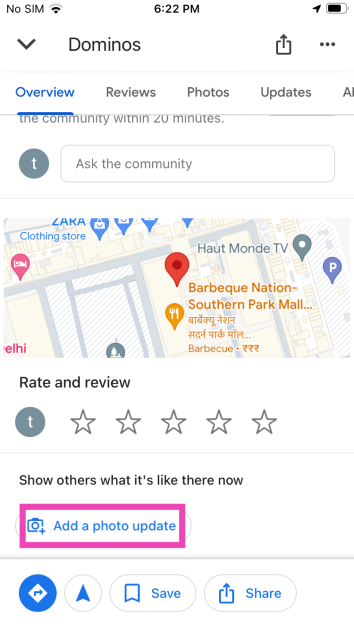
Step 3: Once you’ve selected the location, pull up its page.
Step 4: Scroll down and select Add a photo update.
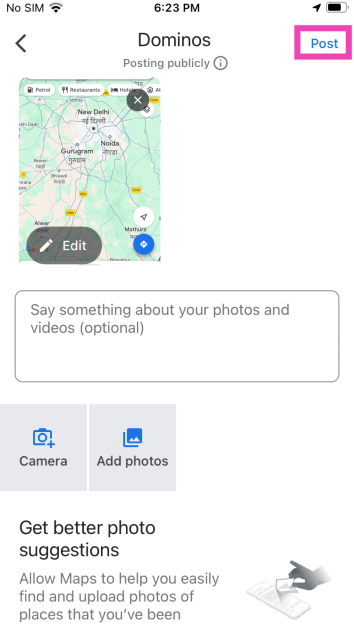
Step 5: Select a picture from your iPhone’s gallery.
Step 6: Hit the Post button at the top right corner of the screen.
Frequently Asked Questions (FAQs)
How do I post a picture to a Google Maps location?
Open the location’s page in Google Maps, select ‘Post a photo update’, and select an image from your device’s gallery. The image will be added to the location.
Can everyone see the photos I add to a Google Maps location?
Yes, the pictures you add to a Google Maps location are public and can be viewed by anyone who opens the location on the map.
How do I view all my reviews and location images on Google Maps?
Launch the Google Maps app and switch to the Contribute tab to view all your reviews, images, followers, badges, and more.
These are the top 4 ways to add videos or photos to any location on Google Maps. Make sure your photos are less than 5MB in size. Videos get a larger size limit of 75MB. You can also upload HD videos in 720p resolution. If you know any other way to add a picture or video to a Google Maps location, let us know in the comments!
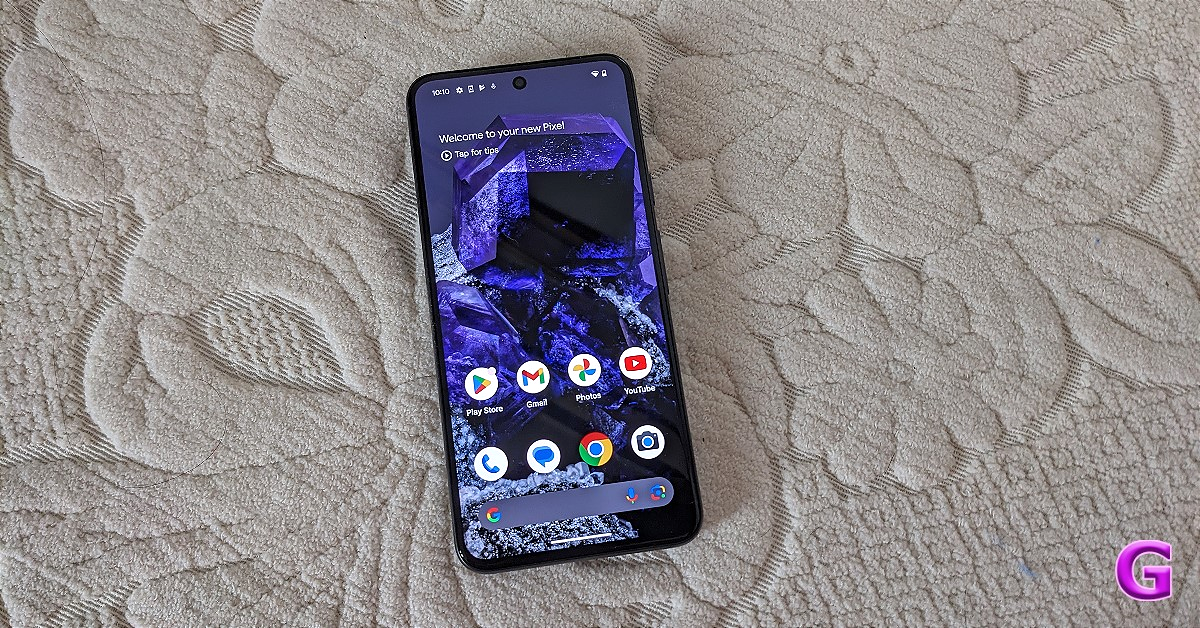
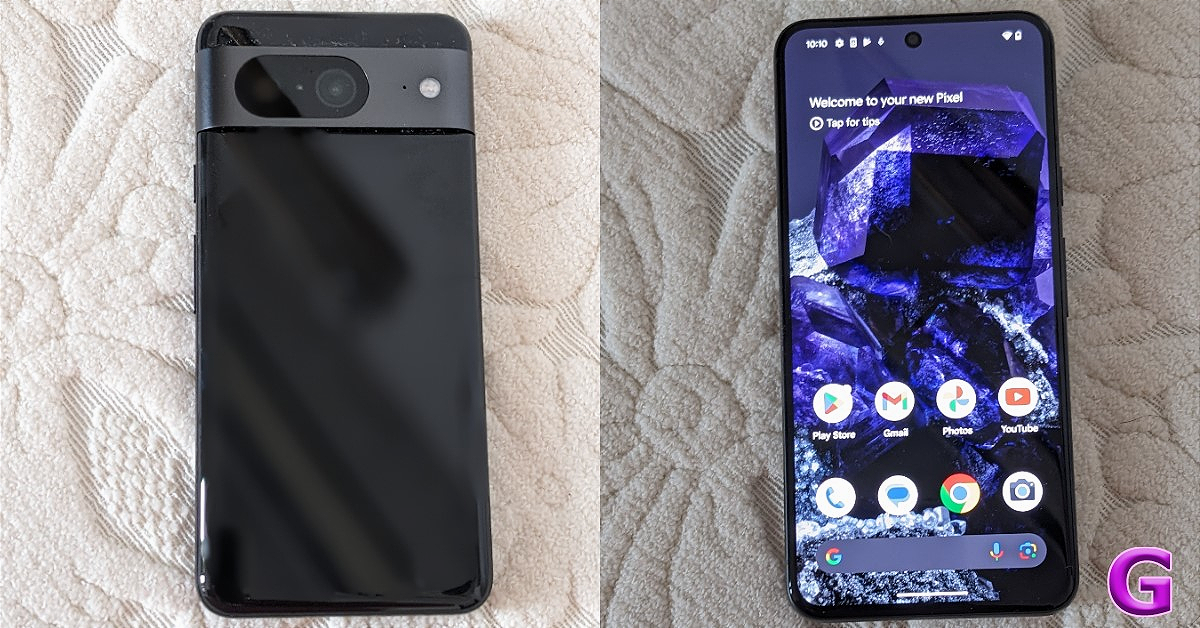
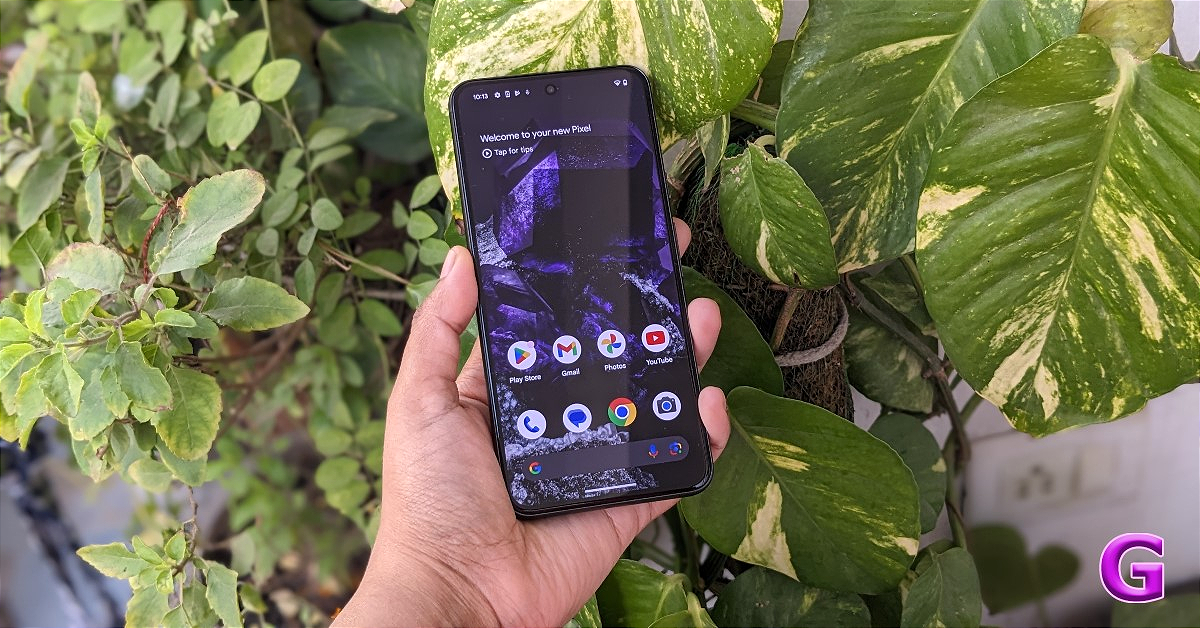
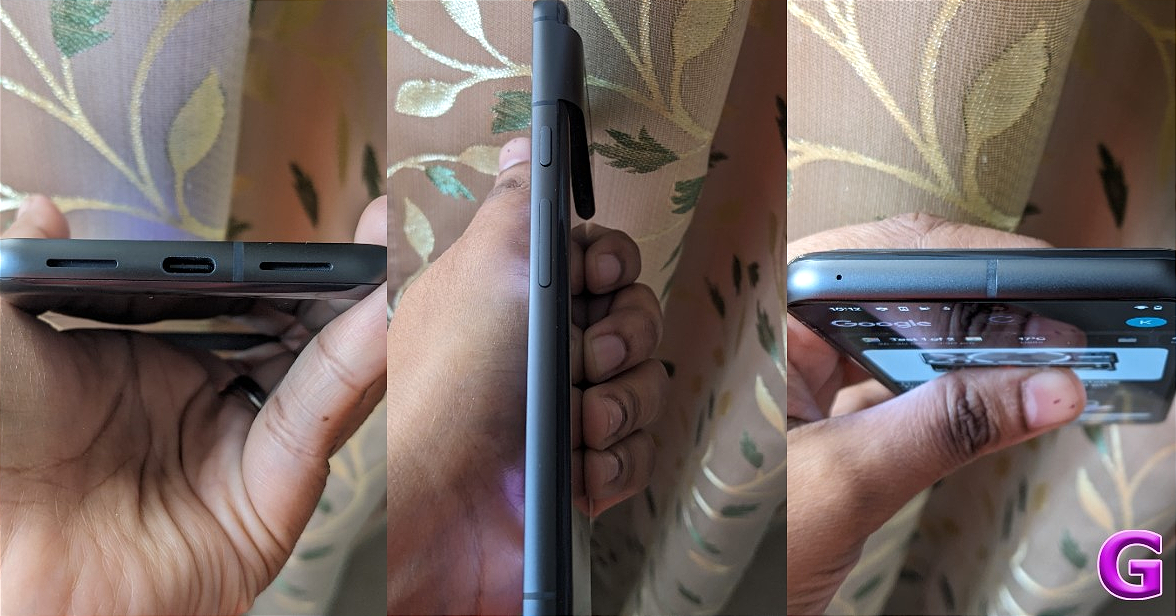
After thoroughly reviewing the Pixel 8 Pro, we wanted to test out the Google Pixel 8, its smaller sibling. Additionally, take notice that the update has already been carried out to our review model, therefore this is a review of the Google Pixel 8 following the OS update. We really want to suggest the Google Pixel 8 smartphone to everyone, but should we? That is exactly what you will learn in this review.
In This Article
Google Pixel 8 Review: Design and Display
The Google Pixel 8 Series has two variants: the Pixel 8 Pro and the Pixel 8, which is the one we will be discussing. Being the Pro variant, it has an additional telephoto lens, a larger screen, and a few more capabilities.
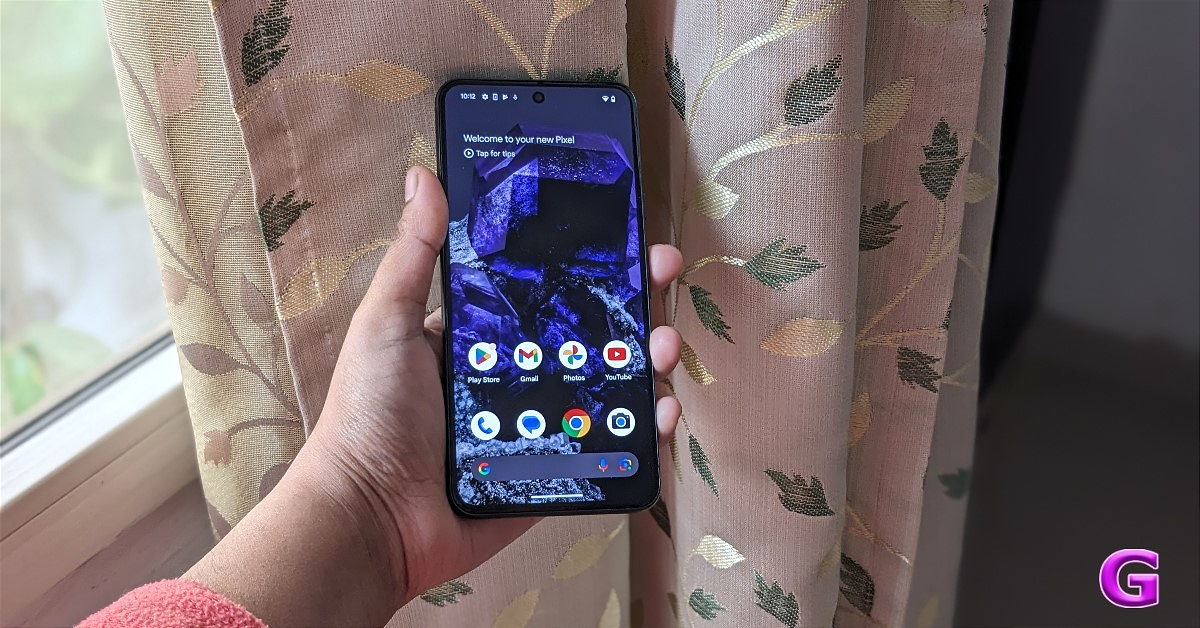
Personally speaking, we are not a great fan of a device very big in size because, firstly, we have small hands, and the second reason is that such a big smartphone does not fit in our pockets; hence, it is obvious that our pockets are made smaller. We prefer the size of the Pixel 8. It features a gorgeous-looking 6.2-inch FHD+ Actua display with a resolution of 1,080 x 2,400 pixels. There is an adjustable refresh rate range of 60Hz to 120Hz supported by the OLED panel. With a maximum brightness of 2,000 nits, it is 42% brighter than its predecessor.
We have been using this phone as our daily driver for the past month and we love its excellent display. After using the OnePlus Open (Review)for a while, we moved to the Pixel 8. The colour reproduction is more realistic and accurate. Furthermore, we played games like COD: Mobile on the device and we were very happy with the results. The sunlight legibility of the device is also good and one can easily read everything on the screen under direct sunlight.
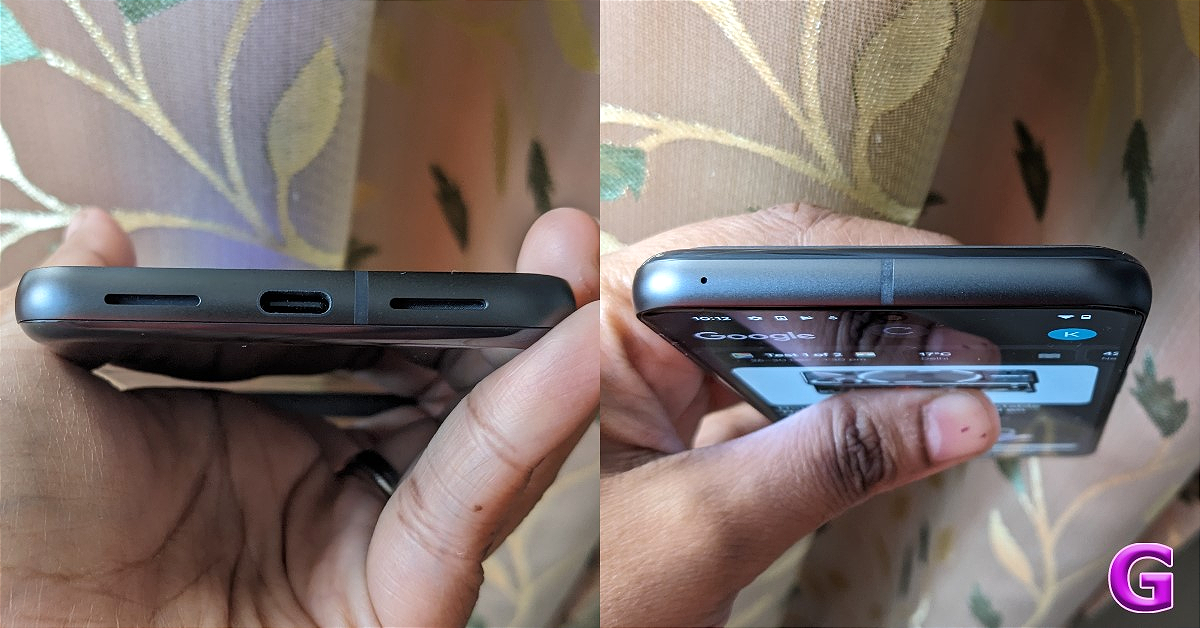
All things considered, it’s a stylish phone with rounded edges. Although the rear is made of a somewhat glossy material attracting fingerprints, which can be removed with ease. With two camera sensors, the visor-shaped camera module is more prominent than before, at the back.
The front panel is protected with Corning Gorilla Glass Victus 2. As a result, the gadget is shielded against occasional damage and scuffs.
Coming to the performance, there is a Tensor G3 SoC with a Titan M2 security coprocessor engineered to bring Google’s AI advances. Tensor G3 is a 4-nanometer-based processor that is supposed to be significantly more power-efficient and cooler than its predecessor. It comes in two variants: 8GB of RAM with 128GB of storage and 12GB of RAM with 256GB of storage.
We are happy to report that in the almost two months that we have used this phone as our main device, we have experienced no lags, stutters, or heating problems. The phone did not provide an overheating warning, in contrast to the Pixel 7 (Review). When gaming for extended periods, it does feel a little warm, but this is completely normal and doesn’t affect your experience in any way. You turn the game off and it cools down very quickly.
Saying that one has to remember the Tensor G3 is not designed for gaming and is not as adept at multitasking as the Apple iPhone 15 Pro Max (Review) or the Samsung Galaxy S23 Ultra (Review). Thus, this is a machine learning-based AI-forward chipset that has distinct objectives. However, the performance is excellent when you multitask, watch a lot of videos, or are even great at gaming.
The cost of this phone is what surprised us. There are several smartphones that are more capable of both gaming and performance. Therefore, we won’t advise you to play games at their top settings if you purchase this device.
Other than that, the performance of this smartphone is extremely good when compared to its predecessor, and we had a great time using it. It performed well when it came to multitasking, camera shots, and watching a lot of OTT content (as said). Overall, the experience was quite smooth and without any noticeable lags.
The most recent version of Android, Android 14, which comes pre-installed with Pixel-only features, also extends Pixel support to seven years of security and OS updates for the phone. This is the best in class and the first time we see 7 years of updates coming into play.
Yes, the main USP of this phone is that the manufacturer is offering seven years of OS updates, so you won’t have to worry about anything until 2030. Note that Apple, Google’s main competition, only offers six years of software updates.
Using Android 14 is easy, and the user interface is generally fluid. We had a great time using Always on Display and the customised Android lock screen animations. It has no bloatware and is 100% stock Android.
But there is a software-related issue with the Pixel 8, and we want you to know if you intend to buy this device. The issue is that the device sometimes crashes and hangs. Occasionally the apps will just not open and the phone will start to hang at times, which is pretty strange. We are sure this will be taken care of after the next update.
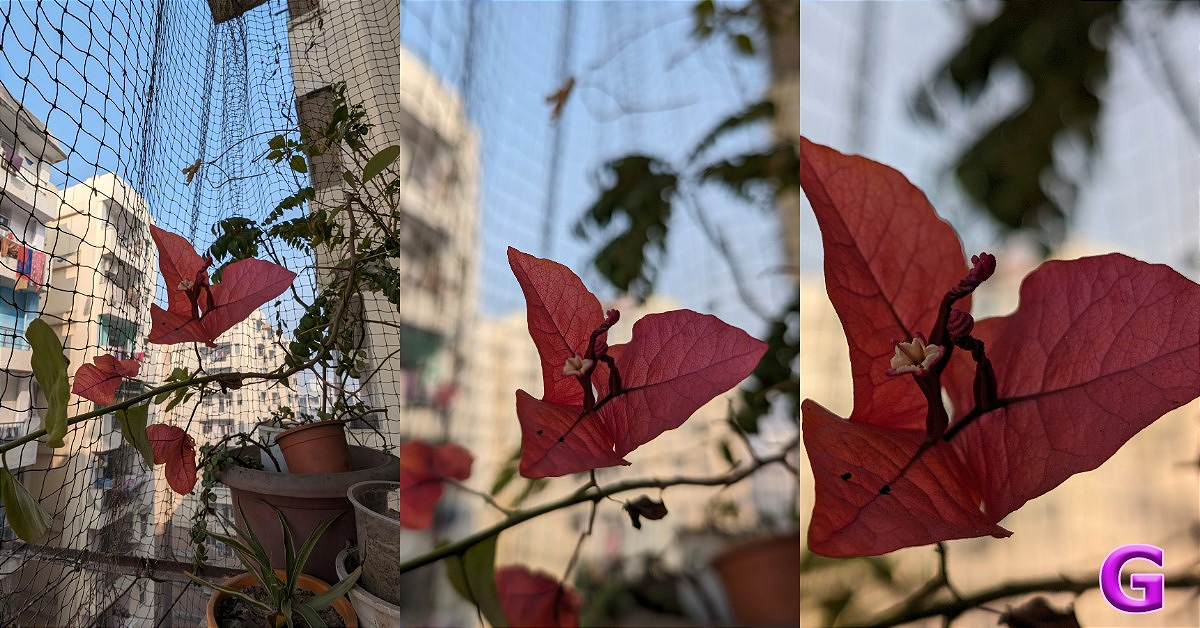
Our consideration of a Pixel is primarily based on its software experience and camera optimisation. The device features a primary 50MP Octa PD sensor with an f/1.68 aperture, an 82-degree field of view, a 1/1.31-inch image sensor size, and Super Res Zoom up to 8x. The secondary camera on the device is a 12 MP ultrawide camera with auto-focus, 1.25 μm pixel width, f/2.2 aperture, 125.8-degree field of view, as well as a lens correction feature.
Daylight shot (primary)
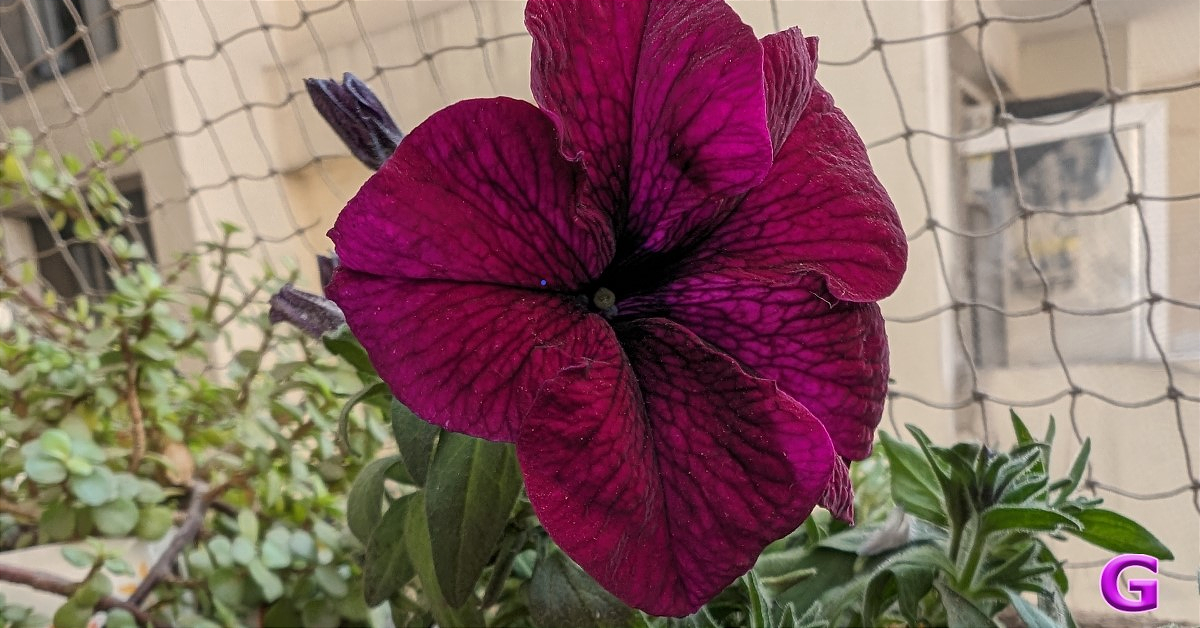
Pixel 8 captures accurate pictures, meaning that in the majority of the shots, the white balance is just what it was in that particular scenario. Additionally, colours are almost natural. Because the Pixel tends to apply the HDR effect to its images, the pictures may occasionally appear a little oversharpened. However, altogether, this phone takes incredibly sharp pictures.
Wide- Ultrawide
Additionally, be aware that the 50-megapixel snapshot you receive is always reduced in quality because Pro control is limited to the Pixel 8 Pro.
Macro ShotPortraits
The phone’s portrait mode is pretty great, and we adore the pictures it shoots.
For videography, the Pixel 8 can do up to 4K at 60fps videos. It supports 10-bit HDR recording and includes Gyro EIS. Although they are not as nice as those on the iPhone, the videos are still decent.
review of Google Pixel 8
For selfies, it has a 10.5-megapixel dual PD sensor with a 1.22 μm pixel width, f/2.2 aperture, 95-degree field of view, and fixed focus. We got decent-looking selfies with it, though not as good as its elder sibling, but not bad at all.
Normal Photo Vs Portrait (lowlight)
Now let’s talk about the battery and charging. The Pixel 8 comes with a 4,485mAh battery with 24W wired, 12W wireless fast charging support and does reverse charging as well. The battery life is good; it delivers around 6 to 7 hours of continuous screen play time on average for normal usage, including using social media accounts, watching videos on YouTube, and some gaming. Note that this is an improved screen on time, which we received after an update; previously, it was able to deliver about 4 to 5 hours. Overall, you will receive an average battery life, but if you play a lot of games and watch a lot of movies, you can just end up draining the battery in a single day.
The charging speed is about average, it is not particularly fast or slow. Also, there is no charger in the box.
Verdict
We examined this phone for several months before we gave our final verdict because of few concerns, including heating issues, delays, and soft locking. But after the update trust us, this Pixel Phone has lived up to our expectations in most departments eradicating any doubts we had. After updating. the phone does not tend to overheat, at least in our testing. We know you would be thinking, “How is the performance when you spend so much money on a smartphone?”
After using this phone for so long, we’ve concluded that if you are a hardcore gamer and play games at the highest settings and want a flawless gaming experience, then this phone isn’t designed to be a high-performance gaming device. Even though it’s quite fantastic for gaming, if you dial down to medium settings, you’ll undoubtedly obtain a smooth frame rate.
Also, you do end up getting 7 years of updates when you buy the Pixel 8. The main question, though, is if the Tensor G3 can run the most recent version of Android for seven years. Time will tell if the company withdraws its claim, which is probably going to happen given that it isn’t as fast and capable as Qualcomm’s most recent flagship CPU or Apple’s in-house chipset.
A total of nine offshore cryptocurrency platforms for non-compliance under the Prevention of Money Laundering Act have been served notice.
The government might block Block Binance, Kraken, and more.
Nine offshore Virtual Digital Assets Service Providers (VDA SPs) have been served show-cause notices by the Financial Intelligence Unit India (FIU IND). The compliance show-cause notices have been sent per Section 13 of the Prevention of Money Laundering Act (PMLA) as part of a compliance action against offshore firms.
According to a press release, “Virtual Digital Assets Service Providers (VDA SPs) were brought into the ambit of Anti Money Laundering/Counter Financing of Terrorism (AML-CFT) framework under the provisions of the Prevention of Money Laundering Act (PML) Act, 2002 in March 2023.”
Director FIU IND has requested from the Secretary of the Ministry of Electronics and Information Technology that the URLs of the mentioned entities that are operating illegally and in violation of the PML.
As per the FIU IND, Virtual Digital Asset Service Providers (VDA SPs) operating in the country (both onshore and offshore) and are involved in activities such as the exchange between virtual digital assets and fiat currencies, transfer of virtual digital assets, safekeeping or administration of virtual digital assets or instruments enabling control over virtual digital assets etc. should register with FIU IND as Reporting Entity and comply with the set of obligations as mandated under Prevention of Money Laundering Act (PMLA) 2002.
As per the PML Act, the regulation casts reporting, record keeping, and other obligations on the VDA SPs also includes registration with the FIU IND.
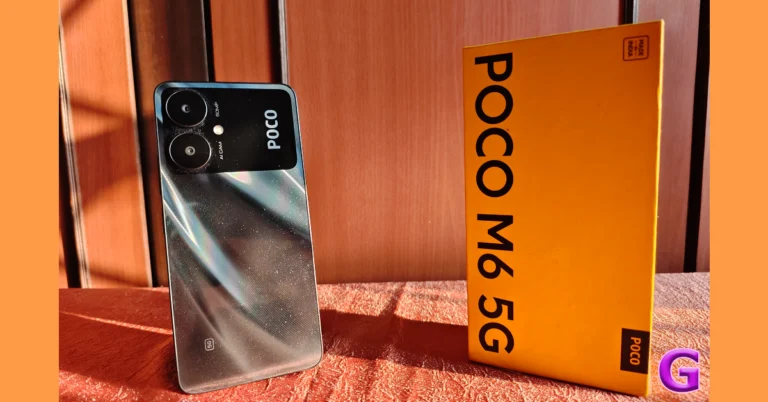
Back in August, Poco launched one of the cheapest 5G smartphones in India, disrupting the budget segment for good. We reviewed the Poco M6 Pro 5G soon after it launched and found it to be a gritty device that was well worth the money. Now, the Chinese manufacturer has launched a non-Pro model of the M6 5G, priced at Rs 10,499. The price point of this smartphone is quite interesting as the base model of the Pro variant costs just Rs 500 more. So, let’s take a deep dive into the specs, design, and performance of the device and see how it holds up. Here is our review of the Poco M6 5G.
The unboxing experience of the Poco M6 5G is pretty standard. Inside the signature yellow Poco retail box, you get the smartphone, a 10W power adapter (even though the phone supports 18W charging), a USB Type-C charging cable, and a quick start guide. Surprisingly, the package doesn’t ship with a plastic cover or case for the device.
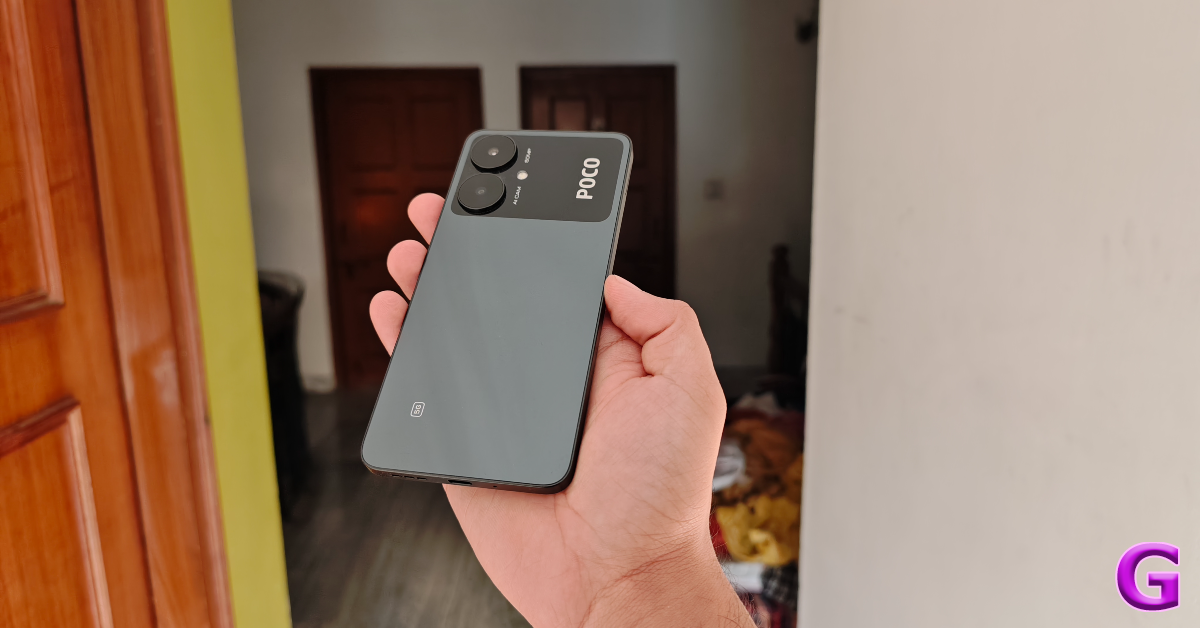
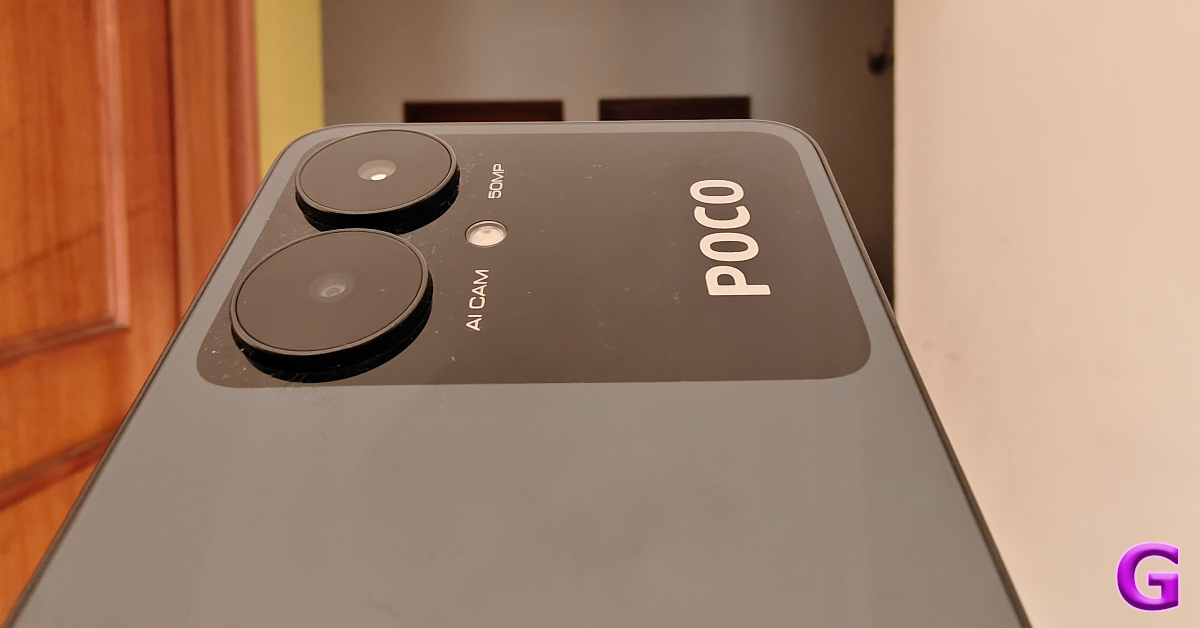
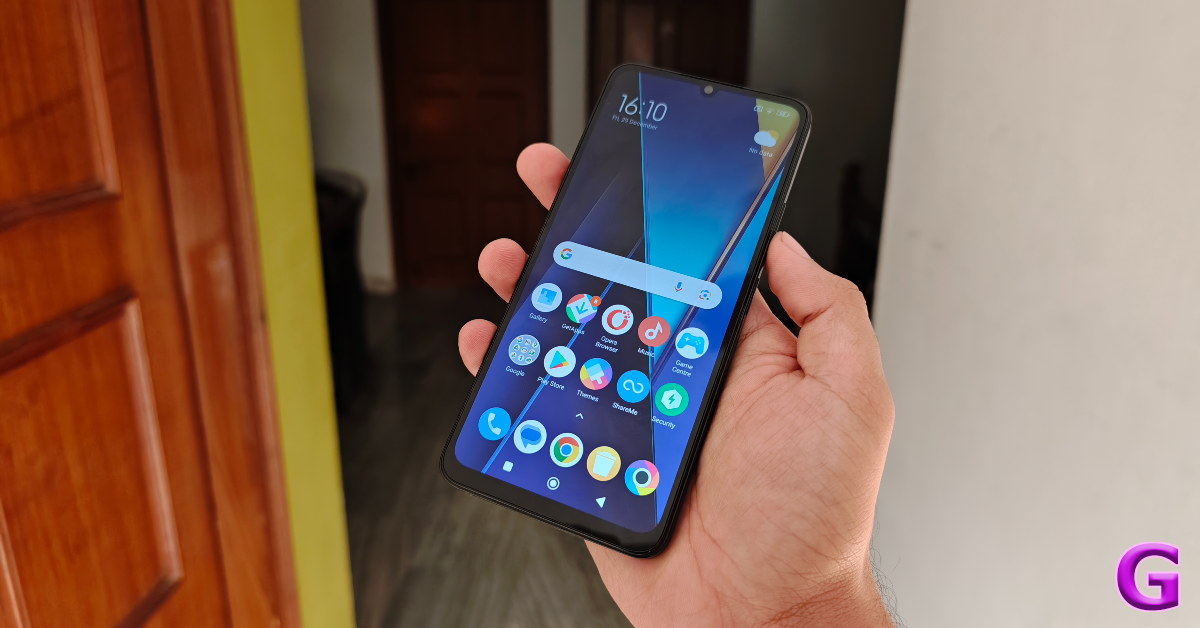
In terms of design, the Poco M6 5G mimics its Pro variant. The back panel sports a dual-tone colour theme and gets glass protection which also elevates its in-hand feel. The smartphone is available in two colour variants – Orion Blue and Galactic Black. We used the latter for this review. Black seems to be the right choice here for those who don’t want a garish smartphone in their hands. The top section around the camera arrangement is covered in a deeper shade of black and flaunts the Poco branding.
The two cameras get individual cutouts surrounded by plastic rings. A ring-less solitary LED flash is positioned next to the cameras. While the glass back contributes to the premium factor and distinguishes the smartphone from other budget offerings, it tends to accumulate fingerprints and smudges far too easily. A tradeoff we are willing to accept. We’d suggest keeping a microfibre cloth handy as some dust can settle between the two camera rings and can be tricky to clear using just your fingers.
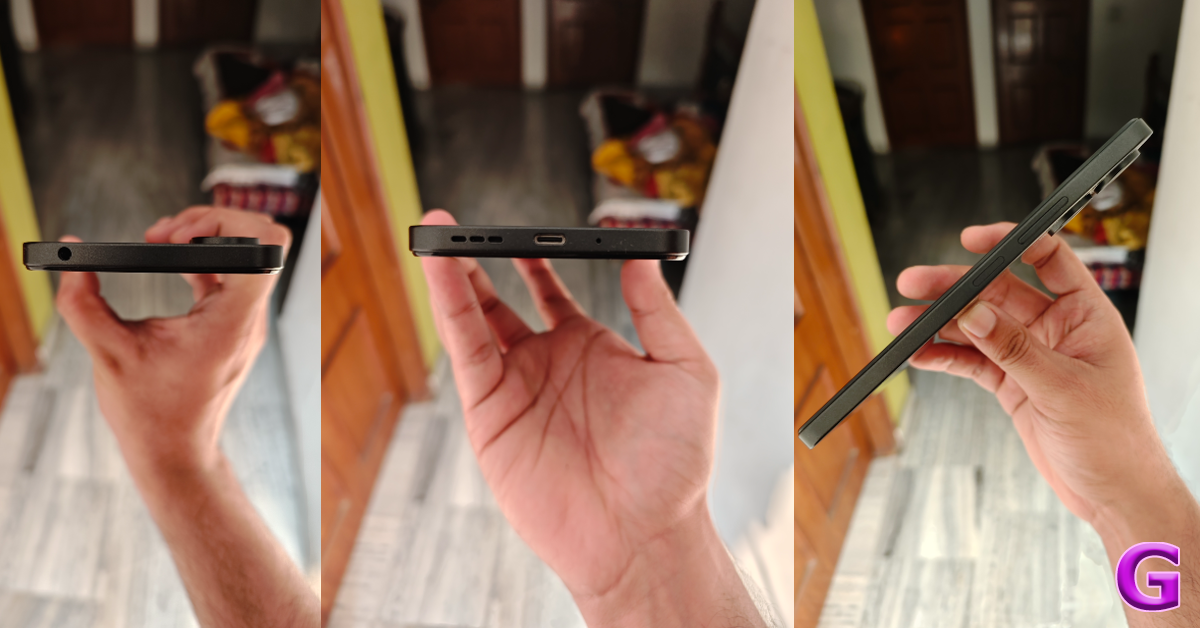
The left edge of the plastic frame houses the volume rocker keys and the power button. The primary microphone, USB Type-C slot, and speaker grille are positioned at the bottom. At the top edge of the frame lies the 3.5mm headphone jack (we don’t get to say that quite often). The hybrid SIM slot is present on the left edge, which is otherwise keyless. Poco claims the M6 5G is dust and splash resistant but it doesn’t have an IP rating like its Pro variant (IP53).
The 6.74-inch IPS LCD display has a refresh rate of 90Hz and a 720 x 1600p resolution. 500 nits of peak brightness is optimum when you’re indoors, but falls short under direct sunlight. The slim bezels around the display get thicker around the chin. The phone’s wide form factor is ideal for watching content but can be a little challenging for one-handed use. We played content across several streaming apps and found the experience to be acceptable. The images produced on the display were bright, sharp, and detailed. With Widevine L1 certification, the smartphone can play HD videos effortlessly. In comparison, the display of the M6 Pro 5G is slightly larger (6.79 inches) and has a 1080 x 2460p resolution.
The selfie camera on the display is housed in a waterdrop notch. While this is pretty much the norm for smartphones in this price bracket, the M6 Pro has a much better punch-hole cutout for the front-facing camera.
The Poco M6 5G is available in three storage and RAM variants – 128GB + 4GB, 128GB + 6GB, and 256GB + 8GB, we used the latter model for this review. This top-spec variant is priced at Rs 11,499. Powering the smartphone is a MediaTek Dimensity 6100+ SoC which is a respectable chipset for this segment.
The Poco M6 5G handles everyday tasks quite well. Activities like browsing through social media feeds, uploading media content to apps like Instagram and Facebook, and video calling on WhatsApp present no complications whatsoever. Switching between the apps and navigating the interface is generally lag-free, but not at the level of smoothness that we like. Even though the display has a refresh rate of 90Hz, it defaults to 60Hz for most apps. On the bright side, the 5G speeds make the Internet surfing experience blazing fast.
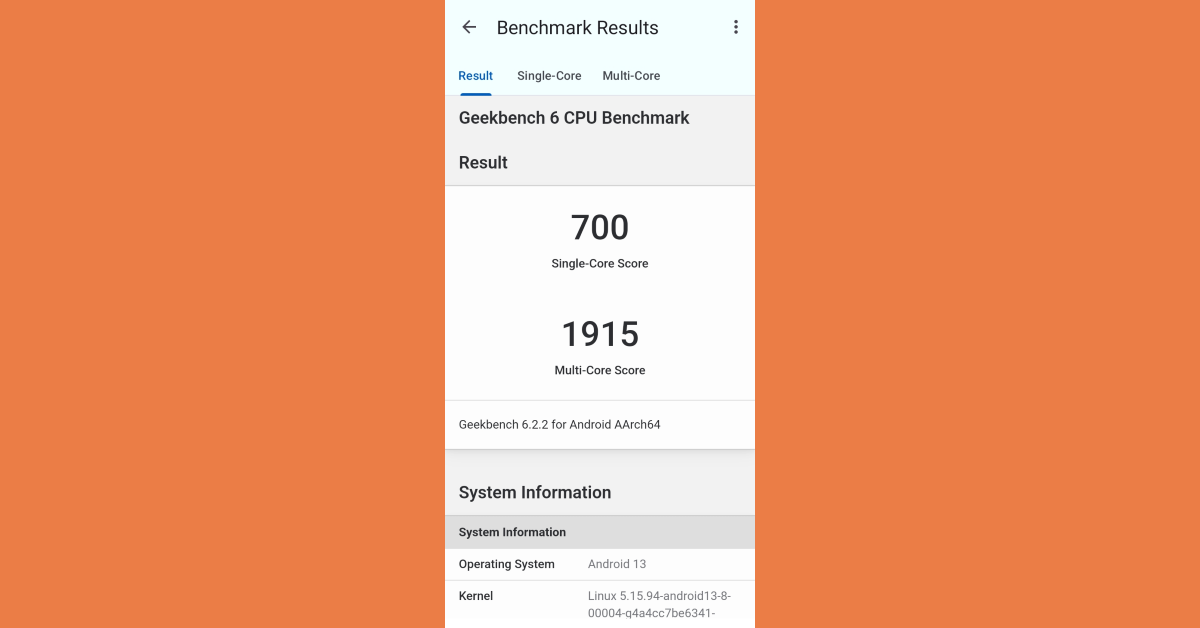
We even tried a bit of gaming on the Poco M6 5G. Basic games like Bubble Shooter and Candy Crush run smoothly on the device, but more demanding FPS games like Free Fire Max suffer from the odd hiccup and frame drop. The display refresh rate is capped at 60Hz for gaming apps as well, which is a big hindrance to its performance. On Geekbench 6, the M6 5G achieved a single-core score of 700 points and a multi-core score of 1,915 points. The Pro variant powered by the Snapdragon 4 Gen 2 SoC scored 863 and 1,893 points respectively.
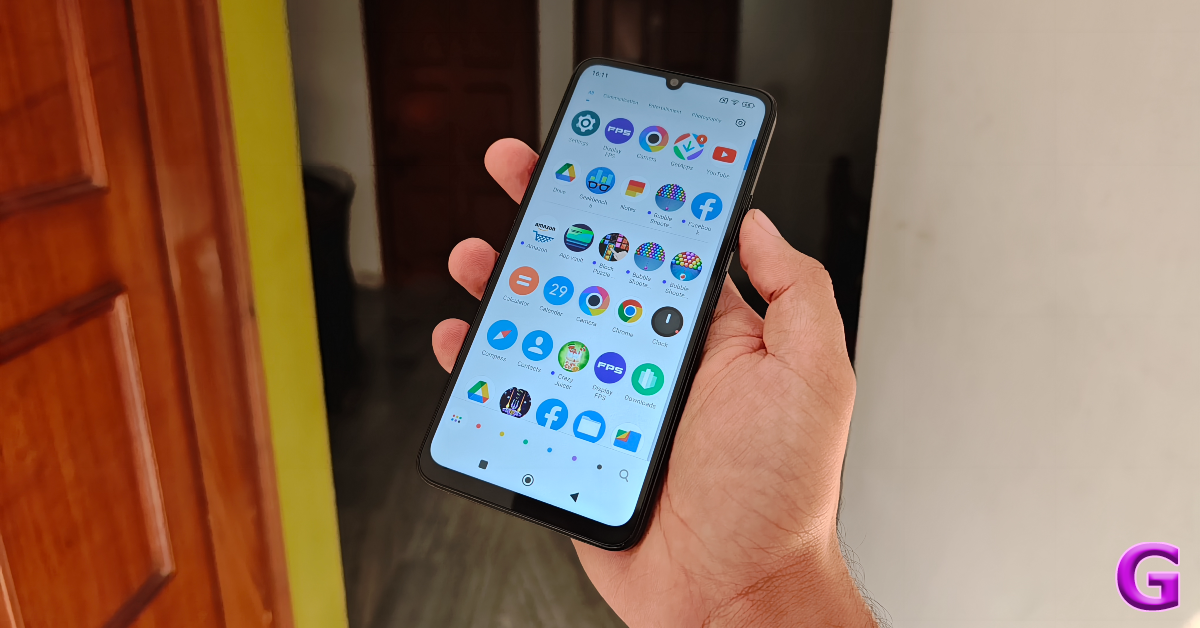
MIUI 14 is a decent OS, especially on budget smartphones, but it comes with truckloads of bloatware. We would highly suggest putting aside some time to uninstall all the unwanted apps on the device. The apps are divided into multiple categories within the app drawer. You can change these categories according to your liking. One of the features that we really like is the option to sort apps by their icon colour. Accessing hidden apps is also quite easy and is intelligently woven into the app drawer. The smartphone also gives you the option to password-protect your images, notes, messages, and files.
The 5,000 mAh battery can easily power the device for an entire day, even if you’re a heavy user. Our daily usage during the review period consisted of using the Poco M6 5G as our primary content-viewing device (about 2 hours per day) along with general smartphone tasks like calling, messaging, social media browsing, and even a bit of gaming. We were left with a 10-15% charge at the end of each day. You can push the battery life to a day and a half with more conservative usage. The 10W power adapter provided inside the box can fully charge the phone in 2 hours. Although, you can get better results with a more powerful charger since the smartphone supports 18W charging.
Let’s move on to the camera performance. The Poco M6 5G rocks the same 50MP primary camera as its ‘Pro’ counterpart. Instead of the 2MP depth sensor, it gets a 0.08MP auxiliary lens. Up front, there’s a 5MP camera to capture selfies, a step down from the 8MP sensor on the M6 Pro 5G.
The 50MP primary shooter puts up a respectable performance on the Poco M6 5G. In outdoor daylight conditions, the smartphone took good, detailed shots. The images weren’t soft, unlike most budget offerings. We were happy with the details that it managed to capture. However, the colours seemed a bit washed and weren’t as punchy as we hoped. This isn’t down to the sensor, but rather an issue on the photoprocessing end.
The indoor images taken during the day produced great results. We were pleased with the sharpness of the pictures and how the objects were exposed. No complaints here. In limited lighting, the quality of the images takes a noticeable hit, despite shooting in Night Mode. There is significant grain in the images and the softness is palpable.
With Night Mode vs Without Night Mode
Selfies taken with the 5MP front-facing camera are on the softer side as well. A more powerful sensor, like the one on the Pro variant, would have done a better job of capturing the skin texture. However, we were happy that it didn’t overcorrect the skin tones. The primary shooter and the selfie camera are capable of recording 1080p videos at 30fps.
While the Poco M6 5G is a great buy at Rs 10,499, is it worth spending an extra Rs 500 for the Pro variant? Absolutely. Not only do you get a higher resolution display on the Pro variant, but it also features a punch-hole cutout for the (more powerful) selfie camera. In terms of performance, both smartphones are pretty evenly matched and ahead of the competition. The primary camera on the Poco M6 5G produces good results in outdoor surroundings during the daytime. Users who are interested in a big-display smartphone that can take good pictures can’t go wrong with this one.
Xiaomi SU7 is the company’s first sedan-style electric vehicle (EV).
It is likely to debut next year.
The electric car will include a LIDAR scanner.
The Xiaomi SU7, the company’s first-ever passenger automobile was officially unveiled at a launch event in China which was specifically focused on EV technology. It is confirmed that Xiaomi’s HyperOS will be the operating system and the electric vehicle is shown in a grey Green and Blue, sedan-style appearance. It will come with five-spoke alloy wheels and Michelin tyres. The EV is said to include smartphone and smart home accessory integration as well. The acronym SU in the Xiaomi SU7 represents Speed Ultra.
The Chinese tech giant Xiaomi has officially entered the auto industry by launching its first car. The company unveiled the Xiaomi SU7 at its Stride event held in China. It is a sedan-style electric vehicle (EV) that is said to debut in China next year.
Xiaomi’s first-ever passenger automobile will be available in three colour options Agua Blue, Mineral Gray, or Verdant Green. The electric car has five-spoke alloy wheels with Michelin tyres and a Mi logo on the wheel caps. There will be two available wheel sizes: 19 and 20 inches. The dimensions of the tyres are 245/45 R19 and 245/40 R20, respectively. The Xiaomi car has a tapered hood and small LED headlamps up front. It will come with a slim light strip that connects to the LED tail lamps at the back.
Three distinct Xiaomi SU7 variants have been unveiled by the company, each with a distinct set of features- SU7, SU7 Pro, and SU7 Max. It will come in RWD and AWD drive configurations. Moreover, some of its models will include a LIDAR scanner. The EV will come equipped with several safety and security functions that will make use of a LIDAR scanner. SU7 measurements are 1,963 x 1,440 x 4,997 mm. Its wheelbase measures 3,000 mm. It weighs between 1,980 and 2,205 kg, based on the model.
There will be two battery pack alternatives however, Xiaomi has not yet disclosed their specifications. Besides this Xiaomi SU7 will run the Xiaomi HyperOS.
Reaction GIFs are wildly popular on the internet, and for good reason. They are quirky, versatile, and get the sentiment across in an unambiguous manner. While there are thousands of GIFs you can conjure on your keyboard with just a simple search, sometimes you may not find what you’re looking for. Once you know how to create a GIF, you have an infinite stream of content to stitch together something you like. You can dive into YouTube and create a reaction GIF from one of your favourite movies or TV shows. So, without further ado, here are the top 6 ways to create a GIF from any YouTube Video.
Your choice of method should depend on the device you’re using. If you’re on a PC, you can either use an online tool or a Chrome extension to create a GIF. The former is more suited for you if this is a one-off task. However, if you plan on making GIFs frequently, an extension would come in handy. The benefit of using an extension is that you don’t need to leave the YouTube page to create a GIF. With just a couple of clicks, you’ll have a GIF to use at your disposal.
The task is a bit complicated for Android users as Google places strict restrictions on Play Store apps, disallowing them from downloading YouTube videos. To get around this issue you can either use a third-party tool or screen record the video before turning it into a GIF. iPhone users don’t have to face this problem, as they can paste a YouTube link directly into a GIF maker app to create a looping animation.
Use GIPHY to create a GIF from any YouTube Video (PC)
Step 1: Launch the web browser on your PC and go to https://giphy.com/. Log into your account. If you don’t have one, create an account.
Step 2: Hit Create next to your username.
Step 3: Copy the link of the YouTube video and paste it into the ‘Any URL’ box in GIPHY.
Step 4: Adjust the length of the GIF. The maximum permitted duration for a GIF is 30 seconds. Use the slider to choose which part of the video you want to turn into a GIF.
Step 5: Hit Continue to Create when you’re done.
Step 6: Edit the GIF on the following page. You can choose to further shorten its length or add a caption, filter, or sticker to it.
Step 7: When you’re done with editing, click on Download.
Step 8: You can also choose to upload the GIF to GIPHY. You can set whether you want it to be public or private. Adding tags will help other people find it.
Use the GIFit! Chrome Extension to create a GIF from any YouTube Video (PC)
Use the GIF Maker app to create a GIF from a YouTube Video (Android)
Step 1: Download and install the GIF Maker app from the Google Play Store.
Step 2: Open the video on YouTube.
Step 3: Launch the GIF Maker app and hit Screen Record.
Step 4: Switch to the YouTube video and record the part that you want to turn into a GIF.
Step 5: Swipe down from the status bar and tap on the stop icon to end the recording.
Step 6: Hit Edit.
Step 7: Edit the screen recording to trim the unnecessary bits and keep the part of the video that you want to turn into a GIF.
Step 8: Hit the tick icon at the top right corner of the screen.
Step 9: Edit the GIF on the following page. Hit the floppy icon at the top right corner of the screen to save the GIF.
Create a GIF directly from a YouTube video on Android
Since Play Store restrictions, do not allow apps to download videos from YouTube, the process to create a GIF becomes a little complicated. The method mentioned above uses the screen recording trick to get around the roadblock, but it may not suit everyone. Creating a GIF from a screen recording of a YouTube video may not replicate the quality you are looking for. Instead, what you can do is use a third-party online tool like SSYouTube to download a YouTube video directly to your phone’s internal storage. Once that’s done, you can use the GIF Maker app to turn it into a GIF.
Step 3: Paste the link of the YouTube video and select to GIF.
Step 4: Use the slider at the bottom to select the time range for the GIF. You can also choose to add a text or sticker.
Step 5: Hit Export at the top right corner of the screen.
Step 6: Tap the blue icon at the bottom of the screen and select Save Image.
Use GIFs.com (All Devices)
Whether you’re on your PC or smartphone, gifs.com is a great place to create GIFs from YouTube videos. The advantage of using GIFs.com is that it does not require you to create an account to make a GIF. The process to create a GIF is simple. Paste the link to the YouTube video in the URL box and trim its length on the following page. Like GIPHY, GIFs.com allows you to further edit the GIF by adding stickers, filters, text, and other effects. Once you’re done, hit Create at the top right corner of the screen.
Frequently Asked Questions (FAQs)
How do I make a GIF using a YouTube video?
Websites like GIFs.com and GIPHY.com make it easy to turn a portion of a YouTube video into a GIF. They also offer editing options like captions, subtitles, stickers, and filters to spruce up a GIF. Android users can explore apps like GIF Maker, while iOS users can use the Video to GIF app to create a GIF.
Can I use the ‘Clip’ option on YouTube to make a GIF?
A YouTube ‘Clip’ is very different from a GIF. The former contains sound and can only be viewed on YouTue. Meanwhile, a GIF is a series of frames without any sound and relies on its versatility to be used anywhere.
What is the meaning of GIF?
A GIF is an acronym for Graphics Interchange Format and is used to share a short series of static and animated images.
These are the top 6 ways to create a GIF from any YouTube video. These methods cover different devices and platforms so you can choose the one that suits you best. Once you’ve created a GIF, you can use it across social media platforms and instant messaging apps. If you know any other way to create a fun GIF, let us know in the comments!
Welcome to the Gadget Bridge Awards 2023—the ultimate celebration of the hottest consumer tech and gadgets worldwide. It’s our fifth year hosting these annual awards, where we spotlight the absolute cream of the crop in the consumer tech and gadget universe. Check out the list of nominees for the Gadget Bridge Awards 2023 here. With a flood of new gadgets hitting the market throughout the year, we’ve witnessed an impressive array of devices in 2023. With over 35 categories, we proudly claim the title of the largest consumer tech and gadget awards of the year.
Dealing with an unexpected influx of gadgets in just a few months was a challenge, but we powered through. A big shoutout to you — our readers, viewers, listeners, and well-wishers—for sticking with us and supporting the entire industry (Thank You!). The new year kicked off with a bang, unveiling some thrilling cell phones in early 2023. Midway through the year, we welcomed fantastic products like televisions, earphones, smartwatches, laptops, and tablets. Business as usual, but with a tech twist.
Our audience played a crucial role in determining the People’s Choice for smartphone, gadget, and brand of 2023. Thousands voted on Twitter and in our forum to crown the winners. Two categories had clear champions, while a gadget claimed victory by a slim margin in the third.
Now, without further delay, let’s dive into the winners of all 36 categories. Presenting the Gadget Bridge Awards 2023—the most significant and outstanding consumer technology and gadget accolades of the year.
Gadget Bridge Awards 5 (2023) Winners:
In This Article
Best Smartphone Of The Year 2023
Samsung Galaxy S23 Ultra
Best Folding Smartphone Of The Year 2023
Samsung Galaxy Fold 5
Best Budget Smartphone Of The Year 2023
Redmi 12 5G
Best Mid-Range Smartphone Of The Year 2023
Oppo Reno 10
Best Value-For-Money Camera Phone Of The Year 2023
Redmi 12 5G
Best Mid-Range Camera Phone Of The Year 2023
Vivo V29 Pro
Best Camera Phone Of The Year 2023
OnePlus Open
Best Value-For-Money Gaming Smartphone Of The Year 2023
Poco M6 Pro
Best Mid-Range Gaming Smartphone Of The Year 2023
iQOO Neo 7 Pro
Best Gaming Smartphone Of The Year 2023
Apple iPhone 15 Pro Max
Best Selfie Smartphone Of Year 2023
Google Pixel 8 Pro
Best Vlogging Smartphone Of The Year 2023
Vivo X90 Pro
Best Mid-Range Smartphone Chipset Of The Year 2023