Google Playstore is a place where you can find hundreds of apps for almost anything you can ever imagine. It is home to thousands of apps, games, movies, e-books, and more. And if you are someone who uses a lot of paid apps and you have downloaded them from Playstore you expect to receive some rewards, don’t you? In this article, we will teach you what are Google play points? And how to use Google play points?
What are Google Play points?
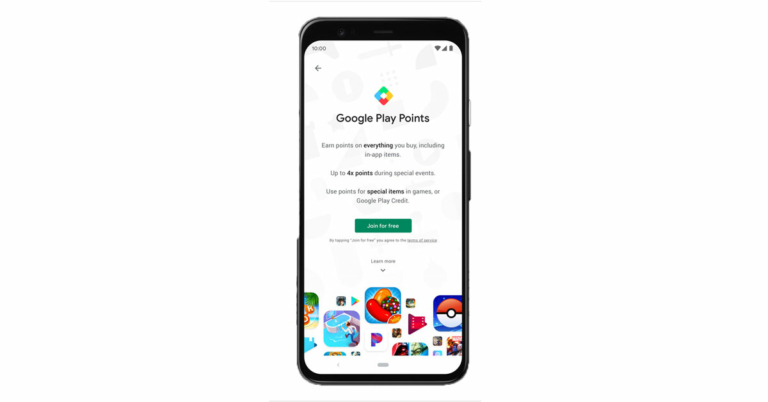
So the first and most basic question is that what is a Google point, right?According to Google, “Play Points is a rewards program that lets you earn points and rewards with the Google Play Store”. In simplest terms, Play Points are rewards that you get for purchasing content which includes apps, movies, books, and games through the Google Play Store. At the initial stage, you earn 1 point for every $1 you spend. However, during the first 7 days, you can earn 3 times more points.And the more you earn points the more benefit you get.Read also: Beware: These are the 9 apps stealing Facebook login credentials from Google Play
How can you use Google Play points?
Well, unfortunately, there are some requirements that you need to fulfill if you want to use Google Play Points. Here they are:
You can use play points only in selected countries, and they are- Australia, Austria, Belgium, Denmark, Finland, France, Germany, Greece, Hong Kong, Indonesia, Ireland, Israel, Italy, Japan, Korea, Netherlands, New Zealand, Norway, Portugal, Saudi Arabia, South Africa, Spain, Sweden, Switzerland, Taiwan, United Arab Emirates, United Kingdom, or the United States.
You will also need a computer or an Android device that works with Google Play.
Google Play account that’s not managed by your school or a parent.
A valid payment method.
And at last, a billing address that matches your Google Play country.
What is its use?
The play points can be used in a variety of ways which include:
To make purchases on apps, movies, books, and anything else in the Play Store.
You can also use Google play points for in-app purchases. So if you want to purchase a coupon or a pass for any game you can use play points instead of money.
And lastly, if you want to use them to go towards a charity you can also do that.
Smartphones are a very essential part of our lives and making and accepting calls is the most basic function of a smartphone. But sometimes due to some reasons, you are unable to pick up calls on your Android phone. If this is the case with you we have 10 ways to fix unable to answer calls on Android phones.Read Also: OnePlus 12 could launch in January 2024, company confirms
Restart your phone
While troubleshooting any problem the first step should be to restart your phone.Restarting your phone resets all the background processes and when the phone is turned on again it starts all the apps from scratch and chances are the problem is solved. So this is a way in which you can fix being unable to answer calls on an Android phone.
Check if the proximity sensor is working properly
Restarting can solve the issue if it is limited to the software level, but if the screen of your phone does not turn on when you receive a call, then there is a chance that the proximity sensor is the culprit. Simply turn off the sensor by searching the option in the smartphone’s settings menu.Read also: 6 steps that help you access error-free Microsoft Store
See if you are picking up the call in the right way
So if your phone’s screen does not go black when you receive a call then that’s good, the proximity sensor is working fine. But the issue is still there, right? Well, see if you are picking up the call correctly or not. Android is an open-source OS and OEMs like to customise Android according to them. So if you have switched the phone to a different brand then chances are you are not picking up the call in the right way. In some phones, you have to swipe left from the green button while in some you have to swipe upwards, and in some, you just need to tap on the green button. Check the right way to pick up calls on your phone.
Re-insert the SIM card
You should also try to remove and insert the SIM card on your phone. If this is a network issue then this way the issue can be resolved and you can pick up the call that you are receiving.Read also: Best 9 ways to fix cannot install or update YouTube on Android
Turn on and off the Airplane Mode
Another way to fix the network issue is by turning on and off the ‘Airplane Mode’. This is a quick way to solve any network issue on your phone and let it be able to answer calls. You can turn on ‘Airplane Mode’ by opening the quick settings menu and taping on the plane icon.
Clear the cache data of the phone app
While restarting the phone, it renews all the processes running on the phone but if the problem is with data on the phone app then you have to clear cache files and data of the phone app. To do this just follow these steps:
Open the Settings app, scroll down to App Management and tap on it.
Find the phone app that you are using and tap on it.
Go to storage and clear all data.
This will solve the issue.
Update the phone app
Not updating software on our phone is a really bad habit, we have an article about bad habits that kill your smartphone, which you can check out from here.Coming back to the topic, you should go to the Playstore and see if you have any pending updates on the phone app, if you have it just install it.
Use the default phone app
If you have installed or used any other third-party calling app like Truecaller’s dialer, then chances are the culprit is that phone app. You should always use the default phone app. To check this, just follow these steps:
Open the Settings app on your phone.
Then go to apps and tap the default app.
Click on the phone app and select the one which says system default.
Update your smartphone
If your smartphone is running on an older OS version, updating it to the latest version will help in fixing any issues you are facing on it. Here’s how you can do that.
Go to Settings and select Software update.
2. Tap on Download and install.
3. Select Install now.
Turn off Do Not Disturb (DND)
If your phone is in DND mode, you will not receive any notifications for incoming calls and messages. The idea of DND mode is to eliminate your phone as a distraction when you are focused on other tasks. This means all notifications will be muted and you won’t be able to receive any calls. Swipe down from the status bar and tap the tile for DND to turn it off.
Frequently Asked Questions (FAQs)
Why can’t I answer calls on my Android phone?
If you’re unable to answer calls on your Android phone, check if the network connection is working properly. Try performing a quick restart on your device. Lastly, make sure that DND isn’t turned on.
Why doesn’t my phone’s screen turn off when I accept a call?
If your phone doesn’t kill the screen when you bring it up to your ear during a call, it is due to a faulty proximity sensor. Clear the dust off the sensor to make sure this doesn’t happen again. If the situation continues to persist, take your phone to a professional repair centre.
Why can’t I receive calls on my phone?
If no one is able to reach you on your Android phone, the problem likely lies with your network reception. Go to an open place where you are more likely to receive a stronger signal. If that doesn’t fix the issue, perform a network reset on your device.
Read also: Unable to download apps on your iPhone? Top 5 ways to fix the issue
Conclusion
These are the top 10 ways to fix the ‘unable to answer calls’ issue on your Android phone. If the problem still persists after trying these fixes, take your phone to the authorised service centre for further diagnosis. Make sure you back up all your personal data before turning your phone in for repair.
Facebook is by far the most famous social media platform, it has its users from teenage school kids to retired old citizens. Everyone uses Facebook on a daily basis to get updates from the life of friends and family and vice versa. But it does not mean that every user is a geek and knows each and every part of Facebook and its messenger service. If you wanted to know what is the difference between Facebook messenger mute vs ignore you are in the right place.We will teach you everything that you should know about Facebook messenger mute vs ignore. Stick with us till the end and everything will be clear.
What is Facebook Messenger
In case you don’t know what Messenger is, then let’s clear this doubt first. FB Messenger is an instant messaging app/platform that works alongside Facebook.Now that we have cleared this let’s move ahead.Read also: Bad habits that are reducing the life of your smartphone
Difference between Facebook Messenger mute and Ignore
Muting messages is a fairly old concept. You might know how to mute any chat on Whatsapp or Instagram, and in case you don’t, muting a chat will stop the notification that you receive from that particular chat.On the other hand, Ignore is the same as Mute but a notch above, you can call it an advance version of mute. Previously, the ignore option was only available for Messenger and not on other apps, but now you have the same option on Whatsapp also by the name of “Archived Chats”. The mute option just stops all the notifications from a particular chat, it’s just like you have put your phone on silent mode for an individual chat. So you can mute those family Whatsapp groups and you won’t be annoyed by the bombarding of messages.The Ignore option however removes that chat of that individual from the chat menu and puts the chat in a different section by the name “Message requests”. This is very useful for those types of groups which you never wanted to be a part of but you had to, and now you are irritated by the notifications that it sends to your phone.
How to mute or ignore someone on Messenger
You just need to have the messenger app installed on your phone and log in with your Facebook account, then follow these steps
Open the chat that you want to mute or ignore.
On the top right corner, you will see an “i” button, tap on that.
Now just select the mute or ignore option, and that’s it.
Paytm Payments Bank and MoneyGram International announced a partnership today that will allow MoneyGram customers around the world to send money to a Paytm Wallet user in India in real-time.While announcing the collaboration Alex Holmes, MoneyGram Chairman and CEO said, “We’re thrilled to partner with Paytm Payments Bank to expand our mobile wallet capabilities into one of the largest receive markets in the world. The digitization of our receive network is a core component of our growth strategy which has led to exceptional results, such as an all-time high in our total transactions received digitally in the third quarter of this year. As consumer preference in India and beyond shifts toward receiving transfers digitally, MoneyGram is well-positioned to continue to meet demand.”MoneyGram users outside of India can now send money to full KYC Paytm wallet users in India from the comfort of their own homes thanks to this partnership. Millions of customers use the Paytm Wallet for its convenience, which includes greater control over their expenses, highly secure payments, utility bill payments in a flash, and seamless integration across mobile, online, and in-store payments, among other things.This is MoneyGram’s first mobile wallet partnership in India, and it’s a significant step forward as India’s transition to digital payments accelerates. MoneyGram transactions received digitally in India now account for nearly half of all transactions received in the country. According to the company from just under 10% two years ago, the number of transactions sent directly to bank accounts has increased by about six times. MoneyGram expects higher growth rates as a result of this, as Indian customers continue to value the convenience of digital transfers.Satish Kumar Gupta, MD & CEO – Paytm Payments Bank Ltd said, “We always strive to empower Indians with seamless, digital banking services, and offering direct transfer of international remittances into the Paytm Wallet, is another step in the same direction. Paytm Wallet is used by millions of Indians and we hope that this partnership will offer unmatched convenience & flexibility to the Indian diaspora across the world to send money home in real-time.”
For the latest gadget and tech news, and gadget reviews, follow us on Twitter, Facebook and Instagram. For newest tech & gadget videos subscribe to our YouTube Channel. You can also stay up to date using the Gadget Bridge Android App. You can find the latest car and bike news here.
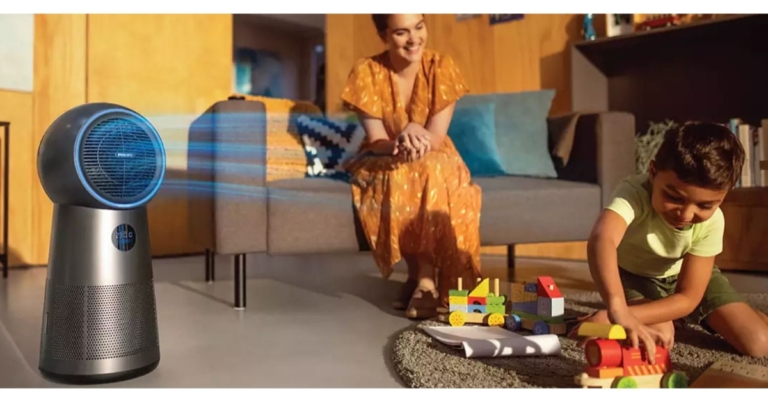
The Philips 2000 series 3-in-1 multifunctionality Air Purifier with heater is a new air purifier from Philips Domestic Appliances that has been launched in India. The new Philips Air Purifier aims to keep homes healthy and comfortable with its purify, heat, and fan modes. The device is claimed to remove 99.95 percent of particles as small as 0.003 m and purifies the air of viruses, allergens, and pollutants with its 3-layer HEPA filtration system.The air purifier’s purification function is suitable for rooms up to 215 square feet. An optimal 360° airflow intake design drives purification performance of up to 165 m3/hr of Clean Air Delivery Rate (CADR). It can effectively clean the air of a 20 m² room in 17.5 minutes.The purifier also has three-speed settings: 7.5 W, 15 W, and 25 W for fans and three-speed heat settings: 1250 W, 1500 W, and 2200 W for heat, as well as three-level settings for light control and display, giving customers more control.With its multifunctionality modes of purify, heat, and fan, the new Philips 3-in-1 purifier aims to keep homes healthy and comfortable. It has a 3-layer HEPA filtration system that removes 99.95 percent of particles as small as 0.003 m and purifies the air of viruses, allergens, and pollutants, and the clean air is distributed throughout the room by a 350° rotating fan. The 3 layer system includes a pre-filter, HEPA filter and activated carbon filter. The pre-filter captures large particles like dust and hair. Afterwards, the HEPA filter traps viruses, bacteria, household dust, pet dander, pollen, outdoor pollution, dust mite, mold spores, smoke and other allergens and pollutants. Finally, the activated carbon filter removes harmful gases and unpleasant odours.The air quality sensor on the Philips 2000 series 3-in-1 multifunctionality Air Purifier detects particles smaller than 2.5 micrometres in the air and displays them in real-time with numerical and colour-coded feedback. The colour bar indicates the high quality of indoor air, ranging from blue (good), purple (fair), pink (poor), and red (extremely poor) (very poor). Indoor temperature and a filter change alert are also displayed in real-time.In terms of pricing the Philips 2000 series 3-in-1 multifunctionality Air Purifier has been launched at Rs 32,995. But it is now being made available at Rs 29,695. The Air Purifier can be bought through the company’s official website in the country.
For the latest gadget and tech news, and gadget reviews, follow us on Twitter, Facebook and Instagram. For newest tech & gadget videos subscribe to our YouTube Channel. You can also stay up to date using the Gadget Bridge Android App. You can find the latest car and bike news here.
Asus has launched plenty of good to great laptops in the year 2021. Probably the last to come from the camp is Asus Vivobook Pro 14x, which we got to play around with for the last 7-10 days. If you are in the market to buy a lightweight yet powerful laptop then you should read the Asus Vivobook Pro 14x review by us. Here is everything you need to know about the new notebook.
Asus Vivobook Pro 14x review: Design and Display
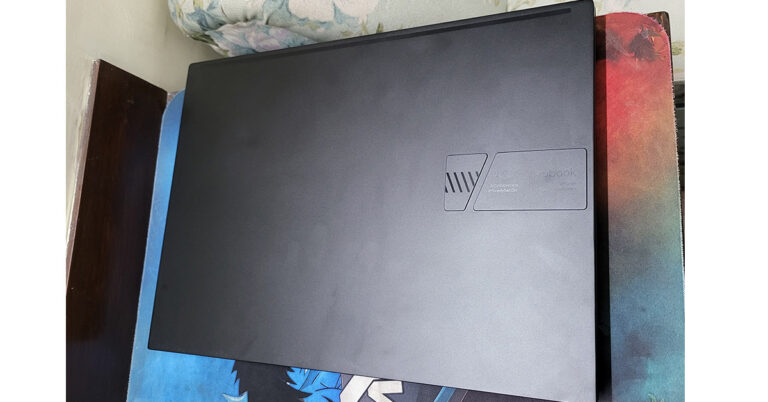
Asus has been one of the pioneers to bring out the best looking and the brightest displays in the 14 to 16-inch laptop segment. Laying in the same is the new Asus Vivobook Pro 14x. The laptop is a knockout when it comes to looks. It is built of sturdy plastic with a hint of metal around it. A good example of design is its protruding logo on the top of the lid, which is something very fresh.
Open it up and the first thing you will notice is the large keyboard, which has the side keys like TAB, Entre etc in a lighter shade of grey and the mid part is black in colour. With exception of the Escape key that is dressed in red. The keyboard is accompanied by a fairly large trackpad. Why is it so large? Because it also has the Asus virtual dial pad, which it has borrowed from its Pro Art sibling. There it was a physical dial, but here it is embedded within the trackpad. More about it in the ‘performance section’.
As for the ports, users get 3 USB, 1 HDMI, 1 USB Type-C and 1 audio/mic port along with a microSD card slot. The speakers (powered by Harman Kardon) are bottom-firing which do have a decent output, but a bit louder would have been perfect.
Moving to its screen, which is one of its best features, consumers get a 14-inch OLED NanoEdge screen that supports FHD+ resolution of 2,800×1,800 pixels. 600 nits of peak brightness with HDR support keeps everything lively on the screen. The text is crisp and the colours are very pleasing with super deep blacks. This is by far the finest display we have seen this year. We played a lot of things on the computer including Netflix shows, games like CS: Go and more. Everything on the screen looks very good. It did not give a chance to shame it even once.
While the Asus branding can be seen under the screen, there is an HD camera present on top. This has a special shutter in front of it that slides in, this gives you that extra bit of relief that no one can see you even if they somehow get access to your laptop’s camera.
Also Read:Asus Vivobook Flip 14 (2021) review: 360 degree performance
Asus Vivobook Pro 14x review: Performance
Right, so all of it till now seems like a fairy tale, but the best is yet to come. The Asus Vivobook Pro 14x comes with AMD Ryzen 9 (5900HX) inside with 16GB RAM and 1TB of superfast SSD drive. Graphics are provided by NVIDIA GeForce 3050 Ti graphics card. This combo is very hard to come by at this price point and the way Asus has assembled it all can put some of the best machines slip back into their blankets (and never come out).
We threw everything at the machine including the kitchen sink to find a chink in the armour, but we could not find even one. It can play games like Dota 2 and CS: Go at their respective highest settings. Can play games like Battlefield 2042 in high settings, which is quite good too. We were able to edit 4K resolution videos easily and it could render them out swiftly. Not once did we feel it was underpowered.
The dual-fan cooling system works exceptionally well, too. Yes, these are winter months, but still many in the bracket get hot, but not this one. It got warm only when it was rending 4K videos. Other than that even after 30 minutes of gaming, it was cool.
So, tell us more about the virtual dial pad on the trackpad?
With it, you can do so many things. For example, you can increase decrease brush sizes in Photoshop, can access the volume or decrease/increase the screen brightness too. It can be customised to more programs, but it works best with the Adobe Suite of programs including Premiere Pro and After Effects. Well, the creator in us was very happy with Asus Vivobook Pro 14x, as we love extra keys or feather touch panels that work as a shortcut for the most commonly used commands in a software.
Moving on, the power button on the Asus Vivobook Pro 14x doubles up as a fingerprint sensor, too. This is great as it opens the machine with just a tap and every time you need not key in the password.
As for the battery, it has a three-cell 63Wh battery inside that gave us over 5.5 hours of work time. This is not bad considering how small the device is. It weighs just 1.45 Kg. Other features include WiFi 6, Bluetooth 5, Windows 11 Pro, Microsoft Office suite (onboard) and built-in microphones for daily Zoom meetings.
Also Read:Asus Zenbook 14 review: Definitely a style statement, but at a price
Verdict
And then it boils down to just one thing. Is it worth buying at Rs 109,990? That is a firm yes. If you are in the market looking for a portable powerhouse fit for any creator, artist, video or graphic editor, this is the laptop for you. You can do so much with it. In case you need a little more screen room, then you can look at its bigger brother that has a 16-inch screen.
Recently WhatsApp was spotted testing the new in-app camera interface. Now the chatting platform appears to be working on a redesigned interface when you place a voice call. This is said to be under works for both Android and iOS platforms. However, even beta testers can’t see the changes yet.But, according to a report by WABetaInfo the new call interface will enhance both individual and group calling experience. Citing information from its sources the WhatsApp beta tracker has also shared some screenshots to convey how the redesigned interface differs from the current one.As you can see in this screenshot, WhatsApp is redesigning the interface in preparation for a future update in order to make it more compact and modern, while also organising the available space: the new redesign will look nice, especially when placing group voice calls.Despite the fact that the screenshot was taken on WhatsApp for iOS, the same redesign is planned for a future update of WhatsApp beta for Android. All we have to do now is wait for a future update that will allow beta testers to test out the new interface.WhatsApp is also testing out new visual feature indicators for end-to-end encryption on WhatsApp beta for Android and iOS. As we already know that the chats and calls are end-to-end encrypted. But the team will bring indicators in the Status and Calls section, claiming that your status updates, personal and group calls are always end-to-end encrypted, and this will never change. The same notice will be added to WhatsApp’s Chats section, and a new update for WhatsApp for Android will support the same feature at a later date.Image Courtesy: WabetainfoThis new visual addition is currently unavailable due to development, but it will be available in a future update.The Meta-owned chatting app also appeared to be experimenting with a new Android camera interface. The Switch Camera button has been redesigned, and the Flash shortcut appears to have been relocated.WhatsApp has released the 2.22.1.2 beta update, which includes a redesigned in-app camera interface, according to Wabetainfo. The new in-app camera will be available in a future update, as we previously stated, and is currently being tested.You’ll be able to open recent media by tapping the image in the lower-left corner, and the Flash and Switch Camera buttons will be redesigned.
For the latest gadget and tech news, and gadget reviews, follow us on Twitter, Facebook and Instagram. For newest tech & gadget videos subscribe to our YouTube Channel. You can also stay up to date using the Gadget Bridge Android App. You can find the latest car and bike news here.
Amazon is back with another quiz on its mobile platform. The daily quiz is now live on the Amazon App and today’s Amazon Quiz will give you a chance to win Rs 20,000 Amazon pay Balance. The participants can play the 23 December 2021 Amazon Quiz from 12 AM to 11:59 PM. For those who are unaware of the quiz, the e-commerce platform brings a fresh quiz on a daily basis which consists of five questions related to general knowledge and current affairs.The participants need to answer all the questions correctly and their names will be selected for a lucky draw. The winner will be announced at the end of the month. One wrong answer could eliminate you from the quiz. Only app users are eligible to participate in the Quiz. In today’s Amazon Quiz the participants will get a chance to win Rs 20,000 Amazon Pay Balance. Check Out 23 December 2021 Amazon Quiz Answers.
23 December 2021 Amazon Quiz Answers
Question 1: In Mexico City, a statue of an indigenous woman recently replaced which explorer in a famous monument?
Answer: Christopher Columbus
Question 2: Which former Indian fast bowler has been awarded life membership of the Marylebone Cricket Club in 2021?
Answer: Javagal Srinath
Question 3: Which famous personality announced that we would launch a new social network called TRUTH Social?
Answer: Donald Trump
Question 4: In the movies how did this character like his martini to be?
Answer: Shaken, not stirred
Question 5: The British Prime Minister won a Nobel Prize for which subject?
Indian brands’ customer base in the smartwatch market has been continuously growing as their products offer good value for money. The homegrown brand Inbase has announced the launch of Urban Fab Smartwatch for your smart teenagers and kids this Christmas.
Inbase Urban Fab Smartwatch features
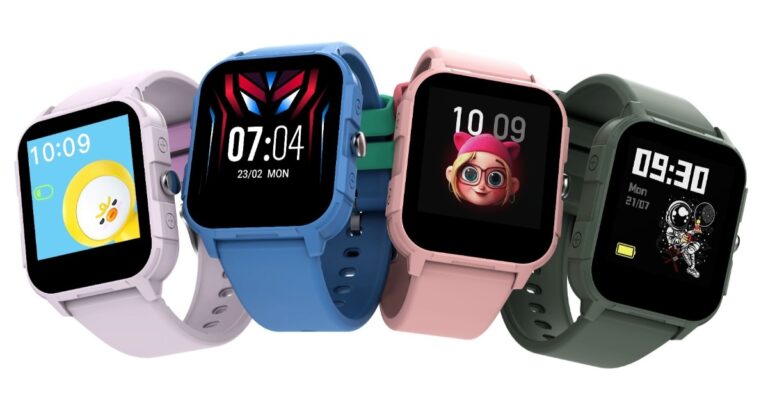
The Inbase Urban Fab Smartwatch has a unique design and comes in four vibrant colours: Pink, Blue, Light Purple, and Army Green. The watch is specifically designed for children aged 5 to 15, providing them with a unique combination of cool design and new technology, as well as assisting them in exploring and developing healthy habits and lifestyles.The kid’s smartwatch is extremely lightweight, and it comes with over 100 watch faces that are constantly updated, allowing the kids to have a new watch face every day. It has ten alarms to remind them of their daily activities, such as getting up on time, eating breakfast, getting ready for school, doing homework, playing with their families, sleeping, and so on.The Inbase Urban Fab Smartwatch includes four games: 2048, Candy Crush, Maze, and Fly a Plane. Because the Urban Fab Teen has an IP68 rating and is water-resistant, their gaming sessions can continue uninterrupted even if they spill cola or juice.The smartwatch for kids also has a variety of health features, such as heart rate monitoring, sleep tracking, walking and running, and so on, so you can monitor your child’s health without having to take them to the doctor. The watch runs for 7 days with normal, regular working time and 14 days in standby mode.In addition to this, a child lock feature is included to ensure that your children do not misuse the smartwatch. This means you can use a password to secure the watch.
Inbase Urban Fab Smartwatch Pricing and Availability
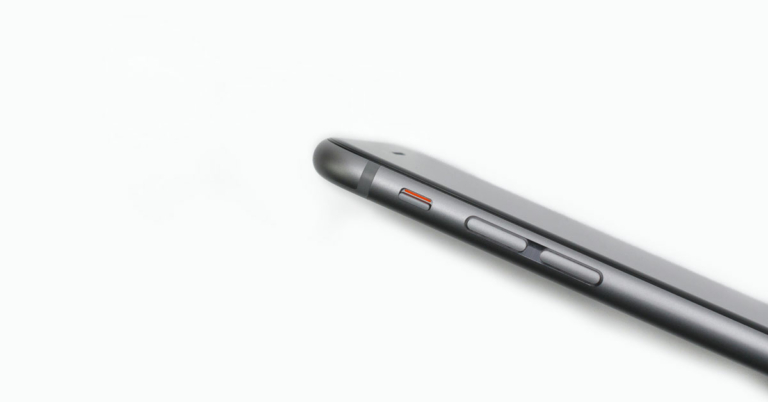
The modern-day smartphone is built tough and durable but at the end of the day, it is just a smartphone, not Superman. If you have a phone whose volume buttons are not working properly or maybe you have dropped the volume keys then this article is for you. We will take you through the 6 best ways to use an Android phone with broken volume buttons.Read Also:How to move your Spotify Playlists to Amazon Music or Apple Music?
Restart your phone
Sometimes we feel the buttons are broken, but at times there is a bug, because of which they are not working. So, restart your phone to resolve any background glitches on the software. Long press the side key on your Android phone and hit Restart. If the side key triggers the voice assistant, press it with the volume-up key to access the power menu.
Use the Virtual volume slider in Settings
When you press any volume button you get a volume slider on your phone to adjust the volume. But the volume buttons are broken, right? So to use just that, follow these steps to use the volume slider on your phone:Step 1: Open Settings on your Android phone by clicking the gear icon.Step 2: Then, head over to the sound and vibrations option.Step 3: You will see a few volume sliders adjusting the volume of media, ringtone, notifications, and alarms, now you just need to adjust the volume and that’s it.This setting option might be different for every other OEM so in case you can not find this feature just search for sound and vibrations in the settings and you will see the option.Read more: 7 best ways to fix alarm volume too high or low on iPhone
Use Google Assistant
Google Assistant is one of the most used and intelligent virtual assistants. You can also ask Google Assistant to adjust the volume in case your buttons are broken. Just follow these steps:Step 1: Say the phrase “Okay Google” or “Hey Google” on your phone, it will trigger the assistant.Step 2: Then ask to increase or decrease media/notification/alarm/ringtone volume.Step 3: The volume will be adjusted, also you will get to see the volume slider for a short period of time so you can also adjust the volume according to your liking.
This is another way to use an Android phone with broken volume buttons.
Use accessibility menu
Accessibility options are very useful in many cases one such case can be broken volume buttons. Just follow these steps to enable the accessibility menu on your phone:Step 1: Open Settings on your Android phone by clicking the gear icon.Step 2: Then go to additional settings, and then accessibility.Step 3: Under accessibility, you will find the accessibility menu, tap on the option and enable shortcuts.Step 4: Now you have an accessibility shortcut enabled on your phone. Use the shortcut to increase or decrease the volume of your Android smartphone.
Use earphones
Some wired headphones and Bluetooth earpieces/ear pods have dedicated volume buttons to pause, play, increase and decrease the volume. They also help in receiving and cancelling phone calls. So if you have one lying around you can use it to adjust the volume on your phone.
Use a third-party app (Assistive Volume Button)
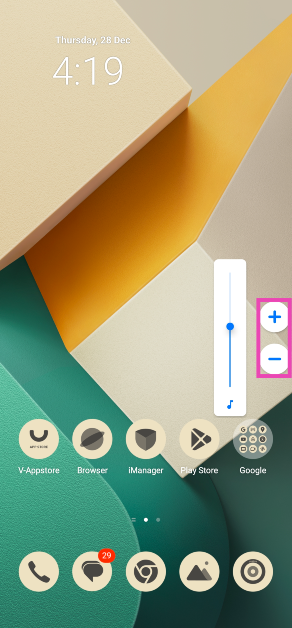
Step 1:Download and install the Assistive Volume Button app from the Google Play Store.
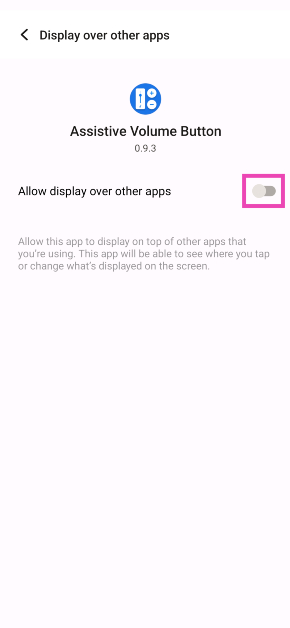
Step 2: Allow the app to display over other apps and run in the background.
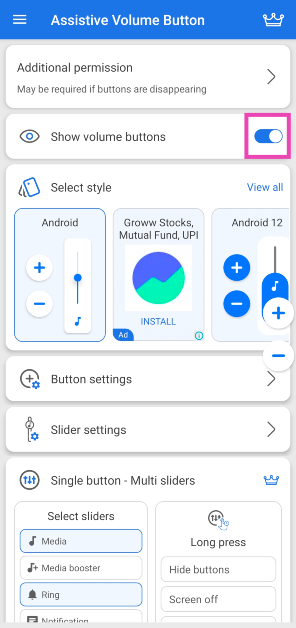
Step 3: Turn on the toggle switch for Show volume buttons and select their style.
Step 4:Minimise the app. Use the volume controls on the screen to change the volume.
Frequently Asked Questions (FAQs)
How do I control the volume on my phone if the volume keys aren’t working?
You can control your phone’s volume from the virtual slider in settings or use a third-party app like Assistive Volume Button to overlay the controls on the screen.
How do I fix my phone’s volume buttons?
If the volume rocker keys on your phone aren’t working, make sure the case isn’t pressing on them. Furthermore, wipe them clean using a microfibre cloth to remove any collected dust.
How do I control my phone’s volume without using any buttons?
These are the top 6 ways to use an Android phone with broken volume buttons. Even though there are a handful of native ways to resolve this problem, a third-party app like Assistive Volume Button works best because it offers a bunch of styling and personalisation options as well. If you know of any other way to get around this issue, let us know in the comments!




 In some phones, you have to swipe left from the green button while in some you have to swipe upwards, and in some, you just need to tap on the green button. Check the right way to pick up calls on your phone.
 You should also try to remove and insert the SIM card on your phone. If this is a network issue then this way the issue can be resolved and you can pick up the call that you are receiving.
 You can turn on ‘Airplane Mode’ by opening the quick settings menu and taping on the plane icon.


 2. Tap on Download and install.
 3. Select Install now.

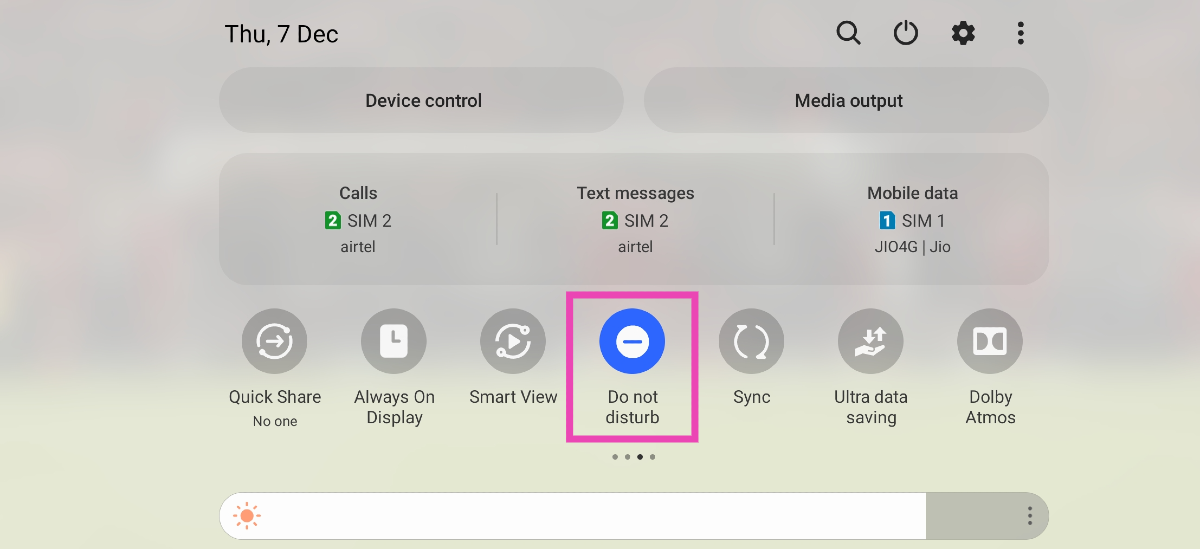 If your phone is in DND mode, you will not receive any notifications for incoming calls and messages. The idea of DND mode is to eliminate your phone as a distraction when you are focused on other tasks. This means all notifications will be muted and you won’t be able to receive any calls. Swipe down from the status bar and tap the tile for DND to turn it off.

 This is very useful for those types of groups which you never wanted to be a part of but you had to, and now you are irritated by the notifications that it sends to your phone.



 Open it up and the first thing you will notice is the large keyboard, which has the side keys like TAB, Entre etc in a lighter shade of grey and the mid part is black in colour. With exception of the Escape key that is dressed in red. The keyboard is accompanied by a fairly large trackpad. Why is it so large? Because it also has the Asus virtual dial pad, which it has borrowed from its Pro Art sibling. There it was a physical dial, but here it is embedded within the trackpad. More about it in the ‘performance section’.
 As for the ports, users get 3 USB, 1 HDMI, 1 USB Type-C and 1 audio/mic port along with a microSD card slot. The speakers (powered by Harman Kardon) are bottom-firing which do have a decent output, but a bit louder would have been perfect.

 Moving to its screen, which is one of its best features, consumers get a 14-inch OLED NanoEdge screen that supports FHD+ resolution of 2,800×1,800 pixels. 600 nits of peak brightness with HDR support keeps everything lively on the screen. The text is crisp and the colours are very pleasing with super deep blacks. This is by far the finest display we have seen this year. We played a lot of things on the computer including Netflix shows, games like CS: Go and more. Everything on the screen looks very good. It did not give a chance to shame it even once.
 While the Asus branding can be seen under the screen, there is an HD camera present on top. This has a special shutter in front of it that slides in, this gives you that extra bit of relief that no one can see you even if they somehow get access to your laptop’s camera.
Also Read:
While the Asus branding can be seen under the screen, there is an HD camera present on top. This has a special shutter in front of it that slides in, this gives you that extra bit of relief that no one can see you even if they somehow get access to your laptop’s camera.
Also Read:  We threw everything at the machine including the kitchen sink to find a chink in the armour, but we could not find even one. It can play games like Dota 2 and CS: Go at their respective highest settings. Can play games like Battlefield 2042 in high settings, which is quite good too. We were able to edit 4K resolution videos easily and it could render them out swiftly. Not once did we feel it was underpowered.
The dual-fan cooling system works exceptionally well, too. Yes, these are winter months, but still many in the bracket get hot, but not this one. It got warm only when it was rending 4K videos. Other than that even after 30 minutes of gaming, it was cool.
We threw everything at the machine including the kitchen sink to find a chink in the armour, but we could not find even one. It can play games like Dota 2 and CS: Go at their respective highest settings. Can play games like Battlefield 2042 in high settings, which is quite good too. We were able to edit 4K resolution videos easily and it could render them out swiftly. Not once did we feel it was underpowered.
The dual-fan cooling system works exceptionally well, too. Yes, these are winter months, but still many in the bracket get hot, but not this one. It got warm only when it was rending 4K videos. Other than that even after 30 minutes of gaming, it was cool.






 Some wired headphones and
  Step 3: Turn on the toggle switch for Show volume buttons and select their style.
 Step 4: Minimise the app. Use the volume controls on the screen to change the volume.