

OnePlus Nord 2 CE 5G bagged BIS certification, may launch in India soon
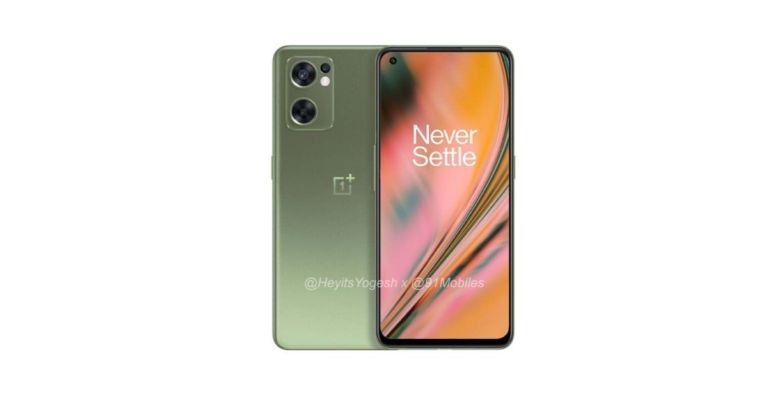
Recently, OnePlus Nord 2 CE 5G renders leaked on the web. The specification and the pricing were also tipped earlier. In a new development, the device has been spotted on BIS, therefore indicating an imminent launch in India having codename Ivan which is believed to be Nord 2 CE.
According to tipster Mukul Sharma, the OnePlus Nord 2 CE 5G has appeared on the Bureau of Indian Standards (BIS) website. The phone bears the model number IV2201. Except for this other details about the smartphone remains undisclosed. But if the phone has bagged the Indian certification then the mobile phone may launch in the country soon.
Previously the OnePlus Nord 2 CE 5G renders were also leaked on the web. The phone has been leaked in grey and olive colour options. The images suggest that the phone will have an AMOLED display with a hole-punch design. The power button is located on the right side of the frame, and the volume rocker is located on the left side.
A microphone, speaker grille, headphone jack, and USB Type-C port are located on the handset’s bottom. There will also be a fingerprint sensor built into the display. In terms of optics, a triple rear camera sensor will be housed inside a rectangular module, similar to what we saw on the OnePlus Nord 2.
Also, the OnePlus Nord 2 CE 5G price was originally assumed to be around Rs 28,000 in India. The smartphone will be released in India in the first quarter of 2022, and it will also be available in Europe, according to the report.
In terms of specifications, the OnePlus Nord 2 CE will run OxygenOS 12 on top of Android 12. Furthermore, a MediaTek Dimensity 900 SoC with 6GB of RAM and 128GB of internal storage, as well as 12GB of RAM and 256GB of internal storage, is expected to power the device. A 6.4-inch FHD+ AMOLED display with a refresh rate of 90Hz is expected on the device. Corning Gorilla Glass will protect the display as well as the back panel, with a punch hole cut out for the selfie camera. The side frames will be made of plastic.
On the back of the OnePlus Nord 2 CE phone is a triple camera setup with a 64MP primary OmniVision sensor, an 8MP ultra-wide lens, and a 2MP macro lens. For selfies and video calls, there’s a 16MP camera on the front. It has a 4,500mAh battery capacity and supports 65W fast charging.
The smartphone is said to have a triple card slot for SIM and microSD cards. Because the existing OnePlus Nord CE lacks a MicroSD card slot, the addition of the triple card slot is an improvement over the previous model. The phone, on the other hand, is said to be missing the alert slider, which could be a disappointment for many.
For the latest gadget and tech news, and gadget reviews, follow us on Twitter, Facebook and Instagram. For newest tech & gadget videos subscribe to our YouTube Channel. You can also stay up to date using the Gadget Bridge Android App. You can find the latest car and bike news here.
Best ways to hide photos and videos on iPhone and iPad

Everyone loves capturing special moments with their phone. Recording and capturing special moments with loved ones and then re-living them gives us great pleasure. Since mobile phones are the most personal device that we own, there are a lot of such special moments that we do not want to share with anyone. But how?
How can you keep personal photos on your phone and not think that anyone won’t see them? Well, in this article we will guide you through the best ways to hide photos and video on your Apple iPhone and iPad.
Here are the ways:
Use native Photos app
Apple’s pre-installed photos app has a feature that lets you hide some personal photos and videos on your iPhone or iPad. You can hide photos on hidden photo album in iPhone Just follow these simple steps:- Open the Photos app on your iPhone/iPad.

- Select all the photos and videos that you wish to hide
- Tap on the Share icon, you will see the hide option tap on that.


Hide photos by using the notes app on iPhone and iPad
Hiding photos through the hidden photo album on iPhone is an option, but this is an option that many people do not know. So, if you really want to hide your photos then you should choose an option that fewer people know. Just follow these steps:- Open the notes app on iPhone or iPad and create a new folder by tapping the button at the bottom left.
- Give this folder a name and hit save.
- Open the Photos app on your device and tap the select button at the top right and select all photos that you want to hide.
- Tap on the share button and then the Notes app on the share sheet.
- Select the folder you made to hide photos and hit save.
- Then open the notes app again and open the note that you created using photos, and select the lock button by hitting the three-dot menu at the top right.
- Now just enter a password and that is it.
Use Private Photo Vault
The app allows users to lock their private photos with a pin, TouchID, or FaceID. So if anyone even knows that you have hidden some photos in the vault they can not access them. The app also has a built-in web browser so that you can directly download photos and save them to the app. Its premium version has a feature to import and hide photos locally and on iTunes as well. To hide photos in this app simply import all the photos that you want to hide and then delete them from your photos app. You can get the Private Photo Vault by clicking here.Save photos on another device
You can also delete all the private photos from your iPhone and store them on another device on Google Drive, Dropbox,any other cloud storage service or your PC. Having photos saved locally on your iPhone can sometimes be a bit risky. So you can also try this option as well. If you have another old iPhone or any Android device lying around, use it as your private photo vault and store all photos in it. This will also act as a backup in case your phone is stolen or lost. Read also: How to enable YouTube PiP mode on your iOS device like iPhone or For the latest gadget and tech news, and gadget reviews, follow us on Twitter, Facebook and Instagram. For newest tech & gadget videos subscribe to our YouTube Channel. You can also stay up to date using the Gadget Bridge Android App. You can find the latest car and bike news here.


Noise Beads affordable TWS earbuds launched in India

Indian lifestyle brand Noise has announced the launch of its new truly wireless stereo earbuds in India. The company has introduced Noise BeadsTWS earbuds in the country. The new earphones are splash and water-resistant and offer 18 hours of endurance on a single charge. In addition to this, the device supports Siri and Google Assistant too therefore it is also compatible with both iPhone and Android devices.

Noise Beads TWS earbuds price in India and availability
Noise Beads TWS earbuds price in India has been set at Rs 3,499. However, the company is offering a launch or introductory price of Rs 1,499. The audio device is scheduled to go on sale from December 24. The sale will begin at 12 noon via the e-commerce website Amazon. The earphones will be available in three colour options of White, Grey and Black.
Noise Beads TWS earbuds specifications
The Noise Beads are used in conjunction with a charging case that has a USB Type-C port. The charging case is shaped like a pebble and is metallic in appearance. LED lights on the charging case indicate how much battery is left. The earbuds are sweat and splash resistant to IPX5, making them ideal for runners who are constantly sweating on the go. Noise Beads earbuds are also lightweight, weighing only 4.5 grams each. For a comfortable fit, the earbuds have a beads-like ergonomic design with silicone tips. The Noise Beads have touch controls and are compatible with both Google Assistant and Siri. Furthermore, the earbuds can be used with either an Android or an iPhone. Each earbud is claimed to last seven hours on a single charge. The charging case, on the other hand, adds 11 hours to the battery life. The earbuds are said to have a total playback time of up to 18 hours when used with the charging case. The Noise Beads also come with Bluetooth v5.1 connectivity, as well as proprietary Hyper Sync technology and touch controls. Earlier this month the company also launched Air Buds Pro that comes with a stem-like design. Active Noise Cancellation (ANC) is a feature of the audio device. In addition, the device has a total playtime of up to 20 hours and includes features such as a 10mm driver and touch controls. For the latest gadget and tech news, and gadget reviews, follow us on Twitter, Facebook and Instagram. For newest tech & gadget videos subscribe to our YouTube Channel. You can also stay up to date using the Gadget Bridge Android App. You can find the latest car and bike news here.Top 3 ways to use the Clubhouse app on PC
The Clubhouse app is an audio chat platform that got a lot of attention during the last few months. The invite-based app allows users to invite some of their friends on the platform using special invitations links. The app allows users to make, enter and interact with public and private audio rooms. You get a never-ending list of public rooms based on your interest, which you can join and have a deep dive into the topic with other people across the globe. But it is only available on iOS and Android as of now. Nonetheless, there are a few ways/hacks to use the Clubhouse app on a PC. We have gathered 3 ways to use clubhouse on PC for you here.
Here are they:
Read also: How to use Android apps on Windows 10
When you have installed it on your PC, just like any other software, follow these steps:
Use Clubdesk
Clubdesk is a desktop client for Clubhouse. However, this is not an official client or app for Clubhouse, but it is one of the most popular and used ways. Just download the Clubdesk app on your Windows PC or your Mac.- Now that you have downloaded the App, just double-click on it to install it.
- Sign in by entering your mobile no.
- Check your phone for an OTP and enter the same.
- Just enjoy Clubhouse on the desktop.


 Read also: How to use Android apps on Windows 10
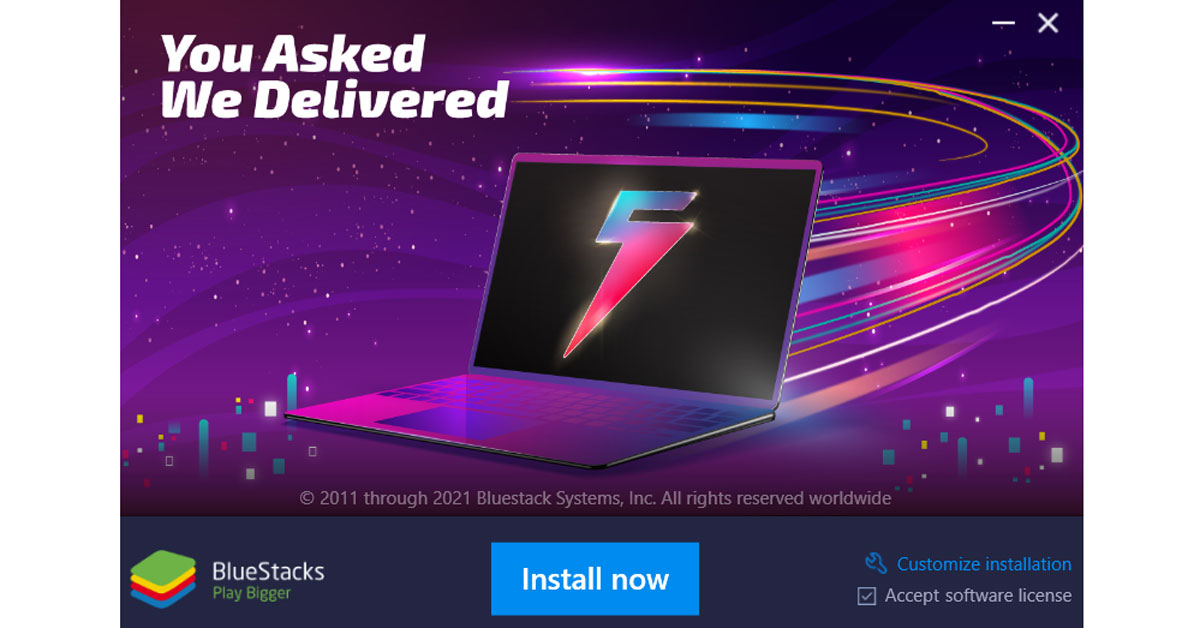
Use BlueStacks to use Clubhouse on PC
Another good way to use Clubhouse on PC is by this method. BlueStacks has been a go-to name when it comes to Android emulators. It has been, by far, one of the most used and popular emulators out there. And with BlueStacks, you can enjoy the ongoing conversation over Clubhouse on your favourite food on a bigger screen. Just download and install BlueStacks from Windows App Store or by clicking here. Just follow these simple steps after you have downloaded BlueStack on your PC:- Double click and install BlueStacks on your PC.
- Find PlayStore and sign in with an account.
- Search for Clubhouse and hit download, Clubhouse for android will be installed in BlueStacks on your PC
- Log in with your phone no.
- And the most important step. Just enjoy Clubhouse on your PC!

Use MEmu
MEmu is yet another leading Android emulator available. Using MEmu you can also download and use Clubhouse as you do on your Android or iOS device. Just download MEmu on your PC, you can get MEmu by clicking here. When you have installed it on your PC, just like any other software, follow these steps:
- Open MEmu on your PC and look for PlayStore.
- Search for Clubhouse and download it.
- Create a new account or log in through your phone no.
- And now you can enjoy Clubhouse on a bigger display.
How to record videos together from the front and rear cameras on Android?
If you love making travel videos or Vlogs then you must have tried to edit the video in PIP (Picture-in-Picture) style. Making videos in PIP style allows you to stay in the frame while you want to show something in your videos from the other camera. We will also tell you about PIP video editors for Android smartphones.
Making videos in PIP format lets you connect with the audience even better, but for that, you need an editing machine, and travelling everywhere with a laptop or a desktop is not possible. Also, you will require superman-like editing skills to make PIP videos. But we will tell you how you can record videos together from the front and rear camera on Android the easy way.
Read also: Best 3 ways to fix YouTube PiP (picture in picture) not working
Here is how you can do it
 If you have an Oppo phone then you can find it by the name Dual-View.
The only catch in this is that it is available only on selected devices.
Just follow these simple steps and you can also install and use this amazing app on your Android device:
If you have an Oppo phone then you can find it by the name Dual-View.
The only catch in this is that it is available only on selected devices.
Just follow these simple steps and you can also install and use this amazing app on your Android device:
Check if your phone’s camera app has a dual recording feature
Installing third-party apps can be an option for every android user out there, but that would take up unnecessary space on your device. If you have a dual recording feature on your phone then you can record PIP videos from there. OEMs like Oppo and HMD Global (Nokia) provide this feature on their native camera app. In Nokia phones, you can find it by the name Dual-Sight. If you have an Oppo phone then you can find it by the name Dual-View.
The only catch in this is that it is available only on selected devices.
If you have an Oppo phone then you can find it by the name Dual-View.
The only catch in this is that it is available only on selected devices.
Get Dual Side camera from PlayStore
The Dual Side camera is one of the best apps on PlayStore that can shoot videos from front and back cameras at the same time. Just follow these simple steps and you can also install and use this amazing app on your Android device:
- Download the DualSide camera from PlayStore or click here.
- Give it permission of camera and microphone, as it needs them to capture footage and audio.
- And the final step is to press the record button if you want to record video and the capture button if you want to take a photo.

Get Dual Camera app: Front and Back from Android PlayStore
Another good pip video editor for Android is this one. This is also a very popular app if you want to make PIP-style videos on the fly. Simply search for this app on PlayStore or click here to download the app. Once downloaded follow these steps:- Tap on the camera icon at the centre.
- Choose the layout in which you want to shoot the video, and select video quality.
- The final step is just tapping on the record button.

How to use, login or create Twitter Spaces on a PC?

If you are someone who loves to interact and talk with people, then Twitter Spaces can be a great platform for you. Twitter Spaces allows users to join any space, which they want and listen to the valuable conversation taking place. And if you also want to share your views and ideas on a given topic you can ask the host to make you a speaker.
Most of us already use Spaces on our Android and iOS devices. If you are someone who is always working on their laptops or desktops, reaching out to the phone can be distracting. So here we are, to tell you, how you can use, log in or create Twitter Spaces on a PC..
Here is how you can do it
Use Twitter on PC
- Install the Twitter app on your PC or use any browser to log in.
- If you already have an existing Twitter account then, hit login or else create a new account.
- Now that you have successfully logged into Twitter via app or browser, just look for the search bar and type Filter:Spaces, and hit the search button.

- Now you can see all the Spaces being hosted at that time
- Click on any of the Spaces and hit the Start listening button.


Use Android Emulator
You will need an Android emulator in this case. Just install any of your favourite Android emulator on your PC and in that install the Twitter app. Twitter app on the emulator will work exactly as it works on Android phone. Just follow these steps to create your Twitter Space- Press the + icon on the app.

- Then, tap on the Spaces icon at the top.
- Give the name to your space and select topics that you want.
- And finally, hit start space.


20 December 2021 Amazon Quiz today answers: Answer to win Rs 40,000 Amazon Pay Balance

Amazon hosts a Quiz session for its customers daily. Its app platform brings a quiz on a daily basis, which begins at 12 AM and ends at 11:59 PM daily. The participants stand a chance to win cash prizes on a daily basis. Today’s 20 December 2021 Amazon Quiz will let you win Rs 40,000 Amazon Pay Balance.
By participating in the Amazon Quiz the participants can win Amazon Pay Balance ranging from Rs 5,000 to Rs 50,000 every day while sitting at home. To win the participants must answer five questions correctly that are based on current events and general knowledge. One wrong answer can eliminate you from the quiz. The results will be announced at the end of the month. Today’s question will let you win Rs 40,000 Amazon Pay Balance. Check below for today Amazon quiz answers.
20 December 2021 Amazon Quiz Answers
Question 1: India’s first smartphone-based e-voting solution is being tested in a dummy election at Khammam in which state?
Answer: TelanganaQuestion 2: The President’s Tatrakshak Medal is awarded to members of which organisation?
Answer: Indian Coast GuardQuestion 3: External Affairs Minister S. Jaishankar recently unveiled the Bhoodan Grove plaque at the Jerusalem Forest in which country?
Answer: IsraelQuestion 4: How many tournaments make up a Grand Slam in this sport?
Answer: 4Question 5: Name this US President who is the first and only man to resign from his post.
Answer: Richard Nixon For the latest gadget and tech news, and gadget reviews, follow us on Twitter, Facebook and Instagram. For newest tech & gadget videos subscribe to our YouTube Channel. You can also stay up to date using the Gadget Bridge Android App. You can find the latest car and bike news here.Vivo Y32 powered by Snapdragon 680 SoC launched
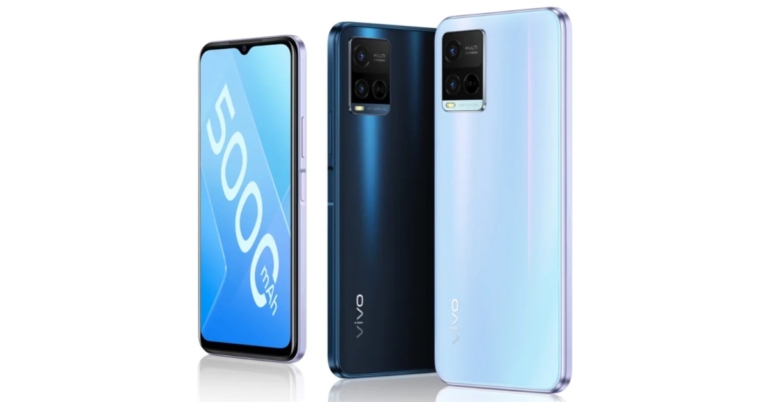
Vivo has expanded its popular Y-Series lineup with the addition of a new smartphone. The company has introduced Vivo Y32 which is the first smartphone to be powered by the Snapdragon 680 SoC. The device features a dual rear camera set-up and an HD+ display. In addition to this, the handset houses a 5,000mAh battery and a side-mounted fingerprint sensor. Keep on reading to know its price and availability details.

Vivo Y32 Price and availability details
According to the listing on the Vivo China website, Vivo Y32 will be available in a single 8GB RAM with a 128GB storage model that will cost CYN 1,399 translating to Rs 16,700. The phone will be available in a variety of colours, including Foggy Night and Harumi Blue. However, no information on the phone’s release date or availability outside of China has been released.
Vivo Y32 tech specifications
The Vivo Y32 has a 6.51-inch HD+ display with a resolution of 720×1,600 pixels and a 20:9 aspect ratio. The smartphone operates on OriginOS 1.0 on top of Android 11 out of the box. There is an octa-core Qualcomm Snapdragon 680 SoC under its hood. The phone comes in a single 8GB of LPDDR4x RAM, which can be virtually expanded to 12GB by using the built-in storage. There is 128GB of storage onboard that can be expanded via a microSD card. For the photos and videos, there is a 13-megapixel primary sensor with an f/2.2 lens and a 2-megapixel secondary sensor with an f/2.4 lens included in the Vivo Y32’s dual rear camera setup. Additionally, there is an 8-megapixel selfie camera sensor with an f/1.8 lens on the front for selfies and video calling. Vivo has included a 5,000mAh battery with 18W fast charging support. 4G VoLTE, Wi-Fi, Bluetooth v5.0, GPS/ A-GPS, USB Type-C, and a 3.5mm headphone jack are among the connectivity options. An accelerometer, ambient light sensor, magnetometer, and proximity sensor are all on board. A fingerprint sensor is also located on the phone’s side. For the latest gadget and tech news, and gadget reviews, follow us on Twitter, Facebook and Instagram. For newest tech & gadget videos subscribe to our YouTube Channel. You can also stay up to date using the Gadget Bridge Android App. You can find the latest car and bike news here.Xiaomi TV Stick 4K announced featuring 4K streaming, Android TV 11 and more
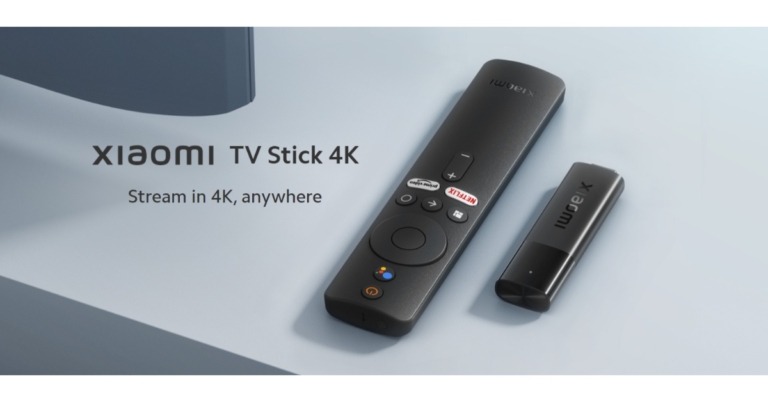
Last year Xiaomi introduced the Mi TV Stick. Now the company has launched the upgraded version of the streaming device. Xiaomi TV Stick 4K has been officially announced and also been listed on the company’s global website. The new model supports 4K streaming and also comes pre-installed with Android TV 11 and Dolby Vision. Read on to know more about the device.
Although the Xiaomi TV Stick 4K has been seen listed on the company’s website. But Xiaomi has neither revealed its pricing nor its availability details. To recall Mi TV Stick was launched in India at Rs 2,799. As the upgraded model now supports 4K streaming so it is expected to be more expensive than the Mi TV Stick.
In terms of design, the Xiaomi TV Stick 4K has been designed to be compact, with a slim and sleek design that weighs only 42.8 grams and measures 106.8×29.4×15.4mm, making it a lightweight device. It comes with a remote that includes dedicated Amazon Prime Video and Netflix shortcuts. There is a dedicated button to wake Google Assistant as well giving users hands-free control, get latest updates, news, play, search their favourite content and control other smart home devices.
Taking about the specifications, Xiaomi TV Stick 4K runs on Android TV Version 11 giving access to 400,000+ movies and shows from across your favourite apps. Get 7000+ apps from Google play. Play music and games, cast from any device, and more. The last generation operated on the Android TV version (9.0). The device is equipped with four Cortex-A35 processor cores, as well as a Mali-G31 MP2 GPU and 2GB of RAM and a storage capacity of 8GB. The Mi TV Stick was powered by a quad-core Cortex A53 processor backed by 1GB of RAM and 8GB of internal storage.
Dual-band Wi-Fi and Bluetooth v5.0 are among the Xiaomi TV Stick 4K’s wireless connectivity options. In addition to this, there is a Micro-USB port for charging and an HDMI port for connecting to a TV. The combination of 4K ultra-high-resolution output and Dolby Vision technology elevates video quality to new heights. While the Dolby Atmos and DTS HD technology support is said to give sounds more richness and realism than ever before.
It has Chromecast built-in, allowing users to cast content from all of their favourite apps to multiple devices, including smartphones, laptops, and tablets.
For the latest gadget and tech news, and gadget reviews, follow us on Twitter, Facebook and Instagram. For newest tech & gadget videos subscribe to our YouTube Channel. You can also stay up to date using the Gadget Bridge Android App. You can find the latest car and bike news here.