Top 5 smartphones of 2021 in India

2021 has been a fantastic year for smartphones, with a plethora of excellent handsets featuring cutting-edge technology. There have been so many devices that come with so many features, ranging from graphics-intensive games to HDR video quality and camera focused in every way. So, here are the top 5 smartphones to buy in India in 2021.

Here is our list of Top 5 smartphones of 2021 in India

Samsung Galaxy Z Fold 3

The Samsung Galaxy Z Fold 3 has a 7.6-inch foldable QXGA AMOLED 2X Infinity Flex main display with a resolution of 2,208,1768 pixels, a 22.5:18 aspect ratio, and a pixel density of 374ppi. On the outside, there’s a 6.2-inch HD AMOLED display with a resolution of 832,268 pixels, a 24.5:9 aspect ratio, and a pixel density of 387ppi. Both screens have a 120Hz refresh rate, support for HDR10+, and Gorilla Glass Victus protection on top. Samsung-Galaxy-Z-Fold-3-main-screen A 5nm octa-core SoC with up to 12 GB RAM and 512GB storage options powers the phone. On top of One UI, it runs Android 11. There’s a fingerprint sensor on the side of the phone. A 12-megapixel primary sensor, a 12-megapixel secondary telephoto lens, and a 12-megapixel ultra-wide lens are included in the triple rear camera setup. The Galaxy Z Fold 3 has a 4-megapixel sensor and an f/1.8 aperture under the display, as well as a 10-megapixel selfie camera with an f/2.2 aperture on the front. A 4,400mAh battery is also included, as well as 25W wireless and reverse charging capabilities. It also works with the S Pen Fold Edition and the S Pen Pro, two new S Pen models. Also Read: Samsung Galaxy Z Fold 3 review: Love at third sight iPhone 13 pro max
iPhone 13 Pro Max
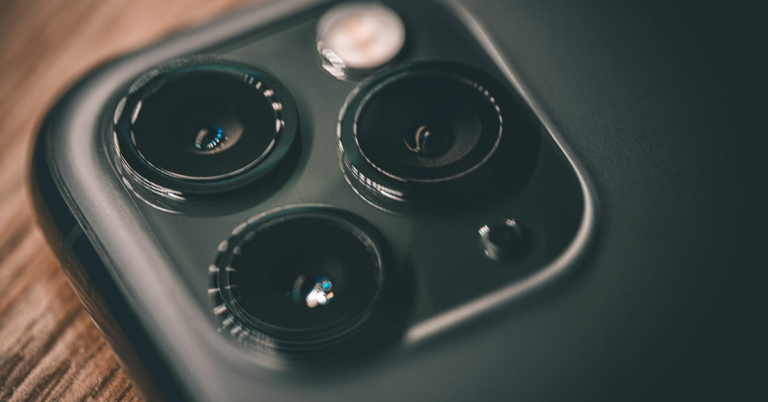
iPhone 13 Pro Max features 6.68 inches Super Retina XDR display with ProMotion featuring an adaptive refresh rate of up to 120Hz, making the touch experience faster and more responsive. The devices are powered by an A15 Bionic chipset with 5-nanometer technology with a new 6-core CPU with two new high-performance cores and four new high-efficiency cores. It features a new 5-core GPU to offer the fastest graphics performance ideal for video apps, high-performance gaming, and a slate of new camera features. In terms of cameras, the device is highlighted with a triple rear camera set up. It includes a 12-megapixel ultra-wide shooter, a 12-megapixel wide-angle lens, 12-megapixel telephoto shooter and a LiDAR scanner. Also Read: Apple iPhone 13 Pro review: Is it still the Apple of your eye?

Samsung Galaxy S21 Ultra

Samsung Galaxy S21 Ultra features a 6.8-inch Edge QHD+ Dynamic AMOLED 2X Infinity-O Display with 1,440×3,200 pixels of resolution. There is HDR10+ support and a 120Hz adaptive refresh rate. Like other siblings, this phone also runs One UI on top of Android 11. Under the hood, there is an octa-core Exynos 2100 SoC paired with up to 16GB LPDDR5 RAM and 512GB storage options. Samsung-Galaxy-S21-Ultra-back On the camera front, there is a 108-megapixel primary sensor, a 12-megapixel Dual Pixel sensor, a 10-megapixel telephoto lens, another 10-megapixel sensor with a telephoto lens and OIS support. The smartphone is backed by a 5,000mAh battery with USB PD 3.0 and Wireless Charging 2.0 support. Also Read: Samsung Galaxy S21 Ultra Review: A good start to the year for Samsung   10 best apps to download for iPhone 13 and iPhone 13 mini (1)

iPhone 13

iPhone 13 comes with a 6.06 inches Super Retina XDR display with max outdoor brightness at 800 nits, with higher peak brightness for HDR content like photos and videos at 1200 nits. Under the hood, there is an A15 Bionic chipset with a six-core CPU with 2 high-performance cores and 4 efficiency cores. It has been paired with a new 4-core GPU specially designed with visuals and lighting effects in graphics-intensive games. iPhone 13  features a  12MP dual rear camera set up. Mi 11X Pro Review: The best value for money device out there
Xiaomi Mi 11X Pro

Xiaomi Mi 11X Pro features a 6.67-inch full-HD+ E4 AMOLED display with 1,080×2,400 pixels of resolution. It also offers a 120Hz refresh rate panel, 1,300 nits of peak brightness, 360Hz touch sampling rate and 20:9 aspect ratio. It is powered by the Qualcomm Snapdragon 888 SoC with the Adreno 660 GPU paired with 8GB of RAM and up to 256GB of storage. Also Read: Mi 11X Pro Review: The best value for money device out there In terms of cameras, there is a triple rear camera set up that includes 108-megapixel Samsung HM2 sensor with an f/1.75 aperture. In addition to this, there is an 8-megapixel ultra-wide-angle lens and a 5-megapixel macro lens. Upfront there is a 20-megapixel selfie camera. The phone packs a 4,520mAh battery that supports 33W fast charging. For the latest gadget and tech news, and gadget reviews, follow us on TwitterFacebook and Instagram. For newest tech & gadget videos subscribe to our YouTube Channel. You can also stay up to date using the Gadget Bridge Android App. You can find the latest car and bike news here.

5 lesser-known hacks to take the best selfies

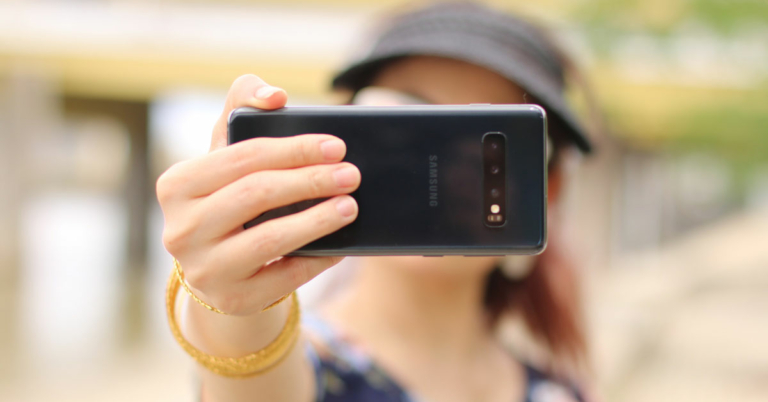
Taking selfies and putting them on social media in modern times is like a ritual. We want to capture ourselves in the scenic beauty of the place we go. If you are bored of taking the same type of selfies again and again and want to know some lesser-known hacks to take the best selfies this is the right article for you.  Just follow the ways or hacks mentioned down below and you can get better selfies.

Watch out for jawline

The jawline is a part of the body that makes a big impact on the selfies you take. If you do not have a sharp jawline then no problem! You just need to try out a few different camera angles in which the double chin is least visible. Additionally, you can also contract the skin on your jaw to make it look slimmer. Take a top-angle selfie with your phone contracting the skin under the jaw and you should be able to get a perfect selfie.

Tryout best selfie angles

Of course, everyone does look different even when the camera angle is exactly the same, you can find out what suits you best for you. But if you are confused about what angles you can choose to take selfies, we have you covered. Just try out these angles and see what suits you best.Tryout angles
  • Hold your phone above your forehead and point your chin slightly down and look up at the camera.
  • Turn your face slightly to one side (ideally 45 degrees)
  • Lay down and put the camera directly above your face. Quick side note, just make sure that you are not using a Nokia phone, you know why.Lay down
  • Look straight on at the camera but slightly elevate the arm that’s holding your phone
These are some angles that you can try for yourself and see which works best

Make a signature filter/pose

Making your signature pose or using the same filter in most of your selfies can help you to stand out from the crowd. If you use the same pose or filter quite often then you can make it as your style statement. Using the same pose or filter will also make your feed look more uniform and clean.  But be careful with this hack, if used excessively then it can also impact your social media game.

Experiment with light

Light is a key element in any photo let it be selfies only. When used correctly can make your selfies look great. Try to experiment a bit with different lights, if you have studio lights at home then you can also try key light and rim light effects with it. But if you don’t have expensive lighting equipment at home then you can always experiment with natural light.Experiment with light

Take selfies during golden hour

Golden hour is a time frame between 1-2 hours before the sunset and 1-2 hours before sunrise. This is a time when the light from the sun has a bit of yellowish-gold light in it. Photos taken in this time frame look very good because the light coming from the sun has some golden colour to it and also the light is very soft in that time frame. So these were some lesser-known hacks to take best selfies. Try all these hacks and you will be able to improve your selfie game. For the latest gadget and tech news, and gadget reviews, follow us on Twitter, Facebook and Instagram. For newest tech & gadget videos subscribe to our YouTube Channel. You can also stay up to date using the Gadget Bridge Android App. You can find the latest car and bike news here.

Best ways to make the Clubhouse experience even better

Clubhouse has been on Android and iOS devices for a while. The audio only platform allows users to join public or private chat rooms and have to deep dive into the given topic. You can request to be a speaker if you want to share your thoughts and ideas on the topic and build connections. While most people use the clubhouse for time pass and for fun, it can be a great platform to build really useful connections of your interest. This article is about guiding you through the best ways to make the Clubhouse experience even better. Just follow these simple and easy steps

Add a good bio

Unlike other social media platforms like Instagram, Clubhouse is a platform where people do read your bio because it is an audio only platform. So adding a proper bio with your interest is a must, so that visitors can have some information about you.Add a good bio-clubhouse experience You should also mention your hobbies and interests. Also, you should add your other social media platforms as well in it so that people may connect with you on other platforms as well.

Invite your contactsInvite contacts-clubhouse experience

Whenever you invite anyone to Clubhouse and they join the platform with your invite, your account will be displayed on the profile of that person. This can be very useful to get some extra exposure on the platform. Since your profile will be displayed on others’ profiles as well then there is a chance that people may follow you as well. But you should be careful while inviting others on the platform, as the number of invites is limited.

Set profile picture same across all platformsSame profile picture- increase clubhouse followers

You should try to use the same profile picture as you have used on other social media platforms. Using the same profile picture will make it easy for followers to find your profile and in addition to that using the same profile picture makes you look more professional. So just head over to Instagram or Twitter and pick the profile picture that you have used. Read also: Clubhouse will add a DM text chat feature: Everything you need to

Try to get on stage

Being in the room and just listening to the speakers might increase your followers, but if you try to get to the stage as a speaker then there are more chances for you to be followed by others in the room. Sharing your thoughts with other members in the room will help you to gain more followers as people now know about your thought process and your interest. It also brings the attention of the hosts toward you. So, the next time you join any chat room don’t just sit and listen to others, share your ideas as well.

Become a member of clubs

That’s the main reason for the clubhouse, isn’t it? Joining different clubs and making new contacts. You can join different clubs in the clubhouse sharing the same interests as you. Joining clubs will allow you to get a better connection with your type of people. The clubs that you will join will appear in your profile and everyone can see them. So if you are interested in photography just join any photography club that you like the most or where you have most of your icons and friends.Join clubs- increase followers

Start your own room private room

If you want to host a conversation on any new trendy topic but you don’t have any experience or knowledge to do so, just invite your friends to a private room and practice over there. And as they say “The more you sweat in practice the less you bleed in battle” so it’s better that you learn everything about hosting a room and then go ahead and create a public room. When you have a better stage presence you will get more followers.

Give a proper name to your room

Out of many mistakes that people make while creating a room, one is not giving a proper name to the room. Giving a proper name to the room will attract more audience and will be better for you at the end. You should always give a short and simple name to your chat room and it should be related to the topic. Nobody would like it if you give the “How to make chocolate cake” name to your chat room and then talk about the 5 benefits of the Keto Diet.Give proper name to room- increase clubhouse followers Read also: 10 reasons why you are not getting right-swiped on Tinder For the latest gadget and tech news, and gadget reviews, follow us on Twitter, Facebook and Instagram. For newest tech & gadget videos subscribe to our YouTube Channel. You can also stay up to date using the Gadget Bridge Android App. You can find the latest car and bike news here.

iQoo Neo 5S and iQoo Neo 5 SE with high refresh rate display launched

After teasing it for almost a month, the iQoo Neo 5S and iQoo Neo 5 SE officially made their way to the market. Both the smartphones have debuted in China and come with fast charging, a high refresh rate and more. Read on to know its pricing and availability details.

Price and availability

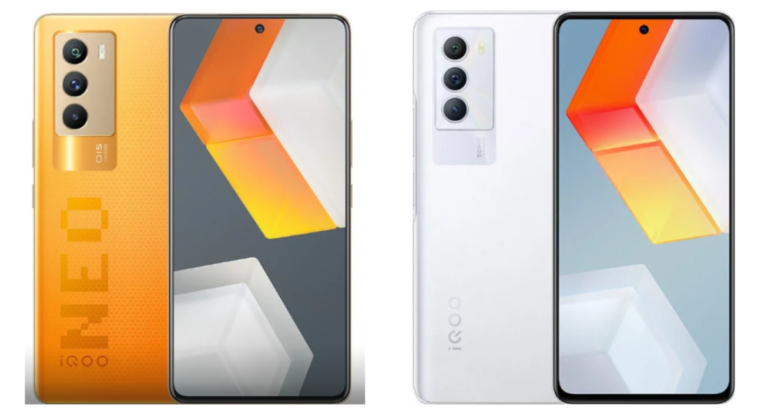
iQoo Neo 5S is priced at CNY 2699 translating to Rs 32,000 for the 8GB RAM with 128GB storage variant. The price of the 8GB RAM with 256GB storage and 12GB RAM with 256GB storage is priced at CNY 2899 and CNY 3199 which converts to Rs 34,500 and Rs 38,000 respectively. The phone will be available in Black, Blue and Orange colour options. On the other hand, the price of iQoo Neo 5 SE is set at CNY 2199 for the 8GB RAM with a 128GB storage model. The device is available in 8GB RAM with 256GB storage and 12GB RAM with 256GB storage options. The former one is priced at CNY 2399 which is roughly around Rs 28,500 and the latter one comes with a price tag of CNY 2599 which converts to Rs 31,000. The smartphone is being offered in three colour options of Blue, White and multicolour. In terms of availability both the handsets are up for preorders. The Neo 5S will be available for purchase from December 24 while the SE variant is scheduled to go on sale from December 28 onwards.

iQoo Neo 5S specifications

The 6.56-inch AMOLED display on the iQoo Neo 5S has a 120Hz refresh rate. The phone runs on OriginOS Ocean based on top of Android 12 out of the box. The device is powered by Qualcomm Snapdragon 888 SoC paired with up to 12GB of LPDDR5 RAM and up to 256GB UFS 3.1 storage. iQoo Neo 5S specifications For the optics, there is a triple rear camera setup on the mobile phone which includes a 48MP Sony IMX598 sensor with OIS. In addition to this, there is a 13M ultra-wide and a 2MP macro lens. There is a 16MP camera sensor on the front for taking selfies and video calling. The device includes a 4,500mAH battery and comes with 66W fast charging support.

iQoo Neo 5 SE specifications

iQoo Neo 5 SE comes with a 6.3-inch full-HD+ LCD display with 144Hz refresh rate support. The phone operates on OriginOS Ocean on top of Android 12. Under the hood, there is a Qualcomm Snapdragon 870 SoC paired with up to 12GB of RAM and up to 256GB UFS 3.1 storage. iQoo Neo 5 SE specifications In terms of imaging, iQoo Neo 5 SE is highlighted with a triple rear camera set-up that includes a 50MP primary sensor. Furthermore, there is an 8MP ultra wide-angle sensor and a 2MP camera lens. On the front, there is a 16MP selfie camera. Also, the device houses a 4,500mAh battery with 55W fast charging support. For the latest gadget and tech news, and gadget reviews, follow us on TwitterFacebook and Instagram. For newest tech & gadget videos subscribe to our YouTube Channel. You can also stay up to date using the Gadget Bridge Android App. You can find the latest car and bike news here.

Panasonic Toughbook S1 MIL-STD-810H certified rugged tablet launched in India

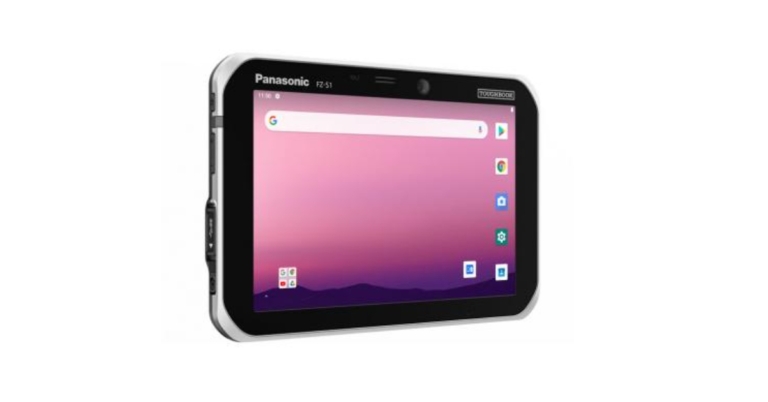
Panasonic Toughbook S1 rugged tablet is now available in India. The new tablet by the electronics giant was previously launched in the US a few months back and has now arrived in India. It is designed for mobile workers working in the most difficult environments and conditions, such as transportation and logistics, manufacturing, and field services, where efficiency and dependability are critical to getting the job done. The Tab runs on Android 10 and has thick bezels on the sides.

Panasonic Toughbook S1 price in India and availability details

Panasonic Toughbook S1 has been made available in India at a starting price of Rs 98,000. The tablet can be purchased via Panasonic distributors and system integrators in the country. To recall the Panasonic tablet was launched in the US in May this year there is available at $2,999 which translates to around Rs 1,90,000 that too for the 4GB RAM with 64GB storage variant. Panasonic Toughbook S1 price in India

Panasonic Toughbook S1 specifications

Panasonic Toughbook S1 rugged tablet comes with a 7-inch WXGA display offering 800×1,280 pixels of resolution and 500 nits of peak brightness. Furthermore, it offers a 10-point capacitive multi-touch panel along with glove touch modes and anti-reflective (AR) screen treatment. The tablet operates on Android 10 and is powered by an octa-core Qualcomm Snapdragon 660 SoC.  It will be available with 4GB of LPDDR4 RAM and 65GB of storage which can be further expandable to 2GB via SD card, up to 32GB via SDHC and up to 64GB through SDXC. In terms of optics, there is a single 13-megapixel camera sensor on the back of the tab. For taking selfies and video chats there is a 5-megapixel camera at the front. The Panasonic Toughbook S1 tablet comes with a docking connector and an optional USB Type-A host port along with this there is 4G, Qualcomm WCN3990 Wi-Fi, NFC, GPS Bluetooth version 5.2, Type C port and a 3.5mm headphone jack for connectivity. While the sensors on the tablet include an accelerometer, ambient light sensor, digital compass and gyroscope. Panasonic Toughbook S1 houses a 3,200mAh battery that is claimed to last 8 hours. With its Warm Swap feature, it offers an extended-life battery rated at 5580 mAh that is said to deliver 14-hour battery life. The device is MIL-STD-810H certified and 1.5m (5′) drop onto concrete and is able to operate in extreme cold, -20°C (-4°F) and extreme heat, 50°C (122°F). There is an optional IP65/67 dust & water resistance.  In addition to this, there is an optional barcode reader that provides workers with integrated barcode scanning options in landscape or portrait modes, enhancing the efficiency of order processing and fulfilment. For the latest gadget and tech news, and gadget reviews, follow us on TwitterFacebook and Instagram. For newest tech & gadget videos subscribe to our YouTube Channel. You can also stay up to date using the Gadget Bridge Android App. You can find the latest car and bike news here.

How to record videos together from front and rear cameras on an iPhone?

If you love making videos and putting them on social media sites like Instagram, you should keep experimenting with different things. One such thing can be recording videos from the front and back camera at the same time.  We have an article on How to record videos together from the front and rear cameras on Android. But in this article, we will drive you through how to record videos together from the front and rear cameras on an iPhone. So just follow the simple ways mentioned below to record videos from both cameras at the same time using your iPhone. Read also: How to record videos together from the front and rear cameras on Android?

Doubletake By FiLMiC

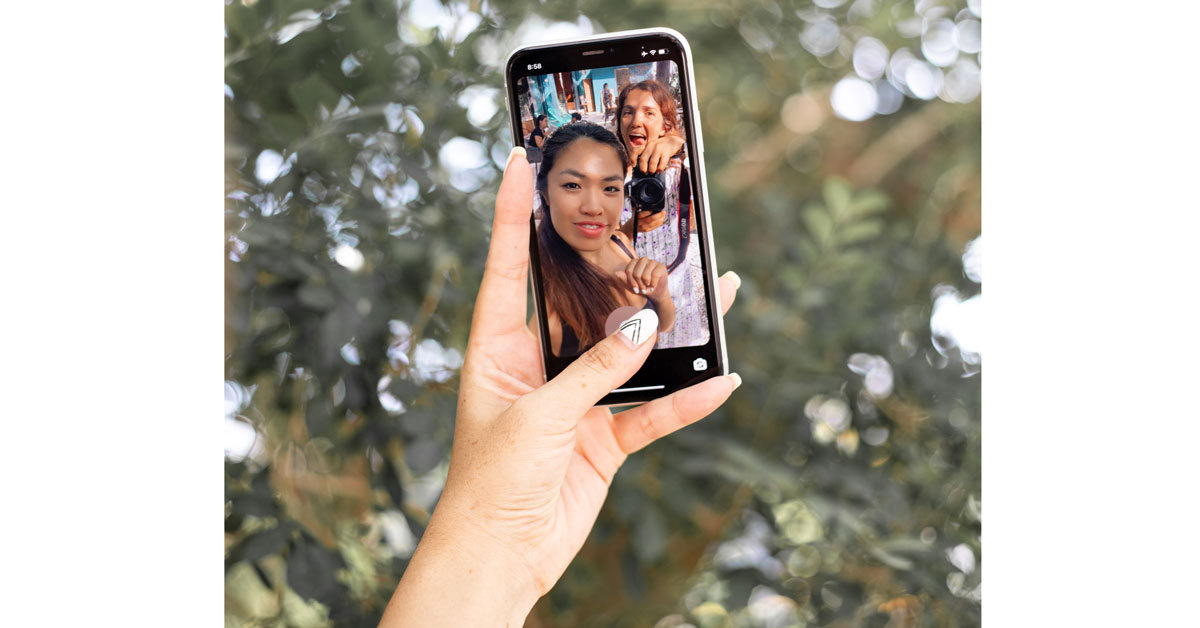
FiLMiC is one of the top players when it comes to the mobile videography world. Doubletake by FiLMiC is an app that lets you record video from any of the two cameras on your iPhone. Just download the app from Apple Appstore. Now that you have the app on your iPhone it is time to use it and make some awesome videos out of it. Doubletake By FiLMiC-dual camera recording iphone- -record front and back camera same time iphone Using the app is very simple and straightforward. You can see the feed from all the cameras present on your iPhone. Just select any two cameras, which you want to record with, in this case the front and back camera, and just hit the record button, it’s that simple. Another benefit of the app is that you can also record footage from the different cameras on the back. By doing so, you can get a different perspective of the same subject that you are recording.Doubletake By FiLMiC- best dual camera app iphone- record videos front and rear cameras on iPhone 2022 You can download the app by clicking here. The app is a one time purchase that will cost you $4.99

DuetCam

DuetCam is yet another great app that lets you record videos from both the front and the rear cameras at the same time. Unlike Doubletake, this is a free app and offers in-app purchases. One handy feature of the app is that it allows users to share the recorded footage directly to their Instagram account. So you need not waste even a second to share your creation with the world.Duet camera- best dual camera app iphone- record videos front and rear cameras on iPhone 2022 The interface on the app is again very simple and easy for even a toddler to understand. You can download the app by clicking here. Read also: How to do screen recording in your Android smartphone For the latest gadget and tech news, and gadget reviews, follow us on Twitter, Facebook and Instagram. For newest tech & gadget videos subscribe to our YouTube Channel. You can also stay up to date using the Gadget Bridge Android App. You can find the latest car and bike news here.

21 December 2021 Amazon Quiz today answers: Answer to win Rs 1,000 Amazon Pay Balance

21 December 2021 Amazon Quiz has gone live on its platform. The quiz timings are 12 AM to 11:59 PM. The Amazon App users can participate in the quiz daily and all they have to do is submit correct answers to the questions asked on the e-commerce platform. Today’s participants can get a chance to win Rs 1,000 Amazon Pay Balance. By participating in the Amazon Quiz the participants can win Amazon Pay Balance ranging from Rs 1,000 to Rs 50,000 every day while sitting at home. To win the participants must answer five questions correctly that are based on current events and general knowledge.  One wrong answer can eliminate you from the quiz. The results will be announced at the end of the month. Today’s question will let you win Rs 1,000 Amazon Pay Balance. Check below for today Amazon quiz answers.

21 December 2021 Amazon Quiz Answers

Question 1: What is the newly set up consortium for the governance of infectious diseases in India?

Answer: One Health

Question 2: As of October 2021, who is the leading wicket-taker in T20 Internationals?

Answer: Shakib Al Hasan

Question 3: Who won the Turkish F1 Grand Prix 2021?

Answer: Valtteri Bottas

Question 4: This is the inspiration behind the logo of a famous management institute in which city?

Answer: Ahmedabad

Question 5: The owner of this hammer is a character from which mythology?

Answer: Norse For the latest gadget and tech news, and gadget reviews, follow us on TwitterFacebook and Instagram. For newest tech & gadget videos subscribe to our YouTube Channel. You can also stay up to date using the Gadget Bridge Android App. You can find the latest car and bike news here.

Krafton releases new Christmas events for Battlegrounds Mobile India

Krafton has today announced the rollout of new Christmas events for Battlegrounds Mobile India through its December update. The new events come with the latest 1.8 update which gets a number of Christmas-themed in-game and community events and new game modes. The update will be rolled out today on the Google Play Store and iOS App Store. The new update will showcase the new ‘React Survival’ mode and reopen 6 popular modes including ‘Metro Royale’.

Christmas events for Battlegrounds Mobile India

A new ‘React Survival’ mode will be introduced in the 1.8 updates. In this mode, players can join the Red Light and Green Light games by wearing blue tracksuits with different numbers. The game is won by the player who makes it to the finish line without being detected by the Giant Rabbit. The match consists of three rounds and ends when the time limit is reached. This mode can be accessed from the arcade mode, and players can also play with their friends by creating a custom room. Battlegrounds Mobile India Christmas events Battlegrounds Mobile India‘s six most popular modes will also be reopened in this update. Among these modes are the ‘Metro Royale Mode’ where you can gear up before the match and loot lots of items, ‘Survive Till Dawn Mode’ where you loot items by killing zombies, ‘Virus Infection Mode’ where you fight either as a human or zombie, ‘Heavy Machine Gun 2.0 Mode’ offering exciting combat with helicopters and armoured vehicles, and ‘Rune Theme Mode’ where you join the match after choosing 1 out of 3 rune fragments. In the meantime, from December 20th, 2021 to January 17th, 2022, the new Mythic Winter themed RPM6 will be available. By purchasing the royale pass for 360UC, fans can get the Snow Santa Monster Set, Snow Santa Monster UAZ, and Frozen Guardian Set. For the latest gadget and tech news, and gadget reviews, follow us on TwitterFacebook and Instagram. For newest tech & gadget videos subscribe to our YouTube Channel. You can also stay up to date using the Gadget Bridge Android App. You can find the latest car and bike news here.

How to change Google Meet and Google Chats notification setting on PC?

Google Meet and Google Chats are some of the most used platforms for work. These tools allow users to connect during this pandemic and continue the work without any problem. But there are times when you get confused about whether you received a notification or not. In this article, we will guide you through some of the best ways by which you will get to know how to change Google Meet and Google Chats notification settings on PC.

For Google Meet

Google meet is a great tool to interact with office colleagues and get the project done with ease by talking face to face.  Here is how you can change notification settings for Google Meet:
  1. On your computer, open Chrome.For Google meet
  2. At the top right, click the three-dot menu and then settings.For Google meet
  3. Under Privacy and security, click Site settings.
  4. Click Notifications.For Google meet
  5. Select the Meet and then allow notifications or type https://meet.google.com/. And allow notificationsFor Google meet
After changing this setting you will receive notifications from Google Meet.  Read also: 3 tricks to use different notification sound for different

For Google Chat

Google Chat is another tool that is used to make work-life easy in this pandemic era. It provides users direct messages and team chat rooms, along with a group messaging function that allows Google Drive content sharing. The process for turning on the notifications for Google chat is also very simple. Here is how you can change notification settings on Google Chat:
  1. On your computer, open Chrome.
  2. At the top right, click the three-dot menu and then settings.
  3. Under Privacy and security, click Site settings.
  4. Click Notifications.
  5. Select the Chat and then allow notifications or type https://chat.google.com/. And allow notificationsFor Google chat
And this is how you can change the notifications settings for Google Chat. Read also: How can you block websites from asking to send notifications on For the latest gadget and tech news, and gadget reviews, follow us on Twitter, Facebook, and Instagram. For the newest tech & gadget videos subscribe to our YouTube Channel. You can also stay up to date using the Gadget Bridge Android App. You can find the latest car and bike news here.

How to Disable Google Smart Lock on Android and Chrome?

The Smart Lock by Google is very useful. With the feature turned on your device, you don’t need to worry about forgetting your passwords, because Google remembers and saves all the passwords and enters them automatically at the time when you are trying to sign in. There are several ways to disable Google Smart Lock and we will talk about them in a moment. Google Smart Lock is very useful when it comes to filling passwords automatically and signing you in across the websites and applications you use. Although this feature by Google is very helpful, it has some loopholes that can breach your privacy. Like for a PC or Laptop, one needs to enter the login with the computer password to access the passwords you have saved in your Chrome browser. This is risky as anyone having your login password can view all the other passwords stored in Chrome.  So, if you want to disable Google Smart Lock on Android and Chrome browser for whichever reason. The process for that is very easy and we have covered all the steps to disable it. Read the article to find it.  Read Also: 5 best smart locks available in India right now

Disable Google Smart Lock on Android

Below are the steps to turn off Google Smart Lock in the Chrome browser on your Android device.  Step 1: Open the Google Chrome app and tap the three dots placed at the top right corner. Select the “Settings” menu at the bottom.  Settings in Chrome Browser Step 2: Choose “Passwords”. Step 3: Toggle off the Save Passwords and disable “Auto Sign-in”.  Auto Sign in Chrome Now, delete all the passwords you see by tapping on their individual entry and then on the trashcan (or delete) icon placed at the top or on the upper row of the page.

Disable Google Smart Lock on Chrome

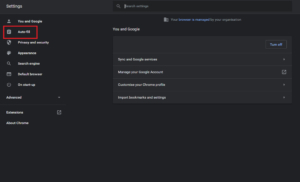
Here’s how you can disable Google Smart Lock in Google Chrome on your Laptop or PC. Step 1: Open the Chrome browser settings page by selecting three dots placed at the top right corner. Select the “Settings” menu from the given options.  Step 2: Choose “Auto-fill” from the sidebar and select “Passwords” Auto Fill Option on Chrome - Disable Google Smart Lock Step 3: Turn off the toggle for “Offer to save passwords off” and “Auto Sign-in”. Turn off the Toggle - Disable Google Smart Lock Now, delete all the passwords by Clearing browsing history or by tapping the three-dots menu on their individual entry and selecting “Remove” to delete. Read Also: Facebook Messenger launches App Lock for its iPhone and iPad users So, these are the ways by which you can turn off or disable Google Smart Lock on Chrome and Android. We hope this helps you in disabling it. For the latest gadget and tech news, and gadget reviews, follow us on Twitter, Facebook, and Instagram. For the newest tech & gadget videos subscribe to our YouTube Channel. You can also stay up to date using the Gadget Bridge Android App. You can find the latest car and bike news here.