

OnePlus Nord 2 5G India launch confirmed for July 22, gets listed on Amazon

OnePlus has officially announced the launch of another Nord smartphone in India. Just like the last version, the OnePlus Nord 2 5G is going to debut in India first. The launch here is set for July 22. In addition to this, the company has also listed the device on the Amazon India website to tease its availability.
Recently, the Chinese smartphone company revealed that the OnePlus Nord will be equipped with a MediaTek Dimensity 1200-AI SoC which is specially designed for the handset offering improved AI capabilities. However, the exact launch date was not revealed but the company’s CEO Pete Lau took to Twitter to announce the arrival of the smartphone. According to his tweet, the smartphone will be making its way to the Indian market on July 22. This is going to be a second Nord device OnePlus Nord CE 5G that debuted a few weeks back in the country.
Besides launching in India the smartphone will also get launched in Europe. The forum post says, “The “Never Settle” spirit is about the constant pursuit of perfection. The first OnePlus Nord was a fantastic product, but in the year since we launched it, we have continued reviewing your feedback and working on ways to improve the user experience for the next OnePlus Nord device. The OnePlus Nord 2 5G is a comprehensive upgrade from the first OnePlus Nord, from camera to performance to charging, as well as the newly AI-focused Dimensity 1200-AI SoC. We are confident that it delivers the dependable OnePlus fast and smooth experience you love, and lives up to the “Never Settle” ethos.
Join us on July 22 as we officially introduce the OnePlus Nord 2 5G for our users in Europe and India.”
Moreover, the next generation of Nord has also been listed on Amazon ahead of the official launch. The Notify Me button has also gone live on the e-commerce platform. It should also be noted that the e-retailer will also be hosting its Amazon Prime Day Sale in India during the end week of July that is from July 26 to 27. So the OnePlus Nord 2 5G is expected to go on sale during that period only. The price point at which the device will be available will be announced at the time of the 2,000 that translates to Rs 23,000. To recall, the OnePlus Nord was made available for purchase in India at a starting price tag of Rs 24,999. So this time the handset will be cheaper than the older version.
Speaking of the specifications, the OnePlus Nord 2 5G is confirmed to be powered by MediaTek Dimensity 1200-AI SoC. Whereas the rumours suggest that the mobile phone will feature a 6.43-inch full-HD+ AMOLED display with 90Hz refresh rate support. There could be a triple rear camera set up that will be highlighted with a 50-megapixel primary sensor.
Upfront, it is said to have a 32-megapixel selfie camera. The handset is slated to come with a 4,500mAh battery and an in-display fingerprint sensor. The speculation also suggests that the phone may be offered in two different configurations of 8GB RAM with 128GB storage and 12GB RAM with 256GB of internal storage options.
For the latest gadget and tech news, and gadget reviews, follow us on Twitter, Facebook and Instagram. For newest tech & gadget videos subscribe to our YouTube Channel. You can also stay up to date using the Gadget Bridge Android App.
5 accessories every MacBook owner should have

When you own an Apple MacBook you should first consider what accessories are there to make full use of the Apple product, and also how to protect it. With this equipment, you can take maximum advantage of your MacBook, at the same time keep it safe from scratches and any sort of damage. Here is the list of 5 accessories you should own.
 Protection of your MacBook should be one of the highest priority considering it is an investment for durability. The hardshell case protects your Macbook from any unwanted damage and keeps it safe. There are many options you can choose from online but here is a product you can keep an option for: Aavjo hardshell case for MacBook. It is an Ultra slim light weight hard case with a soft rubberised coating that protects your device from scratch.
Price: Rs 2,000
Buy from Amazon.in
Read more: MSI launched 2 new Summit Series 2-in-1 Laptops with PenStylus and USB-C Docking Station Gen 2
Protection of your MacBook should be one of the highest priority considering it is an investment for durability. The hardshell case protects your Macbook from any unwanted damage and keeps it safe. There are many options you can choose from online but here is a product you can keep an option for: Aavjo hardshell case for MacBook. It is an Ultra slim light weight hard case with a soft rubberised coating that protects your device from scratch.
Price: Rs 2,000
Buy from Amazon.in
Read more: MSI launched 2 new Summit Series 2-in-1 Laptops with PenStylus and USB-C Docking Station Gen 2
 Another accessory you should own is the MacBook stand to keep your laptop firm and perfectly still. It will help in avoiding any unwanted fall of your laptop from your table. And make your work comfortable while preventing it from overheating also. Here is a product you can check out on Amazon: Proffisy Laptop Stand Adjustable Computer Stand.
Price: Rs 4,000
Buy at Amazon.in
Read also: Apple to host another event on November 10, Macs to steal the show
Another accessory you should own is the MacBook stand to keep your laptop firm and perfectly still. It will help in avoiding any unwanted fall of your laptop from your table. And make your work comfortable while preventing it from overheating also. Here is a product you can check out on Amazon: Proffisy Laptop Stand Adjustable Computer Stand.
Price: Rs 4,000
Buy at Amazon.in
Read also: Apple to host another event on November 10, Macs to steal the show
 Keeping your Macbook in a sleeve pouch works in many ways, it prevents scratches, dirt, and also breakage. The advantage of the cover is you can carry your laptop easily anywhere you go. The leather sleeve from Apple is the perfect product for this purpose. This product is crafted from the finest leather and the soft microfibre protects your MacBook wherever you go.
Price: Rs 17,900
Buy the product from Apple.com
Keeping your Macbook in a sleeve pouch works in many ways, it prevents scratches, dirt, and also breakage. The advantage of the cover is you can carry your laptop easily anywhere you go. The leather sleeve from Apple is the perfect product for this purpose. This product is crafted from the finest leather and the soft microfibre protects your MacBook wherever you go.
Price: Rs 17,900
Buy the product from Apple.com
 Using your trackpad most of the time will harm the trackpad and also damage the MacBook. So it recommended you should own this Magic Mouse 2 which is an amazing accessory. The device is rechargeable so you do not have to worry much about an external battery. The product is super light and has an optimised foot design. It also comes with a Multi-Touch surface for you to make simple gestures like swiping between web pages and scrolling through documents.
Price: Rs 7,500
Buy at Apple.com
Using your trackpad most of the time will harm the trackpad and also damage the MacBook. So it recommended you should own this Magic Mouse 2 which is an amazing accessory. The device is rechargeable so you do not have to worry much about an external battery. The product is super light and has an optimised foot design. It also comes with a Multi-Touch surface for you to make simple gestures like swiping between web pages and scrolling through documents.
Price: Rs 7,500
Buy at Apple.com
 The multiport adapter is designed to let you connect a USB-C-enabled Mac or iPad to an HDMI display, at the same connect your standard USB device and a USB-C charging cable. The best feature is the product allows you to mirror your Mac display to an HDMI-enabled TV or display. And you can also connect your flash drive or a camera.
Price: Rs 7,000
Buy it on Apple.com
For the latest gadget and tech news, and gadget reviews, follow us on Twitter, Facebook and Instagram. For newest tech & gadget videos subscribe to our YouTube Channel. You can also stay up to date using the Gadget Bridge Android App.
The multiport adapter is designed to let you connect a USB-C-enabled Mac or iPad to an HDMI display, at the same connect your standard USB device and a USB-C charging cable. The best feature is the product allows you to mirror your Mac display to an HDMI-enabled TV or display. And you can also connect your flash drive or a camera.
Price: Rs 7,000
Buy it on Apple.com
For the latest gadget and tech news, and gadget reviews, follow us on Twitter, Facebook and Instagram. For newest tech & gadget videos subscribe to our YouTube Channel. You can also stay up to date using the Gadget Bridge Android App.
-
Plastic Shell case for your Macbook
 Protection of your MacBook should be one of the highest priority considering it is an investment for durability. The hardshell case protects your Macbook from any unwanted damage and keeps it safe. There are many options you can choose from online but here is a product you can keep an option for: Aavjo hardshell case for MacBook. It is an Ultra slim light weight hard case with a soft rubberised coating that protects your device from scratch.
Price: Rs 2,000
Buy from Amazon.in
Read more: MSI launched 2 new Summit Series 2-in-1 Laptops with PenStylus and USB-C Docking Station Gen 2
Protection of your MacBook should be one of the highest priority considering it is an investment for durability. The hardshell case protects your Macbook from any unwanted damage and keeps it safe. There are many options you can choose from online but here is a product you can keep an option for: Aavjo hardshell case for MacBook. It is an Ultra slim light weight hard case with a soft rubberised coating that protects your device from scratch.
Price: Rs 2,000
Buy from Amazon.in
Read more: MSI launched 2 new Summit Series 2-in-1 Laptops with PenStylus and USB-C Docking Station Gen 2
-
A MacBook stand
 Another accessory you should own is the MacBook stand to keep your laptop firm and perfectly still. It will help in avoiding any unwanted fall of your laptop from your table. And make your work comfortable while preventing it from overheating also. Here is a product you can check out on Amazon: Proffisy Laptop Stand Adjustable Computer Stand.
Price: Rs 4,000
Buy at Amazon.in
Read also: Apple to host another event on November 10, Macs to steal the show
Another accessory you should own is the MacBook stand to keep your laptop firm and perfectly still. It will help in avoiding any unwanted fall of your laptop from your table. And make your work comfortable while preventing it from overheating also. Here is a product you can check out on Amazon: Proffisy Laptop Stand Adjustable Computer Stand.
Price: Rs 4,000
Buy at Amazon.in
Read also: Apple to host another event on November 10, Macs to steal the show
-
A Sleeve cover for your Macbook
 Keeping your Macbook in a sleeve pouch works in many ways, it prevents scratches, dirt, and also breakage. The advantage of the cover is you can carry your laptop easily anywhere you go. The leather sleeve from Apple is the perfect product for this purpose. This product is crafted from the finest leather and the soft microfibre protects your MacBook wherever you go.
Price: Rs 17,900
Buy the product from Apple.com
Keeping your Macbook in a sleeve pouch works in many ways, it prevents scratches, dirt, and also breakage. The advantage of the cover is you can carry your laptop easily anywhere you go. The leather sleeve from Apple is the perfect product for this purpose. This product is crafted from the finest leather and the soft microfibre protects your MacBook wherever you go.
Price: Rs 17,900
Buy the product from Apple.com
-
Magic Mouse 2
 Using your trackpad most of the time will harm the trackpad and also damage the MacBook. So it recommended you should own this Magic Mouse 2 which is an amazing accessory. The device is rechargeable so you do not have to worry much about an external battery. The product is super light and has an optimised foot design. It also comes with a Multi-Touch surface for you to make simple gestures like swiping between web pages and scrolling through documents.
Price: Rs 7,500
Buy at Apple.com
Using your trackpad most of the time will harm the trackpad and also damage the MacBook. So it recommended you should own this Magic Mouse 2 which is an amazing accessory. The device is rechargeable so you do not have to worry much about an external battery. The product is super light and has an optimised foot design. It also comes with a Multi-Touch surface for you to make simple gestures like swiping between web pages and scrolling through documents.
Price: Rs 7,500
Buy at Apple.com
-
USB-C Digital AV Multiport Adapter
 The multiport adapter is designed to let you connect a USB-C-enabled Mac or iPad to an HDMI display, at the same connect your standard USB device and a USB-C charging cable. The best feature is the product allows you to mirror your Mac display to an HDMI-enabled TV or display. And you can also connect your flash drive or a camera.
Price: Rs 7,000
Buy it on Apple.com
For the latest gadget and tech news, and gadget reviews, follow us on Twitter, Facebook and Instagram. For newest tech & gadget videos subscribe to our YouTube Channel. You can also stay up to date using the Gadget Bridge Android App.
The multiport adapter is designed to let you connect a USB-C-enabled Mac or iPad to an HDMI display, at the same connect your standard USB device and a USB-C charging cable. The best feature is the product allows you to mirror your Mac display to an HDMI-enabled TV or display. And you can also connect your flash drive or a camera.
Price: Rs 7,000
Buy it on Apple.com
For the latest gadget and tech news, and gadget reviews, follow us on Twitter, Facebook and Instagram. For newest tech & gadget videos subscribe to our YouTube Channel. You can also stay up to date using the Gadget Bridge Android App. Poco F3 GT India launch teased once again as Q3 arrives

Yes, Poco today again teased the launch of its upcoming gaming smartphone Poco F3 GT. The launch of the device was earlier teased by a company’s executive who shared that the Poco F3 GT smartphone will be launched in India in the third quarter of 2021. The device is speculated to be a rebranded version of the Redmi K40 Game Enhanced Edition.
Whereas the latest video teaser released by the company falls in line with a recent report that tipped to launch the handset in the first 10 days of August. The company took to Twitter to roll out the teaser of the Poco F3 GT. The video teaser is 15 seconds long and it says that Q3 is here which indicates the upcoming launch. The phone is visible in restricted light against a brighter background. However, the outline of the device still shows a pair of gaming triggers on the right side of the frame. In the same way a side-mounted fingerprint sensor, the volume rocker is also seen clearly.
Previously in May this year Anuj Sharma, the Country Director of POCO India shared a 30-second video on Twitter that revealed that Poco F3 GT will be powered by MediaTek Dimensity 1200 SoC. He also revealed that the device will arrive in Q3 of 2021 which begins from July 1. Also reportedly the launch of the gaming smartphone will take place before August 10 in India.
As per the speculations, the Poco F3 GT will be a rebranded variant of the Redmi K40 Game Enhanced edition. If rumours are to be believed then the device could feature a 6.67-inch full-HD+ OLED display with a 120Hz refresh rate and HDR10+ support. It will run MIUI 12.5 on top of Android 11 and will be powered by a MediaTek Dimensity 1200 SoC with up to 12GB of LPDDR4x RAM and up to 256GB of UFS 3.1 storage. The phone will also come integrated with vapour chamber LiquidCool technology with white graphene for better cooling and extensive gaming.
For the photos and videos, the gaming smartphone by Poco will come with a triple rear camera setup that will bring a 64-megapixel primary sensor with an f/1.65 aperture. Additionally, there will be an 8-megapixel secondary sensor and a 2-megapixel tertiary lens. Upfront there will be a 16-megapixel selfie shooter.
Besides this, there will be Wi-Fi, 5G, GPS, NFC, and a USB Type-C port as connectivity options. In addition to this, there will be a side-mounted fingerprint scanner for authentication. The device will come with an IP53 rating for water and dust resistance. The smartphone will ship a 5,065mAh battery with support for 67W fast charging
For the latest gadget and tech news, and gadget reviews, follow us on Twitter, Facebook and Instagram. For newest tech & gadget videos subscribe to our YouTube Channel. You can also stay up to date using the Gadget Bridge Android App.
How to lock your keyboard and trackpad on your laptop for safety?

For people who spend a lot of time on their laptops for work, most of their valuable work is saved on the computer. There are times when you leave your laptop unattended. For such cases it is very important to lock the keyboard and trackpad so that nobody touches your work. Here are some tools and apps you can download to lock the keyboard and trackpad.
 This utility can help you lock your keyboard or mouse completely or partially. There are many functions you can enable such as lock system key combinations, lock all keys except characters, lock space and enter or all keys on the keyboard. For the trackpad, you can lock right-click or left-click. You have to install the Kid Key Key Lock app on your laptop. And to make its settings you can either open the app and go to its Setup or you can right-click on its icon. The app has three main lock functions: Mouse Locks, Keyboard Locks, and Passwords.
Download link
Read more: 5 best smart locks available in India right now
This utility can help you lock your keyboard or mouse completely or partially. There are many functions you can enable such as lock system key combinations, lock all keys except characters, lock space and enter or all keys on the keyboard. For the trackpad, you can lock right-click or left-click. You have to install the Kid Key Key Lock app on your laptop. And to make its settings you can either open the app and go to its Setup or you can right-click on its icon. The app has three main lock functions: Mouse Locks, Keyboard Locks, and Passwords.
Download link
Read more: 5 best smart locks available in India right now
 The tool is simple and easy to use. The process to enable KeyFreeze on your laptop is to install it and you have to press the button signed “Lock Keyboard & Mouse”. And your keyboard and trackpad will be locked in less than 5 seconds. Now there is no risk of anyone pressing any keys when you leave your laptop unattended. To reverse the function and disable the lock you just have to press Ctrl+Alt+Del. The KeyFreeze program is only 85KB.
Download link
Read also: How to find, lock, or erase data on a lost Android device?
The tool is simple and easy to use. The process to enable KeyFreeze on your laptop is to install it and you have to press the button signed “Lock Keyboard & Mouse”. And your keyboard and trackpad will be locked in less than 5 seconds. Now there is no risk of anyone pressing any keys when you leave your laptop unattended. To reverse the function and disable the lock you just have to press Ctrl+Alt+Del. The KeyFreeze program is only 85KB.
Download link
Read also: How to find, lock, or erase data on a lost Android device?
 The toddler keys app has some interesting features apart from locking the keyboard and trackpad. You can lock the CD-ROM from opening and also the option to disable the Power button. When you have locked your laptop the screen will appear black and cannot be open until a passphrase is typed. And some additional features are you can add pictures and sound to the locked screen. To enable Toddler Keys on your laptop you have to right-click on its icon and select from the options given.
Download link
The toddler keys app has some interesting features apart from locking the keyboard and trackpad. You can lock the CD-ROM from opening and also the option to disable the Power button. When you have locked your laptop the screen will appear black and cannot be open until a passphrase is typed. And some additional features are you can add pictures and sound to the locked screen. To enable Toddler Keys on your laptop you have to right-click on its icon and select from the options given.
Download link
 This is another easy tool to lock your keyboard and trackpad for safety. To start using the app you just have to enter a password that will be used to lock it and you have to press start. Once you type the password the Windows will automatically disappear and lock all functions. And if you want to disable the function you simply have to type the password again.
Download link
This is another easy tool to lock your keyboard and trackpad for safety. To start using the app you just have to enter a password that will be used to lock it and you have to press start. Once you type the password the Windows will automatically disappear and lock all functions. And if you want to disable the function you simply have to type the password again.
Download link
-
Kid Key Lock:
 This utility can help you lock your keyboard or mouse completely or partially. There are many functions you can enable such as lock system key combinations, lock all keys except characters, lock space and enter or all keys on the keyboard. For the trackpad, you can lock right-click or left-click. You have to install the Kid Key Key Lock app on your laptop. And to make its settings you can either open the app and go to its Setup or you can right-click on its icon. The app has three main lock functions: Mouse Locks, Keyboard Locks, and Passwords.
Download link
Read more: 5 best smart locks available in India right now
This utility can help you lock your keyboard or mouse completely or partially. There are many functions you can enable such as lock system key combinations, lock all keys except characters, lock space and enter or all keys on the keyboard. For the trackpad, you can lock right-click or left-click. You have to install the Kid Key Key Lock app on your laptop. And to make its settings you can either open the app and go to its Setup or you can right-click on its icon. The app has three main lock functions: Mouse Locks, Keyboard Locks, and Passwords.
Download link
Read more: 5 best smart locks available in India right now
-
KeyFreeze:
 The tool is simple and easy to use. The process to enable KeyFreeze on your laptop is to install it and you have to press the button signed “Lock Keyboard & Mouse”. And your keyboard and trackpad will be locked in less than 5 seconds. Now there is no risk of anyone pressing any keys when you leave your laptop unattended. To reverse the function and disable the lock you just have to press Ctrl+Alt+Del. The KeyFreeze program is only 85KB.
Download link
Read also: How to find, lock, or erase data on a lost Android device?
The tool is simple and easy to use. The process to enable KeyFreeze on your laptop is to install it and you have to press the button signed “Lock Keyboard & Mouse”. And your keyboard and trackpad will be locked in less than 5 seconds. Now there is no risk of anyone pressing any keys when you leave your laptop unattended. To reverse the function and disable the lock you just have to press Ctrl+Alt+Del. The KeyFreeze program is only 85KB.
Download link
Read also: How to find, lock, or erase data on a lost Android device?
-
Toddler Keys:
 The toddler keys app has some interesting features apart from locking the keyboard and trackpad. You can lock the CD-ROM from opening and also the option to disable the Power button. When you have locked your laptop the screen will appear black and cannot be open until a passphrase is typed. And some additional features are you can add pictures and sound to the locked screen. To enable Toddler Keys on your laptop you have to right-click on its icon and select from the options given.
Download link
The toddler keys app has some interesting features apart from locking the keyboard and trackpad. You can lock the CD-ROM from opening and also the option to disable the Power button. When you have locked your laptop the screen will appear black and cannot be open until a passphrase is typed. And some additional features are you can add pictures and sound to the locked screen. To enable Toddler Keys on your laptop you have to right-click on its icon and select from the options given.
Download link
-
KeyboardLock:
 This is another easy tool to lock your keyboard and trackpad for safety. To start using the app you just have to enter a password that will be used to lock it and you have to press start. Once you type the password the Windows will automatically disappear and lock all functions. And if you want to disable the function you simply have to type the password again.
Download link
This is another easy tool to lock your keyboard and trackpad for safety. To start using the app you just have to enter a password that will be used to lock it and you have to press start. Once you type the password the Windows will automatically disappear and lock all functions. And if you want to disable the function you simply have to type the password again.
Download link
-
Child Lock:
Microsoft released an emergency Windows update to address PrintNightmare security vulnerability: Everything you should know
In an emergency security update, Microsoft has released a patch to fix a critical flaw in the Windows Print Spooler service. The vulnerability called PrintNightmare was discovered by some security analysts who accidentally published a proof-of-concept (PoC) exploit. The security flaw allows attackers to remotely execute code with system-level privileges and take over the victim host completely, to carry out malicious operations.
To address the PrintNightmare security flaw impacting the Windows Print Spooler service, Microsoft has rolled out-of-band security updates for all supported versions of Windows. This vulnerability allows attackers to print functionality inside local networks when print capabilities are exposed to the Internet. As explained by the company, the remote code execution vulnerability exists when the Windows Print Spooler service improperly performs privileged file operations. An attacker who successfully exploited this vulnerability could run arbitrary code with SYSTEM privileges. An attacker could then install programs; view, change, or delete data; or create new accounts with full user rights.
However, this is said to be a cumulative update release, so it contains all previous security fixes and should be applied immediately to fully protect your systems. As per the company, the fix fully addresses the public vulnerability, and it also includes a new feature that allows customers to implement stronger protections. See: KB5005010: Restricting installation of new printer drivers after applying the July 6, 2021 updates.
Microsoft also states that “ Please note that not all versions of the update are available today as some packages are not quite ready for release. We feel that it is important to provide security updates as quickly as possible for systems that we can confidently protect today. Unfortunately, security updates for Windows Server 2016, Windows 10, version 1607, and Windows Server 2012 will be delayed for a short period, but they are expected soon.”
One can also disable the inbound remote printing as explained below:
Go to Computer Configuration > Administrative Templates > Printers and switch off the Allow Print Spooler to accept client connections option. The user is also required to restart the Print Spooler service to make the changes.
But soon after the pact was released, a security researcher brought another issue with the security update revealing how exploits could bypass the patch.
Benjamin Delpy, a developer of the hacking and network utility Mimikatz via tweet said, “ Dealing with strings & filenames is hard😉 New function in #mimikatz 🥝to normalize filenames (bypassing checks by using UNC instead of \\server\share format). So an RCE (and LPE) with #printnightmare on a fully patched server, with Point & Print enabled.
He also shared a video that demonstrates the security pact failed to fix the vulnerability using a certain setting named paint and print that simply allows networks users to get hands-on with the required printer drivers.
However, the fix may be incomplete but it does provide protection from other types of attacks that exploit the print spooler vulnerability. So the Windows users are recommended to install these updates immediately and should wait for further instructions.
For the latest gadget and tech news, and gadget reviews, follow us on Twitter, Facebook and Instagram. For newest tech & gadget videos subscribe to our YouTube Channel. You can also stay up to date using the Gadget Bridge Android App.
How to format an external hard drive or USB pen drive?
Formatting a hard drive will help with the compatibility of computers operating systems. And USB is a perfect option for storing or backing up data, and it works wonders for transferring data between devices. To enable the computer to read the USB drive it needs to be formatted properly. External hard drives or USB drives can be formatted in many different file systems. Check the guide below.
 The first reminder before formatting is to make sure you have not stored any data on the hard drive or USB pen drive since everything will be deleted. You can format a hard drive or USB pen drive using these file systems: NTFS, FAT, HFS APFS, EXT, etc. Follow the guide below to format an external hard drive or USB drive on Windows OS.
 Mac OS comes with some complications when inserting an external hard drive or USB pen drive. Some of the external hard drives or pen drives need to be formatted before you want to transfer files on them. The disk utility tools that come with Mac helps in formatting any external drive. Here are the steps you have to perform to format your external hard drive or USB pen drive on Mac OS.
Format an external hard drive or USB pen drive on Windows OS:
 The first reminder before formatting is to make sure you have not stored any data on the hard drive or USB pen drive since everything will be deleted. You can format a hard drive or USB pen drive using these file systems: NTFS, FAT, HFS APFS, EXT, etc. Follow the guide below to format an external hard drive or USB drive on Windows OS.
- Connect the external drive or USB drive to your computers.
- Click the Windows icon and open File Explorer.
- Go to This PC>Select the external hard drive or USB.
- Now find the option “Manage” on the top bar menu next to view>Tap on it.
- From the drop-down menu>Select Format.
- Now when the open-up window comes up>Select File system.
- Select NTFS which is for Windows formatting.
- Now press start> Click OK.
Formatting an external hard drive or USB pen drive on Mac OS:
 Mac OS comes with some complications when inserting an external hard drive or USB pen drive. Some of the external hard drives or pen drives need to be formatted before you want to transfer files on them. The disk utility tools that come with Mac helps in formatting any external drive. Here are the steps you have to perform to format your external hard drive or USB pen drive on Mac OS.
- Plugin your hard drive or pen drive on the Mac computer.
- Open the Finder app from the taskbar below the screen.
- From the top menu click on Go.
- And from the drop-down menu>Scroll down to Utilities and click on it.
- From the Disk Utility which has an icon of a hard disk>Double click>Open it.
- On the left side panel, find your external hard drive or your USB pen drive.
- Click on it>From the right-side panel>Select Erase from the top menu.
- Go to Format>Click on MS-DOS (FAT).
- Select Erase>Click on it.
OnePlus Nord 2 5G officially confirmed, to be powered by MediaTek Dimensity 1200-AI SoC
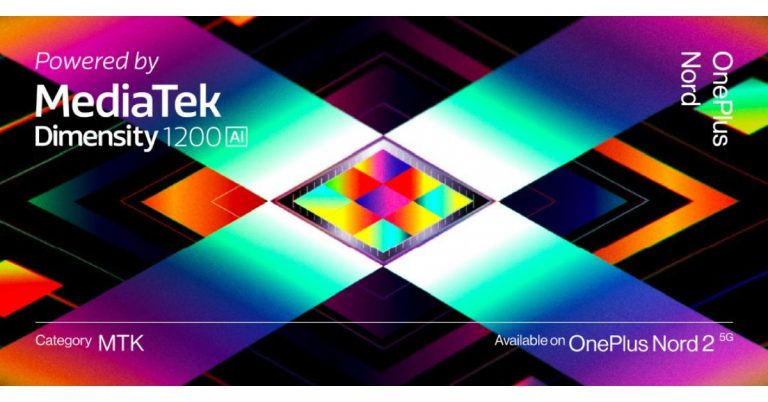
OnePlus has officially announced the launch of OnePlus Nord 2 5G with a premium MediaTek chipset. The device is going to succeed the OnePlus Nord, which first debuted in India last year. The company has also revealed that the upcoming smartphone will be powered by MediaTek Dimensity 1200-AI SoC.
The news comes by way of a forum post that finally reveals the existence of the Nord 2. The company has not disclosed much but the all-new processor will bring features like AI-assisted imaging for an improved photography experience, display enhancements, better response times for faster and smoother gaming, and much more.
The forum post says, “The MediaTek Dimensity 1200 is a powerful processor. But the “Never Settle” spirit means always striving for better. So, by collaborating with the MediaTek team on top of the Dimensity Open Resource Architecture, we were able to push the limits of this processor and bring you a host of AI-based features which enhances the user experience across a variety of touchpoints. To highlight the new AI-focused enhancements from the chipset, we’ve even given the processor a unique name: the MediaTek Dimensity 1200-AI.”
Besides this, the company is also hosting a throwback challenge and a lucky draw to allow users to win a OnePlus Nord 2 5G.
Last month some alleged renders of the upcoming OnePlus Nord 2 were leaked on the web. The leaked renders suggest that the phone will feature a hole-punch design display to house a selfie camera which is placed on the top left corner of the screen. As per the OnePlus Nord 2 renders it will have slim bezels on both sides, top and a noticeable chin. On the utility front, there is a volume rocker on the left side of the frame while the power button on either side along with the alert slider. While the bottom of the frame houses a USB Type-C port, SIM tray, and a speaker grille.
The upcoming smartphone will come with a different design on the back panel. The OnePlus Nord 2 will include a rectangular camera module on the top left corner instead of a pill-shaped camera system. The camera set-up will also include three sensors stacked vertically with an LED flash. The device is said to measure 160×73.8×8.1 mm. The renders show the green colour variant however the Nord 2 is likely to arrive in more colour options.
In terms of specifications, the AI Benchmark listing suggests that the OnePlus Nord 2 could be powered by MediaTek Dimansity 1200 SoC with 8GB of RAM and will run Android 11.
For the latest gadget and tech news, and gadget reviews, follow us on Twitter, Facebook and Instagram. For newest tech & gadget videos subscribe to our YouTube Channel. You can also stay up to date using the Gadget Bridge Android App.
How to run Android apps and games on Windows 10?
Playing different games on an Android has reached its peak with so many games to choose from. But have you ever wondered if these games could be played on your Windows 10 laptop or PC? Surprisingly there are some ways you can run your Android games on Windows 10 PC or laptop. Here are some options below.
 BlueStacks is one of the many Android emulators that you can play your Android games on. Before you start playing your games on Bluestack smooth;y it is better if you make some changes. On the first step make sure to enable Intel VT-x or AMD-V from the computer BIOS. BlueStacks is a great emulator when it comes to playing games. Here are the steps to install the Android emulator.
 This emulator is designed to give you a full Android experience. You will be able to explore the full Android operating system rather than individual games. Genymotion Android emulator uses VirtualBox to emulate your Android. Below are the steps to install the emulator.
 Android-x86 is an open-source project that lets you port your device to the x86 platform that lets you run it on your Windows 10 instead of an ARM-based device. Android-x86 brings Android to x86 based PCs with AMD and Intel processors. It also lets you customise your Android.
To use your PC must have the following:
There is an option to get Android on your Windows 10. Download the Your Phone app on your Windows and it will mirror your phone screen to your Windows. Microsoft has been working to make additional features like the ability to pin Android apps on your taskbar and launch them individually. Microsoft’s Your Phone app allows you to send and receive a text from their Windows PC using the Android device. The steps to use the Your Phone app are below.
Android-x86 is an open-source project that lets you port your device to the x86 platform that lets you run it on your Windows 10 instead of an ARM-based device. Android-x86 brings Android to x86 based PCs with AMD and Intel processors. It also lets you customise your Android.
To use your PC must have the following:
There is an option to get Android on your Windows 10. Download the Your Phone app on your Windows and it will mirror your phone screen to your Windows. Microsoft has been working to make additional features like the ability to pin Android apps on your taskbar and launch them individually. Microsoft’s Your Phone app allows you to send and receive a text from their Windows PC using the Android device. The steps to use the Your Phone app are below.
Play the Android games using BlueStacks:
 BlueStacks is one of the many Android emulators that you can play your Android games on. Before you start playing your games on Bluestack smooth;y it is better if you make some changes. On the first step make sure to enable Intel VT-x or AMD-V from the computer BIOS. BlueStacks is a great emulator when it comes to playing games. Here are the steps to install the Android emulator.
- Download BlueStacks from this link.
- Install the app after you have downloaded it.
- After the installation launch, the app> Choose storage location.
- Now when you launch the app login to your Play Store using your Google Account.
- Now you can access your Android library or you can download games from the search box.
- You can also adjust resolution, DPI, FPS, and the amount of CPU or RAM allocated to the emulator.
Play the Android games using Genymotion:
 This emulator is designed to give you a full Android experience. You will be able to explore the full Android operating system rather than individual games. Genymotion Android emulator uses VirtualBox to emulate your Android. Below are the steps to install the emulator.
- You can download Genymotion from the link given.
- After downloading open the emulator> Create Account >Activate>Log in.
- Find the Plus icon and you will be able to add your Android device to emulate.
- You can also customise.
Using Android-x86:
 Android-x86 is an open-source project that lets you port your device to the x86 platform that lets you run it on your Windows 10 instead of an ARM-based device. Android-x86 brings Android to x86 based PCs with AMD and Intel processors. It also lets you customise your Android.
To use your PC must have the following:
Android-x86 is an open-source project that lets you port your device to the x86 platform that lets you run it on your Windows 10 instead of an ARM-based device. Android-x86 brings Android to x86 based PCs with AMD and Intel processors. It also lets you customise your Android.
To use your PC must have the following:
- An AMD or Intel processor.
- A RAM of 2GB or more.
- Disk space of more than 4GB.
- And a USB port.
- An empty USB drive.
- Downloaded Android-x86 on your Windows 10: Link for download
- UNetbootin downloaded on your PC: Download link
Mirror your Android phone on your Windows 10:
 There is an option to get Android on your Windows 10. Download the Your Phone app on your Windows and it will mirror your phone screen to your Windows. Microsoft has been working to make additional features like the ability to pin Android apps on your taskbar and launch them individually. Microsoft’s Your Phone app allows you to send and receive a text from their Windows PC using the Android device. The steps to use the Your Phone app are below.
- Down Your Phone app from Microsoft Store: Link
- Installed the app>Sign in.
- Swide down to the Quick Panel and Tap link to Windows.
- Sign in Manually if asked.
- Allow the permission when it shows.
- Now it will synchronise.
Surface duo and Microsoft’s emulator:
This is a high-tech device by the Surface duo that has a dual-screen. This device with a dual-screen is an Android mobile that runs on Qualcomm Snapdragon 855 Soc. And it has a feature that lets you connect to Windows 10. Also amazingly you can use the official Google Android Emulator with the device. For the latest gadget and tech news, and gadget reviews, follow us on Twitter, Facebook and Instagram. For newest tech & gadget videos subscribe to our YouTube Channel. You can also stay up to date using the Gadget Bridge Android App.8 July 2021 Flipkart Daily Trivia Quiz Answers: Answer to win exciting prizes

The e-commerce website Flipkart is hosting Daily Trivia Quiz. Every day it brings a bunch of new questions for its users. By answering them correctly you can win exciting prizes. The questionnaire is based on questions related to general knowledge. Also, the users can win free vouchers and super coins, among other offers via the daily quiz. 8 July 2021 Flipkart Daily Trivia Quiz Answers has already gone live on its platform.
The participant should be at least 18 years old and should have a valid login ID. The Quiz is available on the mobile platform and not the web version. E-commerce conducts the quiz on daily basis and goes live at 12:00 AM IST and runs till 11:59 PM IST. The winners are announced within 15 days from the date of participation that can be viewed under the Gems/Rewards section in the app.
How to participate in the Flipkart Daily Trivia Quiz
To participate download the Flipkart app on your phone. Then open the Flipkart app then head to Game Zone. Now click on the Daily Trivia Banner or search for Daily Trivia. Enter the game and answer all 5 questions with correct answers.8 July 2021 Flipkart Daily Trivia Quiz Answers
Question 1: The first-ever butterfly park was opened in which Indian city in 2006?Answer: Bengaluru
Question 2: Which food item’s name is used in tennis to refer to a 6-0 defeat in a set?
Answer: Donut
Question 3: Which athletic event gets its name from a battle between the Persians and Greeks?
Answer: Marathon
Question 4: Which of these is not a part of the Holy Week of Christianity?
Answer: Easter Sunday
Question 5: The vehicle holding the record of the highest land speed had engines made by
Answer: Rolls-Royce
For the latest gadget and tech news, and gadget reviews, follow us on Twitter, Facebook and Instagram. For newest tech & gadget videos subscribe to our YouTube Channel. You can also stay up to date using the Gadget Bridge Android App.
8 July 2021 Amazon Quiz: Participate to win Rs 50,000 Amazon Pay Balance

The e-commerce platform is back with another new quiz on its platform. The 8 July 2021 Amazon Quiz can be played daily on the mobile app that goes live via the mobile app. All you need to do is answer all the questions correctly and win free products and goodies such as gadgets and Amazon Pay Balance up to Rs 50,000, today you have a chance to win Rs 50,000 Amazon Pay Balance.
8 July 2021 Amazon Quiz has gone live and a new set of questions have also been updated. The daily quiz on the Amazon app has become the hottest topic as it gives a chance to win exciting free gifts. In today’s Amazon quiz you have a chance to win Rs 50,000 Amazon Pay Balance. The quiz contains only five questions that are based on current affairs and general knowledge. Answering all the questions correctly will get your name selected for a lucky draw. Only one person will be selected as the winner and the results are announced at the end of every month. The lucky ones might win something by answering all the questions correctly, and the wrong answers will get you eliminated from the quiz. To participate and win check out today’s answers of the Amazon Quiz.
8 July 2021 Amazon Quiz Answers
Question 1: In May 2021, which of these ships was decommissioned from the Indian Navy after 41 years of service? The answer is- INS Rajput Question 2: Which naturalist has been announced as the 2021 winner of the Templeton Prize? The answer is- Jane Goodall Question 3: In May 2021, which of these became the first named storm of the Atlantic hurricane season? The answer is- Ana Question 4: Which Italian artist sculpted this famous statue? The answer is- Michaelangelo Question 5: Which ancient Indian game is the earliest predecessor of this modern game? The answer is- Chaturanga
For the latest gadget and tech news, and gadget reviews, follow us on Twitter, Facebook and Instagram. For newest tech & gadget videos subscribe to our YouTube Channel. You can also stay up to date using the Gadget Bridge Android App.