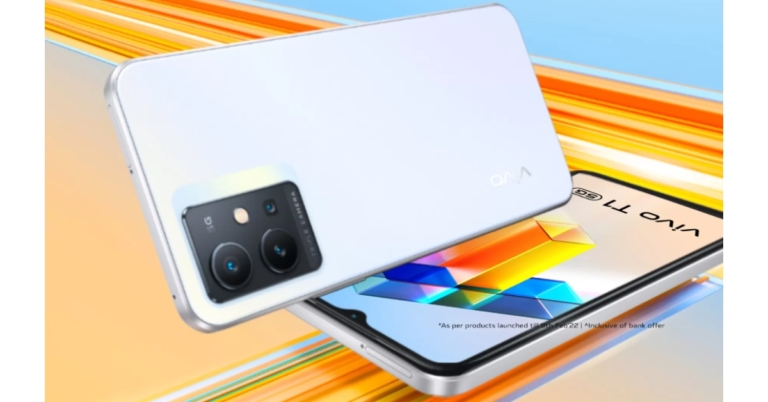
A new Silky White colour option for the Vivo T1 5G has been released in India. Flipkart offers a new colour option for buying. There is no change in the specification which includes a 6.58-inch full-HD+ LCD screen with a refresh rate of 120Hz. It has a triple camera configuration on the back and a Qualcomm Snapdragon 695 SoC.
Vivo T1 5G Silky White colour variant price in India
The Vivo T1 5G’s Rainbow Fantasy and Starlight Black colour variants were first introduced in February of this year. Now a new Silky White colour variant has been released in India. The price of base 4GB RAM is priced at Rs 15,990. Whereas the 6GB RAM model will be available with a price tag of Rs 16,990. The new variant can be purchased through Flipkart in the country.
Vivo T1 5G specifications
The 6.58-inch full-HD+ IPS LCD screen of the Vivo T1 5G has a resolution of 1,080 by 2,408 pixels. The screen boasts a 120Hz refresh rate and a 240Hz touch sampling rate. FunTouch OS 12, which is based on Android 12, powers the gadget. Snapdragon 695 5G SoC with up to 8GB of RAM powers the gadget. Up to 128GB of internal storage can be added, and that amount can be expanded by up to 1TB via a microSD card.A 50-megapixel primary sensor with an aperture of f/1.8 and two 2-megapixel secondary sensors with an aperture of f/2.4 make up the triple rear camera setup on the Vivo T1 5G for photographs and movies. For selfies and video calls, it includes a 16-megapixel camera with an f/2.0 aperture. According to the business, the 6GB and 8GB RAM variants will come with Super Night Mode and Multi Style Portrait mode.The 5,000mAh battery on the Vivo smartphone supports 18W fast charging. In addition to GPS, Beidou, Glonass, Galileo, and QZSS, onboard sensors include a fingerprint sensor, accelerometer, ambient light sensor, proximity sensor, e-compass, virtual gyroscope sensor, dual-band Wi-Fi, Bluetooth v5.1, USB Type-C, and USB OTG connectivity options.
For the latest gadget and tech news, and gadget reviews, follow us on Twitter, Facebook and Instagram. For newest tech & gadget videos subscribe to our YouTube Channel. You can also stay up to date using the Gadget Bridge Android App. You can find the latest car and bike news here.
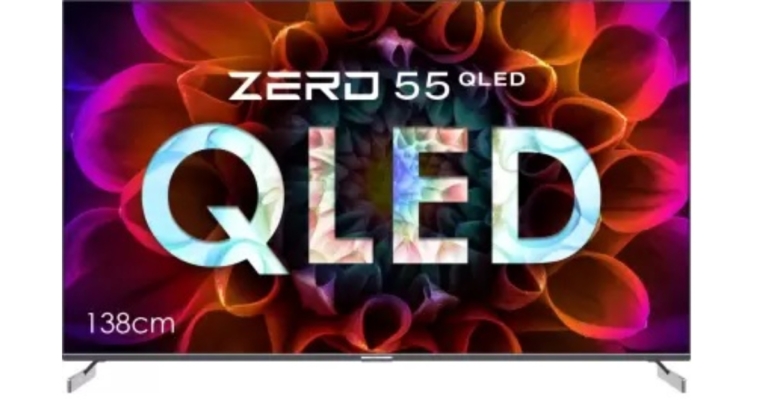
A new line-up of high-end Android TVs has been introduced in India by Infinix, a smartphone brand owned by the Transsion company. The company has introduced the Infinix ZERO 55-inch QLED 4K TV and Infinix 50-inch 50X3 4K TV under this line. It has cutting-edge Quantum DOT technology and incredibly fine 4K details. The Android 11 OS offers software support for both TVs.
Infinix ZERO 55-inch QLED 4K TV and Infinix 50-inch 50X3 4K TV
The screen of the ZERO 55-inch QLED 4K TV is bezel-free on three sides. It has Quantum DOT technology with incredibly accurate 4K details. Dolby Vision, HDR 10+ compatibility, and 60 FPS MEMC are added to it to increase the frame rate. Each dot emits a different colour depending on size thanks to the technology, which uses nano crystals with sizes between two and ten nanometers (one billionth of a metre). This allows viewers to enjoy a variety of colours.The 3 Side bezel-less Minimalistic display has a maximum brightness of 400 NITS, an NTSC colour gamut of 85%, and a sRGB colour gamut of 122%. Given its 1.6mm frameless design and 3-side bezel-less luxury style, the TV comes with an X-Blade aluminium stand to add sophistication and elegance to any interior setting. The 55-inch ZERO QLED 4K TV has two robust built-in 36 Watt Box speakers with Dolby Digital Audio and two tweeters to improve sound quality and cover the frequency range from 8K to 20K Hz.Infinix 50-inch 50X3 4K TVA MediaTek Quad-Core CA55 Processor along with 2GB RAM and 16GB ROM power the 55-inch QLED ANDROID TV.On the other hand, the Infinix 50-inch 50X3 4K TV promises more lifelike images with HDR10 compatibility, 1.07 billion colours, 85% NTSC, 122% sRGB colour gamut, and up to 300 NITS peak brightness. The Android TV has a frameless design, a screen-to-body ratio of 94%, and reduced Blue Rays, which enables users to enjoy a secure full-screen experience with a balanced, upscale appearance that can enrich any home decor.The 50-inch 50X3 4K TV features a potent combination of 24W box speakers and Dolby Audio, offering a rich, crystal-clear, powerful cinematic surround sound experience.A MediaTek Quad-Core Processor along with 1.5 GB RAM and 16 GB ROM power the Infinix 50-inch 50X3 TV. Both of Infinix’s most recent product introductions come with a variety of ports for improved connectivity. The 50-inch 50X3 TV has 3 x HDMI ports, 2 x USB ports, 5.0 Bluetooth, WiFi b/g/n, 1 AV input, 1 LAN, and Dual Band WiFi ports, as opposed to the ZERO 55-inch QLED ANDROID TV’s 2 x USB ports, 1 ARC Support, and 2 x ports.Both Android TVs have Chromecast built-in, allowing you to easily connect to your preferred video streaming services like Netflix, Amazon Prime, YouTube, and more than 5000 more via the app store. While watching any live action on the big screen, you may transform the TV into a dance floor, racetrack, and more. You can even use your smartphones as controllers. A customised and hands-free experience is provided by the Bluetooth-enabled thin remote with one-touch access to Google Assistant.In terms of pricing the 55-inch QLED 4K TV will be available at Rs 34,990 whereas the 50-inch 4K TV is priced at Rs 24,990. Both the Android TV are said to be available for purchase via Flipkart from September 24 in the country.
For the latest gadget and tech news, and gadget reviews, follow us on Twitter, Facebook and Instagram. For newest tech & gadget videos subscribe to our YouTube Channel. You can also stay up to date using the Gadget Bridge Android App. You can find the latest car and bike news here.
Remembering the password to your home’s WiFi network is not as easy since you’re not used to entering it on your devices regularly. Once you pair your device to a WiFi network, it remembers the password and automatically pairs with the WiFi whenever it is in proximity. You won’t be prompted to enter the password again unless it is changed. While this works fine for the most part, you can easily forget the password and have a hard time remembering it when a guest at your house asks for it. Luckily, your Android device connected to the WiFi network remembers the password and can easily share it when required. In this article, we bring you the two simplest ways you can share your saved WiFi network and password from your Android device. Read Also: How to use Emergency SOS via Satellite on iPhone 14?
How to share your WiFI password using the QR Code
Step 1: Go to Settings and select ‘Connections’. In some devices, this may be called ‘Network and Internet’.Step 2: Select ‘WiFi’ and ensure you are connected to the network you want to share.Step 3: Tap on the gear icon next to the connected network. Step 4: Tap on ‘QR Code’ at the bottom of the screen.Step 5: Scan the QR Code on the phone you want to share the network with. The WiFi connection will be established without having to share the password.
How to share your password using Nearby Share
In order to use Nearby Share, you need to make sure your Bluetooth and Location services are turned on. If you haven’t enabled Nearby Share on your phone, you can do so by following these steps. Step 1: Go to Settings.Step 2: Scroll down and select ‘Google’.Step 3: Select “Devices and Sharing’ and tap on ‘Nearby Share’.Step 4: Turn the toggle bar to ‘On’.Now that Nearby Share has been enabled, follow these simple steps to share your WiFi password.Step 1: Go to Settings and select ‘Connections’ (or Network and Internet).Step 2: Select ‘Wifi’ and tap on the gear icon next to the connected network.Step 3: Tap on ‘QR Code’ and select ‘Share’.Step 4: Tap on ‘Nearby Share’ and wait for your phone to share nearby devices. Make sure Nearby Share is enabled on the device you want to share the password with.Step 5: When the device name pops up, tap on it to share the network details.Step 6: On the receiving device, accept the file being shared with you by tapping on ‘Accept’.The QR Code will be shared with the device. The device can now pair with your WiFi network.Read Also: How To Follow Responsible GamStop Rules?These are the two simplest ways you can share the saved WiFi network and password on your Android device with any other device. The best part about these methods is that you don’t need to share your actual password. Any device can connect to the WiFi network simply by scanning the QR code. This comes in handy when you’ve forgotten your WiFi password.
Garena Free Fire is a battle royale game with regular awards and tournaments to keep players interested. If you play Garena Free Fire, you should be aware of the redeem codes that are released on a daily basis. However, because the battle royale game is banned in India, players from other countries can use the Free Fire Redeem codes daily. If you’re unfamiliar with the Garena Free Fire redeem codes or don’t know how to get them, we’ve put together a step-by-step guide to help you redeem them. Check out Garena Free Fire Redeem Codes for September 19.The Free Fire redeem codes are a great way to get free stuff. These are 12-digit codes that contain alphabets and numbers, as well as an expiration date and time. Because the Garena FF redeem codes cannot be used more than once, you should hurry to the redemption page to claim your free reward before someone else does. To get a free reward, all you have to do is go to reward.ff.garena.com/en, which is the official redemption page. Also, keep an eye on this space for daily updates on Garena Free Fire redemption codes and rewards.
Garena Free Fire Redeem Codes Today 19 September 2022
FU816OUYTRDVB
FHBVCDFQWERT
NDJDFBGJFJFK
ERTYHJNBVCDS
F10IUJHGVCDSE
F7UIJHBGFDFR
FMKI88YTGFD8
KLLPDJHDDBJD
EDXXDSZSSDFG
HDFHDNBHNDJL
VFGVJMCKDMHN
FKJHBNJKOPOL
FMKLPOIUYTFD
JCDKCNJE5RTR
FDRDSASERTYH
FXCVBNMKDSXC
FOKMJNBVCXSD
FFFXVGG8NU4YB
FFE4EODIKX2D
ERTYHJNBVCDS
How to Get Free Fire Redeem Codes for Garena on September 19?
Amazon is back with another quiz on its mobile platform. The 19 September 2022 Amazon Quiz is now live on its platform and today’s Amazon Quiz will give you a chance to win Rs 5,000 Amazon pay Balance.Every day Amazon brings a fresh questionnaire that comprises 5 questions. These questions are based on current affairs and general knowledge. The quiz can be played from 8 AM to 11:59 PM and the contestants need to answer correctly to enter into a lucky draw. In today’s Amazon Quiz the participants will get a chance to win Rs 5,000 Amazon Pay Balance.Today’s Amazon Quiz Prize – Rs 5,000 Amazon Pay BalanceQuiz Date – 19 September 2022Daily Timing – 12 AM to 11:59 PMWinner Announcement – Today at 12 PM
Amazon Quiz Answers Today 19 September 2022
Question 1: Kaduva is a Malayalam movie starring which Bollywood actor as the antagonist?Answer: USAQuestion 2: Heineken is the title sponsor of which Formula 1 Grand Prix held in the 1st week of September in 2022?
Answer: Dutch Grand PrixQuestion 3: India recently overtook which country to become the world’s 5th largest economy?
Answer: UKQuestion 4: This is the shire and Hobbiton movie set located in which country?Answer: New ZealandQuestion 5: This is a picture from which Union Territory in India?
Answer: Puducherry
How To Play Amazon Quiz
Only app users are eligible to play the Amazon quiz every morning from 12 AM to 11:59 PM. The quiz is not available on the desktop. For those who are unaware of how to play the Amazon quiz below are the steps, you can follow to take the quiz.
Firstly download the Amazon app from Google Play Store or App Store
Now fill in the required information through the Sign Up option.
You need to log in to the Amazon app and scroll down on the home screen to find the Amazon Quiz banner.
Tap on the Amazon Quiz banner and tap on the Start button to start the Quiz.
Now you will get 5 questions and you need to answer them correctly. One wrong answer will eliminate you from the Quiz.
After answering all the questions correctly you are now eligible for a Lucky Draw.
The winner’s name will be announced today at 12 PM.
With a bunch of OTT apps enjoying massive success in India, the idea of watching TV using a regular cable connection is bound to become quaint in the next few years. Major broadcasters have already made the switch to OTTs where new content is uploaded daily, soon after the live TV broadcast. However, when it comes to watching news broadcasts, people are still reliant on live TV news channels. Luckily, a few streaming services like Jio TV and Airtel Xstream offer free live news broadcasts on their platforms. In this article, we show you how to watch free live TV news on Android TV in India.Read Also: Vivo V25 5G with 50MP Eye AF Selfie Camera launched in India
Watch Free Live TV News on YouTube
This is the simplest way to watch live news broadcasts for free on your Android TV. Most news channel across the world have their own YouTube channels that broadcast their news coverage 24×7. In India, news channels like NDTV, India Today, Republic, Aaj Tak and more are easily available on YouTube and you can tune in any time to watch live news broadcasts for free. All you need to do is download the YouTube app on your Android TV from the Google Play Store. Open the app and search for ‘Live News’. You will be presented with several live broadcasts of news channels from India and across the world. Simply click on any channel to begin watching the live news broadcast.
Jio TV
If you are a Jio user, you get free access to live news and other programming on the Jio TV app. Simply download the app on your Android TV from the Google Play Store and log in using your Jio number. With Jio TV you can watch programming across 800+ TV channels in 15+ languages. These channels include live TV news channels as well as sports broadcasters. Aaj Tak, ABP News, India TV, CNN News18, India Today, Republic, and BBC are some of the news channels you can watch for free on Jio TV.
Airtel Xstream
For Airtel users, Airtel Xstream is the best way to watch live TVs on Android TV. All you need to do is download the Airtel Xstream app from the Google Play Store on your Android TV and log in using your Airtel number. While the app hosts a lot of premium content from other OTTs like Sony Liv, you can enjoy live broadcasting from 130+ channels for free. This includes a lot of local TV news channels that may not have a dedicated YouTube channel. Read Also: Skullcandy Mod True Wireless Earbuds Review: For Rs 5,999, is it a worthy buy?
Conclusion
This is how you can watch free live TV news on your Android TV in India without a cable connection. Apart from cable news, Jio TV and Airtel Xstream also provide free live programming from TV channels like &Pictures, Zee Cinema, Zee TV, Sony MAX, Colors, and more.
The global rollout of Snapchat for web has begun. The web version of the photos sharing app and messages was first unveiled last month. The Snapchatters will now be able to access the web interface by logging in on the business’ website using Chrome. Snapchat for Web contains messaging capabilities including Chat Reactions and Chat Reply, as well as Lenses.Snapchat for web was earlier accessible to paid members in the US, Canada and UK Snapchat+ subscribers, as well as to Snapchat users in Australia and New Zealand. But it is being rolled out globally. Now that Snapchat for Web is out, users can browse the social media platform on a desktop computer.As we said earlier Snapchat for Web would enable users to communicate with their pals via desktop calls and chats. The web version of the popular app will include functions like Chat Reactions and Chat Reply as well as Lenses.Use your username and password to log into the website. Users will be able to pick up where they left off in mobile chats or begin new calls.The messaging app’s expanded accessibility was disclosed by Snap in a blog post about new features for the upcoming fall season.According to the blog post, the new Lock Screen Widgets are available straight now with iOS 16. It keeps conversations with your bestie saved right to your lock screen so you can start chats with one tap. You can keep visual conversations with the Snapchat Camera at your fingertips with the help of this new tool, saving yourself the scrolling when you want to start snapping.It will be simple to locate unread friend Snaps and Chats, view missed calls, and reply to stories thanks to new Conversation Shortcuts at the top of Snapchat’s chat tab. To ensure that you never forget someone’s special day or mark a buddy as read, Snapchat’s Shortcuts will also notify you if you still have unanswered messages and let you know when birthdays are approaching.“We are also introducing new tools like Question Stickers so you can AMA-all-day from your Snapchat Story, plus (and just in time for back to school) we’re making Snapchat for Web available to all! Head to web.snapchat.com to keep conversations with friends going from any device,” the company stated.
For the latest gadget and tech news, and gadget reviews, follow us on Twitter, Facebook and Instagram. For newest tech & gadget videos subscribe to our YouTube Channel. You can also stay up to date using the Gadget Bridge Android App. You can find the latest car and bike news here.
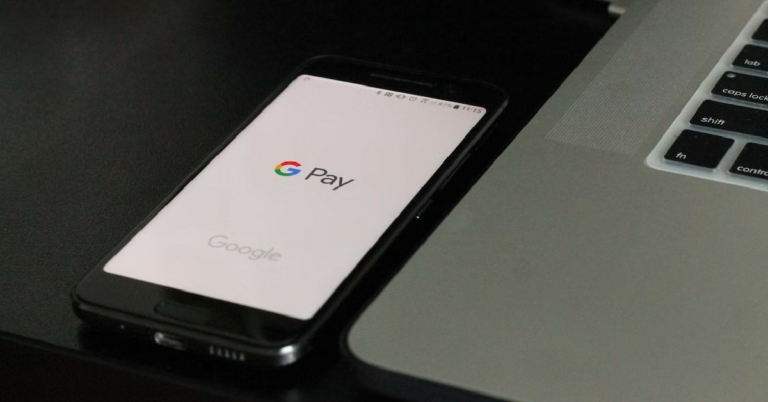
Google Pay along with other UPI services have completely changed how we make daily monetary transactions. Carrying cash on you is no longer a necessity as most vendors nowadays accept mobile transactions. While this may be super convenient, things can take a turn when the Google Pay app shows an error and is unable to make a transaction. In this article, we show you how to fix Google Pay errors on your Android or iOS smartphone.Read Also: Philips OneBlade Pro QP6550 electric shaver review: All in one for men’s grooming
Check your registered phone number
If you recently changed your phone number, you will need to update it on the Google Pay app. You also need to make sure that the phone number linked to your bank account has been updated as well. Google Pay works by linking your bank account with the app using the registered phone number. If the number registered to your bank account does not match the number you’re using on your phone, you will be unable to make any transaction on Google Pay. Here’s how you can update the phone number on the Google Pay app.Step 1: Open the Google Pay app and tap on your profile at the top right corner of the screen.Step 2: This page will display all your basic information like your name, UPI ID, phone number, and the QR code for your profile. Check your phone number and if it is outdated, tap on ‘Settings’.Step 3: Tap on ‘Personal Info’ and select the ‘Edit’ option next to your phone number. Step 4: Google Pay will prompt you to enter your new number, which will be verified using an OTP.Once your phone number has been updated on the app, you can resume making Google Pay transactions.
Update the Google Pay app
If you haven’t updated the Google Pay app in a long time, chances are it is being phased out. In order to resume Google Pay services, you will have to update it to the latest version. You can do this by simply going to the Google Play Store or App Store and searching for Google Pay. Click on the ‘Update’ option and the latest version of the app will be installed on your device.
Clear app cache
Like every other app, Google Pay stores temporary files in cache memory. Over a period of time, the cache memory may get filled with corrupted files that keep the app from working properly. To clear Google Pay’s cache go to Settings>Apps>GPay>Storage>Clear Cache.
Check the connection
If you’re in a spot with no data or Wi-Fi connection, your transactions will not be able to go through. Move to a spot with better network reception and try again. Always ensure that your smartphone is receiving a strong network connection before you make a transaction on Google Pay.
Reinstall the app
If you’ve tried all the above fixes and are still facing issues with Google Pay, try uninstalling and reinstalling the app again. Doing this will reset all the settings on the app and also get rid of any bugs that may be causing issues. Long press on the GPay icon in your app drawer and select uninstall. Then go to the Google Play Store or the App Store and reinstall the GPay app again. Read Also: How To Follow Responsible GamStop Rules?These are some of the common fixes for Google Pay errors on Android and iOS smartphones. If you’re still facing issues, try contacting your bank and see if there are any issues with your account. It is common for bank servers to be down, thereby causing issues with transactions on Google Pay.
Garena Free Fire is a battle royale game with regular awards and tournaments to keep players interested. If you play Garena Free Fire, you should be aware of the redeem codes that are released on a daily basis. However, because the battle royale game is banned in India, players from other countries can use the Free Fire Redeem codes daily. If you’re unfamiliar with the Garena Free Fire redeem codes or don’t know how to get them, we’ve put together a step-by-step guide to help you redeem them. Check out Garena Free Fire Redeem Codes for September 16.The Free Fire redeem codes are a great way to get free stuff. These are 12-digit codes that contain alphabets and numbers, as well as an expiration date and time. Because the Garena FF redeem codes cannot be used more than once, you should hurry to the redemption page to claim your free reward before someone else does. To get a free reward, all you have to do is go to reward.ff.garena.com/en, which is the official redemption page. Also, keep an eye on this space for daily updates on Garena Free Fire redemption codes and rewards.
Garena Free Fire Redeem Codes Today 16 September 2022
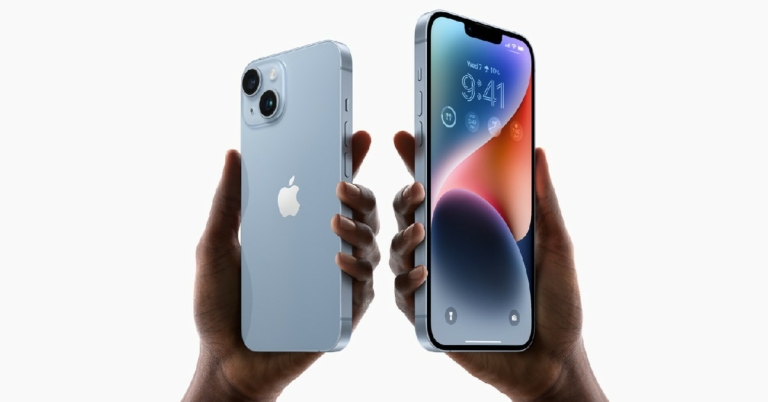
One of the major themes of Apple’s ‘Far Out’ launch year this year was advancing safety features and maximizing what a smartphone can offer in times of emergency. Two of the features that stood out were Car Crash Detection and Emergency SOS via Satellite. While the former has been around in Android smartphones for a while now, iPhone 14 is the first smartphone to feature smartphone connectivity. And while we hope you may never have to use this feature, it cannot hurt to know how to use it. In this article, we show you how to use the emergency SOS via satellite on the new iPhone 14.Read Also: How To Follow Responsible GamStop Rules?
How Emergency SOS via Satellite works
When you call an emergency number, your phone uses the cellular connection or Wi-Fi data to connect you to the emergency service. If you’re in a remote area, connecting to an emergency service is virtually impossible. Well, not anymore. With the iPhone 14, you can establish a connection with a satellite, which will further relay your message to an emergency service. Satellite operator Globalstar has tied up with Apple to provide them with their satellite services.
How to use Emergency SOS via Satellite
If you’re stuck in a no-network zone, tap on ‘Emergency text via satellite’ on the dialer while you’re calling emergency services. Tap ‘Report Emergency’ after that. You will be presented with some emergency questions. After you’ve answered the questions, you can choose to notify your emergency contacts that you’ve contacted emergency services. After you’ve filled up the questionnaire, your iPhone will give you on-screen instructions on how to connect to a satellite.Firstly, you need to be in an area without cellular or Wi-Fi connectivity in order to utilise Emergency SOS via Satellite. This service will not work if you are getting even minimal network reception.To connect to a satellite, you need to hold your phone in your hand and follow the on-screen instructions to establish the connection. Your phone will guide you to move in a particular direction to connect to the satellite. Since you cannot see satellites with a naked eye, you will have to rely on the directions that your iPhone gives you. You need to ensure that you’re in a spot with a clear sky, unobstructed by any cloud cover. Light foliage is still alright, but you won’t be able to connect if you’re covered with heavy foliage. Hills, mountains, canyons, and tall structures can also block the connection. Since the satellite is constantly moving, you have to adjust your positions as well – your iPhone will keep prompting you to move accordingly. Once a connection is established, your medical ID, emergency contact information, emergency questionnaire answers, location, and remaining battery life will be shared with emergency responders. You may also be asked follow-up questions related to your condition. Sending a message via satellite can take up to at least 15 seconds if the sky is clear, and up to a minute if there’s a light foliage cover.Read Also: Top 7 Distance Measuring Apps for Android and iOS
Frequently Asked Questions
Where is the Emergency SOS via Satellite service available?
Currently, this service is available only in the United States of America and Canada. If you’re an international traveller in USA and Canada you can still use this service on your iPhone given you didn’t purchase it from China, Hong Kong, or Macao.
What languages does the Emergency SOS service support?
Emergency SOS via satellite only supports American English, American Spanish, and Canadian French.
Does the iPhone 13 have a satellite connectivity feature?
No, only the iPhone 14 series is equipped with the Satellite connectivity feature and you will need the iOS 16 update coming in November to use it.




 Step 2: Select ‘WiFi’ and ensure you are connected to the network you want to share.
 Step 2: Select ‘WiFi’ and ensure you are connected to the network you want to share.
 Step 3: Tap on the gear icon next to the connected network.
 Step 4: Tap on ‘QR Code’ at the bottom of the screen.
 Step 5: Scan the QR Code on the phone you want to share the network with. The WiFi connection will be established without having to share the password.
 Step 4: Tap on ‘Nearby Share’ and wait for your phone to share nearby devices. Make sure Nearby Share is enabled on the device you want to share the password with.
Step 5: When the device name pops up, tap on it to share the network details.
Step 4: Tap on ‘Nearby Share’ and wait for your phone to share nearby devices. Make sure Nearby Share is enabled on the device you want to share the password with.
Step 5: When the device name pops up, tap on it to share the network details.
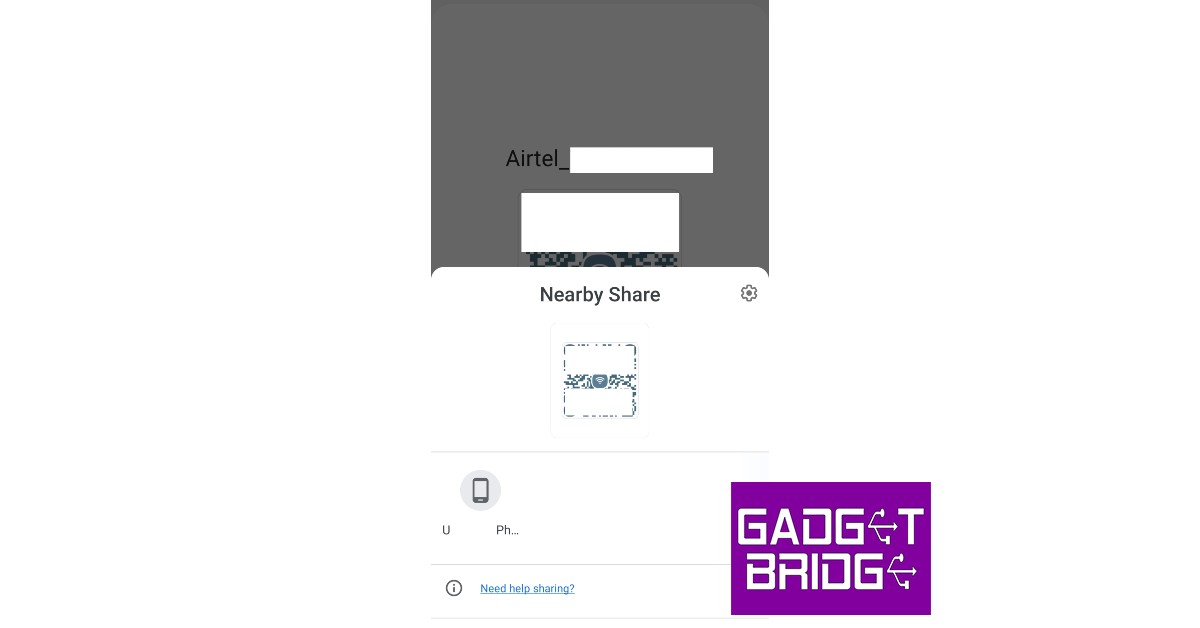 Step 6: On the receiving device, accept the file being shared with you by tapping on ‘Accept’.
 The QR Code will be shared with the device. The device can now pair with your WiFi network.
Read Also: How To Follow Responsible GamStop Rules?
These are the two simplest ways you can share the saved WiFi network and password on your Android device with any other device. The best part about these methods is that you don’t need to share your actual password. Any device can connect to the WiFi network simply by scanning the QR code. This comes in handy when you’ve forgotten your WiFi password.
The QR Code will be shared with the device. The device can now pair with your WiFi network.
Read Also: How To Follow Responsible GamStop Rules?
These are the two simplest ways you can share the saved WiFi network and password on your Android device with any other device. The best part about these methods is that you don’t need to share your actual password. Any device can connect to the WiFi network simply by scanning the QR code. This comes in handy when you’ve forgotten your WiFi password.



 This is the simplest way to watch live news broadcasts for free on your Android TV. Most news channel across the world have their own YouTube channels that broadcast their news coverage 24×7. In India, news channels like NDTV, India Today, Republic, Aaj Tak and more are easily available on YouTube and you can tune in any time to watch live news broadcasts for free. All you need to do is download the YouTube app on your Android TV from the Google Play Store. Open the app and search for ‘Live News’. You will be presented with several live broadcasts of news channels from India and across the world. Simply click on any channel to begin watching the live news broadcast.
 If you are a Jio user, you get free access to live news and other programming on the Jio TV app. Simply download the app on your Android TV from the Google Play Store and log in using your Jio number. With Jio TV you can watch programming across 800+ TV channels in 15+ languages. These channels include live TV news channels as well as sports broadcasters. Aaj Tak, ABP News, India TV, CNN News18, India Today, Republic, and BBC are some of the news channels you can watch for free on Jio TV.
 For Airtel users, Airtel Xstream is the best way to watch live TVs on Android TV. All you need to do is download the Airtel Xstream app from the Google Play Store on your Android TV and log in using your Airtel number. While the app hosts a lot of premium content from other OTTs like Sony Liv, you can enjoy live broadcasting from 130+ channels for free. This includes a lot of local TV news channels that may not have a dedicated YouTube channel.
Read Also: Skullcandy Mod True Wireless Earbuds Review: For Rs 5,999, is it a worthy buy?
For Airtel users, Airtel Xstream is the best way to watch live TVs on Android TV. All you need to do is download the Airtel Xstream app from the Google Play Store on your Android TV and log in using your Airtel number. While the app hosts a lot of premium content from other OTTs like Sony Liv, you can enjoy live broadcasting from 130+ channels for free. This includes a lot of local TV news channels that may not have a dedicated YouTube channel.
Read Also: Skullcandy Mod True Wireless Earbuds Review: For Rs 5,999, is it a worthy buy?

 Step 2: This page will display all your basic information like your name, UPI ID, phone number, and the QR code for your profile. Check your phone number and if it is outdated, tap on ‘Settings’.
 Step 3: Tap on ‘Personal Info’ and select the ‘Edit’ option next to your phone number.
 Step 4: Google Pay will prompt you to enter your new number, which will be verified using an OTP.
 Once your phone number has been updated on the app, you can resume making Google Pay transactions.
 Like every other app, Google Pay stores temporary files in cache memory. Over a period of time, the cache memory may get filled with corrupted files that keep the app from working properly. To clear Google Pay’s cache go to Settings>Apps>GPay>Storage>Clear Cache.

 When you call an emergency number, your phone uses the cellular connection or Wi-Fi data to connect you to the emergency service. If you’re in a remote area, connecting to an emergency service is virtually impossible. Well, not anymore. With the iPhone 14, you can establish a connection with a satellite, which will further relay your message to an emergency service. Satellite operator Globalstar has tied up with Apple to provide them with their satellite services.
 If you’re stuck in a no-network zone, tap on ‘Emergency text via satellite’ on the dialer while you’re calling emergency services. Tap ‘Report Emergency’ after that. You will be presented with some emergency questions. After you’ve answered the questions, you can choose to notify your emergency contacts that you’ve contacted emergency services. After you’ve filled up the questionnaire, your iPhone will give you on-screen instructions on how to connect to a satellite.
Firstly, you need to be in an area without cellular or Wi-Fi connectivity in order to utilise Emergency SOS via Satellite. This service will not work if you are getting even minimal network reception.
To connect to a satellite, you need to hold your phone in your hand and follow the on-screen instructions to establish the connection. Your phone will guide you to move in a particular direction to connect to the satellite. Since you cannot see satellites with a naked eye, you will have to rely on the directions that your iPhone gives you.
You need to ensure that you’re in a spot with a clear sky, unobstructed by any cloud cover. Light foliage is still alright, but you won’t be able to connect if you’re covered with heavy foliage. Hills, mountains, canyons, and tall structures can also block the connection. Since the satellite is constantly moving, you have to adjust your positions as well – your iPhone will keep prompting you to move accordingly.
Once a connection is established, your medical ID, emergency contact information, emergency questionnaire answers, location, and remaining battery life will be shared with emergency responders. You may also be asked follow-up questions related to your condition. Sending a message via satellite can take up to at least 15 seconds if the sky is clear, and up to a minute if there’s a light foliage cover.
Read Also: Top 7 Distance Measuring Apps for Android and iOS
If you’re stuck in a no-network zone, tap on ‘Emergency text via satellite’ on the dialer while you’re calling emergency services. Tap ‘Report Emergency’ after that. You will be presented with some emergency questions. After you’ve answered the questions, you can choose to notify your emergency contacts that you’ve contacted emergency services. After you’ve filled up the questionnaire, your iPhone will give you on-screen instructions on how to connect to a satellite.
Firstly, you need to be in an area without cellular or Wi-Fi connectivity in order to utilise Emergency SOS via Satellite. This service will not work if you are getting even minimal network reception.
To connect to a satellite, you need to hold your phone in your hand and follow the on-screen instructions to establish the connection. Your phone will guide you to move in a particular direction to connect to the satellite. Since you cannot see satellites with a naked eye, you will have to rely on the directions that your iPhone gives you.
You need to ensure that you’re in a spot with a clear sky, unobstructed by any cloud cover. Light foliage is still alright, but you won’t be able to connect if you’re covered with heavy foliage. Hills, mountains, canyons, and tall structures can also block the connection. Since the satellite is constantly moving, you have to adjust your positions as well – your iPhone will keep prompting you to move accordingly.
Once a connection is established, your medical ID, emergency contact information, emergency questionnaire answers, location, and remaining battery life will be shared with emergency responders. You may also be asked follow-up questions related to your condition. Sending a message via satellite can take up to at least 15 seconds if the sky is clear, and up to a minute if there’s a light foliage cover.
Read Also: Top 7 Distance Measuring Apps for Android and iOS