Garena Free Fire Redeem Codes Today 19 September 2022: Here is how to claim them

Garena Free Fire is a battle royale game with regular awards and tournaments to keep players interested. If you play Garena Free Fire, you should be aware of the redeem codes that are released on a daily basis. However, because the battle royale game is banned in India, players from other countries can use the Free Fire Redeem codes daily. If you’re unfamiliar with the Garena Free Fire redeem codes or don’t know how to get them, we’ve put together a step-by-step guide to help you redeem them. Check out Garena Free Fire Redeem Codes for September 19. The Free Fire redeem codes are a great way to get free stuff. These are 12-digit codes that contain alphabets and numbers, as well as an expiration date and time. Because the Garena FF redeem codes cannot be used more than once, you should hurry to the redemption page to claim your free reward before someone else does. To get a free reward, all you have to do is go to reward.ff.garena.com/en, which is the official redemption page. Also, keep an eye on this space for daily updates on Garena Free Fire redemption codes and rewards.

Garena Free Fire Redeem Codes Today 19 September 2022

  • FU816OUYTRDVB
  • FHBVCDFQWERT
  • NDJDFBGJFJFK
  • ERTYHJNBVCDS
  • F10IUJHGVCDSE
  • F7UIJHBGFDFR
  • FMKI88YTGFD8
  • KLLPDJHDDBJD
  • EDXXDSZSSDFG
  • HDFHDNBHNDJL
  • VFGVJMCKDMHN
  • FKJHBNJKOPOL
  • FMKLPOIUYTFD
  • JCDKCNJE5RTR
  • FDRDSASERTYH
  • FXCVBNMKDSXC
  • FOKMJNBVCXSD
  • FFFXVGG8NU4YB
  • FFE4EODIKX2D
  • ERTYHJNBVCDS

How to Get Free Fire Redeem Codes for Garena on September 19?

  • Visit the Garena Free Fire game’s official website at reward.ff.garena.com.
  • Use your Facebook, Google, VK, Apple ID, Huawei ID, or Twitter account to log in.
  • You’ll be taken to a valid redemption code (s)
  • Copy and paste the 12-digit redemption code into the text box.
  • On the screen, a dialogue box will appear.
  • ‘Ok’ should be selected.
For the latest gadget and tech news, and gadget reviews, follow us on TwitterFacebook and Instagram. For newest tech & gadget videos subscribe to our YouTube Channel. You can also stay up to date using the Gadget Bridge Android App. You can find the latest car and bike news here.

Amazon Quiz Answers Today 19 September 2022: Participate to win Rs 5,000

Amazon is back with another quiz on its mobile platform. The 19 September 2022 Amazon Quiz is now live on its platform and today’s Amazon Quiz will give you a chance to win Rs 5,000 Amazon pay Balance. Every day Amazon brings a fresh questionnaire that comprises 5 questions. These questions are based on current affairs and general knowledge. The quiz can be played from 8 AM to 11:59 PM and the contestants need to answer correctly to enter into a lucky draw. In today’s Amazon Quiz the participants will get a chance to win Rs 5,000 Amazon Pay Balance. Today’s Amazon Quiz Prize – Rs 5,000 Amazon Pay Balance Quiz Date – 19 September 2022 Daily Timing – 12 AM to 11:59 PM Winner Announcement – Today at 12 PM

Amazon Quiz Answers Today 19 September 2022

Question 1: Kaduva is a Malayalam movie starring which Bollywood actor as the antagonist? Answer: USA Question 2: Heineken is the title sponsor of which Formula 1 Grand Prix held in the 1st week of September in 2022? Answer: Dutch Grand Prix Question 3: India recently overtook which country to become the world’s 5th largest economy? Answer: UK Question 4: This is the shire and Hobbiton movie set located in which country? Answer: New Zealand Question 5: This is a picture from which Union Territory in India? Answer: Puducherry

How To Play Amazon Quiz

Only app users are eligible to play the Amazon quiz every morning from 12 AM to 11:59 PM. The quiz is not available on the desktop. For those who are unaware of how to play the Amazon quiz below are the steps, you can follow to take the quiz.
  • Firstly download the Amazon app from Google Play Store or App Store
  • Now fill in the required information through the Sign Up option.
  • You need to log in to the Amazon app and scroll down on the home screen to find the Amazon Quiz banner.
  • Tap on the Amazon Quiz banner and tap on the Start button to start the Quiz.
  • Now you will get 5 questions and you need to answer them correctly. One wrong answer will eliminate you from the Quiz.
  • After answering all the questions correctly you are now eligible for a Lucky Draw.
  • The winner’s name will be announced today at 12 PM.
For the latest gadget and tech news, and gadget reviews, follow us on TwitterFacebook and Instagram. For newest tech & gadget videos subscribe to our YouTube Channel. You can also stay up to date using the Gadget Bridge Android App. You can find the latest car and bike news here.

How to Watch Free Live TV News on Android TV in India?

0
With a bunch of OTT apps enjoying massive success in India, the idea of watching TV using a regular cable connection is bound to become quaint in the next few years. Major broadcasters have already made the switch to OTTs where new content is uploaded daily, soon after the live TV broadcast. However, when it comes to watching news broadcasts, people are still reliant on live TV news channels. Luckily, a few streaming services like Jio TV and Airtel Xstream offer free live news broadcasts on their platforms. In this article, we show you how to watch free live TV news on Android TV in India. Read Also: Vivo V25 5G with 50MP Eye AF Selfie Camera launched in India

Watch Free Live TV News on YouTube

Watch Free Live TV News on YouTube This is the simplest way to watch live news broadcasts for free on your Android TV. Most news channel across the world have their own YouTube channels that broadcast their news coverage 24×7. In India, news channels like NDTV, India Today, Republic, Aaj Tak and more are easily available on YouTube and you can tune in any time to watch live news broadcasts for free. All you need to do is download the YouTube app on your Android TV from the Google Play Store. Open the app and search for ‘Live News’. You will be presented with several live broadcasts of news channels from India and across the world. Simply click on any channel to begin watching the live news broadcast.

Jio TV

Jio TV If you are a Jio user, you get free access to live news and other programming on the Jio TV app. Simply download the app on your Android TV from the Google Play Store and log in using your Jio number. With Jio TV you can watch programming across 800+ TV channels in 15+ languages. These channels include live TV news channels as well as sports broadcasters. Aaj Tak, ABP News, India TV, CNN News18, India Today, Republic, and BBC are some of the news channels you can watch for free on Jio TV.

Airtel Xstream

Airtel Xstream For Airtel users, Airtel Xstream is the best way to watch live TVs on Android TV. All you need to do is download the Airtel Xstream app from the Google Play Store on your Android TV and log in using your Airtel number. While the app hosts a lot of premium content from other OTTs like Sony Liv, you can enjoy live broadcasting from 130+ channels for free. This includes a lot of local TV news channels that may not have a dedicated YouTube channel.  Read Also: Skullcandy Mod True Wireless Earbuds Review: For Rs 5,999, is it a worthy buy?

Conclusion

This is how you can watch free live TV news on your Android TV in India without a cable connection. Apart from cable news, Jio TV and Airtel Xstream also provide free live programming from TV channels like &Pictures, Zee Cinema, Zee TV, Sony MAX, Colors, and more. 
For the latest gadget and tech news, and gadget reviews, follow us on TwitterFacebook and Instagram. For newest tech & gadget videos subscribe to our YouTube Channel. You can also stay up to date using the Gadget Bridge Android App. You can find the latest car and bike news here.

Snapchat for web now rolling out for everyone: All the details

The global rollout of Snapchat for web has begun. The web version of the photos sharing app and messages was first unveiled last month. The Snapchatters will now be able to access the web interface by logging in on the business’ website using Chrome.  Snapchat for Web contains messaging capabilities including Chat Reactions and Chat Reply, as well as Lenses. Snapchat for web was earlier accessible to paid members in the US, Canada and UK Snapchat+ subscribers, as well as to Snapchat users in Australia and New Zealand. But it is being rolled out globally. Now that Snapchat for Web is out, users can browse the social media platform on a desktop computer. As we said earlier Snapchat for Web would enable users to communicate with their pals via desktop calls and chats. The web version of the popular app will include functions like Chat Reactions and Chat Reply as well as Lenses. Use your username and password to log into the website. Users will be able to pick up where they left off in mobile chats or begin new calls. The messaging app’s expanded accessibility was disclosed by Snap in a blog post about new features for the upcoming fall season. According to the blog post, the new Lock Screen Widgets are available straight now with iOS 16. It keeps conversations with your bestie saved right to your lock screen so you can start chats with one tap.  You can keep visual conversations with the Snapchat Camera at your fingertips with the help of this new tool, saving yourself the scrolling when you want to start snapping. It will be simple to locate unread friend Snaps and Chats, view missed calls, and reply to stories thanks to new Conversation Shortcuts at the top of Snapchat’s chat tab. To ensure that you never forget someone’s special day or mark a buddy as read, Snapchat’s Shortcuts will also notify you if you still have unanswered messages and let you know when birthdays are approaching. “We are also introducing new tools like Question Stickers so you can AMA-all-day from your Snapchat Story, plus (and just in time for back to school) we’re making Snapchat for Web available to all! Head to web.snapchat.com to keep conversations with friends going from any device,” the company stated. For the latest gadget and tech news, and gadget reviews, follow us on TwitterFacebook and Instagram. For newest tech & gadget videos subscribe to our YouTube Channel. You can also stay up to date using the Gadget Bridge Android App. You can find the latest car and bike news here.

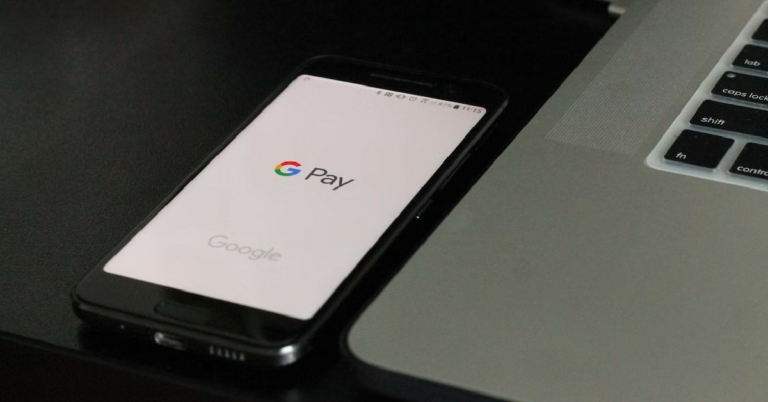
How to fix Google Pay errors on your Android or iOS smartphone?

0
Google Pay along with other UPI services have completely changed how we make daily monetary transactions. Carrying cash on you is no longer a necessity as most vendors nowadays accept mobile transactions. While this may be super convenient, things can take a turn when the Google Pay app shows an error and is unable to make a transaction. In this article, we show you how to fix Google Pay errors on your Android or iOS smartphone. Read Also: Philips OneBlade Pro QP6550 electric shaver review: All in one for men’s grooming

Check your registered phone number

If you recently changed your phone number, you will need to update it on the Google Pay app. You also need to make sure that the phone number linked to your bank account has been updated as well. Google Pay works by linking your bank account with the app using the registered phone number. If the number registered to your bank account does not match the number you’re using on your phone, you will be unable to make any transaction on Google Pay. Here’s how you can update the phone number on the Google Pay app. Step 1: Open the Google Pay app and tap on your profile at the top right corner of the screen. Step 1: Open the Google Pay app and tap on your profile at the top right corner of the screen. Step 2: This page will display all your basic information like your name, UPI ID, phone number, and the QR code for your profile. Check your phone number and if it is outdated, tap on ‘Settings’. Check your phone number and if it is outdated, tap on ‘Settings’. Step 3: Tap on ‘Personal Info’ and select the ‘Edit’ option next to your phone number.  Step 3: Tap on ‘Personal Info’ and select the ‘Edit’ option next to your phone number.  Step 4: Google Pay will prompt you to enter your new number, which will be verified using an OTP. Step 4: Google Pay will prompt you to enter your new number, which will be verified using an OTP. Once your phone number has been updated on the app, you can resume making Google Pay transactions. 

Update the Google Pay app

If you haven’t updated the Google Pay app in a long time, chances are it is being phased out. In order to resume Google Pay services, you will have to update it to the latest version. You can do this by simply going to the Google Play Store or App Store and searching for Google Pay. Click on the ‘Update’ option and the latest version of the app will be installed on your device.

Clear app cache

Clear app cache Like every other app, Google Pay stores temporary files in cache memory. Over a period of time, the cache memory may get filled with corrupted files that keep the app from working properly. To clear Google Pay’s cache go to Settings>Apps>GPay>Storage>Clear Cache.

Check the connection

If you’re in a spot with no data or Wi-Fi connection, your transactions will not be able to go through. Move to a spot with better network reception and try again. Always ensure that your smartphone is receiving a strong network connection before you make a transaction on Google Pay. 

Reinstall the app

If you’ve tried all the above fixes and are still facing issues with Google Pay, try uninstalling and reinstalling the app again. Doing this will reset all the settings on the app and also get rid of any bugs that may be causing issues. Long press on the GPay icon in your app drawer and select uninstall. Then go to the Google Play Store or the App Store and reinstall the GPay app again.  Read Also: How To Follow Responsible GamStop Rules? These are some of the common fixes for Google Pay errors on Android and iOS smartphones. If you’re still facing issues, try contacting your bank and see if there are any issues with your account. It is common for bank servers to be down, thereby causing issues with transactions on Google Pay.
For the latest gadget and tech news, and gadget reviews, follow us on TwitterFacebook and Instagram. For newest tech & gadget videos subscribe to our YouTube Channel. You can also stay up to date using the Gadget Bridge Android App. You can find the latest car and bike news here.

Garena Free Fire Redeem Codes Today 16 September 2022: Here is how to claim them

Garena Free Fire is a battle royale game with regular awards and tournaments to keep players interested. If you play Garena Free Fire, you should be aware of the redeem codes that are released on a daily basis. However, because the battle royale game is banned in India, players from other countries can use the Free Fire Redeem codes daily. If you’re unfamiliar with the Garena Free Fire redeem codes or don’t know how to get them, we’ve put together a step-by-step guide to help you redeem them. Check out Garena Free Fire Redeem Codes for September 16. The Free Fire redeem codes are a great way to get free stuff. These are 12-digit codes that contain alphabets and numbers, as well as an expiration date and time. Because the Garena FF redeem codes cannot be used more than once, you should hurry to the redemption page to claim your free reward before someone else does. To get a free reward, all you have to do is go to reward.ff.garena.com/en, which is the official redemption page. Also, keep an eye on this space for daily updates on Garena Free Fire redemption codes and rewards.

Garena Free Fire Redeem Codes Today 16 September 2022

BH56NJIU87YG T6FGVHBJ3NK4 3RKOFI87865A 4QERD2F3GURU HEFRPPCC08IG FTDVBE4U27Y8 6TGEVBHQ1I2H UEQYTW6FR56W 631YTUIJUH7Y GVHBISJU8D7Y 6GT75EFRG3HB 4JKLOIU89Y7F TW3GVHR4JBEJ IO8U97YUTGY4 BHVNJOJIAU9Y HJFRTGY6Y54T

How to Get Free Fire Redeem Codes for Garena on September 16?

  • Visit the Garena Free Fire game’s official website at reward.ff.garena.com.
  • Use your Facebook, Google, VK, Apple ID, Huawei ID, or Twitter account to log in.
  • You’ll be taken to a valid redemption code (s)
  • Copy and paste the 12-digit redemption code into the text box.
  • On the screen, a dialogue box will appear.
  • ‘Ok’ should be selected.
For the latest gadget and tech news, and gadget reviews, follow us on TwitterFacebook and Instagram. For newest tech & gadget videos subscribe to our YouTube Channel. You can also stay up to date using the Gadget Bridge Android App. You can find the latest car and bike news here.

How to use Emergency SOS via Satellite on iPhone 14?

One of the major themes of Apple’s ‘Far Out’ launch year this year was advancing safety features and maximizing what a smartphone can offer in times of emergency. Two of the features that stood out were Car Crash Detection and Emergency SOS via Satellite. While the former has been around in Android smartphones for a while now, iPhone 14 is the first smartphone to feature smartphone connectivity. And while we hope you may never have to use this feature, it cannot hurt to know how to use it. In this article, we show you how to use the emergency SOS via satellite on the new iPhone 14. Read Also: How To Follow Responsible GamStop Rules?

How Emergency SOS via Satellite works

How Emergency SOS via Satellite works When you call an emergency number, your phone uses the cellular connection or Wi-Fi data to connect you to the emergency service. If you’re in a remote area, connecting to an emergency service is virtually impossible. Well, not anymore. With the iPhone 14, you can establish a connection with a satellite, which will further relay your message to an emergency service. Satellite operator Globalstar has tied up with Apple to provide them with their satellite services. 

How to use Emergency SOS via Satellite

How to use Emergency SOS via Satellite If you’re stuck in a no-network zone, tap on ‘Emergency text via satellite’ on the dialer while you’re calling emergency services. Tap ‘Report Emergency’ after that. You will be presented with some emergency questions. After you’ve answered the questions, you can choose to notify your emergency contacts that you’ve contacted emergency services. After you’ve filled up the questionnaire, your iPhone will give you on-screen instructions on how to connect to a satellite. Firstly, you need to be in an area without cellular or Wi-Fi connectivity in order to utilise Emergency SOS via Satellite. This service will not work if you are getting even minimal network reception. To connect to a satellite, you need to hold your phone in your hand and follow the on-screen instructions to establish the connection. Your phone will guide you to move in a particular direction to connect to the satellite. Since you cannot see satellites with a naked eye, you will have to rely on the directions that your iPhone gives you.  You need to ensure that you’re in a spot with a clear sky, unobstructed by any cloud cover. Light foliage is still alright, but you won’t be able to connect if you’re covered with heavy foliage. Hills, mountains, canyons, and tall structures can also block the connection. Since the satellite is constantly moving, you have to adjust your positions as well – your iPhone will keep prompting you to move accordingly.  Once a connection is established, your medical ID, emergency contact information, emergency questionnaire answers, location, and remaining battery life will be shared with emergency responders. You may also be asked follow-up questions related to your condition. Sending a message via satellite can take up to at least 15 seconds if the sky is clear, and up to a minute if there’s a light foliage cover. Read Also: Top 7 Distance Measuring Apps for Android and iOS

Frequently Asked Questions

Where is the Emergency SOS via Satellite service available?

Currently, this service is available only in the United States of America and Canada. If you’re an international traveller in USA and Canada you can still use this service on your iPhone given you didn’t purchase it from China, Hong Kong, or Macao.

What languages does the Emergency SOS service support?

Emergency SOS via satellite only supports American English, American Spanish, and Canadian French.

Does the iPhone 13 have a satellite connectivity feature?

No, only the iPhone 14 series is equipped with the Satellite connectivity feature and you will need the iOS 16 update coming in November to use it. 
For the latest gadget and tech news, and gadget reviews, follow us on TwitterFacebook and Instagram. For newest tech & gadget videos subscribe to our YouTube Channel. You can also stay up to date using the Gadget Bridge Android App. You can find the latest car and bike news here.

Phone 14, iPhone 14 Pro, Apple Watch Series 8 and Watch SE are now up for sale in India

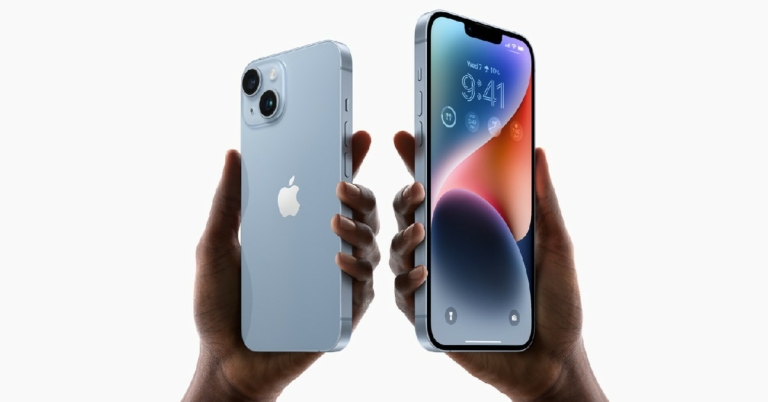
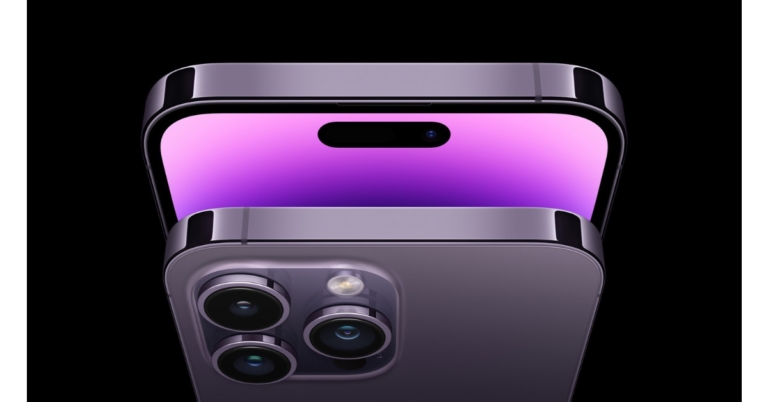
Phone 14, iPhone 14 Pro, Apple Watch Series 8 and Watch SE (2nd Generation) have gone on their first sale in India today through popular online retailers as well as retail stores. To recall, all the devices were announced globally last week alongside Apple AirPods Pro 2. The iPhone 14 lineup comes with Crash Detection and Emergency SOS via satellite. Whereas the Watch Series 8 has a temperature sensor that enables advanced features for women’s health and Crash Detection for severe car crashes. These devices are now available in India through a number of online retailers, including Amazon, Flipkart, Croma, and others, as well as traditional, Apple-approved retail locations. Only the iPhone 14 Plus has been postponed; it will finally be available on October 7 in this nation. The deep purple, silver, gold, and space black colour variants for the iPhone 14 Pro will be offered. The storage options for the device are 128GB, 256GB, 512GB, and 1TB. Customers may enjoy a Cashback of Rs 4,000 in addition to easy exchange offers and alluring EMI offers, and HDFC has amazing deals starting at Rs 129900 for the iPhone 14 Pro and Rs 139900 for the iPhone 14 Pro Max. While the iPhone 14 will come in 128GB, 256GB, and 512GB storage options and come in midnight, blue, starlight, purple, and (PRODUCT)RED. Customers can receive a Cashback of Rs 5,000* from HDFC and can purchase the iPhone 14 for as little as Rs 79900. Easy exchange deals and tempting EMI offers are also available. Starting prices for the Apple Watch Series 8 are Rs 45900 and the Apple Watch SE is Rs 29900. For Apple Watch Series 8 and Apple Watch SE, HDFC is giving cashback of Rs 3000 and Rs 2000, respectively. Customers can instantly save up to Rs 6000 on orders above Rs 54900 at Apple Store Online when they pay with a credit card from HDFC Bank. Additionally, the majority of top banks offer No Cost EMI with credit cards. We can assist consumers in setting up and using their new product when they make purchases at apple.com/in. For the latest gadget and tech news, and gadget reviews, follow us on TwitterFacebook and Instagram. For newest tech & gadget videos subscribe to our YouTube Channel. You can also stay up to date using the Gadget Bridge Android App. You can find the latest car and bike news here.

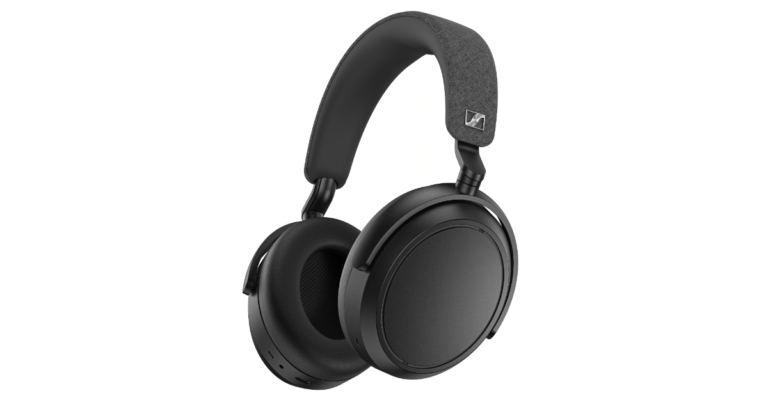
Sennheiser Momentum 4 Wireless headphones launched in India

Sennheiser has introduced Momentum 4 Wireless to the Indian market, extending its popular and premium Momentum series lineup. It comes with an over-ear design and has wireless connectivity support. The Sennheiser headphones also have Adaptive Noise Cancellation and offer a battery life of up to 60 hours.

Sennheiser Momentum 4 Wireless price in India, sale details

With a price of Rs 34,990, Sennheiser Momentum 4 Wireless headphones have been released in India. The product is available in white and black. The white colour option, however, won’t go on sale right now. The company’s official online store and Amazon India will also offer the headphones for purchase. Sennheiser Momentum 4 Wireless price in India, sale details

Sennheiser Momentum 4 Wireless features

In terms of design Sennheiser Momentum 4 Wireless headphones come with a completely redesigned form factor for great comfort and sleek form. It blends lightweight comfort with a thickly padded headband and thickly cushioned earpads for all-day use without getting tiresome. While this is going on, the low-friction hinge mechanism is simply adjustable to ensure a great fit without putting too much strain on the user’s head. When on the road, the fold-flat design is especially cosy when worn around the neck and can be quickly tucked into a suitcase or backpack in the thin case. Sennheiser’s Signature Sound is delivered via Momentum 4 Wireless headphones for a better listening experience. The headset comes equipped with a 42mm transducer providing exceptional dynamics, clarity, and musicality. Alternatively, the adaptable Transparency Mode enables users to hear outside sounds through the headphones at the touch when they need to communicate to others or hear ambient noises without removing their headphones. Additionally, the Sennheiser Smart Control app makes it simple to adjust the sound with the built-in EQ, sound modes, and new Sound Personalization function for a completely personalised experience. Every interaction is simple when using the Momentum 4 Wireless. Thanks to an innovative 2×2 digital beamforming microphone array and automated wind noise suppression, which provide better speech pick-up, calls and voice assistant interaction are very natural and disturbance-free. The premium Sennheiser headphones deliver a battery life of up to 60 hours and quick charging functionality, which may supply an additional six hours of listening in only 10 minutes. Smart Pause ensures that users never miss a beat by pausing playing when the headphones are removed and restarting it when they are put back on. Auto On/Off quickly turns the headset on when it is picked up and turns it off to conserve energy when it is not in use. Controlling music, calls, and voice assistants are simple and intuitive with the Momentum 4 Wireless’ touchpad interface thanks to speech and audible instructions. Due to Bluetooth device management, which enables simultaneous connection of several devices, setup is also made simple. For the latest gadget and tech news, and gadget reviews, follow us on TwitterFacebook and Instagram. For newest tech & gadget videos subscribe to our YouTube Channel. You can also stay up to date using the Gadget Bridge Android App. You can find the latest car and bike news here.
8 Best Apps to download on your new Apple Watch Series 8 and 8 Ultra

With Apple announcing the new Apple Watch Series 8 and 8 Ultra at its Far Out launch event earlier this month, users have been very excited to get their hands on the new iteration of the smart wearable. Every year Apple incorporates a lot of third-party apps in its WatchOS and makes them a part of the standard Apple Watch experience. But there are still some very useful apps out there that you can download from the App Store. In this article, we bring you the 8 best apps you can download on your Apple Watch Series 8 and 8 Ultra. Read also: Top 7 Distance Measuring Apps for Android and iOS

Heart analyser

Heart analyser The Heart Analyser is one of the best cardio monitors around and makes the most out of your Apple Watch Series 8. It is a must-have health app that provides essential health data and breaks it down into easily understandable graphs and charts. Since you’re wearing your Apple Watch most of the time, the Heart Analyser app is always compiling your heart-related data. You can access past records and see the trend in your heart activity. Your heart rate during workouts is calculated along with a close approximation of the calories you’ve burned. 

Camera Plus

Camera Plus Camera Plus is a handy app for your Apple Watch that gives you more control over how you take pictures. Using Camera Plus you can use your Apple Watch as a viewfinder for the camera on your iPhone. Taking group pictures becomes easy as you can place your camera at a distance and manage the framing using your Apple Watch. With the Camera Plus app you get access to additional features like switching between the front and back camera, turning on the flash, countdown timer, instant preview after capture, and switching between photo mode and video mode. 

Tweetbot 4

Tweetbot 4 Tweetbot 4 is an excellent client for Twitter which brings a stripped-down, minimal experience of the social media website to your Apple Watch. The Tweetbot widget gives you the essential details of your Twitter feed on your Apple Watch. With one glance you’ll be able to know who followed you, retweeted or liked your post. You can also quickly reply to tweets sent your way, or create a new tweet and post it using the app.

Bring! Shopping List and Activities

Bring! Shopping List and Activities Bring! is one of the best ‘shopping list’ apps you can install on your Apple Watch Series 8. Adding items to your list is easy and you can easily edit them using your iPhone or iPad as well. Bring! also offers a more organised way of going about your grocery shopping by letting you make lists for different stores, grouping items on your list by product categories, and assigning unique icons to the items on your list.

Pennies – Budget and Expenses

Pennies - Budget and Expenses The problem with most budgeting apps is that they are too time-consuming and require a lot of effort to log your daily expenses. Pennies solves this issue with its clean interface and intuitive calculation. You don’t need to log what commodities you spend money on – simply enter your expenditure and Pennies will let you know how close you are to your allocated budget. You can also set up multiple custom budgets in different currencies. 

Microsoft Translator

Microsoft Translator 8 Best Apps for your new Apple Watch Series 8 and 8 Ultra Microsoft Translator is one of the best free translation apps for your Apple Watch Series 8. This app will come in extremely handy when you’re on vacation and need to communicate with someone that speaks a different language. Speech translation becomes easy by simply speaking into the Watch while the app does the rest of the work. You can also translate text found in menus, banners, and images. One of the unique features offered by this app is multi-person translations where multiple people can connect their devices and have an in-person conversation in their native languages. 

Watch Tube

Watch Tube 8 Best Apps for your new Apple Watch Series 8 and 8 Ultra Watch Tube is a pretty simple app that lets you watch YouTube on your Apple Watch. Apart from watching YouTube videos you can also subscribe to channels, like videos, access your watch history, and even get closed captions for the content you’re watching. The only downside to this app is that it can your Apple Watch’s battery pretty quickly. But it is a good option when you don’t have your iPhone around.

Ping Pong

Ping Pong 8 Best Apps for your new Apple Watch Series 8 and 8 Ultra Gaming options are pretty limited on the Apple Watch, and rightly so. The small dial isn’t optimum to run most games. However, the Ping Pong app based on the classic Atari version of the game fits in perfectly with the Watch’s interface and offers a fun experience. You can even play Ping Pong in multiplayer mode by setting up the 2nd player control on your iPhone.  Read Also: How to fix the Camera issue on OnePlus 8, 9, and 10 series? These are the 8 best apps you can download on your Apple Watch Series 8 and 8 Ultra. If we missed an app that you find to be useful on your Apple Watch, let us know in the comments!
For the latest gadget and tech news, and gadget reviews, follow us on TwitterFacebook and Instagram. For newest tech & gadget videos subscribe to our YouTube Channel. You can also stay up to date using the Gadget Bridge Android App. You can find the latest car and bike news here.