In This Article
Use Instagram’s data saver mode
In order to provide its users with a seamless browsing experience, Instagram pre-loads the videos and images on your feed. This is the reason why the Reels rarely ever buffer and you’re able to watch a few more videos when your Internet connection suddenly goes out. Turning the data saver on limits Instagram from pre-loading any content. Here’s how you can do it. Step 1: Go to your Instagram profile and tap the hamburger menu on the top-right corner of the screen.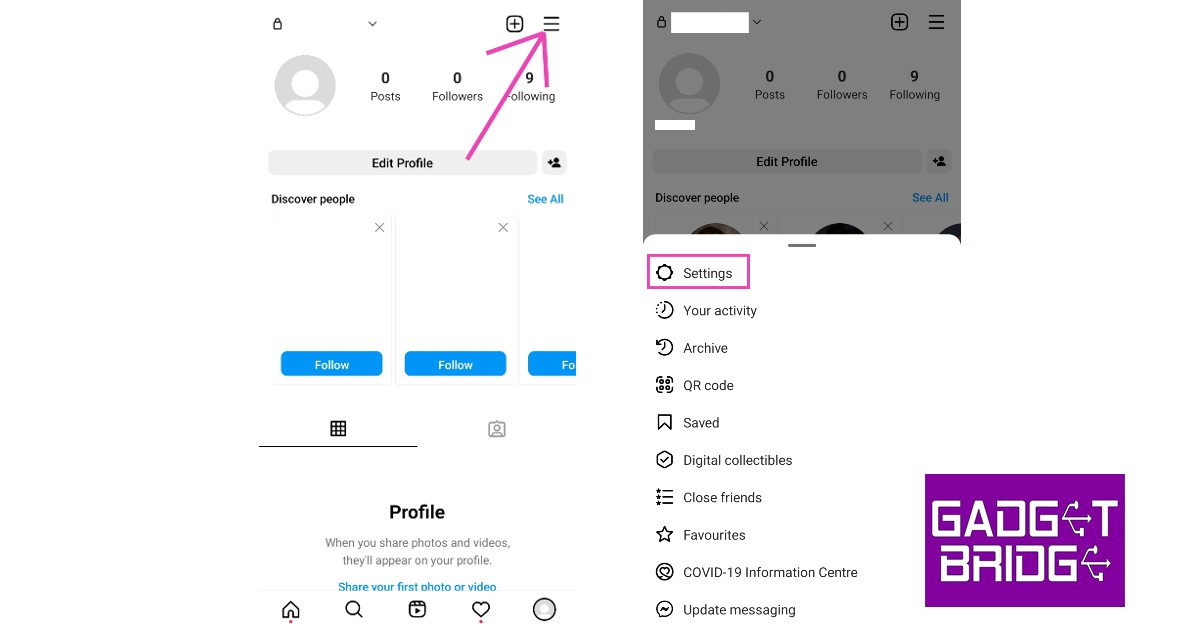 Step 2: Select ‘Settings’ and go to ‘Account’.
 Step 3: Scroll down and select ‘Cellular data use’.
 Step 4: Turn on the toggle bar for Data Saver.

Turn off high-resolution media
 Watching HD content on Instagram can drain your data pretty quickly. Simply go to ‘Cellular data saver’ (as shown above) and tap on ‘High-resolution media’. You can either choose to play high-resolution media over a WiFi connection or disable it entirely. There’s also an option of allowing HD content media to play over WiFi as well as a cellular connection but that won’t do anything to save mobile data.
Turn on your smartphone’s data saver
Similar to Instagram, your smartphone also has a native data saver. Turning on the data saver limits the background activity of all apps that require an internet connection to do so, including Instagram. You can exclude some apps from the list. Here’s how you can turn on the data saver on your smartphone. Step 1: Go to Settings and select ‘Connections’. Step 2: Tap on ‘Data Usage’ and select ‘Data saver’.
 Step 3: Select ‘Turn on now’.
 To whitelist certain apps from data saver tap on ‘Allowed to use while Data saver is on’ and select the apps you want to continue working in the background.
Use Instagram Lite
As the name suggests, Instagram Lite is a stripped-down version of the Instagram app, being only 2.3MB in size. Instagram Lite uses less cellular data while letting you access all the essential Instagram functions. Users can browse their feed, watch Reels and IGTV videos, and send DMs using the Lite app. However, the app doesn’t let you share Reels on your Story and holds back certain animations, filters, and transitions in order to save data and optimise the speed. You can download the Instagram Lite app from here.Reduce the media upload quality
Uploading pictures and videos to Instagram at the highest quality can eat up a lot of data. By turning off the feature to upload media at the highest quality, you can save a substantial amount of data by letting Instagram adjust the upload quality according to your network connection. Here is how you can do that. Step 1: Go to your Instagram profile and tap the hamburger menu on the top-right corner of the screen.
Step 2: Select ‘Settings’ and go to ‘Account’.
Step 3: Scroll down and select ‘Cellular data use’.
Step 4: Turn off the toggle bar for ‘Upload at highest quality’.
 Read Also: How to use the same WhatsApp account on multiple devices, including Android tablets?
Conclusion
These are the 5 quick methods to save mobile data on Instagram. You can also keep a check on app activity and observe how much data Instagram typically consumes by going to Settings>Connections>Data Usage and checking how much data the Instagram app consumed during active use and while running in the background.
For the latest gadget and tech news, and gadget reviews, follow us on Twitter, Facebook and Instagram. For newest tech & gadget videos subscribe to our YouTube Channel. You can also stay up to date using the Gadget Bridge Android App. You can find the latest car and bike news here.
 Step 2:
 Step 3:


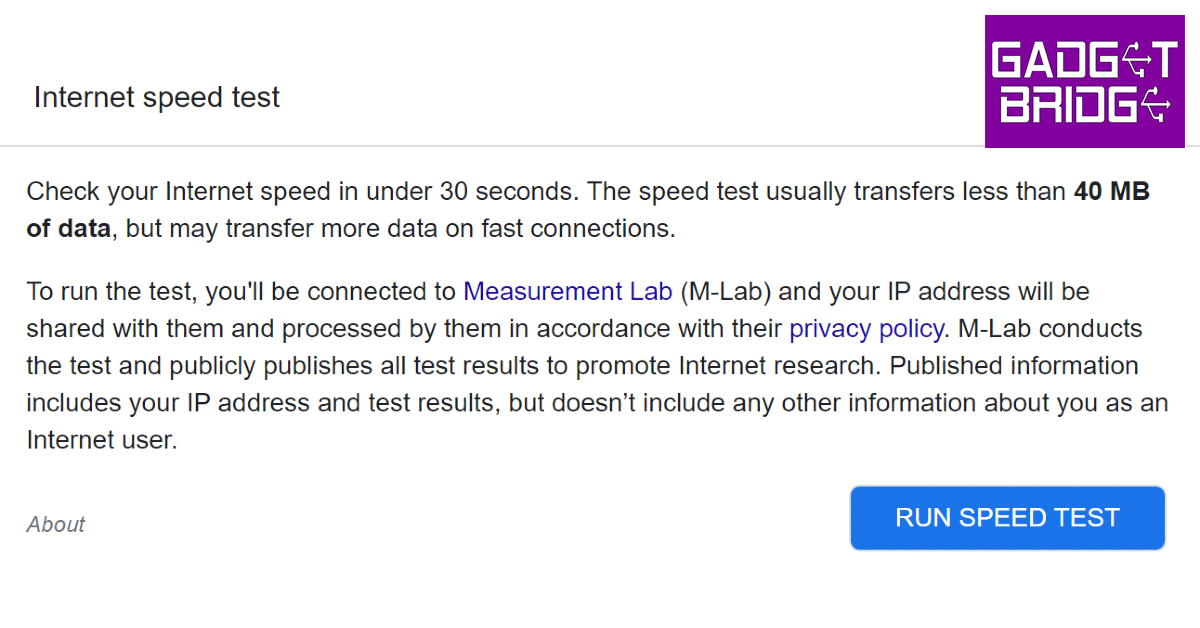 The internet speed test by Google can be accessed directly from the search engine. All you need to do is search for ‘internet speed test’ and hit ‘Run Speed Test’. Google partners with Measurement Lab (M-Lab) to perform the speed test. The advantage of using Google’s speed test is that it doesn’t use more than 40MB of your data and does not pester you with annoying ads. The interface is clean and easy to use.
 Powered by Netflix,
  Cloudflare offers a very comprehensive







 Step 3: Tap ‘Agree and Continue’ on the following screen.
Step 4: WhatsApp will now as you for your phone number. Instead, hit the ellipses at the top right corner of the screen and select ‘Link to existing account’.
Step 3: Tap ‘Agree and Continue’ on the following screen.
Step 4: WhatsApp will now as you for your phone number. Instead, hit the ellipses at the top right corner of the screen and select ‘Link to existing account’.
 Step 5: Launch WhatsApp on your primary smartphone and select ‘Linked Devices’ after hitting the ellipses at the top right corner of the screen.
 Step 6: Select ‘Link a device’.
 Step 7: Use the primary phone to scan the QR code on the secondary phone.
 Step 8: You will be logged into your WhatsApp account on the secondary Android smartphone. It may take a few minutes to sync your entire chat history on the secondary device.

 Step 4:


 Step 4: Set up a name for your PC and select ‘Done’. You will only be asked a name for your PC if you are using Nearby Share without an account.
 Step 5: Tap on ‘Device is Hidden’ and select ‘Receive from everyone’.
 Step 6: On your Android smartphone, select the file your want to transfer to your PC.
Step 7: Tap the Share icon and select ‘Nearby Share’ from the list of options.
Step 6: On your Android smartphone, select the file your want to transfer to your PC.
Step 7: Tap the Share icon and select ‘Nearby Share’ from the list of options.
 Step 8: Your smartphone will search for your PC. Once it pops up on the radar, select the icon for your PC.
 Step 9: Accept the transfer on your PC.
 Step 10: Once the file is received on your PC, click on ‘Open’ to view it. You can also access the file from the Downloads folder on your PC.
 Step 3:
 Step 2:
 Step 3:
 Step 4:
 Step 3:
  Step 5:
 Step 6:
 Step 7:

 There’s overheating and then there’s overheating that makes your phone almost impossible to hold. If you’re dealing with the latter, simply putting down your phone won’t be enough. You will need to turn it off entirely and keep it on a cool surface and wait for the heat to dissipate. Extremely high temperatures can be dangerous for your smartphone and may lead to permanent damage.
 If your smartphone is only slightly warmer than usual, you can put it on Airplane Mode instead of turning it off entirely. Turning on Airplane Mode suspends all connections and halts your phone from reading the surrounding network signal. This limits the background processes which would usually be active all the time. You will notice a change in temperature within minutes of enabling Airplane Mode.



 Flagship chipsets like Snapdragon 8 Gen 2, Snapdragon 8+ Gen 1, and MediaTek Dimensity 9000 are designed to cut down the excessive heating on your device. These chipsets make intelligent decisions in processing to make sure that your phone’s internal temperature does not go beyond a certain limit. The same cannot be said for entry-level and midrange processors. Look up the chipset inside your phone and see if other users are experiencing issues with it as well. If the SoC is known for overheating, you will have to change your pattern of usage accordingly or get a new phone.





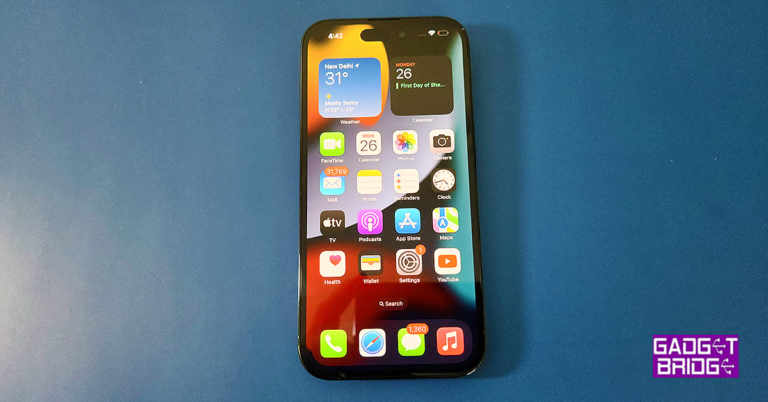
 Coming back to the pill-shaped cut-out of the iPhone 14 Pro. It is called the dynamic island, which Apple uses to showcase multiple things. So, if you are playing a song while browsing on your home screen, the pill becomes large in a squarish format and shows what is being played. Apple has innovated the iOS 16 around it, so you get a seamless experience around the pill. Making it so much more than being just a camera/sensor cut-out. Compared to its Android counterparts, not one of them has thought about innovating around the camera/sensor cut-outs in this manner.

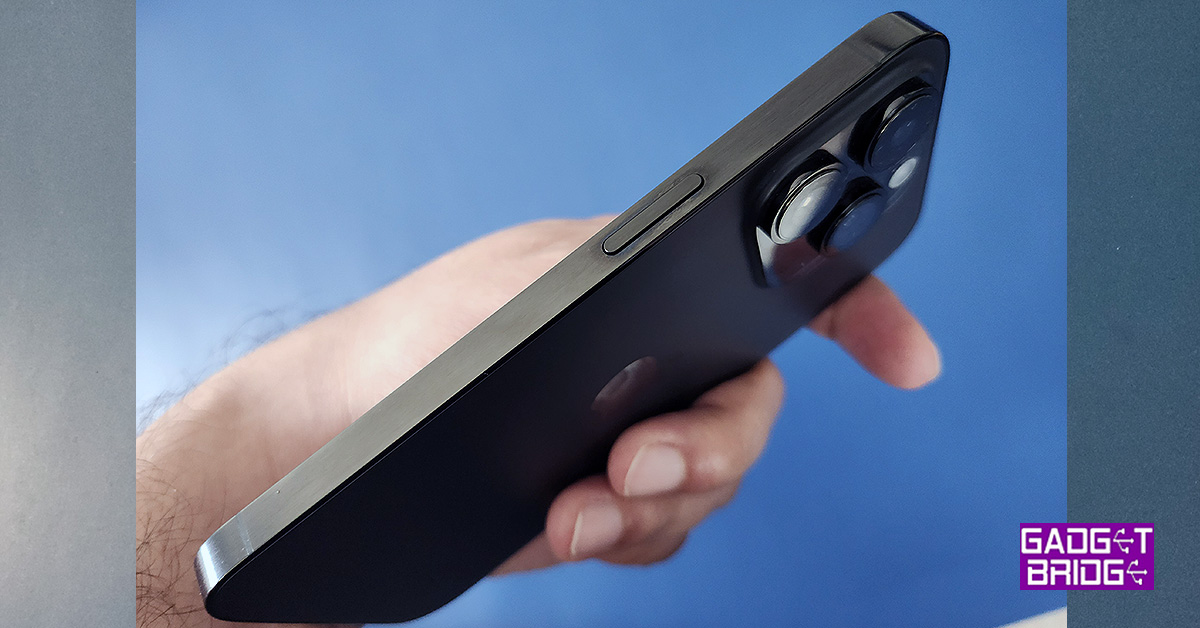 Further, the bezels of the iPhone 14 Pro are slightly slimmer and in the US models there are no SIM card slots, and you must use an ESIM (which is an interesting concept in itself). However, for India and other countries, the 5G SIM tray is still available under the ringer on/off and volume keys.
 So, what has not changed in the iPhone 14 Pro? The rear. If you look at the Apple
 Read Also:


 Step 3:
  Step 4:
 Step 2:
 Step 3:
 Step 4:
 Step 4:
  Step 5: