

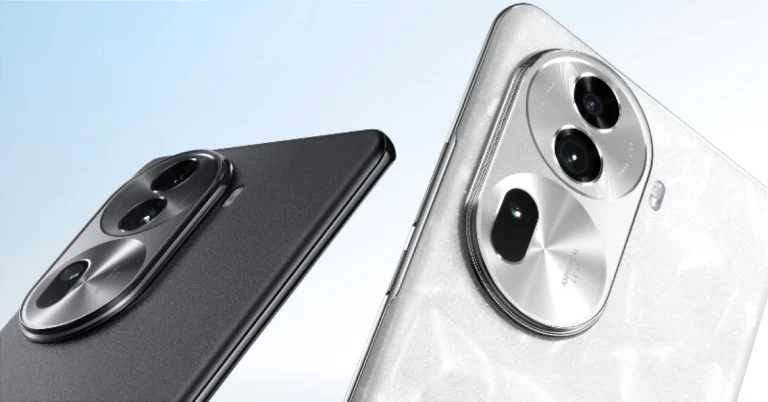
- The Oppo Reno 11 Series features a sleek design highlighted by a 50-megapixel triple rear camera setup.
- Oppo Reno 11 and Oppo Reno 11 Pro run on ColorOS 14 on top of Android 14.
- The Indian models are expected to come with different processors and battery capacities.
Oppo Reno 11, Oppo Reno 11 Pro India launch today: Expected pricing and specs
Key Highlights
Garena Free Fire Redeem Codes Today 12 January 2024: Here is how to claim them

Garena Free Fire is a battle royale game with regular awards and tournaments to keep players interested. If you play Garena Free Fire, you should be aware of the redeem codes that are released on a daily basis. However, because the battle royale game is banned in India, players from other countries can use the Free Fire Redeem codes daily. If you’re unfamiliar with the Garena Free Fire redeem codes or don’t know how to get them, we’ve put together a step-by-step guide to help you redeem them. Check out Garena Free Fire Redeem Codes for 12 January 2024.
The Free Fire redeem codes are a great way to get free stuff. These are 12-digit codes that contain alphabets and numbers, as well as an expiration date and time. Because the Garena FF redeem codes cannot be used more than once, you should hurry to the redemption page to claim your free reward before someone else does. To get a free reward, all you have to do is go to reward.ff.garena.com/en, which is the official redemption page. Also, keep an eye on this space for daily updates on Garena Free Fire redemption codes and rewards.
Garena Free Fire Redeem Codes Today 12 January 2024
HNC95435FAGJ MCPW2D1U3XA3 BR43FMAPYEZZ FFCMCPSGC9XZ UVX9PYZV54AC MHM5D8ZQZP22 FFCMCPSJ99S3 EYH2W3XK8UPG FFCMCPSEN5MX FF11NJN5YS3E FF10617KGUF9 NPYFATT3HGSQ ZZZ76NT3PDSH XZJZE25WEFJJ 6KWMFJVMQQYG MCPW2D2WKWF2 MCPW3D28VZD6 V427K98RUCHZ FFCMCPSUYUY7EHow to Get Free Fire Redeem Codes for Garena on 12 January 2024?
- Visit the Garena Free Fire game’s official website at reward.ff.garena.com.
- Use your Facebook, Google, VK, Apple ID, Huawei ID, or Twitter account to log in.
- You’ll be taken to a valid redemption code (s)
- Copy and paste the 12-digit redemption code into the text box.
- On the screen, a dialogue box will appear.
- ‘Ok’ should be selected.
CES 2024: Intel 14th Gen mobile processors including the new HX-Series for Gaming announced

Key Highlights
- Intel has introduced Core 14th Gen mobile and desktop processors.
- The HX-series comes with 50% additional E-cores in the Intel CoreTM i7-14700HX processors, which boost creator performance.
- With eight Performance Cores (P-cores) and sixteen Efficient Cores (E-cores), the Intel Core i9-14900HX is the flagship processor of the new HX series.
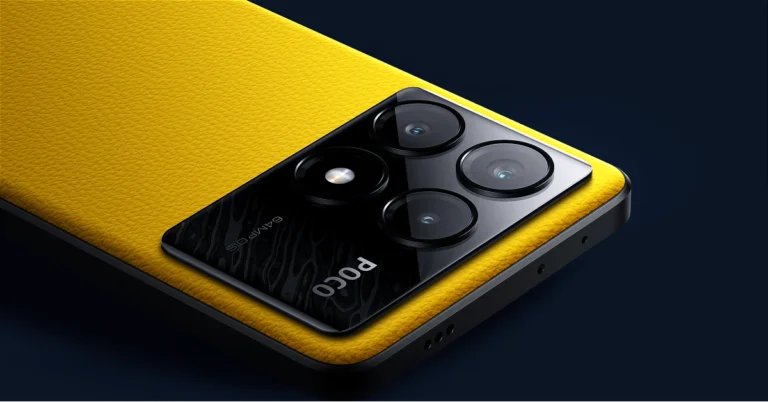
Poco X6 Pro powered by MediaTek Dimensity 8300 Ultra SoC launched in India, Poco X6 tagged along
Key Highlights
 The Poco X6 Pro is fuelled by a 5,000mAh battery on the other hand the Poco X6 packs a 5,100mAh battery. Both mobile phones can be charged at 67W.
In terms of connectivity, there is 5G, 4G LTE, Bluetooth, NFC, GPS, and a USB Type-C port for charging. The 3.5mm jack is missing on the pro model whereas the standard model has. The sensors on the phones include an accelerometer, gyroscope, proximity sensor and e-compass.
Also Read: Panasonic TMAX45 Party Speaker launched in India
The stainless steel 5000mm2 VC Cooling system is a feature on the Poco X6 Pro. The device also incorporates Wild Boost 2.0 for steady and fluid gameplay for extended periods. Additionally, it adjusts the frequency of RAM to help reduce overall power consumption.
The Poco X6 Pro is fuelled by a 5,000mAh battery on the other hand the Poco X6 packs a 5,100mAh battery. Both mobile phones can be charged at 67W.
In terms of connectivity, there is 5G, 4G LTE, Bluetooth, NFC, GPS, and a USB Type-C port for charging. The 3.5mm jack is missing on the pro model whereas the standard model has. The sensors on the phones include an accelerometer, gyroscope, proximity sensor and e-compass.
Also Read: Panasonic TMAX45 Party Speaker launched in India
The stainless steel 5000mm2 VC Cooling system is a feature on the Poco X6 Pro. The device also incorporates Wild Boost 2.0 for steady and fluid gameplay for extended periods. Additionally, it adjusts the frequency of RAM to help reduce overall power consumption.
- Poco X6 Pro comes with MediaTek Dimensity 8300 Ultra SoC.
- Poco X6 is powered by the Snapdragon 7s Gen 2 chip.
- Both devices support 67W fast charging.
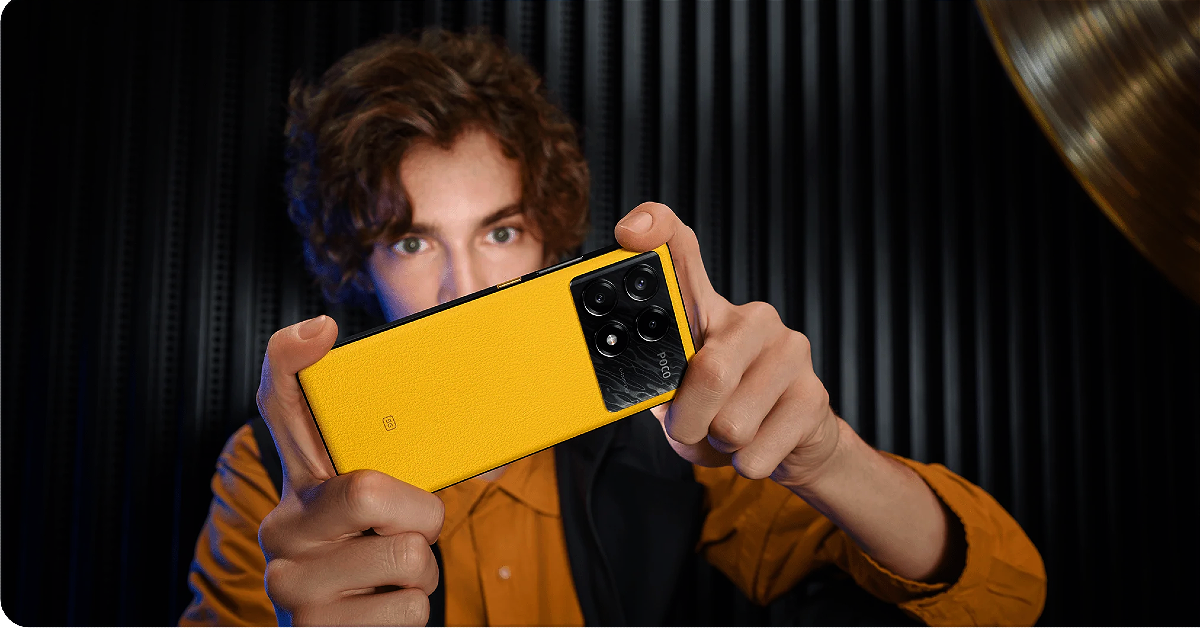
Poco X6 series price in India
Poco X6 has launched in India in two colour options: Mirror Black and Snowstorm White. The price of the phone is set at:- 8GB RAM with 256GB storage: Rs 18,999
- 12GB RAM with 256GB storage: Rs 21,999
- 12GB RAM with 512GB storage: Rs 22,999
- 8GB RAM with 256GB storage: Rs 24,999
- 12GB RAM with 512GB storage: Rs 26,999
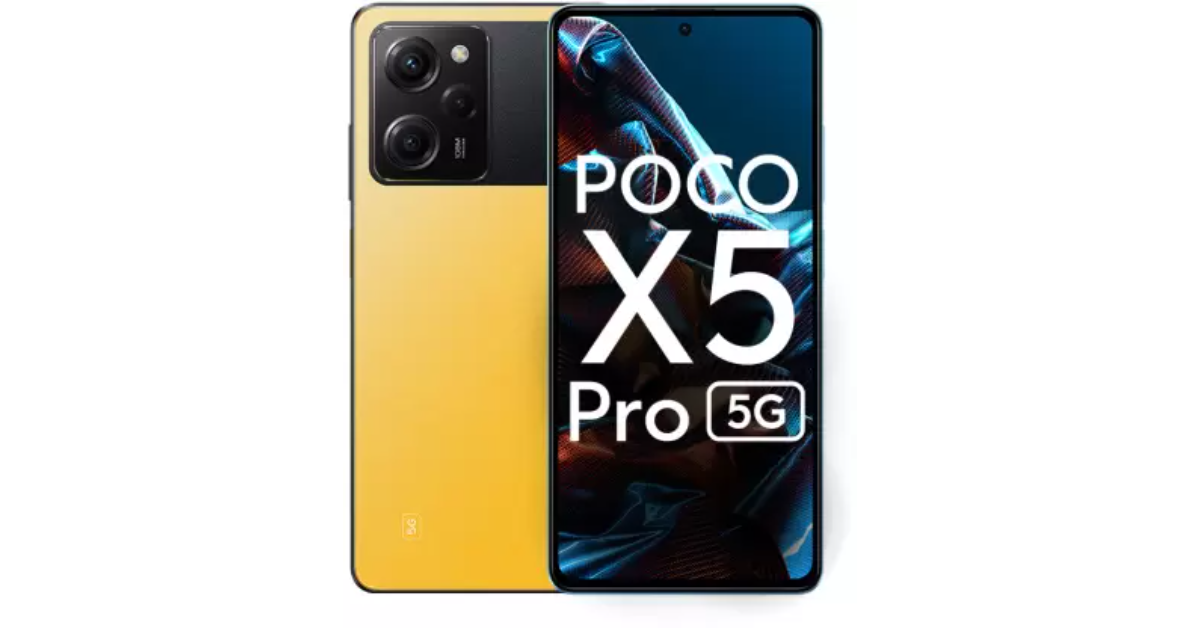
Poco X6 Pro, Poco X6 specifications
Poco X6 Pro, Poco X6 features a similar display; a 6.67-inch AMOLED display with a resolution of 1.5K – 2712 x 1220. The display panel has a screen-to-body ratio of 94.27% and pixel density of 446 PPI. It has a color gamut of 100% DCI-P3 (typ), showcasing a color depth of over 68.7 Billion+ colours. The display also features a refresh rate of 120Hz and supports Dolby Vision. Additionally, the devices come with an in-display fingerprint sensor. The smartphones are protected by Corning Gorilla Glass and an IP54 rating. Both the phones run on the new HyperOS on top of Android 14. The vanilla model is powered by Snapdragon 7s Gen 2 SoC whereas the Pro model comes with MediaTek Dimensity 8300-Ultra SoC. Also Read: CES 2024: AMD Ryzen 8000G desktop processor with dedicated AI neural processing unit announced Both the Poco X6 Pro and Poco X6 features a triple rear camera setup that includes a 64-megapixel main camera lens with OIS, an 8-megapixel ultra-wide-angle lens and a 2-megapixel macro camera. For selfies, the handset includes a 16-megapixel front-facing camera.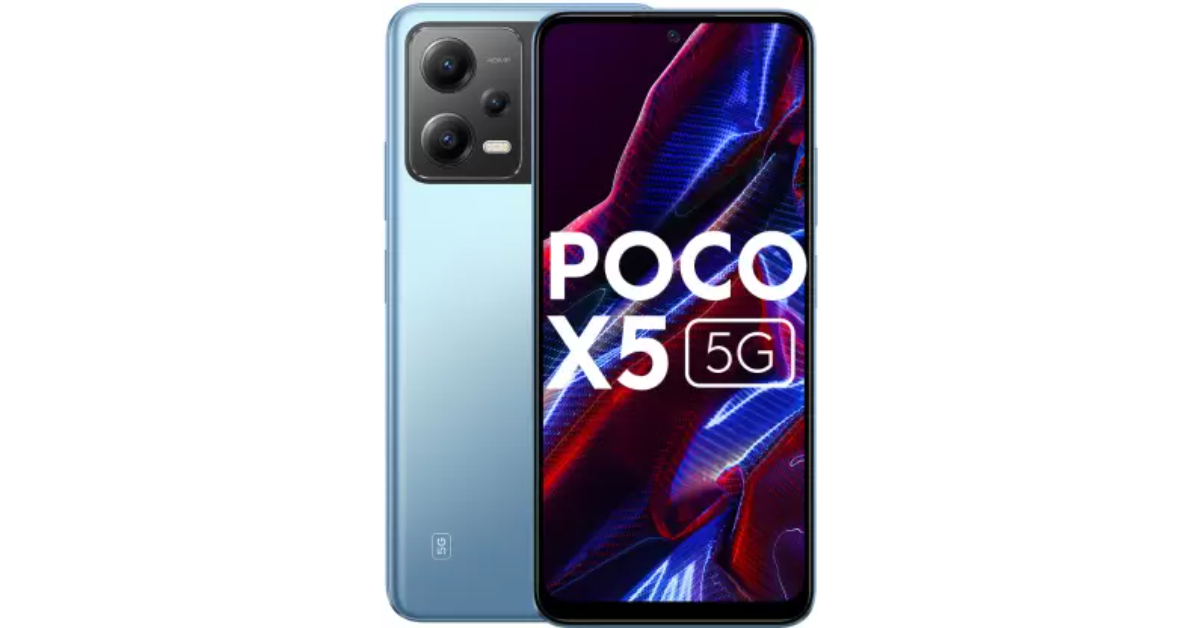 The Poco X6 Pro is fuelled by a 5,000mAh battery on the other hand the Poco X6 packs a 5,100mAh battery. Both mobile phones can be charged at 67W.
In terms of connectivity, there is 5G, 4G LTE, Bluetooth, NFC, GPS, and a USB Type-C port for charging. The 3.5mm jack is missing on the pro model whereas the standard model has. The sensors on the phones include an accelerometer, gyroscope, proximity sensor and e-compass.
Also Read: Panasonic TMAX45 Party Speaker launched in India
The stainless steel 5000mm2 VC Cooling system is a feature on the Poco X6 Pro. The device also incorporates Wild Boost 2.0 for steady and fluid gameplay for extended periods. Additionally, it adjusts the frequency of RAM to help reduce overall power consumption.
The Poco X6 Pro is fuelled by a 5,000mAh battery on the other hand the Poco X6 packs a 5,100mAh battery. Both mobile phones can be charged at 67W.
In terms of connectivity, there is 5G, 4G LTE, Bluetooth, NFC, GPS, and a USB Type-C port for charging. The 3.5mm jack is missing on the pro model whereas the standard model has. The sensors on the phones include an accelerometer, gyroscope, proximity sensor and e-compass.
Also Read: Panasonic TMAX45 Party Speaker launched in India
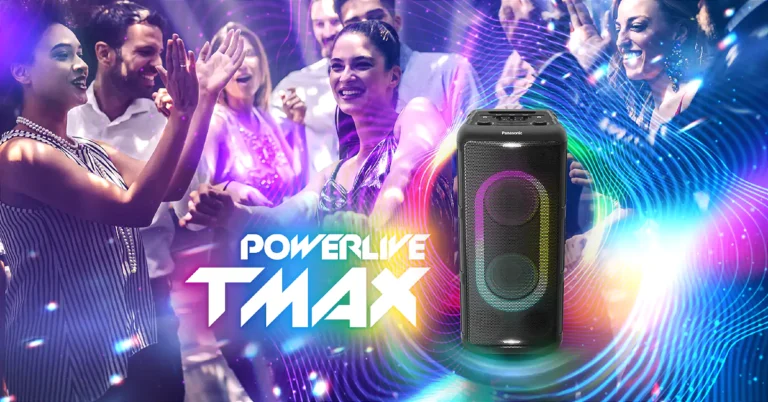
The stainless steel 5000mm2 VC Cooling system is a feature on the Poco X6 Pro. The device also incorporates Wild Boost 2.0 for steady and fluid gameplay for extended periods. Additionally, it adjusts the frequency of RAM to help reduce overall power consumption. Panasonic TMAX45 Party Speaker launched in India
Key Highlights
- The TMAX45 party speaker delivers a total output of 1000W.
- The speaker features – a 6.5-inch Double Woofer and double Tweeter.
- It comes with a built-in handle for easy movement.
Panasonic TMAX45 Party Speaker price in India and availability
Panasonic TMAX45 Party Speaker has been launched in India with a price tag of Rs 30,000. It can be purchased via all Panasonic brand shops, Panasonic’s D2C platform (store.in.panasonic.com), major retail outlets across the country, and popular e-commerce portals.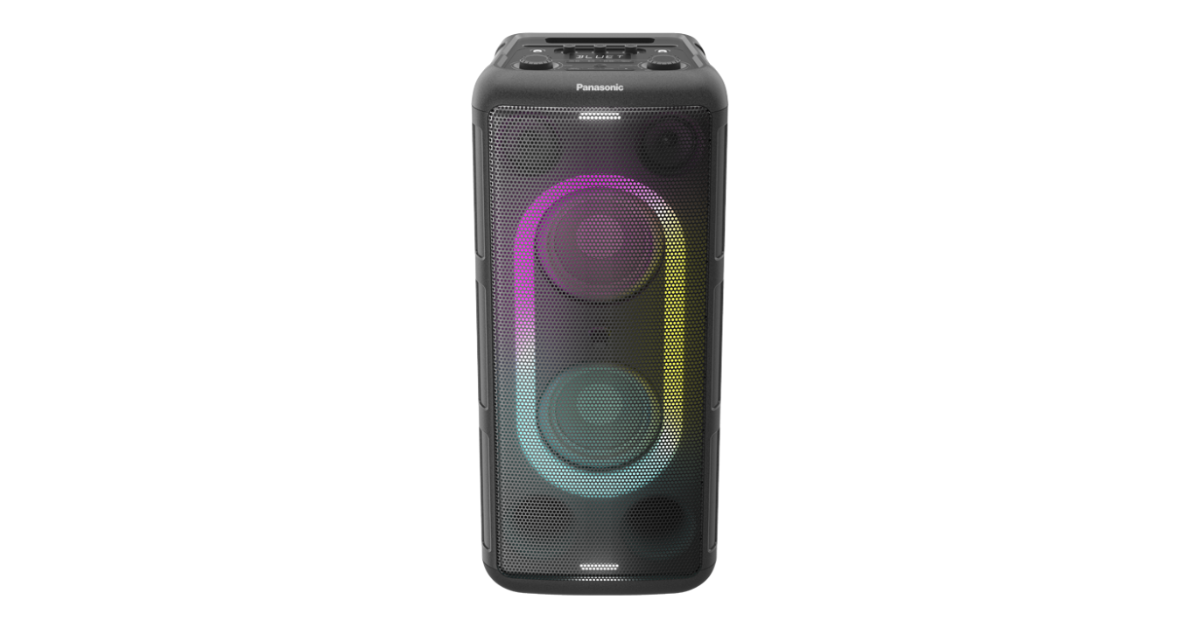
Panasonic TMAX45 Party Speaker specifications and features
The Panasonic TMAX45 Party Speaker boasts a compact size with a sleek design. It features 7-colour illumination lights that can provide the ideal ambience to enhance any party. You can position the TMAX45 either vertically or horizontally depending on your needs. Also Read: Dell’s all-new Alienware QD-OLED Gaming Monitors unveiled at CES 2024 The party speaker has a rugged design and a built-in handle for mobility. The party speaker features seven colour illumination options to match the multiple sound modes ranging from Rock, Jazz, Samba, Pop and Flat. It also equips a 6.5-inch double woofer, double tweeter and bass reflex ports for intense sound quality across all frequencies. Along with Bluetooth and USB connectivity options that let you easily link your smartphone. It can also be connected to a TV via optical cable. The device also comes with Guitar Input capabilities, so you and your friends can enjoy a diverse selection of music together. Users can also plug in their microphone into the mic jack and have karaoke nights with friends or connect their guitar to the guitar jack and use the TMAX as a guitar amp to have awesome jam sessions. Additionally, even larger gatherings are possible with the ability to connect multiple TMAX45 units via wire. Also Read: CES 2024: AMD Ryzen 8000G desktop processor with dedicated AI neural processing unit announced Fumiyasu Fujimori, Managing Director, Panasonic Marketing India, PLSIND said, “The name “Panasonic” has been associated with sound since the launch of our first speaker in 1955. Panasonic refers to our goal of bringing the best quality sound to customers around the world. It comes from the root words “Pan,” meaning universal, and “Sonic,” referring to sound. Till date, we as an organisation are committed towards creating technologically advanced products and solutions that elevate everyday life moments. TMAX45 party speaker is yet another extension to this commitment. It is a one-stop-audio solution for immersive, portable, and stylish audio solution that amplifies the overall social (gathering) experience to create lasting memories.”Top 12 Gadgets from CES 2024

After the monumental year that 2023 had been for AI chatbots and language models, CES 2024 was expected to be all about AI. And boy did it deliver. From an AI robot that can feed your pets to an AI pillow that can fix your snoring, this year’s CES had it all. As is tradition, the tech mega event also featured some crazy, eccentric gadgets that are not afraid to be gaudy and over the top. For those who missed the play-by-play, we thought we’d quickly round up the best tech on display. So, without further ado, here are our picks for the top 12 gadgets at CES 2024.
Read Also: Boult Astra Review: A well-rounded TWS that can do it all
There’s plenty of weird, whacky tech to be seen at CES, but most importantly it is the launching pad for some of the most exciting releases of the year. MSI’s new range of gaming laptops belongs to the latter camp. The Titan, Stealth, and Cyborg laptops are designed to handle AI tasks on top of producing a stellar gaming performance. The Titan and Stealth are powered by the 14th Gen Intel Core i9 processors and NVIDIA GeForce RTX 40 Series GPUs. The new Stealth 18 AI Studio rocks the latest Intel Core Ultra processor.
Miss the feeling of typing on a QWERTY keyboard like the good ol’ Blackberry days? The Clicks iPhone case might be the device for you. The idea is simple – a QWERTY keyboard integrated into a plastic case that can easily slap onto your iPhone. The lightning/USB connector on the case slides into your iPhone’s charging port, powering the backlit keyboard. What we really like about Clicks is that it also supports keyboard shortcuts for your iPhone.
Samsung’s Frame TV wasn’t just a one-off product in the series. The company has taken the wall art approach on its newest home speaker as well. The ‘tech that doesn’t look like tech’ genre of design is something we would love to see more of in 2024. The Music Frame was showcased with a record player print on the front panel, but Samsung says users will be able to customise this panel and use it like a photo frame. It features two built-in woofers and tweeters and can function in WiFi and Bluetooth modes. The Q-Symphony technology enables it to function as a surround speaker for your Samsung TV.
This modular ceiling fixture gives the user complete control over their ceiling’s lighting setup. Nanoleaf Skylight takes inspiration from the company’s wall light panels. Its functioning remains the same – the Skylight connects to your home WiFi, letting you control whether you want a standard white light to fill the room or choose from over 16 million dynamic colours for ambient lighting. It also gets ‘smart’ features like the Rhythm Music Visualiser, Screen Mirror, dynamic lighting Scenes, and Group Scenes.
The Lenovo Thinkbook 13x Gen 4 SPE is one concept product that we really want to see in the stores. This unique notebook uses E Ink Prism technology for its back panel, enabling users to create attractive patterns and designs for the exterior cover. Mimicking the look of a laptop skin, the colour-changing top remains active even when the notebook is switched off. The impact on the battery life is negligible, as E Ink does not draw a lot of power. Lenovo showcased four design schemes for the back panel at CES 2024, including a dynamic clock and multi-system interaction theme.
Over the years, we’ve seen some crazy TVs at CES 2024, but nothing comes close to the LG Signature OLED T. This sleek, transparent TV disappears when it is turned off. Yes, you read that right. The OLED T replaces the ‘Why?’ aspect of technology with ‘Why not?’ The visuals produced on this 77-inch OLED display are as stunning as ever. If you want it to function as a regular TV, the OLED T allows you to lift up the contrast screen with one push of a button. However, the lack of Micro Lens Array (MLA) tech is a big miss, especially when you take into consideration that it will be one of LG’s priciest TVs when it gets released later this year.
Speaking of eccentric TVs, the C Seed’s Micro LED Foldable TV was another crazy showcase at CES 2024. Measuring a staggering 137 inches, the N1 TV takes up a lot of space but when it is not in use, it can completely fold into its stand. It takes 60 seconds for the TV to rise to its height of 7.8 metres and another 25 seconds to fully unfold. This process is fully automated. The TV’s Adaptive Gap Calibration tech ensures that the picture quality is seamless and unobstructed by the folding panels. A staggering price of $200,000 means we certainly won’t be seeing it in a lot of living rooms.
Garmin Lily 2 was one of the best gadgets launched at CES 2024. Priced at $250, this smartwatch continues the Garmin tradition of attractive styling infused with state-of-the-art tech. The unique patterned lenses on the metal case reveal the touchscreen with a quick turn of the wrist or a tap on the screen. Users get to choose from Italian leather, nylon, and silicone bands. Garmin also lets users customise their smartwatch by choosing the band and bezel combo. The Lily 2 is decked with smart features like energy and health monitoring, sleep and fitness tracking, connected GPS, and contactless payments.
Designed for athletes, the Amazfit Helio Ring made its debut at CES 2024. Made out of skin-friendly titanium alloy, the Helio Ring can track the mental and physical condition of the athlete with incredible accuracy. It offers water resistance of up to 10ATM. The size 10 variant of the ring weighs 3.8g while the size 12 version is just 0.2g heavier. On a single charge, the Amazfit Helio Ring offers a battery life of 5 days. The Electrodermal Activity (EDA) sensors on this ring can track stress indicators like sweat to gauge the mental condition of the user. Easily one of the best gadgets at CES 2024.
As we mentioned earlier, CES 2024 was all about AI-integrated tech. But the Motion Pillow was something we did not see coming. This AI pillow can monitor your snoring patterns and inflate itself to open an airway. It can also track your sleep cycle and other sleep-related data. Its companion app makes it easy to analyse your sleeping pattern. The pillow records your snoring phases and timestamps them accordingly. Sales for the Motion Pillow will go live on January 13. Although it is listed at $699, the pillow will retail for $420 at launch.
The Rabbit R1 AI device was one of our favourite pieces of tech at CES 2024. This pocket-sized device can control your home devices, play music on Spotify, order a cab on Uber, and perform other daily tasks that typically require a smartphone. Instead of luring developers to design apps for its platform, Rabbit uses its LAM (Large Action Model) to use the existing apps on your smartphone. You can train your R1 to work an app and then simply give it commands to carry out a particular task. Think of a smarter Alexa that can control any app on your phone and even carry out niche tasks. The Rabbit R1 can be pre-ordered right now, with deliveries expected to roll out by March.
Read Also: Top 5 Easy Ways to Find Which Private Number Called You (2024)
MSI Gaming Laptops
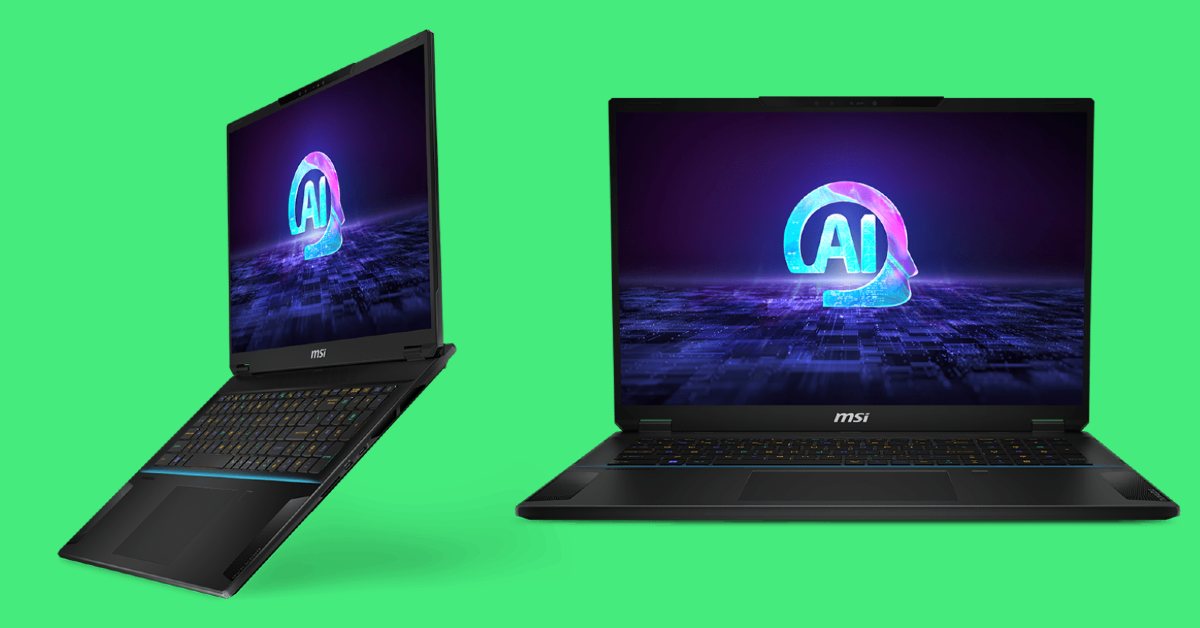 There’s plenty of weird, whacky tech to be seen at CES, but most importantly it is the launching pad for some of the most exciting releases of the year. MSI’s new range of gaming laptops belongs to the latter camp. The Titan, Stealth, and Cyborg laptops are designed to handle AI tasks on top of producing a stellar gaming performance. The Titan and Stealth are powered by the 14th Gen Intel Core i9 processors and NVIDIA GeForce RTX 40 Series GPUs. The new Stealth 18 AI Studio rocks the latest Intel Core Ultra processor.
Clicks for iPhone
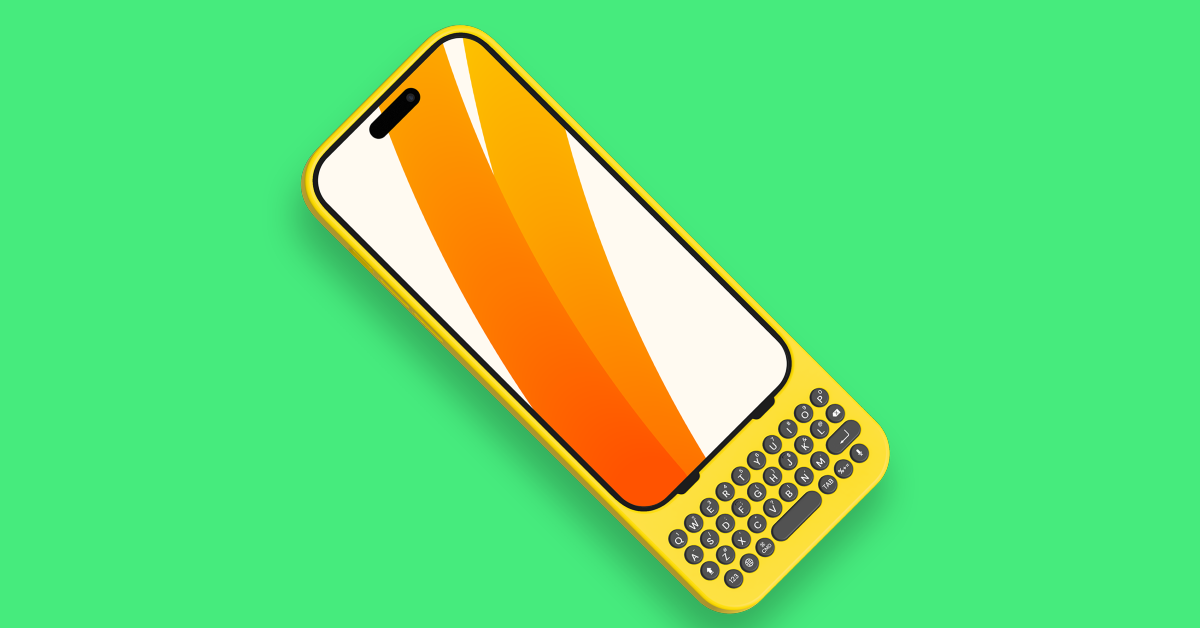 Miss the feeling of typing on a QWERTY keyboard like the good ol’ Blackberry days? The Clicks iPhone case might be the device for you. The idea is simple – a QWERTY keyboard integrated into a plastic case that can easily slap onto your iPhone. The lightning/USB connector on the case slides into your iPhone’s charging port, powering the backlit keyboard. What we really like about Clicks is that it also supports keyboard shortcuts for your iPhone.
Samsung Music Frame
 Samsung’s Frame TV wasn’t just a one-off product in the series. The company has taken the wall art approach on its newest home speaker as well. The ‘tech that doesn’t look like tech’ genre of design is something we would love to see more of in 2024. The Music Frame was showcased with a record player print on the front panel, but Samsung says users will be able to customise this panel and use it like a photo frame. It features two built-in woofers and tweeters and can function in WiFi and Bluetooth modes. The Q-Symphony technology enables it to function as a surround speaker for your Samsung TV.
Nanoleaf Skylight
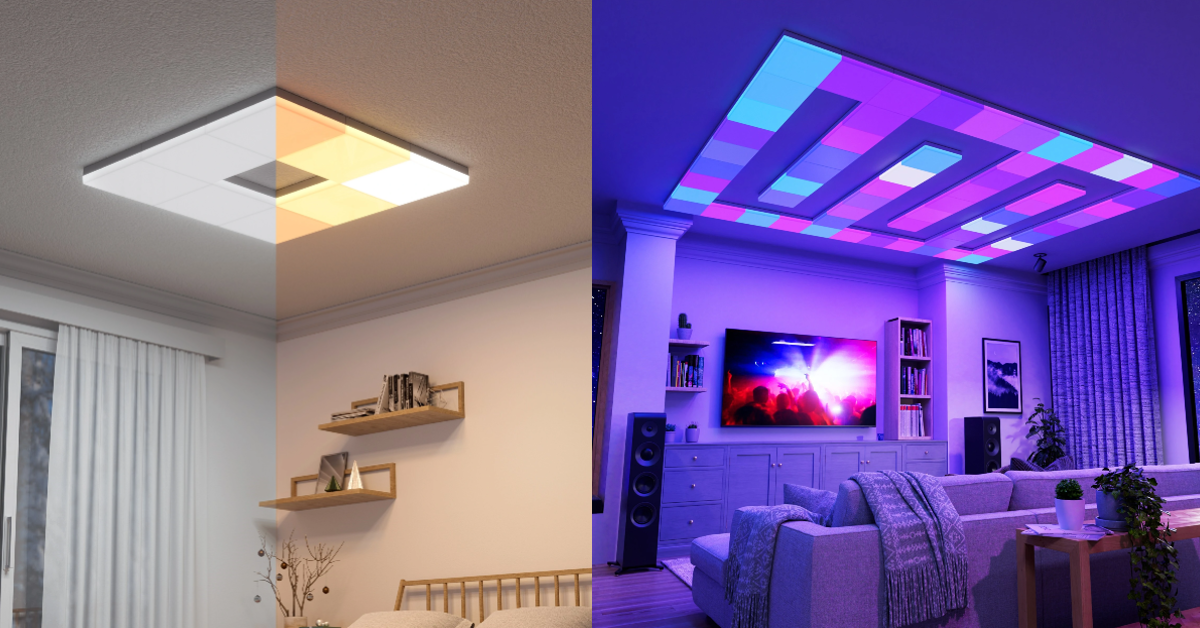 This modular ceiling fixture gives the user complete control over their ceiling’s lighting setup. Nanoleaf Skylight takes inspiration from the company’s wall light panels. Its functioning remains the same – the Skylight connects to your home WiFi, letting you control whether you want a standard white light to fill the room or choose from over 16 million dynamic colours for ambient lighting. It also gets ‘smart’ features like the Rhythm Music Visualiser, Screen Mirror, dynamic lighting Scenes, and Group Scenes.
Lenovo Thinkbook 13x Gen 4 SPE Concept
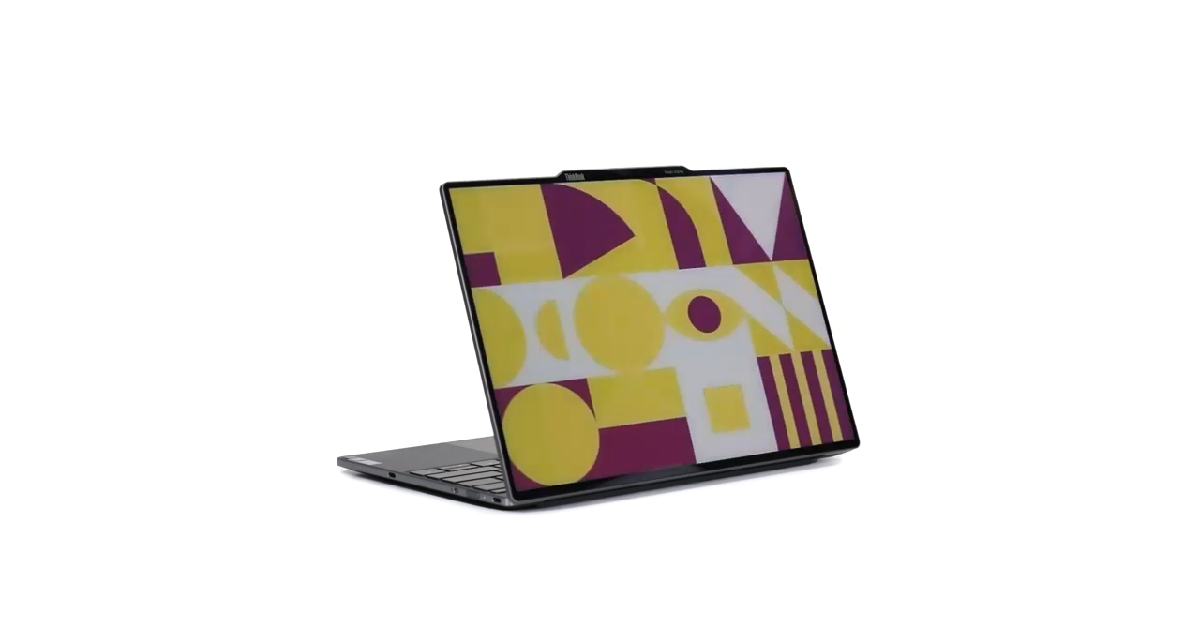 The Lenovo Thinkbook 13x Gen 4 SPE is one concept product that we really want to see in the stores. This unique notebook uses E Ink Prism technology for its back panel, enabling users to create attractive patterns and designs for the exterior cover. Mimicking the look of a laptop skin, the colour-changing top remains active even when the notebook is switched off. The impact on the battery life is negligible, as E Ink does not draw a lot of power. Lenovo showcased four design schemes for the back panel at CES 2024, including a dynamic clock and multi-system interaction theme.
LG Signature OLED T
 Over the years, we’ve seen some crazy TVs at CES 2024, but nothing comes close to the LG Signature OLED T. This sleek, transparent TV disappears when it is turned off. Yes, you read that right. The OLED T replaces the ‘Why?’ aspect of technology with ‘Why not?’ The visuals produced on this 77-inch OLED display are as stunning as ever. If you want it to function as a regular TV, the OLED T allows you to lift up the contrast screen with one push of a button. However, the lack of Micro Lens Array (MLA) tech is a big miss, especially when you take into consideration that it will be one of LG’s priciest TVs when it gets released later this year.
C Seed N1 Foldable TV
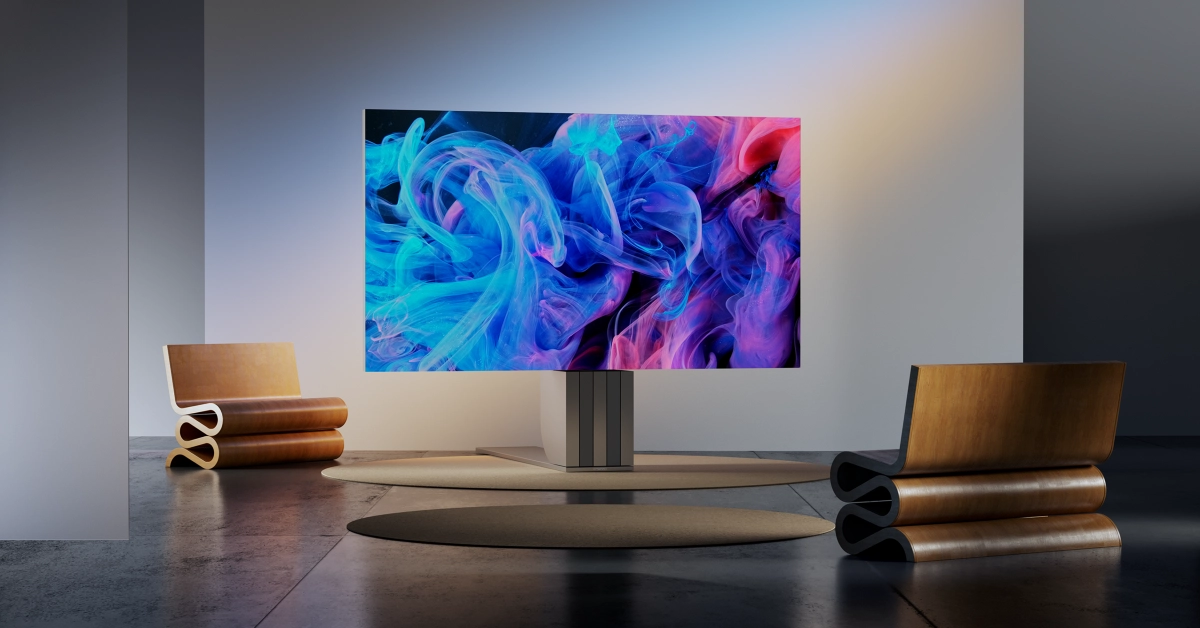 Speaking of eccentric TVs, the C Seed’s Micro LED Foldable TV was another crazy showcase at CES 2024. Measuring a staggering 137 inches, the N1 TV takes up a lot of space but when it is not in use, it can completely fold into its stand. It takes 60 seconds for the TV to rise to its height of 7.8 metres and another 25 seconds to fully unfold. This process is fully automated. The TV’s Adaptive Gap Calibration tech ensures that the picture quality is seamless and unobstructed by the folding panels. A staggering price of $200,000 means we certainly won’t be seeing it in a lot of living rooms.
Garmin Lily 2 Smartwatch
 Garmin Lily 2 was one of the best gadgets launched at CES 2024. Priced at $250, this smartwatch continues the Garmin tradition of attractive styling infused with state-of-the-art tech. The unique patterned lenses on the metal case reveal the touchscreen with a quick turn of the wrist or a tap on the screen. Users get to choose from Italian leather, nylon, and silicone bands. Garmin also lets users customise their smartwatch by choosing the band and bezel combo. The Lily 2 is decked with smart features like energy and health monitoring, sleep and fitness tracking, connected GPS, and contactless payments.
Ballie
We have seen Samsung’s Ballie robot before (CES 2020), but now it comes with AI integration, making it one of the best gadgets showcased at CES 2024. The game-changing AI features have significantly increased the range of this home assistant robot’s functionality. Ballie studies users’ patterns and habits and revises its services accordingly. Its projector can gauge the distance of the wall, posture and eye level of the user, and surrounding lighting conditions to perfectly project images on the screen. On top of that, it can control your home appliances and even feed your pet while you’re away. There is no official word on Ballie’s release date yet, but we hope this concept comes to fruition soon.Amazfit Helio Ring
 Designed for athletes, the Amazfit Helio Ring made its debut at CES 2024. Made out of skin-friendly titanium alloy, the Helio Ring can track the mental and physical condition of the athlete with incredible accuracy. It offers water resistance of up to 10ATM. The size 10 variant of the ring weighs 3.8g while the size 12 version is just 0.2g heavier. On a single charge, the Amazfit Helio Ring offers a battery life of 5 days. The Electrodermal Activity (EDA) sensors on this ring can track stress indicators like sweat to gauge the mental condition of the user. Easily one of the best gadgets at CES 2024.
Motion Pillow
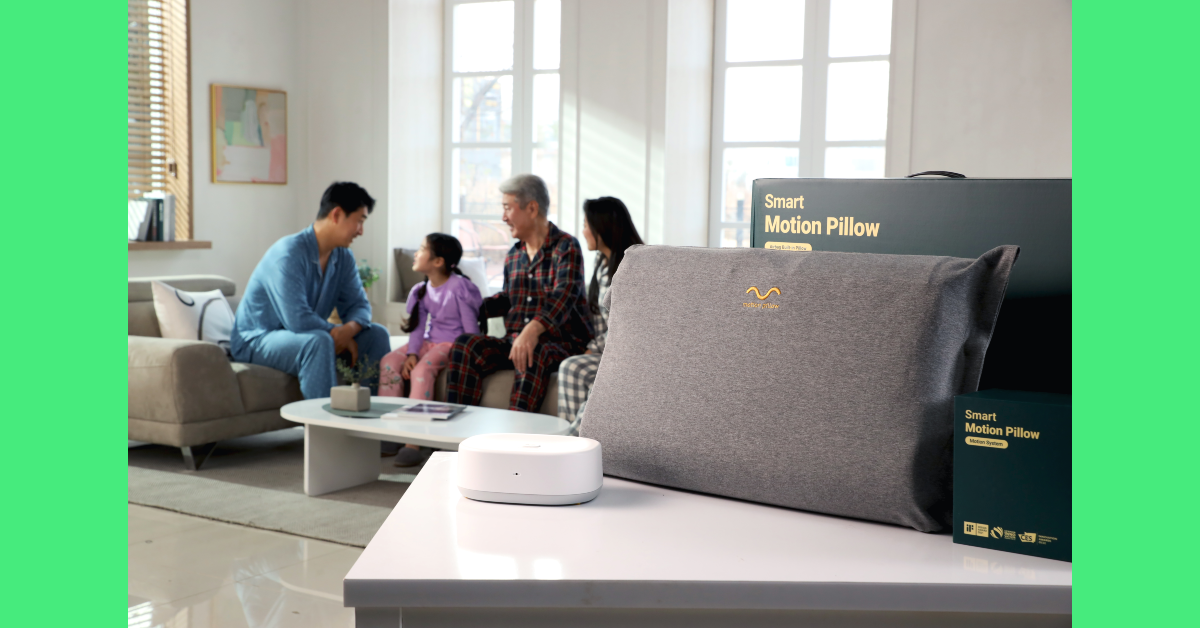 As we mentioned earlier, CES 2024 was all about AI-integrated tech. But the Motion Pillow was something we did not see coming. This AI pillow can monitor your snoring patterns and inflate itself to open an airway. It can also track your sleep cycle and other sleep-related data. Its companion app makes it easy to analyse your sleeping pattern. The pillow records your snoring phases and timestamps them accordingly. Sales for the Motion Pillow will go live on January 13. Although it is listed at $699, the pillow will retail for $420 at launch.
Rabbit R1
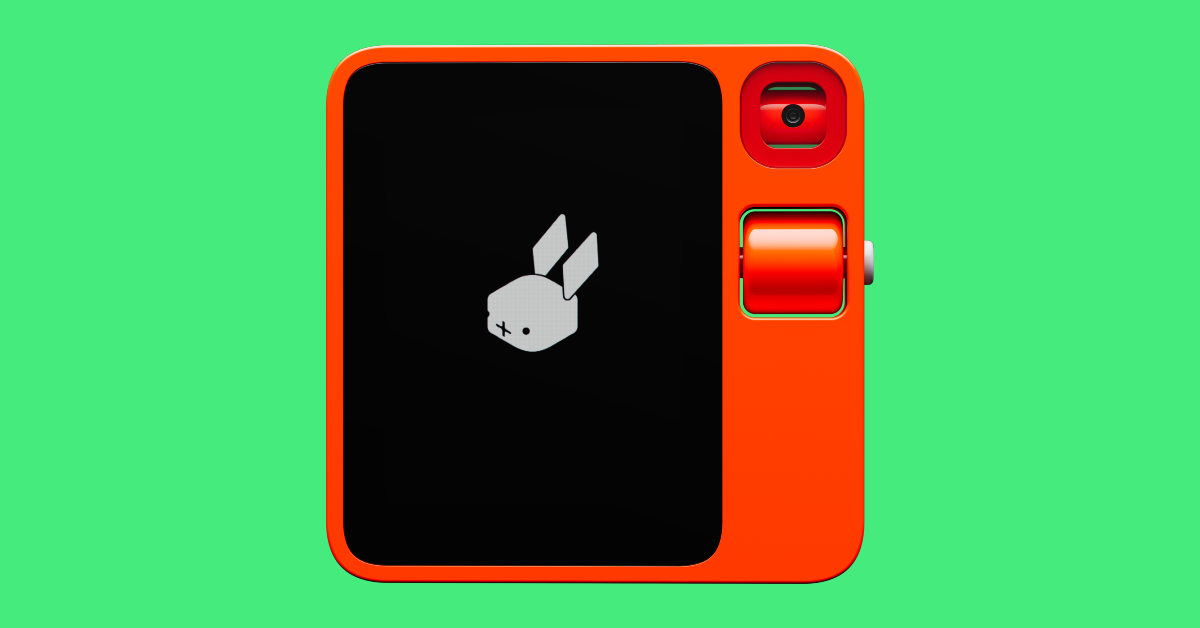 The Rabbit R1 AI device was one of our favourite pieces of tech at CES 2024. This pocket-sized device can control your home devices, play music on Spotify, order a cab on Uber, and perform other daily tasks that typically require a smartphone. Instead of luring developers to design apps for its platform, Rabbit uses its LAM (Large Action Model) to use the existing apps on your smartphone. You can train your R1 to work an app and then simply give it commands to carry out a particular task. Think of a smarter Alexa that can control any app on your phone and even carry out niche tasks. The Rabbit R1 can be pre-ordered right now, with deliveries expected to roll out by March.
Read Also: Top 5 Easy Ways to Find Which Private Number Called You (2024)
The Rabbit R1 AI device was one of our favourite pieces of tech at CES 2024. This pocket-sized device can control your home devices, play music on Spotify, order a cab on Uber, and perform other daily tasks that typically require a smartphone. Instead of luring developers to design apps for its platform, Rabbit uses its LAM (Large Action Model) to use the existing apps on your smartphone. You can train your R1 to work an app and then simply give it commands to carry out a particular task. Think of a smarter Alexa that can control any app on your phone and even carry out niche tasks. The Rabbit R1 can be pre-ordered right now, with deliveries expected to roll out by March.
Read Also: Top 5 Easy Ways to Find Which Private Number Called You (2024)
Conclusion
These were our picks for the top 12 gadgets at CES 2024. Most of the devices showcased at the event will hit the stores later this year. Think we missed something? Let us know your favourites in the comments! Also, stay tuned for our CES 2024 EV roundup on Motorbridge.com!Poco X6 Series launching in India today: Expected pricing and specs details
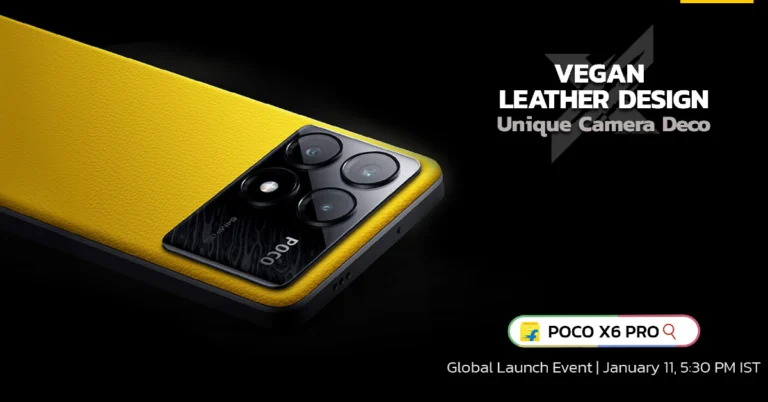
Key Highlights
- The Poco X6 Series will include two smartphones.
- Poco X6 and Poco X6 Pro will succeed Poco X5 and Poco X5 Pro, respectively.
- Poco X6 will use a Snapdragon 7s Gen 2 SoC, while Poco X6 Pro will be powered by a MediaTek Dimensity 8300 Ultra SoC.
Here is how to watch the Poco X6 Series global launch livestream
The Poco X6 Series is going to launch in India today. The company will be hosting an online launch event that will be broadcast live at 5.30 p.m. The launch event will be live-streamed through Poco’s official YouTube channel in addition to multiple social media platforms, including Facebook and Twitter. You may watch it live right here on our website, as we have embedded the link below.Poco X6 Series price in India is expected
The company has not yet revealed any information regarding the Poco M5’s specifications or pricing. As we said, the price specs and design details of the phones had already leaked on the web before the official announcement. It has been tipped that the Poco X6 Pro’s 12GB RAM with 512GB storage model will cost AED 1,299, or approximately Rs 29,500. It is likely to come in three colour options: black, grey, and yellow. The company has already confirmed Flipkart’s availability post-launch. Also Read: Dell’s all-new Alienware QD-OLED Gaming Monitors unveiled at CES 2024Poco X6 Series specifications expected
Recently, an unboxing video of the Poco X6 5G surfaced online that gave us an up-close look at the design. The smartphone’s retail box includes a 67W charger, a USB Type-C to 3.5mm adapter, and a SIM-ejector tool. It appears to come with a dual-tone design. The back of the phone will have a glass panel. In addition to this, it features a triple-camera sensor module. Reportedly, the camera setup will include a 64-megapixel primary camera, an 8-megapixel secondary sensor, and a 2-megapixel sensor. Additionally, a front-facing 8-megapixel camera may be included. The device is also said to come with a 6.67-inch AMOLED display with 1.5K resolution and a refresh rate of 120Hz. It is stated to boast a 5,100 mAh battery. The Poco X6 may also run on MIUI 14, an Android 13-based operating system. It is confirmed that the Poco X6 will use a Snapdragon 7s Gen 2 SoC. On the other hand, the Poco X6 Pro will be powered by a MediaTek Dimensity 8300 Ultra SoC. The Pro model is tipped to boast a 6.67-inch display. The company has also revealed that the handset will come with a new HyperOS out-of-the-box. It further confirmed that the device will also sport a triple rear camera set up with a 64-megapixel primary sensor with optical image stabilisation (OIS) and a 2x lossless in-sensor zoom. Also Read: CES 2024: AMD Ryzen 8000G desktop processor with dedicated AI neural processing unit announced According to leaks, the camera system may include an 8-megapixel sensor with an ultrawide lens and a 2-megapixel macro sensor. The company has also revealed that the Poco X6 Pro will feature a 1.5K AMOLED panel with a refresh rate of up to 120 Hz. The X6 Pro is expected to be powered by a 5,000mAh battery with 67W wired fast charging support.Garena Free Fire Redeem Codes Today 11 January 2024: Here is how to claim them

Garena Free Fire is a battle royale game with regular awards and tournaments to keep players interested. If you play Garena Free Fire, you should be aware of the redeem codes that are released on a daily basis. However, because the battle royale game is banned in India, players from other countries can use the Free Fire Redeem codes daily. If you’re unfamiliar with the Garena Free Fire redeem codes or don’t know how to get them, we’ve put together a step-by-step guide to help you redeem them. Check out Garena Free Fire Redeem Codes for 11 January 2024.
The Free Fire redeem codes are a great way to get free stuff. These are 12-digit codes that contain alphabets and numbers, as well as an expiration date and time. Because the Garena FF redeem codes cannot be used more than once, you should hurry to the redemption page to claim your free reward before someone else does. To get a free reward, all you have to do is go to reward.ff.garena.com/en, which is the official redemption page. Also, keep an eye on this space for daily updates on Garena Free Fire redemption codes and rewards.
Garena Free Fire Redeem Codes Today 11 January 2024
FF9MJ31CXKRG FFCO8BS5JW2D FFICJGW9NKYT FFAC2YXE6RF2 FFICJGW9NKYT XUW3FNK7AV8NHow to Get Free Fire Redeem Codes for Garena on 11 January 2024?
- Visit the Garena Free Fire game’s official website at reward.ff.garena.com.
- Use your Facebook, Google, VK, Apple ID, Huawei ID, or Twitter account to log in.
- You’ll be taken to a valid redemption code (s)
- Copy and paste the 12-digit redemption code into the text box.
- On the screen, a dialogue box will appear.
- ‘Ok’ should be selected.
4 Ways To Set an Animated GIF as a Wallpaper (2024)

Smartphone displays are all about personalisation. At a time when most smartphones look alike from the front, setting up a unique wallpaper with a complementary icon pack can inject your device with much-needed personality. If you want to stand out from the pack, GIF/live wallpapers are the way to go. The only downside is that they will drain the battery slightly faster. If that doesn’t bother you, here are the top 4 ways to set an animated GIF as a wallpaper on Android and iOS devices.
Read Also: Responsible iGaming: How to Choose a Safe iGaming App
 Step 4: Crop the GIF and select whether you want it to be the lock screen wallpaper, home screen wallpaper, or both.
Step 5: Hit the tick icon at the top right corner of the screen when you’re done.
Step 4: Crop the GIF and select whether you want it to be the lock screen wallpaper, home screen wallpaper, or both.
Step 5: Hit the tick icon at the top right corner of the screen when you’re done.
 Step 4: Select the GIF from your phone’s gallery.
 Step 5: Use the toolbar on the left to edit the GIF.
Step 6: If the GIF doesn’t fit the screen, fill the empty spaces with a complementing colour.
Step 7: Hit the tick icon once you’re done editing the GIF.
Step 8: Select Apply.
Step 5: Use the toolbar on the left to edit the GIF.
Step 6: If the GIF doesn’t fit the screen, fill the empty spaces with a complementing colour.
Step 7: Hit the tick icon once you’re done editing the GIF.
Step 8: Select Apply.
 Step 2: Go to Settings and select Wallpaper and style.
 Step 3: Tap on My wallpapers.
Step 4: Hit the ellipses at the top right corner of the screen.
Step 5: Select Live wallpapers.
Step 6: Tap on the wallpaper that you have downloaded.
Step 7: Hit Set Wallpaper.
Step 3: Tap on My wallpapers.
Step 4: Hit the ellipses at the top right corner of the screen.
Step 5: Select Live wallpapers.
Step 6: Tap on the wallpaper that you have downloaded.
Step 7: Hit Set Wallpaper.
 Step 4: Select Convert to Live Photo.
 Step 5: Now, go to Settings and select Wallpaper.
 Step 6: Select Choose a New Wallpaper.
Step 7: Tap on Live Photos.
Step 8: Select the GIF you just downloaded. Press and hold the screen to view the animation.
Step 6: Select Choose a New Wallpaper.
Step 7: Tap on Live Photos.
Step 8: Select the GIF you just downloaded. Press and hold the screen to view the animation.
 Step 9: Tap on Set.
Things to keep in mind before choosing a GIF for your wallpaper
Turning a GIF into a wallpaper for your smartphone is not an easy task. Sure, several online marketplaces let you download custom live wallpapers, but their libraries are generally restricted to bland, cookie-cutter items. If you want something unique for your phone’s display you can either create a GIF yourself or explore platforms like Giphy. While picking a GIF, there are certain things you need to keep in mind. The most important of them all is the resolution of the file. A pixelated GIF is never a good look for your device. Always download HD GIFs, but make sure their file size isn’t too bulky or you’ll end up slowing down your phone’s speed. Another thing you should consider while downloading a GIF is its speed. A fast-paced GIF is too distracting to be turned into a wallpaper. You want something that slowly unfolds itself without being too flashy. A looping GIF is perfect for this situation. Certain apps can help you fix the speed of the downloaded GIF. We have mentioned our favourite pick later in the article.Set a GIF as a wallpaper on Android
Step 1: Download the GIF on your Android smartphone. If don’t have a particular GIF in mind, you can browse apps like Giphy for ideas. Step 2: Go to your device’s gallery and open the GIF. Step 3: Hit the ellipses at the bottom right corner of the screen and select Set as Wallpaper.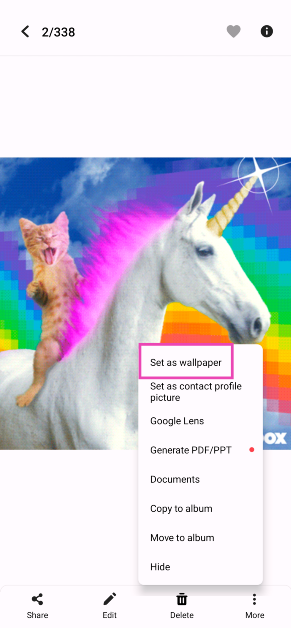 Step 4: Crop the GIF and select whether you want it to be the lock screen wallpaper, home screen wallpaper, or both.
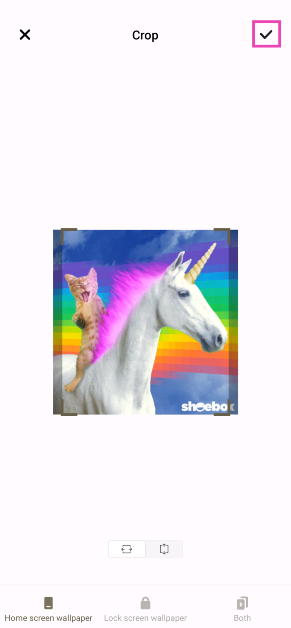 Step 5: Hit the tick icon at the top right corner of the screen when you’re done.
Use a third-party app for Android
If your Android smartphone does not support setting GIFs as wallpapers, use the GIF Live Wallpaper app. Step 1: Download a GIF on your smartphone. Make sure its dimensions are similar to your home screen. Step 2: Download and launch the GIF Live Wallpaper app on your Android smartphone. Step 3: Hit the arrow icon to import the GIF from your device’s storage into the app.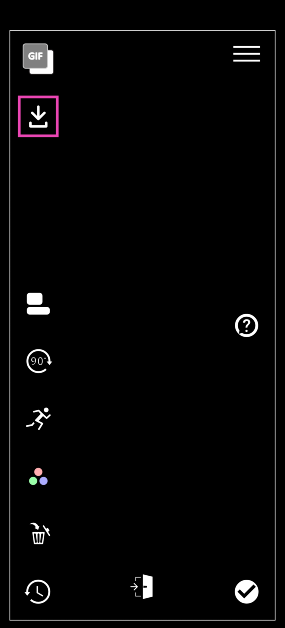 Step 4: Select the GIF from your phone’s gallery.
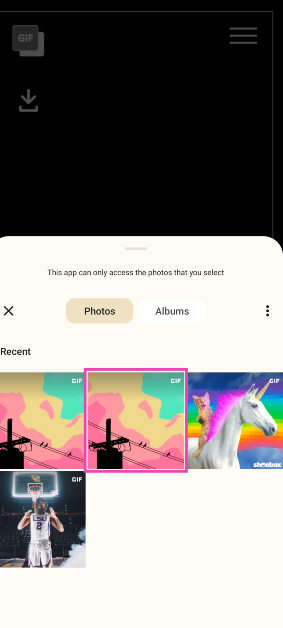 Step 5: Use the toolbar on the left to edit the GIF.
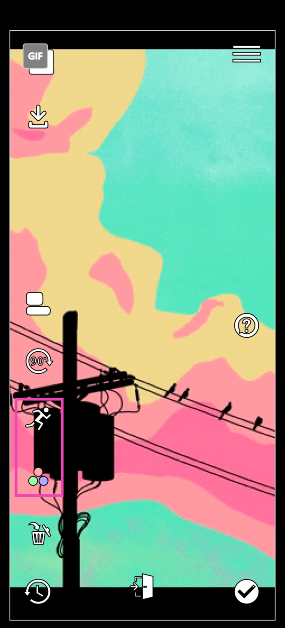 Step 6: If the GIF doesn’t fit the screen, fill the empty spaces with a complementing colour.
Step 7: Hit the tick icon once you’re done editing the GIF.
Step 6: If the GIF doesn’t fit the screen, fill the empty spaces with a complementing colour.
Step 7: Hit the tick icon once you’re done editing the GIF.
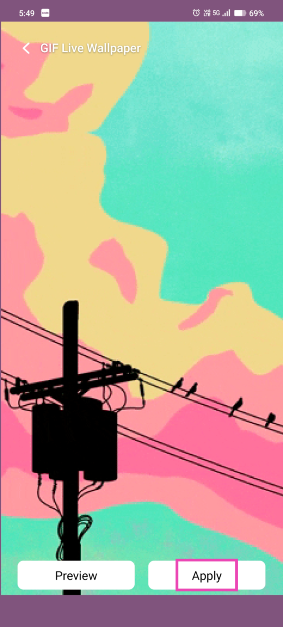 Step 8: Select Apply.
Set a Live Wallpaper on your Samsung smartphone
Step 1: Download a live wallpaper from the Galaxy Store.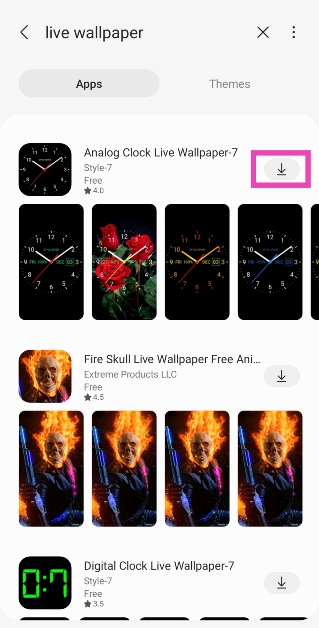 Step 2: Go to Settings and select Wallpaper and style.
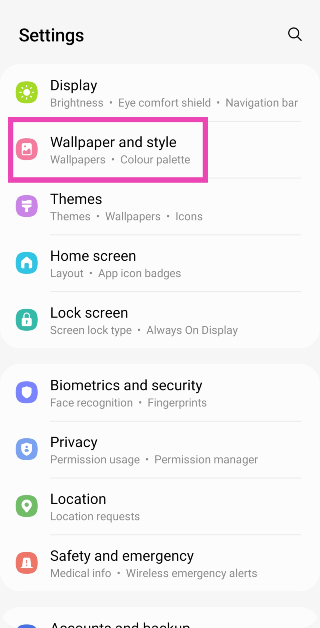 Step 3: Tap on My wallpapers.
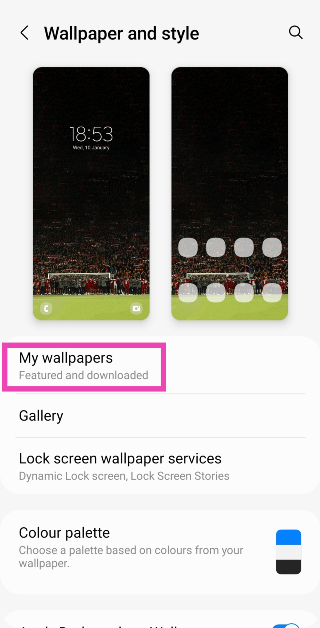 Step 4: Hit the ellipses at the top right corner of the screen.
Step 5: Select Live wallpapers.
Step 4: Hit the ellipses at the top right corner of the screen.
Step 5: Select Live wallpapers.
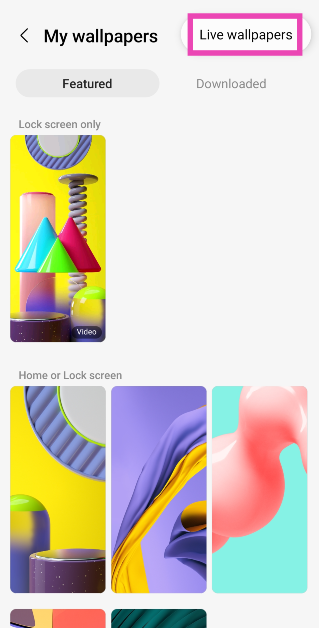 Step 6: Tap on the wallpaper that you have downloaded.
 Step 7: Hit Set Wallpaper.

Set a GIF as the wallpaper on iOS
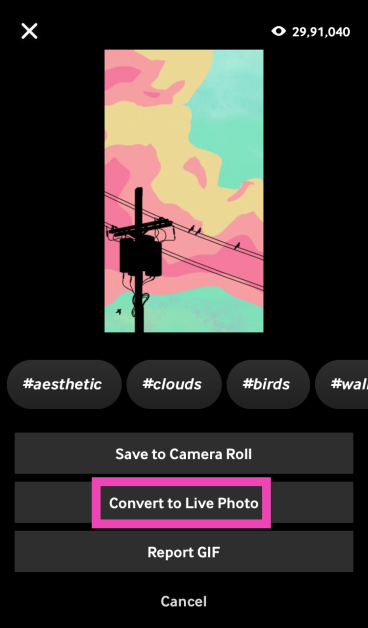
GIFs need to be saved as Live Photos on iPhones if you want to set them as wallpaper. Step 1: Launch the Giphy app on your iPhone. Step 2: Select the GIF you want to set as your wallpaper. Step 3: Hit the ellipses at the top right corner of the screen.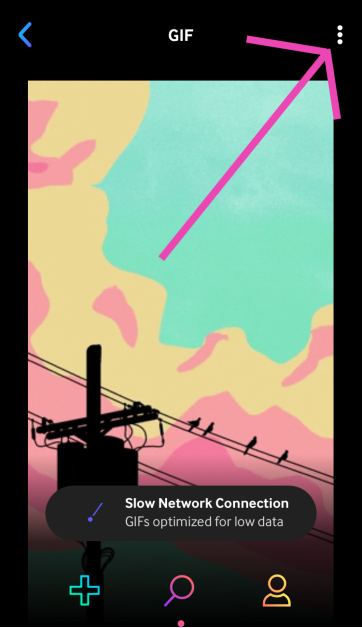 Step 4: Select Convert to Live Photo.
 Step 5: Now, go to Settings and select Wallpaper.
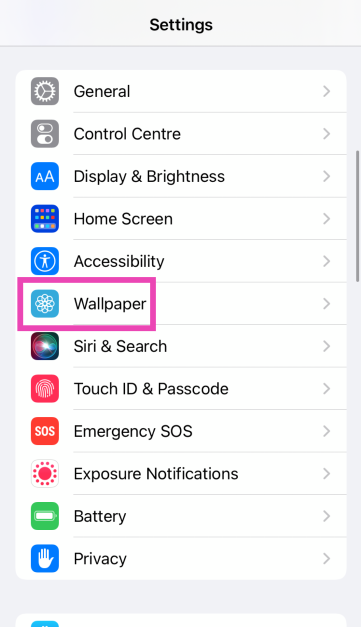 Step 6: Select Choose a New Wallpaper.
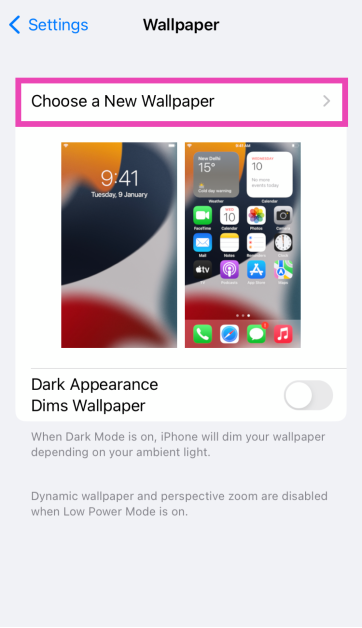 Step 7: Tap on Live Photos.
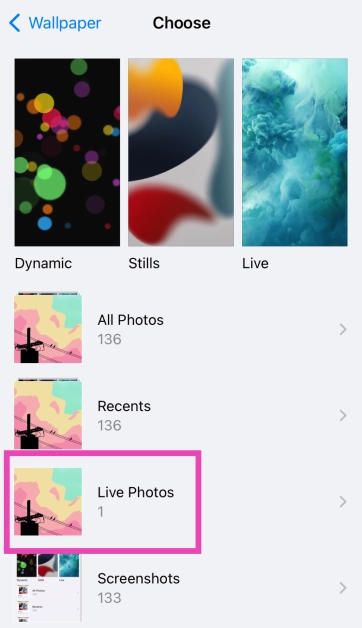 Step 8: Select the GIF you just downloaded. Press and hold the screen to view the animation.
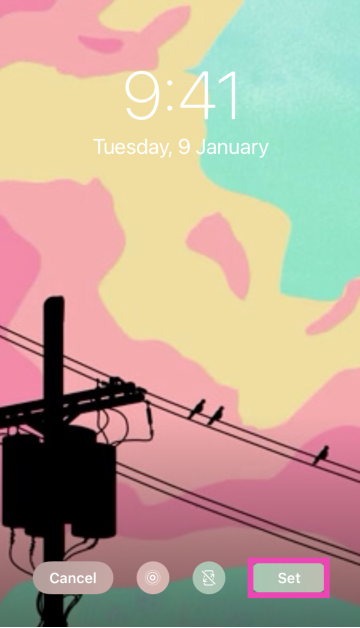 Step 9: Tap on Set.
Frequently Asked Questions (FAQs)
Can I set a GIF as a wallpaper on my Android phone?
Android smartphones support Live Wallpapers, which means you can set a GIF as wallpaper on your device. Use the native gallery app or a third-party app like GIF Live Wallpaper.Why am I not able to set a GIF as my Android phone’s wallpaper?
If your phone’s native gallery app is unable to set a GIF as wallpaper, use the GIF Live Wallpaper app. Import the GIF into the app, edit its speed and dimensions, and hit the tick icon when you’re done.How do I make a GIF my iPhone wallpaper?
Download the GIF on your iPhone, then go to Settings>Wallpaper>Choose a New Wallpaper>Live Photos and select the GIF. Read Also: Top 4 Easy Ways to Identify the Language of any TextConclusion
These are the top 4 ways to set an animated GIF as a wallpaper on your Android or iOS device. While downloading a GIF on your iPhone, make sure you save it as a Live Photo or your device won’t recognise it as an animated file while setting up the wallpaper. If you know any other way to turn a GIF into a wallpaper, let us know in the comments!CES 2024: AMD Ryzen 8000G desktop processor with dedicated AI neural processing unit announced

Key Highlights
 The Radeon 700M graphics allows impressive visual fidelity, providing a smooth AAA 1080p gaming experience at an affordable price point, and in small form factors.
In addition to this, there is AMD EXPO technology on both the processors allowing for greater memory frequencies and advanced timings to unlock smoother frame rates. Precision Boost Overdrive (PBO) allows one-touch overclocking, giving users an extra CPU boost with increased power limits.
As per the company AMD Ryzen 8000G Series desktop processors are expected to be available to DIY customers, SI partners starting January 31st, 2024. OEM systems are expected to arrive in Q2 2024.
Also Read: Dell’s all-new Alienware QD-OLED Gaming Monitors unveiled at CES 2024
The Radeon 700M graphics allows impressive visual fidelity, providing a smooth AAA 1080p gaming experience at an affordable price point, and in small form factors.
In addition to this, there is AMD EXPO technology on both the processors allowing for greater memory frequencies and advanced timings to unlock smoother frame rates. Precision Boost Overdrive (PBO) allows one-touch overclocking, giving users an extra CPU boost with increased power limits.
As per the company AMD Ryzen 8000G Series desktop processors are expected to be available to DIY customers, SI partners starting January 31st, 2024. OEM systems are expected to arrive in Q2 2024.
Also Read: Dell’s all-new Alienware QD-OLED Gaming Monitors unveiled at CES 2024
- AMD has introduced AMD Ryzen 8000G Series desktop processors.
- The all-in-one desktop processors come with a dedicated AI neural processing unit (NPU).
- This will unleash AI capabilities for consumers and improve productivity, efficiency, and advanced collaboration.
AMD Ryzen 8000G Series Desktop Processors
The AMD “Zen 4” architecture serves as the foundation for the 8000G Series CPUs. The all-in-one desktop processor is said to deliver powerful performance for demanding tasks like gaming and content creation. There are two processors under the series: The AMD Ryzen 7 8700G has 16 threads, 8 cores, and 24MB of cache. The processor is paired with Radeon 780M graphics. On the other hand, AMD Ryzen 5 8600G has six cores, twelve threads, 22MB of cache, and Radeon 760M graphics. Both the desktop processors include AMD Ryzen AI technology, including the first NPU on a desktop PC processor. This technology is specially designed to accelerate your computer’s ability to run AI software, optimize AI workloads, improve AI processing efficiencies, and unlock exciting experiences like AI-powered noise cancellation.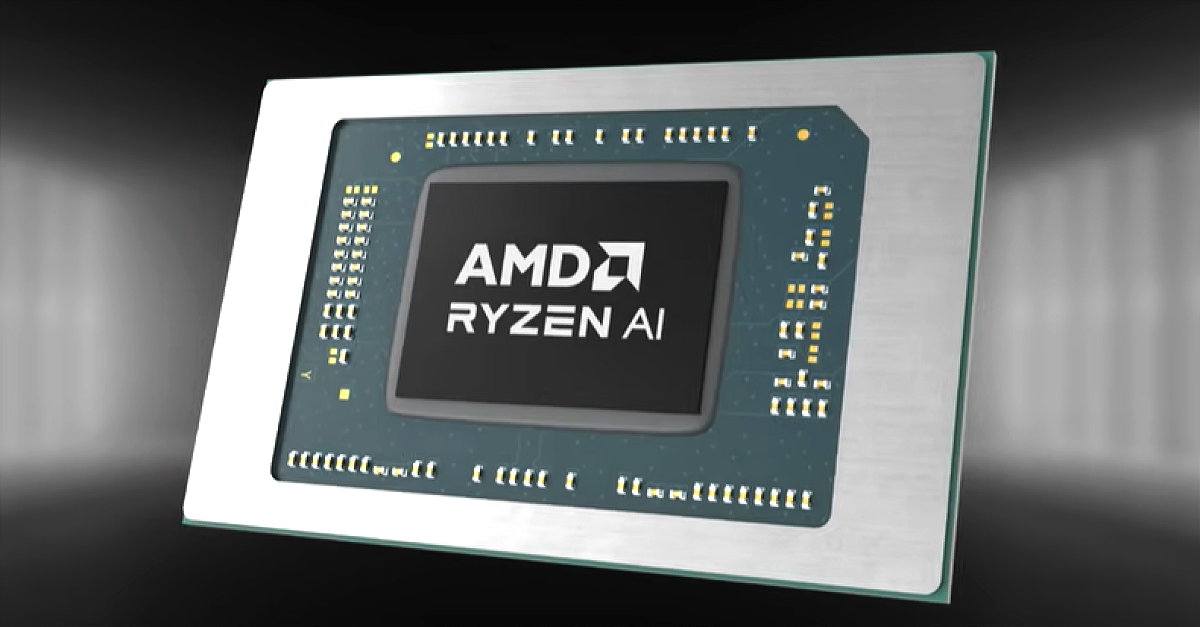 The Radeon 700M graphics allows impressive visual fidelity, providing a smooth AAA 1080p gaming experience at an affordable price point, and in small form factors.
In addition to this, there is AMD EXPO technology on both the processors allowing for greater memory frequencies and advanced timings to unlock smoother frame rates. Precision Boost Overdrive (PBO) allows one-touch overclocking, giving users an extra CPU boost with increased power limits.
As per the company AMD Ryzen 8000G Series desktop processors are expected to be available to DIY customers, SI partners starting January 31st, 2024. OEM systems are expected to arrive in Q2 2024.
Also Read: Dell’s all-new Alienware QD-OLED Gaming Monitors unveiled at CES 2024
The Radeon 700M graphics allows impressive visual fidelity, providing a smooth AAA 1080p gaming experience at an affordable price point, and in small form factors.
In addition to this, there is AMD EXPO technology on both the processors allowing for greater memory frequencies and advanced timings to unlock smoother frame rates. Precision Boost Overdrive (PBO) allows one-touch overclocking, giving users an extra CPU boost with increased power limits.
As per the company AMD Ryzen 8000G Series desktop processors are expected to be available to DIY customers, SI partners starting January 31st, 2024. OEM systems are expected to arrive in Q2 2024.
Also Read: Dell’s all-new Alienware QD-OLED Gaming Monitors unveiled at CES 2024
AMD Ryzen 5000 Series desktop processors
Apart from this AMD has also updated its Ryzen 5000 series of processors with the addition of AMD Ryzen 7 5700X3D, AMD Ryzen 7 5700, AMD Ryzen 5 5600GT, and AMD Ryzen 5 5500GT. The AMD Ryzen 7 5700X3D is based on Zen 3 architecture. It has up to 4.1GHz clock speed. The Ryzen 5000 series processors include 3D V-Cache technology to deliver an astonishing 100MB of on-chip memory, providing power and productivity gains for games and applications at any setting and any resolution. The new Ryzen 5000 Series desktop processors are expected to be available to DIY customers and SI partners starting January 31st, 2024.Boult Astra Review: A well-rounded TWS that can do it all
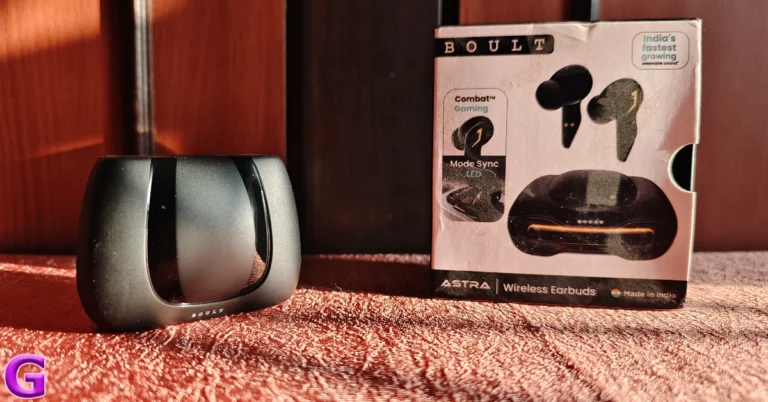
Just a few years back, buying a pair of wireless gaming earbuds meant splurging some extra cash on a product that was leagues below wired gaming headsets in the same price bracket. Thankfully, that is not the case anymore. This is largely due to several Indian brands stepping up and putting out affordable gaming TWS products that provide a bang for the buck. Boult is one of the first names that come to mind. Last year, the audio outfit launched the ‘Astra’ TWS which features a low latency rate of 45ms. These wireless earbuds are currently priced at Rs 1,199. When the Astra crossed our desk, we were quite surprised by its bold, unique design. Interested to check out its performance, we used the TWS for a week. Here is our in-depth review of the Boult Astra.
Read Also: Top 4 Easy Ways to Identify the Language of any Text
The wide charging case has a spaceship-like design, which brings a lot of flair and personality to the product. The black colour variant looks like a Batmobile, with the LED lighting around the lid resembling the brake lights. A glossy black strip meanders around the bump on the top panel, offering a contrasting feel to the matte finish on the rest of the case. There are two USB Type-C ports on either side of the hinge, which is more of a styling choice rather than a functional one since you can only use one USB port at a time to charge the TWS. If one port stops working, you can always use the second one.
We were pleased with the quality of materials used in this product. Even though it is entirely made out of plastic, the charging case is not flimsy at all. The hinge feels sturdy and offers a very satisfying snap when the lid is shut. The breathing LED lights around the lid are styled very tastefully and do not feel gaudy at all. In our opinion, the Astra is one of the best-looking wireless earbuds in its price category.
The immaculate styling continues inside the case as well. Flipping the lid open, you will find the earbuds nestled comfortably in their cutouts, with a glossy bump encasing them. The arrow lighting pattern on the inner panel slowly lights up as the earbuds go into pairing mode. It plays into the futuristic look that Boult is going for on the TWS.
The earbuds are made out of plastic and have a glossy finish to them. The in-ear design offers a comfortable, snug fit. The zig-zag pattern of the stems makes them easy to hold and adjust without triggering the touch controls. This is a big plus point in our book because accidental touches often mar the entire TWS experience for us.
We used the Boult Astra while working out and hiking during the review period. Rated IPX5 for dust and water resistance, the wireless earbuds were undeterred by sweat and minor splashes of water. Despite the glossy finish on the inner panel of the earbuds, the fit remained airtight even when things got sweaty.
Moving on to the most important part of the review – the sound quality. After being floored with the Astra’s flashy design, we had high hopes for its audio performance. And it did not disappoint. We were happy with the clear mids and highs that formed the soundstage. The bass is slightly boosted but it does not throw a blanket over the other elements. In fact, it is quite smooth and delivers the ‘thumping’ effect quite nicely.
Bass enthusiasts will certainly enjoy the audio tuning on these earbuds. The soundstage is far from neutral, but it is a whole lot of fun. Usually, entry-level earbuds either sound tinny or have an overblown low-end. The Astra strikes a nice balance among the frequencies and produces a well-rounded output. Even though it is branded as a ‘gaming’ TWS, it can easily go toe to toe with any ‘music’ earbuds in the category.
Talking about the gaming performance, the Astra has a 45ms latency, which isn’t the lowest we have seen in this segment, but it is certainly optimum. We played a handful of FPS games like BGMI and Call of Duty Mobile with the Astra in our ears. Not once did we experience any latency issues. The action on the display was perfectly in sync with the audio feedback. We were also pleased with the crispness of audio that the Astra produced. To top it all off, the detail in the output was impeccable as well. Even the faintest of steps were reproduced by the earbuds.
While we had no complaints with the Astra’s audio performance, its microphones leave a lot more to be desired. The audio relayed to the recipient on calls is boxy and lacks a lot of detail. Even though the TWS uses Quad Mic ENC, the noise level could have been maintained better. Taking a call outdoors meant unpairing the TWS and relying on the phone’s microphone.
The battery performance on Boult Astra is pretty standard. The earbuds offer 6-7 hours of playtime on a full charge, with an additional 48 hours in the charging case. With quick charging onboard, plugging the TWS into the charger for 10 minutes provides 1.5 hours of playtime. There is no companion app for Boult’s TWS products yet, but we hope there is one on the way.
Read Also: Asus ROG Phone 8 Series powered by Snapdragon 8 Gen 3 SoC launched at CES 2024
Boult Astra review: Design
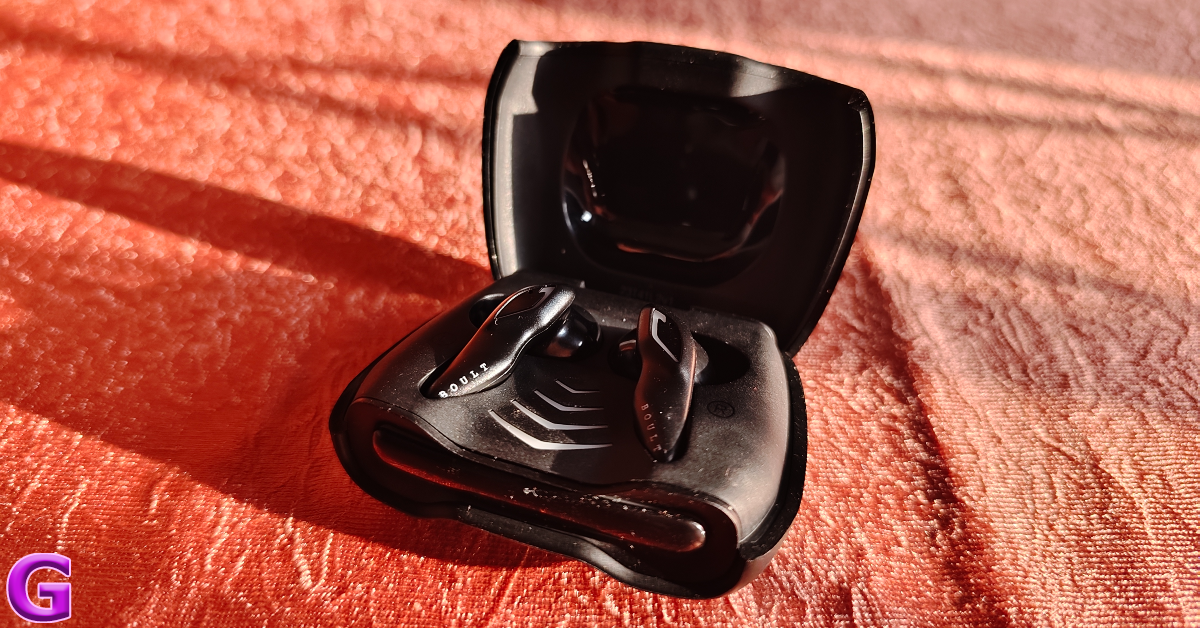
Inside the Boult Astra retail package, you get the TWS charging case with earbuds inside, two extra pairs of silicone ear tips, a USB Type-A to Type-C charging cable, and a user manual. There are three colour options on offer – Black Gloss, Smoke Metal, and Opal, White.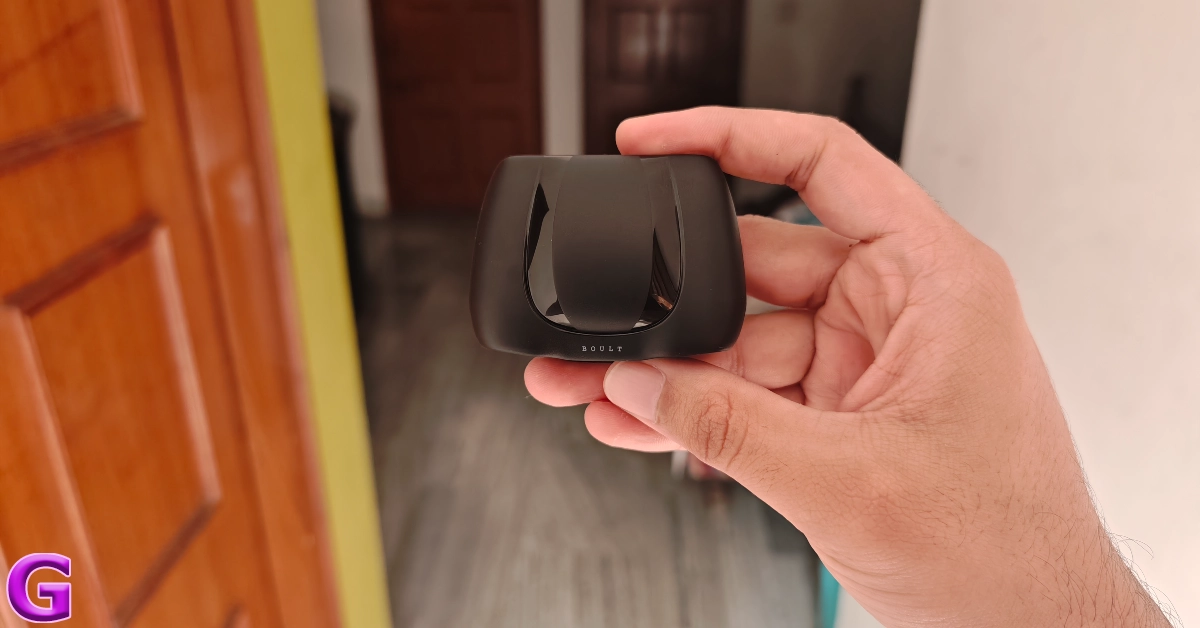 The wide charging case has a spaceship-like design, which brings a lot of flair and personality to the product. The black colour variant looks like a Batmobile, with the LED lighting around the lid resembling the brake lights. A glossy black strip meanders around the bump on the top panel, offering a contrasting feel to the matte finish on the rest of the case. There are two USB Type-C ports on either side of the hinge, which is more of a styling choice rather than a functional one since you can only use one USB port at a time to charge the TWS. If one port stops working, you can always use the second one.
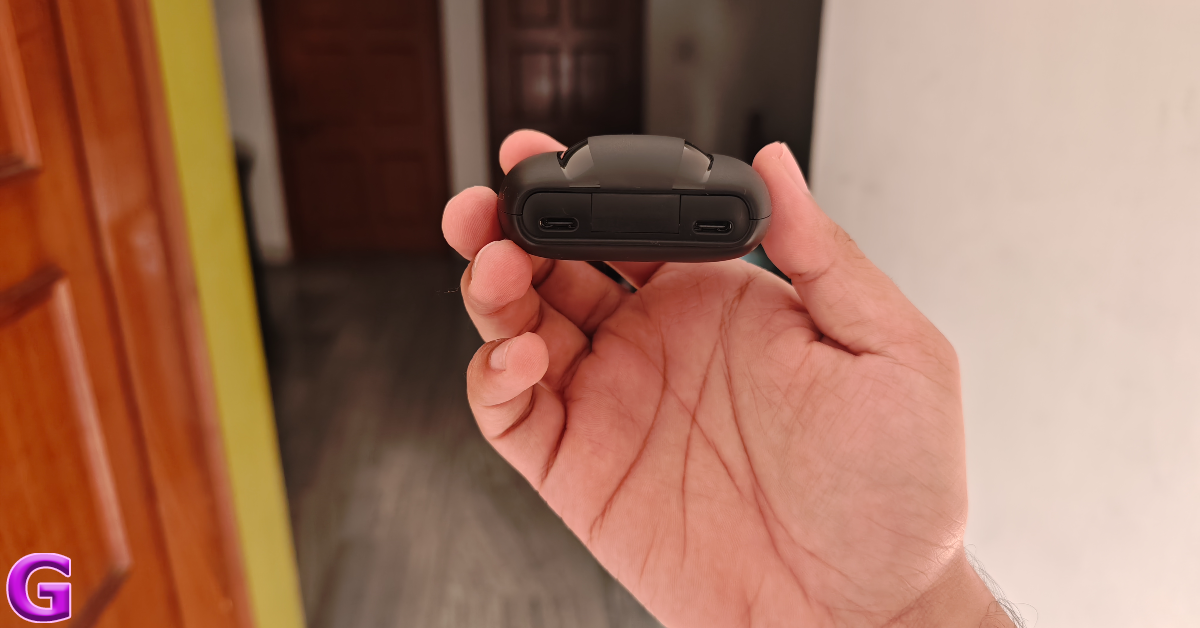 We were pleased with the quality of materials used in this product. Even though it is entirely made out of plastic, the charging case is not flimsy at all. The hinge feels sturdy and offers a very satisfying snap when the lid is shut. The breathing LED lights around the lid are styled very tastefully and do not feel gaudy at all. In our opinion, the Astra is one of the best-looking wireless earbuds in its price category.
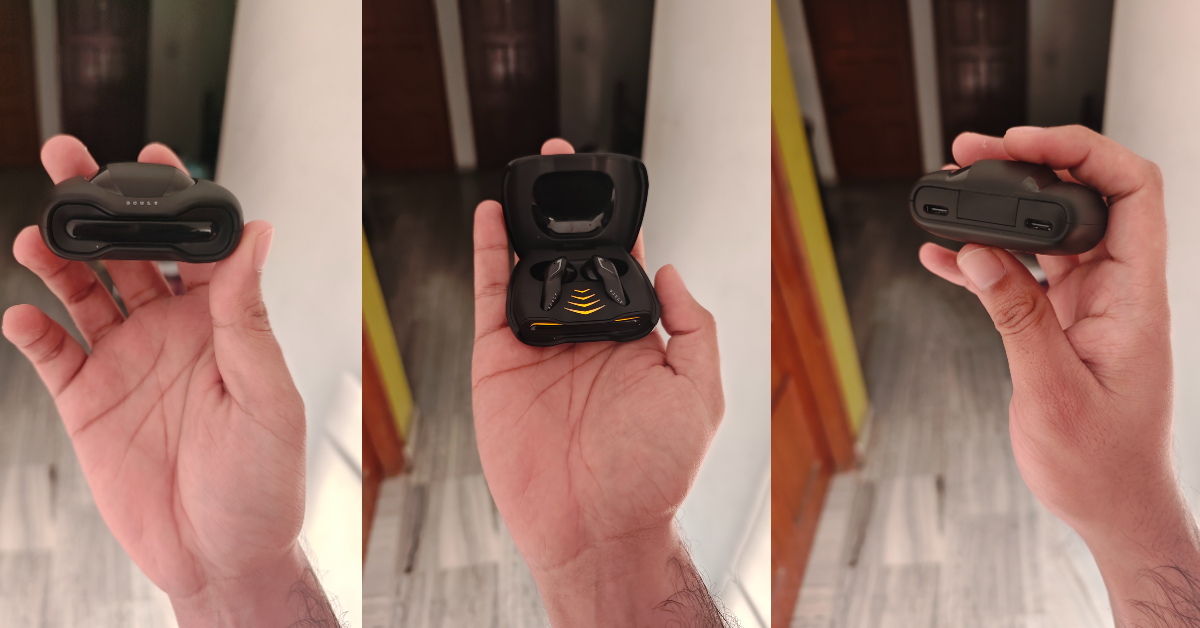 The immaculate styling continues inside the case as well. Flipping the lid open, you will find the earbuds nestled comfortably in their cutouts, with a glossy bump encasing them. The arrow lighting pattern on the inner panel slowly lights up as the earbuds go into pairing mode. It plays into the futuristic look that Boult is going for on the TWS.
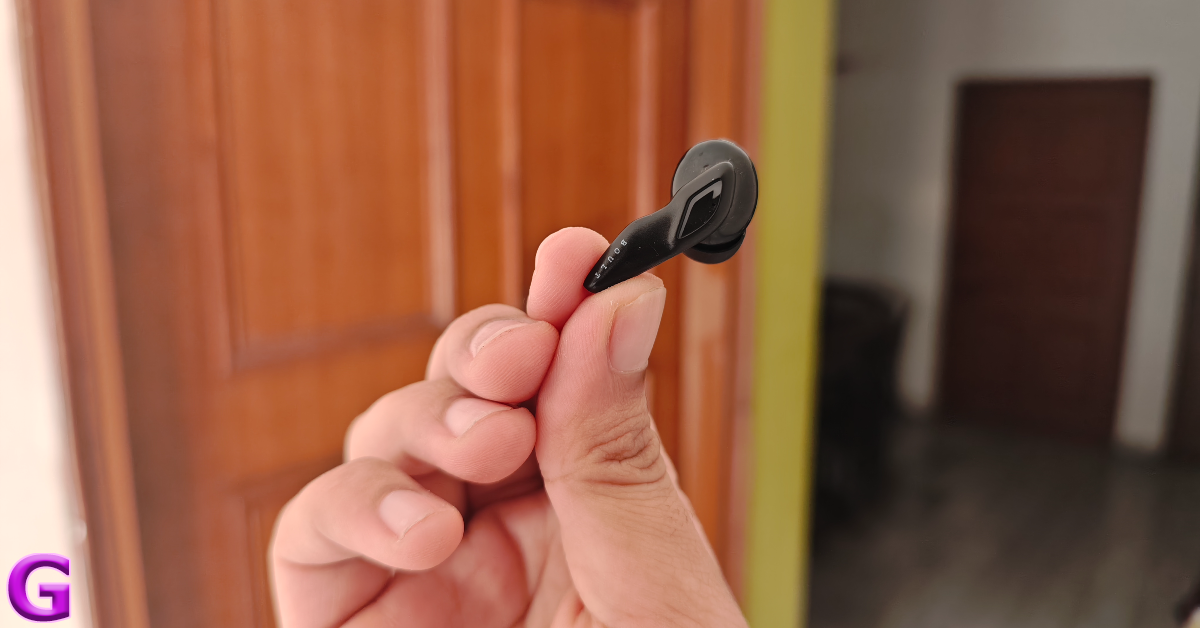 The earbuds are made out of plastic and have a glossy finish to them. The in-ear design offers a comfortable, snug fit. The zig-zag pattern of the stems makes them easy to hold and adjust without triggering the touch controls. This is a big plus point in our book because accidental touches often mar the entire TWS experience for us.
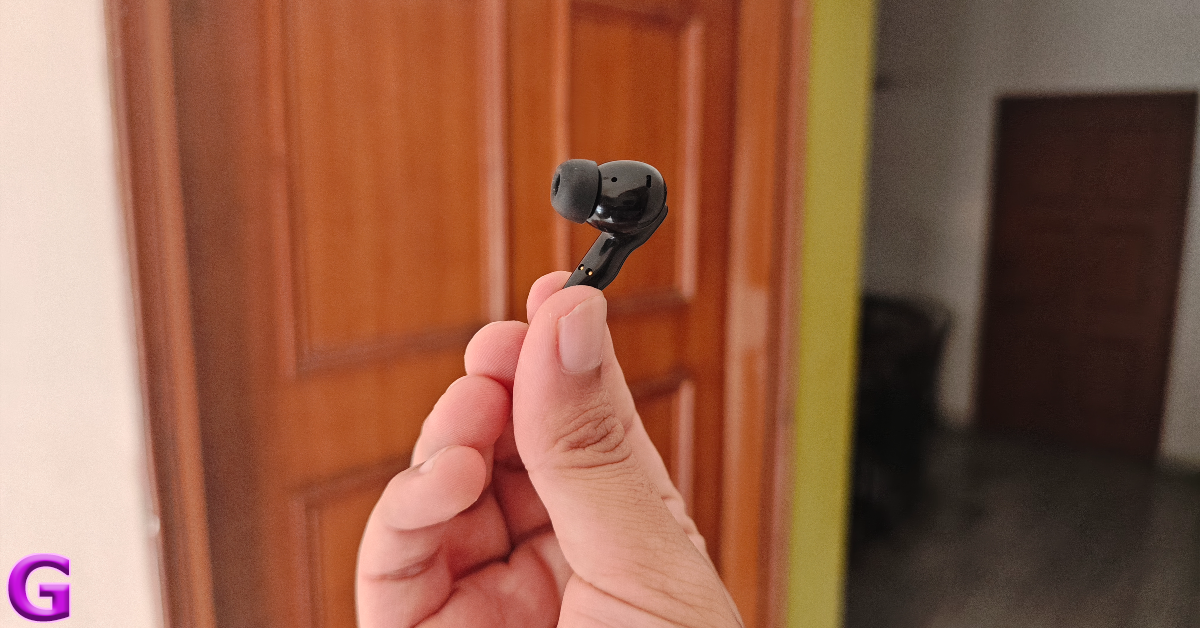 We used the Boult Astra while working out and hiking during the review period. Rated IPX5 for dust and water resistance, the wireless earbuds were undeterred by sweat and minor splashes of water. Despite the glossy finish on the inner panel of the earbuds, the fit remained airtight even when things got sweaty.
Boult Astra review: Performance
Delivering the audio output on Boult Astra are 13mm dynamic drivers. Bluetooth 5.3 support provides a stable connection and fast pairing with ‘Blink & Pair’ tech. After the initial pairing process, all you need to do is flip open the lid for the earbuds to connect to your device.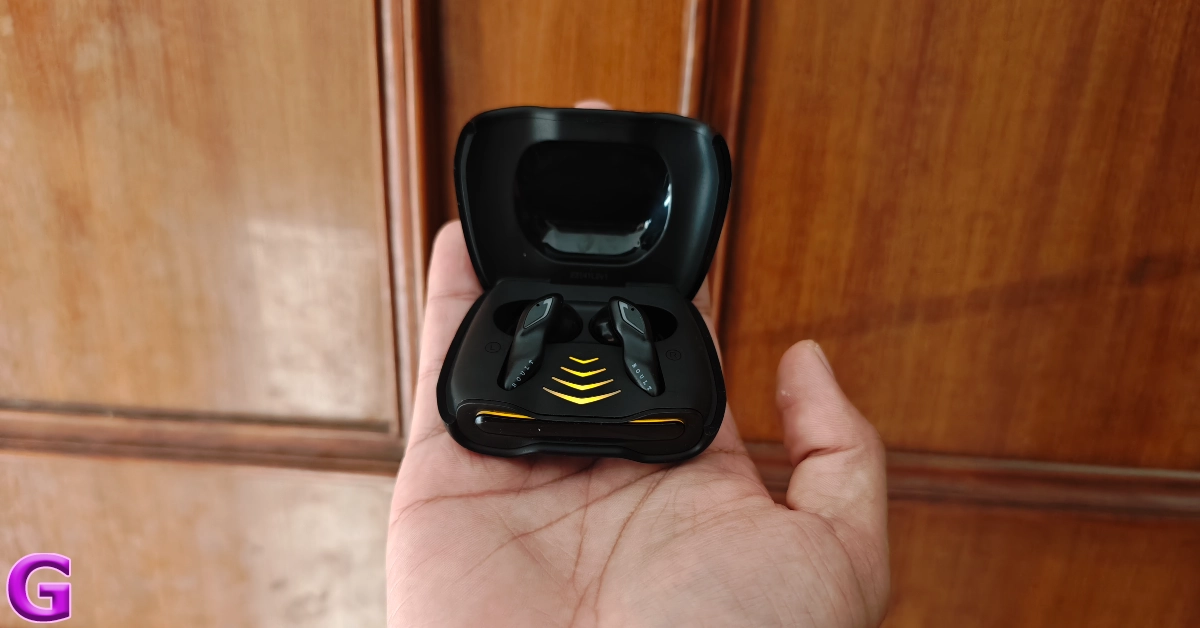 Moving on to the most important part of the review – the sound quality. After being floored with the Astra’s flashy design, we had high hopes for its audio performance. And it did not disappoint. We were happy with the clear mids and highs that formed the soundstage. The bass is slightly boosted but it does not throw a blanket over the other elements. In fact, it is quite smooth and delivers the ‘thumping’ effect quite nicely.
 Bass enthusiasts will certainly enjoy the audio tuning on these earbuds. The soundstage is far from neutral, but it is a whole lot of fun. Usually, entry-level earbuds either sound tinny or have an overblown low-end. The Astra strikes a nice balance among the frequencies and produces a well-rounded output. Even though it is branded as a ‘gaming’ TWS, it can easily go toe to toe with any ‘music’ earbuds in the category.
Talking about the gaming performance, the Astra has a 45ms latency, which isn’t the lowest we have seen in this segment, but it is certainly optimum. We played a handful of FPS games like BGMI and Call of Duty Mobile with the Astra in our ears. Not once did we experience any latency issues. The action on the display was perfectly in sync with the audio feedback. We were also pleased with the crispness of audio that the Astra produced. To top it all off, the detail in the output was impeccable as well. Even the faintest of steps were reproduced by the earbuds.
Bass enthusiasts will certainly enjoy the audio tuning on these earbuds. The soundstage is far from neutral, but it is a whole lot of fun. Usually, entry-level earbuds either sound tinny or have an overblown low-end. The Astra strikes a nice balance among the frequencies and produces a well-rounded output. Even though it is branded as a ‘gaming’ TWS, it can easily go toe to toe with any ‘music’ earbuds in the category.
Talking about the gaming performance, the Astra has a 45ms latency, which isn’t the lowest we have seen in this segment, but it is certainly optimum. We played a handful of FPS games like BGMI and Call of Duty Mobile with the Astra in our ears. Not once did we experience any latency issues. The action on the display was perfectly in sync with the audio feedback. We were also pleased with the crispness of audio that the Astra produced. To top it all off, the detail in the output was impeccable as well. Even the faintest of steps were reproduced by the earbuds.
 While we had no complaints with the Astra’s audio performance, its microphones leave a lot more to be desired. The audio relayed to the recipient on calls is boxy and lacks a lot of detail. Even though the TWS uses Quad Mic ENC, the noise level could have been maintained better. Taking a call outdoors meant unpairing the TWS and relying on the phone’s microphone.
The battery performance on Boult Astra is pretty standard. The earbuds offer 6-7 hours of playtime on a full charge, with an additional 48 hours in the charging case. With quick charging onboard, plugging the TWS into the charger for 10 minutes provides 1.5 hours of playtime. There is no companion app for Boult’s TWS products yet, but we hope there is one on the way.
Read Also: Asus ROG Phone 8 Series powered by Snapdragon 8 Gen 3 SoC launched at CES 2024
While we had no complaints with the Astra’s audio performance, its microphones leave a lot more to be desired. The audio relayed to the recipient on calls is boxy and lacks a lot of detail. Even though the TWS uses Quad Mic ENC, the noise level could have been maintained better. Taking a call outdoors meant unpairing the TWS and relying on the phone’s microphone.
The battery performance on Boult Astra is pretty standard. The earbuds offer 6-7 hours of playtime on a full charge, with an additional 48 hours in the charging case. With quick charging onboard, plugging the TWS into the charger for 10 minutes provides 1.5 hours of playtime. There is no companion app for Boult’s TWS products yet, but we hope there is one on the way.
Read Also: Asus ROG Phone 8 Series powered by Snapdragon 8 Gen 3 SoC launched at CES 2024
Verdict
Boult Astra is a well-rounded TWS product that is just as good for listening to music as it is for gaming. Gaming earbuds tend to go overboard with the design, but the Astra manages to strike the right balance between catchy and tasteful. If you’re not a fan of flashy RGBs, you’ll enjoy this one. Its sound quality punches above its weight, offering some of the best tuning we’ve seen in this segment. The shoddy microphone and lack of a companion app let it down a little, but at the price of Rs 1,199, the Boult Astra is an absolute steal.Boult Astra: Pros
- Great design
- Well-tuned audio profile
- Good gaming performance
- Price
Boult Astra: Cons
- Poor call quality
- Does not have a companion app yet
Top 5 Easy Ways to Find Which Private Number Called You (2024)

No one likes picking up calls from unknown numbers. The last thing you want is to get stuck in a conversation with a person you are trying to avoid. If you don’t like the mystery behind an unknown or private number, there are some steps you can take to find out the identity of the caller. These methods also work for robocalls, telemarketers, scammers, and other kinds of spam. With the right approach, you can block unnecessary calls to your number to a great degree. So, without further ado, let’s jump right into it.
Read Also: Asus ROG Phone 8 Series powered by Snapdragon 8 Gen 3 SoC launched at CES 2024
If you’re from India, you must be aware of TrueCaller. This Caller ID app detects the number calling you and displays the name of the caller on the screen, even if the call is placed using a private number. Once you install TrueCaller, it will function as the default dialer app on your phone. All calls from scammers, robocallers, and telemarketers are marked as spam. The great thing is that you can also manually reverse-search a number on the app.
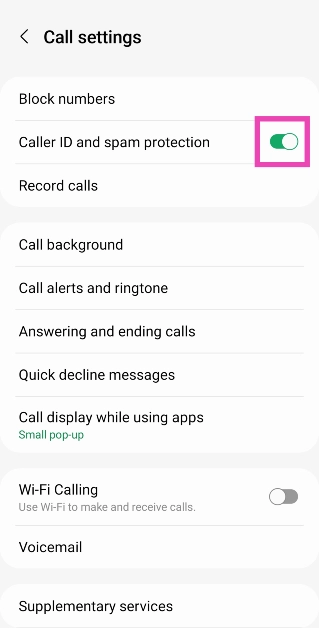
 Step 4: Turn on the toggle switch for Caller ID and spam protection.
TrapCall is a great app to find out who called you from a private, blocked, restricted or unknown number. This app can reveal all *67 numbers with ease. It supports all the major network providers like AT&T, Verizon Wireless, T-Mobile, Sprint, US Cellular, MetroPCS, and Cricket. Not only does TrapCall let you know the name of the caller, but it also sends you the address information linked to the phone number. You can also deploy other handy services like call blocking, spam protection, and reverse looking. Subscribing to the premium plan also unlocks the app’s call-recording feature.
Step 4: Turn on the toggle switch for Caller ID and spam protection.
TrapCall is a great app to find out who called you from a private, blocked, restricted or unknown number. This app can reveal all *67 numbers with ease. It supports all the major network providers like AT&T, Verizon Wireless, T-Mobile, Sprint, US Cellular, MetroPCS, and Cricket. Not only does TrapCall let you know the name of the caller, but it also sends you the address information linked to the phone number. You can also deploy other handy services like call blocking, spam protection, and reverse looking. Subscribing to the premium plan also unlocks the app’s call-recording feature.
Want to hide your phone number while calling someone?
Before we get to unmasking private callers, you may want to know how they are able to hide their number in the first place. Depending on your location, this can be done in several different ways. The most common method that people use is adding the *67 dial code before the number they wish to call. This method only works in the USA, Canada, and a few other countries. On an Android phone, you can hide your Caller ID by going to the default Phone app and selecting Settings>Supplementary services>Show your Caller ID>Never. Some network providers issue special private numbers to their users at an extra cost. These numbers are hard to obtain (as requests are frequently denied) and even harder to unmask (since the network provider is encrypting your details). If you’re constantly being harassed by a caller using a private number, you can always report them to the police.Use the *69 dialer code to find out which private number called you
In the USA, dialling *69 on your phone connects you to the last number that called you. This also works for private numbers. When you receive a call from a private number, make sure you dial *69 right away, before someone else calls you. Some network providers may charge you a small premium for the service, while others may limit its usage to just 30 minutes after a call is received. You can also use online lookup services like FreePeopleSearch to get more detailed information about the caller. Other countries have their own unique dialer codes to trigger the ‘last call return’ feature. Users in the UK can dial 1471, while users in the Philippines use *999. Some service providers in Canada and Australia use *69, just like the USA.Use TrueCaller
 If you’re from India, you must be aware of TrueCaller. This Caller ID app detects the number calling you and displays the name of the caller on the screen, even if the call is placed using a private number. Once you install TrueCaller, it will function as the default dialer app on your phone. All calls from scammers, robocallers, and telemarketers are marked as spam. The great thing is that you can also manually reverse-search a number on the app.
Turn on Caller ID and spam protection on the native dialer app
If you don’t want to use a third-party app like TrueCaller, you can check if your phone’s native dialer app offers Caller ID services. Turning on this feature will identify the name registered to the phone number and flag any spam calls. Step 1: Launch the native Dialer app on your smartphone. Step 2: Hit the ellipses at the top right corner of the screen. Step 3: Tap on Settings.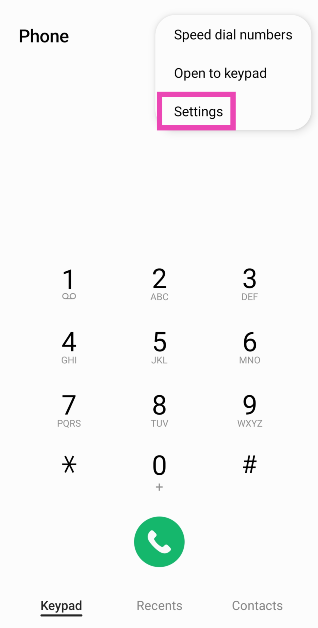 Step 4: Turn on the toggle switch for Caller ID and spam protection.
Use TrapCall to unmask private calls
 TrapCall is a great app to find out who called you from a private, blocked, restricted or unknown number. This app can reveal all *67 numbers with ease. It supports all the major network providers like AT&T, Verizon Wireless, T-Mobile, Sprint, US Cellular, MetroPCS, and Cricket. Not only does TrapCall let you know the name of the caller, but it also sends you the address information linked to the phone number. You can also deploy other handy services like call blocking, spam protection, and reverse looking. Subscribing to the premium plan also unlocks the app’s call-recording feature.
Request your network provider for detailed call logs
If everything else fails, you can try requesting your network provider for advanced call logs. You may need to dial the customer care helpline or visit a nearby service centre. Before you go through the call logs, check your phone for the date and time of the call received from the private number. Now, match this data with the entries on the log to find out the number that called you.Frequently Asked Questions (FAQs)
How do I find out which private number called me?
To find out which private number called you, simply dial *69 on your phone after receiving the call. You can also use apps like TrueCaller TrapCall to find the identity of the caller before receiving the call.How do I block all spam calls to my phone?
While there is no way to block all spam calls to your phone, apps like TrueCaller can instantly recognise a spam caller and flag them for you. You can choose to automatically hang up on them. Some native dialer apps may offer this feature as well.How do I hide my phone number while calling someone?
Use your network provider’s supplementary services to hide your Caller ID before making a call. If you’re in the US, dial *67 before a number to mask your Caller ID. Read Also: Top 7 Ways to Make Keyboard Bigger on iPhone (2024)Conclusion
These are the top 5 ways to find out which private number called you. Saving the unknown number to your phone and looking it up on WhatsApp can also reveal information like the caller’s name. This depends on the privacy settings of the profile. If you’re lucky, you may be able to see their profile picture. If you know any other method to unmask a private caller, let us know in the comments!Dell’s all-new Alienware QD-OLED Gaming Monitors unveiled at CES 2024
Key Highlights
The Dolby Vision HDR is said to provide realistic pictures with greater contrast, brighter colours, finer details, and incredible brightness. VESA AdaptiveSync and NVIDIA G-SYNC G-SYNC are Compatible and validated by NVIDIA so that you get smoother gameplay without any screen tearing or stuttering.
With the latest next-generation gaming consoles supporting 4K resolution, gamers will be able to achieve a 120Hz performance thanks to the HDMI 2.1 FRL (Fixed Rate Link), which comes standard with VRR compatibility and auto low-latency for superior controller responsiveness. Furthermore, Dolby Atmos speakers or any other soundbar with an eARC connector can be used with eARC compatibility.
As per the company, the price of the Alienware 32 4K QD-OLED Gaming Monitor (AW3225QF) will start at $1,199.99 (US) / $1,499.99 (CA). It is said to be available in North America on January 11.
Also Read: Asus ROG Phone 8 Series powered by Snapdragon 8 Gen 3 SoC launched at CES 2024
Alienware 27 360Hz QDOLED Gaming Monitor (AW2725DF) on the other hand, is the world’s first 360Hz QD-OLED gaming monitor with 360Hz refresh rate and QD-OLED infinite contrast in QHD resolution (2560×1440). The screen supports 99% and 99.3% of DCI-P3 gamut respectively and Delta E < 2 color accuracy. It offers 0.03ms gray-to-gray response time that enables clear motion and near-instantaneous pixel response. Moreover, VESA DisplayHDR True Black 400 offers remarkable deep colour and clarity. It comes integrated with AMD FreeSync Premium Pro and VESA AdaptiveSync technology that puts an end to choppy gameplay and broken frames with fluid, artifact-free performance at virtually any framerate.
Also Read: Samsung at CES 2024: Launches AI-powered 2024 Neo QLED, MICRO LED, OLED and Lifestyle Displays
The Alienware 27 360Hz QD-OLED Gaming Monitor (AW2725DF) will also go on sale in North America on January 11 starting at $899.99 (US) / $1,199.99 (CA).
- Alienware 32 4K QD-OLED Gaming Monitor (AW3225QF) supports 240Hz refresh rate.
- Alienware 27 360Hz QDOLED Gaming Monitor (AW2725DF) comes with a 360Hz refresh rate.
- Both the gaming monitors will go on sale in North America soon.
Alienware 32 4K QD-OLED Gaming Monitor (AW3225QF)
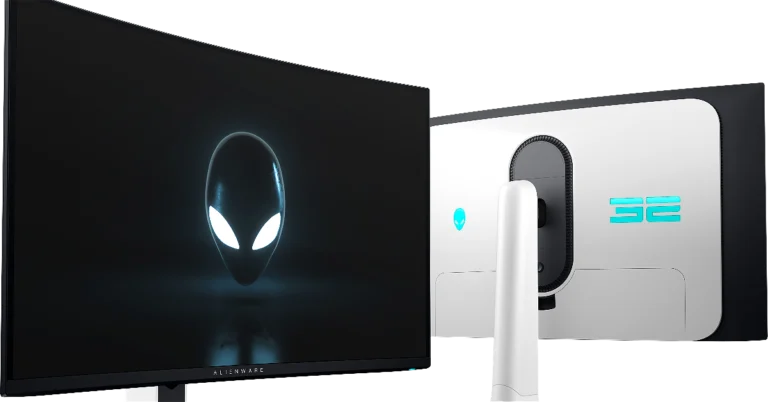
As the name suggests the World’s first 4K QD-OLED gaming monitor, the Alienware 32 4K QD-OLED Gaming Monitor is 32 inches in size. The display features a fast 240Hz native refresh rate along with 0.03ms grey-to-grey response time. It also provides 99% and 99.3% of DCI-P3 gamut respectively and Delta E < 2 color accuracy. The gaming monitors also come with Dolby Vision HDR and VESA DisplayHDR True Black 400 support.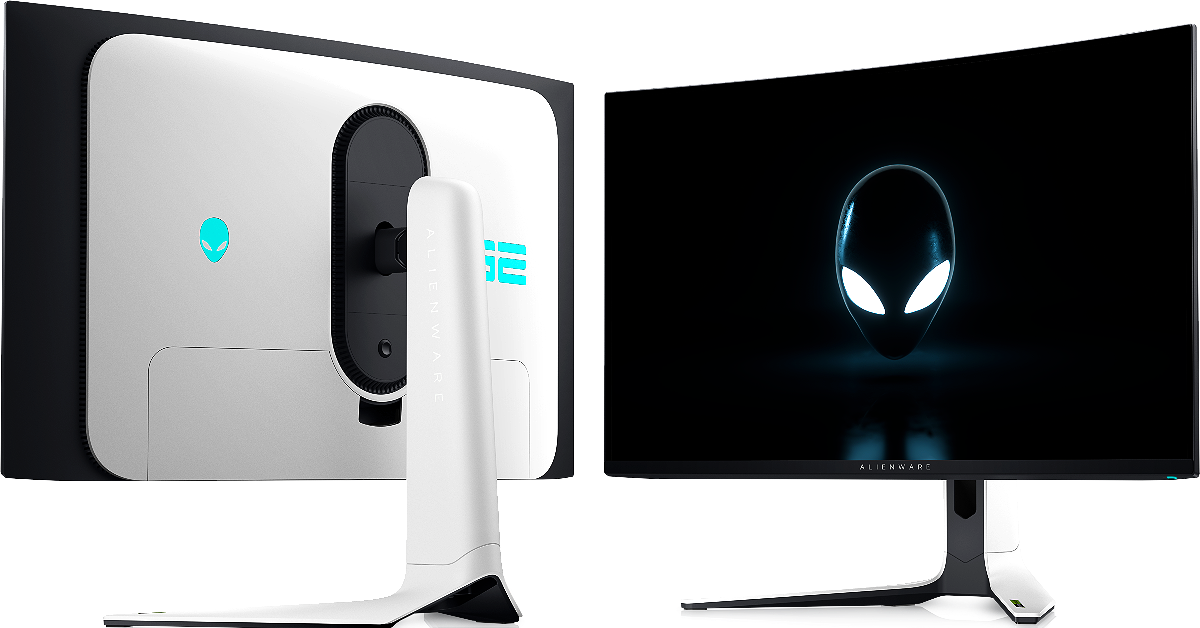 The Dolby Vision HDR is said to provide realistic pictures with greater contrast, brighter colours, finer details, and incredible brightness. VESA AdaptiveSync and NVIDIA G-SYNC G-SYNC are Compatible and validated by NVIDIA so that you get smoother gameplay without any screen tearing or stuttering.
With the latest next-generation gaming consoles supporting 4K resolution, gamers will be able to achieve a 120Hz performance thanks to the HDMI 2.1 FRL (Fixed Rate Link), which comes standard with VRR compatibility and auto low-latency for superior controller responsiveness. Furthermore, Dolby Atmos speakers or any other soundbar with an eARC connector can be used with eARC compatibility.
As per the company, the price of the Alienware 32 4K QD-OLED Gaming Monitor (AW3225QF) will start at $1,199.99 (US) / $1,499.99 (CA). It is said to be available in North America on January 11.
Also Read: Asus ROG Phone 8 Series powered by Snapdragon 8 Gen 3 SoC launched at CES 2024
The Dolby Vision HDR is said to provide realistic pictures with greater contrast, brighter colours, finer details, and incredible brightness. VESA AdaptiveSync and NVIDIA G-SYNC G-SYNC are Compatible and validated by NVIDIA so that you get smoother gameplay without any screen tearing or stuttering.
With the latest next-generation gaming consoles supporting 4K resolution, gamers will be able to achieve a 120Hz performance thanks to the HDMI 2.1 FRL (Fixed Rate Link), which comes standard with VRR compatibility and auto low-latency for superior controller responsiveness. Furthermore, Dolby Atmos speakers or any other soundbar with an eARC connector can be used with eARC compatibility.
As per the company, the price of the Alienware 32 4K QD-OLED Gaming Monitor (AW3225QF) will start at $1,199.99 (US) / $1,499.99 (CA). It is said to be available in North America on January 11.
Also Read: Asus ROG Phone 8 Series powered by Snapdragon 8 Gen 3 SoC launched at CES 2024
Alienware 27 360Hz QDOLED Gaming Monitor (AW2725DF)
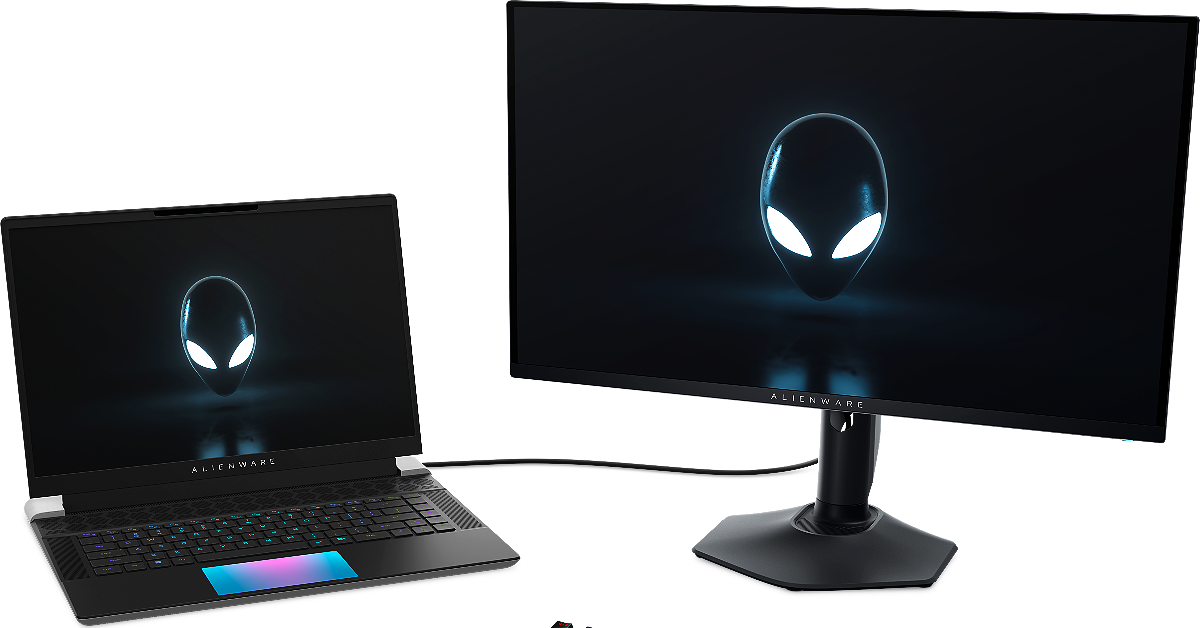 Alienware 27 360Hz QDOLED Gaming Monitor (AW2725DF) on the other hand, is the world’s first 360Hz QD-OLED gaming monitor with 360Hz refresh rate and QD-OLED infinite contrast in QHD resolution (2560×1440). The screen supports 99% and 99.3% of DCI-P3 gamut respectively and Delta E < 2 color accuracy. It offers 0.03ms gray-to-gray response time that enables clear motion and near-instantaneous pixel response. Moreover, VESA DisplayHDR True Black 400 offers remarkable deep colour and clarity. It comes integrated with AMD FreeSync Premium Pro and VESA AdaptiveSync technology that puts an end to choppy gameplay and broken frames with fluid, artifact-free performance at virtually any framerate.
Also Read: Samsung at CES 2024: Launches AI-powered 2024 Neo QLED, MICRO LED, OLED and Lifestyle Displays
The Alienware 27 360Hz QD-OLED Gaming Monitor (AW2725DF) will also go on sale in North America on January 11 starting at $899.99 (US) / $1,199.99 (CA).
Alienware 27 360Hz QDOLED Gaming Monitor (AW2725DF) on the other hand, is the world’s first 360Hz QD-OLED gaming monitor with 360Hz refresh rate and QD-OLED infinite contrast in QHD resolution (2560×1440). The screen supports 99% and 99.3% of DCI-P3 gamut respectively and Delta E < 2 color accuracy. It offers 0.03ms gray-to-gray response time that enables clear motion and near-instantaneous pixel response. Moreover, VESA DisplayHDR True Black 400 offers remarkable deep colour and clarity. It comes integrated with AMD FreeSync Premium Pro and VESA AdaptiveSync technology that puts an end to choppy gameplay and broken frames with fluid, artifact-free performance at virtually any framerate.
Also Read: Samsung at CES 2024: Launches AI-powered 2024 Neo QLED, MICRO LED, OLED and Lifestyle Displays
The Alienware 27 360Hz QD-OLED Gaming Monitor (AW2725DF) will also go on sale in North America on January 11 starting at $899.99 (US) / $1,199.99 (CA). Garena Free Fire Redeem Codes Today 10 January 2024: Here is how to claim them

Garena Free Fire is a battle royale game with regular awards and tournaments to keep players interested. If you play Garena Free Fire, you should be aware of the redeem codes that are released on a daily basis. However, because the battle royale game is banned in India, players from other countries can use the Free Fire Redeem codes daily. If you’re unfamiliar with the Garena Free Fire redeem codes or don’t know how to get them, we’ve put together a step-by-step guide to help you redeem them. Check out Garena Free Fire Redeem Codes for 10 January 2024.
The Free Fire redeem codes are a great way to get free stuff. These are 12-digit codes that contain alphabets and numbers, as well as an expiration date and time. Because the Garena FF redeem codes cannot be used more than once, you should hurry to the redemption page to claim your free reward before someone else does. To get a free reward, all you have to do is go to reward.ff.garena.com/en, which is the official redemption page. Also, keep an eye on this space for daily updates on Garena Free Fire redemption codes and rewards.
Garena Free Fire Redeem Codes Today 10 January 2024
FFCMCPSBN9CU FFAC2YXE6RF2 PCNF5CQBAJLK FFBBCVQZ4MWA 4ST1ZTBE2RP9 J3ZKQ57Z2P2P FFCMCPSBN9CU FFBBCVQZ4MWA 3IBBMSL7AK8G X99TK56XDJ4X B3G7A22TWDR7XHow to Get Free Fire Redeem Codes for Garena on 10 January 2024?
- Visit the Garena Free Fire game’s official website at reward.ff.garena.com.
- Use your Facebook, Google, VK, Apple ID, Huawei ID, or Twitter account to log in.
- You’ll be taken to a valid redemption code (s)
- Copy and paste the 12-digit redemption code into the text box.
- On the screen, a dialogue box will appear.
- ‘Ok’ should be selected.
Responsible iGaming: How to Choose a Safe iGaming App

Mobile gaming apps have exploded in popularity over the last few years, and this includes a certain interest in iGaming or real money gaming apps. According to Statista, the iGaming market is projected to grow with a CAGR of 8.59% from 2022-27.
With that, its global market value is expected to reach over 9.95 billion USD by the end of 2027. These numbers simply show a bright future ahead of the iGaming sector.
As convenient as these apps may be, it is vital to choose which one to trust wisely and use it responsibly. In this article, we’ll help you determine whether a cricket betting app or iGaming app is worth having on your mobile device.
Understanding Responsible iGaming
Responsible gaming involves making informed decisions, setting limits, balancing gaming with other activities, accepting losses, and avoiding risky behaviour despite game outcomes. We know how thrilling iGaming activities can be. However, irresponsible levels of play come with financial, social, mental, and even legal consequences in some cases. This is why users must educate themselves on gaming safely within their means. Downloading the right iGaming app can help ensure your safety, but it’s most important that you follow responsible gaming practices. That includes managing your bankroll wisely.Key Criteria for Safe iGaming Apps
So, what should you look for in a trusted iGaming app? Let’s have a closer look at the factors or criteria you should consider:Licensing and Regulation
An app with proper licensing from well-known gaming authorities like Curacao, Malta, Gibraltar, and the UK Gambling Commission ensures that an iGaming platform is a property regulated for the safety of its users. Licensed iGaming platforms undergo random testing to ensure that they only offer fair gameplay. Know that it’s also not easy to get these licenses, so we’re certain that these online casinos wouldn’t do anything to risk what they have.Security Measures
User security should be integral to an iGaming app. In other words, it’s simply not an afterthought. Encrypted connections, data protection protocols, and SSL certificates for transmitting private user data are essential. It’s always good if an online casino uses multi-factor authentication as well when it comes to letting their customers log in. Such security investments demonstrate the provider’s credibility and commitment to operational integrity.Fair Play Assurance
Reputable iGaming apps invest in truly random game outcomes. They employ Random Number Generators (RNGs) to ensure results are unpredictable and fair. RNGs are usually tested by third parties to verify they uphold randomness on the results of their games.User Reviews and Reputation
While app stores host user reviews of iGaming apps, beware of fake reviews. Checking multiple impartial online sources can provide genuine user experiences. That includes visiting iGaming review sites that let you know everything about a certain operator. Longstanding apps with many years in business may have a trial-by-fire track record. Generally, apps with transparent business practices, quick complaint resolution, and a few serious grievances make the most responsible options for users.Responsible Gaming Features
While it’s also your responsibility to ensure your safety when gambling online, iGaming operators can also play a big role in helping you achieve that. Here are some of the responsible gaming features that many of them offer: Self-Exclusion Options: There are iGaming apps that allow users to voluntarily self-exclude for set periods to control problematic gaming tendencies. Some also allow you to self-exclude for life. Deposit Limits and Controls: Many platforms allow players to set custom limits on deposits. It’s a handy feature to have so you can avoid chasing your losses. Other control features include limiting your gameplay duration or suspending your account temporarily.Payment Security
Only reputable iGaming apps use secure payment options for hassle-free transactions. The most common payment options today include the use of well-known mobile wallets like PayPal, Skrill, and Neteller, and credit cards. It’s also wise to check user reviews so you have an idea of how fast they process payouts. That’s one of the most important things since you wouldn’t want to wait long for your exciting wins.Customer Support
Having helpful customer service demonstrates an app’s integrity and care for its users. The best iGaming apps typically have live support available 24/7. Most of the time, they’re available over the phone, via live chat, and email.Conclusion
While iGaming apps can give you a thrilling gaming experience, you should always prioritize your safety. The factors we mentioned above are some of the most important things you must look into when shopping for one. But ultimately, responsible gaming relies a lot on your choices. Never chase your losses and know when to take a break. Well, that’s all there is to know about choosing an iGaming app, so good luck with your gaming adventure!Top 7 Easy Ways to Identify the Language of any Text

Recognising a language unknown to you is practically an impossible task unless you know some of the more common words. Even if you know some words, there is no saying whether the text you’re reading is part of a lesser-known dialect of a famous language. Two distinct languages belonging to the same family may share some words in common. To properly identify the language of any text, you need the proper tools. Here are some of them.
Read Also: Here is what HP presented at CES 2024 along with HP Spectre x360 laptops
 Step 3: Switch to the Translate tab.
Step 4: Point the camera to the text.
Step 5: Google Lens will translate the text to your preferred language. To know the language of the text, check the top of the screen.
Step 3: Switch to the Translate tab.
Step 4: Point the camera to the text.
Step 5: Google Lens will translate the text to your preferred language. To know the language of the text, check the top of the screen.
 Step 3: Paste the text into the box on the left.
Google Translate will identify the language for you.
Step 3: Paste the text into the box on the left.
Google Translate will identify the language for you.
 Step 4: Circle to Search will translate the text into your desired language. The language of the text will be mentioned in the bubble at the bottom of the screen. Tap the bubble to view the detected language.

 Step 3: Hit Submit.
Step 4: Scroll down to view the language.
Step 4: Look just below the box for the result.
Step 3: Hit Submit.
Step 4: Scroll down to view the language.
Step 4: Look just below the box for the result.
 Step 3: Click on Detect Language.
 Step 4: Tomedes will detect the language and present the results in a few seconds.
 Polyglot 3000 is a Windows tool that can identify more than 400 languages. You don’t need internet access to run this tool on your PC. Download Polyglot 3000 from its official website and install it on your PC. Once the tool is running, you can paste any text into its box and it will recognise the language within seconds. On top of that, it also tells you the accuracy of the result.
Which method is best for you?
Depending on your situation, some of the methods mentioned in this article may not be too practical for you. If you’re travelling to a foreign country and come across a text in some unknown language, your best course of action is to pull out your phone and use Google Lens to detect and translate it. This method also applies in cases where the text is printed on a physical object and not displayed on your phone’s screen. If you come across a webpage in another language, the Google Translate pop-up on Chrome generally auto-translates it for you. However, if you’re using some other browser or come across the text on your phone, there are a couple of things you can do to identify the language. Either post the text directly into Google Translate’s webpage or use an online tool designed to recognise languages.Use Google Lens to identify the language of any text
Step 1: Launch the Google app on your smartphone. Step 2: Hit the lens icon.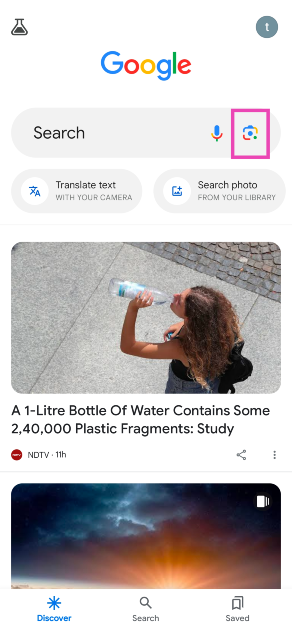 Step 3: Switch to the Translate tab.
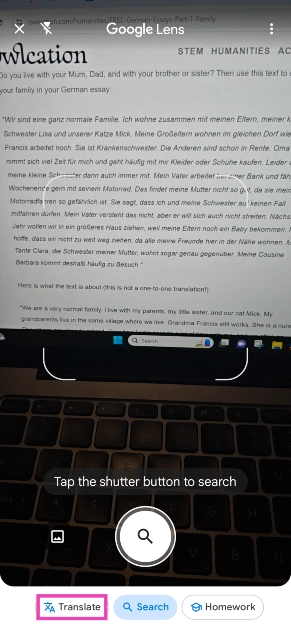 Step 4: Point the camera to the text.
Step 5: Google Lens will translate the text to your preferred language. To know the language of the text, check the top of the screen.
Step 4: Point the camera to the text.
Step 5: Google Lens will translate the text to your preferred language. To know the language of the text, check the top of the screen.
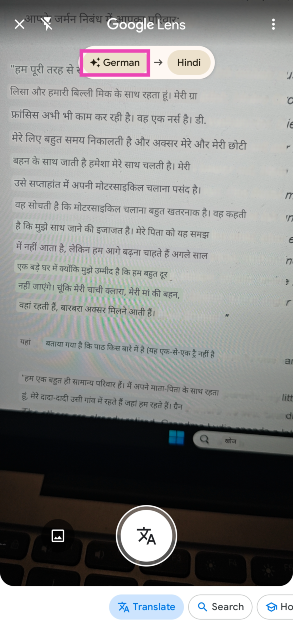
Use Google Translate
Like Google Lens, Google Translate can also auto-detect languages. Here’s how you can use it. Step 1: Go to the Google Translate webpage or launch its app on your smartphone. Step 2: Switch to the Detect Language tab on the left.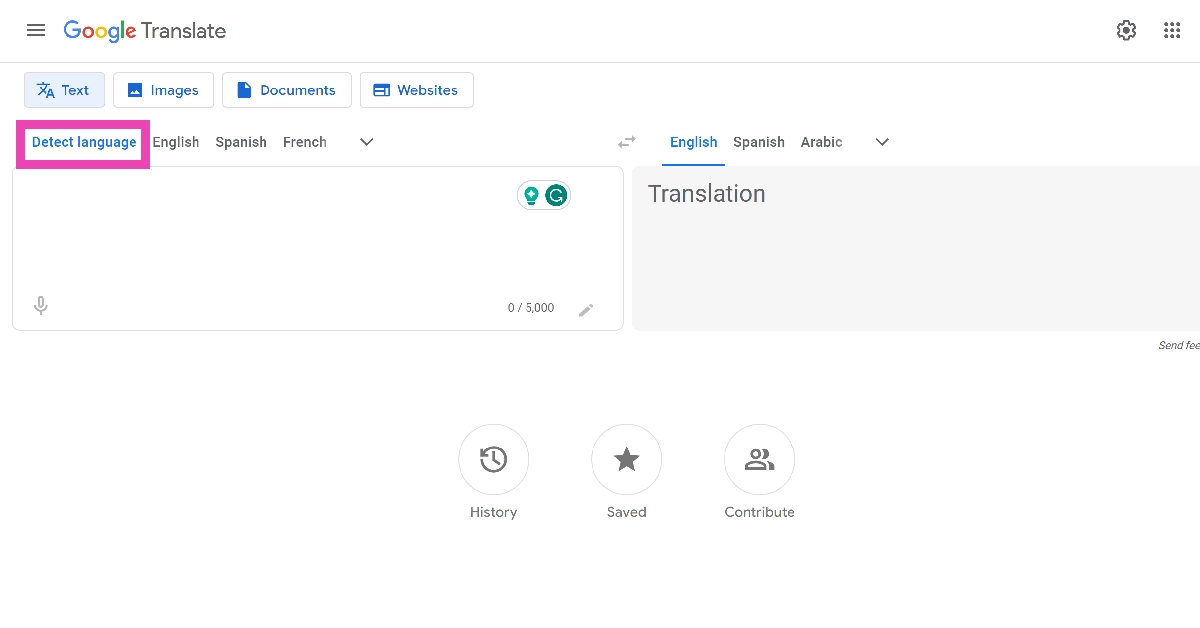 Step 3: Paste the text into the box on the left.
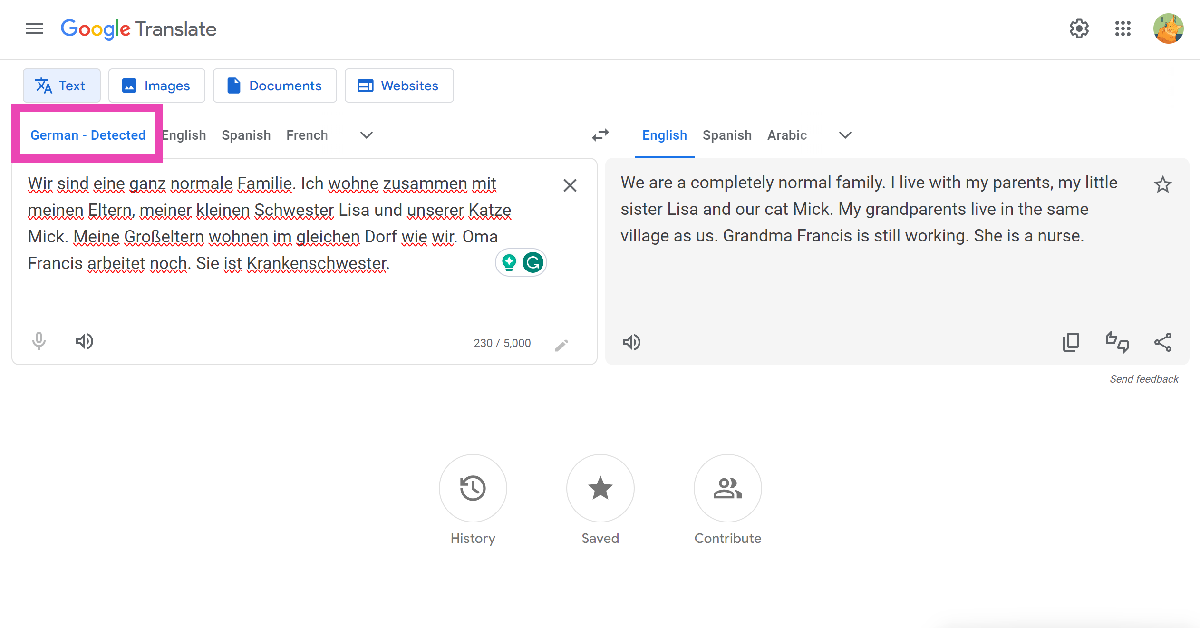 Google Translate will identify the language for you.
Use Circle to Search
Step 1: Go to the page with the text you want to identify. Step 2: Long-press the home button or the navigation bar. Step 3: Hit the Translate icon. Step 4: Circle to Search will translate the text into your desired language. The language of the text will be mentioned in the bubble at the bottom of the screen. Tap the bubble to view the detected language.
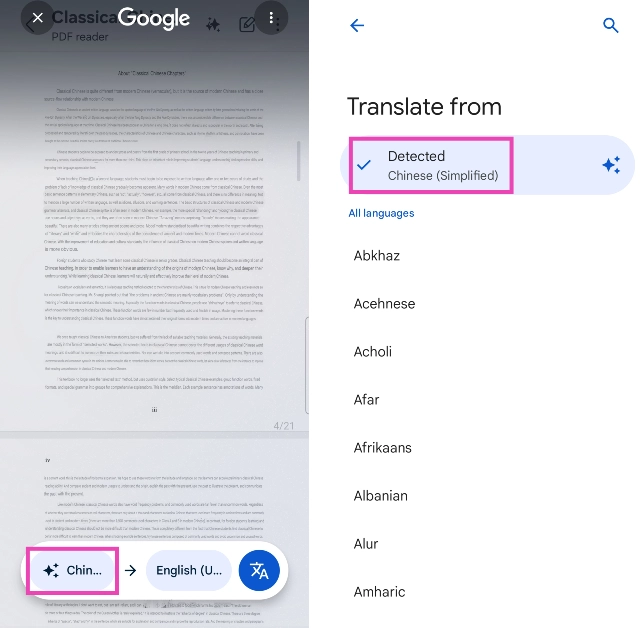
Use the language detection tool from Cortical
Step 1: Go to Cortical‘s website and open the language detector. Step 2: Enter the text in the box.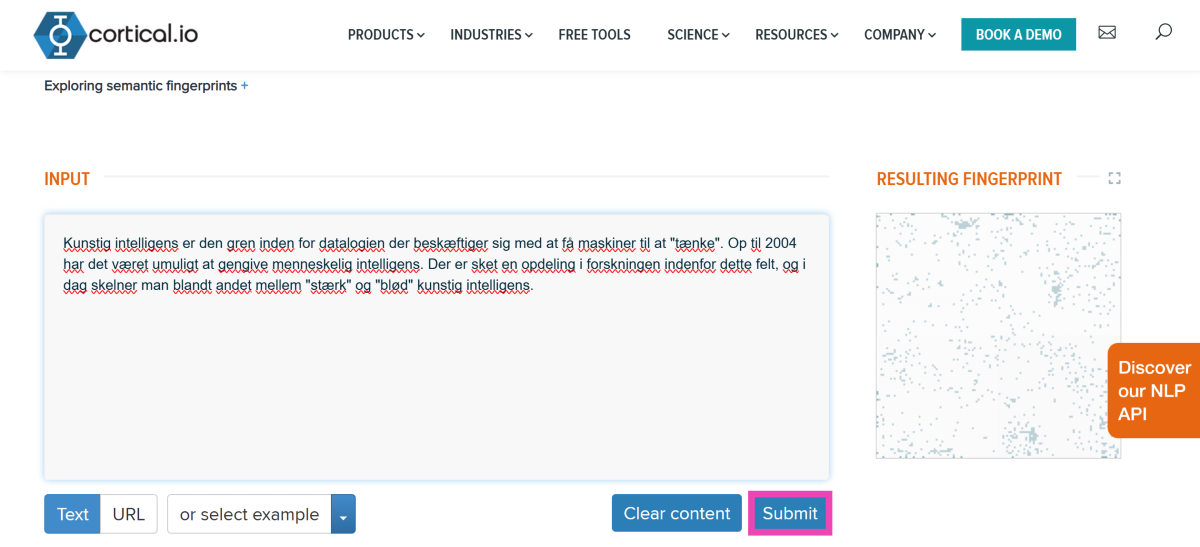 Step 3: Hit Submit.
Step 4: Scroll down to view the language.
Step 3: Hit Submit.
Step 4: Scroll down to view the language.
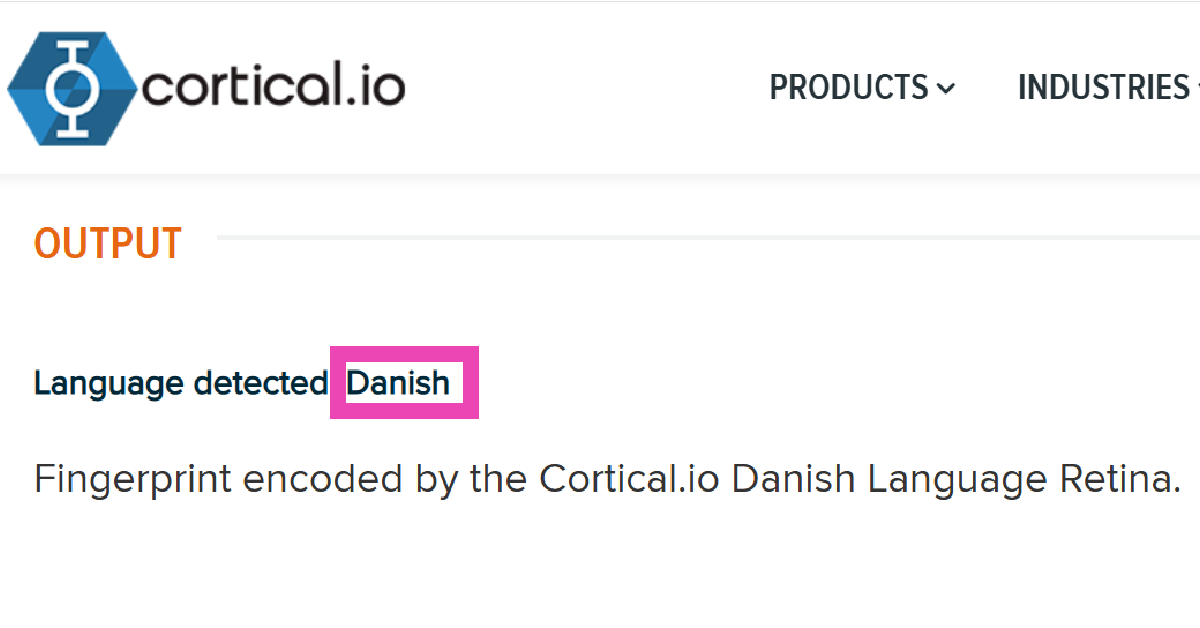
Use Lexicool to identify any language from a text
Lexicool.com is a cool website for all things language-related. You can find thousands of dictionaries, glossaries, and modules, spanning over 70 languages. On top of that, Lexicool also offers several language courses for beginners and tools for professional translators. Here’s how you can use the website to identify any language. Step 1: Go to Lexicool’s language identifier page. Step 2: Paste a sample from the text into the box. Make sure it is more than 5 words. Step 3: Hit Go. Step 4: Look just below the box for the result.
Use Tomedes’ language detection tool
Step 1: Go to the Tomedes Language Detector webpage. Step 2: Paste the text into the text box on the right. You can enter the URL of the website hosting the text or upload a file as well.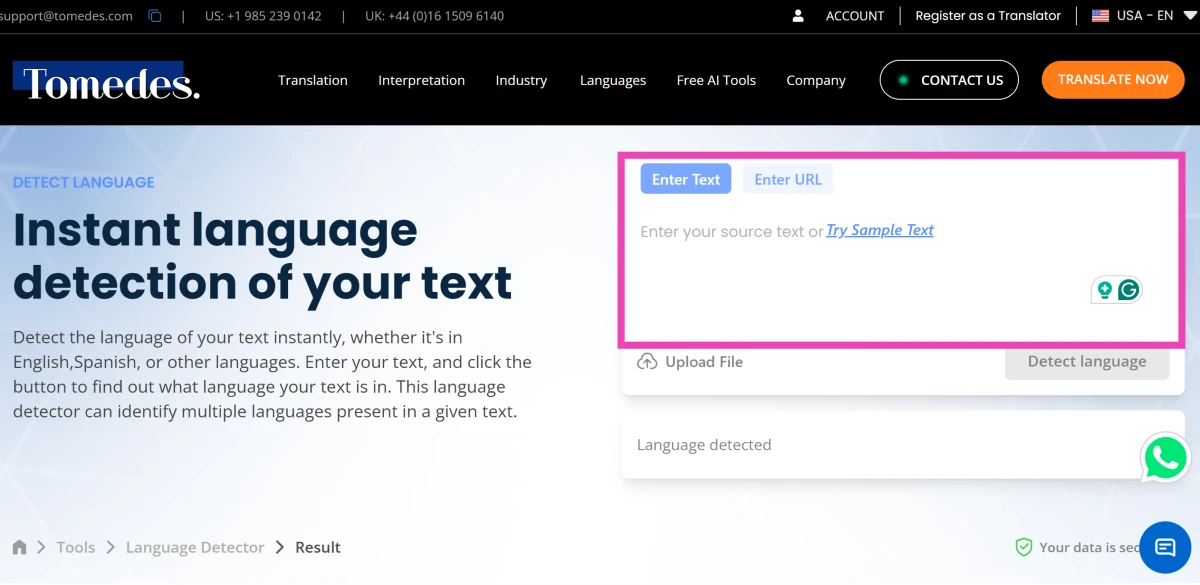 Step 3: Click on Detect Language.
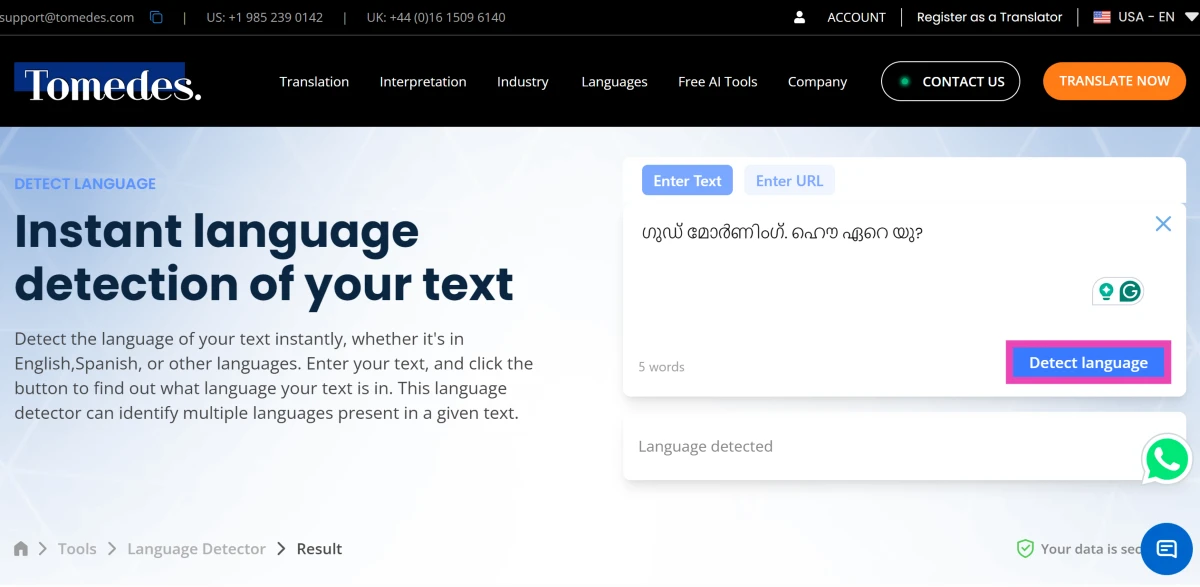 Step 4: Tomedes will detect the language and present the results in a few seconds.
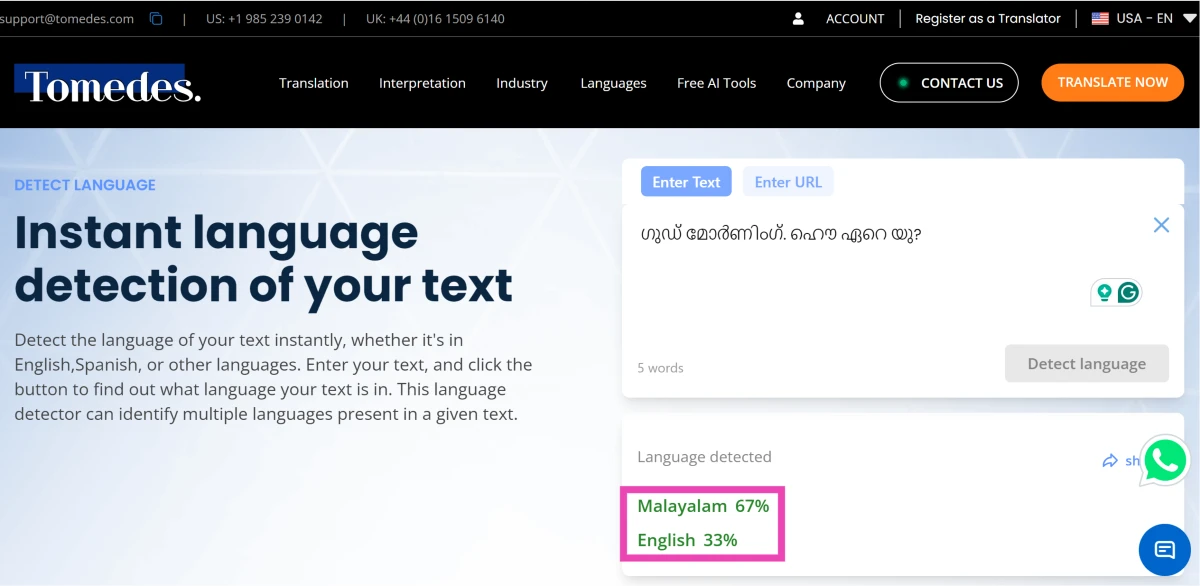
Use Polyglot 3000 to recognise any language without web access
 Polyglot 3000 is a Windows tool that can identify more than 400 languages. You don’t need internet access to run this tool on your PC. Download Polyglot 3000 from its official website and install it on your PC. Once the tool is running, you can paste any text into its box and it will recognise the language within seconds. On top of that, it also tells you the accuracy of the result.
Frequently Asked Questions (FAQs)
How do I identify the language on a menu or a billboard?
If you don’t know the language written on any paper, pamphlet, billboard, or screen, Google Lens can help you with it. Simply launch the Google app on your phone, hit the lens icon, and point the camera at the text. Google will identify the language and even translate it for you.How do I identify a language without using the Internet?
The Polyglot 3000 tool for Windows can recognise more than 400 languages and dialects without needing an internet connection.Can Google identify languages?
Google Translate can auto-identify the language of the text when you enter it in the app or on the webpage. The text can then be translated into your desired language.How do I scan a text on my phone to find out its language?
The Circle to Search tool on your phone can scan the contents of your screen and translate any language into the language of your device. Long-press the navigation bar or home button and hit the translate icon. The name of the language will appear in a bubble at the bottom of the screen.How do I translate WhatsApp messages?
Use the translator plug-in on Gboard to translate your WhatsApp messages with ease. Pixel owners can use Live Translate for WhatsApp messages. Read Also: Top 5 Ways to Auto-Scroll Instagram Reels on Android and iOSConclusion
These are the top 7 ways to identify the language of any text. If you know any other method to go about this task, share it in the comments! Check out this article to learn how to enable auto-translate within Google Chrome.Asus ROG Phone 8 Series powered by Snapdragon 8 Gen 3 SoC launched at CES 2024
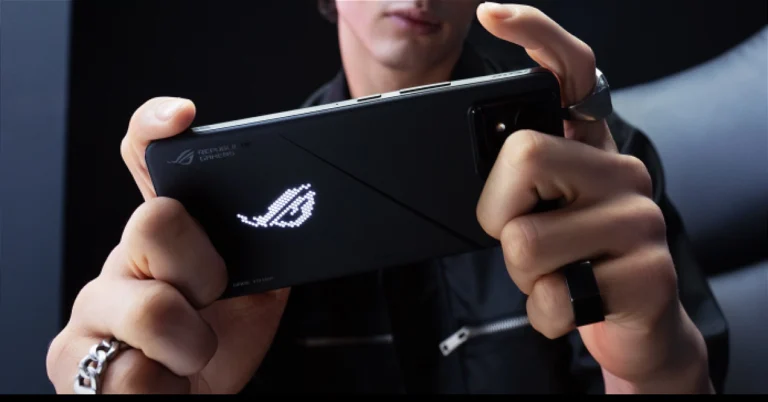
Asus ROG Phone 8 series has officially made its debut at CES 2024. The lineup includes Asus ROG Phone 8 and an ROG Phone 8 Pro. The gaming smartphone series runs on Android 14-based ROG UI. It features a 6.78 full-HD+ AMOLED panels with Corning Gorilla Glass Victus 2 protection. The display also comes with up to 165Hz refresh rate. In addition to this, there is a triple rear camera setup featuring a 50-megapixel Sony IMX890 sensor and a 12-megapixel RGBW front camera.
 Both the gaming smartphones feature a 6.78-inch full-HD+ Samsung AMOLED LTPO display with 1,080×2,400 pixels resolution. The screen supports up to 165Hz refresh rate and 720Hz touch sampling rate. It also possesses 107 percent coverage of the DCI-P3 colour gamut, HDR10 support and 2,500 nits peak brightness. Moreover, Corning Gorilla Glass Victus 2 has been used for screen robustness and IP68 certification for dust and water resistance.
Now that we’re talking about gaming smartphones, let’s also have a look at their gaming features.
The AeroActive Cooler X snap-on cooling fan is included with the Asus ROG Phone 8 series. It has a few buttons to operate games in addition to using a dedicated fan and an integrated thermoelectric cooling chip to lower the temperature on the back cover to as low as 28°C.
In terms of optics the Asus ROG Phone 8 Series triple rear camera setup is highlighted with a primary 50-megapixel Sony IMX890 1/1.56-inch sensor ( f/1.9 aperture and 6-axis gimbal stabiliser). The system further includes a 13-megapixel ultra wide-angle lens (120-degree FoV), and a 32-megapixel sensor (3x optical zoom and OIS support). For taking selfies and video calling a 32-megapixel RGBW front camera has been provided.
Also Read: Here is what HP presented at CES 2024 along with HP Spectre x360 laptops
A 5,000mAh battery powers the devices with support for 65W wired and Qi 1.3 wireless charging. For connectivity there is 5G, 4G LTE, Wi-Fi 802.11 be/ax/ac/a/b/g/n, Wi-Fi Direct, NFC, Bluetooth 5.3, GPS/ A-GPS/ NavIC, NFC, 3.5mm jack and USB Type-C port. The selfies on the phones include an in-display Fingerprint sensor, accelerometer, ambient light sensor, e-compass, gyroscope, air trigger and proximity sensor.
Also along with 5-magnet receivers and 5-magnet speakers tuned by Dirac Virtuo technology the gaming devices have three microphones with Audio Noise Reduction Technology.
Both the gaming smartphones feature a 6.78-inch full-HD+ Samsung AMOLED LTPO display with 1,080×2,400 pixels resolution. The screen supports up to 165Hz refresh rate and 720Hz touch sampling rate. It also possesses 107 percent coverage of the DCI-P3 colour gamut, HDR10 support and 2,500 nits peak brightness. Moreover, Corning Gorilla Glass Victus 2 has been used for screen robustness and IP68 certification for dust and water resistance.
Now that we’re talking about gaming smartphones, let’s also have a look at their gaming features.
The AeroActive Cooler X snap-on cooling fan is included with the Asus ROG Phone 8 series. It has a few buttons to operate games in addition to using a dedicated fan and an integrated thermoelectric cooling chip to lower the temperature on the back cover to as low as 28°C.
In terms of optics the Asus ROG Phone 8 Series triple rear camera setup is highlighted with a primary 50-megapixel Sony IMX890 1/1.56-inch sensor ( f/1.9 aperture and 6-axis gimbal stabiliser). The system further includes a 13-megapixel ultra wide-angle lens (120-degree FoV), and a 32-megapixel sensor (3x optical zoom and OIS support). For taking selfies and video calling a 32-megapixel RGBW front camera has been provided.
Also Read: Here is what HP presented at CES 2024 along with HP Spectre x360 laptops
A 5,000mAh battery powers the devices with support for 65W wired and Qi 1.3 wireless charging. For connectivity there is 5G, 4G LTE, Wi-Fi 802.11 be/ax/ac/a/b/g/n, Wi-Fi Direct, NFC, Bluetooth 5.3, GPS/ A-GPS/ NavIC, NFC, 3.5mm jack and USB Type-C port. The selfies on the phones include an in-display Fingerprint sensor, accelerometer, ambient light sensor, e-compass, gyroscope, air trigger and proximity sensor.
Also along with 5-magnet receivers and 5-magnet speakers tuned by Dirac Virtuo technology the gaming devices have three microphones with Audio Noise Reduction Technology.
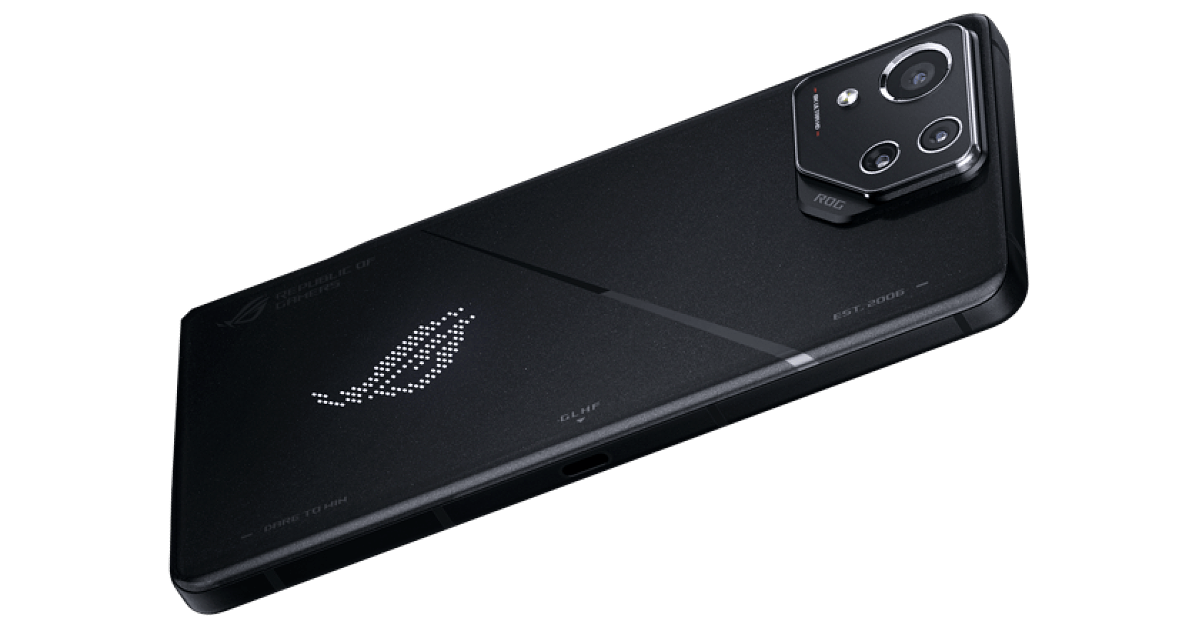
Asus ROG Phone 8 Series price and availability
The Asus ROG Phone 8 has been launched for $1,099, or around Rs 91,000, for the 16GB RAM and 256GB storage variant. The device will be available in Phantom Black and Rebel Grey colourways. On the other hand, the Asus Phone 8 Pro has been released at $1,199, or about Rs 99,000 for the 16GB of RAM and 512GB of storage options. There is an elite variant with 24GB of RAM and 1TB of storage that goes for $1,499, or approximately Rs 1,24,000. The Pro model will come in a single Black colour option. The company has yet to disclose information regarding its costs or availability in other markets. Also Read: Samsung at CES 2024: Launches AI-powered 2024 Neo QLED, MICRO LED, OLED and Lifestyle DisplaysAsus ROG Phone 8 Series specification
Both Asus ROG Phone 8 Pro, and ROG Phone 8 are powered by Qualcomm’s latest flagship chipset Snapdragon 8 Gen 3 SoC. It will operate on ROG UI with Android 14 out of the box. The Asus ROG Phone 8 Pro includes up to 1TB of UFS4.0 storage and up to 24GB of LPDDR5X RAM. Whereas the base model Asus ROG Phone 8 has 256GB UFS4.0 storage and up to 16GB LPDDR5X RAM.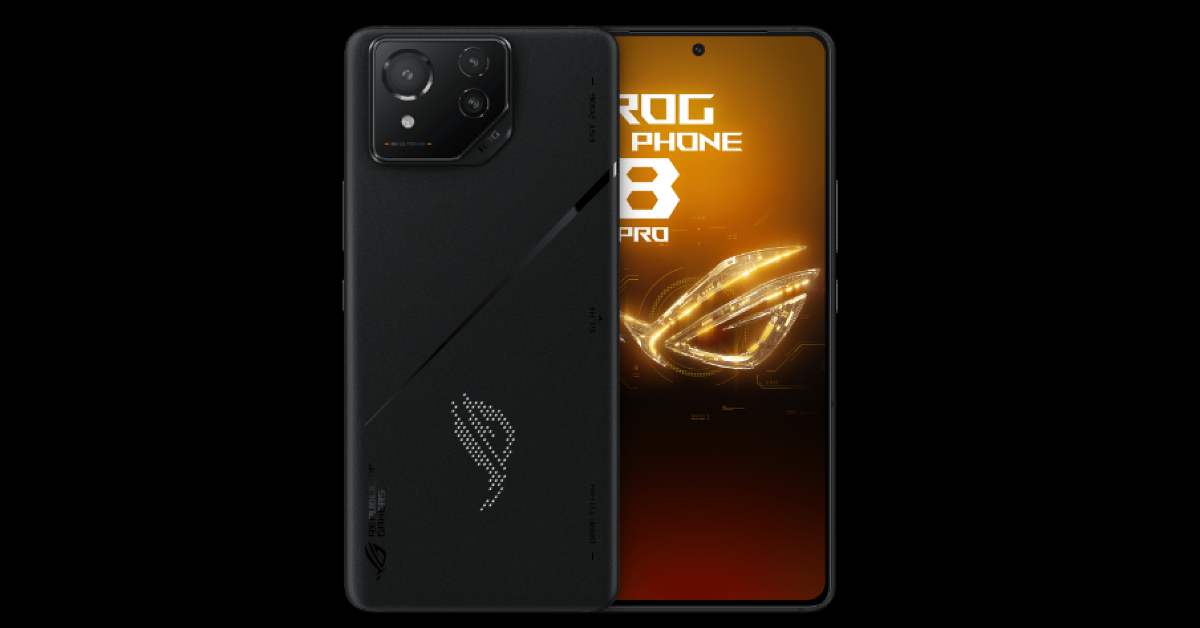 Both the gaming smartphones feature a 6.78-inch full-HD+ Samsung AMOLED LTPO display with 1,080×2,400 pixels resolution. The screen supports up to 165Hz refresh rate and 720Hz touch sampling rate. It also possesses 107 percent coverage of the DCI-P3 colour gamut, HDR10 support and 2,500 nits peak brightness. Moreover, Corning Gorilla Glass Victus 2 has been used for screen robustness and IP68 certification for dust and water resistance.
Now that we’re talking about gaming smartphones, let’s also have a look at their gaming features.
The AeroActive Cooler X snap-on cooling fan is included with the Asus ROG Phone 8 series. It has a few buttons to operate games in addition to using a dedicated fan and an integrated thermoelectric cooling chip to lower the temperature on the back cover to as low as 28°C.
In terms of optics the Asus ROG Phone 8 Series triple rear camera setup is highlighted with a primary 50-megapixel Sony IMX890 1/1.56-inch sensor ( f/1.9 aperture and 6-axis gimbal stabiliser). The system further includes a 13-megapixel ultra wide-angle lens (120-degree FoV), and a 32-megapixel sensor (3x optical zoom and OIS support). For taking selfies and video calling a 32-megapixel RGBW front camera has been provided.
Also Read: Here is what HP presented at CES 2024 along with HP Spectre x360 laptops
A 5,000mAh battery powers the devices with support for 65W wired and Qi 1.3 wireless charging. For connectivity there is 5G, 4G LTE, Wi-Fi 802.11 be/ax/ac/a/b/g/n, Wi-Fi Direct, NFC, Bluetooth 5.3, GPS/ A-GPS/ NavIC, NFC, 3.5mm jack and USB Type-C port. The selfies on the phones include an in-display Fingerprint sensor, accelerometer, ambient light sensor, e-compass, gyroscope, air trigger and proximity sensor.
Also along with 5-magnet receivers and 5-magnet speakers tuned by Dirac Virtuo technology the gaming devices have three microphones with Audio Noise Reduction Technology.
Both the gaming smartphones feature a 6.78-inch full-HD+ Samsung AMOLED LTPO display with 1,080×2,400 pixels resolution. The screen supports up to 165Hz refresh rate and 720Hz touch sampling rate. It also possesses 107 percent coverage of the DCI-P3 colour gamut, HDR10 support and 2,500 nits peak brightness. Moreover, Corning Gorilla Glass Victus 2 has been used for screen robustness and IP68 certification for dust and water resistance.
Now that we’re talking about gaming smartphones, let’s also have a look at their gaming features.
The AeroActive Cooler X snap-on cooling fan is included with the Asus ROG Phone 8 series. It has a few buttons to operate games in addition to using a dedicated fan and an integrated thermoelectric cooling chip to lower the temperature on the back cover to as low as 28°C.
In terms of optics the Asus ROG Phone 8 Series triple rear camera setup is highlighted with a primary 50-megapixel Sony IMX890 1/1.56-inch sensor ( f/1.9 aperture and 6-axis gimbal stabiliser). The system further includes a 13-megapixel ultra wide-angle lens (120-degree FoV), and a 32-megapixel sensor (3x optical zoom and OIS support). For taking selfies and video calling a 32-megapixel RGBW front camera has been provided.
Also Read: Here is what HP presented at CES 2024 along with HP Spectre x360 laptops
A 5,000mAh battery powers the devices with support for 65W wired and Qi 1.3 wireless charging. For connectivity there is 5G, 4G LTE, Wi-Fi 802.11 be/ax/ac/a/b/g/n, Wi-Fi Direct, NFC, Bluetooth 5.3, GPS/ A-GPS/ NavIC, NFC, 3.5mm jack and USB Type-C port. The selfies on the phones include an in-display Fingerprint sensor, accelerometer, ambient light sensor, e-compass, gyroscope, air trigger and proximity sensor.
Also along with 5-magnet receivers and 5-magnet speakers tuned by Dirac Virtuo technology the gaming devices have three microphones with Audio Noise Reduction Technology. Top 7 Ways to Make Keyboard Bigger on iPhone (2024)
Over the years, Apple has made significant design changes to iOS, but its onscreen keyboard still remains largely unchanged. While we certainly believe in not changing something that isn’t broken, it could use a few necessary features. One of them is larger size options. Users with large hands will know what we’re talking about. If you find it hard to hit the right key while typing on your iPhone, here are the top 7 ways you can make the keyboard bigger.
Read Also: Pocket Powerhouses: 2024 Top 5 Phones for Online Gaming
Step 2: Scroll down and select View under Display Zoom.
 Step 3: Select Zoomed and hit Done.
 Step 4: Tap on Use Zoomed in the popup box.
 Using your iPhone in Landscape Mode forces the onscreen keyboard to align itself along the length of the device, thereby making it bigger. The only downside is that once the keyboard pops up on the screen, it will cover most of the screen. This is fine if you want to respond to a quick text or quickly enter a search query, but you may not find it ideal for chats that move quickly. To switch to Landscape Mode on your iPhone, go to Control Centre and turn off the orientation lock. Hold your iPhone horizontally to make the keyboard bigger.
Step 2: Tap on Zoom.
Using your iPhone in Landscape Mode forces the onscreen keyboard to align itself along the length of the device, thereby making it bigger. The only downside is that once the keyboard pops up on the screen, it will cover most of the screen. This is fine if you want to respond to a quick text or quickly enter a search query, but you may not find it ideal for chats that move quickly. To switch to Landscape Mode on your iPhone, go to Control Centre and turn off the orientation lock. Hold your iPhone horizontally to make the keyboard bigger.
Step 2: Tap on Zoom.
 Step 3: Turn on the toggle switch for Zoom.
 Step 4: Scroll down and select Zoom Controller.
Step 5: Turn on the toggle switch for Show Controller.
Step 6: Tap the controller twice to zoom in and enlarge the keyboard.
Step 3: Turn on the toggle switch for Fleksy and allow it full access.
Step 4: Open an app that triggers the onscreen keyboard. Long press the globe or emoji icon and select Fleksy.
Step 5: Go back to your iPhone’s home page and launch the Fleksy app.
Step 6: Tap on the More icon at the top right corner of the screen.
Step 7: Tap on Keyboard Size.
Step 8: Select Large.
Step 4: Scroll down and select Zoom Controller.
Step 5: Turn on the toggle switch for Show Controller.
Step 6: Tap the controller twice to zoom in and enlarge the keyboard.
Step 3: Turn on the toggle switch for Fleksy and allow it full access.
Step 4: Open an app that triggers the onscreen keyboard. Long press the globe or emoji icon and select Fleksy.
Step 5: Go back to your iPhone’s home page and launch the Fleksy app.
Step 6: Tap on the More icon at the top right corner of the screen.
Step 7: Tap on Keyboard Size.
Step 8: Select Large.
Is it possible to make the iPhone’s keyboard bigger?
Simply put, Apple offers no direct way to enlarge the iPhone’s keyboard. There are a couple of ways to get around this roadblock, but the easiest of them all is using a third-party keyboard. Certain keyboards like 1C and Typewise are designed keeping the size aspect in mind. Other apps like Fleksy and Swiftkey do not make any radical changes to the keyboard’s design but offer more size options. If you wanna stick to your iPhone’s keyboard, your only option is to enlarge the general display. You can do this by using the zoom option in display settings. The standard zoom adheres to the general format of the iPhone and does not misalign any element on the screen. If you want to increase the size even further, you will need to use the zoom option from accessibility settings. This option also offers a handy controller that helps you navigate the zoomed-in display.Zoom your iPhone’s display to make the keyboard bigger
Step 1: Go to Settings and select Display & Brightness.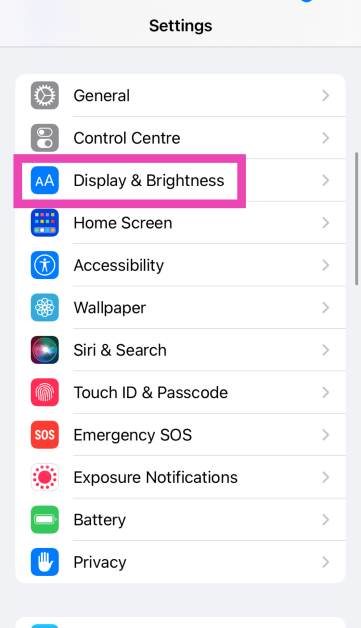 Step 2: Scroll down and select View under Display Zoom.
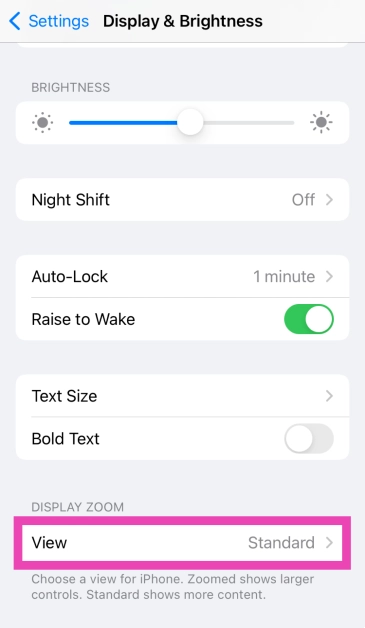 Step 3: Select Zoomed and hit Done.
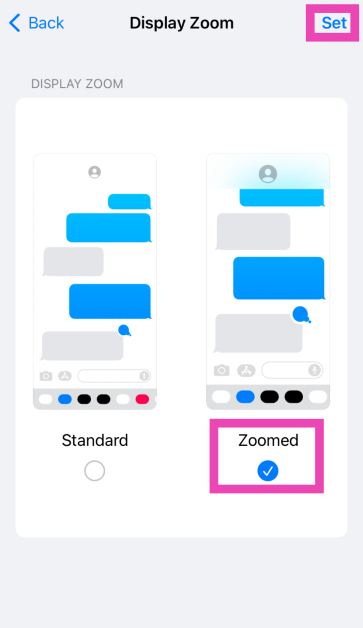 Step 4: Tap on Use Zoomed in the popup box.
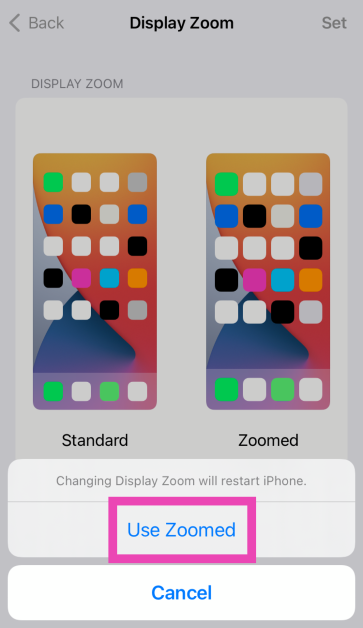
Switch to Landscape Mode
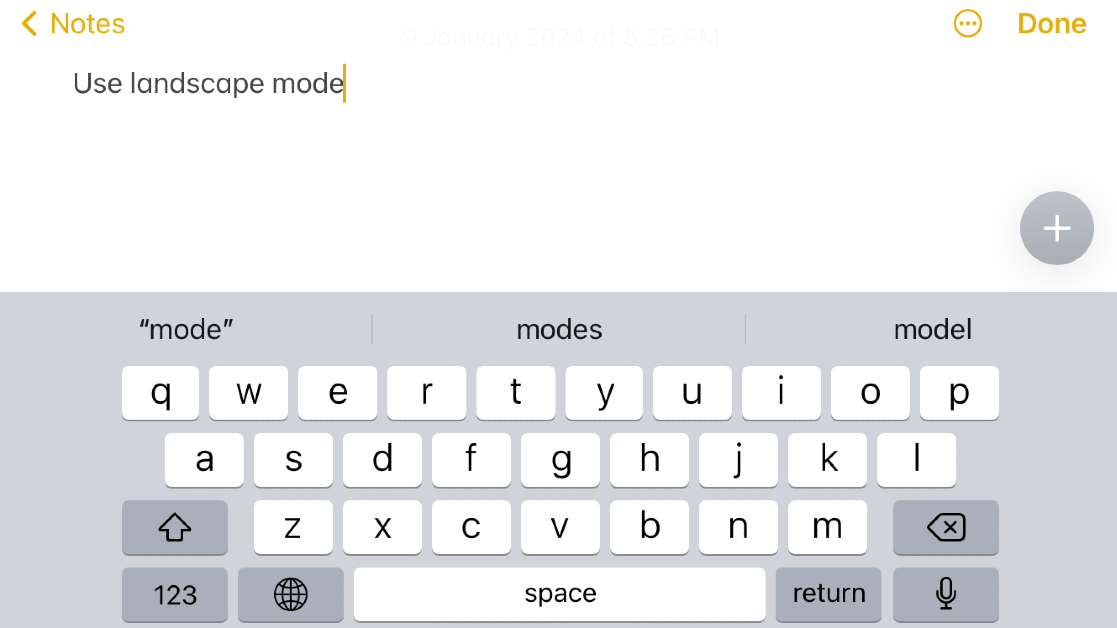 Using your iPhone in Landscape Mode forces the onscreen keyboard to align itself along the length of the device, thereby making it bigger. The only downside is that once the keyboard pops up on the screen, it will cover most of the screen. This is fine if you want to respond to a quick text or quickly enter a search query, but you may not find it ideal for chats that move quickly. To switch to Landscape Mode on your iPhone, go to Control Centre and turn off the orientation lock. Hold your iPhone horizontally to make the keyboard bigger.
Zoom your iPhone’s display
Step 1: Go to Settings and select Accessibility.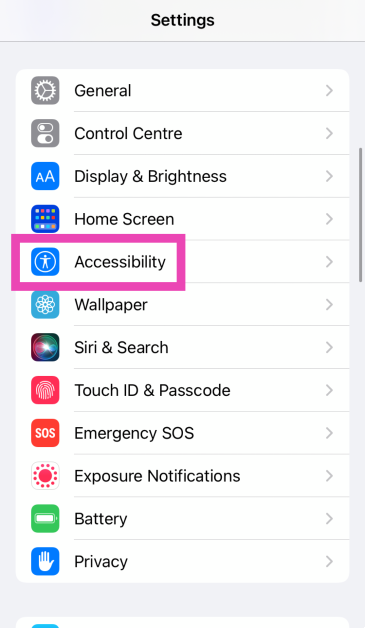 Step 2: Tap on Zoom.
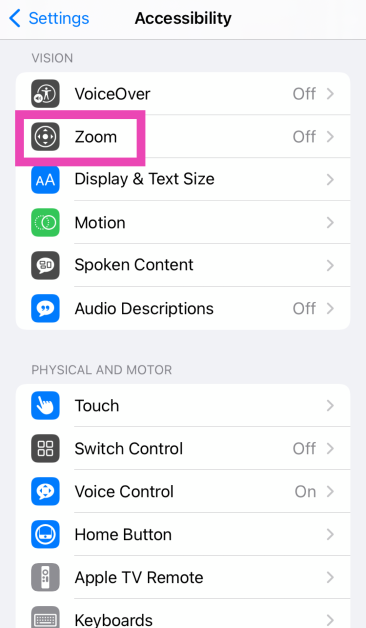 Step 3: Turn on the toggle switch for Zoom.
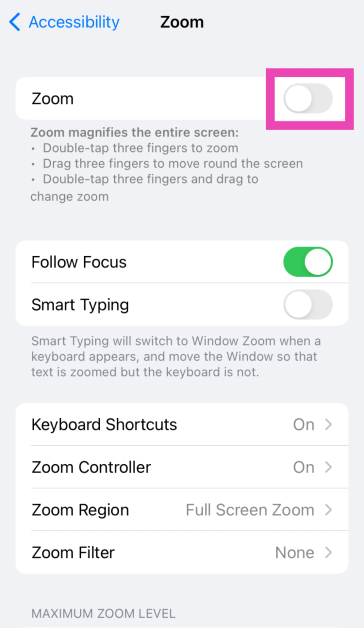 Step 4: Scroll down and select Zoom Controller.
Step 5: Turn on the toggle switch for Show Controller.
Step 4: Scroll down and select Zoom Controller.
Step 5: Turn on the toggle switch for Show Controller.
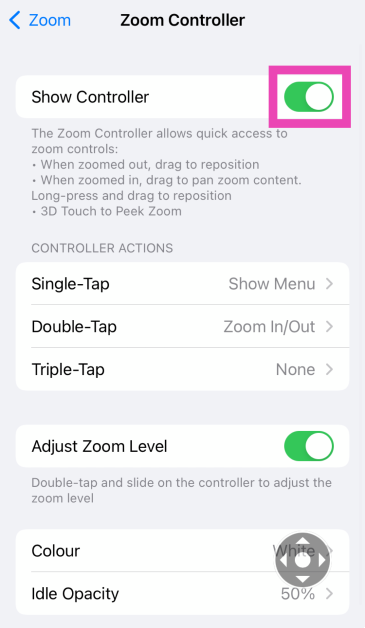 Step 6: Tap the controller twice to zoom in and enlarge the keyboard.
Disable One-Handed Mode
Your iPhone’s keyboard has a One-Handed Mode to help you type with one hand. This wasn’t an issue with earlier generations of the iPhone when it used to easily fit inside the palm. Modern iPhones move the onscreen keyboard in One-Handed Mode to facilitate easier typing. To make the keyboard go back to its earlier size, simply tap the arrow icon next to it. You can also long-press the globe or emoji icon and select the middle keyboard icon to exit One-Handed Mode.Use a third-party keyboard (Fleksy)
Step 1: Download the Fleksy Keyboard from the App Store. Step 2: Launch the Fleksy app. It will redirect you to system settings. Tap on Keyboards.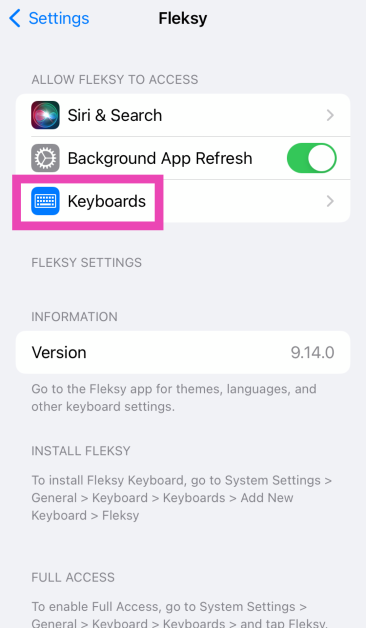 Step 3: Turn on the toggle switch for Fleksy and allow it full access.
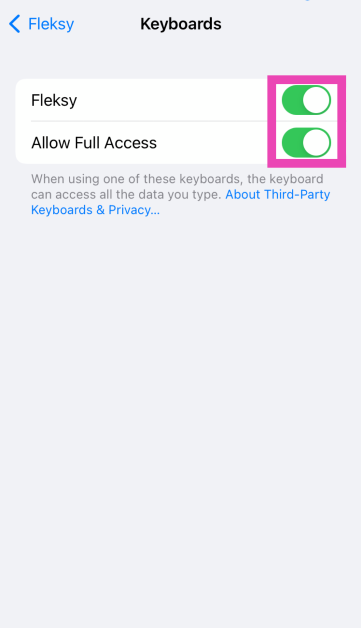 Step 4: Open an app that triggers the onscreen keyboard. Long press the globe or emoji icon and select Fleksy.
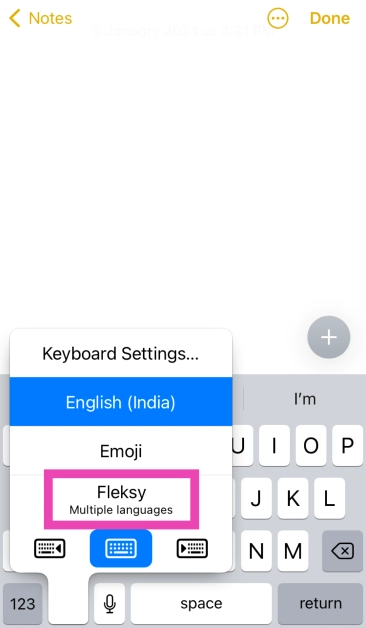 Step 5: Go back to your iPhone’s home page and launch the Fleksy app.
Step 6: Tap on the More icon at the top right corner of the screen.
Step 5: Go back to your iPhone’s home page and launch the Fleksy app.
Step 6: Tap on the More icon at the top right corner of the screen.
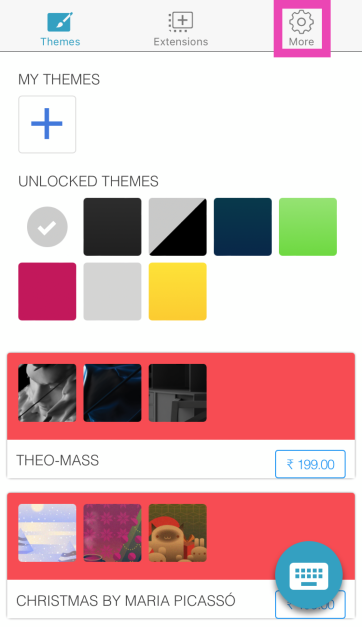 Step 7: Tap on Keyboard Size.
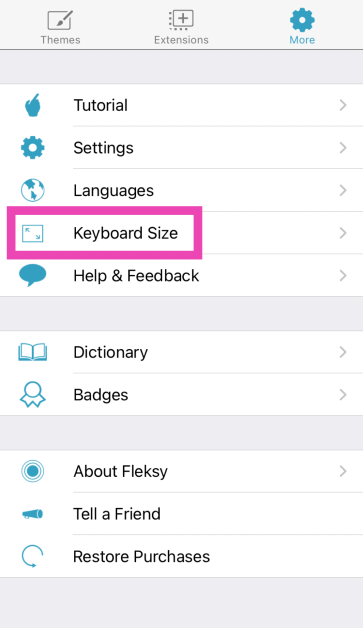 Step 8: Select Large.
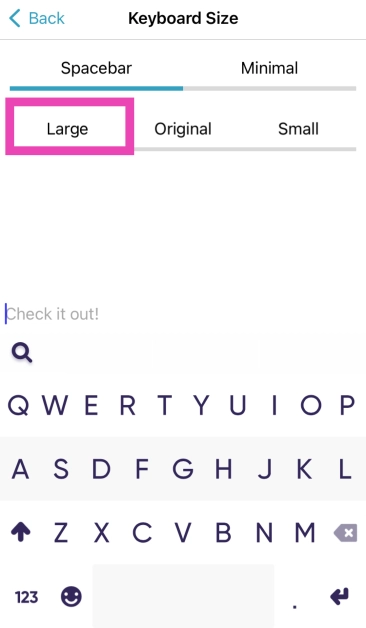
Turn off the Floating Keyboard on your iPad
If the keyboard appears as a floating panel on your iPad instead of aligning itself at the bottom of the screen, there are a couple of things you can do to remedy the situation. To use the larger form of your keyboard, drag two fingers in opposite directions on top of it. Keep pinching out until the keyboard appears in its largest possible form at the bottom of the screen. You can also drag the keyboard by its bottom edge and slide it to the bottom of the screen to use it in its original form.Turn off Split Keyboard (iPad)
To make typing with two hands easier, the iPad offers a ‘Split Keyboard’ mode that separates the onscreen keyboard into two halves and aligns them along the opposite sides of the screen. To bring the two parts back together, simply drag them towards the centre of the screen using two fingers simultaneously. You can also press the keyboard icon at the bottom right corner of the screen and select Dock and Merge to use the keyboard in its original form.Frequently Asked Questions (FAQs)
How do I make my iPhone’s keyboard bigger?
To make your iPhone’s keyboard bigger, go to Settings>Display & Brightness>Display Zoom>Zoomed and hit Done.How do I zoom into my iPhone’s display?
Go to Settings>Accessibility>Zoom to zoom into a particular part of the display.How do I change my iPhone’s keyboard?
Download a third-party keyboard from the App Store and allow it access to your iPhone. On the native iPhone keyboard, long-press the globe icon and select the keyboard of your choice. Read Also: Top 3 Methods to Hide Apps on MIUI OSConclusion
These are the top 7 ways to make the keyboard on your iPhone bigger. Third-party keyboard apps like Microsoft SwiftKey and Fleksy also offer a ton of customisation options that you should definitely check out. If you know any other way to enlarge the iPhone keyboard, share it in the comments! Let us know your keyboard of choice as well.Samsung at CES 2024: Launches AI-powered 2024 Neo QLED, MICRO LED, OLED and Lifestyle Displays

Key Highlights

- Along with the Samsung Neo QLED 8K, the company has also showcased a new transparent MICRO LED.
- The screen looks like a piece of transparent glass.
Samsung Neo QLED 8K and 4K TVs
The latest Samsung Neo QLED 8K and 4K TVs come equipped with NQ8 AI Gen3, Samsung’s most recent and cutting-edge TV processor. As per the company, its neural processing unit (NPU) is twice as quick as its predecessor’s. 8K AI Upscaling Pro uses NQ8 AI Gen3 to improve 8K upscaling, sharpening low-resolution content so that it is displayed in ultra-high resolution.AI Motion Enhancer Pro employs the processor to stream high-definition sports content to address common issues in sporting content — such as ball distortion. The feature using deep learning applies the proper ball detection model after automatically identifying the sport. Also Read: Here is what HP presented at CES 2024 along with HP Spectre x360 laptops Using AI to accurately control mini LEDs, the Real Depth Enhancer Pro provide details to fast-moving scenes. Images are rendered more realistic and three-dimensional by identifying the area of a scene that the human eye would normally focus on. In terms of audio, the upcoming Neo QLED 8K TV boasts 2024 Q-Symphony allowing users to connect multiple wireless speakers and a soundbar to a TV or projector for perfect audio synchronization across shows, movies, and playlists. The Pro-Active Voice Amplifier is a proprietary AI dialogue booster that greatly improves dialogue and voices on screen. It improves voice input by separating voices from mixed audio. Samsung’s latest Samsung Neo QLED 8K and 4K TVs will run on 2024 Tizen OS that will offer personalized content and service experience based on different accounts set up on smart TVs. Each family member with a Samsung Smart TV can set up a profile for personalized recommendations and a more customized overall experience. The new operating system will provide Designed for Samsung Gaming Hub accessories, Mobile Smart Connect, Multi Control, improved Samsung TV Plus, Mobile Smart Connect, 360 Audio and Vibrary. Whereas, the Samsung Daily+ will also offer an array of services and features like Workout Tracker, TechnoGym, F45, FlexI, Tail and Multi Control. Also Read: Vivo Y28 5G powered by MediaTek Dimensity 6020 SoC launched in IndiaSamsung Micro LED
The latest lineup of Samsung Micro LED appears to be a piece of transparent glass, sporting a minuscule MICRO LED chip and a precision manufacturing process that eliminates light refraction and seams. This allows the transparent MICRO LED to create a clear, unobstructed picture for various use cases in both homes and B2B environments. Micro LED oasts a modular architecture that lets customers customise the shape, size, and ratio of screens to match any location.
Samsung OLED Lineups
Samsung has introduced the S95D model of Samsung’s 2024 OLED TVs offering a massive 77-inch screen. As per the company, the screen is 20% brighter than previous models, with deep and rich blacks and AI-enhanced colour accuracy is Pantone Validated. The company has also introduced the S90D and S85D in various sizes, from 42 Inches to 83 inches. For immersive viewing in daylight, the new 2024 OLED screens will come with OLED Glare Free” technology. It is said to maintain colour fidelity and minimise reflections while retaining image clarity. Also, the models support high refresh rates of up to 144 Hz, allowing gamers and sports enthusiasts to see crisp action and fluid motion on their screens.Top 3 Ways: How to use Amazon Echo Device as a Bluetooth Speaker with or without WiFi

Setting up your new Amazon Echo device requires a WiFi connection. If you have a home router, this task should not take more than a couple of minutes. Those who don’t have a WiFi connection at home need not fret. You can use your smartphone’s WiFi hotspot as a shared connection. The only catch is that the Echo device must be connected to the hotspot at all times if you want to use Alexa’s voice commands. If you’re only interested in using your Amazon Echo device as a Bluetooth speaker, you can make it work without WiFi. Here’s how.
Read Also: Top 3 Methods to Hide Apps on MIUI OS
Step 1: Launch the Amazon Alexa app on your Android smartphone.
Step 2: Switch to the Devices tab.
Step 3: Select your Amazon Echo device.
Step 4: Turn on your phone’s Bluetooth.
Step 5: Tap on Connect a device.
Step 6: The Amazon Alexa app will search for nearby devices. Tap on your phone’s name on the list.
Step 1: Make sure your Amazon Echo device is plugged into a power socket.
Step 2: Turn on the Bluetooth on your Android smartphone.
Step 3: Say “Alexa, connect to my phone’s Bluetooth”.
This method only works when your phone has been connected to the Echo device before.
If you don’t have access to home WiFi, you can always use your phone’s WiFi hotspot to set up the Amazon Echo Device. Here’s how.
Step 1: Turn on your phone’s WiFi hotspot from the Quick Settings Menu.
Step 2: Make sure your Amazon Echo device is plugged into a power outlet.
Step 3: Launch the Amazon Alexa app and sign in using your Amazon account.
Step 4: Tap the plus icon at the top right corner of the screen and select Add Device.
Step 5: Select Amazon Echo from the list. On the following page, choose your model of the Echo.
Step 6: Press the Action button on the Echo device to put it in Setup Mode.
Step 7: On the Alexa app, choose your mobile hotspot as the WiFi network.
Step 8: Alexa will be paired with your device. Now, follow the methods mentioned above to use it as a Bluetooth speaker.
Why use your Amazon Echo device as a Bluetooth Speaker?
As great as Amazon Echo devices are to play music and control other smart devices, there is always something more you can do with them. If you’re watching a movie on your laptop and need just that little extra boost to the volume, you can always pair it with your Echo speaker. The best part is that there are no latency issues to deal with. The need to use your Amazon Echo device as a Bluetooth speaker arises the most when you want to play music or videos on YouTube. Strangely, Echo speakers lack native support for YouTube, even though Amazon Music’s direct rivals, Apple Music and Spotify, are present on the platform. This means you cannot use voice commands to get Alexa to play music from YouTube on your Echo device. Luckily, the option to play music via Bluetooth is always there.Use the Alexa app to connect to the Amazon Echo Device over Bluetooth
 Step 1: Launch the Amazon Alexa app on your Android smartphone.
Step 2: Switch to the Devices tab.
Step 3: Select your Amazon Echo device.
Step 4: Turn on your phone’s Bluetooth.
Step 5: Tap on Connect a device.
Step 6: The Amazon Alexa app will search for nearby devices. Tap on your phone’s name on the list.
Step 1: Launch the Amazon Alexa app on your Android smartphone.
Step 2: Switch to the Devices tab.
Step 3: Select your Amazon Echo device.
Step 4: Turn on your phone’s Bluetooth.
Step 5: Tap on Connect a device.
Step 6: The Amazon Alexa app will search for nearby devices. Tap on your phone’s name on the list.
Use your Amazon Echo Device as a Bluetooth Speaker
 Step 1: Make sure your Amazon Echo device is plugged into a power socket.
Step 2: Turn on the Bluetooth on your Android smartphone.
Step 3: Say “Alexa, connect to my phone’s Bluetooth”.
This method only works when your phone has been connected to the Echo device before.
Step 1: Make sure your Amazon Echo device is plugged into a power socket.
Step 2: Turn on the Bluetooth on your Android smartphone.
Step 3: Say “Alexa, connect to my phone’s Bluetooth”.
This method only works when your phone has been connected to the Echo device before.
Use your Amazon Echo Device as a Bluetooth Speaker without WiFi
 If you don’t have access to home WiFi, you can always use your phone’s WiFi hotspot to set up the Amazon Echo Device. Here’s how.
Step 1: Turn on your phone’s WiFi hotspot from the Quick Settings Menu.
Step 2: Make sure your Amazon Echo device is plugged into a power outlet.
Step 3: Launch the Amazon Alexa app and sign in using your Amazon account.
Step 4: Tap the plus icon at the top right corner of the screen and select Add Device.
Step 5: Select Amazon Echo from the list. On the following page, choose your model of the Echo.
Step 6: Press the Action button on the Echo device to put it in Setup Mode.
Step 7: On the Alexa app, choose your mobile hotspot as the WiFi network.
Step 8: Alexa will be paired with your device. Now, follow the methods mentioned above to use it as a Bluetooth speaker.
If you don’t have access to home WiFi, you can always use your phone’s WiFi hotspot to set up the Amazon Echo Device. Here’s how.
Step 1: Turn on your phone’s WiFi hotspot from the Quick Settings Menu.
Step 2: Make sure your Amazon Echo device is plugged into a power outlet.
Step 3: Launch the Amazon Alexa app and sign in using your Amazon account.
Step 4: Tap the plus icon at the top right corner of the screen and select Add Device.
Step 5: Select Amazon Echo from the list. On the following page, choose your model of the Echo.
Step 6: Press the Action button on the Echo device to put it in Setup Mode.
Step 7: On the Alexa app, choose your mobile hotspot as the WiFi network.
Step 8: Alexa will be paired with your device. Now, follow the methods mentioned above to use it as a Bluetooth speaker.
Frequently Asked Questions (FAQs)
Can I use my Amazon Echo device as a Bluetooth speaker if it doesn’t have access to home WiFi?
You can use your Echo device as a Bluetooth speaker, but in order to connect it to your phone, you will need access to home WiFi or your phone’s hotspot. Once you have connected it to your phone over Bluetooth, it will function as a speaker even without WiFi access.How do I pair my phone to my Amazon Echo device?
To pair your phone to your Amazon Echo device, launch the Amazon Alexa app, go to Devices>Echo>Connect to a device and select your phone.How do I play music from YouTube on my Amazon Echo device?
Since Amazon Echo devices do not have native support for YouTube, you will need to connect your phone over Bluetooth in order to play music or videos from the Google-owned streaming platform. Read Also: Acer showcased Aspire 3D 15 SpatialLabs Edition Laptop at CES 2024Conclusion
These are the top 3 ways to use your Amazon Echo device as a Bluetooth speaker with or without WiFi. If you know any other way to connect your phone to an Echo device over Bluetooth, let us know in the comments! Check out this article to learn how to connect two or more Amazon Echo speakers.Here is what HP presented at CES 2024 along with HP Spectre x360 laptops
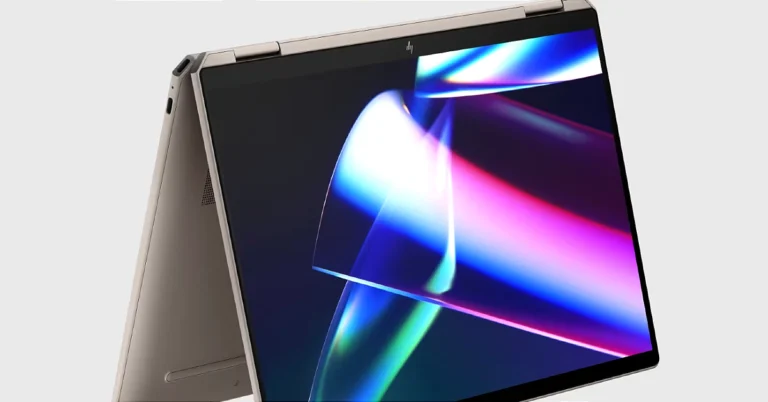
Key Highlights
The HP Spectre x360 14-inch 2-in-1 Laptop PC is available now at HP.com for a starting price of $1,499.99. The device is also available at BestBuy.com.
The HP Spectre x360 16-inch 2-in-1 Laptop PC is available now at HP.com for a starting price of $1,599.99. The device is also available at BestBuy.com.
- HP Spectre x360 laptops will be available in two sizes 14 inches and 16 inches.
- The laptops will be powered by Intel Core Ultra processors.
- HP has also introduced the HP 690 Rechargeable Wireless Mouse, HP 430 Programmable Wireless Keypad, HP USB-C Travel Hub G3, HP 400 Backlit Wired Keyboard and more.
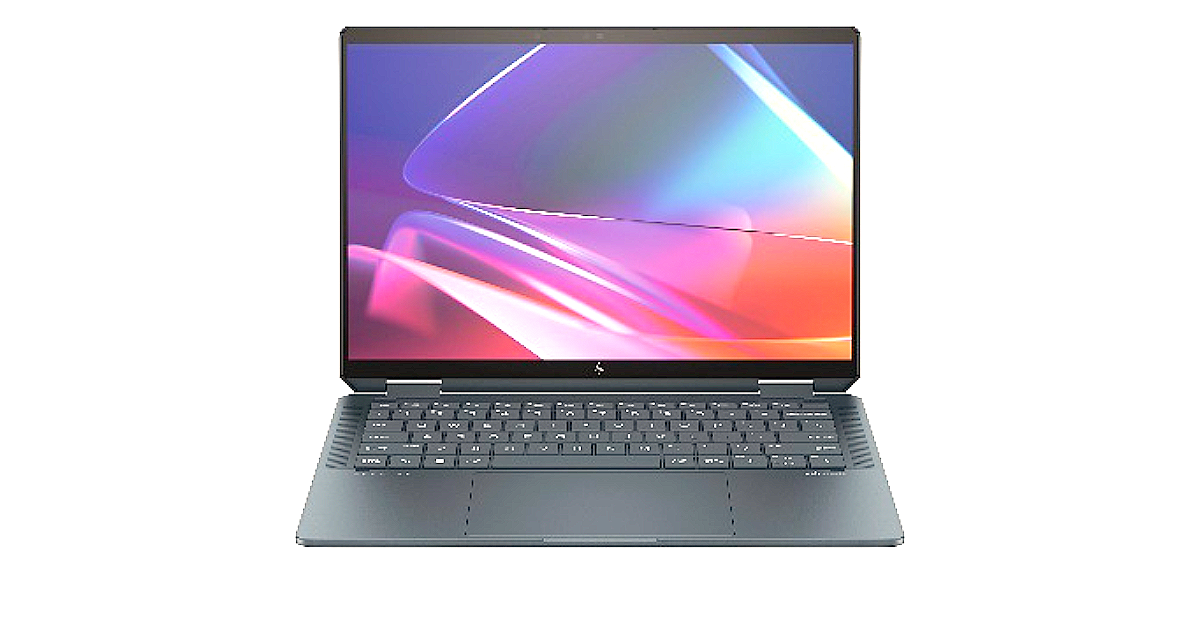
HP Spectre x360 laptops
HP Spectre x360 laptops include two models HP Spectre x360 14-inch 2-in-1 Laptop PC and the HP Spectre x360 16-inch 2-in-1 Laptop PC. The machine features a display, with up to a 2.8K OLED screen along with an IMAX Enhanced Certification. The screen can adjust the refresh rate from 48 Hz to 120 Hz according to the content and aspect ratio of 16:10. The HP Spectre x360 laptops are stuffed with Intel Core Ultra processors and optional NVIDIA GeForce RTX 4050 Laptop GPUs. The laptops are tuned by Poly Studio. It is said to improve calls and video with Windows Studio effects, which offloads AI features like automatic framing, background blur, and the ability to maintain eye contact onto the NPU for engaging connections. The HP Spectre x360 14-inch 2-in-1 Laptop PC and the HP Spectre x360 16-inch 2-in-1 Laptop PC have a 9MP webcam with hardware-enabled low-light adjustment for clear calls day or night. The machine also comes integrated with a dedicated AI chip that delivers built-in security features including walk away lock, wake on approach, and privacy alerts to warn you of snooping eyes; adaptive screen adjustments like a screen dimmer when you look away to save power and variable refresh rate for immersive performance and power efficiency; and, automatic performance optimization that adjusts fan noise and temperatures based on applications being used, placement of the laptop, and battery status.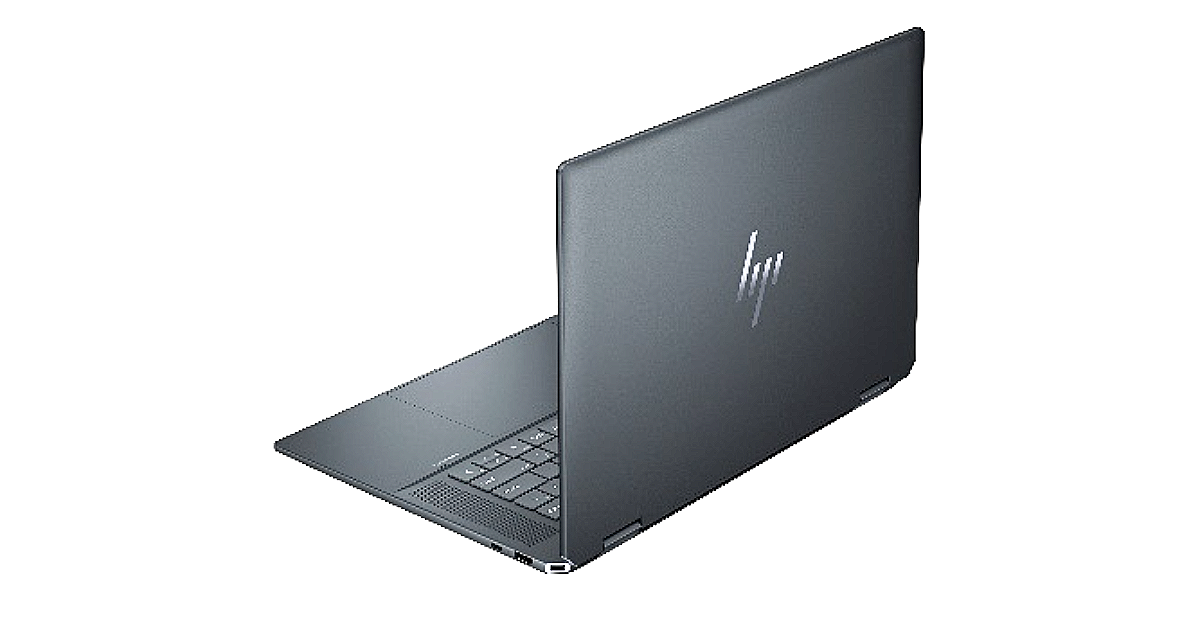 The HP Spectre x360 14-inch 2-in-1 Laptop PC is available now at HP.com for a starting price of $1,499.99. The device is also available at BestBuy.com.
The HP Spectre x360 16-inch 2-in-1 Laptop PC is available now at HP.com for a starting price of $1,599.99. The device is also available at BestBuy.com.
The HP Spectre x360 14-inch 2-in-1 Laptop PC is available now at HP.com for a starting price of $1,499.99. The device is also available at BestBuy.com.
The HP Spectre x360 16-inch 2-in-1 Laptop PC is available now at HP.com for a starting price of $1,599.99. The device is also available at BestBuy.com.
Poly Voyager Free 20 wireless earbuds
The Poly Voyager Free 20 wireless earbuds feature hybrid adaptive active noise cancelling (ANC) to block out background noise while you’re taking a call or listening to music. In addition, you can expect up to eight hours of listening time from the earbuds and a 2.5 times longer battery life thanks to the portable Qi charging case. The Poly Lens Mobile App provides recommendations for the perfect ear tip size along with a personalised fit test to enhance your comfort and overall listening experience. The Poly Voyager Free 20 wireless earbuds are expected to be available in May 2024 for $149.00.HP 960 Ergonomic Wireless Keyboard
The HP 960 Ergonomic Wireless Keyboard is a versatile ergonomic split wireless keyboard that can be easily customised. Its split-zone layout adjusts to your typing style. The keyboard also includes a separate numeric keypad and 20 programmable keys further enhancing customisation. It comes with Bluetooth and dongle connectivity built-in for connectivity. This keyboard contains 50% post-consumer recycled materials and its external packaging is sustainably sourced. The HP 960 Ergonomic Wireless Keyboard is expected to be available in April on HP.com for $119.00.HP Series 5 Monitors
At CES 2024 the company also introduced HP Series 5 Monitors. These displays will be available in three sizes 24-, 27-, and 32-inch sizes. All of them have a 100Hz refresh rate and a 1500:1 contrast ratio. They come with an additional HDMI connector, so you may easily connect to many devices in addition to their thin and light design. HP Series 5 Monitors have ultra-thin bezels and integrated cable management for a smooth visual experience. The HP Series 5 Displays are expected to be available in Spring 2024 at HP.com. Pricing will be shared closer to availability. Also Read: Acer showcased Aspire 3D 15 SpatialLabs Edition Laptop at CES 2024HP 690 Rechargeable Wireless Mouse, HP 430 Programmable Wireless Keypad and HP 400 Backlit Wired Keyboard
HP 690 Rechargeable Wireless Mouse is the company’s first-ever Qi-charging Bluetooth mouse. It possesses six or more customisable buttons for effortless wireless connectivity. Personalize your productivity through the HP Accessory Center App. The HP 690 Rechargeable Wireless Mouse is available now on HP.com for $59.99. The HP 430 Programmable Wireless Keypad is a compact-sized keyboard. You can take it with you anywhere when you are travelling. Whereas the HP 400 Backlit Wired Keyboard is a spill-resistant and sanitizable keyboard. It includes a USB-C cord and USB-A adapter for connectivity. The HP 430 Programmable Wireless Keypad is available now at HP.com for $49.99. The HP 400 Backlit Wired Keyboard is available now on HP.com for $49.99. Also Read: Acer Predator with massive 57-inch-wide gaming monitors shown at CES 2024HP USB-C Travel Hub G3
HP USB-C Travel Hub G3 is a mobile hub where you can give your notebook five important ports: two USB-A ports, one USB-C port, and one HDMI port. It provides plug-and-play connectivity.- The HP USB-C Travel Hub G3 is expected to be available in late February on HP.com for $69.99.
Top 6 Ways to Auto-Scroll Instagram Reels on Android and iOS

The bite-sized nature of Instagram Reels makes them easy to binge on for hours. The only drawback is that, unlike a regular video, you can’t watch Reels in the background while you’re occupied with other tasks. By default, you need to swipe up to move to the next Reel and swipe down to go to the previous one. Instagram recently started rolling out the feature that automatically scrolls the Reels for you. Here are the top 6 ways to auto-scroll Instagram Reels on Android and iOS.
Read Also: Top 10 Apps You Should Download First on Vivo X100 Pro
 Step 2: Hit the ellipses in the bottom right corner of the screen.
 Step 3: Turn on the toggle switch next to Auto-scroll.
 Step 3: Turn on the toggle switch for Automatic Scroll.
 Step 4: Give the app permission to overlay above other apps.
 Step 5: Go to Add Apps and select Instagram.
 Step 6: Go to Settings, switch to the Scrolling tab, and set the scroll speed.
 Step 7: Launch Instagram and play a Reel.
Step 8: Hit the downward arrow from the toolbar on the left to set auto scroll in motion.
Step 7: Launch Instagram and play a Reel.
Step 8: Hit the downward arrow from the toolbar on the left to set auto scroll in motion.
 Step 3: Give it permission to overlay the auto-scroll button on other apps.
 Step 4: Allow Easy Scroll the necessary accessibility permissions.
Step 5: Switch to the Scroll tab and select the scrolling speed. Tap on Start.
Step 6: Go to Reels and hit the next page button on the toolbar on the right.
Read Also: Quantum AI Spearheading Pharmaceutical Research
Step 2: Tap on Voice Control.
Step 3: Select Set Up Voice Control. Hit Continue and Done.
Step 4: Allow Easy Scroll the necessary accessibility permissions.
Step 5: Switch to the Scroll tab and select the scrolling speed. Tap on Start.
Step 6: Go to Reels and hit the next page button on the toolbar on the right.
Read Also: Quantum AI Spearheading Pharmaceutical Research
Step 2: Tap on Voice Control.
Step 3: Select Set Up Voice Control. Hit Continue and Done.
 Step 4: Select Customise Commands.
Step 5: Tap on Create New Command.
Step 6: Enter a name for the command. Make sure the name is short and easy to speak while giving the command.
Step 7: Tap on Action and select Run Custom Gesture.
Step 4: Select Customise Commands.
Step 5: Tap on Create New Command.
Step 6: Enter a name for the command. Make sure the name is short and easy to speak while giving the command.
Step 7: Tap on Action and select Run Custom Gesture.
 Step 8: On the following page, perform the swipe-up gesture and hit Save.
Step 9: Go to the previous page and tap on Application.
Step 10: Select Instagram from the list.
Step 8: On the following page, perform the swipe-up gesture and hit Save.
Step 9: Go to the previous page and tap on Application.
Step 10: Select Instagram from the list.
 Step 11: Go to Instagram and use the Voice Command you just created to scroll through Reels.
Step 3: Open Instagram on Safari and log in to your account.
Step 4: Hit the Share button in the bottom toolbar.
Step 5: Select Safari Auto Scroll.
Step 11: Go to Instagram and use the Voice Command you just created to scroll through Reels.
Step 3: Open Instagram on Safari and log in to your account.
Step 4: Hit the Share button in the bottom toolbar.
Step 5: Select Safari Auto Scroll.
 Step 6: Select a scrolling speed.
Step 7: Open a Reel.
The page will automatically scroll at your selected speed.
Step 6: Select a scrolling speed.
Step 7: Open a Reel.
The page will automatically scroll at your selected speed.
 Step 3: Turn on the toggle switch for Start app.
Step 4: Open your For You Page. The Auto Scroll TT app will automatically scroll to the next video once the current one ends.
Step 3: Turn on the toggle switch for Start app.
Step 4: Open your For You Page. The Auto Scroll TT app will automatically scroll to the next video once the current one ends.

Automatic Scrolling on Instagram: Is it possible?
Instagram lets you automatically scroll through Reels, but this option is turned off by default. It is being rolled out in a phased manner, so it isn’t available to all users yet. If it isn’t available on your device, there are a handful of third-party apps that you can use for the job. These apps require permission to draw over other apps and use the accessibility services on your device. The former is necessary to overlay a toolbar on the screen, while the latter lets them control the swiping gestures. Some apps may use these permissions to overlay ads on your phone’s interface, which is why you need to choose wisely. One of the major problems that you will run into is setting the scrolling speed on the app. Since these apps aren’t designed with Instagram in mind, they do not automatically scroll up when the Reel ends. Instead, you need to set a timer for the swipe gesture. Since the upper time limit for Reels is 60 seconds, you can set the app to scroll automatically once every 60 seconds. With shorter Reels, you will need to rely on manual gestures.Use the native auto-scroll feature in the Instagram app
Step 1: Launch the Instagram app on your phone and switch to the Reels tab. Step 2: Hit the ellipses in the bottom right corner of the screen.
 Step 3: Turn on the toggle switch next to Auto-scroll.
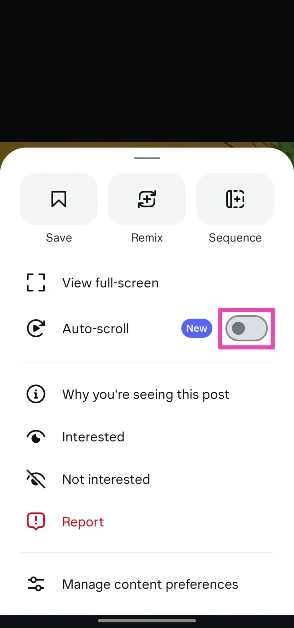
Use Automatic Scroll to auto-scroll Instagram Reels on Android
Step 1: Download the Automatic Scroll app from the Google Play Store. Step 2: Launch the app and skip the tutorial.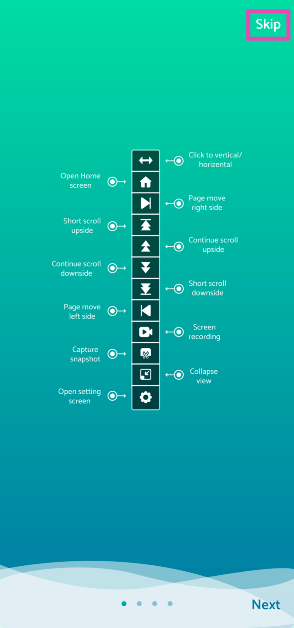 Step 3: Turn on the toggle switch for Automatic Scroll.
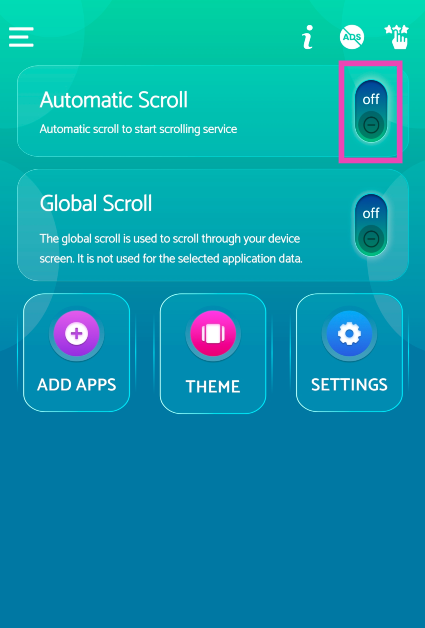 Step 4: Give the app permission to overlay above other apps.
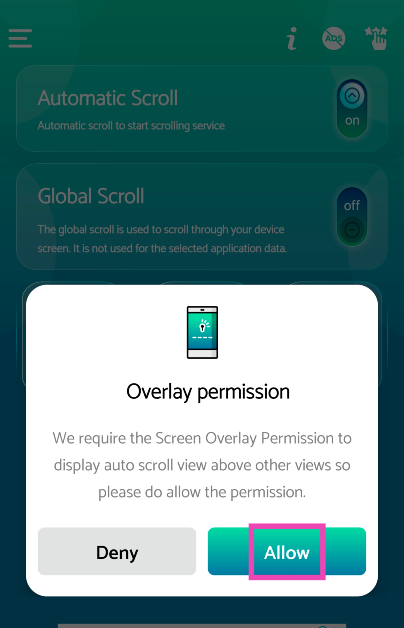 Step 5: Go to Add Apps and select Instagram.
 Step 6: Go to Settings, switch to the Scrolling tab, and set the scroll speed.
 Step 7: Launch Instagram and play a Reel.
Step 8: Hit the downward arrow from the toolbar on the left to set auto scroll in motion.
Step 7: Launch Instagram and play a Reel.
Step 8: Hit the downward arrow from the toolbar on the left to set auto scroll in motion.

Use Easy Scroll to auto-scroll Instagram Reels on Android
Step 1: Download the Easy Scroll app from the Google Play Store. Step 2: Launch the app and allow it to run in the background. Step 3: Give it permission to overlay the auto-scroll button on other apps.
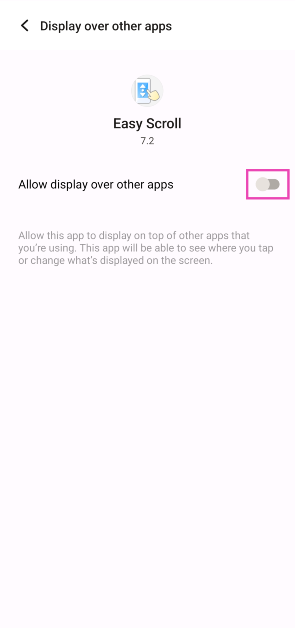 Step 4: Allow Easy Scroll the necessary accessibility permissions.
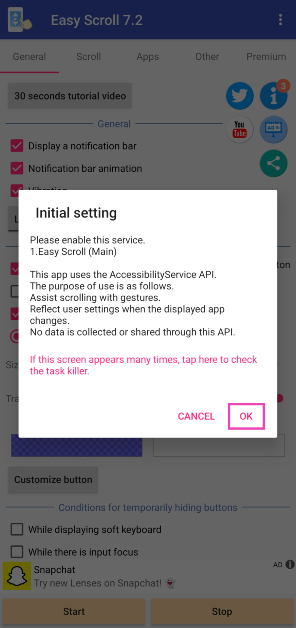 Step 5: Switch to the Scroll tab and select the scrolling speed. Tap on Start.
 Step 6: Go to Reels and hit the next page button on the toolbar on the right.
Read Also: Quantum AI Spearheading Pharmaceutical Research
Step 6: Go to Reels and hit the next page button on the toolbar on the right.
Read Also: Quantum AI Spearheading Pharmaceutical Research
Use Voice Control to auto-scroll Instagram Reels on iOS
Step 1: Go to Settings and select Accessibility.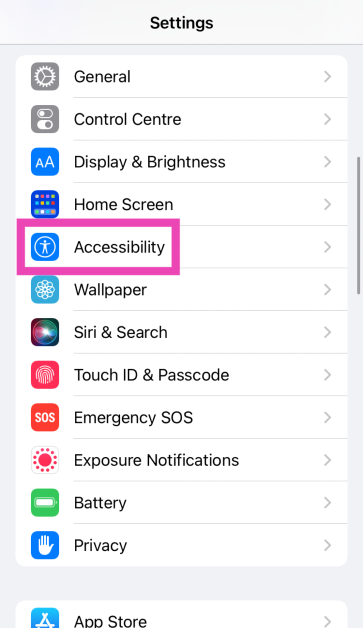 Step 2: Tap on Voice Control.
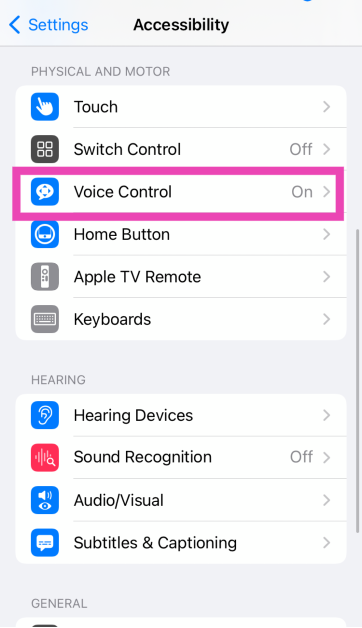 Step 3: Select Set Up Voice Control. Hit Continue and Done.
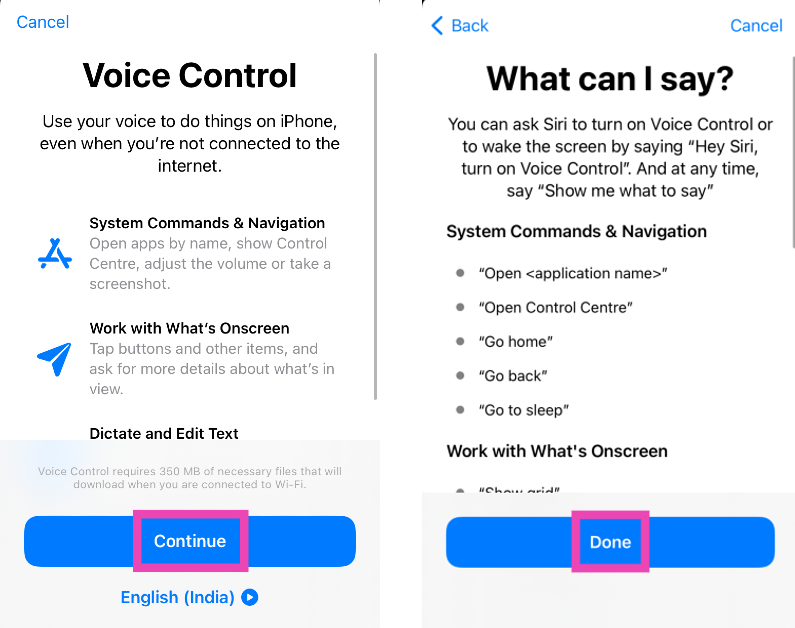 Step 4: Select Customise Commands.
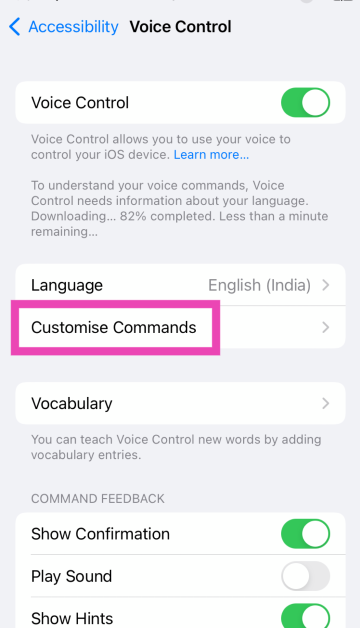 Step 5: Tap on Create New Command.
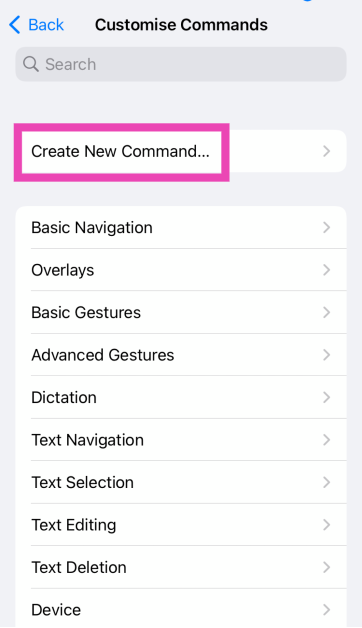 Step 6: Enter a name for the command. Make sure the name is short and easy to speak while giving the command.
Step 7: Tap on Action and select Run Custom Gesture.
Step 6: Enter a name for the command. Make sure the name is short and easy to speak while giving the command.
Step 7: Tap on Action and select Run Custom Gesture.
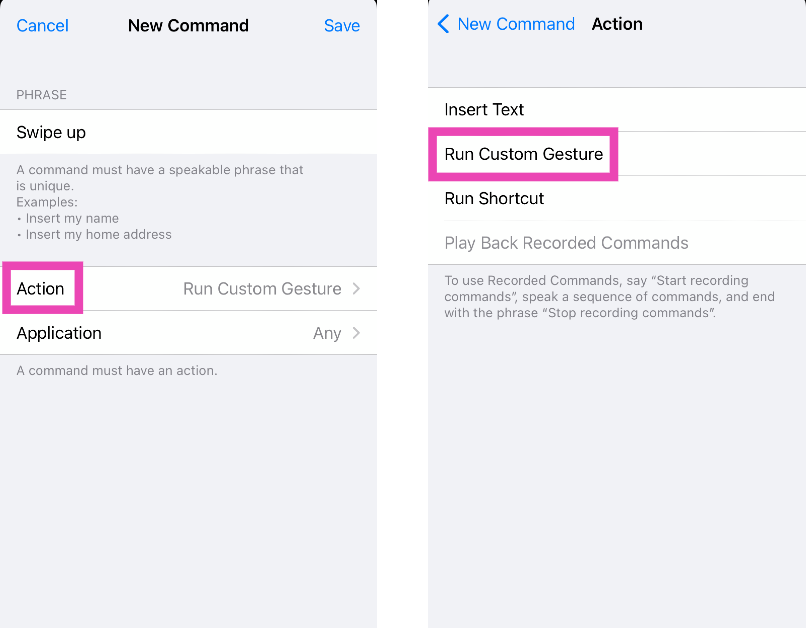 Step 8: On the following page, perform the swipe-up gesture and hit Save.
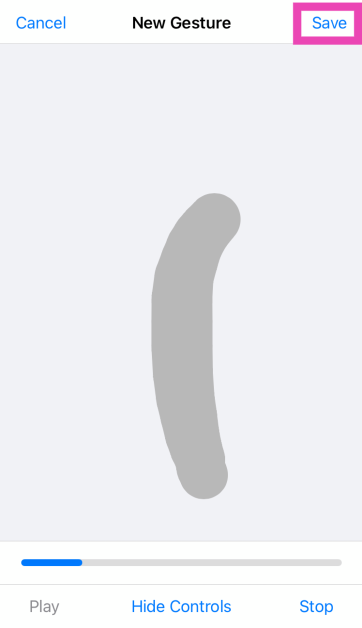 Step 9: Go to the previous page and tap on Application.
Step 10: Select Instagram from the list.
Step 9: Go to the previous page and tap on Application.
Step 10: Select Instagram from the list.
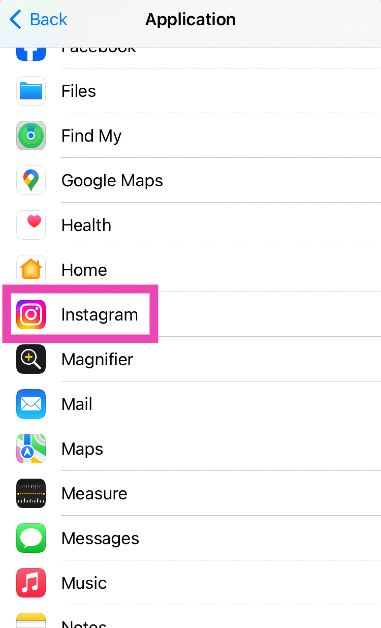 Step 11: Go to Instagram and use the Voice Command you just created to scroll through Reels.
Use the Safari Auto Scroll Shortcut on iOS
Step 1: Download the Safari Auto Scroll Shortcut. Step 2: Allow the Shortcut to run scripting actions.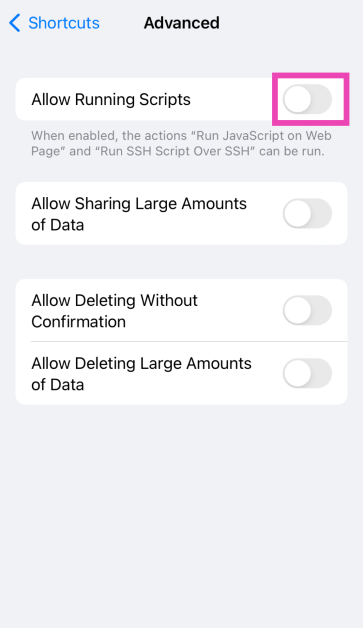 Step 3: Open Instagram on Safari and log in to your account.
Step 4: Hit the Share button in the bottom toolbar.
Step 3: Open Instagram on Safari and log in to your account.
Step 4: Hit the Share button in the bottom toolbar.
 Step 5: Select Safari Auto Scroll.
 Step 6: Select a scrolling speed.
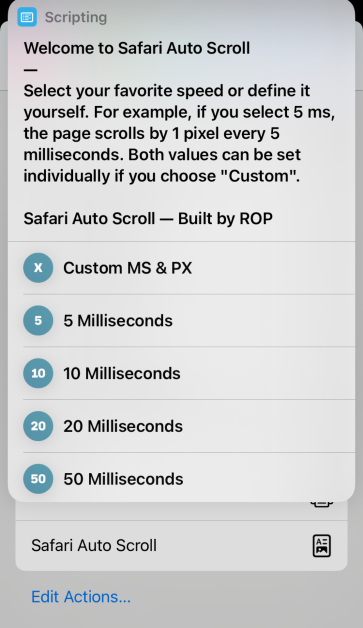 Step 7: Open a Reel.
The page will automatically scroll at your selected speed.
Step 7: Open a Reel.
The page will automatically scroll at your selected speed.
Bonus Tip: Use Auto Scroll TT to auto-scroll TikToks on Android
Step 1: Download the Auto Scroll TT app from the Google Play Store. Step 2: Launch the app and give it the necessary permissions. Step 3: Turn on the toggle switch for Start app.
 Step 4: Open your For You Page. The Auto Scroll TT app will automatically scroll to the next video once the current one ends.
Frequently Asked Questions (FAQs)
How do I automatically scroll Instagram Reels on Android?
Use third-party accessibility apps like Easy Scroll and Automatic Scroll to auto-scroll Instagram Reels on your Android smartphone.Is there a way to automatically scroll Instagram Reels on iOS?
Use the ‘Safari Auto Scroll’ Shortcut to scroll through Instagram Reels on your iPhone automatically. This method only works if you’re using the Instagram mobile website on Safari. To scroll Reels on the Instagram app without using your hands, use Voice Control.Is there a third-party app for auto-scrolling on iOS?
Since iOS does not allow apps to draw over other apps, there are no third-party auto-scrolling apps for the platform.Is there a native way to automatically scroll Instagram Reels?
Go to a reel, hit the ellipses, and turn on the toggle switch next to ‘Auto-scroll’.How do I stop my likes from showing up in the ‘Friends’ tab on Instagram?
Go to Profile>Settings and activity>Activity in Friends tab and select ‘No one’. Read Also: Sonic Lamb Review: Audio immersion taken to the next levelConclusion
These are the top 6 ways to auto-scroll Instagram Reels on Android and iOS. While going through third-party apps, make sure you select one that does not use its accessibility permissions to overlay invasive apps on your Android phone’s interface. If you know any other method to perform this task, let us know in the comments!Vivo Y28 5G powered by MediaTek Dimensity 6020 SoC launched in India
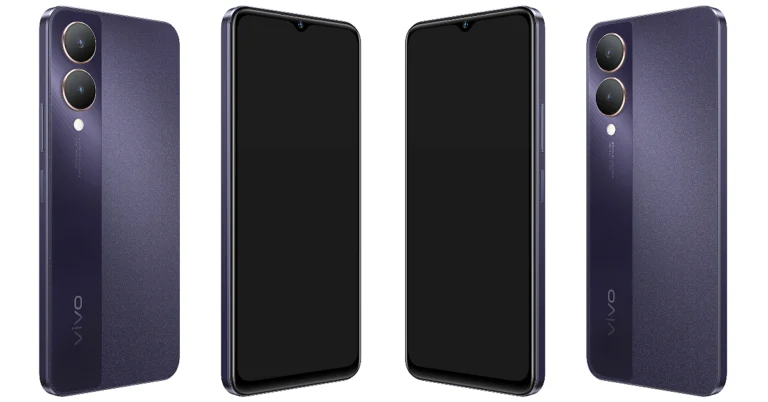
Key Highlights
- Vivo Y28 5G comes with an IP-54 rating.
- The smartphone also features a 90Hz LCD.
- The phone offers a RAM expansion feature.
Vivo Y28 5G price in India, availability
Vivo Y28 5G price in India has been set at Rs 13,999 for the base 4GB RAM with 128GB storage. The 6GB RAM with 128GB storage comes with a price tag of Rs 15,499. There is another 8GB RAM with 128GB storage that is available at Rs 16,999. The company is offering two colour options for the handset: Crystal Purple and Glitter Aqua. Also Read: Samsung Galaxy S23 and Galaxy S23+ price in India dropped by Rs 10,000 Customers can purchase the phone via Amazon, Flipkart, Vivo India e-store, and leading retail outlets in the country. There will be up to Rs 1,000 cashback on the purchase of the phone using SBI, DBS, and IDFC First Bank along with others.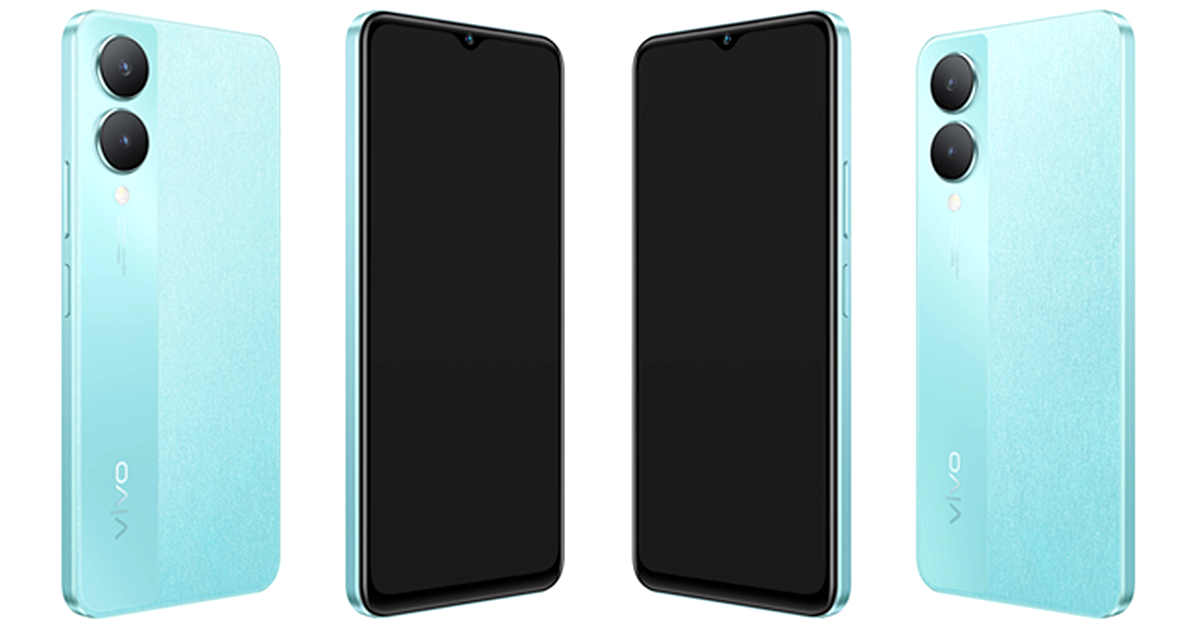
Vivo Y28 5G Specifications
Vivo Y28 5G is IP54-rated and features a 6.56-inch HD+ display with 720×1,612 pixels of resolution. The screen supports up to 90Hz refresh rate and 269ppi pixel density. The LCD display also has a peak brightness of 840 nits. The device operates on Android 13 with Funtouch OS 13 skin on top. The smartphone is powered by a 7nm octa-core MediaTek Dimensity 6020 SoC paired with up to 12GB of LPDDR4X RAM which can be further expanded up to 16GB. The phone sports 128GB UFS 2.2 internal storage. For the photos and videos the Vivo Y28 5G sports a dual rear camera setup that includes a 50-megapixel primary camera with f/2.0 aperture and a 2-megapixel sensor with an f/2.4 aperture. The camera also offers light effects, customizable bokeh flares, and the Super Night Mode for stunning low-light shots. It also includes an 8-megapixel sensor for taking selfies and video calling. Also Read: Acer Predator with massive 57-inch-wide gaming monitors shown at CES 2024 The device packs a 5,000mAh battery with 15W fast charging support. In terms of connectivity, there is Bluetooth 5.1, Wi-Fi, GPS, OTG, FM radio, A-GPS and a USB 2.0 port. The sensors on the phone include a side-mounted fingerprint sensor, accelerometer, ambient light sensor, colour temperature sensor, e-compass, gyroscope, and proximity sensor.Garena Free Fire Redeem Codes Today 9 January 2024: Here is how to claim them

Garena Free Fire is a battle royale game with regular awards and tournaments to keep players interested. If you play Garena Free Fire, you should be aware of the redeem codes that are released on a daily basis. However, because the battle royale game is banned in India, players from other countries can use the Free Fire Redeem codes daily. If you’re unfamiliar with the Garena Free Fire redeem codes or don’t know how to get them, we’ve put together a step-by-step guide to help you redeem them. Check out Garena Free Fire Redeem Codes for 9 January 2024.
The Free Fire redeem codes are a great way to get free stuff. These are 12-digit codes that contain alphabets and numbers, as well as an expiration date and time. Because the Garena FF redeem codes cannot be used more than once, you should hurry to the redemption page to claim your free reward before someone else does. To get a free reward, all you have to do is go to reward.ff.garena.com/en, which is the official redemption page. Also, keep an eye on this space for daily updates on Garena Free Fire redemption codes and rewards.
Garena Free Fire Redeem Codes Today 9 January 2024
WD2ATK3ZEA55 E2F86ZREMK49 HFNSJ6W74Z48 2FG94YCW9VMV FFDBGQWPNHJX HHNAT6VKQ9R7 ZZATXB24QES8 U8S47JGJH5MG FFIC33NTEUKA TDK4JWN6RD6 XFW4Z6Q882WY 4TPQRDQJHVP4 V44ZZ5YY7CBS VNY3MQWNKEGUHow to Get Free Fire Redeem Codes for Garena on 9 January 2024?
- Visit the Garena Free Fire game’s official website at reward.ff.garena.com.
- Use your Facebook, Google, VK, Apple ID, Huawei ID, or Twitter account to log in.
- You’ll be taken to a valid redemption code (s)
- Copy and paste the 12-digit redemption code into the text box.
- On the screen, a dialogue box will appear.
- ‘Ok’ should be selected.
Pocket Powerhouses: 2024 Top 5 Phones for Online Gaming
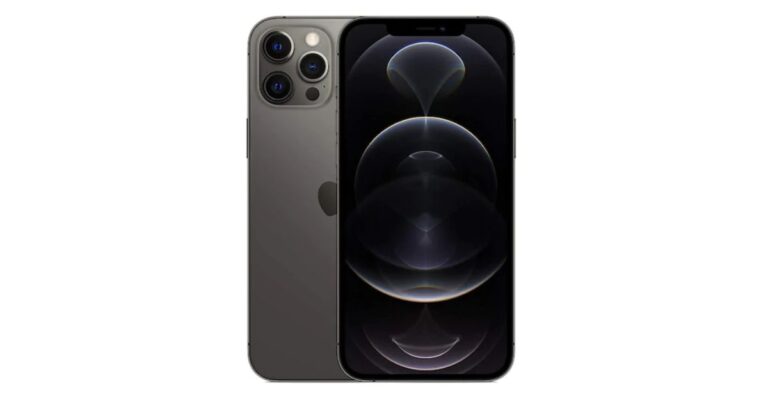
Mobile gaming has exploded in popularity thanks to powerful phones that deliver console-quality experiences on the go.
Lightning-fast processors, vivid displays, and long-lasting batteries let gamers immerse in intensive titles without compromise.
Even those who consider themselves light games and are mainly fans of real money gaming and the best betting apps for cricket and other sports are warry about the phones that are still great to buy this year.
Well, you’re in luck because we’ll showcase 2024’s top 5 smartphones primed to redefine your mobile gaming experience.
Ready? Let’s dive right into it.
Redmi Note 12 Pro breaks expectations for what we consider mid-range devices. This smartphone runs on MediaTek Dimensity 1080 5G octa-core which can handle extreme frame rates in even graphics-heavy titles.
Xiaomi has crammed in a high-performing Mali-G68 GPU alongside the fast chipset besides ample LPDDR4X RAM to annihilate lags.
The phone has a 5160mAh battery which means it can last over 6.5 hours even under intensive gaming usage. For budget-conscious buyers unwilling to compromise on power, the Redmi Note 12 Pro is a gift with entry-level pricing.
Samsung Galaxy A34 5G: Smooth Performance for Casual Gamers
The Samsung Galaxy A34 5G brings premium features to a wallet-friendly price point. Its 6.5-inch FHD+ display strikes an ideal balance between immersion and portability with vibrant Super AMOLED imagery. Powering its visuals is an Exynos 1280 processor packing robust AI to bolster gaming speeds without overheating. The device’s 5000mAh battery will also keep your gaming marathon sessions rolling for days. Many reviewers praise the Galaxy A34’s capability to handle casual games like Subway Surfers and Temple Run smoothly. For an easy entry into mobile gaming, the Galaxy A34 5G is a reliable choice.Poco X5 Pro 5G: Futureproof Powerhouse Processing
With a bleeding-edge Snapdragon 778G processor, the Poco X5 Pro delivers desktop-rivalling muscle on a budget. This 6nm chip flies through intensive RPGs and MOBAs without breaking a sweat thanks to its Adreno 642L GPU. This phone has a silky smooth 6.67-inch AMOLED panel which offers startling clarity down to the last pixel. Poco’s LiquidCool Technology 2.0 comprises an enlarged copper vapour chamber and multiple layers of graphite. They keep the phone’s temperatures firmly in check even during heavy gaming sessions.OnePlus 10T 5G: Blazing-Fast Premium Gaming
OnePlus consolidates its reputation for obscenely responsive gaming with the formidable 10T 5G. Headlining its performance is Qualcomm’s exclusive Snapdragon 8+ Gen 1 processor. This chip is capable of hitting staggering speeds up to 3.2 GHz through cutting-edge 4nm architecture. OnePlus has also equipped its latest smartphone with one of the most advanced cooling systems with 8 temperature sensors precisely regulating heat. With hyper-realistic visuals on a 6.7-inch 120 Hz Fluid AMOLED display matched by an all-day 5000mAh battery, the OnePlus 10T 5G brings elite-tier gaming to discerning players out there.Xiaomi Redmi Note 12 Pro: Beast Mode on a Tight Budget
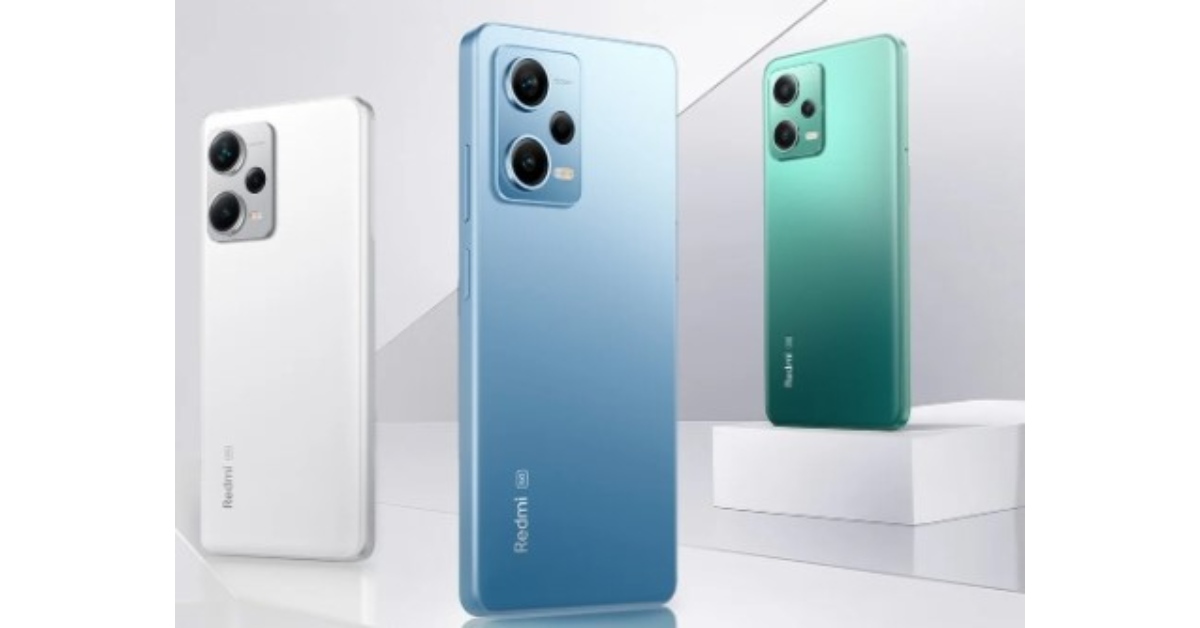 Redmi Note 12 Pro breaks expectations for what we consider mid-range devices. This smartphone runs on MediaTek Dimensity 1080 5G octa-core which can handle extreme frame rates in even graphics-heavy titles.
Xiaomi has crammed in a high-performing Mali-G68 GPU alongside the fast chipset besides ample LPDDR4X RAM to annihilate lags.
The phone has a 5160mAh battery which means it can last over 6.5 hours even under intensive gaming usage. For budget-conscious buyers unwilling to compromise on power, the Redmi Note 12 Pro is a gift with entry-level pricing.
Redmi Note 12 Pro breaks expectations for what we consider mid-range devices. This smartphone runs on MediaTek Dimensity 1080 5G octa-core which can handle extreme frame rates in even graphics-heavy titles.
Xiaomi has crammed in a high-performing Mali-G68 GPU alongside the fast chipset besides ample LPDDR4X RAM to annihilate lags.
The phone has a 5160mAh battery which means it can last over 6.5 hours even under intensive gaming usage. For budget-conscious buyers unwilling to compromise on power, the Redmi Note 12 Pro is a gift with entry-level pricing.