Top 8 Ways to Reverse Image Search on Mobile

0
Every major search engine offers a reverse lookup service for pictures. Google calls it the ‘Reverse Image Search’ while Bing calls it ‘Visual Search’. This feature is very accessible on PCs, but it may take jumping through some hoops on your smartphone. But once you get the hang of it, you will find yourself using it quite frequently. Today, we bring you the top 8 ways to reverse image search on your mobile. Read Also: Gmail’s new unsubscribe button for Android: Check out how you can use it

What’s the purpose of reverse image search?

Reverse Image Search finds its use in a lot of situations. The internet is rife with fake images, which are often spread around for malicious reasons. If you come across something that seems inflammatory, performing a reverse image search can help you gauge its validity. While a regular image search brings up the pictures related to the search query, a reverse search brings up the places on the internet where the image has been posted. This can help you get to the source of the image and place it in a better context. Google’s reverse image search was initially available only for desktops, but its integration with Google Lens has opened the door to infinite possibilities. Using Google Lens, you can search for real-world objects on the Internet. Came across a nice vase in a hotel lobby? Snap a picture and use Google Lens to see where you can buy it. Can’t identify a strange bird that is perched on your balcony? Just point your camera at it and let Google Lens do the rest.

Use Google Reverse Image Search (Desktop Site)

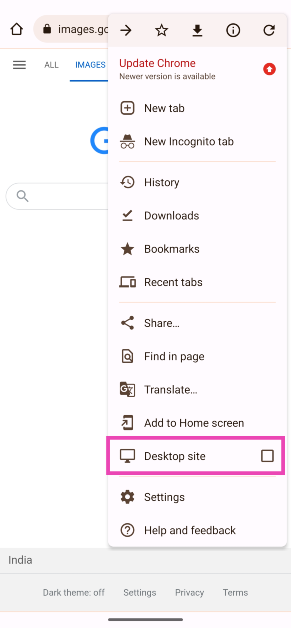
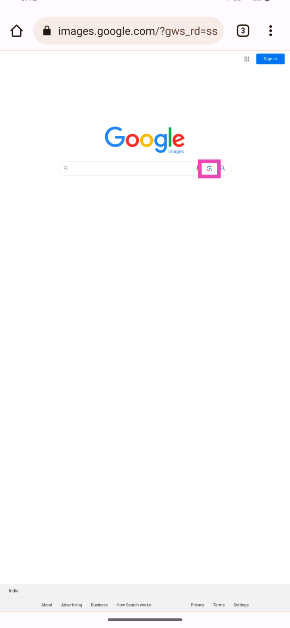
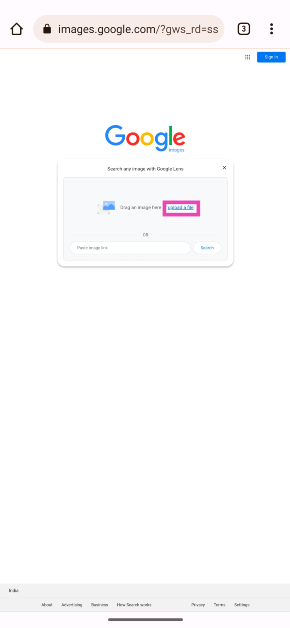
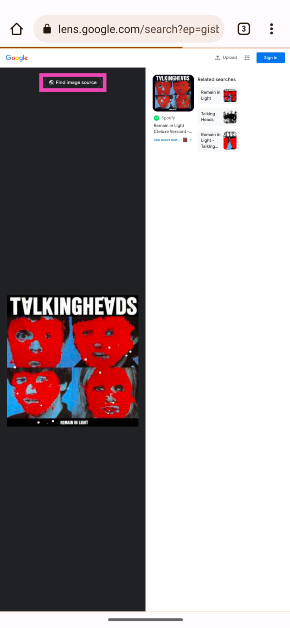
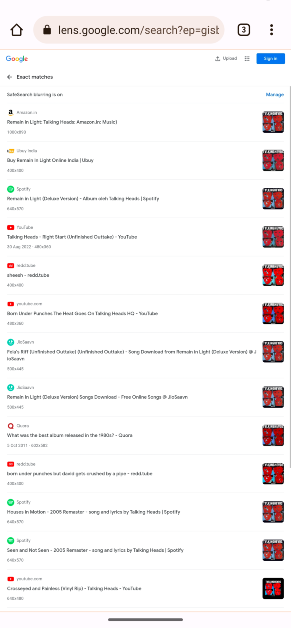
Step 1: Go to https://images.google.com/. Step 2: Hit the ellipses at the top right corner of the screen and select Desktop site. Step 2: Hit the ellipses at the top right corner of the screen and select Desktop site. Step 3: Tap the camera icon. Step 3: Tap the camera icon. Step 4: Tap on Upload a file. Step 4: Tap on Upload a file. Step 5: Upload the image from your phone’s internal storage. Step 5: Upload the image from your phone’s internal storage. Step 6: Tap on Find image source. Step 6: Tap on Find image source. The results will appear on the following page.

Use Bing Visual Search

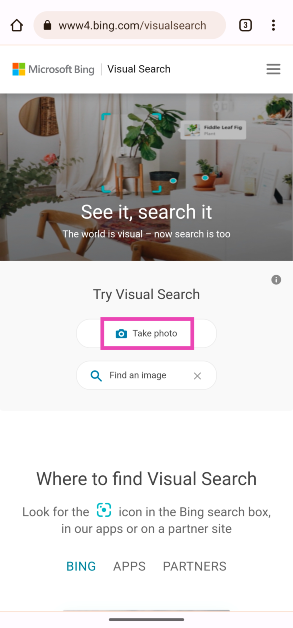
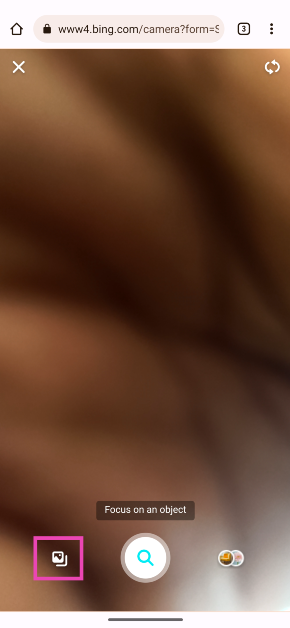
Step 1: Launch Google Chrome on your smartphone and go to Bing Visual Search. Step 2: Tap on Take a photo. Step 2: Tap on Take a photo. Step 3: This will open your phone’s camera. Step 4: Tap on the gallery icon at the bottom left corner of the screen. Step 3: This will open your phone’s camera. Step 5: Select the image. Step 5: Select the image. Step 6: Pull up the results panel on the following page to view all the matches.

Use Google Lens

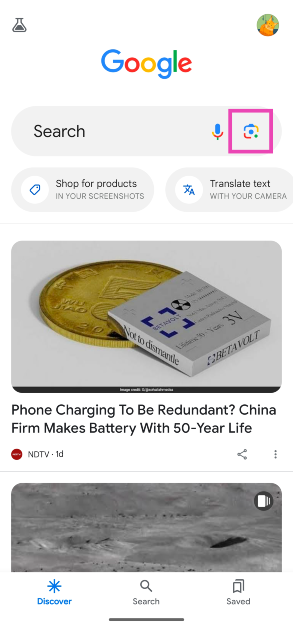
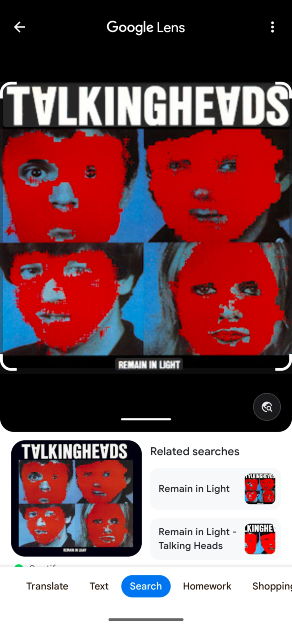
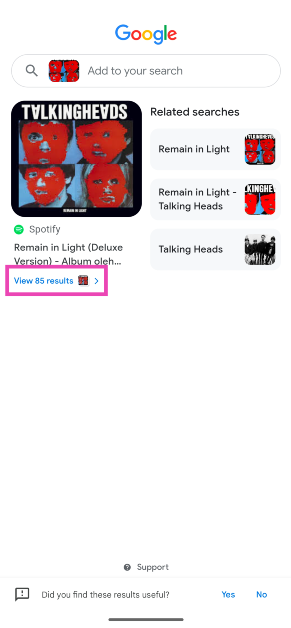
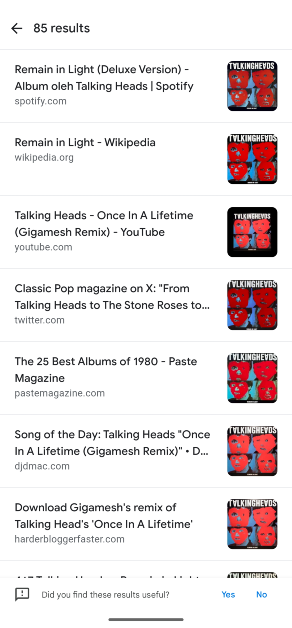
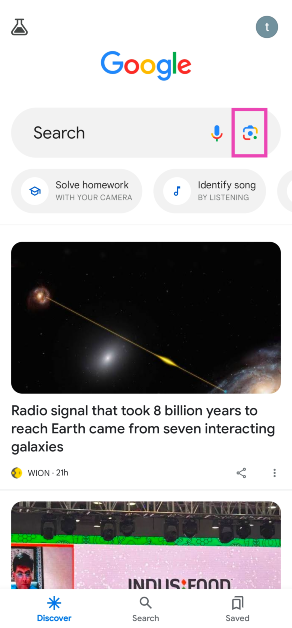
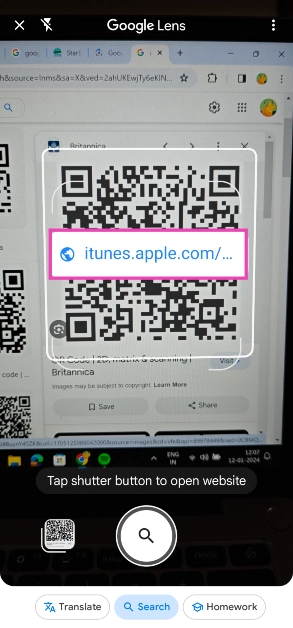
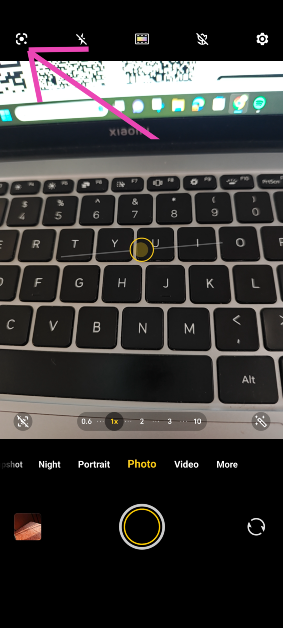
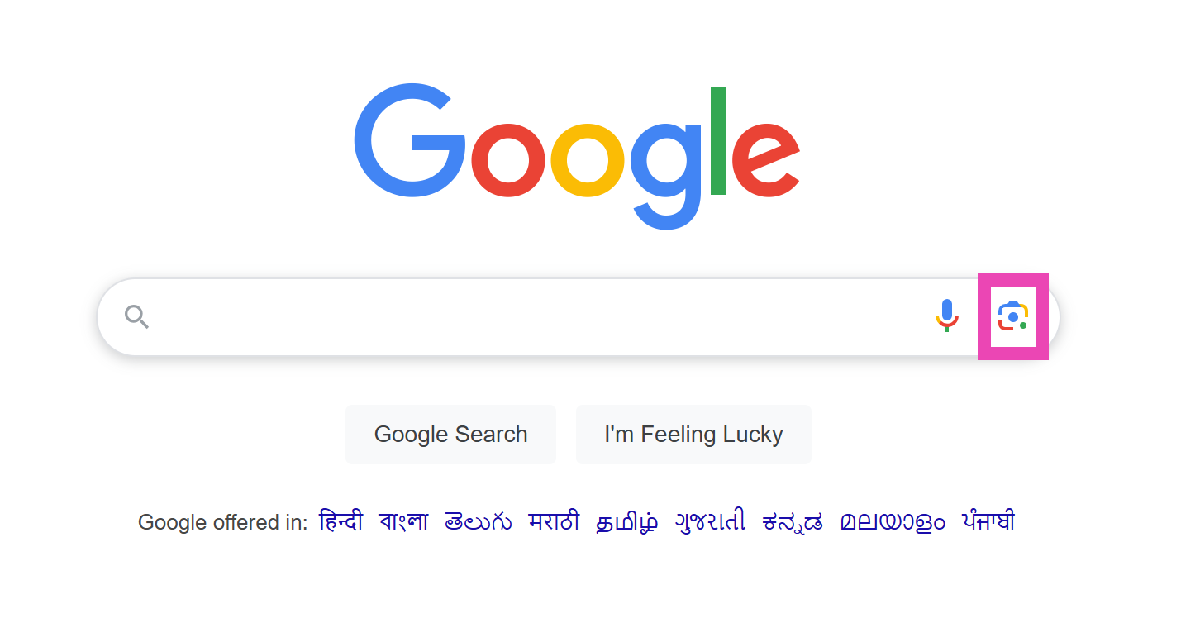
Step 1: Launch the Google app on your smartphone and hit the camera icon. Step 1: Launch the Google app on your smartphone and hit the camera icon. Top 5 Ways to Reverse Image Search on Mobile (2024) Step 2: Upload the image from your phone’s internal storage. Step 2: Upload the image from your phone’s internal storage. Top 5 Ways to Reverse Image Search on Mobile (2024) Step 3: Pull up the bottom panel on the following page to view all of the results. Step 3: Pull up the bottom panel on the following page to view all of the results. Top 5 Ways to Reverse Image Search on Mobile (2024) Step 4: Tap on ‘View… results’. Step 4: Tap on ‘View… results’. Top 5 Ways to Reverse Image Search on Mobile (2024) Step 5: Google Lens will display all of the matching results for the image.

Use Google Lens in Chrome

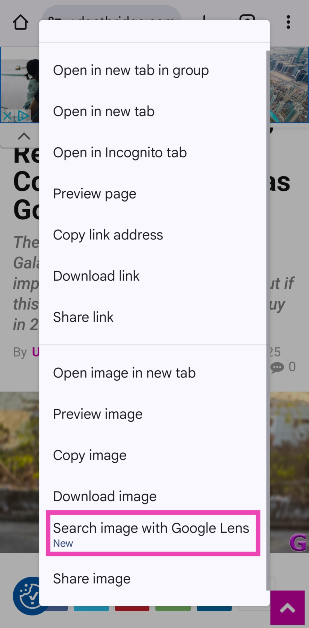
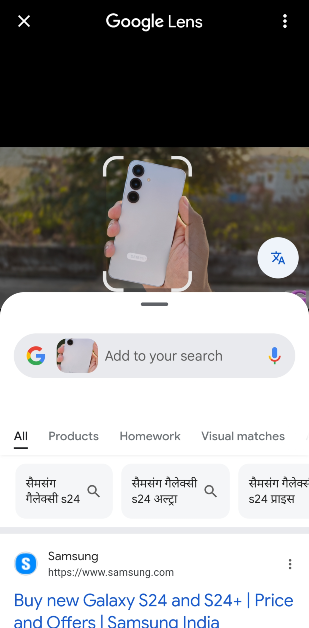
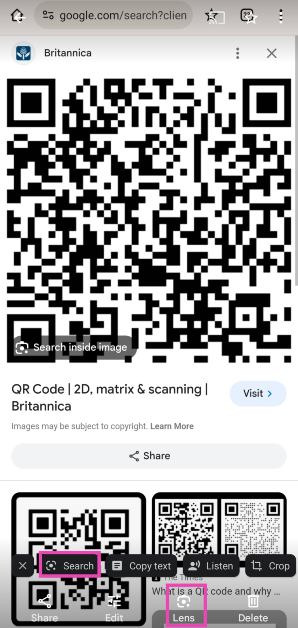
Step 1: Launch the Google Chrome app on your phone and go to the webpage containing the image. Step 2: Long-press the image and select Search image with Google Lens. Step 2: Long-press the image and select Search image with Google Lens. Step 3: Google Lens will scan the image and present relevant results on the screen. Step 3: Google Lens will scan the image and present relevant results on the screen.

Use Google Lens in the native Gallery app

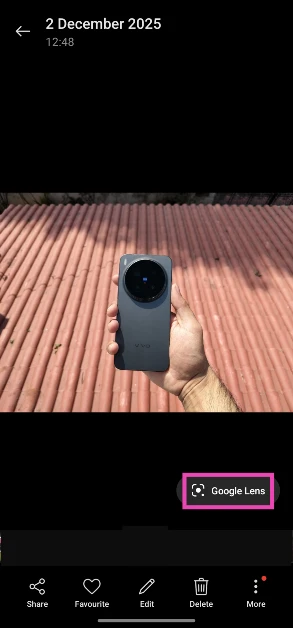
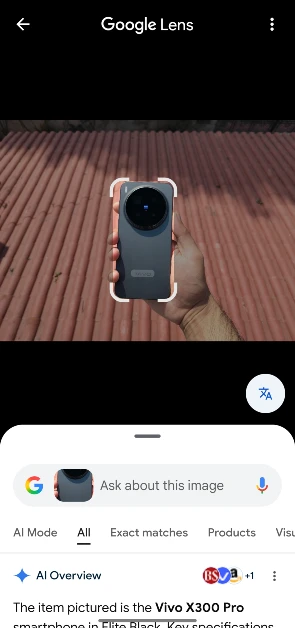
Step 1: Go to the Gallery app and open the image you wish to reverse search. Step 2: Hit the Google Lens icon that pops up on the screen. Step 2: Hit the Google Lens icon that pops up on the screen. Step 3: Google Lens will reverse search the image and display the relevant results. Crop the image to focus on the subject, if the need arises. Step 3: Google Lens will reverse search the image and display the relevant results. Crop the image to focus on the subject, if the need arises.

Use Circle to Search

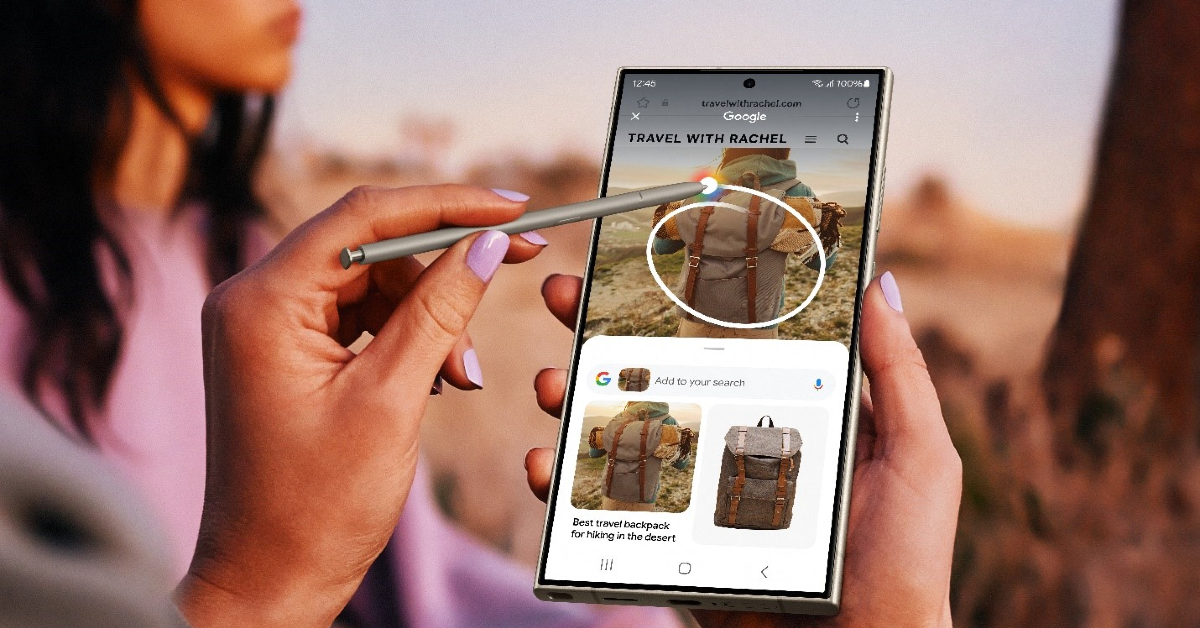
How to Use Circle to Search in Samsung Galaxy S24? Google’s Circle to Search is an incredible AI tool that’s available on most midrange and premium smartphones. You can use it to perform a reverse image search on your phone. One of the advantages of using Circle to Search is its seamless functioning. All you need to do is long-press the navigation bar or home icon and simply draw a circle around the image or object you wish to search. The Google results will pop up on a page in no time.

Use a third-party reverse image search engine (TinEye)

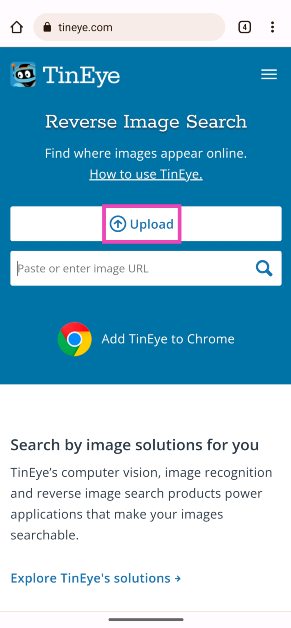
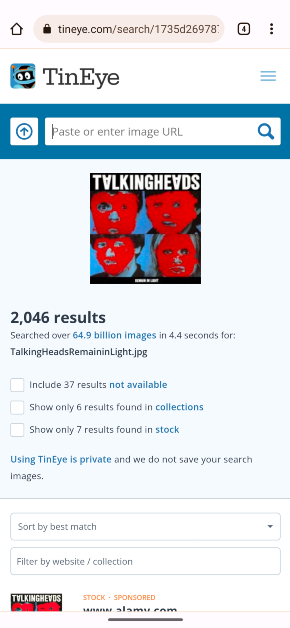
Step 1: Launch Google Chrome and go to https://tineye.com/. Step 2: Tap on Upload and select Media. Step 2: Tap on Upload and select Media. Step 3: Select the image from your phone’s gallery. Step 3: Select the image from your phone’s gallery. Top 5 Ways to Reverse Image Search on Mobile (2024) Step 4: The results for the image will be displayed on the following page.

Use a third-party app (Reverse Image Search – Multi)

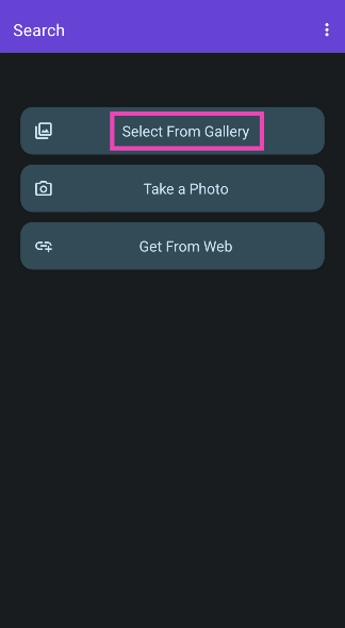
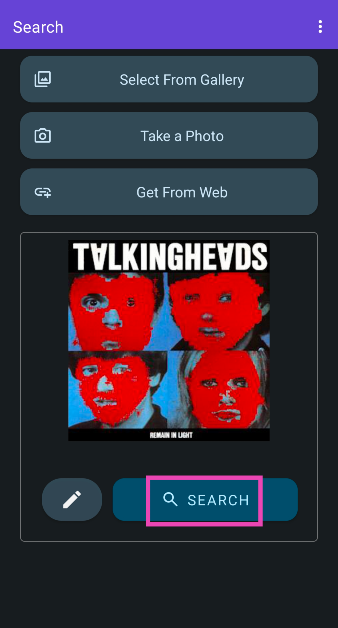
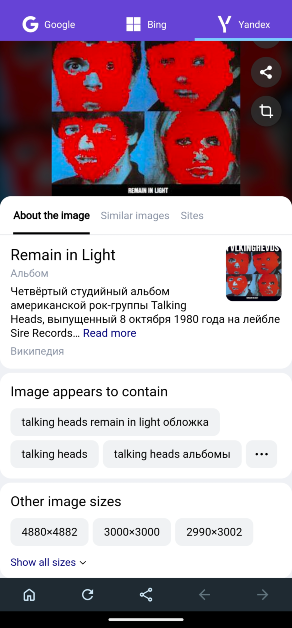
Step 1: Download and install Reverse Image Search – Multi on your smartphone. Step 2: Launch the app and tap on Select From Gallery. Step 2: Launch the app and tap on Select From Gallery. Top 5 Ways to Reverse Image Search on Mobile (2024) Step 3: Select the image from your phone’s internal storage. Hit Search. Step 3: Select the image from your phone’s internal storage. Hit Search. Top 5 Ways to Reverse Image Search on Mobile (2024) Step 4: The app will search for the image across the web using Google, Bing, and Yandex search engines. You can switch the tabs to check the results from every search engine. Step 4: The app will search for the image across the web using Google, Bing, and Yandex search engines. You can switch the tabs to check the results from every search engine. Top 5 Ways to Reverse Image Search on Mobile (2024)

Frequently Asked Questions (FAQs)

How do I perform a reverse image search on my smartphone?

You can use the desktop version of Google Reverse Image Search on Google Chrome or try a third-party service like TinEye to search for the source of any image.

Are there any apps that can reverse-search images on my smartphone?

‘Reverse Image Search – Multi’ is a comprehensive app that gathers results from Google’s, Bing’s, and Yandex’s search engines. 

I just came across an unidentified object. How do I know what it is?

Using Google Lens, you can find more details about any physical object. Simply hit the camera icon in the Google app and take a live picture of the object using Google Lens. The app will come up with possible matches and more information about it.

How do I turn on Circle to Search?

Go to Settings>Display>Navigation Bar and turn on the toggle switch next to Circle to Search.

How do I use Circle to Search on my phone?

Once Circle to Search is enabled, long-press the navigation bar or the home button to trigger it. Draw a circle around the object you want to search. Read Also: Top 4 Ways to Find Grocery Stores or Supermarkets Near Your Current Location on iPhone and Android (2024)

Conclusion

These are the top 8 ways to reverse image search on your mobile. Use these methods to find the source of any image. At present, there is no way to reverse-search videos. But what you can do is take a few screenshots of the recording and reverse search the pictures on Google. You will likely find the source of the video.

Samsung released BP and ECG monitoring on the Samsung Galaxy Watch 6 series and more models in India

Key Highlights
  • The Samsung Galaxy Watch 6, Watch 5, and Watch 4 Series users in India can now access BP and ECG features.
  • The users can monitor their ECG and BP through an app.
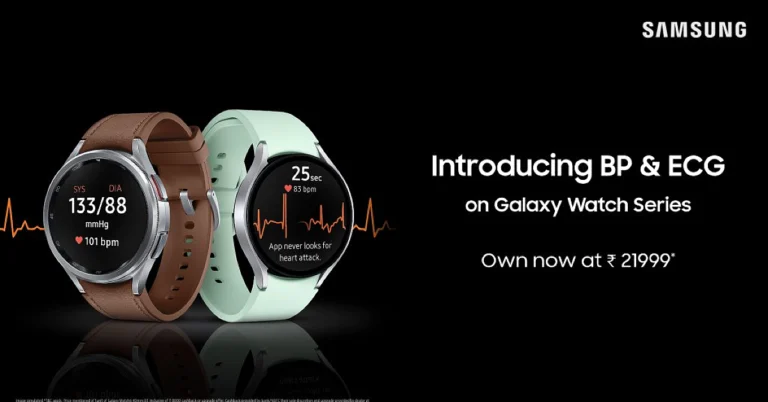
Samsung’s much-awaited blood pressure and electrocardiogram (ECG) tracking feature is now being expanded to the Samsung Galaxy Watch 6, Watch 5, and Watch 4 Series in India. ECG (Electro Cardiography) and BP (Blood Pressure) monitoring were previously available in other regions but not to Indian users, but it is now being made accessible to Galaxy Watch users in the country, allowing them to monitor their health from their wrist. These features will be very useful to those with heart-related diseases who need regular monitoring. Samsung has officially released ECG (Electro Cardiography) and BP (Blood Pressure) monitoring features for the Galaxy Watch6 series for the first time in India through an OTA (over-the-air) update. Along with the Watch 6 Series (Review), the company has also rolled out these features for the Watch 5 and Watch 4 Series. Users will be able to easily monitor their health, support their fitness regimes, and enable regular health checkups. Also Read: Samsung Galaxy Watch6 Review: Still ahead of the pack Both health monitoring features can be accessed through the Samsung Health Monitor App. According to the company, both capabilities are being rolled out after they have received regulatory clearances and certifications from India’s Central Drugs Standard Control Organisation. To access the BP and ECG tracking features of the Samsung Galaxy Watch 6, Watch 5, and Watch 4 Series, users can download the Samsung Health Monitor App, available on the Galaxy Store, and follow simple instructions to measure their BP and ECG. Both features will also be made available on the Galaxy Watch 4 and Watch 5 series. The blood pressure test measures the pressure in the arteries while the heart pumps. The Galaxy Watch includes a Photoplethysmogram (PPG) sensor that can record systolic and diastolic pressure, as well as pulse rate, and save data in the Samsung Health Monitor app. Also Read: How to get Apple Watch 9’s Double Tap feature on your Samsung Galaxy Watch 6? Whereas, ECG measures the heart’s rhythm and electrical activity to detect abnormal beats. Sensors are put on the skin to detect the electrical signals produced by your heart each time it beats, and the information is recorded on a graph. With the latest version, you can now use the Samsung Health Monitor ECG app to create, record, save, and share ECG data. Also Read: iQoo Neo 9 Pro confirmed to launch in India on February 22

How to use the blood pressure feature

  • Download the Samsung Health Monitor App on your Galaxy Watch and Galaxy smartphone.
  • Calibrate your Galaxy Watch based on the instructions on the Samsung Health Monitor app.
  • Wear your Galaxy Watch on the same wrist as during the calibration and make sure the strap is snug, then measure your blood pressure.
  • Review your blood pressure measurements.
Also Read: Samsung Galaxy Watch 5 Pro review: Is it an ideal smartwatch?

How to use the ECG feature

  • Pair your Galaxy Watch with the Galaxy smartphone.
  • Wear the Galaxy Watch snugly on your wrist.
  • Open the Samsung Health Monitor app on your Galaxy Watch.
  • To take an ECG reading, rest your fingertip of the opposite hand lightly on the Galaxy Watch’s top button for 30 seconds.
  • The ECG data is synced to the paired Galaxy smartphone, where a PDF report is created.

Top 24 apps for your new Samsung Galaxy S24 Ultra you can download now

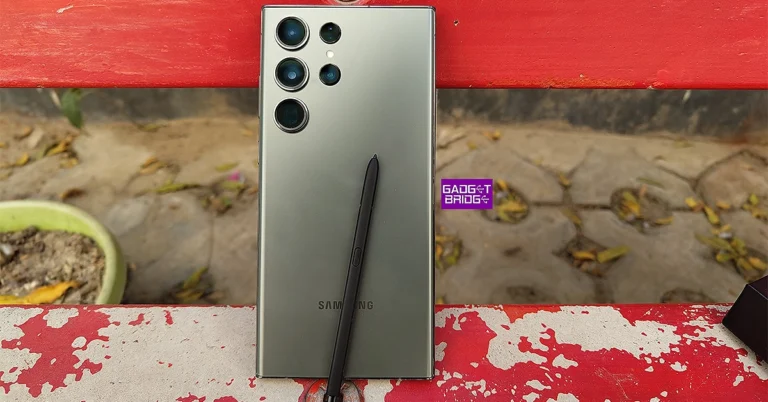
Samsung will be unveiling its flagship Galaxy S24 series of smartphones at its ‘Galaxy Unpacked’ event later today. This year’s Galaxy Unpacked event has an ‘AI’ theme, hinting towards AI integration in the Galaxy S24 smartphones. The ‘Ultra’ variant of Samsung’s Galaxy S series has been the best smartphone that Android has to offer over the last few years. With the latest Snapdragon SoC onboard, expect the S24 Ultra to set new benchmarks in terms of performance. A lot of smartphones this year will feature AI integration in some capacity, so it is interesting to see how Samsung sets the tone for it. As we approach the launch event, we thought we’d bring you our top 24 apps for the new Samsung Galaxy S24 Ultra. Check them out! Read Also: OnePlus 12 accidentally listed on Amazon, price in India revealed

Sketchbook

Download from Google Play Store sketchbook One of the more unique features of the Samsung Galaxy S24 Ultra is the S-Pen. And what better way to make use of this stylus than by sketching on your device? The Sketchbook app is preferred by most digital artists because of the range of tools on offer as well as the clean interface and distraction-free design. You can customise the brushes to get the desirable strokes that mimic the real thing perfectly. On top of that, the app is equipped with guides, rulers, and stroke tools for precision in your drawings. The app is free to download but some features may be locked behind a paywall.

INKredible

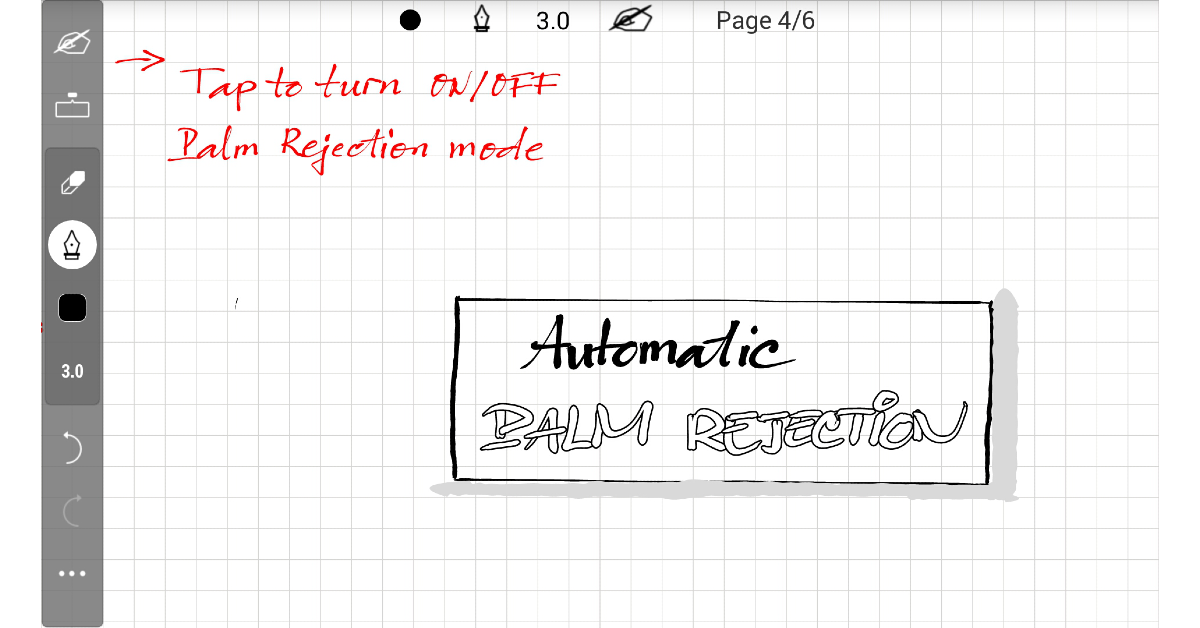
Download from Google Play Store INKredible If you’re looking for an app for drawing doodles and taking notes, look no further than INKredible. This app replicates the feeling of writing on paper almost perfectly. What we like about the app is its clean UI and distraction-free notepad. There are no toolbars or banner ads cluttering the screen. Its grid paper design for the notepad is quite appealing as well. The latency is kept to a minimum and the app registers even the minutest of strokes. Automatic Palm Rejection ensures that the app takes input only from the S-Pen.

DocuSign

Download from Google Play Store DocuSign One of the best things about having a stylus is that you no longer have to rely on using your finger to scribble your e-signature. Using DocuSign, you can sign any document with your S24 Ultra’s S-Pen. This app supports all the major file formats, allowing the user to open any document and quickly scribble their signature wherever necessary. You can also scan a physical document using this app and convert it into a digital file. Docusign and also store your signature and quickly paste it into the designated spot on any document.

Adobe Acrobat

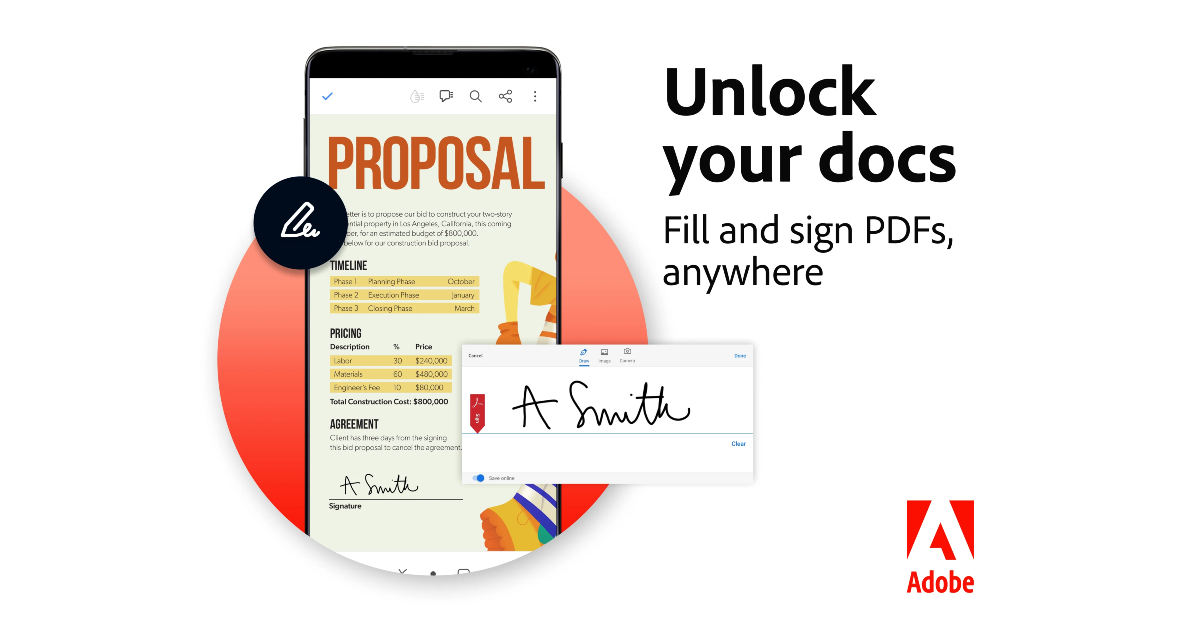
Download from Google Play Store Adobe Acrobat Adobe Acrobat is our preferred app when it comes to overall document management. With the Acrobat Reader, you can read and edit documents across different formats with absolute ease. Signing and annotating documents on this app is just as easy as sharing them with coworkers, friends, and family. It also has a handy PDF converter which lets you turn pictures, Word files, spreadsheets and other documents into PDF files. If you have a paper document in front of you, you can scan it with Adobe Acrobat to eSign it and turn it into a PDF.

Adobe Premiere Rush

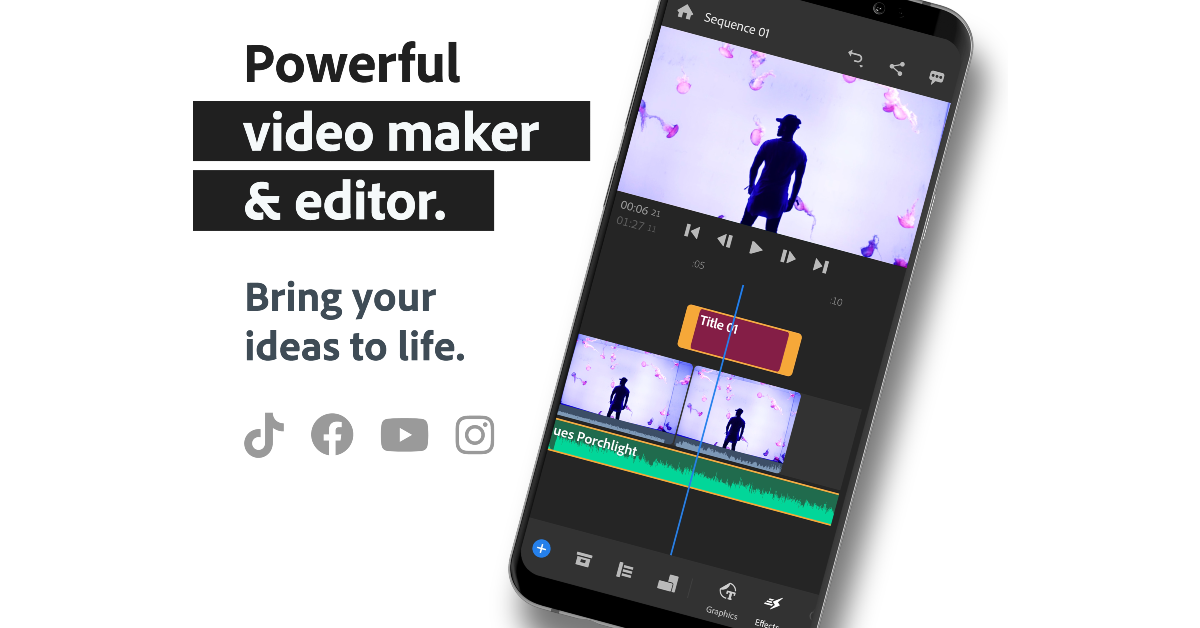
Download from Google Play Store Adobe Premiere Rush Video editing is the litmus test to check the power of any smartphone. Your device may be able to handle graphic-intensive games, but prolonged periods of editing videos demand a lot from the processor while also exhausting the battery at an increased rate. The Samsung Galaxy S24 Ultra is one of the few smartphones that can carry out this job without a hiccup. And what better app to do it on than the Adobe Premiere Rush? This app has a wide range of tools which have been made very accessible to the average user. Even if video editing is not your forte, you won’t have trouble working on this app.

PowerDirector

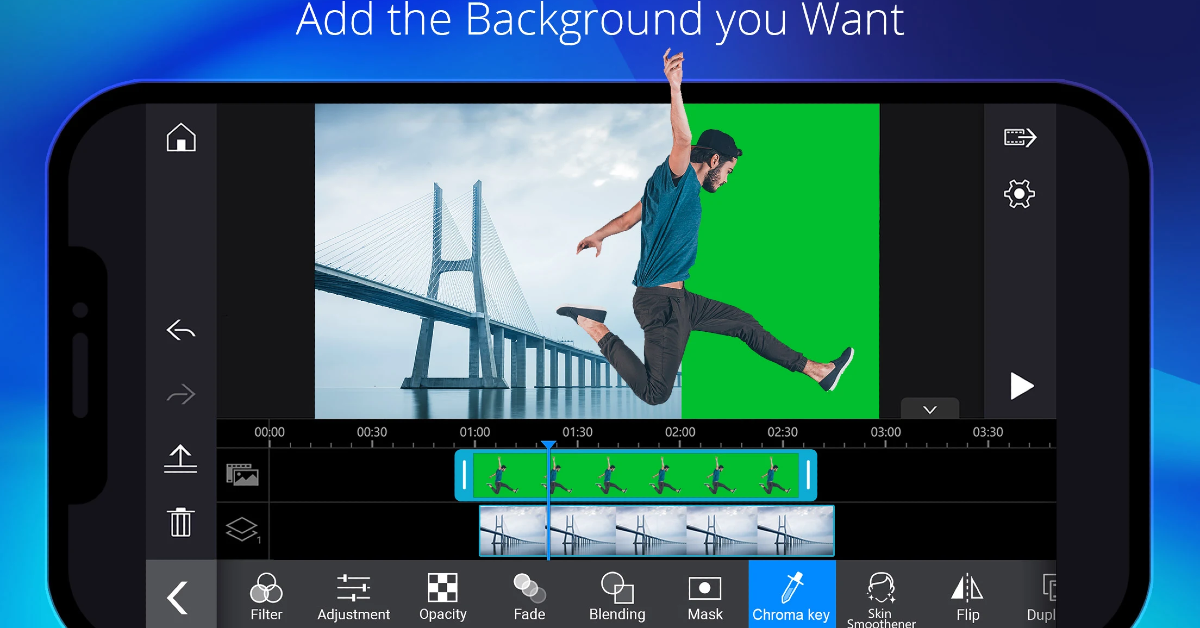
Download from Google Play Store PowerDirector PowerDirector is another app that we highly recommend for video editing. Now integrated with AI, PowerDirector lets you add stunning visuals to your videos which would otherwise be unfeasible. Its AI Smart Cutout feature removes the background from your videos, letting you fill it in with the footage of your choice. The Anime Photo templates let you turn your videos into animated films. This isn’t a gimmick, but rather a well thought out feature that is replete with music, transitions, and effects.

KineMaster

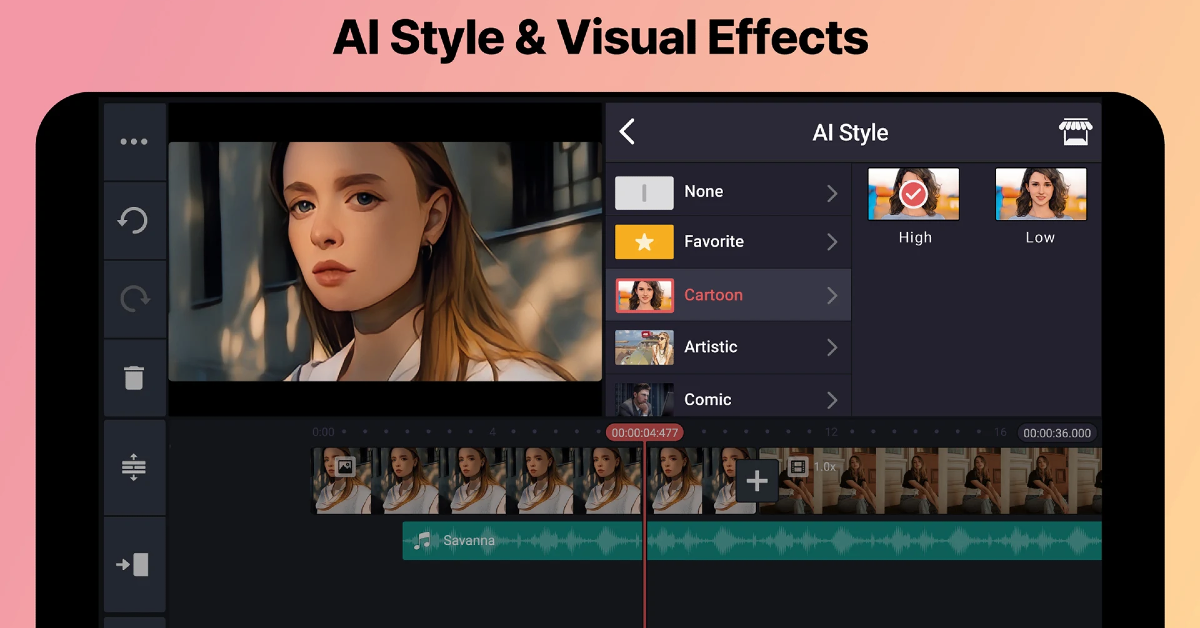
Download from Google Play Store KineMaster If you’re an online content creator, you may already be familiar with KineMaster. This app is perfect for editing your Reels, TikToks, Shorts, and even long-form videos. Its Asset Store has tons of royalty-free sound effects, templates, music, and other things that you need to spruce up your videos. Using KineMaster you can cut, trim, merge, split, and splice your videos with ease and apply the necessary effects to them. Features like chroma key, background removal, stop motion editing, and keyframe animation put it in the upper echelon of video editing apps.

Rewind: Music Time Travel

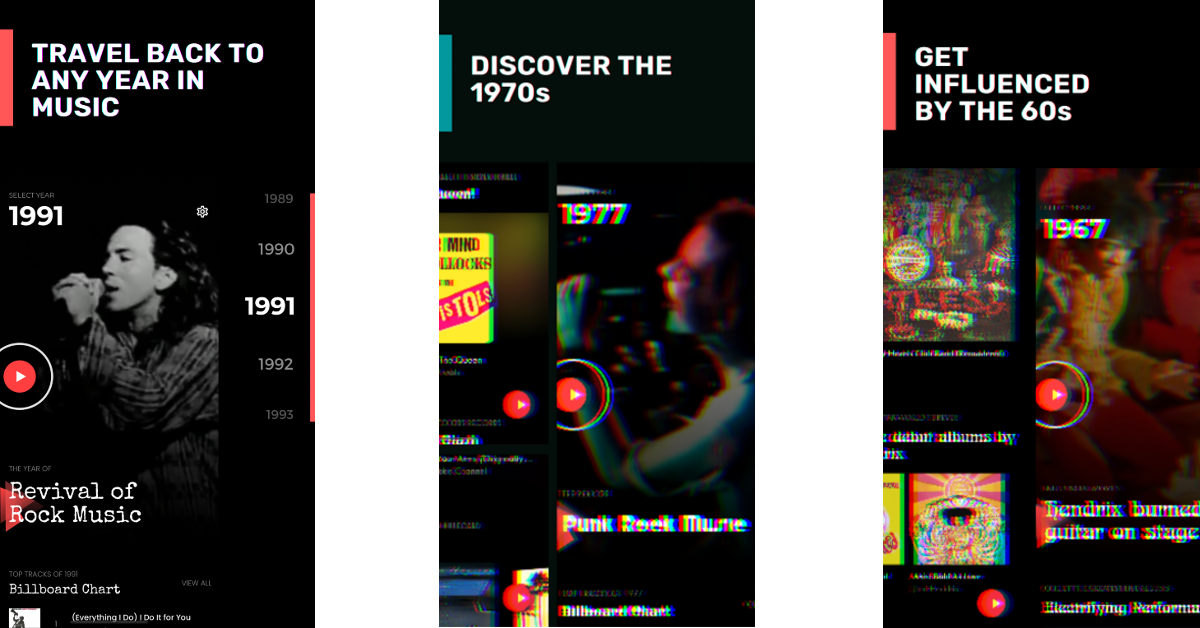
Download from Google Play Store Rewind: Music Time Travel If you want to expand your musical horizons then ‘Rewind: Music Time Travel’ is the app you’re looking for. This app takes you back in time and lets you explore all your favourite genres from the past decades. From the psychedelic rock of the 60s to 90s grunge and shoegaze, Rewind will take you on a musical journey. You can browse to a particular year and explore all the hits from that time. The app offers 30-second previews of songs along with quick links to Spotify, Tidal, Apple Music, and YouTube.

Niagara Launcher

Download from Google Play Store Niagara Launcher The 6.8-inch touchscreen display of the Samsung Galaxy S24 Ultra is way too big for one-handed use. The Niagara launcher makes the home screen more streamlined and easily accessible with one hand. The list layout ensures you don’t have to extend your fingers to reach for apps and notifications on the home screen. Its minimalist design is pleasing to look at. At the same time, it declutters the home page and keeps your attention away from attention-grabbing apps. With no ads in its interface, Niagara Launcher is one of the smoothest and cleanest homepage launchers around. 

ChatGPT

Download from Google Play Store How to use ChatGPT without registering with OpenAI? Top 5 ways Open AI’s ChatGPT has completely revolutionised AI and made it accessible to the general user. It took some time for its Android app to land in the Google Play Store, but now that it is finally here, it’s unputdownable. From coding to poetry, ChatGPT can do it all. It can help you come up with creative ideas and then follow through on them. The best aspect of the AI chatbot is its conversational nature, which allows you to give it feedback and tune the results. If you want to learn about a new subject, simply ask the chatbot to explain it to you in a simple, accessible language. You can even ask it to cite its sources and recommend additional reading material around the subject.

Perplexity AI

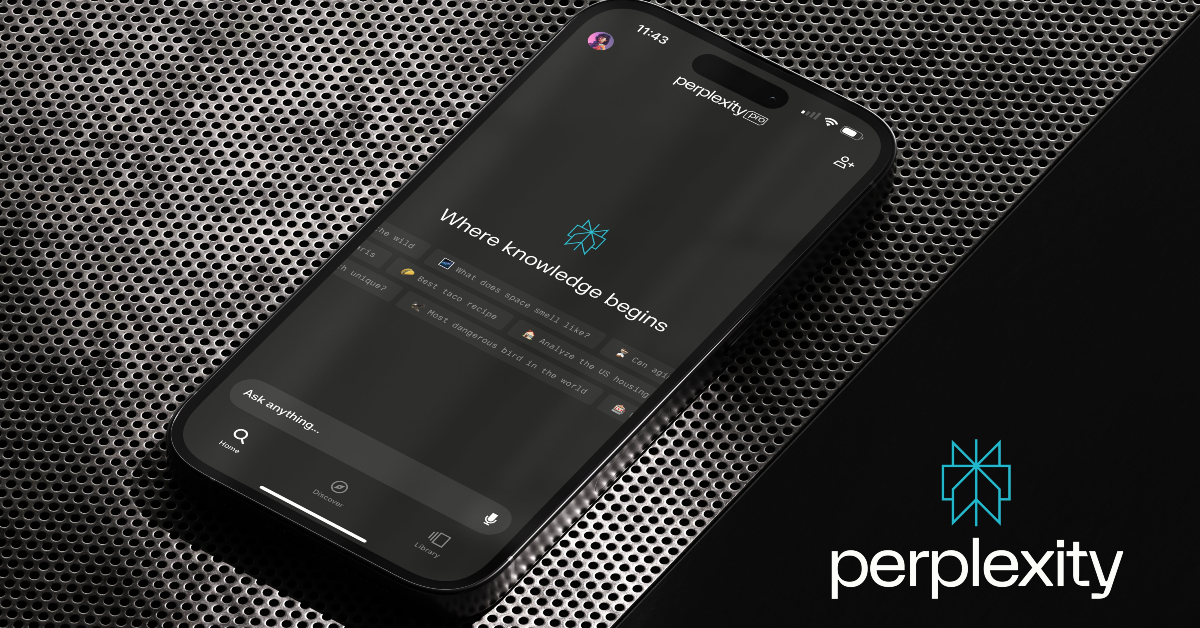
Download from Google Play Store Perplexity AI 12 Best ChatGPT Alternatives (2023) Perplexity AI is a chatbot based on OpenAI’s GPT-4 and Anthropic’s Claude 2. Specially designed for learning and research, Perplexity is thorough with its sources and can cite them all for you at any time. In ‘Copilot’ mode, the chatbot provides thorough answers, going into details that would otherwise be omitted. Its conversational nature makes learning fun. If you don’t grasp something right away, you can ask the chatbot to elaborate upon it and describe it in another fashion. For students, Perplexity AI can be the perfect study companion.

Character AI: AI-Powered Chat

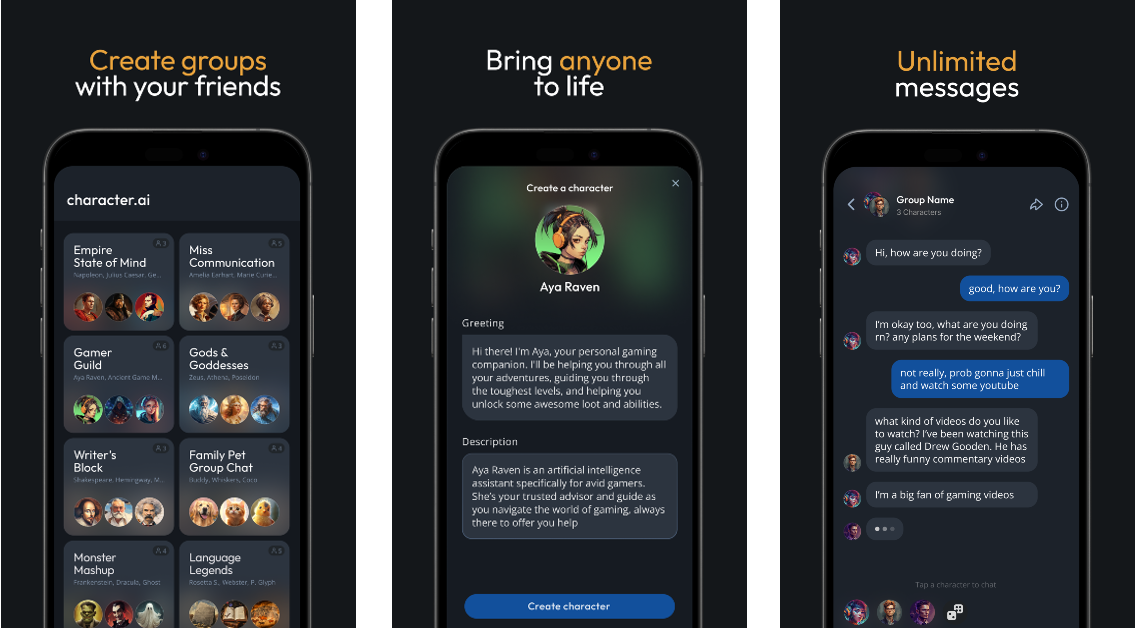
Download from Google Play Store Character.ai 12 Best ChatGPT Alternatives (2023) Have you ever wondered what it would be like to have a conversation with a fictional character? Well, you don’t have to imagine it anymore. Harnessing the power of large language models, Character AI lets you pick a character and interact with it however you want. You can pick a fictional character from a movie or video game or try out one of the hundreds of user-generated personas. These personas are not just restricted to fictional characters, you can interact with bots based on celebrities and popular figures as well.

Lensa

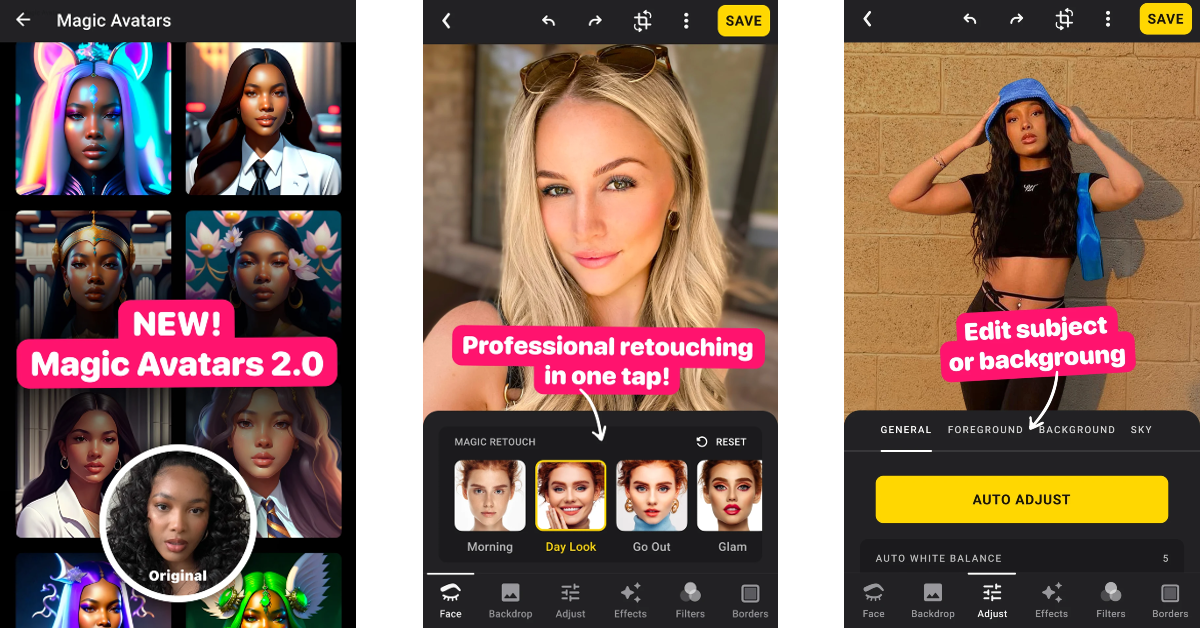
Download from Google Play Store Lensa Lensa takes photo editing to the next level with its AI tools. You can use this app to spruce up your pictures by adjusting colour intensity, adding filters, applying camera effects, fixing the contrast, blocking out unwanted objects, and more. There are special tools in the app for eye correction and facial contours. You can also create AI-generated portraits based on a few sample shots of your face. The results are truly breathtaking.

Microsoft SwitKey AI Keyboard

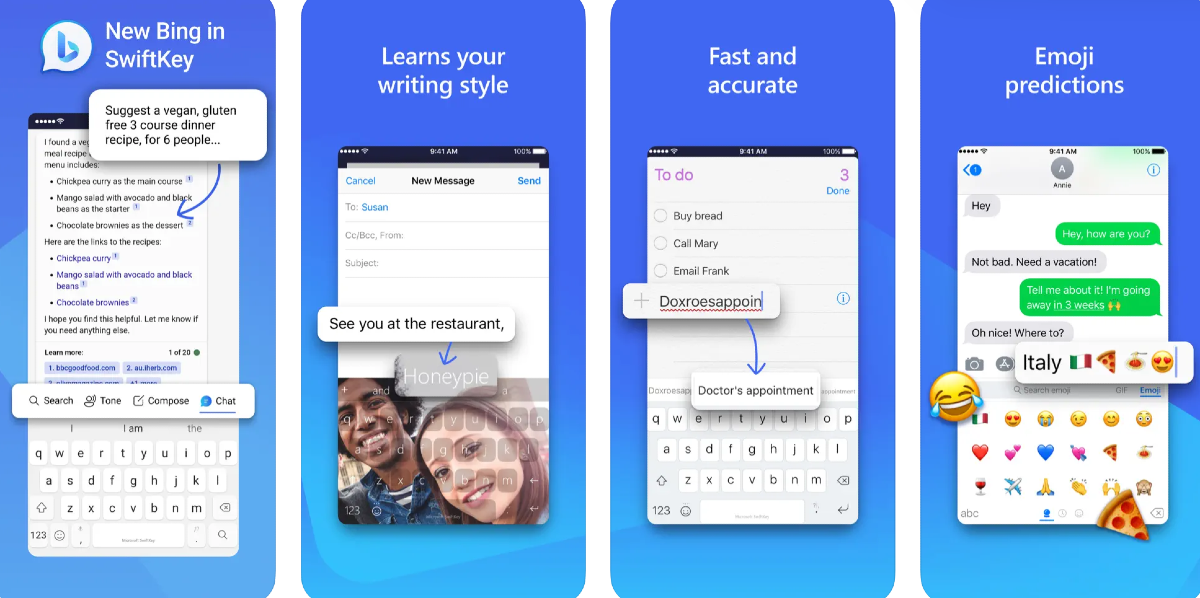
Download from Google Play Store Use Microsoft SwiftKey Keyboard Microsoft has been quick to implement AI features on the SwiftKey keyboard app. You can compose a text or email using the Bing chatbot from the keyboard itself. Before hitting send, you can use the chatbot to adjust the tone to casual, friendly, polite, professional, or social, depending on the situation. Having a chatbot accessible from your phone’s keyboard really opens the door to all kinds of possibilities. Can’t think of a caption for an Instagram Story? Get the chatbot to do it. Hit a dead end in a conversation? Bing AI can help you with that as well. In our opinion, Microsoft SwiftKey is one of the best keyboard apps you can download on your new Samsung Galaxy S24 Ultra.

Buddhify

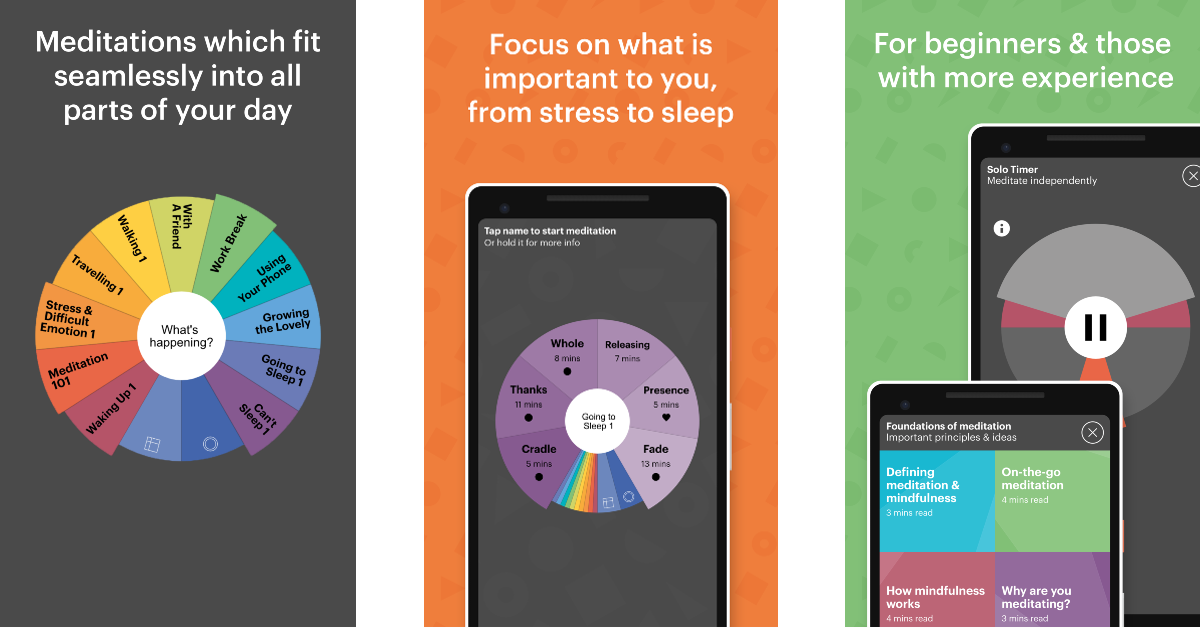
Download from Google Play Store Buddhify Buddify is a well-rounded meditation and mindfulness app that seeks to bring calm and clarity to your life. The meditation exercises on this app are easy to follow and imbibe in your everyday routine. You don’t need to make time every day for meditation sessions. Buddhify provides exercises that can be carried out when you’re travelling, eating, going to sleep, or taking a short break from your chores. The app grades the difficulty of its exercises and sessions, making it easy for beginners to pick the easier courses.

THAP: Your Happiness Gym

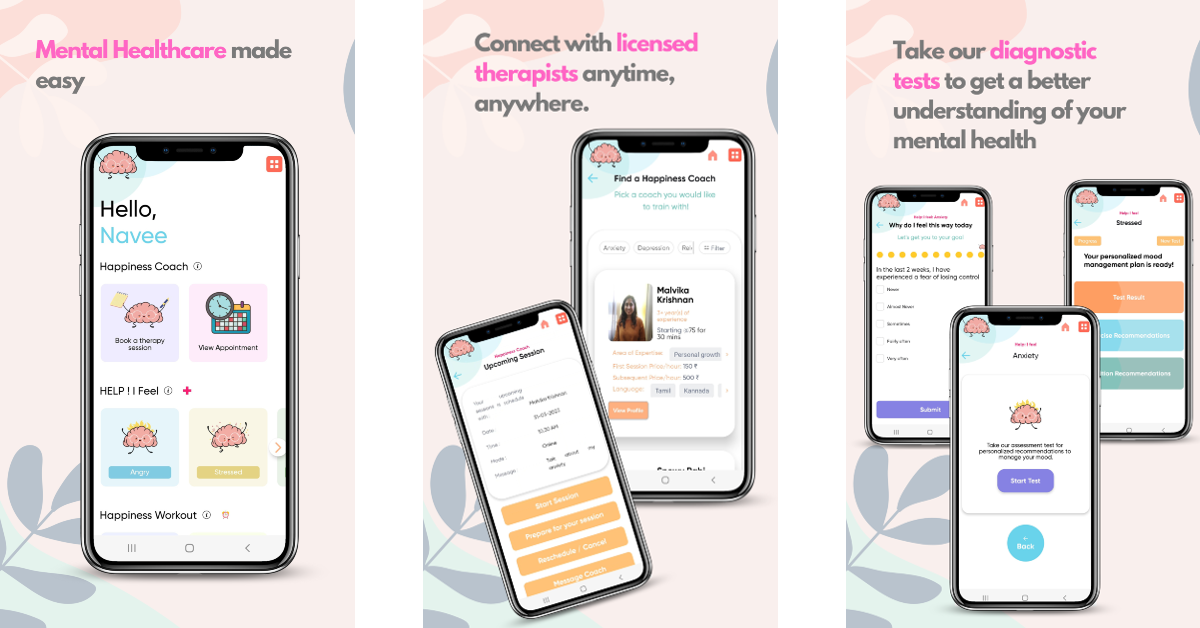
Download from Google Play Store THAP: Your Happiness Gym Top 24 apps for your new Samsung Galaxy S24 Ultra The Happiness Project (or THAP) helps you clear of mind of any distractions and disturbances with its daily mental wellness workouts. You can journal your thoughts, sign up for online therapy and counselling, try self-therapy modules, and use psychological first-aid to manage your anxiety levels. The app also has a mood tracker which helps you view your mental health progress over a period of time. You can also share your stories anonymously with THAP’s helpful community.

Todoist

Download from Google Play Store Todoist. Top 10 Apps for Samsung Galaxy Z Fold 5 Top 24 apps for your new Samsung Galaxy S24 Ultra Todoist is one of the best productivity apps you can download on your new Samsung Galaxy S24 Ultra. This app is used by more than 30 million people and teams around the globe. You can manually add your daily tasks to the app and sync it with other apps like Calendar, Slack, Gmail, Outlook, and more. Collaborating with other people has never been so easy. Todoist lets you leave helpful voice notes and comments on any task so that your teammates can follow your instructions. Attaching files at the necessary places is also a piece of cake. If a particular task demands more attention, you can set it at a higher priority level.

Pocket: Read. Save. Grow.

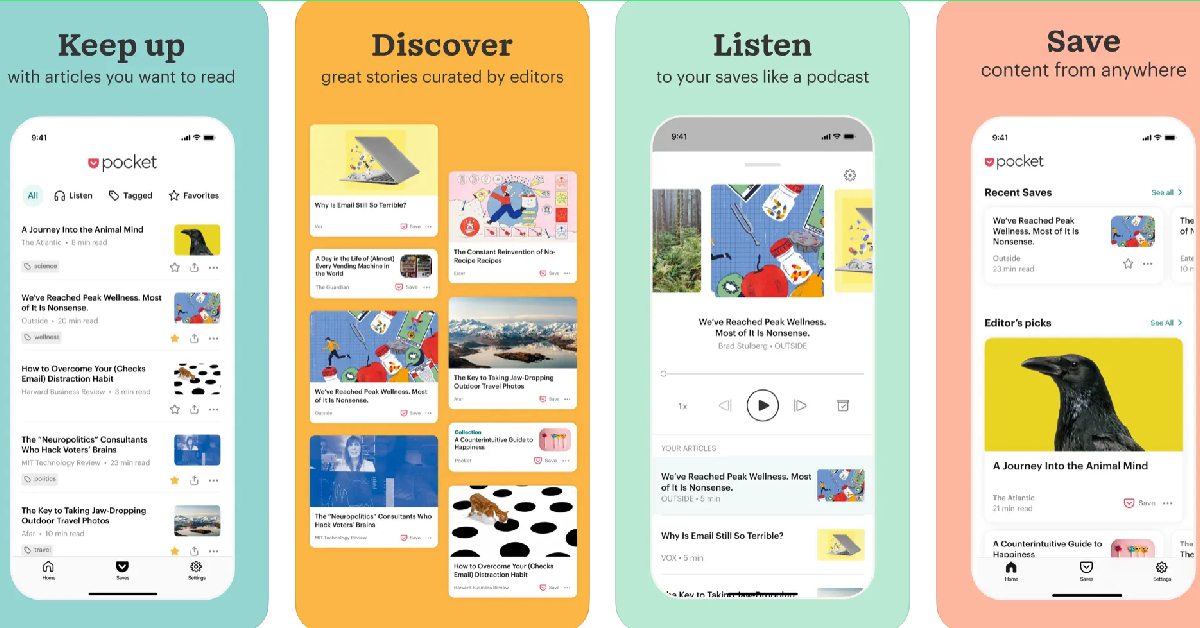
Download from Google Play Store Pocket Top 10 Apps You Should Download First on Vivo X100 Pro Top 24 apps for your new Samsung Galaxy S24 Ultra There are many apps that let you save articles for reading later but none of them do it better than Pocket. For starters, Pocket not only lets you save articles but also blogs, videos, social media posts, and any webpage that you come across online. The app has a clean e-reader that gets rid of all the advertisements and other distractions from the article, allowing for a superior reading experience. Need more? Pocket’s text-to-speech feature can read out loud the saved articles for you.

Pocket Casts

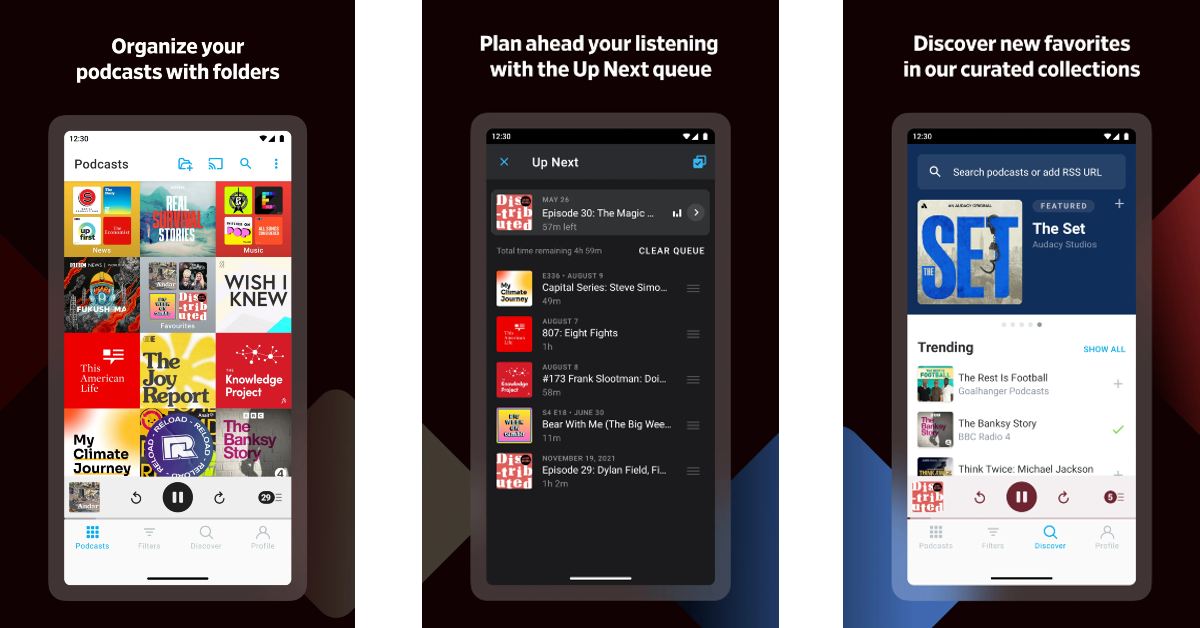
Download from Google Play Store Pocket Casts Top 10 Apps You Should Download First on Vivo X100 Pro Top 24 apps for your new Samsung Galaxy S24 Ultra If you like listening to podcasts, Pocket Casts should be one of the first apps you download on your new Samsung Galaxy S24 Ultra. Essentially a podcast player for Android, Pocket Casts lets you easily navigate your favourite episodes and skip the ads with just a few taps. You can control the playback speed, switch chapters, boost the volume, and skip past the silent pauses with this app. Apart from superior playback controls, Pocket Casts also has an attractive design based on the Material You theme.

1Password

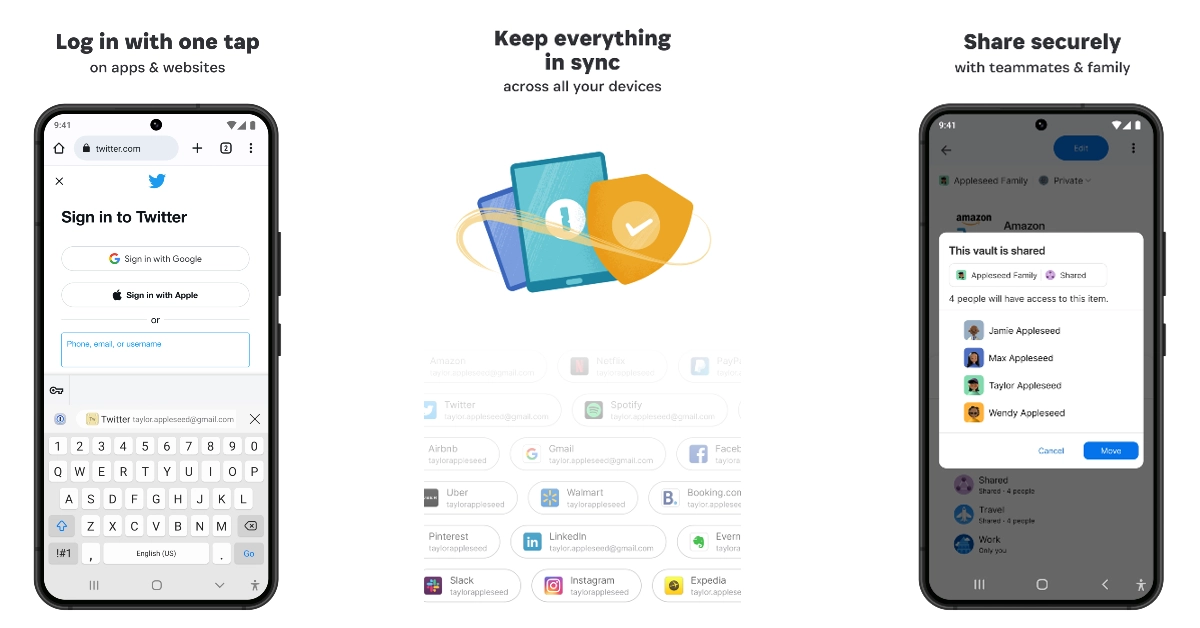
Download from Google Play Store 1Password Top 10 Apps You Should Download First on Vivo X100 Pro Top 24 apps for your new Samsung Galaxy S24 Ultra If you struggle with remembering passwords, 1Password will quickly become one of your favourite apps on your Samsung Galaxy S24 Ultra. Once you’ve stored all your passwords on the 1Password app, you can quickly deploy them wherever necessary with just one tap. The app uses state-of-the-art encryption tools to keep your passwords safe. It can even suggest new ones and share the existing ones with your friends and family. If your credentials are ever found in a data breach, 1Password will alert you right away and prompt you to change the password.

DuckDuckGo

Download from Google Play Store DuckDuckGo Top 10 Apps You Should Download First on Vivo X100 Pro Top 24 apps for your new Samsung Galaxy S24 Ultra If you are very particular about maintaining your privacy on the Internet, DuckDuckGo should be your choice of browser. There are a couple of things about DuckDuckGo that make it our favourite web browser. First, it blocks all of the unnecessary third-party cookies that track your activity across the web. On top of that, it forces websites to use an encrypted connection (HTTPS), leaving no room for snoopers and third-party entities to look into your web activity. With just one tap, you can delete all your browsing activity and related data on the web browser.

Universal Copy

Download from Google Play Store Universal Copy. top 10 apps for samsung galaxy s24 ultra If you’re an Instagram user, you would know that the app does not allow you to copy captions, comments, and other information. This isn’t exclusive to Instagram, most streaming apps do not let you copy the content on their platforms either. The workaround is the Universal Copy app. As the name suggests, this app will let you copy from anywhere on your phone, even the native interface. Once you have installed the app, you need to give it the necessary permissions for it to work as intended. After that, you can easily access it from your phone’s notification shade.

Stellarium

Download from Google Play Store Stellarium. apps for samsung galaxy s24 ultra Stellarium is the perfect app for those who want to explore the night sky and check out all the celestial bodies. The app uses GPS to map out the sky with respect to your current location. By simply pointing your phone’s camera towards the sky, you can explore constellations, planets, and other bodies. The relevant information is overlayed on your phone’s display. While the app is free to download, its ‘Plus’ version costs $19.99. Even if you don’t want to splurge extra money for the paid version, Stellarium is one of the best stargazing apps you can download on your Samsung Galaxy S24 Ultra.

TrackWallet: Expense Tracker

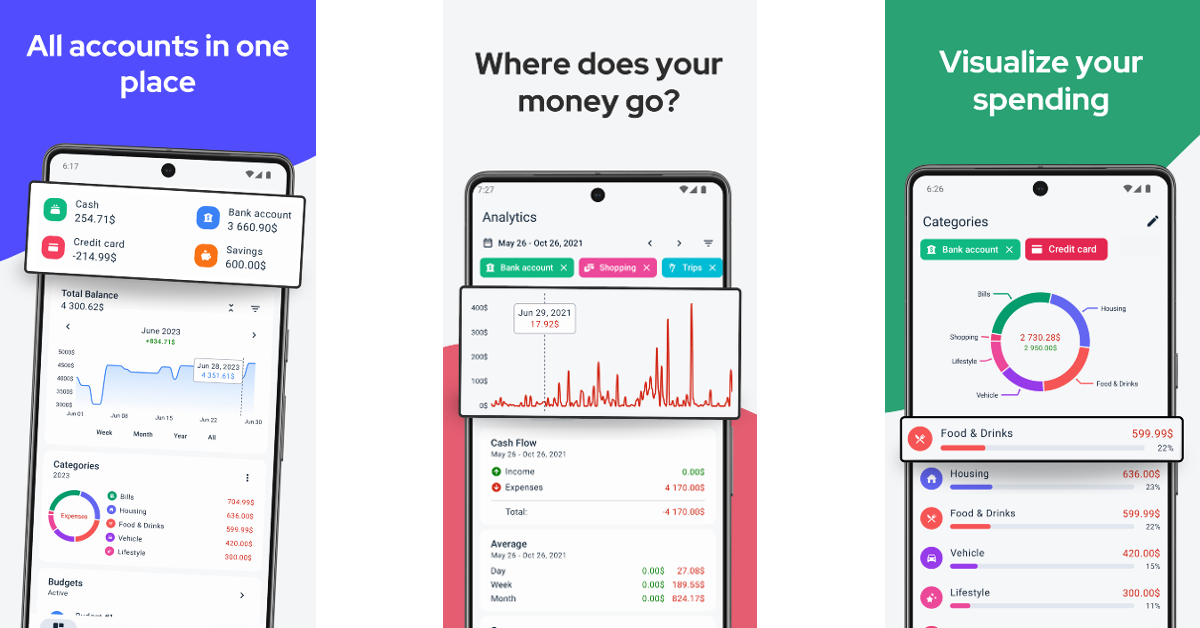
Download from Google Play Store apps for samsung galaxy s24 ultra If budgeting is not your forte, you need an efficient expense-tracking app on your smartphone. TrackWallet is one of the best ones around. You can add multiple accounts on the app and log all your bills in one place. Your online subscriptions are automatically tracked by the app. Easy-to-follow graphical illustrations give you a better idea of your spending pattern. If you want to save money for a trip or a big purchase, TrackWallet can help you with that as well. Need to discuss financial matters with your family? Get TrackWallet to create a PDF report of your savings and expenses. Read Also: Infinix Smart 8 powered by MediaTek Helio G36 SoC launched

Conclusion

These are the top 24 apps that you should download first on your new Samsung Galaxy S24 Ultra. Apart from Buddhify, all of the apps on this list can be downloaded for free. While the ‘Plus’ version of Stellarium costs $19.99, it also has a free version on the Google Play Store. If you think we missed an app that deserves a spot on this list, let us know in the comments!

Samsung Galaxy Unpacked 2024: Here is how to watch the launch of Galaxy S24 Series live

Key Highlights

  • Samsung will be hosting the ‘Galaxy AI is Coming’ launch event today.
  • The firm has not confirmed, but it is likely to introduce its next flagship lineup, the Galaxy S24 Series at the Galaxy Unpacked 2024 event.
  • The lineup could include the Galaxy S24, the Galaxy S24+, and the Galaxy S24 Ultra.
Today, the South Korean electronics giant Samsung will host a live Galaxy Unpacked 2024 event in San Jose. Although it is uncertain what will be unveiled at today’s Samsung Unpacked event, the Samsung Galaxy S24 series, which will include three new models, is expected to be launched. The Galaxy S24, Galaxy S24+, and Galaxy S24 Ultra are anticipated to be part of the upcoming series.

How to watch the live stream of the Galaxy Unpacked 2024 event

Samsung is all prepped up to host its first Galaxy Unpacked event of 2024, ‘Galaxy AI is Coming‘, tonight. The Samsung Unpacked event will be held in San Jose, California. The launch event will begin at 10 a.m. PST, 1 p.m. EST, 6 p.m. GMT, 7 p.m. CET, and 11 p.m. IST. The event will be streamed live on Samsung.comSamsung Newsroom, and Samsung’s YouTube channel.
The company has not yet officially confirmed, but it is taking pre-reservations for the upcoming devices. Based on rumours and leaks, the flagship smartphone series may include the Galaxy S24, Galaxy S24+, and Galaxy S24 Ultra. Also Read: Samsung Galaxy S24 Series to come with AI features, trademark applications filed for ‘AI Phone’ and ‘AI Smartphone’

Samsung Galaxy S24 Series price expected

Just before the official announcement, leaked pricing for the Samsung Galaxy S24, Galaxy S24+, and Galaxy S24 Ultra surfaced online. As per a tipster, the Galaxy S24 with 128GB of storage is expected to retail for EUR 899, or about Rs 81,900, and EUR 959, or Rs 87,400, for the 256GB model. Whereas, the 256GB and 512GB storage versions of the Galaxy S24+ will cost EUR 1,149, or almost Rs 1,04,700, and EUR 1,269, or nearly Rs 1,15,600, respectively. The star of the show, the Galaxy S24 Ultra, is likely to be priced at EUR 1,449, or roughly Rs 1,32,100 for the 256GB storage model. The 512GB model will cost EUR 1,569, or roughly Rs 1,43,000. The 1TB of storage is slated to be available for EUR 1,809, or around Rs 1,64,900. Also Read: Samsung Galaxy S24, Galaxy S24+, Galaxy S24 Ultra pricing leaked

Samsung Galaxy S24, Galaxy S24+, and Galaxy S24 Ultra specifications expected

Samsung is expected to ship the Galaxy S24 Series with One UI 6.1 skinned on top of Android 14. As per a report, the South Korean electronics giant is likely to deliver the Galaxy S24 lineup with seven years of software support. Note that last year Galaxy S23 Series was promised to come with four years of software upgrades and five years of security fixes. The Galaxy S24 Series is expected to feature AMOLED LTPO displays with variable refresh rates ranging from 1Hz to 120Hz. All the models of the Galaxy S24, Galaxy S24+, and Galaxy S24 Ultra are said to be powered by the Exynos 2400 chipset in India and other regions. Whereas in the US and Canada, it may include the Snapdragon 8 Gen 3 SoC. Both the S24+ and S24 Ultra are expected to come equipped with the Snapdragon 8 Gen 3 SoC for the Galaxy globally. The Galaxy S24 Ultra is also said to feature a 200-megapixel quad camera setup. Whereas the S24 and S24+ may come with a 50-megapixel triple camera system. Also Read: Here is how to pre-reserve Galaxy S24 Series in India Another report suggests that the Galaxy S24, the Galaxy S24+, and the Galaxy S24 Ultra are likely to be available in titanium green, titanium blue, and titanium orange colourways. These colour options are said to be exclusive to online customers only. On the other hand, the Galaxy S24 and Galaxy S24+ could come in jade green, sapphire blue, and sandstone orange colour options.

Garena Free Fire Redeem Codes Today 17 January 2024: Here is how to claim them

Garena Free Fire is a battle royale game with regular awards and tournaments to keep players interested. If you play Garena Free Fire, you should be aware of the redeem codes that are released on a daily basis. However, because the battle royale game is banned in India, players from other countries can use the Free Fire Redeem codes daily. If you’re unfamiliar with the Garena Free Fire redeem codes or don’t know how to get them, we’ve put together a step-by-step guide to help you redeem them. Check out Garena Free Fire Redeem Codes for 17 January 2024. The Free Fire redeem codes are a great way to get free stuff. These are 12-digit codes that contain alphabets and numbers, as well as an expiration date and time. Because the Garena FF redeem codes cannot be used more than once, you should hurry to the redemption page to claim your free reward before someone else does. To get a free reward, all you have to do is go to reward.ff.garena.com/en, which is the official redemption page. Also, keep an eye on this space for daily updates on Garena Free Fire redemption codes and rewards.

Garena Free Fire Redeem Codes Today 17 January 2024

FAYQ765TRF4VBRN F7U4GGJVI8CY6TG FGBW3REGFBI7345 FJ8FG7BSJUWYT3R FERTY9IHKBOV98U FGSWBH3J4KR5IT6 FYUGHVNCD5JSUEY F4TG5BTNGKOIUYG FFEVDBHUA7Q6TGH FZ7YTA5Q4RED2C3 FVBERFJUVYTSRFW FVE4RH5TJUGVYCT

How to Get Free Fire Redeem Codes for Garena on 17 January 2024?

  • Visit the Garena Free Fire game’s official website at reward.ff.garena.com.
  • Use your Facebook, Google, VK, Apple ID, Huawei ID, or Twitter account to log in.
  • You’ll be taken to a valid redemption code (s)
  • Copy and paste the 12-digit redemption code into the text box.
  • On the screen, a dialogue box will appear.
  • ‘Ok’ should be selected.
For the latest gadget and tech news, and gadget reviews, follow us on TwitterFacebook and Instagram. For newest tech & gadget videos subscribe to our YouTube Channel. You can also stay up to date using the Gadget Bridge Android App. You can find the latest car and bike news here.

Crafting a Comprehensive Freelance Contract Using PDF Templates

The freelancing landscape thrives on flexibility and collaboration, but a solid foundation is essential for success. A well-crafted freelance contract serves as this foundation, defining the terms of engagement between independent professionals and clients. In this article, we explore the world of freelance contracts and delve into the benefits of using PDF templates for crafting comprehensive and dynamic agreements.

Introduction to Freelance Contract Templates

Freelance contract templates are indispensable tools for freelancers and clients alike. They provide a structured framework that addresses crucial aspects of the working relationship, minimizing ambiguity and potential conflicts. While various formats exist, the PDF template stands out for its versatility. PDFs, or Portable Document Formats, offer a universal and secure platform for creating, sharing, and storing documents.

Key Components of an Effective Freelance Agreement Template

Understanding the key components of a freelance agreement is essential before delving into the specifics of PDF templates. These components encompass project scope, deliverables, payment terms, timelines, confidentiality clauses, and dispute resolution mechanisms. A comprehensive freelance contract template should cover these elements, providing a robust framework tailored to the unique requirements of each engagement.

Benefits of Using a PDF Template for Your Freelance Contract

PDF templates bring a plethora of advantages to the process of crafting freelance contracts. Firstly, they ensure document integrity and consistent formatting across various devices and operating systems, maintaining a professional appearance. Secondly, PDFs offer security and tamper-proof features, safeguarding content from unauthorized alterations. This is crucial for preserving the integrity of legally binding agreements. Moreover, PDF templates are easily shareable, enabling seamless document exchange between freelancers and clients. Whether collaborating locally or across borders, the universal compatibility of PDFs facilitates efficient communication and collaboration in the freelance ecosystem.

How to Customize a Freelance Agreement Using PDF Forms

The standout feature of PDF templates lies in their fillable form capability. This functionality allows users to input information directly into the document, eliminating the need for manual entries or handwritten annotations. Customizing a freelance agreement using PDF forms can be achieved through various tools that enable the addition of text, checkboxes, and signature fields. This not only expedites the customization process but also enhances the professionalism of the final document.

The Importance of Clarity and Detail in Freelance Contracts

In the realm of freelancing, clarity and attention to detail within contracts are paramount for a smooth and successful collaboration. A transparent contract acts as a communication bridge, ensuring that all parties involved share a common understanding of the project’s intricacies. By explicitly delineating project scope, deliverables, and responsibilities, freelancers and clients can sidestep potential misunderstandings and ambiguities. This detailed approach establishes a foundation for a harmonious working relationship where everyone is aligned on expectations. Defining project scope and deliverables within the contract is particularly crucial in preventing scope creep, a common challenge in freelance projects. Clear articulation of the services or products to be delivered, deadlines, and additional tasks sets the parameters and expectations. Moreover, transparent payment terms contribute to financial clarity, encompassing payment structures, invoicing processes, due dates, and any potential additional costs. This financial transparency fosters trust and professionalism between freelancers and clients, ensuring a fair and equitable collaboration. In addition to project specifics, a well-crafted freelance contract outlines timelines, milestones, and confidential information. It establishes a roadmap for project completion, accountability, and the protection of sensitive data through robust confidentiality and non-disclosure clauses. Furthermore, the inclusion of dispute resolution mechanisms provides a structured approach to conflict resolution, minimizing the potential for legal disputes and preserving the professional rapport between freelancers and clients.

Leveraging Fillable PDFs for Dynamic Freelance Agreements

Fillable PDFs add a dynamic dimension to freelance agreements. Instead of dealing with static documents, freelancers can create interactive contracts that adapt to the specific needs of each project. This dynamic nature allows for real-time adjustments, accommodating changes in scope, timelines, or other project parameters. Leveraging fillable PDFs empowers freelancers to create agreements that evolve with the dynamic nature of the freelance landscape.

Strategies for Negotiating Terms in a Freelance PDF Contract

Negotiating terms is an integral part of the freelance contract process. PDF templates provide a collaborative platform where freelancers and clients can discuss and finalize the terms of engagement. With track changes and commenting features, negotiating within a PDF becomes a streamlined and efficient process. Additionally, the version control features inherent in PDFs ensure that all stakeholders are on the same page, literally and figuratively, during negotiations.

Protecting Your Rights with a Well-Structured Freelance Agreement

A well-structured freelance agreement goes beyond delineating project details and payment terms; it serves as a legal document that establishes a framework for protecting intellectual property, confidentiality, and defining termination conditions. Through thoughtful incorporation of robust clauses, freelancers can secure their creative assets and proprietary information, fostering an environment of trust and professionalism. Intellectual property clauses play a pivotal role in delineating ownership and usage rights. By clearly specifying who retains ownership of the work produced and under what conditions it can be used, freelancers ensure that their creative contributions are acknowledged and protected. Confidentiality clauses further fortify this protective shield by outlining the obligations of both parties to keep sensitive information confidential, bolstering trust and fostering an environment conducive to open collaboration. Additionally, well-defined termination conditions provide a structured exit strategy, ensuring that the end of a collaboration is as clear and respectful as its inception. A well-structured freelance agreement, therefore, serves as a shield, safeguarding the rights and interests of both freelancers and clients throughout the course of their professional engagement.

Finalizing and Signing Your Freelance Contract Online

The digital era has revolutionized the way contracts are finalized and signed. With PDF templates, the entire process can be conducted online. Electronic signatures, a legally recognized form of endorsement, streamline the finalization phase. This accelerates the time-to-contract and reduces the administrative burden associated with traditional paper-based agreements. Freelancers and clients can collaborate seamlessly, irrespective of geographical location, ensuring a swift and efficient contracting process.

Best Practices for Storing and Managing Freelance Contracts in PDF

Proper storage and management become paramount once a freelance contract is finalized and signed. PDFs provide a secure and organized solution for archiving contracts. Establishing a systematic naming convention and folder structure and utilizing metadata within PDF documents ensures easy retrieval and tracking of contracts. Cloud-based storage solutions further enhance accessibility, allowing freelancers to manage their contracts from anywhere with an internet connection. In conclusion, crafting a comprehensive freelance contract using PDF templates offers a myriad of advantages for both freelancers and clients. From providing a structured framework to facilitating dynamic adjustments and ensuring legal clarity, PDF templates streamline the entire contract lifecycle. Embracing the efficiency and security of PDFs not only enhances the professionalism of freelance engagements but also contributes to building strong and enduring working relationships in the dynamic world of freelancing.

Gmail’s new unsubscribe button for Android: Check out how you can use it

0
If your Gmail inbox is constantly overflowing with unread emails, you’re going to love the new feature that Google just added to it. Well, technically it is not a new feature, but it has been made more accessible with the new update. We’re talking about the new ‘Unsubscribe’ button on the Gmail app for Android. Earlier, the unsubscribe option was placed at the bottom of every email and had very small lettering. This made it very easy to miss and most users were unaware of its presence. The new dedicated button is placed next to the sender’s name in the email. This makes unsubscribing from newsletters extremely easy. Read Also: Top 6 Ways to Find the Song Name Without Knowing the Lyrics (2024)

What’s new about Gmail’s unsubscribe button?

The Gmail app for Android has always had an unsubscribe option. Earlier, it was buried at the bottom of the page. The new app design gives it a dedicated button, just Gmail’s web layout. Interestingly, this feature was first rolled out for iOS devices. Now, Android phones are beginning to receive the new update. Tapping on the unsubscribe button can do two things. You will either be redirected to the sender’s website/app to complete the process or Gmail will take you off the mailing list without leaving the app. The latter works for services that demand an email request for unsubscribing from their updates. Gmail automatically composes and sends this email on your behalf. Since this button often redirects you to the sender’s website, it is suggested that you use it for services that you remember signing up for using your email. If you get a suspicious email from an untrusted source, the right choice would be to mark it as spam. This will remove the email from your primary inbox and make sure future emails from the sender get sent directly to the spam folder.

Unsubscribe from newsletters with just one tap on Gmail for Android

Step 1: Launch the Gmail app on your Android smartphone. Step 2: Open the email newsletter from which you want to unsubscribe. Step 3: Hit the Unsubscribe button next to the sender’s name. Step 3: Hit the Unsubscribe button next to the sender’s name. Step 4: Confirm your selection in the popup box. Step 4: Confirm your selection in the popup box. Step 5: You will be unsubscribed from the mailing list. Step 5: You will be unsubscribed from the mailing list.

Frequently Asked Questions (FAQs)

How do I unsubscribe from an email newsletter on Gmail?

Open the email and hit the unsubscribe button next to the sender’s name in the Gmail app. If you can’t find this button, scroll to the bottom of the page and tap on unsubscribe.

Why can’t I see the unsubscribe button on my Gmail app?

Since Google is still rolling out this feature in phases, it may take time to reach your device. Make sure you are using the updated version of the Gmail app. In the meantime, you can unsubscribe from a mailing list by scrolling to the bottom of the email and tapping on unsubscribe.

How do I disable the in-app browser in Gmail?

Open Gmail, go to Settings>General Settings and uncheck the box for ‘Open web links in Gmail’ to disable the in-app browser. Read Also: Samsung offering a discount on the Galaxy M14, Galaxy F14 in India: Details

Conclusion

This is how you can easily unsubscribe from newsletters and mailing lists on the Gmail app for Android. As mentioned earlier, this feature is being introduced in phases across all eligible devices. We checked a Samsung and a Vivo smartphone for this feature. The former had it while the latter was stuck on the previous layout. Give your Gmail app an update to make sure it receives the feature in time.

Top 4 Ways to Find Grocery Stores or Supermarkets Near Your Current Location on iPhone and Android (2024)

0
Trying to find a niche product that isn’t available in most grocery stores? You can drive around town and hit every grocery store or you can perform a quick search for all the grocery stores near you and call them to ask if they stock that particular product. You can even view what other people have to say about the store and sort all the results by their rating. If you don’t know whether a store accepts online payments, their Google listing will reveal that information as well! Here are the top 4 ways to find grocery stores or supermarkets near your current location on iPhone and Android. Read Also: Top 2 ways to find the postal address of any location on Google Maps? (2024)

Which method should you use?

Depending on your phone’s OS, you have two choices – Google Maps and Apple Maps. While Google Maps works perfectly for iPhones as well, Apple Maps is only available for iOS users. Both apps can help you find local restaurants, grocery stores, bars, gyms, libraries, and other places with ease. With one tap you can get the directions to a place. Before you even visit the location, you can check out what it looks like and find it on Street View to make sure you don’t miss it while driving. Speaking of driving, you may want to check out how to use Google Assistant and Siri to find nearby grocery stores and supermarkets. These methods come in clutch when you need to go hands-free. Without touching or looking at your phone, you can use the voice assistant to search for the nearest grocery store and pull up the directions to its location in the navigation app of your choice.

Use Google Maps to find Grocery Stores or Supermarkets near your current location (Android and iOS)

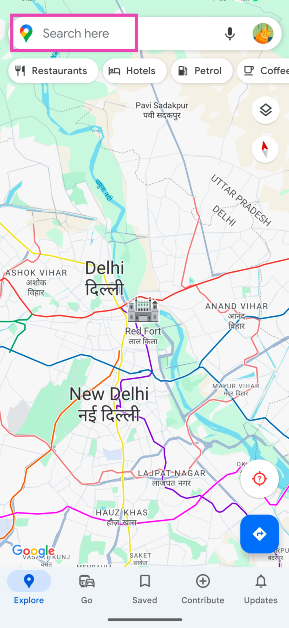
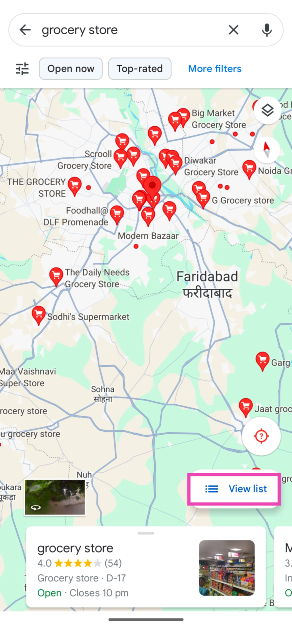
Step 1: Launch the Google Maps app on your smartphone. Step 2: Tap on the search bar at the top and enter ‘Grocery Stores’. Step 2: Tap on the search bar at the top and enter ‘Grocery Stores’. Step 3: All the grocery stores near your location will be marked on the map. Step 3: All the grocery stores near your location will be marked on the map. Step 4: Tap on View List. Step 5: Tap on Open Now to view the stores that are currently open. Step 5: Tap on Open Now to view the stores that are currently open.

Use Google Assistant (Android)

Android users can also use Google Assistant to find grocery stores or supermarkets near them. Simply say “Hey Google, find supermarkets and grocery stores near me” and the voice assistant will pull up all the relevant results. Tapping on an entry will reveal its Google page which includes directions to the location, user reviews, photos, and more information. You can also check things like wheelchair accessibility, payment options, and more on the store’s Google listing.

Use Apple Maps to find Grocery Stores or Supermarkets near your current location (iOS)

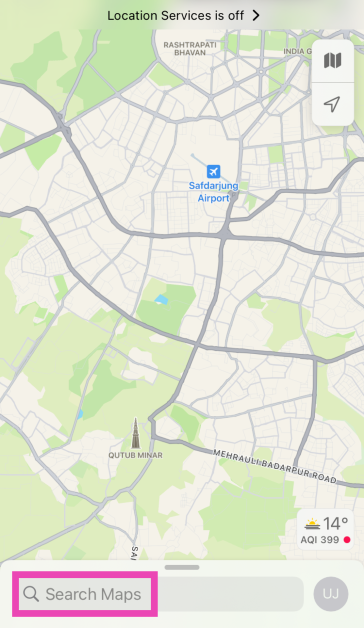
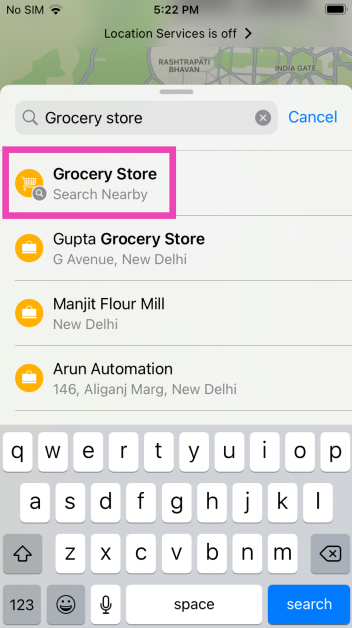
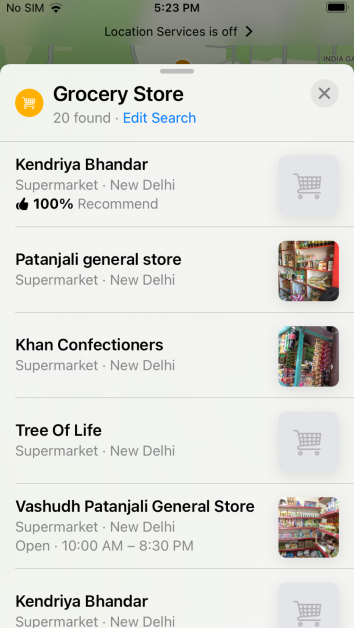
Step 1: Launch the Maps app on your iPhone. Step 2: Tap on Search Maps. Step 2: Tap on Search Maps. Step 3: Enter ‘Grocery Store‘. Step 4: Tap on Grocery Store (Search Nearby). Step 4: Tap on Grocery Store (Search Nearby). Step 4: Tap on Grocery Store (Search Nearby). Step 5: Pull up the page containing the results.

Use Siri (iOS)

If you’re in a hurry and don’t want to go through different apps, simply ask Siri to find the nearest grocery stores and supermarkets. If you’re driving, you ask Siri to get the directions for a particular result. This will trigger the Apple Maps app on your iPhone and the directions to the store will be displayed on the page.

Frequently Asked Questions (FAQs)

How do I find supermarkets and grocery stores near my current location?

Searching for ‘Grocery Stores/Supermarkets’ on Google Maps lists all the locations near you. You can even perform a Google search for ‘Supermarkets near me’ to view all the nearby listings.

How do I find out which grocery stores are open near me?

Google Maps has an ‘Open Now’ filter which lets you sort grocery stores that are currently open.

How do I check whether a particular grocery store accepts online payments before visiting the location?

Open the grocery store’s listing on Google and head over to the ‘About’ tab to check if it accepts mobile/online payments.  Read Also: Top 5 Ways to Find Public Restrooms Near Your Current Location on iPhone and Android (2024)

Conclusion

These are the top 4 ways to find grocery stores and supermarkets near your current location on iPhone and Android. If you know of any other method, let us know in the comments! Check out this article to learn how you can find public restrooms near you and sort them by the highest user ratings!

OnePlus 12 accidently listed on Amazon, price in India revealed

Key Highlights

  • The OnePlus 12 Series will include two smartphones: the flagship OnePlus 12 and the gaming phone OnePlus 12R.
  • The upcoming OnePlus 12 price in India was already leaked through an Amazon listing.
  • The price of the smartphone was also tipped earlier.

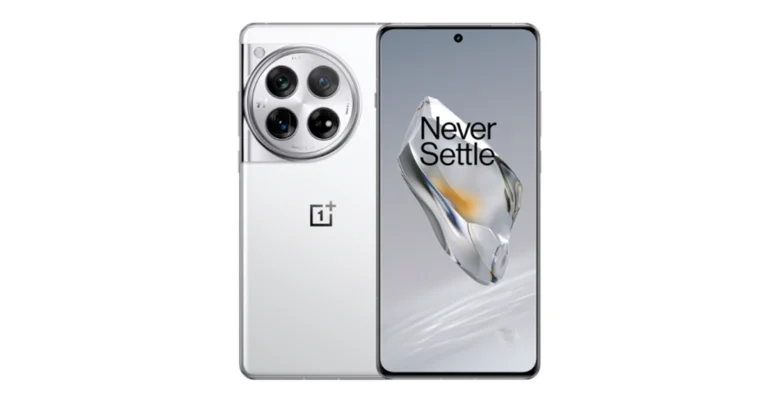
OnePlus 12 series India pricing was tipped last month. But again, the price of the OnePlus 12 has surfaced online. The e-commerce platform Amazon accidentally revealed the pricing of the upcoming smartphone in India ahead of the official announcement. The OnePlus 12 Series is scheduled to launch in India on January 23 at Pragati Maidan, Delhi. The upcoming smartphone series will include two devices: the OnePlus 12 and the OnePlus 12R.

The price of the OnePlus 12 may have been inadvertently disclosed by Amazon India before its official release. The e-commerce platform quickly removed the pricing, though a tipster was able to capture a screenshot of the listing. Tipster Ishan Agarwal revealed in an X post that he had spotted the OnePlus 12 listed on Amazon. According to him, the 12GB RAM + 256GB storage model would start at Rs 69,999.

Also Read: Infinix Smart 8 powered by MediaTek Helio G36 SoC launched

As we mentioned earlier, RAM and storage, along with pricing, were tipped. As per the leak, the OnePlus 12 will be available in two RAM and storage options. The company is likely to offer 12GB of RAM with 256GB of storage and 16GB of RAM with 512GB of storage options. The device is said to be offered in two colour options: Flowy Emerald and Silky Black.

Whereas, the OnePlus 12R could come with 8GB of RAM with 128GB of storage and 16GB of storage with 256GB of internal storage. The handset will be available in Cool Blue and Iron Grey colourways. Note that both shades have already been confirmed by the company.

Also Read: Samsung offering a discount on the Galaxy M14, Galaxy F14 in India: Details

The pricing of the OnePlus 12R and OnePlus 12 was also leaked earlier. According to a tipster, the OnePlus 12R is expected to be priced between Rs 40,000 and Rs 42,000. On the other hand, the flagship OnePlus 12 is likely to be priced between Rs 58,000 and Rs 60,000.

Infinix Smart 8 powered by MediaTek Helio G36 SoC launched

Key Highlights

  • The Infinix Smart 8 features a 50MP dual-AI camera.
  • It has a 6.6-inch HD+ display with 1,612 x 720 pixels of resolution.
  • The screen supports a 90-Hz refresh rate.

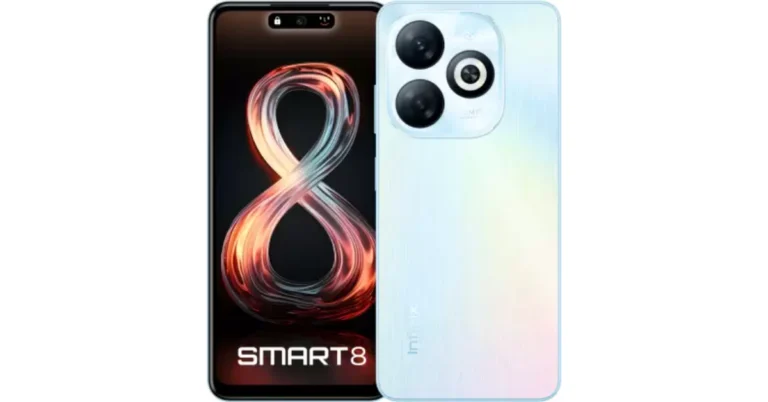
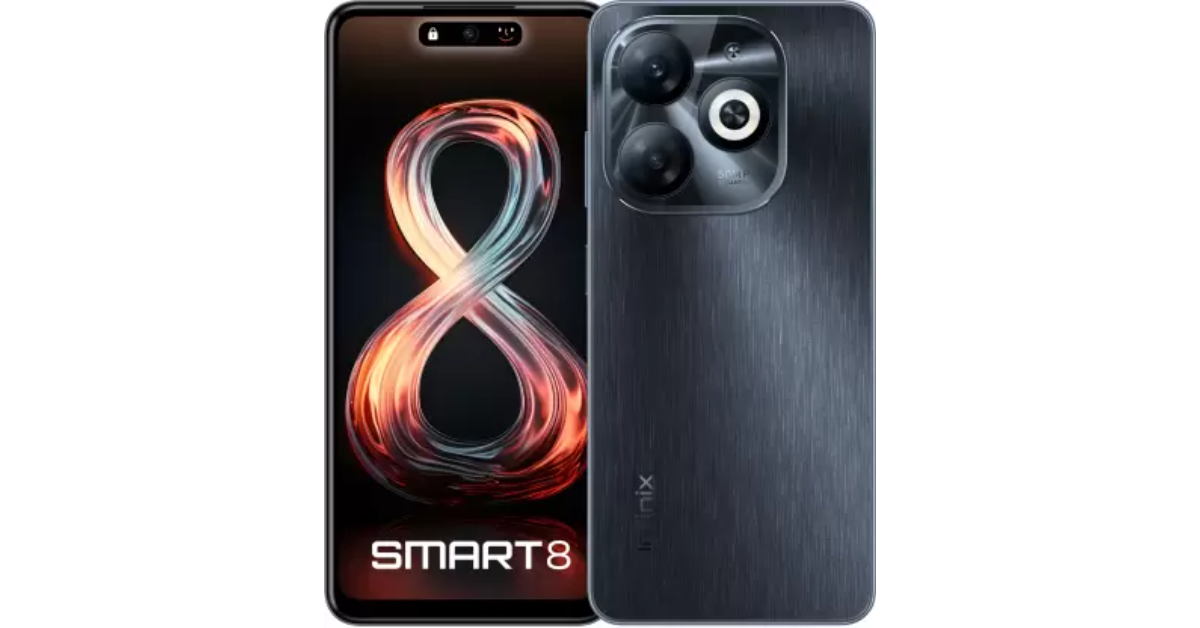
The Infinix Smart 8 has debuted in India. The smartphone arrived in India after its launch in Nigeria last year. A MediaTek Helio G36 SoC powers the newly launched phone. It is shipped with Android 13 Go Edition-based XOS 13. The handset comes equipped with a 5,000 mAh battery. In addition to this, there is a dual rear camera setup that includes a 50-megapixel sensor.

Infinix Smart 8 price in India, sale details

The Infinix Smart 8 price in India has been set at Rs 7,499 for a single 4GB of RAM with 64GB of storage. But as a part of the launch offer, the company is initially offering the smartphone at Rs 6,749. The phone is currently available for purchase through Flipkart in the country. It comes in Galaxy White, Rainbow Blue, Shiny Gold, and Timber Black colourways.

Infinix Smart 8 price in India, sale details

Infinix Smart 8 specifications

The Infinix Smart 8 comes with a 6.6-inch HD+ display with 1,612 x 720 pixels of resolution. The screen supports a 90Hz refresh rate and a touch sampling rate of 180Hz. The front panel supports 500 nits of peak brightness. An octa-core Unisoc T606 SoC powers it with 4GB of LPDDR4X RAM and 64GB of eMMC 5.1 storage. The smartphone also includes an expandable RAM feature, while the internal storage can be further expanded up to 2TB using a microSD card. The phone runs on XOS 13 skinned over Android 13.

Also Read: Samsung offering a discount on the Galaxy M14, Galaxy F14 in India: Details

The Infinix Smart 8 features a 50-megapixel main sensor, an AI camera, and a quad-LED Ring flash for photos and videos. In terms of selfies, there is an 8-megapixel front-facing camera with an LED flash.

The Infinix Smart 8 has a Magic Ring feature akin to Apple’s dynamic island. The expandable notch feature enables functions such as face unlock, background call management, charging animations, and charge completion reminders, adding a layer of convenience and personalisation for users.

Also Read: Nothing announced massive up to Rs 10,000 discount on Phone 2: Additional discounts

The device includes dual 4G, nano SIM, Wi-Fi, Bluetooth 5.0, GPS, GLONASS, and a USB Type-C port for connectivity. Additionally, the handset packs a 5,000mAh battery.

Top 4 Ways to Access Your Passwords from Anywhere with Google Password Manager (2024)

0
Google Password Manager is a lifesaver for those who have a hard time remembering their passwords. You can use it to save a password as soon as you enter it on the app/website and then autofill it later on. Apart from saving and auto-filling your passwords, GPM lets you know if they were found in a data breach. If you use the same password for multiple accounts, Google will prompt you to change it. It can also gauge the strength of your passwords by analysing their characters. Today, we bring you the top 4 ways to access your passwords from anywhere with Google Password Manager. Read Also: Top 5 Ways to Find Public Restrooms Near Your Current Location on iPhone and Android (2024)

Is Google Password Manager the right choice for you?

There are dozens of password managers out there that do a stellar job of saving your passwords and syncing them across all your devices. These third-party password manager apps can easily bridge the divide between ecosystems and operating systems. So, if you’re an iPhone user with a Windows laptop or an Android user with a Macbook, these apps will make your life much easier. Added features like password generation, password sharing, and security checks are the icing on the cake. Over the years, Google Password Manager has also massively upped its game. Even though it does not have a dedicated app, you can use it along with your Google account. For Android users, the password manager is baked into their device’s interface and settings. On your PC, you can use Chrome to quickly save or autofill a password wherever necessary. iPhone users need not worry either, since Google’s iOS app lets you view your saved passwords and even auto-fills them for you!

Access Google Password Manager on any non-Chrome web browser

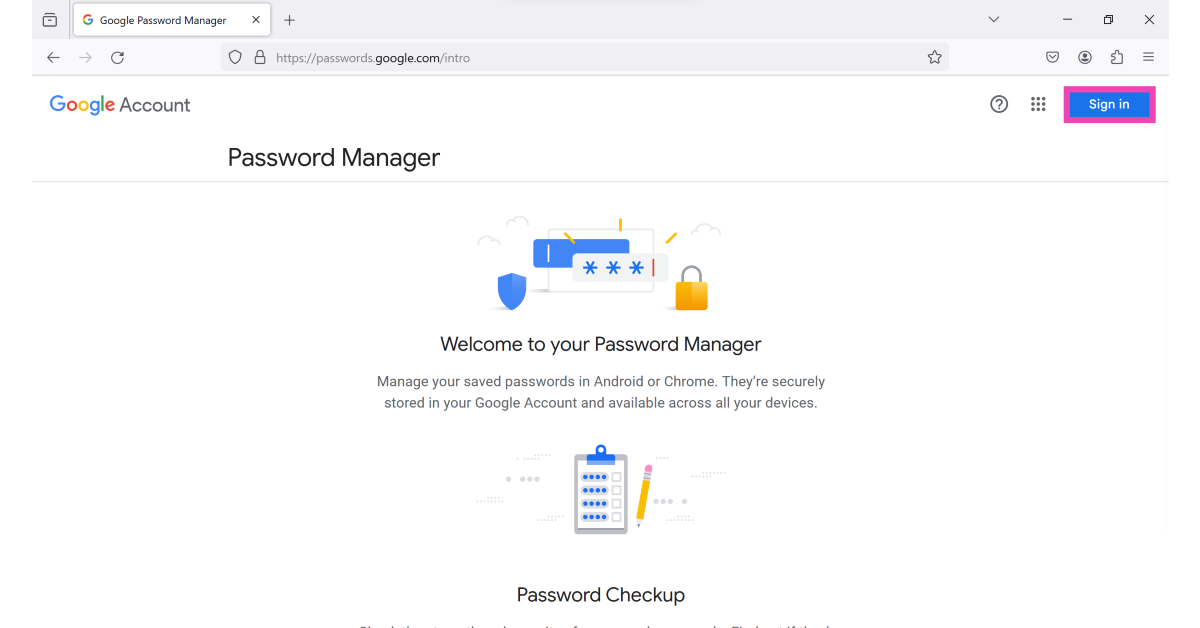
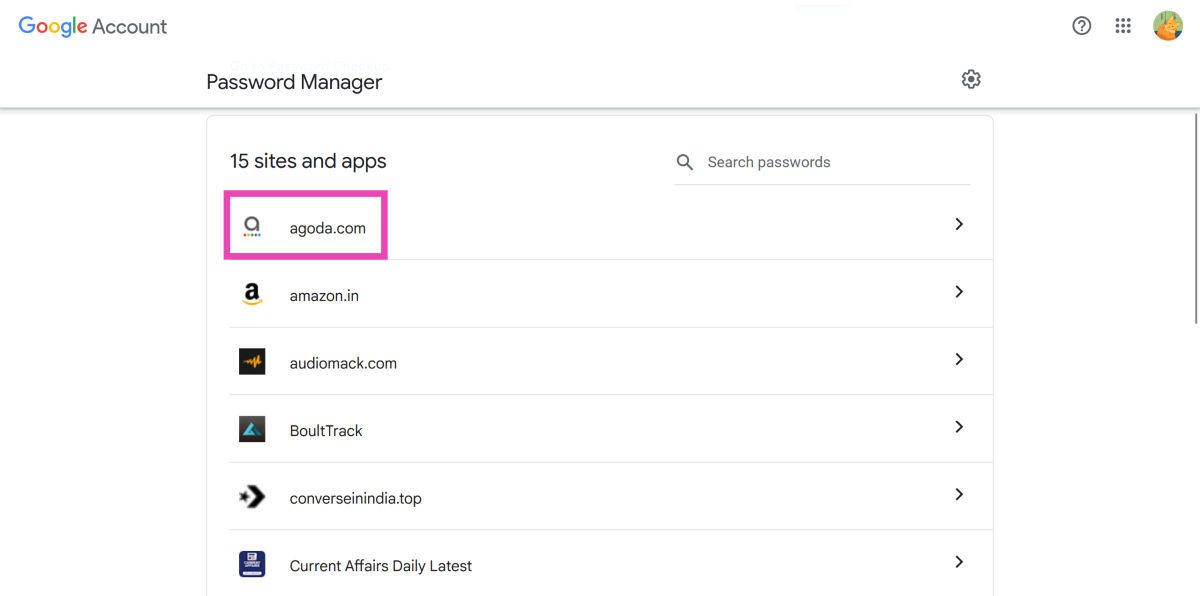
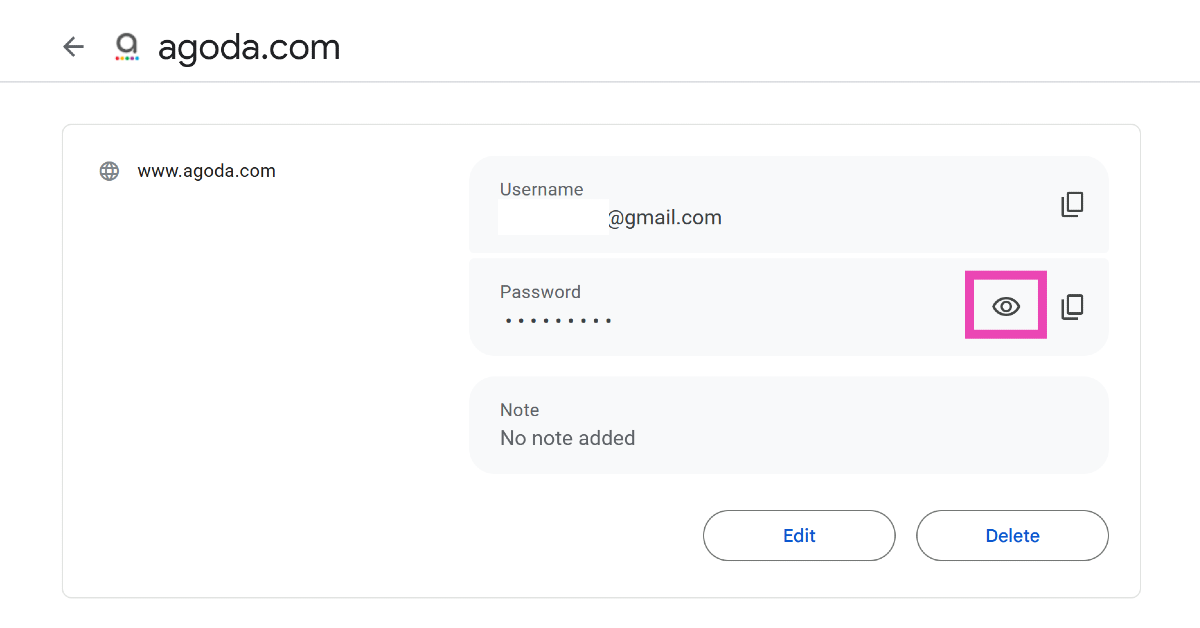
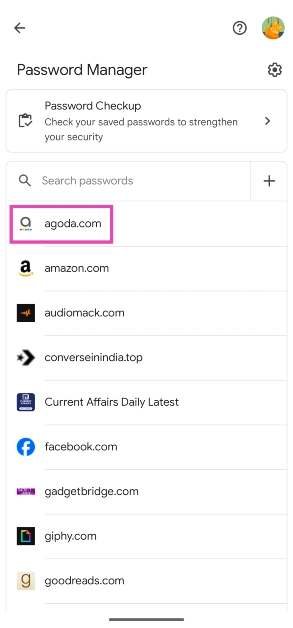
Here’s how you can find your saved passwords by using Google Password Manager on Safari, Edge, or any other browser other than Google Chrome. Step 1: Go to passwords.google.com. Step 2: Sign in to your Google account. Step 2: Sign in to your Google account. Step 3: Click on the website/app whose password you want to view. Step 3: Click on the website/app whose password you want to view. Step 4: Google may ask you to verify your identity by entering the password. Step 5: Hit the eye icon in the password field to view it. You can also copy it to the clipboard. Step 5: Hit the eye icon in the password field to view it. You can also copy it to the clipboard.

Access Google Password Manager on your iPhone

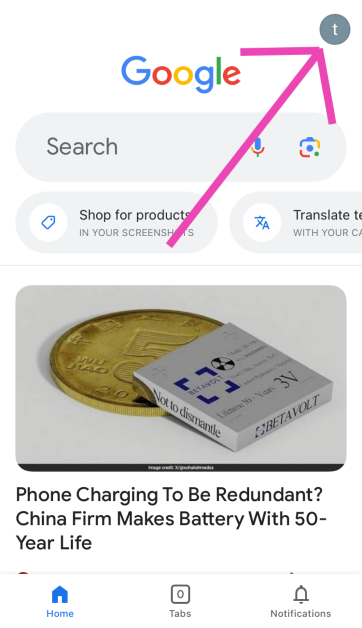
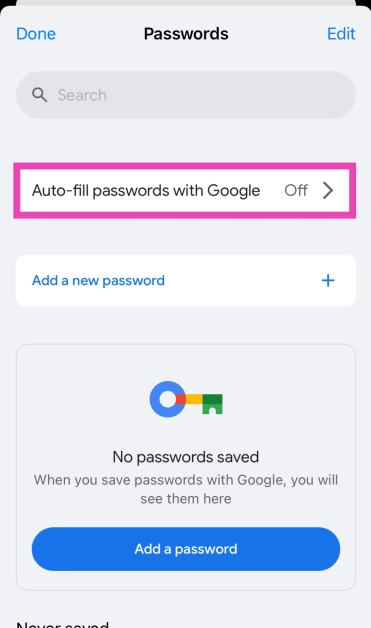
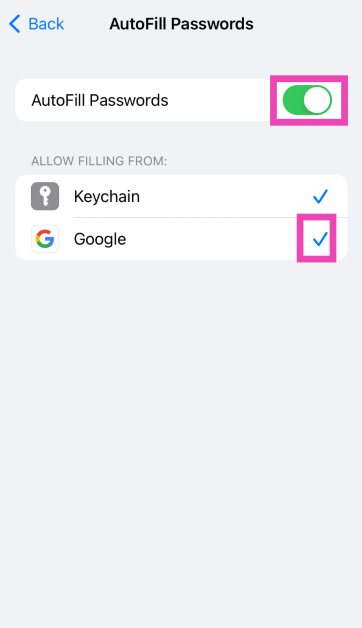
You can use the method mentioned above to view your passwords on Safari for iPhone. However, if you want to use the autofill feature, you will need to use Google’s official app for iOS. Step 1: Install the official Google app on your iPhone from the App Store. Step 2: Launch the app and hit the profile icon at the top right corner of the screen. Step 2: Launch the app and hit the profile icon at the top right corner of the screen. Step 3: Tap on Passwords. Step 3: Tap on Passwords. Step 4: This is where you can view your saved passwords. Tap on Auto-fill passwords with Google. Step 4: This is where you can view your saved passwords. Tap on Auto-fill passwords with Google. Step 5: You will be redirected to your iPhone’s settings. Tap on Autofill Passwords. Step 5: You will be redirected to your iPhone’s settings. Tap on Autofill Passwords. Step 6: Turn on the toggle switch for AutoFill Passwords and select Google under ‘Allow Autofilling From’. Step 6: Turn on the toggle switch for AutoFill Passwords and select Google under ‘Allow Autofilling From’.

Access Google Password Manager on your Android smartphone without Google Chrome

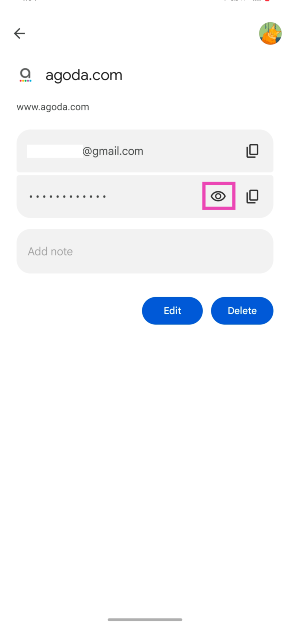
You can also access Google Password Manager on your Android smartphone. Your passwords are synced across all the devices that you are signed into using your Google Account. Here’s how you can view and manage your passwords on your phone. Step 1: Go to Settings and select Google. Step 2: Tap on Manage your Google Account. Step 2: Tap on Manage your Google Account. Step 3: Switch to the Security tab. Step 4: Scroll down and select Password Manager. Step 4: Scroll down and select Password Manager. Step 5: Tap the app/website whose password you want to know. Step 5: Tap the app/website whose password you want to know. Step 6: Verify your identity by entering your phone’s PIN or using your fingerprint. Step 7: Hit the eye icon in the password field to view it. You can also delete or change the password on this page. Step 7: Hit the eye icon in the password field to view it. You can also delete or change the password on this page.

Manage your password in Google Chrome

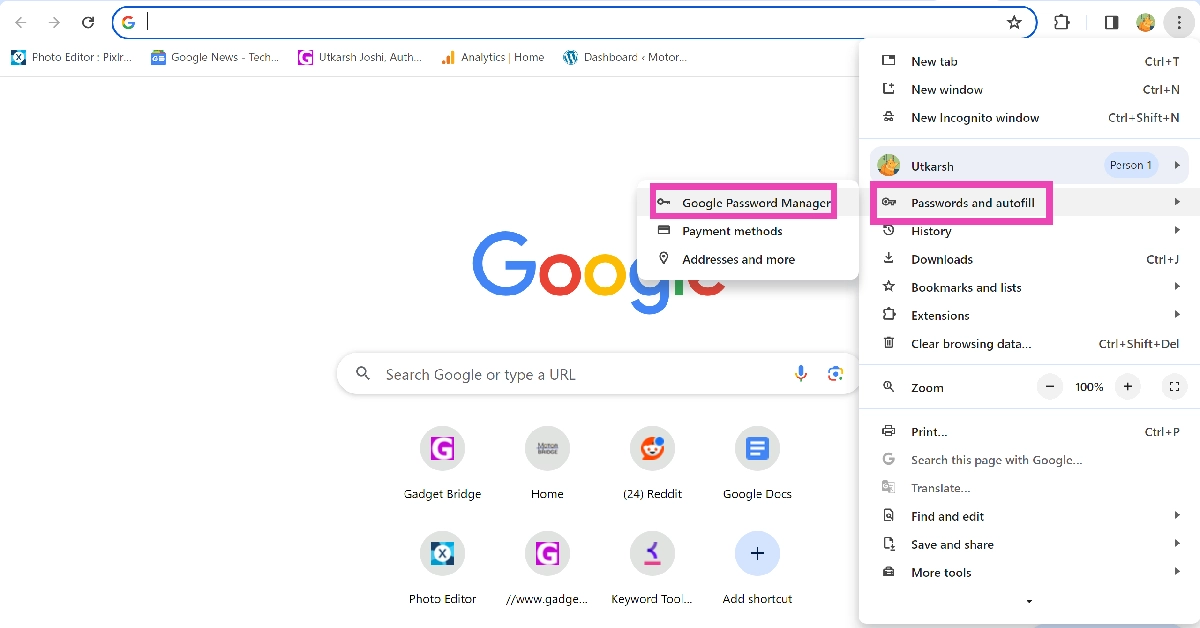
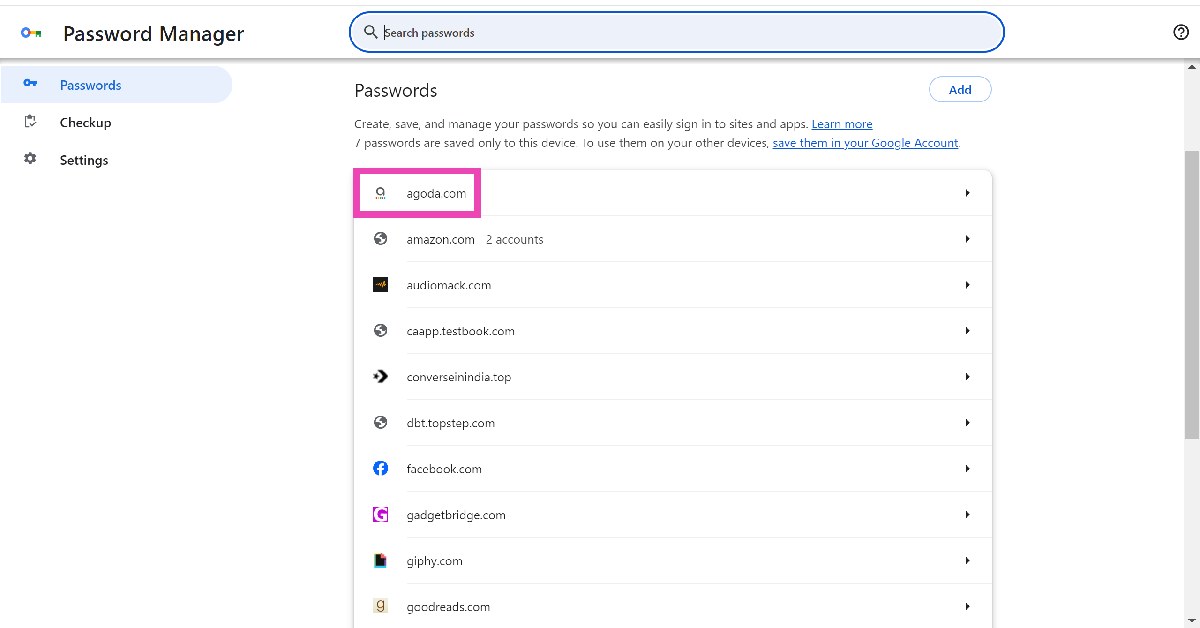
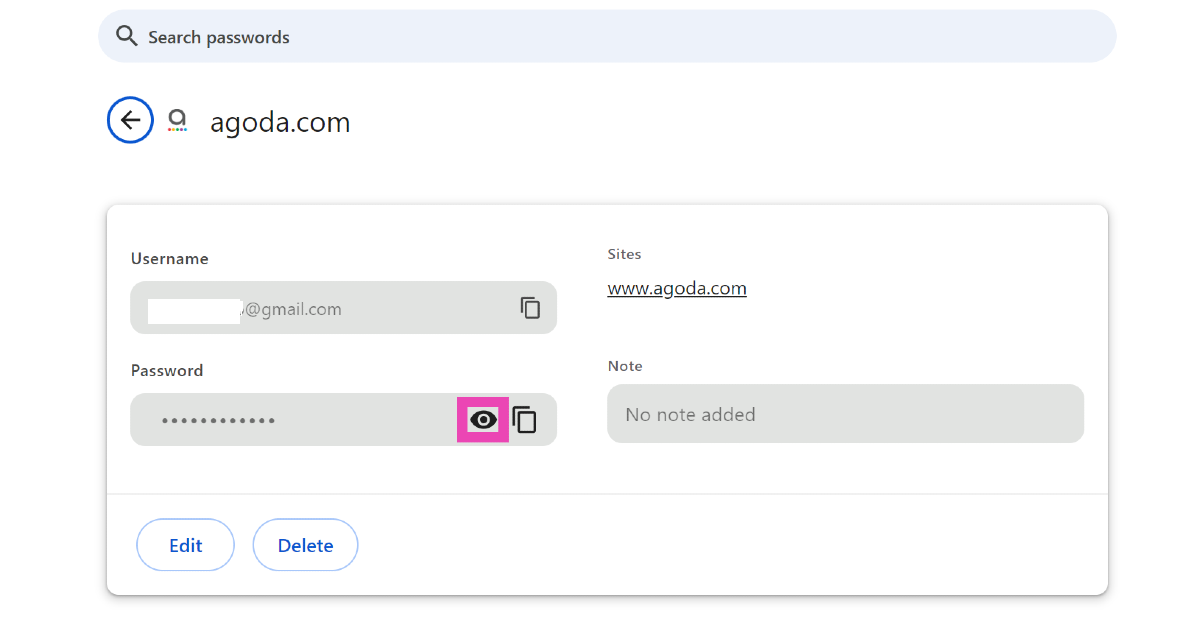
After signing into Google Chrome, you can view all the passwords linked to that account. Here’s how. Step 1: Hit the ellipses at the top right corner of the screen. Step 1: Hit the ellipses at the top right corner of the screen. Step 2: Go to Passwords and autofill>Google Password Manager. Step 3: Click on the app/website whose password you want to know. Step 3: Click on the app/website whose password you want to know. Step 4: Hit the eye icon in the password field to view it. Step 4: Hit the eye icon in the password field to view it.

Frequently Asked Questions (FAQs)

How do I view my passwords on another device using Google Password Manager?

Go to passwords.google.com on any device to view all your saved passwords in Google Password Manager.

Does Google Password Manager have an app?

Google Password Manager does not have an app, but you can add its shortcut to your phone’s or PC’s home screen.

Which is the best password manager app for Android?

If you don’t want to use Google’s password manager, you can use third-party apps like 1Password, Bitwarden, and LastPass. Read Also: Top 7 Ways to Record Calls Without Warning or Announcement on Android

Conclusion

These are the top 4 ways to access your passwords from anywhere with Google Password Manager. You can also use on-device encryption for your saved passwords to give them that extra layer of security. Check out this article to learn how you can find your saved passwords on your iPhone. If you know any other ways of accessing Google Password Manager, let us know in the comments!

Top 10 Ways to Find the Song Name Without Knowing the Lyrics

0
There’s nothing more annoying than a melody or a hook stuck in your head that you can’t quite name. Playing it over and over again doesn’t help either. You can either wait for the song title to come to you, or you can harness the power of your smartphone. Apps like Shazam and SoundHound are famous for producing accurate song matches within seconds. But there are several other methods you can deploy if you want to avoid installing another app on your phone. Here are the top 10 ways to find a song’s name without knowing its lyrics. Read Also: Top 7 Ways to Record Calls Without Warning or Announcement on Android

How do apps like Shazam and SoundHound find accurate song matches?

On the surface, Shazam seems like magic. Even though the app has been around for more than a decade, it still feels surreal. To do it before AI and machine learning existed as they do in their current form is even more impressive. So, how is Shazam able to find any song within a few seconds by simply listening to a random passage? When you play a song, Shazam creates a fingerprint for it. This fingerprint is unique to every song, even the different remixes and recordings. What is a fingerprint, you ask? It is a spectrogram that maps the frequency of the sound sample over time. This spectrogram is matched against Shazam’s database. If a match is produced, Shazam will display the song linked to it as the result. 

Use Google Assistant

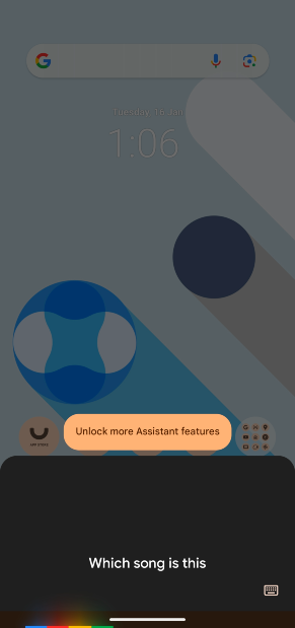
One of the easiest ways you can search for a song without knowing the lyrics is by using Google Assistant. Its powerful search capabilities produce a match even if you hum the tune. Here’s how you can use it on your device. Step 1: Say “Hey Google, which song is this? Step 1: Say “Hey Google, which song is this?” Step 2: Play, sing, or hum the song. Step 2: Play, sing, or hum the song. Step 3: Google will produce the likely matches. Step 3: Google will produce the likely matches. You can also use this feature by going to the Google app and selecting ‘Identify Song By Listening’. Pros
  • Easy to use
  • Accurate results
Cons
  • Some results for ‘hum’ searches may be off

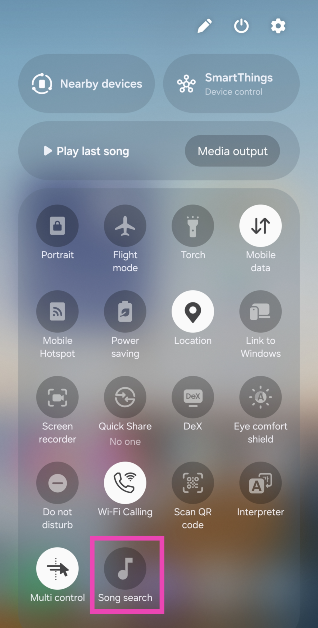
Add the song search tile to the Quick Settings Menu

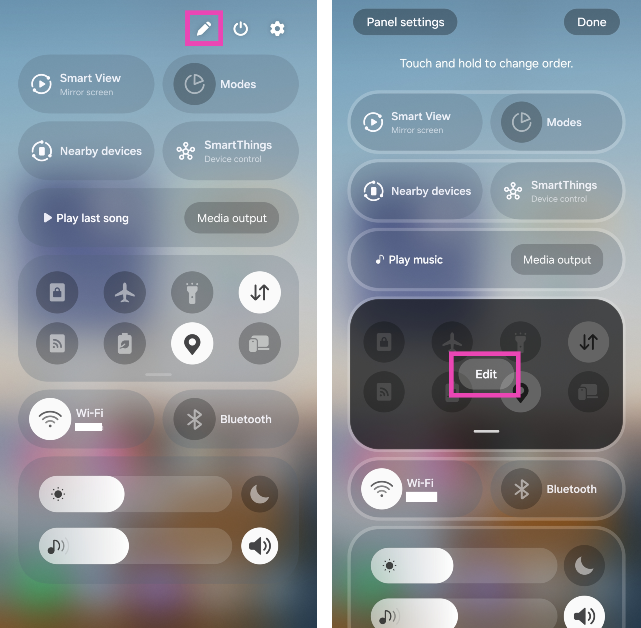
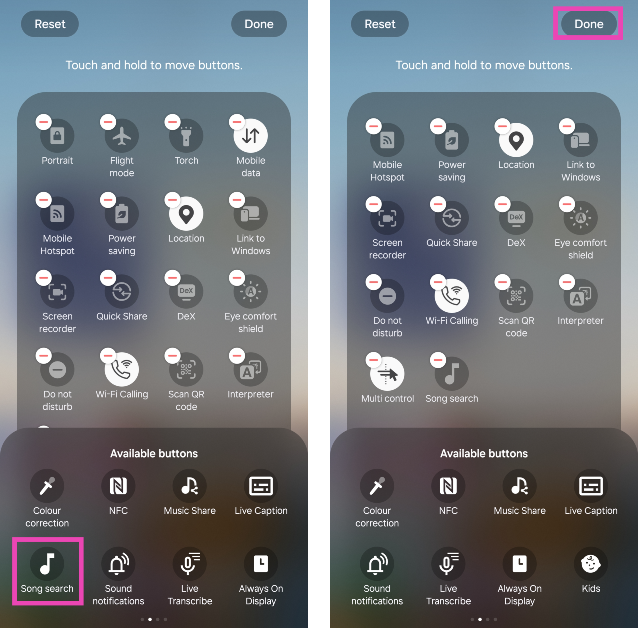
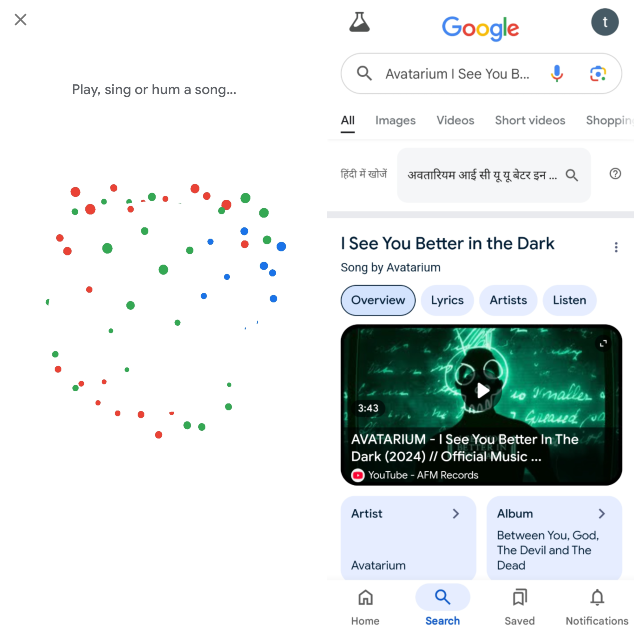
Step 1: Swipe down from the status bar to access the Quick Settings Menu. Step 2: Hit the ellipses and select Edit tiles. If there’s a pencil icon on the menu, tap on it. Step 2: Hit the ellipses and select Edit tiles. If there's a pencil icon on the menu, tap on it. Step 3: Select the Song search tile from the bottom panel. Step 3: Select the Song search tile from the bottom panel. Top 9 Ways to Find the Song Name Without Knowing the Lyrics Step 4: Hit Done. Step 5: Tap the Song search tile when a song is playing near you. Step 5: Tap the Song search tile when a song is playing near you. Top 9 Ways to Find the Song Name Without Knowing the Lyrics Step 6: Google Assistant will analyse the song and present the relevant search results. Step 6: Google Assistant will analyse the song and present the relevant search results. Top 9 Ways to Find the Song Name Without Knowing the Lyrics Pros
  • Ease of access
  • Accurate results
Cons
  • May require sacrificing a tile in the Quick Settings Menu

Use YouTube Music

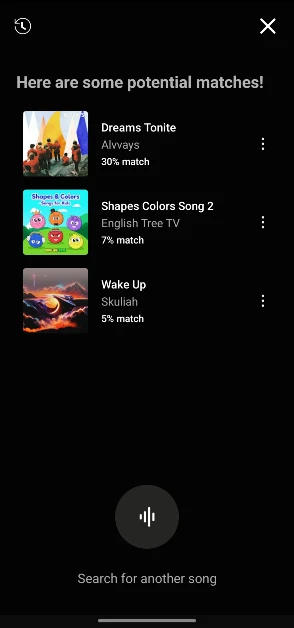
Step 1: Launch the YouTube Music app on your smartphone.
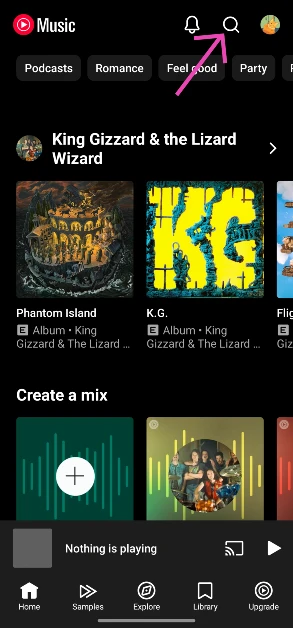
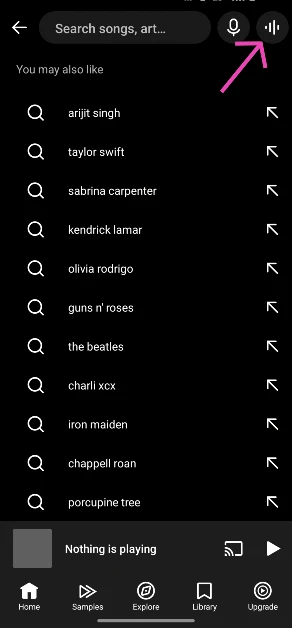
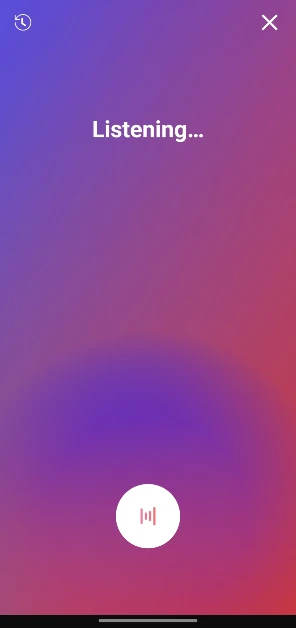
Step 2: Hit the search icon at the top right corner of the screen. Step 2: Hit the search icon at the top right corner of the screen. Step 3: Tap the wavelength symbol at the top right corner of the screen. Step 3: Tap the wavelength symbol at the top right corner of the screen. Step 4: Hum the song for 20-30 seconds or move your phone closer to the speaker playing the song. Step 4: Hum the song for 20-30 seconds or move your phone closer to the speaker playing the song. Step 5: Google’s AI algorithm will look up the song that matches the melody. The song title, along with the artist name, album name, and release year, will appear on the screen. Step 5: Google’s AI algorithm will look up the song that matches the melody. The song title, along with the artist name, album name, and release year, will appear on the screen. Pros
  • Easy to use
  • Allows you to hum the song
Cons
  • Same catalogue as Google Assistant

Use Circle to Search

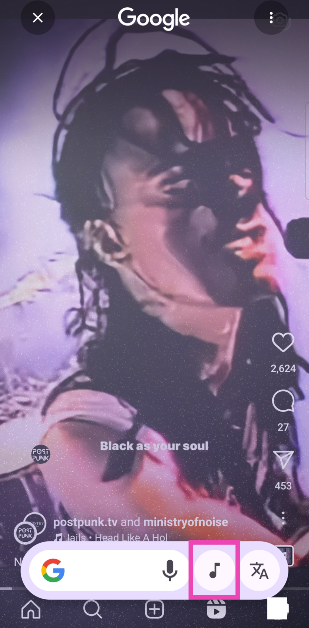
Use this method when you want to search for a song playing in the background of a video on your phone. Step 1: Go to the page where the song is playing. If the song is playing on an external speaker, keep your phone close to the source. Step 2: Long-press the home button or the navigation bar on your phone. Step 3: Tap the music icon. Step 2: Long-press the home button or the navigation bar on your phone. Top 9 Ways to Find the Song Name Without Knowing the Lyrics Step 4: Your phone will listen to the song for a few seconds and then open the Google search results for the song title. Step 4: Your phone will listen to the song for a few seconds and then open the Google search results for the song title. Top 9 Ways to Find the Song Name Without Knowing the Lyrics Pros
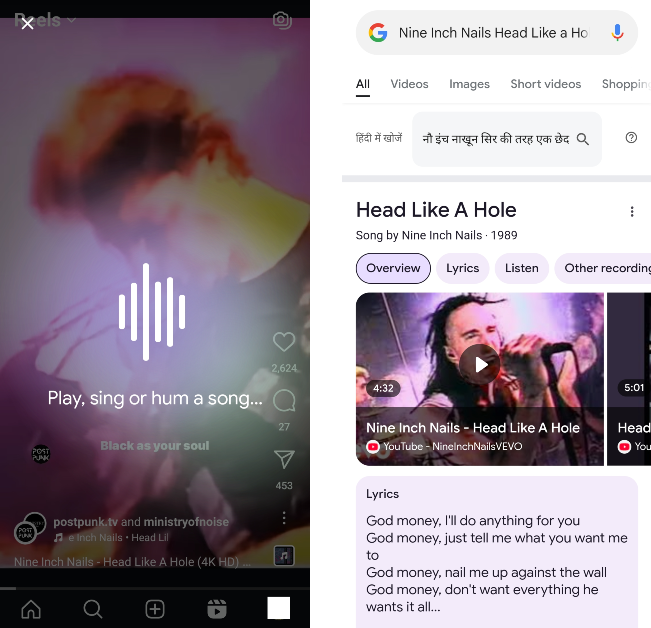
  • Excellent for searching songs playing on your phone
  • Quick results
Cons
  • May not be available on every phone

Use Siri

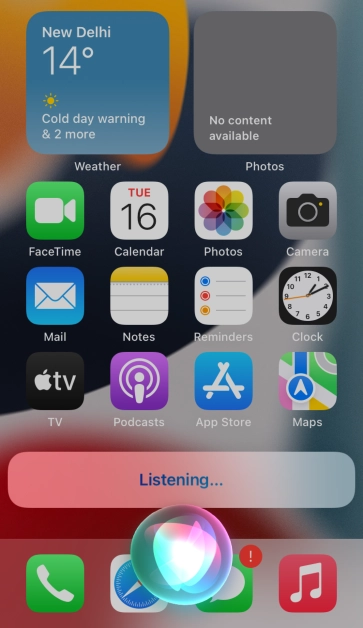
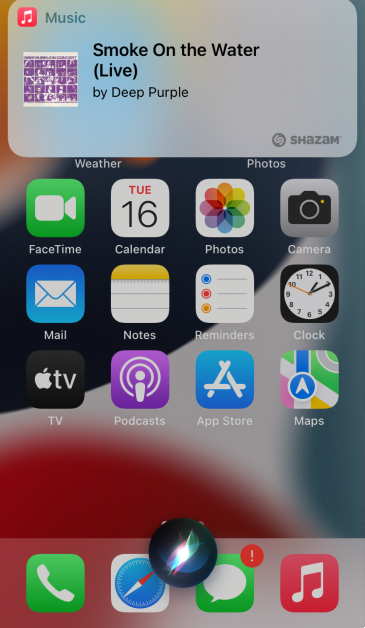
Like Google Assistant, Siri can also recognise any song playing near you. But, it cannot recognise a song by humming. Step 1: Say, “Hey Siri, which song is this?” Step 1: Say “Hey Siri, which song is this?” Step 2: Play the song on another device and bring your iPhone closer to it. Step 2: Play the song on another device and bring your iPhone closer to it. Top 6 Ways to Find the Song Name Without Knowing the Lyrics (2024) Step 3: Siri will accurately find the song for you. Pros
  • Accurate results
  • Quick access
Cons
  • Does not have hum to search

Use Shazam to find a song name without knowing its lyrics

Use Shazam to find a song name without knowing its lyrics There are dozens of apps you can use to identify a song, but Shazam is the one that started it all. Even today, it is comfortably ahead of other song-identifying apps. You can use Shazam to identify a song playing in a bar, on your TV, and even on your phone. The last bit comes in handy when you’re watching a movie or video on your phone and want to know the name of the song playing in the background. You don’t need another device to play it for Shazam. Simply open the app and replay the part of the video with the song. Shazam will produce the name of the song in no time. Pros
  • Large database
  • Quick results
Cons
  • Requires downloading a third-party app

Use SoundHound – Music Discovery

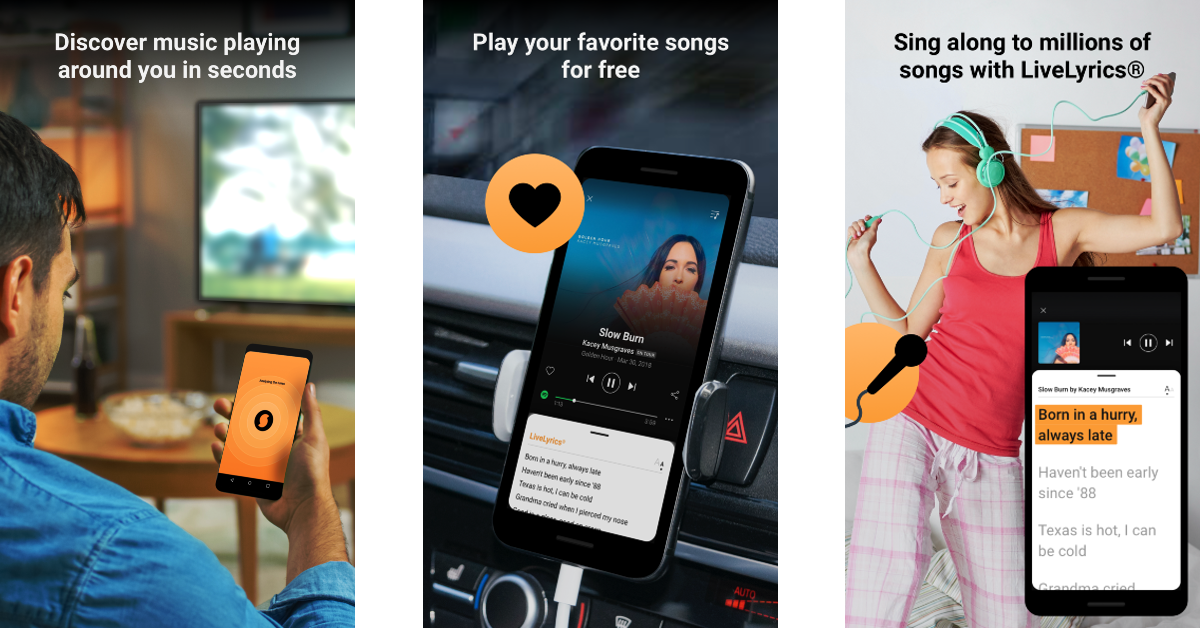
Use SoundHound - Music Discovery SoundHound is another great app to find a song even if you don’t know the lyrics. Once the app has been installed, launch it and tap the yellow Soundhound icon. Bring your phone closer to the source of the sound. Instead of playing the song on another device, you can also hum it into your phone’s speaker. SoundHound will find the song for you and even play a 30-second snippet. It will also display the lyrics to the song and give quick links to listen to it on Spotify, YouTube, and other music services. Pros
  • Impressive database
  • Displays streaming options next to search results
Cons
  • Requires downloading a third-party app

Make a post on r/TipOfMyTongue

Song identifier apps can only help you so much. If Shazam and SoundHound can’t find the song, then no other app can. At this point, your only viable option is to ask other people. The r/TipOfMyTongue subreddit is the best place on the internet to find something that’s been playing over and over again in your head. From a scene in a movie to a random melody, this subreddit can help you with anything. For music-related enquiries, record a quick sample of you humming the song, upload it on Vocaroo, and link it in your post with the relevant details. The TOMT sleuths will get on it right away! Pros
  • Helps when you can’t find a match anywhere else
  • Users may offer more information about the song other than just the title
  • Cons
  • It is possible for your query to go unanswered

Use WatZatSong

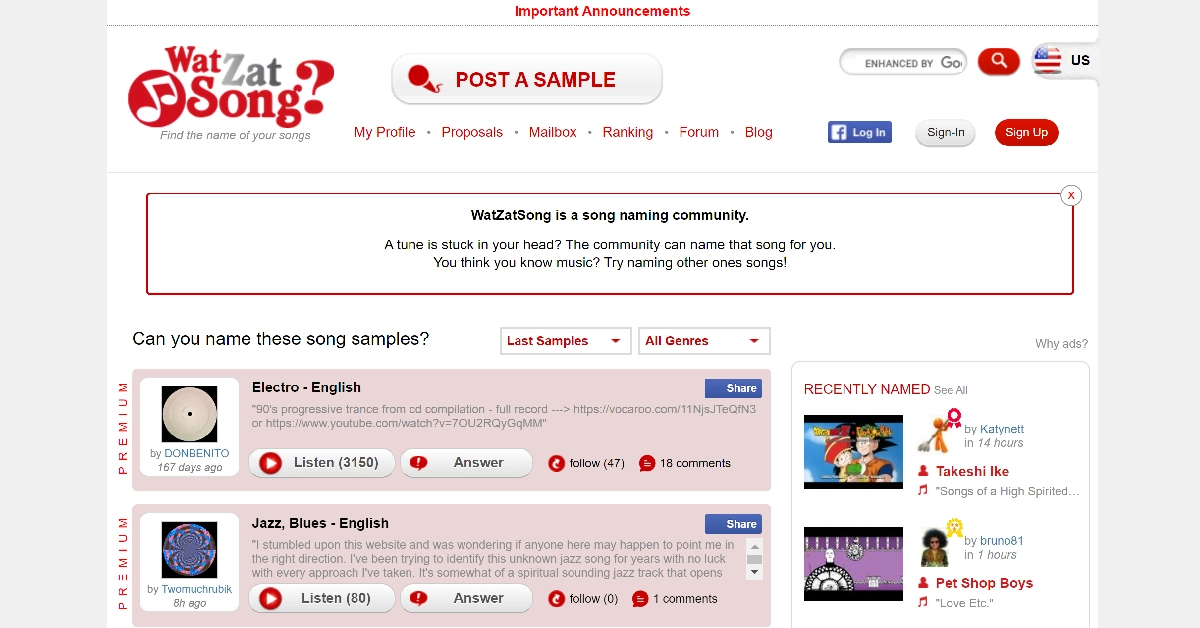
Use WatZatSong Top 6 Ways to Find the Song Name Without Knowing the Lyrics (2024) WatZatSong is a community of over 400,000 people dedicated to finding songs that are stuck in your head. To post a sample of the song, you will need to sign up first. With a diverse group of users, searching for songs in languages other than English becomes really easy. After finding the correct match for your query, you can stick around and help other users with their requests as well. WatZatSong is also a great place to discuss all things music. Its forums are neatly divided into different song genres. Once you correctly guess a song, you are awarded some points. The users with the most matches are ranked on the website. Pros
  • Great option when you can’t find the song anywhere else
  • Competitive approach to song searching
Cons
  • Not enough users as other message boards

Use the Now Playing feature on your Google Pixel smartphone

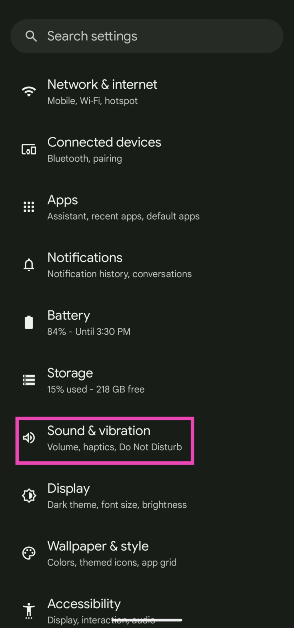
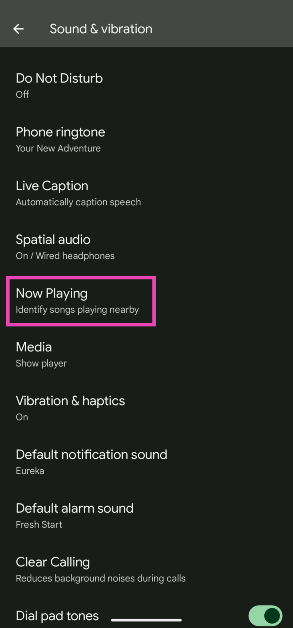
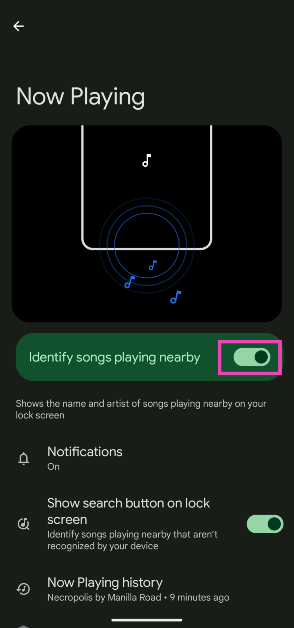
Using your phone’s voice assistant to find a song just by humming it is pretty cool. But you know what’s cooler? When your phone automatically detects the song and displays it on the lock screen. Right now, this feature is exclusive to Google Pixel smartphones. Here’s how you can turn it on. Step 1: Go to Settings and select Sound & Vibration. Step 2: Tap on Sound & vibration. Step 2: Tap on Now Playing. Step 3: Tap on Now Playing. Step 3: Turn on the toggle switch next to Identify songs playing nearby. Step 4: Turn on the toggle switch next to ‘Identify songs playing nearby’. It will take your smartphone a few minutes to set this feature up. Pros
  • Does not require the internet
  • Song titles show up on the lock screen automatically
Cons
  • Newer songs may not be recognised

Frequently Asked Questions (FAQs)

How do I find a song’s name if I don’t know its lyrics?

Use Google Assistant or Siri to find a song by simply humming its melody into your phone. Apps like Shazam and SoundHound can also assist you with this task.

Shazam can’t find the song I’m looking for. What do I do now?

If apps like Shazam and SoundHound fail to find the song you’re looking for, make a post on r/TipOfMyTongue and WatZatSong. Both communities have a user base of thousands of people who can help you find the song stuck in your head.

Is Shazam free to use?

Yes, the song identification feature on Shazam is free to use.

Does Google Pixel’s ‘Now Playing’ feature use the internet?

No, Google Pixel’s Now Playing feature relies on the on-device dataset and computation to search for a song.

Is there a shortcut to search for a song on my phone?

Go to the Quick Settings Menu, hit the edit button, add the ‘Song search’ tile to the menu, and hit ‘Done’. Use this tile whenever you want to search for a song. Read Also: Top 2 Ways to Embed Google Photos into Your Website and Emails

Conclusion

These are the top 10 ways to find a song’s name without knowing its lyrics. The methods we’ve mentioned in this list cover every situation you may come across. While the easiest way to find a match for your query is by using your phone’s native voice assistant, third-party apps like Shazam and SoundHound can also come in quite handy. If these can’t help you find the song, then you can outsource your problem to actual humans using r/TipOfMyTongue and WatZatSong.

Samsung offering a discount on the Galaxy M14, Galaxy F14 in India: Details

Key Highlights
  • Both Galaxy M14 and the Galaxy F14 are available at a discount of Rs 1,000.
  • Similarly, the Galaxy F04 and Galaxy M04 are also discounted.
  • The Galaxy A05s has a discount of Rs 2,000.
Recently, Samsung announced a discount on Galaxy A05s in India. Now the Samsung Galaxy M14 and Galaxy F14 are available at good discounts. Besides this, the company is also offering special deals on other smartphones like the Samsung Galaxy F04 and Samsung Galaxy M04. Customers can get the phones on Amazon, Flipkart, the Samsung website, and in-person retailers at lower prices. Samsung Galaxy M14 and Galaxy F14 are now available in India with an instant discount of Rs 1,000. Samsung India has updated their prices for the Galaxy M14 and Galaxy F14. The Galaxy M14’s 4GB RAM with 128GB storage and 6GB RAM with 128GB storage models retailed for Rs 13,490 and Rs 14,990, respectively, upon launch. But after a discount of Rs 1,000, the device will be available at Rs 12,490 and Rs 13,990, respectively. On the other hand, the Galaxy F14, which was previously available at Rs 12,990 and Rs 14,490 for the 4GB RAM with 128GB storage and 6GB RAM with 128GB storage, respectively, But currently, the models are available at a similar Rs. 1,000 discount as the Galaxy M14. The Galaxy F14 can be purchased for Rs 11,990 and Rs 13,490, respectively. Also Read: Samsung now offering a Rs 2,000 discount on Galaxy A05s Additionally, savings are offered on the Galaxy F04 and Galaxy M04, which are presently offered at a reduced cost of Rs 7,999. Both devices with 4GB of RAM and 64GB of storage were offered at Rs 9,499 and Rs 8,499, respectively. These price points are reflected in the Samsung India. Samsung has also updated the price of another smartphone. As a special offer, customers can purchase Galaxy A05s with an instant discount of Rs 2000. Originally priced at Rs 13499 for 4GB RAM with 128GB variant and Rs 14999 for 6GB RAM with 128GB variant, consumers can now own the phones for just Rs 11499 and Rs 12999, respectively.

Garena Free Fire Redeem Codes Today 16 January 2024: Here is how to claim them

Garena Free Fire is a battle royale game with regular awards and tournaments to keep players interested. If you play Garena Free Fire, you should be aware of the redeem codes that are released on a daily basis. However, because the battle royale game is banned in India, players from other countries can use the Free Fire Redeem codes daily. If you’re unfamiliar with the Garena Free Fire redeem codes or don’t know how to get them, we’ve put together a step-by-step guide to help you redeem them. Check out Garena Free Fire Redeem Codes for 16 January 2024. The Free Fire redeem codes are a great way to get free stuff. These are 12-digit codes that contain alphabets and numbers, as well as an expiration date and time. Because the Garena FF redeem codes cannot be used more than once, you should hurry to the redemption page to claim your free reward before someone else does. To get a free reward, all you have to do is go to reward.ff.garena.com/en, which is the official redemption page. Also, keep an eye on this space for daily updates on Garena Free Fire redemption codes and rewards.

Garena Free Fire Redeem Codes Today 16 January 2024

MCPW2D1U3XA3 BR43FMAPYEZZ FFCMCPSGC9XZ UVX9PYZV54AC MCPW3D28VZD6 V427K98RUCHZ FFICJGW9NKYT XUW3FNK7AV8N FF10617KGUF9 NPYFATT3HGSQ XZJZE25WEFJJ 6KWMFJVMQQYG MCPW2D2WKWF2 FFCMCPSJ99S3 EYH2W3XK8UPG ZZZ76NT3PDSH HNC95435FAGJ FFCMCPSUYUY7E FFCMCPSEN5MX FF11NJN5YS3E

How to Get Free Fire Redeem Codes for Garena on 16 January 2024?

  • Visit the Garena Free Fire game’s official website at reward.ff.garena.com.
  • Use your Facebook, Google, VK, Apple ID, Huawei ID, or Twitter account to log in.
  • You’ll be taken to a valid redemption code (s)
  • Copy and paste the 12-digit redemption code into the text box.
  • On the screen, a dialogue box will appear.
  • ‘Ok’ should be selected.
For the latest gadget and tech news, and gadget reviews, follow us on TwitterFacebook and Instagram. For newest tech & gadget videos subscribe to our YouTube Channel. You can also stay up to date using the Gadget Bridge Android App. You can find the latest car and bike news here.

Top 2 ways to find the postal address of any location on Google Maps? (2024)

0
Google Maps is undoubtedly the best navigation and web mapping platform around, and for good reason too. If you’ve got the app on your phone, you can never truly be lost. With just one tap, you can see where you are – down to the exact coordinates. Going to unknown places is also not a hassle, all you need to do is enter your destination and the app will guide you there. But what if you need to find the postal address of a place to send mail? Google Maps can help you with that as well. Today, we bring you the top 2 ways to find the postal address of any location on Google Maps. Read Also: [Working] Top 2 ways to copy and merge YouTube playlists? (2024)

Things to keep in mind while looking up the address of a location on Google Maps

  • If you’re looking for the address of a residential location, always drop the pin within the territory of the building on the map and not at the border or the road.
  • Double-check the location by using street view.
  • If you’re looking up the address of a business or a vendor, search for their contact number on the public listing. Call the number to find out the correct address.
  • The address of some places may not be listed on the app. Other places may have an incomplete address. Check the address of places near the location to get a faint idea.

Find the postal address of any place or location using Google Maps on a PC

Step 1: Open Google Maps on your PC’s web browser and go to the location in question. Step 2: Right-click on the location and click on ‘What’s here? Step 2: Right-click on the location and click on ‘What’s here?’ Step 3: The postal address of the location will pop up in a small box at the bottom of the screen. click the small box Step 4: Click on the box to view the full address of the location along with its Street View images. check out street view

Find the postal address of any location using the Google Maps app

Step 1: Launch the Google Maps app on your smartphone. Step 2: Navigate to the location in question. Step 2: Navigate to the location in question. Top 2 ways to find the postal address of any location on Google Maps? (2024) Step 3: Drop a pin on the location. Step 3: Drop a pin on the location. Top 2 ways to find the postal address of any location on Google Maps? (2024) Step 4: Slide up the results page. Step 4: Slide up the results page. Top 2 ways to find the postal address of any location on Google Maps? (2024) Step 5: The address will be mentioned in the header of the page. For the full address, switch to the Overview tab.

Frequently Asked Questions (FAQs)

How do I find my current location on Google Maps?

Launch the Google Maps app on your phone and hit the Recentre (aim) button at the bottom left section of the screen. The blue dot on the map denotes your current location.

Is it possible to find the exact address of a location on Google Maps?

To find the exact address of a location on Google Maps, drop a pin on it and swipe up on the screen to see the details related to it. The full address of the location will be listed under the Overview tab.

How do I blur my house from Google Street View?

Find your house in Google Street View and hit the ellipses to report a problem. On the following page, drag the image to place your house in the red box and submit a blurring request. Read Also: Samsung now offering a Rs 2,000 discount on Galaxy A05s

Conclusion

These are the top 2 easy ways to find the postal address of any location on Google Maps. Pulling up the full details about the location will also give you the postal code of the area. If you have any questions about this issue, let us know in the comments!

Top 5 Ways to Find Public Restrooms Near Your Current Location on iPhone and Android (2024)

0
Smartphones and GPS have completely eliminated the need for asking strangers for directions. If you suspect you’re lost, simply enter your destination on the map and your smartphone will guide you there. The same goes for finding public restrooms near you. If you’re in an unfamiliar place and feel nature calling, all you need to do is whip out your phone and choose your pick from the facilities near your location. Today, we bring you the top 5 ways to find public restrooms near your current location on iPhone and Android. Read Also: [Working] Top 2 ways to copy and merge YouTube playlists? (2024)

Do you need a third-party app to find restrooms near you?

The simple answer is no. You don’t even need to launch any app on your phone to find a nearby toilet. You can use your device’s voice assistant (Siri or Google Assistant) to pull up all the results and list them on the map. Google Maps has the most exhaustive list of public facilities, covering almost every location near you. If you can’t find a restroom, you may want to broaden your search and look for hotels and public lodging. Upon request, they may let you use their restroom facilities. Looking up restrooms online can be a bit like playing roulette. Even though most listings have the appropriate rating next to them, they may not have what you’re looking for. For example, some users may require the toilet to be wheelchair accessible and offer a handicap stall. Others may need to use a toilet for its diaper changing station. If your needs are more specific, there are some great third-party apps that you can use. More on that later.

Use Google Maps to find public restrooms near you

Step 1: Launch the Google Maps app on your smartphone. Step 2: Tap the search bar and enter ‘public restrooms’ as your query. Step 2: Tap the search bar and enter ‘public restrooms’ as your query. gas station with restroom near me Step 3: All the public restrooms near you will be marked on the map. Step 3: All the public restrooms near you will be marked on the map. gas station with restroom near me Step 4: Hit View list to check out the names and other details of all the restrooms near you. Step 5: Tap on a restroom to select it and check out its reviews, ratings, and images. Step 5: Tap on a restroom to select it and check out its reviews, ratings, and images.

Use Apple Maps on your iPhone to find public restrooms near you

Step 1: Launch the Maps app on your iPhone. Step 2: Tap on the search bar and enter ‘Restrooms’. Step 2: Tap on the search bar Step 3: Select Restrooms (Search Nearby). Step 3: Select Restrooms (Search Nearby). Step 4: All the restrooms near you will be marked on the map. Step 4: All the results will be marked on the map. Step 5: Pull up the list to go through all the results.

Use Google Assistant or Siri on your Android phone or iPhone

If you’re in a bit of a hurry, instead of going through the map app on your phone, you can simply call the services of the voice assistant. Android users can use Google Assistant by simply saying “Hey Google, find public restrooms near me”. Similarly, iPhone users can trigger Siri by asking “Hey Siri, find public restrooms near me”. The voice assistants will pull up the results on Google Maps and Apple Maps respectively.

Perform a Google Search

Don’t want to use the Voice Assistant? Perform a simple Google search instead. Simply search for ‘Public restrooms near me’ and give the web browser access to your current location. Google will present the results along with the option to search for directions and look up the reviews.

Use a third-party app

Use Toilet Finder Apps like Toilet Finder and Flush can help you easily locate public restrooms near you. These apps have hundreds of thousands of public and private restrooms in their libraries, with proper user reviews and additional features. These apps can let you know whether the toilet has a handicap stall or a diaper changing station. If a restroom is pay-to-use, the fee will be mentioned in the app.

Frequently Asked Questions (FAQs)

How do I find public restrooms near me?

Use Google Maps or Apple Maps to perform a quick search for public restrooms near you. You can also use your phone’s voice assistant or perform a simple Google search.

How do I find out if a public restroom near me has a handicap stall?

Use third-party apps like Flush and Toilet Finder to know if the restrooms near you are equipped with amenities like a handicap stall and diaper changing station.

How do I look up the reviews of toilets near me?

Search for restrooms near you on Google Maps or Apple Maps, pull up the list of results and tap on an entry to check its reviews. Read Also: Oppo Reno 11 Series with HyperTone Image Engine launched in India

Conclusion

These are the top 5 ways to find public restrooms near your current location on iPhone and Android (2024). Make sure the location services on your phone are turned on before trying these methods. If you know any other way to look up public restrooms around your location, let us know in the comments!

Top 7 Ways to Record Calls Without Warning or Announcement on Android

0
Having a call recording warning play out as soon as you hit the record button on a call can be very counterproductive. When someone is recording a phone call, they are most likely trying to be discreet in order to the get most information out of the other person on record. An announcement that the call is being recorded can completely obliterate this task and even ward off the person from whom you’re trying to get the necessary information. If you want to ditch the call recording warning and announcements on your Android phone, check out these 7 super easy methods. Read Also: Oppo Reno 11 Series with HyperTone Image Engine launched in India

Why can’t I record a call without the warning announcement?

Most Android phones these days ship with the Google Phone app as their default dialer. While this doesn’t seem like a big deal, it comes with one big catch. Google’s default dialer app notifies the other person on the call whenever you hit the record button. This is rightfully a dealbreaker for a lot of people. The good news is that the workaround is just as easy. Instead of the Google Phone app, use the native dialer app on your phone. Complications arise when you’re using a smartphone that runs the stock Android, leaving you with no other options but the Google Phone app. Sometimes, the call you want to record may be happening over a VoIP or messaging app like WhatsApp or Telegram. Since your phone’s dialer is not involved in those situations, you’re going to have to explore other options. Luckily, we have got you covered for every conceivable situation.

Use TTSLexx to record calls without warning or announcement on the Google Phone app

Step 1: Install the TTSLexx app from Google Play Store. Step 2: Go to Settings and select Shorcuts and Accessibility>Accessiblity. Step 2: Go to Settings and select Shorcuts and Accessibility>Accessiblity. Step 3: Tap on Text-to-speech output. Step 3: Tap on Text-to-speech output. Step 4: Tap on Preferred Engine and select TTSLexx. Save the changes. Step 4: Tap on Preferred Engine and select TTSLexx. Save the changes. Step 5: Go back to Settings and select Apps. Step 5: Go back to Settings and select Apps. Step 6: Scroll down to Google Phone and select it. Step 6: Scroll down to Google Phone and select it. Step 7: Go to Storage and select Clear Data and Clear Cache. Step 8: Restart your phone.
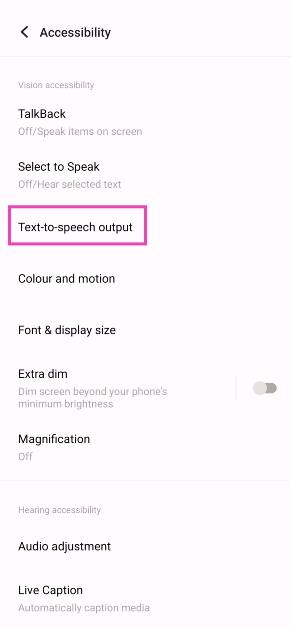
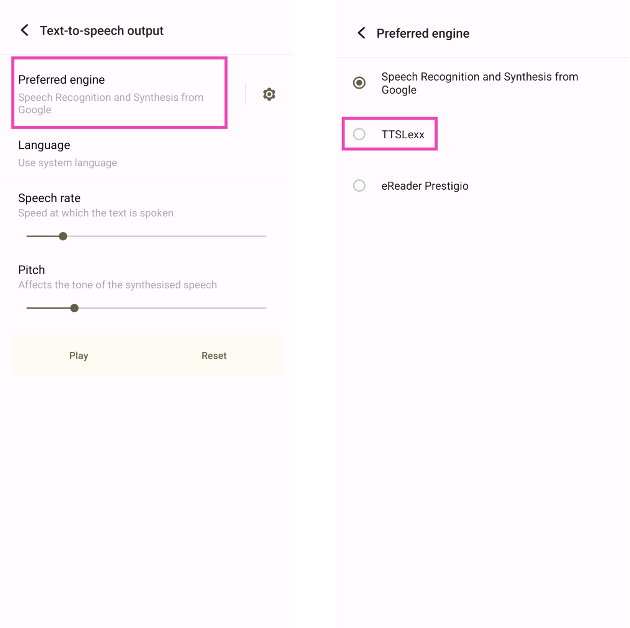
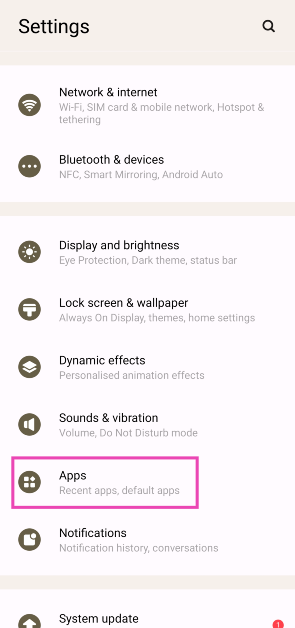
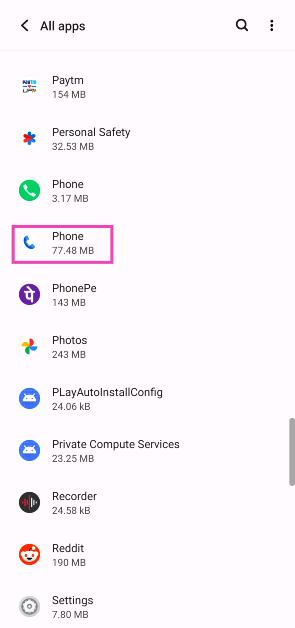
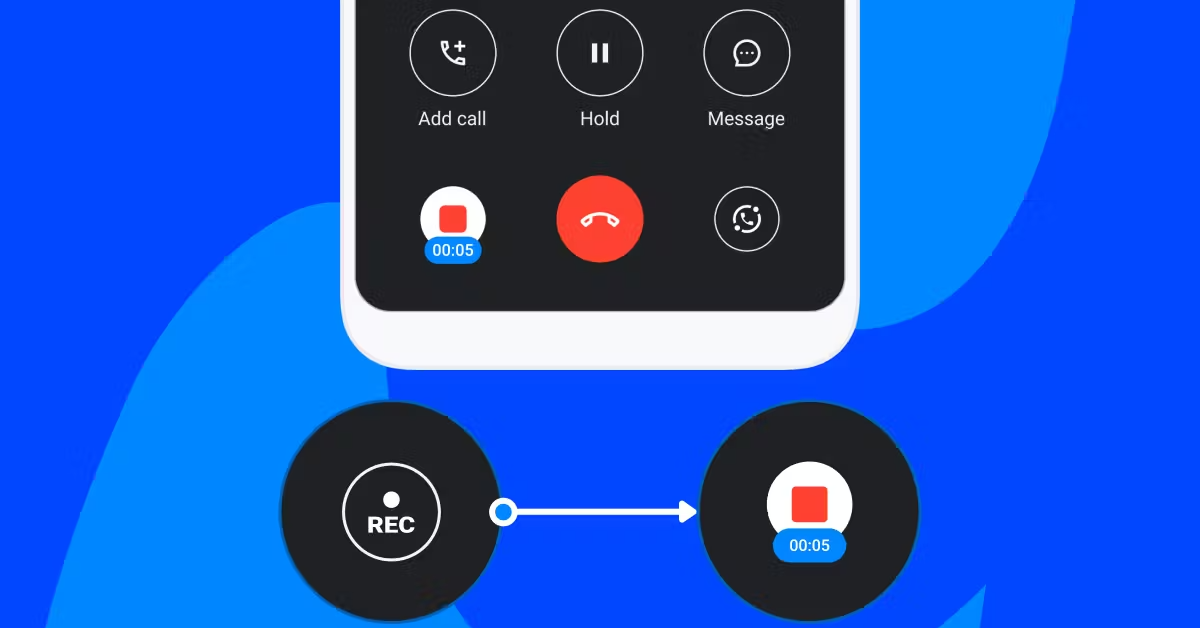
Use the OEM’s dialer app to record calls without warning or announcement on Android

Certain smartphone manufacturers like Oppo, OnePlus, iQOO, and Vivo provide their own phone dialer app alongside the one from Google. Since the call recording warning is only announced on Google’s Phone app, you can use the native one to skip them. Once you launch the auto dialer app, set it as the default phone app. When the call is connected, hit the record button.

Use TrueCaller to disable call recording warning or announcement

Use TrueCaller to disable call recording warning or announcement TrueCaller offers a call recording feature that doesn’t place a warning when you hit ‘Record’. Here’s how you can use it. Step 1: Launch TrueCaller on your device. Step 2: Go to Settings and turn on the toggle switch for Call Recording. Step 3: Initiate and call and wait for the receiver to pick it up. Step 4: Hit the Record button. The caller will be put on hold for 3 seconds, after which the recording will start.

Use a third-party dialer app

There are several dialer apps on the Google Play Store that can record your calls without notifying the person on the other line. Drupe is one of the best dialers around for this task. Here’s how you can use it. Step 1: Download and install drupe from the Google Play Store. Step 2: Make drupe your default phone app. Step 2: Make drupe your default phone app. Step 3: Launch the dialer and give it the necessary permissions. Step 3: Launch the dialer and give it the necessary permissions. Step 4: Go to drupe’s settings and select Call Screen. Step 4: Go to drupe’s settings and select Call Screen. Top 7 Ways to Record Calls Without Warning or Announcement on Android Step 5: Turn on the toggle switch for Enable Call Recording. Step 5: Turn on the toggle switch for Enable Call Recording. Top 7 Ways to Record Calls Without Warning or Announcement on Android Step 6: Dial a number and wait for the receiver to pick up the call. Step 7: Hit the Record button.

Use a third-party app to record WhatsApp calls on your Android phone

All the methods we’ve mentioned so far only work for cellular calling. But what if you want to record a call on WhatsApp? You’re going to need a dedicated call recording app. Cube ACR is one such app. Here’s how you can use it.  Step 1: Install the Cube ACR app from the Google Play Store. Step 2: Launch the app and give it the necessary permissions. Step 2: Launch the app and give it the necessary permissions. Top 7 Ways to Record Calls Without Warning or Announcement on Android Step 3: You will be prompted to install the Cube ACR Helper app. Hit Install Helper. Step 4: Give the Cube ACR Helper app the necessary permissions. Top 7 Ways to Record Calls Without Warning or Announcement on Android Step 4: Give the Cube ACR Helper app the necessary permissions. Step 5: Once the app has been set up, Cube ACR will automatically record all your calls as soon as the other person picks up. The recordings can be viewed within the app.

Record your phone’s screen

Your phone’s native screen recorder can also record your calls. It does not place any recording announcement or warning. Since the screen recorder is able to draw audio from your device, it can easily record any call. Select its tile from the Quick Start Menu and make sure it is recording your device’s screen. Now, place the call you want to record. Once you’re done, hit the ‘Stop’ button.

Use another phone

If these methods don’t work for you, simply put your call on loudspeaker and use another phone to record it. This rudimentary method is perfect for when the native dialer app on your phone does not have a call recording feature and you don’t want to install a third-party app. The quality of the recording will not be as good as the other ones, but it will be passable.

Frequently Asked Questions (FAQs)

How do I disable call recording announcements on Android?

Use your smartphone’s native dialer app instead of Google Phone to disable the call recording warning announcement on Android. A third-party dialer like druke works as well.

How do I record a WhatsApp call on my Android phone?

WhatsApp calls can be recorded by using a dedicated call recording app like Cube ACR. This app works for other IM apps as well.

Where can I find my call recordings?

Use the File Manager to find all your recorded calls in the ‘Call Recordings’ folder in your phone’s internal storage. Some OEMs may have the option to access them within the Phone app itself. Read Also: Poco C65 Review: Does it check all the boxes?

Conclusion

These are the top 7 ways to record calls on your Android phone without a warning or announcement. Once you’ve recorded a call, you can use an online tool to remove the background noise on the recording and even generate its transcript. If you know any other way to remove the warning message while recording a call, let us know in the comments!

Top 2 Ways to Embed Google Photos into Your Website and Emails

0
Google Photos is a great tool to store and back up your images across all your devices. If you use one account for Google Photos, you can access all your pictures anywhere. You can share an album with other people, lock sensitive images, and archive old media. If someone wants to see photos from a particular event, you can easily share a link to the album with them. Strangely enough, Google Photos does not offer the option to embed images and albums into your website and emails. But we know a couple of tricks you can use to get around this issue. Read along to find out. Read Also: Poco C65 Review: Does it check all the boxes?

Why you should consider embedding pictures instead of attaching them

If you want your email or website to keep the attention of the reader, eye-catching images are what you need. Of course, you can always attach an image with your email, but the reader likely won’t go back and forth between the images and the body of the email while reading it. A much better idea is to embed the images in the relevant parts of the email. For example, if your email is regarding an event, you can post its flyer in the middle of the text, so the reader gets a visual grasp on the topic at hand. To increase the readability of your email, make sure the dimensions of the image are appropriate and do not require scrolling the page. If your image exceeds the file limit imposed by Gmail, you can always compress it to a smaller size. Adding a caption and alt text to the image goes a long way too. In case the reader isn’t able to load the image, the alt text will do a good job of relaying the nature of the picture.

Embed a Google Photos album on your website

Step 1: Go to Google Photos on your PC and select the album that you want to embed. Step 2: Hit the share icon at the top of the screen. Step 2: Hit the share icon at the top of the screen. Step 3: Click on Create Link. Step 3: Click on Create Link. Step 4: Copy the generated link.   Step 4: Copy the generated link. Step 5: Generate an embed code for the album using an online tool. Step 6: If you want, you can make changes to the dimensions of the images and the way the images are displayed on the album. Step 7: Copy the embed code. Step 7: Copy the embed code. Step 8: Now, go to your website/blog’s dashboard and click on Add media. Step 9: Click on Insert Embed Code. Step 10: Click on Insert Into Post.

Embed Google Photos in your email

Step 1: Log into your Gmail account and click on Compose. Step 1: Log into your Gmail account and click on Compose. Top 2 Ways to Embed Google Photos into Your Website and Emails online Step 2: Click on the Photos icon in the compose window. Step 2: Click on the Photos icon in the compose window. Top 2 Ways to Embed Google Photos into Your Website and Emails online Step 3: Select the photos that you want to embed. Step 4: Select Inline. Step 3: Select the photos that you want to embed. Top 2 Ways to Embed Google Photos into Your Website and Emails online Step 5: Click on Insert.

Frequently Asked Questions (FAQs)

How do I embed Google Photos into my website?

Copy the link to the photo/album, generate its embed code, and paste the HTML link into your website to embed the media.

Is it possible to embed a picture into my email?

Gmail users can embed pictures from their Google Photos account into their email. Simply click on the photos icon in the email composition window and select the picture from Google Photos’ library. Instead of ‘Add as an attachment’ click on ‘Inline’ to embed them.

I can’t embed pictures into my email due to the file size limit. What should I do?

Compress your images to an acceptable size using an online tool and try embedding them again. Read Also: 5 Ways to Scan QR Codes with Google (2024)

Conclusion

These are the top 2 ways to embed Google Photos into your website and emails. Embedding images into your emails is great if the picture is relevant to the text next to it. It works best for referential purposes. However, if you simply want to send someone a picture, you should send it as an attachment. If you know any other way to embed images into your website and emails, let us know in the comments!

Nothing announced massive up to Rs 10,000 discount on Phone 2: Additional discounts

Key highlights
  • Nothing Phone 2 was launched last year at a starting price of Rs 44,999.
  • The device will be discounted during the upcoming Flipkart Republic Day Sale.
  • In addition to this, the CMF Power 5W GaN charger will also be sold at a discounted price.
Just ahead of Flipkart’s Republic Day Sale, Nothing has announced great offers on Phone 2. The company will be offering up to Rs 1,000 off on its latest smartphone. In addition to this, the firm has also revealed additional offers, including a bank discount on the purchase of the device. Flipkart will kick off the Republic Day Sale on January 14. During the sale period, major smartphone brands will be offering exciting deals on their products. Just before the annual sale begins, Nothing has revealed deals and discount offers for Flipkart customers on Nothing Phone 2, which can only be availed of during the sale period. The company announced Nothing Phone 2 in India last year in July. It was made available in three RAM and storage configurations. The company will be offering up to Rs 10,000 off on all its products during the upcoming Flipkart Republic Day sale. According to the company, 12GB of RAM with a 256GB storage option will be available for just Rs 34,999. As of now, the device is listed at Rs 44,999 on the e-commerce platform. The offer price will be available only during the sale. Also Read: Oppo Reno 11 Series with HyperTone Image Engine launched in India Similarly, other variants are also expected to get a temporary price cut. Aside from this, the CMF Power 5W GaN charger, which was launched at Rs 2,999, will be offered at a discounted price of Rs 1,999 during the annual sale. Additionally, the company has also announced an additional bank offer to entice customers. There will be up to Rs 2,000 off if the purchase is made using ICICI bank cards. Moreover, Nothing will also offer an extra exchange discount of up to Rs 3,000. Also Read: Samsung now offering a Rs 2,000 discount on Galaxy A05s Note that the Nothing Phone 2, launched in July last year, received a price cut in December. The price of the phone has been reduced by Rs 5,000. The 8GB RAM with 128GB storage variant was launched at Rs 44,999 and is currently listed at Rs 39,999 after a price cut. Similarly, the 12GB RAM with 256GB storage and the 12GB RAM with 512GB storage options are available at Rs 44,999 and Rs 49,999, respectively. Both variants were earlier introduced at Rs 49,999 and Rs 54,999, respectively.

Garena Free Fire Redeem Codes Today 13 January 2024: Here is how to claim them

Garena Free Fire is a battle royale game with regular awards and tournaments to keep players interested. If you play Garena Free Fire, you should be aware of the redeem codes that are released on a daily basis. However, because the battle royale game is banned in India, players from other countries can use the Free Fire Redeem codes daily. If you’re unfamiliar with the Garena Free Fire redeem codes or don’t know how to get them, we’ve put together a step-by-step guide to help you redeem them. Check out Garena Free Fire Redeem Codes for 13 January 2024. The Free Fire redeem codes are a great way to get free stuff. These are 12-digit codes that contain alphabets and numbers, as well as an expiration date and time. Because the Garena FF redeem codes cannot be used more than once, you should hurry to the redemption page to claim your free reward before someone else does. To get a free reward, all you have to do is go to reward.ff.garena.com/en, which is the official redemption page. Also, keep an eye on this space for daily updates on Garena Free Fire redemption codes and rewards.

Garena Free Fire Redeem Codes Today 13 January 2024

YXY3EGTLHGJX FF11DAKX4WHV WLSGJXS5KFYR FF11NJN5YS3E ZRJAPH294KV5 Y6ACLK7KUD1N W0JJAFV3TU5E MCPTFNXZF4TA FF11HHGCGK3B FF11WFNPP956 FF10GCGXRNHY 8F3QZKNTLWBZ FF10617KGUF9 FF119MB3PFA5 X99TK56XDJ4X B3G7A22TWDR7X 4ST1ZTBE2RP9 J3ZKQ57Z2P2P 8F3QZKNTLWBZ WEYVGQC3CT8 ZYPPXWRWIAHD SARG886AV5GR FF1164XNJZ2V B6IYCTNH4PV3 X99TK56XDJ4X 3IBBMSL7AK8G FF7MUY4ME6SC GCNVA2PDRGRZ

How to Get Free Fire Redeem Codes for Garena on 13 January 2024?

  • Visit the Garena Free Fire game’s official website at reward.ff.garena.com.
  • Use your Facebook, Google, VK, Apple ID, Huawei ID, or Twitter account to log in.
  • You’ll be taken to a valid redemption code (s)
  • Copy and paste the 12-digit redemption code into the text box.
  • On the screen, a dialogue box will appear.
  • ‘Ok’ should be selected.
For the latest gadget and tech news, and gadget reviews, follow us on TwitterFacebook and Instagram. For newest tech & gadget videos subscribe to our YouTube Channel. You can also stay up to date using the Gadget Bridge Android App. You can find the latest car and bike news here.

[Working] Top 2 ways to copy and merge YouTube playlists? (2024)

0
Have you ever come across a YouTube playlist and felt that it was missing some good tunes? Or maybe you were going through a lecture series and noticed it didn’t cover some essential topics. Since not everyone can add to a playlist, the only way to make it comprehensive is by copying its content to a new playlist created by you and then adding new videos to it. Earlier, YouTube used to have a very handy feature to copy a playlist Strangely enough, that option is no longer available. But there are still a couple of workarounds that will help you accomplish this task. Here are the top 2 ways to copy and merge YouTube playlists. Read Also: Oppo Reno 11, Oppo Reno 11 Pro India launch today: Expected pricing and specs

Which method should you use?

Let’s be honest, if you’re looking up a playlist on YouTube, it is most likely a music one. The platform pre-dates streaming services like Spotify and Apple Music, which means there are an endless number of playlists to browse through. If you want to transfer an existing music playlist to your account, use YouTube Music. If you’re a YouTube Premium subscriber, this method is even more suited to you. There are a couple of online tools you can use for this task as well. But it involves giving the third-party tool access to your Google account. If you’re not cool with that, stick to the first method. However, a third-party tool makes it easy to merge playlists and select the content you want. Check out both the methods down below and see which one you like more!

Use the YouTube Music hack to copy and merge YouTube playlists

Step 1: Open the YouTube Playlist that you want to copy or merge. Step 2: Click the address bar and swap out ‘www’ for ‘music’. For example, if the URL of the playlist is www.youtube.com/abc, change it to music.youtube.com/abc. Step 2: Click the address bar and swap out ‘www’ for ‘music’. For example, if the URL of the playlist is www.youtube.com/abc, change it to music.youtube.com/abc. Step 3: The playlist will open in YouTube Music. Step 4: Hit the ellipses. Step 4: Hit the ellipses. Step 5: Select Save to playlist. Step 5: Select Save to playlist. Step 6: Make a new playlist if you want to copy the contents or the current playlist. If you want to merge it with another playlist, select it from the list. Step 6: Make a new playlist if you want to copy the contents or the current playlist. If you want to merge it with another playlist, select it from the list.

Use an online tool to copy and merge YouTube playlists

Step 1: Go to the YouTube Playlist Copier tool by Digital Inspiration. Step 2: Login using your Google account. Step 2: Login using your Google account. Step 3: Enter the URL of the playlist you wish to copy. Step 3: Enter the URL of the playlist you wish to copy. multiselect for youtube Step 4: Click on Fetch YouTube Playlist. Step 5: Select Create a new playlist to copy the contents of the playlist you selected. Click on Add to an existing playlist to merge it. Step 5: Select Create a new playlist to copy the contents of the playlist you selected. Click on Add to an existing playlist to merge it. multiselect for youtube Step 6: Hit the checkbox next to the videos you do not want to merge or copy. Step 6: Hit the checkbox next to the videos you do not want to merge or copy. multiselect for youtube Step 7: Select Create Playlist/Copy Playlist. Step 7: Select Create Playlist/Copy Playlist. Step 8: Sign out when you’re done.

Frequently Asked Questions (FAQs)

Is there a way to copy and merge YouTube playlists?

You can either use an online tool to copy/merge a YouTube playlist or swap the ‘www’ in its URL with ‘music’. This will open the playlist in YouTube Music where it can be added to a new or existing playlist.

How do I add collaborators to my playlist on YouTube?

To add collaborators to a playlist, hit the ellipses next to it and select Edit. Turn on the toggle switch for ‘Collaborators can add videos to this playlist’. Now copy the link in the dialogue box and share it with the collaborators.

How do I transfer my Spotify playlist to YouTube Music?

Use a third-party tool like Tune My Music to transfer your Spotify playlists to YouTube Music. Read this article to learn the step-by-step process. Read Also: CES 2024: Intel 14th Gen mobile processors including the new HX-Series for Gaming announced

Conclusion

These are the top 2 ways to copy and merge YouTube playlists. If you face any trouble loading the playlist in the merging tool, copy its URL using the share button and not the address box on the browser. Refresh the page and try again. If you know any other way to carry out this task, let us know in the comments!

Oppo Reno 11 Series with HyperTone Image Engine launched in India

Key Highlights
  • In India, Oppo Reno 11 Series is powered by Mediatek processors.
  • The series includes two smartphones, the Oppo Reno 11 Pro 5G and the Reno 11 5G.
  • Both the phones come pre-installed with ColorOS 14.
Oppo has officially unveiled its new camera smartphone series, the Oppo Reno 11 Series, in India today. The company has introduced the Oppo Reno 11 Pro 5G and Reno 11 5G. Unlike its Chinese equivalent, the Indian model of the Reno 11 comes with a MediaTek Dimensity 7050 SoC. Whereas, MediaTek Dimensity 8200 SoC powers the Pro model. A 5,000mAh battery is packed inside the vanilla model, and a 4,600mAh battery is equipped by the Pro model in India. In addition to this, both phones feature a 6.7-inch AMOLED display with a 120Hz dynamic refresh rate.

Oppo Reno 11 Series price in India, sale details

The price of the Oppo Reno 11 Pro 5G is set at Rs 39,999 for the 12GB RAM with 256GB storage option. Whereas the Oppo Reno 11 5G will come with a price tag of Rs 29,999 for the 8GB RAM with 128GB storage option and Rs 31,999 for the 12GB RAM with 256GB storage option. The vanilla variant will be available in two colour options:  Pearl White and Rock Grey. On the other hand, the Pro Varaint is being offered in Rock Grey and Wave Green colour options. Also Read: Samsung now offering a Rs 2,000 discount on Galaxy A05s Customers can avail of the following offers on the first sale of the OPPO Reno11 Pro 5G:
  • Customers can enjoy a cashback of up to INR 4,000 on Flipkart, OPPO e-Store, and mainline retailers with leading bank cards like SBI Cards, ICICI Bank, One Card, IDFC First Bank, and Bank of Baroda credit cards, coupled with no-cost EMI for up to 9 months.
  • Customers will have the option to decide on an EMI installment and tenure at their convenience.
  • Additionally, customers can enjoy the benefits of zero-down payment and low-down payment schemes from leading financiers like Bajaj Finserv, TVS Credit, Home Credit, HDB Financial Services, and IDFC First Bank.
  • Loyal OPPO customers can avail of an exchange and loyalty bonus of up to INR 4,000 online and offline.
  • Customers can opt to pay through UPI and avail of an instant 7.5% cashback on the purchase of Reno11 Pro 5G.
  • Buy the Reno11 Pro 5G and get the OPPO Enco Air2 Pro for just INR 2,999.
The Reno 11 Pro 5G is scheduled to go on sale in India on January 18. Whereas the Reno 11 5G will be available for purchase on January 25. The devices will be available on Flipkart, the OPPO e-Store, and across mainline retail outlets.
Oppo Reno 11 Pro specifications
Oppo Reno 11 Pro

Oppo Reno 11 Pro specifications

Oppo Reno 11 Pro features a 6.74-inch 1.5K OLED curved display with 1,240×2,772 pixels of resolution. The device supports up to 120 Hz refresh rate, up to 240 Hz touch sampling rate, 450 ppi pixel density, and 1,600 nits of peak brightness. It operates on Android 14-based ColorOS 14. The device is powered by an octa-core MediaTek Dimensity 8200 SoC with LPDDR5x RAM and UFS 3.1 storage. Also Read: CES 2024: Intel 14th Gen mobile processors including the new HX-Series for Gaming announced The Oppo Reno 11 Pro comes with a 32-megapixel RGBW Sony IMX709 front-facing camera for selfies. There is a triple rear camera setup, which includes a 50-megapixel primary Sony IMX890 sensor with OIS, a 32-megapixel telephoto lens, and an 8-megapixel ultra-wide camera. The Reno 11 Series features OPPO’s cutting-edge HyperTone Image Engine, which uses deep pixel fusion to process lossless photos in the RAW domain. As a result, images are rendered with sharp details, accurate colours, and an extended dynamic range for a perfect balance between light and shadows. The smartphone sports a 4,600mAh battery with 80W SuperVOOC support. The handset includes 5G, 4G LTE, Wi-Fi 6, Bluetooth 5.3, GPS/A-GPS, NFC, OTG, and a USB Type-C port for connectivity. Also, there is an under-display fingerprint sensor and other sensors, including an accelerometer, geomagnetic sensor, light sensor, under-screen proximity sensor, gravity sensor, colour temperature sensor, IR control, and gyroscope.
Oppo Reno 11 specifications
Oppo Reno 11

Oppo Reno 11 specifications

The Oppo Reno 11 comes with a 6.70-inch OLED curved display with 1,080×2,412 pixels of resolution. The screen supports an adaptive refresh rate (1Hz to 120Hz), 394 ppi pixel density, and 950 nits peak brightness. Under the hood, there is a MediaTek Dimensity 7050 SoC with LPDDR5x RAM and UFS 4.0 storage. The device features a triple rear camera setup that includes a 50-megapixel Sony LYT600 sensor (26mm focal length and OIS), a 32-megapixel telephoto lens, and an 8-megapixel ultra-wide camera. The Oppo Reno 11 is backed by a 5,000mAh battery that comes with 67W SuperVOOC support.

Poco C65 Review: Does it check all the boxes?

Poco’s affordable C Series got a new addition to its lineup last year. The Poco C65 made its India debut last month at a starting price of Rs 8,499 (4GB RAM + 128GB storage). The 6GB RAM + 128GB storage variant costs Rs 9,499 while the 8GB RAM + 256GB storage variant fetches Rs 10,999. These prices place the smartphone very close to the M6 5G (which we reviewed earlier) in Poco’s India catalogue. If you’re thinking the Poco C65 looks similar to the Redmi 13C, you’d be correct. The C65 is essentially a rebadged version of its Redmi counterpart. We used the smartphone for a week and put it through rigorous testing. Check out our Poco C65 review to see how it fared. Read Also: CES 2024: Intel 14th Gen mobile processors including the new HX-Series for Gaming announced

Poco C65 review: Design and Display

Inside the signature yellow Poco box, you get the smartphone, a 10W power adapter, a USB Type-C charging cable, a SIM ejector tool, and a quick start guide. There is no plastic cover for the smartphone inside the retail package neither does it come with a protective covering for the screen. The smartphone is available in two colour variants – Pastel Blue and Matte Black. Poco C65 review: Design and Display Poco has stuck to the wide form factor on the C65. Its back panel and frame are made entirely out of plastic, which is pretty much the norm in this price segment. We are pretty happy with the quality of materials used on the smartphone. The plastic back panel does not feel flimsy, which often is the case with a lot of budget phones. It has a matte finish to it and does not attract any fingerprints or smudges. The top section of the back panel gets a glossy finish and houses the camera cutouts. camera cutouts The two camera cutouts contain three rear lenses. The primary shooter is placed in the upper housing while the auxiliary lens and macro sensor are positioned in the bottom unit. A small LED flash is placed on the right side of the cutouts and further along the right, you will find the Poco branding. Poco C65 review: Design and Display The right side of the plastic frame houses the volume rocker keys and the side button. The side button also doubles up as a fingerprint scanner. The bottom edge gets the microphone, USB port, and the speaker grille. The hybrid SIM slot is positioned on the left edge of the frame, which is otherwise keyless. Up top, you get the 3.5mm headphone jack. No stereo speaker or IR blaster for the C65. The selfie camera on the display is housed in a waterdrop notch. display The 6.74-inch IPS LCD is one of the biggest highlights of this smartphone. This 90Hz display is great for content watching. The smartphone’s wide form factor makes it even more pleasant to watch videos on it. With Widevine L1 support, you can access HD content across most major streaming platforms. The 720 x 1660p resolution of the display is optimum in this price range and it does justice to the HD content that is played on it. We were satisfied with the viewing angles as well. The images produced on the screen were contrasty, vivid, and packed with a good amount of detail.

Poco C65 review: Performance and Cameras

Powering this nifty little device is the MediaTek Helio G85 SoC. We aren’t big fans of the Helio chipsets, but they find their way into a lot of budget and entry-level smartphones. The Helio G85 is a three-year-old processor which does not support 5G connectivity. And there lies our biggest issue with the smartphone. For lightning-fast internet connectivity, Poco’s M6 smartphones make a much better option, albeit costing a small premium. Poco C65 review: Performance and Cameras The general performance of the Poco C65 is well above average. The display provides a decent touch response, making browsing through apps and switching between tasks effortless and breezy. 600 nits of peak brightness fares well outdoors, even under direct sunlight. During the review period, we used the Poco C65 to check emails, attend video calls and meetings, browse the web, play videos across different streaming platforms, navigation, instant messaging, and even a bit of gaming. We were pleased to see that the smartphone handled these tasks pretty well. In the Geekbench 6 benchmark test, the C65 returned a single-core score of 436 points and a multi-core score of 1,387 points. geekbench We played Free Fire Max and Call of Duty Mobile on the Poco C65. The gameplay lacked fluidity and the touch response was less than ideal. The single speaker on the smartphone isn’t able to replicate the proper audio needed to elevate the gaming experience either. While holding the phone in landscape orientation, it is pretty easy to muffle the speaker grille with the palm. The phone did not overheat even after 40 minutes of gameplay, but it must be noted that we were testing the device in the thick of the winter season. home page OS duties on the Poco C65 are handled by Android 13-based MIUI 14. Xiaomi’s OS skin for Poco looks pretty neat on the device. We like the categorisation of the app drawer into different genres, the colour-coded app arrangement, and the range of home screen customisations. Our favourite part of using this OS is the seamless way in which it executes the hidden folder feature. To access all your hidden apps, all you need to do is swipe right twice on the app drawer and enter the password. The only downside of this OS is the tremendous volume of bloatware it ships with. We highly recommend taking the time to delete every bloatware app from the device and managing the pesky notifications. The 5,000 mAh battery pack easily powers the smartphone for an entire day. We were even able to push the battery backup to a day and a half with more conservative usage. Using the device as our daily driver, we were clocking a daily Screen On Time of 5-6 hours on the Poco C65 during the review period. The smartphone supports 18W fast charging but ships with a 10W power adapter, which is weird. This 10W adapter takes 2 hours and 30 minutes to fully charge the device. Spending some extra cash on an 18W adapter would make your experience much better. Poco C65 review: Performance and Cameras In terms of camera performance, the Poco C65 puts up a decent display. The primary 50MP shooter takes good shots in outdoor daylight conditions. The colours are tuned nicely although they don’t truly ‘pop’. The contrast and HDR on the pictures is satisfactory as well. We took a couple of shots indoors and were happy with the results. The camera does a good job of lighting up the subject and capturing all the important details. However, when you zoom in by 2x, the lack of details and ‘softness’ in the final images becomes discernible. camera
indoor shot
Indoor Shot
We took some shots in limited lighting with the Night Mode turned on and were satisfied with the result. This is not to say that the pictures were ideal by any means, but for a smartphone priced under Rs 10,000, the Poco C65 did well to manage the grain in the images. The pictures still had some softness to them, but the biggest compliment we can give to the camera is that you won’t completely ignore it when you have to take a picture at night.
night mode
Night Mode
In Portrait Mode, the camera does a good job of separating the subject from the background. This is where the 0.08MP auxiliary lens comes into play. It gathers important data related to depth and helps the main sensor to take good portrait shots. The application of the blur effect is a little off, but the overall portrait shots were good. The 2MP macro lens, however, is something we could do without, since the final results lacked the colour richness we are used to.
portrait
Portrait Mode
The 8MP selfie camera up front takes good shots in optimum lighting. It also does a decent job on video calls. The artificial skin brightening and smoothening effects have been kept to a minimum by default, which we like. The front and rear cameras can record 1080p videos at 30fps. Read Also: Poco X6 Pro powered by MediaTek Dimensity 8300 Ultra SoC launched in India, Poco X6 tagged along

Verdict

The Poco C65 is a decent smartphone that can give you tremendous mileage as a daily driver. The Rs 8,500 price tag looks great considering the device’s physical quality, form factor, display, and camera performance. However, the biggest miss on this smartphone is the lack of 5G connectivity. If that is something you consider essential on a device, we would suggest having a look at the Poco M6 and M6 Pro 5G (check out the review here).

Poco C65: Pros

  • Wide form factor is good for watching videos
  • Good display
  • Decent camera

Poco C65: Cons

  • No 5G connectivity

7 ways to Scan QR Codes with Google

0
From online payments to restaurant menus, QR codes are everywhere. When these codes first arrived on the scene, you had to install a third-party app to read them. Now, your smartphone can perform that task natively in more ways than one. Certain apps (like PayTM, Google Pay, etc.) do not rely on your phone’s native camera app to read a payment code. These apps typically have a scanner built inside them. But what if you come across a QR code in the wild? Don’t worry, we’ve got you covered. Here are the top 7 ways to scan QR codes with Google. Read Also: Top 12 Gadgets from CES 2024

Before you begin, decide which method is best for you

There are multiple ways you can use to scan a QR code using Google on your Android smartphone. While all of these methods use Google Lens, some may be more suited to your situation than others. The most significant deciding factor is if the QR code is saved in your phone’s gallery or pasted on a physical surface. While both situations can be resolved with Google Lens, the process is slightly different. QR codes in your phone’s storage can easily be read by Google Lens. The Google Photos app has a very helpful ‘Lens’ plug-in that will help you read them. If you don’t use Google Photos as your default gallery app, the regular Google app can also help you with all things QR. If the QR code is not stored in your phone, you can scan it using Google Lens or your phone’s native camera app. If you’re working on your PC, Google Chrome offers a handy option to scan a code using Google Lens.

Scan QR Codes using Google Lens

Step 1: Launch the Google app on your Android smartphone. Step 2: Hit the lens icon next to the search bar. Step 2: Hit the lens icon next to the search bar. Step 3: Point the camera towards the QR code. Step 4: Tap the link that pops up on the screen to open it. Step 4: Tap the link that pops up on the screen to open it.

Use the native camera app

The native camera app on your Android smartphone is integrated with Google Lens support. Here’s how you can use it. Step 1: Launch the native camera app on your smartphone. Step 2: Hit the Google Lens icon at the top left corner of the screen. Step 2: Hit the Google Lens icon at the top left corner of the screen. Step 3: Point the camera towards the QR code. Step 4: Tap the link that pops up on the screen to open it. Step 4: Tap on the link that pops up to open it.

Use the ‘Scan’ tile in the Quick Settings Menu

Step 1: Swipe down from the status bar to reveal the Quick Settings Menu. Step 2: Tap the ‘Scan’ tile. On some phones, this tile may be called ‘QR Scan’. Step 2: Tap the ‘Scan’ tile. On some phones, this tile may be called ‘QR Scan’. Step 3: Google Lens will launch on your phone. Point the camera towards the QR code you wish to scan. Step 4: Tap the link that pops up on the screen to open it. Step 4: Tap the link that pops up on the screen to open it. Read Also: How to connect an iPhone or Android phone to a Mercedes vehicle?

Scan an image saved in your phone’s gallery using Google Lens

Step 1: Launch the Google app on your Android smartphone. Step 2: Hit the lens icon next to the search bar. Step 2: Hit the lens icon next to the search bar. Step 3: Tap on the image preview icon at the bottom left section of the screen. Step 3: Tap on the image preview icon at the bottom left section of the screen. Step 4: This will open your phone’s gallery. Select the image containing the QR code. Step 4: This will open your phone’s gallery. Select the image containing the QR code. Step 5: Google Lens will scan the QR code and present the result. Step 5: Google Lens will scan the QR code and present the result.

Use the Google Photos app to scan a QR Code in your phone’s gallery

Step 1: Launch the Google Photos app on your Android smartphone. Step 2: Open the image containing the QR code. Step 3: Tap on Lens in the bottom menu. Alternatively, you can select Search from the popup toolbar. Step 3: Tap on Lens in the bottom menu. Alternatively, you can select Search from the popup toolbar. Step 4: Google Lens will scan the QR code and display the result. Step 5: Google Lens will scan the QR code and present the result.

Use Google Lens on your PC

Step 1: Make sure the QR code is saved as an image on your PC. Step 2: Go to Google’s homepage and click the Lens icon. Step 2: Go to Google's homepage and click the Lens icon. Step 3: Click on Upload a file and upload the QR code image from your PC’s internal storage. Step 3: Click on Upload a file and upload the QR code image from your PC's internal storage. Step 4: Google Lens will scan the code for you. Click on Website to go to the link embedded in the QR code. Step 4: Google Lens will scan the code for you. Click on Website to go to the link embedded in the QR code.
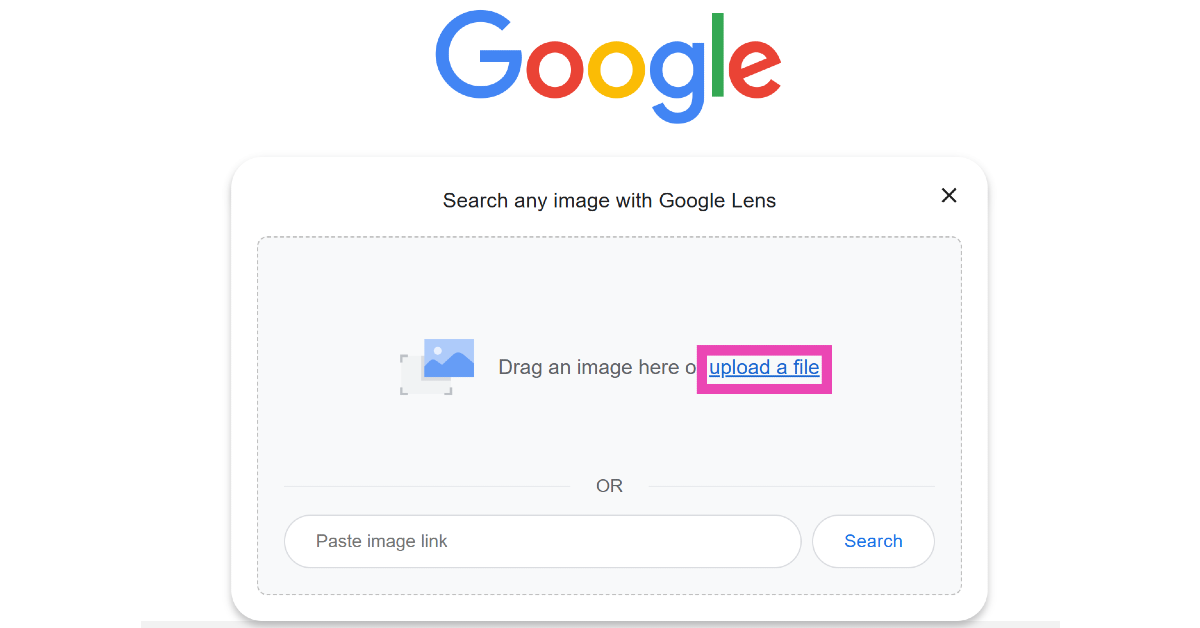
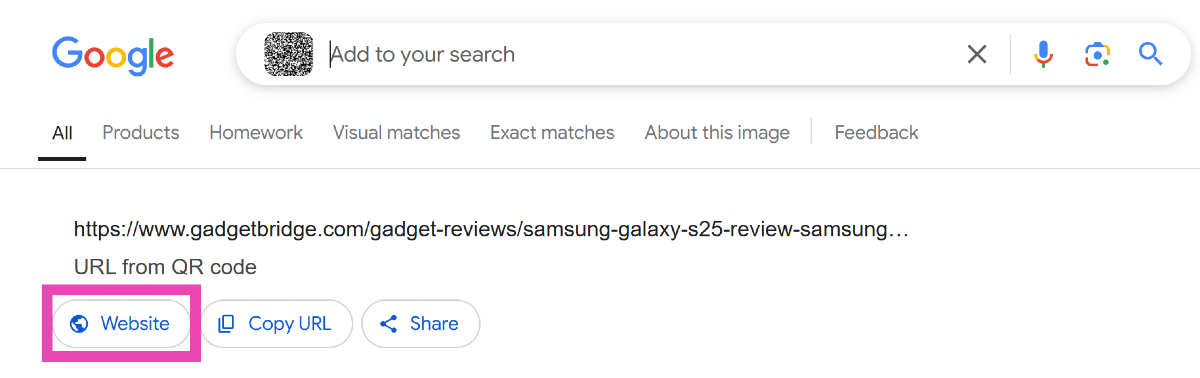
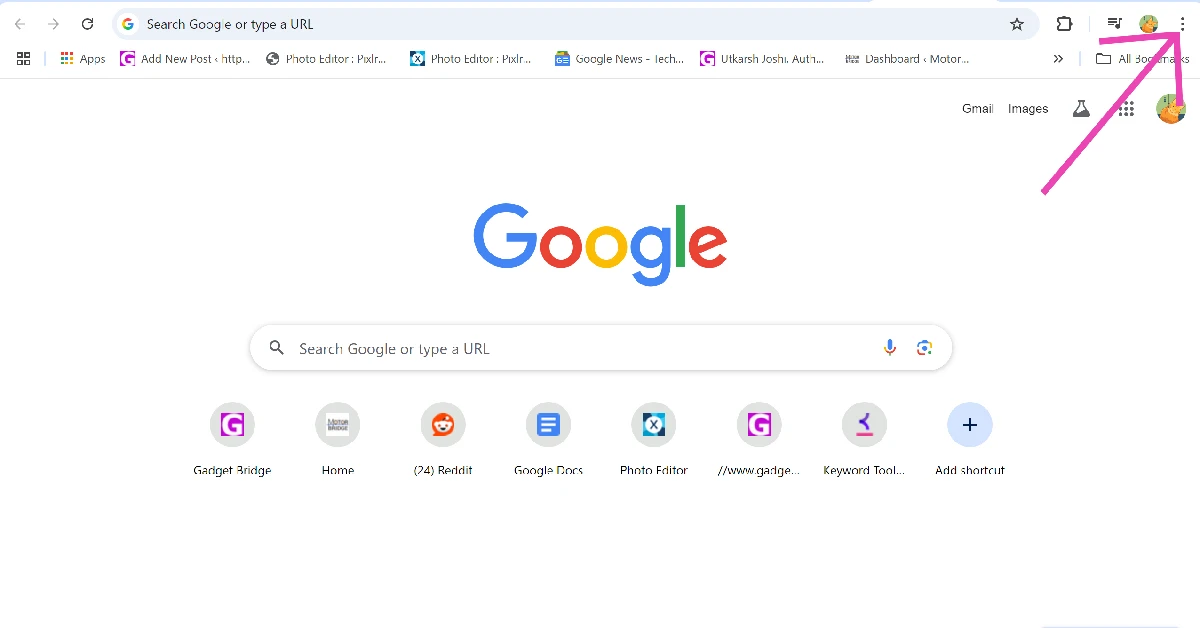
Add the Google Lens shortcut to Chrome

Step 1: Launch Google Chrome on your PC and click the ellipses at the top right corner of the screen. Step 1: Launch Google Chrome on your PC and click the ellipses at the top right corner of the screen. 6 ways to scan QR Codes on a Windows PC Step 2: Go to More Tools and select Customize Chrome. Step 2: Go to More Tools and select Customize Chrome. 6 ways to scan QR Codes on a Windows PC Step 3: Scroll down and click on Toolbar. Step 3: Scroll down and click on Toolbar. 6 ways to scan QR Codes on a Windows PC Step 4: Turn on the toggle switch next to Search with Google Lens. Step 4: Turn on the toggle switch next to Search with Google Lens. 6 ways to scan QR Codes on a Windows PC Step 5: Go the web page containing the QR code. Step 6: Click the Google Lens icon next to the address bar. Step 6: Click the Google Lens icon next to the address bar. 6 ways to scan QR Codes on a Windows PC Step 7: Use the cursor to select the QR code. Step 7: Use the cursor to select the QR code. 6 ways to scan QR Codes on a Windows PC Step 8: The data encoded in the QR code will be displayed in the sidebar. Step 8: The data encoded in the QR code will be displayed in the sidebar. 6 ways to scan QR Codes on a Windows PC
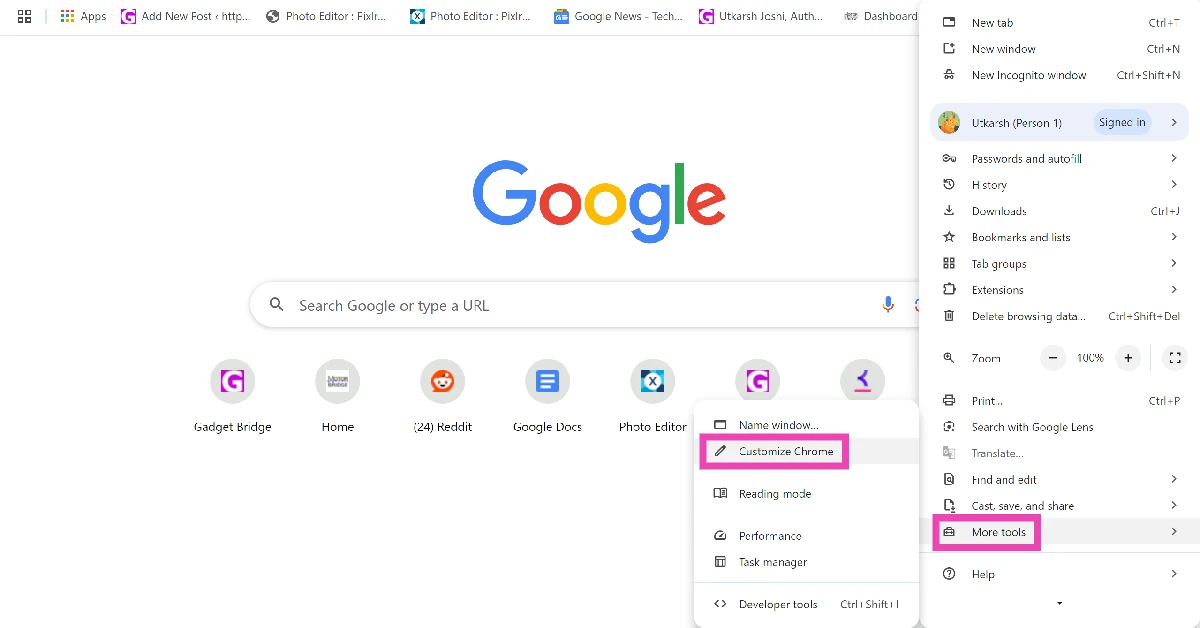
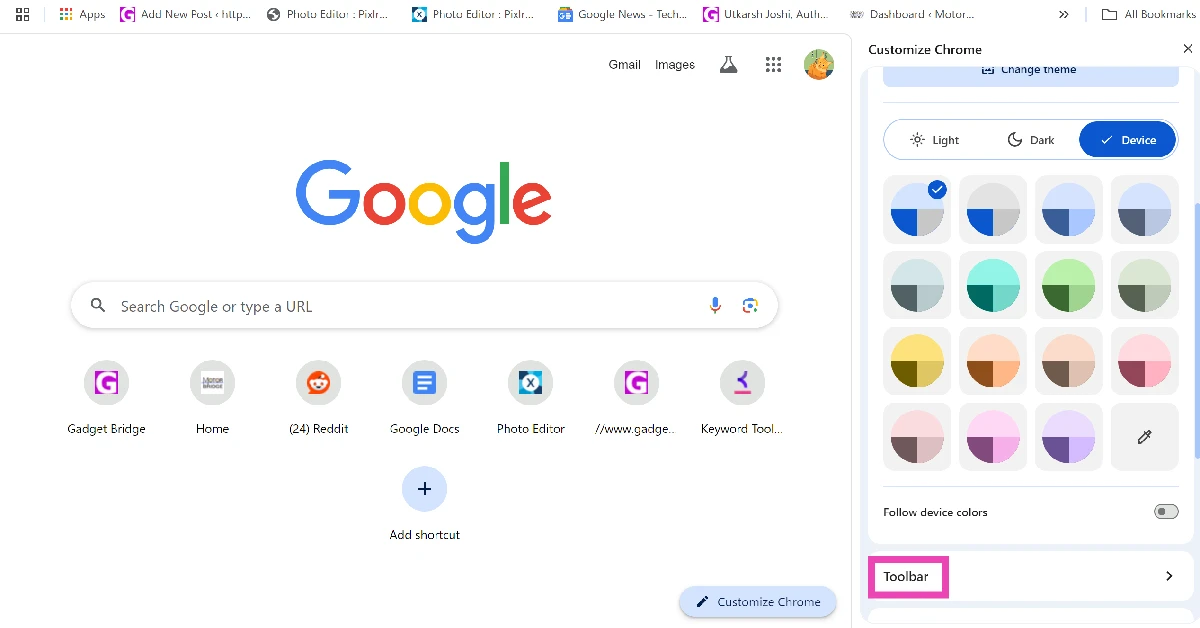
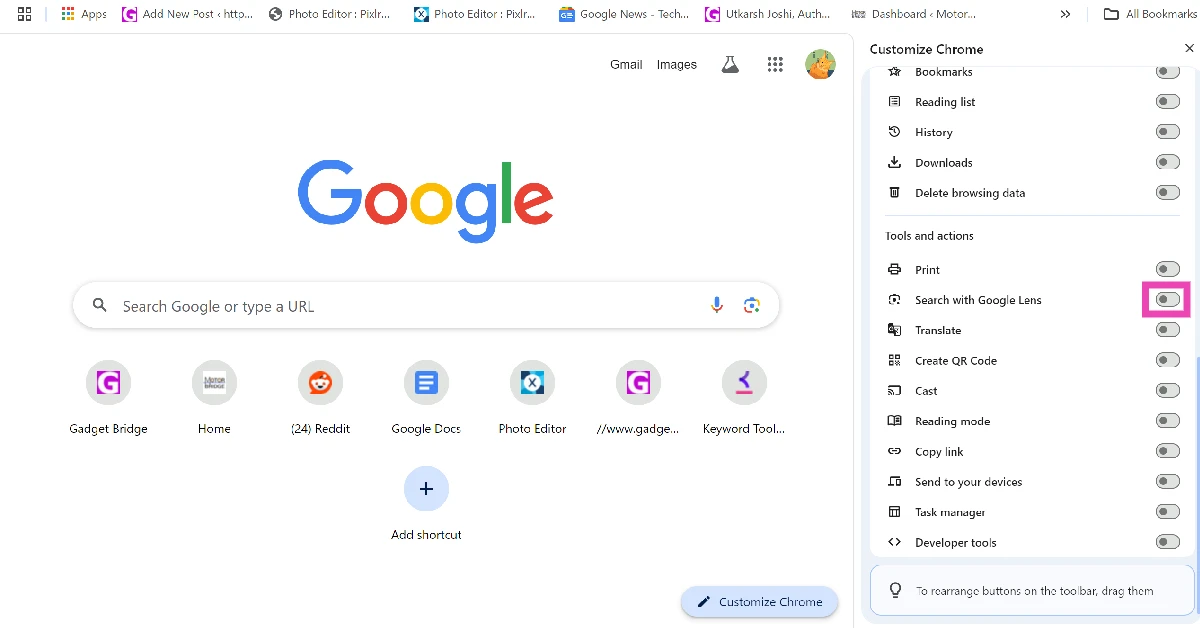
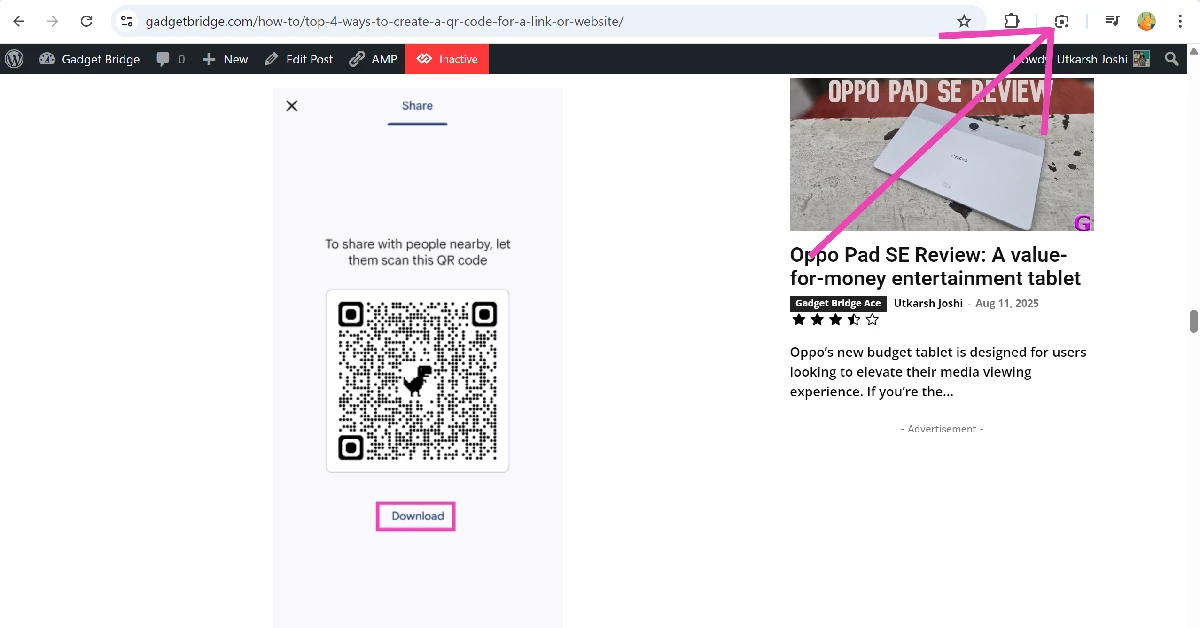
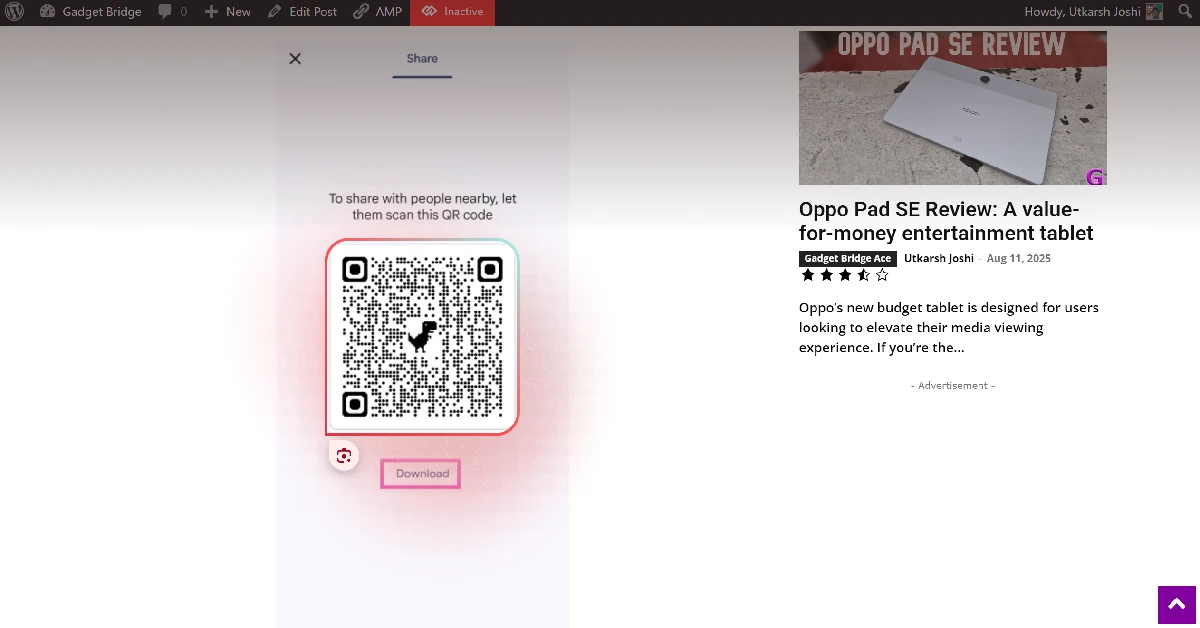
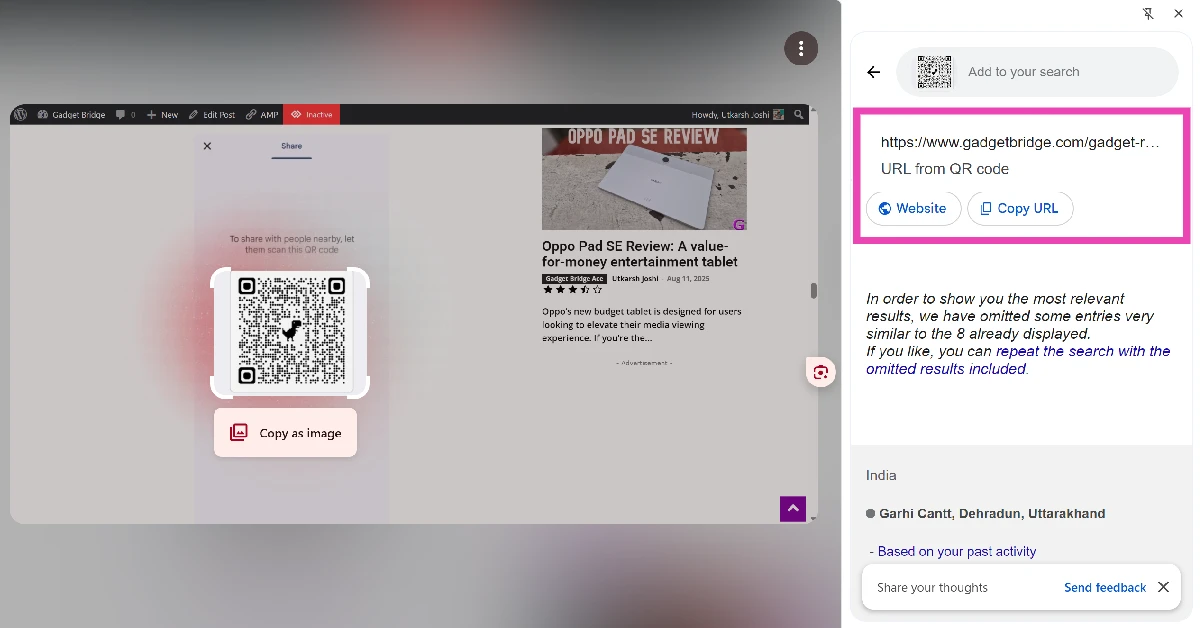
Frequently Asked Questions (FAQs)

How do I scan a QR code on my Android phone using Google?

Launch the Google app and tap the lens icon to scan any QR code. Point your camera towards the code and tap on the result that pops up on the screen.

How do I scan a QR code on my laptop?

Launch the camera app on your laptop and go to Settings>Related Settings>Try out new experimental features. Restart the camera app and switch to the ‘barcode’ tab to scan a QR code.

How do I scan a QR code stored in my phone’s gallery?

To scan a QR code that is stored in your phone’s gallery, open it in Google Photos and hit the Lens option at the bottom of the screen.

Can I scan a QR code using Google Lens on my PC?

Yes, you can use Google Lens on your PC to scan a code. Go to Google’s homepage, click the Lens icon, and upload the code from your PC’s internal memory. In the search results page, click on ‘Website’ to land on the page embedded in the code.

How do I scan a QR code using my PC or laptop’s webcam?

Launch the camera app and click the barcode icon below the shutter button. Move the QR Code in front of the camera to scan it. Read Also: How to change your Voicemail Greeting on Android? (2024)

Conclusion

These are the top 7 ways to scan QR codes on your Android smartphone using Google. If you don’t want to go the Google route, you can use third-party apps like QR Code Scanner and QR & Barcode Reader. If you know any other way to go about this task, let us know in the comments!

Samsung now offering a Rs 2,000 discount on Galaxy A05s

Key Highlights
  • Samsung has announced a limited-time Rs 2,000 instant discount on Galaxy A05s.
  • The discount is applicable to all the models.
Samsung has officially announced an exciting offer on Galaxy A05s in India. In October last year, the device was launched at a starting price of Rs 13,499. But for a limited period, the South Korean electronics giant is offering an instant discount of Rs 2,000 on all the models of the smartphone. The device is powered by a Qualcomm Snapdragon 680 SoC. It runs on Android 13 with OneUI. It also packs a 5,000mAh battery. As a special offer, customers will be able to purchase Galaxy A05s with an instant discount of Rs 2000. Originally priced at Rs 13499 for 4GB RAM with 128GB variant and Rs 14999 for 6GB RAM with 128GB variant, consumers can now own the phones for just Rs 11499 and Rs 12999, respectively. The smartphone is offered in three colour options: black, light green, and light violet. Also Read: Oppo Reno 11, Oppo Reno 11 Pro India launch today: Expected pricing and specs

Samsung Galaxy A05s specifications

The Samsung Galaxy A05s features a 6.7-inch full-HD+ PLS LCD with 1,080×2,4000 pixels of resolution. The display comes with 90-Hz refresh rate support. The smartphone is powered by an octa-core Snapdragon 680 SoC with up to 6GB of RAM and a 128GB storage option. The storage can be expanded up to 1TB using a microSD card. The device has an Adreno 610 GPU for graphics. The device comes with One UI 5.1 with Android 13 out-of-the-box. In terms of optics, the Galaxy A05s comes with a triple rear camera set up vertically at the left corner, along with a circular LED flash unit. The camera setup includes a 50-megapixel primary shooter with an f/1.8 aperture. Furthermore, the system includes a secondary 2-megapixel macro lens with an f/2.4 aperture and a tertiary 2-megapixel depth sensor with an f/2.4 aperture. For selfies, the smartphone features a 13-megapixel front-facing camera with an f/2.0 aperture housed inside a centre-aligned waterdrop notch. Also Read: CES 2024: Intel 14th Gen mobile processors including the new HX-Series for Gaming announced The Samsung Galaxy A05s is backed by a 5,000mAh battery with 25W charging support. In terms of connectivity, the phone includes a 3.5mm audio jack, 4G LTE, dual-band Wi-Fi, Bluetooth 5.1, GPS, and a USB Type-C port. Along with a fingerprint sensor, the handset also includes an accelerometer, a light sensor, and a proximity sensor.