4 best ways to restart and reset an Android TV or Google TV

When it comes to fixing a malfunction on your Android or Google TV, your choices are very limited. Most of the time, a simple restart is all it takes to fix the issue you’re facing. Other times, you may have to take extreme measures and perform a complete factory reset. You should reserve the latter for times when you’ve tried every other possible solution. If you don’t know how to go about the process, we’ve got you covered. In this article, we bring you the 4 best ways to restart and reset an Android TV or Google TV.

Read Also: JioTag launched, a less expensive alternative to Apple’s Airtag

Restart using the TV menu

Restart using the TV menu

Step 1: Use the remote to click the gear icon on your TV’s home screen. On some TVs, you may have to press the home icon.

Step 2: Scroll down and select ‘Device Preferences’.

Step 3: Click on ‘About’.

Step 4: Select ‘Restart’.

Some TVs have the Restart option in the ‘Quick Settings’ panel for easier access.

Factory Reset your Android TV or Google TV

Factory Reset your Android TV or Google TV

If restarting your TV does not fix the issue you’re facing, you can try performing a factory reset. A factory reset restores your TV’s settings to the factory default. In other words, your TV’s software will return to how it was out of the box. This means you will lose all your customised settings, apps, data, login information, wireless network settings, and more.

Step 1: Use the remote to click the gear icon on your TV’s home screen.

Step 2: Scroll down and select ‘Device Preferences’.

Step 3: Scroll down all the way to the bottom and select ‘Reset’.

Step 4: Click on ‘Factory Data Reset’.

Step 5: Select ‘Erase Everything’ and confirm your selection.

Perform a hard reset on your Android TV or Google TV

Perform a hard reset on your Android TV or Google TV

Sometimes, your Android TV can get stuck on a particular screen and refuse to function. You can try switching off the power and turning the TV back on, but if the issue still persists after that, it’s time to hard reset your TV. A hard reset is the same as a factory reset. The only difference is that you’re using physical buttons to force your device into resetting, instead of using the software. Here’s how you can go about it. This process will require two people.

Step 1: Unplug your TV’s power cord from the wall socket.

Step 2: Press and hold the power button on the TV (not the remote).

Step 3: Keep holding the power button and plug the power cord into the wall socket. This step will require another person.

Step 4: Turn on the switch and keep holding the power button until the TV’s LED light turns white. If this doesn’t happen within 30 seconds, repeat the process.

Step 5: Release the button when the LED turns white. Your TV will perform a factory reset and will reboot after some time.

For TV’s with 3 buttons, follow this process but hold the Power + Volume Down button (on the TV, not the remote) instead of just the power button. Refer to your TV’s user manual for the appropriate key combination before trying this step. You can also perform a Google search for your TV’s model to find out the key combination for a hard reset.

Perform a hard reset from Recovery Mode

Perform a hard reset from Recovery Mode

You can enter the Recovery Mode to perform a hard reset of your TV. Here’s how.

Step 1: Unplug the TV’s power cord from the wall socket.

Step 2: Press the ‘OK’ and ‘Back’ buttons on the remote and the power button on your TV simultaneously. This key combination may vary depending on the model. Refer to your TV’s user manual or perform a Google search to know the combination for your TV.

Step 3: Keep pressing the buttons and plug the power cord back into the wall socket. You will need another person for this step.

Step 4: Keep pressing the buttons for another 30 seconds. Once you enter the Recovery Mode on your TV, release the buttons.

Step 5: Use the navigation buttons on your remote to select ‘Wipe data/factory reset’.

Frequently Asked Questions

How do I factory reset my TV?

To factory reset your TV, simply click on the Quick Settings Menu and select ‘Reset’ from Device Preferences.

How long does an Android TV factory reset take?

A complete factory reset of an Android TV can take a few minutes, depending on the data stored on the device.

Do Smart TVs have factory reset?

Like your smartphone, you can perform a factory reset on your Smart TV as well. All you need to do is access the Quick Settings Menu and select ‘Reset’ from Device Preferences.

Read Also: How to transfer data from an Android to an iPhone using Apple Move?

Conclusion

These are the 4 best ways to restart and reset your Android TV or Google TV. Before you perform a factory reset on your TV, make sure your data is either backed up or synced with other devices. You will have to login into all the services again after a complete reset. You will also lose the saved WiFi password of your home network.

For the latest gadget and tech news, and gadget reviews, follow us on Twitter, Facebook and Instagram. For newest tech & gadget videos subscribe to our YouTube Channel. You can also stay up to date using the Gadget Bridge Android App. You can find the latest car and bike news here.

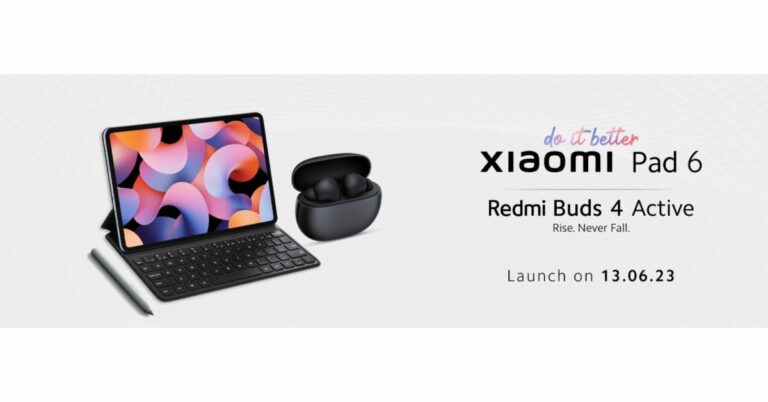
Redmi Buds 4 Active with 30 hours of battery life launched in India

Redmi Buds 4 Active has officially debuted in India today. The truly wireless stereo (TWS) earbuds have been launched alongside Xiaomi Tab 6. The audio device comes with Google Fast Pair functionality. In addition to this, there are Bass Pro drivers along with support for environmental noise cancellation.

Redmi Buds 4 Active price in India, sale details

Redmi Buds 4 Active price in India has been set at Rs 1,399. The TWS will be offered at an introductory price of Rs 1,199. The device will come in two colour options of Air White and Bass Black. It is scheduled to go on sale from June 23 via mi.com, Amazon, and Xiaomi retail stores.

Redmi Buds 4 Active price in India, sale details

Redmi Buds 4 Active TWS Earbuds specifications

12mm Bass Pro drivers are used in the Redmi Buds 4 Active TWS Earbuds to produce dynamic audio and strong bass. The touch-control capability on the earbuds also enables users to effortlessly connect to and disconnect from calls and manage music playback. The earbuds have an IPX4 grade for sweat and water resistance, making them excellent gym and outdoor companions. The Buds 4 Active also allow apps, giving customers a more customised earbud experience.

Additionally, it includes Environmental Noise Cancellation (ENC) technology and powerful microphones for distortion-free hearing even in noisy surroundings. The newest Bluetooth 5.3 technology, which offers improved connectivity, increased range, and quicker transmission speeds, is also included in the Redmi Buds 4 Active TWS Earbuds.

Additionally, it supports Google Fast Pair, which enables quick connections to all of its devices, including computers, tablets, and smartphones. As per the company, customers may easily pair their earbuds and enter the mesmerising world of sound with a one-tap setup.

Additionally, the TWS has a Low Latency Mode for incredibly precise and immersive gaming. The Buds 4 Active, according to the manufacturer, have a 30-hour battery life and fast charging capabilities that enable up to a 90-minute runtime after just a 10-minute charge.

For the latest gadget and tech news, and gadget reviews, follow us on TwitterFacebook and Instagram. For newest tech & gadget videos subscribe to our YouTube Channel. You can also stay up to date using the Gadget Bridge Android App. You can find the latest car and bike news here.
6 best ways to clear your browsing history on your iPhone or Android mobile

0

Regularly clearing the browsing history on your smartphone is the first step towards maintaining your online privacy. Almost every browser maintains a log of the websites you have visited on it. There is no centralised way of clearing your history, you will have to visit each browser individually to delete it. In this article, we bring you the 6 best ways to clear your browsing history on iPhone or Android mobile.

Read Also: Best ways to type the Peso sign ₱ on iPhone, Android, and Word

Clear browsing history on Android

Step 1: Launch your smartphone’s default web browser.

Step 2: Tap the ellipses or hamburger menu.

Step 2: Tap the ellipses or hamburger menu.

Step 3: Select Settings.

Step 3: Select Settings.

Step 4: Tap on ‘Personal browsing data’.

Step 4: Tap on ‘Personal browsing data’.

Step 5: Select ‘Delete browsing data’.

Step 5: Select ‘Delete browsing data’.

Step 6: Tap on ‘Delete data’.

Step 6: Tap on ‘Delete data’.

Clear browsing history on Chrome

Step 1: Launch Google Chrome on your smartphone.

Step 2: Tap the ellipses on the top right corner of the screen.

Step 2: Tap the ellipses on the top right corner of the screen.

Step 3: Select ‘History’.

Step 3: Select ‘History’.

Step 4: Tap the cross icon next to a website entry to delete it from your browsing history.

Step 5: To delete all of your browsing history, tap on ‘Clear browsing data’.

Step 5: To delete all of your browsing history, tap on ‘Clear browsing data’.

Step 6: Set the time range to ‘All time’ and select ‘Clear data’.

Step 6: Set the time range to ‘All time’ and select ‘Clear data’.

Clear browsing history on a Samsung device

Step 1: Go to Settings and select Apps.

Step 1: Go to Settings and select Apps.

Step 2: Select ‘Samsung app settings’.

Step 2: Select ‘Samsung app settings’.

Step 3: Select ‘Samsung Internet’.

Step 3: Select ‘Samsung Internet’. google history delete

Step 4: Tap on ‘Personal browsing data’.

Step 4: Tap on ‘Personal browsing data’. google history delete

Step 5: Select ‘Delete browsing data’.

Step 5: Select ‘Delete browsing data’. google history delete

Step 6: Tap on ‘Delete data’.

Step 6: Tap on ‘Delete data’. google history delete

Clear browsing history on DuckDuckGo

Being a privacy-centric browser, DuckDuckGo does not store your browsing history in one place. However, you can delete your data and all open tabs in one go. Here’s how.

Step 1: Launch DuckDuckGo on your smartphone.

Step 2: Tap the fire icon next to the address bar.

Step 2: Tap the fire icon next to the address bar.

Step 3: Select ‘Clear all tabs and data’.

Step 3: Select ‘Clear all tabs and data’. 6 best ways to clear or delete your browsing history on your iPhone or Android mobile

Clear browsing history on iPhone

Step 1: Go to Settings and select Safari.

Step 2: Select ‘Clear History and Website data’.

Step 2: Select ‘Clear History and Website data’.

Step 3: Tap on ‘Clear History and Data’.

Clear browsing history on Safari

Step 1: Launch the Safari app and tap the Bookmarks icon.

Step 1: Launch the Safari app and tap the Bookmarks icon. 6 best ways to clear or delete your browsing history on your iPhone or Android mobile

Step 2: Tap the history icon.

Step 2: Tap the history icon. 6 best ways to clear or delete your browsing history on your iPhone or Android mobile

Step 3: Tap on ‘Clear’.

Step 3: Tap on ‘Clear’. 6 best ways to clear or delete your browsing history on your iPhone or Android mobile


Step 4: Select ‘All time’.

Step 4: Select ‘All time’. 6 best ways to clear or delete your browsing history on your iPhone or Android mobile

Frequently Asked Questions

How do I clear all browsing history?

To clear all browsing history go to Chrome>Options>History>Clear browsing data>Clear data. On Safari go to Bookmarks>History>Clear>All time.

Who can see my browsing history?

Tracking cookies can access your browsing history to suggest products based on your web activity.

What does clearing browsing data on Chrome do?

Clearing your browsing history on Chrome removes the web addresses from the history page, shortcuts from the new tab page, and predictions from the address bar.

Read Also: Vivo Y35 price in India slashed: Here is how much it costs now

Conclusion

These are the 6 best ways to clear browsing history on your iPhone or Android mobile. Apart from clearing browsing history, it is also a good idea to regularly clear cookies and web cache as well. While some cookies may be important, most of them monitor your web activity to suggest you relevant ads. Read this article to learn how to clear cookies on your Android smartphone. iPhone users can read this article to find out how to clear all cookies on their devices.

For the latest gadget and tech news, and gadget reviews, follow us on Twitter, Facebook and Instagram. For newest tech & gadget videos subscribe to our YouTube Channel. You can also stay up to date using the Gadget Bridge Android App. You can find the latest car and bike news here.

Xiaomi Pad 6 with Snapdragon 870 SoC launched in India

Xiaomi today announced the launch of its new tablet in the Indian market. The company has introduced Xiaomi Pad 6 in the country. The Xiaomi Tablet is Snapdragon 870 SoC. It also features Dolby Vision-certified display. In addition to this, the device includes 4 speakers with Dolby Atmos support and comes with Xiaomi Smart Pen second generation.

Xiaomi Pad 6 price in India, sale details

Xiaomi Pad 6 sale starts on June 21 in India. There will be two variants available in the country 6GB RAM with 128GB storage and 8GB RAM with 256GB storage options priced at Rs 26,999 and Rs 28,999. However, the company will be offering the tablet at an introductory price of Rs 23,999 and Rs 25,999. It can be purchased via mi.com, Amazon and Xiaomi retail outlets in the nation.

Xiaomi Smart Pen, Keyboard and Case will be sold separately. The S Pen is priced at Rs 5,999 whereas the keyboard and case will come with a price tag of Rs 4,999 and Rs 1,499.

Xiaomi Pad 6 specifications

A Dolby Vision-certified 11-inch 2.8K IPS LCD screen with a resolution of 1,800×2,880 pixels is available on the Xiaomi Pad 6. The screen supports refresh rates of up to 144Hz (30Hz, 48Hz, 50Hz, 60Hz, 90Hz, 120Hz, and 144Hz depending on the playing content). Additionally, it features a peak brightness of up to 550 nits and a pixel density of 309ppi.

A Snapdragon 870 SoC drives the gadget, which also has up to 256GB of UFS 3.1 storage and 8GB of LPDDR5 RAM. Additionally, a Keyboard and a second-generation Xiaomi Smart Pen are supported by the tablet.

The Xiaomi tablet has two cameras: a front-facing 8-megapixel camera with a 105-degree field of view and a 13-megapixel back camera. Additionally, the tablet has an 8,840mAh battery that supports 33W cable charging and takes 100 minutes to fully recharge. Wi-Fi 6, Bluetooth 5.3, and a USB Type-C connection are also included for connectivity. The gadget has a gyroscope, accelerometer, ambient light sensor, and hall sensor among its sensors.

For the latest gadget and tech news, and gadget reviews, follow us on TwitterFacebook and Instagram. For newest tech & gadget videos subscribe to our YouTube Channel. You can also stay up to date using the Gadget Bridge Android App. You can find the latest car and bike news here.

Xiaomi Pad 6 and Redmi Buds 4 Active launching in India today: Livestream details

Xiaomi is all set to host a new launch event today in India to introduce two new products under its sub-brand Redmi. Today Xiaomi Pad 6 and Redmi Buds 4 Active will be officially announced. The new Tablet will be powered by a Snapdragon 870 SoC with support for Xiaomi Smart Pen second generation. In addition to this, the device will run Android 13 with MIUI 14 out of the box. On the other hand, Redmi Buds 4 Active will come with Google Fast Pair support and ENC.

Xiaomi will be introducing its highly anticipated new products in India. Xiaomi Pad 6 and Redmi Buds 4 Active are set to launch today at 12 PM. You can catch the launch live from your home along with the rest of the country on Xiaomi India’s official YouTube channel, social media platforms, and Mi.com

Xiaomi Pad 6 specifications, price expected

Xiaomi Pad 6’s specifications are expected to be similar to that of the model launched in China in April this year. The device here is teased to come in two colour variants. The company has confirmed that the Tablet will be powered by a Snapdragon 870 SoC with support for Xiaomi Smart Pen second generation. In addition to this, it will also feature Dolby Vision-certified display. Moreover, the Xiaomi Tab 6 will come with Dolby Atmos-supported speakers. The gadget is said to be 6.55mm thin and weighs 490 grams.

The pricing of the Xiaomi Tab 6 has not been revealed but it was introduced in China in April this year with a starting price of CNY which translates to Rs 22,000. There the tab is available in three colour options of Black, Gold, and Far Mountain Blue.

Redmi Buds 4 Active specifications, price expected

As per the listing, the Redmi Buds 4 Active will feature a stem design with a pebble-shaped charging case. It will come in a Black colour variant. The truly wireless stereo (TWS) earbud is said to include Google Fast Pair functionality. In addition to this, there will be Bass Pro drivers along with support for environmental noise cancellation.

For the latest gadget and tech news, and gadget reviews, follow us on TwitterFacebook and Instagram. For newest tech & gadget videos subscribe to our YouTube Channel. You can also stay up to date using the Gadget Bridge Android App. You can find the latest car and bike news here.

BGMI redeem codes for 13 June 2023, claim and receive rewards and benefits

After being banned for nearly ten months, Battleground Mobile India, aka BGMI, is officially available again in India. BGMI fans are looking for ways to improve their game experience and one such method is the usage of redemption codes, which offers a variety of rewards and advantages using BGMI redeem codes players can gain access to new skins, outfits, loot crates, weapons and free UC and diamonds.

As mentioned earlier, these codes give users the chance to earn unique rewards and gain extra benefits while playing the game. This includes GUN SKINS (M4, AKM, M416, AWM, M24, UZI, KAR98K), free character voucher, Andy, Carlo, Sara, Victor character for free, free Anna Character on completing the mission and UC or Royal Pass Discount. So here we have gathered a list of the most recent BGMI redeem codes as of 13 June 2023. Also, redeem these codes asap as these are only valid for a limited duration.

BGMI Redeem Codes for 13 June 2023

  • PGHZDBTFZ95U – M416 Skin
  • R89FPLM9S – Companion
  • BMTCZBZMFS – Pretty in Pink set and Pretty in Pink Headpiece
  • 5FG10D33 – Outfit for Free
  • BTOQZHZ8CQ – New
  • TQIZBZ76F – Vehicle Skin
  • 5FG10D33 – Falcon and Free Emotes
  • TIFZBHZK4A – Free OutfitRNUZBZ9QQ – AKM Glacier Skin – 3 Free Motorcycle
  • BMTFZBZQNC – Free Drifter Set
  • SD14G84FCC – Free Skin for KAR98 Sniper Gun– AKM Glacier Skin
  • GPHZDBTFZM24U – UMP9 Skin
  • KARZBZYTR – Free Outfit
  • JJCZCDZJ9U – Golden Pan
  • UKUZBZGWF – Free Fireworks

How to get free Redeem Codes for BGMI on 13 June 2023?

  • Launch BGMI on your device.
  • Then select the Redeem Code option from the main menu.
  • Next, click on the Redeem code tab.
  • A new window will open, requesting the redemption code.
  • Now enter your BGMI code.
  • Confirm and click on the “Redeem” tab.
  • If your redeem code is valid then you will get a message confirming that your rewards were successfully redeemed.

(Note that these codes are case-sensitive, so be sure to type them correctly to prevent any errors.)

For the latest gadget and tech news, and gadget reviews, follow us on TwitterFacebook and Instagram. For newest tech & gadget videos subscribe to our YouTube Channel. You can also stay up to date using the Gadget Bridge Android App. You can find the latest car and bike news here.

Garena Free Fire Redeem Codes Today 13 June 2023: Here is how to claim them

Garena Free Fire is a battle royale game with regular awards and tournaments to keep players interested. If you play Garena Free Fire, you should be aware of the redeem codes that are released on a daily basis. However, because the battle royale game is banned in India, players from other countries can use the Free Fire Redeem codes daily. If you’re unfamiliar with the Garena Free Fire redeem codes or don’t know how to get them, we’ve put together a step-by-step guide to help you redeem them. Check out Garena Free Fire Redeem Codes for 13 June 2023.

The Free Fire redeem codes are a great way to get free stuff. These are 12-digit codes that contain alphabets and numbers, as well as an expiration date and time. Because the Garena FF redeem codes cannot be used more than once, you should hurry to the redemption page to claim your free reward before someone else does. To get a free reward, all you have to do is go to reward.ff.garena.com/en, which is the official redemption page. Also, keep an eye on this space for daily updates on Garena Free Fire redemption codes and rewards.

Garena Free Fire Redeem Codes Today 13 June 2023

FDJRI5UTHGNKI8S

FU7YEH45JKTOYH9

F87Y6T5A4EWSQE2

FFHTFY6JEH56XYT5

FRAEDQCVGHY23Y4

FTGRBFJUCYGTRB5
FCUX987CF65TRVT

FYAUIQUYH2GF3D

F4C5VTBYNHI8V7U

FCYTGSRTTJYG7JUT

FNJKITGUYVHGCBN

FRED3DEFRT5RDTF

FVCGYU7FRT56J7Y

FKUIJONM87N6YBV

How to Get Free Fire Redeem Codes for Garena on 13 June 2023?

  • Visit the Garena Free Fire game’s official website at reward.ff.garena.com.
  • Use your Facebook, Google, VK, Apple ID, Huawei ID, or Twitter account to log in.
  • You’ll be taken to a valid redemption code (s)
  • Copy and paste the 12-digit redemption code into the text box.
  • On the screen, a dialogue box will appear.
  • ‘Ok’ should be selected.

For the latest gadget and tech news, and gadget reviews, follow us on TwitterFacebook and Instagram. For newest tech & gadget videos subscribe to our YouTube Channel. You can also stay up to date using the Gadget Bridge Android App. You can find the latest car and bike news here.

Amazon Quiz Answers Today 13 June 2023: Participate to win Rs 2,500

13 June 2023 Amazon Quiz has gone live on its mobile app platform. The quiz can be played from 12 AM to 11:59. All you need to do is just answer five easy questions that the e-commerce website puts before you. Today you can stand a chance to win Rs 2,500 Amazon Pay Balance.

Every day Amazon posts a new questionnaire that consists of five simple questions about general knowledge and current events. To enter a lucky draw, participants must correctly answer the questions. One incorrect answer will result in your elimination from the quiz. Each month, only one person will be declared the winner and the results will be announced at the end of the month. Amazon customers who submit correct answers can win an Amazon Pay Balance worth up to Rs 50,000. To ensure that you answer all five questions correctly, Gadget Bridge updates all of the correct answers on a daily basis. Take a look at today’s answers:

Amazon Quiz Today Prize – Rs 2,500 Amazon Pay Balance

Quiz Date – 13 June 2023

Daily Timing – 12 AM to 11:59 PM

Winner Announcement – Today 12 PM

Amazon Quiz Answers Today 13 June 2023

Question 1: India provided a one billion dollar credit line to which of these countries for one year for essential imports?

Answer: Sri Lanka

Question 2: D’YAVOL X is clothing line launched by which celebrity child?

Answer: Aryan Khan

Question 3: Who represented India at the Coronation of King Charles and Queen Camilla at Westminster Abbey?

Answer: Jagdeep Dhankhar

Question 4: This clothing company is originally from which country?

Answer: Sweden

Question 5: From which ancient culture did this bird get the name ‘Halcyon’ from?

Answer: Greece

How To Play Amazon Quiz

Only app users are eligible to play the Amazon quiz every morning from 12 AM to 11:59 PM. The quiz is not available on the desktop. For those who are unaware of how to play the Amazon quiz below are the steps, you can follow to take the quiz.

  • Firstly download the Amazon app from Google Play Store or App Store
  • Now fill in the required information through the Sign Up option.
  • You need to log in to the Amazon app and scroll down on the home screen to find the Amazon Quiz banner.
  • Tap on the Amazon Quiz banner and tap on the Start button to start the Quiz.
  • Now you will get 5 questions and you need to answer them correctly. One wrong answer will eliminate you from the Quiz.
  • After answering all the questions correctly you are now eligible for a Lucky Draw.
  • The winner’s name will be announced today at 12 PM.

For the latest gadget and tech news, and gadget reviews, follow us on TwitterFacebook and Instagram. For newest tech & gadget videos subscribe to our YouTube Channel. You can also stay up to date using the Gadget Bridge Android App. You can find the latest car and bike news here.

Best ways to type the Peso sign ₱ on iPhone, Android, and Word

0

If you use the English keyboard on your smartphone, you don’t get access to a lot of foreign currency signs on your device. Generally, the default currency sign that appears on your keyboard is representative of the region you set on your device while setting it up for the first time. You can access other currency signs by changing the region on your smartphone, but it can be quite an arduous task for something that needs to be accessible within a couple of taps. Luckily, there are a couple of ways you can get around it. In this article, we show you how to type the Peso sign ₱ on iPhone, Android, and Microsoft Word.

Read Also: 3 Easy Ways To Upload Music On Audiomack

How to type the Peso sign on Android

Step 1: Launch the default keyboard on your Android phone.

Step 2: Tap the num key to access the number pad and symbol list.

Step 2: Tap the num key to access the number pad and symbol list.

Step 3: Long press the Pound/Dollar key to reveal other currencies.

Step 3: Long press the Pound/Dollar key to reveal other currencies.

Step 4: Glide your finger towards the Peso sign, then release it.

Step 4: Glide your finger towards the Peso sign, then release it.

Step 5: The Peso sign will appear on the text box.

How to type the Peso sign on iPhone

The Peso sign does not appear in the list of currencies when you long-press the Dollar sign on the iPhone keyboard. To fix this, you need to add Filipino as a language on your keyboard. Here’s how you can do that.

Step 1: Go to Settings and select General.

Step 1: Go to Settings and select General. Best ways to type the Peso sign ₱ on iPhone, Android, and Word

Step 2: Tap on Keyboard and select Keyboards.

Step 2: Tap on Keyboards and select Keyboard. Best ways to type the Peso sign ₱ on iPhone, Android, and Word

Step 3: Tap on ‘Add new keyboard’ and select ‘Filipino’.

Step 3: Tap on ‘Add new keyboard’ and select ‘Filipino’. Best ways to type the Peso sign ₱ on iPhone, Android, and Word

How to type the Peso sign on Microsoft Word

Since the Peso sign is incorporated into Unicode, you can easily type it on Microsoft Word. All you need to do is type 20b1 and then press Alt + X. The Peso sign will appear on the screen. You can also press Alt + 8369 to type the Peso sign on Word.

Frequently Asked Questions

How do I get the Peso sign on my keyboard?

To type the Peso sign on Android, simply long-press the Dollar sign on the keyboard, glide your finger towards the Peso sign and then release it. The Peso sign will appear on the screen.

How do you type the Peso sign in Word?

To type the Peso sign in Word, simply type 20b1 and press Alt + X. 

How do I type the Peso sign on an iPhone?

To type the Peso sign on an iPhone, you need to add Filipino to the list of languages on your keyboard from General Settings. Once that is done, the Peso sign will appear as soon as you long-press the dollar sign on your keyboard.

Read Also: Top 7 ways to fix a corrupted Android SD card

Conclusion

These are the best ways to type the Peso sign ₱ on Android, iPhone, and Microsoft Word. If you want to add other currency signs to your keyboard, simply add the relevant languages spoken in those nations to the keyboard from your device’s settings. If you found this article helpful, let us know in the comments!

For the latest gadget and tech news, and gadget reviews, follow us on Twitter, Facebook and Instagram. For newest tech & gadget videos subscribe to our YouTube Channel. You can also stay up to date using the Gadget Bridge Android App. You can find the latest car and bike news here.

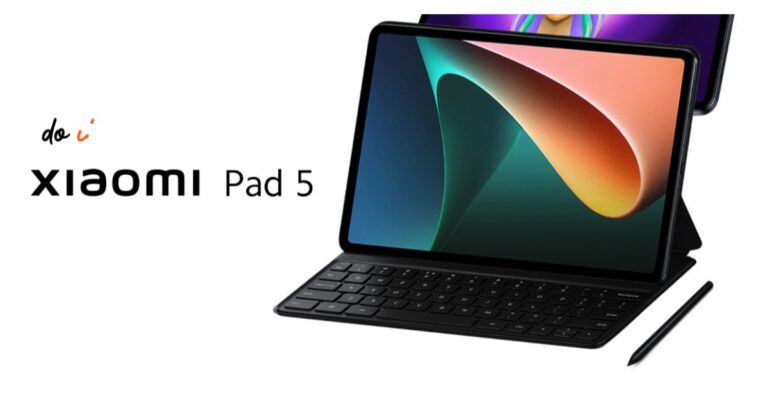
Xiaomi lowered the price of the Pad 5 in India before the release of the Pad 6

Xiaomi Pad 6 is all set to launch in India tomorrow. Ahead of the official release, the company has reduced the price of the Xiaomi Pad 5 in the country. The company has dropped the price of the tablet by Rs 1,000. In addition to this Xiaomi is offering discounts on its online store in the country. The Xiaomi tablet comes with a 2.5K+ display. It has a screen size of 10.95 which also supports a refresh rate of 120Hz. In addition to this, the device is powered by an octa-core Qualcomm Snapdragon 860 SoC. To recall, the tablet was released in India in the month of April last year.

Xiaomi Pad 5 new price and offer details

Prior to the June 13 launch of the Xiaomi Pad 6, the price of the Xiaomi Pad 5 in India has been reduced by Rs 1000. As per the listing, the 6Gb RAM with 128GB storage option is priced at Rs 25,999. Whereas the price of the 256 storage model is reduced to Rs 28,499.
Additionally, Xiaomi is offering discounts on its online store. Buyers will be able to benefit from smartphone exchange discounts on certain models. The specific exchange discounts are only based on the phone’s model and functional state. Additionally, ICICI credit card transactions qualify for a Rs 2,000 instant bank discount.

Xiaomi Pad 5 specifications

The tablet is powered by MIUI 13 on top of Android 12. Featuring a 10.95-inch 2.5K+ display is the Xiaomi Pad 5. The screen offers a refresh rate of 120Hz and has a 16:10 aspect ratio. The display also supports Dolby Vision, the DCI-P3 colour gamut, and a maximum brightness of 650 nits. The Qualcomm Snapdragon 860 SoC, along with 6GB of LPDDR4X RAM and up to 256GB of UFS 3.1 storage, powers the Xiaomi tablet.

The Xiaomi Pad 5 also features dual microphones and noise cancellation. It boasts quad speakers with Dolby Atmos and Hi-Res Audio support.

The gadget has an 8-megapixel front camera and a 13-megapixel rear camera sensor. An 8,720mAh battery with 33W fast charging capabilities is included with the Xiaomi Pad 5.

For the latest gadget and tech news, and gadget reviews, follow us on TwitterFacebook and Instagram. For newest tech & gadget videos subscribe to our YouTube Channel. You can also stay up to date using the Gadget Bridge Android App. You can find the latest car and bike news here

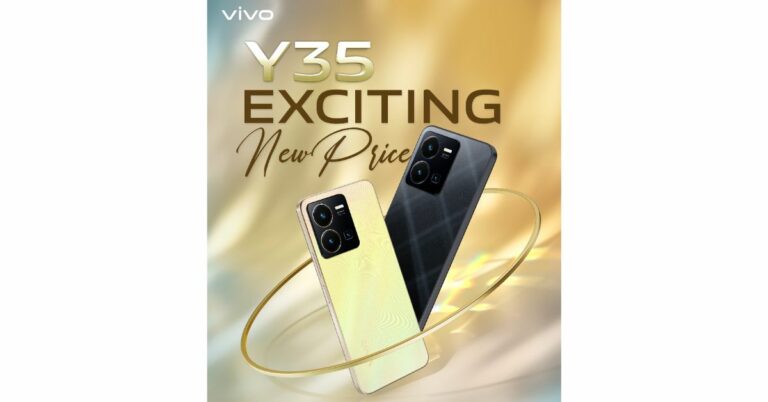
Vivo Y35 price in India slashed: Here is how much it costs now

Vivo has slashed the price of Vivo Y35 in India by Rs 500. The smartphone was launched in India last year. The smartphone is powered by Snapdragon 680 processor along with an extended RAM feature. It includes a 5000mAh battery and 44W flash charge support. In addition to this, there is a 50MP primary camera with Electronic Image Stabilization (EIS).

Vivo Y35 New price and offers

Vivo Y35 was launched in India last year with a price tag of Rs 18,499 for a single 8GB RAM with 128GB of internal storage. The smartphone comes in two colour options of Agate Black and Dawn Gold. The phone was earlier available at Rs 17,499 but now it is being made available at Rs 16,999. The phone is seeing a price drop of Rs 500. The new effective price will be applicable starting today on the vivo India e-store and across all partner retail stores.

Consumers can also receive an additional cashback of up to Rs 1,000 using ICICI, SBI, Yes Bank, Federal Bank, AU Small Finance, and IDFC First Bank. Buyers are also eligible to receive other benefits such as V-Shield Protection Plans.

Vivo Y35 specifications

Vivo Y35 features a 6.58-inch full-HD+ LCD screen with 1,080×2,408 pixels of resolution. The screen has a 90Hz refresh rate. The phone operates on Funtouch OS 12-based Android 12. Under the hood, there is a Qualcomm Snapdragon 680 SoC with 8GB of RAM and 128GB of internal storage. The device also has an Extended RAM function that allows up to 8GB of RAM to be borrowed from storage for a total of 16GB of RAM. While the internal storage can be expanded up to 1TB using a microSD card.

The Vivo Y35 comes with a triple-back camera configuration that includes a 50-megapixel primary sensor with f/1.8 aperture. Both the 2-megapixel macro and 2-megapixel bokeh sensors have f/2.4 aperture. The handset includes a 16-megapixel front-facing camera with an f/2.0 aperture for taking selfies and video calling. The smartphone also includes a variety of functions to improve the camera, including Super Night Camera mode, Multi Style Portrait mode, Rear Camera Bokeh Flare Portrait, and others for a smooth photographic experience.

The Y35 has Wi-Fi, Bluetooth v5, GPS, Glonass, OTG, FM radio, and a USB Type-C connector as connectivity options. An accelerometer, ambient light sensor, e-compass, gyroscope, and proximity sensor are among the sensors on board. For phone unlock the device has a fingerprint sensor and Face Wake functionality. The device boasts a 5000mAh battery combined with 44W flash charging. Additionally, the Y35 includes Multi Turbo and Ultra Game Mode, which guarantee a luxurious sensory experience for immersive gaming. 

For the latest gadget and tech news, and gadget reviews, follow us on TwitterFacebook and Instagram. For newest tech & gadget videos subscribe to our YouTube Channel. You can also stay up to date using the Gadget Bridge Android App. You can find the latest car and bike news here.

How to transfer data from an Android to an iPhone using Apple Move?

0

Android and Apple ecosystems very rarely work together seamlessly. Even transferring WhatsApp messages between the two platforms used to be a chore until very recently. If you’re a long-time Android user that just made the switch to an iPhone, you’re probably looking for the best way to transfer your data to your new Apple device. Luckily, the native method using the Move to iOS app makes this process pretty easy. In this article, we show you how to transfer data from an Android phone to an iPhone using Apple Move.

Read Also: High Tech Surveillance Gadgets That Protect the Gaming Operators

Things to remember before you begin

  • Make sure the WiFi on both devices is turned on.
  • Both smartphones must be plugged into a charger.
  • Your iPhone must have enough storage to copy all the data.
  • To move your Chrome bookmarks, make sure you are using the latest version of the web browser on your Android device.

Here’s how you can transfer your data using Move to iOS

Step 1: Turn on your iPhone and go through the setup process until your reach the ‘Apps & Data’ page.

Step 1: Turn on your iPhone and go through the setup process until your reach the ‘Apps & Data’ page.


Step 2: Select ‘Move Data from Android’.

Step 3: Select ‘Move Data from Android’ on the ‘Apps & Data’ page.

Step 3: Launch the ‘Move to iOS’ app on your Android smartphone.

Step 4: Tap ‘Continue’ on your iPhone. After a few seconds, your iPhone will display a code.

Step 5: Enter the code on your Android smartphone.

Step 5: Wait for a code on your iPhone. Once the code appears, enter it on your Android smartphone.

Step 6: Your iPhone will now create a temporary WiFi network using its hotspot. Join this network on your Android device.

Step 7: Choose the content you want to transfer. This includes your contacts, messages, photos and videos, files, settings, WhatsApp messages, calendar entries, bookmarks, and more. Do not disturb the transfer process until it finishes on your iPhone.

Step 8: After the content has been transferred, tap ‘Finish’ on your Android smartphone and ‘Continue’ on your iPhone.

Step 9: Follow the on-screen instructions to finish the process on your iPhone.

Frequently Asked Questions

Can I use the Move to iOS app after setup?

The Move to iOS app only works while you’re setting up your iPhone for the first time. If you skipped the process at the time of setting up your iPhone, you will have to transfer the content manually. You can also factory reset your phone to set it up again using Move to iOS, but that will erase all your existing data.

Does Move to iOS transfer all my apps?

Move to iOS transfers all the free apps from your Android phone that are also available for free on the App Store.

Does Move to iOS transfer all my data?

Move to iOS transfers the majority of your personal data from your Android phone to an iPhone. However, certain data like books, music, and PDF files will need to be transferred manually.

Read Also: How to download and install Chrome OS Flex?

Conclusion 

This is how you can move data from your Android smartphone to an iPhone using Apple Move. Move to iOS can only be used at the time of setting up your iPhone for the first time. If you skipped it the first around, you will need to factory reset your iPhone to use Apple’s native transfer process again.

For the latest gadget and tech news, and gadget reviews, follow us on Twitter, Facebook and Instagram. For newest tech & gadget videos subscribe to our YouTube Channel. You can also stay up to date using the Gadget Bridge Android App. You can find the latest car and bike news here.

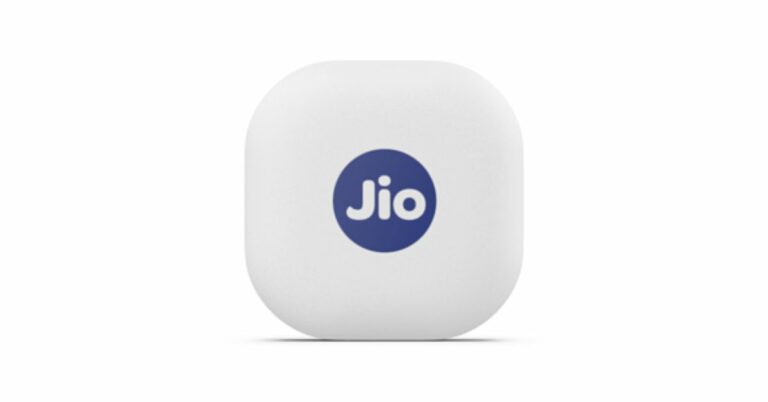
JioTag launched, a less expensive alternative to Apple’s Airtag

Jio has announced the launch of a new Bluetooth tracker in India. Similar to Apple’s Airtag the JioTag also lets you locate and find your lost items. However, the device is a lot cheaper than Apple’s Bluetooth tracker and offers similar features as that of Apple AirTag. In addition to this, it comes with a Community Find feature. It can be used to find a phone and locate lost items.

JioTag price in India, sale details

JioTag costs Rs 2199, however, the current launch deal price is Rs 749. The device comes in a single white colour variant. As per the listing, the Bluetooth tracker by Jio will be available via the company’s official website in the country. It is available with both cash on delivery and prepaid payments. In addition to this, the company offers an additional battery and a lanyard cable with the JioTag which is sold separately with the Apple AirTag.

JioTag price in India, sale details

JioTag specifications

You can use JioTag to locate your smartphone. Double tapping your connected JioTag will ring your phone, even if it is on silent. In addition to your phone, it may be attached to your wallet, baggage, keys, and other items so that your phone will warn you when you leave something behind or are lost. The Bluetooth tracker also provides the precise position of your item’s most recent disconnect. Even at the site of the last disconnect, if you are still unable to locate your JioTagged possession the Jio Community locate network will hunt for and report back the location of your missing JioTagged item after users mark their JioTag as lost on the JioThings app.

JioTag price in India, sale details

The device is powered by a replaceable CR2032 and features Bluetooth 5.1. The Jio tag measures 3.82×3.82×0.72 cm  and weighs 9.5 grams. If offers up to 1 year of battery life and has a range of up to 20 meters indoors and up to 50 meters outdoors (Direct line of sight)  

For the latest gadget and tech news, and gadget reviews, follow us on TwitterFacebook and Instagram. For newest tech & gadget videos subscribe to our YouTube Channel. You can also stay up to date using the Gadget Bridge Android App. You can find the latest car and bike news here

3 Easy Ways To Upload Music On Audiomack

0

Audiomack is one of the more popular music streaming platforms on the Internet. Its influence is comparable to Soundcloud, which makes it a very attractive platform for new and amateur musicians. Audiomack is one of the best platforms to attract more ears to your music and create a dedicated audience. Apart from music, creators use Audiomack to post their podcast episodes as well. If you’re new to the whole music streaming scene, figuring out how to upload your content can be a confusing task. Don’t worry because we’ve got you covered. In this article, we bring you the 3 easy ways to upload music on Audiomack.

Read Also: Best Redmi 5G smartphones under Rs 25,000

How to upload music on Audiomack using the Android Creator app

Step 1: Install the Audiomack Creator app on your smartphone.

Step 2: Tap the upload icon at the bottom of the dashboard.

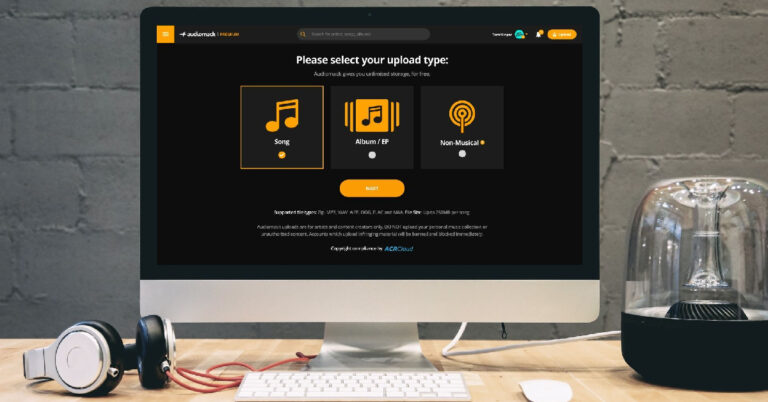
Step 3: Select the upload type. If you want to upload a single track, tap on ‘Song’. If you want to upload songs, select ‘Album/EP’. If you want to upload a podcast, select ‘Non-Musical’.

Select the upload type.

Step 4: Tap the plus icon to upload an audio file. Audiomack supports uploads in the following formats: MP3, WAV, AIFF, OGG, FLAC, and M4A. The size limit for one audio file is 250MB.

Tap the plus icon to upload an audio file.

Step 5: Fill out all the track details once the song is uploaded. You can also select an artwork for the song/album/EP.

Fill out all the track details once the song is uploaded.

Step 6: You can choose to release the song immediately or schedule it for later. If you want to go for the latter option, select Schedule/Premiere Access and set the release date and time.

You can choose to release the song immediately or schedule it for later.

Step 7: Hit ‘Finish’.

How to upload a song on Audiomack from your desktop

Step 1: Launch the official Audiomack website on your desktop’s web browser and click the upload icon at the top-right corner of the screen.

click the upload icon at the top-right corner of the screen.

Step 2: Select the upload type and hit ‘Next’.

Select the upload type and hit ‘Next’.

Step 3: Select the song file from your desktop. You can also drag and drop the file on the upload screen.

Select the song file from your desktop. 3 Easy Ways To Upload Music On Audiomack

Step 4: Enter the metadata for the song. This includes the song title, artist name, feature list, genre, producers, and more.

Enter the metadata for the song. 3 Easy Ways To Upload Music On Audiomack

Step 5: Choose the release date or publish the song immediately. Hit ‘Finish’ once you’re done.

Choose the release date or publish the song immediately. 3 Easy Ways To Upload Music On Audiomack

How to upload a song on Audiomack using a mobile browser

Audiomack’s mobile website is well-optimised to carry out basic tasks. The process to upload a song on mobile is almost the same as the one on a desktop. Here’s how can go about it.

Step 1: Launch the official Audiomack website on your smartphone’s web browser.

Step 2: Tap on the ‘My Library’ icon at the bottom right corner of the screen.

Tap on the ‘My Library’ icon at the bottom right corner of the screen.

Step 3: Tap on the gear icon.

Tap on the gear icon.

Step 4: Select ‘Upload’.

Select ‘Upload’. 3 Easy Ways To Upload Music On Audiomack

Step 5: Select an upload type and hit ‘Next’.

Step 5: Select an upload type and hit ‘Next’. 3 Easy Ways To Upload Music On Audiomack

Step 6: Select the song you want to upload from your device’s internal storage.

Select the song you want to upload from your device’s internal storage. 3 Easy Ways To Upload Music On Audiomack

Step 7: Enter the metadata for the song.

Step 7: Enter the metadata for the song. 3 Easy Ways To Upload Music On Audiomack

Step 8: Set a release date or select ‘publish immediately’.

Step 9: Hit ‘Finish’.

Frequently Asked Questions

How do I upload music on Audiomack?

To upload your music on Audiomack, launch the Audiomack creator app or website and select ‘Upload’. Choose the file you want to upload from your device’s storage, fill in the metadata, and publish the song.

Is Audiomack free to upload?

Yes. Audiomack is a free service.

How much do 1k streams pay on Audiomack?

It is estimated that Audiomack pays out $0.004 per stream.

Read Also: Xiaomi India announces extended warranty for Redmi Note 10 Pro and Pro Max

Conclusion

These are the 3 easiest ways to upload music on Audiomack. Instead of uploading individual files, you can upload an entire album at once. Make sure that the individual file size does not exceed 250MB. To maximise your reach and increase the odds of the audience listening to your music, fill in all the track details and post artwork for the song/album.

For the latest gadget and tech news, and gadget reviews, follow us on Twitter, Facebook and Instagram. For newest tech & gadget videos subscribe to our YouTube Channel. You can also stay up to date using the Gadget Bridge Android App. You can find the latest car and bike news here.

Top 8 ways to fix a corrupted Android SD card (2024)

0

While expandable storage may be missing from some premium devices, most budget and midrange smartphones still come with a slot for an external micro SD card. If you don’t want to splurge extra cash for a higher storage variant, you can easily use a memory card with your device. However, memory cards are known to malfunction from time to time. Then what do you do? Fret not, we are here to help. Today, we bring you the top 8 ways to fix a corrupted Android SD card or memory card.

Read Also: How to use a Passkey for your Google Account?

Make sure the SD card is in the right slot

Make sure the SD card is in the right slot

Earlier, smartphones used to have a dedicated slot for micro SD cards. Hybrid SIM card slots were introduced more recently, allowing users to place their SIM cards and micro SD card on a single tray. This may be a neat idea, but it may leave some people confused. If your Android smartphone cannot recognise the SD card, pull out the hybrid SIM tray and inspect the positioning of the SIM and SD card. Look for the appropriate sign on the tray before inserting the SD card.

Clean the micro SD card

top 7 ways to fix a corrupted Android SD card or memory card.

If the memory card has been lying around on a shelf or in a drawer, make sure you give it a quick wipe before inserting it into your phone. Dust and dirt particles can keep the SD card from functioning properly. Your smartphone may not be able to detect the card. On the flip side, make sure the SD card tray is clean as well. Pull the tray out and blow some air on it to release the dust particles. Give it a quick wipe and you’re good to go.

Inspect the SD card for physical damage

SD cards are prone to wear out after prolonged usage. This issue is more common when you use the same card on multiple devices. If your SD card is damaged, your device will not be able to read or detect it. Pull out the card and closely inspect it for damage. Use it on another device to check if it works.

Use a card reader

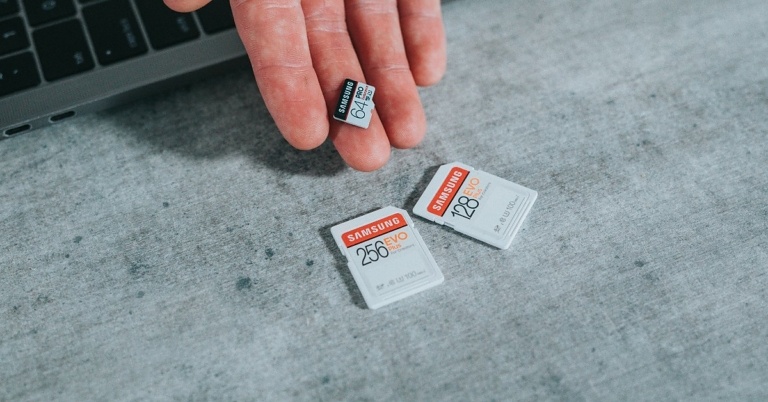
Brand Conquer SD Card Reader. top 7 ways to fix a corrupted Android SD card or memory card.

Maybe the problem lies with your phone’s SD card slot and not the card itself. The only way of knowing for sure is by using an external card reader. Plug the card reader into the USB Type-C port of your device. Push the card into the external reader and see if you can access its contents on your phone. When you use the card reader, your micro SD card will show up as drive storage on your phone.

Unlock the card

Some SD cards come with a physical lock switch. Once a card is locked, you cannot write or delete any data from it. If you’re having an issue with copying or erasing files from your Android phone’s extended storage, pull out the card and unlock it using the physical switch located on the side of the SD card.

Format the memory card

The most common reason why memory cards stop functioning is data corruption. If your memory card is corrupted, you may experience several kinds of issues with it – ranging from detection issues to slow performance. Data corruption is caused when a file isn’t completely transferred to the card. This may happen because you pulled out the card before the transfer was completed. The only way to fix a corrupted memory card is by formatting it. To format the SD card go to Settings>Battery and device care>Storage and tap on the ellipses at the top right corner of the screen to access Advanced Settings. Tap on the SD card and select ‘Format’.

Use the chkdsk command

You will need to connect your SD card to your laptop or PC for this method. Pull out the card from your phone and use a card reader or your PC’s dedicated memory card slot to insert the SD card. Once that’s done, follow these steps.

Step 1: Right-click the Windows icon on the taskbar and select Terminal (Admin).

Step 2: Enter the following command:

chkdsk [disk name assigned to SD card]: /x /r

Step 3: Once the process has finished, safely remove the SD card from your PC and insert it into your phone.

Update your smartphone’s OS

Step 3: Tap on ‘Download and Install’. top 7 ways to fix a corrupted Android SD card or memory card.

If your phone’s OS cannot detect the micro SD due to some bug or other issue, it will be resolved with a quick update. Go to Settings>Software Update to look for pending updates. If there is an available update, download and install it on your device.

Frequently Asked Questions

How do I fix a corrupted SD card?

To fix a corrupted SD card, you need to format it. Go to Settings>Battery and device care>Storage>Advanced Settings and select Format.

Why is my SD card not working on my Android phone?

If your Android phone is not detecting the SD card, give the card and the hybrid slot a quick wipe and make sure there aren’t any dust particles on them. Inspect the SD card closely for any physical damage.

How do I fix an undetected SD card on Android?

If your Android phone cannot detect the SD card, use an external card reader. Plug the card reader into the USB Type-C port on your device. If your SD card works fine with the card reader, it means that your phone’s card slot is faulty.

Read Also: 5 Best Ways to Sign Out of Google Play Store on an Android Device

Conclusion

These are the top 8 ways to fix a corrupted Android SD card or memory card. If these fixes don’t work for you, you will need to figure out whether the fault lies with the SD card or its slot in your phone. If the phone’s slot is at fault, you will need to take it to the authorised service centre for repair. If you have any questions, let us know in the comments!

Samsung Galaxy S22 price in India has been reduced by up to Rs 8,000

Samsung Galaxy S22 was launched in India last year. The price of the smartphone has now been lowered by up to Rs 8,000. The device was introduced in India at a starting price of Rs 72,999 which has now come down to Rs 64,999 for the base variant. The smartphone features a 120Hz Dynamic AMOLED 2X display. Under the hood, there is an octa-core Snapdragon 8 Gen 1 SoC that runs on Android 12 with One UI 4.1 on top out of the box.

Samsung Galaxy S22 new price and details

The Samsung Galaxy S22 was made available in two configurations with 8GB RAM and 128GB/512GB storage for Rs 72,999 and Rs 76,999, respectively. But now the phone’s price has fallen by Rs 8,000 in India. The 128GB RAM variant will be accessible at Rs 64,999 whereas the 512GB option is now available at Rs 72,999.

Samsung mobile users on their exchange can receive a bonus of Rs 7,000. As a result, the model now costs Rs 57,999. The company will also be offering a bank cashback offer of Rs 3,000 which brings the cost of the base variant down to Rs 54,999.

Samsung Galaxy S22 price in India has been reduced by up to Rs 8,000

Samsung Galaxy S22 specifications

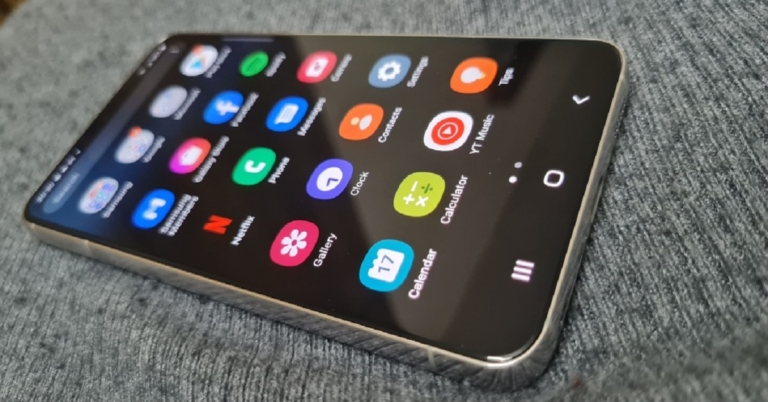
The Samsung Galaxy S22 (Review)comes with a 6.1-inch full-HD+ Dynamic AMOLED 2X display with a 120Hz refresh rate that can be lowered to 10Hz. The screen has been protected with Gorilla Glass Victus+ and an Armor Aluminium chassis. The smartphone comes pre-installed with Android 12 and One UI 4.1, and it’s powered by an octa-core Snapdragon 8 Gen 1 SoC and 8GB of RAM, with up to 256GB of internal storage.

The Galaxy S22 features a triple rear camera system for optics. The camera module is equipped with a 50MP main Dual Pixel wide-angle sensor, an f/1.8 aperture, and autofocus. There is also a 12MP ultra-wide-angle camera with an f/2.2 aperture and a 120-degree field of view, as well as a 10MP telephoto lens with an f/2.4 aperture (3x optical zoom and OIS). There is also a 10MP selfie camera with an f/2.2 aperture (80 degrees of FoV).

The battery capacity of the Galaxy S22 is 3,700mAh, and it supports 25W fast charging, 15W wireless charging, and Wireless PowerShare for reverse wireless charging.

For the latest gadget and tech news, and gadget reviews, follow us on TwitterFacebook and Instagram. For newest tech & gadget videos subscribe to our YouTube Channel. You can also stay up to date using the Gadget Bridge Android App. You can find the latest car and bike news here.

High Tech Surveillance Gadgets That Protect the Gaming Operators

The nature of the casino environment, where countless people mingle and large sums of money change hands, demands the best quality security. Brick-and-mortar casinos are home to some of the world’s most advanced surveillance systems. Let’s take you behind the scenes to reveal the high-tech world of security that keeps these businesses and their patrons safe.

Eye in the Sky

In extravagant establishments where fortunes are acquired and lost in the blink of an eye, it takes more than an army of highly trained personnel to secure a casino. This is where video surveillance tech – the Eye in the Sky – comes in handy, giving casinos a recap of events anywhere and anytime. Camera resolution improvement and hardware changes over the years make this tech a casino’s most crucial security tool.

The smoke-coloured orbs that make up the Eye in the Sky do more than keep a watchful eye on every inch of the casino floor. They support extensive functionalities like:

  • Automated video analytics: real-time tracking and automatic detection of events, behaviours, and objects provide valuable security insights.
  • Enhanced meta-tagging: improves structured references that sort and identify attributes of the collected information the metadata describes.
  • Predictive awareness methods: predictive models identify valuable data patterns to predict the outcome of events.
  • Data compression: collected data is encoded, restructured, and otherwise modified to reduce its size for better storage techniques.

RFID

Radio Frequency Identification is the most commonly used security measure against theft and fraud. This technology is embedded in cards and chips, allowing the casino to track them at all times. This ensures that no chips or cards leave the casino floor or are counterfeited without detection.

Angel Eyes

Angle Eyes is an extension of the RFID anti-fraud system that detects attempts to cheat or steal. Thanks to Angel Eyes, games that were previously easy to deceive are now cheat-proof. For instance, in blackjack, this technology allows the dealer to monitor a deck for cards that do not belong. It tracks RFID strips on the cards, and any added by a player is flagged and removed. Also, the tech identifies shaved chips in roulette and notifies the dealer.

Biometric Recognition Software

Casino video cameras have specialized integrated software for facial recognition, one of the most powerful tools in any establishment’s security arsenal. This surveillance tech scans the face of anyone that enters the casino and compares them to a database of criminals and potential threats. This allows security personnel to remove such troublemakers before they can cause any disturbances.

Fingerprint recognition also strengthens the effectiveness of casino biometric security measures. Many establishments use sophisticated vaults and safes to store mountains of cash on-site. They are equipped with biometric scanners that grant access to authorized parties only.

Keeping money safe is only half the battle. Casinos are also responsible for the security of patrons once they retire to their accommodations. For this reason, rooms are usually fitted with smart locks and access control systems that often use fingerprint, keycard, and player club card sensors to unlock.

NORA

Non-Obvious Relationship Awareness software is a valuable surveillance tool that identifies unusual cheating tactics where a game operator and player work together to defraud a casino. This advanced tech identifies any association between parties, such as a shared address, phone number, or employment. That way, personnel can keep a closer eye on them.

Encryption Protocols

Data encryption may seem like a security feature limited to online casinos. In most cases, state-of-the-art SSL and TCL encryption protocols are all it takes to keep an online casino safe. However, according to online-casinos-nj.com, online casinos in NJ use additional safety measures in the form of  username/password combinations, account verification systems, and geolocation tracking technology

For land-based establishments, this is but one essential piece of a robust security ecosystem.

With any advanced virtual technology comes the potential for misuse or abuse. Land-based casinos ensure that the data collected isn’t used for nefarious purposes or open to vulnerable hacking attempts with encryption and firewalls to prevent cyber attacks.

AI

Casinos use advanced artificial intelligence algorithms that analyze video footage and other security data in real-time. AI effectively detects anomalies and potential threats that slip through security personnel’s cracks, alerting the casino to act immediately.

With the advancement of AI, some casinos have also adapted tech surveillance solutions to improve their business models. Brainchip – a California-based company – has successfully modelled Game Outcome Technology with spiking neuron adaptive processors that learn independently like a human brain. Using snap vision technology, Game Outcome automatically identifies dealer errors, game rules, played hands, winning hands, and payout amounts. This data is then used to help the casino with operational efficiency, labour costs, and targeted incentives to get patrons to play more.

In Brief

There is a limit to how much surveillance and security humans can provide in casinos because the traffic and activities are too much to handle. However, by harnessing the power of modern technology, from video surveillance to AI, the security of these establishments continues to improve dramatically. This allows casino operators to go beyond their core purpose of securing business operations and provide intriguing gambling experiences in a safe environment.

For the latest gadget and tech news, and gadget reviews, follow us on TwitterFacebook and Instagram. For the newest tech & gadget videos subscribe to our YouTube Channel. You can also stay up to date using the Gadget Bridge Android App. You can find the latest car and bike news here.

Garena Free Fire Redeem Codes Today 12 June 2023: Here is how to claim them

Garena Free Fire is a battle royale game with regular awards and tournaments to keep players interested. If you play Garena Free Fire, you should be aware of the redeem codes that are released on a daily basis. However, because the battle royale game is banned in India, players from other countries can use the Free Fire Redeem codes daily. If you’re unfamiliar with the Garena Free Fire redeem codes or don’t know how to get them, we’ve put together a step-by-step guide to help you redeem them. Check out Garena Free Fire Redeem Codes for 12 June 2023.

The Free Fire redeem codes are a great way to get free stuff. These are 12-digit codes that contain alphabets and numbers, as well as an expiration date and time. Because the Garena FF redeem codes cannot be used more than once, you should hurry to the redemption page to claim your free reward before someone else does. To get a free reward, all you have to do is go to reward.ff.garena.com/en, which is the official redemption page. Also, keep an eye on this space for daily updates on Garena Free Fire redemption codes and rewards.

Garena Free Fire Redeem Codes Today 12 June 2023

MHM5D8ZQZP22

8F3QZKNTLWBZ

WEYVGQC3CT8Q

GCNVA2PDRGRZ

4ST1ZTBE2RP9

FF7MUY4ME6SC

B3G7A22TWDR7X

J3ZKQ57Z2P2P

3IBBMSL7AK8G

X99TK56XDJ4X

How to Get Free Fire Redeem Codes for Garena on 12 June 2023?

  • Visit the Garena Free Fire game’s official website at reward.ff.garena.com.
  • Use your Facebook, Google, VK, Apple ID, Huawei ID, or Twitter account to log in.
  • You’ll be taken to a valid redemption code (s)
  • Copy and paste the 12-digit redemption code into the text box.
  • On the screen, a dialogue box will appear.
  • ‘Ok’ should be selected.

For the latest gadget and tech news, and gadget reviews, follow us on TwitterFacebook and Instagram. For newest tech & gadget videos subscribe to our YouTube Channel. You can also stay up to date using the Gadget Bridge Android App. You can find the latest car and bike news here.

Amazon Quiz Answers Today 12 June 2023: Participate to win Rs 5,000

Have you participated in the Amazon Quiz today? If not then participate in the 12 June 2023 Amazon Quiz as it has already gone live on the app. The daily quiz can be played from 12 AM to 11:59 every day on the mobile app platform. Today e-commerce is giving the chance to win Rs 5,000 Amazon Pay Balance.

Every day Amazon brings a fresh quiz for its customers. By participating in the quiz the participants can win an Amazon Pay Balance of up to Rs 50,000. The quiz can only be played on the mobile app as it is not available for the desktop platform. The quiz contains five easy questions and you have to answer all the questions correctly. The participants will then be shortlisted for a lucky draw to select a winner. Whereas the results are declared at the end of the month. Check out today’s Amazon quiz answers to win Rs 5,000.

Amazon Quiz Today Prize – Rs 5,000 Amazon Pay Balance

Quiz Date – 12 June 2023

Daily Timing – 12 AM to 11:59 PM

Winner Announcement – Today 12 PM

Amazon Quiz Answers Today 12 June 2023

Question 1: Which Indian actor has been appointed as the global ambassador of luxury fashion brand Gucci?

Answer: Alia Bhatt

Question 2: Which country topped the 2023 World Press Freedom Index?

Answer: Norway

Question 3: Inflection, a company co-founded by Reid Hoffman, just launched their “personal AI” chatbot named what?

Answer: Pi

Question 4: These animals are mostly found in which country?

Answer: Peru

Question 5: Who is the artist of this exhibit?

Answer: Jeff Koons

How To Play Amazon Quiz

Only app users are eligible to play the Amazon quiz every morning from 12 AM to 11:59 PM. The quiz is not available on the desktop. For those who are unaware of how to play the Amazon quiz below are the steps, you can follow to take the quiz.

  • Firstly download the Amazon app from Google Play Store or App Store
  • Now fill in the required information through the Sign Up option.
  • You need to log in to the Amazon app and scroll down on the home screen to find the Amazon Quiz banner.
  • Tap on the Amazon Quiz banner and tap on the Start button to start the Quiz.
  • Now you will get 5 questions and you need to answer them correctly. One wrong answer will eliminate you from the Quiz.
  • After answering all the questions correctly you are now eligible for a Lucky Draw.
  • The winner’s name will be announced today at 12 PM.

For the latest gadget and tech news, and gadget reviews, follow us on Twitter, Facebook and Instagram. For newest tech & gadget videos subscribe to our YouTube Channel. You can also stay up to date using the Gadget Bridge Android App. You can find the latest car and bike news here.

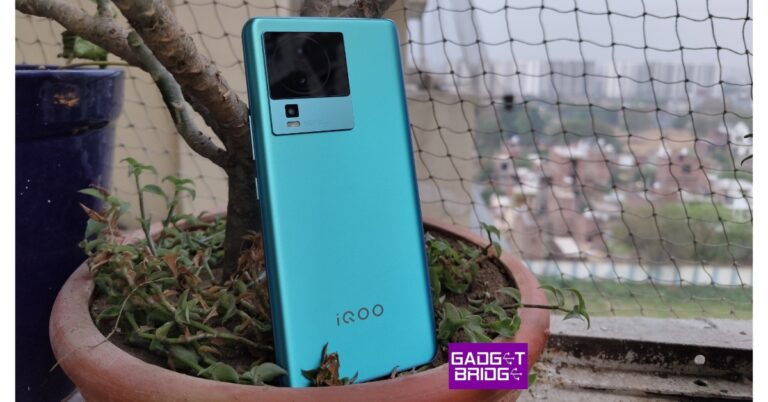
iQOO Neo 7 Pro 5G confirmed to launch on July 4, may get Snapdragon 8+ Gen 1 SoC

0

iQOO India CEO, Nipun Maurya has confirmed that iQOO Neo 7 Pro 5G will launch in India on July 4. iQOO India confirmed that the smartphone will be sold exclusively through Amazon. The ‘Pro’ variant will be a successor to iQOO Neo 7 5G (review), which launched in February at Rs 29,999. iQOO hasn’t revealed any specs of the upcoming smartphone. However, since the Neo 7 Pro is reported to be the rebadged version of the China-specific Neo 7 Racing, some specs are expected to make it on the global variant.

Read Also: Samsung Galaxy F54 Review: A rock-solid smartphone with impressive cameras

iQOO Neo 7 Pro 5G: Expected specs, price, and more

The biggest upgrade on the Pro variant of iQOO Neo 7 will be the Snapdragon 8+ Gen 1 SoC. The current version employs MediaTek Dimensity 8200 SoC under the hood. Snapdragon 8+ Gen 1 came out towards the end of 2022 and put up impressive benchmark numbers along with improved thermal management.


iQoo Neo 7 5G Review: Design and Display
iQOO Neo 7 5G

The iQOO Neo 7 Pro 5G will get a 6.78-inch AMOLED display with a 120Hz refresh rate and 1500 nits of peak brightness. This display will support HDR10+ as well. The camera panel at the back gets an upgrade as well. The Pro variant will feature an 8MP ultrawide lens instead of the 2MP depth sensor on the regular variant. It will also get a 50MP primary camera with OIS. The 2MP macro lens will be retained from the regular version. Up front, the Neo 7 Pro will feature a 16MP selfie camera housed in a punch-hole cutout.

As expected, the OS duties on iQOO Neo 7 Pro will be handled by Android 13 with Funtouch 13 skinned on top of it. The smartphone will get a 5,000mAh battery with 120W fast charging support. When powered by a fast charger, the smartphone can reach 50% charge in under 10 minutes and fully juice up within 25 minutes.

review of iQoo Neo 7 5G
iQOO Neo 7 5G

There won’t be any significant changes in terms of design. The smartphone will retain the signature Neo series look. The rear cameras will be housed in a square camera island and the shimmering back panel will change colours on exposure to sunlight. A glass back panel seems unlikely on iQOO Neo 7 Pro.

Read Also: How to download and install Chrome OS Flex?

More details are to be awaited as we get closer to the launch date. The smartphone is expected to cost around Rs 35,000 in India. iQOO may also offer some additional bank discounts to bring the introductory price down. In this price range, iQOO Neo 7 Pro will rival the likes of Samsung Galaxy A54, OnePlus 10R, Vivo V27, and more. The smartphone will be sold exclusively through Amazon.

For the latest gadget and tech news, and gadget reviews, follow us on Twitter, Facebook and Instagram. For newest tech & gadget videos subscribe to our YouTube Channel. You can also stay up to date using the Gadget Bridge Android App. You can find the latest car and bike news here.

5 Best Ways to Sign Out of Google Play Store on an Android Device

0

If you own an Android device, you will need to sign into Google Play Store using a Google account in order to use its services. Without singing in, your Android experience will be extremely limited. Google Play Store also lets you sign in using multiple accounts. You can easily switch between different accounts from the app itself. If you find yourself using a particular account less frequently, you can remove it from your device. In this article, we explore the different ways you can sign out of Google Play Store on an Android device.

Read Also: Apple iOS 17: Here are the top new features you should be using first

Sign out of Google Play Store using the app

The easiest way to sign out of the Google Play Store is through the app itself. You should know that once you sign out of Google Play Store you will also be signed out of all the Google services on your smartphone.  Here’s how you can go about it.

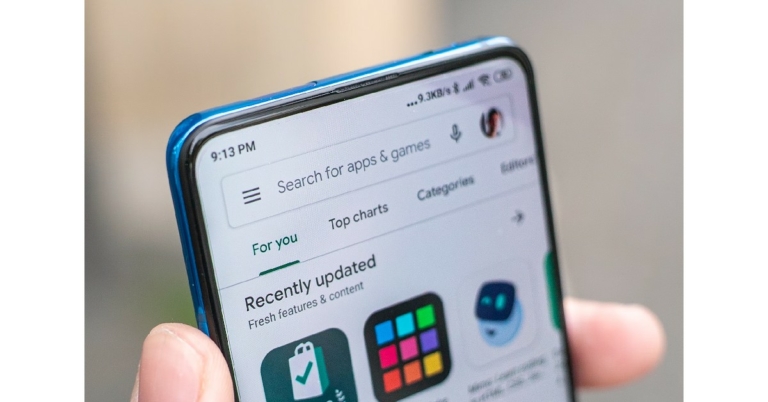
Step 1: Launch Google Play Store on your Android device.

Step 2: Tap your profile icon at the top right corner of the screen.

Step 2: Tap your profile icon at the top right corner of the screen.

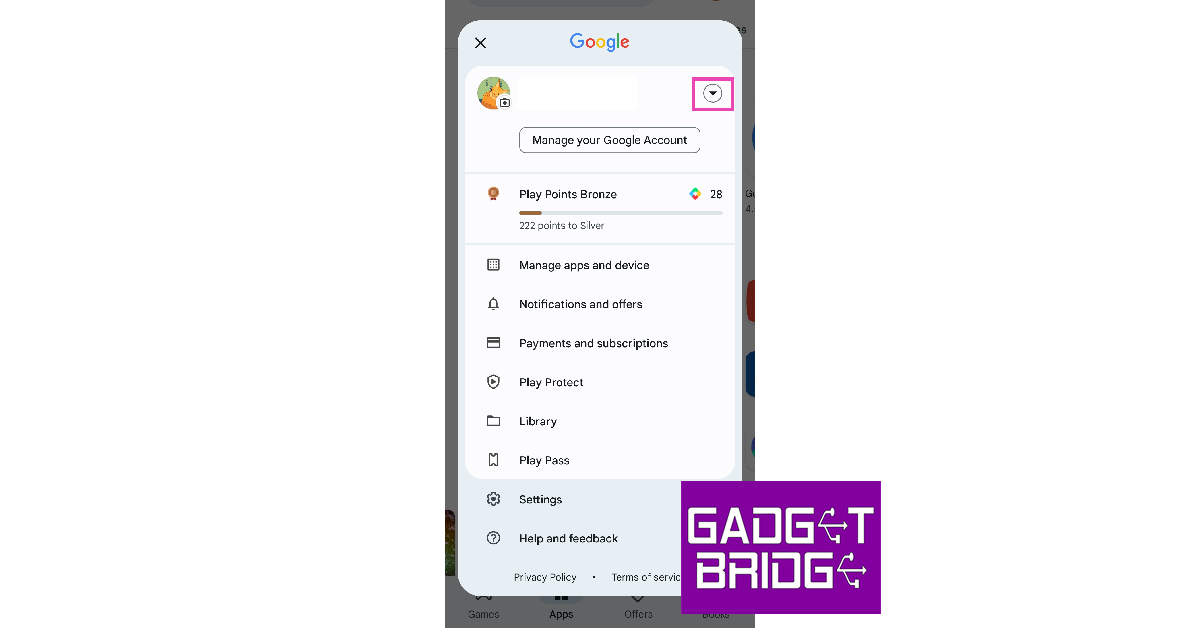
Step 3: Press the downward arrow key next to your name.

Step 3: Press the downward arrow key next to your name.

Step 4: Select ‘Manage accounts on this device’.

Step 4: Select ‘Manage accounts on this device’.

Step 5: Tap on the account you want to remove.

Step 5: Tap on the account you want to remove.

Step 6: Select ‘Remove account’.

Step 6: Select ‘Remove account’.

Step 7: Confirm your selection in the popup box.

You will be signed out of Google Play Store and your account will be removed from your Android device.

Sign out of Google Play Store by clearing its data

Step 1: Go to Settings and select Apps.

Step 1: Go to Settings and select Apps.

Step 2: Tap on Google Play Store.

Step 2: Tap on Google Play Store.

Step 3: Select Storage.

Step 3: Select Storage. 5 Best Ways to Sign Out of Google Play Store on an Android Device

Step 4: Tap on ‘Clear Data’.

Step 4: Tap on ‘Clear Data’. 5 Best Ways to Sign Out of Google Play Store on an Android Device

Your account will be removed from Google Play Store.

Sign out of Google Play Store by removing your account from Settings

Step 1: Go to Settings and select ‘Accounts and Backup’.

Step 1: Go to Settings and select ‘Accounts and Backup’. 5 Best Ways to Sign Out of Google Play Store on an Android Device

Step 2: Tap on ‘Manage Accounts’.

Step 2: Tap on ‘Manage Accounts’. 5 Best Ways to Sign Out of Google Play Store on an Android Device

Step 3: Select the account you want to remove.

Step 5: Tap on the account you want to remove. 5 Best Ways to Sign Out of Google Play Store on an Android Device

Step 4: Select ‘Remove account’.

Step 6: Select ‘Remove account’. 5 Best Ways to Sign Out of Google Play Store on an Android Device

Step 5: Confirm your selection in the popup box.

Sign out of Google Play Store on your desktop

Step 1: Go to the Google Play Store website on your web browser.

Step 2: Click on your profile icon at the top right corner of the screen.

Step 1: Go to the Google Play Store website on your web browser. 5 Best Ways to Sign Out of Google Play Store on an Android Device

Step 3: Select ‘Sign Out’.

Step 3: Select ‘Sign Out’.

Remotely Sign out of Google Play Store using Find My Device

Remotely Sign out of Google Play Store using Find My Device

If you lost your phone and don’t want anyone to access your account data, Google’s Find My Device service gives you the option to lock your device and sign out of your Google Account. You can also choose to erase all personal data from your device. To simply log out of Google Play Store, click on ‘Secure Device’ on the left panel.

Frequently Asked Questions

How do I sign out of Play Store on Android?

To sign out of Google Play Store on your Android device, simply launch the app, tap on your profile and select ‘Manage accounts on this device’. Select the account you want to remove and confirm your selection in the following popup box.

How do I remove my account from Google Play Store?

To remove your account from Google Play Store, simply open ‘Accounts and backup’ from Settings and select the account you want to remove. Hit ‘Remove’ at the bottom of the screen and confirm your selection in the popup box.

How do I remotely sign out of Play Store?

You can remotely sign out of Google Play Store by visiting the Play Store website or using Google’s Find My Device service to remove your accounts from the device.

Read Also: Poco F5 Review: Almost flagship-level performance in a budget

Conclusion

These are the 5 best ways to sign out of Play Store on your Android device. You can also perform a factory reset to clear all accounts from your device, but it will come at the cost of erasing all your personal data. You can use multiple accounts on Play Store and easily toggle between them within the app.

For the latest gadget and tech news, and gadget reviews, follow us on Twitter, Facebook and Instagram. For newest tech & gadget videos subscribe to our YouTube Channel. You can also stay up to date using the Gadget Bridge Android App. You can find the latest car and bike news here.

Best Redmi 5G smartphones under Rs 25,000 (August 2023)

The 5G rollout in India has reached every corner of the country, and if you’ve been on the fence about buying a 5G smartphone so far, now would be the perfect time to make the switch. If you don’t want to shell out a big amount, Redmi’s portfolio in India may have some interesting options for you. Be it the camera-centric Note 12 series or the affordable Redmi 11 Prime, Redmi caters to every kind of smartphone buyer. In this article, we bring you our picks for the best Redmi 5G smartphones under Rs 25,000.

Read Also: Poco F5 Review: Almost flagship-level performance in a budget

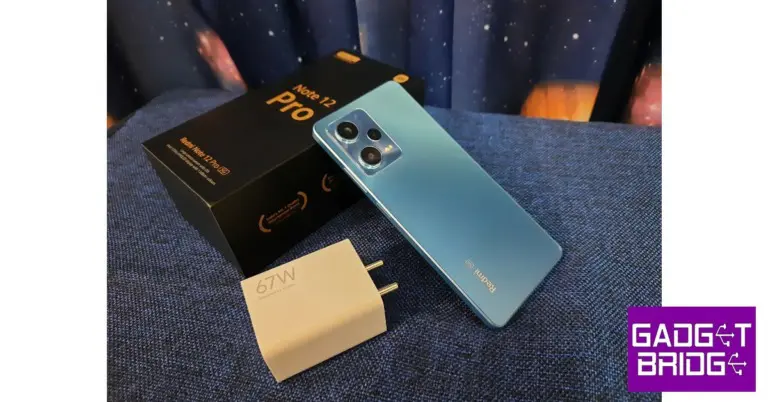
Redmi Note 12 Pro 5G

Price: Rs 24,449

Redmi Note 12 Pro review: Design and Display

Key Specs

Display 6.67-inch OLED
Chipset MediaTek Dimensity 1080 SoC
Storage 128GB, 256GB
RAM 6GB, 8GB, 12GB
Battery 5,000mAh

Redmi Note 12 Pro is one of the best Redmi smartphones you can buy under Rs 25,000. Launched earlier this year, the Pro variant is positioned in the middle of the Note lineup. The smartphone gets a 6.67-inch OLED display with 120Hz refresh rate and HDR10+ support. Powering the smartphone is the MediaTek Dimensity 1080 SoC. The Pro variant may not get the headline-grabbing 200MP primary camera of the Pro+ variant, but the 50MP sensor on this unit delivers a pretty good camera performance. To know more about the smartphone, read our full review here.

Redmi K50i 5G

Price: Rs 21,000

Key Specs

Display 6.6-inch FFS LCD
Chipset MediaTek Dimensity 8100 SoC
Storage 128GB, 256GB
RAM 6GB, 8GB
Battery 5,080mAh

Last year’s Redmi K50i is currently priced at Rs 21,000 and sports some solid specs. The smartphone gets a 6.6-inch FFS LCD display with a maximum refresh rate of 144Hz. It is powered by the MediaTek Dimensity 8100 SoC and comes with Android 12 out of the box. The triple camera setup at the back consists of a 64MP primary shooter, an 8MP ultrawide lens, and a 2MP macro sensor. Up front, a 16MP selfie camera is housed in a punch-hole cutout. Read our full review here.

Redmi Note 12 5G

Price: Rs 17,000

Key Specs

Display 6.7-inch AMOLED
Chipset Snapdragon 4 Gen 1
Storage 128GB, 256GB
RAM 4GB, 6GB, 8GB
Battery 5,000mAh

The base variant in this year’s Note series, Redmi Note 12 gets a 6.7-inch AMOLED display with a 120Hz refresh rate and 1200 nits of peak brightness. It is powered by the Snapdragon 4 Gen 1 SoC and comes with Android 12 skinned with MIUI 13 out of the box. The triple camera module at the back comprises a 48MP primary lens, an 8MP ultrawide lens, and a 2MP macro sensor. Read our review here.

Redmi Note 11 Pro+ 5G

Price: Rs 19,500

Redmi Note 11 Pro+ 5G review: Design and Display. Best Redmi 5G smartphones under Rs 25,000

Key Specs

Display 6.67-inch Super AMOLED
Chipset Snapdragon 695 SoC
Storage 64GB, 128GB, 256GB
RAM 6GB, 8GB
Battery 5,000mAh

Last year’s Redmi Note Pro+ 5G is currently priced at Rs 19,500. The smartphone is powered by Snapdragon 695 SoC and is available in three storage variants – 64GB, 128GB, and 256GB. The 6.67-inch Super AMOLED display is surrounded by slim bezels on all sides and offers a screen-to-body ratio of 86%. The rear camera setup consists of a 108MP main camera, 8MP ultrawide lens, and a 2MP macro sensor. Read our full review here.

Redmi 11 Prime 5G

Price: Rs 13,000

Redmi 11 Prime 5G Review: 5G Connectivity At An Affordable Price. Best Redmi 5G smartphones under Rs 25,000

Key Specs

Display 6.58-inch IPS LCD
Chipset MediaTek Dimensity 720 SoC
Storage 64GB, 128GB
RAM 4GB, 6GB
Battery 5,000 mAh

At Rs 13,000, Redmi 11 Prime is one of the most affordable 5G smartphones you can buy right now. We reviewed the smartphone when it came out last year and were impressed by its consistent performance across the board. Redmi 11 Prime 5G gets a 6.58-inch LPS LCD display with a 90Hz refresh rate. It is available in 2 RAM and storage variants – 4GB/6GB + 64GB/128GB. Powering the Redmi 11 Prime 5G is MediaTek Dimensity 720 SoC. At the back, the smartphone gets a 50MP primary camera and a 2MP depth sensor. Up front, the 5MP selfie camera is housed in a waterdrop notch on the display.

Redmi 12 5G

Price: Rs 10,999

Redmi 12 5G and Redmi 12 4G with 5,000mAh battery launched in India

Key Specs

Display 6.79-inch FHD+ Display
Chipset Snapdragon 4 Gen 2
RAM 4GB, 6GB, 8GB
Storage 128GB, 256GB
Battery 5,000 mAh

The new Redmi 12 5G is the cheapest 5G phone available in India right now. Prices for Redmi 12 5G start at Rs 10,999 for the 4GB + 128GB variant and go up to Rs 14,999 for the 8GB + 256GB variant. The smartphone packs a Snapdragon 4 Gen 2 SoC and comes in three RAM options. It features a 6.79-inch full-HD+ display with 1,080 x 2,460 pixels of resolution and a 90Hz refresh rate. The dual rear camera setup sports a 50MP primary shooter and a 2MP macro lens.

Read Also: Apple iOS 17: Here are the top new features you should be using first

Conclusion

These are our picks for the best Redmi 5G smartphones that you can buy for under Rs 25,000. Check out our list of the most expensive Xiaomi and Redmi smartphones in India as well. Which smartphone out of these is your pick of the lot? Let us know in the comments!

For the latest gadget and tech news, and gadget reviews, follow us on Twitter, Facebook and Instagram. For newest tech & gadget videos subscribe to our YouTube Channel. You can also stay up to date using the Gadget Bridge Android App. You can find the latest car and bike news here.

Xiaomi India announces extended warranty for Redmi Note 10 Pro and Pro Max

Xiaomi India has announced a two-year extended warranty for Redmi Note 10 Pro and Pro Max amid several user complaints about the malfunctioning System UI and front camera of the two devices. Mi 11 Ultra users facing a WiFi issue on their devices can either upgrade to Xiaomi 12 Pro for free or Xiaomi 13 Pro at an added cost of Rs 30,000. Xiaomi India President, Muralikrishnan B, made the video announcement on Twitter earlier today.

Read Also: Poco F5 Review: Almost flagship-level performance in a budget

Xiaomi India commits to improving user experience with the announcement of extended warranty and free upgrades

In a post addressing Xiaomi users, the company stated, “For three years running, we have been India’s most trusted brand* as per TRA’s Brand Trust Report. We are not only devoted to providing advanced technology, which combines outstanding performance and efficiency, but also being customer oriented with delightful service experiences.

We follow the best global quality practices across our entire portfolio. All our smartphones undergo various stringent quality tests under extreme situations to ensure that the quality is uncompromised at any level for users to enjoy a seamless experience.”

Xiaomi India commits to improving user experience with the announcement of extended warranty and free upgrades

The company also acknowledged the motherboard-related issues that some Xiaomi users were facing with their devices. In a bid to improve user experience, Xiaomi India announced an extended 2-year warranty for Redmi Note 10 Pro and Pro Max users from the date of purchase. This warranty extension covers any issues related to the motherboard of the two devices. 

Read Also: Samsung Bespoke Jet AI cordless stick vacuum launched in India

Xiaomi India also announced a free upgrade to Xiaomi 12 Pro for Mi 11 Ultra users who are facing WiFi connectivity issues on their devices. The smartphone manufacturer is also offering an upgrade to the new flagship Xiaomi 13 Pro at the price of Rs 30,000. Previously, some users had upgraded to the Xiaomi 12 Pro after paying an incremental amount. Xiaomi will refund the amount back to these users. This move is the first of its kind by any major smartphone manufacturer in the country. Xiaomi seeks to maintain its trust among consumers and bring positivity to the users encountering issues with their devices.

Xiaomi users can visit the company’s service stations across the country to gain assistance and support for any issue covered by the extended warranty. Users can also write an email to grievance.officer@xiaomi.com for further queries.

For the latest gadget and tech news, and gadget reviews, follow us on Twitter, Facebook and Instagram. For newest tech & gadget videos subscribe to our YouTube Channel. You can also stay up to date using the Gadget Bridge Android App. You can find the latest car and bike news here.

How to download and install Chrome OS Flex?

0

If you have an old PC or Mac lying around that isn’t equipped to handle new operating systems, there is a way you can still revive them. Old devices that you thought were junk can get a second like with Google’s ChromeOS Flex. ChromeOS Flex is the successor to CloudReady. It came about after Google acquired CloudReady’s parent company Neverware back in 2020. In this article, we show you how to download and install ChromeOS Flex on your old Mac or PC.

Read Also: Poco F5 Review: Almost flagship-level performance in a budget

Minimum Requirements

  • Check if your PC or Mac model is certified. Check out the official list of approved devices.
  • USB Drive – 8GB or more.
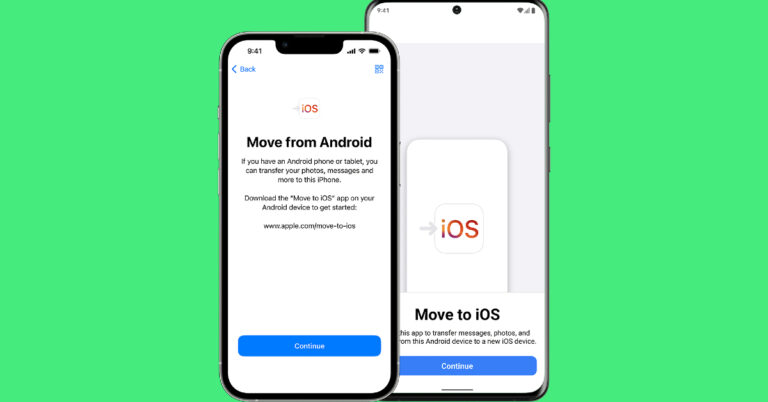
  • Intel or AMD x86-64-bit compatible device.
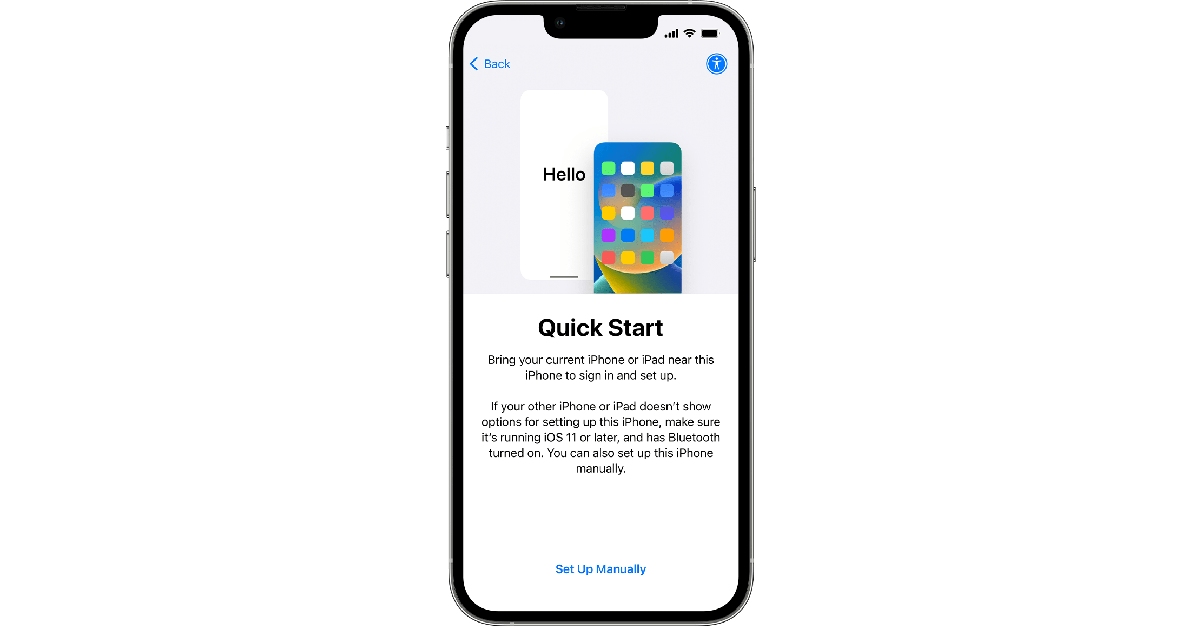
  • Minimum 4GB RAM.
  • Minimum 16GB internal storage.
  • The device should be bootable from a USB drive.
  • Full administrator access to BIOS.

Create a bootable ChromeOS Flex USB Drive

Step 1: Launch the Chrome browser and go to the Chrome Web Store.

Step 2: Search for Chromebook Recovery Utility and select ‘Add to Chrome’.

Step 2: Search for Chromebook Recovery Utility and select ‘Add to Chrome’.

Step 3: Once the extension has been added, click on it and turn on its toggle switch.

Step 4: Launch the Chromebook Recovery Utility extension.

Step 5: Click on Get Started and select your device’s model in the following window.

Step 5: Click on Get Started and select your device’s model in the following window. How to download and install Chrome OS Flex iso?

Step 6: Click on ‘Select a manufacturer’ and select Google ChromeOS Flex.

Step 7: Click on ‘Select a product’ and select ChromeOS Flex.

Step 7: Click on ‘Select a product’ and select ChromeOS Flex. How to download and install Chrome OS Flex iso?

Step 8: Hit ‘Continue’ and insert the USB drive.

Step 9: Select the USB drive from the dropdown menu.

Step 10: Click on ‘Continue’ and select ‘Create Now’.

Once the image has been created, safely remove your USB drive.

Install ChromeOS on your device

Install ChromeOS on your device

Step 1: Turn off your device and insert the USB drive with ChromeOS Flex on it.

Step 2: Launch your device and keep pressing the boot key repeatedly. Perform a quick Google search beforehand to find out the boot key of your device.

Step 3: Select your USB as the boot device.

Step 4: On the ‘Welcome to CloudReady 2.0’ screen, click on ‘Get Started’.

Step 5: You can choose to try out ChromeOS Flex before installing it on your device. Click on ‘Try it first’ to see how the OS works on your device.

Step 6: If you’re satisfied with the performance and want to install ChromOS Flex on your device, you will need to sign out first. You can do so from the Quick Settings Menu.

Step 7: Now, click on ‘Install CloudReady’.

Step 8: Installing CloudReady will wipe all your personal data from the device. Click on ‘Install CloudReady 2.0’ in the following screen to confirm your selection.

Step 9: Wait for the installation to end. Once it is complete, your device will automatically turn off. Remove the USB device and press the power key to start your device.

Frequently Asked Questions

What is ChromeOS Flex for?

ChromeOS Flex is a Chromium-based operating system meant for old PCs and Macs that need a boost in performance.

Is ChromeOS Flex free or not?

ChromeOS Flex can be installed for free on your old PC or Mac.

Is ChromeOS Flex better than Windows 10?

ChromeOS Flex is not better than Windows 10 strictly in terms of performance, but it can breathe new life on old PCs that cannot run Windows 10 OS.

Read Also: Samsung Bespoke Jet AI cordless stick vacuum launched in India

Conclusion

This is how you can download and install ChromeOS Flex on an old device. ChromeOS Flex is based on Chromium and can run basic web apps and Google services with ease. In fact, it can match whatever the regular version of ChromeOS can do. ChromeOS Flex is perfect for reviving old devices for using the web.

For the latest gadget and tech news, and gadget reviews, follow us on Twitter, Facebook and Instagram. For newest tech & gadget videos subscribe to our YouTube Channel. You can also stay up to date using the Gadget Bridge Android App. You can find the latest car and bike news here.