Garena Free Fire Redeem Codes Today 28 June 2022: Here is how to claim them

Garena Free Fire is a battle royale game with regular awards and tournaments to keep players interested. If you play Garena Free Fire, you should be aware of the redeem codes that are released on a daily basis. However, because the battle royale game is banned in India, players from other countries can use the Free Fire Redeem codes daily. If you’re unfamiliar with the Garena Free Fire redeem codes or don’t know how to get them, we’ve put together a step-by-step guide to help you redeem them. Check out Garena Free Fire Redeem Codes for June 28. The Free Fire redeem codes are a great way to get free stuff. These are 12-digit codes that contain alphabets and numbers, as well as an expiration date and time. Because the Garena FF redeem codes cannot be used more than once, you should hurry to the redemption page to claim your free reward before someone else does. To get a free reward, all you have to do is go to reward.ff.garena.com/en, which is the official redemption page. Also, keep an eye on this space for daily updates on Garena Free Fire redemption codes and rewards.

Garena Free Fire Redeem Codes Today 28 June 2022

VXSB-EN4K-56I9 Y8H7-B6V5-C4XS 3EAW-QSD2-CV3G TER5-F43E-SWAS WEYVGQC3CT8Q GCNVA2PDRGRZ J3ZKQ57Z2P2P B3G7A22TWDR7X 3IBBMSL7AK8G 8F3QZKNTLWBZ SARG886AV5GR X99TK56XDJ4X 4ST1ZTBE2RP9 FF7MUY4ME6SC FJK8-SL6W-Q203 9ER8-FG7H-BYU4 JVK9-DS2W-QJ2U Y54E-RF3G-BE4E F6C5-X4SA-3QWE 2DF3-GHRT-UG76 5FD4-SQED-2FV3 B4J5-TIY8-H765 DR8S-F2VB-N4J5 KTIY-8H76-B8V5 CDRS-F5EV-456I FH3R-NF1B-VD8S A52E-Q12Q-6E3D SCX4-VB21-HD85 EY64-5RF3-GB7D GD8H-JEUI-84I7 6TRG-FBH4-NJCK IX8S-765Y-4QE2 DCV3-BH4E-JRFI G6VT-5RSF-AV7W BG4N-EJ4K-5L6O

How to Get Free Fire Redeem Codes for Garena on June 28?

  • Visit the Garena Free Fire game’s official website at reward.ff.garena.com.
  • Use your Facebook, Google, VK, Apple ID, Huawei ID, or Twitter account to log in.
  • You’ll be taken to a valid redemption code (s)
  • Copy and paste the 12-digit redemption code into the text box.
  • On the screen, a dialogue box will appear.
  • ‘Ok’ should be selected.
For the latest gadget and tech news, and gadget reviews, follow us on TwitterFacebook and Instagram. For newest tech & gadget videos subscribe to our YouTube Channel. You can also stay up to date using the Gadget Bridge Android App. You can find the latest car and bike news here.

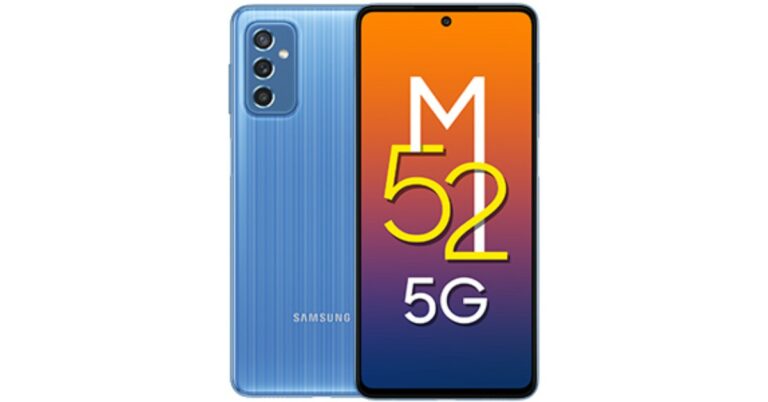
Samsung Galaxy M52 5G is now Rs 8,000 cheaper, selling for Rs 21,499

Samsung Galaxy M52 5G arrived in India last year. The 5G smartphone then was introduced at Rs 29,999. But the handset is seeing a price drop of 28 percent therefore it is now Rs 8,000 economical. So if you were planning to upgrade from a 4G to 5G phone now is the right time. The phone features a 120Hz SAMOLED+ display. It is powered by a Snapdragon 778G SoC. The price of the Samsung Galaxy M52 5G with discounted pricing is listed on the Reliance Digital website. On the website, the 6GB of RAM and 128GB of storage is priced at Rs 21,499. The price displayed is Rs 9,000 less than the initial launch price of Rs 29,999. Under the limited-time deal, the discounted rate is exclusively available through Reliance Digital. Moreover, Reliance Digital is giving customers who use Citibank cards to purchase the Samsung Galaxy M52 5G a 10% immediate discount. Additionally, IndusInd Bank credit card EMI purchases qualify for a Rs 1,500 reward. However, the phone is being offered at Rs 24,999 on both the Amazon and Samsung India websites. The Samsung Galaxy M52 5G is distinguished by its 6.7-inch full HD super AMOLED+ display, which has a resolution of 1,080 by 2,400 pixels. The screen has a 20: 9 aspect ratio, 120Hz refresh rate support, and Gorilla Glass 5 protection. Also Read: Samsung Galaxy M52 5G long-term review: A futuristic 5G smartphone The Samsung Galaxy M52 5G, which is 5G ready, runs OneUI 3.1 on top of Android 11. A Qualcomm Snapdragon 778G SoC is housed inside, along with up to 8GB of RAM and 128GB of internal storage. Memory extension is possible, and utilising a microSD card, it can be expanded up to 1TB. The triple-back camera system of the Galaxy M52 5G has a 64-MP main sensor. A 12MP ultra-wide-angle lens with an f/2.2 aperture and a 5MP macro sensor round out the combination. The phone will have a 32MP front-facing camera with an f/2.2 aperture for selfies and video calls. While the phone’s sensors include a magnetometer, proximity sensor, gyroscope, ambient light sensor, and accelerometer. The side-mounted fingerprint sensor on the Samsung Galaxy M52 5G also serves as the power button. The integrated 5,000mAh battery is supported by 25W fast charging technology. For the latest gadget and tech news, and gadget reviews, follow us on TwitterFacebook and Instagram. For newest tech & gadget videos subscribe to our YouTube Channel. You can also stay up to date using the Gadget Bridge Android App. You can find the latest car and bike news here.

How to turn your smartphone into a Smart TV remote

0
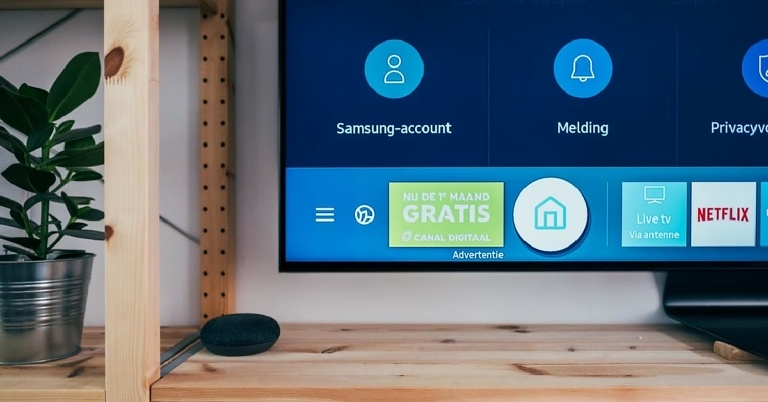
If you’ve ever lost your TV remote you would know that the analogue button on your TV set can be quite tedious to operate. Luckily, you can use your smartphone as a Smart TV remote and never feel the need to use a regular remote again. Even if you do not have a Smart TV, your smartphone can control any appliance that is controlled by an infrared remote. Today, we show you how to turn your smartphone into a Smart TV remote. Read Also: How to block YouTube channels from appearing on your Smart TV?

Here’s how you can turn your smartphone into a Smart TV remote.

Step 1: Download the Universal TV remote app for your smartphone. Step 2: Make sure your TV and smartphone are connected to the same WiFi network, then click on the WiFi option in the app. click on the WiFi option in the app. Step 3: Select your TV model from the following list. Select your TV model from the following list. Step 4: Once the TV and the smartphone are paired, you will be able to use the controls from your smartphone app. Once the TV and the smartphone are paired, you will be able to use the controls from your smartphone app. If your smartphone has an IR blaster, you can use an IR blaster app to control your TV. This works on regular TVs as well, which may not come with WiFi-connect functionality. You can even use the IR blaster to control other appliances that make use of an infrared remote. If you use an Android Smart TV, follow these simple steps: Step 1: Install and open the Google TV app on your smartphone. Step 2: Tap ‘Remote’ at the bottom right of your screen. Step 3: Select ‘Scanning for Devices’. Step 4: Choose your device. Step 5: You can use your smartphone as your Android Smart TV remote once the devices have paired. Read Also: How to remotely access your PC from anywhere in the world Some manufacturers like Sony, LG, and Samsung have their own smartphone apps that give you remote access from your smartphone. The only requirement is that the TV and the smartphone need to be connected to the same WiFI network. For every device by a different manufacturer, you will need to download a different app. This is why a universal TV remote app mentioned earlier is more convenient to use. For the latest gadget and tech news, and gadget reviews, follow us on TwitterFacebook and Instagram. For newest tech & gadget videos subscribe to our YouTube Channel. You can also stay up to date using the Gadget Bridge Android App. You can find the latest car and bike news here.

Meta introduces Instagram Reels APIs, with full availability by July 6

According to Meta, Reels APIs will be made accessible to a number of endpoints on the Instagram Platform for developers. The company asserts that it is offering the new Reels APIs because it has learned from its developer community that Reels is a major priority. Meta will begin adding Reels to a number of endpoints on the Instagram Platform from today June 28, 2022. While making the announcement the company stated, “We are always looking to improve our content publishing and consumption experiences, whether people use Instagram natively, or via a third party. After consistently hearing from our developer community that Reels is a top priority, we are excited to introduce Reels to a number of the endpoints that you may already be familiar with.” As per Meta, it will be expanding the scope of support of reels to Content Publishing, Insights, Comment Moderation, Hashtag Search, Business Discovery, Mentions, Promote API and Instagram Basic Display API. Developers will be able to schedule Reels and access Reels’ social interaction statistics thanks to the APIs. Reels can now be published on Instagram Business accounts by developers using the new APIs. Using the APIs, developers will also be able to leave comments on Reels, answer to them, delete them, make them visible or invisible, and enable or disable comments. Additionally, Reels designated with specific hashtags will be easy for developers to find when searching for publicly accessible Reels. For both the current and all earlier iterations of the Graph API, API enhancement feature will be available. Reels will instantly become accessible to developers who already have access to the relevant APIs. If your app has previously been given the go-ahead for the necessary permission access levels, there is no need to submit it for further App Review. The company will be updating all the relevant developer documentation with the applicable information for each capability. From today the Reel APIs will begin rolling out to over 25 percent of Instagram users’ accounts and is expected to complete to 100 percent of users by July 6. As per Meta, some users may have access to all Reels APIs as early as June 28, this rollout will occur gradually at the account level through July 6. “We will be unable to indicate which users have access between June 28 and July 6,” the company noted. For the latest gadget and tech news, and gadget reviews, follow us on TwitterFacebook and Instagram. For newest tech & gadget videos subscribe to our YouTube Channel. You can also stay up to date using the Gadget Bridge Android App. You can find the latest car and bike news here.
Amazon Quiz Answers Today 28 June 2022: Participate to win Rs 40,000

Amazon is back with another quiz on its mobile platform. The 28 June 2022 Amazon Quiz is now live on its platform and today’s Amazon Quiz will give you a chance to win Rs 40,000 Amazon pay Balance. Every day Amazon brings a fresh questionnaire that comprises 5 questions. These questions are based on current affairs and general knowledge. The quiz can be played from 8 AM to 11:59 PM and the contestants need to answer correctly to enter into a lucky draw. In today’s Amazon Quiz the participants will get a chance to win Rs 40,000 Amazon Pay Balance. Today’s Amazon Quiz Prize – Rs 40,000 Amazon Pay Balance Quiz Date – 28 June 2022 Daily Timing – 12 AM to 11:59 PM Winner Announcement – Today at 12 PM

Amazon Quiz Answers Today 28 June 2022

Question 1: Neeraj Chopra recently set a new National Record of 89.3 in the javelin at which athletics event? Answer: Paavo Nurmi Games Question 2: Shabaash Mithu, based on the life of famous cricketer, Mithali Raj is directed by whom? Answer: Srijit Mukherji Question 3: Renaissance’, is an upcoming album by which famous singer? Answer: Beyonce Question 4: One of the largest and busiest railway stations in the world, this famous station is located in which European city? Answer: Paris Question 5: Which of these is a traditional dress of this country? Answer: Kimono

How To Play Amazon Quiz

Only app users are eligible to play the Amazon quiz every morning from 12 AM to 11:59 PM. The quiz is not available on the desktop. For those who are unaware of how to play the Amazon quiz below are the steps, you can follow to take the quiz.
  • Firstly download the Amazon app from Google Play Store or App Store
  • Now fill in the required information through the Sign Up option.
  • You need to log in to the Amazon app and scroll down on the home screen to find the Amazon Quiz banner.
  • Tap on the Amazon Quiz banner and tap on the Start button to start the Quiz.
  • Now you will get 5 questions and you need to answer them correctly. One wrong answer will eliminate you from the Quiz.
  • After answering all the questions correctly you are now eligible for a Lucky Draw.
  • The winner’s name will be announced today at 12 PM.
For the latest gadget and tech news, and gadget reviews, follow us on TwitterFacebook and Instagram. For newest tech & gadget videos subscribe to our YouTube Channel. You can also stay up to date using the Gadget Bridge Android App. You can find the latest car and bike news here.
How to create a playlist on Amazon music?

0
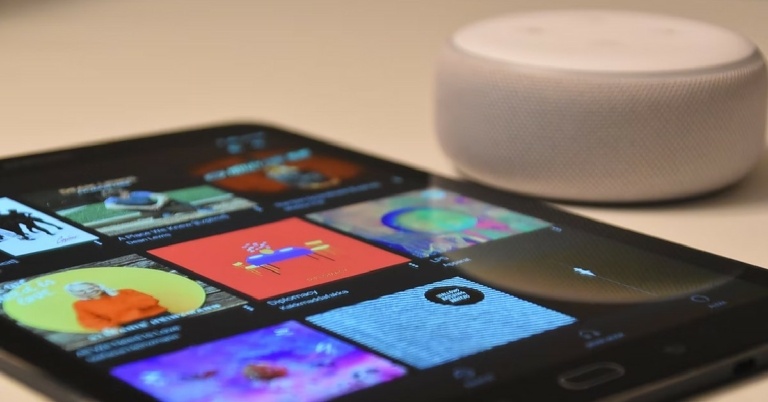
You can use your Amazon Prime account to access Amazon Music without any extra charges. Amazon Music offers over 75 million songs on its platform along with a wide range of podcasts. Amazon Music also offers pre-made playlists for different themes and occasions, be it a workout session or just ambient sounds to fall asleep to. It also offers you to create your playlists, which you can make public and share with other people as well. In this article, we will show you how you can create a playlist on Amazon music. Read Also: Spotify Web Player: How To Best Access And Use All Its Features

Here’s how you can create a playlist on Amazon music.

Step 1: Open the Amazon Music app. Step 2: Tap on ‘Library’ at the bottom menu. Tap on ‘Library’ at the bottom menu. Step 3: Tap on ‘Playlists’. Tap on ‘Playlists’. how to create a playlist on amazon music Step 4: Tap on ‘New Playlist’. Tap on ‘New Playlist’. Step 5: Give your playlist a name and hit ‘Save’. Give your playlist a name and hit ‘Save’. how to create a playlist on amazon music Step 6: Search any song you want to add to your playlist. Search any song you want to add to your playlist. Step 7: Tap the three dots next to the song title. Tap the three dots next to the song title. how to create a playlist on amazon music Step 8: Select ‘Add to Playlist’. Select ‘Add to Playlist’. Step 9: Select the Playlist you want to add the song to. Select the Playlist you want to add the song to. how to create a playlist on amazon music The song will be added to your chosen playlist. Read Also: Amazon Music acquires a customer base of more than 55 million monthly users To make things simpler you can directly go to a song, tap the three dots and select Add to playlist>Create new playlist. A window will pop up asking you to name the playlist. After you press Save, the song you selected will automatically be added to your new playlist. If you want to delete a playlist, go to Library>Playlists, and tap the three dots next to the playlist you want to delete. Select ‘Delete from Library’ then press ‘Delete’ on the pop-up window. Your playlist will be removed from your device and your Amazon music profile. For the latest gadget and tech news, and gadget reviews, follow us on TwitterFacebook and Instagram. For newest tech & gadget videos subscribe to our YouTube Channel. You can also stay up to date using the Gadget Bridge Android App.

How to remove water from your Android smartphone? (2022 guide)

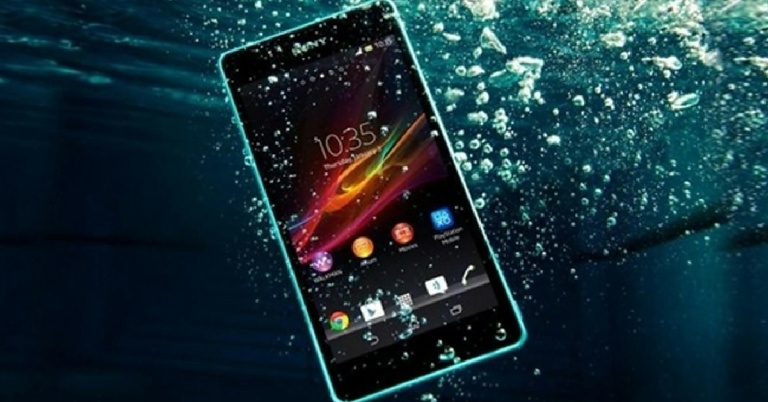
If you’ve accidentally dropped your smartphone in the water, don’t panic. It can still be rescued if you act fast. Smartphones are prone to be dropped down a lot, but they can turn dysfunctional if they stay underwater too long. Even if it’s a small spill, your smartphone can still die if you do not take the necessary measures. Most smartphones come with an IP label which makes them water-resistant to some degree. This gives you time to get the water out from all the places it may have gotten stuck in. Today, we bring you a comprehensive guide on how to remove water from your Android smartphone. Read Also: Get Monsoon Ready – How To Keep Your Gadgets Safe From Water

Here are all the necessary steps you need to take in order to remove water from your Android smartphone

Before you begin removing water from your smartphone, make sure it’s switched off and unplugged from the charger. Using your phone while it’s still wet can cause it to short-circuit. Once that happens, your phone will be rendered completely useless. Once you’ve turned it off, remove any accessories like the phone case, skin, stylus, and screen protection. Disassemble your phone by removing the battery pack, SIM card, and memory card. Place these items on a clean paper towel and give them a proper wipe down. Give your a proper shake to physically remove any large drops of water that may have gotten stuck within it.

Cover your phone with a Desiccant.

cover your phone with a desiccant You may have heard that covering your phone with rice may help absorb any water trapped inside it. While that may be partially true, covering your phone in rice has an added risk of starch and dust particles from the rice entering your phone and causing further damage. Using a desiccator like silica gel packets is a much more effective way of absorbing the water out of your phone. You may have leftover silica gel packets in shoe boxes and electronic packaging. Grab as many as you can and put them in a bowl, then place your phone in the middle, making sure the gel packets cover every surface. Let your phone stay in the bowl for 48-72 hours, letting the silica gel packets absorb all the moisture.

Leave your phone in front of a fan

leave your phone in front of a fan If you don’t have any desiccant at hand, do not waste time searching for it. Timing is crucial when it comes to saving your phone from water damage. Simply place your phone on a clean paper towel and turn on a table fan with the airflow focussed on your phone. Let it stay like that for 48-72 hours.

How to remove water from your phone speaker

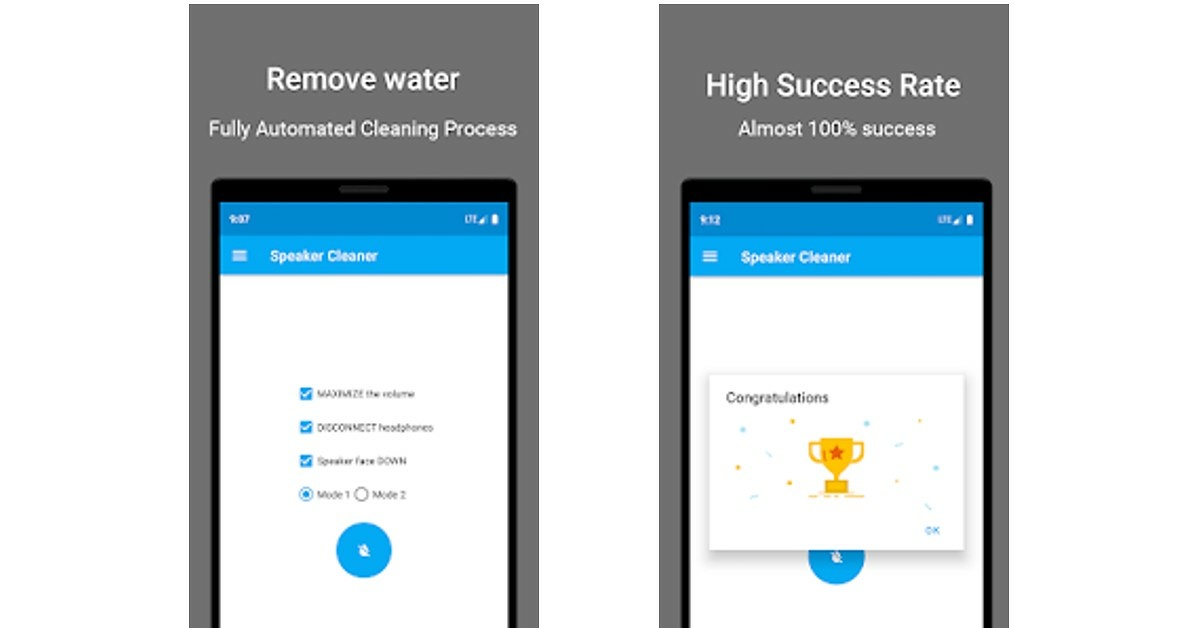
Turn your phone on after 2-4 days. Check to see if it is still functional. If it starts overheating quickly, disassemble it again and repeat the last two steps. If it works fine but the audio quality seems affected, there might be some water stuck on the loudspeaker. how to remove water from phone speakers Luckily, your phone is designed to take some water damage. It also comes with an in-built tool to remove water from the speaker. Just go to Settings>Additional Settings>Clear Speaker and follow the instructions. Make sure your volume is at the highest possible level. Your phone will blast a high-pitched sound that will force any traces of water out of the speaker. super speaker cleaner If your phone does not have an option of clearing out the speaker, there are several apps built for the same purpose. You can either download Super Speaker Cleaner from the Play Store or visit fixmyspeakers.com. The process will be similar, a high-pitched sound will eject any remaining traces of water from your phone speakers. Read Also: How To Highlight, Draw And Write On Android Smartphone Screenshots If you follow these steps in a timely manner, chances are your phone will not face any significant damage. Modern smartphones are designed to be water-resistant to some degree, which gives you a window within which you can take the necessary steps to save it.  Do not expose your phone to any heat, this includes blowing it with a hairdryer or placing it under a table lamp for a few days. Exposure to heat can permanently damage your smartphone. You may use a vacuum cleaner to gently remove water particles from your phone, using the appropriate attachment.  If your phone still isn’t fixed after carrying out the steps mentioned above, take it to a professional for further repair. For the latest gadget and tech news, and gadget reviews, follow us on TwitterFacebook and Instagram. For newest tech & gadget videos subscribe to our YouTube Channel. You can also stay up to date using the Gadget Bridge Android App. You can find the latest car and bike news here.  

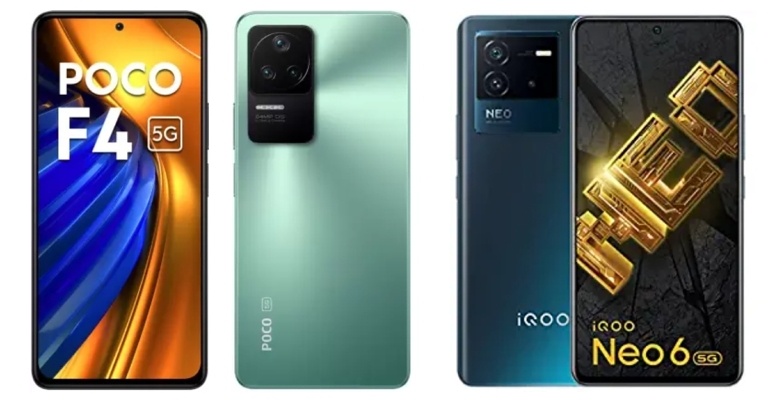
Smartphone comparison: Poco F4 5G Vs iQoo Neo 6

Recently, Xiaomi’s spinoff Poco unveiled the Poco F4 5G in India. The smartphone has a vibrant screen, an effective camera, and a strong battery. The 870 SoC powers the smartphone. The phone has a 120Hz AMOLED screen, three rear cameras, and other features. Here, the iQoo Neo 6 Vs Poco F4 5G are compared. See how the Poco F4 compares to the iQoo Neo 6 to determine which one is the better investment for you.

Display

Poco F4 5G: 6.67-inch full-HD+ E4 AMOLED display iQoo Neo 6: 6.62-inch E4 AMOLED full-HD+ display

Processor

Poco F4 5G: Snapdragon 870 SoC iQoo Neo 6: Snapdragon 870 SoC

Rear camera(s)

Poco F4 5G: A triple-back camera arrangement with a 64-megapixel primary sensor and an optical image stabilisation (OIS) with an f/1.8 lens. A 2-megapixel macro camera and an 8-megapixel ultra-wide camera are also part of the camera arrangement. iQoo Neo 6: A triple-back camera arrangement for images and videos, which includes a 64-megapixel Samsung ISOCELL GW1P primary sensor with an f/1.89 aperture and optical image stabilisation. There is a 2-megapixel macro camera with an f/2.4 aperture and an 8-megapixel wide-angle camera with an f/2,2 aperture

Selfie camera

Poco F4 5G: 20-megapixel front camera sensor iQoo Neo 6: 16-megapixel sensor

RAM and storage

Poco F4 5G: 6GB RAM with 128GB storage / 8GB RAM with 128GB storage/ 12GB RAM with 256GB storage model iQoo Neo 6: 8GB RAM with 128GB storage/ 12GB RAM with 256GB storage

Battery

Poco F4 5G: 4,500mAh battery iQoo Neo 6: 4,700mAh battery

Operating system

Poco F4 5G: Android 12 with MIUI 13 iQoo Neo 6: Android 12-based Funtouch OS 12

Starting Price

Poco F4 5G: Rs 27,999 iQoo Neo 6: Rs 29,999

Our Take

The Poco smartphone has a slightly bigger screen than the iQoo handset. Although the screen’s resolution, type and refresh rate is the same on both phones. In terms of performance both the devices are powered by Snapdragon 870 SoC and operate on Android 12 out of the box. Apart from that, Neo 6 houses a bigger 4,700 mAh battery with 80W fast charging whereas Poco F4 5G supports 67W fast charging with 4,500mAh under its hood. Speaking of the cameras, both have a similar triple rear camera set up but Poco features a 20MP selfie camera whereas there is a 16MP front-facing camera on the iQoo smartphone. Most of the specifications of both the handsets are similar even the pricing is the same, however, Poco has more storage and RAM options than iQoo. So if you are looking for a 5G phone with a bigger battery and fast charging then you can go for the iQoo Neo 6, else the iQoo Neo 6 For the latest gadget and tech news, and gadget reviews, follow us on TwitterFacebook and Instagram. For newest tech & gadget videos subscribe to our YouTube Channel. You can also stay up to date using the Gadget Bridge Android App. You can find the latest car and bike news here.

TCL Mini LED 4K Google TV confirmed to arrive in India soon

Chinese electronics giant TCL is all set to announce the launch of its new Mini LED 4K Google TV in the Indian market soon. The upcoming 4K television will have HDR10+ with 144 Hz VRR. It is also said to support Dolby Vision and Dolby Atmos. The company via press release said, “Cementing its position as a leader in the TV electronics industry, TCL, the global number-1 android smart TV brand 2021, is all set to introduce a new Mini LED 4K Google TV. Working strenuously towards reaching its ultimate goal to provide high-powered TV sets that fit perfectly with modern-age customers, TCL has integrated several unparalleled TV technologies in its latest innovation.” The forthcoming LED Mini LED 4K Google TV is said to have a number of important features. The list also contains IMAX Enhanced, QLED, HDR10+, AiPQ Engine with AISR, Dolby Vision & Dolby Atmos, and a lot more. 144 Hz VRR (for reduced screen tearing and better visual output) is also included. The newest innovation in the TCL TV world, according to the manufacturer, will set the bar for future TV advancements. The sources further asserted that the TV is the pinnacle of clever, stylish, and futuristic technology that gives people comfort and amusement. By June 28, this ground-breaking invention will be made public. TCL is now finishing up preparations to introduce this excellent but very affordable TV technology. The first Mini LED TVs (C825) were released in India last year by the Chinese electronics manufacturer TCL. Quantum Dot Technology, a 120Hz MEMC, and compatibility for Dolby Vision and Dolby Vision IQ are all included in the TCL Mini LED QLED 4K C825 TV. Along with other cutting-edge technologies, the range supports voice control. The TCL Mini LED QLED 4K C825 comes in two different sizes 55-inches and 65-inches. The 120Hz MEMC and TCL’s proprietary algorithm in the TCL Mini LED QLED 4K C825 enable Dolby Vision IQ and ensure smooth playback of action-packed content. For the latest gadget and tech news, and gadget reviews, follow us on TwitterFacebook and Instagram. For newest tech & gadget videos subscribe to our YouTube Channel. You can also stay up to date using the Gadget Bridge Android App. You can find the latest car and bike news here.

How Can You Stream Netflix On Discord (2022)?

Discord is one of the most popular Voice over IP (VoIP) instant messaging social platforms, especially amongst gamers. Users have the ability to communicate with each other through voice calls and texts as well as share media and files, both privately or as a part of communities with a common interest, called “servers”. The application is also becoming widely popular for streaming movies, TV shows or gaming sessions so that peers can enjoy watching or playing together while recording each others’ reactions live. Below is a step-by-step guide on how to stream Netflix on Discord in 2022, along with some common issues you might face and how to tackle them. 

Streaming Netflix On Discord By Screen Share

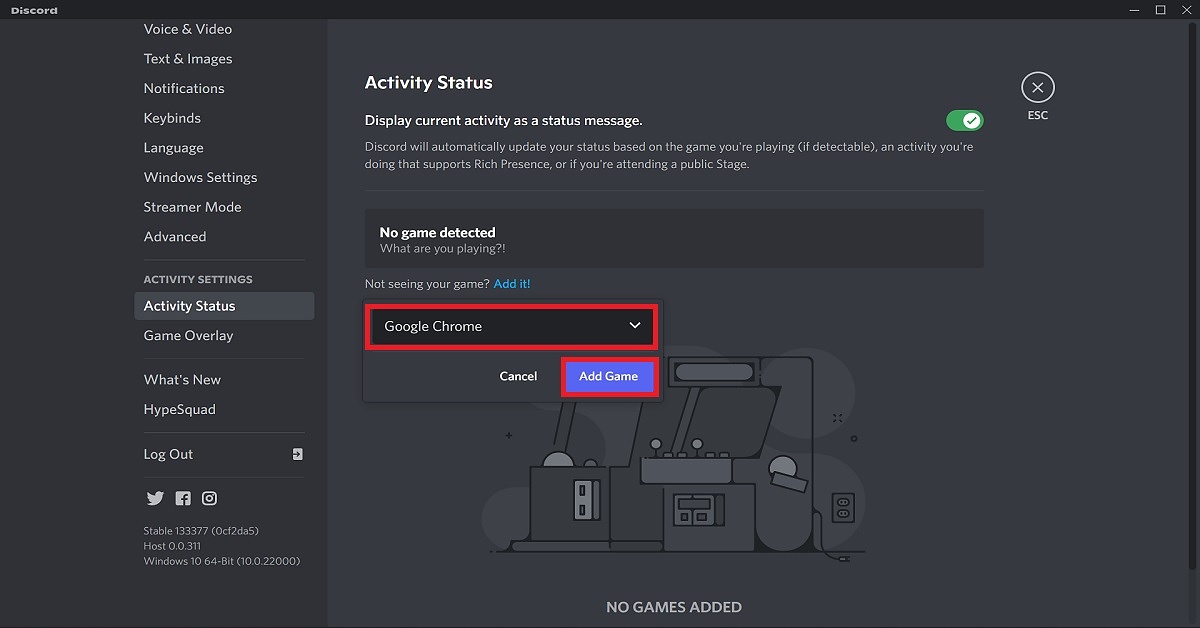
  Step 1 and 2 how to Stream Netflix on Discord Step 1: Visit the Netflix website through your web browser and log in to your account.  Step 2: Load the Netflix TV show or movie that you want to stream on Discord. Step 3: Open the Discord app on your system and connect to a server.  Step 4 Discord Step 4: Click on the User Settings (gear) icon at the bottom left corner of the interface besides your username. Step 5 and 6 Activity Status: How to stream netflix on Discord Step 5: Choose the Activity Status option under the Activity Settings section according to your preference.  Step 6: Click on Add it and then select the tab in your browser on which you have loaded Netflix. For example, if you used Google Chrome to open the Netflix website, then select Google Chrome. Step 7 Step 7: Click on Add Game. Step 8 Step 8: Close the User Settings menu and click on the Stream Google Chrome icon in the lower-left corner beside the Google Chrome tab. Step 9 Screen Share Pop-up Discord Step 9: A Screen Share pop-up window will appear on the screen. Select the browser tab with Netflix and adjust the stream settings accordingly. Step 10: Click on Go Live Step 11: Now, all you have to do is head back to the Netflix tab in your browser and click on the play button! Read also: What Is Discord Nitro and should you buy it in 2022?

Common Streaming Issues Faced On Discord

You might face some issues when you use the screen share option on Discord for live streaming a movie, TV series or gaming session. Some of the common ones include a stream without audio or that with a black screen. Below are mentioned the different possible causes for such issues along with some remedies that you can use in such situations. 

How To Stream Netflix On Discord With Audio

Audio issues are common amongst players and viewers while streaming on Discord. Some of the reasons reported for the same include lack of administrative access to the Discord application, lack of stability in its screen share feature, and corrupt or out-of-date audio drivers.  For giving administrative access to the Discord app, right-click on it and go to Properties. Under the Compatibility tab, check the ‘Run this program as an administrator box, click on Apply and then press OK to save changes. You can also try directly clicking on the ‘Run as administrator’ option under the context (right-click) menu. Make sure that all the audio drivers on your PC are up-to-date. Enable all audio devices and grant Discord all the permissions it requires to work efficiently on your system.  Read also: Top 10 Movies And TV Series To Watch On Netflix In June 2022

How To Stream Netflix On Discord Without A Black Screen 

Streaming a black screen is another common issue faced by users on Discord. Players are said to have a much higher probability of encountering this problem. The reasons attributing to this error may primarily include outdated or corrupted graphics drivers. For fixing this issue, you can try updating the graphics drivers on your system. You can also try updating the Discord application, running Discord in compatibility mode, disabling hardware acceleration or clearing the Discord cache.  In this way, you can stream Netflix on Discord in 2022 while eradicating any issues you face. In case you encounter any other errors while streaming on Discord, do let us know about them in the comments section below. We will try our best to find a solution and get back to you on them as soon as possible.  For the latest gadget and tech news and gadget reviews, follow us on Twitter, Facebook and Instagram. For newest tech & gadget videos subscribe to our YouTube Channel. You can also stay up to date using the Gadget Bridge Android App. You can find the latest car and bike news here.