Garena Free Fire is a battle royale game with regular awards and tournaments to keep players interested. If you play Garena Free Fire, you should be aware of the redeem codes that are released on a daily basis. However, because the battle royale game is banned in India, players from other countries can use the Free Fire Redeem codes daily. If you’re unfamiliar with the Garena Free Fire redeem codes or don’t know how to get them, we’ve put together a step-by-step guide to help you redeem them. Check out Garena Free Fire Redeem Codes for June 21.The Free Fire redeem codes are a great way to get free stuff. These are 12-digit codes that contain alphabets and numbers, as well as an expiration date and time. Because the Garena FF redeem codes cannot be used more than once, you should hurry to the redemption page to claim your free reward before someone else does. To get a free reward, all you have to do is go to reward.ff.garena.com/en, which is the official redemption page. Also, keep an eye on this space for daily updates on Garena Free Fire redemption codes and rewards.
Garena Free Fire Redeem Codes Today 21 June 2022
FB4N-SWI8-76YH
TH7H-KO9U-IK0O
KM4I-T8G7-YTD7
GF3V-Y6WS-54ET
FV6B-W2N3-KI4R
87G6-VT6G-DBE4
56IY-HV5S-RF7C
24WS-W7SX-DA9V
WB34-U5I8-6Y7H
BYVH-DNEM-45O9
How to Get Free Fire Redeem Codes for Garena on June 21?
21 June 2022 Amazon Quiz has gone live on its mobile app platform. The quiz can be played from 12 AM to 11:59. All you need to do is just answer five easy questions that the e-commerce website puts before you. Today you can stand a chance to win Rs 30,000 Amazon Pay Balance.Every day Amazon posts a new questionnaire that consists of five simple questions about general knowledge and current events. To enter a lucky draw, participants must correctly answer the questions. One incorrect answer will result in your elimination from the quiz. Each month, only one person will be declared the winner and the results will be announced at the end of the month. Amazon customers who submit correct answers can win an Amazon Pay Balance worth up to Rs 50,000. To ensure that you answer all five questions correctly, Gadget Bridge updates all of the correct answers on a daily basis. Take a look at today’s answers:Amazon Quiz Today Prize – Rs 30,000 Amazon Pay BalanceQuiz Date – 21 June 2022Daily Timing – 12 AM to 11:59 PMWinner Announcement – Today 12 PM
Amazon Quiz Answers Today 21 June 2022
Question 1: Which team did India defeat in the final to win the 2022 Thomas Cup in badminton?
Answer: Indonesia
Question 2: The Centre’s recent recruitment scheme for Indian youth to serve in the armed forces, shares its name with which movie?
Answer: Agnipath
Question 3: At the 2022 Skytrax World Airport Awards, an airport in which city bagged the best regional airport in India and South Asia award?
Answer: Bengaluru
Question 4: In which European country is this location located?
Answer: Switzerland
Question 5: What is the profession of this famous comic book character?
Answer: Reporter
How To Play Amazon Quiz
Only app users are eligible to play the Amazon quiz every morning from 12 AM to 11:59 PM. The quiz is not available on the desktop. For those who are unaware of how to play the Amazon quiz below are the steps, you can follow to take the quiz.
Firstly download the Amazon app from Google Play Store or App Store
Now fill in the required information through the Sign Up option.
You need to log in to the Amazon app and scroll down on the home screen to find the Amazon Quiz banner.
Tap on the Amazon Quiz banner and tap on the Start button to start the Quiz.
Now you will get 5 questions and you need to answer them correctly. One wrong answer will eliminate you from the Quiz.
After answering all the questions correctly you are now eligible for a Lucky Draw.
The winner’s name will be announced today at 12 PM.
Once you sign in to your Netflix on your Smart TV, it remembers your login credentials so you don’t have to sign in every time you use the app. Since you don’t always sign out of Netflix on your Smart TV, it can be tricky to figure out how to do it. The need to sign out of your Netflix account may arise when someone else wants to use their account, or when you don’t want anyone else to use your account. Today, we’ll show you 2 ways to sign out of Netflix on your Smart TV.Read Also:Netflix users can now remove series or movies from the “Continue Watching” list
Here’s how you can sign out of Netflix on your Smart TV
Step 1: Launch the Netflix app on your Smart TV using the app menu or the dedicated Netflix button on your Smart TV remote.Step 2: Press the left arrow button on your Smart TV remote to access the Netflix side menu.Step 3: Keep pressing the down arrow button until the Get Help option is highlighted.Step 4: Press Enter on your Smart TV remote to select the Get Help option. If your remote does not have the Enter button, press the round button at the centre of the navigation buttons.Step 5: Keep pressing the down arrow until the Sign Out option is highlighted.Step 6: Press the Enter button to select the ‘Sign Out’ option.Step 7: Netflix will ask you if you want to Sign Out of your device. Use the navigation buttons to highlight the Yes option.Step 8: Press the Enter button to select the Yes option. You will be signed out of your Netflix account on your Smart TV.
Remotely sign out of Netflix on your Smart TV
Step 1: Sign into Netflix on your PC’s web browser.
Step 2: Hover the cursor on your profile picture at the top right corner of the screen and select Account.
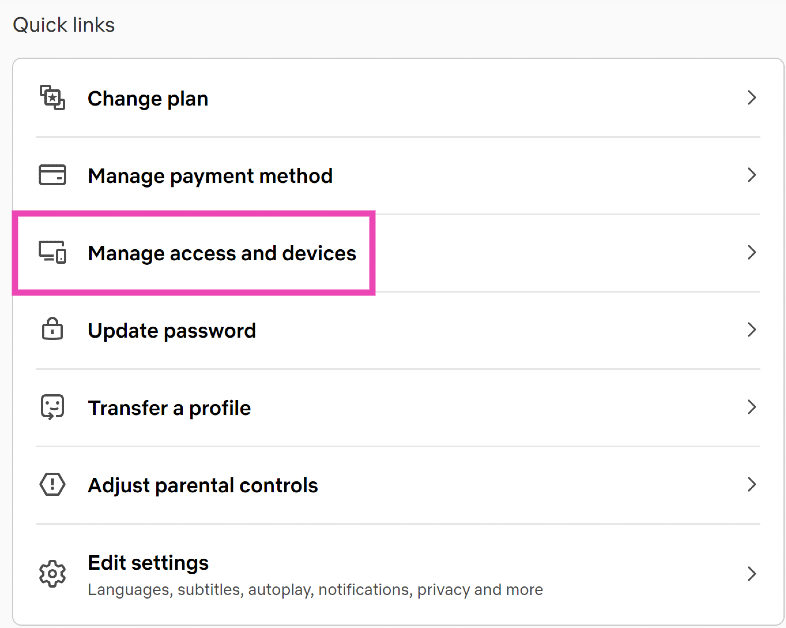
Step 3: Scroll down and select Manage access and devices.
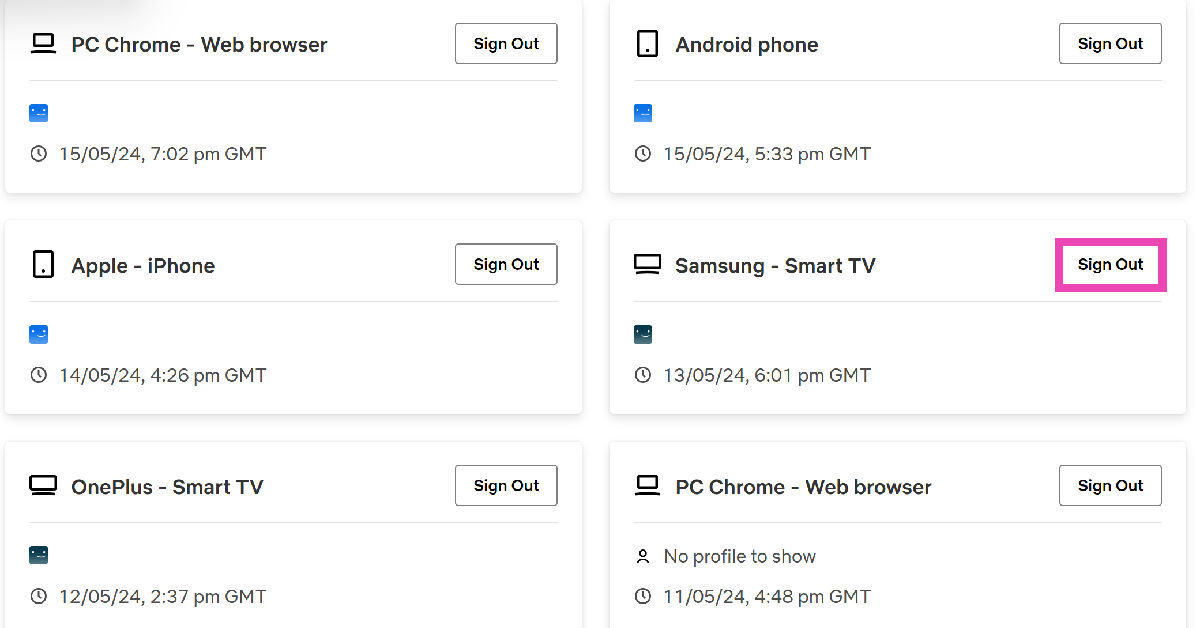
Step 4: Hit Sign Out next to your Smart TV.
Frequently Asked Questions (FAQs)
How do I sign out of Netflix on all my devices at once?
Open Netflix on your PC’s browser and go to Account>Manage access and devices. Scroll down and select ‘Sign Out of All Devices’
How do I sign out of Netflix on my Smart TV?
Launch Netflix on your Smart TV, hit the left arrow icon on the remote to access the side panel, then scroll down and select ‘Get help’. Hit ‘Sign Out’ and confirm your selection.
How do I install Netflix on my Macbook?
Since the Netflix app isn’t available for Macbooks, you are left with the option of creating a ‘web app’. Open Netflix in Chrome, hit the ellipses, and select ‘Create Shortcut’.
Read Also:How to block YouTube channels from appearing on your Smart TV?
Conclusion
Following the methods mentioned above, you will be able to sign out of Netflix on your Smart TV. It is important to not select the ‘Exit Netflix’ option on the side menu. It will only exit you from the app and not sign out from your Netflix account. If you need to sign back in, open Netflix on your Smart TV and select Sign In.
The all-new Samsung Galaxy M53 5G smartphone is here and we are very excited to share our review of the device with all of you. It is offered with 6GB/8GB RAM, which is extendable up to 16GB, as claimed by the brand. This is coupled with a 128GB/256GB internal memory. The smartphone comes with a 120Hz FHD+ Super AMOLED display and a 5,000mAh battery capacity. One of the highlights of this model is its 108MP quad-camera system, which is paired with a 32MP front camera. Here is a complete review of the Samsung Galaxy M53 5G so you can check out whether it is the right investment for you or not.
Samsung Galaxy M53 5G Review: Design and Display
The Galaxy M53 5G smartphone comes riding a thin rectangular box. Along with the phone comes a USB to Type-C cable, a SIM ejector tool and a quick start guide within the package. As the brand tries to go green, it does not offer you an adapter with it. The smartphone’s 6.7-inch shiny black display stares at you as soon as you unbox the package. Picking up the smartphone in your hands, you’ll feel it to be lightweight for its size. The 120Hz Super AMOLED Infinity-O display has a screen-to-body ratio of about 85%. It comes with a Gorilla Glass 5 protection. The screen resolution is 1,080×2,408 pixels, the aspect ratio is 20:9 and the pixel density is 394ppi. Flip the phone over and you’ll meet its sleek and glossy plastic back cover in its body colour. The Galaxy M53 is offered in three colours, Blue, Green and Emerald Brown. We were able to get our hands on its Green coloured model. The back has been given an elegant minimalistic look. It doesn’t seem fingerprint-resistant. The rear quad camera system is placed neatly and symmetrically on a mount. Just below the mount lies the flashlight of the device. At the bottom in the centre is the Samsung brand engraving, which completes the look of the smartphone.The model comes with a body-coloured metallic frame. On its left side lies the SIM card tray while on its right lies the volume button and the power button with an integrated fingerprint sensor. At the bottom of the frame lies the Type-C USB port along with the mono speaker. Bringing the phone to life, its bright and colourful FHD+ AMOLED display immediately appeals to the eyes. One gets to enjoy the features of the latest Android 12-based One UI 4.1 OS. The look and feel of its interface is that of a standard Samsung device. The screen colours appear to be well-lit and even the default theme has great contrast. The icons within the home screen and the app drawer are square-shaped with rounded corners, as seen in a typical Samsung model. The touch of the smartphone feels quite soft and fluid. Overall, the display looks pretty and is easy to get accustomed to. Streaming videos on Youtube is very life-like. The quality of the videos can be enhanced up to 2160p at a rate of 60fps. Watching movies and TV series on Netflix also provides a seamless experience. The picture quality delivered is super fine and the colours are vibrant. The Galaxy M53 5G comes with a mono-audio system. The mono-speaker works decently in terms of loudness and crispness of the sound. However, one still does miss stereo-audio output in the device.The gaming experience on the device was tested by playing high-end games like Asphalt 9 Legends. The graphics offered are commendable and the response to the touch commands is also swift. Movements and actions are smooth. Together with the audio, gaming on the smartphone is quite enjoyable. A stereo sound output would have surely taken the experience to the next level though. Overall, the design of the Samsung Galaxy M53 5G is graceful and has a sophisticated character to it. The display of the smartphone is also pretty amazing and works flawlessly. Read also: Smartphone Comparison: Motorola Edge 30 Vs Samsung Galaxy M53
Samsung Galaxy M53 5G Review: Performance and Cameras
Elaborating further on the Galaxy M53 5G specifications, it gets offered with 6GB/8GB RAM options in combination with 128GB/256GB internal storage. The device supports nano dual-SIM and the microSD card slot shares its space with the SIM slot. It comes equipped with a MediaTek MT6877 Dimensity 900 (6 nm) Octa-core processor. It also offers Bluetooth 5.2, Wi-Fi and 5G connectivity. The model comes with a Li-ion 5,000mAh battery which supports 25W fast charging as well as reverse charging. The battery life of the smartphone is also good. Upon heavy usage (including continuous binge-watching, gaming and camera use), it can last up to an entire day. After mild to moderate usage, it can last for more than a day. The hours may vary by the different applications in use. The device comes pre-installed with Android 12-based One UI 4.1 OS. The home screen and app drawer have a traditional Samsung interface. The device comes downloaded with some additional applications as well, which may or may not be useful. There was no app crash observed while using multiple applications simultaneously. Switching between apps was also quite hassle-free. The device also doesn’t seem to get heated easily upon usage for prolonged periods.Coming to the Samsung Galaxy M53 5G camera review, it comes with a superb 108MP+8MP+2MP+2MP quad rear camera system, along with a 32MP front camera. It has 5 zoom modes, 0.5x, 1x, 2x, 4x and 10x. The picture quality degrades significantly as we go up the zoom scale after 2x. The 5 zoom modes are available for use from the rear camera in the standard Photo mode and Video mode. The Night mode offers 2 zoom modes for the rear camera, 0.5x and 1x. Two zoom modes (a normal and a wide-angle) are offered for the front selfie camera Portrait mode, Photo mode and Night mode whereas no zoom options are offered for video captures from the front camera. Videos can be captured in UHD resolution with up to a 30fps frame rate from both front and back. Samsung Galaxy M53 5G: Photo ModeThe rear camera’s Photo mode works great in capturing the fine details within the frame. The colour scheme is full of contrast and looks close to reality. Under suitable external conditions, the camera enhances each colour within the frame, making the images instantly pleasing to the eyes. The shots taken appear quite vivid in daylight. Samsung Galaxy M53 5G: Portrait ModeThe smartphone’s rear camera Portrait mode can very well be defined as one of its most significant highlights. Not only does it provide a superior picture quality, but the colours in the frame are captured extremely well. The overall result has a nice pop element to it. The blacks in the image are increased subtly while the saturation of each colour is tuned up a notch, producing astounding captures. You will fall in love with the camera’s capabilities in no time. Samsung Galaxy M53 5G: Night ModeThe rear camera’s Night mode also works pretty appreciably. Although the 0.5x zoom mode produces slightly blurry results, shots taken from the 1x zoom do not compromise in capturing the details at all. The surrounding lights captured by the camera help brighten up the image. Speaking of the front camera, it takes selfies quite decently. The details are captured nicely while the skin tones appear close to reality. The Fun mode embeds all the Snapchat filters directly into the smartphone’s built-in camera, thereby providing ease of access. Apart from the above, the camera also offers various other modes like Food, Macro, Pro, Single Take, and many more.Overall, the quality of the camera package offered with the Samsung Galaxy M53 5G is pretty impressive and makes you happy.Read also:Samsung Galaxy A53 5G Review: Should You Pick It Up In This Price Range?
Verdict
To sum up, the Samsung Galaxy M53 5G seems to be a great smartphone choice. It offers a sophisticated design along with commendable display quality. The performance of the device is also up to the mark while the clicks from its premium quality cameras appear quite striking. Geekbench 5 CPU benchmarking gives it a single-core score of 506 and a multi-core score of 1989. The price of the smartphone may seem to incline toward the higher end for some people. However, if that’s not an issue, we would gladly give you a go-ahead for buying this device. It is a delight to use. The Samsung Galaxy M53 5G is priced at Rs 28,499 onwards.
If you’re looking to make a tutorial video or need to broadcast a great moment from a game you just played, you will need to figure out how to record your device screen. There are an array of software and tools available online for this particular task. Navigating them and finding the best tool for your needs can be tricky and confusing. To help ease your task, we bring you the 3 best ways to screen record on your Windows Device. Following these steps, you will be able to start and stop screen recording any time you please.Read Also:Microsoft revamps Xbox Game Bar on Windows 10: Here’s everything that’s new
Here are the 3 best ways to start and stop screen recordings on a Windows 10 and 11 device
Xbox Game Bar
A lot of people may not know this but Windows 10 and 11 have native screen recording software that comes built-in with the OS. It is called the Xbox Game Bar and is primarily designed for gamers to record their gaming screen and capture vital gameplay moments. But it can still be used as an excellent screen record software since it can record any app or browser screen.You do not need to have an Xbox console to use this tool. It comes pre-installed on the Windows device for everyone to use. The Xbox Game Bar has one drawback – it is unable to record the desktop and the file explorer screens.Step 1: Open the screen you wish to record on your Windows device.Step 2: Search for Xbox Game Bar on your Windows Game Tab.Step 3: The Xbox Game Bar overlay will open on top of your current screen. On the top left corner, you will see the ‘Capture’ window with several options within it. Hit the record button. The capture window also has the option to take a screenshot.Step 4: The Game Bar will start recording your screen. A small pop-up bar will open up on the right side of your screen, giving you the option to end the recording. Click anywhere on the screen to hide the Xbox Game Bar overlay, so you can continue carrying out the task on your screen that you wish to record.Step 5: When you’ve recorded the desired footage, hit the stop button on the pop-up window. A blue notification window will appear on the right side of your screen, alerting you that your recording has been saved.Step 6: Click on the blue window that just appeared and it’ll take you to the folder where your recording is saved.
OBS Studio
Open Broadcast Software, more commonly known as OBS is one of the widely used tools for screen recording and sharing. Since the Xbox Game Bar cannot record the desktop and windows file explorer screen, users often flock to OBS for their broadcasting needs. OBS is available for free on the OBS Project website.To record your Windows screen using OBS follow these easy steps.Step 1: Install and launch OBS.Step 2: Click the Plus button in the Sources window to add a new source.Step 3: Click on ‘Display Capture’.Step 4: A box will pop up which will allow you to name the source being recorded. You may give your source a name and hit OK after you’re done.Step 5: Choose a display and hit OK. OBS allows you to link from different display sources, in case you’re using multiple monitors. Choose the monitor of your choice and hit OK. If you’re using only one monitor, simply click OK.Step 6: Click on the ‘Start Recording’ option.Step 7: Minimise OBS on your screen and go to the screen you wish to record.Step 8: Click ‘Stop Recording’ once you’re finished.OBS will save your recording in the Videos folder on your Windows device.
Microsoft Stream
If you use Microsoft Stream in your workplace or organization, you can use it to record your screen as well. Just follow these easy steps.Step 1: Launch Microsoft Stream.Step 2: Select Create>Record Screen.Step 3: A window will pop up, asking you to allow Microsoft Streams access to the microphone and camera. Click on Allow.Step 4: Click on the Record button to begin your recording. If you want to record your system audio as well, click on Share audio.Step 5: A countdown will pop up on your screen. Wait for the recording to begin.Step 6: If you wish to pause or finish your recording, come back to the Microsoft Streams tab and hit Next or Pause.Microsoft Stream allows you to record up to 15 minutes of screen footage.Read Also:How To Save Money On Your Microsoft Office 365 Subscription?The three tools mentioned above will help you start and stop screen recording on Windows. All three of these tools allow you to record your system audio as well as external voiceovers. In order to record a voiceover, you will need to plug in an external microphone. If there is another tool or software you find easy to record your Windows screen with, mention it in the comments!
For the latest gadget and tech news, and gadget reviews, follow us on Twitter, Facebook and Instagram. For newest tech & gadget videos subscribe to our YouTube Channel. You can also stay up to date using the Gadget Bridge Android App. You can find the latest car and bike news here.
Transsion Holdings smartphone brand Tecno Mobile, today announced the launch of Tecno Pova 3 in the Indian market. The handset features a 90Hz HD display. This gaming handset houses a whopping 7,000mAh battery which is claimed to provide 14 hours of gaming time. it also comes with a 33W fast charger. Moreover, it is powered by MediaTek Helio G88 SoC with a Mali G52 GPU. This smartphone has a Z-axis linear motor that generates 4D vibrations for an immersive gaming experience.
Tecno Pova 3 price in India, sale details
The Tecno Pova 3 is available for Rs. 11,499. It comes with two different configurations: 4GB RAM with 64GB storage and 6GB RAM with 128GB storage option. The Tecno phone will be available in two colours: Eco Black and Tech Silver. It will go on sale in India on June 27. It can be purchased through the Amazon India website.
Tecno Pova 3 specifications
A 6.9-inch full-HD+ Dot-in display with 1,080×2,460 pixels of resolution is included on Tecno Pova 3. The device runs on Android. The smartphone is powered by a MediaTek Helio G88 processor and a Mali G52 GPU. It comes with up to 6GB of RAM, which can be upgraded to 11GB thanks to Memory Fusion technology. This smartphone features a Z-axis linear motor that generates 4D vibrations for a more immersive gaming experience. Panther Engine 2.0 is built inside the smartphone, allowing for lag-free gameplay and lower power consumption. A graphite cooling system is standard on the Tecno Pova 3.For photos and videos, Tecno Pova 3 comes with a 50-megapixel triple-back camera configuration with quad flash. There’s also an 8-megapixel selfie camera hidden behind a hole-punch cutout in the centre.In addition to this, DTS technology enhances the twin stereo speakers. In terms of endurance, the smartphone has a 7,000mAh battery that can last up to 14 hours of gaming time. With a 40-minute charge, the bundled 33W flash charger is touted to provide up to 50 percent backup.
For the latest gadget and tech news, and gadget reviews, follow us on Twitter, Facebook and Instagram. For newest tech & gadget videos subscribe to our YouTube Channel. You can also stay up to date using the Gadget Bridge Android App. You can find the latest car and bike news here.
Omegle is possibly one of the biggest chat-oriented websites in the world. With its simple idea of linking two random users across the globe for a video or text conversation, Omegle gained instant popularity as soon as it was launched in March 2009. As the website increased its user base, the chat experience started to diminish. A lot of users find Omegle undesirable now, with excessive bots plaguing the website along with routinely coming across harmful and offensive content. Luckily, there are other websites that offer a similar service as Omegle and are a lot more fun to use. Today, we bring you the 12 best alternatives to Omegle.Read Also:10 Best New Emojis And Their Meaning For Using In Your Chats And Instagram Posts
As old as Omegle, Chatroulette uses the same idea of linking two random users for a video conversation. Either of the users is free to abort the chat at any given time. The website also offers the option of chatting via text.Chatroulette is one of the most popular chat websites out there, paralleling in popularity with Omegle. However, the website faces the same criticisms as Omegle, of taking too long to remove inappropriate content.
Tinychat allows its users to access its chatrooms to converse with other people. A user has the choice of joining a pre-existing chatroom or they can create one by themselves. Chatrooms can be either text, audio, or video-based. You need a Tinychat account in order to use it.The website also has a premium service where you can have an ad-free experience. Being a premium user gives you other perks as well. Like, highlighted screen name, pro badges, purple or gold coloured screen name, access to more than chatrooms at once, etc. Tinychat also comes with a virtual store where you can buy virtual gifts for other users on the website.
MeetMe is a website that allows you to live stream on its platform. As a spectator, you can either watch the streams hosted on the website or create one of your own. You can also guest on someone else’s stream, giving you the option to interact with other users. While it is a good alternative to Omegle, it may not be suitable for users who do not want to live stream.MeetMe also has a highly functional Android and iOS app. MeetMe lets you send and receive gifts, which can be exchanged for credit. It also allows you to randomly chat with another live streamer.
Shagle is very similar to Omegle, providing the option of both, text and video chats. You can use Shagle without needing an account, although making one gives you access to a lot of other features. In order to begin chatting, you need to specify your gender and your location. You can also set your interests, letting the algorithm match you with someone that shares your interests. Shagle boasts more than 4 million users on its website which means you’ll never run out of people to talk to, making it one of the best alternatives to Omegle.Shagle offers a premium service, which gives the user added benefits like the ability to initiate a private (encrypted) conversation, send gifts to desired users, location override, and match with people of preferred gender.
Emerald Chat is one of the better alternatives to Omegle out there. Firstly, you’ll need to make an account and fill it up with basic information about your likes and interests. Emerald Chat will then link you to someone with similar interests, whom you can chat with on video or on text. One unique thing about Emerald Chat is that it lets users rate each other after every conversation.Users can give their counterpart a point if they enjoyed the chatting experience, or reduce a point if the experience wasn’t suitable to their liking. These points add up to make a user’s ‘karma’. If a user’s karma score drops down too low, Emerald Chat places restrictions on their profile, so as to provide a smooth experience for everyone else.On top of that, Emerald Chat is heavily moderated, with offensive content getting taken down quickly. Emerald Chat also comes with a paid subscription service, which unlocks some additional features like filtering users according to their karma score and genres.
Camsurf is another pretty straightforward alternative to Omegle that offers all the features as the latter. You can set up an account and filter people you want to chat with by location. You can also select a genre before chatting. It allows you to find like-minded people who share the same interests as you.Camsurf also has a premium service that lets you filter users by gender, lets you reconnect a chat with a previous user, and gives you the option of creating a private, encrypted chat. Camsurf has a pleasant UI and fast servers, which make your chatting experience smooth and unhindered.
With its stripped-down minimal look, Meetzur is a website for people who simply want to chat with another user, without any added features or perks.Meetzur only allows the option of text chat and follows a very simple algorithm. You do not need to register to start chatting. Just press the ‘Chat Now’ button and you’re on your way.
There are several benefits to using ChatHub. The interface is quite similar to Omegle and very easy to use. You can filter participants by language and gender, making it easy to find your preferred matches. The website is optimised for mobile, allowing you to browse through users without any hiccups. Its special algorithm ensures you don’t match with the same partner twice. There is a smartphone app available for ChatHub as well. All you need to do is open ChatHub in Chrome, press the three dots up top and select ‘Add to Home Screen’.
Bazoocam keeps things simple, light, and fun, without being too bland. The website follows the typical method of matching two users together from across the world. To move to the next person, all you have to do is press ‘Next’. What’s unique about Bazoocam is that it allows you to play fun games like Tetris, Tic Tac Toe, and 4 In A Row with the person you have matched in order to break the ice.
As the name implies, Chatrandom connects you with random users to chat with. You can either turn on your webcam for a video chat or enter a text chat with a stranger. Chatrandom has accessible filters for gender and country. Chatrandom is also available as an app on Google Play Store. Click on this link to download it.
With its large user base, you will never run out of people to talk to at ChatSpin. The website connects you with a stranger within seconds and makes sure you keep on getting matched with new people. ChatSpin encourages users to display their talents and creativity to the person they are matched with. If you want to keep your anonymity intact, there are plenty of face and voice filters you can use.
FaceFlow follows the Omegle formula of matching you with random people for a text or video conversation but also brings something of its own into the mix. You can create profiles on FaceFlow so that the people you match with can add you after the conversation is over. You can upload a picture to your profile, add a bio and share stuff with your friends. Have a clique going? FaceFlow also lets you host group calls on its platform.
Read Also:This is FireChat: An instant messaging platform that works without internet access and how it works
Conclusion
These 12 best alternatives to Omegle are all the options you need to cover everything on the chat experience spectrum. Among these websites, you’ll find every feature you need, from text chats to video conversations, and one-on-one conversations to online communities designed to cater to specific interests.While the websites mentioned above are safe to use, it goes without saying that one must observe basic safety measures when interacting with strangers online. This includes maintaining your anonymity, not clicking on any suspicious links, not sharing any personal information, and reporting any malicious content you come across. Unfortunately, there are a lot of scams one can fall prey to on these websites, and it is advised to take basic precautions before you begin chatting.
Garena Free Fire is a battle royale game with regular awards and tournaments to keep players interested. If you play Garena Free Fire, you should be aware of the redeem codes that are released on a daily basis. However, because the battle royale game is banned in India, players from other countries can use the Free Fire Redeem codes daily. If you’re unfamiliar with the Garena Free Fire redeem codes or don’t know how to get them, we’ve put together a step-by-step guide to help you redeem them. Check out Garena Free Fire Redeem Codes for June 20.The Free Fire redeem codes are a great way to get free stuff. These are 12-digit codes that contain alphabets and numbers, as well as an expiration date and time. Because the Garena FF redeem codes cannot be used more than once, you should hurry to the redemption page to claim your free reward before someone else does. To get a free reward, all you have to do is go to reward.ff.garena.com/en, which is the official redemption page. Also, keep an eye on this space for daily updates on Garena Free Fire redemption codes and rewards.
Garena Free Fire Redeem Codes Today 20 June 2022
FF7W SM7C N44Z
FFA9 UV8X 4H7D
9EHDK5GDEW6DRDM5
FF46 OC2II VYU
JIJY L8T4 6V2Z
8JKN XUB9 6C9P
8F8U Q5XP DKA7
MV9C Q97L QJOL
FXCV BNNK DSXC
FOKM JNLV CXSD
DWF3F71VE2D708EK
FFTQ T5PR MCNX
FF7W 7M0C N44Z
FFA9 UVHX 4H7D
FFA0 E811 YL2D
FFX6 0C4II VYU
JIMY LVT4 6V2Z
88KN XUB9 6C9P
How to Get Free Fire Redeem Codes for Garena on June 20?
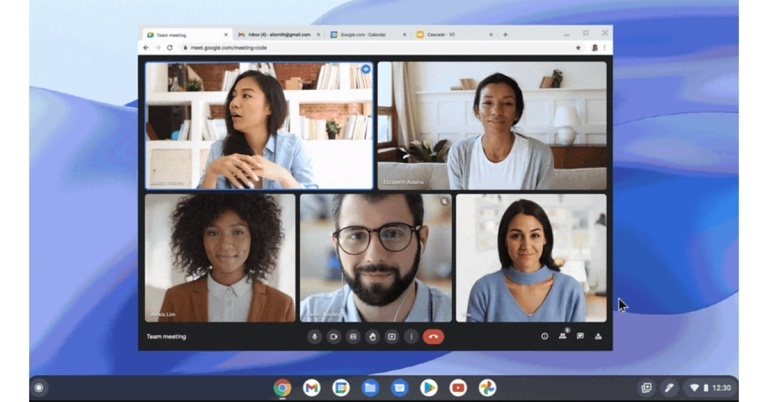
Recently educators who subscribe to Google’s Workspace for Education Plus and Teaching and Learning Upgrade plans got access to an automatic transcribing function in Google Meet. With the latest update, Picture-in-Picture mode is now available in Google Meet for Chrome. Now, Google has added a clever picture-in-picture option to Meet. Additionally, you can now pin multiple video feeds. Users have the option to see up to four video tiles of meeting participants in a floating window on top of other apps. Moreover on Chrome Google Meet also receives a new multi-pinning feature.The availability of picture-in-picture mode on Meet for Chrome browsers has been announced by Google on its official blog. While on a Google Meet call on the web, users will now be able to see up to four tiles of meeting participants. On Chrome, tap the three-dot menu symbol next to the hang-up button to get the Picture-in-Picture option.While announcing the new features, the company via blog post said, “We’re bringing picture-in-picture to Google Meet to Chrome browsers on the web. You’ll be able to see up to four video tiles of meeting attendees in a floating window on top of other applications.”In addition to this Google Meet is also getting a variety of other video options. Instead of just one video source, users can now pin numerous video feeds. According to the company, this will provide greater flexibility in how you combine people and content, allowing you to adjust the view in a way that best serves your meeting.In terms of availability all Google Workspace subscribers, as well as existing G Suite Basic and Business clients, have access to the picture-in-picture and multi-pinning capabilities for Google Meet users and is already being rolled out. Moreover, users with personal Google Accounts can also take advantage of it.
For the latest gadget and tech news, and gadget reviews, follow us on Twitter, Facebook and Instagram. For newest tech & gadget videos subscribe to our YouTube Channel. You can also stay up to date using the Gadget Bridge Android App. You can find the latest car and bike news here.
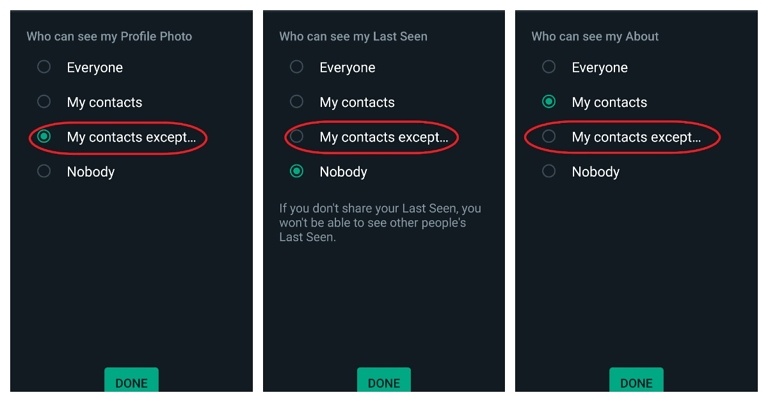
WhatsApp users can now choose who can see their Profile Photo, About, and Last Seen status from their contact list. Improved privacy measures are being rolled out to WhatsApp users in large numbers. The privacy enhancements come only days after the business unveiled support for moving chats from an Android smartphone to an iPhone.WhatsApp announced the implementation of advanced privacy controls on all its social media platforms. WhatsApp, users will be able to hide parts or all of their profile by selecting particular people from their address book. The features provide users greater control over their privacy settings on the messaging app, allowing them to decide who can see their last seen, about, and profile photo.
🔒 To further protect your privacy online, we’re rolling out new options to your privacy control settings 🔒
Now you can select who from your contact list can see your Profile Photo, About, and Last Seen status. For more information follow this link: https://t.co/UGMCx2n70h
The new privacy settings have also been changed in the messaging service’s frequently asked questions (FAQ) section on its website.WhatsApp users who have connected contacts with whom they do not wish to reveal their personal information may benefit from the extensive privacy options. Earlier, the privacy settings for About, Last Seen, and Profile Photo on Android and iOS had three options: Everyone, My Contacts, and Nobody. To restrict their profile photo, last seen, and about from being revealed to certain users, users had to either delete a person from their contacts, block them, or adjust their visibility setting in the settings to “Nobody.”My Contacts Except… has now been introduced as a fourth option, allowing users to pick particular contacts from their contact list and hide elements of their profile from them. Best part other people in the user’s contact list should be able to see their WhatsApp profile properly.Control who sees your information by adjusting your privacy settings. You can set your last seen, profile photo, about, or status to the following options:Everyone: Your last seen, profile photo, about, or status will be available to all WhatsApp users.My Contacts: Your last seen, profile photo, about, or status will be available to your contacts from your address book only.My Contacts Except…: Your last seen, profile photo, about, or status will be available to your contacts from your address book, except those you exclude.Nobody: Your last seen, profile photo, about, or status won’t be available to anyone.
For the latest gadget and tech news, and gadget reviews, follow us on Twitter, Facebook and Instagram. For newest tech & gadget videos subscribe to our YouTube Channel. You can also stay up to date using the Gadget Bridge Android App. You can find the latest car and bike news here.





 Step 1:
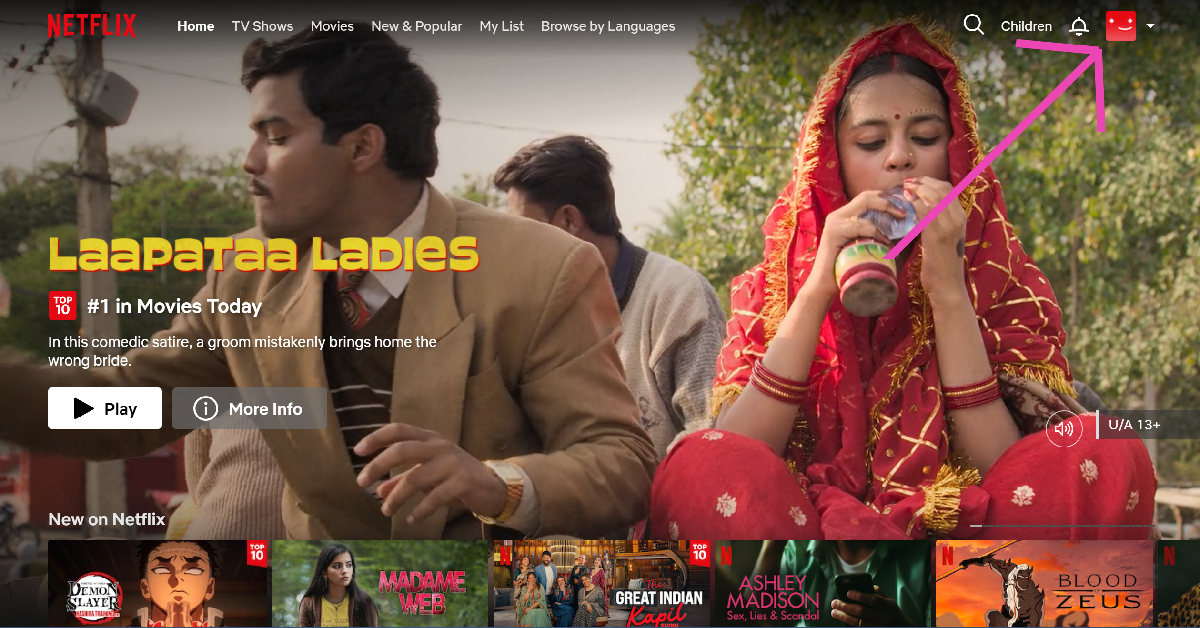 Step 2: Hover the cursor on your profile picture at the top right corner of the screen and select Account.
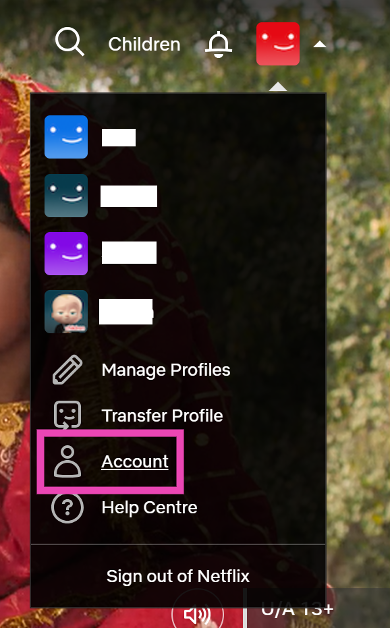 Step 3: Scroll down and select Manage access and devices.
 Step 4: Hit Sign Out next to your Smart TV.



 Step 4:
 Step 5:
 Step 6:

 Step 7:
 Step 6:



 There are several benefits to using ChatHub. The interface is quite similar to Omegle and very easy to use. You can filter participants by language and gender, making it easy to find your preferred matches. The website is optimised for mobile, allowing you to browse through users without any hiccups. Its special algorithm ensures you don’t match with the same partner twice. There is a smartphone app available for ChatHub as well. All you need to do is open ChatHub in Chrome, press the three dots up top and select ‘Add to Home Screen’.
 Bazoocam keeps things simple, light, and fun, without being too bland. The website follows the typical method of matching two users together from across the world. To move to the next person, all you have to do is press ‘Next’. What’s unique about Bazoocam is that it allows you to play fun games like Tetris, Tic Tac Toe, and 4 In A Row with the person you have matched in order to break the ice.
 As the name implies, Chatrandom connects you with random users to chat with. You can either turn on your webcam for a video chat or enter a text chat with a stranger. Chatrandom has accessible filters for gender and country. Chatrandom is also available as an app on Google Play Store. Click on
  With its large user base, you will never run out of people to talk to at ChatSpin. The website connects you with a stranger within seconds and makes sure you keep on getting matched with new people. ChatSpin encourages users to display their talents and creativity to the person they are matched with. If you want to keep your anonymity intact, there are plenty of face and voice filters you can use.
 FaceFlow follows the Omegle formula of matching you with random people for a text or video conversation but also brings something of its own into the mix. You can create profiles on FaceFlow so that the people you match with can add you after the conversation is over. You can upload a picture to your profile, add a bio and share stuff with your friends. Have a clique going? FaceFlow also lets you host group calls on its platform.
Read Also:
FaceFlow follows the Omegle formula of matching you with random people for a text or video conversation but also brings something of its own into the mix. You can create profiles on FaceFlow so that the people you match with can add you after the conversation is over. You can upload a picture to your profile, add a bio and share stuff with your friends. Have a clique going? FaceFlow also lets you host group calls on its platform.
Read Also: