Get Monsoon Ready – How To Keep Your Gadgets Safe From Water

Monsoons are here, and so are humidity and moisture in the air. Although water damage can happen to any device in any season, the chances of the same increase by manifolds during rainy weather. Imagine this. It is a sunny day and you are out for work with your essential gadgets in your backpack. But suddenly you see dark clouds gather over the city’s head in the sky, which reminds you that you’re not prepared for a downpour. And the mere thought of the big hole that water damage to any of your gadgets is going to create in your pocket automatically paves way for the panic. Hence, we are here to share some clever ways with you how to keep your gadgets safe from the water this monsoon. 

Use Ziplock Pouches

Ziplock pouches for smartphones- how to keep your gadgets safe from water The first and the best way to keep your gadgets safe from water during monsoons is by keeping them in an airtight ziplock pouch or a waterproof bag. Waterproof ziplock pouches are available in all sizes, for storing smartphones, wristbands, tablets, etc. These are ideal for protecting your valuable gadgets from the monsoon rains or water seepage into your backpacks. Moreover, these are even touch-friendly and are easily available at reasonable rates.   Buy from here. Read also: Summer Vacation: Top 10 Gadgets To Carry With You On A Road Trip

Use Waterproof Laptop And Tablet Covers

Waterproof-Laptop-bags and Tablet Covers- how to keep your gadgets safe from water There are waterproof covers or bags available for tablets, laptops and other large-sized gadgets as well. Some of these are dust-resistant and even shockproof. They are available in a variety of shapes, sizes and colours, and may differ in the material that they are constructed with. You can get a slim professional laptop cover made with waterproof canvas fabric or you can opt for a multi-layered polyester fabric sleeve bag. There are even waterproof laptop backpacks available with shoulder straps that are easily carriable anywhere.  Buy from here. 

Use Waterproof Wrist Band Covers

Waterproof-wrist-bands Most smartwatches are already water and dust-resistant. However, it is still better to take precautions from our side. Amongst the various smartwatch accessories available in the market are waterproof wristbands or wristband covers. You can use these to keep your smartwatches safe from any water damage during monsoons. These are generally made of silicone and are lightweight, comfortable, and durable. You can even pick multiple colours and wear a different one each day. Waterproof wristbands are available at reasonable rates.  Buy from here.  Read also: 10 Best Camera Phones Under Rs 35,000 With 64MP Or Higher Sensors

Seal All The Ports For Protection

smartphone-port-seal cover The easiest way for water to trickle into your smartphone is via the different openings on its body, such as USB ports, headphone jacks, etc. For avoiding any water damage to your device, it is better if you seal all the ports when not in use. You can do this by using duct tape to create an additional layer of protection or you can buy a customized waterproof cover for your smartphone which has a sealed full-body shell or provides watertight port seals.  Buy from here. In this way, you can keep your precious gadgets safe from water this monsoon. If you know of any other hacks for the same, we would be delighted to hear them. Do share with the rest of us in the comments section below.  For the latest gadget and tech news and gadget reviews, follow us on Twitter, Facebook and Instagram. For newest tech & gadget videos subscribe to our YouTube Channel. You can also stay up to date using the Gadget Bridge Android App. You can find the latest car and bike news here.

How to Change Your Apple ID Email Address?

0
If you no longer wish to use an email address that’s linked to your Apple ID, there is an easy way to change it. You will not lose any data when you change your email. But you need to make sure your data is backed up on iCloud before you begin this process. You will be able to use all Apple services once you’ve updated your email. Read Also: How to reset your Apple ID password?

Here’s how you can change your Apple ID email address

Step 1: Open appleid.apple.com on your web browser and sign in. Open appleid.apple.com on your web browser and sign in. change your apple id email address Step 2: Go to Sign-In and Security section and select Apple ID. Go to Sign-In and Security section and select Apple ID Step 3: In the box that pops up, enter the new email address that you wish to register. In the box that pops up, enter the new email address that you wish to register Step 4: Visit your email inbox for the verification code. Copy and paste it into the designated box. Step 5: Your Apple ID email has been successfully changed. Login again to all the Apple devices and services that you use. Read Also: How can you remove Apple ID from your iPhone and iPad? If you’re trying to change your Apple ID to an @icloud.com address, make sure the email is over 30 days old. This is the minimum time period required to register for Apple ID. If the email address you want to register is already in use, check if a family member is using that email and remove it from their Apple ID before registering it to yours. If your Apple ID is an email, it cannot be changed to your number. For the latest gadget and tech news, and gadget reviews, follow us on TwitterFacebook and Instagram. For newest tech & gadget videos subscribe to our YouTube Channel. You can also stay up to date using the Gadget Bridge Android App. You can find the latest car and bike news here.

Top 5 Ways to Play YouTube Video With Screen Off on Android

2
While watching content on YouTube, a lot of users feel the need to play the video in the background or with the screen off. This need may arise when you want to respond to a quick text while watching a video, or if you wish to play music with the screen off. With a lot of audio podcasts available on YouTube, you may not want to keep the screen on for the entire time. Today, we bring you the 5 best ways to play YouTube videos with the screen off on your Android device. Read Also: Bharti Airtel launches Wynk Tube Music streaming app, claims it has more than 40 lakhs songs

Play YouTube videos with screen off without using any app or trick on Xiaomi and Redmi phones

If you own a Xiaomi or Redmi smartphone, you don’t need to download a third-party app to play YouTube videos with your phone’s screen locked. The MIUI OS may have its shortcomings but it offers a very handy video toolbar that allows you to turn off the screen without pausing video playback. Here’s how you can use it. Step 1: Launch the YouTube app and play the video you want. Step 2: Swipe right on the sidebar on the left edge of the screen. This will reveal a bunch of options. Step 2: Swipe right on the sidebar on the left edge of the screen. This will reveal a bunch of options. how to listen to youtube with screen off 2023 Step 3: Tap on the ear icon named ‘Play sound with screen off’. Step 3: Tap on the ear icon named 'Play sound with screen off'. how to listen to youtube with screen off 2023 The YouTube video will continue playing with the screen locked. If you don’t see the sidebar on the screen go to Settings>Additional Settings>Floating Windows>Sidebar and enable the toggle bar for ‘Show while playing videos’.

Use your web browser to play a YouTube video with the screen off

Step 1: Open YouTube on Google Chrome using your phone. Step 2: Click on the ellipses next to the address bar on Chrome. Click on the ellipses next to the address bar on Chrome Step 3: On the menu that appears, click on ‘Desktop Site’. On the menu that appears, click on ‘Desktop Site’ Step 4: Chrome will reload YouTube as a desktop site. Search for the video you wish to see and play it. Chrome will reload YouTube as a desktop site. Search for the video you wish to see and play it Step 5: Minimise Google Chrome. Step 6: If the video paused while minimizing the Chrome app, resume playing it from the notification bar. If the video paused while minimizing the Chrome app, resume playing it from the notification bar Step 7: You can lock your screen and the video will keep playing. 

Subscribe to YouTube Premium

subscribe to youtube premium If you don’t mind paying for an added service, subscribe to YouTube Premium. YouTube Premium allows you to minimize the YouTube app and play videos in the background. It also offers an ad-free YouTube experience, with access to original content on YouTube and YouTube Music streaming service.

Use NewPipe app to play YouTube Videos with screen off

If accessing Youtube Music and original content is not your priority and you only want to play YouTube videos in the background, subscribing to YouTube Premium may not be the best option for you. There are a lot of third-party apps that let you play YouTube videos in the background. One such app is NewPipe, which can be downloaded from the F-droid marketplace. NewPipe is an open-source app that lets you play and download YouTube videos. Here’s how you can play YouTube videos with the screen off on your Android device using NewPipe. Step 1: Install and open NewPipe on your phone. Step 2: Open the video you wish to watch. Open the video you wish to watch Step 3: In the video options you’ll see the options to play the video in the background or in a pop-up window. In the video options you’ll see the options to play the video in the background or in a pop-up window. Step 4: Select the option to view the window in a pop-up window. The video will resume playing in a small window on your home screen. You can lock your phone if you wish to play the video in the background. Select the option to view the window in a pop-up window

Use the Float Tube app

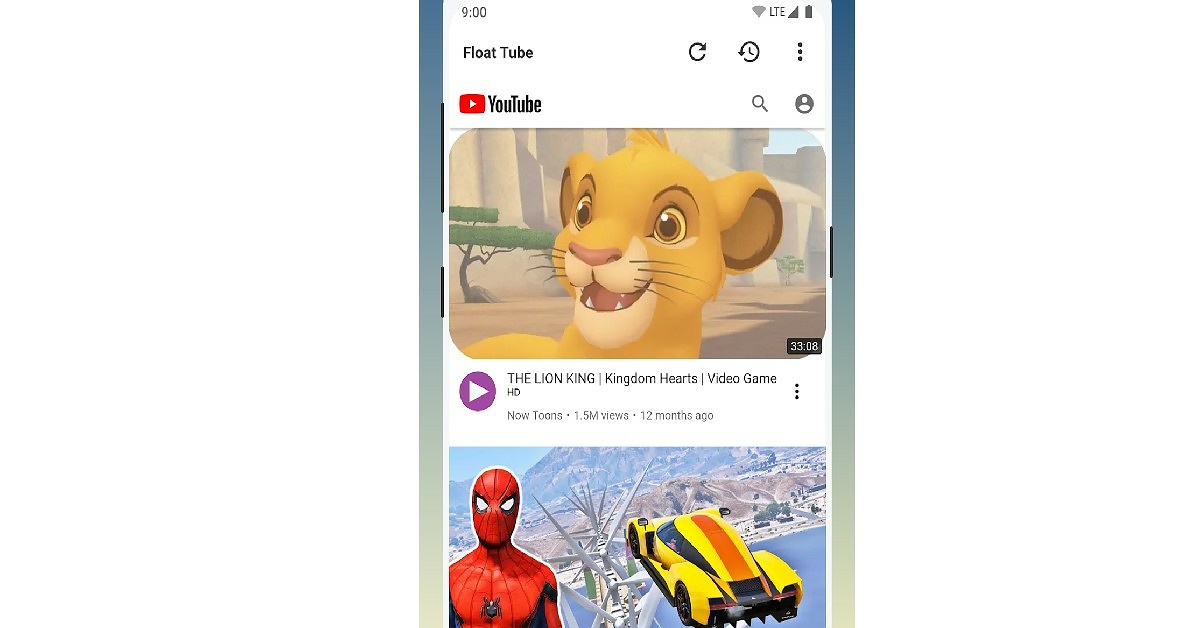
If you do not wish to subscribe to YouTube Premium or download an app from a third-party store, you can use Float Tube, which is available to download from Google Play Store. As the name suggests, Float Tube plays YouTube videos on a floating screen. Step 1: Install Float Tube from the Google Play Store. Step 2: Open Float Tube and choose a video to play. Open Float Tube and choose a video to play Step 3: The video will play on a floating screen on your homepage. You can turn your screen off and the video will keep playing. The video will play on a floating screen on your homepage Once you’ve downloaded the Float Tube app, you can use the official YouTube app to play videos on the floating screen as well. Just follow these easy steps. Step 1: Open the desired YouTube video and click on share. Open the desired YouTube video and click on share. how to listen to youtube with screen off 2023 Step 2: From the pop-up window select Play by Float Tube. From the pop-up window select Play by Float Tube. play youtube with screen off android. how to listen to youtube with screen off 2023 Step 3: The YouTube video will begin playing on the floating window. You can go to your homepage or lock your screen without stopping the YouTube video. The YouTube video will begin playing on the floating window. play youtube with screen off android

Bonus Tip: Play YouTube videos in Picture-in-Picture mode on your PC

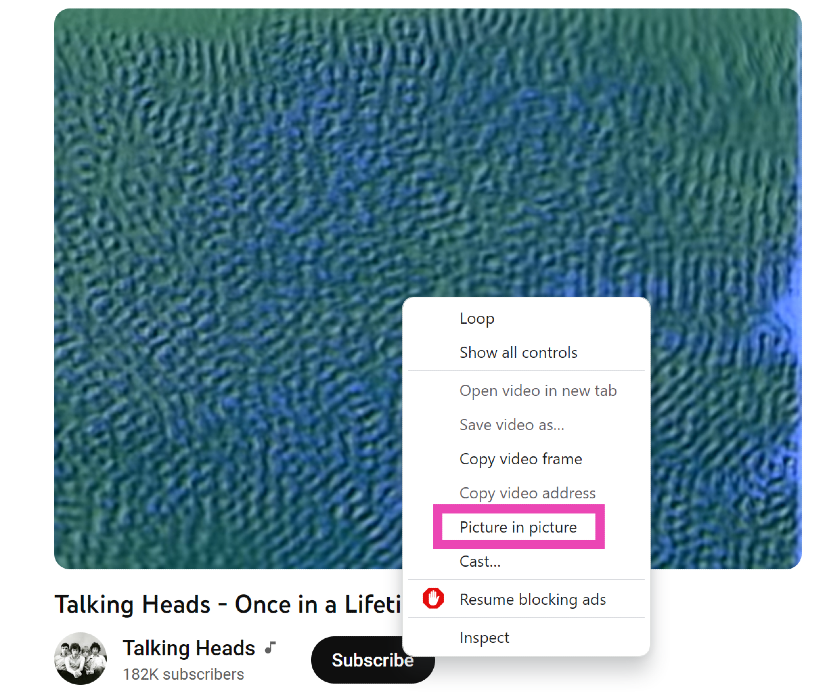
Bonus Tip: Play YouTube videos in Picture-in-Picture mode on your PC If you ever need to watch a quick YouTube video on your PC while also handling another task, you should know how to play it in Picture-in-Picture mode. For those who don’t know, P-i-P mode allows you to watch a YouTube video in a small window when you switch to other tabs. To achieve this, simply open the video, right-click on it, right-click again, and select ‘Picture in Picture’.

Frequently Asked Questions (FAQs)

How to play YouTube videos in the background?

If you have a YouTube Premium subscription, you can play a YouTube video in the background simply by minimising the app. If you don’t have a YouTube Premium subscription, use a third-party app like Float Tube and NewPipe or turn on the ‘desktop site’ option on Chrome while playing the video on YouTube.

How do I keep playing music on YouTube with the phone screen off?

Use a third-party app like NewPipe or play the video using YouTube’s desktop site on Chrome mobile. If you own a Xiaomi/Redmi phone, tap on the ear icon in the video toolbar to continue video playback with the screen off. You can also subscribe to YouTube Premium to use the YouTube Music app.

Is there a native way on Android to play YouTube videos with the screen off?

Apart from buying a YouTube Premium subscription, the only native way to play YouTube videos with the screen off is offered by MIUI OS in Xiaomi and Redmi smartphones. To make use of this feature, swipe on the sidebar while playing a YouTube video and tap on the ear emoji in the Video toolbar. Read Also: 12 useful WhatsApp features you should know about

Conclusion

It should be mentioned that third-party apps carry a risk of their own. Be mindful of the risks when you download them to your phone. The safest way to play YouTube videos with the screen off on your Android device is either by playing the video on the desktop site on Chrome or subscribing to YouTube Premium. We hope you find this article helpful.

Best 6 Ways to Read Instagram Direct Messages without being seen

0
Unlike other Instant Messaging services, Instagram does not allow you to read your DMs without sending a ‘read receipt’ to the sender. While it may not be an issue for most, some users might want to remain incognito while going through their messages. Luckily, there are a few ways using which you can read Instagram direct messages without being seen. Today, we bring you some of the easiest workarounds. Read Also: 3 brilliant methods to view someone’s WhatsApp status without letting them know

Read Instagram Direct Messages without being seen by turning off your mobile data/WiFi

If you turn off the internet on your phone, you can read your Instagram DMs without the read receipt being sent to the message sender. However, the receipt will be sent as soon as you turn on the internet, and the sender will be able to see that you’ve read the message. Step 1: Pull the notification bar on your phone screen and disable mobile data/turn off WiFi. Pull the notification bar on your phone screen and disable mobile data/turn off WiFi Step 2: Open the Instagram app and open the DMs section.  Step 3: Open any DM that you wish to read. Step 4: Close the Instagram app.  The sender will not get a read receipt as long as you stay offline.

How To Read Messages In Someone Else’s Instagram Direct Without Being Seen

Did you know not all Instagram spy apps are created equal? Many of them claim to let you read their Instagram but offer nothing more than the ability to see their posts. You don’t need an Instagram monitoring app to access their profile. Just follow them and you’ll have access to their pics and videos. But if you want to read their private Instagram chats, there’s one app that can help you do just that. It’s called mSpy and it’s one of the most powerful Instagram spy apps on the market. Once you install mSpy on their phone, you’ll have direct access to their private Instagram messages. Whether they’re chatting with friends or engaging with strangers — whether they’re sending innocent cat pics or having R-rated chat that you definitely would not approve of — mSpy shows it all.  To get started with spying on Instagram, go to mSpy.com, pick your plan, pay for it, and then install mSpy on their phone using the instructions provided. Then, whenever you want to read their messages, log in to your private mSpy account. It’s all there.

Read Instagram DMs by disabling the internet and logging out

This trick will let you read your DMs offline, without the sender knowing you’ve seen them as soon as you come online. By logging out of the Instagram app, it won’t be able to send the read receipt when you connect to the internet. Instead of logging out, you can also clear Instagram app data from your phone, which will accomplish a similar result. After you’ve disabled the internet on your phone and read the DM, follow these steps. Step 1: Go to your Instagram profile page and click on the three bars at the top right corner of the screen. Go to your Instagram profile page and click on the three bars at the top right corner of the screen Step 2: From the pop-up menu, click on Settings.  Step 3: Scroll down and click on ‘Log out’. Scroll down and click on ‘Log out’

Read Instagram Direct Messages by ‘Restricting’ the sender

In order to curb bullying, harassment, and spam on their platform, Instagram allows you to ‘restrict’ a user. Restricting a user makes their comments invisible to other viewers that view your posts. It also moves their DMs to the ‘message requests’ folder, where you can view them without being seen.  Step 1: Go to the user’s profile. Step 2: Click on the ellipses (three dots) at the top right corner of the profile. Click on the ellipses (three dots) at the top right corner of the profile Best 6 Ways to Read Instagram Direct Messages without being seen 2023 Step 3: On the menu that pops up, click on ‘Restrict’. On the menu that pops up, click on ‘Restrict’ Best 6 Ways to Read Instagram Direct Messages without being seen 2023 Step 4: The user’s DM’s will be moved to the ‘Requests’ folder which can be accessed from the DM section. The user’s DM’s will be moved to the ‘Requests’ folder which can be accessed from the DM section Best 6 Ways to Read Instagram Direct Messages without being seen 2023

Using a third-party app to read your Instagram DMs without being seen

aigrow Best 6 Ways to Read Instagram Direct Messages without being seen 2023 There are a bunch of third-party apps on the marketplace that you can use to manage your Instagram account. These apps provide tools using which you can boost engagement numbers on your profile and even increase your follower count in an organic way. AiGrow is one such app. AiGrow also allows you to read your Instagram DMs without being seen. Step 1: Sign up on the AiGrow app or website. Step 2: Add your Instagram account to the AiGrow dashboard. Step 3: Click on ‘Manage Account’. Step 4: Open your Inbox. Step 5: Select any conversation you wish to read. Any message you open will not send a read receipt back to the sender. Using a third-party app for your social media account can always be a risky affair. The app may store your personal data, putting your privacy in jeopardy. Always be mindful of the risks while using any third-party app.

Use your email

Best 6 Ways to Read Instagram Direct Messages without being seen 2023 AiGrow also offers users to access their Instagram DMs from their email accounts. Once your Instagram DMs are forwarded to your email, you will be able to read and respond to them without being seen. Here’s how you can do that. Step 1: On the AiGrow dashboard, click on the DM to Email option. Step 2: Add your email. Step 3: Open your email inbox and verify your email.  Step 4: Your email will be linked to AiGrow. You can now access your Insta DMs in your email inbox.

Bonus Tip: A new feature to hide read receipts on Instagram is coming soon

Instagram is currently beta-testing the feature to hide the read receipts for DMs. Meta CEO, Mark Zuckerberg and Head of Instagram, Adam Mosseiri recently announced on their respective Instagram broadcast channels that users will soon be able to hide read receipts for their DMs. Once this feature goes live, users will be able to turn it from Privacy and Safety settings.

Frequently Asked Questions (FAQs)

Is there an option on Instagram to hide read receipts for messages on Instagram?

At the time of writing this article, there is no option on the Instagram app to hide read receipts for DMs. However, Mark Zuckerberg and Adam Mosseiri have announced that users will soon be able to have that option.

How do I read a message on Instagram without being seen?

If you disconnect your phone from the Internet and read an Instagram DM, the app will not be able to send a read receipt to the sender. If you log out of the app and log back in after connecting to the Internet, the sender will not get a read receipt at all.

Does Instagram send receipts to a Restricted account?

No, accounts that have been restricted by you do not receive read receipts on Instagram. Read Also: How to report posts, accounts, Stories and DMs on Instagram

Conclusion

Using any of these 6 steps, you can read your Instagram messages without being seen. We must also mention that reading the message notification will also not send a read receipt to the message sender. If the message is too long for the notification, you can long-press the notification icon and expand it to view the entire message. This may not work for multiple messages sent together. This is when you can refer to any of the tricks mentioned above.

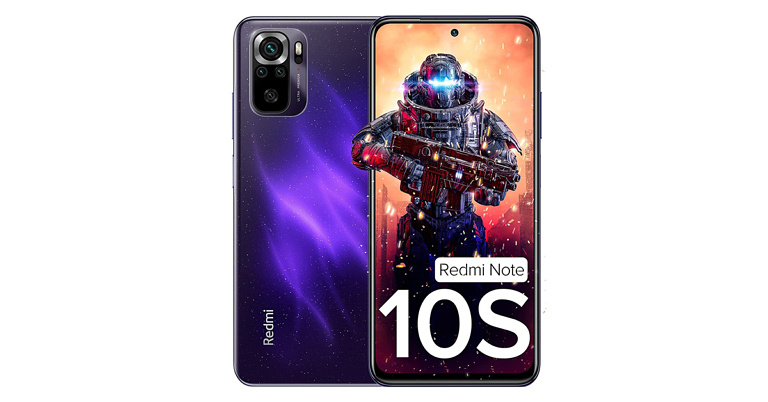
Price Dropped: Redmi Note 10S is now Rs 2,000 cheaper in India

The pricing of the Redmi Note 10S has been reduced by Rs 2,000. The gadget was released in May of last year and is the cheapest edition of Redmi’s previous Note series. The smartphone has a quad-camera configuration on the back, an AMOLED display, and a 5,000mAh battery with fast charging support of 33 percent. The MediaTek Helio G95 SoC powers it.

Redmi Note 10S new price and availability

The pricing of the Redmi Note 10S in India has been reduced by up to Rs 2,000. The Redmi cellphone is now being offered at a discounted pricing of Rs 12,999 for the 6GB RAM with 64GB inbuilt storage model. The 6GB RAM with 128GB internal storage option has a new price of Rs 14,999. Lastly, the device’s 8GB RAM with 128GB internal storage edition is presently available for Rs 16,499 at a discount. Redmi Note 10S new price and availability To recall, the 4GB variant of the Redmi Note 10S was first announced with a price tag of Rs 14,999 whereas the 128GB storage model was priced at Rs 15,999. The 8GB RAM with 128GB storage was introduced later on at Rs 17,499.

Redmi Note 10S tech specs

The Redmi Note 10S has a 6.43-inch full-HD+ display with a resolution of 1,0802,400 pixels. It also has a contrast ratio of 4,500,000:1, brightness of up to 1,100 nits, and SGS low blue light certification. Corning Gorilla Glass 3 is used to protect the screen. The phone is powered by a MediaTek Helio G95 SoC with a Mali-G76 MC4 GPU for graphics, up to 8GB of LPDDR4X RAM, and up to 128GB of UFS 2.2 storage, and runs MIUI 12.5 on top of Android 11. A quad rear camera system with a 64-megapixel primary sensor with f/1.79 aperture, an 8-megapixel ultra-wide-angle lens with f/2.2 aperture, two 2-megapixel macro and a depth sensor with f/2.4 aperture are used for images and movies. It has a 13-megapixel front-facing camera with an aperture of f/2.45 for selfies. The Redmi Note 10S has a 5,000mAh battery that supports 33W rapid charging. The Redmi Note 10S is also IP53 rated and comes with twin speakers and Hi-Res Audio certification. 4G, Wi-Fi, GPS, Bluetooth, IR Blaster, NFC, 3.5mm audio jack, and a USB Type-C connection for charging are all included in the connectivity package.  A proximity sensor, accelerometer, and a side-mounted fingerprint scanner are among the phone’s sensors. The device also includes Hyperengine game technology for enhanced gameplay. For the latest gadget and tech news, and gadget reviews, follow us on TwitterFacebook and Instagram. For newest tech & gadget videos subscribe to our YouTube Channel. You can also stay up to date using the Gadget Bridge Android App. You can find the latest car and bike news here.

Telegram Premium has been launched, includes 4GB uploads and other benefits

Telegram, a messaging app, has officially launched its paid membership service and is now available to all users. With over 700 million monthly active users, the encrypted messaging network has lately risen to one of the top five most downloaded apps in the world in 2022. To commemorate this achievement, the social networking site has launched a subscription service that includes a slew of new features. Users that upgrade to the premium tier gain access to 4GB file uploads, faster downloads, and the ability to convert voice messages to text. Telegram has announced a series of upgrades for all users on the platform, including those who are not paying for the premium tier, in conjunction with the debut of the paid membership. The company recently stated that it now has over 700 million monthly active users. “As Telegram keeps growing at rocket speed, many users have expressed their will to support our team. Today we’re launching Premium Telegram Premium – a subscription that lets you support Telegram’s continued development and gives you access to exclusive additional features. This will allow us to offer all the resource-heavy features users have asked for over the years, while preserving free access to the most powerful messenger on the planet,” the company in its announcement said. Telegram Premium is available on the iPhone in India at Rs. 469 per month. On Android, the price of the premium subscription has yet to be announced. In addition, Telegram Premium customers who pay a monthly membership get double the file upload size limit, which is now 4GB, up from the previous 2GB restriction. Telegram Premium subscribers gain access to doubled restrictions, 4 GB file uploads, faster downloads, special stickers and reactions, better chat management, and much more. Simultaneously, all existing features that consumers have come to anticipate and rely on for nearly a decade are still available for free. Non-paid users will also be able to take advantage of some Premium features, such as downloading extra-large documents and viewing stickers provided by premium users, as well as tapping to boost counters on premium reactions that have already been added to a message. Users can upload huge files and media up to 2 GB in size and get free limitless storage in the Telegram Cloud. Subscribers of Telegram Premium will now be able to send files up to 4 GB in size, which is enough space for 4 hours of 1080p video or 18 days of high-quality audio. Premium users have access to greater limits on practically all aspects of the software. You can follow up to 1000 channels, create up to 20 chat folders with up to 200 talks each, add a fourth account to any Telegram app, bookmark up to 10 chats in the main list, and save up to 10 favourite stickers with Premium. Users can also add a link to their bio and write a longer bio. Premium also allows you to add additional characters to your media captions. With up to 400 favourite GIFs, finding the right way to answer each message will be a breeze. Finally, Premium members can reserve up to 20 public t.me links, allowing you to stand out with a short and succinct link in every group or channel you create. When you don’t want to listen to a voice message but want to see what it says, you can convert it to text. You can give transcriptions a rating to help them improve. Hundreds of stickers now feature full-screen animations that Premium users may send in any chat to add extra emotion and expressive effects that are visible to everyone. Telegram artists will update this premium sticker collection on a monthly basis. Premium customers get access to over 10 additional emojis, as well as more methods to respond to messages. Telegram Premium adds new features to help you organise your conversation list, such as the ability to change your default chat folder so that the programme always opens to a certain folder, such as Unread instead of All Chats. To change your default folder, press and hold a folder in your chat list > Reorder > and drag your preferred folder to the first space. Subscribers can also use a feature in Privacy and Security to archive and silence new talks automatically, which will assist in organising even the busiest chat lists. Premium members’ profile videos will be animated for everyone in the app, including in chats and in the chat list. Premium customers can now upload new icons to their Home Screen to better complement their personality or wallpaper. A luxury star, a night sky, or a turbo-plane are all options. Sponsored Messages or Ads will no longer appear for subscribers of Telegram Premium. Verification badges are awarded to public figures and organisations who verify their group, channel, or bot. Users can utilise the Verification Check feature to ensure that communications are originating from a trusted source. These badges now appear at the top of the conversation, alongside profiles, search results, and the chat list. You can now designate a chat as read, mute it, pin it, or remove it using new buttons. The option to store media to Gallery automatically has been reintroduced, with the ability to enable and disable it separately for discussions with users, groups, and channels. Users can effortlessly exchange huge media items from other apps directly to Telegram on any mobile platform, thanks to the ability to upload files up to 2 GB (or 4 GB). This saves both time and storage space because the file is not saved before being sent to Telegram. Users on macOS can now create a personalised profile photo quickly by selecting any sticker or animated emoji as the focal point and adding a colourful gradient background. You may use it as a profile photo, a group photo, or a channel photo, making it simple to create a themed symbol for chats without having to go for stock photos. For the latest gadget and tech news, and gadget reviews, follow us on TwitterFacebook and Instagram. For newest tech & gadget videos subscribe to our YouTube Channel. You can also stay up to date using the Gadget Bridge Android App. You can find the latest car and bike news here.

8 Most Useful Tips for New PC Gamers 2022

PC Gaming offers more exposure and enhances your in-game experience. You can enjoy better graphics and functionalities from your software, hardware, and other accessories. So, starting the journey right now is the best decision you made. But then, you must do the right things to make the most out of PC gaming. Your setup and accessories plus gaming platforms should all be the right ones. As we progress in this article, we will share some right things you must do to play better on PC. Also, visit battlelog.co to grab more tools necessary for the journey.

PC Gaming Tips for Beginners

1.    Get your tools ready and working

The kind of PC you use can make or mar your experience. Will you buy the expensive gaming-specific PC, or will you build one yourself? The former option is faster and more efficient, but the latter means more customization. If you want to build your rig, focus on the CPU and Motherboard. Get the right casing and then buy a minimum of 500 GB for the OS. Get an SSD instead of an HDD. Even though the latter is cheaper, the former offers more performance. For the monitor, at least 1080P and above is best. The RAM size should be a minimum of 8 GB, and 16 GB is even better.

2.    Don’t compromise on peripherals

For the best PC gaming experience, don’t manage or rely on low-budget peripherals. The first important one is a mechanical keyboard. This is to ensure low actuation and responsive keys as you play. For the mouse, get the brand with programmable buttons and for that fast response to every click, get a DPI mouse you can adjust easily. Don’t forget that your chair must allow you to adjust its height. Also, it must come with 4D armrests and a tilt function.

3.    Set up your audio rightly

For an immersive gaming experience, build a good audio system. All you need is a good headset or microphone setup. While the former is efficient for in-game sounds and communication, a game streamer should consider going for the latter. To fix everything rightly, experts use boom arm, external speak, pop filter, and even Stream Deck. All these accessories will make a difference in your gaming.

4.    Get an uninterrupted network

This is compulsory if you’re into online gaming because you must communicate in real-time with your team. So your router must offer Wi-Fi 6 and your network card must match the router. But if you can’t achieve great Wi-Fi connectivity, consider using the Ethernet connection. But make sure you achieve a 5GHz connection to achieve a smooth ride.

5.    Go to the right platform

There are many platforms out there to get all your PC games easily. We have Ubisoft Connect, Epic Store, Steam, GOG Galaxy, etc. But many people love Steam because there isn’t any game you can’t find on that platform. You can build relationships on the platform easily. Another amazing thing is the refunds you get when the game you bought there didn’t work. But for other communities, Reddit is also a great place to be.

6.    Don’t forget the software

The main software you shouldn’t forget is the monitoring app for that powerful PC. Why do you need one? You need to keep the PC up to par and ensure that it works anytime you want to play games. The app will tell you when it is overheating or when it is slow due to a virus or anything else.

7.    Keep dirt away from your devices

All your accessories need cleaning from time to time. If the hardware and software are left alone, they’ll malfunction. So, always install the latest updates and clean the hardware always. For instance, your keyboard must be free from dust and the PC itself must be dusted at least once a month.

8.    Health matters while gaming

PC gaming can be so exciting you forget your health. Make sure you’re always hydrated by keeping water and drinking it while playing. Also, stand up once in a while and walk around. Don’t sit for too long on your chair, and don’t play until your head seems to pound. Take things gradually and take care of your health too.

Conclusion

The 8 tips above will help you to enjoy the new world of PC gaming. If you are confused about where to start, first get the tools ready and proceed to other things. If you have money, grab the best gears. But if you don’t, upgrade the ones you have already. But note, that good gaming gear also affects your performance. For the latest gadget and tech news, and gadget reviews, follow us on TwitterFacebook and Instagram. For newest tech & gadget videos subscribe to our YouTube Channel. You can also stay up to date using the Gadget Bridge Android App. You can find the latest car and bike news here.

Garena Free Fire Redeem Codes Today 21 June 2022: Here is how to claim them

Garena Free Fire is a battle royale game with regular awards and tournaments to keep players interested. If you play Garena Free Fire, you should be aware of the redeem codes that are released on a daily basis. However, because the battle royale game is banned in India, players from other countries can use the Free Fire Redeem codes daily. If you’re unfamiliar with the Garena Free Fire redeem codes or don’t know how to get them, we’ve put together a step-by-step guide to help you redeem them. Check out Garena Free Fire Redeem Codes for June 21. The Free Fire redeem codes are a great way to get free stuff. These are 12-digit codes that contain alphabets and numbers, as well as an expiration date and time. Because the Garena FF redeem codes cannot be used more than once, you should hurry to the redemption page to claim your free reward before someone else does. To get a free reward, all you have to do is go to reward.ff.garena.com/en, which is the official redemption page. Also, keep an eye on this space for daily updates on Garena Free Fire redemption codes and rewards.

Garena Free Fire Redeem Codes Today 21 June 2022

  • FB4N-SWI8-76YH
  • TH7H-KO9U-IK0O
  • KM4I-T8G7-YTD7
  • GF3V-Y6WS-54ET
  • FV6B-W2N3-KI4R
  • 87G6-VT6G-DBE4
  • 56IY-HV5S-RF7C
  • 24WS-W7SX-DA9V
  • WB34-U5I8-6Y7H
  • BYVH-DNEM-45O9

How to Get Free Fire Redeem Codes for Garena on June 21?

  • Visit the Garena Free Fire game’s official website at reward.ff.garena.com.
  • Use your Facebook, Google, VK, Apple ID, Huawei ID, or Twitter account to log in.
  • You’ll be taken to a valid redemption code (s)
  • Copy and paste the 12-digit redemption code into the text box.
  • On the screen, a dialogue box will appear.
  • ‘Ok’ should be selected.
For the latest gadget and tech news, and gadget reviews, follow us on TwitterFacebook and Instagram. For newest tech & gadget videos subscribe to our YouTube Channel. You can also stay up to date using the Gadget Bridge Android App. You can find the latest car and bike news here.

Amazon Quiz Answers Today 21 June 2022: Participate to win Rs 30,000

21 June 2022 Amazon Quiz has gone live on its mobile app platform. The quiz can be played from 12 AM to 11:59. All you need to do is just answer five easy questions that the e-commerce website puts before you. Today you can stand a chance to win Rs 30,000 Amazon Pay Balance. Every day Amazon posts a new questionnaire that consists of five simple questions about general knowledge and current events. To enter a lucky draw, participants must correctly answer the questions. One incorrect answer will result in your elimination from the quiz. Each month, only one person will be declared the winner and the results will be announced at the end of the month. Amazon customers who submit correct answers can win an Amazon Pay Balance worth up to Rs 50,000. To ensure that you answer all five questions correctly, Gadget Bridge updates all of the correct answers on a daily basis. Take a look at today’s answers: Amazon Quiz Today Prize – Rs 30,000 Amazon Pay Balance Quiz Date – 21 June 2022 Daily Timing – 12 AM to 11:59 PM Winner Announcement – Today 12 PM

Amazon Quiz Answers Today 21 June 2022

Question 1: Which team did India defeat in the final to win the 2022 Thomas Cup in badminton?

Answer: Indonesia

Question 2: The Centre’s recent recruitment scheme for Indian youth to serve in the armed forces, shares its name with which movie?

Answer: Agnipath

Question 3: At the 2022 Skytrax World Airport Awards, an airport in which city bagged the best regional airport in India and South Asia award?

Answer: Bengaluru

Question 4: In which European country is this location located?

Answer: Switzerland

Question 5: What is the profession of this famous comic book character?

Answer: Reporter

How To Play Amazon Quiz

Only app users are eligible to play the Amazon quiz every morning from 12 AM to 11:59 PM. The quiz is not available on the desktop. For those who are unaware of how to play the Amazon quiz below are the steps, you can follow to take the quiz.
  • Firstly download the Amazon app from Google Play Store or App Store
  • Now fill in the required information through the Sign Up option.
  • You need to log in to the Amazon app and scroll down on the home screen to find the Amazon Quiz banner.
  • Tap on the Amazon Quiz banner and tap on the Start button to start the Quiz.
  • Now you will get 5 questions and you need to answer them correctly. One wrong answer will eliminate you from the Quiz.
  • After answering all the questions correctly you are now eligible for a Lucky Draw.
  • The winner’s name will be announced today at 12 PM.
For the latest gadget and tech news, and gadget reviews, follow us on TwitterFacebook and Instagram. For newest tech & gadget videos subscribe to our YouTube Channel. You can also stay up to date using the Gadget Bridge Android App. You can find the latest car and bike news here.

Top 2 Ways to Sign Out of Netflix on Your Smart TV (2024)

0
Once you sign in to your Netflix on your Smart TV, it remembers your login credentials so you don’t have to sign in every time you use the app. Since you don’t always sign out of Netflix on your Smart TV, it can be tricky to figure out how to do it. The need to sign out of your Netflix account may arise when someone else wants to use their account, or when you don’t want anyone else to use your account. Today, we’ll show you 2 ways to sign out of Netflix on your Smart TV. Read Also: Netflix users can now remove series or movies from the “Continue Watching” list

Here’s how you can sign out of Netflix on your Smart TV

sign out of netflix on TV Step 1: Launch the Netflix app on your Smart TV using the app menu or the dedicated Netflix button on your Smart TV remote. Step 2: Press the left arrow button on your Smart TV remote to access the Netflix side menu. Step 3: Keep pressing the down arrow button until the Get Help option is highlighted. Step 4: Press Enter on your Smart TV remote to select the Get Help option. If your remote does not have the Enter button, press the round button at the centre of the navigation buttons. Step 5: Keep pressing the down arrow until the Sign Out option is highlighted. Step 6: Press the Enter button to select the ‘Sign Out’ option. Step 7: Netflix will ask you if you want to Sign Out of your device. Use the navigation buttons to highlight the Yes option. Step 8: Press the Enter button to select the Yes option. You will be signed out of your Netflix account on your Smart TV.

Remotely sign out of Netflix on your Smart TV

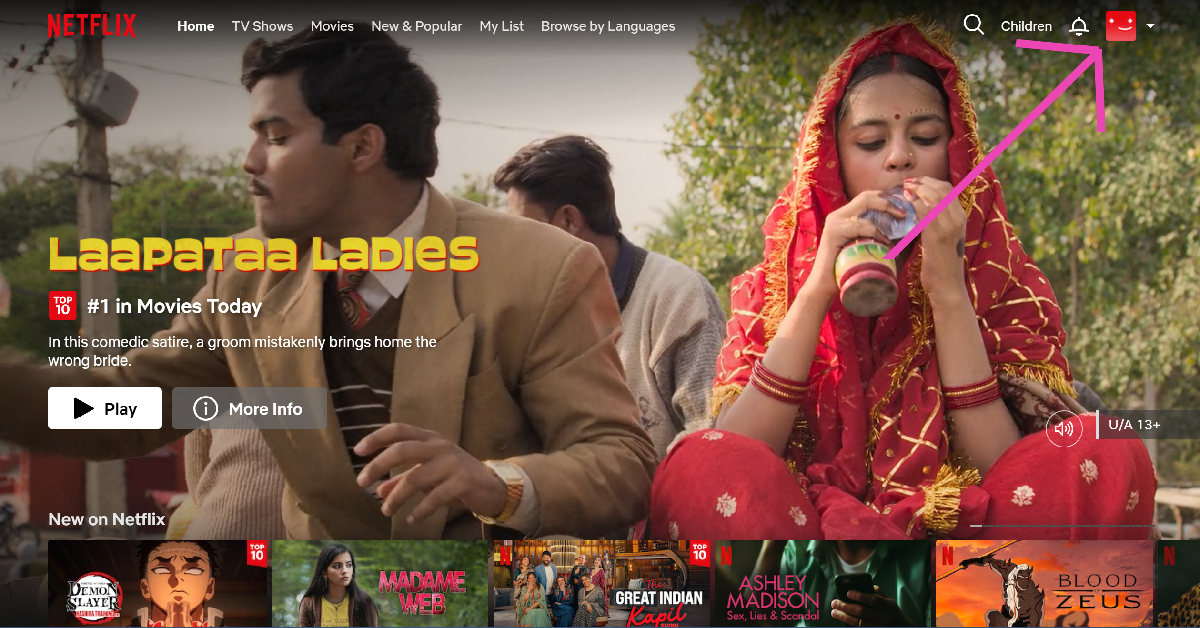
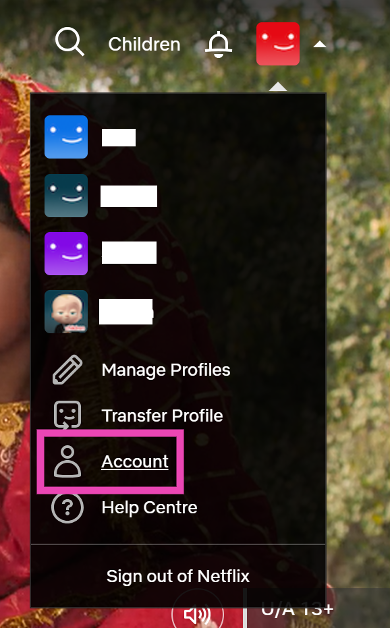
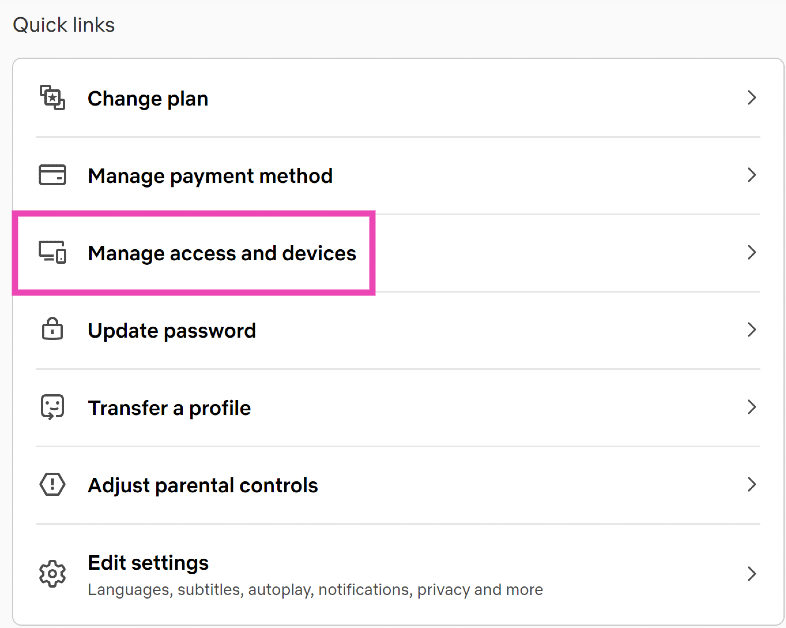
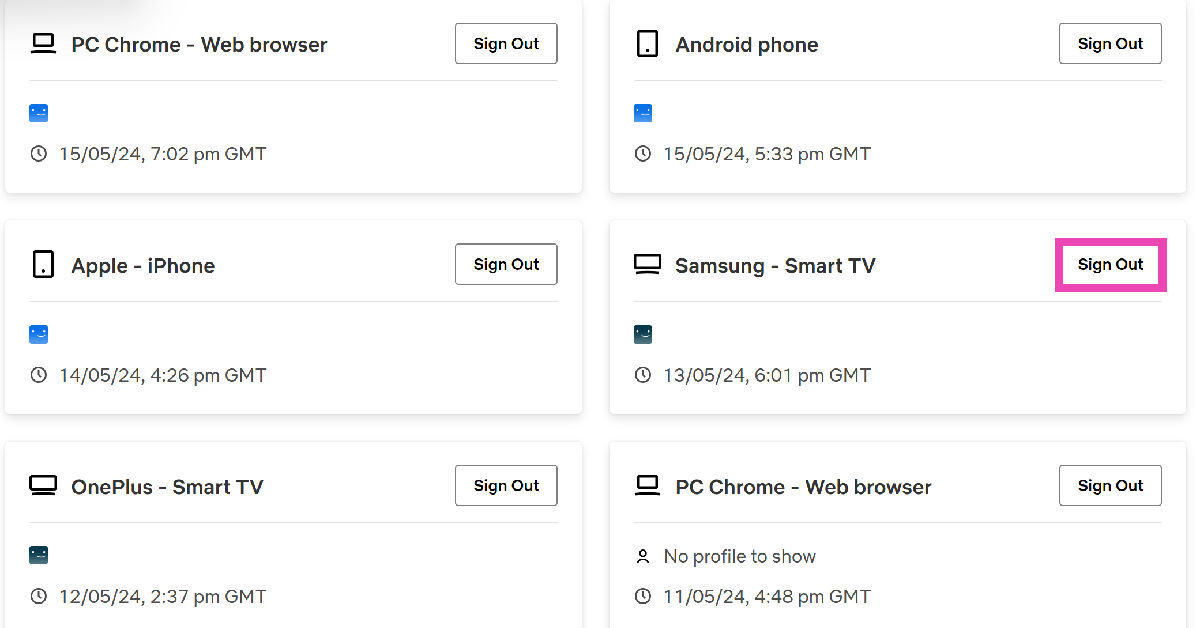
Step 1: Sign into Netflix on your PC’s web browser. Step 2: Hover the cursor on your profile picture at the top right corner of the screen and select Account. Step 2: Hover the cursor on your profile picture at the top right corner of the screen and select Account. Step 2: Hover the cursor on your profile picture at the top right corner of the screen and select Account. Step 3: Scroll down and select Manage access and devices. Step 3: Scroll down and select Manage access and devices. Step 4: Hit Sign Out next to your Smart TV. Step 4: Hit Sign Out next to your Smart TV.
Frequently Asked Questions (FAQs)

How do I sign out of Netflix on all my devices at once?

Open Netflix on your PC’s browser and go to Account>Manage access and devices. Scroll down and select ‘Sign Out of All Devices’

How do I sign out of Netflix on my Smart TV?

Launch Netflix on your Smart TV, hit the left arrow icon on the remote to access the side panel, then scroll down and select ‘Get help’. Hit ‘Sign Out’ and confirm your selection.

How do I install Netflix on my Macbook?

Since the Netflix app isn’t available for Macbooks, you are left with the option of creating a ‘web app’. Open Netflix in Chrome, hit the ellipses, and select ‘Create Shortcut’. Read Also: How to block YouTube channels from appearing on your Smart TV?

Conclusion

Following the methods mentioned above, you will be able to sign out of Netflix on your Smart TV. It is important to not select the ‘Exit Netflix’ option on the side menu. It will only exit you from the app and not sign out from your Netflix account. If you need to sign back in, open Netflix on your Smart TV and select Sign In.