Top must-have third-party apps to use with Spotify

Spotify is a very popular audio streaming platform and one of the cool things about Spotify is that there are many extra add-ons or third-party apps that can improve your experience with Spotify. We have looked and gathered the top three best add-ons or third-party apps that you can use with Spotify.  Here are they:

The Playlist Miner

If you are tired of listening to your old playlist and want to add some new songs to them, and you want to listen to the same type of songs but you can’t find them. This method will help you out.Best apps for spotify-The Playlist Miner- Just search or click here to open The Playlist Miner. The Playlist Miner is a service that helps you to find songs of the same genre you love the most. Like, you can search for motivational songs or if you are a gym rat you can search for fitness or workout music. You will get tonnes of songs of the genre you searched for. The tool searches for the top songs from publicly available playlists and collects them for you.Best apps for spotify-The Playlist Miner You can visit The Playlist Miner from here. Read also: Spotify adds a new playlist called Your Daily Drive: Here’ s what you

Spotify Tools

Spotify Tools is an app that allows users information about their top artists, songs, playlists they have been listening to. Users can see which song they have listened to the most in the past one week, one month, or one year. A quite amazing feature of the app is that you can enable song monitoring. After that, you can get a detailed result of how long you have listened to a song.  Spotify tools for spotify But, if you want to enable this feature then you have to run the app in the background which will take up the battery of your phone. You can download Spotify Tools from Google Play Store or by clicking here.

Spoti-Q

If you want to tweak your favourite song to your liking this app can turn out to be a handy tool for you. Spoti-Q is an equaliser app for Spotify with the help of this app you can make changes to the different sound stages of your favourite song to your liking.  Spoti-Q -Spoti-QIf you have in-depth knowledge of audio editing then this can be a good tool for you and even if you don’t have much knowledge about sound editing you can still go along with built in presets which include –Classic, Heavy Metal, Pop, Jazz, Hip Hop, etc. You can get Spoti-Q by clicking here. Read also: Listen to Spotify songs even when offline: Download your playlist o For the latest gadget and tech news, and gadget reviews, follow us on Twitter, Facebook and Instagram. For newest tech & gadget videos subscribe to our YouTube Channel. You can also stay up to date using the Gadget Bridge Android App. You can find the latest car and bike news here.

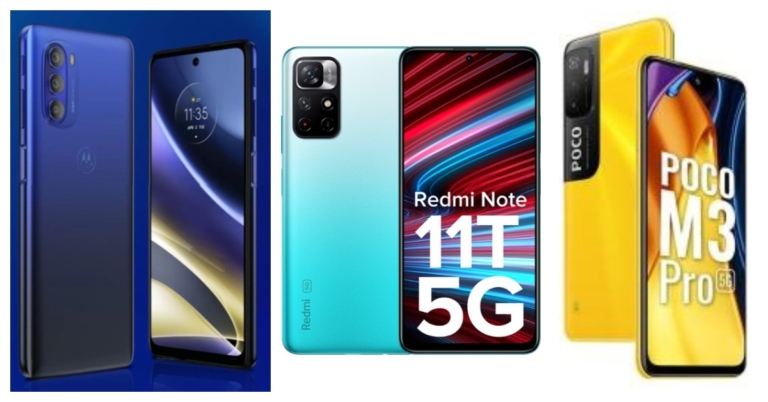
Comparison: Moto G51 Vs Redmi Note 11T Vs Poco M3 Pro, Which one is better?

Motorola has officially unveiled Moto G51 5G in the market. The device is the latest addition to the company’s G-Series. The smartphone will be taking on other devices like Redmi Note 11T and Poco M3 Pro under the same price segment. So considering the pricing we have put together Moto G51 against Redmi Note 11T and Poco M3 Pro to help you decide which offers all the features at the best price.

Display

Moto G51: 6.8-inch FHD+ Max Vision display Redmi Note 11T: 6.6-inch FHD+ display Poco M3 Pro: 6.5-inch full-HD+ Dot Display

Processor

Moto G51: Snapdragon 480+ Redmi Note 11T: MediaTek Dimensity 810 SoC Poco M3 Pro: MediaTek Dimensity 700 SoC

Rear camera(s)

Moto G51: A triple rear camera set up that consists of a 50-megapixel primary sensor, an 8-megapixel ultra-wide and a 2-megapixel macro lens. Redmi Note 11T: A dual rear camera setup that will include a 50-megapixel main sensor with an aperture of f/1.8 and an 8-megapixel ultra wide-angle sensor Poco M3 Pro: a triple rear camera setup that consists of a 48MP main camera with an f/1.79 aperture. Further assisted by a 2MP macro camera with f/2.4 aperture and a 2MP depth sensor with f/2.4.

Selfie camera

Moto G51: 13-megapixel selfie camera Redmi Note 11T: 16-megapixel camera sensor Poco M3 Pro: 8MP front-facing camera

RAM and storage

Moto G51: 4GB RAM with a 64GB storage Redmi Note 11T: 6GB RAM with 64GB/128GB and 8GB RAM with 128GB Poco M3 Pro: 4GB RAM with 64GB storage and 6GB RAM with 128GB variant

Battery

Moto G51: 5,000mAh battery Redmi Note 11T: 5,000mAh battery Poco M3 Pro: 5,000mAh battery

Operating system

Moto G51: My UX on top of Android 11 Redmi Note 11T: MIUI 12.5 on top of Android 11 Poco M3 Pro: MIUI 12.5 for Poco skinned on top of Android 11

Starting Price

Moto G51: Rs 14,999 Redmi Note 11T: Rs 16,999 Poco M3 Pro: Rs 13,999

Our verdict

Both the Redmi and Poco smartphones come with a 90Hz display whereas the Motorola device supports a 120Hz refresh rate. In addition to this Moto G51 5G comes with a better camera set up and the Snapdragon 480 SoC powering the smartphone support 12 5G band. With all the best features the device is priced better than the other two. So if you are looking for an affordable option Moto G51 5G is the one for you.  For the latest gadget and tech news, and gadget reviews, follow us on TwitterFacebook and Instagram. For newest tech & gadget videos subscribe to our YouTube Channel. You can also stay up to date using the Gadget Bridge Android App. You can find the latest car and bike news here.

Top 4 ways to open multiple websites with one click in the Chrome browser

Opening the same set of multiple websites every time you sit on your computer for work or to attend online lectures, can be a very painful job to do. But thankfully, there are some tricks with which you can open multiple websites only with one click.

Use Chrome Extension

There are a few extensions available in the Google Chrome store that you can be used to open multiple URLs with just one click. “Open Multiple URL” is one such extension on the Chrome web store that you can use to make your life simpler. Just install the Open Multiple URL extension by clicking here and follow these steps:
  1. Add Open Multiple URL extension in your Chrome browser. Open multiple URL in chrome- Chrome Extension
  2. Paste the URL of the sites that you want to open one by one, and do not forget to check the “Preserve input” option in the extension. Open multiple URL in chrome- Chrome Extension
  3. After you have added all the URLs that you want to open, you just need to click on the open URL button.
Read also: Google’s new shortcut will change the way you use Google Docs:

Use BAT file shortcut

If you are someone who does not want to install extensions on your Chrome browser because extensions it can sometimes interfere with some web players like Spotify, this method is for you. Just follow these simple steps and you should be able to create a shortcut on your desktop to open your favourite websites at once.
  1. Open the Notepad app on your PC.
  2. In the notepad app, you just need to type the following command and paste the URL of websites that you want to open.
 Open multiple URL in chrome- bat extension- Top 4 ways to open multiple websites with one click in the Chrome browser@echo off Start chrome https://www.gadgetbridge.com/ Start chrome https://motorbridge.com/ (similarly you can add more websites to this file) 3. Now just save the file on the desktop as a BAT file or just add the .bat extension in the last of the name (like xyz.bat). You should be able to create a shortcut on your desktop.open multiple websites with one click in the Chrome  4. The final step is to just double click on the shortcut that you have created.open multiple websites with one click in the Chrome- chrome extension

Use bookmark folders

While many of us use bookmarks to open our favourite websites quickly, only a few know that you can also create bookmark folders. With bookmark folders, you can open all your favourite websites with one click. To create a bookmark folder just follow these steps:
  1. Open all the websites that you want to open in different tabs.
  2. Now press Ctrl+Shift+D on your keyboard a popup menu will appear.open multiple websites with one click in the Chrome- bookmarks- How to open favourite websites with one click
  3. Just name the folder whatever you want to call it and select Bookmarks Bar. Now you have created a bookmark folder.
  4. The final step is to right-click on the folder and select open all tabs. open multiple websites with one click in the Chrome- bookmarks- How to open favourite websites with one click
All the tabs that you had added to this folder will now open. Alternatively, if you have already bookmarked your favourite websites then you can follow these steps
  1. Right-click on the bookmark tab and select add a folderopen multiple websites with one click in the Chrome- bookmarks- How to open favourite websites with one click
  2. Type in the name of the folder and save it
  3. Now, one by one just drag the bookmarks to the folder, they will be saved into that folder.bookmarks
  4. To open them just right-click and hit open all tabs. bookmarks
Read also: Telegram Messenger to soon introduce “secure group video

Open favourite sites every time you open Chrome

All the above methods are very good and time-saving but they are still 2-3 click methods. What if, every time you open Chrome, the browser automatically opens all your favourite tabs. That would be great right? If you think yes, try the next method is for you.
  1. Open all your favourite websites that you visit regularly bookmarks
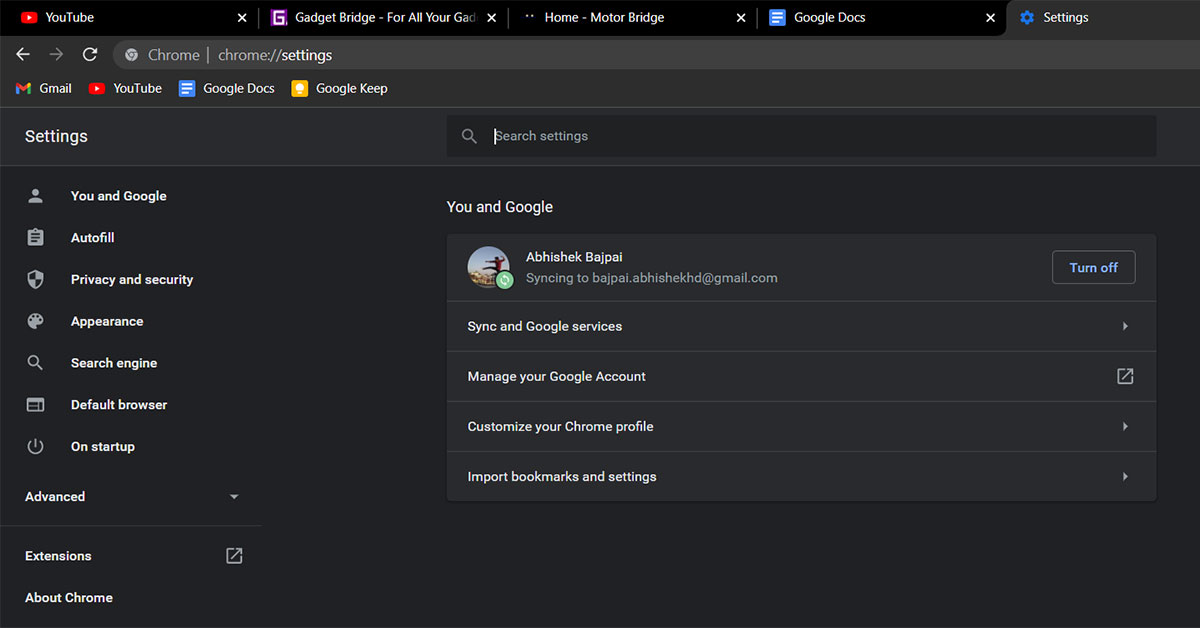
  2. Open Settings on your Chrome browser, and hit the On startup option at the bottom
  3. Select Open a specific page or set of pages, and then select Use current pages.
With this method, your favourite tabs will open automatically when you open the Chrome tab. However, the only downside of this method is that even if you don’t want to visit those pages, Chrome will still open them for you every time Chrome starts. So, these were 4 great methods by which you can open your favourite websites with one click in Google Chrome. Read also: Top and best ways to download and play Minecraft on Chromebooks For the latest gadget and tech news, and gadget reviews, follow us on Twitter, Facebook and Instagram. For newest tech & gadget videos subscribe to our YouTube Channel. You can also stay up to date using the Gadget Bridge Android App. You can find the latest car and bike news here.
How to use Android apps on Windows 10

With the announcement of the new Windows 11 OS with its new features, one feature that almost everyone was excited about is to use Android apps natively on your PC. Users will be able to access all their favourite Android apps on a single device, which can be an exquisite experience.  But you do not need to upgrade to Windows 11 if you want to experience your favourite Android apps on a bigger screen. If you have a Windows 10 machine there are ways you can access Android apps on it too.    Here are two ways through which you can use Android apps on your Windows 10 PC:

Get Microsoft’s Your Phone app (Works best with a Samsung phone).

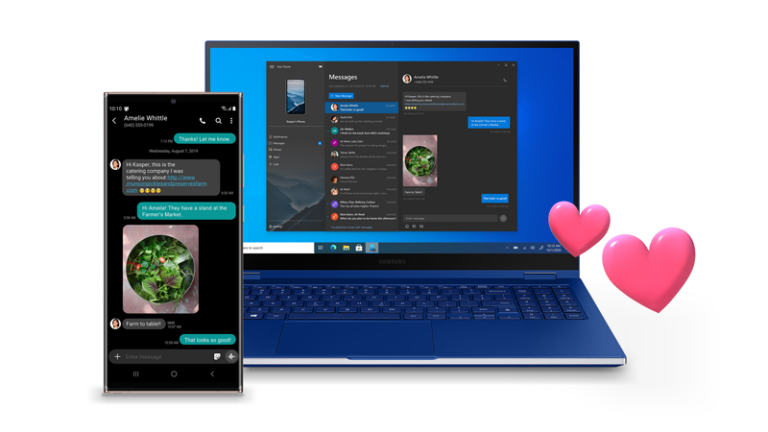
With Microsoft’s Your Phone app you can use Android apps on your PC. The only thing required is Your Phone app on your PC and Your Phone Companion app on your Android device, which you can download from their respective stores. – Download Windows Your Phone app from here. – Download Your Phone Companion app from here. Your Phone app- Samsung After you have installed Your Phone app on both the devices you can now just pair them with the help of WiFi and Bluetooth. The pairing process is very simple, just grant all the required permission for the app and you should be able to pair your Android phone with your PC. Microsoft’s Your Phone app works best only if you use a Samsung smartphone, for other Android users the experience can be a bit rough and irregular. Also, you won’t be able to use all Android apps.

Your Phone app- SamsungUse Android Emulators

Android emulator is basically a tool through which you can create a virtual Android smartphone on your PC. To run Android apps on an Emulator you do not even need to have an Android phone with you. A downside of Emulator is that it takes up a lot of resources on your PC, so you will need to have a decently powerful PC with you. Here are some best Android emulators that you can use on your PC:

BlueStacks Emulator

BlueStacks has been one of the most popular and best Android emulators for years. BlueStacks is available for free on Windows and yet it is jam-packed with a lot of features. You can also limit the number of hardware resources that the app consumes to ensure that other functions do not suffer. The latest version of BlueStacks can deliver good performance even if you have low-end hardware. BlueStacks- Abdroid Elulator- Best android emulator The app allows users to create a virtual simulation of an Android device and you can even install your favourite apps on the BlueStacks because it also offers the Google Play store in it. So, you can download and install any app or game that you want to enjoy on a bigger screen.  Read also: 15 advance keyboard shortcuts every Microsoft Excel user should know This tool takes around 5GB of space on your PC. You can download BlueStacks by clicking here.

LD Player Emulator

LD Player is another emulator that focuses on better gaming performance. Most of the features on the LD Player are helpful for a good gaming experience and these features include – keyboard mapping controls, high FPS gaming, and many more.  Since this emulator focuses on gaming, it does support almost all games. The emulator looks a little similar to BlueStacks, so if you already have used BlueStacks it won’t take much time to get familiar with LD Player. You will need to enable VT on your PC from system BIOS to get the best performance out of the LD Player. Overall, LD Player is also a very good Emulator LD Player- Emulator- Gaming focus LD Player- Emulator- Gaming focus You can download LD Player by clicking here. And by using these tricks and tools you should be able to enjoy your favourite Android apps on your Windows 10 PC. Read also: How to blur your background in Microsoft Teams video chat? For the latest gadget and tech news, and gadget reviews, follow us on Twitter, Facebook and Instagram. For newest tech & gadget videos subscribe to our YouTube Channel. You can also stay up to date using the Gadget Bridge Android App. You can find the latest car and bike news here.

Philips TAH6506BK headphones with ANC and 30 hours of playtime launched in India

Electronics giant, Philips, announced the launch of its new over-ear headphones – Philips TAH6506BK in the Indian market. The wireless headphones feature an Active Noise Cancellation feature. On a single charge, the headphones are said to have a total playback time of up to 30 hours, and up to 25 hours with the ANC turned on.

Philips TAH6506BK headphones price and availability

Philips TAH6506BK headphones have been launched in India with a price tag of Rs 5,999. The audio device will be available via Amazon, and other online and offline stores in the country. It will be offered in a single Black colour option.

Philips TAH6506BK headphones specifications

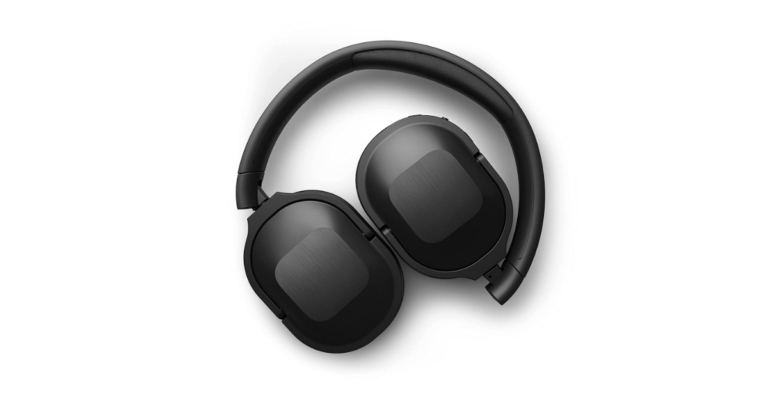
Philips TAH6506BK headphones feature an over-ear design. The ear cups swivel to allow the headphones to fold flat, which is ideal for storing in small spaces. They can also fold upwards, allowing you to store them safely inside the included soft pouch.These equip 32 mm neodymium drivers.  The Bluetooth multipoint pairing is included that allows connecting the headphones to two devices at once and the option to switch between them as per the need. However, they support Bluetooth version 5.0 for easy pairing with a maximum range of up to 10 metres and a frequency response of up to 20,000 Hz. Philips TAH6506BK headphones with ANC and 30 hours of playtime launched in India The Philips TAH6506BK headphones come integrated with control buttons that let you pause your playlist, take calls, control volume and wake your phone’s voice assistant. These also feature Active Noise Cancellation with internal mics in its ear cups, which filter out the background noise you don’t want to hear. On a single charge, the headphones are said to have a total playback time of up to 30 hours, and up to 25 hours with the ANC turned on. The Philips TAH6506BK can be charged in 15 minutes via a USB Type-C port, giving it an additional playback time of up to 2 hours. Commenting on the launch of this new wireless headphone, Mr. Shailesh Prabhu, Country Head, TPV Technology India Pvt. Ltd. said “ANC is one of the most exciting spaces in the headphones segment right now and we are happy to announce another new Philips ANC headphone that offers long battery life and superb sound quality. We believe this product will be a perfect fit for consumers who have long commutes to work or are planning to travel this holiday season and want to enjoy a noise-free immersive music experience.” For the latest gadget and tech news, and gadget reviews, follow us on TwitterFacebook and Instagram. For newest tech & gadget videos subscribe to our YouTube Channel. You can also stay up to date using the Gadget Bridge Android App. You can find the latest car and bike news here.
Moto G51 5G with 120Hz FHD+ display and Snapdragon 480+ SoC launched

Motorola has expanded its G-series lineup in India with the introduction of the new 5G smartphone. The company has launched Moto G51 5G as its latest handset. The device is powered by Qualcomm Snapdragon 480+ SoC and features a 120Hz display. Also, there is a triple rear camera set and a 5,000mAh battery onboard.

Moto G51 5G: price in availability

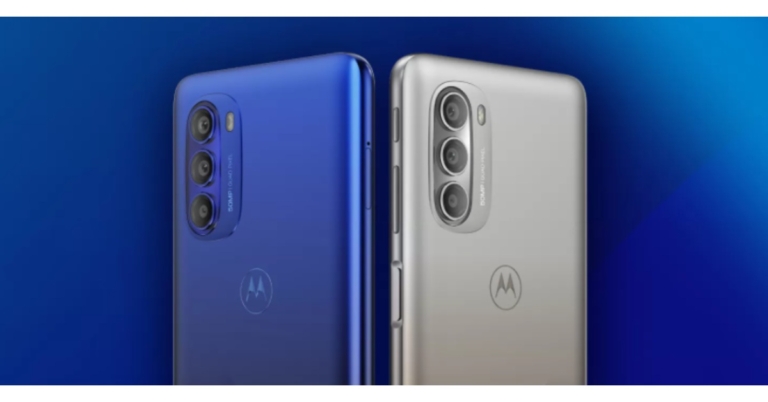
Moto G51 5G has been introduced in India in a single 4GB RAM with a 64GB storage option. The price of this model is set at Rs 14,999. The smartphone will be offered in two colour options of Blue and Bright Silver. It will be available for purchase from December 16 via Flipkart from 12 noon onwards. Moto G51 5G price in India

Moto G51 5G: specifications

In terms of specifications, Moto G51 5G has a 6.8-inch FHD+ Max Vision display with 1,080 x 2,400 pixels of resolution and a 120Hz refresh rate. The phone has a Snapdragon 480+ processor, 4GB of RAM, and 64GB of internal storage that can be expanded to 512GB with the use of a microSD card. It comes with My UX on top of Android 11 pre-installed. The moto g51 5G boasts 12 5G bands as well. A 50-megapixel primary sensor, an 8-megapixel ultra-wide lens, and a 2-megapixel macro lens are found on the phone’s back, along with a 50-megapixel primary sensor, an 8-megapixel ultra-wide lens, and a 2-megapixel macro lens. For selfies and video calls, the phone has a 13-megapixel front-facing camera.

Moto G51 5G: Battery and connectivity options

A 5,000mAh battery with 20W Rapid charging support is also included. 5G, 4G LTE, Wi-Fi 802.11ac, Bluetooth v5.1, GPS/ A-GPS, NFC, FM radio, USB Type-C, and a 3.5mm headphone jack are among the connectivity options. An accelerometer, ambient light, gyroscope, magnetometer, and proximity sensor are among the sensors onboard. Motorola’s proprietary “ThinkShield for Mobile” gives the smartphone business-grade security as well as its signature ad-free, bloatware-free, near-Stock Android experience. For the latest gadget and tech news, and gadget reviews, follow us on TwitterFacebook and Instagram. For newest tech & gadget videos subscribe to our YouTube Channel. You can also stay up to date using the Gadget Bridge Android App. You can find the latest car and bike news here.
Redmi Note 11 4G tipped to launch in India soon

Xiaomi is all set to launch another new smartphone in the Indian market under its sub-brand Redmi. The company recently launched Redmi Note 11 4G in China and soon the device will make its way to the Indian market. This is going to be the second handset to debut under the Redmi Note 11 series in the country after the Redmi Note 11T 5G that arrived late in November.  According to a report Redmi Note 11 4G will be released in India soon. The exact launch date, however, has yet to be determined. The upcoming device has already made its debut in China, and as the report suggests an Indian launch is not far off. The configurations will vary slightly from the RAM and storage option available in China. Here it is said to be made available in three variants of 4GB RAM with 64GB storage, 4GB with 128GB storage, and 6GB RAM with 128GB. The Redmi Note 11 4G could be offered in Graphite Grey, Star Blue, and Twilight Blue colour options. In China, Redmi Note 11 4G was launched in two different configurations. The 4GB RAM with 128GB of storage option is priced at CNY 999 which converts to Rs 11,700 whereas the price of the 6GB RAM with 128GB storage variant is set at CNY 1,099 that translates to Rs 12,800. There it is available in Dreamy Clear Sky, Mysterious Blackland and Tome Monologue colour options.

Redmi Note 11 4G specifications

The Redmi Note 11 4G features a 6.5-inch Full HD+ display with a hole punch cutout in the centre on the top. The display has a refresh rate of 90Hz and a touch sampling rate of 180Hx. In addition, the screen has a 20:9 aspect ratio and a 1500:1 contrast ratio. MIUI 12.5 is the device’s operating system, which is based on Android 11. The 4G version of the Redmi Note 11 is equipped with a MediaTek Helio G88 SoC, 6GB of LPDDR4X RAM, and 128GB of EMMC 5.1 storage. On the back of the phone, the Redmi Note 11 5G has a triple camera setup that includes a 50-megapixel primary sensor with an f/1.8 aperture. An 8-megapixel ultra-wide-angle lens and a 2-megapixel macro sensor are also included. For selfies and video calls, there’s an 8-megapixel front-facing camera. For connectivity, the Redmi Note 11 5G has 5G, Bluetooth v5.1, Wi-Fi, IP blaster, GPS/A-GPS, and a Type C port. The device also includes an accelerometer, ambient light, a proximity sensor, and a magnetometer, in addition to a side-mounted fingerprint sensor. In addition, the device comes with a 5,000mAh battery that supports 18W fast charging. For the latest gadget and tech news, and gadget reviews, follow us on TwitterFacebook and Instagram. For newest tech & gadget videos subscribe to our YouTube Channel. You can also stay up to date using the Gadget Bridge Android App. You can find the latest car and bike news here.

How to turn your Android or iPhone’s flashlight On and Off

Smartphones in today’s time are very important tools for us. They not only entertain us or help us connect with people, but they are also an essential part of our life. We have our smartphones always sitting close to us, and in case of a power cut or if you want to see under the bed, it can be a handy tool to help us see. Since most of the latest smartphones have built-in flashlights users do not need to install any other third-party apps to get the job done. Here is how you can turn on/off the flashlight on your Android or iOS smartphone:

Turn on/off flashlight on Android:

The flashlight was a missing feature on the earlier version of Android. Although, some of the OEMs did offer flashlight features baked into their phones. Unfortunately, stock Android users were not that lucky. But now every Android phone offers a flashlight feature. So you do not need any flashlight app for this. If your phone is on Android 5.0 Lollipop or higher, then you can simply swipe down to quick settings, and over there you should be able to find a Torch Icon, just tap on that icon and you are good to go.Android- How to turn on flashlight on android- Flashlight apps for andoird Also, if you have a Motorola phone then this will be an even easier and cooler way for you. Just turn on the gesture controls and over there you should be able to find the Chop-Chop gesture to turn on/off the flashlight. Read also: 5 Android apps you should install on your elderly parents’ Moto action- Moto geature- Flashlight apps for andoird

Turn on/off flashlight on iPhone:

Turning on the flashlight is also very easy, you just need to Swipe Up if you have an older iPhone (iPhone SE, iPhone 8, iPhone 7…) you should be able to find the Torch Icon.  how to turn on flashlight on iPhoneIf you have the latest iPhone (iPhone X, iPhone XS, iPhone 12 etc) you can find Torch Icon in the pull down menu from top, and with that, you will be able to turn on/off the flashlight on your iPhone.how to turn on flashlight on iPhone iPhones also let you to control the intensity of the flashlight as an extra feature, which can be helpful in many situations, just tap and hold on to the flashlight toggle and you should be able to control the intensity.  Apart from using the flashlight as a tool to find things in the dark, you can also use the flashlight in case of an emergency. Just turn on/off the flashlight continuously, it is considered as an SOS message and it can be very helpful in certain situations. You can also install an app to do this for you freely available on Android Play Store as well as Apple App Store. Read also: How to remotely access your PC from anywhere in the world For the latest gadget and tech news, and gadget reviews, follow us on Twitter, Facebook and Instagram. For newest tech & gadget videos subscribe to our YouTube Channel. You can also stay up to date using the Gadget Bridge Android App. You can find the latest car and bike news here.

Launching today: Moto G51 5G set to make its debut in India today

Motorola’s newest smartphone, the Moto G51 5G, will be released in India today. The upcoming smartphone is yet to be released but it has been widely publicised since its launch in the European market last month. Also, Flipkart is going to be the official sales partner for Moto G51 5G. Continue reading to learn about the expected pricing and specifications.

Moto G51 5G launch details and expected pricing

Motorola, a Lenovo-owned company, will launch the Moto G 5G in India at 12 p.m. today. The company also announced that the device will be available for purchase starting today on the e-commerce website Flipkart. The company has not yet revealed the price of the upcoming device, but it is expected to be comparable to that of the European market. The phone is expected to cost Rs 19,999 in India, but it debuted in Europe for EUR 229.99, which translates to Rs 19,600 in India for the single 4GB of RAM with 64GB of storage option.

Moto G51 5G specifications expected

According to some reports the Moto G51 5G is expected to bear the Snapdragon 480+ chipset instead of the Qualcomm Snapdragon 480 chipset that powers the original device. The Moto G51 5G will be the company’s first mobile phone to feature this 5G processor, which will support 12, 5G bands. The display on the Moto G51 5G is a 6.8-inch FHD+ LCD with a 120Hz refresh rate, according to the specifications. The phone is equipped with a Snapdragon 480+ processor, 4GB of RAM, and 64GB of internal storage that can be expanded to 512GB using a microSD card. Android 11 is pre-installed on it. On the back of the phone, there’s a 50-megapixel primary sensor, an 8-megapixel ultra-wide lens, and a 2-megapixel macro lens, with a 50-megapixel primary sensor, an 8-megapixel ultra-wide lens, and a 2-megapixel macro lens. The phone has a 16-megapixel front-facing camera for selfies and video calls. There’s also a 5,000mAh battery and a 10W charger included. For the latest gadget and tech news, and gadget reviews, follow us on TwitterFacebook and Instagram. For newest tech & gadget videos subscribe to our YouTube Channel. You can also stay up to date using the Gadget Bridge Android App. You can find the latest car and bike news here.

10 December 2021 Amazon Quiz today answers: Answer to win Rs 10,000 Amazon Pay Balance

The 10 December 2021 Amazon Quiz is now live on the Amazon app. In today’s quiz participants have a chance to win Rs 10,000 Amazon Pay Balance by answering all the questions correctly. The quiz can be played every day from 12 AM to 11:59. Only app users are eligible to participate in the Quiz as it is not accessible on the web platform. The Amazon Quiz brings a fresh set of questions for its customers that contains five easy questions. The questionnaire consists of five questions related to general knowledge and current affairs. The participants need to answer all the questions correctly and their names will be selected for a lucky draw. The daily quiz brings an opportunity for the customers to win exciting prizes. They can win Amazon Pay Balance ranging from Rs 1,000 to Rs 50,000. The participants need to answer all the questions correctly and their names will be selected for a lucky draw. The winner will be announced at the end of the month. Check out 10 December 2021 Amazon Quiz Answers.

16 November 2021 Amazon Quiz Answers

Question 1: The movie ‘Hum Do Humare Do’ starring Rajkumar Rao and Kirti Sanon, also features which two actors in important roles?

Answer: Paresh Rawal and Ratna Pathak Shah

Question 2: Primoz Roglic who won the 2021 Vuelta e Espana title, one of cycling’s grand tours is from which country?

Answer: Slovenia

Question 3: Not just a ___ ad’ uses machine learning to use Shahrukh Khan’s face and voice to promote local stores. Fill in the blanks

Answer: Cadbury

Question 4: This is a view of which planet as seen from Voyager 2?

Answer: Uranus

Question 5: This is the Bara Imambara located in which Indian city?

Answer: Lucknow For the latest gadget and tech news, and gadget reviews, follow us on TwitterFacebook and Instagram. For newest tech & gadget videos subscribe to our YouTube Channel. You can also stay up to date using the Gadget Bridge Android App. You can find the latest car and bike news here.