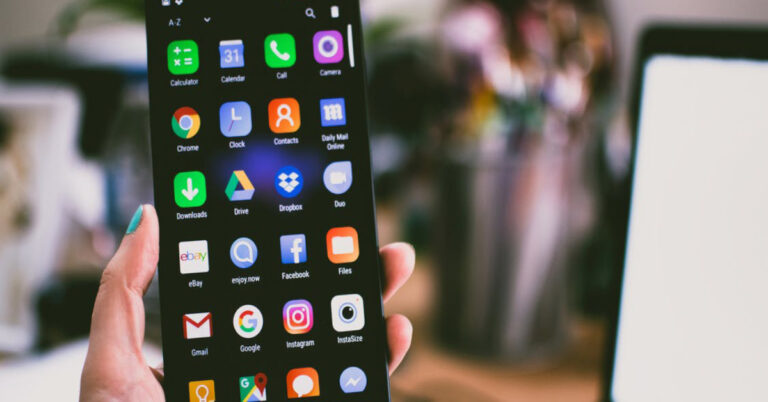
Due to the continuing tensions between India and China at the border, several people had been uninstalling Chinese apps from Android smartphones and trying to boycott Chinese apps and gadgets. While a whole lot of people have already uninstalled third-party apps like Xender, Shareit, TikTok and PUBG mobile, etc. They are unable to remove the system-default apps on their Chinese smartphones.Mobile manufacturers like Xiaomi, Oppo, Vivo and Realme tend to include some Chinese apps on their smartphones by default. Even if you don’t want to use them, they may still take some space on your smartphone and will also send you notifications. To counter this problem, and to remove Chinese apps you can follow the below-mentioned ways and check if it works for you.
Disable/delete the apps from your Smartphone
To avoid that, you could uninstall a number of the default apps. However, some apps are integrated into the device itself through the OS, due to which, you might no longer have the access to delete them. So, you would want to disable them or close their notifications and other alerts.
Replace IT app is another Indian app that offers customers data about the origin country of any mobile app. The app allows customers to understand the Chinese apps set up on their devices by running a system scan. Further, it also recommends the user with similar apps they can install on their phones. Replace It was available on the Google Play store and had a user score of 4.9 stars. You can download it from the internet or the link provided below. It might not be functional with all devices.Download from:Replace IT
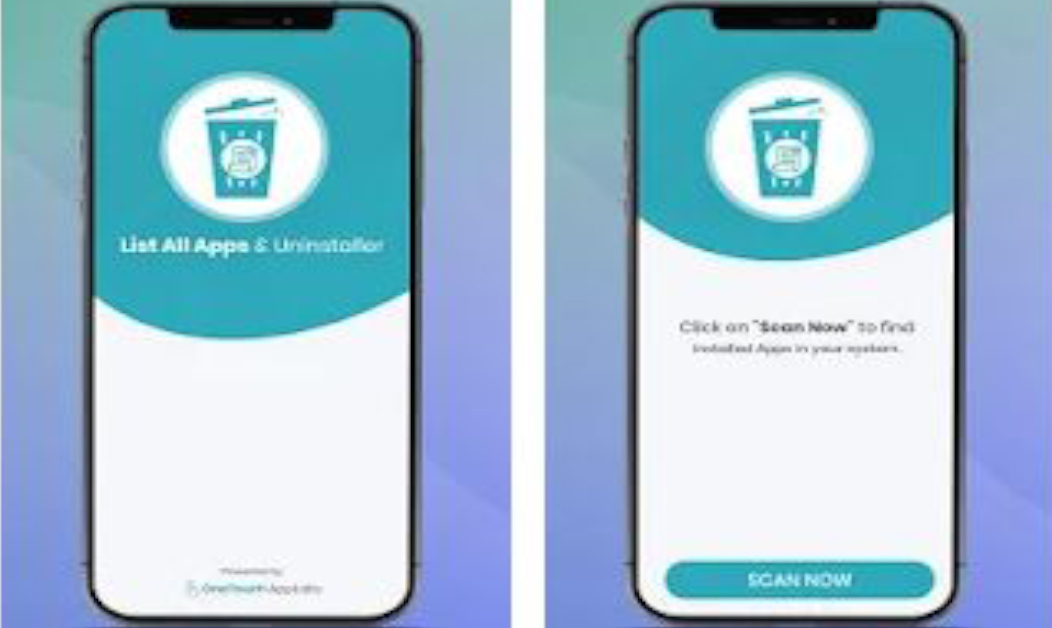
List All Apps & Uninstaller
List All Apps & Uninstaller also comes from the house of ‘OneTouch AppLabs’- the developer of popular ‘Remove China Apps,’ which got suspended from Google Play Store for violation of rules(but, you can still download the APK and install it from the internet). The new app works quite differently so that it doesn’t get removed again. Once you scan for apps, it shows you the list of all installed apps alongside their country of origin. You can go through the list to see what apps come from China. They can be uninstalled using the delete button. But unfortunately, the app shows full-screen pop-up ads. Download from: List All Apps & UninstallerRead also: How to fix apps not updating on Android smartphone
Root your Android smartphone (for advanced users)
Additionally, you can also root your Android smartphone to get full access to your smartphone. this will now not most effectively allow you to uninstall these apps, however, may even give you a choice to dump the Chinese UI and install the stock Android. But, this is something we would not advise as this is an advanced way, so use with caution.All the above-mentioned methods can help you to get rid of remove Chinese apps from your smartphone (Android). Hope we helped you in fixing the problem, if you think we have missed any other way or you know of ways which you have tried that can be included in this list, please let us and the rest of the readers know in the comments section below.Read also: Top 5 ways to force uninstall programs in Windows 10
For the latest gadget and tech news, and gadget reviews, follow us on Twitter, Facebook and Instagram. For newest tech & gadget videos subscribe to our YouTube Channel. You can also stay up to date using the Gadget Bridge Android App. You can find the latest car and bike news here.
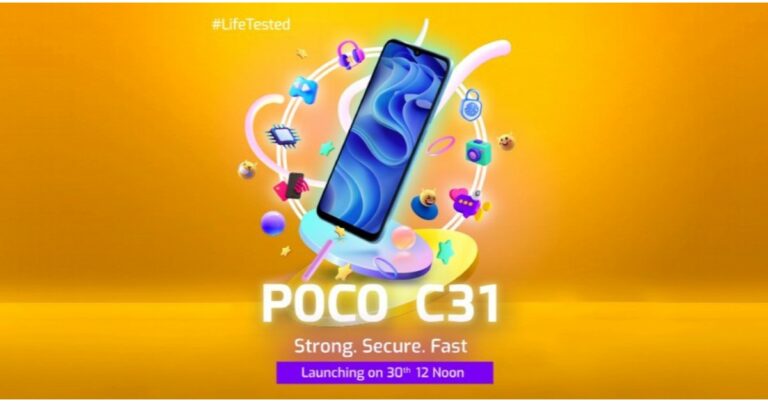
Poco C31 is all set to launch as the company’s latest offering in India today. The new Poco C-Series smartphone will debut as its latest budget smartphone. Ahead of the launch, the device was also listed on Flipkart and the sale is expected to kick off from the Big Billion Days Sale 2021.Not much has been revealed about the smartphone but teasers suggest a MediaTek Helio G35 SoC and a waterdrop style notch display.
Poco C31 India launch details
Poco C31 launch in India will take place today. The company will be hosting an online launch event to present the phone. The launch event will kick start at 12 noon and will be Livestream through the company’s social media channels as well as on its YouTube channel.We have embedded the link below for your convenience so that you don’t miss out on today’s event:
Poco C31 price, sale details
As for the pricing, Poco C31 is expected to debut under the budget price segment. The price of the device is likely to start at Rs 10,000 in India however there is no official confirmation from the company. But Poco has already revealed that its upcoming smartphone will be available for purchase through Flipkart. This means the device could go on sale during the Big Billion Days Sale that will begin from October 3 that is on Sunday.
Poco C31 specs expected
According to the microsite and teasers, Poco C31 will be featuring a waterdrop notch on the display to house the selfie camera. It will have a slim build with slim bezels and a relatively thicker chin area. There will be a fingerprint sensor and a face unlock too. According to the company the print sensor has been tested over 600,000 times for protection and is claimed to remain as good as new after 2.5 years of daily usage as it will get you a 25% longer lifespan compared to its rival. There will be an octa-core MediaTek Helio G35 chipset paired with 4GB of RAM and will run on MIUI for Poco based on Android.
For the latest gadget and tech news, and gadget reviews, follow us on Twitter, Facebook and Instagram. For newest tech & gadget videos subscribe to our YouTube Channel. You can also stay up to date using the Gadget Bridge Android App. You can find the latest car and bike news here.
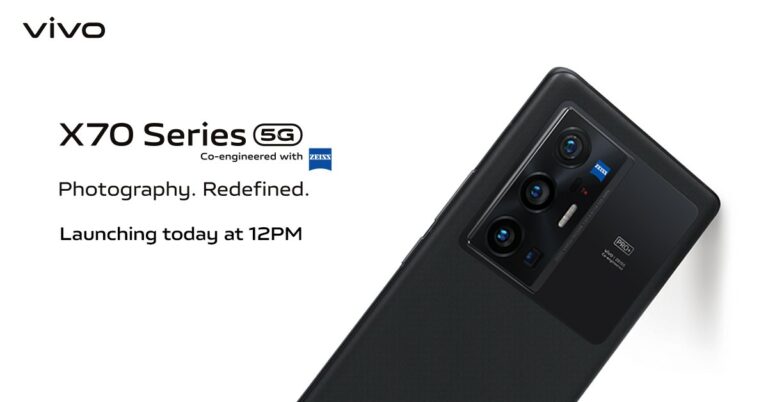
Vivo X70, Vivo X70 Pro and Vivo X70 Pro+ India launch is all set to take place today. The maker will take the covers off from its most premium smartphone series that earlier debuted in China ahead of the Indian launch. The company has not yet revealed how many devices from the lineup will hit the store in the country but the teasers definitely confirm the top of the line Pro+ model along with pro model might come to India. Read on to know the launch details and its expected pricing.Vivo X70 5G series is scheduled to launch in India today. The company has planned to host a virtual launch event that will begin at 12 noon. The India launch event can be watched live on the company’s official youtube channel as well as on its social media channels. You can also watch the event on our website as we have embedded the link below:
As for the pricing, the company has not yet revealed any details. Industry insiders say that the Vivo X70 Pro will be made available in two variants: 8GB RAM with 128GB storage at Rs 46,990 while the 12GB RAM with 256GB of storage is likely to be priced at Rs 54,990.On the other hand, Vivo X70 Pro+ is expected to come in a single 12GB RAM with 256GB of storage that will be priced at around Rs 69,990. The expected price of the vanilla variant is not yet revealed.
Vivo X70 Series specs and features
Starting with the vanilla X70, the phone features a 6.56-inch full HD AMOLED display with a 120Hz refresh rate and HDR support. It will run on OriginOS 1.0 on top of Android 11 and be powered by MediaTekDimensity 1200 SoC paired with ARM G77 GPU. For the cameras, it includes a triple rear camera set up that includes a 40MP primary sensor, a 12MP ultra wide-angle sensor and a 12-megapixel portrait sensor. For selfies, there will be a 32MP front-facing camera. The device will pack a 4,400mAh battery with 44W Flash Charge fast charging support.Vivo X70 Pro which has a similar display as the standard model but is powered byExynos 1080 SoC paired with ARM G78 GPU. There is a quad rear camera set up on the handset that includes a 50MP primary sensor. The 12MP sensors are the same as above along with an additional 8MP periscopic lens. The selfie camera sensor is also the same. It has a 4,450mAh battery with similar charging support. Vivo X70, Vivo X70 Pro and Vivo X70 Pro+Last but not least Vivo X70 Pro+ is the most premium of them all and will come with a 6.78 ultra HD AMOLED display and 120Hz refresh rate support. Under the hood, there is the most powerfulQualcomm Snapdragon 888+ SoC paired with an Adreno 660 GPU. The quad-camera set up on the X70 Pro+ will include a 48MP Sony IMX578 ultra-wide-angle sensor, a 50MP primary sensor, a 12MO portrait and an 8MP periscope lens. The selfie camera remains the same however there is a 5,000mAh battery with 55W Flash Charge with 50W Wireless Flash Charge fast charging support.
For the latest gadget and tech news, and gadget reviews, follow us on Twitter, Facebook and Instagram. For newest tech & gadget videos subscribe to our YouTube Channel. You can also stay up to date using the Gadget Bridge Android App. You can find the latest car and bike news here.
30 September 2021 Amazon Quiz has gone live on its platform and the e-commerce platform Amazon is today giving you a chance to win Rs 10,000 Amazon Pay Balance. The quiz can be played from 12 AM to 11:59 and million so people are trying their luck by participating in the daily quiz. To participate all you need to do is log in to your Amazon app on your device and give answers. Every day Amazon brings a fresh questionnaire that consists of five easy questions that are usually based on general knowledge and current affairs. You can submit the correct answers and can win an Amazon Pay Balance of up to Rs 50,000. It should be noted that the quiz is not accessible on the web platform instead you have to participate only through the dedicated app. After giving all the correct answers to the five questions the participants will be shortlisted for a lucky draw to select a winner. The results will be announced at the end of the month. Check out today’s answers for Amazon Quiz to win Rs 10,000 Amazon Pay Balance.
30 September 2021 Amazon Quiz Answers
Question 1: In India, Akshat Urja Day is celebrated on 20th August to raise awareness about what?
Answer: Renewable resources of energy
Question 2: Nishad Kumar won a silver medal for India at the Tokyo Paralympics in which of these events?
Answer: Men’s high jump T47
Question 3: One of the upcoming Marvel movies to be released this year is ShangChi and the Legend of the ___ Rings. Fill in the blanks
Answer: Ten
Question 4: This is a famous tourist spot located in which European country?
Answer: Greece
Question 5: Which of these is a space exploration firm owned by this gentleman?
This is a very common problem, which many Android users across the globe have been facing in recent times. Buggy updates of the Google app might cause such issues. So, if you are also facing this problem, you are not alone. Don’t worry, we have found out 4 Ways to fix ‘Google Keeps Stopping’ Error on Your Android Phone. Read this guide to fix the problem right away and help others too.
Restart your Smartphone
You may find it funny but we keep using this method in most of our Android tips and tricks as despite being very basic, it is still one of the best ways to fix all kinds of issues on Android smartphones. Most of you already know how to restart your phone using the power button. If it doesn’t restart automatically, you may try a forced reboot option by long holding the power button. After doing a restart or a force reboot, try using the Google app again and check if it solves the issue. If still, the Google App keeps crashing try the next method.
Clean the cache and data of Google App
The next way you may use is to clean the cache and data of the Google App. You may know that cleaning the cache on Android can help you fix many troubles. Additionally, clearing app data can also fix the problem for you. The Google app ends up consuming data in GBs from the storage in your smartphone after constant utilisation, so it becomes important to clear it timely.
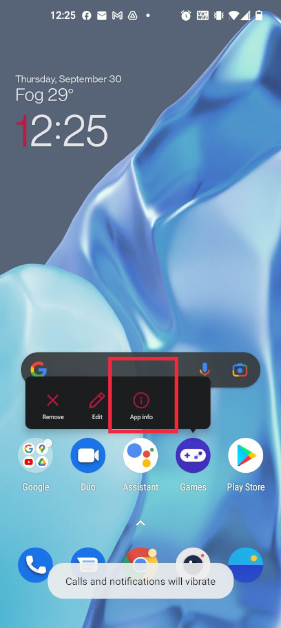
Look for the Google app on your phone and long-press on the app icon.
Now tap on the little “i” (info) button from the pop-up menu.
Tap on Storage and cache.
After that, press clear cache and then on clear storage
Another way to Fix the ‘Google Keeps Stopping’ Error is this one. You can additionally force prevent the Google app to restore the problem. As you know, forcing it to stop puts an end to all the background and foreground activities and can restore the crashing issue. Here’s how to force stop the app:
Open Settings in your Android smartphone.
Go to the Apps & notifications and tap “See all apps” or “App data”.
Here choose Google from the list.
On the app information page, tap force stop and OK at the pop-up.
That’s it. Now, try opening the Google app once more, and you may not see the ‘Google keeps stopping’ issue any longer. If still the Google App keeps crashing try the next method.
Uninstall Google App Updates
As this issue is a result of an update, you may also try to restore it by way of uninstalling the latest update. Alright, here’s how to uninstall the latest update:
Find the Google app within the app drawer and long-press the app icon.
Now, tap at the ‘i’ button (or App info) to go to the app info page of the Google app.
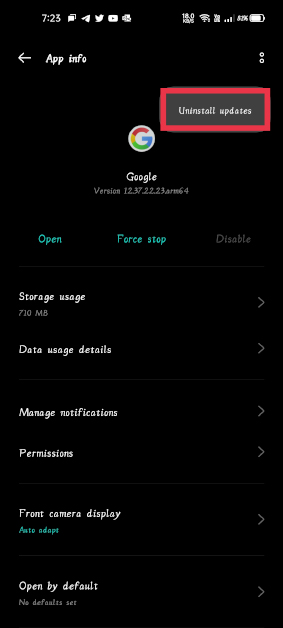
Tap on the 3 dots menu located at the top-right corner of the app info page.
Now, tap “Uninstall updates”, after which press “OK” to confirm.
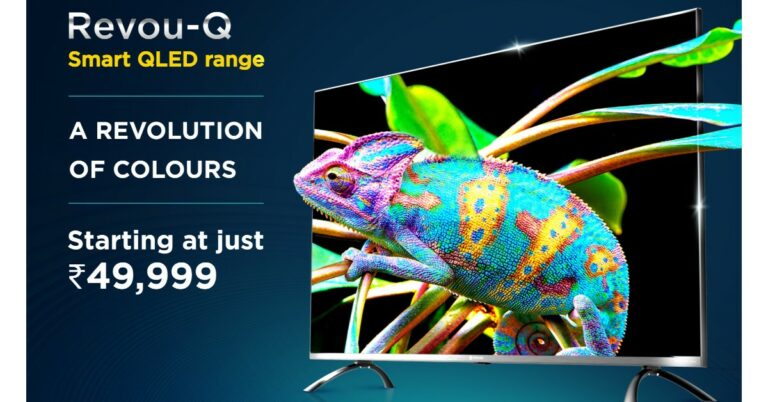
Flipkart today launched the Motorola branded QLED TV in India ahead of the Big Billion Days sale. The Motorola Revou-Q QLED Smart TV series is the latest to launch in the country. The new lineup includes Televisions in two different sizes 50 and 55 inches. The Motorola Revou-Q premium TV is equipped with a wireless gamepad that makes it the ideal choice for gamers. In addition to this, it supports Dolby vision and equips 60W speakers.
Motorola Revou-Q QLED Smart TV series price in India and availability
Like we said before, the Motorola Revou-Q QLED Smart TV series offers you, two models. The Motorola Revou-50-inch QLED Smart TV will be available at Rs 49,999. Whereas the Motorola Revou-Q 55-inch QLED Smart TV will be selling at Rs 54,999. Both variants will go on sale from October 3 with the commencement of the Big Billion Days Sale on Flipkart.
Motorola Revou-Q QLED Smart TV series specs and features
Motorola Revou-Q QLED Smart TV series comes in 50 and 55-inch size models. The new Smart TV range features Dolby vision with HDR10 support powered by AutoTuneX technology that will optimize the brightness, colour scales and contrast to elevate visual content. There is Quantum dot technology with an Active quantum colour filter as well. The QLED series is powered by a Realtek Quad-core processor and Arm Mali-G31 MC2 GPU for graphics. It is offered with 2GB of RAM and 16GB of onboard storage. It operates on Android 11.0 with an intuitive UI that supports over 7000 apps, including Google Duo, for meetings and enables custom viewing recommendations based on your favourite content. The Motorola Revou-Q QLED Smart TV range also includes dual 60W speakers with 30W high octave tweeters fine-tuned by Dolby Atmos. In terms of connectivity, there is an HDMI 2.1 port, USB ports and WiFi. It also includes MEMC technology for a smoother visual experience and a wireless gamepad. Speaking about the launch, Hari G. Kumar, Vice President, Large Appliances at Flipkart, said, “As we approach the Big Billion Days, we want to ensure that our customers have access to industry-first and best offerings across various product portfolios. Towards this endeavour, we are excited to strengthen our collaboration with Motorola by introducing the world’s first QLED TV with a gamepad and provide consumers with enhanced value offerings ahead of the festive season. These products are crafted to suit the evolving requirements of Indian consumers and are built to provide them with an immersive home entertainment and gaming experience.”
For the latest gadget and tech news, and gadget reviews, follow us on Twitter, Facebook and Instagram. For newest tech & gadget videos subscribe to our YouTube Channel. You can also stay up to date using the Gadget Bridge Android App. You can find the latest car and bike news here.
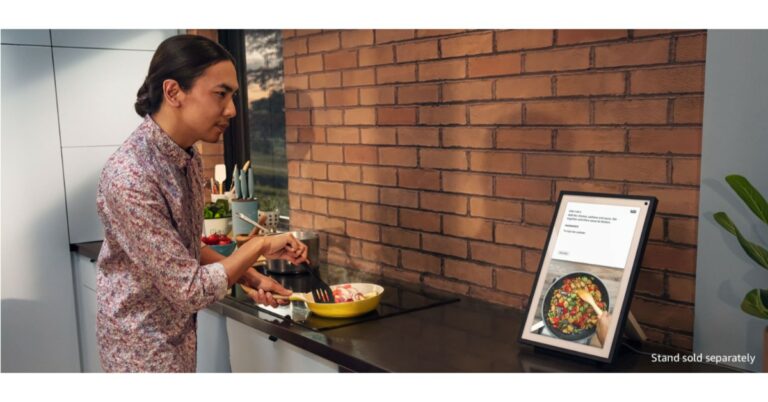
Amazon has upgraded its smart devices portfolio with the launch of Amazon Echo Show 15 and Amazon Glow. The former one is a regular smart screen with a bigger display and can be mounted on the Wall. Yes, it can be utilised as a digital frame or you can place it anywhere in your home as it can be position both vertically as well as horizontally. While the latter one is specifically designed for Kids.
Amazon Echo Show 15 and Amazon Glow price and availability
Amazon Echo Show15 has been introduced at £239.99 that converts to Rs 23,500. The customers can sign up at www.amazon.co.uk/echoshow15 to be notified when the device is available. Countertop stands and under-cabinet mount accessories will be sold separately and will be available for purchase when Echo Show 15 is available.On the other hand, Amazon Glow is priced at $299 which translates to Rs 22,300. But the company will be offering it at an invitation-only special introductory price of $249 which is something around Rs 18,600. Indian price and availability details are yet to be announced by the company.
Amazon Echo Show 15 specs and features
As the name suggests the Amazon Echo Show 15 features a 15.6-inch full HD screen. The display comes with 1920×1080 pixels of resolution. It has dual 1.6-inch stereo speakers along with a 5-megapixel camera great for video calls, or to Drop-In on a loved one inside or outside of your house, using an Alexa-enabled device.The large screen supports 1080p video streaming which can be placed on your kitchen countertop or mounted on the wall anywhere in your home. Just ask Alexa to watch films and TV shows from Prime Video and Netflix. You can also catch up on the news from Sky, BBC and LBC; ask Alexa to play music or read your Audible book. It is also used as a home decor or a frame to showcase your moments by displaying full-screen pictures from Amazon Photos, Facebook Photos, or alternating visuals from pre-loaded art, nature, seasonal, or travel galleries.Amazon Echo Show 15 is powered by a quad-core Amazon AZ2 Neural Edge processor which is specially designed to enable computer vision (CV) algorithms that once required the computer power of the cloud letting it recognise a person enrolled in visual ID and will be able to process their images right on the device. One can also interact will Alexa using touch instead of voice, to see captions for Alexa’s responses on the device screen, and more.The smart device also gives you control over the microphone and camera so you can view and delete your voice recordings, and a built-in shutter to cover the camera. According to the company, the customers will be able to review requests associated with specific household members who have set up Voice ID in the Alexa app or by visiting Alexa Privacy Settings. This allows those members of your household to have control over how their individual voice history is managed. In addition to this, the users will also get reminders to review their privacy settings in the Alexa app 30 days after they’ve set up their device.The Amazon Echo Show 15 now comes with a new visual ID feature, Alexa will be able to recognise you and personalise the information on its screen. After enrolling in visual ID, if you walk in front of Echo Show 15, Alexa will recognise you and the screen will automatically update to show you a custom greeting, your reminders, calendar events, recently played music or notes from others in your home. The best part is when you enrol your child in visual ID for kids the home screen will shift to only show age-appropriate content when your child is recognised. One can also customise Alexa widgets by letting you add information that is useful to you and your family plus the widgets continually refresh to stay up to date, so you always have the latest information, and you can easily rearrange them to suit your needs and preferences. The sound detection features will immediately notify you when it detects a crying baby or any other noise.
Amazon Glow specs
Amazon Glow is specifically designed for kids and it comes with an 8-inch display. It let your child tear an e-book or make video calls to family members to communicate. The biggest USP of the Amazon Glow is that it has a built-in projector-camera with a built-in shutter. This functionally allows kids to create art and play games, solve puzzles over a video call. The buyers will get 1 year of Amazon Kids+ that gives access to thousands of books for kids and interactive games, with visual art activities and animated storybooks.
For the latest gadget and tech news, and gadget reviews, follow us on Twitter, Facebook and Instagram. For newest tech & gadget videos subscribe to our YouTube Channel. You can also stay up to date using the Gadget Bridge Android App. You can find the latest car and bike news here.
Acer is one of the most popular names in the Indian laptop market. Year after year they have launched some sturdy, good looking and high-performing laptops in the sooq. The latest to come off the supply chain of the maker is Acer Aspire 7 2021 model, which they handed over to us for an evaluation. We spent some days and nights with the machine working and watching our favourite Netflix and Disney+ Hotstar shows on it. This is our review of the Acer Aspire 7 (2021).
Acer Aspire 7 review: Design and Display
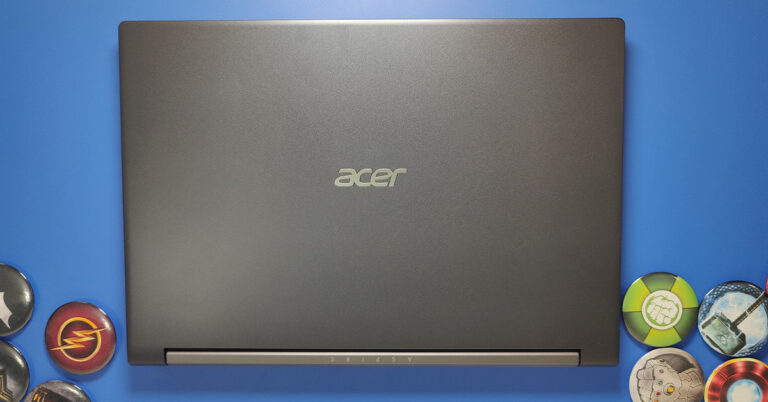
Out of the box, you do not get an oomph factor from the Acer Aspire 7, as it has basic looks with a pinch modern outlook. It comes across as this laptop is built for your productivity needs but has lots more to offer. Dressed in charcoal grey you will find the Acer logo on the top of the lid with Aspire written on the silver, back spine.
Open it and you are greeted by a large full QWERTY with NUM pad keyboard and medium-sized trackpad. Which, by the way, is multi-touch/gesture ready. The large 15.6-inch (FHD IPS) display can be swivelled to 180 degrees and does not feel flimsy. The screen to body ratio is about 82% and you do get an HD webcam a well as few MICS over it in the Acer Aspire 7. The keyboard is backlit and comes with function keys that also double up as multimedia buttons. The typing experience on the keyboard of this Acer laptop is good, however, we would have wanted a larger trackpad.
There are plenty of ports on the Acer Aspire 7. The company has put in the power USB and audio (3.5mm) on the right side, while the left side has two more USBs, one USB Type-C, HDMI and the ethernet ports. Two downward-firing speakers can also be found under the laptop (on the left and right side). Overall, the laptop looks premium, and it does say it means business.
Acer Aspire 7: Performance
Let’s first talk about the tech specs of the Acer Aspire 7 (2021). The model that we have has Intel Core i5 10th Gen CPU with 6 cores (10300H). The max clock speed here is 2.5Ghz. With that the users get 16GB RAM, 512GB SSD and an NVIDIA GeForce GTX1650 graphics card. Bluetooth 4.1 and Wi-Fi 6 are also part of the package.
Windows 10 Home edition is what users get, which was a bit strange as we were expecting the Pro edition on this laptop. There is a little bit of bloatware that comes along with the laptop, but all the extra software can be uninstalled. Users also get 100GB of free storage with Acer Aspire 7, which they can use for 1 year. This machine also comes with 30 days trial of Norton security.
We played a lot of movies and Netflix shows on the laptop and we quite liked the experience. The screen is bright and viewing angles are good. With it, the sound is not too bad. However, a little bit louder would have been perfect. The gaming experience on the Acer Aspire 7 is good too. Games like CS: GO and Dota 2 can be played at 100FPS, but PUBG or more graphics hungry games have to be figured down to 30-60FPS at medium settings. But the experience with these games at mid settings is not bad either.
The battery life of the Acer Aspire 7 is one of its brightest points. The 3-cell battery lasted over 7.5 hours for us, when not gaming. A 135W charger comes in the box that quickly charges it back. Our experience in Zoom calls was good too. The MICS work well, and the screen did a good job. Again, a slightly louder speaker output would have been perfect. The writing/typing experience on Google docs or MS Word was nice. The tactile feel of the keys is excellent and the lightest of taps registers the alphabet on screen.
Verdict
The overall weight of the Acer Aspire 7 laptop is 2.15 Kg, which is not bad. We were able to lug it around easily and it made p for a good work and play companion. At Rs 57,990, Acer has managed to bring out a very good workhorse. If you are on the lookout for a work machine and want a good multimedia experience with it, then this machine will suit you well.
Acer Aspire 7: Pros
Good performances
Backlit keyboard
Excellent battery life
If you attempted to free up the bootloader on your Xiaomi and Redmi smartphone and tried to enter the fastboot mode a couple of times. Then there is probably a chance that your smartphone gets stuck into the fastboot mode and does not boot normally even after restarting it many times and does not exit fastboot mode in the smartphone. Don’t worry, we will provide you with some methods, which you can try to get your phone back to its normal state. Here is how to exit fastboot mode in Xiaomi and Redmi smartphones.
Force reboot
Force reboot is one way that we all do in most situations. It can fix nearly the whole thing. Your Redmi smartphone may get fixed with the same easy old-school solution, restarting it.
Restarting an Android smartphone is pretty simple.
Press and hold the power key then tap the reboot option within the power menu.But because the smartphone isn’t always in the OS mode, we must force reboot the phone without the power menu. To do this, press the power key for about 15 seconds and the smartphone will reboot automatically. Sometimes it takes about 30 seconds for the smartphone to be forced to reboot. So you just need to keep holding the power button for some time.
Power and Volume Down keys Combination
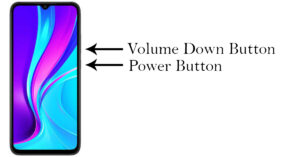
If the force reboot is not working on your phone then there is a button combination that can reboot your smartphone. That is the power and volume down button key method, which reboots your phone to recovery mode. For this to work, you need to press and hold the power button and volume down button at the same time. Keep pressing them till your phone reboots and you will see the Redmi logo on the smartphone and the animation begins.
Drain the smartphone’s battery
If you can’t get your Redmi smartphone to reboot, simply use it until its battery gets drained. This may take more time in Fastboot Mode. Make sure the phone’s display is turned on at all times. Once the battery is completely discharged and the phone has turned off, plug in the charger and wait for the phone to reboot.
Read also: Top 5 ways to fix if you are unable to download apps on your Android phone
Wipe the Cache Partition
Step 1:Turn off your Xiaomi/Redmi smartphone.
Step 2: Press and hold the volume up + power button until you see the Xiaomi/Redmi logo on the display.
Step 3: Release the buttons and wait for the Rest FirstRest menu.
Step 4: Use the Volume buttons to navigate to the Wipe Cache Partition option. Press the power button to select it.
Step 5: Hit Yes.
Step 6: Select Reboot system now once the cache partition has been wiped.
Use a Third-Party App to Exit Fastboot Mode
When you have a PC/laptop and a smartphone USB data cable to connect your device to, you can go out of the Fastboot mode via third-party apps.As an example, Android Multi tools allow you to enter and go out of the Fastboot mode with your Desktop/laptop, wipe out all the data from your smartphone, check the device info, and do different things. This step is for advanced users, so use caution.
To save time, you can also try Tenorshare ReiBoot for Android to exit fastboot mode with one click. ReiBoot for Android software makes it incredibly simple to exit Xiaomi fastboot mode. Everyone can use the software to exit fastboot mode in Xiaomi Redmi smartphones. It doesn’t require any technical knowledge. And this function is totally free for all Android users.
Reinstalling ROM
In lots of cases, it is noticed that the ROM of Xiaomi smartphones fails or bricks without any major problem. Moreover, to resolve this difficulty you need to reinstall the authentic ROM. The original ROM may be installed through Fastboot. Similarly, you could use the tool named MI Flash to install the authentic ROM of Xiaomi smartphones. This step is also for advanced users, so use caution.So, these were some suggestions confronted whilst exiting fastboot Mode on Xiaomi and Redmi smartphones. If all of the above steps are not able to resolve your issue, take the smartphone to the nearest Xiaomi service centre and ask them for help. You might want to call their customer care support as well to help you over a phone call.
Frequently Asked Questions (FAQs)
What does the Fastboot Mode do on Android devices?
You can use the Fastboot Mode to flash custom ROMs, change hidden settings, resolve bugs, and maintain greater control over your Android device.
How do I exit Fastboot Mode on my Xiaomi/Redmi device?
To exit Fastboot Mode on a Xiaomi or Redmi smartphone, simply restart it. If you are unable to restart your phone, wait for its battery to discharge and plug in the charger. The device will restart automatically.
How do I enter Fastboot Mode on Xiaomi/Redmi devices?
These are the top 7 ways to exit Fastboot mode in Xiaomi/Redmi devices. If your phone keeps slipping into Fastboot mode, delete the recently installed apps on the device. Restart your phone in Safe mode to further investigate whether the third-party apps are causing the issue.
Want to watch your smartphone screen on TV directly using the mirroring feature? All the smart TVs nowadays have either built-in Chromecast or similar mirroring service. This built-in hardware helps to mirror your Android or iPhone Samsung tv. It is very easy to employ and one can follow the below steps to mirror your Android or iPhone screen to a Samsung or Sony smart TV. To mirror any phone screen both the devices should be in the same Wi-Fi network
In Samsung Smart TV
On Android
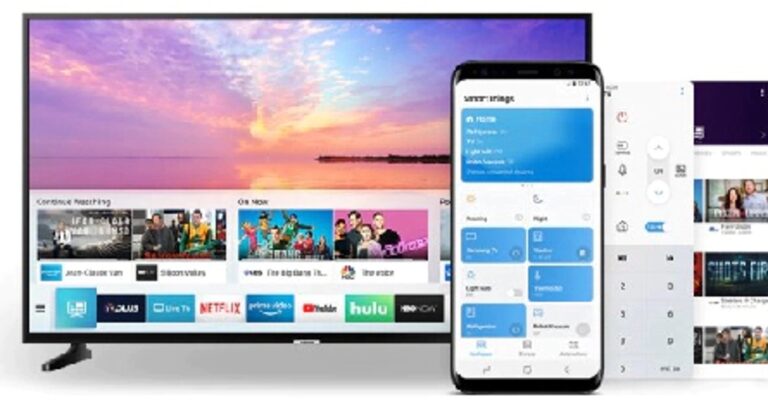
On an Android smartphone, the easiest way is to do it directly from the Dropdown notification bar and tapping on the screencast option. Select the TV name from the list and the smartphone screen will be mirrored automatically.The other way is by using the Smart Things application.Step 1 – Download the Smart Things application from Play Store.Step 2 – Go to add device and select your smart TV.Step 3 – Tap on the TV to start connecting and view images, videos and more.
For iOS
Open the Photos application search for the photo or video you want to mirror and tap share to select AirPlay. One can also do it by opening the Control Center and tapping on the Screen Mirroring option.Read Also: Samsung Galaxy Z Flip Mirror Gold variant to hit the Indian market
In Sony Smart TV
The casting method for Sony TV remains the same (Except the Smart things method). But if you are on a non-Android TV all you need to do is switch the screen mirroring on from the TV and follow the same steps above. To switch it on follow these steps.Step 1 – Make sure your TV and smartphone are on the same Wi-Fi network.Step 2 – Press the source button on your TV remote and select the screen mirroring optionStep 3 – Your TV will be ready to mirror screen follow the same steps as above for either Android or Apple device to cast your screen easily.Read Also: Microsoft gets Android apps to Windows 10 with this new featureFollowing these steps, one can mirror their Android or iPhone screen to a Samsung or Sony smart TV. Make use of this feature and enjoy your phone content on the big TV screen. One can also consider buying Amazon Firestick, Chromecast or MiraCast if the screen sharing feature is unavailable on your TV.
For the latest gadget and tech news, and gadget reviews, follow us on Twitter, Facebook and Instagram. For newest tech & gadget videos subscribe to our YouTube Channel. You can also stay up to date using the Gadget Bridge Android App. You can find the latest car and bike news here.


 Download from: Replace IT
 The new app works quite differently so that it doesn’t get removed again. Once you scan for apps, it shows you the list of all installed apps alongside their country of origin. You can go through the list to see what apps come from China. They can be uninstalled using the delete button. But unfortunately, the app shows full-screen pop-up ads.
Download from: List All Apps & Uninstaller
Read also: How to fix apps not updating on Android smartphone
The new app works quite differently so that it doesn’t get removed again. Once you scan for apps, it shows you the list of all installed apps alongside their country of origin. You can go through the list to see what apps come from China. They can be uninstalled using the delete button. But unfortunately, the app shows full-screen pop-up ads.
Download from: List All Apps & Uninstaller
Read also: How to fix apps not updating on Android smartphone










 Open it and you are greeted by a large full QWERTY with NUM pad keyboard and medium-sized trackpad. Which, by the way, is multi-touch/gesture ready. The large 15.6-inch (FHD IPS) display can be swivelled to 180 degrees and does not feel flimsy. The screen to body ratio is about 82% and you do get an HD webcam a well as few MICS over it in the Acer Aspire 7. The keyboard is backlit and comes with function keys that also double up as multimedia buttons. The typing experience on the keyboard
  There are plenty of ports on the Acer Aspire 7. The company has put in the power USB and audio (3.5mm) on the right side, while the left side has two more USBs, one USB Type-C, HDMI and the ethernet ports. Two downward-firing speakers can also be found under the laptop (on the left and right side). Overall, the laptop looks premium, and it does say it means business.


 Windows 10 Home edition is what users get, which was a bit strange as we were expecting the Pro edition on this laptop. There is a little bit of bloatware that comes along with the laptop, but all the extra software can be uninstalled. Users also get 100GB of free storage with Acer Aspire 7, which they can use for 1 year. This machine also comes with 30 days trial of Norton security.
We played a lot of movies and Netflix shows on the laptop and we quite liked the experience. The screen is bright and viewing angles are good. With it, the sound is not too bad. However, a little bit louder would have been perfect. The gaming experience on the Acer Aspire 7 is good too. Games like CS: GO and Dota 2 can be played at 100FPS, but PUBG or more graphics hungry games have to be figured down to 30-60FPS at medium settings. But the experience with these games at mid settings is not bad either.
Windows 10 Home edition is what users get, which was a bit strange as we were expecting the Pro edition on this laptop. There is a little bit of bloatware that comes along with the laptop, but all the extra software can be uninstalled. Users also get 100GB of free storage with Acer Aspire 7, which they can use for 1 year. This machine also comes with 30 days trial of Norton security.
We played a lot of movies and Netflix shows on the laptop and we quite liked the experience. The screen is bright and viewing angles are good. With it, the sound is not too bad. However, a little bit louder would have been perfect. The gaming experience on the Acer Aspire 7 is good too. Games like CS: GO and Dota 2 can be played at 100FPS, but PUBG or more graphics hungry games have to be figured down to 30-60FPS at medium settings. But the experience with these games at mid settings is not bad either.
 The battery life of the Acer Aspire 7 is one of its brightest points. The 3-cell battery lasted over 7.5 hours for us, when not gaming. A 135W charger comes in the box that quickly charges it back. Our experience in Zoom calls was good too. The MICS work well, and the screen did a good job. Again, a slightly louder speaker output would have been perfect. The writing/typing experience on Google docs or MS Word was nice. The tactile feel of the keys is excellent and the lightest of taps registers the alphabet on screen.





 Step 3 –