Data is considered as the modern currency. It’s not only about information but your identity as a whole. When your information gets compromised, your social and financial base gets eroded. Thus, protecting your data is of the utmost importance. Your PC stores several files and documents related to your projects, business, and lifestyle. You must protect them against leakage and accidental deletion. Your PC is also one of the most obvious targets of cyber-attacks and malware. The following list contains security software that you must have to keep your data safe.
1) VeraCrypt
Based on TrueCrypt, one of the most trusted encryption programs, VeraCrypt offers top-grade encryption for your data. It typically works by generating password-protected encrypted data. The software is capable of encrypting a disk partition, the system partition, and even the entire hard drive. The latest release allows you to encrypt files and directories by attaching the encrypted data to a disk volume. You just need to specify the details related to the encrypted volume to be built including volume size, target location, and encryption algorithms to be used. For further security, you may also define a password or a key file. VeraCrypt ensures that the data you copy or move to an encrypted volume automatically gets encrypted. VeraCrypt maintains industry-standard encryption algorithms including AES, Serpent, Twofish, and SHA-2.
VeraCrypt (Image Courtesy: Wikipedia)
2) Dashlane
Dashlane is one of the most preferred and versatile password managers. While using Dashlane, you have to establish a master password that is not transferred across the web by Dashlane. According to the company, it neither peak the data you store nor sells it to anyone. the software supports two-factor authentication and provides easy methods to manage and change multiple passwords. Apart from carrying your passwords, Dashlane enables you to save notes securely in a digital wallet. The service also comes with a feature by which you can share encrypted passwords with emergency contacts. This is essentially useful in cases when someone forgets their complex passwords. Dashlane comes in both free and paid versions. The free version allows you to store up to 50 passwords with autofill functionality on the web. However, with the free version, you can only work on one device. The paid version offers no restriction in terms of the number of passwords and devices.
Dashlane
3) Norton 360 With LifeLock
Norton launched its first antivirus software back in 1991 under the Symantec umbrella. Norton 360 with LifeLock won the best antivirus award for its robust performance in protecting PCs. The anti-virus comes with a multi-layered and advanced security feature to provide real-time threat protection to your Device. It gets automatically updated to protect your PC, private and financial information against existing and emerging malware threats. the LifeLock Identity Alert System alerts you if your Social Security Number, name, address, or date of birth are used in applications for credit or services. The secure VPN enables you to browse anonymously and securely with a no-log VPN. You can also add bank-grade encryption to help keep your information like passwords and bank details secure and private. Moreover, it gives effective parental control to manage your kids’ activities online.
Norton 360 With LifeLock
4) Acronis True Image
Acronis True Image is a full-featured backup software that simultaneously sends your data to both a local drive and cloud storage. It is also capable of cloning and mirror imaging duties for the system drive in a few clicks. Acronis protect the data on your Windows PCs from emerging threats including hardware and software failures, accidental deletions, and cyber-attacks. The software also has an anti-ransomware functionality that detects and reverses the illegal encryption of storage to keep your data safe from this prevalent cyber attack. It offers full support for smartphone backup. With a one-year subscription, you get in-built ransomware protection. However, for cloud-backups, you’ll require to upgrade to the Advanced plan offering 5TB of storage with electronic signatures.
Acronis True Image
5) Restoro
Restoro is software that assists you to clean your registry without any hassle. This software prevents your PC from freezing and crashing. It cannot only repair your computer to an optimized state but also removes the malware itself. Restoro works by effectively scanning your PC for any inconsistencies by matching it to a database, and instantly fixes the issues. You can also set the program to observe your system constantly, thereby ensuring real-time security against potential threats and fixing faulty registries and records as soon as they appear. Besides being a registry fixer, Restoro works as an effective PC optimization tool. As a result, it prevents your PC from freezing suddenly or facing errors like Blue Screens of Death.
Restoro
For the latest gadget and tech news, and gadget reviews, follow us on Twitter, Facebook and Instagram. For newest tech & gadget videos subscribe to our YouTube Channel. You can also stay up to date with the Gadget Bridge Android App.
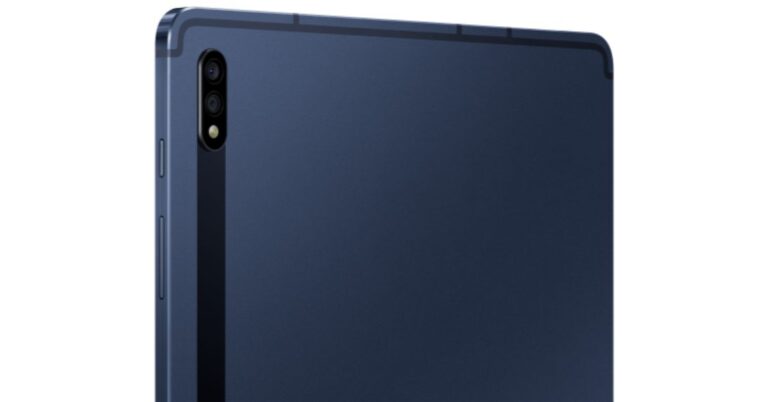
The South Korean smartphone company today announced the addition of Mystic Navy colour to Samsung Galaxy Tab S7 and Galaxy Tab S7+. The new colour option will be available in India that was launched in the country in August last year. The tablet is the latest edition to the Samsung Tab series which were earlier introduced in three colour options and now the fourth colour option has joined the family. Price and AviabilityThe price of the Samsung Galaxy Tab S7 and Galaxy Tab S7+ Mystic Navy colour option remains the same as the previous pricing. The new Mystic Navy colour along with Mystic Bronze, Mystic Black and Mystic Silver colours via Samsung.com and leading retail stores with exciting offers. The launch offers include an instant HDFC bank cashback of Rs 9000 and Rs 10000, respectively. Additionally, they will be eligible for INR 10000 discount on keyboard cover and Rs 7000 discount on Galaxy Buds+. This brings the overall ownership price for S7 to Rs 54999 and S7+ to Rs 69999.To recall, Samsung Galaxy Tab S7 was launched in India with a starting price of Rs 55,999 for the Wi-Fi variant for the 128GB of storage. While the LTE variant with the same storage is available at Rs 63,999. The Samsung Galaxy Tab S7+ LTE variant comes with a price tag of Rs 79,999.Samsung Galaxy Tab S7: SpecificationsSamsung Galaxy Tab S7 comes with an 11-inch WQXGA LTPS TFT display with 2,560×1,600 pixels and 120Hz refresh rate. The tab runs on Android 10 and is powered by an octa-core Qualcomm Snapdragon 865+ CPU. For optics, there is a dual rear camera setup that includes a 13-megapixel primary sensor with f/2.0 aperture and a 5-megapixel ultra-wide-angle lens with f/2.2 aperture. The S7 packs an 8,000mAh battery that can deliver up to three hours of video playback on a single charge.Samsung Galaxy Tab S7+: SpecificationsSamsung Galaxy Tab S7+ comes with a bigger 12.4-inch WQXGA+ Super AMOLED display offering 2,800×1,752 pixels of resolution with 120Hz refresh rate and 287ppi pixel density. Under the hood, there is Snapdragon 865+ SoC with 6GB LPDDR5X RAM and 128GB storage. The camera details on the phone are the same as the standard variant. The S7+ packs a 10,090mAh battery with 45W fast charging support.
For the latest gadget and tech news, and gadget reviews, follow us on Twitter, Facebook and Instagram. For newest tech & gadget videos subscribe to our YouTube Channel. You can also stay up to date using the Gadget Bridge Android App.
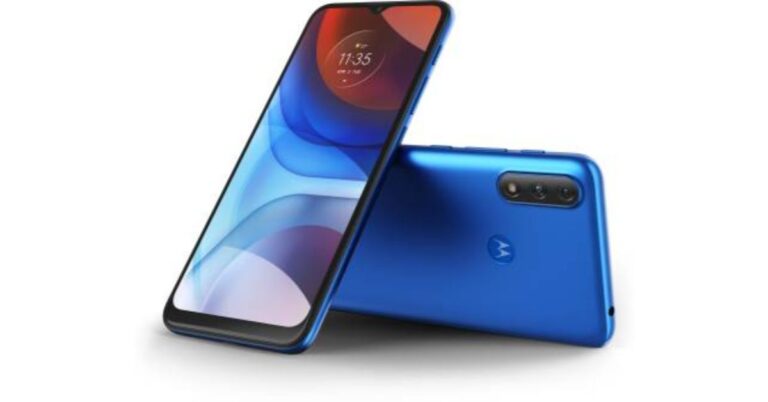
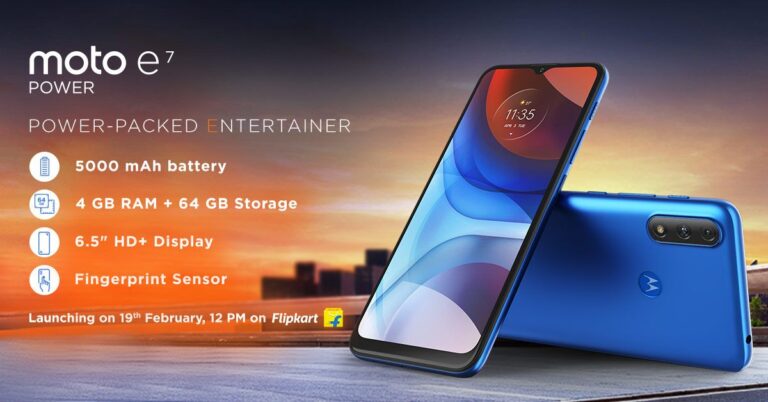
The Chinese smartphone company Motorola today announced the launch of its latest budget smartphone in India. Motorola Moto E7 Power is the latest addition to its E7 series which already includes Moto E7 and E7 Plus. The mobile comes with a 6.5-inch HD+ Max Vision display with a water drop-style notch. Powered by an octa-core SoC the phone comes loaded with a 5000mAh battery and an IP52 rated water repellant design.Motorola Moto E7 Power: Price and availability detailsMotorola Moto E7 Power has been launched in India in two different variants. The device will be available in 2GB RAM with 32GB storage priced at Rs 7,499 while the 4GB RAM with 64GB storage comes with a price tag of Rs 8,299. The Motorola smartphone will be available for purchase via Flipkart and leading retail stores starting February 26 at 12 noon onwards. The mobile phone will be available in two colour options of Tahiti Blue and Coral Red.Motorola Moto E7 Power: SpecificationsMotorola Moto E7 Power features a 6.5-inch HD+ Max Vision display with 720×1,600 pixels of resolution and a 20:9 aspect ratio. The device runs on Android 10 out of the box. The smartphone is powered by an octa-core MediaTek Helio G25 SoC paired with up to 4GB of LPDDR4X RAM and 64GB of onboard storage. The internal storage can be expanded up to 1TB using a microSD card. For photos and videos, Moto E7 Power comes with a dual rear camera setup that includes a 13-megapixel primary sensor with f/2.0 aperture and a secondary 2-megapixel macro lens with f/2.4 aperture. While on the front there is a 5-megapixel selfie camera with an f/2.2 aperture. With a massive 5000mAh battery with 10W fast charging support is claimed to last up to two days on just a single charge. It offers 76 hours of music playback, 14 hours of video streaming and 12 hours of internet browsing. There is a rear-mounted fingerprint sensor located inside the batwing logo. While other sensors on the phone include an accelerometer, ambient light, and a proximity sensor.In addition to this, there is a dedicated Google Assistant button located on the side of the phone. For connectivity there is 4G VoLTE, Wi-Fi 802.11 b/g/n, Bluetooth 5.0, GPS/ A-GPS, FM radio, USB Type-C, and a 3.5mm headphone jack.
For the latest gadget and tech news, and gadget reviews, follow us on Twitter, Facebook and Instagram. For newest tech & gadget videos subscribe to our YouTube Channel. You can also stay up to date using the Gadget Bridge Android App.
Facebook has blocked Australian users from sharing or viewing news content over proposed legislation called ‘Media Code’. Australian government demands tech giants like Facebook and Google to compensate for the content reposted from news terminals. This decision by Facebook is being called “a bombshell decision” as the company affirmed to forbid Australian people from reading and sharing news with a “heavy heart”.
Why Facebook banned news content in Australia?
The argument in favour of the ban is that the digital world has resulted in advertising revenues getting concentrated in the hands of two players, namely, Google and Facebook.
William Easton, Managing Director, Facebook Australia & New Zealand believes that the proposed legislation “fundamentally misunderstands the relationship between our platform and publishers who use it to share news content.” According to him, the stance taken by Facebook was very different from that of Google.
As a reaction, the tech giant, Google has also threatened to withdraw its search engine from Australia, but it had appeared to yield on the threats. It is reported that Google has struck deals with numerous Australian news terminals and is determined to pay them for using their content.
Why Facebook banned news content in Australia?
Is this an unprecedented event?
The lower house of the Australian parliament has passed the media bargaining code legislation. The Senate is expected to approve it by the next week making Australia the first country to compel big tech companies to pay for news content. The social media laws of Australia have inspired other countries including Canada and the European Union.
According to Paul Fletcher, Minister for Communications, “Facebook needs to think very carefully about what this means for its reputation and standing. They are effectively saying on our platform there will not be any information from organizations that employ paid journalists. They are effectively saying any information that is available on our site does not come from these reliable sources.”
What will be the impacts of banning Facebook news in Australia?
1) On the tech giants
Big technology companies like Google and Amazon have asserted that they use Facebook stories to increase internet traffic and revenue for the websites operated by conventional media outlets. They criticise the step for losing the social media platforms that had benefited from their quality journalism. As a result, their advertising revenues will collapse.
2) On Australian news publishers
The Australian news publishers will have the worst of their times. Their Facebook pages will abruptly lose all the value. They will not be able to share or post any news content on Facebook pages.
According to Facebook, “Admins will still be able to access other features from their Facebook Page, including Page insights and Creator Studio.”
What will be the impacts of banning Facebook news in Australia?
3) On the newsreaders
The Australian news readers will no longer be able to read or share Australian or global news content via Facebook or news from Australian and international news Facebook pages. The international users will also not be able to read or share Australian news content via Facebook or content from Australian news pages.
Reactions from Australian news media
Australian news media editors have given firm reactions to the situation. Lisa Davies, the editor of the Sydney Morning Herald, tweeted that Facebook’s move would give way to misinformation. She wrote, “Well, that’s a tantrum. Facebook has exponentially increased the opportunity for misinformation, dangerous radicalism, and conspiracy theories to abound on its platform. Even more important to subscribe to a news outlet you respect”.
What will be the future course?
According to Campbell Brown, Facebook’s vice president of global news partnerships, “What the proposed law introduced in Australia fails to recognize is the fundamental nature of the relationship between our platform and publishers. Contrary to what some have suggested, Facebook does not steal news content. Publishers choose to share their stories on Facebook. I hope in the future, we can include news for people in Australia once again”.
For the latest gadget and tech news, and gadget reviews, follow us on Twitter, Facebook and Instagram. For newest tech & gadget videos subscribe to our YouTube Channel. You can also stay up to date with the Gadget Bridge Android App.
Microsoft Rewards is a free initiative that offers you points based on things you do every day such as searching on Bing and buying from the Microsoft Store online. Here is everything you need to know about it and how you can earn some great rewards.
How does Microsoft Rewards work?
Microsoft Rewards pays you for browsing the web on Bing.com or any browser that uses the Bing search engine like Microsoft Edge. You get rewarded in terms of points where each point is worth about $0.001. For every search you make on Bing or an associated browser, you will earn 5 points.
How does Microsoft Rewards work?
How do you progress with the rewards?
There are two levels you can achieve in the process.
Level 1: The level at which you begin
Level 2: You achieve this level by earning 500 points per month. You’ll remain in Level 2 if you keep earning not less than 500 points per month.
The above two levels differ in the number of points you are awarded for searching. Level 1 offers only 50 points per day whereas Level two limits you to 250 per day. In general terms, at Level 1, you get paid for 10 searches per day and 25 searches per day at Level 2.
To make money with Microsoft Rewards, follow these steps.
1) Actively browse using Microsoft Edge
You can get as much as 150 points per month, 5 points per hour, for actively browsing the web with Bing or Microsoft Edge.
2) Complete Fun Offers
Unlike other websites running similar initiatives, Microsoft Rewards grants you rewards without posing any risk or demanding any personal information from you such as your email and phone number. Thus, you simply need to try a couple of fun quizzes, do quick searches, and take an MS Rewards tour. You may earn about 100 points just for setting a goal.
3) Get Points for Shopping at the Microsoft and Windows Stores
For every $1 you spend buying anything from the Microsoft Store, you can earn 1 point. This amount may seem insignificant but it’s better than not getting at all for leisure activity.
How do you progress with the rewards?
Is There a Minimum Payout Threshold?
There is a minimum payout threshold depending upon what you wish to redeem your points for.
Most sweepstakes entries will cost 200 points, but some of them are free of cost.
You’ll require at least 1,600 points to cash out a Windows Store gift card worth $1.25.
You will need to save up to 24,500 points to avail of Microsoft Store discounts.
How Does Microsoft Rewards Pay?
There are several ways to choose the method of redeeming your points. You can do that for Xbox and Windows gift cards, Microsoft Store gift cards, and sweepstakes entries. You can also donate them to a charity or non-profit organisation. Microsoft Rewards also come as gift cards from third parties including Amazon, Domino’s Pizza, and Starbucks. However, there is no provision for you to cash out your points to your PayPal account as the points don’t have any cash value.
How Does Microsoft Rewards Pay?
Microsoft Rewards does not demand a commitment or fees from you. It comes attached with your Microsoft account. You just need to sign in to avail yourself of the feature. As you collect more points, you increase the chances of being rewarded. However, it must be noted that rewarding features after buying from the Microsoft Store or searching on Bing may not be applicable in every country.
For the latest gadget and tech news, and gadget reviews, follow us on Twitter, Facebook and Instagram. For newest tech & gadget videos subscribe to our YouTube Channel. You can also stay up to date with the Gadget Bridge Android App.
The Chinese electronics major Lenovo today announced the launch of its latest smart device in India. The company has expanded its smart home solutions portfolio with the introduction of Lenovo Smart Clock Essential in the country. As the name suggests the smart clock comes with full voice support and allows the users to keep in check other smart home devices and is compatible with over 40,000 smart home devices from over 5,000 brands. There is a 3W speaker but to amplify the sound the users can team it up with other Bluetooth speakers or smart speakers. Read on to know its price and specifications.Pankaj Harjai, Director – Tablets and Smart Devices, Lenovo India while announcing the Lenovo Smart Clock Essential commented, “With an intent to bring comfort and ease in the busy lifestyles of our millennial consumers and families, we strive to design the most innovative and advanced smart home devices. Today, as remote working becomes the new normal and homes turn into office spaces, we are confident that the new Lenovo Smart Clock Essential will be a smart addition to any room in the house. This is a big design upgrade when compared to our previous smart clock which was specifically styled for bedrooms. With a new look and a wide range of smart features like voice-controlled built-in Night Light and Google Home Assistant support even in Hindi, the Smart Clock Essential is a mainstream and affordable device, specifically for owners of smart home assistants who are looking to upgrade their clocks to a smarter and more compact clock.”
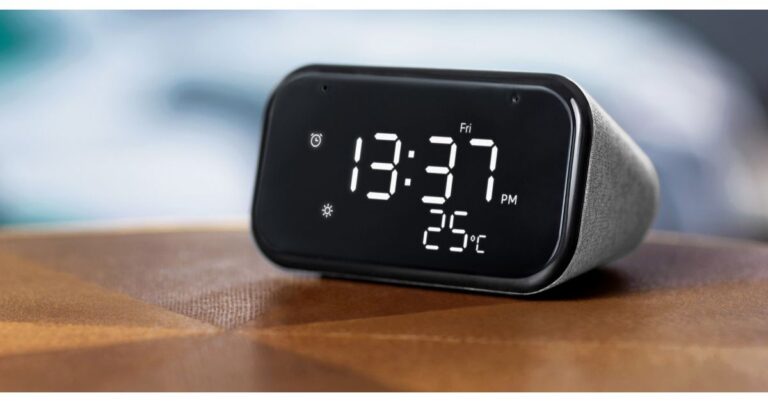
Lenovo Smart Clock Essential: Price and availabilityLenovo Smart Clock Essential has been launched in India with a price tag of Rs 4,499. The device will be available in a single soft-touch grey colour variant. It is scheduled to go on sale in India today via Lenovo.com, Flipkart, and will be later available in Lenovo offline retail channels.Lenovo Smart Clock Essential: SpecificationsLenovo Smart Clock Essential features a 4″ easy-to-read LED display. There is an ambient light sensor that gives a better viewing angle as well as brightness to the clock. There are buttons on the smart clock to set up alarms but one can also set using their voice command as the clock is voice-enabled. There is a built-in light on the Lenovo smart clock that is helpful during the night to avoid accidents. In addition to this, the device comes integrated with a USB port to charge the devices overnight.The screen on the Lenovo Smart Clock Essential features smart alarm suggestions based on the next day’s calendar events, as well as sunrise alarms that gently wake people by gradually increasing color and brightness before ringing the alarm. Like we said before, this clock is fully supported by Google assistants that can also hold sway over your entire smart home, with more than 40,000 compatible smart home devices from over 5,000 brands. Equipped with far-field microphones the smart device picks up questions from nearly anywhere in the room or plays tunes with its 3W speaker that can be grouped with other compatible smart speakers to amplify the music. To wake up all you need to command is “Hey Google, play my morning playlist.” The device works similarly to how we control Amazon Alexa Devices or Google Smart devices. Therefore it will provide parity with other Google Assistant-enabled smart speakers and supports voice match for up to six users at a time. The device also supports Hindi language commands. This software feature is specific to India, and the Smart Clock Essential will be Lenovo’s first device to support Hindi language. In terms of connectivity, the Lenovo Smart Clock Essential includes Bluetooth 5.0, WLAN: 2.4G/5G Dual Band, IEEE 802.11 a/b/g/n/ac. For storing content the device offers 4 GB of RAM and 512GB of storage. The dimensions are 121mm (W) x 64mm (H) x 83mm (L).
For the latest gadget and tech news, and gadget reviews, follow us on Twitter, Facebook and Instagram. For newest tech & gadget videos subscribe to our YouTube Channel. You can also stay up to date using the Gadget Bridge Android App.
To keep the next iteration of Android update on schedule the tech giant Google has officially announced its first developer preview of Android 12. The next version of Android is now available with system images and tools updated for Google’s own Pixel devices, starting with the Pixel 3. However, it is being tested The Android 12 platform includes behavior changes, new features and APIs for developers.As of now the Android 12 updates are available for installation over the air but will be available sometime later. Like always the first developer preview is now meant for the general users but for testing, development, and feedback. An early look at the next version of Android will be available for Google Pixel 3, 3a, 4, 4a, 4a (5G), or 5 devices. If you don’t have a Pixel device, you can use the 64-bit system images with the Android Emulator in Android Studio. As per the company during the Developer Preview 1, the goal is to try the new APIs and test with platform changes, the developer then let the company know of any issues or requests so that it can be incorporated into the final product.The first developer preview has been released however the remaining second and third is scheduled for March and then April respectively. After that Google will then rollout beta release till August and then the final release is likely to take place in September or October.The program is free, and you can get started right away by downloading the Developer Preview SDK and tools. The company aims to make the OS smarter with each version with easier to use, and better performing, with privacy and security at the core. The company says with the next version of the operating system it is working on new tools for building great experiences for users. Starting with things like compatible media transcoding, which helps your app to work with the latest video formats if you don’t already support them, and easier copy/paste of rich content into your apps, like images and videos.The company is also focusing on privacy protections giving users more transparency and control while keeping their devices and data secure and optimizing performance to keep your apps responsive. The Android 12 first developer preview includes new controls over identifiers that can be used for tracking, safer defaults for app components, and more. These changes may affect your apps, so Google recommends testing as soon as possible. The upcoming previews include more privacy and security features coming at a later stage.There will be changes to the Chrome and other browsers WebView to include new SameSite cookie behaviors to provide additional security and privacy and give users more transparency and control over how cookies can be used across sites. In order to stop apps from inadvertently exporting activities, services, and receivers the default handling of the android: exported attribute to also be changed. As per Google the components that declare one or more intent filters must now explicitly declare an android:exported attribute. You should inspect your components in the manifest in order to avoid installation errors related to this change. Also, Android 12 requires apps to explicitly declare a mutability flag to make handling PendingIntents more secure.In terms of user experience tools, it is noted that most apps should support HEVC, but for apps that can’t, so compatible media transcoding has been introduced. If an app doesn’t support HEVC then the platform automatically transcodes the file into AVC, a format that is widely compatible. “As an example, a one-minute 1080p video at 30fps takes around 9 seconds to transcode on a Pixel 4. You can opt-in to use the transcoding service by just declaring the media formats that your apps don’t support. For developers, we strongly recommend that your apps support HEVC, and if that’s not possible, enable compatible media transcoding. The feature will be active on all devices using HEVC format for video capture. We’d love to hear your feedback on this feature,” said Dave Burke, VP of Engineering.Android 12 introduces platform support for AV1 Image File Format (AVIF) to offer higher image quality with more efficient compression. AVIF takes advantage of the intra-frame encoded content from video compression. This dramatically improves image quality for the same file size when compared to older image formats, such as JPEG.To ensure a better experience for users the company will be blocking foreground service starts from the background for apps that are targeting the new platform. To make inserting and moving images, videos and other expressive content in apps easier a new unified API that lets you accept content from any source: clipboard, keyboard, or drag and drop. You can attach a new interface, OnReceiveContentListener, to UI components and get a callback when content is inserted through any mechanism. In Android 12 apps can provide audio-coupled haptic feedback through the phone’s vibrator. The vibration strength and frequency are derived from an audio session, allowing you to create a more immersive game and audio experience. Moreover to make updates faster and smoother Android 12 will be focusing on prioritizing app compatibility. New functionality to Google Play system updates has been added to give a better environment on Android 12 devices. More details are available here.
For the latest gadget and tech news, and gadget reviews, follow us on Twitter, Facebook and Instagram. For newest tech & gadget videos subscribe to our YouTube Channel. You can also stay up to date using the Gadget Bridge Android App.
There are several ways on Android by which you can share apps with other smartphones. The Nearby Share feature of Android makes app sharing possible without a dedicated app. It also allows you to share all types of files including PDF, image, and other application-related files with nearby users too.
How to share apps using Nearby Share?
Follow these steps to send or receive apps to a nearby smartphone.
Open the Play Store app.
Go to the ‘My Apps & Games’ section.
Open the ‘Share’ menu. You’ll be asked if you want to send or receive apps.
If you want to send apps, you are directed to a screen that lists all your installed apps.
Choose the apps you want to share and tap the green button located at the top right.
Wait for your friend nearby to accept the incoming applications.
If you chose to receive, you would get a similar interface. However, in this case, you need to accept the incoming apps.
How to share using Nearby Share?
The feature of Nearby Share is a convenient way to send and receive Android apps without requiring a Wi-Fi or cellular connection. Sharing to a nearby device is a benefit to those having capped data plans or slow speeds. The Nearby Share feature also allows you to share apps to multiple contacts at once.
Nearby Share also works seamlessly with Chromebooks so you can effortlessly share files between an Android phone and a Chromebook or vice versa. Chromebooks already have the ‘Instant Tethering’ that works well with Android. However, Nearby Share would do that even faster and more conveniently.
For the latest gadget and tech news, and gadget reviews, follow us on Twitter, Facebook and Instagram. For newest tech & gadget videos subscribe to our YouTube Channel. You can also stay up to date with the Gadget Bridge Android App.
Earlier this week Motorola was supposed to launch its new Moto Evariant in India but the company rescheduled the launch to February 19. So today Moto E7 Power is confirmed to make its debut in the country. Prior to the launch the smartphone has been subject to several leaks and rumours and has also appeared in a Geekbench listing. Apart from this the Lenovo-based company also created a dedicated microsite that lists most of the key specifications via Flipkart. It is confirmed to come with a waterdrop-style notch HD+ display and will be offered in a minimum 64GB storage option. Moto E7 Power is set to launch in India and is going to launch in India today. The launch will take place at 12 noon via Flipkart. The company is not going to hold any special event to launch its latest product but ahead of the launch, the dedicated microsite on the e-commerce platform has listed out most of the details about the new Motorola phone.
As per the listing, Moto E7 Power will be featuring a 6.5-inch HD+ Max Vision display with a water drop-style notch. The processor is not confirmed but the device is going to be powered by an octa-core SoC. However, the Geekbench listing confirms that it is likely to include a MediaTek Helio P22 SoC. Besides this, the dedicated microsite by Flipkart shows that Moto E7 Power will be available in 4GB of LPDDR4X RAM paired with at least 64GB of internal storage. The memory can also be expanded up to 1TB using a microSD card. In terms of cameras, it is slated to include a dual rear camera setup consisting of a 13-megapixel primary sensor along with an LED flash. Other camera sensor details remain uncovered. But Moto E7 Power is most likely to feature a 2-megapixel secondary sensor while on the front there could be a 5-megapixel selfie camera sensor.In addition to this, there will be a rear-mounted fingerprint sensor on Moto E7 Power to unlock the device and shall also have 2×2 MIMO Wi-Fi network support. The is confirmed to include a USB Type-C port for charging and a 3.5mm audio jack as a connectivity option on the phone. The device will also be backed by a 5,000mAh battery. While the video teaser confirms the phone to be offered in two colour options.The Geekbench listing suggests that the Motorola smartphone will have Android 10 support and it has scored a single-core score of 152 and a multi-core score of 879.
For the latest gadget and tech news, and gadget reviews, follow us on Twitter, Facebook and Instagram. For newest tech & gadget videos subscribe to our YouTube Channel. You can also stay up to date using the Gadget Bridge Android App.
Microsoft Windows 10 offers you the choice to set the default language when run it the first time. However, you can change the already configured language in a few steps. You can also change the country and region format in Windows 10 to match your location. The best part is that you don’t require to make any installations in Windows. Here are the easiest ways to change language and country in Windows 10.
How to change your country in Windows 10?
To change the country in Windows 10, follow these steps:
Open ‘Settings’.
Click on ‘Time & Language’.
Click on ‘Region’.
In the Country or region’ drop-down menu, choose the desired country.
In the drop-down menu under the ‘Regional format’, select the appropriate formats for your current country.
Once you change the country, Windows 10 will configure time, date, and other units as per your new country and region.







 Motorola Moto E7 Power: Specifications









 To change the country in Windows 10, follow these steps:

 To
To  Once you complete all the steps, the display