Microsoft Word offers a diverse range of tools and functions to edit and stylise your text. Sometimes, these tools can be a bit tricky to find. If you’ve ever made a checklist on Word, you’ll know what we are talking about. While bullet points are easy to access, searching for checkboxes can take some time and effort. Well, not anymore. In this article, we bring you 2 quick ways to add checkboxes to your Microsoft Word document.Read Also:Best 4 ways to check if your smartphone is e-SIM compatible
In This Article
Add checkboxes to a Word Document from the Paragraph toolbar
Step 1: OpenMicrosoft Word on your PC or laptop.Step 2: Hit the downward arrow next to the bullet points tile in the Paragraph section.Step 3: Click on Define New Bullet.Step 4: Click on Symbol.Step 5: Select the checkbox symbol and hit OK.Step 6: The checkbox symbol will appear on the document.
Use Developer Options
Step 1: Open a Word Document and click on File at the top left corner of the screen.Step 2: Click on Options at the bottom left corner of the screen.Step 3: Switch to the Customise Ribbon tab.Step 4: Click the checkbox for Developer in the Main Tabs list. Hit OK.Step 5: Move your cursor to the spot where you want to insert the checkbox.Step 6: Go to the Developer tab and click the checkbox in the Control section.
Frequently Asked Questions (FAQs)
How do I add checkboxes to my Microsoft Word document?
To make a checklist, simply hit the downward arrow icon next to the bullet points tile and go to Define New Bullet>Symbol>Checkbox.
Why can’t I tick boxes in Word?
To make a clickable checkbox in Word, go to File>Options>Customise Ribbon and click the Developer checkbox in the Main Tabs list. Once that’s done, move your cursor to the place where you want to add the checkbox, then go to the Developer tab and click the checkbox option in the Control section.
These are the top 2 ways to add checkboxes to any Microsoft Word document. Using the extended Symbols list, you can add other symbols like arrowheads, checkmarks, clockfaces, stars, and more. Know any other ways to add a checkbox to your Word document? We’d love to know in the comments!
A new “It’s a Match!” and animations give a new look to the online dating app.
Profile Quiz now lets users know about compatibility potential with potential matches.
Popular dating app, Tinder has announced the rollout of new features to attract Gen Z on its platform that care about authentic connections formed through shared interests and common causes. The dating app has introduced a new suite of profile and discovery features including Profile Prompts, Profile Quiz, Basic Info Tags, Enhanced Reporting, Rizz-first Redesign and Dark Mode. The new profile and discovery features are said to make finding an authentic and real partner online easy but fun.
In This Article
Profile Prompts
The dating app, Tinder’s latest update has introduced a new feature- Profile Prompts. This feature allows users to choose and respond to prompts to let their matches discover more about them. This is said to unleash your personality and the three most popular prompts globally are: “The key to my heart is”, “The first item on my bucket list is”, and “Two truths and a lie”.
Profile Quiz
Profile Quiz is another feature that comes with the latest update on Tinder. The Profile quiz function lets you find compatibility potential with potential matches through a fun and enlightening quiz about yourself. One can share their quiz answers on their profile to give people a peek at your interests and preferences.Also Read:OnePlus AI Music Studio, a platform allowing users to compose music launched in India and globally
Basic Info Tags
In order to share important information about yourself with your potential matches like whether you have a pet or drinking habits, your zodiac sign and your love language one can now use Basic Info Tags.
Enhanced Reporting
In an effort to make the app safer, the online dating app now allows users to report specific profile elements for a more respectful experience.
Rizz-first Redesign
Tinder has updated its user interface with enhanced and updated animations, and a new “It’s a Match!” screen designed to keep the platform more engaging.
Dark Mode
Along with these updates, Tinder has also introduced a Dark Mode setting for users for late-night activity or discreet public matching.
Garena Free Fire is a battle royale game with regular awards and tournaments to keep players interested. If you play Garena Free Fire, you should be aware of the redeem codes that are released on a daily basis. However, because the battle royale game is banned in India, players from other countries can use the Free Fire Redeem codes daily. If you’re unfamiliar with the Garena Free Fire redeem codes or don’t know how to get them, we’ve put together a step-by-step guide to help you redeem them. Check out Garena Free Fire Redeem Codes for 22 November 2023.The Free Fire redeem codes are a great way to get free stuff. These are 12-digit codes that contain alphabets and numbers, as well as an expiration date and time. Because the Garena FF redeem codes cannot be used more than once, you should hurry to the redemption page to claim your free reward before someone else does. To get a free reward, all you have to do is go to reward.ff.garena.com/en, which is the official redemption page. Also, keep an eye on this space for daily updates on Garena Free Fire redemption codes and rewards.
In This Article
Garena Free Fire Redeem Codes Today 22 November2023
In such a modern society where digital music prevails everywhere, listening to CDs seems to be an archaic thing for most of you now. But there are still some of you who desire to make a CD that is a collection of all your favourite songs for playing back. Also, you may want to burn a delicately designed CD as a gift for a person who is important to you. Confronted with such a demand, the very need for you, for example, is how to burn Apple music to CD. Don’t worry, this post will share with you the solutions to it specifically. Just take a seat and read along.
In This Article
What You Need to Burn Apple Music to CD
Good tools are prerequisites to the successful execution of a job. So, first, you need to prepare the necessary tools on the list below so that it can go on wheels.
A Blank Recordable CD
This is indubitably needed because it is the storage media for saving converted Apple Music Songs.
A CD Drive
A CD drive is used to insert and read blank CDS. If your computer does not have a built-in CD drive, you can purchase an external CD burner and connect it to your computer via a USB cable. Alternatively, you can use a desktop computer with a CD burner.
A Music Burner
You should download the disc-burning application on Windows or Mac to burn the converted DRM-free MP3 Apple Music songs to a CD.
A Music Converter
Before you burn an Apple Music song to a CD, you need to use a certain music converter to remove DRM protection from Apple Music and convert Apple music to MP3 format or any other format the CD can recognize.
Preparations Before Buring Apple Music to CD
As mentioned before, Apple Music songs are encrypted with DRM. Therefore, before burning music onto a CD, the first and necessary step is to make sure the songs you want to burn are free of DRM. To remove the DRM, you will need a music converter.
After searching and trialling, MuConvert Apple Music Converter is discovered as the leading helper which is designed specially to adapt to your needs. It is an easy-to-use software program dedicated to removing DRM from Apple Music songs, and quickly downloading songs/playlists/albums/podcasts from Apple Music into high-quality MP3, WAV, M4A, and FLAC formats.
Highlighted Features of MuConvert Apple Music Converter
Get rid of DRM Protection: Easily remove DRM from Apple Music songs for you.
Multiple Output Formats: Download Apple Music to local MP3, M4A, WAV, and FLAC formats.
Best Audio Quality: Get your desired audio quality by adjusting the sample rate and the bit rate.
Fast Converting Speed: Convert Apple Music at a lightning-fast speed of up to 10X speed and batch download all your favourite Apple Music songs in one go.
Preserve ID3 tags: Song details like title, artist, album, genre, and album will be perfectly preserved throughout the conversion process to facilitate efficient management and organization of your music collection.
How to Remove DRM from Apple Music
Here are the steps on how to use MuConvert Apple Music Converter to remove DRM, and download Apple Music songs in MP3. For lossless quality, you can also download them in WAV.
STEP 1. Install MuConvert Apple Music Converter
After downloading and installing MuConvert Apple Music Converter, launch it. Then enter the Apple Music web player and log in using your Apple ID.
STEP 2. Add Your Desired Song for Conversion
After logging in, go to the Apple Music web player and choose some songs to download. Simply drag any song, playlist, or album you like to the “+” button located on the right for conversion.
STEP 3. Customize Your Settings (Optional)
Navigate to the “Menu” and select “Preferences” to customize the “Advanced” settings. Within this window, you have the option to adjust the format, sample rate, and bitrate based on your preferences.
STEP 4. Remove DRM and Download Music to MP3
Now, go to “Convert all files to” in the top right corner and select “MP3” as the output format. Finally, click on the “Convert All” icon at the bottom, and MuConvert Apple Music Converter will remove the DRM from the Apple Music songs, and download all the Apple Music songs you’ve selected to MP3.
Now that you have all DRM-free Apple Music songs, the next step is to burn them into your CD. Keep reading for detailed steps.
Burn Apple Music to CD on Windows
For Windows users, Windows Media Player, a default legacy Apple Music to CD converter, is highly recommended for you to burn Apple Music to CD without additional software. It is easy to use and completely free. Follow the steps below to start burning Apple’s music to a CD.
Step 1. Insert a blank CD and then run Windows Media Player immediately.
Step 2. Choose the “Burn” tab located in the upper-right corner.
Step 3. In File Explorer, find the music files you want to burn. Drag them to the burn list.
Step 4. Click “Start Burn” to begin burning your music files to the CD. Wait for the process to finish before taking away the CD to avoid losing progress or sabotaging your efforts.
Burn Apple Music to CD on Mac
If you are a Mac user, iTunes is often the primary choice for you when it comes to burning Apple Music onto CDs. It can be utilized effortlessly without necessitating the search for an alternative CD burner. Now, let’s read about how to burn Apple Music to CD with iTunes. Note that a playlist needs to be established before burning.
Step 1. Open iTunes and create a new playlist by clicking on “File”-“New”-“New Playlist”. Proceed to name the playlist accordingly before dragging and dropping these converted Apple Music songs into the playlist.
Step 2. Please insert the blank CD into the CD drive. Subsequently, a prompt will appear stating “A CD or DVD has been inserted.” Click on “OK”.
Step 3. Right-click on the playlist and choose the option “File” followed by “Burn the Playlist to disc”.
Step 4. In the popped-up window, either select “Audio CD” or “MP3 CD”, and then click the “Burn” button at the bottom to start burning Apple Music songs to the disc.
Read Also:Qualcomm introduced Bluetooth aptX Lossless Audio feature
Final Words
By and large, this post mainly introduces you to how to burn Apple music to CDs easily as well as quickly. From the very tools you need to the specific procedures listed for reference, everything is to the most extent illustrated and covered to better help you solve your problems. It’s worth mentioning that the key to burning Apple Music songs to CD is removing the DRM and downloading them to your desired format via MuConvert Apple Music Converter. This music converter surely helps you a lot. Don’t hesitate anymore, download it now!
The Music Studio allow its user to create lyrics and compose music.
The users can share their compositions with a global audience.
To bridge the gap between technology and artists OnePlus has officially announced the launch of OnePlus AI Music Studio in India. The company’s most recent community-first innovation is available for both users in India and other international markets. The platform uses AI technology that enables users to create, develop, and unleash their musical skills. Ishita Grover, Director of Marketing at OnePlus India said, At OnePlus, we’re dedicated to fostering innovation and enabling our community to push boundaries. The OnePlus AI Music Studio embodies our commitment to empowering users to explore their creativity in unprecedented ways.”According to OnePlus, Music enthusiasts can explore their creative potential in an immersive setting at the OnePlus AI Music Studio. It provides a diverse range of genres, which include EDM, hip-hop, and rap to users to become independent composers.
In addition to this users can compose lyrics and easily blend them with AI-generated beats with the help of this OnePlus AI Music Studio. On the platform, users will be able to generate visually stunning interfaces, that result in captivating music videos that are instantly available at their fingertips.Also Read:Nothing Chat App with Blue Bubbles removed from Google Play Store after criticism“The OnePlus AI Music Studio isn’t just a tool; it’s an unparalleled fusion of technology and creativity, providing users the opportunity to unleash the artist within. It’s about giving our community the power to shape their musical journey,” added Ishita Grover.The OnePlus AI Music Studio allows users to share their compositions with a global audience, asking them to download and feature their works on many social media platforms. Moreover, the platform also offers means of acknowledgement by enabling users’ tracks to be voted to the top and potentially featured by OnePlus.
How to create music using the OnePlus AI Music Studio
After that enter the OTP shared to your registered mobile number.
Click on “Create Music” and select your preferred genre, mood and theme.
Click on Proceed Provide a prompt for the AI to create your lyrics. It could be anything general from “Under the stars” to something that’s personal to you.
Wait a couple of minutes for the AI to write your song, create your music and the music video.
Your Windows PC’s screenshot-taking chops have come a long way over the years. You no longer need to rely on the native screengrab function triggered by the PrtScn key. Instead, you can use the Windows Snipping Tool to take screenshots of more specific parts of the screen. Other than the Snipping Tool, you can also make use of the Xbox Game Bar to take screengrabs and screen recordings. In this article, we bring you the top ways to open the Windows Snipping Tool with a keyboard shortcut.Read Also:How Computers Ensure Randomness in Online iGaming
In This Article
Here are the 2 most common keyboard shortcuts to open the Windows Snipping Tool
Windows Key + Shift + S: Pressing this key combination will trigger the Snipping tool into action. You will see a small toolbar appear at the top of the screen. You can choose the shape you want for the screenshot from this toolbar. To take a screenshot, simply click and drag the cursor along the screen.
PrtScn key: If your PC or laptop keyboard has a PrtScn key on the top row, you can press it to trigger the Windows Snipping Tool. In older versions of Microsoft Windows, pressing this key will take a screenshot of the entire screen, which can later be pasted on any photo editing tool.
What if the Windows Key + Shift + S keyboard shortcut does not trigger the Windows Snipping Tool?
Follow these steps to make sure your PC launches the Snipping Tool after hitting the Windows Key + Shift + S shortcut.Step 1: Go to C:\ProgramData\Microsoft\Windows\Start Menu\Programs\Accessories.Step 2: Right-click on Snipping Tool and select Properties.Step 3: Switch to the Shortcut tab.Step 4: Enter Windows Key + Shift + S in the Shortcut Key field.Step 5: Hit Apply and OK.
Bonus Tip: Use the Macro Key
If your PC or laptop keyboard has an extra macro key, you can program it to trigger the Windows Snipping Tool. Simply launch the Macro Key app and drag the Snipping Tool icon from C:\ProgramData\Microsoft\Windows\Start Menu\Programs\Accessories to the Macro Key app window. You can also click on ‘Add’ and navigate to the location of the Snipping Key tool. Once that’s done, you can launch the tool simply by pressing the macro key on your keyboard.
Frequently Asked Questions (FAQs)
Where can I find my Snipping Tool screenshots?
To find your Snipping Tool screenshots, go to Pictures>Screenshots.
What is the keyboard shortcut for Windows Snipping Tool?
The Windows Snipping Tool can be triggered by the ‘Windows Key + Shift + S’ key combination. You can also access it by pressing the PrtScn button on your keyboard.
These are the top ways to open the Windows Snipping Tool using a keyboard shortcut on your PC and laptop. If your device does not have the Snipping Tool, you can simply install it from the Microsoft Store. The Snip and Sketch app is no longer available for Windows 11 users. If you found this article helpful, let us know in the comments!
Over the years, the form factor of the SIM card has shrunk tremendously. Now, you don’t even need a physical SIM card to get network coverage on your smartphone. e-SIMs (short for embedded SIM) allow you to download a SIM card to a small chip inside your phone that is perfectly capable of receiving network coverage. While this is a nifty feature, it is not available on all smartphones yet. In this article, we bring you the top 4 ways to check if your smartphone is e-SIM compatible.Read Also:Why Local SEO Is So Important for Local Businesses
In This Article
Benefits of using an eSIM
Compared to a traditional Nano SIM Card, an eSIM carries a lot of benefits. Here are some of them.
Convenience: eSIMs are purely digital. This means there is no need to swap the physical unit while changing devices. On top of that, you can activate an eSIM remotely instead of going to a store.
More SIM options on your phone: Most smartphones come with a dual SIM tray. With an eSIM, you can use up to 3 phone numbers on a device.
More secure: Since eSIMs cannot be pulled out of your smartphone, they are more secure than the traditional SIM cards. If your phone gets stolen, you can easily disable your eSIM on the device.
Convenient while travelling: If you’re travelling overseas, it is much easier to get an eSIM than a physical SIM card for your phone. You don’t need to constantly buy and throw physical SIM cards while travelling multiple countries.
More sustainable: Since eSIMs do not use plastic, they are good for the environment.
Check if your Android smartphone is e-SIM compatible
Step 1: Go to Settings and select Connections.Step 2: Tap on SIM card manager.Step 3: Look for the ‘Add e-SIM’ option. If you can’t find it, it means your Android phone lacks e-SIM support.
Use a dialer code to check if your Android smartphone is e-SIM compatible
Step 1: Launch the Phone app on your Android phone and switch to the keypad.Step 2: Dial *#06#.If you see an EID (Embedded Identity Document) Number, it means your phone is e-SIM compatible.
Check your phone’s spec sheet
Go to your smartphone’s official page on its manufacturer’s website and take a look at its spec sheet to check if it supports an e-SIM. You will be able to find this information in the ‘Cellular Network’ section.
Use the eSIM checker app
Step 1:Install the eSIM Checker app from the Google Play Store.
Step 2:Launch the app and tap on Start Scanning.
Step 3: The app will list whether your phone supports e-SIM or not on the following page.
Check if your iPhone is e-SIM compatible
Step 1: Go to Settings and select General.Step 2: Tap on About.Step 3: Scroll down to Digital SIM.If you see an IMEI number next to Digital SIM, it means your iPhone supports e-SIM.
Check your iPhone’s cellular settings
Your iPhone’s cellular settings allow you to add an e-SIM to your device. If you don’t see the option to add an e-SIM it means your iPhone does not support it. Go to Settings>Cellular and look for the ‘Add e-SIM’ options to verify if this is the case.
Frequently Asked Questions (FAQs)
Can I convert my physical SIM to an e-SIM?
Yes, you can easily convert your physical SIM card to an e-SIM. The process varies among different network providers. Airtel users can use the Airtel Thanks app to upgrade to an e-SIM. Meanwhile, Vi users need to send an activation request to the network provider via SMS.
How long does it take to activate an e-SIM?
It can take anywhere between 2-4 hours to activate an e-SIM on your device.
What are the benefits of e-SIM?
An e-SIM allows you to carry an extra SIM card on your device, by freeing up a slot on the SIM tray. If you constantly switch your phones, you won’t need to pull out the SIM card every time you move to a different device. You can simply download your e-SIM on the other phone.
How do I know if e-SIM is activated on my phone?
Go to Settings>Connections>SIM card manager. This is where you can check if the e-SIM is activated on your smartphone.
These are the top 6 ways to check if your smartphone is e-SIM compatible. All iPhones from XR Series onwards support e-SIM, although their availability may depend upon your region. From the iPhone 14 Series onwards, Apple has completely ditched the physical SIM tray on all iPhones available in the US.
Now that most of India has received 5G coverage, more people are switching to 5G smartphones and tablets to access ultra-fast internet speeds. Most network providers are yet to roll out dedicated 5G plans, which means you can use 5G services while sticking with your 4G data plan. Most users often complain that their phone automatically drops down to a 4G network, even with 5G availability. In this article, we show you how to always get a 5G signal only on your Android phone.Read Also:Top 6 ways to remove audio from an iPhone Video before sharing
In This Article
What does ‘5G only’ mean? Should set your phone to 5G only?
Your smartphone automatically switches between 5G and 4G bandwidths, depending on which signal is more readily available. This is the ideal setting for your device since you don’t need to worry about manually selecting a network every time you venture into a low-signal zone. Sometimes, Android smartphones tend to prefer a 4G network, even though the area has strong 5G coverage. In this scenario, you may want to lock the 5G network.
The downside of doing this is that you can run out of mobile data pretty quickly. Since the 5G network is ultra-fast, it is easy to breeze through the allocated data in no time. On the other hand, using the 4G network can help you with conserving your mobile data. However, if you have an unlimited 5G plan (currently offered by Jio and AirTel), feel free to lock the network to 5G.
Use device settings
Step 1: Go to Settings and select Connections.Step 2: Tap on Mobile networks.Step 3: Select Network mode.Step 4: Tap on 5G/LTE/3G/2G (auto connect).This method will ensure your phone automatically connects to a 5G network when it’s available. If your phone still drops down to a 4G network, use the following methods.
Use a dialer code to disable the LTE network
Step 1: Go to your phone’s dialer and type *#*#4636#*#*.Step 2: This will launch your phone’s testing menu. Select 5G/LTE Debugging Information.Step 3: Hit the ellipses at the top right corner of the screen.Step 4: To force your phone to use 5G all the time, tap on Disable LTE.This dialer code may not work on all Android smartphones. Use the third-party apps mentioned in this article if the dialer code does not work for you.
Use the dialer code to always get 5G signal on Android
Step 1: Go to your phone’s dialer and type *#*#4636#*#*.Step 2: This will launch your phone’s testing menu. Select Phone information.Step 3: Tap on Set preferred network type.Step 4: Select NR Only.
Use the Netmonitor app
Step 1: Install and launch the Netmonitor app on your phone.Step 2: Tap on the Service menu at the bottom of the screen.Step 3: Hit Phone info.Step 4: Tap on Set preferred network type.Step 5: Select NR Only.
Use the 5G Only app to always get 5G signal on Android
Step 1:Install and launch the 5G Only app on your phone.Step 2: Tap on Set 5G Only.Step 3: Tap on Set Preferred Network Type.Step 4: Select NR Only.
Use the 5G Switch app
Step 1:Install the 5G Switch -Force 5G Only app on your phone from the Google Play Store.
Step 2:Launch the app and tap on Go.
Step 3: Select your phone’s Android OS version.
Step 4: Tap on Set preferred network type.
Step 5: Select NR Only.
Frequently Asked Questions (FAQs)
Why does my phone automatically switch to a 4G network?
Your phone can switch from a 5G to a 4G network due to several reasons. The most common reason behind this is the lack of 5G coverage in the area. Your phone also switches down to a 4G network when you are in a crowd and a lot of people are using the 5G network.
How do I always get a 5G signal on my Android phone?
Go to Settings>Connections>Mobile networks>Network Mode>5G only. You can also switch to a 5G network permanently by dialling *#*#4636#*#* and going to Phone information>Set preferred network type>NR Only.
Is there a third-party app I can use to switch to a 5G connection permanently?
Apps like Netmonitor, 5G Only, and 5G Switch – Force 5G Only help your phone stick to a 5G network at all times.
Is LTE better than 5G?
5G (NR) is significantly better than LTE since it has a low latency and uses high-frequency radio waves to deliver the signal at a faster rate. The NR bandwidth is wider than LTE too.
These are the top 6 ways to get a 5G signal only on your Android phone. The ‘device settings’ method may vary among different smartphone manufacturers. On OnePlus devices, you may have to turn off Smart 5G as well. Go to Settings>Mobile network>More settings and turn off the toggle switch for Smart 5G. If you found this article helpful, let us know in the comments!
The app has been removed from the Play Store due to privacy concerns.
The App supports RCS communication.
UK-based tech firm owned by Carl Pei recently launched the Nothing Chat App with Blue Bubble to bridge the communication gap created by iMessage for Apple devices. The application was listed on the Google Play Store for downloads on Phone 2 but has now been taken down from the platform due to privacy and security concerns. NothingNothing has removed the beta version of its messaging app Nothing Chats from the Google Play Store after many users expressed worries about the programme’s privacy and security since it was announced.Also Read:Qualcomm announced 15% faster Snapdragon 7 Gen 3 SoC mobile chipset for mid-range smartphonesNothing Chats app was launched last week with the goal of removing communication disconnects between Android and iOS devices. The app was made available for download only for Nothing Phone 2 users and allows users to receive and send text messages through iMessage. Android users when sending SMS to iOS users appear in a green bubble while iOS to iOS messages appear in a blue bubble. But with the arrival of the Nothing Chats app Phone 2 users were allowed to text or MMS to iOS users via the RCS protocol and it showed up in blue bubbles. But the company has now removed it from Google Play Store without mentioning the reason for the removal instead it said, “We’ve removed the Nothing Chats beta from the Play Store and will be delaying the launch until further notice to work with Sunbird to fix several bugs. We apologise for the delay and will do right by our users.”If Seen, the company has taken this step because it has to face a lot of criticism from the users for sending Apple ID data through HTTP instead of the safer HTTPS protocol.In order to use the iMessage one must first have to log in via their Apple ID using the Nothing Chats app that is said to log the user in using a Mac that is situated in a distant server. Note that Nothing Chats App is powered by Sunbird and when the messages, images and videos received through its system are unencrypted. Therefore the SMS or MMS sent or received through Sunbird’s system is public.
Garena Free Fire is a battle royale game with regular awards and tournaments to keep players interested. If you play Garena Free Fire, you should be aware of the redeem codes that are released on a daily basis. However, because the battle royale game is banned in India, players from other countries can use the Free Fire Redeem codes daily. If you’re unfamiliar with the Garena Free Fire redeem codes or don’t know how to get them, we’ve put together a step-by-step guide to help you redeem them. Check out Garena Free Fire Redeem Codes for 21 November 2023.The Free Fire redeem codes are a great way to get free stuff. These are 12-digit codes that contain alphabets and numbers, as well as an expiration date and time. Because the Garena FF redeem codes cannot be used more than once, you should hurry to the redemption page to claim your free reward before someone else does. To get a free reward, all you have to do is go to reward.ff.garena.com/en, which is the official redemption page. Also, keep an eye on this space for daily updates on Garena Free Fire redemption codes and rewards.
In This Article
Garena Free Fire Redeem Codes Today 21 November2023
In the dynamic world of online gambling, where chance intertwines with entertainment, the bedrock principle is fairness. Ensuring that players encounter random outcomes is not merely a goal but a fundamental necessity. Computers, armed with sophisticated technology, assume a pivotal role in guaranteeing the unpredictability essential for a trustworthy gaming environment.
Online gambling, a vibrant amalgamation of risk and reward, hinges on the concept of randomness. At its core, randomness safeguards fair play and upholds the integrity of the gaming experience. In this digital landscape, computers play a central role in striking a delicate balance. They utilize advanced algorithms to deliver outcomes that are not just unbiased but also unpredictable.
In This Article
Random Number Generators (RNGs)
At the heart of ensuring randomness in online gambling lies the technology known as Random Number Generators (RNGs). These intricate algorithms function as the digital dice of the virtual casino, generating sequences of numbers devoid of any predictable pattern. In simpler terms, RNGs establish the groundwork for the unpredictable nature of games, ensuring that outcomes are genuinely random and not influenced by external factors.
To delve deeper, RNGs operate through complex mathematical formulas. These formulas take into account a variety of factors, including the time a player clicks to spin the slot reels or the precise moment a card is dealt. This intricate dance of variables results in a sequence of numbers that lacks any discernible pattern, mimicking the true essence of randomness.
Ensuring Fair Play in Online iGaming
Fairness is the linchpin of online gambling. Players seek assurance that the games they participate in are not skewed against them. RNGs contribute significantly to this assurance by providing a level playing field. These algorithms, embedded in the core of gambling platforms, work tirelessly to produce outcomes that are not only random but also free from manipulation. With so many and varied online gambling sites, regulatory standards and certifications serve as a stamp of approval that signifies a commitment to fair play. To underscore the significance of fairness, online casinos often display their commitment to RNGs prominently. This transparency is not merely a gesture; it is a fundamental part of building trust. Moreover, regulatory bodies rigorously test and audit these systems to ensure that they meet the highest standards of fairness.
Challenges and Concerns
While RNGs play a vital role in maintaining randomness, challenges persist. The potential pitfalls in ensuring absolute randomness raise concerns. One notable issue is algorithmic bias, where certain patterns or biases may unintentionally emerge in the generation process. Addressing such concerns requires a multi-faceted approach, incorporating thorough testing, continuous monitoring, and adaptation to evolving technologies.
Mitigating algorithmic bias involves constant refinement of RNG algorithms. Developers are tasked with identifying and addressing any unintended patterns that might surface over time. The iterative nature of this process ensures that the algorithms evolve alongside technological advancements, minimizing the risk of bias and maximizing fairness.
Technological Advances in Randomness Assurance
The landscape of online gambling is in a constant state of evolution, driven by technological advances. Innovations not only enhance the gaming experience but also fortify the mechanisms that ensure randomness. Artificial intelligence, with its ability to analyze vast datasets, is making significant contributions to the realm of RNGs.
These technological strides aim not only to meet current standards but to surpass them, ushering in a new era of fairness and unpredictability. Machine learning algorithms, for instance, can adapt to changing patterns in player behaviour, ensuring that RNGs remain resilient to emerging challenges. The synergy between artificial intelligence and RNGs holds the promise of a gaming landscape where fairness is not just a promise but a continually evolving reality.
Read Also:YouTube rolls out a new notification system to its platform
Transparency and Accountability
Maintaining trust in online gambling platforms demands transparency. Players should have insight into the systems that govern the games they play. Casinos and platforms actively showcase their use of RNGs, aiming to demystify the process for players. Moreover, third-party audits and verifications serve as external checks, ensuring that the declared commitment to randomness is upheld.
This commitment to transparency extends beyond showcasing the use of RNGs. Casinos and platforms often provide detailed information about their auditing processes and certifications. This openness is a proactive measure, reassuring players that the randomness they experience is not just a claim but a verifiable reality.
Future Trends in Ensuring Randomness
As technology continues to advance, the future of randomness in online gambling looks promising. Emerging technologies are poised to reshape the landscape, introducing new dimensions of fairness and unpredictability. The balance between innovation and regulatory requirements will be crucial, ensuring that the gaming experience remains secure, transparent, and, most importantly, fun.
Artificial intelligence, machine learning, and blockchain technology are likely to play pivotal roles in shaping the future of online gambling. These technologies bring not only enhanced security measures but also innovative approaches to ensuring randomness. Blockchain, for example, can provide an immutable and transparent ledger of gaming outcomes, further bolstering player confidence in the integrity of online gambling platforms.
Conclusion
In conclusion, the intricate dance between computers and randomness is the backbone of a trustworthy online gambling experience. From humble RNGs to cutting-edge technologies like artificial intelligence, the commitment to transparency, accountability, and continuous improvement ensures that players can place their bets with confidence, knowing that the roll of the digital dice is as unpredictable as ever. The future holds exciting prospects for the marriage of technology and chance, promising an even more thrilling and equitable online gambling experience for players worldwide.
Local SEO is an outstanding technique that brings organic traffic to your website. It is used by the business to rank higher on the search engine. It is defined as the pulse of any business by the experts. You can only thrive your business with proper SEO.
Local SEO has an alternative name, map SEO. It helps small and medium-sized enterprises to grow in the industry. You grow your business in your local area, such as a small town or a metropolitan.
Here are the top 7 significant benefits of using the technique of local SEO for your business.
In This Article
Boost Trafic for your Website
You cannot shine your business without optimizing your website as you need organic traffic for your business’ website, as research indicates that local information is the subject of 46% of all Google searches. You need to bring traffic to your website, whether you are running a big conglomerate or the owner of a small-scale business.
If you have a website regarding the best online casino Australia real money, you have to show a great digital presence; local SEO lets you enhance your traffic. It invites your potential clients to visit your website and eventually come to see you in your physical appearance.
Improve Conversion rate
Local SEO improves conversion rate as it drives your potential customers to your website. For instance, you own a tax law firm, so whenever people in your area search for a “Tax law firm near me”, your business would appear in the listing if you have optimised the local SEO.
Local SEO is better for your sales as the majority of people want to find facilities in their local instead of visiting mega stores or multinational companies’ offices.
Cost-Effective
One of the uttermost advantages of local SEO is cost-effectiveness; as you know, there is less advertising cost. You need a local targeted audience to flourish your business at a local level. So, small and medium businesses spend too much money on traditional methods of marketing such as banners, pamphlets, local TV advertisements, hoarding, etc. Despite all this, these methods are practical tools of marketing, but they are costly and influence the capital of the business. On the other hand, you can save a lot of money by optimizing your local SEO.
Grow Your Business
Local SEO boosts search engine results, and its initiatives always focus on increasing organic traffic. The sale volume of your business increases as an outcome of local SEO. It is a critical success indicator that your business is rapidly growing in the local area as your sales and marketing prospects are increasing. If you want to grow your company in a local area, you need to spend resources and time on local SEO.
Long-Lasting Effect
Local SEO has a longer-lasting effect than traditional marketing, such as displaying banners and distributing pamphlets in the area, as well as on-air advertisements on local channels. You waste your precious amount on old marketing strategies because they do not influence the customer’s mind. In the local SEO initiatives, you are doing one-time, but it has long-lasting effects as you will get long-lasting rankings.
Read Also:How to Free Extract Subtitles from Videos in 2022
Appearing in Google’s 3-Pack
This is a significant benefit of local SEO that you can appear in Google’s 3 pack. It is an outstanding advantage to appear in Google’s 3 pack. It simply means showing up on the first 3 results of local searches of a keyword. Local companies must appear on Google’s 3 pack to boost the sales of the business.
Mobile Optimisation
It is a more convenient way for people to do online shopping by using mobile phones and tablets. Mostly, people are smartphone users; they feel convenient to search on their mobile and give online orders at the outlet of the local market. Local SEO optimize your website for mobile users, and it provides a navigation facility for your customers to reach their destination.
Conclusion
We live in the digital world. In the age of Information Technology, the marketing strategy has been rapidly revolutionized. It is essential to show your online presence whether you are running a big company, a medium-scale company or an owner of a small shop. You need to optimise your local SEO to elevate your business as you know, everyone is familiar with Google and using smartphones.
Sharing videos from your iPhone is a seamless process across different social media and instant messaging apps. However, sometimes users can’t figure out how to remove the background sound before sharing the video. Sometimes, videos can have too much noise in the background, making users want to ditch the audio track entirely. Your iPhone makes this task very easy for you. In this article, we bring the top 6 ways to remove the audio from an iPhone video before sharing it.Read Also:Qualcomm announced 15% faster Snapdragon 7 Gen 3 SoC mobile chipset for mid-range smartphones
In This Article
Use the Photos app
Step 1: Launch the Photos app on your iPhone and open the video you wish to edit.Step 2: Hit the Edit option at the top right corner of the screen.Step 3: Tap the speaker icon at the top left corner of the screen. Make sure it’s muted.Step 4: Hit Done at the bottom right corner of the screen.The audio will be removed from the video file.
Use the iMovie app
Step 1: Launch the iMovie app on your iPhone and import the video by creating a new project.Step 2: Hit the speaker icon at the bottom toolbar and drag the slider to the left until the video is muted.Step 3: Hit Done at the top left corner of the screen.
Remove audio from an iPhone video before sharing it on WhatsApp
Step 1: Launch WhatsApp on your iPhone and select the conversation thread where you want to send the video.Step 2: Hit the attachment icon and select the video from your iPhone’s gallery.Step 3: Tap the speaker icon in the preview window. This will remove the sound from the video.Step 4: Hit Send.
Remove audio from a video file before sharing it on Instagram
Step 1: Launch the Instagram app and swipe left to access the creation window.Step 2: Switch to the Story tab and select the video from which you want to remove the background audio.Step 3: Tap the music note icon and select Volume Controls.Step 4: Drag the Camera audio slider all the way down.Step 5: Hit Done.Step 6: Tap the arrow icon to download the video to your device.
Remove audio from a video file before sharing it on Facebook
Step 1: Launch the Facebook app on your iPhone and hit the Create story icon.Step 2: Select the video from your iPhone’s gallery.Step 3: Hit the Sound icon on the right and select Mute.Step 4: Tap on Done at the top right corner of the screen.Step 5: Hit Save to download the video on your iPhone.Step 6: Select Share to Story to share the muted video on Facebook.
Use a third-party online tool
Step 1: Go to Clideo.com and select All tools.Step 2: Scroll down and select Mute Video.Step 3: Hit Choose file and upload the video from your iPhone’s storage.Step 4: Clideo will remove the background audio from the video file.Step 5: Hit Download to save the video to your iPhone.
Frequently Asked Questions (FAQs)
How do I remove the sound from a video on my iPhone?
Open the video in the Photos app, hit the ‘Edit’ option at the top right corner of the screen, and tap the sound icon to mute it. Hit ‘Done’ to save the changes.
How do I remove the audio from a video before sending it to someone on WhatsApp?
After you’ve selected the video in the WhatsApp conversation thread, simply hit the speaker icon right below the seek bar in the preview window. This will mute the video.
How do I publish a Facebook story without the background sound?
These are the top 6 ways to remove the audio from an iPhone video before sharing it with someone. Most instant messaging apps give you the option to remove the background sound in the video preview window itself. If you own a Google Pixel 8 series smartphone, you can use the native background audio eraser tool to suppress the distracting noises in any video. Read this article to learn how you can go about it.
Back in September, Nothing released three new products under a new ‘CMF’ banner. An acronym for ‘Comfort, Material, Finish’, CMF is Nothing’s attempt at breaking into the highly popular budget segment for consumer tech products. And so far, they have done an excellent job. Last month, we reviewed the CMF Buds Pro and Watch Pro, both a far departure from Nothing’s see-through design philosophy. The matte black approach that the company has taken on these new products has paid off quite well. The third addition to the CMF catalogue is the Power 65W GaN charger. Priced at Rs 3,000, this power adapter seeks to deliver a better performance than your average silicon charger while also excelling in thermal management. We used this power brick for a week, here is our CMF Power 65W GaN Charger review.Read Also:Logitech G Pro X Superlight 2 Review: For elite gaming
In This Article
CMF Power 65W GaN Charger review: Design
Inside the CMF GaN charger retail box, you get the power brick and a user manual. It would have been nice to have a charging cable included in the box, but that is not the case here. All three CMF products have a similar retail package with a very visible cutout for the device and a flip-open design. There are two colour options on offer – Dark Grey and Orange.As far as design goes, the CMF Power 65W GaN charger looks no different than your regular power adapter. It isn’t the most compact GaN charger we’ve ever seen, but it is certainly more portable than other 65W silicon chargers. It weighs 150.7g and has dimensions of 56.6 x 55 x 30mm. The squarish plastic body of the adapter houses a USB Type-A and two Type-C ports at the back. These ports are arranged in a vertical orientation. The two-pin design makes the charger suitable for any wall outlet across the country.This charger should present no problems when connected to a standard wall outlet. However, on certain extension boards, it may not sit well with other connected plugs. This charger requires some additional space that most extension boards don’t usually provide. This is a pretty standard problem across all power adapters, so we won’t hold it against CMF. On the bright side, the spacing between the three USB ports is adequate enough to plug in three cables at the same time.
CMF Power 65W GaN Charger review: Performance
The CMF Power 65W GaN charger supports a diverse range of fast-charging protocols, including D3.0, QC4.0+/3.0/2.0, SCP, FCP, PPS, AFC, Apple 2.4A, Samsung 9V2A, and DCP enabled devices. You can even charge your laptop with this adapter, given it supports Type-C charging. The adapter also supports an input voltage of 200-240V, which makes it a great option if you plan on travelling abroad.We used this power adapter to charge smartphones, earbuds, neckbands, laptops and every other Type-C-driven gadget we could find. The charging rate for the USB Type-A port on this adapter has been capped at 36W while the two Type-C ports can hit the maximum 65W speed. The power adapter does a splendid job of thermal management when multiple cables are connected to it. We charged two smartphones using the Type-C ports on the adapter and it barely got warm. The heating was unnoticeable with only one port in use.While using multiple ports on the adapter at the same time, the charging rates get divided in the following manner.
The CMF Power 65W GaN charger is a versatile and robust adapter that would make a solid addition to your arsenal. Its compact design makes it very practical to travel with. The range of fast-charging protocols that this adapter can support is also noteworthy. If your laptop supports USB Type-C charging, then it makes a lot of sense to get this adapter. You can cut down on extra baggage by packing this adapter to take care of your laptop and smartphone’s charging needs.
Microsoft has added its Copilot AI assistant to the latest Windows 11 (version 23H2 update). Copilot is powered by Chat GPT and can guide you through any difficulty you face on your PC while also taking care of creative and productive tasks. While some find AI bots very useful, some may be ideologically opposed to them. With the discussions surrounding data protection and privacy, these concerns are completely legitimate. In this article, we bring you the top 3 ways to disable Microsoft Copilot on your Windows 11 PC or laptop.Read Also:Top 4 ways to use multiple WhatsApp accounts on the same phone (Android and iOS)
In This Article
Disable Copilot on Windows 11 using Settings
Step 1: Launch the Settings app on your Windows 11 PC or laptop.Step 2: Switch to the Personalisation tab.Step 3: Select Taskbar.Step 4: Turn off the toggle switch for Copilot under ‘Taskbar items’.
Disable Copilot from Group Policy
Step 1: Open Group Policy Editor from the Control Panel. You can also search for it by typing ‘gpedit’ in the search box on the taskbar.Step 2: Go to Configuration>Administrative Templates>Windows Components>Windows Copilot.Step 3: Select the ‘Turn off Windows Copilot’ setting.Step 4: Select Enabled.Step 5: Hit Apply, then click OK.Step 6:Restart your PC.
Disable Windows Copilot through the Registry Editor
Step 1: Launch the Registry Editor app on your Windows 11 PC or laptop.Step 2: Navigate to HKEY_CURRENT_USER\Software\Policies\Microsoft\Windows.Step 3: Create a new key by right-clicking the Windows key and selecting New>Key.Step 4: Name the new key WindowsCopilot.Step 5: Create a new sub key by right-clicking WindowsCopilot and selecting New>DWORD (32-bit) Value. Name it TurnOffWindowsCopilot.Step 6: Double-click the TurnOffWindowsCopilot sub key and change its Value from 0 to 1.Step 7: Hit OK and restart your computer.
Frequently Asked Questions (FAQs)
What is Microsoft Copilot?
Microsoft Copilot is an AI companion that is embedded into Windows 11. This AI tool has been made available on the most recent Windows 11 update. You can use Copilot to learn more about your PC or even to carry out more creative tasks like writing an essay.
How do I get Copilot on my Windows 11 PC?
To get Microsoft Copilot on your Windows 11 PC, you need to update the OS to its latest version. Go to Settings>Windows Update and click on Download & install next to the 23H2 update.
How do I turn off or disable Copilot on Windows 11?
This is how you can disable Microsoft Copilot on Windows 11. If you don’t like Copilot at first, we’d suggest sticking with it for a while and finding out the different things it can do before canning it. If you’re not a big fan of Chat GPT or the products that it powers, check out our list of the 12 best Chat GPT alternatives out there right now.
In an era dominated by digital photography, we capture and store countless images, documenting our lives and preserving cherished memories. However, no matter how careful we are, the loss of these digital treasures can occur unexpectedly. Fortunately, there’s a lifeline for those desperate moments: Stellar Photo Recovery, a powerful software tool designed to help you retrieve lost or deleted photos and videos. Today, we’ll explore how to use Stellar Photo Recovery, its exceptional features, and more of this invaluable tool.
In This Article
Stellar Photo Recovery’s Great Features And Why We Love This Software
Stellar Photo Recovery comes packed with features that set it apart as a top-tier photo recovery tool:
Wide Format Support
Stellar Photo Recovery can recover a broad range of photo and video formats, ensuring compatibility with the majority of media files.
Secure Recovery
The software ensures the safety and integrity of your recovered files. It won’t overwrite or damage your original data during the recovery process.
Quick and Deep Scan Options
Stellar Photo Recovery offers two scanning modes, making it suitable for various data loss scenarios, from simple deletion to complex data corruption.
Preview Before Recovery
You can preview recoverable files before actually restoring them, allowing you to select and recover only the necessary files.
Filter and Sort Options
The software provides filters to help you find specific files quickly. You can sort files by file type, size, or date to streamline the recovery process.
Recovery from Various Storage Devices
Stellar Photo Recovery is not limited to your computer’s hard drive; it can recover data from external drives, memory cards, and other storage media.
How to Use Stellar Photo Recovery
Stellar Photo Recovery is renowned for its user-friendly interface and straightforward recovery process. Here’s a step-by-step guide on how to use it:
Step 1: Installation
Download and install Stellar Photo Recovery on your computer and launch the program.
Step 2: Select the Drive or folder you want to scan
The software will display a list of available drives and storage devices. Choose the drive or media from which you want to recover photos.
Click on the “Scan” button to initiate the scanning process.
Step 3: Scanning
Stellar Photo Recovery offers two scanning modes: Quick Scan and Deep Scan. Quick Scan is suitable for recently deleted files and provides faster results. Deep Scan is ideal for more complex data loss scenarios and can recover files from formatted or corrupted drives.
Select the appropriate scanning mode based on your needs and click “Start Scan.”
Step 4: Preview and Recovery
The software will analyse the selected drive and display a list of recoverable files. You can preview these files to ensure you’re recovering the right ones. Select the files you wish to recover and click the “Recover” button.
Choose a destination folder for the recovered files and start the recovery process.
That’s it! Stellar Photo Recovery is exceptionally user-friendly and effective, making it accessible to both beginners and experienced users.
Stellar Photo Recovery Pros:
User-Friendly Interface: Stellar Photo Recovery’s intuitive design makes it accessible to users of all skill levels.
Powerful Recovery: The software is highly effective in recovering lost or deleted photos and videos, even in complex data loss situations.
Wide Compatibility: Stellar Photo Recovery supports a wide range of image and video formats, ensuring compatibility with most media files.
Secure Recovery: It ensures the safety of your data, preventing any damage or overwriting during the recovery process.
Preview Feature: The ability to preview recoverable files allows for selective recovery, saving time and storage space.
Stellar Photo Recovery Cons:
Limited Operating System Support: The software primarily caters to Windows and Mac users, with limited Linux support.
FAQ
Is there a free trial version of Stellar Photo Recovery available?
Yes, Stellar Photo Recovery offers a free trial version that allows you to scan your storage media and preview recoverable files. However, to actually recover and save the files, you’ll need to purchase the full version of the software starting at $49.
Can Stellar Photo Recovery recover photos from a formatted hard drive?
Yes, Stellar Photo Recovery is equipped with a “Deep Scan” mode that can recover photos and other media files from a formatted hard drive or other storage media. It’s designed to handle more complex data loss scenarios, including formatting.
Is Stellar Photo Recovery available for Linux users?
Stellar Photo Recovery primarily caters to Windows and Mac users. While there isn’t a dedicated Linux version, you may be able to use the software on Linux through compatibility layers or virtual machines, though the experience
Conclusion
In conclusion, Stellar Photo Recovery is a robust and user-friendly solution for recovering lost or deleted photos and videos. With its wide format support, secure recovery process, and intuitive interface, it stands out as an essential tool for anyone dealing with digital image data loss. While it comes at a cost, its effectiveness and features make it a valuable investment in safeguarding your precious memories.
Your iPhone can handle more tasks than you think. Apart from everyday tasks like checking your email and browsing the web, you can also use your iPhone to measure the distance between two objects and even use it as a magnifying glass. If you struggle with reading the fine print on product labels, this app will be a lifesaver! In this article, we show you how to access and use the magnifier app on your iPhone.Read Also:How to delete your Threads profile without deleting your Instagram account?
In This Article
Open the Magnifier app on your iPhone
There are a few ways you can access the Magnifier app on your iPhone. Here are a few of them.
Swipe down to access the Control Center and tap the magnifying glass tile. If you don’t see the tile, go to Settings>Control Center and tap the green plus icon next to Magnifier.
Swipe left on the home screen until you reach the app library. You will find the Magnifier app in the Utilities folder.
Ask Siri to open the Magnifier app, then tap its icon on the screen.
Use Accessibility settings to trigger the Magnifier app whenever you triple-tap the side button. On the new iPhone 15 Pro and Pro Max, you can also assign the Action button the task of opening the Magnifier app whenever you press it. Read this article to learn how you can do it.
Use the Magnifier app
Launch the Magnifier app on your iPhone and point the camera towards the object or text you want to enlarge. Drag the zoom slider left and right to adjust it. Similarly, you can also adjust the brightness from its respective slider. You can also add more light to the frame by turning on the flashlight. When you’re happy with the frame, you can freeze it by tapping the circle icon and then save it to your image gallery. To freeze more frames, tap the multi-photo icon at the bottom right corner of the screen. Tap the plus icon to add more frames.On the newer iPhone models, you can use Detection Mode on the Magnifier app to get descriptions of the objects around you. Tap the icon next to the flashlight to access Detection Mode. Tap the icon with two people on it to detect the people around you. Your iPhone will notify you when the people near you breach the acceptable social distance. Similarly, you can use the Magnifier app to detect doors, images, text, and labels.
Frequently Asked Questions (FAQs)
Where can I access the Magnifier app on my iPhone?
You will find the Magnifier app in the Utilities folder in the app library. You can also open the app by tapping its tile on the Control Center. The new iPhone 15 Pro and Pro Max models have an Action button that can be used to trigger the app as well. Lastly, you can ask Siri to open the Magnifier app for you.
What does the Magnifier app on iPhone do?
You can use the Magnifier app on your iPhone to zoom into objects or text and adjust their contrast and brightness. If you find fine print hard to read, this app will come in handy. For people with visual impairment, the Magnifier app can detect everyday objects in their surroundings.
How do I trigger the Magnifier app using the Action button?
This is how you can access and use the Magnifier app on your iPhone. The Magnifier app can work with rear and front cameras. If you’re using it in Detection Mode, you will need both sets of cameras to work fluidly. If the Control Center on your iPhone does not display the Magnifier tile, go to Settings>Control Center and tap the green plus icon next to the app. If you found this article helpful, let us know in the comments!
Honor and Vivo are the first two companies to use the Snapdragon 7 Gen 3 SoC mobile chipset
Honor 100 launching next month is likely to include the chipset.
The SoC is based on TSMC’s 4nm process.
The processor is said to offer 60% improved AI performance.
Today Qualcomm announced the launch of a new mid-range 5G mobile platform. The company has introduced the latest Snapdragon 7 Gen 3 SoC mobile chipset. The latest chipset comes with AI improvements and is said to be even faster than its predecessor. The mobile chipset has up to 2.63GHz peak CPU speeds, over 50% faster GPU performance, and 60% improved AI performance per watt. It has new INT4 precision support for power efficiency for longer-lasting communication.With a 1+3+4 architecture and TSMC’s 4nm process, the Snapdragon 7 Gen 3 SoC has a Qualcomm Kryo CPU that comes with a 15 percent improvement having a speed of 2.63GHz. It includes four efficiency cores clocked at 1.8GHz and three performance cores with a maximum speed of 2.4GHz. The mobile platform is said to come with 60 percent improved performance.It includes a 50 percent faster Adreno 720 GPU that supports OpenGL ES 3.2, OpenCL 2.0 FP and Vulkan 1.3 APIs. Hexagon NPU has fused the AI accelerator, with a Tensor accelerator. Vector eXtensions, scalar accelerator and support for INT4, INT8, and INT16 misc precision.The Snapdragon 7 Gen 3 SoC is said to support 168Hz for WFHD+ and 120Hz for WQHD+ displays. Both the displays will have 4K @ 60 Hz support.Also Read:Google Photos latest update brings AI-powered features for better organisationFor photography, the Qualcomm Snapdragon 7 Gen 3 SoC mobile chipset includes Spectra Triple ISP to support three cameras at once, with super-fast parallel processing and smooth zooming. It can capture images in up to 200 MP and record videos in 4K resolution. Other configurations consist of three 21 MP sensors, a 32+ 21 MP sensor, or a single 64 MP sensor for 30 FPS ZSL recording. The 200MP sensor is said to come with intelligent enhancements. Eliminate grainy discolouration for higher-res results with a new AI Remosaic feature, while AI Noise Reduction produces clearer, more vibrant images, even in dim environments. Plus, achieve crisp, HDR-quality footage to delight in every detail using AI Video Retouch.In terms of connectivity and speed, the mid-range chipset has support for the latest Wi-Fi 6/6E and Bluetooth version 5.3 with the Qualcomm FastConnect 6700 Mobile Connectivity System. It is said to have download speeds up to 5 Gbps deliver unceasing mobile gaming, work-from-anywhere productivity, and more—thanks to the Snapdragon X63 5G Modem-RF System. It boasts 5G Dual-SIM Dual-Active (DSDA) allowing two 5G+5G or 5G+4G SIM cards.In terms of availability Oppo, Vivo, ZTE, iQOO, Honor, OnePlus, Sony, Redmi, Realme, and more will include the latest chipset in its mid-range smartphones.
Last month, Logitech released the successor to its highly popular G Pro X Superlight gaming mouse. The Superlight 2 retains the signature design of its predecessor but gets some key upgrades under the hood. If you’re a serious gamer, you may want to check this one out. It is currently priced at Rs 16,995, so you should expect a mouse that is easily in the upper echelon of gaming peripherals. We’ve been using the Logitech G Pro X Superlight 2 for the last week, here is our in-depth review.Read Also:Threads is testing hashtags like Tags on its platform to allow users to tag topics
In This Article
Logitech G Pro X Superlight 2 review: Design
Inside the Superlight 2 retail box, you get the gaming mouse, a USB Lightspeed adapter, an adapter extension, a USB Type-C to Type-C charging cable, grip tape, an aperture door with PTFE foot, and some user documentation. Given the price of the mouse, we’d say these accessories were necessary along with the mouse. Logitech has also kept the packaging of the product quite eco-friendly.‘If it isn’t broken, don’t fix it’ is the approach towards design that Logitech has taken on the new G Pro X Superlight 2. One important addition to the Superlight 2 is the USB Type-C charging port. The previous iteration, which was released in 2020, had a micro USB port for charging, which was pretty obsolete even back then. New users won’t have to go through the trouble of keeping a micro USB cable just for their mouse.Logitech has also cut 3 additional grams from the weight of the Superlight 2. The wireless gaming mouse now weighs 60 grams. The matte plastic used on the body of this mouse feels very high-end. The design of the mouse is ergonomic and suits all hand sizes. If you’re left-handed, you won’t have much trouble getting used to the Superlight 2. The two side buttons on the left side of the mouse are comfortably embedded in the body and can easily be reached with the thumb. The scroll wheel up top gets a rubber finish.There are no RGB lights on this mouse. Logitech has other premium gaming mouse options that make use of RBG lighting. Users who prefer a simple, no-nonsense look will prefer the Superlight 2. Turning over the mouse, you will notice a new layout for the PTFE feet. The aperture door for the wireless receiver has a plastic finish but can be switched with one that has PTFE feet. The biggest upgrade on the Logitech G Pro X Superlight 2 is the inclusion of Lightforce hybrid switches for the left-click and right-click buttons. We’ll get into the performance of these switches later, but they offer a brilliant tactile response and a great ‘clicky’ sound. Once we got our hands on the mouse, it was very hard to fight against the urge to fidget with the mouse. A big improvement over the mechanical switches found in the previous version. The Superlight 2 also makes use of the new Hero 2 sensor.
Logitech G Pro X Superlight 2 review: Performance
Connecting the Logitech G Pro X Superlight to a PC is a piece of cake. All you need to do is plug in the wireless receiver in your PC’s USB port and flick the power switch at the bottom of the mouse. That’s it! You are good to go. You don’t need any additional software to run the mouse on your computer, although you will need the Logitech G Hub app for greater customisation options.The Superlight 2 upholds the reputation established by its predecessor. The new Lightforce switches on this mouse are extremely quick and are said to be more durable than their mechanical counterparts. We did not experience any double-clicking issues on this mouse at all. The click latency is not noticeable at all, which is what you should expect from a mouse priced at Rs 17,000. The low weight of the device along with its PTFE feet came in very clutch while playing fast-paced FPS games. However, if you’re a casual gamer like us, this gaming mouse might seem a bit overkill.Speaking of overkill specs, the Superlight 2 also gets the Hero 2 sensor. This sensor has a whopping 32,000 DPI, which is several times more than what you can ask for. The polling rate of 2,000 Hz is an improvement from the 1,000 Hz rate on the previous version. The Superlight 2 was able to track flawlessly on almost every surface we tested it on. We would still suggest using it with a mouse pad for gaming sessions. If you’re not gaming, it does a fine job as a productivity mouse too.With the Logitech G Hub app, you can change the DPI, polling rate, and more while assigning customised functions to the side buttons. You can also change the switch settings for the left and right-click buttons using this software. One of our favourite features is the ability to import your customised settings from another mouse to this one. However, the lack of a dedicated button to control the DPI level does put a dampener on things.Logitech claims a battery life of up to 95 hours on the Superlight 2, a stark improvement over its predecessor. Over a week of use, we were not able to completely discharge the battery of this gaming mouse. If you’re a heavy gamer, you will need to charge this mouse only once every two weeks. The battery life of the mouse can be checked from the G Hub app.Read Also:YouTube brings new policies regarding AI content, will remove AI-generated content: More on this
Verdict
The Logitech G Pro X Superlight 2 is a bit overkill for casual gamers. Pushing this mouse to its boundary is an impossible task for most gamers. However, if you’re a pro gamer who is looking to upgrade on every possible spec just to get that extra edge, this is the mouse for you. The 32,000 DPI Hero 2 sensor with a polling rate of 2,000 Hz works like an absolute charm. Is there anything we’d like to change on this mouse? A dedicated button for switching the DPI level would be nice, but not if it adds weight to the mouse.
Use WhatsApp’s new multi-account feature on Android
Step 1:Launch the WhatsApp app on your Android phone.Step 2: Hit the ellipses at the top right corner of the screen.Step 3: Go to Settings.Step 4: Hit the downward arrow icon next to your name.Step 5: Tap on Add account.Step 6: Tap on Agree and continue.Step 7: Enter the phone number registered with your secondary WhatsApp account.Step 8: Follow the onscreen instructions to log into your account.You can switch back and forth between the two accounts using the arrow icon next to your name. Instead of logging in with your phone number, you can also link your phone to your secondary WhatsApp account with a QR code.
Use Dual Messenger for Android
Most Android smartphone manufacturers offer a ‘dual messenger’ feature that lets you clone the instant messaging apps on your phone to run multiple accounts. Here’s how you can use it for WhatsApp.Step 1: Go to Settings and select Advanced Features.Step 2: Scroll down and select Dual Messenger.Step 3: Turn on the toggle switch for WhatsApp.Step 4: Install a clone app for WhatsApp.Step 5: Now, go to the app drawer and select the clone WhatsApp app. It will have a small orange sign on it as the distinguishing factor.Step 6: Set up your account. This will require choosing a language and entering your phone number.Step 7: Once you have registered your number, you will be able to use two WhatsApp accounts on your phone.
Use WhatsApp Business (Android and iOS)
As the name suggests, WhatsApp Business caters to third-party sellers and businesses, helping them communicate with their target audience. You don’t need to be a registered business in order to make an account on this app. You can use it to run another WhatsApp account on your phone. Here’s how you can use it on an iPhone.Step 1: Download and install WhatsApp Business from the App Store.Step 2: Launch WhatsApp Business and agree to the terms and conditions.Step 3: If you are already using WhatsApp on your iPhone, you will be prompted to use the same number for WhatsApp Business. Select Use a different number instead.Step 4: You will receive an OTP on the number you just registered. Enter it on the app.Step 5: Tap on Done at the top-right corner of the screen.Step 6: WhatsApp will give you the option to restore your chat history. If this is the first time you are registering this number on WhatsApp, you may not get this message.Step 7: Set up your profile.Step 8: In the business category, choose Not a business and select Done.Step 9: Select Next. You will be prompted to add more details about your business. Choose Not now.
Use WhatsApp Web to use multiple accounts on Android and iOS
Step 1: Open www.web.whatsapp.com on your phone or tablet’s web browser.Step 2: Tap the hamburger menu icon at the bottom right corner of the screen and select Desktop site.You can now use the WhatsApp Web portal similar to how you use it on a PC. Use your primary phone with the WhatsApp account to link your secondary device.Step 3: Open WhatsApp on your primary smartphone and tap the ellipses at the top right corner of the screen. Select Linked Devices.Step 4: Tap on Link a device and scan the QR code on your secondary smartphone or Android tablet.
Frequently Asked Questions (FAQs)
How do I use two WhatsApp accounts on the same phone?
Go to WhatsApp settings within the app and hit the downward arrow next to your name. Select ‘Add Account’. You will have to go through the process of setting up another account by logging in using the registered phone number. You can also use your phone as a companion device for your other WhatsApp account.
How do I use three WhatsApp accounts on my phone?
Since WhatsApp’s native multi-account feature only allows 2 accounts to run on one device, you will need to use the ‘Dual Messenger’ feature on your Android phone to run 3 accounts. A dual messenger clones the WhatsApp app on your device. This means you can run 2 additional accounts.
How do I use multiple WhatsApp accounts on my iPhone?
This is how you can use multiple WhatsApp accounts on the same phone (Android and iOS). As of now, WhatsApp only allows a maximum of two accounts on one phone. To get around this, you can use Dual Messenger, WhatsApp Business, and WhatsApp Web on your smartphone. WhatsApp will be bringing its multi-account function to iPhones in the coming weeks.
The update for Google Photos brings improvements for screenshots and documents.
Users will be able to easily organise and locate images when needed.
The tech giant is rolling out the latest update for Google Photos. The update includes AI-powered features that will intelligently organise screenshots and documents into helpful albums so users can instantly find them when needed and also group similar-looking pictures.In order to get one perfect picture everyone usually captures a lot of images or sometimes does bulk photography. But sometimes this makes your gallery look untidy so to declutter and organise it in a better way Google Photos will now do it for you automatically. It will quickly discover and group similar photos that were taken close together with the help of AI into Photo Stacks and select the top pick that best captures that moment. According to Google users have the option to choose their own photo as a top pick, modify the stacks, or turn off Photo Stacks at any time.Also Read:Instagram announced new content creation tools and improved Reels insights for usersSometimes it is difficult to look for a screenshot or a document in your picture gallery. Now Google Photos will make use of AI to better identify and automatically categorise screenshots and documents in your gallery into albums like ID, receipts and event information. This eliminates the need to scroll through all your photos and one can easily locate them when needed.In addition to this, you can now use screenshots of tickets or photos you took of a flyer for an upcoming event in order to set reminders in your calendar. If you take a screenshot of a concert ticket on Google Photos, you can easily add it to your calendar all you have to do is just click ‘Set Reminder’.This will be a helpful reminder for you to review the screenshot when needed. Moreover, Google Photos will also give you the option to have your screenshots and documents automatically archived after 30 days. These can be accessed within their respective albums when required and will also not appear in your main gallery.According to Google, Photo Stacks and the improvements for screenshots and documents are starting to roll out to Google Photos on Android and iOS.
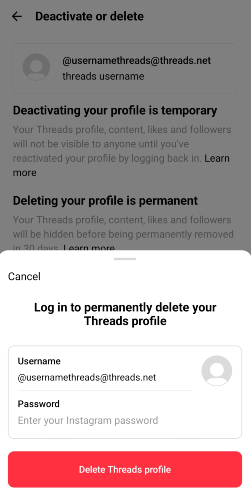
One of the biggest factors that kept people from joining Threads at the time of its launch was its deletion process. Upon signing up for the app, users soon realised that they could not delete their Threads profile without also deleting their Instagram. This garnered immediate backlash from the users. After several months, Meta has now changed the deletion process for Threads. In this article, we show you how to delete your Threads profile without deleting the Instagram account linked to it.Read Also:Soon your WhatsApp chat history and media backup to occupy your Google Account storage
In This Article
Delete Threads profile without deleting Instagram account
Step 1:Launch the Threads app and log in using your Instagram account.Step 2: Hit the profile icon at the bottom right corner of the screen.Step 3: Hit the menu icon at the top right corner of the screen.Step 4: Tap on Account.Step 5: Tap on Deactivate or delete profile.Step 6: Select Delete profile.Step 7: Enter your Threads password to confirm account deletion.
Frequently Asked Questions (FAQs)
Can I delete my Threads profile without deleting my Instagram account?
Yes, you can delete your Threads profile while retaining your Instagram account. Meta recently added this feature to its newest social media platform after receiving a lot of backlash from users.
How do I delete my Threads profile?
Go to your Threads profile, tap the menu icon at the top right corner of the screen and then select Account>Deactivate or delete profile>Delete profile. Enter your account password to confirm the deletion process.
Can I make a Threads profile without an Instagram account?
There is no way to make a profile on Threads if you don’t have an Instagram account. If you don’t want your Threads to be linked to your Instagram account, you can make a throwaway Instagram account for this exclusive task. Read this article to learn how you can go about it.Read Also:WhatsApp’s new feature allows one-on-one voice chats in large groups
Conclusion
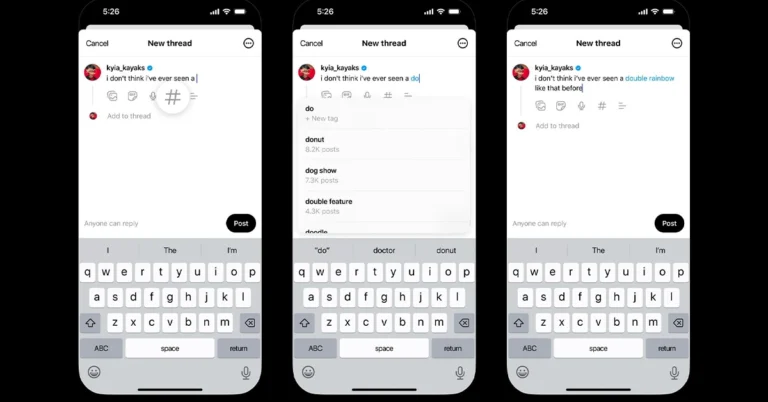
This is how you can delete Threads without deleting your Instagram account. Among other changes, Meta also added the option to edit a post on Threads. Unlike Twitter, this feature is available to all users for free. The social media giant is also bringing Twitter-like hashtags to its micro-blogging app.
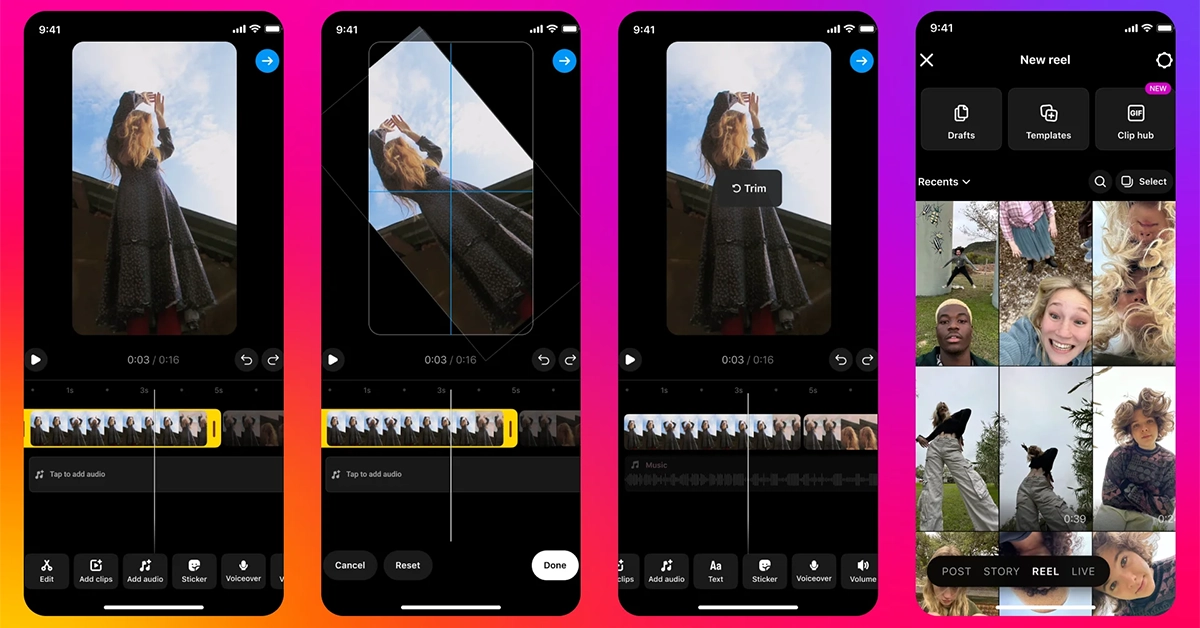
New tools like Undo/Redo to help creators edit their clips easily are being introduced.
The new update also brings the ability to create memes using clips with audio.
Users can now turn their photos or videos into a custom sticker.
Meta, the parent company of Instagram, has announced the rollout of a couple of new content creation tools to support content creators on the platform. The newly announced features are said to not only help creators express their creativity but also connect with their viewers more efficiently.Instagram introduced a new content creation tool that brings improvement to feed photos & carousels, Stories, and new insights. The features will save the editing time for videos, allow creators to make memes using clips with audio and a lot more.Instagram has started to test out the feature that will help you in scaling, cropping, and rotating individual clips for Reels. The company will be rolling out undo and redo features that will help save time during editing. In addition to this finding tools is also getting easier.Instagram will allow users to create new memes adding clips with audio to your Reels from our new Media Clip hub. “Try connecting with your fans by playing with memes and inviting them to create their own remix,” the blog post said.10 new English text-to-speech voices to select from are now being introduced but this will only be available in select markets. Users will be able to make their videos more creative with six new text fonts and styles available in hundreds of languages. In addition to this, one can now add outlines for better clarity and highlighting the text.New ways to access the audio browser or trending audio have also been brought to the platform. Instagram’s draft surface has also been revamped. It now gives you a streamlined view of all your saved drafts and soon creators will be able to preview your drafts, rename them, and schedule them in advance.Instagram will also bring the ability to create custom stickers from your own photos and videos in your Camera Roll, or from eligible photos and videos you see on Instagram.New photo filters for your feed photos are also coming. The upcoming update would also bring the ability to edit your photos and carousels with the latest filters. “From subtle colour edits to options for expressive styles, these updates make it easy for you to try various looks for your posts.”To help you evaluate your Reel performance better Meta has introduced a new Reels metric called “Replays” and has updated the definition of Reel “Plays” to also include “Replays” in addition to “Initial Plays” for both Instagram and Facebook. According to the company, one might notice an increase in Reels Plays because of this.Over that, content creators will soon be able to check real-time data on Reel viewership as the company will provide access to an interactive Retention Chart in the coming months.
Garena Free Fire is a battle royale game with regular awards and tournaments to keep players interested. If you play Garena Free Fire, you should be aware of the redeem codes that are released on a daily basis. However, because the battle royale game is banned in India, players from other countries can use the Free Fire Redeem codes daily. If you’re unfamiliar with the Garena Free Fire redeem codes or don’t know how to get them, we’ve put together a step-by-step guide to help you redeem them. Check out Garena Free Fire Redeem Codes for 17 November 2023.The Free Fire redeem codes are a great way to get free stuff. These are 12-digit codes that contain alphabets and numbers, as well as an expiration date and time. Because the Garena FF redeem codes cannot be used more than once, you should hurry to the redemption page to claim your free reward before someone else does. To get a free reward, all you have to do is go to reward.ff.garena.com/en, which is the official redemption page. Also, keep an eye on this space for daily updates on Garena Free Fire redemption codes and rewards.
In This Article
Garena Free Fire Redeem Codes Today 17 November2023
User can tag topics on Threads to categorize their posts by interest or theme.
The feature is now being tested in Australia.
To stay ahead of its competitors, Threads is launching many features these days. Recently it rolled out the option to delete Threads profile without deleting Instagram account altogether. Now the microblogging platform has revealed it has begun testing support for tags just like hashtags on X (formerly known as Twitter).
Adam Mosseri, Instagram Chief announced that it has now started testing Tags in order to categorise posts by interest or theme. He said, “By popular demand… we’re rolling out a test in Australia that lets you tag topics on Threads to categorize your posts by interest or theme. Hope this makes it easier to join and follow conversations you care about. In the test? Let us know your feedback.”
Also Read:Now Threads profiles can be deleted separately from the Instagram account
The feature is currently being Tested in Australia. The Threads Tags can be based on theme or area of interest, indicating that they will function similarly to Twitter hashtags but without a hash.
While sharing the news he also shared three screenshots where a Hash icon can be seen among other options just next to the mic icon to the right.
While writing a post on Threads tapping the hash icon will begin typing a word and the app will suggest tags to add. The word will then be highlighted in blue similar to hyperlinks on the post. Also when you click on the highlighted or the hyperlink will open more posts tagged.
Because Threads profiles are connected to individual Instagram accounts recently Threads also introduced the feature to delete your profile on Threads without removing your Instagram account. To delete your Threads profile, visit Settings → Account → Delete or Deactivate Profile, then select delete.
An additional feature that allows users to see Threads posts directly on Facebook and Instagram was introduced too. This will help expand your audience and grow your reach.



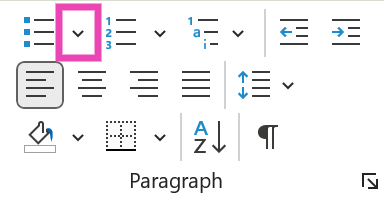 Step 3: Click on Define New Bullet.
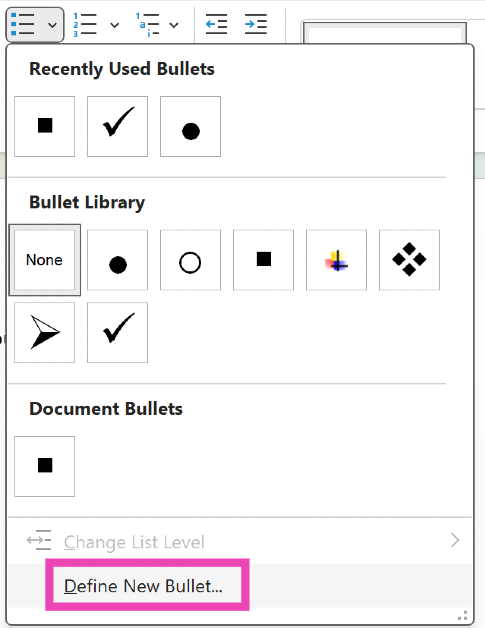 Step 4: Click on Symbol.
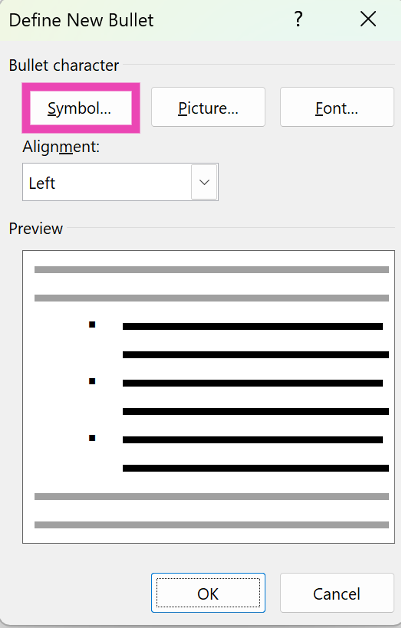 Step 5: Select the checkbox symbol and hit OK.
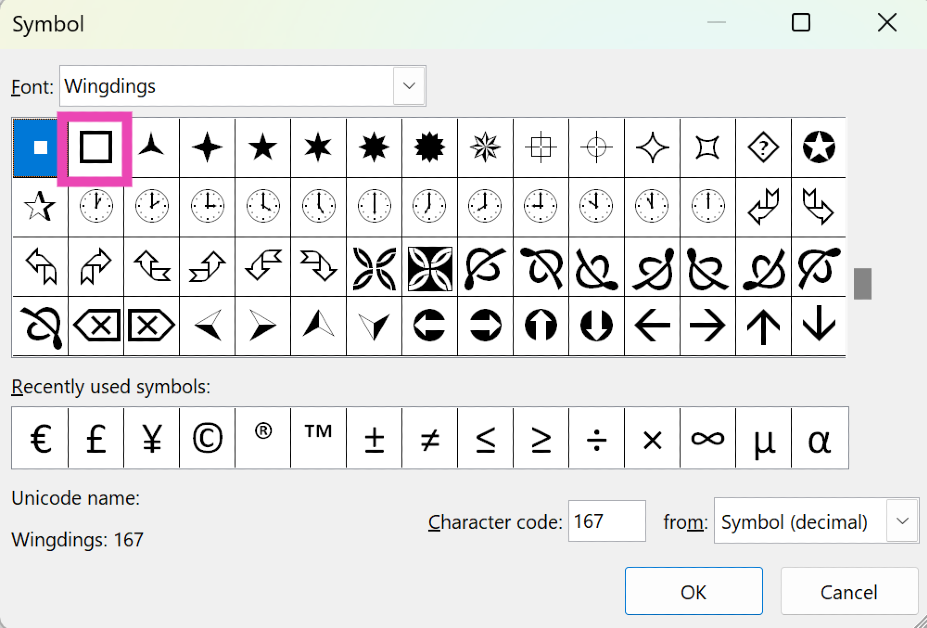 Step 6: The checkbox symbol will appear on the document.
 Step 3: Switch to the Customise Ribbon tab.
 Step 4: Click the checkbox for Developer in the Main Tabs list. Hit OK.
 Step 5: Move your cursor to the spot where you want to insert the checkbox.
Step 6: Go to the Developer tab and click the checkbox in the Control section.
Step 5: Move your cursor to the spot where you want to insert the checkbox.
Step 6: Go to the Developer tab and click the checkbox in the Control section.

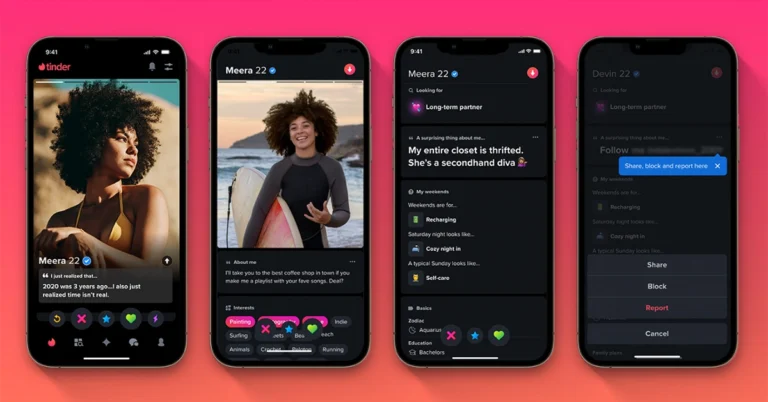

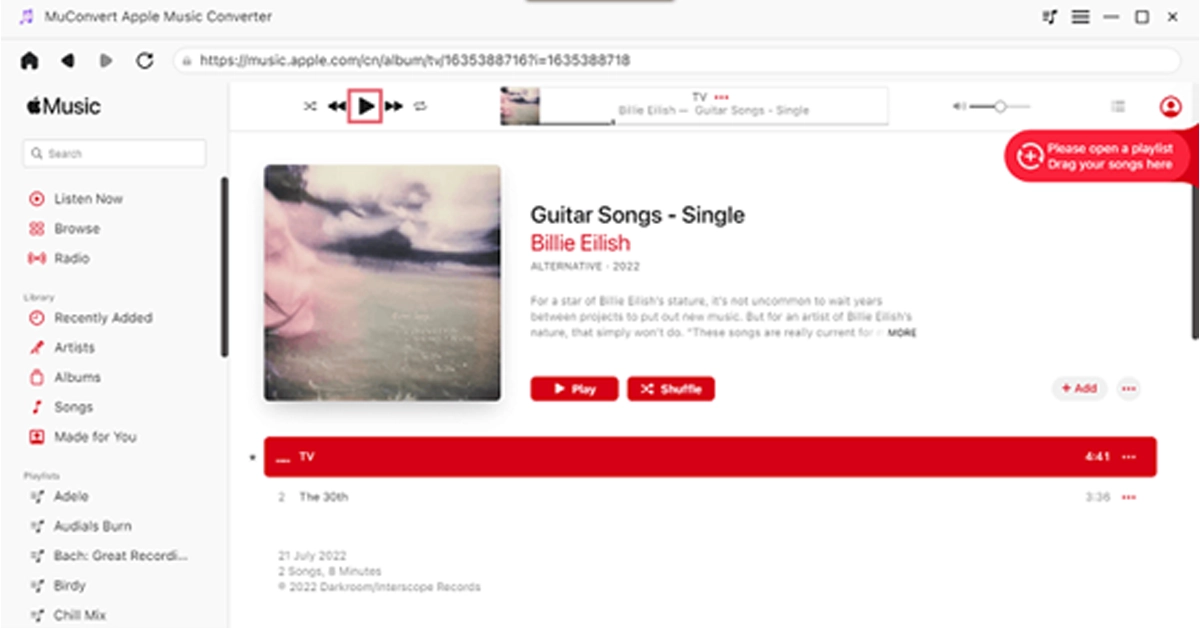 STEP 3. Customize Your Settings (Optional)
Navigate to the “Menu” and select “Preferences” to customize the “Advanced” settings. Within this window, you have the option to adjust the format, sample rate, and bitrate based on your preferences.
STEP 3. Customize Your Settings (Optional)
Navigate to the “Menu” and select “Preferences” to customize the “Advanced” settings. Within this window, you have the option to adjust the format, sample rate, and bitrate based on your preferences.
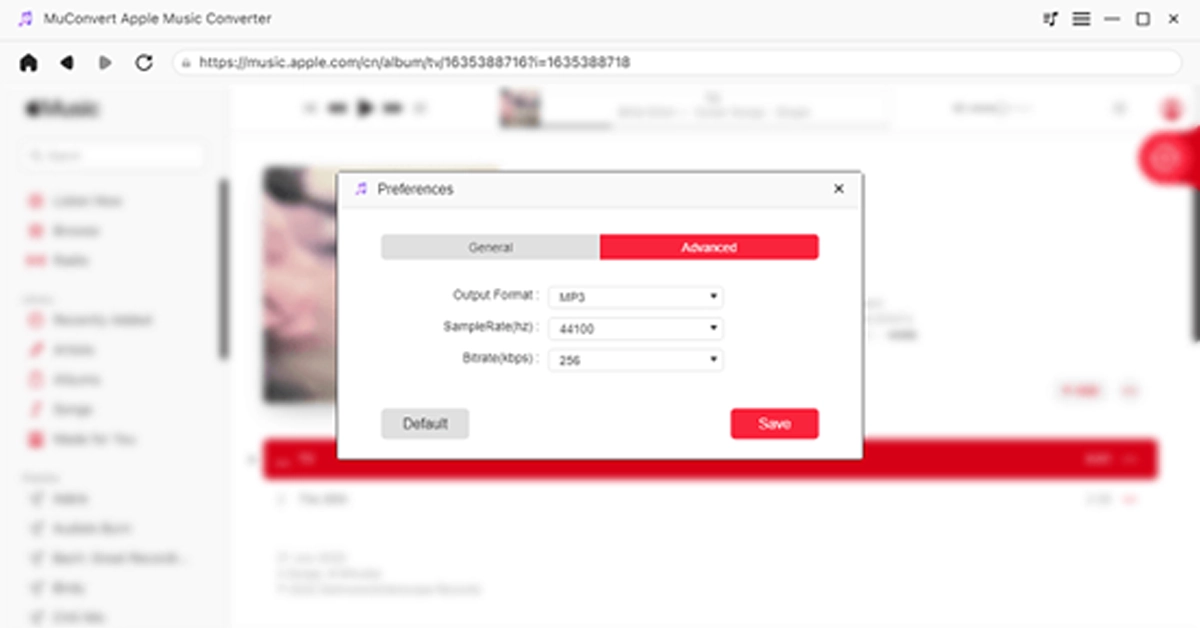 STEP 4. Remove DRM and Download Music to MP3
Now, go to “Convert all files to” in the top right corner and select “MP3” as the output format. Finally, click on the “Convert All” icon at the bottom, and MuConvert Apple Music Converter will remove the DRM from the Apple Music songs, and download all the Apple Music songs you’ve selected to MP3.
STEP 4. Remove DRM and Download Music to MP3
Now, go to “Convert all files to” in the top right corner and select “MP3” as the output format. Finally, click on the “Convert All” icon at the bottom, and MuConvert Apple Music Converter will remove the DRM from the Apple Music songs, and download all the Apple Music songs you’ve selected to MP3.
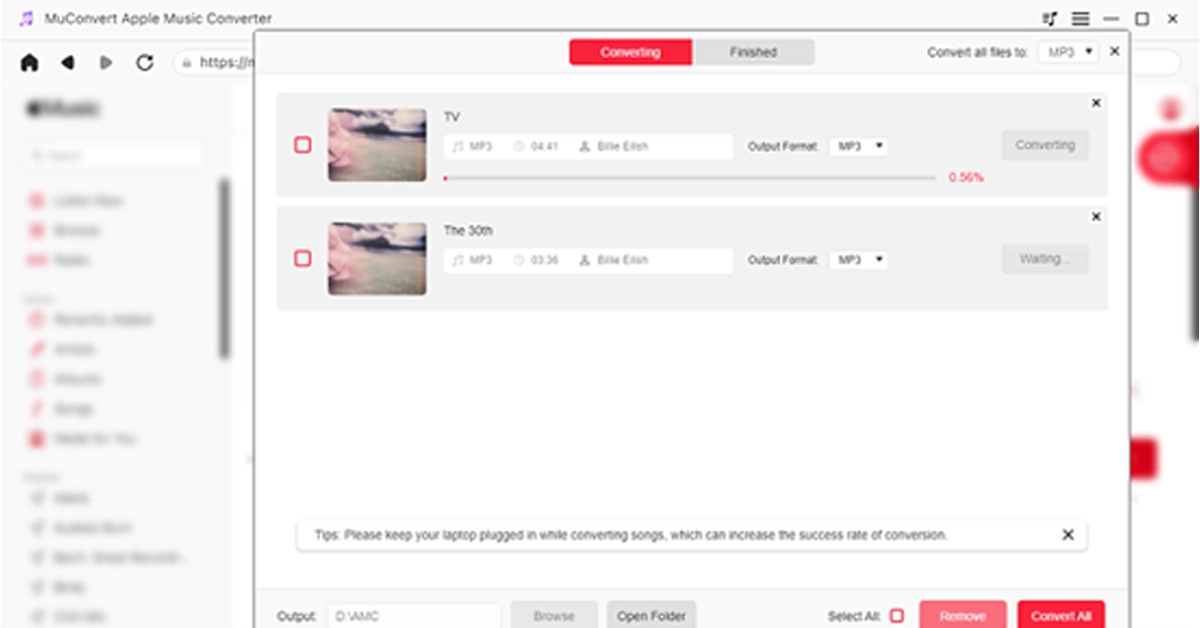 Now that you have all DRM-free Apple Music songs, the next step is to burn them into your CD. Keep reading for detailed steps.


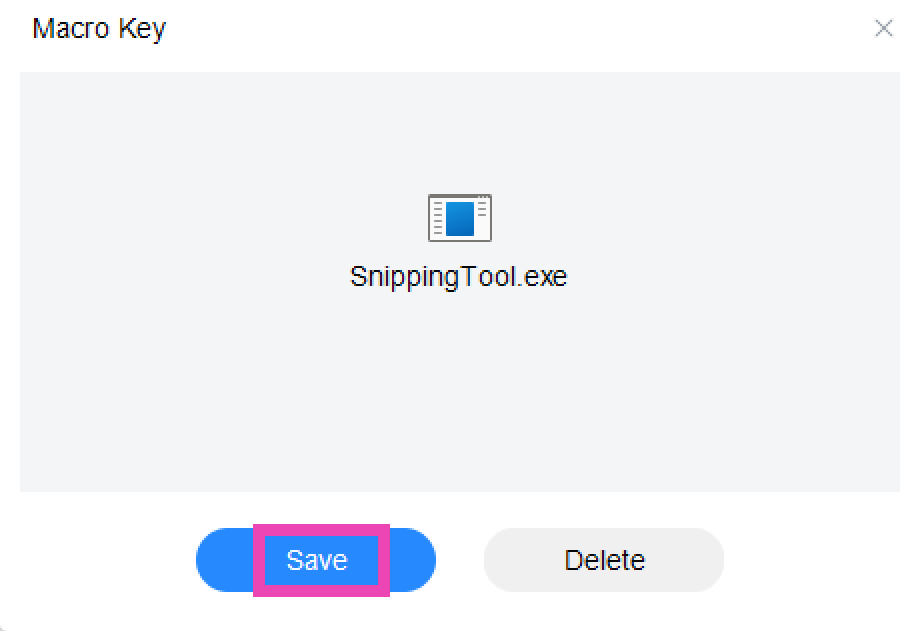
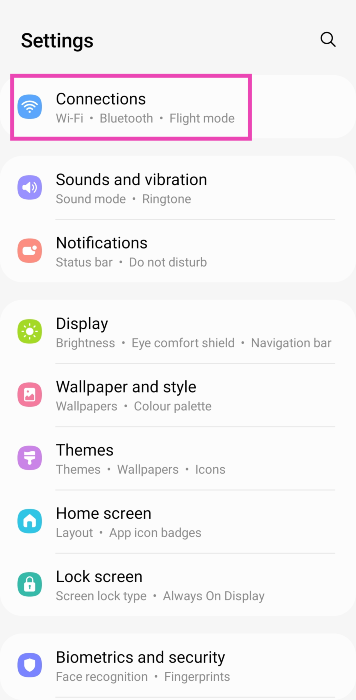 Step 2:
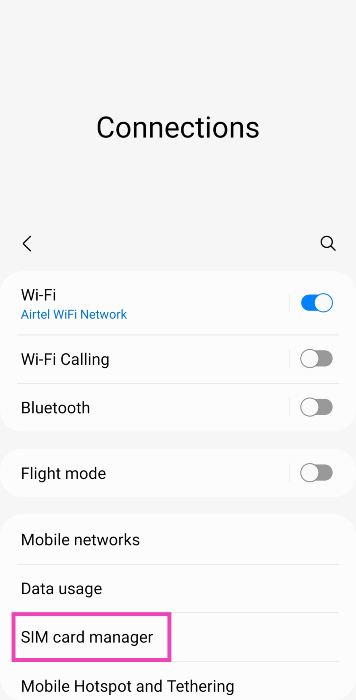 Step 3: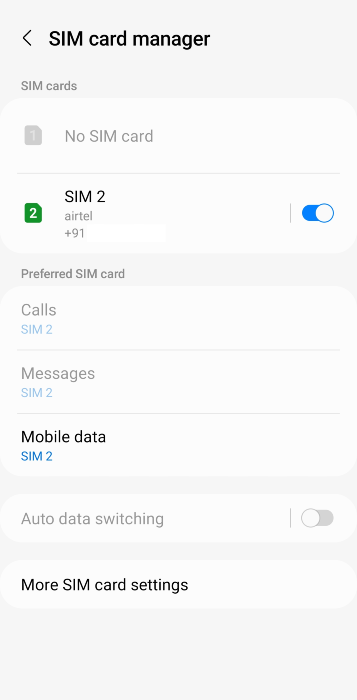
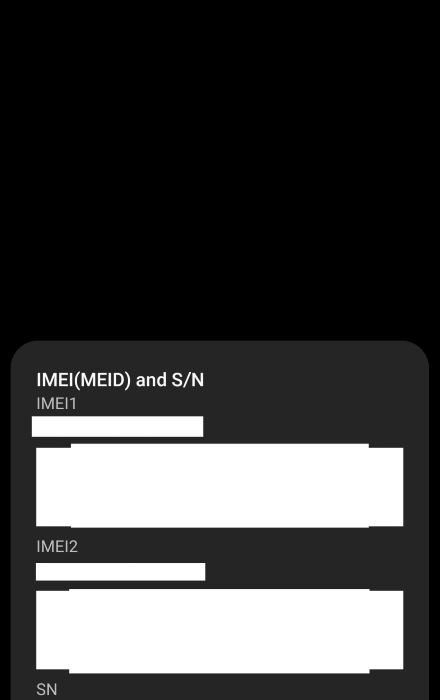
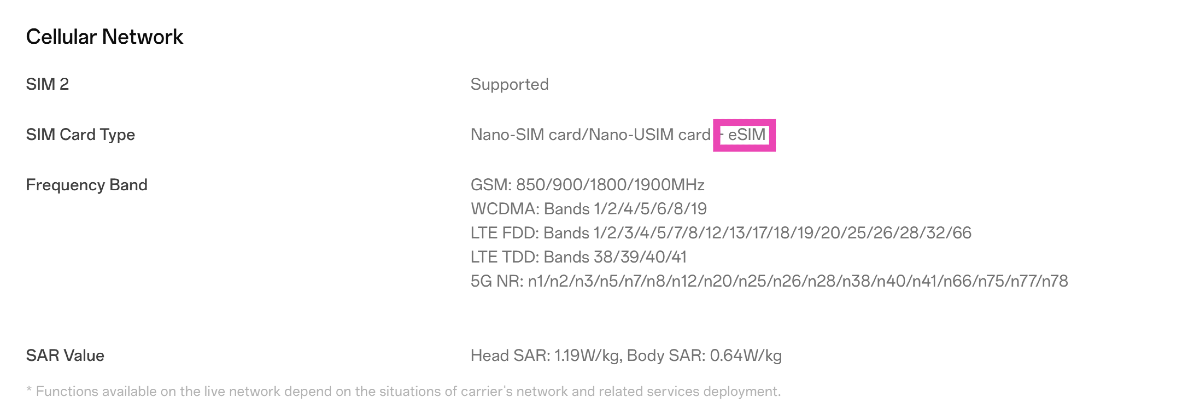 Go to your smartphone’s official page on its manufacturer’s website and take a look at its spec sheet to check if it supports an e-SIM. You will be able to find this information in the ‘Cellular Network’ section.
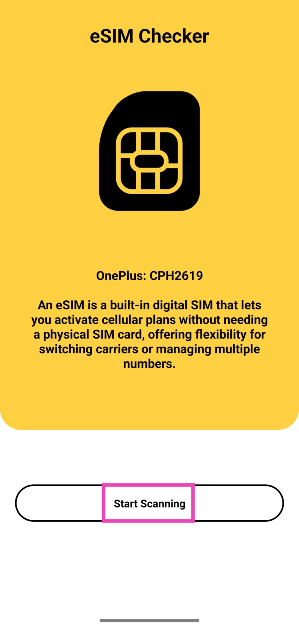 Step 3: The app will list whether your phone supports e-SIM or not on the following page.
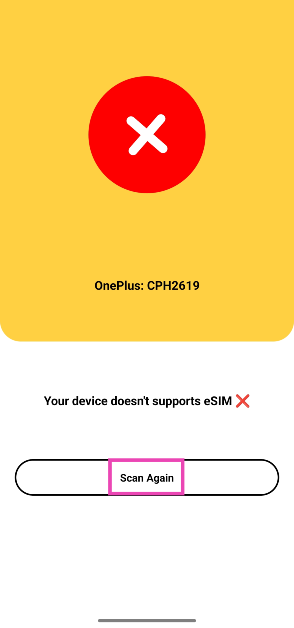
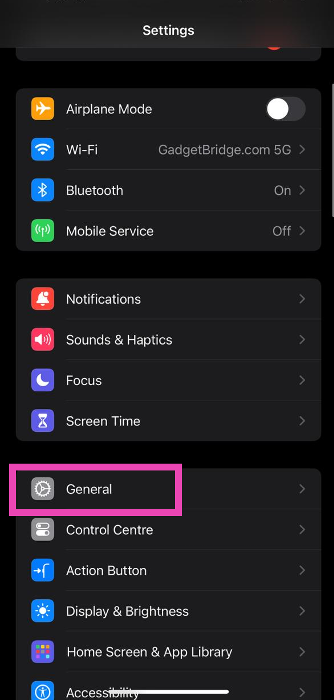 Step 2:
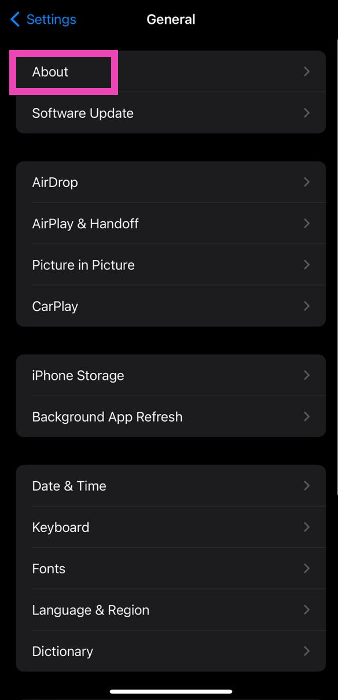 Step 3: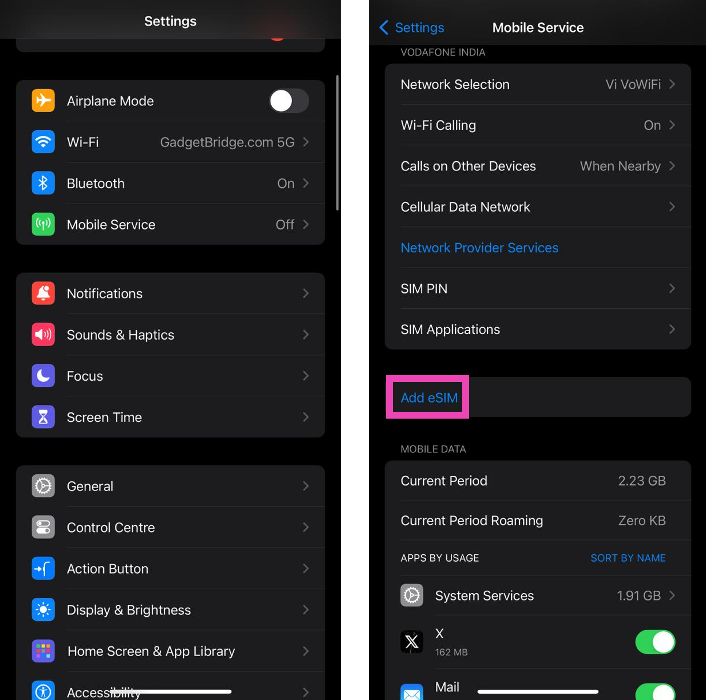
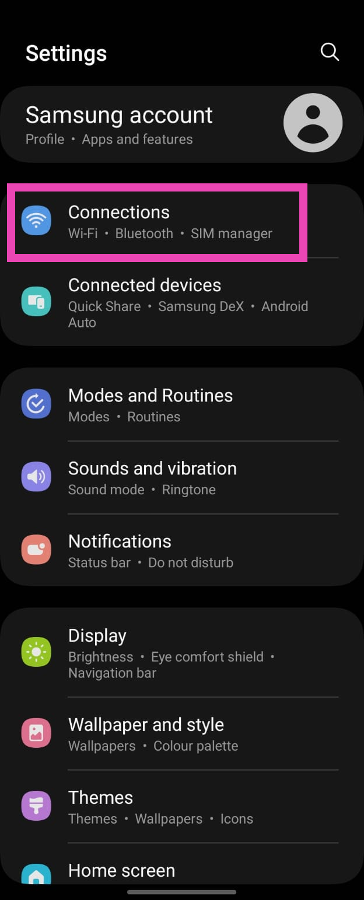 Step 2:
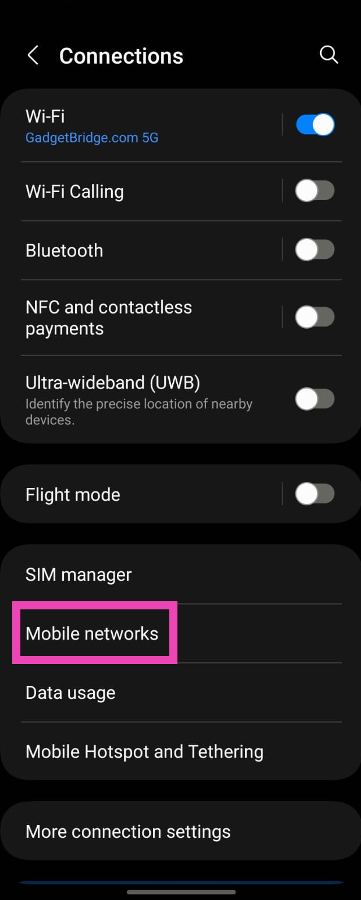 Step 3:
 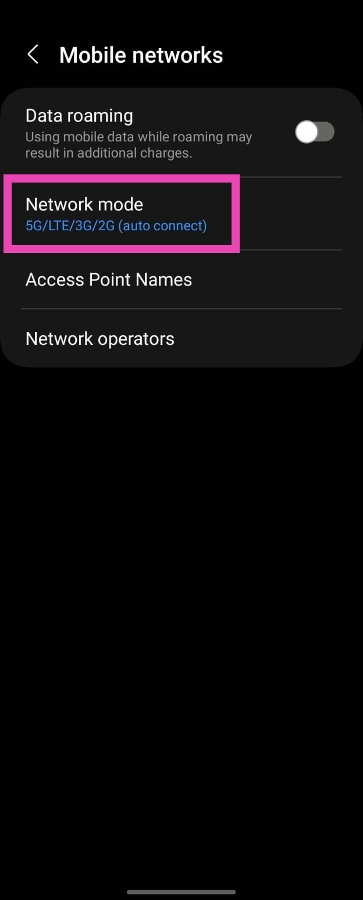 Step 4:
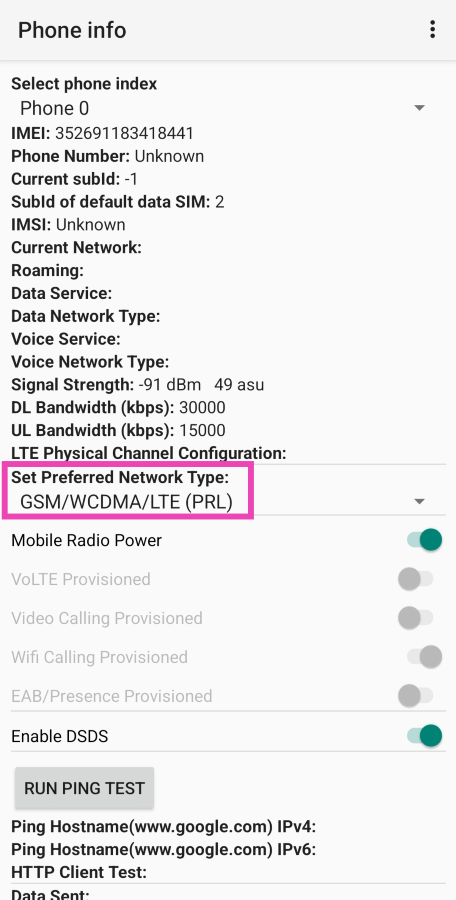 Step 4: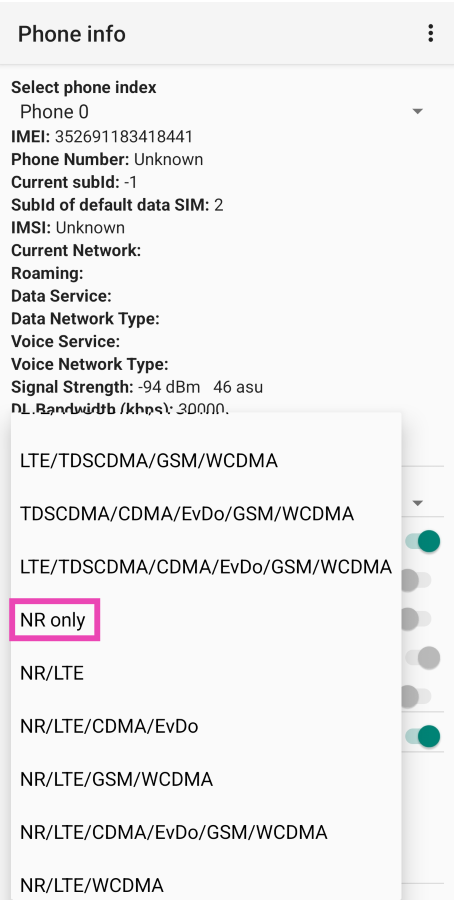
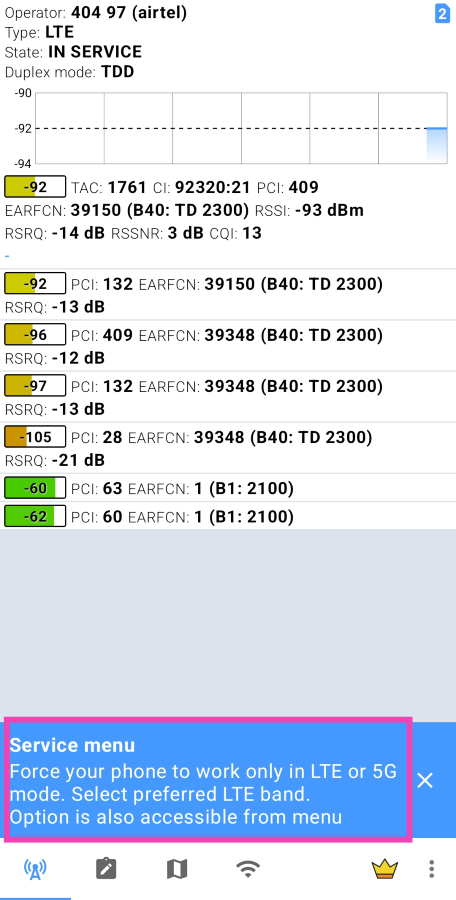 Step 3:
 Step 4: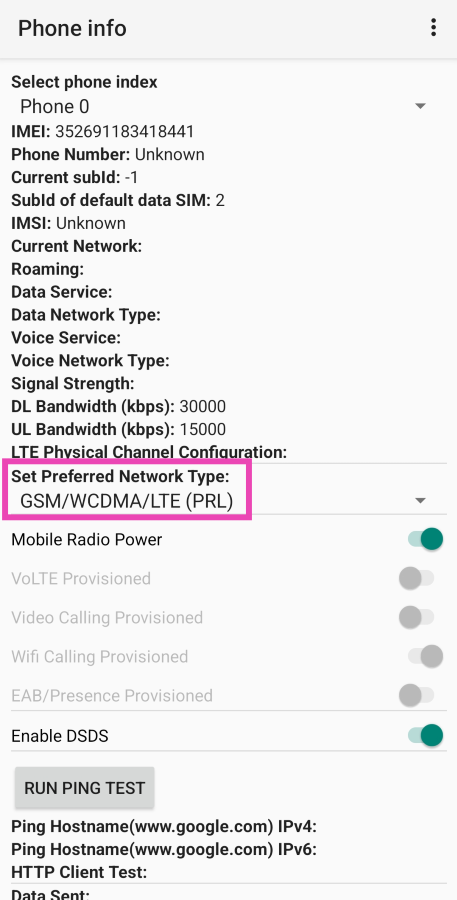
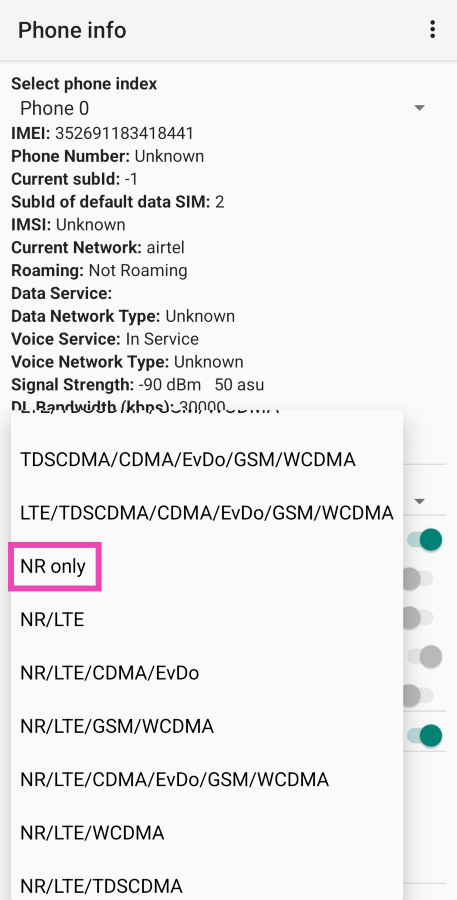
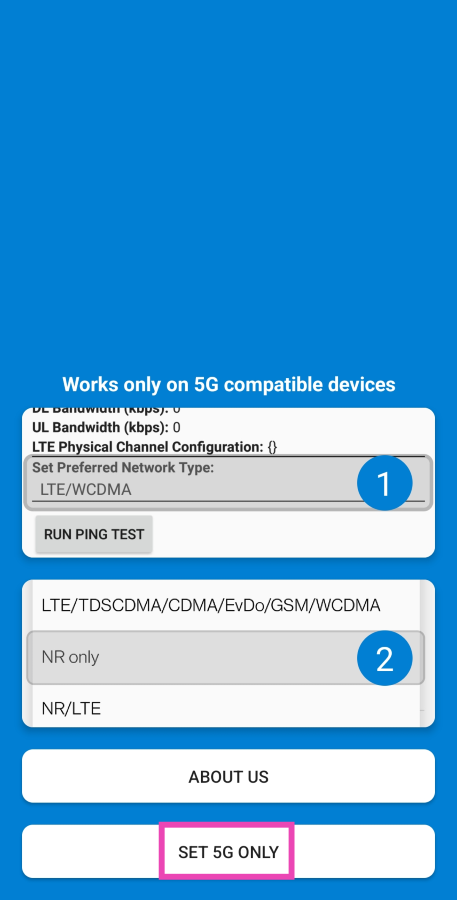 Step 3:
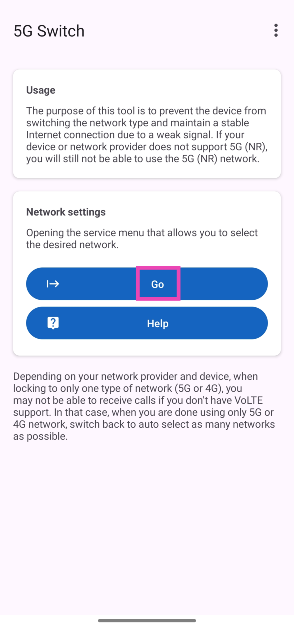 Step 3: Select your phone’s Android OS version.
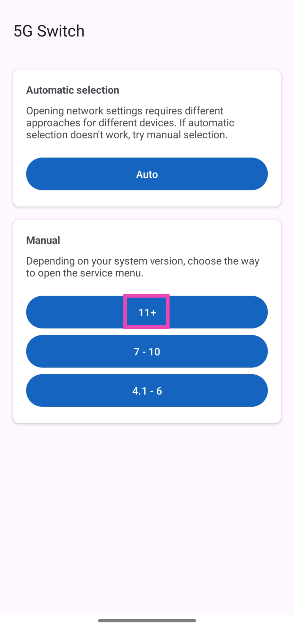 Step 4: Tap on Set preferred network type.
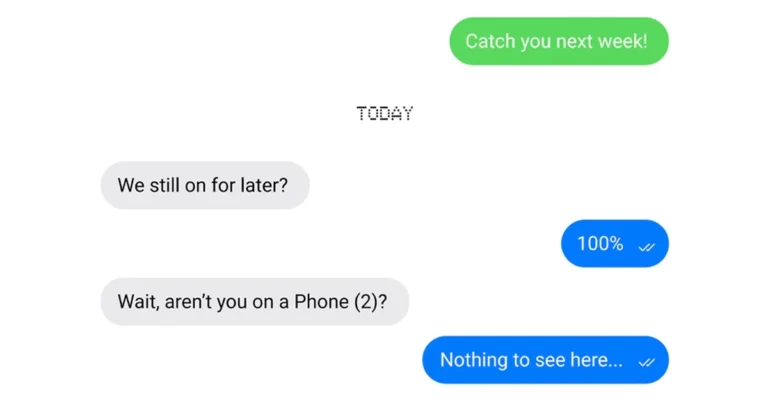



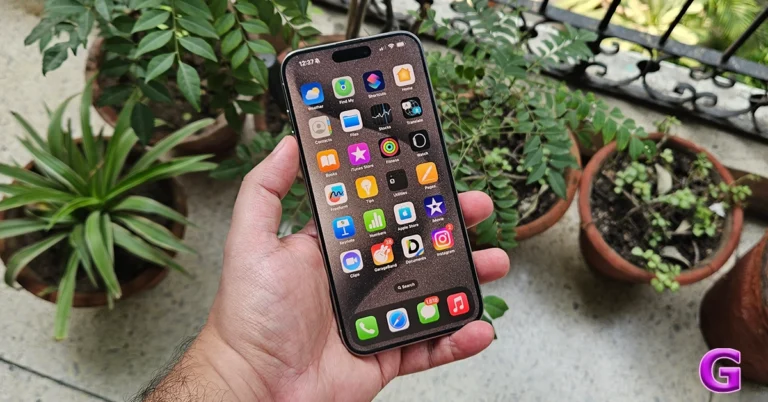
 Step 1:
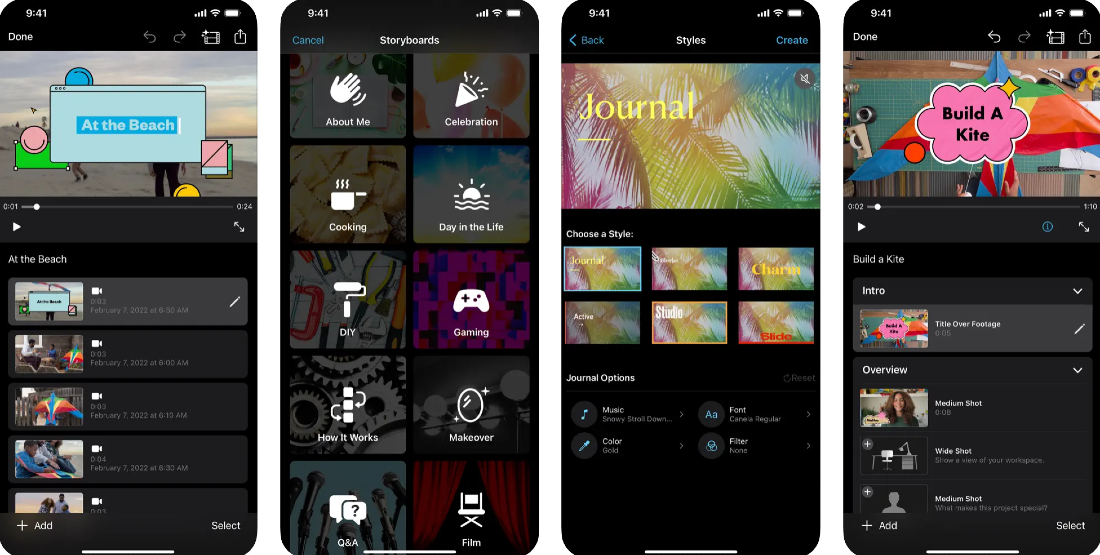 Step 1:
 Step 1:
 Step 1:
 Step 1: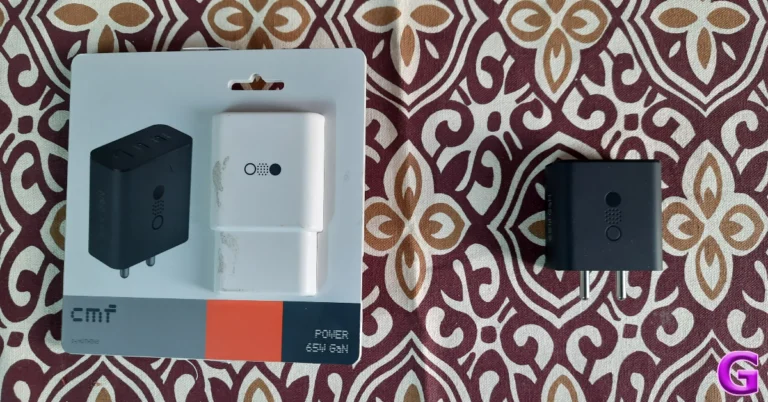
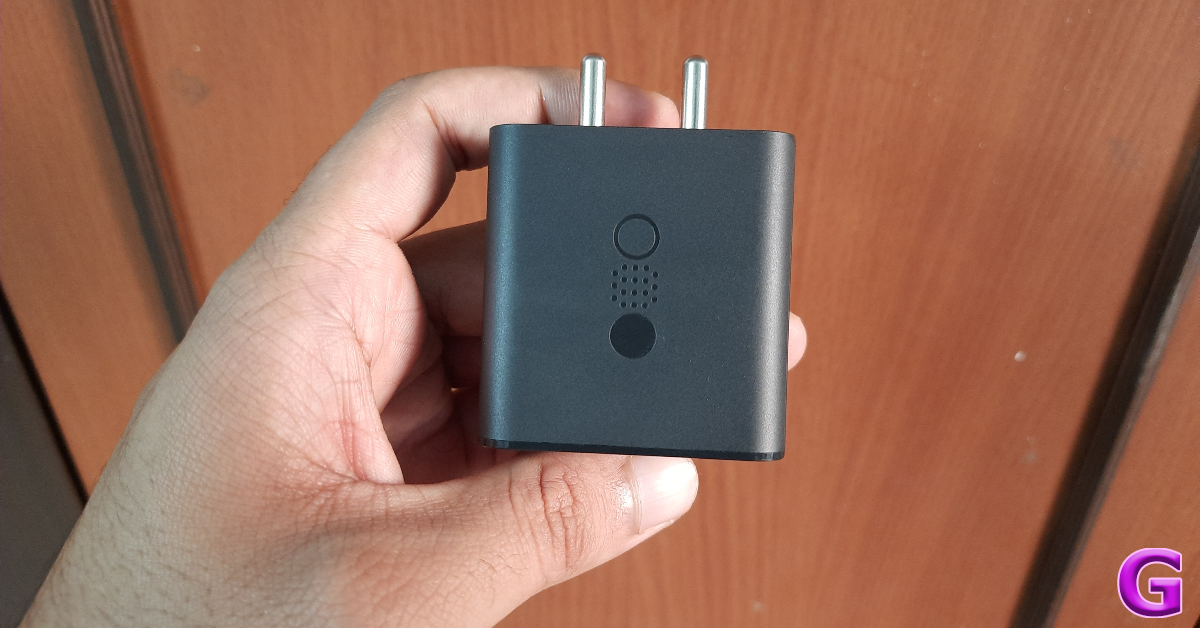
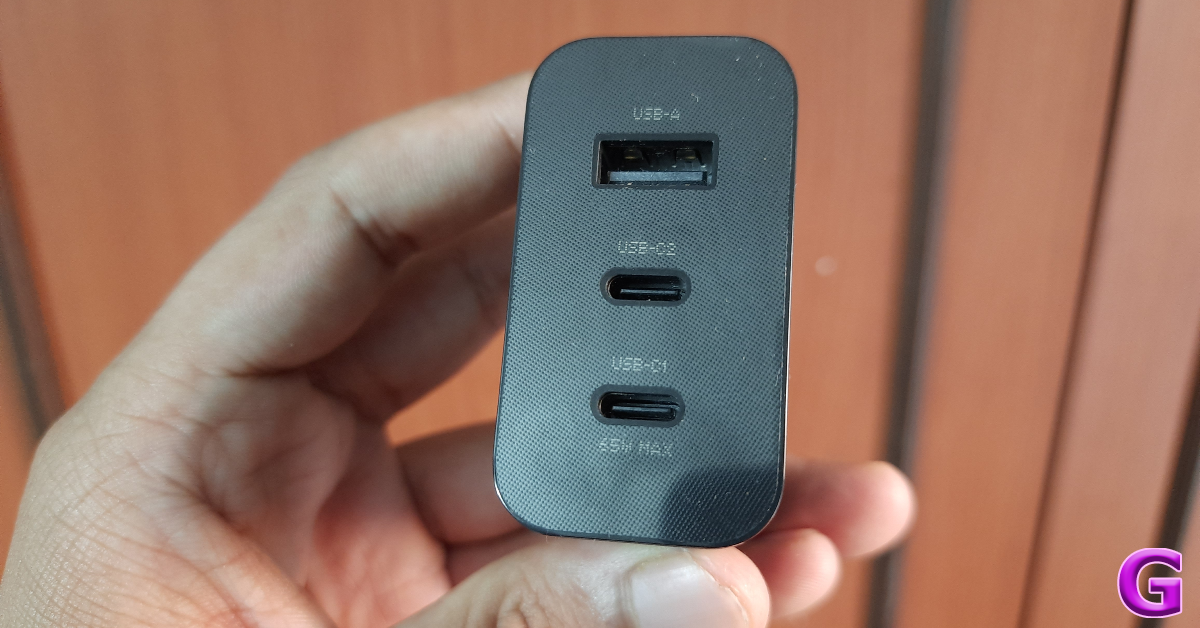
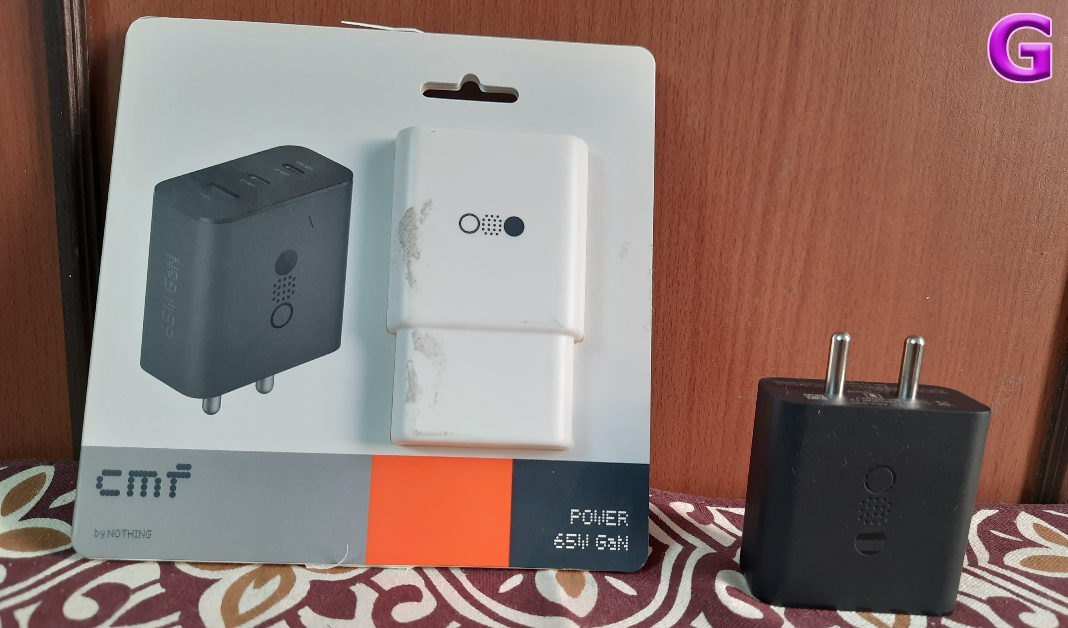
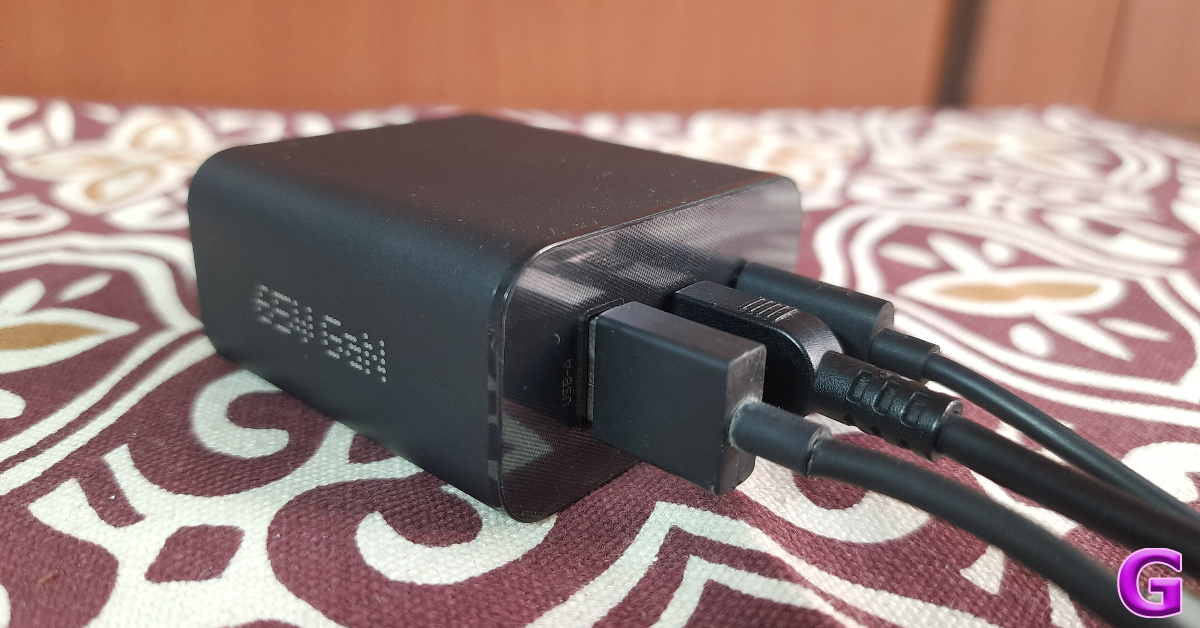

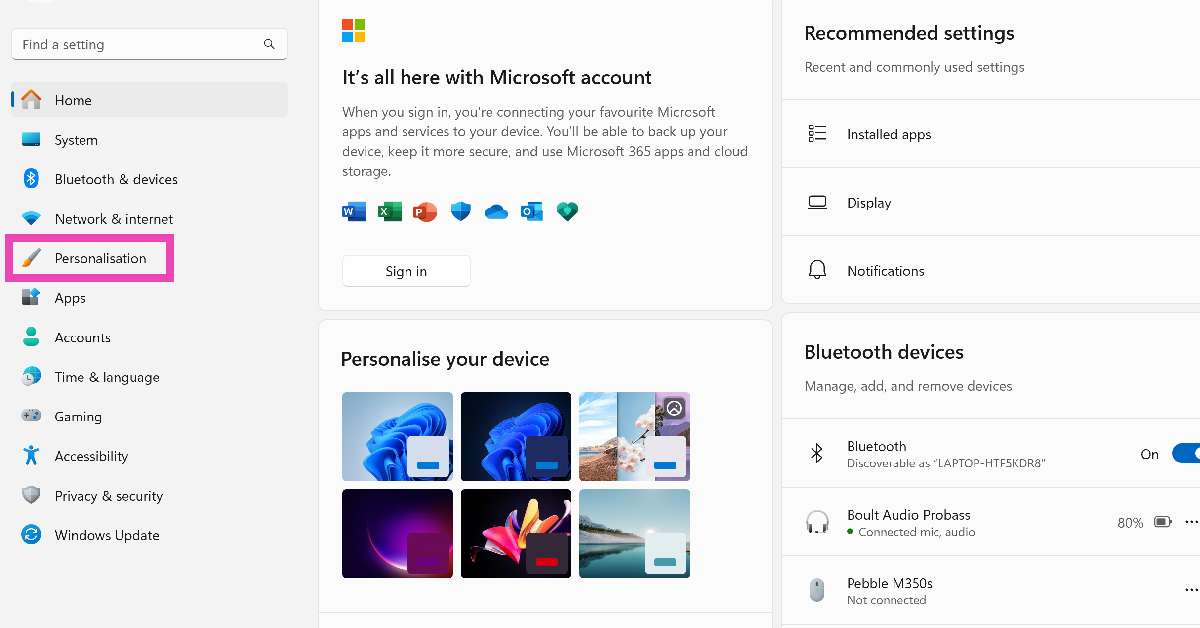 Step 3:
 Step 4: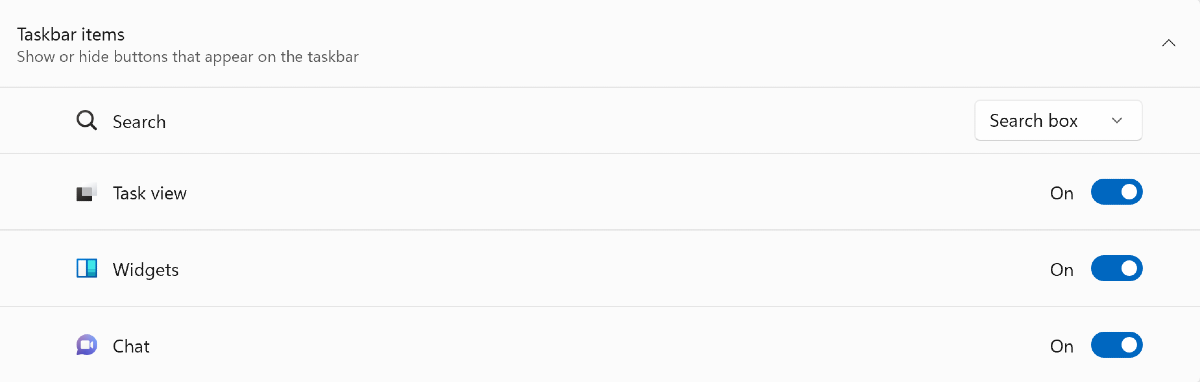
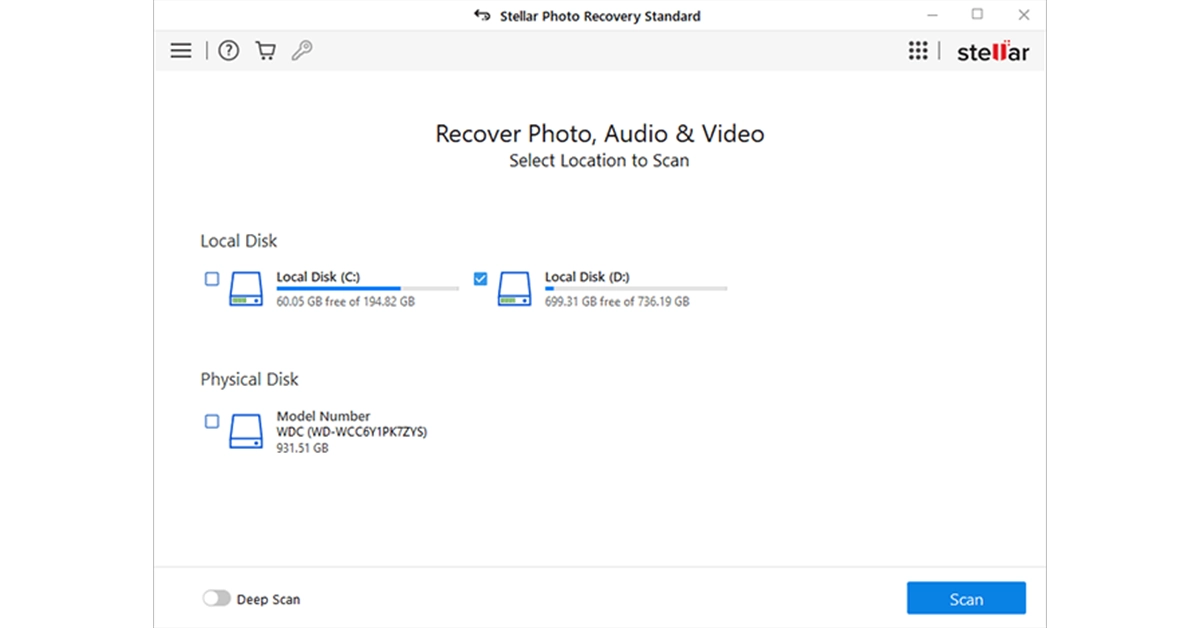 The software will display a list of available drives and storage devices. Choose the drive or media from which you want to recover photos.
Click on the “Scan” button to initiate the scanning process.
Step 3: Scanning
Stellar Photo Recovery offers two scanning modes: Quick Scan and Deep Scan. Quick Scan is suitable for recently deleted files and provides faster results. Deep Scan is ideal for more complex data loss scenarios and can recover files from formatted or corrupted drives.
Select the appropriate scanning mode based on your needs and click “Start Scan.”
Step 4: Preview and Recovery
The software will display a list of available drives and storage devices. Choose the drive or media from which you want to recover photos.
Click on the “Scan” button to initiate the scanning process.
Step 3: Scanning
Stellar Photo Recovery offers two scanning modes: Quick Scan and Deep Scan. Quick Scan is suitable for recently deleted files and provides faster results. Deep Scan is ideal for more complex data loss scenarios and can recover files from formatted or corrupted drives.
Select the appropriate scanning mode based on your needs and click “Start Scan.”
Step 4: Preview and Recovery
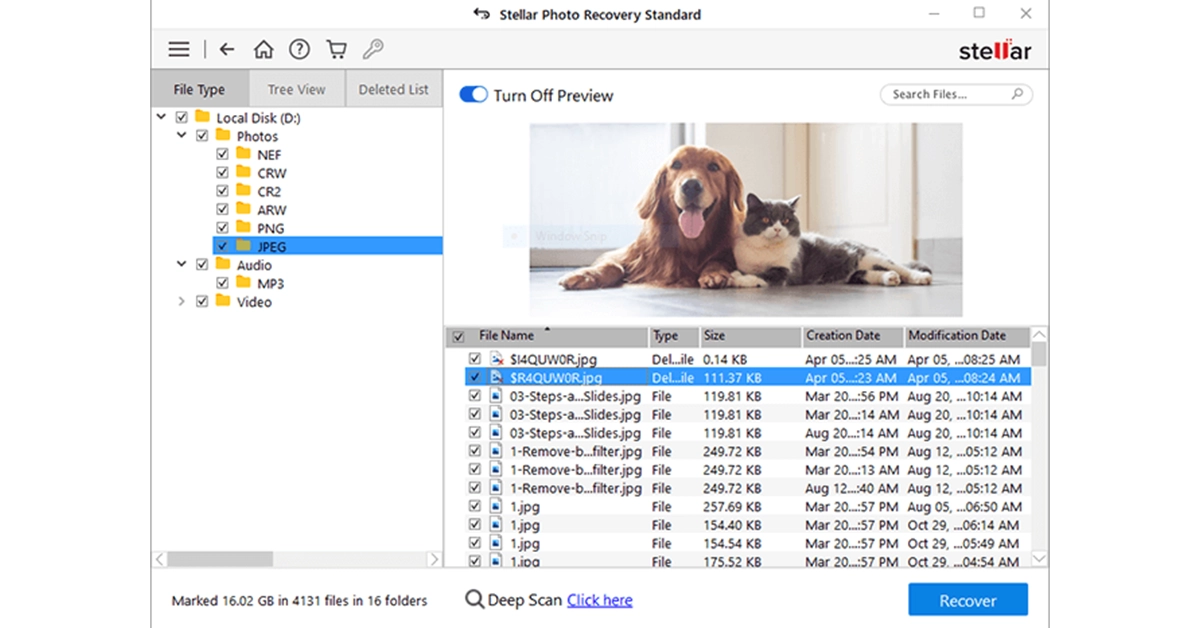 The software will analyse the selected drive and display a list of recoverable files. You can preview these files to ensure you’re recovering the right ones. Select the files you wish to recover and click the “Recover” button.
Choose a destination folder for the recovered files and start the recovery process.
The software will analyse the selected drive and display a list of recoverable files. You can preview these files to ensure you’re recovering the right ones. Select the files you wish to recover and click the “Recover” button.
Choose a destination folder for the recovered files and start the recovery process.
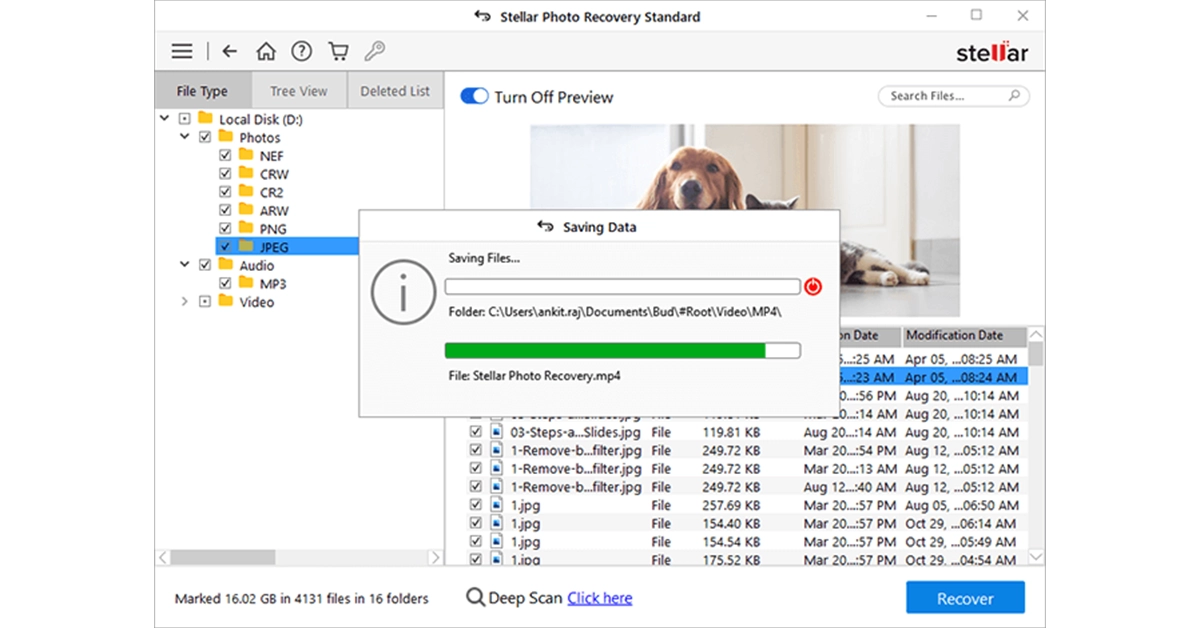 That’s it! Stellar Photo Recovery is exceptionally user-friendly and effective, making it accessible to both beginners and experienced users.
Stellar Photo Recovery Pros:
User-Friendly Interface: Stellar Photo Recovery’s intuitive design makes it accessible to users of all skill levels.
Powerful Recovery: The software is highly effective in recovering lost or deleted photos and videos, even in complex data loss situations.
Wide Compatibility: Stellar Photo Recovery supports a wide range of image and video formats, ensuring compatibility with most media files.
Secure Recovery: It ensures the safety of your data, preventing any damage or overwriting during the recovery process.
Preview Feature: The ability to preview recoverable files allows for selective recovery, saving time and storage space.
Stellar Photo Recovery Cons:
Limited Operating System Support: The software primarily caters to Windows and Mac users, with limited Linux support.
That’s it! Stellar Photo Recovery is exceptionally user-friendly and effective, making it accessible to both beginners and experienced users.
Stellar Photo Recovery Pros:
User-Friendly Interface: Stellar Photo Recovery’s intuitive design makes it accessible to users of all skill levels.
Powerful Recovery: The software is highly effective in recovering lost or deleted photos and videos, even in complex data loss situations.
Wide Compatibility: Stellar Photo Recovery supports a wide range of image and video formats, ensuring compatibility with most media files.
Secure Recovery: It ensures the safety of your data, preventing any damage or overwriting during the recovery process.
Preview Feature: The ability to preview recoverable files allows for selective recovery, saving time and storage space.
Stellar Photo Recovery Cons:
Limited Operating System Support: The software primarily caters to Windows and Mac users, with limited Linux support.

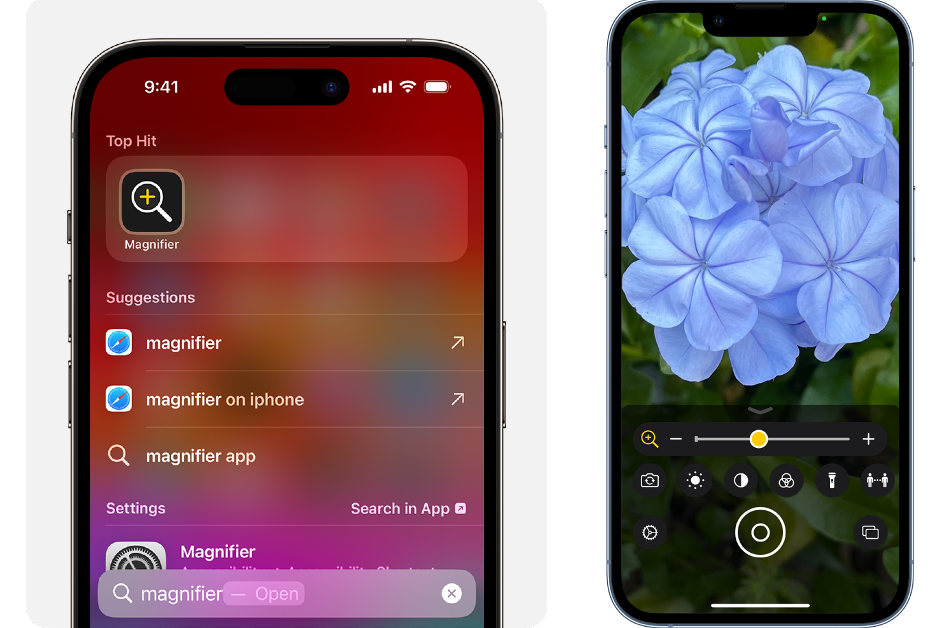
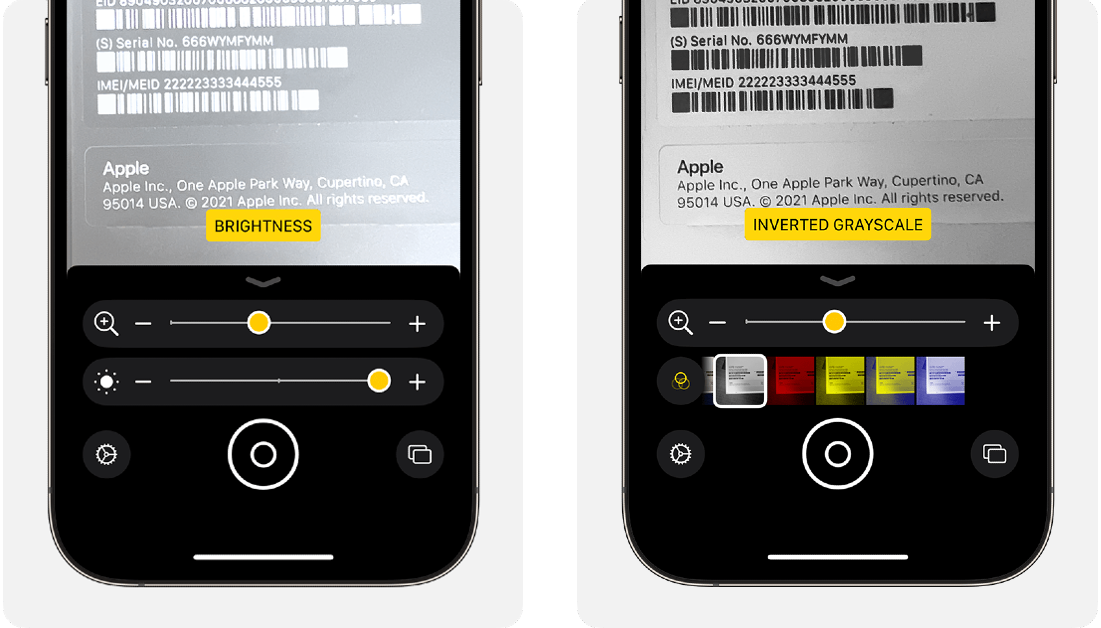
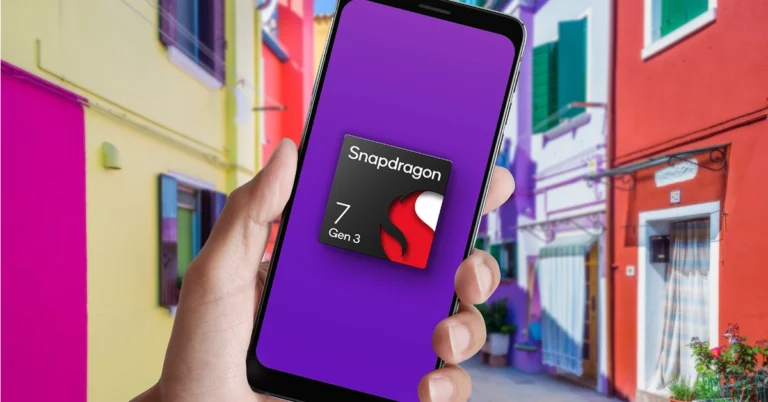
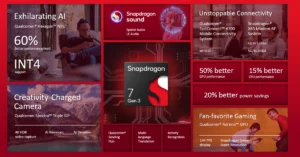
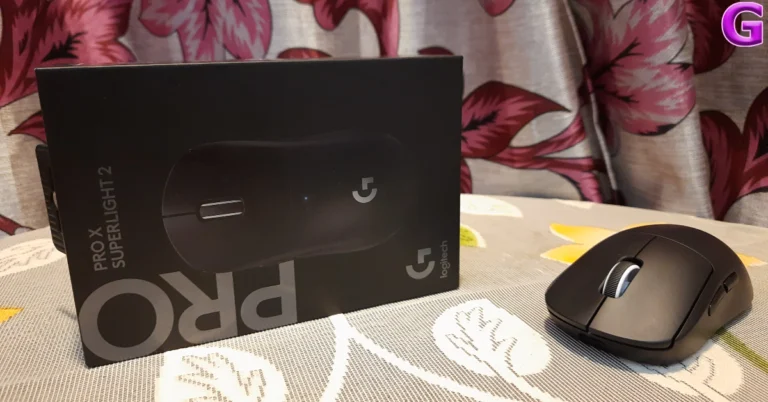
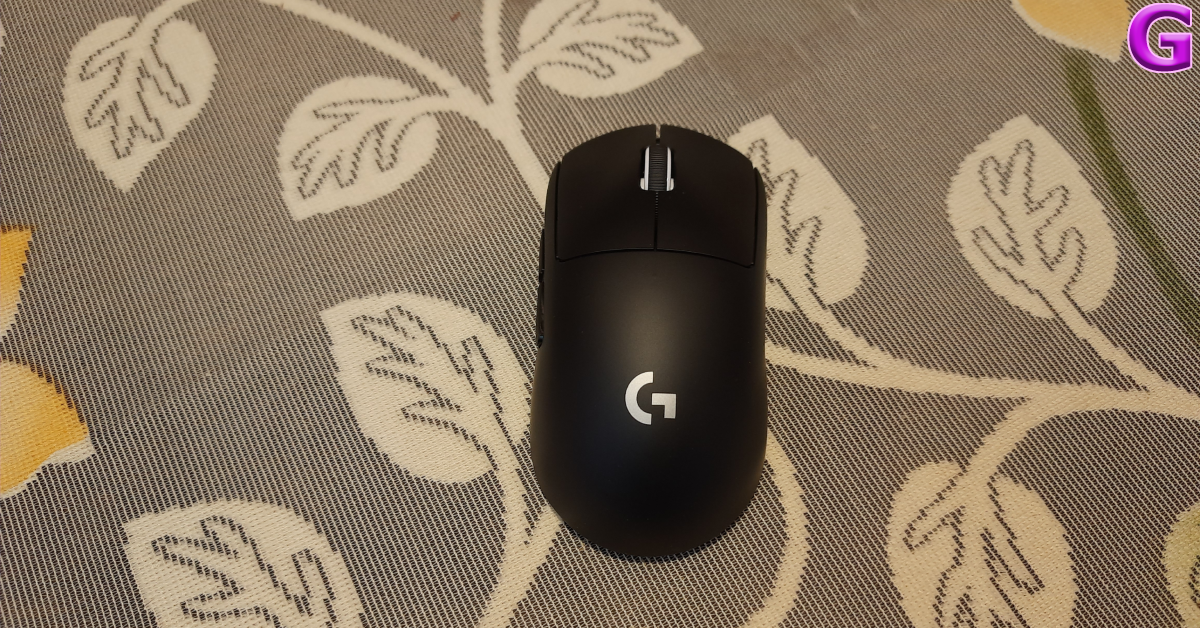
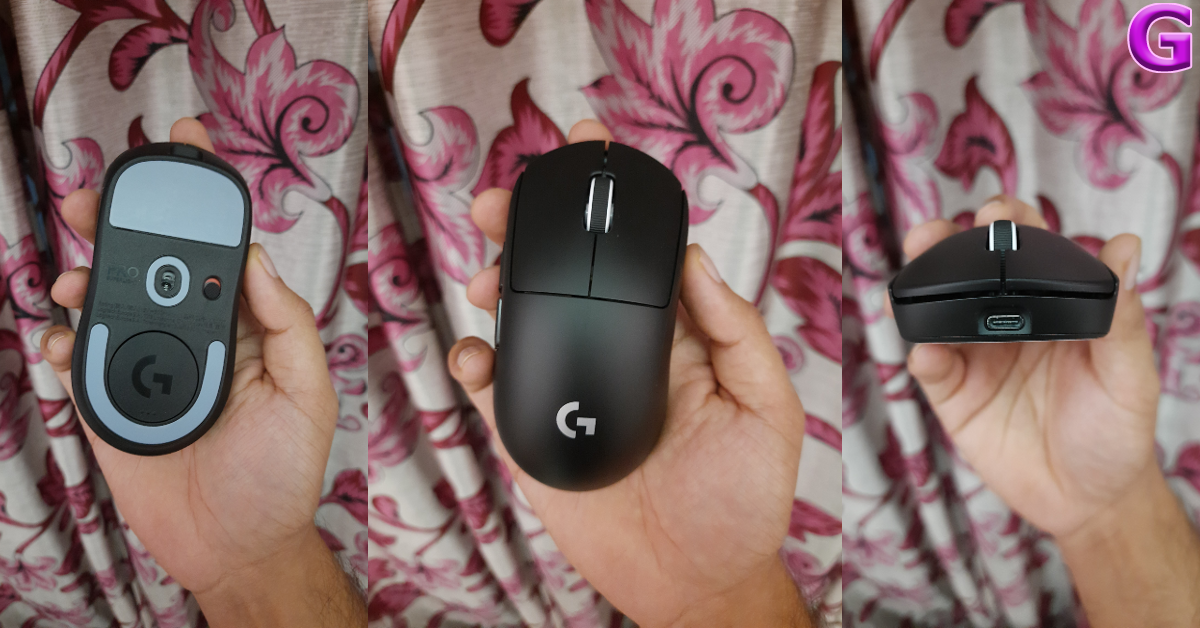

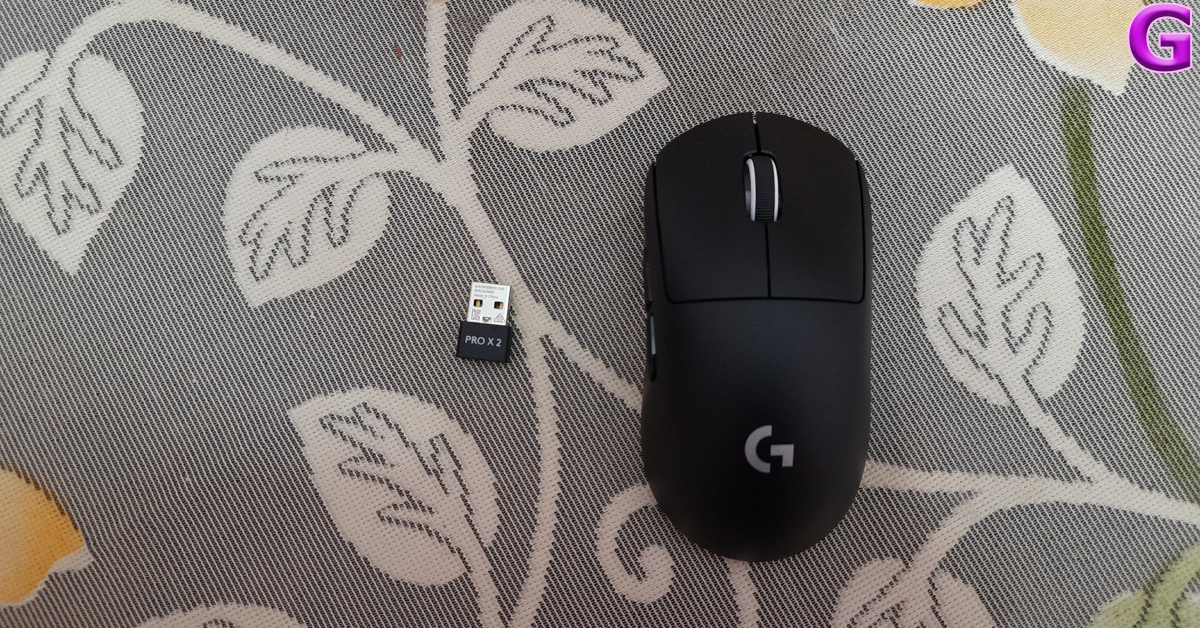
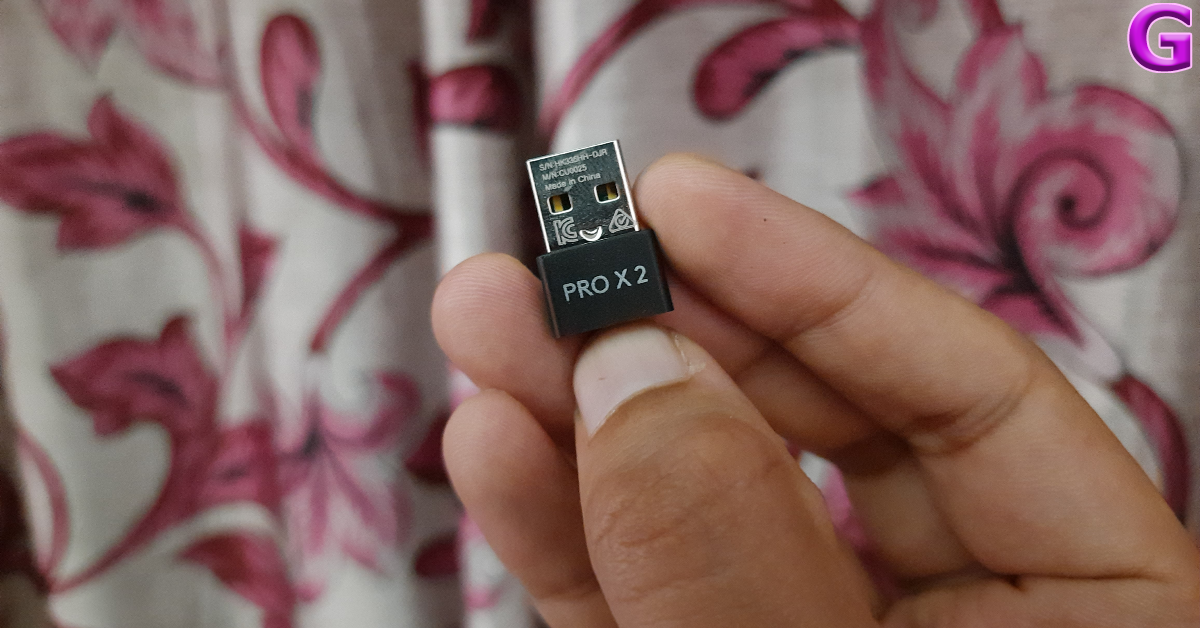
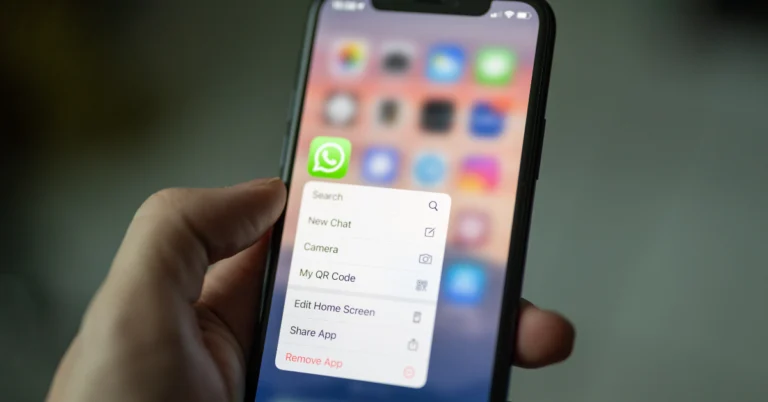
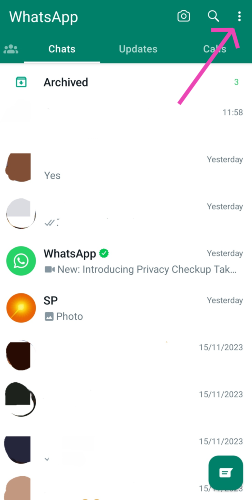 Step 3:
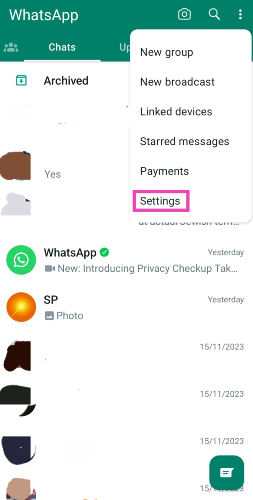 Step 4:
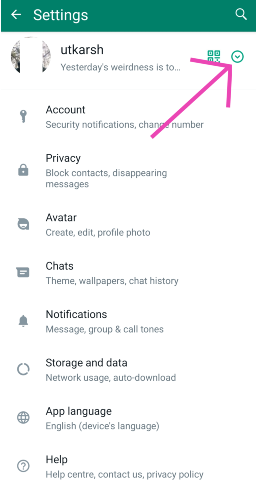 Step 5:
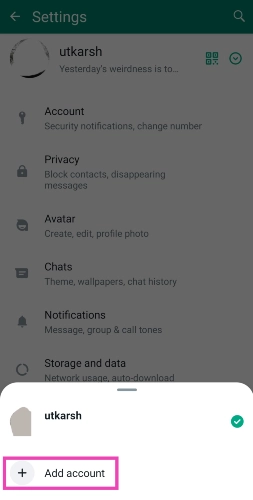 Step 6:
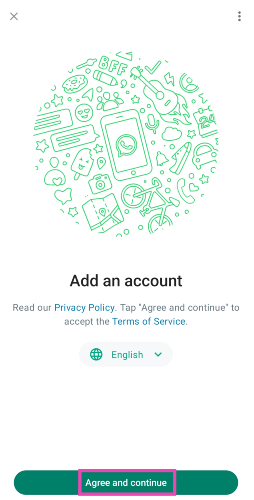 Step 7:
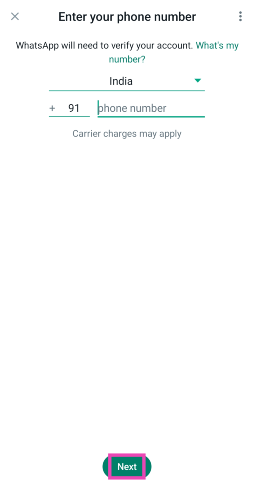 Step 8:
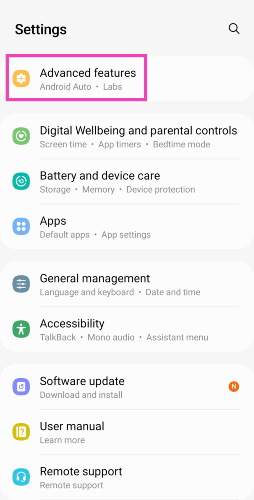 Step 2:
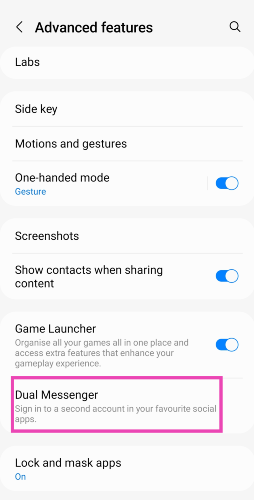 Step 3:
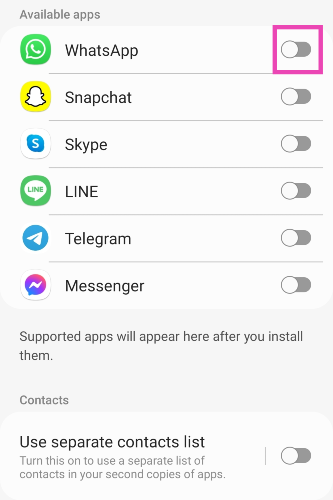 Step 4:
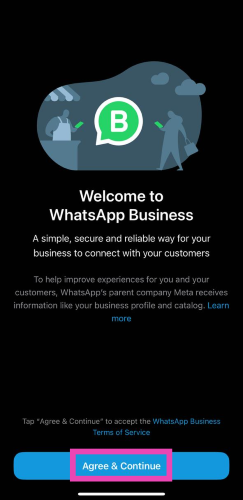 Step 3:
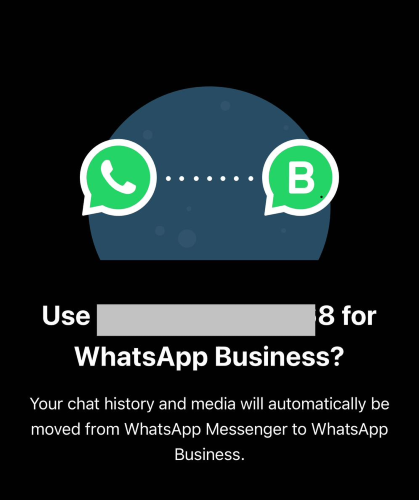 Step 4: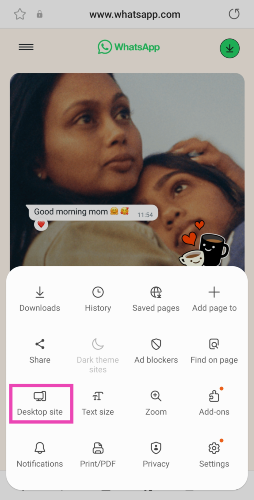
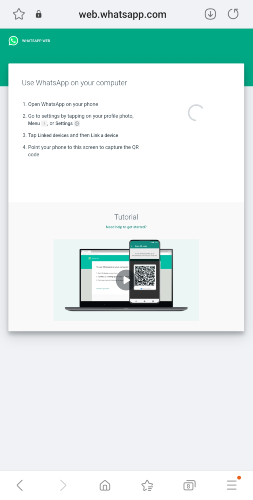 Step 3: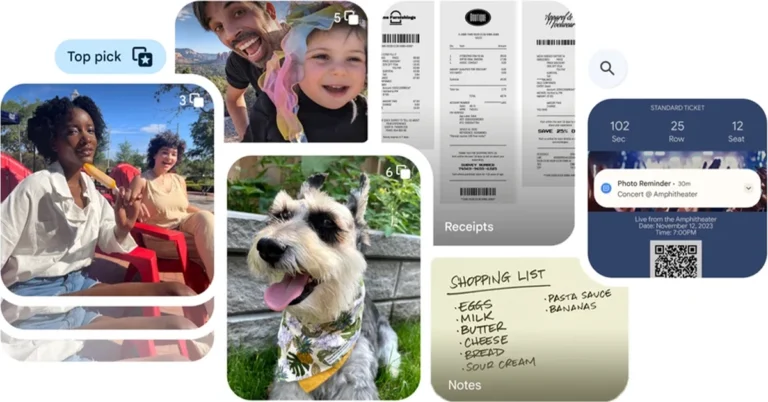
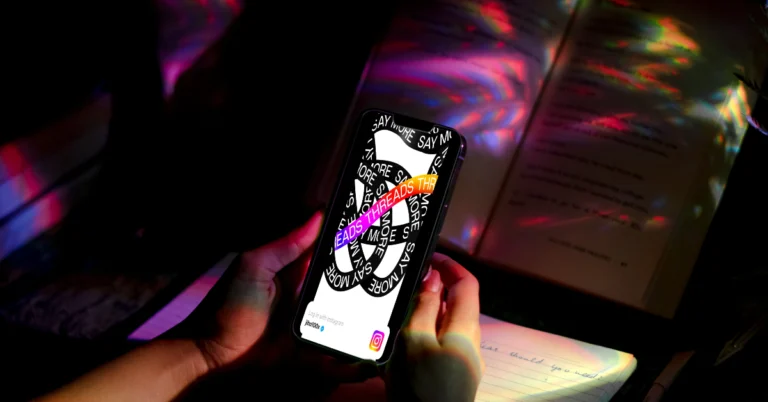
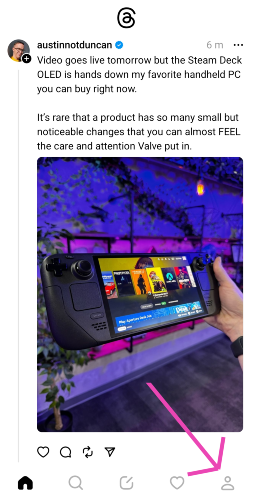 Step 3:
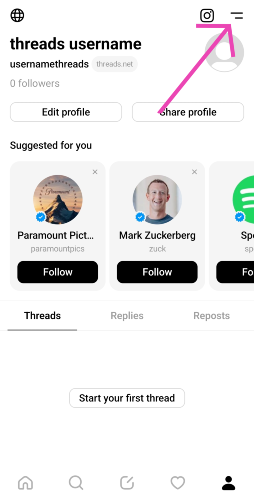 Step 4:
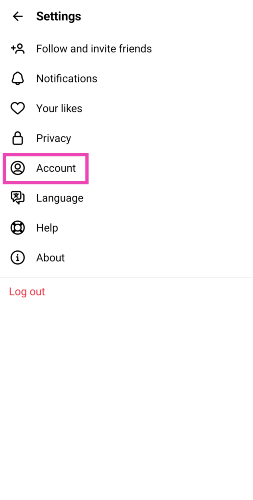 Step 5:
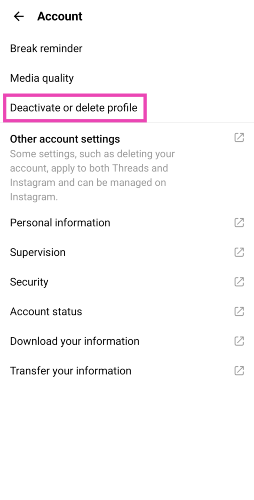 Step 6:
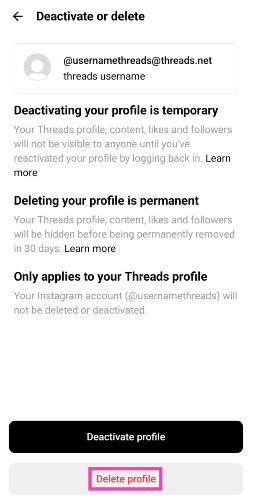 Step 7: