The e-commerce website Amazon continues to keep its customers entertained and in high spirits through their daily quizzes. June 28 Amazon Quiz has gone live now in its mobile app platform. The daily quiz contest conducted by the company brings an opportunity for the consumers to win exciting prizes. In today’s quiz, you can win the Rs 15,000 Amazon Pay Balance by answering all the questions correctly.
Every day Amazon brings a fresh set of questions for its customers that contains five easy questions based on general knowledge and current affairs. The quiz can be played on the Amazon app from 8 AM to 12 noon. You have to answer all the questions correctly; one wrong answer can make you eliminate from the quiz. By answering all the questions correctly, you will be shortlisted for a lucky draw. The results for the lucky draw will be announced at the end of the month. By participating in the quiz, you can win free products ranging from smartphones, other gadgets and Amazon Pay balance. Check out today’s quiz questions and answers to win June 28 Amazon Quiz: Today you can win Rs 15,000 Amazon Pay Balance.
June 28 Amazon Quiz Answers
Question 1: Due to the pandemic, which state recently suspended the yatra of Chota Char Dham, one of the most important Hindu Pilgrimages in India?
The answer is- Uttarakhand
Question 2: P-8 Poseidon, recently bought by Indian Navy, is an aircraft manufactured by which company?
The answer is- Boeing
Question 3: Thisara Perera, who recently announced his retirement from international cricket, played for which country?
The answer is- Sri Lanka
Question 4: What is the craft of making these objects called?
The answer is- Fletching
Question 5: Name this Italian town, where a great number of inhabitants were buried when Mount Vesuvius erupted in 79 AD.
The answer is- Pompeii
Amazon quiz has gone live now on its mobile app platform. The quiz can be played from 12 AM to 11:59 PM noon. All you need to do is just answer five easy questions that the e-commerce website puts before you. Today you can stand a chance to win Rs 10,000 Amazon Pay Balance.
Every day Amazon brings a new set of questions that consists of five easy questions based on general knowledge and current affairs. The participants have to answer them correctly to enter into a lucky draw. One wrong answer will get you eliminated from the quiz. Only one person will be declared as a winner and the results are announced at the end of every month. By submitting correct answers Amazon customers can win free gadgets as well as Amazon Pay Balance. To make sure you answer all the questions correctly Gadget Bridge everyday updates all the correct answers to all 5 questions. Check out today’s answers:
June 27 Amazon Quiz Answers
Question 1: Project CLAP is a cleanliness drive launched by which state government?
The answer is- Andhra Pradesh
Question 2: In May 2021, who won the Portuguese Grand Prix?
The answer is- Lewis Hamilton
Question 3: On the occasion of the centenary of which famous Indian’s birth is ‘Another Dozen Stories’ being translated into English?
The answer is- Satyajit Ray
Question 4: In which book of Shakespeare, is this herb mentioned as ‘for remembrance’?
The answer is- Hamlet
Question 5: What colour is the cue ball in this game?
The answer is- White
The storage of your Windows 10 laptop or PC will get full at a point. No matter the size of your hard drive if you save unnecessary data it will fill up the storage. Regularly clearing the disk can help free up storage occupied by temp files. When the storage is full on your computer it will slow the performance of your system. Enable Storage sense and delete files:Storage sense is a tool in Windows 10 that helps to clean up junk files and temporary files. The function will free up space on the drives and open up space to store other files. Using the Storage sense and timely deleting temp files will help in improving drive efficiency. Storage sense can be enabled manually or automatically. If the Storage sense has been enabled before Windows will set it automatically to delete temporary files and also the Recycle Bin. The below steps are to use Storage sense manually.
Tap the Window icon on the left bottom corner
Go to settings>System
And then select storage
Below the Storage click on the Configure Storage Sense or run it now
When the page opens up toggle the Storage sense
Use the Run storage drop-down menu and select During low free disk space
Read more: 5 best ways to fix if your external HDD not showing up on Windows 10Uninstall unnecessary apps: One of the reasons your Windows 10 storage is filled up is because of all the apps you have installed earlier and some are just stored with no use. Reviewing all the apps in computers and checking which is in use and which is taking space, can help in freeing up disk space in Windows 10. Check the steps below.
Open setting on Windows 10
And select Apps & features from settings menu
On the Sort by option: Put it to size
Find the app from the list which has big memory and are not in use
Click on the app>Uninstall
Read also: Running short of storage? Here are the best ways to free up storage space on your PCSave files to drive or cloud: Saving all your computer files in Cloud is a good way to free up all the space in Windows 10 hard disk. Some may use Microsoft one drive or Google drive but storing all your files in the cloud is highly advised. Cloud storage lets you select folders from your computers and upload them on Cloud server so that you can free space on the hard disk. The process of uploading your files differs a little according to Cloud service but it is common that the steps will be to Login>upload>Select files and upload. Disk cleanup: Another option to free up some space in the hard disk is to clean up the disk using the legacy Disk Cleanup tool. You can remove temporary files using this function and also clean Local disk (C:) junk files. Here are steps for Disk clean up
On the search bar next to the Windows icon search for Disk clean up and open it
From the function that opens choose (C:) drive and click Ok
From the same page, use Clean up system files for temp
For the above process, you can also use command with Win+R
Steam is a digital games distribution service where you can search and download PC Games from the Steam client. Though the downloads on Steam run smoothly most of the time there might be a few bumps at times. But this is not a problem that cannot be fixed or resolved. The following is the guide to fix Stream if it is not able to download games on your PC.Read Also:7 Best Websites for Safe APK Downloads (2024)
Restart your PC
The first step towards fixing any problem on your PC should be restarting it. A quick restart will fix any background glitch that may be causing Steam issues with downloading new games. To restart your PC, hit the Windows start icon on the taskbar, click the power button, and select ‘Restart’.
Delete the Steam download cache
The problem with not being able to download games on Steam might be because of the heavily downloaded cache in the app. This is a process that can be done easily on the Steam app. And the first solution to the games downloading issues. Below is the guide on how to delete the downloaded cache on the Steam app.
Open the Steam app on your computer
On the homepage go to the top right corner and click Steam
From the drop-down window select settings
On the Settings page from the left-side panel click on Downloads
On the right-side window scroll down to find the Clear Download cache
And click on it and press ok
Change the region
The next solution is to change the download region of your Steam client. The problem might be because of the download server of a region you have selected and the server is not able to connect properly. Steam has servers all over the world and chooses one based on your IP address. So choosing a better region server is important for optimal speeds. Check the steps below to change the region.
Go to the settings on the Steam app
From the left side panel click on downloads
And from the open-up window on the right: On download region
Another option that is available to fix downloading games issues on stream is to let Steam run as administrator. It might have occurred as a privilege issue and that might be the reason why the game is not able to be downloaded. Run the stream as administrator on your computer and it will solve the problem. Learn the steps below.
Go to the Windows homepage and right-click on the Steam shortcut
Scroll down to properties and find Compatibility from the options
From the Compatibility page scroll down and click on Run this program as an administrator with the tick
Now press OK and run Steam, it should fix the issue
It is possible you may have gone offline on Steam by accident. To check if that is the case, hit the Steam option at the top left corner of the screen and notice if it shows the ‘Go Offline’ option. This option is only available when you are offline. If that is not the case, hit the ‘Go Online’ button
Check Compatibility mode
There might be many other reasons for not being able to download the game but checking the compatibility mode is a must. This will help in identifying the older games that you are trying to download and it is no longer compatible. Read the steps below to check the compatibility.
Open the app
Go to the library and right-click on the game you are trying to download
Select Properties
Search Local files on the side panel>Browse
Find the file with exe/executable on it
And click Properties again
From the open up page: Tick on Run this program in compatibility mode
And choose your Window
Check if Steam’s servers are down
If trying the above fixes did not work for you, maybe it’s Steam’s servers that are at fault. The good news is that it is very easy to check that. Go to Downdetector.in and search for Steam. If you see a spike in user reports, it means that Steam is currently experiencing a server outage. The only thing you can do now is wait it out.
Frequently Asked Questions (FAQs)
Why is Steam not downloading games on my PC?
If Steam is not downloading games on your PC, it could be because corrupt cache, compatibility issues, or simply because you accidentally went offline.
How do I check if Steam’s servers are down?
Go to Downdetector.in and search for Steam. If you see a spike in user reports, it means the website is experiencing a server outage.
How do I run Steam as an administrator app on my PC?
Right-click on Steam’s shortcut in the Start menu, go to Properties, select Compatibilty, and tick the checkbox next to ‘Run this program as an administrator’.
Read Also:7 Things to Consider When Buying a Keyboard
Conclusion
These are the top 7 ways to fix Steam if it is not able to download new games on your PC. If you know of any other method to resolve this issue, let us know in the comments. While you’re here, check out this article to learn how to fix Steam’s voice chat if it is not working.
Having to download at high speed from the internet is one thing everyone wants and needs. The first thing that is needed for a faster download is better internet bandwidth of course, but there are other ways as well for faster internet. The following is the guide to increase the download speed in your Google Chrome browser. Read Also:Samsung Galaxy M55 5G, Galaxy M15 5G India launch date confirmed
Close unused tabs
If you have several tabs open in the background of the Google Chrome browser, it can significantly bring down the download speed. The unused tabs eat RAM space, thereby making the browser slower. If you’re playing multimedia content in one of the tabs, close it to give the download speed a little boost.
Using Google DNS
DNS means Domain Name System, which turns the website’s readable domain name into a machine number readable IP address. And this might not be the optimal solution but using DNS for download might help in increasing the download speed. Using a third-party DNS address will help you get a better download speed. To make the DNS settings in your web browser follow the steps below.
Using the search box on the left bottom corner open the Control panel
Select Network and Internet>Network and Sharing center>Change adapter settings
Right-click for Properties> Internet Protocol Version 4 (TCP/IPv4)>Properties
Select Advanced>DNS tab
Click on ‘Use the following DNS server address’
Replace the website address with the IP address from the DNS server
Prefetch is the network action prediction and it is used to open the web page faster. If you use the prefetch settings you can increase the download speed in the Google Chrome browser. When the prefetch settings are on the web pages on Chrome browser can load faster and better and can help with your download. Follow the steps below for the settings.
Open Chrome browser and go to settings for the top right corner menu
Select settings from the drop-down page
Go to Privacy and Security
Now select Cookies and other site data
Turn on the “Preload pages” and experience faster browsing and downloading
Another option to increase download speed on your web browser is by enabling “Parallel download”. The parallel download flag settings can be enabled by following the steps below.
On your Google browser open a new window and in the address bar on the top type “chrome://flags”
The Experiment window page will open up and on the search box you can type “parallel downloading
From the drop-down options use the pointer and select enabled
Now relaunch as soon as it appears
Relaunch the Chrome browser
Turn off VPN
VPN servers are quite handy if you’re trying to maintain your anonymity, but they can hamper the download speed by a significant factor. This is particularly true if you’re using a free VPN. Paid VPN services are generally faster and do not affect the download speeds on your device. If you’re using a free VPN app, disable it while the download is taking place on your device.
Use ‘Turbo Download Manager’ extension
The Turbo Download Manager extension can be easily installed from the Chrome extension. The extension functions are to stop, pause, or resume multiple downloads in the Chrome browser. Adding turbo download can solve the download speed problem in Google Chrome and increase the speed, too. The extension can also extract audio from video, and help save images from websites. Below are the steps to add the Turbo Download Manager on the Chrome browser.
Go to More tools>extension from the drop-down page
Find the three horizontal line on the left top corner
Open Chrome Web store>Search Turbo Download Manager on the search box
Add to Chrome
Update Google Chrome
If you’re using an older version of Chrome, not only is your device more susceptible to online threats like malware and phishing scams, but it also dials down the speed of downloads. Keep your browser updated at all times to avoid this. Once Google Chrome has a pending update, the ellipses at the top right corner of the browser will turn into a red arrow. Hit the arrow to update the browser.
Frequently Asked Questions (FAQs)
How do I increase the download speed in Google Chrome?
Make sure there are no unused tabs open in the background, disable your VPN, use Google DNS, and enable parallel downloading in Chome’s experimental features.
Is there a third-party extension to boost the download speed in Google Chrome?
The Turbo Download Manager extension for Chrome increases the speed of your downloads. It also allows you to extract audio from videos and save images from any website.
How do I update Google Chrome on my PC?
To update Google Chrome, simply hit the red arrow at the top right corner of the screen and select the update option. If there is no red arrow icon, it means your browser is up to date.
Read Also:OnePlus new AI Eraser image editing feature announced
Conclusion
These are the top 7 methods you can use to increase the download speed in Google Chrome. If you are using Chrome on your smartphone, make sure you allow it unrestricted access using battery settings. If you know any other way to boost the download speeds on your PC, let us know in the comments!
There is no YouTube app yet for desktop but YouTube can be streamed from the website using Chrome or any other browser. Google is responsible for streaming YouTube and connecting Google Chrome to YT. At times it may not be able to load YT on Chrome browser or YouTube may not be working on your desktop. So, here are the top 7 ways to fix the ‘YouTube not working’ issue on Google Chrome for desktop.Read Also:Google’s AI-Powered Trip Planning: A Game-Changer for Travelers
Close all other functions and restart Google Chrome
The first solution on the list is simple and it works to fix many other issues as well. If you had opened too many pages and tabs on the Chrome browser this might be the first reason for YouTube not working on your desktop. How you can fix such an issue is simple. You need to close all tabs and pages from the browser and clear all browsing site data. You can clear all the site data by using Ctrl+H or by clicking on the vertical three-dot on the top corner. Next, select Settings>Privacy and Security>Clear browsing data and after completing the process restart the Google Chrome browser.
Turn on the Javascript
The next option to fix the problem of YouTube not working on Google Chrome desktop is by enabling Javascript. Turning on the Javascript will help in video playback and the video on YT will run smoothly. Follow the steps to enable Javascript.
Open the Chrome settings by using the vertical three-dot icon on the right top corner
Visit Privacy and Security and on the search bar at the top of the window you search for Javascript or
Manually you can toggle the settings: Go to site settings>Content section
The adblocker in your Chrome browser extension might be one of the reasons that is creating issues while loading YouTube. The extension which has been enabled on Chrome might block the YT playback. You have two to fix from the extension: You can pause the extension or you can remove the extension added to your Chrome. Check the steps below.
Click the three-dot icon menu on the top corner
Go to More tools
From the drop-down page select extensions
And the from the page that open toggle off the extension
Or you can remove the extension from the Chrome browser
VyprVPNAnother best solution for fixing YouTube not being able to load on Google Chrome desktop is opening YT using a VPN. The Virtual private network will help you stream your YouTube if you encounter a problem playing it on Chrome. You can either download a VPN app or you can add an extension to your Google Chrome browser. The following step is on how to add a VPN extension.
Use the menu icon on the top right corner: three-dot icon
Go to more tools>Extensions
Click the horizontal line icon on the top left corner
Scroll down on the left side portal and select Open Chrome Web store
Using the Search bar on the left window search for a VPN
And click Add to chrome
Clear Google Chrome’s cookies and cache
Launch Google Chrome on your PC and click on the ellipses (three dots) at the top right corner of the screen.
Click on Settings.
Switch to the Privacy and Security tab.
Click on Clear Browsing Data.
Select Clear Data.
Reset flags on Google Chrome
Launch a new tab in Chrome and enter chrome://flags/ in the address bar.
Hit Reset All.
Update Google Chrome
If you’re using an older version of Google Chrome on your desktop, it may be causing issues while loading websites — including YouTube. To update Chrome, simply hit the red arrow where the ellipses should be (top right corner of the screen). Once the web browser has been updated, close all the tabs and relaunch it.
Frequently Asked Questions (FAQs)
Why is YouTube not working on Google Chrome?
This could be due to several different reasons. Typically, a corrupt cache, faulty connection, and malicious extensions are the major culprits behind this issue.
How do I update the Google Chrome browser on my desktop?
Launch Google Chrome and hit the red arrow button at the top right corner of the screen to update it. Once updated, restart the browser.
How do I clear the cookies and cache on Google Chrome?
These are the top 7 ways to fix the ‘YouTube not working issue’ on Google Chrome for desktops. If these fixes did not work for you, head over to Downdetector.in and check if YouTube’s servers are down. If you have any other methods to share with us, let us know in the comments!
Google Chrome has been the most preferred internet browser by many netizens. But the Web browser can sometimes run into problems such as not being able to load pages. This kind of error can be fixed with some simple steps. Several users have reported the same problem of not being able to load the pages on the Chrome browser. Follow the below steps to fix the error.
Restart the process:
The first thing you can do if pages are not able to load on Google Chrome in your Windows 10 computers is to restart the system. This process is the easiest and simplest way. You can complete this process by restarting your Chrome by quitting Chrome and reopening it, to use command press control + Q. Another option is by closing all tabs that are open on the browser and also all the extensions that are added on Chrome. And if these two options do not work you should restart your computer and it might work.
Read more: Top ways to fix images not getting downloaded from Google Chrome browser?
Clear cache and cookies:
Cache and cookies are temporary data like HTML files, Java scripts, CSS stylesheets, etc. Clear the cache from all sites or single websites. The cache and cookies that are stored in the Chrome browser might prevent other functions if the cache is loaded. Open Chrome clicks the three-dot icon on the top right corner and select settings. Now click on Privacy and security and clear browsing data. You use the command Ctrl, Shift, and Del keys also for shortcuts.
Read also: How to change default location of files you download from Chrome browser?
Check Troubleshoot Crash problems:
Checking for malware, fixing network issues, and fixing apps can be another function if Google Chrome is not able to load pages. First, troubleshoot, you should be checking for malware or if any viruses have been contracted from the page or websites. If the problem is found to be on the website, you should try restarting your network or restarting your internet router. And to fix problems with apps go to Settings>Advanced, go to “Reset and Clean up”, and click Update or remove incompatible applications. After this try reloading the page again.
Set Google Chrome to default in settings:
Another possible option to fix the sites that do not load in Google Chrome is by setting Google Chrome to default. Follow the steps to put it to default.
Open the Chrome browser
And click the three-dot icon on the top right corner
Go to settings
And scroll down to Advanced at the bottom of the page
Under Reset and Clean up: Select Restore settings to their original default
Press the blue colour Reset settings
Now relaunch Google Chrome and see if the page can open up
The e-commerce website Flipkart is hosting Daily Trivia Quiz. Every day it brings a bunch of new questions for its users. By answering them correctly you can win exciting prizes. The questionnaire is based on questions related to general knowledge. Also, the users can win free vouchers and super coins, among other offers via the daily quiz. June 26 Flipkart Daily Trivia Quiz Answers has already gone live on its platform.
The participant should be at least 18 years old and should have a valid login ID. The Quiz is available on the mobile platform and not the web version. E-commerce conducts the quiz on daily basis and goes live at 12:00 AM IST and runs till 11:59 PM IST. The winners are announced within 15 days from the date of participation that can be viewed under the Gems/Rewards section in the app.
How to participate in the Flipkart Daily Trivia Quiz
To participate download the Flipkart app on your phone. Then open the Flipkart app then head to Game Zone. Now click on the Daily Trivia Banner or search for Daily Trivia. Enter the game and answer all 5 questions with correct answers.
June 26 Flipkart Daily Trivia Quiz Answers
Question 1: What replaced Internet Explorer as the default browser of Windows 10 PC?
Answer: Microsoft Edge
Question 2: Who gave these ways of diplomacy – “Saam Daam Dand Bhed”?
Answer: Chanakya
Question 3: Which legendary cricketer acted in the Marathi movie ‘Savli Premachi’?
Answer: Sunil Gavaskar
Question 4: The name of which of these Saudi Arabian cities literally means ‘town’?
Answer: Medina
Question 5: Pranab Mukherjee was the 1st Indian President to visit _‘s official home in Finland.
Answer: Santa Claus
Have you participated in the Amazon Quiz? If not then play the daily quiz as it has gone live now. The e-commerce platform brings a quiz in which millions of people are participating to win gadgets, mobile phones and even Amazon Pay balance. It can be played from 12 AM to 11:59 PM every day on the mobile app platform. Today you have a chance to win Rs 5,000 Amazon Pay Balance.
Every day Amazon brings a fresh quiz for its customers. By participating in the quiz, you can win exciting prizes such as iPhone X, iPhone Xs, Seagate HDD, Camera, LG Smartphones, Bose Sound Touch 20 Speakers, OnePlus 7T among others. The Amazon Quiz can be played only on the mobile app platforms as it is not available for desktop users. The quiz contains five easy questions and you have to answer all the questions correctly and you are shortlisted for a lucky draw to select a winner. The results are declared at the end of the month. Check out today’s answers for the Amazon Quiz to win a Rs 5,000 Amazon Pay Balance.
June 26 Amazon Quiz Answers
Question 1: Who recently got appointed as the first-ever youth ambassador of UNICEF India?
The answer is- Hima Das
Question 2: Putola Nach is a traditional string puppet theatre from which state?
The answer is- Assam
Question 3: What is the claim to fame of ‘Stratolaunch ROC’ which is powered by 6 Boeing 747 engines?
The answer is- World’s Largest Plane
Question 4: Often used as a garnish, identify this herb.
The answer is- Parsley
Question 5: On a standard version of this board what number is directly opposite No. 1?
The answer is- No 19
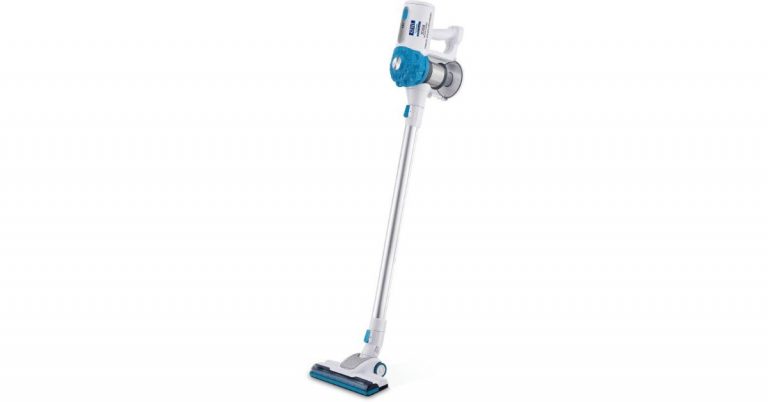
Kent a name known for making healthcare products which includes a range of water purifier, kitchen appliances and other healthcare products today introduced a new vacuum cleaner in India. Kent Zoom Vacuum Cleaner is said to be India’s first cordless, hoseless and rechargeable vacuum cleaner. It comes with an ergonomic design equipped with operations that makes cleaning easier at home.Commenting on this innovative smart home appliance, Mr. Mahesh Gupta, Chairman Kent RO Systems Ltd said “We rest assured that customers will be more than satisfied with the performance of Kent Zoom Vacuum Cleaner as this product has been designed keeping in mind that busy lifestyles increase time pressures, and by integrating this simple technology to one’s daily routine can help to lighten the burden.So you can purchase this home cleaning device in India at a price tag of Rs 14,999. The vacuum cleaner will be available in a white and black colour combination. It will be available for purchase at all Kent outlets and online on Amazon, Flipkart and www.kent.co.in.Being cordless and hose free is the biggest USP of Kent Zoom Vacuum Cleaner this feature sets it apart from the traditional vacuum cleaners available in the market. This feature makes the product very convenient and user friendly. The device equips operations such as multi-nozzle, handy fold & motorized floor. It comes with the latest cyclonic technology as well as HEPA filters. As per the company the air and dust are sucked at high speed creating a fast-spinning vortex while the dust is separated in a detachable cylindrical collection bin. The Kent Zoom Vacuum Cleaner is equipped with advanced cyclonic technology that sucks dust at high speed. Whereas the HEPA filter is washable, easy to clean and maintain. The HEPA filter helps in collecting low dust and particulate matter (PM) discharge.It is geared with a 1300W suction motor that collects dust and debris in a chamber and disposable dust bags are not required. There is another important feature which is its motorized floor brush operation that makes cleaning both hard surfaces such as floors and soft ones such as carpets easier. Also, the handy fold operation gives you the freedom to deep clean surfaces which requires a close and detailed cleaning.As it is a cordless vacuum cleaner so the Kent Zoom equips a rechargeable Lithium battery. It takes 4 to 5 hours to recharge which is slated to be enough to vacuum clean your house for straight 30 mins.
For the latest gadget and tech news, and gadget reviews, follow us on Twitter, Facebook and Instagram. For newest tech & gadget videos subscribe to our YouTube Channel. You can also stay up to date using the Gadget Bridge Android App.






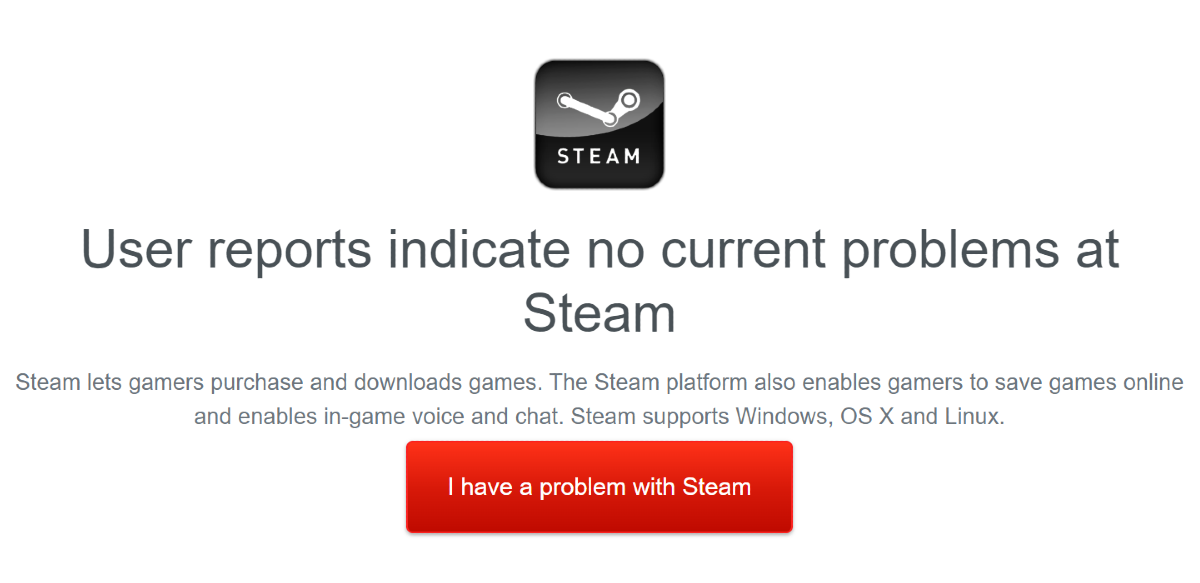 If trying the above fixes did not work for you, maybe it’s Steam’s servers that are at fault. The good news is that it is very easy to check that. Go to
 If you have several tabs open in the background of the Google Chrome browser, it can significantly bring down the download speed. The unused tabs eat RAM space, thereby making the browser slower. If you’re playing multimedia content in one of the tabs, close it to give the download speed a little boost.

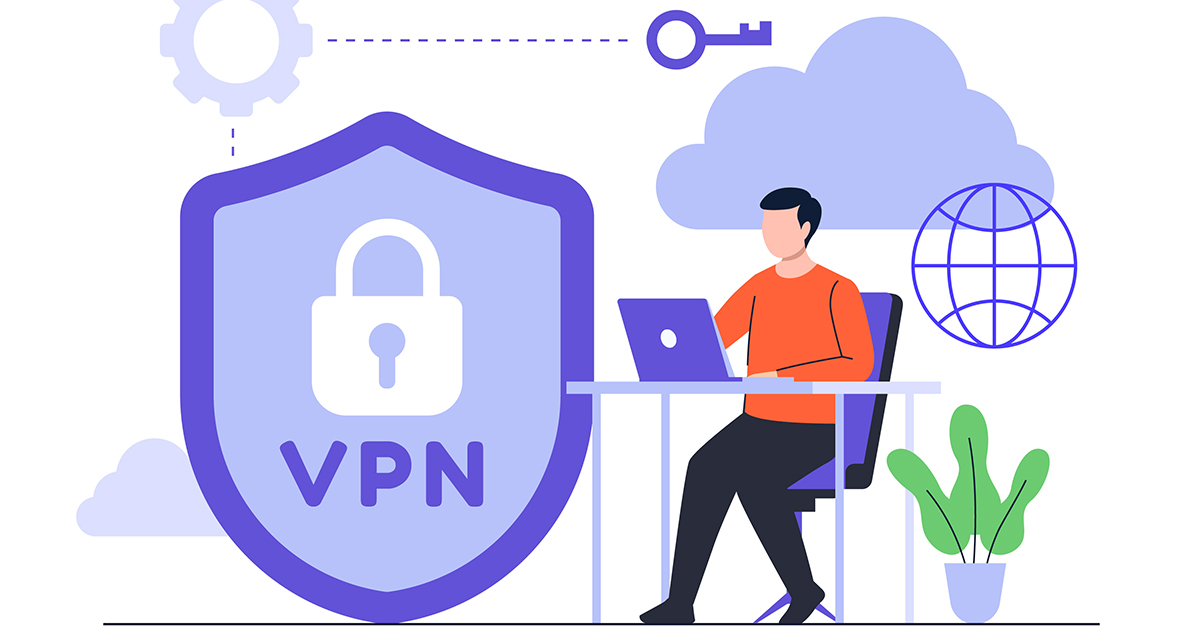 VPN servers are quite handy if you’re trying to maintain your anonymity, but they can hamper the download speed by a significant factor. This is particularly true if you’re using a free VPN. Paid VPN services are generally faster and do not affect the download speeds on your device. If you’re using a free VPN app, disable it while the download is taking place on your device.

 If you’re using an older version of Chrome, not only is your device more susceptible to online threats like malware and phishing scams, but it also dials down the speed of downloads. Keep your browser updated at all times to avoid this. Once Google Chrome has a pending update, the ellipses at the top right corner of the browser will turn into a red arrow. Hit the arrow to update the browser.