Top 5 photography YouTube channel to follow

The photography form of art is also very intriguing to learn. If you have the passion and will to learn photography, a YouTube channel can be one of the mediums. Most of the photography YouTubers are experts and can teach you some tricks and tools quickly. Here are some of the best photography YouTube channels you should follow. 
  • Jared Polin:

Jared Polin:The channel will give you a lot of photography content. Most of his videos on the channels cover camera gear review, advice on camera and tricks on how to shoot, camera walk-throughs, and more. The best videos section of the channel is the Photo News Fix that gives you an overview of what is happening in the photography world keeping you updated. Jared Polin has an incredible 1.32Million subscribers on his YouTube channel. Do follow him on YouTube for incredible content. 
  • Mango Street: 

Mango Street: The next channel on the list is Mango Street with 1.04Million subscribers on YouTube. Mango Street is all about giving the viewers the best photography tutorials in innovative ways. The videos on the channel give you a quick and easy way to take the perfect shot. The channel focuses on photography, styling, editing, and so much more. The videos are short and very expressive so learning from the channel is easy and simple. Check out their page on YouTube.  Read more: Now pay for parking right from Google Maps: How to use Pay for parking
  • DigitalRev TV:

DigitalRev TV:The YouTube page is popularly known for its self-proclaimed “Most viewed photography show on the internet”. But the title is worthy as the channel has an unbelievable 1.9Million subscribers. It is amazing and noteworthy. The Hong Kong-based channel has some very interesting videos to offer to its watchers and viewers. The channel deals in reviewing all sorts of photography-related equipment found on the web. They also offered tutorials on how-to videos and other fun tricks with the camera. Check them out on YouTube for some fun and entertaining videos. 
  • Fstoppers: 

Fstoppers: With the least YouTube followers in the list having around 893K subscribers. The channel is added to the list for being the most unique YouTube page. Fstoppers was established in 2010 and it is an online community of photographers, videographers, and other creative professionals trying to share reviews, tricks, tips, tutorials, and a lot more. The channel will give you one of the best photography education and other exciting content. Make sure you check them out on YouTube for more knowledge on photography.  Read also: Nikon announces free online photography classes this holiday season
  • We Eat Together: 

We Eat Together: The last YT channel on the list is We Eat Together. The YouTube page is mentioned on the page for all the food lovers who love to take pictures before a good meal or after preparing their best dishes. The channel will give a lot of great ideas on lighting, time-lapse, and shooting from different surfaces to give it an artistic look. You can browse the channel here on YouTube.  For the latest gadget and tech news, and gadget reviews, follow us on TwitterFacebook and Instagram. For newest tech & gadget videos subscribe to our YouTube Channel. You can also stay up to date using the Gadget Bridge Android App.

Instagram now allows users to post photos and videos via PC, testing goes live

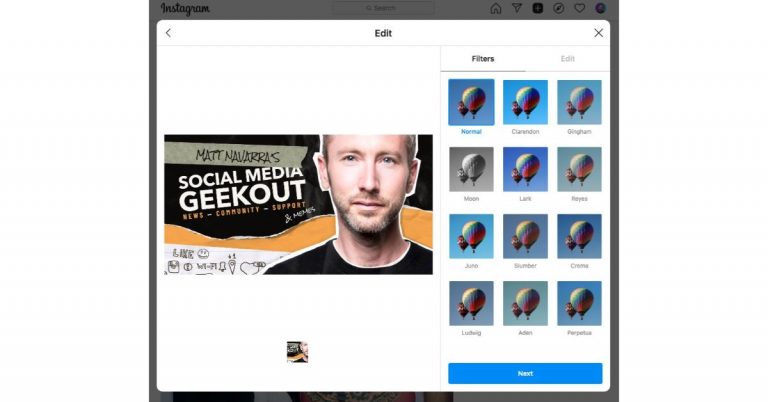
Instagram is testing a new feature on its platform that will allow users to publish posts from the desktop website on Mac as well as PC. A new toggle will allow doing so via Instagram’s desktop website. Last month a similar functionality was spotted being tested on the photo share sharing platform. But this time some screenshots have been shared to demonstrate the alleged upcoming feature to publish feed posts from the desktop version of the app. At the moment this is under testing and only a few numbers of users can have access to the first live test of this feature. Like we said before a new toggle + will appear on the upper right corner, just between the messenger and the explore button. According to Matt Navarra, some of the users including him have the new “+” icon in the top bar on the Instagram Account. When clicked the desktop version of Instagram allow the users to upload images or videos from their PC or Laptop to social media channel. In addition to this, you will also have the options to apply filters edit photos and videos before posting them just like you on the mobile application of Instagram. So possibly the parent company Facebook will soon launch this feature for the public in its next update.  Right now it only shows the options to publish photos and videos and does not offer the option for Stories or Reels uploads. But some also suggest that soon Instagram.com will facilitate IGTV upload on its platform.   So if you are one of those lucky ones who is getting the options to upload posts via the desktop version of the social media channel then you can follow our step by step guide on How to post on Instagram from your PC or desktop.
  • First things first, sign in to Instagram.com
  • Now click on the  “+” icon in the top bar
  • On clicking this icon it will enable you to upload images or videos directly from your PC hard drive. 
  • Now select any image you like from your device.
  • Once the desired photo is selected you will get the option to crop the image size in four different option.
  • If you prefer to apply any filters the platform offers you a wide range to choose from.
  • You can also adjust the colours, brightness, saturation and others
  • In the case of uploading videos, once you have selected a video you will have the option to select the frame and toggle to turn on or off the sound.
  • Now you are done with editing the photos or video add caption, location and alt text and hit publish.
For the latest gadget and tech news, and gadget reviews, follow us on TwitterFacebook and Instagram. For newest tech & gadget videos subscribe to our YouTube Channel. You can also stay up to date using the Gadget Bridge Android App.

Mi TV Webcam with full-HD resolution support launched in India

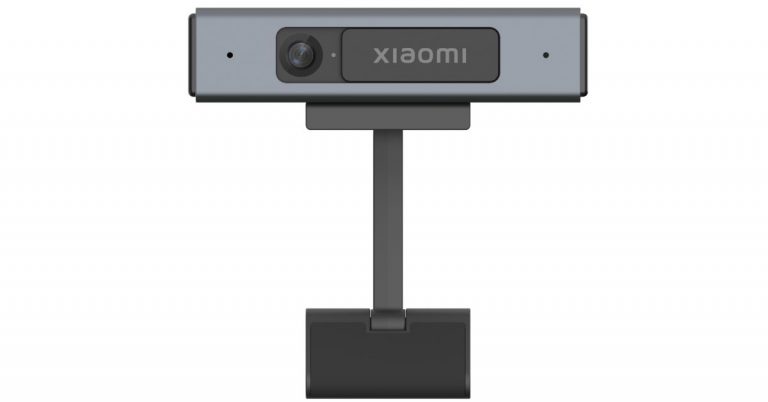
Xiaomi has officially launched its new offering which is basically a webcam for its TVs. Yes, Xiaomi has introduced Mi TV Webcam in India for personal virtual gatherings and professional business meetings. It offers a full-HD resolution and a 71-degree field of view. The new Xiaomi webcam comes integrated with far-field microphones that make it perfect to be mounted on a Smart TV for video calling purposes.  Mi TV Webcam pricing and availability Mi TV Webcam has been launched in India with a price tag of Rs 1,999. The device will be available for purchase via Mi.com, Mi Home and Mi Studio from June 28 onwards. With the launch, the company aims to take on the OnePlus TV Camera that was launched this month along with the new OnePlus Televisions at Rs 2,499. Mi TV Webcam with full-HD resolution support launched in India Mi TV Webcam specifications Mi TV Webcam is capable of capturing full-HD (1080p) videos at 25fps. The Xiaomi Webcam offers a 71-degree field of view and includes dual far-field microphones for better visual and sound quality. The microphones are said to capture crystal clear audio up to 4 meters, marking a safe and comfortable distance between the screen and the consumers. In addition to this, the device also includes an in-built 3D Image Noise Reduction algorithm to suppress noise in any image appearing in low light.  The Mi TV Webcam by Xiaomi has a ‘Simple Plug and Play video’ mechanism that allows it to be mounted on a Television or a PC. It holds an adjustable magnetic base that allows one to attach the device seamlessly to any metal surface on your device for a firm grip. It comes with a 1.5m Removable USB Type C port that assures connectivity across all TVs, Laptops, and Desktops, and allows interchange between Type C and Type-A cables to connect. Moreover, you can make video calls from your Smart TV with Google Duo, however, it is compatible with not only Mi TVs or Redmi TVs but any Android TV and all laptops (Running Windows & macOS). Keeping in mind the user’s privacy the webcam comes with a physical shutter, adding an extra layer of safety offering complete security to users. For the latest gadget and tech news, and gadget reviews, follow us on TwitterFacebook and Instagram. For newest tech & gadget videos subscribe to our YouTube Channel. You can also stay up to date using the Gadget Bridge Android App.

How can you stop people from adding you to WhatsApp groups?

WhatsApp has become one of the most reliable messaging apps available on all app stores. The app keeps updating new features to give the user a better experience. One of the best updates so far is the settings to control who can add you to WhatsApp groups. This can be really convenient for those groups you want to avoid and for those who want more privacy. Follow the below steps. 

Enable the Privacy setting on your Android phone: 

Enable the Privacy setting on your Android phone: Before enabling the settings to stop people from adding you to WhatsApp groups you have to make sure your phone has the following update. The WhatsApp app has to be updated to the latest version of 2.19.308 or higher. If you have updated to this latest version it is easy to limit the groups who can add you. Follow the steps to enable the settings. 
  • Download the app if you have not or open it if you have downloaded it
  • On the homepage click on the vertical three-dot for options
  • Now go to Settings
  • And select Privacy  
  • You have to press on Groups 
  • On the Groups page, three options are given: Everyone, My contacts, Nobody.
  • Choose any of the options by clicking on the circle icon next to the option on the left 
  • And if you choose the option Nobody then the admin of the group will have sent you a private invitation for you to join the group 
Read more: Google I/O 2021: Google released Android 12 beta, brings more privacy features and personalisations for Android phones

How to use the Privacy settings on iPhone:

How to use the Privacy settings on iPhone:Before you enable the privacy settings and limit the contacts of who can add you to the WhatsApp group you have to update the app first. Make sure you have updated the app to the latest version of 2.19.112 or higher. If you are sick of strangers or people you barely keep adding you on WhatsApp groups this setting is the best option available. Here are the steps to make the settings on the iPhone.
  • Open the app on your iPhone 
  • And go to the setting by clicking the gear icon on the right bottom corner 
  • From the setting page tap on Privacy 
  • And select groups from the list 
  • When you have a tap on groups three options will appear on the screen: Everyone, My contacts, Nobody 
  • You can choose My contacts or Nobody 
  • If you click on Nobody the person who wants to add you to a  group has to send you a private invitation link for you to join the group. 
  • And you can decide if you want to join the group or not 
Read also: Here is how you can chat and send message to yourself on WhatsApp For the latest gadget and tech news, and gadget reviews, follow us on TwitterFacebook and Instagram. For newest tech & gadget videos subscribe to our YouTube Channel. You can also stay up to date using the Gadget Bridge Android App.

How to delete or disable your LinkedIn account?

LinkedIn has been the most favoured social network platform for connecting professionals with each other. The Networking sites also allow you to grow your career by connecting you to other fellow professionals. But as everything comes to an end if you ever decide to delete your LinkedIn account, here are the steps you should follow. Check the guide below. 

Delete account from Setting and Privacy: 

Delete account from Setting and Privacy: You can remove your account from the settings and privacy page. Remember, once you hit the delete button it means you will permanently close your account and remove all the information from the site. Read the steps below to delete the account.
  • Open LinkedIn on the Web or the app 
  • Log in using your username and password 
  • Find the profile on the top right corner with the icon of your profile 
  • Click the profile icon on the toolbar
  • And from the drop-down page go to Settings and Privacy
  • From the next page select Account 
  • Scroll down to Account Management and tap on it 
  • Now from the page open on the right find Closing your LinkedIn account 
  • Click on it and select Next
  • Now for the last step, you need to enter your LinkedIn password and tap the Close account button
Read more: How to temporarily deactivate your Instagram account?

Temporary disabling account:

Temporary disabling account:There is another option for deleting your LinkedIn account. But this process is for deleting your Linkedin profile for a temporary period. This step is just in case if you want to get some time off from LinkedIn, but are not sure if you want to completely delete it or you know you will surely want to come back to LinkedIn again. The option is best suited if you do not want to start from scratch when you want to use a LinkedIn account again. Follow the steps below steps to temporarily disable your LinkedIn profile. 
  • Open any internet browser and open the LinkedIn website 
  • Enter your username and password and log in to your LinkedIn account 
  • Go to the taskbar and click on the profile icon on the top right corner 
  • From the drop-down menu select the Settings and privacy
  • Now click on Account
  • From the next window scroll down and search for the option Hibernating your LinkedIn account 
  • You have to click on the Hibernating button 
  • Now the page will show on screen: Everyone needs a break once in a while 
  • Answer few questions before temporary disabling it 
  • And give reasons for deactivating your account 
  • Select Next
  • Enter password again to finish the step 
  • And click Hibernate account 
Read also: Running short of storage? Here are the best ways to free up storage space on your PC For the latest gadget and tech news, and gadget reviews, follow us on TwitterFacebook and Instagram. For newest tech & gadget videos subscribe to our YouTube Channel. You can also stay up to date using the Gadget Bridge Android App.
Windows 11 launched: Here are the top 5 features

With the launch of Windows 11, the excitement of what will the update bring is always filled with curiosity. As far as we have researched the new Windows 11 will be benefiting all sorts of its users ranging from business users to gamers. The update will be programmed to make sure it is applicable for the future with competition from other popular OS. The new Windows will have a new exciting addition featuring all your Android apps to Windows now. The following are the top 5 features of Windows 11. 
  • An all-new Taskbar:

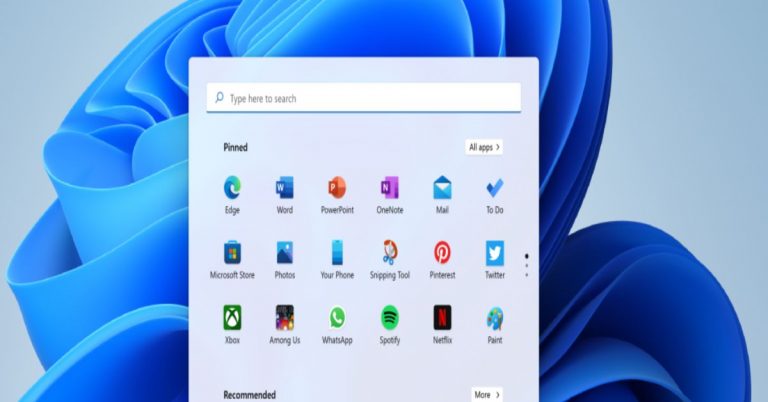
An all-new Taskbar:As mentioned, with the competition at risk from popular OS (Windows 11) is updating the taskbar, which will now be placed at the center. The icons on the taskbar placed at the center will help you access the apps easily and will be more attractive for visuals. The taskbar will also be resized by making it taller than before. The icons on the taskbar will now be rounded and new widgets to open multiple functions are also there. Another attractive feature is the Snap layout that will let you manage multiple screens at once. 
  • Microsoft Teams as default 

Microsoft Teams as default 
Solution 3: Install the latest version of Microsoft Teams (Image Credit: Microsoft)
The new Windows 11 will bring built-in Microsoft teams to its update. This update is targeted at the business user since there is an increasing user base of Microsoft Teams. With the built-in Microsoft Teams, it will let you video call or schedule video meetings easily with its integrated feature. Conducting your business on the new Windows 11 will be just a few clicks away.  Read more:  The next-generation Windows to be showcased on June 24: What to expect from Microsoft’s next major software update
  • Introducing Android Apps to Windows

Introducing Android Apps to WindowsThe update will let the Android user be comfortable with Windows 11 use. The new update of Windows is integrating Android apps into Windows 11. For more clarity, you will be able to use your Android apps on your Windows computers by downloading the apps from the Amazon app store. After the download, you will be able to run your apps on the system. Your favourite and popular apps will be placed on the corner of the screen for easy access.
  • Game enhancements

Windows will also upgrade the gaming experience in Windows 11 OS. The update will integrate the Xbox Game pass and support DirectStorage for faster loading of the game on PC. The Auto HDR function has been brought to Windows PC, which has HDR compatible monitors.  Read also: How to remove the news and interest widget from the Windows 10 taskbar?
  •  Voice control and more Gesture control 

Windows 11 will give more control to gesture and voice controls. With haptic feedback pen-stylus use on the computers is designed to be better. The new keyboard function will work better and can be compared with smartphone keyboards, too. The update will bring cursor controls while holding down the space bar, swipe movement, and also an emoji menu. The voice command has also been enhanced and now you can dictate text and also delete text.  For the latest gadget and tech news, and gadget reviews, follow us on TwitterFacebook and Instagram. For newest tech & gadget videos subscribe to our YouTube Channel. You can also stay up to date using the Gadget Bridge Android App.
Is your PC/Laptop compatible with Windows 11? Check for minimum system requirements and availability 

Microsoft has officially announced the Windows 11 operating system. The new OS is now less complex and brings you simplicity. It’s modern, fresh, clean and beautiful. The whole interface has been redesigned from the new Start Button to sound, font and icons; everything has been refreshed with new placements and new features. So now the new generation of Windows has been announced and we have got all your questions answered here in this article from minimum system requirements to its availability and free upgrade. If you want to know what’s new with the fresh Windows 11 click here.

Minimum system requirements for Windows 11

The all-new Windows 11 will require 1 gigahertz (GHz) or faster with 2 or more cores on a compatible 64-bit processor or System on a Chip (SoC). This will include Intel Core, Pentium, Evo chipsets, AMD’s Ryzen chipsets and others.  In addition to this, the system is required to have 4GB of RAM and 64GB of storage. On the other hand, Windows 10 should at least have 1GB RAM and 16GB storage. The company also recommends that the system should have  DirectX 12 compatible graphics / WDDM 2.x(Intel, Nvidia, and AMD) with a 9 inch bigger display with an HD resolution of 720P. Lastly Microsoft account and internet connectivity required for setup for Windows 11 Home. If your device does not meet these requirements, you may not be able to install Windows 11 on your device and might want to consider purchasing a new PC Is your PC/Laptop compatible with Windows 11? Check for minimum system requirements and availability 

Windows 11 Availability and free upgrade

PCs with Windows 11 pre-installed will be available later this year from a broad section of retailers. The company has worked with Dell, HP, Lenovo, Samsung, Surface and others to ensure most PCs you can buy today will be ready for Windows 11 – across a variety of form factors and price points.  Besides this Windows 11 will be available through a free upgrade for eligible Windows 10 PCs and on new PCs beginning later this year. The free upgrade will begin to roll out to eligible Windows 10 PCs sometime in Late November and continuing into 2022. Specific timing will vary by device. From next week the company will be releasing an early build of Windows 11 to the Windows Insider Program. To check if your current Windows 10 PC is eligible for the free upgrade to Windows 11, visit Windows.com to download the PC Health Check app. One must also ensure that they have enough free storage space to install updates and you may need to check to see if your hardware is still supported by your Original Equipment Manufacturer (OEM). It should be noted that not all Windows 10 PCs that are eligible to upgrade to Windows 11 will be offered to upgrade at the same time. Once the rollout begins, you can check if it is ready for your device by going to Settings/Windows Updates.  For the latest gadget and tech news, and gadget reviews, follow us on TwitterFacebook and Instagram. For newest tech & gadget videos subscribe to our YouTube Channel. You can also stay up to date using the Gadget Bridge Android App.

Battleground Mobile India sending data to Chinese servers? Everything you need to know

After PUBG along with 117 other apps were banned in India concerning privacy settings. Krafton, one of the developers of PUBG, has released its Indian version of the game dubbed Battleground Mobile India for Android users. The developers have promised to follow all laws and regulations made by the Indian government after the original version owned by Tencent company was banned in India. However, it has come to light that some data of the Battleground Mobile India players have been exchanged with a server in China, as claimed by a new report. Read below for everything you need to know.  Clouds of allegations have been looming against Krafton, the developers of the Indian version of PUBG, which was recently introduced as Battleground Mobile India, and also shareholders in the Tencent company who owned the global version of PUBG. Battleground Mobile India can now be downloaded from the Play Store on any Android device in India.  Read more: Battlegrounds India Mobile: Everything we know so far and when will it officially launch?
Image Courtesy: Battlegrounds Mobile India/Facebook
The game which was released recently came under the scanner again regarding the privacy of some of its downloads. According to a new report, some players are claiming in anonymity that the information sent and received in Battleground Mobile India APK is from China mobile communications servers in Beijing, the Tencent-run Proxima Beta in Hong Kong, as well as Microsoft Azure server in the US, Mumbai, and Moscow.  The claim was reported to be backed up by testing through a data packet sniffer app on an Android phone and yielded the result that it was run by China Mobile Communication Corporation and the server is situated in Beijing China.  Read also: Facebook will release Instagram for kids under 13: Features and Concerns
PUBG Lite shuts down in India: Reasons and contradiction with the PUBG Mobile India (Image Credit: Xbox)
With the undesired circumstances that are prevailing, Krafton has acknowledged the glitch. Kraton has commented that the organisation has come across the subject of the personal data of some of its users being shared. The company will contain the situation and has installed a small update in the game that will cut off the Chinese servers and prevent data sharing. Krafton has also made an official statement concerning the privacy of all its users.     “Krafton is fully aware of the recent concerns over data handling in regards to BGMI early Access test. Similar to global mobile games and apps, Battleground Mobile India also uses third-party solutions to provide unique game features. In the process of using these solutions, some data was shared with third parties. Its privacy policy fully discloses that the app may transfer some user data,  with the user’s consent to the privacy policy and choosing to migrate their accounts. No data has been shared in violation of the privacy policy. The data shared with third parties are only to enable certain features. In the meantime, Krafton will continue to closely monitor and protect any data being transferred to unexpected and restricted IP addresses before the official launch. -Krafton” Hopefully, with the update and the Krafton statement the privacy concern will be solved rapidly and the users can enjoy the game with no worries.  For the latest gadget and tech news, and gadget reviews, follow us on TwitterFacebook and Instagram. For newest tech & gadget videos subscribe to our YouTube Channel. You can also stay up to date using the Gadget Bridge Android App.

Microsoft Windows 11 unveiled: Less complex and more simplified, brings Android app to Windows

Microsoft has officially lifted the curtains from its next iteration of the Windows operating system. The new Windows 11 now looks more refined and has been optimised for speed and efficiency. The whole OS has been redesigned and the new generation now lets you customise multiple desktops, personalize your widgets, snap to with snap grids, superior graphics, new themes and all new Microsoft store with Android apps. Also, Amazon has collaborated with Microsoft to bring Amazon Appstore to Windows users.  Talking about the details first Microsoft has brought a more simplified Windows 11 design that will help users to be more productive. It looks less cluttered, fresh and contemporary. From the Start button to each icon has been redesigned and has been given a new space for more control. The Start Button has been moved to the centre from the screen’s corner edge, making it more discoverable.  The new Microsoft Windows 11 now brings Snap Layouts, Snap Groups and Desktops to provide multitasking and to help you organize your windows and optimize your screen. The users will be able to create separate Desktops for each part of their life and customize them to their liking for instance Desktop for work, gaming or school. With the introduction of Chat from Microsoft Teams, you can instantly connect through text, chat, voice or video with all of your contacts, anywhere, across Windows, Android or iOS. The Chat has been integrated into the taskbar this will allow you to connect with friends and family through Teams, allowing you to instantly mute and unmute, or start presenting directly from the taskbar. For PC gamers, Windows 11 has more for you like superior graphics and Auto HDR. The company has put some latest gaming technology DirectX 12 Ultimate to provide immersive graphics at high frame rates. DirectStorage for faster load times and more detailed gameplay and Auto HDR for a wider, more vivid range of colours for a truly captivating visual experience. What’s more, with Xbox Game Pass for PC or Ultimate, gamers get access to over 100 high-quality PC games with new games added all the time. You can easily find people to play with, no matter if they’re playing on a PC or console. Next, Microsoft Windows 11 lets you personalise Widgets with a new personalized feed powered by AI and Microsoft Edge. This will bring you closer to the news and information. Now, you can open a similarly curated view directly from your desktop. When you open your personalized feed it slides across your screen like a sheet of glass so it doesn’t disrupt what you’re doing. The new Microsoft Store will bring more apps than before but will make it easier to search for apps, games, shows, movies with curated stories and collections. In addition to this, Microsoft Windows 11 has also brought third-party apps like Microsoft Teams, Visual Studio, Disney+, Adobe Creative Cloud, Zoom and Canva to the Microsoft Store. Moreover, for the first time, the company has also announced plans to bring Android apps to Windows later this year. The user will discover Android apps in the Microsoft Store. For this, the tech giant has collaborated with Amazon so that the users can download the apps like TikTok or Khan Academy Kids through the Amazon Appstore. Microsoft also assures just like the last generation of OS all the applications will work on Windows 11 with App Assure, a service that helps customers with 150 or more users fix any app issues they might run into at no additional cost. Microsoft Windows 11 availability According to Microsoft, the new generations of Windows will be available through a free upgrade for eligible Windows 10 PCs and on new PCs beginning this holiday. You can check if your current Windows 10 PC is eligible for the free upgrade to the new one vis Windows.com to download the PC Health Check app. As per the software giant, the free upgrade will begin to roll out to eligible Windows 10 PCs this holiday and continuing into 2022. Next week the company is beginning an early build of Windows 11 to the Windows Insider Program. For the latest gadget and tech news, and gadget reviews, follow us on TwitterFacebook and Instagram. For newest tech & gadget videos subscribe to our YouTube Channel. You can also stay up to date using the Gadget Bridge Android App.

How can you use Google assistant to manage your office schedule and work like meetings etc?

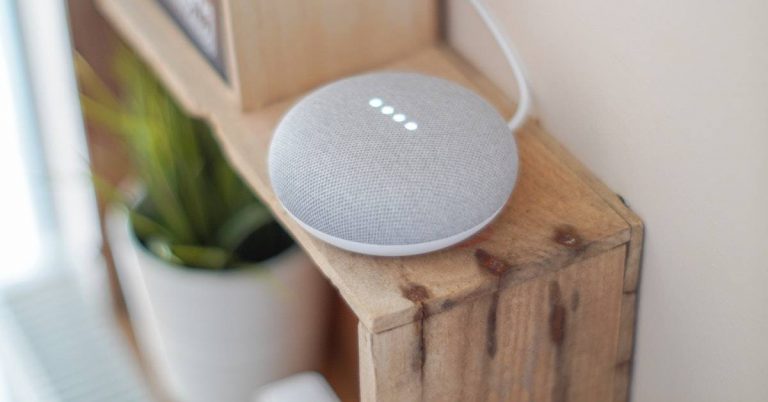
The AI technology-powered Google assistant can make our work more efficient. The Google Assistant can help you schedule meetings, take notes, or even command it to answer your calls and video meetings. The internet-based assistant can be put into various activities such as using it for routines so that you don’t miss anything important and also to set reminders. See the below guide 

Set routines and reminders:

Set routines and reminders:The Google Assistant can be used to set your routine tightly. The omniscient assistant can help you to remind you when is your next appointment or on Monday or maybe tomorrow making you prepare everything in advance. Another option to use Google assistant to increase your productivity is to mark your calendar with important dates on which you have your meetings or appointments. You can also ask the AI about the day how it is going to be, let’s say the weather or your plans for the day so that it does not coincide with your work planned out. Just say, “ok Google schedule a meeting” followed by date and time.

Use it for important phones calls and video meetings:

While you are a handful completely in the zone while working you do not have to move or lift a finger. To increase productivity you can always activate Google assistant with your voice that is set to your voice recognition. For instance, for a phone call, you can say “hey google” call with the name on your contact.  The internet-based phone call command works well when you need to make or answer an important call when your hand is full. You can make use of Google assistance for video meetings, maybe it is for answering your incoming video call by giving a command the video will emerge on your screen directly. You can set a reminder of an important video meeting that you had made. Also commanding Google assistant to make group video calls for that important meeting is very easy. Read more: How can you make Amazon Alexa learn new tricks and commands?

Use it to take down notes and make To do list: 

Use it to take down notes and make To do list: By using the Assistance integration with “Google keep on Android” you can make memos of all important things. You command by saying “Hey Google, take a note” followed by the topic you want to make note of.  The note will be saved into Keep and will be available whenever you need it next. Make sure you have the right setting to use this feature. You can do this by setting Keep as your preferred note-taking service on your phone. Go to the Google Home app and tap settings and find “Notes and lists” and select “Google Keep” from the list.  Read also: The new feature of Facebook’s Messenger will allow direct chat with WhatsApp users

IFTTT integration: 

IFTTT integration: IFTTT stands for “If this, then that”. Using the IFTTT feature in Google assistance you can create your command. For example, if you command it is time to wake up then your automated coffee maker turns on. The function works with chains of conditional statements, which are called applets. The IFTTT can connect all your devices to activate your command.  For the latest gadget and tech news, and gadget reviews, follow us on TwitterFacebook and Instagram. For newest tech & gadget videos subscribe to our YouTube Channel. You can also stay up to date using the Gadget Bridge Android App.