7 things to do at home to kill time using technology

Are you bored? Do you have a smartphone or a computer? Then you have everything to have a fun time! Sometimes, even if we have an agenda full of events, there are moments when we have nothing left to watch on Netflix when we would appreciate having some hobby to kill time entertainingly. Here is a list of useful, entertaining, and even productive things you can do at home using technology so you won’t be bored!
  1. Learn a new language online and at home
If you don’t know what to do at home and are looking for something productive, learning a new language or improving your level of the languages you already know is a fantastic idea. Best of all, improving your language skills is cheaper than ever: far from language schools, there are now plenty of courses and exercises to practice online. If you want to put a language into practice, you can look for a tandem through the many websites and Facebook groups for this purpose. You can also watch movies in the original version and improve your language level daily!
  1. Online games: casino and videogames
In the last few years, online casinos have been top-rated. So it is a safe pastime, although it is always advisable to do it moderately and keep a budget according to your finances. But in addition, there are games of all kinds that, although you may think “it’s for the geek who knows everything,” are entertaining. You can give a shot to pokies jackpots, have fun with roulette or feel like you are in a Hollywood movie playing live poker!
  1. Discover new music groups
Listening to music is a great way to clear your mind and kill time at home. If you are tired of listening to the same old stuff, you can discover new bands in two ways: listening to radio shows and playing your friends’ playlists on Spotify. There are so many bands and musical styles that you will surely make some interesting musical discoveries – listen to the new artists on the music scene!
  1. Improve your cooking skills online
Eating is an essential need. However, only some develop culinary skills. Some have learned to cook and are pretty good at it, while others are satisfied with their results after many attempts. Whether you are a cook or not, why not take the opportunity to learn how to cook better and improve your diet as much as possible? You can learn to cook quickly and comfortably with many online cooking tutorials. You can prepare exquisite dishes with nothing to envy those of the most requested restaurants. Everything is a question of putting desire and repeating the elaboration of the dishes until obtaining a unique flavour and presentation. You can also learn to cook exotic dishes from other countries, such as Indian or Thai cuisine. Undoubtedly, something to do at home that will leave you satisfied.
  1. Visit museums around the world virtually
Luckily, culture is becoming more and more accessible. In recent years many museums worldwide have been encouraged to offer their rooms and exhibitions virtually without paying an entrance fee. What better way to kill time at home than seeing paintings by artists such as Van Gogh, Monet, or the most outstanding artists? Let yourself be carried away by art without leaving home. A good option is the virtual Prado Museum.
  1. Open a YouTube channel
Undoubtedly, YouTube is one of the platforms and social networks hitting hardest. There are videos of all kinds and for all tastes, so why not upload your own? Many people have become known thanks to their videos; more than one has turned their channel into a real business. Monetizing your videos through advertising can be a very lucrative source of income. Some YouTubers show their day-to-day life, others have a cooking channel, and others analyze the latest video games in the industry. Whatever it is, choose your topic and dare to open your channel: you can kill time at home and earn extra money every month.
  1. Join a virtual book club
Reading is always a good option to clear your mind. However, especially for those who have already devoured all the books on their list, it can sometimes be challenging to find books to read or even understand the end of a literary work. Reading lovers to whom this sounds familiar opt to join a book club. Usually, there is one in the local library, but in recent years they have appeared in digital versions: for all those who prefer to discuss books without leaving home. At first glance, it may seem that it is a plan only for avid readers, but the truth is that there is room for everyone in this type of club: both for those who read occasionally and for those who do it regularly. Undoubtedly, joining one of these club discussions is a different and stimulating way to kill time at home. For the latest gadget and tech news, and gadget reviews, follow us on TwitterFacebook and Instagram. For newest tech & gadget videos subscribe to our YouTube Channel. You can also stay up to date using the Gadget Bridge Android App. You can find the latest car and bike news here.

BGMI redeem codes for 20 July 2023, claim and receive rewards and benefits

After being banned for nearly ten months, Battleground Mobile India, aka BGMI, is officially available again in India. BGMI fans are looking for ways to improve their game experience and one such method is the usage of redemption codes, which offers a variety of rewards and advantages using BGMI redeem codes players can gain access to new skins, outfits, loot crates, weapons and free UC and diamonds. As mentioned earlier, these codes give users the chance to earn unique rewards and gain extra benefits while playing the game. This includes GUN SKINS (M4, AKM, M416, AWM, M24, UZI, KAR98K), free character voucher, Andy, Carlo, Sara, Victor character for free, free Anna Character on completing the mission and UC or Royal Pass Discount. So here we have gathered a list of the most recent BGMI redeem codes as of 20 July 2023. Also, redeem these codes asap as these are only valid for a limited duration.

BGMI Redeem Codes for 20 July 2023

BOBR3IBMTO SIWEST4YLXR BDNKUPRMF4 LEVKIN1QPCZ GPHZDBTFZM24U VETREL2IMHX ZADROT5QLHP SD14G84FCC GPHZDBTFZM24U KARZBZYTR

How to get free Redeem Codes for BGMI on 20 July 2023?

  • Launch BGMI on your device.
  • Then select the Redeem Code option from the main menu.
  • Next, click on the Redeem code tab.
  • A new window will open, requesting the redemption code.
  • Now enter your BGMI code.
  • Confirm and click on the “Redeem” tab.
  • If your redeem code is valid then you will get a message confirming that your rewards were successfully redeemed.
(Note that these codes are case-sensitive, so be sure to type them correctly to prevent any errors.) For the latest gadget and tech news, and gadget reviews, follow us on TwitterFacebook and Instagram. For newest tech & gadget videos subscribe to our YouTube Channel. You can also stay up to date using the Gadget Bridge Android App. You can find the latest car and bike news here.

Garena Free Fire Redeem Codes Today 20 July 2023: Here is how to claim them

Garena Free Fire is a battle royale game with regular awards and tournaments to keep players interested. If you play Garena Free Fire, you should be aware of the redeem codes that are released on a daily basis. However, because the battle royale game is banned in India, players from other countries can use the Free Fire Redeem codes daily. If you’re unfamiliar with the Garena Free Fire redeem codes or don’t know how to get them, we’ve put together a step-by-step guide to help you redeem them. Check out Garena Free Fire Redeem Codes for 20 July 2023. The Free Fire redeem codes are a great way to get free stuff. These are 12-digit codes that contain alphabets and numbers, as well as an expiration date and time. Because the Garena FF redeem codes cannot be used more than once, you should hurry to the redemption page to claim your free reward before someone else does. To get a free reward, all you have to do is go to reward.ff.garena.com/en, which is the official redemption page. Also, keep an eye on this space for daily updates on Garena Free Fire redemption codes and rewards.

Garena Free Fire Redeem Codes Today 20 July 2023

FAGTFQRDE1XCF FFCMCPSBN9CU BR43FMAPYEZZ NPYFATT3HGSQ FFCMCPSJ99S3 XZJZE25WEFJJ V427K98RUCHZ MCPW2D1U3XA3 FFAC2YXE6RF2 FFCMCPSGC9XZ MCPW2D2WKWF2 FFCMCPSUYUY7E MCPW3D28VZD6 EYH2W3XK8UPG ZZZ76NT3PDSH FFCMCPSEN5MX HNC95435FAGJ 6KWMFJVMQQYG

How to Get Free Fire Redeem Codes for Garena on 20 July 2023?

  • Visit the Garena Free Fire game’s official website at reward.ff.garena.com.
  • Use your Facebook, Google, VK, Apple ID, Huawei ID, or Twitter account to log in.
  • You’ll be taken to a valid redemption code (s)
  • Copy and paste the 12-digit redemption code into the text box.
  • On the screen, a dialogue box will appear.
  • ‘Ok’ should be selected.
For the latest gadget and tech news, and gadget reviews, follow us on TwitterFacebook and Instagram. For newest tech & gadget videos subscribe to our YouTube Channel. You can also stay up to date using the Gadget Bridge Android App. You can find the latest car and bike news here.

Nothing Ear (2) Review: Back In Black

Nothing’s second instalment in the ‘Ear’ TWS series, Ear (2), was launched earlier this year. This is Nothing’s third TWS product, following the Ear (1) and Ear (stick). We reviewed Ear (2) soon after it was launched in India. The TWS impressed us on all fronts, but left one lingering question – does it come in black? And now it does. However, an all-black colour scheme is not the only new addition to the Ear (2). It also gets an Advanced Equaliser feature, something that hardcore audiophiles will certainly enjoy. We spent a few days with the Black variant of Nothing Ear (2), here is our in-depth review. Read Also: How to watch YouTube videos on Android Auto in any car?

Nothing Ear (2) review: Design

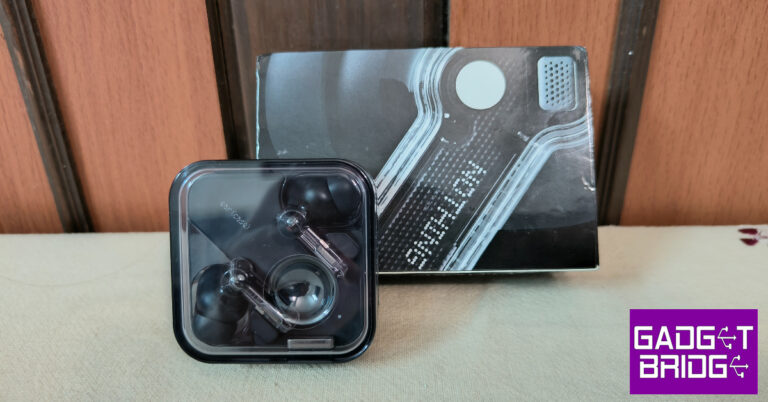
Ear (2)’s black theme extends to its retail packaging as well. Even the user guide and safety manual carry an all-black look. The USB Type-C cable, however, remains white. Tucked to the right of the TWS, you will find two additional pair of ear tips. Nothing Ear (2): Design Nothing’s transparent design philosophy really shines on its darker-coloured products. While there are no changes in design, the black variant of Nothing Ear (2) is a total attention grabber. Overall, the Ear (2) is not a radical departure from its predecessor. It is more compact but retains the briefcase-shaped form factor. The case is made entirely out of plastic, but it feels quite sturdy. The hinge and pairing button have been blacked out in the new variant. Nothing Ear (2): Design Our biggest reservation about this design is the transparent plastic lid. It has a tendency to attract smudges and fingerprints that can mess with the see-through look of the device. While we didn’t use the device long enough to register any scratches on this lid, it does not seem like it can ward them off, especially if the case shares the pocket with keys and loose change. On the bright side, this case is rated IP55 for dust and water resistance. In-ear design for the earbuds is the correct choice for the Ear (2). Anything else and you’d have to settle for mediocre ANC (if you get any at all) and no size options. We also like that Nothing colour codes the left and right earbuds instead of leaving the user to find the appropriate lettering before putting them on. The right earbud has a red dot on its panel while the left bud has a white dot right next to the noise-cancelling microphone. The earbud stems respond to pinch gestures for audio and call controls. We like this approach as it greatly reduces accidental touches, but it takes some time to get used to the double pinch gesture. Nothing Ear (2): Design We did not have any issues with the fit during our time with the Nothing Ear (2). These earbuds feel comfortable inside the ear and you can easily work out while wearing them. Since the outer panel only responds to sideways pinching gestures, you can easily adjust the earbuds in your ear and not worry about pausing the music. Even in sweaty conditions, the fit remains secure.

Nothing Ear (2) review: Performance

Pairing Nothing Ear (2) with your smartphone or PC is as easy as it gets. All you need to do is flip open the lid and use your phone to scan for nearby Bluetooth devices. For devices that struggle with finding the TWS, the Bluetooth pairing button on the side of the case will be of tremendous help. With an 11.6mm audio driver on either earbud, the Ear (2) delivers a thumping output. Nothing Ear (2): Performance Nothing has done a great job of curating Ear (2)’s sound profile. Special attention has been paid to the mid and low frequencies, without letting them cloud over the entire mix. The subtleties of the higher frequencies do not go unnoticed either – they are well represented on the soundstage. We used the Ear (2) to listen to a diverse range of genres, and the earbuds produced did justice to the mix every time.  Listening to Khruangbin on the Ear (2) was a delight. The sharp hits of the hi-hat in the background were very distinct, just as the mix commanded. Even though the lower end of the mix felt a little elevated, it made for a great listening experience. The audio output barely distorts upon cranking up the volume, but we wish these earbuds were a bit louder.
Advanced Equalizer on the Nothing X app
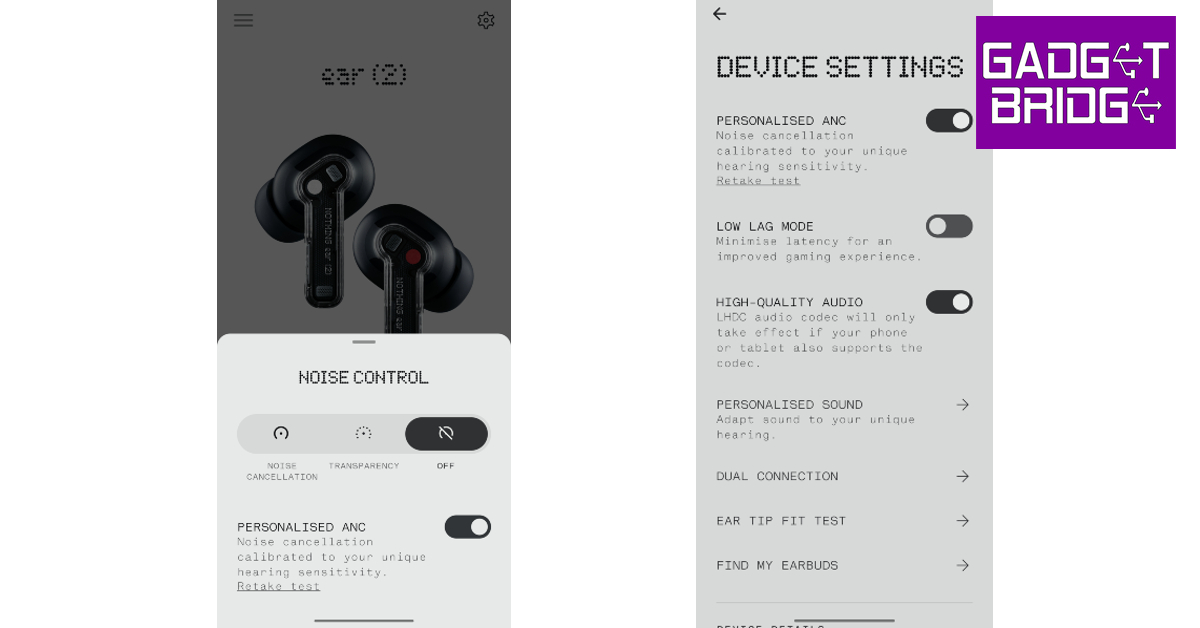
The Nothing X app remains the best TWS support app we’ve used, and it only gets better with the new firmware update. The new ‘Advanced Equaliser’ feature gives the user more control over the audio output. We’ve seen this feature before on several TWS products, but Nothing’s intuitive approach to the process is far ahead of the curve. The graphical interface for the 8-band interface makes it very easy to control. Any changes made to the equaliser are instantly reflected on the audio output. The Nothing X app also lets you manually set the frequency and Q factor for every band. You can also share your equaliser profile with other users, and import someone else’s profile by scanning a QR code within the app.
ANC and other features
Nothing Ear (2)’s ANC chops are seriously impressive for a TWS in this price range. In an indoor environment, Ear (2) easily cancels out the general humdrum. If you’re sitting inside a car, these earbuds will not completely nullify the surrounding traffic noise but reduce it to a more conducive level. You can change the level of ANC from the Nothing X app and even set up a personalised profile. Another feature which we really enjoyed using was multi-device connectivity. You can pair the Nothing Ear (2) with two devices at one time. So, if you’re watching a movie on your laptop, these earbuds will pause the playback and play your phone’s ringtone every time you get a call. The only problem we encountered was that the transition between devices wasn’t seamless. While the earbuds quickly adapted during calls, switching media playback between two devices took some time. The transparent case packs a 485mAh battery. Each earbud also holds 33mAh of charge. With ANC turned off, you can push the battery life to 6 hours, with an additional 36 hours inside the case. This amounts to 6 complete charge cycles. We were constantly using ANC on the Ear (2) and were able to squeeze out 3-4 hours of use. The charging case gave us 4 complete charge cycles. Not bad for a TWS in this price range. Read Also: Meta brings a new update to Threads, to impose rate limits to combat spam

Verdict

We personally prefer the black Ear (2) over the white one. It keeps the transparent design from looking too campy and brings its own special flair. The Advanced Equaliser is a brilliant addition too, one that certainly won’t be reduced to a gimmick. The overall sound profile of this TWS is very pleasing and will appeal to most ears. But what really sells this TWS is its amazing app support.

Nothing Ear (2): Pros

  • Looks great
  • Very pleasing audio output
  • Advanced Equaliser
  • Tremendous app support

Nothing Ear (2): Cons

  • The transparent lid is prone to scratches
  • The audio could have been a little louder
For the latest gadget and tech news, and gadget reviews, follow us on Twitter, Facebook and Instagram. For newest tech & gadget videos subscribe to our YouTube Channel. You can also stay up to date using the Gadget Bridge Android App. You can find the latest car and bike news here.

How To Remove Call Recording Warning On Android?

0
In order to comply with regulations around recording phone calls without the other party’s consent, Android smartphones are required to use the Google Phone app as their default dialer. While you can still record a phone call using Google’s dialer app, it sends an alert to the other people on the call as soon as you hit the record button. While this is the ethical way to go about things, in some cases, it can defeat the purpose of recording a call. In this article, we show you how to remove the call recording warning on Android smartphones. Read Also: Meta released more tools for creators on Facebook, bringing more improvement to the platform

Remove Call Recording Warning on the Google Phone app

Step 1: Install the TTSLexx app from Google Play Store. Step 2: Go to Settings and select General Management. Step 2: Go to Settings and select General Management. Step 3: Tap on Text-to-speech output. Step 3: Tap on Text-to-speech output. Step 4: Tap on Preferred Engine and select TTSLexx. Save the changes. Step 4: Tap on Preferred Engine and select TTSLexx. Save the changes. Step 5: Go back to Settings and select Apps. Step 5: Go back to Settings and select Apps. Step 6: Scroll down to Google Phone and select it. Step 6: Scroll down to Google Phone and select it. Step 7: Go to Storage and select Clear Data and Clear Cache. Step 7: Go to Storage and select Clear Data and Clear Cache. How To Remove Call Recording Warning On Android? Step 8: Restart your phone. This will remove the call recording warning in the Google Phone app.

Turn off Call Recording Warning on OnePlus/Oppo smartphones

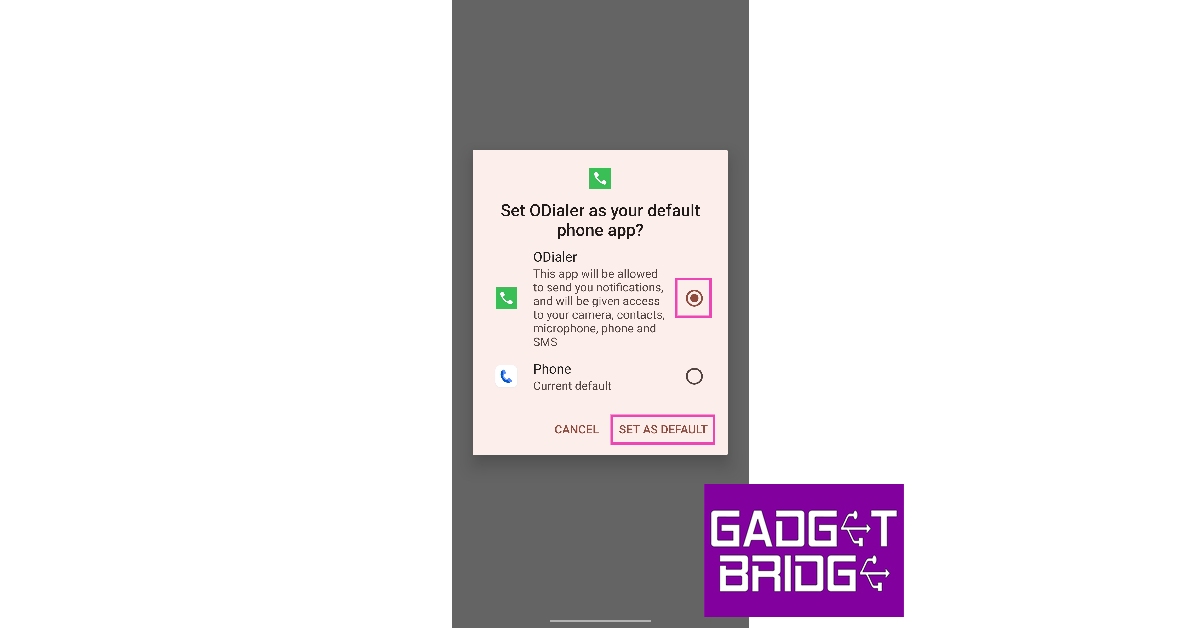
OnePlus’ proprietary dialer app does not alert the receiver when you start recording the call. Here’s how you can use it. Step 1: Go to the Google Play Store and install the ODialer app on your OnePlus smartphone. Step 2: Launch the ODialer app on your phone. Step 3: In order to use the app, you will need to set it as the default dialer. Hit Yes on the popup box upon launching the app. Step 3: In order to use the app, you will need to set it as the default dialer. Hit Yes on the popup box upon launching the app. How To Remove Call Recording Warning On Android? Step 4: On the following page, select ODialer as the default dialer app. Step 4: On the following page, select ODialer as the default dialer app. How To Remove Call Recording Warning On Android? Step 5: Give ODialer the necessary permissions and phone access.   Step 6: Hit ‘Record’ when you’re on a call. The receiver will not hear any call recording alert or warning. Step 5: Give ODialer the necessary permissions and phone access.

Frequently Asked Questions (FAQs)

How do I disable the call recording alert on the Google Phone app?

Install TTSLexx on your device and set it as the preferred engine in text-to-speech output settings. Clear the cache and app data of the Google Phone app and restart your phone. The call recording warning will be disabled. 

Do proprietary dialer apps have a call recording alert?

Proprietary dialer apps from Oppo and OnePlus do not notify the receiver when you start recording the call.

How do I record a call on my Android smartphone?

On proprietary dialer apps, simply hit the Record icon to start recording a call. On the Google Phone app, hit the ellipses in the call window and select ‘Record’. Read Also: Mivi DuoPods A650 Review: Should you buy them?

Conclusion

This is how you can remove the call recording warning on your Android smartphone. If your Android smartphone comes pre-installed with the Google Phone app, your best option is to remove it from your device and install the manufacturer’s default phone dialer. If this hack doesn’t work on your device, use the TTSLexx method. For the latest gadget and tech news, and gadget reviews, follow us on Twitter, Facebook and Instagram. For newest tech & gadget videos subscribe to our YouTube Channel. You can also stay up to date using the Gadget Bridge Android App. You can find the latest car and bike news here.

Gmail encouraging users to enable Enhanced Safe Browsing, here is how you can turn it on

Almost two decades ago, Google introduced a free web-based email service known as Gmail. Gmail is one of the most popular email platforms in the world. It provides users with a secure and convenient way to send, receive and manage their emails. With rising technological advancements, cybercrimes are on the rise as well. To curb this problem Gmail is encouraging its users to enable Enhanced Safe Browsing. 

What is Enhanced Safe browsing?

Enhanced Safe browsing is an advanced layer of security. It provides users with additional protection while browsing the internet. Enhanced Safe Browsing is an enhanced layer of filtering and scanning that identifies and blocks potentially harmful websites and downloads. Here are some of the features of Enhanced Safe Browsing in Gmail:
  1. Malware and Phishing protection: Enhanced Safe Browsing in Gmail scans websites and downloads for malicious content which includes malware, viruses and phishing attempts. It then blocks such content and prevents users from downloading it.
  2. Dangerous website warning: Enhanced Safe Browsing warns users about websites that can be potentially harmful to them.
  3. Download scanning: Before the completion of downloads, Enhanced Safe Browsing scans the files for any malware. If it detects a threat it will block the download immediately. 
  4. Privacy Protection: Enhanced Safe Browsing in Gmail also adds an additional layer of privacy as well. It blocks tracking cookies, prevents websites from collecting excessive user information and provides options to disable tracking advertisements. 
Read also: Where to stream Guardians of the Galaxy Vol 3 in India?

How Enhanced Safe Browsing Works on Gmail?

Enhanced Safe Browsing works in the background and provides faster and proactive protection against dangerous websites, downloads and extensions. Enhanced Safe Browsing provides protection when you are signed in and improves your security on Chrome and Gmail. 

How to enable Enhanced Safe Browsing on Gmail?

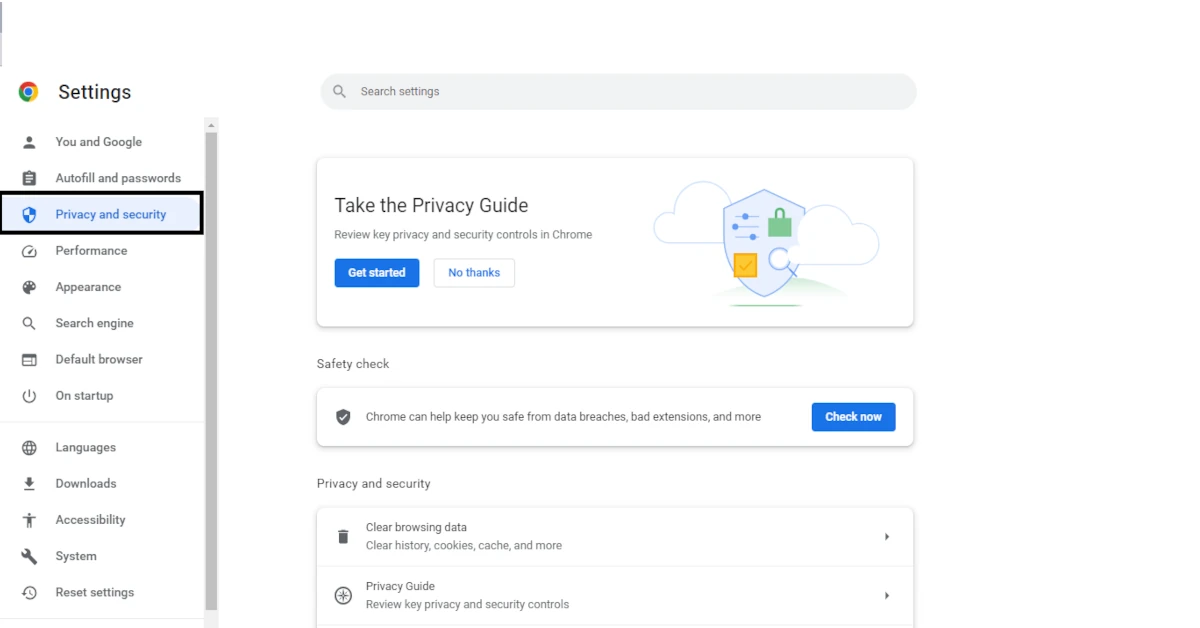
You can turn on Enhanced Safe Browsing on Gmail when it shows on your screen by flipping on the toggle. If you haven’t got the banner suggestion here is a step-by-step guide: 
  1. Open your Google Account settings
  2. Choose Security
3. Scroll Down to enhanced safe browsing for your account 4. Click on Manage Enhanced Safe Browsing 5. Flip the toggle to turn on Enhanced Safe Browsing Read also: Meta released more tools for creators on Facebook, bringing more improvement to the platform 

Conclusion

Gmail is evolving and introducing new features that improve user experience and productivity. It is a widely used email service for both personal and professional purposes. With Enhanced Safe Browsing Gmail has levelled up its security game and is way ahead of its competitors.  For the latest gadget and tech news, and gadget reviews, follow us on TwitterFacebook and Instagram. For newest tech & gadget videos subscribe to our YouTube Channel. You can also stay up to date using the Gadget Bridge Android App. You can find the latest car and bike news here.
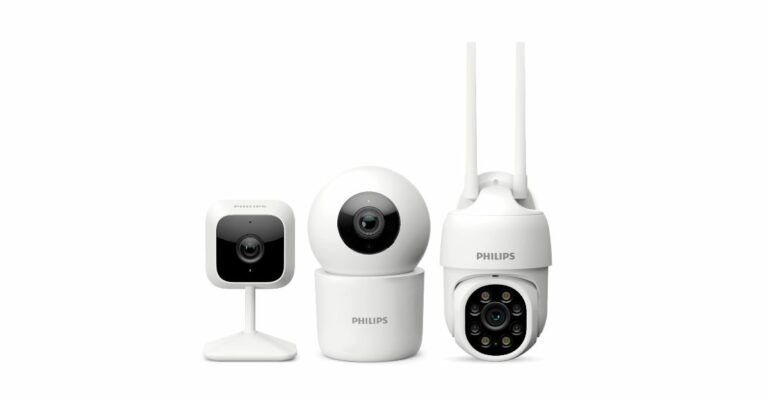
Philips new range of smart home security cameras launched in India

Philips has announced the launch of new smart home security cameras in India featuring two indoor and one outdoor camera. The newly launched lineup includes three models- HSP 1000, HSP 3500 and HSP 3500, supported by a user-friendly app-based, control interface, AI motion detection, anti-theft alarm, smart alert and more. The Philips Smart Security Cameras come with smart capabilities to distinguish between people, noise, and motion, resulting in fewer false alarms and more precise notifications. They also provide 24/7 control that enables viewing, recording, or responding to security incidents from anywhere. These cameras are incredibly easy to set up and use, and Virtual Assistance makes it possible for users to do so in just three easy steps. Videos are protected even if the SD card is removed thanks to AES-128 encryption at the same level as that employed by banks, and app-level biometric recognition prevents unauthorised access. Also Read: Meta brings a new update to Threads, to impose rate limits to combat spam As we said earlier there are about three variants of Philips home security cameras- HSP 1000, HSP 3500 and HSP 3500. The Philips Smart Indoor WiFi Camera (HSP1000) provides mobile app control that is available around the clock. Better day and night vision is provided by the 2MP camera. The CCTV camera also has features like motion detection, live view, two-way communication, and an anti-theft alarm system that gives smart alerts and simple do-it-yourself installation. On the other hand, a 360° view is provided with the Philips Smart 360° WiFi Indoor Security Camera (HSP3500). For improved 2K clarity, it has a 3MP camera built in. Motion detection, live viewing, a two-way communication function, an anti-theft alarm system, smart warnings, and hassle-free DIY installation are also included. Philips Smart 360° WiFi Indoor Security Camera (HSP3800) has a 2MP camera for enhanced day and colour night vision. The CCTV camera is also IP65 rated for clear vision even during rain. Other security features are similar to the other two models. The price of the Philips Smart Indoor WiFi Camera (HSP1000) is set at Rs 3,295. Whereas the Philips Smart 360° WiFi Indoor Security Camera (HSP3500) and (HSP3800) models come with a price tag of Rs 5,295 and Rs 7,795 respectively. The device will be available for purchase via Amazon and Philips Domestic Appliances online store. For the latest gadget and tech news, and gadget reviews, follow us on TwitterFacebook and Instagram. For newest tech & gadget videos subscribe to our YouTube Channel. You can also stay up to date using the Gadget Bridge Android App. You can find the latest car and bike news here.

Your Twitter settings may no longer allow DMs: Here’s how to change it

Twitter is a popular social networking site where people communicate in small messages called tweets. It was developed by Jack Dorsey, Biz Stone and Evan Williams in 2006. Elon Musk is the current Chairman of Twitter and Linda Yaccarino is its current CEO. Twitter is used to share news, images, videos, etc. Twitter is also used for microblogging. However, with its recent changes, your Twitter settings may no longer allow DMs. Here is what we know about it: Twitter has recently introduced us to its paid blue tick verification system known as Twitter Blue. Twitter Blue is available at different pricing in different countries. A user will get blue tick verification after paying for it and after getting verified by Twitter. This is seen as a desperate measure by Twitter to curb its negative cash flow.  Read also: 6 Easy Fixes for Cast Option Not Showing In Google Chrome Twitter’s desperate measure to increase Twitter Blue subscribers To further promote Twitter Blue, Twitter has rolled out another feature. Twitter has changed the settings of users with open DMs blocking non-blue subscribers from messaging them. The tweet from the official account of Twitter read as follows: Starting as soon as July 14th, we’re adding a new messages setting that should help reduce the number of spam messages in DMs. With the new setting enabled, messages from users who you follow will arrive in your primary inbox, and messages from verified users who you don’t follow will be sent to your message request inbox. Users who previously had their permissions set to allow message requests from everyone will be migrated to this new setting, but can switch back at any time.” In its previous version, Twitter has given two options to its users. They can either allow everyone to DM them or only allow users who they follow to message/DM them. If the user only allowed DMs from users they followed others would not get an option of messaging them. However, with the new Twitter settings, every user will be able to see the DM button but after clicking on it non Twitter Blue subscribers will see a prompt asking them to subscribe to Twitter Blue to message.  Read also: How to watch YouTube videos on Android Auto in any car?

How you can change the new Twitter DM setting

In case your Twitter DM setting has changed too, here is a step-by-step guide on how you can change it back to default:
  1. Log in to your Twitter account and head to the messages option. It looks like an envelope. 
2. Click on the settings option displayed in your primary inbox. 3. After opening settings, you can see the option of ‘control who can message you’. Choose the option that suits your requirements. 

Conclusion

Twitter has made a significant impact on various fields and is one of the most popular social media applications. It is a powerful tool for sharing news, engaging audiences and mobilising communities. However, this new Twitter DM setting is facing a lot of backlash as is being seen as a marketing mechanism.  For the latest gadget and tech news, and gadget reviews, follow us on TwitterFacebook and Instagram. For newest tech & gadget videos subscribe to our YouTube Channel. You can also stay up to date using the Gadget Bridge Android App. You can find the latest car and bike news here.

How to watch YouTube videos on Android Auto in any car?

0
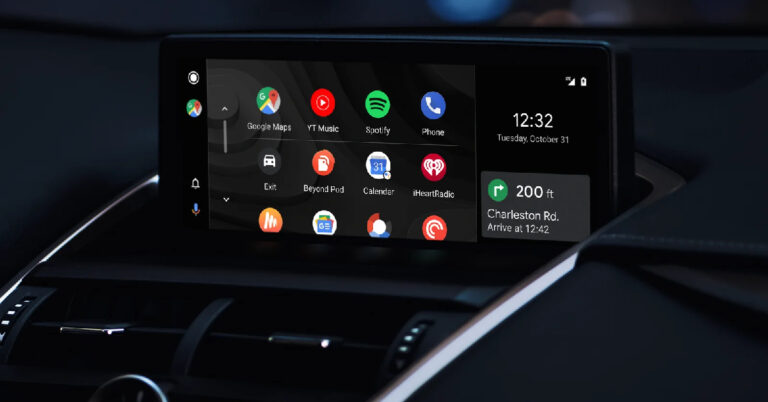
To reduce the risk of road accidents, the Android Auto car interface did not support the YouTube app for the longest time. Users had to rely on screen mirroring apps in order to stream YouTube videos from their phones. That is bound to change now, as Google announced YouTube support for Android Auto at this year’s I/O event. In this article, we show you how to watch YouTube videos on Android Auto in any car. Read Also: Mivi DuoPods A650 Review: Should you buy them?

Use the official YouTube app

10 best apps compatible with Android Auto Since Android Auto now supports YouTube, you can easily watch videos on your car’s infotainment screen. Here’s how. Step 1: Install the Android Auto app on your smartphone. Step 2: Connect your smartphone to your car’s infotainment system via Bluetooth or USB. Step 3: Launch Android Auto on your smartphone. Some cars may automatically trigger Android Auto on the screen as soon as your phone connects to the infotainment system. Step 4: Select YouTube from the list of apps. Step 5: Search for the video you want to watch and play it. You will be able to watch the video on your car’s screen.

Play downloaded videos

Your car’s interface can also play the videos saved on your phone’s internal storage. The only condition is that the videos should be in MP4 format. Here’s how you can go about it. Step 1: Connect your smartphone to your car’s infotainment system via USB. You can also connect a USB drive or an external hard disk to the car. Step 2: Scroll through the car’s interface to look for the storage folder. If there’s a different folder for videos, tap on it. Step 3: Search for the video you want to watch and select it. It will start playing on your car’s infotainment system.

Use a third-party app to mirror your phone’s display

Use a third-party app to mirror your phone’s display Lastly, you can mirror your phone’s display on your car’s infotainment system. This will require a third-party app like ApowerMirror. Step 1: Install ApowerMirror on your Android phone and the car’s infotainment system. The app is available on Google Play Store. Step 2: Make sure the infotainment system is connected to your phone’s WiFi hotspot. Step 3: Open the app on your phone and the infotainment system. Step 4: On your phone, select the name of your car’s infotainment system. Step 5: Select Start Now. Step 6: Launch YouTube on your smartphone. It will be mirrored on your car’s infotainment system.
Frequently Asked Questions

Does Android Auto support YouTube?

At I/O 2023, Google announced that it will be bringing YouTube to its Android Auto interface. You can now watch YouTube videos on your parked vehicles.

How do I watch YouTube videos on my car’s infotainment screen?

You can use the Youtube app on Android Auto or mirror your phone’s display to watch videos on your car’s infotainment display.

How do I connect my phone to Android Auto?

Install the Android Auto app on your phone and your car’s infotainment system. Connect the two devices via Bluetooth or USB. Launch Android Auto on both devices to use the app. Read Also: Top 3 ways to use your Android smartphone as a modem

Conclusion

This is how you can watch YouTube videos on Android Auto in any car. As a general precaution, do not play videos in a moving car. It can distract the driver and increase the risk of accidents. Always make sure the car is parked before you play videos on the infotainment screen. If you found this article helpful, let us know in the comments! For the latest gadget and tech news, and gadget reviews, follow us on Twitter, Facebook and Instagram. For newest tech & gadget videos subscribe to our YouTube Channel. You can also stay up to date using the Gadget Bridge Android App. You can find the latest car and bike news here.

7 Easy Fixes for Cast Option Not Showing In Google Chrome (2024)

Tired of searching high and low for the cast option in Google Chrome? Don’t let its disappearance put a damper on your streaming experience on the big screen. Fear not if you have misconfigured settings or a troublesome extension gone rogue! Today, we will provide you with 7 fixes for the cast option not showing in your Google Chrome. Read Also: Best ways to mirror your Android smartphone to a Smart TV

How to Fix the Cast Option not Showing in Google Chrome

Restart your Device

Sometimes the oldest trick in the book can do wonders. Simply, restart your computer. The pesky bugs on your device may be preventing the detection of Chromecast, even though everything is properly set up. This fix has been effective in the Windows 10, 11, and Mac systems. You might as well give it a shot too. Read Also: Amazon Fire TV gets official YouTube app, Prime Video app rolled out for Chromecast, Android TVs

Connect your PC to the same Internet Network as Chromecast

Your Chromecast and computer have to be aligned with the same network connection. Failing, Google Chrome will not be able to display the cast option. To rectify this, ensure that both your PC and Chromecast device are on the same WiFi Network.

Add Cast icon to the toolbar

Step 1: Launch Google Chrome and hit the ellipses at the top right corner of the screen. Step 2: Hover the cursor over Cast, save, and share. Select Cast. 7 Fixes for Cast Option Not Showing In Google Chrome (2024) Step 3: Once the Cast option pops up on the tool-bar, right-click on it. Step 3: Once the Cast option pops up on the tool-bar, right-click on it. Step 4: Select Always show icon. Step 4: Select Always show icon.

Disable your VPN 

Chromecast is built not to communicate with an active  VPN or a proxy server. If you have these enabled, you won’t be able to use the cast option. Step 1: To disable VPN, go to your System Settings.  Step 2: Select Network and Internet, and then press VPN  Step 3: Disconnect.

Update Google Chrome

Chrome releases update regularly, so it is hard to not miss. You should update your Chrome app often, even when you are not facing any difficulty. If the Chromecast is not visible due to a Chrome bug, updating it should fix it Step 1: In Chrome, click on the three-dotted lines, and select Help. Step 2: From the sub-menu, click on About Google Chrome. Step 3: This action will automatically make Google Chrome check for any updates and will install them. Restart your browser and check if the cast option is visible. Read Also: Chromecast with Google TV with a remote and 4K HDR Support launched
Disable Extensions

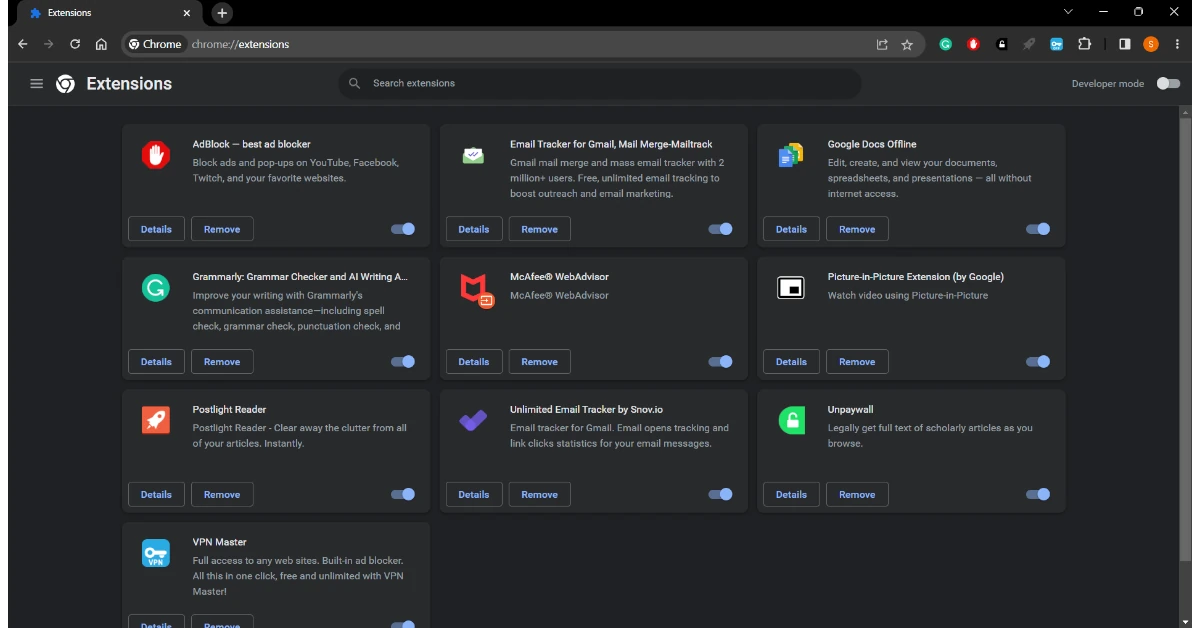
Extensions in Google Chrome add a lot of value to your browsing experience. However, it is not abnormal for these third-party add-ons to encounter glitches. This usually occurs when you have an incompatible or outdated extension installed. Try disabling all your extensions temporarily and see if this helps you to rectify the Chromecast issue. Step 1: In your Google Chrome, type chrome://extensions, and press Enter. Step 2: Disable them one by one. Step 3: Once you are done, restart your browser and check if the cast option appears.

Reset your Chromecast

In rare instances, you can have trouble using Chrome to access your Chromecast if it was previously plugged into a different computer or network. A quick device reset should address the problem.  Locate the button on the back of your Chromecast and press and hold it for a long time. You’ll be able to tell the gadget has been reset when the LED light starts to blink. After that, repeat the setup procedure, making sure your PC and Chromecast are both linked to the same Wi-Fi network.

Frequently Asked Questions (FAQs)

What is Chromecast?

A Chromecast is a media streaming device that plugs into the HDMI port of your TV and allows you to cast media on it using your smartphone, laptop, or PC.

Why isn’t Google Chrome able to detect my Chromecast device?

For Google Chrome to detect your Chromecast device, your PC/laptop and Chromecast device need to be connected to the same network.

How do I add the Cast icon to Chrome’s toolbar?

Hit the ellipses at the top right corner of the screen, hover the cursor over ‘Cast, Share, and Save’, and select Cast. Once the icon pops up on the screen, right-click on it and select ‘Always Show’. Read Also: How to identify a song using Circle to Search on Android (2024)

Conclusion

And there you go, one of these 7 fixes for the cast option not showing in your Google Chrome will work for you. With these fixes, we hope you can rectify your problem of the cast option not showing. Do tell us in the comments if you used any other tip or trick to solve the problem.