Amazon Quiz Answers Today 24 January 2023: Participate to win Rs 2,500

Amazon hosts a Quiz session for its customers daily. Its app platform brings a quiz on a daily basis, which begins at 12 AM and ends at 11:59 PM daily. The participants stand a chance to win cash prizes on a daily basis. Today’s 24 January 2023 will let you win Rs 2,500 Amazon Pay Balance. By participating in the Amazon Quiz the participants can win Amazon Pay Balance ranging from Rs 1,000 to Rs 50,000 every day while sitting at home. To win the participants must answer five questions correctly that are based on current events and general knowledge. One wrong answer can eliminate you from the quiz. The results will be announced at the end of the month. Today’s question will let you win Rs 2,500 Amazon Pay Balance. Check below for today’s Amazon quiz answers. Amazon Quiz Today Prize – Rs 2,500 Amazon Pay Balance Quiz Date – 24 January 2023 Daily Timing – 12 AM to 11:59 PM Winner Announcement – Today 12 PM

Amazon Quiz Answers Today 24 January 2023

Question 1: Which is the hottest desert in the world? Answer: The Sahara Desert Question 2: Which country is both an island and a continent? Answer: Australia Question 3: How many planets are there in our Solar System? Answer: 8 Question 4: First woman of Indian origin to go to space Answer: Kalpana Chawla Question 5: Who is she, an Indian political activist, feminist and poet? Answer: Sarojini Naidu

How To Play Amazon Quiz

Only app users are eligible to play the Amazon quiz every morning from 12 AM to 11:59 PM. The quiz is not available on the desktop. For those who are unaware of how to play the Amazon quiz below are the steps, you can follow to take the quiz.
  • Firstly download the Amazon app from Google Play Store or App Store
  • Now fill in the required information through the Sign Up option.
  • You need to log in to the Amazon app and scroll down on the home screen to find the Amazon Quiz banner.
  • Tap on the Amazon Quiz banner and tap on the Start button to start the Quiz.
  • Now you will get 5 questions and you need to answer them correctly. One wrong answer will eliminate you from the Quiz.
  • After answering all the questions correctly you are now eligible for a Lucky Draw.
  • The winner’s name will be announced today at 12 PM.
For the latest gadget and tech news, and gadget reviews, follow us on TwitterFacebook and Instagram. For newest tech & gadget videos subscribe to our YouTube Channel. You can also stay up to date using the Gadget Bridge Android App. You can find the latest car and bike news here.

Sony ILME-FR7 cinema camera with E-mount launched

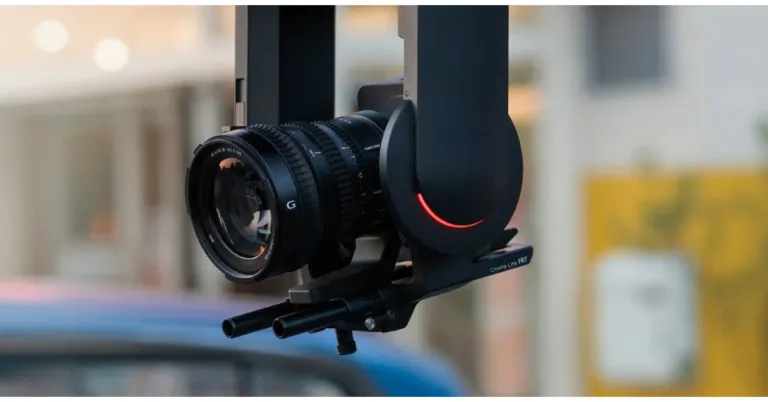
Sony has announced the launch of ILME-FR7, a full-frame interchangeable lens camera. It comes with an E-mount and integrated pan/tilt/zoom (PTZ) capabilities. The cinema camera comes with up to 100 preset camera positions and Real-time Eye AF/Tracking. The Sony camera has a built-in electronically controlled Variable ND filter. It also has internal XAVC recording and external RAW output.

Sony ILME-FR7 price and availability

Prices for the Sony ILME-FR7 camera in India will be available upon request starting on January 31, 2023.

Sony ILME-FR7 features

For the first time in a pan tilt zoom (PTZ) camera, the Sony ILME-FR7 offers a back-illuminated 35mm full-frame CMOS picture sensor with about 10.3 effective megapixels and wide 15+ stop latitude. This incredible sensor not only offers a wide dynamic range, low noise, and cinematic full frame bokeh but also excellent sensitivity, enabling ISO to be increased up to 409600 while shooting in low light. Also Read: Sony India announced fantastic deals on their products for Republic Day A broad variety of E-mount lenses, including the G Master series with amazing resolution and bokeh effect, may be mounted on the FR7 thanks to its Sony E-mount. Users have complete creative control thanks to a selection of focal lengths that range from 12 mm to 1200 mm. Sony ILME-FR7 cinema camera with E-mount launched S-Cinetone, which provides the soft colours and lovely highlights necessary for healthy-looking skin tones, as well as other preset scene files, are included. To adjust the base sensitivity in the Cine EI mode to the lighting circumstances and reduce noise while preserving a consistent look, choose between ISO 800 and ISO 12800. Because it supports Sony’s original S-Log3 gamma, broad S-Gamut3, and S-Gamut3. Cine colour spaces, this mode is excellent for post-production. It is possible to shoot in up to 4K 120p slow-motion. Pan, tilt, zoom, focus, record, playback, and all camera settings may be easily managed from a tablet or computer web browser with the help of a new dedicated online application. Remote viewing of FR7 footage is possible for several users at once. Additionally enabled is multi-camera monitoring, which enables remote viewing of several cameras from a single device. For multi-camera production, it is also compatible with Sony’s RM-IP500 remote controller, which increases creative potential while lowering the demand for specialised people in production studios and other shooting environments. Up to 100 PTZ cameras can be remotely managed by a single RM-IP500 unit, which also offers useful joystick-controlled pan, tilt, and zoom functionality. From 0.02 degrees per second to 60 degrees per second, pan and tilt speed can be continually adjusted to allow a variety of steady and fluid camera motions. The tilt angle range is between -30° and +195°, and the pan angle range is between -170° and +170°. Up to 100 camera position presets may be retrieved using the integrated web application and optional RM-IP500 remote controller. With a firmware upgrade, the Sony ILME-FR7 will also support the S700 protocol over Ethernet, enabling control of this product from Sony’s Master Setup Unit (MSU) and Remote Control Panel (RCP). Also Read: WhatsApp is working on the ability to block contacts from the chat list and notifications: Report Even when people are looking at subjects at steep angles, the integrated BIONZ XR engine realises detection performance for perfect eye focus, allowing the operator to focus on framing the greatest photo. When utilising the web application for the FR7, Touch Focus can be used to begin focusing using Real-time Tracking on the selected target, along with Real-time Eye AF if an eye is detected. The electronic variable ND filter that is built-in allows for seamless ND modification. By automatically adapting the ND filter to the changing light, an auto ND function maintains exposure stability. Additionally, remote control is an option, enabling exposure control away from the camera. The FR7 also has dual media slots that handle CFexpress Type A and SDXC memory cards. Due to its high-speed write capabilities, which guarantee stable recording of data at high volumes and frame rates, CFexpress Type A cards are especially well suited for high-bitrate 4K video production. Additionally supported are simultaneous recording, relay recording, interval recording, and proxy recording. A suitable external recorder can receive a 16-bit RAW stream from the SDI output (sold separately). There are video output ports for HDMI Type A and 12G-SDI as well as optical output for lengthy transmission. The signal from an external microphone or audio device will be received using the AUDIO IN (XLR type 5-pin) connector. A single connector is used by AUDIO CH-1 and CH-2. For the latest gadget and tech news, and gadget reviews, follow us on TwitterFacebook and Instagram. For newest tech & gadget videos subscribe to our YouTube Channel. You can also stay up to date using the Gadget Bridge Android App. You can find the latest car and bike news here.

A Guide to How Crypto Gaming Works?

Crypto casinos are becoming more popular, like the UFC predictions, as they offer more secure, anonymous, and convenient ways to bet on various casino games. Crypto casinos are online versions that use cryptocurrencies such as Bitcoin and Ethereum as the primary payment methods for deposits, withdrawals, and jackpots. Unlike traditional online casinos, crypto casinos provide unprecedented privacy, anonymity, and flexibility for their users. Below is a guide to how the crypto casino works.

What is Crypto Casino?

A crypto casino refers to an online casino that accepts cryptocurrency as payment. It is a type of online gambling that uses cryptocurrency, such as Bitcoin and Ethereum, as the main currency. It is different from other online casinos because it requires no registration or KYC (Know Your Customer) checks before you gamble with its funds. Crypto casinos are similar to regular online casinos in many respects but with specific vital differences. It is important to note that crypto casinos are not licensed by any government and do not have traditional banking accounts. However, they have various measures to ensure the funds’ safe and secure transfer.

How Does a Crypto Casino Work?

As all crypto tokens get exchanged on the blockchain, crypto casinos also rely on blockchain technology. All transactions at a crypto casino get recorded on a blockchain, providing transparency and security for players.

Crypto Casino Wallet

You’ll need a cryptocurrency wallet to use a crypto casino. A cryptocurrency wallet store sends and receives cryptocurrencies like Bitcoin, Ethereum, and Litecoin. The wallets can be either online or online, and each type has pros and cons. It’s essential to choose a wallet that is secure and reliable.

The Advantages of Crypto Casinos

There are several advantages of using crypto casinos over traditional online gaming sites. The main benefits include the following:

Provides anonymity

Crypto casinos provide unprecedented levels of privacy and anonymity. You do not need to sweat about the government or anyone else tracing your transactions.

Secure and fast transactions

Crypto casinos use distributed networks to store and process transactions, so you can be sure your transactions are secure and fast.

Wide variety of payment options

Crypto casinos offer various payment options for making deposits or withdrawals. You can also use a range of different cryptocurrencies.

Attractive bonuses and promotions

Crypto casinos often offer attractive bonuses and promotions to attract new players, give back to loyal players, and encourage high-stakes betting.

Types of Crypto Gambling Games

Crypto gambling sites offer a wide range of different gaming options. These include slot machines, video poker, table games, and other classic casino games.

Slots

Slots are the most popular type of gambling game in crypto casinos. They are simple to play and usually feature exciting bonus features and progressive jackpots.

Video Poker

Video poker is another popular option for crypto gamblers. It is similar to a slot machine but gets played against an AI dealer instead of a random number generator.

Table Games

Table games such as blackjack, baccarat, craps, and roulette are famous sights in crypto casinos. These games provide a more social experience than slots and video poker.

Sports Betting

Some crypto casinos offer sports betting, allowing players to bet on the outcomes of various sports matches.

Lotteries

These are popular forms of gambling, and crypto casinos also offer players the opportunity to participate in lottery draws.

How to Maximize Your Profits

Crypto gambling involves inherent risks, so it’s essential to understand them before betting. Various ways to maximize your profits when you gamble with cryptocurrency exist. Below are several tips to get you started:

Set your Limits

It is essential to set a budget when playing with crypto gambling and to stick to it. Make sure you don’t overspend, and only use what you can afford to lose.

Choose the Right Games

Different games will offer different chances of success, so make sure you pick the games that best suit your gaming style and budget.

Take Advantage of Promotions

Crypto casinos often offer a variety of exciting promotions and bonuses, so make sure you take advantage of them to maximize your profits.

Manage your Bankroll

Managing your bankroll is a crucial factor in making sure you make a profit from crypto gambling. Make sure you keep track of your spending and set limits for yourself.

Verdict

Crypto casinos are growing in popularity in the online gambling industry. They offer players a secure, fast, and affordable gambling experience using cryptocurrencies like Bitcoin, Ethereum, and Litecoin. Players can enjoy various games, promotions, bonuses, and, best of all, provably fair games. A crypto casino may be your best option if you’re looking for a secure, private, fast way to gamble online. For the latest gadget and tech news, and gadget reviews, follow us on TwitterFacebook and Instagram. For newest tech & gadget videos subscribe to our YouTube Channel. You can also stay up to date using the Gadget Bridge Android App. You can find the latest car and bike news here.
10 Easy Methods to Fix Xbox App Not Downloading Games on Windows 10 or 11 (2024)

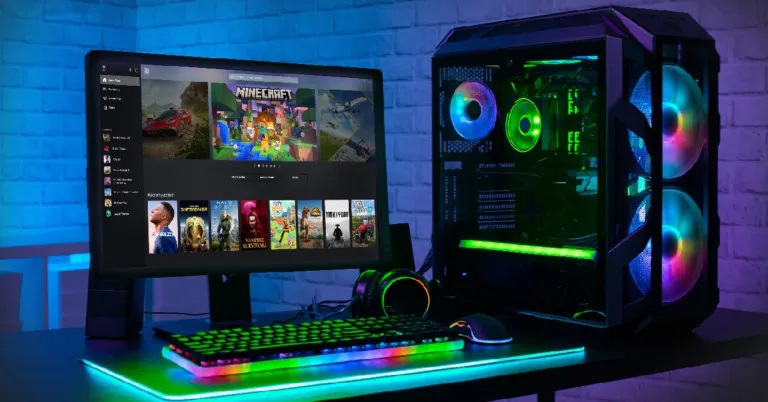
The Xbox app is a one-stop destination for all PC gaming enthusiasts to download the latest games using their PC Game Pass subscription. While the app works great for the most part, it is not uncommon for users to encounter certain issues from time to time. Luckily, there are some common fixes for all kinds of situations. In this article, we bring you 10 easy methods to fix the ‘Xbox app not downloading games’ issue on a Windows 10 or 11 PC. Read Also: WhatsApp plans to enable sending of photos in their original quality: Report

Check your internet connection 

A faulty internet connection is one of the likely reasons why the Xbox app is not downloading games on your Windows 10 or 11 PC. Tap on the Wi-Fi icon on the bottom right corner of the toolbar and see if you are currently connected to a network. Also, check the status of the connection for ‘internet access’. You can also try loading a webpage on Chrome to check whether the internet connection is functional. Run a speed test to further check the strength of the connection.

Check if your PC Game Pass subscription has expired

An active PC Game Pass subscription is necessary to download games using the Xbox app. Usually, the subscription is auto-renewed every month, but a lack of funds or other bank account-related issues may have prevented Microsoft from renewing your subscription. To rectify this issue and subscribe to the PC Game Pass, go to your Microsoft account page and select ‘Payment Options’ under ‘Payment and billing’.

Use Windows Troubleshoot

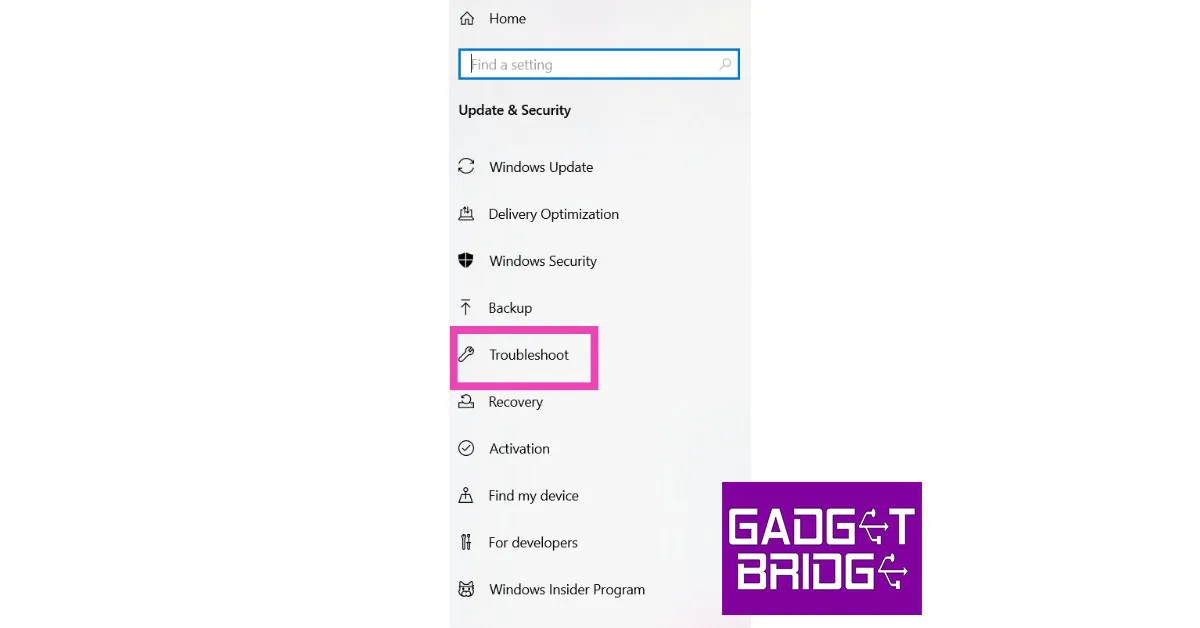
Here’s how you can use the Windows troubleshooter to fix common app issues.  Step 1: Go to Settings and select Update & Security. Step 1: Go to Settings and select Update & Security.  Step 2: Select ‘Troubleshoot’ on the side menu. Step 2: Select ‘Troubleshoot’ on the side menu. Step 3: Click on ‘Additional Troubleshooters’ and select Windows Store apps. Step 3: Click on ‘Additional Troubleshooters’ and select Windows Store apps. how to fix apps not downloading in microsoft store

Sign out and Sign back in

One of the most common fixes to fix any malfunctioning app is signing out of it and then signing back in. This will fix any temporary issue with your account. To sign out of the Xbox app, click the profile icon at the top left corner of the screen and select ‘Sign out’. Close the app and launch it again. Sign in using the appropriate credentials.

Check your PC’s storage space

The Xbox will not download any game on your PC if it is running at full storage capacity. Use the file explorer to check the capacity of each drive. You can also change the download location to a drive that has free storage space. To do this simply open the Xbox app and go to Settings>General and change the destination folder under game install options.

Check if Xbox servers are down

Check if Xbox servers are down 10 Easy methods to Fix Xbox App Not Downloading Games on Windows 10 or 11 (2024) The Xbox app may be refusing to download a game due to an issue with its servers. To check if the Xbox servers are running, go to the Xbox status page. If the servers are down, you will have to wait until they are back up and running. If there is nothing wrong with the servers, try other fixes on this list.

Repair and Reset the Xbox app

Reset Microsoft Store 10 Easy methods to Fix Xbox App Not Downloading Games on Windows 10 or 11 (2024) ‘Repairing’ the Xbox app takes care of the minor issues within the app that may be keeping it from functioning properly. You can also try resetting the app, which will clear all app data and log you out of the app. You will need to log in again to continue using the app. To repair and reset the Xbox app, go to Settings>Apps>Microsoft Store>Advanced Options.

Check your PC’s date and time

If the date and time on your PC are off, it can render several internet-related apps unusable. This includes WhatsApp, certain web browsers, and even the Xbox app. Make sure your PC is displaying the correct date and time. Go to Settings>Time & language>Date & time and select your region’s time zone.

Update the Xbox app

It is possible that an unexpected bug is keeping you from downloading games using the Xbox app. Usually, these bugs are fixed with a quick update from the developer. To update the Xbox app, simply open its page on the Microsoft Store and select ‘Update’.

Contact Xbox Support

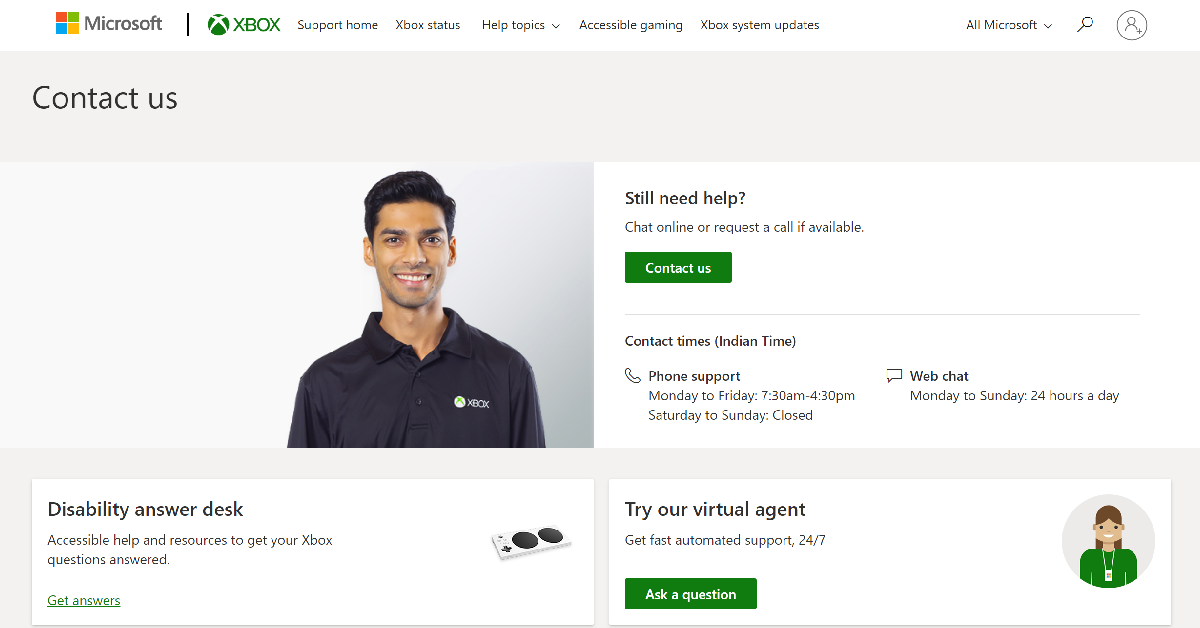
Contact Xbox Support 10 Easy methods to Fix Xbox App Not Downloading Games on Windows 10 or 11 (2024) If the fixes mentioned above did not work out for you, try contacting Xbox support. Go to the Xbox Support Page, sign into your account, and select Contact Us. You can choose to call the support staff or have a chat over the Internet.

Frequently Asked Questions (FAQs)

How do I fix the Xbox app if it’s not downloading games?

If your Xbox is not downloading games, make sure your Game Pass subscription has not expired. Additionally, check your internet connection and run Windows troubleshooter for the Xbox app.

Where can I download the Xbox app for my Windows PC?

Windows users can download the Xbox app from the Microsoft Store.

How do I repair the Xbox app on my PC?

To repair and reset the Xbox app, go to Settings>Apps>Microsoft Store>Advanced Options. Read Also: BharOS indigenous mobile operating system developed by IIT Madras announced

Conclusion

These are the 10 easy methods to fix the ‘Xbox app not downloading games’ issue on a Windows 10 and 11 PC. If you’ve tried all these fixes and still are unable to download a game from the Xbox app, try uninstalling and reinstalling the app. Additionally, you can also try restarting your PC to fix any background glitches. If you found this article helpful, let us know in the comments!

8 Simple Ways to Fix YouTube Thumbnails Not Showing (2024)

0
YouTube thumbnails give a quick glimpse into what the video is about and what you can expect from it. A lot of creators spend a lot of time crafting the perfect thumbnails as good thumbnails increase the chances of viewers clicking on the videos. YouTube itself promotes videos with interesting thumbnails. However, sometimes users report that they cannot see the video thumbnails on the YouTube app. In this article, we bring you 8 simple ways to fix the ‘YouTube thumbnails not showing’ issue on your smartphone. Read Also: Samsung Galaxy A34 5G gets certified by BIS, also listed on FCC site

Check your Internet connection 

Fast and simple methods to Check Internet Speed on Your Android Smartphone (2022) Low signal strength or an unstable internet connection can often lead to parts of the YouTube app not loading properly. If you cannot see the thumbnails on the YouTube app and the videos take time to load and buffer, the issue most likely lies with your internet connection. You can try using the Chrome web browser instead of the YouTube app to verify this further. Additionally, you can run a speed test on your smartphone to check the strength of the connection.

Clear app cache

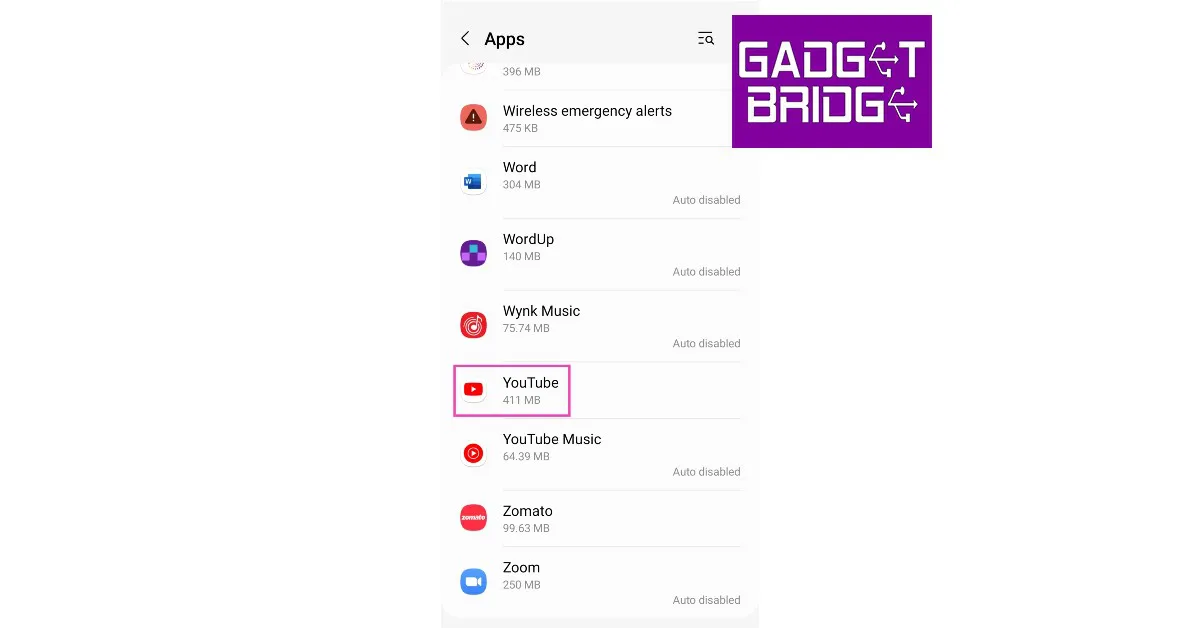
In order to increase the load time, apps store certain files in the cache memory so they don’t have to download them every time you open the app. YouTube does this with thumbnails as well. Once a file is stored in the cache memory, it can get corrupted if it stays there too long. This may cause the app to malfunction. It is a good idea to clear the cache every once in a while. Here’s how you can clear YouTube’s app cache. Step 1: Go to Settings and select Apps. Step 2: Scroll down and select Apps. Step 2: Select YouTube. Step 2: Select YouTube. Step 3: Tap on Storage. Step 3: Tap on Storage. Step 4: Select ‘Clear cache’ from the bottom toolbar. Step 4: Select ‘Clear cache’ from the bottom toolbar.  If you use YouTube on a web browser, clear the browser cache. This article explains how you can clear Google Chrome’s cache.

Force stop the YouTube app

Apart from clearing the cache, you can also try force-stopping the YouTube app and launching it again. Here’s how. Step 1: Go to Settings and select Apps. Step 2: Scroll down and select Apps. how to fix youtube thumbnails not showing Step 2: Select YouTube. Step 2: Select YouTube. how to fix youtube thumbnails not showing Step 3: Tap on the ‘Force Stop’ option at the bottom of the screen and confirm your selection in the following dialogue box. Tap on the ‘Force Stop’ option. how to fix youtube thumbnails not showing

Restart your phone

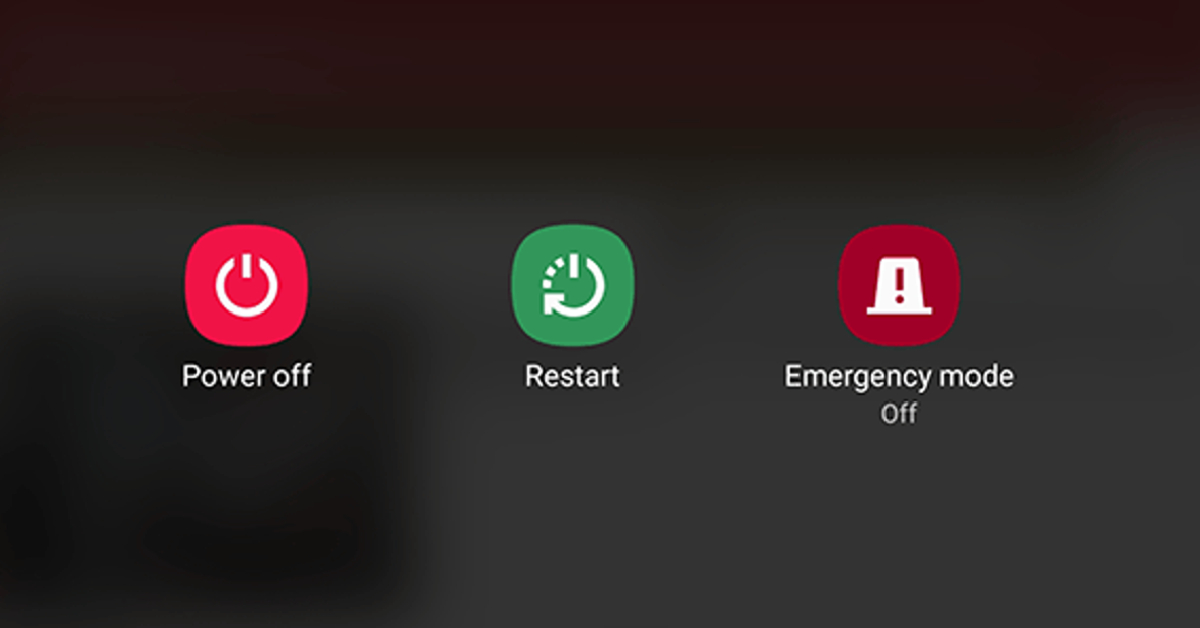
Restart Your Phone Sometimes, background glitches can cause an app on your phone to malfunction. The good news is that most of these background issues can be resolved by restarting your device. Long-press the side key and select ‘Restart’ from the power menu. If long-pressing the side key triggers the voice assistant, press it along with the volume-up key to access the power menu.

Check if a browser extension is causing trouble

Google TV update released: Improves GTV UI loading time at startup, Live tab loading speed and more If you use a YouTube-specific extension for Google Chrome, it may be interfering with the website’s functioning. To check this, open YouTube in an incognito window and see if you are able to view the video thumbnails. If you can see the thumbnails in incognito mode, it is possible that an extension may be the cause of the problem. Pause any YouTube-related extensions on Chrome and check if the thumbnails are able to load.

Update the YouTube app

Youtube testing a Twitch like clipping tool called Clips to share a small portion of a Creator’s video. how to fix youtube thumbnails not showing It is not uncommon for certain bugs to pop up within the app software. Google routinely updates its apps to fix these bugs. To update the YouTube app, go to the Google Play Store and search for YouTube. On the app page, select ‘Update’. The new app version will most likely not have this issue.

Uninstall and reinstall the app

Top 5 Ways to Download YouTube Shorts on Android (2024) Sometimes an update can install improperly on your device, causing the app to malfunction. Uninstall the app and then reinstall it from the Play Store (or any other app marketplace) to fix this issue. Most OEMs have their independent app stores which can be used to install YouTube if you don’t want to rely on the Google Play Store. Third-party app marketplaces like APKMirror and APKPure will also do the trick.

Install a VPN

Install a VPN. how to fix youtube thumbnails not showing It is possible that a certain video has been withheld in your country, which is why you aren’t able to view its thumbnail. To fix this, install a VPN app and select a server outside of your country. Connect to the server and reload the YouTube app to see if you can access the video. Here is our list of the best VPNs you can use right now.

Frequently Asked Questions (FAQs)

Why can’t I see the video thumbnails on my YouTube feed?

Lack of a strong internet connection, malfunctioning extensions, corrupt cache, and outdated app version can be the reasons behind YouTube not displaying video thumbnails on your feed.

How do I clear YouTube’s app cache on Android?

Go to Settings>Apps>YouTube>Storage and select ‘Clear cache’.

Where can I find my YouTube downloads?

Tap on the ‘You’ tab in the YouTube app and select the Downloads folder to find your saved videos. On PC, click on Downloads in the left sidebar. Read Also: How Smartphones Are Changing the Gaming World

Conclusion

These are the 8 simple ways to fix the ‘YouTube thumbnails not showing’ issue on your smartphone. If you’ve tried all the fixes listed above and the problem still persists, try checking if anyone else is facing this problem as well. If that is the case, then the issue lies on YouTube’s end and will be rectified soon. If you found this article helpful, let us know in the comments!

HP Envy x360 15 gets refreshed with OLED touch display

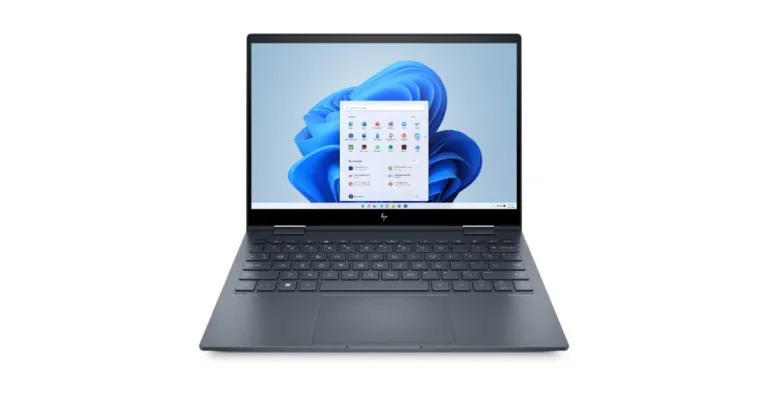
HP has just released a new line of HP Envy x360 15 laptops in India. With a 15.6-inch OLED touch display with a 360-degree hinge mechanism that puts you in the ideal position for working, writing, watching, and playing, the laptops are designed for content creators. The new HP Envy x360 15 lineup features up to a 12th Gen Intel Core EVO i7 processor coupled with Intel Iris Xe Graphics. The convertible laptop includes a 5MP IR camera with smart features like Auto frame Technology and AI Noise reduction for improved privacy, as well as an Emoji Keyboard for quicker communication.

HP Envy x360 15 feature

The new Envy x360 15 portfolio features recycled aluminium and plastic. The 15.6-inch OLED touch screen with 100% DCI P3 colour calibration and Eyesafe certification. With an 88% screen-to-body ratio, there is more screen space, allowing for less scrolling and more screen viewing. When VESA Trueback HDR 500 is activated, the display generates colours with greater vibrancy and depth. With the magnetic pen attached, you may write, draw, or edit with a smoother transition between colours for finer details thanks to improved latency and increased sensitivity. HP Envy x360 15 gets refreshed with OLED touch display   Also Read: Poco C50 budget smartphone with a 5,000mAh battery launched in India Up to 12th Gen Intel Core i7 processors and up to Intel Iris Xe integrated graphics power the new HP Envy x360 15. Bang & Olufsen speakers are included with the convertible laptops. The device also includes an Emoji menu with a single key for quicker expression, and HP QuickDrop makes file transfers more convenient. A high-quality audio experience is produced by Bang & Olufsen. HP Palette software, which includes Concepts for sketching and HP Photo Match for swiftly discovering and organising images, is pre-installed on the device. The Intel Wi-Fi 6E (2×2) and Bluetooth 5.2 combination provides quicker connectivity. Also Read: Samsung Galaxy A34 5G gets certified by BIS, also listed on FCC site

HP Envy x360 15 price and availability details

HP Envy x360 15’s 12th Gen Intel Core i5 variant with 8GB of RAM and 512GB of storage is priced at Rs 82,999. The price of the full-HD model with 16GB RAM and 512GB storage is Rs 86,999. The model with an OLED touch display is available at Rs 94,999. The variant with 12th Gen Intel Core i7 CPU, 16GB of RAM and 1TB of storage, costs Rs 1,149,99. For the latest gadget and tech news, and gadget reviews, follow us on TwitterFacebook and Instagram. For newest tech & gadget videos subscribe to our YouTube Channel. You can also stay up to date using the Gadget Bridge Android App. You can find the latest car and bike news here.
Truke BTG X1 Review: Great looks with a performance to match!

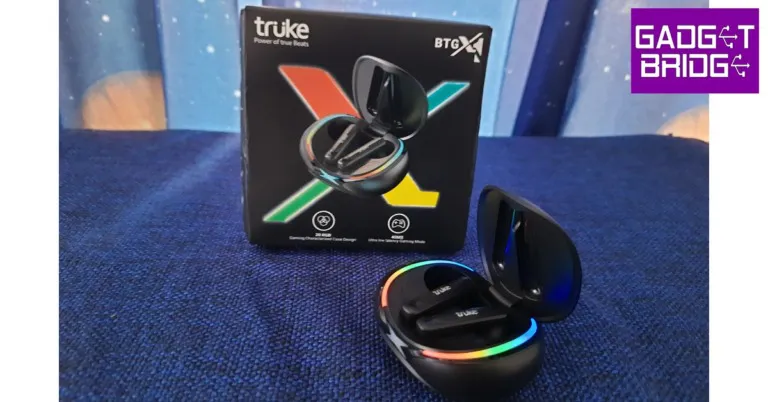
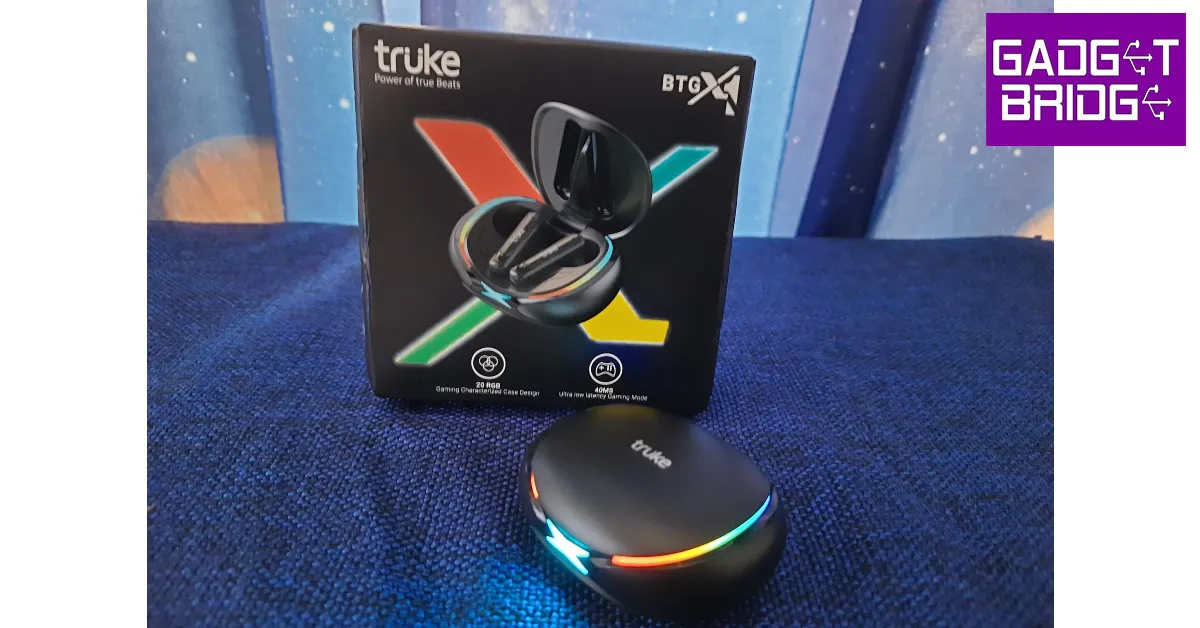
At the turn of the new year, Truke came out with their new gaming TWS, the BTG X1. The wireless gaming earbuds were launched at an introductory price of Rs 999. Currently, the TWS is listed at Rs 1,299 on Amazon. Nevertheless, the BTG X1 still competes in the entry-level segment, a category that is easy to gloss over given how wired earphones are still favoured over wireless earbuds in this price range. That may not be for long, though, as affordable TWS keep getting better with every new release. So what does Truke have in store for us with its newest TWS? We used the Truke BTG X1 for over a week, here is our review. Read Also: How Smartphones Are Changing the Gaming World

Truke BTG X1 review: Design 

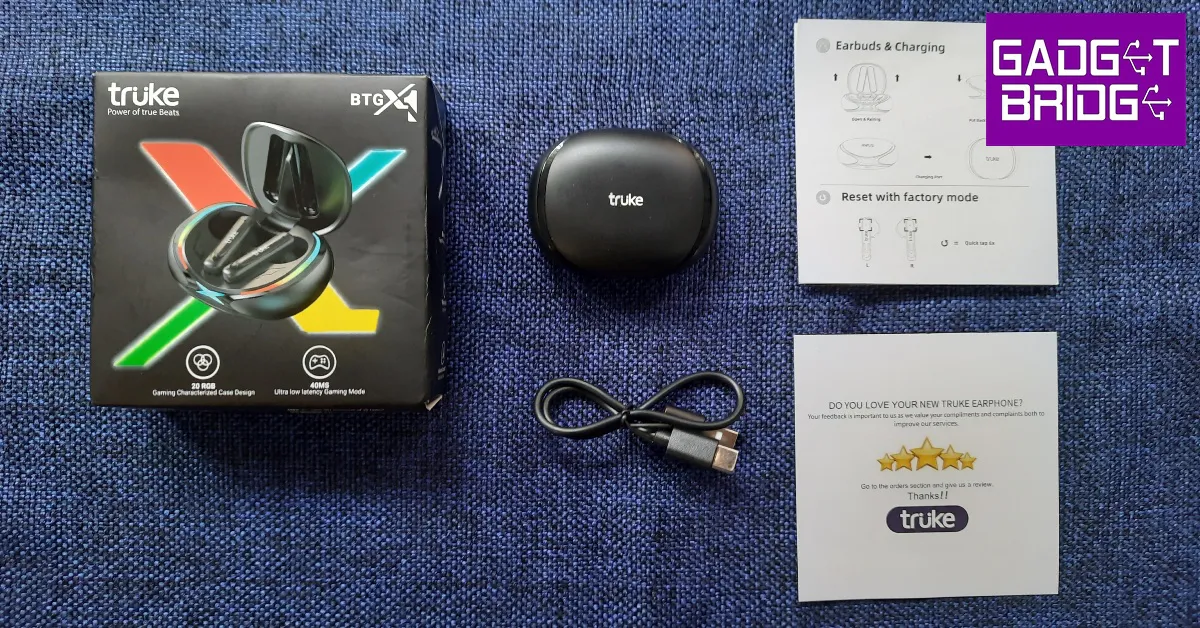
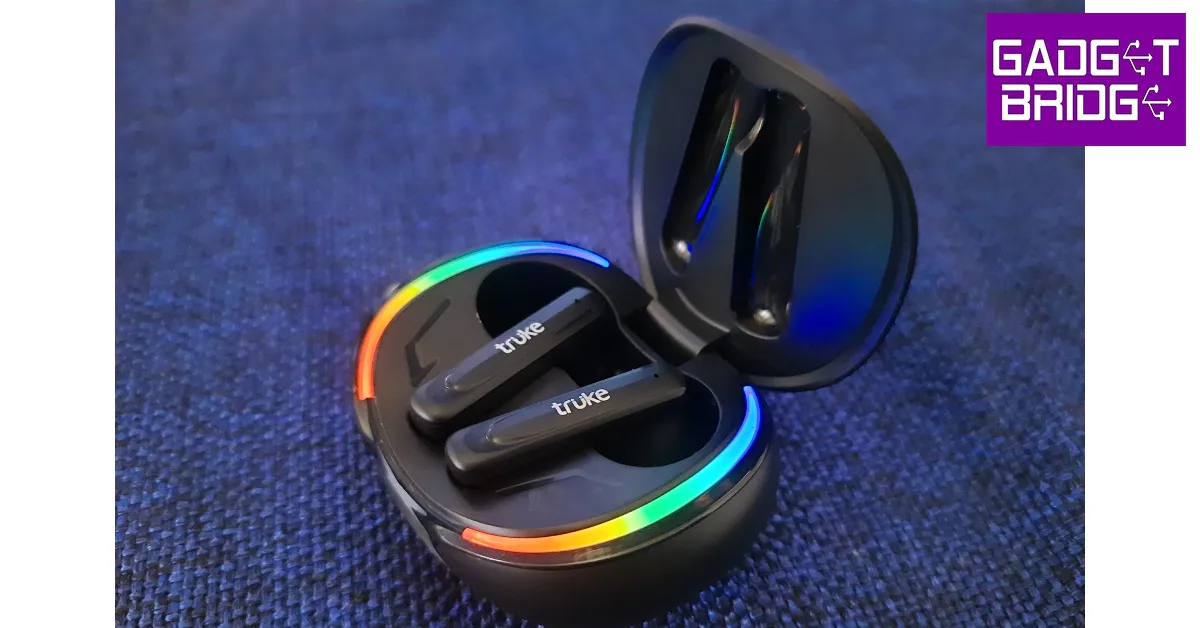
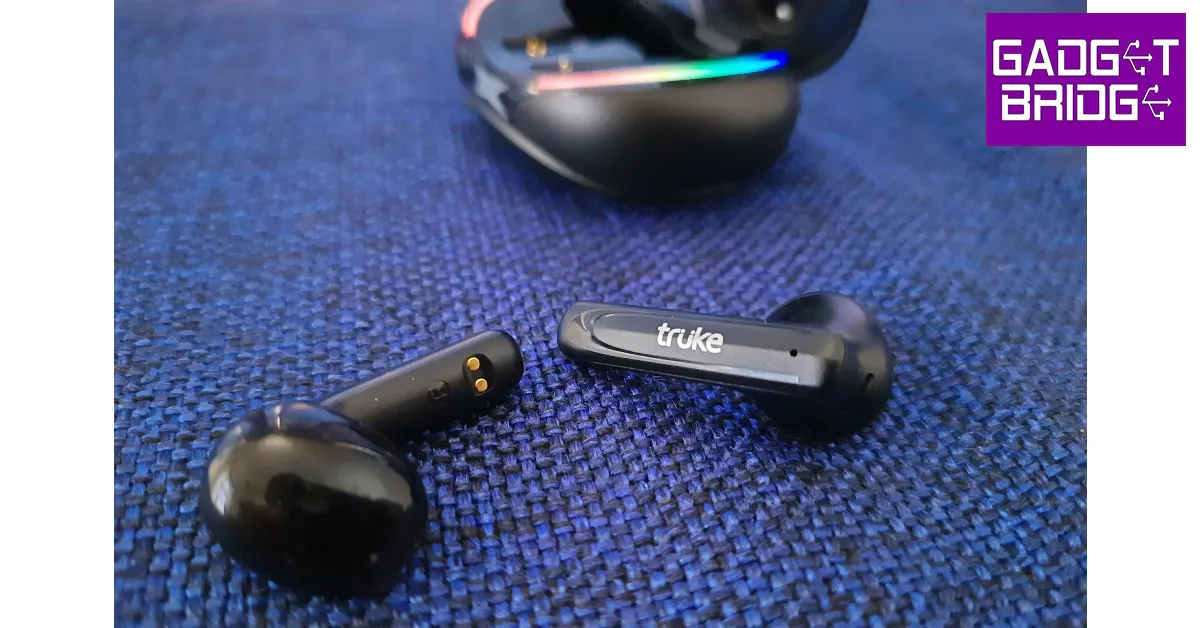
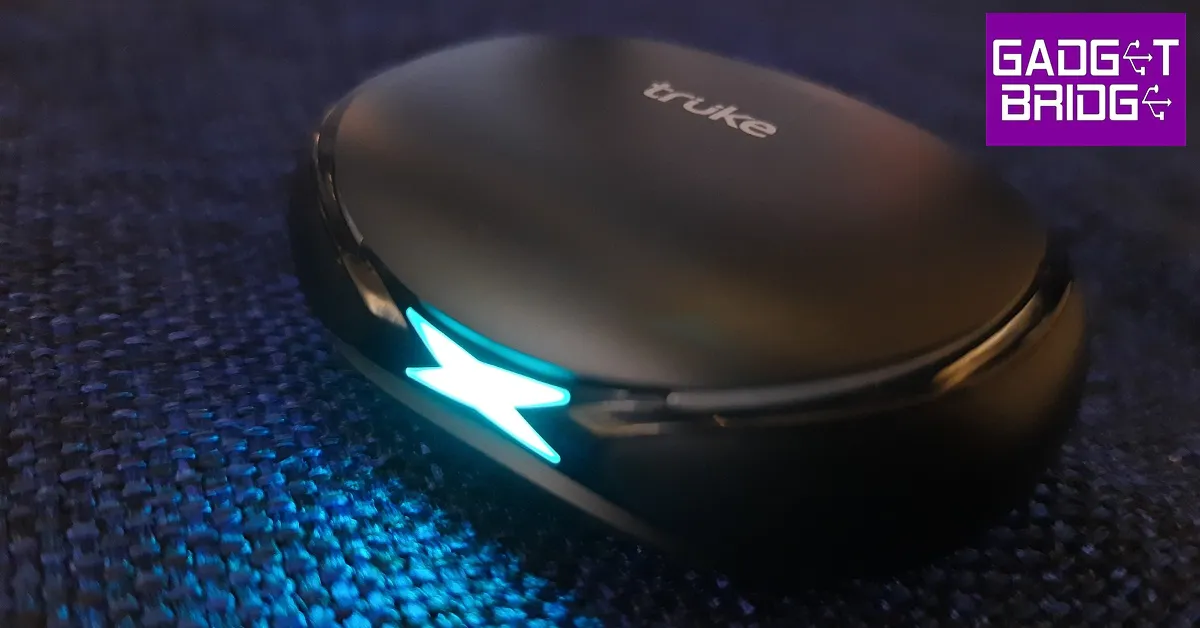
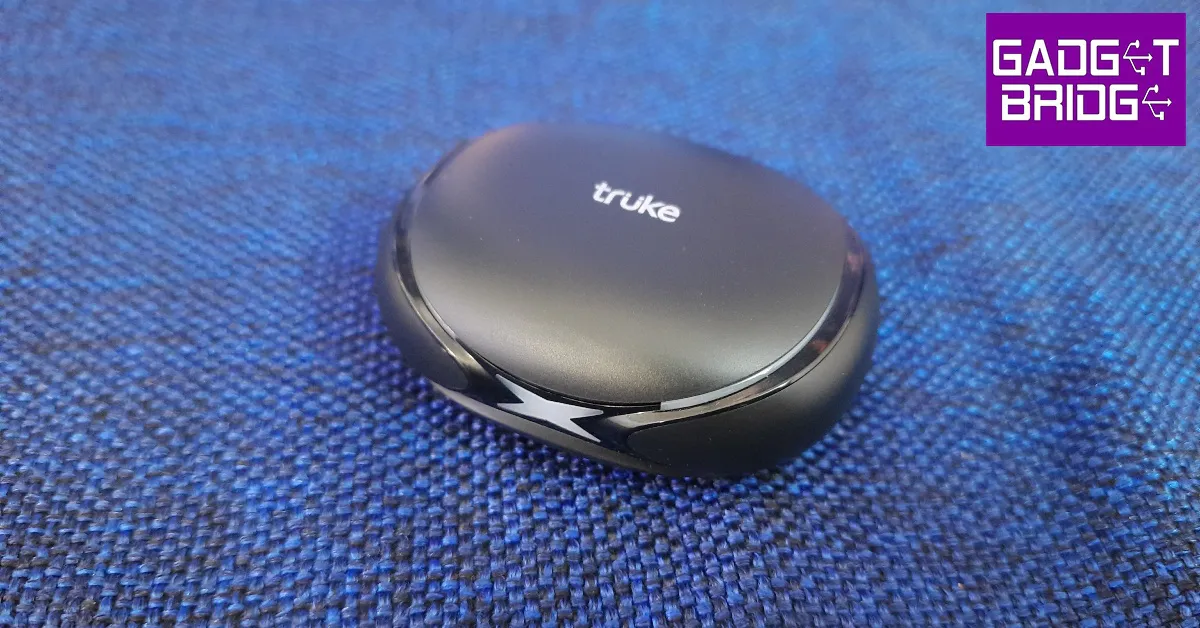
Inside the box, you will find the wireless earbuds, a charging case, a USB Type-C charging cable, a quick start guide, and a warranty card. The plastic tray used to house these contents is quite flimsy, and the charging cable falls out as soon as you pull it out. The earbuds aren’t placed inside the charging case but have a separate cutout for them in the packaging. Given the affordable price of the TWS, cutting corners in the packaging material seems like an understandable choice. Truke BTG X1 review: Design  What Truke did not compromise on is the look and overall design of the BTG X1. The oval-shaped plastic charging case is quite compact and fits easily inside a pocket. The charging case lid is bordered with RGB lighting strips on both sides along with an illuminated ‘X’ sign at the front. The ‘X’ design theme seems to be the running theme as the illuminated sign gives way to glossy strips that run across the sides of the case before merging into an ‘X’ at the back. This is also where the charging port has been placed. Truke BTG X1 review: Design  The main feature of the charging case is the RGB lighting. As a gaming TWS, the BTG X1 definitely looks the part. Truke has equipped the TWS with 20+ RGB LEDs which light up every time you flip open the lid. The ‘X’ sign at the front starts blinking every time the case is put on charge. The plastic body can withstand a few knocks and doesn’t attract fingerprints, but the lid may loosen up over a period of time. The earbuds have a plastic body as well and sport an open in-ear design. This means they do not come with silicone ear tips and have a ‘one size fits all’ design. The fit is quite snug, but the absence of silicone ear tips means a lot of outside noise will seep in. The earbud stems have a small notification light along with the touch controls. We were impressed with the touch sensitivity and found it very easy to access the essential functions. Since a single touch on either earbud either raises or lowers the volume, accidental touches won’t be too big of an issue. The TWS packaging or product info doesn’t mention the IP rating, but we used the BTG X1 on light workouts and did not experience any performance issues. However, due to the lack of ear tips, the buds have a tendency to slip out in sweaty conditions. 

Truke BTG X1 review: Performance

The Truke BTG X1 is equipped with 12mm Titanium audio drivers and supports both SBC and AAC codecs. The headset pairs instantly upon flipping open the lid, thanks to Bluetooth 5.3 connectivity. The earbuds blare a soundbite every time the TWS connects to a device. This can get pretty annoying, and the audio recording of this notification alert is quite rough. You will also hear similar alerts upon disconnecting the TWS or switching to gaming or music mode. Truke BTG X1 review: Performance Shoddy notification alerts aside, the Truke BTG X1 has a thoroughly impressive sound profile. We weren’t expecting this level of clarity in an entry-level headset but Truke seems to have raised the bar here. We played music from different genres like Bollywood pop, classic rock, indie, and hip hop, and the TWS held up very well across the board. The higher frequencies did not sound shrill, which is the case with most entry-level TWS, but were mixed pretty well with the lows and the mids. There is very minor ‘boxiness’ to the sound, but all things considered, the BTG X1 surely punches above its weight. Even when played at 100% volume, the sound showed very little signs of distortion. Being a gaming TWS, the BTG X1 also offers a 40ms low latency mode. The gaming mode can be turned on with three touches to the right earbud stem. We played Call of Duty Mobile with the BTG X1 on, and it delivered a decent performance. The sound aligned perfectly with the gameplay and the in-game sounds were relayed very well. After a week of testing, we did not come across any audio lags. Touch controls on the BTG X1 are very accessible to use but cannot be customised as there is no app support for the TWS. A single tap on the step alters the volume while a double tap pauses or resumes the music playback. As mentioned earlier, you can switch to gaming mode or music mode with three taps on the right stem. The earbuds are also equipped with voice assistant support, which can be activated with three taps on the left earbud stem. Any incoming call can be accepted with a single tap on either earbud. Hanging up the phone requires a double tap. In order to mute the call, press and hold either earbud for one second. 6 quick taps factory resets the TWS. The calling experience was heavily improved with Quad-Mic Environmental Noise Cancellation (ENC). The TWS was successfully able to isolate our voice from the surrounding noise and relay it to the caller without a significant loss in quality. While this level of ENC works well to filter out the noises in a relatively quiet environment (inside of your home, workplace, etc.), it is not sufficient to reduce the overwhelming noises in an outdoor setting. The same applies to in-game voice calls. Moving on to the battery performance, the 300mAh charging case holds enough charge to power the headset for 48 hours. The 40mAh earbuds offer a music payback of up to 10 hours. After charging for 10 minutes, the earbuds can be used for up to 10 hours. The case takes just under 2 hours to fully charge. Read Also: WhatsApp plans to enable sending of photos in their original quality: Report

Verdict

At Rs 1,299, the Truke BTG X1 are easily one of the best entry-level TWS headsets out there. The sound quality delivered is very impressive for a TWS within this price bracket. To add to that, the RGB lighting gives it a spectacular ‘gaming headset’ look. The low latency mode works as intended, and will certainly appeal to gamers. The open in-ear design may not be for everyone, but if these earbuds fit you perfectly, there isn’t much else to complain about.

Pros

RGB lighting  Great design  Impressive sound quality Low latency mode for gaming

Cons

Open in-ear design may not be for everyone  No app support to customise touch controls For the latest gadget and tech news, and gadget reviews, follow us on Twitter, Facebook and Instagram. For newest tech & gadget videos subscribe to our YouTube Channel. You can also stay up to date using the Gadget Bridge Android App. You can find the latest car and bike news here.
Vivo X90 and Vivo X90 Pro likely to launch in India and globally soon, launch date tipped

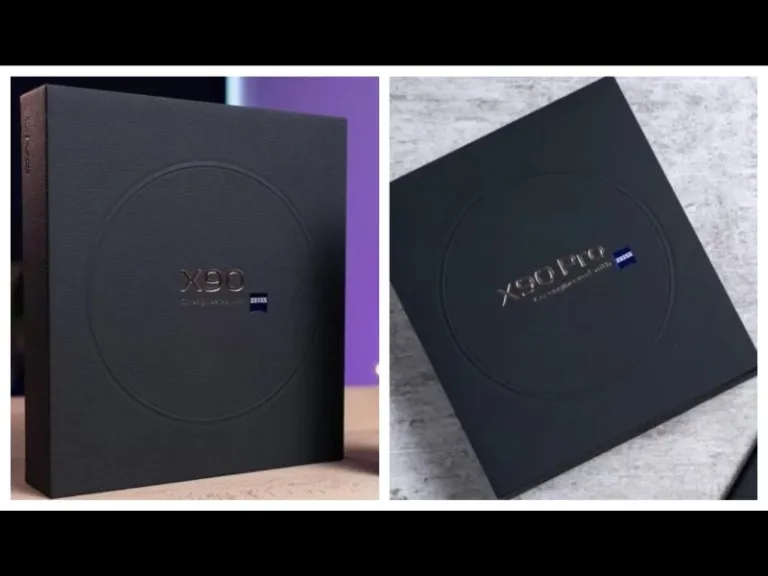
February 3rd is most likely the date for the global release of the Vivo X90 and Vivo X90 Pro. To recall, the Vivo X90, X90 Pro, and X90 Pro+ were the three smartphones that were introduced in China first last year. The latest flagship series from the Chinese tech giant is also speculated to hit Indian shores as well however the company is yet to confirm about the release officially. The tipster Paras Guglani claims that pre-sales for the Vivo X90 and Vivo X90 Pro will begin on January 27. Whereas the devices will go on sale starting on February 3. The tipster has also shared images of the retail box of the Vivo X90 Pro. Zeiss optics are mentioned on the retail box. The specifications are known because the phones have already arrived in China. Also Read: Samsung Galaxy A34 5G gets certified by BIS, also listed on FCC site

Vivo X90 specifications

The Vivo X90’s 6.78-inch AMOLED display features a 1,260 x 2,800-pixel resolution. It boasts a 20:09 aspect ratio, a refresh rate of up to 120Hz, and a screen-to-body ratio of 93.53 percent. The DCI-P3 colour gamut is supported by the display, according to certification. The system is driven by Android 13 and OriginOS 3. The smartphone is powered by an octa-core 4nm MediaTek Dimensity 9200 SoC, up to 12GB of LPDDR5, and a G715 GPU. Internal storage on the Vivo X90 is expandable to 512GB UFS4.0. Three cameras on the back of the X90, a 12-megapixel ultra-wide-angle camera with an f/2.0 aperture, a 12-megapixel portrait camera with a 50mm lens, and a 50-megapixel primary sensor with an f/1.75 aperture are all featured. It has a selfie camera with a 32-megapixel resolution and an f/2.45 aperture. It has a 4,810mAh battery and 120W fast charging is supported.

Vivo X90 Pro specifications

The MediaTek Dimensity 9200 CPU, up to 12GB of LPDDR5 RAM, and up to 512GB of UFS 3.1 internal storage that can be expanded further with a microSD card are all included in the Vivo X90 Pro. The smartphone’s remaining features are comparable to those of the regular model. Its 4,870mAh battery is compatible with both wireless charging at 50W and quick charging at 120W. Also Read: WhatsApp is working on the ability to block contacts from the chat list and notifications: Report The Vivo X90 Pro has a triple rear camera setup, with the primary camera being a 50-megapixel Zeiss 1-inch sensor with an f/1.75 aperture. Additionally incorporated are two 50-megapixel secondary 50mm sensors with an f/1.6 aperture each and a 12-megapixel ultra-wide-angle sensor. On the front, it sports a 32-megapixel selfie camera with an f/2.45 aperture. For the latest gadget and tech news, and gadget reviews, follow us on TwitterFacebook and Instagram. For newest tech & gadget videos subscribe to our YouTube Channel. You can also stay up to date using the Gadget Bridge Android App. You can find the latest car and bike news here.

WhatsApp is working on the ability to block contacts from the chat list and notifications: Report

WhatsApp is offering an alternate method of blocking contacts. Some WhatsApp beta testers are getting the ability to block contacts directly from the chat list and notifications. The first option to block a contact on WhatsApp will be accessible in the chat option while the notification option will only be accessible when getting messages from contacts you don’t know. According to a report by WaBetaInfo for certain beta testers, WhatsApp is now introducing the ability to block users directly from the chat list and notifications. The feature is currently being rolled out through WhatsApp beta for the Android 2.23.2.10 update for some beta testers. Also Read: Samsung Galaxy A34 5G gets certified by BIS, also listed on FCC site The shared screenshot indicates that WhatsApp is introducing two new access points for blocking users. You may easily block a contact without opening the chat by accessing the first entry point in the chat list by opening the chat options (in some circumstances, it might also be present within the app header). The second shortcut can be found in notifications and shows up in particular specific circumstances when getting messages from contacts you don’t know.
WhatsApp is working on the ability to block contacts from the chat list and notifications: Report
Image Courtesy: WaBetaInfo
These options to block WhatsApp contacts make it simpler to block contacts without having to view their chat history, especially if you frequently receive messages from strangers or people you don’t want to interact with. It should be noted that a function that enables users to instantly block numerous contacts at once from the chat list is not currently planned. As per the report, some beta testers who installed the most recent version from the Google Play Store have access to the option to remove contacts from the chat list and notifications, and it will be made accessible to even more users over the next few days. Also Read: iQoo Neo 7 is scheduled to launch in India on February 16 Another new feature that WhatsApp is developing would let users share photos in their original quality. The new development is included in the most recent WhatsApp beta for the Android 2.23.2.11 upgrade. WhatsApp plans to include a new icon in the drawing tool header that would allow users to adjust the image quality of any photo. This feature will eventually allow users to select to send photographs in their original quality. We feel that this feature will provide consumers more control over the image quality they are sending in situations where delivering a photo in its original quality is necessary. For the latest gadget and tech news, and gadget reviews, follow us on TwitterFacebook and Instagram. For newest tech & gadget videos subscribe to our YouTube Channel. You can also stay up to date using the Gadget Bridge Android App. You can find the latest car and bike news here.
Top 6 ways to fix apps not downloading from Microsoft Store in Windows 10 or 11 (2024)

1
Microsoft Store is the official marketplace for apps in the Windows ecosystem. If you’re looking to download a new videogame or the latest version of any utility app, Microsoft Store is the first place you should be looking. Oftentimes, users report that Microsoft Store refuses to download any app to their desktops. This can get pretty annoying if it happens frequently but luckily there are a few fixes you can employ to get rid of the issue. In this article, we bring you the top 6 ways to fix the ‘apps now downloading from Microsoft Store’ issue in Windows 10 or 11. Read Also: WhatsApp plans to enable sending of photos in their original quality: Report

Clear Microsoft Store app cache

Clear Microsoft Store app cache The temporary files in the app cache can get corrupted from time to time and keep the Microsoft Store from working properly. Clear the cache to fix any temporary issues. To clear Microsoft Store’s cache, all you need to do is press Windows Key+R and enter ‘wsreset.exe’ in the Run dialogue box. A command prompt window will appear and then close itself after the cache has been cleared. Once the cache has been cleared, Microsoft Store will open on your desktop.

Use Windows Troubleshooter

Windows‘ built-in troubleshooter is a handy tool to fix any minor issues with the apps on your desktop. You can run the troubleshooter for Microsoft Store to diagnose and fix any problem you may be encountering with it. Here’s how. Step 1: Go to Settings and select Update & Security. Step 1: Go to Settings and select Update & Security.  Step 2: Select Troubleshoot on the side menu. Step 2: Select ‘Troubleshoot’ on the side menu. Step 3: Click on Additional Troubleshooters and select Windows Store apps. Step 3: Click on ‘Additional Troubleshooters’ and select Windows Store apps. how to fix apps not downloading in microsoft store The Windows Troubleshooter will run and try to detect a problem with the Microsoft Store and the apps you downloaded from it. It is not a guarantee that the troubleshooter will fix the issue, but it is worth a shot.

Update the Microsoft Store

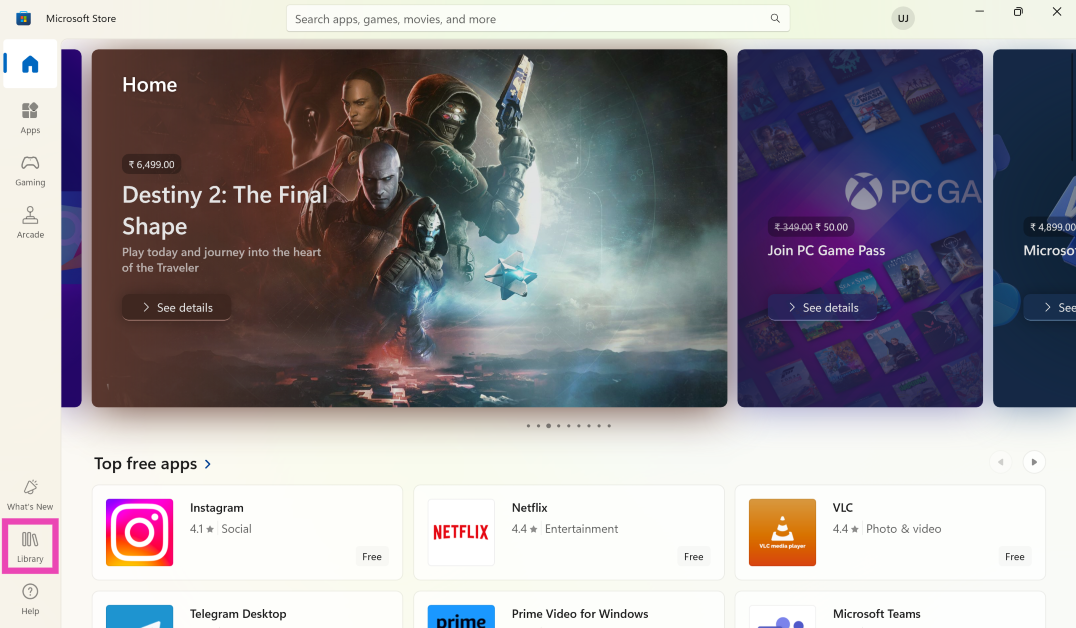
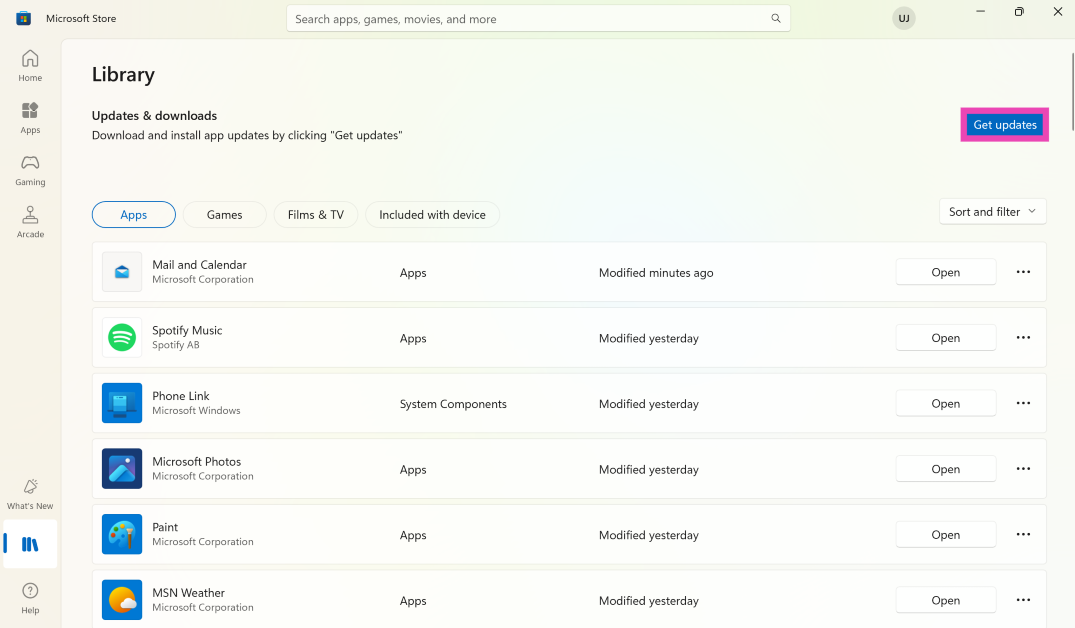
Step 1: Launch the Microsoft Store on your Windows PC or laptop. Step 2: Switch to the Library tab. Step 2: Switch to the Library tab. Step 3: Click on Get Updates. This is where you’ll find pending updates for the apps as well as the Microsoft Store. Step 3: Click on Get Updates. This is where you'll find pending updates for the apps as well as the Microsoft Store.
Check your computer’s date and time

Microsoft Store will refuse to download any app on your desktop if its date and time are not up to date. Luckily, it can be fixed pretty easily. Here’s how. Step 1: Go to Settings and select Time & Language. Step 1: Go to Settings and select Time & Language. how to fix apps not downloading in microsoft store Step 2: Turn the toggle bar for ‘Set time automatically’ off. Step 2: Turn the toggle bar for ‘Set time automatically’ off. how to fix apps not downloading in microsoft store Step 3: Click on ‘Change’ under ‘Set date and time manually’. Enter the correct date and time. If you do not want to manually set the date and time, you can sync your time with the Windows time server, or set your time zone manually. Once you’ve ensured that the date and time on your desktop are correct, go back to Microsoft Store and see if it’s working correctly.

Reset Microsoft Store

Reset Microsoft Store If none of the fixes mentioned above work for you, you can try resetting Microsoft Store as a final effort to fix the download issue. Resetting the Microsoft Store will clear the app data and log you out of the Store. It will not delete any of your previous downloads or purchases. In order to reset the Windows Store go to Settings>Apps>Microsoft Store>Advanced Options and select Reset.

Reset Microsoft Store using Command Prompt

Step 1: Launch the Command Prompt on your Windows PC or laptop. Step 2: Type wereset and hit Enter.

Frequently Asked Questions (FAQs)

Why are new apps not downloading from the Microsoft Store?

New apps may fail to download from the Microsoft Store if your PC is facing connection issues or there are apps queued up for updates.

How do I view app updates on the Microsoft Store?

Launch the Microsoft Store, go to the Library tab, and hit Get Updates to view pending updates for apps.

How do I reset the Microsoft Store app?

To reset the Windows Store go to Settings>Apps>Microsoft Store>Advanced Options and select Reset. Read Also: BharOS indigenous mobile operating system developed by IIT Madras announced

Conclusion

These are the top 6 ways to fix the ‘apps not downloading from Microsoft Store’ issue in Windows 10 or 11. As an additional tip, you should also check if your Windows OS is up to date, as previous versions may contain some bugs. If you found this article helpful, let us know in the comments!