4 Simple Ways to Restart a Chromebook

0
Chromebooks are inexpensive laptops that run the Chrome OS. These devices are ideal for lightweight tasks like document editing, web browsing, and even some light gaming. This makes Chromebooks pretty popular among students. While the Chrome OS is pretty nifty, it lacks the option to restart the device. So, in this article, we bring you the top 4 ways to restart your Chromebook. Read Also: Top 7 ways to fix ‘Discord screen share showing a black screen’?

Restart your Chromebook using the power button

HP Chromebook 15.6 powered by Celeron N4500 CPU launched in India for students This is the standard way of restarting your Chromebook device. Here’s how you can go about it. Step 1: Press and hold the power button on the Chromebook’s keyboard for 2 seconds. Step 2: A small power menu will appear on your Chromebook’s screen. Step 3: Select Restart from the power menu.

Restart your Chromebook from the Quick Settings Panel

CES 2022: Acer announced Chromebook Spin 513, Chromebook 315, and Chromebook 314 Chromebooks shockingly lack the ‘restart’ option on their OS. To restart your device, you can simply shut it down from the Quick Settings Panel and power it on again. Step 1: Unlock the Chromebook and click on the status indicator at the bottom right corner of the screen. Step 2: Click the power icon to shut down the Chromebook. Step 3: Now, hit the power button on the keyboard to restart your Chromebook.

Restart your Chromebook from the Lock Screen

Asus Chromebook CX1101 launched in India at Rs 19,999 Your Chromebook device can be turned off from the lock screen itself. Once it’s shut down, use the power key to turn it back on. Here’s how. Step 1: Press Search + L to lock your Chromebook. Step 2: Select Shut Down from the bottom left corner of the screen. Step 3: Once the device has turned off, press the power key to turn it back on.

Use Google Chrome to restart your Chromebook

How To Install Google Chrome on Android TV (2022)? Not many people know this, but you can use a Google Chrome URL code to restart your Chromebook. Here’s how. Step 1: Launch Google Chrome on your Chromebook. Step 2: Click on the address bar. Step 3: Type the following address. chrome://restart Step 4: Hit Enter.

Frequently Asked Questions (FAQs)

How do I restart my Chromebook?

To restart your Chromebook, simply press and hold the power icon on the keyboard for a couple of settings and select Restart from the power options.

How do I restart my Chromebook using Google Chrome?

Launch Google Chrome, type chrome://restart in the address bar and hit Enter.

Is there a Restart option in Chrome OS?

No, Chrome OS does not give you the option to restart your Chromebook. You can either use the physical power key or Google Chrome to restart your device. Read Also: WD Blue SN580 NVMe SSD for creative professionals launched in India

Conclusion

These are the four quick ways to reboot the Chromebook. Apart from the Chrome browser code, your Chromebook gives you the option to restart your device every time you update its OS. If your device is stuck on a particular screen, you can press and hold the power key to hard reboot it. For the latest gadget and tech news, and gadget reviews, follow us on Twitter, Facebook and Instagram. For newest tech & gadget videos subscribe to our YouTube Channel. You can also stay up to date using the Gadget Bridge Android App. You can find the latest car and bike news here.

How to search for posts on Threads?

0
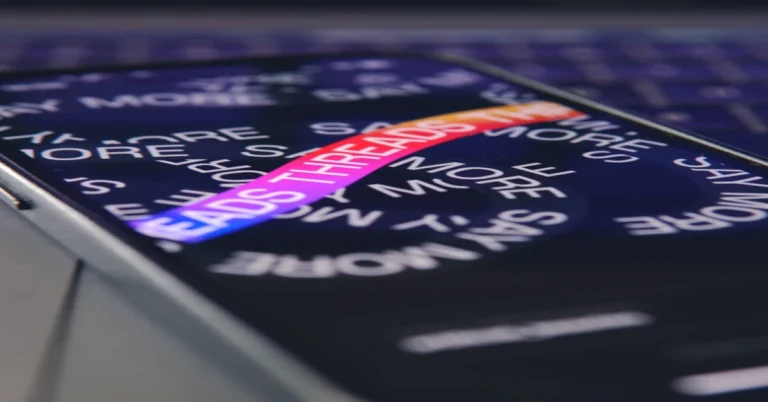
Ever since its launch, Meta-owned social media network Threads has been regularly rolling out new features to provide a comprehensive experience to its users. More recently, the platform added a new following feed that lists the posts from your followers in chronological order. Now it has added the feature to look up posts made by other users. While the search button was always present on the app, it could only be used to search for other profiles. Now users can use this option to search for posts based on a particular topic. In this article, we show you how to search for posts on Threads. Read Also: WD Blue SN580 NVMe SSD for creative professionals launched in India

Search for a post on Threads

Step 1: Launch the Threads app on your smartphone. Step 2: Hit the Search icon at the bottom menu. Step 2: Hit the Search icon at the bottom menu. How to search for posts on Threads? Step 3: Tap on the search bar. Step 3: Tap on the search bar. How to search for posts on Threads? Step 4: Enter a phrase, keyword, or topic and hit Search. Step 4: Enter a phrase, keyword, or topic and hit Search. How to search for posts on Threads? Step 5: You will be able to see the posts related to the keyword/topic. Step 5: You will be able to see the posts related to the keyword/topic. How to search for posts on Threads?

Bonus Tip: How to remove the Threads shortcut from your Instagram account?

Step 1: Launch the Instagram app on your smartphone and tap the profile icon at the bottom right corner of the screen. Step 1: Launch the Instagram app and tap the profile icon at the bottom right corner of the screen. Step 2: Select Edit Profile. Step 2: Select Edit Profile. How to remove the Threads Shortcut from your Instagram account? Step 3: Switch off the toggle bar for Show Threads shortcut. Step 3: Switch off the toggle bar for Show Threads shortcut. How to remove the Threads Shortcut from your Instagram account? Step 4: Tap the tick icon at the top right corner of the screen. Step 4: Tap the tick icon at the top right corner of the screen. How to remove the Threads Shortcut from your Instagram account?

Frequently Asked Questions (FAQs)

How do I search for a post on Threads?

You can now search for posts related to a particular topic on Threads by tapping the search icon and entering the appropriate keyword.

Does Threads allow you to search for a post on a person’s profile?

No, you cannot search for a particular post on a person’s Threads profile yet.

Can I join Threads without using my Instagram account?

If you don’t want to link your Threads account to your Instagram account, you can create a burner Instagram account for Threads using a temporary email. Read this article for more details. Want to remove the Threads profile icon from your Instagram profile? Read this article to learn how. Read Also: Awesome White colour variant of Samsung Galaxy A54 5G launched in India

Conclusion 

This is how you can search for posts on the Threads app. Recently, the Meta-owned Twitter alternative also rolled out the web interface for its platform. You can now use Threads from your web browser by going to Threads.net. How are you liking the social media platform so far? Let us know in the comments! For the latest gadget and tech news, and gadget reviews, follow us on Twitter, Facebook and Instagram. For newest tech & gadget videos subscribe to our YouTube Channel. You can also stay up to date using the Gadget Bridge Android App. You can find the latest car and bike news here.

How to label your saved places on Google Maps with an emoji?

0
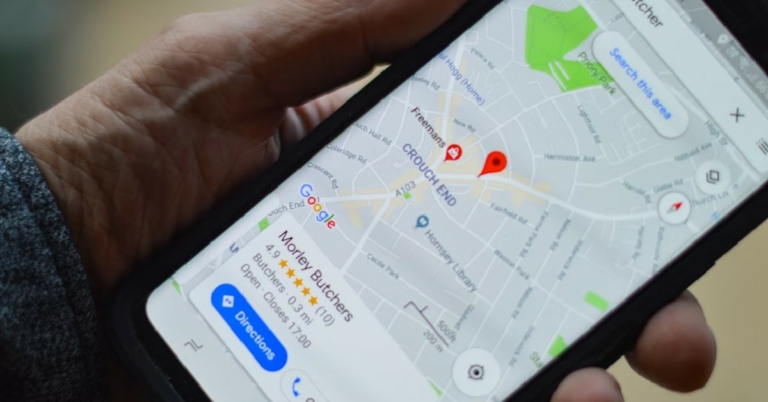
If you use the ‘saved places’ option on Google Maps, you will be pleased to know about the feature that Google has just added to the app. Earlier, when you saved a place on the map, it used to get a star icon next to it. Now, you can assign any emoji to the place. This will make it easier to sort your favourite places on the map. Got a list of your favourite burger joints? Now you can set a burger icon for them on the map. The possibilities are endless. In this article, we show you how to label your saved places on Google Maps with an emoji. Read Also: WD Blue SN580 NVMe SSD for creative professionals launched in India

Label saved places on Google Maps with emojis

Step 1: Launch the Google Maps app on your phone. Step 2: Switch to the Saved tab. Step 2: Switch to the Saved tab. Step 3: Select the list you want to customise. Step 3: Select the list you want to customise. Step 4: Hit Edit. Step 4: Hit Edit. Step 5: Tap on Choose icon. Step 5: Tap on Choose icon. How to label your saved places on Google Maps with an emoji? Step 6: Select an emoji from the list. Step 6: Select an emoji from the list. How to label your saved places on Google Maps with an emoji? Step 7: Hit Save. Step 7: Hit Save. How to label your saved places on Google Maps with an emoji? Step 8: Now, hit the ellipses next to the list and select Show on your map. Step 8: Now, hit the ellipses next to the list and select Show on your map. How to label your saved places on Google Maps with an emoji? The emoji will now appear next to the name of the list and the saved places will be labelled by their assigned emoji on the map.

Frequently Asked Questions (FAQs)

What is a list on Google Maps?

A Google Maps list allows you to curate your favourite places and save them in one place. You can create your own list around a particular theme like your favourite pizza places, nearby gas stations, or the gyms you like to visit in your city.

How do I create a list on Google Maps?

To create a list on Google Maps, simply switch to the Saved tab and tap the ‘New list’ option. Once you have added a title and description, you can add places to the list.

How do I label my saved places with an emoji on Google Maps?

Go to the list you want to customise, hit the edit option and tap on Choose icon. Select an emoji from the list and hit Save. Read Also: Awesome White colour variant of Samsung Galaxy A54 5G launched in India

Conclusion

This is how you can label your saved places on Google Maps with an emoji. This customisation will make places easier to recognise on the map. If you can’t find this option on your Google Maps app yet, update it from the Google Play Store. Since Google is rolling out this feature in phases, it may take some time to reach your device. For the latest gadget and tech news, and gadget reviews, follow us on Twitter, Facebook and Instagram. For newest tech & gadget videos subscribe to our YouTube Channel. You can also stay up to date using the Gadget Bridge Android App. You can find the latest car and bike news here.
Grandparents Day: Best tech gifts for your grandparents

September 10 marks Grandparents’ Day to show love and appreciation towards your grandparents. While it is not an international day of appreciation yet, many countries including India recognise it. When it comes to gifting, people usually gloss over tech products for their grandparents. But there are several gadgets that use tech effectively, making them very accessible to elderly folks. In this article, we bring you our picks for the best tech gifts for your grandparents on Grandparents’ Day 2023. Read Also: Awesome White colour variant of Samsung Galaxy A54 5G launched in India

Amazon Echo Pop

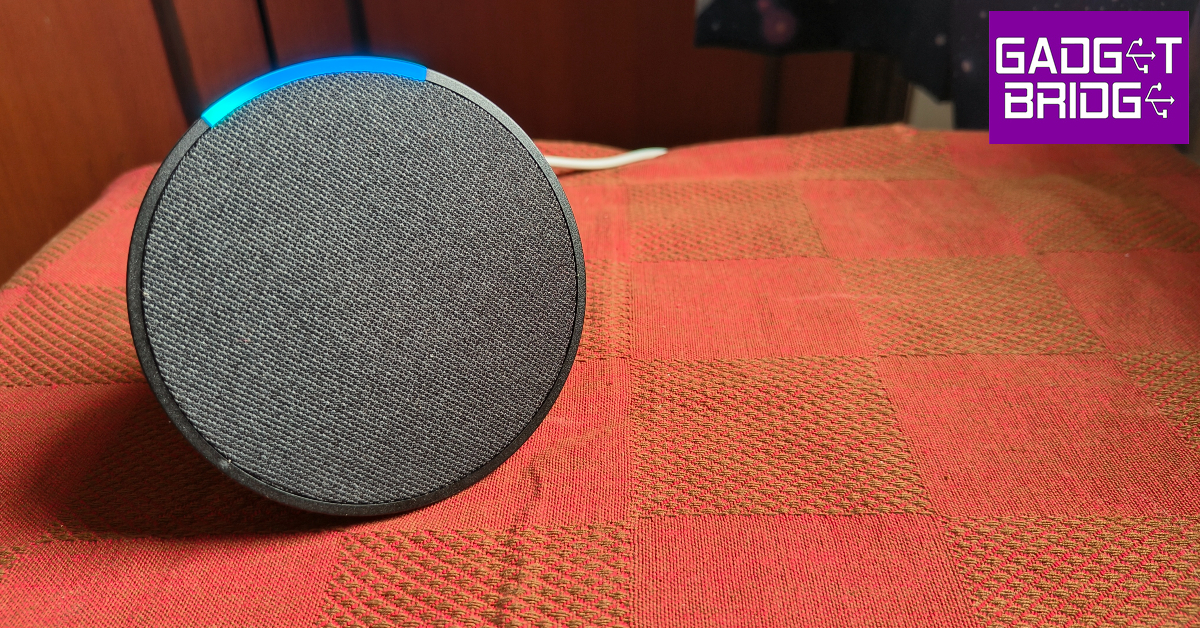
Price: Rs 4,999 on Amazon Amazon Echo Pop review: Performance Operating solely on voice commands, a smart speaker is the perfect device for grandparents who struggle to deal with digital interfaces and complicated UI. The Amazon Echo Pop makes a really good addition to the nightstand, allowing users to set up alarms, listen to music, read the headlines, check the weather, and more without needing to go through their smartphones. Want to curate the perfect package? Get smart bulbs for your grandparents’ room so they don’t have to get up to turn off the lights. A simple voice command to Alexa will take care of it. Here is our review of the entry-level smart speaker from Amazon.

Amazon Kindle

Price: Rs 9,999 on Amazon Kindle 2022 review: Performance With its anti-glare display and amazing pixel density, the Amazon Kindle beautifully replicates the traditional reading experience on a digital screen. Not to mention that it comes with its own benefits. With 16GB of internal storage, the Kindle can store thousands of books. The Kindle Unlimited subscription gives users instant access to over 2 million titles. One underrated aspect of the Kindle is the illuminated display, which means your grandparents can read books in the comfort of the bed, without needing to get up and turn the lights on. Read our review here.

Expressions Heating Blanket

Price: Rs 3,068 on Amazon Expressions Heating Blanket The Expressions Heating Blanket comfortably slips under the bed cover to provide constant warmth and coziness. For elderly folks who struggle in intense cold, this heating blanket would make a tremendous asset. The blanket comes with two controls for either side of the bed. It can be set to three heat levels. Made out of a polyester blend, the blanket is comfortable to lie down on and does not cause any itchiness or irritation to the skin. There’s a very helpful safety feature that cuts off power to the blanket when it starts to overheat.

Xiaomi Pad 6

Price: Rs 26,999 Grandparents Day: Best tech gifts for your grandparents The Xiaomi Pad 6 is an excellent Android tablet that is ideal for watching content and carrying out basic web-related tasks. The 11-inch HD display does a good job of relaying detailed and colour-rich images on the screen. Your grandparents will also enjoy taking WhatsApp video calls on this big screen. The 8,840mAh battery on this tablet can last up to two days. The 13MP rear camera can take decent shots in optimum lighting. The 8MP selfie camera also delivers a good performance on video calls. Read our full review of the tablet here

Sony WH-CH520

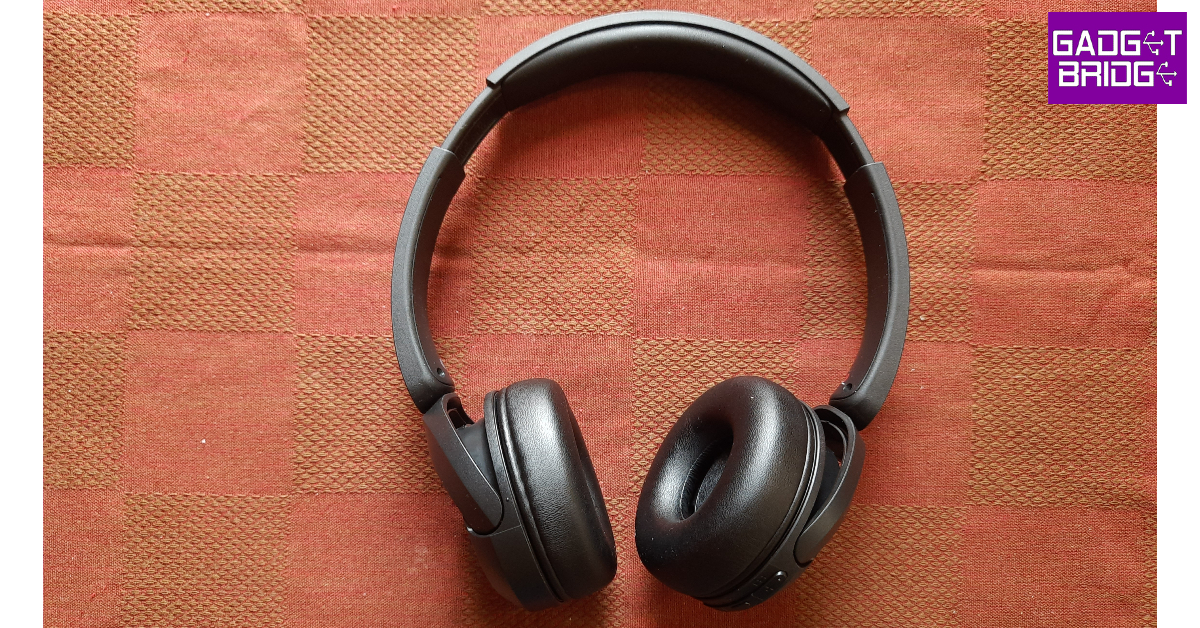
Price: Rs 5,990 on Sony.in Grandparents Day: Best tech gifts for your grandparents Wireless headphones and earbuds are supposed to be convenient products, but for some people, the touch control panels greatly hinder their accessibility. The Sony WH-CH520 gets around this issue with the use of physical buttons on the earcup. Elderly folks will appreciate the dedicated buttons for power on/off, volume, and track seeking. While reviewing the headphones, we found the sound output to be punchy and texture-rich. We also liked that the bass wasn’t overtly thumpy, and the wide range of frequencies got appropriate representation on the soundstage. The 50-hour battery life is the cherry on top of the cake.

Samsung Galaxy M34

Price: Rs 16,999 on Samsung.com Samsung Galaxy M34 Review: Ticks all the essential boxes. Grandparents Day: Best tech gifts for your grandparents Thinking of gifting your grandparents a neat, efficient smartphone? The Samsung Galaxy M34 would be a great choice for more reasons than one. Firstly, it packs a massive 6,000mAh battery under the hood. We used the smartphone for a week while reviewing it, and it easily lasted us two days upon moderate usage. Incredible battery life aside, the Galaxy M34 also sports a versatile 50MP main camera that can take stunning shots in various lighting conditions. The 8MP ultrawide lens also puts in a good performance. The One UI OS is easy to navigate and very accessible to people who aren’t super familiar with tech products.

OnePlus Nord Watch

Price: Rs 4,999 on OnePlus.in OnePlus Nord Watch review: Performance. Grandparents Day: Best tech gifts for your grandparents The OnePlus Nord Watch does a great job of efficiently tracking health functions like heart rate, SpO2 level, and sleep cycle. Gathering health data around the clock can be a good supplement to regular medical checkups. The Nord Watch can also monitor the stress level and notify the user when their heart rate exceeds the threshold. If your grandparents like to take long walks, they can track their steps and the distance covered using this smartwatch. Read our full review here. Read Also: The all-new GoPro Hero 12 Black action camera launched in India

Conclusion 

These are our picks for the best tech gifts for your grandparents on Grandparents’ Day 2023. We’ve picked different products across various genres and price points. While making a purchase, make sure you check out the different bank offers and deals to bring the price down. Bought a gift already? Let us know what you got in the comments! For the latest gadget and tech news, and gadget reviews, follow us on Twitter, Facebook and Instagram. For newest tech & gadget videos subscribe to our YouTube Channel. You can also stay up to date using the Gadget Bridge Android App. You can find the latest car and bike news here.

Vivo V29e Review: A head turner

Vivo just debuted the Vivo V29e, its newest smartphone, in India. The phone has an eye-catching design. The Qualcomm Snapdragon 695 SoC powers the device. A 5,000mAh battery with 44W quick charging capabilities is also included. It also boasts a full-HD+ display that supports a 120Hz refresh rate. Let’s see how it did in our Vivo V29e review.

Vivo V29e Review: Design and Display

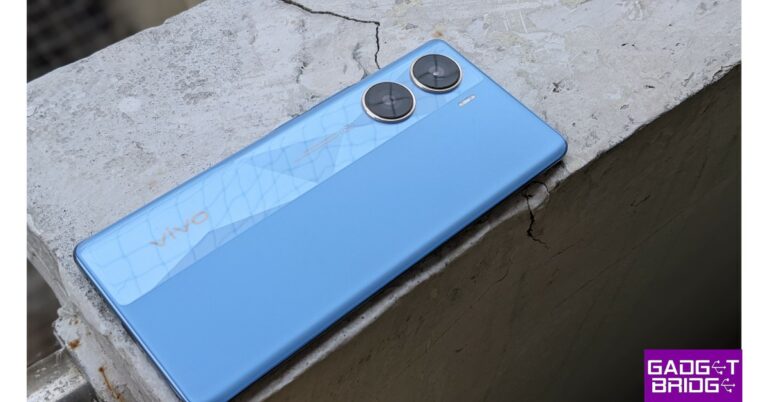
Beginning with the design The Vivo V29e has a gorgeous design and it looks fantastic. While the design aspect of things can be subjective, it still looks extremely different from the current smartphones. It has a body that is dual-toned, with a matte finish on one side and a glossy finish on the other. Although we are reviewing the Artistic Blue model, we actually preferred the Artistic Red colour scheme. The phone’s shiny side has triangular designs on it. The glass back of this item is beautifully constructed. Vivo V29e Review: Design and Display The phone is extremely light (180.5g) given its size and thinness (7.57mm). It includes curved front and rear surfaces for an easy grip and a high-end experience when held. Speaking of ports, the bottom of the device has a speaker grille, a USB Type C connector, a microphone, and a SIM card tray. You should be aware that the phone includes a hybrid SIM card slot, allowing you to use either 2 SIM cards or 1 SIM card and 1 SD card. Consequently, there is an expansion slot, but no 3.5mm jack. Also Read: OnePlus Nord CE3 5G Review: A no-nonsense smartphone under Rs 30,000 Vivo V29e Review: Design and Display You will find a volume rocker and a power on/off button on the right side. A microphone with noise cancellation is located on top. On the left side frame, nothing is present. Yes, the frame in this instance is plastic rather than metal, but the shiny finish gives it a premium refinement. The bezels on the front are quite small; in fact, if you look at the bezel next to the chin, it is nearly nonexistent. The display has an embedded fingerprint sensor that is quick and responsive, however, a higher placement would have been greatly appreciated. Vivo V29e Review: Design and Display It has a 6.78-inch, 10-bit full-HD+ display with a resolution of 2,400 x 1,080 pixels. The panel boasts a peak brightness of 1300 nits, a touch sampling rate of up to 1200Hz, and a refresh rate of 120Hz. Additionally, a PWM dimming rate of up to 360Hz is available. Since the screen is 1300 nits bright, you can use it outside in direct sunshine and still see everything perfectly. Vivo V29e performance A 10-bit colour scheme and a fast refresh rate produce a wonderful visual and scrolling experience. The display is quite colourful. The contrast is excellent, the blacks are darker, and it is lovely and bright. However, if you watch a lot of OTT content, be aware that there is no HDR10 compatibility, which is disappointing for a phone under Rs 30,000. There is a single speaker system on top, so there are no stereo speakers. The audio gets very loud because there is an audio booster mode. Overall, however, it lacks the richness and depth of a dual-speaker system. Also Read: Samsung Galaxy Z Flip 5 Review: Flip it good!

Vivo V29e Review: Performance and Cameras

Speaking about performance, the Vivo V29e is equipped with Qualcomm Snapdragon 695 SoC and Adreno 619 GPU. The phone has up to 256GB of internal storage and 8GB of RAM. It has a UFS 2.2 storage type and LPDDR4X RAM type. It is an excellent phone for everyday use in terms of performance. It is capable of managing everyday operations like browsing, texting, viewing movies, making calls, and other multitasking activities with ease. Call of Duty Mobile ran smoothly at its maximum settings. The problem is that with continued use, the performance will inevitably slow down, the phone will start to become warm, and the usual stutters and lags will become very noticeable. At its core is FuntouchOS 13, which is based on Android 13. The software operates well and quickly. It offers all of the customization options for Android 13. Bloatware is one item we’d like to point out here about the V29e. It is possible to uninstall these pre-installed useless applications. Okay, let’s discuss the camera. A 64-megapixel primary sensor with optical image stabilisation (OIS) and an 8-megapixel ultra-wide-angle lens make up the dual back camera system on the Vivo V29e. For selfies and video calls, there is a front-facing 50-megapixel camera. Review of Vivo V29e We were pleasantly surprised by the vibrant colours in the pictures. In the daylight environment, the colours appear vibrant without being oversaturated. The highlights are carefully managed. Review of Vivo V29e The portraits taken by the Vivo V29e are incredible. Even non-portrait general photographs appear clear, detailed, and vibrance is adjusted appropriately. Review of Vivo V29e However, the performance of ultra-wide angle camera is just fair. As the colour temperature fluctuates, the hues appear less bright. We also observed that the details are really scant. Review of Vivo V29e We captured a lot of low-light images the Vivo V29e generated some excellent and vibrant photos with good contrast and details. However, some images taken in extremely low light conditions were grainy and had washed-out hues. Therefore, if you snap images with a sufficient quantity of ambient light around them, you can expect to see good photos; nevertheless, if there is little ambient light present, don’t hold out much hope. Now that taking selfies has become the norm, photos taken in direct sunlight also look excellent, but the camera suffers with HDR selfies taken in low light. We were really unhappy that the smartphone does not allow 4K recording, mostly because the Snapdragon 695 can only handle 1080p video. A 5,000mAh battery with 44W fast charging is included. First, the battery life. The Vivo V29e comfortably lasts all day with moderate usage, which includes typical calling, messaging, social media use, and a couple of hours of video watching. It occasionally lasts for a day and a half. We would say that, by today’s standards, the charging speed is acceptable. Therefore, it takes roughly 30 minutes to charge to 50% while it takes about 75 minutes to fully charge from 0% to 100%, making it far from the fastest.

Verdict

The Vivo V29e has a wonderful, colourful display, but you know at this price point they should have offered HDR10 support without a doubt, and the single speaker configuration you are receiving here just isn’t good enough. The company has definitely nailed the design aspect of this. From both the front and back, the Vivo V29e appears equally stunning. So doing ordinary tasks gets a thumbs up, but when a phone is subjected to a sizable amount of strain, issues begin to surface. The main camera does not let you down because it provides you with superior colours and details in a variety of lighting situations. Price starts at Rs 26,999

Pros

Excellent design The primary camera doesn’t disappoint Colourful display

Cons

No 4K recording support speakers too loud No HDR10 support for the display For the latest gadget and tech news, and gadget reviews, follow us on TwitterFacebook and Instagram. For newest tech & gadget videos subscribe to our YouTube Channel. You can also stay up to date using the Gadget Bridge Android App. You can find the latest car and bike news here.

Top 7 ways to fix ‘Discord screen share showing a black screen’?

Discord allows users to stream games for their friends on particular a server. Sharing your PC’s screen is how you can telecast your gameplay to the rest of the group. You can also use the screen-sharing feature to stream content from Netflix, Prime Video, and other OTT services. Sometimes users report that Discord blacks out the screen while using this feature. In this article, we bring you the top 7 ways to fix the ‘Discord screen share showing a black screen’ issue on your PC. Read Also: iPhone 15 Series camera details surface ahead of the official launch

Clear Discord Cache to fix the black screen on Discord screen share

Step 1: Launch the Discord app on your Windows PC. Step 2: Press Windows Key + R. Step 3: In the popup box, type %appdata% and hit Enter. Step 3: In the popup box, type %appdata% and hit Enter. 8 Easy Fixes: Discord Stream Showing Black Screen Step 4: Go to Discord>Cache. Step 5: Delete all the files inside the Cache folder. Step 5: Delete all the files inside the Cache folder. 8 Easy Fixes: Discord Stream Showing Black Screen

Disable the Advanced Technology option

Step 1: Launch the Discord app on your device. Step 2: Go to Settings. Step 1: Click the gear icon next to your username to launch settings. Step 3: In the Voice and Video category, turn off the toggle switch for Use our advanced technology to capture your screen. Step 3: In the Voice and Video category, turn off the toggle switch for Use our advanced technology to capture your screen.

Update Your PC’s Graphics Drivers to remove black screen from Discord screen share

Step 1: Right-click on the Start menu icon. Step 2: Select Device Manager. Step 1: Right-click on the Start menu icon. Step 3: Click on the arrow next to Display Adapters to expand it. Step 3: Click on the arrow next to Display Adapters to expand it. Step 4: Right-click the graphics card and select Update driver. Step 4: Right-click the graphics card and select ‘Update driver’.

Disable Hardware Acceleration

Step 1: Click the gear icon next to your username to launch settings. Step 1: Click the gear icon next to your username to launch settings. Step 2: Select Advanced from the side menu. Step 2: Select ‘Advanced’ from the side menu. Step 3: Switch off the toggle bar for Hardware Acceleration. Step 3: Switch off the toggle bar for Hardware Acceleration.

Add the game you’re playing to your Discord profile

Step 1: Launch the Discord app and go to Settings. Step 1: Click the gear icon next to your username to launch settings. Top 7 ways to fix ‘Discord screen share showing a black screen’? Step 2: Select Registered Games from the side menu. Step 3: Click on Add it. Step 3: Click on Add it. Top 7 ways to fix ‘Discord screen share showing a black screen’? Step 4: Select the game or app from the drop-down menu.

Enable In-Game overlay

Step 1: Launch the Discord app and go to Settings. Step 1: Click the gear icon next to your username to launch settings. Top 7 ways to fix ‘Discord screen share showing a black screen’? Step 2: Select Game Overlay from the side menu. Step 2: Select Game Overlay from the side menu. Top 7 ways to fix ‘Discord screen share showing a black screen’? Step 3: Turn on the toggle switch for Enable in-game overlay.

End all Discord tasks

Step 1: Right-click on the taskbar and select Task Manager. Step 1: Right-click on the taskbar and select Task Manager. Top 7 ways to fix ‘Discord screen share showing a black screen’? Step 2: Right-click on Discord’s process and select End Task. Step 2: Right-click on Discord’s process and select End Task. Top 7 ways to fix ‘Discord screen share showing a black screen’?

Frequently Asked Questions (FAQs)

How do I fix the black screen while using Discord’s screen share feature?

Go to Settings>Voice and Video and turn off the toggle switch for ‘Use our advanced technology to capture your screen’. Furthermore, update your PC’s graphic drivers and disable hardware acceleration.

Why does the game I’m playing not show up while sharing the screen on Discord?

If you can’t share your gameplay on Discord screen share, go to Settings>Registered Games and add the game you’re playing to your Discord profile.

How do I clear Discord’s cache on a PC?

Press Windows + R and type %appdata% in the popup box. Go to Discord>Cache and delete all the files inside the Cache folder. Read Also: Awesome White colour variant of Samsung Galaxy A54 5G launched in India

Conclusion

These are the top 7 ways to fix the ‘Discord screen share showing a black screen’ issue on your PC. Before you use the screen-sharing feature on Discord, make sure you are running the app as an administrator on your PC. If you found these fixes useful, let us know in the comments! For the latest gadget and tech news, and gadget reviews, follow us on Twitter, Facebook and Instagram. For newest tech & gadget videos subscribe to our YouTube Channel. You can also stay up to date using the Gadget Bridge Android App. You can find the latest car and bike news here.

Samsung Galaxy Watch6 Classic Review: A supreme health tracker that does not compromise on style

Launched in July, the new Samsung Galaxy Watch6 Classic is available in two case size variants with LTE and Bluetooth connectivity options. The rotating physical bezel also makes a return on the Watch6 Classic after skipping the Galaxy Watch5 Pro. Samsung’s flagship wearable has been the best Android smartwatch for a few years now. In its latest iteration, the Galaxy Watch retains its signature design and efficient sensors while making some minor improvements across the board. It may not blow you away with a radical new design, but it continues to deliver the kind of near-flawless performance that is expected of it. We strapped the smartwatch around our wrist for a week, here is our in-depth Samsung Galaxy Watch6 Classic review. Read Also: iPhone 15 Series camera details surfaced ahead of the official launch

Samsung Galaxy Watch6 Classic review: Design and Display

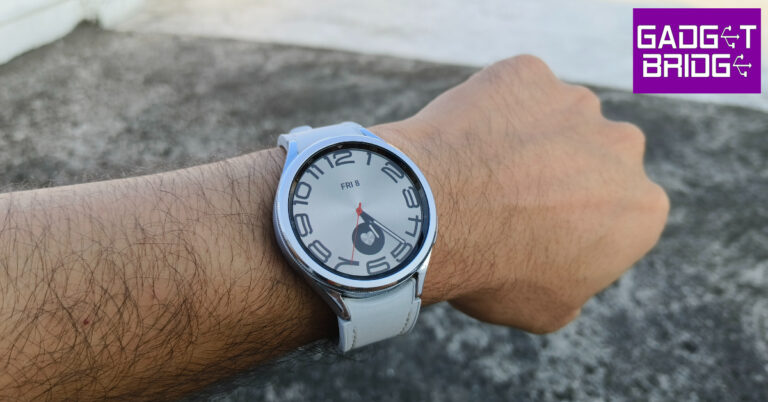
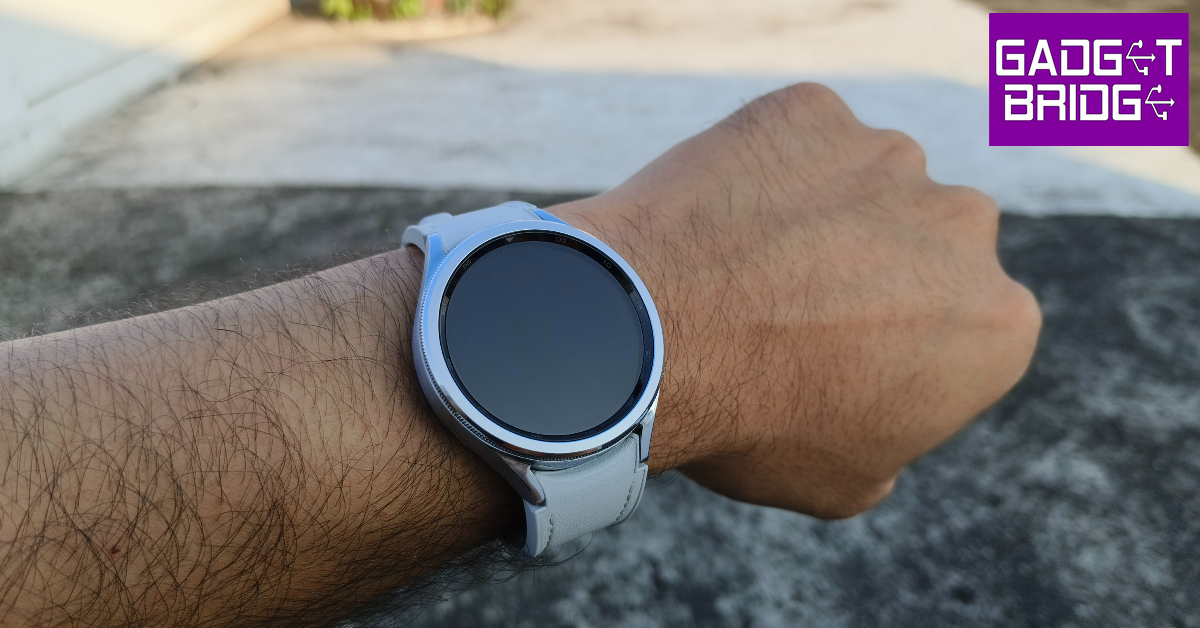
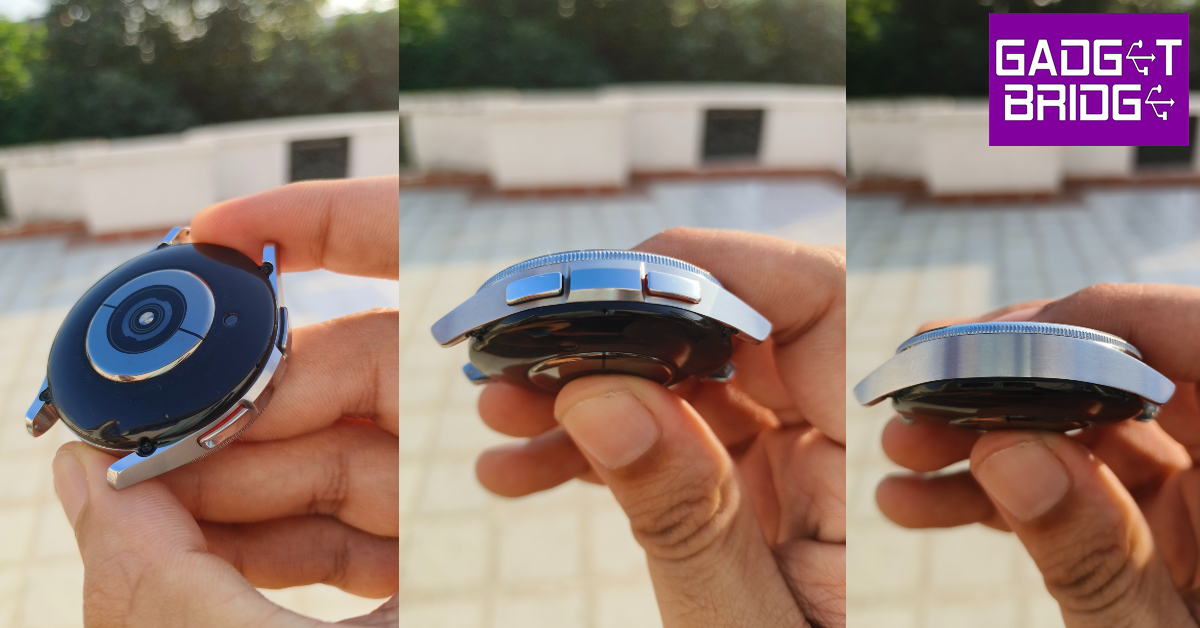
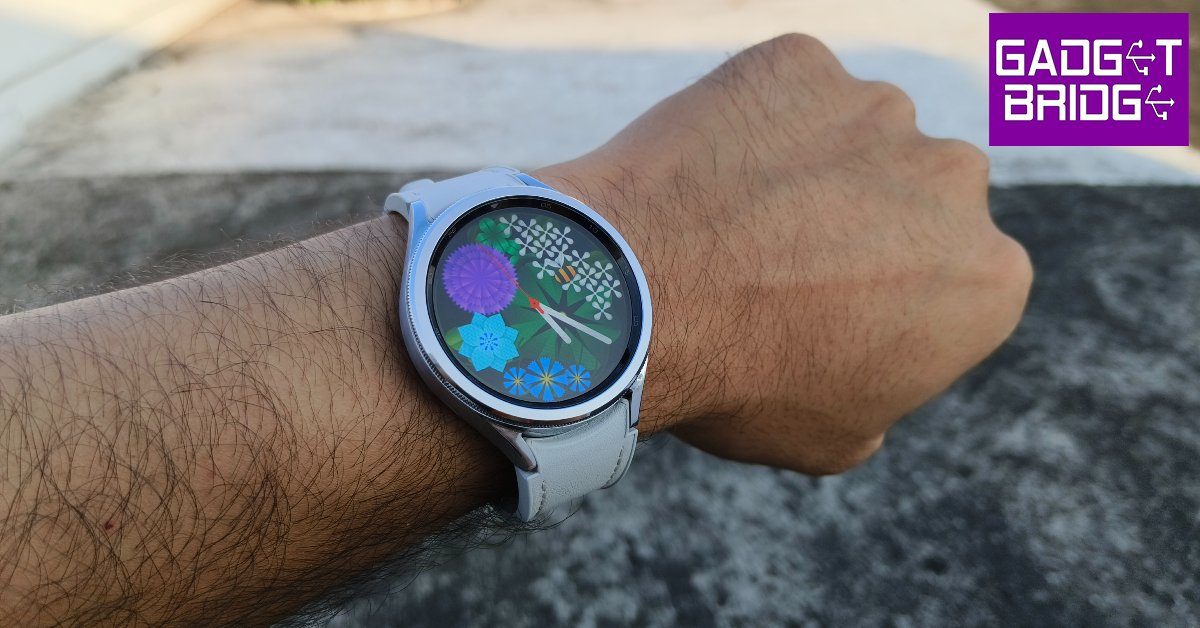
The biggest design change on the Samsung Galaxy Watch6 Classic is the inclusion of the rotating physical bezel which earns the wearable its ‘Classic’ monicker. This bezel not only amps up the aesthetic of the watch but also comes in very handy while navigating its interface and controlling certain settings. The integration of the bezel with the software is very neat, but more on that later. Samsung Galaxy Watch6 review: Design and Display The stainless steel frame houses the home and back buttons on its left edge. The left edge is button-free. When it comes to the form factor and the quality of materials used, Samsung is far ahead of its peers. The stainless steel frame feels very premium, something that you expect when shelling out Rs 37,000 for a watch. Samsung Galaxy Watch6 review: Design and Display The 1.5-inch Super AMOLED display has a 480p resolution and gets Sapphire Crystal protection. It can reach a peak brightness of 2,000 nits, making it one of the brightest smartwatch displays out there. Viewing the display under direct sunlight presents no problems whatsoever. The touch response is top-notch as well, but the gestures and navigation controls could have been tuned better. Flipping the watch around, you’ll notice that Samsung has stuck with its heart rate, SpO2, and temperature sensors. On the left side of the bottom panel lies a speaker grille and there’s a microphone on the right. The Samsung Galaxy Watch6 uses a wireless charger which magnetically locks on this bottom panel. We used the 47mm case variant of the Watch6 Classic. Weighing 59g, this watch is slightly heavier than its competitors, but you get used to it very quickly. One of our favourite aspects of the Watch6 Classic is its strap. Samsung has gone for the traditional pin buckle strap on the Watch6 Classic instead of the clasping band that featured on the Watch5 Pro. But what we really like about this strap is the quality of the materials and the comfort it provides. Inside, the rubbery texture is extremely sweat-resistant and very cushiony. The outer part of the strap has a faux-leather texture which feels quite premium. The stitching along the borders elevates the look of the watch as well. Another underrated feature about this strap that Samsung gets right is its attachment mechanism. The two buttons on the strap make it very easy to detach from the dial. A significant improvement over the pulling pin technique employed by most Android smartwatches. Samsung Galaxy Watch6 Classic is rated IP68 for dust and water resistance. It can also prevent any water damage up to 50m, making it ideal for swimming. It is also MIL-STD-810H compliant and can easily take a good knock.

Samsung Galaxy Watch6 Classic review: Performance

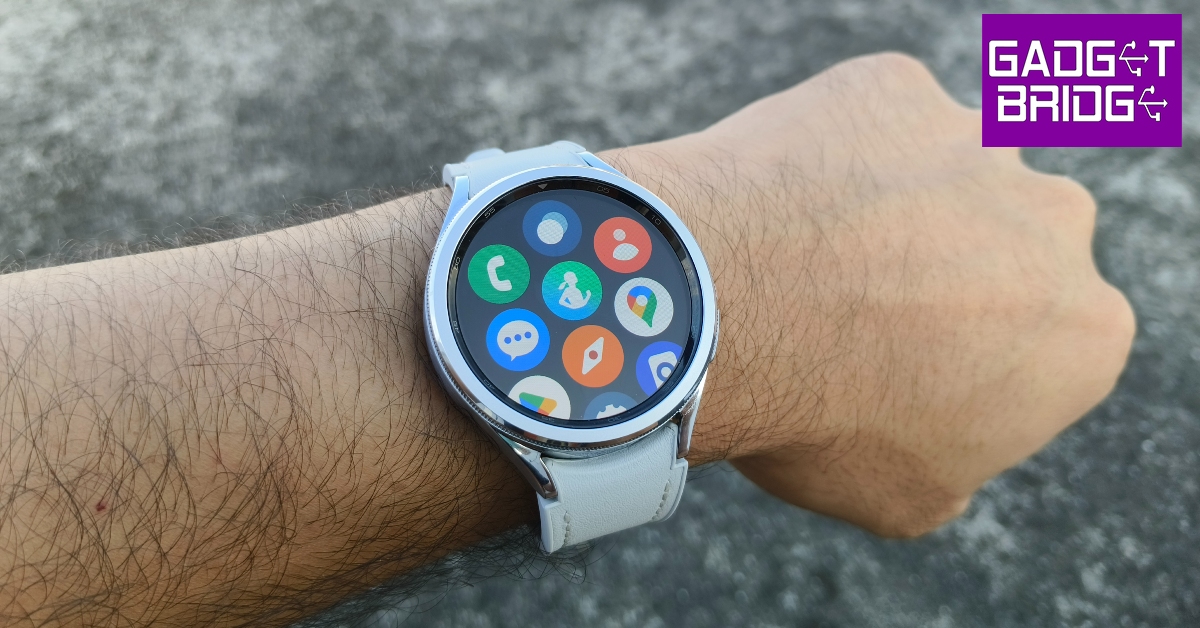
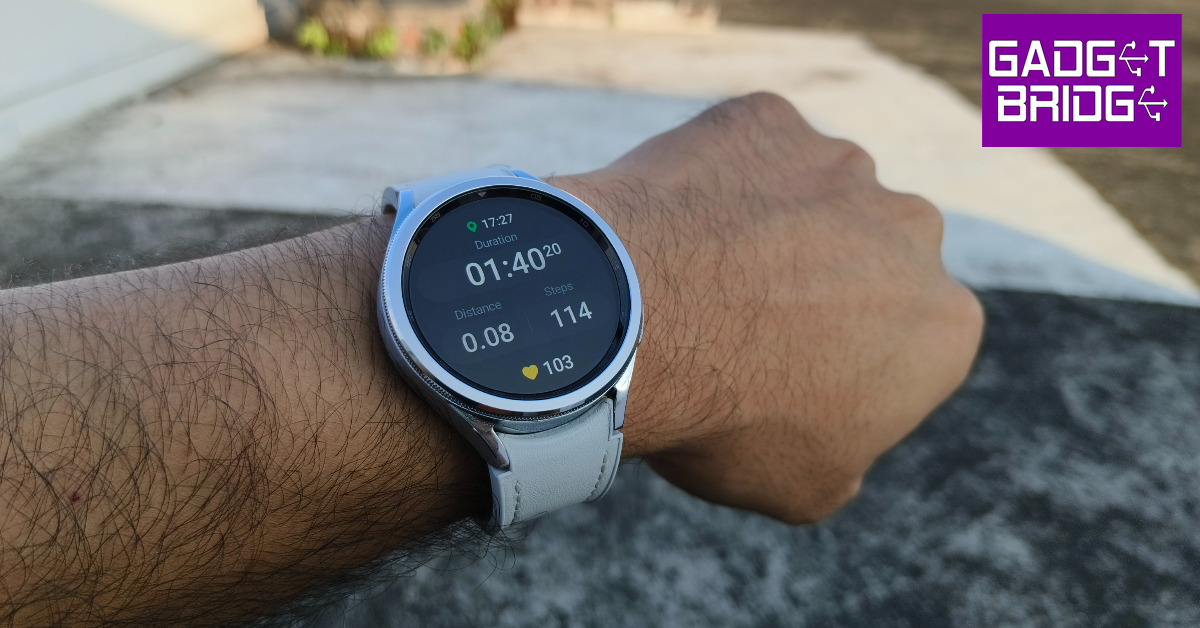
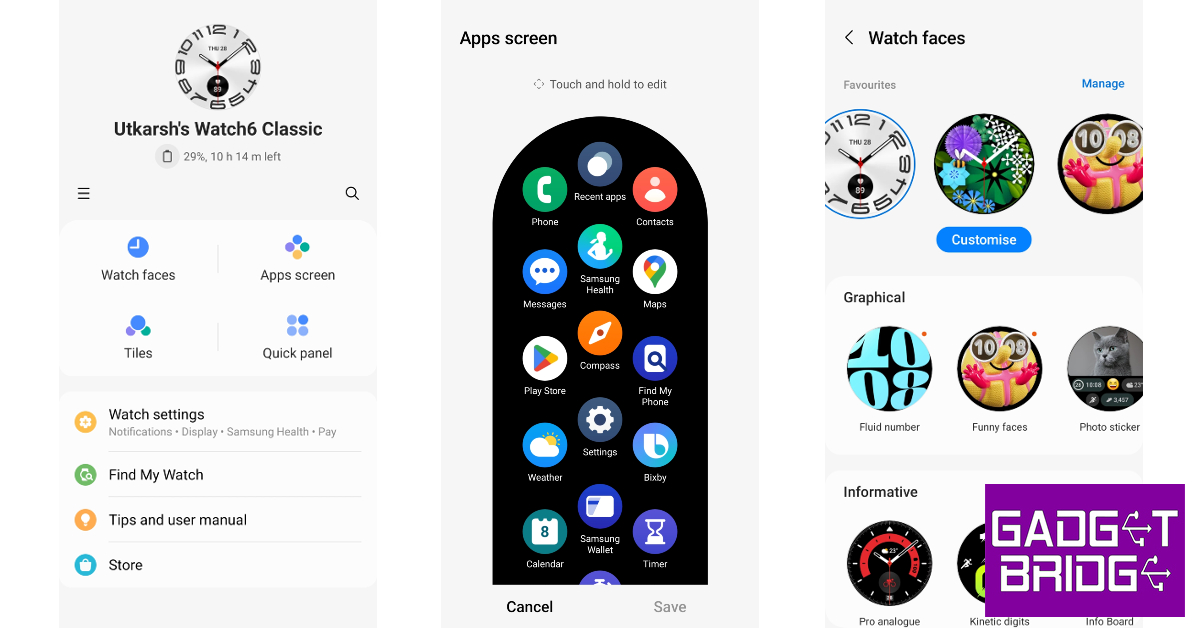
Under the hood, the Samsung Galaxy Watch6 Classic gets the new Exynos W930 SoC. The previous two generations of the Galaxy Watch used the W920 chipset. The improvement may be marginal but it is certainly welcome. The smartwatch comes with 2GB of RAM and 16GB of internal storage. OS duties are handled by Android Wear OS 4 with Samsung’s One UI Watch 5 on top. Samsung Galaxy Watch6 review: Performance One UI Watch 5 OS isn’t really different from the Watch 4.5, but it comes with one very useful feature. If you use multiple smartphones, you can use the Watch6 with both of them without needing to clear its data. Another aspect where this smartwatch’s software really shines is the bezel integration. You can use the rotating bezel to control just about anything on the watch, be it scrolling through the widgets, conversations, and app library, or adjusting the brightness, setting the health metrics, and more. We did experience a few stutters occasionally, but it did not impede the functioning of the watch in any capacity. Our only minor complaint with the OS is that it relies on swipe gestures from the edge of the dial to trigger the app library and the quick settings panel. While the notification page and widget section can be accessed with a quick swipe on the centre of the screen, the same is not the case for the app library and the quick settings. Perhaps a future update can fix this. Samsung Galaxy Watch6 review: Performance When it comes to health and fitness tracking, the Samsung Galaxy Watch6 Classic is unmatched among its Android peers. The smartwatch can auto-detect up to 7 activities including walking, running, cycling, swimming, rowing, and more. There’s further support for circuit training, weight machines, elliptical trainers, exercise bikes, and sports like Cricket, Football, Skiing, Boxing, and more. The in-built GPS can track your runs without relying on your smartwatch. The readings from the heart rate monitor and the blood oxygen sensor are consistent with medical-grade equipment. You can also evaluate your body composition using the Galaxy Watch6 Classic, but we can’t speak to its accuracy. It is always better to treat these readings as supplementary to ones gained from medical equipment. The Watch6 also has a blood pressure sensor, but it is not yet available in India. The sleep tracking on this device is phenomenal as usual, with a detailed breakdown of your sleeping pattern available on the Samsung Health app.   While the Galaxy Wearable app is essential to set up the smartwatch, you need the Samsung Health app to get detailed health reports and insights. The watch face, quick panel, tiles, and app screen can be customised from the Galaxy Wearable app. One UI Watch 5 OS now supports WhatsApp as well, which means you can receive and respond to messages from the Watch6 itself. Other than that, the app market for Android smartwatches still remains pretty limited. The Samsung Galaxy Watch6 Classic 47mm case variant gets a 425mAh battery. The 43mm variant comes with a 300mAh unit. We used the 47mm case variant and it lasted us just over a day on a full charge. With the Always On Display turned on at all times, the battery life takes a considerable hit. We used the fitness tracking features for almost an hour every day, which also helped in extending the battery life. On heavy use (LTE and GPS functions), you may have to connect the charger before the day ends. Read Also: The all-new GoPro Hero 12 Black action camera launched in India

Verdict

With prices starting at Rs 36,999, the Samsung Galaxy Watch6 Classic is one of the more expensive smartwatches out there but it effortlessly handled every task we through at it during the review period. The good news is that the watch’s premium feel, design, and build quality more than makes up for it. The rotating bezel and the stainless steel case elevate the feel of the smartwatch to a level that is unmatched by its peers. The faux leather texture on the strap is also a nice touch. When it comes to health and fitness tracking, there aren’t any massive breakthroughs in this iteration of the Galaxy Watch, but it remains one of the best Android trackers on the market.

Samsung Galaxy Watch6 Classic Pros

  • Rotating bezel is back
  • Stainless steel case feels very premium
  • Comfortable strap with a faux leather finish on top
  • Accurate health and fitness tracking
  • Good OS support

Samsung Galaxy Watch6 Classic Cons

  • Price
  • Blood pressure measurement feature is not available in India
For the latest gadget and tech news, and gadget reviews, follow us on Twitter, Facebook and Instagram. For newest tech & gadget videos subscribe to our YouTube Channel. You can also stay up to date using the Gadget Bridge Android App. You can find the latest car and bike news here.

WD Blue SN580 NVMe SSD for creative professionals launched in India

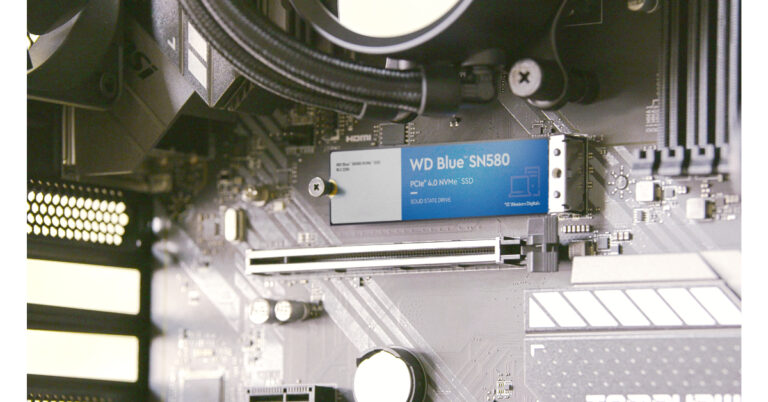
Western Digital has introduced the new WD Blue SN580 NVMe solid-state drive (SSD) in India. The new NVMe PCIe Gen 4.0 internal flash drive is intended for usage by professionals and members of the creative enthusiast community whether upgrading existing PCs or improving a custom build.

WD Blue SN580 NVMe solid-state drive (SSD) price and sale details

The all-new WD Blue SN580 NVMe solid-state drive (SSD) is currently up for sale in India in capacities ranging from 250GB to 2TB with price starting at Rs 4,599. The device is being offered for sale online through Amazon.in and at a few local retail locations. WD Blue SN580 NVMe solid-state drive (SSD) price and sale details

WD Blue SN580 NVMe solid-state drive (SSD) features

WD Blue SN580 is the first drive in the WD Blue product line to incorporate nCache 4.0 technology and NVMe PCIe Gen 4.0. With faster application response times and boot times of up to 4,150 MB/s read and write speeds (1TB – 2TB models), NVMe PCIe Gen 4.0 increases productivity and enables seamless multitasking between projects with vast and complicated workflows. With its high burst write speed and hybrid SLC cache, nCache 4.0 technology enables lightning-quick copying of big files and media assets for an improved creation workflow. Also Read: Google has released a new promo video showing off the Pixel 8 and Pixel 8 Pro: Deets inside It can store up to 2TB of data on a compact M.2 2280 form factor, making it a dependable option for the safe keeping of programmes, data, and media including 4K videos, music, and images. DRAM-less, low-power storage lets you continue working while in the zone or on the go while extending the life of your laptop’s battery. With a rating of up to 900TBW (2TB model) and a 5-year limited warranty from Western Digital. Khalid Wani, Senior Director- Sales, India, Western Digital, said “As the demand for immersive digital content grows in India, so does the need for high-performance tools. With lightning-fast NVMe PCIe Gen 4.0 technology, the WD Blue SN580 NVMe SSD turns lengthy load times into a thing of the past. Its slim M.2 form factor accommodates up to 2TB of content, and the 5-year limited warranty ensures peace of mind. Whether you’re a professional or an aspiring creator, this SSD is made just for you. For the latest gadget and tech news, and gadget reviews, follow us on TwitterFacebook and Instagram. For newest tech & gadget videos subscribe to our YouTube Channel. You can also stay up to date using the Gadget Bridge Android App. You can find the latest car and bike news here.

Google has released a new promo video showing off the Pixel 8 and Pixel 8 Pro: Deets inside

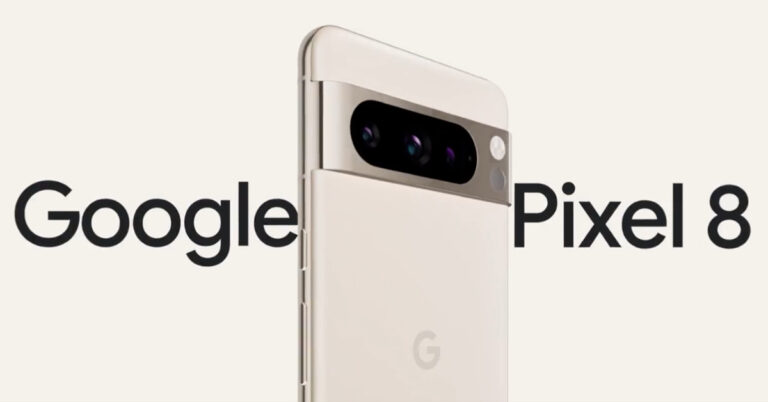
Google’s new promo video gives a glimpse of the Pixel 8 and Pixel 8 Pro ahead of the October launch. The Pixel 8 series is scheduled to debut on October 4. The new promo which has now been released showcases the design before their official debut. Google has also made mention of additional products possibly the Pixel Watch 2 and Pixel Buds Pro that will also debut alongside both the phones. Google has provided a 360-degree view of the Pixel 8 Pro. In a brand-new promotional video, the business unveiled the Google Pixel 8 Pro, Pixel 8, and Watch 2. The phones still have a horizontal back camera and have rounded corners. The colour of the camera bar matches the smartphone’s frame. Although the body is made of glass, it has a glossy surface, and the camera bar and frame are muted colours. The Pixel 8 Pro is displayed sporting a triple back camera configuration, while the Pixel 8 could be seen housing a twin camera rear device. For improved zooming this year, the third camera on the Pro variant may sport a periscope-style lens. Google has verified that the 8 Pro model even has a temperature sensor, albeit it is yet unknown what functions and capabilities it has in addition to sensing body temperature. Google has released a new promo video showing off the Pixel 8 and Pixel 8 Pro: Deets inside Also Read: Awesome White colour variant of Samsung Galaxy A54 5G launched in India The video suggests that the Pixel 8 Pro will at least be available in Porcelain White. On the other hand, it is certain that the Pixel 8 will come in Pink as well as other colour options. The phone’s blue and black colours have previously been made public through Google’s “know your hardware.” However, the Google Tensor G3 chipset is most likely to be included in the Pixel 8 and Pixel 8 Pro. Google has released a new promo video showing off the Pixel 8 and Pixel 8 Pro: Deets inside Along with the smartwatch and earphones, the firm has also revealed the pre-order sale date for its upcoming Pixel 8 series. Google has not yet announced the precise sale date for the smartphones and other gadgets in the Pixel 8 series. They are anticipated to make their debut in the first half of October 2023. For the latest gadget and tech news, and gadget reviews, follow us on TwitterFacebook and Instagram. For newest tech & gadget videos subscribe to our YouTube Channel. You can also stay up to date using the Gadget Bridge Android App. You can find the latest car and bike news here.

7 easy ways to turn off or restart an Android phone without using the power button?

0
The physical buttons on your smartphone are prone to a lot of wear and tear. The power button is one of the most used buttons on your device since it also doubles up as the unlock key. Over a period of time, this button can go loose or entirety stop working. While you can still unlock your device using the fingerprint unlock or Face ID, turning off or restarting the device can be quite a hassle. In this article, we bring you the top 7 easy ways to turn off or restart an Android phone without using the power button. Read Also: The Integration of Virtual Reality (VR) and Augmented Reality (AR) in Online Gaming Experiences

Turn off or restart your Android phone from Quick Settings

Step 1: Swipe down from the status bar to reveal the Quick Settings Menu. Step 2: Tap the power icon at the top right corner of the screen. Some smartphones may have this option at the bottom of the menu. Use the Quick Settings Panel Step 3: Select turn off or restart from the power menu.

Use the Assistant Menu on Samsung phones

Similar to Assistive Touch on iPhones, Samsung devices have the Assistant Menu that lets users access basic functions anywhere on their phones. You can use this menu to power off or restart your device. Here’s how. Step 1: Go to Settings and select Accessibility. Step 1: Go to Settings and select Accessibility. Step 2: Tap on Interaction and dexterity. Step 2: Tap on Interaction and dexterity. Step 3: Turn on the toggle switch for the Assistant menu. Step 3: Turn on the toggle switch for the Assistant menu. Step 4: Tap the Assistant Menu icon and select Power off menu. You can now turn off or restart your device. Step 4: Tap the Assistant Menu icon and select Power off menu. You can now turn off or restart your device. Step 5: You can also press and hold the Screen off icon to access the power menu. Step 5: You can also press and hold the Screen off icon to access the power menu. 7 easy ways to turn off or restart an Android phone without using the power button?

Schedule power on/off

Another way of turning off and restarting your Android phone is by scheduling when it powers off and turns back on. Here’s how you can go about it. Step 1: Go to Settings and select Battery and Device Care. Step 1: Go to Settings and select Battery and Device Care. 7 easy ways to turn off or restart an Android phone without using the power button? Step 2: Tap the ellipses at the top right corner of the screen and select Automation. Step 2: Tap the ellipses at the top right corner of the screen and select Automation. 7 easy ways to turn off or restart an Android phone without using the power button? Step 3: Tap on Auto restart at set times. Step 3: Tap on Auto restart at set times. 7 easy ways to turn off or restart an Android phone without using the power button? Step 4: Turn on the toggle switch and set the power schedule. Step 4: Turn on the toggle switch and set the power schedule. 7 easy ways to turn off or restart an Android phone without using the power button?

Use Google Assistant to turn off your Android phone without the power button

Google’s voice assistant is a great tool to get a lot of tasks done without using any of the physical buttons on your device. Check out this article to learn how you can use the Google Assistant like a pro. Once you’ve set up the voice assistant, you can use it to turn off or restart your device. Simply say ‘Hey Googe, turn off (or restart) my phone’ and it will carry out the command. Samsung’s native voice assistant, Bixby, is capable of doing this too.

Restart your Android phone without the power button using ADB

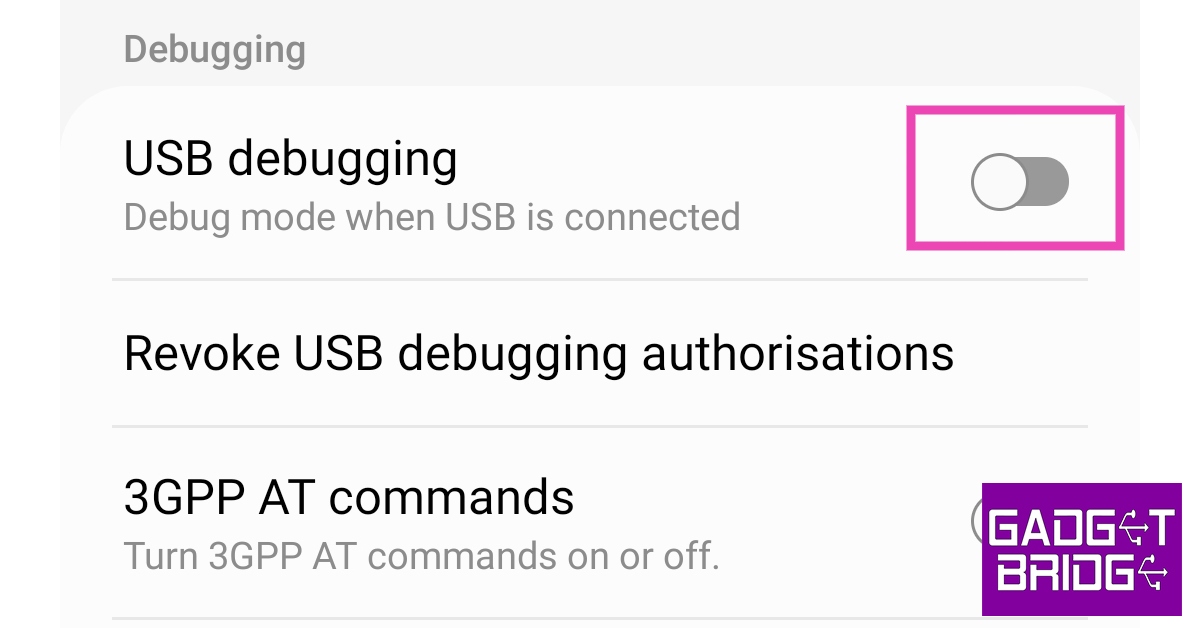
Step 1: Go to Settings and select About Phone. Step 1: Go to Settings and select About Phone. how to fix can't delete apps on android. how to delete pre-installed apps on android Step 2: Select Software Information. Step 2: Select ‘Software Information’. how to fix can't delete apps on android. how to remove an app that wont uninstall. how to enable usb debugging Step 3: Tap on Build Number 7 times to enter Developer Mode. Step 3: Tap on ‘Build Number’ 7 times to enter Developer Mode. how to connect android device to a pc using usb cable Step 4: Go back to Settings, scroll all the way down, and select Developer options. Step 4: Go back to Settings, scroll all the way down, and select ‘Developer options’. how to fix can't delete apps on android. how to enable usb debugging Step 5: Scroll down to the Debugging section and turn the toggle bar on for USB debugging. Step 5: Scroll down to the Debugging section and turn the toggle bar on for ‘USB debugging’. how to enable usb debugging Step 6: Connect your phone to your PC using a USB cable. Step 7: Install the ADB tool on your PC. Step 8: Go to C:\adb and open the command prompt. Step 9: Type adb devices and hit Enter. Step 10: Type adb reboot and hit Enter.

Use recovery mode to turn on Android phone

If your phone is turned off and the power button is not working, you can turn it from recovery mode. All you need to do is plug in the power cable and hold the volume up/volume down button until you enter recovery mode. Tap the exit option on the menu to reboot your device.

Use a third-party app

Use a third-party app. 7 easy ways to turn off or restart an Android phone without using the power button? Third-party apps like Power Menu and Shutdown help in turning off and restarting the device if the power button is broken. Once the app is installed, give it the necessary permissions. Launch the app and select Open Power Menu to access the power options. Select power off or restart from the menu.

Frequently Asked Questions (FAQs)

How do I turn off or restart my Android phone if the power button is broken?

Use the power icon in the Quick Settings Menu or go to Accessibility settings and turn on the Assistive menu. Once the Assistive menu appears on the screen, select the power off menu.

How do I turn on my Android phone if it is shut down and the power button does not work?

Plug your phone into a charger and press the volume up or volume down key until the device enters Recovery Mode. Hit Exit to restart your phone.

How do I schedule power on/off on my Android device?

Go to Settings>Battery>Automation to restart your phone at a scheduled time. Read Also: iPhone 15 Series camera details surfaced ahead of the official launch

Conclusion

These are 7 ways to turn off and restart your Android phone without using the power button. There are a couple of ways you can fix the broken power button. If the damage is dirt-related, use a cotton swab dipped in isopropyl alcohol to clean the area around the button. If your phone is still under warranty, you can get the power button replaced free of cost. For the latest gadget and tech news, and gadget reviews, follow us on Twitter, Facebook and Instagram. For newest tech & gadget videos subscribe to our YouTube Channel. You can also stay up to date using the Gadget Bridge Android App. You can find the latest car and bike news here.

Awesome White colour variant of Samsung Galaxy A54 5G launched in India

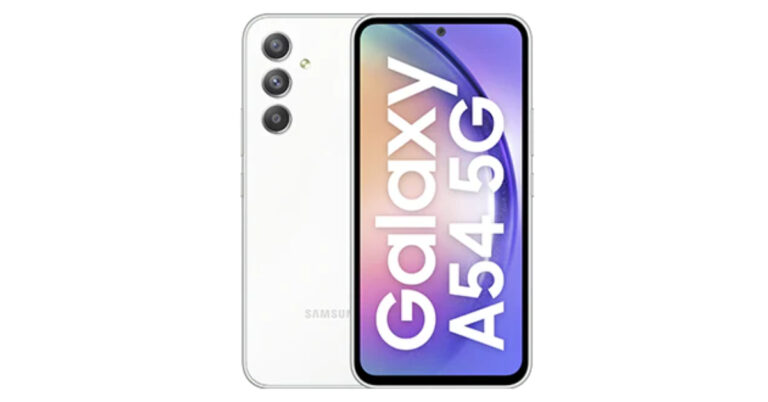
For its Galaxy A54 5G smartphone, South Korean electronics giant Samsung has unveiled a new colour option. The 8GB RAM version of the phone will now come in Awesome White as a colour choice. Earlier this year, the device was unveiled in the colours Awesome Lime, Awesome Graphite, and Awesome Violet. The smartphone’s features and specifications stay the same. Awesome White is now an available colour option for the Samsung Galaxy A54 5G. It costs the same in India as the other colour choices. Awesome Lime, Awesome Graphite, and Awesome Violet were the three colour options for the Galaxy A54 5G when it was first unveiled this year. Note that 8GB RAM with 256GB storage combo will be offered for the new colouring option, which is now available for purchase for Rs 40,999. Additional choices include exchange discounts and EMI plans. Awesome White colour variant of Samsung Galaxy A54 5G launched in India Also Read: “iPhone Ultra” model might be able to take spatial photos and videos for the Apple Vision Pro: Report Customers using ICICI and SBI bank cards can get an instant cashback of Rs 2,000 and an extra bank-based bonus of Rs 2,000. The 8GB RAM, 128GB, and 256GB storage variants of the Galaxy A54 5G were released in India in March of this year for Rs 38,999 and Rs 40,999, respectively. Samsung Galaxy A54 5G (Review)features a 6.4-inch SAMOLED Full HD+ display. The display has support for a 120Hz refresh rate. The device runs on One UI 5.1 on top of Android 13 out of the box. The company is promising 4 years of software upgrades and five years of security updates. There is an unspecified octa-core processor, most likely EXYNOS 1380 being used with a 2.4GHz clock speed. Also Read: iPhone 15 Series camera details surfaced ahead of the official launch For the optics, the Samsung Galaxy A54 5G have a triple rear camera setup consisting of a 50MP primary sensor, a 12MP ultra-wide sensor and a 5MP macro lens. For selfies, there is a 32MP front-facing camera. The smartphone packs a 5,000mAh battery and has IP67 certification for dust and water resistance. For the latest gadget and tech news, and gadget reviews, follow us on TwitterFacebook and Instagram. For newest tech & gadget videos subscribe to our YouTube Channel. You can also stay up to date using the Gadget Bridge Android App. You can find the latest car and bike news here.

BGMI redeem codes for 8 September 2023, claim and receive rewards and benefits

After being banned for nearly ten months, Battleground Mobile India, aka BGMI, is officially available again in India. BGMI fans are looking for ways to improve their game experience and one such method is the usage of redemption codes, which offers a variety of rewards and advantages using BGMI redeem codes players can gain access to new skins, outfits, loot crates, weapons and free UC and diamonds. As mentioned earlier, these codes give users the chance to earn unique rewards and gain extra benefits while playing the game. This includes GUN SKINS (M4, AKM, M416, AWM, M24, UZI, KAR98K), free character voucher, Andy, Carlo, Sara, Victor character for free, free Anna Character on completing the mission and UC or Royal Pass Discount. So here we have gathered a list of the most recent BGMI redeem codes as of 8 September 2023. Also, redeem these codes asap as these are only valid for a limited duration.

BGMI Redeem Codes for 8 September 2023

UKUZBZGWF – Free Fireworks TIFZBHZK4A – Free Outfit RNUZBZ9QQ – AKM Glacier Skin PGHZDBTFZ95U – M416 Skin R89FPLM9S – Companion BTOQZHZ8CQ – New! TQIZBZ76F – Vehicle Skin 5FG10D33 – Falcon and Free Emotes BMTFZBZQNC – Free Drifter Set SD14G84FCC – Free Skin for KAR98 Sniper Gun RNUZBZ9QQ – AKM Glacier Skin GPHZDBTFZM24U – UMP9 Skin KARZBZYTR – Free Outfit JJCZCDZJ9U – Golden Pan BMTCZBZMFS – Pretty in Pink set and Pretty in Pink Headpiece 5FG10D33 – Outfit for Free TQIZBz76F – 3 Free Motorcycle

How to get free Redeem Codes for BGMI on 8 September 2023?

  • Launch BGMI on your device.
  • Then select the Redeem Code option from the main menu.
  • Next, click on the Redeem code tab.
  • A new window will open, requesting the redemption code.
  • Now enter your BGMI code.
  • Confirm and click on the “Redeem” tab.
  • If your redeem code is valid then you will get a message confirming that your rewards were successfully redeemed.
(Note that these codes are case-sensitive, so be sure to type them correctly to prevent any errors.) For the latest gadget and tech news, and gadget reviews, follow us on TwitterFacebook and Instagram. For newest tech & gadget videos subscribe to our YouTube Channel. You can also stay up to date using the Gadget Bridge Android App. You can find the latest car and bike news here.

Garena Free Fire Redeem Codes Today 8 September 2023: Here is how to claim them

Garena Free Fire is a battle royale game with regular awards and tournaments to keep players interested. If you play Garena Free Fire, you should be aware of the redeem codes that are released on a daily basis. However, because the battle royale game is banned in India, players from other countries can use the Free Fire Redeem codes daily. If you’re unfamiliar with the Garena Free Fire redeem codes or don’t know how to get them, we’ve put together a step-by-step guide to help you redeem them. Check out Garena Free Fire Redeem Codes for 8 September 2023. The Free Fire redeem codes are a great way to get free stuff. These are 12-digit codes that contain alphabets and numbers, as well as an expiration date and time. Because the Garena FF redeem codes cannot be used more than once, you should hurry to the redemption page to claim your free reward before someone else does. To get a free reward, all you have to do is go to reward.ff.garena.com/en, which is the official redemption page. Also, keep an eye on this space for daily updates on Garena Free Fire redemption codes and rewards.

Garena Free Fire Redeem Codes Today 8 September 2023

F7YUJ67U8KJUJGU FJT76UUQY6T25RF F3V4BRNFGKVIU7Y FCTGDXBENR4JM5K FHJPO9I8HUYHMKL FER56K7ULJO875A FIGKRTLHOR5K6YP F0O59I6KPO987A6 F58U4KM7Y882T76 FUJ67UJ55H476J7 F4QED2VGB34J5KT FYU5R267FYHNGYJ FO6Y9IHVNFDLEPO F59I6JY7MBO9VI8 FU7YDTGE4N5M6LY

How to Get Free Fire Redeem Codes for Garena on 8 September 2023?

  • Visit the Garena Free Fire game’s official website at reward.ff.garena.com.
  • Use your Facebook, Google, VK, Apple ID, Huawei ID, or Twitter account to log in.
  • You’ll be taken to a valid redemption code (s)
  • Copy and paste the 12-digit redemption code into the text box.
  • On the screen, a dialogue box will appear.
  • ‘Ok’ should be selected.
For the latest gadget and tech news, and gadget reviews, follow us on TwitterFacebook and Instagram. For newest tech & gadget videos subscribe to our YouTube Channel. You can also stay up to date using the Gadget Bridge Android App. You can find the latest car and bike news here.

Why a Chromebook Is Probably All You Need For Work

Many corporate organizations and individual users want to get rid of powerful and often inconvenient computers with many administrative restrictions and functions that are not used as unnecessary. Therefore, an alternative (cheaper and more comfortable to use) is a Chromebook.

Missing traditional desktop

On the open screen of the Chromebook, when the user has everything closed (files, applications), it is empty and will remain so. You cannot place folders and shortcuts on the work screen, as was customary for traditional personal computers. It may seem unusual to some, who posted many of them for the convenience of quick access. Therefore, you will have to get used to such a unique moment.

Settings characteristic

Most of the Chromebook interface comes from MacOS. But there is no “right click”; instead, a two-finger tap is used, which brings up the context menu. Some key combinations are taken from Windows, but most are from Mac. Note that keyboard shortcuts cannot be changed. The only thing is that in the settings, there is a list of keyboard shortcuts from which you can remember the frequently used ones.

File uploads are visible

When you receive a file or a download link in the Windows system, you need to click on it, and the file opens. But the system, in parallel (by default), loads the file opened by the user in a specific folder. But on ChromeOS, the process is different. If you click on a file, the system will open a download window and ask you for a location to download it. It avoids automatic and uncontrolled downloads of unnecessary files for further use. This process avoids the automatic filling of the disk with unnecessary files that take up space.

Instant system activation and deactivation

The Chromebook instantly wakes up as soon as the user opens the lid, eliminating the use of the power button. When you close the top, it deactivates and goes into sleep mode. At the same time, in sleep mode during the night, it will spend no more than 2% of its energy resource, which indicates a very economical energy consumption.

Simple Formatting

The ChromeOS system allows you to go to the factory settings instantly. Finding the appropriate command in the settings menu would be best. This feature is very convenient if you need to transfer the Chromebook to another user (or sell it). By the way, a unique Power Wash feature allows you to delete all stored user files automatically.

Extensions and applications

Before purchasing a Chromebook, the user wonders what can be used to open various types of files. But this should be manageable because the ChromeOS system includes many programs allowing you to open almost any file. There are three apps available for the modern Chromebook:
  • Chrome web browser extension;
  • ChromeOS application;
  • Android application.
The first two are in the Web Store. Extensions are launched through the corresponding item in the browser menu and open in its tabs but cannot be opened in a separate window. On the contrary, applications (ChromeOS Applications) will be displayed as shortcuts in the program menu and can be spread by individual cats, having their own shortcut. The Android app can run on many Chromebooks, and Google Play has a slightly reduced list of apps. It has removed those applications considered incompatible with this device’s system.

Cloud storage

One of the most significant advantages of a Chromebook is the ability to store files in the cloud. ChromeOS has its file storage manager with Google Drive access configured (by default). This application is similar to Windows Explorer, which cannot please those who regularly use this program. So it is possible to use Google Cloud. Compared to Windows, where Explorer can access a local synced folder with the cloud, ChromeOS works directly with cloud files. The main thing is that comfortable access to file cloud storage is provided, excluding implementing unique settings. This feature is very convenient because the Chromebook has no built-in hard drive to save large volumes. Thanks to the Chromebook system file manager, connecting to the other cloud storage file system is possible, for example, by using Google Workspace services.

Office Applications

All Google Office and system applications (Word, Excel, PowerPoint) work the same way as in the Windows system, but with slight differences, which obviously will not affect the work.

The user is always connected to the Chromebook

Using messages in life and being constantly in touch is the most important. Therefore, the service of various instant messengers is also provided in the ChromeOS system:
  • For e-mail, it is more convenient to work in the browser.
  • Google Meet – an extension is provided for it, launched from the extensions menu;
  • Telegram – effectively works with the Android application;
  • WhatsApp – there is an Android one, but it will not function on the created account; trying to register another. Therefore, the alternative is the unofficial WhatsChrome application, which works perfectly, and the official WhatsApp for Windows.
  • Viber – as well as Telegram, will work well with the Android application.
Therefore, people can use these messengers at their discretion – convenience and regular use. Chromebook is an inexpensive alternative to PCs and laptops, allowing you to use it without compromising efficiency. For the latest gadget and tech news, and gadget reviews, follow us on TwitterFacebook and Instagram. For the newest tech & gadget videos subscribe to our YouTube Channel. You can also stay up to date using the Gadget Bridge Android App. You can find the latest car and bike news here.

The Integration of Virtual Reality (VR) and Augmented Reality (AR) in Online Gaming Experiences

Over 90% of the global industries are experiencing technological advancements; from banking and finance to dating and sports, all these sectors are being transformed by technology. Online casino is no exception to the transformation happening across various industries. Currently, two pieces of technology are the primary cause of the shifts in this market. The two pieces of technology are virtual reality (VR) and augmented reality (AR). Online gambling has dramatically changed thanks to the two pieces of technology. The changes have changed significantly after the introduction and growth of smartphone gambling. As of today, major online gambling operators and platforms are relying on these techs to modify and enhance the user gambler’s experience.

Online Casino Landscape in New Zealand

Online casinos in New Zealand are embracing the global trend of moving from traditional brick-and-mortar to digital platforms. Today, many Kiwi gamers are attracted to online casinos as they are accessible and convenient. It enables them to gamble thrills from the comfort of their homes. It is evident that online casinos have unmatched convenience, but they frequently lack the lively atmosphere and thrilling experience of traditional casinos. When bridging the gap, VR and AR technologies offer an exciting possibility.

What are Virtual Reality and Augmented Reality?

VR and AR are similar technologies in that they change how you view and interact with your surroundings. Even though they are identical, there is a point where they differ, especially when it comes to hardware requirements and the scope in which they alter the surroundings. When using virtual reality, users are submerged in entirely virtual surroundings. And this stimulates their senses to provide an experience similar to the actual events. However, by superimposing digital features over the real world, augmented reality enriches it and improves the gamers’ impression of reality. AR improves the user’s environment while AR transports users to new locations. Even though VR and AR use different techniques, they aim to improve user engagement, interaction and enjoyment.

Advantages of VR and AR in Gambling

Increased interaction

The two technologies play a huge role in fostering the casino’s interaction with users. Players can now interact with the digital world, which was quite difficult some years back. They can interact by navigating the virtual casino floor or getting real-time game data.

Innovative marketing

Online casinos can heavily rely on VR and AR to create engaging marketing campaigns to attract players. There is a high chance that a player will be drawn into the virtual casino world with immersive experiences. Some experiences include sneak peeks on upcoming games, gifts and special occasions.

Social engagement and community development

User’s social participation is facilitated by the multiplayer capabilities of VR and the real-time interaction characteristics of AR. With this sense of community, players are motivated to interact, plan and celebrate wins with one another.

Personalisation

AR and VR raise customer pleasure by adapting to individual preferences and enabling personalized experiences. Players can customize their gaming experience, from selecting themed casino settings to creating unique avatars.

Challenges to the Introduction of VR and AR

Even though these two techs might sound promising in theory, there is a lot to overcome. Several obstacles must be dealt with to integrate VR and AR technologies successfully. Among the challenges accessing the VR and AR might be challenging, especially for users with less capable devices. VR and AR require a large amount of hardware resources and computer capacity. For a user to experience high-quality VR, they will need to have powerful GPUs and processors, which raises the cost of entry. The delay between the system’s response and the user’s movements may also lead to motion discomfort, lowering the user’s interest. The two technologies’ introduction tends to attract attention from ethical and regulatory concerns. Incorporating technology into online casinos raises concerns regarding players’ safety, addiction and responsible gambling.

Industry Adoption of Virtual Reality and Augmented Reality

To improve user experience, early adopters in the online gaming sector have started integrating VR and AR technologies. The prevalence of virtual poker rooms, realistic roulette tables, and interactive slot machines is rising. Casino owners who have successfully used these technologies report longer gaming sessions and higher user engagement. The accomplishments of these pioneers provide light on the advantages and difficulties of adopting VR and AR.

Conclusion

Recently, there has been a shift in how players interact with online casinos. All this has been because of the incorporation of augmented and virtual reality into the casino environment. With these two advancements, there is a high chance of revolutionizing the gambling industry with immersive, interactive and personalized experiences. Even though there are several challenges on the way, like technical requirements and ethical issues, the trend towards a more immersive interactive online casino seems promising. Integrating virtual reality, augmented reality and online casinos is poised to reshape how people experience gambling. For the latest gadget and tech news, and gadget reviews, follow us on TwitterFacebook and Instagram. For the newest tech & gadget videos subscribe to our YouTube Channel. You can also stay up to date using the Gadget Bridge Android App. You can find the latest car and bike news here.

iQoo Neo 7 5G price has been reduced by Rs 2,000 in India: Details inside

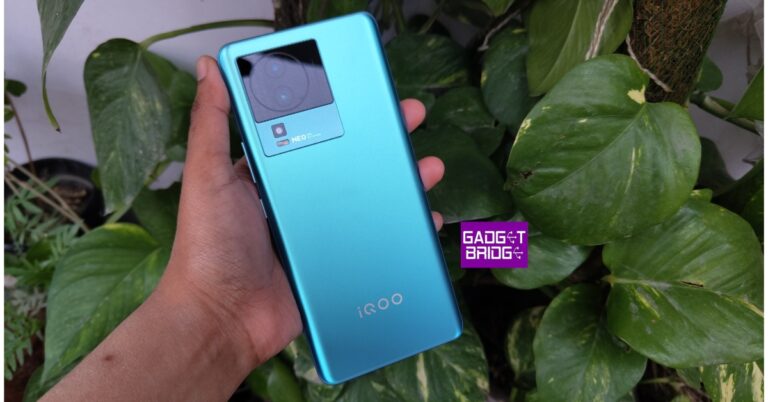
iQoo Neo 7 5G was launched in India earlier this year. The device is currently selling at a reduced price. The company has announced a discount of Rs 2,000 on the mid-range smartphone. The MediaTek Dimensity 8200 SoC powers the phone. It has an AMOLED display with 120Hz. Additionally, the phone has 120W quick charging, which purports to be able to charge the device to 50% of its capacity in just 10 minutes. Also Read: iPhone 15 Series camera details surfaced ahead of the official launch iQoo Neo 7 5G was launched in India in two different configurations of 8GB RAM with 128GB storage and 12GB RAM with 256GB storage option priced at Rs 29,999 and Rs 33,999 respectively. After a discount of Rs 2,000 is currently selling at Rs 27,999 and Rs 31,999 respectively. The phone currently selling at a reduced price at the company’s official site and on Amazon. The device is being offered in two colour options of Frost Blue and Interstellar Black. iQoo Neo 7 Pro 5G price in India, sale details and offers

iQoo Neo 7 5G specifications

An octa-core 4nm MediaTek Dimensity 8200 5G SoC powers the iQoo Neo 7 5G. Up to 12GB of LPDDR5 RAM and 256GB of UFS3.1 storage space will be offered. The smartphone comes pre-installed with Funtouch OS 13, which is based on Android 13. Since the iQOO Neo 7 5G (Review)has Extended RAM 3.0, a phone with 12 GB of RAM becomes a phone with 20 GB of RAM, an increase of 8 GB. Users are able to access and switch between numerous apps at once with the help of this function. For a better gaming experience, the smartphone includes dynamic X-Axis Linear Motors, Motion Control, and 4D Game Vibration. Also Read: “iPhone Ultra” model might be able to take spatial photos and videos for the Apple Vision Pro: Report A 64-megapixel primary sensor with OIS and an f/1.79 aperture is part of the triple rear camera arrangement for pictures and videos. Additionally, a 2-megapixel depth sensor and a 2-megapixel macro sensor both have f/2.4 apertures. A 5,000mAh battery with 120W fast charging capabilities is included with the smartphone. For connectivity, the phone has 5G, Wi-Fi, Bluetooth, OTG, NFC, GPS, and a USB Type-C port. Additionally, the display includes an embedded fingerprint reader. Among the sensors on board are an accelerometer, ambient light sensor, e-compass, gyroscope, proximity sensor, and infrared remote control. For the latest gadget and tech news, and gadget reviews, follow us on TwitterFacebook and Instagram. For newest tech & gadget videos subscribe to our YouTube Channel. You can also stay up to date using the Gadget Bridge Android App. You can find the latest car and bike news here.

“iPhone Ultra” model might be able to take spatial photos and videos for the Apple Vision Pro: Report

Apple’s Wonderlust event is set for September 12. As the launch date is coming close iPhone 15 devices have been the subject of several leaks and rumours over the past few months, and there is no end in sight. According to the latest update, Apple is developing an iPhone “Ultra” model that might feature the ability to record videos and photos tailored to be used on the Apple Vision Pro. Reportedly, Apple is working on a device that could be released after the Vision Pro goes on sale. The VR headset is said to sit in the stores next year. An iPhone “Ultra” model is allegedly in the works, according to a MacRumors story. The rumour suggests that the phone may be used to take precise, immersive videos and photographs that could be utilised on Apple Vision Pro. Also Read: iPhone 15 Series camera details surfaced ahead of the official launch The report stated, “A future “iPhone Ultra” model could capture spatial photos and videos to be displayed in Apple’s Vision Pro headset, according to a rumour shared by a Weibo account with a proven track record for disclosing accurate information about Apple’s plans.” The “iPhone Ultra” model’s camera setup, which will be unveiled after the Vision Pro headset is introduced, will purportedly “lead the market to rethink what kind of photos and videos a mobile phone should take,” according to the report. The information appears to be referring to the producing spatial images and videos, a special capability of the Vision Pro that employs outward-facing cameras to record immersive 3D content. According to Apple, the capability enables users to relive their memories in a way that has never been possible. While standard images and videos from an iPhone or other device may still be viewed on the headset, only a Vision Pro can be used to capture 3D images and videos, which are much more immersive. A “three-dimensional camera” may be coming to the iPhone, according to the most recent rumour, adding more hardware to the device’s already-present rear camera setup of a main wide camera, a telephoto camera, an ultra-wide camera, a LiDAR scanner, and an Adaptive True Tone flash. For the latest gadget and tech news, and gadget reviews, follow us on TwitterFacebook and Instagram. For newest tech & gadget videos subscribe to our YouTube Channel. You can also stay up to date using the Gadget Bridge Android App. You can find the latest car and bike news here.

iPhone 15 Series camera details surfaced ahead of the official launch

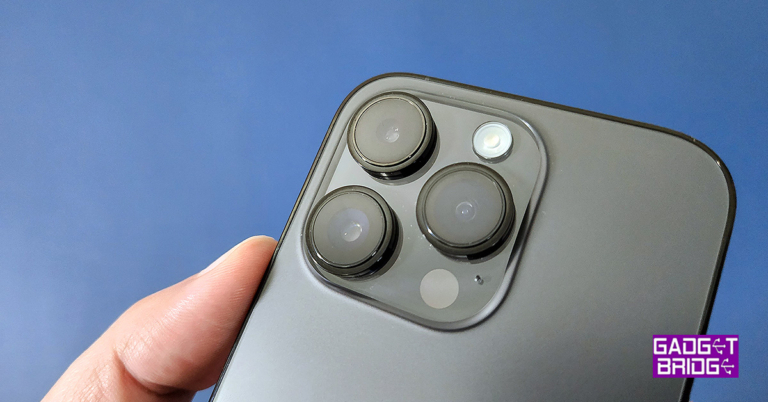
Rumours and leaks about the upcoming iPhone have now become a part of our daily routine and the launch date is close by. September 12 is the date of the tech giant’s Apple event. Previously it was reported that the upcoming standard models will get a stacked CIS camera upgrade. A fresh web leak has revealed the camera features of the iPhone 15. According to a report by MacRumors, there will be a 48-megapixel primary rear sensor on the iPhone 15 and iPhone 15 Plus. The sensor is believed to have an aperture of f/1.6. Notably, this is a considerable upgrade over the 12-megapixel primary sensor of the iPhone 14 and iPhone 14 Plus. A secondary 12-megapixel ultra-wide-angle sensor with an f/2.4 aperture is also rumoured to exist. The iPhone 15 Pro and iPhone 15 Pro Max are anticipated to include the following sensors: a 48-megapixel Sony IMX803 primary rear sensor with an aperture of f/1.78, a 12.7-megapixel sensor with a telephoto lens and an aperture of f/2.8, and a 13.4-megapixel ultra-wide-angle sensor with an aperture of f/2.2. A periscopic telephoto lens will be the biggest improvement coming to the iPhone Pro Max. Also Read: The all-new GoPro Hero 12 Black action camera launched in India Previously, there was speculation that the iPhone 15 and 15 Plus would use a stacked CMOS, or complementary metal oxide semiconductor, image sensor. If this information is true, Apple will purportedly eliminate this capability from the iPhone 15 Pro and Pro Max, widening the gap between those models and its ordinary model. The installation of additional layers above the photodiode layer is what is known as “stacked CIS technology,” a more recent technological innovation. These extra layers improve photo quality and offer additional advantages like noise reduction, brighter image rendering, detailed capture, and superior image processing. Furthermore, a significant upgrade from a 12MP to a 48MP image sensor may be made to the base versions. If these rumours concerning the regular iPhone 15 models‘ cameras are accurate, iPhone owners will take better photos and make better videos. Also Read: Samsung announced new offers on Galaxy A54 5G and Galaxy A34 5G in India This time Apple Event will be called “Wonderlust.” On September 12, the event will take place, and live online streaming will be available. At 10 p.m. PT and 10.30 p.m. IST, the event will take place in Apple Park. The unveiling will be live-streamed on Apple.com and the Apple TV app, respectively. For the latest gadget and tech news, and gadget reviews, follow us on TwitterFacebook and Instagram. For newest tech & gadget videos subscribe to our YouTube Channel. You can also stay up to date using the Gadget Bridge Android App. You can find the latest car and bike news here.

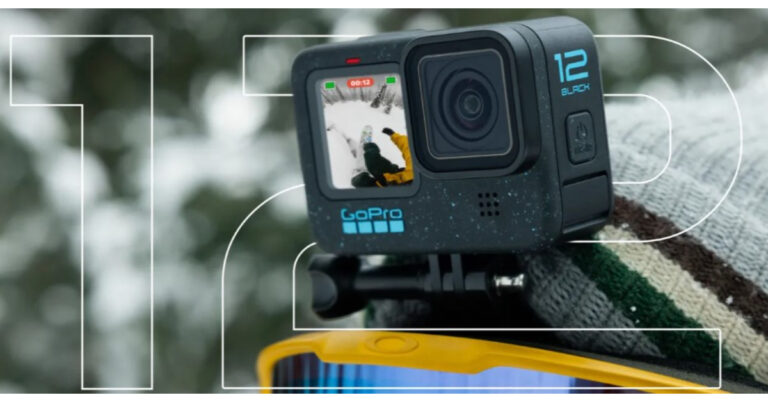
The all-new GoPro Hero 12 Black action camera launched in India

GoPro announced its new action camera in the Indian market. The newly launched GoPro Hero12 Black comes with many upgrades with enhanced performance over its predecessor. Two models have been introduced- a standard and a Creators Edition. The device has a bigger sensor and is powered by a GP2 processor. Using the Enduro battery that comes in the package the action camera is claimed to provide up to a two-fold increase in battery life.

GoPro Hero 12 Black price in India, availability

The GoPro Hero 12 Black costs at Rs 45,000 for the base model in India. On the other hand, the Creators Edition will set you back Rs 65,000. The all-new GoPro Hero 12 Black action camera launched in India There is only one colour option, Black, although the Hero 12 Black has Blue flecks on its body. The Media Mod, Light Mod, and Volta grip are included in the creator edition. Also Read: Samsung announced new offers on Galaxy A54 5G and Galaxy A34 5G in India Along with the GoPro Hero 12 Black the company has also introduced a new Max Lens Mod 2.0, however, it will be available for purchase in late November in the country. While Both the variants of the new Action camera are currently up for pre-orders. They are scheduled to go on sale from September 13. The device will be available via Amazon, Flipkart, Croma, Reliance Digital and Vijay Sales in the country. GoPro Hero 12 Black price in India, availability

GoPro Hero 12 Black tech specs

The brand-new GoPro Hero 12 Black has a design that hasn’t undergone any significant modifications. The new action camera does, however, have a few small additions, such as blue specks on its body and the word “Black” printed on the side. There is a 1,720mAh Enduro battery, which is now supposed to deliver up to two times longer battery life than the previous generation. On the bottom, you do receive a brand-new universal tripod thread mount. It comes with a front-facing 1.4-inch non-touch display and a back-facing 2.27-inch touch display. GoPro Hero 12 Black has a 1/1.9-inch sensor with an 8:7 aspect ratio and the GP2 CPU. The GoPro Hero 12 Black’s Max Lens Mod 2.0 now has a 177-degree field of view at 4K 60 frames per second. In order to give even better stability, HyperSmooth 6.0 with AutoBoost, is now included with the GoPro Hero 12 Black. It now comes with wireless audio recording. The Action camera may be used with Bluetooth headphones so that users can wirelessly use voice commands and do a lot more. GoPro Hero 12 Black price in India, availability GoPro is adding HDR support for footage captured in 5.3K and 4K quality. GP Log + LUTS as well as 10-bit colours are now supported by the new GoPro. The ability to take images and films in a 9:16 aspect ratio is also included in the new vertical capture mode. There is now an 8:7 setting for the TimeWarp, TimeLapse, Night Effects, and NightLapse effects. In addition to this, there is a new Interval Photo feature, which allows you to timed-record videos for up to 120 seconds. Up to four Bluetooth devices can simultaneously be used with the GoPro Hero 12 Black. For the latest gadget and tech news, and gadget reviews, follow us on TwitterFacebook and Instagram. For newest tech & gadget videos subscribe to our YouTube Channel. You can also stay up to date using the Gadget Bridge Android App. You can find the latest car and bike news here.

BGMI redeem codes for 7 September 2023, claim and receive rewards and benefits

After being banned for nearly ten months, Battleground Mobile India, aka BGMI, is officially available again in India. BGMI fans are looking for ways to improve their game experience and one such method is the usage of redemption codes, which offers a variety of rewards and advantages using BGMI redeem codes players can gain access to new skins, outfits, loot crates, weapons and free UC and diamonds. As mentioned earlier, these codes give users the chance to earn unique rewards and gain extra benefits while playing the game. This includes GUN SKINS (M4, AKM, M416, AWM, M24, UZI, KAR98K), free character voucher, Andy, Carlo, Sara, Victor character for free, free Anna Character on completing the mission and UC or Royal Pass Discount. So here we have gathered a list of the most recent BGMI redeem codes as of 7 September 2023. Also, redeem these codes asap as these are only valid for a limited duration.

BGMI Redeem Codes for 7 September 2023

RNUZBZ9QQ – AKM Glacier Skin PGHZDBTFZ95U – M416 Skin R89FPLM9S – Companion BMTCZBZMFS – Pretty in Pink set and Pretty in Pink Headpiece GPHZDBTFZM24U – UMP9 Skin KARZBZYTR – Free Outfit SD14G84FCC – Free Skin for KAR98 Sniper Gun RNUZBZ9QQ – AKM Glacier Skin JJCZCDZJ9U – Golden Pan UKUZBZGWF – Free Fireworks TIFZBHZK4A – Free Outfit 5FG10D33 – Outfit for Free TQIZBz76F – 3 Free Motorcycle BMTFZBZQNC – Free Drifter Set

How to get free Redeem Codes for BGMI on 7 September 2023?

  • Launch BGMI on your device.
  • Then select the Redeem Code option from the main menu.
  • Next, click on the Redeem code tab.
  • A new window will open, requesting the redemption code.
  • Now enter your BGMI code.
  • Confirm and click on the “Redeem” tab.
  • If your redeem code is valid then you will get a message confirming that your rewards were successfully redeemed.
(Note that these codes are case-sensitive, so be sure to type them correctly to prevent any errors.) For the latest gadget and tech news, and gadget reviews, follow us on TwitterFacebook and Instagram. For newest tech & gadget videos subscribe to our YouTube Channel. You can also stay up to date using the Gadget Bridge Android App. You can find the latest car and bike news here.

Garena Free Fire Redeem Codes Today 7 September 2023: Here is how to claim them

Garena Free Fire is a battle royale game with regular awards and tournaments to keep players interested. If you play Garena Free Fire, you should be aware of the redeem codes that are released on a daily basis. However, because the battle royale game is banned in India, players from other countries can use the Free Fire Redeem codes daily. If you’re unfamiliar with the Garena Free Fire redeem codes or don’t know how to get them, we’ve put together a step-by-step guide to help you redeem them. Check out Garena Free Fire Redeem Codes for 7 September 2023. The Free Fire redeem codes are a great way to get free stuff. These are 12-digit codes that contain alphabets and numbers, as well as an expiration date and time. Because the Garena FF redeem codes cannot be used more than once, you should hurry to the redemption page to claim your free reward before someone else does. To get a free reward, all you have to do is go to reward.ff.garena.com/en, which is the official redemption page. Also, keep an eye on this space for daily updates on Garena Free Fire redemption codes and rewards.

Garena Free Fire Redeem Codes Today 7 September 2023

FYHNUHMJKN9I8BU FYX5TR4ADFQGH2U F3WERYHFGNVHJKI F8XUYDHERN5OMTK FKIUSEYHRNTGMKJ FMKLTLYUILP0IUJ FHNJSI87UA6RQF2 FVWB3EN4RJTGIUB FYVGVCBNJDITU6J FI86UJ7K8ULOJ98 FHG7C6X54EKRAFD FQG2HJ34U5IT7GY FVHCJXKIDBRU5JH FYU8KIYYHJNT6Y7 FYLOH9IBJVMDKLE FORTYIUJO9B8765 F4RAEQDF2GHJ3K4 FIO5T98GIOCF9RT

How to Get Free Fire Redeem Codes for Garena on 7 September 2023?

  • Visit the Garena Free Fire game’s official website at reward.ff.garena.com.
  • Use your Facebook, Google, VK, Apple ID, Huawei ID, or Twitter account to log in.
  • You’ll be taken to a valid redemption code (s)
  • Copy and paste the 12-digit redemption code into the text box.
  • On the screen, a dialogue box will appear.
  • ‘Ok’ should be selected.
For the latest gadget and tech news, and gadget reviews, follow us on TwitterFacebook and Instagram. For newest tech & gadget videos subscribe to our YouTube Channel. You can also stay up to date using the Gadget Bridge Android App. You can find the latest car and bike news here.

Gaming Mobiles: Are They Really Worth It?

Are gaming mobiles worth it? Are you getting a device that is worth your investment? It is so important to ask yourself questions like this when the time comes for you to choose a new device. If you don’t then you may find that you end up making a huge mistake with your choice. This is the last thing you need, but fortunately, there are things you can do to try and make it easier on yourself.

Great Battery Life

One thing to know about gaming phones is that they come with a fantastic battery life. Gaming phones are almost universally big and beefy, but this means that they can accommodate a bigger battery. This is a welcome perk for a lot of gamers, as you will be able to take advantage of longer gaming sessions. Gaming smartphones, including the ASUS ROG Phone 5 have great batteries that do not end up draining as fast as the standard smartphones you may see on the market.

Performance

If you want to make the most out of your gaming phone then you need to give some thought to the performance. Running a game is intensive for a phone, so you have to make sure that your device can keep up. One of the biggest reasons why you should get a dedicated gaming phone is because it features top hardware. You can take advantage of things such as haptic triggers, as well as RAM and even CPU. You can also capitalize on GPU configurations and OLED displays. If you want to boost your experience even more than you can do this with ease. If you want to look at things from a technical perspective then you will soon see that a lot of gaming phones are capable of reaching peak performance with ease, so you will never miss out on anything when it comes to gaming. If you want to take advantage of the best and latest games, why not check out 32Red casino UK slots?

Refresh Rate

The refresh rate of your device simply refers to how many times it is capable of drawing a new image. This is usually measured per second. Refresh rate is measured in Hertz. If you want an example, then you should know that a display that has a refresh rate of 144Hz is able to refresh a page 144 times for every second. If you have a high refresh rate then this is great as your device will be able to function smoother in just about any task you can imagine. If you have a high refresh rate then this will reduce screen tearing overall. This happens when you have sudden animations. The screen will have to load more frames so that it can sync with the image on the screen. At the end of the day, this will have a big impact on games because the visual latency is way lower. If you have a higher refresh rate then your eyes will ultimately thank you. Typical phone screens tend to have quite a high refresh rate. A lot of gaming phones go up to 144Hz. This refresh rate isn’t always required, given how many games need it. That being said, it is always good to have because if your phone cannot handle this kind of game then you will always be limited as to what you can play. If you can keep things like this in mind when choosing your phone then you are bound to get a better result out of your gameplay. So is a gaming phone required? Not always, but at the same time, it doesn’t hurt to choose a phone that can stand up to the latest title releases. For the latest gadget and tech news, and gadget reviews, follow us on TwitterFacebook and Instagram. For the newest tech & gadget videos subscribe to our YouTube Channel. You can also stay up to date using the Gadget Bridge Android App. You can find the latest car and bike news here.

How to Turn Off or Restart an iPhone without using the physical buttons?

0
One of the biggest difficulties that users often face with their smartphones is malfunctioning buttons. The physical buttons on your phone are prone to a lot of wear and tear. Over a period of time, these buttons can stop functioning entirely. This can prove to be a problem since you rely on those buttons to power off or restart your device. But, there are some alternatives to help you work around this issue. In this article, we show you how to turn off or restart an iPhone without using the physical buttons. Read Also: Fitbit Versa won’t turn on? Try these fixes!

Turn off your iPhone from Settings

iPhone models that support physical dual nano SIMs Step 1: Go to Settings and select General. Step 2: Scroll down to the bottom and select Turn off. Step 3: Drag the slider to the right to turn off your iPhone.

Restart your iPhone using Siri

Siri will get new voices Using Apple’s native voice assistant is a great way of getting things done without touching your iPhone. You can use Siri to restart your iPhone without pressing any of the physical buttons. Simply say ‘Hey Siri, restart my iPhone’ and confirm your selection in the popup box. Before you use Siri, make sure you’ve set it up for your device. Go to Settings>Siri & Search and turn on the toggle switch for Listen to “Hey Siri”.

Turn off your iPhone using Assistive Touch

Step 1: Go to Settings and select General. Step 2: Tap on Accessibility. how to turn on flashlight on iphone without unlocking How to Turn Off or Restart an iPhone without using the physical buttons? Step 3: Select Assistive Touch and turn it on. Step 3: Select ‘Assistive Touch’ and turn on the toggle bar next to it. how to take a screenshot on iphone 13 How to Turn Off or Restart an iPhone without using the physical buttons? Step 4: Go back to your iPhone’s home page. Step 5: Tap the Assistive Touch ball and select Device. Step 6: Tap and hold the lock screen option. Step 7: Drag the slider to the right to turn off your iPhone.

Frequently Asked Questions (FAQs)

How do I turn off my iPhone without using the physical buttons?

Go to Settings>General, scroll down and select Turn off. Drag the slider to the right to turn off your device.

How do I restart my iPhone without using the physical buttons?

Simply ask Siri to restart your iPhone if you don’t want to use any of the physical buttons.

How do I turn off my iPhone using Assistive Touch?

Tap the Assistive Touch ball and select Device. Tap and hold the lock screen option until the power slider appears on the screen. Drag the slider to the right to turn off your iPhone. Read Also: 3 Methods to Download Multiple Photos or Videos from WhatsApp

Conclusion

This is how you can turn off or restart an iPhone without using the physical buttons. Apart from these main methods, there are some other changes you can make to your iPhone that will demand a reboot in order to be implemented. For example, applying bold text across the UI or resetting the network settings will trigger a dialogue box asking you to restart your iPhone. You can restart your device without using a physical button by hitting the appropriate option on the dialogue box. For the latest gadget and tech news, and gadget reviews, follow us on Twitter, Facebook and Instagram. For newest tech & gadget videos subscribe to our YouTube Channel. You can also stay up to date using the Gadget Bridge Android App. You can find the latest car and bike news here.

Samsung announced new offers on Galaxy A54 5G and Galaxy A34 5G in India

Samsung today announced exciting offers on Galaxy A54 5G and Galaxy A34 5G smartphones in India. Both the devices debuted in the nation in March this year. They both have many features in common, such as an AMOLED screen that supports a 120Hz refresh rate, a 5,000mAh battery, and a triple rear camera configuration. The phones come pre-installed with Android 13 as well. Customers may now get the Galaxy A34 5G, which was originally priced at Rs 30,999, for a starting effective price of Rs 26,999. The updated pricing included a Rs 2,000 instant cashback as well as an additional Rs 2,000 bank payback for SBI and ICICI Bank credit card holders. The Galaxy A54 8GB RAM with 256 GB storage option, which was originally priced at Rs 40,999, is now available for purchase at just Rs 36,999. Customers looking for increased affordability can also benefit from the easy, no-cost, 12-month EMI with no down payment. Also Read: Samsung Galaxy A54 5G Review: A great mid-ranger for everyday use

Samsung Galaxy A54 5G and Galaxy A34 5G specs and features

The SAMOLED Full HD+ display on the Samsung Galaxy A54 5G and Galaxy A34 5G measures 6.4 inches and 6.6 inches, respectively. Both panels can display at a refresh rate of 120Hz. The devices come pre-installed with Android 13 and One UI 5.1. Software upgrades for four years and security updates for five years are promised by the company. An unknown octa-core processor with a 2.4GHz clock speed is being used, most likely EXYNOS 1380. The Samsung Galaxy A54 5G and Galaxy A34 5G both include a triple back camera configuration for photographs and videos. A 50MP primary sensor, a 12MP ultra-wide sensor, and a 5MP macro lens are all featured on the A54. A 32MP front-facing camera is available for taking selfies. Also Read: Samsung Galaxy A34 review: Does it justify its price tag? A34 has a 48MP primary lens, an 8MP ultra-wide lens, and a 5MP macro sensor, in contrast. A 13MP selfie camera is available on the gadget. The smartphones feature an IP67 certification for dust and water resistance and a 5,000mAh battery to power them. For the latest gadget and tech news, and gadget reviews, follow us on TwitterFacebook and Instagram. For newest tech & gadget videos subscribe to our YouTube Channel. You can also stay up to date using the Gadget Bridge Android App. You can find the latest car and bike news here.

Top 10 ways to fix phone call echo on Android

0
An echo in a voice call can prove to be very grating and annoying. While shifting to a place with a better network reception is the most obvious solution to this issue, it doesn’t work all of the time. Sometimes the echo may originate from a software malfunction on your phone. In this article, we bring you the top 10 ways to fix a phone call echo on Android. Read Also: Top Gaming Monitors with 120Hz refresh rate under Rs 15,000

Request the receiver to take the call off the speaker

8 Best Ways to Block a Phone Number On Android or iPhone (iOS) The most likely reason behind an echo on a phone call is the speaker phone. When the receiver decides to go hands-free on a call, their phone’s microphone picks up the voice being emitted by the speaker, causing an echo. This situation is pretty common while driving. If the phone is connected to the car’s infotainment system, the microphone receives it as a part of the background noise. Request the other party to take the call off the speaker in order to fix the phone call echo.

Restart your phone

If the echo problem keeps persisting even after taking the call off speaker, try restarting your phone. If the issue is caused by a software glitch, restarting your phone will quickly resolve it. To restart your Android phone, simply press and hold the side key and select ‘Restart’ from the power menu. If pressing the side key triggers the voice assistant, press and hold the volume key along with it to access the power menu.

Disable WiFi Calling

Sometimes, WiFi Calling can interfere with a regular cellular call and cause a malfunction. It can even lead to an echo being generated on the call. Here’s how you can turn off WiFi calling on your Android phone. Step 1: Go to Settings and select Connections. Step 1: Go to Settings and select Connections. Step 2: Turn off the toggle switch for WiFi Calling. Step 2: Turn off the toggle switch for WiFi Calling. Alternatively, you can also disable WiFi Calling from the Quick Settings Menu.

Turn off Call Recording

Sometimes, recording a phone call can lead to an unwanted echo developing in the line. You can stop recording a phone call by tapping the option to end the recording in the call menu. If you have turned on auto-recording for all your phone calls, here’s how you can turn it off. Step 1: Launch the dialer app and tap the ellipses at the top right corner of the screen. Step 2: Tap on Settings. Step 3: Tap on Settings. Step 3: Select Record calls. Step 3: Select Record calls. Step 4: Turn off the toggle switch for Auto record calls. Step 4: Turn off the toggle switch for Auto record calls.
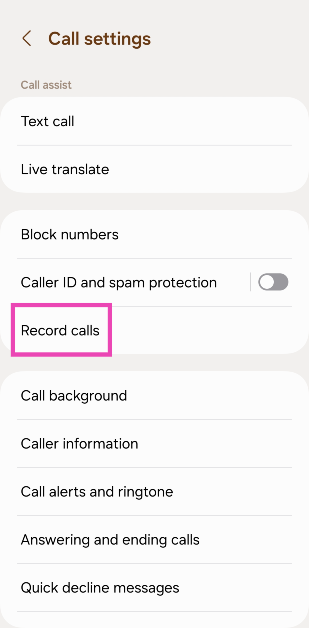
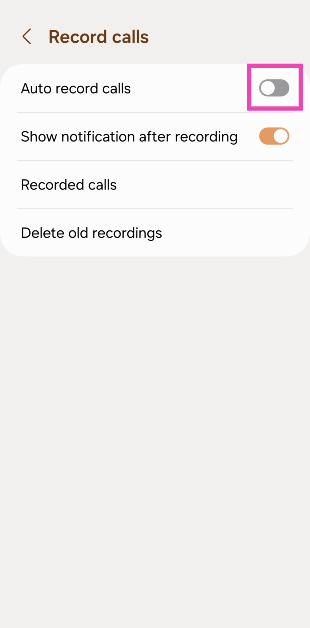
Clear dialer cache

If the echo is arising due to a corrupt file in the dialer’s cache, clearing it will fix the issue. Here’s how you can do it. Step 1: Go to Settings and select Apps. Step 1: Go to Settings and select Apps. Step 2: Select the dialer app. Step 2: Select the dialer app. Step 3: Tap on Storage. Step 3: Tap on Storage. Step 4: Hit Clear Cache. Step 4: Hit Clear Cache.
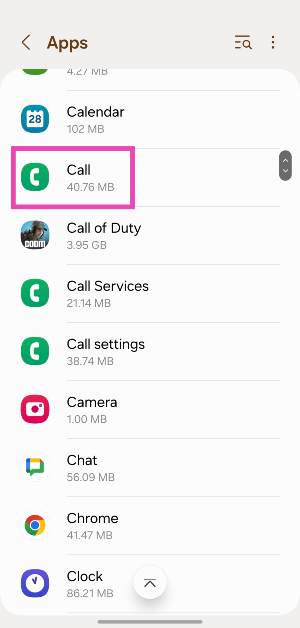
Reset Network Settings

If a weak network reception is the reason behind the echo you’re facing on voice phone calls, you can try performing a network settings reset on your Android device. Doing so will reset all your customised network settings and unpair all your Bluetooth devices. All the saved WiFi passwords will also be lost. A network settings reset ensures that any customised settings don’t get in the way of your device’s network reception. Here’s how you can go about it. Step 1: Go to Settings and select General Management. Step 1: Go to Settings, scroll down and select General management. Best 6 Methods to Fix SSL Connection Errors on Android Phones Step 2: Scroll down and select Reset. Step 2: Tap on ‘Reset.’ Android Connected To WiFi But No Internet. Best 6 Methods to Fix SSL Connection Errors on Android Phones Step 3: Tap on Reset Network Settings. Step 3: Tap on ‘Reset Network Settings’. Android Connected To WiFi But No Internet Best 6 Methods to Fix SSL Connection Errors on Android Phones Step 4: Select Reset Settings. Step 4: Select ‘Reset Settings’. Best 6 Methods to Fix SSL Connection Errors on Android Phones Step 5: Enter your PIN to confirm your selection.

Use VoIP calling

edit whatsapp messages in android ios desktop If a weak network reception is the reason behind the echo on a cellular call, switch to a WiFi connection and make a call over the internet. The easiest way to go about this is by calling the other person on WhatsApp. Since WhatsApp is very popular among Android users, chances are that the person you’re calling is already on it. Initiate a chat with them on WhatsApp and hit the call icon at the top of the screen to call them. You can also use other services like Telegram, Instagram, Facebook Messenger, Google Meet, Zoom, Skype, and more.
Move to another room

If you’re in a group call with some members sharing the same spot as you, it can create an unwanted echo. You can fix this by requesting other people to mute their microphones. This will prevent their phones from picking up the voice emanating from your device, thereby curbing the echo. If muting isn’t possible, ask the members to move to different places so their phones aren’t able to pick up the audio from other devices.

Set your phone to safe mode

It is possible that a rogue third-party app may be causing the echo on your phone calls. To confirm this, restart your phone in safe mode and try calling someone. If you do not notice an echo, it means that a third-party app is to blame. Step 1: Long press the side button. If the side button is programmed to trigger the voice assistant, press and hold it along with the volume-up key to trigger the power menu. Step 2: Tap and hold the Power off icon. Step 2: Tap and hold the Power off icon. Step 3: Tap on Safe Mode. Step 3: Tap on Safe Mode.
Update OS

Step 1: Go to Settings and select Software update. Go to Settings and select Software update. 10 top ways to fix unable to answer calls on Android phone Step 2: Tap on Download and install. tap on download and install 10 top ways to fix unable to answer calls on Android phone Step 3: Select Install now. Select Install now. 10 top ways to fix unable to answer calls on Android phone

Frequently Asked Questions (FAQs)

How do I fix the phone call echo on Android?

Ask the person on the other end of the line to take the call off the speakerphone in order to fix the echo.

How do I get rid of echo on audio calls?

If you’re in a group call with some members present in your near vicinity, ask them to spread out so their phones don’t pick up the audio emanating from other devices.

Why do people hear an echo when they call me?

If you want to fix the issue on your end, stop picking up calls using the speaker phone and troubleshoot your microphone.

How do I turn off WiFi calling on Android?

You can turn off WiFi calling from the Quick Settings Menu or go to Settings>Connections and turn off its toggle switch.

How do I perform a network settings reset on Android?

Go to Settings>General Management>Reset>Reset Network Settings>Reset Settings and enter your phone’s PIN. Read Also: Poco C51 new variant launched in India: Price and availability

Conclusion

This is how you can fix the phone call echo issue on Android. If you are facing a similar issue on WhatsApp calls, switch to a better WiFi network or turn on mobile data on your Android device. If you found this article helpful, let us know in the comments!