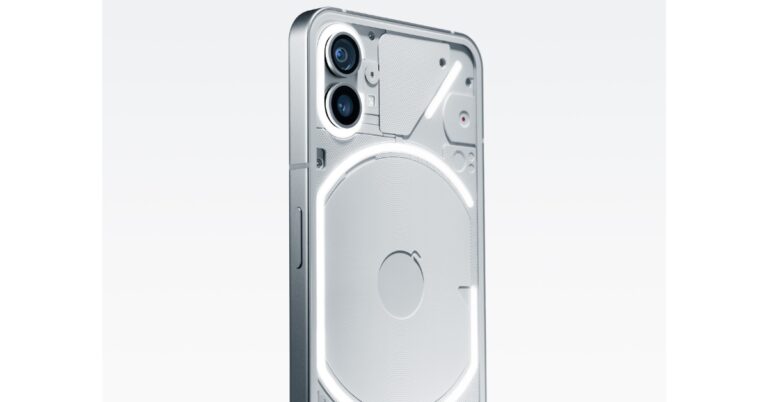
Using your smartphone without the apps is not a fun experience at all. There are multiple ways you can go about installing apps on your Android device. While a majority of Android users stick to Google Play Store, some resort to third-party marketplaces. Sometimes, your smartphone may refuse to install an app without providing any valid reason. In this article, we bring you the best 7 ways to fix the ‘app not installed’ error on your Android device.
While you may not have encountered any issues while downloading an APK, additional disk space may be required when the app is being installed. If you are unable to properly install an app on your phone, go to Settings>Battery and device care>Storage and check if there’s enough space left. Delete some unused apps and other clutter to make space if the memory is full.
Check storage location
While most apps work perfectly fine when they are installed on the memory card inside your device, some may require installation on your phone’s internal storage for proper functioning. Move the APK to internal storage and change the storage location of the installed app before proceeding.
Clear Package Installer cache
‘Package Installer’ is a system app on your device that helps install third-party apps. While it works fine for the most part, it is not uncommon for its cache to get corrupted. Here’s how you can clear it.
Step 1: Go to Settings and select Apps.
Step 2: Tap on the filter icon and select Show system apps.
Step 3: Scroll down and select Package Installer.
Step 4: Tap on Storage.
Step 5: Select Clear Cache.
Clear Google Play Store’s cache
Step 1: Go to Settings and select Apps.
Step 2: Select Google Play Store.
Step 3: Tap on Storage.
Step 4: Select Clear Cache.
Allow browser to install apps from third-party sources
Your Android device encourages you to install apps from the Google Play Store. While the Play Store is the safest platform to download apps, sometimes you have to resort to third-party platforms. By default, your phone is not allowed to install apps from unknown sources. Here’s how you can change that.
Step 1: Go to Settings and select Biometrics and Security.
Step 2: Tap on Install unknown apps.
Step 3: Scroll to the web browser you used to download the APK.
Step 4: Turn on the toggle switch next to the relevant app.
Look out for corrupted APKs
If you frequently download apps from third-party sources, it is possible to download a corrupted APK from time to time. You will encounter the ‘App not installed’ error on your Android device any time you try to make a corrupted APK work. Your best course of action is to either download the app from the Google Play Store or another verified and secured third-party marketplace.
Check your memory card
If the external storage on your Android phone is corrupted, you will not be able to install apps on it. Try opening other files on the card to check if it’s corrupted. If your device fails to read these files, you may have a problem on your hands. Connect your phone to your PC to confirm this issue. Once it’s clear that the memory card is corrupt, try formatting it to fix the issue. Try inserting it in another slot to see if it works.
Frequently Asked Questions
How do I fix the ‘apps not installed’ problem on Android?
If you are unable to install apps on your Android smartphone, check the internal storage and clear the cache for the Package installer. Make sure you are installing the app on internal storage and not the memory card.
How do I download an app from unknown sources?
Go to Settings>Biometrics and Security>Install Unknown Apps and switch on the toggle bar next to the web browser you are using to install the app.
How to update Google Play Store?
To update the Google Play Store to the latest version, open it and tap on your profile icon at the top right corner of the screen. Go to Settings>About>Play Store Version to update it.
These are the best 7 ways to fix the ‘App not installed’ error on Android. After trying these methods, make sure you restart your device before installing an app. A quick restart refreshes all the background processes and resolves any glitches on your device. Also, ensure that your smartphone’s OS is updated to its latest version.
The new Aspire 5 (2023) gaming laptop from Acer has been released in India with the most recent 13th Gen Intel Core processor and Nvidia GeForce RTX 2050 GPU. The brand-new gaming laptop has a full-HD IPS display with thin bezels. The Aspire 5 laptop is perfect for power PC users, mobile producers, and gamers. While producers benefit from faster cores, multitasking capabilities, and configuration options, gamers enjoy excellent performance and fluid gameplay in a portable and lightweight body.
Acer Aspire 5 (2023) price in India and sale details
The price of the Acer Aspire 5 starts at Rs 70990. The gaming laptop can b purchased via all Acer Exclusive Stores, Acer E-store, Croma, Vijay Sales and Amazon in the country.
Acer Aspire 5 (2023) specifications
The all-new Acer Aspire 5 features a 14-inch IPS WUXGA display with 1920 x 1200 pixels of resolution. The screen has a wider viewing angle of up to 170 degrees with a 16:10 aspect ratio. According to the company the Aspire 5 gaming laptop is also environmentally friendly, featuring a mercury-free display and an elegant, sleek metal chassis.
Under the chassis there is the latest 13th Gen Intel Core processor, this laptop features advanced performance hybrid architecture with up to two Performance-cores (P-cores) and up to eight Efficient-cores (E-cores), intelligently managed by Intel Thread Director. Graphics has been taken care of by NVIDIA GeForce RTX 2050 offering the latest AI features and ray tracing capabilities. The DLSS (Deep Learning Super Sampling) and AI-specialized Tensor Cores on GeForce RTX GPUs provide gamers with a speed boost with uncompromised image quality. While the NVIDIA Optimus technology balanced the battery life.
In terms of connectivity, there is the latest Wi-Fi 6E and Bluetooth 5.2 technologies, a USB Type-C port that supports full-function capabilities and Thunderbolt 4, transferring large files and connecting to external displays. Professionals and students who need to stay connected and productive can connect many devices at once thanks to MU-MIMO technology.
Speaking on the launch Sudhir Goel, Chief Business Officer, Acer India, said, “As the demand for casual gaming continues to rise, customers are looking for bigger screens and immersive experiences that deliver top-notch performance. With Aspire 5, we have encapsulated high-performance components within a thin and sleek chassis, providing our customers with an optimal gaming experience that can be easily carried anywhere. At Acer, we are committed to providing innovative and technologically advanced products that exceed our customers’ expectations, and the Aspire 5 is just one example of our dedication to this mission.”
In order to keep your privacy intact, Android devices give you the option to hide any installed device. You can also choose to password-protect the hidden apps. While this is a nifty feature, it can prove to be a hurdle for parents who don’t want their kids accessing certain apps. In this article, we bring you the best 6 ways to find hidden apps on Android devices.
The easiest way to find all hidden apps on your device is by going through the home screen settings. Here’s how.
Step 1: Go to Settings and select Home Screen.
Step 2: Scroll down and select ‘Hide apps’.
Step 3: You’ll be able to see the list of hidden apps. You can choose to hide more apps or unhide the hidden apps in this window.
Find Hidden apps using the app list
Your Android smartphone lets you view all the installed apps on your device in one place. You can find the hidden apps on this list too. Here’s how.
Step 1: Go to Settings.
Step 2: Select Apps.
Step 3: Go through the list of apps and look for the ones that aren’t present in the app drawer.
Look for a trick app
The problem with using the default Android method to hide apps is that any other Android user can easily figure out how to unhide them. This is why Google Play Store is full of privacy apps that have their own way of hiding apps on your device. Certain apps pose like system apps (like a Calculator or Photo Gallery) on your device and do not give you access to the hidden contents until you enter a code. A privacy app disguised as a calculator will function like a calculator until you punch in a particular code. To find hidden apps on an Android device, closely inspect the system apps and go through their app info in Settings to see if they were published by a third-party developer.
Go through the downloaded APKs
Another way to look for hidden apps is by going through the list of downloaded APKs on an Android device. Of course, this only works for apps downloaded from a third-party marketplace. This method won’t lead you to the installed app, but it will give you an idea about the apps that may be hidden on a device. To go through the list of APKs on an Android phone, go to the file manager and select the ‘Apps’ or ‘APK’ folder.
Use a third-party app launcher
If you can’t figure out the mechanism used to hide an app on an Android device, you can use a third-party app launcher like Nova Launcher or Apex Launcher. Upon downloading an app launcher, run it on your device and access the ‘hidden apps’ section. Any previously hidden apps will be visible here.
Check app permissions
If you’re worried that there’s a hidden spy app installed on your device, you can go through the permission list on your device and see which apps have the clearance to use your phone’s camera, media, microphone, location, and more. Apps which are usually hidden from the home screen or app drawer will be visible here. To go through the list of permissions go to Settings>Apps>Options (three dots)>Permissions.
Frequently Asked Questions
How do I find all the hidden apps?
To find the hidden files on your device, go to Settings>Home Screen and select ‘Hide Apps’. You can also browse through the app list to see every installed app on a device.
How do I unhide an app?
Go to Settings>Home Screen>Hide Apps and tap on the app you want to unhide.
What happens when an app is hidden?
When you hide an app it disappears from your phone’s app drawer and cannot be searched on your device. You can also choose to hide the notifications for any app on your phone.
These are the best ways to find hidden apps on Android devices. Different Android skins have different features to hide and secure sensitive apps. Most devices allow users to password-protect an app while hiding it. Go through settings and find the special privacy features to get an idea of the level of security employed to keep the apps secure.
In India, the affordable smartphone market saw a lot of new additions this year. Numerous low-cost smartphones have been released in the nation by Chinese smartphone manufacturers like Xiaomi, Redmi, Poco, Nokia, and others. Home-grown firm Lava too came up with interesting additions to this category. So if you want to purchase a device with all the features you want without breaking the bank here are some options. These are the 5 best budget smartphones under Rs 8,000 that we found for you after doing some research.
Poco C50
Poco C50 features a 6.52-inch HD+ display with a 1,600×700 pixel resolution. It runs on Android 12(Go Edition) and is powered by an octa-core MediaTek Helio A22 SoC. The device comes with a waterproof and dust-resistant finish and has a dedicated microSD slot for memory expansion. The Poco C50 (Review) has a dual rear camera system with AI support that includes an 8-megapixel primary sensor. A 5-megapixel sensor is located at the front of the device for selfies and video calls. In addition to this, it packs a 5,000mAh battery.
The Redmi A2 comes with a 6.52-inch HD+ LCD display with 1600 x 720 pixels. The device run on Android 13 out of the box. Under the hood, there is MediaTek Helio G36 SoC. The phone includes 5,000mAh with 10W fast charging support. For the optics, there is a dual rear camera setup, including an 8-megapixel primary sensor along with a QVGA camera. The smartphone also features a 5-megapixel selfie sensor.
Redmi 10A comes with a 6.53-inch HD+ display with a resolution of 720×1,600 pixels. it runs on MIUI 12.5 on top. Under the hood, there is an octa-core MediaTek Helio G25 processor. This phone also supports memory expansion. The device comes with a single 13-megapixel camera sensor with an LED flash. The budget smartphone has a 5-megapixel selfie camera sensor on the front for selfies and video chats. The Redmi 10A is powered by a 5,000mAh battery that can be charged at a standard 10W.
Nokia C12 features a 6.3-inch HD+ display. It operates on Android 12 Go Edition and comes with two years of quarterly security updates. The phone comes with an octa-core Unisoc 9863A1 SoC. The internal storage can be expanded via microSD up to 256GB. In addition to this, it includes a single 8-megapixel camera sensor with autofocus and an LED flash on the back. For selfies and video calls the Nokia C12 (Review)has a 5-megapixel front-facing camera. The smartphone houses a removable 3,000mAh battery that comes with 5W rapid charging.
The Lava Blaze 2 is also a wise pick if you can increase your budget a little by Rs 1,000. It highlights a 6.5-inch IPS LCD display with 720×1600 pixels of resolution and 90Hz refresh rate support. The phone runs on Android 12 and is driven by an octa-core Unisoc T616 processor SoC. In addition to this, the internal storage can also be expanded via a microSD card. The Lava Blaze 2 comes with a dual rear camera setup that includes a 13-megapixel primary sensor and a secondary 2-megapixel lens. There is an 8-megapixel front-facing camera for taking selfies and video calling. The device also includes a 5,000mAh battery that supports 18W charging.
Garena Free Fire is a battle royale game with regular awards and tournaments to keep players interested. If you play Garena Free Fire, you should be aware of the redeem codes that are released on a daily basis. However, because the battle royale game is banned in India, players from other countries can use the Free Fire Redeem codes daily. If you’re unfamiliar with the Garena Free Fire redeem codes or don’t know how to get them, we’ve put together a step-by-step guide to help you redeem them. Check out Garena Free Fire Redeem Codes for 30 May 2023.
The Free Fire redeem codes are a great way to get free stuff. These are 12-digit codes that contain alphabets and numbers, as well as an expiration date and time. Because the Garena FF redeem codes cannot be used more than once, you should hurry to the redemption page to claim your free reward before someone else does. To get a free reward, all you have to do is go to reward.ff.garena.com/en, which is the official redemption page. Also, keep an eye on this space for daily updates on Garena Free Fire redemption codes and rewards.
Garena Free Fire Redeem Codes Today 30 May 2023
FU9O89OHG9FAQT
FCAVBQNJMKI345
FUTYHBIUCYHXBD
FNMER5LTYPOKMK
FO9I8DURH56KYL
F5KJMYKO9IKMKI
FO9IJNAJUQ6YT2
FGFVFGTR3F45BN
F6JMK789NBV765
FFDSFR6UHTJYU8
FB4N3KOI8UY6TV
FGCHNJXIUYZRFD
FUOUYX543QED2C
F2RFD3C4RVBGHV
FUYCTXRFCSDEBJ
How to Get Free Fire Redeem Codes for Garena on 30 May 2023?
Amazon is back with another quiz on its mobile platform. The Amazon Quiz is conducted every day for its customers. Customers from different parts of the country are participating in the daily quiz. Today’s Amazon quiz is now live on the Amazon App. The customers who participate in the 30 May 2023 Amazon Quiz will get a chance to win Rs 1,250 Amazon pay Balance.
The Amazon Quiz can be played from 12 AM to 11:59 PM. For those who are unaware of the quiz, the e-commerce platform brings a fresh quiz on a daily basis which consists of five questions related to general knowledge and current affairs. The participants need to answer all the questions correctly and their names will be selected for a lucky draw. The winner will be announced at the end of the month. One wrong answer could eliminate you from the quiz. Only app users are eligible to participate in the Quiz. Check Out 30 May 2023 Amazon Quiz Answers.
Question 1: India will host the Asian Champions Trophy ______ tournament for the first time in 2023.
Answer: Hockey
Question 2: Which fast bowler, who plays for Royal Challengers Bangalore, became the fastest Indian to take 100 wickets in IPL?
Answer: Harshal Patel
Question 3: In 2023, which African country launched its first operational Earth observation satellite named ‘Taifa-1’?
Answer: Kenya
Question 4: What enables this species of frog to protect itself?
Answer: Poisonous
Question 5: This exhibit is located at which palace in Italy?
Answer: Palazzo Strozzi
How To Play Amazon Quiz
Only app users are eligible to play the Amazon quiz every morning from 12 AM to 11:59 PM. The quiz is not available on the desktop. For those who are unaware of how to play the Amazon quiz below are the steps, you can follow to take the quiz.
Firstly download the Amazon app from Google Play Store or App Store
Now fill in the required information through the Sign Up option.
You need to log in to the Amazon app and scroll down on the home screen to find the Amazon Quiz banner.
Tap on the Amazon Quiz banner and tap on the Start button to start the Quiz.
Now you will get 5 questions and you need to answer them correctly. One wrong answer will eliminate you from the Quiz.
After answering all the questions correctly you are now eligible for a Lucky Draw.
The winner’s name will be announced today at 12 PM.
Taking a screenshot is one of the easiest things you can do on your Android smartphone. It is the quickest and easiest way to share information with a contact. While you may be familiar with the traditional way of taking a screenshot, you would be surprised to know just how many ways there are to go about this task. In this article, we bring you the best 7 ways to take screenshots and share them on an Android smartphone.
The standard way to take a screenshot on an Android smartphone is by pressing the Power + Volume Down buttons. This works for most Android devices. However, if you’re using an old Android device with a dedicated home button, press Power Key + Home Button to take a screenshot. Make sure you press both buttons at the same time to take a screenshot. Pressing either button even a tiny bit earlier will not capture the screenshot.
Once the screenshot has been taken, you can tap the downward arrow on the toolbar to scroll down and capture more of the screen. Tap the share icon to share the screenshot directly from the preview window. Some smartphones automatically delete the screenshot after it has been shared. Explore your phone’s settings to see if it offers this feature.
Use Gestures
Depending on your smartphone manufacturer, there are certain special gestures you can use to take a screenshot. Samsung users can swipe their palm across the screen to take a quick screenshot, while OnePlus users can capture the screen by dragging three fingers from the top of the display. To enable the gesture on your Samsung smartphone, go to Settings>Advanced Features>Motions and Gestures and enable ‘Palm swipe to capture’. On your OnePlus smartphone, go to Settings>Additional Settings>Screenshot and enable ‘3-finger swipe down’.
Take a screenshot using the Quick Settings Menu
The Quick Settings Menu on your Android smartphone has a dedicated tile for taking a screenshot. Simply swipe down from the status bar and tap on ‘Screenshot’. Once you press on the tile, your smartphone will capture the screen you are on after rolling up the quick settings menu. You can also choose to take a partial screenshot or a rolling screenshot.
Take a screenshot from the app preview screen
Android smartphones allow you to take a screenshot of an app without opening it. You can carry out this task from the app preview screen itself. Use the gesture control or dedicated navigation icon to go to the app carousel/preview screen. Hit the ‘Screenshot’ option below an app’s card to take a screenshot of its current page.
Take a screenshot using Google Assistant
If Google Assistant is enabled on your device, you can simply ask it to take a screenshot. Using this method does not even require you to touch your smartphone. Simply say ‘Hey Google, take a screenshot’ and the Assistant will capture your device’s screen. This method is super helpful when you are driving and cannot handle your smartphone.
Take a screenshot using Quick Tap
Google Pixel users can take a screenshot by tapping the back panel of the smartphone twice. To enable this feature go to Settings>System>Gestures>Quick Tap and select ‘Take screenshot’.
Use a third-party app
There are plenty of third-party apps that let you take a screenshot on your device. These apps overlay an assistive ball on your smartphone’s display, letting you capture the screen whenever you want. This method comes in handy when there’s something wrong with the physical buttons on your smartphone. Screenshot Touch and Screen Master are some of the best apps you can use for this task.
Frequently Asked Questions
Can Google Assistant take a screenshot?
If you want to capture your phone’s screen in hands-free mode simply say ‘Hey Google, take a screenshot’ and Google Assistant will do the job for you.
How do I take a screenshot on my phone?
There are several ways to take a screenshot on your phone. The simplest method is by pressing the power key and the volume down button.
Why won’t my phone take any screenshots?
If your smartphone isn’t able to take a screenshot, check the available storage on your device. You should also know that your phone won’t take screenshots on apps like Netflix, where the content is copyrighted. Taking screenshots on the incognito tab or certain payment apps is also not allowed.
These are the top 7 ways to take a screenshot on your Android smartphone. As mentioned earlier, you can easily share the screenshot straight from its preview window. You can also edit the screenshot to adjust its size, crop it, or draw on it before sharing it with your friends. Which method do you use to take a screenshot on your phone? Let us know in the comments!
Because of major competition, many different brands in India have been selling Smart Television for less than Rs 50,000. These televisions provide top-of-the-line technology and software in affordable televisions. Here is our list of the 5 Best 55-inch TVs available in India you can buy under your budget in India.
Westinghouse 55 inches Quantum Series 4K Ultra HD Smart Certified Android LED TV
The first on our list is this Westinghouse 55 inches Quantum Series 4K Ultra HD Smart Certified Android LED TV that comes with HDR 10+ and 1 billion colours. It has a 60 Hz refresh rate ensuring smooth and buttery motion. In terms of connectivity, there are 3 HDMI and 2 USB ports. The speakers on the Television offer 40 watts sound output, Dolby Digital Plus, Dolby MS 12 and DTS Trusurround. The device runs on the Android TV platform, to access your favourite streaming services like Netflix, Prime Video, and more. Price: Rs 28,999 Buy via Amazon
Vu 139 cm Premium Series 4K Ultra HD Smart LED Google TV 55CA
Next comes this Vu 139 cm (55 inches) Premium Series 4K Ultra HD Smart LED Google TV 55CA. As the name suggests the Television supports 4K resolution, 60Hz refresh rate, 400 Nits Brightness, HDR10 I HLG and AI Picture Booster. The television has 50 watts of powerful sound, featuring pure sound, surround sound, and more. There is support for Google TV, Chromecast, and a range of smart features. In terms of connectivity, there is HDMI ports, USB ports, Wi-Fi, and Bluetooth. Price: Rs 33,990 Buy via Amazon
Redmi 55 inches 4K Ultra HD Android Smart LED TV X55
The Redmi 55 inches 4K Ultra HD Android Smart LED TV X55 has 3840 x 2160 pixels of resolution. It refreshes at 60Hz and offers 178 degrees of viewing angle. The 4K LED panel, Dolby Vision, HDR10+, HLG, and Vivid Picture Engine. The 55-inch TV offers 30 watts output and supports Dolby Audio, DTS Virtual: X, Dolby Atmos pass-through eARC and DTS-HD. For connectivity, there is dual-band Wi-Fi, Bluetooth 5.0, 3 HDMI ports, and 2 USB ports. It runs on Android TV 10 and includes PatchWall, Kids Mode, Universal Search, and support for popular apps like Netflix and Prime Video. Price: Rs 36,999 Buy via Amazon
Sansui 55 inches 4K Ultra HD Certified Android LED TV
The Sansui 55 inches 4K Ultra HD Certified Android LED TV has 3840×2160 pixels of resolution and refreshes at 60Hz. This smart TV is powered by Android 10.0 and comes with Google Assistant and Alexa support and is powered by a quad-core processor. For connectivity, there are multiple HDMI and USB ports, along with Bluetooth, Wi-Fi, and more. In terms of audio, the Sansui TV supports Dolby Audio, DTS technology and offers 20 Watts Audio Output. Price: Rs 32,970 Buy via Amazon
Acer 55 inches I Series 4K Ultra HD Android Smart LED TV
The Acer 139 cm (55 inches) I Series 4K Ultra HD Android Smart LED TV has 3840×2160 pixels of resolution and it comes with a refresh rate of 60Hz with Dolby Vision support. Connect all your devices effortlessly with multiple HDMI and USB ports, along with Bluetooth and Ethernet. There are 60-watt HiFi speakers with Dolby Atmos support. The 55-inch Android TV further includes Google Assistant, Chromecast built-in, and a voice-controlled smart remote. Price: Rs 35,999 Buy via Amazon
If your Android phone refuses to function at all and displays the ‘Qualcomm Crash Dump Mode’ message on the screen, it means that its partition is corrupted. This may happen while installing a custom ROM or a software update on your device. In this article, we bring you the best 3 ways to fix the ‘Qualcomm Crash Dump Mode’ on Android phones.
Fix Qualcomm Crash Dump Mode by rebooting your Android phone
A simple reboot can be enough to exit Crash Dump Mode on your Android smartphone. If you are a OnePlus user, press and hold the side key and volume up button for 15 seconds to shut down your phone. Once your phone has shut down, long-press the side key to power it on again. Your phone should reboot normally. If it doesn’t move on to the next method.
Exit Crash Dump Mode through FastBoot Mode
If a normal reboot didn’t fix the Crash Dump Mode on your Android device, try booting it in FastBoot Mode instead. Press and hold the side key + volume down + volume up buttons at once to initiate FastBoot mode in OnePlus devices. This key combination may vary between different smartphones. Simply Google the combination for your smartphone to proceed further. Here are the key combinations for major smartphone manufacturers.
Samsung: Power Button + Volume Down + Home/Volume Up
Once the FastBoot Mode is initiated, use the volume keys to navigate up and down. Select ‘Start’ and hit the power key to enter your selection. Your phone will boot after some time.
Use MSM Tool to flash your phone’s firmware
Step 1: Launch Command Prompt on your PC or laptop.
Step 2: Enter the following command and hit Enter: bcdedit /set testsigning on
Step 3: Restart your laptop/PC.
Step 4: Download and install Qualcomm USB Drivers for your PC/laptop.
Step 5: Download the MSM flash file for your smartphone model. You will have to Google your phone’s model number to find its MSM flash file.
Step 8: Turn off your smartphone. Connect it to your PC/laptop.
Step 9: Press and hold the Volume Up + Volume Down buttons. Do not let them go.
Step 10: Click on Enum and check whether your phone is connected to your PC/laptop.
Step 11: Click on ‘Start’.
Step 12: Once the progress bar appears on the screen, let go of the buttons.
Step 13: It will take a few minutes for the MSM Tool to flash your phone’s firmware. Once that is done, the Qualcomm Crash Dump Mode will be fixed on your Android device.
Frequently Asked Questions
Why is my phone showing Qualcomm crash dump mode?
If your phone is displaying the ‘Qualcomm crash dump mode’ message on the screen, it means that the partition of the device is corrupted and it is unable to boot the OS.
How do I fix Qualcomm Crash Dump Mode on Android?
To get your phone out of crash dump mode, try booting it on FastBoot mode. If that doesn’t work, you will need to flash its firmware.
Does flashing a smartphone’s ROM clear all the data?
If you flash your smartphone’s ROM you will lose all your personal data on the device.
These are the three best ways to fix Qualcomm Crash Dump mode on Android phones. If you are unable to exit the crash dump mode even after trying all the methods mentioned above, take your phone to a professional care centre for further assistance.
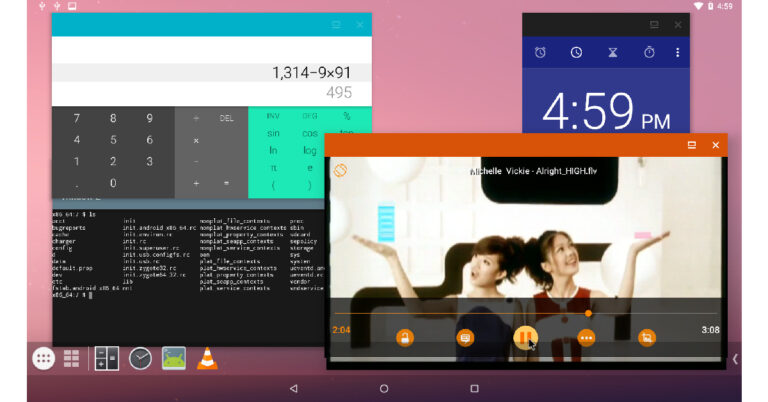
Android is the biggest mobile operating system in the world, but its usage is limited to ARM-architecture devices (mostly smartphones). This is why Android OS is largely absent from laptops or PCs, which use the x86 architecture. If you want to play an Android game on your PC, you have to rely on an Android emulator like Bluestacks, MeMU, or Android Studio. If you want the full Android experience on your PC, you will have to download Android-x86. Android-x86 is an open-source project that ports Android OS to devices that utilise x86 architecture. In this article, we show you how to install the complete Android OS on a PC.
Step 1: Download the Android-x86 ISO file from here and burn it to a CD. You can also create a bootable USB drive for the OS.
Step 2: Use the USB/CD to boot your PC and select ‘Install Android-x86 to hard disk’.
Image Source: Android-x86.org
Step 3: Choose a partition to install Android-x86. You can also create a new partition.
Image Source: Android-x86.org
Step 4: If you want to keep the existing data on your PC, select ‘Do not re-format’. Your PC can run Android OS along with Windows. If you wish to erase the data on the system, choose a format type from the list.
Image Source: Android-x86.org
Step 5: Confirm your selection.
Image Source: Android-x86.org
Step 6: Select ‘Yes’ to install boot loader Grub.
Image Source: Android-x86.org
Step 7: Hit ‘Yes’ for a read-write system directory. This is necessary for debugging, rooting, and getting rid of bloatware packages.
Image Source: Android-x86.org
Step 8: Wait for the installation to end.
Image Source: Android-x86.org
Step 9: Select ‘Run Android-x86’. The Android OS will load on your PC.
Image Source: Android-x86.org
Frequently Asked Questions
How can I run Android on my PC without an emulator?
If you do not want to use a third-party Android emulator on your PC, you can install Android-x86 OS in just a few simple steps.
Bluestacks is one of the best Android emulators out there and is completely safe to run on your PC. However, its performance may differ depending on the processor you are using.
This is how you can install the complete Android OS on a PC. If you are a Windows 11 user, you can use the official Windows Subsystem for Android software to run Android apps on your PC. If you want to install Android-x86 on your PC, make sure your device has at least 8GB of free disk space.
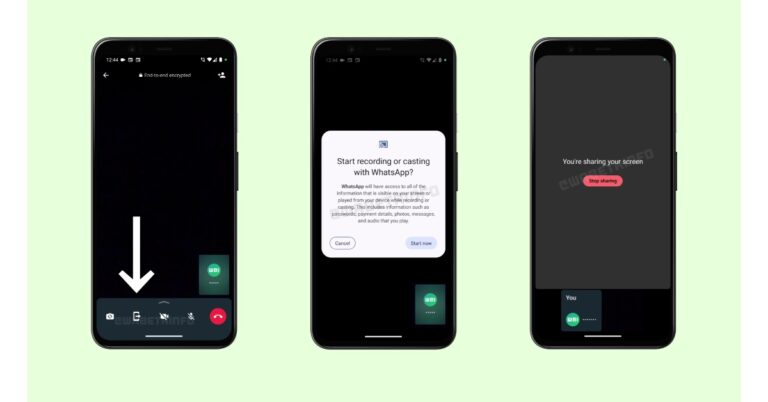
To provide a better user experience WhatsApp recently rolled out new features on its platform. Recently the Meta-owned instant chatting app was spotted testing screen-sharing feature similar to Zoom and Google Meet. As the name suggests users will be able to share their screen’s contents with callers. Currently, this functionality is available on the beta version of the Android app.
According to a report by WABetaInfo, few beta testers have access to WhatsApp’s upcoming screen-sharing feature during a video call, which also includes a new location for tabs in the bottom navigation bar. Reportedly this feature is available to some beta testers that install the latest WhatsApp beta for Android 2.23.11.19 update from the Google Play Store.
Users will be asked to share their screen if they tap the new icon in the call control pane, as shown in the shared screenshot. According to the WaBetaInfo report whatever is on the screen will be recorded and shared with the recipient when you choose to share it. Notably, this feature might not be available on older Android versions, screen-sharing might not function in lengthy group calls, and the recipient might not be able to see what is on your screen if an old version of WhatsApp is being used. Additionally, even if the screen content is continuously transmitted throughout the video call, you can pause it anytime. Additionally, this function is only activated if you agree to share the information on your screen.
Not just that the WhatsApp beta for Android 2.23.11.19 update also brings a few small modifications to the new bottom navigation bar may be apparent for certain users after installation. The bottom navigation bar’s tabs, in particular, have been organised in a certain way that chats, Calls, Communities, and Statuses may now appear in this sequence in the bottom navigation bar for some users.
“The ability to share the content of your screen, along with the new placement for tabs within the bottom navigation bar, is available to some beta testers after installing the latest WhatsApp beta for Android update from the Google Play Store, and it is rolling out to more users over the coming weeks,” as per WABetaInfo.
Flagship smartphones are priced ludicrously high these days. If you’re looking for a high-end phone, it’ll cost you anywhere between $1,000 to $1,200. However, if you’re willing to compromise on a couple of premium features without sacrificing the performance, there are plenty of options under $800 that you may fancy. This price category consists of entry-level flagships as well as ‘flagship killers’. So, without further ado, let’s take a look at the best 5G smartphones you can buy for under $800 in the USA.
The entry-level model in Apple’s latest iPhone 15 series is priced at $799. The new iPhone 15 gets an improved A16 Bionic chipset that was found in last year’s Pro models. If you want to harness the power of the latest A17 Pro chipset, you will need to shell out extra money for the Pro variants. One of the biggest changes on the new iPhone 15 is the USB Type-C port replacing Apple’s lightning port for charging and data transfer. Since the entry-level model employs USB Type-C 2.0, don’t expect super high charging and data transfer speeds. The camera module on the iPhone 15 finally gets the update that first featured on last year’s Pro variants. The primary shooter is now a 48MP sensor, while the ultrawide camera retains the 12MP sensor. The notch on the display has now been replaced with the Dynamic Island.
iPhone 14
Price: $699
Key Specs
Display
6.1-inch OLED
Chipset
A15 Bionic
RAM
6GB
Storage
128GB, 256GB, 512GB
Battery
3,279 mAh
The iPhone 14 lineup starts at $699 for the entry-level model. The smartphone retains the A15 Bionic chipset from the previous series. The superior A16 Bionic processor is only available on the Pro models. It also carries forward the notch on display. While it may look very similar to the iPhone 13, the iPhone 14 is still one of the best smartphones you can buy for under $800 in the USA. One of the biggest highlights of the 14 series is the Emergency SOS which allows users to connect to the nearest satellite in case of an emergency. The smartphone sports a 6.1-inch Super Retina XDR OLED display that can reach a peak brightness of 1,200 nits. Talking about the camera specs, the new iPhone 14 gets the all-familiar 12 MP wide and ultrawide lens at the back and a 12MP selfie camera up front.
Samsung Galaxy S23
Price: $799
Key Specs
Display
6.1-inch Dynamic AMOLED
Chipset
Snapdragon 8 Gen 2
RAM
8GB
Storage
128GB, 256GB, 512GB
Battery
3,900 mAh
Samsung Galaxy S23 is without a doubt the best compact Android smartphone you can buy right now. The smartphone gets a stunning 6.1-inch Dynamic AMOLED display that can reach up to 1,750 nits of peak brightness. Powering the Galaxy S23 is this year’s Qualcomm flagship SoC, Snapdragon 8 Gen 2. The triple camera unit at the back features a 50MP primary shooter, a 10MP telephoto lens, and a 12MP ultrawide lens. With 25W wired charging, the 3,900 mAh battery on this smartphone can be boosted to 50% in 30 minutes.
Motorola Edge+ (2023)
Price: $799
Key Specs
Display
6,67-inch OLED
Chipset
Snapdragon 8 Gen 2
RAM
8GB
Storage
512GB
Battery
5,100 mAh
Motorola Edge+ gets a 6.67-inch curved OLED display with a maximum refresh rate of 165Hz and peak brightness of 1,300 nits. The smartphone is available in a single storage variant of 512GB and 8GB RAM. There are three rear cameras on this device – a 50MP primary shooter, a 12MP telephoto lens, and a 50MP ultrawide lens. At the front, you get a 60MP selfie camera. Motorola offers an almost stock Android experience on this device, with three years of OS upgrades. Powering the Motorola Edge+ is the flagship Snapdragon 8 Gen 2 SoC.
Google Pixel 7 Pro
Price: $749
Key Specs
Display
6.7-inch LTPO AMOLED
Chipset
Tensor G2
RAM
8GB, 12GB
Storage
128GB, 256GB, 512GB
Battery
5,000 mAh
Google’s flagship Pixel 7 Pro is powered by the company’s in-house Tensor G2 processor and carries forward the signature design that first made an appearance on Pixel 6. The rear camera band on the Pixel 7 Pro houses a 50MP primary shooter, a 12MP ultrawide lens, and a 48MP telephoto lens. Computational photography still continues to be the biggest highlight of the Pixel. We reviewed the smartphone last year and were thoroughly impressed with its camera performance. Other than that, the stock Android OS experience is also one of the reasons why you should get this phone.
Motorola Edge 30 Ultra
Price: $759
Key Specs
Display
6.67-inch P-OLED
Chipset
Snapdragon 8+ Gen 1
RAM
8GB, 12GB
Storage
128GB, 256GB, 256GB
Battery
4,610 mAh
Motorola Edge 30 Ultra was one of the best smartphones to come out last year. It features the Snapdragon 8+ Gen 1 SoC, a 6.67-inch curled P-OLED display, Corning Gorilla Glass 5 front and back, and a whopping 200MP primary camera. The rear camera unit also features a 12MP telephoto and 50MP ultrawide lens. The smartphone can charge at an amazing 125W using a wired charger. There is also 50W support for wireless charging.
OnePlus 11
Price: $700
Key Specs
Display
6.7-inch LTPO3 fluid AMOLED
Chipset
Snapdragon 8 Gen 2
RAM
8GB, 12GB, 16GB
Storage
128GB, 256GB, 512GB
Battery
5,000 mAh
After the mild response that the OnePlus 10T received last year, the smartphone manufacturer delivered a solid product in the form of their flagship OnePlus 11. Launched in February 2023, the OnePlus 11 is one of the better Android smartphones to come out this year. On paper, the OnePlus 11 features great specs. It gets the flagship Snapdragon 8 Gen 2 SoC, a 6.7-inch LTPO3 fluid AMOLED display, UFS 4.0 storage, 100W wired charging, and more. The camera unit on the OnePlus 11 tuned by Hasselblad consists of a 50MP primary shooter, a 48MP ultrawide lens, and a 32MP telephoto lens. Up front, you get a 16MP selfie camera. Read our full review of OnePlus 11 here.
Lenovo ThinkPhone by Motorola
Price: $699
Key Specs
Display
6.6-inch P-OLED
Chipset
Snapdragon 8+ Gen 1
RAM
8GB, 12GB
Storage
128GB, 256GB, 512GB
Battery
5,000 mAh
If you like the Lenovo ThinkPad notebook a little too much, you’ll be pleased to know about this collaboration between Lenovo and Motorola. The ThinkPhone is a $700 smartphone that carries the aesthetics of a Lenovo ThinkPad with the functionality of a Motorola smartphone. And yes, it does have a customisable red side key. The ThinkPhone is a rock-solid smartphone, it is rated IP68 for dust and water resistance and has an amarid fibre back along with an aluminium frame. It is MIL-STD-810H compliant as well. Since it is made in collaboration with Lenovo, it comes with some ‘Ready for PC’ features like a shared clipboard, seamless drag and drop transfer, phone mirroring, and using the smartphone camera as your PC’s webcam. If you’re an Android and Lenovo enthusiast, the Thinkphone is one of the best smartphones you can buy for under $800 in the USA.
These are the best smartphones you can buy for under $800 in USA. While the ‘Pro’ variants of Samsung and Apple flagships may cost over $1,000, you can grab the previous iterations at a lower price. The same goes for foldable smartphones. Which smartphone do you think offers the greatest value at this price point? Let us know in the comments!
ChatGPT app for iOS was introduced earlier this month. Earlier it was available to access in 11 countries but now it is being expanded to 30 more countries across the globe including India.
The ChatGPT app was launched in the US first earlier this month and was made available to users in 11 more countries — Albania, Croatia, France, Germany, Ireland, Jamaica, Korea, New Zealand, Nicaragua, Nigeria, and the UK a week after. OpenAI has now announced to expand the ChatGPT iOS app to 30+ more countries. it can now be accessed in Algeria, Argentina, Azerbaijan, Bolivia, Brazil, Canada, Chile, Costa Rica, Ecuador, Estonia, Ghana, India, Iraq, Israel, Japan, Jordan, Kazakhstan, Kuwait, Lebanon, Lithuania, Mauritania, Mauritius, Mexico, Morocco, Namibia, Nauru, Oman, Pakistan, Peru, Poland, Qatar, Slovenia, Tunisia and the United Arab Emirates.
The ChatGPT iOS app syncs your history across devices and is available for free to access. In addition to this, it also comes with Whisper, an open-source speech-recognition system, that enables voice input. Subscribers to ChatGPT Plus have unique access to GPT-4’s features, as well as quicker response times and early access to new features.
In November 2022, Microsoft-backed OpenAI launched ChatGPT, which took off right away. It is a language model tool that analyses massive text data sets using deep learning techniques in order to accurately create sentences and simulate human-like interactions. As there is no method to filter out the datasets that have been shown to be accurate, the chatbot may occasionally provide false information. In some cases, you might need to change the way you word your prompt to get a meaningful response. ChatGPT has been taught to probe further about your inquiry.
A similar Android app is currently being developed, the firm added. At the time of the announcement the company said, “With the ChatGPT app for iOS, we’re taking another step towards our mission by transforming state-of-the-art research into useful tools that empower people, while continuously making them more accessible. P.S. Android users, you’re next! ChatGPT will be coming to your devices soon.”
Recently Krafton announced the relaunch of Battlegrounds Mobile India after it was banned in the country last year. Following the announcement the Battle Royale game BGMI was made available for download via Google Play Store in India. The developer has also confirmed that the game will be playable in India from today onwards.
The Battlegrounds Mobile India is live and now available to play. Note that this is a 3-month trial approval after it has complied with issues of server locations data security etc. The Minister of State for Electronics and Information Technology, Rajeev Chandrashekhar via tweet said that “We will keep a close watch on other issues of User harm, Addiction etc in the next 3 months before a final decision is taken ”
From Saturday, May 27, Android Users were allowed to begin preloading the BGMI game from the Google Play Store. However, the game will be playable starting today, May 29, which is already available for pre-loading. Those who are unable to pre-load immediately will get the options. Download is already available for iOS users but they can also start playing the game from today only.
“Few users may have received an automatic update from midnight, this is a part of the same preload process, and you have nothing to worry about. If you are an Android user, you will be able to preload today and play on May 29th, if you are an iOS user, you can enjoy and play the game from May 29th.”
Due to privacy and security concerns, the Krafton-owned mobile game was banned in India in July 2022 as a result of a government order. The Google Play Store and App Store soon removed it. It was banned just like PUBG and disappeared from India. If you didn’t know, PUBG was reintroduced in India under the moniker BGMI, which stands for Battlegrounds Mobile India. In addition to the new branding, the game was created especially for Indian players.
After making its debut in India, BGMI rapidly rose to prominence. The game reached 100 million users in over a year after its debut. BGMI made history by becoming the first Esports event to be broadcast on mainstream television, drawing in 200 million viewers overall and 24 million concurrent viewers.
Garena Free Fire is a battle royale game with regular awards and tournaments to keep players interested. If you play Garena Free Fire, you should be aware of the redeem codes that are released on a daily basis. However, because the battle royale game is banned in India, players from other countries can use the Free Fire Redeem codes daily. If you’re unfamiliar with the Garena Free Fire redeem codes or don’t know how to get them, we’ve put together a step-by-step guide to help you redeem them. Check out Garena Free Fire Redeem Codes for 29 May 2023.
The Free Fire redeem codes are a great way to get free stuff. These are 12-digit codes that contain alphabets and numbers, as well as an expiration date and time. Because the Garena FF redeem codes cannot be used more than once, you should hurry to the redemption page to claim your free reward before someone else does. To get a free reward, all you have to do is go to reward.ff.garena.com/en, which is the official redemption page. Also, keep an eye on this space for daily updates on Garena Free Fire redemption codes and rewards.
Garena Free Fire Redeem Codes Today 29 May 2023
FFCMCPSJ99S3
MCPW3D28VZD6
ZZZ76NT3PDSH
FF7MUY4ME6SC
4ST1ZTBE2RP9
V427K98RUCHZ
B3G7A22TWDR7X
6KWMFJVMQQYG
X99TK56XDJ4X
XZJZE25WEFJJ
How to Get Free Fire Redeem Codes for Garena on 29 May 2023?
Have you participated in the Amazon Quiz today? If not then participate in the 29 May 2023 Amazon Quiz as it has already gone live on the app. The daily quiz can be played from 12 AM to 11:59 every day on the mobile app platform. Today e-commerce is giving the chance to win Rs 500 Amazon Pay Balance.
Every day Amazon brings a fresh quiz for its customers. By participating in the quiz the participants can win an Amazon Pay Balance of up to Rs 50,000. The quiz can only be played on the mobile app as it is not available for the desktop platform. The quiz contains five easy questions and you have to answer all the questions correctly. The participants will then be shortlisted for a lucky draw to select a winner. Whereas the results are declared at the end of the month. Check out today’s Amazon quiz answers to win Rs 500.
Question 1:Who scored the first century in IPL 2023?
Answer: Harry Brook
Question 2: What is the name of India’s first semi-high-speed regional rail service?
Answer: RapidX
Question 3: Christina Koch, Jeremy Hansen, Victor Glover & Reid Wiseman will travel around ____ as part of NASA’s dream project ‘Artemis 2’?
Answer: The Moon
Question 4: Which country is the main breeding ground for this crane species?
Answer: Canada
Question 5: Who was the director of the 1st movie of this character in the marvel studios?
Answer: Jon Favreau
How To Play Amazon Quiz
Only app users are eligible to play the Amazon quiz every morning from 12 AM to 11:59 PM. The quiz is not available on the desktop. For those who are unaware of how to play the Amazon quiz below are the steps, you can follow to take the quiz.
Firstly download the Amazon app from Google Play Store or App Store
Now fill in the required information through the Sign Up option.
You need to log in to the Amazon app and scroll down on the home screen to find the Amazon Quiz banner.
Tap on the Amazon Quiz banner and tap on the Start button to start the Quiz.
Now you will get 5 questions and you need to answer them correctly. One wrong answer will eliminate you from the Quiz.
After answering all the questions correctly you are now eligible for a Lucky Draw.
The winner’s name will be announced today at 12 PM.
The counter on your Snapchat profile is called the Snapscore. Every time you send and receive a snap, your Snapscore gets increased. Any other activity like posting a story or viewing someone else’s story can also affect your Snapscore. By looking at your Snapscore, other people can get an idea of how active you are on Snapchat. While there is no direct way to hide your Snapscore, here are two ways you can prevent other people from seeing it on Snapchat.
Step 1: Launch the Snapchat app on your smartphone.
Step 2: Tap on your Bitmoji at the top right corner of the screen.
Step 3: Tap the gear icon to open settings.
Step 4: Select ‘Contact Me’ under Privacy Control.
Step 5: Tap on Friends.
Only your Snapchat friends will be able to see your Snapscore.
Hide your Snapscore from someone by blocking them
Blocking a contact on Snapchat ensures that won’t be able to see your Snapscore. Here’s how you can go about it.
Step 1: Launch the Snapchat app on your smartphone.
Step 2: Tap on your Bitmoji at the top right corner of the screen.
Step 3: Select ‘My friends’.
Step 4: Select the contact from whom you want to hide your score.
Step 5: Tap the ellipses at the top right corner of their profile.
Step 6: Select ‘Manage Friendship’.
Step 7: Hit Block.
Once a contact has been blocked, they won’t be able to send you any snaps or messages on Snapchat. They also won’t be able to see your Snapchat stories. If you don’t want to block someone, you can simply remove them as a friend and set your ‘Contact Me’ status to Friends in order to prevent them from seeing your Snapscore.
Frequently Asked Questions
How is my Snapscore calculated?
Your Snapscore is calculated based on your total activity on Snapchat. This includes sending and receiving snaps, uploading stories, and viewing other people’s stories.
Can I hide my Snapscore on Snapchat?
There is no direct way to hide your Snapscore on Snapchat. To prevent other people from viewing your Snapscore you can set your ‘Contact Me’ preferences to ‘Friends’. You can also block someone on Snapchat if you don’t want them to see your Snapscore.
Can my Snapscore be reset?
Since you cannot control your Snapscore, there is no way of resetting it. You can keep it from rising by limiting your activity on Snapchat.
This is how you can hide your Snapscore from other people on Snapchat. Snapscore signifies nothing except your activity on Snapchat. It is not a count of how many snaps you have sent on the app. It can rise solely by viewing snaps others have sent you or by viewing the stories uploaded by your friends.
Instagram tags are useful in identifying the people in a picture. If you don’t want other people to see your profile, you can easily remove your tag in a picture. Every image you are tagged in also shows up in your profile. If you don’t want other people to know your whereabouts, this may cause a problem. Luckily, there is a way you can hide the picture without removing your tag. In this article, we bring you two ways to hide tagged photos on your Instagram profile.
Step 1: Launch the Instagram app on your phone and tap on your profile icon.
Step 2: Switch to the tagged photos tab.
Step 3: Select the picture you want to hide.
Step 4: Tap on the ellipses (three dots) at the top right corner of the post.
Step 5: Tap on ‘Tag options’.
Step 6: Select ‘Hide from my profile.
Hide multiple tagged photos from your profile
Step 1: Launch the Instagram app on your phone and go to your profile page.
Step 2: Tap the hamburger menu and select ‘Settings and privacy’.
Step 3: Scroll down and select ‘Tags and mentions’.
Step 4: Select ‘Manually approve tags’.
Step 5: Tap on ‘Edit’.
Step 6: Select the images you want to hide.
Step 7: Select ‘Hide’ from the bottom of the screen.
Frequently Asked Questions
How do I hide my tagged photos from the public?
To hide a tagged picture on Instagram simply go to the post and select ‘Tag options’ after tapping on the ellipses. You can choose whether you want to remove or hide the picture.
How do I hide multiple tagged pictures on Instagram?
To hide multiple tagged images from your Instagram profile, simply go to Profile>Menu>Settings and Privacy>Tags and Mentions>Edit. Select the desired images and hit ‘Hide’.
How do I unhide a tagged picture on Instagram?
To restore a tagged picture on your profile, simply visit the Instagram post and select ‘Unhide’ after tapping the ellipses.
These are the two best ways to hide any tagged photos on your Instagram profile. If you don’t like being tagged on Instagram without a heads-up, you can enable the option to manually approve tags. You can also decide who is allowed to tag you in a post.
Smartphone prices are getting ridiculous every passing year. If you want to get your hands on a flagship product, you need to shell out $700 at the very least. This doesn’t mean that there’s a dearth of smartphone options in other price brackets. We’ve seen ‘flagship killers’ over the years that are priced moderately and offer tremendous performance. Let’s take a look at the best 5G smartphones you can buy for under $500 in USA.
Every year Google puts out a spec-laden midrange Pixel smartphone that offers quite the bang for the buck. This year’s Pixel 7a continues that tradition by replicating the design and main camera performance of its flagship counterpart while also improving upon previous year’s Pixel 6a by adding wireless charging and updating the display to a 90Hz panel. It rocks the same Tensor G2 processor as the Pixel 7 and 7 Pro but ditches the glass back for a plastic one. With the Pixel 7a, you are guaranteed one of the best camera performances across the board along with a stock Android experience. Currently, the Pixel 7a is priced at $499 in the US but if previous trends are anything to go by, the smartphone will see several price drops as the year goes on.
Samsung Galaxy A54
Price: $449
Quick Specs
Display
6.4-inch Super AMOLED
Chipset
Exynos 1380
RAM
6GB, 8GB
Storage
128GB, 256GB
Battery
5,000 mAh
Samsung has multiple smartphones under $500 but the one that stands out is the Galaxy A54. This 5G smartphone features a glass back (something you rarely get in this price range), an IP67 rating for dust and water resistance, and a triple camera unit. We reviewed the Galaxy A54 last month and were impressed by what it has to offer. The highlight of the smartphone is the stunning 6.4-inch Super AMOLED display with a refresh rate of 120Hz. The smartphone delivers a good camera performance as well. But what really won us over was Samsung’s promise of four years of OS upgrades along with five years of security patches. The longevity of upgrades leaves even the Pixel behind.
Nothing Phone 1
Price: $429
Quick Specs
Display
6.5-inch OLED
Chipset
Snapdragon 778G+
RAM
8GB, 12GB
Storage
128GB, 256GB
Battery
4,500 mAh
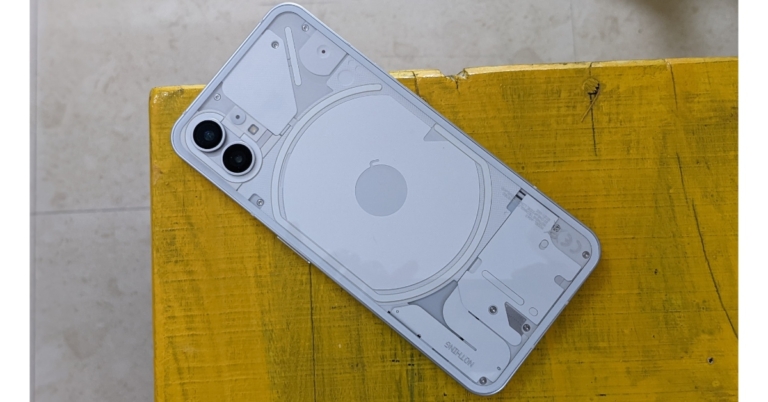
Last year’s Nothing Phone 1 generated a lot of hype before its launch. The Glyph interface along with the see-through design of the back panel attracted a lot of eyeballs towards Nothing’s debut smartphone. While many expected it to be a gimmick with little chance of surviving in a cut-throat segment, the Nothing Phone 1 surprised everyone with its serious chops. The Snapdragon 778G+ SoC on this smartphone is a respectable processor that can expertly handle heavy tasks without breaking much of a sweat. The 50MP main and ultrawide cameras also deliver a decent performance. You also get wireless charging with the Nothing Phone 1, a first in this category until the Pixel 7a came along. Read our review here.
Motorola Edge 30 Fusion
Price: $449
Quick Specs
Display
6.5-inch P-OLED
Chipset
Snapdragon 888+ 5G
RAM
8GB, 12GB
Storage
128GB, 256GB, 512GB
Battery
4,400 mAh
There is a lot to like about the Motorola Edge 30 Fusion. This mid-ranger from Motorola boasts flagship-grade specs. The smartphone gets a glass back and aluminium frame, massively elevating the in-hand feel. The 6.5-inch OLED display with 144Hz refresh rate and HDR10+ support is a stunner as well. With 68W fast charging support, this smartphone can juice up to 50% in just 10 minutes. Handling processor duties is the Snapdragon 888 SoC, which may not be the flagship chipset but it still matches the other smartphones in this category. The 50MP rear camera lets you record up to 8K videos at 30fps. The 13MP ultrawide lens and a 2MP depth sensor also put up a decent performance.
OnePlus Nord N30 5G
Price: $299.99
Quick Specs
Display
6.72-inch IPS LCD
Chipset
Snapdragon 695 SoC
RAM
8GB
Storage
128GB
Battery
5,000 mAh
At $300, the OnePlus Nord N30 5G is an excellent deal. The smartphone gets a 6.72-inch IPS LCD display with a 120Hz refresh rate. Powering the smartphone is the Snapdragon 695 SoC, while OS duties are handled by Android 13. The two camera cutouts on the back panel hold 3 lenses – the primary 108MP sensor, a 2MP macro lens, and another 2MP depth sensor. Up front, the 16MP selfie camera is housed in a punch-hole cutout. The smartphone gets a 5,000 mAh battery and 50W fast charging support.
iPhone SE 2022
Price: $429
Quick Specs
Display
4.7-inch Retina IPS LCD
Chipset
A15 Bionic
RAM
4GB
Storage
64GB, 128GB, 256GB
Battery
2,018 mAh
If you absolutely must have an iPhone under $500 then the iPhone SE (2022) is your only choice outside of refurbished iPhones. If you’re willing to look past the massive bezels surrounding the display, the iPhone SE is a decent smartphone. One of the highlights of this device is the A15 Bionic chip from the flagship iPhone 13 series. There are only two cameras on this phone, a 12MP rear lens and a 7MP selfie camera. We tested the iPhone SE last year and it surprised us with its hardware and performance. You also get up to 5 years of software updates for this device, which is really good. If you’re looking for a compact smartphone and don’t want to compromise on the Apple branding, this should be your pick.
Google Pixel 6a
Price: $349
Quick Specs
Display
6.1-inch OLED
Chipset
Tensor
RAM
6GB
Storage
128GB
Battery
4,410 mAh
While it may be last year’s smartphone, we couldn’t help but mention the Pixel 6a in this list, solely because of the sheer value it provides for the price. At $349 you’re getting an amazing 6.1-inch OLED display, stock Android experience, and one of the best camera performances in any smartphone – including the flagships. Google’s computational photography is a class apart. We reviewed the smartphone last year and you can see the results for yourself. We also like that Google has retained the signature Pixel design on the A series as well. If you don’t mind one less year of software updates, the Google Pixel 6a should be a no-brainer purchase.
Samsung Galaxy A34
Price: $260
Quick Specs
Display
6.6-inch Super AMOLED
Chipset
MediaTek Dimensity 1080
RAM
6GB, 8GB
Storage
128GB, 256GB
Battery
5,000 mAh
Launched alongside the Galaxy A54, Samsung Galaxy A34 is a low-budget midrange smartphone from Samsung that ditches the more premium features but manages to deliver a solid performance. The smartphone has a plastic frame and a plastic back. There is a notch in the display housing the selfie camera. However, the A34 still offers IP67 protection and the 6.6-inch Super AMOLED display is a delight to use. Being a low-budget mid-ranger, the Galaxy A34 has a hybrid SIM slot for expandable storage but a headphone jack is still nowhere to be found. Read our full review here.
These are our picks for the best 5G smartphones you can buy for under $500 in USA. For $500 you should also look into flagship devices from a few years back that are retailing at a lower price now. If you’re willing to wait, you can also get good deals on premium products as the year advances. Which smartphone do you feel offers the best value for money at this price range? Let us know in the comments!
India’s new parliament building is set to be inaugurated on Sunday, May 28. Commissioned in 1927, the current Parliament House building has been operating for almost 100 years. Over the decades, some issues with the current building have become more apparent. These include limited seating capacity during joint sessions, outdated tech for communication, and deteriorating infrastructure. The new Parliament building has been developed under the Central Vista project and comes decked with state-of-the-art features. Let’s take a quick look.
The new Parliament Building is bigger, better, and integrated with cutting-edge tech
The new seat of Indian democracy will have a built-up area of about 65,000 sq. mt. Its triangular shape will ensure that this area is utilised optimally. The biggest functional upgrade that comes with the new building is the extended seating capacity. The Lok Sabha hall will now be able to seat 888 members while the Rajya Sabha hall has a capacity of 384 members. For joint sessions, the Lok Sabha hall can accommodate up to 1,272 seats. The hall for the lower house has a peacock theme while the upper house is based on a lotus theme.
Lok Sabha
Architectural attributes aside, the new Parliament Building will also feature new communication tech for both houses. Large display screens and AV systems will adorn the walls of either house. But what’s more interesting is the touchscreen display on every MP’s desk. These display units will support biometric features, allowing the MPs to vote on bills directly from their seats. The microphones along with real-time translation tech have also received substantial upgrades.
What’s more impressive is the digitisation of the entire Parliament archives. These files will help MPs in researching for debates, allowing them to search entries for a particular subject, time period, speaker, and more. These archives will be accessible from the smart displays in the seating of either hall.
Rajya Sabha
Parliamentary proceedings in the new building will be transcribed in real time using AI-based speech-to-text. The algorithm is tuned to detect different languages, dialects, and accents. The transcription will be automatically tagged and indexed with appropriate time stamps. A similar auto-tagging feature could also be employed for audio-visual recordings. This will allow members to easily look up a certain section of a speech or a debate by entering the relevant keyword.
A mobile application for the new Parliament is also in the works under the ‘Digital Sansad’ Project. This app will keep the MPs updated about the daily parliamentary schedule and also give them access to confidential files along with the archives. After its inauguration tomorrow, the new Parliament building will host the Winter Session later this year. The current building will also remain functional and will work in conjunction with the new structure.
Garena Free Fire is a battle royale game with regular awards and tournaments to keep players interested. If you play Garena Free Fire, you should be aware of the redeem codes that are released on a daily basis. However, because the battle royale game is banned in India, players from other countries can use the Free Fire Redeem codes daily. If you’re unfamiliar with the Garena Free Fire redeem codes or don’t know how to get them, we’ve put together a step-by-step guide to help you redeem them. Check out Garena Free Fire Redeem Codes for 27 May 2023.
The Free Fire redeem codes are a great way to get free stuff. These are 12-digit codes that contain alphabets and numbers, as well as an expiration date and time. Because the Garena FF redeem codes cannot be used more than once, you should hurry to the redemption page to claim your free reward before someone else does. To get a free reward, all you have to do is go to reward.ff.garena.com/en, which is the official redemption page. Also, keep an eye on this space for daily updates on Garena Free Fire redemption codes and rewards.
Garena Free Fire Redeem Codes Today 27 May 2023
XZJZE25WEFJJ
V427K98RUCHZ
FFCMCPSUYUY7E
EYH2W3XK8UPG
J3ZKQ57Z2P2P
HNC95435FAGJ
NPYFATT3HGSQ
ZZZ76NT3PDSH
UVX9PYZV54AC
BR43FMAPYEZZ
GCNVA2PDRGRZ
MCPW3D28VZD6
8F3QZKNTLWBZ
WEYVGQC3CT8Q
How to Get Free Fire Redeem Codes for Garena on 27 May 2023?
Amazon is back with another quiz on its mobile platform. The daily quiz is now live on the Amazon App and today’s Amazon Quiz will give you a chance to win Rs 500 Amazon pay Balance. The participants can play the 27 May 2023 Amazon Quiz from 12 AM to 11:59 PM. For those who are unaware of the quiz, the e-commerce platform brings a fresh quiz on a daily basis which consists of five questions related to general knowledge and current affairs.
The participants need to answer all the questions correctly and their names will be selected for a lucky draw. The winner will be announced at the end of the month. One wrong answer could eliminate you from the quiz. Only app users are eligible to participate in the Quiz. In today’s Amazon Quiz the participants will get a chance to win Rs 500 Amazon Pay Balance. Check Out 27 May 2023 Amazon Quiz Answers.
Question 1: Reliance Retail has recently announced that it has started accepting retail payments via which of these?
Answer: Digital Rupee
Question 2: Which city is connected to Delhi by India’s longest expressway?
Answer: Mumbai
Question 3: Who along with Chandrabose received the Oscar for Best Original Song in 2023?
Answer: M.M. Keeravaani
Question 4: A green-coloured variant of this animal was born in which European country in 1995?
Answer: Denmark
Question 5: Which breed of this animal has the highest stamina?
Answer: Arabian
How To Play Amazon Quiz
Only app users are eligible to play the Amazon quiz every morning from 12 AM to 11:59 PM. The quiz is not available on the desktop. For those who are unaware of how to play the Amazon quiz below are the steps, you can follow to take the quiz.
Firstly download the Amazon app from Google Play Store or App Store
Now fill in the required information through the Sign Up option.
You need to log in to the Amazon app and scroll down on the home screen to find the Amazon Quiz banner.
Tap on the Amazon Quiz banner and tap on the Start button to start the Quiz.
Now you will get 5 questions and you need to answer them correctly. One wrong answer will eliminate you from the Quiz.
After answering all the questions correctly you are now eligible for a Lucky Draw.
The winner’s name will be announced today at 12 PM.
Android users have been longing for an exceptional tablet for quite some time now. Sure, you’ve got the Samsung S8 with its high-end display and powerful specs, but you also have to break the bank for it. And while brands like Lenovo and Xiaomi have put out some decent tablets in recent years, neither of them has been able to put a dent in the hold that the iPad has over this segment. Right when it seemed that the tablet game might be slipping away from Android, OnePlus (which has been on a bit of a comeback spree lately) announced its arrival on the scene.
There are a lot of things to like about the OnePlus Pad. We’d go so far as to say that it has all the makings of a classic OnePlus product of the yesteryears. The Pad offers delightful flagship specs at a very competitive price. You can get it for as low as Rs 37,999 for the 8GB RAM + 128GB storage variant, while the 12GB + 256GB variant will fetch you Rs 39,999. We’ve been using the latter variant of this tablet for the last two weeks, let’s take a deep dive into our OnePlus Pad review.
Pulling the OnePlus Pad out of its packaging, you will immediately notice its unique 7:5 aspect ratio. The tablet is designed to be used primarily in landscape mode but you will not find any discomfort while using it in portrait orientation. It sports a sleek design with rounded curves and edges. The aluminium frame holding everything together offers a nice in-hand feel. Upon further inspection, you will notice the radial design pattern that sprouts from the camera unit on the back panel. This panel has a metal finish and can attract some smudges and fingerprints upon extended use.
There’s only one colour option on offer – Halo Green. OnePlus offers the same colour on its flagship smartphone as well. While a black colour option would have been nice, the green is inoffensive and doesn’t take anything away from the overall looks of this device. The camera unit at the back is circular – another design element that it shares with its smartphone counterpart. It is a smart decision to have a uniform design language for your flagship smartphone and tablet, the two devices look pretty cool when placed side by side.
When holding the tablet in a landscape position, the volume rocker and microphone fall on the top edge. On the right end of this edge is a small magnetic strip to rest the pen (or as OnePlus calls it, the Stylo) for charging. The quad speakers have been placed in pairs on the side edges. The USB-Type C is positioned right in the middle of the speakers on the right edge. The power button has been placed at the top of the left edge, close to the volume rocker. At the bottom edge lie the magnetic pins that connect the tablet to the keyboard folio case. There is no SIM slot on this tablet and neither does it come with expandable storage. You will have to rely on a WiFi connection to use the internet on the Pad.
Landscape vs Portrait
The OnePlus Pad uses an 11.6-inch IPS LCD display with HDR10+ support and a maximum refresh rate of 144 Hz. Surrounding this display are slim bezels, which are just the right size to nullify any accidental touches when you are holding the tablet with both hands. The 8MP selfie camera is housed in the top bezel. Surprisingly, there is no under-display fingerprint scanner or even a side-mounted sensor on this device. This is definitely not a dealbreaker but you miss the unlocking capability. Nevertheless, you do get face unlock on the Pad.
Let’s talk about the display for a moment. While on paper it offers a 144Hz refresh rate, most apps are locked on 60 or 120fps. In our testing, only Google Chrome produced a steady framerate of 144fps. Even OnePlus’ native gallery app operates at 120fps. While watching content, we noticed that Netflix and YouTube were locked at 60fps. Numbers aside, the display panel offers a very good touch response. There are no stutters or lags to be found. We used this tablet for reading ebooks and were satisfied with the clarity of the text and the overall scrolling experience.
The real highlight is the content-watching experience. The LCD panel produces punchy colours and well-detailed images. The balanced contrast and versatile dynamic range made for enjoyable and immersive viewing. But what truly takes the experience to the next level is the quad speaker setup. These speakers are powerful enough to fill up a room. The Dolby Atmos surround sound plays its part in producing an enveloping sound. Even with a noisy ceiling fan running on full blast, we never felt the need to reach for our headphones. If you’re looking to buy a tablet for the primary purpose of watching videos on a bigger display, the OnePlus Pad is the device we’d recommend.
OnePlus Pad review: Performance
OnePlus’ debut tablet certainly looks the part. But what’s under the hood of the Pad determines whether it can truly hang with Apple and Samsung’s flagship tablets. Powering the Pad is last year’s premium MediaTek Dimensity 9000 SoC. On the Geekbench 6 test, the tablet attained a single-core score of 1,078 points and a multi-core score of 3,191 points.
Everyday tasks like multimedia playback, social media browsing, instant messaging, and video calls are handled expertly by the processor. Even with multiple apps running in the background, the OnePlus Pad does not break a sweat. Kicking things up a notch, we ran multiple apps in split-screen mode and never once felt the need to hit the brakes.
Switching over to gaming mode, we played Call of Duty Mobile on maximum graphics settings. Interestingly, the framerate for COD is capped at 60fps when it’s set to maximum graphics and 90fps on low graphics. Luckily, there are no frame drops or stutters during gameplay and the tablet showed minimal signs of heating around the camera bump after 40 minutes.
OS duties are handled by Android 13 skinned with OnePlus’ OxygenOS. Good software is necessary to get the most out of the real estate provided by the giant display, and OxygenOS does a decent job here. OnePlus gets the basics right on its debut tablet. The split screen mode, which most people generally ignore on smartphones, finds immense utility here. Android’s Material You theme looks great on a big display and offers a range of customisation options. The tablet’s interface is easy to navigate, and if you are already a OnePlus user, you will have no difficulty settling in.
Now, let’s talk about the parts we did not like. There is no taskbar to be found here. This comes as a surprise because Android offers that functionality for tablets. OxygenOS could use a little more optimisation for tablets, it is not all the way there yet. The tile for Mobile Data in the quick settings menu has no business being there on a tablet that does not come with a SIM slot. The ‘Shelf’ for widgets has not been changed to match the aspect ratio of the tablet. It could’ve been a great feature on this tablet if it made proper use of the large display.
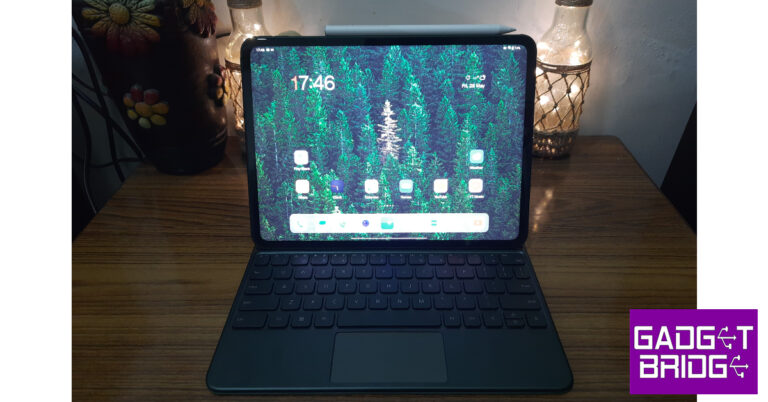
Also on offer along with the OnePlus Pad are the keyboard and stylus accessories. The keyboard is a part of the folio case for this tablet and snaps onto the magnetic pins at the bottom. There’s a small magnetic strip for the Stylo on the top edge of the device. We have to mention that the magnets on this thing are really strong. You don’t have to worry about the accessories coming off with minimal application of force.
Putting on the keyboard folio case on the Pad is very easy. The magnets connect to the bottom edge and around the camera bump. This arrangement limits the tablet to just one viewing angle. The keys offer a nice travel and the overall typing experience is pretty good. We found the keyboard good enough to write emails and respond to messages on WhatsApp. If you have large hands, it may get tiring after a while.
The keyboard may be fine for typing and general browsing, but it is several limited when it comes to shortcut availability. This is an Android issue rather than a OnePlus issue. Even Google’s apps aren’t optimised to be used with a keyboard. While browsing the web on Chrome, you have to hard press the trackpad to open a link on a new tab instead of just tapping it with two fingers. These issues are prevalent on other apps as well.
The OnePlus Stylo, on the other hand, is a great accessory overall. It’s fun to play around with, and if you’re an artist you will be able to get the most out of it. The weight on the pen is evenly distributed and it has a flat edge that snaps onto the magnetic strip for charging while also preventing it from rolling off when placed on a desk. One glitch we noticed was that the keyboard stops typing when the Stylo notification pops up on the screen. You can only resume typing once you swipe past the notification.
The OnePlus Pad has a 13MP camera at the back and an 8MP selfie camera up front. The rear camera does a good job of taking pictures in well-lit conditions but there’s nothing to write home about. We don’t expect a high-end camera on a tablet, to begin with. The one present on this tab does what is asked of it. It is good to take a couple of casual pictures every now and then. The colours are bright and vibrant, but the finer details are missing. You can also shoot 4K videos at 30fps using this camera.
The 8MP selfie camera is more useful on this device. It covers a wide area and has a nifty auto-tracking feature that centres the moving subject in the frame during video calls. Most video-calling apps like WhatsApp and Google Meets are able to make use of this feature. We were satisfied with the video quality relayed by this selfie camera on WhatsApp calls.
Lastly, the 9,510 mAh battery on this tablet delivers a stellar performance. OnePlus claims that the Pad can last up to 30 days on standby mode. We didn’t use the tablet long enough to test that out, but the battery drain at night never exceeded more than 5%. We were easily able to push the battery life on this tablet for two days. Our tasks included checking emails, an hour of watching videos, a few gaming sessions, social media browsing, and taking the odd video call. You get a 100W charging brick inside the box, which can fast charge the tablet at 67W. It took us almost 90 minutes to fully charge the OnePlus Pad. A good performance considering the massive battery this tablet packs.
The OnePlus Pad is the Android tablet that we’ve been waiting for a long time. At a midrange price of Rs 40,000, the Pad delivers a flagship-grade performance. This is an ideal tablet for watching content and browsing the web. Taking video calls on this device is also a breeze and an overall enjoyable experience. Sure, it can use some improvements on the software end, but let’s not forget this is OnePlus’ debut tablet. We also like that the accessories are ridiculously overpriced (looking at you, Apple). Overall, at this price, this is the Android tablet to beat.
OnePlus Pad review: Pros
Great display for watching content
The Stylo works smoothly
Sleek design
Great price
OnePlus Pad review: Cons
Very limited keyboard shortcuts
OxygenOS needs a little more optimisation for tablets
The Chinese tech company Lenovo today introduced its new tablet in the Indian market. The company has launched Lenovo Tab M9. The device is powered by MediaTek Helio G80 SoC. It comes with a 9-inch display and has HD support. In addition to this, the Tablet runs on Android 12 and comes with dual speakers that support Dolby Atmos.
Lenovo Tab M9 price in India and availability
The Lenovo Tab M9 price in India starts at Rs 12,999. The device will be available in a single Frost Blue colour option. The Lenovo Tablet is scheduled to go on sale from June 1 however it is up for pre-orders via Lenovo.com and leading online channels like Amazon.in and Flipkart, and offline retail stores like Reliance Digital and Croma.
Lenovo Tab M9 specifications
Lenovo Tab M9 features a 9-inch HD LCD TFT display with 800 X 1,340 pixels of resolution. The screen has 400 nits of peak brightness with Netflix HD support. According to the company the display comes with a Reading Mode and has TÜV Rheinland eye care certification, to help protect the eyes. Taking into account the users’ security needs, the device is secured with a face-unlock feature, allowing for convenient and safe log-ins.
The tablet runs on Android 12 out of the box. Under the hood, there is a MediaTek Helio G80 Octa-Core processor and integrated ARM Mali-G52 MC2 GPU. The device is available in two different configurations of 64GB RAM with 32GB storage and 3GB RAM with 32GB storage options. The internal storage can be expanded up to 128GB using a microSD card.
For photos and videos, Lenovo Tab M9 includes an 8-megapixel rear camera with autofocus and a 2-megapixel front-facing camera for taking selfies and video calling. The Lenovo tablet further includes a dual speaker optimised with Dolby Atmos. In addition to this, the tab packs a 5,100mAh battery. According to the company it is claimed to provide 13 hours of video playback, 12 hours of web browsing and 15 hours of music playback. In terms of connectivity, there is 4G LTE, Wi-Fi 802.11AC, Bluetooth 5.1, a headphone port, and a USB Type-C port.
Sumati Sahgal, Head – Tablets and Smart Devices, Lenovo India said, “At Lenovo, we consistently innovate products that are designed for all the spaces and places in line with the on-the-go lifestyle of today’s consumers. Our new Lenovo Tab M9 is one of the best entry-level Android devices, and it’s the perfect entertainment powerhouse for consumers looking for some downtime away from the stress of work and school. This tablet encapsulates next-generation functionality, reliability, and a satisfying multimedia experience at an incredible value, thus paving the way to a significantly enhanced user experience.”
Recently the London-based tech company Nothing confirmed that Nothing Phone 2 is coming this summer. The news is rife, Carl Pei-led Nothing has officially confirmed that its next phone is coming this July. Previously the hardware information was revealed by the firm.
It is confirmed that the Nothing Phone 2 will launch in July globally. In an interview, the company’s CEO Carl Pei discussed about the upcoming launch of the smartphone. However, the exact date of the launch still remains a mystery. He further revealed that the Phone 2 will have a longer endurance as it will be backed by a 4,700mAh battery. The battery capacity of the smartphone is on the higher side compared to the Phone 1 which has a 4,500mAh battery.
Previously Nothing Phone 2 was revealed to be powered by the Snapdragon 8+ Gen 1 SoC. The device was also spotted listed on Geekbench with the Qualcomm Snapdragon CPU dubbed Taro, which is believed to be Snapdragon 8+ Gen 1 processor. The CPU runs at 3.0GHz, with four efficiency cores running at 1.8GHz and three performance cores running at 2.5GHz. The device also managed to score 1253 and 3833 points in the single-core and multi-core tests of Geekbench 5. As per the listing, the phone has 12GB of RAM and runs Nothing OS 1.5 over Android 13.
Also, Nothing Phone 2 also bagged BIS certification. It was listed with model number AIN065. According to the BIS certification site, the device will feature a 120Hz refresh rate FHD+ AMOLED display. The Phone 2 will include a Snapdragon 8+ Gen 1 SoC with up to 12GB RAM and up to 256GB storage, according to the BIS listing.
In addition, the device probably runs Nothing OS, which is based on Android 13. A 50-megapixel primary camera with OIS capability could potentially be included.
Nothing Phone 1 specs
The Nothing Phone 1 was the first product of its kind in the market to have a glyph-based interface and a transparent design. This device has a 6.55-inch, 10-bit OLED screen. It has two 50MP cameras on the back: one with a primary Sony IMX766 sensor with OIS and EIS and the other with a Samsung JN1 ultrawide sensor with a 140-degree field of view. A 16MP Sony IMX471 sensor with a 2.45 aperture is located up front. The Snapdragon 778G CPU powers the smartphone.


 While you may not have encountered any issues while downloading an APK, additional disk space may be required when the app is being installed. If you are unable to properly install an app on your phone, go to Settings>Battery and device care>Storage and check if there’s enough space left. Delete some unused apps and other clutter to make space if the memory is full.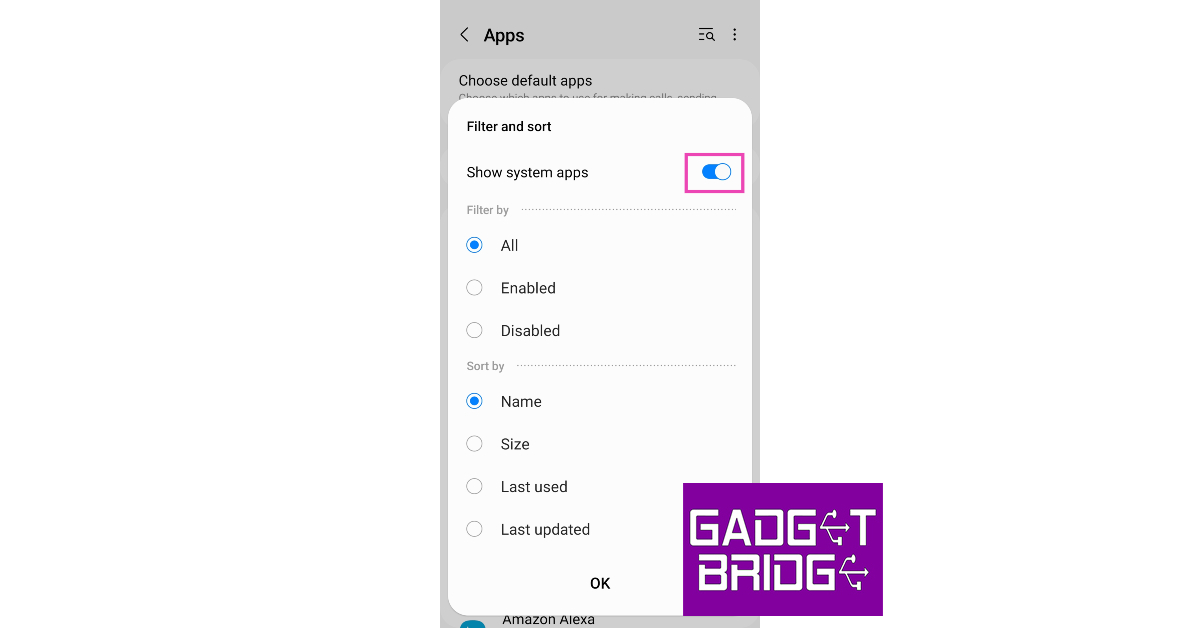


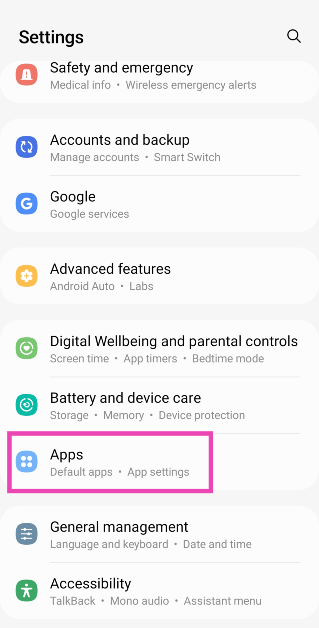
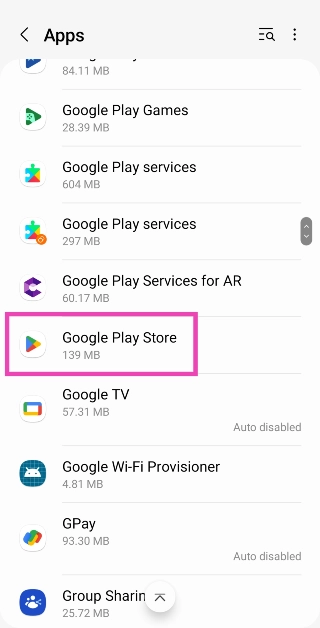
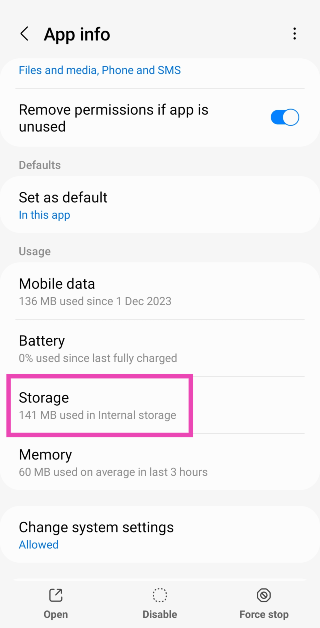
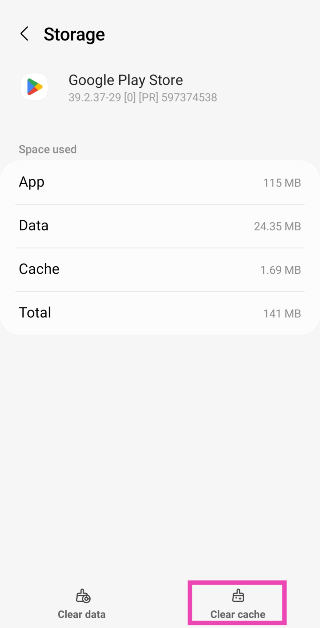
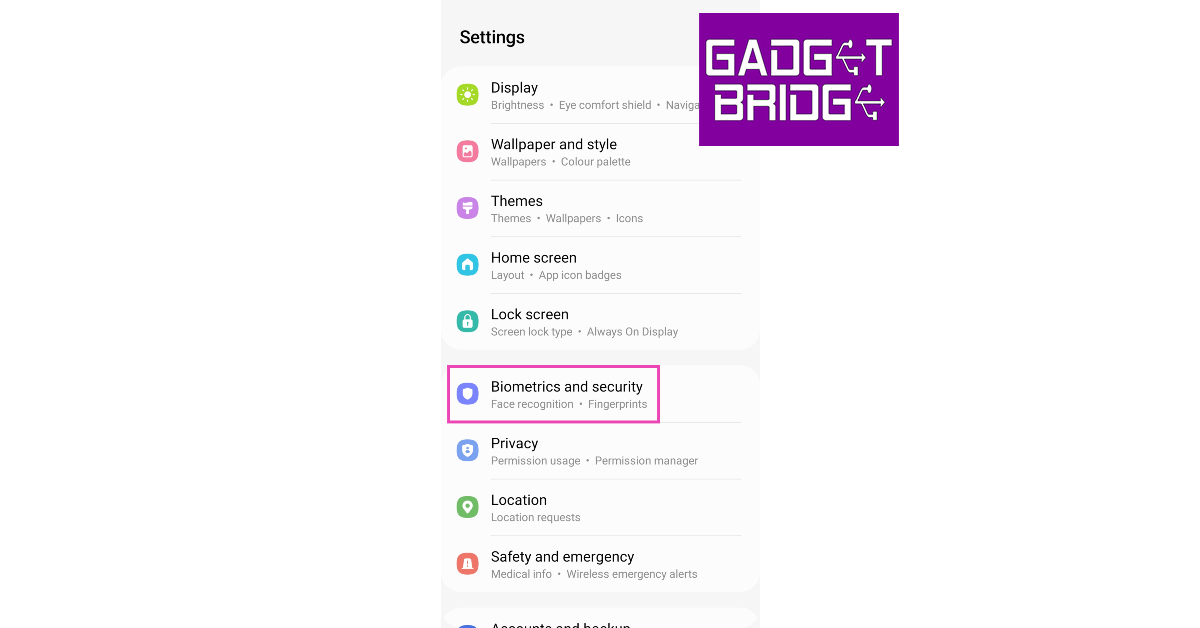


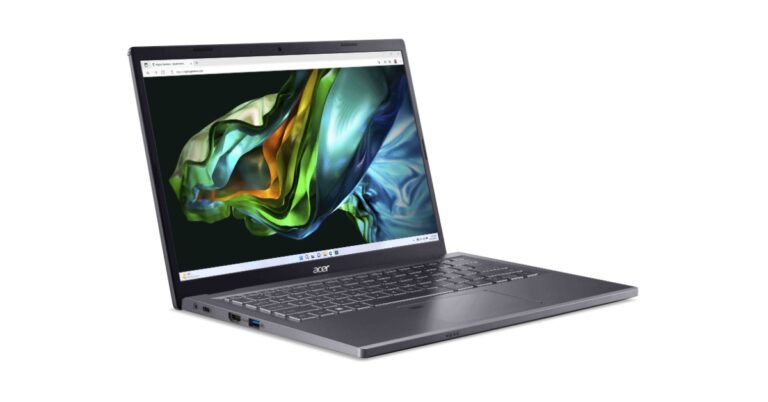

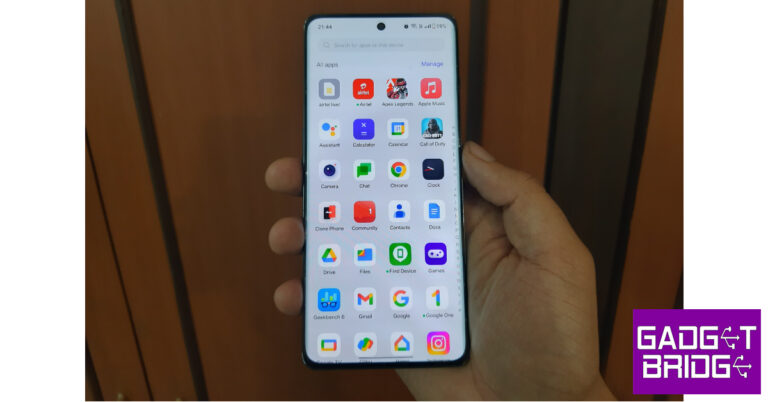


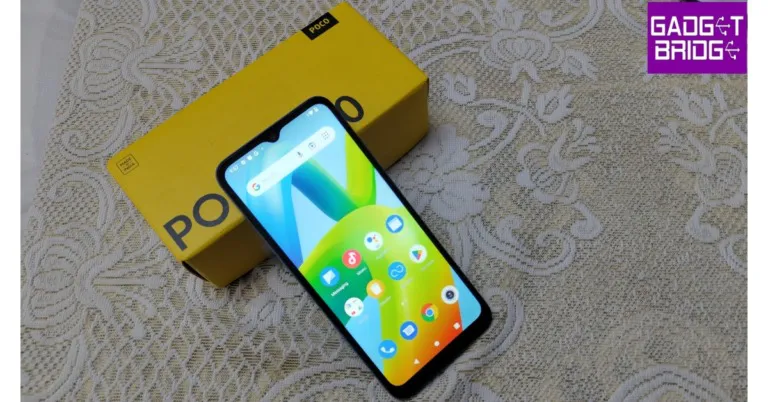




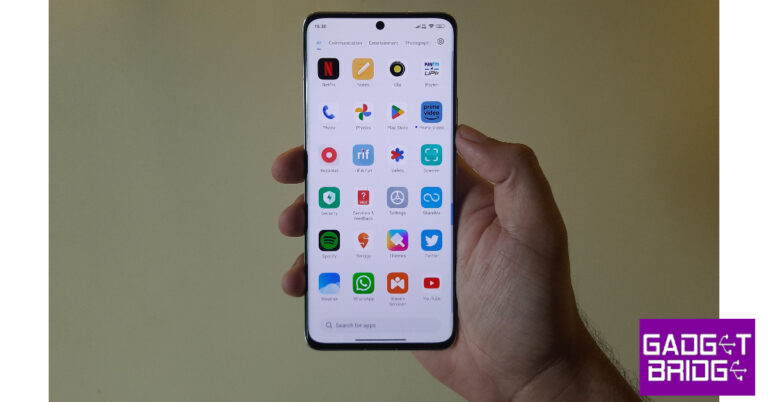


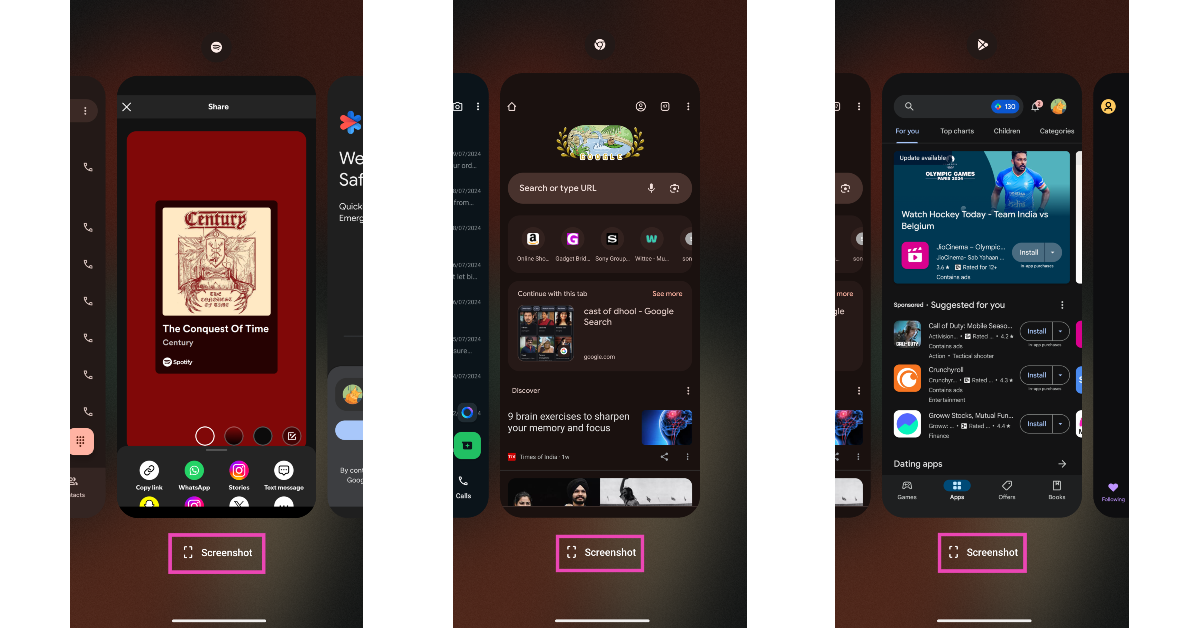




![[Working] Fix Qualcomm Crash Dump Mode on Android phones: Best 3 ways](https://www.gadgetbridge.com/wp-content/uploads/2023/05/cdm-768x402.jpg "[Working] Fix Qualcomm Crash Dump Mode on Android phones: Best 3 ways")