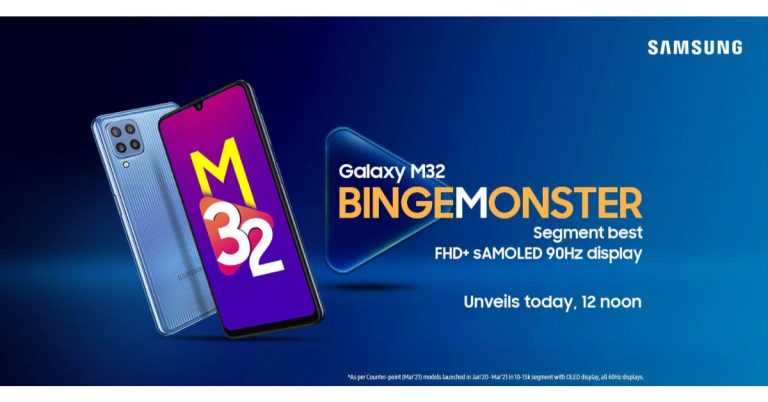
The South Korean giant Samsung is going to introduce a new smartphone in its affordable M-Series in India today. The company has scheduled to launch Samsung Galaxy M32 at 12 noon in the country. The key highlights of the handset are said to include a 90Hz Super AMOLED display and a 6,000mAh battery that is claimed to last for a whole day on a single charge.Before its launch in the country, Samsung has already listed the device on Amazon by creating a dedicated microsite to tease its availability. The company has not yet revealed much about the device but as per the listing, there will be a quad rear camera set up on its back that will include a 64-megapixel primary sensor. Additionally, there will be a 20-megapixel selfie camera sensor on the front. It will also come with a 6,000mAh battery. There will be a 6.4-inch full-HD+ Super AMOLED display with a 90Hz refresh rate and 800 nits of peak brightness.The key specs of the Samsung Galaxy M32 have been leaked via Google Console listing that appears to be authentic when compared with the recently surfaced specs on the Samsung site.The device is said to feature a full-HD+ display with 1,080×2,009 pixels of resolution. It will run on Samsung OneUI based on top of Android 11 and powered by an octa-core MediaTek MT6769T SoC (MediaTek Helio G80) with 6GB of RAM.As per the DEKRA certification website, Galaxy M32 will be equipped with a quad rear camera setup that will also include a 64-megapixel primary camera with f/1.8 aperture, an 8-megapixel ultra-wide-angle lens with 123-degrees of FoV, a 5-megapixel macro sensor and a 2-megapixel depth sensor. For taking selfies, there is a 20-megapixel front-facing camera. In addition to this, it will ship a 15W fast charger.The company has not yet revealed the price but hinted that Samsung Galaxy M32 will debut in India under Rs 15,000 price segment. The device is rumoured to arrive in two variants of 4GB RAM with 64GB storage and 6GB RAM with 128GB storage options. It is likely to be offered in two colour options of Black and Blue.
For the latest gadget and tech news, and gadget reviews, follow us on Twitter, Facebook and Instagram. For newest tech & gadget videos subscribe to our YouTube Channel. You can also stay up to date using the Gadget Bridge Android App.
The e-commerce website Flipkart is hosting Daily Trivia Quiz. Every day it brings a bunch of new questions for its users. By answering them correctly you can win exciting prizes. The questionnaire is based on questions related to general knowledge. Also, the users can win free vouchers and super coins, among other offers via the daily quiz. June 21 Flipkart Daily Trivia Quiz Answers has already gone live on its platform.
The participant should be at least 18 years old and should have a valid login ID. The Quiz is available on the mobile platform and not the web version. E-commerce conducts the quiz on daily basis and goes live at 12:00 AM IST and runs till 11:59 PM IST. The winners are announced within 15 days from the date of participation that can be viewed under the Gems/Rewards section in the app.
How to participate in the Flipkart Daily Trivia Quiz
To participate download the Flipkart app on your phone. Then open the Flipkart app then head to Game Zone. Now click on the Daily Trivia Banner or search for Daily Trivia. Enter the game and answer all 5 questions with correct answers.
June 21 Flipkart Daily Trivia Quiz Answers
Question 1: Who directed the Shahid Kapoor and Amrita Rao starring film Vivah?
Answer: Sooraj Barjatya
Question 2: Kya kare kya na kare, Yaaro sun lo zara and Hai rama are songs from which iconic film?
Answer: Rangeela
Question 3: Galli Galli Sim Sim’ is a Hindi adaptation of which popular English show?
Answer: Sesame Street
Question 4: Who won the Filmfare Award for Best Supporting Actor in 2017 for Kapoor and Sons?
Answer: Rishi Kapoor
Question 5: Which of these directors did not direct their son’s debut film?
Answer: Yash Chopra
Amazon Quiz for June 21 has gone live. The interested people can participate in the quiz every day to win exciting prizes being offered by the company. The company puts up 5 general questions to which you have to answer correctly. You can submit your answers by choosing from the options given. Today you have a chance to win Rs 5,000 Amazon Pay Balance
Every day the e-commerce platform brings a new set of questionnaires which consists of five easy questions based on current affairs and general knowledge. The Amazon Quiz can be played from 12 AM to 11:59. You have to answer all the questions correctly to enter into a lucky draw. The results of today’s quiz will be announced at the end of the month. Only one person will be declared a winner. If you don’t know the answers do follow Gadget Bridge because here we update all the answers to the Amazon Quiz on our website. So, here are the answers to the June 21 Amazon Quiz and win Rs 5,000 Amazon Pay Balance.
June 21 Amazon Quiz Answers
Question 1: In 2021, which High Court became the first in India to live stream judicial proceedings on a YouTube channel?
The answer is- Gujarat High Court
Question 2: Jagdish Khattar, who recently passed away, was the managing director of which company from 1999 to 2007?
The answer is- Maruti Udyog Limited
Question 3: In April 2021, which Indian state got affected by Lunglei forest fire?
The answer is- Mizoram
Question 4: Which republic declared independence from this country in 1948?
The answer is- Israel
Question 5: He is famous for writing which of the following best-selling books?
The answer is- A Brief History of Time
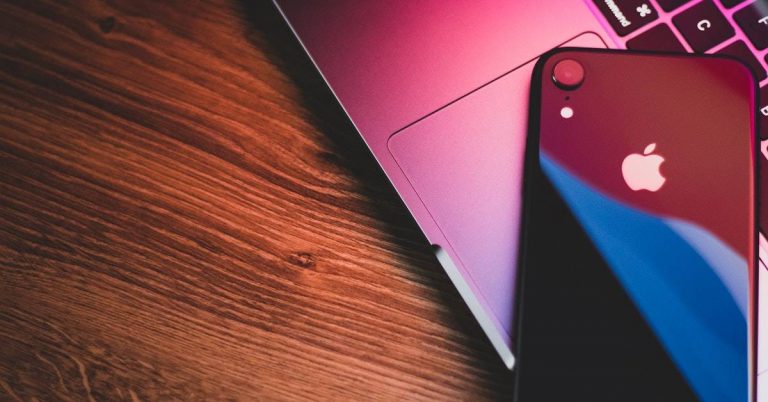
Apple devices do give very good battery life. But there might be many reasons you are draining the battery health. One of the preventative measures is to timely check the health status of your iPhone and iPad battery. Charging the battery helps you use the device but every charge affects the health of the battery. And with the device getting older the battery health also deteriorates. Below is the guide to check the battery health of iPad and iPhone.
Check the battery health of your iPhone
The battery of devices tends to weaken with the load of usage it takes. Every device’s battery comes to a point where it needs to be replaced, but there is a way to make that wait longer. For iPhone users, there are features on the devices where you can check the battery health. Apple iPhones running iOS 11.3 and higher have Battery Health tools built-in. The Battery Health tool shows you the iPhone’s maximum capacity and peak performance capability. These are the steps to check the health of the iPhone.
Go to the Settings app
And click on the Battery option
At the bottom of the screen, you will graph your battery level of usage and activity
Go to Battery Health by clicking it, it will show grim news of your battery
You can also see other option: Maximum capacity and Peak performance capability
The option will indicate the health of the battery
When it comes to maintaining the battery health of Apple devices, iPhones have the upper hand. Since on the iPad, there is no feature of Battery Health. And yes, the iPad does not have the option of Battery Health, but you can still check the status of your iPad battery by using a third-party app like iMazing or coconutBattery. You can download the app on your computer/iPad and you can know the lifespan of your battery and know the battery health of your Apple iPad. The following guide is the for iMazing app where you can check your iPad battery health. Follow the steps.
First down the iMazing on your computer
Now connect your iPad to your computer via the USB cable
Launch the app by opening it
Once it is open on the bottom right corner click the battery icon
A page will pop out of the screen: “Battery” on the top
The page will show you all the run-downs of the iPad health
You will also see a green circle that indicates the battery health of the iPad
The health status of the iPad battery will also be given in the numeric form
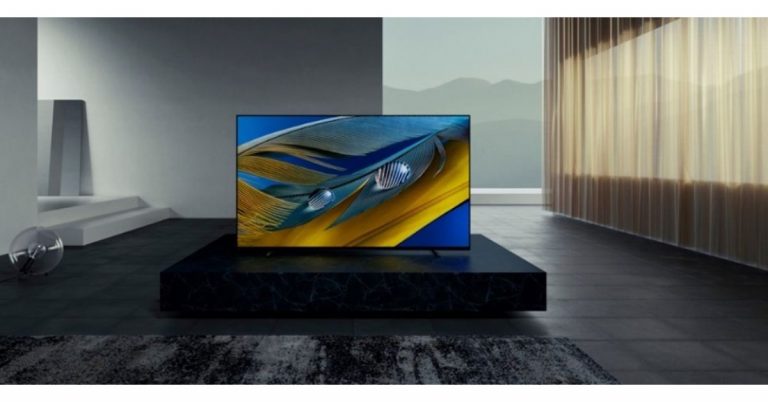
Sony has expanded its Bravia Television Series in India with the launch of the new QLED TV in India. The company has introduced a 65-inch Sony Bravia XR OLED X80J. The new Sony television is powered by Cognitive Processor XR for the immersive viewing experience that delivers more depth and texture with pure blacks and dazzling light with XR OLED Contrast. Whereas the XR Triluminous Pro reproduces 3D colour depth. In addition to this, the TV is also supported by XR Motion Clarity technology that minimizes blur during high-speed scenes.Sony Bravia XR OLED X80J (XR-65A80J) Price and availabilitySony Bravia XR OLED X80J (XR-65A80J) has been launched in India with a price tag of Rs 2,299,990 for the 65-inch model. There will be a 55-inch and a 77-inch model that will be joining the A80J OLED series later on. As of now, the XR-65A80J model is available for purchase across all Sony Centers, major electronic stores and e-commerce portals in the country.Sony Bravia XR OLED X80J (XR-65A80J) specificationsThe 65-inch model of Sony Bravia XR OLED X80J (XR-65A80J) is powered by the Cognitive Processor XR that is said to be a new processing method that goes beyond conventional AI, designed to think like a human brain providing a revolutionary experience that completely immerses the viewer in their favourite content. It divides the screen into numerous zones and detects where the “focal point” is in the picture. It can also cross-analyze an array of elements at once, just as our brains do. For more depth and texture the QLED TV comes integrated with XR OLED Contrast. It adjusts the brightness for higher peaks in glare and deeper blacks in shadow. WHereas the XR Triluminous delivers real-life natural colours as seen to a human eye. The Sony Bravia XR OLED X80J (XR-65A80J) also includes XR Motion Clarity Tech that controls moving images precisely to minimize blur so that pictures remain true with less loss in brightness during high-speed scenes, therefore, keeping them smooth, bright and clear. The Television is also supported by Dolby Vision and Dolby Atmos technology for enhanced image quality.There is Acoustic Surface Audio+ that makes sure that sound comes directly from the centre of the screen, while the XR Surround technology offers the 3D Surround Upscaling. The Bravia XR signal processing technology enables this TV to reproduce multi-dimensional sound for a truly immersive experience. In addition to the QLED Tv also offers ultra-smooth gaming with dedicated game mode, HDMI 2.1 compatibility, including 4K 120fps, VRR and ALLM.The new line-up also has support for hands-free voice control with Google Assistant and Alexa. The Apple AirPlay 2, and HomeKit integrates your Apple devices like iPads and iPhones with your Sony TV for effortless content streaming.
For the latest gadget and tech news, and gadget reviews, follow us on Twitter, Facebook and Instagram. For newest tech & gadget videos subscribe to our YouTube Channel. You can also stay up to date using the Gadget Bridge Android App.
Aadhar card has been signified as an important identity verification all over the country. The implication of the Aadhaar card is the 12 digit number that is printed on the card. The number serves as proof of identity and address applicable to anywhere in India. Aadhaar cards are issued through the post and you can also download them using an app or by visiting the UIDAI website. Here is how to download an E-Aadhaar.
Download from mAadhaar app
Any individual who is a citizen of India irrespective of age and gender, and also satisfies the verification process laid down by the Unique Identification Authority of India (UIDAI) can apply for Aadhaar. The number issued in the Aadhar card is unique for each individual and will remain for a lifetime. Once the Aadhaar is applied and has been issued by the concerned authority you can download it on your smartphone using the mAadhaar app. The Adhaar app can be downloaded on both Android and iOS stores. To install the app and download E-Aadhaar follow the steps.
Using your smartphone open Google Play Store for Android or App Store for iPhone
To download the app search for mAadhar in the search bar
To download the right app check for the developer’s name which is to be “Unique Identification of India”
Download and once you open the app accept the terms and conditions
Read the guideline and language preference carefully
Open the app and create a new password
Go to Download Aadhaar under My Aadhaar
Options to select for generating E-Aadhaar: Aadhaar number, Virtual ID number, Enrolment ID number.
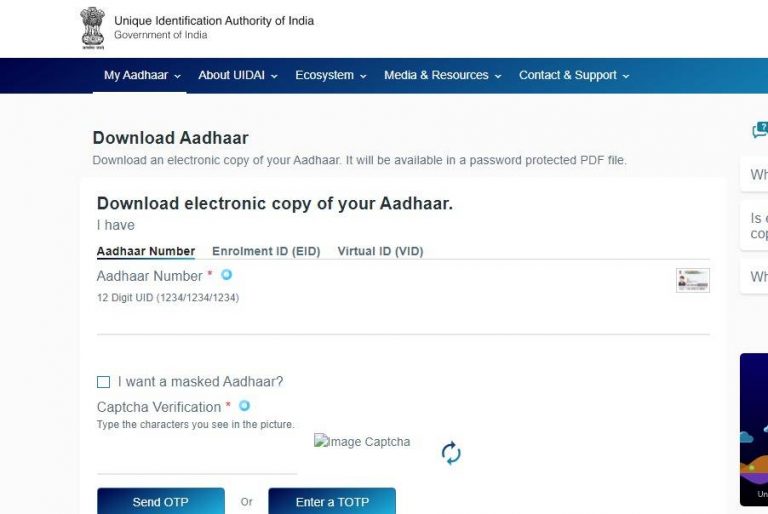
Aadhaar cards establish the uniqueness of every individual based on geography and biometric information. With the digital platform moving at a pace the option to download an E-Aadhaar has been enabled for convenience. You can download your E-Aadhaar from the UIDAI website if you have applied for it before. See the steps to download from the website:
Visit the official website of UIDAI
When the page open go to My Aadhaar
Under the “My Aadhaar” section go to Download Aadhaar
Choose the option: Aadhaar number, Virtual ID, Enrolment ID
Enter the right number: Option choose masked Aadhaar
Authenticate the captcha
Enter the OTP send to your registered mobile number
Apple ID helps you connect to all Apple devices. The unique ID created will keep your settings and Apple services up to date on all of your Apple devices. It protects the security of your personal information from any unauthorised login. And in case, you want to remove your Apple ID from your devices you have the option to remove it. Follow the guide in case you want to remove the Apple ID from your iPhone or iPad.
Remove on your iPhone
The Apple ID helps you access many Apple services: Apple Store, Apple Music, iTunes, as well as the cloud. Apple ID creates an identity on the iOS and Mac devices. Hence, connecting your Apple ID is important so that you stay connected with apps and data including photos and documents, emails and text messages, and even your iTunes library. However, when you decide to not use the device anymore or decide to sell the device it is advised not to keep the Apple ID on the device. Apple devices allow you to remove your Apple ID in a few easy steps using the device settings.
On your, iPhone go to settings: Gear-shaped icon
Click on the Apple ID on the top of the screen
Now tap on the iTunes & App store
Then go to Apple ID
Tap View Apple ID
Then click Remove this device
Again go back to the Apple ID page: before iTunes & App store
Connecting Apple ID on your Apple devices gives you accessibility to your private data and apps on any Apple device. To know little about Apple ID it is an authentication method for iPhone, iPad, Mac, and other Apple devices. It helps you to connect with all the Apple devices with one account. When creating an account or Apple ID requires some personal information. So when you want to sell away a device or give away a device it is advised to always remove the Apple ID before giving it away. See how to remove your Apple ID on your Apple ID for safer use. Here is the guide.
On your iPad go to settings
And tap on the image or name icon on the top
Go to iTunes& App store
Click the Apple ID on the top of the screen
Press View Apple ID
Click Remove this device
Now the page will open to enter the password and email ID
Poco X2 users have been complaining of some camera issues with the company. The device comes equipped with a quad rear camera set up and was launched in India earlier last year. The users of the phone have reported the unresponsive camera app when the rear camera is launched. The affected users are mostly reported from India and now the company has issued a fix for the non-working rear camera of Poco X2.Until now there was no fix for the Poco X2 camera issue. As per the users, every time the camera app is launched on the handset it shows a black screen, freezes or crashes unexpectedly. The users have been reporting this issue for some time and now the company has shared a manual fix guide for the handset’s camera functioning.
Here is how to fix the Poco X2 camera issue for smooth functioning
According to Poco India support, less than 0.2 percent of the total Poco X2 user base in India have been experiencing the camera issue. For this, the company has detailed out some manual fixes which are expected to work for most of the devices. Follow these software solution protocol mentioned below:
Clean the camera app data: Open settings and search for managed apps.
Now search for the camera and then open Clear Data.
Then Clear all data and hit OK.
The next step is to reboot the device
After following the above-mentioned steps, check if the camera is working.
In case the issue persists, the Poco X2 users are requested to follow the hardware solution protocol below:
The issue should be reported on the Services and Feedback app which can be found in the app drawer.
Upload the logs under the camera section.
After reporting the issue, approach Poco India support or your nearest authorised service centre along with the feedback ID generated by the app.
One should take a prior appointment before visiting the service centre.
To recall,Poco X2 was launched in India last year and it comes equipped with a quad rear camera set up that includes a 64-megapixel primary sensor with f/1.89 aperture. Further assisted by an 8-megapixel wide-angle lens with a 120-degree field of view, two-megapixel macro lens and a 2-megapixel depth sensor for portrait shots. While on the front it sports a dual-camera setup with the 20-megapixel main camera sensor and a 2-megapixel depth sensor for taking selfies and video calls.
For the latest gadget and tech news, and gadget reviews, follow us on Twitter, Facebook and Instagram. For newest tech & gadget videos subscribe to our YouTube Channel. You can also stay up to date using the Gadget Bridge Android App.
We had been intrigued to use the Vivo X60 Pro smartphone ever since it was launched. The device runs Qualcomm Snapdragon 870 processor, sports triple rear cameras with support for gimbal stabilization, and has a curved display. Who wouldn’t want to use it? We got the chance and we spent a few days using it extensively and here’s our review of Vivo X60 Pro:
Vivo X60 Pro design and display
In terms of the design, the Vivo X60 Pro smartphone does bear a resemblance to its predecessor, but then that’s hardly a reason to complain because it looks sleek. The handset’s front panel is dominated by its 6.5-inch AMOLED display that is curved on both sides and is outlined by thin bezels. The selfie lens of the smartphone is placed in a hole-punch camera that is placed in the centre of the top of the screen. If you enable the fingerprint lock, it will appear on the lower half of the display. Flip over and you will see the back panel of the Vivo X60 Pro which has a matte finish and is protected by a layer of Corning Gorilla Glass 6. There is a camera module on the top left of the back panel that houses three lenses and an LED flash. On the bottom left, you can find the Vivo branding. The metallic Power and the Volume Rocker keys are sandwiched on the right edge of the smartphone. The bottom edge has the speaker grill, Type-C charging port and SIM tray, and the microphone, while the secondary microphone is placed on the top.
It is worth noticing that Vivo X60 Pro is available in Midnight Black and Shimmer Blue colour options, and the one that we got for review was dressed in Black.
Coming to the 6.56-inch AMOLED Full-HD+ display, it comes with a maximum refresh rate of 120Hz, however, the option of switching it to 60Hz is also there on the device. In fact, with Smart Switch enabled, the smartphone automatically switches between 60Hz and 120Hz. The display of the device is great and the colour reproduction is excellent. We watched several shows on Netflix and YouTube during our time with the device and the experience was flawless. Even the sunlight readability and the viewing angles of the smartphone were good. Vivo X60 Pro’s display is protected with Schott Xensation Up glass.
To sum it up, we would say that although the design of Vivo X60 Pro is very premium and several aspects contribute to the upmarket looks. However, at this price point, it could have also included some other features like IP rating and wireless charging. The display, on the other hand, offered a great experience to us at all times.
Vivo X60 Pro performance and cameras
Before talking about the performance of the Vivo X60 Pro, let’s take a minute to discuss the rest of its specifications. The device is powered by Qualcomm Snapdragon 870 processor and comes with 12GB of RAM and 256GB of internal storage. The smartphone houses a 4,200mAh battery and comes with a 33W charger. For imaging duties, there is a 48MP primary camera coupled with a 13MP ultra-wide sensor and a 13MP Portrait sensor. On the front panel, there is a 32MP selfie camera. Vivo X60 Pro runs Android 11 skinned with the company’s own Funtouch OS 11.1. Despite being so expensive, the smartphone comes with quite a few bloatware apps including Moj, Prime Video, Amazon, DailyHunt, Facebook, Snapchat, etc. The device also has V-Appstore, which along with DailyHunt sends quite a few notifications. While DailyHunt can be uninstalled, V-Appstore cannot. In terms of connectivity, Vivo X60 Pro comes with support for dual-band Wi-Fi, 4G VoLTE, 5G, and Bluetooth 5.1.
As expected, Vivo X60 Pro’s performance is super smooth and the smartphone can handle any task that’s thrown at it. We used the device extensively during our time with it and multitasked a lot on it, but there was nothing that made the performance lag even for a minute. We multiple apps on the smartphone, a lot of them were graphic-heavy, but there wasn’t anything that didn’t run smoothly.
We have already mentioned that our experience with watching shows on Netflix was good. The video experience was great and the phone didn’t warm up. The sound quality was good too, but in this price range, we have seen better than Vivo X60 Pro’s audio output. We also played several games on the smartphone including Asphalt 9: Legends. We didn’t notice any stutter while playing the game, even though it has some very heavy graphics, but we did see that the battery fell quickly while gaming. However, this doesn’t mean that we don’t recommend the handset for gamers.
Coming to the battery life, the smartphone’s juice lasted at least a day for us with moderate usage. Gaming, watching Netflix shows and a lot of camera usage will reduce this time, but the 33W charger can fully charge Vivo X60 Pro’s battery in an hour so it’s hardly something to complain about.
Finally, let’s talk about the cameras of the Vivo X60 Pro, which are certainly a positive aspect of the handset. The 48MP primary camera has a Sony IMX598 lens and besides this, the device also comes with a 13MP ultra-wide angle lens and a 13MP portrait sensor. The camera app on Vivo X60 Pro is simple to use and has several modes that the user can choose from. It is also backed by AI so cameras can get switched automatically depending on how close you are to the object, and there is a scene optimizer too.
Clicked by the 48MP primary camera
The shots that we clicked from the primary camera turned out to be excellent. We tried clicking from the lens in daylight, during the night and even indoors, and it performed well regardless of the conditions around. There is also an option of clicking images in 48MP UHD, and you might like the feature if you like zooming in a lot on pictures. However, they were grainy on zooming in as compared to the default 12MP shots that are taken from the primary lens. The lens also comes with a gimbal stabilisation system, which means that it physically moves to alter out the shakes while clicking pictures or shooting videos. The feature existed on the smartphone’s predecessor too, and we think it’s a huge plus.
Clicked by the 13MP ultra wide camera
As expected, the quality of images does drop when the cameras are switched, but it wasn’t at all bad. It may not match up to the primary camera, but the image quality remained good. Both the 13MP cameras – ultra-wide and portrait – managed to click images with a good amount of details. The lenses clicked decent pictures in low light too, although enabling the Night Mode improves the output a lot.
Finally, the 32MP selfie camera takes amazing shots in well-lit as well as in dimly-lit surroundings. We are really happy with the selfies we managed to click from Vivo X60 Pro. To make it better for selfie lovers, the device gives users a lot of control in terms of letting them see the effect of filters or different levels of blur before clicking pictures from the front camera. To sum it up, we would again say that the cameras of the smartphone are definitely among its best aspects.
Verdict
At Rs 49,990, Vivo X60 Pro competes with one of the best smartphones in the market. And also, we can say confidently that it is a worthy competitor. The performance is smooth, the display gave us a great experience, and the cameras are simply amazing. Even gaming on the device was good. These are more than enough reasons to go for the device. While the bloatware on the smartphone and the lack of IP rating and wireless charging are cons, if they aren’t deal breakers for you, you would be happy with Vivo X60 Pro.
Pros
After it was banned in India, PUBG Mobile has finally succeeded with Battlegrounds Mobile India, which is a dedicated and exclusive game for the Indian market. Also, the open beta went live on Thursday and was made available for download via Google Play. However, we are pretty much sure the game will not last in the beta phase as it might get launched soon. Until the original version is not launched, you can enjoy the beta version. So for those who were eagerly waiting for the relaunch here is our guide on how to download the Battlegrounds Mobile India on Android devices.
How to download and install Battlegrounds Mobile India on Android devices:
To become a tester all you need to do is join the testing program for Battlegrounds Mobile India by clicking on thislink.
Once you have joined the testing program, download and install the Battlegrounds Mobile India app from theGoogle Play Store which is 721 MB in size. So before installation make sure you have sufficient storage on your device.
The next step is to open the app on your phone and select from the preferred options from HD and Low-spec.
Log in and you are good to go.
Another way of accessing the game is by downloading the Tap Tap app. Here is our step-by-step guide:




 The battery of devices tends to weaken with the load of usage it takes. Every device’s battery comes to a point where it needs to be replaced, but there is a way to make that wait longer. For iPhone users, there are features on the devices where you can check the battery health. Apple iPhones running iOS 11.3 and higher have Battery Health tools built-in. The Battery Health tool shows you the iPhone’s maximum capacity and peak performance capability. These are the steps to check the health of the iPhone.
 When it comes to maintaining the battery health of Apple devices, iPhones have the upper hand. Since on the iPad, there is no feature of Battery Health. And yes, the iPad does not have the option of Battery Health, but you can still check the status of your iPad battery by using a third-party app like iMazing or coconutBattery. You can download the app on your computer/iPad and you can know the lifespan of your battery and know the battery health of your Apple iPad. The following guide is the for iMazing app where you can check your iPad battery health. Follow the steps.
 The battery of devices tends to weaken with the load of usage it takes. Every device’s battery comes to a point where it needs to be replaced, but there is a way to make that wait longer. For iPhone users, there are features on the devices where you can check the battery health. Apple iPhones running iOS 11.3 and higher have Battery Health tools built-in. The Battery Health tool shows you the iPhone’s maximum capacity and peak performance capability. These are the steps to check the health of the iPhone.
 When it comes to maintaining the battery health of Apple devices, iPhones have the upper hand. Since on the iPad, there is no feature of Battery Health. And yes, the iPad does not have the option of Battery Health, but you can still check the status of your iPad battery by using a third-party app like iMazing or coconutBattery. You can download the app on your computer/iPad and you can know the lifespan of your battery and know the battery health of your Apple iPad. The following guide is the for iMazing app where you can check your iPad battery health. Follow the steps.
 Any individual who is a citizen of India irrespective of age and gender, and also satisfies the verification process laid down by the Unique Identification Authority of India (UIDAI) can apply for Aadhaar. The number issued in the Aadhar card is unique for each individual and will remain for a lifetime. Once the Aadhaar is applied and has been issued by the concerned authority you can download it on your smartphone using the mAadhaar app. The Adhaar app can be downloaded on both Android and iOS stores. To install the app and download E-Aadhaar follow the steps.
 Aadhaar cards establish the uniqueness of every individual based on geography and biometric information. With the digital platform moving at a pace the option to download an E-Aadhaar has been enabled for convenience. You can download your E-Aadhaar from the UIDAI website if you have applied for it before. See the steps to download from the website:
 Any individual who is a citizen of India irrespective of age and gender, and also satisfies the verification process laid down by the Unique Identification Authority of India (UIDAI) can apply for Aadhaar. The number issued in the Aadhar card is unique for each individual and will remain for a lifetime. Once the Aadhaar is applied and has been issued by the concerned authority you can download it on your smartphone using the mAadhaar app. The Adhaar app can be downloaded on both Android and iOS stores. To install the app and download E-Aadhaar follow the steps.
 Aadhaar cards establish the uniqueness of every individual based on geography and biometric information. With the digital platform moving at a pace the option to download an E-Aadhaar has been enabled for convenience. You can download your E-Aadhaar from the UIDAI website if you have applied for it before. See the steps to download from the website:
 The Apple ID helps you access many Apple services: Apple Store, Apple Music, iTunes, as well as the cloud. Apple ID creates an identity on the iOS and Mac devices. Hence, connecting your Apple ID is important so that you stay connected with apps and data including photos and documents, emails and text messages, and even your iTunes library. However, when you decide to not use the device anymore or decide to sell the device it is advised not to keep the Apple ID on the device. Apple devices allow you to remove your Apple ID in a few easy steps using the device settings.
 Connecting Apple ID on your Apple devices gives you accessibility to your private data and apps on any Apple device. To know little about Apple ID it is an authentication method for iPhone, iPad, Mac, and other Apple devices. It helps you to connect with all the Apple devices with one account. When creating an account or Apple ID requires some personal information. So when you want to sell away a device or give away a device it is advised to always remove the Apple ID before giving it away. See how to remove your Apple ID on your Apple ID for safer use. Here is the guide.
 The Apple ID helps you access many Apple services: Apple Store, Apple Music, iTunes, as well as the cloud. Apple ID creates an identity on the iOS and Mac devices. Hence, connecting your Apple ID is important so that you stay connected with apps and data including photos and documents, emails and text messages, and even your iTunes library. However, when you decide to not use the device anymore or decide to sell the device it is advised not to keep the Apple ID on the device. Apple devices allow you to remove your Apple ID in a few easy steps using the device settings.
 Connecting Apple ID on your Apple devices gives you accessibility to your private data and apps on any Apple device. To know little about Apple ID it is an authentication method for iPhone, iPad, Mac, and other Apple devices. It helps you to connect with all the Apple devices with one account. When creating an account or Apple ID requires some personal information. So when you want to sell away a device or give away a device it is advised to always remove the Apple ID before giving it away. See how to remove your Apple ID on your Apple ID for safer use. Here is the guide.
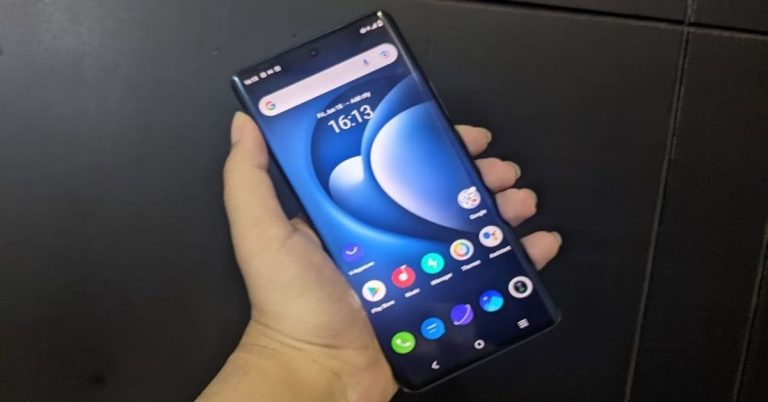
 It is worth noticing that Vivo X60 Pro is available in Midnight Black and Shimmer Blue colour options, and the one that we got for review was dressed in Black.
Coming to the 6.56-inch AMOLED Full-HD+ display, it comes with a maximum refresh rate of 120Hz, however, the option of switching it to 60Hz is also there on the device. In fact, with Smart Switch enabled, the smartphone automatically switches between 60Hz and 120Hz. The display of the device is great and the colour reproduction is excellent. We watched several shows on Netflix and YouTube during our time with the device and the experience was flawless. Even the sunlight readability and the viewing angles of the smartphone were good. Vivo X60 Pro’s display is protected with Schott Xensation Up glass.
It is worth noticing that Vivo X60 Pro is available in Midnight Black and Shimmer Blue colour options, and the one that we got for review was dressed in Black.
Coming to the 6.56-inch AMOLED Full-HD+ display, it comes with a maximum refresh rate of 120Hz, however, the option of switching it to 60Hz is also there on the device. In fact, with Smart Switch enabled, the smartphone automatically switches between 60Hz and 120Hz. The display of the device is great and the colour reproduction is excellent. We watched several shows on Netflix and YouTube during our time with the device and the experience was flawless. Even the sunlight readability and the viewing angles of the smartphone were good. Vivo X60 Pro’s display is protected with Schott Xensation Up glass.
 To sum it up, we would say that although the design of Vivo X60 Pro is very premium and several aspects contribute to the upmarket looks. However, at this price point, it could have also included some other features like IP rating and wireless charging. The display, on the other hand, offered a great experience to us at all times.
 As expected, Vivo X60 Pro’s performance is super smooth and the smartphone can handle any task that’s thrown at it. We used the device extensively during our time with it and multitasked a lot on it, but there was nothing that made the performance lag even for a minute. We multiple apps on the smartphone, a lot of them were graphic-heavy, but there wasn’t anything that didn’t run smoothly.
We have already mentioned that our experience with watching shows on Netflix was good. The video experience was great and the phone didn’t warm up. The sound quality was good too, but in this price range, we have seen better than Vivo X60 Pro’s audio output. We also played several games on the smartphone including Asphalt 9: Legends. We didn’t notice any stutter while playing the game, even though it has some very heavy graphics, but we did see that the battery fell quickly while gaming. However, this doesn’t mean that we don’t recommend the handset for gamers.
As expected, Vivo X60 Pro’s performance is super smooth and the smartphone can handle any task that’s thrown at it. We used the device extensively during our time with it and multitasked a lot on it, but there was nothing that made the performance lag even for a minute. We multiple apps on the smartphone, a lot of them were graphic-heavy, but there wasn’t anything that didn’t run smoothly.
We have already mentioned that our experience with watching shows on Netflix was good. The video experience was great and the phone didn’t warm up. The sound quality was good too, but in this price range, we have seen better than Vivo X60 Pro’s audio output. We also played several games on the smartphone including Asphalt 9: Legends. We didn’t notice any stutter while playing the game, even though it has some very heavy graphics, but we did see that the battery fell quickly while gaming. However, this doesn’t mean that we don’t recommend the handset for gamers.
 Coming to the battery life, the smartphone’s juice lasted at least a day for us with moderate usage. Gaming, watching Netflix shows and a lot of camera usage will reduce this time, but the 33W charger can fully charge Vivo X60 Pro’s battery in an hour so it’s hardly something to complain about.
Finally, let’s talk about the cameras of the Vivo X60 Pro, which are certainly a positive aspect of the handset. The 48MP primary camera has a Sony IMX598 lens and besides this, the device also comes with a 13MP ultra-wide angle lens and a 13MP portrait sensor. The camera app on Vivo X60 Pro is simple to use and has several modes that the user can choose from. It is also backed by AI so cameras can get switched automatically depending on how close you are to the object, and there is a scene optimizer too.
Coming to the battery life, the smartphone’s juice lasted at least a day for us with moderate usage. Gaming, watching Netflix shows and a lot of camera usage will reduce this time, but the 33W charger can fully charge Vivo X60 Pro’s battery in an hour so it’s hardly something to complain about.
Finally, let’s talk about the cameras of the Vivo X60 Pro, which are certainly a positive aspect of the handset. The 48MP primary camera has a Sony IMX598 lens and besides this, the device also comes with a 13MP ultra-wide angle lens and a 13MP portrait sensor. The camera app on Vivo X60 Pro is simple to use and has several modes that the user can choose from. It is also backed by AI so cameras can get switched automatically depending on how close you are to the object, and there is a scene optimizer too.


 Finally, the 32MP selfie camera takes amazing shots in well-lit as well as in dimly-lit surroundings. We are really happy with the selfies we managed to click from Vivo X60 Pro. To make it better for selfie lovers, the device gives users a lot of control in terms of letting them see the effect of filters or different levels of blur before clicking pictures from the front camera. To sum it up, we would again say that the cameras of the smartphone are definitely among its best aspects.
 It is worth noticing that Vivo X60 Pro is available in Midnight Black and Shimmer Blue colour options, and the one that we got for review was dressed in Black.
Coming to the 6.56-inch AMOLED Full-HD+ display, it comes with a maximum refresh rate of 120Hz, however, the option of switching it to 60Hz is also there on the device. In fact, with Smart Switch enabled, the smartphone automatically switches between 60Hz and 120Hz. The display of the device is great and the colour reproduction is excellent. We watched several shows on Netflix and YouTube during our time with the device and the experience was flawless. Even the sunlight readability and the viewing angles of the smartphone were good. Vivo X60 Pro’s display is protected with Schott Xensation Up glass.
It is worth noticing that Vivo X60 Pro is available in Midnight Black and Shimmer Blue colour options, and the one that we got for review was dressed in Black.
Coming to the 6.56-inch AMOLED Full-HD+ display, it comes with a maximum refresh rate of 120Hz, however, the option of switching it to 60Hz is also there on the device. In fact, with Smart Switch enabled, the smartphone automatically switches between 60Hz and 120Hz. The display of the device is great and the colour reproduction is excellent. We watched several shows on Netflix and YouTube during our time with the device and the experience was flawless. Even the sunlight readability and the viewing angles of the smartphone were good. Vivo X60 Pro’s display is protected with Schott Xensation Up glass.
 To sum it up, we would say that although the design of Vivo X60 Pro is very premium and several aspects contribute to the upmarket looks. However, at this price point, it could have also included some other features like IP rating and wireless charging. The display, on the other hand, offered a great experience to us at all times.
 As expected, Vivo X60 Pro’s performance is super smooth and the smartphone can handle any task that’s thrown at it. We used the device extensively during our time with it and multitasked a lot on it, but there was nothing that made the performance lag even for a minute. We multiple apps on the smartphone, a lot of them were graphic-heavy, but there wasn’t anything that didn’t run smoothly.
We have already mentioned that our experience with watching shows on Netflix was good. The video experience was great and the phone didn’t warm up. The sound quality was good too, but in this price range, we have seen better than Vivo X60 Pro’s audio output. We also played several games on the smartphone including Asphalt 9: Legends. We didn’t notice any stutter while playing the game, even though it has some very heavy graphics, but we did see that the battery fell quickly while gaming. However, this doesn’t mean that we don’t recommend the handset for gamers.
As expected, Vivo X60 Pro’s performance is super smooth and the smartphone can handle any task that’s thrown at it. We used the device extensively during our time with it and multitasked a lot on it, but there was nothing that made the performance lag even for a minute. We multiple apps on the smartphone, a lot of them were graphic-heavy, but there wasn’t anything that didn’t run smoothly.
We have already mentioned that our experience with watching shows on Netflix was good. The video experience was great and the phone didn’t warm up. The sound quality was good too, but in this price range, we have seen better than Vivo X60 Pro’s audio output. We also played several games on the smartphone including Asphalt 9: Legends. We didn’t notice any stutter while playing the game, even though it has some very heavy graphics, but we did see that the battery fell quickly while gaming. However, this doesn’t mean that we don’t recommend the handset for gamers.
 Coming to the battery life, the smartphone’s juice lasted at least a day for us with moderate usage. Gaming, watching Netflix shows and a lot of camera usage will reduce this time, but the 33W charger can fully charge Vivo X60 Pro’s battery in an hour so it’s hardly something to complain about.
Finally, let’s talk about the cameras of the Vivo X60 Pro, which are certainly a positive aspect of the handset. The 48MP primary camera has a Sony IMX598 lens and besides this, the device also comes with a 13MP ultra-wide angle lens and a 13MP portrait sensor. The camera app on Vivo X60 Pro is simple to use and has several modes that the user can choose from. It is also backed by AI so cameras can get switched automatically depending on how close you are to the object, and there is a scene optimizer too.
Coming to the battery life, the smartphone’s juice lasted at least a day for us with moderate usage. Gaming, watching Netflix shows and a lot of camera usage will reduce this time, but the 33W charger can fully charge Vivo X60 Pro’s battery in an hour so it’s hardly something to complain about.
Finally, let’s talk about the cameras of the Vivo X60 Pro, which are certainly a positive aspect of the handset. The 48MP primary camera has a Sony IMX598 lens and besides this, the device also comes with a 13MP ultra-wide angle lens and a 13MP portrait sensor. The camera app on Vivo X60 Pro is simple to use and has several modes that the user can choose from. It is also backed by AI so cameras can get switched automatically depending on how close you are to the object, and there is a scene optimizer too.


 Finally, the 32MP selfie camera takes amazing shots in well-lit as well as in dimly-lit surroundings. We are really happy with the selfies we managed to click from Vivo X60 Pro. To make it better for selfie lovers, the device gives users a lot of control in terms of letting them see the effect of filters or different levels of blur before clicking pictures from the front camera. To sum it up, we would again say that the cameras of the smartphone are definitely among its best aspects.

 Another way of accessing the game is by downloading the Tap Tap app. Here is our step-by-step guide:
 Another way of accessing the game is by downloading the Tap Tap app. Here is our step-by-step guide: