How to Flush DNS Cache on a Mac? (2024)

0
If you’re having trouble loading a website on your web browser, clearing the DNS cache can help. Since the DNS cache keeps a record of the websites you have visited, you may want to clear it to keep your browsing history private. Additionally, the need to perform this task may also arise when you suspect you have been a victim of DNS spoofing/poisoning. So, here is how you can flush or reset the DNS cache on your Mac. Read Also: Xiaomi 14 Review: The complete package

What happens when you flush the DNS cache on your Mac?

First, you should understand what a DNS server does. Once you enter the address of a website on your web browser, it contacts the DNS server for the website’s IP address. When the IP address is provided to the web browser, it loads the website. To make this process faster and more streamlined, your device stores the IP addresses of the websites you visit in the DNS cache. When you enter the web address the second time, your browser does not need to contact the DNS server again. It can simply use the IP address stored in the DNS cache. You can probably guess where the potential issues arise. Like every other cached memory, the DNS cache is prone to get outdated and corrupted. When this happens, your browser is unable to load the website linked to the corrupted IP address. This is when flushing the DNS cache comes in handy. Once that’s done, your browser will contact the DNS server again for the appropriate IP address.

Flush or Reset DNS Cache on a Mac

Best Methods to Reduce Photo File Size on Mac How to Flush DNS Cache on a Mac? (2024) Step 1: Click on Finder and select Applications. Step 2: Go to the Utilities folder and select Terminal. Step 3: Depending on your macOS version, type the following commands: Ventura and Monterey: sudo dscacheutil -flushcache; sudo killall -HUP mDNSResponder El Capitan, Lion, Mountain Lion, Mavericks, Sierra, High Sierra, Mojave: sudo kilall -HUP mDNSResponder Tiger and Snow Leopard: lookupd -flushcache Yosemite: sudo discoveryutil mdnsflushcache Step 4: Type your password and hit Enter.

Frequently Asked Questions (FAQs)

How do I flush DNS cache on Windows?

Go to Command Prompt (Windows + R followed by Enter) and ipconfig /flushDNS.

When should I flush the DNS cache?

If you can’t connect to a website even after typing the right address, flushing the DNS cache may resolve the issue.

What happens when you flush the DNS cache?

The DNS cache contains the IP addresses of the websites you have visited recently. Flushing it clears those saved addresses. Read also: Samsung Galaxy M55 5G and Galaxy M15 5G India launch confirmed

Conclusion

This is how you can flush or reset DNS on your Mac. Read this article to learn how you can set up a private DNS on your Android smartphone. If you know any other methods to go about this task, let us know in the comments!

Samsung Galaxy M55 5G and Galaxy M15 5G India launch confirmed

Key Highlights
  • Samsung Galaxy M55 5G and Galaxy M15 5G are set to launch in India soon.
  • The company has also listed the phones on Amazon ahead of the official announcement.
  • The devices were launched in Brazil on March 28.
Samsung is getting ready to launch two new smartphones in India under its M-Series. The company has officially confirmed the Samsung Galaxy M55 5G and Galaxy M15 5G India launch. Before arriving in India the handsets made their debut in Brazil recently. Samsung Galaxy M55 5G and Galaxy M15 5G have been listed on Amazon India’s website confirming the upcoming launch. The company has not yet revealed the exact date and time of the launch. However, the Amazon listing highlights the details of both phones. The smartphones were launched in Brazil so the Indian versions most likely resemble the ones that exist. The Galaxy M55 5G is powered by Qualcomm’s Snapdragon 7 Gen 1 SoC whereas Galaxy M15 5G is equipped with an octa-core MediaTek Dimensity 6100+. According to one of the posters, the Snapdragon 7 Gen 1 SoC will be included in the Galaxy M55 5G. On the other hand, another teaser suggests that the Galaxy M15 5G would have a 6,000mAh battery. The device is also confirmed to come with an sAMOLED display with a water drop notch. These specs are comparable to those of the phone’s international variants. Also Read: Moto G04 Review: The most affordable Android 14 smartphone Prices of the phones have been leaked ahead of their introduction in India. According to a tipster, the price of the 8GB RAM with 128GB storage model of the Galaxy M55 5G would start at Rs 26,999 in India. Whereas the 8GB RAM with 256GB storage could be priced at Rs 29,999 and 12GB RAM with 256GB storage options is anticipated to cost Rs 32,999. On the contrary, Galaxy M15 5G is claimed to retail at a starting price of Rs 13,999 for the 4GB RAM with 128GB storage and the 6GB RAM with 128GB storage option is expected to be priced at Rs 14,999. The Galaxy M55 5G is available in Dark Blue and Green colourways in Brazil. The is priced at BRL 3,199 about Rs 53,000 for the 8GB RAM with 256GB storage configuration. The Galaxy M15 5G, which is available in Dark Blue, Grey, and Light Blue colour options comes with a price tag of BRL 1,499 about Rs 25,000 for the 4GB RAM with 128GB storage variant.

Moto G04 Review: The most affordable Android 14 smartphone

Motorola has introduced its third low-cost smartphone of 2024. Moto G04 is an entry-level smartphone which came to us for the review. It has a 90 Hz display, which is standard these days and is available in fascinating colour options. It has a 16-megapixel AI-powered camera with AI. The starting price is set at Rs 6,999. Does the Moto G04 represent the best value-for-money smartphone available right now? Let’s check it out in this review.

Moto G04 Review: Design and Display

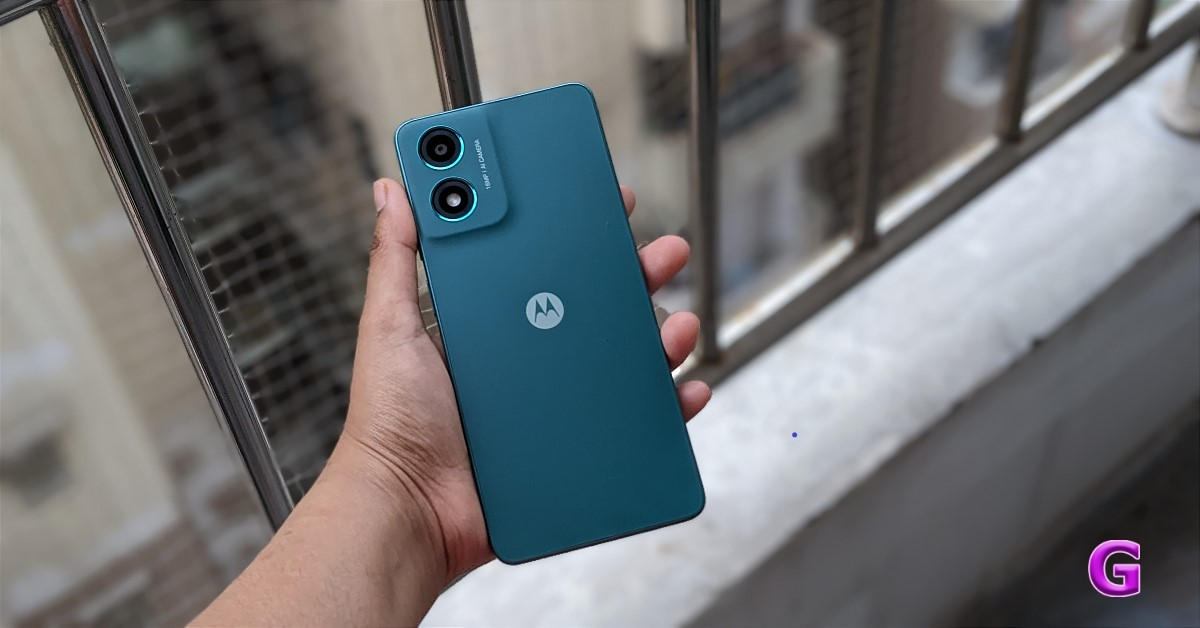
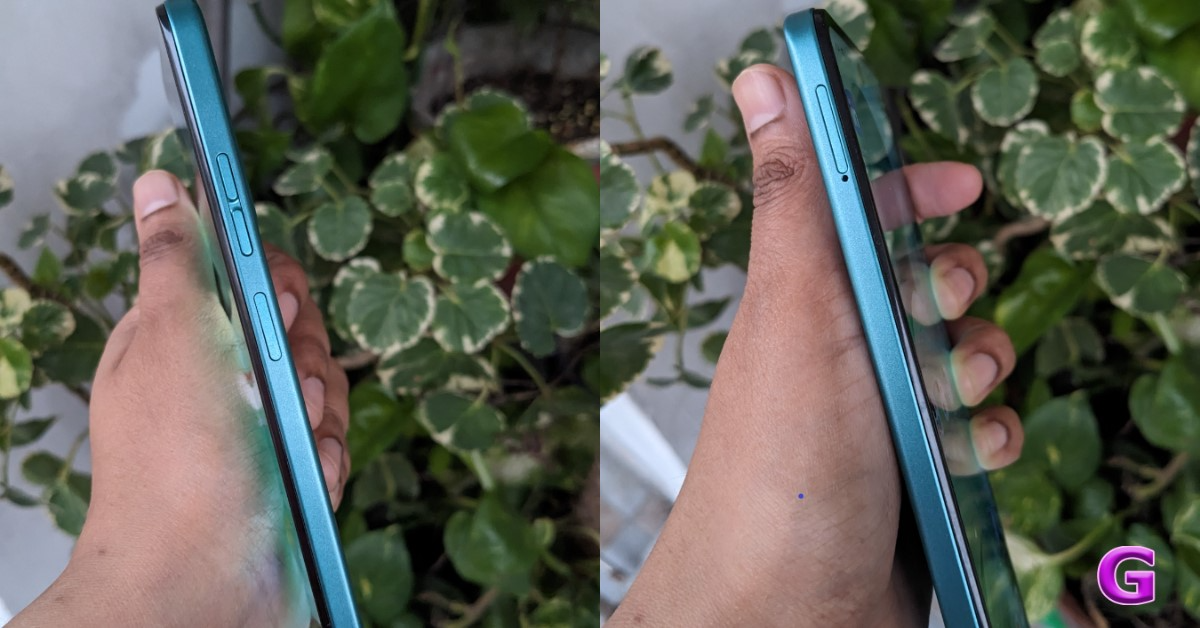
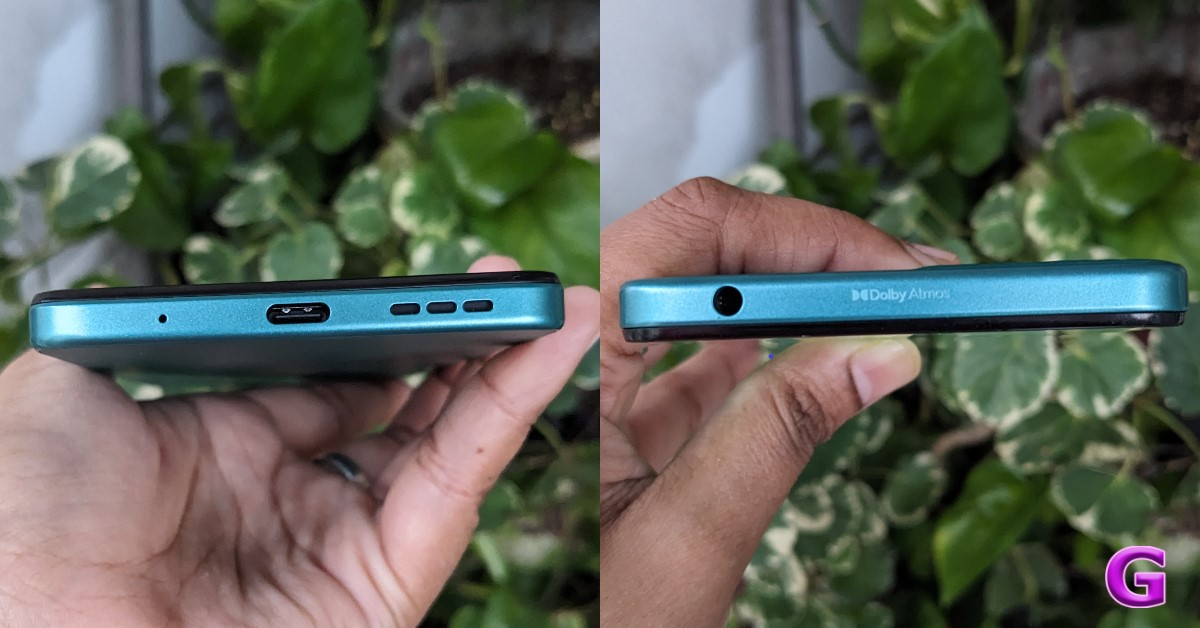
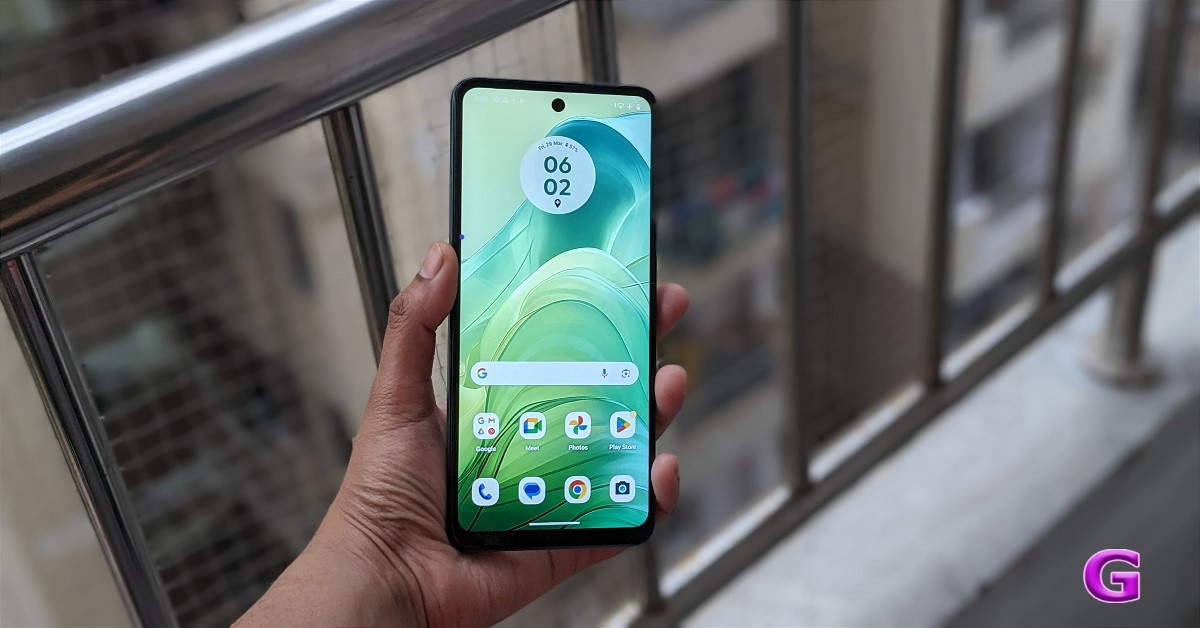
You’ll be amazed by how nice this phone looks. The phone appears to be incredibly powerful. We loved the handset’s colour. This is a sea green colour variant, which we are reviewing. Users get a premium-level feel and look for the price it comes in.  Moto G04 Review: Design and Display Moto G04 comes in four different colour variations and has a punch-hole rear panel style. The Motorola smartphone has AG glass or 3D PMMA material used on it. The device has a single-layered, streamlined back camera arrangement, which has a highly upscale appearance because of the colour-coordinating side frames. Due to its lightweight design, which weighs only 178 grams and is 7.89 mm thin, it feels good in the hand. Over that, the phone has an IP52 rating, which means it is water resistant, which is useful in specific situations. The good thing is that this phone has a silicon case in the box. The majority of Motorola devices already have a case coming with them. The case supplied here is of excellent quality and offers good protection. Moto G04 Review: Design and Display As you go to the side, the design appears flat. A triple-slot SIM card tray with sufficient space for two nano SIM cards and a microSD card is located on the left side of the frame, suggesting that storage can be increased. Given the pricing, 5G support is not available, hence this smartphone only supports 4G which might be a letdown for a few. Also Read: Oppo F25 Pro 5G Review: Impressive across the board In addition, the right side of the frame has a volume button and a side-mounted fingerprint sensor. On the top part of the frame, users will see a 3.5mm audio port with Dolby Atmos written. The primary microphone, Type-C port, and speaker vent are located at the bottom of the structure. Review of Moto G04 The side-mounted fingerprint sensor is integrated into the power button. The built-in sensor performed well. It is highly accessible and unlocks precisely. The display seems to be good for the price point. The phone’s bezels are very thin, especially on the top and edges. You do have a small chin at the bottom, but it’s mainly acceptable given the price. The Moto G04 sports a 6.6-inch HD+ IPS LCD screen with a resolution of 720×1,600 pixels. The display features a 20:9 aspect ratio and a pixel density of 269 ppi. 90 Hz refresh rate is supported. Additionally, Panda display protection is included.  Review of Moto G04 Because of its maximum brightness of 537 nits, the content on it can be seen fine under direct sunlight. Everything on the screen is fairly crisp and offers pleasing colour arrangements. Along with the Night Light setting, there is also an Ambient display option, which is a useful feature for reading at night. Also Read: iQOO Neo 9 Pro Review: Absolutely Rocking You only get an HD screen here, but it has excellent display quality that makes it suitable for watching videos and regular day-to-day use. It also offers some intriguing features, such as video display enhancements. Video colour becomes brighter and more vibrant as a result. You can watch HD-quality Netflix videos with support for Spatial Audio as well as Prime Video content. We’ve also watched a couple of web series, and we’ve been quite happy with the visual quality. Although the phone just has a single speaker, it supports Dolby Atmos, which is uncommon in this price range. The audio quality is good and the voices are clear. Overall, the sound quality is incredibly well-balanced. Additionally, there is no distortion and the speaker has a respectable volume.

Moto G04 Review: Performance and Cameras

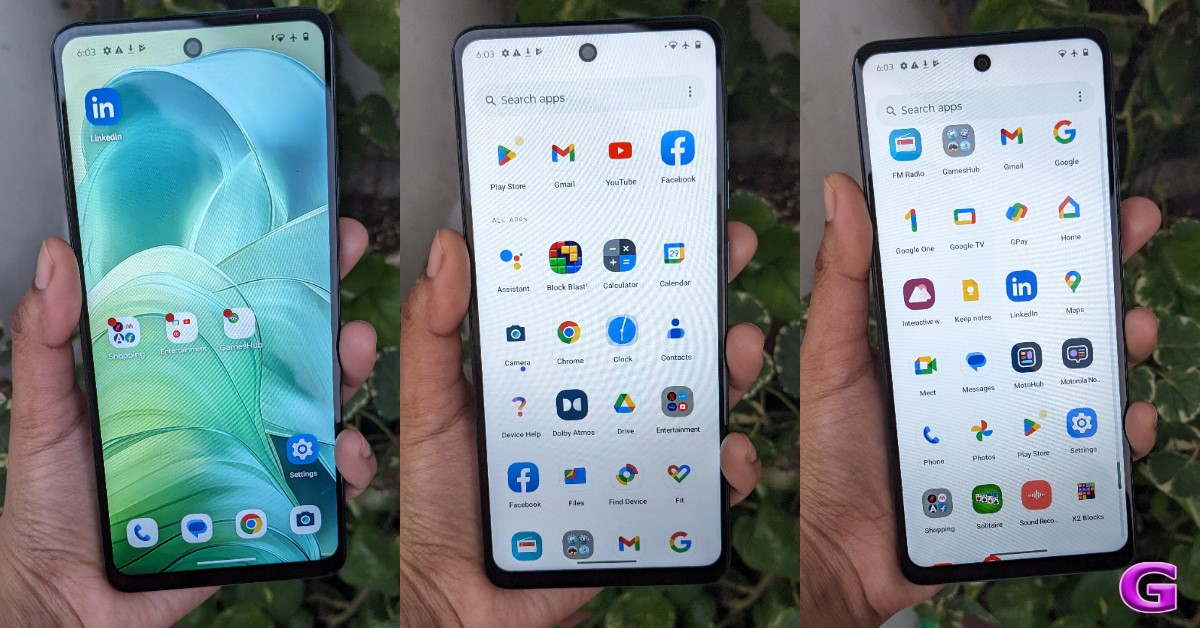
Performance wise Moto G04 includes a UniSoC T606 SoC paired with Mali G57 GPU and up to 8GB of LPDDR4X RAM. The device also supports virtual RAM expansion of up to 16GB, which can improve the system’s performance to some extent. The device comes with up to 128GB of UFS 2.2 storage that can also be further expanded up to 1TB using a microSD card. Also Read: Vivo V30 Pro Review: A no-brainer purchase for photography enthusiasts Android 14 runs My UX on the phone as a factory default. Motorola provides you with a near-stock Android experience. Hand in hand, you will also receive security updates for two years. This implies that consumers can use this phone for at least two years or longer. Nevertheless, there were still a few pre-installed apps that weren’t supposed to be there. The hubs for games and shopping are in different folders. However, you have the option to disable or fully uninstall them if you want to save storage space. Review of Moto G04 Moto G04 also supports Moto Gestures, and the haptics are good. You can save up to six of the apps that you use frequently in the sidebar designated for shortcuts. We also played Call of Duty Mobile and BGMI on this mobile. This phone is not intended for gaming, by the way. It can be used to play games to some extent. Although there were latency issues during the game, it was still playable on low to medium settings. There is an FM radio on the smartphone, tool. Do remember that the wired earphones need to be connected for the radio to work. Moving on to the cameras. The Moto G04 has a 5-megapixel front-facing shooter for selfies and a 16-megapixel back camera sensor driven by AI. With the help of features like HDR and Portrait mode, the rear camera system can automatically produce images that seem professional. On the other hand, the selfie camera features Night Vision, Portrait Mode, Timelapse, and Leveller. Videos can be recorded at up to 1080p at 30 frames per second. Moto G04 performance   Its camera quality is outstanding for the low low price it comes in. The camera quality is fairly good when compared to other low-cost smartphones. Moto G04 performance In bright sunshine, the camera gave excellent outdoor performance. The primary back camera aims to capture respectable images in both optimal and bad lighting conditions. However, there’s a lot of noise evident in very low light.
Moto G04 performance
Portrait
In portrait mode, the edge detection is likewise amazing. The background blurring is superb, and the skin tones and colours are quite genuine. Selfies, though, could have been superior. Even though the 5-megapixel camera sensor is quite outdated and the device is affordable, we still anticipate a better selfie camera in 2024. A large 5,000mAh battery with support for 15W charging comes with the Moto G04. On the other hand, the phone requires approximately two hours to fully charge using the 10W charging brick that the firm has given in the box. Overall, its battery life is rather good; you may use it for an entire day or a day and a half after a full charge. Also Read: Xiaomi 14 Review: The complete package

Verdict

The Moto G04 has an outstanding design. Equipped with Android 14, this gadget is an absolute treat for individuals seeking to savour cutting-edge technology without going over budget. Motorola’s user interface is quite simple because it provides an almost entirely stock Android experience.  Moto G04 performance Furthermore, considering the price range, the display quality is respectable and at par with comparable inexpensive screens. In the end, it’s the ideal phone for those who wish to stay in touch with the elderly, and even your teen kids. An ultra-wide camera would have been a boon, but no complaints considering it’s an ultra-budget segment phone. All in all, this phone offers great value, so if you’re looking for an affordable phone, you should definitely consider purchasing it. Pros
  • FM radio
  • Dolby Atmos support
  • IP52 certification
Cons
  • No notification light
  • There is no noise-cancellation microphone

Three new features are coming to Google Maps, that will let you discover and customise lists

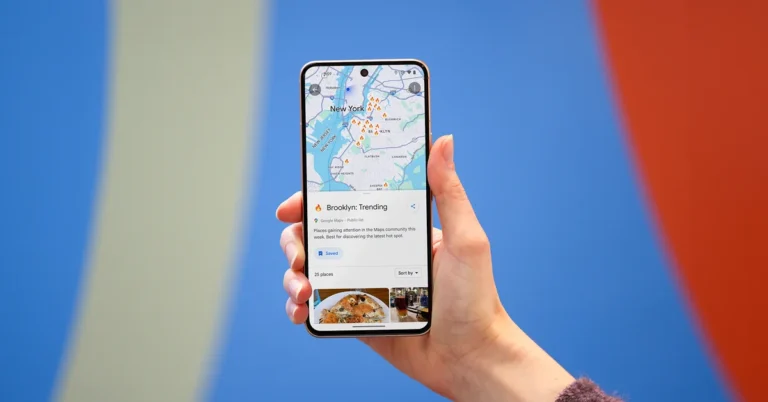
Google Maps is getting upgrades that will facilitate finding inspiration, sharing travel recommendations and getting a true sense of a location before you visit. Intending to help people while they travel, the company has incorporated lists of hand-picked recommendations from popular websites and the Google Maps community on Maps to offer consumers customised recommendations. The Maps will also allow users to make lists of destinations they’ve gone to and destinations they plan to visit. Additionally, Google is also integrating AI into Maps. The users will be able to easily discover helpful lists from top sites and the Google Maps community, starting in select cities in the U.S. and Canada. If you are planning to travel to a new city you can now simply search for the city on Maps and swipe up to view well-selected lists of suggestions from locals. You’ll also see lists from sites you love like Lonely Planet and OpenTable. Once you have a list you like, share it with friends or save it to your map. Three different kinds of curated lists are being offered by Google Maps. ‘The Trending List’ is ideal for helping you discover the latest hot spots. The Top list will help you find an area’s tried and true, longstanding favourites in the Maps community. Lastly, the Gems list will help uncover the neighbourhood’s great eateries that are still hidden from view. More than 40 cities across the U.S. and Canada will start receiving these lists. Google will be showcasing some of the top lists created by the Maps community in the upcoming months, so if you’ve made a list you think others will love, send it to listnominations@google.com to nominate it! Google Maps will also let users create and share lists with new customization tools to keep track of the locations you’ve been to and the places you wish to visit. This way, you’ll always have recommendations to offer, whether you share them on social media after your trip or in the group chat while you’re making travel plans. In the Saved tab, select the “New list” button to begin creating a new list. From there, you can add a place to your list whenever you’re seeing it on Maps, just add it to your list so you can save it for later and always see it pinned on your map. Also Read: Google to expand its Circle to Search feature to more Android devices  To help you provide the best recommendations, rank the locations you’ve visited after you’ve been there by moving them up or down on your list. You can also link to content from your social channels. These updates roll out globally on Android and iOS later this month. Lastly, the company has now incorporated AI into Google Maps to identify key insights from the Maps community. It will make use of photos and reviews that summarise what people love about it. Also Read: X/Twitter to provide free Premium, Premium+ features, Elon Musk said “When you’re checking out a restaurant and scrolling through photos of the food, we’ll use AI to help you identify what a dish is called (perfect if you’re in a new city and not familiar with the cuisine), and show you helpful information based on the menu — like what it costs, if it’s popular, and even if it’s vegetarian or vegan — so you know if you want to make a reservation.”

Xiaomi 14 Review: The complete package

Compact Android flagships are hard to come by. The Zenfone making the switch to a larger form factor leaves only two major smartphones battling it out to be the compact king. The word ‘compact’ does a lot of heavy lifting here as both smartphones are over 6 inches in size. The Samsung Galaxy S24 (our review here) is the smaller of the two, measuring 6.2-inches. The Xiaomi 14, which we have been using as our primary smartphone for the last week, spans 6.36 inches across its corners.  For comparison, their ‘Ultra’ counterparts measure 6.8 inches and 6.73 inches respectively. Needless to say, when it comes to smartphones, ‘compact’ is a relative term rather than an empirical one. If you’re thinking of grabbing the new Xiaomi 14, you may want to read this review first. Read Also: Google to expand its Circle to Search feature to more Android devices

Xiaomi 14 review: Design and Display

Xiaomi 14 ships inside the manufacturer’s signature black box for its flagships. Here’s what you get inside the retail package.
  • Smartphone
  • 120W power adapter
  • USB Type-A to Type-C cable
  • Soft phone cover (opaque)
  • SIM ejector tool
  • Quick Start Guide
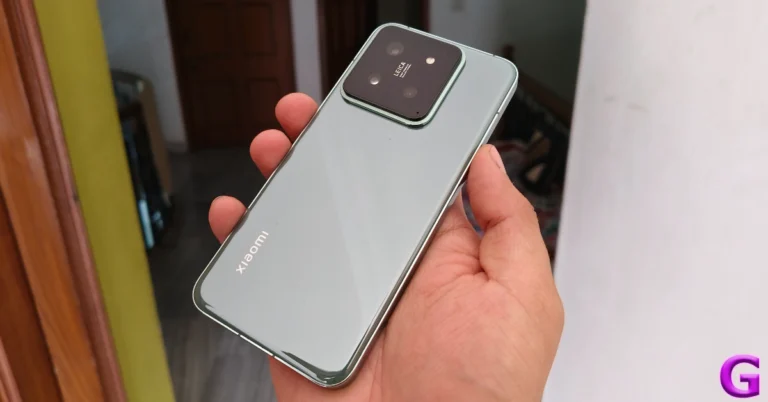
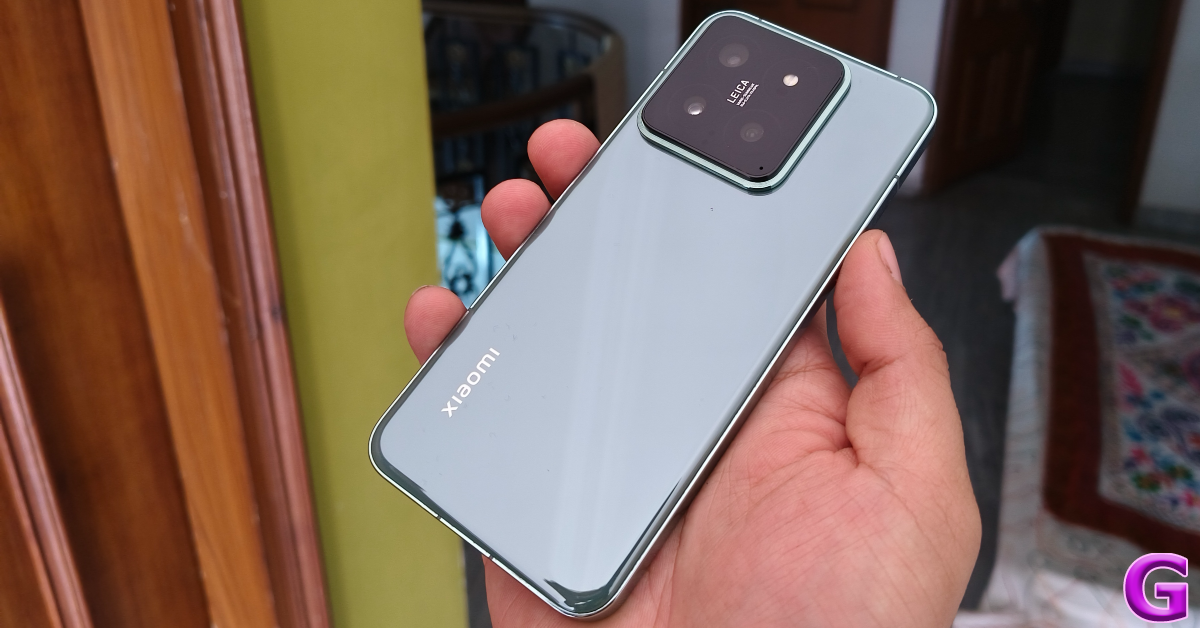
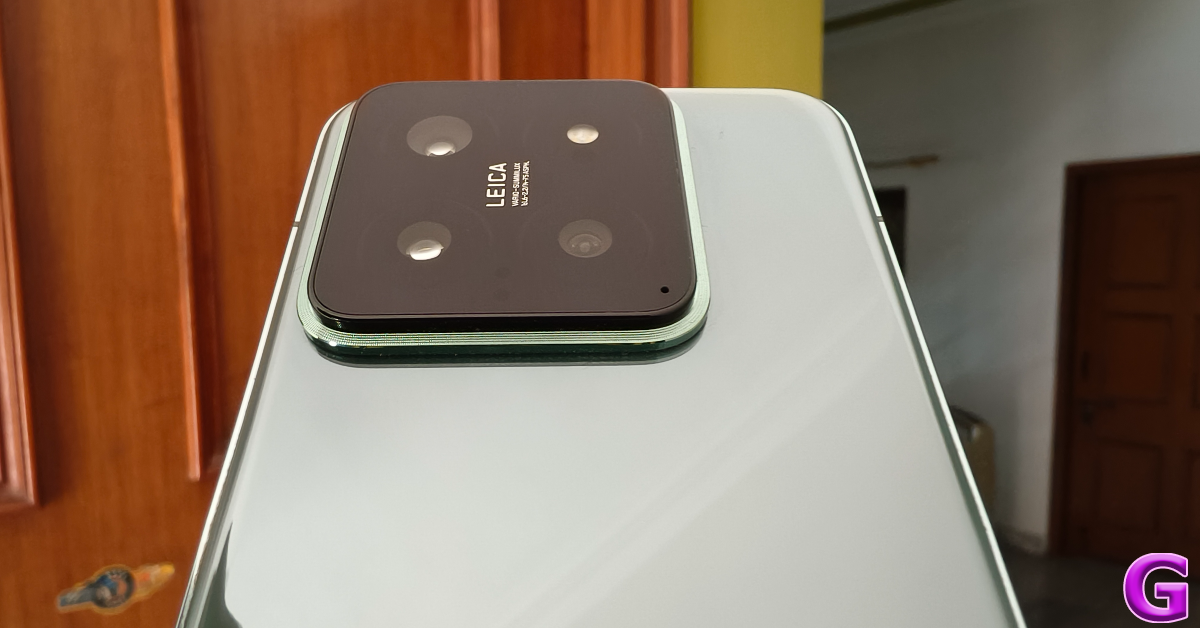
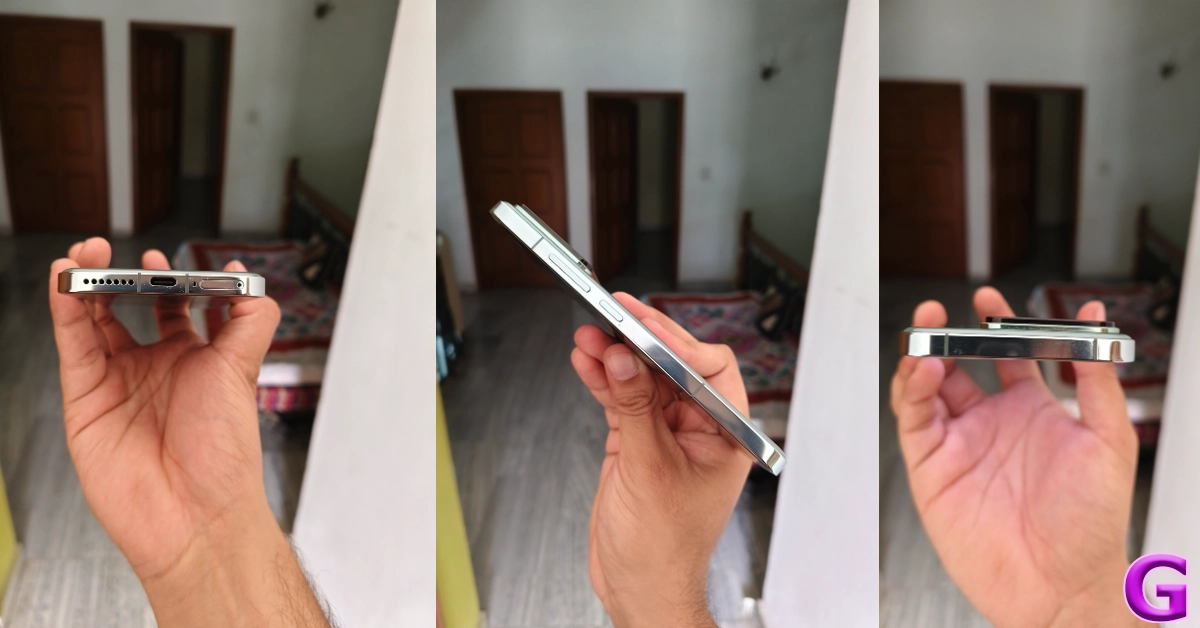
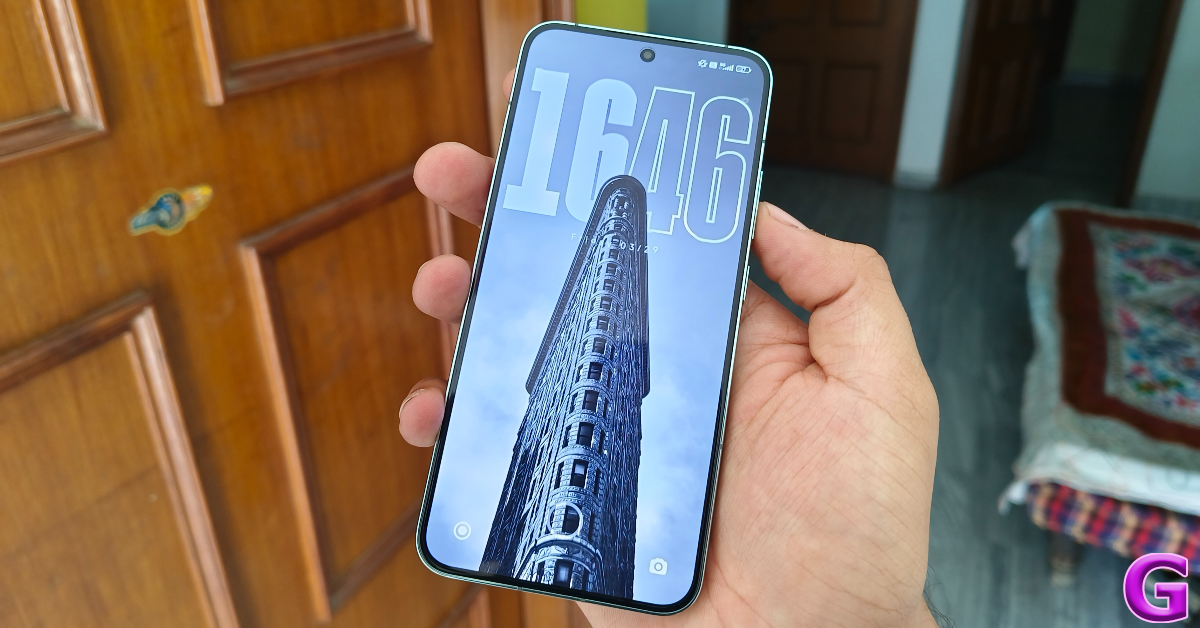
The smartphone is available in three colour variants – Black, Jade Green, and White. Our Xiaomi 14 review unit was Jade Green which, like the White variant, is characterised by its ceramic glass back. While we do enjoy the feel of this back panel, it is a fingerprint magnet. If you want to steer away from eyesore smudges, the Black variant with its matte finish would be more up your alley. Xiaomi 14 review: Design and Display The back panel is curved around the edges as it fits into the aluminium frame. Xiaomi has retained the square cutout for the camera setup. It gives the smartphone a significant wobble on flat surfaces, but we like its clean design language. This camera cutout also houses the IR blaster apart from the three lenses (more on those later). The Leica branding is also present right in the middle of the cutout. design The aluminium frame has flat edges and rounded corners, offering a nice grip. The right edge houses the volume rocker and the side button. The SIM tray, primary microphone, USB Type-C port, and speaker grille are positioned at the bottom. The earpiece doubles up as the secondary speaker on this device. design One of the important displays on this year’s Xiaomi 14 is the LPTO OLED display. Being an LTPO panel, it can adapt the refresh rate according to the task being carried out on the screen. This display can hit a maximum refresh rate of 120Hz when needed and dial down to 1Hz on standby to save the battery. The screen resolution also gets a small bump and is now 1,200 x 2,670 pixels. Thin, uniform bezels surround the display. The selfie camera is housed in a punch-hole cutout. The in-display fingerprint scanner is fast and responsive but we’d have preferred if it was placed slightly highly to accommodate the natural position of the thumb while unlocking the screen. The display itself is snappy and offers an exceptional touch response. No complaints there. display Watching content on this screen is a splendid experience. The Widevine L1 certification allows you to stream HD content from major OTT apps like Netflix, Prime Video, and Disney+ Hotstar. Dolby Vision and HDR10+ support is also present on this device, which is something you expect from a flagship. We streamed content from a range of apps throughout the review period and were pleased with the way the Xiaomi 14 reproduced the colours on the display. The LTPO OLED panel can reach a peak brightness of 3,000 nits which makes it all the more ideal for viewing HDR content. If you want to customise your viewing experience on the Xiaomi 14, the smartphone offers a bunch of colour profiles in display settings. There is also an ‘Anti-flicker’ mode which does exactly what its name implies. While browsing through Twitter in dark mode at night, we did notice that the smartphone kept the distracting flickers to a minimum. There are a couple of AI features that enhance the HDR while viewing media in the Gallery app. Xiaomi 14 review: Design and Display Moving on to the protective features, the smartphone flaunts an IP68 rating for dust and water resistance. The device can withstand being submerged up to 1.5m in water for 30 minutes. The display receives Gorilla Glass Victus protection which safeguards it against scratches. We used the Xiaomi 14 without a cover throughout the review period and it did not register any scuffs or scratches on the display or along the body. While we did not push its limits, it did spend a lot of time inside pockets with keys and loose change.

Xiaomi 14 review: Performance and Cameras

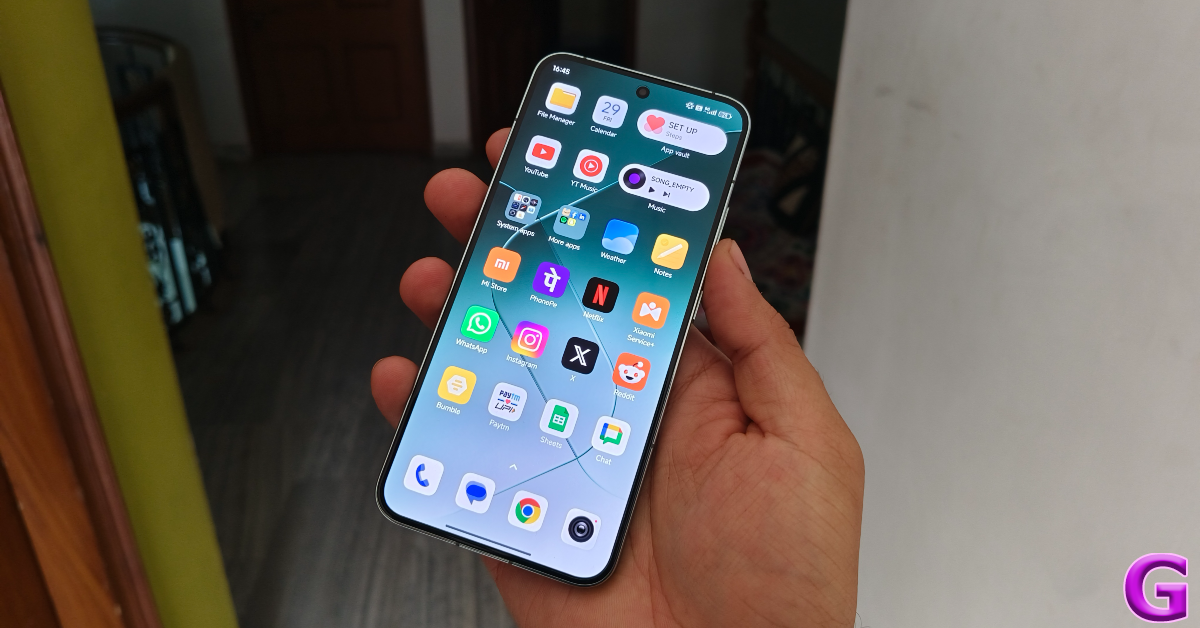
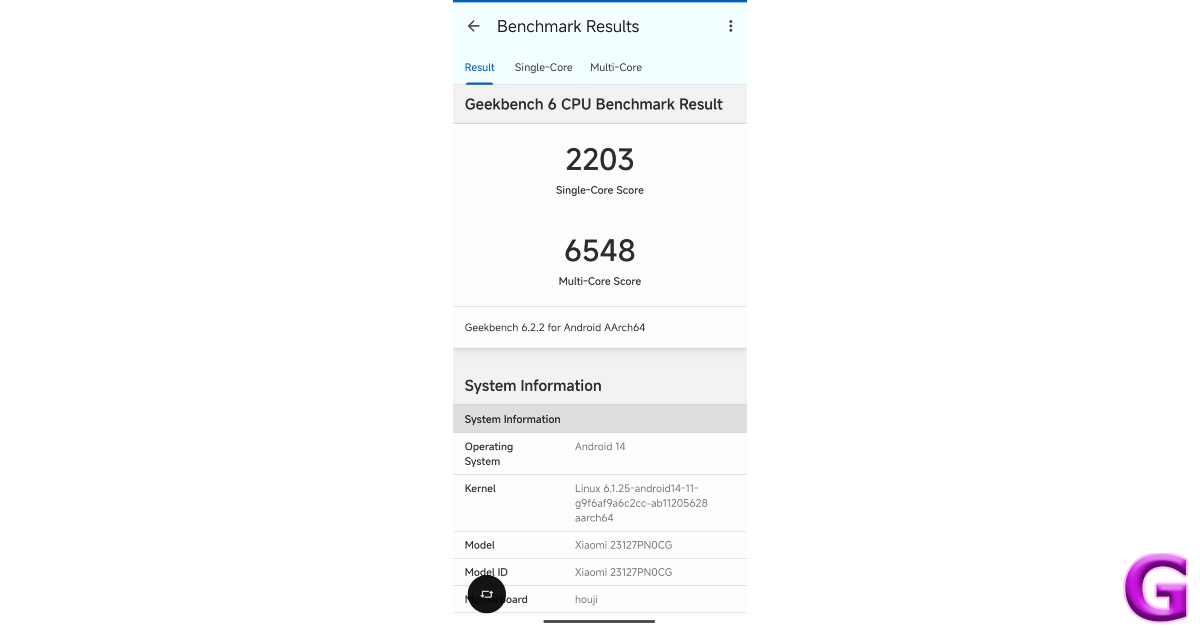
One of the things that gives the Xiaomi 14 a significant edge over its direct rival, the Samsung Galaxy S24, is the processor. In India, the entry-level Galaxy S24 and its Plus variant (our review here) are powered by Samsung’s in-house Exynos 2400 chipset. Meanwhile, the Xiaomi 14 packs the flagship Snapdragon 8 Gen 3 SoC under its hood. On the Geekbench 6 app, the smartphone attained a score of 2,203 points in the single-core test and 6,548 points in the multi-core test. geekbench While performing routine tasks like web browsing, emailing, video calling, media streaming, and app multitasking, we did not hit any snags on the Xiaomi 14. The breezy performance was flagship-grade and ‘bang for the buck’ worthy. Watching a live stream on YouTube while browsing Twitter in a separate window presented no issues either. The smartphone does run a little warm when you shoot videos in outdoor conditions under direct sunlight. However, we did not encounter any camera warnings or unexpected crashes. The Snapdragon 8 Gen 3 chipset is key when it comes to delivering a high-end gaming performance. This is where Xiaomi 14 inches ahead of Galaxy S24. We played titles like Asphalt 9 and Call of Duty Mobile at the highest settings and were treated with a smooth gameplay experience. Xiaomi’s IceLoop Cooling tech does a decent job of keeping the internal temperature in check. Even after an hour-long gaming session, we did not experience throttling while gaming. Xiaomi’s new HyperOS handles the software duties on its newest compact flagship. We got a taste of this OS earlier this year on the Poco X6 Pro (our review here). While the HyperOS does not mark a radical shift in design and aesthetics from the MIUI skin, we do enjoy its superior optimisation. Browsing the phone and going through its interface feels much more snappy on HyperOS.
control centre
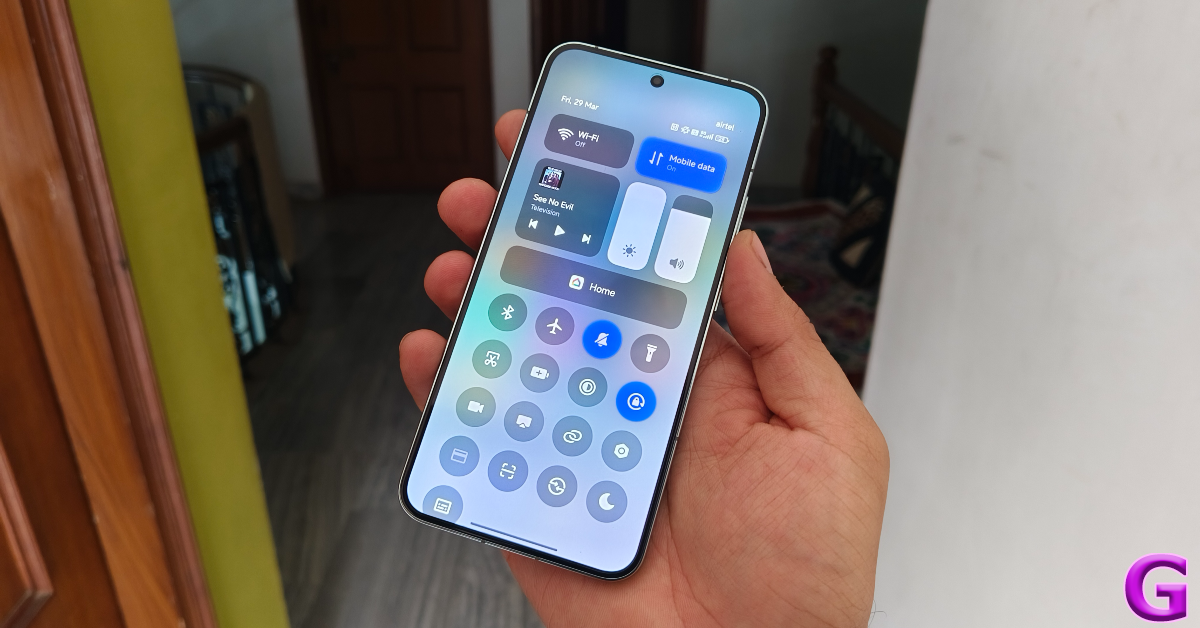
Control Centre on HyperOS
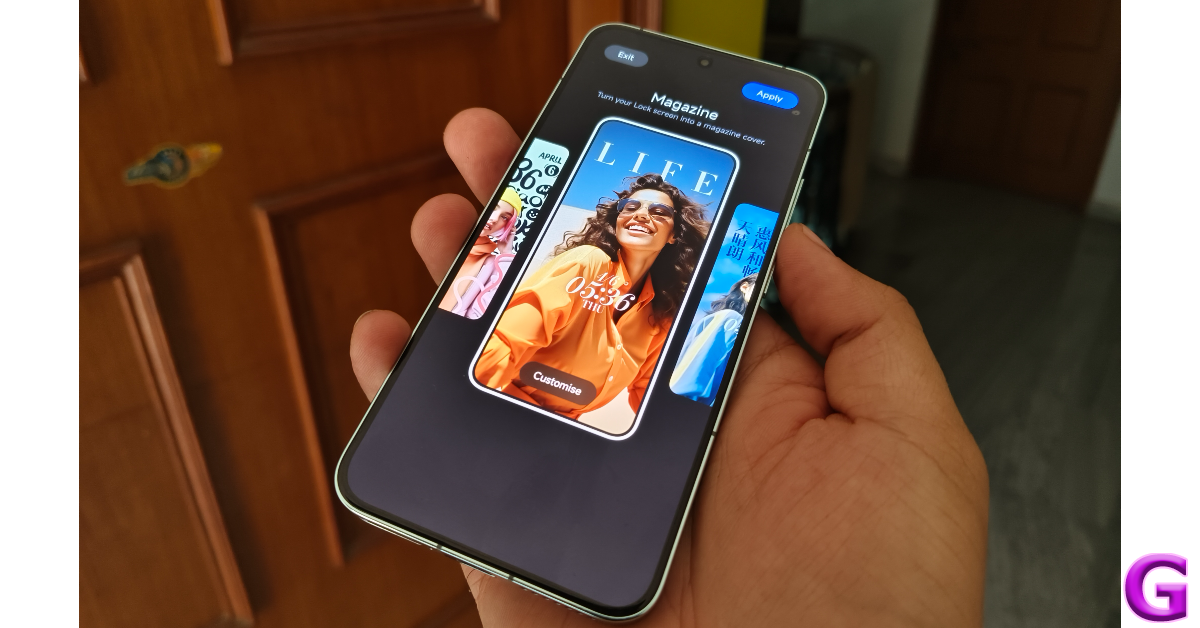
As far as design changes are concerned, the biggest of the bunch is the new look for the Control Centre (surprisingly, this is what Xiaomi is officially calling it now) which does its best iPhone impression. A downward swipe on the right side of the screen pulls down the Quick Settings all at once, where the tiles are arranged as individual icons. By default, the tiles do not have labels underneath them, but you can make them appear from device settings. We prefer the cleaner look of the lable-less tiles but it can make things a little confusing. Another thing we like about HyperOS is the customisation support for the lock screen. Apart from the classic themes, there are a bunch of ‘Rhombus’ and ‘Magazine’ style layouts, the latter letting you turn your portraits into eye-catching covers. The app drawer on the new OS is identical to its MIUI counterpart. As is the majority of the interface. Xiaomi 14 review: Performance and Cameras While HyperOS may not seem groundbreaking right now, it is a bold attempt at bringing a universal language to Xiaomi’s range of consumer products, be it smartphones, home appliances, or even their newly launched electric car. This is something that will be fleshed out in its future iterations but Xiaomi’s ecosystem holds a lot of promise due to the diverse nature of devices the company has to offer. Xiaomi has promised 4 years of major OS upgrades and 5 years of security patches on the newest 14 Series. The battery situation on compact smartphones is always a cause of concern, but the 4,610 mAh unit on this smartphone easily takes it through a day of heavy use. During the review period, we got 5-6 hours of Screen on Time on the Xiaomi 14. The smartphone supports 90W fast charging, even though it comes with a 120W power brick inside the box. We were able to fully charge the smartphone in just under 35 minutes. Xiaomi banks upon the photography reputation of its flagship phones, something that is very obvious from the brand’s mainstream messaging. While the Ultra variant may grab all the headlines, the entry-level Xiaomi 14 also deserves a lot of praise for its cutting-edge camera performance. The rear camera cutout houses three 50MP sensors for the wide, ultrawide, and telephoto lenses – an upgrade from the 50 + 12 + 10 MP setup on its predecessor. The native Camera app offers two style profiles – Leica Vibrant and Leica Authentic. We used the colour-rich Vibrant profile for most of the review period. Xiaomi 14 review: Performance and Cameras The 50MP primary shooter displays a very versatile range. No matter the lighting condition, this camera captures detailed pictures with lush colours and a wide dynamic range. In bright outdoor conditions, we were particularly pleased with how this camera exposed the sky and processed the colour tones. The Leica tuning makes a ton of difference on this camera setup. primary shooter At nighttime, the main sensor does an incredible job of letting in a lot of light and exposing the subject correctly. In the photoprocessing phase, the smartphone does well to brighten up the subject and tune the colours accurately. We like that it doesn’t oversharpen the images as most flagship cameras tend to do.
low light photos
Auto Mode vs Night Mode
Xiaomi 14 review: Performance and Cameras
Ultrawide: Without Night Mode vs With Night Mode
Pictures taken with the 50MP ultrawide camera are a little soft, with the camera unable to reproduce the sharpness of the main sensor. The colour-richness of the images remains impeccable. The dynamic range and contrast are also decent. In limited lighting, this camera relies heavily upon the Night Mode. While we were happy with the brightness of the images, the images remained on the softer side. Having said that, the ultrawide lens can easily hang with its peers in this price bracket.
Xiaomi 14 review: Performance and Cameras
Ultrawide Shot
Xiaomi 14 review: Performance and Cameras
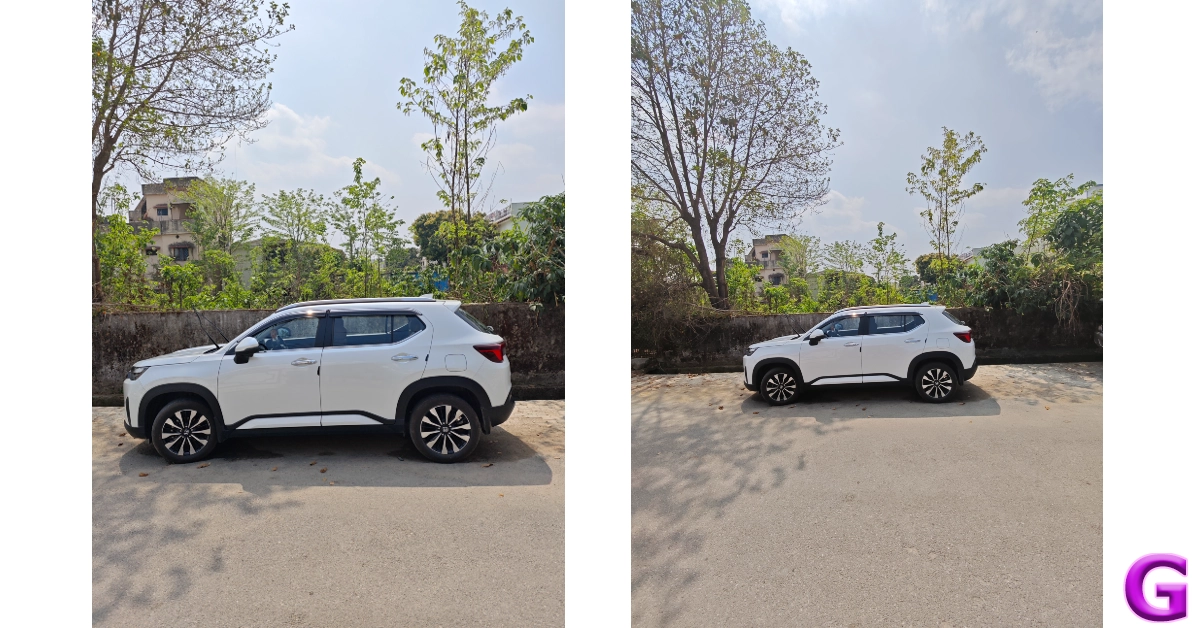
Wide vs Ultrawide
wide vs ultrawide
Wide vs Ultrawide
The 3.2x 50MP floating telephoto lens is the dark horse of this camera setup. It renders punchy colours on pictures taken with 3.2x zoom and captures a good amount of detail. Its 75mm focal length allows you to take close-up portrait shots from a distance. This lens is also used for the Macro mode as it can focus as close as 10cm. Pushing the Xiaomi 14 to its zooming limit (60x), we noticed that its ability to resolve the images was still a step behind Samsung’s Galaxy S24 Series.
Xiaomi 14 review: Performance and Cameras
Telephoto Lens: 1x vs 3.2x
photography
Telephoto Lens: 30x vs 60x
When it comes to taking portrait shots, the Xiaomi 14 does an incredible job. It effortlessly recognises the boundaries of the subject, separates it from the background, and applies an appropriate amount of blur. You can choose from 35mm, 50mm, 75mm, and 90mm focal lengths in the camera app.
Xiaomi 14 review: Performance and Cameras
Portrait Shots
The 32MP front-facing camera takes good selfies without obfuscating the skin tone and texture. It can now record 4K videos at 30 and 60 fps, something which was missing in its previous iteration. The main camera can record 8K videos at 24fps. However, if you want to record videos in Log format, you will need to stick to 4K resolution (which isn’t bad at all). We cannot miss mentioning how Xiaomi’s camera app is one of the best around. It has a very handy ‘Teleprompter’ feature which overlays the fleeting text on the viewfinder while you are recording a video. You can change the speed and size of the text as well. The ‘Director mode’ is one feature we’d love to see on other smartphones as well. This mode allows you to arrange a multicamera setup by linking your Xiaomi devices together. Read Also: 6,000mAh Battery with 70W Charging Phone: Tecno POVA 6 Pro Launched

Verdict

After spending a week with the Xiaomi 14, we can safely say that it is one of the best smartphones that Android has to offer. Its (relatively) compact form factor, clean design, smooth display, powerful processor, and versatile cameras link together to produce an exemplary experience for the user. The new HyperOS holds a lot of promise for the future and has us invested in its development arc. If you’re looking for a reliable flagship device that can deliver a consistent performance on every front, then Xiaomi 14 is a great deal at Rs 70,000.

Xiaomi 14: Pros

  • Clean design
  • Good camera performance
  • Snapdragon 8 Gen 3 chipset
  • Fast charging

Xiaomi 14: Cons

  • Glossy back on Jade Green and White variants attracts fingerprints

Google to expand its Circle to Search feature to more Android devices

Key Highlights
  • Circle to Search is Google’s AI-powered feature that will be expanded to more Pixel and Android smartphones.
  • The feature is already available on Pixel 8 series, Pixel 7 series and Samsung Galaxy S24 Series.
Samsung Galaxy S24 series was the first to get Google’s Circle to Search feature when it was launched earlier this year. After which the tech giant Google announced to expand the AI feature to its Pixel devices. As of right now, Circle to Search is currently accessible on the Pixel 8 and Pixel 7 series. Google has now revealed that the Circle to Search tool will be available on more Android phones. After the Galaxy S24 series, Pixel 8 and Pixel 8 Pro were the first to receive the Circle to Search feature in February. The Pixel 7 lineup was also given access to this capability by the firm earlier in March. Google has now officially confirmed that the AI-powered Circle to Search feature is now being rolled out to more Android smartphones. Starting this week it will start making it accessible for the Google Pixel 6, Pixel 6 Pro, Pixel 6a, Pixel 7a, Pixel Fold, and Pixel Tablet. Currently, several premium smartphones, including the Samsung Galaxy S24, Galaxy S24+, Galaxy S24 Ultra, Google Pixel 7, Pixel 7 Pro, Pixel 8, and Pixel 8 Pro, already have Google’s Circle to Search feature. Samsung has started sending the latest OneUI update that includes all of the Galaxy AI features including Circle to Search to Galaxy S23, S23+, S23 Ultra, S23 FE, Galaxy Z Fold 5, Galaxy Z Flip 5 along with Galaxy Tab S9 Series. Google has also revealed that Translations in Circle to Search will start rolling out in the coming weeks. However Google Lens can assist you with translating something nearby, like a street sign or poster. Just select the translate filter by tapping the Lens button in the Google app. Lens will automatically detect the source language and blend the translated text over the original. Users will be able to shop for products they see and discover more about them thanks to Google’s AI-powered functionality Circle to Search. Moreover, one can also search for definitions of words or phrases using functionality while watching a video. It also allows you to look for a building or a particular cafe that you have seen on their social media feed by just scribbling over the building to swiftly identify it (and even add it to their travel itinerary) with the feature.

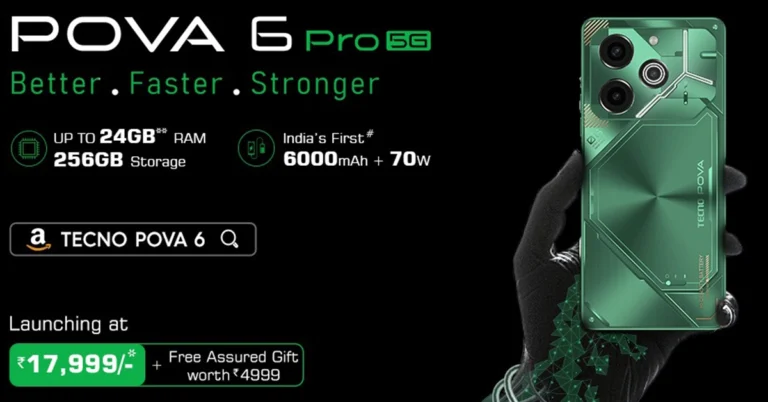
6,000mAh Battery with 70W Charging Phone: Tecno POVA 6 Pro Launched

Key Highlights
  • India’s First 6,000mAh Battery with 70W Charging that offers long-lasting power and rapid charging.
  • Advanced AMOLED Display features a smooth 120Hz refresh rate for crisp, vibrant visuals.
  • Unique LED Design with over 200 customizable LEDs on the back panel for a personalized look.
In a leap forward for smartphone technology and performance in India, TECNO has introduced the POVA 6 Pro 5G, marking a milestone with India’s first 6,000mAh battery complemented by a 70W charger. This launch not only showcases TECNO’s commitment to innovation but also caters to the modern consumer’s need for a device that combines longevity with fast charging capabilities. Positioned at an attractive price point starting from Rs 17,999, the POVA 6 Pro 5G is set to revolutionize the smartphone market. The Tecno POVA 6 Pro 5G is engineered to redefine multitasking with its powerful RAM, a vibrant AMOLED display, and a colossal battery equipped with rapid charging. It assures that power will be the least of users’ concerns. Scheduled to be available from April 4th, this device will be accessible to users on Amazon and at retail outlets. Read Also: Tecno Pova 2 with a massive 7,000mAh battery launched in India

A Fusion of Elegance and Efficiency

The TECNO POVA 6 Pro 5G transcends traditional design and performance norms, especially in its price segment. Featuring up to 24GB of RAM and 256GB of storage, it packages unmatched power within a slim 7.9mm frame. This device is not just about enduring power; it’s about delivering an enhanced “Better. Faster. Stronger.” experience, thanks to its groundbreaking battery and charger.

Design That Speaks Volumes

Crafted with precision, the POVA 6 Pro 5G’s back panel showcases an intricate design, achieved through advanced photolithography techniques, reflecting the sophistication of its Arc Interface. This is further enhanced by an innovative LED design that includes over 200 LEDs, offering more than 100 customizable options, making every user’s experience uniquely personal. Key Features at a Glance
  • Mesmerizing Arc Interface: Featuring over 200 LEDs for unparalleled customization, set against a backdrop created through sophisticated photolithography.
  • India’s First 6000mAh Battery with 70W Charger: A benchmark in power and efficiency, ensuring rapid charging and long-lasting performance.
  • Sleek Yet Powerful: At just 7.9mm thick, it combines elegance with power.
  • AMOLED Display: A 120Hz display that brings visuals to life with vibrant colors and crisp details.
Read Also: Tecno Pova Neo with 6,000mAh battery launched in India

Price and Availability 

The POVA 6 Pro 5G is available in two variants: 8GB RAM + 256GB Storage at ₹19,999 and 12GB RAM + 256GB Storage at ₹21,999. An instant bank discount of ₹2,000 lowers the effective price to ₹17,999 and ₹19,999, respectively, with additional complimentary goodies worth ₹4,999 for both online and offline purchases.

Top 4 Ways to Unblock a Phone Number on an Android Phone

0
Blocking a number on Android is easy. There are multiple ways to go about it too. You can either manually add a number to your block list or hit the Block button in the recent calls menu. The latter can sometimes be triggered by mistake. If your friend is unable to reach your number even though you are receiving optimum network coverage, chances are you accidentally blocked their number. So, here are the top 4 ways to unblock a phone number on an Android phone. Read Also: X/Twitter to provide free Premium, Premium+ features, Elon Musk said

Prevent spam on your Android phone

Newer versions of Android OS are well-equipped to manage spam calls without requiring a third-party app like TrueCaller. The good news is that you don’t need to manually block every spam call anymore. Google’s stock dialer app has a ‘Caller ID and spam’ section under Assistive features which can carry out a couple of important spam-management functions. If you don’t want to block every spam call outright, the Caller ID feature of the dialer app is something you should try. Without requiring a separate app, it identifies businesses and spam numbers when you receive a call from them. The spam call filter blocks the suspected spam numbers from calling you. While the latter seems like a great feature, its spam filter can sometimes block numbers from certain service apps. If you prefer verifying your number using a robotised incoming call instead of an OTP message, this spam filter may prevent you from doing so.

Unblock a phone number from the Google Dialer block list

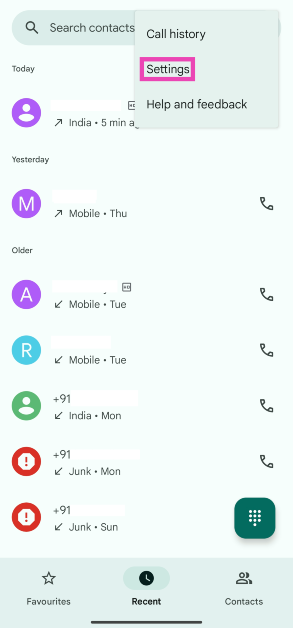
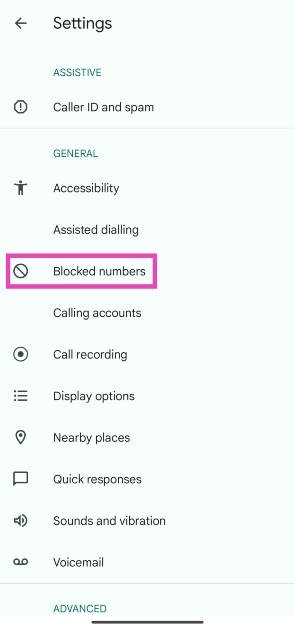
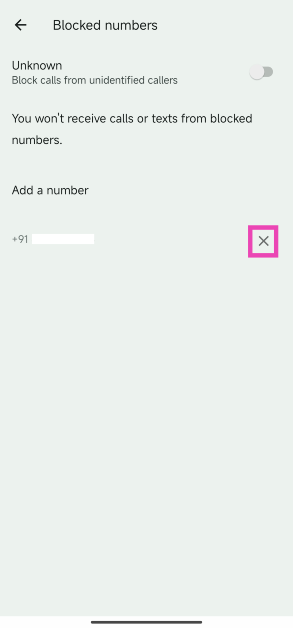
Step 1: Launch the Google Dialer app and hit the ellipses at the top right corner of the screen. Step 2: Tap on Settings. Step 2: Tap on Settings. Step 3: Select Blocked numbers. Step 3: Select Blocked numbers. Step 4: Hit the cross sign next to the number you want to unblock. Step 4: Hit the cross sign next to the number you want to unblock.

Unblock a phone number from the ‘Recent Calls’ list

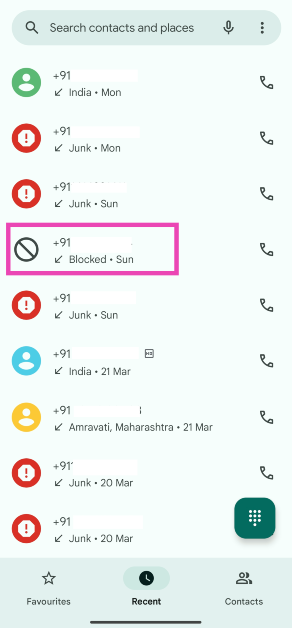
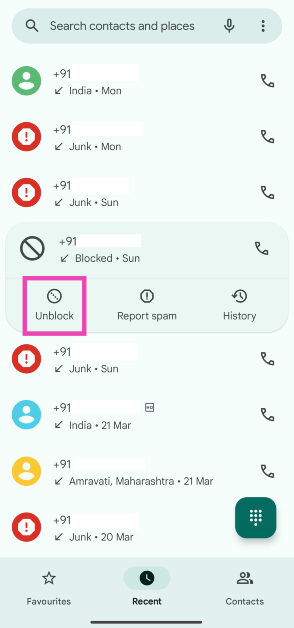
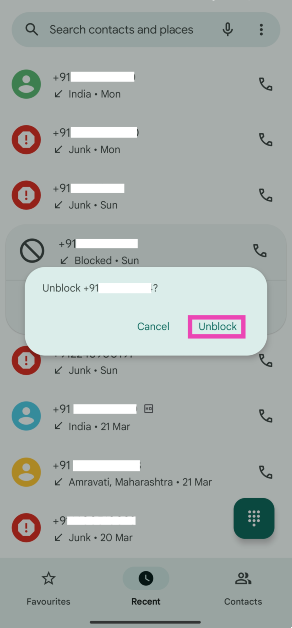
Step 1: Launch the Google Dialer app and switch to the Recent tab. Step 2: Tap on the blocked number’s entry in the recent calls list. Step 2: Tap on the blocked number’s entry in the recent calls list. Step 3: Hit Unblock. Step 3: Hit Unblock. Step 4: Confirm your selection in the popup box. Step 4: Confirm your selection in the popup box.

Unblock a number from Google Contacts

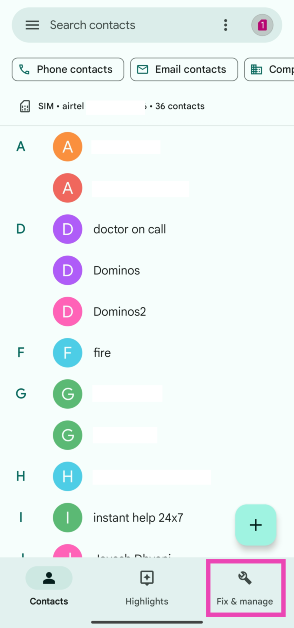
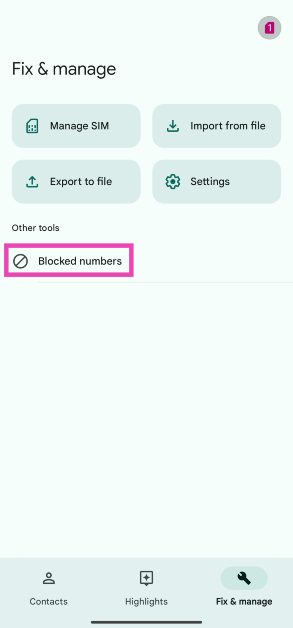
Step 1: Launch the Google Contacts app on your phone. Step 2: Switch to the Fix & manage tab. Step 2: Switch to the Fix & manage tab. Top 3 Ways to Unblock a Phone Number on Android Phone (2024) Step 3: Tap on Blocked numbers. Step 3: Tap on Blocked numbers. Top 3 Ways to Unblock a Phone Number on Android Phone (2024) Step 4: Hit the cross sign next to the number you want to unblock. Step 4: Hit the cross sign next to the number you want to unblock. Top 3 Ways to Unblock a Phone Number on Android Phone (2024)

Unblock a number from Google Messages

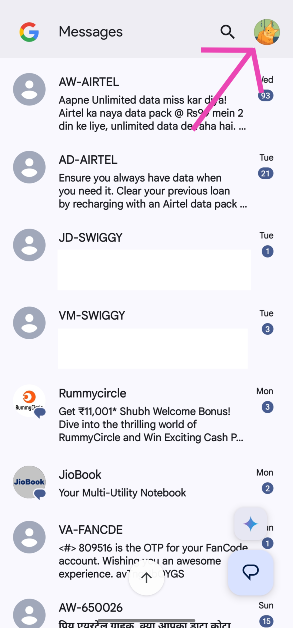
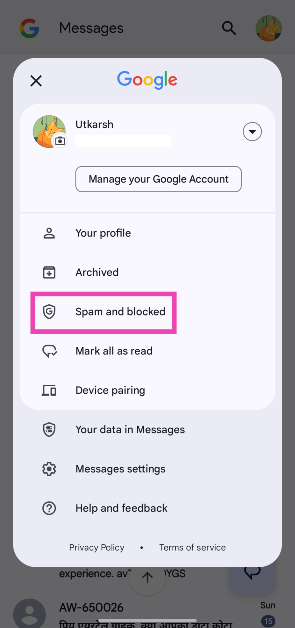
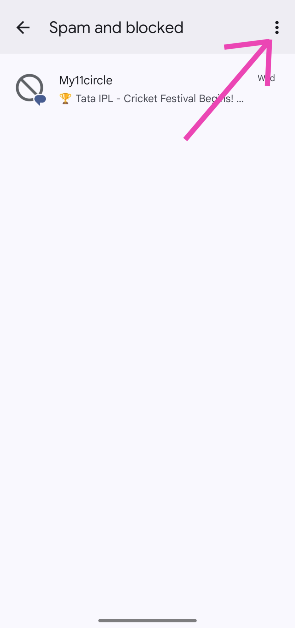
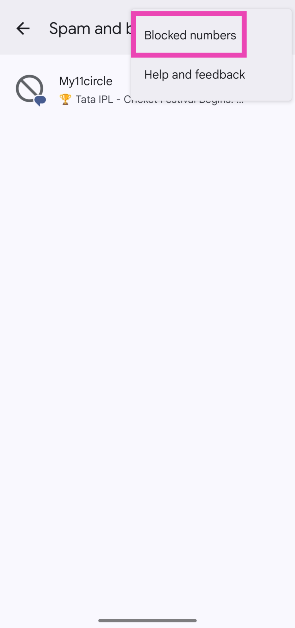
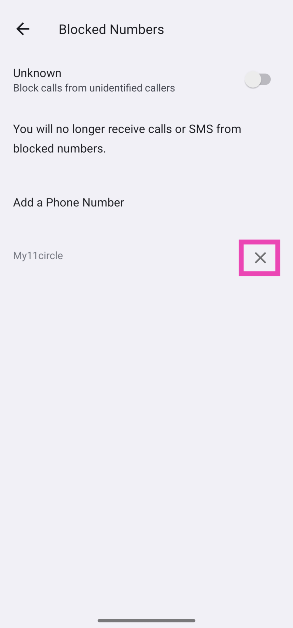
Step 1: Launch the Google Messages app on your phone. Step 2: Tap your profile picture at the top right corner of the screen. Step 2: Tap your profile picture at the top right corner of the screen. Step 3: Select Spam and blocked. Step 3: Select Spam and blocked. Step 4: Hit the ellipses at the top right corner of the screen. Step 4: Hit the ellipses at the top right corner of the screen. Step 5: Tap on Blocked numbers. Step 5: Tap on Blocked numbers. Step 6: Hit the cross icon next to the number you wish to unblock. Step 6: Hit the cross icon next to the number you wish to unblock.

Frequently Asked Questions (FAQs)

How do I quickly unblock a phone number on my Android phone?

If you use the stock dialer app from Google, browse to the blocked number on the ‘recent calls’ list, tap on it, and hit ‘Unblock’.

How do I unblock a contact on Android?

Go to the Google Contacts app, tap on ‘Fix & manage’, select ‘Blocked numbers’, and hit the cross sign next to the number you want to unblock.

How do I block spam calls on my Android phone?

Go to the stock dialer app from Google, hit the ellipses, select ‘Caller ID and spam’, and turn on the toggle switch for ‘Filter spam calls’.

How do I view the blocked numbers on my Android phone?

Go to the Dialer app, tap the ellipses, and go to Settings>Blocked numbers to view your blocklist.

How do I filter calls from unknown numbers?

Go to Dialer>Settings>Blocked numbers and turn on the toggle switch next to ‘Block calls from unidentified callers’. Read Also: Samsung starts rolling out One UI 6.1 Update, Galaxy S23, Galaxy Z Fold 5, and other devices to get Galaxy AI features

Conclusion

These are the top 4 ways to unblock a phone number on an Android phone. You may also want to check out how you can block or unblock a number on Truecaller. If you use your OEM’s native apps for calling, contacts, and messaging, the process to unblock a number remains largely the same. If you can’t find the relevant option on your phone, let us know in the comments and we’ll help you out!

X/Twitter to provide free Premium, Premium+ features, Elon Musk said

Key Highlights
  • X will grant certain users free access to Premium and Premium+ features.
  • Over 2,500 verified subscriber followers will get Premium features for free.
  • More than 5,000 will get Premium+ for free.
Microblogging platform X formerly known as Twitter is in the news again. The company head Elon Musk has announced that specific accounts will now be able to access free premium services. As mentioned “specific users”, not every user will be qualified to avail of X Premium services for free. The decision was made in response to reports that the daily user base of X is declining and is now trailing behind Instagram and TikTok, its competitors in the industry. Elon Musk has revealed that certain users on the microblogging network X (formerly known as Twitter) would now have access to features from X Premium and X Premium+, the paid subscription, for free. His X post said, “Going forward, all 𝕏 accounts with over 2,500 verified subscriber followers will get Premium features for free and accounts with over 5,000 will get Premium+ for free.” According to Musk users with 2,500 verified subscriber followers will receive a complimentary subscription to Premium features. Furthermore, Musk announced that a Premium+ subscription will be given away for free to individuals who have over 5,000 verified subscriber followers. Right now the X Premium+ subscription costs Rs 1,300 per month if signed up using the web or Rs 13,600 annually. Note that Premium subscribers receive less advertising from X, whereas Premium+ subscribers see none at all and also have access to the generative artificial intelligence chatbot Grok. Also Read: Samsung starts rolling out One UI 6.1 Update, Galaxy S23, Galaxy Z Fold 5, and other devices to get Galaxy AI features While other people asked for clarification, his supporters applauded the announcement. But the move follows a report that said after about a year and a half, Musk’s X appeared to have lost over a quarter of its user base. Data acquired by mobile analytics company Sensor Tower indicates that the number of daily active mobile app users in the United States for X has decreased by 23% since November 2022. As per the report, the year-over-year data has revealed that the number of mobile app users in the United States has decreased by 18% from a year ago. In the United States, X’s mobile app had 27 million daily active users as of last month. Having trouble retaining its users, however, X has denied all of this. Also Read: OnePlus Nord CE 4 India pricing leaked ahead of April 1 launch Figures from throughout the world have also felt the effects. Reportedly there were 174 million daily active users, a 15% decrease from the previous year. In order to benefit one must have the following:
  • A blue verification tick mark
  • The option to monetarily support their posts
  • You will require 2,500 followers who have purchased a Premium or Premium+ subscription.

Garena Free Fire Redeem Codes Today 29 March 2024: Here is how to claim them

Garena Free Fire is a battle royale game with regular awards and tournaments to keep players interested. If you play Garena Free Fire, you should be aware of the redeem codes that are released on a daily basis. However, because the battle royale game is banned in India, players from other countries can use the Free Fire Redeem codes daily. If you’re unfamiliar with the Garena Free Fire redeem codes or don’t know how to get them, we’ve put together a step-by-step guide to help you redeem them. Check out Garena Free Fire Redeem Codes for 29 March 2024. The Free Fire redeem codes are a great way to get free stuff. These are 12-digit codes that contain alphabets and numbers, as well as an expiration date and time. Because the Garena FF redeem codes cannot be used more than once, you should hurry to the redemption page to claim your free reward before someone else does. To get a free reward, all you have to do is go to reward.ff.garena.com/en, which is the official redemption page. Also, keep an eye on this space for daily updates on Garena Free Fire redemption codes and rewards. Also Read: Sennheiser Accentum Plus wireless headphones with Hybrid Adaptive Noise Cancellation launched

Garena Free Fire Redeem Codes Today 29 March 2024

4ST1ZTBE2RP9 XFW4Z6Q882WY E2F86ZREMK49 TDK4JWN6RD6 WD2ATK3ZEA55 4TPQRDQJHVP4 HHNAT6VKQ9R7 2FG94YCW9VMV GCNVA2PDRGRZ 8F3QZKNTLWBZ WEYVGQC3CT8Q J3ZKQ57Z2P2P B3G7A22TWDR7X HFNSJ6W74Z48 V44ZZ5YY7CBS 3IBBMSL7AK8G X99TK56XDJ4X

How to Get Free Fire Redeem Codes for Garena on 29 March 2024?

  • Visit the Garena Free Fire game’s official website at reward.ff.garena.com.
  • Use your Facebook, Google, VK, Apple ID, Huawei ID, or Twitter account to log in.
  • You’ll be taken to a valid redemption code (s)
  • Copy and paste the 12-digit redemption code into the text box.
  • On the screen, a dialogue box will appear.
  • ‘Ok’ should be selected.
For the latest gadget and tech news, and gadget reviews, follow us on TwitterFacebook and Instagram. For newest tech & gadget videos subscribe to our YouTube Channel. You can also stay up to date using the Gadget Bridge Android App. You can find the latest car and bike news here.

Samsung starts rolling out One UI 6.1 Update, Galaxy S23, Galaxy Z Fold 5, and other devices to get Galaxy AI features

Key Highlights
  • Samsung, today announced that additional Galaxy flagship handsets will soon have access to Galaxy AI capabilities.
  • The Galaxy S23 series, Galaxy S23 FE, Galaxy Z Flip 5, Galaxy Z Fold 5, and Galaxy Tab S9 series will all get AI features.
Samsung, today announced that the One UI 6.1 upgrade will expand the availability of Galaxy AI features to additional devices within the Galaxy ecosystem. As per the company, the rollout will be accessible for the Galaxy S23 series, S23 FE, Z Fold5, Z Flip5, and Tab S9 series. Users of the Galaxy S23 series, S23 FE, Z Fold5, Z Flip5, and Tab S9 series will now be able to benefit from Galaxy AI features. The devices will now include capabilities of Note Assist, Circle to Search, and Live Translate, among others, thanks to the release of the One UI 6.1 upgrade. The latest update is a significant update to the One UI 6.0, which was based on Android 14 and released in October 2023. According to Samsung One UI 6.1 update will be rolled out from today and April is when the majority of users should start to receive the update. “The broader integration of Galaxy AI across the Galaxy ecosystem also enables a seamless user experience in day-to-day tasks on AI-supported models, driving new levels of efficiency,” the company in its announcement said. Users will now be able to utilise features like Circle to Search, which allows them to simply circle, highlight or tap any image on their display and conduct a visual search on Google, while still within the app. Also Read: OnePlus Nord CE 4 India pricing leaked ahead of April 1 launch Live Translate is an additional function that facilitates real-time voice and text translations of phone calls, making it easier than ever to book reservations while travelling or chat with your grandparents in their native language during phone calls. The One UI 6.1 upgrade will also bring Samsung’s AI-powered photo editing feature, Generative Edit allowing users to resize position and align objects even after the photo is taken. Edit Suggestion gives you your photo editor that uses AI to suggest perfectly suitable tweaks for each photo. Also Read: Krafton brings World of Wonder, or WoW, game mode to BGMI Through a user-friendly split-screen view, the Interpreter can interpret live conversations quickly, enabling persons seated across from one another to read a text translation of the other’s words. Whereas Transcript Assist summarises, translates, and even transcribes voice recordings using AI and Speech-to-Text technology. Browsing Assist saves your time and keeps you informed by generating concise summaries of news articles or web pages.

LinkedIn Will Introduce A New Short-Form Video Feed Soon

0
Key Highlights
  • LinkedIn’s short-form video feed emphasizes jobs, careers, and business insights.
  • Features a swipeable vertical feed with options to like, comment, and share videos.
  • Offers a new space for creators to share content and reach a wider professional audience.
In an innovative move, LinkedIn, the professional networking giant owned by Microsoft, is currently testing a new feature that could transform how professionals interact on the platform. The introduction of a short-form video feed, bearing resemblance to the popular TikTok format, marks LinkedIn’s foray into the dynamic world of video content. Unlike the casual and diverse content found on TikTok, LinkedIn’s video feed aims to concentrate on the professional sphere, focusing on jobs, careers, and business insights. Here’s what we know so far about this exciting development.

Discovering Professional Insights Through Video

Spotted by Austin Null, a strategy director at McKinney, an influencer agency, this upcoming feature promises a fresh way for LinkedIn’s user base to engage with content. Null’s demonstration revealed that the feed will be accessible via a new ‘Video’ tab. On tapping this button, users will be greeted by a vertical, swipeable feed of short videos. Similar to other social media platforms, interactions such as liking, commenting, and sharing are enabled, fostering a community of professionals who can exchange ideas and feedback instantly. Read Also: Facebook users will be able to share videos directly using the “Sharing to

Tailored Content for Professional Growth

Unlike the broad content spectrum seen on platforms like Instagram, YouTube, or Netflix, LinkedIn’s video feed is meticulously curated to cater to professionals seeking to broaden their knowledge and connections in their respective fields. This dedicated approach is designed to maximize engagement and discovery, allowing users to effortlessly browse through insightful videos during their networking journey. TechCrunch reports highlight LinkedIn’s acknowledgement of videos as a preferred learning and engagement format among professionals. The platform is exploring this new feature to facilitate easier discovery of relevant, educational, and motivational content, directly from experts and industry leaders.

A Future Hub for Creators and Professionals

This short-form video feed not only enhances the user experience but also opens up new avenues for content creators. By providing a specialized space for professional videos, LinkedIn offers creators the chance to expand their reach and impact within the professional community. Furthermore, the potential future monetization of this feed could serve as an additional incentive for creators to share their valuable insights on LinkedIn.

LinkedIn’s Strategic Expansion

The testing of the short-form video feed comes alongside LinkedIn’s exploration into other engagement-driven initiatives, including gaming. With over 1 billion users worldwide, these developments signal LinkedIn’s ambition to evolve beyond a mere networking site into a comprehensive platform for professional development and engagement. Read Also: What is Instagram reels’ time limit?

Embracing the Future of Professional Networking

As LinkedIn continues to test this feature, the professional world eagerly awaits its roll-out. This innovative approach to content discovery and sharing represents a significant step forward in how professionals connect, learn, and grow together. By leveraging the power of short-form videos, LinkedIn is set to offer an even more engaging and enriching platform for the global professional community. With these advancements, LinkedIn reinforces its commitment to providing valuable tools for professional development, making it an even more essential part of the professional and business landscape. Stay tuned as we continue to monitor this exciting development, promising to redefine professional networking in the digital age.

OnePlus Nord CE 4 India pricing leaked ahead of April 1 launch

Key Highlights
  • The India launch of the OnePlus Nord CE 4 is scheduled for April 1 at 6:30 p.m. IST.
  • It’s official that Amazon will be selling the product.
It is confirmed that the OnePlus Nord CE 4 India launch is set for April 1. The OnePlus Nord phone’s pricing details have been leaked online just before its debut. A few days before the release, OnePlus revealed additional information. The company confirmed that the device will be powered by a Snapdragon 7 Gen 3 SoC with up to 256GB of storage and 8GB of RAM. The OnePlus Nord CE 4’s India price was allegedly leaked to tipster Abhishek Yadav just a few days before the launch event. According to the tipster, the base 8GB RAM with 128GB storage variant of the OnePlus Nord CE 4 will retail for Rs 24,999 in India. Moreover, 8GB RAM and 256GB of storage are anticipated to cost Rs 26,999. It is known to operate on a Snapdragon 7 Gen 3 SoC with up to 256GB of storage and 8GB of RAM. It has been announced that the OnePlus Nord CE 4 will have a 6.7-inch Fluid AMOLED display The screen is said to have a refresh rate of 120Hz and a screen-to-body ratio of 93.4%. The gadget will come with 8GB of LPDDR4x RAM, with virtual RAM allowing for an additional 8GB of RAM to be added. Also Read: Krafton brings World of Wonder, or WoW, game mode to BGMI It has been hinted that the OnePlus Nord CE 4 would enable SuperVOOC fast charging. According to the firm, it offers 100W SUPERVOOC rapid charging, which charges the device from 1% to 100% in 29 minutes. The remaining information is being kept secret. Compared to the 80W SuperVOOC charging of the OnePlus Nord CE 3 5G, this would be an improvement. According to the leaks, the phone might have a 5,500mAh battery. The device is expected to feature a 50-megapixel Sony LYT-600 main rear sensor with optical image stabilisation (OIS). A Sony IMX355 ultrawide camera with 8 megapixels is expected to come with it. The handset is also speculated to include a 16-megapixel selfie camera. Also Read: Samsung Galaxy Tab S6 Lite 2024 with an S Pen support introduced The OnePlus Nord CE 4 has also been discovered with model number CPH2613 on the benchmarking website Geekbench. The phone will be powered by the Android 14 operating system, according to the listing. Additionally, the octa-core Snapdragon 7 Gen 3 SoC was disclosed in the Geekbench listing as the device’s power source. The chipset features four cores at 1.80GHz, three cores capped at 2.40GHz, and a prime CPU score of 2.63GHz. In single-core testing, it received 1,135 points, and in multi-core testing, 3,037 points.

Google’s AI-Powered Trip Planning: A Game-Changer for Travelers

0
Key Highlights
  • Google’s new feature uses AI to craft personalized trip plans, offering tailored suggestions for activities and stays.
  • Google Maps rolls out customizable recommendation lists, enhancing the discovery of top dining and activity spots.
  • Initially available in the U.S. to Search Labs participants, with plans to refine and expand access.
Google is set to revolutionize the way we plan trips with the introduction of AI-generated travel itineraries and recommendations, making vacation planning smoother and more personalized than ever before. This leap forward in travel technology offers a glimpse into a future where planning a trip is not only easier but also more intuitive and tailored to individual preferences. Read Also: How to create an AI-generated image of yourself

AI-Generated Travel Itineraries

Starting from the summer of 2023, Google Search has been harnessing the power of generative AI to provide users with customized travel advice, drawing from a vast database of over 200 million destinations. This innovative approach to travel planning allows users to craft their trip itineraries with AI assistance, offering a personalized experience right from the planning stage. Initially available to U.S. participants in the Search Labs program, this feature promises to simplify the planning process by generating sample itineraries based on user inputs. For instance, if you’re dreaming of a three-day historical adventure in Philadelphia, Google’s AI can suggest a detailed itinerary, complete with attractions, dining options, and even flight and hotel recommendations, all organized by time of day. For those who like to keep their plans handy, these AI-crafted itineraries can be easily exported to Gmail, Docs, or Maps, making it simple to access and share your travel plans. Read Also: Soon, use AI-generated custom templates in Google Sheets

Customizable Recommendation Lists

Google Maps is also rolling out customizable recommendation lists in select U.S. and Canadian cities. These lists, available in Trending, Top, and Gems modes, aim to make discovering the best spots in a city effortless, whether you’re looking for the hottest restaurants or hidden gems. This feature enhances the collaborative aspect of travel planning, allowing users to create and share their personalized lists. The integration of recommendations from reputable sites and the Google Maps community ensures that you have access to expert and peer opinions, enriching your travel experience.

The Future of Travel Planning with Google

Google’s introduction of AI into travel planning signals a significant shift towards more interactive and responsive travel experiences. As Google continues to refine these features, based on feedback from early users, the potential for even more personalized and seamless travel planning becomes apparent. This development not only positions Google as a central player in the travel planning process but also showcases the potential of AI to transform how we explore the world. With tools that simplify the organization of trips and offer insights into purchasing intent within the travel sector, Google is paving the way for a new era of travel planning. Google’s foray into AI-powered travel planning offers a promising glimpse into the future of vacation planning. With features designed to streamline the planning process and customize travel experiences, Google is setting a new standard for how we explore the world. As these tools evolve, the possibilities for even more tailored and stress-free travel planning are endless.

Top 3 Ways to Right-Click on an iPad (2024)

0
If you’re used to working on your iPad with an external trackpad or mouse, you must know how to right-click on an item on the screen. The idea is to eliminate your reliance on the touchscreen and solely use the iPad as a mini monitor. While the touch controls are very simplistic, knowing how to carry out the same tasks using external accessories cannot hurt. So, here are the top 3 ways to right-click on an iPad. Read Also: Top 6 Ways to Fix ‘Cellular Data Not Working’ on iPhone or iPad (2024)

What is a right-click on an iPad?

Just like your PC, your iPad also allows you to perform certain actions on an app, widgets, or other items on the screen without opening them. The key difference lies in the nomenclature. What is ‘right-click’ on the PC is called ‘Secondary Click’ on an iPad. Both actions bring up the popup or contextual menu for an application. iPad users may be familiar with this popup menu as it is often summoned to quickly uninstall an app. Triggering this menu while using your iPad normally is very quick and intuitive. However, while using an external mouse or trackpad, you can’t really ‘long-click’ on anything. By default, right-clicking or double-tapping the trackpad does nothing unless you enable ‘Secondary Touch’.

Right-click on an iPad without using an external mouse or trackpad

Right-click on an iPad without using an external mouse or trackpad Long-pressing an item on an iPad is the same as right-clicking it. It brings up the popup menu, which is the same as the contextual menu on a PC or Mac. You don’t need to enable any setting to right-click using your finger. However, if you’re using an external mouse or a trackpad, long pressing it will not achieve the same result. You will need to turn on ‘Two Finger Secondary Click’ from settings to right-click on an object.

Turn on Two Finger Secondary Click

Turn on Two Finger Secondary Click Step 1: Go to Settings and select General. Step 2: Tap on Trackpad. Step 3: Turn on the toggle switch next to Two Finger Secondary Click. Now, you can right-click on a mouse or tap two fingers on the trackpad to right-click on any item on your iPad.

Assign an action to Secondary Click

Assign an action to Secondary Click If you’re using a mouse with your iPad, you can assign a different action to right-click. Here’s how. Step 1: Go to Settings and select General. Step 2: Tap on Trackpad & Mouse. Step 3: Select Secondary Click. Step 4: Assign an action to the left or right click.

Frequently Asked Questions (FAQs)

How do I right-click on my iPad using a trackpad?

Go to Settings>General>Trackpad and turn on the toggle switch for ‘Two Finger Secondary Click’. Now tap two fingers on the trackpad to right-click on any item.

How do I right-click on my iPad without using a trackpad or mouse?

Long-press any object or item on your iPad to view its popup menu. This serves as an effective right click.

How do I assign an action to the external mouse while using an iPad?

You can assign an action to the left or right click of the mouse on your iPad by going to Settings>General>Trackpad & Mouse>Secondary Click. Read also: How to measure Monitor or Screen size? 3 quick ways

Conclusion

These are the top 3 ways to right-click on your iPad. These tricks will boost your productivity while working on your iPad. If you know of any other method to carry out this task, let us know in the comments! While you’re here, check out this article to learn how to use your iPad as a second screen for your Mac or PC setup.

Krafton brings World of Wonder, or WoW, game mode to BGMI

Key Highlights
  • The much-awaited World of Wonder, or WoW, game mode is coming to BGMI thanks to Krafton.
  • Developer-created maps like The Ninja Race, The Fun Run, Dinosaurs and Motorcycles, and more will be added in this release.
The popular battle royale game in India, BattleGrounds Mobile India (BGMI) has officially announced the release of the much-awaited WOW (World of Wonder) Mode in its latest 3.1 update. The Ninja Race, The Fun Run, Dinosaurs and Motorcycles, and other specially designed maps by the developers will be available in this update. While announcing the new gaming mode for BGMI, Krafton said, “The WOW mode is a groundbreaking addition set to revolutionise your gaming experience. Prepare to elevate your fun quotient to new heights with this super-fun mode that promises to keep you hooked for hours on end.” As per the company, WOW is a casual gameplay mode in BGMI that features a tonne of original, entertaining maps. In contrast to the conventional classic mode, WOW Mode offers smaller maps with different rules that provide an exciting, entertaining, and unpredictable gameplay experience. BGMI will launch default, developer-created maps in this first phase, which have been selected to offer the best optimal gameplay experience. There will be an array of maps available at launch, each designed to provide unique gameplay experiences. It will be offering, Ninja Race, Dinosaurs vs Motorcycles (Solo Mode), the Fun Run (Solo Mode), Jump, Bro Jump! (Solo Mode), Daredevil Stunt Rider and Airdrop Wars. In the Ninja Race, your success depends on having fast reflexes and accurate jumps. Whereas, the Dinosaurs vs Motorcycles (Solo Mode) includes dinosaurs clashing with motorbikes in this high-octane race. The Fun Run (Solo Mode) allows you to put your parkour skills to the test as you navigate through a treacherous obstacle course filled with traps and challenges. Also Read: Samsung Galaxy Tab S6 Lite 2024 with an S Pen support introduced There is also a solo game called Jump, Bro Jump! in which players must land safely on the ground in this heart-pounding solo mode, where every jump counts and melee weapons add an extra layer of challenge to the gameplay. You must ride your bike through a “towering structure” in the Daredevil Stunt Rider mode, which mimics the daring feats of the legendary daredevils. Lastly, the Airdrop Wars players can engage in fun combat with unlimited airdrops allowing them to strategize, scavenge, and eliminate their rivals. According to Krafton, it will soon add more thrilling maps to BGMI that include Giant Duck Wars (Solo Mode) and Battleship (6 vs 6). Also Read: Lenovo Tab M11 powered by a MediaTek Helio G88 SoC launched in India It should be noted by players that certain Android and iOS devices are unable to support the BGMI Update 3.1 with devices running iOS 10 or later and Android 4.4 or older.

Garena Free Fire Redeem Codes Today 28 March 2024: Here is how to claim them

Garena Free Fire is a battle royale game with regular awards and tournaments to keep players interested. If you play Garena Free Fire, you should be aware of the redeem codes that are released on a daily basis. However, because the battle royale game is banned in India, players from other countries can use the Free Fire Redeem codes daily. If you’re unfamiliar with the Garena Free Fire redeem codes or don’t know how to get them, we’ve put together a step-by-step guide to help you redeem them. Check out Garena Free Fire Redeem Codes for 28 March 2024. The Free Fire redeem codes are a great way to get free stuff. These are 12-digit codes that contain alphabets and numbers, as well as an expiration date and time. Because the Garena FF redeem codes cannot be used more than once, you should hurry to the redemption page to claim your free reward before someone else does. To get a free reward, all you have to do is go to reward.ff.garena.com/en, which is the official redemption page. Also, keep an eye on this space for daily updates on Garena Free Fire redemption codes and rewards. Also Read: Sennheiser Accentum Plus wireless headphones with Hybrid Adaptive Noise Cancellation launched

Garena Free Fire Redeem Codes Today 28 March 2024

M2N6F4G8V1J7K3T B9L5P2R7Z3J8Q6C W4A1T7G2X9E3Y6H D1F6S9N3R7L2K5V V7B3X6E1W9H4Z8G T2J6M9Q3L7P4C5N U1R7B3Q9X4M6Z5A E8N2W6R4Y1T9V7S FM1V8N3Z5X6C4B9 Q3W6M1G8H4Z7D5T R9U2X5P8N3J7S4L F5H9Z2C7W4S1Y6B L3K7X4D1F9B6M2N H5P8Z2C9V6Q1R3W C8V1Y4B7K3F9R2X FS7R3Y1H0F8J6M2 FA4W9Q1G8K6D2P3 FT5L2E1I9U7F4O0

How to Get Free Fire Redeem Codes for Garena on 28 March 2024?

  • Visit the Garena Free Fire game’s official website at reward.ff.garena.com.
  • Use your Facebook, Google, VK, Apple ID, Huawei ID, or Twitter account to log in.
  • You’ll be taken to a valid redemption code (s)
  • Copy and paste the 12-digit redemption code into the text box.
  • On the screen, a dialogue box will appear.
  • ‘Ok’ should be selected.
For the latest gadget and tech news, and gadget reviews, follow us on TwitterFacebook and Instagram. For newest tech & gadget videos subscribe to our YouTube Channel. You can also stay up to date using the Gadget Bridge Android App. You can find the latest car and bike news here.

Top 9 Ways to Fix ‘Cellular Data Not Working’ on iPhone or iPad

0
Trying to figure out why you lost internet connectivity on your smartphone or tablet can take some time. This is more so the case when dealing with mobile data connections. Things can take a weird turn when you’re able to make calls from your number but aren’t able to load a webpage using cellular data. So, let’s take a look at the top 9 fixes for the ‘Cellular Data Not Working’ issue on your iPhone and iPad. Read Also: Samsung Galaxy Tab S6 Lite 2024 with an S Pen support introduced

Before you begin

Before we jump into the potential fixes for this issue, there are a few things you need to take care of on your iPhone or iPad.
  • Make sure your iPhone or iPad is receiving a strong network signal.
  • Check if your mobile data pack has expired.
  • Ensure you haven’t exceeded your daily data limit for the day.
  • If you’re facing issues accessing a particular website, make sure its servers aren’t down.

Toggle Mobile Data

Turn off mobile data while charging Top 6 Ways to Fix ‘Cellular Data Not Working’ on iPhone or iPad (2024) If you’re experiencing an unexpected problem with the cellular data on your iPhone or iPad, turning off the mobile data connectivity and then turning it back on can help resolve it. Simply swipe down from the status bar and tap the green tile with the antenna in it to turn off mobile data. Tap it again to turn it on. You can also go to Settings>Cellular and toggle the switch for ‘Cellular Data’.

Toggle Airplane Mode

airplane mode Top 6 Ways to Fix ‘Cellular Data Not Working’ on iPhone or iPad (2024) Turning on the Airplane Mode on your iPhone or iPad and then turning it back off can perform a quick network refresh and fix any issues you may be facing with the cellular data. Swipe down from the status bar and hit the airplane icon to turn on Airplane Mode. Tap it again to turn it off.

Turn on Data Roaming

If you’re travelling to another country, you will need to enable data roaming on your iPhone or iPad to regain cellular data access. Here’s how you can do it. Step 1: Go to Settings and select Cellular. Step 2: Tap on Cellular Data Options. Step 3: Turn on the toggle switch for Data Roaming.

Restart your iPhone or iPad

Restart your iPhone Top 6 Ways to Fix ‘Cellular Data Not Working’ on iPhone or iPad (2024) A quick restart can fix any background software glitches causing the cellular data connection to act up. Long-press the side key (top key on the iPad) along with any volume key to access the power menu. iPads with a home button can trigger the power menu when the top key is long-pressed. Once the power menu appears on the screen, drag the power slider to turn off your device. Press and hold the side key/top key to restart the device.

Reinsert the SIM card

Which iPhone Models Support Dual SIM? If you use a physical SIM card on your iPhone/iPad, pull it out and reinsert it to fix the cellular data connection. Use a SIM ejector tool to pop out the SIM tray. Once you pull out the SIM card, give it a quick wipe. Remove the dust from the SIM tray as well. Reinsert the SIM card, pop in the SIM tray, and restart your device.

Turn off your VPN service

  How to Set Up a VPN on Android and iPhone? Sometimes, the VPN app you’re using on your iPhone can cause a brief suspension of cellular services. If changing the VPN server does not work, try turning off the service. You can do this by toggling the power switch in the VPN app. Alternatively, you can go to Settings>General>VPN and Device Management>VPN and turn off the toggle switch next to ‘Status’.

Update network carrier settings

Typically, your network provider pushes automatic updates to your phone. However, if your device missed an update, you can download it manually from settings. Here’s how. Step 1: Go to Settings. Step 2: Tap on General. Step 1: Go to Settings and select General. Top 11 Ways to Fix 'Message Blocking is Active' on iPhone Step 3: Select About. Step 3: Select About. Step 4: Your iPhone will prompt you to update carrier settings if an update is available. Step 4: Your iPhone will prompt you to update carrier settings if an update is available.
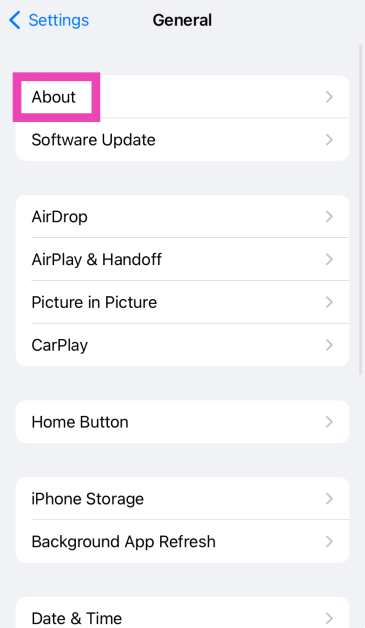
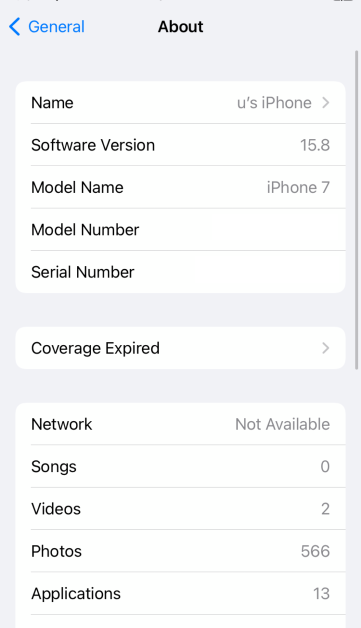
Update iOS/iPadOS

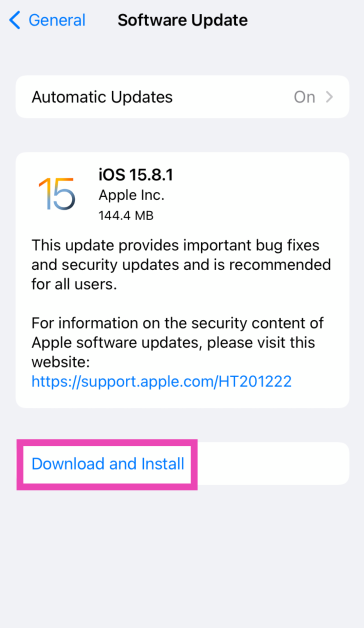
Step 1: Make sure your iPhone or iPad is connected to a WiFi network and plug in its charger. Step 2: Go to Settings and select General. Step 1: Go to Settings and select General. Top 11 Ways to Fix 'Message Blocking is Active' on iPhone Step 3: Select Software Update. Step 3: Select Software Update. Top 11 Ways to Fix 'Message Blocking is Active' on iPhone Step 4: Tap on Download and Install. Step 4: Tap on Download and Install. Top 11 Ways to Fix 'Message Blocking is Active' on iPhone

Reset Network Settings

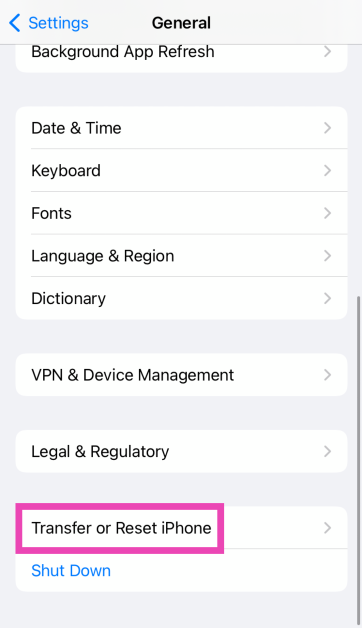
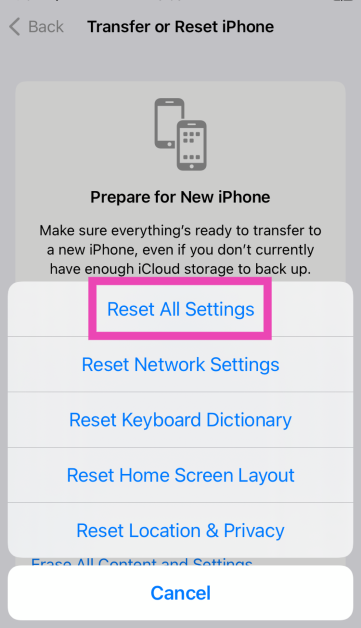
Step 1: Go to Settings and select General. Step 1: Go to Settings and select General. Top 9 Ways to Fix ‘Cellular Data Not Working’ on iPhone or iPad Step 2: Tap on Transfer or Reset Device. Step 3: A popup box will appear, asking you to update the carrier settings. Hit Update. Top 9 Ways to Fix ‘Cellular Data Not Working’ on iPhone or iPad Step 3: Hit Reset. Step 3: Hit Reset. Top 9 Ways to Fix ‘Cellular Data Not Working’ on iPhone or iPad Step 4: Select Reset Network Settings. Step 4: Select Reset Network Settings. Top 9 Ways to Fix ‘Cellular Data Not Working’ on iPhone or iPad
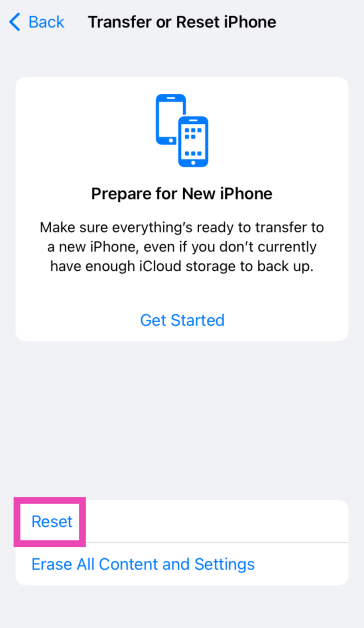
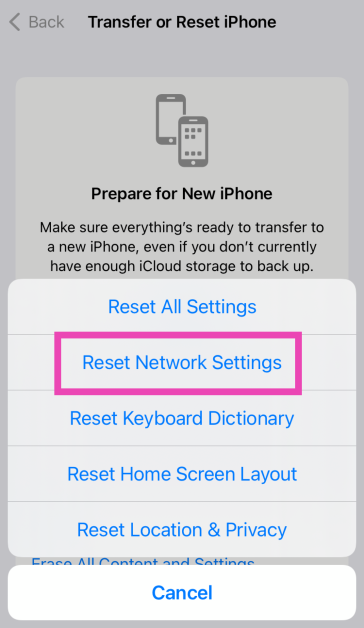

Frequently Asked Questions (FAQs)

How do I enable data roaming on my iPhone?

Go to Settings> Cellular>Cellular Data Options and turn on the toggle switch for ‘Cellular Data Roaming’.

Why is cellular data not working on my iPhone/iPad?

Temporary network issues can cause the cellular data to stop working on your iPhone/iPad. It can also be caused by software glitches and a poorly installed SIM card.

How do I turn off or turn on mobile data on my iPhone/iPad?

Swipe down from the status bar to access the Control Centre and look for the tile with the antenna sign. If the tile is green, it means mobile data is turned on. Tap it to turn it off.

What to do if mobile data is on but not working?

Make sure you have enough mobile data balance to facilitate web browsing. Additionally, make sure your smartphone is updated to the latest network carrier settings. Restart your device for good measure.

How do I reset cellular data usage statistics on my iPhone?

Go to Settings>Cellular or Settings>Mobile Data and tap on ‘Reset Statistics’. Read Also: How to measure Monitor or Screen size? 3 quick ways

Conclusion

These are the top 9 ways to fix the ‘Cellular Data not Working’ issue on your iPhone or iPad. If these fixes don’t work out for you, try performing a factory reset. If you know of any other methods to resolve this problem, let us know in the comments!

Samsung Galaxy Tab S6 Lite 2024 with an S Pen support introduced

Key Highlights
  • Samsung Galaxy Tab S6 Lite 2024 has been officially introduced.
  • The device comes with an S-Pen support.
  • It comes in Wi-Fi and LTE varaints.
Samsung has officially introduced the Galaxy Tab S6 Lite 2024. The company has announced the availability of its low-cost S-Series tablet. The device has also been listed online and will be available in a few international markets on March 28. In terms of design, the 2024 variant is comparable to the previous iterations of the model- Galaxy Tab S6 Lite 2022. But in certain areas, the device has received upgrades. It runs on an Android 14-based user interface and a new processor that is not yet known. An S-Pen is also included in the package.

Samsung Galaxy Tab S6 Lite 2024 price in India and availability

Samsung Galaxy Tab S6 Lite 2024 has been introduced in two variants Wi-Fi and LTE connectivity. The company has not yet revealed the price of the tablet but it is said to come in 4GB RAM + 64GB storage and 4GB RAM + 128GB storage. As per the company, the device will be available for purchase from March 18 in select regions. The tab will be offered in Oxford Gray, Chiffon Pink or Mint colour options. Also Read: WWDC 2024: Here is what to expect from this year’s Apple Worldwide Developers Conference

Samsung Galaxy Tab S6 Lite 2024 Specifications

The tablet, according to Samsung, has symmetrical 9mm bezels around the edges. The Tab S6 Lite 2024 features a 10.4-inch WUXGA+ LCD Screen with 2,000 x 1,200 pixels of resolution. A dual-speaker system that was developed in collaboration with AKG and features Dolby Atmos sound is used for audio. Under the hood, there is an unnamed quad-core 2.4GHz + Quad-core 2.0GHz processor with 4GB of RAM and up to 128GB of internal storage. The storage can be expanded up to 1TB using a microSD card. It includes support for the S-Pen as well. Also Read: Lenovo Tab M11 powered by a MediaTek Helio G88 SoC launched in India The Tab S6 Lite 2024 has two cameras: a 5-megapixel sensor on the front and an 8-megapixel sensor on the rear that supports autofocusing. It can record videos at 30 frames per second (fps) at full-HD resolution. The 7,040mAh battery powering the Tab S6 Lite 2024 is stated to provide up to 14 hours of video playback. It has a USB Type-C port, Bluetooth 5.3, Wi-Fi, GPS, and a 3.5mm audio jack. The Tab S6 Lite is fully compatible with Galaxy devices, including the Galaxy Buds FE and offers seamless connectivity between multiple devices.

How to measure Monitor or Screen size? 4 quick ways

0
If you’re looking to sell your PC monitor, the most important detail that you need to mention on the listing is its size. This shouldn’t take much time if you have the retail box at hand. However, if that’s not the case, it’s time to crack your knuckles and grab the measuring tape. But before you go about measuring the sides of your monitor, you need to understand how its size is calculated. So, let’s take a look at the three ways to measure the size of your PC monitor or laptop screen. Read Also: Lenovo Tab M11 powered by a MediaTek Helio G88 SoC launched in India

How is the monitor size calculated?

While looking for TVs or PC monitors online, the most important factor to consider is the screen size. But there are a couple of things you need to know before you pay attention to the numbers. Firstly, the ‘screen size’ refers to the area covered by the image on the screen. The bezel around the display and the frame of the TV/monitor are not taken into account while calculating the size of the screen. Secondly, the size of the screen is representative of its diagonal length. The sides do not factor into the measurements. So, if the spec sheet lists the size of the monitor as 57 inches, it means the distance between the two diagonally opposite corners. If you’re measuring the screen size by yourself, you need to keep these parameters in mind.

Use a measuring tape

Use a measuring tape The simplest way to measure the size of your PC’s monitor is by using a measuring tape. All you need to do is stretch the tape diagonally along the screen and observe the relevant marking. But there are a couple of things you need to keep in mind:
  • Ignore the bezels and the frame of the screen. Only measure the distance covered by the actual display.
  • Make sure the measuring tape connects the opposite corners of the display. Otherwise, you won’t be able to record the exact length of the diagonal.

Use Windows PowerToys

Step 1: Install the PowerToys app from the Microsoft Store. Step 2: Launch PowerToys on your PC. Step 3: Minimise the app and press Win + Ctrl + Shift + M to launch the screen ruler tool. Step 4: Select the Bounds option from the toolbox that appears at the top of the screen. This is the first option in the toolbox. Step 4: Select the Bounds option from the toolbox that appears at the top of the screen. This is the first option in the toolbox. How to measure Monitor or Screen size? 4 quick ways Step 5: Drag the cursor from one corner of the screen to the corner diagonally opposite to it. Step 5: Drag the cursor from one corner of the screen to the corner diagonally opposite to it. How to measure Monitor or Screen size? 4 quick ways Step 6: The size of the display will be mentioned in the box next to the cursor.
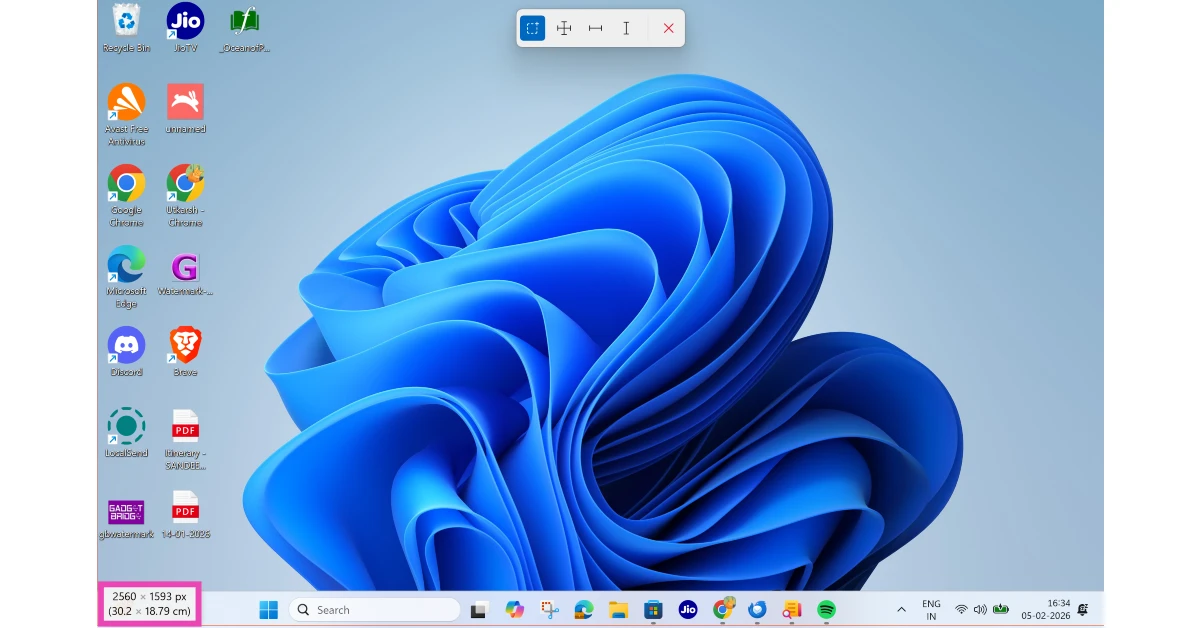

Use the Pythagorean theorem

Use the Pythagorean theorem Another way to measure the size of your PC’s monitor or screen is by recording the length of the two sides and calculating the length of the diagonal by using the Pythagorean theorem. Since the two sides are always aligned at a right angle, their diagonal will always be the hypotenuse. By adding the individual squares of the two sides and calculating the square root of the result, you can find the length of the diagonal. This length is the size of the screen.

Use the model number to find the screen size online

Asus TUF gaming F15 laptop review: 11 Gen Intel CPU with RTX 2050 under 60K, worth buying? If you want to find the size of your laptop screen, simply look for its model number and perform a quick Google search for its specifications. Go to the manufacturer’s official website to get accurate numbers related to the screen size. To find the model number of your laptop, go to Settings>System>About and check the string next to ‘Device name’.

Frequently Asked Questions (FAQs)

How is the monitor screen size calculated?

The size of a monitor or display is calculated diagonally. If a TV or monitor says 55 inches, it is referring to the length of the diagonal from one corner of the screen to another.

How do I measure my monitor’s size?

Take a ruler or measuring tape and place it along the diagonally opposite corners of the screen. Record the measurement. This is the size of the screen.

Is there an app to measure my monitor’s size?

You can use the Microsoft PowerToys to measure your monitor’s screen size. Press Win + Shift + Ctrl + M and select the Bounds tool. Drag the cursor from one corner to another to view the size.

Is PowerToys free to use?

The preview version of the PowerToys app is available for free in the Microsoft Store.

How do I find my laptop’s model number?

Go to Settings>System>About. The model number will be mentioned next to ‘Device name’. Read Also: iPhone charging port not working? Try these 12 fixes (2024)

Final Thoughts

This is how you can measure the monitor or screen size of your PC or laptop. If you don’t have a measuring tape or ruler at hand, you can download a simple ruler app on your phone to take the measurements. However, you will need to account for the bezel and frame of your phone while recording the readings. If you know any other way to go about this task, let us know in the comments!

Lenovo Tab M11 powered by a MediaTek Helio G88 SoC launched in India

Key Highlights
  • Lenovo Tab M11 come with a 7,040mAh battery with support for 15W wired charging.
  • The tablet features a 90 Hz LCD.
  • The tab comes in LTE and Wi-Fi variants.
The Chinese tech company, Lenovo, has brought its new Tablet to the Indian market. First presented at the Consumer Electronics Show (CES) 2024 earlier this year Lenovo Tab M11 has made its India debut. The newly launched Lenovo Tab features an 11-inch full-HD LCD screen that supports a refresh rate of 90Hz. In addition to this, it supports the Lenovo Tab Pen. The device is powered by MediaTek Helio G88 SoC and packs a 7,040mAh battery.

Lenovo Tab M11 price in India, Sale details

Lenovo Tab M11 price in India is set at Rs 18,999 for the WI-Fi only option. Whereas the price of the LTE variant with Lenovo Tab Pen is set at Rs 22,000. The device will be available for purchase via Amazon, Flipkart and Lenovo India website in the country from March 28. The tab will be offered in Luna Grey and Seafoam Green colour options. Lenovo Tab M11 price in India, Sale details

Lenovo Tab M11 specification

Lenovo Tab M11 flaunts an 11-inch WUXGA IPS LCD screen with 1,920 x 1,200 pixels of resolution. The display is TÜV Rheinland certified. It comes with a refresh rate of 90Hz and 72 percent NTSC, and a peak brightness of 400 nits. The screen also supports HD-quality Netflix streaming. The device comes equipped with MediaTek Helio G88 SoC, along with a Mali G52 GPU with 8GB of LPDDR4x RAM and 128GB of eMMC 5.1 storage which supports microSD cards up to 1TB The tablet runs on Android 13 and the company promises two years of OS update and four years of security fixes. Also Read: WWDC 2024: Here is what to expect from this year’s Apple Worldwide Developers Conference Lenovo Tab M11 is compatible with the Lenovo Tab Pen and comes with a quad-speaker setup with Dolby Atmos support. Lenovo Tab M11 features a 13-megapixel rear camera setup with f/2.2, 80° FoV, Video Recording at 1080p@30fps. Additionally, there is an 8-megapixel front-facing camera with f/2.0, 78° FoV (field of view) fixed focus with face unlock, Video Recording 1080P@30fps. The Lenovo tablet is IP52 (Dust and Water Resistant) certified. The tab includes a 7,040mAh battery with support for 15W wired charging.

14 ways to fix ‘iPhone charging port not working’

0
Trying to figure out why your iPhone mysteriously stopped charging can be a tedious process. If the issue is hardware-related, you are left with a limited set of options to fix the problem. Software issues and glitches can be dealt with with a quick restart or OS update. Those who recently upgraded to the new iPhone 15 Series may be more puzzled trying to figure out what’s wrong with the USB Type-C port. So, here are 14 catch-all fixes for the ‘iPhone charging port not working’ issue. Read Also: WWDC 2024: Here is what to expect from this year’s Apple Worldwide Developers Conference

Why won’t my iPhone charge when connected to the charger?

Your iPhone refusing to charge could be due to a bunch of reasons. Here are some of them:
  • Damaged charging cable
  • Excess dirt in the USB/Lightning port
  • Hardware damage to the USB/Lightning port
  • Software issues in the background
  • Water damage to the charging port
  • Overheating issues

Check the power adapter

Check the power adapter. iPhone charging port not working? Try these 12 fixes (2024) One of our biggest pet peeves with iPhones is that they don’t come with a power adapter inside the box. If you’re using an older, beat-up charger for your iPhone, it may be time to get a new one. To confirm that the issue lies with the power adapter, use it to charge another phone. If you face a similar problem as your iPhone, it is certainly time to get a new charger.

Check the charging cable

Check the charging cable iPhone charging port not working? Try these 12 fixes (2024) If the charging cable isn’t fitting perfectly in the USB/lightning port of your iPhone, you should investigate the cable for any damage. USB/lightning cables are more fragile than you think. The area around the connector sees a lot of movement and can wear out pretty easily. If you notice any slight tears, it is time to replace the cable.

Clean the charging port

Clean the charging port iPhone charging port not working? Try these 12 fixes (2024) Over a period of time, dust, grime, and lint can accumulate inside your iPhone’s charging port, leading to a loose connection when you plug in the charging cable. If you need to hold your iPhone a certain way to get the connection right, it is a telltale sign that the charging port is not working and needs to be fixed. The good news is that it can be cleaned pretty easily. Use a flashlight to check if there are any large pieces of link clogging the port. Use a small tweezer to pull them out. Then, take a toothpick and gently scrape the surface of the port to unsettle the dirt. Give the phone a few taps to let out the dirt. Blow air into the port to further clear the dust.

Remove the phone cover

5 Best Ways To Quickly Recover Deleted Contacts On iPhone iPhone charging port not working? Try these 12 fixes (2024) The cutout for the charging port on cheap or knock-off iPhone covers is often not placed in the right position. In this case, it can be a struggle to plug in the charging cable. Take off the phone cover and try again. If you experience no trouble, it may be time to get a new cover for your iPhone. Make sure you buy iPhone-compatible cases from well-known brands. A shoddy, knock-off case will only create more problems.

Use a different power outlet

Use a wall socket to charge your phone iPhone charging port not working? Try these 12 fixes (2024) It is possible that the fault lies not with your iPhone’s charging port but with the wall outlet. A loosely fitting power adapter cannot efficiently charge your iPhone. Switch to a different wall outlet and observe if there is any difference in the charging speed. You can also connect your iPhone to a power bank instead of a wall outlet for this task.

Let the iPhone cool down

If your iPhone got warm while charging, chances are that the charging process got suspended due to the unprecedented rise in the internal temperature of the device. Remove the iPhone from its charger and let it cool down before resuming charging.
Was your iPhone inactive for a long time? Give it time to charge

If you’re trying to power an old iPhone that was tucked away in a drawer for months, give it some time to charge. When the battery is completely drained out, it won’t start as soon as it is plugged into a charger. The device can take a few minutes to notify the user that it is charging.

Remove excess water in case of a spill

Modern iPhones are rated IP68 for dust and water resistance while being able to survive water damage up to 6m for 30 minutes. If you accidentally spilt water over your iPhone, the droplets may find their way inside the charging port. This could be why your iPhone’s charging port is not working. Make sure you remove the water from the port before plugging in the charger. A few gentle taps should take care of this. To make sure the port is completely dry, take a cotton swap and rub it over its walls. Leave the phone in a cool and dry area for a few hours to ensure it is completely dry before charging it.

Don’t use your iPhone while charging

Exerting stress on the battery while it is charging can hamper the charging speed while also reducing its lifespan. It is a good idea to keep your iPhone undisturbed while it is charging. Performing power-intensive tasks like gaming, video recording, and photo/video editing while charging will only cause the phone to overheat and take longer to charge. Try these 9 fixes if your iPhone’s battery keeps draining while it is on charge.

Restart your phone

Restart your iPhone If there is no physical damage to your iPhone, power adapter, or charging cable, the issue is likely software-related. The most basic software glitches on your iPhone can be fixed by a quick restart. Press and hold the side key along with a volume key until you see the power menu on the screen. Drag the power slider across the screen to turn off your iPhone. Press and hold the side key again to turn it back on.

Turn off optimised charging

Optimised charging makes your iPhone trickle charge past 80% at night. Here’s how you can turn it off. Step 1: Go to Settings and select Battery. Step 1: Go to Settings and tap on Battery. Step 2: Select Battery Health. Step 2: Select ‘Battery Health’. Step 3: Turn off the toggle switch for Optimised Battery Charging. Step 3: Turn the toggle bar off for ‘Optimised Battery Charging’. how to fix iphone battery draining while charging

Update iOS

Step 1: Make sure your iPhone is connected to a WiFi network and plug in its charger. Step 2: Go to Settings and select General. Step 1: Go to Settings and select General. Top 8 Ways to Fix Low Call Volume on iPhone (2024) Step 3: Select Software Update. Step 3: Select Software Update. Top 11 Ways to Fix 'Message Blocking is Active' on iPhone Step 4: Tap on Download and Install. Step 4: Tap on Download and Install. Top 11 Ways to Fix 'Message Blocking is Active' on iPhone

Perform a factory reset

If nothing else works, it may be time to perform a factory reset on your iPhone. Make sure all the personal data on your phone is backed up before you go through with it. Step 1: Go to Settings and select General. Step 1: Go to Settings and select General. Step 2: Tap on Transfer or Reset Device. Step 3: A popup box will appear, asking you to update the carrier settings. Hit Update. Step 3: Hit Reset. Step 3: Hit Reset. Top 11 Ways to Fix 'Message Blocking is Active' on iPhone Top 8 Ways to Fix Low Call Volume on iPhone (2024) Step 4: Select Reset All Settings. Step 4: Select Reset All Settings.

Use Apple Care

In the case of physical damage to your iPhone’s charging port, your only option is to get it fixed at an Apple-authorised repair centre. If you have Apple Care, you can get the charging port replaced at no additional cost. Check out this article to learn how you can make an appointment at the Apple Store Genius Bar for any repair-related enquiries.

Frequently Asked Questions (FAQs)

Why is my iPhone’s charging cable fitting loosely in the port?

This is because of the dust and grime that has accumulated in the charging port. Use a tweezer to pull out the larger pieces of lint and scrape the walls of the port with a toothpick to unsettle the dirt. Once the port has been cleaned, the charging cable will fit into it perfectly again.

How can I fix my iPhone’s charging port?

You can fix your iPhone’s charging port by cleaning it with a toothpick dipped in isopropyl alcohol. If the port isn’t working, try using an authentic cable and a different power outlet.

How do I remove water from my iPhone’s charging port?

Gently tap the phone against a solid surface to remove the large droplets of water from the charging port. Then, use a cotton swab to dry the moist area. Leave the iPhone in a cool, dry place for a few hours to let it completely dry out.

How much does it cost to replace the charging port of an iPhone?

Replacing your iPhone’s charging port can cost anywhere between $80 -$150.

Which cable do I need to charge my iPhone 15?

The iPhone 15 series uses a USB Type-C cable for charging. Read Also: 7 Best Websites for Safe APK Downloads (2024)

Conclusion

These are the top 14 ways to fix the iPhone charging port if it is not working. If you know of any other ways to fix this problem, let us know in the comments! While you’re here, read this article to find out everything we know about the upcoming iPhone 16 Series so far!

WWDC 2024: Here is what to expect from this year’s Apple Worldwide Developers Conference

Just as expected, Apple has also formally announced the dates for the next WWDC 2024 conference. Google previously disclosed the information about I/O 2024. As per the announcement, the Worldwide Developers Conference is scheduled to take place from June 10- June 14. The company released a teaser featuring its advertising slogan “Absolutely Incredible.” The abbreviation for the tagline “AI” indicates that artificial intelligence will be the primary focus of this year’s tech conference. So this year’s WWDC will be interesting to watch how Apple intends to fight in the AI space against OpenAI, Google, and other industry titans. The WWDC 2024 keynote and sessions will once again be streamed live online by Apple, making it free for developers to access. Traditionally, Apple hosts a developer-only keynote on the opening day of the conference, introducing its most recent software and occasionally new hardware. On June 10 Apple is going to host an offline event at its Apple Park location in Cupertino, California, for a limited number of developers and students. You can go to the Apple Events page or Apple’s YouTube page to watch the Apple WWDC 2024 keynote live. Also Read: Poco C61 budget smartphone with 5,000mAh battery launched in India As stated previously, WWDC24 is free for all developers and will feature the newest developments in iOS, iPadOS, macOS, watchOS, tvOS, and visionOS. Developers will also get exclusive access to Apple specialists at the event, along with knowledge about new features, frameworks, and tools. On June 10, developers will be able to attend the keynote at Apple Park, meet with Apple team members, and participate in exclusive activities as part of the in-person WWDC24 experience. There will be a limited number of spaces available so participants should visit the Apple Developer website and app for information on how to apply.

What is Expected?

Going by the company’s tradition, the firm’s CEO Tim Cook will present the WWDC 2024 keynote. It is also expected that Apple will discuss AI in public as it has been quiet about its views on generative AI, even while rivals like Microsoft and Google have unveiled new AI features and services. It is rumoured that Apple is developing custom GenAI features that will be integrated into the next iPhone 16 Series. Apple has developed a chatbot that is said to be called Apple GPT internally. The tech giant has also designed its own large language model, or LLM, framework called Ajax. Also Read: Zoom introduces its new AI-powered collaboration platform Zoom Workplace The new iOS 18, iPadOS 18, watchOS update, and macOS version for the corresponding devices will undoubtedly be included at the Apple WWDC 2024 keynote. The next iOS update is expected to include additional customisation options for the home screen and a new avatar for Siri. In addition to this with the visionOS 2.0 edition, the company is also likely to bring new features to its AR headset- Apple Vision Pro.

Pavan Davuluri: From IIT Madras to Microsoft’s Windows and Surface Chief

Key Highlights
  • He is named Microsoft’s Windows and Surface chief, showcasing the ascent of Indian talent in global tech leadership.
  • Davuluri joins notable Indian-origin leaders at the helm of major tech companies worldwide.
  • Davuluri to lead both Windows and Surface divisions, emphasizing innovation and integrated tech advancements.
In a significant leadership shuffle at Microsoft, Pavan Davuluri, an Indian-American and illustrious alumnus of IIT Madras, has been appointed as the new chief of Windows and Surface, a role that positions him at the forefront of Microsoft’s innovative drive in the technology sector. This appointment underscores the increasing prominence of Indian-origin leaders in the global tech landscape, joining the ranks of notable figures like Sundar Pichai of Alphabet and Google, and Satya Nadella of Microsoft itself. Davuluri’s journey from the esteemed corridors of IIT Madras to a pivotal leadership role at Microsoft is not just a personal achievement but a beacon of inspiration for many. It reflects the global tech industry’s recognition of talent that transcends geographical boundaries. Prof. Mahesh Panchagnula, dean of alumni and corporate relations at IIT Madras, expressed pride in seeing alumni ascend to leadership positions in pivotal companies like Microsoft, shaping technologies that influence our daily lives. Read also: Tim Cook completes 7 years as Apple CEO: Seven innovations and product The decision to place Davuluri at the helm of both Windows and Surface comes after Microsoft’s reorganization following Panos Panay’s departure. With a rich history of over 23 years at Microsoft, Davuluri’s contributions have been instrumental in the company’s collaborations with tech giants like Qualcomm and AMD, particularly in developing custom processors for Surface devices. His comprehensive oversight over both Windows and Surface divisions marks a strategic move aimed at fostering synergy between Microsoft’s software and hardware endeavors. This leadership update coincides with a notable period of innovation at Microsoft, especially with the recent onboarding of Google DeepMind co-founder Mustafa Suleyman to lead a new AI team. Davuluri’s role is set to be crucial in steering Windows and Surface products towards integrating cutting-edge technologies and enhancing user experiences in an increasingly competitive market. Read Also: Madras High Court demands a ban on the popular video app TikTok: Pavan Davuluri’s appointment as the chief of Microsoft’s Windows and Surface divisions not only highlights the global tech industry’s inclusive approach to leadership but also signifies a crucial phase of technological advancement and integration at Microsoft. With his extensive experience and visionary leadership, Davuluri is poised to drive Microsoft towards new horizons of innovation and success.

Garena Free Fire Redeem Codes Today 27 March 2024: Here is how to claim them

Garena Free Fire is a battle royale game with regular awards and tournaments to keep players interested. If you play Garena Free Fire, you should be aware of the redeem codes that are released on a daily basis. However, because the battle royale game is banned in India, players from other countries can use the Free Fire Redeem codes daily. If you’re unfamiliar with the Garena Free Fire redeem codes or don’t know how to get them, we’ve put together a step-by-step guide to help you redeem them. Check out Garena Free Fire Redeem Codes for 27 March 2024. The Free Fire redeem codes are a great way to get free stuff. These are 12-digit codes that contain alphabets and numbers, as well as an expiration date and time. Because the Garena FF redeem codes cannot be used more than once, you should hurry to the redemption page to claim your free reward before someone else does. To get a free reward, all you have to do is go to reward.ff.garena.com/en, which is the official redemption page. Also, keep an eye on this space for daily updates on Garena Free Fire redemption codes and rewards. Also Read: Sennheiser Accentum Plus wireless headphones with Hybrid Adaptive Noise Cancellation launched

Garena Free Fire Redeem Codes Today 27 March 2024

U8W7TYGA4S0J6N2E D5TFGR9G2X8E7M6V ZY3F9BTQ8H2S0X6W P7N3X0B6J4D86L9K M6F0N9W8ITTD2L3P C9L7B4K2E8Y0W3XT L5A2BR7T8D3R9Q6P H6W0X3H65S7V5J4M N3G0R2TJ6Q7KBT5H A4T6GERW9G3M7Y5R F2J8EW0X5B4V7C9S VM3K9NTF5Q7S0H8T

How to Get Free Fire Redeem Codes for Garena on 27 March 2024?

  • Visit the Garena Free Fire game’s official website at reward.ff.garena.com.
  • Use your Facebook, Google, VK, Apple ID, Huawei ID, or Twitter account to log in.
  • You’ll be taken to a valid redemption code (s)
  • Copy and paste the 12-digit redemption code into the text box.
  • On the screen, a dialogue box will appear.
  • ‘Ok’ should be selected.
For the latest gadget and tech news, and gadget reviews, follow us on TwitterFacebook and Instagram. For newest tech & gadget videos subscribe to our YouTube Channel. You can also stay up to date using the Gadget Bridge Android App. You can find the latest car and bike news here.