How do apps like Shazam and SoundHound find accurate song matches?
On the surface, Shazam seems like magic. Even though the app has been around for more than a decade, it still feels surreal. To do it before AI and machine learning existed as they do in their current form is even more impressive. So, how is Shazam able to find any song within a few seconds by simply listening to a random passage? When you play a song, Shazam creates a fingerprint for it. This fingerprint is unique to every song, even the different remixes and recordings. What is a fingerprint, you ask? It is a spectrogram that maps the frequency of the sound sample over time. This spectrogram is matched against Shazam’s database. If a match is produced, Shazam will display the song linked to it as the result.Use Google Assistant
One of the easiest ways you can search for a song without knowing the lyrics is by using Google Assistant. Its powerful search capabilities produce a match even if you hum the tune. Here’s how you can use it on your device. Step 1: Say “Hey Google, which song is this?”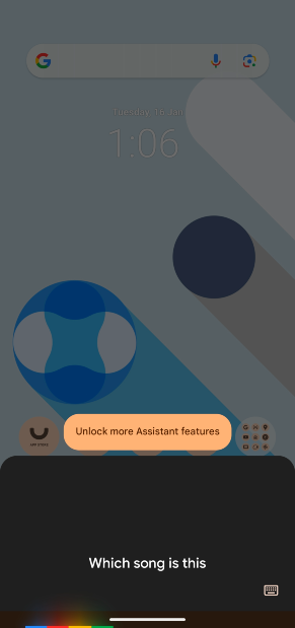 Step 2: Play, sing, or hum the song.
 Step 3: Google will produce the likely matches.
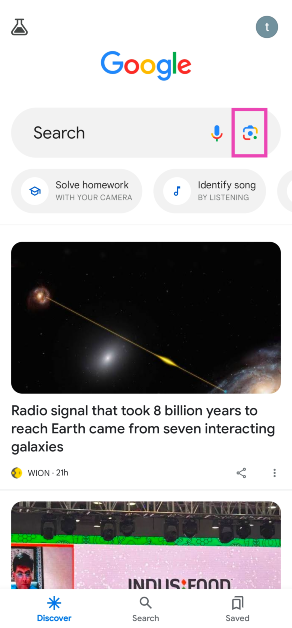
 You can also use this feature by going to the Google app and selecting ‘Identify Song By Listening’.
Pros
You can also use this feature by going to the Google app and selecting ‘Identify Song By Listening’.
Pros
- Easy to use
- Accurate results
- Some results for ‘hum’ searches may be off
Add the song search tile to the Quick Settings Menu
Step 1: Swipe down from the status bar to access the Quick Settings Menu. Step 2: Hit the ellipses and select Edit tiles. If there’s a pencil icon on the menu, tap on it.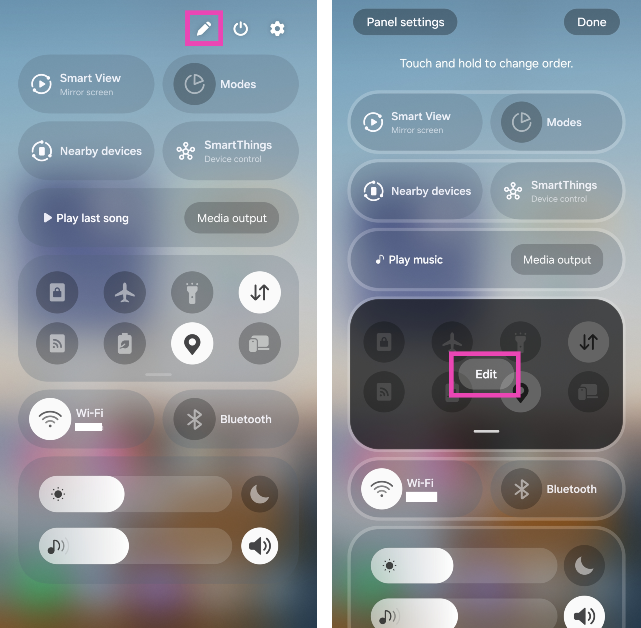 Step 3: Select the Song search tile from the bottom panel.
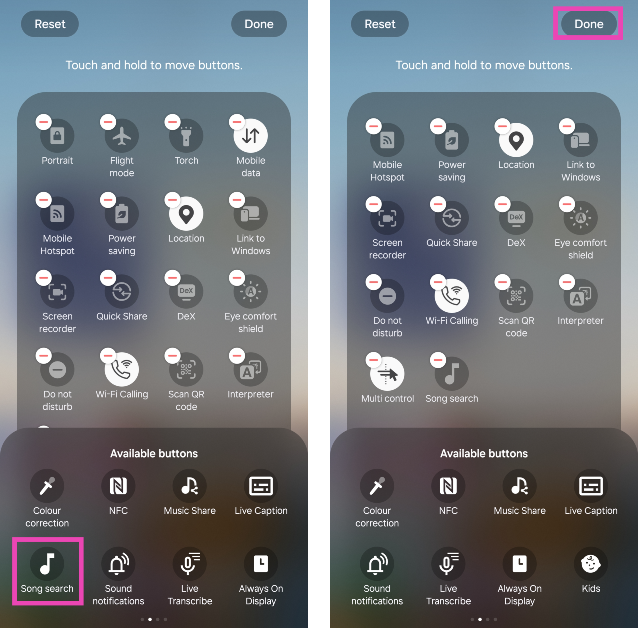 Step 4: Hit Done.
Step 5: Tap the Song search tile when a song is playing near you.
Step 4: Hit Done.
Step 5: Tap the Song search tile when a song is playing near you.
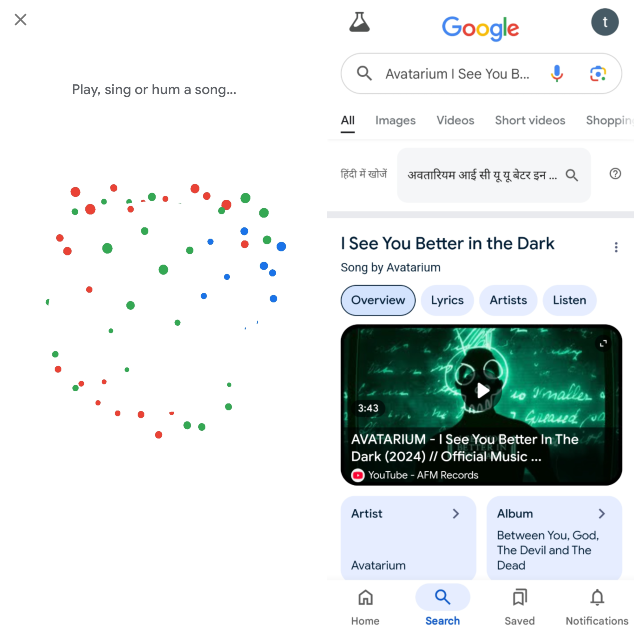
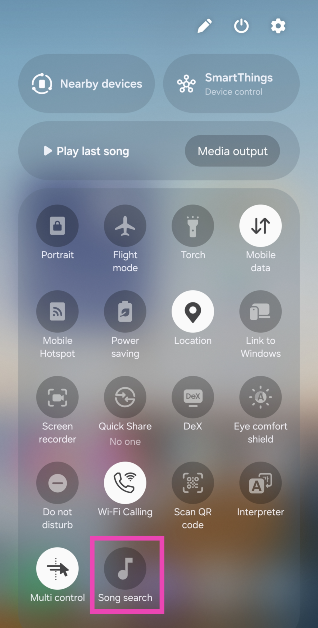 Step 6: Google Assistant will analyse the song and present the relevant search results.
 Pros
Pros
- Ease of access
- Accurate results
- May require sacrificing a tile in the Quick Settings Menu
Use YouTube Music
Step 1: Launch the YouTube Music app on your smartphone.
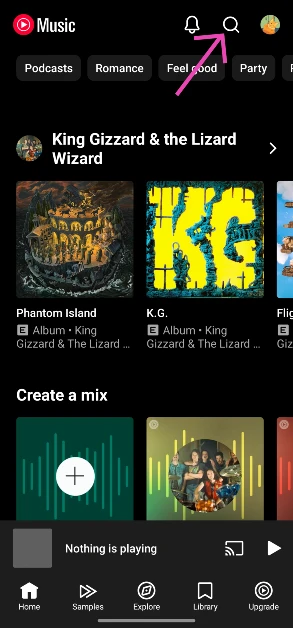
Step 2: Hit the search icon at the top right corner of the screen.
 Step 3: Tap the wavelength symbol at the top right corner of the screen.
 Step 4: Hum the song for 20-30 seconds or move your phone closer to the speaker playing the song.
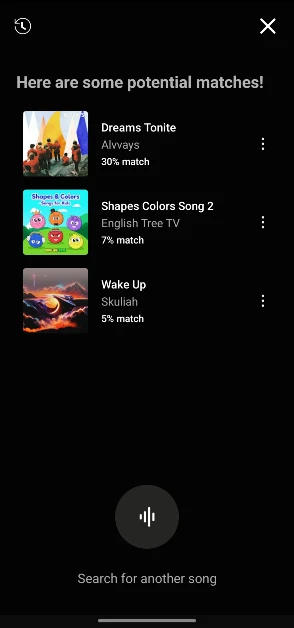
 Step 5: Google’s AI algorithm will look up the song that matches the melody. The song title, along with the artist name, album name, and release year, will appear on the screen.
 Pros
Pros
 Step 3: Tap the wavelength symbol at the top right corner of the screen.
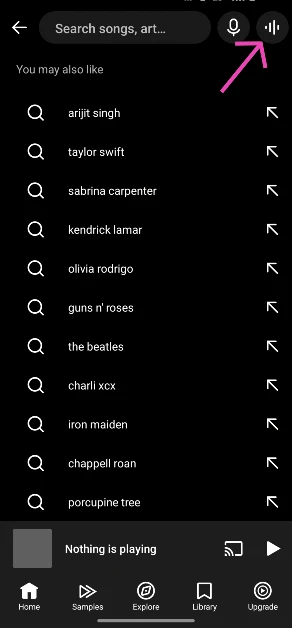 Step 4: Hum the song for 20-30 seconds or move your phone closer to the speaker playing the song.
 Step 5: Google’s AI algorithm will look up the song that matches the melody. The song title, along with the artist name, album name, and release year, will appear on the screen.
 Pros
Pros
- Easy to use
- Allows you to hum the song
- Same catalogue as Google Assistant
Use Circle to Search
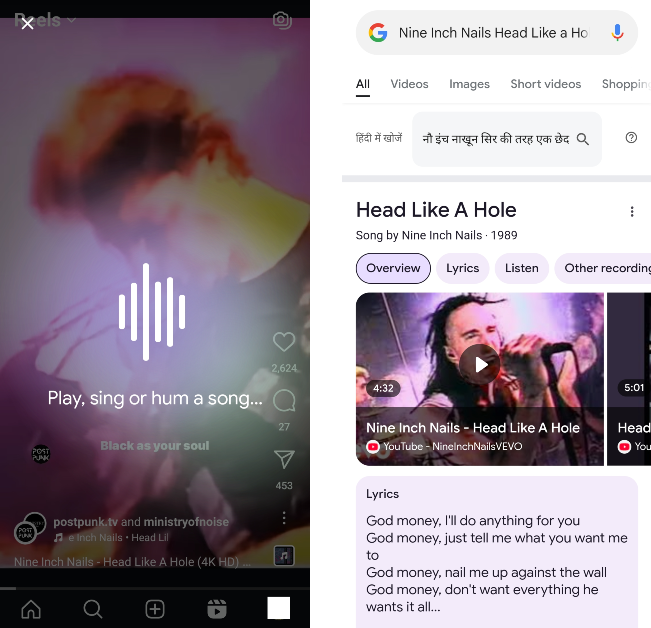
Use this method when you want to search for a song playing in the background of a video on your phone. Step 1: Go to the page where the song is playing. If the song is playing on an external speaker, keep your phone close to the source. Step 2: Long-press the home button or the navigation bar on your phone. Step 3: Tap the music icon.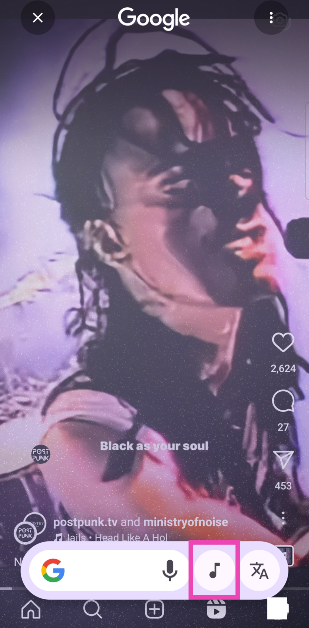 Step 4: Your phone will listen to the song for a few seconds and then open the Google search results for the song title.
 Pros
Pros
- Excellent for searching songs playing on your phone
- Quick results
- May not be available on every phone
Use Siri
Like Google Assistant, Siri can also recognise any song playing near you. But, it cannot recognise a song by humming. Step 1: Say, “Hey Siri, which song is this?”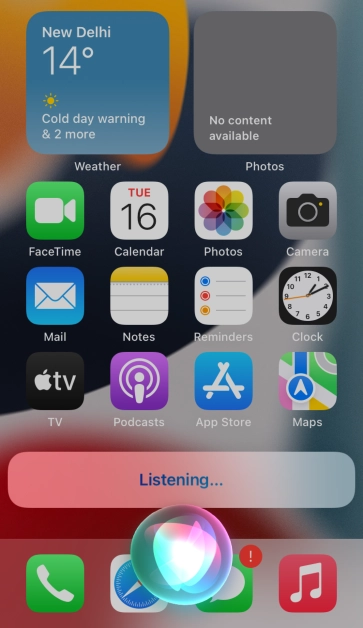 Step 2: Play the song on another device and bring your iPhone closer to it.
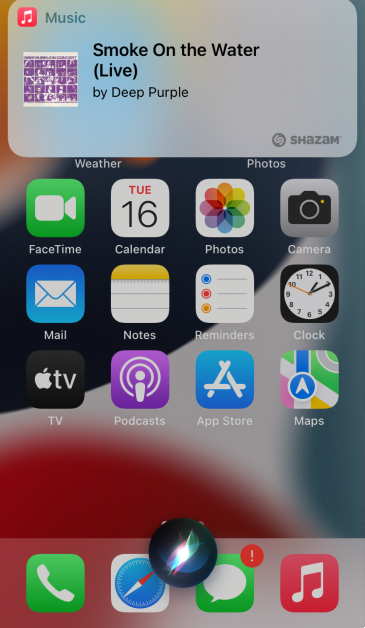 Step 3: Siri will accurately find the song for you.
Pros
Step 3: Siri will accurately find the song for you.
Pros
- Accurate results
- Quick access
- Does not have hum to search
Use Shazam to find a song name without knowing its lyrics
 There are dozens of apps you can use to identify a song, but Shazam is the one that started it all. Even today, it is comfortably ahead of other song-identifying apps. You can use Shazam to identify a song playing in a bar, on your TV, and even on your phone. The last bit comes in handy when you’re watching a movie or video on your phone and want to know the name of the song playing in the background. You don’t need another device to play it for Shazam. Simply open the app and replay the part of the video with the song. Shazam will produce the name of the song in no time.
Pros
There are dozens of apps you can use to identify a song, but Shazam is the one that started it all. Even today, it is comfortably ahead of other song-identifying apps. You can use Shazam to identify a song playing in a bar, on your TV, and even on your phone. The last bit comes in handy when you’re watching a movie or video on your phone and want to know the name of the song playing in the background. You don’t need another device to play it for Shazam. Simply open the app and replay the part of the video with the song. Shazam will produce the name of the song in no time.
Pros
- Large database
- Quick results
- Requires downloading a third-party app
Use SoundHound – Music Discovery
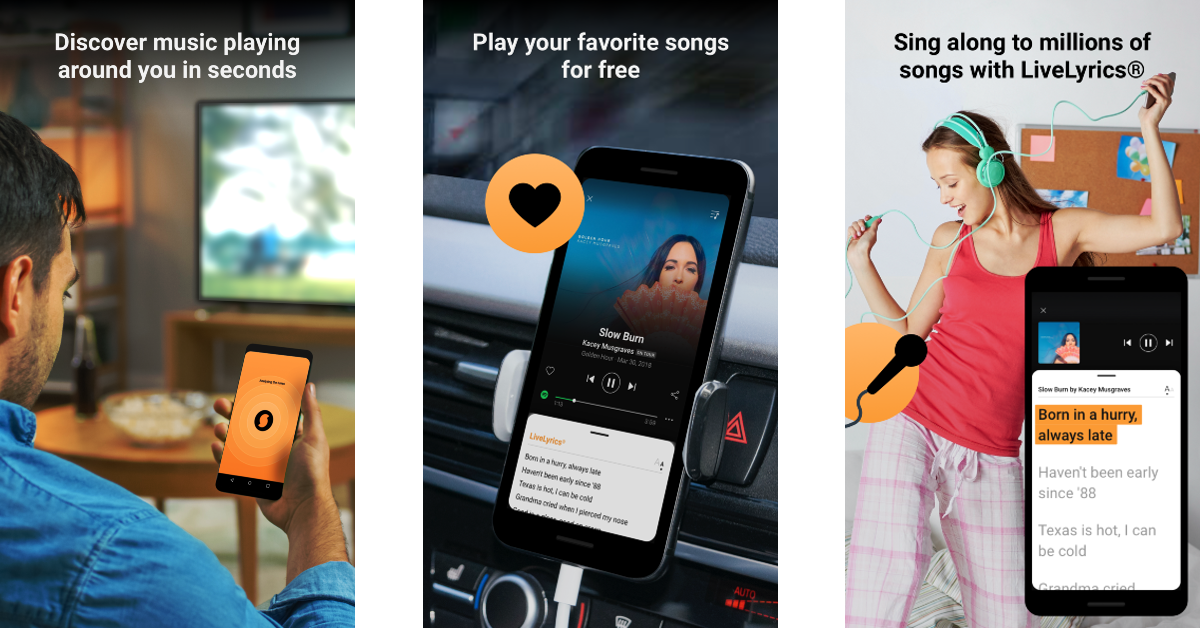 SoundHound is another great app to find a song even if you don’t know the lyrics. Once the app has been installed, launch it and tap the yellow Soundhound icon. Bring your phone closer to the source of the sound. Instead of playing the song on another device, you can also hum it into your phone’s speaker. SoundHound will find the song for you and even play a 30-second snippet. It will also display the lyrics to the song and give quick links to listen to it on Spotify, YouTube, and other music services.
Pros
SoundHound is another great app to find a song even if you don’t know the lyrics. Once the app has been installed, launch it and tap the yellow Soundhound icon. Bring your phone closer to the source of the sound. Instead of playing the song on another device, you can also hum it into your phone’s speaker. SoundHound will find the song for you and even play a 30-second snippet. It will also display the lyrics to the song and give quick links to listen to it on Spotify, YouTube, and other music services.
Pros
- Impressive database
- Displays streaming options next to search results
- Requires downloading a third-party app
Make a post on r/TipOfMyTongue
Song identifier apps can only help you so much. If Shazam and SoundHound can’t find the song, then no other app can. At this point, your only viable option is to ask other people. The r/TipOfMyTongue subreddit is the best place on the internet to find something that’s been playing over and over again in your head. From a scene in a movie to a random melody, this subreddit can help you with anything. For music-related enquiries, record a quick sample of you humming the song, upload it on Vocaroo, and link it in your post with the relevant details. The TOMT sleuths will get on it right away! Pros- Helps when you can’t find a match anywhere else
- Users may offer more information about the song other than just the title
- Cons
- It is possible for your query to go unanswered
Use WatZatSong
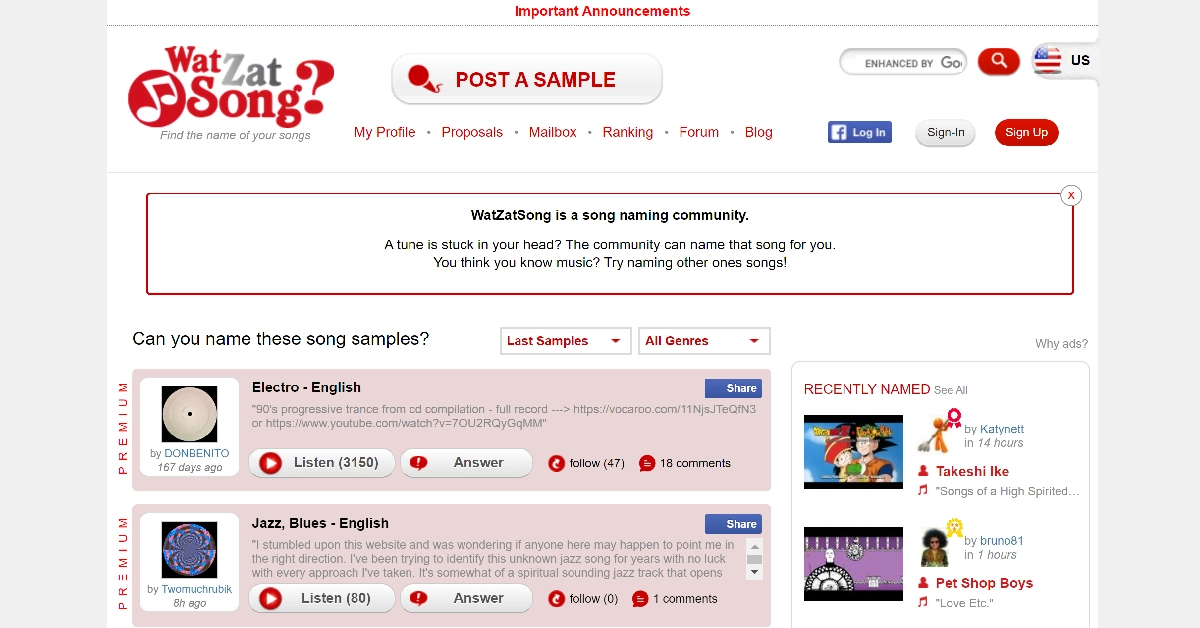 WatZatSong is a community of over 400,000 people dedicated to finding songs that are stuck in your head. To post a sample of the song, you will need to sign up first. With a diverse group of users, searching for songs in languages other than English becomes really easy. After finding the correct match for your query, you can stick around and help other users with their requests as well. WatZatSong is also a great place to discuss all things music. Its forums are neatly divided into different song genres. Once you correctly guess a song, you are awarded some points. The users with the most matches are ranked on the website.
Pros
WatZatSong is a community of over 400,000 people dedicated to finding songs that are stuck in your head. To post a sample of the song, you will need to sign up first. With a diverse group of users, searching for songs in languages other than English becomes really easy. After finding the correct match for your query, you can stick around and help other users with their requests as well. WatZatSong is also a great place to discuss all things music. Its forums are neatly divided into different song genres. Once you correctly guess a song, you are awarded some points. The users with the most matches are ranked on the website.
Pros
- Great option when you can’t find the song anywhere else
- Competitive approach to song searching
- Not enough users as other message boards
Use the Now Playing feature on your Google Pixel smartphone
Using your phone’s voice assistant to find a song just by humming it is pretty cool. But you know what’s cooler? When your phone automatically detects the song and displays it on the lock screen. Right now, this feature is exclusive to Google Pixel smartphones. Here’s how you can turn it on. Step 1: Go to Settings and select Sound & Vibration.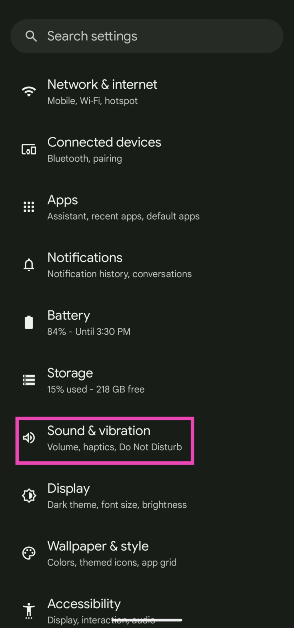 Step 2: Tap on Now Playing.
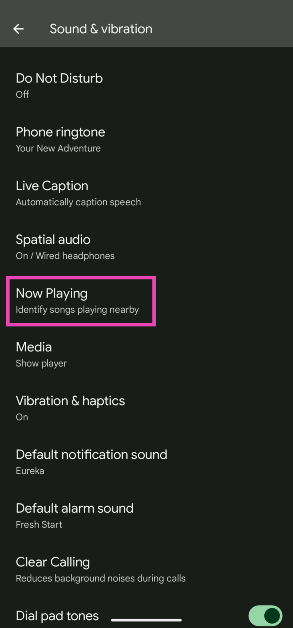 Step 3: Turn on the toggle switch next to Identify songs playing nearby.
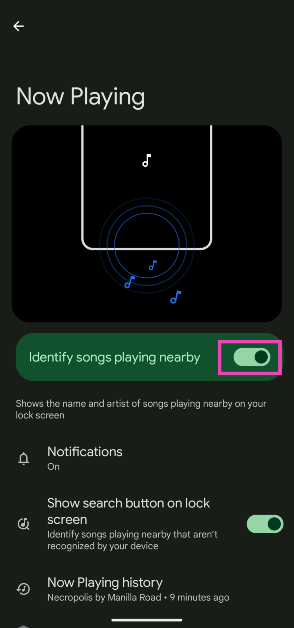 Pros
Pros
- Does not require the internet
- Song titles show up on the lock screen automatically
- Newer songs may not be recognised


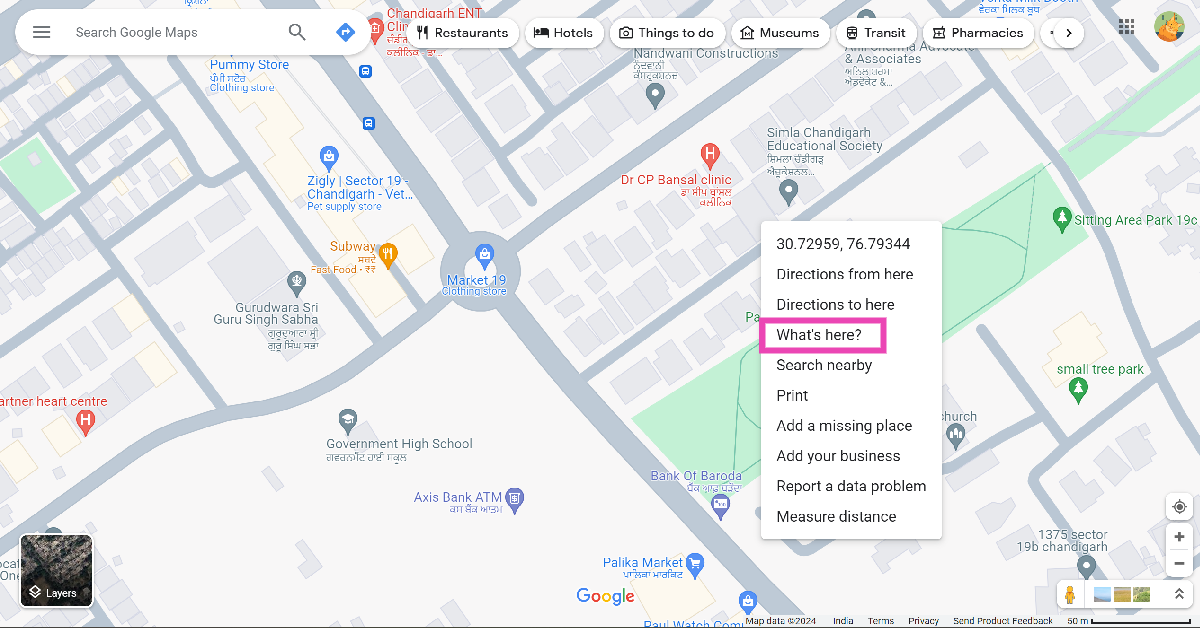 Step 3:
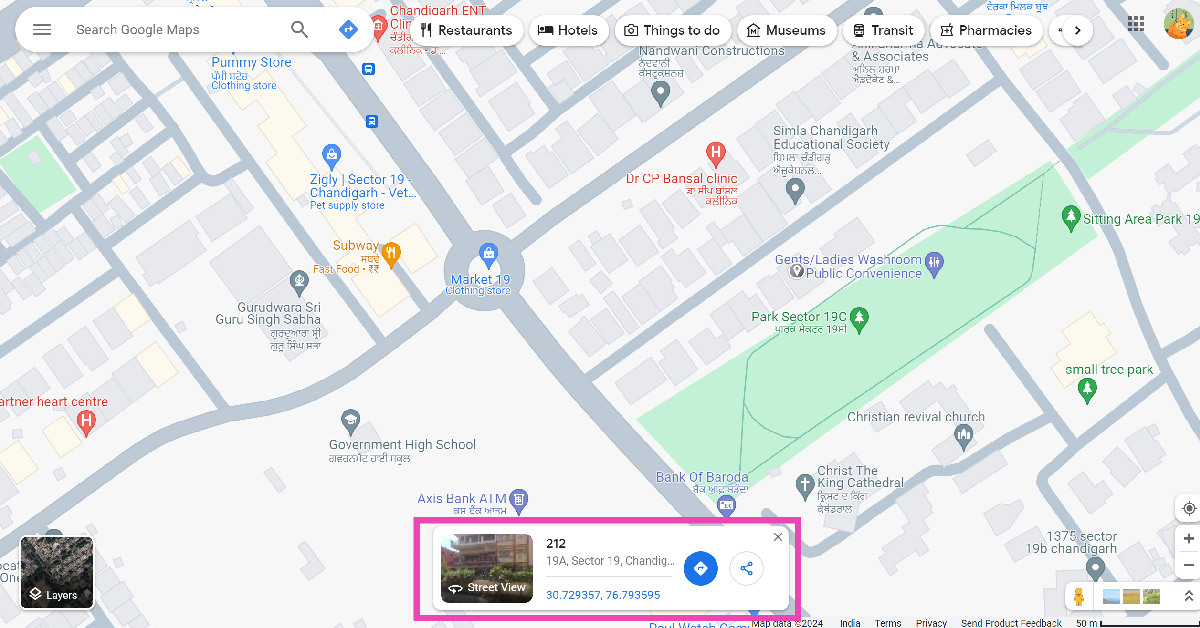 Step 4:
 Step 3:
 Step 4:
 Step 5:
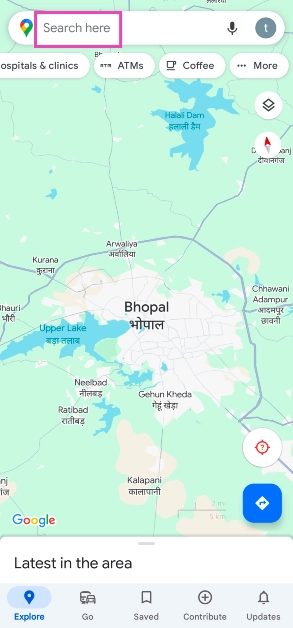 Step 3:
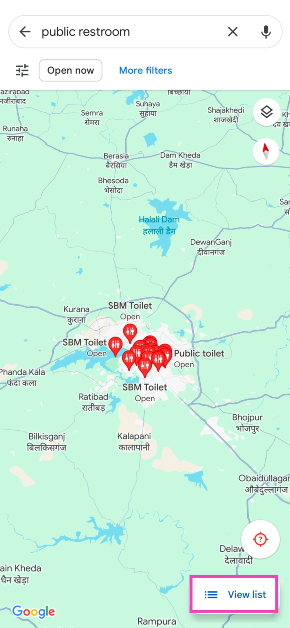 Step 4:
 Step 3:
 Step 4:
 Step 5:

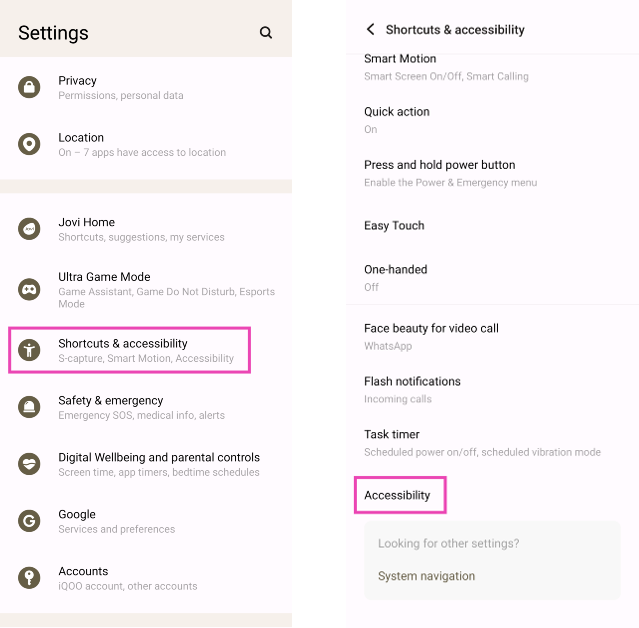 Step 3: Tap on Text-to-speech output.
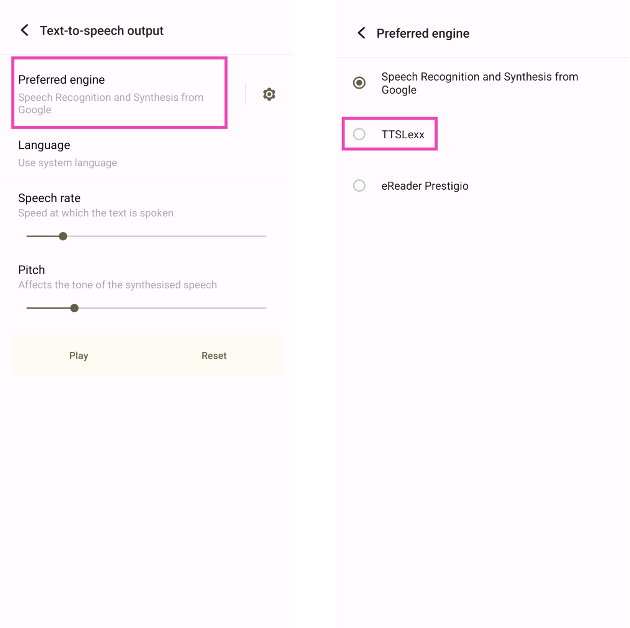
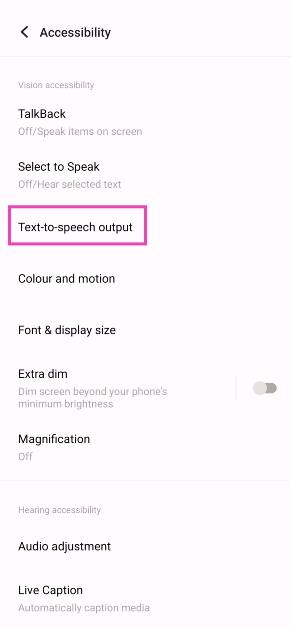 Step 4: Tap on Preferred Engine and select TTSLexx. Save the changes.
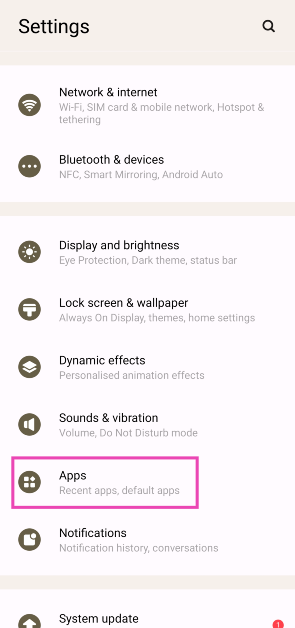
 Step 5: Go back to Settings and select Apps.
 Step 6: Scroll down to Google Phone and select it.
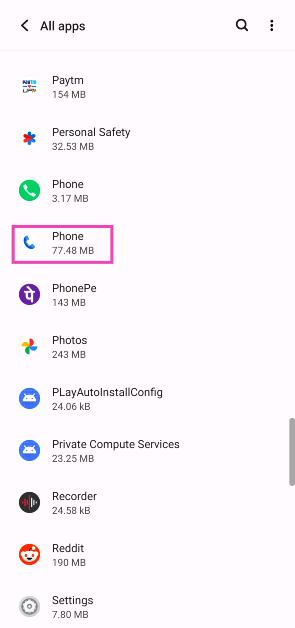 Step 7: Go to Storage and select Clear Data and Clear Cache.
Step 8: Restart your phone.
Step 7: Go to Storage and select Clear Data and Clear Cache.
Step 8: Restart your phone.

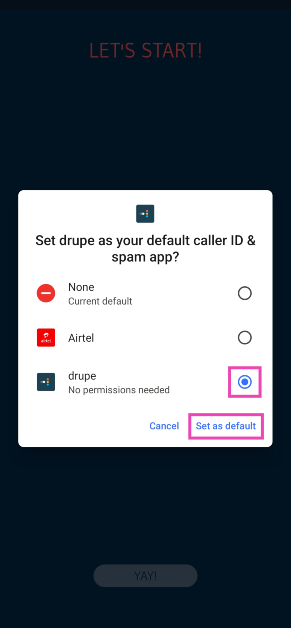
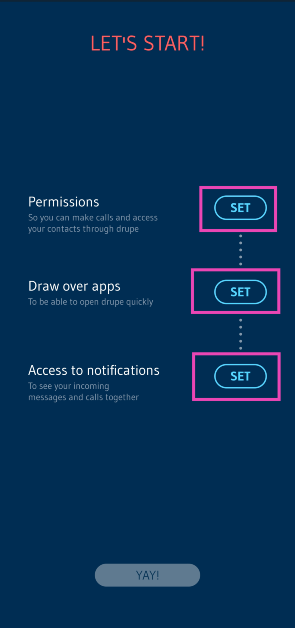
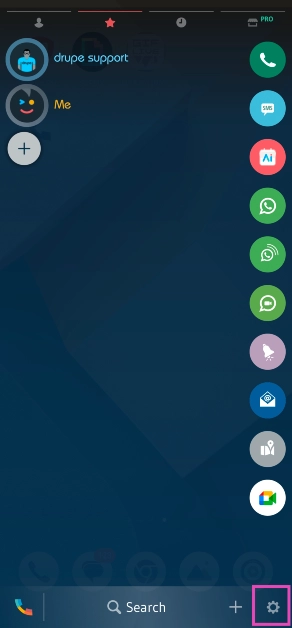


 Step 3:
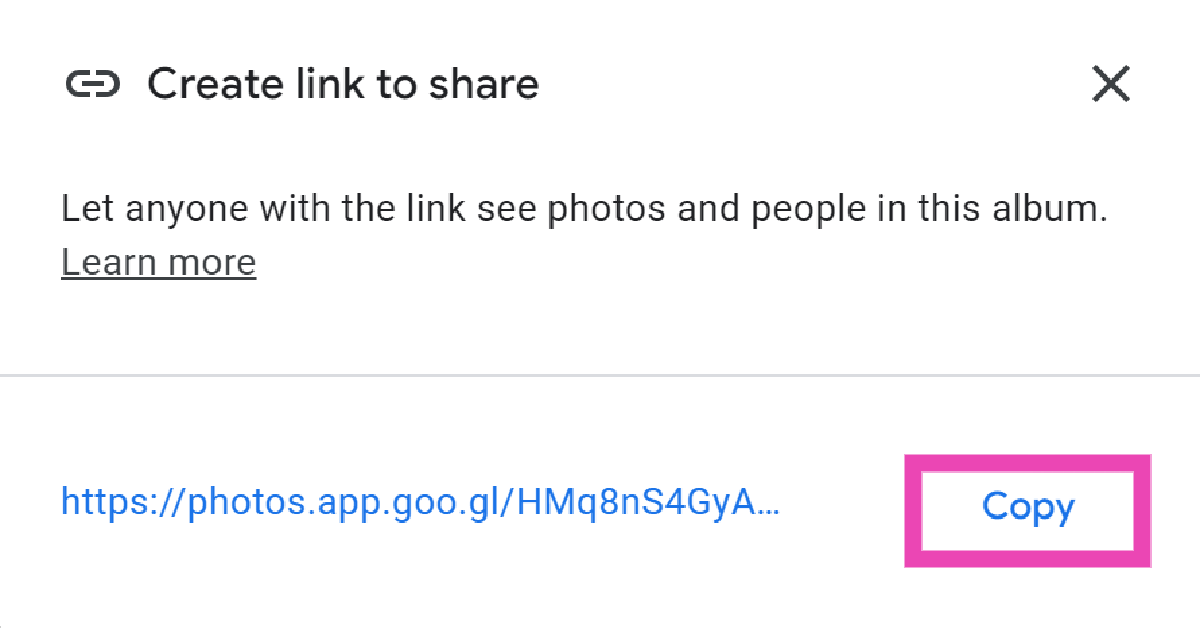
 Step 4: Copy
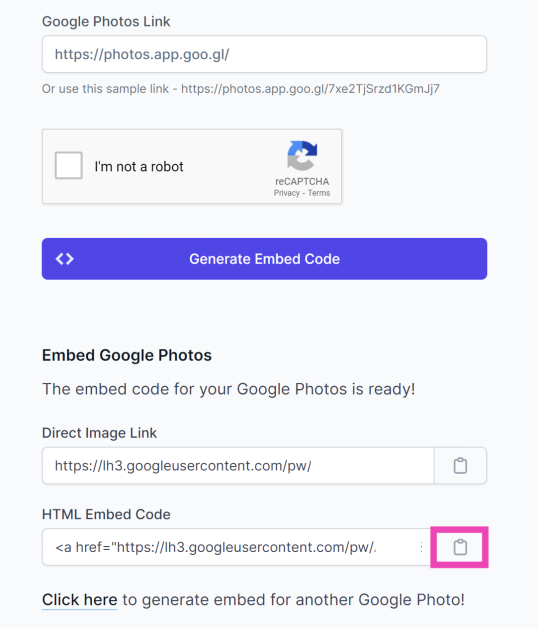
  Step 5: Generate
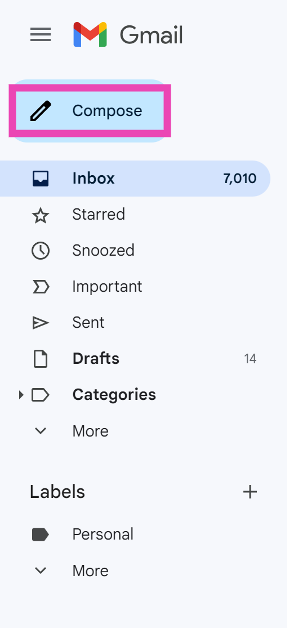
  Step 8:
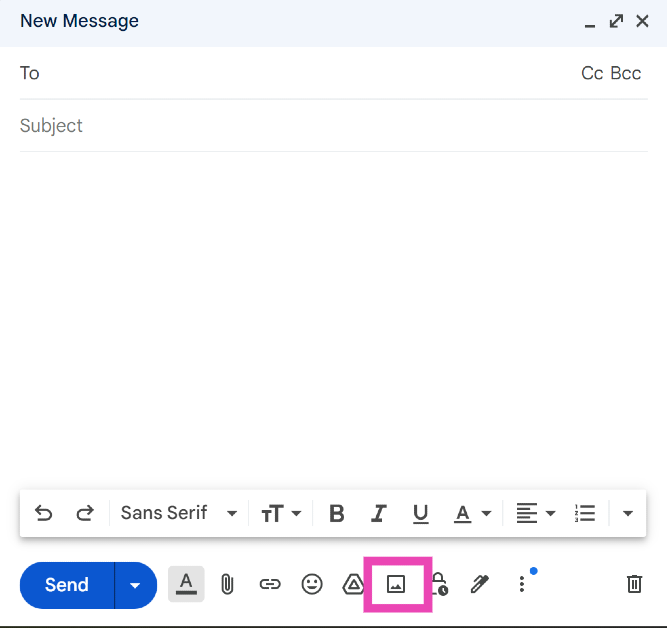
 Step 2:
 Step 3:
 Step 5:

![[Working] Top 2 ways to copy and merge YouTube playlists? (2024)](https://www.gadgetbridge.com/wp-content/uploads/2024/01/youtube-768x402.webp "[Working] Top 2 ways to copy and merge YouTube playlists? (2024)")
 Step 3:
 Step 5:
 Step 6: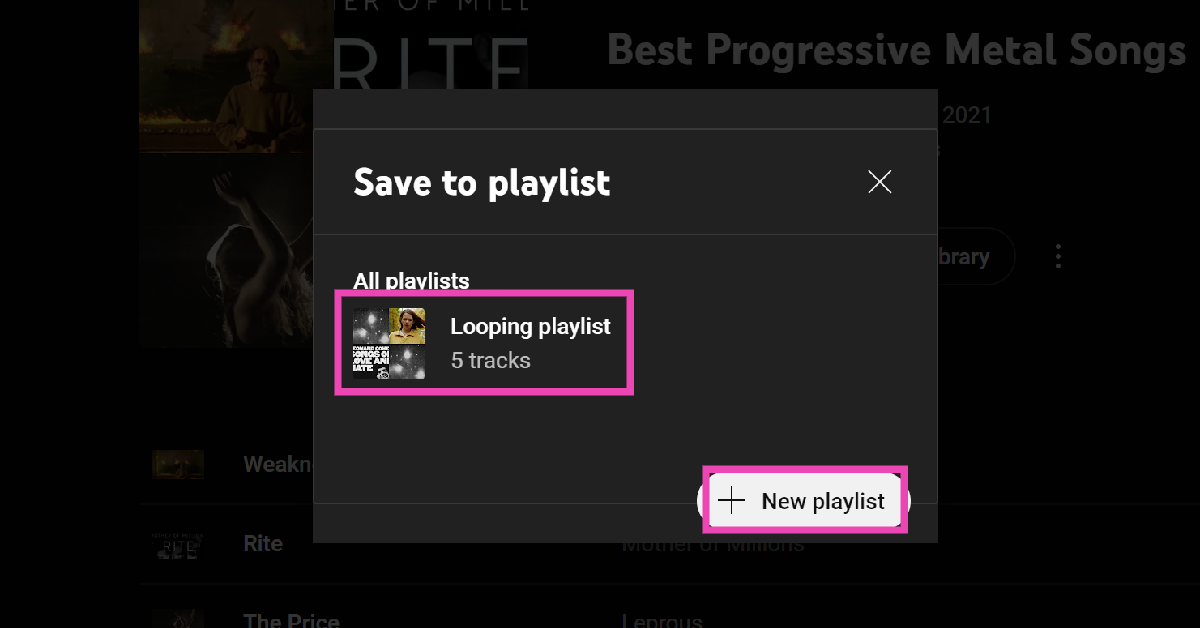
 Step 3:
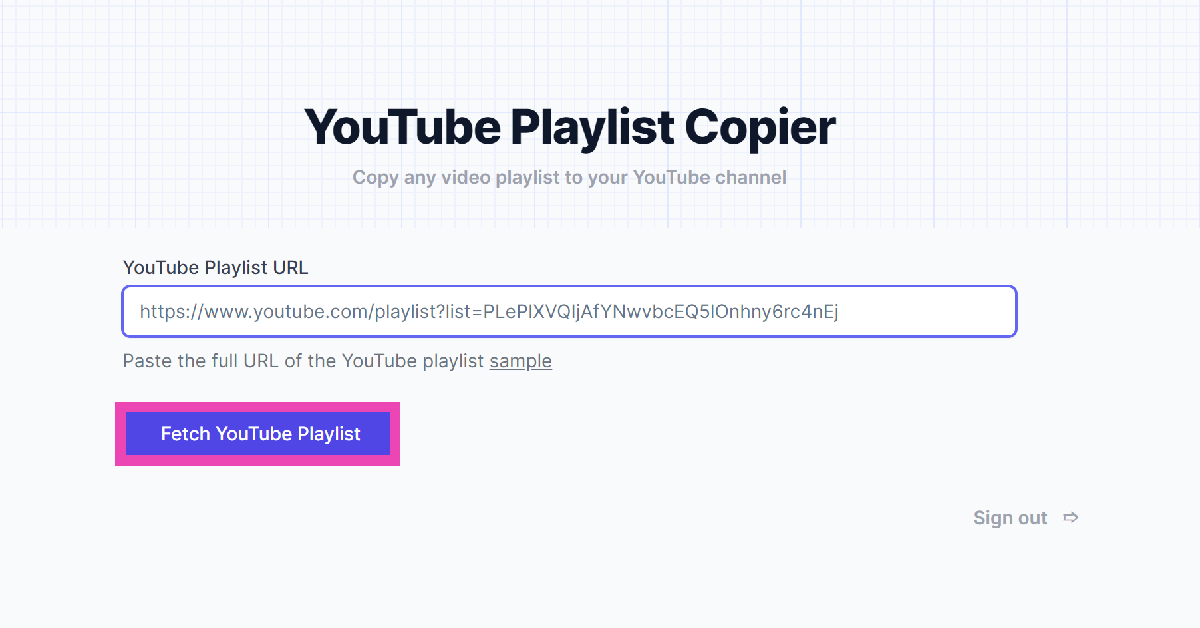 Step 4:
 Step 6:
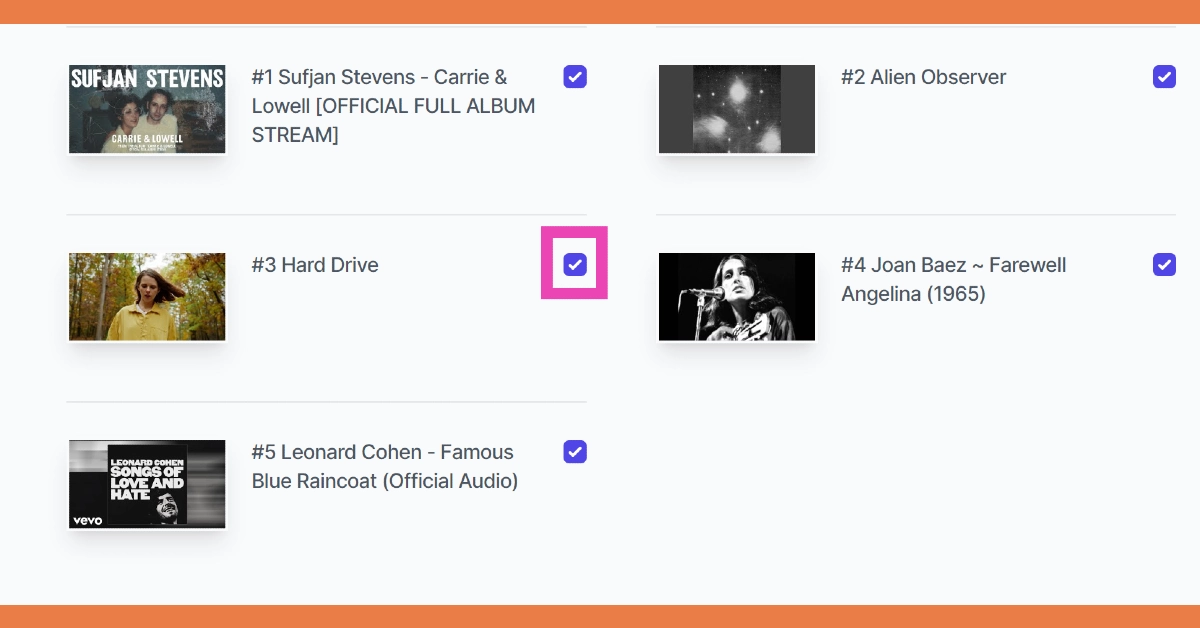 Step 7:
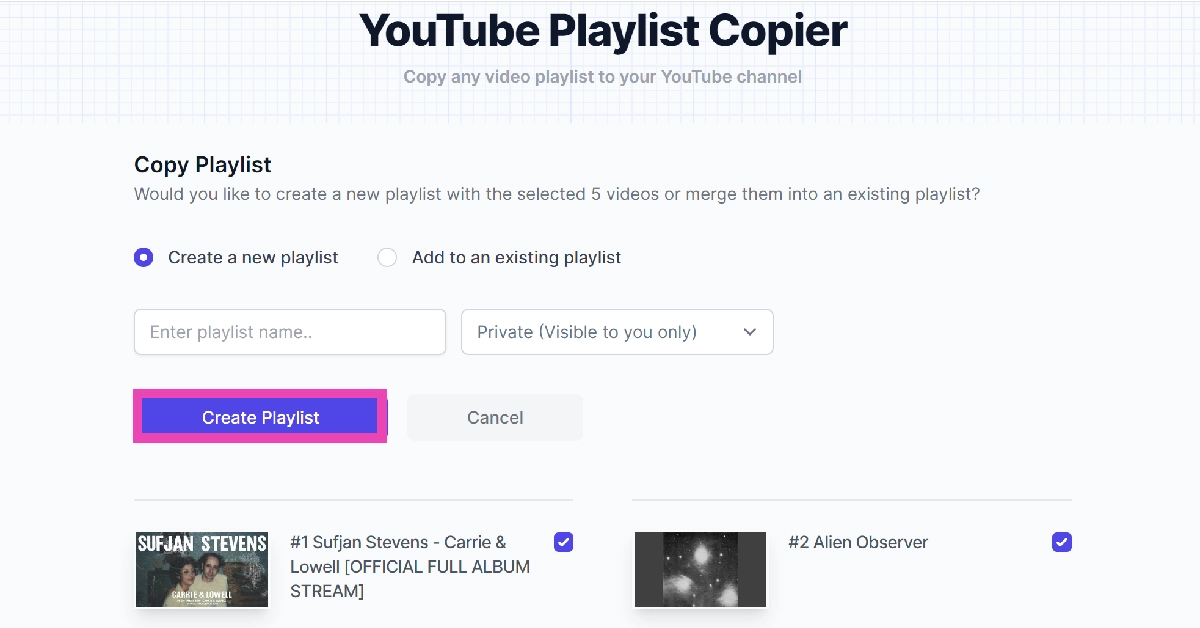 Step 8: Sign out









 Step 3: Point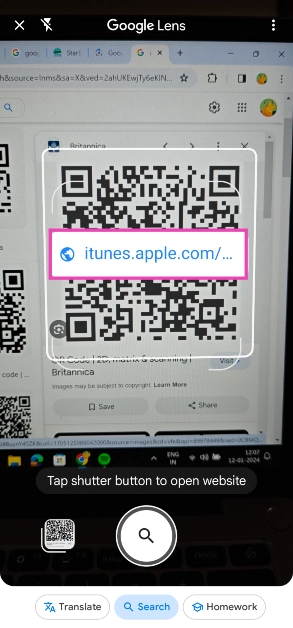
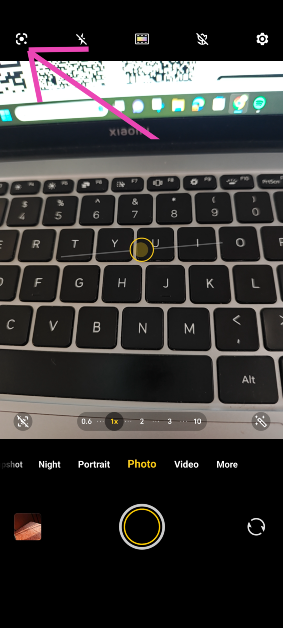 Step 3: Point
 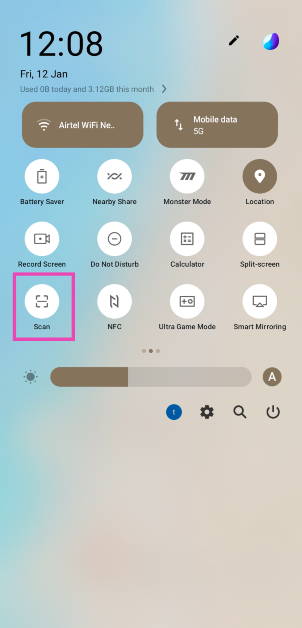 Step 3:
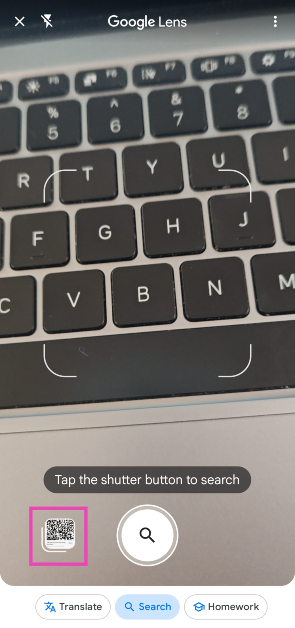 Step 4:
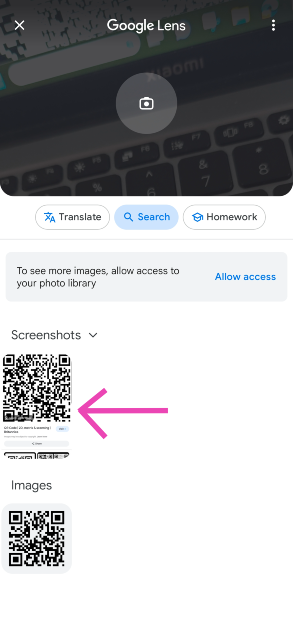 Step 5: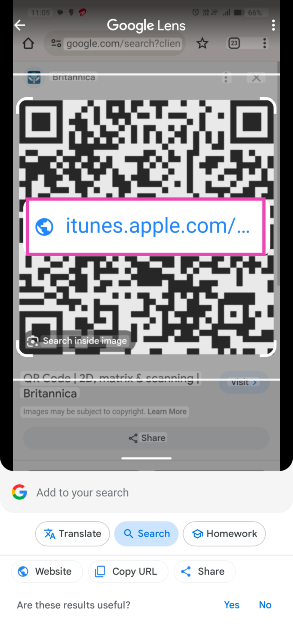
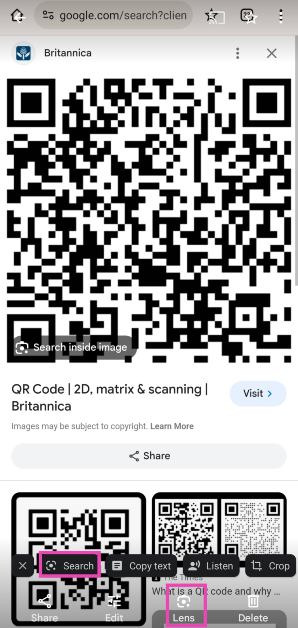 Step 4:
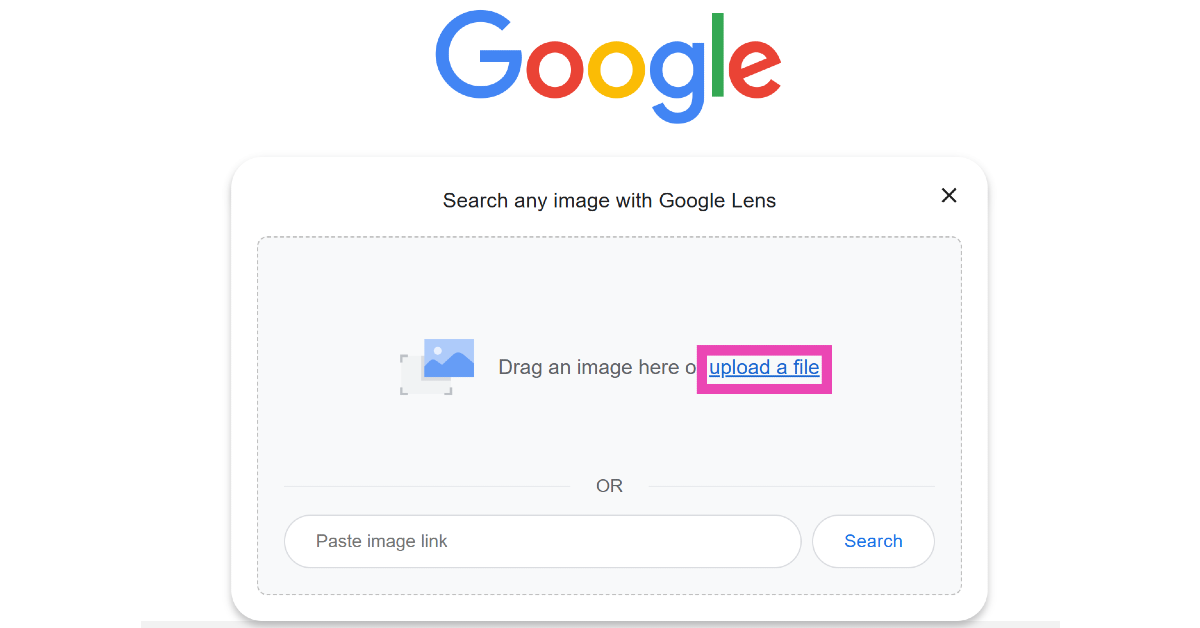
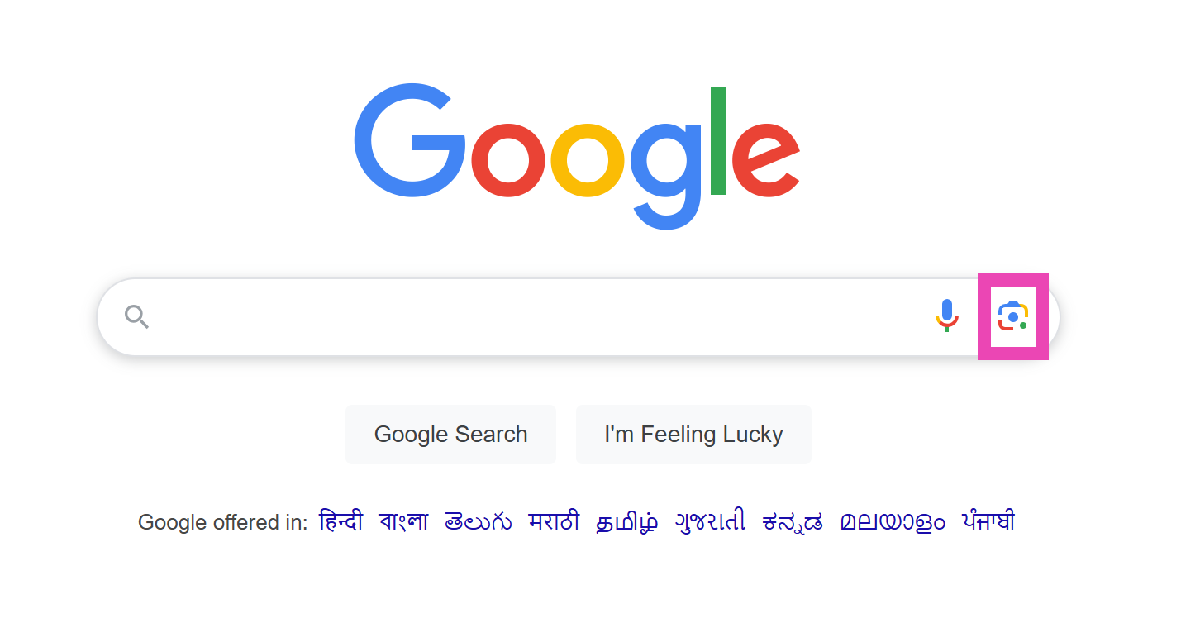 Step 3: Click on Upload a file and upload the QR code image from your PC’s internal storage.
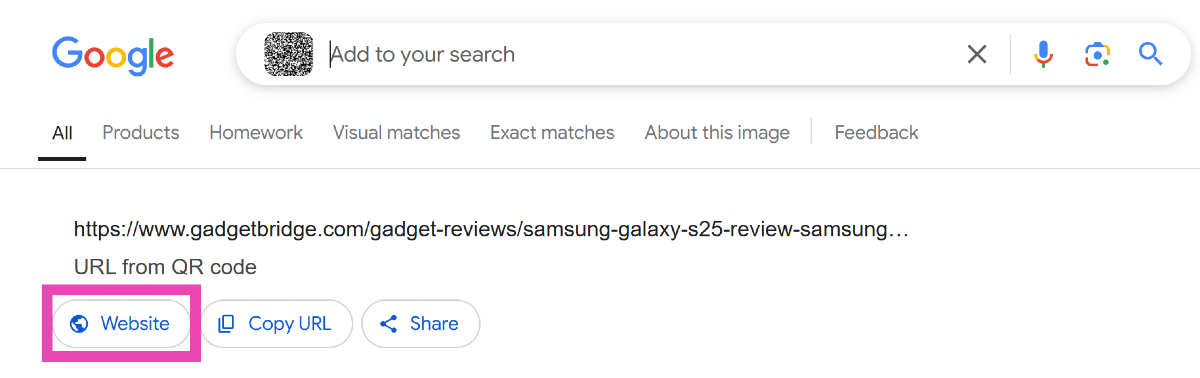
 Step 4: Google Lens will scan the code for you. Click on Website to go to the link embedded in the QR code.
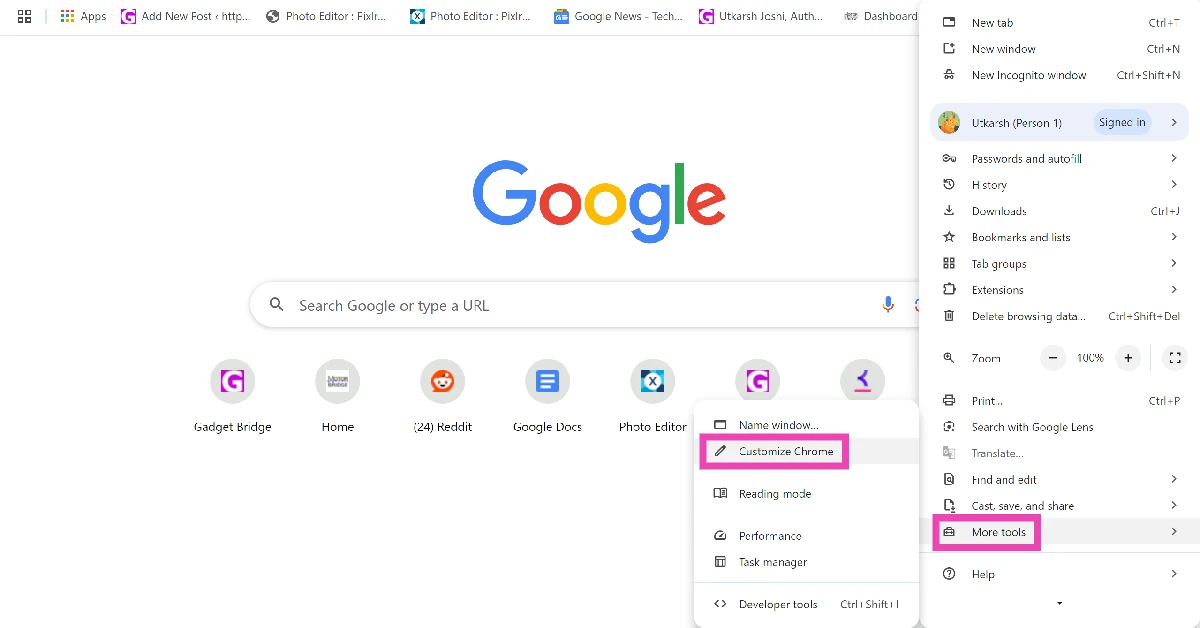
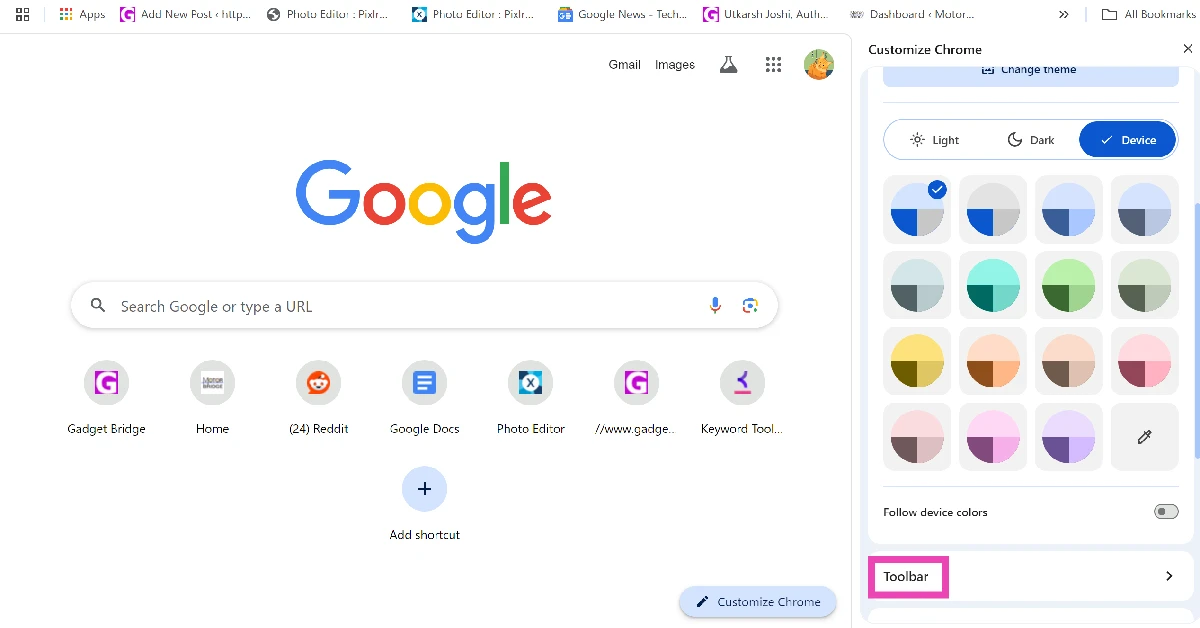
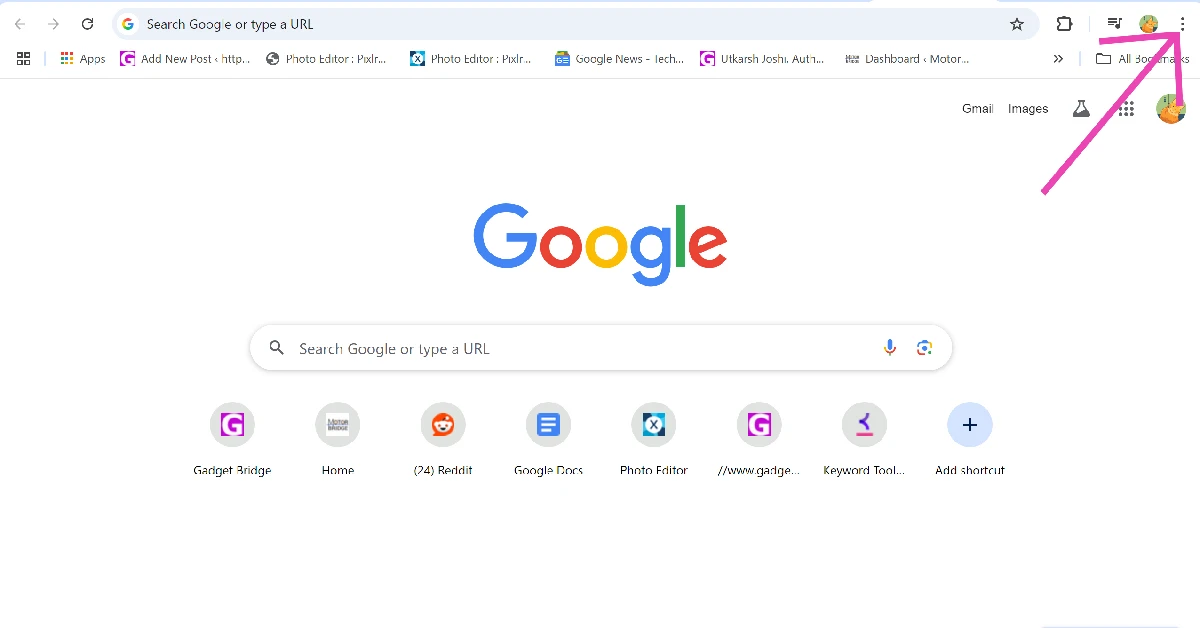 Step 2: Go to More Tools and select Customize Chrome.
 Step 3: Scroll down and click on Toolbar.
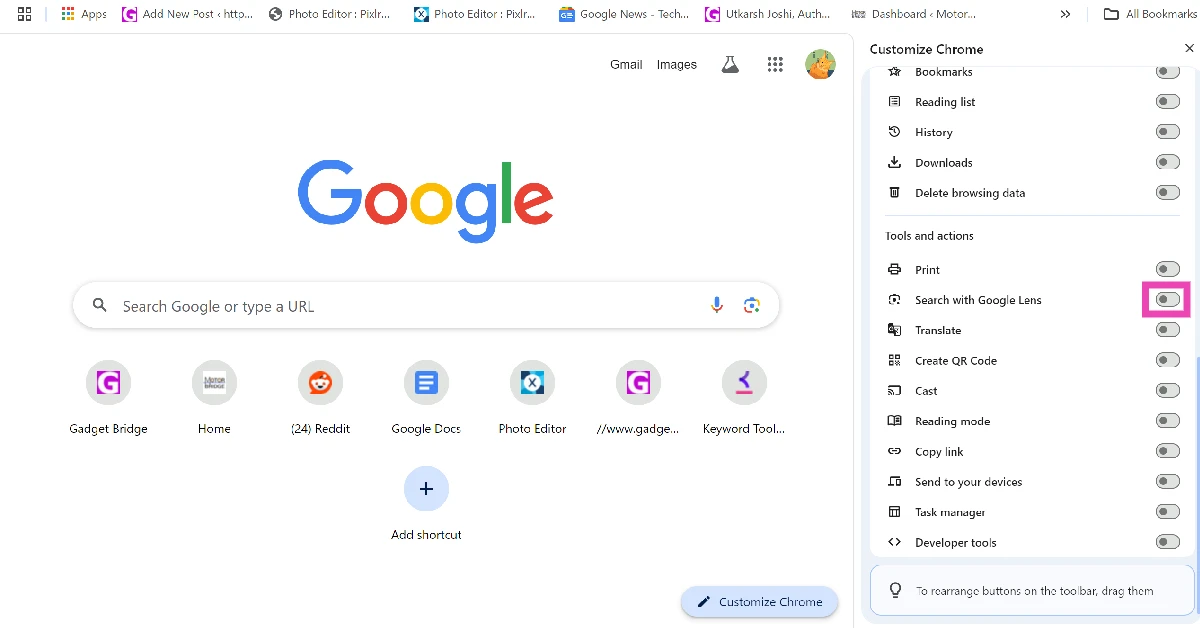
 Step 4: Turn on the toggle switch next to Search with Google Lens.
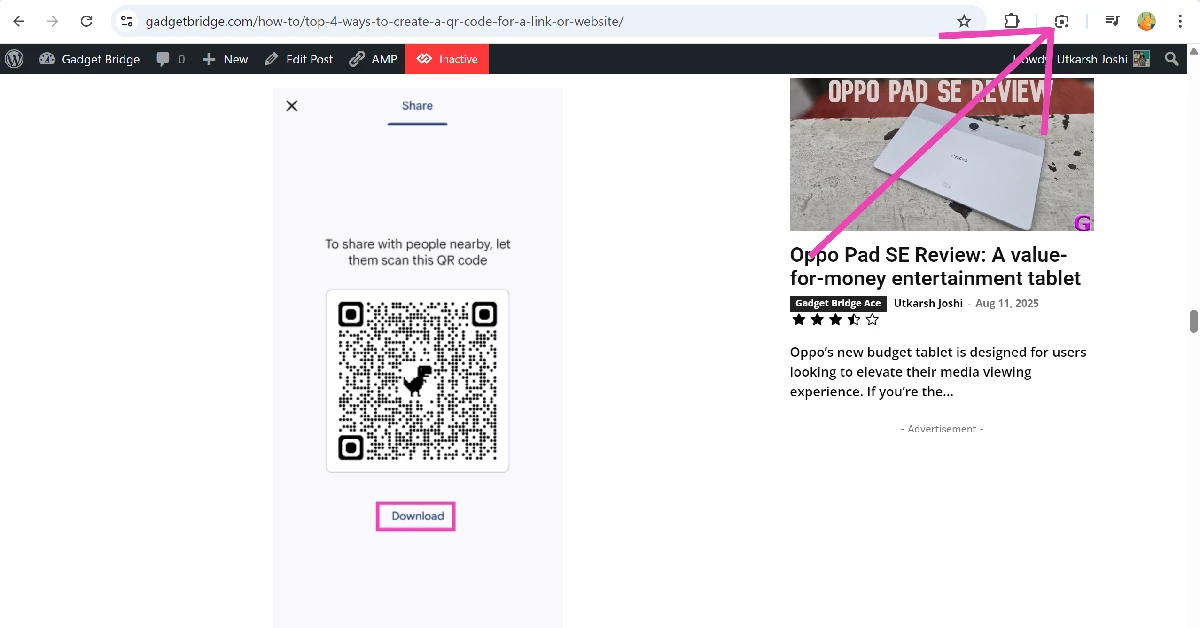
 Step 5: Go the web page containing the QR code.
Step 6: Click the Google Lens icon next to the address bar.
Step 5: Go the web page containing the QR code.
Step 6: Click the Google Lens icon next to the address bar.
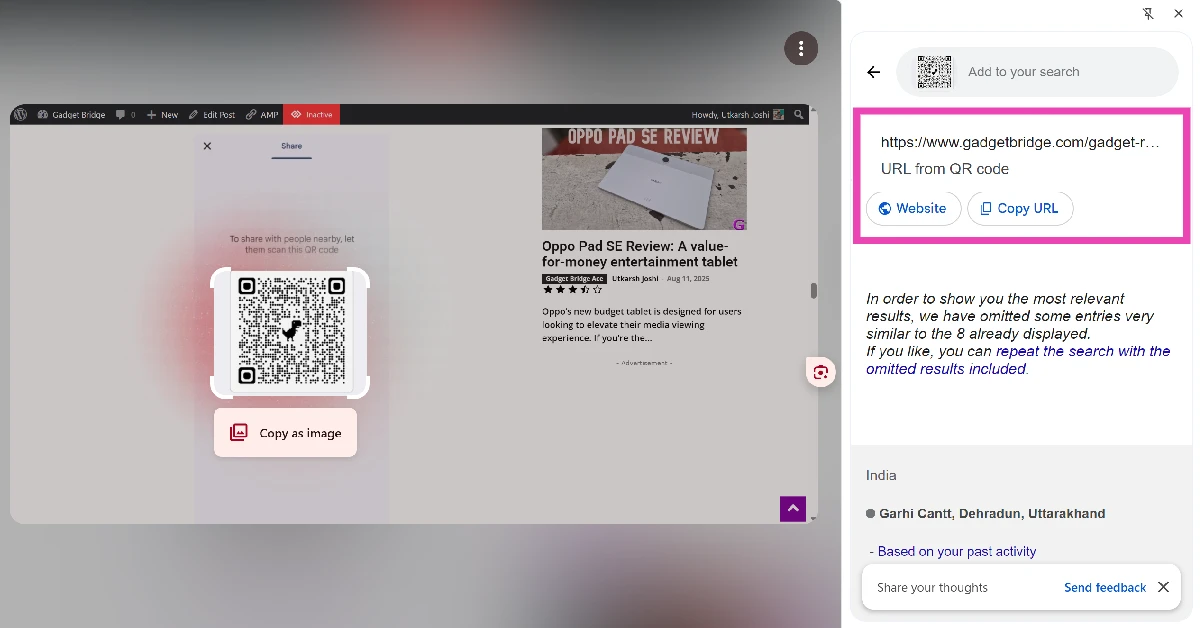
 Step 7: Use the cursor to select the QR code.
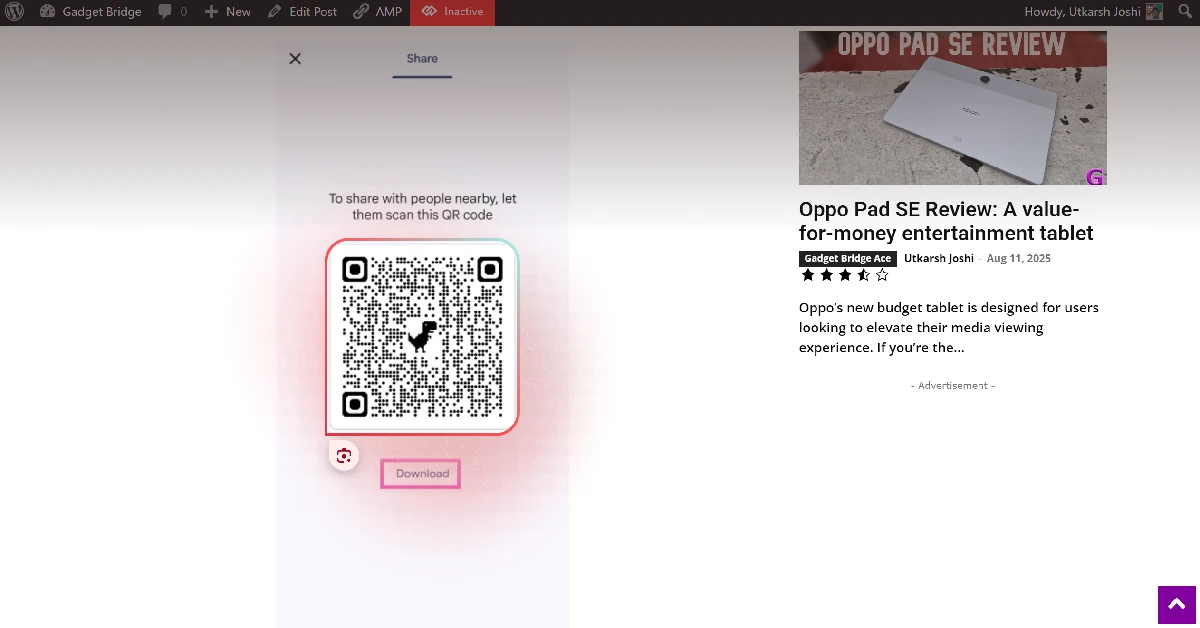 Step 8: The data encoded in the QR code will be displayed in the sidebar.























 Step 4:
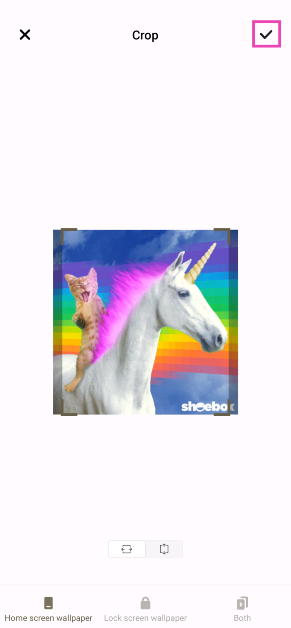 Step 5:
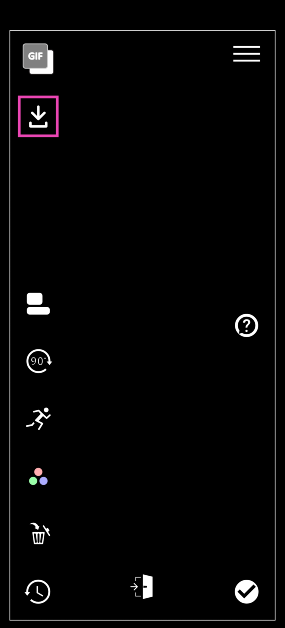 Step 4:
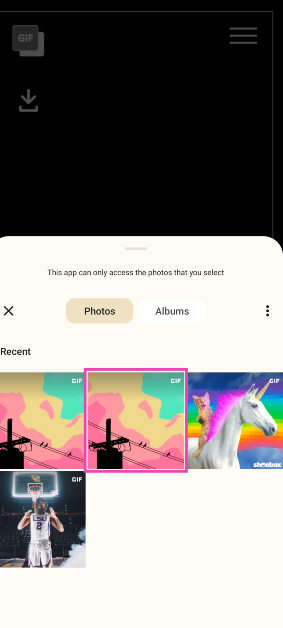 Step 5:
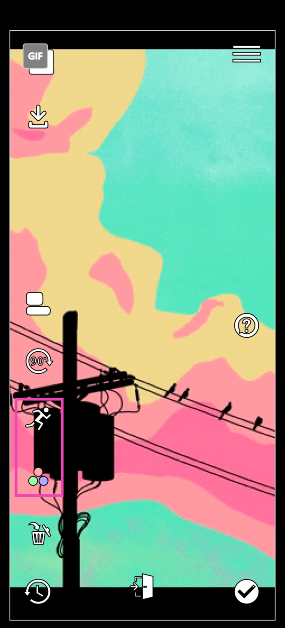 Step 6:
 Step 8:
 Step 2:
 Step 3:
 Step 4:
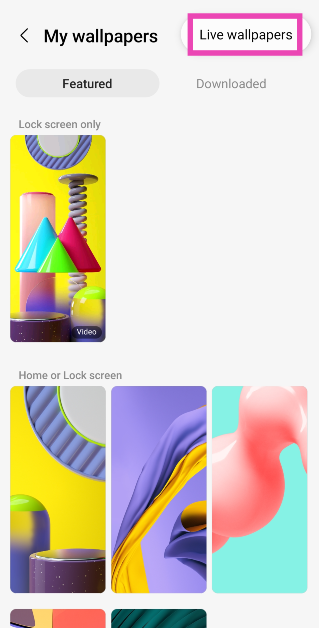 Step 6:
 Step 7:
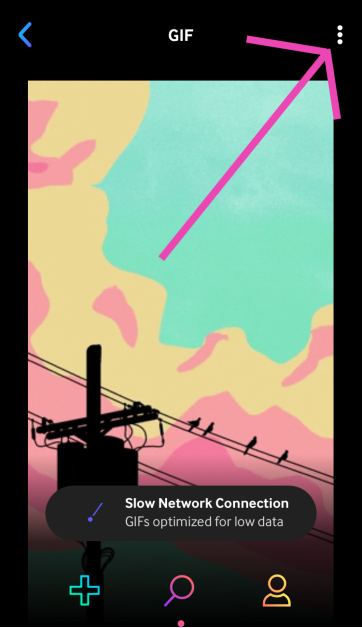 Step 4:
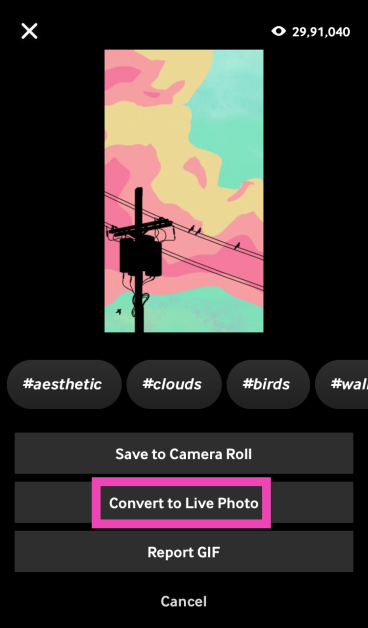 Step 5:
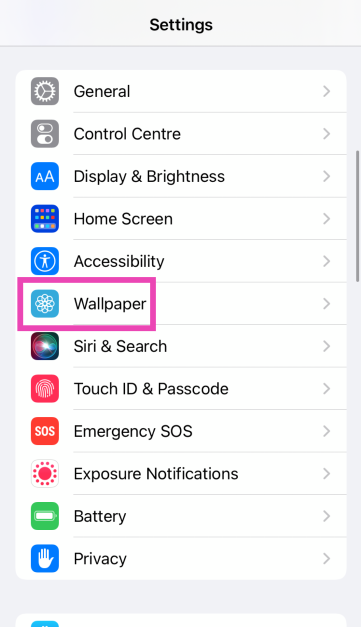 Step 6:
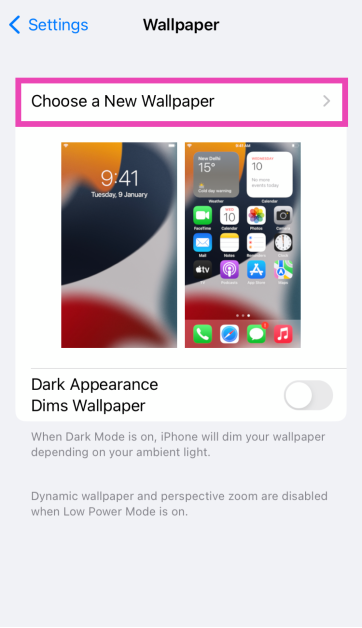 Step 7:
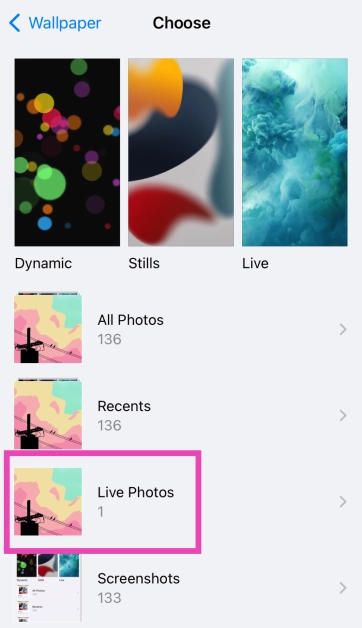 Step 8:
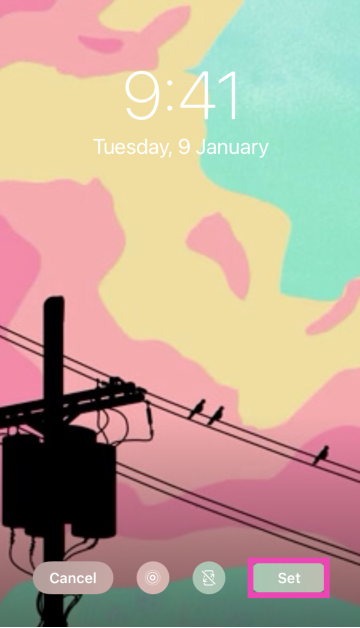 Step 9: