Garena Free Fire is a battle royale game with regular awards and tournaments to keep players interested. If you play Garena Free Fire, you should be aware of the redeem codes that are released on a daily basis. However, because the battle royale game is banned in India, players from other countries can use the Free Fire Redeem codes daily. If you’re unfamiliar with the Garena Free Fire redeem codes or don’t know how to get them, we’ve put together a step-by-step guide to help you redeem them. Check out Garena Free Fire Redeem Codes for 3 May 2023.The Free Fire redeem codes are a great way to get free stuff. These are 12-digit codes that contain alphabets and numbers, as well as an expiration date and time. Because the Garena FF redeem codes cannot be used more than once, you should hurry to the redemption page to claim your free reward before someone else does. To get a free reward, all you have to do is go to reward.ff.garena.com/en, which is the official redemption page. Also, keep an eye on this space for daily updates on Garena Free Fire redemption codes and rewards.
In This Article
Garena Free Fire Redeem Codes Today 3 May 2023
Updating Soon…
How to Get Free Fire Redeem Codes for Garena on 3 May 2023?
Have you participated in the Amazon Quiz today? If not then participate in the 3 May 2023 Amazon Quiz as it has already gone live on the app. The daily quiz can be played from 12 AM to 11:59 every day on the mobile app platform. Today e-commerce is giving the chance to win Rs 5,000 Amazon Pay Balance.Every day Amazon brings a fresh quiz for its customers. By participating in the quiz the participants can win an Amazon Pay Balance of up to Rs 50,000. The quiz can only be played on the mobile app as it is not available for the desktop platform. The quiz contains five easy questions and you have to answer all the questions correctly. The participants will then be shortlisted for a lucky draw to select a winner. Whereas the results are declared at the end of the month. Check out today’s Amazon quiz answers to win Rs 5,000.Amazon Quiz Today Prize – Rs 5,000 Amazon Pay BalanceQuiz Date – 3 May 2023Daily Timing – 12 AM to 11:59 PMWinner Announcement – Today 12 PM
In This Article
Amazon Quiz Answers Today 3 May 2023
Question 1: Humza Yousaf has been elected as the next leader of the ______ National Party.Answer: ScottishQuestion 2: In 2023, Marylebone Cricket Club (MCC) conferred Honorary Life Membership to which woman cricketer from India?
Answer: Jhulan GoswamiQuestion 3: Which Emmy award-winning series was majorly filmed at Highclere Castle?
Answer: Downton AbbeyQuestion 4: Which continent does not have any native species of this bird?Answer: AustraliaQuestion 5: Which is considered as the oldest stroke in this sport?Answer: Breadstroke
How To Play Amazon Quiz
Only app users are eligible to play the Amazon quiz every morning from 12 AM to 11:59 PM. The quiz is not available on the desktop. For those who are unaware of how to play the Amazon quiz below are the steps, you can follow to take the quiz.
Firstly download the Amazon app from Google Play Store or App Store
Now fill in the required information through the Sign Up option.
You need to log in to the Amazon app and scroll down on the home screen to find the Amazon Quiz banner.
Tap on the Amazon Quiz banner and tap on the Start button to start the Quiz.
Now you will get 5 questions and you need to answer them correctly. One wrong answer will eliminate you from the Quiz.
After answering all the questions correctly you are now eligible for a Lucky Draw.
The winner’s name will be announced today at 12 PM.
All Android users must be aware of the APK format for the apps on their devices. When downloading (or sideloading) an app from a third-party source, you need to download its APK file first. APK format is recognised by the Android platform and is used to install the app on your device. Similar to APK is another file format, called XAPK. XAPK files can also be used to install certain apps on your device. The only problem is that Android does not recognise this format on its platform. So, how does one go about installing an XAPK file on their Android device? Read this article to find out.Read Also:Google Pixel 7a to launch in India on May 11, the company confirmed
In This Article
What is an XAPK file?
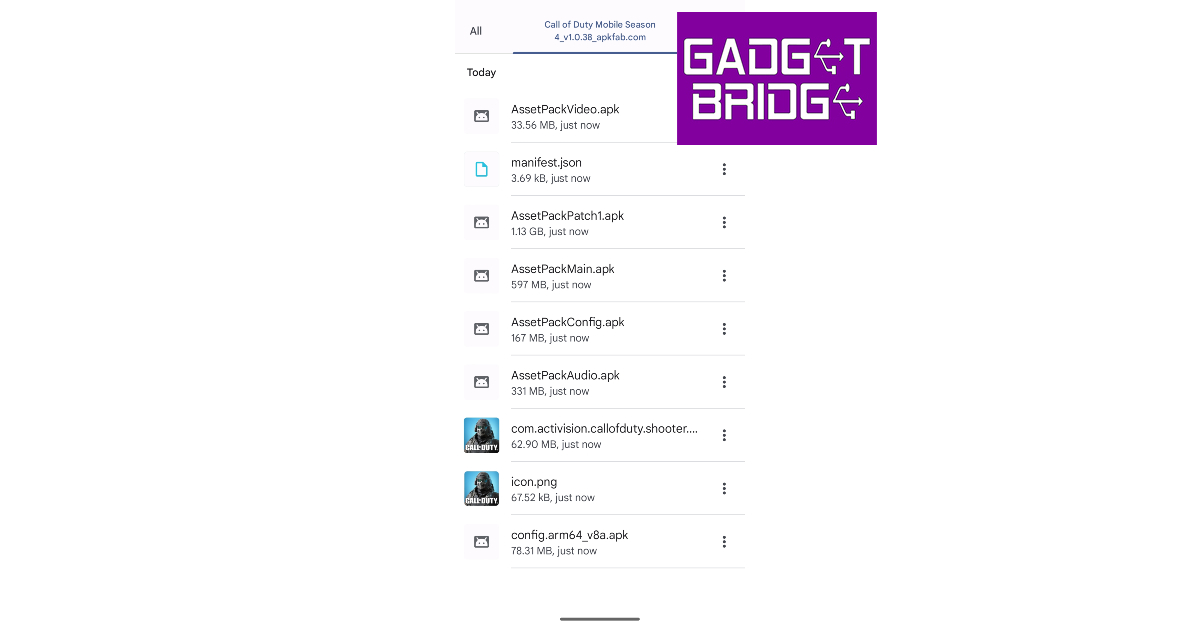
An XAPK file is not all that different from an APK file. The purpose of both these file formats is to install an app on your phone. The XAPK format is preferred for apps with a large APK file that exceeds the 100MP Google Play Store limit. An XAPK file consists of the original APK file and additional app data. This additional app data is stored in an ‘OBB’ folder within the file. You won’t find any XAPK files in the Google Play Store. You will have to resort to third-party marketplaces to download them.
How to Install an XAPK File on Android
Step 1: Download an XAPK file from a trusted third-party app marketplace.Step 2: Launch Google Files or your phone’s native File Manager.Step 3: Find the XAPK that you just downloaded. Tap the ellipses and select ‘Rename’.Step 4: Chance the file extension from ‘.XAPK’ to ‘.ZIP’. By doing this, you are changing the format of the file to something that your phone can read.Step 5: Tap the ZIP file and extract it to the folder of your choice.Step 6: Open the folder where you extracted the XAPK/ZIP file. Tap on the ‘Android’ folder and copy the OBB folder within it.Step 7: Paste this folder into your phone’s internal storage.Step 8: Go back to the folder where you extracted the XAPK/ZIP file. Launch the APK file.Step 9: Give your phone the necessary permission to install the APK file.Step 10: Tap on Install. The APK file will be installed on your device.
Frequently Asked Questions
What is an XAPK file?
An XAPK file is a package that contains an APK file along with additional app data. XAPK format is meant for apps that exceed the stipulated file size.
How do I open an XAPK file?
Since Android does not recognise the XAPK format, you need to convert it to a ZIP file first and then open its contents. You can convert it into a ZIP file by changing its file extension from ‘.xapk’ to ‘zip’.
If you’re looking for an alternative to Twitter, there are a few options out there for you. Gab Social was launched in 2016 as a direct alternative to Twitter and other mainstream social media platforms. The app for Gab Social is not available on Google Play Store and can only be downloaded from third-party sources. In this article, we show you how to install the Gab Social app on iOS and Android devices.Read Also:14 mobile apps linked to terrorist groups banned in India
In This Article
Install Gab on Android
Here’s how you can install the Gab app on your Android smartphone.Step 1: Launch the Google Chrome app on your Android smartphone.Step 2: Type www.gab.com in the address bar and hit Enter.Step 3: Tap on the ellipses (three dots) at the top right corner of the screen.Step 4: Select ‘Install app’.Step 5: In the following popup box, hit install.Step 6: Give Google Chrome permission to install third-party apps on your device.Gab Social will be installed on your Android device.
Install Gab on iOS
Here’s how you can install the Gab app on your iPhone.Step 1: Launch the Safari browser on your iPhone.Step 2: Type www.gab.com in the address bar and hit Enter.Step 3: Tap on the Share icon at the bottom of the screen.Step 4: Select ‘Add to Homescreen’.Step 5: Enter a name for the shortcut and hit ‘Add’ at the top right corner of the screen.Gab Social will be installed on your iPhone.
Frequently Asked Questions
When was Gab Social launched?
Gab Social was launched in 2016 as an alternative to mainstream social media websites like Twitter and Facebook.
How To Install the Gab iOS and Android App?
Gab Social app is not available on Google Play Store and can be downloaded directly from the Gab website.
This is how you can download the Gab Social app on iOS and Android devices. If you are downloading a third-party app using Google Chrome for the first time, you will need to authenticate the installation by giving Chrome permission to install third-party apps on your device. This is because apps downloaded from third-party sources may not have the ideal security certification and may pose a risk to your device.For the latest gadget and tech news, and gadget reviews, follow us on Twitter, Facebook and Instagram. For newest tech & gadget videos subscribe to our YouTube Channel. You can also stay up to date using the Gadget Bridge Android App. You can find the latest car and bike news here.
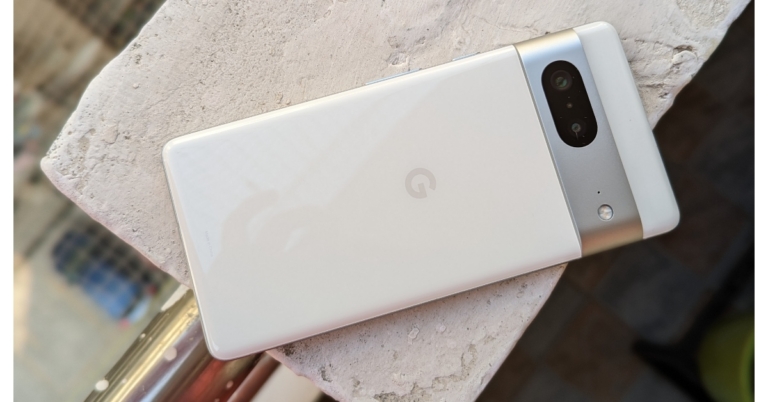
Today Google announced the launch date for Pixel 7a in India. The upcoming smartphone is planned to debut on May 11 on Flipkart. Besides this, the price of the Google Pixel 7 and Pixel 7 Pro are getting a significant price cut of up to Rs 5,000. Both phones will be available at reduced prices during Flipkart’s Big Saving Days Sale.Google Pixel 7 was launched in India at Rs 59,999 but is currently listed at Rs 49,999. During the Flipkart Big Saving Days Sale, the device can be purchased for Rs 44,999. On the other hand Pixel 7 Pro which debuted in India at Rs 84,999. The phone is now available at Rs 65,999 but during the sale period, it will be available at Rs 65,999. The sale will begin on May 4 and will run till May 10. However, the Plus Member can access the sale a day before the sale begins on the platform.Pixel 7 comes in Snow, Obsidian, and Lemongrass colour options. Whereas Pixel 7 Pro is offered in Hazel, Obsidian, and Snow.Both smartphones run on Android 13. The Pixel 7 features a 6.32-inch full-HD+ OLED display with a 90Hz refresh rate. Whereas the Pixel 7 Pro includes a 6.7-inch Quad-HD LTPO OLED display with a 120Hz refresh rate. The devices are powered by an octa-core Tensor G2 SoC.The Pixel 7 features a dual rear camera setup that includes a 50MP primary and a 12MP ultrawide lens. Whereas the Pro variant comes with an additional 48MP telephoto lens with 30X Super Zoom and 5X optical zoom. The device includes a 10.8MP selfie camera.The Pixel 7 houses a 4,270mAh battery and the Pixel 7 Pro comes with a battery capacity 4,926mAh. Both handsets support 30W wired charging along with fast wireless charging.
Also Read: Google Pixel 7a to launch in India on May 11, the company confirmedApart from this, the company has announced to launch Google Pixel 7a in India on May 11.The device is the successor to the Pixel Pixel 6a. It is likely to come with a 6.1-inch full-HD+ OLED display with a 90Hz refresh rate. It may be powered by a sensor G2 SoC, paired with 8GB of LPDDR5 RAM and 128GB of UFS 3.1 storage. It is likely to include a dual rear camera setup consisting of a 64-megapixel primary sensor with optical image stabilization (OIS) support and a 12-megapixel ultra-wide lens. In addition to this, there will be a 10.8-megapixel front-facing camera for taking selfies. The Pixel 7a could also sport a 4,400mAh battery with 20W wired charging support.
For the latest gadget and tech news, and gadget reviews, follow us on Twitter, Facebook and Instagram. For newest tech & gadget videos subscribe to our YouTube Channel. You can also stay up to date using the Gadget Bridge Android App. You can find the latest car and bike news here.
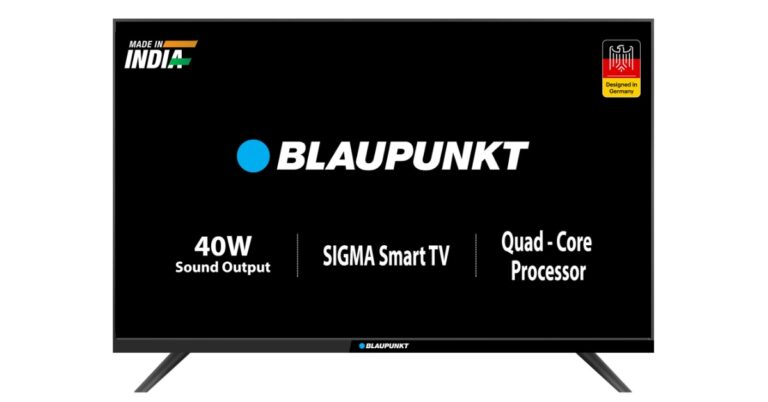
The popular German brand, Blaupunkt, has announced to launch a brand-new Android TV in India. The company has revealed to introduce the new Blaupunkt Sigma Series. The device will be available during the upcoming Flipkart Big Savings Days Sale. The company will also participate in the Sale where all its TV models will be available at discounted prices. The 40-inch Android TV Sigma Series will include a bezel-less design. It will include a dual 40W speaker with Surround Sound.The launch of the Blaupunkt 40-inch Android TV Sigma Series is going to take place during Flipkart Big Saving Days Sale. The sale will commence with early access on May 4 and will go on till May 10.The Blaupunkt 40-inch Android TV Sigma Series comes with a Bezel-less design and offers 300 nits of brightness. It has two bottom-firing built-in speakers with a sound output of 40W and Surround Sound Technology. In addition to this, it will include a YouTube remote which has dedicated shortcut keys to access content on Amazon Video, Zee5, Sony LIV, and Voot. The device is compatible with laptops, mobile devices, and PCs. The Android TV has a RAM of 512 MB and a ROM of 4 GB.Apart from this all the models of Blaupunkt will be offered at a massive discount during the Flipkart Big Saving Days Sale. There will be up to 75% on TVs and appliances. They can also take advantage of benefits such as 5% unlimited cashback with Flipkart Axis Bank Credit Card and a 10% instant discount when using an SBI card.As per the company, all Blaupunkt Smart TV models will be available at “significant discounts”, starting at Rs 6,499. Buyers can avail of an instant discount of 10% using the SBI card and unlimited cashback with Flipkart Axis Bank Credit Card.The offerings include the 32-inch (32CSA7101) Cybersound LED Smart TV priced at Rs 9,499 the 42-inch Cybersound 4K LED Smart TV priced at Rs 16,999, the 43-inch Cybersound Ultra HD Smart TV priced at Rs 24,999, the 50-inch Cybersound Ultra HD 4K LED Smart Android TV with Dolby MS12 available at Rs 27,999, the 55-inch Cybersound LED Smart TV priced at Rs 29,999, and the 65-inch Cybersound 4K LED Smart TV priced at Rs 45,999.On the launch of the new model CEO of Super Plastronics Pvt. Ltd, Mr. Avneet Singh Marwah said, “We are excited to introduce the all-new Blaupunkt Sigma Series 40-inch Android TV as part of our collaboration with Flipkart’s Big Saving Days Sale. This TV exemplifies our commitment to providing cutting-edge technology and an immersive viewing experience to our customers. With its Android operating system, users can enjoy a seamless smart TV experience with access to a wide range of apps and content. The Sigma Series 40-inch TV combines sleek design with superior performance, offering stunning visuals and enhanced sound quality. We believe that this launch will redefine home entertainment and provide an unmatched TV viewing experience to our valued customers.”
For the latest gadget and tech news, and gadget reviews, follow us on Twitter, Facebook and Instagram. For newest tech & gadget videos subscribe to our YouTube Channel. You can also stay up to date using the Gadget Bridge Android App. You can find the latest car and bike news here.
A faulty touchscreen pretty much renders your smartphone useless. There’s not much you can do on your smartphone if the touchscreen does not work. Sure, you can still access some functions using voice commands or an external keyboard, but these are just temporary fixes to a pressing issue. Before taking your phone to a professional repair centre, there are some things you can do at home to recover its touchscreen. In this article, we bring you the top 12 ways to fix an unresponsive touchscreen on an Android phone.Read Also:How to reset your Twitter password on Android and iPhone?
In This Article
Restart your phone
If your phone’s touchscreen started malfunctioning out of the blue without any signs of physical damage, the issue is most likely software-related. The touchscreen may stop responding at times due to a background glitch. The easiest way to resolve these glitches is by quickly rebooting your phone. Simply long-press the side key to reveal the power options. Select ‘Restart’ from the list of options. If long pressing the side key triggers the voice assistant on your device, press the side and Volume Up keys to reveal power options.
Restart the phone in Safe Mode
It is common for corrupt third-party apps to mess with the basic functioning of your phone. Before you perform a factory reset or uninstall certain apps from your device, it is a good idea to restart your phone in Safe Mode to confirm whether third-party apps are an issue. Restarting your phone in Safe Mode limits the activity of third-party apps and runs only the basic system apps on the device. If you are facing the touchscreen in Safe Mode as well, it means that third-party apps are not to blame.To enter Safe Mode, press and hold the power button and volume down button. Once the power menu pops up on the screen, press and hold the power icon until the Safe Mode option shows up.
Run a system diagnosis
Your Android smartphone is equipped with certain diagnosis tools for different parts of the device. You can run a check for touchscreen issues as well. These checks can be triggered by entering certain codes on the dialer app. To run a touchscreen check on a Samsung phone, launch the Dialer app and enter *#0*#. Run the different tests on your touchscreen to diagnose the issue. If you own a smartphone from a different manufacturer, simply Google the test codes for that device.
Use the Display Tester app
The Display Tester app performs a thorough test on your phone’s touchscreen and diagnoses dead pixels with ease. Install the Display Tester app from the Google Play Store. Launch the app and switch to the ‘Tests’. Run all the available tests on your device to figure out what is wrong with it.
Increase touch sensitivity
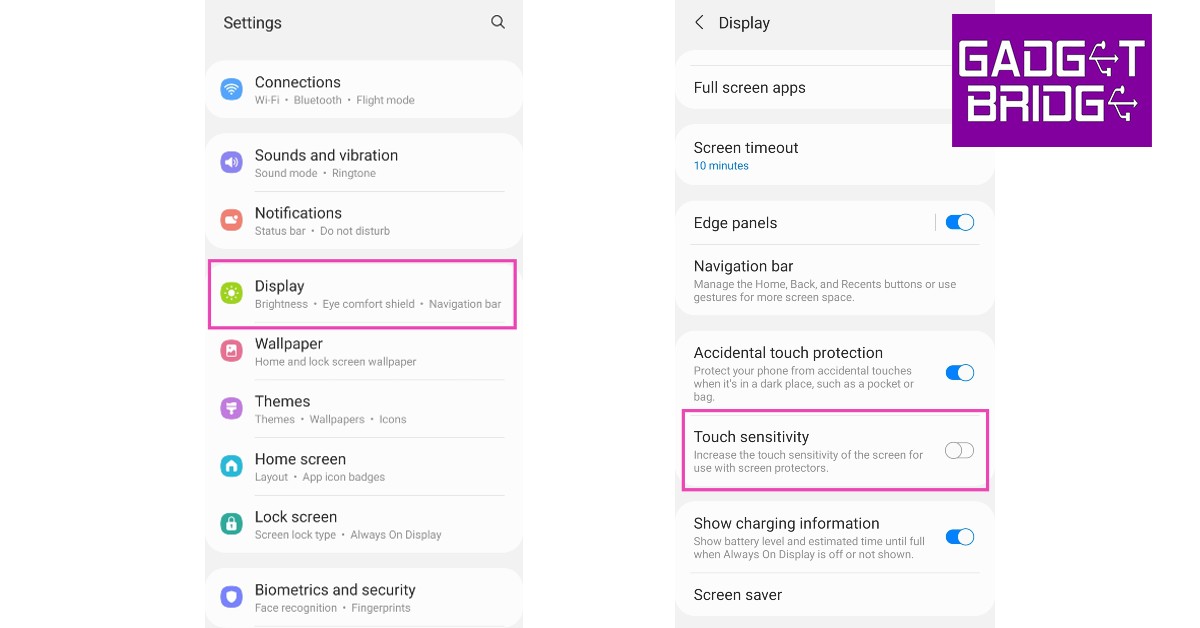
If your touchscreen started being unresponsive after you installed a screen protector on it, you need to increase the touch sensitivity of your device. With heightened sensitivity, your phone’s touchscreen can pick up the faint touches that would otherwise go unnoticed because of the screen protector getting in the way. You can increase the touchscreen sensitivity by going to Settings>Display and turning the toggle bar on for ‘Touch sensitivity.’
Clean the touch screen
Sometimes, dust particles can collect around your smartphone’s display, causing it to malfunction. If you use a screen protector on your phone, grime can collect around its borders. Thoroughly clean the display to ensure that dust build-up is not the reason behind this issue. First, wipe the display with a clean and microfibre cloth. Then, spray an isopropyl alcohol-based cleaning mixture on the display and thoroughly with it off with the microfibre cloth.
Turn off Developer Mode
The Developer Mode on your phone can be activated by tapping the build number seven times. It unlocks a host of options, giving you greater control over the functioning of your phone. However, over a period of time, it can create certain malfunctions. If your phone’s touchscreen becomes unresponsive all of a sudden, try turning off the Developer Mode. Here’s how.
Step 1: Go to Settings.
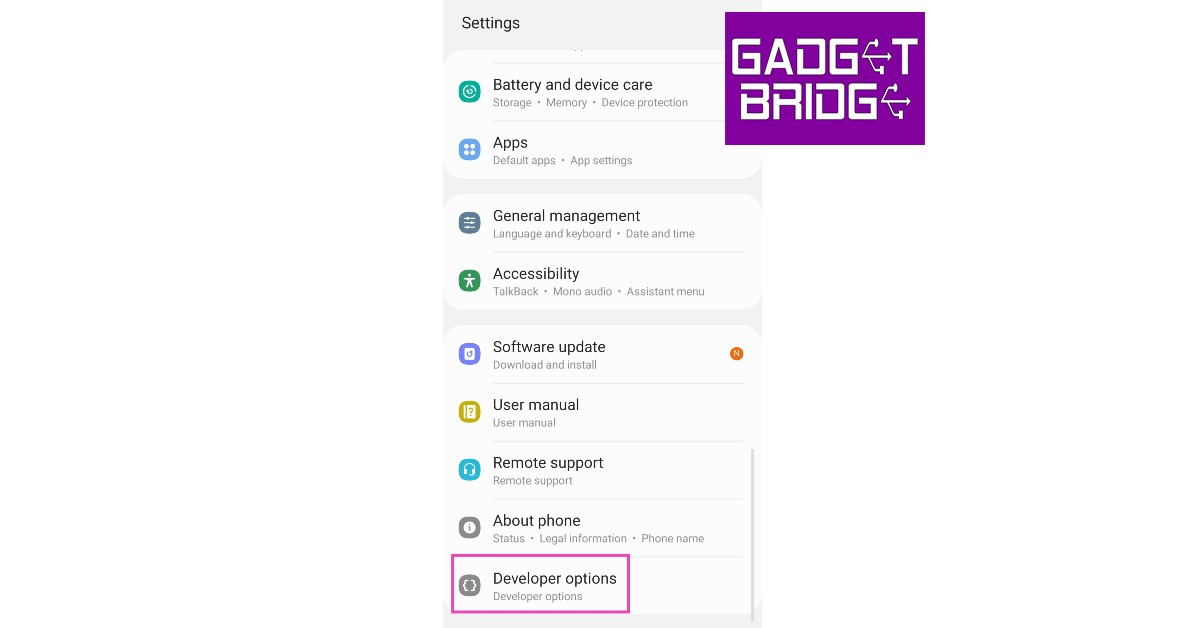
Step 2: Scroll all the way down and tap on Developer Options.
Step 3: Switch off the toggle bar for Developer Options.
Remove the screen protector
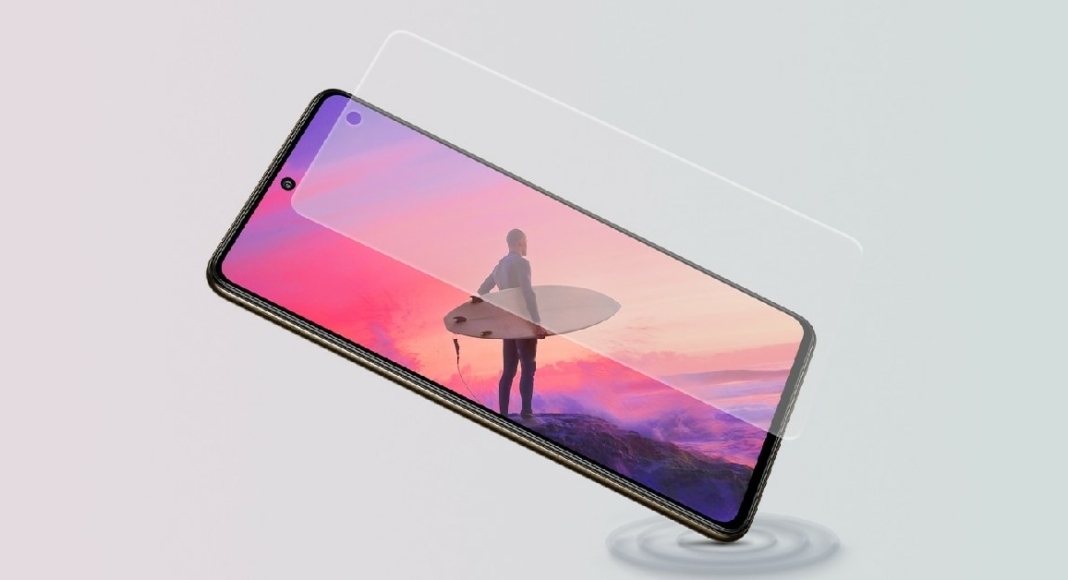
If increasing the touch sensitivity of your device does not restore the normal functioning of the touchscreen, remove the screen protector. Before buying a screen protector, make sure that is it compatible with your smartphone. If it isn’t, it can render the touchscreen unusable. Certain screen protectors prevent the under-display fingerprint scanner from working correctly. If you are using an old screen protector, the air bubbles inside it can often cause the touchscreen to not register the touch gestures.
Water damage? Let your phone dry
If your phone’s touchscreen isn’t working due to water-related damage, there are a few methods you can employ to fix it. First, turn your phone off instantly and do not launch it until all traces of water have been removed from the device. The best way to absorb all water from your smartphone is by covering it with packets of silicate. You can read our complete guide to removing water from your smartphone here.
Take out the memory card
Not all touchscreen malfunctions are related to hardware issues. Sometimes, corrupted files in the smartphone’s memory can lead to the phone becoming unresponsive at random times. To make sure whether this is the case, take out the memory card along with the SIM and restart your phone. If the issue resolves itself, format the memory card and insert it again.
Update your phone’s OS
You may need to update your Android phone’s OS to fix its unresponsive touchscreen if the problem arises out of a software bug. Here’s how you can go about it.
Step 1: Go to Settings and select Software update.
Step 2: Tap on Download and install.
Step 3: Select Install now.
Perform a factory reset
Step 1: Go to Settings, scroll down and select General Management.
Step 2: Tap on Reset.
Step 3: Select Factory data reset.
Step 4: Scroll down and tap on Reset.
Frequently Asked Questions
How do I fix my phone’s unresponsive touchscreen?
If your phone’s touchscreen stopped responding without taking any physical damage, run the device in Safe Mode to check if it’s a third-party app-related issue. You can also use apps like Display Tester to check for any dead pixels.
What causes the touchscreen to stop working?
Your phone’s touchscreen may stop working after taking physical damage or accidentally getting dipped in water. It can also become unresponsive due to a software glitch or because of the presence of dead pixels.
How can I use my phone without touching the screen?
These are the best 12 ways to fix an unresponsive touchscreen on an Android phone. If these fixes do not work for you, take your phone to an authorised repair centre for further diagnosis. If your phone is under warranty, you can get a free screen replacement if there are no signs of physical or water damage on your phone.
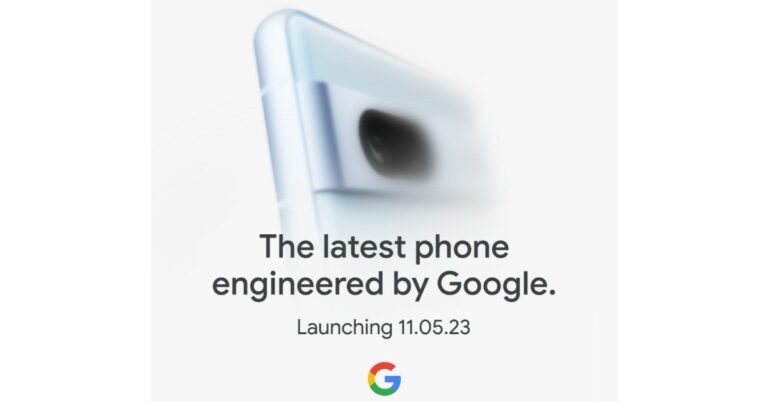
Google today officially stated that the Pixel 7a’s launch date in India has been scheduled for May 11. The device will be available for purchase via Flipkart in the country the company revealed. Note that the device will debut on the second day of the upcoming Google I/O event that will begin on May 10. Ahead of the official announcement the upcoming Pixel phone has already been seen online a few times, revealing the pricing, design as well as specification.Google Pixel 7a is all set to launch in India on May 11 which was quite expected and was being speculated as the Google I/O, the company’s annual flagship event is set to begin on May 10 where we are expected to see important announcements. The smartphone is the successor to the Pixel 6A and the low-cost option to the flagship Pixel 7 that was launched last year.
In This Article
Google Pixel 7a specification and design expected
The launch was teased via a teaser poster. A smartphone has been teased in a blue colour variant. The phone was previously spotted on several certification sites and other platforms, therefore, suggesting the key specs, design and pricing. Pixel 7A’s images were leaked via tipster on Twitter. He shared the phone in two colour options of Arctic Blue and Charcoal Black. The phone can be seen with a rectangular camera model horizontally placed on the back panel having an LED flash unit. The company’s Logo is also visible on the rear at the centre.
The Pixel 7A is expected to feature a 6.1-inch full-HD+ OLED. The screen will come with a refresh rate of 90Hz. The device is likely to be powered by the Tensor G2 SoC, paired with 8GB of LPDDR5 RAM and 128GB of UFS 3.1 storage. It is said to include a dual rear camera setup. The system is speculated to consist of a 64-megapixel primary sensor with optical image stabilization (OIS) support and a 12-megapixel ultra-wide lens. In addition to this, there will be a 10.8-megapixel front-facing camera for taking selfies and video calling. Reportedly the handset may include a 4,400mAh battery with 20W wired charging support.
If you want to accelerate the process of learning a language, you must practice writing it as well. Luckily, the keyboard on your smartphone makes it easier to type in a second language using predictive text. Japanese learners who find it hard to grapple with the script will find typing on an onscreen keyboard way easier than physically writing the language. In this article, we bring you the top 3 ways to type Japanese characters on your iPhone and Android phone.Read Also:How to reset your Twitter password on Android and iPhone?
In This Article
Type Japanese Characters on your Android Phone
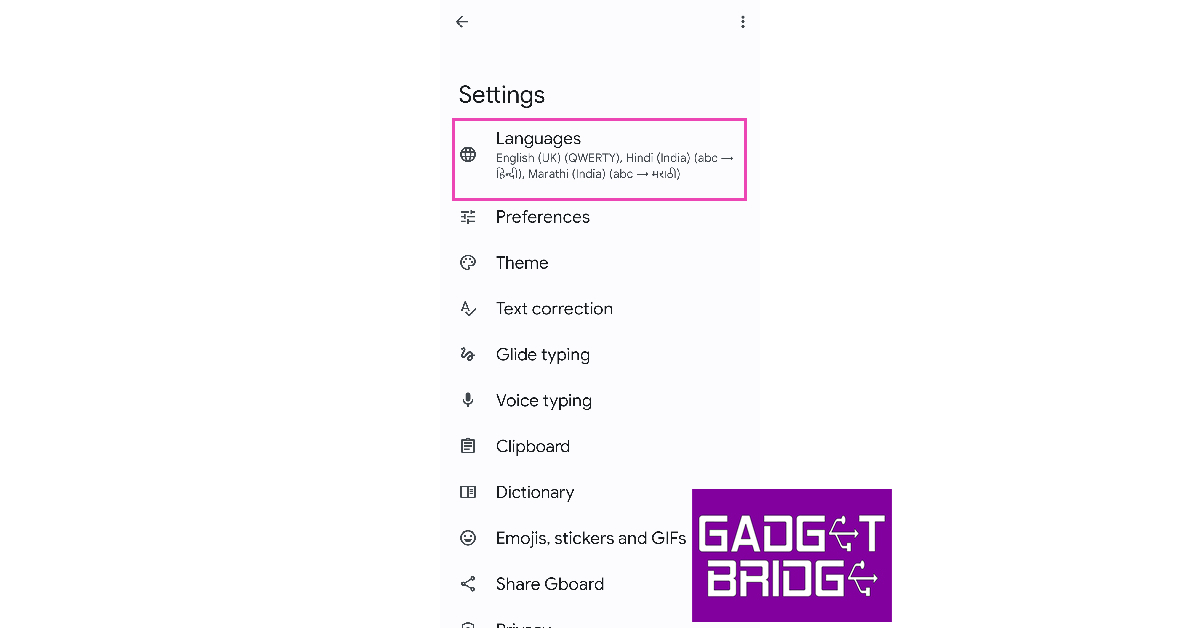
Gboard (Google Keyboard) is the default keyboard in most Android smartphones. This keyboard is extremely versatile and has integrated support for the major languages of the world. Here’s how you can type Japanese characters on Gboard.Step 1: Go to Settings and select General Management.Step 2: Tap on ‘Keyboard list and default’ and select Gboard as the default keyboard.Step 3: Go back and tap on ‘Gboard settings’.Step 4: Tap on ‘Languages’.Step 5: Select ‘Add Keyboard’.Step 6: Scroll down and select ‘Japanese’.Step 7: Select the keyboard layout and tap on ‘Ok’. Japanese will be added to the list of languages supported by Gboard.Step 8: To type in Japanese, go to a text box and long-press the spacebar on Gboard.Step 9: Select Japanese from the list. The keyboard will now display Japanese characters and you will be able to type them on the screen.
Type Japanese Characters on your iPhone
Use these steps to add Japanese characters to the default keyboard on your iPhone.Step 1: Go to Settings and select General.Step 2: Select ‘Keyboard’ and tap on ‘Keyboards’.Step 3: Tap on ‘Add new Keyboard’.Step 4: Scroll down and select Japanese.Step 5: Choose the Japanese writing system for your keyboard. By default, you get the option to add ‘Kana’ and ‘Romaji’. You can add both of them to the keyboard.Step 6: To type in Japanese, go to a text box and tap the globe icon on the keyboard. Select Japanese from the list of languages.
Type Japanese Characters using Microsoft SwiftKey keyboard
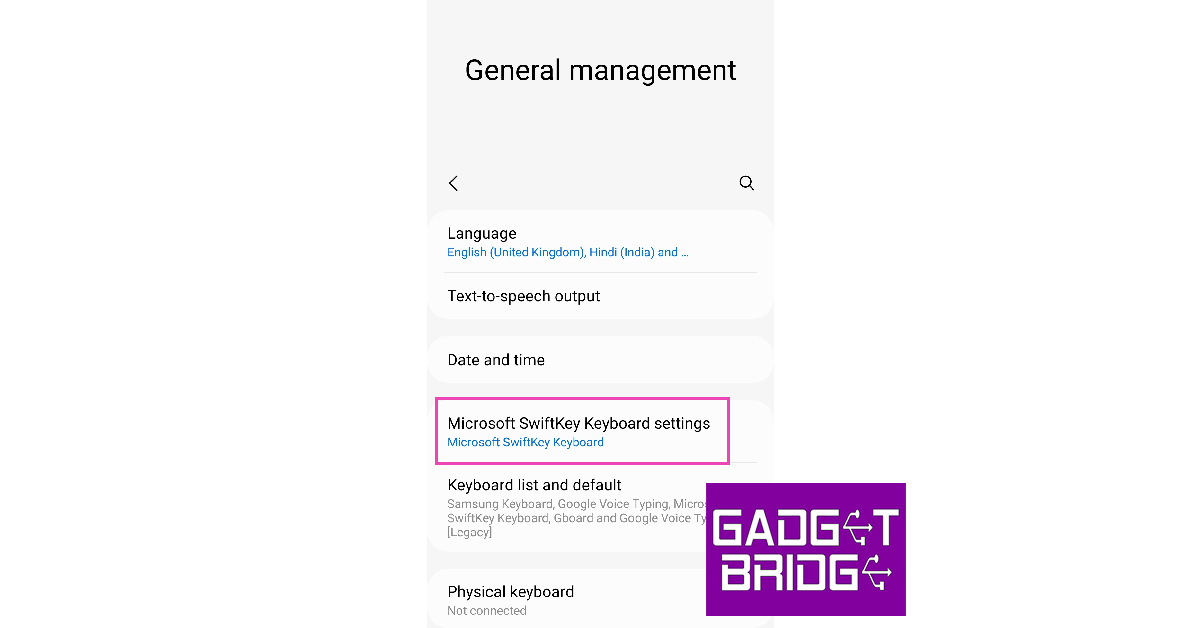
If you’re a SwiftKey user, you will be pleased to know that Microsoft’s keyboard app has support for most major languages across the world, including Japanese. Here’s how you can type in Japanese on the Microsoft SwiftKey keyboard.Step 1: Go to Settings and select General Management.Step 2: Select ‘Keyboard list and default’ and set SwiftKey as your default keyboard. If you don’t find SwiftKey on the list, download it from Google Play Store.Step 3: Tap on ‘Microsoft SwiftKey Settings’.Step 4: Select ‘Languages’.Step 5: Tap on ‘All Languages’ and select Japanese.Step 6: SwiftKey will download the language pack and integrate it with the keyboard.
Frequently Asked Questions
How do I type in Japanese on my phone?
To type in Japanese on your phone’s onscreen keyboard, simply go to Settings>General Settings and add Japanese to the list of languages on your keyboard.
Which keyboard offers Japanese typing on Android?
Google Keyboard and Microsoft SwiftKey Keyboard offer Japanese support on Android. You can also download special third-party keyboard apps to exclusively type in Japanese.
How do I type in Japanese on WhatsApp?
Once you switch to Japanese on your onscreen keyboard, you will be able to type Japanese characters on any app, including WhatsApp. To change WhatsApp’s app language to Japanese, go to WhatsApp>Settings>App Language and select Japanese from the list.Read Also:14 mobile apps linked to terrorist groups banned in India
Conclusion
This is how you can type Japanese characters on your iPhone or Android phone. You can easily switch back and forth between languages on your onscreen keyboard by tapping on the globe icon or long-pressing the spacebar. If there’s another Japanese keyboard app that you like to use, let us know in the comments!For the latest gadget and tech news, and gadget reviews, follow us on Twitter, Facebook and Instagram. For newest tech & gadget videos subscribe to our YouTube Channel. You can also stay up to date using the Gadget Bridge Android App. You can find the latest car and bike news here.
Samsung has officially announced the Fab Grab Fest 2023 on its website. Customers can benefit from discounts and cashback on a variety of Samsung digital appliances, as well as Galaxy smartphones, tablets, laptops, accessories, and wearables. The festival offers will be accessible on Samsung.com and at Samsung Exclusive Stores located all throughout the nation. Select deals are live now as early access to the sale is open, however, the sale will go live on May 4.During the Fab Grab Fest, select models of the Galaxy S Series, A Series, M Series, F Series, and Flip 3 smartphones will be discounted by up to 57%, and select models of the Galaxy Tablets will be discounted by up to 40%.Additionally, the company will offer discounts of up to 45% on consumer electronics items and up to 59% on monitors.Get additional cashback of up to 22.5% on credit and debit cards from renowned banks. The HDFC and ICICI Bank customers can also receive an additional cashback of up to 14%.Also Read:You can now easily share files between Windows PC and Android devices using Google’s Nearby Share feature
Samsung Fab Grab Fest Offers and Discounts
The Galaxy F14, Galaxy F23, flagship Galaxy S21 FE 5G, Galaxy Z Flip3, and recently released Galaxy M14 will all be discounted by up to 57%, according to Samsung. The company will be providing discounts of up to 29% on Samsung laptops such as the Galaxy Book2, Galaxy Book Go, and the recently released Galaxy Book3 and Galaxy Book3 Pro 360. You can save up to 40% on Samsung tablets, accessories, and wearables such as the Galaxy S6 Lite WiFi, Galaxy A8 WiFi, and Galaxy Watch4.Select Samsung TV models, including the flagship Neo QLED and The Frame TVs and the Crystal UHD series, will be discounted by up to 45%. The “Fab Grab Fest” 2023 will also provide never-before discounts and offers on a variety of electronic devices, including air conditioners, refrigerators, washing machines, microwaves, and monitors.The most expensive Side-By-Side refrigerators from Samsung will be discounted up to 40%. The customers can also get 32-inch Samsung smart TV worth Rs 15,990 when they purchase certain Side-By-Side refrigerators, in addition to an additional 40% savings. Up to 30 percent off will be available on select models of washing machine models, as well as a free 28-litre microwave oven.There will be up to 35 percent off on other digital appliances like microwaves and up to 40 percent off on select models of Air Conditioners. According to Samsung, debit and credit cards from ICICI, Axis, Kotak, and other top banks will also be eligible for an additional cashback of up to 22.5% with a maximum of Rs 25,000. In addition to this, consumers buying two or more of Samsung’s latest range of WindFree ACs can get an additional 10% off on the final price.Apart from discounts and offers 1st-time buyers on Samsung Shop App can avail of benefits up to Rs 2000 on select Galaxy devices & up to 3000 on Select TV & home appliances. ShopApp welcome vouchers can be availed over and above the Fab Grab Fest offers.There will be an additional 10% cashback over and above fab Grab Fest offers if the transaction is made through a Samsung Axis bank credit card.Customers making two or more purchases from categories including accessories listed under the Buy More Save More offer on Samsung.com and Samsung Shop App are eligible to get an additional 5 percent off.
For the latest gadget and tech news, and gadget reviews, follow us on Twitter, Facebook and Instagram. For newest tech & gadget videos subscribe to our YouTube Channel. You can also stay up to date using the Gadget Bridge Android App. You can find the latest car and bike news here.
After roughly two years, Amazon released the fifth-generation Echo Dot speaker in India a few weeks ago. The device, which has improved functionalities but a mostly similar form factor to the 4th Gen Alexa-powered speaker, is its replacement. It is asserted that the entry-level smart speaker sounds better. Additionally, it has motion detection, ultrasound sensors, and temperature sensors. Our edition of the Echo Dot 5 costs Rs 5,499; can it live up to the expectations? Read our Amazon Echo Dot 5th Gen review to find out.
In This Article
Amazon Echo Dot 5th Gen Review: Design
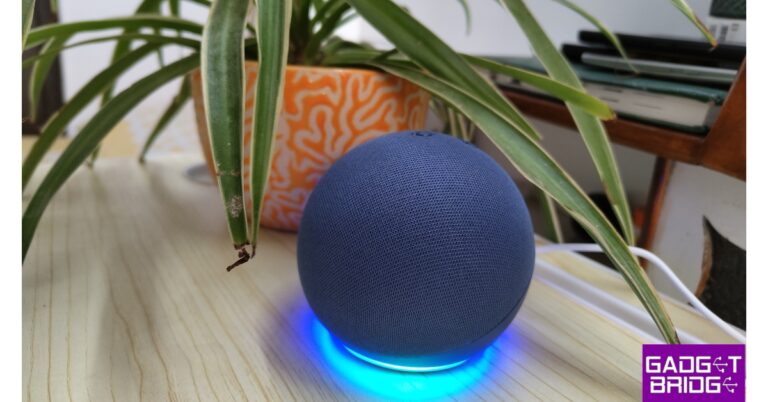
Hey, that looks exactly like the previous generation model, we thought when we first saw the Amazon Echo Dot 5th Gen speaker. To distinguish between the two generations, there is a small difference, though. The 3.5mm audio jack, which was a not needed addition in our opinion, has been eliminated by the business from the fifth generation.Amazon Echo Dot 5th Gen features a spherical design, which looks neat and has four physical buttons on the top. There is an action button to turn on/off the Accelerometer, a mute mic button and two to control the volume. We have the blue colour variant, however, it is available in two more colours – white and black. Since it lacks a battery, it cannot be used on the go; instead, it must be constantly plugged in to function.The dedicated light on the speaker’s bottom illuminates in various colours to show whether Alexa is listening, on mute, trying to connect to WiFi, or in setting mode. The bottom of the speaker is flat and covered with rubber for a better grip. The power socket is still there, despite the absence of the 3.5mm headphone jack, as we have mentioned.
Amazon Echo Dot 5th Gen Review: Performance
The device has an accelerometer that allows you to snooze the alarm, play/pause music, and even stop the timer by tapping on the top of the device. Actually, it’s quite good. More often than we anticipated, we found ourselves unintentionally stopping the music. Therefore, the action button saves the day. When the button is pressed, the accelerometer is not activated. Alexa can be asked to play or pause music instead, which is more effective. In the App settings, you can also disable the play and pause music tap gesture, but you can still keep it on to stop alarms and timers. However, the tap gesture many times failed during our testing, which was a bit odd.Most of the time the tap gesture never worked to resume the music if it accidentally gets paused. We had to tap it multiple times.Let’s discuss ultrasound motion detection, another improvement over the 4th generation Echo Dot. Yes, the Echo Dot 5 has motion detection. The built-in microphones capture background noise that can be tweaked to meet your needs. For instance, you can programme it to automatically turn off the lights in the room when no one is present and turn them on when it senses someone is around. All you need to do is visit the Alexa App to personalise this. An option for ultrasonic motion detection is available in the settings. You may adjust the sensitivity range here and many other things if you turn that on.Additionally, it has a built-in temperature sensor, and just like ultrasound motion detection, you can programme a routine for this as well. The air conditioner will automatically turn on if the room temperature exceeds your preset level. You can also set a threshold to switch off the air conditioning. If your AC is a Smart AC, you must manually switch it off.The Echo Dot 5 has a 1.73-inch audio driver. The smart speaker has excellent bass quality. You can easily use it to operate your Smart home equipment in addition to listening to music.Wi-Fi connections at 2.4GHz and 5GHz are available for connectivity. It takes several minutes to connect initially to the Wifi but the connectivity is stable and has a good range. It works with Alexa App, which is available on both Apple App Store and Google Play Store. We only used the App while setting up the device and to link appliances and music streaming services. Also, the Echo Dot supports music streaming services like Amazon Prime Music, Jiosaavan, Spotify, Hungama and more.In terms of cost, the Amazon Echo Dot 5 is available for Rs 5,499. which is more expensive than the previous generation, which costs only Rs 4,499 today.
Verdict
The real question is whether you would spend an extra Rs 1,000 to get the tap feature, ultrasound motion detection, and temperature sensor built-in. If you ask us, we will say “Maybe.” The tap functionality did not impress us because it frequently failed and because our listening pleasure was ruined by unintended touches.The temperature sensor, however, is a welcome addition, but again, if you have a Smart AC at home or at work, this feature is not much of use. The Echo Dot 5’s audio quality has become much better, and there’s no denying that the bass on this model is excellent. At just Rs 4,499, the 4th generation is, in our opinion, is a great investment. The Echo Dot 5 is a superb option if you want to replace your 4th generation or older device and want new-age sensors.Price: Rs 5,499Buy HereAmazon Echo Dot 5th Gen Pros
Garena Free Fire is a battle royale game with regular awards and tournaments to keep players interested. If you play Garena Free Fire, you should be aware of the redeem codes that are released on a daily basis. However, because the battle royale game is banned in India, players from other countries can use the Free Fire Redeem codes daily. If you’re unfamiliar with the Garena Free Fire redeem codes or don’t know how to get them, we’ve put together a step-by-step guide to help you redeem them. Check out Garena Free Fire Redeem Codes for 2 May 2023.The Free Fire redeem codes are a great way to get free stuff. These are 12-digit codes that contain alphabets and numbers, as well as an expiration date and time. Because the Garena FF redeem codes cannot be used more than once, you should hurry to the redemption page to claim your free reward before someone else does. To get a free reward, all you have to do is go to reward.ff.garena.com/en, which is the official redemption page. Also, keep an eye on this space for daily updates on Garena Free Fire redemption codes and rewards.
Daily Amazon brings a fresh quiz for its customers with exciting rewards on its platform. The Amazon quiz can be played every day from 12 AM to 11:59. 2 May 2023 Amazon Quiz has gone live on its platform and the e-commerce platform Amazon is today giving you a chance to win Rs 1,000 Amazon Pay Balance.To participate all you need to do is log in to your Amazon app on your device and give answers. Daily a new set of questions are presented to the participants which gives them a chance to win exciting prizes. The questionnaire consists of five easy questions that are usually based on general knowledge and current affairs. You can submit the correct answers and can win an Amazon Pay Balance of up to Rs 50,000. It should be noted that the quiz is not accessible on the web platform instead you have to participate only through the dedicated app.Amazon Quiz Today Prize – Rs 1,000 Amazon Pay BalanceQuiz Date – 2 May 2023Daily Timing – 12 AM to 11:59 PMWinner Announcement – Today 12 PM
In This Article
Amazon Quiz Answers Today 2 May 2023
Question 1: In April 2023, who became the highest wicket-taker in the T20I format?
Answer: Shakib Al Hasan
Question 2: India built the Buzi Bridge in which African country?
Answer: MozambiqueQuestion 3: Fumio Kishida, who visited India in March 2023, is the PM of which country?Answer: JapanQuestion 4: What island are these animals native to?
Answer: MadagascarQuestion 5: What is the name of the highest building located in this city?Answer: CN Tower
How To Play Amazon Quiz
Only app users are eligible to play the Amazon quiz every morning from 12 AM to 11:59 PM. The quiz is not available on the desktop. For those who are unaware of how to play the Amazon quiz below are the steps, you can follow to take the quiz.
Firstly download the Amazon app from Google Play Store or App Store
Now fill in the required information through the Sign Up option.
You need to log in to the Amazon app and scroll down on the home screen to find the Amazon Quiz banner.
Tap on the Amazon Quiz banner and tap on the Start button to start the Quiz.
Now you will get 5 questions and you need to answer them correctly. One wrong answer will eliminate you from the Quiz.
After answering all the questions correctly you are now eligible for a Lucky Draw.
The winner’s name will be announced today at 12 PM.
If you ever forget your Twitter password, you don’t need to worry about losing your account. Twitter makes it easy to reset your password once it is able to verify your identity. You can reset your Twitter password using your email or your phone number. For the latter, your phone number needs to be registered to your account. So, without further ado, here are the two ways you can reset your Twitter password on Android and iPhone.Read Also:Infinix Smart 7 HD with 5,000mAh battery launched in India
In This Article
How to reset your Twitter password via email
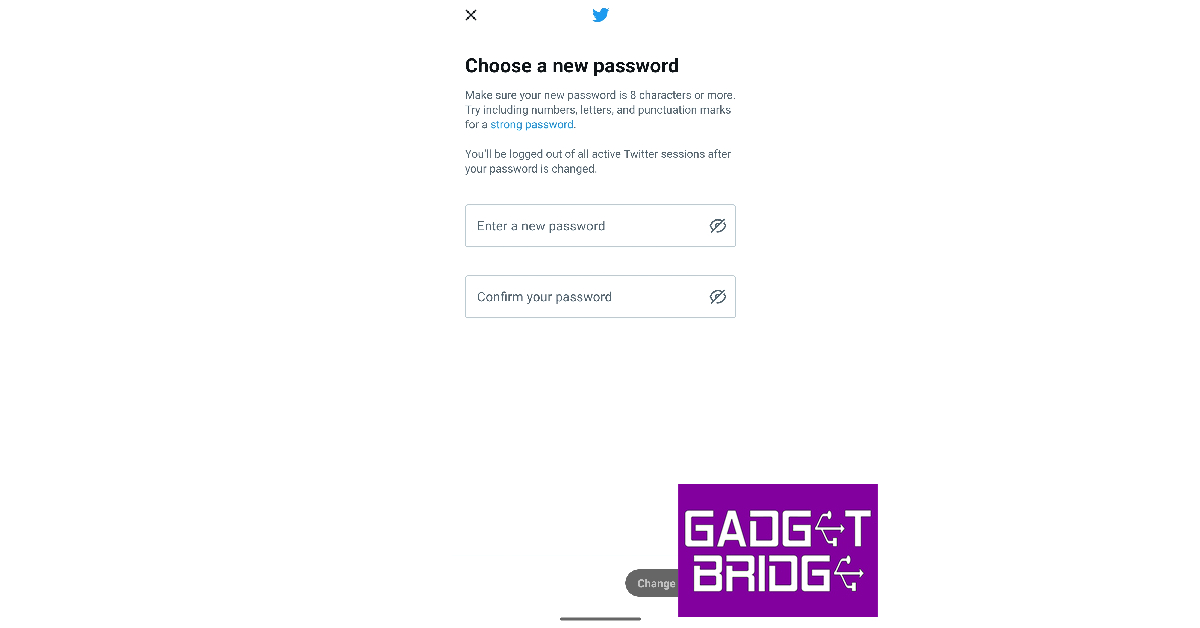
Step 1: Launch the Twitter app on your phone and tap on ‘Log in’.Step 2: Tap on ‘Forgot password?’Step 3: Enter your email or username in the relevant field. You can also use your phone number if it is linked to only one account.Step 4: Choose the email where you want to receive the confirmation code to verify your identity. Tap on ‘Next’.Step 5: Check your email inbox for the verification code. Enter it on the Twitter app.Step 6: Your password will be reset and you will now be asked to create a new password.Step 7: Set a new password for Twitter and tap on ‘Change Password’.
How to reset your Twitter password via text
Step 1: Launch the Twitter app on your phone and tap on ‘Log in’. Step 2: Tap on ‘Forgot password?’Step 3: Enter your registered email, phone number, or Twitter username.Step 4: Enter your phone number and hit ‘Search’.Step 5: Twitter will show you a few digits of your registered number. If you still have access to this number, tap on ‘Continue’.Step 6: A reset code will be sent to your number. Enter it in the Twitter app and tap on ‘Submit’.Step 7: Your Twitter password will be reset. You can now create a new password for your account.
Frequently Asked Questions
I tried resetting my Twitter password but still can’t log into my account. What should I do?
If you can’t get access to your Twitter account even after resetting your password, you may have been locked out of your account due to a security issue. It is also possible that you received a temporary ban. Check your email for any ban notifications and contact Twitter Support for more information.
I’m not receiving any verification codes from Twitter, what should I do?
If you are unable to receive the verification code via text, check if you are using the phone number that is registered on the Twitter app. Make sure you are receiving ample network coverage and that the Twitter number isn’t blocked.
Why do I keep getting password reset emails?
If you keep getting password recovery codes from Twitter, it means someone is trying to gain access to your account. Do not share the verification code with anyone as it will give them access to your account. You can also beef up the security by adding two-factor authentication to your account.Read Also:How to use WhatsApp without a phone number?
Conclusion
These are the two ways you can reset your Twitter password on Android and iPhone. If you know your password and simply want to change it, you don’t need a verification code to do so. Simply go to Settings>Your Account>Change your password and type your current password followed by the new password of your choice. To add extra protection to your account, set up two-factor authentication for Twitter. Here is how you can do it for free.For the latest gadget and tech news, and gadget reviews, follow us on Twitter, Facebook and Instagram. For newest tech & gadget videos subscribe to our YouTube Channel. You can also stay up to date using the Gadget Bridge Android App. You can find the latest car and bike news here.
The Government of India has banned 14 mobile apps in the country. These applications were mostly utilised in Jammu and Kashmir for the dissemination of terror. Some terrorist groups were using these apps for fostering terrorism in J&K. On the advice of security and intelligence agencies, the decision to ban the apps was made.
Below is the list of mobile apps that have been banned in India:
Crypviser
Enigma
Safeswiss
Wickrme
Mediafire
Briar
BChat
Nandbox
Conion
IMO
Element
Second line
Zangi
Threema
As we mentioned earlier the action was taken on the recommendation of intelligence agencies. The request for banning these apps was made known to the relevant ministry along with a list of apps that constitute a threat to national security. The 14 mobile apps have been banned under Section 69A of the Information Technology Act of 2000. According to sources, these applications were used by terror groups linked to Pakistan in Jammu and Kashmir to stay in touch with their supporters and Over Ground Workers (OGW) and to receive orders from Pakistan. “Agencies keep track of channels used by Overground workers (OGWs) and terrorists to communicate among themselves. While tracking down one of the communication, agencies found that the mobile application does not have representatives in India and it is difficult to track down activities happening on the app. Thereafter, with the help of other intelligence agencies operating in the valley, a list of such apps was prepared that pose a threat to national security and do not follow Indian laws,” according to ANI.In the past, more than 200 apps, including TikTok, PUBG Mobile, and others, were banned in India. A quick recap: 59 Chinese apps were subject to the initial ban. TikTok, Shareit, Shein, WeChat, Club Factory, and more apps were on the list at that time. Under Section 69A of the Information Technology Act, more than 118 apps, including PUBG, were blacklisted in the second round.
For the latest gadget and tech news, and gadget reviews, follow us on Twitter, Facebook and Instagram. For newest tech & gadget videos subscribe to our YouTube Channel. You can also stay up to date using the Gadget Bridge Android App. You can find the latest car and bike news here.
WhatsApp is constantly updating its features to provide the best possible user experience. Recently the company was spotted testing a Lock chat feature to boost privacy on its platform. In a new development, the instant messaging platform is working on a data transfer feature. A new WhatsApp chat transfer feature is currently rolling out to allow users to move user’s accounts to another device without using Google Drive, and it is available to some lucky beta testers.According to a report by WaBetainfo, a new chat transfer feature is now available to selected beta testers (WhatsApp beta for Android 2.23.9.19 update) and is likely to be available to more users over the coming weeks. Reportedly the users won’t need to back up their chat history to Google Drive if they are willing to transfer their accounts to new Android devices.Image Courtesy: WaBetaInfoAccording to a shared screenshot, the chat transfer option is available within WhatsApp Settings > Chats. It will enable users to migrate their chat history to a new Android device. One must scan the QR code after choosing this option to start the process of transferring our chat history to the new Android device.The new chat transfer feature will offer the option to avoid manually backing up chats history to Google Drive, in case the chat history is large. Users can move their chat history from an old Android smartphone to a new Android device by just scanning the QR code. This eliminates the need for backup and restoration procedures as the migration is automatic.Also Read:WhatsApp released Lock Chats feature to boost privacy: Details inside“In case this feature is not available for your WhatsApp account, there is nothing wrong with your device: WhatsApp often releases new features gradually to a limited number of beta testers before making them available to everyone. This approach helps WhatsApp to identify and fix any issues or bugs with the feature before it is widely released.”As per the report, the chat transfer feature is currently available to some selected beta testers that install the latest update of WhatsApp beta for Android from the Google Play Store. The company is likely to roll out the feature to more users over the coming week.
For the latest gadget and tech news, and gadget reviews, follow us on Twitter, Facebook and Instagram. For newest tech & gadget videos subscribe to our YouTube Channel. You can also stay up to date using the Gadget Bridge Android App. You can find the latest car and bike news here.
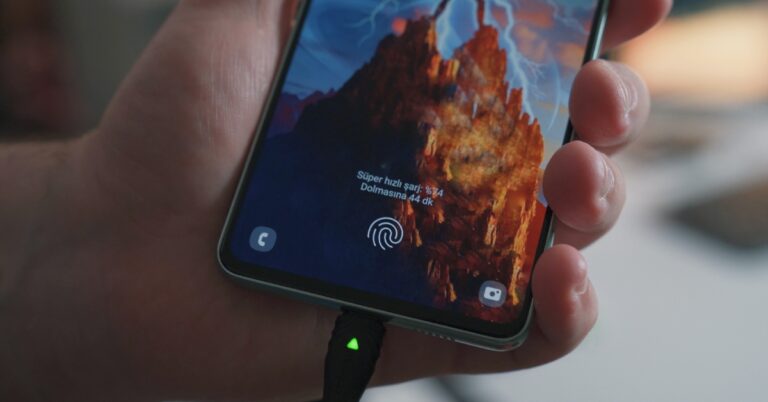
One of the biggest hurdles in making long-lasting devices is the battery unit. Simply put, batteries aren’t designed to last. Even a good battery unit will wear off and depreciate in quality. This is because a battery generates power through the movements of the ions within it, causing the electrodes to wear out over time. Sometimes, your phone may randomly turn off due to lack of power even though the battery indicator shows some charge left on the device. This is not your battery’s fault. Your smartphone tracks the charge on your battery and displays it on the screen. If this process isn’t carried out correctly, your phone may display the incorrect amount of charge on the screen. Luckily, it can be fixed. In this article, we show you how to calibrate the battery on your Android phone or tablet.Read Also:Samsung to bring more health monitoring features based on Skin Temperature Sensor
In This Article
Here’s how you can calibrate the battery on Android
Step 1: Discharge the battery from your Android device. Let it turn off.Step 2: Turn your device back on. If the battery on your device isn’t calibrated, the battery indicator on the display will show some charge left. Your device will turn off pretty quickly.Step 3: Without turning on your device, put it on charge. You will see the battery indicator on the screen. Let it charge to 100%.Step 4: Once the indicator displays that your phone is fully charged, unplug it from the charger and turn it on.Step 5: Check if the battery indicator on the display shows 100% charge. If it doesn’t put your phone on charge. Keep it connected to the charger until the indicator shows 100% charge or comes very close to 100%.Step 6: Once your Android phone or tablet hits 100% charge, let it drain out again. Leave the display unlocked to help the battery drain out faster.Step 7: Charge your phone to 100% without turning it on. When it is fully charged, remove the charging cable and turn it on. Your battery should be calibrated.
Calibrate the battery on a Samsung device
If you own a Samsung smartphone, there’s another way you can calibrate its battery. Here’s how.Step 1: Let your device’s battery drop down to 5%. Step 2: Launch the dialer app and type *#0228#.Step 3: Tap on Quick Start. Let your phone restart.Step 4: Once your phone restarts, check if its battery percentage has dropped.Step 5: Plug the charger in and let your device charge to 100%.Step 6: Restart your phone and unplug the charger.Step 7: Carry out this process 2-3 times.Step 8: Finally, let your phone charge to 100%. Launch the dialer app and type *#9900#.Step 9: Tap on Batterystats Reset.Step 10: Restart your device.Your device’s battery will be calibrated following this procedure.Read Also:The Tech Behind Crypto Casinos
Calibrate the battery on a rooted Android phone or tablet
If your Android phone has root access, you can use a bunch of battery calibration apps to do the job for you. Here’s how.Step 1: Drain your phone’s battery and let it turn off.Step 2: Without plugging in the charger, turn on your device and let it turn off by itself again.Step 3: Plug in the charger and let your phone charge to 100% without turning it on.Step 4: Unplug your charger and turn on the phone.Step 5: Notice the percentage displayed by the battery indicator. It is likely that it doesn’t display a 100% charge. Plug in the charger again and juice up your device until it says 100%.Step 6: Unplug the charger once the battery hits 100%. Restart your device. If the battery indicator doesn’t say 100%, plug the charger back in until it does.Step 7: Keep repeating this process until the device says 100% upon restart. Let it get as close to 100% as possible.Step 8: Install the battery calibration app once your phone hits 100%. Restart your phone.Step 9: Launch the app and calibrate the battery.Step 10: Once the battery has been calibrated, drain your phone until it turns off.Step 11: Charge your phone to 100% without turning it on. Your phone’s battery will be calibrated.
Use a third-party app without root (Battery Calibration Pro)
Step 1:Install the Battery Calibration Pro app on your Android device.
Step 2:Launch the app and select Check Root. If your device is not rooted, select Go Ahead.
Step 3: Plug your phone into the charger and charge it to 100%.
Step 4: Without taking out the charger, hit Calibrate.
Step 5:Restart your device. If there is a decrease in battery percentage, charge it to 100%.
Step 6: Once the phone is fully charged, unplug the charger. Use the phone until its battery is completely drained.
Step 7: Once the device dies, plug in the charger and charge it to 100% without turning it on.
Step 8: Turn on the device and charge it to 100% again.
Frequently Asked Questions
Is Android battery calibration necessary?
Battery calibration on Android is necessary when the battery’s performance is inconsistent with the amount of charge displayed on the screen. If your phone suddenly dies even when the battery indicator displays an optimum amount of charge left on the device, you need to calibrate the battery.
Does battery calibration help the performance?
No, battery calibration does not help in improving the battery performance in any way. It simply helps your phone track the battery status more accurately.
What is the benefit of battery calibration?
Battery calibration gives you a better idea of how much charge is left on your phone. If your phone randomly turns off even when the battery indicator shows some charge left, you need to calibrate the battery of your device.Read Also:My Dream11 Withdrawal Failed, What Should I Do Next?
Conclusion
This is how you can calibrate the battery on your Android phone or tablet. You can also calibrate the battery by deleting the ‘BatteryStats.Bin’ file on your device, but it will require jailbreaking your device first. Since it achieves the same results, manually calibrating your battery without jailbreaking the device is a much better option.
Indian lifestyle brand Noise today announced the expansion of its smartwatch portfolio with the launch of the new NoiseFit Force Plus. The newly launched fitness tracker comes with a rugged round dial and impact-resistant build. The device features a 1.46-inch AMOLED display and has a shortcut button for easy navigation.Amit Khatri, Co-founder, Noise commented on the launch, “Innovation is the guiding force behind everything we do at Noise, and the new NoiseFit Force Plus is an embodiment of this value. As a forerunner in democratizing industry-leading innovation, our products represent the brand’s commitment to creating a fully-connected experience for new-age users, in all scenarios. Built for extremes, we are certain the new smartwatch will prove to be an ideal choice for users looking for a tech companion in their adventures.”Also Read:Infinix Smart 7 HD with 5,000mAh battery launched in India
In This Article
NoiseFit Force Plus features
NoiseFit Force Plus comes with a rugged-looking 1.46-inch AMOLED display offering 466×466 pixels of resolution. The screen offers 550 nits of peak brightness and also includes more than 100 watch faces. It has a shortcut button which instantly directs you to the sports mode. The device is IP67 rated for water and dust resistance making the watch extremely durable.The NoiseFit Force Plus includes an advanced calling feature, Tru Sync and has a single-chip Bluetooth 5.3 making it easy to use and pair. It comes with a bunch of fitness and health monitoring features. The device offers over 130 sports modes and includes an array of wellness features under Noise Health Suite that can keep track of all your vitals including heart rate, SpO2, sleep monitor, stress measurement, breath practice and female cycle tracker.In addition to this, the smartwatch allows users to call from a dial-pad, access recent calls and save up to 10 contacts on the watch using Noise Buzz. Users can also keep their daily reminders and weather forecast handy, with the help of its inbuilt Productivity Suite. According to the company it provides 7 days of battery life on a single charge.
Android and iOS are the two biggest mobile operating systems in the world. While there may be a few other OS out there, they occupy far too little market share to be considered in the same discussion as Android and iOS. These two operating systems have their own app markets, Google Play Store and App Store. While most mainstream apps are available on both platforms, there are some exclusive niche apps that can only be found on one of the platforms. If you’re an iOS user looking for Android-exclusive apps, here are some ways you can get Android apps on your iPhone.Read Also:My Dream11 Withdrawal Failed, What Should I Do Next?
In This Article
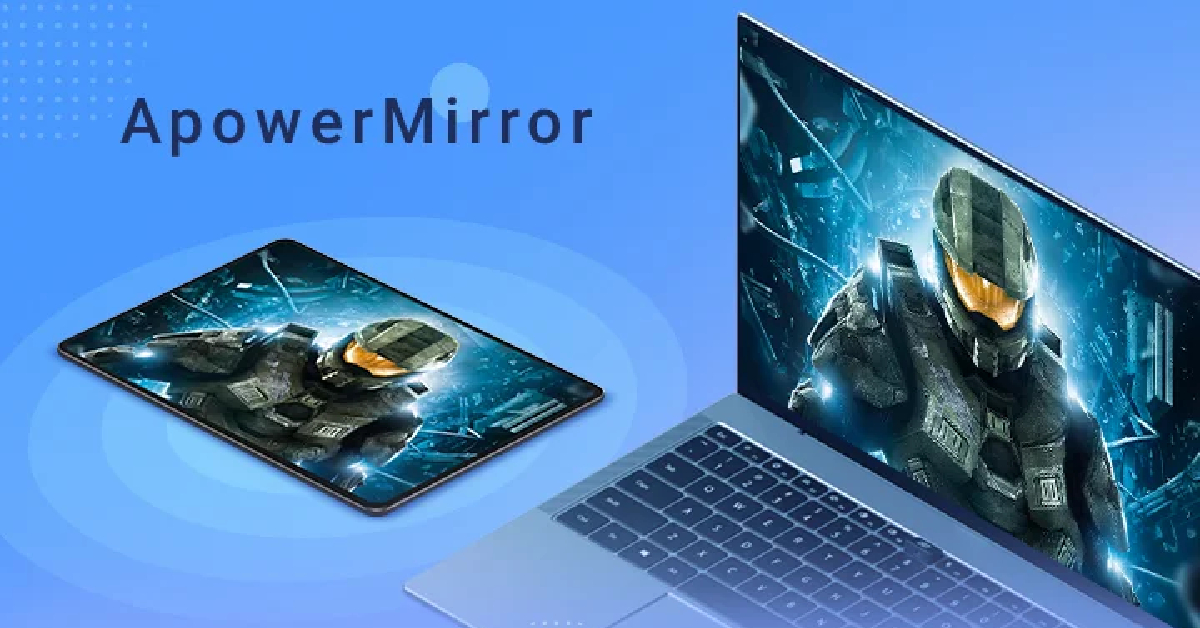
Use Apowermirror
While there is no direct way to install Android apps on an iPhone, you can still utilise some workarounds to carry out this task. One of the best ways you can use Android apps on your iPhone is by mirroring your Android phone’s display on your iPhone. Apowermirror allows you to cast your phone’s display across different platforms. The only prerequisite for using this app is that both devices must be connected to the same WiFi network. Once that is taken care of, follow these steps.Step 1: Download and install Apowermirror on your Android and iOS devices.Step 2: Tap on the blue icon that says ‘Mirror’ on your Android device.Step 3: Apowermirror will begin searching for other devices on the network. Select your iPhone from the list to begin mirroring your Android phone’s display.
Use an Android emulator
This may be a far-fetched way to run Android apps on your iPhone, but it works. Emulators like iAndroid allow you to simulate the Android environment on your iPhone, which means you can use all the Android apps on your iOS device. The only catch is that you will need to jailbreak your iPhone to install an Android emulator on it. Jailbreaking your iPhone compromises the security of your device and prevents you from installing any software updates on it. It also instantly nulls the warranty of your device.
Find an iOS version of the Android app
This may seem too obvious a solution, but most Android apps have an iOS version for iPhone as well. The app market for both operating systems is pretty evenly matched. If you cannot find the iOS version of an Android app, try looking for similar apps on the App Store. This will rarely ever be an issue because almost every mainstream app is available on iOS. However, some niche apps may be absent on Apple’s platform. We ran into this problem while looking for some specific video editing apps on the App Store. If you cannot find an app by its exact name, try searching for the publisher. It is possible that the app may be listed under a different name on iOS.
Frequently Asked Questions
Can I run Android apps on an iPhone?
Yes, you can run Android apps on your iPhone by using a screen mirroring app on an Android emulator. To use an Android emulator on your iPhone, you will first need to jailbreak your device.
Can APK files run on iOS?
APK files are strictly based on Android OS and cannot run on any iOS device.
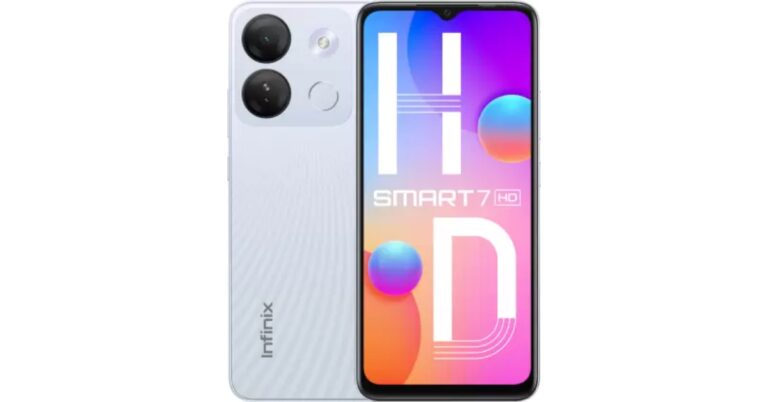
Hong Kong-based smartphone maker Infinix has officially announced a new smartphone in the Indian market. The company has introduced the Infinix Smart 7 HD smartphone powered by Unisoc SC9863A1 SoC. It houses a 5,000mAh battery and features an AI-powered dual rear camera setup. The affordable smartphone also includes an FHD+ IPS display that supports a standard 60Hz refresh rate.
In This Article
Infinix Smart 7 HD price in India, sale details
Infinix Smart 7 HD price in India is set at Rs 5,999 for the lone 2GB RAM with 64GB storage option. The entry-level device will be offered in three colour options – Black, Jade White, and Silk Black. The smartphone is scheduled to go on sale from May 4 via Flipkart at 12 noon. The launch offer includes 5 per cent cashback on transactions made via Flipkart Axis Bank cards. The company will also provide easy EMI options starting at Rs 211.
Infinix Smart 7 HD specifications
The Infinix Smart 7 HD features a 6.6-inch full-HD+ IPS display with a waterdrop-style notch and has 720 x 1,612 pixels of resolution. The screen comes with a refresh rate of 60Hz and a touch sampling rate of 120Hz. It also has a peak brightness of up to 500 nits. The budget smartphone operates on Android 12 (Go Edition) based XOS 12. Under the hood, there is octa-core Unisoc SC9863A1 SoC, paired with 2GB of RAM with an expansion up to 4GB using unused internal storage. It comes with up to 64GB of internal storage that can be expanded up to 1TB using a microSD card.Also Read:Samsung to bring more health monitoring features based on Skin Temperature SensorThe Infinix Smart 7 HD features an AI-powered dual rear camera setup that includes an 8-megapixel primary sensor along with a dual LED flash. In addition to this, the phone sports a 5-megapixel front-facing camera for taking selfies and video calling.The Infinix smartphone boasts a 5,000mAh battery that is claimed to offer a call time of up to 39 hours, playtime of up to 50 hours and 30 hours of standby time when completely charged. There is an ultra power saving mode which is claimed to offer 2 hours of call time at 5 percent remaining battery life. In terms of connectivity, there is 4G LTE, Wifi, USB Type-C port, Bluetooth 4.2, and OTG. The Smart 7 HD includes a fingerprint sensor for biometrics, an ambient light sensor, an e-compass, a gyroscope, and a proximity sensor.
For the latest gadget and tech news, and gadget reviews, follow us on Twitter, Facebook and Instagram. For newest tech & gadget videos subscribe to our YouTube Channel. You can also stay up to date using the Gadget Bridge Android App. You can find the latest car and bike news here.
Being the most popular instant messaging platform in the world, WhatsApp goes out of its way to give its users the most secure texting experience available anywhere. Features like end-to-end encryption and disappearing messages are the reason why a lot of people prefer WhatsApp over its competitors. While these features are pretty neat, you still need to share your phone number with someone to begin chatting with them on WhatsApp. This may be a dealbreaker for some as they may not be comfortable with sharing their number with everyone. Luckily, there is a way around that. While you need to register a number to sign up for WhatsApp, it doesn’t have to be your number. In this article, we bring you the top 2 ways to use WhatsApp without a phone number.Read Also:Apple’s Beat Studio Buds+ to copy Nothing Earbuds design, Amazon listing reveals
In This Article
Use a landline
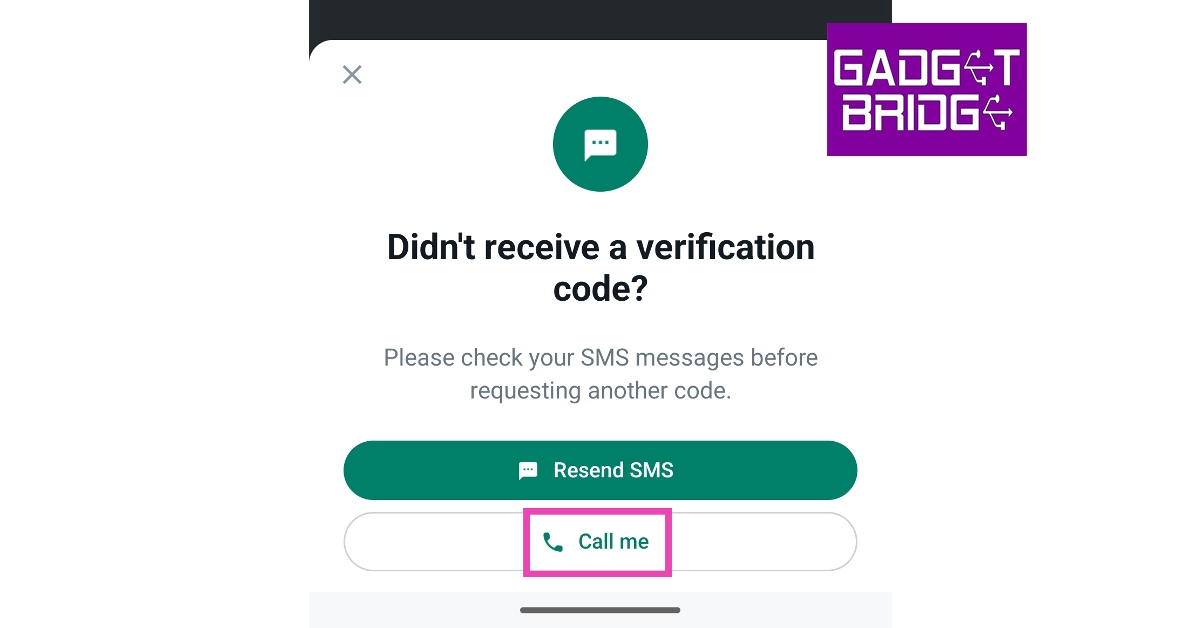
If you still own a landline phone, you can use it to sign up on WhatsApp. This is a great way to avoid using your personal number while still maintaining ownership of the account. Follow these steps to create a WhatsApp account using your landline phone number.Step 1: Download and install WhatsApp on your smartphone.Step 2: Launch WhatsApp and tap on ‘Agree and Continue’.Step 3: Select your country and enter your landline number. Tap on ‘Next’.Step 4: Confirm that your number is correct and hit ‘OK’.Step 5: WhatsApp will send you a verification code as a text to finish the registration process. Since your landline cannot receive text messages, choose the ‘Call me’ option instead. You may have to wait for a few seconds before you are allowed to choose this option.Step 6: Answer your landline when it rings and enter the code on WhatsApp.Once you have entered the code, your landline number will be registered on WhatsApp. You can proceed to set up your account and start using WhatsApp.
Use a virtual number
If you don’t own a fixed line (landline) phone, you can still create a WhatsApp account without using your number. There are several online services that allow you to use a virtual number without needing to buy a physical SIM card. One of the leading virtual phone number apps in India is ‘Doosra’. You will need to subscribe to a monthly plan to start using the virtual number issued to you by Doosra. You can use this number to make calls, send texts, and even register to WhatsApp. Once you get a virtual number, you can follow the steps mentioned above to create a WhatsApp account. Instead of a landline number, simply enter your virtual number. Click on this link to begin using Doosra. For other ‘virtual number’ services, read this article.
Frequently Asked Questions
How can I use a fake number on WhatsApp?
To use a fake number on WhatsApp, you need to subscribe to a ‘virtual number’ service like Doosra, Google Voice, Dingtone, or Line2. Once you’re issued a virtual number simply register it on WhatsApp to create an account.
How can I open WhatsApp without OTP?
You will need to provide a verification code to WhatsApp in order to start using it. However, you can choose to receive the verification code through a phone call instead of a text message. This helps when you are using a landline number to sign up for WhatsApp.
Can I use 2 WhatsApp accounts on one phone?
Yes, you can use 2 WhatsApp accounts on one phone. You can do this by enabling ‘Dual Messenger’ from Settings or installing WhatsApp Business and using the second number to create a Business account. Read more about it here.Read Also:What is Bluesky? How to get an invite to Twitter’s new alternative?
Conclusion
This is how you can use WhatsApp without a phone number. If you are looking for an instant messenger that does not require a phone number to create an account, you have a lot of options. Apps like Discord, Snapchat, Google Chat, and Kik perfectly fit the bill. Here is our list of the top 10 messenger apps that work without a phone number.For the latest gadget and tech news, and gadget reviews, follow us on Twitter, Facebook and Instagram. For newest tech & gadget videos subscribe to our YouTube Channel. You can also stay up to date using the Gadget Bridge Android App. You can find the latest car and bike news here.
Recently Samsung Galaxy Watch 5 Series received menstrual cycle tracking based on the skin temperature sensor. Now the South Korean tech giant is planning to add more features to its smartwatch that is said to be based on the Skin temperature sensor. The company did not openly disclose what features are coming to the device but informed the users about the upcoming upgrade.The Samsung Health in-charge took to the Samsung Community to reply to the queries of users regarding the new Galaxy Watch 5 features. According to the in-charge similar to the menstrual cycle feature the upcoming features on the watch will be based on the temperature sensor.Also Read:Samsung Galaxy Watch 5 series can track menstrual cycles using skin temperature: UpdateThe Samsung Health in-charge said, “In addition to the menstrual cycle function, new functions using the Galaxy Watch5 temperature sensor will be provided through future device SW updates. The updated schedule will be decided in consideration of service policies, etc., so we ask for your understanding that it is difficult to provide accurate information about the detailed schedule and timing.”The company recently rolled out menstrual cycle tracking based on skin temperature sensors for both Galaxy Watch 5 and Galaxy Watch 5 Pro. The devices can get even more detailed information to manage users’ menstrual cycles and overall health. This feature is currently accessible in 32 nations, including 30 different European regions, the US, and Korea.As per the company, basal body temperature (BBT) varies by menstrual phase. So one needs to measure BBT immediately after waking and prior to any physical activity or impact from surroundings. The new feature on the smartwatch will now automate this procedure for the user’s convenience so that the user doesn’t forget to measure the BBT first thing in the morning to get accurate BBT readings. Natural Cycle is integrated with Samsung’s sensor tech and will monitor variations in skin temperature during sleep right from the wrist.
For the latest gadget and tech news, and gadget reviews, follow us on Twitter, Facebook and Instagram. For newest tech & gadget videos subscribe to our YouTube Channel. You can also stay up to date using the Gadget Bridge Android App. You can find the latest car and bike news here.
Garena Free Fire is a battle royale game with regular awards and tournaments to keep players interested. If you play Garena Free Fire, you should be aware of the redeem codes that are released on a daily basis. However, because the battle royale game is banned in India, players from other countries can use the Free Fire Redeem codes daily. If you’re unfamiliar with the Garena Free Fire redeem codes or don’t know how to get them, we’ve put together a step-by-step guide to help you redeem them. Check out Garena Free Fire Redeem Codes for 1 May 2023.The Free Fire redeem codes are a great way to get free stuff. These are 12-digit codes that contain alphabets and numbers, as well as an expiration date and time. Because the Garena FF redeem codes cannot be used more than once, you should hurry to the redemption page to claim your free reward before someone else does. To get a free reward, all you have to do is go to reward.ff.garena.com/en, which is the official redemption page. Also, keep an eye on this space for daily updates on Garena Free Fire redemption codes and rewards.
In This Article
Garena Free Fire Redeem Codes Today 1 May2023
Updating Soon…
How to Get Free Fire Redeem Codes for Garena on 1 May2023?
1 May 2023 Amazon Quiz has gone live on its platform. The quiz timings are 12 AM to 11:59 PM. The Amazon App users can participate in the quiz daily and all they have to do is submit correct answers to the questions asked on the e-commerce platform. Today’s participants can get a chance to win Rs 500 Amazon Pay Balance.Amazon brings a fresh questionnaire that contains 5 questions daily. These questions are based on current affairs and general knowledge. The quiz can be played from 8 AM to 11:59 PM and the contestants need to answer correctly to enter into a lucky draw.Only one person is declared as a winner and the results will be announced at the end of every month. And to make sure that you give correct answers to all the 5 questions Gadget Bridge everyday updates all the answers to the Amazon Quiz. Do check out 1 May 2023 Amazon Quiz Answers to win a Rs 500 Amazon pay Balance.Amazon Quiz Today Prize – Rs 500 Amazon Pay BalanceQuiz Date – 1 May 2023Daily Timing – 12 AM to 11:59 PMWinner Announcement – Today 12 PM
In This Article
Amazon Quiz Answers Today 1 May 2023
Question 1: Star Sports Network roped in which Bollywood actor as its brand ambassador in 2023?
Answer: Ranveer SinghQuestion 2: Which country has been elected a member of the Supreme Statistical Commission of the United Nations in 2023?Answer: IndiaQuestion 3: K Chandrasekhar Rao inaugurated whose 125 feet tall statue in April 2023?Answer: BR AmbedkarQuestion 4: Which Yoga pose is named after this reptile?Answer: KurmasanaQuestion 5: When was the first Wimbledon match played?
Answer: 19-Feb
How To Play Amazon Quiz
Only app users are eligible to play the Amazon quiz every morning from 12 AM to 11:59 PM. The quiz is not available on the desktop. For those who are unaware of how to play the Amazon quiz below are the steps, you can follow to take the quiz.
Firstly download the Amazon app from Google Play Store or App Store
Now fill in the required information through the Sign Up option.
You need to log in to the Amazon app and scroll down on the home screen to find the Amazon Quiz banner.
Tap on the Amazon Quiz banner and tap on the Start button to start the Quiz.
Now you will get 5 questions and you need to answer them correctly. One wrong answer will eliminate you from the Quiz.
After answering all the questions correctly you are now eligible for a Lucky Draw.
The winner’s name will be announced today at 12 PM.
In the last few years, Dream11 has taken the fantasy sports world in India by storm. The app offers cash prizes for fantasy cricket, football, basketball, kabaddi, and more. The app enjoys a lot of popularity in India due to its ease of usage and reliable payout system. However, sometimes users report certain snags while withdrawing their winnings from the app. In this article, we explain what you can do if your Dream11 winnings withdrawal fails to process.Read Also:What is Quiet Mode on Instagram? How to use it?
In This Article
How to withdraw winnings from your Dream11 account
Step 1: Launch the Dream11 app and tap on your profile icon at the top right corner of the screen.Step 2: Tap on ‘My Balance’.Step 3: In the ‘My Winnings’ section, tap on ‘Verify to withdraw’.Step 4: Verify your email, PAN card, and bank account details to withdraw your winnings.Step 5: Once all details have been verified, enter the amount you want to withdraw from your winnings.You must have a minimum of Rs 50 in winnings to withdraw an amount. For account verification, you need at least Rs 100 in winnings.
What should I do if the Dream11 withdrawal shows up as failed?
If you’re unable to withdraw money from your Dream11 winnings, there may be several reasons behind it. As mentioned earlier, you need at least Rs 50 in winnings to withdraw an amount from Dream11. You are only allowed to make 3 withdrawals a day. The sum total of these withdrawals cannot exceed Rs 1 crore. If you try making more withdrawals, the transaction will keep on failing. Wait for the cooldown period to be over in order to proceed. You can only withdraw your winnings and not the cash bonus credited to your account. After you have made a withdrawal request, it can take up to 3 business days for the amount to get credited to your bank account.If you’ve met all the prerequisites and still aren’t able to withdraw your winnings, try these fixes.
Make sure you entered the correct bank account details
While you may have entered the correct bank account number, it is possible that the IFSC you have entered is incorrect. The IFSC code is a unique string that is used to identify your bank’s branch on the National Electronic Funds Transfer (NEFT) network. The last six digits of the IFSC code are unique to your bank’s branch. You can find the IFSC code of your bank’s branch on your passbook or the bank’s website.
Is your bank registered in Odisha, Telangana, or Assam?
Residents of Odisha, Telangana, and Assam are not permitted to win any rewards on Dream11 because the legislatures of those states do not recognise fantasy sports as a game of skill. If your bank account is registered in one of those, you will not be able to withdraw your winnings from Dream11.
Make sure you do not violate Dream11’s Fair Play policy
There is a certain code of conduct all users of Dream11 must follow in order to claim their winnings. If Dream11 finds you flouting their Fair Play policy or using unfair means to gain an advantage, your winnings will not be credited to your account.
Contact Dream11 support
If you are not in violation of any rules and there is no fault with your bank account, contact Dream11 regarding your payout. To register your complaint, tap on your profile icon and select ‘Help and Support’. Tap on ‘Chat with us’ for further assistance.
Frequently Asked Questions
Which states have banned Dream11?
If you are a resident of Odisha, Telangana, or Assam you cannot win money by playing fantasy sports on Dream11.
Why can’t I withdraw my winnings from Dream11?
Typically, it takes 3 days for your Dream11 winnings to get credited to your account. If your winnings have not been credited, check your bank account details or contact Dream11 for more information.




 Step 2:
 Step 4:
 Step 5:
 Step 6:
 Step 9:
 Step 10:

 Step 4:
 Step 5:
 Step 6:
 Step 2:
  Step 4:
 Step 5:



 Step 3: Switch off the toggle bar for Developer Options.


 Not all touchscreen malfunctions are related to hardware issues. Sometimes, corrupted files in the smartphone’s memory can lead to the phone becoming unresponsive at random times. To make sure whether this is the case, take out the memory card along with the SIM and restart your phone. If the issue resolves itself, format the memory card and insert it again.
 Step 2: Tap on Download and install.
 Step 3: Select Install now.

 Step 2: Tap on Reset.
 Step 3: Select Factory data reset.
 Step 4: Scroll down and tap on Reset.


 Step 2:
 Step 3:
  Step 4:
 Step 5:
 Step 6:
 Step 7:
  Step 8:
 Step 2:
 Step 3:
 Step 4:
 Step 5:
 Step 6:
 Step 3:
 Step 4:
 Step 5:
 Step 6:




 Step 2:
 Step 3:
 Step 4:
  Step 5:
 Step 6:
 Step 7:

 Step 1:
 Step 4:
 Step 10:
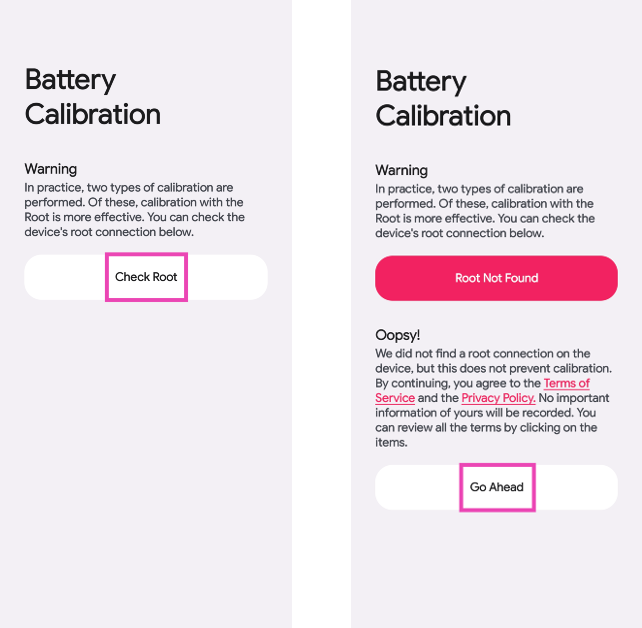 Step 3: Plug your phone into the charger and charge it to 100%.
Step 4: Without taking out the charger, hit Calibrate.
Step 3: Plug your phone into the charger and charge it to 100%.
Step 4: Without taking out the charger, hit Calibrate.
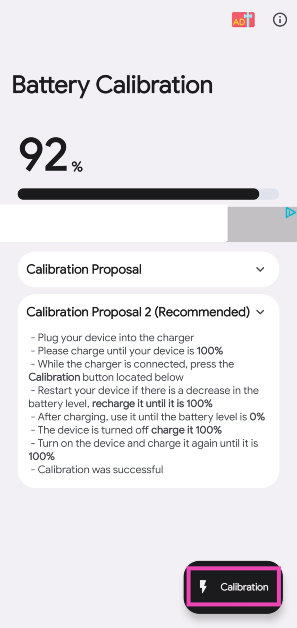 Step 5: Restart your device. If there is a decrease in battery percentage, charge it to 100%.
Step 6: Once the phone is fully charged, unplug the charger. Use the phone until its battery is completely drained.
Step 7: Once the device dies, plug in the charger and charge it to 100% without turning it on.
Step 8: Turn on the device and charge it to 100% again.
Step 5: Restart your device. If there is a decrease in battery percentage, charge it to 100%.
Step 6: Once the phone is fully charged, unplug the charger. Use the phone until its battery is completely drained.
Step 7: Once the device dies, plug in the charger and charge it to 100% without turning it on.
Step 8: Turn on the device and charge it to 100% again.





 Step 3:
 Step 4:
 Step 6:



 Step 2:
 Step 3:
 Step 4:
  Step 5: